EasyManual
 DARTY - Adapter LEON - Free user manual and instructions
Find the device manual for free DARTY LEON in PDF.


User questions about DARTY LEON
0 question about this device. Answer the ones you know or ask your own.
Ask a new question about this device
Download the instructions for your Adapter in PDF format for free! Find your manual DARTY - LEON and take your electronic device back in hand. On this page are published all the documents necessary for the use of your device. DARTY by LEON.
USER MANUAL DARTY LEON
This guide is a complement to Quick Installation Guide. The Quick Installation Guide instructs you on quick installation, and this guide provides the product overview and detailed instructions for each steps.
When using this guide, please notice that features available of the adapter may vary by model and software version. The adapter's availability may also vary by region or ISP. All images, steps, and descriptions in this guide are only examples and may not reflect your actual experience.
Conventions
In this guide, the following conventions are used:
| Convention | Description |
| Teal Underline | Hyperlinks are in teal italic. You can click to redirect to a website or a specific section. |
| Teal | Contents to be emphasized and texts on the web page are in teal, including the menus, items, buttons, etc. |
| ■ Note: | Ignoring this type of note might result in a malfunction or damage to the device. |
| ► Tips: | Indicates important information that helps you make better use of your device. |
*Maximum wireless signal rates are the physical rates derived from IEEE Standard 802.11 specifications. Actual wireless data throughput and wireless coverage, and quantity of connected devices are not guaranteed and will vary as a result of network conditions, AP limitations, and environmental factors, including building materials, obstacles, volume and density of traffic, and AP location.
More Info
- The latest software and utility can be found at https://www.tp-link.com/download-center.
- The Quick Installation Guide (QIG) can be found where you find this guide or inside the package of the product.
- Specifications can be found on the product page at https://www.tp-link.com.
- Our Technical Support contact information can be found at the Contact Technical Support page at https://www.tp-link.com/support.
Chapter 1
Get to Know About Your Adapter
This chapter introduces what the adapter can do.
The Bluetooth USB adapter, mainly used for PCs without Bluetooth function. It provides new and advanced Bluetooth 4.0 and enables wireless connection with a wide range of devices such as a Bluetooth headset, a Bluetooth speaker, a Bluetooth mouse or a mobile client, using for playing music, mouse and keyboard control, data transmission, etc.
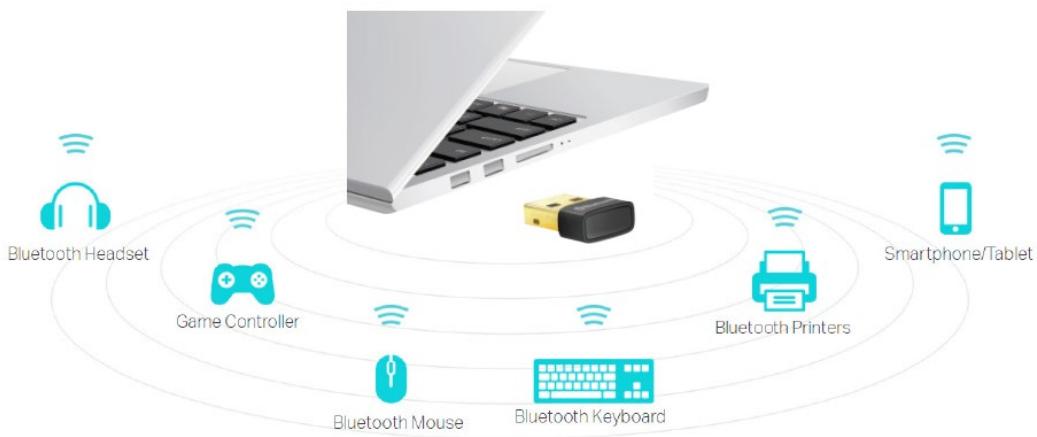
- Applies the latest Bluetooth 4.0 with low energy (BLE) technology and it is backward compatible with Bluetooth V3.0/2.1/2.0/1.1
- Enable wireless connection with Bluetooth-enabled devices
- Plug and Play for Win 8, Win 8.1, and Win 10
- Ultra-small for convenient portability with reliable high performance
Supports Windows 10/8.1/8/7/XP
Connect to a Computer
This chapter introduces how to connect the adapter to your computer.
Before you start using your adapter, insert the adapter into a USB port on your computer directly.
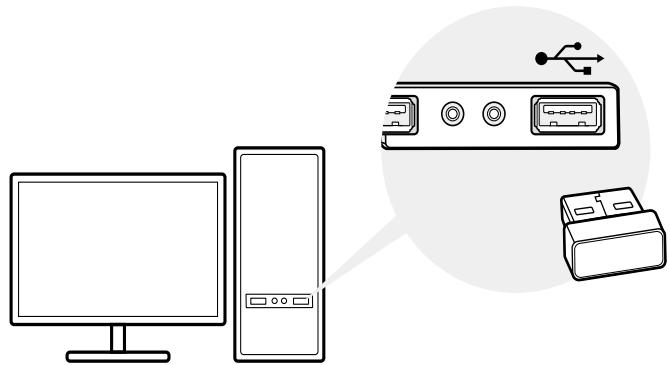
* The image is for demonstration only.
After connecting your adapter to the computer, please follow the instructions in the appropriate chapter for your operating system: Windows XP/7, Windows 8/8.1/10.
Note:
Make sure there are no other Bluetooth devices on the PC. If there are other Bluetooth devices, disable all Bluetooth devices (both built-in and third party) in Device Manager on your computer, then insert the adapter and try again. To go to Device Manager: Right-click My Computer, select Manage, go to Device Manager and disable all existing Bluetooth devices.
Chapter 3
Windows XP/7
This chapter introduces how to install your adapter's driver, pair with your Bluetooth devices and uninstall your driver in Windows XP and Windows 7. The adapter is equipped with a Driver Setup Wizard, which can guide you through the installation process.
This chapter includes the following sections:
Install Bluetooth Adapter's Driver
- Pair With Your Bluetooth Devices
- Uninstall Bluetooth Adapter's Driver
Here we take the steps in Windows 7 as an example - the steps may vary slightly for Windows XP. You need to install the Bluetooth adapter's driver before you enjoying using the adapter.
3.1. Install Bluetooth Adapter's Driver
- Download the driver at https://www.tp-link.com/download-center.
- Unzip the folder and start the installation by clicking Setup.exe.
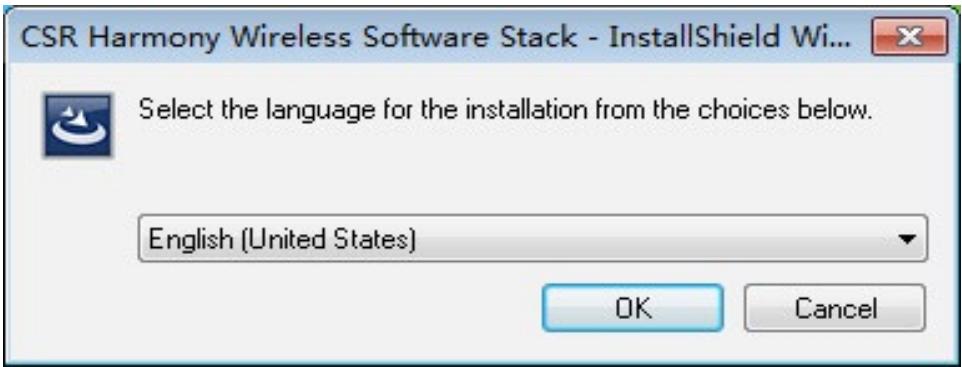
- Select the language and click OK.
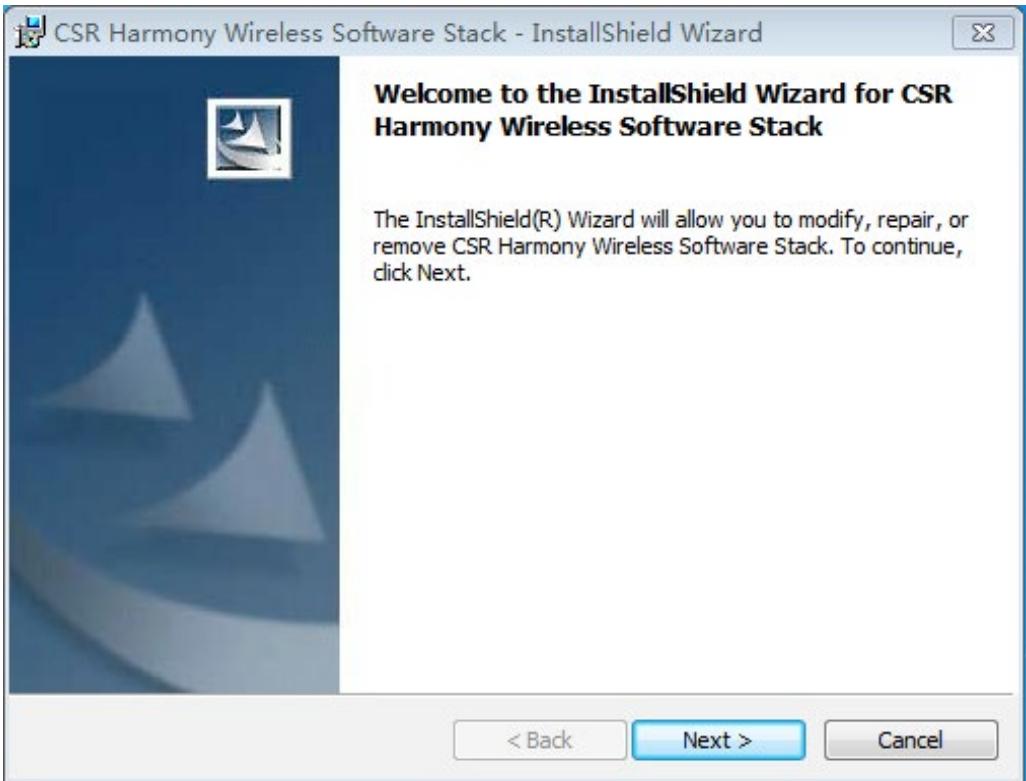
- When the welcome window appears, click Next.
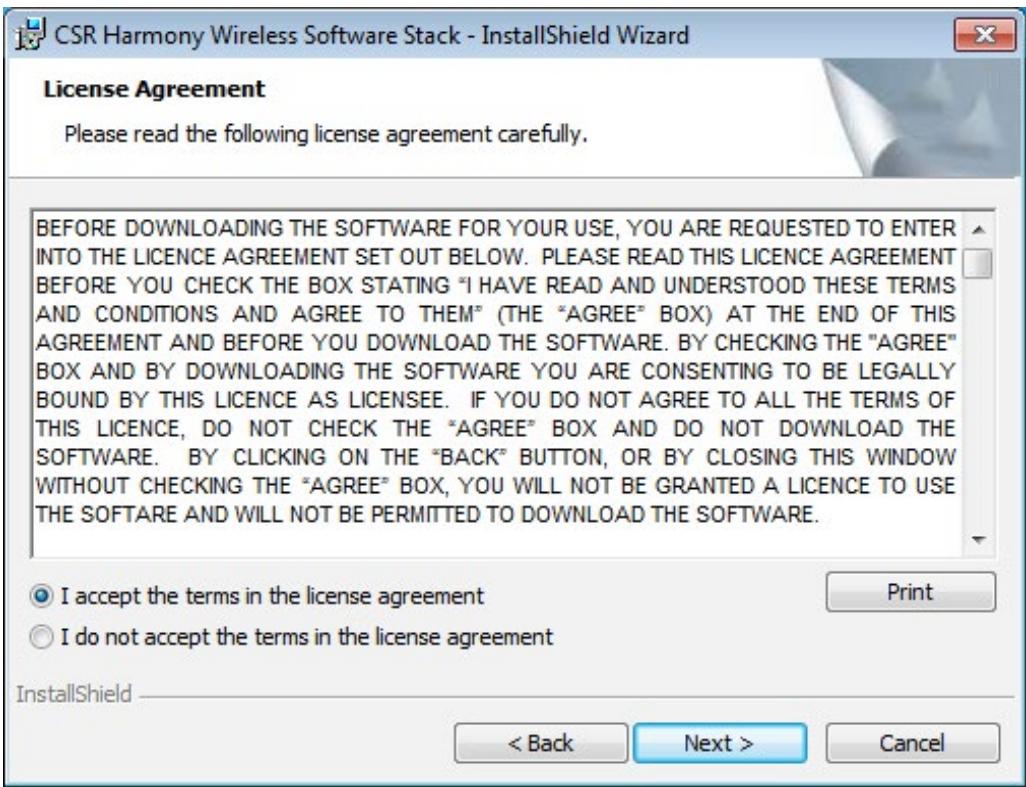
- Confirm that you agree with the terms of the License Agreement and click Next.
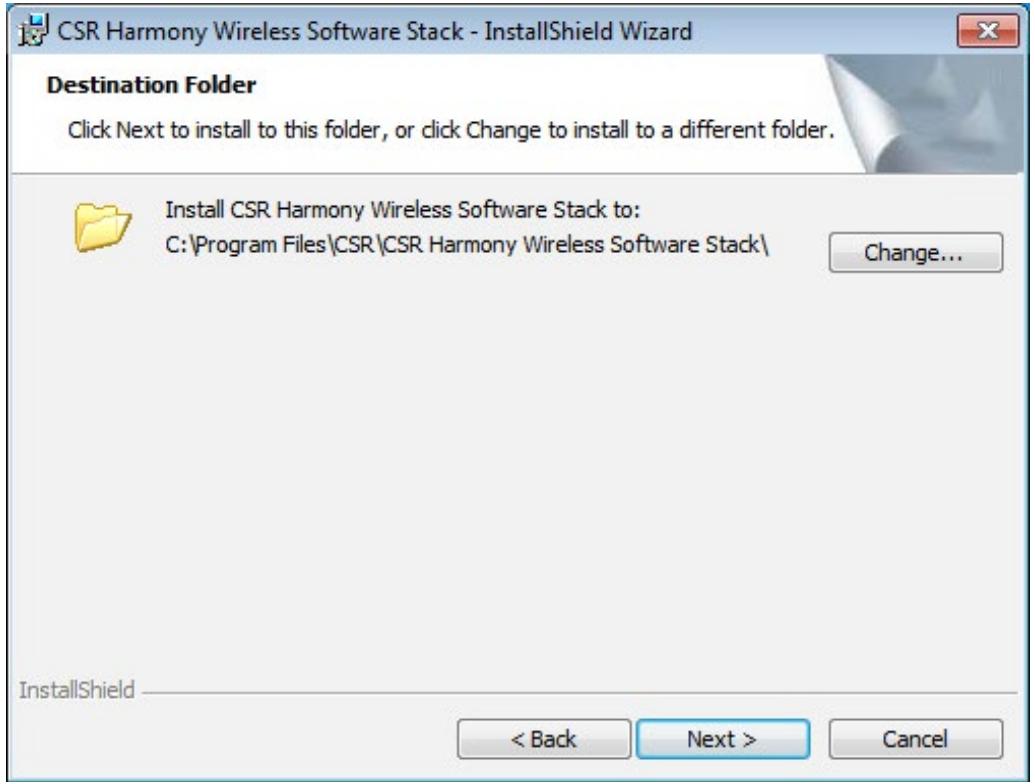
- Select the installation folder and click Next. It's recommended to use the default one.
- Change Discovery Mode to Discovery ON, select Device Type: Laptop or PC/Desktop and it's recommended to keep the original values of SCMS-T. Click Next.
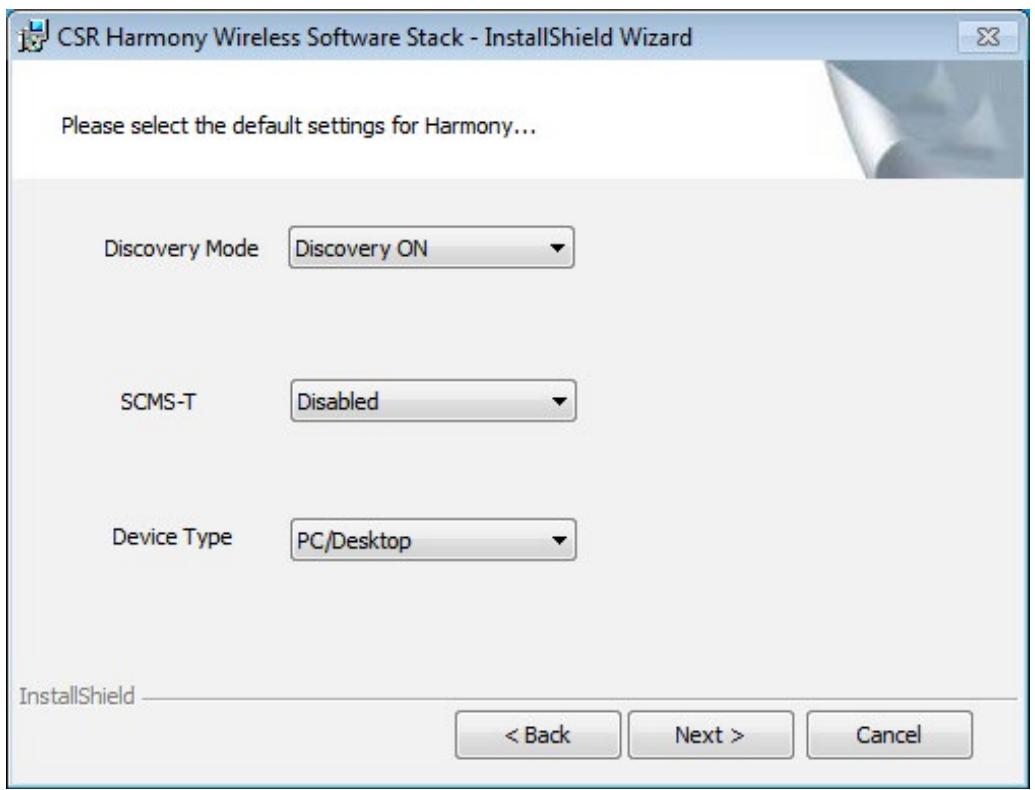
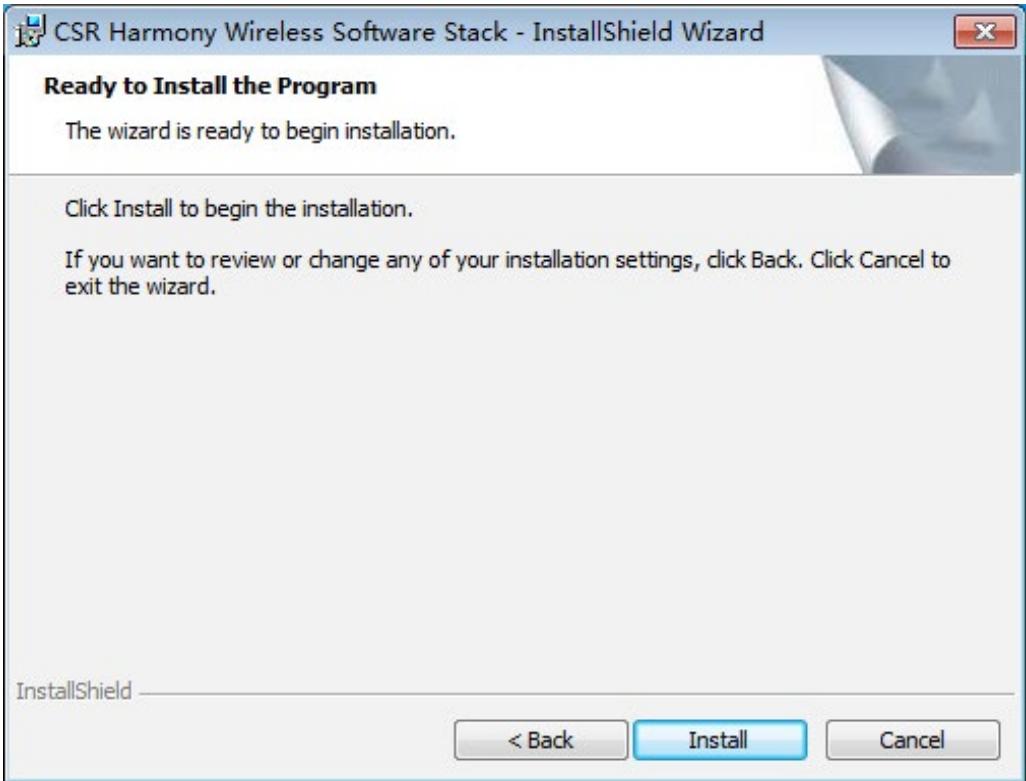
8. Click Install to begin the installation.
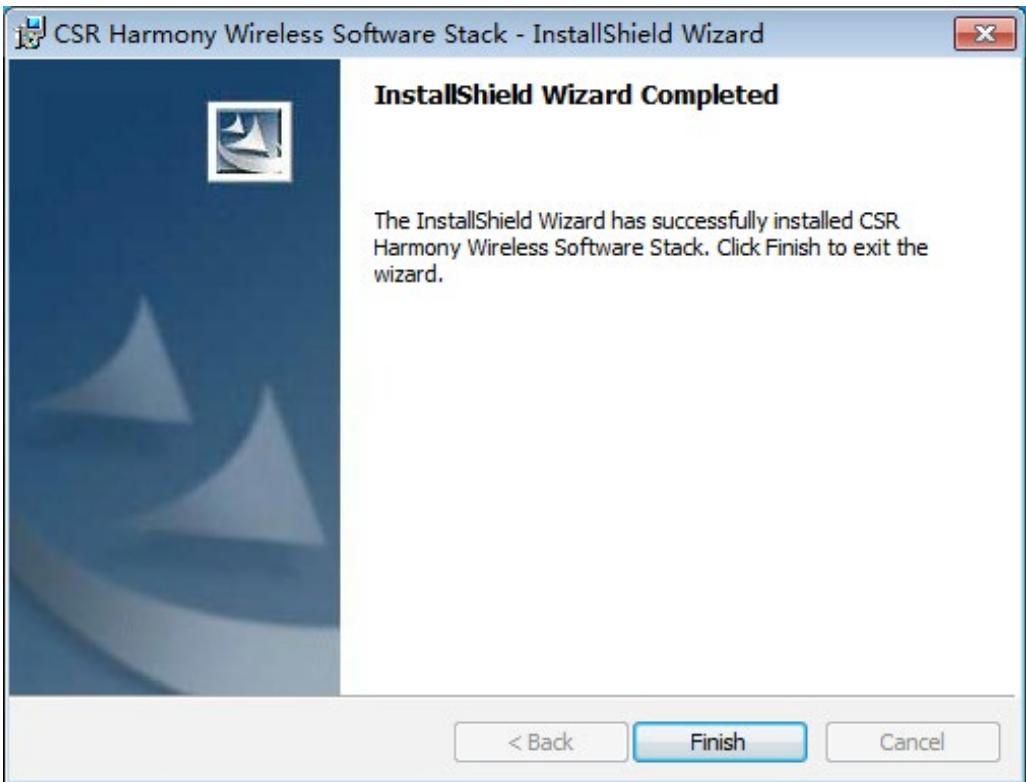
9. When the finish screen appears, click Finish.
- Restart your computer.
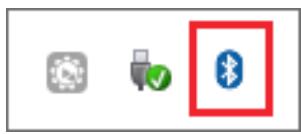
- After restarting the computer, you will find a Bluetooth icon in the menu bar, which means the driver has been installed successfully.
Note:
- If you can't install the driver successfully, disable the antivirus software and firewall, then try again.
- If the Bluetooth icon doesn't appear, refer to Troubleshooting->T1.
3.2. Pair With Your Bluetooth Devices
- Right-click the Bluetooth icon in the menu bar and select Add Bluetooth Devices, for example, Audio/Video devices.
Note: Make sure your Bluetooth device is set to be discoverable.
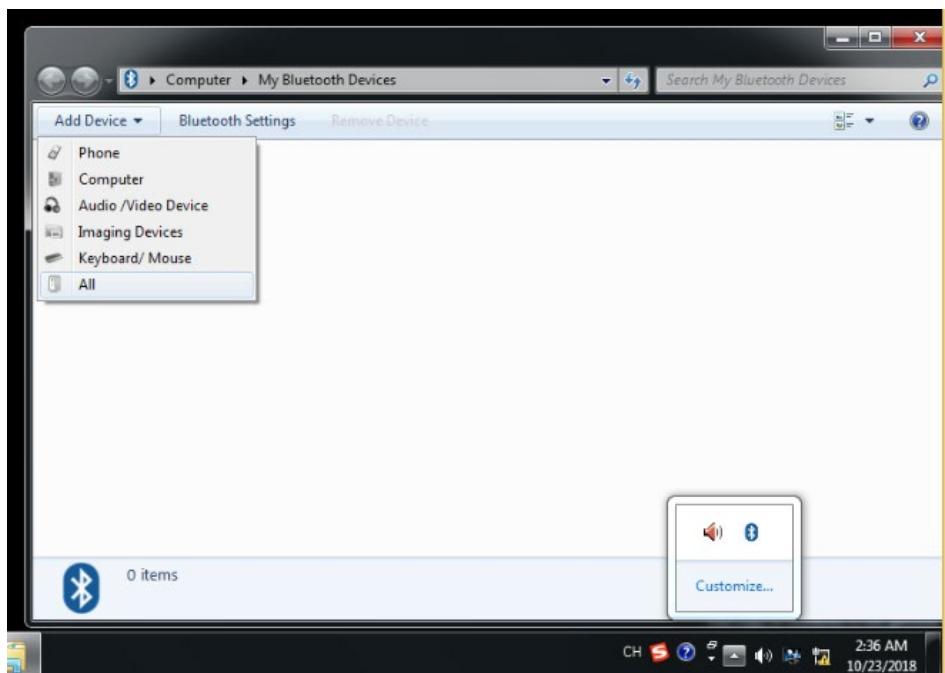
- Select the found-out device from the list and click Next.
- Click Finish when completing the pairing.
Note:
During the pairing you may be prompted to enter the pairing code. You need to enter the identical code to both devices. If you pair the earphones that do not enable to enter a code, please try to use the combination of 0000 or 1234, or have a look at the manual of your paired device.
3.3. Uninstall Bluetooth Adapter's Driver
Go to Start > All Programs > TP-Link and find the model you want to uninstall. Follow the on-screen instructions to complete the uninstallation.
Chapter 4
Windows 8/8.1/10
This chapter introduces how to pair with your Bluetooth devices in Windows 8, Windows 8.1 and Windows 10.
For Window 8, Windows 8.1 and Windows 10, plug and play. Insert the adapter and enjoy pairing with your Bluetooth devices. You don't need to install the driver manually.
Pair With Your Bluetooth Devices
- Double-click the Bluetooth icon on the menu bar.
Note:
- Make sure your Bluetooth device is set to be discoverable.
-
If the Bluetooth icon doesn't appear, refer to Troubleshooting->T1.
-
For Windows 8/8.1, skip this step. For Windows 10, click Add Bluetooth or other device to scan for Bluetooth devices.
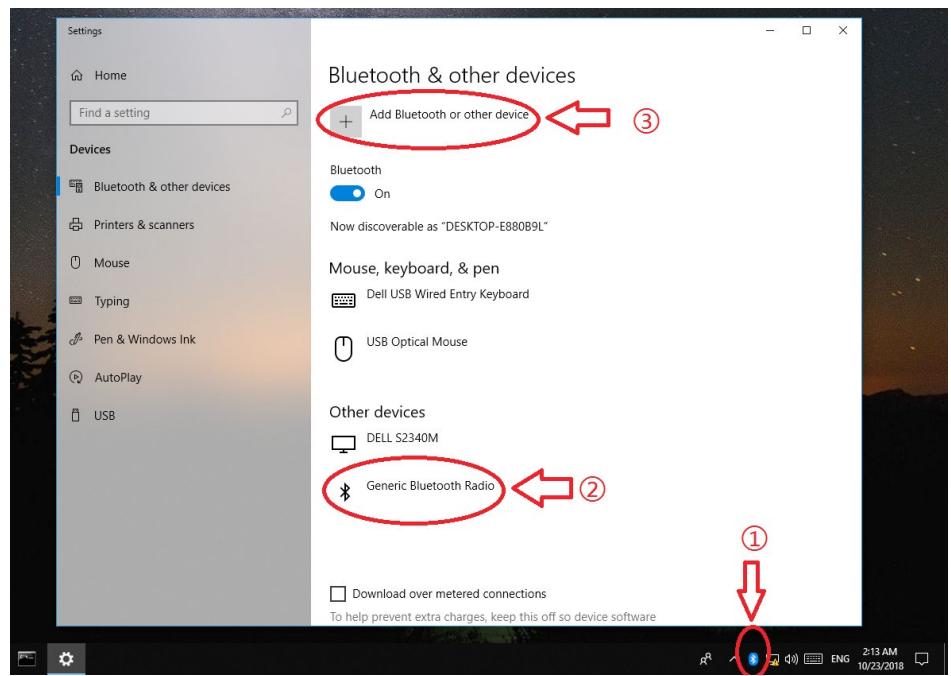
- Select your Bluetooth device from the list and follow the onscreen instructions to complete pairing.
Note:
During the pairing, you may be prompted to enter the pairing code. You need to enter the identical code to both devices. If you pair the earphones that do not enable to enter a code, please try to use the combination of 0000 or 1234, or have a look at the manual of your paired device.
Appendix: Troubleshooting
T1. What should I do if the Bluetooth icon doesn't appear?
- Make sure you have installed the Bluetooth driver if using Windows XP or Windows 7 system. And restart the computer after installing the driver.
- Make sure there are no other Bluetooth devices on the computer. If there are, disable all existing Bluetooth devices in Device Manager, then insert the adapter and try again. To go to Device Manager: Right-click My Computer, select Manager, go to Device Manager and disable all existing Bluetooth devices.
T2. Why the adapter is not working with my Bluetooth device?
Make sure your device has BLUETOOTH function.
- For devices with non-standard Bluetooth protocols, such as Logitech Mouse and Airpods, there may be some compatibility problems. For the compatibility list, refer to https://www.tp-link.com/fag-2316.html
If you still have questions and need further help, please refer to
https://www.tp-link.com/faq-2316.html
FCC compliance information statement

Product Name: Bluetooth 4.0 Nano USB Adapter
Model Number: UB400/UB4A
Responsible party:
TP-Link USA Corporation, d/b/a TP-Link North America, Inc.
Address: 145 South State College Blvd. Suite 400, Brea, CA 92821
Website: https://www.tp-link.com/us/
Tel: +1 626 333 0234
This equipment has been tested and found to comply with the limits for a Class B digital device, pursuant to part 15 of the FCC Rules. These limits are designed to provide reasonable protection against harmful interference in a residential installation. This equipment generates, uses and can radiate radio frequency energy and, if not installed and used in accordance with the instructions, may cause harmful interference to radio communications. However, there is no guarantee that interference will not occur in a particular installation. If this equipment does cause harmful interference to radio or television reception, which can be determined by turning the equipment off and on, the user is encouraged to try to correct the interference by one or more of the following measures:
- Reorient or relocate the receiving antenna.
- Increase the separation between the equipment and receiver.
- Connect the equipment into an outlet on a circuit different from that to which the receiver is connected.
- Consult the dealer or an experienced radio/ TV technician for help.
This device complies with part 15 of the FCC Rules. Operation is subject to the following two conditions:
1) This device may not cause harmful interference.
2) This device must accept any interference received, including interference that may cause undesired operation.
Any changes or modifications not expressly approved by the party responsible for compliance could void the user's authority to operate the equipment.
Note: The manufacturer is not responsible for any radio or TV interference caused by unauthorized modifications to this equipment. Such modifications could void the user's authority to operate the equipment.
FCC RF Radiation Exposure Statement:
This equipment complies with FCC RF radiation exposure limits set forth for an uncontrolled environment. This device and its antenna must not be co-located or operating in conjunction with any other antenna or transmitter.
"To comply with FCC RF exposure compliance requirements, this grant is applicable to only Mobile Configurations. The antennas used for this transmitter must be installed to provide a separation distance of at least 20~cm from all persons and must not be co-located or operating in conjunction with any other antenna or transmitter."
We, TP-Link USA Corporation, has determined that the equipment shown as above has been shown to comply with the applicable technical standards, FCC part 15. There is no unauthorized change is made in the equipment and the equipment is properly maintained and operated.
Issue Date: 2020.03.18
CE Mark Warning

This is a class B product. In a domestic environment, this product may cause radio interference, in which case the user may be required to take adequate measures.
OPERATING FREQUENCY (the maximum transmitted power)
2402MHz~2480MHz: 1 Mbps:8.56dBm
3 Mbps:8.43dBm
EU declaration of conformity
TP-Link hereby declares that the device is in compliance with the essential requirements and other relevant provisions of directives 2014/53/EU, 2011/65/EU and (EU)2015/863.
The original EU declaration of conformity may be found at https://www.tp-link. com/en/ce.
RF Exposure Information
This device meets the EU requirements (2014/53/EU Article 3.1a) on the limitation of exposure of the general public to electromagnetic fields by way of health protection.
The device complies with RF specifications when the device used at 20 cm from your body.
Canadian Compliance Statement
This device contains licence-exempt transmitter(s)/receiver(s) that comply with Innovation, Science and Economic Development Canada's licence-exempt RSS(s). Operation is subject to the following two conditions:
1) This device may not cause interference.
2) This device must accept any interference, including interference that may cause undesired operation of the device.
Radiation Exposure Statement:
This EUT is compliance with SAR for general population/uncontrolled exposure limits in RSS-102 and had been tested in accordance with the measurement methods and procedures specified in IEEE 1528 and IEC 62209. This equipment should be installed and operated with minimum distance 1.0cm between the radiator and your body. This device and its antenna(s) must not be co-located or operating in conjunction with any other antenna or transmitter.
Industry Canada Statement
CANICES-3(B)/NMB-3(B)
Korea Warning Statements
当用,
NCC Notice
注意!
依據低功率電波輻射性電機管理辦法
- Keep the device away from water, fire, humidity or hot environments.
- Do not attempt to disassemble, repair, or modify the device.
- Do not use the device where wireless devices are not allowed.
- This USB Adapter can be powered only by computers that comply with Limited Power Source(LPS).
Please read and follow the above safety information when operating the device. We cannot guarantee that no accidents or damage will occur due to improper use of the device. Please use this product with care and operate at your own risk.
Explanation of the symbols on the product label
| Symbol | Explanation |
| RECYCLINGThis product bears the selective sorting symbol for Waste electrical and electronic equipment (WEEE). This means that this product must be handled pursuant to European directive 2012/19/EU in order to be recycled or dismantled to minimize its impact on the environment.User has the choice to give his product to a competent recycling organization or to the retailer when he buys a new electrical or electronic equipment. |