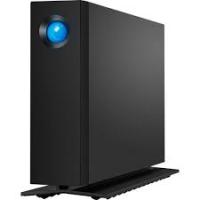
D2 PROFESSIONAL 4TO - External hard drive GL - Free user manual and instructions
Find the device manual for free D2 PROFESSIONAL 4TO GL in PDF.


User questions about D2 PROFESSIONAL 4TO GL
0 question about this device. Answer the ones you know or ask your own.
Ask a new question about this device
Download the instructions for your External hard drive in PDF format for free! Find your manual D2 PROFESSIONAL 4TO - GL and take your electronic device back in hand. On this page are published all the documents necessary for the use of your device. D2 PROFESSIONAL 4TO by GL.
USER MANUAL D2 PROFESSIONAL 4TO GL
Drive stand for upright use
Quick Install Guide
LaCie Storage Utilities and User Manual are pre-loaded on the drive.
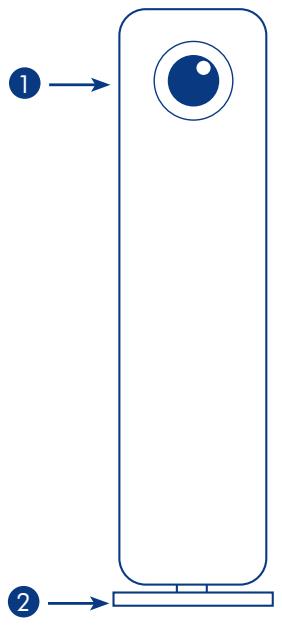
Front View
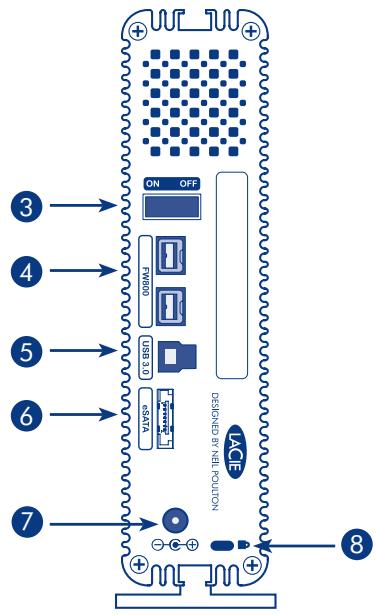
Rear View
- Shortcut button with activity LED
-
Removable stand
-
Power switch
- FireWire 800 ports
- USB 3.0 port
- eSATA port
- Power supply connection
- Chain lock option
Setup Steps
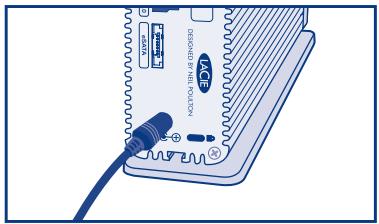
- Connect the power supply.
- Connect the USB 3.0, FireWire 800 or eSATA cable to your computer and to the drive.
NOTE: If your computer does not have a USB 3.0 port, you can connect the included USB 3.0 cable to a USB 2.0 port. In this case, file transfers will be limited to USB 2.0 speeds. To take advantage of SuperSpeed USB 3.0 transfer rates, you can add a USB 3.0 PCI-Express card (for desktop computer) or a USB 3.0 ExpressCard/34 (for laptop). For more information, visit www.lacie.com/accessories.
- Turn on the drive by moving the power switch to On. The drive will mount in My Computer (Windows XP), Computer (Vista or Windows 7) or on your desktop (Mac).
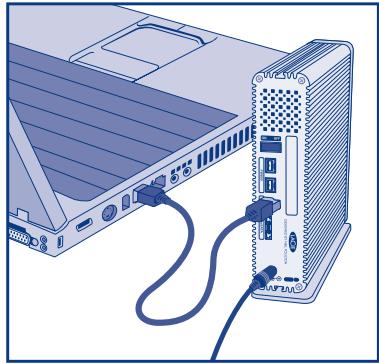
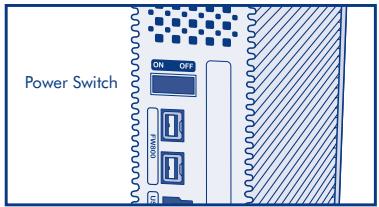
-
Before using your drive, LaCie Setup Assistant software must be launched to format your drive. It will:
-
Optimize your drive according to your needs
- Copy the manual and utilities onto your drive.
To launch LaCie Setup Assistant:
Windows users: Double-click the LaCie drive icon in My Computer/Computer.
Mac users: Double-click the "LaCie Setup Assistant" icon on your desktop.
NOTE: If you do not launch LaCie Setup Assistant or if you quit LaCie Setup Assistant after the formatting has begun, your drive will not be ready to use and will require manual formatting. The user manual and utilities will not be available on your drive and will have to be downloaded from the LaCie website: www.lacie.com.
NOTE: Running LaCie Setup Assistant does not prevent you from using your computer's native disk utility program to format or partition your LaCie drive. Simply follow the Setup Assistant through completion, then use your computer's native disk utility (Disk Management for Windows or Disk Utility for Mac) to reformat your drive.
- Install LaCie Shortcut Button software to enable the feature.

Precautions
Do not stack more than 3 LaCie d2 Quadra Hard Disks together. Do not expose the drive to temperatures over 35^ C (95° F) or 30^ C (86° F) when stacked. Do not expose the device to liquids. Use only the power supply shipped with the device.
Warranty Information
LaCie warrants your product against any defect in material and workmanship, under normal use, for the designated warranty period. The warranty becomes effective from the date of shipment. In the event this product is found to be defective within the warranty period, LaCie will, at its discretion, repair or replace the defective product.
This warranty is void if:
- The product was operated/stored in abnormal use or maintenance conditions;
- The product is repaired, modified or altered, unless LaCie expressly authorizes such repair, modification or alteration in writing;
- The product was subjected to abuse, neglect, electrical fault, improper packaging, accident or acts of nature;
- The product was installed improperly;
- The serial number of the product is defaced or missing;
- The broken part is a replacement part such as a pickup tray, etc.
- The tamper seal on the casing is broken.
For more information, see the User Manual pre-loaded on the drive.
For a detailed list of product warranties, visit www.lacie.com/products/warranty.htm.
For the latest documentation and software updates, please go to www.lacie.com/support/
www.lacie.com/products/warranty.htm.
Tia tic Teutaiie, evmuwoeic wv Eeipbiu kai tou loikou, napakaloume eiokepthetayntootooia daieivuovon www.lacie.com/support/
安装步骤
1.连接电源。
. www.lacie.com/accessories
j. (Windows XP) j. (Windows XP)
.(Mac) (Windows 7 Vista)
LaCie Setup Assistant 14.4
aallll lgl aal
dai jai jai gie sclalldjll
:LaCie Setup Assistant
.My Computer/Computer LaCie JauJauJauJauJauJauJauJauJauJauJauJauJauJauJauJauJauJauJauJauJauJauJauJauJauJauJauJauJauJauJauJauJauJauJauJauJauJauJauJauJauJauJauJau
Lalcie Setup Assistant"Jzj:Mac
aLacie Setup Assistant lae aae eae ae ae ae ae ae ae ae ae ae ae ae ae ae ae ae ae ae ae ae ae ae ae ae ae ae ae ae ae ae ae ae ae ae ae ae ae ae ae ae ae ae ae ae ae ae ae ae ae ae ae ae ae ae ae ae ae ae ae ae ae ae ae ae ae ae ae ae ae ae ae ae ae ae ae ae ae ae ae ae ae ae ae ae ae ae ae ae ae ae ae aaee
LaCie gao jn lgyj tleg yg w g yd alal al gce xellll U g dssall ldy jy jy jy
. www.lacie.com
a a a a a a a a a a a a a a a a a a a a a a a a a a a a a a a a a a a a a a a a a a a a
J 1
. (Mac Disk Utility Windows Disk Management)
LaCie Shortcut Button 5.5
aallll
(95) 35 35 35 35 35 35 35 35 35 35 35 35 35 35 35 35 35 35 35 35 35 35 35 35 35 35 35 35 35 35 35 35 35 35
jglg 20830
glial cell
a a a a a a a a a a a a a a a a a a a a a a a a a a a a a a a a a a a a a a a a a
Aalal 1 1 1 1 1 1 1 1 1 1 1 1 1 1 1 1 1 1 1
i 1
y 1
aiksslll llllllllal LaCie aaiiiaaa
aal jol gai j dals gai j pallal yg aial gai ay bgyll lal u ll alld
toa j gaiall gluill pjl 20
aill aill llll 1e y gall yell pia bai
Jaua Jauaal piauul juae juae juae juae Juaaall
. www.lacie.com/products/warranty.htm i j k l m n o p q r s t
Juslll/ww.lacie.com/support
Contact Us
LaCie Asia
25/F Winsan Tower
98 Thomson Road
Wanchai, Hong-Kong, China
info.asia@lacie.com
LaCie Australia
458 Gardeners Road Alexandria, NSW 2015 info.au@lacie.com
LaCie Benelux
Vorstlaan / 165 Bld du Souverain
B-1160 Brussels, Belgium
info.benelux@lacie.com
LaCie Canada
235 Dufferin St. Toronto, Ontario M6K 1Z5 info.ca@lacie.com
LaCie France
17, rue Ampère 91349 Massy Cedex info.fr@lacie.com
LaCie Germany
Am Kesselhaus 5
D-79576 Weil Am Rhein
info.de@lacie.com
LaCie Italy
Milano Business Park
Edificio B1
Via dei Missaglia 97
20142 Milano
info.it@lacie.com
Elecom-Japan
http://www.lacie.jp/support/
LaCie Nordic
(Sweden, Denmark, Norway, Finland)
Sveavagen 90, 5tr
113 59 Stockholm, Sweden
info.nordic@lacie.com
LaCie Spain
C/ Nunez Morgado, 3, 5^ pl. 28036 Madrid info.es@lacie.com
LaCie Switzerland
Davidsbodenstrasse 15A
4004 Basel
info.ch@lacie.com
LaCie United Kingdom and Ireland
LaCie Ltd, Power Road Studios
114 Power Road
Chiswick, London, UK W4 5PY
UK: info.uk@lacie.com
Ireland: info.ie@lacie.com
LaCie USA
22985 NW Evergreen Pkwy Hillsboro, OR 97124 sales@lacie.com
LaCie Worldwide Export
17, rue Ampère
91349 Massy Cedex, France
sales.intl@lacie.com
support.intl@lacie.com