VS 1527 BLANC - Digital Camera VIVITAR - Free user manual and instructions
Find the device manual for free VS 1527 BLANC VIVITAR in PDF.


User questions about VS 1527 BLANC VIVITAR
0 question about this device. Answer the ones you know or ask your own.
Ask a new question about this device
Download the instructions for your Digital Camera in PDF format for free! Find your manual VS 1527 BLANC - VIVITAR and take your electronic device back in hand. On this page are published all the documents necessary for the use of your device. VS 1527 BLANC by VIVITAR.
USER MANUAL VS 1527 BLANC VIVITAR
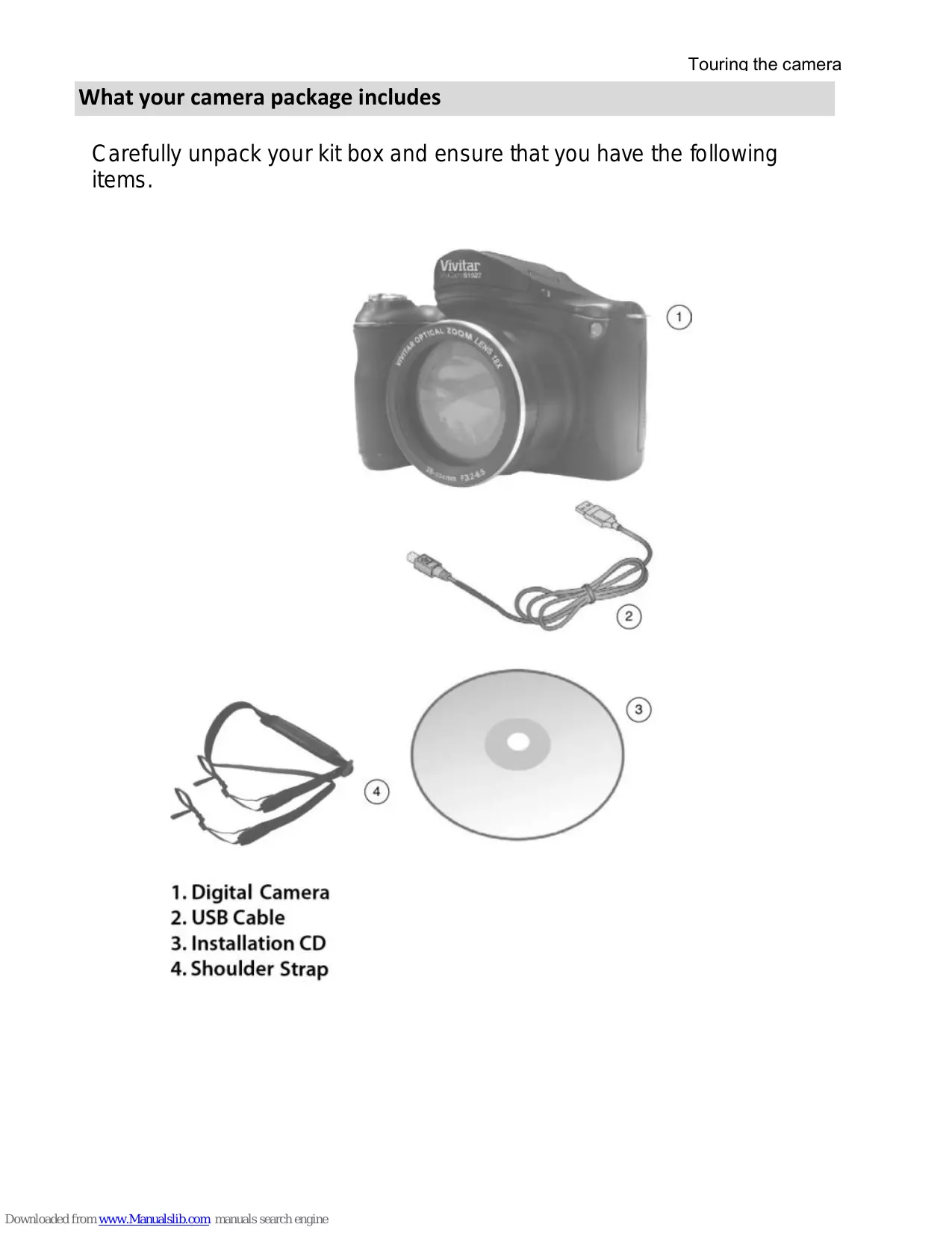
What your camera package includes
Carefully unpack your kit box and ensure that you have the following items.
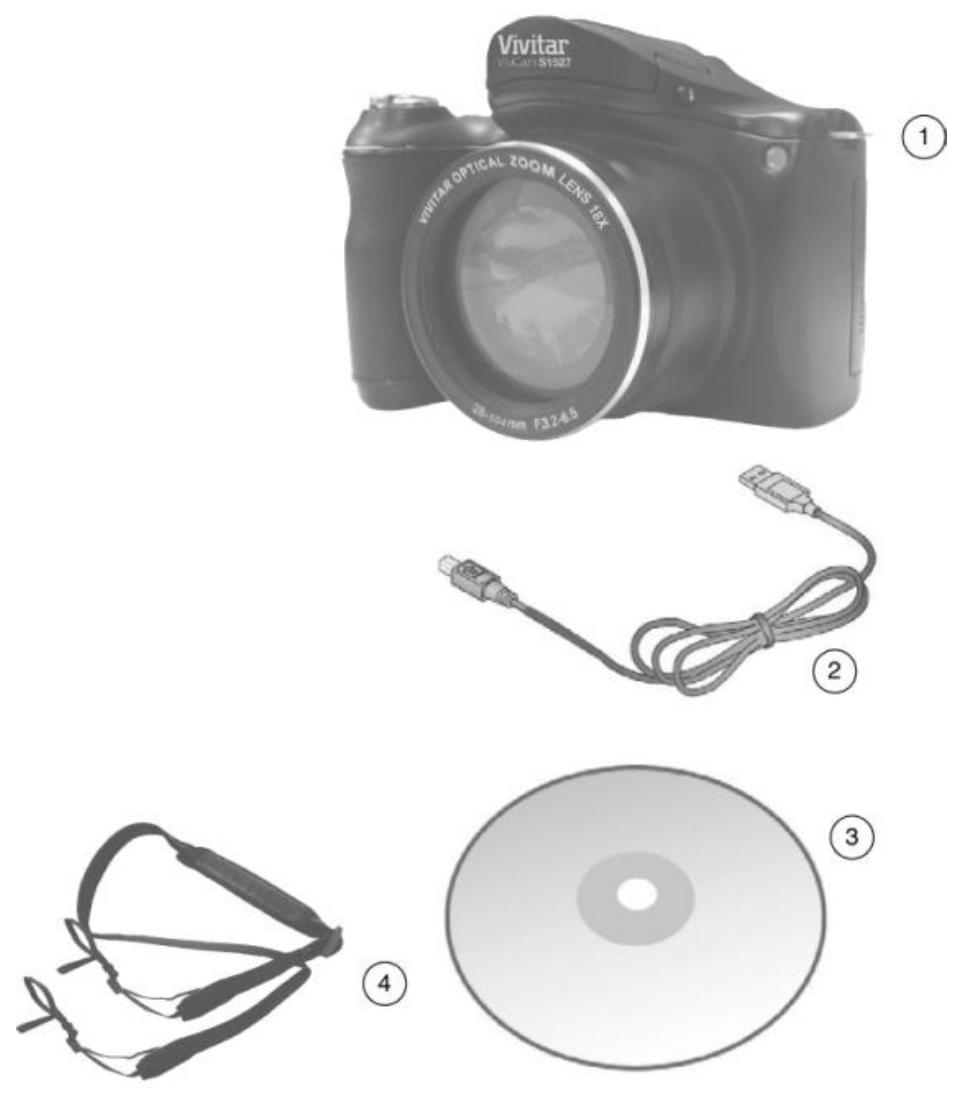
- Digital Camera
- USB Cable
- Installation CD
- Shoulder Strap
To be able to download photos to your PC, you will need the following minimum configuration:
Pentium III processor or above with Windows 2000 XP
- 128 MB RAM, with 150MB of free disk space
Available USB interface - CD-ROM Drive
1024 x 768 Recommended screen resolution
16-bit color or higher display adaptor
Computer System Requirements for Windows Vista/7
To be able to download photos to your PC your will need the following minimum configuration: Windows Vista or 7
- 800MHz processor and 512 MB of system memory
- 20GB hard driver with at least 15GB of available space
- Support for Super VGA graphics
Available USB Interface - CD-ROM drive
Computer System Requirements for Macintosh
- Power Macintosh G3 500 MHz or higher
Mac OS X version 10.5.x or later - 128 MB or more available system RAM (256 MB recommended), 150 MB free disk space
- 800x600 or higher-resolution monitor displaying millions of colors
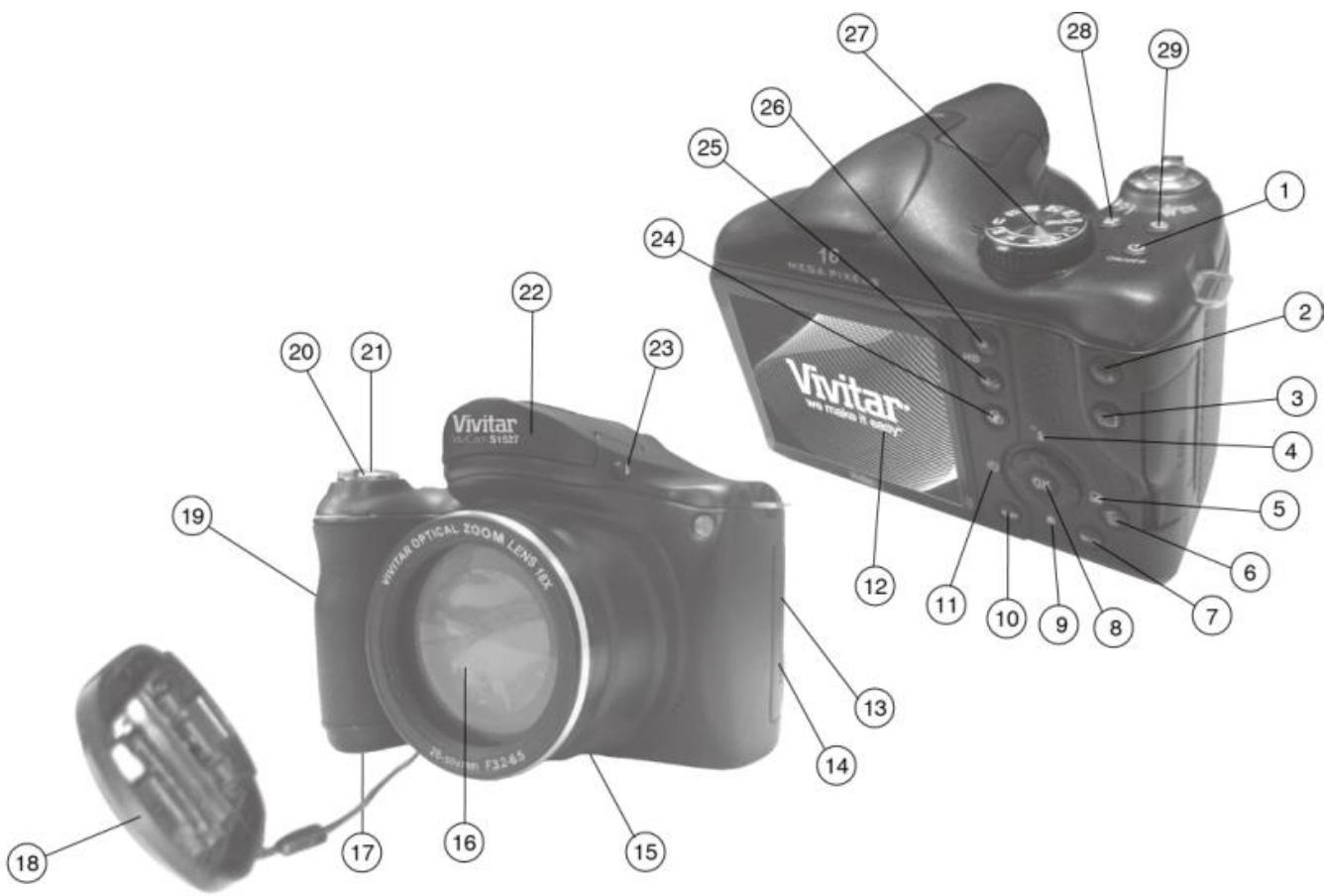
- Power ON/OFF Button
- Vivilink Button
3.Playback Button - Flash/UP Button
- Exposure/Right Button
- Delete Button
- Menu
- OK Button
- Macro/Down Button
-
Display Button
-
Self Timer/Left Button
- LCD Screen
- USB Slot
- HDMI Slot
- Tripod Socket
- Optical Zoom Lens
- Battery Cover
- Lens Cover
- Memory Card Slot
- W/T
21.Shutter Button
22. Flash Light
23. Flash Open Button
24. Special Color Effects Button
25.ISO Button
26. Video Record Button
27.Mode Dial
28. Face Detect Button
29. Anti-Shake Button
Multifunctional buttons
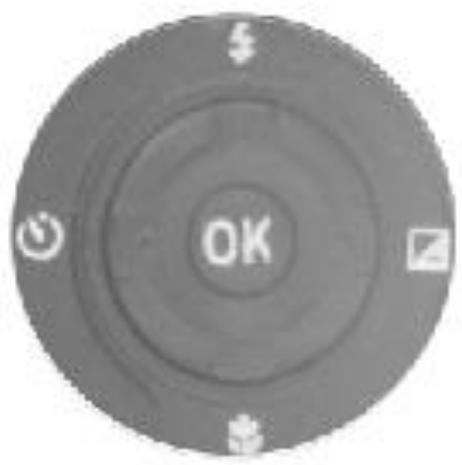
You can choose camera settings by pressing the 4-way control or OK.
-
Left/Self -timer:
-
Scrolls left in menus.
-
Toggles through the 4 self-timer options.
-
Up/Flash:
-
Scrolls up in menus.
-
Toggle through the flash options...
-
Right/Exposure:
-
Scrolls right in menus.
-
Selects an EV value.
-
Down/Focus:
-
Scrolls down in menus
-
Toggles between different focus modes.
-
OK: Confirms a chosen setting.
This section will guide you on how to prepare the camera before its initial use.
Attaching the strap
To attach the lens and neck straps to your camera, do the following:
- Insert one end of the neck strap through the strap eyelet.
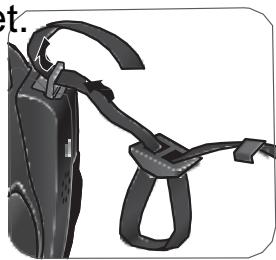
- Route it through the buckle as the inner loop.
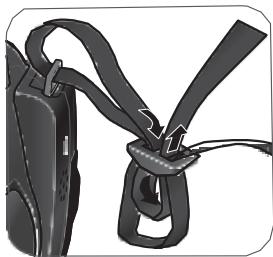
- Route the other end of the neck strap to the other strap buckle to secure it.

Follow the above steps to attach the other side of the neck strap.
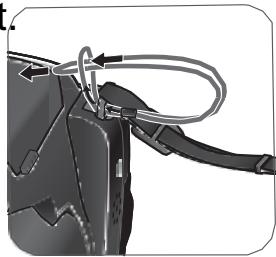
- Insert one end of the lens strap through the strap eyelet. Make a loop to secure it.
-
Attach the other end of the lens strap on the lens cover.
-
Once complete, make sure the straps are tight.
Installing the batteries
Use only the specified batteries for the camera, and always turn off the camera before removing the batteries.
To install the batteries:
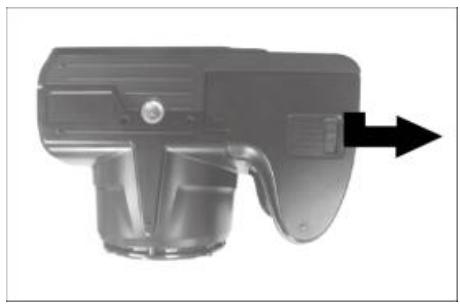
- Push the clip as the arrow showed and then slide the battery cover to the right to release and open it.
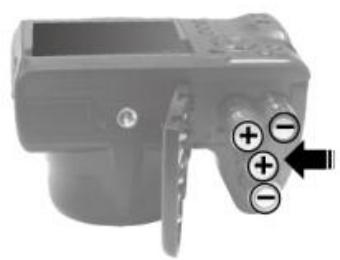
- Insert the batteries in the correct direction by matching the + - label on the battery slot.
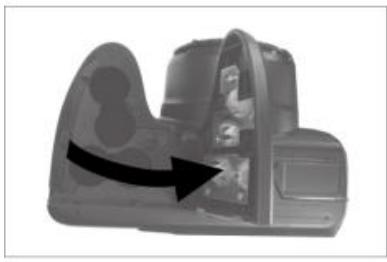
- Close the battery cover and then slide it to the left to lock it in place.
To remove the batteries
- Push the clip then slide the battery cover to the right to release and open it.
2.Remove the battery
3.Close the battery cover and then slide it to the left to lock it in place.
Installing an SD card
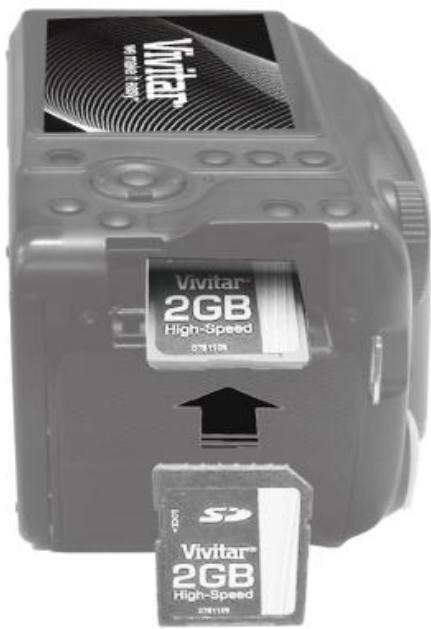
The camera comes with internal memory for storing captured images, video clips, or audio files. You can also add an SD card to store more files.
To install an SD card:
- Locate the Memory Card slot at the side of the camera.
- Insert the Memory card into the slot in the correct direction.
- Push the card in until you feel it “click” into position then closed the card cover
To remove an SD card:
- Open the card cover on the side of the camera.
- Lightly press the edge of the memory card to eject
- Close the card cover.
Turning the Power On and Off
There are two ways to turn on the camera:
- Press the Power button.
The camera is turned on in Camera mode. - Press the playback button
The camera is turned on in Camera mode
Opening the Flash
You need to manually open the flash before switching the flash mode.
To open the flash:
Use hands to lift the flash to open it.
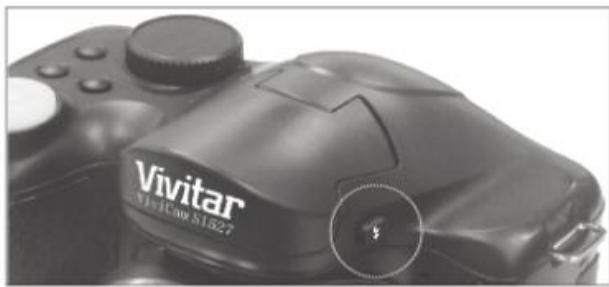
To close the flash:
Push down the flash to close it.
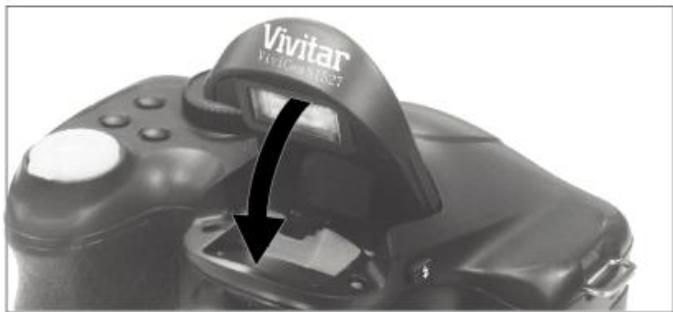
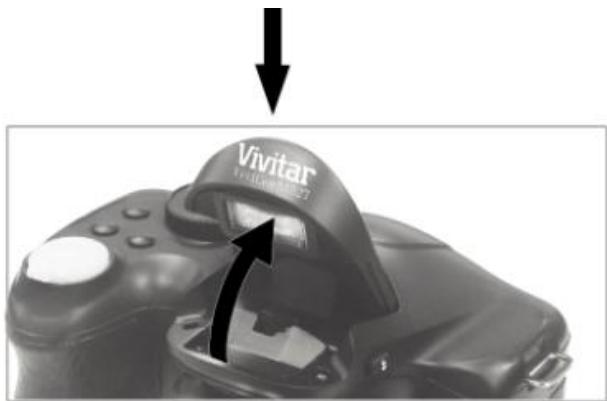
When the flash is closed, flash mode is automatically set to flash off.
Operating the camera
The procedure below is a general guideline for basic operation. It is particularly useful if you are new to the camera.
-
Press the Power button to turn the power on. Be sure that you have removed the lens cover before turning on the camera.
-
Set the mode dial to the desired shooting mode.
-
If you need to use the flash for shooting, open the flash.
-
Use the Zoom lever to zoom-in/zoom-out on the subject.
-
Press the Shutter button halfway to set automatic focus.
-
Once the focus is set, the focus frame color will turn from red (unfocused) to green (focused). If the focus frame color is red and you press the Shutter button down, it might result in a blurred photo.
-
Press the Shutter button down fully to capture the image.
-
To switch to Video mode, press. Record Button or roll the mode dial to video .Press the shutter button to start
-
While recording, use the Zoom lever to zoom-in/zoom-out on the subject. Press the right/exposure button to pause/resume the video recording
-
To switch to Playback mode, press . In Playback mode, you can view captured images or recorded videos.
• You can press left or right button to view other images/videos, slide the Zoom lever to zoom in/out an image.
Capture mode
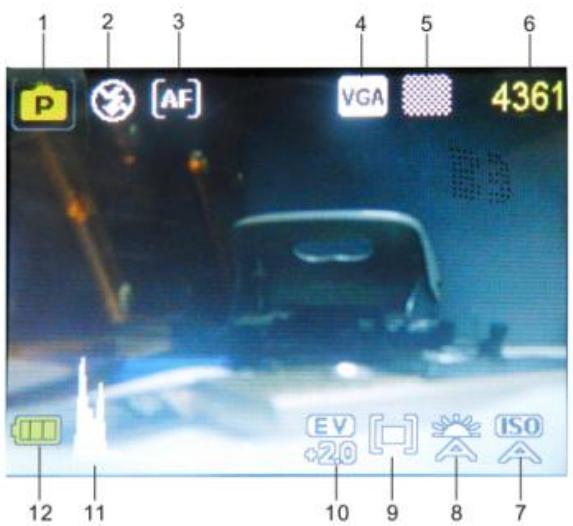
| Item | Description |
| 1 | Shooting mode |
| 2 | Flash mode |
| 3 | Focus mode |
| 4 | Image size |
| 5 | Image quality |
| 6 | Numbers of shots available |
| 7 | ISO |
| 8 | Face Tracking |
| 9 | White balance |
| 10 | Exposure value (EV) |
| 11 | Histogram |
| 12 | Battery level |
Flash mode
The flash offers additional light source (usually used in a low-light environment). You can capture an image using one of the following flash modes.
| Icon | Mode | Description |
| Auto Flash | The flash fires automatically based on the photographic conditions. | |
| Auto Anti Red-eye | Reduces the red-eye phenomenon when capturing natural-looking images of people and animals in low-light conditions. Be sure to ask the subject to look at the camera lens or get as close to the camera as possible. The flash fires automatically based on the photographic conditions. | |
| Force On | The flash always fires regardless of the surrounding lighting conditions. Select this mode when capturing images with high contrast (backlighting) and deep shadows. | |
| Force Off | The flash does not fire. Select this mode when flash photography is prohibited, or when the distance to the subject is beyond the effective range of the flash. |
To select a flash mode:
- Set the mode dial to the desired shooting mode.
-
Open the flash..
-
Press repeatedly until your desired flash mode is displayed on the LCD monitor.
Focus mode
| Icon | Mode | Description |
| [AF] | Auto focus | Adjusts focus automatically. |
| Macro | Used when capturing images at a close distance. | |
| [Alt] | Infinity | Used when capturing images at long distance. |
To select the focus mode:
-
Set the mode dial to the desired shooting mode.
-
Press repeatedly to toggle between Auto focus and focus modes.
Selecting the Shooting Mode
Rotate the mode dial to select one of the eight shooting modes:
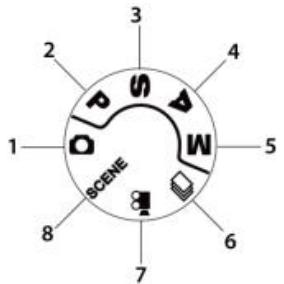
| No. | Mode | Description |
| 1. | Auto | The camera detects the shooting condition and automatically switches to the appropriate scene mode. |
| 2 | Program | The camera automatically configures the appropriate settings, so you can capture images with ease. |
| 3. | Shutter Priority | You can choose a shutter speed, while the aperture value is automatically determined by the lighting condition of the subject. |
| 4. | Aperture Priority | You can choose an aperture value, while the shutter speed is automatically determined by the lighting condition of the subject. |
| 5. | Manual | Lets you set both aperture and shutter speed manually. |
| 6. | Continuous Shooting | Lets you capture a series of shots with a single press of the Shutter button. |
| 7. | Video | Use this mode to record videos with your camera. |
| 8. | Scene Mode | Lets you select the desired scene mode that suits your shooting environment. |
Using Aperture Priority mode
Aperture priority is often used when shooting static subjects or emphasizing the depth of field. In general, use a smaller aperture if a greater depth of field is needed.
To adjust aperture value:
- Set the mode dial to A
- Press OK.
- Press Up/Down button to adjust the aperture value.
- Press OK to confirm setting.
Using Shutter Priority mode
Shutter priority is often used when shooting moving subjects. In general, use a shorter shutter speed to catch a fast-moving object.
To adjust shutter speed in Shutter Priority:
- Set the mode dial to S.
- Press OK.
- Press Left/Right button to adjust the shutter speed.
- Press OK to confirm setting.
Using Manual mode
You can choose the aperture value and shutter speed in Manual mode.
To adjust values in Manual mode:
M
- Set the mode dial to
- Press OK.
-
Adjust the settings.
-
Press Up/Down button to adjust the aperture value.
-
Press Left/Right button to adjust the shutter speed.
-
Press OK to confirm setting.
Using Continuous Shooting mode
In this mode, you can take consecutive shots.
| Icon | Mode | Descriptio |
| Burst | Continuously takes pictures as long as you keep pressing the Shutter button. The flash is always off in this mode. | |
| Speedy Burst | Press and release the Shutter button. When the photo size you select is VGA, Speedy Burst will shoot continuously at the speed of 30 shots per second. This will stop after 1second or when the memory card is full. | |
| AEB | AEB (Auto Exposure Bracketing) | Automatically takes 3 pictures with slightly different settings in the shutter speed or the aperture value. |
To select a continuous mode:
- Set the mode dial to
- Press Up button to enter the select mode.
- Press Up/Down button to select a desired
option. - Press OK to confirm.
Setting the Scene mode
Select one of the following scene modes to fit your shooting condition.
| Mode | Description |
| Backlight | Increases the exposure (by turning on the flash) when light illuminates from the subject from the behind |
| Scenery | Catch the scenery with ease. |
| Smile Capture | Automatically takes a shot when a smile is detected. |
| Blink Detect | Warns of eyes blinks if detected and lets you decided whether to save the image file. |
| HDR | Increase the dynamic range and enhances the details of dark area. |
| Sunset | Captures the warmth and atmosphere (represented by hue) of sunrise or sunset. |
| Fireworks | Adds exposure time to shoot firework trails. Please keep the camera steady or use a tripod while using this mode. |
| Snow | Used under a very bright light environment such as snow scenes |
| Text | Improves clarity & contrast when taking a close-up picture of documents. |
| Food | Captures food by enhancing color brightness and giving more vivid colors. |
| Night Portrait | .Capture portrait in low light conditions |
| Kids | Increases sensitivity and emphasizes children's skin tones. |
| Building | Enhances lines & contracts to highlight the sense of the three dimensions (3D) for a building. |
| Night scenery | Captures photos in a low-light environment, such as in the evening or at night. |
To select a scene mode:
- Set the mode dial to
- Press Up/Down button to select the desired scene mode.
- Press OK to confirm setting.
Using the Menu Button
Press the Menu button to access more capture options. Depending on your settings, the displayed option icons in the Function menu may vary.
To use the Menu Button:
- Press the Menu button,
- Press Up/Down button to select a menu item.
- Press OK/Right button to enter the submenu.
- Press Up/Down button to select an option.
- Press OK to confirm the setting
Image size
| Description | Description |
| 16mega pixels (4608 x 3456) | 6mega pixels (2560 x 1920) |
| 14mega pixels(4300 x3255) | 3 mega pixels (2048 x 1536) |
| 12mega pixels (4000 x 3000) | 2 mega pixels (1920 x 1080) |
| 10mega pixels (3648 x 2736) | VGA (640 x 480) |
| 8mega pixels (3264 x 2448) |
To select an image size:
- Press Menu button.
- Press Up/Down button to select image size.
- Press OK button to enter the submenu.
- Press Up/Down button to select an option.
- Press OK button to confirm the setting..
To select an image quality level:
- Press Menu button.
- Press Up/Down button to select image quality.
- Press OK button to enter the submenu.
- Press Up/Down button to select an option.
- Press OK button to confirm the setting..
Movie size
| Description |
| HD 720p (16:9; 1280 x 720) |
To select a movie size:
- Press Menu button.
- Press Up/Down button to select image size in video mode.
- Press OK button to enter the submenu.
- Press OK button to confirm the setting..
Metering
| Icon | Mode | Description |
| Multi | Detects the exposure based on multiple points in the subject area. | |
| Center | Detects the exposure of the entire shooting screen, but gives more importance to the values near the center. | |
| Spot | Detects the exposure based on the center spot in the subject area. |
To select a metering option:
- Press Menu button.
- Press Up/Down button to select metering.
- Press OK button to enter the submenu.
- Press Up/Down button to select an option.
- Press OK to confirm setting.
White Balance
Compensates for color temperatures in different lighting conditions, so white and other colors can display properly when you capture images.
| Icon | Mode | Description |
| Tungsten | Used when subjects lit by tungsten (incandescent) lighting. | |
| Fluorescent H Fluorescent L | Adjusts for fluorescent lighting. Corrects the green hue of fluorescent lighting. | |
| Custom | Used when you want to manually adjust white balance in a particular lighting | |
| Auto | Adjusts white balance automatically. | |
| Daylight | Used in bright daylight conditions. | |
| Cloudy | Used in twilight or shady conditions. |
To select White Balance:
- Press Menu button.
- Press Up/Down button to select white balance.
- Press OK button to enter the submenu.
- Press Up/Down button to select an option.
- Press OK to confirm setting.
ISO
ISO configures the camera's sensitivity to light. The higher the ISO value, the brighter picture you can take in a low-light environment. Yet, you may see more noise in the picture as you increase the ISO value.
| Icon | Description |
| ISO A | Automatically sets the ISO value. |
| ISO 100 ISO 200 | Equivalent to color ISO 50/100/200 film. Used for outdoor photography in bright sunlight. |
| ISO 400 ISO 800 | Equivalent to color ISO 400/800/1600 film. Used it in a low-light environment or where the flash light is not allowed. |
To select an ISO value:
- Press Menu button.
- Press Up/Down button to select ISO value.
- Press OK button to enter the submenu.
- Press Up/Down button to select an option.
- Press OK to confirm setting.
Setting EV
EV (Exposure Value) lightens or darkens the entire image. Adjust EV when the brightness between the subject and the background is not balanced, or when the subject occupies only a small part of the picture.
To select an EV:
- Press Menu button.
- Press Up/Down button to select EV.
- Press OK button to enter the submenu.
- Press Up/Down button to select an option.
- Press OK to confirm setting.
Image Sharpness
This setting allows you to adjust the sharpness of images, making edges more or less distinct.
To select image sharpness:
- Press Menu button.
- Press Up/Down button to select Image sharpness.
- Press OK button to enter the submenu.
- Press Up/Down button to select from sharp/normal/soft.
- Press OK to confirm setting.
Color Effect
Adds color filter effects to the image or video you want to capture.
| Mode | Description |
| Normal | No effects are added. |
| Monochrome | Adds an effect with monochromatic color tones. |
Operating the camera
| Sepia | Adds an effect with dark reddish brown color tones, so the image or video looks as if it is old. |
| Red | The image becomes reddish. |
| Green | The image becomes greenish. |
| Blue | The image becomes bluish. |
To select an effect:
- Press Menu button.
- Press Up/Down button to select Color Effect.
- Press OK button to enter the submenu.
- Press Up/Down button to select an option.
- Press OK to confirm setting.
Date stamp
This setting allows you to adjust the system time which can be display on the photos:
- Press Menu button.
- Press Up/Down button to select Date stamp.
- Press OK button to enter the submenu.
-
Press Up/Down button to select from Off/Date/Date &Time On selecting off no date will appear on the photo On selecting date ,there is only date appear on the photo On selecting date &time ,the date and time will both appear
-
Press OK to confirm setting.
Face Detect
- Press Menu button.
- Press Up/Down button to select Face detect.
- Press OK button to enter the submenu.
- Press Up/Down button to select from Off/Face detect/Smile Detect/ Blinking Detect/Object Detect.
- Press OK to confirm setting.
Recording Videos
You can record video with this camera. Set the movie size before you start recording a video.
To record the video clip:
- Press shutter button to start recording.
- Use the Zoom lever to zoom in/out on the subject.
- Press the right/exposure button to pause /resume the video recording
- Press the shutter button again to stop the recording.
Setting the Drive Mode
You can included yourself in a photo by using this feature to delay the time between pressing the shutter button and the photo is actually taken.
-
Press Left/Selftimer button
-
Press Up/Down button to select from
off/2 seconds/5seconds/10seconds
- Press OK button confirm setting.
Battery status
| Icon | Description |
| III | Battery power is full. |
| III | Battery power remains adequate. |
| □ | Battery power is low. |
| □ | Battery power is very low. You should replace the battery ASAP. |
Other settings
Press menu button and then press right button to enter the setup menu
| Icon | Mode | Description |
| Silent Mode | Shutter | Sets the shutter sound on and off. |
| Start-up | Set the type of the startup sound | |
| Beep | Sets the button (excluding shutter) sound on and off. | |
| Volume | Adjusts the volume of the shutter sound, startup sound, operation sound and playback sound. | |
| Auto power off | 1 min [1 min.] | For power conservation, the camera automatically enters the standby mode after it has been idle for a period of time. (Press any key to resume.) |
| 3 min [3 min.] | ||
| 5 min [5 min.] | ||
| OFF [Off] | The camera remains on when idle. | |
| Date & Time | Sets the date and time. | |
| Language | Select a language for display menus and other information. | |
| File Numbering | [Series] | Stores the most recently used file number regardless of deleted files or a change of memory card. This is useful for avoiding the file name duplication when images are downloaded to a computer. |
| [Reset] | Reset file numbering each time the memory card is changed. | |
| TV Out | You can review images on a television with an AV | |
| [NTSC] | America, Japan, Taiwan and others | |
| [PAL] | China, Europe, Oceania, and others | |
| Frequency | 50Hz | 50HZ for Europe and Japan. |
| 60Hz | 60HZ is for the U.S. | |
| Auto | It can adjust the frequency to the site. | |
| Battery Type | To ensure the camera displays battery level correctly, set the type to match the batteries used. Carbon-Zinc batteries are not recommended. | |
| [Alkaline] | When using Alkaline batteries. | |
| [NiMH] | When using NiMH batteries. | |
| [Lithium] | When using Lithium batteries. | |
| [Oxyride] | When using Oxyride batteries. | |
| Format Memory card | [Format] Formats the internal memory or the memory card. | |
| Default Setting | Resetset the entire menu and button operation settings to initial default. | |
Playback mode
Press▶ to switch to Playback mode.
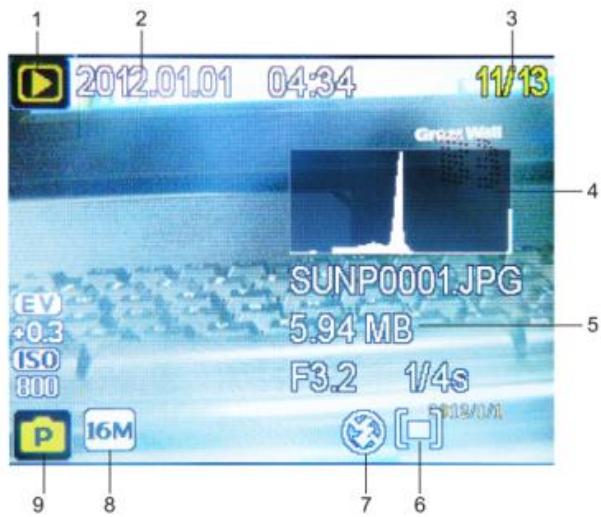
| Item | Description |
| 1 | Indicates that the camera is in Playback mode. |
| 2 | Date and time when the file was created. |
| 3 | File number. |
| 4 | Histogram |
| 5 | File name, file size, shutter speed, and aperture value |
| 6 | White balance |
| 7 | Flash off |
| 8 | Image size |
| 9 | Display the shooting mode |
Options for playback and editing
When the camera is in Playback mode, press left/right button to preview the next/previous recorded files. You can also select any of the following options.
Enlarging an image
Magnifies an image, so more details can be seen.
To enlarge an image:
- Press playback button to switch to Playback mode.
- Press Left/ Right button to select the image you want to enlarge.
- Use the Zoom lever to zoom-in/out on the image.
- Press the 4 way button to move the area you want to see.
- Use the zoom lever to zoom back the image.
Viewing multiple files at a time
Shows up to 9 files at a time on the screen.
To view multiple files:
- Press playback button to switch to Playback mode.
- Slide the Zoom lever to W In this mode, maximum 9 files (shown in thumbnails) are displayed on the screen. Press up/down/left/right select a file, and then press OK to view it in its normal viewing size.
Playing back video clips
View recorded video clips in the playback mode.
To view a video clip:
- Press playback button to switch to Playback mode.
- Press left/right button to select the video clip you want to view
- Press UP button to start playing the video, press menu button to stop playing and press left/right button to fast forward/rewind it
Slideshow
Sets the time interval for presenting a series of captured image and video files
(first frame only).
To play a slideshow:
- Press playback button to switch to Playback mode.
- Press menu button and then press up/down button to select slide show.
-
Change the slideshow settings.
-
Use the four-way control to set one of the following slideshow effects:
-
Applies a transition effect from left to right.
- Applies a transition effect from upper-left side to lower-right side.
- Applies a horizontal transition effect.
- Applies a vertical transition effect.
-
Applies a horizontal transition effect by intersecting an image.
-
You can set the interval between 1/3/5/10 seconds.
-
Select whether you want to repeat the slideshow.
- Select Start and press OK to play the slideshow.
Deleting files
Removes selected or all files.
To delete files:
- Press playback button to switch to Playback mode.
- Press menu button and then press updown button to select delete.
- Select whether to delete single/all and then press OK.
Protecting files
Prevents selected files from accidental removal.
To protect files:
- Press playback button to switch to Playback mode.
- Press menu button and then press up/down button to select protect
- Select whether to protect single/lock all images/unlock all images then press OK.
Voice memo
Inserts a voice annotation to an image file.
To record a voice memo:
- Press playback button to switch to Playback mode.
- Press left/right button to select the image you want to add a voice memo.
- Press up/down button to select voice memo.
- Select add to start your voice recording.
- Press OK to stop recording.
To play back a voice memo:
-
Press UP button to play the voice memo.
-
Press menu button to exit playback.
Color Effect
You can add special effects to your images.
| Mode | Description |
| Normal | No effect is added to the image. |
| Red Eye Removal | Reduce red eye in captured images |
| Sepia | Recorded image will be stored in a sepia tone. |
| B/W | Convert image to black & white. |
| Negative | Colors become the opposite of what they were in the original image. |
| Mosaic | Applies a mosaic tile effect to the image. |
| Vivid Red | The image becomes reddish. |
| Vivid Green | The image becomes greenish. |
| Vivid Blue | The image becomes bluish. |
To add a special effect to an image:
- Press playback button to enter Playback mode.
- Press left/right button to select the image you want to add an effect to.
- Press menu button and then select
-
Press up or down to select the effect.
-
Press OK to confirm the change and save the image file.
Resizing
Changes an image file to a smaller size, and overwrites the image file or saves it as another new file.
To resize an image:
- Press playback button to switch to Playback mode.
- Press left/right button to select the image you want to resize.
- Press up/down to select the target image size to which you want to reduce.
- Press OK to confirm
Startup image
Sets the welcome screen when the camera is powering on.
To select a startup image:
- Press playback button to switch to Playback mode.
- Press menu button and then press up/down select startup image
- Press ok button to set this photo yes/no
- Press OK.
DPOF
The Digital Print Order Format (DPOF) setting allows you to select images on the memory card for printing and specify the number of print copies in advance using the camera. This is extremely convenient for sending the images to a photo developing service or for printing on a direct print function compatible printer.
To set up DPOF:
- Press playback button to switch to Playback mode.
- Press menu button and then press up/down select DPOF.
- Press ok button and press up/down button to select single/all-reset
- Press OK.
Working with computer and AV system
Bundled software
The camera offers the following programs on a CD.
To install these programs, see the information supplied with the CD.
Connecting the camera to a computer
You can connect the camera to a PC or notebook to transfer, view, print, or
edit files.
To connect the camera to a computer:
- Open the USB/AV port cover.
- Connect the end of the smaller plug of the USB cable to the camera
-
Turn on the camera.
-
Connect the other end of the USB cable to an available USB port on your computer.
- Select Computer and wait for the connection.
- A Removable Disk icon appears in My Computer. Click this icon to access the files in your camera.
Connecting the camera to an AV system
You can play files in your camera from an AV system such as TV or projector.
To connect the camera to an AV system:
- Open the USB/AV port cover.
- Connect the end of the smaller plug of an AV cable to the camera.
- Connect the yellow video plug and the white audio plug of the AV cable to a video-input jack and an audio-input jack (left channel) on your AV system.
- Turn on the AV system, and then switch to the AV source connecting to the camera.
- Turn on the camera.
- Follow the on-screen instructions to operate the camera via the TV or projector screen.
Printing images
In addition to printing images by connecting the camera to a printer via a computer or bringing the memory card (if available) to a photo-processing center, you can choose to print using PictBridge.
Printing with PictBridge
You can directly print images by connecting your camera to a PictBridge- compatible printer without using a computer.
To print images from a PictBridge-compatible printer:
- Open the USB/AV port cover.
- Connect the end of the smaller plug of the USB cable to the camera.
-
Connect the other end of the USB cable to an available USB port on your printer.
-
Turn on the printer. Wait for a while until it finishes starting up and is ready to print.
- Turn on the camera.
- Select Printer and wait for the connection.
-
Select one of the following options:
-
To print one image at a time, select Print Select, and press left or right button to select an image.
- To print all images at a time, select Print All.
-
To print all images (shown by thumbnails) at a time, select Print Index.
-
Press OK.
Troubleshooting and service information
If your camera cannot operate normally, see the frequently encountered problems and solutions listed below. If the problem persists, contact your nearest service center or technical support.
| Problem | Cause | Solution |
| The camera cannot power up. | There is no battery or the batteries are not inserted correctly. | Insert the batteries correctly. |
| The batteries have no power. | Replace the batteries. | |
| The battery power is draining quickly. | The external temperature is extremely low. | -- |
| Many shots are being captured in dark places, requiring a | -- | |
| The batteries or camera is warm. | The camera or flash was used continuously over a long period of | -- |
| The LCD screen is black. | The lens cover is on. | Remove the lens cover. |
| No image is displayed on the screen and the camera beeped three | The lens cover is on. | Remove the lens cover. |
| I cannot adjust the flash | The flash is closed. | Open the flash. |
| The flash does not fire. | The camera flash is turned off. | Set the flash to Auto Flash. |
| The light source is sufficient. | -- | |
| Even though the flash fired, the image is | The distance to the subject is greater than the flash's effective | Get closer to the subject and shoot. |
| The image is too bright or too dark. | The exposure is excessive or inadequate. | Reset exposure compensation. |
| I cannot format a memory card. | The memory card is write-protected. | Remove the write protection. |
| End of the memory card life. | Insert a new memory card. | |
| I cannot download images from the camera to my computer. | The free space on the hard disk of your computer is insufficient. | Ensure that the hard disk has enough space for running Windows and that the drive for loading image files has free space equal to or greater than |
| There is no power being supplied to the | Replace the batteries. | |
| The camera does not shoot even when pressing the Shutter button. | The batteries are running low. | Replace the batteries. |
| The camera is not in Capture mode. | Switch to Capture mode. | |
| The Shutter button was not pressed all the way | Press the Shutter button all the way down. | |
| The internal memory or memory card does not have any free space. | Load a new card or delete unwanted files. | |
| The flash is recharging. | Wait until the flash mode icon, indicated on the screen, stops flashing. | |
| The camera does not recognize the memory card. | Format the memory card before the initial use or before using with another |
Specifications
| Sensor | CMOS Sensor |
| Scene | Backlight, Scenery, Smile Capture, Blink Detect, HDR, Sunset, Firework, Snow, Text, Food, Night Portrait, Kids Building, Night Scenery, |
| Image Resolution | 16M(4608X3456)、14M(4300x3255)、12M(4000x3000)、10M(3648x2736)、8M(3264X2448), 6M 3:2(2560X1920)、3M(2048x1536)、2M(1920X1080)) |
| Video Resolution | 1280 X720 (30fps) |
| LCD | TXD 3.0“TFT |
| Image Quality | Normal/Fine/Super Fine |
| Anti-shake | Yes |
| White Balance | Auto / Daylight / Cloudy / Tungsten / Fluorescent H / Fluorescent L / Manual |
| Exposure | -2.0 ~ +2.0 EV (0.3EV / step) |
| ISO | Auto/ISO50/100/200/400/800/1600 |
| Flash | Auto Flash / Red Eye reduce /Off |
| Drive mode | Off / 10 sec. / 5sec. / 2sec |
| Power Source | CIPA approximately 330 (based on bundled AA Alkaline batteries); 500 based on NiMH batteries; 850 based on Lithium batteries) |
| Storage Type | Built-in approx. 108MB (+-5%) SD (up to 4GB) / SDHC (up to 32GB) / SDXC (> 32GB) |
| File Format | Still Image: JPEG (EXIF 2.3 compatible); DCF compatible; Support DPOF Video: MJPEG Audio: AVI/MOV |
| Interface | Digital output: USB 2.0 compatible Audio / Video output (NTSC/PAL) PictBridge compatible |