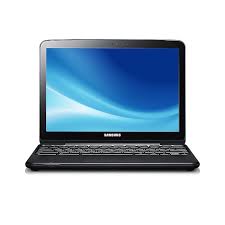
XE500C21 - Laptop SAMSUNG - Free user manual and instructions
Find the device manual for free XE500C21 SAMSUNG in PDF.



| Product Type | Laptop |
| Brand | Samsung |
| Model | XE500C21 |
| Mobile Connectivity | 3G (HSDPA/HSUPA) |
| SIM Card Type | 3G or GSM SIM Card |
| SIM Card Activation | Requires IMEI and ICCID numbers |
| Radio Standards | EN 301 489, EN 300 328, EN 301 893, EN 301 511, EN 301 908 |
| Maximum SAR | 2.0 W/kg |
| Measured SAR | 0.539 W/kg |
| Safety Distance (antenna-body) | 20.8 cm |
| Safety Distance (pacemaker) | 15 cm |
| Battery | Samsung approved battery |
| Charger | Samsung approved charger |
| Operating temperature (battery) | 0 °C to 45 °C |
| Disposal | Follow local regulations |
| Usage precautions | Switch off in explosion risk areas, hospitals, airplanes |
| Maintenance and cleaning | Avoid moisture, dust, shocks |
| Accessories | Use only Samsung approved accessories |
| Applicable directives | R&TTE 1999/5/EC, EMC 2004/108/EC, LVD 2006/95/EC |
| Manufacturer | Samsung Electronics Co., Ltd., Korea |
Frequently Asked Questions - XE500C21 SAMSUNG
User questions about XE500C21 SAMSUNG
0 question about this device. Answer the ones you know or ask your own.
Ask a new question about this device
Download the instructions for your Laptop in PDF format for free! Find your manual XE500C21 - SAMSUNG and take your electronic device back in hand. On this page are published all the documents necessary for the use of your device. XE500C21 by SAMSUNG.
USER MANUAL XE500C21 SAMSUNG
Before Starting 3G connection ....3
Start Using 3G Service ....4
If you cannot connect to 3G network....4
FAQ....5
Safety and usage information....6
Safety precautions....6
RF Exposure....8
Declaration of Conformity....9
Before Starting 3G connection
I. SIM Purchase
In order to use your computer to connect to the Internet, you must have a valid GSM or 3G data-enabled SIM Card. SIM Card can be purchased from various telecommunication operators.
II. SIM Activation
SIM card must be activated before you can connect to the Internet. Usually, SIM activation is done at the time of purchase. If your SIM was not activated when you purchased it, please contact the appropriate telecom operators for help.

When you call for SIM activation, you will need to quote two numbers “IMEI” and “ICCID.” “IMEI” number can be found at the bottom of your computer. For “ICCID” number, please refer to purchased SIM.
* IMEI label location may vary depending on model.
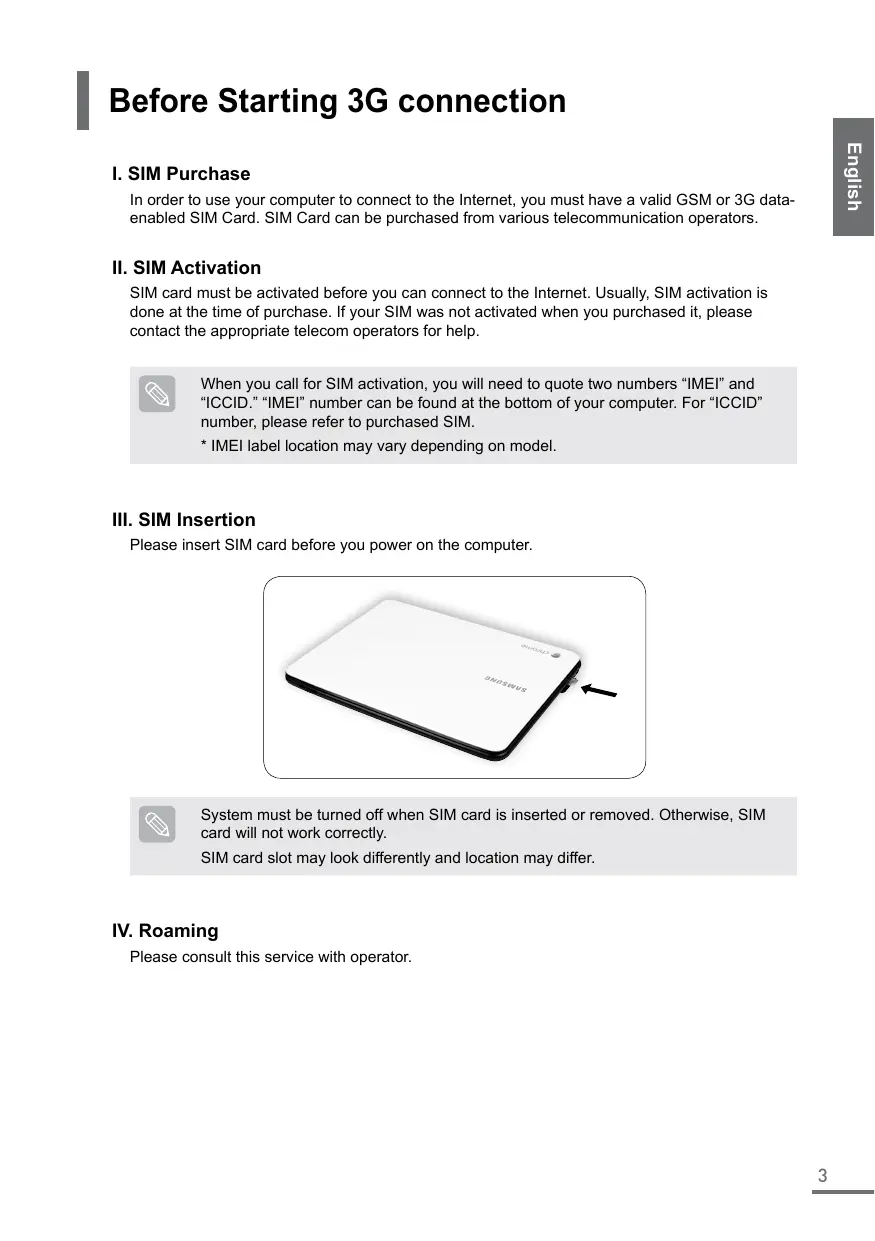
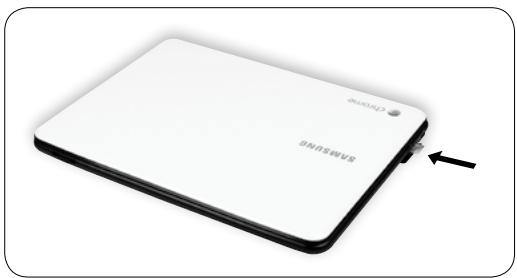
III. SIM Insertion
Please insert SIM card before you power on the computer.
natural_image
White Samsung hard drive with a black USB cable and a black arrow pointing to the side (no text or symbols on the device body)
System must be turned off when SIM card is inserted or removed. Otherwise, SIM card will not work correctly.
SIM card slot may look differently and location may differ.
IV. Roaming
Please consult this service with operator.
Start Using 3G Service
- Turn on the device.
- Click the empty Signal Bar which is located on upper right hand corner. (30)
- Click signal bar by which the operator name is indicated.
- Check to see if white signal bar is filled in the empty signal bar.
- Browse internet.
If you cannot connect to 3G network
- See if SIM is inserted correctly.
- Check if SIM is activated.
ii. Move the cursor on the operator signal.
iii. Click "Options".
iv. Check "Connection" tab if the Activation status is "Activated".
i. Click "Network settings..." which is located on the bottom of the list when you click this signal bar (图标).
FAQ
Why do I keep losing my connection?
This may be due to interference caused by other devices like cordless phones, microwave ovens and other 2.4GHz band devices.
Why can't I connect to Internet?
You may not be able to establish connection to Internet when you have set incorrect profile. Refer to your SIM card's service provider and obtain correct APN / User name / Password / PhoneNumber. Then, select proper profile or create a new profile according to the obtained information.
Why do I get a slow connection while I am using HSDPA/HSUPA?
HSDPA/HSUPA is a shared data service. You may experience slower connections when several users in the same area are accessing the HSDPA/HSUPA service.
There is no operator when I clicked network icon
- Check if there is Enable Mobile Data. Then click it to enable the mobile data.
- Please check if you inserted activated SIM card correctly.
- Please go to another place so that it may search the network correctly.
I entered the wrong PIN a few times. Why can't I use my device anymore?
If you enter the wrong PIN three times, your SIM card locks automatically. To unlock the card, you must enter a PUK which is provided by service provider at the time of purchase. If you enter the wrong PUK ten times, SIM card will no longer work.)
Safety and usage information
Comply with the following precautions to avoid dangerous or illegal situations and ensure peak performance of your wireless WAN embedded PC.
For the Safety and usage information for the Notebook PC, please refer to the main User's Guide of the Notebook PC.
Handle and dispose of batteries and chargers with care
- Use only Samsung-approved batteries and chargers specifically designed for your wireless WAN embedded PC.
Incompatible batteries or chargers can cause serious injuries or damage to your wireless WAN embedded PC. - Never dispose of batteries in a fire. Follow all local regulations when disposing used batteries or wireless WAN embedded PC.
- Never place batteries or wireless WAN embedded PC on or in heating devices, such as microwave ovens, stoves, or radiators. Batteries may explode when overheated.
- Never crush or puncture the battery. Avoid exposing the battery to high external pressure, which can lead to an internal short circuit and overheating.
Safety precautions
Follow all safety warnings and regulations
Comply with any regulations that restrict the use of a wireless WAN embedded PC in a certain area.
Usage precautions during 3G connection :
Keep safe distance from pregnant women's stomach or from lower stomach of teenagers.
Avoid interference with pacemakers
Maintain a minimum of 15 cm (6 inches) between wireless WAN embedded PC and pacemakers to avoid potential interference, as recommended by manufacturers and the independent research group, Wireless Technology Research. If you have any reason to suspect that your wireless WAN embedded PC is interfering with a pacemaker or other medical device, turn off the wireless WAN embedded PC immediately and contact the manufacturer of the pacemaker or medical device for guidance.
Turn off the wireless WAN embedded PC in potentially explosive environments
Do not use your wireless WAN embedded PC at refueling points (service stations) or near fuels or chemicals. Turn off your wireless WAN embedded PC whenever directed by warning signs or instructions. Your wireless WAN embedded PC could cause explosions or fire in and around fuel or chemical storage and transfer areas or blasting areas. Do not store or carry flammable liquids, gases, or explosive materials in the same compartment as the wireless WAN embedded PC, its parts, or accessories.
Use only Samsung-approved accessories
Using incompatible accessories may damage your wireless WAN embedded PC or cause injury.
Turn off the wireless WAN embedded PC near medical equipment.
Your wireless WAN embedded PC can interfere with medical equipment in hospitals or health care facilities. Follow all regulations, posted warnings, and directions from medical personnel.
Turn off the wireless WAN embedded PC and follow all airline regulations when in an aircraft
Your wireless WAN embedded PC can cause interference with aircraft equipment. Follow all airline regulations and turn off your wireless WAN embedded PC.
Protect batteries and chargers from damage
- Avoid exposing batteries to very cold or very hot temperatures (below 0^ / 32^ or above 45^ / 113^ ). Extreme temperatures can reduce the charging capacity and life of your batteries.
- Prevent batteries from contacting metal objects, as this can create a connection between the + and - terminals of your batteries and lead to temporary or permanent battery damage.
- Never use a damaged charger or battery.
Handle your wireless WAN embedded PC carefully and sensibly
- Do not allow your wireless WAN embedded PC to get wet—liquids can cause serious damage. Do not handle your wireless WAN embedded PC with wet hands. Water damage to your wireless WAN embedded PC can void your manufacturer's warranty.
- Avoid using or storing your wireless WAN embedded PC in dusty, dirty areas to prevent damage to moving parts.
- Your wireless WAN embedded PC is a complex electronic device—protect it from impacts and rough handling to avoid serious damage.
- Do not paint your wireless WAN embedded PC, as paint can clog moving parts and prevent proper operation.
- Your wireless WAN embedded PC and memory cards may be damaged by exposure to magnetic fields. Do not use carrying cases or accessories with magnetic closures or allow your wireless WAN embedded PC to come in contact with magnetic fields for extended periods of time.
Avoid interference with other electronic devices
Your wireless WAN embedded PC emits radio frequency (RF) signals that may interfere with unshielded or improperly shielded electronic equipment, such as pacemakers, hearing aids, medical devices, and other electronic devices in homes or vehicles. Consult the manufacturers of your electronic devices to solve any interference problems you experience.
RF Exposure
General Statement on RF energy
Your wireless WAN embedded PC contains a transmitter and a receiver. When it is ON, it receives and transmits RF energy. When you communicate with your Notebook PC, the system handling your connection controls the power level at which your Notebook PC transmits.
Specific Absorption Rate (SAR) certification information
This wireless WAN embedded PC is included a radio transmitter and receiver. It is designed not to exceed the limits for exposure to radio waves recommended by international guidelines. These guidelines were developed by the independent scientific organization ICNIRP and include safety margins designed to assure the protection of all persons, regardless of age and health.
The guidelines use a unit of measurement known as the Specific Absorption Rate, or SAR. The SAR limit for mobile devices is 2.0 W/kg and the highest SAR value for this device when tested at the body was 0.539 W/kg. (SAR measurement distance is 1.5 cm from the phantom)
As SAR is measured utilizing the devices highest transmitting power the actual SAR of this device while operating is typically below that indicated above. This is due to automatic changes to the power level of the device to ensure it only uses the minimum level required to reach the network.
The World Health Organization has stated that present scientific information does not indicate the need for any special precautions for the use of mobile devices. They note that if you want to reduce your exposure then you can do so by limiting the length of calls to keep the mobile devices away from the head and body.
(!) Body worn operation
Important safety information regarding radiofrequency radiation (RF) exposure
To ensure compliance with RF exposure guidelines the Notebook PC must be used with a minimum of 20.8 cm antenna separation from the body (The Tx antenna is located in the top of the LCD).
Failure to observe these instructions could result in your RF exposure exceeding the relevant guideline limits
Limiting exposure to radio frequency (RF) fields
For individuals concerned about limiting their exposure to RF fields, the World Health Organisation (WHO) provides the following advice:
Precautionary measures: Present scientific information does not indicate the need for any special precautions for the use of the Notebook PC. If individuals are concerned, they might choose to limit their own or their children's RF exposure by limiting the length of connections, or using 'hands-free' devices to keep your Notebook PC away from the head and body.
Further information on this subject can be obtained from the WHO home page http://www.who.int/peh-emf
WHO Fact sheet 193: June 2000.
Product details
For the following
Product : Notebook PC
Model(s) : XE500C21
Manufactured at:
Samsung Electronics Co., Ltd.
416, Maetan 3-Dong, Yeongtong-Gu, Suwon-Si, Gyeonggi-Do, 443-742 Korea
Samsung Electronics Suzhou Computer Co., Ltd.
No. 198, Fangzhou Road, Suzhou Industrial Park, Jiangsu Province, 215021, China
(Factories name and address)
Declaration & Applicable standards
We hereby declare, that the product above is in compliance with the essential requirements of the R&TTE Directive (1999/5/EC) by application of the standards below.
This product also meets the essential requirements and other relevant provisions of the EMC Directive (2004/108/EC) and the LVD Directive (2006/95/EC).
EN 60950-1:2006+A11:2009
EN 62311 : 2008
EN 55022:2006+A1:2007
EN 55024:1998+A1:2001+A2:2003
EN 61000-3-2:2006+A2:2009
EN 61000-3-3:2008
EN 301 489-01 V1.8.1 (04-2008)
EN 301 489-07 V1.3.1 (11-2005)
and the Eco-Design Directive (2009/125/EC) implemented by Regulations (EC) No 1275/2008 for standby and off mode electric power consumption and (EC) No 278/2009 for external power supplies.
C€0168 ⚠
Representative in the EU
(YEAR TO BEGIN AFFIXING CE MARKING 2009)
Samsung Electronics Euro QA Lab.
Blackbushe Business Park
Saxony Way, Yateley, Hampshire
GU46 6GG, UK
12 May 2011
(Place and date of issue)

Joong-Hoon Choi/Lab. Manager
(Name and signature of authorized person)
Table des matières
natural_image
White rectangular electronic device with black edges and a small black arrow pointing to its side (no visible text or symbols)
No. 198, Fangzhou Road, Suzhou Industrial Park, Jiangsu Province, 215021, Chine
Blackbushe Business Park
Saxony Way, Yateley, Hampshire
GU46 6GG, ROYAUME-UNI
12 Mai 2011

Inhaltsverzeichnis
natural_image
White Samsung hard disk with black casing and a small USB cable, no visible text or symbols on the device itself.
No. 198, Fangzhou Road, Suzhou Industrial Park, Jiangsu Province, 215021, China
Blackbushe Business Park
Saxony Way, Yateley, Hampshire
GU46 6GG, UK
- Mai 2011
natural_image
White Samsung hard drive with a black USB cable and a black arrow pointing to the side (no text or symbols on the device body)
No. 198, Fangzhou Road, Suzhou Industrial Park, Jiangsu Province, 215021, China
Blackbushe Business Park
Saxony Way, Yateley, Hampshire
Joong-Hoon Choi / Director del laboratorio
natural_image
White rectangular electronic device with black edges and a black arrow pointing to its side (no visible text or symbols)
No. 198, Fangzhou Road, Suzhou Industrial Park, Jiangsu Province, 215021, China
Blackbushe Business Park
Saxony Way, Yateley, Hampshire
GU46 6GG, UK
12 Maggio 2011
Joong-Hoon Choi / Lab. Manager
natural_image
White Samsung hard drive with a black arrow pointing to its side panel (no text or symbols on the device body)
product: Notebook PC
model(len): XE500C21
Gefabriceerd door:
Samsung Electronics Co., Ltd.
416, Maetan 3-Dong, Yeongtong-Gu, Suwon-Si, Gyeonggi-Do, 443-742 Korea
Samsung Electronics Suzhou Computer Co., Ltd.
No. 198, Fangzhou Road, Suzhou Industrial Park, Jiangsu Province, 215021, China
(JAAR WAARIN AANHANGSEL CE-MARKERING INGAAT: 2009)
Samsung Electronics Euro QA Lab.
Blackbushe Business Park
Saxony Way, Yateley, Hampshire
GU46 6GG, VK
12 Mei 2011
Joong-Hoon Choi / Labmanager
- Before Starting 3G connection
- SIM Purchase
- SIM Activation
- SIM Insertion
- Roaming
- Start Using 3G Service
- If you cannot connect to 3G network
- FAQ
- Why do I keep losing my connection?
- Why can't I connect to Internet?
- Why do I get a slow connection while I am using HSDPA/HSUPA?
- There is no operator when I clicked network icon
- I entered the wrong PIN a few times. Why can't I use my device anymore?
- Safety and usage information
- Handle and dispose of batteries and chargers with care
- Safety precautions
- Follow all safety warnings and regulations
- Usage precautions during 3G connection :
- Avoid interference with pacemakers
- Turn off the wireless WAN embedded PC in potentially explosive environments
- Use only Samsung-approved accessories
- Turn off the wireless WAN embedded PC near medical equipment.
- Turn off the wireless WAN embedded PC and follow all airline regulations when in an aircraft
- Protect batteries and chargers from damage
- Handle your wireless WAN embedded PC carefully and sensibly
- Avoid interference with other electronic devices
- RF Exposure
- General Statement on RF energy
- Specific Absorption Rate (SAR) certification information
- (!) Body worn operation
- Limiting exposure to radio frequency (RF) fields
- Product details
- For the following
- Manufactured at:
- Declaration & Applicable standards
- C€0168 ⚠
- Representative in the EU
- Table des matières
- Inhaltsverzeichnis
- Gefabriceerd door:
Brand : SAMSUNG
Model : XE500C21
Category : Laptop