
KX-TGA915EX - USB Adapter PANASONIC - Free user manual and instructions
Find the device manual for free KX-TGA915EX PANASONIC in PDF.


| Product Type | USB Adapter for Internet Telephony (Skype) |
| Brand | Panasonic |
| Model | KX-TGA915EX |
| Standard | DECT (Digital Enhanced Cordless Telecommunications) |
| Number of channels | 120 duplex channels |
| Frequency range | 1.88 GHz to 1.9 GHz |
| Modulation | GFSK (Gaussian Frequency Shift Keying) |
| RF transmission power | Approx. 250 mW |
| Power supply | 5 V DC via USB port |
| Standby consumption | Approx. 0.2 W |
| Maximum consumption | Approx. 0.3 W |
| Interface | USB 1.1 |
| Operating conditions | 5 °C to 40 °C, 20% to 80% relative humidity |
| Dimensions | Approx. 15 mm × 42 mm × 74 mm |
| Weight | Approx. 30 g |
| Compatible operating system | Microsoft Windows 2000 or Windows XP (for utility) |
| Main functions | Allows making and receiving Internet calls via Skype with a DECT handset |
| Safety | Do not expose to rain or moisture; avoid heat sources |
| Maintenance | Disconnect before cleaning; use a dry cloth |
Frequently Asked Questions - KX-TGA915EX PANASONIC
User questions about KX-TGA915EX PANASONIC
0 question about this device. Answer the ones you know or ask your own.
Ask a new question about this device
Download the instructions for your USB Adapter in PDF format for free! Find your manual KX-TGA915EX - PANASONIC and take your electronic device back in hand. On this page are published all the documents necessary for the use of your device. KX-TGA915EX by PANASONIC.
USER MANUAL KX-TGA915EX PANASONIC
Feature highlights. 3 Important information 3
Preparation
Controls 4 System requirements for your computer 5 Connecting to a computer 5 Symbols and screen shots used in these operating instructions 6 Installing and setting up the USB Adaptor Utility 7 Confirming the USB adaptor works properly 8 Deregistering the USB adaptor 9 Uninstalling the USB Adaptor Utility. 9
Using the USB Adaptor
Entering the IP phone mode 10 Making internet calls 10 Answering internet calls 11 Useful features during an internet call 12 Using the history 12 Selecting the IP ringtone 13
Useful Information
Specifications 14 Troubleshooting 15
Feature highlights
Internet telephone
By connecting the USB adaptor to your computer installed with Skype software and USB Adaptor Utility, you can make and answer internet telephone calls using the handset.
If you do not have the Skype software, please visit http://www.skype.com/ to download and install the Skype software to your computer.
Important information
General
- This product should not be used near emergency/intensive care medical equipment and should not be used by people with pacemakers.
- Care should be taken that objects do not fall onto, and liquids are not spilled into, the unit. Do not subject this product to excessive smoke, dust, mechanical vibration or shock.
Environment
- Do not use this product near water.
- This product should be kept away from heat sources such as radiators, cookers, etc. It should also not be placed in rooms where the temperature is less than 5°C or greater than 40°C.
- When you leave the product unused for a long period of time, disconnect the product from the computer.
- The maximum data transferring distance may be shortened when the product is used in the following places: Near obstacles such as hills, tunnels, underground, near metal objects such as wire fences, etc.
Warning:
- To prevent the risk of electrical shock, do not expose this product to rain or any other type of moisture.
Connections
- Connect the USB adaptor to a USB port on your computer. For optimum performance, do not connect more than one USB adaptor to a single computer or the USB adaptor to your computer via a hub.
- The USB adaptor may not turn off and may consume electricity regardless of whether your computer is turned off or in sleep mode. By connecting/disconnecting the USB adaptor from an active computer, the USB adaptor will turn on/off. We recommend when you are not using the internet telephony, that you disconnect the USB adaptor from your computer.
Important security notice
- Panasonic cannot accept any liability or provide warranty for security problems occurring in the following cases:
- when the internet security settings were not set during use,
- when VoIP (Voice over Internet Protocol) communication software was used,
- when software not provided by Panasonic was used.
Important
- Panasonic cannot accept any liability or provide warranty for the Skype software.
Preparation
Controls
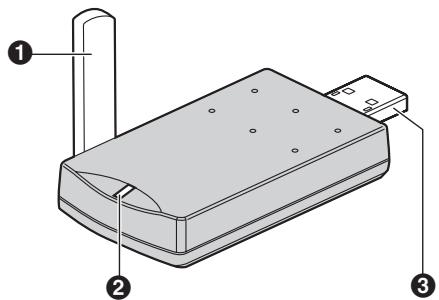
Antenna 2 Status indicator 3 USB plug
Status indicator
The status indicator indicates the USB adaptor status.
| Indicator | Status |
| Flashing | USB adaptor is receiving power from the computer but link to the base unit, Skype software or USB Adaptor Utility has not been established. |
| Light on | USB adaptor is receiving power from the computer and has link with your base unit, ready to use. |
| Light off | USB adaptor is off (not receiving power from the computer). |
System requirements for your computer
The following system requirements must be met in order to use the USB Adaptor Utility.
| Item | Description |
| Operating System | Microsoft®Windows®2000 or Microsoft Windows XP |
| CPU | Intel®Pentium®III 1 GHz or faster |
| RAM | 256 MB or more |
| HDD | 50 MB available disk space |
| Resolution | 800 x 600 or higher resolution display |
| Others | USB interface (1.1) CD-ROM drive Video adaptor with High Colour (16 bit) or higher Skype software (Skype 2.0 or later) Internet connection: Broadband, e.g. DSL |
Connecting to a computer
Connect the USB adaptor to the USB port of your computer.
- The USB adaptor receives power from the USB port.
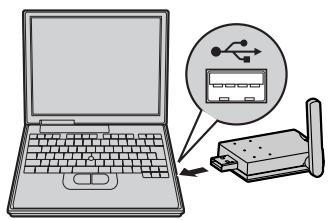
Raise the antenna.
Using the included USB extension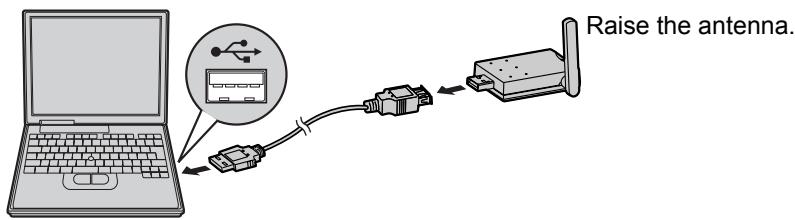
Preparation
Symbols and screen shots used in these operating instructions
Symbols used for operations
| Symbol | Meaning |
| Example: “Contacts” | Push the joystick up or down to select the words in quotations shown on the display. |
| Example: | The symbols indicate soft key names on your handset. |
| Example: 【←】 | The symbols in the brackets indicate buttons on your handset. |
| Example: [OK] | The words in the brackets indicate button names on your computer. |
| → | Proceed to the next operation. |
Screen shots used for operations
- The screen shots in these instructions are for Microsoft Windows XP and are included for reference only.
- The screen shots in these instructions may differ slightly from the screen shown on your computer.
Installing and setting up the USB Adaptor Utility
Before you use the USB adaptor, you must install the USB Adaptor Utility from the included CD-ROM to a computer installed with the Skype software, and set up the USB adaptor. The USB adaptor is registered as an extension device of the base unit. Only one USB adaptor can be registered to the base unit.
Before you start to install the USB Adaptor Utility, make sure that:
- Skype software has been already installed in your computer. If the Skype software is not installed to your computer, please visit http://www.skype.com/ to download and install the Skype software.
- Your computer is being connected to the Internet correctly and active Skype icon (▲) is displayed in the system tray (page 8).
- The base unit and handset are powered up nearby and are not being used.
- The USB adaptor is being connected to the USB port on your computer and the status indicator is flashing.
These preparation will make your installation simple and smooth.
Important:
- Before installing the USB Adaptor Utility, please be sure to back up the system settings of your computer.
- At the end of installation, you may perform a Skype test call on your handset (page 8).
1 Start Windows and the Skype software, and exit all other applications.
- You must be logged in as an administrator in order to install the USB Adaptor Utility.
- Confirm that the Skype status is online.
2 Connect the USB adaptor to your computer (page 5). 3 Insert the included CD-ROM into your CD-ROM drive. 4 After the installer has started, follow the on-screen instructions until all files have been installed.
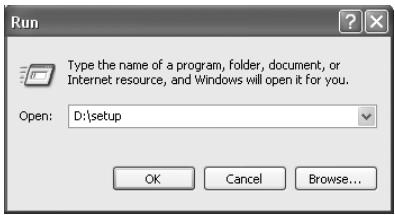
- If the installer does not start automatically:
Click [Start], then choose [Run...]. Type "D:\setup" (where "D" is the drive letter of your CD-ROM drive). Click [OK]. (If you are not sure what the drive letter is for your CD-ROM drive, use Windows Explorer and look for the CD-ROM drive.)
5 When installation is complete, the USB adaptor setup window is opened. Remove the included CD-ROM from your CD-ROM drive.
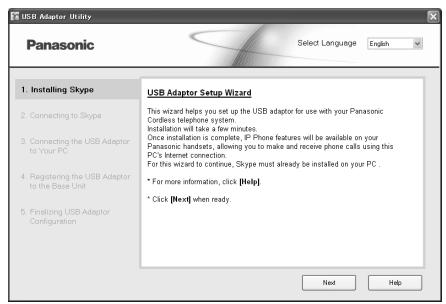
- To change the display language for the USB Adaptor Utility, select the desired language from the pull-down menu on the upper right of the setup window. (Available languages: English, German, French, Italian, Spanish, Greek, Russian, Turkish, and Dutch)
Preparation
- The display language chosen for this utility also becomes the handset display language in IP phone mode (page 10). 6 Follow the on-screen instructions to set up the USB adaptor.
- When the setting up is complete, you are ready to use the internet telephone.
Note:
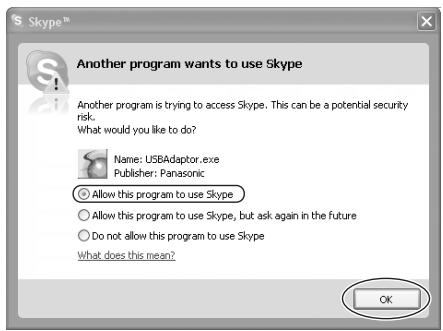
- If the following window appears, check [Allow this program to use Skype], then click [OK].
- To perform a Skype test call:
- (left soft key)
- Push the joystick up or down to select "Contacts". Then press OK.
- Push the joystick up or down to select "Echo/Sound Test". Then press the left soft key.
*1 The selection name for Skype test call may vary.
Confirming the USB adaptor works properly
Click the USB Adaptor Utility icon in the system tray.


1:39 AM
The setup programme starts checking the configuration of the USB adaptor. If the setup programme finds errors in the configuration, follow the on-screen instructions.
When the configuration is complete, you are ready to use the internet telephone.
In case you encounter any difficulty, please refer to "Troubleshooting" on page 15.
Note:
- Colour of the USB Adaptor Utility icon in the system tray indicates the status of the USB adaptor configuration.
| Colour | Status |
| Blue | Internet telephone is available. |
| Gray | Internet telephone is not available. (Refer to “Troubleshooting” on page 15 or click [Help] to view “Troubleshooting” on your web browser.) |
- If the USB Adaptor Utility icon does not appear, refer to the troubleshooting section (page 15).
To quit the USB Adaptor Utility, right-click the USB Adaptor Utility icon in the system tray, then select [Exit].
- To restart the USB Adaptor Utility, click [Start], then select [All Programs] - [Panasonic] - [USB Adaptor Utility (KX-TGA915)] - [USB Adaptor Utility]. (For Windows 2000, click [Programs] instead of [All Programs].)
Deregistering the USB adaptor
You can cancel a registered USB adaptor. Right-click the USB Adaptor Utility icon in the system tray, then select [Tool] - [Deregistration].
Note:
- You can cancel registration by using a handset that is registered to the same base unit.
- (centre of joystick) → OK →
- Enter "335".
- "Cancel Handset" → OK
- Select the USB adaptor. →
- A checkmark is displayed with the selected item.
- To cancel a selected item, select it again.
- OK, then "Yes", then OK. [70]
Uninstalling the USB Adaptor Utility
For Windows XP users:
1. Click [Start], then click [Control Panel]. 2. Click [Add or Remove Programs]. 3. Select [Panasonic USB Adaptor Utility] from the list. 4. Click [Remove], then follow the on-screen instructions.
For Windows 2000 users:
1. Click [Start], point to [Settings], then click [Control Panel]. 2. Double-click [Add/Remove Programs]. 3. Select [Panasonic USB Adaptor Utility] from the list. 4. Click [Change/Remove], then follow the on-screen instructions.
Using the USB Adaptor
Entering the IP phone mode
Press (left soft key) on the handset to enter the IP phone mode.
- IP appears in the upper left of the handset display in IP phone mode.
The IP phone mode consists of the following menus.
Push the joystick up or down to scroll through the menus.
*1 This menu will appear only when internet calls are not answered.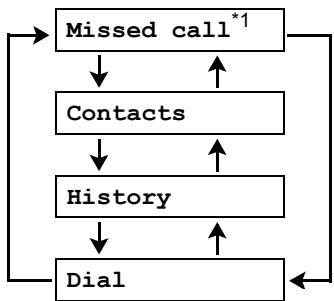
"Missed call":
You can view call information of the missed calls.
"Contacts":
You can view the Skype Contact list, or make internet calls from it.
"History":
You can view the Skype History in which call information of incoming and outgoing internet calls is logged.
"Dial":
You can make regular phone calls using SkypeOut.
To exit the IP phone mode, press [x0].
Important:
- Do not change any Skype settings using the computer while the handset is in IP phone mode. If you have changed the
settings, quit the USB Adaptor Utility and restart it (page 8).
Making internet calls
Calling from the Contact list
You can make an internet call by selecting a Skype name from the Skype Contact list.
You must add Skype names in the Contact list beforehand by using your computer.
1 (left soft key) → "Contacts" → OK
2 Push the joystick up or down to select the desired Skype name.
- Skype name and its current status icon are displayed.
| Icon | Status |
| Online | |
| Offline | |
| Skype Me | |
| Away | |
| Do Not Disturb | |
| Voicemail | |
| SkypeOut | |
| Not Available |
- You can search the desired Skype name by pressing the dialling button that corresponds to the first letter.
3[]
4 When you finish talking, press [×○] or place the handset on the base unit or charger.
Using the USB Adaptor
Note:
- You cannot select items from the handset phonebook, redial list and caller list.
- If you receive a land line call during an internet call, you will hear an incoming call tone. To answer the 2nd call, press [×○] to end the first call, then press [×] or [×].
Using the speakerphone
1 During a conversation, press [4] to turn on the speakerphone. - Speak alternately with the other party.
2 When you finish talking, press [x0].
Note:
- Use the speakerphone in a quiet environment.
- To switch back to the receiver, press [].
Adjusting the receiver or speaker volume
Push the joystick up or down repeatedly while talking.
Making regular phone calls (SkypeOut)
SkypeOut is a way to make calls from Skype to persons who use telephone lines or mobile phones. Making SkypeOut calls is not free of charge. Before using SkypeOut, purchase Skype credit on your Skype account page. For more information about SkypeOut, see the Skype website (http://www.skype.com/).
1 (left soft key) -> "Dial" -> OK 2 Enter the phone number in the following way (even for local calls): "country code" + "area code" + "local phone number" - In case of some countries, delete "0" at the first digit of the area code.
To correct a digit, press [C/X].
3 [ ] / [ ]
4 When you finish talking, press [x] or place the handset on the base unit or charger.
Note:
- You do not need to enter the international prefix (such as "+") because "+" is automatically added to the phone number when dialling. For this reason, "+" is displayed in the dialled phone number when you view the history (page 12).
Answering internet calls
If you receive an internet call, you will hear an IP ringtone from the handset and IP will flash in the upper left of the handset display.
1 Lift the handset and press [or [4]. - You can also answer a call by pressing any dial key from [0] to [9], [×], [#], or [INT]. (Any key answer feature) 2 When you finish talking, press [x] or place the handset on the base unit or charger.
Note:
- You can change the IP ringtone (page 13).
- When an internet call is received, the base unit does not ring.
- When an internet call is received while you are in the "Do Not Disturb" mode of the online status, the handset does not ring.
- The answering system does not answer internet calls.
- Caller ID feature does not work for internet calls.
- If you receive an internet call during a land line call, you will hear an incoming call tone. To answer the 2nd call, press
Using the USB Adaptor
【 心 0 】to end the first call, then press 【or [心 ]
Auto talk feature
You can answer calls simply by lifting the handset off the base unit or charger. You do not need to press [] . To turn this feature on, see the KX-TG9150 operating instructions.
Missed calls
If an internet call is not answered, → IP* is shown on the handset display. To see who called while you were out:
1 (left soft key) → "Missed call" OK. 2 Push the joystick down to search from the most recent missed call. Push the joystick up to search from the oldest missed call. - Skype name and its current status icon are displayed (page 10). - To call the displayed item, press [↓], or [←], or - To play the displayed Voicemail message, press [→].
Note:
- Once you have viewed a missed call or played a Voicemail message, it will not be displayed the next time you enter the missed call list.
- If you press [×○] in step 2 without viewing all missed internet calls, →IP disappears from the handset display. When you receive another internet call, it is displayed.
Answering another internet call
This feature allows you to receive or reject another internet call while you are already talking on the IP phone.
If you receive an internet call while on the IP phone, you will hear an incoming call tone.
Press to end the first call and answer the 2nd call. - To reject the 2nd call, press OK.
Useful features during an internet call
HOLD button
This feature allows you to put an internet call on hold.
Press during an internet call.
To release the hold, press [ ] or [ ]
Mute
While mute is turned on, you can hear the other party, but the other party cannot hear you.
To mute your voice, press [C/x].
To return to the conversation, press [C/].
Using the history
Call information of incoming and outgoing internet calls is logged in the Skype History by the most recent internet call to the oldest. If you receive the Skype Voicemail, it will be recorded in the history along with call information. You can view the history by using the handset, and you can call or play the Voicemail by selecting the item in the history.
1 (left soft key) -> "History" -> OK 2 Push the joystick down to search in the incoming call history from the most recent call. Push the joystick up to search from the oldest call.
- Skype name and its current status icon are displayed (page 10).
- You can change the history by pressing the right soft key as follows:
Incoming call history

Outgoing call history

Voicemail history

3 To call to the displayed item, press [ ], or
To play the displayed Voicemail message, press [>]. To stop playing the message, press [<]. 4 When you finish talking or playing, press [x0] or place the handset on the base unit or charger.
Note:
- You cannot edit or erase call information in the history by using the handset.
Selecting the IP ringtone
You can change the IP ringtone heard when an internet call is received. The default setting is "Ringtone 6".
1 (centre of joystick) -> OK 2 "Ringer Setup" -> OK 3 "IP Ringtone" -> OK 4 Select the desired item. -> OK
| Preset Ringtones | Ringtones stored in the handset at the time of purchase. |
| User Ringtones | Ringtones you stored in the handset. To store, see the KX-TG9150 operating instructions. |
5 Select the desired ringtone. -> OK -> [70]
Useful Information
Specifications
Standard:
DECT (Digital Enhanced Cordless
Telecommunications)
Number of channels:
120 Duplex Channels
Frequency range:
1.88 GHz to 1.9 GHz
Duplex procedure:
TDMA (Time Division Multiple Access)
Channel spacing:
1,728 kHz
Bit rate:
1,152 kbit/s
Modulation:
GFSK (Gaussian Frequency Shift Keying)
RF transmission power:
Approx. 250 mW
Power source:
5 V DC (USB powered)
Power consumption:
Standby: Approx. 0.2 W
Maximum: Approx. 0.3 W
Interface:
USB: 1.1
Operating conditions:
5 °C–40 °C, 20 %–80 % relative air humidity (dry)
Dimensions:
Approx. 15 mm × 42 mm × 74 mm
Mass (weight):
Approx. 30 g
Note:
- Specifications are subject to change.
- The illustrations used in these operating instructions may differ slightly from the actual product.
- Software features and appearance are subject to change without notice.
Trademarks
- Microsoft and Windows are either registered trademarks or trademarks of Microsoft Corporation in the United States and/or other countries.
- Intel and Pentium are either trademarks or registered trademarks of Intel Corporation or its subsidiaries in the United States and other countries.
- Microsoft product screen shots reprinted with permission from Microsoft Corporation.
- Skype, SkypeIn, SkypeOut and the S logo are trademarks of Skype Limited.
- All other trademarks identified herein are the property of their respective owners.
Troubleshooting
| Problem | Cause & solution |
| The USB adaptor does not work. (The USB Adaptor Utility icon ( ) is indicated in gray.) | Make sure the USB plug is connected properly to your computer. The USB adaptor may not work properly depending on the power supply of your computer's USB port. If this is the case and your computer has multiple USB ports, we recommend that you try other USB ports. The USB adaptor is too far from the base unit. Move closer to the base unit. Skype software is not activated. Start the software. Your base unit is turned off. Confirm the connection. The registration may be cancelled from the base unit. Set up and register the USB adaptor to the base unit again ("Confirming the USB adaptor works properly" on page 8). If you are still having problems, deregister the USB adaptor (page 9) and uninstall the USB Adaptor Utility (page 9) then reinstall it (page 7). |
| The USB Adaptor Utility does not start when my computer is started up. (The USB Adaptor Utility icon ( ) does not appear in the system tray.) | Start the Utility manually. Click [Start], then select [All Programs] - [Panasonic] - [USB Adaptor Utility (KX-TGA915)] - [USB Adaptor Utility]. (For Windows 2000, click [Programs] instead of [All Programs].) After you have started the USB Adaptor Utility, you can enable the Auto Startup feature to make sure the USB Adaptor Utility starts each time your computer is started up. To enable Auto Startup, right-click on the USB Adaptor Utility icon in the system tray and insert a check mark next to [Auto Startup]. |
| I cannot read the language displayed by the USB Adaptor Utility. | You can change the display language. Select the desired language from the pull-down menu on the upper right of the USB adaptor setup window. |
| I cannot make or receive internet calls. | While the cordless camera is in use, you cannot make internet calls. If other handsets are in use, you may not be able to make or receive internet calls. |
| I cannot register the USB adaptor. | The maximum number of extensions (6) are already registered to the base unit. Cancel unused handset or cordless camera registrations from the base unit. See the KX-TG9150 operating instructions. |
Useful Information
| Problem | Cause & solution |
| Some names displayed in the Contact list or history on the handset are different from ones on your computer. | ● The handset does not display characters that you cannot enter using the handset. Refer to the character tables for character entry mode (excluding the ones for SMS messages) in the KX-TG9150 operating instructions. |
- For other troubleshooting, refer to the KX-TG9150 operating instructions or visit: http://panasonic.co.jp/pcc/cs/en/telecom/tel/download.htm
Copyright:
This material is copyrighted by Panasonic Communications Co., Ltd., and may be reproduced for internal use only. All other reproduction, in whole or in part, is prohibited without the written consent of Panasonic Communications Co., Ltd.
© 2006 Panasonic Communications Co., Ltd. All Rights Reserved.
Panasonic
USB Adapter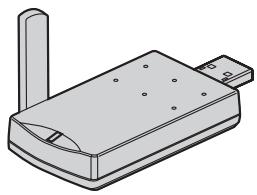
DECT (Digital Enhanced Cordless
TDMA (Time Division Multiple Access:
GFSK (Gaussian Frequency Shift Keying:
- PREPARATION
- USING THE USB ADAPTOR
- USEFUL INFORMATION
- FEATURE HIGHLIGHTS
- INTERNET TELEPHONE
- IMPORTANT INFORMATION
- GENERAL
- ENVIRONMENT
- WARNING
- CONNECTIONS
- IMPORTANT SECURITY NOTICE
- IMPORTANT
- CONTROLS
- STATUS INDICATOR
- SYSTEM REQUIREMENTS FOR YOUR COMPUTER
- CONNECTING TO A COMPUTER
- SYMBOLS AND SCREEN SHOTS USED IN THESE OPERATING INSTRUCTIONS
- SCREEN SHOTS USED FOR OPERATIONS
- INSTALLING AND SETTING UP THE USB ADAPTOR UTILITY
- BEFORE YOU START TO INSTALL THE USB ADAPTOR UTILITY, MAKE SURE THAT
- NOTE
- CONFIRMING THE USB ADAPTOR WORKS PROPERLY
- DEREGISTERING THE USB ADAPTOR
- UNINSTALLING THE USB ADAPTOR UTILITY
- ENTERING THE IP PHONE MODE
- MAKING INTERNET CALLS
- CALLING FROM THE CONTACT LIST
- []
- USING THE SPEAKERPHONE
- ADJUSTING THE RECEIVER OR SPEAKER VOLUME
- MAKING REGULAR PHONE CALLS (SKYPEOUT)
- [ ] / [ ]
- ANSWERING INTERNET CALLS
- AUTO TALK FEATURE
- MISSED CALLS
- ANSWERING ANOTHER INTERNET CALL
- USEFUL FEATURES DURING AN INTERNET CALL
- HOLD BUTTON
- MUTE
- USING THE HISTORY
- SELECTING THE IP RINGTONE
- SPECIFICATIONS
- TRADEMARKS
- TROUBLESHOOTING
- COPYRIGHT
- PANASONIC
Brand : PANASONIC
Model : KX-TGA915EX
Category : USB Adapter