
DVD-HR720P - DVD Recorder SAMSUNG - Free user manual and instructions
Find the device manual for free DVD-HR720P SAMSUNG in PDF.
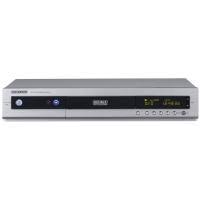



| Product Type | DVD Recorder with Hard Disk |
| Brand | Samsung |
| Model | DVD-HR720P |
| Dimensions (W x D x H) | 430 x 255 x 79 mm |
| Weight | 4.2 kg |
| Power Supply | AC 220-240 V, 50 Hz |
| Power Consumption | 45 W |
| Hard Disk Capacity | 80 GB (up to 127 hours in EP mode) |
| Compatible Discs | DVD-RAM, DVD-RW (VR/V mode), DVD-R (Video mode), Audio CD, CD-R/RW, DVD-Video |
| Playback Formats | MPEG2, MP3, JPEG, MPEG4 (DivX) |
| Recording Modes | XP (high quality), SP (standard), LP (long play), EP (extended play), FR (automatic) |
| Video Inputs | Composite (AV3), S-Video, SCART AV2, DV (IEEE 1394) |
| Video Outputs | Composite, S-Video, Component (Y/Pb/Pr), SCART AV1, Progressive Scan (576p) |
| Audio Outputs | Analog (2 channels), Digital Optical and Coaxial |
| Main Functions | Programmed recording, simultaneous playback/recording, HDD↔DVD copy, editing (title, playlist), disc finalization |
| Connectivity | 2 SCART sockets (AV1 TV, AV2 EXT), DV input, RF antenna output, TV output |
| Remote Control | Yes, with programmable TV control |
| Operating Temperature | +5°C to +35°C |
| Operating Humidity | Less than 75% |
| Repairability / Parts | 1-year warranty (parts and labor), Samsung authorized service center |
| Maintenance and Cleaning | Soft dry cloth, do not use solvents, clean discs with a soft cloth |
| Safety | Built-in fuse, Class 1 laser, copy protection (Macrovision), programmable auto-off |
Frequently Asked Questions - DVD-HR720P SAMSUNG
User questions about DVD-HR720P SAMSUNG
0 question about this device. Answer the ones you know or ask your own.
Ask a new question about this device
Download the instructions for your DVD Recorder in PDF format for free! Find your manual DVD-HR720P - SAMSUNG and take your electronic device back in hand. On this page are published all the documents necessary for the use of your device. DVD-HR720P by SAMSUNG.
USER MANUAL DVD-HR720P SAMSUNG
This symbol indicates “dangerous voltage” inside the product that presents a risk of electric shock or personal injury.

This symbol indicates important instructions accompanying the product.
Do not install this equipment in a confined space such as a bookcase or similar unit.
WARNING: To prevent damage which may result in fire or electric shock hazard, do not expose this appliance to rain or moisture.
CAUTION: HDD & DVD RECORDER USES AN INVISIBLE LASER BEAM WHICH CAN CAUSE HAZARDOUS RADIATION EXPOSURE IF DIRECTED. BE SURE TO OPERATE RECORDER CORRECTLY AS INSTRUCTED.
CAUTION
THIS PRODUCT UTILIZES A LASER. USE OF CONTROLS OR ADJUSTMENTS OR PERFORMANCE OF PROCEDURES OTHER THAN THOSE SPECIFIED HEREIN MAY RESULT IN HAZARDOUS RADIATION EXPOSURE. DO NOT OPEN COVERS AND DO NOT REPAIR YOURSELF. REFER SERVICING TO QUALIFIED PERSONNEL.
This product satisfies CE regulations when shielded cables and connectors are used to connect the unit to other equipment. To prevent electromagnetic interference with electric appliances, such as radios and televisions, use shielded cables and connectors for connections.
IMPORTANT NOTE
The mains lead on this equipment is supplied with a moulded plug incorporating a fuse. The value of the fuse is indicated on the pin face of the plug. If it requires replacing, a fuse approved to BS1362 of the same rating must be used.
Never use the plug with the fuse cover omitted if the cover is detachable. If a replacement fuse cover is required, it must be of the same colour as the pin face of the plug. Replacement covers are available from your dealer.
If the fitted plug is not suitable for the power points in your house or the cable is not long enough to reach a power point, you should obtain a suitable safety approved extension lead or consult your dealer for assistance.
However, if there is no alternative to cutting off the plug, remove the fuse and then safely dispose of the plug. Do not connect the plug to a mains jack, as there is a risk of shock hazard from the bared flexible cord.
The product unit accompanying this user manual is licenced under certain intellectual property rights of certain third parties. This licence is limited to private non-commercial use by end-user consumers for licenced contents.
No rights are granted for commercial use.
The licence does not cover any product unit other than this product unit, and the licence does not extend to any unlicensed product unit or process conforming to ISO/IEC 11172-3 or ISO/IEC 13818-3 used or sold in combination with this product unit. The licence only covers the use of this product unit to encode and/or decode audio files conforming to the ISO/IEC 11172-3 or ISO/IEC 13818-3.
No rights are granted under this licence for product features or functions that do not conform to the ISO/IEC 11172-3 or ISO/IEC 13818-3.
Precaution
Important Safety Instructions
Read these operating instructions carefully before using the unit. Follow all the safety instructions listed below. Keep these operating instructions handy for future reference.
1) Read these instructions. 2) Keep these instructions. 3) Heed all warnings. 4) Follow all instructions. 5) Do not use this apparatus near water. 6) Clean only with dry cloth. 7) Do not block any ventilation openings. Install in accordance with the manufacturer's instructions. 8) Do not install near any heat sources such as radiators, heat registers, stoves, or other apparatus (including amplifiers) that produce heat. 9) Do not defeat the safety purpose of the polarized or grounding-type plug. A polarized plug has two blades with one wider than the other. A grounding-type plug has two blades and a third grounding prong. The wide blade or the third prong are provided for your safety. If the provided plug does not fit into your outlet, consult an electrician for replacement of the obsolete outlet. 10) Protect the power cord from being walked on or pinched particularly at plugs, convenience receptacles, and the point where they exit from the apparatus. 11) Only use attachments/accessories specified by the manufacturer. 12) Use only with the cart, stand, tripod, bracket, or table specified by the manufacturer, or sold with the apparatus. When a cart is used, use caution when moving the cart/apparatus combination to avoid injury from tip-over. 13) Unplug this apparatus during lightning storms or when unused for long periods of time. 14) Refer all servicing to qualified service personnel. Servicing is required when the apparatus has been damaged in any way, such as power-supply cord or plug is damaged, liquid has been spilled or objects have fallen into the apparatus, the apparatus has been exposed to rain or moisture, does not operate normally, or has been dropped.
Handling Cautions
- Before connecting other components to this recorder, be sure to turn them all off.
- Do not move the recorder while a disc is being played, or the disc may be scratched or broken, the recorder's internal parts may be damaged.
- Do not put a flower vase filled with water or any small metal objects on the recorder.
- Be careful not to put your hand into the disc tray.
- Do not place anything other than the disc in the disc tray.
- Exterior interference such as lightning and static electricity can affect normal operation of this recorder. If this occurs, turn the recorder off and on again with the DVD STANDBY/ON button, or disconnect and then reconnect the AC power cord to the AC power outlet. The recorder will operate normally.
- Be sure to remove the disc and turn off the recorder after use.
- Disconnect the AC power cord from the AC outlet when you don't intend to use the recorder for long periods of time.
- Clean the disc by wiping in a straight line from the inside to the outside of the disc.
Maintenance of Cabinet
For safety reasons, be sure to disconnect the AC power cord from the AC outlet.
- Do not use benzene, thinner, or other solvents for cleaning.
- Wipe the cabinet with a soft cloth.
HDD (Hard Disk Drive)
The hard disk has a high storage density, which enables long recording durations and quick access to written data. However, it can easily be damaged by shock, vibration or dust and should be kept away from magnets. To avoid losing important data, observe the following precautions.
- Do not use the HDD & DVD RECORDER in a place subject to extreme changes in temperature.
- Do not apply a strong shock to the HDD & DVD RECORDER.
- Do not place the HDD & DVD RECORDER in a location subject to mechanical vibrations or in an unstable location.
- Do not place the HDD & DVD RECORDER on top of a heat source.
- Do not disconnect the AC power cord while the power is on.
- Do not attempt to change the hard disk. This may result in a malfunction.
Should the hard disk be damaged, you cannot recover lost data. The hard disk is only a temporary storage space.
Disc Handling
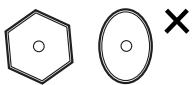
- Use discs with regular shapes. If an irregular disc (a disc with a special shape) is used, this HDD & DVD RECORDER may be damaged.
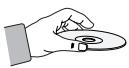
Holding discs
- Avoid touching the surface of a disc where recording is performed.
DVD-RAM, DVD-RW and DVD-R
- Clean with an optional DVD-RAM/PD disc cleaner (LF-K200DCA1 where available). Do not use cleaners or cloths for CDs to clean DVD-RAM/-RW/-R discs.
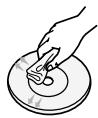
DVD-Video, Audio-CD
- Wipe off dirt or contamination on the disc with a soft cloth.
Cautions on handling discs
- Do not write on the printed side with a ball-point pen or pencil.
- Do not use record cleaning sprays or antistatic. Also, do not use volatile chemicals, such as benzene or thinner.
- Do not apply labels or stickers to discs. (Do not use discs fixed with exposed tape adhesive or
leftover peeled-off stickers.)
- Do not use scratch-proof protectors or covers.
- Do not use discs printed with label printers available on the market.
- Do not load warped or cracked discs.
Disc Storage
Be careful not to harm the disc because the data on these discs is highly vulnerable to the environment.
- Do not keep under direct sunlight.
- Keep in a cool ventilated area.
- Store vertically.
- Keep in a clean protection jacket.
- If you move your HDD & DVD RECORDER suddenly from a cold place to a warm place, condensation may generate on the operating parts and lens and cause abnormal disc playback. If this occurs, remove the disc and wait for one to two hours with the power on before attempting playback.
- Be careful not to harm the disc because the data on these discs is highly vulnerable to the environment.
Disc Specifications
Disc Type
DVD-Video
- A digital versatile disc (DVD) can contain up to 135 minutes of images, 8 audio languages, and 32 subtitle languages. It is equipped with MPEG-2 picture compression and Dolby Digital surround, allowing you to enjoy vivid and clear theatre-quality images in the comfort of your own home.
- When switching from the first layer to the second layer of a dual-layered DVD Video disc, there may be momentary distortion in the image and sound. This is not a malfunction of the unit.
- Once a DVD-RW/-R recorded in Video Mode is finalised, it becomes DVD-Video.
Audio CD
- An audio disc on which 44.1kHz PCM Audio is recorded.
- Plays CD-DA format audio CD-R and CD-RW discs.
- The unit may not be able to play some CD-R or CD-RW discs due to the condition of the recording.
CD-RW/-R
- Use a 700MB (80 minutes) CD-R/RW disc. If possible, do not use an 800MB (90 minutes) or above disc, as the disc may not play back.
- If the CD-R/RW disc was not recorded as a closed session, you may experience a delay in the early playback time, and all recorded files may not play.
- Some CD-R/RW discs may not be playable with this unit, depending on the device which was used to burn them. For contents recorded on CD-R/RW media from CDs for your personal use, playability may vary depending on contents and discs.
DVD-R Disc Playback and Recording
- Once a DVD-R recorded in Video Mode is finalised, it becomes DVD-Video.
- You can record onto the available space on the disc and perform editing functions such as giving titles to discs and programmes and erasing programmes before finalising.
- When programming is erased from a DVD-R, that space does not become available. Once an area on a DVD-R is recorded on, that area is no longer available for recording, whether the recording is erased or not.
- It takes about 30 seconds for the unit to complete recording management information after recording finishes.
- This product optimizes the DVD-R for each recording. Optimizing is carried out when you start recording after inserting the disc or turning on the unit. Recording onto the disc may become impossible if optimizing is carried out too many times.
- Playback may be impossible in some cases due to the condition of recording.
- This unit can play back DVD-R discs recorded and finalised with a Samsung DVD video recorder. It may not be able to play some DVD-R discs depending on the disc and the condition of the recording.
DVD-RW Disc Playback and Recording
- Recording and playback can be performed on DVD-RW discs in both the Video and VR Modes.
- Once a DVD-RW recorded in both the Video and VR Modes is finalised, you cannot perform additional recording.
- Once a DVD-RW recorded in Video Mode is finalised, it becomes DVD-Video.
- In both modes, playback can be performed before and after finalisation, but additional recording, deleting and editing can not be performed after finalisation.
- If you want to record the disc in VR Mode and then record in V Mode, be sure to execute Format. Be careful when executing Format because all the recorded data may be lost.
- A DVD-RW blank disc is initialized to VR Mode when first initialized.
DVD-RAM Disc Playback and Recording
- Ensure that the recording mode is set to VR mode. Otherwise, this product will not be able to play the recording.
- You cannot play a DVD-RAM in most DVD components due to compatibility issues.
- Only DVD-RAM standard Version 2.0 discs can be played in this unit.
- DVD-RAM discs recorded on this unit may not work with other DVD components. To determine compatibility with these DVD-RAM discs, refer to the user's manual for the player.
- For cartridge-type DVD-RAM discs, remove the cartridge and use the disc only.
Disc Copy
Contents Copy Specifications
| Contents | HDD → DVD | DVD → HDD |
| Recorded Video Title | Supported | Supported |
| Copy Protected Title | Not supported | Not supported |
| Copy Once Title | Move(Deletes the Title in the HDD after copying) | Not supported |
| MP3 | Not supported | supported |
| JPEG(photo) | Not supported | supported |
| DivX | Not supported | Not supported |
Once a "Copy Once programme" has been recorded on the DVD disc, this title cannot be copied to HDD anymore. But if a "Copy Once programme" has been recorded on the HDD, this title can be copied to DVD-RW (VR mode) or DVD-RAM.
COPY PROTECTION
- Many DVD discs are encoded with copy protection. Because of this, you should only connect your HDD & DVD RECORDER directly to your TV, not to a VCR. Connecting to a VCR results in a distorted picture from copy-protected DVD discs.
- This product incorporates copyright protection technology that is protected by methods claims of certain U.S. patents and other intellectual property rights owned by Macrovision Corporation and other rights owners. Use of this copyright protection technology must be authorised by Macrovision Corporation, and is intended for home and other limited viewing uses only unless otherwise authorised by Macrovision Corporation. Reverse engineering or disassembly is prohibited.
Protection
This HDD & DVD RECORDER allows you to protect the contents of your discs, as described below.
- Programme-protected: See page 97 "Locking (Protecting) a Title"
- Disc-protected: See page 122 "Disc Protection". * DVD-RAM/-RW/-R discs that are incompatible with the DVD-VIDEO format cannot be played with this product. * For more information on DVD recording compatibility, consult your DVD-RAM/-RW/-R manufacturer. * Use of poor quality DVD-RAM/-RW/-R discs may cause unexpected problems including, without limitation, recording failure, loss of recorded or edited materials, or damage to the recorder.
Disc Format
Using MP3 disc
- CD-R, DVD-R/RW/RAM, and HDD with MP3 files recorded in UDF, ISO9660, or JOLIET format can be played.
- Only MP3 files with the ".mp3" or ".MP3" extension can be played.
- For MP3 files recorded with VBR (Variable Bit Rates) from 32 Kbps to 320 Kbps, the sound may cut in and out.
- The playable bit-rate range is from 56 Kbps to 320 Kbps.
- The unit can handle a maximum of 1,500 files and 1,000 subfolders under a folder.
Using JPEG disc
- CD-R, DVD-R/RW/RAM, and HDD with JPEG files recorded in UDF, ISO9660, or JOLIET format can be played.
- Only JPEG files with the ".jpg" or ".JPG" extension can be displayed.
- The unit can handle a maximum of 4,500 files and 1,000 subfolders under a folder.
- MOTION JPEG and progressive JPEG are not supported.
Using MPEG4 disc
• Disc: CD-RW/-R, DVD-RAM/-RW/-R - MPEG4 files with the following extensions can be played: .avi, .divx, .AVI, .DIVX - MPEG4 Codec format: DivX 3.11, DivX 4.x, DivX 5.x, DivX-Pro (without QPEL and GMC) - Available Audio Formats: "MP3", "MPEG", "WMA", "LPCM", "AC3" - Supported subtitle file formats: .smi, .srt, .sub, .psb, .txt, .ass
DVD-RW (VR mode)
- This is a format used for recording data on a DVD-RAM or DVD-RW disc. You can record multiple titles, edit, delete, partially delete, create a playlist, etc.
- A disc recorded in this mode may not be played by existing HDD & DVD RECORDER.
DVD-RW (V mode)
- This is a format used for recording data on a DVD-RW or DVD-R disc. The disc can be played by existing HDD & DVD RECORDER once it has been finalised.
- If a disc that has been recorded in Video Mode by a different maker's recorder but has not been finalised, it cannot be played or additionally be recorded by this recorder.
Do not use the following discs!
- LD, CD-G, CD-I, CD-ROM, DVD-ROM, DVD+R and DVD+RW discs should not be used in this product. [Note]
Disc types that can be played: CD/CD-RW/-RW/MP3/JPEG/DVD-Video/DVD-RAM/-RW/-R.
For a DVD-RW/-R disc, which has been recorded in Video Mode on another component, it can play only when finalised.
- Some commercial discs and DVD discs purchased outside your region may not be playable with this product. When these discs are played, either “No disc.” or “Please check the regional code of the disc.” will be displayed.
- If your DVD-RW disc is an illegal copy or is not in DVD video format, it may also not be playable.
* We recommend using one of the discs in the table as they have been confirmed to be compatible with this unit. Other discs may not perform correctly.
| Media | Disc | SPEED |
| DVD-R | TDK | 4x |
| Beall | 4x | |
| That's | 4x | |
| Maxell | 4x | |
| Panasonic | 4x | |
| DVD-RW | TDK | 2x |
| Maxell | 2x | |
| Optodisc | 2x | |
| Radius | 2x | |
| Verbatim | 2x | |
| DVD-RAM | Maxell | 3x |
| Fujifilm | 3x | |
| TDK | 2x | |
| Panasonic | 3x |
| Disc | Maximum no. of recordings by disc type |
| DVD-RAM | 100,000 |
| DVD-RW | 1,000 |
| DVD-R | 1 |
- We take no responsibility and offer no compensation for any recording failure, loss of recorded or edited material and/or damage to the recorder arising from usage of unrecommended discs.
Contents
Getting Started
Warning 2
Precaution 3
Important Safety Instructions ....3
Handling Cautions 3
Maintenance of Cabinet 3
HDD (Hard Disk Drive) 3
Disc Handling 4
Disc Storage 4
Disc Specifications 4
Disc Copy 5
General Features 10
Before Reading the User's Manual .....11
How to use the HDD & DVD RECORDER .....11
Unpacking 13
Description....15
Front Panel 15
Front Panel Display 15
Rear Panel 16
Tour of the Remote Control 17
Connecting & Setting Up
Quick Overview ....18
Connecting the HDD & DVD RECORDER .....19
Additional connections 19
Antenna + HDD & DVD RECORDER + External
decoder box + TV 20
Other type of connecting the Video output cable . . .20
Case 1 : Connecting to a Video (Composite)
output jack 21
Case 2 : Connecting to an S-Video output jack .....21
Case 3 : Component Video output jacks .....22
Other type of connecting the Audio output cable .22
Case 1: Connecting to your TV .....22
Case 2: Connecting to a stereo amplifier
with AV output jacks .....23
Case 3: Connecting to an AV amplifier
with a digital output jack .....23
Connecting to AV 3 IN, DV input jack .....24
Case 1: Connecting a VCR, Set-Top Box (STB),
DVD player or Camcorder to the AV3 IN jacks .....24
Case 2: Connecting a Camcorder to the
DV IN jack .....24
System Setup
On-Screen Menu Navigation .....25
Plug & Auto Setup .....26
Setting the Clock .....27
Presetting Channels with the Auto Setup function .....28
Presetting Channels with the Manual Setup
Setting up the Language Options....31
Auto Power Off Setting....32
CM Skip Time Setting....33
EP Mode Time Setting....34
Setting up the Front Display Options....35
Automatic Chapter Creator....36
Setting up NICAM Options....37
DivX(R) Registration 38
Setting up the Audio Options....38
Setting up the Video display Options....40
Setting up Video Output Options ....41
Setting up the Progressive scan....42
Canceling the Progressive scan ....43
Setting up the Parental Control....44
If you forgot your password....44
About the Rating Level 45
About the Change Password ....45
Playback
Before Playing....46
Playing a Disc....47
Using the Disc Menu & Title Menu ....48
Using the Search & Skip Functions....48
Slow Motion Play/Step Motion Play....49
About ANYKEY 50
Playing the Title List....52
Navigation Menu....53
Using the Markers....56
Using the Bookmarks ....58
Selecting the Subtitle Language ....60
Selecting the Soundtracks & Audio Channels ......61
Changing the Camera Angle....62
Repeat Play....62
Zooming-In 64
Select Media....65
Playing an Audio CD/MP3....65
Playing a Picture 72
Playing an MPEG4 75
Recording
Before Recording....77
Recording the current TV programme you are watching....79
Recording from external equipment you are watching....81
Copying from a Camcorder....82
Making an One Touch Recording (OTR) 83
Chasing Play 84
Simultaneous Recording and Playback ....85
Making a Timer Recording 86
Flexible Recording (for Timer recording only) .....88
Editing the Timer Record List....88
Deleting a Timer Record List....89
Go To History List....90
Using the ShowView Feature ....93
ShowView Extended....94
Editing
Basic Editing (Title List)....96
Renaming (Labeling) a Title....96
Locking (Protecting) a Title 97
Deleting a Title....98
Splitting a Section of a Title (Split)....99
Deleting a Section of a Title (Partial Delete)....101
Advanced Editing (Playlist) 103
Creating a Playlist ....103
Playing Entries in the Playlist ....104
Renaming a Playlist Entry ....105
Editing a Scene for the Playlist....106
Deleting a Playlist Entry from the Playlist ....110
Copying from HDD to DVD 111
About the Copy Screen....111
Changing the Record Mode ....114
Copying Multiple Titles at One Time....114
Deleting an Undesired Title from the Copy List......116
Previewing a Selected Title from the Copy List......116
Selecting Record Mode of Each Title
from the Copy List. 117
Changing Record Mode of All Titles from the Copy List....117
Copying from DVD to HDD....118
Copying MP3 or JPEG Files
from a Disc to HDD 119
File Copy 119
Folder Copy 120
Disc Manager....121
Editing the Disc Name ....121
Disc Protection ....122
Formatting a Disc....123
Delete All Title Lists/Music Lists/Photo Lists......124
Delete All Title Lists ....125
Finalising a Disc ....126
Unfinalising a Disc (V/VR mode) ......127
Reference
Troubleshooting....128
Specifications 132
General Features
The HDD & DVD RECORDER allows you to record and play high quality digital video on DVD-RAM/-RW/-R or HDD discs. You can also edit digital images on DVD-RAM/-RW/-R discs or HDD.
HDD Recording
You can record up to 127 hours of video (in EP mode) on the internal 80GB (gigabyte) hard disk (HDD). With both recordable DVD and a high-capacity HDD in the same recorder, you have the flexibility to keep recordings on the HDD for quick access anytime, or record to DVD for archiving or playing on other DVD players.
Copy between HDD and DVD
You can copy recordings from the HDD to recordable DVD, or from DVD to the HDD. Usually you can use the high speed copy feature. You can also choose to copy material at different recording quality from the original. For example, you might want to copy a XP mode (highest quality) recording on the HDD to SP (standard play) quality on a DVD so that you can fit other recordings on the same disc.
Simultaneous Recording and Playback
Playback and recording for both DVDs and the built-in hard disk drive (HDD) are completely independent. For example you can record a broadcast programme to either a recordable DVD or the HDD, while watching another recording you already made on the same DVD or on the HDD.
High quality digital audio and video recording and playback
Record up to 16-hours of video with a double sided 9.4 GB DVD-RAM disc, up to 8-hours of images with a 4.7 GB DVD-RAM/-RW/-R disc, depending on the recording mode.
Selectable Recording Mode
You can set your recorder to one of four different recording speeds, each varying in recording quality and length. EP (6Hr or 8Hr) mode yields the most recording time, LP & SP modes provide less recording time with higher quality recording, XP mode gives you the highest quality recording.
Automated Quality Adjustment for Timer Recording
If FR mode is selected, the video quality is adjusted automatically so that all video for the scheduled time can be recorded onto the free disc space. (See page 88)
Creating a DVD video title using DVD-RW/-R disc
With the HDD & DVD RECORDER, you can create your own DVD Video titles on 4.7 GB DVD-RW/-R discs.
Copying data from a digital camcorder using a DV input jack
Record DV Device video onto HDD and DVD-RAM/-RW/-R discs using the DV input jack (IEEE 1394-4pin/4pin). (See page 82)
High quality progressive scan
Progressive scanning provides high resolution and flicker free video. The 10-bit 54-MHz DAC and 2D Y/C Separating Circuitry provides the highest image playback and recording quality. (See pages 41~43)
A variety of functions with an easy-to-use user interface
The integrated menu system and the messaging function allow you to perform desired operations both easily and conveniently. With a HDD, DVD-RAM or DVD-RW disc, you can edit recorded video, create a playlist, edit video in a specific sequence according to your requirements.
MPEG4 playback
This HDD & DVD RECORDER can play MPEG4 formats within an avi file.
DivX Certification
DivX, DivX Certified, and associated logos are trademarks of DivXNetworks, Inc and are used under licence.

Before Reading the User's Manual
Make sure to check the following terms before reading the user manual.
Icons that will be used in manual
| Icon | Term | Definition |
 | HDD | This involves a function available in HDD. |
 | DVD | This involves a function available in DVD or DVD-R/DVD-RW discs that have been recorded and finalised in Video Mode. |
 | RAM | This involves a function available in DVD-RAM. |
 | RW | This involves a function available in DVD-RW. |
 | R | This involves a function available in DVD-R. |
 | CD | This involves a function available in a data CD (CD-R or CD-RW). |
 | JPEG | This involves a function available in CD-R/-RW or DVD-R/-RW/-RAM discs. |
 | MP3 | This involves a function available in CD-R/-RW or DVD-R/-RW/-RAM discs. |
 | MPEG4 | This involves a function available in CD-R/-RW or DVD-R/-RW/-RAM discs. |
 | Caution | This involves a case where a function does not operate or settings may be cancelled. |
 | NOTE | This involves tips or instructions on the page that help each function operate. |
 | One-Touch button | A function that can be operated by using only one button. |
 | ANYKEY button | A function that can be operated by using ANYKEY button. |
About the use of this user's manual
1) Be sure to be familiar with Safety Instructions before using this product. (See pages 2~7) 2) If a problem occurs, check the Troubleshooting. (See pages 128~131)
Copyright
©2005 Samsung Electronics Co.
All rights reserved; No part or whole of this user's manual may be reproduced or copied without the prior written permission of Samsung Electronics Co.
How to use the HDD & DVD RECORDER
Step 1 Select the disc type or HDD
This unit can record on the following types of discs. If you want to repeatedly record on the same disc or you want to edit the disc after recording, select a rewritable DVD-RW or DVD-RAM type disc. If you want to save a recording without any changes, choose a non-rewritable DVD-R. You can record files directly to the built-in HDD or edit a recorded file.

RAM
R W
R

Step 2 Format the disc to start recording
Unlike a VCR, the recorder automatically starts formatting when an unused disc is inserted. This is required for the preparation of recording on a disc.
Using a HDD
Formatting unnecessary.
Using a DVD-RAM
This type of disc can be formatted in DVD-Video Recording format (VR mode). You can edit recorded images, create playlists, and edit images in a specific sequence according to your requirements.
Using a DVD-RW
This type of disc can be formatted in either DVD-Video format (V mode) or DVD-Video Recording format (VR mode). For an unused disc, a message asks whether to format in VR Mode or not. You can play a Video mode disc on various DVD components. A VR mode disc allows more varied editing.
Using a DVD-R
This type of disc can be formatted in DVD Video format. After formatting is complete, you can record on the disc. You can play this type of disc on various DVD components only when it has been finalised.

NOTE
■ You can only use either the VR or Video mode on a DVD-RW, but not both at the same time. - You can change the DVD-RW format to another format by reinitializing. It should be noted that the disc's data will be lost when changing formats.

Step 3 Recording
There are two different recording methods: Direct Recording and Timer Recording. Timer recording is classified.
Recording modes: XP (high quality mode), SP (standard quality mode), LP (long recording mode), and EP (extended mode) according to the recording mode. When recording is set in FR mode, the best quality picture is recorded with regards to the remaining time on the disc.

Step 4 Playing
You can select the title you want to play in a displayed menu and then immediately start playback.
A DVD consists of sections called titles, and sub-sections called chapters.
During recording, a title is created between two points where you start and stop recording.
Chapters will be created automatically when you finalise recording on DVD-RW/-R discs in Video mode.
The chapter's length (interval between chapters) varies according to the recording mode.

Step 5 Editing a recorded disc
Editing on discs is easier than conventional video tapes. The recorder supports many different edit functions, possible only with DVDs and HDD.
With a simple and easy edit menu, you can operate various edit functions, such as delete, copy, rename, lock, etc., on a recorded title.
Creating a playlist (DVD-RAM/-RW in VR mode, HDD)
With this recorder, you can create a new playlist on the same disc and edit it without the change of the original recording.

Step 6 Finishing & Playing on other DVD components
To play your DVD on other DVD components, finalising may be necessary. First, finish all editing and recording operations, then finalise the disc.
When using a DVD-RW disc in VR Mode
Although finalising is generally unnecessary when playing the disc on a VR Mode compatible component, a finalised disc should be used for playback on that type of component.
When using a DVD-RW disc in Video Mode
The disc should be finalised first to enable playback on anything other than this recorder. No more editing or recording can be made on the disc once it has been finalised.
To enable recording on the disc again, disc should be unfinalised.
When using a DVD-R disc
You should finalise the disc to play it on a component other than this recorder. You cannot edit or record on the disc once it has been finalised.
Accessories
Check for the supplied accessories below.
Video/Audio Cable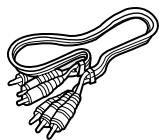
RF Cable for TV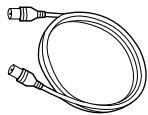
Remote Control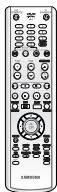
Batteries for Remote Control (AAA Size)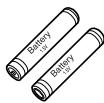
Instruction Manual
Quick Guide
Preparing the Remote Control
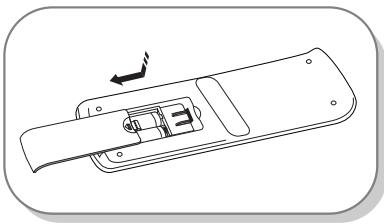
Install Batteries in the Remote Control
- Open the battery cover on the back of the remote control.
- Insert two AAA batteries. Make sure that the polarities (+ and -) are aligned correctly.
- Replace the battery cover.
If the remote does not operate properly:
- Check the polarity + - of the batteries (Dry-Cell)
- Check if the batteries are drained.
- Check if remote sensor is blocked by obstacles.
- Check if there is any fluorescent lighting nearby.
Dispose of batteries according to local environmental regulations. Do not put them in the household trash.
Setting the Remote Control
You can control certain functions of another manufacturer's TV with this remote control. Control function buttons involve: TV STANDBY/ON, PROG ∧ ∨, TV VOL + -, Number buttons, TV MUTE, INPUT button.
To determine whether your television is compatible, follow the instructions below.
- Switch your television on.
- Point the remote control towards the television.
- Press and hold the TV STANDBY/ON button and enter the two-figure code corresponding to the brand of your television, by pressing the appropriate number buttons.
Controllable TV Codes
| BRAND | BUTTON |
| SAMSUNG | 01, 02, 03, 04, 05, 06, 07, 08, 09 |
| AIWA | 82 |
| ANAM | 10, 11, 12, 13, 14, 15, 16, 17, 18 |
| BANG & OLUFSEN | 57 |
| BLAUPUNKT | 71 |
| BRANDT | 73 |
| BRIONVEGA | 57 |
| CGE | 52 |
| CONTINENTAL EDISON | 75 |
| DAEWOO | 19, 20, 23, 24, 25, 26, 27, 28, 29, 30, 31, 32, 33, 34 |
| EMERSON | 64 |
| FERGUSON | 73 |
| FINLUX | 06, 49, 57 |
| FORMENTI | 57 |
| FUJITSU | 84 |
| GRADIENTE | 70 |
| GRUNDIG | 49, 52, 71 |
| HITACHI | 60, 72, 73, 75 |
| IMPERIAL | 52 |
| JVC | 61, 79 |
| LG | 06, 19, 20, 21, 22, 78 |
| LOEWE | 06, 69 |
| LOEWE OPTA | 06, 57 |
| MAGNAVOX | 40 |
| METZ | 57 |
| MITSUBISHI | 06, 48, 62, 65 |
| MIVAR | 52, 77 |
| NEC | 83 |
| NEWSAN | 68 |
| NOBLEX | 66 |
| NOKIA | 74 |
| NORDMENDE | 72, 73, 75 |
| PANASONIC | 53, 54, 74, 75 |
| PHILIPS | 06, 55, 56, 57 |
| PHONOLA | 06, 56, 57 |
| PIONEER | 58, 59, 73, 74 |
| RADIOLA | 06, 56 |
| RADIOMARELLI | 57 |
| RCA | 45, 46 |
| REX | 74 |
| SABA | 57, 72, 73, 74, 75 |
| SALORA | 74 |
| SANYO | 41, 42, 43, 44, 48 |
| SCHNEIDER | 06 |
| BRAND | BUTTON |
| SELECO | 74 |
| SHARP | 36, 37, 38, 39, 48 |
| SIEMENS | 71 |
| SINGER | 57 |
| SINUDYNE | 57 |
| SONY | 35, 48 |
| TELEAVA | 73 |
| TELEFUNKEN | 67, 73, 75, 76 |
| THOMSON | 72, 73, 75 |
| THOMSON ASIA | 80, 81 |
| TOSHIBA | 47, 48, 49, 50, 51, 52 |
| WEGA | 57 |
| YOKO | 06 |
| ZENITH | 63 |
Result: If your television is compatible with the remote control, it will switch off. It is now programmed to operate with the remote control.
NOTE
■ If several codes are indicated for your television brand, try each one in turn until you find one that works. ■ If you replace the remote control's batteries, you must set the brand code again.
Then you can control the television using the following buttons after the TV button.
| Button | Function |
| TV STANDBY/ON | Used to switch the television on and off. |
| INPUT | Used to select an external source. |
| TV VOL (+ -) | Used to adjust the volume of the television. |
| PROG ( ∧ ∨ ) | Used to select the desired channel. |
| TV MUTE | Used to toggle the sound on and off. |
| Number | Used to input number directly. |
NOTE
■ The various functions will not necessarily work on all televisions. If you encounter problems, operate the television directly.
Front Panel
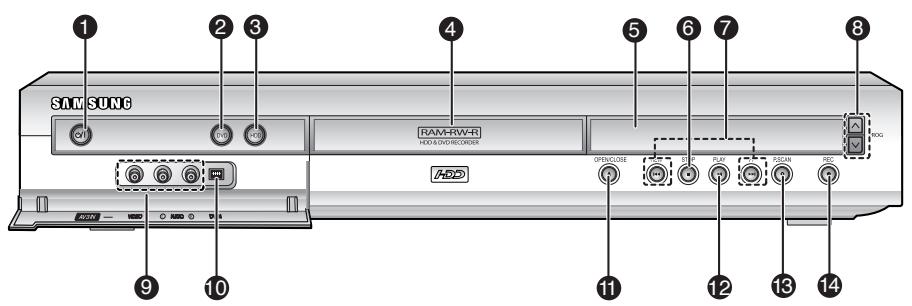
- STANDBY/ON BUTTON
Turns the recorder on and off.
- DVD BUTTON
Select DVD mode.
- HDD BUTTON
Select HDD mode.
- DISC TRAY
Opens to accept a disc.
- DISPLAY
Displays the playing status, title/ chapter/ time, etc.
- STOP BUTTON
Stops disc playback.
- SEARCH/SKIP BUTTONS
Goes to the next title/chapter/track or goes back to the previous title/chapter/track.
- PROG ∧∨ BUTTONS
Select TV preset Channels. Same as PROG button on the remote control.
- AV 3 INPUT
Connect external equipment.
- DV-INPUT
Connect external digital equipment with a DV jack. (such as a camcorder)
- OPEN/CLOSE BUTTON
Opens and closes the disc tray.
- PLAY/PAUSE BUTTON
Plays a disc or pauses playback or recording.
- P.SCAN BUTTON
Selects the progressive scan mode.
- REC BUTTON
Starts recording.
Front Panel Display
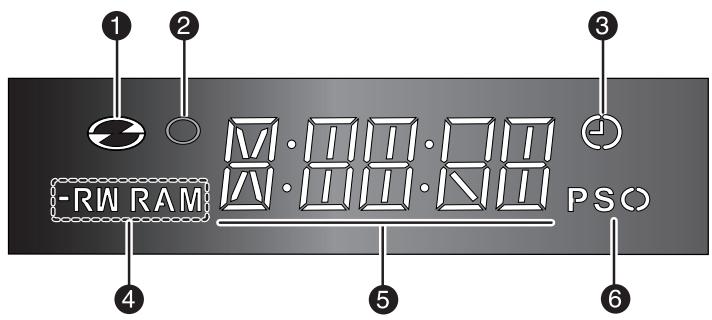
- Lights when a disc is loaded.
- Lights in the record mode.
- Lights to indicate the timer record mode.
- Lights when a -R/RW/RAM disc is loaded.
- Playing time/clock/current status indicator.
- Lights in the progressive scan mode.
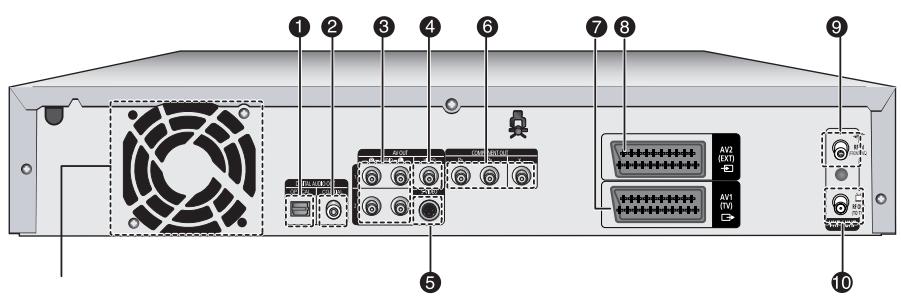
Fan
The fan always revolves when the power is on.
Ensure a minimum of 10cm clear space on all sides of the fan when installing the product.
1. DIGITAL AUDIO OUT (OPTICAL)
Connects to an amplifier having a digital optical audio input jack.
2. DIGITAL AUDIO OUT (COAXIAL)
Connects to an amplifier having a digital coaxial audio input jack.
3. AUDIO OUT
Connects to the audio input of external equipment using audio cables.
4. VIDEO OUT
Connects the input of external equipment using a Video cable.
5. S-VIDEO OUT
Connects the input of external equipment using an S-Video cable.
6. COMPONENT VIDEO OUT
Connects to equipment having Component video output.
7. AV1 (TV) OUTPUT SCART Connector
8. AV2 (EXT) INPUT SCART Connector
9. In from aerial connector
10. ☐ Out to TV connector
NOTE
■ The Antenna connection does not pass output signal of DVD. To watch a DVD on your TV, you must connect audio/video or Scart cables.
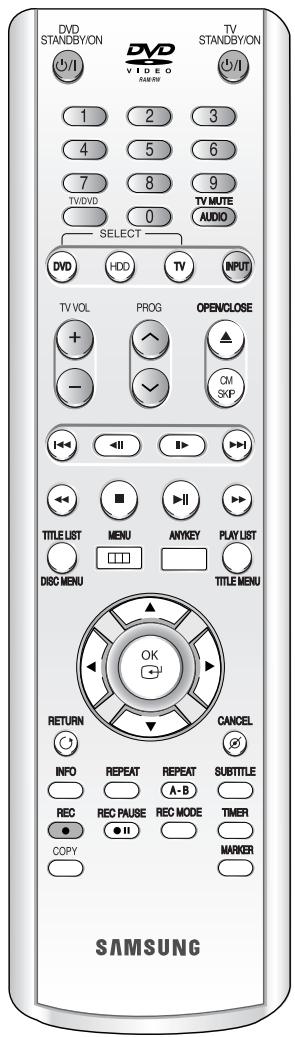
Tour of the Remote Control
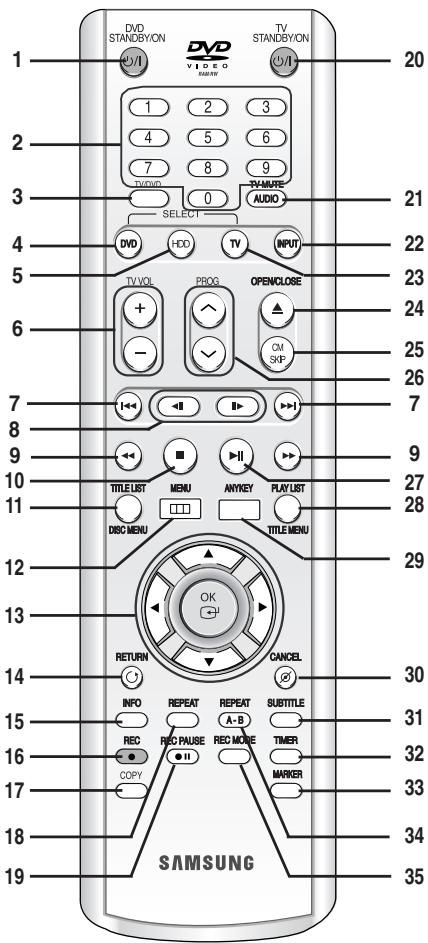
- DVD STANDBY/ON Button
- NUMBER Buttons
- TV/DVD Button
- DVD Button Press this to operate DVD.
- HDD Button Press this to operate HDD.
- TV VOL Button TV volume adjustment
- REVERSE/FORWARD SKIP Buttons Press to skip a disc backwards or forwards.
- REVERSE/FORWARD STEP Buttons Each press will play one-frame forward or reverse.
- REVERSE/FORWARD SEARCH Buttons Press to search a disc backwards or forwards.
- STOP Button Press to stop a disc.
- TITLE LIST/DISC MENU Button Use this to enter the View Recording list/disc menu.
- MENU Button Brings up the HDD & DVD RECORDER's setup menu.
- OK/DIRECTION Buttons (▲▼◀▶ Buttons)
- RETURN Button
- INFO Button This will display current setting or disc status.
- REC Button Use to make a recording on HDD/DVD-RAM/-RW/-R discs.
- COPY Button Press this when you copy DVD to HDD or HDD to DVD. To start copying, press the COPY button on the title list screen or press the COPY button during the playback.
- REPEAT Button Allows you to repeat a title, chapter, track or disc.
- REC PAUSE Button Use this to pause during recording.
- TV STANDBY/ON Button
- AUDIO/TV MUTE Button Use this to access various audio functions on a disc (DVD mode). This operates as sound mute. (TV mode)
- INPUT Button Select input signal in external input mode (PROG, AV1, AV2, AV3 or DV input)
- TV Button Press this to operate TV.
- OPEN/CLOSE Button To open and close the disc tray.
- CM SKIP Button When a programme recorded on DVD disc or HDD is played, the unit can be set to automatically skip a portion of the programme.
- PROG Button Use this to select a TV programme.
- PLAY/PAUSE Button Press to play/pause a disc.
- PLAY LIST/TITLE MENU Button Use this to return to the Title menu, or to view the recorded files list.
- ANYKEY Button View and select the applicable features under current status.
- CANCEL Button
- SUBTITLE Button Press this to switch the DVD's subtitle language.
- TIMER Button Press to directly enter the Timer Recording Mode menu.
- MARKER Button Use this to bookmark a position while playing a disc.
- REPEAT A-B Button Allows you to repeat a title, chapter, track or disc.
- REC MODE Button Use this to set the desired Recording time and picture quality. (XP/SP/LP/EP)
Connecting & Setting Up
This section involves various methods of connecting the HDD & DVD RECORDER to other external components and required initial setting modes.
Quick Overview ....18
Connecting the HDD & DVD RECORDER .....19
Additional connections .....19
Antenna + HDD & DVD RECORDER + External decoder box + TV .....20
Other type of connecting the Video output cable . .20
Other type of connecting the Audio output cable . .22
Connecting to AV 3 IN, DV input jack .....24
Quick Overview
A Quick Overview presented in this guide will give you enough information to start using the recorder.
Connecting the HDD & DVD RECORDER

Additional connections

Antenna + HDD & DVD RECORDER + External decoder box + TV

Other type of connecting the Video output cable

Other type of connecting the Audio output cable

Connecting to AV 3 IN, DV input jack
Connecting the HDD & DVD RECORDER
You can connect your HDD & DVD RECORDER to the television using the SCART cable if the appropriate input is available on the television.
- Connect the RF cable as shown.
- Connect one end of the SCART cable to the AV1 socket on the rear of the HDD & DVD RECORDER.
- Plug the other end into the appropriate connector on the television.
- Plug in the HDD & DVD RECORDER and TV.
- Turn on the HDD & DVD RECORDER and TV.
- Press the INPUT button on your TV remote control until the Video signal from the HDD & DVD RECORDER appears on the TV screen.
![graph TD A["Server"] -->|2| B["Analog/USB ports"] A -->|3| C["Analog ports"] B --> D["RF IN (FROM ANT)"] C --> E["RF OUT (TO TV)"] D --> F["VHF/UHF Interface"] E --> F F --> G["RF Cable"] G --> H["To ANT INPUT"] H --> I["TV"]](/content/2019/12/27521/images/6c53fa3c92b52e0d5ca0373ef312b3d85fad51e1affc202fd2d8e0c57ea2af65.jpg)
NOTE
■ The RF cable connection of this product sends only TV signals. You must connect the SCART cable or Audio/Video cables to watch a DVD from your HDD & DVD RECORDER. ■ TV mode: Press the TV/DVD button on the remote control, then "TV" appears on the front LED display (or turn off the HDD & DVD RECORDER). Then you can watch programmes received through the RF cable.
Additional connections
You can connect your HDD & DVD RECORDER to a satellite or digital tuner.
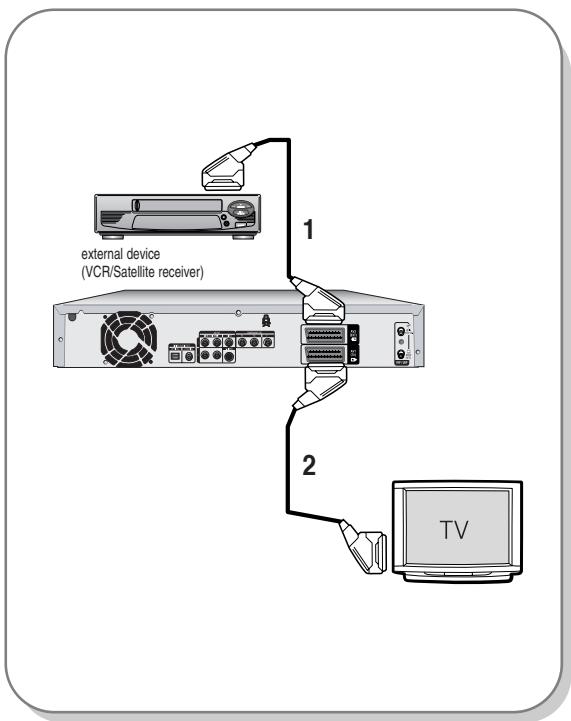
- DVD mode
- Connect the AV2 connector of the HDD & DVD RECORDER and VCR/Satellite receiver or digital tuner using a SCART cable.
- Connect the AV1 connector to the SCART AV connector on the TV.
- Turn on the HDD & DVD RECORDER, VCR/Satellite receiver or digital tuner, and TV.
- Set Input mode on AV2.
- TV mode
- Press the TV/DVD button on the remote control, then "TV" appears on the front LED display. (Or turn off the HDD & DVD RECORDER.)
- You can watch programmes from a satellite or digital tuner connected to this HDD & DVD RECORDER, even when the HDD & DVD RECORDER is turned off.
Antenna + HDD & DVD RECORDER + External decoder box + TV
If you connect an external decoder box to the HDD & DVD RECORDER, you can record scrambled channels (CANAL+ or Premiere broadcasts) received through the built-in TV tuner in the HDD & DVD RECORDER.
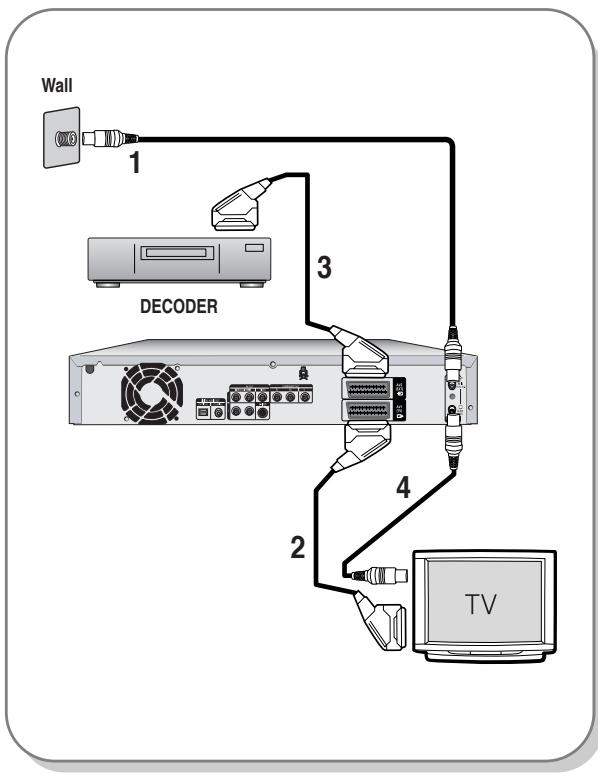
- Connect RF antenna cables as shown.
- Connect the AV1 connector on this recorder to the SCART AV connector on the TV using a SCART cable.
- Connect the AV2 connector to a SCART AV connector on the decoder box.
- To watch or record PAY-TV Canal Plus programmes, set your HDD & DVD RECORDER to receive the channels using the on-screen display. (Refer to page 30)
Other types of connecting the video output cable
There are several ways to output video signal not using SCART cables. Select one of the following video connections that best suits you below.
- Case 1: Connecting to a Video (Composite) output jack
- Case 2: Connecting to an S-Video output jack
- Case 3: Component Video output jacks
S-Video, Component Video, and Progressive Output Modes
- S-Video and Component video output are available only if your TV supports S-Video input or Component video input, respectively. If S-Video or Component video output does not work, check the TV connections and the TV input selection settings.
- Compared to standard interlaced video, progressive scan doubles the amount of video lines fed to your TV, resulting in a more stable, flicker-free, clear image than interlaced video. This is only available with TVs that support progressive scan.
- Progressive Scan Output (576p) Consumers should note that not all high definition television sets are fully compatible with this product and may cause artifacts to be displayed in the picture. In case of 576 progressive scan picture problems, it is recommended that the user switch the connection to the 'standard definition' output. If there are questions regarding our TV set compatibility with this model 576p HDD & DVD RECORDER, please contact our customer service centre.
Case 1: Connecting to a Video (Composite) output jack
- Connect a video (yellow) cable between the VIDEO (yellow) OUT jack on the HDD & DVD RECORDER and the VIDEO (yellow) INPUT jack on your TV (or AV amplifier).
- You will enjoy regular quality images.
- Connect audio cables (white and red) between the AUDIO OUT jacks on the HDD & DVD RECORDER and the AUDIO IN jacks on the TV (or AV amplifier). (See pages 22~23)
![graph TD A["Server"] --> B["Video"] B --> C["Video/Audio Cable"] C --> D["Yellow"] D --> E["Video"] E --> F["INPUT"] F --> G["TV"]](/content/2019/12/27521/images/f33ef6d1815ff6eeba798978aea71d877937259c28fef45e12e9da65e02bbcc8.jpg)
Case 2: Connecting to an S-Video output jack
- Connect an S-Video cable (not included) between the S-VIDEO OUT jack on the HDD & DVD RECORDER and the S-VIDEO INPUT jack on your TV (or AV amplifier).
- You will enjoy high quality images.
- Connect audio cables (white and red) between the AUDIO OUT jacks on the HDD & DVD RECORDER and the AUDIO IN jacks on the TV (or AV amplifier).
![graph TD A["Server"] --> B["S-VIDEO"] A --> C["INPUT"] A --> D["TV"]](/content/2019/12/27521/images/590936020f2da5670b4dc6fd4a71be7a66392d43efca98c1377cfa3983ca204d.jpg)
Case 3: Component Video output jacks
- Connect Component video cables (not supplied) between the COMPONENT OUT (Y, Pb, Pr) jacks on the HDD & DVD RECORDER and the COMPONENT IN (Y, Pb, Pr) jacks on your TV.
- You will enjoy high quality and accurate colour reproduction images.
- Connect audio cables (white and red) between the AUDIO OUT jacks on the HDD & DVD RECORDER and AUDIO IN jacks on TV (or AV amplifier). (See pages 22~23).
- After connecting, refer to the pages 41~43.
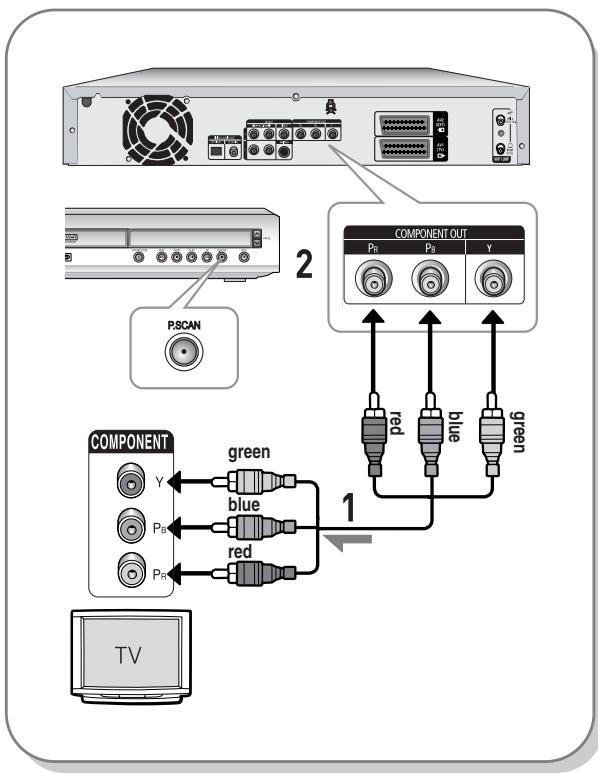
NOTE
■ Make sure that the colour coded connections match. The Y, PB, PR component output jacks of your HDD & DVD RECORDER must be connected to the exact corresponding component input jacks on your TV. ■ Progressive setting is only available when the Video Out is set to Component. (See pages 41~43)
Other type of connecting the Audio output cable
There are several ways to output audio signal not using scart cables. Select the audio connection that best suits you below.
• Case 1 : Connecting to your TV - Case 2: Connecting to a stereo amplifier with AV output jacks - Case 3: Connecting to an AV amplifier with a digital output jack
Manufactured under license from Dolby Laboratories. "Dolby" and the double-D symbol are trademarks of Dolby Laboratories.
“DTS” and “DTS Digital Out” are trademarks of Digital Theater Systems, Inc.
Case 1 : Connecting to your TV
If your TV has audio input jacks, use this connection.
![graph TD A["TV"] --> B["INPUT"] B --> C["VIDEO"] B --> D["AUDIO"] B --> E["R"] C --> F["yellow"] C --> G["white"] C --> H["red"] D --> I["AV/AVOUT"] E --> I I --> J["red"] I --> K["white"] I --> L["yellow"] style A fill:#f9f,stroke:#333 style B fill:#ccf,stroke:#333 style C fill:#cfc,stroke:#333 sty…](/content/2019/12/27521/images/7f5a18f8e956f66e5e21129bbf9d2f64aa1d315c8647d9edd6a4a9a21bfce6db.jpg)
Case 2 : Connecting to a stereo amplifier with AV output jacks
If your stereo amplifier only has AUDIO INPUT jacks(L and R), use the AUDIO OUT jacks.
Case 3: Connecting to an AV amplifier with a digital output jack
If your AV amplifier has a Dolby Digital, MPEG2 or DTS decoder and a digital input jack, use this connection. To enjoy Dolby Digital, MPEG2 or DTS sound, you will need to set up the audio settings. (See page 39)
![graph TD A["ACU OUT"] -->|red| B["ANAO G"] A -->|white| C["ANAO G"] B --> D["R1"] B --> E["L1"] C --> F["Front(L) speaker"] C --> G["Front(R) speaker"]](/content/2019/12/27521/images/763ea3ae6a75ecc40971c9762b41d44c98b7a778fe86f8793efd503a9c02869c.jpg)
![graph TD A["Server"] --> B["Digital Audio OUT"] B --> C["OPTICAL COAXIAL"] B --> D["OR"] D --> E["Digital Audio IN"] E --> F["OPTICAL COAXIAL"] E --> G["Rear(L)"] E --> H["Rear(R)"] E --> I["Front(L)"] E --> J["Subwoofer"] E --> K["Centre"] E --> L["Front(R)"]](/content/2019/12/27521/images/30d4097e35bc05db860cae3e1fe2dba1a88ac41e93e9201ca06d683547bd59dc.jpg)
Connecting to AV 3 IN, DV input jack
This allows you to connect your HDD & DVD RECORDER to other external devices and view or record their outputs.
- Case 1: Connecting a VCR, Set-Top Box (STB), DVD player, or Camcorder to the AV3 IN jacks
- Case 2: Connecting a DV Device to the DV IN jack
Case 1: Connecting a VCR, Set-Top Box (STB), DVD player, or Camcorder to the AV3 IN jacks
Connecting a VCR or external device to the AV3 IN jacks of the HDD & DVD RECORDER.
You can record from connected equipment (VCR, STB, DVD player, or Camcorder).
Case 2: Connecting a Camcorder to the DV IN jack
If your digital camcorder has a DV output jack, connect it to the DV input jack of your HDD & DVD RECORDER.
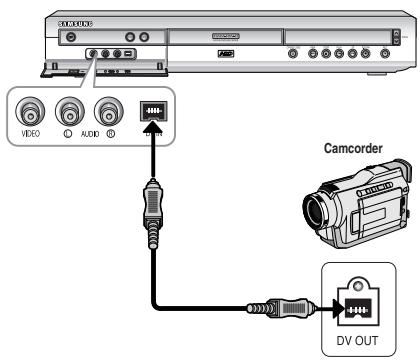
![graph TD A["DC/RXD"] --> B["Camcorder"] B --> C["VCR"] B --> D["STB"] B --> E["DVD"] C --> F["OUTPUT"] D --> F E --> F F --> G["yellow"] F --> H["white"] F --> I["red"] G --> J["DV/IN"] H --> J I --> J J --> K["yellow"] J --> L["white"] J --> M["red"]](/content/2019/12/27521/images/c67655fda1c8539a3dfe67f0f780b6496e82a8888d1e6517a68c737a3b80f41b.jpg)
NOTE
■ If the input is not selected automatically, use the INPUT button to select the proper input.
NOTE
■ AV 3 in selection will be done automatically. If the input is not selected automatically, use the INPUT button to select the proper input. ■ Copy-protected content cannot be recorded.
System Setup
On-Screen Menu Navigation .....25
Plug & Auto Setup .....26
Setting the Clock .....27
Presetting Channels with the Auto Setup function .....28
Presetting Channels with the Manual Setup function ....30
Setting up the Language Options .....31
Auto Power Off Setting .32
CM Skip Time Setting .....33
EP Mode Time Setting .....34
Setting up the Front Display Options .....35
Automatic Chapter Creator .....36
Setting up NICAM Options .....37
DivX(R) Registration .....38
Setting up the Audio Options .....38
Setting up the Video display Options .....40
Setting up Video Output Options .....41
Setting up the Progressive scan .....42
Canceling the Progressive scan .....43
Setting up the Parental Control .....44
On-Screen Menu Navigation
The on-screen menus allow you to enable or disable various functions on your HDD & DVD RECORDER. Use the following buttons to open and navigate through the on-screen menus.
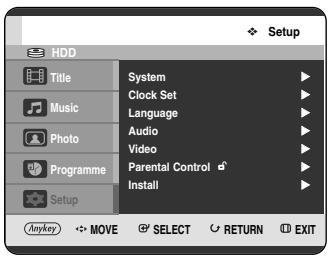
1 MENU Button
Press this button on the remote control to open the on-screen menu.
Press again to exit the on-screen menu.
▲▼, ◀► Buttons
Press these buttons on remote control to move the selection bar ▲▼, ◀▶ to cycle through the menu options.
OK Button
Press this button on the remote control to confirm any new settings.
4 RETURN Button
Press this button on the remote control to return to the Previous menu screen displayed or to exit the on-screen menu.
Plug & Auto Setup
Your HDD & DVD RECORDER will automatically set itself up when it is plugged in for the first time. TV stations and clock will be stored in memory. The process takes a few minutes. Your HDD & DVD RECORDER will then be ready for use.
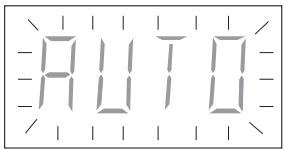
1 Connect the RF cable as indicated on page 19. (Connecting Your HDD & DVD RECORDER to the TV Using the RF Cable and scart cable.) 2 Plug the HDD & DVD RECORDER into the mains. "AUTO" in the front panel display flickers.
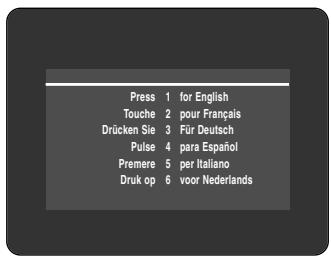
3 Press a number button to select the language.
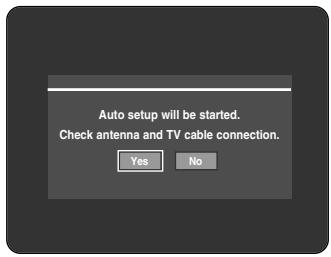
4 Press the OK button to start the auto setup.
5 Select "Country" using the ▲▼◀▶ buttons to select your country.
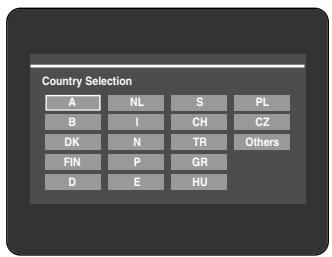
- Refer to following abbreviation table when selecting “Country”.
| A(Austria) | NL(Netherlands) | S(Sweden) | PL(Poland) |
| B(Belgium) | I(Italy) | CH(Swiss) | CZ (Czech) |
| DK(Denmark) | N(Norway) | TR(Turkey) | Others |
| FIN(Finland) | P(Portugal) | GR(Greece) | |
| D(Deutschland) | E(Spain) | HU(Hungary) |
- The HDD & DVD RECORDER searches for the stations according to a preset preference list corresponding to the country that you have selected.
6 Auto channel scan will be started.
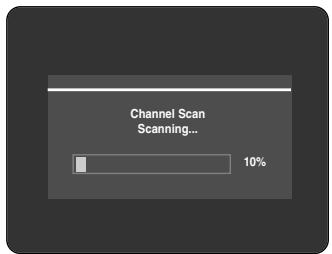
- The number of stations automatically stored by the HDD & DVD RECORDER depends on the number of stations that it has found.
7 After auto channel scan is completed, auto clock setting will be started automatically in 10 seconds. If you want to start auto clock setting immediately, press OK button. If you do not want to do auto clock setting, press CANCEL or MENU button.
![Auto channel scan completed successfully. Press the [OK] button to auto clock set. Yes No](/content/2019/12/27521/images/ec2db1306e3524ca59108bcf419a5ee355dd8ad300477212099c3472aa63c8da.jpg)
8 Wait until current date and time are displayed automatically. If you want to exit auto clock setting, press MENU button.
![Please wait. Now setting the clock. If you want to exit clock setting, press the [MENU] button.](/content/2019/12/27521/images/f8b06a0bb97bd750deb04dcf433d207e030aaa8a0b8304677d5c565b6b360bcc.jpg)
9 Check the date and time.
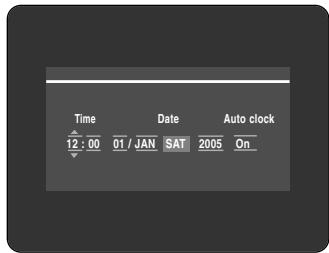
- if it is : Correct, press OK button then the date and time will be saved. If you don't press the OK button, the date and time will be saved automatically after 5 seconds.
- if it is : Incorrect, input correct Time, Date, Year using ▲▼◀▶ buttons or number buttons. Press OK button then the date and time will be saved. When you need to change clock setting, you can set up it manually. (See page 27)
NOTE
- Now, HDD & DVD RECORDER is ready for use. The “Plug & Auto Setup” function is already fixed. If you want to change this fixed setting, you can change it by presetting the stations in the OSD “Presetting Channels with the Manual setup function” menu. (See page 30) ■ The auto setup function can be performed by pressing STOP (☐) on the unit continuously for 5 seconds or more during power off with no disc inserted.
Setting the Clock
This menu is used to set the current time. You need to set the time to use timer recording.
1. With the unit in Stop mode, press the MENU button.
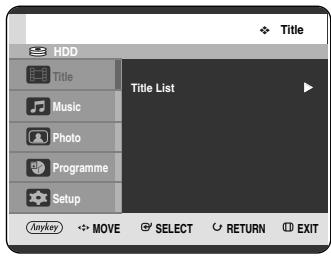
2. Press the ▲▼ buttons to select Setup, then press the OK or ▶ button.
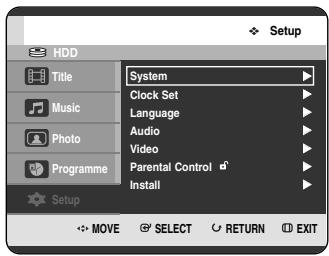
3. Press the ▲▼ buttons to select Clock Set, then press the OK or ▶ button.
Press the ▲▼◀▶ buttons to input Time, Date, or Year. Press the number buttons to input clock data directly.
The day of the week is displayed automatically.
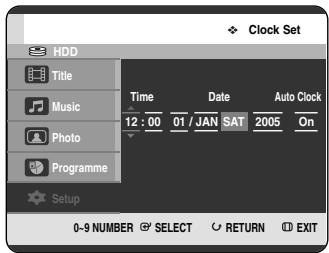
4. Press the ▲▼ buttons to select On for the Auto Clock.
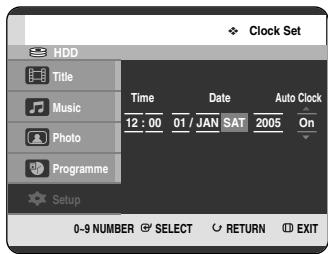
5. Press the OK button, then the date and time will be saved. If you don't press the OK button, it will not be saved.
NOTE
■ You must have the RF cable connected to set the Auto Clock. (See page 19) ■ The HDD & DVD RECORDER automatically sets the clock according to the time signal broadcast between the channels PR1 to PR5. If you do not need the auto clock set function, select Off.
Presetting Channels with the Auto Setup function
This feature allows you to manually set the HDD & DVD RECORDER tuner band to Antenna or Cable, whichever you connected to the Antenna In jack during initial setup.
1. With the unit in Stop mode, press the MENU button. 2. Press the ▲▼ buttons to select Setup, then press the OK or ▶ button.
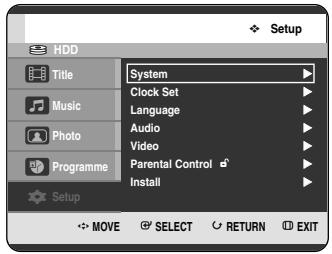
3 Press the ▲▼ buttons to select Install, then press the OK or ▶ button.
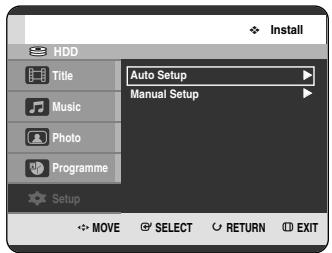
4 Press the ▲▼ buttons to select Auto Setup, then press the OK or ▶ button.
The message “Your data will be lost. Press [OK] to continue, [Return] to exit.” is displayed.
![Your data will be lost. Press [OK] to continue, [Return] to exit. OK SELECT RETURN EXIT](/content/2019/12/27521/images/7535952310c9250a82c4296a67731ea9e3a7a9a9114789c90fc0e0398f58421b.jpg)
5 Press the OK button, then press the ▲▼◀▶ buttons to select your Country.
- The HDD & DVD RECORDER searches for the stations according to a preset preference list corresponding to the country that you have selected.
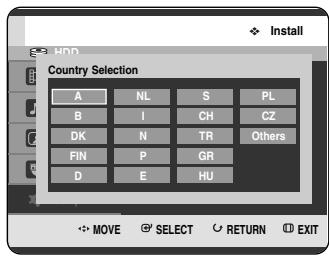
Refer to following table when selecting your country.
| A(Austria) | NL(Netherlands) | S(Sweden) | PL(Poland) |
| B(Belgium) | I(Italy) | CH(Swiss) | CZ (Czech) |
| DK(Denmark) | N(Norway) | TR(Turkey) | Others |
| FIN(Finland) | P(Portugal) | GR(Greece) | |
| D(Deutschland) | E(Spain) | HU(Hungary) |
6 Press the OK button. If you want to exit, press the MENU button.
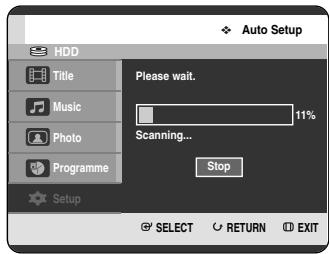
- The first frequency band is scanned and the first station found is displayed and stored. And the HDD & DVD RECORDER searches for the second station and so on.
- When the automatic scanning procedure has finished, the HDD & DVD RECORDER switches automatically to programme 1.
- The number of stations automatically stored by the HDD & DVD RECORDER depends on the number of stations that it has found.
7 Channel scan will be started. Press the OK button to stop the Auto Setup.
Presetting Channels with the Manual Setup function
You can add preset channel that Auto Channel Search missed. And you can delete a channel you wish to remove. You can programme the order of channels.
1 With the unit in Stop mode, press the MENU button.
2 Press the ▲▼ buttons to select Setup, then press the OK or ▶ button.
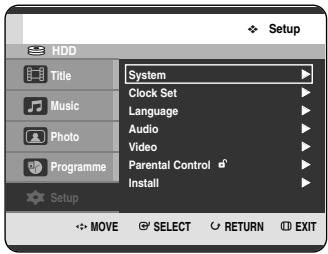
3 Press the ▲▼ buttons to select Install, then press the OK or ▶ button.
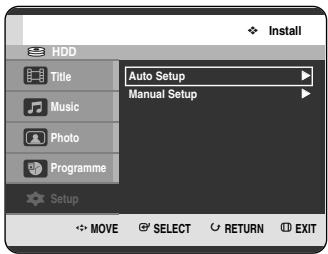
4 Press the ▲▼ buttons to select Manual Setup, then press the OK or ▶ button.
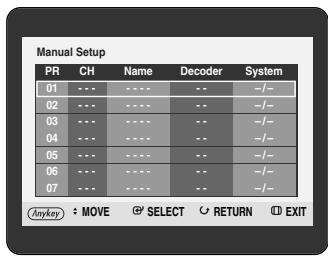
5 Press the ▲▼ buttons to select a PR (programme) you wish to edit, delete, or swap, then press the ANYKEY button. Select Edit, Delete or Swap.
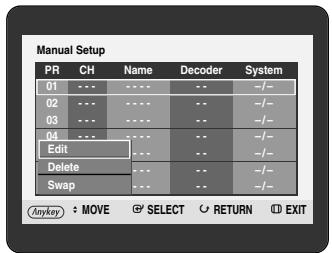
- In case of Edit: You can add or edit PR (programme) information. After changing PR information (CH, Name, Decoder, MFT, System), select Save, then press the OK button.
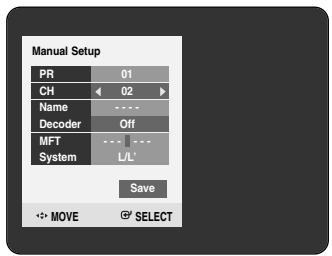
- CH: Tune the channel using ◀▶ buttons.
- Name: Display station name automatically detected in broadcasting signal. If not detected, you can edit name by using ▲▼◀▶ buttons.
- Decoder: If you set on, you can record scrambled channels using external decoder box. Before setting on, refer to connecting external decoder box on page 20.
- MFT (Manual Frequency Tuning): You can tune up the channel frequency better using ◀▶ buttons.
- System: You can select broadcasting system of the receivable channel (B/G or L/L').
- In case of Delete: the channel information of selected PR (programme) will be removed.
- In case of Swap: You can swap the channel information of two PR (programme). For example, if you wish to swap PR2 and PR5, select swap at PR2, then press the OK button at PR5.
Setting up the Language Options
If you set the audio, subtitle, disc menu and on-screen menu in advance, they will come up automatically every time you watch a movie.
If the selected language is not recorded on the disc, the original pre-recorded language is selected.
1 With the unit in Stop mode, press the MENU button.
2 Press the ▲▼ buttons to select Setup, then press the OK or ▶ button.
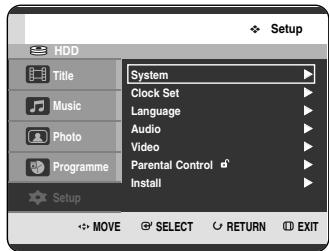
3 Press the ▲▼ buttons to select Language, then press the OK or ▶ button. The Language setup menu will be displayed.
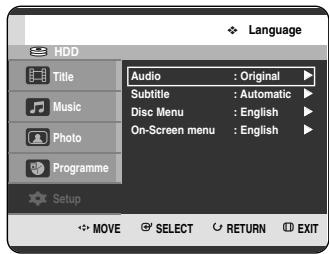
4 Press the ▲▼ buttons to select the desired language option, then press the OK or ▶ button.
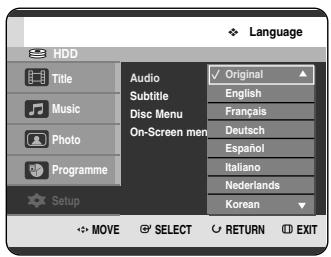
• Audio: For the disc audio language. • Subtitle: For the disc subtitles. • Disc Menu: For the disc menu contained on the disc. • On-Screen menu: For the on-screen menu of your HDD & DVD RECORDER.
5 Press the ▲▼ buttons to select the desired language, then press the OK or ▶ button.
NOTE
- Press the RETURN or ◀ button to return to the previous menu. Press the MENU button to exit the menu. ■ The selected language will only appear if it is supported on the disc.
Auto Power Off Setting
This feature automatically turns off your HDD & DVD RECORDER if you do not press any button for the selected time.
1 With the unit in Stop mode, press the MENU button.
2 Press the ▲▼ buttons to select Setup, then press the OK or ▶ button.
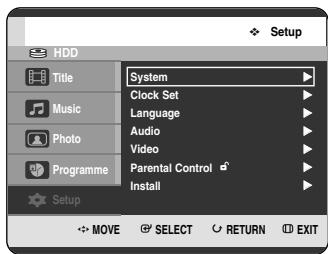
3 Press the ▲▼ buttons to select System, then press the OK or ▶ button. The System menu will be displayed.
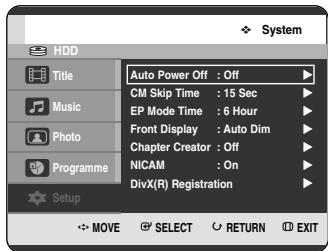
4 Press the ▲▼ buttons to select Auto Power Off, then press the OK or ▶ button.
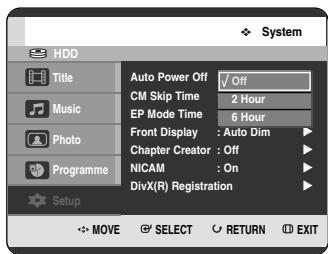
5 Press the ▲▼ buttons to select the desired item, then press the OK or ▶ button.
- Off: Auto power off is disabled.
- 2 Hour: The DVD-HDD Receiver will automatically turn off 2 hours after the last button is pressed.
- 6 Hour: The DVD-HDD Receiver will automatically turn off 6 hours after the last button is pressed.
- If the turn-off time set by the automatic power off function is reached during playback or recording, the device will operate until the playback or recording is over.
CM Skip Time Setting
When a programme recorded on a HDD, a DVD-RAM, a DVD-RW, or a DVD-R is played, the unit can be set to automatically skip a portion of the programme corresponding to a CM (commercial) skip time set by the user.
1. With the unit in Stop mode, press the MENU button.
2. Press the ▲▼ buttons to select Setup, then press the OK or ▶ button.
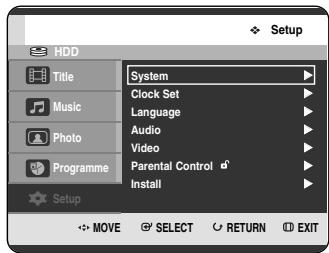
3. Press the ▲▼ buttons to select System, then press the OK or ▶ button. The System menu will be displayed.
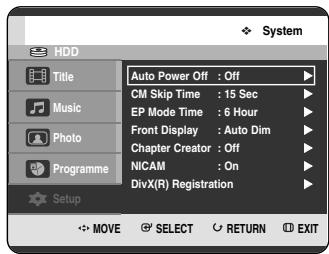
4. Press the ▲▼ buttons to select CM Skip Time, then press the OK or ▶ button.
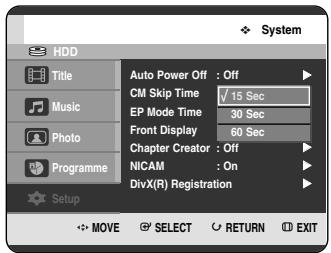
5. Press the ▲▼ buttons to select the desired time interval, then press the OK or ▶ button.
6. If you press the CM SKIP button during playback, the section corresponding to the set time is skipped, and then the next section is played.
NOTE
■ CM Skip can be performed only during normal playback. ■ When the time set is more than the remaining time of the current title: The next title is played from the beginning. ■ When the time set is more than the remaining time of a play list, the next scene is played. ■ CM Skip does not work in a still picture mode. - When a set time is less than the remaining time of a scene, a last title, or a last track that is displayed currently, a prohibition mark appears. ■ CM Skip releases Repeat (including Repeat A-B, Chapter, and Title). ■ CM Skip may not operate with some DVD-Video discs.
EP Mode Time Setting
You can select one of four recording modes by pressing the REC MODE button repeatedly.
EP mode is one of four REC Modes (XP, SP, LP, EP). In EP (Extended Play) mode, you can set the recording time to 6 or 8 hours with this setting.
1 With the unit in Stop mode, press the MENU button.
2 Press the ▲▼ buttons to select Setup, then press the OK or ▶ button.
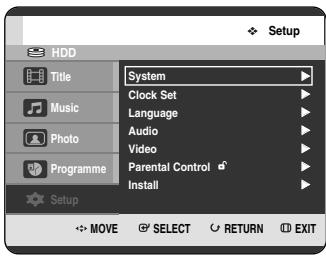
3 Press the ▲▼ buttons to select System, then press the OK or ▶ button. The System menu will be displayed.
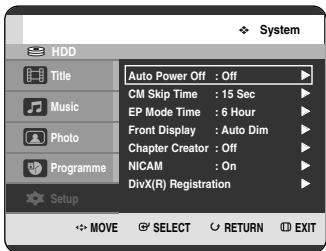
4 Press the ▲▼ buttons to select EP Mode Time, then press the OK or ▶ button.
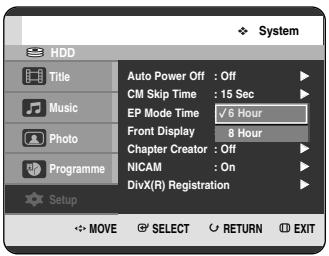
5 Press the ▲▼ buttons to select the desired Time, then press the OK or ▶ button.
Setting up the Front Display Options
Adjust the brightness of the unit's front panel display.
1 With the unit in Stop mode, press the MENU button.
2 Press the ▲▼ buttons to select Setup, then press the OK or ▶ button.
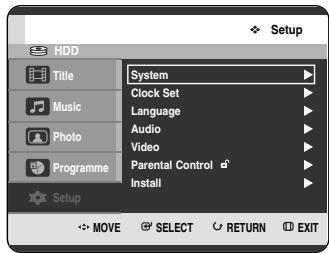
3 Press the ▲▼ buttons to select System, then press the OK or ▶ button. The System menu will be displayed.
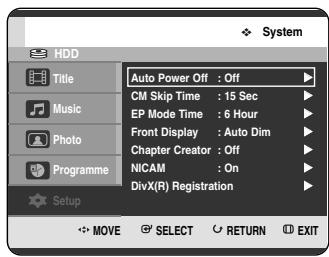
4 Press the ▲▼ buttons to select Front Display, then press the OK or ▶ button.
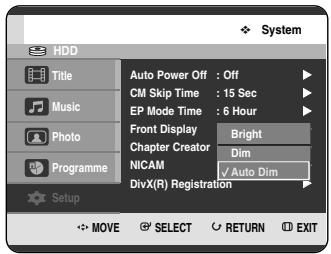
5 Press the ▲▼ buttons to select the desired item, then press the OK or ▶ button.
- Bright: Makes the Front Panel Display bright.
- Dim: Makes the Front Panel Display dim.
- Auto Dim: Makes the Front Panel Display dim automatically when the set is in power off.
Automatic Chapter Creator
(V mode)
1 With the unit in Stop mode, press the MENU button. 2 Press the ▲▼ buttons to select Setup, then press the OK or ▶ button.
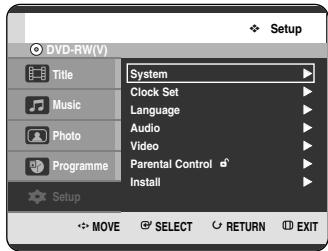
3 Press the ▲▼ buttons to select System, then press the OK or ▶ button. System menu will be displayed.
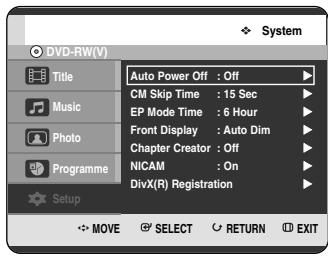
4 Press the ▲▼ buttons to select Chapter Creator, then press the OK or ▶ button.
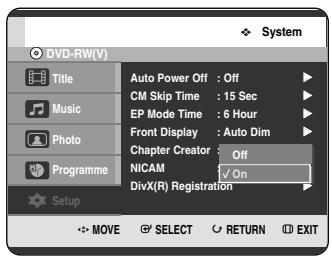
5 Press the ▲▼ buttons to select the desired item, then press the OK or ▶ button.
- Off: Select this option when you do not want Automatic Chapter Creator.
- On: Select this option when you want Automatic Chapter Creator.
Press the MENU button to exit the menu.
6 Press the REC button to start recording. (See page 81 about how to set recording speed) The message "Do you want to create the chapter menu after this recording?" is displayed.
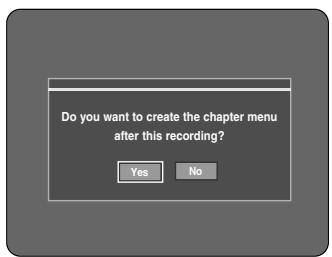
7 Press the ◀▶ buttons to select Yes and press the OK button.
- A new chapter is created according to the selected recording mode. A chapter will be about 5 minutes long in XP and SP, and about 15 minutes long in LP and EP mode.
8
Press the STOP button to stop recording.
9
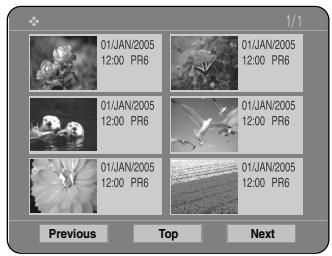
To display the created titles, finalise the disc (See page 126) and then press the TITLE MENU button. The title menu will be displayed.
10
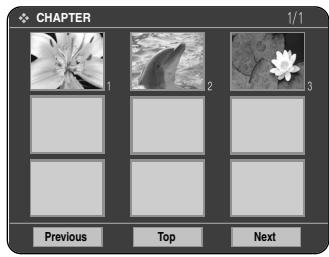
To display the created chapters, select the desired Title and then press the DISC MENU button. The chapter menu for the selected Title will be displayed.
Caution
■ The Automatic Chapter Creator function does not work during Timer Recording or when you turn the power off.
Setting up NICAM Options
NICAM programmes are divided into 3 types: NICAM Stereo, NICAM Mono and Bilingual (transmission in another language). NICAM programmes are always accompanied by a standard mono sound broadcast and you can select the desired sound by setting NICAM on or off.
1 With the unit in Stop mode, press the MENU button. 2 Press the ▲▼ buttons to select Setup, then press the OK or ▶ button.
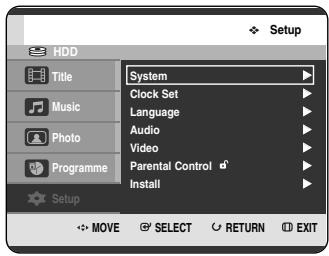
3 Press the ▲▼ buttons to select System, then press the OK or ▶ button. The System menu will be displayed.
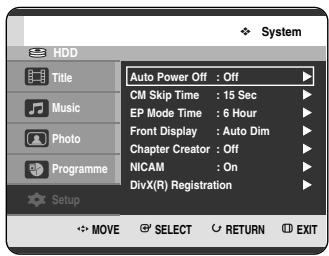
4 Press the ▲▼ buttons to select NICAM, then press the OK or ▶ button.
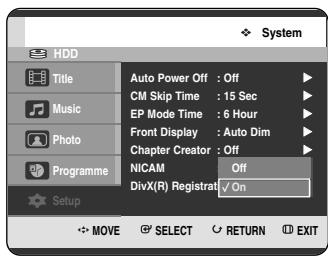
5 Press the ▲▼ buttons to select Off or On, then press the OK or ▶ button.
- Off: Only set at this position to record the standard mono sound during a NICAM broadcast if the stereo sound is distorted due to inferior reception conditions.
- On: NICAM mode
DivX(R) Registration
Please use the Registration code to register this HDD & DVD RECORDER with the DivX(R) Video On Demand format. For more information, visit www.divx.com/vod.
Setting up the Audio Options
You can connect the HDD & DVD RECORDER to an external amp or Home theatre.
Allow you to setup the Audio device and sound status depending on the audio system in use.
1 With the unit in Stop mode, press the MENU button. 2 Press the ▲▼ buttons to select Setup, then press the OK or ▶ button.
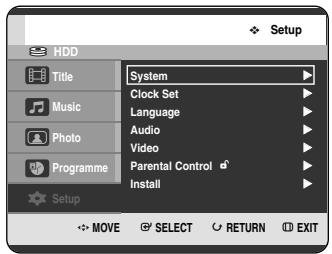
3 Press the ▲▼ buttons to select Audio, then press the OK or ▶ button. Audio setup menu will be displayed.
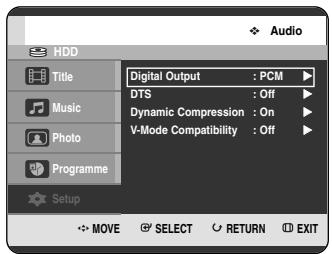
4 Press the ▲▼ buttons to select the desired audio option, then press the OK or ▶ button. 5 Press the ▲▼ buttons to select the desired item, then press the OK or ▶ button.

NOTE
- Press the RETURN or ◀ button to return to the previous menu.
Press the MENU button to exit the menu.
Digital Output
- PCM : Select this when you have no equipment that can decode Dolby Digital (or MPEG-2) signal. When you play Dolby Digital (or MPEG-2) sound track, the digital output are converted to PCM Stereo.
- Bitstream : Output Dolby Digital (or MPEG-2) audio as bitstream. Select this when your AV receiver or AV amplifier have Dolby Digital (or MPEG-2) Decoder.
NOTE
■ Digital output setting is equally applied to both Dolby Digital and MPEG-2 audio. LPCM sound track is always outputted as PCM. It has no relation with Digital Output setting. ■ Be sure to select the correct Digital Output or you will hear no sound or loud noise.
DTS
- Off: Doesn't output DTS signal. Select this when your AV receiver or AV amplifier does not have a DTS decoder.
- On: Outputs DTS bitstream via digital output when you play a DTS track. Select this only when your AV receiver (or AV amplifier) has a DTS decoder.
NOTE
■ When a DTS soundtrack is played, sound does not output from the AV Audio Output.
Dynamic Compression
This is only active when a Dolby Digital signal is detected.
- On: When movie soundtracks are played at low volume or from smaller speakers, the system can apply appropriate compression to make low-level content more intelligible and prevent dramatic passages from getting too loud.
- Off: You can enjoy the movie with the standard dynamic range.
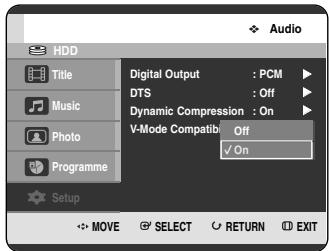
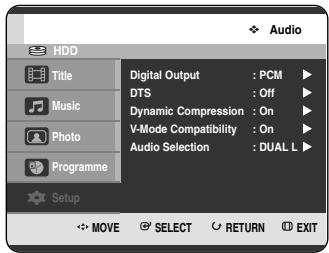
V-Mode Compatibility
This feature is about the setup for selecting audio when recording NICAM STEREO (multi-audio) broadcasts on HDD. It does not affect direct DVD recording of a programme.
- Off: Both "DUAL L" and "DUAL R" of the multi-audio broadcast are recorded on HDD. Titles recorded on HDD under such setup status cannot be copied to V mode (DVD-RW/-R).
- On: Either "DUAL L" or "DUAL R" of the multi-audio broadcast is recorded on HDD. Titles recorded on HDD under such setup status can be copied to DVD-R or DVD-RW (V mode). "DUAL L" and "DUAL R" options can be selected from "Audio Selection."
Setting up the Video Display Options
This function allows you to set up the TV screen settings. This function depends on disc type. It may not work for some disc types.
1 With the unit in Stop mode, press the MENU button.
2 Press the ▲▼ buttons to select Setup, then press the OK or ▶ button.
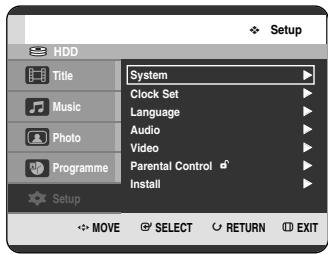
3 Press the ▲▼ buttons to select Video, then press the OK or ▶ button. Video setup menu will be displayed.
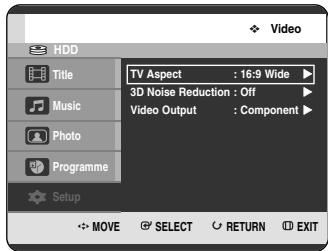
4 Press the ▲▼ buttons to select the desired video option, then press the OK or ▶ button.
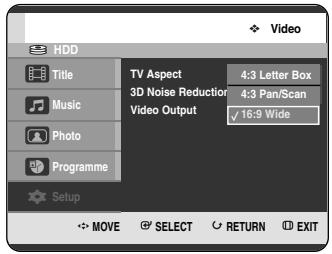
5 Press the ▲▼ buttons to select the desired item, then press the OK or ▶ button.
NOTE
- Press the RETURN or ◀ button to return to the previous menu. Press the MENU button to exit the menu.
TV Aspect
Depending on the type of television you have, you may want to adjust the screen setting. (aspect ratio)
- 4:3 Letter Box : Select when you want to see the total 16:9 ratio screen DVD supplies, even though you have a TV with a 4:3 ratio screen. Black bars will appear at the top and bottom of the screen.
- 4:3 Pan/Scan : Select this for conventional size TV when you want to see the central portion of the 16:9 screen. (Extreme left and right side of movie picture will be cut off.)
- 16:9 Wide : You can view the full 16:9 picture on your widescreen TV.
3D Noise Reduction (motion adaptive noise reduction)
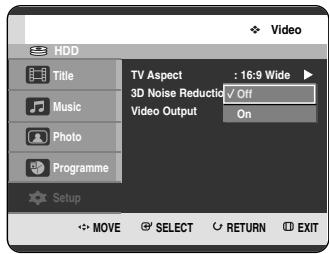
- Off : Normal
- On : Provides a cleaner picture through noise reduction (for recording).
Setting up Video Output Options
You can enjoy high quality images through RGB or Component video connections. RGB video output is available by connecting to the SCART jack (AV1), and component video output is available by connecting to the component (Y, PB, PR) jack. Only one of these signals can be selected at a time.
1. With the unit in Stop mode, press the MENU button. 2. Press the ▲▼ buttons to select Setup, then press the OK or ▶ button.
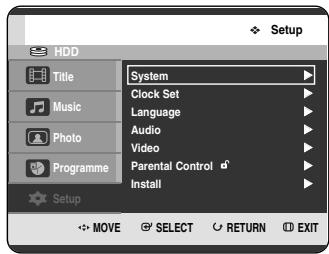
3. Press the ▲▼ buttons to select Video, then press the OK or ▶ button. The Video setup menu will be displayed.
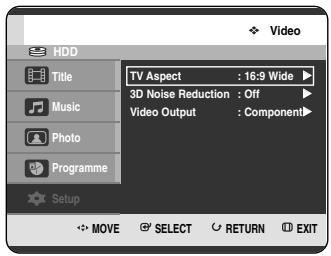
4. Press the ▲▼ buttons to select Video Output, then press the OK or ▶ button.
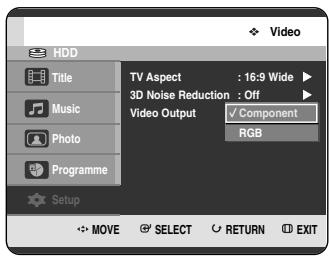
5. Press the ▲▼ buttons to select the desired item, then press the OK or ▶ button.
In Component mode, you can set video output to Progressive (P.SCAN) or Interlace. See page 42. Available video output jacks are as follows.
Available Video Output Jack
| Setting modeOutput jack | Component mode | RGB Mode | ||
| P.SCAN off mode (Interlace mode) | P.SCAN on mode | |||
| Component Output(Y, Pb, Pr) | O | O(TV in progressive mode) | X | |
| AV1 Scart | R, G, B | X | X | O |
| Composite | O | X | X | |
| AV2 Scart | Composite | O | X | O |
| Composite Video out | O | X | O | |
| S-Video out | O | X | O | |
Setting up the Progressive scan
If the TV supports Progressive Scan, press the P.SCAN button on the front of the HDD & DVD RECORDER to enjoy.
If you select "Progressive scan mode", the component cable has to be connected at first. (See page 22)
1. With the unit in Stop mode, press the P.SCAN button on the front of the HDD & DVD RECORDER.
The message "Press [Yes] to confirm Progressive scan mode. Otherwise, press [No]" will appear.
Press the ◀▶ buttons to select Yes, and then press the OK button.
![Press [Yes] to confirm Progressive scan mode. Otherwise, press [No] Yes No](/content/2019/12/27521/images/8d0170f6da3e40e274af45057c771ecd84623fd8c92841a13ae344bc585e7047.jpg)
2. The message "Please, set your TV to Progressive input. To deactivate, press [STOP] key." will appear. Press the OK button.
![Please, set your TV to Progressive input, To deactivate, press [STOP] key. OK](/content/2019/12/27521/images/709c261a8299d341bf4522c5e4d4b4a436403ea4a9eb48a79e6b353b459cd1c9.jpg)
The message "Video Output Mode Progressive Scan" will appear.
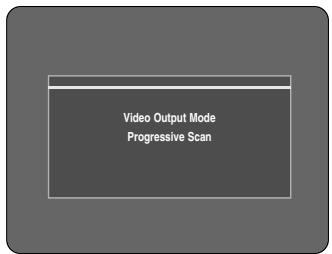
NOTE
If the P.SCAN button on the HDD & DVD RECORDER's front panel is pressed during playback, the message "This function is possible only on stop mode" appears on the screen. ■ Progressive setting is only available when the HDD & DVD RECORDER is in stop mode.
Canceling the Progressive scan
1 With the unit in Stop mode, press the P.SCAN button on the front of the HDD & DVD RECORDER. The message "Press [Yes] to confirm Interlace scan mode. Otherwise, press [No]" will appear. Press the ◀▶ buttons to select Yes, and then press the OK button.
![Press [Yes] to confirm Interlace scan mode. Otherwise, press [No] Yes No](/content/2019/12/27521/images/16ed49e0f535caa84f2d96e6cde605342900823508ad77bacac8f66b24d2d159.jpg)
2 The message "Please, set your TV to Interlace input. To deactivate, press [STOP] key." will appear. Press the OK button.
![Please, set your TV to Interlace input, To deactivate, press [STOP] key. OK](/content/2019/12/27521/images/7cc52bb217c0c6440275d9aece0aaaadda04e5b7735a06732a9493c64ab0fa4d.jpg)
3 The message "Video Output Mode Interlace Scan" will appear.
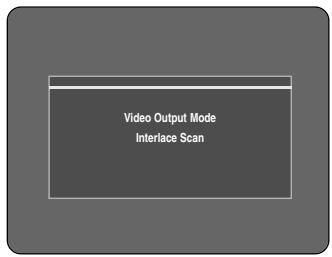
NOTE
■ Do not press the P.SCAN button if you are using a TV that does not support Progressive mode. Nothing will be displayed on the screen if pressed. - If you press the P.SCAN button by mistake when your TV does not support Progressive mode, you need to release the Progressive mode. To release the Progressive mode, press the P.SCAN button on the front panel 3 times. The screen will recover after the PS ○ indicator on the front panel display turns off.
Setting up the Parental Control
The Parental Control function works in conjunction with DVDs that have been assigned a rating which helps you control the types of DVDs that your family watches. There are up to 8 rating levels on a disc.

1 With the unit in Stop mode, press the MENU button.
2 Press the ▲▼ buttons to select Setup, then press the OK or ▶ button.
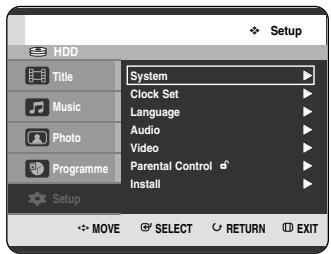
3 Press the ▲▼ buttons to select Parental Control, then press the OK or ▶ button.
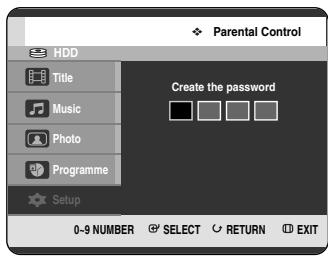
4 Enter the 4-digit password using the number buttons on the remote control. The “Confirm the password” message will be displayed. Enter your password again.
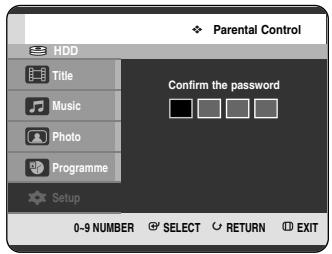
5 Press the OK or ▶ button to select Password.
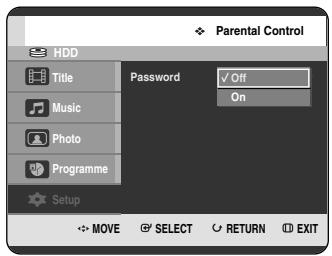
6 Press the ▲▼ buttons to select On or Off, then press the OK or ▶ button.
NOTE
- Press the RETURN or ◀ button to return to the previous menu. Press the MENU button to exit the menu.
If you forgot your password
1 Remove the disc.
2 Press and hold the SEARCH/SKIP ( ⏻ ) button on the front panel for 5 seconds or more.
About the Rating Level
1 Press the ▲▼ buttons to select Rating Level, then press the OK or ▶ button.
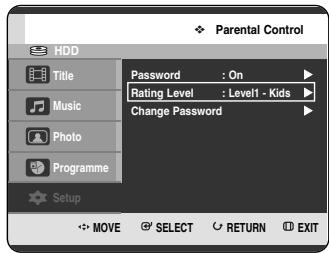
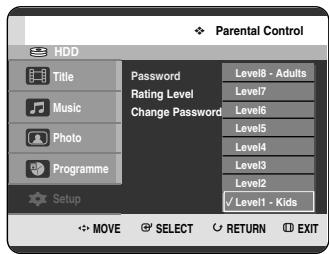
2 Press the ▲▼ buttons to select the rating level you want, then press the OK or ▶ button. 3 When you operate your HDD & DVD RECORDER for the first time, the "Create the Password" message will be displayed. For example, if you select up to Level 6, discs that contain Level 7, 8 will not play. A larger number indicates that the programme is intended for adult use only.
About the Change Password
1 Press the ▲▼ buttons to select Change Password, then press the OK or ▶ button.
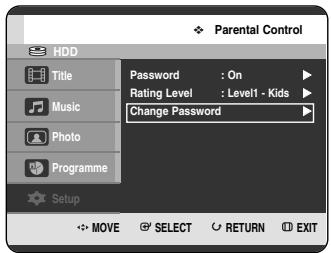
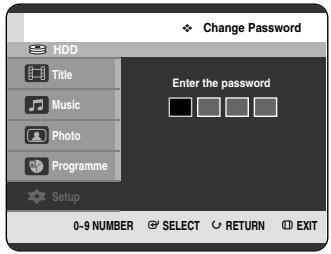
2 Enter the 4-digit password using the number buttons on the remote control. The "Confirm the password" message will be displayed.
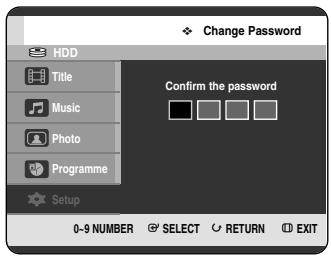
3 Enter your password again using the number buttons on the remote control.
NOTE
■ See page 44 if you forgot your password.
Playback
This section introduces basic functions of playback and playback by disc type.

Dolby Digital

DTS

Digital Audio
Stereo

PAL broadcast system in U.K, France, Germany, etc.

MP3

DivX
Before Playing....46
Playing a Disc....47
Using the Disc Menu & Title Menu 48
Using the Search & Skip Functions....48
Slow Motion Play/Step Motion Play....49
About ANYKEY 50
Playing the Title List ....52
Navigation menu 53
Using the Markers....56
Using the Bookmarks ....58
Selecting the Subtitle Language 60
Selecting the Soundtracks & Audio channels ......61
Changing the Camera Angle....62
Repeat Play....62
Zooming-In 64
Select Media....65
Playing an Audio CD/MP3....65
Playing a Picture 72
Playing an MPEG4 75
Before Playing
Read the following information before playing a disc.
Region code (DVD-Video only)

Both the HDD & DVD RECORDER and the discs are coded by region. These regional codes must match in order for the disc to play. If the codes do not match, the disc will not play. The Region Number for this HDD & DVD RECORDER is described on the rear panel of the HDD & DVD RECORDER.

Disc types that can be played
| Disc Types | Disc Logo | Recorded content | Disc Shape | Max. Playing Time |
| DVD-VIDEO | DVDDVIDEO | AUDIO + VIDEO | Single sided(12cm) | 240 |
| Double sided(12cm) | 480 | |||
| Single sided(8cm) | 80 | |||
| Double sided(8cm) | 160 | |||
| AUDIO-CD | COMPACTDISCDIGITAL AUDIO | AUDIO | Single sided(12cm) | 74 |
| Single sided(8cm) | 20 | |||
| DVD-RAM | DVRAM | AUDIO + VIDEO | Single-sided 12cm (4.7GB) | 1 (XP: Excellent Quality) |
| 2 (SP: Standard Quality) | ||||
| 4 (LP: Long Playback) | ||||
| 6 or 8 (EP:Extended) | ||||
| Double-sided 12cm (9.4GB) | 2 (XP: Excellent Quality) | |||
| 4 (SP: Standard Quality) | ||||
| 8 (LP: Long Playback) | ||||
| 12 or 16 (EP:Extended) | ||||
| DVD-RW | DVRW | AUDIO + VIDEO | 12cm (4.7GB) | 1 (XP: Excellent Quality) |
| 2 (SP: Standard Quality) | ||||
| 4 (LP: Long Playback) | ||||
| 6 or 8 (EP:Extended) | ||||
| DVD-R | DVR | AUDIO + VIDEO | 12cm (4.7GB) | 1 (XP: Excellent Quality) |
| 2 (SP: Standard Quality) | ||||
| 4 (LP: Long Playback) | ||||
| 6 or 8 (EP:Extended) | ||||
| CD-RW/-R | DVD-RW | JPEGMP3MPEG4 | - | - |
| HDD | HDD | AUDIO + VIDEO | Approx. 18 (XP: Excellent Quality Approx. 34 (SP: Standard Quality Approx. 65 (LP: Long Playback Approx. 96 or Approx. 127 (EP:Extended) |
| Disc Types | Disc Logo | Recorded content | Disc Shape | Max. Playing Time |
| DVD-VIDEO | AUDIO + VIDEO | Single sided(12cm) | 240 | |
| Double sided(12cm) | 480 | |||
| Single sided(8cm) | 80 | |||
| Double sided(8cm) | 160 | |||
| AUDIO-CD | AUDIO | Single sided(12cm) | 74 | |
| Single sided(8cm) | 20 | |||
| DVD-RAM | AUDIO + VIDEO | Single-sided 12cm (4.7GB) | 1 (XP: Excellent Quality) | |
| 2 (SP: Standard Quality) | ||||
| 4 (LP: Long Playback) | ||||
| 6 or 8 (EP:Extended) | ||||
| Double-sided 12cm (9.4GB) | 2 (XP: Excellent Quality) | |||
| 4 (SP: Standard Quality) | ||||
| 8 (LP: Long Playback) | ||||
| 12 or 16 (EP:Extended) | ||||
| DVD-RW | AUDIO + VIDEO | 12cm (4.7GB) | 1 (XP: Excellent Quality) | |
| 2 (SP: Standard Quality) | ||||
| 4 (LP: Long Playback) | ||||
| 6 or 8 (EP:Extended) | ||||
| DVD-R | AUDIO + VIDEO | 12cm (4.7GB) | 1 (XP: Excellent Quality) | |
| 2 (SP: Standard Quality) | ||||
| 4 (LP: Long Playback) | ||||
| 6 or 8 (EP:Extended) | ||||
| CD-RW/-R DVD-RAM/-RW/-R | JPEG MP3 MPEG4 | - | - | |
| HDD | AUDIO + VIDEO | Approx. 18 (XP: Excellent Quality Approx. 34 (SP: Standard Quality Approx. 65 (LP: Long Playback Approx. 96 or Approx. 127 (EP:Extended) |
Discs that cannot be played
• DVD-Video with a region number other than "2" or "ALL" • 12cm 2.6 GB and 5.2 GB DVD-RAM • 3.9 GB DVD-R Disc for Authoring. - DVD-RAM/-RW(VR mode) not recorded following the Video Recording Standard - Unfinalised DVD-R, unfinalised DVD-RW(V mode) recorded on other equipment. • DVD-ROM/DVD+RW/PD/MV-Disc, etc • CVD/CD-ROM/CDV/CD-G/CD-I

NOTE
■ This HDD & DVD RECORDER can only operate with discs that are compatible with DVD-RAM Standard Version 2.0. ■ Playback and/or recording may not work for some types of discs, or when specific operations, such as angle change and aspect ratio adjustment, are being performed. Information about the discs is written in detail on the box. Please refer to this if necessary. - Do not allow the disc to become dirty or scratched, finger prints, dirt, dust, scratches or deposits of cigarette smoke on the recording surface may make it impossible to use the disc for recording. ■ DVD-RAM/-RW/-R discs may not be able to play on some DVD players, depending on the player, disc and the condition of the recording. ■ Discs with NTSC programmes recorded on them cannot be recorded using this product.
Playing a Disc
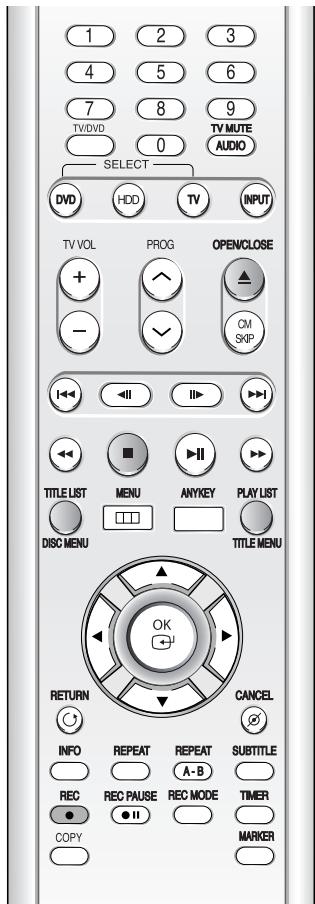
1 Press the OPEN/CLOSE button.
2 Place a disc gently into the tray with the disc's label facing up.
Press OPEN/CLOSE button to close the disc tray.
- Your HDD & DVD RECORDER closes the disc tray and plays the disc automatically.
- The recorder does not play discs automatically after the initial power on.
- When the recorder is powered on and a disc is in the tray, the unit will be activated and wait in stop status.
- Press the PLAY(💡) button to start playback.
- If you insert an MP3 Disc, your HDD & DVD RECORDER will display the file list on the screen and start playing.
- If you insert a JPEG Disc, folders and files are displayed in the thumbnail picture.
- If you want the unit to play automatically when it is powered on with a disc in the unit, power on with the PLAY(◎) button.
4 Press the STOP(☐) button to stop playback.

NOTE
- When you stop playing back a disc, the HDD & DVD RECORDER remembers where you stopped, so when you press PLAY(☑) button again, it will pick up where you left off. (Unless the disc is removed or the HDD & DVD RECORDER is unplugged, or if you press the STOP(☑) button twice.)

Caution
- Do not move your HDD & DVD RECORDER while playing, as this may cause damage to the disc. ■ Make sure to press the OPEN/CLOSE button to open or close the disc tray. ■ Do not push the disc tray while it is being opened or closed, as this may cause a product malfunction. ■ Do not place foreign materials on or in the disc tray. ■ Some functions may perform differently or be disabled depending on the disc type. If this occurs, refer to the instructions written on the disc case. ■ Be especially careful that children's fingers are not caught between the disc tray and the tray chassis when it closes. ■ You must only insert one DVD disc at a time. Inserting two or more discs will not allow playback and may cause damage to the HDD & DVD RECORDER.
Using the Disc Menu & Title Menu
Some type of discs contain a dedicated menu system that allows you to select special functions for title, chapter, audio track, subtitle, film preview, information on characters, etc.
For DVD-VIDEO Disc

1 Press the DISC MENU button to enter the disc menu of the disc.
- Move to the setup menu related to playback operation.
- You can select audio language and subtitle etc. provided by the disc.
2 Press the TITLE MENU button to move to the title menu of the disc.
- Press this button if the disc contains more than one title. Some discs may not support the title menu functionality.
For HDD/DVD-RAM/-RW/-R Disc


1 Press the TITLE LIST button to display title list.

NOTE
■ Title List : Title List shows a list to help you select a title. Since the title list consists of the information on video stream that is actually recorded, if one title is deleted, that title cannot be played again. ■ Play List : This refers to a unit of playback, which is made by selecting a desired scene in the entire Title List. When one playlist is played, only the scene selected by the user will play and then stop. Since only the information necessary for playing a desired scene is included in a playlist, even if that playlist is deleted, the original recording will not be deleted. (only VR mode)
Using the Search & Skip Functions
Searching through a Chapter or Track


1 During play, press the SEARCH (◀) buttons on the remote control.
| HDD/DVD-VIDEO/DVD-RAM/-RW/-R | ▶ Fast X 2 → ▶ Fast X 4 →▶ Fast X 8 → ▶ Fast X 16 →▶ Fast X 32 → ▶ Fast X 128 |
| MPEG4AUDIO CD(CD-DA) | ▶ X 2 → ▶ X 4 → ▶ X 8 |
- You can scan the programme in reverse. To return to normal speed playback, press the PLAY ( ⓗ ) button.
- When you press and hold the SEARCH (◀◀) buttons, playback is done at the default speed of X4.
If you release the SEARCH (◀▶) buttons, playback is performed at a normal speed.
- The speed marked in this function may be different from the actual playback speed.

NOTE
■ No sound is heard during Scan(Search) mode, except CDs (CD-DA).
Skipping Chapters, Tracks, or Markers
During play, you can search quickly through a chapter or track.
1. During play, press the SKIP (◀◀ ▶) buttons on the remote control.
- If you press the SKIP (◀◀) button, it moves to the beginning of the chapter, track, or marker (HDD/DVD-RAM/-RW(VR mode)). Pressing the button again within 3 seconds returns to the beginning of the previous chapter, track, or marker (HDD/DVD-RAM/-RW(VR mode)).
- If you press the SKIP (▶▶) button, it moves to the next chapter, track, or marker (HDD/DVD-RAM/-RW(VR mode)).
Slow Motion Play / Step Motion Play
Slow Motion Play


In pause or step mode, press the SEARCH (◀▶) buttons on the remote control.
- If you press the SEARCH (▶) button, ▶ Slow 1/8 → ▶ Slow 1/4 → ▶ Slow 1/2
- If you press the SEARCH (◀) button, ◀ Slow 1/8 → ◀ Slow 1/4 → ◀ Slow 1/2
- To return to normal speed playback, press the PLAY (▶) button.
Press and hold the SEARCH (◀) button during pause, the disc will play slowly at 1/4 speed. If the button is released, the pause operation will resume.
NOTE
■ The speed marked in this function may be different from the actual playback speed. ■ Slow motion operates only in the forward direction on MPEG4 discs.
Step Motion Play


Press the STEP (◀ ▶) buttons on the remote control in pause mode.
Each time the button is pressed, a new frame will appear.
When the STEP (◀) button is pressed, the previous frame will be activated.
When the STEP (▶) button is pressed, the next frame will be activated.
To return to normal speed playback, press the PLAY (▶) button.
NOTE
Step motion operates only in the forward direction on MPEG4 discs.
About ANYKEY
The ANYKEY function allows you to easily search for a desired scene by accessing title, chapter, track, or time. You can also change the subtitle and audio settings and set some features including Marker, Angle, Zoom, Repeat, Select Media, and Disc Manager.
Moving to a scene directly using the ANYKEY
If you want to move to a title, a chapter, or a track to find a desired scene.


1. Press the ANYKEY button during playback.
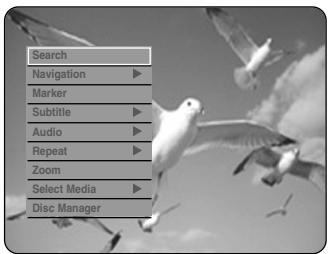
2. Press the ▲▼ buttons to select Search, then press the OK or ▶ button.
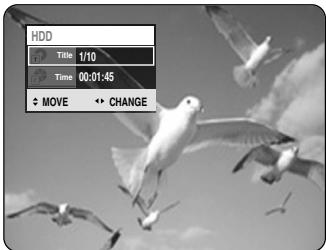
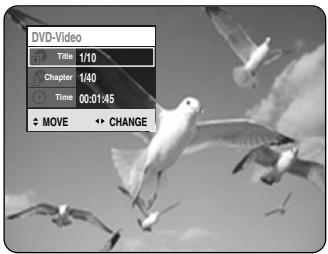
3. Press the ▲▼ buttons to select Title, Chapter, or Track.
4. Press the ◀▶ buttons or number buttons to select the desired scene, then press the OK button.
- If you want to move to a desired time, the following will help you find a scene.
1 Press the ANYKEY button during playback.
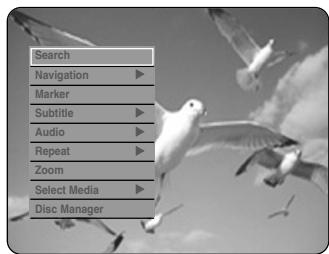
2 Press the ▲▼ buttons to select Search, then press the OK or ▶ button.
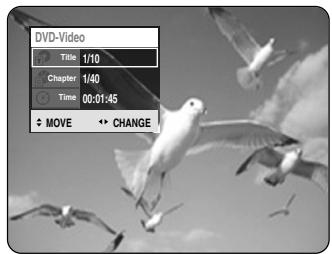
3 Press the ▲▼ buttons to select Time.
4 Enter the time in the sequence of hours, minutes, and seconds using the number buttons, then press the OK button.
NOTE
■ This may not work for some discs. When an audio CD (CD-DA) or an MP3 disc is inserted, depending on the disc type, the information display may not appear. ■ The Time Search function does not operate on some discs. ■ To make the screen disappear, press the ANYKEY button again.
Playing the Title List
Follow these instructions to play back a scene from the Title List.


Using the TITLE LIST button
1 With the unit in Stop mode/Playback mode, press the TITLE LIST button.
The Title List screen is displayed.
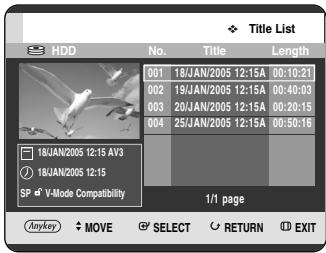
Using the MENU button.
- With the unit in Stop mode/Playback mode, press the MENU button.
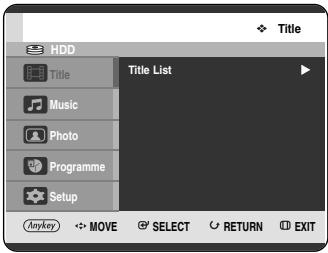
- Press the ▲▼ buttons to select Title, then press the OK or ▶ button twice.
2 Press the ▲▼ buttons to select an entry you want to play from Title List, then press the OK or PLAY (☐) button.
The selected entry (title) will be played back.
- About INFO button -
If you press the INFO button during playback, pressing the INFO button once, the system information screen appears: Displays Active Status, Background Status, and Main Screen information.
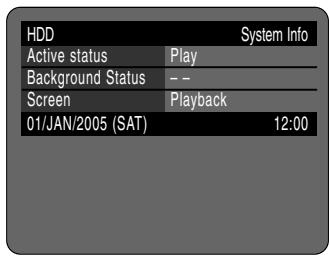
Pressing the INFO button twice, Disc information screen appears: Displays Total numbers of Titles and Playlists, Recordable Time(Title), Available Space(Music/Photo).
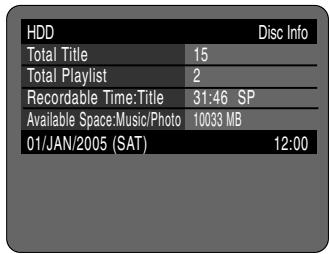
Pressing the INFO button three times, Current playback information screen appears: Displays information of Playback Name, Title, Created Time, Length, Playing Time, Audio, and if the disc protection is activated.
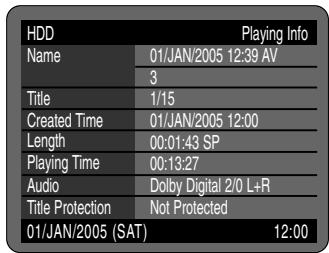
3 To stop title play, press the STOP(☐) button. To return to the title list screen, press the TITLE LIST button.
Navigation Menu
Scene Navigation
If there is a title composed of markers (See page 56), you can search the desired scene using the Scene Navigation.


(VR mode)

Using the TITLE LIST button
1 With the unit in Stop mode/Playback mode, press the TITLE LIST button.
The Title List screen is displayed.
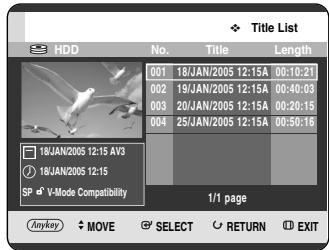
Using the MENU button.
- With the unit in Stop mode/Playback mode, press the MENU button.
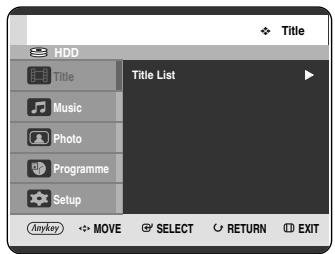
- Press the ▲▼ buttons to select Title, then press the OK or ▶ button twice.
2 Press the ▲▼ buttons to select an entry you want to play from Title List, then press the ANYKEY button.
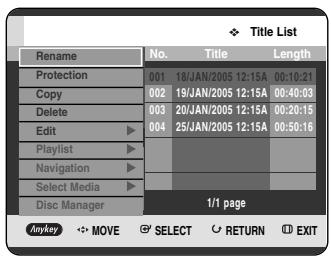
3 Press the ▲▼ buttons to select Navigation, then press the OK or ▶ button.
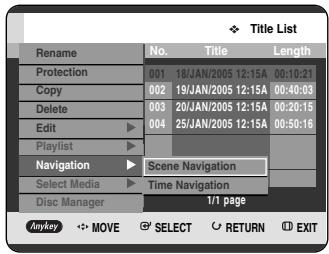
4 Press the ▲▼ buttons to select Scene Navigation, then press the OK or ▶ button.
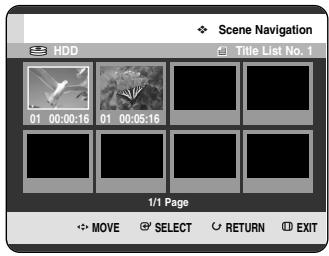
5 Press the ▲▼◀▶ buttons to select desired scene, then press the OK or PLAY ( ⏻ ) button.
ANYKEY
Using the ANYKEY button
1 Press the ANYKEY button during playback.
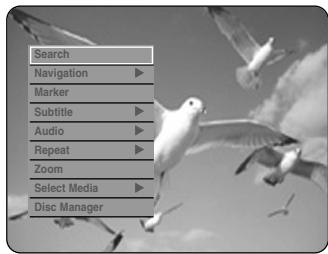
2 Press the ▲▼ buttons to select Navigation, then press the OK or ▶ button.
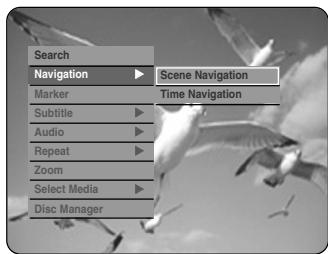
3 Press the ▲▼ buttons to select Scene Navigation, then press the OK or ▶ button.
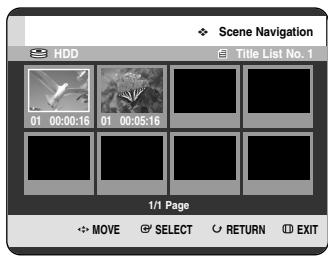
4 Press the ▲▼◀▶ buttons to select desired scene, then press the OK or PLAY ( ⏻ ) button.

NOTE
■ Scene Navigation will not operate if a selected title does not have Markers.
Time Navigation


(VR mode)
Using this function, you can search scene minute-by-minute from the recorded title list.

Using the TITLE LIST button
1 With the unit in Stop mode/Playback mode, press the TITLE LIST button.
The Title List screen is displayed.
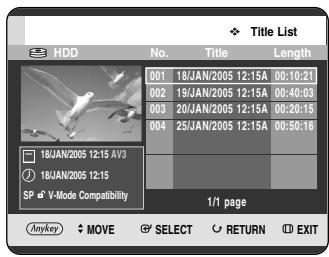
Using the MENU button.
- With the unit in Stop mode/Playback mode, press the MENU button.
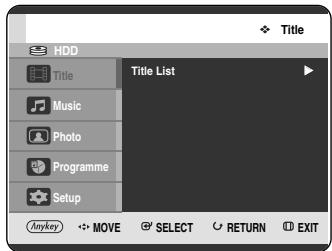
- Press the ▲▼ buttons to select Title, then press the OK or ▶ button twice.
2 Press the ▲▼ buttons to select an entry you want to play from Title List, then press the ANYKEY button.
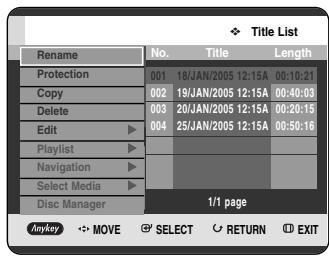
3 Press the ▲▼ buttons to select Navigation, then press the OK or ▶ button.
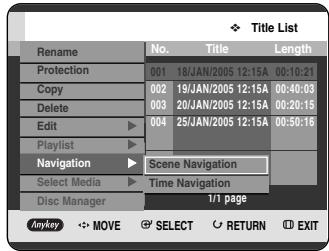
4 Press the ▲▼ buttons to select Time Navigation, then press the OK or ▶ button.
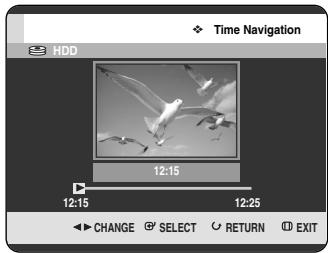
5 Press the ◀▶ buttons to skip one minute at a time and search the desired scene, then press the OK or PLAY (💡) button.
ANYKEY
Using the ANYKEY button
1 Press the ANYKEY button during playback.
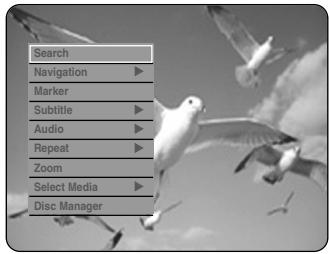
2 Press the ▲▼ buttons to select Navigation, then press the OK or ▶ button.
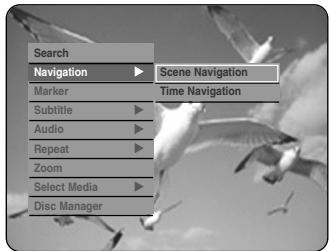
3 Press the ▲▼ buttons to select Time Navigation, then press the OK or ▶ button.
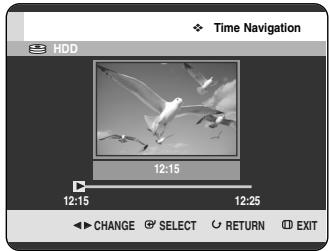
4 Press the ◀▶ buttons to skip one minute at a time and search the desired scene, then press the OK or PLAY ( ⏻ ) button.
NOTE
- Cursor does not move if selected recorded title is shorter than 1 minute. ■ A disc that has not been recorded by this device may not operate the Navigation function. ■ An edited title may not display exact search time.
Using the Markers


(VR mode)

Using the MARKER button
1 Press the MARKER button during playback.
Using the ANYKEY button.
- Press the ANYKEY button during playback.
- Press the ▲▼ buttons to select Marker, then press the OK or ▶ button.
Press the OK button when the desired scene appears.
- The number 01 is displayed and the scene is memorized.
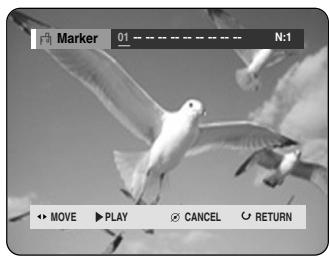
3 Press the ◀▶ buttons to move to the next position.
4 Press the OK button again when the desired scene appears.
- The number 02 is displayed and the scene is memorized.
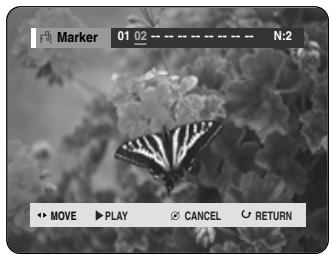
- HDD, DVD-RAM or DVD-RW (VR Mode) discs have the Marker function instead of the Bookmark function. The Marker function allows you to mark up to 99 scenes. Since the scenes may be displayed as many different pages, numbering is necessary. If a disc in use is encoded with Disc Protection, Markers cannot be set or deleted. Only playback is available.
Playing back a marker

Using the MARKER button
1 Press the MARKER button during playback.
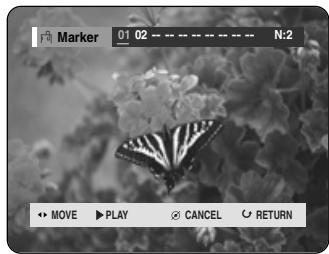
Using the ANYKEY button.
- Press the ANYKEY button during playback.
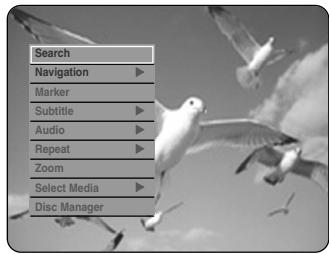
- Press the ▲▼ buttons to select Marker, then press the OK or ▶ button.
2 Press the ◀▶ buttons to select a marked scene.
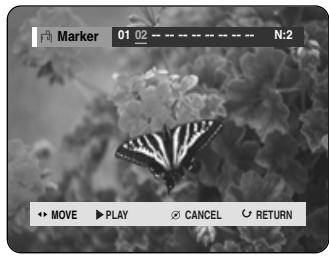
3 Press the OK or PLAY (播放) button to start playing from the selected scene.
- If you press the SKIP (💡) button, it moves to the beginning of the marker. Pressing the button once again within 3 seconds returns to the beginning of the previous marker.
- If you press the SKIP (播放) button, it moves to the next marker.
Clearing a marker

Using the MARKER button
1 Press the MARKER button during playback.
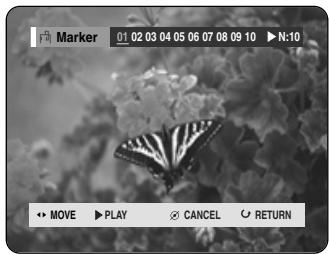
Using the ANYKEY button.
- Press the ANYKEY button during playback.
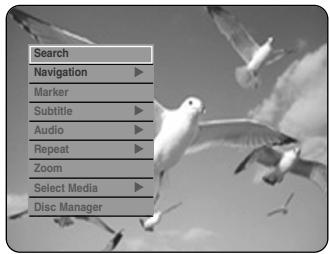
- Press the ▲▼ buttons to select Marker, then press the OK or ▶ button.
2 Press the ◀▶ buttons to select a marked scene. Press the CANCEL button to delete the selected mark.
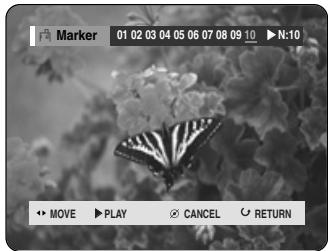
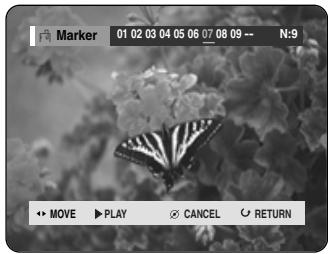
■ When a marker is cleared while HDD/DVD-RAM/-RW (VR mode) is playing, marker numbers will change. For example, if the 7th marker is cleared after ten markers are registered, the marker numbers after the eighth will automatically move ahead by one and the 8th marker becomes the 7th.
Using the Bookmarks


(V-mode)

Using the MARKER button
1 Press the MARKER button during playback.
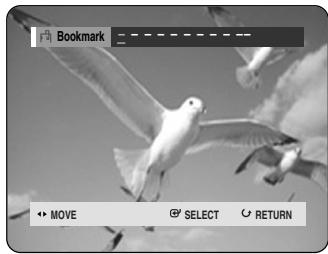
Using the ANYKEY button.
- Press the ANYKEY button during playback.
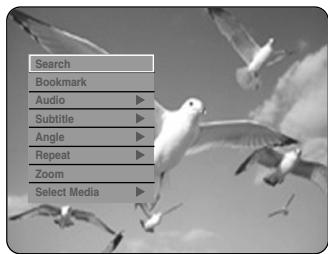
- Press the ▲▼ buttons to select Bookmark, then press the OK or ▶ button.
2 Press the OK button when the desired scene appears.
- The number 1 is displayed and the scene is memorized.
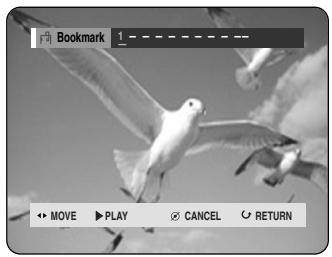
3 Press the ◀▶ buttons to move to the next position.
4 Press the OK button again when the desired scene appears.
The number 2 is displayed and the scene is memorized.
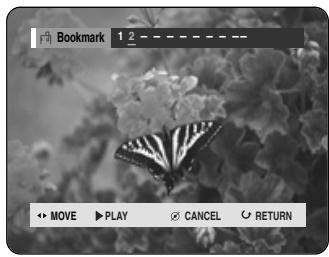
- Repeat above to bookmark other positions.
- You can bookmark up to 10 scenes.
NOTE
■ When the disc tray is opened and then closed, bookmarks will disappear.
Playing back a bookmark

Using the MARKER button
1 Press the MARKER button during playback.
Using the ANYKEY button.
- Press the ANYKEY button during playback.
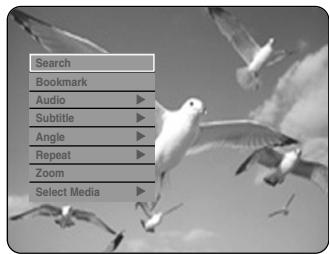
- Press the ▲▼ buttons to select Bookmark, then press the OK or ▶ button.
2 Press the ◀▶ buttons to select a bookmarked scene.
3 Press the OK or PLAY(☐) button to start playing from the selected scene.
Clearing a bookmark

Using the MARKER button
1 Press the MARKER button during playback.
Using the ANYKEY button.
- Press the ANYKEY button during playback.
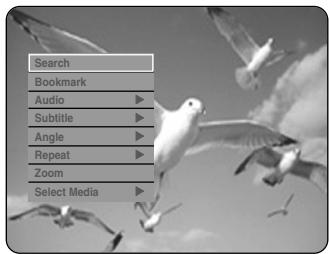
- Press the ▲▼ buttons to select Bookmark, then press the OK or ▶ button.
2 Press the ◀▶ buttons to select a bookmarked scene.
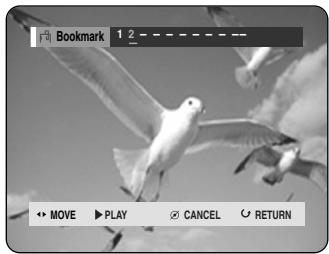
3 Press the CANCEL button to delete the selected bookmark.
Selecting the Subtitle Language
Selects one of the subtitle languages recorded on the disc.


(VR mode)

Using the SUBTITLE button
1 Press the SUBTITLE button during playback.
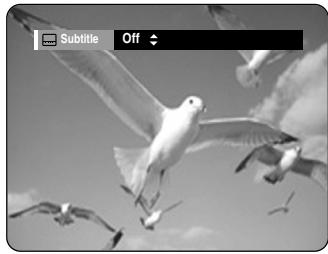
2 Press the ▲▼ buttons to select the desired subtitle language. Also, press the SUBTITLE button repeatedly to select the desired subtitle language.
- To make the screen disappear, press the CANCEL or RETURN button.
ANYKEY
Using the ANYKEY button
1 Press the ANYKEY button during playback.
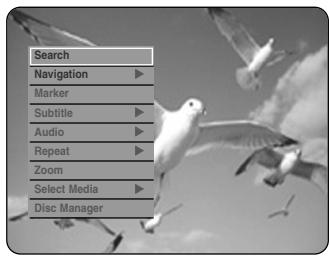
2 Press the ▲▼ buttons to select Subtitle, then press the OK or ▶ button.
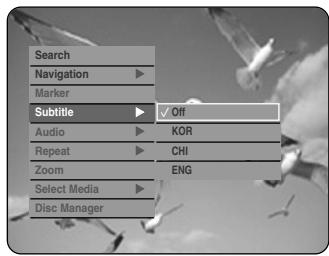
3 Press the ▲▼ buttons to select the desired subtitle language, then press the OK or ▶ button.
NOTE
■ The subtitle display may be different depending on the disc type. ■ Some discs allow you to select the language for the disc menu only.
Selecting the Soundtracks & Audio Channels
Selecting the Audio
Selects one of the soundtracks recorded on the disc. Also selects the audio channels.


(VR mode)

Using the AUDIO button
1 Press the AUDIO button during playback.
HDD/DVD-RAM/-RW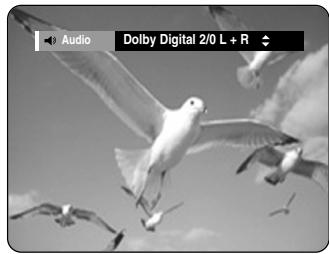
DVD-VIDEO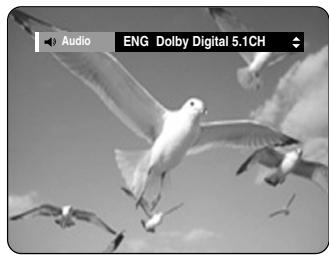
2 Press the ▲▼ buttons to select the desired soundtracks or audio channel. Also, press the AUDIO button repeatedly to select the desired soundtracks or audio channel.
- To make the screen disappear, press the CANCEL or RETURN button.

Using the ANYKEY button
1 Press the ANYKEY button during playback.
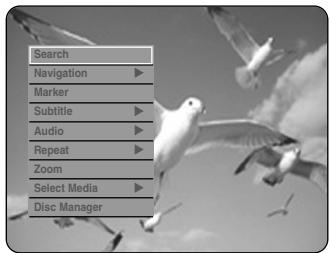
2 Press the ▲▼ buttons to select Audio, then press the OK or ▶ button.
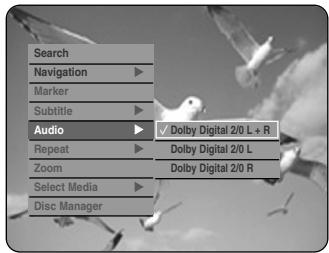
3 Press the ▲▼ buttons to select the desired soundtracks or audio channel, then press the OK or ▶ button.
NOTE
■ Soundtracks or audio channels may differ because they are disc-specific. ■ Some discs allow you to select the audio language for the disc menu only.
Changing the Camera Angle
When a HDD & DVD RECORDER contains multiple angles of a particular scene, you can select the Angle function.

ANYKEY
Using the ANYKEY button
1 Press the ANYKEY button during playback.

2 Press the ▲▼ buttons to select Angle, then press the OK or ▶ button.
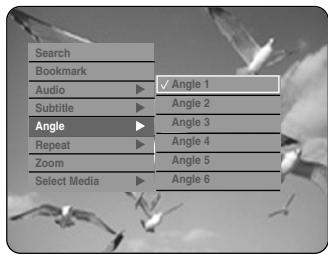
3 Press the ▲▼ buttons to select the desired angle, then press the OK or ▶ button.

■ This function is disc-dependent, and may not work with all DVDs. ■ This function does not work when a DVD has not been recorded with a multi-camera angle system.
Repeat Play
Playing Repeatedly (Repeat Playback)


Using the REPEAT button
1 Press the REPEAT button during playback.
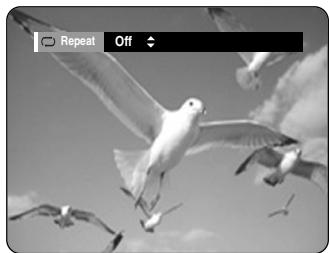
2 Press the ▲▼ buttons to select Off, Title, or Chapter to play repeatedly, then press the OK button.
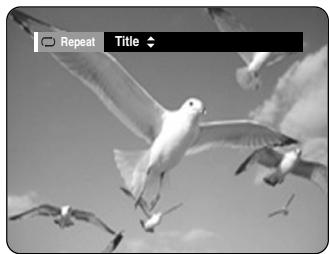
ANYKEY
Using the ANYKEY button
1 Press the ANYKEY button during playback.
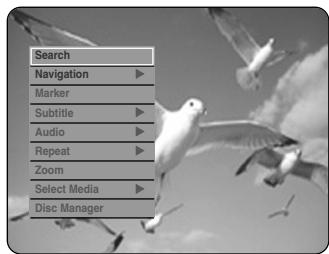
2 Press the ▲▼ buttons to select Repeat, then press the OK or ▶ button.
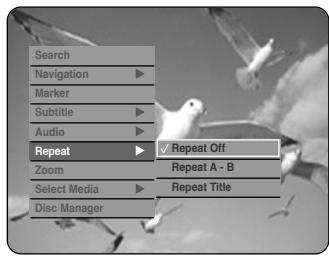
3 Press the ▲▼ buttons to select Repeat Off, Repeat A-B, Repeat Title, Repeat Track, or Repeat Chapter to play repeatedly, then press the OK or ▶ button.
NOTE
■ HDD/DVD-RAM/-RW (VR mode), unfinalised DVD-R, and unfinalised DVD-RW (V mode) do not repeat a chapter.
Repeat A-B


Using the REPEAT A-B button
1 Press the REPEAT A-B button during playback.
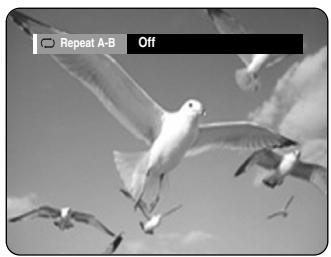
2 Press the OK button at the point where you want the repeat play to start (A) and press it again at the point where you want the repeat play to stop (B). Repeat playback of the A-B section starts.
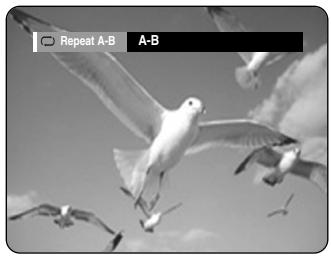
ANYKEY
Using the ANYKEY button
1 Press the ANYKEY button during playback.
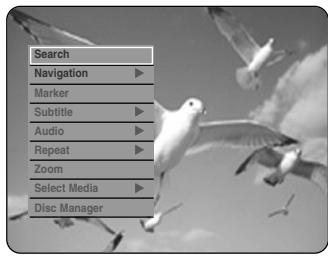
2 Press the ▲▼ buttons to select Repeat, then press the OK or ▶ button.
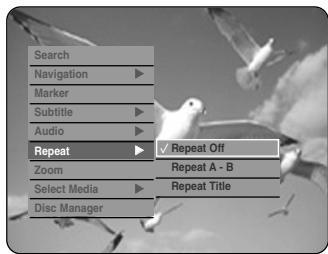
3 Press the ▲▼ buttons to select Repeat A-B, then press the OK or ▶ button.
4 Press the OK button at the point where you want the repeat play to start (A) and press it again at the point where you want the repeat play to stop (B). Repeat playback of the A-B section starts.
- To return to normal playback -
5 Press the CANCEL button to return to normal playback.
NOTE
■ If you set point (B) before five seconds has lapsed, the prohibition mark (∅) will appear. ■ You can also activate Normal Playback by pressing the CANCEL button. ■ Audio CDs (CD-DA), MP3 discs and MPEG4 discs do not support the Repeat A-B function.
Zooming-In


1 Press the ANYKEY button during playback.
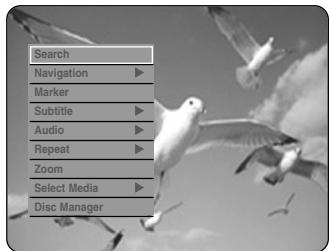
2 Press the ▲▼ buttons to select Zoom, then press the OK or ▶ button. (◀) will be displayed.
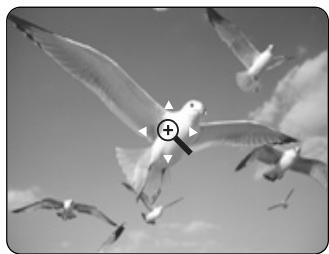
3 Press the ▲▼◀▶ buttons to move to the area you want to enlarge.
4 Press the OK button. The screen will be enlarged to twice the normal size. The screen size will be enlarged to four times the normal size.
HDD/DVD-VIDEO/ DVD-RAM/-RW/-R
normal size → x2 → x4 → x2 → normal size
NOTE
■ When recording is done in the EP mode, the Zoom function will not be supported except when the recording has been done in V mode.
Select Media


1 Press the ANYKEY button during playback.
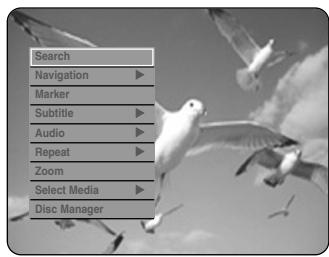
2 Press the ▲▼ buttons to select Select Media, then press the OK or ▶ button.
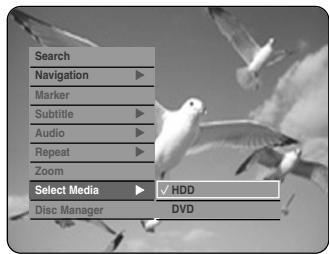
3 Press the ▲▼ buttons to select HDD or DVD, then press the OK or ▶ button.
Playing an Audio CD/MP3
Playing an Audio CD (CD-DA)
1 Insert an audio CD (CD-DA) into the disc tray. • The audio CD menu appears and the tracks (songs) are played automatically.
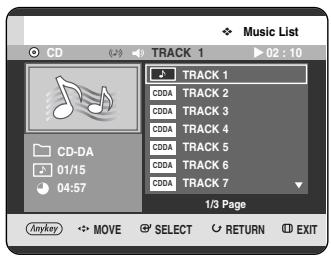
2 Press the ▲▼ buttons to select the track (song) you want to hear, and then press the OK button.
Audio CD (CD-DA) Screen Elements
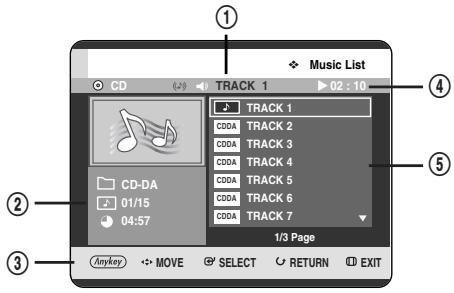
- Current track (song): Displays the number of the track currently being played.
- Displays the current play index and total track number.
- Display available buttons.
- This shows the operating state of a disc and the playback time corresponding to the portion currently being played.
- Displays the track list (song list).
Buttons on the Remote Control used for Audio CD (CD-DA) playback
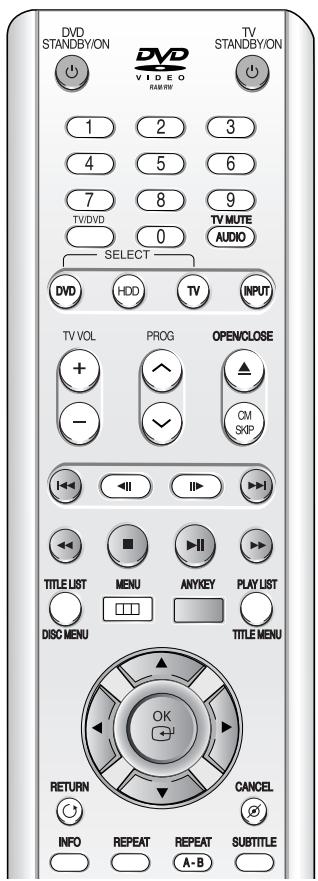
- ▲▼: Selects a track (song).
- ◀▶: Move the page up/down.
- OK button: Plays the selected track (song).
- SKIP (→) button: Plays the next track.
- SKIP (💡) button: Returns to the beginning of the current track when pressed during playback. If pressed again, your HDD & DVD RECORDER moves to and plays the previous track. If you press this button within three seconds after playback starts, the previous track will be played. If you press this button after three seconds, the current track will be replayed from the beginning.
- Press the SEARCH (◀▶) buttons: Fast Play (X2, X4, X8)
- STOP (☐) button: Stops a track (song).
- PLAY (☐) button: Plays a track (song) or pauses playback.
- ANYKEY button: The ANYKEY menu is displayed. (Play Mode, Go To Playlist or New Playlist).
Playing an MP3 Disc
1. Insert an MP3 disc into the disc tray.
- The MP3 menu is displayed and the tracks (songs) are played automatically.
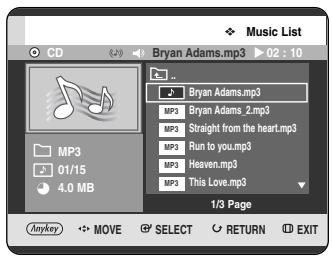
2. Press the ▲▼ buttons to select the track you want to hear, and then press the OK button.
MP3 Screen Elements
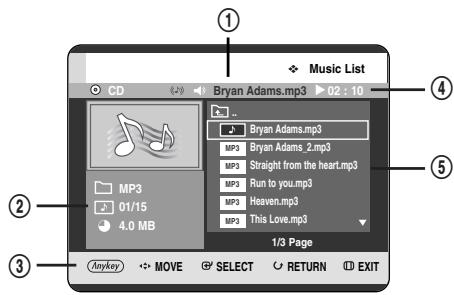
- Current track (song): Displays the name of the track being played.
- Displays the current folder, play index, and current track size.
- Displays available buttons.
- This shows the operating state of a disc and a playback time corresponding to the portion that is currently played.
- Displays the information for the folder and its tracks.
NOTE
■ If a disc contains only MP3 files or only JPEG files, the MP3 or JPEG screen appears after the disc is loaded. ■ If a disc contains a mix of MP3 and JPEG files, you need to select Music for MP3 files or Photo for JPEG files.
Buttons on the Remote Control used for MP3 playback
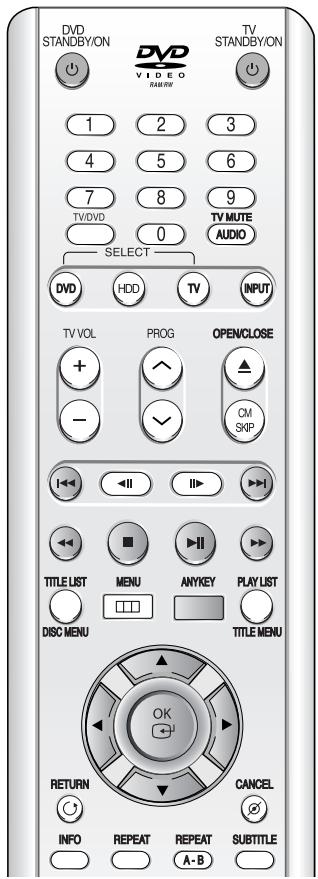
- ▲▼: Selects a track (song).
- ◀▶: Move the page up/down.
- OK button: Plays the selected track (song).
- SKIP (→) button: Plays the next track.
- SKIP (💡) button: Returns to the beginning of the current track when pressed during playback. If pressed again, your HDD & DVD RECORDER moves to and plays the previous track. If you press this button within three seconds after playback starts, the previous track will be played. If you press this button after three seconds, the current track will be replayed from the beginning.
- STOP (☐) button: Stops a track (song).
- PLAY (_) button: Plays a track (song) or pauses playback.
- ANYKEY button: The ANYKEY menu is displayed. (Copy, Play Mode, Go To Playlist, New Playlist or Select Media).
Repeat CD (CD-DA) & MP3

Using the REPEAT button.
1 Press the REPEAT button during playback.
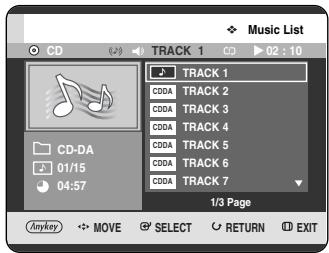
2 Press the REPEAT button repeatedly to select the repeat mode you want.
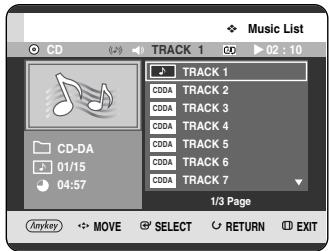
- Repeat Track (CD (CD-DA)/MP3)
- Repeat Folder (MP3) • All Repeat All (CD (CD-DA)/MP3)
- Random (CD (CD-DA)/MP3): The random option plays a disc's tracks in random order.
- Normal (CD (CD-DA)/MP3): Tracks on a disc are played in the order in which they were recorded on the disc.
- To return to normal playback -
3 Press the REPEAT or CANCEL button repeatedly to return to normal playback.
ANYKEY
Using the ANYKEY button
1 Press the ANYKEY button during the Music List playback.
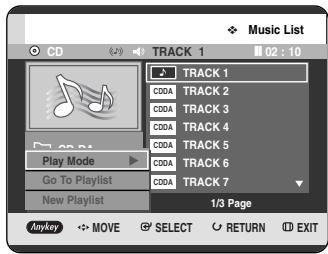
2 Press the ▲▼ buttons to select Play Mode, then press the OK or ▶ button.
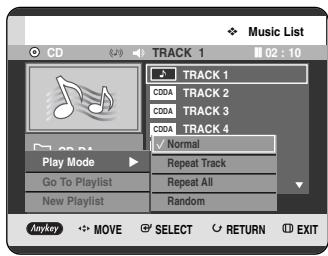
3 Press the ▲▼ buttons to select the desired play mode, then press the OK or ▶ button.
- Normal (CD (CD-DA)/MP3): Tracks on a disc are played in the order in which they were recorded on the disc.
- Repeat Track (CD (CD-DA)/MP3)
- Repeat Folder (MP3) • All Repeat All (CD (CD-DA)/MP3)
- Random (CD (CD-DA)/MP3): The random option plays a disc's tracks in random order.
New Playlist
You can register a maximum of 28 tracks in the playlist.
1 Press the ANYKEY button during the Music List playback.
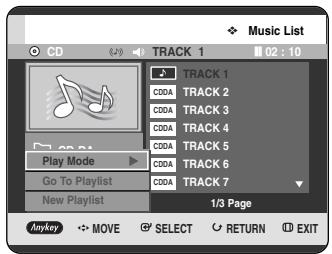
2 Press the ▲▼ buttons to select New Playlist, then press the OK or ▶ button.
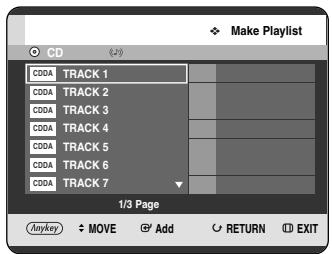
3 Press the ▲▼ buttons to select tracks in the order in which you want them to play, then press the OK button.
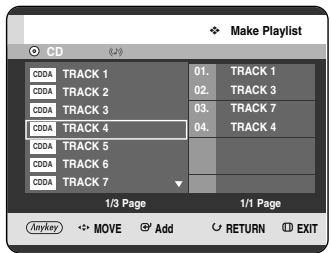
4 If you playlisted a wrong track, press the ▲▼ buttons to select the wrong track, then press the OK or CANCEL button. The wrong track will be removed.
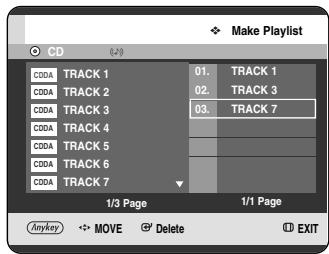
5 To store the Playlist, press the ANYKEY button.
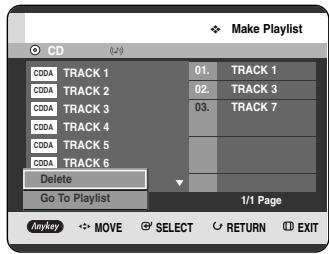
6 Press the ▲▼ buttons to select Go To Playlist, then press the OK button. A new Playlist will be created.
Go To Playlist
1 Press the ANYKEY button during the Music List playback.
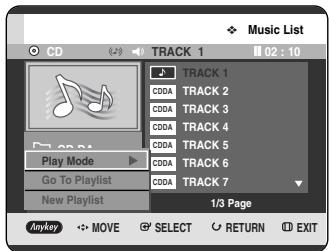
2 Press the ▲▼ buttons to select Go To Playlist, then press the OK or ▶ button.
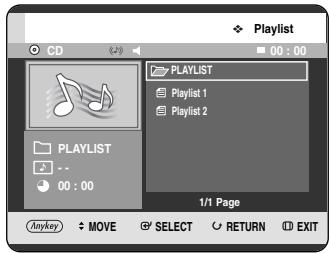
3 Press the ▲▼ buttons to select the desired playlist folder, then press the OK button.
4 The selected tracks are played automatically.
Delete the Playlist
1 Press the ANYKEY button during the Music List playback.
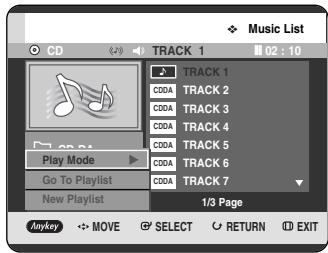
2 Press the ▲▼ buttons to select Go To Playlist, then press the OK or ▶ button.
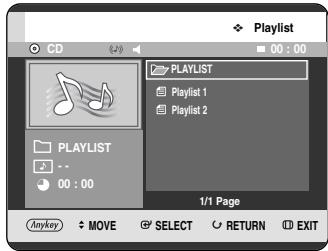
3 Press the ▲▼ buttons to select the Playlist you want to delete.
4 Press the ANYKEY button.
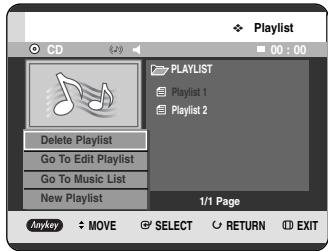
5 Press the ▲▼ buttons to select Delete Playlist, then press the OK or ▶ button.
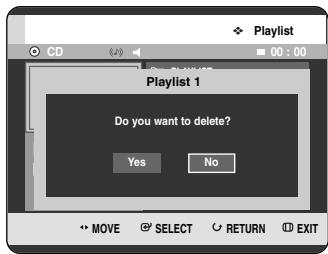
6 Press the ◀▶ buttons to select Yes, then press the OK button. The selected Playlist is deleted.
Go To Edit Playlist
1 Press the ANYKEY button during the Music List playback.
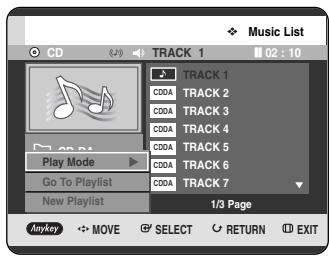
2 Press the ▲▼ buttons to select Go To Playlist, then press the OK or ▶ button.
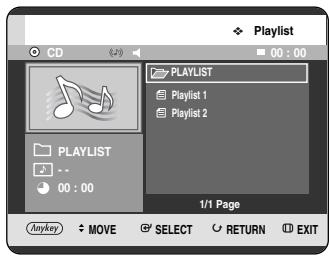
3 Press the ▲▼ buttons to select the Playlist you want to edit.
4 Press the ANYKEY button in playlist mode.
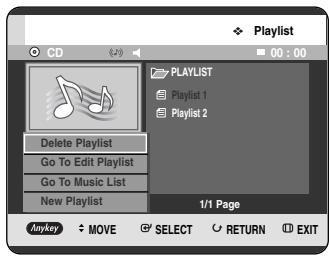
5 Press the ▲▼ buttons to select the Go To Edit Playlist, then press the OK or ▶ button.
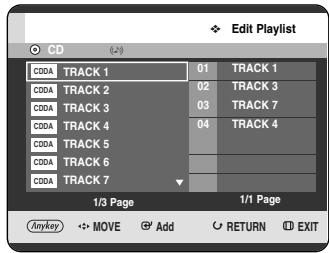
6 Press the ▲▼ buttons to select tracks in order in which you want them to play, then press the OK button. 7 If you playlisted a wrong track, press the ▶▲▼ buttons to select wrong track, then press the OK or CANCEL button. 8 To store the Playlist, press the ANYKEY button.
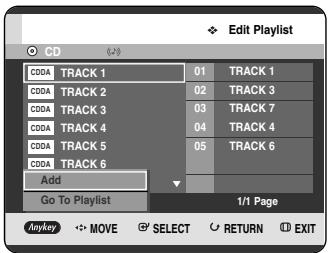
9 Press the ▲▼ buttons to select the Go To Playlist, then press the OK button. Playlist will be edited.
Go To Music List
1 Press the ANYKEY button during the Playlist playback.
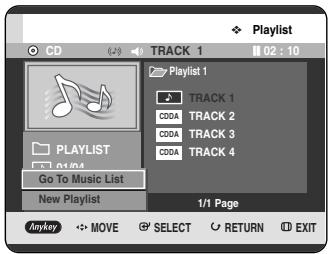
2 Press the ▲▼ buttons to select Go To Music List, then press the OK or ▶ button.
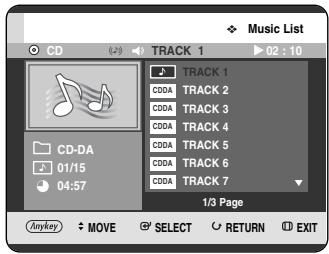
Select Media (MP3)
1 Press the ANYKEY button.
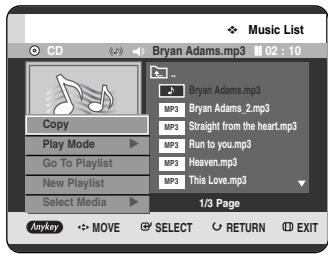
2 Press the ▲▼ buttons to select Select Media, then press the OK or ▶ button.
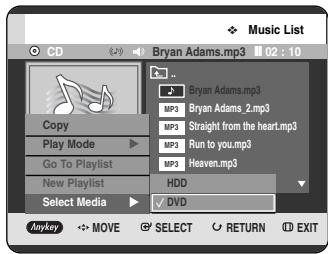
3 Press the ▲▼ buttons to select HDD or DVD, then press the OK or ▶ button.
If there are no mp3 files on the selected media, it notifies you that there are no mp3 files and the media will not be switched.
Playing a Picture
1 Insert a JPEG disc or Mixed disc (JPEG + MP3 + DivX) into the disc tray.
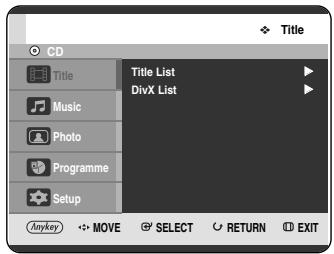
2 Press the ▲▼ buttons to select Photo, then press the OK or ▶ button.
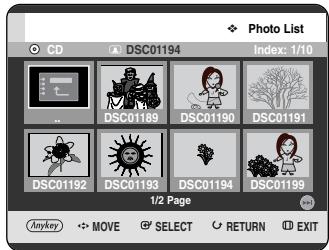
3 Press the ▲▼◀▶ buttons to select a picture.
- To see the next 8 pictures, press the SKIP (→) button.
- To see the previous 8 pictures, press the SKIP(◀) button.
NOTE
■ If a disc contains only MP3 files or only JPEG files, the MP3 or JPEG screen appears after the disc is loaded. ■ If a disc contains a mix of MP3 and JPEG files, you need to select Music for MP3 files or Photo for JPEG files.
Slide Show
4 Press the ANYKEY button.
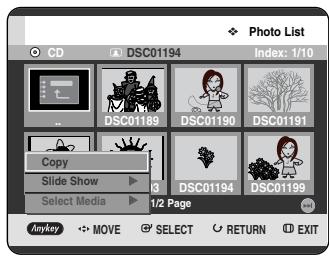
5 Press the ▲▼ buttons to select Slide Show, then press the OK or ▶ button.
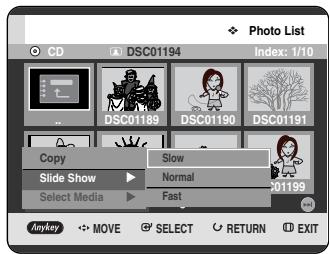
6 Press the ▲▼ buttons to select the slide show speed, then press the OK or ▶ button. The slide show starts.
- To stop the Slide Show -
1 Press the ANYKEY button.
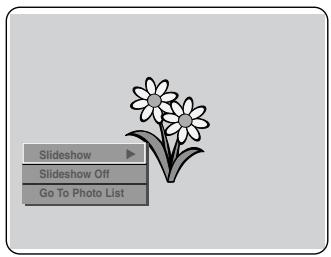
2 Press the ▲▼ buttons to select Slideshow Off, then press the OK or ▶ button.
Rotate
To set up, follow steps 1 to 3 on page 72.
4 Press the OK button to select the picture you want to see, then press the ANYKEY button.
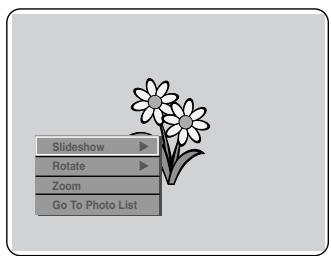
5 Press the ▲▼ buttons to select Rotate, then press the OK or ▶ button.
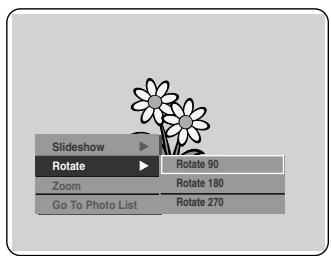
6 Press the ▲▼ buttons to select the rotate angle, then press the OK or ▶ button.
- To stop the Rotate -
1 Press the ANYKEY button.
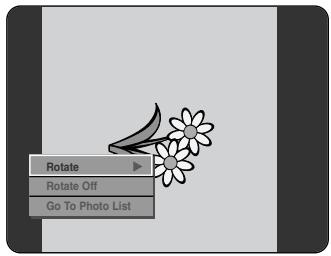
2 Press the ▲▼ buttons to select Rotate Off, then press the OK or ▶ button.
Zoom
To set up, follow steps 1 to 3 on page 72.
4 Press the OK button to select the picture you want to see, then press the ANYKEY button.
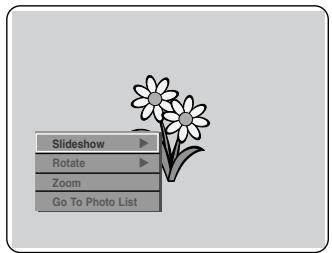
5 Press the ▲▼ buttons to select Zoom, then press the OK or ▶ button.
6 Each time the OK button is pressed, the picture is enlarged up to 4x (four times the normal size).

- To stop the Zoom -
1 Press the ANYKEY button.
2 Press the ▲▼ buttons to select Zoom Off, then press the OK or ▶ button.
Go To Photo List
To setup, follow steps 1 to 3 on page 72.
4 Press the OK button to select the picture you want to see, then press the ANYKEY button.
5 Press the ▲▼ buttons to select Go To Photo List, then press the OK or ▶ button.
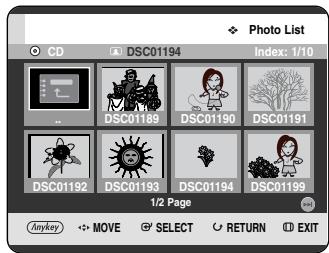
Playing an MPEG4

Using the MENU button
1 Insert a DivX disc or Mixed disc (JPEG + MP3 + DivX) into the disc tray. 2 Press the ▲▼ buttons to select Title, then press the OK or ▶ button. (In case of playing a DivX CD, see number 4 on this page.)
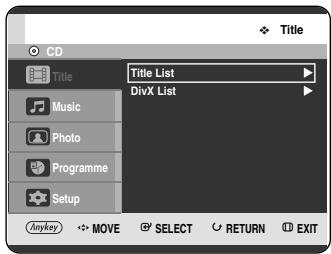
3 Press the ▲▼ buttons to select DivX List, then press the OK or ▶ button. The DivX List screen is displayed.
![CD ABC.avi DIVX List MPEG4 [DivX] ABC.avi 01/01 703.4MB 1/1 Page MOVE SELECT RETURN EXIT](/content/2019/12/27521/images/6427544759ba0f168bbb67cfcd7e9d08552c1e4bf240531a204c3bce6def3246.jpg)
4 Press the ▲▼ buttons to select the avi file (DivX), then press the OK or PLAY (◎) button.
5 When MPEG4 file is played, you can use following functions. Pressing the STOP (☐) button once during playback will display the file list, pressing the button again will exit the menu screen.
MPEG4 Function Description
| Function | Description |
| Skip | During play, press the SKIP (💡💡) buttons, it moves forward or backward 5 minutes. |
| Search | During play, press the SEARCH (💡💡) buttons and press again to search at a faster speed.(X2, X4, X8) |
| Slow Motion Play | In pause or step mode, press the SEARCH (💡) button on the remote control. (X1/8, X1/4, X1/2) |
| Step Motion Play | Press the STEP (💡) button on the remote control in the still mode. |
NOTE
■ This unit can play the following video compression formats,
- MPEG4 Codec format: DivX 3.11, DivX 4.x, DivX 5.x, DivX-Pro (without QPEL and GMC)
- Audio format: .MP3, .MPEG, .WMA, .LPCM, .AC3 ■ Supported subtitle file formats: .smi, .srt, .sub, .psb, .txt, .ass (The subtitle file should have exactly the same name as the corresponding MPEG4 file name) ■ Some MPEG4 files created on a personal computer may not play back. That is why Codec Type, Version and Higher resolution over specification is not supported.
DivX Subtitle Encoding
1 Press the ANYKEY button during playback.
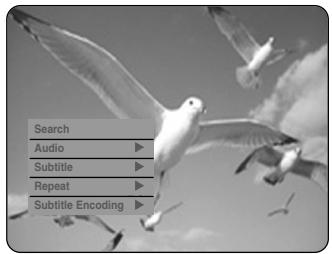
2 Press the ▲▼ buttons to select Subtitle Encoding, then press the OK or ▶ button.
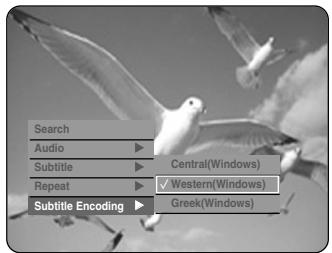
3 Press the ▲▼ buttons to select a supported DivX subtitle language by region, then press the OK or ▶ button.
| Western | English, Breton, Catalan, Danish, Dutch, Faroese, Finnish, French, Gaelic, German, Icelandic, Irish, Italian, Norwegian, Portuguese, Spanish and Swedish |
| Central | English, Albanian, Croatian, Czech, Hungarian, Polish, Romanian, Slovak, Slovene and Serbian(Latin) |
| Greek | English and modern Greek |
NOTE
■ If the subtitle language is displayed in broken fonts, change DivX Subtitle to the appropriate region. If it still does not work, the format is not supported.
Recording
This section shows various HDD & DVD Recording methods.
Before Recording 77
Recording the current TV programme you are watching .....79
Recording from external equipment you are watching .....81
Recording from external equipment
Copying from a Camcorder .....82
Making a One Touch Recording (OTR) .....83
Chasing Play 84
Simultaneous Recording and Playback .....85
Making a Timer Recording .....86
Flexible Recording (for Timer recording only) . . . .88
Editing the Timer Record List .....88
Deleting a Timer Record List ....89
Go To History List ....90
Using the ShowView Feature .....93
ShowView Extended .....94
Before Recording
This unit can record on various types of discs. Before recording, read the following instructions and select the disc type according to your preference.
Recordable Discs
This recorder can record on the following discs.
| HDD | DVD-RAM | DVD-RW | DVD-R |
| HDD | DRAM | RW | R |
•DVD-RWs and DVD-RAMs are rewritable. •DVD-Rs are non-rewritable
Compatibility between Samsung and Other Company's Recorder
| Disc Types | Recording format | Recording Device | Finalising | Additional Recording in Samsung Recorder |
| DVD-RAM | VR Mode | Samsung | X | Recordable |
| Other Company | X | Recordable | ||
| DVD-RW | VR Mode | Samsung | finalised | Not recordable |
| not finalised | Recordable | |||
| Other Company | finalised | Not recordable | ||
| not finalised | Recordable | |||
| V Mode | Samsung | finalised | Not recordable | |
| not finalised | Recordable | |||
| Other Company | finalised | Not recordable | ||
| not finalised | Not recordable | |||
| DVD-R | V Mode | Samsung | finalised | Not recordable |
| not finalised | Recordable | |||
| Other Company | finalised | Not recordable | ||
| not finalised | Not recordable |

NOTE
■ Finalise
- This closes the DVD-RW/-R so no additional recording can be done.
■ Unfinalise
- This allows additional recording on a DVD-RW disc originally recorded on the HDD & DVD RECORDER.
- A DVD-RW disc that has been recorded by DAO(Disc At Once) in a PC cannot be unfinalised.
- A DVD-RW disc that has been recorded in Video Mode of a different maker's recorder cannot be unfinalised.
- A DVD-R disc cannot be unfinalised.
Recording Formats
When you insert an unused disc, the following message appears. Since available functions differ depending on the disc type, select a disc that best fits your preferences. DVD-RAM: Use after formatting the disc.
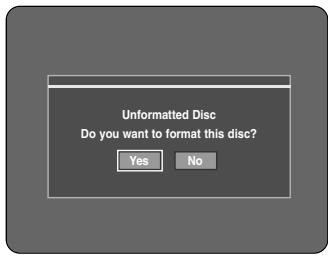
DVD-RW: When unused DVD-RW disc is first inserted, the message "Uninitialized Disc Do you want to initialize this disc?" will be displayed. If you select Yes, the disc will be formatted in VR mode.
If you want to change the mode, refer to Formatting a Disc on page 123.
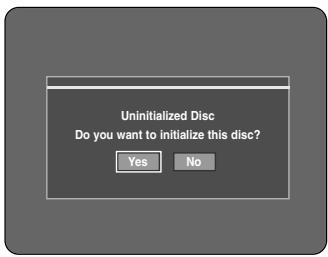
DVD-R: Formatting DVD is unnecessary and only Video Mode Recording is supported.
DVD-RW (Video mode)/-R
- Chapters will be created automatically when you finalise recording on DVD-RW/-R discs in Video mode. The chapter length (interval between chapters) varies according to the recording mode.
- Simple editing (erasing titles/changing title name)
DVD-RAM/-RW (VR mode)
- This mode allows multiple editing functions (such as deletion of the whole title, partial deletion of a title, etc.)
- Various editing options using a created Playlist.
Recording Mode
Select one of four recording modes by pressing the REC MODE button repeatedly while the unit is in Stop mode for the desired recording time and picture quality. In general, picture quality improves as the recording time decreases. In FR mode, the most suitable record mode is adjusted automatically, according to remaining time on the disc and length of the timer recording. This function is selected only one mode in XP, SP, LP and EP modes and you can use this mode for timer recording.
| Recording Mode | Recording Times | |
| HDD (80GB) | DVD-RAM/-RW/-R | |
| XP(high quality mode) | Approx. 18 hours | Approx. 1 hourabout 8.5 Mbps |
| SP(standard quality mode) | Approx. 34 hours | Approx. 2 hoursabout 4.5 Mbps |
| LP(long recording mode) | Approx. 65 hours | Approx. 4 hoursabout 2 Mbps |
| EP(extended mode) | Approx. 96 hoursApprox. 127 hours | Approx. 6 hours/about 1.6 MbpsApprox. 8 hours/about 1.2 Mbps |
| FR(Flexible Recording) | Approx.18~96 hours | Approx.1~6 hours |
NOTE
■ Recording time may vary according to specific conditions.
Unrecordable pictures
Video with copy protection cannot be recorded on this HDD & DVD RECORDER.
When the HDD & DVD RECORDER receives a copy guard signal while recording, recording stops and the following message appears on the screen.
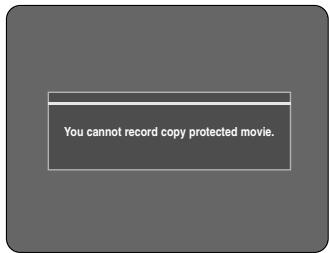
Concerning Copy Control Signals
TV broadcasts that contain copy control signals may have one of the following three signal types: Copy-Free, Copy-Once and Copy-Never. If you want to record a copy-once type programme, use DVD-RW with CPRM in VR Mode and DVD-RAM.
| Media\Signal type | Copy-Free | Copy-Once | Copy-Never |
| DVD-RW(Ver.1.1) | O | - | - |
| DVD-RW(Ver.1.1) with CPRM | |||
| VR mode | O | O* | - |
| V mode | O | - | |
| DVD-R | O | - | |
| DVD-RAM(Ver.2.0) | O | O* | - |
Once “Copy Once” has been recorded, recording cannot be done anymore.
- Content Protection for Recordable Media (CPRM)
CPRM is a mechanism that ties a recording to the media on which it is recorded. It is supported by some HDD & DVD RECORDERs, but not by many DVD players. Each blank recordable DVD has a unique 64-bit media ID etched in the BCA. When protected content is recorded onto the disc, it can be encrypted with a 56-bit C2 (Cryptomeria) cipher derived from the media ID.
During playback, the ID is read from the BCA and used to generate a key to decrypt the contents of the disc. If the contents of the disc are copied to other media, the ID will be absent or wrong and the data will not be decryptable.
Recording the current TV programme you are watching


Check that the disc has enough available space for the recording. Adjust the recording mode.
1 Press the HDD or DVD button.
If you select DVD, press the OPEN/CLOSE button and place a recordable disc on the disc tray.
Press the OPEN/CLOSE button to close the disc tray. Wait until LOAD disappears from the front panel display.
If an unused DVD-RAM disc is used, you will be prompted to format first. Make your selection using the
◀▶ buttons, then press OK button. (See page 78)
If an unused DVD-RW disc is used, whether to initialize or not will be asked first. Make your selection, then press the OK button. (See page 78)
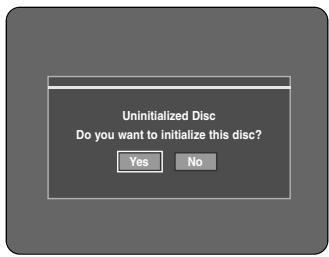
2 Press the PROG (💡 √) or number buttons to select the current programme you want to record.
3 Press the REC MODE button repeatedly, (or press the REC MODE button and then press the ▲▼ buttons) to select the recording speed (quality).

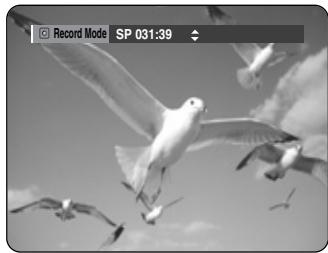
4 Press the REC button. Information concerning the channel is displayed on the screen, then recording begins. Icon ( ○ ) is displayed on the front panel.
- To pause recording -
- Press the REC PAUSE button to pause a recording in progress.
- Press the REC PAUSE button again during pause to resume recording.
- You can switch channels by pressing the PROG (💡💡) buttons while recording pauses.
- To stop recording -
Press the STOP (☐) button to stop or finish a recording in progress.
- When using DVD-RAM/-RW/-R discs, the message "Updating the information of disc. Please wait for a moment" is displayed.
NOTE
■ You cannot change the recording mode and the PROG while recording. ■ Recording will stop automatically if there is no free space left for recording. ■ Up to 99 titles can be recorded onto a disc (DVD-RAM/-RW/-R). ■ Up to 999 titles can be registered on the HDD. ■ HDD recording is available for up to 24 hours, and when recording for 24 hours, 4 titles will be recorded with each title having 6 hours in length. ■ Recording will stop automatically if a copy protected image is selected. ■ DVD-RAM/-RW discs must be formatted before starting to record. Most new discs are sold unformatted. ■ Do not use DVD-R authoring discs with this unit.
Recording from external equipment you are watching


Before you start
Check that the disc has enough available space for the recording. Adjust the recording mode.
Press the HDD or DVD button. If you select DVD, press the OPEN/CLOSE button and place a recordable disc on the disc tray. Press the OPEN/CLOSE button to close the disc tray. Wait until LOAD disappears from the front panel display. If an unused DVD-RAM disc is used, whether to format or not will be asked first. (See page 78) If an unused DVD-RW disc is used, whether to initialize or not will be asked first. (See page 78)
2 Press the INPUT button to select the input source according to the connection you made.
The front panel display changes in the following sequence:

If you connect a digital camcorder, press the INPUT button to select DV. (See page 82)
3 Press the REC MODE button repeatedly (or press the REC MODE button, then press the ▲▼ buttons) to select the recording speed (quality).

4 Press the REC button. Information concerning the external input mode is displayed on the screen, then recording begins. The icon (○) is displayed on the front panel.
- To pause recording -
- Press the REC PAUSE button to pause a recording in progress.
- Press the REC PAUSE button again during pause to resume recording.
- You can switch channels by pressing the PROG (💡💡) buttons while recording pauses.
- To stop recording -
Press the STOP (☐) button to stop or finish a recording in progress.
- When using DVD-RAM/-RW/-R discs, the message “Updating the information of disc. Please wait for a moment” is displayed.
Copying from a Camcorder
You may control the Camcorder using the IEEE1394 (DV) interface.


1 Connect the DV output jack of your camcorder to the DV input jack on the front of your HDD & DVD RECORDER using a DV cable. 2 Press the HDD or DVD button. If you select DVD, press the OPEN/CLOSE button and place a recordable disc on the disc tray. Press the OPEN/CLOSE button to close the disc tray. Wait until LOAD disappears from the front panel display. 3 Press the REC MODE button repeatedly to select the recording speed (quality).

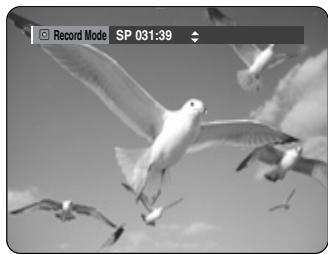
4 Press the INPUT button to select DV. If the input is set to DV, a playback/record menu that enables camcorder control appears on the top of the screen.
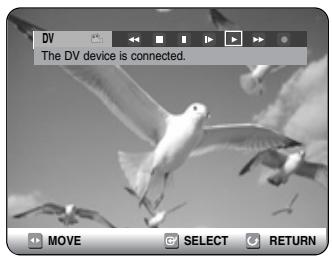
5 Select the Play (▶) icon on the upper part of the screen to playback the camcorder and find the starting position to copy. You can press the PLAY (⊕) button of the remote control to play the camcorder. 6 To start recording, use the ◀▶ buttons to select the Record (●) icon in the top side of the screen, then press the OK button. You can press the REC button of the remote control to start recording. To display playback related icons on the screen, press any direction button on the remote control.
- To stop recording -
Press the STOP (☐) button to stop or finish a recording in progress.
- When using DVD-RAM/-RW/-R discs, the message "Updating the information of disc. Please wait for a moment" is displayed.
Making a One Touch Recording (OTR)
You can set the HDD & DVD RECORDER to record in 30-minute increments up to 8 hours by pressing the REC button.


1 Press the HDD or DVD button. If you select DVD, press the OPEN/CLOSE button and place a recordable disc on the disc tray. Press the OPEN/CLOSE button to close the disc tray. Wait until LOAD disappears from the front panel display. 2 Press the PROG (☺_) or number buttons to select the programme to record. If you want to record through a connected external component, press the INPUT button to select an appropriate external input (AV1, AV2, AV3, DV or PR01). 3 Press the REC button to start recording.
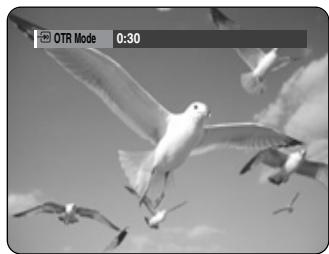
4 Press the REC button repeatedly to adjust the desired recording time.
→ 0: 3 0 → 1: 0 0 → ... 8: 0 0 → Off; hline
NOTE
■ The timer counter decreases by the minute from 8:00 to 0:00, then the HDD & DVD RECORDER stops recording.
- To stop recording -
Press the STOP (☐) button. The message "Do you want to stop recording?" is displayed.
- Press the ◀▶ buttons to select Yes, then press the OK button.
- Or press the STOP (◎) button again.
About INFO button
During recording, press the INFO button once. The system information screen appears, displaying Active Status, Background Status, and Main Screen information.
![HDD System Info Active status Record XP Background Status -- Screen Recording:PR3 [SP] 01/JAN/2005 (SAT) 12:00](/content/2019/12/27521/images/2ad7b9bbdb4fa8296b919593bd0cc520f7ed4470d07d3b3f0469ff75dd6f6f4a.jpg)
Pressing the INFO button twice displays the Disc information screen, showing the total number of Titles and Playlists, Recordable Time (Title), and Available Space (Music/Photo).
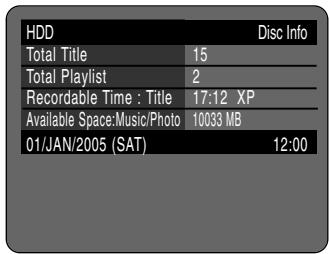
Pressing the INFO button three times displays the current recording information screen, showing the recording name, title, created time, and recording time.
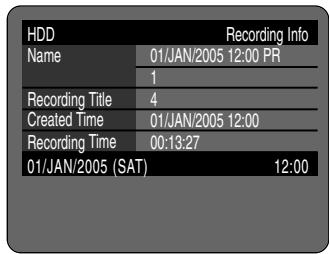
Chasing Play
You can play back from the beginning of the programme you are recording.

While Recording
1. Press the PLAY (▶) button. It plays back the title that you are currently recording from the beginning. Playback is not available for 10 seconds from the start of recording. You can use the SKIP (◀◀) and other playback-related buttons to view the previous recorded list.

Using the TITLE LIST button
1. With the unit in recording mode, press the TITLE LIST button. The Title List screen is displayed. Press the ▲▼/SKIP (◀◀) buttons to select the recording title list.
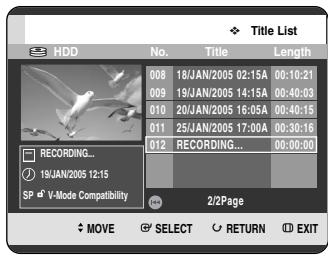
2. Press the OK or PLAY (▶) button. It plays back the title that you are currently recording from the beginning.
- Stopping Playback / Recording -
1. Press the STOP (■) button. The playback screen disappears and the recording in progress screen appears. 2. Pressing the STOP (■) button once more will stop the recording.
NOTE
■ No sound is heard during search mode. ■ DVD disc playback is available during HDD recording. However, JPEG, MP3, and DivX files on the disc cannot be played back. ■ HDD playback is available during DVD recording. However, JPEG and MP3 files on the HDD cannot be played back.
Simultaneous Recording and Playback
You can watch the previous title list while recording a programme.


Using the TITLE LIST button
1 With the unit in recording mode, press the TITLE LIST button.
The Title List screen is displayed.
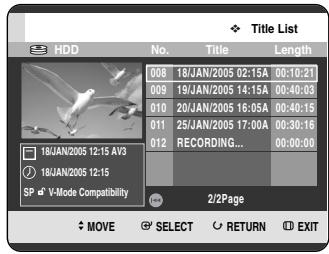
2 Press the ▲▼/ SKIP (◀◀◀) buttons to select the title, then press the OK or PLAY (◀◀) button. The selected title list will be played back.
- Stopping Playback / Recording -
1 Press the STOP (☐) button. The playback screen disappears and the recording in progress screen appears. 2 Pressing the STOP (☐) button once more will stop the recording.

■ No sound is heard during search mode.
NOTE
Making a Timer Recording


- Check that the antenna cable is connected.
- Check the remaining time on the disc.
- Check that the date and time are correct. Make sure the Clock (Setup-Clock Set) is set before proceeding with a timer recording. (See page 27)

Using the TIMER button
1 With the unit in Stop mode/Playback mode, press the TIMER button. The Programme screen is displayed.
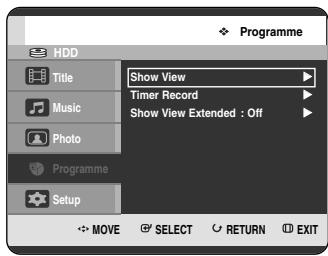
Using the MENU button.
- With the unit in Stop mode/Playback mode, press the MENU button.
- Press the ▲▼ buttons to select Programme, then press the OK or ▶ button.
2 Press the ▲▼ buttons to select Timer Record, then press the OK or ▶ button.
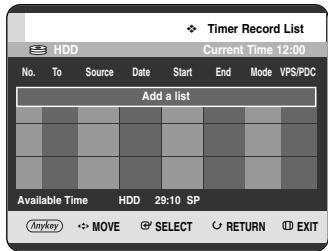
3 Press the OK button to select Add a list. The Timer Record List screen is displayed.
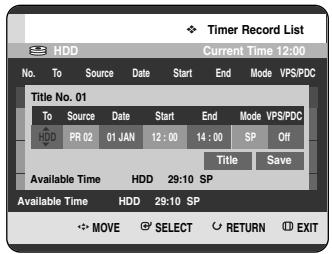
Using the ANYKEY button.
- Press the ANYKEY button.
- Press the ▲▼ buttons to select Add, then press the OK or ▶ button.
4 Set timer recording option.
- Fill the input items using the ▲▼◀▶ buttons and number buttons.
◀▶ : Moves to the previous/next item. ▲▼ 0\~9 : Sets a value.
- To : Select the media to record HDD or DVD.
- Source : The video input source (AV1, AV2 or AV3), or the broadcasting channel you want to make a timer recording from.
- Date : Timer Recording allows setting the recording time within one month period. Set the recording day. (day/month)
![graph TD A["01 JAN"] --> B["Every Day"] C["02 JAN"] --> D["MON-SAT"] E["03 JAN"] --> F["MON-FRI"] G["..."] --> H["Every SAT"] I["30 JAN"] --> J["..."] K["31 JAN"] --> L["Every SUN"]](/content/2019/12/27521/images/b7aaa820a63d888d785f2bb7fa2990dcd59947b78b0c3264571d8493f142e122.jpg)
- Start/End Time : Start and end time of the timer recording.
- Mode (Recording Mode):
- FR (Flexible Recording): Select when you want to set video quality automatically. In FR mode, the most suitable record mode is adjusted automatically, according to remaining time on the disc and length of the timer recording. This function is selected only one mode in XP, SP, LP and EP modes.
- XP (high quality): Select when video quality is important.
- SP (standard quality): Select to record in standard quality.
- LP (low quality): Select when a long recording time is required.
- EP (extended): Select when a longer recording time is required.

NOTE
- When you are recording at EP mode on a DVD-RW(V mode)/-R disc, it may not record the full 6 or 8 hours because the unit uses the VBR(Variable Bit Rate) ENCODING system. For example, if you record a programme with a lot of action, it uses a higher bit rate which in turn consumes more disc memory.
• VPS/PDC: VPS(Video Programme System) or PDC(Programme Delivery Control) function.
- If you set this function on, you can control the starting and ending time of recording by special signal included in the broadcasting signal. If a TV programme is shortened or starts earlier or later than scheduled, this function synchronizes the starting and ending time of recording with the actual broadcasting time automatically.
- Set up the start-time EXACTLY according to the published TV schedule. Otherwise the timer recording will not operate.
- Do not select PDC or VPS unless you are sure the programme you wish to record is broadcast with PDC or VPS.
- TITLE: To label the title name, select the title and then press the OK button. Title renaming screen appears. See page 96 for the registration.
5 After selecting the set up value for each mode, press the OK button to select Save, and press the OK button again.
- ⊕ will appear on the front panel. It means that a timer recording is registered.
If the timer settings overlap;
The programmes are recorded in order of priority. If timer recording is set for the first programme and then again for the second programme and both programmes overlap, the following message will appear on the screen: “This setting is identical with 1.” The message shows that the first programme has priority. After recording of the first programme is complete, the second programme starts being recorded.
To exit without saving the current setting
Press the MENU button.
To return to the previous menu
Press the RETURN button if you don't want to set a timer recording.
6 When you want to record on DVD-RAM/-RW/-R, you must insert the disc. 7 Turn the power off to finish the Timer Recording setting. Timer Recording will not work when the power is on.
NOTE
- The timer recording time may differ from the set time depending on disc status and overall timer recording status (for example, recording times overlapping, or when the previous recording ends within 2 minutes before the start time of the next recording.) ■ You can make the Timer Recording up to 12 programmes. ■ If HDD disk has no available recording space, ⊕blinks. It means that HDD disk has no space to record.
Flexible Recording (for Timer recording only)


In FR mode, the most suitable record mode is adjusted automatically, according to remaining time on the disc and length of the timer recording. This function is selected only one mode in XP, SP, LP and EP modes and you can use this mode for timer recording.
The FR mode recording setup is the same as Timer Recording. When setting the mode in step 4, set the FR mode.
Editing the Timer Record List
Follow these directions to edit the timer record list.


Using the TIMER button
1 With the unit in Stop mode/Playback mode, press the TIMER button. The Programme screen is displayed.
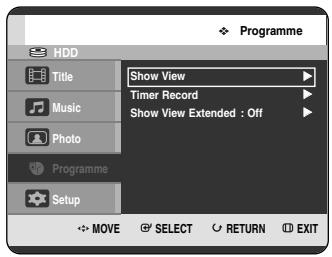
Using the MENU button.
- With the unit in Stop mode/Playback mode, press the MENU button.
- Press the ▲▼ buttons to select Programme, then press the OK or ▶ button.
2 Press the ▲▼ buttons to select Timer Record, then press the OK or ▶ button.
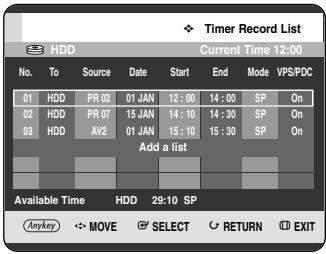
3 Press the ▲▼ buttons to select the number of the Timer Record List you want to edit, then press the ANYKEY button.
- The Add, Edit, Delete and Go To History List items are displayed.
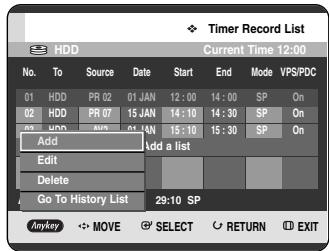
4 Press the ▲▼ buttons to select Edit, then press the OK or ▶ button.
- The Timer Record Input item is displayed. Edit the items you want to modify. See the “Making a Timer Recording” section for more information on Timer Recording Input items. (See page 86)
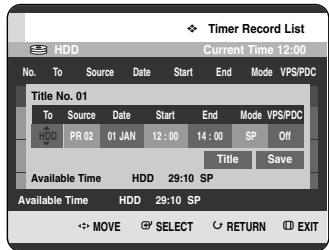
5 Press the OK button to select Save, then press the OK button to confirm the edited setting.
6 Press the MENU button after finishing the operation. The Timer Record List screen will disappear.
Deleting a Timer Record List
Follow these directions to delete an entry from the timer record list.


Using the TIMER button
1 With the unit in Stop mode/Playback mode, press the TIMER button. The Programme screen is displayed.
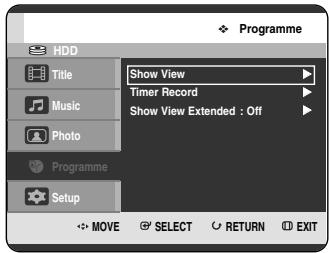
Using the MENU button.
- With the unit in Stop mode/Playback mode, press the MENU button.
- Press the ▲▼ buttons to select Programme, then press the OK or ▶ button.
2 Press the ▲▼ buttons to select Timer Record, then press the OK or ▶ button.
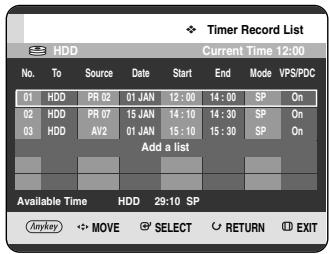
3 Press the ▲▼ buttons to select the number of the Timer Record List you want to delete, and then press the ANYKEY button.
- The Add, Edit, Delete and Go To History List items are displayed.
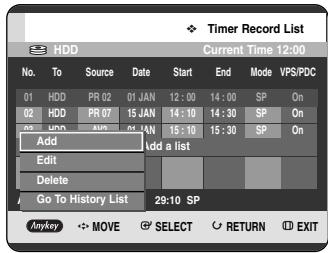
4 Press the ▲▼ buttons to select Delete, then press the OK or ▶ button.
- You will be prompted with the delete confirm message such as "Do you want to delete No.01?".
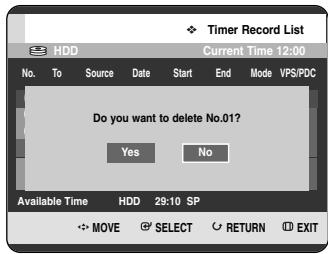
5 Press the ◀▶ buttons to select Yes, then press the OK button.
- The selected entry will be deleted from the list.
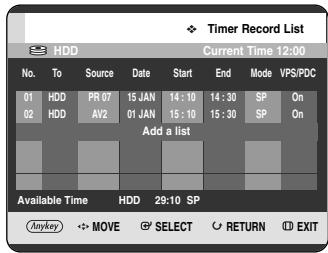
6 Press the MENU button after finishing the operation. The Timer Record List screen will disappear.
Go To History List
You can confirm the performance results of title lists that have passed the reserved recording time.


Using the TIMER button
1 With the unit in Stop mode/Playback mode, press the TIMER button. The Programme screen is displayed.
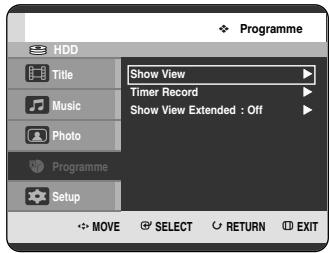
Using the MENU button.
- With the unit in Stop mode/Playback mode, press the MENU button.
- Press the ▲▼ buttons to select Programme, then press the OK or ▶ button.
Press the ▲▼ buttons to select Timer Record, then press the OK or ▶ button.
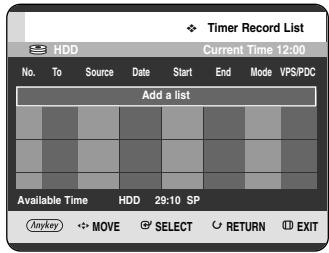
Press the ANYKEY button.
- The Add and Go To History List items are displayed.
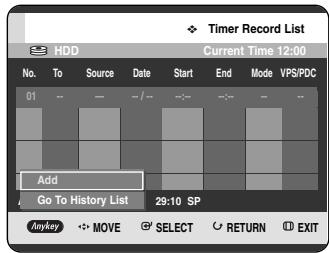
Press the ▲▼ buttons to select Go To History List, then press the OK or ▶ button.
The History List screen is displayed.
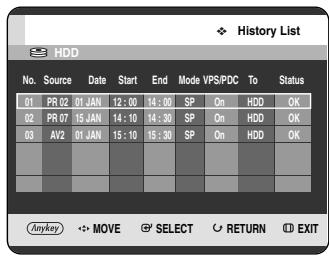
Press the MENU button after finishing the operation. The History List screen will disappear.
Information about History List
Informs whether the selected History List performed a Timer Recording successfully.
Press the ▲▼ buttons to select the number of the History List, then press the ANYKEY button.
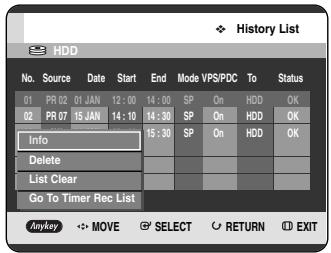
Press the ▲▼ buttons to select Info, then press the OK or ▶ button.
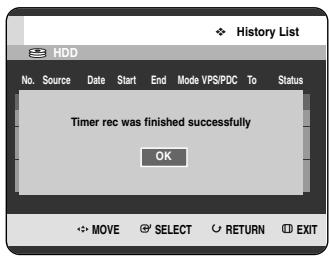
Delete History List
Deletes a History List individually.
5-1 Press the ▲▼ buttons to select the number of the history list you want to delete, and then press the ANYKEY button.
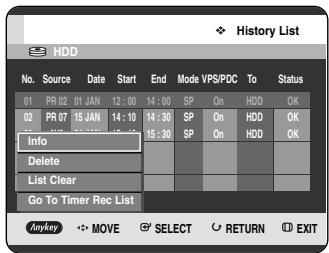
6 Press the ▲▼ buttons to select Delete, then press the OK or ▶ button.
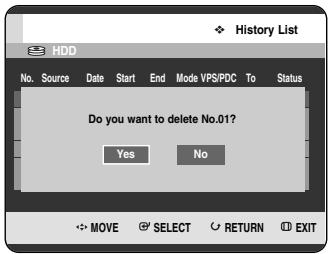
Clear History List
Clears all History Lists at once.
5-1 Press the ANYKEY button.
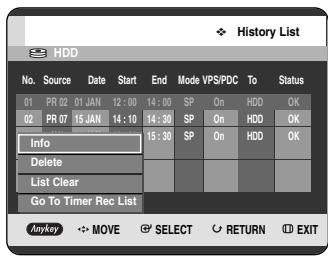
6 Press the ▲▼ buttons to select List Clear, then press the OK or ▶ button.
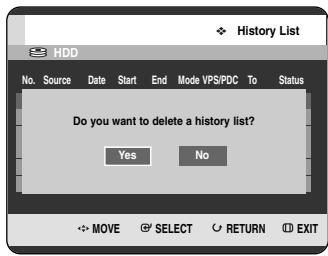
Go To Timer Rec List
Switches directly from the History List to the Timer Rec List.
5-1 Press the ANYKEY button.
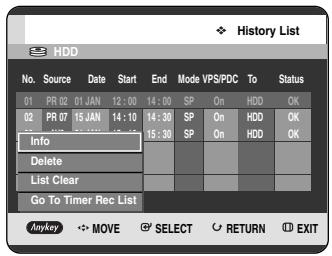
6 Press the ▲▼ buttons to select Go To Timer Rec List, then press the OK or ▶ button.
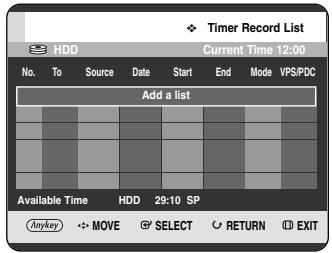
Using the ShowView Feature
Before presetting your HDD & DVD RECORDER:
- Switch on both the television and your HDD & DVD RECORDER.
- Check that the date and time are correct.
Up to twelve programmes can be preset.

Using the TIMER button
1 With the unit in Stop mode/Playback mode, press the TIMER button. The Programme screen is displayed.
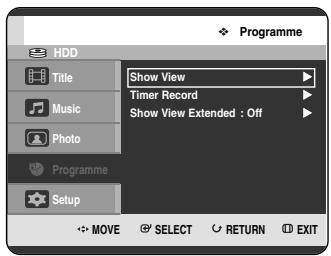
Using the MENU button.
- With the unit in Stop mode/Playback mode, press the MENU button.
- Press the ▲▼ buttons to select Programme, then press the OK or ▶ button.
2 Press the ▲▼ buttons to select Show View, then press the OK or ▶ button.
- A message is displayed to allow you to enter the ShowView code.
![Show View Enter Show View Code number. [0-9] 0-9 NUMBER SELECT RETURN EXIT](/content/2019/12/27521/images/869793ae993e48eec21c3e3ac911c460589dfcdea2e2b8260e0a252466cd13aa.jpg)
3 Press the number buttons to enter the code of the programme that you want to record in your television magazine.
- If you want to correct the ShowView code that you are entering:
- Press the ◀ button until the digit to be corrected is cleared.
- Enter the correct digit.
4 Press the OK button.
- The information concerning the programme is displayed.
- When using the ShowView function for the first time with stored stations, you must enter the PR number manually by pressing the ▲▼ buttons or number buttons.
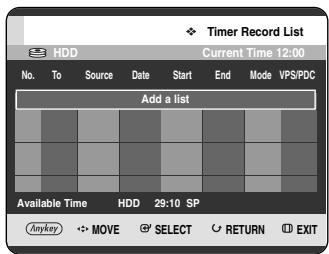
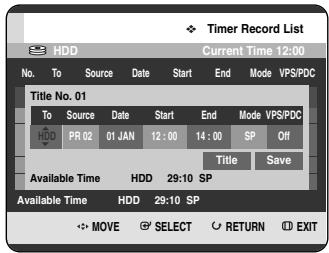
5 If the programme and times are correct, press the OK button. Press the OK button to confirm the setting.
6 Turn the power off by pressing the DVD STANDBY/ON button to activate the timer recording setting. 7 Refer to pages 88~90 if you wish to:
- Check whether the timer recording has been set correctly or not.
- Cancel a preset recording.

NOTE
■ The numbers next to each TV programme listing in the magazines or newspapers are ShowView code numbers, which allow you to programme your HDD & DVD RECORDER instantly with the remote control. Enter the ShowView code for the programme you wish to record. ■ ShowView is a trademark of Gemstar Development Corporation. The ShowView system is manufactured under licence from Gemstar Development Corporation.
ShowView Extended
To prevent delays or overruns, the HDD & DVD RECORDER has a function called ShowView Extended, allowing you to extend the recording time by up to 60 minutes.

Using the TIMER button
1 With the unit in Stop mode/Playback mode, press the TIMER button. The Programme screen is displayed.
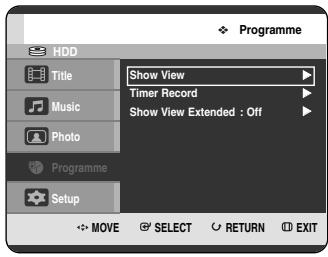
Using the MENU button.
- With the unit in Stop mode/Playback mode, press the MENU button.
- Press the ▲▼ buttons to select Programme, then press the OK or ▶ button.
2 Press the ▲▼ buttons to select ShowView Extended, then press the OK or ▶ button.
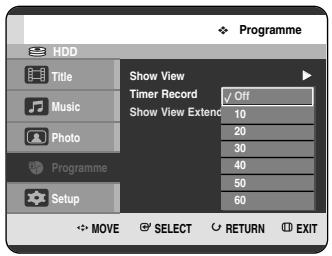
3 Press the ▲▼ buttons to select the ShowView Extended time, then press the OK or ▶ button. 4 Press the MENU button to exit the menu.
Editing
This section introduces basic functions of editing and explains both edit functions for the recording on a disc and edit functions for the entire disc.
Basic Editing (Title List) .....96
Advanced Editing (Playlist) .....103
Copying from HDD to DVD ....111
Copying Multiple Titles at One Time .....114
Copying from DVD to HDD .....118
Copying MP3 or JPEG Files from a Disc to HDD . . .119
Disc Manager 121
- Title List
A title is a section of recorded video and audio. Title List shows a list to help you select a title. Since the title consists of the information on stream that is actually recorded, if one title is deleted, that title cannot be played again.
- Play List
This refers to a unit of playback, which is made by selecting a desired scene in the entire Title List. When one playlist is played, only the scene selected by the user will play and then stop. Since only the information necessary for playing a desired scene is included in a playlist, even if that playlist is deleted, the original stream will not be deleted.
Recording or editing might not be completed if an error, such as a sudden power failure occurs. Please be aware that a material that has been damaged is unable to be retrieved to its original content.
Basic Editing (Title List)
Renaming(Labeling) a Title
Follow these instructions to rename a title list entry, i.e., to edit the title of a recorded programme.


Using the TITLE LIST button
1 With the unit in Stop mode/Playback mode, press the TITLE LIST button.
The Title List screen is displayed.
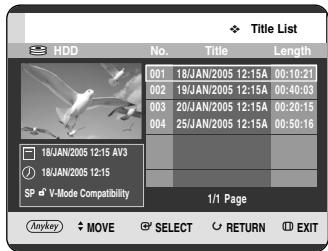
Using the MENU button.
- With the unit in Stop mode/Playback mode, press the MENU button.
- Press the ▲▼ buttons to select Title, then press the OK or ▶ button twice.
2 Press the ▲▼ buttons to select an entry you want to rename from the Title List, then press the ANYKEY button.
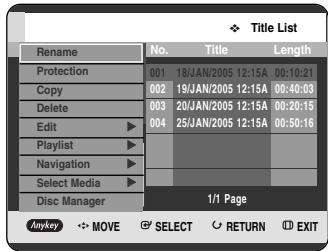
3 Press the ▲▼ buttons to select Rename, then press the OK or ▶ button.
The Rename screen is displayed.
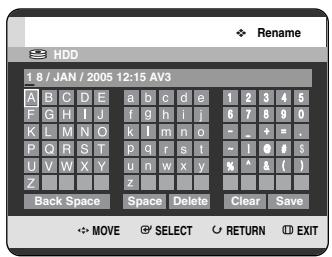
4 Select the desired characters using the ▲▼◀▶ buttons, press the OK button.
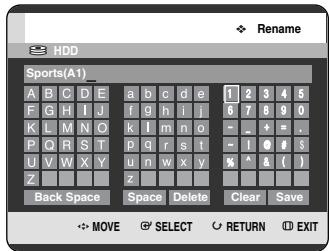
- Back Space: Deletes and moves the cursor backwards by one position. (Equivalent to the CANCEL button)
- Space: Enters a blank and moves the cursor one forward (to the right).
- Delete: Deletes the character at the cursor position.
- Clear: Deletes all the character inputs.
- Save: Registers the character inputs.
5 Press the ▲▼◀▶ buttons to select Save, and then press the OK button.
The changed title name is displayed on the title item of the selected entry.
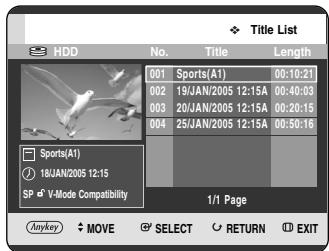
Locking (Protecting) a Title
Follow these instructions to lock an entry to protect it from accidental deletion.


Using the TITLE LIST button
1 With the unit in Stop mode/Playback mode, press the TITLE LIST button.
The Title List screen is displayed.
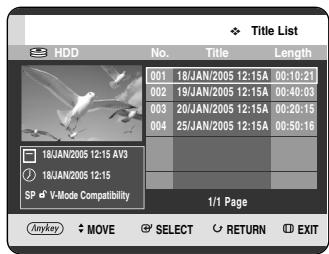
Using the MENU button.
- With the unit in Stop mode/Playback mode, press the MENU button.
- Press the ▲▼ buttons to select Title, then press the OK or ▶ button twice.
2 Press the ▲▼ buttons to select an entry you want to protect from the Title List, then press the ANYKEY button.
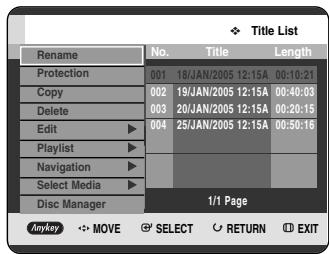
3 Press the ▲▼ buttons to select Protection, then press the OK or ▶ button.
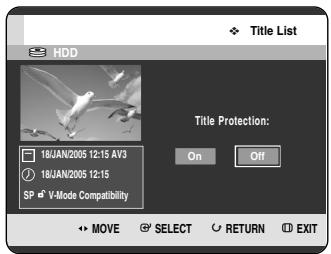
4 Press the ◀▶ buttons to select On, then press the OK button. The key icon on the information window for the selected entry changes to the locked status. (♂→♂)
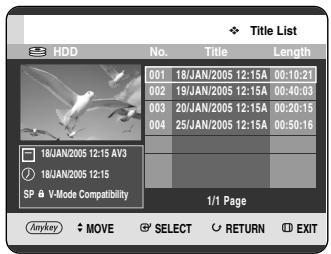
I Deleting a Title
Follow these instructions to delete an entry from the Title List.


Using the TITLE LIST button
1 With the unit in Stop mode/Playback mode, press the TITLE LIST button.
The Title List screen is displayed.
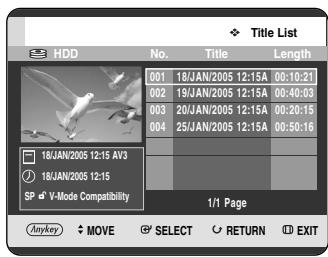
Using the MENU button.
- With the unit in Stop mode/Playback mode, press the MENU button.
- Press the ▲▼ buttons to select Title, then press the OK or ▶ button twice.
2 Press the ▲▼ buttons to select an entry you want to delete in the Title List, then press the ANYKEY button.
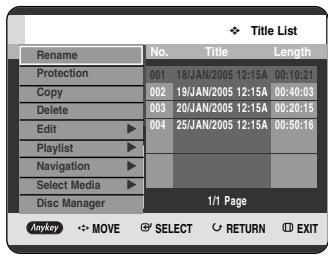
3 Press the ▲▼ buttons to select Delete, then press the OK or ▶ button.
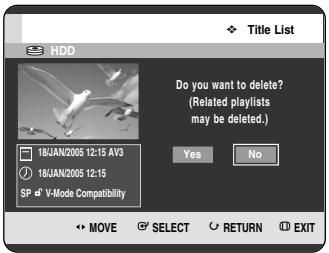
- The message may be different depending on the type of disc. You will be prompted with the confirmation message. HDD, DVD-RAM(VR mode), DVD-RW(VR mode): Since Playlist is present, the message “Do you want to delete? (Related playlists may be deleted.)” is displayed. DVD-RW(Video mode)/-R: Since Playlist is not present, the message “Do you want to delete?” is displayed.
4 Press the ◀▶ buttons to select Yes, then press the OK button.
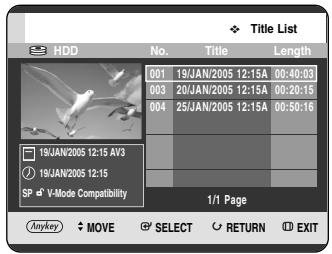

NOTE
- You cannot delete a protected entry. If you want to delete a protected entry, select "Off" in the Title Protection menu. (See page 97) ■ When the Disc Protection has been set to Protected, you cannot delete titles. (See page 122) ■ Once an entry is deleted from the Title List it cannot be recovered. ■ Once DVD-RW/-R is finalised, it cannot be deleted.
Splitting a Section of a Title (Split)
Follow these instructions to split a section of a Title List entry.


Using the TITLE LIST button
1 With the unit in Stop mode/Playback mode, press the TITLE LIST button.
The Title List screen is displayed.
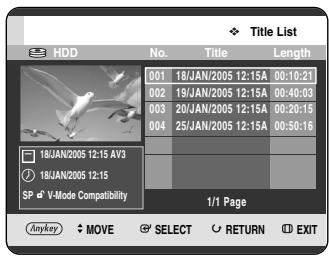
Using the MENU button.
- With the unit in Stop mode/Playback mode, press the MENU button.
- Press the ▲▼ buttons to select Title, then press the OK or ▶ button twice.
2 Press the ▲▼ buttons to select an entry you want to Split from the Title List, then press the ANYKEY button.
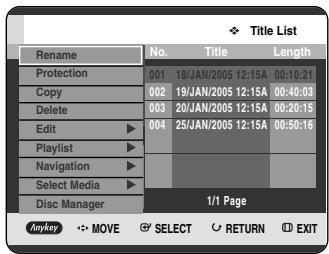
3 Press the ▲▼ buttons to select Edit, then press the OK or ▶ button.
The Edit menu is displayed.
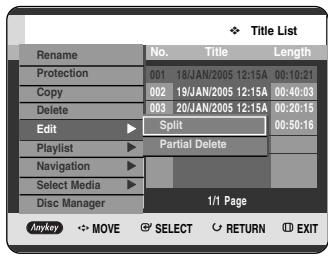
4 Press the ▲▼ buttons to select Split, then press the OK or ▶ button.
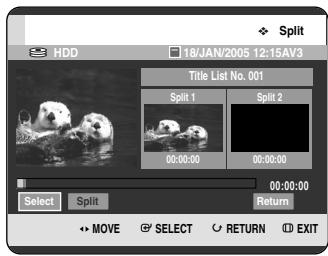
5 Using the playback-related buttons (PLAY(→), SEARCH (→→)), move to a point for splitting and press the OK button.
If it is not the point where you want to split, press the RETURN button to cancel the selection. Using the playback-related buttons, move to a point to split and press the OK button.
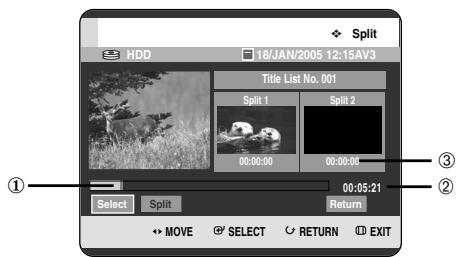
① First split interval ② Total recording time of title list ③ Start time of the second split and its screen
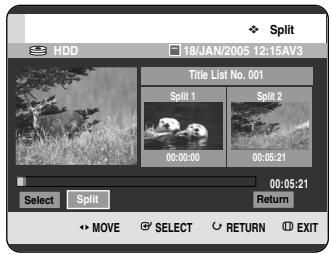
6 Press the OK button to select Split. The message “This title cannot be recovered after splitting. Do you want to split?” is displayed.
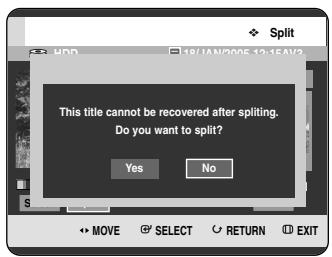
7 Press the ◀▶ buttons to select Yes, then press the OK button.
The split title is divided into two, and subsequent titles will be pushed back one by one.
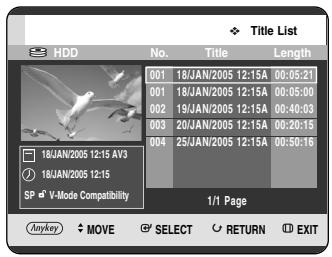
Deleting a Section of a Title (Partial Delete)
Follow these instructions to delete a section of a Title List entry.


(VR mode)

Using the TITLE LIST button
1 With the unit in Stop mode/Playback mode, press the TITLE LIST button.
The Title List screen is displayed.
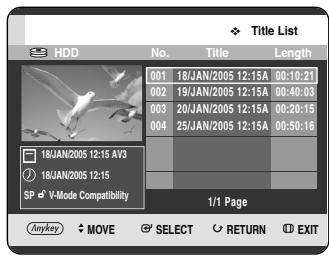
Using the MENU button.
- With the unit in Stop mode/Playback mode, press the MENU button.
- Press the ▲▼ buttons to select Title, then press the OK or ▶ button twice.
2 Press the ▲▼ buttons to select an entry you want to edit from the Title List, then press the ANYKEY button.
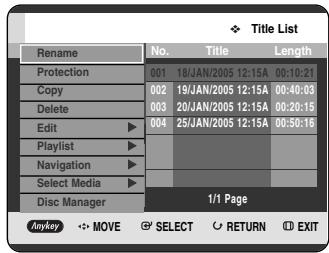
- When using DVD-RAM/-RW(VR) disc, you can select Partial Delete directly by pressing the ANYKEY button.
(Then go to step 5)
3 Press the ▲▼ buttons to select Edit, then press the OK or ▶ button.
The Edit Title List screen is displayed.
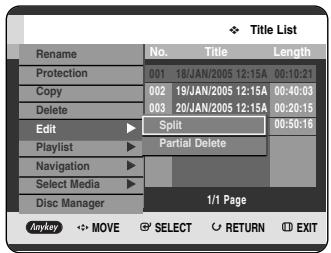
4 Press the ▲▼ buttons to select Partial Delete, then press the OK or ▶ button.
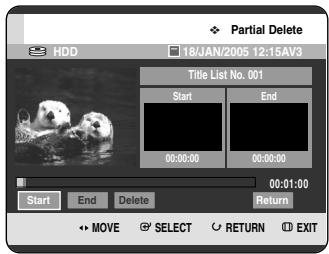
5 Press the OK button at the starting point. The image and starting point time are displayed in the section deletion starting point window.
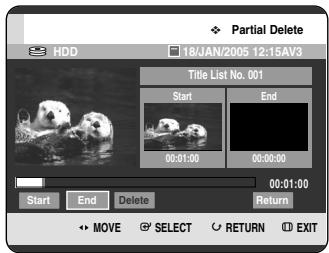
Edit Title List Screen Elements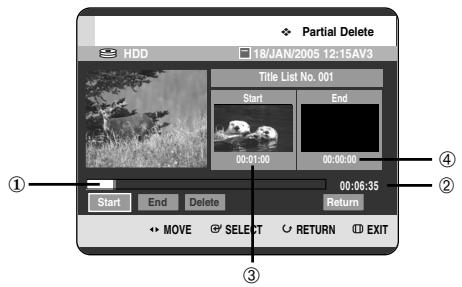
① Playback bar ② Playtime ③ Section deletion starting point window and time ④ Section deletion end point window and time
- Select the start and end points of the section you want to delete using the playback related buttons.
- Playback related buttons: (PLAY( ), SEARCH ( ) )
6 Press the OK button at the end point. The image and end point time are displayed in the Section deletion ending point window.
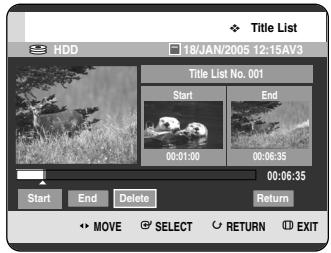
7 Press the ◀▶ buttons to select Delete, then press the OK button.
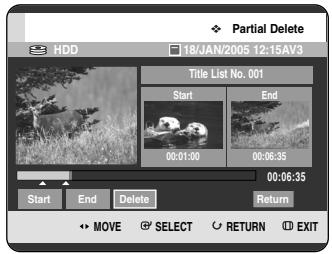
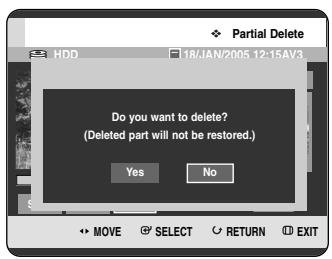
8 Press the ◀▶ buttons to select Yes, then press the OK button. The selected section has been deleted. 9 Press the ◀▶ buttons to select Return, then press the OK button to finish the operation.
NOTE
■ The length of the section to be deleted must be at least 5 seconds long. If the length of the section to be deleted is less than 5 seconds, you will be prompted with the message “The range is too short.” - If the end time precedes the starting time, you will be prompted with the message "End point cannot be marked earlier than start point". ■ The section cannot be deleted when it includes a still picture. - Press the MENU button after the operation has finished. The Title List screen will disappear.
Advanced Editing (Playlist)
Creating a Playlist
Follow these instructions to create a new playlist entry from a recorded title.


(VR mode)

Using the TITLE LIST button
1 With the unit in Stop mode/Playback mode, press the TITLE LIST button.
The Title List screen is displayed.
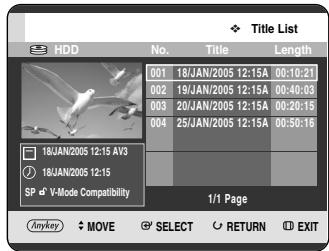
Using the MENU button.
- With the unit in Stop mode/Playback mode, press the MENU button.
- Press the ▲▼ buttons to select Title, then press the OK or ▶ button twice.
Press the ANYKEY button.
Press the ▲▼ buttons to select Playlist, then press the OK or ▶ button.
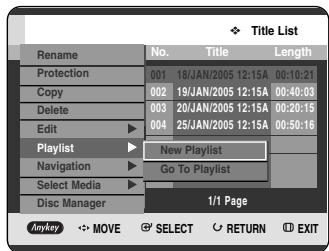
3 Press the ▲▼ buttons to select New Playlist, then press the OK or ▶ button.
The Make Playlist screen is displayed.
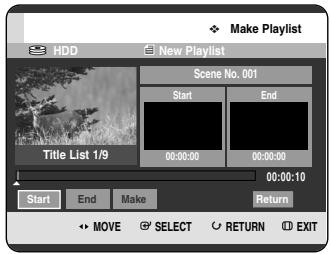
4 Press the OK button at the start point.
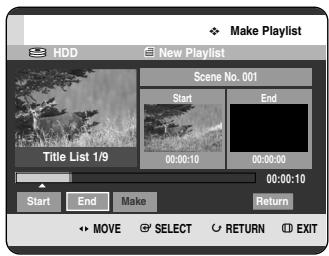
- The image and time at the start point are displayed on the Start window.
- The yellow-coloured selection bar moves to the End item.
- Select the starting point of the section from which you want to create a new scene using the playback related buttons (PLAY( ), SEARCH ( )).
5 Press the OK button at the end point.
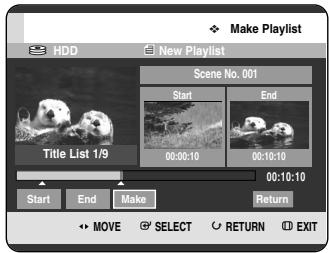
- The image and end point time are displayed in the End window.
- The yellow-coloured selection bar moves to the Make item.
6
Press the ◀▶ buttons to select Make, then press the OK button.
• To make a scene for playlist. A new Make scene screen is displayed. Repeat steps 3~6 to make scene of playlist. New scene will be added to the current playlist. You can check and see all the scenes on Edit playlist screen. (See page 106) - To make a new playlist. Repeat steps 1~6 if you want to make a new playlist.
7
Press the ◀▶ button to select Return, then press the OK button for finishing the operation.
NOTE
■ You can create up to 99 playlist entries. ■ Depending on the kind of disc, the displayed screen may have a slight difference.
Playing Entries in the Playlist
Follow these instructions to play the playlist entries.


(VR mode)

Using the PLAY LIST button
1 With the unit in Stop mode/Playback mode, press the PLAY LIST button.
The Playlist screen is displayed.
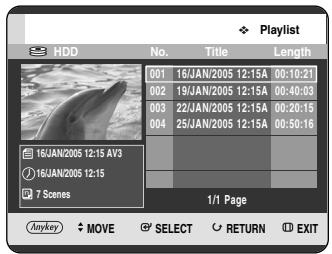
Using the MENU button.
- With the unit in Stop mode/Playback mode, press the MENU button.
- Press the ▲▼ buttons to select Title, then press the OK or ▶ button twice. The Title List screen is displayed.
- Press the ANYKEY button.
- Press the ▲▼ buttons to select Playlist, then press the OK or ▶ button.
- Press the ▲▼ buttons to select Go To Playlist, then press the OK or ▶ button.
2 Press the ▲▼ buttons to select the playlist you want to play, then press the OK or PLAY (◎) button.
3 Press the STOP (☐) button to stop playing. The screen returns to the Playlist screen.
Renaming a Playlist Entry
Follow these instructions to rename a playlist entry, i.e. to edit the title of a playlist entry.


(VR mode)

Using the PLAY LIST button
1 With the unit in Stop mode/Playback mode, press the PLAY LIST button.
The Edit Playlist screen is displayed.
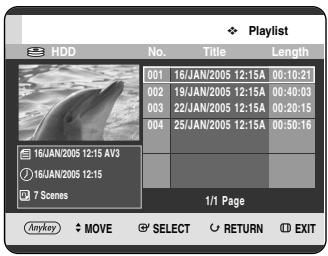
Using the MENU button.
- With the unit in Stop mode/Playback mode, press the MENU button.
- Press the ▲▼ buttons to select Title, then press the OK or ▶ button twice. The Title List screen is displayed.
- Press the ANYKEY button.
- Press the ▲▼ buttons to select Playlist, then press the OK or ▶ button.
- Press the ▲▼ buttons to select Go To Playlist, then press the OK or ▶ button.
Press the ▲▼ buttons to select the title you want to rename from the Playlist, then press the ANYKEY button.
The ANYKEY menu is displayed: Rename, Copy, Delete, Edit Playlist, Go To Titlelist, Disc Manager.
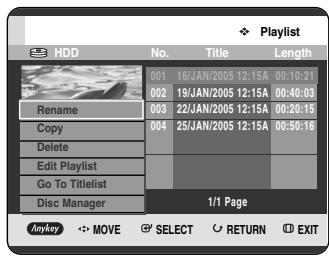
Press the ▲▼ buttons to select Rename, then press the OK or ▶ button.
The Rename screen is displayed.
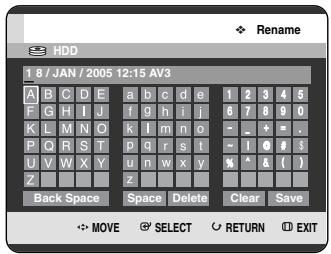
Select the desired characters using the ▲▼ ◀▶ buttons, then press the OK button.
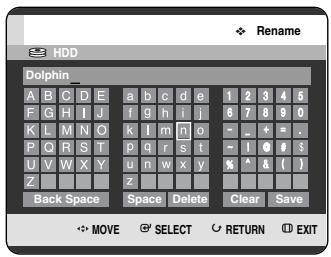
- This function is the same as the Rename function for renaming the title. (See page 96)
- The maximum number of characters that can be entered is 31. All 31 characters can be displayed by pressing the INFO button.
Press the ▲▼ ◀▶ buttons to select Save, then press the OK button.
The changed title is displayed in the title field of the selected playlist entry.
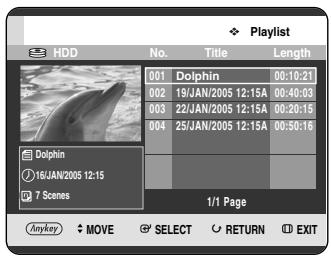
Editing a Scene for the Playlist
Follow these instructions to edit scenes for a playlist.


(VR mode)

Using the PLAY LIST button
1 With the unit in Stop mode/Playback mode, press the PLAY LIST button.
The Edit Playlist screen is displayed.
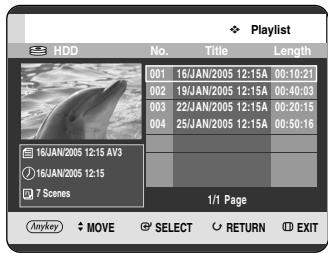
Using the MENU button.
- With the unit in Stop mode/Playback mode, press the MENU button.
- Press the ▲▼ buttons to select Title, then press the OK or ▶ button twice. The Title List screen is displayed.
- Press the ANYKEY button.
- Press the ▲▼ buttons to select Playlist, then press the OK or ▶ button.
- Press the ▲▼ buttons to select Go To Playlist, then press the OK or ▶ button.
2 Press the ▲▼ buttons to select the title you want to edit from the Playlist, then press the ANYKEY button. The Edit Playlist menu is displayed: Rename, Copy, Delete, Edit Playlist, Go To Titlelist, Disc Manager.
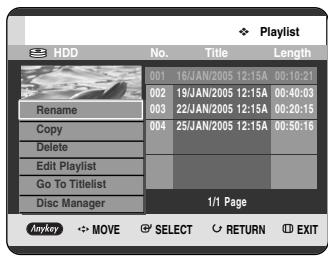
3 Press the ▲▼ buttons to select Edit Playlist, then press the OK or ▶ button. The Edit Scene screen is displayed.
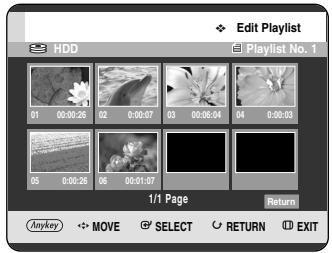
Playing a Selected Scene
4 Press the ▲▼◀▶ buttons to select the scene you want to play, then press the ANYKEY button. The playlist entry to be played is selected.
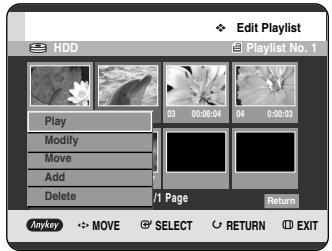
5 Press the ▲▼ buttons to select Play, then press the OK or ▶ button. The selected scene is played.
- To stop scene play, press the STOP (☐) button.
Modifying a Scene (Replacing a Scene)
To setup, follow steps 1 to 3 on page 106.
4 Press the ▲▼◀▶ buttons to select the scene you want to modify, then press the ANYKEY button.
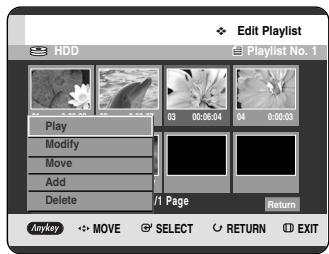
5 Press the ▲▼ buttons to select Modify, then press the OK or ▶ button.
The Modify Scene screen is displayed.
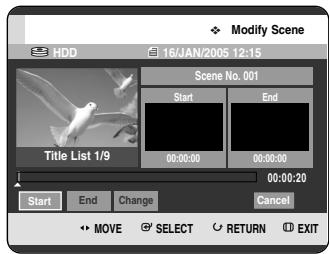
6 Press the OK button at the start point of the scene.
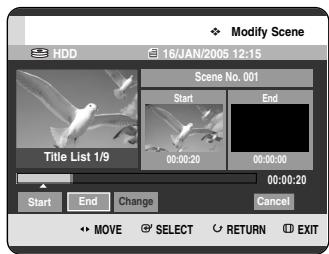
- The image and starting point time are displayed on the Start window.
- Select the starting or ending point of the section you want to modify using the playback related buttons (PLAY(💡), SEARCH (◀◀)).
7 Press the OK button at the end point of the scene.
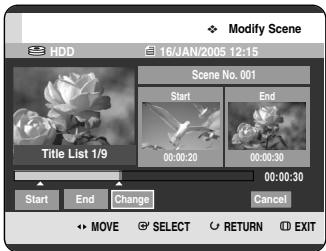
- The image and ending point time are displayed in the End window.
8 Press the ◀▶ buttons to select Change, then press the OK button.
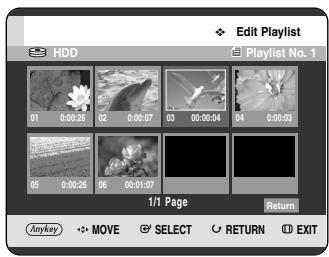
- The scene you want to modify is changed with the selected section.
Moving a Scene (Changing the Position of a Scene)
To set up, follow steps 1 to 3 on page 106.
4 Press the ▲▼◀▶ buttons to select the scene you want to move (change the position), then press the ANYKEY button.
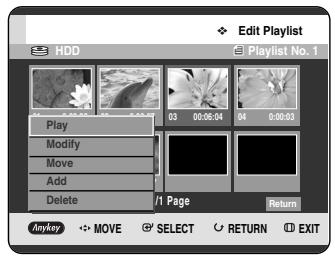
5 Press the ▲▼ buttons to select Move, then press the OK or ▶ button.
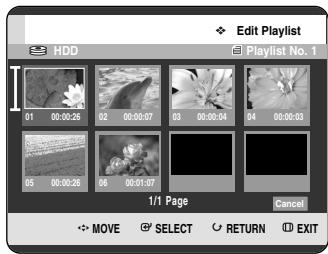
- A yellow selection window is displayed on the scene to be moved.
6 Press the ▲▼◀▶ buttons to select the position to which you want to move the selected scene, then select the OK button.
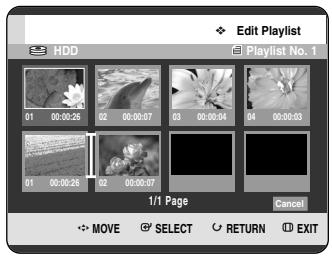
- The selected scene is moved to the selected position.
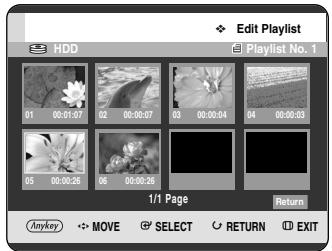
NOTE
■ You cannot move the selected scene to the position of the next scene, because the selected scene should be inserted before that position, which requires no action. ■ Depending on the kind of disc, the displayed screen may have a slight difference.
Adding a Scene
To set up, follow steps 1 to 3 on page 106.
4 Press the ▲▼◀▶ buttons to select the scene that will have a new scene inserted before it, then press the ANYKEY button.
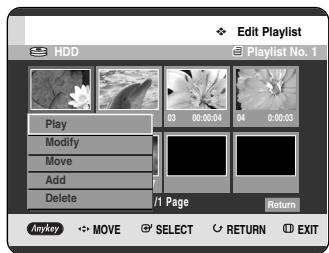
5 Press the ▲▼ buttons to select Add, then press the OK or ▶ button.
The Add Scene screen is displayed.
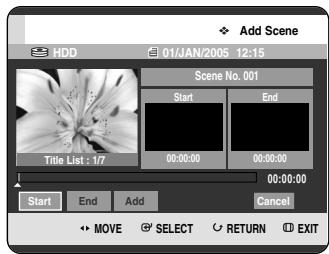
6 Press the OK button at the starting point of the scene.
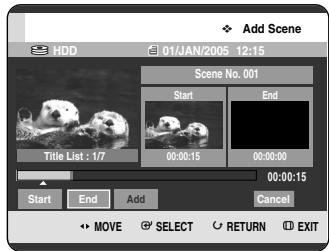
- The image and starting point time are displayed on the Start window.
- Select the starting or ending point of the section you want to modify using the playback related buttons (PLAY (💡), SKIP (◀◀◀)).
7 Press the OK button at the end point of the scene.
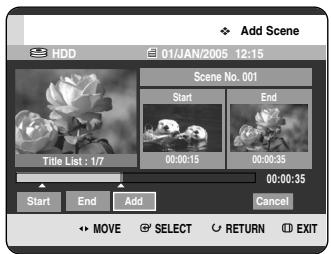
- The image and time of the end point are displayed in the End window.
- To cancel, press the ◀▶ buttons to select Cancel, then press the OK button.
8 Press the ◀▶ buttons to select Add, then press the OK button.
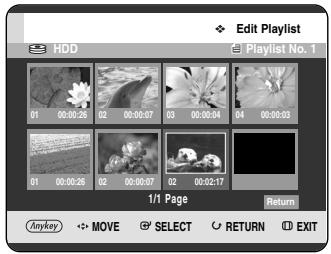
- The section you want to add is inserted prior to the scene selected in step 4 of Adding a Scene on the previous page.
Deleting a Scene
To setup, follow steps 1 to 3 in page 106.
4 Press the ▲▼ ◀▶ buttons to select the scene you want to delete, then press the ANYKEY button.
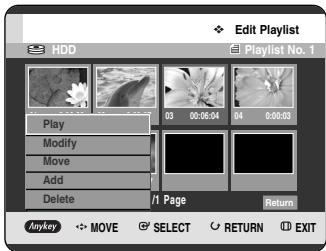
5 Press the ▲▼ buttons to select Delete, then press the OK or ▶ button.
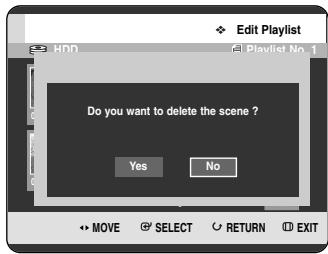
- The message "Do you want to delete the scene?" is displayed.
6 Press the ◀▶ buttons to select Yes, then press the OK to delete the selected scene.
I Deleting a Playlist Entry from the Playlist

Using the PLAY LIST button
1 With the unit in Stop mode/Playback mode, press the PLAY LIST button.
The Edit Playlist screen is displayed.
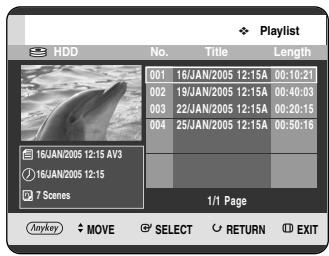
Using the MENU button.
- With the unit in Stop mode/Playback mode, press the MENU button.
- Press the ▲▼ buttons to select Title, then press the OK or ▶ button twice. The Title List screen is displayed.
- Press the ANYKEY button.
- Press the ▲▼ buttons to select Playlist, then press the OK or ▶ button.
- Press the ▲▼ buttons to select Go To Playlist, then press the OK or ▶ button.
2 Press the ▲▼ buttons to select the title you want to edit from the Playlist, then press the ANYKEY button. The Edit Playlist menu is displayed: Rename, Copy, Delete, Edit Playlist, Go To Titlelist, Disc Manager.
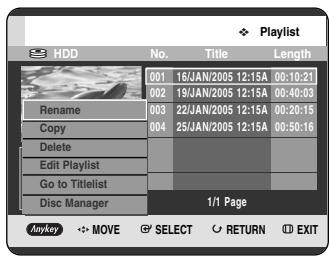
3 Press the ▲▼ buttons to select Delete, then press the OK or ▶ button.
- You will be prompted with the delete confirmation message "Do you want to delete?".
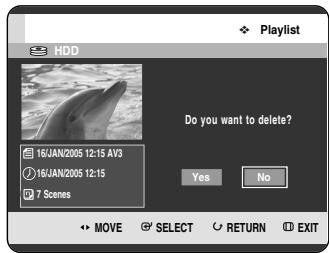
4 Press the ◀▶ buttons to select Yes, then press the OK button.
You automatically returned to the Playlist screen after the delete operation has finished.
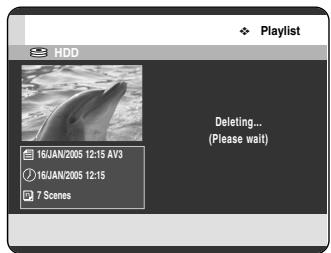
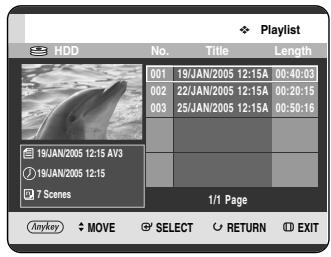
Copying from HDD to DVD
About the Copy Screen
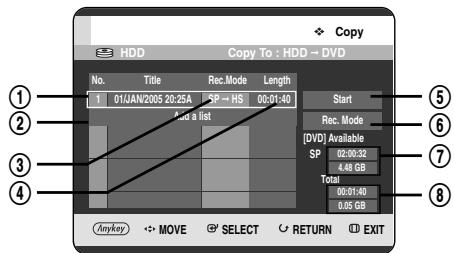
① Title to be copied ② Add titles to be copied (up to 7 titles can be copied at one time) ③ Recording mode for copying
- HS (high speed): you can copy more quickly than normal playback speed.
Copies in the same record mode as source title. - XP/SP/LP/EP: you cannot use high speed copy.
④ Record time of title to be copied ⑤ Copy start button ⑥ Record mode setup button ⑦ Remaining time and space on the current disc in DVD Record mode ⑧ Total record time and space of selected titles for copying
Contents Copy Specifications
| Contents | HDD → DVD |
| Recorded Video Title | Supported |
| Copy Protected Title | Not supported |
| Copy Once Title | Move(Deletes the Title in the HDD after copying) |
Once "Copy Once programme" has been recorded on the DVD disc, this title cannot be copied to HDD anymore. But if "Copy Once programme" has been recorded on the HDD, this title can be copied to DVD-RW (VR mode) or DVD-RAM.

Using the TITLE LIST button
1 Press the OPEN/CLOSE button and place a recordable disc on the disc tray. 2 Press the OPEN/CLOSE button to close the disc tray. Wait until LOAD disappears from the front panel display. Check that the disc has enough available space for the recording. 3 Select the HDD by pressing the HDD button on the front panel of the HDD & DVD RECORDER or on the remote control. 4 With the unit in Stop mode/Playback mode, press the TITLE LIST button. The Title List screen is displayed.
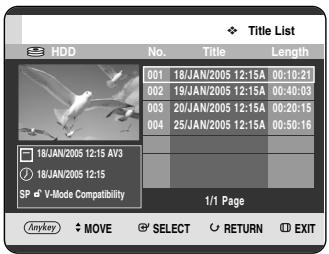
Using the MENU button.
- With the unit in Stop mode/Playback mode, press the MENU button.
- Press the ▲▼ buttons to select Title, then press the OK or ▶ button twice. The Title List screen is displayed.
5 Press the ▲▼ buttons to select the title you want to copy.
To move to other pages, press the SKIP (◀◀◀) buttons.
SKIP (←): previous page of title list
SKIP (○): next page of title list
6 Press the ANYKEY button.
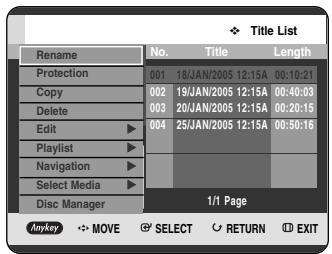
7 Press the ▲▼ buttons to select Copy, then press the OK or ▶ button.
The Copy screen is displayed.
![Copy HDD Copy To : HDD - DVD No. Title Rec.Mode Length 1 18/JAN/2005 12:15A LP → HS 00:10:21 Add a list Start Rec. Mode [DVD] Available LP 04:00:16 4.48 GB Total 00:10:21 0.25 GB Anykey MOVE SELECT RETURN EXIT](/content/2019/12/27521/images/1c5841e37540a350b89568c80b608c62df5d2fed44d57f5c42dadacb440f721e.jpg)
- If you want to change the record mode when copying, see page 117.
8 Press the OK or ▶ button to select Start, then press the OK button.
![Copy HDD Copy To : HDD → DVD No. Title Rec.Mode Length 1 18/JAN/2005 12:15A LP → HS 00:10:21 Add a list Start Rec. Mode [DVD] Available LP 04:00:16 4.48 GB Total 00:10:21 0.25 GB MOVE SELECT RETURN EXIT](/content/2019/12/27521/images/00836676aef7c136375c44f1f5746557e5b40890f8da7636c7137172eaf6b929.jpg)
- About Using the COPY button -
Press the ▲▼ buttons to select the title you want to copy from the title list, and then press the COPY button on the remote control. You can go to the copy screen.
- During playback, you can also copy the title by pressing the COPY button.
- Copying a Title that has been edited once before -
9 The "Do you want to view the screen of the copying title?" message is displayed.
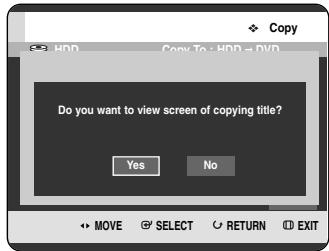
10 To copy a title while viewing the title on the copy screen, press the ◀▶ buttons to select Yes, then press the OK button.
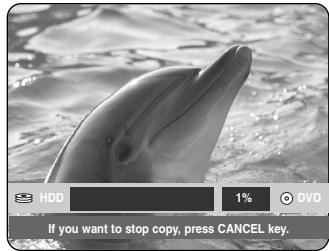
- If No is selected, the title to be copied is not displayed on the screen, and copying begins while the currently broadcasting programme is displayed on the screen.
- To cancel the copying in progress, press the CANCEL button.
- Copying an Unedited title -
9-1 The "Do you want to use high speed copy mode?" message is displayed.
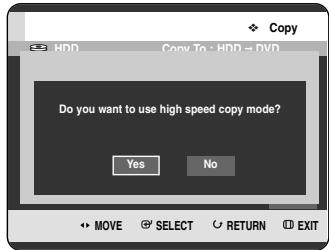

NOTE
- High speed copy: This means that you can transfer without having to worry about the quality getting worse with each copy 'generation'. It also means that copying can be carried out at the maximum speed possible.
10 -1 To begin high speed copy, press the ◀▶ buttons to select Yes, then press the OK button. High speed copy begins. The title to be copied is not played back, while the currently broadcasting programme is displayed on the screen.
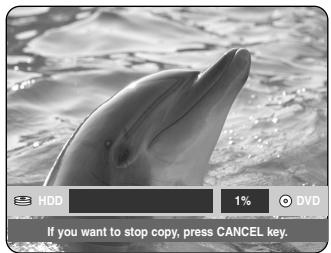
- If No is selected, the title to be copied is displayed at its playback speed while copying.
- To cancel the copying in progress, press the CANCEL button.
11-1 After a successful copy, "The title is successfully copied" message is displayed.
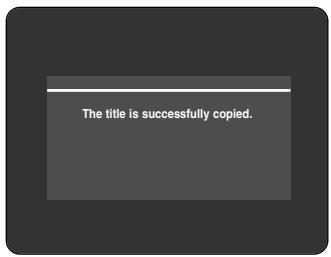
Changing the Record Mode
To setup, follow steps 1 to 7 in page 112.
8 Press the ▶ and ▼ buttons to select Rec. Mode, then press the OK button.
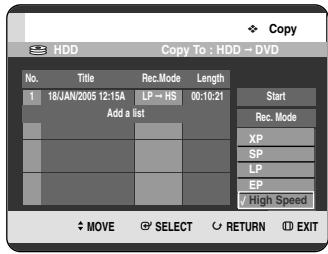
9 Press the ▲▼ buttons to select record mode you want to record, then press the OK button.
- HS(High Speed) : Copies in the same record mode as HDD.
- XP/SP/LP/EP : You cannot copy the higher quality mode than original. If the same record mode is selected, the title is copied at high speed.

NOTE
■ Using the same method, you can copy a Playlist. ■ High speed copying is not available for a title list that has been deleted partially. ■ During copying, timer recording is not available. ■ High speed copying is not available when: - Copying a title that can only be copied once - Copying a playlist - Copying a partially-deleted title ■ Regarding title lists that can be copied only once: - Only available for DVD discs that support CPRM - If a playlist contains a scene that can only be copied once, it cannot be copied.
Copying Multiple Titles at One Time

Using the TITLE LIST button
1 Press the OPEN/CLOSE button and place a recordable disc on the disc tray. 2 Press the OPEN/CLOSE button to close the disc tray. Wait until LOAD disappears from the front panel display. Check that the disc has enough available space for the recording. 3 Select the HDD by pressing the HDD button on the front panel of the HDD & DVD RECORDER or on the remote control. 4 With the unit in Stop mode/Playback mode, press the TITLE LIST button. The Title List screen is displayed.
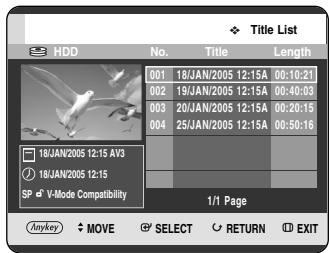
Using the MENU button.
- With the unit in Stop mode/Playback mode, press the MENU button.
- Press the ▲▼ buttons to select Title, then press the OK or ▶ button twice. The Title List screen is displayed.
5 Press the ▲▼ buttons to select the title you want to copy.
To move to other pages, press the SKIP (◀◀) buttons.
SKIP(←) : previous page of title list
SKIP(○) : next page of title list
6 Press the ANYKEY button.
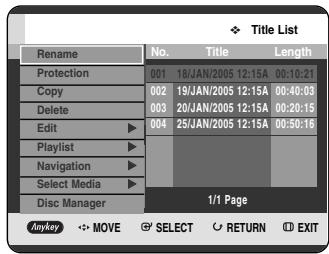
7 Press the ▲▼ buttons to select Copy, then press the OK or ▶ button.
Copy screen is displayed.
![Copy HDD Copy To : HDD → DVD No. Title Rec. Mode Length 1 18/JAN/2005 12:15A LP→HS 00:10:21 Add a list Start Rec. Mode [DVD] Available LP 04:00:16 4.48 GB Total 00:10:21 0.25 GB Anykey ←→ MOVE ⚪ SELECT RETURN ⏻ EXIT](/content/2019/12/27521/images/594244d58dc27ba0c88a7b63738ac248a2bfb4c30febf7ca413de0738ae769a1.jpg)
8 Press the ANYKEY button.
![Copy HDD Copy To : HDD → DVD No. Title Rec.Mode Length 1 18/AN/2005 12:15A LP → HS 00:10:21 Add a list Add Delete Preview Rec. Mode Start Rec. Mode [DVD] Available LP 04:00:16 4.48 GB Total 00:10:21 0.25 GB Anykey MOVE SELECT RETURN EXIT](/content/2019/12/27521/images/eb2f7a042e819c306ba0bd1e23b5df97c082439b1a2a8decf851bcde7024ed8c.jpg)
9 Press the ▲▼ buttons to select Add, then press the OK button. Add Copy List screen is displayed.
Press the ▲▼ buttons to select you want to copy, then press the OK button.
Other method: Press the ▲▼ buttons to select Add a list, then press the OK button.
Press the ▲▼ buttons to select the title you want to copy, then press the OK button.
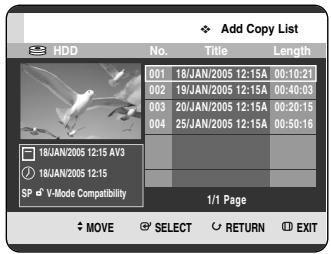
10 Press the ▲▼ buttons to select an additional title you want to copy, then press the OK button.
Repeat steps 8~10 to select a title you want to copy.
![Copy HDD Copy To : HDD → DVD No. Title Rec.Mode Length 1 18JAN/2005 12:15A LP → HS 00:10:21 2 19JAN/2005 13:15A LP → HS 00:15:21 3 20JAN/2005 15:15A LP → HS 00:30:21 Add a list Start Rec. Mode [DVD] Available LP 04:00:16 4.48 GB Total 00:56:03 1.88 GB Anykey MOVE SELECT RETURN EXIT](/content/2019/12/27521/images/7c11073831e83f9f8913bb043eae6760c8bdddb007d8e9b668d91a114a049a40.jpg)
11 Press the OK or ▶ buttons to select Start, then press the OK button.
![Copy HDD Copy To : HDD → DVD No. Title Rec.Mode Length 1 18JAN/2005 12:15A LP → HS 00:10:21 2 19JAN/2005 13:15A LP → HS 00:15:21 3 20JAN/2005 15:15A LP → HS 00:30:21 Add a list Start Rec. Mode [DVD] Available LP 04:00:16 4.46 GB Total 00:56:03 1.88 GB MOVE SELECT RETURN EXIT](/content/2019/12/27521/images/afdd61b33ce699c422b05d5e5d01ef6624a68c116e97c7bac76f17bc9ff9f0cf.jpg)
The added titles in the copy list are copied.
To cancel the copying in progress, press the CANCEL button.
NOTE
■ If the copy list contains at least one title that cannot be copied at high speed, it performs step 9 described on page 113.
Otherwise, it performs step 9-1 described on page 113.
I Deleting an Undesired Title from the Copy List
To set up, follow steps 1 to 7 on pages 114~115.
8 Press the ▲▼ buttons to select a title you want to delete from the copy screen.
![Copy HDD Copy To : HDD → DVD No. Title Rec.Mode Length 1 18/AN/2005 12:15A LP → HS 00:10:21 2 19/AN/2005 13:15A LP → HS 00:15:21 3 20/AN/2005 15:15A LP → HS 00:30:21 Add a list Start Rec. Mode [DVD] Available LP 04:00:16 4.48 GB Total 00:56:03 1.88 GB Anyway MOVE SELECT RETURN EXIT](/content/2019/12/27521/images/5caa2bfd938dcdbc8b89cbaad72c8a46474834272a5bee8400609768e7eb0f08.jpg)
9 Press the ANYKEY button. Press the ▲▼ buttons to select Delete, then press the OK or ▶ button. The message "Do you want to delete?" is displayed.
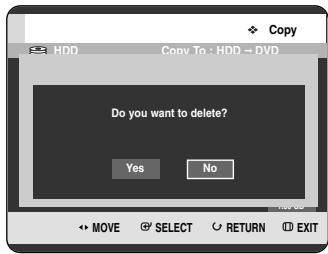
10 Press the ◀▶ buttons to select Yes, then press the OK button. The selected title is deleted.
![Copy HDD Copy To : HDD → DVD No. Title Rec.Mode Length 1 19/JAN/2005 13:15A LP → HS 00:15:21 3 20/JAN/2005 15:15A LP → HS 00:30:21 Add a list Start Rec. Mode [DVD] Available LP 04:00:16 4.48 GB Total 00:45:42 1.30 GB Anyway MOVE SELECT RETURN EXIT](/content/2019/12/27521/images/015df1a188f0587b636ef0c50e602a17c19907a107cd75eb5a05cf20b7b72aeb.jpg)
Previewing a Selected Title from the Copy List
To set up, follow steps 1 to 7 on pages 114~115.
8 Press the ▲▼ buttons to select a title you want to preview in the copy screen.
![Copy HDD Copy To : HDD → DVD No. Title Rec. Mode Length 1 18/AN/2005 12:15A LP → HS 00:10:21 2 19/AN/2005 13:15A SP → LS 00:15:21 3 20/AN/2005 15:15A SP → HS 00:30:21 Add a list Start Rec. Mode [DIV] Available LP 04:00:16 4.48 GB Total 00:56:03 1.88 GB Anykey ←→ MOVE ⚪ SELECT RETURN ⬉ EXIT](/content/2019/12/27521/images/e55ee5ca87a93364dc8774adcbe754561335f11e436d92a442fa07b323a271fe.jpg)
9 Press the ANYKEY button. Press the ▲▼ buttons to select Preview, then press the OK or ▶ button. You can preview the selected title through the display window located at the centre of the screen.
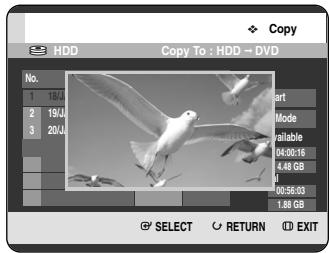
10 Press the RETURN button to exit the Preview mode.
Selecting Record Mode of Each Title from the Copy List
You can copy multiple titles while setting different record modes for each title.
To set up, follow steps 1 to 7 on pages 114~115.
8 Press the ▲▼ buttons to select a title to change its record mode in the copy screen.
![Copy HDD Copy To : HDD → DVD No. Title Rec.Mode Length 1 18/AN/2005 12:15A LP → HS 00:10:23 2 19/AN/2005 13:15A SP → LS 00:15:21 3 20/AN/2005 15:15A SP → HS 00:30:21 Add a list Start Rec. Mode [DVD] Available LP 04:00:16 4.48 GB Total 00:56:03 1.88 GB Anyway MOVE SELECT RETURN EXIT](/content/2019/12/27521/images/bcd7d2526b7a4bd67274548ca9446fbad2860db54c7f8a974d3995c6858376ec.jpg)
9 Press the ANYKEY button. Press the ▲▼ buttons to select Rec. Mode, then press the OK or ▶ button.
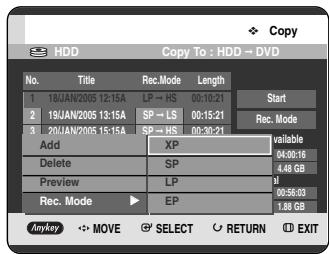
10 Press the ▲▼ buttons to select the record mode you want, then press the OK or ▶ button.
11 Repeat steps 9~11 to select a title to change its record mode. The rest of the copying process can be performed as described on pages 112 to 113.
Changing Record Mode of All Titles from the Copy List
You can copy multiple titles while setting the same record mode for all titles.
To set up, follow steps 1 to 7 on pages 114~115.
8 Select the Rec. Mode on the right-hand side of the screen using the ▲▼◀▶ buttons, then press the OK button.
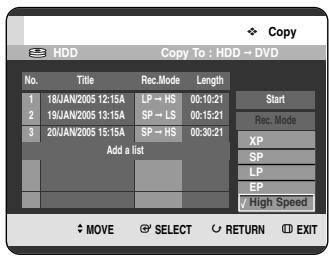
9 Press the ▲▼ buttons to select the record mode you want, then press the OK button.
The rest of the copying process can be performed as described on pages 112 to 113.
![Copy HDD Copy To: HDD → DVD No. Title Rec.Mode Length 1 18JAN2005 12:15A LP → HS 00:10:21 2 19JAN2005 13:15A SP → HS 00:15:21 3 20JAN2005 15:15A SP → HS 00:30:21 Add a list Start Rec. Mode [DVD] Available LP 04:00:16 4.46 GB Total 00:56:03 1.88 GB Anykey MOVE SELECT RETURN EXIT](/content/2019/12/27521/images/13dd5ca277f8200965bc2ff4efbf18a94be508c6f693162144cb527f4d5f4514.jpg)
Copying from DVD to HDD

Using the TITLE LIST button
1 Press the OPEN/CLOSE button and place a recordable disc on the disc tray. 2 Press the OPEN/CLOSE button to close the disc tray. 3 With the unit in Stop mode/Playback mode, press the TITLE LIST button. The Title List screen is displayed.
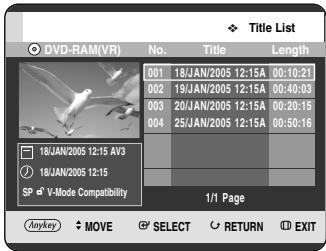
Using the MENU button.
- With the unit in Stop mode/Playback mode, press the MENU button.
- Press the ▲▼ buttons to select Title, then press the OK or ▶ button.
- Press the ▲▼ buttons to select Title List, then press the OK or ▶ button. The Title List screen is displayed.
4 Press the ▲▼ buttons to select the title you want to copy.
To move to other pages, press the SKIP (◀◀◀◀) buttons.
SKIP(◀) : previous page of title list
SKIP(○) : next page of title list
5 Press the ANYKEY button.
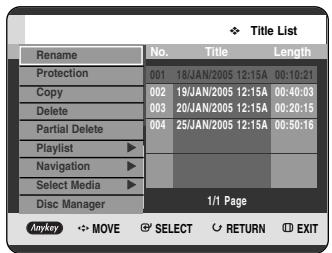
6 Press the ▲▼ buttons to select Copy, then press the OK or ▶ button.
The copy screen is displayed.
![Copy DVD-RAM(VR) Copy To: DVD → HDD No. Title Rec.Mode Length 1 18JAN/2005 12:15A LP → HS 00:10:21 Start Add a list [HD] Available LP 40:16:56 52.99 GB Total 00:10:21 0.25 GB Anykey MOVE SELECT RETURN EXIT](/content/2019/12/27521/images/e94ecd999b8856c72c0bc11094f1467e354f07505a5355b4eaf3cdc410e41bec.jpg)
About Using the COPY Button
Press the ▲▼ buttons to select the title you want to copy from the title list, then press the COPY button on the remote control. The copy screen appears.
During playback, you can also copy the title by pressing the COPY button.
Press the OK or ▶ buttons to select Start, then press the OK button.
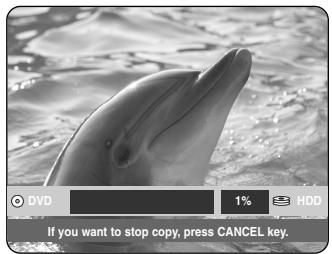
After a successful copy, the message "The title is successfully copied." is displayed.
- Copying Multiple Titles at One Time – Same as an HDD operation (see page 114)
- Deleting an Undesired Title from the Copy List – Same as an HDD operation (see page 116)
- Previewing a Selected Title from the Copy List – Same as an HDD operation (see page 116)
NOTE
■ You cannot copy anything else on finalized DVD-R and DVD-RW (V mode) discs. ■ You cannot copy a DVD-VIDEO to HDD. ■ Only video will be copied from title lists or playlists that contain still images. ■ High-speed copying from a DVD-RAM or DVD-RW (VR mode) is available. ■ When you copy from a DVD-RW (V mode)/-R disc to HDD, high-speed copy is not available. ■ The record mode cannot be changed when you copy a title from DVD to HDD.
Contents Copy Specifications
| Contents | DVD → HDD |
| Recorded Video Title | Supported |
| Copy Protected Title | Not supported |
| Copy Once Title | Not supported |
Copying MP3 or JPEG Files from a Disc to HDD
File Copy
1. Insert a JPEG disc or MP3 disc into the disc tray. 2. Press the OPEN/CLOSE button to close the disc tray. Wait until LOAD disappears from the front panel display. Check that the disc has enough available space for the recording. 3. Press the ▲▼ buttons to select Music or Photo, then press the OK or ▶ button. The MP3 or JPEG file list is displayed.
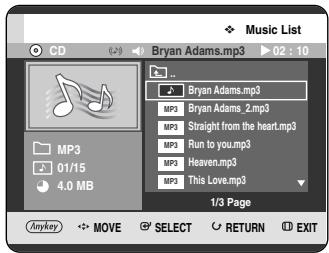
4 Press the ▲▼ buttons to select the MP3 or JPEG files you want to copy, then press the ANYKEY button.
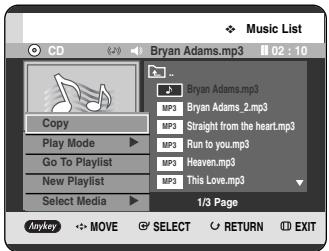
5 Press the ▲▼ buttons to select Copy, then press the OK or ▶ button.
File copy begins.
The copying of only 1 file cannot be cancelled. When copying only 1 file from a disc to HDD, it is located under the HDD's Music or Photo folder.
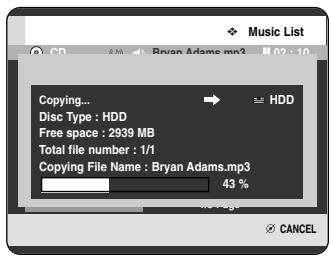
Folder Copy
1 Insert a Disc (JPEG or MP3) in to the tray.
2 Press the ▲▼ buttons to select Music or Photo, then press the OK or ▶ button. MP3 or JPEG folder are displayed.
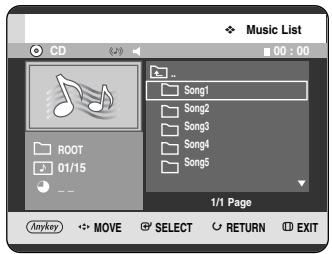
3 Press the ▲▼ buttons to select the MP3 or JPEG folder you want to copy, then press the ANYKEY button.
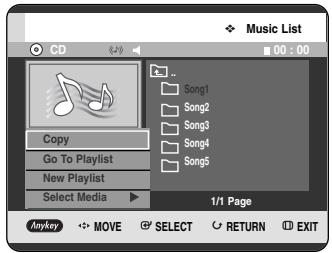
4 Press the ▲▼ buttons to select Copy, then press the OK or ▶ button.
Folder copy begins.
Subfolders and files in the selected folder are copied.
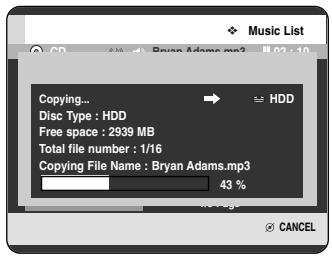

NOTE
- Pressing the CANCEL button during folder copying will cancel the folder copying after the current file is copied. ■ Up to 1,500 files and 1,000 subfolders can be copied into one folder for MP3 files. ■ Up to 4,500 files and 1,000 subfolders can be copied into one folder for JPEG files. ■ Files having an existing name of ***.mp3/***.jpg, is automatically renamed to ***01.mp3/***01.jpg and copied. ■ It allows up to 999 copies to have the same name. ■ You cannot copy an Audio CD. ■ MP3 or JPEG files can be copied only from a disc to the HDD. ■ The sizes of a file in a disc and the copied one in the HDD may be slightly different due to the file system.
Contents Copy Specifications
| Contents | HDD → DVD | DVD → HDD |
| MP3 | Not supported | supported |
| JPEG(photo) | Not supported | supported |
| DivX | Not supported | Not supported |
Disc Manager
Editing the Disc Name
Follow these instructions to give a name to a disc.


1. With the unit in Stop mode, press the ANYKEY button.
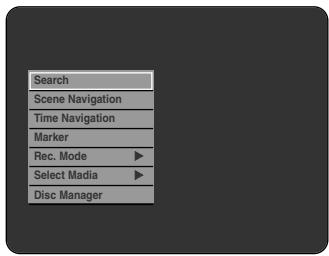
2. Press the ▲▼ buttons to select Disc Manager, then press the OK or ▶ button.
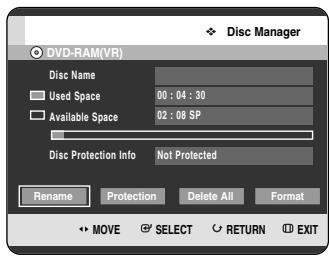
3. Press the ◀▶ buttons to select Rename, then press the OK button. The Rename screen is displayed.
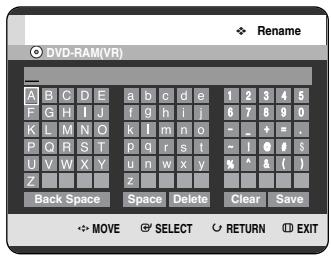
4. Select the desired characters using the ▲▼ ◀▶ buttons, then press the OK button.
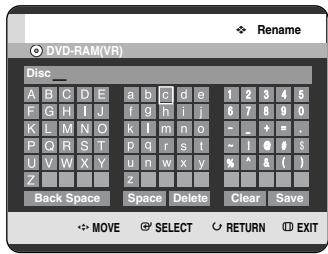
5. Press the ▲▼◀▶ buttons to select Save, then press the OK button. A disc name is given to the disc.
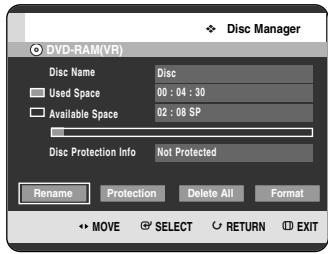

■ You may need to clear disc protect before beginning editing. ■ Depending on the kind of disc, the displayed screen may be different.
| Disc Protection
Disc Protection allows you to protect your discs from being formatted or deleted due to unintended operations.


1. With the unit in Stop mode, press the ANYKEY button.
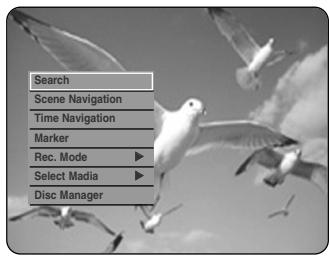
2. Press the ▲▼ buttons to select Disc Manager, then press the OK or ▶ button.
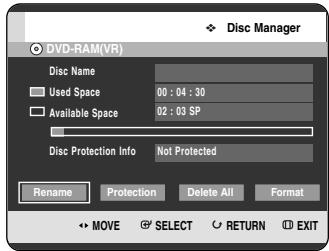
3. Press the ◀▶ buttons to select Protection, then press the OK button.
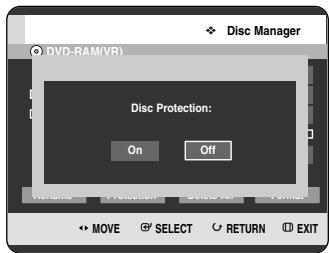
4. Press the ◀▶ buttons to select On, then press the OK button.
| Formatting a Disc
Use these instructions to format a disc. The disc protection should also be cleared.


1 With the unit in Stop mode, press the ANYKEY button.
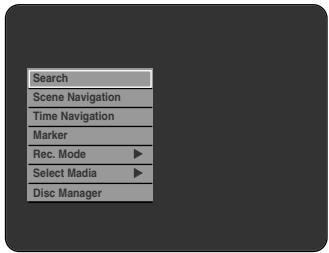
2 Press the ▲▼ buttons to select Disc Manager, then press the OK or ▶ button.
![Disc Manager HDD [Title Partition] Used Space 00:10:32 Available Space 35:47:10 SP [Music/Photo Partition] Used Space 0006MB Available Space 10034MB Delete All Format MOVE SELECT RETURN EXIT](/content/2019/12/27521/images/4a7367791988ad3bc67e768c6284a31449a6f84f3ca0f585c910b3c0cf8f9874.jpg)
3 Press the ◀▶ buttons to select Format, then press the OK button.
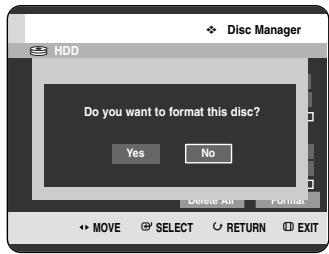
HDD/DVD-RAM
- You will be prompted with the confirmation message "Do you want to format this disc?".
- If you select Yes, you will be prompted with the confirmation message "All data will be deleted. Do you want to continue?".
DVD-RW
- You will be prompted with the confirmation message "Choose the recording format for DVD-RW."
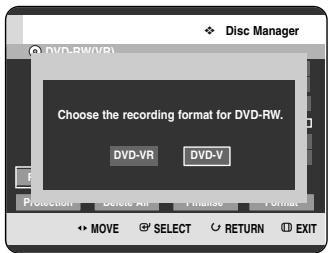
4 Press the ◀▶ buttons to select Yes, then press the OK button. The disc is formatted.
DVD-VR and DVD-V are defined according to their recording format.
| DVD-VR | DVD-V | |
| DISC | DVD-RAMDVD-RW | DVD-RWDVD-R |
Delete All Title Lists/Music Lists/Photo Lists

1 With the unit in Stop mode, press the ANYKEY button.
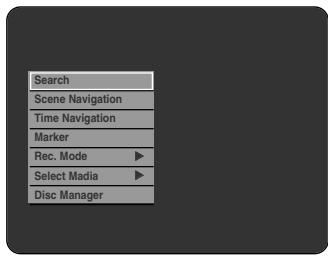
2 Press the ▲▼ buttons to select Disc Manager, then press the OK or ▶ button.
![Disc Manager HDD [Title Partition] Used Space 00:18:32 Available Space 35:47:10 SP [Music/Photo Partition] Used Space 0006MB Available Space 10034MB Delete All Format MOVE SELECT RETURN EXIT](/content/2019/12/27521/images/b58339a2e1fa1dd4715e93cc1cc378000958fbfa5da5013fae17e4d8ec2e7c38.jpg)
3 Press the ◀▶ buttons to select Delete All, then press the OK button.
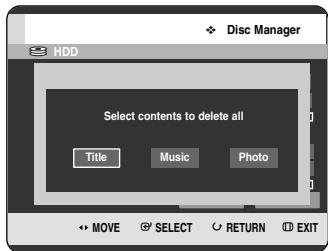
- When Protected Entry exists: The Delete All Title List function will not operate. If there is a title containing a still picture, however, that function will not operate. If you want to delete a protected entry, disable Protect for it on the Lock item.
4 Press the ◀▶ buttons to select Title, Music, or Photo, then press the OK button.
Title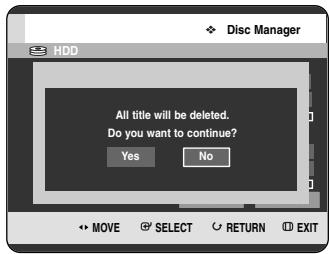
Music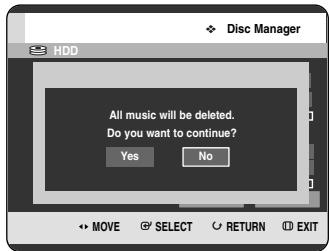
Photo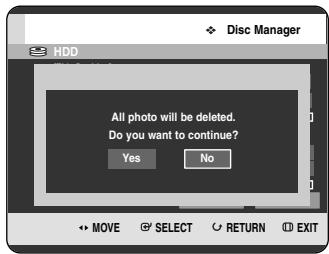
5 Press the ◀▶ buttons to select Yes, then press the OK button.
All title lists, music lists, or photo lists are deleted.
Delete All Title Lists


1 With the unit in Stop mode, press the ANYKEY button.
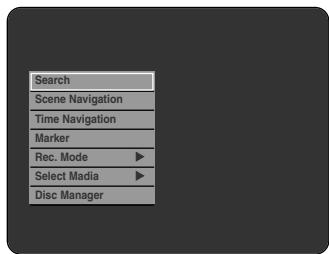
2 Press the ▲▼ buttons to select Disc Manager, then press the OK or ▶ button.
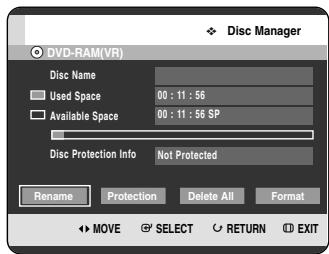
3 Press the ◀▶ buttons to select Delete All, then press the OK button.
- You will be prompted with the confirmation message "Do you want to delete all title lists?".
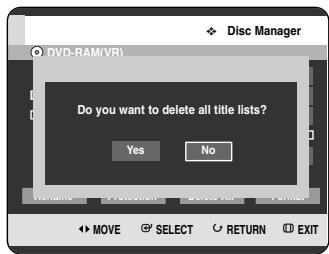
- When Protected Entry exists: The Delete All Title List function will not operate. If there is a title containing a still picture, however, that function will not operate. If you want to delete a protected entry, disable Protect for it on the Lock item. - When a protected DVD-RAM is used, data cannot be deleted from a disc.
4 Press the ◀▶ buttons to select Yes, then press the OK button.
All title lists are deleted.
Finalising a Disc
After you record titles onto a DVD-RW/DVD-R disc with your HDD & DVD RECORDER, it needs to be finalised before it can be played back on external devices.


1 With the unit in Stop mode, press the ANYKEY button.
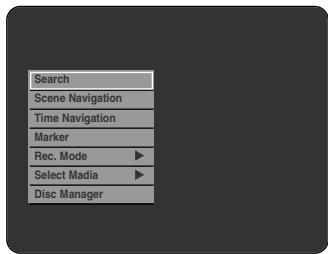
2 Press the ▲▼ buttons to select Disc Manager, then press the OK or ▶ button.
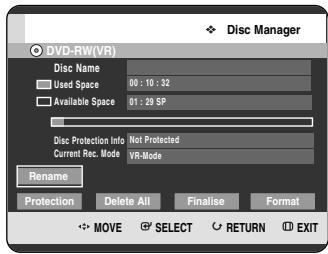
3 Press the ▲▼ ◀▶ buttons to select Finalise, then press the OK button.
You will be prompted with the message "Do you want to finalise disc?".
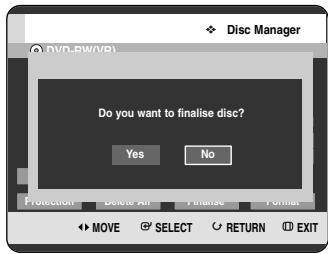
If you select Yes, you will be prompted again with the message "Disc will be finalised. Do you want to continue?".
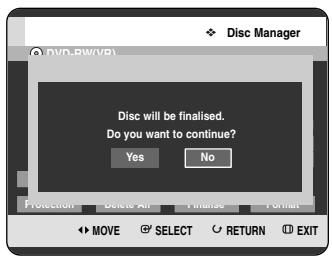
4 Press the ◀▶ buttons to select Yes, then press the OK button.
The disc is finalised.
NOTE
■ Once a disc is finalised, you cannot delete entries from the record list. ■ After being finalised, the DVD-R/DVD-RW(video mode) operates in the same manner as a DVD-Video. ■ Depending on the disc type, the displayed screen may be different. ■ Finalising time may be different depending on the amount of data recorded on the disc. ■ Data on the disc will be damaged if the recorder is powered off during finalise process. ■ When the disc contains a music or JPEG files, you cannot finalise the disc.
Unfinalising a Disc (V/VR mode)

1 With the unit in Stop mode, press the ANYKEY button.
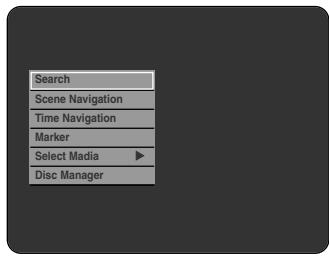
2 Press the ▲▼ buttons to select Disc Manager, then press the OK or ▶ button.
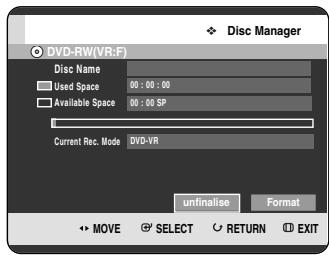
3 Press the ◀▶ buttons to select Unfinalise, then press the OK button.
You will be prompted with the message "Do you want to unfinalise disc?".
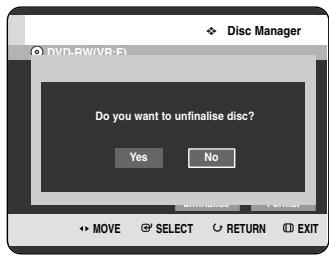
If you select Yes, you will be prompted again with the message "Disc will be unfinalised. Do you want to continue?".
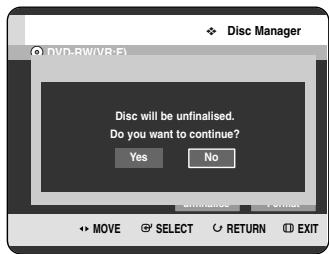
4 Press the ◀▶ buttons to select Yes, then press the OK button.
The disc is unfinalised.
NOTE
■ A DVD-RW can be finalised or unfinalised in Video mode.
| Finalise | Unfinalise | |
| Mark | DVD-Video(RW) | DVD-RW(V) |
| Operation | Same as DVD-Video | Additional recording, protection and deletion are possible. |
■ A DVD-RW can be finalised or unfinalised in VR mode.
| Finalise | Unfinalise | |
| Mark | DVD-RW(VR:F) | DVD-RW(VR) |
| Operation | Additional recording, deletion, editing, and protection are impossible. | Additional recording, deletion, editing, and protection are possible. |
Reference
Troubleshooting 128
Specifications 132
Troubleshooting
If your product malfunctions, go through the checkpoints below before contacting a Samsung authorised service centre.
Power
The input is displayed for a while when the power is turned on.

Checkpoint 1
The HDD & DVD RECORDER requires some time to initialize and the input will be displayed for approx. 10 seconds after it is turned on.
Recording
Cannot record TV programmes.

Checkpoint 1
Check whether the power cord is securely plugged into the power outlet.
Checkpoint 2
Did you set the HDD & DVD RECORDER channel settings correctly?
Checkpoint 3
Check the free space on your HDD/DVD-RAM/-RW/-R discs.
I pressed the REC button but there is no response.

Checkpoint 1
Recording is possible for HDD/DVD-RAM/-RW/-R discs only. If a programme is copy protected, it cannot be recorded.
Playback
Cannot play the disc.

Checkpoint 1
Check whether the disc is inserted correctly with the label facing up.
Check the regional code of the DVD disc.
This HDD & DVD RECORDER cannot play some types of discs. (See pages 6, 46)
The ∅ icon appears on the screen.

You cannot use this operation or function due to one of the following reasons:
(1) Your DVD disc restricts it. (2) Your DVD disc does not support this feature (for example: angles) (3) The feature is not available at the moment. (4) You've requested a title, chapter, or scan time that is out of range.
Play mode settings are different from the settings configured in the Settings menu.

The disc does not support all selected functions. In this case, some settings configured in the settings menu may not work properly.
Cannot change the aspect ratio.

The aspect ratio is fixed for DVD discs. (See pages 40~41)
The angle operation does not work while playing a DVD disc.

The angle operation is available only when the disc contains images captured from different angles.
The selected audio and/or subtitle language is not played.

Audio and subtitle languages are disc-specific. Only the sound and subtitle languages contained on the DVD disc are available and displayed in the disc menu.
Cannot copy title or file to the other mode.

DVD discs encoded with copy protection cannot be copied to HDD.
Refer to "Contents Copy Specifications" on page 5 to check if copying is supported.
Video
The disc revolves, but no image or bad quality images are displayed.

Be sure that the Video Setting is properly set. (See pages 40~41)
Checkpoint 2
Check whether there is damage to or any foreign material on your disc.
Checkpoint 3
Some low quality discs may not play properly.
Checkpoint 4
If scenes change from dark to bright suddenly, the screen may shake vertically temporarily, but this is not a fault.
Sound
No sound.

Checkpoint 1
Are you watching a programme in slow or skip mode? If you are playing a programme at a speed other than normal speed, sound will not be heard.
Checkpoint 2
Check the connections and settings. (See pages 22~23, 39)
Checkpoint 3
Check whether the disc is damaged. Clean the disc, if necessary.
Checkpoint 4
Check whether the disc is inserted correctly with the label facing up.
No audio output.

Checkpoint 1
Check whether you have selected the correct digital output options in the Audio Output Options menu. (See page 39)
Timer Recording
Timer lamp flickers.

Checkpoint 1
Check there is enough space in the disc or HDD for recording.
Checkpoint 2
Check whether the current disc is recordable or not. Make sure to check before the start time of recording.
Timer recording does not work properly.

Checkpoint 1
Re-check the recording time and the end time settings again.
Checkpoint 2
Recording will be cancelled if the power is interrupted due to a power failure or another similar reason while recording.
Remote Control Unit
The remote control doesn't work.

Checkpoint 1
Point the remote control at the remote control sensor on your HDD & DVD RECORDER. Allow for proper distance. Remove obstacles between your HDD & DVD RECORDER and the remote control.
Checkpoint 2
Check whether the batteries are empty.
Checkpoint 3
Check for the TV/DVD selection button.
Checkpoint 4
Check whether TV control button is selected or not.
Other problems.

Checkpoint 1
Read the table of contents and then find and read the section describing your problem, follow the instructions given.
Checkpoint 2
Plug your HDD & DVD RECORDER off and on.
Checkpoint 3
If the problem still persists, contact a nearby Samsung service centre.
Other
I forgot my password for parental supervision.

Checkpoint 1
Press and hold the ▶▶1 button on the front panel of the Recorder for more than 5 seconds with no disc in the unit. All settings including the password will revert to the factory settings. Do not use this unless absolutely necessary. (Note that this function is possible only when no disc is inserted.)
Is it possible to change a subtitle and an audio signal on a recorded disc?

Checkpoint 1
A recorded disc is played with only the subtitle and the audio signal which were selected during recording.
| General | Power requirements | AC 220-240V, 50Hz | |
| Power consumption | 45 Watts | ||
| Weight | 4,2 Kg | ||
| Dimensions | 430mm(W) x 255mm(D) x 79mm(H) | ||
| Operating temp. | +5°C to +35°C | ||
| Other conditions | Keep level when operating. Less than 75% operating humidity | ||
| Input | Video | Composite Video: 1,0 V p-p at 75Ω load, sync negative | |
| Audio | Max.Audio Input Level: 2Vrms | ||
| DV Input | IEEE 1394(4p) compatible jack | ||
| Receivable Channels | PAL-B/G, SECAM-L/L' | ||
| Scart Jack | AV1 (Scart TV) | Video: Composite, Audio: analogue | |
| AV2 (Scart Ext) | Video: Composite, RGB Audio: analogue | ||
| Output | Audio | Analogue output jacks x 2 | |
| Optical/Coaxial digital audio output | |||
| Video | Composite Video: Video output jack x 1 | ||
| S-Video output x 1 (Y:1,0Vp-p, C:0,286Vp-p at 75Ω load) | |||
| Component output x 1 (Y: 1,0Vp-p, Pb: 0,70Vp-p, Pr: 0,70Vp-p at 75Ω load) | |||
| Scart Jack | AV1 (Scart TV) | Video: Composite, RGB Audio: analogue | |
| Recording | Picture Compression format | MPEG-II | |
| Audio Compression format | Dolby Digital 2ch/256Kbps, MPEG-II | ||
| Recording Quality | XP (about 8,5 Mbps), SP (about 4,5 Mbps), LP (about 2,5 Mbps), | ||
| EP (about 1,6 Mbps or about 1,2 Mbps) | |||
| Audio Frequency Response | 20 Hz~20 kHz | ||
Audio Output
For DVD discs, audio signals recorded at 96kHz sampling frequency are converted into and output at 48kHz.
| Disc Type | DVD | AUDIO CD(CD-DA) |
| Analog Audio Output | 48 / 96kHz | 44,1kHz |
| Digital Audio Output | 48kHz | 44,1kHz |
This Samsung product is warranted for the period of twelve (12) months from the original date of purchase, against defective materials and workmanship. In the event that warranty service is required, you should return the product to the retailer from whom it was purchased.
However, Samsung Authorised Dealers and Authorised Service Centres in other EC Countries will comply with the warranty on the terms issued to purchasers in the country concerned.
In case of difficulty, details of our Authorised Service Centres are available from:
Samsung Electronics (U.K.) Ltd., Euro Service Centre,
Stafford Park 12,
TELFORD, Shropshire TF3 3BJ,
- The warranty is only valid if, when warranty service is required, the warranty card is fully and properly completed and is presented with the original invoice or sales slip or confirmation, and the serial number on the product has not been defaced.
- Samsung's obligations are limited to the repair or, at its discretion, replacement of the product or the defective part.
- Warranty repairs must be carried out by Authorised Samsung Dealers or Authorised Service Centres. No re-imbursement will be made for repairs carried out by non Samsung Dealers and, any such repair work and damage to the products caused by such repair work will not be covered by this warranty.
- This product is not considered to be defective in materials nor workmanship by reason that it requires adaptation in order to conform to national or local technical or safety standards in force in any Country other than the one for which the product was originally designed and manufactured. This warranty will not cover, and no re-imbursement will be made for such adaptation nor any damage which may result.
- This warranty covers none of the following:
a) Periodic check ups, maintenance and repair or replacement of parts due to normal wear and tear. b) Cost relating to transport, removal or installation of the product. c) Misuse, including the failure to use this product for its normal purposes or incorrect installation. d) Damage caused by Lightning, Water, Fire, Acts of God, War, Public Disturbances, incorrect mains voltage, improper ventilation or any other cause beyond the control of Samsung.
- This warranty is valid for any person who legally acquired possession of the product during the warranty period.
- The consumers statutory rights in any applicable national legislation whether against the retailer arising from the purchase contract or otherwise are not affected by this warranty. Unless there is national legislation to the contrary, the rights under this warranty are the consumers sole rights and Samsung, its subsidiaries and distributors shall not be liable for indirect or consequential loss or any damage to records, compact discs, videos or audio taper or any other related equipment or material.
SAMSUNG ELECTRONICS (U.K.) LTD.
SAMSUNG
ELECTRONICS
Correct Disposal of This Product
(Waste Electrical & Electronic Equipment)


(Applicable in the European Union and other European countries with separate collection systems)
This marking shown on the product or its literature indicates that it should not be disposed with other household wastes at the end of its working life. To prevent possible harm to the environment or human health from uncontrolled waste disposal, please separate this from other types of wastes and recycle it responsibly to promote the sustainable reuse of material resources.
Household users should contact either the retailer where they purchased this product, or their local government office, for details of where and how they can take this item for environmentally safe recycling.
Business users should contact their supplier and check the terms and conditions of the purchase contract. This product should not be mixed with other commercial wastes for disposal.
Automatic Chapter Creation....36
Setting NICAM Options....37
DivX(R) Registration 38
Setting Audio Options....38
Specifications....132
General Features
©2005 Samsung Electronics Co.
Ventilator
- DVD mode
| A(Austria) | NL(Netherlands) | S(Sweden) | PL(Poland) |
| B(Belgium) | I(Italy) | CH(Swiss) | CZ (Czech) |
| DK(Denmark) | N(Norway) | TR(Turkey) | Others |
| FIN(Finland) | P(Portugal) | GR(Greece) | |
| D(Deutschland) | E(Spain) | HU(Hungary) |
| A(Austria) | NL(Netherlands) | S(Sweden) | PL(Poland) |
| B(Belgium) | I(Italy) | CH(Swiss) | CZ (Czech) |
| DK(Denmark) | N(Norway) | TR(Turkey) | Others |
| FIN(Finland) | P(Portugal) | GR(Greece) | |
| D(Deutschland) | E(Spain) | HU(Hungary) |
Adjust the brightness of the unit's front panel display.
Automatic Chapter Creation
(V mode)
DivX(R) Registration
Scene Navigation
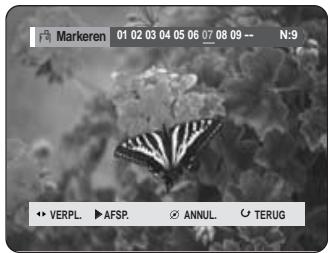


(V mode)

- Repeat the above procedure to mark other positions.
- You can mark up to 10 scenes.
NOTE
DVD-VIDEO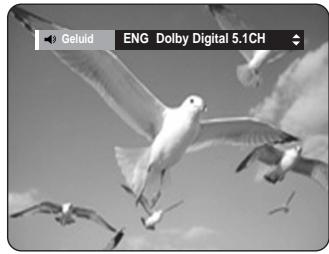
ANYKEY
ANYKEY
New Playlist
| Western | English, Breton, Catalan, Danish, Dutch, Faroese, Finnish, French, Gaelic, German, Icelandic, Irish, Italian, Norwegian, Portuguese, Spanish and Swedish |
| Central | English, Albanian, Croatian, Czech, Hungarian, Polish, Romanian, Slovak, Slovene and Serbian(Latin) |
| Greek | English and modern Greek |

NOTE

©2005 Samsung Electronics Co.
Fan
1. DIGITAL AUDIO OUT (OPTICAL)
| A(Austria) | NL(Netherlands) | S(Sweden) | PL(Poland) |
| B(Belgium) | I(Italy) | CH(Swiss) | CZ (Czech) |
| DK(Denmark) | N(Norway) | TR(Turkey) | Autres |
| FIN(Finland) | P(Portugal) | GR(Greece) | |
| D(Deutschland) | E(Spain) | HU(Hungary) |
| A(Austria) | NL(Netherlands) | S(Sweden) | PL(Poland) |
| B(Belgium) | I(Italy) | CH(Swiss) | CZ (Czech) |
| DK(Denmark) | N(Norway) | TR(Turkey) | Autres |
| FIN(Finland) | P(Portugal) | GR(Greece) | |
| D(Deutschland) | E(Spain) | HU(Hungary) |
ANYKEY
| Occid. | English, Breton, Catalan, Danish, Dutch, Faroese, Finnish, French, Gaelic, German, Icelandic, Irish, Italian, Norwegian, Portuguese, Spanish et Swedish |
| Central | English, Albanian, Croatian, Czech, Hungarian, Polish, Romanian, Slovak, Slovene et Serbian(Latin) |
| Grec | English et modern Greek |

NOTE

(PLAY ( ), SEARCH ( )


- CAUTION
- IMPORTANT NOTE
- PRECAUTION
- IMPORTANT SAFETY INSTRUCTIONS
- HANDLING CAUTIONS
- MAINTENANCE OF CABINET
- HDD (HARD DISK DRIVE)
- DISC HANDLING
- HOLDING DISCS
- DVD-RAM, DVD-RW AND DVD-R
- DVD-VIDEO, AUDIO-CD
- CAUTIONS ON HANDLING DISCS
- DISC STORAGE
- DISC SPECIFICATIONS
- DISC TYPE
- DVD-VIDEO
- AUDIO CD
- CD-RW/-R
- DVD-R DISC PLAYBACK AND RECORDING
- DVD-RW DISC PLAYBACK AND RECORDING
- DVD-RAM DISC PLAYBACK AND RECORDING
- DISC COPY
- COPY PROTECTION
- PROTECTION
- DISC FORMAT
- USING MP3 DISC
- USING JPEG DISC
- USING MPEG4 DISC
- DVD-RW (VR MODE)
- DVD-RW (V MODE)
- DO NOT USE THE FOLLOWING DISCS
- CONTENTS
- GETTING STARTED
- CONNECTING & SETTING UP
- SYSTEM SETUP
- PLAYBACK
- RECORDING
- EDITING
- REFERENCE
- GENERAL FEATURES
- HDD RECORDING
- COPY BETWEEN HDD AND DVD
- SIMULTANEOUS RECORDING AND PLAYBACK
- HIGH QUALITY DIGITAL AUDIO AND VIDEO RECORDING AND PLAYBACK
- SELECTABLE RECORDING MODE
- AUTOMATED QUALITY ADJUSTMENT FOR TIMER RECORDING
- CREATING A DVD VIDEO TITLE USING DVD-RW/-R DISC
- COPYING DATA FROM A DIGITAL CAMCORDER USING A DV INPUT JACK
- HIGH QUALITY PROGRESSIVE SCAN
- A VARIETY OF FUNCTIONS WITH AN EASY-TO-USE USER INTERFACE
- MPEG4 PLAYBACK
- DIVX CERTIFICATION
- BEFORE READING THE USER'S MANUAL
- ABOUT THE USE OF THIS USER'S MANUAL
- COPYRIGHT
- HOW TO USE THE HDD & DVD RECORDER
- STEP 1 SELECT THE DISC TYPE OR HDD
- STEP 2 FORMAT THE DISC TO START RECORDING
- USING A HDD
- USING A DVD-RAM
- USING A DVD-RW
- USING A DVD-R
- STEP 3 RECORDING
- STEP 4 PLAYING
- STEP 5 EDITING A RECORDED DISC
- CREATING A PLAYLIST (DVD-RAM/-RW IN VR MODE, HDD)
- STEP 6 FINISHING & PLAYING ON OTHER DVD COMPONENTS
- WHEN USING A DVD-RW DISC IN VR MODE
- WHEN USING A DVD-RW DISC IN VIDEO MODE
- WHEN USING A DVD-R DISC
- ACCESSORIES
- PREPARING THE REMOTE CONTROL
- INSTALL BATTERIES IN THE REMOTE CONTROL
- IF THE REMOTE DOES NOT OPERATE PROPERLY
- SETTING THE REMOTE CONTROL
- TO DETERMINE WHETHER YOUR TELEVISION IS COMPATIBLE, FOLLOW THE INSTRUCTIONS BELOW
- FRONT PANEL
- FRONT PANEL DISPLAY
- DIGITAL AUDIO OUT (OPTICAL)
- DIGITAL AUDIO OUT (COAXIAL)
- AUDIO OUT
- VIDEO OUT
- S-VIDEO OUT
- COMPONENT VIDEO OUT
- AV1 (TV) OUTPUT SCART CONNECTOR
- AV2 (EXT) INPUT SCART CONNECTOR
- IN FROM AERIAL CONNECTOR
- ☐ OUT TO TV CONNECTOR
- TOUR OF THE REMOTE CONTROL
- QUICK OVERVIEW
- CONNECTING THE HDD & DVD RECORDER
- ADDITIONAL CONNECTIONS
- DVD MODE
- TV MODE
- ANTENNA + HDD & DVD RECORDER + EXTERNAL DECODER BOX + TV
- OTHER TYPES OF CONNECTING THE VIDEO OUTPUT CABLE
- S-VIDEO, COMPONENT VIDEO, AND PROGRESSIVE OUTPUT MODES
- CASE 1: CONNECTING TO A VIDEO (COMPOSITE) OUTPUT JACK
- CASE 2: CONNECTING TO AN S-VIDEO OUTPUT JACK
- CASE 3: COMPONENT VIDEO OUTPUT JACKS
- OTHER TYPE OF CONNECTING THE AUDIO OUTPUT CABLE
- CASE 1 : CONNECTING TO YOUR TV
- CASE 2 : CONNECTING TO A STEREO AMPLIFIER WITH AV OUTPUT JACKS
- CASE 3: CONNECTING TO AN AV AMPLIFIER WITH A DIGITAL OUTPUT JACK
- CONNECTING TO AV 3 IN, DV INPUT JACK
- CASE 1: CONNECTING A VCR, SET-TOP BOX (STB), DVD PLAYER, OR CAMCORDER TO THE AV3 IN JACKS
- CASE 2: CONNECTING A CAMCORDER TO THE DV IN JACK
- ON-SCREEN MENU NAVIGATION
- MENU BUTTON
- ▲▼, ◀► BUTTONS
- OK BUTTON
- RETURN BUTTON
- PLUG & AUTO SETUP
- SETTING THE CLOCK
- PRESETTING CHANNELS WITH THE AUTO SETUP FUNCTION
- PRESS THE ▲▼ BUTTONS TO SELECT AUTO SETUP, THEN PRESS THE OK OR ▶ BUTTON
- PRESS THE OK BUTTON, THEN PRESS THE ▲▼◀▶ BUTTONS TO SELECT YOUR COUNTRY
- PRESS THE OK BUTTON. IF YOU WANT TO EXIT, PRESS THE MENU BUTTON
- CHANNEL SCAN WILL BE STARTED. PRESS THE OK BUTTON TO STOP THE AUTO SETUP
- PRESETTING CHANNELS WITH THE MANUAL SETUP FUNCTION
- SETTING UP THE LANGUAGE OPTIONS
- AUTO POWER OFF SETTING
- CM SKIP TIME SETTING
- EP MODE TIME SETTING
- SETTING UP THE FRONT DISPLAY OPTIONS
- AUTOMATIC CHAPTER CREATOR
- SETTING UP NICAM OPTIONS
- DIVX(R) REGISTRATION
- SETTING UP THE AUDIO OPTIONS
- DIGITAL OUTPUT
- DTS
- DYNAMIC COMPRESSION
- V-MODE COMPATIBILITY
- SETTING UP THE VIDEO DISPLAY OPTIONS
- TV ASPECT
- D NOISE REDUCTION (MOTION ADAPTIVE NOISE REDUCTION)
- SETTING UP VIDEO OUTPUT OPTIONS
- SETTING UP THE PROGRESSIVE SCAN
- CANCELING THE PROGRESSIVE SCAN
- SETTING UP THE PARENTAL CONTROL
- ABOUT THE RATING LEVEL
- ABOUT THE CHANGE PASSWORD
- BEFORE PLAYING
- REGION CODE (DVD-VIDEO ONLY)
- DISCS THAT CANNOT BE PLAYED
- PLAYING A DISC
- PRESS THE OPEN/CLOSE BUTTON
- PLACE A DISC GENTLY INTO THE TRAY WITH THE DISC'S LABEL FACING UP
- PRESS OPEN/CLOSE BUTTON TO CLOSE THE DISC TRAY
- PRESS THE STOP(☐) BUTTON TO STOP PLAYBACK
- USING THE DISC MENU & TITLE MENU
- FOR DVD-VIDEO DISC
- FOR HDD/DVD-RAM/-RW/-R DISC
- USING THE SEARCH & SKIP FUNCTIONS
- SEARCHING THROUGH A CHAPTER OR TRACK
- SKIPPING CHAPTERS, TRACKS, OR MARKERS
- DURING PLAY, PRESS THE SKIP (◀◀ ▶) BUTTONS ON THE REMOTE CONTROL
- SLOW MOTION PLAY / STEP MOTION PLAY
- SLOW MOTION PLAY
- STEP MOTION PLAY
- ABOUT ANYKEY
- MOVING TO A SCENE DIRECTLY USING THE ANYKEY
- PRESS THE ANYKEY BUTTON DURING PLAYBACK
- PRESS THE ▲▼ BUTTONS TO SELECT SEARCH, THEN PRESS THE OK OR ▶ BUTTON
- PLAYING THE TITLE LIST
- USING THE TITLE LIST BUTTON
- WITH THE UNIT IN STOP MODE/PLAYBACK MODE, PRESS THE TITLE LIST BUTTON
- USING THE MENU BUTTON
- PRESS THE ▲▼ BUTTONS TO SELECT AN ENTRY YOU WANT TO PLAY FROM TITLE LIST, THEN PRESS THE OK OR PLAY (☐) BUTTON
- ABOUT INFO BUTTON
- TO STOP TITLE PLAY, PRESS THE STOP(☐) BUTTON. TO RETURN TO THE TITLE LIST SCREEN, PRESS THE TITLE LIST BUTTON
- NAVIGATION MENU
- SCENE NAVIGATION
- PRESS THE ▲▼ BUTTONS TO SELECT AN ENTRY YOU WANT TO PLAY FROM TITLE LIST, THEN PRESS THE ANYKEY BUTTON
- PRESS THE ▲▼ BUTTONS TO SELECT NAVIGATION, THEN PRESS THE OK OR ▶ BUTTON
- PRESS THE ▲▼ BUTTONS TO SELECT SCENE NAVIGATION, THEN PRESS THE OK OR ▶ BUTTON
- PRESS THE ▲▼◀▶ BUTTONS TO SELECT DESIRED SCENE, THEN PRESS THE OK OR PLAY ( ⏻ ) BUTTON
- USING THE ANYKEY BUTTON
- TIME NAVIGATION
- ANYKEY
- USING THE MARKERS
- USING THE MARKER BUTTON
- PRESS THE MARKER BUTTON DURING PLAYBACK
- PRESS THE OK BUTTON WHEN THE DESIRED SCENE APPEARS
- PRESS THE ◀▶ BUTTONS TO MOVE TO THE NEXT POSITION
- PRESS THE OK BUTTON AGAIN WHEN THE DESIRED SCENE APPEARS
- PLAYING BACK A MARKER
- PRESS THE ◀▶ BUTTONS TO SELECT A MARKED SCENE
- PRESS THE OK OR PLAY (播放) BUTTON TO START PLAYING FROM THE SELECTED SCENE
- CLEARING A MARKER
- PRESS THE ◀▶ BUTTONS TO SELECT A MARKED SCENE. PRESS THE CANCEL BUTTON TO DELETE THE SELECTED MARK
- USING THE BOOKMARKS
- PLAYING BACK A BOOKMARK
- PRESS THE ◀▶ BUTTONS TO SELECT A BOOKMARKED SCENE
- PRESS THE OK OR PLAY(☐) BUTTON TO START PLAYING FROM THE SELECTED SCENE
- CLEARING A BOOKMARK
- PRESS THE CANCEL BUTTON TO DELETE THE SELECTED BOOKMARK
- SELECTING THE SUBTITLE LANGUAGE
- USING THE SUBTITLE BUTTON
- SELECTING THE SOUNDTRACKS & AUDIO CHANNELS
- SELECTING THE AUDIO
- USING THE AUDIO BUTTON
- CHANGING THE CAMERA ANGLE
- REPEAT PLAY
- PLAYING REPEATEDLY (REPEAT PLAYBACK)
- USING THE REPEAT BUTTON
- PRESS THE ▲▼ BUTTONS TO SELECT REPEAT, THEN PRESS THE OK OR ▶ BUTTON
- PRESS THE ▲▼ BUTTONS TO SELECT REPEAT OFF, REPEAT A-B, REPEAT TITLE, REPEAT TRACK, OR REPEAT CHAPTER TO PLAY REPEATEDLY, THEN PRESS THE OK OR ▶ BUTTON
- REPEAT A-B
- USING THE REPEAT A-B BUTTON
- PRESS THE REPEAT A-B BUTTON DURING PLAYBACK
- PRESS THE OK BUTTON AT THE POINT WHERE YOU WANT THE REPEAT PLAY TO START (A) AND PRESS IT AGAIN AT THE POINT WHERE YOU WANT THE REPEAT PLAY TO STOP (B). REPEAT PLAYBACK OF THE A-B SECTION STARTS
- PRESS THE ▲▼ BUTTONS TO SELECT REPEAT A-B, THEN PRESS THE OK OR ▶ BUTTON
- TO RETURN TO NORMAL PLAYBACK
- PRESS THE CANCEL BUTTON TO RETURN TO NORMAL PLAYBACK
- ZOOMING-IN
- PRESS THE ▲▼ BUTTONS TO SELECT ZOOM, THEN PRESS THE OK OR ▶ BUTTON. (◀) WILL BE DISPLAYED
- PRESS THE ▲▼◀▶ BUTTONS TO MOVE TO THE AREA YOU WANT TO ENLARGE
- PRESS THE OK BUTTON. THE SCREEN WILL BE ENLARGED TO TWICE THE NORMAL SIZE. THE SCREEN SIZE WILL BE ENLARGED TO FOUR TIMES THE NORMAL SIZE
- SELECT MEDIA
- PRESS THE ▲▼ BUTTONS TO SELECT SELECT MEDIA, THEN PRESS THE OK OR ▶ BUTTON
- PRESS THE ▲▼ BUTTONS TO SELECT HDD OR DVD, THEN PRESS THE OK OR ▶ BUTTON
- PLAYING AN AUDIO CD/MP
- PLAYING AN AUDIO CD (CD-DA)
- INSERT AN AUDIO CD (CD-DA) INTO THE DISC TRAY. • THE AUDIO CD MENU APPEARS AND THE TRACKS (SONGS) ARE PLAYED AUTOMATICALLY
- PRESS THE ▲▼ BUTTONS TO SELECT THE TRACK (SONG) YOU WANT TO HEAR, AND THEN PRESS THE OK BUTTON
- AUDIO CD (CD-DA) SCREEN ELEMENTS
- BUTTONS ON THE REMOTE CONTROL USED FOR AUDIO CD (CD-DA) PLAYBACK
- PLAYING AN MP3 DISC
- INSERT AN MP3 DISC INTO THE DISC TRAY
- MP3 SCREEN ELEMENTS
- BUTTONS ON THE REMOTE CONTROL USED FOR MP3 PLAYBACK
- REPEAT CD (CD-DA) & MP
- PRESS THE REPEAT BUTTON DURING PLAYBACK
- PRESS THE REPEAT BUTTON REPEATEDLY TO SELECT THE REPEAT MODE YOU WANT
- PRESS THE REPEAT OR CANCEL BUTTON REPEATEDLY TO RETURN TO NORMAL PLAYBACK
- PRESS THE ANYKEY BUTTON DURING THE MUSIC LIST PLAYBACK
- PRESS THE ▲▼ BUTTONS TO SELECT PLAY MODE, THEN PRESS THE OK OR ▶ BUTTON
- PRESS THE ▲▼ BUTTONS TO SELECT THE DESIRED PLAY MODE, THEN PRESS THE OK OR ▶ BUTTON
- NEW PLAYLIST
- PRESS THE ▲▼ BUTTONS TO SELECT NEW PLAYLIST, THEN PRESS THE OK OR ▶ BUTTON
- PRESS THE ▲▼ BUTTONS TO SELECT TRACKS IN THE ORDER IN WHICH YOU WANT THEM TO PLAY, THEN PRESS THE OK BUTTON
- GO TO PLAYLIST
- DELETE THE PLAYLIST
- GO TO EDIT PLAYLIST
- GO TO MUSIC LIST
- SELECT MEDIA (MP3)
- PRESS THE ANYKEY BUTTON
- PLAYING A PICTURE
- INSERT A JPEG DISC OR MIXED DISC (JPEG + MP3 + DIVX) INTO THE DISC TRAY
- PRESS THE ▲▼ BUTTONS TO SELECT PHOTO, THEN PRESS THE OK OR ▶ BUTTON
- PRESS THE ▲▼◀▶ BUTTONS TO SELECT A PICTURE
- SLIDE SHOW
- PRESS THE ▲▼ BUTTONS TO SELECT SLIDE SHOW, THEN PRESS THE OK OR ▶ BUTTON
- PRESS THE ▲▼ BUTTONS TO SELECT THE SLIDE SHOW SPEED, THEN PRESS THE OK OR ▶ BUTTON. THE SLIDE SHOW STARTS
- TO STOP THE SLIDE SHOW
- PRESS THE ▲▼ BUTTONS TO SELECT SLIDESHOW OFF, THEN PRESS THE OK OR ▶ BUTTON
- ROTATE
- ZOOM
- GO TO PHOTO LIST
- PLAYING AN MPEG
- DIVX SUBTITLE ENCODING
- BEFORE RECORDING
- RECORDABLE DISCS
- COMPATIBILITY BETWEEN SAMSUNG AND OTHER COMPANY'S RECORDER
- RECORDING FORMATS
- DVD-RW (VIDEO MODE)/-R
- DVD-RAM/-RW (VR MODE)
- RECORDING MODE
- UNRECORDABLE PICTURES
- CONCERNING COPY CONTROL SIGNALS
- CONTENT PROTECTION FOR RECORDABLE MEDIA (CPRM)
- RECORDING THE CURRENT TV PROGRAMME YOU ARE WATCHING
- PRESS THE HDD OR DVD BUTTON
- TO PAUSE RECORDING
- TO STOP RECORDING
- RECORDING FROM EXTERNAL EQUIPMENT YOU ARE WATCHING
- BEFORE YOU START
- COPYING FROM A CAMCORDER
- MAKING A ONE TOUCH RECORDING (OTR)
- CHASING PLAY
- WHILE RECORDING
- STOPPING PLAYBACK / RECORDING
- WITH THE UNIT IN RECORDING MODE, PRESS THE TITLE LIST BUTTON
- MAKING A TIMER RECORDING
- USING THE TIMER BUTTON
- MODE (RECORDING MODE)
- IF THE TIMER SETTINGS OVERLAP
- TO EXIT WITHOUT SAVING THE CURRENT SETTING
- TO RETURN TO THE PREVIOUS MENU
- FLEXIBLE RECORDING (FOR TIMER RECORDING ONLY)
- EDITING THE TIMER RECORD LIST
- PRESS THE ▲▼ BUTTONS TO SELECT THE NUMBER OF THE TIMER RECORD LIST YOU WANT TO EDIT, THEN PRESS THE ANYKEY BUTTON
- PRESS THE ▲▼ BUTTONS TO SELECT EDIT, THEN PRESS THE OK OR ▶ BUTTON
- PRESS THE OK BUTTON TO SELECT SAVE, THEN PRESS THE OK BUTTON TO CONFIRM THE EDITED SETTING
- PRESS THE MENU BUTTON AFTER FINISHING THE OPERATION. THE TIMER RECORD LIST SCREEN WILL DISAPPEAR
- DELETING A TIMER RECORD LIST
- WITH THE UNIT IN STOP MODE/PLAYBACK MODE, PRESS THE TIMER BUTTON. THE PROGRAMME SCREEN IS DISPLAYED
- PRESS THE ▲▼ BUTTONS TO SELECT TIMER RECORD, THEN PRESS THE OK OR ▶ BUTTON
- PRESS THE ▲▼ BUTTONS TO SELECT THE NUMBER OF THE TIMER RECORD LIST YOU WANT TO DELETE, AND THEN PRESS THE ANYKEY BUTTON
- PRESS THE ▲▼ BUTTONS TO SELECT DELETE, THEN PRESS THE OK OR ▶ BUTTON
- PRESS THE ◀▶ BUTTONS TO SELECT YES, THEN PRESS THE OK BUTTON
- GO TO HISTORY LIST
- PRESS THE ▲▼ BUTTONS TO SELECT GO TO HISTORY LIST, THEN PRESS THE OK OR ▶ BUTTON
- PRESS THE MENU BUTTON AFTER FINISHING THE OPERATION. THE HISTORY LIST SCREEN WILL DISAPPEAR
- INFORMATION ABOUT HISTORY LIST
- PRESS THE ▲▼ BUTTONS TO SELECT THE NUMBER OF THE HISTORY LIST, THEN PRESS THE ANYKEY BUTTON
- PRESS THE ▲▼ BUTTONS TO SELECT INFO, THEN PRESS THE OK OR ▶ BUTTON
- DELETE HISTORY LIST
- PRESS THE ▲▼ BUTTONS TO SELECT THE NUMBER OF THE HISTORY LIST YOU WANT TO DELETE, AND THEN PRESS THE ANYKEY BUTTON
- CLEAR HISTORY LIST
- GO TO TIMER REC LIST
- USING THE SHOWVIEW FEATURE
- SHOWVIEW EXTENDED
- TITLE LIST
- PLAY LIST
- BASIC EDITING (TITLE LIST)
- RENAMING(LABELING) A TITLE
- PRESS THE ▲▼ BUTTONS TO SELECT AN ENTRY YOU WANT TO RENAME FROM THE TITLE LIST, THEN PRESS THE ANYKEY BUTTON
- PRESS THE ▲▼ BUTTONS TO SELECT RENAME, THEN PRESS THE OK OR ▶ BUTTON
- SELECT THE DESIRED CHARACTERS USING THE ▲▼◀▶ BUTTONS, PRESS THE OK BUTTON
- PRESS THE ▲▼◀▶ BUTTONS TO SELECT SAVE, AND THEN PRESS THE OK BUTTON
- LOCKING (PROTECTING) A TITLE
- PRESS THE ▲▼ BUTTONS TO SELECT AN ENTRY YOU WANT TO PROTECT FROM THE TITLE LIST, THEN PRESS THE ANYKEY BUTTON
- PRESS THE ▲▼ BUTTONS TO SELECT PROTECTION, THEN PRESS THE OK OR ▶ BUTTON
- PRESS THE ◀▶ BUTTONS TO SELECT ON, THEN PRESS THE OK BUTTON. THE KEY ICON ON THE INFORMATION WINDOW FOR THE SELECTED ENTRY CHANGES TO THE LOCKED STATUS. (♂→♂)
- I DELETING A TITLE
- PRESS THE ▲▼ BUTTONS TO SELECT AN ENTRY YOU WANT TO DELETE IN THE TITLE LIST, THEN PRESS THE ANYKEY BUTTON
- SPLITTING A SECTION OF A TITLE (SPLIT)
- PRESS THE ▲▼ BUTTONS TO SELECT AN ENTRY YOU WANT TO SPLIT FROM THE TITLE LIST, THEN PRESS THE ANYKEY BUTTON
- PRESS THE ▲▼ BUTTONS TO SELECT SPLIT, THEN PRESS THE OK OR ▶ BUTTON
- USING THE PLAYBACK-RELATED BUTTONS (PLAY(→), SEARCH (→→)), MOVE TO A POINT FOR SPLITTING AND PRESS THE OK BUTTON
- PRESS THE OK BUTTON TO SELECT SPLIT. THE MESSAGE “THIS TITLE CANNOT BE RECOVERED AFTER SPLITTING. DO YOU WANT TO SPLIT?” IS DISPLAYED
- DELETING A SECTION OF A TITLE (PARTIAL DELETE)
- PRESS THE ▲▼ BUTTONS TO SELECT AN ENTRY YOU WANT TO EDIT FROM THE TITLE LIST, THEN PRESS THE ANYKEY BUTTON
- PRESS THE ▲▼ BUTTONS TO SELECT PARTIAL DELETE, THEN PRESS THE OK OR ▶ BUTTON
- PRESS THE OK BUTTON AT THE STARTING POINT. THE IMAGE AND STARTING POINT TIME ARE DISPLAYED IN THE SECTION DELETION STARTING POINT WINDOW
- ADVANCED EDITING (PLAYLIST)
- CREATING A PLAYLIST
- PRESS THE OK BUTTON AT THE START POINT
- PRESS THE OK BUTTON AT THE END POINT
- PLAYING ENTRIES IN THE PLAYLIST
- USING THE PLAY LIST BUTTON
- WITH THE UNIT IN STOP MODE/PLAYBACK MODE, PRESS THE PLAY LIST BUTTON
- PRESS THE ▲▼ BUTTONS TO SELECT THE PLAYLIST YOU WANT TO PLAY, THEN PRESS THE OK OR PLAY (◎) BUTTON
- PRESS THE STOP (☐) BUTTON TO STOP PLAYING. THE SCREEN RETURNS TO THE PLAYLIST SCREEN
- RENAMING A PLAYLIST ENTRY
- PRESS THE ▲▼ BUTTONS TO SELECT THE TITLE YOU WANT TO RENAME FROM THE PLAYLIST, THEN PRESS THE ANYKEY BUTTON
- SELECT THE DESIRED CHARACTERS USING THE ▲▼ ◀▶ BUTTONS, THEN PRESS THE OK BUTTON
- PRESS THE ▲▼ ◀▶ BUTTONS TO SELECT SAVE, THEN PRESS THE OK BUTTON
- EDITING A SCENE FOR THE PLAYLIST
- PRESS THE ▲▼ BUTTONS TO SELECT THE TITLE YOU WANT TO EDIT FROM THE PLAYLIST, THEN PRESS THE ANYKEY BUTTON. THE EDIT PLAYLIST MENU IS DISPLAYED: RENAME, COPY, DELETE, EDIT PLAYLIST, GO TO TITLELIST, DISC MANAGER
- PLAYING A SELECTED SCENE
- MODIFYING A SCENE (REPLACING A SCENE)
- MOVING A SCENE (CHANGING THE POSITION OF A SCENE)
- ADDING A SCENE
- DELETING A SCENE
- I DELETING A PLAYLIST ENTRY FROM THE PLAYLIST
- COPYING FROM HDD TO DVD
- ABOUT THE COPY SCREEN
- ABOUT USING THE COPY BUTTON
- COPYING A TITLE THAT HAS BEEN EDITED ONCE BEFORE
- COPYING AN UNEDITED TITLE
- CHANGING THE RECORD MODE
- COPYING MULTIPLE TITLES AT ONE TIME
- PRESS THE ▲▼ BUTTONS TO SELECT COPY, THEN PRESS THE OK OR ▶ BUTTON
- PRESS THE ▲▼ BUTTONS TO SELECT ADD, THEN PRESS THE OK BUTTON. ADD COPY LIST SCREEN IS DISPLAYED
- PRESS THE ▲▼ BUTTONS TO SELECT AN ADDITIONAL TITLE YOU WANT TO COPY, THEN PRESS THE OK BUTTON
- PRESS THE OK OR ▶ BUTTONS TO SELECT START, THEN PRESS THE OK BUTTON
- I DELETING AN UNDESIRED TITLE FROM THE COPY LIST
- PREVIEWING A SELECTED TITLE FROM THE COPY LIST
- SELECTING RECORD MODE OF EACH TITLE FROM THE COPY LIST
- CHANGING RECORD MODE OF ALL TITLES FROM THE COPY LIST
- COPYING FROM DVD TO HDD
- AFTER A SUCCESSFUL COPY, THE MESSAGE "THE TITLE IS SUCCESSFULLY COPIED." IS DISPLAYED
- COPYING MP3 OR JPEG FILES FROM A DISC TO HDD
- FILE COPY
- FOLDER COPY
- DISC MANAGER
- EDITING THE DISC NAME
- DISC PROTECTION
- FORMATTING A DISC
- WITH THE UNIT IN STOP MODE, PRESS THE ANYKEY BUTTON
- PRESS THE ▲▼ BUTTONS TO SELECT DISC MANAGER, THEN PRESS THE OK OR ▶ BUTTON
- PRESS THE ◀▶ BUTTONS TO SELECT FORMAT, THEN PRESS THE OK BUTTON
- HDD/DVD-RAM
- DVD-RW
- PRESS THE ◀▶ BUTTONS TO SELECT YES, THEN PRESS THE OK BUTTON. THE DISC IS FORMATTED
- DELETE ALL TITLE LISTS/MUSIC LISTS/PHOTO LISTS
- PRESS THE ◀▶ BUTTONS TO SELECT DELETE ALL, THEN PRESS THE OK BUTTON
- PRESS THE ◀▶ BUTTONS TO SELECT TITLE, MUSIC, OR PHOTO, THEN PRESS THE OK BUTTON
- DELETE ALL TITLE LISTS
- FINALISING A DISC
- UNFINALISING A DISC (V/VR MODE)
- PRESS THE ◀▶ BUTTONS TO SELECT UNFINALISE, THEN PRESS THE OK BUTTON
- TROUBLESHOOTING
- POWER
- CHECKPOINT
- VIDEO
- SOUND
- TIMER RECORDING
- REMOTE CONTROL UNIT
- OTHER
- AUDIO OUTPUT
- SAMSUNG
- ELECTRONICS
- AUTOMATIC CHAPTER CREATION
Brand : SAMSUNG
Model : DVD-HR720P
Category : DVD Recorder