
SH-S223C - DVD Recorder SAMSUNG - Free user manual and instructions
Find the device manual for free SH-S223C SAMSUNG in PDF.


| Product Type | DVD Recorder |
| Brand | Samsung |
| Model | SH-S223C |
| Dimensions (W x D x H) | 430 mm x 250 mm x 50 mm |
| Weight | 2.5 kg |
| Power Supply | AC 100-240V, 50/60 Hz |
| Disc Types Supported | DVD-R, DVD+R, DVD-RW, DVD+RW, CD-R, CD-RW |
| Video Outputs | Composite, S-Video, Component, HDMI |
| Audio Outputs | Analog stereo, Digital optical |
| Recording Format | DVD-Video |
| Recording Modes | XP (High), SP (Standard), LP (Long), EP (Extended) |
| Playback Formats | MPEG2, DivX, MP3, JPEG |
| USB Input | Yes (front panel) |
| Front Panel Controls | Power, Eject, Record, Play, Stop, Open/Close |
| Remote Control | Included |
| Special Features | One-touch recording, timer recording, parental lock |
| Maintenance | Clean exterior with dry cloth; use lens cleaner for laser |
| Safety Precautions | Do not expose to moisture; use only supplied power cord |
| Spare Parts & Repairability | Contact authorized service center; no user-serviceable parts |
Frequently Asked Questions - SH-S223C SAMSUNG
User questions about SH-S223C SAMSUNG
0 question about this device. Answer the ones you know or ask your own.
Ask a new question about this device
Download the instructions for your DVD Recorder in PDF format for free! Find your manual SH-S223C - SAMSUNG and take your electronic device back in hand. On this page are published all the documents necessary for the use of your device. SH-S223C by SAMSUNG.
USER MANUAL SH-S223C SAMSUNG
Before the installation of TruDirect 2 1. Installing the TruDirect 3 2. Starting the TruDirect....4 3. Using the Express mode of TruDirect 5 4. Using the manual mode of TruDirect....9 5. Easy checks for TruDirect....13


Before the installation of TruDirect
PC software required
● Windows 2000 (Service Pack 4), Windows XP (Home, Professional & Professional MCE), Windows Vista (Basic, Business, Premium, Enterprise & Ultimate). ● Microsoft DirectX 9.0 or better.
PC hardware required
● CPU: Intel P-4 2.8 GHz (Windows 2000/XP), Intel Core2Duo 1.8 GHz or better (Windows Vista) ● Memory: 512 MB or better (Windows 2000/XP), 1 GB or better (Windows Vista) ● HDD: 60 MB or better for program installation, 9 GB or more for DVD production ● Video Card: Video card compatible with DirectX 9.0 (Windows Vista 128 MB over) - ODD: SAMSUNG TruDirect™ Drive (In case of external type, USB 2.0 Interface) ● AV PORT: IEEE 1394, USB 2.0 and Composite connection
PC Input Source supported
Video/Audio PC Interface supported: IEEE 1394, USB2.0, Composite or Video Capture Card. Devices supported: Camcorder, TV, Set Top Box (STB), VCR, Digital Camera, Webcam
● Photo
PC Interface supported: USB 2.0 Devices supported: Digital Camera, Camcorder, Memory stick (Memory device of great capacity)
- Video/Photo file Video/Photo File that is created by the user or downloaded from the internet.
TruDirect is a DVD Recording Program based on the Microsoft Windows OS. It can record all types of video files which are played in the PC (e.g. Windows Media Player). (If a video file plays back correctly, then the correct software CODEC is installed in the PC; otherwise install the correct software CODEC.)
Media format supported
● DVD-R, -R DL, -RW, +R, +R DL, +RW and RAM media. (Including 8cm disc)
File format supported
- DVD-Video compatible video
- DVD-Video compatible photo DVD
- DVD-Video compatible multimedia file
- Data file related to the video or photo file
1
2

1. Installing the TruDirect
- Select "Install TruDirect".

- When ready for installation, press the [Install] button.

- When the installation of TruDirect is complete, press the [Finish] button.

- If the TruDirect installation wizard appears, press the [Next] button.
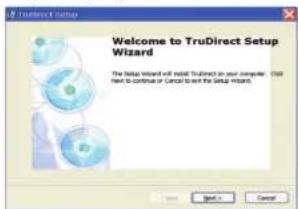
- The installation of TruDirect is proceeding.

* For installation of the TruDirect application, the installation manager determines the certification of Optical Disc Drive.
If it is a certified drive, the installation manager continues the installation of TruDirect.
If not, the installation manager indicates an error message and stops the installation.

2. Starting the TruDirect
Starting the TruDirect
There are three methods to start and use TruDirect.
- Click the TruDirect shortcuts in the background or start menu.
- Select TruDirect in the application list of the OS search popup window.
- Press the TruDirect function button in the front of the drive.
Note: TruDirect slim drive does not have the TruDirect function button.
Manual mode and Express mode
A user can operate TruDirect in Manual mode or Express mode according to the level of intervention that a user wants.
- Express Mode: Creates a DVD quickly by pressing the TruDirect function button or clicking some buttons in the popup screen.
Note: TruDirect slim drive does not have the TruDirect function button.

- Manual Mode: It creates a DVD by selecting the usable options directly.

3. Using the Express mode of TruDirect
Express mode of TruDirect
Select Express mode by clicking the TruDirect function button on the front of the drive after connecting a supported video device to the PC. You can also select the express mode by clicking the Express mode button in the Select Operation Mode dialog box.
Note: The TruDirect slim drive does not have the TruDirect function button.
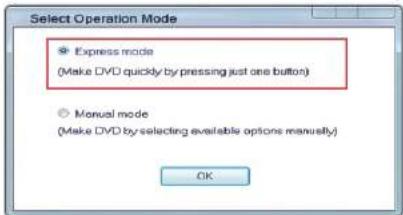
A. Creating a DVD from a Live Video source (Streaming image - DV camcorder, Web camera, etc.)
- If a live video device is detected, the video preview is displayed automatically in the device selection dialog box.

- If you click the recording button, the recording starts and the video is displayed in the main screen.
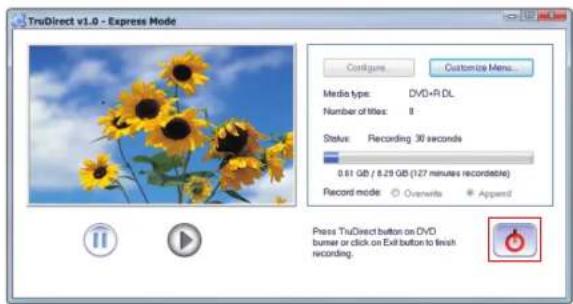
- Whenever you click the Stop recording button, the Enter Title text window is displayed.

- Stop and complete the recording by clicking the [OK] button after changing the text. After completing the recording, the TruDirect drive ejects the media.
B. Creating a DVD from a photo file
- If photo files in a portable memory device are detected, photo thumbnail previews are displayed in the Select Photos dialog box.

- Select a minimum of 5 photos to record, and input a title.
- Click the open button to start the recording.

- After the recording is complete, TruDirect drive ejects the media.
C. Creating a DVD from a video file
- If the detected video file source is from a large storage device such as a hard drive camcorder or a digital camera, the video file list is displayed in the Select Video dialog box.

- Select the video files to record.
Note: If the play time of a selected file is longer than the recordable time, lower the definition (HQ, SP, LP) or insert another disc.
- If you click the [Open] button, the selected video files are played in the main screen automatically and the recording starts.

- After the recording is complete, the TruDirect drive will eject the media. Note: A DVD is produced in order of the full conversion of a selected video file -> recording. A disc is ejected automatically after the recording is completed. Please wait for the completion.

4. Using the manual mode of TruDirect
Manual mode of TruDirect
A. Creating a DVD from a live video (Streaming image - DV camcorder, Web camera, etc.) 1. The main screen is displayed when TruDirect starts.

- Connect a video device to a user's PC.
- Click the live video button on the main screen.
- Check the video and audio device to record from, and click the [OK] button.

- Click the start recording button to record a DVD.

- Whenever you click the recording stop, the title input window is displayed. Input a title and click the [OK] button.
- Click the recording completion button if the recording completion button is usable and the recording completion is ready. After completion of the DVD recording, the DVD is ejected automatically.
- Click the [Finish] button to exit TruDirect.
B. Creating a DVD from a photo file
- The main screen is displayed if TruDirect starts.

- Connect a photo file source to the user's PC, or select a photo file from the hard drive of the users PC.
- Click Photo Files in the main screen to display the Select Photos dialog box.

- Select a minimum of 5 photos to record and input the title.
- Click the Open button to start recording.
- Click the recording completion button if the recording is completed and the DVD is ready to be ejected.
- Click the [Finish] button to exit TruDirect.

C. Creating a DVD from the video file
- The main screen is displayed when TruDirect starts.
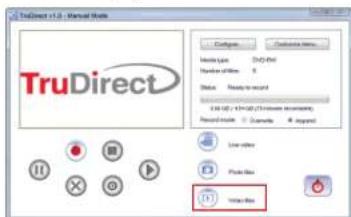
- Connect a video file source to a user's PC to display the selection dialog box, or select a video file from the hard drive of the user's PC.

- Select the recording mode: batch mode or interactive (for viewing) if the video file is an MPEG-2 file.
- Select the video files to record.
- Click the Open button to start recording. When a video is recorded interactively, a video is previewed in the main window and the DVD recording starts by clicking the Start Recording button.
- Whenever you click the recording stop button, the title input window is displayed. Input a title and click the [OK] button.
- If the batch mode is selected, it proceeds until the selected video file recording is complete. Please wait until the recording is complete. Note: If the play time of a selected file is longer than the available recordable time, lower the definite (HQ, SP, LP) or insert another disc.
- Click the recording completion button if the recording is completed and a DVD will eject when recording is complete.
- Click the [Finish] button to exit TruDirect.

5. Easy checks for TruDirect
- TruDirect™ Software does not operate in the DVD Writer. TruDirect™ Software operates by communicating with a Samsung TruDirect™ Optical Disc Drive. Check if a TruDirect™ drive is connected correctly.
- Is it possible to record a video file with TruDirect which cannot be played by the computer? It is impossible to record a video file that a computer cannot play. Confirm the normal play using Windows Media Player after installing the correct codec or decoder and then record with TruDirect™.
- It is impossible to record with TruDirect™ even though a video file can be played with a PC normally. Some CODECs are operated with special software. In this case, it cannot be supported by TruDirect™. It is recommended that a certified CODEC only be used. Some uncertified CODECs will cause the PC to become unstable.
- What types of video files are recorded in Interactive Mode and what kind of video files are recorded in Batch Mode? And, what kinds of video file show the present screen during the 'recording the all videos'? In TruDirect™, only the standard MPEG-2 video file can be recorded in Interactive Mode. And it records quickly without showing the recorded video in the case of recording in batch mode. All other types of videos can be recorded in batch mode.
- How to use the DV camcorder (Tape type) in TruDirect™? To record pictures from a DV camcorder, the camcorder should be connected to an IEEE 1394 (FireWire) port of the user's PC. Start TruDirect™ after connecting the camcorder to the PC. (If there is no IEEE 1394 port in the PC, an internal/external DV capture board is required.) Some camcorders support a USB connection and IEEE 1394 connection at the same time.
- How do you use the USB connection of camcorder, web camera, and digital camera? To record video/photo files with TruDirect™ from the above devices, connect a device to a USB port of the PC (1.1 or 2.0: USB 2.0 connection provides the best data transmission rate.). Some devices may need a correct USB driver. In this case, install the provided driver with the device or the newest version of the driver at the homepage of the manufacturer. *** If a device is not recognized by the Microsoft Windows OS, it is impossible to use it with TruDirect™. If a device is not recognized in the OS, install the correct device driver.
- There is no sound in a DVD created with TruDirect™ by connecting an external device. Check if the video/audio device is selected correctly at the selection window when connecting the device. Otherwise, check that the original source of audio is saved correctly.
- Photo slide show does not work normally. There is a case that some software that DVD timer logic is not realized does not work automatically the photo slide show made by TruDirect™. In this case, press button or click to continue to the next picture.
- A 'Write error' occurs when recording with TruDirect™. Check if a disc is scratched, broken, or dirty. An error can occur if another PC based program is processed when recording a DVD.
- A DVD that is made with TruDirect™ cannot be played in my DVD player. Check if your DVD player supports the DVD media type (±R, ±RW, ±R Dual Layer, RAM).
- A large space remains in the disc, but a small video file cannot be recorded. The recording to a disc is determined by the playtime not the selected file size. In the case of a DVD-R disc, with HQ definition, it can record about 75 minutes of video, SP can record about 100 minutes of video, and LP can record about 150 minutes of video.



- BEFORE THE INSTALLATION OF TRUDIRECT
- PC SOFTWARE REQUIRED
- PC HARDWARE REQUIRED
- PC INPUT SOURCE SUPPORTED
- MEDIA FORMAT SUPPORTED
- FILE FORMAT SUPPORTED
- INSTALLING THE TRUDIRECT
- STARTING THE TRUDIRECT
- MANUAL MODE AND EXPRESS MODE
- USING THE EXPRESS MODE OF TRUDIRECT
- EXPRESS MODE OF TRUDIRECT
- CREATING A DVD FROM A PHOTO FILE
- CREATING A DVD FROM A VIDEO FILE
- USING THE MANUAL MODE OF TRUDIRECT
- MANUAL MODE OF TRUDIRECT
- CREATING A DVD FROM THE VIDEO FILE
- EASY CHECKS FOR TRUDIRECT
Brand : SAMSUNG
Model : SH-S223C
Category : DVD Recorder