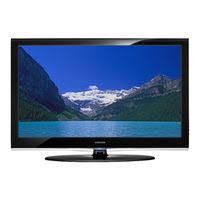
LN40A540P2F - TV SAMSUNG - Free user manual and instructions
Find the device manual for free LN40A540P2F SAMSUNG in PDF.


| Brand | Samsung |
| Model | LN40A540P2F |
| Product Type | LCD Television |
| Screen Size | 40 inches (diagonal) |
| Screen Resolution | 1920 x 1080 pixels (Full HD) |
| Connectivity | HDMI (3 inputs), Component (2 inputs), S-Video, AV, PC (VGA), USB (WISELINK), optical audio output, analog audio output |
| Main Functions | Universal remote, closed captions (CC), E.MODE mode (Sports, Cinema, Games), favorite channel list, timer, information display |
| Picture Formats | Dynamic, Standard, Movie |
| Picture Settings | Backlight, Contrast, Brightness, Sharpness, Color, Tint |
| Reception | Air (antenna) and Cable (analog and digital) |
| Audio | Stereo, Mono, Separate Audio Program (MTS), optical digital audio output 5.1 channels |
| Network Features | WISELINK for photos and music, Anynet+ (HDMI-CEC) for control of compatible Samsung devices |
| Power Supply | 100-240 V AC, 50/60 Hz |
| Power Consumption | Not specified (estimated: approximately 150-200 W) |
| Maintenance and Cleaning | Clean with a soft dry cloth. Do not use chemical or abrasive products. |
| Safety | Do not expose to moisture, do not block ventilation slots, unplug before cleaning. |
| Customer Service | 1-800-SAMSUNG (726-7864) for Canada and the United States |
| Support Website | www.samsung.com/support |
Frequently Asked Questions - LN40A540P2F SAMSUNG
User questions about LN40A540P2F SAMSUNG
0 question about this device. Answer the ones you know or ask your own.
Ask a new question about this device
Download the instructions for your TV in PDF format for free! Find your manual LN40A540P2F - SAMSUNG and take your electronic device back in hand. On this page are published all the documents necessary for the use of your device. LN40A540P2F by SAMSUNG.
USER MANUAL LN40A540P2F SAMSUNG
Please do not return this unit
If you are having problems operating this TV, Please call:
For Web support please visit
www.samsung.com/support
105 Challenger Road Ridgefield Park, NJ 07660-0511
Samsung Electronics Canada Inc., Customer Service 55 Standish Court Mississauga, Ontario L5R 4B2
Call center hours of operation (Mon-Sun 9AM-12AM EST).
To register this product please visit
www.samsung.com/global/register.
Quick Setup Guide
LN40A540P2F/LN46A540P2F/LN52A540P2F
natural_image
Line drawing of a Samsung TV monitor with a stand (no text or symbols on the screen)Rear Panel / Side Panel Jacks
text_image
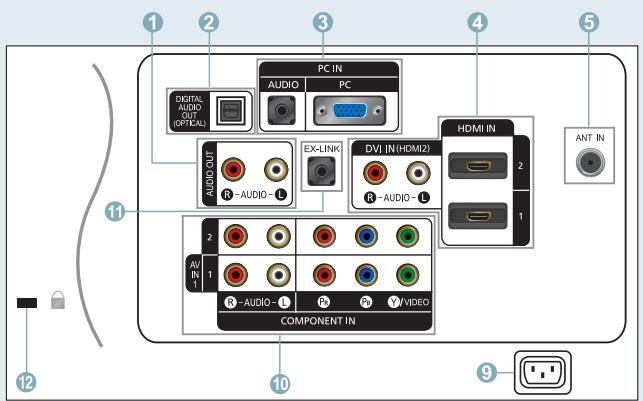
1 2 3 4 5 PC IN AUDIO PC DIGITAL AUDIO OUT (OPTICAL) AUDIO OUT R - AUDIO - L EX-LINK DVI IN (HDMI2) R - AUDIO - L HDMI IN 2 1 ANT IN 2 A/IN 1 R - AUDIO - L P P #VIDEO COMPONENT IN 9 10 11 12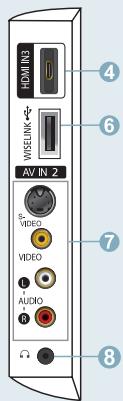
text_image
HOMIN3 WISELINK AV IN 2 S- VIDEO VIDEO AUDIO R 4 6 7 81 AUDIO OUT
2 DIGITAL AUDIO OUT (OPTICAL)
3 PC IN [PC] / [AUDIO]
4 HDMI IN 1, 2, 3 / DVI IN (HDMI2) [R-AUDIO-L]
5 ANT IN
6 WISELINK
7 AV IN 2, S-VIDEO
8 HEADPHONE
9 POWER INPUT
10 COMPONENT IN 1, 2 / AV IN 1
11 EX-LINK
12 KENSINGTON LOCK
Video Input Performance Comparison
| HDMI/DVI | Best | |
| PC/COMPONENT | Better | |
| S-VIDEO | Good | |
| VIDEO | Normal |
Audio Output Performance Comparison
| OPTICAL (Digital) | Best | |
| AUDIO (Analog) | Normal |
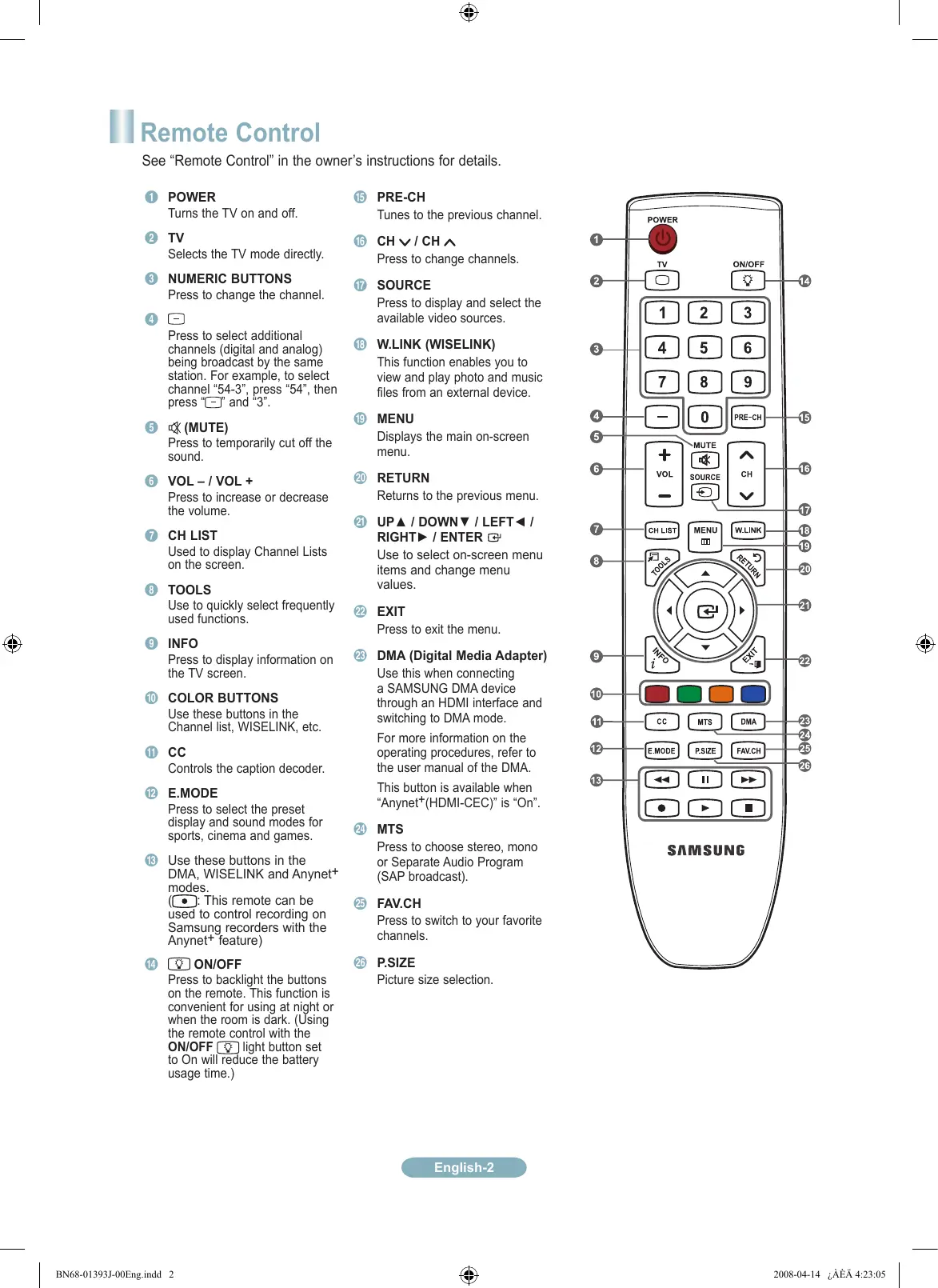
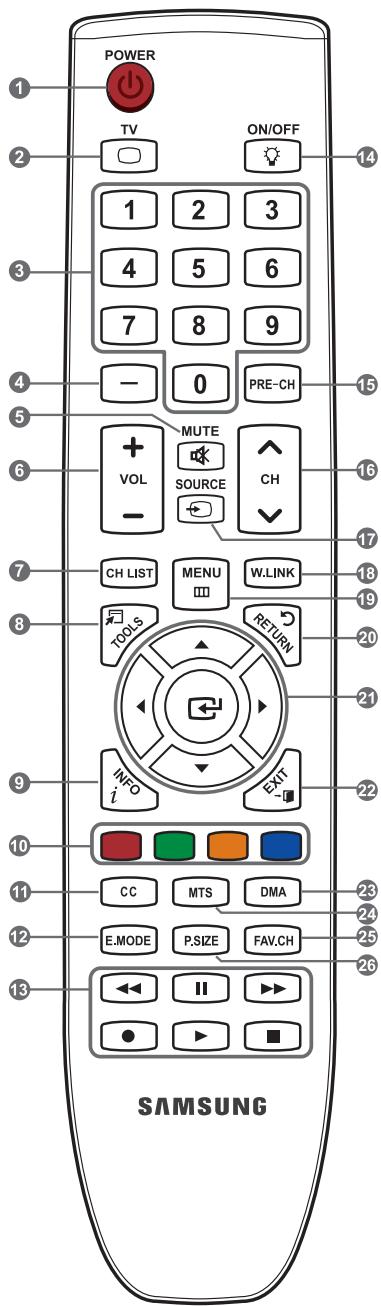
See "Remote Control" in the owner's instructions for details.
1 POWER
Turns the TV on and off.
2 TV
Selects the TV mode directly.
3 NUMERIC BUTTONS
Press to change the channel.
4 -
Press to select additional channels (digital and analog) being broadcast by the same station. For example, to select channel "54-3", press "54", then press "☐" and "3".
5 (MUTE)
Press to temporarily cut off the sound.
6 VOL - / VOL +
Press to increase or decrease the volume.
7 CH LIST
Used to display Channel Lists on the screen.
8 TOOLS
Use to quickly select frequently used functions.
9 INFO
Press to display information on the TV screen.
10 COLOR BUTTONS
Use these buttons in the Channel list, WISELINK, etc.
11 CC
Controls the caption decoder.
12 E.MODE
Press to select the preset display and sound modes for sports, cinema and games.
13 Use these buttons in the DMA, WISELINK and Anynet+ modes.
(●): This remote can be used to control recording on Samsung recorders with the Anynet ^+ feature)
14 ON/OFF
Press to backlight the buttons on the remote. This function is convenient for using at night or when the room is dark. (Using the remote control with the ON/OFF light button set to On will reduce the battery usage time.)
15 PRE-CH
Tunes to the previous channel.
16 CH ∨ / CH ∧
Press to change channels.
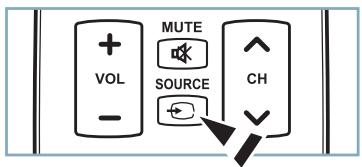
17 SOURCE
Press to display and select the available video sources.
18 W.LINK (WISELINK)
This function enables you to view and play photo and music files from an external device.
19 MENU
Displays the main on-screen menu.
20 RETURN
Returns to the previous menu.
Use to select on-screen menu items and change menu values.
22 EXIT
Press to exit the menu.
23 DMA (Digital Media Adapter)
Use this when connecting a SAMSUNG DMA device through an HDMI interface and switching to DMA mode.
For more information on the operating procedures, refer to the user manual of the DMA.
This button is available when "Anynet ^+ (HDMI-CEC)" is "On".
24 MTS
Press to choose stereo, mono or Separate Audio Program (SAP broadcast).
25 FAV.CH
Press to switch to your favorite channels.
26 P.SIZE
Picture size selection.
text_image
POWER TV ON/OFF 1 2 3 4 5 6 7 8 9 - 0 PRE-CH + MUTE VOL SOURCE - CH LIST MENU W.LINK TOOLS RETURN INFO EXIT i SAMSUNGConnecting a DVD Player or Cable Box/Satellite receiver (Set-Top Box) via HDMI
text_image
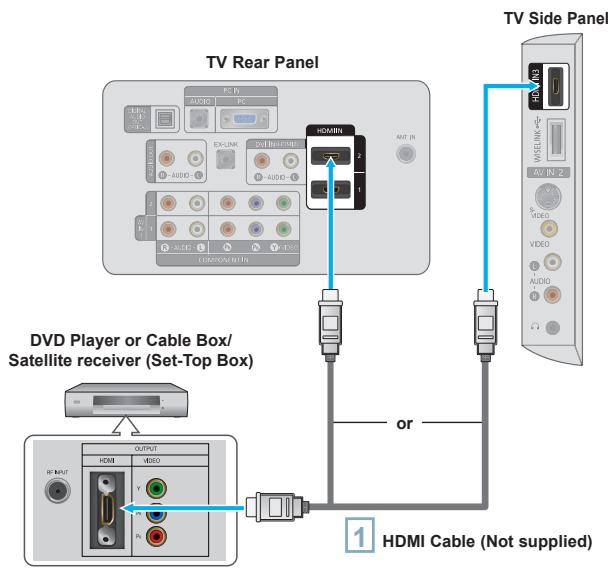
TV Rear Panel DVD Side Panel DVD Player or Cable Box/ Satellite receiver (Set-Top Box) or HDMI Cable (Not supplied)1 Connect an HDMI Cable between the HDMI IN (1, 2 or 3) jack on the TV and the HDMI jack on the DVD Player or Cable Box/Satellite receiver (Set-Top Box).
What is HDMI?
- HDMI(High-Definition Multimedia Interface), is an interface that enables the transmission of digital audio and video signals using a single cable.
- The difference between HDMI and DVI is that the HDMI device is smaller in size and has the HDCP (High Bandwidth Digital Copy Protection) coding feature installed.
Each DVD Player or Cable Box/Satellite receiver (Set-Top Box) has a different back panel configuration.
The TV may not output sound and pictures may be displayed with abnormal color when DVD players/Cable Boxes/Satellite receivers supporting HDMI versions older than 1.3 are connected. When connecting an older HDMI cable and there is no sound, connect the HDMI cable to the HDMI IN 2 jack and the audio cables to the DVI IN (HDMI2) [R-AUDIO-L] jacks on the back of the TV. If this happens, contact the company that provided the DVD player/Cable Box/Satellite receiver to confirm the HDMI version, then request an upgrade.
HDMI cables that are not 1.3 may cause annoying flicker or no screen display.
Connecting a DVD Player or Cable Box/Satellite receiver (Set-Top Box) via DVI
text_image
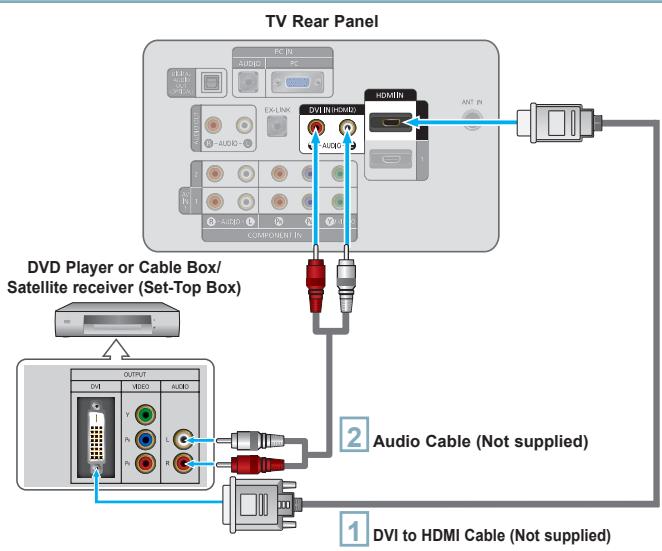
TV Rear Panel DVD Player or Cable Box/ Satellite receiver (Set-Top Box) DVI IN-HSMD AUDIO HDMI 2 Audio Cable (Not supplied) 1 DVI to HDMI Cable (Not supplied)1 Connect a DVI to HDMI Cable or DVI-HDMI Adapter between the HDMI IN 2 jack on the TV and the DVI jack on the DVD Player or Cable Box/Satellite receiver (Set-Top Box).
2 Connect Audio Cables between the DVI IN (HDMI 2) [R-AUDIO-L] jack on the TV and the DVD Player or Cable Box/Satellite receiver (Set-Top Box).
Each DVD Player or Cable Box/Satellite receiver (Set-Top Box) has a different back panel configuration.
When connecting a DVD Player or Cable Box/Satellite receiver (Set-Top Box), match the color of the connection terminal to the cable.
When using an HDMI/DVI cable connection, you must use the HDMI IN 2 jack.

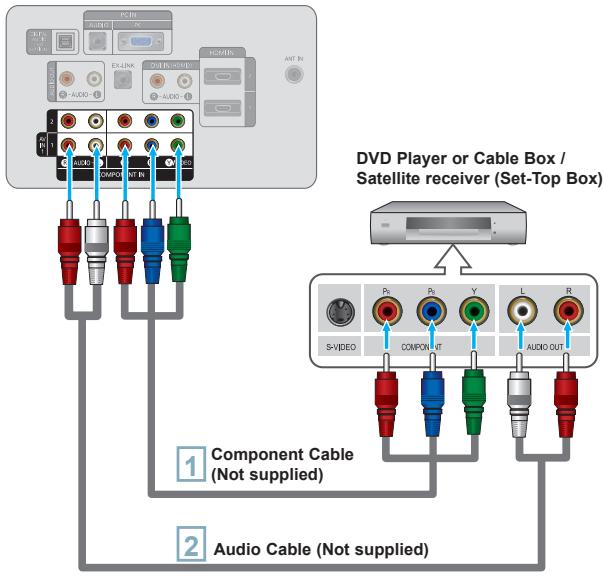
Connecting a DVD Player or Cable Box/Satellite receiver (Set-Top Box) via Component cables
TV Rear Panel
text_image
DVD Player or Cable Box / Satellite receiver (Set-Top Box) Component Cable (Not supplied) Audio Cable (Not supplied)1
Connect a Component Cable between the COMPONENT IN (1 or 2) [Y, PB, PR] jacks on the TV and the COMPONENT [Y, PB, PR] jacks on the DVD Player or Cable Box/Satellite receiver (Set-Top Box).
2
Connect Audio Cables between the COMPONENT IN(1 or 2) [R-AUDIO-L] jacks on the TV and the AUDIO OUT jacks on the DVD Player or Cable Box/Satellite receiver (Set-Top Box).
Component video separates the video into Y (Luminance (brightness)), Pb (Blue) and Pr (Red) for enhanced video quality. Be sure to match the component video and audio connections.
For example, if connecting a Component video cable to COMPONENT IN 1, connect the audio cable to COMPONENT IN 1 also.
Each DVD Player or Cable Box/Satellite receiver (Set-Top Box) has a different back panel configuration.
When connecting a DVD Player or Cable Box/Satellite receiver (Set-Top Box), match the color of the connection terminal to the cable.

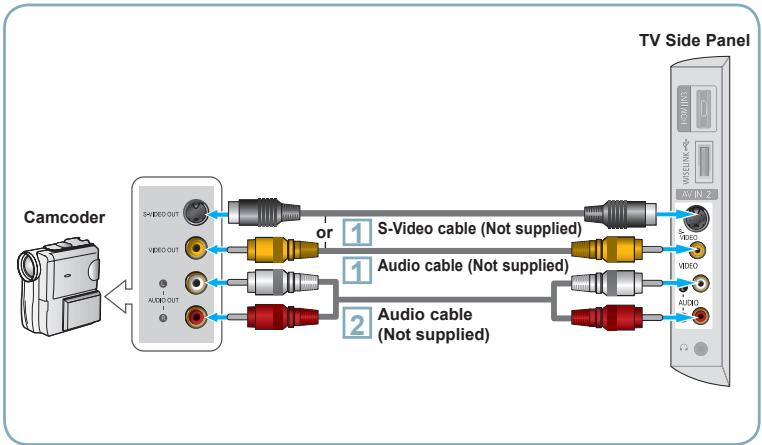
Connecting a Camcorder
flowchart
graph LR
    A["Camcoder"] --> B["TV Side Panel"]
    B --> C["S-Video cable (Not supplied)"]
    B --> D["Audio cable (Not supplied)"]
    B --> E["Audio cable (Not supplied)"]
    C --> F["Switch"]
    D --> G["Switch"]
    E --> H["Switch"]
1
Connect a Video Cable (or S-Video Cable) between the AV IN2 [VIDEO] (or S-VIDEO) jack on the TV and the VIDEO OUT jack on the camcorder.
2
Connect Audio Cables between the AV IN2 [R-AUDIO-L] jacks on the TV and the AUDIO OUT jacks on the camcorder.
➢ Each Camcorder has a different back panel configuration.
When connecting a Camcorder, match the color of the connection terminal to the cable.
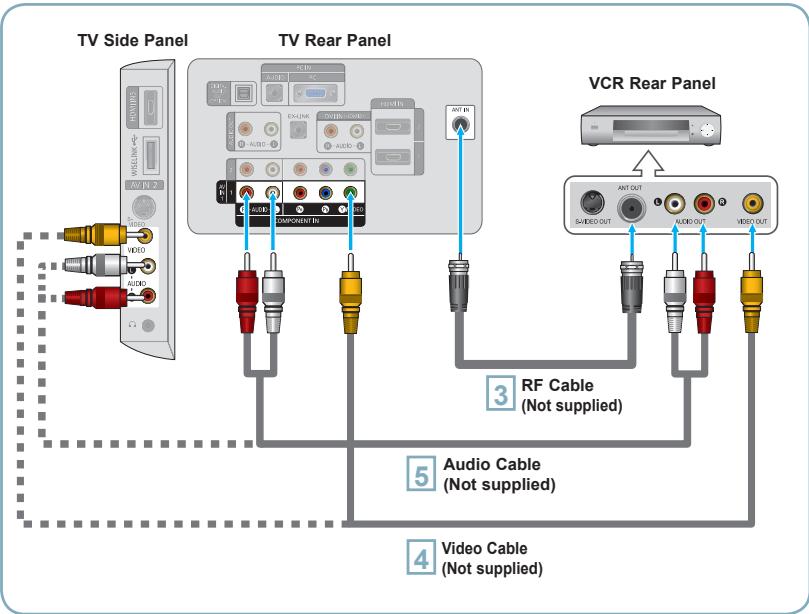
Video Connection
flowchart
graph TD
    A["TV Side Panel"] --> B["TV Rear Panel"]
    B --> C["VCR Rear Panel"]
    A --> D["RF Cable (Not supplied)"]
    B --> E["Audio Cable (Not supplied)"]
    B --> F["Video Cable (Not supplied)"]
    C --> G["Ant Out"]
    C --> H["Audio Out"]
    C --> I["Video Out"]
    D --> J["Ant In"]
    E --> K["Ant In"]
    F --> L["Ant In"]
    G --> M["Ant In"]
    H --> N["Ant In"]
    I --> O["Ant In"]
Follow the instructions in "Viewing a VCR or Camcorder Tape" to view your VCR tape.
➢ Each VCR has a different back panel configuration.
When connecting a VCR, match the color of the connection terminal to the cable.
When connecting to AV NI 1, the color of the AV IN 1 [Y/VIDEO] jack (Green) does not match the color of the video cable (Yellow).
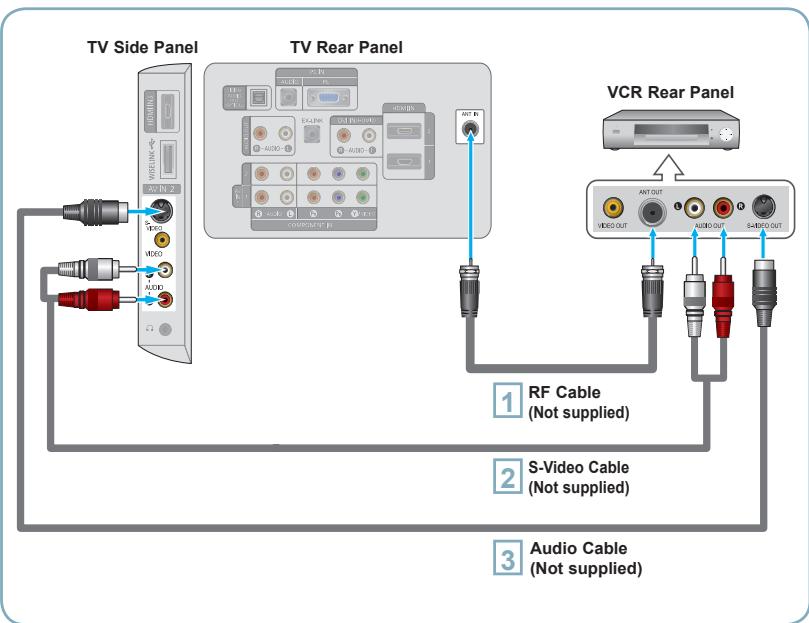
S-Video Connection
flowchart
graph TD
    A["TV Side Panel"] --> B["TV Rear Panel"]
    B --> C["VCR Rear Panel"]
    subgraph TV Side Panel
        D["AC/DC"] --> E["AC/DVD"]
        F["AC/DVD"] --> G["AC/DVD"]
        H["AC/DVD"] --> I["AC/DVD"]
        J["AC/DVD"] --> K["AC/DVD"]
        L["AC/DVD"] --> M["AC/DVD"]
        N["AC/DVD"] --> O["AC/DVD"]
        P["AC/DVD"] --> Q["AC/DVD"]
        R["AC/DVD"] --> S["AC/DVD"]
    end
    subgraph TV Rear Panel
        T["AC/DVD"] --> U["AC/DVD"]
        V["AC/DVD"] --> W["AC/DVD"]
        X["AC/DVD"] --> Y["AC/DVD"]
        Z["AC/DVD"] --> AA["AC/DVD"]
        AB["AC/DVD"] --> AC["AC/DVD"]
        AD["AC/DVD"] --> AE["AC/DVD"]
        AF["AC/DVD"] --> AG["AC/DVD"]
        AH["AC/DVD"] --> AI["AC/DVD"]
        AJ["AC/DVD"] --> AK["AC/DVD"]
        AL["AC/DVD"] --> AM["AC/DVD"]
        AN["AC/DVD"] --> AO["AC/DVD"]
        AP["AC/DVD"] --> AQ["AC/DVD"]
        AR["AC/DVD"] --> AS["AC/DVD"]
    end
    subgraph VCR Rear Panel
        AT["ANT OUT"] --> AU["VIDEO OUT"]
        AV["AUDIO OUT"] --> AW["S-AVID OUT"]
    end
    subgraph RF Cable & Audio Cable & Video Cable & Audio Cable & Video Cable & Audio Cable & Video Cable & Audio Cable & Video Cable & Audio Cable & Video Cable & Audio Cable & Video Cable & Audio Cable & Video Cable & Audio Cable & Video Cable & Audio Cable & Video Cable & Audio Cable & Video Cable & Audio Cable & Video Cable & Audio Cable & Video Cable & Audio Cable & Video Cable & Audio Cable & Video Cable & Audio Cable & Video Cable & Audio Cable & Audio Cable & Audio Cable & Audio Cable & Audio Cable & Audio Cable & Audio Cable & Audio Cable & Audio Cable & Audio Cable & Audio Cable & Audio Cable & Audio Cable & Audio Cable & Audio Cable & Audio Cable & Audio Cable & Audio Cable & Audio Cable & Audio Cable & Audio Cable & Audio Cable & Audio Cable & Audio Cable & Audio Cable & Audio Cable & Audio Cable & Audio Cable & Audio Cable & Audio Cable & Audio Cable & Audio Cable & Audio Cable & Audio Cable & Audio Cable & Audio Cable & Audio Cable & Audio Cable & Audio Cable & Audio Cable & Audio Cable & Audio Cable & Audio Cable & Audio Cable & Audio Cable & Audio Cable & Audio Cable & Audio Cable & Audio Cable & Audio Cable & Audio Cable & Audio Cable & Audio Cable & Audio Cable & Audio Cable & Audio Cable & Audio Cable & Audio Cable & Audio Cable & Audio Cable & Audio Cable & Audio Cable & Audio Cable & Audio Cable & Audio Cable & Audio Cable & Audio Cable | 1
    end
    subgraph RF Cable
        L["RF Cable (Not supplied)"]
    end
    subgraph S-Video Cable
        M["S-Video Cable (Not supplied)"]
    end
    subgraph Audio Cable
        N["Audio Cable (Not supplied)"]
    end
1 Unplug the cable or antenna from the back of the TV.
2 Connect the cable or antenna to the ANT IN terminal on the back of the VCR.
3 Connect an RF Cable between the ANT OUT terminal on the VCR and the ANT IN terminal on the TV.
4 Connect a Video Cable between the VIDEO OUT jack on the VCR and the AV IN 1 [Y/VIDEO] or AV IN 2 [VIDEO] jack on the TV.
5 Connect Audio Cables between the AUDIO OUT jacks on the VCR and the AV IN 1 (or AV IN 2) [R-AUDIO-L] jacks on the TV.
If you have a "mono" (non-stereo) VCR, use a Y-connector (not supplied) to connect to the right and left audio input jacks of the TV. Alternatively, connect the cable to the "R" jack. If your VCR is stereo, you must connect two cables.
1 To begin, follow steps 1–3 in the previous section to connect the antenna or cable to your VCR and your TV.
2 Connect an S-Video Cable between the S-VIDEO OUT jack on the VCR and the AV IN 2 [S-VIDEO] jack on the TV.
3 Connect Audio Cables between the AUDIO OUT jacks on the VCR and the AV IN 2 [R-AUDIO-L] jacks on the TV.
An S-Video cable may be included with a VCR. (If not, check your local electronics store.)
➢ Each VCR has a different back panel configuration.
When connecting a VCR, match the color of the connection terminal to the cable.
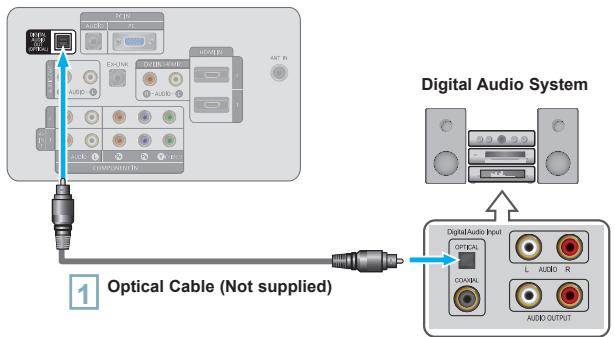
Connecting a Digital Audio System
TV Rear Panel
flowchart
graph TD
    A["Optical Cable (Not supplied)"] --> B["Digital Audio System"]
    B --> C["Digital Audio Input"]
    C --> D["COASTRAL"]
    C --> E["L. AUDIO R. AUDIO OUTPUT"]
1
Connect an Optical Cable between the “DIGITAL AUDIO OUT (OPTICAL)” jacks on the TV and the Digital Audio Input jacks on the Digital Audio System.
When a Digital Audio System is connected to the “DIGITAL AUDIO OUT (OPTICAL)” jack: Decrease the volume of the TV and adjust the volume level with the system’s volume control.
5.1CH audio is possible when the TV is connected to an external device supporting 5.1CH.
Each Digital Audio System has a different back panel configuration.
When the receiver (home theater) is set to On, you can hear sound output from the TV's Optical jack. When the TV is displaying a DTV(air) signal, the TV will send out 5.1 channel sound to the Home theater receiver. When the source is a digital component such as a DVD and is connected to the TV via HDMI, only 2 channel sound will be heard from the Home Theater receiver. If you want to hear 5.1 channel audio, connect the DIGITAL AUDIO OUT (OPTICAL) jack on the DVD player or Cable/Satellite Box directly to an Amplifier or Home Theater, not the TV.
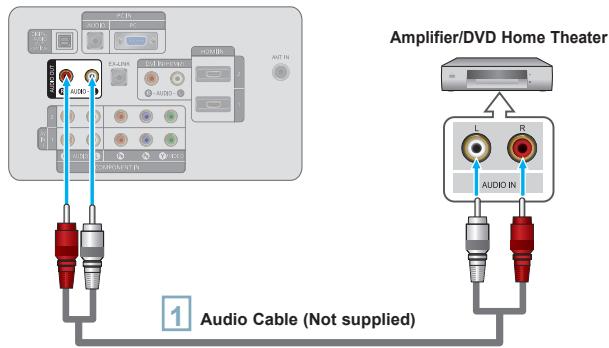
Connecting an Amplifier/DVD Home Theater
TV Rear Panel
text_image
Amplifier/DVD Home Theater 1 Audio Cable (Not supplied)1
Connect Audio Cables between the AUDIO OUT [R-AUDIO-L] jacks on the TV and AUDIO IN [R-AUDIO-L] jacks on the Amplifier/DVD Home Theater.
When an audio amplifier is connected to the “AUDIO OUT [R-AUDIO-L]” jack: Decrease the volume of the TV and adjust the volume level with the Amplifier’s volume control.
Each Amplifier/DVD Home Theater has a different back panel configuration.
When connecting an Amplifier/DVD Home Theater, match the color of the connection terminal to the cable.
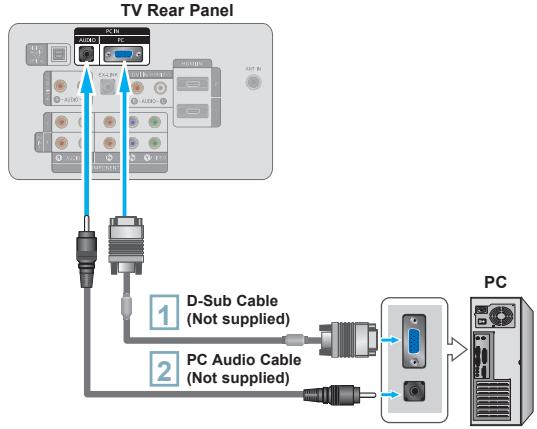
Using the D-Sub Cable
flowchart
graph TD
    A["TV Rear Panel"] --> B["Switch"]
    B --> C["USB Port"]
    C --> D["D-Sub Cable (Not supplied)"]
    C --> E["PC Audio Cable (Not supplied)"]
    D --> F["USB Port"]
    E --> G["PC"]
    style A fill:#f9f,stroke:#333
    style F fill:#ccf,stroke:#333
    style G fill:#ccf,stroke:#333
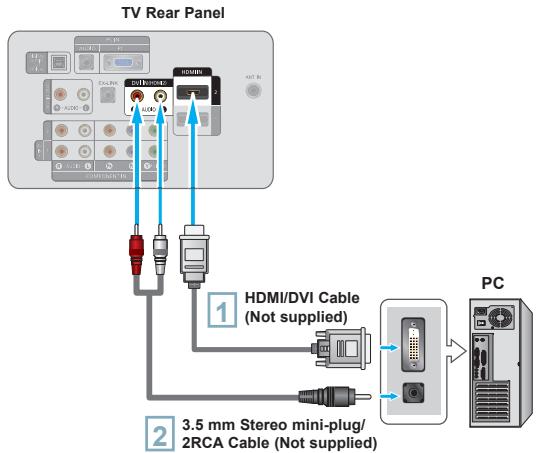
Using the HDMI/DVI Cable
flowchart
graph TD
    A["TV Rear Panel"] --> B["1 HDMI/DVI Cable (Not supplied)"]
    A --> C["2 3.5 mm Stereo mini-plug/2RCA Cable (Not supplied)"]
    A --> D["PC"]
    B --> E["2 HDMI/DVI Cable (Not supplied)"]
    C --> F["2 3.5 mm Stereo mini-plug/2RCA Cable (Not supplied)"]
Using the D-Sub Cable
1 Connect a D-Sub Cable between PC IN [PC] connector on the TV and the PC output connector on your computer.
2 Connect a PC Audio Cable between the PC IN [AUDIO] jack on the TV and the Audio Out jack of the sound card on your computer.
Using the HDMI/DVI Cable
1 Connect an HDMI/DVI cable between the HDMI IN 2 jack on the TV and the PC output jack on your computer.
2 Connect a 3.5 mm Stereo mini- plug/2RCA Cable between the DVI IN(HDMI2) [R-AUDIO-L] jack on the TV and the Audio Out jack of the sound card on your computer.
Each PC has a different back panel configuration.
When connecting a PC, match the color of the connection terminal to the cable.
When using an HDMI/DVI cable connection, you must use the HDMI IN 2 terminal.
Turning the TV On and Off
Press the POWER button on the remote control. You can also use the POWER button on the TV.
Viewing the Menus
flowchart
graph TD
    A["CH LIST"] --> B["MENU"]
    B --> C["W.LINK"]
    C --> D["O.S."]
    D --> E["Return Arrow"]
    style A fill:#f9f,stroke:#333
    style B fill:#ccf,stroke:#333
    style C fill:#cfc,stroke:#333
    style D fill:#fcc,stroke:#333
    style E fill:#ffc,stroke:#333
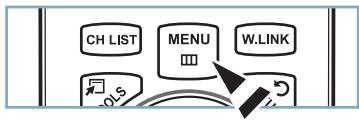
1 With the power on, press the MENU button. The main menu appears on the screen. The menu's left side has icons: Picture, Sound, Channel, Setup, Input, Application.
2 Press the ▲ or ▼ button to select one of the icons. Then press the ENTER button to access the icon's sub-menu. Press the EXIT button to exit.
The on-screen menus disappear from the screen after about one minute.
Storing Channels in Memory (Automatic Method)
1 Press the MENU button to display the menu. Press the ▲ or ▼ button to select “Channel”, then press the ENTER button.
2 Press the ▲ or ▼ button to select "Auto Program", then press the ENTER button.
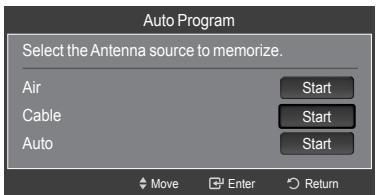
3 Press the ▲ or ▼ button to select the antenna connection, then press the ENTER button.
text_image
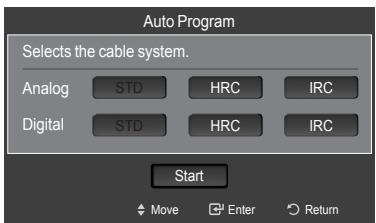
Auto Program Select the Antenna source to memorize. Air Start Cable Start Auto Start Move Enter Return4 When selecting the Cable TV system: Press the ENTER button to start the auto program.
Press the ▲, ▼, ◀ or ▶ to select the correct analog signal cable system source among “STD”, “HRC”, and “IRC”. Press the ▲ or ▼ button to select “Start”, then press the ENTER button. If you have Digital cable TV, select the cable system signal source for both Analog and Digital.
text_image
Auto Program Selects the cable system. Analog STD HRC IRC Digital STD HRC IRC Start Move Enter Return5
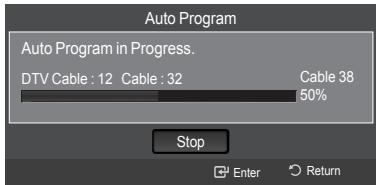
The TV begins memorizing all available stations. Press the EXIT button to exit.
text_image
Auto Program Auto Program in Progress. DTV Cable : 12 Cable : 32 Cable 38 50% Stop Enter Return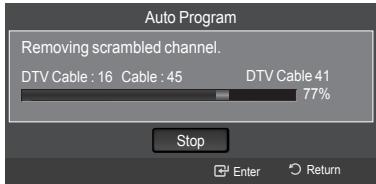
text_image
Auto Program Removing scrambled channel. DTV Cable : 16 Cable : 45 DTV Cable 41 77% Stop Enter ReturnAfter all the available channels are stored, it starts to remove scrambled channels. The Auto program menu then reappears.
text_image
VOL MUTE SOURCE CH CH LIST MENU W.LINK TOOLS URNTo Stop the Auto Program Function
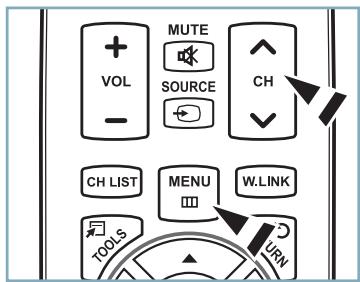
Press the MENU button while the Auto Program function is being executed. You can also press the ENTER button to stop the setup.
Checking to see if Channels were Stored in Memory
Press the CH button. Only the channels stored in memory will be selected (in order).
Selecting the antennas
• Air: "Air" antenna signal.
- Cable: "Cable" antenna signal.
- Auto: "Air" and "Cable" antenna signals.
Setting the Channel List
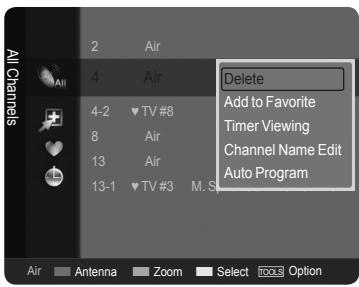
You can delete or add a channel to display the channels you want.
1 Press the MENU button. Press the ▲ or ▼ button to select "Channel", then press the ENTER button. Press the ▲ or ▼ button to select "Channel List", then press the ENTER button.
2 Press the ◀ button to select "Added Channels". Press the ▲ or ▼ button to select "All Channels". Press the ENTER button.
3 Press the ▲ or ▼ button to select a channel to delete, then press the TOOLS button. Press the ENTER button to select "Delete".
4 Press the ▲ or ▼ button to select a channel to add, then press the TOOLS button. Press the ENTER button to select "Add".
text_image
All Channels 2 Air 4 Air 4-2 TV #8 8 Air 13 Air 13-1 TV #3 M. S Delete Add to Favorite Timer Viewing Channel Name Edit Auto Program Air Antenna Zoom Select focus OptionChanging the Picture Standard
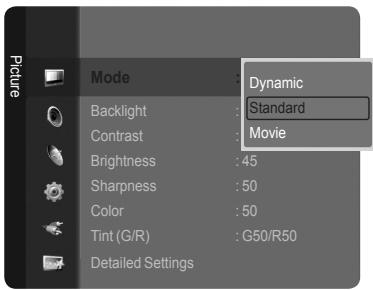
You can select the type of picture which best corresponds to your viewing requirements.
1 Press the MENU button to display the menu. Press the ENTER button, to select "Picture".
2 Press the ENTER button to select "Mode". Press the ▲ or ▼ button to select "Dynamic", "Standard" or "Movie".
Press the ENTER button.
text_image
Picture Mode Dynamic Backlight : Standard Contrast : Movie Brightness : 45 Sharpness : 50 Color : 50 Tint (G/R) : G50/R50 Detailed SettingsPicture Mode
- Dynamic: Selects the picture for high-definition in a bright room.
- Standard: Selects the picture for the optimum display in a normal environment.
- Movie: Selects the picture for viewing movies in a dark room.
Customizing the Picture Settings
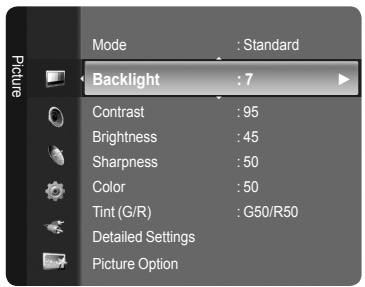
Your television has several setting options that allow you to control the picture quality.
1 To select the desired picture mode, follow the "Changing the Picture Standard" instructions numbers 1 and 2.
2 Press the ▲ or ▼ button to select "Backlight", "Contrast", "Brightness", "Sharpness", "Color" or "Tint(G/R)", then press the ENTER button.
3 Press the ◀ or ▶ button to decrease or increase the value of a particular item. Press the EXIT button to exit.
When you make changes to "Backlight", "Contrast", "Brightness", "Sharpness", "Color" or "Tint(G/R)", the OSD will be adjusted accordingly.
In PC mode, you can only make changes to "Backlight", "Contrast" and "Brightness".
Settings can be adjusted and stored for each external device you have connected to an input of the TV.
The energy consumed during use can be significantly reduced if the level of brightness of the picture is reduced, and that this will reduce the overall running cost.
text_image
Backlight : 7 Contrast : 95 Brightness : 45 Sharpness : 50 Color : 50 Tint (G/R) : G50/R50 Detailed Settings Picture Option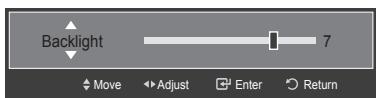
text_image
Backlight 7 Move Adjust Enter ReturnPicture Adjustment
- Backlight: Adjusts the brightness of LCD back light.
- Contrast: Adjusts the contrast level of the picture.
- Brightness: Adjusts the brightness level of the picture.
- Sharpness: Adjusts the edge definition of the picture.
• Color: Adjusts color saturation of the picture. - Tint(G/R): Adjusts the color tint of the picture.
text_image
VOL MUTE SOURCE CH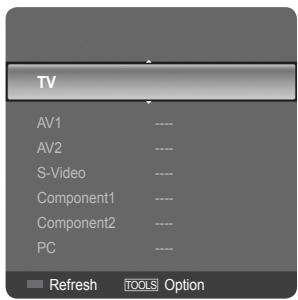
text_image
TV AV1 ---- AV2 ---- S-Video ---- Component1 ---- Component2 ---- PC ---- Refresh TOOLS OptionPress the SOURCE button on the Remote Control
You can select the TV mode or an input source connected to the TV set. Use this button to choose an input source that you would like to watch.
➢ Available signal sources: TV, AV1, AV2, S-Video, Component1, Component2, PC, HDMI1, HDMI2/DVI, HDMI3, USB.
You can choose only those external devices that are connected to the TV. In the "Source List", connected inputs will be highlighted and sorted to the top. Inputs that are not connected will be sorted to the bottom.
➢ Using the Color buttons on the remote with the Source list
- Red (Refresh): Refreshes the connecting external devices.
- TOOLS (Option): Displays the "Edit Name" and "Information" menus.
If the TV seems to have a problem, first try this list of possible problems and solutions.
If none of these troubleshooting tips apply, call Samsung customer service at 1-800-SAMSUNG.
| Problem | Possible Solution |
| Poor picture | Try another channel. / Adjust the antenna. / Check all wire connections. |
| Poor sound quality. | Try another channel. / Adjust the antenna. |
| No picture or sound. | Try another channel. / Press the SOURCE button. /Make sure the TV is plugged in. / Check the antenna connections. |
| No sound or sound is too low at maximum volume. | First, check the volume of units connected to your TV (digital broadcasting receiver, DVD, cable broadcasting receiver, VCR, etc.). Then, adjust the TV volume accordingly. |
| Picture rolls vertically. | Check all wire connections. |
| The TV operates erratically. | Unplug the TV for 30 seconds, then try operating it again. |
| The TV won't turn on. | Make sure the wall outlet is working. |
| Remote control malfunctions | Replace the remote control batteries.Clean the upper edge of the remote control (transmission window).Check the battery terminals. |
| "Check signal cable" message. | Ensure that the signal cable is firmly connected to the PC source. |
| "Not Supported Mode" message. | Check the maximum resolution and connected device's Video frequency. Compare these values with the data in the Display Modes. |
| Digital broadcasting screen problem. | Please check the digital signal strength and input antenna. |
| The image is too light or too dark. | Adjust the Brightness and Contrast. / Adjust the Fine tuning. |
| Black bars on the screen. | Make sure the broadcast you're receiving is High Definition (HD).HD channels sometimes broadcast Standard Definition (SD) programming, which can cause black bars.Set your cable/satellite box to stretch or widescreen mode to eliminate the bars. |
| Picture has a Red/Green or Pink tint. | Make sure the Component cables are connected to the correct jacks. |
| Closed Captioning not working. | If you are using a Cable/Satellite box, you must set Closed Captioning on the box, not your TV. |
| Snowy picture. | Your cable box may need a firmware upgrade. Please contact your Cable company. |
| Ghosting on picture | This is sometimes caused by compatibility issues with your cable box.Try connecting Component cables instead. |
| Horizontal bars appear to flicker, jitter or shimmer on the image. | Adjust the Coarse tuning and then adjust the Fine tuning. |
| Vertical bars appear to flicker, jitter or shimmer on the image. | Adjust the Coarse tuning and then adjust the Fine tuning. |
| Screen is black and power indicator light blinks steadily. | On your computer check: Power, Signal Cable.The TV is using its power management system.Move the computer's mouse or press any key on the keyboard. |
| Image is not centered on the screen. | Adjust the horizontal and vertical position.The screen position must be adjusted on the output source (i.e. STB) with a digital signal. |
| The picture appears distorted in the corner of the screen. | If "Just Scan" is selected with some external devices, the picture may appear distorted in the corner of the screen. This symptom is caused by the external devices, not TV. |
| The "Resets all settings to the default values" message appears. | This appears when you press and hold the EXIT button for a while. The product settings are reset to the factory defaults. |
105 Challenger Road Ridgefield Park, NJ 07660-0511
Samsung Electronics Canada Inc., Customer Service
55 Standish Court Mississauga, Ontario L5R 4B2
LN40A540P2F/LN46A540P2F/LN52A540P2F
natural_image
Line drawing of a Samsung TV monitor with a stand (no text or symbols on the screen)1 AUDIO OUT
2 DIGITAL AUDIO OUT (OPTICAL)
3 PC IN [PC] / [AUDIO]
4 HDMI IN 1, 2, 3/DVI IN(HDMI2) [R-AUDIO-L]
5 ANT IN
6 WISELINK
7 AV IN 2 / S-VIDEO
8 ÉCOUTEURS
9 PUISSANCE CONSOMMÉE
10 COMPONENT IN 1, 2 / AV IN 1
11 EX-LINK
12 VERROU KENSINGTON
text_image
VOL MUTE SOURCE CH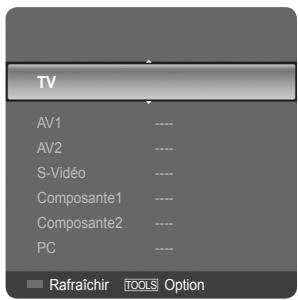
text_image
TV AV1 ---- AV2 ---- S-Vidéo ---- Composante1 ---- Composante2 ---- PC ---- ■ Rafraîchir TOOLS OptionIf you have any questions or comments relating to Samsung products, please contact the SAMSUNG customer care center.