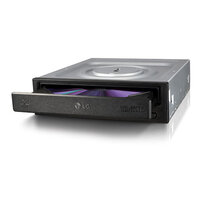
DH18NS50 - DVD Burner LG - Free user manual and instructions
Find the device manual for free DH18NS50 LG in PDF.



| Product Type | Internal DVD Writer |
| Brand | LG |
| Model | DH18NS50 |
| Interface | SATA (Serial ATA) |
| DVD-ROM Read Speed | 18x max |
| CD-ROM Read Speed | 48x max |
| Supported Disc Formats | DVD-R, DVD+R, DVD+R DL, DVD-R DL, DVD-RW, DVD+RW, DVD-RAM, CD-R, CD-RW |
| Loading Mechanism | Motorized Tray |
| Mounting | Internal, 5.25-inch Bay |
| Regional Control | Region Playback Control Phase II, 5 Changes Maximum |
| Minimum System Configuration | Pentium IV 2.4 GHz, 256 MB RAM, Windows XP/Vista/7/8, SATA-compatible Motherboard |
| Power Supply | 15-pin SATA Power Cable |
| Manual Ejection | Yes, via Emergency Ejection Hole |
| Dimensions (approx.) | 148 x 170 x 42 mm (L x D x H) |
| Weight (approx.) | 0.5 kg |
| Operating Temperature | 5°C to 45°C |
| Cleaning | Clean the exterior with a dry cloth; do not use solvents |
| Installation Precautions | Avoid humidity, dust, vibrations, direct sunlight |
| Software Compatibility | Requires separate MPEG playback software for DVD video |
Frequently Asked Questions - DH18NS50 LG
User questions about DH18NS50 LG
0 question about this device. Answer the ones you know or ask your own.
Ask a new question about this device
Download the instructions for your DVD Burner in PDF format for free! Find your manual DH18NS50 - LG and take your electronic device back in hand. On this page are published all the documents necessary for the use of your device. DH18NS50 by LG.
USER MANUAL DH18NS50 LG
To enjoy fully all the features and functions of your product, please read this owner's manual carefully and completely.
DH18NS50

3828HM1059P
Internal Serial ATA Drive
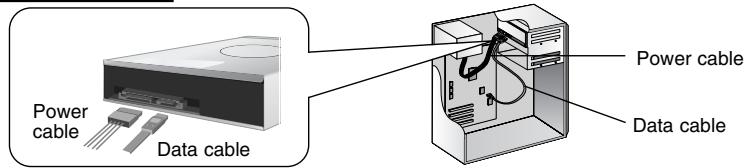
PC Connection
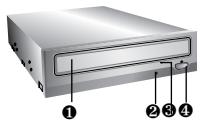
A | Location and Function of Controls
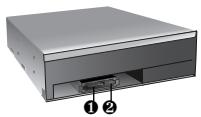
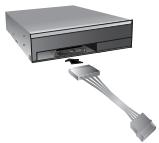
B | Connecting the SATA Power Cable
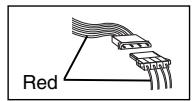
- Connect to the power connector of the PC.
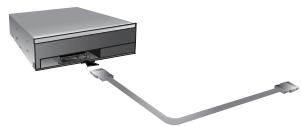
C | Connecting the SATA Data Cable
- Connect to the SATA connector on the PC's Motherboard.
English
Features
Serial ATA interface
- Data transfer rate (DVD-ROM max-18X-speed, CD-ROM max-48X-speed)
Motorized tray loading system
Designed for internal mounting
Emergency eject support
- Read compatible for DVD-R, DVD+R, DVD+R DL, DVD-R DL, DVD-RW, DVD+RW & DVD-RAM discs
Supports Region playback control Phase II
System Requirements*
Pentium IV 2.4 GHz or higher
- Motherboard that supports Serial ATA interface.
A minimum of 256 MB memory (higher recommended).
- A suitable free standard 13.34cm (5^1 / 4^ ) internal drive bay.
OS: Windows XP, Vista, Windows 7, Windows 8.
- Please note: Certain software (i.e. particularly those including Video playback) may require a considerably increased specification PC to give acceptable results. While this DVD-ROM drive can read DVD-video discs, decoding them to display on your pc's monitor requires separate MPEG decoding that is done by separate hardware (either an MPEG decoder card or MPEG decoding done by your video card), or separate software that you install to do MPEG decoding. These items are separate and are not included with this DVD-ROM drive.
Location and Function of Controls
Front Panel
- Disc Tray
- Drive activity indicator
- Emergency Eject Hole
- Stop/Eject Button
Rear Panel
- SATA Power connector (15pin).
- SATA Data connector (7pin).
English
Installing the Drive ②
Before installing the drive, turn off the system power. Follow the steps below to install the DVD-ROM drive:
- Remove the cover from your computer system. Refer to manual for the computer for details about removing the cover.
-
Mounting the Drive
-
Remove the a 5^1 / 4 drive bay panel from the computer. Refer to the manual for the computer for details.
- Insert the drive unit into the bay. Do not apply excessive pressure to the cables inside the computer.
-
Secure the drive with the screws. If there is not much space behind the drive, connect the SATA and other cables before securing the drive.
-
PC Connection
The DVD-ROM drive connects to the motherboard of the host computer using a SATA interface cable.
- Connecting the SATA Power Cable
Connect the power cable so the projection of the cable connector side to come to the left side. Be careful not to connect upside down.
- Connecting the SATA Data Cable
Connect the data cable. Be careful not to connect upside down.
- When the installation of the drive unit is complete, replace the computer cover.
- Reconnect the computer power cord and turn on the computer.
Device Drivers
When using Windows XP, Vista, Windows 7 or Windows 8 the installation of any software driver or special device is not required.
For Windows XP Users
In order to ensure normal drive operation, please check the following:
- The drive is displayed in Windows XP: [Control Panel]-[System]-[Hardware]-[Device Manager]-[DVD/CD-ROM-Drive]
32-bit is displayed in [control panel]-[system]-[performance]
If the drive is not recognized by your computer, please check the following items.
- If an indicator is displayed on the IDE controller in [control panel]-[system]-[device manager]-[harddisk controller], you will need to contact your PC's manufacturer or the motherboard's manufacturer and get the appropriate IDE controller driver.
Run ADD NEW HARDWARE in Control Panel to let the PC search again for the new device.
English
How to Use the Discs
When using CD-ROM discs, DVD-ROM discs, CD-R discs or CD-RW discs, don't attach any stickers or labels to the discs. Using discs with them attached not only causes read and write errors, but data on the disc may be lost due to damage to the disc itself. The Discs in this unit operate at a very high speed! DO NOT use damaged, cracked or warped discs. The drive's optical unit may be damaged if they break. DO NOT use non-standard discs. NON-standard discs may not play or store data properly. Non-standard discs are any discs that are not the standard 12cm CD type discs. This includes Sony WalkmanTM discs, non-circular discs including promotional business card discs, and other unusual discs.
Notes on CD-RW/DVD-RW discs
This product can read CD-RW/DVD-RW disc data. Note the following:
- A little longer time is needed to sense a CD-RW/ DVD-RW disc when the operation starts, compared with standard CD-ROM/ DVD-ROM discs.
- Since playback signal level of CD-RW/DVD-RW is lower than the replicated CD/DVD discs, reading speed of those discs is lower than that of the replicated discs to ensure data reading.
- Blank discs, discs that you failed to write data, or discs that session close processing has not been made, cannot be used.
- Operation may not start, or the data may not be read under the following conditions: The quality of the recorded signal has deteriorated due to the dirt or scratches on the disc, or frequently rewritten discs. If the drive fails to read the disc, open the disc drawer, check the data side of the disc (side opposite the label side) for dust or scratches, and reinsert the disc and close the drawer to try to read the disc again
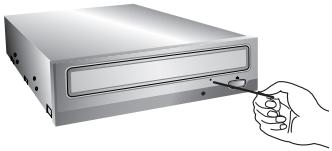
Emergency Eject
This drive has a feature that allows the CD to be ejected manually if necessary in an emergency, such as failure of the drive or a power outage.
NOTE: Don't use this feature except in an emergency.
1) Turn the power to OFF.
2) Poke a fine-tipped object (such as a straightened heavy duty paper clip) into the small hole above the eject button. The front door will pop open and the disk tray will come partway out.
3) Pull the front door to open it all the way, then grip the disc tray between thumb and forefinger and gently pull it straight out.
NOTE: This feature is a last measure to be used only in an emergency. Using it excessively will cause malfunction. If you cannot get a good grip on the disc tray with your fingers, use a steel binder clip or spring clamp to pull it out.
English
Troubleshooting
Before Requesting Service
Before calling for service, check this list.
The drive doesn't have power.
- Is the power supply cable from the host computer plugged in?
- Is the Power Connector to the drive securely attached?
The system doesn't start.
- Are the power and SATA cables to the PC correctly connected?
- Is the total length of the SATA cable 20 inches or less?
- Is each connector completely attached?
- Other connections may have been knocked lose while installing the drive.
Cannot Read discs.
- Does the CD or DVD disc have dirt or scratches?
- Is the disc loaded in the drive with the read/write surface facing the right direction? (label up)
- Is the drive installed in the correct orientation?
- Was the drive or disc moved from a low temperature environment to a high temperature environment? (There is a possibility of condensation on the lens in the drive or on the surface of the disc.)
When you call for service, be prepared to give as much information as possible of your system, environment, and the specific problem. (What happened? When? How long? What was going on? Were there any error messages displayed? etc.)
Please Note: Since this product supports RegionPlayback Control Phase II, a certain MPEG decoder card or Software without regional code setting may cause this drive not to read DVD-ROM discs. This DVD-ROM Drive enables you to change the regional code up to 5 times.
Important Precautions
Follow these precautions when handling the drive or discs.
Precautions
- Please take notice that the manufacturer of this equipment does not offer any warranty against data loss due to inappropriate installation or handling or direct or indirect damages.
- Please take notice that the manufacturer will bear no responsibility for direct or indirect damages caused by the use of this product or its malfunction.
- Please take notice that the manufacturer will bear no responsibility for damage to data caused by this product.
Installation
-
Avoid placing the drive in a location subject to:
-
high humidity
- high temperature
- excessive dust
- mechanical vibration
- direct sunlight
We recommend using the drive in a horizontal or vertical position. Do not install the drive at an angle.
Operation
- Don't move the drive suddenly from a cold place to a warm one or raise the room temperature suddenly. Condensation may occur, causing abnormal operation.
- Make sure to remove the disc before moving the drive. The disc may be damaged, causing data loss.
- Be careful to prevent foreign objects, such as liquids or metal, from entering the drive. In case a foreign object enters the drive, please consult the dealer where the drive was purchased.
- Don't interrupt the electric power while the drive is operating.
English
Specifications
| General Description | Interface | ATA/ATAPI, INF-8090i v7 Revision 0.6, ATA/ATAPI -7 V1 Revision 4, MMC-5 Revision 4, Electrical, Connector; Serial ATA Gen 1i | ||
| Burst Data Transfer Rate | 1.5 Gb/s | |||
| Load/Eject | Tray type loading with Emergency eject | |||
| Buffer memory size | 198.75 kB | |||
| Applicable disc (read only) | DVD-ROM(Single layered and Dual layered disc), DVD-R 3.95GB & 4.7 GB, DVD-R Double, DVD+R,DVD+R Double, DVD-RW(Rev.1.0 & 1.1), DVD+RW, DVD-RAW, CD-ROM Mode1 and Mode2 data disc, CD-R, CD-RW,CD-ROM XA, CD-I, Photo-CD Multi-session, CD-Extra, CD TEXT, CD Audio disc, Mixed mode CD-ROM disc | |||
| Disc diameter | 12 cm/8 cm (8 cm disc can be used only with drive placed horizontally) | |||
| Performance | CD | Read CD-ROM/R/ RW | 48x/48x/40x max. | |
| DVD | Read DVD-ROM (Single Layer / Dual Layer) | 18x/12x max. | ||
| Read DVD+R | 16x max. | |||
| Read DVD+R Double Layer | 8x max. | |||
| Read DVD+RW | 12x max. | |||
| Read DVD-R | 16x max. | |||
| Read DVD-R Double Layer | 8x max. | |||
| Read DVD-RW | 12x max. | |||
| Read DVD-RAM | 5x max. | |||
| Access time (Random) | DVD-ROM | 95 ms (Average) | ||
| CD-ROM | 90 ms (Average) | |||
| Power | Voltage | +5 V +/-5 % tolerance, less than 120 mVp-p ripple +12 V +/-10 % tolerance, less than 120 mVp-p ripple | ||
| Temperature | Operating Non-operating | 5 °C to 45 °C -30 °C to 60 °C | ||
| Relative Humidity | Operating (No condensation) Non-operating (No condensation, Power Off, without disc) | 10 % to 80 % 10 % to 90 % | ||
| Reliability | MTBF | 125,000 power on hours (POH) | ||
NOTE : Specifications are subject to change without notice for improvement.
Caution!
The disc rotates at high speed in the drive unit.
Use of worn, damaged, or non-standard CD-ROM discs can only adversely affect the drive and cause the disc to shatter or crush while in use. Disc crush can only occur when you use a damaged CD-ROM disc in the drive. It is an extremely rare occurrence, but there are steps which can be taken to prevent it.
Always check your discs before inserting them into the drive.
- Take care not to use worn, cracked, damaged, warped or poor quality CD-ROMs, as this may cause damage to your drive.
- Check the clear plastic on the center of the disc, cracks here are the main cause of disc crush.
- Do not play CD-ROMs which are a non-standard (i.e. non-circular) shape, such as heart shaped discs, or discs in the shape of a business card.
How can you keep your discs from becoming damaged?
- When not in use, remove discs from the drive.
- Keep discs in the packaging supplied with them and out of direct sunlight and away from heat sources.
Excessive vibration or a sudden jolt to the drive during operation may cause a malfunction.
Avoid exposing the drive to sudden changes in temperature as it may cause condensation to collect inside the drive.
Please visit www.qlservice.com and install the automatic firmware download program, "LG ODD Online F/W update." This program will automatically check for new firmware releases and download them. It is also included on the software discs that accompany our drives.
Deutsch


- Internal Serial ATA Drive
- English
- Features
- System Requirements*
- Location and Function of Controls
- Front Panel
- Rear Panel
- Installing the Drive ②
- Device Drivers
- For Windows XP Users
- How to Use the Discs
- Notes on CD-RW/DVD-RW discs
- Emergency Eject
- Troubleshooting
- Before Requesting Service
- Important Precautions
- Precautions
- Installation
- Operation
- Caution!
- Deutsch
Brand : LG
Model : DH18NS50
Category : DVD Burner