 ManualGo.com
SC-D903 - Camcorder SAMSUNG - Free user manual and instructions
Find the device manual for free SC-D903 SAMSUNG in PDF.


Download the instructions for your Camcorder in PDF format for free! Find your manual SC-D903 - SAMSUNG and take your electronic device back in hand. On this page are published all the documents necessary for the use of your device. SC-D903 by SAMSUNG.
USER MANUAL SC-D903 SAMSUNG
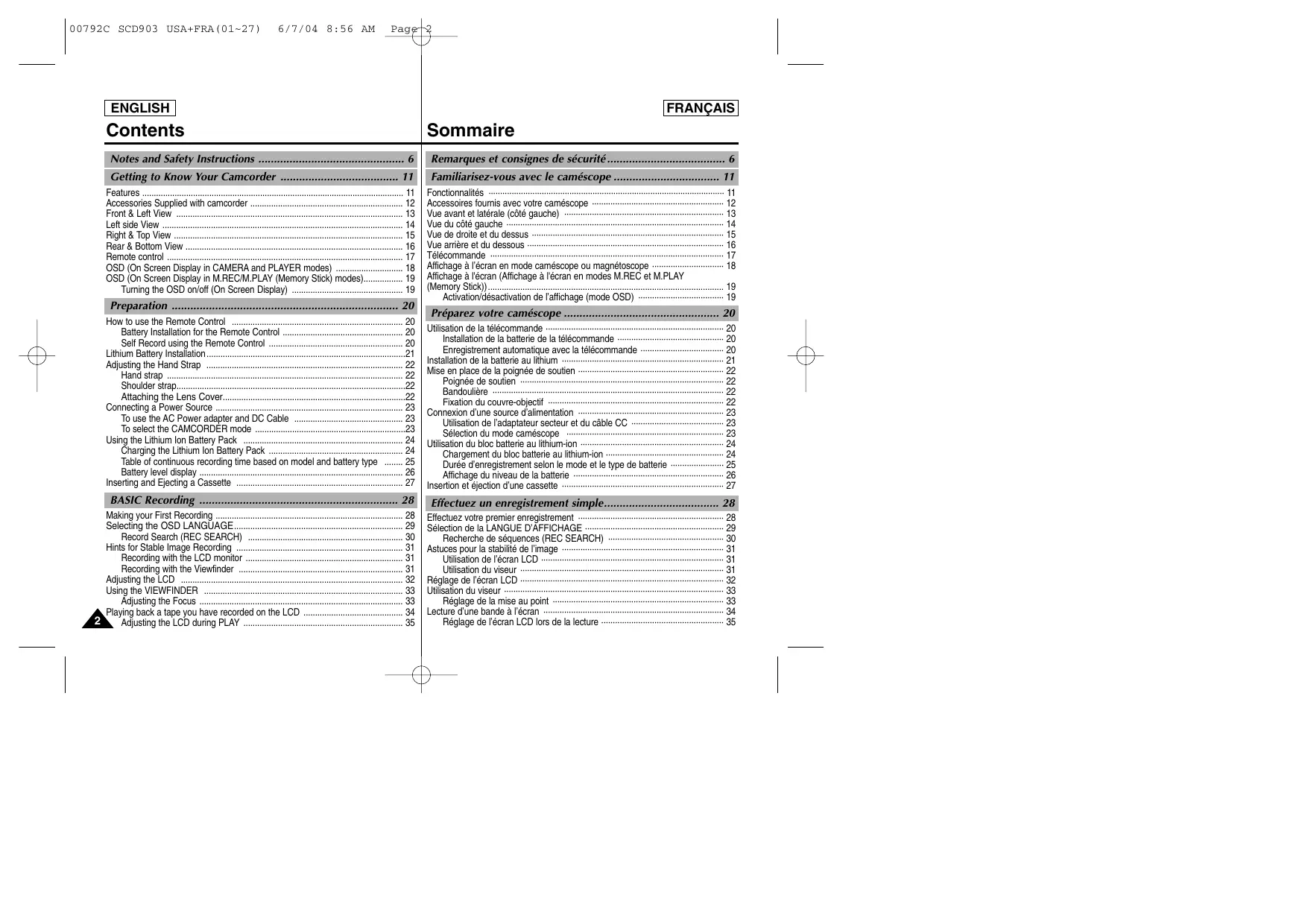
- Liquid Crystal Display F.ADV Owner’s Instruction Book Before operating the unit, please read this instruction book thoroughly, and retain it for future reference. Système à transfert de charge Mode d’emploi ELECTRONICS Avant d’utiliser cet appareil, veuillez lire attentivement ce mode d’emploi et le conserver pour toute consultation ultérieure. AD68-00792C 00792C SCD903 USA+FRA(01~27) 6/7/04 8:56 AM Page 2 ENGLISH Contents Notes and Safety Instructions p. 6
- FRANÇAIS Sommaire Remarques et consignes de sécurité p. 6
- Getting to Know Your Camcorder p. 11
- Familiarisez-vous avec le caméscope p. 11
- Features p. 11
- Accessories Supplied with camcorder p. 12
- Front & Left View p. 13
- Left side View p. 14
- Right & Top View p. 15
- Rear & Bottom View p. 16
- Remote control p. 17
- OSD (On Screen Display in CAMERA and PLAYER modes) p. 18
- OSD (On Screen Display in M.REC/M.PLAY (Memory Stick) modes) p. 19
- Turning the OSD on/off (On Screen Display) p. 19
- Fonctionnalités ······································································································ 11 Accessoires fournis avec votre caméscope ························································· 12 Vue avant et latérale (côté gauche) ····································································· 13 Vue du côté gauche ······························································································ 14 Vue de droite et du dessus ··················································································· 15 Vue arrière et du dessous ····················································································· 16 Télécommande ····································································································· 17 Affichage à l’écran en mode caméscope ou magnétoscope ······························· 18 Affichage à l'écran (Affichage à l'écran en modes M.REC et M.PLAY (Memory Stick)) p. 19
- Activation/désactivation de l’affichage (mode OSD) ····································· 19 Preparation p. 20
- How to use the Remote Control p. 20
- Battery Installation for the Remote Control p. 20
- Self Record using the Remote Control p. 20
- Lithium Battery Installation p. 21
- Adjusting the Hand Strap p. 22
- Hand strap p. 22
- Shoulder strap p. 22
- Attaching the Lens Cover p. 22
- Connecting a Power Source p. 23
- To use the AC Power adapter and DC Cable p. 23
- To select the CAMCORDER mode p. 23
- Using the Lithium Ion Battery Pack p. 24
- Charging the Lithium Ion Battery Pack p. 24
- Table of continuous recording time based on model and battery type p. 25
- Battery level display p. 26
- Inserting and Ejecting a Cassette p. 27
- Préparez votre caméscope p. 20
- Utilisation de la télécommande ············································································· 20 Installation de la batterie de la télécommande ·············································· 20 Enregistrement automatique avec la télécommande ···································· 20 Installation de la batterie au lithium ······································································ 21 Mise en place de la poignée de soutien ······························································· 22 Poignée de soutien ························································································ 22 Bandoulière ···································································································· 22 Fixation du couvre-objectif ············································································ 22 Connexion d’une source d’alimentation ······························································· 23 Utilisation de l’adaptateur secteur et du câble CC ········································ 23 Sélection du mode caméscope ···································································· 23 Utilisation du bloc batterie au lithium-ion ······························································ 24 Chargement du bloc batterie au lithium-ion ··················································· 24 Durée d’enregistrement selon le mode et le type de batterie ······················· 25 Affichage du niveau de la batterie ································································· 26 Insertion et éjection d’une cassette ······································································ 27 BASIC Recording p. 28
- Effectuez un enregistrement simple p. 28
- Making your First Recording p. 28
- Selecting the OSD LANGUAGE p. 29
- Record Search (REC SEARCH) p. 30
- Hints for Stable Image Recording p. 31
- Recording with the LCD monitor p. 31
- Recording with the Viewfinder p. 31
- Adjusting the LCD p. 32
- Using the VIEWFINDER p. 33
- Adjusting the Focus p. 33
- Playing back a tape you have recorded on the LCD p. 34
- Adjusting the LCD during PLAY p. 35
- Effectuez votre premier enregistrement ······························································· 28 Sélection de la LANGUE D’AFFICHAGE ···························································· 29 Recherche de séquences (REC SEARCH) ·················································· 30 Astuces pour la stabilité de l’image ······································································ 31 Utilisation de l’écran LCD ··············································································· 31 Utilisation du viseur ························································································ 31 Réglage de l’écran LCD ························································································ 32 Utilisation du viseur ······························································································· 33 Réglage de la mise au point ·········································································· 33 Lecture d’une bande à l’écran ·············································································· 34 Réglage de l’écran LCD lors de la lecture ····················································· 35 00792C SCD903 USA+FRA(01~27) 6/7/04 8:56 AM Page 3 FRANÇAIS ENGLISH Contents Sommaire Controlling Sound from the Speaker p. 35
- Réglage du volume du haut-parleur ····································································· 35 Advanced Recording p. 36
- Use of various Functions p. 36
- Setting menu items p. 36
- Set the camcorder to CAMERA or PLAYER mode and M.REC or M.PLAY mode p. 36
- Availability of functions in each mode p. 37
- CLOCK SET p. 38
- WL. REMOTE p. 39
- BEEP SOUND p. 40
- SHUTTER SOUND p. 41
- DEMONSTRATION p. 42
- PROGRAM AE p. 43
- Setting the PROGRAM AE p. 44
- Zooming In and Out with DIGITAL ZOOM p. 46
- Zooming In and Out p. 46
- Digital Zoom p. 47
- EIS (Electronic Image Stabilizer) p. 48
- DSE (Digital Special Effects) SELECT p. 49
- Selecting an effect p. 50
- MEMORY MIX p. 51
- Recording Superimposed images on a tape p. 52
- Using the Built-in Flash p. 53
- FLASH SELECT p. 53
- REC MODE p. 54
- AUDIO MODE p. 55
- WIND CUT p. 56
- DATE/TIME p. 57
- TV DISPLAY p. 58
- Using Quick Menu p. 59
- Setting the Quick menu p. 60
- SLOW SHUTTER(Low Shutter Speed) p. 62
- EASY Mode (for Beginners) p. 63
- AF/MF (Auto Focus/Manual Focus) p. 64
- Auto Focusing p. 64
- Manual Focusing p. 64
- BLC (Back Light Compensation) p. 65
- Fade In and Out p. 66
- To Start Recording p. 66
- To Stop Recording (use FADE IN / FADE OUT) p. 66
- Audio dubbing p. 67
- Fonctions du mode menu Perfectionnez vos enregistrements ······································································ 36 Liste des réglages ·························································································· 36 Réglage du caméscope sur CAMERA ou PLAYER, ou bien sur M.REC ou M.PLAY ······················································································· 36 Fonctions disponibles pour chaque mode ····················································· 37 Réglage de l’horloge (CLOCK SET) ······························································ 38 WL.REMOTE ·································································································· 39 Activation/désactivation de la sonorité (BEEP SOUND) ································40 Bruit de l’obturateur (SHUTTER SOUND) ····················································· 41 Mode DEMONSTRATION ·············································································· 42 Exposition automatique (PROGRAM AE) ····················································· 43 Réglage de l’exposition automatique ····························································· 44 Équilibrage du blanc (WHT. BALANCE) ························································ 45 Utilisation du zoom numérique ······································································ 46 Zoom avant et arrière ····················································································· 46 Zoom numérique ···························································································· 47 Stabilisateur électronique d’images (EIS) ······················································ 48 Effets spéciaux numériques (DSE) ································································ 49 Sélection d’un effet ························································································· 50 Fonction de combinaison des images (MEMORY MIX) ······························· 51 Enregistrement d’images superposées sur une bande ································ 52 Utilisation du flash intégré ····················································································· 53 Fonction de sélection du flash (FLASH SELECT) ········································ 53 Mode d’enregistrement (REC MODE) ··························································· 54 Mode AUDIO ·································································································· 55 Fonction coupe-vent (WIND CUT) ································································· 56 Affichage de la date et de l’heure (DATE/TIME) ··········································· 57 Affichage (TV DISPLAY) ················································································ 58 Utilisation du menu rapide ···················································································· 59 Réglage du menu rapide ··············································································· 60 Vitesse d’obturation et exposition (SHUTTER SPEED & EXPOSURE) ······ 61 Obturation lente (SLOW SHUTTER) ···································································· 62 Mode EASY (débutants) ······················································································· 63 Automatique/Mise au point manuelle(AF/MF) ······················································ 64 Mise au point automatique ············································································· 64 Mise au point manuelle ·················································································· 64 Contre-jour intelligent (BLC) ················································································· 65 Fondu en ouverture et en fermeture (FADE) ······················································· 66 Début de l’enregistrement ·············································································· 66 Fin de l’enregistrement (avec fondu) ····························································· 66 Doublage sonore (AUDIO DUBBING) ·································································· 67 3 00792C SCD903 USA+FRA(01~27) 6/7/04 8:56 AM Page 4 FRANÇAIS ENGLISH p. 36
- Contents Sommaire Dubbing sound p. 67
- Dubbed Audio Playback p. 68
- PHOTO Image Recording p. 69
- Searching for a PHOTO picture p. 69
- Various Recording Techniques p. 70
- Réalisation du doublage sonore ···································································· 67 Écoute du son doublé ···················································································· 68 Enregistrement d’une image fixe ·········································································· 69 Recherche d’images fixes ·············································································· 69 Techniques d’enregistrement ················································································ 70 Playback p. 71
- Visionnez une cassette p. 71
- Tape Playback p. 71
- Playback on the LCD p. 71
- Playback on a TV monitor p. 71
- Connecting to a TV which has Audio/Video input jacks p. 71
- Connecting to a TV which has no Audio and Video input jacks p. 72
- Playback p. 72
- Various Functions while in PLAYER mode p. 73
- Playback pause p. 73
- Picture search (Forward/Reverse) p. 73
- Slow playback (Forward/Reverse) p. 73
- Frame advance (To play back frame by frame) p. 74
- X2 Playback (Forward/Reverse ) p. 74
- Reverse playback p. 74
- ZERO MEMORY p. 75
- Lecture d’une bande ····························································································· 71 Lecture sur l’écran LCD ················································································· 71 Lecture sur l’écran de votre téléviseur ··························································· 71 Connexion à un téléviseur avec entrée A/V ·················································· 71 Connexion à un téléviseur sans entrée A/V ·················································· 72 Lecture de la cassette ···················································································· 72 Fonctions du mode magnétoscope ······································································ 73 Arrêt sur image (mode pause) ······································································· 73 Recherche d’image avant/arrière ··································································· 73 Lecture au ralenti avant/arrière ······································································ 73 Lecture image par image ··············································································· 74 Lecture X2 avant/arrière ················································································ 74 Lecture arrière ································································································· 74 Mode mémoire compteur (ZERO MEMORY) ······················································ 75 IEEE 1394 Data Transfer p. 76
- Transfert de données IEEE 1394 p. 76
- Transferring IEEE1394 (i.LINK)-DV standard data connections p. 76
- Connecting to a DV device p. 76
- Connecting to a PC p. 76
- System requirements p. 77
- Recording with a DV connection cable p. 77
- Transfert de données numériques avec IEEE 1394 (i.LINK) ······························ 76 Connexion à un appareil vidéo numérique ···················································· 76 Connexion à un PC ························································································ 76 Configuration système requise ······································································ 77 Enregistrement avec un câble de connexion DV ··········································· 77 USB interface p. 78
- Interface USB p. 78
- Transferring a Digital Image through a USB Connection p. 78
- System Requirements p. 78
- Installing DVC Media 6.1 Software p. 79
- Connecting to a PC p. 80
- Transfert d’images numériques avec l’interface USB ·········································· 78 Configuration système requise ············································································· 78 Installation du Software DVC Media 6.1 ····························································· 79 Connexion à un PC ······························································································· 80 Digital Still Camera mode p. 81
- Appareil photo numérique p. 81
- MEMORY STICK p. 81
- Memory Stick Functions p. 81
- Inserting and ejecting the Memory Stick p. 82
- Structure of folders and files on the Memory Stick p. 83
- Image Format p. 83
- Selecting the CAMCORDER mode p. 83
- Selecting the image quality p. 84
- Carte MEMORY STICK ························································································ 81 Fonctions disponibles avec la carte Memory Stick ······································· 81 Insertion/retrait de la carte Memory Stick ······················································ 82 Structure des dossiers et fichiers sur la carte Memory Stick ························ 83 Format des images ························································································ 83 Sélection du mode caméscope ············································································ 83 Sélection de la qualité d’image ············································································· 84 00792C SCD903 USA+FRA(01~27) 6/7/04 8:56 AM Page 5 FRANÇAIS ENGLISH Contents Sommaire Select the photo quality p. 84
- Number of images on the Memory Stick p. 84
- Selecting the recording image size p. 85
- Selecting the moving picture size p. 86
- Recording images continuously p. 87
- Select the CONTINUOUS SHOT p. 87
- Setting the File Number p. 88
- Recording Still images to a Memory Stick in M.REC Mode p. 89
- Recording images to a Memory Stick p. 89
- Recording an image from a cassette as a still image p. 90
- Copying still images from a cassette to Memory Stick p. 91
- MJPEG RECORDING p. 92
- Recording moving pictures onto a MEMORY STICK p. 92
- Viewing still images/moving pictures p. 94
- To view a Single image p. 94
- To view a slide show p. 95
- To view the Multi Display p. 95
- Marking still images for printing p. 96
- Protection from accidental erasure p. 97
- Deleting Still images/Moving pictures p. 98
- Formatting the Memory Stick p. 99
- Attention p. 99
- Sélection de la qualité d’image ······································································ 84 Nombre d’images pouvant être stockées sur la carte Memory Stick ··········· 84 Sélection de la taille d’enregistrement de l’image ················································ 85 Sélection de la taille d’une image mobile ····························································· 86 Enregistrement continu d’images ········································································· 87 Sélection de la fonction de prise continue (CONTINUOUS SHOT) ············· 87 Définition des numéros de fichier ········································································· 88 Enregistrement d’images fixes sur une carte Memory Stick en mode M.REC ··· 89 Enregistrement d’images sur une carte Memory Stick ································· 89 Enregistrement d’une image fixe à partir d’une cassette ······························ 90 Copie d’images fixes d’une cassette sur la carte Memory Stick ························· 91 Enregistrement MJPEG ························································································ 92 Enregistrer des images sur une MEMORY STICK p. 92
- Affichage des images fixes/mobiles ····································································· 94 Visualisation d’une seule image ···································································· 94 Visualisation des images sous forme de diaporama ····································· 95 Visualisation des images sur le multi-écran ·················································· 95 Marquage des images fixes pour l’impression ····················································· 96 Protection contre l’effacement accidentel ····························································· 97 Suppression des images fixes/mobiles ································································ 98 Formatage d’une carte Memory Stick ·································································· 99 Attention ········································································································· 99 Maintenance p. 100
- Entretien p. 100
- After finishing a recording p. 100
- Cleaning and Maintaining the Camcorder p. 101
- Cleaning the Video Heads p. 101
- Using Your Camcorder Abroad p. 102
- Power sources p. 102
- Color system p. 102
- Fin d’un enregistrement ······················································································ 100 Nettoyage et entretien du caméscope ······························································· 101 Nettoyage des têtes vidéo ··········································································· 101 Utilisation du caméscope à l’étranger ································································ 102 Sources d’alimentation ················································································· 102 Normes de couleurs ····················································································· 102 Troubleshooting p. 103
- Dépannage p. 103
- Troubleshooting p. 103
- Self Diagnosis Display p. 103
- Moisture Condensation p. 103
- Self Diagnosis Display in M.REC, M.PLAY mode p. 104
- Dépannage ·········································································································· 103 Auto-diagnostic ····························································································· 103 Condensation ······························································································· 103 Auto-diagnostic en mode M.REC/M.PLAY ·················································· 104 Specifications p. 106
- Spécifications techniques p. 106
- INDEX p. 107
- INDEX p. 107
- Warranty (Canada users only) p. 109
- Garantie pour le Canada p. 109
00792C SCD903 USA+FRA(01~27) 6/7/04 8:56 AM Page 6 ENGLISH FRANÇAIS Notes and Safety Instructions Notes regarding the rotation of the LCD screen Please rotate the LCD screen carefully as illustrated. Over rotation may cause damage to the inside of the hinge that connects the LCD screen to the Camcorder.
1. LCD screen closed.
2. Standard recording using the LCD
screen. ■ A LCD Monitor is opened applying a finger to LCD open knob.
3. Recording when looking at the LCD
screen from the top.
4. Recording when looking at the LCD
screen from the front.
5. Recording with the LCD screen
1. A sudden rise in atmospheric temperature may cause
condensation to form inside the camcorder.
(DEW) protection feature is activated, leave the camcorder for at least two hours in a dry, warm room with the cassette compartment opened and the battery pack removed. Notes regarding CAMCORDER
1. Do not leave the camcorder exposed to high temperature
(plus de 60°C), par exemple, en plein soleil ou dans une voiture (above 60°C or 140°F). garée au soleil. For example, in a parked car in the sun or exposed to direct sunlight.
2. Ne mouillez pas votre caméscope.
2. Do not let the camcorder get wet.
Make sure that the battery pack is fully charged before starting to record. To preserve battery power, keep your camcorder turned off when you are not operating it. If your camcorder is in CAMERA mode and it is left in STBY mode without being operated for more than 5 minutes with a tape installed, it will automatically turn itself off to protect against unnecessary battery discharge. Make sure that the battery pack is located correctly and firmly in place. Dropping the battery pack may damage it. A brand new battery pack is not charged. Before using the battery pack, you need to charge it completely. It is a good idea to use the viewfinder rather than the LCD when making long recordings, because the LCD uses up more battery power.
- When the battery reaches the end of its life, please contact your local dealer. The batteries have to be dealt with as chemical waste.
Do not film with the camera lens pointing directly at the sun. Direct sunlight can damage the CCD(Charge Coupled Device). Notes regarding electronic viewfinder
1. Do not position the camcorder such that the viewfinder is pointing
towards the sun. Direct sunlight can damage the inside of the viewfinder. Be careful when placing the camcorder under sunlight or near a window exposed to sunlight.
2. Do not pick up the camcorder using the viewfinder.
3. Excessive force when pulling the viewfinder out may damage it.
Notes regarding ‘Record’ or ‘Playback’ using the LCD
1. The LCD display has been
manufactured using high precision tech-nology. However, there may be tiny dots (red, blue or green in color) that appear on the LCD display. These dots are normal and do not affect the recorded picture in any way.
2. When you use the LCD display under direct sunlight or outdoors,
it maybe difficult to see the picture clearly. If this occurs, we recommend using the viewfinder.
3. Direct sunlight can damage the LCD monitor.
Notes regarding the hand strap
To ensure a steady picture during filming, check that the hand strap is properly adjusted. Do not force your hand into the hand strap as you could damage it. Objectif
00792C SCD903 USA+FRA(01~27) 6/7/04 8:56 AM Page 10 ENGLISH Notes and Safety Instructions Precautions regarding the Lithium battery
1. The lithium battery maintains the clock function and user settings;
even if the battery pack or AC adapter is removed.
2. The lithium battery for the camcorder lasts about 6 months under
normal operation from time of installation.
3. When the lithium battery becomes weak or dead, the date/time
indicator will display “---” when you set the DATE/TIME to ON. In this case, replace the lithium battery with a new one (type CR2025).
4. There is a danger of explosion if battery is incorrectly replaced.
Replace only with the same or equivalent type.
Keep the LITHIUM BATTERY out of reach of children. Should a battery be swallowed, consult a doctor immediately. SERVICING Do not attempt to service this CAMCORDER yourself. Opening or removing covers may expose you to dangerous voltage or other hazards. Refer all servicing to qualified service personnel. REPLACEMENT PARTS When replacement parts are required, be sure the service technician has used replacement parts specified by the manufacturer and having the same characteristics as the original part. Unauthorized substitutions may result in fire, electric shock or other hazards.
You can select the desired OSD Language among English, French, Spanish, Portuguese, German and Italian. Digital data transfer function with IEEE1394 By incorporating the IEEE 1394 (i.LINK™ : i.LINK is a serial data transfer protocol and inter-connectivity system, used to transmit DV data) high speed data transport port, both moving and still images can be transferred to a PC, making it possible to produce or edit various images. USB interface for digital image data transfer You can transfer still images/movies to a PC using the USB interface without an add-on card. PHOTO The PHOTO function lets you capture an object as a still along with sound, while in Camera mode. 900x Digital zoom Allows you to magnify an image up to 900 times its original size. Color TFT LCD A high-resolution color TFT LCD gives you clean, sharp images as well as the ability to review your recordings immediately. Electronic Image Stabilizer (EIS) The EIS compensates for any handshake, reducing unstable images, particularly at high magnification. Various digital effects The DSE (Digital Special Effects) allows you to give your films a special look by adding various special effects. Back Light Compensation (BLC) The BLC function compensates for the bright background behind a subject you're recording. Program AE The Program AE enables you to alter the shutter speed and aperture to suit the type of scene/action to be filmed. Digital Still Camera function ■ Using Memory Stick, you can easily record and playback standard still images. ■ You can transfer standard still images on the Memory Stick to your PC using the USB interface. MJPEG Recording MJPEG recording makes it possible to record video onto a Memory Stick. Mega-pixel CCD Your camcorder incorporates a 1.0mega-pixel CCD. High-resolution still images can be recorded to a Memory Stick. Built-in Flash You can take natural-looking flash pictures with appropriate illumination using the built-in Flash. Fonctionnalités
1. LITHIUM Battery Cover
5. Tripod receptacle 6. TAPE EJECT
1. LITHIUM Battery Cover (see page 21)
4. Program AE (activation/désactivation du
J. Image Size (see page 85) K. Continuous Shot (see page 87) L. Remaining Memory (MJPEG) OSD in M.REC mode
2. Press the SELF TIMER button until the appropriate indicator is
- Self Timer starts counting down from 10 with a beep sound. - In the last one second of the countdown, the beep sound gets faster, then recording starts automatically. - If you want to cancel the Self Timer function before recording, press the SELF TIMER button.
4. Press START/STOP again when you wish to stop recording.
1. Open the lithium battery cover from the
2. Position the Lithium cell in the holder, with
the positive ( ) terminal face outward.
3. Close the lithium battery cover.
Warning: Keep the LITHIUM BATTERY out of the reach of the
ajustez la longueur désirée, puis resserrez la boucle. The Shoulder Strap enables you to carry your camcorder around in complete safety.
1. Insert the end of strap into the Shoulder Strap
hook on the camcorder. Insert the other end of strap into ring inside hand strap.
2. Thread each end into the buckle, adjust the
length of the strap and then pull it tight in the buckle. Attaching the Lens Cover a. Ouvrez le rabat de la poignée en le décollant. b. Ajustez la longueur de la poignée, puis recollez-le. c. Refermez le rabat.
1. Connect the AC Power adapter to the
2. Connect the AC cord to a wall socket.
You must use the AA-E8 type AC Power adapter. The plug and wall socket type may differ according to your resident country.
3. Connect the DC cable to the DC jack
socket of the camcorder.
4. Set the camcorder to the desired
mode by holding down the tab on the power switch and turning it to the CAMERA or PLAYER mode. Vous devez utiliser l’adaptateur secteur de type AA-E8. Le type de fiche et de prise murale peut différer selon les pays. < CAMERA mode > To select the CAMCORDER mode ✤ If you want to use this unit as a camcorder, set the mode switch to TAPE position. ✤ If you want to use this unit as a DSC (Digital Still Camera), set the mode switch to MEMORY STICK position. < PLAYER mode >
00792C SCD903 USA+FRA(01~27) 6/7/04 8:56 AM Page 24 ENGLISH FRANÇAIS Preparation Préparez votre caméscope Using the Lithium Ion Battery Pack Utilisation du bloc batterie au lithium-ion ✤ The amount of continuous recording time available depends on : - The type and capacity of the battery pack you are using. - How often the Zoom function is used. It is recommended that you have several batteries available. Charging the Lithium Ion Battery Pack
1. Attach the battery pack to the camcorder.
2. Connect the AC Power adapter to an AC
cord and connect the AC cord to a wall socket.
3. Connect the DC cable to the DC jack
socket on the camcorder.
4. Turn the Camera power switch to off, and
the charging indicator will start to flash, showing that the battery is charging. Blinking time Once per second Twice per second Three times per second Blinking stops and stays on On for a second and off for a second Power Switch Charging rate Less than 50% 50% ~ 75% 75% ~ 90% 90% ~ 100% Error - Reset the battery pack and the DC cable
5. When the battery is fully charged, disconnect the
battery pack and the AC Power adapter from the camcorder. ■ Even with the power switched off, the battery pack will still discharge if it is left connected to the camcorder. Notes
SB-LS220 Approx. 3hr 30min Approx. 3hr Approx. 4hr 10min SB-LS220 Environ 3 h 30 Environ
Environ 4 h 10 Important Notes
Temps de charge The battery pack should be recharged in an environment of between 32°F (0°C) and 104°F (40°C). The battery pack should never be charged in a room temperature that is below 32°F (0°C). The life and capacity of the battery pack will be reduced if it is used in temperatures below 32°F (0°C) or left in temperatures above 104°F (40°C) for a long period, even when it is fully recharged. Do not put the battery pack near any heat source (fire or flames, for example). Do not disassemble, process, pressure, or heat the Battery Pack. Do not allow the + and - terminals of the battery pack to be shortcircuited. It may cause leakage, heat generation, induce fire and overheating.
The charge mark setting does not affect the battery's charge status. Important
Le paramétrage de la marque de charge n’a pas d’influence sur l’état de la charge de la pile. 00792C SCD903 USA+FRA(01~27) 6/7/04 8:56 AM Page 27 FRANÇAIS ENGLISH Preparation Préparez votre caméscope Inserting and Ejecting a Cassette Insertion et éjection d’une cassette ✤ When inserting a tape or closing a cassette holder, do not apply excessive force. This may cause a malfunction. ✤ Do not use any tape other than Mini DV cassettes. ✤ Ne forcez pas pour insérer une bande ou refermer le compartiment à cassette. Vous risqueriez de provoquer un dysfonctionnement. ✤ N’utilisez pas d’autres types de bandes que les Mini DV.
1. Connect a power source and slide the
TAPE EJECT switch and open the cassette door. - The cassette holding mechanism rises automatically.
2. Insert a tape into the cassette holder with
the tape window facing outward and the protection tab toward the top.
3. Press the area labelled PUSH on the
cassette holding mechanism until it clicks into place. - The cassette is loaded automatically.
4. Close the cassette door.
- Close the door completely until you can hear a “click”.
push a. SAVE When you have recorded something that you wish to keep, you can protect it so that it will not be accidentally erased. a. Protecting a tape : Push the safety tab on the cassette so that the hole is uncovered. b. Removing the tape protection : b. REC If you no longer wish to keep the recording on the cassette, push the write-protect tab back so that it covers the hole.
1. Connect a Power source to the
3. Set the power switch to the
CAMERA position. ■ Open the LCD monitor. ■ Set the mode switch to the TAPE position. Make sure that STBY is displayed. ■ If the protection tab of the cassette is open, STOP and PROTECTION! will be displayed. ■ Make sure the image you want to record appears in the LCD monitor or viewfinder. ■ Make sure the battery level indicates that there is enough remaining power for your expected recording time.
4. To start recording, press the START/STOP button.
■ REC is displayed in the LCD. To stop recording, press the START/STOP button again. ■ STBY is displayed in the LCD.
■ The menu list will appear.
2. Move the MENU SELECTOR to highlight INITIAL
and push the MENU SELECTOR.
3. Select LANGUAGE from the sub-menu and push
“LANGUAGE” is always indicated in ENGLISH. Important
1. Hold the camcorder firmly using the hand strap.
2. Place your right elbow against your side.
3. Place your left hand under or beside the LCD to support
and adjust it. Do not touch the built-in microphone.
4. Choose a comfortable, stable position for the shots that
you are taking. You can lean against a wall or on a table for greater stability. Do not forget to breathe gently.
5. Use the LCD frame as a guide to determine the horizontal plane.
6. Whenever possible, use a tripod.
Recording with the Viewfinder
1. Hold the camcorder firmly using the hand strap.
2. Place your right elbow against your side.
3. Place your left hand under the camcorder to support it.
Be sure not to touch the built-in microphone.
4. Choose a comfortable, stable position for the shots that
you are taking. You can lean against a wall or on a table for greater stability. Do not forget to breathe gently.
5. To view an object through the viewfinder, pull it out until
you hear the ‘click’ sound. Excessive force may cause damage to the viewfinder.
6. Place your eye firmly against the viewfinder eyecup.
7. Use the viewfinder frame as a guide to determine the horizontal
1. Set the POWER switch to CAMERA position.
■ In the PLAYER mode, you may only setup the LCD while the tape is playing.
2. Open the LCD screen, and the LCD switches on.
LCD ADJUST is highlighted.
■ You may select NORMAL, SUPER in the BRIGHT SELECT feature and push the MENU SELECTOR to save the setting. ■ Use the MENU SELECTOR to adjust the value of BRIGHT ADJUST and COLOR ADJUST. ■ You can set values for BRIGHT ADJUST between 00 ~ 35 and COLOR ADJUST between 00 ~ 35.
9. Press the MENU button to finish the setting.
00792C SCD903 USA+FRA(28~63) 6/7/04 8:57 AM Page 34 FRANÇAIS ENGLISH Effectuez un enregistrement simple Basic Recording Playing back a tape you have recorded on the LCD ✤ You can monitor the playback picture on the LCD monitor. ✤ Make sure that the battery pack is in place.
2. Hold down the power switch tab and turn it to the
PLAYER position. ■ A confirmation sound beeps.
3. Insert the tape you wish to view. (see page 27)
Adjust the angle of the LCD screen and set the brightness or color if necessary.
(REW) button to rewind the tape to the starting point. ■ To stop rewinding, press the (STOP) button. ■ The camcorder stops automatically after rewinding is complete.
(PLAY/STILL) button to start playback. ■ You can view the picture you recorded on the LCD. ■ To stop the PLAY operation, press the (STOP) button. Notes
You can also view the picture on a TV screen, after connecting the camcorder to a TV or VCR. (see page 71) ■ Various functions are available in PLAYER mode. (see page 73)
When you use the LCD screen for playback, you can hear recorded sound from the built-in Speaker. - Follow the instructions below to decrease or mute speaker volume in the PLAYER mode.
(PLAY/STILL) to play the tape.
3. When you hear sounds once the tape is in play, use
the MENU SELECTOR to adjust the volume. ■ A volume level display will appear on the LCD. Levels may be adjusted from anywhere between 00 to 19. ■ If you close the LCD while playing, you will not hear sound from the speaker.
lire la bande. <3-2> 0:23:47 5 5 min When the cable is connected to the Audio/Video (or S-VIDEO) jack, you cannot hear sound from the speaker and cannot adjust the volume. (PLAY/STILL) pour
( HIGHLIGHT ) indicates the feature you are currently adjusting.
2. Use the MENU SELECTOR and push the MENU SELECTOR on
the right side panel to select and activate the item.
3. You can exit the menu mode by pressing the MENU button.
Availability of functions in each mode Operating Mode Requested Mode Digital functions EIS EIS D.ZOOM PHOTO (TAPE)
EIS EIS D.ZOOM PHOTO (TAPE)
When a menu item on the LCD is marked with an X , that item cannot be activated. When you select an item that cannot be changed, an error message will be displayed.
O : The requested function will work in this operating mode. ✕ : You can not change the requested mode. : The operating function will be released and the requested one will work.
- : The operating function will be released and the requested one will work. (the data during the operating mode will be backed up)
■ The menu list will appear.
CAM MODE setting. INITIAL SET
9. You can set the day, hour and minute following the
■ The menu list will appear.
the remote control. The setting switches between ON/OFF each time you push the MENU SELECTOR. INITIAL SET CLOCK SET WL.REMOTE BEEP SOUND SHUTTER SOUND LANGUAGE DEMONSTRATION
5. To exit, press the MENU button.
■ If you set the remote to OFF in the menu and try to use it, the remote icon will blink for 3 seconds and disappear on the LCD. ENGLISH
■ The menu list will appear.
WL.REMOTE BEEP SOUND the BEEP SOUND. SHUTTER SOUND LANGUAGE The setting switches between ON/OFF each time DEMONSTRATION you push the MENU SELECTOR. ■ You will hear a Beep Sound when you select the ON setup. ■ When you press the START/STOP button to start recording, the BEEP SOUND is automatically set to OFF so you can’t hear it any longer.
■ The menu list will appear.
6. Push MENU SELECTOR to switch between ON
(The mode switch must be in the TAPE position.)
2. Press the MENU button.
■ The menu list will appear.
4. Select DEMONSTRATION from the submenu and
push the MENU SELECTOR.
5. To activate the DEMONSTRATION, set
OFF. Important Notes The DEMONSTRATION function only works without a TAPE installed. ■ The DEMONSTRATION mode is automatically activated when the camcorder is left idle for more than 10 minutes after switching to the CAMERA mode (no tape is inserted in the camcorder). ■ If you press other buttons (FADE, BLC, PHOTO, EASY Q) during the DEMONSTRATION mode, the DEMONSTRATION stops temporarily and resumes 10 minutes later if you do not operate any other functions.
6. To end the DEMONSTRATION, set the
■ The menu list will appear.
The PROGRAM AE function will not operate in EASY mode. When recording with a PROGRAM AE mode, the Flash function does not work.
light. EIS VIEWER DSE SELECT - In daylight, especially for close ups and MEMORY MIX where the subject is of one dominant color. FLASH SELECT
1. Set the camcorder to CAMERA mode.
2. Press the MENU button.
■ The menu list will appear.
CAM MODE Important CAMERA SET WHT. BALANCE AUTO The WHT.BALANCE function will not operate in HOLD EASY mode. INDOOR OUTDOOR ■ Turn the digital zoom off (if necessary) to set a more accurate white balance. ■ Reset the white balance if lighting conditions change. ■ During normal outdoor recording, setting to AUTO may provide better results.
1. Move the zoom lever slightly for a gradual
zoom, move it further for a high-speed zoom. Your zooming is monitored on the OSD. 1-1
2. T(Telephoto) side:
Subject appears closer.
3. W(Wide angle) side:
Subject appears farther away. 1-2
3. Vers le "W" (grand
angle) : le sujet s’éloigne. WIDE Note Important You can record a subject that is a minimum of 1 m (about 3.2 feet) away from the lens surface in the TELE position, or about 10 mm (about 0.5 inch) away in the WIDE position.
■ The menu list will appear.
3. Move the MENU SELECTOR highlight to CAMERA
and push the MENU SELECTOR. ■ The sub menu list will appear.
4. Move the MENU SELECTOR to activate the EIS
function, push the MENU SELECTOR. ■ The EIS menu is changed to ON. ■ If you do not want to use the EIS function, set the EIS menu to OFF.
It is recommended that you deactivate the shake compensation function when using a tripod. ■ If you use the EIS function, the picture quality may deteriorate. ■ While setting the EIS to ON, the WIDE [16:9], STROBE (DSE function) mode do not work.
g. WIDE [16:9] mode Produce images in the WIDE [16:9] format for playback on wide screen TVs. h. STROBE mode This effect converts on-screen action to a series of still images, giving an effect similar to slow-motion.
The DSE function will not operate in EASY mode. ■ While setting the WIDE [16:9] or STROBE to ON, the EIS function does not work.
4. Select MEMORY MIX from the submenu and push
10. Appuyez sur la touche START/STOP (marche/arrêt) pour démarrer
10. Press the START/STOP button to start recording.
l’enregistrement. ■ The superimposed images are recorded onto the tape.
4. Select FLASH SELECT from the submenu and push the
Warning! ■ Do not fire the flash with the flash bulb covered with your hand. ■ Do not fire the flash close to people’s eyes. Notes
While using the following functions, you cannot use the FLASH function: - PROGRAM AE, SHUTTER SPEED, EXPOSURE, STROBE (DSE function), SLOW SHUTTER,
■ The menu list will appear.
4. Select REC MODE from the submenu and push the
We recommend that you use this camcorder to play back any tape recorded on this camcorder. Playing back a tape recorded in other equipment may produce mosaic shaped distortion. ■ When you record a tape in SP and LP modes, or LP mode only, the playback picture may be distorted or the time code may not be written properly between scenes. ■ Record using SP mode for best picture and sound quality.
■ The menu list will appear.
4. Select the AUDIO MODE from the menu and push
■ The menu list will appear.
Make sure WIND CUT is set to off when you want the microphone to be as sensitive as possible. ■ Use the WIND CUT when recording in windy places such as the beach or near buildings.
5. This feature toggles ON/OFF each time you push the
MENU SELECTOR. is shown in the display when you turn the WIND CUT on.
■ The menu list will appear.
1. Set the camcorder to CAMERA, PLAYER, M.REC
4. Select the TV DISPLAY and push the MENU
SELECTOR. ■ The DISPLAY mode switches between ON/OFF with each push. VIEWER SET LCD ADJUST DATE / TIME TV DISPLAY
you want and then push the MENU SELECTOR to change the values. EIS Notes
✤ You can set SHUTTER SPEED and EXPOSURE only in CAMERA/M.REC mode. ✤ SHUTTER SPEED and EXPOSURE values can only be set in the Quick Menu. ✤ SHUTTER SPEED and EXPOSURE are automatically switched and/or deactivated.
1. Set the power switch to CAMERA mode or M.REC mode.
2. Move the MENU SELECTOR until you see icon(
) on, and then push the MENU SELECTOR. ■ You see a screen on which you can select SHUTTER SPEED and EXPOSURE. ■ Move the MENU SELECTOR to select the item you want and then push the MENU SELECTOR. ■ SHUTTER SPEED can be set to 1/60, 1/100, 1/250, 1/500, 1/1000, 1/2000, 1/4000 or 1/10000. ■ Only SHUTTER SPEED up to 1/250 are available when using a M.REC mode. ■ EXPOSURE can be set between 00 and 29.
3. To exit from the setting screen, select the icon(
) and push the MENU SELECTOR.
Notes If you want to use the selected shutter speed and exposure value, you should begin the recording with shutter speed and exposure adjustment screens displayed on the LCD. If you manually change the shutter speed and exposure value when Auto-exposure option is selected, the manual changes will be applied first. Images may not seem as smooth when a high shutter speed is set. The camcorder returns to auto shutter setting and auto exposure setting when you change to the EASY, SLOW SHUTTER modes. When recording with a SHUTTER SPEED of 1/1000 or higher, make sure the sun is not shining into the lens. When recording with a SHUTTER SPEED or EXPOSURE, the Flash function does not work.
SHUTTER SPEED is changed to S1/30, S1/15, S1/8, off. SLOW SHUTTER
When using "SLOW SHUTTER" the image takes on a slow-motion like effect. ■ The SLOW SHUTTER function will not operate in EASY mode. ■ While using the SLOW SHUTTER function, you cannot use the following functions: - PROGRAM AE, EIS, Digital Zoom, SHUTTER SPEED, EXPOSURE, DSE, MEMORY MIX, Flash ■ When using “SLOW SHUTTER” function, the focus is adjusted slowly and sometimes the white dots will appear on the screen, this is not a fault.
1. Set the power switch to CAMERA mode.
2. By pressing the EASY Q button, all functions on the
camera will be set to off and the recording settings will be set to the following basic modes: ■ Battery level, recording mode, counter, DATE/TIME, and EIS ( ) will be displayed. ■ The word “EASY.Q” will appear on the LCD at the same time. However, the DATE/TIME will only be seen if it has been previously set. (see page 57) EASY
3. Press START/STOP to start recording.
■ Recording will begin using the basic automatic settings. ■ The camera will return to the settings that were set prior to activating EASY Q mode.
4. Pressing the EASY Q button again turns the EASY mode off.
■ The camera will return to the settings that were set prior to activating EASY mode. ✤ Le mode EASY permet aux débutants de réaliser des enregistrements de façon très simple. ■ Le mode EASY est uniquement disponible en mode caméscope.
In EASY mode, certain functions are not available, such as MENU, BLC, AF/MF. - If you want to use these functions, you must first switch the EASY mode off. ■ The EASY mode settings are deleted when the battery pack is removed from the camcorder and therefore must be reset when a battery pack has been replaced.
is in focus. ■ Zoom out a little if focusing is difficult. M. FOCUS
The BLC function will not operate in EASY mode.
00792C SCD903 USA+FRA(64~109) 6/7/04 8:58 AM Page 66 FRANÇAIS ENGLISH Advanced Recording Perfectionnez vos enregistrements Fade In and Out Fondu en ouverture et en fermeture (FADE) ✤ The FADE function works in CAMERA mode only. ✤ You can give your recordings a professional look by using special effects such as fading in at the beginning of a sequence or fading out at the end of a sequence. To Start Recording
1. Before recording, hold down the FADE
button. The picture and sound gradually disappear (fade out).
2. Press the START/STOP button and at
the same time release the FADE button. Recording starts and the picture and sound gradually appear (fade in). To Stop Recording (use FADE IN / FADE OUT)
3. When you wish to stop recording, hold
down the FADE button. The picture and sound gradually disappear (fade out).
4. When the picture has disappeared,
press the START/STOP button to stop recording. FADE ✤ La fonction FADE est disponible uniquement en mode caméscope. ✤ Lors de l’enregistrement de vos films, vous pouvez utiliser certains effets spéciaux, tels que le fondu en ouverture ou en fermeture, afin de donner un aspect professionnel à vos séquences.
Gradual appearance b. FADE IN Release the FADE button b. FONDU EN OUVERTURE (4 secondes environ) 00792C SCD903 USA+FRA(64~109) 6/7/04 8:58 AM Page 67 FRANÇAIS ENGLISH Advanced Recording Perfectionnez vos enregistrements Audio dubbing ✤ The AUDIO DUBBING function only works in PLAYER Mode. ✤ You can add sound to the original sound on a pre-recorded tape, recorded in SP mode with 12bit sound. ✤ Use the internal and external microphones or other audio equipment. ✤ The original sound will not be erased. Dubbing sound
1. Set the camcorder to PLAYER mode.
■ If you want to use an external microphone, connect the microphone to the external MIC input jack on the camcorder.
(PLAY/STILL) button and find the time frame of the scene to be dubbed.
(PLAY/STILL) button to pause the scene.
4. Press the A.DUB button on the Remote
Control. ■ A.DUB will be displayed on the LCD. ■ The camcorder is in a ready-to-dub state for dubbing.
You can not use the audio dubbing function while playing a write protected video tape. ■ When adding sound using the built-in microphone, make sure not to connect any cables to the camcorder. ■ You can not dub sound on a pre-recorded tape in LP mode or 16 bit mode.
playback channel. ■ Push the MENU SELECTOR to confirm the audio playback channel. - SOUND1 : play the original sound. - SOUND2 : play the dubbed sound. - MIX(1+2) : play back SOUND1 and 2 equally mixed.
(PLAY/STILL) button to playback the dubbed tape.
1. Press the PHOTO button lightly (about halfway
down) and hold it. ■ The still picture appears on the LCD monitor. ■ If you do not wish to record, release the button.
2. Press the PHOTO button fully down.
■ The still picture is recorded for about 6~7 seconds.
3. After the PHOTO has been recorded, the camcorder returns to
4. Select PHOTO SEARCH from the sub-menu and
(FF) and (REW) buttons. ■ The PHOTO search process appears on the LCD while you are searching. ■ After completing the search, the camcorder displays the still image.
00792C SCD903 USA+FRA(64~109) 6/7/04 8:58 AM Page 70 FRANÇAIS ENGLISH Advanced Recording Perfectionnez vos enregistrements Techniques d’enregistrement Various Recording Techniques ✤ In certain situations, different recording techniques may be required for more dramatic results. Important Note Please rotate the LCD screen carefully as excessive rotation may cause damage to the inside of the hinge that connects the LCD screen to the Camcorder.
1. General recording.
2. Downward recording.
Vous suivez l’enregistrement en visionnant l’écran LCD par le dessus. Making a recording with a top view of the LCD screen.
3. Upward recording.
5. Recording with the Viewfinder.
1. Connect the camcorder and TV with the
S-VIDEO input AUDIO/VIDEO cable. ■ The yellow plug : Video ■ The white plug : Audio(L) ■ The red plug : Audio(R) - STEREO only - If you connect to a monaural TV or VCR, connect the yellow plug (Video) to the video input of the TV or VCR and the white plug (Audio L) to the audio input of the TV or VCR.
2. Set the power switch on the camcorder to PLAYER mode.
3. Turn on the TV and set the TV/VIDEO selector on the TV to
VIDEO. ■ Refer to the TV or VCR user’s manual.
4. Play the tape back.
Use an S-VIDEO cable to obtain better quality pictures if you have an S-VIDEO connector on your TV. ■ If you use an S-VIDEO cable, you will need to connect an audio cable. ■ If you connect the cable to the Audio/Video (or S-VIDEO) Jack, you will not hear sound from the Camcorder’s speaker.
1. Connect the camcorder and VCR with the
S-VIDEO VCR AUDIO/VIDEO cable. ■ The yellow plug : Video ■ The white plug : Audio(L) - Mono ■ The red plug : Audio(R)
2. Connect a TV to the VCR.
3. Set the power switch on the camcorder to
ANTENNA PLAYER mode.
4. Turn on both the TV and VCR.
■ Set the input selector on the VCR to LINE. ■ Select the channel reserved for your VCR on the TV set.
5. Play the tape back.
Playback ✤ Vous pouvez connecter votre caméscope à un téléviseur via un magnétoscope.
1. Connect a power source and set the power
switch to PLAYER mode.
2. Insert the tape you wish to play back.
(FF) and (REW) buttons, find the first position you wish to play back.
(PLAY/STILL) button. ■ The images you recorded will appear on the TV after a few seconds. ■ If a tape reaches its end while being played back, the tape will rewind automatically. Note
The playback mode (SP/LP) is selected automatically.a
Reverse playback ✤ To playback in reverse at normal speed, press the (_) button during normal forward playback. ✤ Press the (PLAY/STILL) or (+) button to return to normal forward playback. Notes
Mosaic shaped distortion may appear on the screen while in some of the playback modes if you are using a tape recorded in LP. ■ Sound will only be heard during normal SP or LP playback.
1. Press the ZERO MEMORY button on the remote control during
playback or before recording at the point you wish to return to. ■ The time code changes to a tape counter that is set to zero memory with the M 0:00:00 (Zero memory indicator). ■ If you want to cancel the zero memory function, press the ZERO MEMORY button again.
2. Finding the zero position.
■ When you have finished playback, fast forward or rewind the tape. - The tape stops automatically when it reaches the zero position. ■ When you have finished recording, press the power switch on the PLAYER and press the (REW) button. - The tape stops automatically when it reaches the zero position.
3. The tape counter with the M (Zero memory indicator) disappears
from the display and the tape counter changes to the time code.
In the following situations, ZERO MEMORY mode may be canceled automatically: - At the end of the section marked with the ZERO MEMORY function. - When the tape is ejected. - When you remove the battery pack or power supply. ■ The zero memory may not function correctly when there is a break between recordings on the tape. Important
When you transmit data from the camcorder to another DV device, some functions may not work. If this occurs, please reconnect the DV cable or turn the power OFF and ON again. ■ When you transmit data from the camcorder to PC, PC function button is not available in M.PLAY mode. ■ Do not use the camcorder and IEEE1394 together as this will cause IEEE1394 to shut off.
from the DV jack of the camcorder to the DV jack of the other DV device. ■ Make sure that DV (DV IN) appears on the screen.
3. Press the START/STOP button to begin
REC PAUSE mode. ■ PAUSE is displayed on the OSD.
4. Start playback on the other DV device
while you monitor the picture.
5. Press the START/STOP button to start recording.
■ If you want to pause recording momentarily, press the START/STOP button again.
6. To stop recording, press the
Intel ® Pentium III™ is a trademark of the Intel Corporation. ■ Windows® is a registered trademark of the Microsoft® Corporation. ■ All other brands and names are property of their respective owners. ■ Operations are not guaranteed for all of the recommended computer environments mentioned above.
Intel ® Pentium III™ est une marque commerciale d’Intel Corporation. ■ Windows ® est une marque déposée de Microsoft ® Corporation. ■ Tous les autres noms et marques sont la propriété de leurs détenteurs respectifs. ■ Le fonctionnement n’est pas garanti pour toutes les configurations recommandées mentionnées ci-dessus. 00792C SCD903 USA+FRA(64~109) 6/7/04 8:58 AM Page 79 FRANÇAIS ENGLISH USB interface Installing DVC Media 6.1 Software Interface USB Installation du Software DVC Media 6.1 ✤ Do not connect the camcorder to PC before installing the software. ✤ If another camera or scanner is connected, please disconnect it in advance. ✤ Ne connectez pas le caméscope à votre PC avant d’installer le software. ✤ Si d’autres périphériques sont connectés à votre PC (appareil photo numérique, scanner), déconnectez-les avant d’installer le programme. Software installation
1. Insert the software CD into CD-ROM drive.
- Installation selection screen appears in the 1. monitor.
2. If the installation selection screen does not appear
after inserting the CD click “Run” on the Windows “Start” menu and execute SETUP.EXE file to begin installation. - When CD-ROM drive is set to “D:drive”, type “D:\setup.exe” and press Enter.
3. Click one of the icons listed below to install the
selected software. (The software automatically check and install the driver which the PC is needed) ■ DVC Driver: USB PC CAMERA Driver (Capture driver, Twain driver) ■ DVC Media 6.1: PC Application software ■ Photo Editor: Editing Software ■ MS Formatter: Using when you format Memory Stick on your PC Installation du logiciel
1. Insérez le CD dans le lecteur de CD-ROM.
1. Set the mode switch to Tape or Memory Stick, set the power switch to
2. Connect one end of the USB cable to the USB jack on the camcorder
and the other end to the USB connector on your computer. Note
1. Connect a USB cable to the USB port
on the PC. USB Cable
2. Connect the other end of the USB
cable into the proper terminal on the camcorder. (USB jack)
3. Connect the audio cable to the Line
input jack of the PC. If the PC has no Line input jack, connect the audio cable to the MIC input jack. There is a possibility you’ll here some audio noise if you use the MIC jack. USB USB AUDIO Cable Important Notes
If you disconnect the USB cable from the PC or the camcorder while transferring, the data transmission will stop and the data may be corrupted. ■ If you connect the USB cable to a PC via a USB HUB or simultaneously connect the USB cable along with other USB devices, the camcorder may not work properly. - If this occurs, remove all USB devices from the PC and reconnect the camcorder. ■ DV (IEEE1394) connection is encouraged for higher quality image transmission.
You can use most of the camera’s functions when recording to the Memory Stick. ” appears on the screen while recording to the Memory Stick. ■ While recording or loading an image, do not eject or insert the Memory Stick. - Inserting or ejecting a Memory Stick while recording or loading an image can cause data corruption. ■ If you want to save all images on the Memory Stick, set the write protect tab on the Memory Stick to LOCK.
● “Memory Stick” and are trademarks of Sony Corporation. ● All other product names mentioned herein may be the trademarks or registered trademarks of their respective companies. Furthermore, “™”and “®” are not mentioned in each case in this manual. ● “Memory Stick PRO” can not be used with this unit.
00792C SCD903 USA+FRA(64~109) 6/7/04 8:58 AM Page 82 FRANÇAIS ENGLISH Digital Still Camera mode Mode appareil photo numérique Inserting and ejecting the Memory Stick ● Inserting the Memory Stick
1. Turn the Power switch to OFF.
2. Insert the Memory Stick into the Memory Stick
slot located beneath the camcorder, in the direction of the arrow. ● Ejecting the Memory Stick
1. Turn the Power switch to OFF.
2. Push the Memory Stick, it will move out of the
camcorder automatically.
3. Pull out the Memory Stick.
✤ Do not attempt to pull the Memory Stick out without first pushing it in. Insertion/retrait de la carte Memory Stick ● Insertion de la carte Memory Stick
If you set the camcorder to M.PLAY mode, the last recorded image appears. - If there are no recorded images on the Memory Stick, “NO STORED PHOTO!” will display on the screen. ■ Do not turn the power off while recording, loading, erasing or formatting. ■ Please turn the power off before you insert or eject the Memory Stick to avoid losing data.
Do not allow metal substances to come in contact with the terminals of the Memory Stick. Do not bend, drop or apply strong shock to Memory Stick. After pulling the Memory Stick out from the camcorder, please keep the Memory Stick in a soft case to prevent static shock. The stored contents may be changed or lost as a result of misuse, static electricity, electric noise or repair. Save important images separately. Samsung is not responsible for data loss due to misuse. If the USB cable is connected to the camcorder, the (FWD), (REV), (STOP), S.SHOW, MULTI DISP. buttons are not available in M.PLAY mode.
1. Set the mode switch to
2. Set the power switch to
CAMERA. ■ M.PLAY mode (Memory PLAYBACK mode)
1. Set the mode switch to
2. Set the power switch to
2. Set the power switch to the
3. Press the MENU button.
■ The menu list will appear.
320X240 MJPEG SIZE CONTINUOUS SHOT the image quality. PRINT MARK PROTECT ■ Push the MENU SELECTOR to SERIES FILE NO. DELETE confirm the image quality. FORMAT ■ If you exit the sub-menu without pushing the MENU SELECTOR, the quality mode is not changed.
5. Select IMAGE SIZE from the submenu and push the
Still images that are recorded at 1152 ✕ 864 on your camcorder, may not playback properly on other digital devices that do not support this image size.
■ The MJPEG SIZE toggles between 320 ✕ 240 160 ✕ 120 with each push. PHOTO QUALITY IMAGE SIZE MJPEG SIZE CONTINUOUS SHOT PRINT MARK PROTECT FILE NO. DELETE FORMAT ● Maximum recording time of moving picture MJPEG SIZE Maximum recording time
4. Push the MENU SELECTOR to enter submenu.
5. Select FILE NO. from the sub-menu and push the
MENU SELECTOR. ■ The FILE NO. toggles between SERIES and RESET with each push.
6. To exit, press the MENU button.
2. Set the power switch to CAMERA.
3. Press the PHOTO button lightly (about halfway
down) and hold it. ■ During autofocus photo mark ( ) flashes in the display as the camcorder adjusts the focus and is continuously displayed when the camcorder is ready to take the still image. ■ If you do not wish to record, release the pressure from the button.
4. Press the PHOTO button fully down.
■ The still image is recorded to the Memory Stick. ■ While the camcorder is recording the still image, “ ” appears on the screen. PHOTO Important Notes
The remote controller’s PHOTO button has no halfway setting. Press the button fully and the camcorder immediately takes the image. ■ Do not turn the power off, eject a Memory Stick or remove the battery pack during recording. The Memory Stick or its data may be damaged. ■ If focusing is difficult with the autofocus mode when using the PHOTO function, focus manually.
4. Press the PHOTO button lightly (about halfway
down), when the image you want to record appears. ■ The camcorder is set to playback pause (STILL) mode. ■ If you do not wish to record, release the PHOTO button, select the image again.
5. Press the PHOTO button fully down.
■ The still image is recorded to the Memory Stick. ■ While the camcorder is recording the still image, “ ” appears on the screen.
push the MENU SELECTOR. ■ The submenu will appear.
5. Move the MENU SELECTOR to highlight PHOTO
COPY and push the MENU SELECTOR. ■ All still images that recorded on a cassette will be copied to a Memory Stick. PLAYER MODE
6. The camcorder automatically performs the photo
search to find still images and copying starts. 0:10:35:02 [15/44]
(STOP) button to stop copying. ■ Copying stops when the cassette is finished or Memory Stick is full.
1. Insert the MEMORY STICK into the slot on your
5. Press the START/STOP button to stop the
The moving picture images that you recorded are saved in *.avi file format on the Memory Stick. ■ You can record the moving picture images as 320 ✕ 240 pixel or 160 ✕ 120 pixel. ■ The files that you recorded are saved in a following folder.
The moving picture images on a Memory Stick are smaller and have less definition than those recorded on Tape.
You can transfer MJPEG file to PC through DVC Media 6.1 using USB port on your PC. To view the MJPEG file on your PC use a program such as Microsoft Windows Media Player. (DVC Media 6.1 is included in the supplied CD). The following functions are not allowed in M.REC Mode.
EIS (Electronic Image Stabilizer), Digital Zoom, Fade, Program AE, Digital Effect, Slow Shutter
While you record in Memory Stick, do not turn the power off, eject a Memory Stick or remove the battery pack. The Memory Stick or its data maybe damaged.
Moving images recorded on the Memory Stick may not play on other manufacturer's camcorders.
The MJPEG file recorded by another camcorder may not play on this camcorder.
00792C SCD903 USA+FRA(64~109) 6/7/04 8:58 AM Page 94 FRANÇAIS ENGLISH Digital Still Camera mode Mode appareil photo numérique Viewing Still images/Moving pictures Affichage des images fixes/mobiles ✤ You can playback and view still images/moving pictures recorded on the Memory Stick. ✤ There are 3 ways to view recorded images. ■ Single images/Moving pictures ■ Slide show : To view all images automatically and in consecutive order. ■ Multi display : To view 6 images at once. ✤ You cannot hear the sound. [0 4 / 0 6] 1152 X 864 100-0004 To view a Single image still image
1. Set the mode switch to MEMORY STICK.
2. Set the power switch to PLAYER mode.
MJPEG ■ The last still image/moving picture recorded appears in DCAM0002.AVI 0 0 / 1 5 sec the display. - If there are no recorded still images/moving pictures on the Memory Stick, NO STORED PHOTO! and will display on the screen.
(FWD) and (REV) buttons, search for the desired still images/moving pictures. ■ To view the next still image/moving picture: press the moving picture (FWD) button. ■ To view the previous still image/moving picture: press the (REV) button. ■ Pressing (FWD) when you are on the last still image/ moving picture will take you to the first still image and pressing (REV) when you are on the first still image/moving picture will take you to the last still image/moving picture. ■ Keep pressing (FWD) or (REV) to search for a still image/moving picture quickly. ■ Moving picture: Pressing (PLAY/STILL) plays back the moving picture and will show first scene as a still image when playback ends. - Pressing (PLAY/STILL) during playback will stop the moving picture and the scene is REC SEARCH FADE shown as a still image. Pressing EASY (PLAY/STILL) again will restart the playback. REV FWD MULTI DISP. Notes
It is possible that moving pictures that you recorded in the Memory Stick might not playback in other brands of camcorder. The MJPEG file recorded by another camcorder might not playback in this camcorder. Memory Sticks with large file sizes may take additional time to replay.
■ The last recorded still image/moving picture appears.
3. Press the S.SHOW button.
■ All images will be played back consecutively for 3~4 seconds each.
3. To view six stored still image/moving pictures on
2. Set the power switch to PLAYER.
MEMORY STICK. ■ The last recorded image appears. INITIAL CAMERA
for the still image that you want to mark. VIEWER MJPEG SIZE
When you setup the PRINT MARK option to ALL FILES, 999 files from the current file are set to 1 or 0. ■ The ALL FILES option may require extended operation time depending on the number of stored still images. ■ You cannot write print marks on moving pictures.
1. Set the mode switch to MEMORY STICK.
2. Set the power switch to PLAYER.
■ The last recorded still image/moving picture appears. ■ If there are no recorded still images/moving pictures on the Memory Stick, NO STORED PHOTO! and will display on the screen.
(FWD) and (REV) buttons, search for the still image/moving picture that you want to protect.
4. Press the MENU button.
5. Move the MENU SELECTOR to highlight MEMORY
and push the MENU SELECTOR. ■ The MEMORY SET submenu will appear.
and push the MENU SELECTOR.
ON or OFF. ■ THIS FILE : protects the currently selected file from erasure.
(FWD) and (REV) buttons, search for the still image/moving picture that you wish to protect.
INITIAL CAMERA A/V MEMORY VIEWER If the write protect tab on the Memory Stick is set to LOCK, you cannot set image protection. Important
2. Set the power switch to PLAYER.
CAMERA PHOTO QUALITY
(FWD) and (REV) buttons, search A/V
VIEWER MJPEG SIZE for the still image/moving picture that you want to CONTIN. SHOT PRINT MARK delete. PROTECT FILE NO.
■ The MEMORY SET submenu will appear. MEMORY SET
PHOTO QUALITY 1152X864 IMAGE SIZE and push the MENU SELECTOR. 320X240 MJPEG SIZE ■ Using the MENU SELECTOR, select either CONTINUOUS SHOT PRINT MARK PROTECT THIS FILE or ALL FILES and push the MENU SERIES FILE NO. DELETE SELECTOR. FORMAT ■ THIS FILE: deletes only the file currently selected. ■ ALL FILES : deletes all files stored in the Memory
Stick. MEMORY SET [10/20]
7. A box will appear to verify whether you wish to delete
DELETE the still image/moving picture. THIS FILE CANCEL ALL FILES ■ Using the MENU SELECTOR, select the item. ■ EXECUTE : deletes the selected still images/ moving pictures. ■ CANCEL : does not delete the selected still images/moving pictures and returns to the previous menu. Note
If you try to delete a protected image, “PROTECT!” appears on the screen.
“ALL FILES ARE DELETED! FORMAT REALLY?”
If you want to format the Memory Stick on your PC, use the “Memory Stick formatter” supplied with the software CD only.
00792C SCD903 USA+FRA(64~109) 6/7/04 8:58 AM Page 100 FRANÇAIS ENGLISH Maintenance Conseils d’utilisation Fin d’un enregistrement After finishing a recording ✤ At the end of a recording you must remove the power source. ✤ Leaving the Lithium Ion Battery pack on the camcorder can reduce the life span of the battery.
1. Slide the TAPE EJECT switch in the direction
of the arrow. ■ Opening the cassette door ejects the tape automatically. ■ Please wait while the tape is completely ejected.
2. After removing the tape, close the door and
store the camcorder in a dust free environment. ■ Dust and other foreign materials can cause block-shaped noise or jerky images.
3. Set the power switch to the OFF mode.
4. Disconnect the power source or remove the Lithium Ion Battery
Pack. ■ Hold down the BATTERY RELEASE button and slide the battery pack in the direction of the arrow.
(PLAY/STILL) button. (STOP) button after 10 seconds.
Check the quality of the picture using a videocassette. If the picture quality has not improved, repeat the operation. If the problem continues, contact your local Samsung authorized service center. ■ Clean the video heads with a dry type cassette cleaner.
00792C SCD903 USA+FRA(64~109) 6/7/04 8:58 AM Page 102 FRANÇAIS ENGLISH Maintenance Using Your Camcorder Abroad ✤ Each country or region has its own electric and color systems. ✤ Before using your camcorder abroad, check the following items. Power sources
You can use your camcorder in any country or area with the supplied AC Power Adapter within 100V to 240V, 50/60 Hz. ■ Use a commercially available AC plug Adapter, if necessary, depending on the design of the local wall outlet. Color system
You can view your recording in the viewfinder. However, to view it on a television or copy it to a videocassette recorder, the television or VCR must be NTSC-compatible and have the appropriate audio/video jacks. Otherwise, you may need to use a transcoder. ● PAL-compatible Countries/Regions Australia, Austria, Belgium, Bulgaria, China, CIS, Czech Republic, Denmark, Egypt, Finland, France, Germany, Greece, Great Britain, Holland, Hong Kong, Hungary, India, Iran, Iraq, Kuwait, Libya, Malaysia, Mauritius, Norway, Romania, Saudi Arabia, Singapore, Slovak Republic, Spain, Sweden, Switzerland, Syria, Thailand, Tunisia, etc. ● NTSC-compatible Countries/Regions Bahamas, Canada, Central America, Japan, Korea, Mexico, Philippines, Taiwan, United States of America, etc. Note You can make recordings with your camcorder and view pictures on the LCD from anywhere in the world.
TAPE! slow there is no tape in camcorder. Insert a tape. slow the tape is record protected. If you want to record, release the protection. ....D
slow the camcorder has some mechanical fault.
3. Detach the battery.
4. Reattach the battery.
- If unresolved contact your local service representative. slow moisture condensation has formed in the camcorder. TAPE END! TAPE END! TAPE END! PROTECTION! Affichage Clignotement see below. Moisture Condensation ✤ If the camcorder is brought directly from a cold place to a warm place, moisture may condense inside the camcorder, on the surface of the tape, or on the lens. In this condition, the tape may stick to the head drum and be damaged or the unit may not operate correctly. To prevent possible damage under these circumstances, the camcorder is fitted with a moisture sensor. ✤ If there is moisture inside the camcorder, (DEW) is displayed. If this happens, none of the functions except cassette ejection will work. Open the cassette compartment and remove the battery. Leave the camcorder for at least two hours in a dry warm room. TAPE! PROTECTION! ....D
DC 8.4V, Lithium Ion Battery Pack 7.4V Lithium Ion Battery Pack, Power supply (100V~240V) 50/60Hz 5.6W(LCD), 4.4W (Viewfinder) 0˚~40˚C (32˚F~104˚F) -20˚C ~ 60˚C (-4˚F ~ 140˚F) Length 118mm, Height 98mm, Width 55mm 445g (Except for Lithium Ion Battery Pack and tape) Omni-directional stereo condenser microphone Indoors: greater than 15m (straight line), Outdoors: about 5m (straight line)