USER MANUAL SC-D305 SAMSUNG
Digital Video Camcorder
Mini

Digital
video Casse
SCD303/D305/D307
Caméscope numérique
Mini
D
Digital View:
video Casse
SCD303/D305/D307
AF Auto Focus
CCD Charge Coupled Device
LCD Liquid Crystal Display
Owner's Instruction Book
Before operating the unit, please read this instruction book thoroughly, and retain it for future reference.
SAMSUNG
ELECTRONICS
Mode d'emploi
Notes and Safety Instructions 6
Getting to Know Your Camcorder 11
Features 11
Accessories Supplied with camcorder 12
Front & Left View 13
Left side View 14
Right & Top View 15
Rear & Bottom View 16
Remote control (SCD305/D307 only) 17
OSD (On Screen Display in CAMERA and PLAYER modes) 18
OSD (On Screen Display in M.REC and M.PLAY modes) 19
Turning the OSD on/off (On Screen Display) 19
Preparation 20
How to use the Remote Control (SCD305/D307 only) 20
Battery Installation for the Remote Control 20
Self Record using the Remote Control 20
Lithium Battery Installation 21
Adjusting the Hand Strap 22
Hand strap 22
Shoulder Strap 22
Attaching the Lens Cover 22
Connecting a Power Source 23
To use the AC Power adapter and DC Cable 23
To select the CAMCORDER mode 23
Using the Lithium Ion Battery Pack 24
Charging the Lithium Ion Battery Pack 24
Table of continuous recording time based on model and battery type 25
Battery level display 26
Inserting and Ejecting a Cassette 27
BASIC Recording 28
Making your First Recording 28
Selecting the OSD LANGUAGE 29
Record Search (REC SEARCH) 30
Hints for Stable Image Recording 31
Recording with the LCD monitor 31
Recording with the Viewfinder 31
Adjusting the LCD 32
Using the VIEWFINDER 33
Adjusting the Focus 33
Playing back a tape you have recorded on the LCD 34
Adjusting the LCD during PLAY 35
Controlling Sound from the Speaker 35
Sommaire
Advanced Recording 36
Use of various Functions 36
Setting menu items 36
Set the camcorder to CAMERA or PLAYER mode and
M.REC or M.PLAY mode 37
Availability of functions in each mode 38
CLOCK SET 39
WL. REMOTE (SCD305/D307 only) 40
DEMONSTRATION 41
PROGRAM AE 42
Setting the PROGRAM AE 43
WHT.BALANCE (WHITE BALANCE) 44
Zooming In and Out 45
Tele MACRO 45
Digital Zoom 46
DIS (Digital Image Stabilizer) 47
DSE (Digital Special Effects) SELECT 48
Selecting an effect 49
REC MODE 50
AUDIO MODE 51
WIND CUT 52
DATE/TIME 53
TV DISPLAY 54
Using Quick Menu 55
Setting the Quick menu 56
SHUTTER SPEED & EXPOSURE 57
SLOW SHUTTER(Low Shutter Speed) 58
EASY Mode (for Beginners) 59
AF/MF (Auto Focus/Manual Focus) 60
Auto Focusing 60
Manual Focusing 60
BLC (Back Light Compensation) 61
Fade In and Out 62
To Start Recording 62
To Stop Recording (use FADE IN / FADE OUT) 62
Audio dubbing (SCD305/D307 only) 63
Dubbing sound. 63
Dubbed Audio Playback 64
PHOTO Image Recording 65
Searching for a PHOTO picture 65
NITEPIX(0lux recording) 66
POWER NITE pix 67
Various Recording Techniques 68
Sommaire
(SCD305/D307 unquement) 40
Mode Demonstration 41
Playback on the LCD 69
Playback on a TV monitor 69
Connecting to a TV which has Audio/Video input jacks 69
Connecting to a TV which has no Audio and Video input jacks 70
Playback 70
Various Functions while in PLAYER mode 71
Playback pause 71
Picture search (Forward/Reverse) 71
Slow playback (Forward/Reverse) (SCD305/D307 only) 71
Frame advance (To play back frame by frame) (SCD305/D307 only) 72
X2Playback(Forward/Reverse)(SCD305/D307only) 72
Reverse playback (SCD305/D307 only) 72
ZERO MEMORY (SCD305/D307 only) 73
PB DSE (Playback Digital Special Effects) 74
PB ZOOM 75
Recording in PLAYER mode (SCD305/D307 only) 76
IEEE 1394 Data Transfer 77
Transferring IEEE1394 (i.LINK)-DV standard data connections 77
Connecting to a DV device 77
Connecting to a PC 77
System requirements 77
Recording with a DV connection cable 77
USB interface 78
Transferring a Digital Image through a USB Connection 78
System Requirements 78
79
Using the "PC camera" function 79
Using the "Removable Disk" function 80
Using the "USB streaming" function 80
Connecting to a PC 80
Digital Still Camera mode 81
MEMORY STICK (Optional Accessory) 81
Memory Stick Functions 81
Inserting and ejecting the Memory Card 82
Structure of folders and files on the Memory Card 83
Image Format 83
Sommaire
Lecture X2 avant/arriere (SCD305/D307 uniquement) 72
Lecture arriere (SCD305/D307 uniquement) 72
Selecting the image quality 85
Select the image quality 85
Number of images on the Memory Card 85
Recording Still images to a Memory Card in M.REC Mode 86
Recording images to a Memory Card 86
Recording an image from a cassette as a still image 87
Viewing Still images 88
To view a Single image 88
To view a slide show 88
To view the Multi Display 89
Copying still images from a cassette to Memory Card 90
Marking images for printing 91
Protection from accidental erasure 92
93
Formatting the Memory Card 94
Attention 94
MPEG RECORDING 95
Selecting the moving picture sizes 96
MPEG Playback 97
Maintenance 98
After finishing a recording 98
Cleaning and Maintaining the Camcorder 99
Cleaning the Video Heads 99
Using Your Camcorder Abroad 100
Power sources 100
Color system 100
Troubleshooting 101
Troubleshooting 101
Self Diagnosis Display 101
Moisture Condensation 101
Self Diagnosis Display in M.REC, M.PLAY mode 102
Specifications. 104
INDEX 105
Warranty (Canada users only) 106
FRANÇAIS
Sommaire
Notes and Safety Instructions
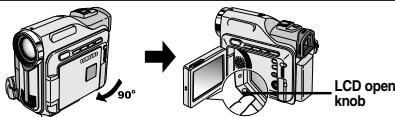
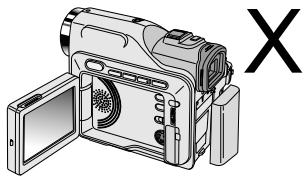
Notes regarding the rotation of the LCD screen
Please rotate the LCD screen carefully as illustrated.
Over rotation may cause damage to the inside of the hinge that connects the LCD screen to the Camcorder.
FRANÇAIS
- LCD screen closed.
-
Standard recording using the LCD screen.
-
Open the LCD screen with your finger.
-
Recording when looking at the LCD screen from the top.
- Recording when looking at the LCD screen from the front.
- Recording with the LCD screen closed.
1
2
3
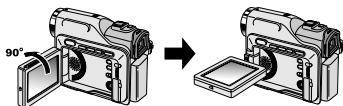
4
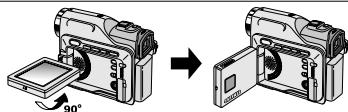
5
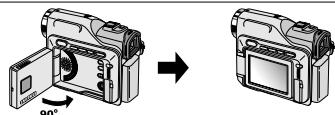
Notes and Safety Instructions
Notices regarding COPYRIGHT
Television programs, video tapes, DVD titles, films, and other program materials may be copyrighted.
Unauthorized copying of copyrighted material may be against the law.
Notes regarding moisture condensation
- A sudden rise in atmospheric temperature may cause condensation to form inside the camcorder.
for example:
- When you move the camcorder from a cold location to a warm location (e.g. from outside to inside during winter.)
-
When you move the camcorder from a cool location to a hot location (e.g. from inside to outside during the summer.)
-
If the (DEW) protection feature is activated, leave the camcorder for at least two hours in a dry, warm room with the cassette compartment opened and the battery pack removed.
Notes regarding CAMCORDER
- Do not leave the camcorder exposed to high temperature (above 60^ or 140^ ).
For example, in a parked car in the sun or exposed to direct sunlight.
- Do not let the camcorder get wet.
Keep the camcorder away from rain, sea water, and any other form of moisture. If the camcorder gets wet, it may get damaged.
Sometimes a malfunction due to exposure to liquids cannot be repaired.
FRANÇAIS
Notes and Safety Instructions
Notes regarding the battery pack
Make sure that the battery pack is fully charged before starting to record.
- To preserve battery power, keep your camcorder turned off when you are not operating it.
If your camcorder is in CAMERA mode, and it is left in STBY mode without being operated for more than 5 minutes with a tape inserted, it will automatically turn itself off to protect against unnecessary battery discharge.
Make sure that the battery pack is fitted firmly into place. Dropping the battery pack may damage it.
- A brand new battery pack is not charged. Before using the battery pack, you need to charge it completely.
It is a good idea to use the viewfinder rather than the LCD when making a long recording, because the LCD uses up more battery power.
- When the battery reaches the end of its life, please contact your local dealer. The batteries have to be dealt with as chemical waste.
Notes regarding the Video Head Cleaning
- To ensure normal recording and a clear picture, clean the video heads regularly. If a square block-shape distorts playback, or only a blue screen is displayed, the video heads may be dirty. If this happens, clean the video heads with a dry type cleaning cassette.
- Do not use a wet-type cleaning cassette. It may damage the video heads.
Bloc batterie
Notes and Safety Instructions
Note regarding the LENS
- Do not film with the camera lens pointing directly at the sun. Direct sunlight can damage the CCD(Charge Coupled Device).
Notes regarding electronic viewfinder
- Do not position the camcorder such that the viewfinder is pointing towards the sun. Direct sunlight can damage the inside of the viewfinder. Be careful when placing the camcorder under sunlight or near a window exposed to sunlight.
Notes regarding 'Record' or 'Playback' using the LCD
- The LCD display has been manufactured using high precision technology. However, there may be tiny dots (red, blue or green in color) that appear on the LCD display. These dots are normal and do not affect the recorded picture in any way.
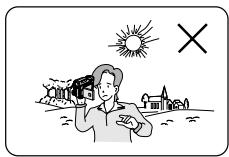
- When you use the LCD display under direct sunlight or outdoors, it maybe difficult to see the picture clearly. If this occurs, we recommend using the viewfinder.
- Direct sunlight can damage the LCD monitor.
Notes regarding the hand strap
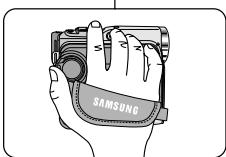
To ensure a steady picture while filming, check that the hand strap is properly adjusted.
- Do not force your hand into the hand strap as you could damage it.
Notes and Safety Instructions
Precautions regarding the Lithium battery
- The lithium battery maintains the clock function and user settings; even if the battery pack or AC adapter is removed.
- The lithium battery for the camcorder lasts about 6 months under normal operation from time of installation.
- When the lithium battery becomes weak or dead, the date/time indicator will display "---" when you set the DATE/TIME to ON. When this occurs, replace the lithium battery with a new one (type CR2025).
- There is a danger of explosion if battery is incorrectly replaced. Replace only with the same or equivalent type.
Warning: Keep the LITHIUM BATTERY out of reach of children. Should a battery be swallowed, consult a doctor immediately.
SERVICING
Do not attempt to service this CAMCORDER yourself.
Opening or removing covers may expose you to dangerous voltage or other hazards.
Refer all servicing to qualified service personnel.
REPLACEMENT PARTS
When replacement parts are required, be sure the service technician has used replacement parts specified by the manufacturer and having the same characteristics as the original part.
Unauthorized substitutions may result in fire, electric shock or other hazards.
Getting to Know Your Camcorder
You can select the desired OSD Language among English, French, Spanish, Portuguese, German and Italian.
Digital data transfer function with IEEE1394
By incorporating the IEEE 1394 (i.LINK™: iLINK is a serial data transfer protocol and interconnectivity system, used to transmit DV data) high speed data transport port, both moving and still images can be transferred to a PC, making it possible to produce or edit various images.
- USB interface for digital image data transfer
You can transfer images to a PC using the USB interface without an add-on card.
The PHOTO function lets you capture an object as a still along with sound, while in Camera mode (DV only).
900x Digital zoom
Allows you to magnify an image up to 900 times its original size.
Color TFT LCD
A high-resolution color TFT LCD gives you clean, sharp images as well as the ability to review your recordings immediately.
Digital Image Stabilizer (DIS)
The DIS compensates for any handshake, reducing unstable images particularly at high magnification.
The DSE (Digital Special Effects) allows you to give your films a special look by adding various special effects.
Back Light Compensation (BLC)
The BLC function compensates for the bright background behind a subject you're recording.
Program AE
The Program AE enables you to alter the shutter speed and aperture to suit the type of scene/action to be filmed.
The NITE pix function enables you to record a subject in a dark place.
Digital Still Camera function
Using Memory Card, you can easily record and playback standard still images.
- You can transfer standard still images on the Memory Card to your PC using the USB interface.
MPEG Recording
MPEG recording makes it possible to record video onto a Memory Card.
- MULTI MEMORY CARD SLOT (SCD305/D307 only)
Multi Memory Card Slot is compatible with Memory Stick, MMC(Multi-Media Card) and SD(Secure Digital).
Fonctionnalités
Getting to Know Your Camcorder
Accessories Supplied with camcorder
Make sure that the following basic accessories are supplied with your digital video camera.
FRANÇAIS
- Lithium Ion Battery pack
- AC Power Adapter (AA-E8 TYPE)
- AC Cord
- AUDIO/VIDEO Cable
- Instruction Book
- Lithium battery for Remote Control or Clock. (TYPE: CR2025)
- Remote Control (SCD305/D307 only)
- USB cable
- Software CD
- Lens Cover
- Shoulder strap
Optional Accessories
- S-VIDEO Cable
-
Memory Stick
-
Lithium Ion Battery pack

- AC Power Adapter (AA-E8 TYPE)

- AC cord
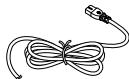
- AUDIO/VIDEO Cable

- Instruction Book
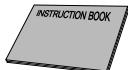
- Lithium battery (CR2025)

- Remote Control (SCD305/D307 only)

- USB cable

- Software CD

- Lens Cover

- Shoulder strap
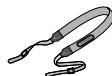
- S-VIDEO Cable

- Memory Stick
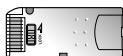
Accessoires de base
Getting to Know Your Camcorder
Front & Left View
- Lens
- IR(Infrared) Light
- Remote sensor (SCD305/D307 only)
- Internal MIC
5.Viewfinder (see page 33)
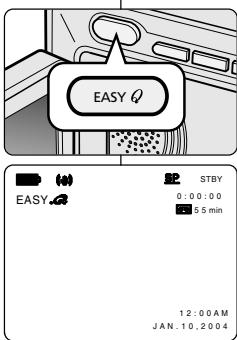
6. EASY Q button (see page 59)
7. TFT LCD monitor
Getting to Know Your Camcorder
Left Side View
Getting to Know Your Camcorder
Right & Top View
Getting to Know Your Camcorder
- Memory Card slot 4. Battery Release
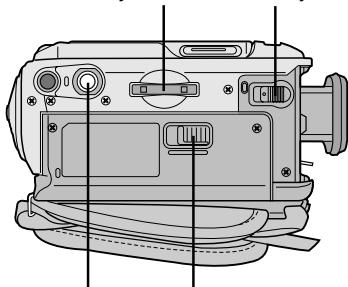
5. Tripod receptacle
6. TAPE EJECT
- LITHIUM Battery Holder
- Charging indicator
- Memory Card slot
- Battery Release
- Tripod receptacle
- TAPE EJECT
Memory Card slot
Getting to Know Your Camcorder
Remote control (SCD305/D307 only)
Getting to Know Your Camcorder
OSD (On Screen Display in CAMERA and PLAYER modes)
- Battery level (see page 26)
- Easy mode (see pages 59)
- DSE (Digital Special Effects) mode (see page 48)
- Program AE (see page 42)
- White Balance mode (see page 44)
- BLC (Back Light Compensation) (see page 61)
- Manual focus (see page 60)
8.Shutter speed and EXPOSURE (see page 57)
- Zoom position (see page 45)
- NITE pix (see page 66)
- DATE/TIME (see page 53)
- USB
- WL. REMOTE (SCD305/D307 only)
- WIND CUT (see page 52)
- Audio recording mode (see page 51)
- Zero memory indicator (SCD305/D307 only) (see page 73)
- Remaining Tape (measured in minutes)
- Tape Counter
- Operating mode
- Record speed mode
- PHOTO model
- Self recording and waiting timer (SCD305/D307 only) (see page 20)
- DIS (see page 47)
- Volume control (see page 35)
- Audio playback channel
- DV IN(DV data transfer mode) (see page 77)
- DEW (see page 7)
- Message Line
- PB DSE (see page 74)
- PB ZOOM/ENTER (see page 75)
- POWER NITE_PIX (see page 67)
- Tele MACRO (see page 45)
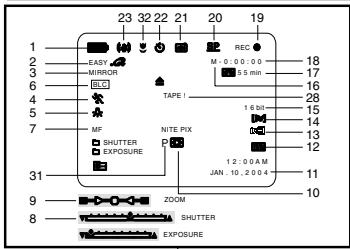
OSD in CAMERA mode
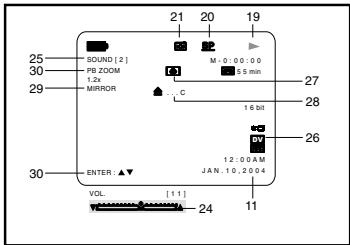
OSD in PLAYER mode
Getting to Know Your Camcorder
OSD (On Screen Display in M.REC/M.PLAY modes)
A. Folder number-file number (see page 83)
B. Image counter
- Current still image/Total number of recordable still images.
C. CARD (MEMORY CARD) indicator
D. Image recording and loading indicator
E. Quality
F. ERASE PROTECTION indicator (see page 92)
G. Print Mark (see page 91)
H. SLIDE SHOW
I. MPEG4 SCREEN SIZE
Turning the OSD on/off (On Screen Display)
Press the DISPLAY button on the left side panel.
Each press of the button toggles the OSD function on and off.
- When you turn the OSD off,
In CAMERA mode: The STBY, REC, EASY.Q modes are always displayed on the OSD, even when the OSD is turned OFF and the key input is displayed for 3 seconds, then turned off.
In PLAYER mode: When you press any Function button, the function is displayed on the OSD for 3 seconds before it turns off.
- Turning the DATE/TIME on/off
- The DATE/TIME is not affected when the OSD function is switched ON or OFF.
- To turn the DATE/TIME on or off, access the menu and change the DATE/TIME mode. (see page 53)
- You may also use the Quick Menu to turn the DATE/TIME ON or OFF. (see page 55) (only in CAMERA/M.REC mode)
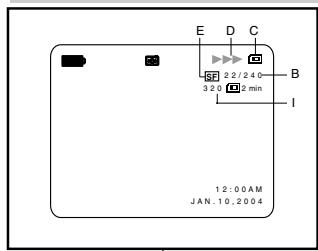
OSD in M.REC mode
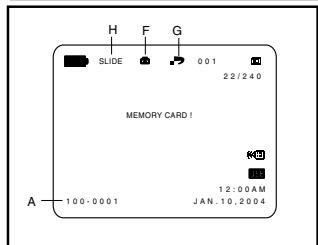
OSD in M.PLAY mode
How to use the Remote Control (SCD305/D307 only)
Battery Installation for the Remote Control
You need to insert or replace the lithium battery when:
- You purchase the camcorder.
- The remote control doesn't work.
Ensure that you insert the lithium battery correctly, following the + and - markings.
Be careful not to reverse the polarity of the battery.
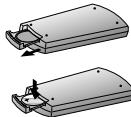
Self Record using the Remote Control
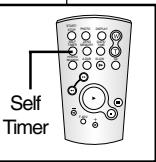
When you use the Self Timer function on the remote control, the recording begins automatically in 10 seconds.
- Set the camcorder to CAMERA mode.
-
Press the SELF TIMER button until the appropriate indicator is displayed in the LCD.
-
Press the START/STOP button to start the timer.
-
Self Timer starts counting down from 10 with a beep sound.
- In the last one second of the countdown, the beep sound gets faster, then recording starts automatically.
-
If you want to cancel the Self Timer function before recording, press the SELF TIMER button.
-
Press START/STOP again when you wish to stop recording.
Lithium Battery Installation
- The lithium battery maintains the clock function and preset contents of the memory; even if the battery pack or AC power adapter is removed.
- The lithium battery for the camcorder lasts about 6 months under normal operation from the time of installation.
-
When the lithium battery becomes weak or dead, the date/time indicator will display “---” when you set the DATE/TIME to ON. When this occurs, replace the lithium battery with type CR2025.
-
Open the lithium battery cover from the camcorder.
- Position the Lithium cell in the holder, with the positive () terminal face outward.
- Close the lithium battery cover.
Note
The lithium battery must be inserted in the correct direction.
Warning: Keep the LITHIUM BATTERY out of the reach of the children.
Should any battery be swallowed, consult a doctor immediately.
Adjusting the Hand Strap
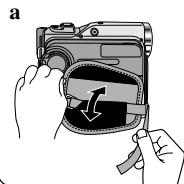
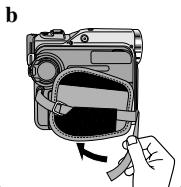
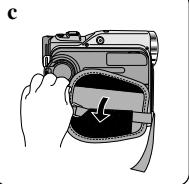
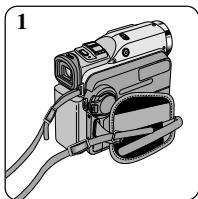
It is very important to ensure that the Hand strap has been correctly adjusted before you begin your recording.
The hand strap enables you to:
- Hold the camcorder in a stable, comfortable position.
- Press the Zoom and START/STOP button without having to change the position of your hand.
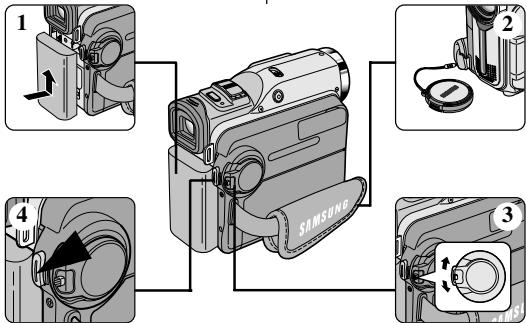
a. Pull open the Hand Strap cover and release the Hand Strap.
b. Adjust its length and stick it back onto the Hand Strap cover.
c. Close the Hand Strap cover again.
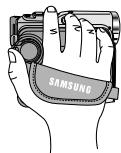
Poignée de soutien
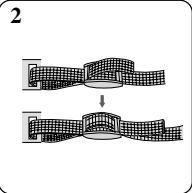
The Shoulder Strap enables you to carry your camcorder around in complete safety.
- Insert the end of strap into the Shoulder Strap hook on the camcorder. Insert the other end of strap into ring inside hand strap.
- Thread each end into the buckle, adjust the length of the strap and then pull it tight in the buckle.
Bandoulière
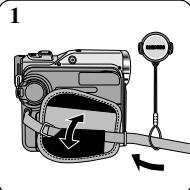
Attaching the Lens Cover
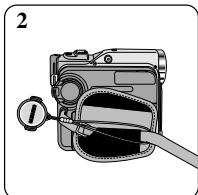
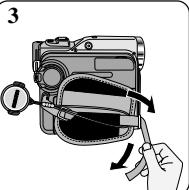
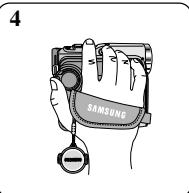
Connecting a Power Source
There are two types of power source that can be connected to your camcorder.
The AC Power Adapter and AC cord : used for indoor recording.
The Battery Pack: used for outdoor recording.
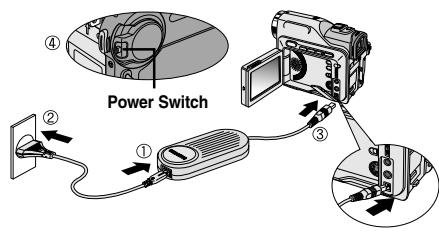
To use the AC Power adapter and DC Cable
- Connect the AC Power adapter to the AC cord.
- Connect the AC cord to a wall socket.
Notes
You must use the AA-E8 type AC Power adapter.
The plug and wall socket type may differ according to your resident country.
3. Connect the DC cable to the DC jack socket of the camcorder.
- Set the camcorder to the desired mode by holding down the tab power switch and turning it to the CAMERA or PLAYER mode.
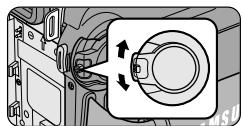
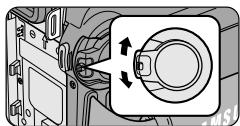
To select the CAMCORDER mode
If you want to use this unit as a camcorder, set the mode switch to TAPE position.
If you want to use this unit as a DSC (Digital Still Camera), set the mode switch to MEMORY CARD position.
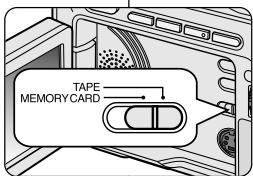
Using the Lithium Ion Battery Pack
The amount of continuous recording time available depends on
The type and capacity of the battery pack you are using.
How often the Zoom function is used. It is recommended that you have several batteries available.
Charging the Lithium Ion Battery Pack
- Attach the battery pack to the camcorder.
- Connect the AC Power adapter to an AC cord and connect the AC cord to a wall socket.
- Connect the DC cable to the DC jack socket on the camcorder.
- Turn the power switch to off, and the charging indicator will start to flash, showing that the battery is charging.
FRANÇAIS
| Blinking time | Charging rate |
| Once per second | Less than 50% |
| Twice per second | 50% ~ 75% |
| Three times per second | 75% ~ 90% |
| Blinking stops and stays on | 90 ~ 100% |
| On for a second and off for a second | Error - Reset the battery pack and the DC cable |
- When the battery is fully charged, disconnect the battery pack and the AC Power adapter from the camcorder.
Even with the power switched off, the battery pack will still discharge if it is left connected to the camcorder.
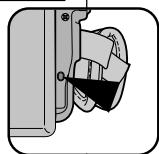
(5)
Notes
The battery pack may be charged a little at the time of purchase.
To prevent reduction in the life and capacity of the battery pack, always remove it from the camcorder after it is fully charged.
Using the Lithium Ion Battery Pack
Table of continuous recording time based on model and battery type.
If you close the LCD screen, it switches off and the viewfinder switches on automatically.
The continuous recording times given in the table below are approximations.
Actual recording time depends on usage.
| Time Battery | Charging time | Continuous recording time |
| LCD ON | VIEWFINDER ON |
| SB-LS110 | Approx. 2hr | Approx. 1hr 30min | Approx. 2hr |
| SB-LS220 | Approx. 3hr 30min | Approx. 3hr 10min | Approx. 4hr 10min |
Notes
The battery pack should be recharged in an environment of between 32^ (0^) and 104^ (40^) .
The battery pack should never be charged in a room temperature that is below 32^ (0^)
The life and capacity of the battery pack will be reduced if it is used in temperatures below 32^ (0^) or left in temperatures above 104^ (40^) for a long period, even when it is fully recharged.
- Do not put the battery pack near any heat sources (fire or flames, for example).
- Do not disassemble, process, press, or heat the Battery Pack.
- Do not allow the + and - terminals of the battery pack to be short-circuited. It may cause leakage, heat generation, induce fire and overheating.
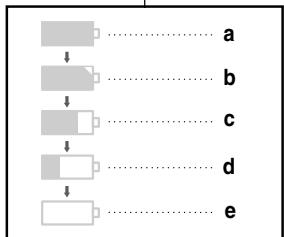
- The battery level display indicates the amount of power remaining in the battery pack.
a. Fully charged
b. 20 - 40% used
c. 40 - 80% used
d. 80 - 95% used
e. Completely used (flickers) (The camcorder will turn off soon, change the battery as soon as possible)
Please refer to the table on page 25 for approximate continuous recording time.
The recording time is affected by environmental temperature and conditions.
The recording time becomes very short in a cold environ
The continuous recording time in the operating instructions are measured using a fully charged battery pack at 77^(25^) .
As the environmental temperature and conditions may differ when you actually use the camcorder, the remaining battery time may not be the same as the approximate continuous recording time given in these instructions.
The gray bar shown here to indicate battery level, is actually white in the viewfinder. For example, on the viewfinder, "a" (full) will be displayed as a full white bar, and "e" (empty) will be displayed as a battery outline with the background image behind it.
Tips for Battery Identification
A charge mark is provided on the battery pack to help you remember whether it has been charged or not.
Two colors are provided (red and grey)-you may choose which one indicates charged and which indicates discharged.
Note
The charge mark setting does not affect the battery's charge status.
Inserting and Ejecting a Cassette
-
When inserting a tape or closing a cassette holder, do not apply excessive force.
This may cause a malfunction.
Do not use any tapes other than Mini DV cassettes.
-
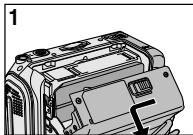
Connect a power source and slide the TAPE EJECT switch and open the cassette door.
- The cassette holding mechanism rises automatically.
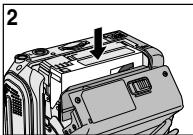
- Insert a tape into the cassette holder with the tape window facing outward and the protection tab bottom.
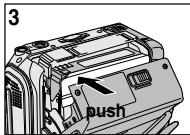
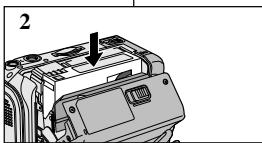
- Press the area marked PUSH on the cassette holding mechanism until it clicks into place.
- The cassette is loaded automatically.
- Close the cassette door.
- Close the door completely until you hear a "click".
Note
When you have recorded something that you wish to keep, you can protect it so that it will not be accidentally erased.
a. Protecting a tape :
Push the safety tab on the cassette so that the hole is uncovered.
b. Removing the tape protection :
If you no longer wish to keep the recording on the cassette, push the safety tab back so that it covers the hole.
How to store a tape
a. Avoid places with magnets or magnetic interference.
b. Avoid humidity and dust prone places.
c. Keep the tape in an upright position and avoid storing it in direct sunlight.
d. Avoid dropping or knocking your tapes.
FRANÇAIS
Making your First Recording
-
Set the power switch to the CAMERA position.
-
Connect a Power source to the camcorder. (see page 23) (A battery pack or a AC power adapter)
Insert a cassette. (see page 27)
- Remove the LENS CAP.
Open the LCD monitor.
Set the mode switch to the TAPE position.
Make sure that STBY is displayed.
If the protection tab of the cassette is open, STOP and PROTECTION! will be displayed.
Make sure the image you want to record appears on the LCD monitor or viewfinder.
Make sure the battery level indicates that there is enough remaining power for your expected recording time.
- To start recording, press the START/STOP button.
REC is displayed on the LCD.
To stop recording, press the START/STOP button again.
STBY is displayed on the LCD.
Selecting OSD LANGUAGE
Select the appropriate OSD Language among English, French, Spanish, Portuguese, German and Italian.
The Language Function works in CAMERA, PLAYER, M.REC, M.PLAY modes.
- Press the MENU button.
The menu list will appear.
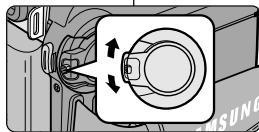
- Move the MENU SELECTOR to highlight INITIAL and push the MENU SELECTOR.
- Select LANGUAGE from the sub-menu and push the MENU SELECTOR.
-
Using the MENU SELECTOR, select the LANGUAGE and push the MENU SELECTOR.
-
Push the MENU SELECTOR button to confirm the OSD LANGUAGE.
-
To exit, press the MENU button.
The OSD changes to the selected language.
Note
"LANGUAGE" is always indicated in ENGLISH.
CAM MODE
INITIAL O CLOCK
CAMERA OWL. REMOTE
A/V OLANGUAGE
■ MEMORY 0 DEMO
VIEWER
CAM MODE
INITIAL SET
CLOCKSET
OWL REMOTE
LANGUAGE...
O DEMONSTRATION
CAM MODE
INITIAL SET
LANGUAGE
- ENGLISH
O ESPANOL
OFRANCAIS
o PORTUGUES
DEUTSCH
ITALIANO
When a cassette is loaded and the camcorder is left in the STBY mode for more than 5 minutes without being used, it will switch off automatically.
To use it again, push the START/STOP button or set the Power switch to OFF and then back to CAMERA.
This Auto Power off feature is designed to save battery power.
Record Search (REC SEARCH)
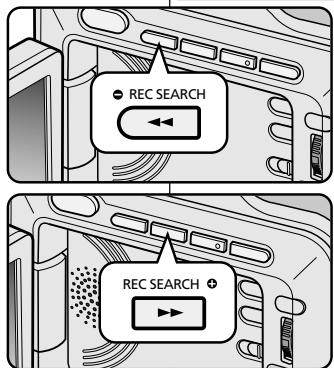
- You can view a recording using the REC SEARCH + - function in STBY mode. REC SEARCH - enables you to play the recording backwards and REC SEARCH + enables you to play it forwards, for as long as you keep each button pressed down.
- If you press the REC SEARCH - button in STBY mode, your camcorder will play in reverse for 3 seconds and return to the original position automatically.
FRANÇAIS
Mosaic shaped distortion may appear on the screen while in Record Search mode.
Important
Hints for Stable Image Recording
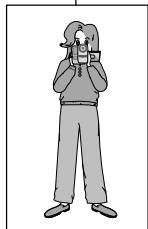
While recording, it is very important to hold the camcorder correctly.
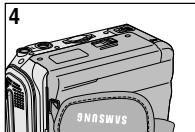
Fix the LENS cap firmly by clipping it to the hand strap. (see page 22)
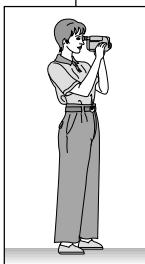
Recording with the LCD monitor
- Hold the camcorder firmly using the hand strap.
- Place your right elbow against your side.
- Place your left hand under or beside the LCD to support and adjust it. Do not touch the built-in microphone.
- Choose a comfortable, stable position for the shots that you are taking. You can lean against a wall or on a table for greater stability. Do not forget to breathe gently.
- Use the LCD frame as a guide to determine the horizontal plane.
- Whenever possible, use a tripod.
Recording with the Viewfinder
- Hold the camcorder firmly using the hand strap.
- Place your right elbow against your side.
- Place your left hand under the camcorder to support it. Be sure not to touch the built-in microphone.
- Choose a comfortable, stable position for the shots that you are taking. You can lean against a wall or on a table for greater stability.
- Place your eye firmly against the viewfinder eyecup.
- Use the viewfinder frame as a guide to determine the horizontal plane.
- Whenever possible, use a tripod.
FRANÇAIS
Your camcorder is equipped with a 2.5 inch color Liquid Crystal Display(LCD) screen, which enables you to view what you are recording or playing back directly.
Depending on the conditions under where you are using the camcorder (indoors or outdoors for example), you can adjust;
BRIGHT SELECT
BRIGHTADJUST
COLOR ADJUST
- Set the POWER switch to CAMERA position.
In the PLAYER mode, you may only setup the LCD while the tape is playing.
- Open the LCD screen, and the LCD switches on.
- Press the MENU button.
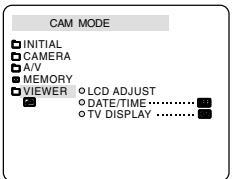
- Move the MENU SELECTOR so that VIEWER is highlighted and then push the MENU SELECTOR.
- Move the MENU SELECTOR so that LCD ADJUST is highlighted.
- Push the MENU SELECTOR to enter the sub-menu.
- Move the MENU SELECTOR so that it highlights the menu item you want to adjust (BRIGHT SELECT, BRIGHT ADJUST, COLOR ADJUST).
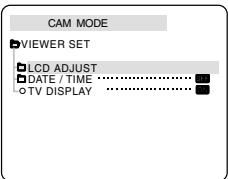
CAM MODE
VIEWER SET
LCDADJUST
OBRIGHT SELECT . . . . NORMAL
O BRIGHT ADJUST. [18]
oCOLORADJUST[18]
-
Push the MENU SELECTOR again.
-
You may select NORMAL or SUPER in the BRIGHT SELECT feature and push the MENU SELECTOR to save the setting.
Use the MENU SELECTOR to adjust the value of BRIGHT ADJUST and COLOR ADJUST.
-
You can set values for BRIGHT ADJUST between 00 ~ 35 and COLOR ADJUST between 00 ~ 35.
-
Press the MENU button to finish the setting.
Using the VIEWFINDER
In the PLAYER mode, the VIEWFINDER will work when the LCD is closed.
In the CAMERA mode, the VIEWFINDER will work when the LCD is closed or rotated counterclockwise 180^ .
Adjusting the Focus
Use the focus adjustment knob of the VIEWFINDER to focus the picture. (refer to figure)
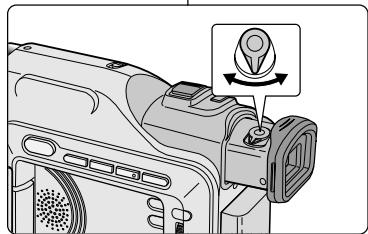
FRANÇAIS
Playing back a tape you have recorded on the LCD
You can monitor the playback picture on the LCD monitor.
Make sure that the battery pack is in place.
-
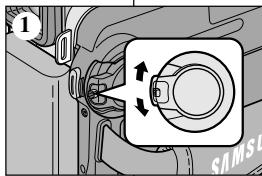
Hold down the power switch tab and turn it to the PLAYER position.
-
Insert the tape you wish to view. (see page 27)
- Open the LCD screen. Adjust the angle of the LCD screen and set the brightness or color if necessary.
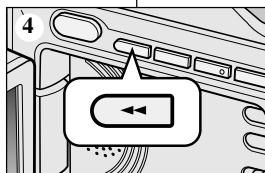
- Press the (REW) button to rewind the tape to the starting point.
To stop rewinding, press the (STOP) button.
The camcorder stops automatically after rewinding is complete.
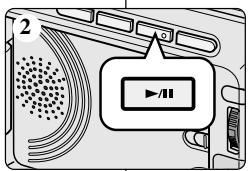
- Press the / (PLAY/STILL) button to start playback.
You can view the picture you recorded on the LCD.
To stop the PLAY operation, press the (STOP) button.
Notes
- You can also view the picture on a TV screen, after connecting the camcorder to a TV or VCR. (see page 69)
Various functions are available in PLAYER mode. (see page 71)
Adjusting the LCD during PLAY
You can adjust the LCD during playback.
The adjustment method is the same procedure as used in CAMERA mode. (see page 32)
Controlling Sound from the Speaker
The Speaker works in PLAYER mode only.
-
When you use the LCD screen for playback, you will hear recorded sound from the built-in Speaker.
-
Follow the instructions below to decrease or mute speaker volume in the PLAYER mode.
-
Set the power switch to PLAYER mode.
- Press / / (PLAY/STILL) to play the tape.
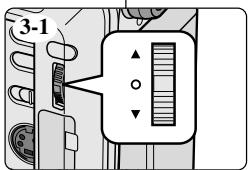
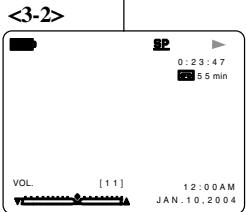
- When you hear sounds once the tape is in play, use the MENU SELECTOR to adjust the volume.
A volume level display will appear on the LCD. Levels may be adjusted between 00 to 19.
If you close the LCD while playing, you will not hear sound from the speaker.
Note
- When the cable is connected to the Audio/Video jack, you cannot hear sound from the speaker or adjust the volume.
Use of various Functions
| M E N U | SUB MENU | FUNCTIONS | Available mode | P a g e |
| C A M E R A | P L A Y E R | M . R E C | M . P L A Y |
| I N I T I A L | CLOCK SET | Setting the time | ✓ | ✓ | ✓ | ✓ | 39 |
| WL REMOTE (☆) | Using the Remote Control | ✓ | ✓ | ✓ | ✓ | 40 |
| LANGUAGE | Selecting the OSD language | ✓ | ✓ | ✓ | ✓ | 29 |
| DEMO | Demonstration | ✓ | | | | 41 |
| C A M E R A | PROGRAM AE | Selecting the PROGRAM AE Function | ✓ | | | | 42 |
| WHT. BALANCE | Setting White Balance | ✓ | | ✓ | | 44 |
| D. ZOOM | Selecting Digital Zoom | ✓ | | | | 46 |
| DIS | Selecting the Digital Image Stabilizing | ✓ | | | | 47 |
| DSE SELECT | Setting the Digital special effect | ✓ | | | | 48 |
| A V | REC MODE | Selecting the recording speed | ✓ | | | | 50 |
| PHOTO SEARCH | Searching pictures recorded in TAPE | | ✓ | | | 65 |
| PHOTO COPY | Copying pictures from TAPE onto the Memory Card | | ✓ | | | 90 |
| AUDIO MODE | Selecting Sound Quality for recording | ✓ | ✓ | | | 51 |
| AUDIO SELECT | Selecting the Audio playback channel | | ✓ | | | 64 |
| WIND CUT | Minimizing wind noise | ✓ | ✓ | | | 52 |
| PB DSE | Selecting a Digital Special Effect during the playback | | ✓ | | | 74 |
| AV IN/OUT (☆) | Selecting Analog A/V in or out | | ✓ | | | 76 |
(☆) : This Function works on model SCD305/D307 only.
| M E N U | SUB MENU | FUNCTIONS | Available mode | P a g e |
| C A M E R A | P L A Y E R | M - R E C | M - P L A Y |
| M E M O R Y | M. PLAY SELECT | Selecting Storage Media (MPEG4, PHOTO) to playback | | | | ✓ | 97 |
| PHOTO QUALITY | Selecting Image Quality | | ✓ | ✓ | | 85 |
| MPEG4 SIZE | Selecting Image Resolution | | | ✓ | | 96 |
| PRINT MARK | Print images recorded on a Memory Card | | | | ✓ | 91 |
| PROTECT | Preventing Accidental Erasure | | | | ✓ | 92 |
| FILE NO. | File Naming Options | | ✓ | ✓ | ✓ | 84 |
| DELETE | Deleting Files | | | | ✓ | 93 |
| FORMAT | Formatting the Memory Card | | | | ✓ | 94 |
| V I E W E R | LCD ADJUST | Setting the Brightness and color Tones of the LCD | ✓ | ✓ | ✓ | ✓ | 32 |
| DATE/TIME | Setting the Date and Time | ✓ | ✓ | ✓ | ✓ | 53 |
| TV DISPLAY | Selecting OSD on/off of TV | ✓ | ✓ | ✓ | ✓ | 54 |
(☆) : This Function works on model SCD305/D307 only.
- Set the camcorder to CAMERA or PLAYER mode and M.REC or M.PLAY mode
- Press the MENU button. The MENU OSD is displayed. The cursor (HIGHLIGHT) indicates the feature you are currently adjusting.
- Use the MENU SELECTOR and push the MENU SELECTOR on the left side panel to select and activate the item.
- You can exit the menu mode by pressing the MENU button.
- Availability of functions in each mode
| Requested Operating Mode | Digital functions | Digital special effects | NITE PX |
| DIS | D.ZOOM | PHOTO (TAPE) | SLOW SHUTTER |
| DIS | | O | O | △ | O | O |
| D.ZOOM | O | | O | *△ | O | O |
| PHOTO | × | × | | × | × | O |
| SLOW SHUTTER | △ | × | O | | O | O |
| Digital Special Effects | O | O | O | O | | △ |
| NITE PX | O | O | O | O | × | |
O : The requested mode will work in this operating mode.
X : You can not change the requested mode.
: The operating mode will be released and the requested mode will work.
* : The operating mode will be released and the requested mode will work. (operating mode data will be backed up)
Notes
- When a menu item on the LCD is marked with an , that item cannot be activated.
- When you select an item that cannot be changed, an error message will be displayed.
CLOCK setup works in CAMERA, PLAYER, M.REC and M.PLAY modes.
+ The DATE/TIME is automatically recorded onto a tape. Before recording, please set the DATE/TIME.
- Press the MENU button.
The menu list will appear.
- Move the MENU SELECTOR to highlight INITIAL and push the MENU SELECTOR.
- Use the MENU SELECTOR to select CLOCK SET from the submenu.
- Push the MENU SELECTOR to enter SETTING mode.
A blinking item indicates the item to be changed. The year will blink first.
- Using the MENU SELECTOR, change the year setting.
- Push the MENU SELECTOR.
The month will blink.
- Using the MENU SELECTOR, change the month setting.
- Push the MENU SELECTOR.
The day will blink.
-
You can set the day, hour and minute following the same procedure for setting the year and month.
-
Push the MENU SELECTOR after setting the minutes.
The word COMPLETE! will appear, and a few seconds later, the menu screen will automatically return to the sub menu.
- To exit, press the MENU button.
- WL. REMOTE (SCD305/D307 only)
The WL. REMOTE function works in CAMERA, PLAYER, M.REC, M.PLAY modes.
The WL. REMOTE option allows you to enable or disable the remote control for use with the camcorder.
-
Press the MENU button.
-
To exit, press the MENU button.
The menu list will appear.
2. Move the MENU SELECTOR to highlight INITIAL and push the MENU SELECTOR.
3. Use the MENU SELECTOR to select WL.REMOTE from the submenu.
4. Push the MENU SELECTOR to enable or disable the remote control. The setting switches between ON/OFF each time you push the MENU SELECTOR.
If you set the remote to OFF in the menu and try to use it, the remote control icon will blink for 3 seconds and disappear on the LCD.
Demonstration automatically shows you the major functions that are included with your camcorder so that you may use them more easily.
The DEMONSTRATION function may only be used in the CAMERA mode without a tape inserted in the camcorder.
The demonstration operates repeatedly until the DEMONSTRATION mode is switched OFF.
- Set the camcorder to CAMERA mode (The mode switch must be in the TAPE position).
- Press the MENU button.
The menu list will appear.
- Move the MENU SELECTOR to highlight INITIAL and push the MENU SELECTOR.
- Select DEMONSTRATION from the submenu and push the MENU SELECTOR.
- To activate the DEMONSTRATION, set DEMONSTRATION ON.
Press the MENU button to quit the menu.
The demonstration will begin.
- To end the DEMONSTRATION, go back into the Menu and set the DEMONSTRATION to OFF.
Notes
The DEMONSTRATION function only works without a TAPE inserted.
- The DEMONSTRATION mode is automatically activated when the camcorder is left idle for more than 10 minutes after switching to the CAMERA mode (no tape is inserted in the camcorder).
If you press other buttons (FADE, BLC, PHOTO, EASY) during the DEMONSTRATION mode, the DEMONSTRATION stops temporarily and resumes 10 minutes later if you do not operate any other functions.
While setting the NITE_PIX to ON, the DEMONSTRATION function does not work.
The PROGRAM AE function works in CAMERA mode only.
The PROGRAM AE mode allows you to adjust shutter speeds and apertures to suit different recording conditions.
They give you creative control over the depth of field.
AUTO mode
- Auto balance between the subject and the background.
- To be used in normal conditions.
- The shutter speed automatically varies from 1/60 to 1/250 per second, depending on the scene.
SPORTS mode (假)
- For recording people or objects moving quickly.
PORTRAIT mode (
- For focusing on the background of the subject, when the background is out of focus.
- The PORTRAIT mode is most effective when used outdoors.
- The shutter speed automatically varies from 1/60 to 1/1000 per second.
SPOTLIGHT mode (3)
- For recording correctly when there is only light on the subject and not the rest of the picture.
SAND/SNOW mode(差)
- For recording when people or objects are darker than the background because of reflected light from sand or snow.
High S. SPEED(High Shutter Speed) mode (3)
- For recording fast-moving subjects such as players in golf or tennis games.
While setting the NITE_PIX to ON, the PROGRAM AE function does not work.
The PROGRAM AE function will not operate in EASY mode.
The WHITE BALANCE function works in CAMERA or M.REC mode only.
- The WHITE BALANCE is a recording function that preserves the unique image color of the object in any recording condition.
- You may select the appropriate WHITE BALANCE mode to obtain good quality image color.
AUTO (A): This mode is used to control the WHITE BALANCE automatically.
HOLD ():This fixes the current WHITE BALANCE value.
INDOOR (A): This controls the WHITE BALANCE according to the indoor ambience.
- Under halogen or studio/video lighting
- Subject is of one dominant color
- Close up
OUTDOOR (念) : This controls the WHITE BALANCE according to the outdoor ambience.
-
In daylight, especially for close ups and where the subject is of one dominant color.
-
Set the camcorder to CAMERA mode.
- Press the MENU button.
The menu list will appear.
- Move the MENU SELECTOR to highlight CAMERA and push the MENU SELECTOR.
- Select WHT.BALANCE from the menu.
- Push the MENU SELECTOR to enter the sub-menu.
- Using the MENU SELECTOR, select the WHITE BALANCE mode.
Push the MENU SELECTOR to confirm the WHITE BALANCE mode.
- To exit, press the MENU button.
Notes
- When NITE_PIX is set to ON, the WHT.BALANCE function does not work.
The WHT.BALANCE function will not operate in EASY mode.
Turn the digital zoom off (if necessary) to set a more accurate white balance.
- Reset the white balance if lighting conditions change.
- During normal outdoor recording, setting to AUTO may provide better results.
CAM MODE
INITIAL
CAMERA O PROGRAM AE
A/V WHT.BALANCE
MEMORY D.ZOOM
VIEWER DIS
ODSE SELECT
CAM MODE
CAMERA SET
PROGBAMAE
WHT.BALANCE
D ZOOM
ODIS
DSESELECT
CAM MODE
CAMERA SET
WHT.BALANCE
AUTO
HOLD
INDOOR
OUTDOOR
- Zooming is a recording technique that lets you change the size of the subject in a scene.
For more professional looking recordings, do not use the zoom function too often.
You can zoom using variable zoom speeds.
Use these features for different shots. Please note that over-use of the zoom feature can lead to unprofessional looking results and a reduction of battery usage time.
- Move the zoom lever slightly for a gradual zoom, move it further for a high-speed zoom. Your zooming is monitored on the OSD.
- T(Telephoto) side: Subject appears cl
-
W(Wide angle) side: Subject appears farther away.
-
You can record a subject that is about 10mm (about 0.5 inch) away from the lens surface in the WIDE position.
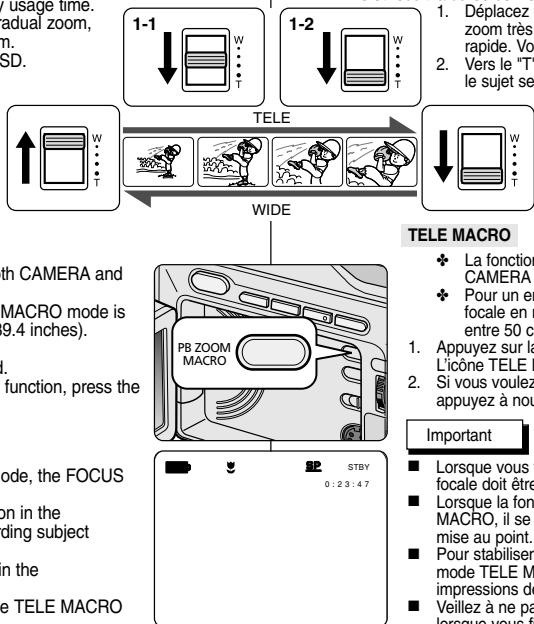
MACRO Icon ( ) will be displayed.
- If you want to cancel the Tele Macro function, press the MACRO button again.
Notes
- When recording in TELE MACRO Mode, the FOCUS speed may be slow.
When you operate the ZOOM function in the TELE MACRO mode, then the recording subject may be out of focus.
Use a tripod to prevent hand shake in the TELE MACRO mode.
- Avoid shadows when recording in the TELE MACRO mode.
As the distance to the subject decreases, focusing area narrows.
When you can not get proper focus, use the Zoom Lever.
TELE MACRO
Zooming In and Out with DIGITAL ZOOM
Zoom works in CAMERA mode only.
Digital Zoom
Zooming more than 20x is performed digitally.
The picture quality may deteriorate depending on how much you zoom in on the subject.
We recommend that you use the DIS feature with DIGITAL ZOOM for picture stability. (see page 47)
The menu list will appear.
- Move the MENU SELECTOR to CAMERA and push the MENU SELECTOR.
- Select D.ZOOM from the menu.
- Push the MENU SELECTOR to setup the 100x, 200x, 400x, 900x digital zoom function or to turn the feature OFF.
- To exit, press the MENU button.
CAM MODE
0 INITIAL
CAMERA O PROGRAM AE
A/V WHT.BALANCE
MEMORY OD.ZOOM
VIEWER DIS
ODSE SELECT
CAM MODE
CAMERA SET
PROGRAMAE
WHT.BALANCE
D.ZOOM
DIS
DSE SELECT
CAM MODE
CAMERA SET
D.ZOOM
OFF
100x
200x
400x 200
The DIS function works in CAMERA mode only.
DIS (Digital Image Stabilizer) is a function that compensates for any shaking or hand movement while holding the camcorder (within reasonable limits).
It provides more stable pictures when:
Recording with the zoom
Recording a small object close-up
Recording and walking at the same time
Recording through the window of a vehicle
The menu list will appear.
- Move the MENU SELECTOR highlight to CAMERA and push the MENU SELECTOR.
The sub menu list will appear.
- Move the MENU SELECTOR to activate the DIS function, push the MENU SELECTOR.
The DIS menu is changed to ON.
If you do not want to use the DIS function, set the DIS menu to OFF.
- To exit, press the MENU button.
Notes
It is recommended that you deactivate the DIS function when using a tripod.
If you use the DIS function, the picture quality may deteriorate.
CAM MODE
INITIAL
CAMERA 巧 PROGRAM AE
A/V WHT.BALANCE
■MEMOY&D.ZOOM
VIEWER DIS

ODSE SELECT
CAM MODE
CAMERA SET
PROGRAMAE
WHT.BALANCE
D.ZOOM
ODIS
DSE SELECT
The DSE function works in CAMERA mode only.
The digital effects enable you to give a creative look to your recording by adding various special effects.
Select the appropriate digital effect for the type of picture that you wish to record and the effect you wish to create.
There are 9 DSE modes.
a. ART mode
This mode gives the images a coarse effect.
b. MOSAIC mode
This mode gives the images a mosaic effect.
c. SEPIA mode
This mode gives the images a reddish-brown pigment.
d. NEGA mode
This mode reverses the colors, of the images, creating a negative image.
e. MIRROR mode
This mode cuts the picture in half, using a mirror effect.
f. BLK & WHT mode
This mode changes the images to black and white.
g.EMBOSS mode
This mode creates a 3D effect (embossing).
h. CINEMA mode
This mode covers the upper/ lower portions of the screen to give a cinematic effect.
i. MAKE - UP mode
This mode allows the images to be selected in red, green, blue or yellow.
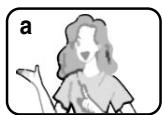

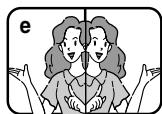
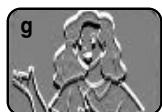

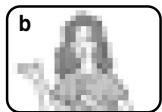


The menu list will appear.
- Move the MENU SELECTOR to highlight CAMERA and push the MENU SELECTOR.
- Select DSE SELECT from the submenu.
- Push the MENU SELECTOR to enter the submenu.
-
Using MENU SELECTOR, select the DSE mode.
-
Push the MENU SELECTOR to confirm the DSE mode.
-
To exit, press the MENU button.
Notes
While setting the NITE PIN to ON, the DSE function does not work.
The DSE function will not operate in EASY mode.
The REC MODE function works in CAMERA mode.
This camcorder records and plays back in SP (standard play) mode and in LP (long play) mode.
SP (standard play): This mode permits 60 minutes of recording time with a DVM60 tape.
LP (long play): This mode permits 90 minutes of recording time with a DVM60 tape.
- Set the camcorder to CAMERA mode.
- Press the MENU button.
The menu list will appear.
- Move the MENU SELECTOR to highlight A/V and push the MENU SELECTOR.
- Select REC MODE from the submenu and push the MENU SELECTOR.
The REC MODE toggles between SP and LP with each press.
- To exit, press the MENU button.
Notes
We recommend that you use this camcorder to play back any tapes recorded on this camcorder.
Playing back a tape recorded in other equipment may produce mosaic shaped distortion.
- When you record a tape in SP and LP modes, or LP mode only, the playback picture may be distorted or the time code may not be written properly between scenes.
Record using SP mode for best picture and sound quality.
CAM MODE
INITIAL
CAMERA
A/V
■ MEMORY
VIEWER

OCOPY
AUDIO MODE 12 bit
AUDIO SELECT
OWIND CUT
OPBDSE
CAM MODE
DA/V SET
REC MODE
PHOTO SEARCH
PHOTO COPY
AUDIO MODE
AUDIO SELECT
WIND CUT
PB DSE
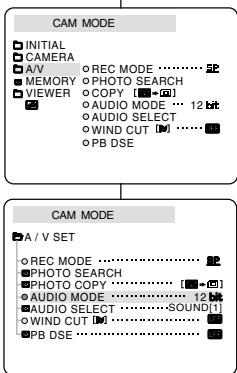
The AUDIO MODE function works in CAMERA mode.
This camcorder records sound in two ways. (12bit, 16bit)
12bit: You can record two 12bit stereo sound tracks. The original stereo sound can be recorded onto the MAIN (SOUND1) track. Additional stereo sound can be dubbed onto the SUB (SOUND2) track.
16bit: You can record one high quality stereo sound track using the 16bit recording mode. Audio dubbing is not possible when using this mode.
- Set the camcorder to CAMERA mode.
- Press the MENU button.
The menu list will appear.
- Move the MENU SELECTOR to highlight A/V and push the MENU SELECTOR.
- Select the AUDIO MODE from the menu and push the MENU SELECTOR.
The AUDIO MODE toggles between 12bit-16bit with each push.
5. To exit, press the MENU button.
The WIND CUT function works in CAMERA and PLAYER modes.
The WIND CUT function minimizes wind noise or other noise while recording.
-
When the wind cut is on, some low sounds are eliminated along with the sound of the wind.
-
Set the camcorder to CAMERA mode.
- Press the MENU button.
The menu list will appear.
- Move the MENU SELECTOR to highlight A/V and push the MENU SELECTOR.
-
Select WIND CUT from submenu.
-
This feature toggles ON/OFF each time you push the MENU SELECTOR.
- [N] is shown in the display when you turn the WIND CUT on.
- To exit, press the MENU button.
Notes
Make sure WIND CUT is set to off when you want the microphone to be as sensitive as possible.
Use the WIND CUT when recording in windy places such as the beach or near buildings.
The DATE/TIME function works in CAMERA, PLAYER, M.REC and M.PLAY modes.
The date and time are automatically recorded on a special data area of the tape.
- Press the MENU button.
The menu list will appear.
- Move the MENU SELECTOR to highlight VIEWER and push the MENU SELECTOR.
- Move the MENU SELECTOR to highlight DATE/TIME.
- Push the MENU SELECTOR to select the sub-menu.
- Using the MENU SELECTOR, select the DATE/TIME mode.
You can choose to display - OFF, DATE, TIME, DATE/TIME
OFF
DATE only
TIME only
DATE & TIME
To return to the previous menu, highlight the DATE/TIME in the middle of OSD and push the MENU SELECTOR.
- To exit, press the MENU button.
Notes
The DATE/TIME is not affected by the OSD ON/OFF (DISPLAY) button.
The DATE/TIME will read "----" in the following conditions:
During playback of a blank section of a tape.
- If the tape was recorded before setting the DATE/TIME in the Camera's memory.
- When the lithium battery becomes weak or dead.
Before you use the DATE/TIME function, you must set the Clock. See CLOCK SET on page 39.
The TV DISPLAY function works in CAMERA, PLAYER, M.REC and M.PLAY modes.
You can select the output path of the OSD (On Screen Display).
OFF: The OSD appears in the LCD screen only.
ON: The OSD appears in the LCD screen, Viewfinder and TV.
Use the DISPLAY button located at the left side of the camcorder to turn the OSD ON/OFF displayed on the LCD/Viewfinder/TV.
- Set the camcorder to CAMERA, PLAYER, M.REC and M.PLAY mode.
- Press the MENU button.
The menu list will appear.
- Move the MENU SELECTOR to highlight VIEWER and push the MENU SELECTOR.
- Select TV DISPLAY and push the MENU SELECTOR.
The DISPLAY mode switches between ON/OFF with each push.
5. To exit, press the MENU button.
- Affichage (TV DISPLAY)
Quick menu is available only in CAMERA and M.REC mode.
Quick menu is used to adjust camera functions by using the MENU SELECTOR.
This feature is useful for when you want to make simple adjustments without having to access the menus and submenus.
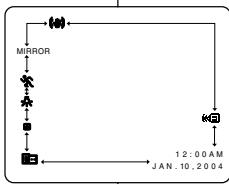
WL.REMOTE (R) (SCD305/D307 only)
Each time you select WL.REMOTE and push the MENU SELECTOR, the WL.REMOTE is switched to either enabled (<<) or disabled (DFF).
DIS
Each time you select DIS and push the MENU SELECTOR, the DIS icon is displayed or set to OFF.
DSE (Digital Special Effect) (see page 48)
Each time you select DSE and push the MENU SELECTOR, the DSE preset values are applied or set to OFF. DSE values will not switch between On and Off if they have not been preset in the menu.
PROGRAM AE (see page 42)
Each time you select PROGRAM AE and push the MENU SELECTOR, you can choose between the preset PROGRAM AE values and AUTO. You can't choose between Auto and the PROGRAM AE values if the values have not been preset in the regular menu.
WL. REMOTE (国) (SCD305/D307 uniquement
Each time you select WHT. BALANCE and push the MENU SELECTOR, you can choose between preset WHT .BALANCE values and AUTO. As in PROGRAM AE, you can't choose between Auto and WHT .BALANCE values if they have not been preset.
FOCUS (Auto Focus/Manual Focus) (see page 60)
Each time you select FOCUS and push the MENU SELECTOR, the FOCUS is switched to either Manual Focus (MF) or Auto Focus (A).
SHUTTER SPEED & EXPOSURE
- You can set values for SHUTTER SPEED and EXPOSURE by selecting (☑) icon and pushing the MENU SELECTOR. For more information, see the next page.
- Set the camcorder to CAMERA mode.
- Move the MENU SELECTOR to select a function you want and then push the MENU SELECTOR to change the values.
Notes
Quick menu function will not operate in EASY mode.
If you are using the M.FOCUS(MF) PRO function, you cannot use the Quick menu. WHT. If you want to use the Quick menu S E function, release the M.FOCUS(MF) mode.
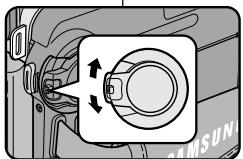

You can set SHUTTERTPEED only in CAMERA mode.
- The EXPOSURE function works in both CAMERA and M.REC modes.
+ SHUTTERTPEED and EXPOSURE values can only be set in the Quick Menu.
SHUTTER SPEED and EXPOSURE are automatically switched and/or deactivated.
- Set the power switch to CAMERA mode.
-
Move the MENU SELECTOR until you see the (icon, and then push the MENU SELECTOR.
-
You see a screen on which you can select SHUTTER SPEED and EXPOSURE.
- Move the MENU SELECTOR to select the item you want and then push the MENU SELECTOR.
-
SHUTTER SPEED can be set to 1/60, 1/100, 1/250, 1/500, 1/1000, 1/2000, 1/4000 or 1/10000.
EXPOSURE can be set between 00 and 29
-
To exit from the setting screen, select the icon ( ) and push the MENU SELECTOR.
Recommended Shutter speeds when recording
Outdoor sports such as golf or tennis : 1/2000 or 1/4000.
Moving cars or trains or other rapidly moving vehicles such as roller coasters : 1/1000, 1/500 or 1/250
Indoor sports such as basketball: 1/100
Notes
If you want to use the selected shutter speed and exposure value, you should begin the recording with the shutter speed and the exposure adjustment screens displayed on the LCD.
If you manually change the shutter speed and the exposure value when Auto-exposure option is selected, manual changes are applied first.
The image may not seem as smooth when a high shutter speed is set.
- The camcorder returns to the auto shutter setting and auto exposure setting when you set the NITE_PIX to ON, or change to the EASY, SLOW SHUTTER modes.
- When recording with a SHUTTERTPEED of 1/1000 or higher, make sure the sun is not shining into the lens.
SLOW SHUTTER (Low Shutter Speed)
The SLOW SHUTTER function works in CAMERA mode only.
The shutter speed can be controlled, allowing you to record slow moving objects.
- Set the power switch to CAMERA mode.
- Press the SLOW SHUTTER button.
- Each time you press the SLOW SHUTTER button, SHUTTER SPEED is changed to 1/30, 1/15, 1/8, off.
- To exit, press the SLOW SHUTTER button.
Notes
- When using "SLOW SHUTTER" the image takes on a slow motion like effect.
The SLOW SHUTTER function will not operate in EASY mode.
FRANÇAIS
EASY Mode (for Beginners)
The EASY mode allows a beginner to easily make good recordings.
The EASY mode only operates in CAMERA mode.
- Set the power switch to CAMERA mode.
- By pressing the EASY button, all functions on the camera will be set to off and the recording settings will be set to the following basic modes:
Battery level, recording mode, counter, DATE/TIME, and DIS ( ) will be displayed.
The word "EASY.Q" will appear on the LCD at the same time. However, the DATE/TIME will only be seen if it has been previously set. (see page 53)
-
Press START/STOP to start recording.
-
Recording will begin using the basic automatic settings.
-
Press the EASY button again in the STBY mode and then turn the EASY mode off.
The EASY function will not turn off while you are recording.
The camera will return to the settings that were set prior to activating EASY mode.
Notes
In EASY mode, certain functions are not available, such as MENU, BLC, AF/MF.
If you want to use these functions, you must first switch the EASY mode off.
The EASY mode settings are deleted when the battery pack is uninstalled from the camcorder and therefore, they must be reset when a battery pack has been replaced.
AF/MF (Auto Focus/Manual Focus)
The AF/MF function works in CAMERA, M.REC mode only.
+ In most situations, it is better to use the automatic focus feature, as it enables you to concentrate on the creative side of your recording.
+ Manual focusing may be necessary under certain conditions that make automatic focusing difficult and/or unreliable.
Auto Focusing
If you are inexperienced in the use of camcorders, we recommend that you make use of Auto Focus.
Manual Focusing
In the following situations, you may obtain better results by adjusting the focus manually.
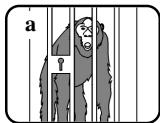
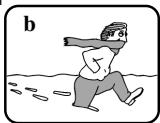
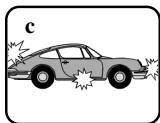
a. A picture containing several objects, some close to the camcorder, others further away.
b. A person enveloped in fog or surrounded by snow.
c. Very shiny or glossy surfaces like a car.
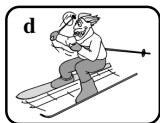
d. People or objects moving constantly or quickly like an athlete or a crowd.
- Set the power switch to CAMERA mode.
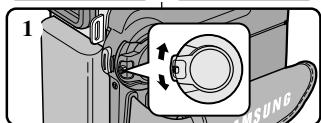
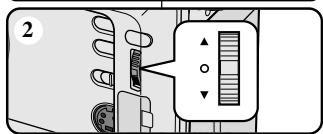
- Move the MENU SELECTOR up or down until the FOCUS is highlighted and then push the MENU SELECTOR.
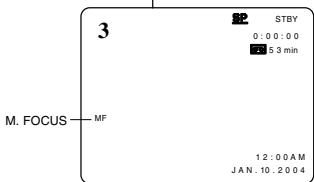
M. FOCUS(MF) will display.
- Move the MENU SELECTOR up or down until the object is in focus.
Zoom out a little if focusing is difficult.
- To return to AF (Auto Focus: A), push the MENU SELECTOR again.
BLC (Back Light Compensation)
BLC works in CAMERA/M.REC mode.
Back lighting exists when the subject is darker than the background:
The subject is in front of a window.
The person to be recorded is wearing white or shiny clothes and is placed against a bright background; the person's face is too dark to distinguish his/her features.
The subject is outdoors and the background is overcast.
The light sources are too bright.
The subject is against a snowy background.
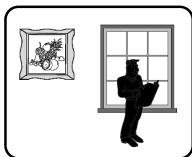
* BLC off
- Set the power switch to CAMERA mode.
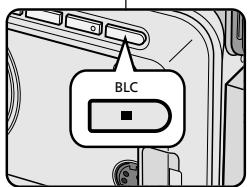
- Press the BLC button.
Normal-BLC-Normal
BLC enhances the subject.
Notes
- When NITE pix to set to ON, the BLC function does not work.
The BLC function will not operate in EASY mode.
The FADE function works in CAMERA mode only.
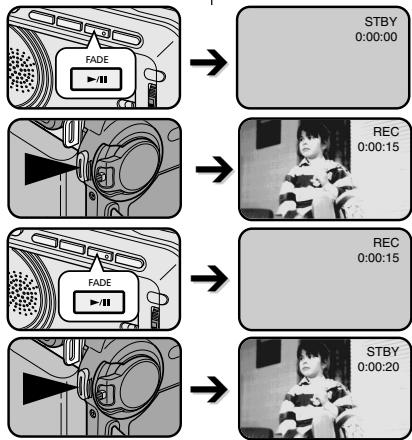
You can give your recording a professional look by using special effects such as fade in at the beginning of a sequence or fade out at the end of a sequence.
- Before recording, hold down the FADE button. The picture and sound gradually disappear (fade out).
- Press the START/STOP button and at the same time release the FADE button. Recording starts and the picture and sound gradually appear (fade in).
To Stop Recording (use FADE IN / FADE OUT)
- When you wish to stop recording, hold down the FADE button. The picture and sound gradually disappear (fade out).
- When the picture has disappeared, press the START/STOP button to stop recording.
Audio dubbing (SCD305/D307 only)
The AUDIO DUBBING function only works in PLAYER mode.
You can add sound to the original sound on a pre-recorded tape recorded in SP mode with 12bit sound.
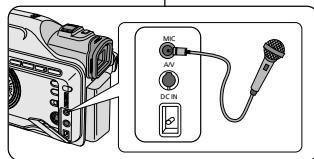
Use the internal and external microphones or other audio equipment.
The original sound will not be erased.
Dubbing sound
- Set the camcorder to PLAYER mode.
If you want to use an external microphone, connect the microphone to the external MIC input jack on the camcorder.
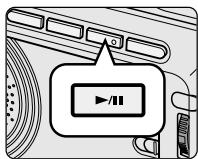
2. Press the / (PLAY/STILL) button and find the time frame of the scene to be dubbed.
3. Press the / (PLAY/STILL) button to pause the scene.
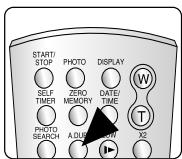
4. Press the A.DUB button on the Remote Control.
A.DUB will be displayed on the LCD.
The camcorder is in a ready-to-dub state.
- Press the / (PLAY/STILL) button to start dubbing.
Press the (STOP) button to stop the dubbing.
Notes
- You can not use the audio dubbing function while playing a write protected video tape.
- You can not dub sound on a pre-recorded tape in LP mode or 16 bit mode.
FRANÇAIS
Dubbed Audio Playback
- Insert the dubbed tape and press MENU button.
- Move the MENU SELECTOR to highlight A/V.
- Push the MENU SELECTOR to enter the sub-menu.
- Use the MENU SELECTOR to select AUDIO SELECT from the submenu.
- Push the MENU SELECTOR to enter the sub-menu.
- Using the MENU SELECTOR, select the AUDIO playback channel.
Push the MENU SELECTOR to confirm the audio playback channel.
Note
When you playback added sound (SOUND2 or MIX mode), you may experience a loss of sound quality.
PHOTO Image Recording
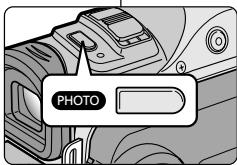
- Set the power switch to the CAMERA mode.
- Press the PHOTO button.
The still picture is recorded for about 6-7 seconds.
3. After the PHOTO has been recorded, the camcorder returns to STBY mode.
Searching for a PHOTO picture
The PHOTO SEARCH works in PLAYER mode only.
- Press the MENU button.
The MENU list will appear.
- Move the MENU SELECTOR to highlight A/V.
- Push the MENU SELECTOR to enter the submenu.
- Select PHOTO SEARCH from the submenu and push the MENU SELECTOR.
You can also press the PHOTO SEARCH button on the remote control. (SCD305/D307 only)
- Search the PHOTO using the (FF) and (REW) buttons.
The PHOTO search process appears on the LCD while you are searching.
After completing the search, the camcorder displays the still image.
- To exit, press the STOP button.
NITE pix (0 lux recording)
The NITE_PIX function works in CAMERA/M.REC mode.
+ The NITE PINX function enables you to record a subject in darkness.
- Set the camcorder to CAMERA mode.
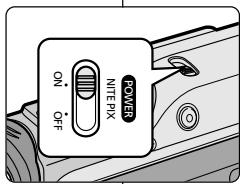
- Slide the NITE PIN switch to ON.
(NITE PIN indicator) appears on the LCD monitor.
The infrared light is turned on automatically.
- To cancel the NITE_PIX function, slide the NITE_PIX switch to OFF.
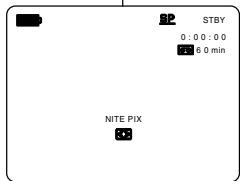
The maximum recording distance using the infrared light is about 3m (about 10 feet).
If you use the NITE PIN function in normal recording situations (ex. outdoors by day), the recorded picture may be tinted green.
In the NITE pix mode, certain functions are not available, such as White Balance, Program AE, DSE, BLC.
If focusing is difficult with the auto focus mode when using the NITE PINX function, focus manually.
- Do not cover the Infrared Light with your hand.
Important
The POWER NITE pix function works in CAMERA mode.
The POWER NITE_PIX function can record a subject more brightly in darkness than the NITE_PIX function.
POWER NITE_PIX is displayed for three seconds on the LCD when the SLOW SHUTTER button is pressed in the NITE_PIX mode.
When you work in POWER NITE_PIX mode, the POWER NITE_PIX (P) appears on the LCD continuously.
- Set the camcorder to CAMERA mode.
- Turn on the NITE pix switch, and then press the SLOW SHUTTER button.
- Press the SLOW SHUTTER button to set shutter speed (1/30, 1/15, 1/8). The SLOW SHUTTER function enables you to record a subject at three different brightness levels.
- When using POWER NITE pix the image takes on a slow motion like effect.
- To cancel the POWER NITE_PIX function, press the SLOW SHUTTER button to set to "off" and then turn off the NITE_PIX switch.
Notes
The maximum recording distance using the infrared light is about 3m (about 10 feet).
If you use the POWER NITE_PIX function in normal recording situations (ex. outdoors by day), the recorded picture may contain unnatural colors.
In the POWER NITE_PIX mode, certain functions are not available, such as White Balance, Program AE, DSE, BLC.
- When the subject is too bright, press the SLOW SHUTTER button (1 / 30 1 / 8) to obtain better quality recordings.
Various Recording Techniques
In certain situations, different recording techniques may be required for more dramatic results.
Note
Please rotate the LCD screen carefully as excessive rotation may cause damage to the inside of the hinge that connects the LCD screen to the Camcorder.
- General recording.
- Downward recording.
Making a recording with a top view of the LCD screen.
- Upward recording.
Making a recording viewing the LCD screen from below.
- Self recording.
Making a recording viewing the LCD screen from the front.
- Recording with the Viewfinder.
In circumstances where it is difficult to use the LCD monitor, the viewfinder can be used as a convenient alternative.
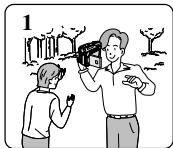
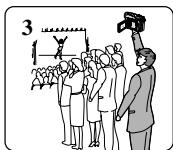
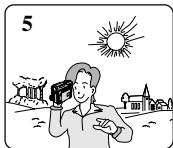
FRANÇAIS
- The playback function works in PLAYER mode only.
Playback on the LCD
It is practical to view a tape using the LCD when in a car or outdoors.
Playback on a TV monitor
To play back a tape, the television must have a compatible color system.
We recommend that you use the AC Power Adapter as the power source for the camcorder.
- Connect the camcorder and TV with the AUDIO/VIDEO cable.
The yellow plug : Video
The white plug : Audio(L) mono
The red plug : Audio(R)
If you connect to a monaural TV or VCR, connect the yellow plug (Video) to the video input of the TV or VCR and the white plug (Audio L) to the audio input of the TV or VCR.
- Set the power switch on the camcorder to PLAYER mode.
- Turn on the TV and set the TV/VIDEO selector on the TV to VIDEO.
Refer to the TV or VCR user's manual.
- Play the tape.
Notes
- You may use an S-VIDEO (optional) cable to obtain better quality pictures if you have a S-VIDEO connector on your TV.
Even if you use an S-VIDEO (optional) cable, you need to connect an audio cable.
If you connect the cable to the Audio/Video Jack, you will not hear sound from the Camcorder's speakers.
Lecture d'une bande
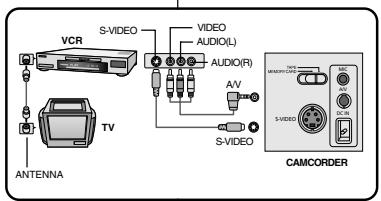
You can connect your camcorder to a TV through a VCR.
- Connect the camcorder and VCR with the AUDIO/VIDEO cable.
The yellow plug : Video
The white plug : Audio(L) - Mono
The red plug : Audio(R)
- Connect a TV to the VCR.
- Set the power switch on the camcorder to PLAYER mode.
- Turn on both the TV and VCR.
Set the input selector on the VCR to LINE.
- Select the channel reserved for your VCR on the TV set.
- Play the tape.
Playback
- Connect a power source and set the power switch to PLAYER mode.
- Insert the tape you wish to play back.
- Using the (FF) and (REW) buttons, find the first position you wish to play back.
- Press the / / (PLAY/STILL) button.
The images you recorded will appear on the TV after a few seconds.
If a tape reaches its end while being played back, the tape will rewind automatically.
Lecture de la cassette
The playback mode (SP/LP) is selected automatically.
Important
Various Functions while in PLAYER mode
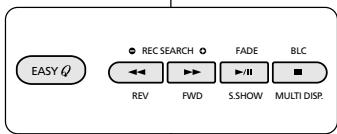
The PLAY/STILL, STOP, FF, REW buttons are located on the camcorder and the Remote Control.
The F.ADV(Frame advance), X2, SLOW buttons are located on the Remote Control only. (SCD305/D307 only)
To prevent tape and head-drum wear, your camcorder will automatically stop if it is left in STILL or SLOW modes for more than 5 minutes.
Picture search (Forward/Reverse)
Press the (FF) or (REW) buttons during Playback or Still mode. To resume normal playback, press the (PLAY/STILL) button.
Keep pressing (FF) or (REW) buttons during playback or Still mode. To resume normal playback, release the button.
Slow playback (Forward/Reverse) (SCD305/D307 only)
Forward SlowPlayback
Press the SLOW button on the remote control during Playback.
To resume normal playback, press the / / (PLAY/STILL) button.
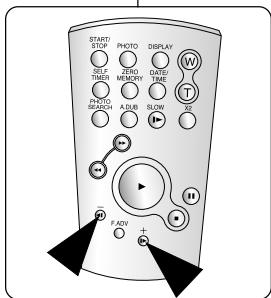
Reverse Slow Playback
Press the button during Forward Slow Play back.
To resume forward slow playback, press the button.
To resume normal playback, press the / / (PLAY/STILL) button.
Frame advance (To play back frame by frame) (SCD305/D307 only)
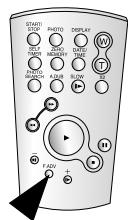
- Press the FADV button repeatedly on the Remote Control while in Still mode.
The F.ADV function works in still mode only.
To resume normal playback, press the /II (PLAY/STILL) button.
Forward frame advance
Press the F.ADV button on the remote control in Still mode.
Reverse frame advance
Press the the button on the remote control to change the direction in F.ADV mode.
Press the F.ADV button on the remote control.
F.ADV
X2 Playback (Forward/Reverse) (SCD305/D307 only)
Forward X2 Playback
Press the X2 button on the Remote Control during Playback.
To resume normal playback, press the / (PLAY/STILL) button.
Reverse X2 Playback
Press the the button during Forward X2 Playback.
To resume normal playback, press the / (PLAY/STILL) button.
Reverse playback (SCD305/D307 only)
To playback in reverse at normal speed, press the button during normal forward playback.
Press the / (PLAY/STILL) or (+) button to return to normal forward playback.
Notes
- Mosaic shaped distortion may appear on the screen in some of the playback modes if you are using a tape recorded in LP.
Sound will only be heard during normal SP or LP playback.
ZERO MEMORY (SCD305/D307 only)
The ZERO MEMORY function works in both CAMERA and PLAYER modes.
You can mark a point on a tape that you want to return to following playback.
- Press the ZERO MEMORY button on the remote control before the recording or during playback at the point you wish to return.
The time code is changed to a tape counter that is set to zero memory with the M 0:00:00(Zero memory indicator)
If you want to cancel the zero memory function, press the ZERO MEMORY button again.
- Finding the zero position.
When you are playing back, fast forward or rewinding the tape.
- The tape stops automatically when it reaches the zero position.
- When you have finished recording, press the power switch on the PLAY and press the (REW) button.
- The tape stops automatically when it reaches the zero position.
- The tape counter with the M (Zero memory indicator) disappears from the display and the tape counter is changed to the time code.
Notes
In the following situations, ZERO MEMORY mode may be canceled automatically:
- At the end of the section marked with the ZERO MEMORY function.
- When the tape is ejected.
- When you remove the battery pack or power supply.
The zero memory may not function correctly where there is a break between recordings on the tape.
- Set the camcorder to the PLAYER mode and then play back a tape.
- Press the MENU button and move the MENU SELECTOR to highlight A/V.
- Push the MENU SELECTOR to enter the sub-menu.
- Select PB DSE from the sub-menu and push the MENU SELECTOR.
- Select PB DSE item (off, mirror, mosaic) from the sub-menu and push the MENU SELECTOR.
- To exit, press the MENU button.
- To cancel the PB DSE function, set the PB DSE to off or press the STOP button.
PLAYER MODE
INITIAL
CAMERA
A/V
MEI
VIEWER
图
AU
AU
WII
DIO MODE 12 bit
DIO SELECT
ND CUT
OPBDSE
PLAYER MODE
DA/V SET
ORECMODE
PHOTO SEARCH
PHOTO COPY
o AUDIO MODE 12
AUDIO SELECTSound1
WIND CUT
PB DSE
PLAYER MODE
A/V SET
PB DSE
00
MIRROR
MOSAIC
- You cannot apply the PB DSE function to pictures which are being input from an external source.
Once you modify an image using the PB DSE function, it cannot be imported to your PC from the camcorder's DV jack.
Lecture de la cassette
PB ZOOM
The PB ZOOM function works in PLAYER mode.
The PB ZOOM function enables you to magnify playback or still images.
- Press the PB ZOOM button in playback or still mode.
- The image is magnified starting from the center of image and arrows appear which allow you to move the image in four directions.
- You can zoom in from 1.2x to 8.0x by moving the zoom lever.
- You can move the image in the arrow directions using the MENU SELECTOR.
- You can change the arrow direction(vertical, horizontal) by pushing the MENU SELECTOR.
- To cancel the PB ZOOM function, press the PB ZOOM or STOP button.
Zoom en lecture (PB Zoom)
- You cannot apply the PB ZOOM function to pictures which are being input from an external video source.
The PB ZOOM image cannot be imported to your PC from the camcorder's DV jack.
Important
You can use this camcorder as a recorder.
You can record a tape from VCR or TV.
- Connect the camcorder and VCR or TV with the AUDIO/VIDEO cable.
- Set the power switch of the camcorder to PLAYER mode.
- Turn on the VCR or TV.
- Insert the blank tape with protection tab closed into the camcorder.
If you want to record from a connected VCR, insert a recorded VHS tape into the VCR.
- Press the MENU button, move the MENU SELECTOR to highlight A/V and push the MENU SELECTOR.
- Move the MENU SELECTOR to highlight AV IN/OUT and push the MENU SELECTOR to select AV IN.
AV IN" and picture appear on the LCD monitor.
OUT:Releases the INPUT mode.
- Press the START/STOP button to set the camcorder to REC PAUSE mode.
"PAUSE" on the LCD monitor.
- Select the TV program or playback the VHS tape.
- Press START/STOP button to start recording.
If you want to pause recording for a while, press the START/STOP button again.
- To stop recording, press the (STOP) button.
Notes
- Recording from an analog VCR to the camcorder is only possible when the VCR is playing back at normal speed.
If you want to see the camcorder picture with a TV, set AV IN/OUT in the menu to OUT.
Connecting to a DV device
- Connecting with other standard products.
A standard DV connection is quite simple.
If a product has a DV port, you can transfer data by connecting to the DV port using an ieee cable.
!! Please be careful since there are two types of DV ports, (4pin, 6pin). This camcorder has a 4pin terminal.
- With a digital connection, video and audio signals are transmitted in digital format, allowing high quality images to be transferred.
Connecting to a PC
- If you want to transmit data to a PC, you must install a IEEE 1394 add-on card onto the PC. (not supplied)
The frame rate recorded for video capturing is dependent on the capacity of the PC.
Notes
-
When you transmit data from the camcorder to another DV device, some functions may not work. If this occurs, please reconnect the DV cable or turn the power OFF and ON again.
-
When you transmit data from the camcorder to PC, PC function button is not available in M.PLAY mode.
-
Do not use the camcorder and IEEE1394 together as this will cause IEEE1394 to shut off.
- System requirements
CPU: faster Intel Pentium III™ 450Mhz compatible.
Operating system:Windows 98SE, ME, XP, Mac OS (9.1~10.2)
Main memory : more than 64 MB RAM
IEEE1394 add-on card or built in IEEE1394 card
Recording with a DV connection cable
- Set the power switch to PLAYER mode.
- Connect the DV cable (not supplied) from the DV jack of the camcorder to the DV jack of the other DV device.
Make sure that DV IN appears on the screen.
- Press the START/STOP button to begin REC PAUSE mode.
PAUSE is displayed on the OSD.
- Start playback on the other DV device while you monitor the picture.
- Press the START/STOP button to start recording.
If you want to pause recording momentarily, press the START/STOP button again.
- To stop recording, press the (STOP) button.
Notes
- When using this camcorder as a recorder, the pictures that appear on a monitor may seem uneven, however recorded pictures will not be affected.
Operation is not guaranteed for all computer environments recommended above.
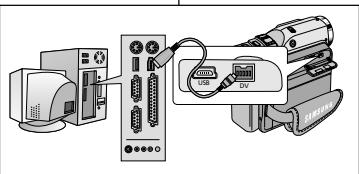
- Transferring a Digital Image through a USB Connection
You can easily transfer a image from a MEMORY CARD to a PC without additional add-on cards via a USB connection.
+ If you transfer data to a PC, you need to install the software (Driver, DVC Media 5.1, Windows Media Player 9.0, DirectX 9.0a) supplied with the camcorder.
Interface USB
Intel® Pentium III™ is a trademark of the Intel Corporation.
Windows® is a registered trademark of the Microsoft Corporation.
All other brands and names are property of their respective owners.
Operations are not guaranteed for all of the recommended computer environments mentioned above.

DVC Media 5.1 User's Manual is included on the accompanying CD(D:help) in Adobe's Portable Document Format(PDF) The user's manual can be viewed using Acrobat Reader software, which is also included on the CD. (The Acrobat Reader is a freeware product of AdobeSystems,Inc.)
Do not connect the camcorder to PC before installing the program.
If another camera or scanner is connected, please disconnect it in advance.
This explanation is based on Windows® 98SE OS.
Program installation
- Insert the software CD into CD-ROM drive.
Installation selection screen appears on the monitor.
- If the installation selection screen does not appear after inserting the CD, click "Run" on the Windows "Start" menu and execute SETUP.EXE file to begin installation.
- When CD-ROM drive is set to "D:drive", type "D:/setup.exe" and press Enter.
- Click the icons listed below to install the selected software.
The program automatically checks and installs the driver.
DVC Driver: USB removable Disk Driver (Windows® 98SE only) USB PC CAMERA Driver USB Streaming Driver
DVC Media 5.1
DirectX 9.0a
Windows Media Player 9.0
■ Editing Software
Using the "PC camera" function
You can use this camcorder as a PC CAMERA, when you connect to a Web site that provides video chatting functions.
- When using the camcorder as a PC Camera, connect an external microphone to your PC in order to participate in audio chats.
Using the camcorder with PC installed Net-meeting program, you can conduct video conference.
The PC CAMERA's screen size is 160x120 pixels.
If the PC is connected via USB to the camcorder, we recommend using the POWER SWITCH, MODE SWITCH, ZOOM SWITCH and NITE_PIX SWITCH to avoid errors.
- Set the mode switch to Tape, set the power switch to CAMERA.
- Connect one end of the USB cable to the USB jack on the camcorder and the other end to the USB connector on your computer.
Interface USB
-
You can easily transfer data from a Memory Card to a PC without additional add-on cards via a USB connection.
-
Set the mode switch to Memory Card, set the power switch to CAMERA or PLAYER.
- Connect one end of the USB cable to the USB jack on the camcorder and the other end to the USB port on your computer.
Using the "USB streaming" function
USB streaming data type is MPEG4.
To use USB STREAMING, the DVC Media 5.1, DirectX X 9.0a and Windows Media Player 9.0(included in the CD) programs must be installed in the PC.
You can view CAMCORDER video from the PC using USB STREAMING.
You can also store it as a moving picture in the "ast" file format, or as a still image in the "jpg" file format on a PC.
- Set the mode switch to TAPE, set the power switch to CAMERA or PLAYER.
- Connect one end of the USB cable to the USB jack on the camcorder and the other end to the USB port on your computer.
- Execute the DVC Media 5.1 program. If you want the detailed description of USB streaming, refer to the DVC Media 5.1 User's Manual.
Connecting to a PC
- Connect a USB cable to the USB port on the PC.
-
Connect the other end of the USB cable into the proper terminal on the camcorder. (USB jack)
-
If a PC is connected to the camcorder with a USB cable, only the Power Switch, Zoom Switch, Mode Switch and NITE_PIX operate.
Disconnecting the USB cable
After completing the data transmission, you must disconnect the cable in the following way:
- Select the removable disc icon and click the right mouse button to select [Eject].
- Select [Confirm] and disconnect the USB cable when the Windows Splash screen appears.
Notes
If you disconnect the USB cable from the PC or the camcorder while transferring, the data transmission will stop and the data may be damaged.
If you connect the USB cable to a PC via a USB HUB or simultaneously connect the USB cable along with other USB devices, the camcorder may not work properly.
- If this occurs, remove all USB devices from the PC and reconnect the camcorder.
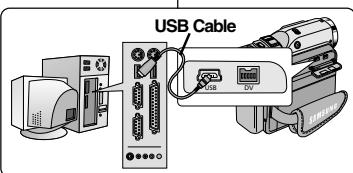
Interface USB
Utilisation de la fonction «Disque amovible»
MEMORY STICK (Optional Accessory)
The Memory Stick stores and manages images recorded by the camera.
Memory Stick Functions
Recording still images and MPEG4 movie
Viewing still images and MPEG4 movie
Single
Slide show (Still images only)
Multi display
Protecting images against accidental erasure
Deleting images recorded on a Memory Stick
Print marking still images
+ Formatting a Memory Stick
Notes
-
You can use most of the camera's functions when recording to the Memory Stick.
“” appears on the screen while recording to the Memory Stick.
While recording or loading an image, do not eject or insert the Memory Stick.
-
Inserting or ejecting a Memory Stick while recording or loading an image can cause data damage.
If you want to save all images on the Memory Stick, set the write protect tab on the Memory Stick to LOCK.

MEMORY STICK TM
- "Memory Stick" and Stick are trademarks of Sony Corporation.
- All other product names mentioned herein may be the trademarks or registered trademarks of their respective companies.
"TM"and "B" are not mentioned in every instance in this manual.
- "Memory Stick PRO" can not be used with the model SCD303.
Inserting and ejecting the Memory Card
- Inserting the Memory Card
- Turn the Power switch to OFF.
- Insert the Memory Card in the direction of the arrow into the Memory Card slot located on the bottom of the camcorder.
Ejecting the Memory Card
- Turn the Power switch to OFF.
- Push the Memory Card, then it comes out of the camcorder automatically.
- Pull out the Memory Card.
Do not attempt to pull the Memory Card out without first pushing it in.
Notes
Memory Stick Duo type or RS-MMC (SCD305/D307 only) should be inserted by using the ADAPTOR (not supplied).
If you set the camcorder to M.PLAY mode, the last recorded still image appears.
If there are no recorded images on the Memory Card, NO STORED PHOTO! or NO STORED MPEG! and will display on the screen.
While recording, loading, erasing or formatting, do not power or change the mode.
Please turn the power off before you insert or eject the Memory Card to avoid losing data.
- Do not allow metal substances to come in contact with the terminals of the Memory Card.
- Do not bend, drop or apply strong shock to Memory Card.
After pulling the Memory Card out from the camcorder, please keep the Memory Card in a soft case to prevent static shock.
- The stored contents may be changed or lost as a result of misuse, static electricity, electric noise or repair. Save important images separately.
Samsung is not responsible for data loss due to misuse.
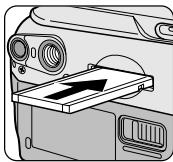
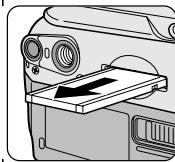
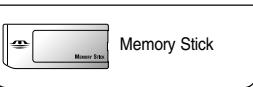
SCD303
SCD305/D307
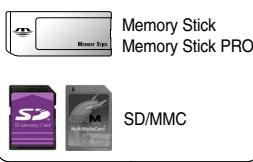
(Usable MEMORY CARDs)
Structure of folders and files on the Memory Card
The still images that you recorded are saved in JPEG file format on the Memory Card.
The moving images that you recorded are saved in MPEG4 file format on the Memory Card.
Each file has a file number and all files are assigned to a folder.
A file number from DCAM0001 to DCAM9999 is sequentially assigned to each recorded image.
Each folder is numbered from 100SSDVC to 999SSDVC and recorded on the Memory Card.
Still image
Images are compressed in JPEG (Joint Photographic Experts Group) format.
The number of pixels are 640 × 480 in each mode.
Amount of still images must be under 1.4MB.
Moving Image
Images are compressed in MPEG (Moving Picture Experts Group) format.
The number of pixels are 320 × 240 , 160 × 120 in each mode.
Selecting the CAMCORDER mode
You can use this camcorder as a Digital Still Camera (DSC).
You have to set the mode switch to the MEMORY CARD position to use this camcorder as a Digital Still Camera.
M.REC mode (Memory RECORD mode)
1. Set the mode switch to MEMORY CARD.
2. Set the power switch to CAMERA.
M.PLAY mode (Memory PLAYBACK mode)
1. Set the mode switch to MEMORY CARD.
2. Set the power switch to PLAYER.
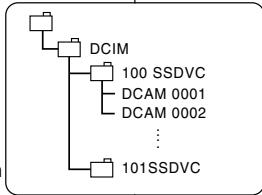
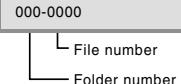
*M. PLAY
- File numbers will be given to images in order of recording when still images are stored on the Memory Card.
MEMORY FILE NUMBERS may be set as follows:
SERIES: When there are existing files, the new image will be named as the next number in the sequence.
RESET
The menu list will appear.
3. Move the MENU SELECTOR to highlight MEMORY and push the MENU SELECTOR.
4. Move the MENU SELECTOR to activate the FILE NO. and push the MENU SELECTOR.
5. To exit, press the MENU button.
Note
- When using a Memory Card that contains image files from another device, file numbering will begin after the highest number.
m = 311
O PROTECT
0FILE NO
ODELETE
8 FORMAT
M.REC MODE
MEMORY SET
M.PLAYSELE
PHOTOQ
MPEG4S
PRINTMA
PROTECT
OFIL
E NO.
DELETE
FOMAT
#
Selecting the image quality
You can select the quality of a still image to be recorded.
Select the image quality
- Set the mode switch to MEMORY CARD.
- Set the power switch to the CAMERA mode.
- Press the MENU button. The menu list will appear.
- Move the MENU SELECTOR to highlight MEMORY.
- Push the MENU SELECTOR to enter the sub-menu.
- Move the MENU SELECTOR to highlight PHOTO QUALITY in the menu.
- Push the MENU SELECTOR.
- Using the MENU SELECTOR, select the image quality.
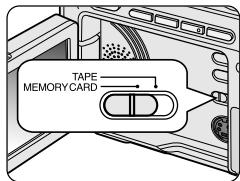
M.REC MODE

MEMORY SET
M.PLAY SELECT PHOTO
PHOTO QUALITY SF
MPEG4 SIZE 320X240
PRINTMARK 000
PROTECT
-FILE NO. SERIES
DELETE
FORMAT
Push the MENU SELECTOR to confirm the image quality.
If you exit the sub-menu without pushing the MENU SELECTOR, the quality mode is not changed.
- To exit, press the MENU button.
Number of images on the Memory Card
| QUALITY | 8MB | 16MB |
| SUPER FINE | Approx. 45 | Approx. 90 |
| FINE | Approx. 85 | Approx. 170 |
| NORMAL | Approx. 155 | Approx. 310 |
- The actual number that you can record varies depending on the image size.
Recording Still images to a Memory Card in M.REC Mode.
Audio cannot be recorded with a still image onto the Memory Card.
Recording images to a Memory Card
- Set the mode switch to MEMORY CARD.
- Set the power switch to CAMERA.
- Press the PHOTO button.
The still image is recorded to the Memory Card.
While the camcorder is recording the still image, "▶▶" appears on the screen.
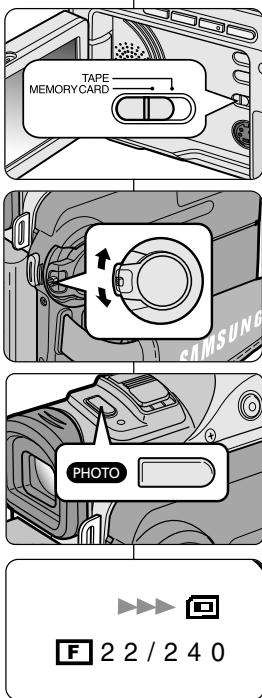
FRANÇAIS
Recording an image from a cassette as a still image.
You can record still images from a cassette onto a Memory Card.
If you want to move recorded multiple still images from a cassette to a Memory Card, use the COPY function.
- Set the mode switch to TAPE.
- Set the power switch to PLAYER mode.
- Play back the cassette.
- Press the PHOTO button.
The still image is recorded on the Memory Card.
While the camcorder is recording the still image, "▶▶" appears on the screen.
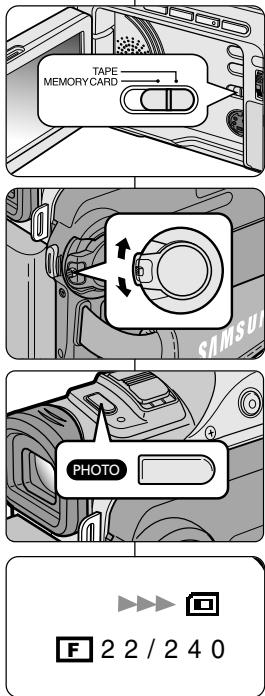
You can playback and view still images recorded on the Memory Card.
There are 3 ways to view recorded images.
Single:To view an image frame by frame.
- Slide show: To view all images automatically and in consecutive order.
Multi display: To view 6 images at once.
To view a Single image
- Set the mode switch to MEMORY CARD.
- Set the power switch to PLAYER mode.
The last recorded image appears.
-
If there are no recorded images on the Memory Card, NO STORED PHOTO! or NO STORED MPEG4! and will display on the screen.
-
Using the (FWD) and (REV) buttons, search for the desired still image.
To view the next image: press the (FWD) button.
To view the previous image : press the (REV) button.
Pressing (FWD) when you are on the last image will take you to the first image and pressing (REV) when you are on the first image will take you to the last image.
- Keep pressing (FWD) or (REV) to search for an image quickly.
To view a slide show
- Set the mode switch to MEMORY CARD.
- Set the power switch to PLAYER mode.
The last recorded image appears.
- Press the / / (S.SHOW) button.
All images will be played back consecutively for 3-4 seconds each.
To stop the slide show, press the / (S.SHOW) button again.
To view the Multi Display
- Set the mode switch to MEMORY CARD.
- Set the power switch to PLAYER mode.
The last recorded image appears.
- To view six stored images on single screen, press the MULTI DISP. button.
A selection mark () appears under the image.
- Move the MENU SELECTOR to select a image.
- To return to single playback mode, press the MULTI DISP. button again.
Notes
To display the previous six images, press (REV).
To display the next six images, press (FWD).
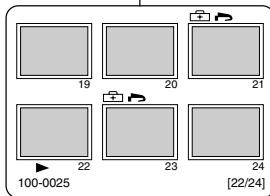
Copying still images from a cassette to Memory Card
The submenu will appear.
- Move the MENU SELECTOR to highlight PHOTO COPY and push the MENU SELECTOR.
All still images recorded on a cassette will be copied onto the Memory Card.
- The camcorder automatically performs photo search to find still images and starts copying.
-
Press (STOP) button to stop copying.
-
Copy stops when the cassette is finished or Memory Card is full.
PLAYER MODE
INITIAL
CAMERA
A/V
MEI
VIEWER
图
OREC MODE
OPHOTO SEARCH
OCOPY [ ]
AUDIO MODE 12
AUDIO SELECT
OWIND CUT
OPBDSE
PLAYER MODE
A/V SET
REC MODE
PHOTO SEARCH
PHOTO COPY
AUDIO MODE 12
AUDIO SELECT sound1
WIND CUT
PB DSE
Marking images for printing
This camcorder supports the DPOF (Digital Print Order Format) print format.
You can automatically print images recorded on a Memory Card with a printer supporting DPOF.
There are 2 ways to make a PRINT MARK.
THIS FILE: You can set a print mark on the photo image displayed on the LCD.
ALL FILES : To print 1 copy each of all of the stored images.
- Set the mode switch to MEMORY CARD.
- Set the power switch to PLAYER.
The last recorded image appears.
- Using the (FWD) and (REV) buttons, search for the still image that you want to mark.
- Press the MENU button.
- Move the MENU SELECTOR to highlight MEMORY and push the MENU SELECTOR.
The MEMORY SET submenu will appear.
- Move the MENU SELECTOR to highlight PRINT MARK, push the MENU SELECTOR.
- Use the MENU SELECTOR to select either THIS FILE or ALL FILES and push the MENU SELECTOR.
- Use the MENU SELECTOR to select the quantity and push the MENU SELECTOR.
Notes
- When you setup the PRINT MARK option to ALLFILES, up to 999 files will be print marked. The files will be marked 000 or 001.
The ALL FILES option may require extended operation time depending on the number of stored images.
M PLAY MODE
INITIAL
CAMERA
A/V
MEMORY
VIEWER

(
(
M
P
-A
TC

G
JT

NO
ETF
OFO
MAT
M.PLAY MODE
MEMORY SET
OM
P
LA
Y
SI
FLL
=0
江
PHOTO
Q
IA
1
[T]
ZF
:
1
2
.
有
.
B
1
···
M.PLAY MODE
MEMORY SET
PRINT MARK
0
TH
HIS
F
IL
E·
·
···
0
AI
1
EII
F
S·
··
回
F
.
:
。
.
Important
Protection from accidental erasure
You can protect important images from accidental erasure.
If you execute FORMAT, all images including protected images will be erased.
- Set the mode switch to MEMORY CARD.
- Set the power switch to PLAYER.
The last recorded image appears.
If there are no recorded images on the Memory Card, NO STORED PHOTO! or NO STORED MPEG4! and will display on the screen.
- Using the (FWD) and (REV) buttons, search for the still image that you want to protect.
- Press the MENU button.
- Move the MENU SELECTOR to highlight MEMORY and push the MENU SELECTOR.
The menu of MEMORY SET will appear.
- Move the MENU SELECTOR to highlight PROTECT and push the MENU SELECTOR.
- Push the MENU SELECTOR to set PROTECT to ON or OFF.
THIS FILE: protects the currently selected file from erasure.
- Using the (FWD) and (REV) buttons, search for the still image that you wish to protect.
- To exit the menu, press the MENU button.
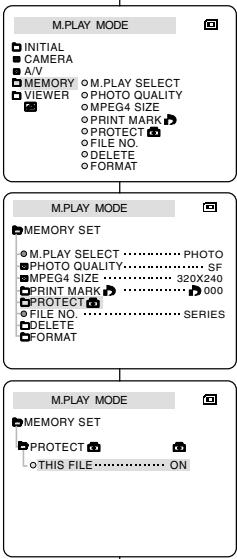
Deleting Still images
You can erase the still images recorded on the Memory Card.
If you want to delete protected images, you must first deactivate the image protection.
An image which has been deleted cannot be recovered.
- Set the mode switch to MEMORY CARD.
- Set the power switch to PLAYER.
- Using the (FWD) and (REV) buttons, search for the still image that you want to delete.
- Press the MENU button.
- Move the MENU SELECTOR to highlight MEMORY and push the MENU SELECTOR.
The MEMORY SET menu will appear.
- Move the MENU SELECTOR to highlight DELETE and push the MENU SELECTOR.
Using the MENU SELECTOR, select either THIS FILE or ALL FILES and push the MENU SELECTOR.
THIS FILE : deletes only the file currently selected.
ALL FILES : deletes all files stored in the Memory Card.
- A box will appear to verify whether you wish to delete the image(s).
Using the MENU SELECTOR, select the item.
■ EXECUTE : deletes the selected image(s).
CANCEL: does not delete the selected image(s) and returns to the previous menu.
Note
If you try to delete a protected image, "PROTECT!" appears on the screen.
You can use the MEMORY FORMAT functions to completely delete all images and options on the Memory Card, including protected images.
The format function restores the Memory Card to its initial state.
The Memory Card supplied with this camcorder has been formatted already.
Attention
If you execute the MEMORY FORMAT function, all images will be erased completely and erased images cannot be recovered.
- Set the mode switch to MEMORY CARD.
- Set the power switch to PLAYER mode.
- Press the MENU button.
- Move the MENU SELECTOR to highlight MEMORY and push the MENU SELECTOR.
The sub menu will appear.
- Select FORMAT from the list and push the MENU SELECTOR.
- "ALL FILES ARE DELETED! FORMAT REALLY?" appears on the screen.
- Using the MENU SELECTOR, select the item.
NO:To return to previous menu
YES:To start formatting.
- Push the MENU SELECTOR. If you selected the "YES", "COMPLETE!" is appeared on the screen when the MEMORY CARD formatting is finished.
- To exit the menu, push the MENU button.
Note
If you want to format the Memory Stick on your PC, use only the "MSformatter" supplied with the software CD.
The MS formatter can only be used with Memory Sticks.
You can record moving picture images with audio onto the Memory card.
Recording moving pictures onto a MEMORY CARD
- Insert a Memory Card into the slot on the camcorder.
- Set the mode switch to MEMORY CARD position.
- Set the power switch to CAMERA mode.
- Press the START/STOP button, the images are recorded on the MEMORY CARD in MPEG4.
You can record 10 ~ 20 seconds continuously.
- You can record a camera still image on Memory Card by pressing the Photo button instead of the START/STOP button.
- Press the START/STOP button to stop the recording.
Notes
- Moving images that you recorded are saved in *.asf file format on the Memory Card.
The moving picture images on a Memory Card are smaller size and lower definition than one on Tape.
The sound is recorded in mono.
The following functions cannot be operated in M.REC Mode.
DIS (Digital Image Stabilizer), Digital Zoom, Fade, Program AE, Digital Special Effect, Slow Shutter.
- Don't insert or eject a tape during Memory card recording as it may record noise.
- Don't eject The Memory Card during recording as it may break the data on the Memory Card or the Memory Card itself.
Selecting the moving picture sizes
- Set the mode switch to MEMORY CARD position.
- Set the power switch to CAMERA mode.
- Press the MENU button.
- Move the MENU SELECTOR to highlight MEMORY.
- Push the MENU SELECTOR to enter the submenu.
- Move the MENU SELECTOR to highlight MPEG4 SIZE.
- Push the MENU SELECTOR.
The MPEG4 SIZE toggles between 320 × 240 / 160 × 120 with each push.
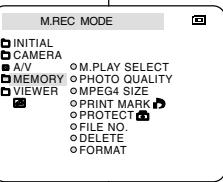
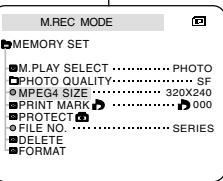
The MPEG Playback function works in M. PLAY mode only.
You can play moving picture images on the Memory Card.
To hear sound during MPEG4 playback, you must hook up to a PC and listen to the PC's speaker. (You cannot hear it from the speaker on the camcorder or a TV)
- Set the mode switch to MEMORY CARD position.
- Set the power switch to PLAYER mode.
- Press the MENU button and move the MENU SELECTOR to highlight MEMORY.
- Push the MENU SELECTOR to enter sub-menu.
- Use the MENU SELECTOR to select MPEG4 from the sub-menu. (M. PLAY SELECT)
- To exit the menu, push the MENU button.
- Using the (FWD) and (REV) buttons, search for the moving picture that you want to playback.
- Press the PLAY/STILL button.
The moving pictures recorded on the MEMORY CARD are playing back.
Notes
There may occasionally be broken or mosaic pictures while playing the MPEG4 moving picture images, but it is not a malfunction.
Sharp G.726 Audio Codec is automatically installed through Internet when you play the MPEG4 file.
If Sharp G.726 Audio Codec is not properly installed on your PC, it will not play MPEG4 Audio.
- Moving picture images recorded on the Memory Card may not play in other manufacturers' camps
- MPEG4 files recorded by another camcorder may not be playable in this camcorder.
- You need Microsoft Windows Media Player Version 9 or higher and Sharp G.726 Audio Codec in order to play MPEG4 files on the Memory Card on your PC. (Microsoft Windows Media Player Version 9 (Eng) is included on the CD that is supplied.)
- You can download the Microsoft Windows Media Player on the Microsoft Website, "http://www.microsoft.com/windows-windowsmedia/download/default.asp".
After finishing a recording
At the end of a recording you must remove the power source.
+ When recording with a Lithium Ion Battery Pack, leaving the pack on the camcorder can reduce the life span of the battery.
-
Slide the TAPE EJECT switch in the direction of the arrow.
-
Opening the cassette door ejects the tape automatically.
Please wait while the tape is completely ejected.
-
After removing the tape, close the door and store the camcorder in a dust free environment.
-
Dust and other foreign materials can cause square-shaped noise or jerky images.
- Set the power switch to the OFF mode.
- Disconnect the power source or remove the Lithium Ion Battery Pack.
- Slide the BATTERY RELEASE switch and slide the battery pack in the direction of the arrow.

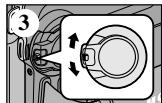
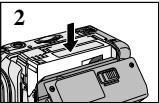
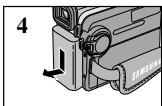
Cleaning and Maintaining the Camcorder
Cleaning the Video Heads
To ensure normal recording and clear pictures, clean the video heads when the playback pictures display square block-shaped noise or distortion, or a blue screen appears.
FRANÇAIS
- Set the power switch to PLAYER mode.
- Insert the cleaning tape.
- Press the / / (PLAY/STILL) button.
- Press the STOP) button after 10 seconds.
Notes
-
Check the quality of the picture using a videocassette. If the picture quality has not improved, repeat the operation. If the problem continues, contact your local authorized service center.
Clean the video heads with a dry type cassette cleaner.
-
Reglez le commutateur sur PLAYER.
- Insérez une bande de nettoyage.
- Appuyez sur la touche (PLAY/STILL).
- Appuyez sur la touche (STOP) au bout de 10 secondes.
Important
Using Your Camcorder Abroad
Each country or region has its own electric and color systems.
Before using your camcorder abroad, check the following items.
Power sources
You can use your camcorder in any country or area with the supplied AC Power Adapter within 100V to 240V, 50/60 Hz.
Use a commercially available AC plug Adapter, if necessary, depending on the design of the local wall outlet.
Color system
- You can view your recording in the viewfinder. However, to view it on a television or copy it to a videocassette recorder, the television or VCR must be NTSC-compatible and have the appropriate audio/video jacks. Otherwise, you may need to use a transcoder.
PAL-compatible Countries/Regions
Australia, Austria, Belgium, Bulgaria, China, CIS, Czech Republic, Denmark, Egypt, Finland, France, Germany, Greece, Great Britain, Holland, Hong Kong, Hungary, India, Iran, Iraq, Kuwait, Libya, Malaysia, Mauritius, Norway, Romania, Saudi Arabia, Singapore, Slovak Republic, Spain, Sweden, Switzerland, Syria, Thailand, Tunisia, etc.
- NTSC-compatible Countries/Regions
Bahamas, Canada, Central America, Japan, Korea, Mexico, Philippines, Taiwan, United States of America, etc.
Note
You can make recordings with your camcorder and view pictures on the LCD from anywhere in the world.
Before contacting a Samsung authorized service center, perform the following simple checks.
They may save you the time and expense of an unnecessary call.
Self Diagnosis Display
| Display | Blinking | Informs that... | Action |
| ☐ | slow | the battery pack is almost discharged. | Change to a charged one. |
| TAPE ENDI | slow | When the remaining time on the tape is about 2 minutes | Prepare a new one. |
| TAPE ENDI | no | the tape reached its end. | Change to a new one. |
| TAPEI | slow | there is no tape in camcorder. | Insert a tape. |
| PROTECTIONI | slow | the tape is protected from recording. | If you want to record, release the protection. |
| ▲…D L C R | slow | the camcorder has some mechanical fault. | 1. Eject the tape.
2. Set to OFF.
3. Detach the battery.
4. Reattach the battery.
* If unresolved contact your local service representative. |
| ☐ | slow | moisture condensation has formed in the camcorder. | see below. |
Moisture Condensation
If the camcorder is brought directly from a cold place to a warm place, moisture may condense inside the camcorder, on the surface of the tape, or on the lens. In this condition, the tape may stick to the head drum and be damaged or the unit may not operate correctly.
To prevent possible damage under these circumstances, the camcorder is fitted with a moisture sensor.
If there is moisture inside the camcorder, (DEW) is displayed. If this happens, none of the functions except cassette ejection will work.
Open the cassette compartment and remove the battery. Leave the camcorder for at least two hours in a dry warm room.
Dépannage
Dépannage
Self Diagnosis Display in M.REC/M.PLAY mode
| Display | Blinking | Informs that... | Action |
| MEMORY CARD! | slow | There is no Memory Card in the camcorder. | Insert a Memory Card. |
| MEMORY FULL! | slow | There is not enough memory to record. | Change to a new Memory Card. Erase recorded image. |
| NO STORED PHOTO! or NO STORED MPEG4! | slow | There are no images recorded on the Memory Card. | Record new images. |
| WRITE PROTECT! | slow | The Memory Card is record protected. | Release the write protect tab on the Memory Card. |
| PROTECT! | slow | When you try to delete a protected image. | Cancel the image protection. |
| READ ERROR! | slow | The camera can not playback. | Format a Memory Card or insert Memory Card recorded on this camcorder. |
| WRITE ERROR! | slow | The camera can not record. | Format a Memory Card or change to a new Memory Card. |
| NOT FORMATTED! | slow | The Memory Card needs to be formatted. | Format a Memory Card. (see page 94) |
| NOW DELETE... | slow | FILE DELETE is progressing. | Wait until Delete has been finished. |
| NOW FORMAT... | slow | MEMORY FORMAT is progressing. | Wait until formatting has finished. |
| NOW COPY... | slow | When FILE COPY is progressing. | Wait until copy has finished, or press the stop button. |
Dépannage
If these instructions do not solve your problem, contact your nearest Samsung authorized service center.
| Symptom | Explanation/Solution |
| You cannot switch the camcorder on. | Check the battery pack or the AC Power Adapter. |
| START/STOP button does not operate while recording. | Check the POWER switch is set to CAMERA.
You have reached the end of the cassette.
Check the record protection tab on the cassette. |
| The camcorder goes off automatically. | You have left the camcorder set to STBY for more than 5 minutes without using it.
The battery pack is fully exhausted. |
| The battery pack is quickly exhausted. | The atmospheric temperature is too low.
The battery pack has not been charged fully.
The battery pack is completely dead, and cannot be recharged, Use another battery pack. |
| When you see a blue screen during playback. | The video heads may be dirty.
Clean the head with a cleaning tape. |
| A vertical strip appears on the screen when recording a dark background. | The contrast between the subject and the background is too great for the camcorder to operate normally.
Make the background bright to reduce the contrast or use the BLC function while you are recording brighter. |
| The image in the viewfinder is blurred. | The Viewfinder lens has not been adjusted.
Adjust the viewfinder control lever until the indicators displayed on the viewfinder come into sharp focus. |
| Auto focus does not work. | Check the M.FOCUS menu.
Auto focus does not work in the Manual Focus mode. |
| Play, FF or REW button does not work. | Check the POWER switch. Set the power switch to PLAYER.
You have reached the beginning or end of the cassette. |
| When you see a broken block image during the RECORD SEARCH. | This is normal operation and it is not a failure or defect. |
Dépannage
Model name: SCD303/D305/D307
| System |
| Video signal | NTSC |
| Video recording system | 2 rotary heads, Helical scanning system |
| Audio recording system | Rotary heads, PCM system |
| Usable cassette | Digital video tape (6.35mm width): Mini DV cassette |
| Tape speed | SP: approx. 18.81mm/s LP: approx. 12.56mm/s |
| Tape recording time | SP: 60 minutes (when using DVM 60),
LP: 90 minutes (when using DVM 60) |
| FF/REW time | Approx. 150 sec. (using DVM60 tape) |
| Image device | CCD (Charge Coupled Device) |
| Lens | F1.6 20x(Optical), 900x(Digital) Electronic zoom lens |
| Filter diameter | Ø30 |
| LCD monitor/Viewfinder | |
| Size/dot number | 2.5inches 123k (SCD307:200k) |
| LCD monitor Method | TFT LCD |
| Viewfinder | 0.24" Color LCD |
| Connectors | |
| Video output | 1Vp-p (75Ω terminated) |
| S-video output | Y: 1Vp-p, 75Ω, C: 0.286Vp-p, 75Ω |
| Audio output | -7.5dBs (600Ω terminated) |
| DV input/output | 4pin special in/out connector |
| USB output | Mini-B type connector |
| External mic | Ø3.5 stereo |
| General |
| Power source | DC 8.4V, Lithium Ion Battery Pack 7.4V |
| Power source type | Lithium Ion Battery Pack,
Power supply (100V~240V) 50/60Hz |
| Power consumption
(Recording) | 5.0W(LCD), 4.0W(Viewfinder) |
| Operating temperature | 0~40°C (32°F~104°F) |
| Storage temperature | -20°C ~ 60°C (-4°F ~ 140°F) |
| External dimension | Length 4.4inches(112mm),
Height3.86inches(98mm), Width 2.16inches(55mm) |
| Weight | 402g
(Except for Lithium Ion Battery Pack and tape) |
| Built-in MIC | Omni-directional stereo condenser microphone |
| Remote control
(SCD305/D307 only) | Indoors: greater than 49ft(15m) (straight line),
Outdoors: about 16.4ft(5m) (straight line) |
- These technical specifications and design may be changed without notice.
Remote control 17, 20
- S
SHUTTER SPEED 56
Sound 35
Speaker 35
Still images 88
-T-
Tele MACRO 45
TV DISPLAY 54
-U-
USB 78
-V-
Viewfinder 31, 33
-W-
WHT.BALANCE 44
WIND CUT 52
WL. REMOTE 40
-Z
ZERO MEMORY 73
Zoom 45, 46
INDEX
-A-
Accessoires 12
AFFICHAGE (TV DISPLAY) 54
Exposition (EXPOSURE) 57
-F-
SAMSUNG Electronics Canada inc. (SECA), warrants that this product is free from defective material and workmanship.
SECA further warrants that if this product fails to operate properly within the specified warranty period and the failure is due to improper workmanship or defective material, SECA will repair or replace the product at its option.
All warranty repairs must be performed by a SECA authorized service center. (The name and address of the location nearest you can be obtained by calling toll free: 1-800-SAMSUNG)
Labor
1 year carry-in
Parts
1 year
On carry-in models, transportation to and from the service center is the customer's responsibility.
The original dated sales receipt must be retained by the customer and is the only acceptable proof of purchase. It must be presented to the authorized service center at the time service is requested.
EXCLUSIONS (WHAT IS NOT COVERED)
This warranty does not cover damage due to accident, fire, flood and/or other acts of god;misuse, incorrect line voltage, improper installation, improper or unauthorized repairs, commercial use, or damage that occurs in shipping.
Exterior and interior finish, lamps, and glass are not covered under this warranty. Customer adjustments which are explained in the instruction manual are not covered under the terms of this warranty. This warranty will automatically be voided for any unit found with a missing or altered serial number. This warranty is valid only on products purchased and used in Canada.
On-line warranty registration of your product is available by visiting our web site at www.samsung.ca.
Samsung Electronics Canada Inc.
7037 Financial Drive Mississauga, ON L5N 6R3
W: www.samsung.ca
Samsung Electronics Canada Inc.
7037 Financial Drive Mississauga, ON L5N 6R3
W: www.samsung.ca
THIS CAMCORDER IS MANUFACTURED BY:

ELECTRONICS
CE CAMESCOPE EST FABRIQUE PAR:

ELECTRONICS
*Samsung Electronics' Internet Home Page
United States
http://www.samsungusa.com
United Kingdom
http://www.samsungelectronics.co.uk
France
http://www.samsung.fr
Australia
http://www.samsung.com/au
Germany
http://www.samsung.de
Sweden
http://www.samsung.se
Poland
http://www.samsung.com/pl
Canada
http://www.samsungcanada.com
Panama
http://www.samsung.com.pa
Italia
http://www.samsung.it
Spain
http://www.samsung.es
*Samsung Electronics' Internet Home Page
United States
http://www.samsungusa.com
United Kingdom
http://www.samsungelectronics.co.uk
France
http://www.samsung.fr
Australia
http://www.samsung.com/au
Germany
http://www.samsung.de
Sweden
http://www.samsung.se
Poland
http://www.samsung.com/pl
Canada
http://www.samsungcanada.com
Panama
http://www.samsung.com.pa
Italia
http://www.samsung.it
Spain
http://www.samsung.es