AMAZON FIRE TV CUBE - Streaming device

FIRE TV CUBE - Streaming device AMAZON - Free user manual and instructions

Find the device manual for free FIRE TV CUBE AMAZON in PDF.

📄 4 pages English EN Download 💬 AI Question 2 questions
Notice AMAZON FIRE TV CUBE - page 1
View the manual : Français FR English EN
Pick your language and provide your email: we'll send you a specifically translated version.

User questions about FIRE TV CUBE AMAZON

2 questions about this device. Answer the ones you know or ask your own.

Ask a new question about this device

The email remains private: it is only used to notify you if someone responds to your question.

Can the Freebox Player be connected at the same time as the Fire TV Cube to a television?
Frequently Asked Questions - 15/01/2026
Response Notice-Facile

Yes, you can absolutely leave the Freebox Player and the Fire TV Cube connected simultaneously to your television. This setup is common and entirely possible, provided you adhere to a few important points related to HDMI connections and device management.

HDMI Configuration: The Fire TV Cube has a standard HDMI port and connects just like the Freebox Player. Simply plug the HDMI cable from the Fire TV Cube into a free HDMI port on your television, while the Freebox Player remains connected to another HDMI port. Most modern televisions have at least 3 to 4 HDMI ports, making this coexistence easy.

Switching between devices: Use your television remote to switch between HDMI sources depending on the device you wish to use. Each device operates independently: select the HDMI input of the Fire TV Cube to access your streaming services (Prime Video, Netflix, Disney+, etc.), and switch to the HDMI input of the Freebox Player to access Freebox content (live TV, recordings, Freebox services).

Remote control management: The Fire TV Cube works with the included Alexa voice remote, while the Freebox Player has its own remote. The two remotes do not interfere with each other, allowing you to control each device independently without issues. Note that the Fire TV Cube includes an IR (infrared) port that also allows you to control your television and other devices.

Power supply: Each device has its own power adapter provided (100-240V for the Fire TV Cube). Plug both devices into different outlets, or ideally into a power strip with enough ports. Make sure you have enough physical space near your television to place both devices without clutter.

Practical advantages: This setup allows you to enjoy both services simultaneously without having to unplug or physically switch devices. You benefit from Prime Video, Netflix, and other Amazon services on the Fire TV Cube, while still having access to live TV programs and Freebox content at any time. You are never limited to a single entertainment service.

Respond (be the first)
How do I connect the Fire TV Cube directly to my Internet box?
Frequently Asked Questions - 15/01/2026
Response Notice-Facile

The Fire TV Cube can be connected to your Internet box to access the Internet and stream content. Here are the different ways to do this:

Internet Connection via Wi-Fi

The Fire TV Cube primarily connects to the Internet using your box's Wi-Fi network. To do this:

  • Turn on your Fire TV Cube and go to Settings.
  • Select Network and then choose your Wi-Fi network.
  • Enter your network password if necessary.
  • The Fire TV Cube will then be connected to the Internet via your box using Wi-Fi.

Ethernet Connection (Wired) for a More Stable Connection

If you prefer a more stable and faster connection, you can connect your Fire TV Cube directly to your box using an Ethernet cable, but this requires a compatible Ethernet adapter (sold separately):

  • Plug the Ethernet adapter into the USB port of the Fire TV Cube.
  • Connect an Ethernet cable between the adapter and your Internet box.
  • The Fire TV Cube will automatically detect the wired connection and use it to access the Internet.

Connection to the Television

Note that the Fire TV Cube must be connected to your television via an HDMI cable to display content, but this connection is separate from the connection to your Internet box.

In summary, you do not connect the Fire TV Cube directly to your box via HDMI, but you can connect it to your Internet network in two ways: via Wi-Fi or through an Ethernet cable with an adapter.

Respond (be the first)

Download the instructions for your Streaming device in PDF format for free! Find your manual FIRE TV CUBE - AMAZON and take your electronic device back in hand. On this page are published all the documents necessary for the use of your device. FIRE TV CUBE by AMAZON.

USER MANUAL FIRE TV CUBE AMAZON

amazon 22-003405-01 Fire TV Cube Gen2 4K UHD Media Streamer User Manual

January 19, 2022 January 20, 2022

Home » Amazon » amazon 22-003405-01 Fire TV Cube Gen2 4K UHD Media Streamer User Manua

amazon

Contents [hide

1 What's in the box:
2 Position your Fire TV Cube
3 Connect your Fire TV Cube
4 Power up your Alexa Voice Remote
5 Get to know Fire TV Cube
6 Alexa Voice Remote
7 Get the most out of your Fire TV Cube
8 Tips and troubleshooting Wifi
network
9 Wired network
10 Documents / Resources

10.1 Related Manuals / Resources

What's in the box:
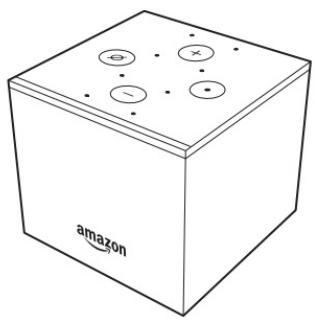
AMAZON FIRE TV CUBE - Contents [hide - 1
Fire TV Cube (2nd Generation)

AMAZON FIRE TV CUBE - Contents [hide - 2
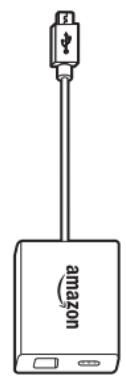
Ethernet adaptor

AMAZON FIRE TV CUBE - Contents [hide - 3
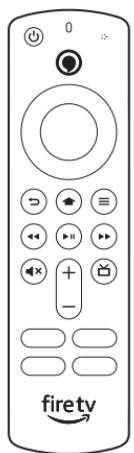
Alexa Voice Remote (3rd Generat

AMAZON FIRE TV CUBE - Contents [hide - 4
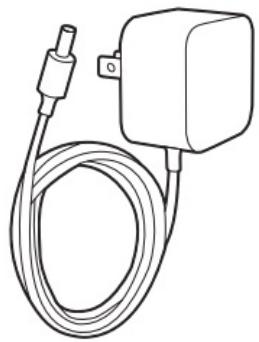
Power adaptor

AMAZON FIRE TV CUBE - Contents [hide - 5
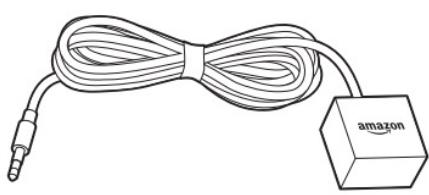
IR extender cable (for controlling components inside a closed cabinet)
AMAZON FIRE TV CUBE - Contents [hide - 6
2 AAA alkaline batteries

AMAZON FIRE TV CUBE - Contents [hide - 7

Position your Fire TV Cube

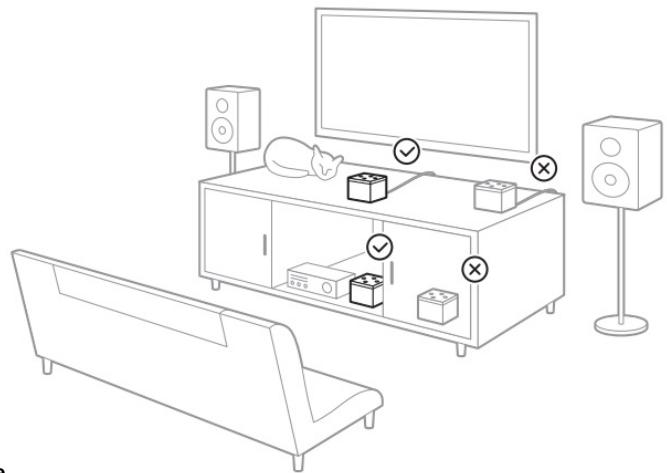
  • Place Fire TV Cube 1-2 feet away from any speakers, including your TV speakers, with the logo facing where you usually sit.
    This device acts like a remote control. It needs to hear you and should be unobstructed, not in a closed cabinet.
  • (Optional) To control entertainment components that are inside a closed cabinet, use the included IR extender cable.
AMAZON FIRE TV CUBE - Position your Fire TV Cube - 1

Connect your Fire TV Cube

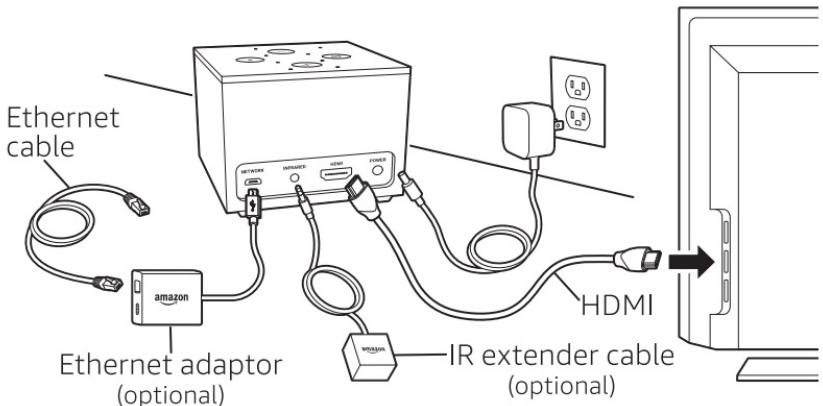
  1. Connect one end of the HDMI cable (not included) into the HDMI port on Fire TV Cube. Connect the other end into the HDMI port on your TV or AV receiver. Remember which HDMI port was used for the device. You'll need that information later during setup.
  2. (Optional) To use an Ethernet cable (not included), connect the Amazon Ethernet Adapter as shown.
  3. Plug the included power cable into Fire TV Cube and then into a power outlet.
  4. Turn on your TV, then select the appropriate input. S.
  5. Set your TV volume to your typical listening level.
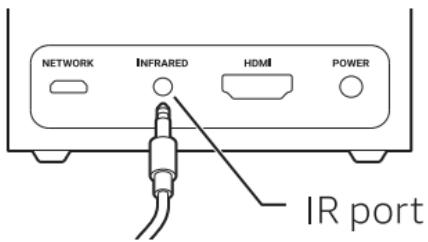
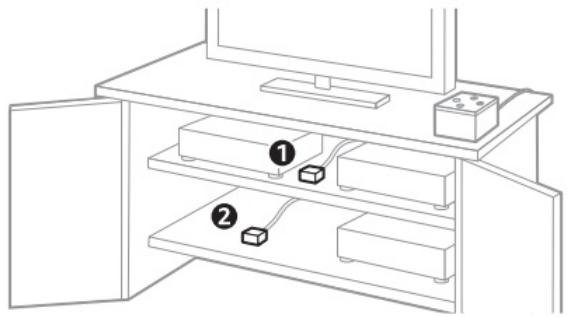
  6. (Optional) To use the IR extender cable, plug it into the IR port on the back of your Fire TV Cube as shown.
AMAZON FIRE TV CUBE - Connect your Fire TV Cube - 1

Place the IR extender cable on the same shelf as the devices you want to control (1). For devices on multiple shelves, place the IR extender cable on the lowest shelf (2).
AMAZON FIRE TV CUBE - Connect your Fire TV Cube - 2

Power up your Alexa Voice Remote

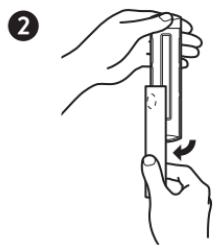
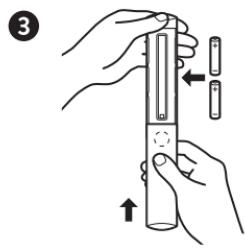
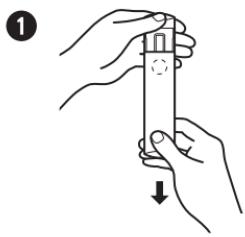
  1. Open the back of the remote and insert the included batteries.
AMAZON FIRE TV CUBE - Power up your Alexa Voice Remote - 1

AMAZON FIRE TV CUBE - Power up your Alexa Voice Remote - 2

AMAZON FIRE TV CUBE - Power up your Alexa Voice Remote - 3

  1. After pairing your Alexa Voice Remote, follow the on-screen instructions to control the power and volume of your compatible TV.

If your remote is not discovered, press and hold the Home button until the LED starts to rapidly flash amber. The LED will flash blue after the remote is successfully paired.
AMAZON FIRE TV CUBE - Power up your Alexa Voice Remote - 4

Get to know Fire TV Cube

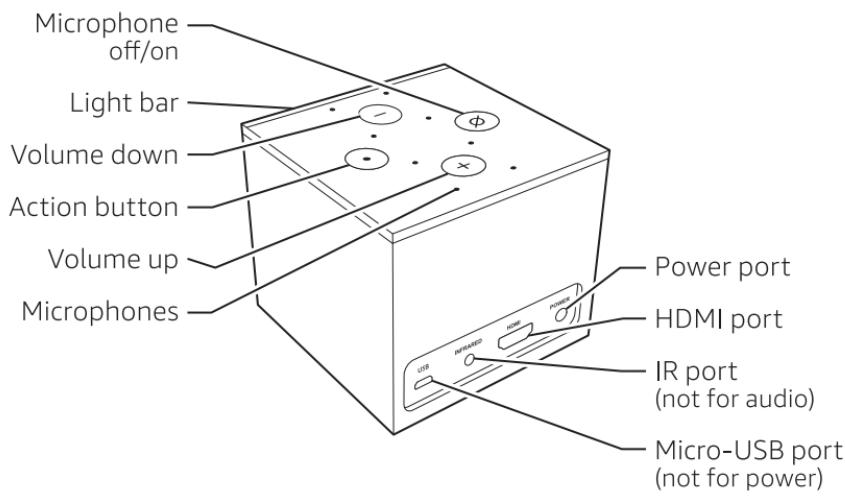
Lightbar: color indicates what Fire TV Cube is doing.

Volume buttons: control the internal speaker of Fire TV Cube.

Action button: multi-function button used to wake Alexa.

IR port: supports included IR extender. This is not an audio jack.

Micro-USB port: used for external storage or for the Amazon Ethernet adapter.
AMAZON FIRE TV CUBE - Get to know Fire TV Cube - 1

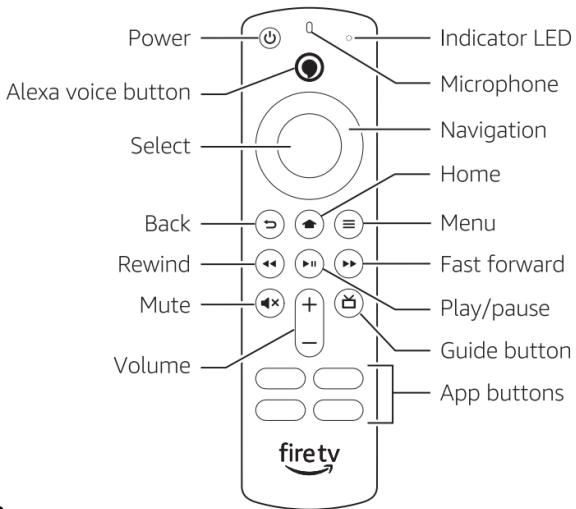
Alexa Voice Remote

Get the most out of your Fire TV Cube

Something's always on

You will never run out of things to watch on Fire TV. Easily download your favorite apps like Netflix, Prime Video, YouTube, and Disney+. Access free movies and TV episodes from popular ad-supported streaming apps like Tubi and CBC Gem. Watch or browse live TV, sports, news, and channels from Live on the Main Menu. With Profiles, everyone in your household can quickly get recommendations tailored to what they like. To learn more about your Fire TV, visit amazon.ca/firetv.

Ask Alexa

Ask Alexa to easily find, launch, and control content. Alexa can also play music, answer questions, read the news, check the weather, and set alarms.

Things to try

"Alexa, find movies."

"Alexa, play top music hits."

"Alexa, rewind 30 seconds."

"Alexa, what's the weather?"

"Alexa set a timer for 5 minutes."

To learn more about what Alexa can do, just ask, "Alexa, what can you do?"

Certain services are subject to change or withdrawal at any time, may not be available in all areas and languages, Dolby Atmos or 4K, and may require separate subscriptions.

Tips and troubleshooting Wifi network

  • Using the included remote control, go to the Settings menu in Fire TV Cube, and select your network from the list displayed. If your network is hidden, enter your network name.
    If you see a lock icon, your wifi network requires a password, so make sure you have it available. This password is not your Amazon account password.
    If you need help finding your wifi password, go to amazon.ca/help/wifi.
    For best performance, use the 5 GHz band on your wireless router if available. Do not place your router in a closed cabinet as it may impact wifi signal strength.

Wired network

If you're having trouble with your Ethernet connection, verify that the Ethernet cable and adapter are properly connected, then restart your Fire TV Cube. To understand how to set up Ethernet, go to the Connect Your Fire TV Cube section.

For more troubleshooting and information, go to www.amazon.com/devicesupport.

Documents / Resources
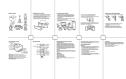
AMAZON FIRE TV CUBE - Documents / Resources - 1

amazon 22-003405-01 Fire TV Cube Gen2 4K UHD Media Streamer [pdf] User Manual

22-003405-01, Fire TV Cube Gen2, 4K UHD Media Streamer, 22-003405-01 Fire TV Cube Gen2 4K UHD Media Streamer
AMAZON FIRE TV CUBE - Related Manuals / Resources - 1

Amazon Fire TV Stick Gen 3 Instruction Manual

Amazon Fire TV Stick Gen 3

Connect Your Amazon Fire TV to Wi-Fi

  1. Wi-Fi Network: Credentials In order to connect to a wireless network, you must have the required credentials. These...
Connect Your Amazon Fire TV Stick to Wi-Fi

  1. Wi-Fi Network: Credentials In order to connect to a wireless network, you must have the required credentials. These...

AMAZON FIRE TV CUBE - Connect Your Amazon Fire TV Stick to Wi-Fi - 1

amazon B07KGVB6D6 Fire TV Cube 16GB 2nd Gen Streaming Media Player with Voice Remote User Manual

amazon B07KGVB6D6 Fire TV Cube 16GB 2nd Gen Streaming Media Player with Voice Remote What's In the box...

Manuals+

home
- privacy

Manual assistant
Powered by Anthropic
Waiting for your message
Product information

Brand : AMAZON

Model : FIRE TV CUBE

Category : Streaming device