
SOUND X - Smart Speaker HUAWEI - Free user manual and instructions
Find the device manual for free SOUND X HUAWEI in PDF.


| Product Type | Hi-Fi Smart Speaker |
| Brand | Huawei |
| Model | Sound X |
| Power Supply | 24 V DC / 2.7 A AC adapter (provided) |
| Connectivity | Wi-Fi, Bluetooth 5.0, NFC |
| Main Functions | Gesture control (cover to mute), OneHop Audio Sharing (NFC), UPnP audio streaming, control via HUAWEI AI Life app |
| Compatibility | Android smartphones 5.1.1 or later (for some functions); no iOS support for AirPlay |
| Audio Technology | Devialet collaboration, powerful bass rendering |
| Maintenance and Cleaning | Use a dedicated cleaning cloth or a soft, clean cotton cloth; gently wipe the speaker holes |
| Safety | Use only the provided adapter; do not block the microphone on top of the speaker; do not connect an external microphone |
| Built-in Battery | No, the speaker must be plugged in at all times |
| Update | Via the HUAWEI AI Life app, automatic update possible between 3am and 5am |
| Factory Reset | Press and hold the Multifunction and Volume - buttons simultaneously for 5 seconds |
| Light Indicators | Multi-colored light ring indicating status (startup, network configuration, Bluetooth, update, etc.) |
Frequently Asked Questions - SOUND X HUAWEI
1. Via NFC: enable NFC on your phone, unlock the screen, and tap the NFC area against the NFC logo on the speaker.
2. Via button: press and hold the Multifunction button until you hear a tone, then enable Bluetooth on your phone and select the speaker from the list.
3. Via the HUAWEI AI Life app: open the app, go to the speaker card, enable Bluetooth in settings, then search for the speaker from your phone.
- Your phone is on and Bluetooth is enabled.
- The phone is within 10 meters of the speaker.
- It is not connected to another Bluetooth device. If so, disconnect it first.
- Restart the speaker's Bluetooth by pressing and holding the Multifunction button.
User questions about SOUND X HUAWEI
0 question about this device. Answer the ones you know or ask your own.
Ask a new question about this device
Download the instructions for your Smart Speaker in PDF format for free! Find your manual SOUND X - HUAWEI and take your electronic device back in hand. On this page are published all the documents necessary for the use of your device. SOUND X by HUAWEI.
USER MANUAL SOUND X HUAWEI
Copyright © Huawei Technologies Co., Ltd. 2020. All rights reserved.
No part of this document may be reproduced or transmitted in any form or by any means without prior written consent of Huawei Technologies Co., Ltd.
Trademarks and Permissions

Huawei and other Huawei trademarks are trademarks of Huawei Technologies Co., Ltd.
All other trademarks and trade names mentioned in this document are the property of their respective holders.
Notice
The purchased products, services and features are stipulated by the contract made between Huawei and the customer. All or part of the products, services and features described in this document may not be within the purchase scope or the usage scope. Unless otherwise specified in the contract, all statements, information, and recommendations in this document are provided "AS IS" without warranties, guarantees or representations of any kind, either express or implied.
The information in this document is subject to change without notice. Every effort has been made in the preparation of this document to ensure accuracy of the contents, but all statements, information, and recommendations in this document do not constitute a warranty of any kind, express or implied.
Huawei Technologies Co., Ltd.
Address: Huawei Industrial Base
Bantian, Longgang
Shenzhen 518129
People's Republic of China
Website: https://www.huawei.com
Email: support@huawei.com
Contents
1 Introduction 1
1.1 Introduction 1
1.2 Appearance 2
1.3 Indicator status 3
1.4 Speaker compatibility 4
1.5 Gestures 4
2 Power supply and consumption 6
2.1 Does my speaker support other power adapters? 6
2.2 Can I use a power bank to supply power to my speaker? 6
2.3 Does my speaker have a built-in battery? 6
3 Network settings. 7
3.1 How to add my speaker in the HUAWEI AI Life. 7
3.2 Can my speaker automatically reconnect to the network after it is added to the HUAWEI AI Life app? 8
3.3 Features available with the HUAWEI AI Life app. 8
3.4 How many speakers can I add to the HUAWEI AI Life app? 8
3.5 Do I need to add my speaker to the HUAWEI AI Life app again after it is connected to a power source again? 9
3.6 How to reconnect my speaker to the network 9
4 Speaker settings. 10
4.1 How to remove a speaker that has been added in the HUAWEI AI Life app 10
4.2 How to update my speaker 10
4.3 How to check the speaker information 11
4.4 How to restore my speaker to its factory settings 11
5 Usage 12
5.1 How to cast audio 12
5.2 Which devices can I connect my speaker to? 13
5.3 How to connect my speaker to my phone via Bluetooth with a tap 13
5.4 How to a connect my speaker to my phone via Bluetooth with button control 15
5.5 How to a connect my speaker to my phone via Bluetooth using the HUAWEI AI Life app............15
5.6 How to play music 16
5.7 How to adjust the volume 16
5.8 How to pause or resume music playback 16
5.9 Power-off and restart 17
5.10 Can I connect a microphone to my speaker? 17
5.11 Unable to Connect My phone to the Speaker via Bluetooth 17
6 Maintenance. 18
6.1 How to clean my speaker 18
1 Introduction
1.1 Introduction
1.2 Appearance
1.3 Indicator status
1.4 Speaker compatibility
1.5 Gestures
1.1 Introduction
The HUAWEI Sound X is a Hi-Fi speaker. Built in collaboration with Devialet, a French brand known for its advanced audio technology that produces fantastic bass, this speaker brings you the ultimate listening experience.
The speaker supports the following features:
OneHop Audio Sharing: Touch the NFC area of your phone against the NFC icon on the speaker to switch music played on your phone to the speaker.
- Gesture control: You can use gestures to control the speaker, such as muting the speaker or adjusting the volume.
- Bluetooth: After connecting the speaker to your phone, you can use the speaker to play music on your phone and make Bluetooth calls (supported in later versions).
Audio casting: Use the speaker to play audio from devices such as phones.
1.2 Appearance
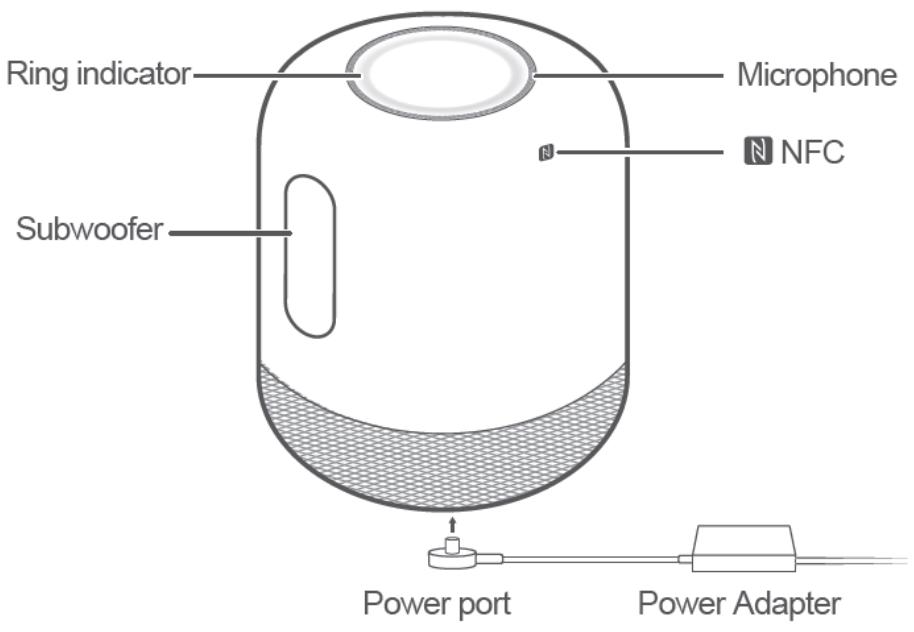
NOTE
Do not block the microphone at the top of the speaker to avoid lowering the speaker wakeup rate and affecting voice recognition.
Buttons and ports:
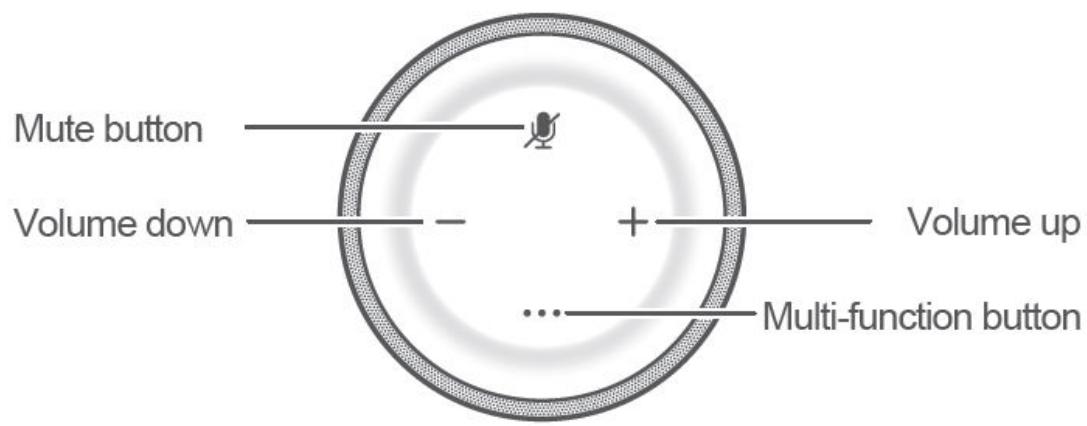
After connecting the speaker to a power source, when you put your hand close to the top of the speaker, the indicators for the buttons will turn on automatically. You can now control the speaker by touching the buttons.
| Button | Press | Press and Hold |
| Mute button | Turn the microphone and speakers on/off | Put the device in network configuration mode |
| Volume up button | Turn the volume up | Keep turning the volume up |
| Volume down button | Turn the volume down | Keep turning the volume down |
| Multi-function button | Allow an audio casting request | Press and hold for 3 seconds to enable or disable Bluetooth. Press and hold the Multi-function and Mute buttons at the same time for 5 seconds to enter low consumption mode. Press and hold the Multi-function and Volume down buttons at the same time for 5 seconds to restore the speaker to its factory settings. |

After a factory reset, the speaker's settings will be lost. In this case, reconfigure the network for the speaker.
1.3 Indicator status
| Indicator Color | Indicator Status | Speaker Status |
| Multicolor | Turns on | Starting |
| Spins and flashes | Waiting for you to allow an audio casting request | |
| Turns on, spins, and turns off | OneHop Audio Sharing | |
| Turns on, stays steady for 1 second, then turns off | Network configuration is successful or an audio casting request has been allowed | |
| Orange | Spins | Network configuration is in progress |
| Slowly flashes | Waiting for network configuration | |
| Fills up | Re-configuring network or undergoing a factory reset | |
| Red | Slowly flashes | Network is disconnected |
| Steady on | Muted | |
| Green | Fills up | Updating |
| Blue | Fills up | Enabling Bluetooth |
| Slowly flashes | Discoverable via Bluetooth | |
| Turns on, stays steady for 1 second, then turns off | Bluetooth connected | |
| Wanes | Disabling Bluetooth | |
| Off | None | Sleeping, media playback is in progress, or audio casting is in progress |
1.4 Speaker compatibility
The speaker only supports phones running Android 5.1.1 or later.
1.5 Gestures
After connecting your speaker to a power source, you can use the following gestures to control the speaker:
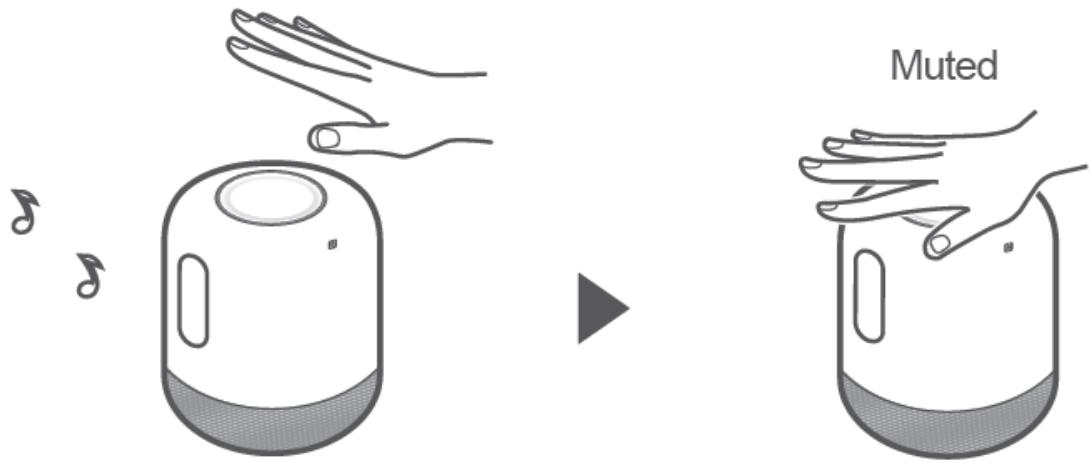
Cover to Mute:
Cover the top of the speaker with your hand, and the speaker will be automatically muted. You can then remove your hand. Cover the top of the speaker again, and the playback will automatically resume.

To mute the speaker, cover at least three buttons on the top of the speaker with your palm.
Move close to turn on indicators:
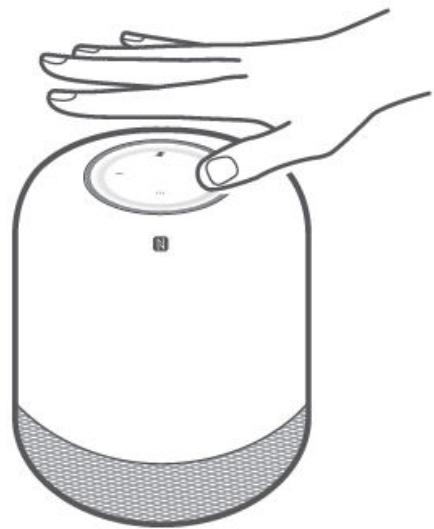
Put your hand close to the top of the speaker (about 5 cm away), and the indicators for the buttons will turn on automatically.
2 Power supply and consumption
2.1 Does my speaker support other power adapters?
2.2 Can I use a power bank to supply power to my speaker?
2.3 Does my speaker have a built-in battery?
2.1 Does my speaker support other power adapters?
The standard power adapter has a rated output of 24 V DC/2.7 A.
Please use the power adapter that comes in the packaging box. Otherwise, the device may be damaged or the sound quality may be affected.
2.2 Can I use a power bank to supply power to my speaker?
Currently, a power bank cannot be used to supply power to the speaker.
DANGER
To extend the service life of the speaker and ensure safety, use the standard power adapter that comes with the speaker.
2.3 Does my speaker have a built-in battery?
HUAWEI Sound X does not have any built-in battery. To ensure high-quality sound, the speaker must be connected to a power source using a power adapter to provide a stable and reliable power supply.
3 Network settings
3.1 How to add my speaker in the HUAWEI AI Life
3.2 Can my speaker automatically reconnect to the network after it is added to the HUAWEI AI Life app?
3.3 Features available with the HUAWEI AI Life app
3.4 How many speakers can I add to the HUAWEI AI Life app?
3.5 Do I need to add my speaker to the HUAWEI AI Life app again after it is connected to a power source again?
3.6 How to reconnect my speaker to the network
3.1 How to add my speaker in the HUAWEI AI Life
- Use your phone to scan the QR code below or search for HUAWEI AI Life in AppGallery, and download and install the HUAWEI AI Life app.

If the app has already been installed, make sure it is the latest version.

- Connect your speaker to a power source. When the ring indicator flashes orange, the speaker is waiting for network configuration.

If the indicator does not flash orange, press and hold the Mute button until it does so.
- Connect your phone to a Wi-Fi network and open the HUAWEI AI Life app. On the home screen of the app, touch +, follow the onscreen instructions to add the speaker, and the app will automatically scan for the speaker.
NOTE
- When using the app for the first time, you can go to the settings screen of the app and select your region.
-
If the speaker is not detected, follow the onscreen instructions to manually add it.
-
Follow the onscreen instructions to configure the network for the speaker.
NOTE
After the speaker is added, a card for it will be displayed on the home screen of the HUAWEI AI Life app. You can touch the card to access the speaker control screen and control the speaker.
3.2 Can my speaker automatically reconnect to the network after it is added to the HUAWEI AI Life app?
If the name and password of the Wi-Fi network that the speaker last connected to remain unchanged, the speaker will automatically reconnect to it. Otherwise, you need to manually connect the speaker to it.
3.3 Features available with the HUAWEI AI Life app
You can access to the following features in the HUAWEI AI Life app:
- Bluetooth: After connecting the speaker to your phone, you can use the speaker to play music on your phone and make Bluetooth calls (supported in later versions).
Audio casting: Use the speaker to play audio from devices such as phones. - Update: Update the speaker to enjoy the latest features.
- Wi-Fi connection: Configure the network for the speaker so that new versions can be detected and used for firmware updates.
NOTE
More features will be available with later updates.
3.4 How many speakers can I add to the HUWEI AI Life app?
You can add as many as you like.
3.5 Do I need to add my speaker to the HUAWEI AI Life app again after it is connected to a power source again?
If the name and password of the Wi-Fi network that the speaker last connected to remain unchanged, the speaker will automatically reconnect to it after it is connected to a power source again. Otherwise, you will need to manually reconnect.
3.6 How to reconnect my speaker to the network
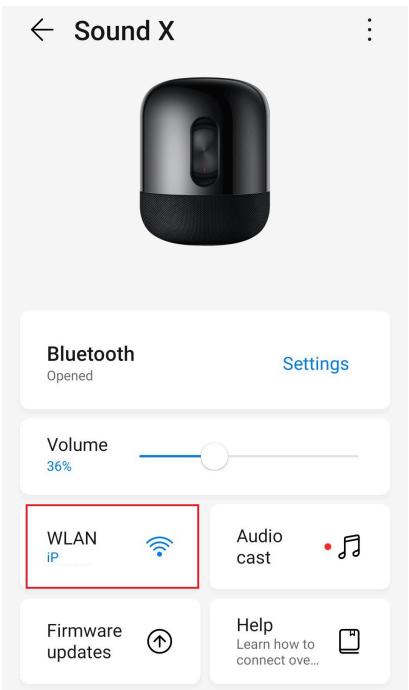
- Open the HUAWEI AI Life app, access the home screen, and touch the card for the speaker.
- Touch WLAN and enable Speaker WLAN. If the speaker is not connected, touch Reconfigure WLAN and follow the onscreen instructions to reconnect to the network.
4 speaker settings
4.1 How to remove a speaker that has been added in the HUAWEI AI Life app
4.2 How to update my speaker
4.3 How to check the speaker information
4.4 How to restore my speaker to its factory settings
4.1 How to remove a speaker that has been added in the HUAWEI AI Life app
- Access the home screen of the HUAWEI AI Life app and touch the card for the speaker you want to remove.
- Touch in the upper right corner, select Remove device, and follow the onscreen instructions to remove the speaker.
NOTE
After the speaker is removed, it will stay connected to the network.
4.2 How to update my speaker
New tips and features for the speaker will be available with future updates. For a better user experience, please update the speaker at your earliest convenience.
NOTE
It takes about 5 to 10 minutes to update your speaker. During the update, ensure that your speaker is connected to a power source and that its network connection is normal. You cannot use your speaker during the update.
Auto-update:
The auto-update feature is disabled by default. After the network for the speaker is configured for the first time, a prompt for the auto-update feature will automatically display in the HUAWEI AI Life app, and you can select to enable the feature.
You can also open the HUAWEI AI Life app, access the home screen, touch the card for the speaker, touch Firmware updates, and enable Auto-update.
← Firmware updates
Auto-update
Updates will be downloaded automatically between 3:00 and 5:00 AM when the device is not in use.

Version
Version information
Current version: 9.0.5.0(H100SP6C00)
After Auto-update is enabled:
- If a new version is available, the speaker will be updated from 03:00 to 05:00 if you are not using it.
- When the speaker is reconnected to a power source, if a new version is available, a notification tone will be played to inform you of this, and the speaker will be automatically updated.
Manual update:
Open the HUAWEI AI Life app, access the home screen and touch the card for the speaker. If a new version is available, will be displayed for the Firmware updates option. In this case, go to Firmware updates > Update settings.
4.3 How to check the speaker information
- Open the HUAWEI AI Life app, access the home screen, and touch the card for the speaker.
- Touch in the upper right corner and select Device settings to check the speaker information.
4.4 How to restore my speaker to its factory settings
To restore the speaker to its factory settings, perform the following:
Make sure the speaker is connected to a power source, and press and hold the
Multi-function and Volume down buttons at the same time for about 5 seconds.
NOTE
After a factory reset, the speaker's settings will be lost. In this case, reconfigure the network for the speaker.
5 usage
5.1 How to cast audio
5.2 Which devices can I connect my speaker to?
5.3 How to connect my speaker to my phone via Bluetooth with a tap
5.4 How to a connect my speaker to my phone via Bluetooth with button control
5.5 How to a connect my speaker to my phone via Bluetooth using the HUWEI AI Life app
5.6 How to play music
5.7 How to adjust the volume
5.8 How to pause or resume music playback
5.9 Power-off and restart
5.10 Can I connect a microphone to my speaker?
5.11 Unable to Connect My phone to the Speaker via Bluetooth
5.1 How to cast audio
- Open the HUAWEI AI Life app, access the home screen, touch the card for the speaker, touch Audio cast, and turn on the switch for audio casting.
- Open a music app, access the music playback screen of a track, locate the audio casting button or option, and cast the audio to the speaker.
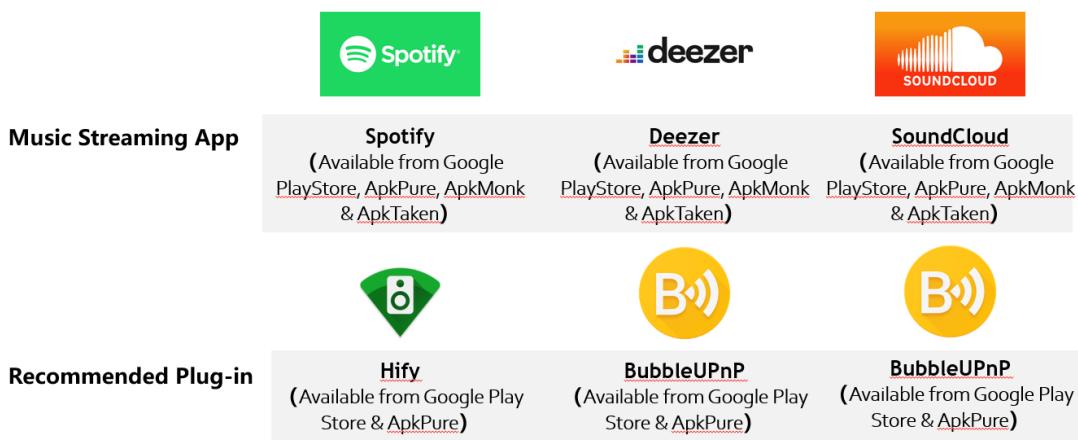
To project music streaming to Sound X via Wi-Fi, it is required to install the plug-in on the phone.

Spotify

deezer

SOUNDCLOUD
Guidance
Preparation:
- Join Spotify premium member
- Download Spotify and Hifi
Steps:
- Open Hifiy and find Sound X on the scanning list to pair
- Click "open Spotify to select your receiver"
- Automatically jump to Spotify and manually paly a song
- Switch to the page of music playing and select "devices available" to drop music to SoundX
Preparation:
- Download Deezer and Bubble UPnP
Steps:
- Open Deezer and play music
- Open music playlist and select "Share"
- Share to BubbleUpnp and project the music to SoundX
Same with steps
of Deezer and
BubbleUPnP

NOTE
Currently, AirPlay casting for iOS devices is not supported.
- When the ring indicator on the speaker turns on and a voice prompt is played,
follow the prompt to press the Multi-function button on the speaker to allow the casting.
You can also open the HUAWEI AI Life app, touch the card for the speaker, and allow the casting via the audio cast request dialog box that appears.
Playback will then start on the speaker.
To disable audio casting, touch the card for the speaker in the HUAWEI AI Life app, touch Audio cast, and turn off the switch for audio casting.
5.2 Which devices can I connect my speaker to?
The speaker can be connected to a device that supports Bluetooth 5.0 and used as its audio output device, such as a phone, tablet, computer, or TV.
5.3 How to connect my speaker to my phone via Bluetooth with a tap
Ever wanted to use the speaker to play audio directly from your phone? Tap your phone against the speaker for a Bluetooth connection, and audio from your phone will seamlessly switch to the speaker for a more solid audio quality. You can even do this when the speaker is not connected to a network.
NOTE
Only supports NFC-capable phones running Android 5.1.1 or later and does not support iOS phones.
- Enable NFC on your phone, and make sure the screen is unlocked and turned on.
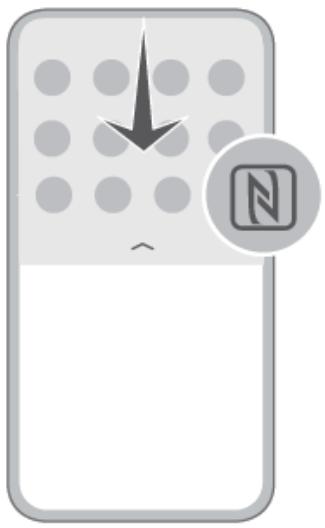
Huawei phones:
Swipe down from the top of the screen to display the notification panel and switch NFC on.
- Tap the NFC area on your phone against the icon on the speaker, and touch to connect on your phone. You can now use the speaker to play audio from your phone.
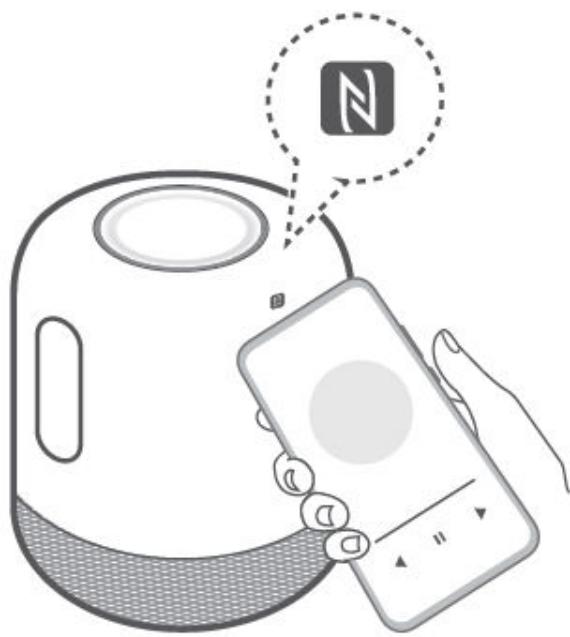
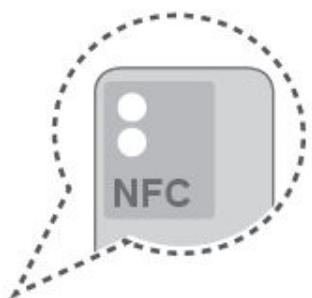
Huawei phones: The NFC area is usually located near the rear camera.
To disconnect Bluetooth, use any of the following methods:
- When the phone screen is unlocked and turned on, tap the NFC area on your phone against the icon on the speaker again.
- Cancel the Bluetooth pairing between your phone and the speaker: Access the Bluetooth settings screen of your phone and touch the name of the connected speaker to disconnect.
- Disable Bluetooth on the speaker: Press and hold the Multi-function button until you hear a notification tone.
- Disable Bluetooth on your phone: Access the Bluetooth settings screen of your phone and disable Bluetooth.
5.4 How to a connect my speaker to my phone via Bluetooth with button control
Press and hold the Multi-Function button on the speaker to enable Bluetooth, and you can use it as a Bluetooth speaker to play audio on your phone. This feature is available on the speaker regardless of whether the network configuration is complete.
- Press and hold the Multi-Function button on the speaker to enable Bluetooth.
- Access the Bluetooth settings screen and enable Bluetooth. Search for the available devices nearby and select the speaker to be connected.
- After the speaker is connected to your phone over Bluetooth, the speaker will play a notification tone. Then the speaker can be used as a Bluetooth speaker to play audio from your phone.
To disable Bluetooth on the speaker, press and hold the Multi-Function button again until you hear a notification tone.
5.5 How to a connect my speaker to my phone via Bluetooth using the HUWEI AI Life app
After the speaker is connected to the network, you can enable Bluetooth on the speaker via the HUAWEI AI Life app and connect the speaker to a device such as a phone for music playback.
- Open the HUAWEI AI Life app, access the home screen, and touch the card for the speaker. Touch Settings next to Bluetooth to access the Bluetooth management screen and enable Bluetooth on the speaker.
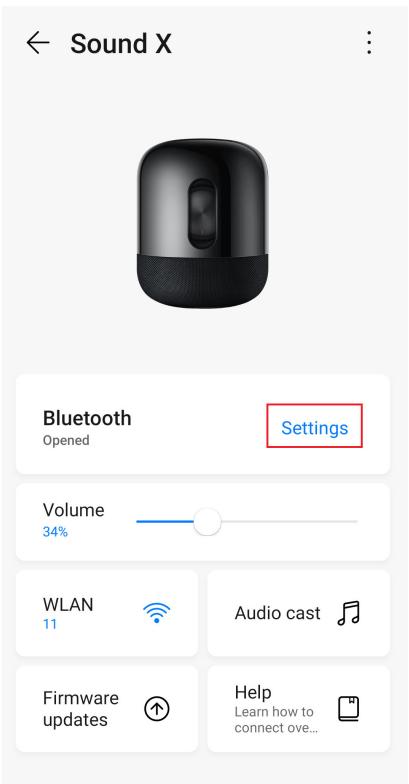
- Access the Bluetooth settings screen and enable Bluetooth. Search for the available devices nearby and select the speaker to be connected.
After the speaker is connected to your phone over Bluetooth, the speaker will play a notification tone. Then the speaker can be used as a Bluetooth speaker to play audio from your phone.
To disconnect Bluetooth, disable Bluetooth on your phone or disable Bluetooth for the speaker in the HUAWEI AI Life app.
5.6 How to play music
You can use the speaker to play music after connecting the speaker to your phone over Bluetooth or using the UPnP audio casting feature.
5.7 How to adjust the volume
Move your hand close to the top of the speaker, and the indicators for the buttons will turn on. Press the Volume up and down buttons to adjust the volume.
You can also adjust the volume on your phone or other device that has been connected to the speaker.
5.8 How to pause or resume music playback
Move your hand close to the top of the speaker for the button indicators to automatically turn on and press the Mute button.
You can also pause or resume music playback on your phone or other device that has been connected to the speaker.
5.9 Power-off and restart
To power off the speaker, remove the power adapter.
Currently, the speaker cannot be restarted. To restore the speaker to its factory settings, make sure the speaker is connected to a power source, and press and
hold the Multi-function and Volume down buttons at the same time for about 5 seconds until you hear a notification tone.
5.10 Can I connect a microphone to my speaker?
No, a microphone cannot be connected to the speaker.
5.11 Unable to Connect My phone to the Speaker via Bluetooth
The issue may be caused by the following:
-
Your phone is powered off, its Bluetooth is disabled, or it is out of the effective range. To resolve the issue, make sure your phone has sufficient power, enable Bluetooth on your phone, or keep your phone within 10 meters from the speaker.
-
Your phone has been connected to another Bluetooth device. To resolve the issue, disconnect your phone from that device and reconnect your phone to the speaker.
6 Maintenance
6.1 How to clean my speaker
6.1 How to clean my speaker
Perform the following:
Use a dedicated cleaning cloth to clean your speaker. If you use a towel, use a clean and soft cotton one to avoid scratching your speaker.
NOTICE
When cleaning the speaker holes, gently wipe them to avoid damaging the speakers.