
PRO 3 FLOODLIGHT CAMERA - PRO3 FLOODLIGHT FB1001B - Security Camera ARLO - Free user manual and instructions
Find the device manual for free PRO 3 FLOODLIGHT CAMERA - PRO3 FLOODLIGHT FB1001B ARLO in PDF.

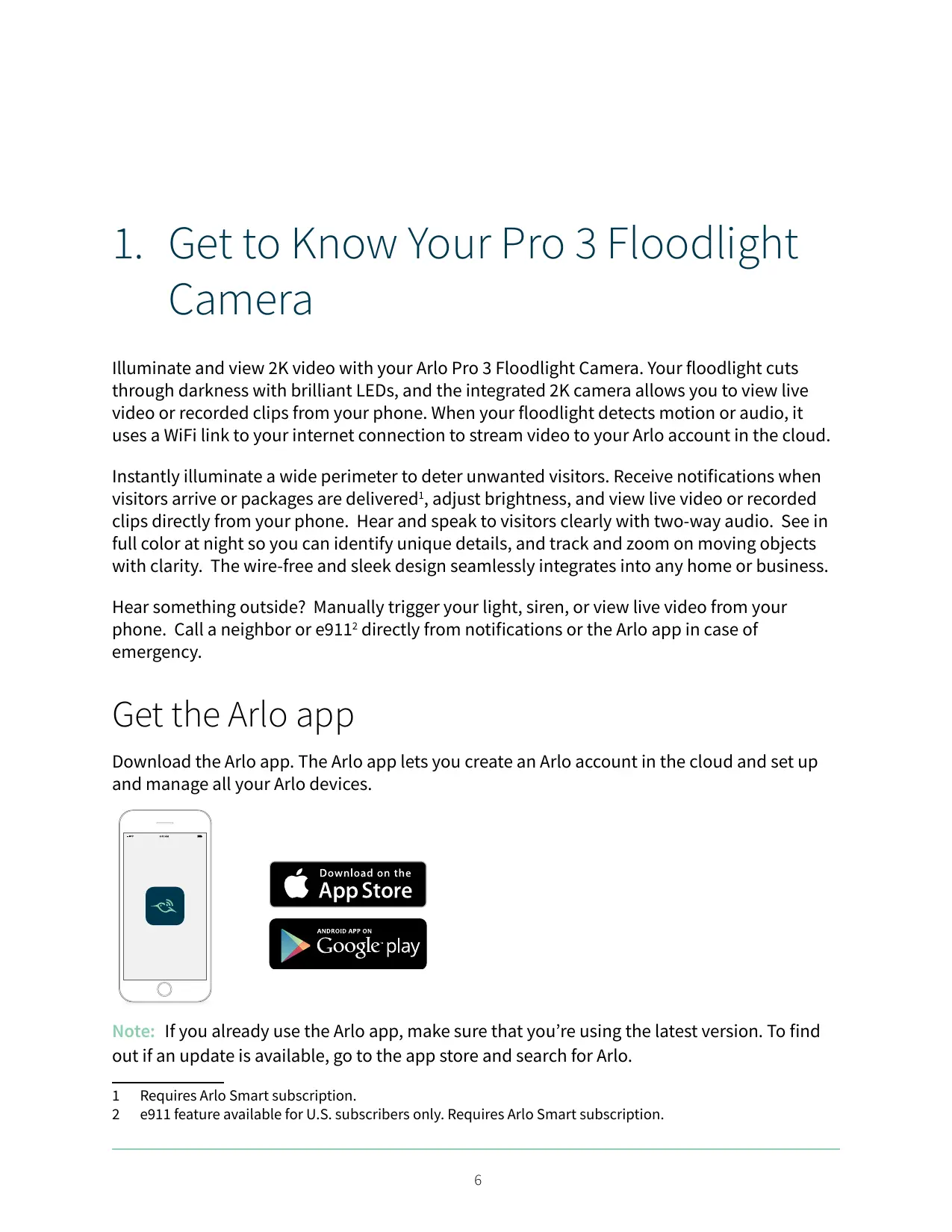

| Product Type | Security Camera with LED Floodlight |
| Brand | ARLO |
| Model | PRO 3 FLOODLIGHT CAMERA (PRO3 FLOODLIGHT FB1001B) |
| Video Resolution | 2K HDR (2560 x 1440) |
| Night Vision | Color and black & white |
| Viewing Angle | 160° diagonal (Super Wide), 125° (Wide), 110° (Full) |
| Floodlight Brightness | 2000 lumens (battery), 3000 lumens (outdoor magnetic cable) |
| Power Source | Rechargeable Arlo XL battery (included), solar panel or magnetic cable (optional) |
| Battery Life | Variable depending on usage (up to several months) |
| Connectivity | Wi-Fi 2.4 GHz (direct to router or via optional SmartHub/Base Station) |
| Audio | Built-in microphone and speaker (two-way audio) |
| Built-in Siren | Yes, adjustable duration and volume |
| Motion Detection | Yes, adjustable sensitivity and activity zones |
| Audio Detection | Yes, adjustable |
| Recording | Cloud (subscription required) and local (via SmartHub with SD card or USB) |
| Weather Resistance | Yes (designed for outdoor use) |
| Mobile App | Arlo (iOS and Android) |
| Voice Assistant | Compatible with Amazon Alexa, Google Assistant, IFTTT |
| Mounting | Wall (kit included) or ceiling (adapter optional) |
| LED Indicator | Yes (blue, amber) |
| Weight and Dimensions | Approximately 1 kg, 20 x 15 x 10 cm (estimate) |
| Cleaning | Use a lint-free cloth for the lens |
| Security | Two-factor authentication, encryption |
| Spare Parts | Rechargeable Arlo XL battery (replaceable) |
| Warranty | Check Arlo's website |
Frequently Asked Questions - PRO 3 FLOODLIGHT CAMERA - PRO3 FLOODLIGHT FB1001B ARLO
User questions about PRO 3 FLOODLIGHT CAMERA - PRO3 FLOODLIGHT FB1001B ARLO
0 question about this device. Answer the ones you know or ask your own.
Ask a new question about this device
Download the instructions for your Security Camera in PDF format for free! Find your manual PRO 3 FLOODLIGHT CAMERA - PRO3 FLOODLIGHT FB1001B - ARLO and take your electronic device back in hand. On this page are published all the documents necessary for the use of your device. PRO 3 FLOODLIGHT CAMERA - PRO3 FLOODLIGHT FB1001B by ARLO.
USER MANUAL PRO 3 FLOODLIGHT CAMERA - PRO3 FLOODLIGHT FB1001B ARLO
Pro 3 Floodlight Camera
User Manual
Contents
1. Get to Know Your Pro 3 Floodlight Camera
Get the Arlo app 6
Meet your Pro 3 Floodlight Camera
Do more with Arlo. 8
2. Get Started 9
Setup: Use the Arlo app. 9
Prep: Insert the battery. 10
Prep: Check the LED 11
Prep: Find a good location for your floodlight. 11
Prep: What you need for wall mounting 12
Wall-mount your floodlight 12
Prep: Install the ceiling adapter (sold separately) 14
Check your floodlight's field of view 15
Test motion detection 15
Arm your Floodlight Camera 16
Reposition your floodlight after mounting. 16
HEVC 2K playback-supported devices 17
3. WiFi Setup and Connections 18
WiFi connection options for your floodlight 18
Tips for optimal WiFi performance 18
Connect your mobile device to a 2.4 GHz WiFi network during setup............ 19
Connect an optional Arlo SmartHub 20
Connect an optional Arlo Base Station with Siren 21
Move your floodlight's WiFi connection to a SmartHub or base station 23
Move your floodlight's WiFi connection to a direct router connection 23
4. Use Your Floodlight Camera 25
Manually turn your floodlight on and off 26
View your camera feeds 26
Record clips from live video. 27
Take a snapshot from live video 28
CVR with an optional Arlo SmartHub or base station 28
Customize your camera feed image 28
Motion detection activity zones 29
Talk and Listen 30
Turn the siren on and off manually 30
View recordings and snapshots 31
Download recordings. 32
5. Modes, Rules, and Alerts 34
34
Select a mode. 35
Mute Notifications 35
Rules for modes 36
Change motion sensitivity 36
Change the light duration for a rule that doesn't record 36
Automatically stop recording when motion stops 37
Change audio sensitivity 37
Use a rule to turn on the floodlight 38
Use a rule to activate the floodlight's siren. 39
Add a rule with an optional base station siren trigger 39
Manage alerts 40
Schedule when your floodlight is armed 40
Set up Arlo Geofencing 41
Geofencing with multiple mobile devices 43
6. Change Your Settings 46
Two-step verification 46
Use face or fingerprint authentication 47
Customize your profile 48
Change your Arlo password. 49
Reset a forgotten password 49
Grant access to friends 50
Change the time zone 52
Change the light settings. 52
Camera settings 54
Video Settings. 55
Audio settings. 57
Adjust the flicker setting. 57
View device information. 58
Remove a device from your account 58
Restart the floodlight from the Arlo app 58
Optional SmartHub and Base Station settings. 59
7. SmartHub SD Card Storage 61
Insert a microSD card 61
View the SD card status 62
View available SD card storage 62
Turn SD card recording off and on 62
Turn on Best Local Recording 62
Change the SD card overwrite setting 63
Format a microSD card. 63
63
View videos on a microSD card 64
8. SmartHub or Base Station USB Storage 65
View the USB storage device status 66
View available USB device storage 66
Turn USB recording off and on 67
Turn local 2K recording off and on. 67
Change the USB device overwrite setting 67
Format a USB device 68
Safely eject a USB storage device 68
View videos on a USB device 68
9. Arlo Connect 70
Use Arlo with Amazon Alexa 70
Add a floodlight to the Google Assistant app 71
Use Arlo with IFTTT 72
10. Arlo XL Rechargeable Battery 73
Battery charging options. 73
Battery life 77
Safe handling and usage guidelines for removable and rechargeable batteries 79
11. Troubleshooting 80
Scan a QR code during setup 80
The floodlight is inactive during charging 81
Optimize multiple 2K streams. 81
Troubleshooting Arlo Geofencing 82
Can't see video streams in a browser 82
Not receiving push notifications 83
Remove a mounted floodlight from the wall 85
1. Get to Know Your Pro 3 Floodlight Camera
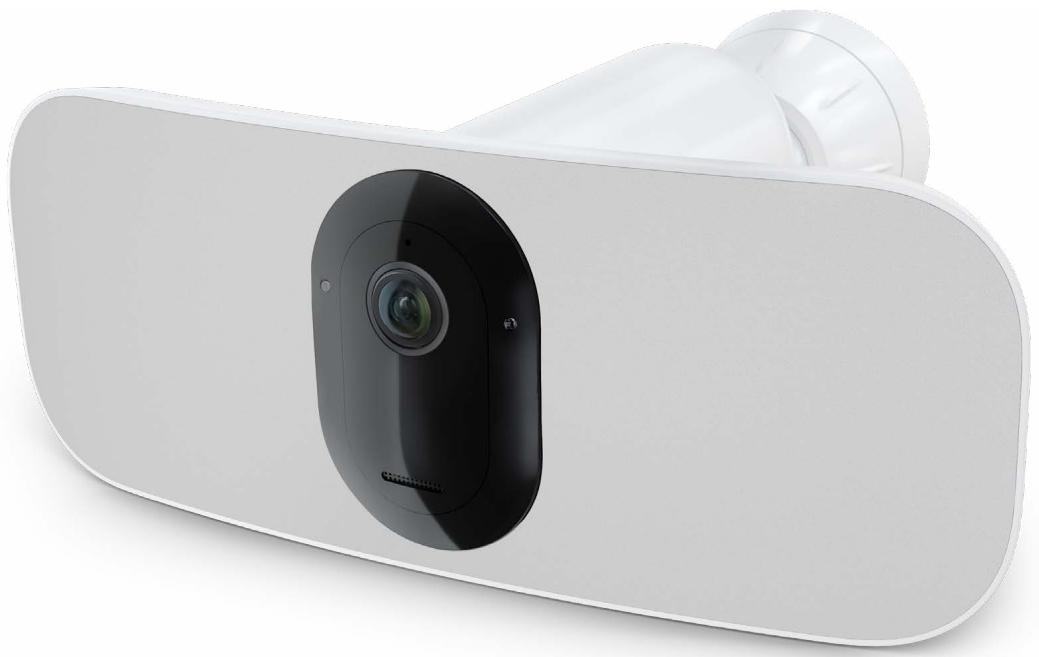
Illuminate and view 2K video with your Arlo Pro 3 Floodlight Camera. Your floodlight cuts through darkness with brilliant LEDs, and the integrated 2K camera allows you to view live video or recorded clips from your phone. When your floodlight detects motion or audio, it uses a WiFi link to your internet connection to stream video to your Arlo account in the cloud.
Instantly illuminate a wide perimeter to deter unwanted visitors. Receive notifications when visitors arrive or packages are delivered1, adjust brightness, and view live video or recorded clips directly from your phone. Hear and speak to visitors clearly with two-way audio. See in full color at night so you can identify unique details, and track and zoom on moving objects with clarity. The wire-free and sleek design seamlessly integrates into any home or business.
Hear something outside? Manually trigger your light, siren, or view live video from your phone. Call a neighbor or e911² directly from notifications or the Arlo app in case of emergency.
Get the Arlo app
Download the Arlo app. The Arlo app lets you create an Arlo account in the cloud and set up and manage all your Arlo devices.

Note: If you already use the Arlo app, make sure that you're using the latest version. To find out if an update is available, go to the app store and search for Arlo.
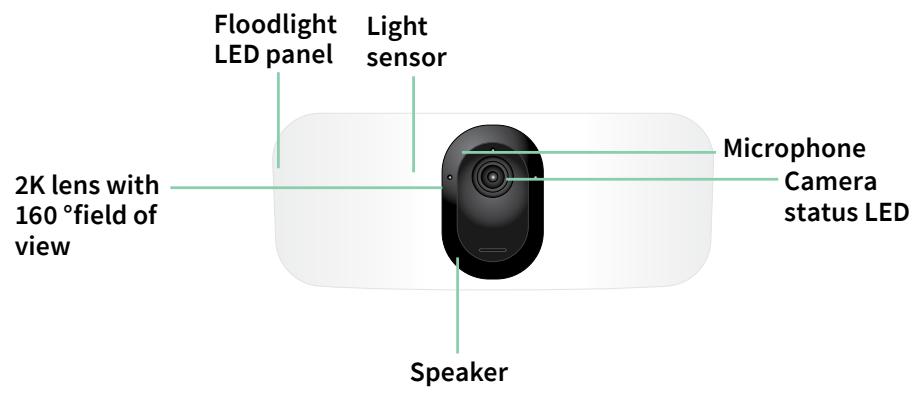
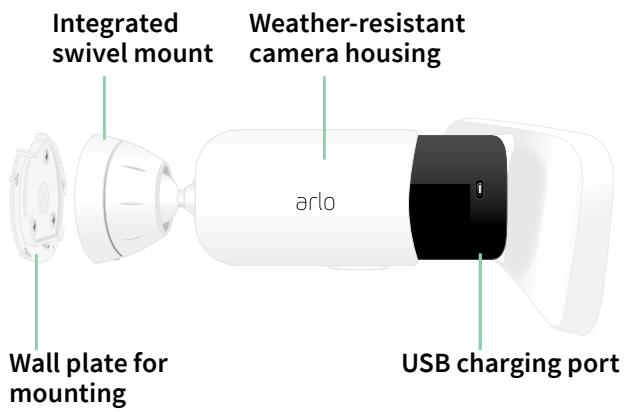
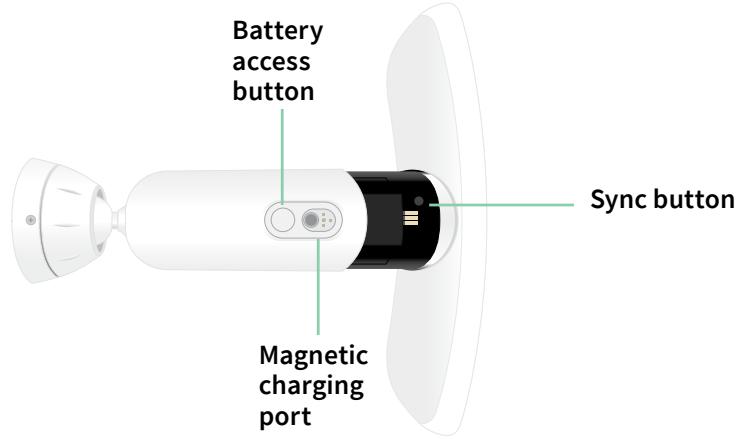
Meet your Pro 3 Floodlight Camera
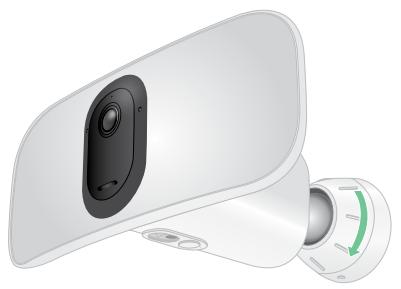
Your Pro 3 Floodlight Camera consists of two parts, the housing and the floodlight camera with a battery compartment.
Front view
Side view
Bottom view
Features
- Superior brightness. Brightly illuminate your property with 2000-3000 lumens.
Color night vision. See what's lurking with color night vision or black & white.
Built-in smart siren. Trigger your siren remotely or automatically during an event. - Custom control. Enhance protection with custom floodlight and camera settings.
- Multiple power options. Power with included rechargeable battery, or optional solar panel and outdoor magnetic charging cable.
2K video with HDR. Zoom in on objects and see clearer details and colors in 2K HDR.
160° diagonal view. Keep an eye on more of what matters with a wider field of view.
2-Way Audio. Hear and speak to visitors clearly with superior audio quality. - Rechargeable battery. Convenient and long-lasting, it takes the expense out of security.
- Weather-resistant. Built to withstand the heat, cold, rain, or sun.
Do more with Arlo
You can add these options, which are sold separately:
- Add more Arlo cameras and devices. Cover more areas in and around your home by adding cameras, video doorbells, and more.
- Arlo ceiling adapter. See Install the ceiling adapter (sold separately) on page 14.
- Arlo outdoor magnetic charging cable. Using this cable this increases the light brightness from 2000 to 3000 lumens. It also supports CVR (when your floodlight is paired with an Arlo SmartHub or base station). See Outdoor magnetic charging on page 75.
- Arlo Solar Panel. Connect an Arlo Solar Panel to your camera and harvest power from the sun to keep your camera battery charged. See Solar panel charging on page 76.
- Upgrade your Arlo subscription. For more information, visit What are the available Arlo subscription plans and how much cloud recording is available?.
2. Get Started
This chapter presents the tasks involved in installing your Arlo Pro 3 Floodlight Camera. The free Arlo app guides you through this process with step-by-step instructions. The tasks in this process fall into these main categories:
- Setup
Prep
Mounting - Checking the camera's view
Setup: Use the Arlo app
The free Arlo app helps you complete setup and guides you through the installation process.
- Open the Arlo app and connect to your WiFi network. If you don't have the app, you can download it and create your Arlo account.
Once you set up your Arlo account, you can access it from the Arlo app on a smartphone or tablet, or from a computer using a web browser. If you're using a computer, enter https://my.arlo.com/#/login in the address bar of the browser.
- Select Add Device and add your Pro 3 Floodlight Camera.
Prep: Insert the battery
The Arlo Pro 3 Floodlight Camera consists of two parts. The floodlight and camera part is where you insert the battery. The camera housing is the second part, which protects the camera.
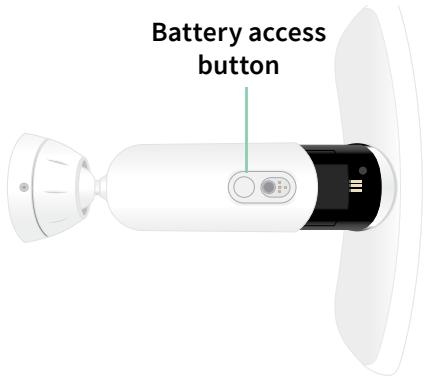
- Press the battery access button on the bottom of the Floodlight Camera and separate the camera from the camera housing.
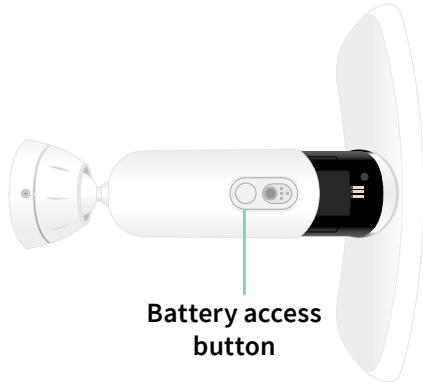
- Insert the battery into the camera with the Arlo logo on your floodlight and the Arlo logo on the battery facing up.
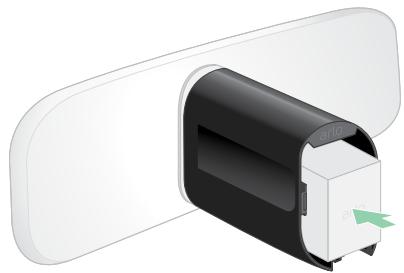
The LED on the front of your Pro 3 Floodlight Camera blinks blue after the battery is inserted.
- If you want to charge the battery, bring the camera indoors and use the USB charging cable and the power adapter.
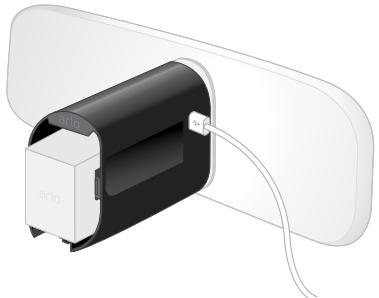
A USB charging cable and power adapter are included with your Floodlight Camera
- Keep your Floodlight Camera separate from the camera housing while you follow the instructions in the Arlo app to pair your Floodlight Camera to your Wifi network.
The Arlo app guides you through setup first before you mount the camera housing.
Prep: Check the LED
The LED lights when your floodlight is powered on. The LED changes color and blinks depending on the battery charge and to indicate the status of activities such as pairing the camera and updating the camera firmware.
- Slow blinking blue. The floodlight is in the process of pairing.
- Fast blinking blue. The floodlight successfully paired.
- Blinking amber. The floodlight is out of range, an error occurred during pairing, or the battery charge is low (15% or less).
- Alternating blue and amber. The floodlight failed to pair, or a firmware update is in process, or a reset is in process.
Prep: Find a good location for your floodlight
Select a location for your floodlight with a clear vantage point to fully optimize the wide field of view.
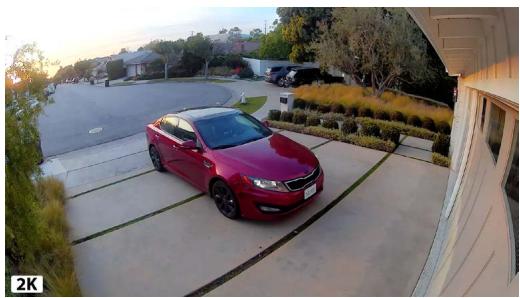
For the best experience, choose a location with a strong WiFi signal. You can check the WiFi signal strength in the Arlo app. For information about WiFi connections, see WiFi connection options for your floodlight on page 18.
We recommend mounting your floodlight 8-10 feet (2.5-3 meters) off the ground, angled toward the ground. Each home system setup is unique, so use these guidelines as general best practices.
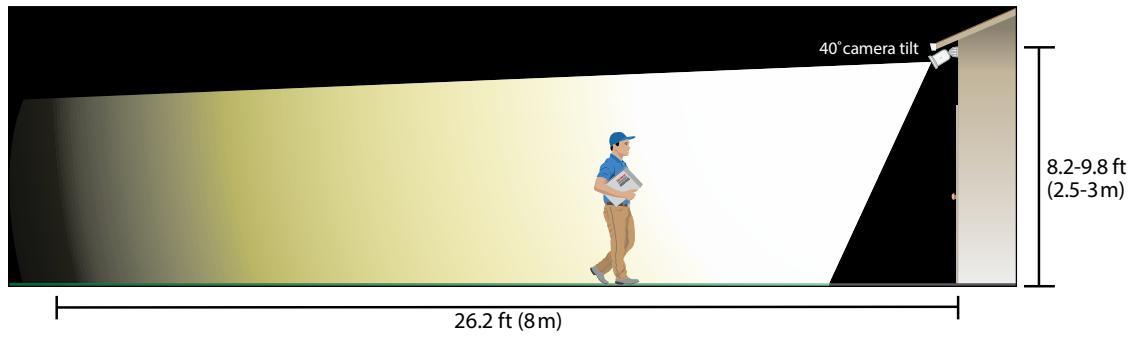
This illustration shows the floodlight's beam spread within the camera's field of view. The area lit by the floodlight extends beyond what is shown here.
When mounting your floodlight:
- Place your floodlight about 8-10 feet (2.5-3 meters) off the ground.
- Tilt your floodlight about 40^ toward the ground, and further adjust the angle based on the height and location.
- Make sure that the floodlight camera's field of view is clear of nearby walls and other obstructions. A nearby wall can cause a bright reflection from the floodlight.
Prep: What you need for wall mounting
Your floodlight comes with a wall plate, screws, and wall anchors that are designed for wall mounting. If you want to mount your floodlight on a ceiling, we recommend using the ceiling adapter, sold separately. See Install the ceiling adapter (sold separately) on page 14.
What you need for wall-mounting.
- A power drill with a 15/64 in. (6 mm) drill bit
- A Phillips screwdriver
A pencil - The wall plate, screws, and wall anchors that came in the package with your Pro 3 Floodlight Camera.
WARNING: Mount your camera onto a flat, supportive surface.
When mounting your camera, select a mounting surface that can support the weight of your camera with the battery installed. Mounting your camera in an unstable location might create a hazardous situation or damage your product, which might not be covered by Arlo's warranty.
Wall-mount your floodlight
The Arlo app guides you through the installation process for your floodlight. For the best experience, we recommend that you wait until the Arlo app tells you to mount your floodlight before you begin the mounting process.
- Press the battery access button on the bottom of the floodlight and separate the camera from the camera housing.
This makes mounting easier, and it allows you to charge the camera while you're mounting the camera housing.
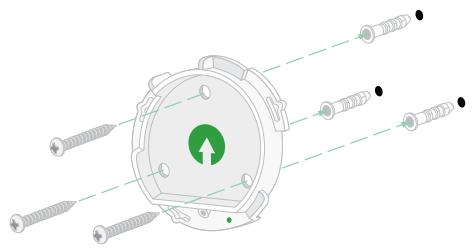
- Place the wall plate on the wall as a guide with the arrow pointing up. Use a pencil to mark the position of the holes in the wall plate. Then remove the wall plate.
- Use a 15/64 in. (6 mm) drill bit to drill three holes into the wall.
We recommend using wall anchors when mounting on drywall, brick, or tile.
- Place the wall plate with the arrow pointing up and fasten a screw into each hole.
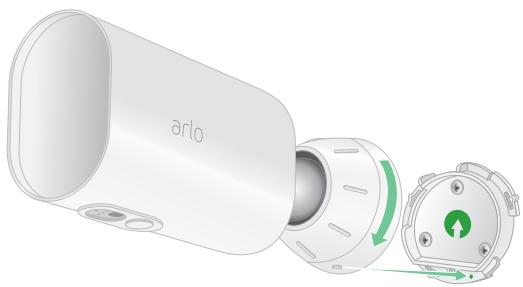
- Align the camera housing so that the lock screw on the bottom of the mount lines up with the green dot on the wall plate.
- Twist the camera housing clockwise until you hear a click and the housing locks in place.
- Tighten the lock screw.
- While you hold the top and bottom of the floodlight, insert the floodlight camera into the camera housing until it clicks into place. (Don't press on the camera lens or the light.)
-
Tilt and swivel to adjust the angle of the camera.
-
Secure the floodlight by turning the camera housing grip clockwise.
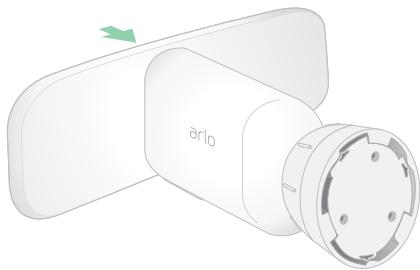
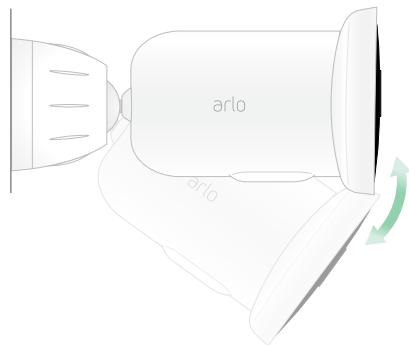
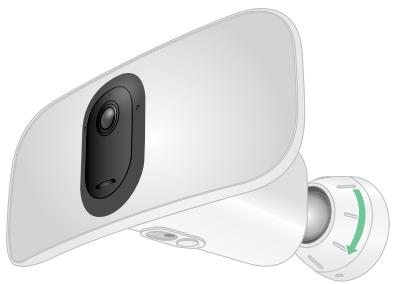
Prep: Install the ceiling adapter (sold separately)
If you want to mount your floodlight on a ceiling, we recommend using the Arlo ceiling adapter (sold separately) for optimal floodlight positioning.
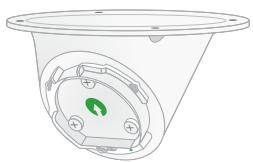
WARNING: Mount your camera onto a flat, supportive surface.
When mounting your camera, select a mounting surface that can support the weight of your camera with the battery installed. Mounting your camera in an unstable location might create a hazardous situation or damage your product, which might not be covered by Arlo's warranty.
- Mount the adapter to the ceiling using the provided screws.
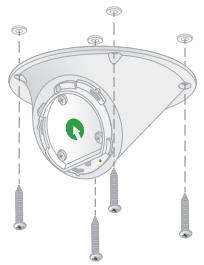
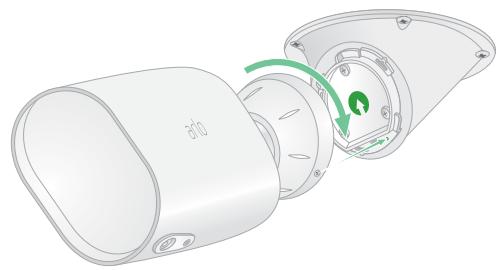
- Attach the camera housing to the ceiling adapter.
Align the locking screw on the camera housing to the bottom right dot and then rotate the housing clockwise to lock in place.
- Tighten the locking screw.
Check your floodlight's field of view
The field of view is the area that the camera sees. You can set the video mode for your floodlight to Full (110 degrees), Wide (125 degrees), or Super Wide (160 degrees). Arlo automatically corrects the image to reduce the fisheye effect for each field of view setting.
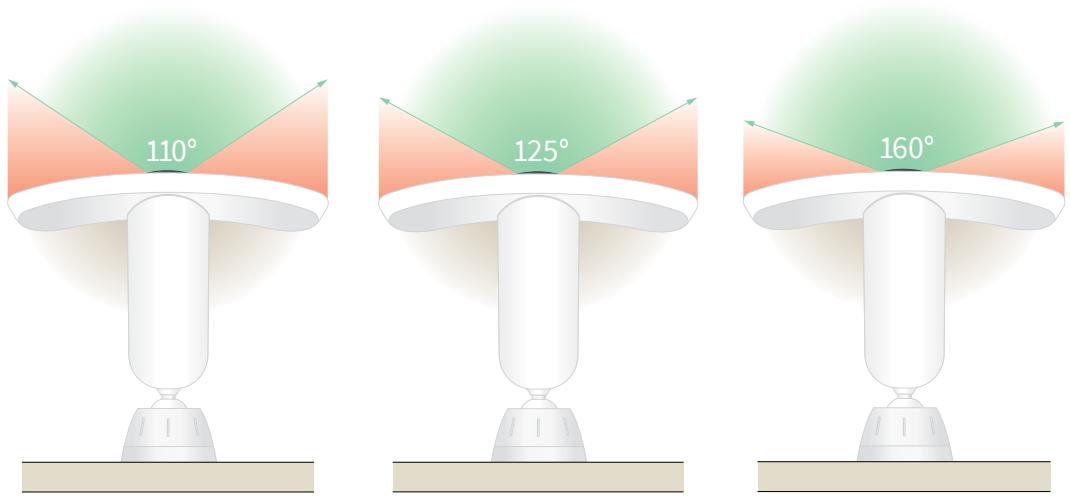
Change the video mode to select the field of view
- Open the Arlo app.
- Tap Settings > My Devices.
- Select the floodlight.
- Tap Video Settings > Video Mode.
- Tap a field of view to apply it to your floodlight.
Test motion detection
You can use the motion detection test to find the right motion sensitivity setting for each camera.
- Open the Arlo app.
- Tap Settings > My Devices.
- Select your floodlight.
- Tap Device Utilities > Motion Detection Test.
- Move in front of the floodlight camera.
During this test, the LED blinks amber when motion is detected.
- Move the slider to adjust the motion sensitivity level as needed.
This motion sensitivity setting is used during the motion detection test. It is not automatically applied to the camera rules used by modes to arm your floodlight. When you are satisfied with a particular motion sensitivity level in the test, note the setting so that you can add it to your rules.
- Edit the rule for your camera to enter the motion sensitivity level that you want to use.
See Change motion sensitivity on page 36.
Arm your Floodlight Camera
Selecting a mode lets you control when your camera detects motion and audio and the rules it uses to record and alert you. You can also use modes to control when the floodlight lights and when its siren turns on. The Arlo app comes with four modes: Armed, Disarmed, Schedule, and Geofencing. You can customize each mode and you can also create custom modes. For information, see Chapter 6, Modes, Rules, and Alerts on page 34.
Reposition your floodlight after mounting
Note: For your safety, consider asking a friend or family member to use the Arlo app while you are handling your floodlight.
- Use your fingers to turn the grip on the mount counterclockwise to loosen it.
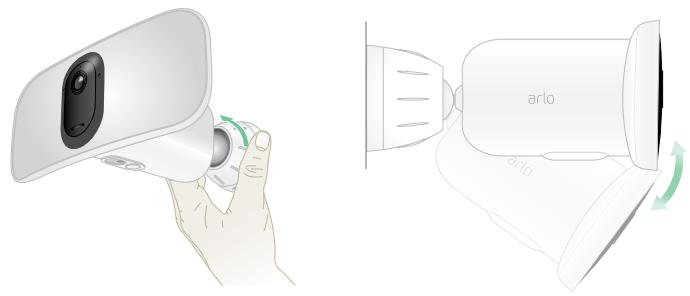
- Tilt and swivel to adjust the angle of your floodlight.
- Tap Settings > My Devices.
- Select the camera.
- Tap Device Utilities > Camera Positioning.
Your floodlight camera starts streaming video. The signal strength bar indicates the WiFi signal that your camera is receiving at its current location.
- Confirm the placement of your camera by using the live stream in the Arlo app.
- Finger-tighten the grip on the mount by turning it clockwise.
HEVC 2K playback-supported devices
High Efficiency Video Coding (HEVC) is a video compression standard that enables you to download and stream 2K videos with ease. To use HEVC on the Arlo app, you must use a supported device and meet the minimum requirements. Your device must:
- Run iOS 9.0 or higher (Apple devices)
- Run Android 5.0 or higher (Android devices)
- Have the latest version of the Arlo app (for mobile)
- Use a web browser that supports HEVC
Note: To check if your web browser supports HEVC, visit https://caniuse.com/#feat=hevc.
HEVC is supported on:
iPhone 7/7 Plus or newer
- iPad Pro or newer
Samsung Galaxy S7/S7 Plus or newer
- Galaxy Note 8 or newer
Google Pixel/Pixel XL or newer
Huawei P9 or newer
- Xiaomi Mi 5 or newer
LG G5 or newer
HTC U10 or newer
- Sony Xperia X or newer
- Moto Z or newer
OnePlus 3 or newer.
3. WiFi Setup and Connections
When you install and set up your floodlight, the Arlo app guides you through the process of connecting the floodlight to your router's 2.4 GHz WiFi network or to an optional Arlo SmartHub or base station.
WiFi connection options for your floodlight
When you install your floodlight you can connect it directly to your router's 2.4 GHz WiFi band, or you can connect the floodlight with WiFi to an Arlo SmartHub VMB5000 or VMB4540, or an Arlo base station VMB4500 or VMB4000.
An Arlo SmartHub or base station isn't included in the package with your floodlight. They are sold separately. Using your floodlight with a SmartHub or base station gives you access to these additional features:
2K local streaming and 2K local recording
- Auto Zoom and Tracking
- CVR (with a subscription)
- Use local storage on an SD card in a VMB5000 SmartHub or on a USB storage device connected to the SmartHub VMB4540 or base station VMB4500 or VMB4000.
- Use remote access for SmartHubs VMB5000 and VMB4540.
After you install and set up your floodlight, you can move its WiFi connection from your router to a SmartHub or base station. You can also move your floodlight's WiFi connection from a SmartHub or base station and connect it directly to your router's 2.4 GHz WiFi band. To do this, you must remove the device from your account and reinstall through the Arlo app, selecting the appropriate option to move back and forth.
Tips for optimal WiFi performance
The distance between WiFi devices can affect the WiFi signal:
-
Maximum recommended distance. We recommend that you place your floodlight within 300 feet (90 meters) of your WiFi router. The maximum line-of-sight range of 300 feet is reduced by each wall, ceiling, or other major obstruction between the floodlight and the router.
-
Minimum recommended distance. To reduce WiFi interference, allow at least 6 12 feet (2 meters) between your floodlight and any Arlo cameras that you install.
These materials can reduce WiFi signal strength if they are located between WiFi devices:
- Unusually thick walls and ceilings
Brick
Concrete
Stone - Ceramic
Glass, especially mirrors
Metal
Large quantities of water, such as the water in a fish tank or water heater
Connect your mobile device to a 2.4 GHz WiFi network during setup
If you're connecting your floodlight directly to your router's WiFi network, it's important to understand that your mobile device must connect to the same WiFi network as the floodlight during setup.
Your floodlight can only connect to a 2.4 GHz WiFi network. Many routers broadcast WiFi networks in both 2.4 GHz and 5 GHz bands, so your phone might connect to the 5 GHz WiFi band. During setup, connect your phone to your 2.4 GHz WiFi network, then connect your Pro 3 Floodlight Camera to that same 2.4 GHz WiFi network.
Find your 2.4 GHz WiFi network name and password
Your phone might connect to your 5 GHz WiFi network most of the time. If you're not sure about how to find the 2.4 GHz WiFi network:
- Look on your WiFi router label.
Many routers have a label that shows the WiFi network name, which is also called an SSID. Your 2.4 GHz network name might have a 2, 2.4, or 2G at the end. Your 5 GHz network name might have a 5 or 5G at the end. If you changed your WiFi settings, then check the place where you saved your custom settings. - If your WiFi network name orSSID doesn’t indicate whether it’s 2.4 GHz or 5 GHz, ask your internet service provider (ISP) or the person who set up your WiFi router.
- If you have a mesh WiFi network, it uses only one WiFi network name for both WiFi bands. The floodlight finds and connects to the 2.4 GHz WiFi band. As long as you connect your phone to the same mesh network, Arlo can discover the floodlight.
Connect your iOS (Apple) device to a 2.4 GHz network
- Unlock your device and tap Settings.
- Tap Wi-Fi, near the top of the list of Settings options.
- Turn on WiFi by tapping the switch next to Wi-Fi at the top.
Note: WiFi is activated when the switch is green.
- Select a 2.4 GHz WiFi network.
This is commonly indicated by a 2, 2.4, or 2G at the end of the network name.
- If prompted, enter the password for the network.
When you're connected to the WiFi network, a blue check mark appears to the left of the network name.
Connect your Android device to a 2.4 GHz network
- Unlock your device and tap Settings.
- Tap Network & internet > Wi-Fi.
- Turn on WiFi by tapping Use WiFi at the top.
- Select a 2.4 GHz WiFi network.
This is commonly indicated by a 2, 2.4, or 2G at the end of the network name.
- If prompted, enter the password for the network.
When you're connected to the WiFi network, the word Connected appears under the network name.
Connect an optional Arlo SmartHub
Your Pro 3 Floodlight Camera can connect to a SmartHub or Base Station with Siren. The SmartHub or base station uses an Ethernet cable to connect to your router.
Connect a SmartHub
The Arlo app guides you through the steps to install and set up your Arlo SmartHub.
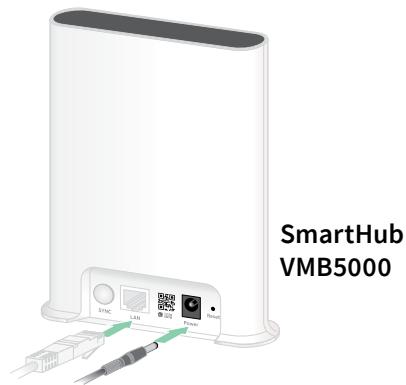
- Connect the SmartHub to your router with an Ethernet cable.
- Connect the AC adapter to the SmartHub and plug it in. The LED on the front of the SmartHub lights.
The SmartHub LED
The SmartHub LED located on the front panel indicates the status of the SmartHub.
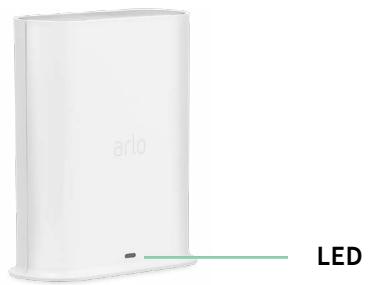
The LED blinks once when the SmartHub is first powered on. Then the LED lights as follows:
Solid blue. The SmartHub is connected to the internet.
- Slow blinking blue. The SmartHub is ready to sync and pair with a camera or is connecting with a camera.
- Fast blinking blue. The SmartHub paired with a camera.
Solid amber. An error occurred or something is wrong with the connection.
- Slow blinking amber. The SmartHub can't connect to the camera. The camera can't be found, is out of range, or another connection error occurred.
- Alternating blue and amber. A firmware update or a reset is in progress.
Connect an optional Arlo Base Station with Siren
You can connect your floodlight directly to your home router's 2.4 GHz WiFi network, or you can connect your floodlight to an Arlo SmartHub or Base Station with siren. Your floodlight is compatible with Base Station with Siren models VMB4500 and VMB4000. The base station uses an Ethernet cable to connect to your router.
The Arlo app guides you through the steps to install and set up your base station.
- Connect the base station to your router with an Ethernet cable.
- Connect the AC adapter to the base station and plug it in.
The LED on the front of the base station lights.
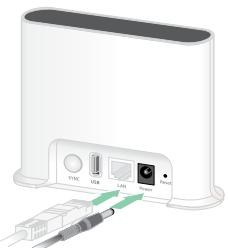
Base station with siren VMB4500
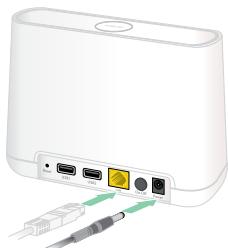
Base station with siren VMB4000
Base Station LED (VMB4500)
The LED located on the front indicates the status of the base station.
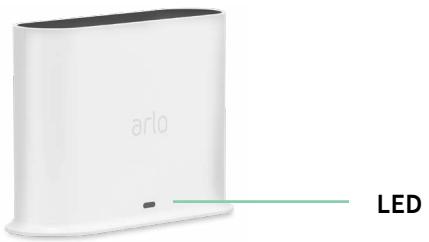
The LED lights as follows:
- Solid blue. The base station is connected to the internet and to an Arlo device.
- Slow blinking blue. The base station is ready to sync with an Arlo device.
- Fast blinking blue. The base station is synching with an Arlo device.
Solid amber. The base station is booting. - Slow blinking amber. The base station can't connect to the Arlo device. The device can't be found, is out of range, or another connection error occurred.
- Alternating blue and amber. A firmware update or a reset is in progress.
Base Station LEDs (VMB4000)
This base station has three LEDs located on the front.
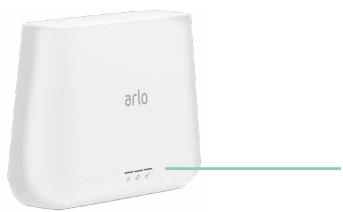
LEDs
The LEDs light as described in this table.
| VMB4000 LEDs | Color |
| Power | Solid green. The base station is powered on. |
| Blinking green. A firmware update is in progress. DO NOT TURN OFF THE BASE STATION OR THE CAMERAS. | |
| Solid amber. The base station is booting. | |
| internet | Solid green. The base station is connected to the internet. |
| Blinking green. The base station is transmitting data. | |
| Solid amber. The base station is connected to the router, but it isn't connected to the internet. | |
| Camera | Solid green. A camera is connected to the base station. |
| Blinking green. The base station is attempting to synch with a camera. | |
| Solid amber. A camera is too far from the base station. The signal strength is weak. |
Move your floodlight's WiFi connection to a SmartHub or base station
You can change your floodlight's WiFi connection from your router to an Arlo SmartHub VMB5000 or VMB4540, or an Arlo base station VMB4500 or VMB4000.
To add a SmartHub or base station and connect your floodlight:
- Open the Arlo app.
- Add the SmartHub or base station to the same Arlo account that your floodlight was originally connected to.
If you're using an Arlo Smart trial associated with this account, doing this keeps the Arlo Smart trial active so you don't lose it. - Follow the Arlo app instructions to set up your SmartHub or base station and connect it to the internet.
- Tap Settings > My Devices.
- Select your floodlight.
- Scroll down and tap Remove Device.
Your device is reset and removed from your account.
- From My Devices, tap Add New Device > Cameras > Pro> Pro 3 Floodlight Camera.
- Follow the Arlo app instructions to add the floodlight.
- When the Arlo app detects your SmartHub or base station, follow the instructions to connect your floodlight to your SmartHub or base station.
Move your floodlight's WiFi connection to a direct router connection
You can change your floodlight's WiFi connection from a VMB5000, VMB4540, VMB4500, or VMB4000 SmartHub or base station, and connect the floodlight directly to your router's 2.4 GHz WiFi network.
When you connect your floodlight directly to your router, you can still cross-trigger an Arlo Chime or other Arlo cameras that are paired with an Arlo SmartHub or base station. However, you can't store Arlo recordings from your floodlight on a local storage device in the SmartHub or base station.
To move your floodlight's WiFi connection directly to your router:
- Open the Arlo app and log into the same Arlo account that your floodlight is connected to. If you're using an Arlo Smart trial associated with this account, doing this keeps the trial active so you don't lose it.
- Make sure that your mobile device is connected to your router's 2.4 GHz WiFi network. For more information, see Connect your mobile device to a 2.4 GHz WiFi network during setup on page 73.
- Tap Settings > My Devices.
- Select your floodlight.
- Scroll down and tap Remove Device. Your device is reset and removed from your account.
- From My Devices, tap Add New Device > Cameras > Pro > Pro 3 Floodlight Camera.
- If Arlo detects a SmartHub or base station, tap Connect without SmartHub or Connect without a Base Station.
- Follow the Arlo app instructions to connect your floodlight directly to a 2.4 GHz WiFi network.
4. Use Your Floodlight Camera
When you open the Arlo app, the Devices page displays your camera feeds.
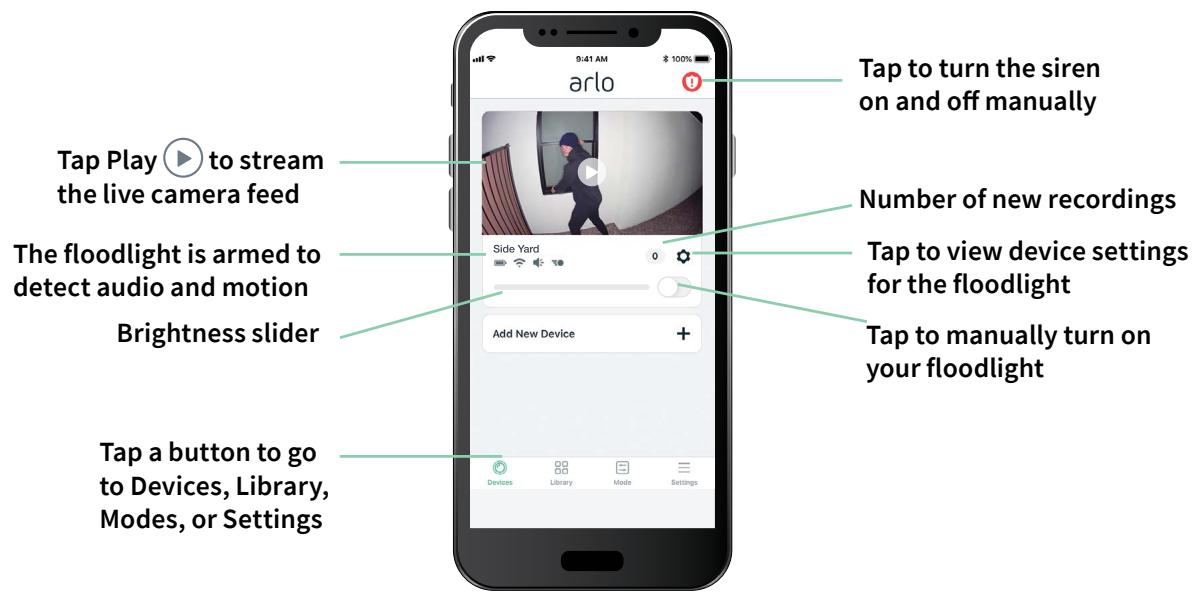
| Camera icon | Located below each camera feed | Camera feed icon | Tap the camera feed to display these icons |
| Battery charge | Play/Stop | ||
| WiFi signal | Mute the audio | ||
| Audio detection is on | Talk and Listen | ||
| Motion detection is on | Record video manually | ||
| Select Timeline view (for CVR subscribers) or change camera device settings | Take a snapshot | ||
| View or change the camera settings |
Manually turn your floodlight on and off
You can turn your floodlight on and off using the Arlo app and you can set it to trigger automatically when motion is detected, audio is detected, or when a device cross-triggers the floodlight. (See Use a rule to turn on the floodlight on page 42.)
To manually turn on your floodlight:
- Open the Arlo app.
- Tap the On/Off button below the camera feed for your floodlight.
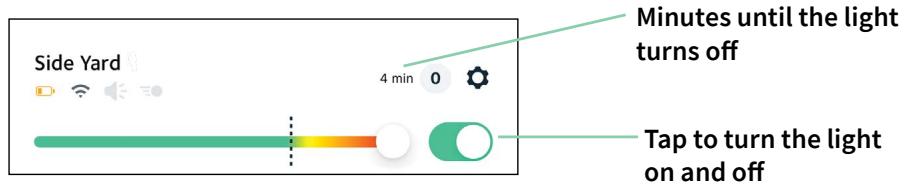
The light turns on.
The light stays on the length of time that is specified for duration in light settings and then turns itself off (unless you manually turn it off sooner). A countdown timer displays the number of minutes the light stays on.
To change the amount of time that the floodlight stays on, see Change the light settings on page 52.
- To increase or decrease the brightness, drag the slider to the right or left.
Note: Increasing the brightness uses a greater amount of battery life. - To manually turn off the floodlight, tap the On/Off button again.
View your camera feeds
- Open the Arlo app.
- Tap Play l on the camera feed.
The camera feed updates and camera feed icons display.
- To stop viewing and listening to the live feed, tap Stop .
Pan and zoom your video feed
- Open the Arlo app.
- Tap Play l on the camera feed.
On a mobile device, use the pinch gesture to zoom, and touch-and-drag to move around the zoomed-in frame.
On a computer, double-click to zoom. Left-click and hold and drag to move around the zoomed-in frame.
After zooming in, the image stops and buffers for about five seconds to improve the quality of video. When the buffering stops, your zoomed-in video renders in high quality.
Local 2K Live Streaming from an optional SmartHub or base station
This feature is available if you pair your floodlight to an optional Arlo SmartHub or base station (sold separately). You can live stream in 2K resolution from your floodlight in the Arlo app on a mobile device that's on the same local network as the SmartHub or base station. If you enabled local 2K live streaming in your video settings, tap Play on the camera stream in the Arlo app.
To enable Local 2K Live Streaming:
- Open the Arlo app.
- Tap Settings > My Devices.
- Select the camera.
- Tap Video Settings.
- Tap Local 2K Live Streaming to toggle live streaming on and off.
Note: If you turn on Local 2K Live Streaming, the Arlo app automatically turns off Auto Zoom and Tracking. The reverse is also true. If you turn on Auto Zoom and Tracking, the Arlo app automatically turns off Local 2K Live Streaming.
Record clips from live video
- Open the Arlo app.
- Tap the camera feed image.
- Tap Record to begin recording.
This icon turns red to indicate that you are recording the live feed.
- To stop recording, tap Record again.
Note: Manual recording is not possible when you are using Local Live Streaming.
Take a snapshot from live video
- Open the Arlo app.
- Tap the camera feed image.
- Tap Snapshot
The snapshot is saved in your library.
CVR with an optional Arlo SmartHub or base station
Continuous Video Recording (CVR) is available only if you pair your floodlight to an optional Arlo SmartHub or base station (sold separately). Continuous video recording, or CVR, is an optional Arlo Smart feature. With CVR activated on your floodlight, you can record all the action 24/7. CVR captures everything in the background, and you can rewind to catch anything you missed.
For information about adding a CVR plan to your Arlo account, visit https://kb.arlo.com/1018425/What-is-continuous-video-recording-CVR-and-how-do-I-use-it.
Customize your camera feed image
If you use more than one camera, you can change the order in which the camera feeds display on the Devices page. You can also zoom or rotate the camera feed image 180 degrees.
Change the camera order
- Open the Arlo app.
- Tap Settings.
- Under SYSTEM, tap Device Order.
- If you are using a smartphone or tablet, tap Edit at the top of the page.
A list icon displays.
- Tap and hold the list icon and drag each device to the correct position on the list.
- Tap Save.
Rotate a camera feed image 180 degrees
- Open the Arlo app.
- Tap Settings > My Devices.
- Select the camera.
- Tap Video Settings.
- Rotate the image.
If you're using an iOS device, tap Rotate Image 180^ .
If you're using an Android device, tap the slider to OFF and then rotate the image.
Motion detection activity zones
You can designate zones within the camera view where you want the camera to detect and record motion.
Add an activity zone
- Open the Arlo app.
- Tap Settings > My Devices.
- Select the camera.
- UnderVIDEO, tap Activity Zones.
- Tap+.
An activity zone box displays in the camera feed image.
- Move the zone to the desired position in the camera feed image.
- To reposition or resize the zone, tap and hold the zone and move it.
- To customize the zone name, tap Edit and enter a name.
If you're using a web browser, click > next to the zone name.
- Tap Save.
Change an activity zone
- Open the Arlo app.
- Tap Settings > My Devices.
- Select the camera.
-
UnderVIDEO, tap Activity Zones.
-
Tap a zone to select it.
- Move the zone to the desired position in the camera feed image.
- To reposition or resize the zone, tap and hold the zone and move it.
- To customize the zone name, tap Edit and enter a name. If you're using a web browser, click > next to the zone name.
- Tap Save.
Delete an activity zone
- Open the Arlo app.
- Tap Settings > My Devices.
- Select the camera.
- UnderVIDEO, tap Activity Zones.
- Tap a zone to select it.
- Delete the device. On an iOS device, slide the motion detection zone to the left and tap Delete. On an Android device, slide the motion detection zone to the left.
Talk and Listen
The floodlight includes a microphone that allows you to talk and listen.
- Open the Arlo app.
- Tap the camera feed image.
- Tap the microphone .
- The first time you use Talk and Listen, allow Arlo to use your phone's microphone.
- Tap the microphone button.
Two-way audio automatically opens, allowing you to use Talk and Listen.
Turn the siren on and off manually
Your floodlight includes a built-in siren. You can turn this siren on and off manually and you can also set up a rule for an armed mode to specify when the siren turns on if your floodlight detects motion or audio. For information about using a rule in a mode, see Use a rule to activate the floodlight's siren on page 39.
To turn the siren on and off manually:
- Open the Arlo app.
- Tap Siren on the upper right.
- Tap Activate Siren.
If you have multiple cameras, you are prompted to select one.
- Swipe the siren icon to the right.
The camera siren turns on. - To turn off the siren, tap the slider at the top of the Devices page.
View recordings and snapshots
Your floodlight stores recordings and snapshots in the library. You can use the filter and the calender to find and view specific recordings.
Access cloud recordings
Your floodlight records when it is an armed mode with a rule to record when it detects motion or audio. Your Arlo recordings are sent to your Arlo account in the cloud and stored in your library. Recordings are encrypted with your user name and password.
You can access your recordings from the Arlo app on your mobile device or by using a web browser to visit https://my.arlo.com/#/login. You can download recordings from the cloud and save them.
Use the Library
You can use the library to find and view recordings based on the date.
- Open the Arlo app.
- Tap Library.
A green circle indicates the selected day. A green dot below the date indicates each day on which a video clip was recorded.
- Tap a highlighted date.
Recordings from that date display below the calendar.
Use the filter
You can use the filter to find and view recordings based on criteria that you select.
- Open the Arlo app.
- Tap Library.
- Tap Filter in the upper-left corner of the page.
- Tap the filtering criteria that you want to use.
- Tap Done.
Turn off the filter
- Open the Arlo app.
- Tap Library.
- Tap Filter in the upper-left corner of the page.
- Tap Reset.
- Tap Done.
Download recordings
- Open the Arlo app.
- Tap Library.
- Tap a recording.
- Tap Download.
- Tap OK to confirm.
Make a recording a favorite
- Open the Arlo app.
- Tap Library.
- Tap a recording.
- Tap Favorite.
Share recordings
- Open the Arlo app.
-
Tap Library.
-
Tap a recording.
- Tap Share.
- Share the file.
Donate recordings for research
You can donate video or snapshot files to Arlo to use for research and development of Arlo products.
- Open the Arlo app.
- Tap Library.
- Tap a recording.
- Tap Donate.
- Tap OK to confirm.
Delete recordings
- Open the Arlo app.
- Tap Library.
- Tap a recording.
- Tap Delete.
- Tap OK to confirm.
5. Modes, Rules, and Alerts
Modes and rules let you tell Arlo what to do in different situations. For example, you can tell Arlo to record a video when it detects motion and send you an email alert.
Modes
Arlo modes give you control over how your Arlo cameras respond to motion or audio. For example, you probably don't want to receive an alert about motion in your yard in the daytime when you're gardening. You might want to turn on a different mode when you're away on vacation. Modes let you tell your cameras to respond differently at different times.
You can create your own modes, but the Arlo app comes with these modes:

Armed. Detection is on for this camera.

Disarmed. Detection is off for this camera.

Schedule. Manage detection based on a schedule.

Geofencing. You can arm, disarm, or resume a schedule mode when you arrive at, or leave, a given location based on your mobile device location.
You can customize the Armed and Schedule modes and you can add new modes. You might want to create a mode in which some Arlo devices are actively detecting motion but others aren't. If you use a combination of Arlo devices, your floodlight can be active at night while you're sleeping and your interior cameras can be disarmed.
Note: You can create different modes for the same Arlo device, but each Arlo device can only use one mode at a time.
Select a mode
You can select a mode or set modes to activate according to a schedule.
- Open the Arlo app.
- Tap Mode.
- Tap the floodlight or your optional Arlo SmartHub or base station, if you use one. A list of modes displays.
- Tap a mode to activate it. The mode turns on immediately. The mode stays active until you change it.
Mute Notifications
Mute Notifications temporarily silences push notifications to your mobile device, while videos continue to be recorded. This is great for a party when you don't need to be notified of friends in your backyard.
You can mute notifications from the Arlo app. If you use Arlo Smart, you can also activate Mute Notifications directly from push notifications.
To mute notifications:
- Open the Arlo app.
- Tap Settings > Mute Notifications.
- Select the length of time to mute notifications. A message displays confirming that you are muted notifications. The Mute Notification status shows the amount of remaining time until notifications resume.
To unmute notifications
- Open the Arlo app.
- Tap Settings > Mute Notifications > Unmute. The Mute Notifications status changes to Off.
Rules for modes
Each mode uses one or more rules to control your Arlo system. You can set these options.
- Trigger device. The trigger device is the camera that detects motion or audio. You can adjust the motion and audio sensitivity to minimize false alarms.
- Action device. The action device responds to motion or audio detection on the trigger device. For example, you might want your backyard camera or your driveway camera to trigger your door camera to start recording video. You decide what action each camera takes when motion or audio is detected.
- Notifications. When a trigger is detected, the Arlo can send you push notifications, email alerts, or both. You can also send email alerts to friends, family members, pet sitters, or anyone who might need to respond when a camera is triggered.
Change motion sensitivity
You can edit a rule to change the motion sensitivity level for your cameras.
- Open the Arlo app.
- Tap Mode.
-
Tap the floodlight or your optional Arlo SmartHub or base station, if you use one. A list of modes displays.
-
Tap Edit next to the mode.
- Tap Edit next to the rule.
- Under If the following, tap Edit next to Motion is detected.
- Move the slider to adjust the sensitivity level for motion detection for this camera. If you used a mobile device to specify the settings, your settings are saved.
- If you used a browser to specify the settings, click Save.
Change the light duration for a rule that doesn’t record
If a rule turns on the floodlight and records, the light stays on for the same duration as the recording—you can't enter a different duration for the light the way you can set the manual duration in Light Settings. If the rule doesn't record, then you can specify the light duration for the rule.
To set the light duration for a rule that doesn't record video:
- Open the Arlo app.
- Tap Mode.
- Tap the floodlight or your optional Arlo SmartHub or base station, if you use one. A list of modes displays.
- Tap Edit next to the mode.
- Tap Edit next to the rule.
- Under Then do the following, select Turn floodlight on.
- Clear the Record Video check box.
- An Edit button appears next to Turn floodlight on, and the app displays the number of seconds the floodlight will turn on (5 to 120 sec).
- Tap Edit and use the Duration slider to specify the number of seconds.
- Tap Save.
Automatically stop recording when motion stops
- Open the Arlo app.
- Tap Mode.
- Tap the floodlight or your optional Arlo SmartHub or base station, if you use one. A list of modes displays.
- Tap Edit next to the mode.
- Under Then do the following, tap Edit next to Record video.
- Select Record until activity stops (up to 300 sec).
Change audio sensitivity
- Open the Arlo app.
- Tap Mode.
-
Tap the floodlight or your optional Arlo SmartHub or base station, if you use one. A list of modes displays.
-
Tap Edit next to the mode.
- Under If the following, tap Edit next to Audio is detected.
- Move the slider to the desired level of audio detection. If you used a mobile device to specify the settings, your settings are saved.
- If you used a browser to specify the settings, click Save.
Use a rule to turn on the floodlight
When your floodlight is in an armed mode, the rule for the mode determines if and when the light is activated.
To set up a rule to turn on the floodlight:
- Open the Arlo app.
- Tap Mode.
- Tap the floodlight or your optional Arlo SmartHub or base station, if you use one. A list of modes displays.
- Tap Edit next to the mode.
- Tap Edit next to the rule.
- Under Then do the following, select Turn floodlight on.
- If you want to specify the floodlight's duration, clear the Record Video check box.
Note: If a rule turns on the floodlight and records, the light stays on for the same duration as the recording—you can't enter a different duration for the light the way you can set the manual duration in Light Settings. If the rule doesn't record, then you can specify the light duration for the rule.
- An Edit button appears next to Turn floodlight on, and the app displays the number of seconds the floodlight will turn on (5 to 120 sec).
- Tap Edit and use the Duration slider to specify the number of seconds.
- Tap Save.
Use a rule to activate the floodlight's siren
- Open the Arlo app.
- Tap Mode.
- Tap the floodlight or your optional Arlo SmartHub or base station, if you use one. A list of modes displays.
- Tap Edit next to the mode.
- Tap Edit next to the rule.
- Under Then do the following, tap Activate Siren and then tap Edit The Siren Settings page displays.
- Specify the Siren Duration and the Siren Loudness.
Add a rule with an optional base station siren trigger
If you pair your floodlight to an optional Arlo Base Station with Siren VMB4000 or VMB4500 (sold separately), you can create a rule to trigger the base station siren. For your floodlight's built-in siren, see Use a rule to activate the floodlight's siren on page 39.
To add a rule with a base station siren trigger:
- Open the Arlo app.
- Tap Mode.
- Tap the floodlight or your optional Arlo SmartHub or base station, if you use one. A list of modes displays.
- Tap Edit next to the mode.
- Under Rules, select the camera.
- Select the Turn Siren ON check box.
- Tap Sound Alarm.
- Move the sliders to the desired level for Siren Duration and Siren Loudness.
-
Tap Edit next to the rule.
-
Tap Done.
Note: This rule isn't active until you activate the mode to which you added the siren trigger.
Manage alerts
Arlo can push notifications to your smartphone, send you email alerts, or do both. To receive Arlo notifications on your phone, you must install the Arlo app on your phone.
Note: If you log out of the Arlo app on your smartphone or mobile device, you will stop receiving push notifications.
- Open the Arlo app.
- Tap Mode.
- Tap the floodlight or your optional Arlo SmartHub or base station, if you use one. A list of modes displays.
- Tap Edit next to the mode.
Note: The Disarmed mode does not send alerts.
- Under Alert, tap Push Notification to turn alerts on and off for your mobile device.
- Under Alert, tap Email Alerts to turn email notifications on and off.
- To specify an email address, tap Edit next to Email Alerts and enter the email address.
Schedule when your floodlight is armed
You can set a schedule to specify the days and times during the week when your floodlight is set to respond to motion or audio triggers. You can't schedule the light to turn on for a set amount of time.
Schedules recur weekly. For example, the schedule for Tuesday repeats every Tuesday as long as the schedule is turned on.
To schedule when your floodlight responds to motion or audio triggers:
- Open the Arlo app.
- Tap Mode.
-
Tap the floodlight or your optional Arlo SmartHub or base station, if you use one. A list of modes displays.
-
Tap Schedule L.
- Tap Edit next to Schedule.
- Tap Add or+.
- Set the days and times for your schedule.
Note: To add an overnight schedule such as 8:00 p.m. to 6:00 a.m., you need to add two separate schedules. First, add 8:00 p.m. to 11:59 p.m., then add 12:00 a.m. to 6:00 a.m.
- Tap Done.
Edit a schedule
- Open the Arlo app.
- Tap Mode.
-
Tap the floodlight or your optional Arlo SmartHub or base station, if you use one. A list of modes displays.
-
Tap Schedule L.
-
Tap Edit next to Schedule.
- Tap a green box.
- Change the start and stop times and tap Save.
Setup Arlo Geofencing
Geofencing is a virtual fence around a location called a zone. You can use Arlo Geofencing to arm, disarm, or resume schedule modes when your mobile device is in zone or out of zone. To set up geofencing, you must use your mobile device and allow the Arlo app to use your location.
Geofencing accuracy
For accuracy, geofencing uses a combination of GPS, cellular data, and WiFi data. The local environment affects geofencing:
- In urban environments, where the cell towers and WiFi routers are more dense, geofencing accuracy can reach 100–200 meters.
Note: If you live in a skyscraper, geofencing might not work reliably due to GPS inaccuracies. Using the Large radius setting might help.
- In rural areas, where cell towers and WiFi routers are sparse, geofencing accuracy can reach several hundred meters.
To improve geofencing accuracy, make sure that your mobile device meets these conditions:
WiFi is turned on.
GPS or location services are turned on.
Prepare your mobile device for geofencing
- Enable GPS or location services so that Arlo can locate your device.
- Enable WiFi.
- On each mobile device that you plan to enable for geofencing, download and open the Arlo app.
For Arlo Geofencing to work on your device, you must adjust the settings on your Android or iOS mobile device as follows:
Android devices
- Location permission = On
- Location services = On
Battery saver = Off
Data limit = Off
Airplane mode = Off
iOS(Apple)devices
- Share my location = On
- Location services = Always
Airplane mode = Off
Set up geofencing for the first time and set up modes
- Open the Arlo app.
- Tap Mode.
- Tap the floodlight or your optional Arlo SmartHub or base station, if you use one. A list of modes displays.
- Tap Geofencing
- Allow the Arlo app to use your mobile device's location.
Geofencing works only if Arlo can locate your mobile device. The Location Address page displays your current address.
- To change the radius setting, tap Radius and select a radius size.
Radius sizes are Small, Medium, and Large (approximately 150 meters, 250 meters, and 500 meters, respectively).
-
Tap Device Location and enter a name for your location.
-
Tap Away Mode and select a mode.
Your camera uses the Away mode when your mobile device is outside the radius of your camera's location. Most people select Armed, Schedule, or Custom Mode so that the camera detects motion while they're gone.
- Tap Home Mode and select a mode.
Your camera uses this mode when your mobile device is within the radius of your camera's location. Most people select Disarmed while they're home.
If you use more than one enabled mobile device, you might be asked to select an Arlo device to connect it to.
-
To select the preferred mobile device, tap the device and then tap Next.
-
Tap Save.
For troubleshooting tips, see Troubleshoot Arlo Geofencing on page 70.
Geofencing with multiple mobile devices
Arlo Geofencing works with multiple mobile devices.
Arlo uses the first-in, last-out principal to manage households where more than one person uses geofencing. If everyone leaves home with their mobile devices, this triggers an away state. Since no one is inside the geofence, your cameras are armed. When the first person comes home (first in), their mobile device is now inside the geofence, triggering the home state and your cameras are disarmed. If one person leaves, but another is still home, the cameras stay disarmed in the home state until the last person leaves (last out).
We recommend that you enable geofencing only for the mobile device that each person carries every day. For example, if you use a smartphone and a tablet, and you take your phone when you leave, set your phone as an Enabled Device in your Geofencing settings. Don't set your tablet as an enabled device, because Away mode won't be triggered when you go out and leave your tablet home.
The Geofencing mode only changes from Home to Away when all enabled mobile devices are outside the Device Location in your Geofencing settings.
To review which mobile devices participate in geofencing, open the Arlo app and check the Enabled Devices page in Geofencing settings (in the Modes section of the Arlo app). Remove any devices that you don't want to trigger Home/Away mode changes.
Make sure that these conditions are met:
- Your Arlo devices are online.
- Geofencing is enabled.
- Your friends' and family's mobile devices are added to your account.
For information about adding devices, see Enable or disable geofencing for friends' mobile devices on page 44.
- (Required when your friend wants to participate in geofencing) Your friend is logged in to the Arlo app on his or her mobile device and the GPS or location service is enabled on your friend's mobile device.
Enable or disable geofencing for friends’ mobile devices
- Open the Arlo app.
- Tap Mode.
- Tap the floodlight or your optional Arlo SmartHub or base station, if you use one. A list of modes displays.
- Tap Edit next to Geofencing.
- Tap Enabled Devices.
A list of mobile devices displays. A check mark appears next to the device name when geofencing is enabled.
- Tap one or more mobile devices.
The device location displays as either In Zone, Out of Zone, or Unavailable (if there's an issue contacting that device).
- To disable geofencing, tap the mobile device again.
The check mark disappears when geofencing is disabled.
For more information, see Set up Arlo Geofencing on page 41.
Add a mode
In addition to the modes that come with the Arlo app, you can add new modes with custom names, such as Vacation. You can also use Schedule mode to activate modes automatically at different times of the day or week. (See Schedule when your floodlight is armed on page 40.)
To add a mode:
- Open the Arlo app.
- Tap Mode.
- Tap the floodlight or your optional Arlo SmartHub or base station, if you use one. A list of modes displays.
- Tap Add a Mode.
- Enter the mode name and tap Next.
- For the trigger device, select your floodlight and tap Next. This is the Arlo device that detects motion and/or audio.
- Select the triggers that you want the floodlight to use (motion and/or audio) and then tap Next.
- Use the slider to set the motion sensitivity for the trigger device and tap Next. Higher motion sensitivity settings usually trigger your camera to capture videos more frequently.
- Set the audio sensitivity for the trigger device and tap Next and then tap Next again to confirm your selections.
- Select an action and tap Next. For a floodlight, you can select Record video, Turn floodlight ON, or Activate siren.
- Specify the Recording Settings or the Duration Settings for the light.
Note: If you select Record video, the light stays on for the same duration as the recording—you can't enter a different duration for the light the way you can set the manual duration in Light Settings. If you don't record video, then you can specify the light duration. - Select the notifications for Arlo to send when motion or audio is detected and then tap Next.
- Review your settings and tap Save.
6. Change Your Settings
Once you set up your Arlo account, you can access it by using the Arlo app on a smartphone or tablet, or from a computer using a web browser. If you're using a computer, enter https://my.arlo.com/#/login in the address bar of the browser.
Two-step verification
Two-step verification helps protect your account by adding another layer of security when you log in to your Arlo account. Arlo will verify your identity anytime you sign in with a new device. You can have up to five different two-step verification methods, in addition to the email address associated with your Arlo account.
Note: If you're a Friend on someone's Arlo account, and the account owner sets up two-step verification, you don't have to use two-step verification to log in. Likewise, if you set up two-step verification as a Friend on an Arlo account, the account owner is not affected.
To sign in with two-step verification, you must first enter your email address and password. Then, you must authenticate your identity with a security code (delivered by SMS text message or email) or confirmation from an already trusted device. Requiring two pieces of information helps to prevent any unwanted log in, even if someone has your Arlo account password.
- Push notification. When someone attempts to log in to your Arlo account on a new device, Arlo sends a push notification to a previously trusted (and currently logged in) iOS or Android device. Tap the push notification on the trusted device to approve or deny the log in.
SMS text message. When someone attempts to log in to your Arlo account, Arlo sends a text message to the phone number that you verified for two-step verification. Enter the security code from the text message to complete the log in. - Email. If you can't access a trusted device with push notifications, or if you can't receive SMS text messages, you can request to have a security code sent to the email associated with your Arlo account.
Set up two-step verification
- Open the Arlo app.
- Tap Settings.
- In the ACCOUNT section, select Profile > Login Settings > Two-Step Verification.
- Tap the switch next to Enable.
- Select your verification method.
Note: Your Arlo account email is an automatic back-up option.
- Follow the instructions in the app to complete your two-step verification setup.
Add a phone number or device to two-step verification
- Open the Arlo app.
- Tap Settings.
- In the ACCOUNT section, select Profile > Login Settings > Two-Step Verification.
- To add a phone number, tap Add SMS Verification and enter the phone number.
- To add a trusted device, tap Add Trusted Device.
Remove a phone number or device from two-step verification
- Open the Arlo app.
- Tap Settings.
- In the ACCOUNT section, select Profile > Login Settings > Two-Step Verification.
- Tap the trash can icon next to a phone number or trusted device.
Use face or fingerprint authentication
You can use Touch ID® or Face ID® with a compatible Apple device. With a compatible Android device, you can use fingerprint authentication.
Your device must meet the following minimum requirements:
Apple devices:
iOS version 10.3 or higher
A Touch ID compatible device (iPhone 5s, iPad Air 2, or newer)
A Face ID compatible device (iPhone X, iPad Pro 2018, or newer)
Android devices:
Android OS version 6.0 or higher
A compatible Android device with fingerprint authentication
Turn fingerprint authentication on and off for the Arlo app
- Enable fingerprint authentication on your iPhone or Android device.
- Open the Arlo app.
- Tap Settings.
- In the ACCOUNT section, select Profile > Login Settings.
- Slide the toggle for fingerprint or Touch ID to the right (on) or left (off).
Turn face authentication on and off for the Arlo app
- Enable Face ID authentication on your iPhone.
- Open the Arlo app.
- Tap Settings.
- In the ACCOUNT section, select Profile > Login Settings.
- Slide the toggle Face ID to the right (on) or left (off).
Customize your profile
You can enter your name, add a profile photo and home address, and opt-in or opt-out of Arlo news and support updates.
Add a profile picture
- Open the Arlo app.
- Tap Settings.
- In the ACCOUNT section, select Profile > Edit Profile.
- Tap the profile picture at the top of the page.
- Select Take Photo or Choose from Library.
Note: If you already have a profile picture, you can also select Remove Current Photo.
- Upload your preferred profile picture.
- Tap Save at the bottom of the page.
Edit profile settings
You can enter your name, add a profile photo and home address, and opt-in or opt-out of Arlo news and support updates.
- Open the Arlo app.
- Tap Settings.
- In the ACCOUNT section, select Profile > Edit Profile.
- Enter your profile settings.
- Tap Save at the bottom of the page.
Change your Arlo password
You can change your password in the Arlo app or by logging in to my.arlo.com.
- Open the Arlo app.
- Tap Settings.
- In the ACCOUNT section, select Profile > Login Settings.
- Enter your old password.
- Enter a new password and then confirm it.
- Tap Change Password. Your new password is saved.
Reset a forgotten password
If you forgot your Arlo password, you can reset it with a verified email address.
- Open the Arlo app.
- Tap Forgot Password?
- Enter your email address.
-
Tap Send Email.
An email is sent from alerts@arlo.com to your verified email address. -
Tap the link provided in that email.
- Enter a new password.
- Tap Submit.
Your password is reset.
Grant access to friends
You can add friends to your Arlo account. Friends can turn on the floodlight and adjust the floodlight settings. They can also view live streams from your cameras; record video clips; view, share, mark as favorite, and delete clips from your library; and take snapshots. You can select which Arlo devices friends can see and what administrative rights are available to them.
Friends without access rights can:
- Play and view library content.
View live footage. - Zoom and drag video footage.
Control brightness.
Enter full-screen view.
Friends who are granted access rights can also:
- Tap the On/Off button in the Arlo app to manually turn the light on and off.
- Change the floodlight brightness, behavior, and duration, and adjust the Dusk to Dawn setting.
- Play and pause video footage.
Record video footage. - Mute the speaker.
- Access and change modes.
View motion detection statuses.
Manually record.
Take snapshots. - Mark as a favorite, share, download, and delete video footage.
Use a camera's microphone.
Add a friend
- Open the Arlo app.
- Tap Settings.
- Under ACCOUNT, tap Grant Access.
- Tap Add or+.
- Enter your friend's first name, last name, and email address.
- Tap the Arlo devices that you want your friend to access.
- To grant access rights to your friend, tap Allow Access Rights.
Selecting Allow Access Rights allows this friend to change your account and camera settings.
- Tap Send Invite.
An email message is sent inviting your friend to create an Arlo account. This friend's name is displayed with the status Pending. When the friend accepts your invitation, the status changes to Accepted.
Edit a friend’s access privileges
-
Under ACCOUNT, tap Grant Access.
-
Open the Arlo app.
- Tap Settings.
A list of your friends displays with the status of their accounts.
- Tap the friend, and tap Edit
- Tap cameras to select or deselect them.
- Tap Allow Access Rights.
Selecting Allow Access Rights allows this friend to change your account and camera settings.
- Tap Done.
Delete a friend
- Open the Arlo app.
-
Tap Settings.
-
Under ACCOUNT, tap Grant Access.
- Select the friend, and tap Edit
- Tap Delete Friend.
- Tap Yes.
Change the time zone
- Open the Arlo app.
- Tap Settings > My Devices.
- Tap the floodlight or your optional Arlo SmartHub or base station, if you use one.
- Tap Time Zone.
- Tap a time zone. If you're using a mobile device, your settings are saved.
- If you're using a computer, click Save.
Change the light settings
You can use the Arlo app to adjust the dusk to dawn sensor, floodlight brightness, behavior, and duration settings.
Adjust your floodlight's dusk to dawn sensor
Your floodlight's ambient light sensor automatically measures the amount of light in its surroundings and determines if your light should turn on when motion or audio is detected.
You can adjust the setting to decide how bright or dark the outside environment must be for your light to activate when motion or audio is detected. By default, if it's still bright outside, your light doesn't turn on when motion or sound is detected, but you still receive a notification. This feature can preserve power during the day, when the floodlight is not needed.
Note: You can manually activate your floodlight no matter which Dusk to Dawn setting you use.
To adjust the Dusk to Dawn Sensor setting:
-
Open the Arlo app.
-
Tap Settings > My Devices.
- Select your floodlight.
- Tap Light Settings.
- Move the Dusk to Dawn Sensor slider to the left or right to adjust how dark or how bright the surrounding environment must be for your floodlight to trigger when motion or audio is detected.
- Move the slider toward the right (Bright) if you want your light to turn on when motion or audio is detected even when the environment is bright outside (not recommend if optimizing battery life is a consideration).
- Move the slider toward the left (Dark) if you want your light to turn on when motion or audio is detected only when it is dark outside.
Adjust the floodlight brightness
- Open the Arlo app.
- Tap Settings > My Devices.
- Select your floodlight.
- Tap Light Settings.
- Move the Brightness slider to the left or right to specify how bright your floodlight shines when activated.
If you use an Arlo Outdoor Charging Cable (sold separately) to connect the camera to continuous power, you can increase the maximum brightness on the floodlight from 2000 to 3000 lumens. For more information, see Outdoor magnetic charging on page 75.
Adjust the floodlight behavior and duration
- Open the Arlo app.
- Tap Settings > My Devices.
- Select your floodlight.
- Tap Light Settings.
- To change the Behavior setting, tap Constant or Pulsate to specify whether your floodlight shines continuously or flashes when activated.
- To change the Duration, move the slider to the left or right to control how long your floodlight shines when you turn it on manually. The minimum duration is 1 minute, and
the maximum duration is 20 minutes. Increasing light duration will reduce battery life.
Note: If you create a rule to turn on the floodlight and to record, the light stays on for the same duration as the recording—you can’t enter a different duration for the light the way you can set the manual duration in Light Settings. If the rule doesn’t record, then you can specify the light duration for the rule. See Rules for modes on page 36.
Camera settings
You can view or change the settings for each camera using either of these methods:
- Tap Settings > My Devices and select the camera
- Tap the Menu icon or the Device Settings icon below the camera feed.
Change the camera name
- Open the Arlo app.
- Tap Settings > My Devices.
- Tap the camera.
- Tap Edit next to the camera name.
- Enter a new name that reminds you of the camera's location, such as Garage or Front Door. Camera names are limited to 32 characters.
- Tap Save.
Turn off the camera LED
The LED on the camera lights in different colors. (See Prep: Check the LED on page 11.) You can turn off this LED.
- Open the Arlo app.
- Tap Settings > My Devices.
- Tap the camera.
- Tap Camera LED.
- Tap Battery Fully Charged Indicator to turn the LED off and on. If you're using a mobile device, your settings are saved.
- If you're using a computer, click Save.
Video Settings
Enable or Disable Auto HDR
High Dynamic Range, also called HDR, is a software method of adjusting high-contrast video or photo images that include areas of bright highlight and deep shadow. Without HDR, in some images light areas can appear washed out and dark areas can appear black without detail. HDR makes it possible to see detail in both the highlights and shadows.
Your floodlight comes with an Auto HDR feature, which is turned on by default. When your floodlight detects an image that would benefit from HDR, it automatically applies HDR unless you use the Arlo app to disable Auto HDR.
To change the Auto HDR setting:
- Open the Arlo app.
- Tap Settings > My Devices.
- Tap the camera.
- Tap Video Settings.
- Tap Auto HDR.
If you're using an Android device, tap the slider.
Auto Zoom and Tracking
When your floodlight detects motion and Auto Zoom and Tracking is on, your floodlight zooms in on the object and tracks its movement while the motion is within its field of view.
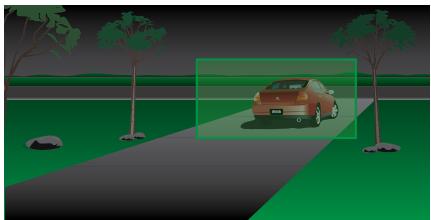
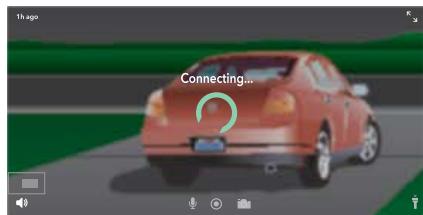
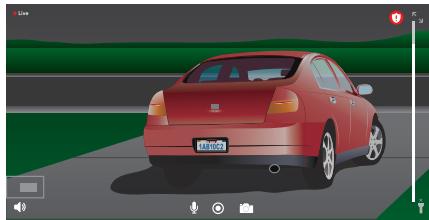
If you're viewing a live stream recording, you can zoom in to any point of the Auto Zoom and Tracking recording. Your floodlight uses its advanced image sensor to enhance the image quality of the zoomed-in area. (The zoomed-in image is in 1080p video resolution.)
Your floodlight automatically creates a curated Auto Zoom and Tracking clip. To access Auto Zoom and Tracking clips, tap Library in the Arlo app to view your library.
Note: If you paired your floodlight to an Arlo SmartHub or base station (sold separately), and you turn on Local 2K Live Streaming, the Arlo app automatically turns off Auto Zoom and Tracking. The reverse is also true. If you turn on Auto Zoom and Tracking, the Arlo app automatically turns off Local 2K Live Streaming.
To turn on Auto Zoom and Tracking:
- Open the Arlo app.
- Tap Settings > My Devices.
- Tap the camera.
- Tap Video Settings.
- Tap Auto Zoom and Track.
Night Vision
- Open the Arlo app.
- Tap Settings > My Devices.
- Tap the camera.
- Tap Video Settings > Night Vision.
- If you're using an Android device, tap the slider.
Change the video quality and battery usage
You can set the video resolution as Best Video, Optimized, or Best Battery Life. Using the Best Battery Life setting reduces the WiFi bandwidth that is required.
- Open the Arlo app.
- Tap Settings > My Devices.
- Tap the camera.
- Tap Video Settings > Power Management.
- Tap to select Best Battery Life, Optimized, or Best Video.
Change the video mode to select the field of view
The video mode controls the field of view setting for the camera. The field of view is the area that the camera sees. You can set the video mode for your floodlight to Full (110 degrees), Wide (125 degrees), or Super Wide (160 degrees).
To change the video mode:
- Open the Arlo app.
- Tap Settings > My Devices.
- Select the floodlight.
- Tap Video Settings > Video Mode.
- Tap a field of view to apply it to your floodlight.
Audio settings
You can adjust the settings to reduce wind noise, turn the microphone off and on, and adjust the speaker.
- Open the Arlo app.
- Tap Settings > My Devices.
- Tap the floodlight.
- If you're using a mobile device, tap Audio Settings.
-
Adjust the settings:
-
Microphone toggle turns the microphone off and on.
- Speaker toggle and volume. To turn the speaker off and on, tap Speaker. To change the speaker volume, move the Speaker Volume slider.
Adjust the flicker setting
The combination of certain artificial light sources and the camera shutter speed might result in flickering in recorded video.
- Open the Arlo app.
- Tap Settings > My Devices.
-
Tap the floodlight or the SmartHub, or base station if you use one.
-
Tap Flicker Adjustment.
- Select a setting.
The default setting is Auto, which allows Arlo to automatically select either 50Hz or 60Hz , depending on the country where the floodlight is located.
View device information
You can view the firmware version, hardware version, and the serial number.
- Open the Arlo app.
- Tap Settings > My Devices.
- Tap the device.
- Tap Device Info.
Remove a device from your account
- Open the Arlo app.
- Tap Settings > My Devices.
- Tap the camera.
- Scroll down and tap Remove Device.
Restart the floodlight from the Arlo app
- Open the Arlo app.
- Tap Settings > My Devices.
- Select the floodlight.
- Scroll down to the bottom of the page and tap Restart.
Optional SmartHub and Base Station settings
You can connect your floodlight directly to the 2.4 GHz WiFi network of your router. If you prefer, you can connect your doorbell with a SmartHub model VMB5000 or VMB4540 or Base Station with Siren model VMB4500 or VMB4000.
Change your SmartHub or base station name
- Open the Arlo app.
- Tap Settings > My Devices.
- Tap the SmartHub or base station.
- Tap Edit next to the name.
- Enter a new name.
- Tap Save.
Restart your SmartHub or base station
- Open the Arlo app.
- Tap Settings > My Devices.
- Tap the SmartHub or base station.
- Scroll down and tap Restart.
Turn the base station siren on and off
By default, the base station siren is set to the loudest volume, which is over 100 decibels. You can set up motion detection rules to trigger the base station siren and select the siren volume level when you set up the rule. The base station siren settings are Loud, Very Loud, and Extremely Loud. See Add a rule with an optional base station siren trigger on page 39.
WARNING: The loudest siren setting, which is the default for the siren, is more than 100 decibels. Do not test the siren while people or pets are close to the base station. Prolonged exposure to the siren might cause hearing damage.
To turn the base station siren on and off using the Arlo app
- Open the Arlo app.
- Tap Turn Siren ON.
- Tap Yes to confirm that you want to turn on the siren.
Base station siren button
The Base Station with Siren model VMB4000 has a button located on the top.
WARNING: The loudest siren setting, which is the default for the siren, is more than 100 decibels. Do not test the siren while people or pets are close to the base station. Prolonged exposure to the siren might cause hearing damage.
Pressing this button turns the siren on and off.
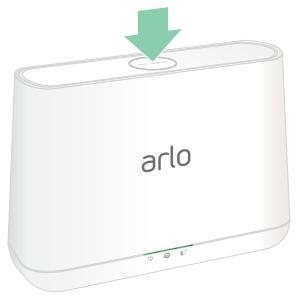
7. SmartHub SD Card Storage
The SmartHub model VMB5000 supports SD card storage. If you use your floodlight with the SmartHub VMB5000, you can use this feature.
You can insert a microSD card into the slot in your SmartHub VMB5000 and store your Arlo recordings both in the cloud and on the SD card. If the SmartHub isn't connected to the internet, recordings continue to be saved on the microSD card. If you have an active live stream connection between an Arlo Ultra camera and a SmartHub, you can record to a microSD card. Your Arlo app notifies you when the SD card is low on storage space or is full.
MicroSD card format
Your SmartHub accepts SDHC or SDXC microSD cards. We recommend using microSD cards with a minimum of 16 GB capacity, Speed Class 10, UHS-1, V10. Your Arlo SmartHub supports up to Class 10 UHS-3 V90.
If your microSD card isn't formatted, or is formatted with an incompatible file system, you can use your Arlo app to format the microSD card. See Format a microSD card on page 63.
Insert a microSD card
- Insert the microSD card into the slot on the bottom of the SmartHub.
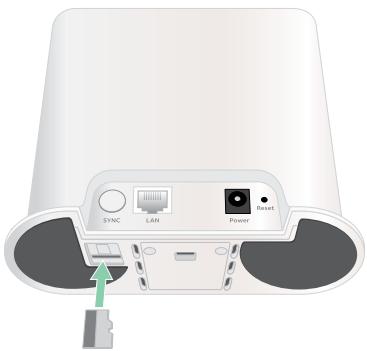
- Press the edge of the microSD card until it's completely seated in the slot.
View the SD card status
- Open the Arlo app.
- Tap SmartHub/Base Station/Bridge.
- Check the SD card icon . When a microSD card is inserted in the SmartHub, this icon is amber
- To view more information about the microSD card status, under LOCAL STORAGE, tap Storage Settings.
The SD Card Status displays GOOD or indicates if the SD card needs to be formatted, or is full. The Arlo app also notifies you if this occurs.
View available SD card storage
The Arlo app notifies you if the SD card is getting full, but you can also view the available storage.
- Open the Arlo app.
- Tap SmartHub/Base Station/Bridge > Storage Settings. The Available Storage field displays the amount of storage available on the SD card.
Turn SD card recording off and on
- Open the Arlo app.
- Tap SmartHub/Base Station/Bridge
- Select the SmartHub.
- Tap Storage Settings > SD Card Recording. SD card recording toggles off and on.
Turn on Best Local Recording
The SmartHub recordings saved onto the SD card are 1080p by default, but you can change this setting to record the best resolution that's supported for your camera. For example, Ultra Series cameras support 4K local recording and Pro 3 cameras support 2K local recording.
To turn on Best Local Recording:
-
Open the Arlo app.
-
Tap SmartHub/Base Station/Bridge
- Select the SmartHub.
- Tap Storage Settings > Best Local Recording.
Change the SD card overwrite setting
By default, if the SD card fills up, the oldest Arlo recording is erased to make room for new recordings. Files on the SD card that aren't in the Arlo folder aren't deleted to make room for Arlo recordings. You can change the setting so that no Arlo recordings are automatically erased.
- Open the Arlo app.
- Tap Base Station & Bridge > Storage Settings.
- Tap Overwrite Automatically.
The overwrite setting toggles off and on.
Format a microSD card
Your SmartHub accepts micro SD cards, SDHC or SDXC only, file format FAT32. The Arlo app displays a message to let you know if you need to format the SD card. The SmartHub can format the SD card.
- Open the Arlo app.
- Tap SmartHub/Base Station/Bridge > Local Storage.
- Tap the red Format SD Card button.
Safely eject an SD card
It's important to safely remove the microSD card from your SmartHub. If you remove an SD card while information is being recorded on it, the SD card might become permanently unusable or the files on the card might be corrupted.
- Open the Arlo app.
- Tap SmartHub/Base Station/Bridge > Local Storage.
- Tap Safely Eject SD Card.
-
Wait for the Unmounting SD Card progress message to close.
-
Remove the SD card from your SmartHub by pressing in on the edge of the card until it ejects.
Do not interrupt power to the SmartHub or remove the SD card while unmounting the SD card.
- The SD card icon changes from amber to gray indicating that no microSD card is in the slot.
Arlo SD card recording is disabled until you insert another SD card.
View videos on a microSD card
To view Arlo videos saved on a microSD card, you must remove the microSD card from your SmartHub and use a microSD card reader.
The microSD card reader can be part of your computer or a memory card reader with a USB or micro USB connector. If you purchase an SD card reader, make sure that you choose one that can read microSD cards.
- Safely eject the microSD card.
For more information, see Safely eject an SD card on page 63.
-
Insert the microSD card into the slot in your card reader.
-
Wait for the microSD card to appear in the list of available drives on your computer, and then open the drive folder to view the files on your microSD card.
-
Open the Arlo folder.
Recorded videos are saved in this folder in MP4 format. Video files are named according to this system: camera serial number(video number_date片子 clip tag. Dates are in the format YYYYMMDD.
Note: If you're unable to play MP4 files on your computer, update your media player software to the latest version and try again. You can also download a free universal multimedia player, such as VLC.
8. SmartHub or Base Station USB Storage
The Arlo SmartHub VMB4540 and Base Station with Siren VMB4500 and VMB4000 include one or two USB ports on the rear panel. If you use your floodlight with a SmartHub or base station you can use this feature.
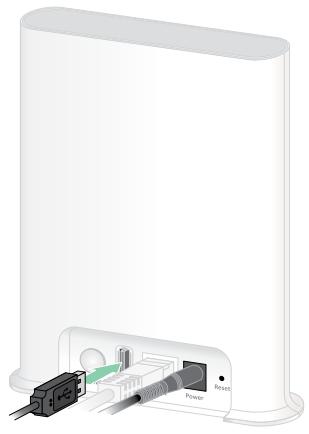
SmartHub VMB4540
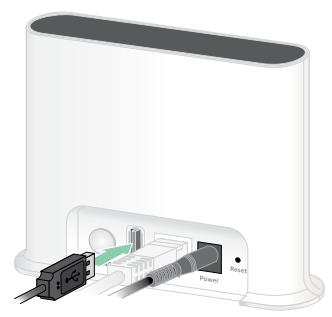
Base station VMB4500
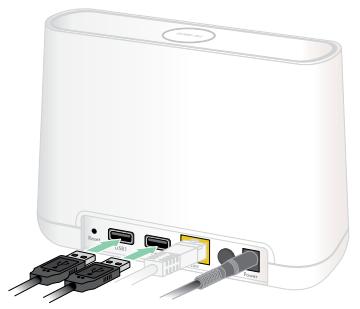
Base station VMB4000
You can connect a USB storage device to the USB port and store your Arlo recordings both in the cloud and on the USB device.
If the SmartHub or Base Station with Siren isn't connected to the internet, recordings continue to be saved on your USB storage device. If you're using an active live stream connection between a Pro 3 camera and a SmartHub, you can record to a USB storage device in 1080p. For 2K Local Live Stream from a Pro 3 camera, the SmartHub automatically records to a USB storage device if one is connected.
Your Arlo app notifies you when the connected USB storage device is low on storage space or is full.
USB storage device format
The SmartHub supports these file formats for local storage:
FAT16
FAT32
ExFAT
ext2FAT
ext3FAT
ext4FAT
HFS+
The minimum USB drive size is 16 GB and the maximum-size drive that those file systems support is 2 TB. The SmartHub supports USB 2.0-compatible devices. Not all HDDs are compatible with the SmartHub. If you're not sure, consult the manufacturer of the HDD.
View the USB storage device status
- Open the Arlo app.
- Tap SmartHub/Base Station/Bridge.
-
Check the color of the USB icon :
-
Gray. No USB device is connected.
- Black. A USB device is connected to the SmartHub.
-
Amber. The SmartHub is recording onto the USB device.
-
To view more information about the USB device status, under LOCAL STORAGE, tap Storage Settings.
The USB status displays GOOD or indicates if the USB device needs to be formatted, or is full. The Arlo app also notifies you if this occurs.
View available USB device storage
The Arlo app notifies you if the USB device is getting full, but you can also view the available storage.
- Open the Arlo app.
- Tap SmartHub/Base Station/Bridge > Storage Settings. The Available Storage field displays the amount of storage available on the USB device.
Turn USB recording off and on
- Open the Arlo app.
- Tap SmartHub/Base Station/Bridge
- Select the SmartHub.
- Tap Storage Settings > USB Device Recording.
Turn local 2K recording off and on
The SmartHub and base station recordings saved onto the USB device are 1080p, but you can change this setting and save Arlo Pro 3 camera 2K recordings onto the USB device.
Note: Local 2K recording from Pro 3 cameras is supported in SmartHub and Base Station models VMB5000, VMB4540, and VMB4000.
- Open the Arlo app.
- Tap SmartHub/Base Station/Bridge
- Select the SmartHub.
- Tap Storage Settings > Best Local Recording.
Local 2K recording toggles off and on.
Change the USB device overwrite setting
By default, if the USB storage device fills up, the oldest Arlo recording is erased to make room for new recordings. Files on the USB device that aren't in the Arlo folder aren't deleted to make room for Arlo recordings. You can change the setting so that no Arlo recordings are automatically erased.
- Open the Arlo app.
- Tap Base Station & Bridge > Storage Settings.
- Tap Overwrite Automatically.
The overwrite setting toggles off and on.
Format a USB device
The Arlo app displays a pop-up message to let you know if it is necessary to format the USB storage device. The SmartHub can format the USB storage device.
Do not remove the USB storage device while it is formatting. The USB storage device might become permanently unusable.
- Open the Arlo app.
- Tap SmartHub/Base Station/Bridge > Local Storage.
If you see the message Requires Formatting, the USB storage device isn't in the correct format and you must format it before you can use it for local storage.
- Tap the Format USB Device button.
- Wait for USB Device Status to change from Formatting to Ready.
Safely eject a USB storage device
If you remove a USB device while information is being recorded on it, the USB device might become permanently unusable or the files on the USB device might be corrupted.
- Open the Arlo app.
- Tap SmartHub/Base Station/Bridge > Local Storage.
- Tap Safely Eject USB Device.
- Wait for the Unmounting USB storage device progress message to close.
- Disconnect your USB storage device from your SmartHub.
Do not interrupt power to the SmartHub or remove the USB device while unmounting the USB device.
- The USB icon changes to gray indicating that no USB device is connected.
USB recording is disabled until you connect another USB device.
View videos on a USB device
Video clips on USB storage devices don't display in the Arlo app, but you can use a Windows-based or Mac computer to view the clips.
- Safely eject the USB storage device.
For more information, see Safely eject a USB storage device on page 68.
- Connect the USB storage device that you ejected to a Windows-based computer or a Mac computer.
- Wait for the USB storage device to appear in the list of available drives on your computer, and then open the drive folder to view the files on your USB storage device.
- Open the Arlo folder.
Recorded videos are saved in this folder in MP4 format. Video files are named according to this system: camera serial number(video number_date片子 clip tag. Dates are in the format YYYYMMDD.
Note: If you're unable to play MP4 files on your computer, update your media player software to the latest version and try again.
9. Arlo Connect
Use Arlo with Amazon Alexa
With the Arlo Skill and Alexa, you can access your Arlo devices using voice commands and view a live camera feed on your Echo Show, Fire TV, or Fire tablet. Alexa can also notify you when motion is detected by your Arlo cameras.
To use the Arlo Skill, you need a connected Pro 3 Camera and one of these Amazon devices:
Echo Show
Echo Spot
Echo Dot
Echo, Echo Plus
- Fire tablets (7th generation or newer)
Fire TV (all generations)
- Fire TV stick (second generation only)
Fire TV Edition smart TVs
Enable the Arlo Skill
Make sure that your Pro 3 Camera is powered on and connected to the cloud.
Enable the Arlo skill in one of these ways:
- Ask Amazon Alexa "Alexa, enable Arlo skill" to receive instructions in your Alexa app to link your Arlo account with your Alexa account.
- In the Alexa app, search for the Arlo Skill and select Enable Skill to link your Arlo account with your Alexa account.
Use the Arlo Skill
After you enable the Arlo Alexa Skill, you can try using these commands:
Alexa, show me
"Alexa, stop." Stop an activity and return to your device's home screen.
- "Alexa, hide
Alexa, go home." Return to your device's home screen.
Alexa, show the last motion detected by my
Set up Alexa to notify you when Pro 3 detects motion
You can use either of these methods:
- In the Smart Home section of the Alexa app, turn on Announcements for your Arlo camera.
Create an Alexa Routine from the Alexa app main menu.
Add a floodlight to the Google Assistant app
To use your Pro 3 Camera with Google Assistant, you need:
- A Google Home Hub, a Chromecast device, a TV with Chromecast, or a media player with Chromecast
- The Google Assistant app on your mobile device. This app is included with most Android devices, but you can also download it from the Apple App Store on iOS devices.
To connect your Arlo cameras to the Google Assistant app:
- If you plan to use a voice-enabled speaker with the Google Assistant, set up that device.
- Open the Google Assistant app to the home page.
- Tap+.
- Tap Set up Device > Have something already set up?.
- Select the Arlo icon from the list of device options. You can search for Arlo or scroll down to find Arlo on the list of devices.
- Sign in with your Arlo account. Your camera is added to Google Assistant.
- To test your camera, say “Hey Google, show [name of room where camera is placed] on [name of Google device].”
- To end the stream, say "Hey Google, stop [name of Chromecast device]."
For more information, see Google Assistant Help: Control smart home devices.
Use Arlo with IFTTT
You can use the Arlo app with IFTTT (If This Then That), a free cloud-based service that connects smart home devices and applications.
To add Arlo to your IFTTT app, visit ifttt.com/arlo.
To learn more about Arlo and IFTTT, visit arlo.com/community.
10.Arlo XL Rechargeable Battery
Your floodlight comes with an Arlo XL Rechargeable Battery. The battery is partially charged and can be charged using the USB charging cable and power adapter that came in the package or by using other Arlo accessories, which are sold separately.
Battery charging options
Your floodlight uses an Arlo XL Rechargeable battery. The floodlight has two charging ports:
- USB charging port on the camera. Use this for indoor charging with the USB cable and power adapter that came in the package with your floodlight.
- Magnetic charging port on the camera housing. Use this to connect an Arlo magnetic charging cable or the Arlo solar panel (both are sold separately).
You can leave the camera housing mounted while you are charging your camera. If you want your camera to operate while it is charging, you need to use an outdoor magnetic charging cable (sold separately) or the Arlo Solar Panel (sold separately).
USB charging
A USB charging cable came in the box with your floodlight. This cable is for indoor use only.
- Press the battery access button on the bottom of the Floodlight Camera and separate the camera from the camera housing.
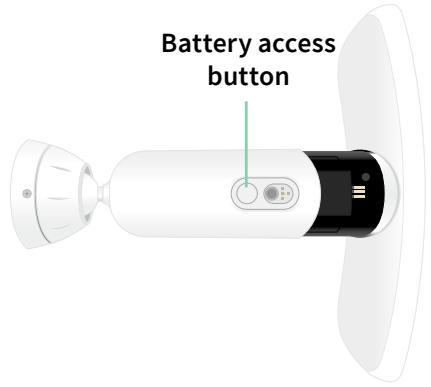
- Insert the battery into the camera with the Arlo logo on your floodlight and the Arlo logo on the battery facing up.
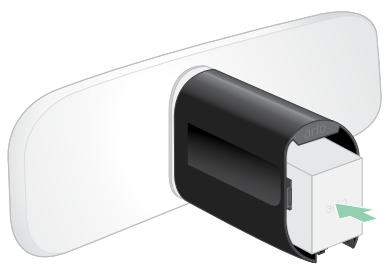
The LED on the front of your floodlight blinks blue after the battery is inserted.
- Connect the USB charging cable and power adapter and plug the adapter into an electrical outlet.
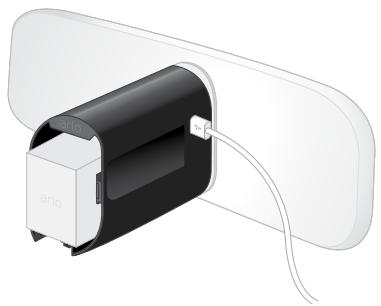
The battery charges automatically as long as AC power is provided. The camera and light are disabled during charging.
The LED lights solid blue when the battery is fully charged unless you used the Arlo app to turn off the LED. (See Turn off the camera LED on page 54.)
- After charging is complete, use care when you insert the camera into the camera housing. While you hold the top and bottom of the floodlight, insert the floodlight camera into the camera housing until it clicks into place. (Don’t press on the camera lens or the light.)
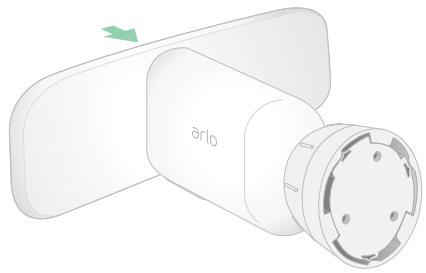
Outdoor magnetic charging
The Arlo Outdoor Magnetic Charging Cable is sold separately. The floodlight requires an Arlo XL Rechargeable Battery in order to operate, even when the Outdoor Magnetic Charging Cable is providing power.
If you use this cable, your camera and floodlight continue to operate during charging. Continuous power provided by this cable also unlocks these features:
- The maximum brightness on your floodlight increases from 2000 to 3000 lumens.
- If your floodlight is connected to an Arlo SmartHub or base station, you can enable continuous video recording (CVR).
To charge your camera with the Outdoor Magnetic Charging Cable:
- Make sure that your camera is free of debris to ensure a safe and secure connection.
- Connect the outdoor magnetic charging cable to your camera and plug it into an electrical outlet.
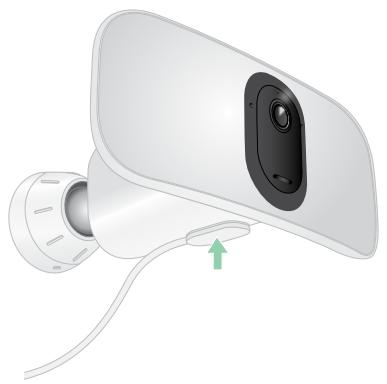
The battery charges automatically as long as AC power is provided.
Indoor magnetic charging
You can use an Arlo Indoor Magnetic Charging Cable to charge your camera indoors using the magnetic charging port. (This cable is included with some other Arlo devices and can be purchased separately.) The battery charges automatically as long as AC power is provided. The camera and light are disabled during charging. The LED lights solid blue when the battery is fully charged unless you used the Arlo app to turn off the LED. (See Turn off the camera LED on page 54.)
To charge your camera indoors with an indoor magnetic charging cable, you must remove your Pro 3 Floodlight Camera completely from the wall. See Remove a mounted floodlight from the wall on page 85.
Solar panel charging
You can use the Arlo Solar Panel to connect your floodlight to continuous power. The solar panel uses direct sunlight to keep your battery charged. The solar panel is weather-resistant and comes with an 8-foot magnetic power cable and adjustable mount.
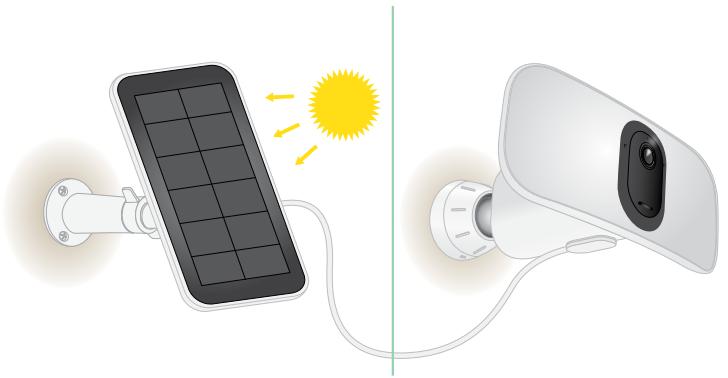
Note: The maximum brightness of your floodlight does not increase from 2000 to 3000 lumens when your floodlight is connected to an Arlo solar panel.
Replace a battery
- Press the battery access button on the bottom of the floodlight and separate the camera from the camera housing.
Note: Keep your hands on the camera and the camera housing to prevent the camera from falling when you press the release button.
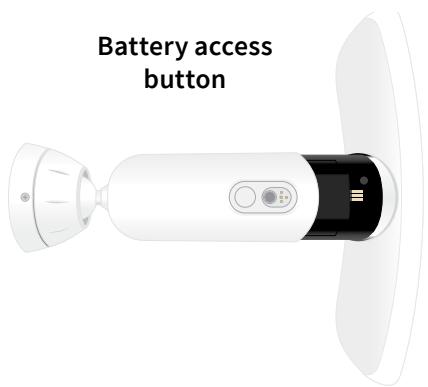
- Pull the camera until it is entirely removed from the camera housing.
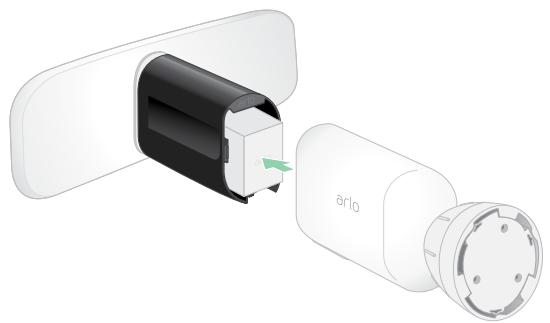
- Remove the battery by pulling on it until it slides out of the camera.
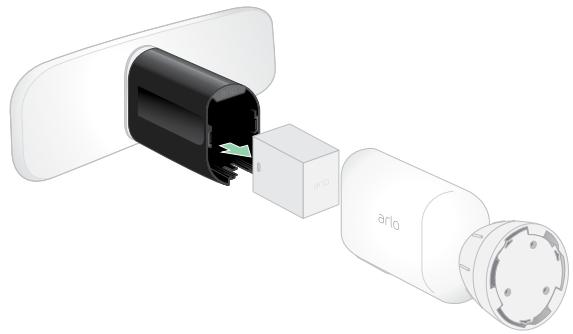
- Insert the battery into the camera with the Arlo logo on your floodlight and the Arlo logo on the battery facing up.
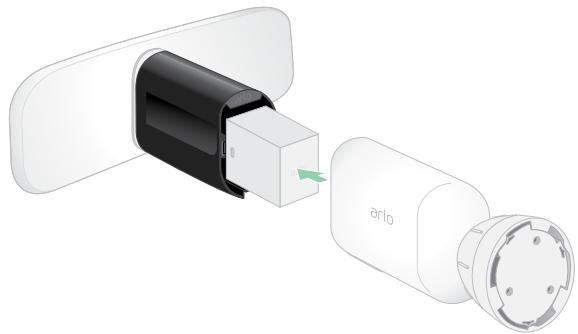
The camera LED blinks blue after the battery is inserted.
- While you hold the top and bottom of the floodlight, insert the floodlight camera into the camera housing until it clicks into place. (Don’t press on the camera lens or the light.)
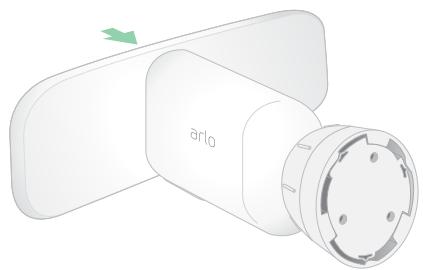
Battery life
Your floodlight's battery lifespan varies depending on the number of motion triggers that occur and how often the floodlight activates.
Note: Cold temperatures can affect any battery's capacity because of their chemistry. This means that if you install your floodlight outside in cold temperatures, you might notice a shorter battery duration, or a faster than expected drop in the displayed battery capacity.
To optimize the lifespan of your battery:
- Select a location for your floodlight with a strong WiFi signal.
A strong WiFi signal typically requires less battery power than a weak WiFi signal. You can check the strength of the WiFi signal from the Arlo app.
If you use an optional Arlo SmartHub or base station, we recommend placing your floodlight up to 300 feet away. For information about your router's WiFi range, check with the router manufacturer or with your internet service provider (ISP) if they installed your router.
- Your Arlo camera lets you choose the quality level of the video it records. Cameras set to high-quality video recording use more battery power than cameras set to low-quality video recording.
- Fine-tune the position of your floodlight.
Angle the floodlight so that it only detects motion in areas of interest. This helps reduce unwanted recordings and light triggers from motion that occur in the background.
- Set a schedule for your floodlight.
If you don't need your camera and floodlight to activate during all hours of the day, you can set it to wake up and use battery power only during the hours when you need it. See Schedule when your floodlight is armed on page 40.
- Adjust the Dusk to Dawn sensor setting.
This setting determines how bright or dark the outside environment must be for your light to activate when motion or audio is detected. If you adjusted the Dusk to Dawn sensor setting, you might benefit from switching it back to the default setting. See Adjust your floodlight's dusk to dawn sensor on page 52.
- Reduce the brightness.
You can use the Arlo app to adjust the brightness setting on your Arlo Pro 3 Floodlight camera. See Adjust the floodlight brightness on page 53.
If your router allows it, increase the DHCP lease renewal time.
Most routers are DHCP servers that assign IP addresses to the devices on their networks. The DHCP lease is the length of time the devices can reserve an IP address on the network. For example, a router might use a DHCP lease renewal time of 24 hours (1440 minutes). Increasing the DHCP lease renewal time might reduce the network traffic. For more information, see the instructions from your router's manufacturer or your ISP if they installed your router.
Safe handling and usage guidelines for removable and rechargeable batteries
Batteries can EXPLODE, CATCH FIRE, and/or CAUSE BURNS if disassembled, punctured, cut, crushed, short circuited, incinerated, recharged (disposable cells), or exposed to water, fire, or high temperatures
To ensure optimal safety and performance:
- Only use Arlo batteries. If you are unsure about whether a replacement battery or charger is compatible, contact Arlo.
- DO NOT use this battery for anything other than its intended purpose.
- DO NOT use a battery if its case appears damaged, swollen, or compromised. Examples include, but are not limited to, leaking, odors, dents, corrosion, rust, cracks, swelling, melting, and scratches.
DO NOT disassemble, crush, puncture, short external contacts, or dispose of in fire or water. - DO NOT expose the battery to fire or temperatures greater than 60^ ( 140^ ). Do not place the battery next to areas which may become hot. Examples include, but are not limited to, on or near a space heater, cooking surface, cooking appliance, iron, radiator, or fireplace.
- DO NOT get the battery or the Arlo device wet. Even though they might dry and appear to operate normally, the circuitry can slowly corrode and defeat its safety circuitry.
- DO NOT place the battery in a pocket, purse, or other receptacle containing metal objects, such as keys, jewelry, or tools.
- DO NOT store the battery with hazardous or combustible material. Store in a cool, dry, ventilated area.
- ALWAYS keep the battery away from children.
- DO NOT load the battery backwards. MAKE SURE the battery compartment is empty and free of any moisture or loose debris before inserting the battery.
- AVOID dropping the battery or the Arlo device. Dropping it, especially on a hard surface, might cause damage to the battery or the Arlo device. If you suspect damage to the battery or the Arlo device, replace it.
- ALWAYS follow the directions in the Quick Start Guide and/or written in the Arlo Product User Manual.
- ALWAYS follow local waste and recycling laws and guidelines to dispose of used batteries.
11.Troubleshooting
Scan a QR code during setup
During setup, the floodlight must scan a QR code from the Arlo app when you're adding the floodlight to your 2.4 GHz WiFi network. If your floodlight doesn't emit a chime sound after scanning the QR code, then the QR code wasn't successfully scanned.
If your floodlight didn't scan the QR code:
- Move your mobile device farther from, or closer to, the floodlight camera lens.
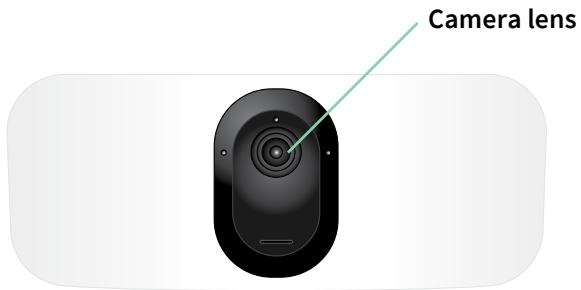
Position your mobile device about 6 in. (15 cm) from the floodlight camera lens, and slowly move it closer. If that doesn't work, try moving your mobile device farther away. You can also try different angles.
- Decrease or increase the brightness on your mobile device.
Your mobile device's brightness might be too high or too low for your floodlight to scan the QR code.
If it's dark outside, try setting the brightness on your mobile device to the 50% level.
If it's bright outside, try raising the brightness on your mobile device to the highest level.
- Disable Dark Mode if you're using an iOS device.
In your iOS Settings, scroll down to find and select Display & Brightness. Choose Light mode under the Appearance options.
- Scan the QR code in an evenly lit area.
Avoid scanning the QR code in the dark or in direct sunlight. If you are installing at night, turn on porch lights. If your floodlight is exposed to direct sunlight during installation, provide some shade.
- Try using a mobile device with a larger screen ,such as a tablet or iPad, if available.
- Clean the floodlight camera lens.
The camera lens might have debris or a smudge on it, hindering its ability to scan the QR code. Try using a lint-free cloth to remove anything that might prevent the camera from scanning the QR code.
The floodlight is inactive during charging
Your floodlight is inactive while the USB Charging Cable or Indoor Magnetic Charging Cable is plugged in. This is because these charging cables are meant for indoor charging only.
To use the floodlight, record audio, and record video while your camera charges, you must use an Outdoor Magnetic Charging Cable or Arlo Solar Panel, which are sold separately. For more information, see Battery charging options on page 73.
Optimize multiple 2K streams
You might experience connectivity issues if you're running multiple 2K live streams on your Arlo app. To optimize connectivity, check your network environment and adjust your floodlight settings as needed.
Make sure your average bandwidth speed is at least 2 Mbps per camera.
Note: To check your Internet speed, visit www.speedtest.net. The result of the Internet speed test might change, depending on varying amounts of traffic. For accurate results, run the speed test several times.
If you're still experiencing connectivity issues after checking your WiFi connection and Internet speed, do the following tasks until your connection is back to normal.
Adjust your floodlight settings in the Arlo app:
- Change the power management settings on each camera to Optimized.
See Change the video quality and battery usage on page 56.
- Change the power management settings on each camera to Best Battery Life.
See Change the video quality and battery usage on page 56.
Troubleshoot Arlo Geofencing
Each Arlo user has a unique setup environment. These are the most common geofencing issues.
- Your mobile device isn't sharing its location information with Arlo. See Prepare your mobile device for geofencing on page 42.
- Away mode isn't triggered when you leave because an extra mobile device that's enabled for geofencing is still in the Device Location. See Geofencing with multiple mobile devices on page 43.
- Geofencing stopped working because the location sharing settings for a mobile device changed. See Prepare your mobile device for geofencing on page 42.
- A task-killing app is interfering with Arlo Geofencing. A task-killing app, such as Shutapp or Doze, can disable Arlo Geofencing. To use Arlo Geofencing, disable any apps that suppress the Arlo app.
- Geofencing for your mobile device on your friend's Arlo account isn't working.
If you're a friend on someone else's Arlo account, your mobile device can only change Home/Away modes if the Arlo account owner does the following:
- Turn on the Allow Access Rights setting. See Grant access to friends on page 53.
- Set your device as an Enabled Device in Geofencing settings. SeeEnable or disable geofencing for friends' mobile devices on page 44.
Still experiencing issues with geofencing? Contact Arlo Customer Support.
Can’t see video streams in a browser
Your router might be blocking the ports to which Arlo sends data. To make sure that Arlo can stay connected, you must keep ports 443 and 80 open on your router.
To troubleshoot problems with the video stream, check for the conditions in the following sections WiFi signal interference on page 82
WiFi signal interference on page 82, Out of range on page 83, and Low battery on page 83.
WiFi signal interference
Environments with multiple WiFi networks, WiFi devices, or frequencies can cause signal interference. If possible, minimize the number of networks, WiFi devices, and transmitted frequencies in the area where you place your floodlight. For help with adjusting WiFi settings
such as the channel for your router, check the instructions that came with your router or contact your Internet service provider (ISP) if they installed your router.
We recommend that you place your floodlight at least 1 to 3 feet (30 to 100 centimeters) from your router or Arlo SmartHub or base station if you use one. Allow at least 6 12 feet (2 meters) between each floodlight or Arlo camera to prevent WiFi signals between the devices from interfering with each other.
Out of range
Make sure that your floodlight is close enough to receive a strong WiFi signal. The range of your router's WiFi signal can vary depending on the router model and conditions in your local environment. If you pair your floodlight to an optional Arlo SmartHub or base station, we recommend that you place the floodlight no farther than 300 feet (90 meters) from the SmartHub or base station. The range might be less if metal objects or thick walls and ceilings are between a floodlight and the SmartHub or base station.
Make sure that your floodlights display three or four bars of signal strength in the area where you intend to install them. The floodlights can work when signal strength is at one or two bars, but they might go out of range intermittently due to fluctuations in the environment.
Low battery
A low battery can cause the camera to stream intermittently. It's time to recharge the battery or change it when the battery level is down to two bars on the Arlo app Devices page.
Not receiving push notifications
You must be logged in to the Arlo app to receive Arlo alerts on your smartphone or mobile device. Arlo registers your device for push notification when you log in. If you used the logout option instead of simply exiting the app, you must log back in to the app. You receive Arlo alerts even if your device is sleeping.
Check the rules for armed modes
Check the rules in your modes. Make sure that push notification is enabled in the Armed mode or in a custom mode if you created one.
- Open the Arlo app.
- Tap Mode.
-
Tap the floodlight or your optional Arlo SmartHub or base station, if you use one. A list of modes displays.
-
Tap Edit next to Armed.
- Tap Edit next to the rule.
- Under Alert, make sure that the Push Notification check box is selected.
- If you made changes, tap Save.
Check the Arlo app notification settings on an iOS device
Make sure that you allow the Arlo app to receive push notifications. The Arlo app push notifications can be disabled on iOS and Android devices.
- Tap the Settings icon for your iOS device.
- Tap Notifications > Arlo.
- Make sure that Allow Notification is selected.
Check the Arlo app notification settings on an Android device
Make sure that you allow the Arlo app to receive push notifications. The Arlo app push notifications can be disabled on iOS and Android devices.
- Tap the Settings icon for your Android device.
- Tap Application Manager > Arlo.
- Make sure that the Show Notifications setting is selected.
If you said no to push notifications at installation
When you install the Arlo app for the first time, to receive alerts, you must select Allow when asked if you want Arlo to send you push notifications. For iOS apps, after you respond to this alert, it isn't presented again unless the device is restored to factory settings or the app is uninstalled for at least a day.
If you said no on an iOS device, uninstall the app, wait for a day, and then reinstall it, and allow notifications. If you don't want to wait a day before you reinstall the app, you can use the system clock on your device to simulate a day. Set the system clock forward a day or more, turn your device off, and then turn the device back on. After you reinstall the app, return the system clock to the correct setting.
Remove a mounted floodlight from the wall
Note: You don't need to remove the camera housing from the wall plate in order to reposition your camera or to charge the battery.
- Use a Phillips screwdriver to loosen the screw at the bottom of the camera housing's grip.
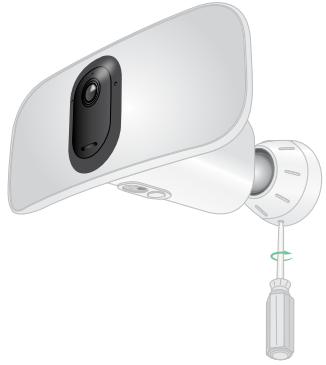
- Turn the camera housing counter-clockwise, and pull it from the back plate.
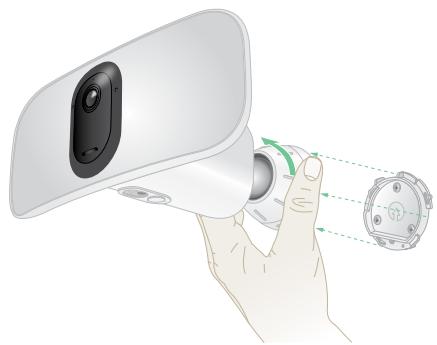
- Unscrew the screws from the wall plate, and remove the wall plate from your wall.
Support
For product updates and web support, visit http://www.arlo.com/en-us/support/.
Arlo Technologies, Inc.
2200 Faraday Ave. Suite 150
Carlsbad, CA 92008 USA
Document publication date: April 2020
PN 202-50019-01
Trademarks
© Arlo Technologies, Inc. Arlo, Arlo logo, and Every Angle Covered are trademarks of Arlo Technologies, Inc. App Store is a service mark of Apple Inc. Google Play and the Google Play logo are trademarks of Google LLC. Amazon and all related logos are trademarks of Amazon.com, Inc. or its affiliates. Any other trademarks are for reference purposes.
Compliance
For regulatory compliance information including the EU Declaration of Conformity, visit www.arlo.com/about/regulatory/.
See the regulatory compliance document before connecting the power supply.