
TV 32GB 4E GENERATION - Media Player APPLE - Free user manual and instructions
Find the device manual for free TV 32GB 4E GENERATION APPLE in PDF.


| Product type | Media streamer |
| Model | Apple TV 4th generation (A1427) |
| Storage capacity | 32 GB |
| Dimensions (L x W x H) | 98 x 98 x 23 mm |
| Weight | 270 g |
| Power supply | AC 100-240V, 50-60 Hz, 0.3 A; 6 W |
| Connectivity | HDMI, Ethernet 10/100Base-T, Wi-Fi 802.11a/b/g/n, optical audio port, micro USB (service) |
| Supported video resolution | 720p and 1080p |
| Audio formats | Dolby Digital (up to 5.1) |
| Storage and playback | Rent and purchase movies and TV shows on iTunes, streaming Netflix, YouTube, Vimeo, podcasts, Internet radio |
| Main features | AirPlay, Home Sharing, screen mirroring, photo slideshows, iTunes player |
| Remote control | Apple Remote (infrared) with CR2032 battery |
| Operating temperature | 0 °C to 40 °C |
| Cleaning | Soft, lint-free cloth; avoid liquids, aerosols, solvents |
| Safety | Do not place objects on the device; do not block ventilation |
| Repairability | Restoration possible via iTunes; no user-serviceable parts |
| Box contents | Apple TV, Apple Remote, power cord, important information guide |
Frequently Asked Questions - TV 32GB 4E GENERATION APPLE
User questions about TV 32GB 4E GENERATION APPLE
0 question about this device. Answer the ones you know or ask your own.
Ask a new question about this device
Download the instructions for your Media Player in PDF format for free! Find your manual TV 32GB 4E GENERATION - APPLE and take your electronic device back in hand. On this page are published all the documents necessary for the use of your device. TV 32GB 4E GENERATION by APPLE.
USER MANUAL TV 32GB 4E GENERATION APPLE
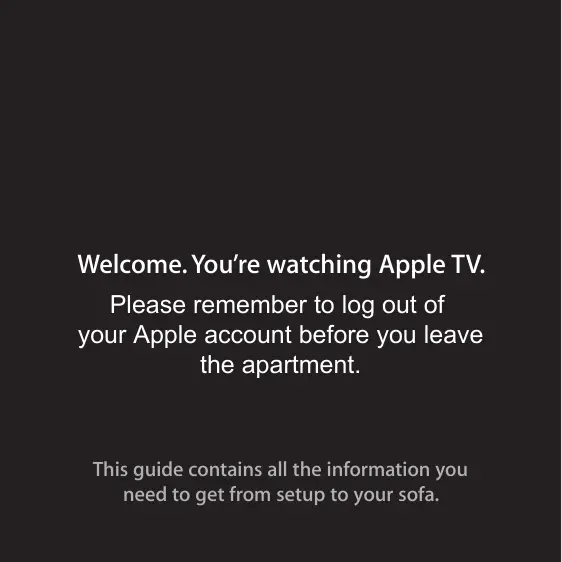
Welcome. You're watching Apple TV.
Please remember to log out of your Apple account before you leave the apartment.
This guide contains all the information you need to get from setup to your sofa.
Contents
Chapter 1: Connect.
7 What's in the box
8 Apple TV at a glance
10 What you need
11 Setting up Apple TV
Chapter 2: Configure.
16 Configuring your Apple TV
17 Connecting to iTunes
Chapter 3: Watch.
20 Using your Apple remote
21 Basic remote functions
21 Pairing Apple TV with a remote
22 Unpairing Apple TV from a remote
23 Changing the remote battery
24 Renting movies and purchasing TV shows
Chapter 4: Problem? No Problem.
26 Troubleshooting
32 Restoring your Apple TV
33 Service and support
33 Serial and model numbers
34 Care and cleaning
31 Resetting all the settings on your Apple TV
1
Connect.
Use Apple TV to watch high-definition movies and TV shows directly from the iTunes Store on your widescreen TV. Play content from Netflix, view live and archived sports and news, and enjoy podcasts, YouTube, Vimeo, and Internet radio. Stream your music and photos from iCloud, or play your iTunes content wirelessly from a Mac or PC. View full-screen photo slideshows from the comfort of your couch. And with AirPlay, wirelessly display your iPhone, iPad, and iPod touch screen on Apple TV, or mirror your iPhone 4S or iPad screen.
Note: Content availability varies by region. AirPlay requires a compatible iOS device and version.
| For information about | See |
| What you need to get started | “What you need” on page 10 |
| Setting up Apple TV | “Setting up Apple TV” on page 11 |
| Setting up your network connection | “Configuring your Apple TV” on page 16 |
| Using the Apple Remote | “Using your Apple remote” on page 20 |
| Troubleshooting Apple TV | “Troubleshooting” on page 26 |
| Apple TV safety information and warranty | The included Apple TV Important Product Information Guide |
What's in the box
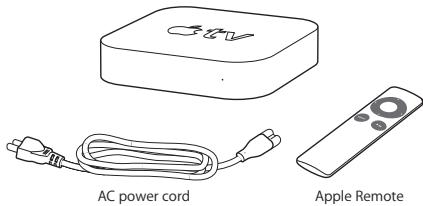
Note: Your power cord may look different from the one pictured here.
Apple TV at a glance
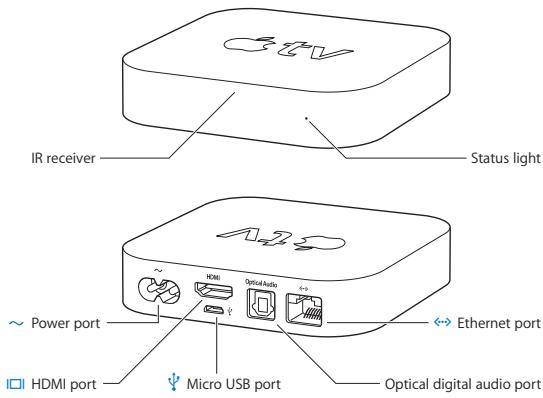
| IR receiverUse with the included Apple Remote to control Apple TV. | |
| Status lightThe status light flashes slowly when Apple TV starts up. When Apple TV is on, the status light glows. See “Status light” on page 27. | |
| Power portConnect the included AC power cord to the power port on Apple TV. | |
| HDMI portConnect Apple TV to the HDMI port of a high-definition TV using an HDMI cable. | |
| Micro USB portFor service and diagnostics. | |
| Optical digital audio portConnect Apple TV to a home theater receiver that has an optical digital audio port, using an optical digital audio (also called S/PDIF or TOSLINK) cable. | |
| ↔ | Ethernet portIf your network is Ethernet-based, connect an Ethernet cable. |
| Built-in 802.11n Wi-Fi technologyConnect Apple TV to your wireless network. |
What you need
To start using Apple TV, you need the following:
High-definition TV
A high-definition TV (HDTV) that can display 720p or 1080p video
Cables
- An HDMI cable to connect Apple TV to your TV
- An optical digital audio cable (optional)
Network
- An 802.11a, b, g, or n Wi-Fi wireless network (wireless video streaming requires 802.11a, g, or n), or 10/100Base-T Ethernet network
- A broadband Internet connection (DSL, cable, or LAN)
- Your wireless network name and password (if you use one)
Software and accounts
To play content from a Mac or PC on Apple TV, you need:
- iTunes 10.5 or later
- An Apple ID to rent movies or purchase TV shows from the iTunes store, and to use Home Sharing to stream content from a Mac or PC
- A Netflix account to stream content. Other accounts may be required for full access to some Internet content.
Setting up Apple TV
Apple TV connects to your TV through an HDMI port that delivers both audio and video. Before you set up Apple TV, look at the ports on the back of your TV to make sure you have the right cables:
- An HDMI cable: You can connect Apple TV to an HDTV or home theater receiver that has an HDMI port, using an HDMI cable for both video and audio.
- An optical digital audio cable (optional): Use this cable if you want to connect Apple TV to a receiver for audio.
Important: Before you connect Apple TV to a power outlet, carefully read these installation instructions and the safety information in the included Apple TV Important Product Information Guide.
Step 1: Connecting the cables
1 Connect one end of the HDMI cable to the back of your TV.
2 Connect the other end of the cable to the HDMI port on the back of Apple TV.
3 If you're using an optical digital audio cable for audio, connect one end of the cable to the audio input port on your receiver or TV, and the other end to the optical digital audio port on the back of Apple TV.
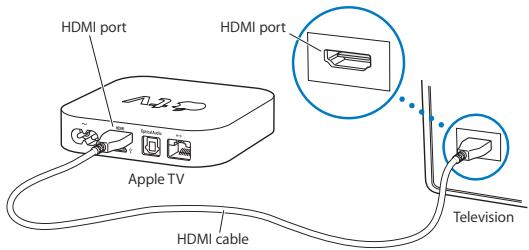
Note: The built-in 802.11 Wi-Fi technology connects Apple TV to your wireless network. If your network is Ethernet-based, connect Apple TV to your network using an Ethernet cable.
Step 2: Connect the power cord
Connect one end of the power cord to the power port on the back of Apple TV and the other end to a power outlet.
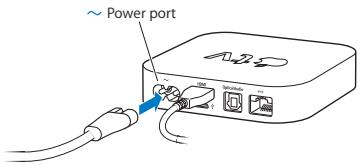
Important: Don't place anything on top of Apple TV. Objects placed on top may interfere with the wireless signal. Don't place Apple TV on top of other electronic equipment in a media cabinet.
Step 3: Turn on your TV and select the input
The first time you use Apple TV, it helps you choose a language and select a network. See Chapter 2, "Configure." on page 15.
If you see just a black screen the first time you use Apple TV, make sure the input setting you've selected on your TV matches the input you connected the cables to on your TV or home theater receiver. See Chapter 4, "Problem? No Problem." on page 25, and refer to the documentation that came with your TV for information about its inputs.
2
Configure.
Apple TV helps you select and configure your wireless network connection, and connect to iTunes on your computer if you want to watch or listen to the contents of your iTunes library.
Configuring your Apple TV
Have your network name and password (if you use one) and your Apple Remote handy when you configure Apple TV. Make sure there are no obstructions between the remote and Apple TV. For information about using your remote, see Chapter 3, "Watch." on page 19.
If you:
- Use a wired Ethernet network to connect, Apple TV automatically detects your network.
- Use a wireless network to connect, Apple TV helps you select and configure your network connection.
Connecting to your wireless network
Apple TV helps you connect to your wireless network. If you use a name and password to access your network, have them ready.
Use the Apple Remote to:
1 Select your network from the list, or enter your network name if the network is hidden.
2 Enter your network password (if you use one).
If you don't connect using DHCP, you may need to enter your IP address, subnet mask, router address, and DNS address.
To complete the network connection, follow the onscreen instructions.
Connecting to iTunes
To access the content of your iTunes library on Apple TV, you need iTunes 10.5 or later installed on your computer. For a list of system requirements, see "Software and accounts" on page 10.
Updating your iTunes software
You should update to the latest version of iTunes:
- On a Mac, use Software Update to update to the latest version of iTunes. To use Software Update, choose Apple ( Apple ) > Software Update.
- On a Windows-based computer, go to iTunes Help to update to the latest version of iTunes. Open iTunes, and then choose Help > Check for Updates.
Setting up Home Sharing
After you set up your network connection, you need to set up iTunes and Apple TV to share the contents of your iTunes library. Use Home Sharing in iTunes and on Apple TV to share the iTunes library of any computer on your local network that has Home Sharing set up.
To set up Home Sharing in iTunes:
1 Open iTunes on your computer.
2 Choose Advanced > Turn On Home Sharing.
3 Enter your Apple ID and password, and then click Create Home Share.
4 Repeat steps 1 through 3 on each computer you want to use for Home Sharing.
For information about iTunes, open iTunes and choose Help > iTunes Help.
To set up Home Sharing on Apple TV:
1 On Apple TV, choose Settings > Computers.
2 Choose Turn On Home Sharing, and then enter the same Apple ID and password you entered on your computer.
3
Watch.
Read on to learn about using your Apple Remote with Apple TV.
Using your Apple remote
Use the Apple Remote to control Apple TV settings and navigate your content. Make sure there are no obstructions between the remote and Apple TV.
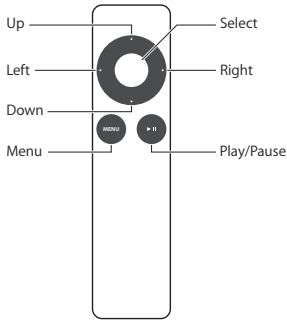
Basic remote functions
Here's how to use your Apple Remote:
| To | Do this |
| Move through the menu options | Press Up, Down, Left, or Right |
| Select an option from a menu | Press Select |
| Return to a previous menu | Press Menu |
| Pause or resume current playback | Press Play/Pause (▶II) |
| Return to the main menu | Hold down Menu |
| Reset Apple TV | Hold down Menu and Down, until the Apple TV status light blinks rapidly |
Up and Down on the Apple Remote don't control the volume on your TV or receiver. Use the remote that came with your TV or receiver to change the volume.
Pairing Apple TV with a remote
The Apple Remote works with the built-in IR receiver on Apple TV. To set Apple TV to work with only the included remote, pair Apple TV and the remote.
To pair Apple TV with the included remote:
1 Keep the remote pointed directly at Apple TV.
2 Hold down Menu and Right for 6 seconds.
Or, you can:
1 Choose Settings from the Apple TV main menu.
2 Choose General > Remotes > Pair Apple Remote.
When you successfully pair your Apple Remote, Apple TV displays a chainlink symbol (∞) above a picture of a remote. Apple TV now works with only the paired remote.
Unpairing Apple TV from a remote
If you lose the Apple Remote that you paired Apple TV with, you can use another Apple Remote to unpair Apple TV from the lost remote.
To unpair Apple TV from a paired remote:
1 Keep the remote pointed directly at Apple TV.
2 Hold down Menu and Left for 6 seconds.
Or, you can:
1 Choose Settings from the Apple TV main menu.
2 Choose General > Remotes > Unpair Apple Remote.
When you successfully unpair the lost remote, Apple TV displays a broken chainlink symbol ( ) above a picture of a remote. You can now pair Apple TV with a different remote.
Changing the remote battery
When the battery charge in your Apple Remote is low, Apple TV displays a picture of a remote and a warning symbol ( ). Replace the battery with a CR2032 battery.
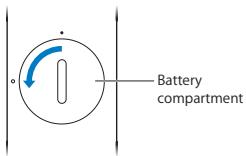
To replace the battery:
1 Use a coin to remove the battery compartment cover.
2 Remove the battery.
3 Insert a CR2032 battery with the positive side (+) facing up.
4 Replace the battery compartment cover and use a coin to tighten it.
Important: Dispose of the used battery according to your local environmental laws and guidelines.
Renting movies and purchasing TV shows
You can rent standard or high-definition movies and purchase TV shows directly on Apple TV (where available). Follow the onscreen instructions to find out when a rented movie expires. Purchased TV shows don't expire.
When a rented movie expires, it's no longer available for playback. To watch it again, you can rent it again from iTunes.
4
Problem? No Problem.
Most problems with Apple TV can be solved quickly by following the advice in this chapter. For additional tips and troubleshooting information, see the Apple TV Support page at www.apple.com/support/appletv.
Troubleshooting
If you have a problem with Apple TV, there's usually a quick and simple solution.
First steps
If Apple TV isn't responding, first make sure:
- The cables between Apple TV and your TV are pushed all the way in.
- The power cords for Apple TV and your TV are securely connected to a working power source.
- Your TV is turned on and set to the correct input.
- Apple TV is connected to your network. Choose Settings > General > Network, and see if Apple TV has an IP address.
- Your network and Internet connections are on and working properly.
If you still have trouble, try resetting your equipment by disconnecting Apple TV, your TV, your wireless networking equipment or base station, and your router from the power outlet. Wait 30 seconds, and then reconnect everything.
Status light
The status light on the front of Apple TV indicates what's happening.
| If Apple TV is | The status light |
| On | Glows |
| Off or in standby | Is off |
| Starting up | Flashes slowly |
| Accepting a command from the remote | Flashes once |
| Rejecting a command from the remote (you paired a remote with Apple TV, but you're using a remote that's not paired) | Flashes three times |
| Having problems | Flashes quickly |
Additional steps
If Apple TV doesn't respond to the previous steps, try the following.
If you can't hear sound
- If Apple TV is connected to a receiver, make sure the receiver is turned on.
- Make sure the input setting you selected on your TV or receiver matches the input your audio cable is connected to. For more information, see the documentation that came with your receiver.
-
Make sure the volume on your TV or receiver is turned up and isn't muted.
-
Make sure you're using the correct audio cable and that it's connected firmly to Apple TV and to your TV or receiver.
- If you're using the HDMI port for audio, make sure your TV supports audio through its HDMI port. The HDMI ports on some older TVs support only video.
If there's noise coming from your TV speakers
- If your TV or speakers support Dolby Digital audio, make sure the Dolby Digital Out setting is correct for the TV and speakers. On Apple TV, choose Settings > Audio & Video > Dolby Digital, and select On or Off.
If you're having trouble viewing content from your iOS device using AirPlay
- On Apple TV, go to Settings > AirPlay and make sure AirPlay is enabled.
- Make sure your iOS device and Apple TV are on the same Wi-Fi network.
- Make sure your iOS device is running iOS 4.3 or later.
- If you're trying to use AirPlay Mirroring to show the screen of your iOS device on Apple TV, check that your device supports that feature.
If Apple TV isn't playing your photo albums or slideshows
- Make sure you have photos in your photo library or in a folder on your computer.
- Make sure Apple TV and the computer you're using are set up for Home Sharing. See "Connecting to iTunes" on page 17.
-
Make sure the photos you want to share are selected. In iTunes, choose Advanced > "Choose Photos to Share," and then select the photos you want to share.
-
Make sure Apple TV and your computer are on the same local network.
- Make sure Apple TV and your computer are using the same Home Sharing account.
If you don't see your iTunes library under Computers on Apple TV
- Make sure Apple TV and your computer are on the same local network.
- Make sure Apple TV and iTunes are using the same account name and password.
If the remote isn't working
- Point the remote directly at Apple TV.
- If you paired Apple TV with an Apple Remote, make sure you're using the paired remote.
- If the Apple TV status light flashes once when you press a button on the paired remote, the problem isn't with the remote. See "If you can see a picture but Apple TV isn't responding" on page 31.
- If you're using an unpaired remote, the Apple TV status light flashes three times.
- If you paired Apple TV with an Apple Remote and you can't find the paired remote, set Apple TV to work with any Apple Remote by holding down Menu and Left for 6 seconds on another remote.
- Make sure the front of Apple TV isn't blocked.
- If Apple TV displays a picture of a remote and a warning symbol (△), you need to replace the battery in the remote. See “Changing the remote battery” on page 23.
If Apple TV can't access the network
- Check for any obstructions, and adjust the location of the base station or Apple TV.
- If your network has security enabled, make sure you enter the correct password.
- If security is enabled on the network, temporarily disable it on the base station and try connecting again.
- Check the IP address Apple TV is using. If it starts with 169.x.x.x, the router or base station may not be configured properly. Check to see if DHCP access is available, or configure Apple TV with a manual IP address.
- Apple TV cannot connect to a wireless network that contains high (extended) ASCII or double-byte (Unicode) characters (such as Japanese, Korean, or Chinese) in the name or password.
If your TV screen appears fuzzy or black
• Make sure your HDTV supports 720p or 1080p video.
- Make sure you're using the correct HDMI cable and that it's firmly connected to Apple TV and to your TV.
- Make sure the input setting on your TV matches the input port the HDMI cable is connected to. For information, see the documentation that came with your TV.
If you can see a picture but Apple TV isn't responding
- Hold down Menu on the Apple Remote to return to the Apple TV main menu.
- Make sure your TV is turned on and working properly. For information, see the documentation that came with your TV.
- If you paired an Apple Remote with Apple TV, make sure you're using the paired remote. See "Pairing Apple TV with a remote" on page 21.
-
Reset Apple TV by doing one of the following:
-
Hold down both Menu and Down on the Apple Remote until the Apple TV status light blinks rapidly.
- Disconnect Apple TV from the power outlet, wait about five seconds, and then reconnect it.
Resetting all the settings on your Apple TV
You can reset all of the settings on your Apple TV to factory values.
Important: This requires you to reenter all of your network and account information.
To reset all settings:
Choose Settings > General > Reset > Reset All Settings.
Restoring your Apple TV
If Apple TV doesn't respond to any of the previous steps, or if you want to reset Apple TV to its default settings, you can restore your Apple TV software.
To restore Apple TV:
Choose Settings > General > Reset, and then select Restore.
Restoring Apple TV can take some time, so be patient.
If restoring doesn't work or if Apple TV still doesn't respond, you can restore it using iTunes:
To restore Apple TV using iTunes:
- Disconnect the power and HDMI cables from Apple TV and take it to your computer.
- Connect one end of a micro USB cable (sold separately) to the back of Apple TV, and the other end to your computer.
- Connect one end of the Apple TV power cord to the power port on the back of Apple TV and the other end to a power outlet.
- Open iTunes on your computer, select Apple TV in the Source list, and then click Restore.
Service and support
There's more information about using Apple TV in iTunes onscreen help and on the web. This table describes where to get software and service information.
| To learn about | Do this |
| Service and support, discussions, tutorials, and Apple software downloads | Go to: www.apple.com/support/appletv |
| Using iTunes in Mac OS X | Open iTunes and choose Help > iTunes Help. For an onscreen iTunes tutorial (available in some areas only), go to: www.apple.com/support/itunes |
| Using iPhoto in Mac OS X | Open iPhoto and choose iPhoto > iPhoto Help. |
| Safety and regulatory compliance information | See the included Apple TV Important Product Information Guide. |
Serial and model numbers
Your Apple TV serial number is printed on the bottom of Apple TV. You can also find the serial and model numbers in the Apple TV Settings menu. On Apple TV, choose Settings > General > About.
Care and cleaning
NOTICE: Failure to follow these care and cleaning instructions could result in damage to Apple TV or other property.
Using connectors and ports
Never force a connector into a port. Check for obstructions on the port. If the connector and port don't join with reasonable ease, they probably don't match. Make sure that the connector matches the port and that you have positioned the connector correctly in relation to the port.
Keeping Apple TV within acceptable temperatures
Operate Apple TV in a place where the temperature is always between 0° and 40° C ( 32° to 104° F).
Keeping the outside of Apple TV clean
To clean Apple TV, unplug the power cord and all cables. Then use a soft, lint-free cloth. Avoid getting moisture in openings. Don't use window cleaners, household cleaners, aerosol sprays, solvents, alcohol, ammonia, or abrasives to clean Apple TV.
Disposing of Apple TV properly
For information about the proper disposal of Apple TV, and for other important regulatory compliance information, see the Apple TV Important Product Information Guide.
Apple Inc.
© 2012 Apple Inc. All rights reserved.
Under the copyright laws, this manual may not be copied, in whole or in part, without the written consent of Apple.
Every effort has been made to ensure that the information in this manual is accurate. Apple is not responsible for printing or clerical errors.
Apple
1 Infinite Loop
Cupertino, CA 95014
408-996-1010
www.apple.com
The Apple logo is a trademark of Apple Inc., registered in the U.S. and other countries. Use of the "keyboard" Apple logo (Option-Shift-K) for commercial purposes without the prior written consent of Apple may constitute trademark infringement and unfair competition in violation of federal and state laws.
Apple, the Apple logo, AirPlay, Apple TV, iPad, iPhone, iPhoto, iPod touch, iTunes, Mac, and Mac OS are trademarks of Apple Inc., registered in the U.S. and other countries.
Apple Store, iCloud, and iTunes Store are service marks of Apple Inc., registered in the U.S. and other countries.
IOS is a trademark or registered trademark of Cisco in the U.S. and other countries and is used under license.
Manufactured under license from Dolby Laboratories. "Dolby," "Pro Logic," and the double-D symbol are trademarks of Dolby Laboratories. Confidential Unpublished Works, © 1992-1997 Dolby Laboratories, Inc. All rights reserved.
Other company and product names mentioned herein may be trademarks of their respective companies. Mention of third-party products is for informational purposes only and constitutes neither an endorsement nor a recommendation. Apple assumes no responsibility with regard to the performance or use of these products.
- WELCOME. YOU'RE WATCHING APPLE TV
- PLEASE REMEMBER TO LOG OUT OF YOUR APPLE ACCOUNT BEFORE YOU LEAVE THE APARTMENT
- CONTENTS
- CHAPTER 1: CONNECT
- CHAPTER 2: CONFIGURE
- CHAPTER 3: WATCH
- CHAPTER 4: PROBLEM? NO PROBLEM
- 1
- CONNECT
- WHAT YOU NEED
- HIGH-DEFINITION TV
- CABLES
- NETWORK
- SOFTWARE AND ACCOUNTS
- SETTING UP APPLE TV
- STEP 1: CONNECTING THE CABLES
- STEP 2: CONNECT THE POWER CORD
- STEP 3: TURN ON YOUR TV AND SELECT THE INPUT
- 2
- CONFIGURE
- CONFIGURING YOUR APPLE TV
- CONNECTING TO YOUR WIRELESS NETWORK
- CONNECTING TO ITUNES
- UPDATING YOUR ITUNES SOFTWARE
- SETTING UP HOME SHARING
- TO SET UP HOME SHARING IN ITUNES
- TO SET UP HOME SHARING ON APPLE TV
- 3
- WATCH
- USING YOUR APPLE REMOTE
- BASIC REMOTE FUNCTIONS
- PAIRING APPLE TV WITH A REMOTE
- OR, YOU CAN
- UNPAIRING APPLE TV FROM A REMOTE
- TO UNPAIR APPLE TV FROM A PAIRED REMOTE
- CHANGING THE REMOTE BATTERY
- TO REPLACE THE BATTERY
- RENTING MOVIES AND PURCHASING TV SHOWS
- 4
- PROBLEM? NO PROBLEM
- TROUBLESHOOTING
- FIRST STEPS
- STATUS LIGHT
- ADDITIONAL STEPS
- IF YOU CAN'T HEAR SOUND
- IF THERE'S NOISE COMING FROM YOUR TV SPEAKERS
- IF YOU'RE HAVING TROUBLE VIEWING CONTENT FROM YOUR IOS DEVICE USING AIRPLAY
- IF APPLE TV ISN'T PLAYING YOUR PHOTO ALBUMS OR SLIDESHOWS
- IF YOU DON'T SEE YOUR ITUNES LIBRARY UNDER COMPUTERS ON APPLE TV
- IF THE REMOTE ISN'T WORKING
- IF APPLE TV CAN'T ACCESS THE NETWORK
- IF YOUR TV SCREEN APPEARS FUZZY OR BLACK
- IF YOU CAN SEE A PICTURE BUT APPLE TV ISN'T RESPONDING
- RESETTING ALL THE SETTINGS ON YOUR APPLE TV
- TO RESET ALL SETTINGS
- RESTORING YOUR APPLE TV
- TO RESTORE APPLE TV
- TO RESTORE APPLE TV USING ITUNES
- SERVICE AND SUPPORT
- SERIAL AND MODEL NUMBERS
- CARE AND CLEANING
- USING CONNECTORS AND PORTS
- KEEPING APPLE TV WITHIN ACCEPTABLE TEMPERATURES
- KEEPING THE OUTSIDE OF APPLE TV CLEAN
- DISPOSING OF APPLE TV PROPERLY
Brand : APPLE
Model : TV 32GB 4E GENERATION
Category : Media Player