
M1005 - Laptop GIGABYTE - Free user manual and instructions
Find the device manual for free M1005 GIGABYTE in PDF.


| Product Type | Booktop Laptop |
| Brand | GIGABYTE |
| Model | M1005 |
| Processor | Intel Atom Dual Core |
| Chipset | Intel NM10 Express |
| RAM memory | 1 or 2 GB DDR3, 1 slot (max 2 GB) |
| Hard drive | 2.5" S-ATA, 160/250/320 GB |
| Display | 10.1" LCD, WSVGA 1024x600 |
| Graphics | Intel GMA 3150 |
| Audio | Stereo speakers 1.5W x2 |
| Webcam | 1.3 megapixel CMOS |
| Wireless network | Wi-Fi 802.11b/g/n |
| Bluetooth | Bluetooth 2.1 (optional) |
| Ports | 3x USB 2.0, 1x D-SUB, 1x RJ45, microphone/headphone jack, 4-in-1 card reader |
| Touchpad | Touchpad with left/right buttons |
| Keyboard | 83 keys with special functions |
| Battery | Lithium-Ion 4-cell 4400 mAh (optional 6-cell) |
| Power supply | AC adapter 100-240V, output 12V 3A |
| Dimensions | 265 x 191 x 26.5~30.5 mm |
| Weight | From 1.26 kg (with 4-cell battery) |
| Cleaning | Use a soft, dry cloth. Avoid any liquids. |
| Security | Kensington lock slot for anti-theft cable |
| Repairability | Battery, memory and hard drive accessible via compartments |
| Docking station | Docking station available for connecting peripherals |
Frequently Asked Questions - M1005 GIGABYTE
User questions about M1005 GIGABYTE
0 question about this device. Answer the ones you know or ask your own.
Ask a new question about this device
Download the instructions for your Laptop in PDF format for free! Find your manual M1005 - GIGABYTE and take your electronic device back in hand. On this page are published all the documents necessary for the use of your device. M1005 by GIGABYTE.
USER MANUAL M1005 GIGABYTE
natural_image
Exterior view of a white gigabyte laptop with visible keyboard and ports (no text or symbols on the device itself)Copyright © 2011 GIGABYTE TECHNOLOGY CO., LTD.
All Rights Reserved
GIGABYTE M1005 Series Notebooks User's Manual
Date Issued: 2011/05
This manual guides you in setting up and using your new Booktop PC. Information in the manual has been carefully checked for accuracy and is subject to change without prior notice.
No part of this manual may be reproduced, stored in a retrieval system, or transmitted, in any form or by any means, electronic, mechanical, photocopy, recording, or otherwise, without prior written consent.
Trademarks
Product names used herein are for identification purposes only and may be the trademarks of their respective companies. Microsoft®, MS-DOS, Windows®, and Windows® Sound System are trademarks of Microsoft Corporation.
Intel ^® , Atom ^TM are registered trademarks of Intel Corporation.
All other brands or product names mentioned in this manual are trademarks or registered trademarks of their respective companies.
Safety Instructions
Use the following safety guidelines to help protect yourself and your Booktop.
When Using Your Booktop M1005 Computer

CAUTION: Do not operate your portable computer for an extended period of time with the base resting directly on your body. With extended operation, heat can build up in the base. Allowing sustained contact with the skin can cause discomfort or a possible burn.
- Do not attempt to service the Booktop yourself. Always follow installation instructions closely.
- Do not carry a battery in your pocket, purse, or other container where metal objects (such as car keys) could short-circuit the battery terminals. The resulting excessive current flow can generate extremely high temperature and may cause burns to your skin.
- Be sure that nothing rests on your AC adapter's power cable and that the cable is not located where it can be tripped over or stepped on.
- While you are using the computer or charging the battery, place the AC adapter in a ventilated area, like on a desktop or on the floor. Do not cover the AC adapter with papers or other items that may prevent ventilation. Also, do not use the AC adapter while it is inside a carrying case.
- Do not insert objects into the air vent of your Booktop computer. Doing so can cause short-circuiting and may result in fire or electrical shock.
-
Use only the AC adapter and batteries that are supplied by your Booktop manufacturer. Using other types of battery or AC adapter may heighten the risk of fire or explosion.
-
Incorrectly installed or placed batteries may result in an explosion.
- Replace only with the same or a compatible battery recommended by the manufacturer.
- Please discard used batteries according to the manufacturer's instructions.
- Before you connect your Booktop to a power source, ensure that the voltage rating of the AC adapter matches that of the available power source.
- 115 V/60 Hz in most of North and South America and some Far Eastern countries such as South Korea.
- 100 V/50 Hz in eastern Japan and 100 V/60Hz in western Japan.
- 230 V/50 Hz in most of Europe, the Middle East, and the Far East.
-
If you use an extension cord with your AC adapter, ensure that the total ampere rating of all devices plugged into the extension cord does not exceed its total capacity.
-
When removing a battery from your Booktop, first turn off the system, disconnect the AC adapter from the electrical outlet, and then remove the battery.
- To avoid risk of an electrical shock, do not connect or disconnect any cables, or perform any maintenance or reconfiguration of this product during a thunderstorm.
- Do not throw batteries into a fire, doing so may cause explosion. Check with local authorities first for battery disposal instructions.
- When setting up your Booktop for work, place it on a level surface.
-
When traveling, do not check your Booktop as baggage. You can put your Booktop through an X-ray security machine, but never put your Booktop through a metal detector. If you have your Booktop checked by hand, be sure to have a charged battery ready in case you are asked to turn on your Booktop.
-
When traveling with the hard drive removed from your Booktop, wrap the drive in an insulated material, such as cloth or paper. If you have the drive checked by hand, you may be asked to install the drive into your Booktop. Your can have the hard drive checked through an X-ray machine, but never put the drive through a metal detector.
- When traveling, do not place your Booktop in the overhead storage compartment where it could shift around. Do not drop your Booktop or subject it to other mechanical shocks.
- Protect your Booktop, battery, and hard drive from environmental hazards such as dirt, dust, food, liquids, extreme temperature, and direct exposure to sunlight.
- When you move your Booktop in environments where there is a substantial difference of temperature or humidity level, condensation may form on or within your Booktop. To avoid damaging your Booktop, please allow sufficient time for the moisture to evaporate before continuing use of the Booktop.
NOTICE: When taking your Booktop from a colder to a warmer environment or vice versa, allow your Booktop enough time to adapt to the new environment before turning on power.
- When unplugging the power cord, please make sure that you pull on its connector or on its strain relief loop, and not on the power cord itself. As you pull out the connector, please ensure that it is pulled out evenly in order not to bend its connecting pins. Also, before you connect the power cord, make sure that both connectors are correctly oriented and aligned.
- Before you clean your Booktop, turn it off first, unplug it from its power source, and remove the battery.
- Handle interior components with care. When removing a compo
nent, please hold it by the edge and not on the connecting pins (such as the memory module).

When using your telephone equipments, safety instructions should always be followed in order to prevent fire, electrical shock or injuries, these instructions include:
- Do not use this product near water, for example, near a bathtub, washing basins, kitchen/laundry sinks, wet basements or swimming pools.
- Avoid using cordless phones during an electrical storm as lightening may cause electrical shocks.
- Do not use the telephone to report a gas leak within the leakage area.
WARNING: Voiding of the Warranty
* If the battery is not properly handled, there may be a risk of explosion; make sure you are using the same or compatible battery.
* Please discard used batteries according to the instructions given by the manufacturer.
* Please be aware that use of cracked, severely scratched or poor quality discs may damage the optical drive and corrupt data in the disc. Such discs may break while drive operates in high-speed, in this case, your product warranty may be voided.
Regulatory Notices
Federal Communications Commission Notice
This equipment has been tested and found to comply with the limits for a Class B digital service, pursuant to Part 15 of the FCC rules. These limits are designed to provide reasonable protection against harmful interference in a residential installation.
Any changes or modifications made to this equipment may void the user's authority to operate this equipment. This equipment generates, uses, and can radiate radio frequency energy. If not installed and used in accordance with the instructions, may cause harmful interference to radio communications. However, there is no guarantee that interference will not occur in a particular installation. If this equipment does cause harmful interference to radio or television reception, which can be determined by turning the equipment off and on, the user is encouraged to try to correct the interference by one or more of the following measures:
- Reorient or relocate the receiving antenna.
- Increase the separation between the equipment and receiver.
- Connect the equipment into an outlet on a circuit different from that to which the receiver is connected.
- Consult the dealer or an experienced radio/TV technician for help.
- All external cables connecting to this basic unit must be shielded.
For cables connecting to PCMCIA cards, see the option manual or installation instructions.
RF exposure
This equipment must be installed and operated in accordance with provided instructions and must not be co-located or operating in conjunction with any other antenna or transmitter. End-users and installers must be provide with antenna installation instructions and transmitter operating conditions for satisfying RF exposure compliance.
SAR Value: 0.112 W/kg
CE Notice (European Union)
This symbol CE indicates this Booktop M1005 computer complies with the EMC Directive and the European Union's Low Voltage Directive. This symbol also indicates that M1005 meets the following technical standards:
- EN 55022 — “Limitations and Methods of Measurement for the Radio Interferences of Information Technology Equipment.”
- EN 55024 — “Information technology equipment - Immunity characteristics - Limits and methods of measurement.”
- EN 61000-3-2 — “Electromagnetic compatibility (EMC) - Chapter 3: Limits - Section 2: Limits on the harmonic current emissions (Equipment input current up to and including 16 A per phase).”
- EN 61000-3-3 — “Electromagnetic compatibility (EMC) - Chapter 3: Limits - Section 3: Limits on the voltage fluctuations and flicker in low-voltage power supply systems for equipment with rate current up to and including 16 A.”
• EN 60950 — “Safety of Information Technology Equipment.”

NOTE: EN 55022 emissions requirements provide for two classifications
• Class A governs commercial use
• Class B is governs residential use
For CB:
- Only use batteries designed for this computer. The wrong battery type may explode, leak or damage the computer
-
Do not remove any batteries from the computer while it is powered on
-
Do not continue to use a battery that has been dropped, or that appears damaged (e.g. bent or twisted) in any way. Even if the computer continues to work with a damaged battery in place, it may cause circuit damage, which may possibly result in fire.
- Recharge the batteries using the notebook's system. Incorrect recharging may make the battery explode.
- Do not try to repair a battery pack. Refer any battery pack repair or replacement to your service representative or qualified service personnel.
- Keep children away from, and promptly dispose of a damaged battery. Always dispose of batteries carefully. Batteries may explode or leak if exposed to fire, or improperly handled or discarded.
- Keep the battery away from metal appliances.
- Affix tape to the battery contacts before disposing of the battery.
- Do not touch the battery contacts with your hands or metal objects.
Battery Disposal & Caution
The product that you have purchased contains a rechargeable battery. The battery is recyclable. At the end of its useful life, under various state and local laws. It may be illegal to dispose of this battery into the municipal waste stream. Check with your local solid waste officials for details in your area for recycling options or proper disposal.
Danger of explosion if battery is incorrectly replaced. Replace only with the same or equivalent type recommended by the manufacturer. Discard used battery according to the manufacturer's instructions.
BSMI Notice (Taiwan Only)
Most Booktop computers are classified by the Bureau of Standards, Meteorology and Inspection (BSMI) as Class B information technology equipment (ITE).

R32323
The symbol above must be attached to the product indicating compliance with the BSMI standard.

natural_image
Illustration of hands reaching for a stack of books with a document and question mark, symbolizing inquiry or investigation (no text present)Preface
Congratulations on your purchase of a Booktop computer! Your new Booktop features the most innovative features in portable computing technology. It combines state-of-the-art ergonomics with sophisticated architecture, providing you with a personal computer that is compact, powerful, and easy to use. Designed for a wide range of general, business, and personal productivity applications, this Booktop is an ideal choice for use in the office, at home, and on the road.
This Manual contains all the information you need to set up and use your Booktop computer. It describes all of its features in a thorough yet easy-to-read manner.
Content
Safety Instructions....1
Regulatory Notices ....3
Battery Disposal & Caution....4
Preface....6
Chapter 1 Introducing Your Booktop M1005
1.1 Top View....9
1.2 M1005 Left Side 10
1.3 Right Side....10
1.4 Bottom Side....11
1.5 Status Indicators....11
1.6 Turning Your Booktop M1005 On and Off....12
1.7 Keyboard Functions....12
1.8 Using the Touchpad 14
1.9 Using the built-in camera....14
1.10 Using the Audio 14
1.11 Using the Wireless LAN (WLAN)....15
1.12 Using the Battery Pack....15
1.13 Connecting the AC Adapter....16
1.14 Installing M1005 Device Drivers....17
1.15 Operating Temperature 17
Chapter 2 Battery
2.1 Battery Pack....19
2.2 Recharging The Battery Pack....19
2.3 Questions And Answers 19
2.4 Battery Maintenance....20
2.5 Power Consumption 20
2.6 Reducing Power Consumption 20
2.7 Removing The Battery Pack....21
2.8 Connecting System To AC Adapter....21
2.9 Battery Capacity Inspection....22
Chapter 3 The Docking Station
3.1 The Docking Station Instruction....24
3.2 Docking Station Panoramic View 24
3.3 Rear View 25
3.4 Mounting The System Unit 26
Chapter 4 Introduction to Smart Manager....27
Chapter 5 Troubleshooting / Q&A
5.1 Troubleshooting....31
5.2 Q&A 34
Appendix I Specifications....37
Appendix II Recovery Update Notices....39
Appendix III Service Centers....41
Chapter 1 Introducing Your Booktop M1005
This chapter will show you how to operate your M1005 SERIES Booktop M1005 computer, including connecting the AC adaptor, turning the computer on/off, using touch-pad, keyboard, hot keys, battery, and so on. If you are new to computers and to the operating system, this chapter will guide you through some of the new exciting features.
1.1 Top View
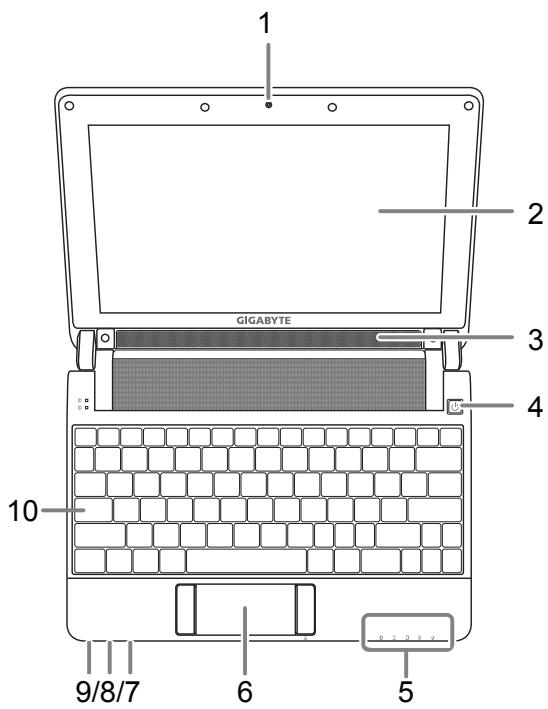
| No. | Item | Function |
| 1 | Web camera | Built-in 1.3M camera. |
| 2 | LCD | To display the content output form the system. |
| 3 | Speakers | The built-in dual speakers output for stereo sound |
| 4 | Power Button | Turns the computer on and off, or resumes whenever it is in suspend mode. |
| 5 | Six system LED indicators | Six LED lights show the status of the Booktop.From left to right :→ Bluetooth signal → WLAN signal→ HDD signal → Battery signal → Power on signal |
| 6 | Touch Pad | Use it to move the pointer, select and activate items on the screen. |
| 7 | Internal Mic | Built-in Internal Mic |
| 8 | Mic Jack | To connect MIC to input audio signal. |
| 9 | Line out | To connect equipment to output a sound signal. |
| 10 | Keyboard | To input characters and numbers into your computer. |
1.2 M1005 Left Side
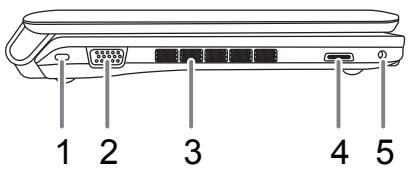
| No. | Item | Function |
| 1 | Kensington Lock | Connects a Kensington-compatible security lock. |
| 2 | D-SUB | To connect an external monitor. |
| 3 | Air Vent | To vent heat from Booktop M1005. |
| 4 | Docking Station Connector | To connect the Docking Station. |
| 5 | Docking Station Guider | To fix the Docking Station. |
1.3 Right Side
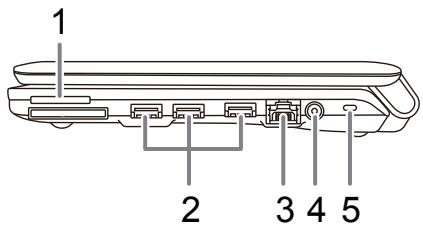
| No. | Item | Function |
| 1 | Media Card Slot | Media Card Reader. |
| 2 | USB Port | To connect USB Devices. |
| 3 | LAN RJ45 Jack | To connect LAN. |
| 4 | DC-in Jack | To connect AC adapter to power on Booktop M1005. |
| 5 | Kensington Lock | Connects a Kensington-compatible security lock. |
1.4 Bottom Side
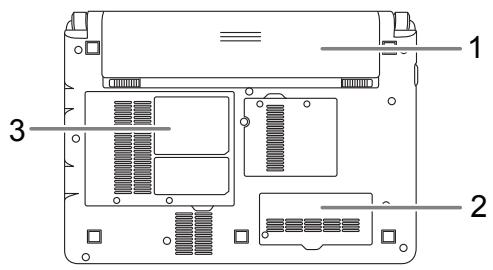
| No. | Item | Function |
| 1 | Battery Pack | Replaceable battery that serves as Booktop M1005 power supply. |
| 2 | Memory Door | To upgrade the DDRIII-Memory So-Dimm. |
| 3 | HDD Door | To upgrade the SATA HDD. |
1.5 Status Indicators
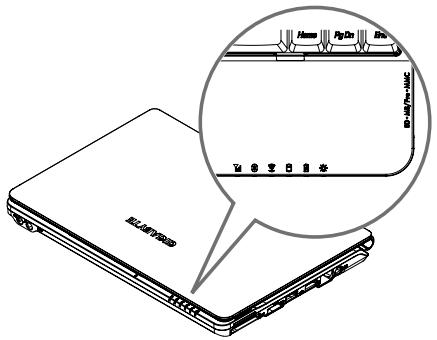
| Icon | Item | Function | |
| Bluetooth | Bluetooth on/off status. (Optional) | ||
| WLAN Status | Wireless on/off status. | ||
| HDD | Booktop M1005 is reading from, or writing to hard disk. | ||
| Battery status | Blue off | Recharging is finished or Booktop M1005 is not powered by AC adapter. | |
| Blue on | Battery is in recharging. | ||
| Power status | Blue off | System is turned off or in hibernation mode. | |
| Blue flashing | System is in Standby mode. | ||
| Blue on | System is in operating. | ||
1.6 Turning Your Booktop M1005 On and Off
Turning on the power
Open the Booktop M1005 lid, press the power button for one or two seconds. The power indicator will glow blue once the computer is powered on.
Turning off the power
If you are not going to use your Booktop M1005 computer for a while, it is best to turn off its power. Before turning off power, close all open programs first and shut down the operating system.
After turning off your Booktop M1005 computer, make it a habit to leave the LCD panel open for a while after it has been used for an extended period of time. This allows the interior of your Booktop M1005 computer to cool off. Closing the panel will force the heat up against the LCD screen, and doing so after a while may damage the screen. More importantly, never close the LCD panel for a long period of time when the computer is on or when the power saving function is disabled. Never place the Booktop into any carry case if it is still powered on.
1.7 Keyboard Functions
Booktop M1005 computer is equipped with a standard typewriter-layout keyboard and has extra features.
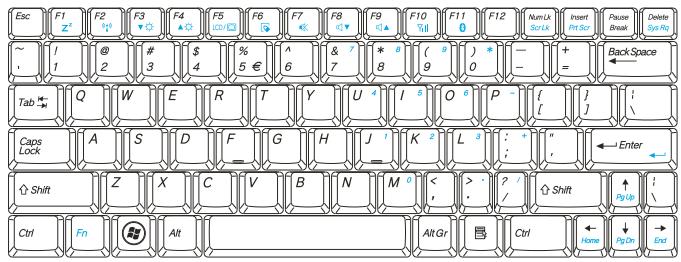
| Icon | Description |
| Caps Lock | Press Caps Lock to set all the characters as capital letters. |
| Num Lk | To turn on the numeric keypad overlay, press Num Lk. |
| Fn+Scrl Lk | Press this key to scroll the screen under some programs. |
 | Press this key to activate Windows® START menu. |
 | Press this key to function as the right key of mouse. |
Fn Combination Keys (Hot Keys)

Use □ Fn key combined with other keys to activate, close or set special functions. These combinations are also called Hot Keys. To use the Hot Keys, press and hold down
| Icon | Description |
| Fn+F1 Z^z | HibernationPress this key combination to make system enter hibernation mode. In this mode, the back light of the LCD panel would be turned off and a host of internal devices would enter into a stage of lower power consumption. |
| Fn+F2(●) | Wireless LANTo activate Wireless LAN. |
| Fn+F3▼ | Decrease BrightnessPress this key combination to decrease the brightness of the LCD. |
| Fn+F4▲ | Increase BrightnessPress this key combination to increase the brightness of the LCD. |
| Fn+F5LCD/□ | LCD / Video-out SwitchPress this key combination to switch between :LCD mode only;Video-out mode only;LCD and Video-out simultaneously modeNotice : This function works under certain setting of OS, please refer to your instruction of OS. |
| Fn+F6 | Touch Pad Enabled/DisabledPress this key combination to enable/disable the Touch Pad function. |
| Fn+F7 | MutePress this combination to mute/unmute the output of the audio signal. |
| Fn+F8 | Decrease VolumePress this key combination to decrease the volume output.Notice: This function works under certain settings of OS, please refer to your instruction of OS. |
| Fn+F9 | Increase VolumePress this key combination to increase the volume output.Notice: This function works under certain settings of OS, please refer to your instruction of OS. |
| Fn+F10 | 3.5GTo activate 3.5G (Optional function) |
| Fn+F11 | BluetoothTo activate Bluetooth (Optional function). |
1.8 Using the Touchpad
The built-in touch pad is a PS/2-compatible pointing devise that senses movement on its surface. This makes the cursor responds as you move your finger on the surface of the touchpad. The central location on the palm rest provides optimum comfort and support.
The following teaches you how to use the touch pad:
■ Move your finger across the touch pad to move the cursor.
■ Press the left and right buttons located on the edge of the touch pad to do selection and execution functions. These two buttons are similar to the left and right buttons on a mouse.
■ Tapping on the touch pad produces similar results.
1.9 Using the built-in camera
The availability of the function depend on the configuration of the Booktop M1005 you bought. The model you bought may be equipped with a built-in camera, and the built-in camera adds video functionality to instant messaging software and video editing software.

●●●●●●●●●●●●●●●●●●●●
Tips: For information on using the built-in camera, see the help file in the camerautility software.

Tips: The built-in camera cannot be shared by more than on software application. If another application is using the camera, exit the application before using the built-in camera with other software.
1.10 Using the Audio
natural_image
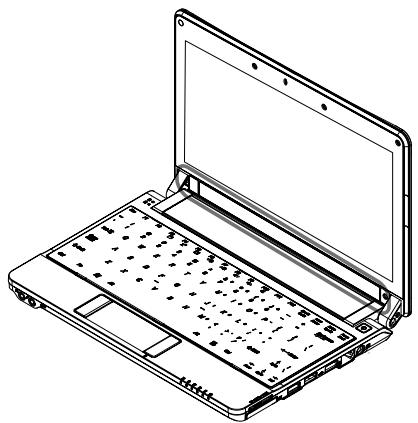
Line drawing of a laptop with visible screen and keyboard (no text or symbols)You can Control volume from within your Windows operation system: Click the volume icon 📋 on task bar and use the button to adjust volume.
Or you can double click the volume icon 📋 to activate Volume Control to adjust volumes for open applications.

Tips: You can use Fn combination keys to adjust volume. Please refer to "FN combination keys".
Please adjust the volume down before you connect any external audio equipment, such as earphones or MIC.
1.11 Using the Wireless LAN (WLAN)
You can use Wireless LAN to connect to the network and use the Internet in your home and office, so there is no need anymore to pull cables or use wires.
Connecting and using the wireless network
You can use the Function key (1.8 Using the Launch Keys) or Fn combination keys (1.8 Keyboard Function) to turn on WLAN.
Right-click the Wireless network icon on the Taskbar and select View available wireless networks.
Select AP (Access Point) you want to connect to and type necessary information. Click Connect. And If you place the mouse pointer on the Wireless network icon on the Taskbar, you can see the status of and connection strength for the wireless networks.

●●●●●●●●●●●●●●●●●●●●
Tips: You can learn details by referring to instruction documents of wireless network.

●●●●●●●●●●●●●●●●●●●
The availability of the functions depend on the configuration of the Booktop M1005 you bought, see the Spec sheet to see whether your model supports the functions.

......
Notice: Creating security settings for the wireless LAN is important, we assume no responsibility for any security problems that may arise from the use of the wireless LAN.
1.12 Using the Battery Pack
Booktop M1005 computer is designed to operate with one of the following power sources:
■ AC power (using the AC adapter connected to an electrical outlet)
■ Lithium-Ion (Li-Ion) battery pack
You should use the AC adapter whenever possible; use the battery pack only when AC power is unavailable. The rechargeable Li-Ion battery pack allows you to operate your Booktop M1005 computer without an external power source. When you use the AC adapter to connect your Booktop M1005 to a power outlet, the internal battery will begin to recharge. While the battery is charging, the Battery Charge icon on the indicator panel will be on. Once the battery is fully charged, the Battery Charge icon will turn off. Quick charging time is 2.5 hours for the Lithium-Ion (Li-Ion) battery when the computer is turned off, while the normal battery charging time is 3.5 hours.
- Operating video, or audio equipment can increase the use of your computer's power.
■ Decreasing the monitor brightness can also save battery power.
When the battery is not fully charged, allow your battery to be charged completely before using it (i.e., before disconnecting AC power). Calibrating the battery before use is also highly recommended. This is done in the system BIOS.
■ Li-Ion Battery is vulnerable; do not charge it with other power adapters, otherwise fire or explosion may occur.
Replacing the Battery
The battery will gradually weaken over time. We recommend that you replace your battery when you notice a significant decrease of battery capacity.
To change the battery pack, follow the steps below:
- Turn off the computer.
- Close the lid and flip the computer over.
- Slide the battery latch. Continue to hold it until the battery is removed.
- Make sure the replacement battery is properly oriented before inserting it into the battery compartment.
Note: The battery can not be charged to 100% when remaining battery is no less than 95% . It is based on the supplier's advice, and to extend charging frequency and battery life.
Maintenance of the AC Adapter
■ Do not connect the adapter to any other device.
- Do not step on the power cord or place heavy objects on top of it. Carefully route the power cord and keep cables away from all traffic.
- When unplugging the power cord, do not pull on the cord itself but on the plug connector instead.
If you are using an extension cord, make sure that the devices plugged onto the cord do not exceed its total capacity. Furthermore, the devices plugged into the electrical outlet shall not exceed the fuse's total ampere rating.
■ Please verify power voltage before connecting the electrical cord to the power outlet. If you are uncertain of its power specification, please consult with your local vendors or power company for more details.
1.13 Connecting the AC Adapter
The AC adapter converts AC power to DC power and reduces the voltage supplied to the computer. It can automatically adjust to any voltage from 100 to 240 volts and outputs power at 12V, (12V, 3.0A for M1005), allowing you to use your Booktop M1005 computer in almost any region globally.
CAUTION: Use only the AC adapter and the power cord we recommend. Using the wrong adapter may damage your computer. We assume no responsibilities for damages arising from misuse of AC adapters.
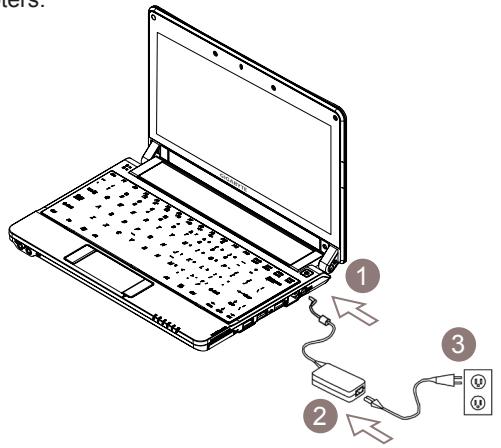
To properly connect the adapter, follow the steps as below:
- Connect the power cord to the AC adapter.
- Connect the AC adapter to the DC power port of your computer.
- Connect the AC adapter power cord to an AC outlet.
1.14 Installing M1005 Device Drivers
If your Booktop M1005 Computer already has an operating system installed, it is best to install all necessary device drivers in order for the hardware to properly function.
Before installing drivers, check with your vendors to see if they have already installed all the drivers with the operating system, if not, please follow the steps below:
- You can find the Utility Driver CD like the one shown below:
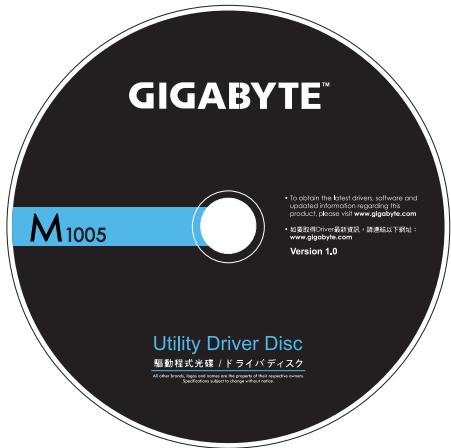
- Put the CD into the CD R-W or DVD-RW (optional) Drive. An Auto Run installation screen will appear.
1.15 Operating Temperature
Ideal Operating Temperature : 10°C to 40°C
natural_image
Illustration of a megaphone and a battery with stylized rays, no text or symbols presentChapter 2 Battery
2.1 Battery Pack
Your Booktop M1005 is equipped with a high-energy rechargeable Lithium Ion (Li-Ion) battery pack. Battery life will vary depending on the product configuration, product model, applications loaded on the product, power management settings of the product, and the product features used by the customer. As with all batteries, the maximum capacity of this battery will decrease with time and usage.
2.2 Recharging The Battery Pack
Your Booktop M1005 supports both on-line and off-line recharge.
Follow the procedure below to recharge battery:
■ Make sure the battery pack is installed in the Booktop M1005
■ Connect the AC adapter to the Booktop M1005 and to an electrical outlet. (See Page 10 for Instructions)
When a battery pack is being recharged, its battery LED (located at the upper left corner of LCD display) should be lit. For details on the LEDs, please refer to Chapter 1.3. When the Booktop M1005 is OFF, a depleted Li-Ion battery will take 3.5 hours to recharge.
2.3 Questions And Answers
Q: I can feel a mild heat next to the battery pack. Is this normal?
A: The battery will generate heat during recharging and discharging. There is a protection circuit inside the BBooktop M1005 to prevent overheating. User needs not worry.
Q: My battery operation time is not as long as it should be. Why?
A: The battery is heat sensitive and can only be charged to its maximum if the battery and its environmental temperature remain within 15-25°C (59-77°F). The more the temperature deviates from this range during recharging, the less chance there is for the battery to be fully charged. In order to recharge the pack to its full capacity, users are requested to cool down the unit by unplugging the AC Adapter. Wait until it is cooled down. Then plug in the AC Adapter to start recharging again.
Q: I did not use my spare battery for a few days. Even though it was fully recharged, there wasn't as much power left as a newly charged one. Why?
A: The batteries will self-discharge when they are not being recharged. To make sure a battery pack is fully charged, recharge before use. Always keep the battery inside the Booktop M1005 and have the AC adapter connected whenever possible.
Q: I did not use my spare battery for months. I have a problem with recharging it.
A: If you happen to leave your battery pack to go through an extended period of self-discharge, say more than three months, the battery voltage level will become too low and needs to be Pre-Charged (to bring the battery voltage level high enough) before it automatically (for Li-Ion only) resumes its normal Fast Charge. Pre-Charge may take 30 minutes. Fast Charge usually takes 2\~3 hours.
2.4 Battery Maintenance
To maintain the battery pack's maximum capacity, you should occasionally let the Booktop M1005 deplete its battery power completely before recharging.
To carry out a complete depletion of the battery, disconnect the AC adapter and let your Booktop M1005 consume the remaining battery power. To speed up the depletion, use the HDD as much as possible. When the battery is empty, wait for the Booktop M1005 to cool down (especially the battery). The temperature should be within 15-25°C (59-77°F). Then insert the AC adapter to recharge the battery.
2.5 Power Consumption
The Windows ^™ operating system has incorporated the latest state-of-the-art ACPI (Advanced Configuration Power Interface) power management methodology. In order to fully utilize the power of your battery packs, it would be a good idea for you to spend some time to acquire a basic understanding of the power management concept from your operating system.
In Windows™ Operating Systems, you can go through Power Options of the Control Panel according to the version of Windows™ Operating System the Booktop M1005 applies. We shall not describe them in any detail.
2.6 Reducing Power Consumption
Although your Booktop M1005 (together with the operating system) is capable of power conservation, there are measures you can take to reduce the power consumption:
■ Use the AC Adapter for power whenever possible.
■ Try to use the HDD drive to read and write files, instead of using the external USB device.
■ Disable unused devices, such as Web Cam, WLAN, Bluetooth ^® , and etc.
■ Decrease LCD panel brightness through Windows.
Note: Whenever system is powered on or powered off, make sure the battery pack is installed in the battery pack compartment.
2.7 Removing The Battery Pack
This battery pack can easily be removed and replaced. Make sure that the computer is properly shutdown before changing the battery pack. If you would like to change the battery pack while power is on, make sure this battery pack is not the only electrical source to the system unit. Follow the steps below to remove the battery pack.
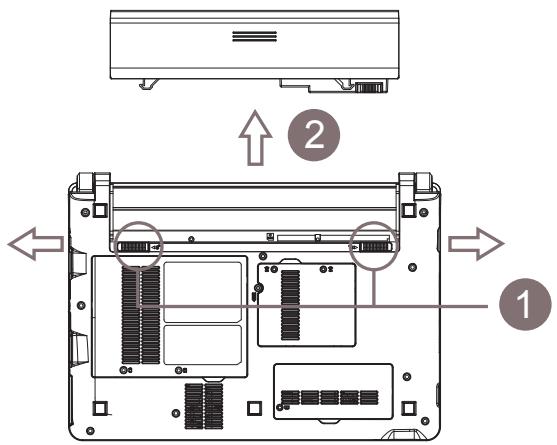
■ Make sure the system is properly shutdown.
■ Flip the system upside down as shown.
■ Push the battery latch to the unlock position as shown by #1.
■ Remove the battery pack as shown by #2.
To insert the battery pack, reverse the steps above.
2.8 Connecting System To AC Adapter
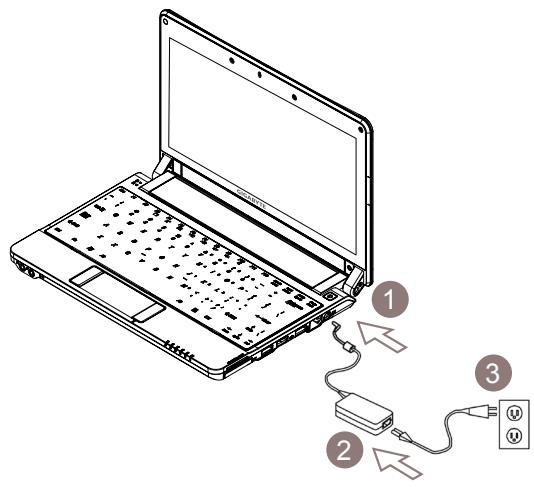
■ Connect AC adapter to system unit as shown by #1.
■ Connect AC power cord to AC adapter as shown by #2.
■ Connect other end of power cord to an electrical outlet as shown by #3.
2.9 Battery Capacity Inspection
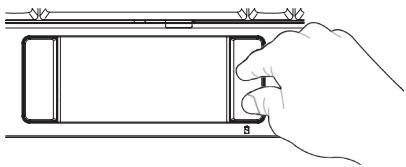
When system is under "Standy By", "Hibernation" and "Power Off", you can press the right touchpad button to inspect the battery capacity.
natural_image
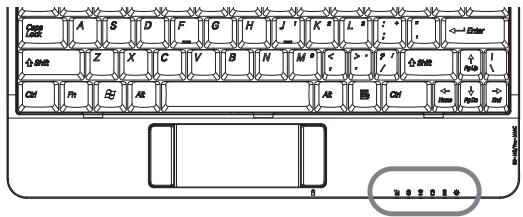
Hand holding a small object with a ruler above it, no text or symbols visibleThe LED indicators will show the battery capacity status.

natural_image
Technical line drawing of a mechanical component with internal cavities and a circular base (no text or symbols)Chapter 3 The Docking Station
3.1 The Docking Station Instruction
The creation of this device provides the Booktop with a vertical Docking base for expansion use. The Docking Station enables an external connectivity solution to connecting to an external display and to common computer peripherals as the portable laptop computer is well placed on the device. In order to avoid any of the discomforts causing any ill-human factors arising from constant use. In addition, the Docking Station is designed to hold the Booktop in a vertical position which saves more space compared to the other traditional desktop computers and is a huge space advantage.
3.2 Docking Station Panoramic View
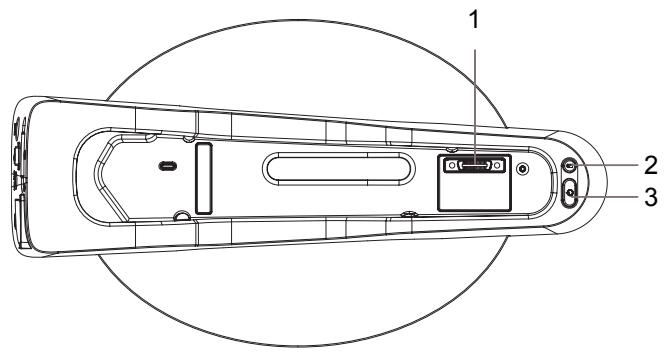
- Docking Port Connector for Docking Station
- Battery Indicator button
- Power Button
Note:
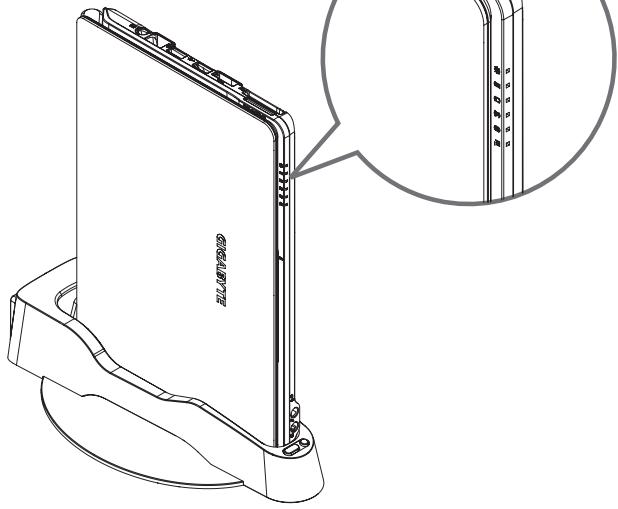
Battery Indicator Button:
- When you press this button, you can show the battery capacity by the six dynamic LED Indicators on the Booktop unit.
A dynamic LEDs display the battery's capacity whatever the battery is in a charging or discharging mode.
Above 90%: 6 indicators all light up
74%\~90%: shows 5 indicators lit
58%\~74%: shows 4 indicators lit
42%\~58%: shows 3 indicators lit
26%\~42%: shows 2 indicators lit
10%\~26%: shows 1 indicators lit
Under 10%: flashes 1 indicator
natural_image
Technical line drawing of a foldable device with mounting base and side panel, showing internal components and assembly (no text or symbols)3.3 Rear View
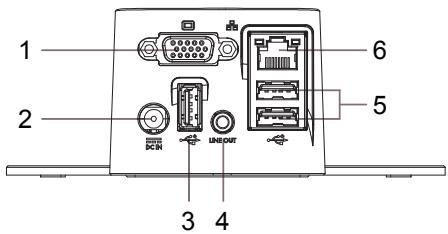
- D-SUB
- DC-in Jack
- USB Port
- Line Out
- USB Ports
- LAN RJ45 Jack
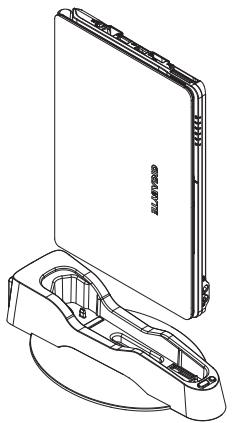
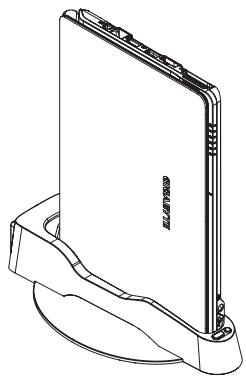
3.4 Mounting The System Unit
■ Make sure connectors from both sides are well aligned.
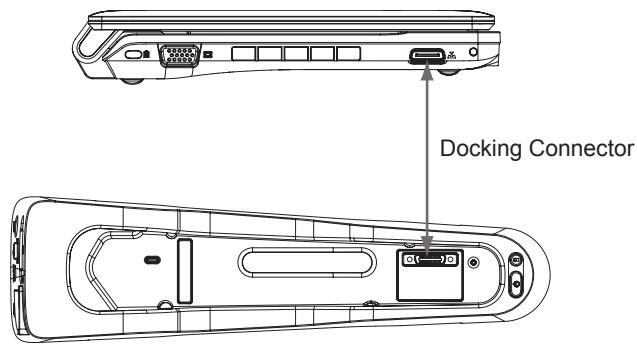
- Put the Booktop unit in the Docking Station as shown.
natural_image
Technical line drawing of a tablet device with a clamped base (no text or symbols)■ System unit is mounted when the two connectors are fully engaged as shown.
natural_image
Line drawing of a flat-screen electronic device mounted on a base (no text or symbols)Reverse the above steps to un-mount the system unit.
Note:
- The Docking Station design supports the hot plug-and-play standard.
- You can Boot up or shut down the system by pressing the "Power Button" on the Docking Station.
- The Docking Station work only when the DC-IN Jack is insert.
- While the system is working, please do not unplug the Power Cord from the Docking Station.
- EMI certified at 1024 x 768 resolution.
Chapter 4 Smart Manager Introduction
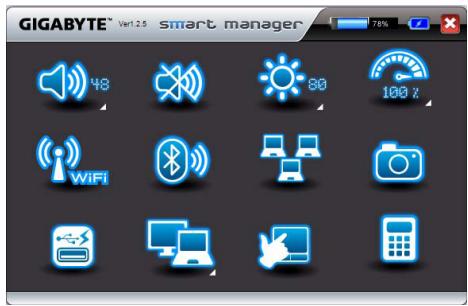
GIGABYTE Smart Manager Functions

Due to variations of Smart Manager versions, the interface, icons, sequence and functions might be different comparing to the guide.

98%
Battery Status:
The Battery icon with capacity status will be shown on the screen after the battery is placed.

AC-IN:
The AC-IN icon will be shown on the screen once the AC Adapter is plugged in. The battery icon will be shown on the screen when using battery as the main power source.

80
Volume control:
Press the volume control icon to adjust the volume level.

Mute:
Press the mute icon to enable/disable the mute mode.

90
Brightness:
Press the brightness icon to adjust the level of the display backlight brightness.

Power mode:
Press the power mode icon to select different power management mode.

[Non-Text]
Wireless LAN:
Press the Wireless LAN icon to enable/disable Wireless LAN connectivity.

Bluetooth:
Press the Bluetooth icon to enable/disable Bluetooth radio.

Camera:
Press the camera icon to turn on/off Webcam power.

Smart Charge
Press the Smart Charge icon to select the USB power supplying mode under Sleep Mode when using battery*
\* The Introduction of GIGABYTE Smart Charge function:
The GIGABYTE Smart Charge allows you to charge your digital devices through USB ports while the computer is in the sleep mode. When your computer is powered through an AC adapter by direct AC power supply, you will be able to use Smart Charge when the computer is in Off/Sleep/Hibernation mode. However, if the battery pack is the sole power supply for your computer, Smart Charge only works in Off/Hibernation mode.
To ensure sufficient power supply for system operation, you can set the computer (via GIGABYTE Smart Manager) to automatically cease this function at 50/40/30% of power level. (Note: Smart Charge function is available in selected models.)

Chapter 5 Troubleshooting / Q&A
This chapter contains advice and solutions to a few basic problems you might encounter when you use the Booktop M1005. Please refer to this chapter and follow the instructions to solve any problems.
5.1 Troubleshooting

●●●●●●●●●●●●●●●●●●●●●
Warning: Under the condition that you can't handle problems, please contact to your dealer to get professional assistance and service.
AC Adapter
| Trouble | Solution |
| No power supplied to Booktop M1005 | Make sure the AC adapter is well connected to the power source and Booktop M1005. |
| Check the cable and plug to make sure they are OK. If they are broken, please contact your local dealer ASAP. |
Battery pack
| Trouble | Solution |
| No power supplied to Booktop M1005 | The remaining power in battery pack may be not enough to power on the machine. Connect AC Adapter to recharge it. |
| Can't be recharged after connecting AC Adapter | Check temperature of battery pack's surface. Battery pack can't be recharged if its temperature is too high or too low. Recharge it only after its temperature is the same with the normal environment one. |
| If battery pack is fully discharged, it won't be recharged at once. Please wait for a few some minutes. | |
| If the power indicators of the battery pack are always not lit up, its life may be over. Please contact your dealer to buy another one. | |
| Battery life is not as long as it should be | Battery life depends on usage conditions of the Booktop M1005. You can change the settings in the Power Manager of the OS to save power. |
| Battery pack can't exert its full capacity if it works when not fully recharged frequently. Power Booktop M1005 by battery pack until its power drops to a critically low level and the machine emits a high-pitched beep or displays a warning message; after that, recharge battery packs to make battery pack work longer. |

WARNING: Please pay attention to the following information regarding the battery pack:
- Be sure to recycle the waste batteries property.
- Do not place the batteries near high-temperature locations, fire source or in burning fire as this may cause the batteries to explode
- Do not assemble/disassemble /modify the batteries without authorization.
- Use the battery pack provided by the original manufacturer only. Batteries other than those supplied by the original manufacturer may damage the device.
Keyboard
| Trouble | Solution |
| Press character keys but number displayed instead of character | Check if Num Lock is activated. |
| Confusing display | Make sure there is no software to configure the keyboard. |
WARNING: Please pay attention to the following information about keyboard maintenance.
- Dust build-up may occur in the keyboard after long-term use. It is recommended to clean the keyboard with a small brush. Please shut down the machine before cleaning the surface of the keyboard and wipe it with a soft cloth, dipped in cleaner or water, gently.
- In case any liquid enters the keyboard, shut off the power supply immediately, remove the batteries and contact the original manufacturer directly for repair. Do not disassemble the keyboard yourself for repair.
Hard disc drive (HDD)
| Trouble | Solution |
| HDD can’t be booted | The operating system is corrupted by incorrect operation or virus. Try to clean the virus and then configure your operating system correctly. |
| Maybe the documents of your OS run in error; please refer to the manual of your OS. | |
| HDD performs very slowly | There is too much file fragment. Use disk defrag tools to rearrange the programs on the hard disk. |
WARNING: Please pay attention to the following information about Hard Drive maintenance.
- The hard disk is a high-speed data storage device. Avoid using the Booktop in unstable locations as far as possible to prevent hard disk damage and data loss.
- Please use the computer in accordance with normal startup/shutdown procedures; improper startup/shutdown may shorten the service life of the hard disk.
LCD
| Trouble | Solution |
| The screen is blank | Press hot key Fn + F5 to change the display mode if certain external monitor is connected. |
| Make sure the system isn't in the mode of Hibernation or Standby. |

WARNING: Please pay attention to the below points on the mounting design of the panel for the LCD module.
- Do not put heavy force along the edges of the active area.
- Do not put a heavy shock or stress on the panel and film surface.
- Do not put heavy goods on the display panel.

- The LCD screen is the most fragile component of the Booktop and is prone to damage under external forces. Do not place any object on the keyboard or between the keyboard and the screen to prevent damage to the LCD screen.
- When traveling with GIGABYTE Booktop M1005, place it in a special case in a tidy manner as far as possible. Excess objects may squeeze the machine and therefore damage the LCD screen.
- Do not touch the screen with sharp objects or fingers directly.
- It is recommended that the LCD screen be wiped with a special screen cleaning cloth. Wipe the screen gently to avoid breakage of the screen.
- Prevent any liquid from entering the LCD screen as this may damage the elements of the LCD screen.
Printer
| Trouble | Solution |
| The data can't be output from Book-top M1005 to printer | Make sure the printer is powered on.Make sure its cable is OK and its USB interface is well connected to Booktop M1005. |
| Make sure your printer is compatible with your Booktop M1005. | |
| Error printing | Please refer to the user's manual of your printer for help. |
Audio
| Trouble | Solution |
| No sound emitted | Adjust sound controller. |
| Check the setting of sound volume of software. | |
| Check if the ear phone is firmly connected. | |
| Check the Devices Manager of Windows. Be sure the Sound function has been activated and isn't interfering with other hardware. |
USB
| Trouble | Solution |
| Equipments connected can't work | Check and be sure USB port of Booktop M1005 is firmly connected with the USB cord of the equipment. |
| Be sure the driver of the equipment is installed correctly. |
Stand by / Hibernation
| Trouble | Solution |
| Can’t enter into Standby/Hibernation | Please check if the Windows Media Player is running. If Yes, the Booktop M1005 can’t enter into Standby or Hibernation mode. Please close Windows Media Player. |
LAN
| Trouble | Solution |
| Can't be connected | Be sure the RJ45 connector is firmly connected to the Network Hub or Switch. |
5.2 Q&A
My computer switches to hibernation mode much too quickly, and I have to constantly hit a key or move the mouse to bring back the screen. What can I do?
This is part of Windows Power Management. Access Power Management by clicking on Start / Control Panel / Performance and Maintenance / Power Options, and change the time next to the “Turn off monitor” option to the time you want. You have the choice of either adjusting time for the power supply or for the battery.
I've heard that cleaning and rearranging files on the hard drive will improve program's launch speed, how do I do that?
Good disk maintenances can improve program launch speed. This normally includes deleting unnecessary files, and defragmenting hard disk so that files can be more efficiently grouped. Windows contains maintenance utilities for these tasks; run Disk Cleanup to remove unnecessary files, and Disk Defragmenter to defragment file blocks. For more information about these utilities, please refer to your Windows documentation.
What kind of external microphone can I use with my Booktop computer?
You will need to use a self-amplifying microphone.
There are echoes coming from my speakers. What can I do?
Double click on the Speaker icon on the task bar. Then, under Microphone Balance, check the Mute box.
Because of a software problem, I was unable to shut the computer down from Windows, I pressed the power button to power off the computer, but it didn't work. How can I force a power down?
Make sure you press the power button for at least 4 seconds. Normally, this will force the computer to shut off.
Why can't I charge the battery of my portable computer after it was out of use for some time?
After your portable computer has not been used for a long time (say, more than a month), the battery will enter into low voltage protection mode. Under this circumstance, restoring to normal voltage will require the battery to be slowly charged for several hours. Once the battery has been fully charged, your computer will resume to normal operation.
My computer says: "CMOS Battery Low", what should I do?
If your computer is without power (i.e. unplug the computer power source from the power outlet and remove the battery pack from it) for over 45 days, you would lose the information stored in CMOS.
Please follow the steps below to reconfigure your CMOS settings:
-
Press F2 to enter into the BIOS setup utility.
-
Select "Load Optional Defaults?". When you see the following prompt, choose
and then press . -
Select "Save Changes and Exit", select
and press to restart your computer.
How to unplug or eject devices
-
In the notification area next to your task bar, double-click the Safe Removal icon. Safe Removal displays a list of Plug and Play devices that support safe removal and that are currently attached to the system. If you do not see the Safe Removal icon, your device does not support safe removal, and you cannot unplug or eject your device using Safe Removal.
-
In Safely Remove Hardware, in the list of devices, select the device that you want to unplug or eject, and then click Stop. This tells the system that you will be unplugging or ejecting the device.
-
In Stop a Hardware device, click OK. A notification appears stating that it is now safe to unplug or eject the device.
Caution
- Unplugging or ejecting a device that supports safe removal without first using the Safe Removal application to warn the system can cause data to be lost or your system to become unstable. For example, if you use Safe Removal, however, you can warn the system before you unplug or eject a device, preventing possible loss of data.
Note
- For removable storage devices that can safely be removed while the system is on, the system disables write caching by default. It does this so the devices can be removed without loss of data. When write caching is disabled, however, the system will likely experience slower performance, so be sure to enable write caching when you have finished removing the device.
Does M1005 provide a hardware switch or function button to enable/disable the Bluetooth function?
M1005 provides a combined function button to enable/disable the 3.5G (Fn+F10) and Bluetooth (Fn+F11) functions.
What is the capacity of SDHC cards that M1005 can support?
The specification of SDHC that M1005 SD card reader supports shall be in accordance with that of the SD Association. Currently, the maximum capacity announced by SD Association is 32GB http://www.sdcard.org/developers/tech/sdhc/
How can M1005 BIOS be upgraded in the DOS and Windows mode?
Please refer to GIGABYTE website "How to upgrade M1005 BIOS in the DOS and Windows mode?"

natural_image
Illustration of a computer monitor with a document, no text or symbols presentAppendix I Specifications
Processor
Intel ^® Atom Dual Core Processor
OS
■ Microsoft Windows XP
Chipset
Intel® NM10 Express Chipset
Memory
■ 1GB/2GB DDRIII, 1 slot (Max 2GB)
Video Interface
Intel® GMA 3150
Display
■ 10.1"LCD panel / WSVGA 1024x600
Hard Disk Drive
■ 2.5",9.5mm S-ATA HDD 160/250/320GB
Input Device
■ 83 key keyboard/Touch Pad
I/O Port
■ USB X 3, Mic in/Earphone out/D-SUB
■ RJ45 / 4 in 1 Card Reader
Audio
■ Speaker 1.5 watt x 2
Bluetooth
■ Bluetooth 2.1 built-in (Optional)
Web Camera
■ 1.3M pixel CMOS camera
LAN/Wierless LAN
■ 802.11b/g/n by mini-card
Keyboard
■ 83 key keyboard
Protection
■ Kensington Lock
Battery
■ 4 Cell Li-ion 4400 mAh, Battery (Optional)
Dimension & Weight
265 x 191 x 26.5\~30.5mm
■ 1.26kg (Including 4 cell battery)
■ \~1.3kg (Including 6 cell battery)
Service
■ More service information, please refer to http://www.GIGABYTE.com

The above specification is for users' reference. The final configuration depends on the Booktop M1005 users bought.
Appendix II Recovery Update Notices
GIGABYTE Xpress Recovery
System Recovery - Restore your T1000 Operating System
The hard drive of the T1000 has a hidden partition that contains a full backup image of the operating system that can be used to recover the system in the event that something happens to the operating system.
If the hard drive is removed or the partition deleted, the recover options will no longer be available and a recovery service will be needed.
Launch System Recovery
The System Recover feature is part of the notebook installation and it ships preset from the factory. The Options menu allows you to launch the Windows Recovery tool to reinstall the operating system to factory defaults.
Below will briefly describe how to launch the Recovery Tool and to get the recovery started.
- Turn off or restart the Notebook.
- Turn the notebook on and press and hold the F9 key to launch the tool.
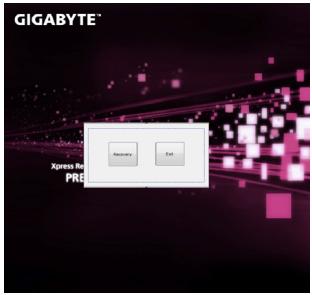
- The recovery window will open and give you the option to "Recovery" in the toolbar. You will be prompted if you want to recovery. Click on "Recovery" to begin the repair if you do.
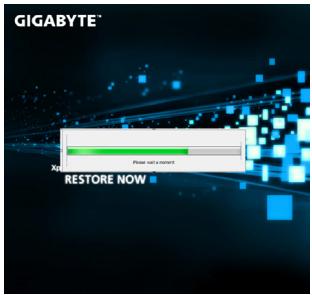
- The "Recovering" Window will open and begin the recovery.

- Once it is complete you will be prompted to reboot the notebook.
natural_image
Illustration of a person lifting a satellite dish over a globe (no text or symbols)Appendix III Service Centers
This appendix will list our service centers for your Booktop M1005 computer.
Warranty Clause
- The warranty of the products of GIGABYTE shall commence from the date specified on the invoice issued by the dealer. Consumers shall keep the purchase invoice properly to safeguard the legal rights and interests.
- To identify the warranty period of various products, please visit related webpages of GIGABYTE at http://service.GIGABYTE.tw/ for query. The dealer shall be responsible for the warranty provided or sold by the dealer itself.
- The commencing date of warranty of products distributed or redistributed by business partners shall be determined in accordance with Article 2.
- This warranty does not cover the pre-installed software products, operating system, consumables and other accessories (e.g. gifts/rucksack/disk/mouse/packaging material, etc).
- In the absence of the sales invoice of the special dealer of GIGABYTE, the warranty period will be determined based on the GIGABYTE label and serial number on the product.
- In case there is no GIGABYTE label or serial number on the product, the serial number does not match the product or is illegible, no warranty or aftersales service will be extended. In case of any need for repair, contact the original dealer for assistance.
- In case of any defect or malfunction in the product within 7 days from the purchase date (except for the circumstance listed in Article 11), the consumer may request the original dealer to replace the product with all accessories in the original packaging as well as the sales proof with a new one; otherwise, the defect or malfunction will be treated by means of repair.
※In case that the dealer has no stock for immediate replacement, it shall contact the agent as soon as possible for replacement.
- In case of any defect in the appearance of a new product attributed to human negligence, no request shall be made to GIGABYTE for replacement with a new one.
- Any product sent for repair shall be packed using the original packing material of the manufacturer or appropriate materials (e.g. paper carton, air bag or poly foam). In case of damage during transit due to improper packaging, GIGABYTE will not provide warranty services.
- In case that a product sent for repair during the warranty period cannot be repaired, GIGABYTE will replace the product with a comparable new product or an equivalent one.
- This warranty will become invalid if the product fails or is damaged for the following reasons:
(1) Natural disaster, accident or human negligence
(2) Violation of the operating instructions in the user manual of the product
(3) Improper assembly or request for installation service
(4) Use of unauthorized accessories
(5) Use of the product not in the permitted environment
(6) Unauthorized disassembly
(7) Abnormal use
(8) Line or part oxidation
(9) Use of the product as testing device (e.g. RAM, VGA and USB test)
(10)Problems and malfunction resulting from computer virus
- Considerate reminder !!! Be sure to backup important data before sending the product for repair. GIGABYTE is responsible for the repair and test of the product only and will not provide services such as data backup, etc. GIGABYTE will not assume responsibility for any data loss during the repair process.
www.gigabyte.com
- Trademarks
- Safety Instructions
- WARNING: Voiding of the Warranty
- Regulatory Notices
- Federal Communications Commission Notice
- RF exposure
- CE Notice (European Union)
- For CB:
- Battery Disposal & Caution
- BSMI Notice (Taiwan Only)
- Preface
- Content
- Chapter 1 Introducing Your Booktop M1005
- Chapter 2 Battery
- Chapter 3 The Docking Station
- Chapter 4 Introduction to Smart Manager....27
- Chapter 5 Troubleshooting / Q&A
- Appendix I Specifications....37
- Top View
- M1005 Left Side
- Right Side
- Bottom Side
- Status Indicators
- Turning Your Booktop M1005 On and Off
- Turning on the power
- Turning off the power
- Keyboard Functions
- Fn Combination Keys (Hot Keys)
- Using the Touchpad
- Using the built-in camera
- Using the Audio
- Using the Wireless LAN (WLAN)
- Connecting and using the wireless network
- Using the Battery Pack
- Replacing the Battery
- Maintenance of the AC Adapter
- Connecting the AC Adapter
- Installing M1005 Device Drivers
- Operating Temperature
- Battery Pack
- Recharging The Battery Pack
- Questions And Answers
- Battery Maintenance
- Power Consumption
- Reducing Power Consumption
- Removing The Battery Pack
- Connecting System To AC Adapter
- Battery Capacity Inspection
- The Docking Station Instruction
- Docking Station Panoramic View
- Note:
- Rear View
- Mounting The System Unit
- Chapter 4 Smart Manager Introduction
- Battery Status:
- AC-IN:
- Volume control:
- Mute:
- Brightness:
- Power mode:
- Wireless LAN:
- Bluetooth:
- Camera:
- Smart Charge
- \* The Introduction of GIGABYTE Smart Charge function:
- Troubleshooting
- Q&A
- Caution
- Note
- Appendix I Specifications
- Processor
- OS
- Chipset
- Memory
- Video Interface
- Display
- Hard Disk Drive
- Input Device
- I/O Port
- Audio
- Bluetooth
- Web Camera
- LAN/Wierless LAN
- Keyboard
- Protection
- Battery
- Dimension & Weight
- Service
- Appendix II Recovery Update Notices
- GIGABYTE Xpress Recovery
- Launch System Recovery
- Appendix III Service Centers
- Warranty Clause
Brand : GIGABYTE
Model : M1005
Category : Laptop