
WIRELESS DISPLAY ADAPTER 2 HDMI - Wireless Adapter MICROSOFT - Free user manual and instructions
Find the device manual for free WIRELESS DISPLAY ADAPTER 2 HDMI MICROSOFT in PDF.



| Product type | Wireless adapter |
| Brand | Microsoft |
| Model | Wireless Display Adapter 2 HDMI |
| Video connectivity | HDMI |
| Power | Via USB port (cable included) |
| Wireless technology | Miracast certified Wi-Fi |
| Maximum range | 6.1 m (20 ft) |
| Compatible operating systems | Windows 10, Windows 8.1, Surface |
| Dimensions (approx.) | 80 x 30 x 15 mm |
| Weight (approx.) | 30 g |
| Care and cleaning | Clean with a soft, dry cloth. Avoid liquids. |
| Safety | Do not expose to water or humidity. Use in a dry environment. |
| Spare parts and repairability | Not repairable. USB cable supplied as spare part. |
| Box contents | Adapter, USB cable, quick start guide |
| Main functions | Stream the screen of a compatible device to a TV or monitor via HDMI |
Frequently Asked Questions - WIRELESS DISPLAY ADAPTER 2 HDMI MICROSOFT
User questions about WIRELESS DISPLAY ADAPTER 2 HDMI MICROSOFT
0 question about this device. Answer the ones you know or ask your own.
Ask a new question about this device
Download the instructions for your Wireless Adapter in PDF format for free! Find your manual WIRELESS DISPLAY ADAPTER 2 HDMI - MICROSOFT and take your electronic device back in hand. On this page are published all the documents necessary for the use of your device. WIRELESS DISPLAY ADAPTER 2 HDMI by MICROSOFT.
USER MANUAL WIRELESS DISPLAY ADAPTER 2 HDMI MICROSOFT
Note: You can wirelessly connect Wi-Fi CERTIFIED Miracast® enabled devices to a TV or monitor (available HDMI port and USB power required).
- For best performance, keep your connected device within 20 feet of the TV or monitor
-
The adapter must always be plugged into both the HDMI and USB ports. The adapter is powered through the USB port
-
Connect your Microsoft Wireless Display Adapter to the HDMI and powered USB ports on your TV or monitor
- On the TV, set the channel to the HDMI source
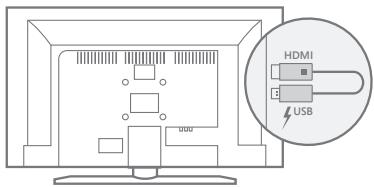
Note: Use the included USB cable if you need to extend the Microsoft Wireless Display Adapter to fit your TV or monitor.
Windows 10 : Surface or Surface Pro
Action center > Connect > Select Wireless Display Adapter
Windows 10: Windows device
Notifications > Connect > Select Wireless Display Adapter
Windows 8.1: Surface, Surface Pro or Windows device
- Tap Devices > Project > Add a wireless display
- To pair, tap Microsoft Wireless Display in the list
On other Miracast enabled devices
- Install the latest updates
- Find the Microsoft Wireless Display Adapter on your device
Download optional settings app for Windows
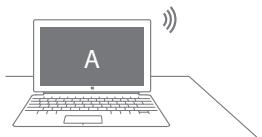
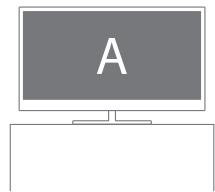
- For adapter updates and additional settings, download Microsoft Wireless Display Adapter from the Windows Store
For more information visit microsoft.com/hardware
Installation
Brand : MICROSOFT
Model : WIRELESS DISPLAY ADAPTER 2 HDMI
Category : Wireless Adapter