
CONFERENCE 1800 - Conference phone ALCATEL - Free user manual and instructions
Find the device manual for free CONFERENCE 1800 ALCATEL in PDF.

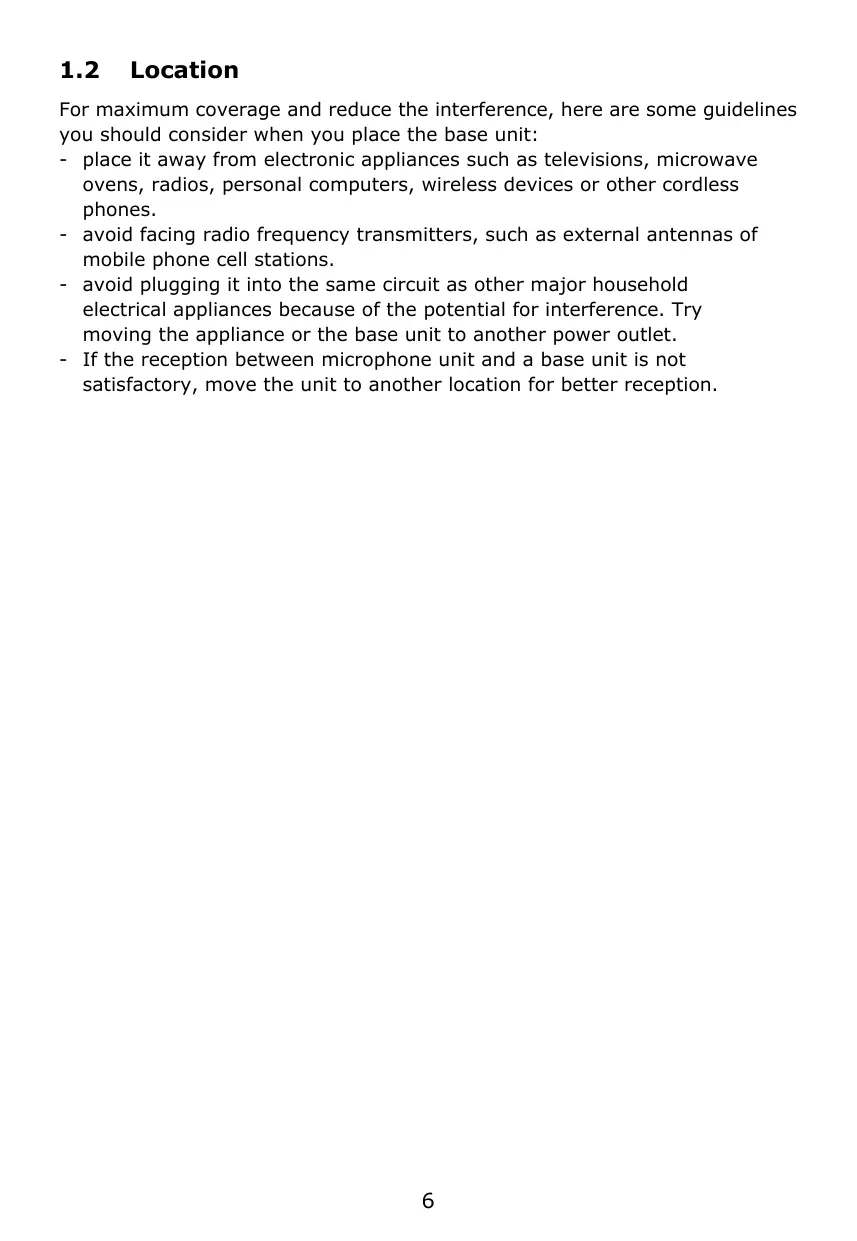

| Product Type | Conference phone with 4 wireless microphones |
| Power Supply | 9V DC / 2A power adapter (model S018AGP0900200) |
| Battery (per microphone) | Li-Polymer 2.4V 240mAh |
| Talk time (microphone) | 5 hours |
| Standby time (microphone) | 70 hours |
| Indoor range (wireless microphone) | Up to 30 meters |
| Maximum number of wireless microphones | 4 |
| Phonebook | 50 entries (up to 30 digits, 15 characters per name) |
| Call log | 50 entries with date/time |
| Speed dial | 5 slots (keys 1 to 5) |
| Main functions | Conference calls (3 parties), mute, microphone search, redial list (10 numbers), call transfer, adjustable ringtone (volume and melody), delay, PABX mode, prefix code |
| Maintenance and cleaning | Clean with a damp cloth; do not use liquid or aerosol cleaners |
| Safety | Unplug before cleaning; do not use near water, heat sources, or outdoors during a storm; use only the provided batteries |
| Spare parts and repairability | Replacement batteries available (Li-Polymer 2.4V 240mAh); identical power adapter required |
| General information | Brand: Alcatel; Model: Conference 1800; Manufacturer: ATLINKS Europe |
Frequently Asked Questions - CONFERENCE 1800 ALCATEL
User questions about CONFERENCE 1800 ALCATEL
0 question about this device. Answer the ones you know or ask your own.
Ask a new question about this device
Download the instructions for your Conference phone in PDF format for free! Find your manual CONFERENCE 1800 - ALCATEL and take your electronic device back in hand. On this page are published all the documents necessary for the use of your device. CONFERENCE 1800 by ALCATEL.
USER MANUAL CONFERENCE 1800 ALCATEL
home & business phones
Alcatel Conference 1800
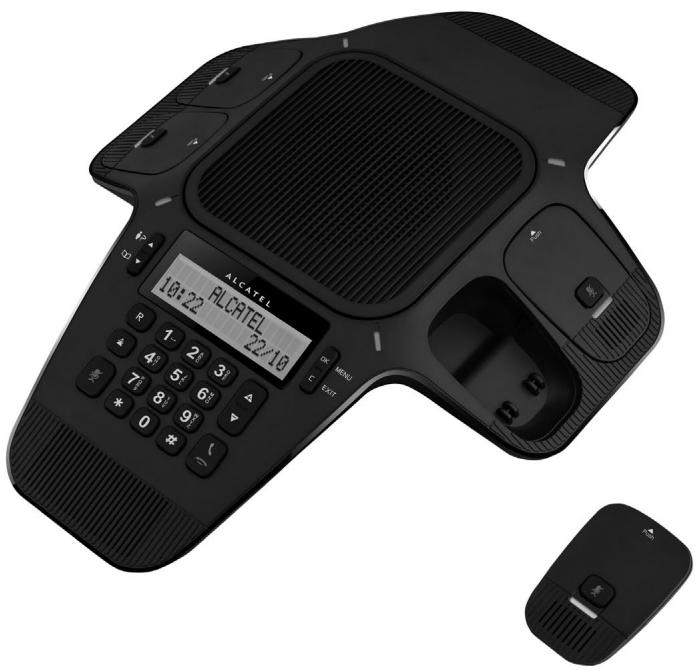
TABLE OF CONTENTS
1 IMPORTANT SAFETY INSTRUCTIONS. 4
1.1 Package Contents 5
1.2 Location 6
2 INSTALLING YOUR PHONE 7
2.1 Connecting the Base Unit. 7
2.2 Set Up Wireless Microphone Units.. 8
3 GETTING TO KNOW YOUR PHONE 10
3.1 Base Unit. 10
3.2 Wireless Microphone Unit 12
4 USING YOUR PHONE 13
4.1 Set Date and Time First 13
4.2 Change Language 13
4.3 Make a Call. 13
4.4 Answer a Call. 13
4.5 End a Call. 13
4.6 Redial. 13
4.7 Adjust Speaker Volume 14
4.8 Mute a Call 14
4.9 Page All Microphones.. 15
4.10 Temporary Ringer Silence 15
4.11 Set Up a Conference Call 15
5 PHONEBOOK. 16
5.1 Add a New Fixed Phonebook Entry 16
5.2 Search a Phonebook Entry 16
5.3 Dial a Phonebook Entry 16
5.4 Edit a Phonebook Entry 17
5.5 Delete a Phonebook Entry 17
5.6 Delete all Phonebook Entries.. 17
5.7 Capacity of Phonebook 17
5.8 Speed Dial. 17
6 CALLER DISPLAY (Network dependent) 19
6.1 View the Call List. 19
6.2 Call an Entry in the Call List. 19
6.3 Store a Call List Number into the Phonebook. 19
6.4 Delete an Entry in the Call List.. 20
6.5 Delete the Entire Call List. 20
7 PHONE SETTINGS. 21
7.1 Set Ringer Volume 21
7.2 Set Ringer Melody 21
7.3 Set the Time Format. 21
7.4 Set the Date Format. 21
7.5 Set Key Tone.. 22
7.6 Change the Flash Time 22
7.7 Rename the Base Unit 22
7.8 Change Dial Mode 22
7.9 Reset Your Phone 22
7.10 Set PABX Mode. 23
7.11 Set a Prefix Code. 23
8 TECHNICAL SPECIFICATIONS. 24
9 TROUBLESHOOTING 25
10 SAFETY 27
11 ENVIRONMENT 28
1 IMPORTANT SAFETY INSTRUCTIONS
When using your telephone equipment, basic safety precautions should always be followed to reduce the risk of fire, electric shock and injury, including the followings:
1) Read and understand all the instructions.
2) Follow all warnings and instructions marked on the product.
3) Unplug this product from the interface module before cleaning. Do not use liquid cleaners or aerosol cleaners. Use a damp cloth for cleaning.
4) Do not use this product near water (for example, near a bath tub, kitchen sink, swimming pool).
5) Do not expose the telephone to direct sunlight or extreme cold environment. Do not put the telephone close to a heating source such as radiators, cookers, etc.
6) Do not overload wall outlets and extension cords as this can result in the risk of fire or electric shock.
7) NEVER use your phone outdoors during a thunderstorm-unplug the base from the telephone line and the mains socket when there are storms in your area.
8) Do not use the telephone to report a gas leak in the vicinity of the leak.
9) Use only the supplied Li-ion Polymer batteries! The operation periods for the wireless microphone units are only applicable with the default battery capacities.
10) The use of other battery types or non-rechargeable batteries/primary cells can be dangerous. These may cause interference and/or unit damages. The manufacturer will not be held liable for damage arising from such non-compliance.
11) Dispose of batteries safely. Do not immerse them in water, burn them, or put them where they could get punctured.
1.1 Package Contents
The package contains the following items:
1 Alcatel Conference 1800 base unit
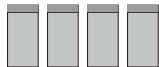
- 4 Wireless microphone units
1 AC power cord
- 1 Interface module (AC power / To Phone & From Wall)
- 1 Telephone line cord
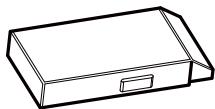
- 4 3.7V 240mAh Li-Polymer rechargeable batteries
- 16 metre connector cable
- User guides
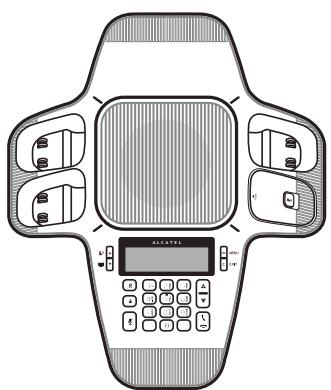
Alcatel Conference 1800 base unit
User guides
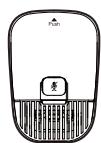
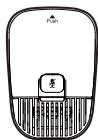
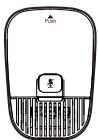
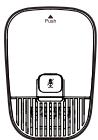
4 x Wireless microphone units
4 x 3.7V 240mAh Li-Polymer rechargeable batteries
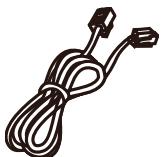
Telephone line cord
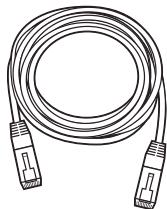
6 metre connector cable
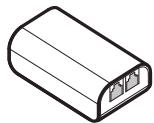
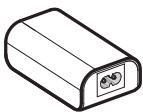
1 Interface module (AC power / To Phone & From Wall)

AC power cord
1.2 Location
For maximum coverage and reduce the interference, here are some guidelines you should consider when you place the base unit:
- place it away from electronic appliances such as televisions, microwave ovens, radios, personal computers, wireless devices or other cordless phones.
- avoid facing radio frequency transmitters, such as external antennas of mobile phone cell stations.
- avoid plugging it into the same circuit as other major household electrical appliances because of the potential for interference. Try moving the appliance or the base unit to another power outlet.
- If the reception between microphone unit and a base unit is not satisfactory, move the unit to another location for better reception.
2 INSTALLING YOUR PHONE
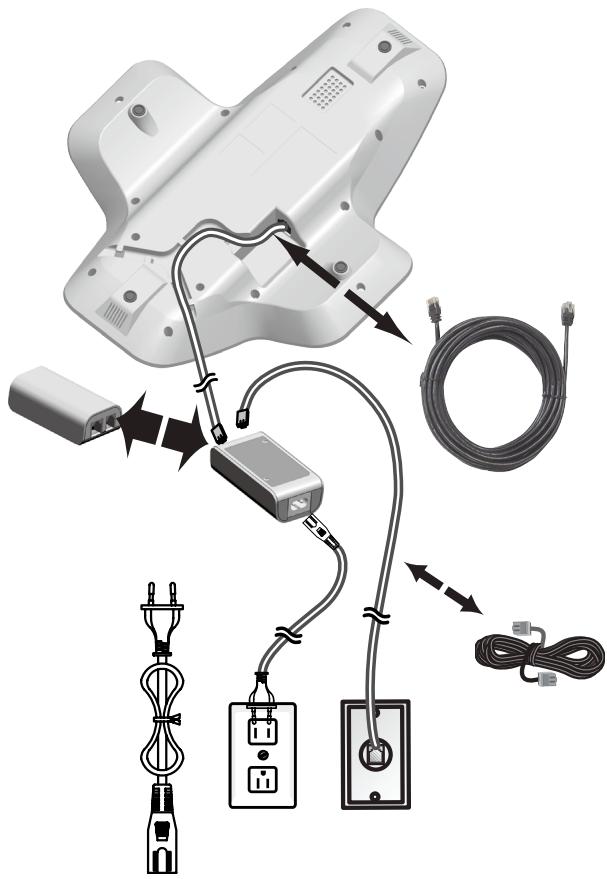
2.1 Connecting the Base Unit
- Plug one end of 6 metre connector cable into the base unit and other end into the interface module.
- Plug one end of the telephone line cord into the telephone jack into the interface module.
- Plug the other end of the telephone line cord into the telephone jack on the wall or micro-filter.
- Plug the small end of power cable into a power jack into the interface module.
- Plug the large end of power cable into a wall power outlet.
- Always use the cables provided in the box.
2.2 Set up Wireless Microphone Units
- Place the 1 supplied rechargeable battery carefully as indicated. Pay extra attention to direction of battery.
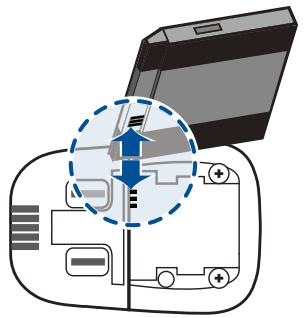
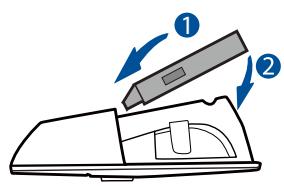
- Slide the battery compartment cover back.
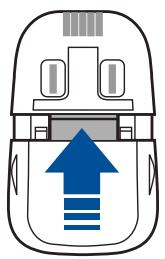
- Put 4 wireless microphone units on the base unit and charge for 8 hours before use for the first time. The unit will emit red light when it is properly placed on the base.
Notes :
1) Use only the supplied Li-ion Polymer rechargeable battery.
2) If the wireless microphone units will not be used for a long time, disconnect and remove the battery to prevent possible leakage.
3) Take out battery, slide open cover, and then pressing the 2 ribs outwards, use finger to lift up the battery from the end side, then slowly take out the battery.
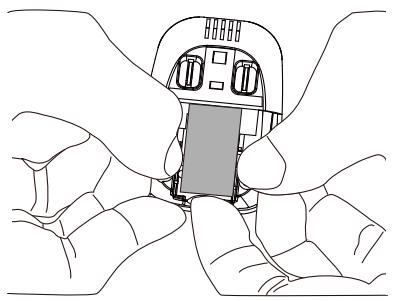
If you have a Broadband Line
If you connect your telephone to a line with a broadband connection, you will need to insert a micro-filter between the telephone and the telephone line, otherwise you may get interference between the telephone and the broadband, which could cause problems.
In a fixed line with broadband, every telephone must have a micro-filter connected, not just the one at the telephone point that your modem is connected to. If you need more broadband micro-filters, contact your broadband supplier.
3 GETTING TO KNOW YOUR PHONE
3.1 Base Unit
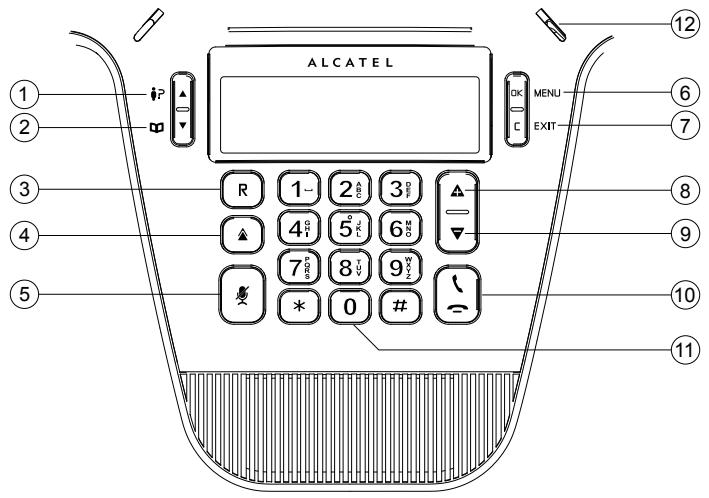
1.
- In menu mode: Press to scroll up the menu items.
- In idle mode: Press to access the call list.
- While entering names or numbers in the phonebook: Press to move the cursor to the right.
2. 1
- In menu mode: Press to scroll down the menu items.
- In idle mode: Press to access the phonebook list.
- While entering names or numbers in the phonebook: Press to move the cursor to the left.
3. R
- In idle / predialing mode: Press to insert a flash.
- During a call: Press to dial a flash.
- Set up conference call (see section 4.11)
4.
- In Idle mode: Press to access the radial list.
5.
-
During a call: Press to mute/unmute the microphone.
-
DKKMENU
-
Press to select a menu item displayed next to the key.
- While in a menu: Press to select an item or save an entry or setting.
7.
- Press to go back or delete a character.
- Press and hold to delete all characters.
8.
- Press to increase ringer or speaker volume.
9.
- Press to decrease ringer or speaker volume.
10.
-
Press to make, answer or end a call.
-
0
-
Press and hold to insert either a dialing pause when entering numbers.
12.
- Green during a call.
- Red when mute is on.
- Flashing green when there's an incoming call.
3.2 Wireless Microphone Unit
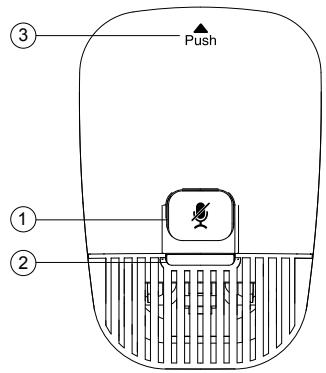
1.
- Press to mute or unmute all microphones.
- When the microphone units are on the base unit they are muted.
2. Light
- Green when the wireless microphone units are taken off the base unit during a call.
- Red when charging or all microphones are muted.
- Flash red quickly when there's a low battery.
- Flash red slowly when the microphone units are out of range of the base.
- Flash green when there's an incoming call.
3. Push
- Press position and then take out the microphone unit from the base.
4 USING YOUR PHONE
4.1 Set Date and Time first
You should need to set the correct time and date first.
- Press OK on the base unit in idle mode to enter the main menu.
- Press l or l to select Set date/time, then press OK.
- Press or to select the day, then press OK, month, then press OK, and year, then press OK.
- Press or to select the hour, then press OK, and minutes, then press OK. You hear a confirmation tone.
4.2 Change Language
- Press OK in idle mode to enter the main menu.
- Press or to select Settings, and then press OK.
- Press or to select LCD language, then press OK.
- Select the desired language and press OK . You hear a confirmation tone.
4.3 Make a Call
4.3.1 Preparatory Dialing
Enter the phone number and press to dial the number. Press to clear the entry.
4.3.2. Direct Dialing
Press to take the line and enter the phone number.
4.4. Answer a Call
Press
4.5. End a Call
During a call, press
Remember to put back all wireless microphone units on the base unit after ending a call.
4.6. Redial
The base unit stores the last 10 dialled numbers (up to 30 digits each) in the radial list.
4.6.1. Review the Redial List
- Press in idle mode.
- Press or or repeatedly to browse the list. The base unit beeps twice at the end of the list.
- Press to exit.
4.6.2. Dial a Redial Entry
- Repeat step 1 and 2 in section 4.6.1.
- Press
4.6.3. Save a Redial Entry to the Phonebook
- Repeat step 1 and 2 in section 4.6.1.
- Press OK twice.
- The base unit displays EDIT NUMBER. Use the dialling keys to edit the number.
- Press OK, the base unit displays ENTER NAME, use the dialling keys to input name.
- Press OK and then Saved displays. You hear a confirmation tone.
4.6.4. Delete a Redial Entry
- Repeat step 1 and 2 in section 4.6.1.
- Press OK, Press [ ] to select Delete.
- Press OK to delete the displayed number. You hear a confirmation tone.
4.6.5. Delete the Entire Redial List
- Repeat step 1 and 2 in section 4.6.1.
- Press OK, Press [ ] to select Delete all.
- Press OK, the screen displays Delete All Entries? Press OK to delete all radial numbers. You hear a confirmation tone. The screens display Deleted.
4.7. Adjust Speaker Volume
During a call, press or to increase or decrease the speaker volume.
4.8. Mute a Call
You can talk to someone nearby without letting the caller hear you during a call.
During a call:
Press to mute all microphones and Muted will display on the LCD. Your
caller cannot hear you. Press again to unmute all microphones.
4.9. Page all Microphones
You can page the wireless microphone units to help you locate them.
- Press OK in idle mode.
- Press or to select Find All Mics, then press OK.
- All registered microphone units outside charging cradle within range will beep for 60 seconds.
- Stop the paging beep, press on the microphone unit or place it back in the base unit.
4.10. Temporary Ringer Silence
When the telephone is ringing, you can temporarily set silence for the ringer of the base unit without disconnecting the call. The next call rings normally at the preset volume.
To silence the ringer:
- Press ] on the base unit and Ringer muted displays.
4.11. Set Up a Conference Call
If your telephone system supports 3 party call conferencing, you can set up conference call.
Press
- When you hear a dial tone, dial the first phone number.
- When the first call is answered, press R to put the first call on hold.
- When you hear a dial tone, dial the second phone number.
- When the second call is answered, press R. Your conference call starts.
This conference call description may vary depending on your local public network or your private telephone system. Please contact your local operator or phone installer.
5 PHONEBOOK
The phonebook stores up to 50 entries with up to 30 digits for each phone number and 15 characters for each name.
- When there are no records in the phonebook, the screen displays Phonebook empty first and then Add Contact?.
- When the phonebook is full and you try to save an entry, the screen displays Phonebook full.
- When you try to save a number already stored in the phonebook, the screen displays Number already saved.
5.1. Add a New Phonebook Entry
- Press OK in idle mode to select Phonebook, then press OK.
1.1. If phonebook is empty, the screen displays Add contact?, then press OK . The screen displays ENTER NUMBER.
1.2. If phonebook record is available, press OK, press to select Add contact. The screen displays ENTER NUMBER.
- Enter a telephone number.
OR
Copy a number from the radial list.
-
Press and then , or repeatedly to browse for a number. Press OK to copy the displayed number.
-
Press OK . The screen displays ENTER NAME.
-
Enter the name:
-
press or to move the cursor to the right or left respectively.
- press 1 to add a space.
- press to delete a character.
- press and hold to delete all characters.
- press OK to confirm and the screen displays Saved. You hear a confirmation tone.
5.2. Search a Phonebook Entry
- Press in idle mode.
- Press or to select a phonebook or use your keypad to enter first letter of the name you are looking for.
5.3. Dial a Phonebook Entry
-
Search for the desired entry in the phonebook.
-
Press 0 .
5.4. Edit a Phonebook Entry
- Search for the desired entry in the phonebook and press OK to confirm.
- The screen displays Edit Contact. Press OK to confirm.
- The screen displays EDIT NUMBER. Edit the number, and then press OK.
- The screen displays EDIT NAME. Edit a name, and then Press OK.
- The screen displays Saved. You hear a confirmation tone.
5.5. Delete a Phonebook Entry
- Search for the desired entry in the phonebook.
- Press OK and then to select Delete. Press OK . The screen displays Delete contact? and the name of the entry. Press OK to confirm.
- The screen displays Contact deleted. You hear a confirmation tone, and then the next alphabetical entry in the phonebook.
5.6. Delete all Phonebook Entries
- Press OK in idle mode to select Phonebook, then press OK twice.
- Press to select Delete all. Press OK . The screen displays Delete all contacts? Press OK to confirm.
- The screen displays All contacts deleted. You hear a confirmation tone.
5.7. Capacity of Phonebook
- Press OK in idle mode to select Phonebook, then press OK twice.
- Press to select Capacity. Press OK to confirm.
- The screen displays Capacity x/50 used. (x is the number of phonebook stored).
5.8. Speed Dial
You can assign 5 of your phonebook entries to a speed dial location (1,...5)
5.8.1 Set a Speed Dial Number
- Press OK in idle mode to select Phonebook, then press OK twice.
- Press to select Speed dial, then press OK.
- Press l or l to select an empty slot (1-5), then press OK.
-
The screen displays Copy from Phonebook, then press [ ] or [ ] to select your desired phonebook.
-
When the desired entry appears, then press OK. You hear a confirmation tone.
5.8.2. Change a Speed Dial Entry
- Press OK in idle mode to select Phonebook, then press OK twice.
- Press l or l to select Speed dial, then press OK .
- Press or to select the desired slot (1-5), then press OK twice.
4 Select Edit, and then press OK. - Press l or l to select the name you want to change.
- Press OK to save the new entry. You hear a confirmation tone.
5.8.3. Dial a Speed Dial Entry
- In idle mode, press and hold a desired speed dial key (1,2,3,4,5)
5.8.4. Delete a Speed Dial Entry
- Press OK in idle mode to select Phonebook, then press OK twice.
- Press or to select Speed dial, then press OK.
- Press l or l to select the desired slot (1-5), then press OK twice.
- Press to select Delete, and then press OK . The screen displays speed dial empty. You hear a confirmation tone.
6 CALLER DISPLAY (Network dependent)
This feature is available if you have subscribed the Caller Line Identification service with your telephone service provider.
Note: Alcatel Conference 1800 does not display caller number during call waiting.
Your phone can store up to 50 received calls with date/time information in the Call List. The number will be shown on the LCD when the phone is ringing. If the number matches with one of the entries in your private phonebook, the caller's name stored in the private phonebook will be displayed with the number.
If the caller number is disabled to send caller information, WITHHELD will be displayed.
If the caller number is not provided by the network, UNAVAILABLE will be displayed.
In standby, if three unanswered calls are received, "3 Missed calls" will be displayed. Each time you review a call list, the number of missed calls decreases by one.
If the incoming telephone number matches the last 7 digits of a telephone number in your phonebook, the name that appears on the screen matches the corresponding name in your phonebook.
6.1. View the Call List
All received calls are saved in Call List with the latest call putting at the top of the list. When the call list is full, the oldest call will be replaced by a new call.
- In idle mode, press to review the calling number display history. OR
You can also review the calling number display history by pressing OK, then to select to Call list, then press OK.
- Press to browse.
6.2. Call an Entry in the Call List
- Refer to View the call list, press 0 .
6.3. Store a Call List Number into the Phonebook
-
Select a desired entry in the call list, and then press OK . The screen displays Store to PB.
-
Press OK . The screen displays EDIT NUMBER to edit the number.
-
Press OK . The screen displays EDIT NAME to edit the name.
- Press OK to confirm and the screen displays Saved. You hear a confirmation tone.
6.4. Delete an Entry in the Call List
- Select a desired entry in the call list.
- When the desired entry is displayed, press OK, then press to select Delete, and press OK. The screen displays the next call list entry. You hear a confirmation tone.
6.5. Delete the Entire Call List
- Select a desired entry in the call list.
- When the desired entry is displayed, press OK, then press to select Del all calls. Press OK to confirm, the screen displays Delete all calls?, then press OK to confirm. You hear a confirmation tone.
7 PHONE SETTINGS
7.1. Set Ringer Volume
- In idle mode, press OK.
- Press l or l to select Ringers.
- Press OK to confirm to choose Ringer volume, then press OK.
- Press or to adjust the ringer volume. You hear a sample of each volume level while adjusting.
- Press OK to save. You hear a confirmation tone. OR Select Ringer off to turn off, then press OK to save. You hear a confirmation tone.
7.2. Set Ringer Melody
- In idle mode, press OK.
- Press or to select Ringers.
- Press OK to confirm to choose Ringer tone, then press OK.
- Press or to adjust the ringer tone.
- Press OK to save. You hear a confirmation tone
7.3. Set the Time Format
- In idle mode, press OK.
- Press or to select Settings.
- Press OK to confirm to choose Time format, then press OK.
- Press or to choose your desired time format (12-Hour or 24-Hour).
- Press OK to confirm. You hear a confirmation tone.
7.4. Set the Date Format
- In idle mode, press OK.
- Press or to select Settings.
- Press l or l to select Date format, then press OK .
- Press l or l to select your desired date format (DD/MM/YY or MM/ DD/YY).
- Press OK to confirm. You hear a confirmation tone.
7.5. Set Key Tone
It is set to beep with each key press if you turn on the beep tone.
- In idle mode, press OK.
- Press l or l to select Settings.
- Press l or l to select Key tone, then press OK.
- Press or to adjust the key tone volume. You hear a sample of each key tone volume while adjusting. Press OK to save your preference. OR
Select Off to turn off, then press OK to save. You hear a confirmation tone.
7.6. Change the Flash Time
- In idle mode, press OK.
- Press or to select Settings.
- Press l or l to select Flash time, then press OK .
- Press l or l to select your desired flash time. (80ms, 100ms, 120ms, 180ms, 200ms, 250ms, 300ms, 600ms are for your selection), then press OK . You hear a confirmation tone.
7.7. Rename the Base Unit
- In idle mode, press OK.
- Press l or l to select Settings.
- Press l or l to select Rename base, then press OK to edit the name.
- Press OK . You hear a confirmation tone.
7.8. Change Dial Mode
- In idle mode, press OK.
- Press l or l to select Settings.
- Press or to select Dial Mode, then press OK to select Tone or Pulse.
- Press OK . You hear a confirmation tone.
7.9. Reset Your Phone
You can reset your phone to the default settings. After reset, all your personal settings will be deleted, but your phonebook and speed dial entries remain unchanged.
-
In idle mode, press OK.
-
Press or to select Settings.
- Press or to select Reset, then press OK. The screen displays Reset to default?.
- Press OK to confirm. You hear a confirmation tone.
7.10. Set PABX Mode
If the Alcatel Conference 1800 unit is connected to a PABX system, you should set PABX mode on.
- In idle mode, press OK.
- Press or to select Settings.
- Press l or l to select Behind PABX, then press OK.
- Press or to select Yes or No, then press OK to confirm. You hear a confirmation tone.
Remarks:
- when you connect it behind PABX system, you should need to turn Behind PABX on, acoustic performance of Conference 1800 phone should be better suited behind PABX system.
- When you connect it behind public telephone network or through broadband operator, you may need to turn Behind PABX off.
7.11. Set a Prefix Code
Normally, when you set Behind PABX on, you can set a prefix (e.g. 9) before each number is dialed externally from the call list.
- In idle mode, press OK.
- Press or to select Settings.
- Press or to select Prefix Code, then press OK.
- Enter the number you want (maximum 1 digit), then press OK .
- If the number is added already, press to delete the original number, then input new digit, press OK to confirm. You hear a confirmation tone.
8. TECHNICAL SPECIFICATIONS
| Indoor Range (wireless microphone unit) | Up to 30 metres* |
| Battery Life (Wireless microphone unit)(average values) | 5 hours talk time**70 hours standby** |
| Number of Wireless microphone units connected to the base unit | Up to 4 |
| Electrical Connection/ BaseMains Adaptor | Base main adaptor (interface module):Model No.: S018AGP0900200Input: 100-240 V/50-60 Hz/500mA Output:9VDC/2AOnly use the adaptor supplied with telephone.Single-phase AC, excluding IT install defined by the EN60950 standard.Caution: The network voltage is classified as hazard by the criteria of this standard. |
| Telephone Connection | Appliance designed for connection to a TNV3 class (telecommunications network voltage) analogue telephone line as defined by the EN60950 standard. |
| Batteries (in each wireless microphone unit) | Battery pack - 2.4 V - 240mAh (Li-ion Polymer)Only use the batteries supplied with the telephone.Use any other type of battery presents a risk of explosion. Used batteries must be disposed of in compliance with current environmental protection regulations. |
| Operating Temperature | From 5°C to 40°C |
- Values may vary according to environment.
** Depending on initial battery charge.
9. TROUBLESHOOTING
If you have difficulty with your phone, please try the suggestions listed below.
As a general rule, if a problem occurs, remove the batteries from all the wireless microphone units in your installation for about 1 minute, then disconnect and reconnect the power supply to the base and reinstall the batteries carefully.
Conferencing unit doesn't work
- Make sure all cables are plugged in correctly and the batteries are installed and charged. After you've finished using them, remember to put your wireless microphone units back on the base so they can charge.
No dial tone
- Is the telephone cord plugged into the phone socket?
- Check that the mains power is switched on.
- Only use the telephone cord supplied with the phone.
- The telephone line cord or 6 metre connector cable might be malfunctioning. Install a new telephone line cord or 6 metre connector cable.
- Move the wireless microphone unit closer to the telephone base. It might be out of range.
- Disconnect the telephone and connect a different telephone. If there is no dial tone on this telephone, the problem is in your wiring or local service. Contact your local telephone company.
Wireless microphone unit doesn't work
- Make sure your base unit's cables are plugged in correctly.
- Make sure the base unit isn't near other DECT phones or electronic devices that could be causing interference.
- Make sure your wireless microphone unit isn't out of range - try moving it closer.
-
Put back your wireless microphone unit on the base for charging for 8 hours. If still not working, the battery may be flat, dead or incorrectly inserted, recharge or replace the battery, or following procedures below to do registration again:
-
When the base unit is in idle, put all wireless microphone units on the base cradle.
- Enter a secret code *331734# quickly and then press OK twice at base unit.
-
If registration is successful, the screen will display "Registration done".
-
Try resetting the base unit. Unplug its power, wait for 15 seconds, then plug it back in. Give it a minute to reset.
There's a red light flashing on my wireless microphone unit
- Put the wireless microphone unit on the base unit so it can charge. If this doesn't work, replace the battery.
The base unit doesn't ring
- The ringer volume may be switched off.
- Make sure your base unit's cables are plugged in correctly.
- Make sure the base unit isn't near other DECT phones or electronic devices that could be causing interference.
- Try resetting the base unit. Unplug its power, wait for 15 seconds, then plug it back in. Give it a minute to reset.
10. SAFETY
In the event of an electrical hazard, the mains adapter acts as 230V power isolating device. It should therefore, as a precaution, be installed close to the appliance and be easily accessible. To disconnect the device from the primary power source, the mains adapter must be removed from the 230V AC/50 Hz socket.
If the mains adapter fails, it must be replaced by an identical model.
If not connected to the mains power or if there is a mains power failure, the whole conference unit will not work. You will then be unable to make or receive calls in the event of an emergency.
This is why we recommend that you also keep a conventional telephone - one that doesn't require a power supply - as a backup.
! Do not use your telephone to notify a gas leak when standing in the vicinity of the leak.
It is recommended that you avoid using this device during electrical storms.
Do not attempt to open the batteries, as they contain chemical substances. In the event of leakage, avoid contact with the skin, eyes, nose and mouth. In the event of contact, rinse the affected part for about twenty minutes with running water and seek urgent medical attention.
Clean the product with absorbent paper or a dry cloth and contact your reseller for replacement batteries.
ATLINKS hereby declares that the following models conform to the essential requirements and other applicable provisions of European directive 1999/5/ EC.
Alcatel Conference 1800

11. ENVIRONMENT

This symbol means that your inoperative electronic appliance must be collected separately and not mixed with the household waste. The European Union has implemented a specific collection and recycling system for which producers are responsible.
This appliance has been designed and manufactured with high quality materials and components that can be recycled and reused. Electrical and electronic appliances are liable to contain parts that are necessary in order for the system to work properly but which can become a health and environmental hazard if they are not handled or disposed of in the proper way. Consequently, please do not throw out your inoperative appliance with the household waste.
If you are the owner of the appliance, you must deposit it at the appropriate local collection point or leave it with the vendor when buying a new appliance.
- If you are a professional user, please follow your supplier's instructions.
- If the appliance is rented to you or left in your care, please contact your service provider.
Keen to preserve the environment, ATLINKS has equipped this appliance with a switching power supply, offering better energy efficiency. The advantages include not only very low electricity consumption, but also a more compact format than the conventional power supply units used by the previous range.
The used batteries from your telephone (if it has batteries) must be disposed of in compliance with current environmental protection regulations. Comply with your local regulations.
Return your batteries to your reseller or dispose of them at an approved recycling centre.
Help us protect the environment in which we live!
www.alcatel-business.com
ATLINKS Europe
22 quai Gallieni
92150 Suresnes- France
© ATLINKS 2014 - Reproduction prohibited.
The Manufacturer reserves the right to modify the specifications of its products in order to make technical improvements or comply with new regulations.
ALCATEL and ATLINKS are registered trademarks.
The Alcatel logo and Alcatel name are trademarks of Alcatel Lucent and used under licence by ATLINKS.