USER MANUAL CUBE+ POLAROID
Get to Know Your Polaroid Cube Camera 7
Using Your Polaroid Cube Camera 10
FR
- Lens
- Microphone
- Magnet
Top View
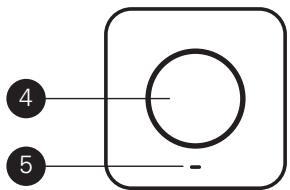
- Multifunction Button
- LED
Back View
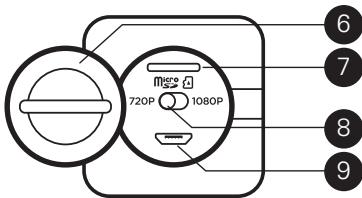
- Controls Cover
- Micro SD Slot
8.720p/1080p Switch
- Micro USB Port
Using Your
Polaroid Cube Camera
On
Hold the multifunction button for three seconds. You'll hear three beeps and the LED will blink green. All set!
Off
Hold multifunction button for three seconds. You'll hear a two second beep, followed by a single short beep. Power is off.
Still Photos
Press the multifunction button once. You'll hear a beep and the LED will blink red once.
Video
Double press the multifunction button. You'll hear two beeps and the LED will blink red until you stop recording. To stop recording, press the button once again. You'll hear a single beep and the LED will blink green.
Select Your Resolution
You have the option of capturing video at either 720p or 1080p. 1080p gives you
more detail in a higher resolution image, but uses more storage space on your camera and shortens the battery life.
To Select: Using a coin or other flat object, turn the controls cover counterclockwise to open. Set the 720p/1080p switch to your preferred setting. Turn the controls cover clockwise to close.
Insert a Memory Card
Your Polaroid Cube camera can accommodate micro SD cards with storage capacities up to 32GB. Using a coin or other flat object, turn controls cover counterclockwise to open. Insert card
into slot and gently push in until you hear a click. Turn the cover clockwise to close. To remove a card, gently push the card in, release and the card will slide back out.
Note: We suggest using SD cards Class 10 and above. Cards lower than Class 6 are of a lesser quality and may cause slower recording/reading speed as well as other unexpected issues.
Connect to Your Computer
Insert the included Micro USB cable into the Micro USB port and the other end into your computer. Double-click the Polaroid Cube camera when it appears on the
desktop. The indicator will blink orange to show that your computer is accessing the camera's memory card. Your still photos and videos are located in the DCIM folder.
Launch Your Settings Application
a) Windows users: Double-click on the PolaroidCube.exe file.
b) Mac users: Double-click the
PolaroidCube.app.zip file, then double-click the Polaroid Cube icon.
In the application, you can change the settings for Light Frequency, Timestamp, Cycle Recording, Date & Time and Buzzer Volume.
Note:QuickTime player is required for video files to play back audio correctly.
Charging
When battery reaches 10% , four beeps will sound and the LED will turn orange. If battery reaches 0% , you'll hear a two second beep followed by a short beep, just before the camera shuts down. To recharge, plug one end of the included Micro USB cable into the Micro USB port and the other into either a computer or into a wall plug (using a wall adaptor). The camera can be used while charging with a wall adapter. When plugged into
a computer, the LED will glow bright green when your Polaroid Cube camera is fully charged.
Disclaimer: During extended use, your Polaroid Cube camera may feel warm to the touch. This is a normal operating occurrence and does not indicate any product defect or reason to slow down the fun.
Have questions? Need technical support? Want to know more? Get in touch at: cspolaroid@camarketing.com www.polaroidcube.com
This device complies with Part 15 of the FCC Rules. Operation is subject to the following two conditions:
(1) This device may not cause harmful interference.
(2) This device must accept any interference received, including interference that may cause undesired operation. This equipment has been tested and found to comply with the limits for Class B digital devices, pursuant to Part 15 of the FCC rules. These limits are designed to provide reasonable protection against harmful interference in a residential installation. This equipment generates uses and can radiate radio frequency energy and, if not installed and used in accordance with the instructions, may cause harmful interference to radio communications. However, there is no guarantee that interference will not occur in a particular installation. If this equipment does cause harmful interferer to radio or television reception, which can be determined by turning the equipment off and on, the user is encouraged to try to correct the interference by one or more of the following measures:
Re-orient or relocate the receiving antenna.
Increase the separation between the equipment and receiver.
Connect the equipment into an outlet on a circuit different from that to which the receiver is connected.
Consult the dealer or an experienced radio/TV technician for help. Use of shielded cable is required to comply with Class B limits in Subpart B of Part 15 of the FCC rules.
Do not make any changes or modifications to the equipment unless otherwise specified in the manual. If such changes or modifications should be made, you could be required to stop operation of the equipment.
Notice: If static electricity or electromagnetism causes data transfer to continue midway (fail), restart the application or disconnect and connect the communication cable (USB, etc.) again.
Electronic Waste
PLR IP Holdings, LLC, its licensees and affiliates, fully supports all electronic waste initiatives. As responsible stewards of the environment, and to avoid violating established laws, you should properly dispose of this product in compliance with all applicable regulations, directives or otherGovernances in the area where you reside. Please check with local authorities or the retailer where you purchased this product to determine
a location where you can appropriately dispose of the product. You may also go to www.polaroid.com and reference Social Responsibility www.polaroid.com/social-responsibility to learn more about the specific laws in your area and to locate a collection facility near your home.
If your electronic device has internal memory on which personal or other confidential data may be stored, you may want to perform a data sanitization process before you dispose of your device to assure another party cannot access your personal data. Data sanitization varies by the type of product and its software, and you may want to research the best sanitization process for your device before disposal. You may also check with your local recycling facility to determine their data sanitization procedures during the recycling process.
EN | Polaroid, Polaroid & Pixel, Polaroid Classic Border Logo, Polaroid Color Spectrum, and Polaroid Cube are trademarks of PLR IP Holdings, LLC, used under license. All other trademarks are the property of the respective owner, who has not sponsored, endorsed or approved this product. PLR IP Holdings, LLC does not manufacture this product or provide any Manufacturer's Warranty or support.
Instantly recognizable, Instantly reassuring, the Polaroid Classic Border and Polaroid Color Spectrum logs let you know you've purchased a product that satisfies the needs of our brand and that contributes to our rich heritage of quality and innovation.