
GPS-500 WE - Gps HARMAN KARDON - Free user manual and instructions
Find the device manual for free GPS-500 WE HARMAN KARDON in PDF.


| Product type | Car navigation GPS |
| Brand | Harman Kardon |
| Model | GPS-500 WE |
| Dimensions | 120 x 80 x 15 mm |
| Weight | 200 g |
| Screen type | 4.3 inch color touch screen |
| Power source | Rechargeable lithium-ion battery, 12V adapter |
| Battery life | Up to 4 hours |
| Main functions | GPS navigation, pre-installed maps, points of interest, address search, voice guidance |
| Connectivity | USB port, SD card reader |
| Box contents | GPS, mount, USB cable, cigarette lighter adapter, manual |
| Maintenance and cleaning | Clean with a soft dry cloth. Do not use abrasive products. |
| Safety | Do not use while driving, securely attach to windshield. |
| Spare parts and repairability | Contact Harman Kardon customer service for parts. |
| General information | Made in China. 2-year warranty. |
Frequently Asked Questions - GPS-500 WE HARMAN KARDON
User questions about GPS-500 WE HARMAN KARDON
0 question about this device. Answer the ones you know or ask your own.
Ask a new question about this device
Download the instructions for your Gps in PDF format for free! Find your manual GPS-500 WE - HARMAN KARDON and take your electronic device back in hand. On this page are published all the documents necessary for the use of your device. GPS-500 WE by HARMAN KARDON.
USER MANUAL GPS-500 WE HARMAN KARDON
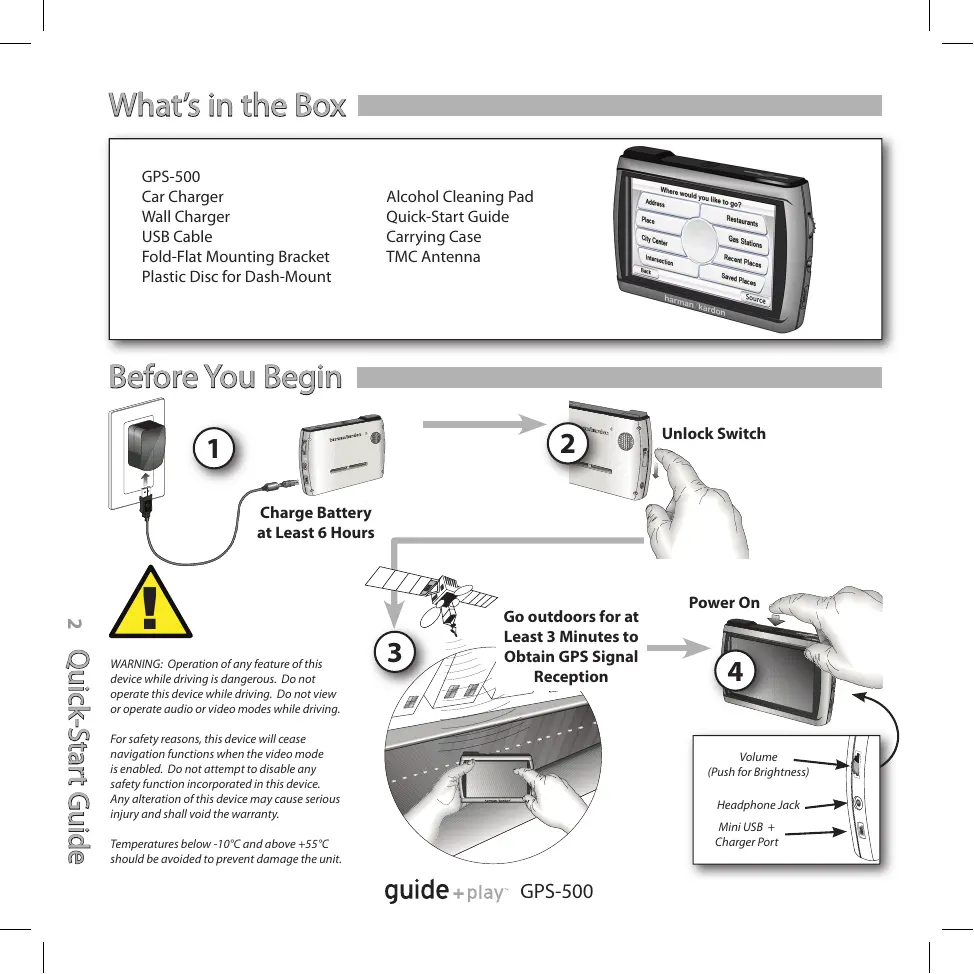
Fold-Flat Mounting Bracket
Plastic Disc for Dash-Mount
Alcohol Cleaning Pad
Quick-Start Guide
Carrying Case
TMC Antenna
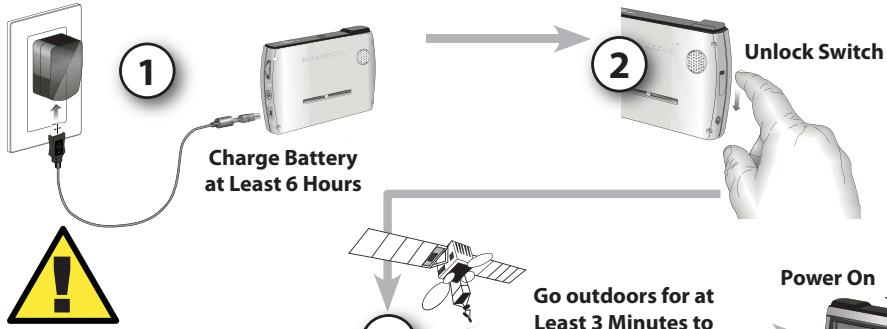
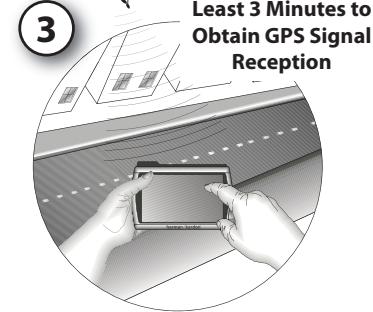
Before You Begin
WARNING: Operation of any feature of this device while driving is dangerous. Do not operate this device while driving. Do not view or operate audio or video modes while driving.
For safety reasons, this device will cease navigation functions when the video mode is enabled. Do not attempt to disable any safety function incorporated in this device. Any alteration of this device may cause serious injury and shall void the warranty.
Temperatures below -10°C and above +55°C should be avoided to prevent damage to the unit.
guide + play - GPS-500
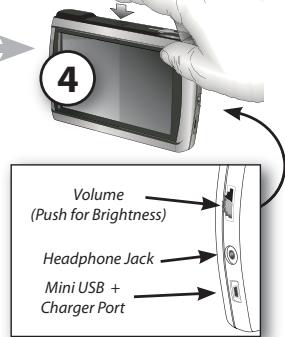
Power On
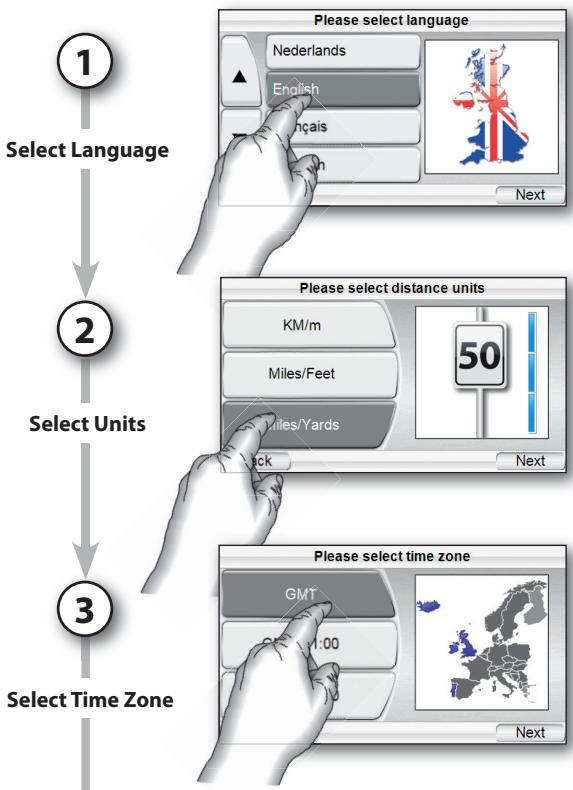
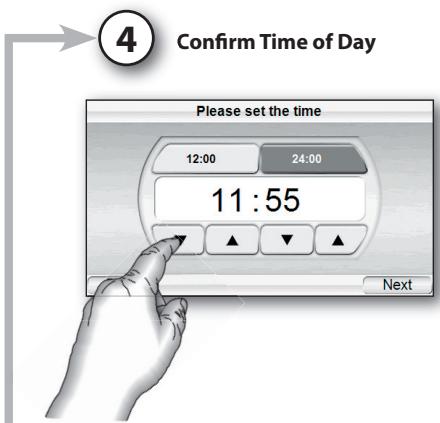
Setup Wizard

The geographic information provided by this device serves as a navigational aid only and does not include information pertaining to construction, road closures, speed restrictions, road or traffic conditions, or other circumstances relevant to public safety. The driver must always be aware of the actual road conditions and surroundings, and decide whether or not to follow the information provided by this device. Obey all traffic laws and observe safe driving practices. The manufacturer does not accept responsibility for any inaccurate or incomplete information provided by this device.
In-Vehicle Installation
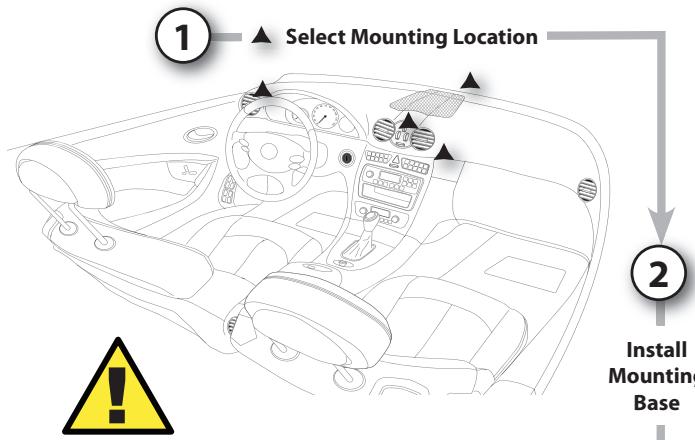
Do not install this device in any manner that impairs the safe operation of the vehicle. Do not install this device on any airbag panels or in the deployment field of any airbags. Do not place the device on the vehicle's dashboard unsecured. Failure to observe the installation or usage instructions may result in traffic accidents or personal injury.
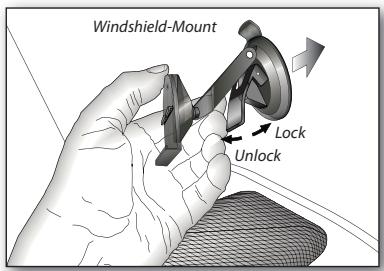
The installation of this device on the windshield, between the driver and the windshield, or otherwise in any manner that obstructs the driver's clear view of the road or traffic conditions is dangerous and may be prohibited by law. In this case other mounting methods should be used. Check your local laws before mounting.
Some vehicles have a heat reflective shield embedded in the windscreen. This may prevent the unit from getting proper GPS reception. In this case please use an external GPS antenna and connect it to the antenna plug on the back side of the unit.
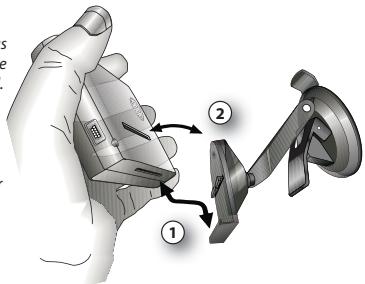
Install GPS-500 in Mounting Base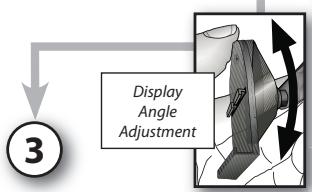
Clean dash with supplied alcohol pad.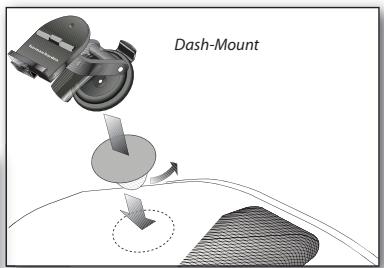
Installation of TMC antenna cable to receive traffic information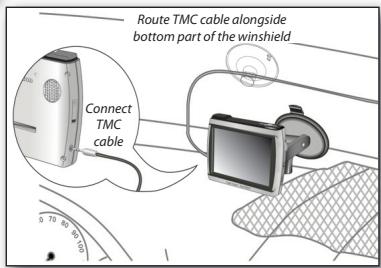
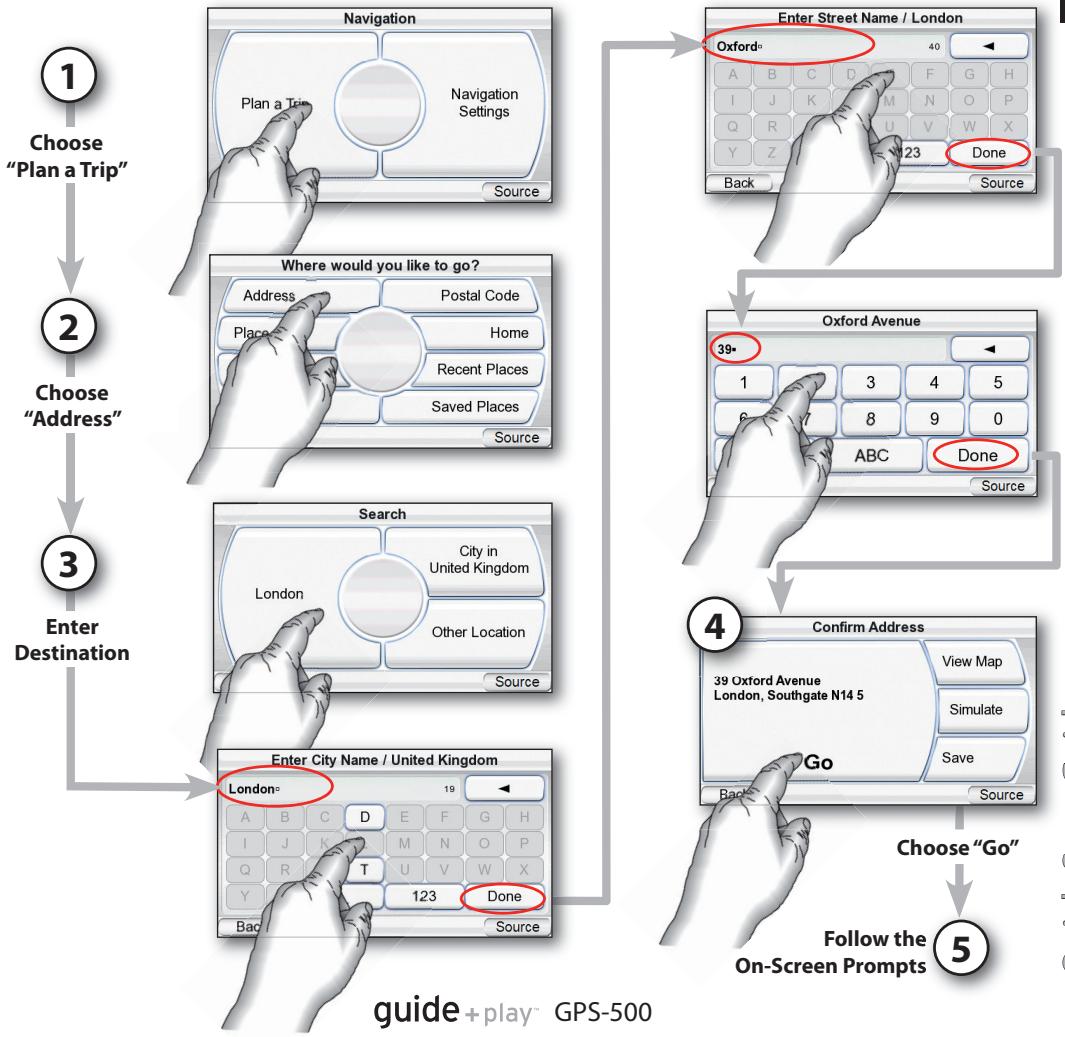
Plan Your First Trip
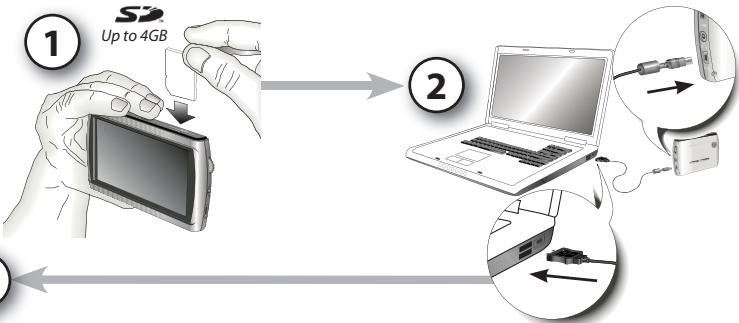
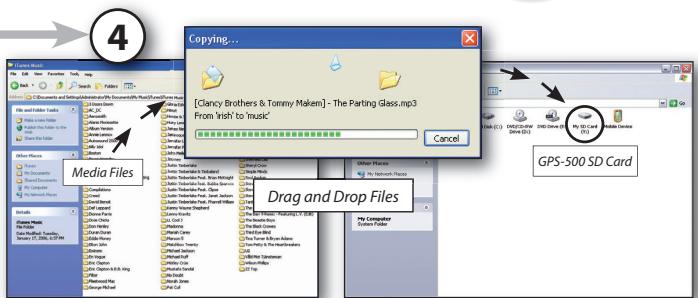
Loading Media Files*
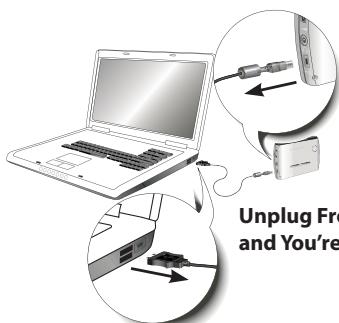
- An SD Memory Card (up to 4GB) is required for storage of audio and video files. This is not included with the unit and must be purchased separately. Please use the supplied USB cable. While connected to the PC the GPS-500 will be automatically charged.
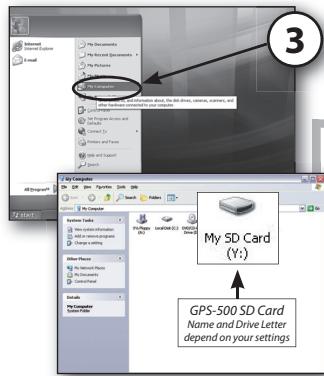
Syncing Media Files
Requirements
- PC running Windows XP service pack 2 or higher.
- Windows Media Player 10 or higher installed on PC.
- Software decoder to play media files with Windows Media Player.
- SD card (FAT32 format) with sufficient free space to hold media files to sync.
Prepare GPS-500 for Sync
- Insert the SD card into the GPS-500's SD card slot.
- Disconnect the USB cable from the GPS-500.
- Enter "Settings" menu, go to "USB" and select "MTP".
- Use supplied USB cable to connect the GPS-500 to a PC USB hub.

Prepare PC for Sync
When plugging the cable in for the first time, you will see the following screen or similar:
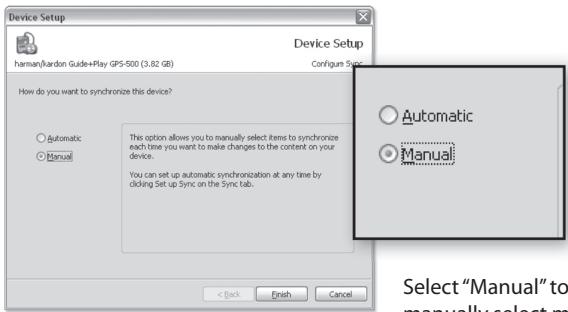
Select "Manual" to manually select media files to sync to device.
Find Files on PC
In the Windows Media Player go to "Sync" to define a "Sync List".
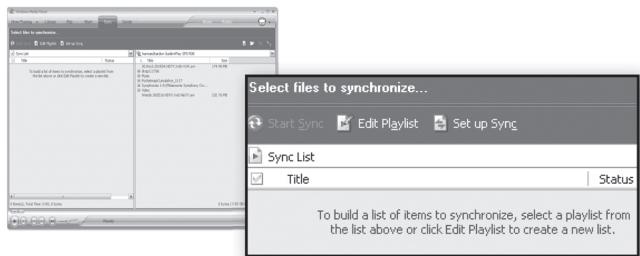
Syncing Media Files

Select Files
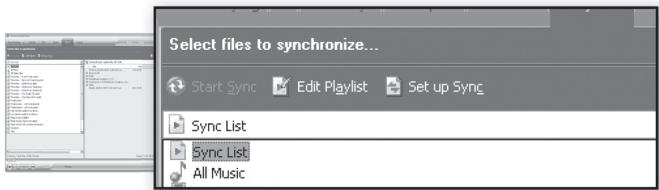
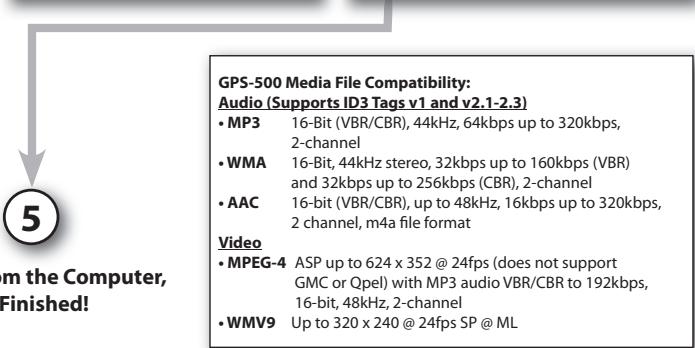
Select the files you wish to sync from the sync list. If necessary, Windows Media Player will automatically transcode audio or video files to the format supported by the GPS-500. In order to do this, the decoder required for the media format must be installed on the PC – this can be tested by playing the media file using Windows Media Player. If it plays, the decoder is installed. If it does not play, the decoder must be installed first.

Sync Files
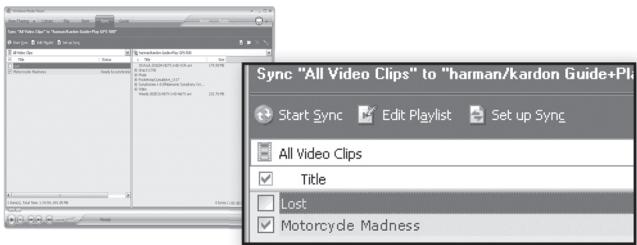
Once you've selected files to sync, press the "Start Sync" button. Wait for the sync operation to finish.

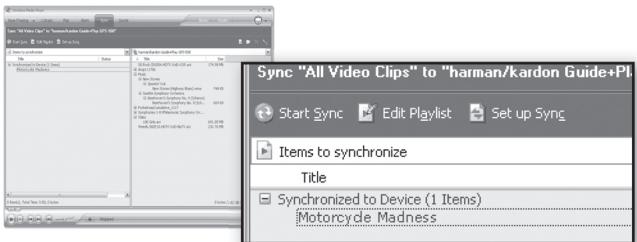
Finished
Once the sync is finished, the video is on the SD card, the media file is on the SD card. Unplug the USB connection to play the media files on the GPS-500 from the "Music" or "Video" menu.
Main Menu
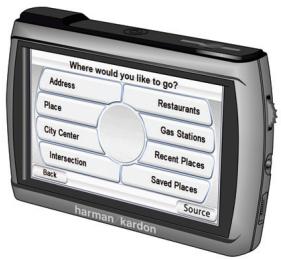
The colour coded menu screen gives you direct access to the main functionalities of the GPS-500. You can easily get back to the main menu by pushing the "Source" button on the bottom right corner of every screen.
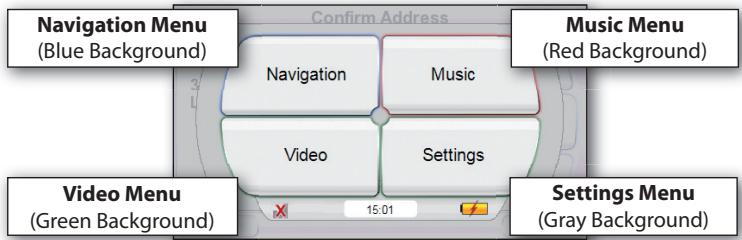
Using the Audio Player
Choosing "Music" from the source menu brings up the "Artists" screen.
You can navigate music by Artist, Album, Genre, Playlist or Song, using the appropriate button.
Please note that correct ID3 tag information is required for other than Song based browsing.
Music Menu Example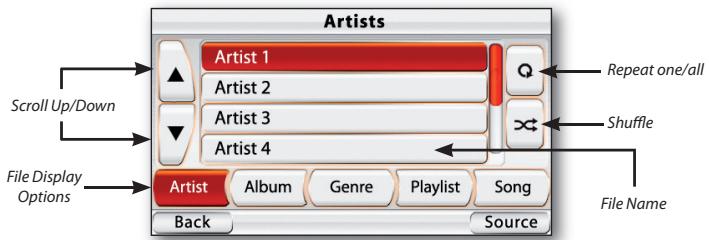
Using the Video Player
Choosing "Video" from the source menu brings up the "Video" screen.
You can view all the video files stored on the SD card and select one to view by pressing that file name.

For safety reasons, this device will cease navigation functions when the video mode is enabled. Do not attem
to disable any safety function incorporated in this device. Any alteration of this device may cause serious injury and shall void the warranty.
Video Menu Example
Listening to Audio (Car)
A separate audio cable is not included with the unit and has to be purchased separately if required. Please consult the manual of your vehicle's audio system to find out the correct cable type.
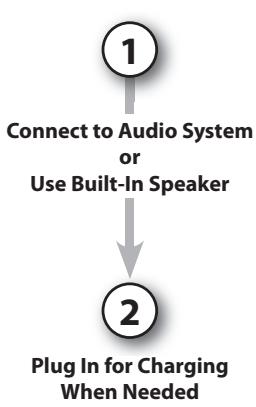
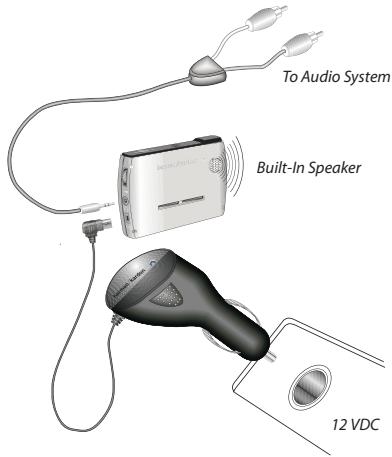
Listening to Audio (out of the car)

The installation and use suggestions provided by the manufacturer may be subject to restrictions or limitations by federal, state or local laws. The user should determine whether the installation and use of this device is governed by any law prior to installation or use. For more information, please consult the user's manual online at http://www.harmankardon.com
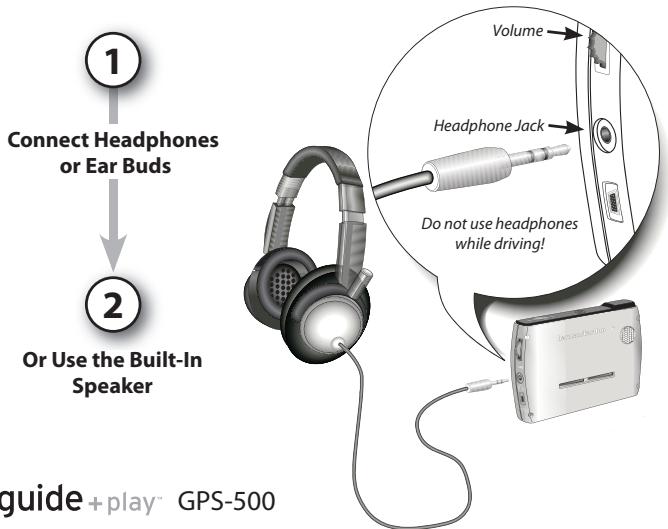
guide + play - GPS-500
Troubleshooting
| SYMPTOM | SOLUTION |
| Unit does not turn on at all | Charge battery, check UNLOCK switch |
| Unit does not have a good GPS signal | Make sure the unit has a clear and unobstructed view of the sky if your vehicle has a heat reflective shield you might have to use an external GPS antenna. |
| Unit does not have songs/movies | Requires loading to SD card. |
| Computer sees unit as “MTP Device” | Change “USB” preferences in “Settings” menu. |
| Screen is too bright or too dim | Adjust in “Settings” menu or press rotary wheel on the right side. |
| Volume is too low for navigation prompts | Adjust volume using rotary wheel on the right side. |
| Suction cup mount is loose | Reposition with moderate force. |
| Screen is loose on mount | Make sure it is securely “ clicked” into place on both the bottom and back. |
| Unit is unresponsive, won’t power off | Using a paper clip, press the reset button on the right side of the bottom panel. |
| No audio or video playback | Be sure that the media file type is supported by the unit. |
| No TMC reception | Check if TMC antenna cable is correctly plugged-in. |
For customer support and access to the complete
GPS-500 User's Manual please go to
http://www.harmankardon.com

Temperatures:
Standard operation: -10°C (+14°F) to +55°C (+131°F).
Short period storage: -20°C (-4°F) to +60°C (+140°F).
Long period storage: 0°C (+32°F) to +25°C (+77°F).
harman/kardon
guide + play
250 Crossways Park Drive, Woodbury, New York 11797 www.harmankardon.com
©2007 Harman International Industries, Incorporated. All rights reserved
Part No.HDM00G01201
H A Harman International Company

Please Recycle

Declaration of Conformity

We, Harman Consumer Group, Inc.
2, route de Tours
declare in own responsibility that the product described
in this manual is in compliance with technical standards:
EN 60950-1:2001+A11
EN 55022:1998+A1:2000+A2:2003
EN 55024:1998+A1:2001+A2:2003
EN 61000-3-2:2000
EN 61000-3-3:1995+A1:2001

Klaus Lebhertz
Harman Consumer Group, Inc.
Chateau du Loir, France. 02/07
- BEFORE YOU BEGIN
- SETUP WIZARD
- IN-VEHICLE INSTALLATION
- PLAN YOUR FIRST TRIP
- LOADING MEDIA FILES
- SYNCING MEDIA FILES
- REQUIREMENTS
- PREPARE GPS-500 FOR SYNC
- PREPARE PC FOR SYNC
- FIND FILES ON PC
- SELECT FILES
- SYNC FILES
- FINISHED
- MAIN MENU
- USING THE AUDIO PLAYER
- USING THE VIDEO PLAYER
- LISTENING TO AUDIO (CAR)
- LISTENING TO AUDIO (OUT OF THE CAR)
- TROUBLESHOOTING
- DECLARATION OF CONFORMITY
Brand : HARMAN KARDON
Model : GPS-500 WE
Category : Gps