SP C340DN - Color laser printer RICOH - Free user manual and instructions
Find the device manual for free SP C340DN RICOH in PDF.


| Product type | Monochrome laser printer |
| Printing technology | LED |
| Print resolution | Up to 1200 x 1200 dpi |
| Print speed (A4) | 38 pages per minute |
| First page out | 6.5 seconds or less |
| Warm-up time | 17 seconds or less |
| Maximum duty cycle | 150,000 pages per month |
| Standard paper capacity | 600 sheets (500-sheet tray + 100-sheet multipurpose tray) |
| Maximum paper capacity | 2,100 sheets with options |
| Supported paper sizes | From 90 x 148 mm to 297 x 432 mm (standard tray); up to 297 x 1260 mm (multipurpose tray) |
| Supported paper weight | 56 to 220 g/m² (all trays); 56 to 162 g/m² (duplex) |
| Automatic duplex | Yes, standard |
| Dimensions (W x D x H) | 459 x 392 x 347.5 mm |
| Weight | 21 kg |
| Power consumption (operating) | 554 W |
| Power consumption (standby) | 0.45 W or less |
| Power supply | 220-240 V, 50/60 Hz |
| Processor | 533 MHz |
| Memory (standard/max) | 512 MB / 1 GB |
| Connectivity | Gigabit Ethernet, USB 2.0, optional Wi-Fi |
| Printer languages | PCL6/5e, Adobe PostScript 3, PDF Direct Print |
| Supported operating systems | Windows, Mac OS X, Linux, Citrix, SAP |
| Security features | Authentication, encryption, locked print, IP filtering |
| Certifications | ENERGY STAR, EPEAT Gold (USA) |
Frequently Asked Questions - SP C340DN RICOH
User questions about SP C340DN RICOH
0 question about this device. Answer the ones you know or ask your own.
Ask a new question about this device
Download the instructions for your Color laser printer in PDF format for free! Find your manual SP C340DN - RICOH and take your electronic device back in hand. On this page are published all the documents necessary for the use of your device. SP C340DN by RICOH.
USER MANUAL SP C340DN RICOH
Print larger sizes in smaller spaces
When you share the right information with the right people at the right time, there's no limit to what you can do. So why would you want to limit what you can print — and where you can print it? Print high-quality black-and-white drawings, schematics, floor plans and more at sizes up to 11" x 17" from the compact RICOH® SP 6430DN right from your desktop. You're saving much more than space though. Take advantage of energy-saving features to reduce operating costs and advanced security tools to help ensure key data is protected. Use it for everyday office documents or for those special projects that require larger sizes or special paper stocks.
Handle a wider range of jobs
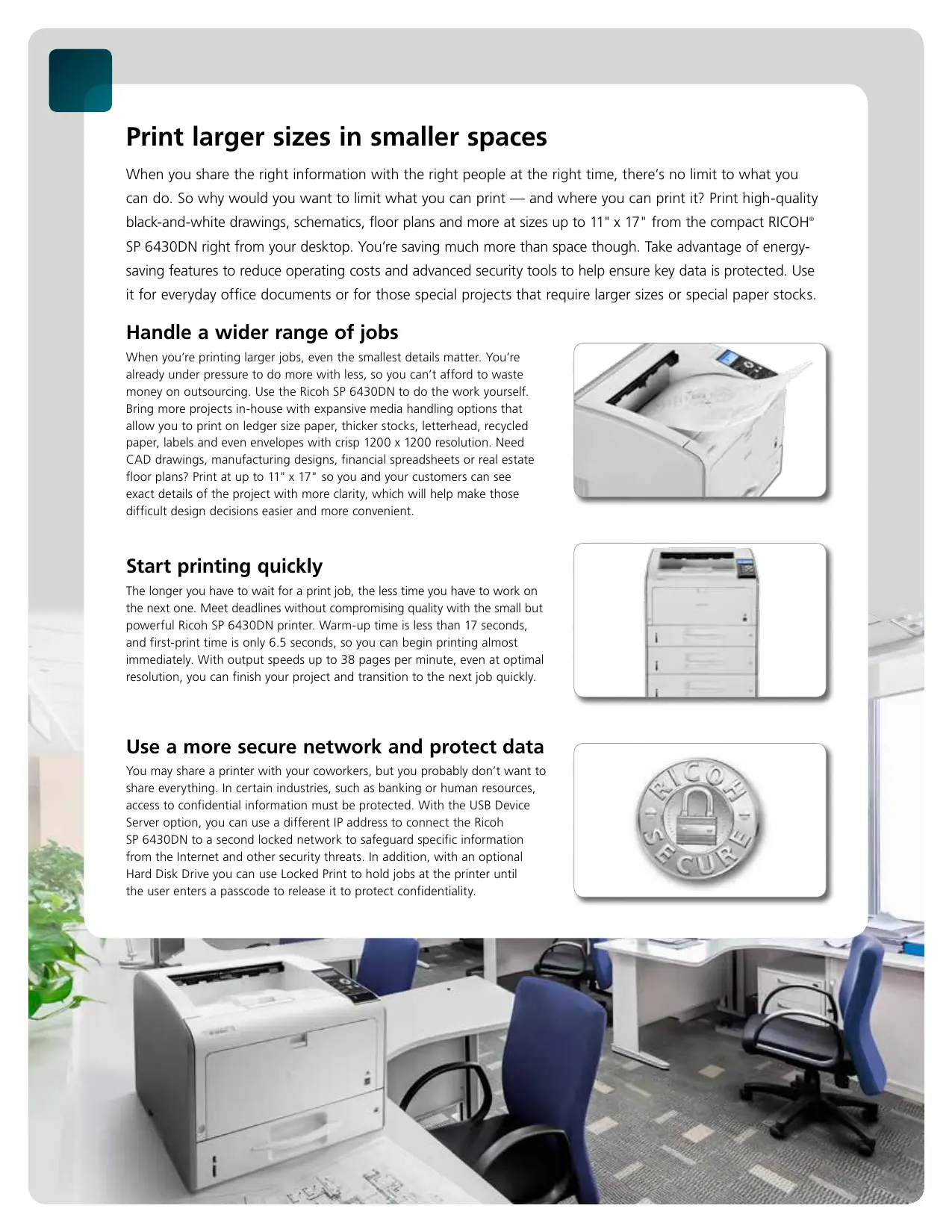
When you're printing larger jobs, even the smallest details matter. You're already under pressure to do more with less, so you can't afford to waste money on outsourcing. Use the Ricoh SP 6430DN to do the work yourself. Bring more projects in-house with expansive media handling options that allow you to print on ledger size paper, thicker stocks, letterhead, recycled paper, labels and even envelopes with crisp 1200 × 1200 resolution. Need CAD drawings, manufacturing designs, financial spreadsheets or real estate floor plans? Print at up to 11" × 17" so you and your customers can see exact details of the project with more clarity, which will help make those difficult design decisions easier and more convenient.
Start printing quickly
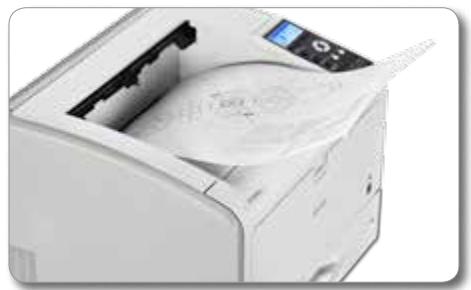
The longer you have to wait for a print job, the less time you have to work on the next one. Meet deadlines without compromising quality with the small but powerful Ricoh SP 6430DN printer. Warm-up time is less than 17 seconds, and first-print time is only 6.5 seconds, so you can begin printing almost immediately. With output speeds up to 38 pages per minute, even at optimal resolution, you can finish your project and transition to the next job quickly.
Use a more secure network and protect data
You may share a printer with your coworkers, but you probably don't want to share everything. In certain industries, such as banking or human resources, access to confidential information must be protected. With the USB Device Server option, you can use a different IP address to connect the Ricoh SP 6430DN to a second locked network to safeguard specific information from the Internet and other security threats. In addition, with an optional Hard Disk Drive you can use Locked Print to hold jobs at the printer until the user enters a passcode to release it to protect confidentiality.
Reduce costs with simplified, familiar printing tasks
Print jobs where it's most convenient
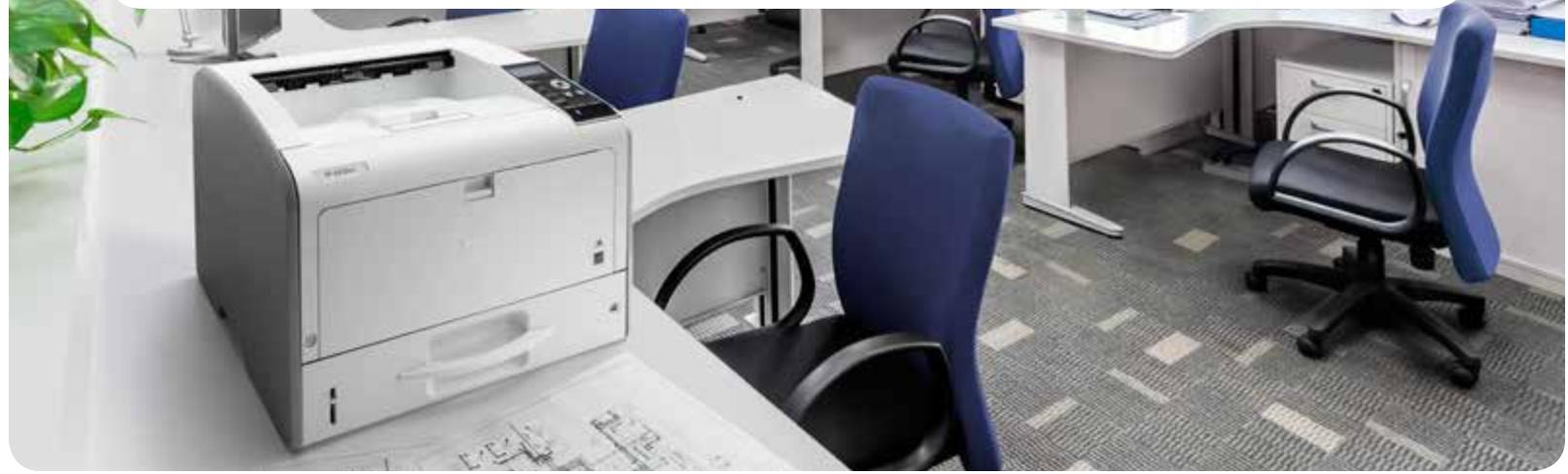
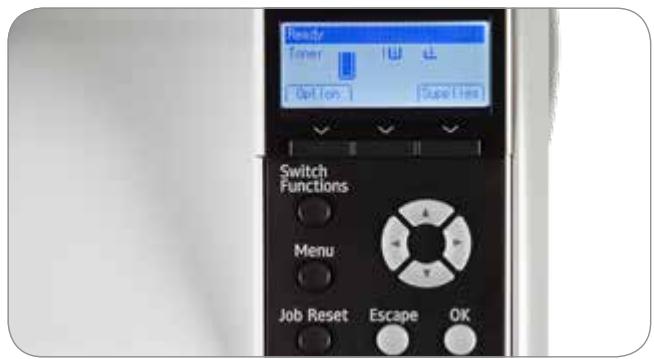
Printing shouldn't take too much time — or real estate. Because it uses LED printhead technology, the Ricoh SP 6430DN offers an incredibly small footprint — smaller than competitive laser printers — without compromising speed or quality. Take advantage of the lower profile and place it almost anywhere, including desktops, counters and cabinets. You can use the four-line LCD control panel to access key settings and to check status with ease while saving office space for other everyday tasks.
Minimize delays during production
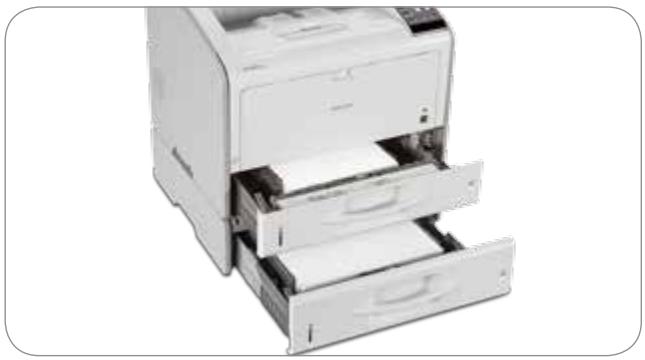
You have other jobs waiting. You'd rather work on them than on your printer. With the Ricoh SP 6430DN, you can reduce delays and move to the next job quickly. Minimize how often you need to restock with the standard 500-Sheet Paper Tray and 100-Sheet Bypass. You can add three optional paper trays to maximize uptime with a total paper capacity of 2,100 sheets. Each paper tray accepts almost any type of media up to 11'' × 17'' , so you can configure each differently to eliminate unnecessary shuffling of paper. With the front-access design, you can change print and toner cartridges by yourself in only moments with incredible ease.
Realize even greater cost savings
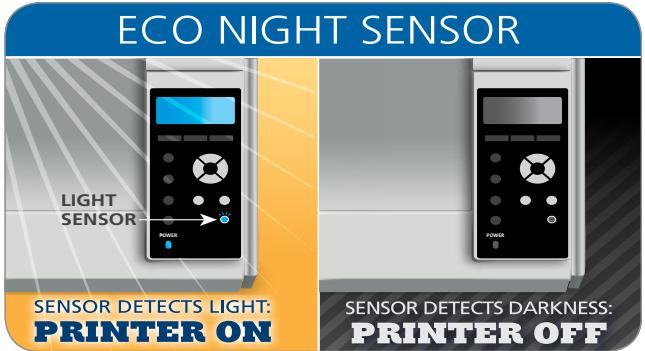
You want to do a good job while feeling good about how you do it. Reduce paper and supply costs with default automatic duplex printing on paper sizes up to 11" x 17". With the ECO-Night Sensor, you can program the automatic startup and shutdown of the printer based on ambient light, so you can conserve energy when the office is closed. In addition, the Ricoh SP 6430DN is ENERGY STAR™ certified and offers low typical electricity consumption (TEC). Reduce TCO even further with low cost-per-print toner and drum supplies that can be replaced individually when needed. Plus, the device meets EPEAT® Gold* criteria.
*EPEAT Gold rating is applicable only in the USA.
Track performance in the office and across the enterprise
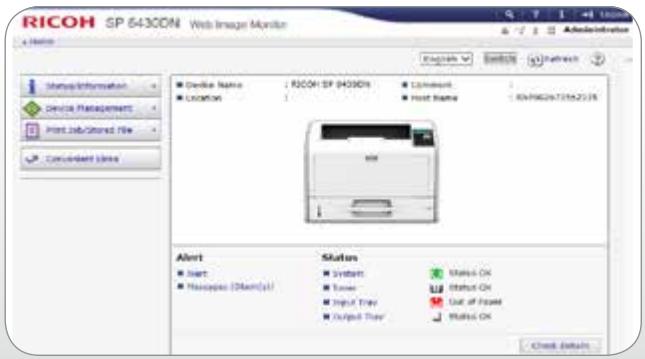
With the Ricoh SP 6430DN, better, more informed decisions are always within your reach. Have a schematic design you want to share with an engineer? Need to print out a layout for a big meeting? Print them from the convenience of your desk at a moment's notice so the right people have the critical information they need. Use it as a standalone device for your workgroup or incorporate it into an integrated Ricoh Managed Document Services (MDS) strategy to reduce costs throughout your organization. You can even monitor print performance and manage user activity via a wide range of intuitive administrative controls.
Engine Specifications
SP 6430DN
Part # 407482
Configuration
Desktop
Technology
LED
Color/B&W
Black & White
Printing Process
Electro-photographic printing
Toner Type Dry, single component
Control Panel 4-line LCD
Print Resolution
300 x 300 dpi/600 x 600 dpi/
1200 x 1200 dpi
B&W Print Speed (Letter)
38 pages per minute
Maximum Monthly
20,000 prints
Volume
Maximum Monthly
150,000 prints
Duty Cycle
First Page Out Time
6.5 seconds or less
Warm-Up Time
17 seconds or less
Standard Paper Capacity
600 sheets (500-Sheet Tray +
100-Sheet Bypass Tray)
Maximum Paper
2,100 sheets
Capacity
Up to 500 sheets, face down
Capacity
Standard Tray: 3.5'' × 5.8'' - 11.7'' × 17''
(90 x 148 mm - 297 x 432 mm)
Optional PFUs: 3.9'' × 5.8'' - 11.7'' × 17''
(100× 148mm - 297× 432mm)
Bypass Tray: 2.3" x 5" - 11.7" x 49.6"
(60× 127mm - 297× 1.260mm)
Supported Paper
All Trays: 15 - 59 lb. Bond (56 - 220 g/m²)
Weights
Duplex: 15 - 43 lb. Bond (56 - 162 g/m²)
Supported Paper Types
Recycled Paper, Color Paper, Letterhe
Preprinted Paper, Plain Paper, Special
Paper, Thick Paper, Thin Paper, Label
Paper, Envelopes, OHP (Transparency)
Duplexing
Automatic (standard)
Dimensions (WxDxH)
18.1" x 15.4" x 13.7"
(459× 392× 347.5mm)
46.3 lb. (21 kg)
554W
Weight
0.45W or less
Power Consumption
(Operating)
Power Consumption
(Sleep Mode)
Typical Electricity
Consumption (TEC)
Power Requirements
Recovery from Sleep
Mode
ENERGY STAR
EPEAT
Certified
Gold
Controller Specifications
Processor Speed
533MHz
512 MB/1 GB RAM
Memory
(Standard/Maximum)
Hard Disk Drive
Connection Type 10/100/1000Base-TX Ethernet (RJ45)
Gigabit Network Interface
USB 2.0 High Speed Type B (for direct
computer connection)
Dual USB 2.0 Host Type A (for external
device connection)
Dual SD Card Slots (for expanded
functions/device customization)
Optional Interfaces USB Device Server
IEEE 802.11a/b/g/n Wireless LAN Type O
IEEE 1284/ECP Parallel Interface Type A
Printer Languages PCL6/5e
Adobe PostScript 3
PDF Direct Print
Optional: XPS
Font Support PCL5: 45 fonts + 13 International fonts
PCL6:45 fonts
PostScript 3:136 fonts
Network Protocols TCP/IP
Supported Operating Windows XP, Vista, 7, 8, 8.1
Systems Windows Server 2003/R2,Server 2008/R2
Server 2012/R2
Mac OS X 10.6 or later
Citrix Presentation Server 4.0, 4.5
Citrix XenApp 5.0, 6.0, 6.5
SAP R/3 (Device Type/Barcode &
OCR Packages)
Various UNIX/Linux OS
Device Management Web Image Monitor, @Remote, Device
Utilities Manager NX Series, Printer Driver
Package NX
Mobile Print Ricoh Smart Device Print&Scan App
Other Print Features Reduce/Enlarge, Collate, Layout (N-up),
Toner Saving, Watermark, Rotate Print*,
Support for Universal Driver, Sample
Print**, Hold Print**, Store and Print*
Banner Page Print, Poster Print, Wi-Fi
Protected Support (WPS), External USB
Keyboard Support, Import/Export of
Preference Settings
*Optional 1GB Memory required.
**Optional Hard Disk Drive required.
Security Features
HDD DataOverwriteSecurity System (DOSS), Authentication for Windows, LDAP, Kerberos, Basic, User Code and 802.1x Wired; Encryption for Address Book, Authentication Password, SSL Communication, IPsec Communication, Hard Disk Drive; Network Protocol On/Off, IP Address Filtering, Unauthorized Copy Prevention, Quota Setting/ Account Limit, SMTP over SSL, Compulsory Security Stamp, Locked/ Stored Print
Controller Options
USB Device Server
Option Type M12
250 GB Hard Disk Drive Part # MX407500RA
Type P4
1.0 GB Memory Unit
Type N
IEEE 802.11 Interface
Unit Type O
IEEE 1284 Interface
Board Type A
VM Card Type W Part # 407218
XPS Direct Print
Option Type P4
Part # 417084
Part # MX407500RA
Part # 007150MIU
Part # 407113
Part # 411699
Part # 407218
Part # 407506
Hardware Options
Paper Feed Unit TK2010 Part # 407489
Paper Capacity
500 sheets, 1, 2 or 3 units may be
installed
Supported Paper Sizes
3.9'' × 5.8'' - 11.7'' × 17''
(100× 148mm - 297× 432mm)
15 - 59 lb. Bond (56 - 220 g/m²)
Weights
Dimensions (WxDxH)
18.1" x 15.4" x 4.9"
(459× 392× 124mm)
Weight
13.2 lb. (6 kg)
Adjustable Height
Cabinet Type D
Dimensions (WxDxH)
21.6" x 22.8" x 23.3"
(549 x 579 x 592 mm)
Weight
Consumables and Yields
Yield
Print Cartridge
10,000 prints*
Part #
SP 6430A
m - 1 0 ;
Drum Unit SP 6430
25,000 prints
407511
Maintenance Kit
90,000 prints
407512
SP 6430
Includes Fusing Unit and Transfer Roller.
*Declared yield values in accordance with ISO/IEC 19752.
Actual yields may vary based on types of images printed and other factors.
The Ricoh SP 6430DN ships with starter toner that yields 6,000 pages (ISO/IEC 19752).
For maximum performance and yield, we recommend using genuine Ricoh parts and supplies.
Specifications subject to change without notice.
Warranty
The Rohch SP 6430DN is under warranty against defects for a period of one year from the date of purchase. Consumables are under
warranty for a period of 90 days from the date of purchase or until
depleted, whichever comes first. Please refer to warranty documents shipped with the product for more details.
- Print larger sizes in smaller spaces
- Handle a wider range of jobs
- Start printing quickly
- Use a more secure network and protect data
- Reduce costs with simplified, familiar printing tasks
- Print jobs where it's most convenient
- Minimize delays during production
- Realize even greater cost savings
- Track performance in the office and across the enterprise
- Engine Specifications
- Controller Specifications
- Security Features
- Controller Options
- Hardware Options
- Consumables and Yields
- Warranty
Brand : RICOH
Model : SP C340DN
Category : Color laser printer