
AFICIO SP C220N - Color laser printer RICOH - Free user manual and instructions
Find the device manual for free AFICIO SP C220N RICOH in PDF.

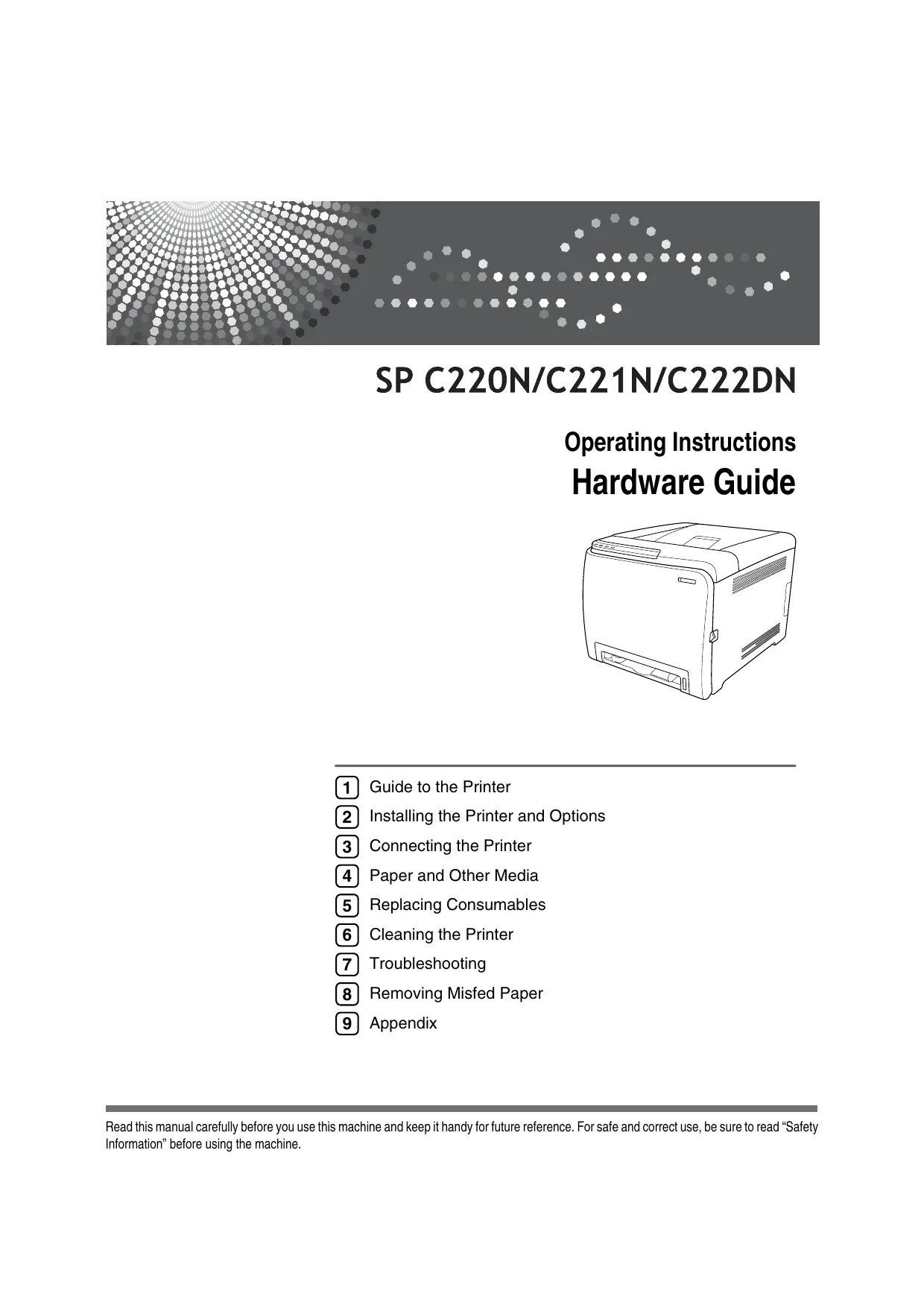

| Product Type | Color laser printer |
| Brand | RICOH |
| Model | AFICIO SP C220N |
| Dimensions (W x D x H) | 400 x 450 x 320 mm (15.8 x 17.8 x 12.8 inches) |
| Weight | Approximately 23 kg (50.6 lb) with cartridges |
| Power | 220-240 V, 6 A, 50/60 Hz or 120 V, 11 A, 60 Hz |
| Print speed | Up to 16 pages/min (A4) in black and white and color |
| Resolution | 600 x 600 dpi |
| Standard paper capacity | Tray 1: 250 sheets, Bypass tray: 1 sheet |
| Optional paper capacity | TK1010 paper feed unit: 500 sheets (tray 2) |
| Output capacity | 150 sheets (standard output tray) |
| Standard memory | 64 MB |
| Interfaces | Ethernet 10/100 Base-TX, USB 2.0 |
| Consumables | Toner cartridges: Black, Cyan, Magenta, Yellow (2000 pages each); Waste toner bottle (25,000 pages) |
| Maintenance | Cleaning of density sensor, friction pad, feed roller, and registration roller |
| Safety | Class 1 laser, hot surfaces indicated, do not incinerate toner |
| Options | TK1010 paper feed unit, 256 MB memory module |
Frequently Asked Questions - AFICIO SP C220N RICOH
User questions about AFICIO SP C220N RICOH
0 question about this device. Answer the ones you know or ask your own.
Ask a new question about this device
Download the instructions for your Color laser printer in PDF format for free! Find your manual AFICIO SP C220N - RICOH and take your electronic device back in hand. On this page are published all the documents necessary for the use of your device. AFICIO SP C220N by RICOH.
USER MANUAL AFICIO SP C220N RICOH
Operating Instructions Hardware Guide
1 Guide to the Printer
2 Installing the Printer and Options
3 Connecting the Printer
4 Paper and Other Media
5 Replacing Consumables
6 Cleaning the Printer
7 Troubleshooting
8 Removing Misfed Paper
9 Appendix
Introduction
This manual contains detailed instructions and notes on the operation and use of this machine. For your safety and benefit, read this manual carefully before using the machine. Keep this manual in a handy place for quick reference.
Important
Contents of this manual are subject to change without prior notice. In no event will the company be liable for direct, indirect, special, incidental, or consequential damages as a result of handling or operating the machine.
Do not copy or print any item for which reproduction is prohibited by law.
Copying or printing the following items is generally prohibited by local law:
bank notes, revenue stamps, bonds, stock certificates, bank drafts, checks, passports, driver's licenses.
The preceding list is meant as a guide only and is not inclusive. We assume no responsibility for its completeness or accuracy. If you have any questions concerning the legality of copying or printing certain items, consult with your legal advisor.
Notes:
Some illustrations in this manual might be slightly different from the machine.
Certain options might not be available in some countries. For details, please contact your local dealer.
Depending on which country you are in, certain units may be optional. For details, please contact your local dealer.
Caution:
Use of controls or adjustments or performance of procedures other than those specified in this manual might result in hazardous radiation exposure.
For good print quality, the supplier recommends that you use genuine toner, maintenance kits and parts from the supplier.
The supplier shall not be responsible for any damage or expense that might result from the use of consumables (toner, maintenance kits and parts) other than genuine consumables from the supplier with your office products.
Positions of WARNING and CAUTION labels
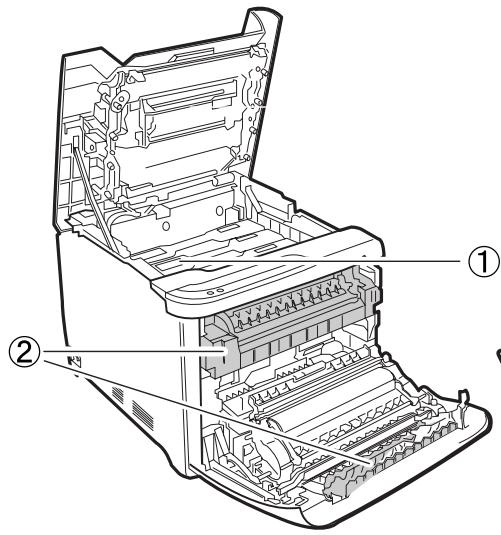
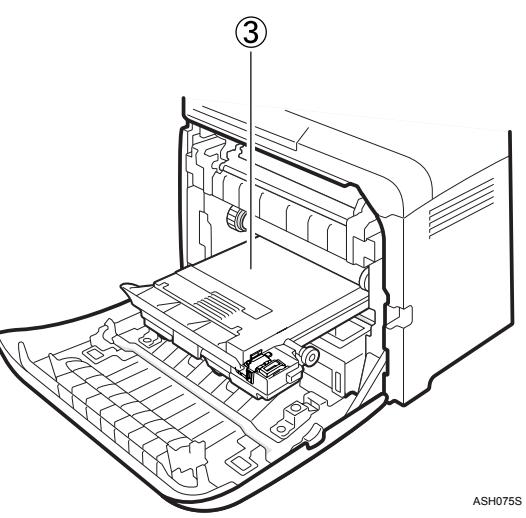
This machine has labels for WARNING and CAUTION at the positions shown below. For safety, please follow the instructions and handle the machine as indicated.

①
Do not incinerate used toner or toner containers. Toner dust might ignite when exposed to an open flame. Disposal should take place at an authorized dealer or an appropriate collection site.
Keep toner (used or unused) and toner containers out of reach of children.

②
Do not touch labelled gray areas.
The areas can get very hot.

(3)
Do not incinerate spilled toner or used toner. Toner dust is flammable and might ignite when exposed to an open flame. Disposal should take place at an authorized dealer or an appropriate collection site.
Keep toner (used or unused) and toner containers out of reach of children.
Manuals for This Printer
For particular functions, see the relevant parts of the manual.
Safety Information
Provides information on safe usage of this machine.
To avoid injury and prevent damage to the machine, be sure to read this.
Quick Installation Guide
Contains procedures for removing the printer from its box, and connecting it to a computer.
Hardware Guide
Contains information about paper and procedures such as installing options, replacing consumables, responding to error messages, and resolving jams.
Software Guide
Contain procedures for using this machine in a network environment, utilizing the software, and using security functions.
How to Read This Manual
Symbols
This manual uses the following symbols:
WARNING:
Indicates important safety notes.
Ignoring these notes could result in serious injury or death. Be sure to read these notes. They can be found in the "Safety Information" section of Hardware Guide.
CAUTION:
Indicates important safety notes.
Ignoring these notes could result in moderate or minor injury, or damage to the machine or to property. Be sure to read these notes. They can be found in the "Safety Information" section of Hardware Guide.
Important
Indicates points to pay attention to when using the machine, and explanations of likely causes of paper misfeeds, damage to originals, or loss of data. Be sure to read these explanations.
Note
Indicates supplementary explanations of the machine's functions, and instructions on resolving user errors.
Reference
This symbol is located at the end of sections. It indicates where you can find further relevant information.
[]
Indicates the names of keys that appear on the machine's display panel.
【】
Indicates the names of keys on the machine's control panel.
Description for the Specified Model
In this manual, the following items explain about the printer for the specified models:
220-240V
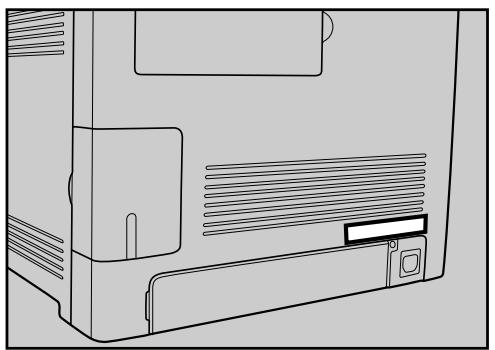
This explains about the 220 - 240V model printer. You can identify the model by checking the label on the rear of the printer.
Read if you purchase this model.
120V
This explains about the 120V model printer. You can identify the model by checking the label on the rear of the printer.
Read if you purchase this model.

Note
If you do not know your model, check the model code on the printer's nameplate.
ASH074S
Installing the Operating Instructions
The CD-ROM provided with the printer contains an HTML Operating Instructions Manual in HTML version. Follow this instructions to install it.
Important
System Requirements :
- Windows 2000/XP/Vista, or Windows Server 2003/2003 R2.
- 800 × 600 or higher monitor resolution.
Web Browsers :
Microsoft Internet Explorer 5.5 SP2 or higher
- Firefox 1.0 or higher
Quit all applications currently running.
2 Insert the CD-ROM into the CD-ROM drive.
The installer starts.
Auto Run may not work under certain operating system setting. If this is the case, launch "Setup.exe" on the CD-ROM root directory.
3 Select an interface language, and then click [OK].
4 Click [Install Manuals].
5 Follow the instructions on the screen to complete the installation.
Click [Finish] when the installation is completed.
7 Click [Exit].
Note
□ Auto Run may not work under certain operating system setting. If this is the case, copy all data on the CD-ROM root directory to your hard disk drive, and then launch "Setup.exe" to start the installation.
To uninstall the Operating Instructions Manual, select [Programs] in the [Start] menu, select your printer driver, and then click [uninstall]. You can uninstall each Manual Guide separately.
□ If you are using an incompatible Web browser and the simpler version of the Operating Instructions Manual does not display correctly, open the folder "MANUAL \ LANG \ (language) \ (manual name) \ unv \" on the CD-ROM, and then double-click on "index.htm".
TABLE OF CONTENTS
Positions of WARNING and CAUTION labels
Manuals for This Printer..
How to Read This Manual . 3
Symbols
Description for the Specified Model. iv
Installing the Operating Instructions V
1. Guide to the Printer
Exterior: Front View. 1
Exterior: Rear View 2
Inside 3
Control Panel. 4
2. Installing the Printer and Options
Installing the Printer 5
Where to Put the Printer. 5
Unpacking 7
Turning the Power On 13
Installing Options 14
Attaching Paper Feed Unit TK1010 14
Attaching Memory Unit Type F 256MB (DDR-SDRAM Module) 16
3. Connecting the Printer
Network Connection 19
Reading the LED Lamps 20
USB Connection 21
4. Paper and Other Media
Paper and Other Media Supported by This Printer 23
Paper Recommendations 25
Loading Paper 25
Storing Paper 25
Types of Paper and Other Media 26
Paper Not Supported by This Printer 31
Print Area 32
Loading Paper 34
Loading Paper in Tray 1 34
Loading Paper in the Optional Paper Feed Unit 46
Loading Paper in the Bypass Tray 48
5. Replacing Consumables
Replacing the Print Cartridge 51
Replacing the Waste Toner Bottle. 56
6. Cleaning the Printer
Cautions to Take When Cleaning 63
Cleaning the Toner Density Sensor 64
Cleaning the Friction Pad and the Paper Feed Roller 66
Cleaning the Registration Roller 69
7. Troubleshooting
Error & Status Messages on Smart Organizing Monitor 71
Panel Indicator 77
Printer Does Not Print 78
When the Printer is Directly Connected to a Computer via USB Cable 79
Other Printing Problems 82
Additional Troubleshooting 88
8. Removing Misfed Paper
When Paper is Jammed. 89
When Paper Jams inside the Fusing Unit 90
When Paper Jams Inside the Tray 92
When Paper Jams inside the Transfer Unit 94
9. Appendix
If the Printer is Not Going to Be Used for a Long Time 95
Preparing the Printer For a Long Period of Inactivity 95
Using the Printer Again after it has been Inactive for a Long Period 98
Moving and Transporting the Printer 100
Moving the Printer 101
Consumables 102
Print Cartridge 102
Waste Toner Bottle 103
Specifications 104
Main Unit 104
Options 107
INDEX. 108
1. Guide to the Printer
Exterior: Front View
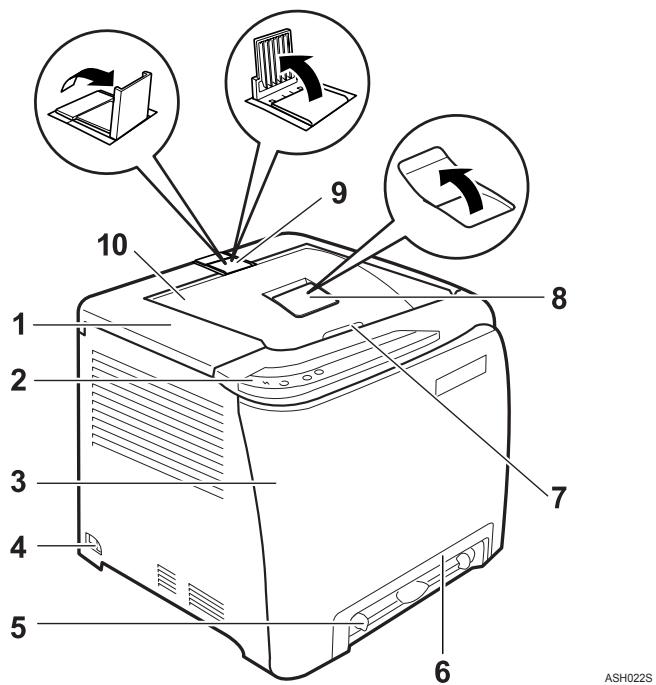
1. Top Cover
Open this cover to replace the print cartridge.
2. Control Panel
Contains keys for printer control and indicators that shows the printer status.
3. Front Cover
Open this cover to replace the waste toner bottle or remove jammed paper.
To open this cover, pull the lever on the right side of the printer.
4. Power Switch
Use this switch to turn the power on and off.
5. Bypass Tray
Load paper sheet by sheet.
6. Tray 1
Up to 250 sheets of plain paper can be loaded.
7. Top Cover Open Lever
8. Standard tray extension
Use this to support sheets that come out curled after they are printed.
Flip open the extension by pushing down on the end that is toward the rear of the machine.
9. Stop Fences
Use these to stop legal-size or A4-size prints falling behind the machine.
For legal-size prints, raise the rear fence.
For A4-size prints, raise the forward fence.
10. Standard Tray
Output is stacked here with the print side down.
Exterior: Rear View
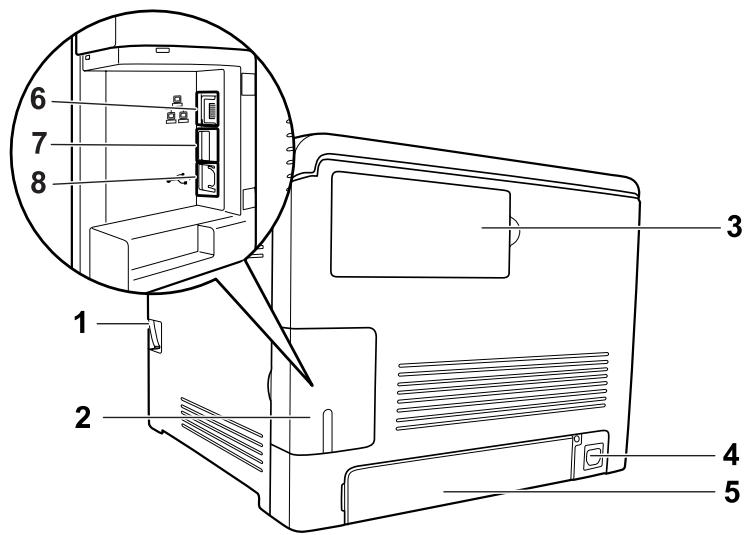
ASH023S
- Front Cover Open Lever
- Cable cover
- Memory cover
Remove this cover to install the additional memory unit (option).
- Power Socket
- Rear cover
Remove this cover when you load paper larger than A4 in the paper tray.
- Ethernet Port
Use a network interface cable to connect the printer to the network.
- USB Host Interface
Use a USB cable to connect the digital camera to the printer. You can print images directly from a digital camera, without having to connect to a computer.
- USB Port
Use a USB cable to connect the printer to the host computer.

Note
- Make sure the digital camera you connect to the printer for PictBridge and direct printing supports PictBridge.
□ You cannot add memory unit to the SP C220N model printer. - USB Host Interface is installed only for the SP C222DN model printer.
Inside
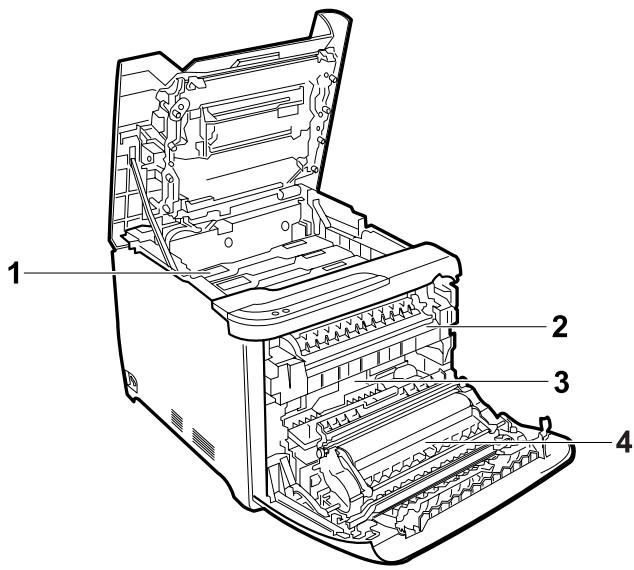
ASH024S
1. Print Cartridge
Loads from the printer rear, in the order of cyan (C), magenta (M), yellow (Y), and black (K).
If a toner end indicator on the control panel lights up, replace the print cartridge of the indicated color.
2. Fusing Unit
Fuses toner to the paper.
You might have to handle this unit to check for or remove jammed paper.
3. Waste Toner Bottle
Collects toner that is wasted during printing.
If the message "Waste Toner Bottle Full. The Waste Toner Bottle is full. Open the indicated cover, and then replace the Waste Toner Bottle. Front Cover: [Waste Toner Bottle]." appears on the Smart Organizing Monitor dialog box, replace the waste toner bottle.
4. Transfer unit
Removes to change a waste toner bottle.
Reference
For details about the messages which appear on the screen to prompt you to replace the units, see p.71 "Error & Status Messages on Smart Organizing Monitor".
Control Panel
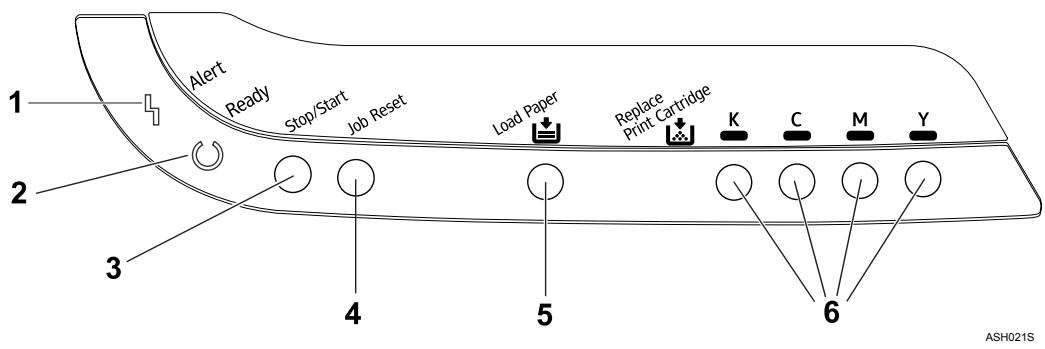
1. Alert Indicator
Lights up whenever a printer error occurs. Use Smart Organizing Monitor to check the error.
2. Ready Indicator
Lights up when the printer is ready to receive data from a computer. Flashes when the printer is warming up or receiving data.
3.【Stop/Start】key
If you press this key, the printer stops receiving data, and printing is not possible. Press the [Stop/Start] key again to return to the ready condition.
You can also use this key to print the configuration page. To print the configuration page, turn the printer off and then, while pressing and holding this key down, turn the printer back on, keeping the key pressed until the Ready indicator flashes once. The configuration page will then print out.
4.【Job Reset】key
Press this key to cancel a job that is printing out.
You can also use this key to print a test page. To print the test page, turn the printer off and then, while pressing and holding this key down, turn the printer back on, keeping the key pressed until the Alert indicator flashes once. The test page will then print out.
5. Load Paper Indicator
Lights up when a paper tray is empty or unattached.
6. Replace Print Cartridge Indicator
The indicator under each toner icon flashes when there is little toner remaining. The indicator remains lit when there is no toner left.
LED color corresponds to Toner color.
Note
To print the configuration page using the [Stop/Start] key is not available for the SP C220N model printer.
Reference
For printing the configuration page, see Software Guide.
2. Installing the Printer and Options
Installing the Printer
This section describes how to install the printer and perform settings after installation.
Where to Put the Printer
The printer's location should be carefully chosen because environmental conditions greatly affect its performance.
WARNING:
- The supplied power cord is for use with this equipment only. Do not use with other appliances. Doing so may result in fire, electric shock, or injury.
- Keep the machine away from flammable liquids, gases, and aerosols. A fire or an electric shock might occur.
- The wall outlet shall be installed near the machine and shall be easily accessible.
- Connect the machine only to the power source described in this manual. Connect the power cord directly into a wall outlet and do not use an extension cord. Do not damage, break or make any modifications to the power cord. Do not place heavy objects on it. Do not pull it hard nor bend it more than necessary. These actions could cause an electric shock or fire.
CAUTION:
- Keep the machine away from humidity and dust. Otherwise a fire or an electric shock might occur. Do not place the machine on an unstable or tilted surface. If it topples over, an injury might occur.
- Keep the machine in an area that is within optimum environmental conditions. Operating the machine in an environment that is outside the recommended ranges of humidity and temperature can cause an electrical fire hazard. Keep the area around the socket free of dust. Accumulated dust can become an electrical fire hazard.
- Make sure the room where you are using the machine is well ventilated and spacious. Good ventilation is especially important when the machine is used heavily.
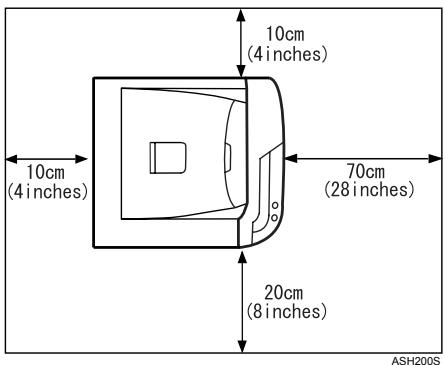
Space Required for Installation
The recommended (or minimum) space requirements are as follows:
Optimum Environmental Conditions
Permissible and recommended temperature and humidity ranges are as follows:
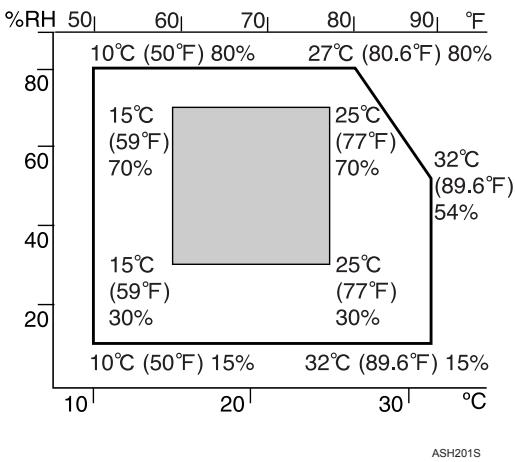
- White area: Permissible Range
- Gray area: Recommended Range
Note
□ When you use this machine for a long time in a confined space without good ventilation, you may detect an odd smell. To keep the workplace comfortable, we recommend that you keep it well ventilated.
Environments to Avoid
Important
Areas exposed to direct sunlight or strong light
Dusty areas
Areas with corrosive gases
Areas that are excessively cold, hot, or humid
- Locations near air conditioners or humidifiers
□ Locations near other electronic equipment
□ Locations subject to frequent strong vibration
Power Source
Connect the power cable to a power source of the following specification:
220 - 240 V, 50/60 Hz, 6 A or more
120 V, 60 Hz, 11 A or more
Unpacking
To protect it from shock and vibration during transit, this printer comes packaged in cushioning foam and secured with tape. Remove these protective materials after bringing the machine to where it will be installed.
WARNING:
- Do not incinerate used toner or toner containers. Toner dust might ignite when exposed to an open flame. Dispose of used toner containers in accordance with local regulations.
- Do not store toner, used toner, or toner containers in a place with an open flame. The toner might ignite and cause burns of a fire.
CAUTION:
- Keep toner (used or unused) and toner containers out of reach of children.
- If toner or used toner is inhaled, gargle with plenty of water and move into a fresh air environment. Consult a doctor if necessary.
- If toner or used toner gets into your eyes, flush thoroughly with eyewash or water. Consult a doctor if necessary.
- If toner or used toner is swallowed, dilute by drinking a large amount of water. Consult a doctor if necessary.
- When moving the printer, use the inset grips on both sides. The printer will break or cause injury if dropped.
Important
□ Removed tape is dirty. Be careful not to let it touch your hands or clothes.
- Leave the tape holding the paper feed tray and cover in place while moving the printer.
Lower the machine slowly and carefully to prevent trapping your hands.
Do not grip on the tray area when lifting the printer.
- Do not allow paper clips, staples, or other small metallic objects to fall inside the machine.
- Keep the uncovered print cartridge away from direct sunlight.
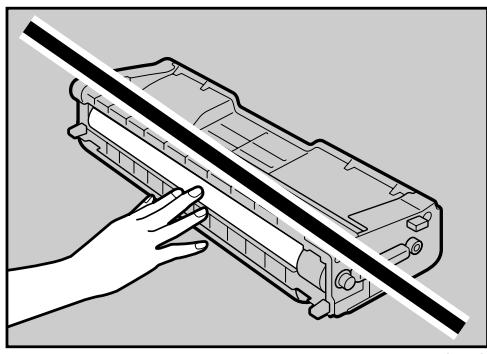
Do not touch the print cartridge's photo conductor.
ASH100S
1 Remove the plastic bag.
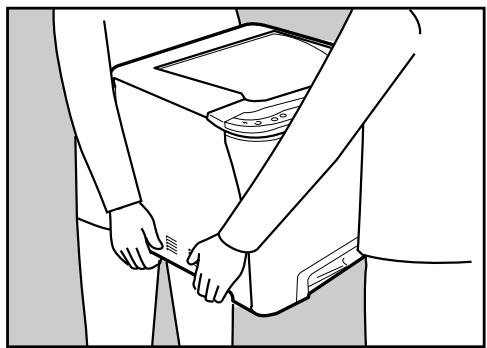
2 Lift the printer with two people by using the inset grips on both sides of the printer.
ASH051S
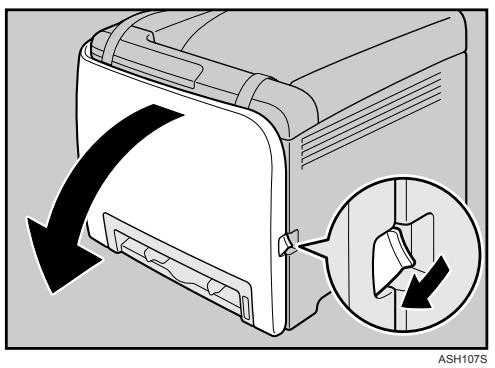
Pull Front Cover Open Lever, and then open the front cover with both hands carefully.
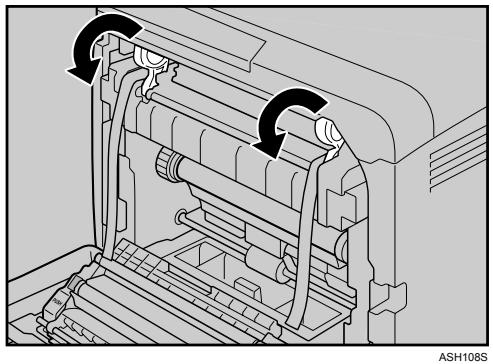
4 Lower the blue fusing unit lever.
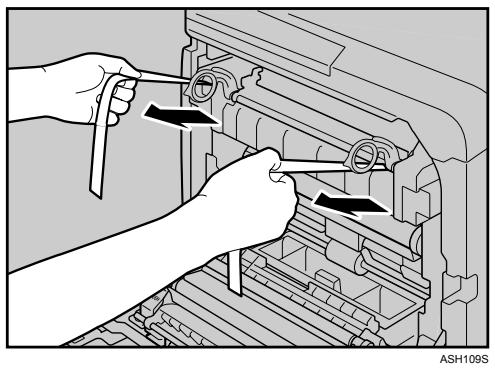
Hold each tape near its joint, and then pull both tapes gently upward to remove them from the printer at the same time.
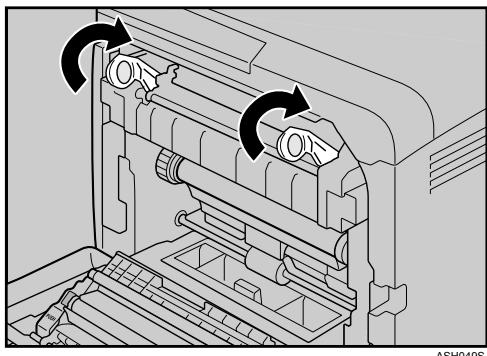
6 Carefully lift the blue fusing unit levers.
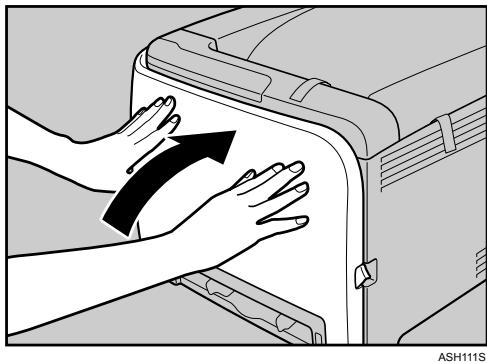
7 Close the front cover with both hands carefully.
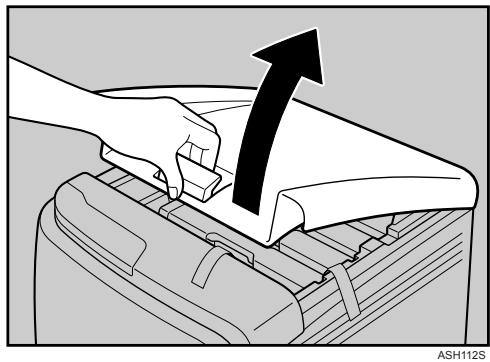
Pull up Top Cover Open Lever to open the top cover.
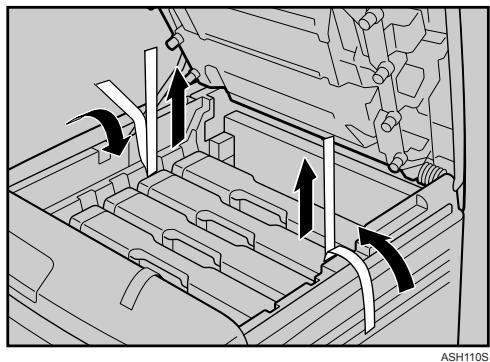
9 Remove the protection tape.
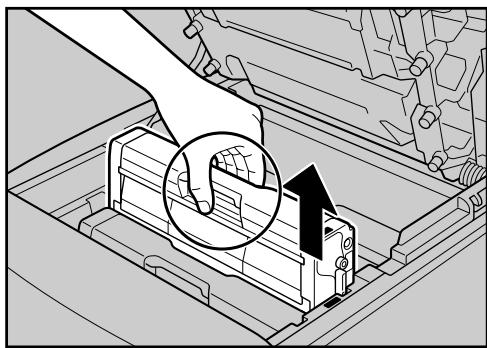
Take each print cartridge out.
Gripping its center, carefully pull the print cartridge upward and out.
ASH005S
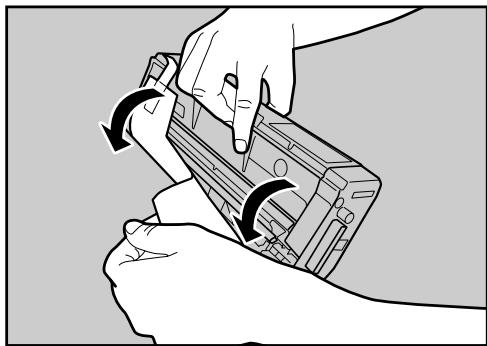
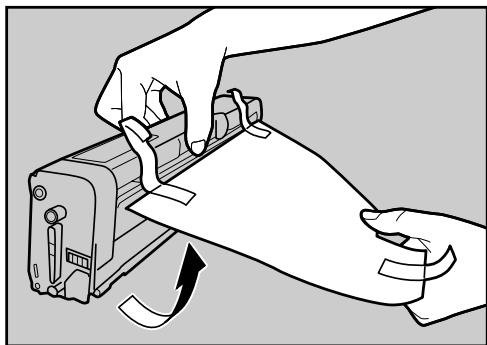
When taking out the black print cartridge, be sure to remove the protection sheet also.
ASH087S
ASH088S
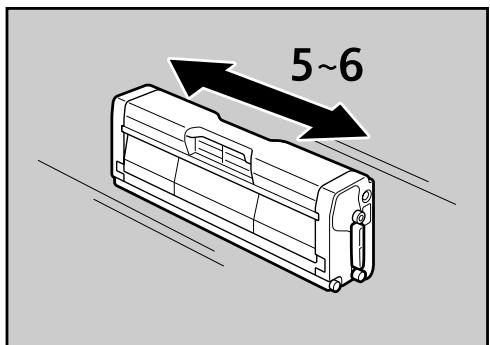
Hold the print cartridge and shake it from side to side five or six times.
ASH113S
Check the toner color and location correspond, and then carefully insert the print cartridge vertically.
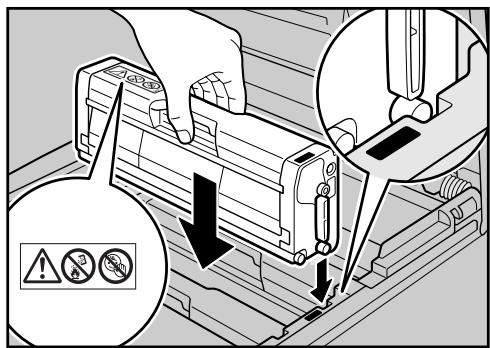
ASH009S
Close the top cover with both hands carefully.
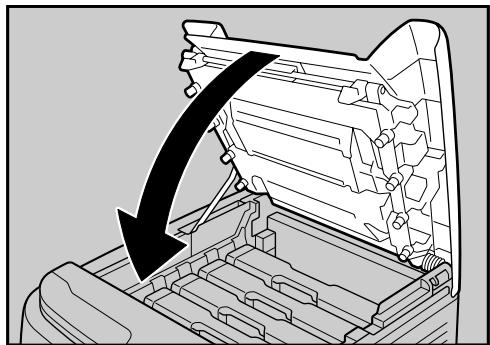
ASH010S
Turning the Power On
Follow the procedure below to turn the power on.
WARNING:
- Plug and unplug the power cable with dry hands, or an electric shock could occur.
Important
Make sure the power cable is plugged securely into the wall outlet.
Turn the power switch off when plugging and unplugging the power plug.
- Do not turn off the power switch until initializing is completed. Doing so results in malfunction.
Plug in the power cable.
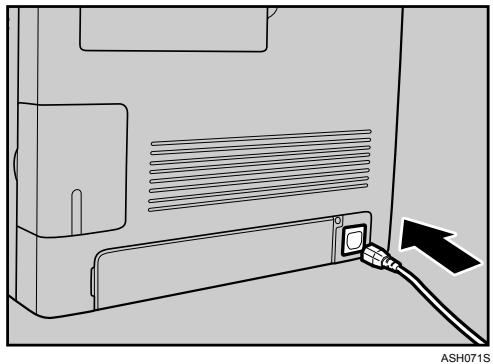
2 Turn the power switch to On.
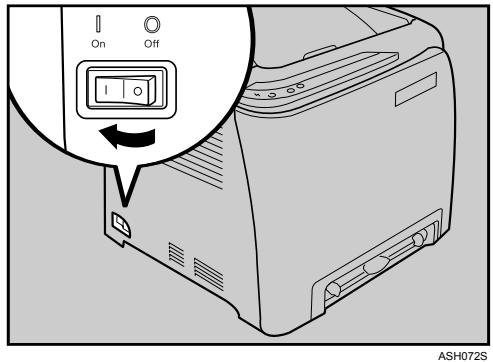
The Ready indicator on the control panel lights up.
Note
Wait until the Ready indicator turns on.
The machine may make a noise while initializing. This noise does not indicate a malfunction.
Installing Options
This section describes how to install options.
By installing options, you can improve the printer performance and have an expanded variety of features to use. For the specifications of each option, see p.104 "Specifications".
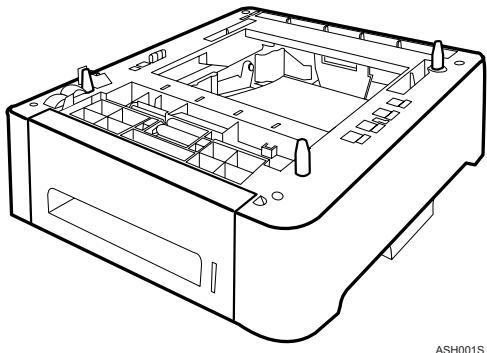
Attaching Paper Feed Unit TK1010
When installing multiple options, install Paper Feed Unit TK1010 first.
CAUTION:
- The printer weighs approximately 23kg (50.6 lb.). When moving the printer, use the inset grips on both sides, and lift slowly in pairs. The printer will break or cause injury if dropped.
- Lifting the paper feed unit carelessly or dropping may cause injury.
- It is dangerous to handle the plug with wet hands. Doing this may result in receiving an electric shock.
- Before moving the machine, unplug the power cord from the wall outlet. If the cord is unplugged abruptly, it could become damaged. Damaged plugs or cords can cause an electrical or fire hazard.
Important
- Tray 1 is required to print using the optional paper feed unit. Without Tray 1, paper jams will occur.
The optional paper feed unit can be installed on the SP C221N and SP C222DN model printers. - Certain options might not be available in some countries. For details, contact your local dealer.
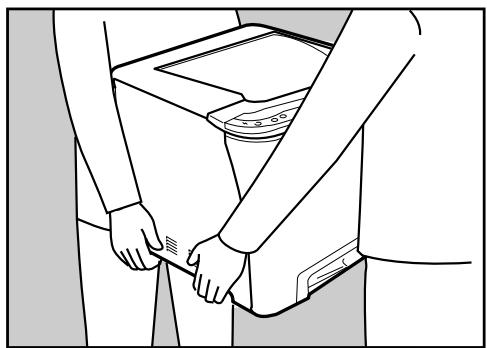
The printer should always be lifted by two people.
Do not grip on the tray area when lifting the printer.
Check the package contains Paper Feed Unit TK1010.
Turn off the printer's power switch, and then unplug the printer's power cord from the wall outlet.
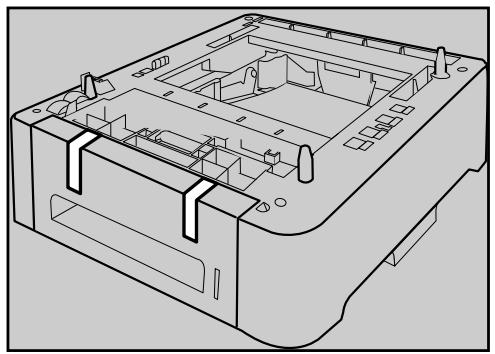
3 Remove the adhesive tape from the optional paper feed unit.
ASH025S
4 Lift the printer using the inset grips on both sides of the printer.
ASH051S
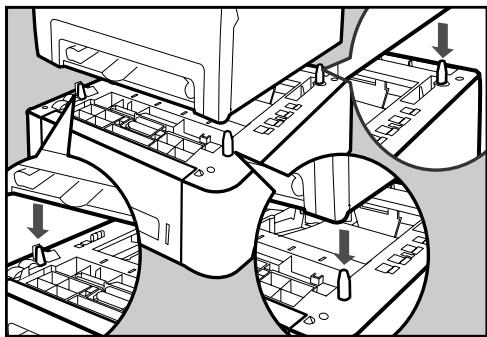
There are three upright pins on the optional paper feed unit. Align them with the holes on the underside of the printer, and then carefully lower the printer.
ASH003S
6 After installing the option, print the configuration page to confirm the installation.

Note
- When moving the printer, remove the optional paper feed unit.
Before using the optional paper feed unit, you can make settings in the printer driver.
If the new device is listed in the column of configuration options, then it has been properly installed.
If the optional paper feed unit is not installed properly, reinstall it following this procedure. If you cannot install it properly even after attempting reinstallation, contact your sales or service representative.

Reference
For printing the configuration page, see Software Guide.
For loading paper into the paper tray, see p.34 "Loading Paper".
When adjusting the printing position, see Software Guide.
Attaching Memory Unit Type F 256MB (DDR-SDRAM Module)

CAUTION:
- Before installing the memory unit, turn off the printer's power switch and unplug the power cable. After installing the memory unit, be sure to close the memory unit cover, and then turn the machine back on. Do not turn on the machine before closing the memory unit cover.

Important
Before touching the memory unit, ground yourself by touching something metal to discharge any static electricity. Static electricity can damage the memory unit.
- You can install the memory unit in the SP C221N and SP C222DN model printers.
Do not subject the memory unit to physical shocks.

Turn off the power, and then unplug the power cable.

Remove the memory cover.
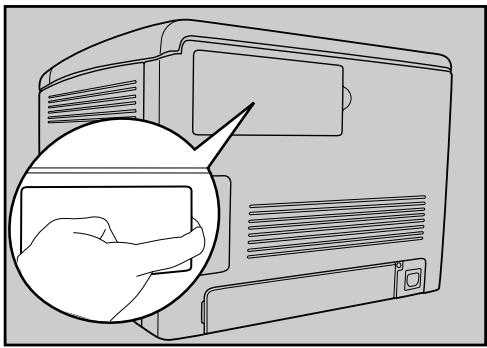
ASH026S
3 Loosen the screw securing the inner cover by using a coin.
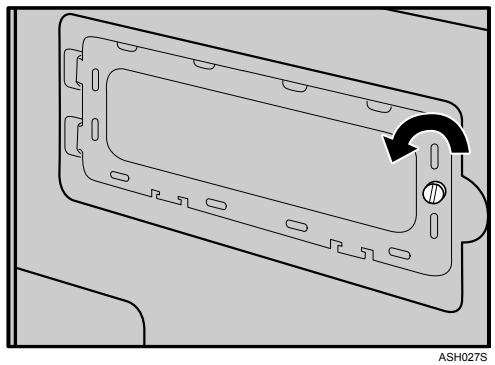
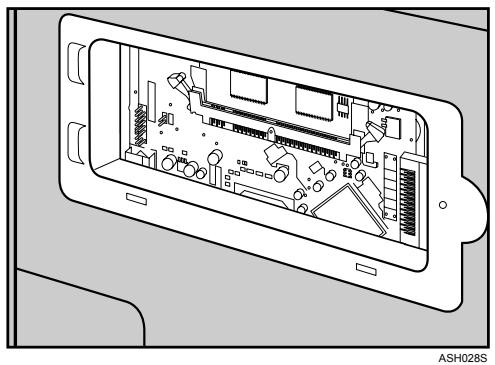
4 Be sure to install the memory unit as shown.
To install the recommended memory, align the notch of the recommended memory with the protruding part of the vacant slot, and then carefully insert the module at an angle.
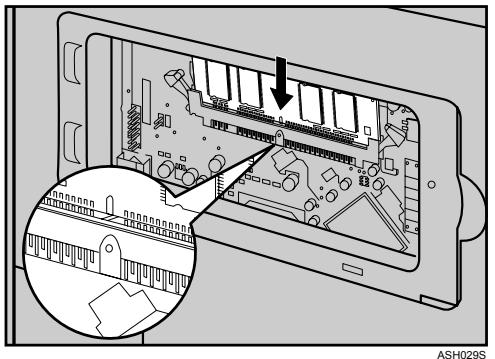
6 Keeping the module at an angle, press it down until it clicks into place.
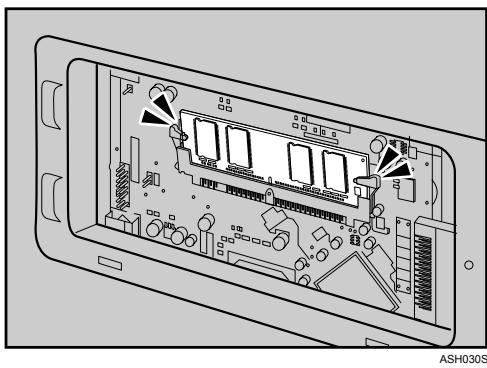
7 Attach the inner cover, and then fasten the screw.
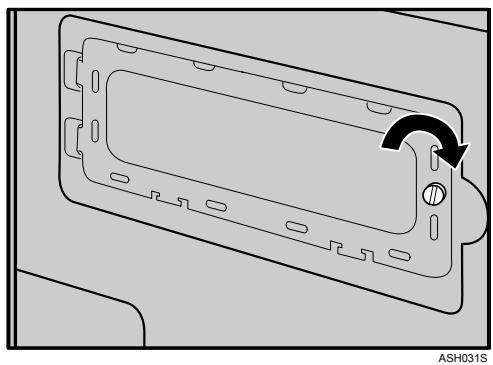
8 Attach the memory cover.
After installing the option, print the configuration page to confirm the installation.
If it is installed properly, the memory capacity will appear under "Total Memory" on the configuration page.
Note
Before using the new memory unit, make settings in the printer driver.
If the memory unit is not properly installed, repeat this procedure. If you cannot install it properly even after reinstallation, contact your sales or service representative.
Reference
For printing the configuration page, see Software Guide.
3. Connecting the Printer
Network Connection
Follow the procedure below to connect the printer to the computer through the network. Prepare a hub, straight-through Ethernet cable, and any other necessary network devices before connecting the 10BASE-T or 100BASE-TX cable to the printer's Ethernet port.
CAUTION:
- Connect only an approved network interface board to this printer. A voltage over load can occur if you connect an incorrect network interface board, such as a telephone line interface, to the printer. Voltage overloads can cause fire, electric shock, and burns. Doing so may result in fire, electric shock, or injury.
Important
- Use shielded Ethernet cable. Unshielded cables create electromagnetic interference that could cause malfunctions.
The Ethernet cable is not supplied with this printer. Select your cable according to the network environment.
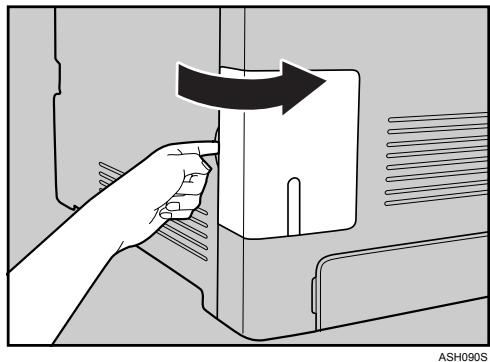
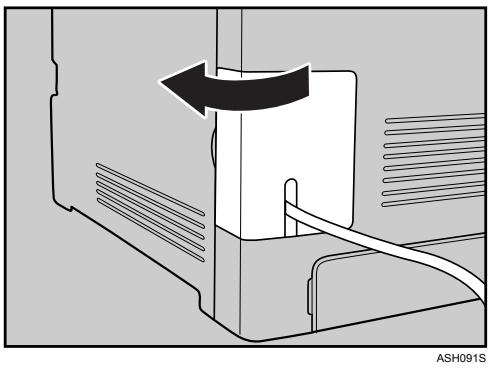
1 Remove the cable cover.
2 Connect the Ethernet cable to the Ethernet port.
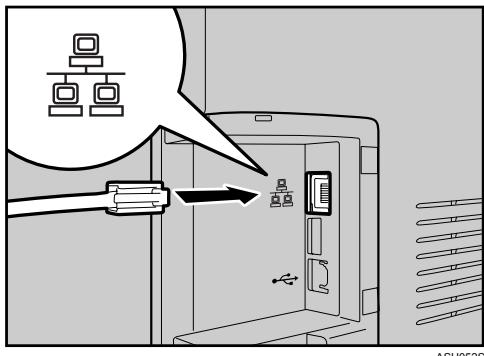
3 Connect the other end of the cable to the printer's network, such as a hub.
4 Attach the cable cover.
Reference
For details about network environment settings, see Software Guide.
Reading the LED Lamps
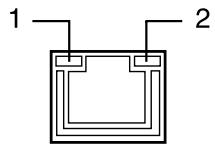
AQC070S
-
Yellow: comes on when 100BASE-TX is being used. It comes off when 10BASE-T is being used.
-
Green: comes on when the printer is properly connected to the network.
USB Connection
Important
- USB2.0 interface cable is not supplied. Obtain it separately, according to the computer you are using.
- USB connection is possible under Windows 2000/XP/Vista, Windows Server 2003/2003 R2, and Mac OS X.
- USB connection with Macintosh is only possible via the printer's USB port.
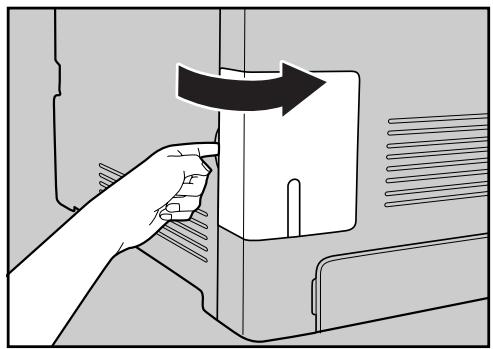
1 Remove the cable cover.
ASH090S
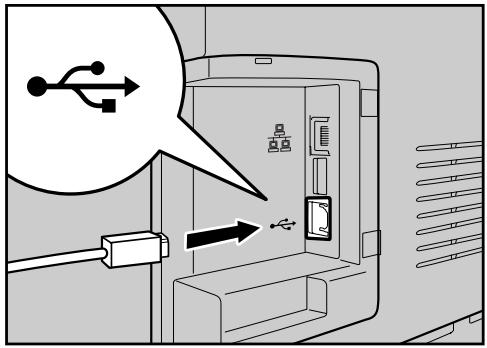
Connect the square-shaped connector of the USB2.0 cable to the USB port.
ASH053S
3 Connect the opposite end's flat connector to devices such as your computer's USB interface.
4 Attach the cable cover.
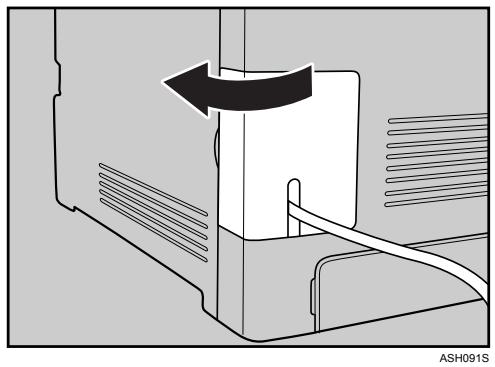
Reference
For details about settings for USB connection printing, see Software Guide.
4. Paper and Other Media
Paper and Other Media Supported by This Printer
This section describes the paper size, feed direction, and the maximum amount of paper that can be loaded into each paper tray in this printer.

Note
The optional paper feed unit can be installed on the SP C221N and SP C222DN model printers.
□ All paper must be set vertically, regardless of the paper size.
| In this manual | On the display | Paper feed direction |
| ↑(Feed direction) | A4 8 1/2 × 11 | Short-edge feed direction |
Input Paper Sizes (Metric version)
| Size (mm) | Size (inch) | Standard Input Tray 1 | Paper Feed Unit TK1010 (Tray 2) | Bypass Tray | Duplex | |
| A4 | 210 × 297 | 8.26" × 11.69" | ☆ | ☆ | ◎ | ◎ |
| B5 | 182 × 257 | 7.17" × 10.12" | ☆ | × | ◎ | ◎ |
| A5 | 148 × 210 | 5.83" × 8.26" | ☆ | × | ◎ | × |
| A6 | 105 × 148 | 4.13" × 5.63" | ☆ | × | ◎ | × |
| Legal | 216 × 356 | 8.5" × 14" | ☆ | × | ◎ | ◎ |
| Letter | 216 × 279 | 8.5" × 11" | ☆ | ☆ | ◎ | ◎ |
| Executive | 184 × 276 | 7.25" × 10.5" | ☆ | × | ◎ | ◎ |
| F/GL | 203 × 330 | 8" × 13" | ☆ | × | ◎ | × |
| Foolscap | 216 × 330 | 8.5" × 13" | ☆ | × | ◎ | × |
| Folio | 210 × 330 | 8.25" × 13" | ☆ | × | ◎ | × |
| Com10 Env | 104.8 × 241.3 | 4.25" × 9.5" | ★ | × | ● | × |
| C5 Env | 162 × 229 | 6.38" × 9.02" | ★ | × | ● | × |
| C6 Env | 114 × 162 | 4.49" × 6.38" | ★ | × | ● | × |
| DL Env | 110 × 220 | 4.33" × 8.66" | ★ | × | ● | × |
| Monarch Env | 98.4 × 190.5 | 3.875" × 7.5" | ★ | × | ● | × |
| 16K | 195 × 267 | 7.68" × 10.5" | ☆ | × | ◎ | × |
| Custom Paper Size | - | - | ☆ | × | ◎ | × |
·☆
Select a size using Smart Organizing Monitor.
·★
Set a size as a custom size using Smart Organizing Monitor.
The following sizes are supported:
Tray 1: approximately 90 - 216mm in width, and 148 - 356mm in length.
Bypass Tray: approximately 90 - 216 mm in width, and 148 - 356 mm in length.
•
Select a size using the printer driver.
.
Set a size as a custom size using the printer driver.
The following sizes are supported:
Tray 1: approximately 90 - 216 ~mm in width, and 148 - 356 ~mm in length.
Bypass Tray: approximately 90 - 216 mm in width, and 148 - 356 mm in length.
X
The size is not supported.
Paper weight and number of sheets to be set
| Supported paper weight | Maximum number of sheets (plain paper) | |
| Tray 1 | 60 - 160 g/m2(16 - 42 lb.) | 250 (80 g/m2, 20 lb.) |
| Bypass Tray | 60 - 160 g/m2(16 - 42 lb.) | 1 |
| Paper Feed Unit (Tray 2) | 60 - 105 g/m2(16 - 28 lb.) | 500 (80 g/m2, 20 lb.) |
Check that the top of the stack is not higher than the limit mark inside the tray.
Paper Recommendations
Loading Paper

Important
- Do not use ink-jet printer paper because it may stick to the fusing unit and cause a paper misfeed.
- Do not load OHP transparencies. Load translucent media only.
Set the paper as described below
- Tray 1: Print side facing up
- Paper Feed Unit (Tray 2): Print side facing up
-
Bypass Tray: Print side facing down
-
Print quality cannot be guaranteed if paper other than the ones recommended is used. For more information about recommended paper, contact your sales or service representative.
Do not use paper that has already been printed onto by other printers. - Specify the paper size and type using Smart Organizing Monitor.
The remaining paper indicator on the right front side of the paper tray shows approximately how much paper is remaining.
Storing Paper
-
Paper should always be stored properly. Improperly stored paper might result in poor print quality, paper misfeeds, or printer damage. Recommendations are as follows:
-
Avoid storing paper in humid areas.
- Avoid exposing paper to direct sunlight.
-
Store on a flat surface.
-
Keep paper in the package in which the paper came.
Types of Paper and Other Media
This section provides information about the type of paper supported by this printer and cautions for use.
Setting the paper type
Use the printer driver or Smart Organizing Monitor to specify the paper type you want to use.
Printer driver
On the printer driver screen, click the [Paper] tab, and then select a paper type under [Paper Type:].
Smart Organizing Monitor
In the Smart Organizing Monitor dialog box, click the [User Tools] tab, and then click the [Printer Configuration] button.
In the dialog box that appears, click the [Paper Input] tab, and then select the paper type from the [Paper Type:] list for [Tray 1] and/or [Tray 2].
Types of paper
| Paper Type | Thickness (g/m2) | Duplex | Enabled paper feeding tray | Note | |
| Tray 1 | Tray 2 | ||||
| Thin Paper (60-75g/m2) | 60-75 | ○ | ○ | ○ | |
| Plain Paper | 75-90 | ○ | ○ | ○ | • Default |
| Plain Paper (90-105g/m2) | 90-105 | × | ○ | ○ | • The number of sheets that can be printed in one minute is approximately half that of plain paper. |
| Recycled Paper | 75-90 | ○ | ○ | ○ | • If the paper thickness is outside the specified range, select Thin Paper, Plain Paper (90-105 g/m2) or Thick Paper. |
| Color Paper | 75-90 | ○ | ○ | ○ | |
| Preprinted Paper | 75-90 | ○ | ○ | ○ | |
| Prepunched Paper | 75-90 | ○ | ○ | ○ | |
| Thick Paper (105-160g/m2) | 105-160 | × | ○ | × | • The number of sheets that can be printed in one minute is approximately half that of plain paper. |
| Letterhead | 75-90 | ○ | ○ | ○ | • Paper that has a thickness outside the speci-fied range cannot be printed. |
| Bond Paper | 105-160 | × | ○ | × | · The number of sheets that can be printed in one minute is approximately half that of plain paper. · If the paper thickness is outside the specified range, select Plain Paper (90-105 g/m2). |
| Cardstock | 105-160 | × | ○ | × | · The number of sheets that can be printed in one minute is approximately half that of plain paper. · Paper thicker than 160g/m2 cannot be printed. |
| Label Paper | × | ○ | × | · The number of sheets that can be printed in one minute is approximately half that of plain paper. | |
| Envelope | × | ○ | × | · The number of envelopes that can be printed in one minute is approximately half that of plain paper. · To prevent the envelopes becoming creased, go to the [Setup] tab and select [Rotate by 180 degrees] for [Orientation:] when printing. · If printed envelopes come out badly creased, load the envelopes in the opposite direction. Also, configure the printer driver to rotate the print object 180 degrees. · Load envelopes print side up in the paper tray. | |
| ·The loading orientation of envelopes depends on the type of envelope. To load envelopes that open along the short edge, open out their flaps and place the envelopes so that their flaps point toward the back of the tray. To load envelopes that open along the long edge, fold their flaps under (as if closed) and place the envelopes so that their flap edges are flush against the right side paper guide. ·To correctly specify the length of an envelope whose flap opens along its short edge, be sure to include the open flap when measuring. ·Environmental factors can degrade the print quality on both recommend and non-recommended envelopes. | |||||
| ·Fan envelopes, and then align their edges before loading. | |||||
| ·When fanning envelopes, make sure they are not stuck together. If they are stuck together, separate them. | |||||
| ·When fanning envelopes, make sure the envelope flaps are not stuck together. If they are stuck together, separate them. | |||||
| · Before loading envelopes, flatten them out so that their curl does not exceed that shown in the illustration below. · · · · · · · · · · · · · · · · · · · · · · · · · · · · · · · · · · · · · · · · · · · · · · · · · · If the curl is severe, flatten out the envelopes using your fingers, as shown in the illustration below. · · · · · · · · · · · · · · · · · · · · · · · · · · · · · · · · · · · · · · · · · · · · · · - If envelopes are severely curled after printing, flatten them by bending them back against the curl. · After printing, envelopes sometimes have creases along their long edges and toner smear on their unprinted sides. Their print images might also be blurred. When printing large, black-solid areas, striping can occur as a result of the envelopes overlapping. | |||||
Paper Not Supported by This Printer
Avoid using the following paper as they are not supported by this printer.
- Paper meant for an ink-jet printer
- Bent, folded, or creased paper
- Curled or twisted paper
- Torn paper
- Wrinkled paper
Damp paper - Paper that is dry enough to emit static electricity
- Paper that has already been printed onto, except a preprinted letterhead. Malfunctions are especially likely when using paper printed on by other than a laser printer (e.g. monochrome and color copiers, ink-jet printers, etc.)
- Special paper, such as thermal paper, aluminum foil, carbon paper and conductive paper
- Paper whose weight is heavier or lighter than the limitation
- Paper with windows, holes, perforations, cutouts, or embossing
- Adhesive label paper on which glue or base paper is exposed
- Paper with clips or staples
Print Area
The following shows the print area for this printer. Be sure to set the print margins correctly by the application.
Paper
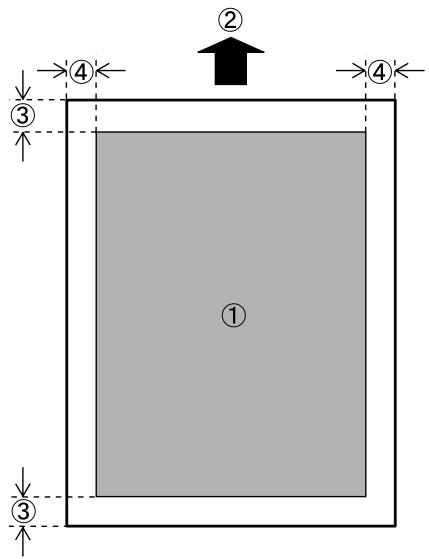
① Print area
② Feed direction
(3) Approx. 4.2 ~mm (0.17 inches)
(4) Approx. 4.2 ~mm (0.17 inches)

Note
The print area may vary depending on the paper size, printer language and printer driver settings.
Envelope
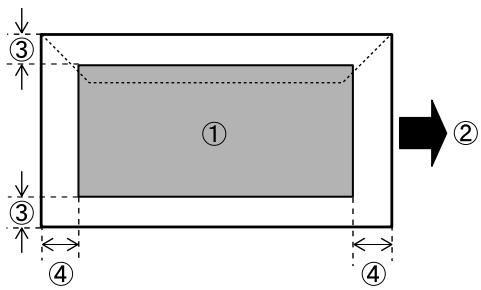
① Print area
② Feed direction
③ Approx. 4.2mm (0.17 inches)
(4) Approx. 4.2 ~mm (0.17 inches)
Note
The print area may vary depending on the paper size, printer language and printer driver settings.
For better print quality, we recommend the right, left, top, and bottom print margins to be at least 15mm (0.6 inches) each.
Loading Paper
This describes how to load paper into the paper tray and bypass tray.
CAUTION:
- Do not pull out the paper tray forcefully. If you do, the tray might fall and cause an injury.
Loading Paper in Tray 1
The following example explains loading procedure for the standard paper tray (Tray 1). The same procedure can be used for the optional paper feed unit.
Important
- Make sure paper is not stacked above the limit mark inside the tray. Misfeeds might occur.
□ After loading paper in the tray, specify the paper type and size using Smart Organizing Monitor.
Do not mix different types of paper in the same paper tray.
Do not move the side paper guides forcefully. Doing so can damage the tray.
Do not move the end paper guide forcefully. Doing so can damage the tray. - When inserting the tray, make sure it is not slanted. Inserting it at a slant can damage the printer.
Lift and pull Tray 1 carefully, and then pull it out with both hands.
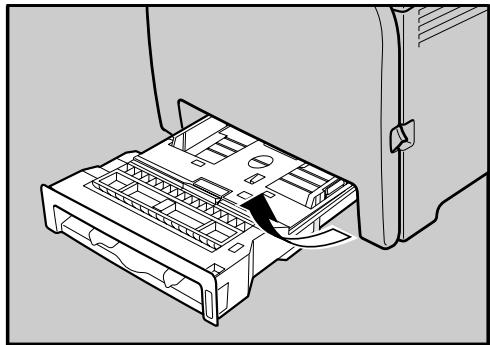
ASH032S
Place the tray on a flat surface.
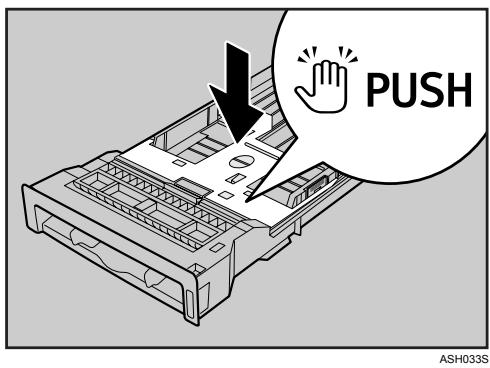
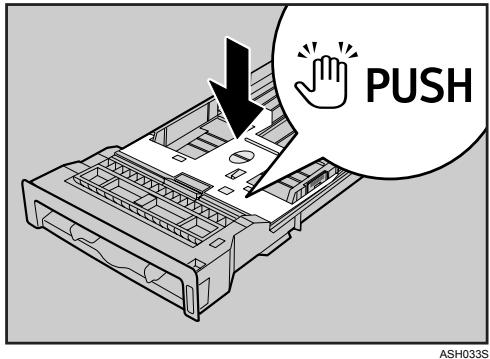
Push the metal plate down until it clicks into place to lock.
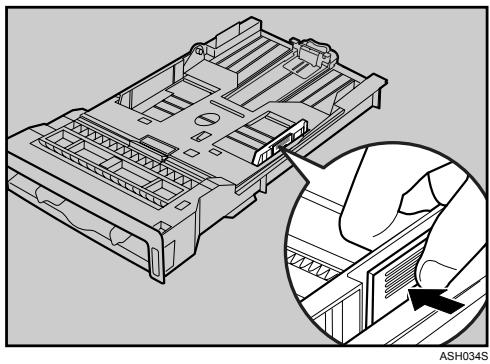
Pinch the clip on the side paper guide and slide it to match the standard size.
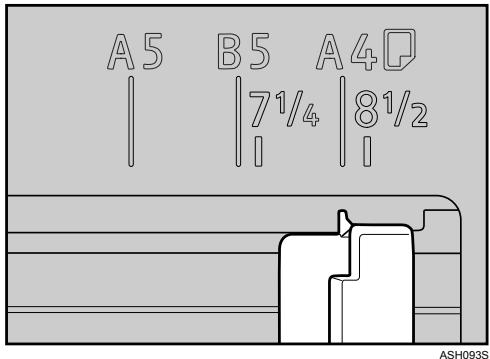
When loading custom size paper, position the paper guide slightly wider than the actual paper size.
Pinch the front end paper guide and slide it inward to mach the standard size.
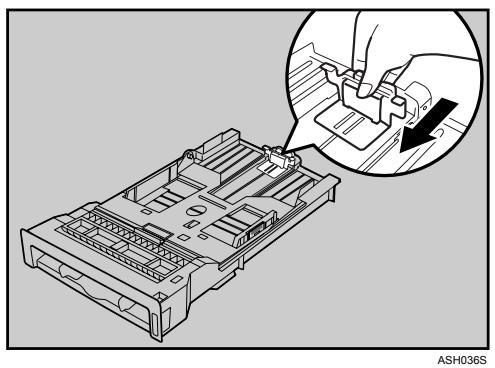
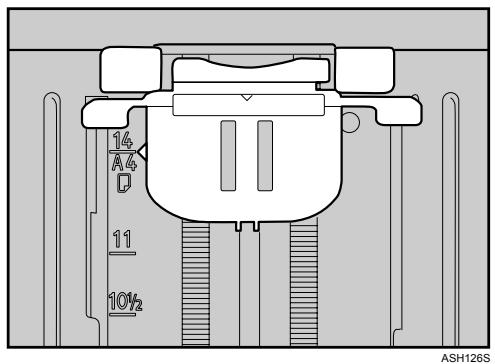
When loading custom size paper, position the paper guide slightly wider than the actual paper size.
Load the new paper stack print side up.
Make sure paper is not stacked higher than the upper limit (upper line) marked inside the tray.
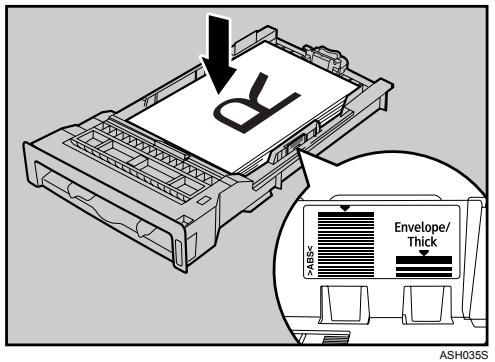
Slide the guides inward, until they are flush against the paper's sides.
Make sure the paper is not stacked higher than the projection on the side paper guides.
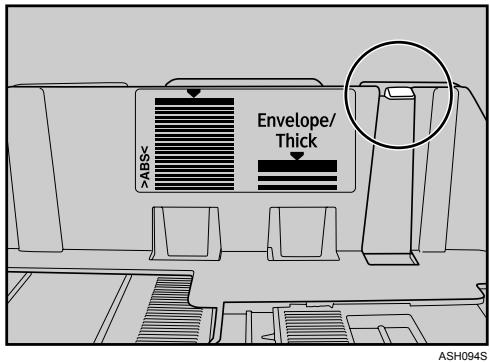
6 Check there are no gaps between the paper and the paper guides; both side and front end paper guides.
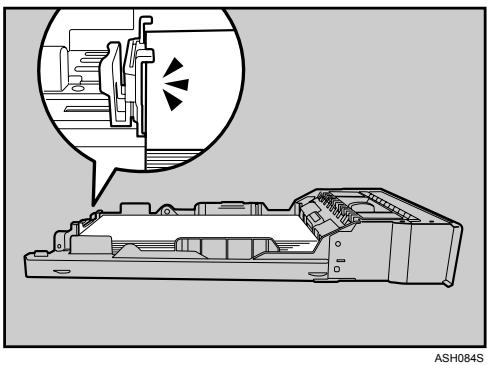
If there is a gap between the paper and the front end paper guide, as in the example below, the paper might not feed in correctly.
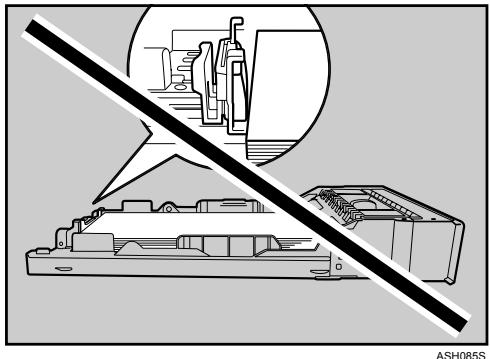
7 Carefully push Tray 1 straight into the printer.
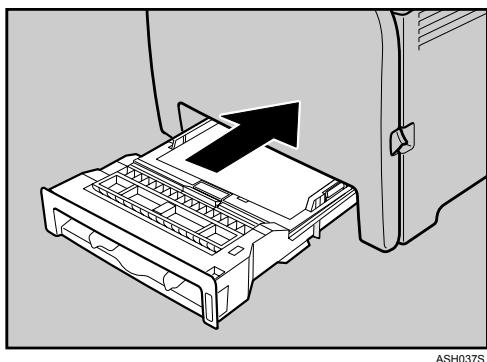
To avoid paper jams, make sure the tray is securely inserted.
Note
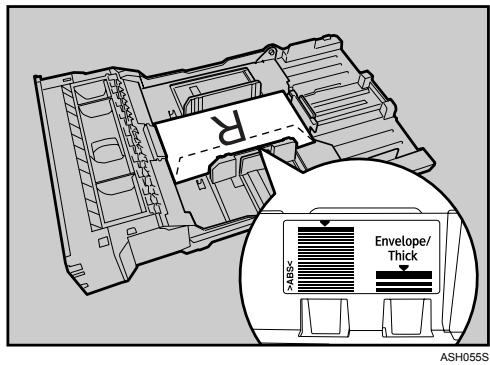
The upper limit differs depending on paper type; thin paper or thick paper. Check the label inside the tray to confirm the upper limit.
Reference
For details about paper types supported by the printer, see p.25 "Paper Recommendations".
For details about the paper settings, see Software Guide.
Loading legal size paper
This section explains how to load Legal size paper into the printer.
The same procedure applies to A4 paper (297 mm) or larger.
Important
Do not move the side paper guides forcefully. Doing so can damage the tray.
Do not move the end paper guide forcefully. Doing so can damage the tray.
□ When inserting the tray, make sure it is not slanted. Inserting it at a slant can damage the printer.
1 Remove the rear cover using a coin.
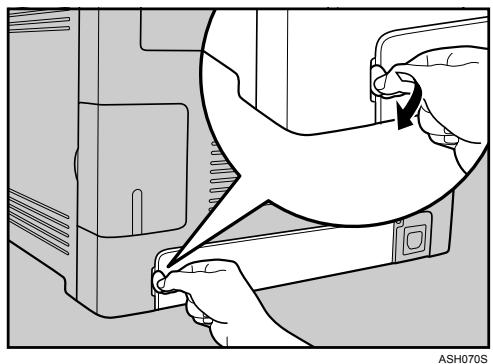
Pull Tray 1 carefully, and then hold it with both hands and pull it out.
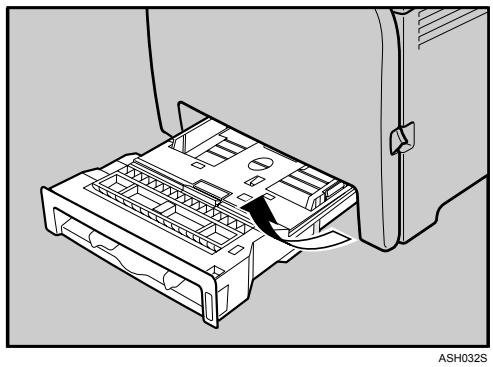
Place the tray on a flat surface.
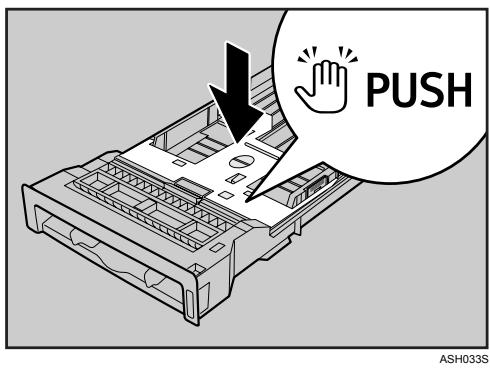
Push the metal plate down until it clicks into place to lock.
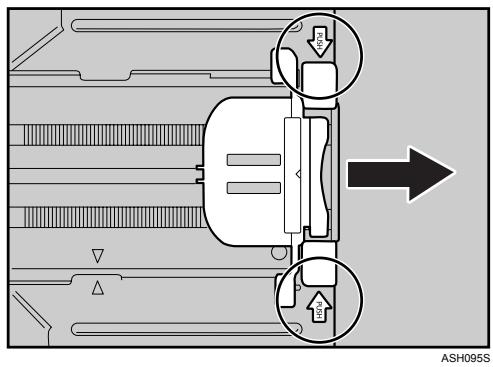
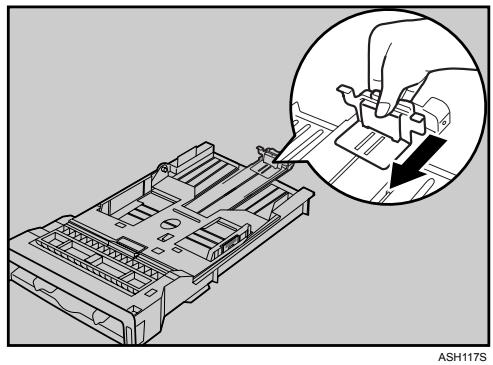
Pinch the extender in the "PUSH" direction, and then pull out the extender until it stops (you will hear a click).
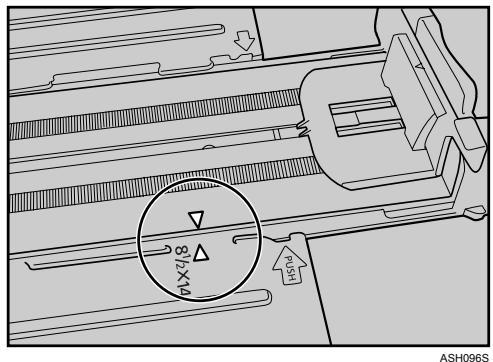
After extension, make sure the arrows on the extender and tray are aligned.
Pinch the clip on the side paper guide, and then slide it to match the standard size.
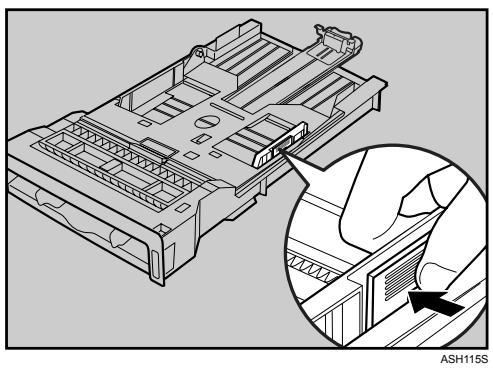
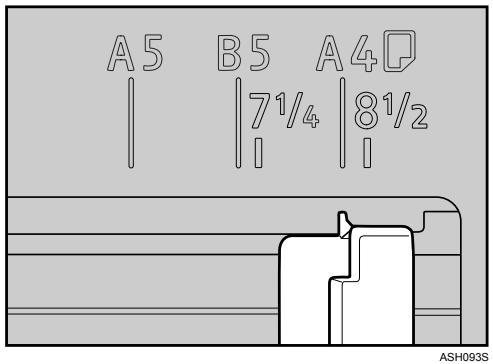
6 Pinch the front end paper guide and slide it inward to match the legal paper size.
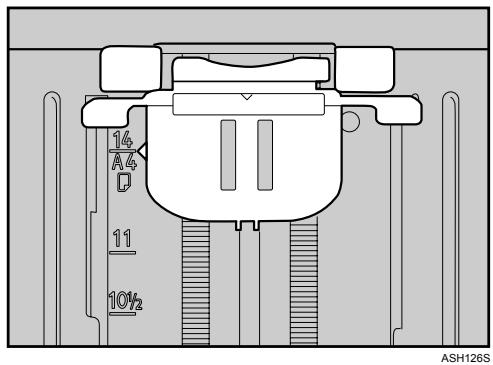
7 Load the new paper stack print side up.
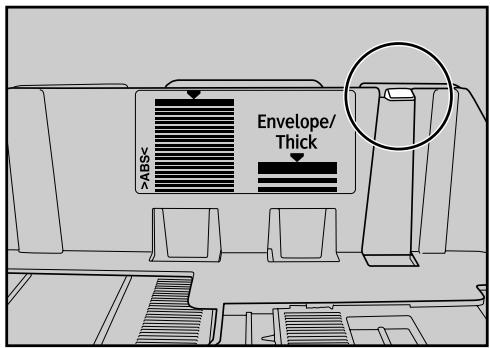
Make sure paper is not stacked higher than the upper limit (upper line) marked inside the tray.
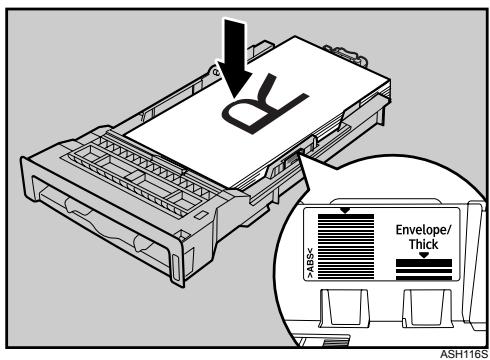
Slide the guides inward until they are flush against the paper's sides.
Make sure the paper is not stacked higher than the projection on the side paper guides.
ASH094S
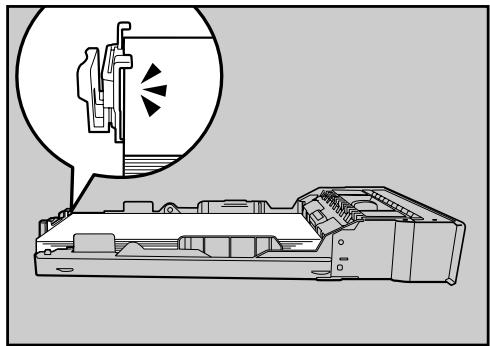
3 Check there are no gaps between the paper and the paper guides; both side and front end paper guides.
ASH118S
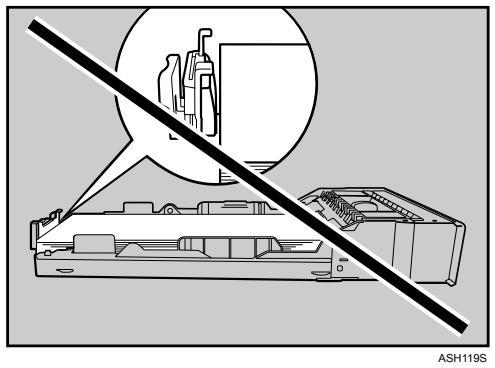
If there is a gap between the paper and the front end paper guide, as in the example below, the paper might not feed in correctly.
9 Carefully push Tray 1 straight into the printer.
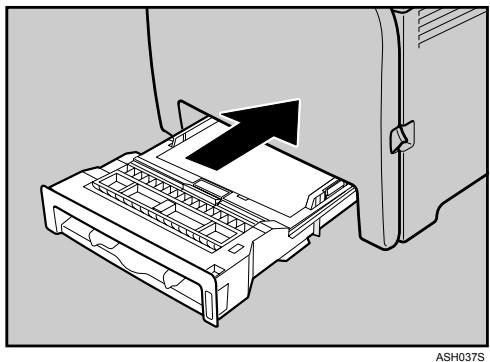
To avoid paper jams, make sure the tray is securely inserted.
Note
To reinsert the extender, you might have to push it with moderate force.
Reference
For details about paper types supported by the printer, see p.25 "Paper Recommendations".
For details about the paper settings, see Software Guide.
Loading envelopes
Important
- Check there is no air in the envelopes before loading.
- Load only one size and type of envelope at a time.
Before loading envelopes, flatten their leading edges (the edge going into the printer) by running a pencil or ruler across them.
Some kinds of envelope might cause misfeeds, wrinkles or print poorly. - Print quality on envelopes may be uneven if parts of an envelope have different thicknesses. Print one or two envelopes to check print quality.
In a hot and humid environment, the envelope might be output creased or improper printing quality.
Lift and pull Tray 1 carefully, then pull it out with both hands.
Place the tray on a flat surface.
Take out paper from Tray 1.
Push the metal plate down until it clicks into place to lock.
Pinch the clip on the side paper guide, and then adjust the guides to the envelope.
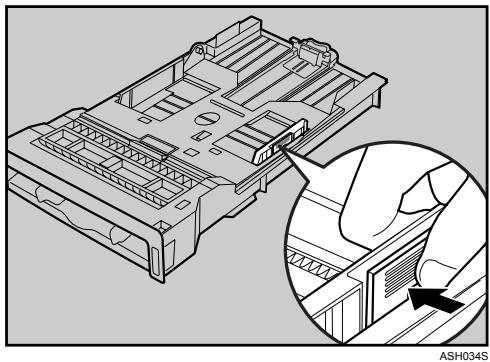
Pinch the clip on the front end paper guide to match the envelope size.
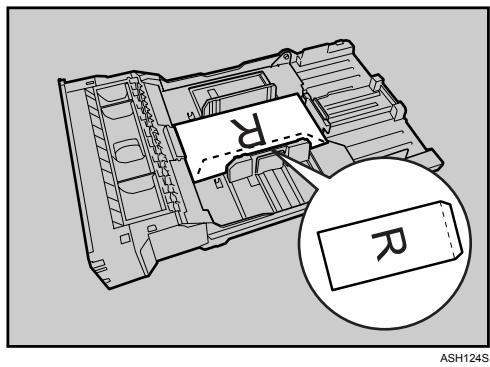
Set the envelopes in Tray 1 with the printing side facing up.
Make sure envelopes are not stacked higher than the upper limit (lower line) mark inside the tray.
7 Carefully slide the paper tray back in until it stops. To avoid paper jams, make sure the tray is securely inserted.
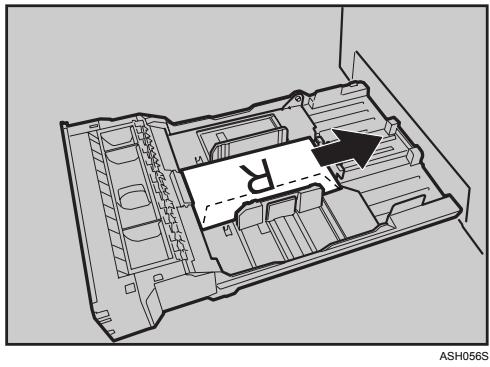
Note
- Be sure to load envelopes so that their flaps are on the right. If you do not, the envelopes will become creased.
To prevent the envelopes becoming creased, go to the [Setup] tab and select [Rotate by 180 degrees] for [Orientation:] when printing in the printer driver properties dialog box.
Loading Paper in the Optional Paper Feed Unit
The following example explains the loading procedure for the optional paper feed unit.
Lift and pull the optional paper feed unit, and then hold the tray with both hands, and then pull it out.
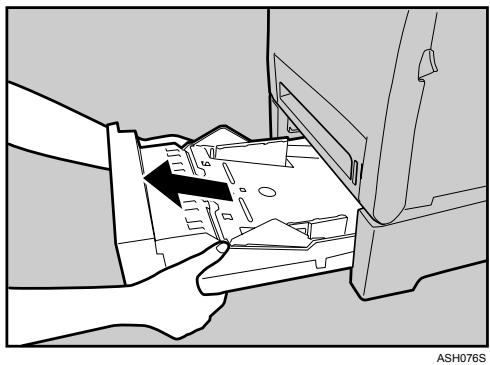
Place the tray on a flat surface.
Press down on the bottom plate until it clicks.
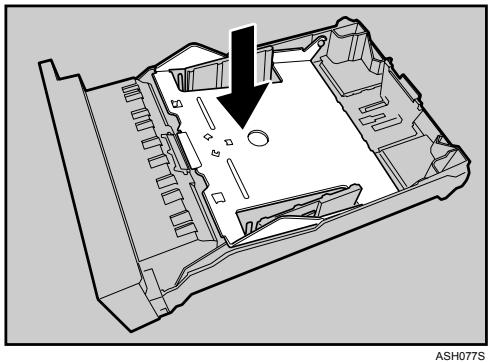
Pinch the clips on the side paper guide, and then adjust the guide to the paper size.
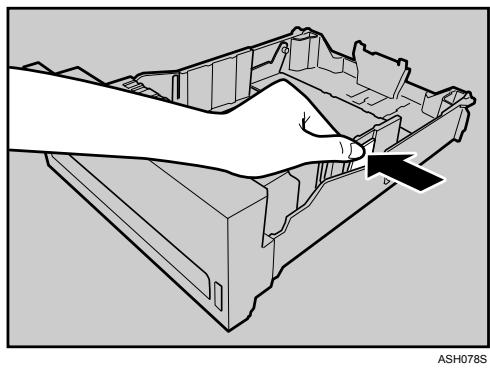
Pinch the clip on the end paper guide and align the arrow with the paper size.
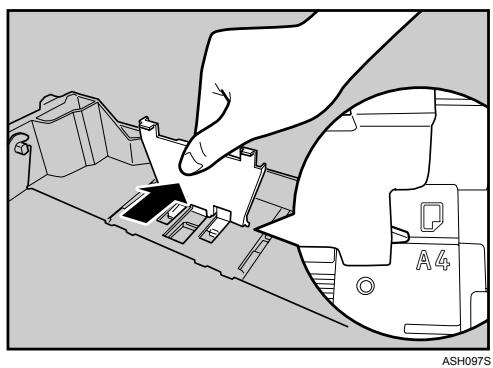
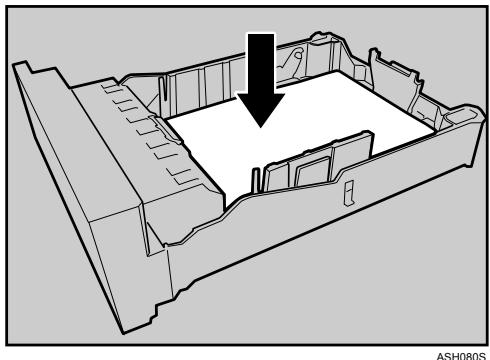
Load the new paper stack print side up.
Make sure paper is not stacked higher than the upper limit (upper line) marked inside the tray.
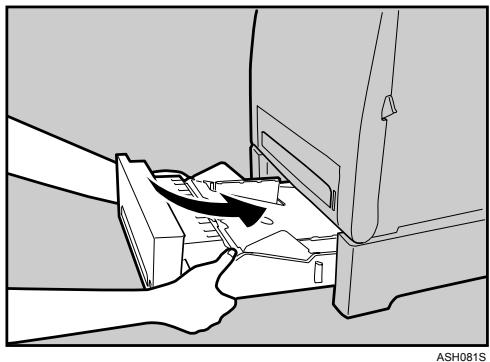
6 Lift and slide the tray, then push it all the way in. Push the tray firmly to avoid a paper jam.
Loading Paper in the Bypass Tray
Important
- Set the size and direction of the loaded paper using Smart Organizing Monitor or the printer driver. Make sure the settings do not conflict. Otherwise, the paper may jam or the print quality may be affected.
Load paper with the print side down and in the short-edge feed direction.
Duplex printing is not possible.
□ You cannot use the bypass tray to feed in paper that requires a specified printing position (such as preprinted paper). Use Tray 1 for such paper.
If paper is curled, straighten it before loading, by bending it the paper in the opposite direction to the curl, for example.
Do not load paper while the printer is printing.
Tray 1 and 2 are unavailable while paper is being loaded in the Bypass Tray. - You cannot load paper when the printer is in Energy Saver mode. To disable Energy Saver mode, click the [Stop/Start] key one the control panel.
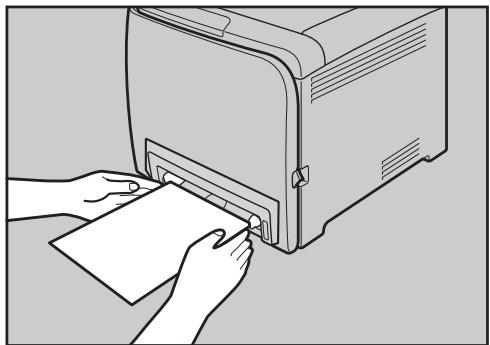
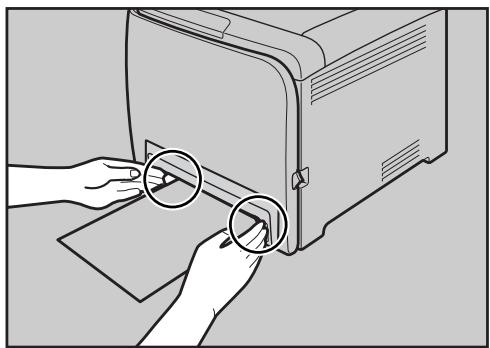
0 Insert the top edge of the paper into the printer.
ASH057S
Adjust the paper guides to the paper size.
ASH058S
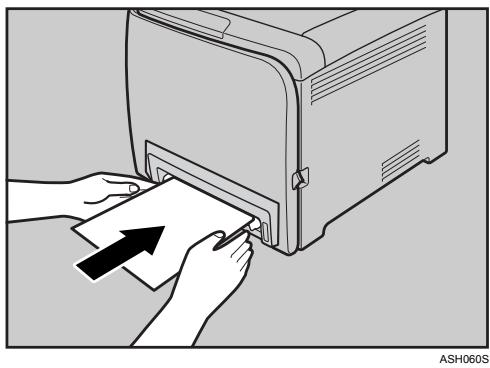
Support the paper with your hands, and insert it carefully until it stops.
4 Start Smart Organizing Monitor or the printer driver and specify the paper size.
5 Start printing.
Reference
For details about specifying the paper sizes, see Software Guide.
5. Replacing Consumables
Replacing the Print Cartridge
WARNING:
- Do not incinerate used toner or toner containers. Toner dust might ignite when exposed to an open flame. Dispose used toner containers in accordance with local regulations.
- Do not store toner, used toner, or toner containers in a place with an open flame. The toner might ignite and cause burns of a fire.
CAUTION:
- Keep toner (used or unused) and toner containers out of reach of children.
- If toner or used toner is inhaled, gargle with plenty of water and move into a fresh air environment. Consult a doctor if necessary.
- Avoid getting toner on your clothes or skin when removing a paper jam or replacing toner. If your skin comes into contact with toner, wash the affected area thoroughly with soap and water.
- If toner gets on your clothing, wash with cold water. Hot water will set the toner into the fabric and may make removing the stain impossible.
- If toner or used toner gets into your eyes, flush thoroughly with eyewash or water. Consult a doctor if necessary.
- If toner or used toner is swallowed, dilute by drinking a large amount of water. Consult a doctor if necessary.
Important
Store print cartridges in a cool dark place.
- Actual printable numbers vary depending on image volume and density, number of pages printed at a time, paper type and size, and environmental conditions such as temperature and humidity. Toner quality degrades over time. Early replacement of the print cartridge might be necessary. Therefore, we recommend you always keep a new print cartridge ready.
For good print quality, the supplier recommends that you use genuine toner from the supplier.
The supplier shall not be responsible for any damage or expense that might result from the use of parts other than genuine parts from the supplier with your office products.
When to replace the print cartridge
If the Alert indicator or any of the toner indicators on the control panel light up, or the message "No Toner. The following toner has run out. Open the indicated cover, and then replace the Toner Cartridge. Top Cover : [Black/Yellow/Magenta/Cyan]" appears on the Smart Organizing Monitor dialog box, replace the indicated print cartridge.
- If cyan, magenta, or yellow toner runs out, you can print in black and white using black toner. Change the color mode setting to Black and White using the printer driver.
- If black toner runs out, you cannot print in black and white or color until the black print cartridge is replaced.
Important
- Do not allow paper clips, staples, or other small metallic objects to fall inside the machine.
- Do not expose the print cartridge without its cover to direct sunlight for a long time.
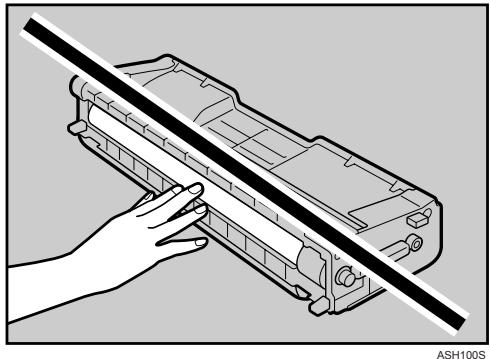
Do not touch the print cartridge's photo conductor unit.
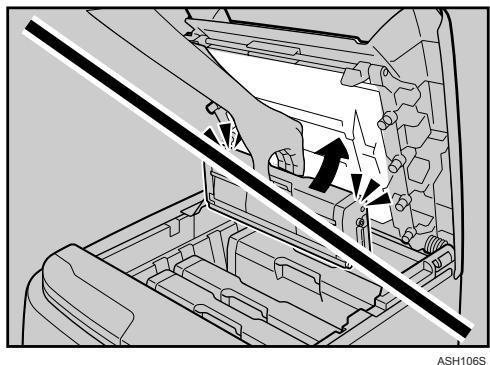
- When removing print cartridges, be careful not to touch the Laser Scanning Unit on the underside of the upper cover (the white area in the illustration below).
Pull up Top Cover Open Lever to open the top cover.
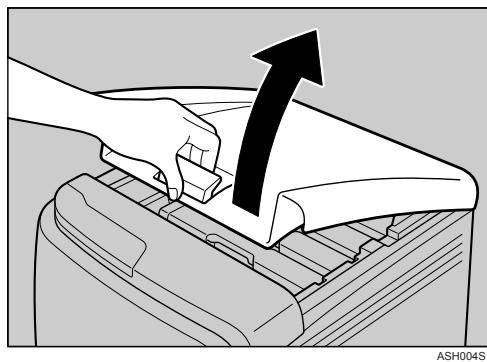
From the rear, the print cartridges are installed in the order of cyan (C), magenta (M), yellow (Y), and black (K).
Gripping its center, carefully pull the print cartridge upward and out.
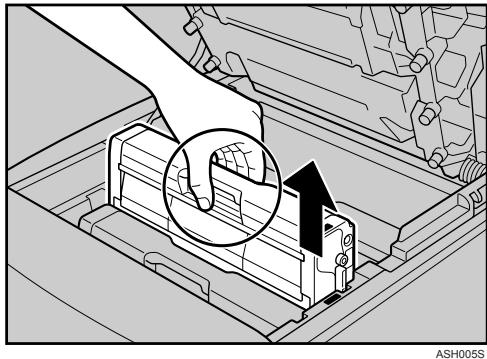
- Do not shake the removed print cartridge. Remaining toner may leak.
- Place the old print cartridge on paper or some other material to avoid dirtying your workspace.
Color is labeled on each print cartridge.
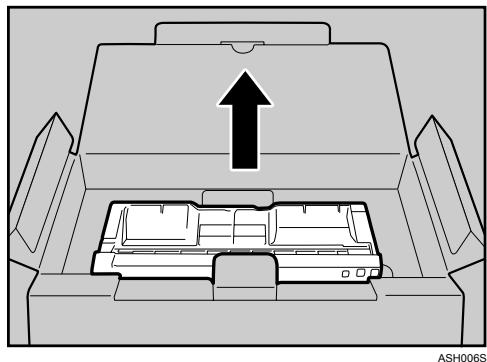
Take the new print cartridge out of the box, and then take it out of the plastic bag.
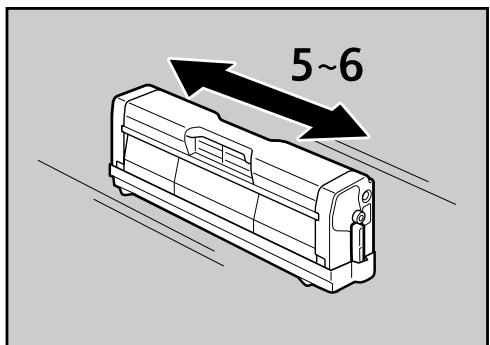
4 Hold the print cartridge and shake it from side to side five or six times.
ASH007S
Even distribution of toner within the bottle improves print quality.
5 Remove the cover from the print cartridge.
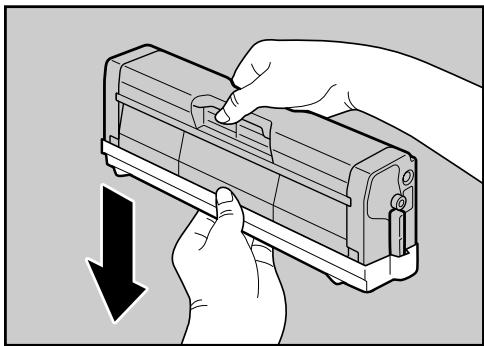
ASH008S
6 Check the toner color and location correspond, and carefully insert the print cartridge vertically.
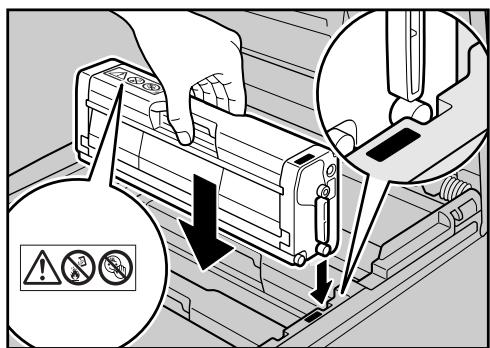
ASH009S
7 Close the top cover with both hands carefully.
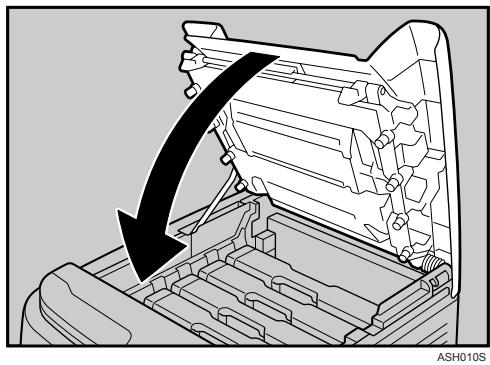
Wait while the toner loads.
To avoid malfunction, do not turn off the power while the Ready indicator on the control panel is blinking.
Put the cover that you removed in step 5 on the old print cartridge. Then, put the old print cartridge into the bag, and then put it into the box.
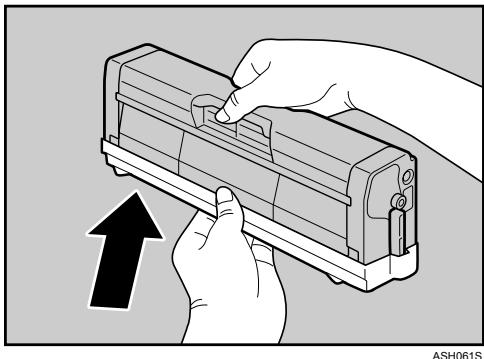
Note
- Make sure to cover the old print cartridge with the protective cover for recycling and environmental purposes.
- Comply with the print cartridge Recycling Program, whereby used print cartridges are collected for processing. For details, ask your sales or service representative.
Replacing the Waste Toner Bottle
WARNING:
- Do not incinerate spilled toner or used toner. Toner dust might ignite when exposed to an open flame.
- Wait at least 30 minutes after disconnecting the power plug before removing the transfer unit.
- Do not incinerate used toner or toner containers. Toner dust might ignite when exposed to an open flame. Dispose used toner containers in accordance with local regulations.
CAUTION:
- The inside of this printer becomes very hot. Do not touch parts labelled “ ” (indicating a hot surface).
- Keep toner (used or unused) and toner containers out of reach of children.
When to replace the waste toner bottle
If the Alert indicator lights up and the message "Waste Toner Bottle Full. The Waste Toner Bottle is full. Open the indicated cover, and then replace the Waste Toner Bottle. Front Cover : [Waste Toner Bottle]." appears on the Smart Organizing Monitor dialog box, replace the waste toner bottle.
Important
Waste toner bottles cannot be reused.
- Purchasing and storing extra waste toner bottles are recommended.
□ When removing the waste toner bottle, make sure not to tilt it.
- Keep the waste toner bottle horizontal as you take it out.
- Make sure the transfer unit is installed. If the transfer unit is not installed, install it before turning the power on.
□ Cooperate with the waste toner bottle Recycling Program, whereby used waste toner bottles are collected for recycling.
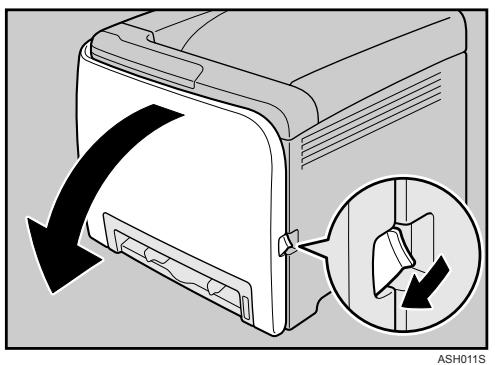
Pull Front Cover Open Lever, and then open the front cover with both hands carefully.
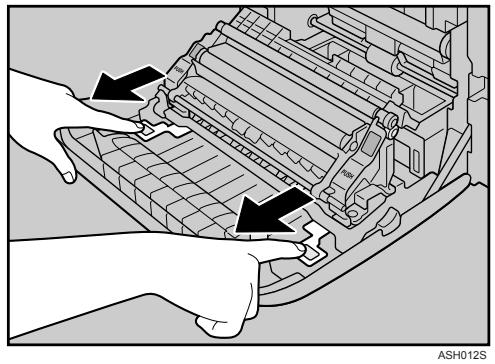
2 Slide both levers on the front cover outward.
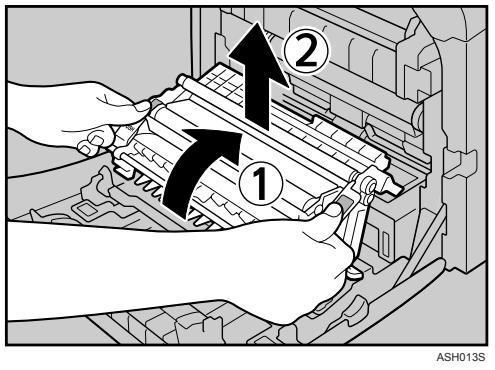
Hold both green ends of the transfer unit, and then lift it up.
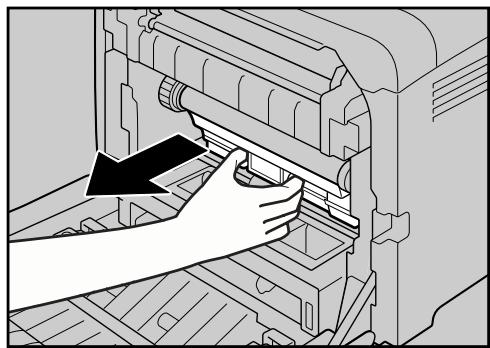
4 Hold the center of the waste toner bottle, and then carefully pull it out horizontally.
ASH040S
Pull the waste toner bottle halfway out, grab the bottle, and then pull it straight out.
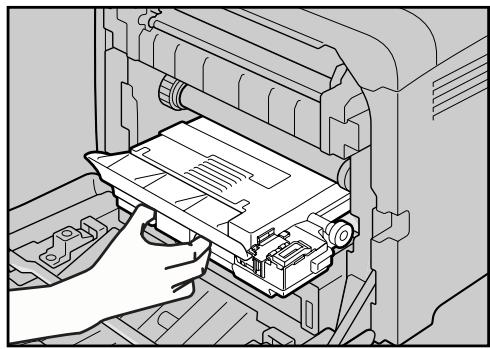
ASH082S
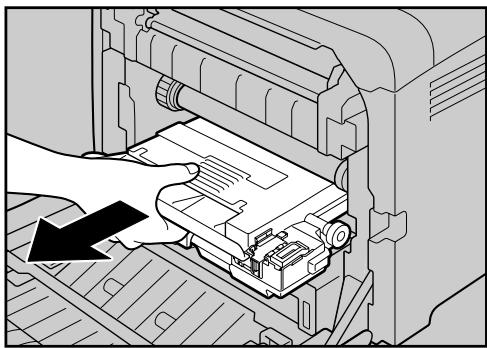
ASH041S
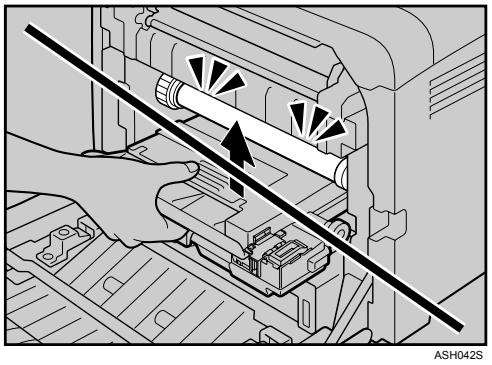
To prevent the waste toner bottle touching the intermediate transfer unit, do not lift the bottle while pulling it out.
6 Close the bottle cap.
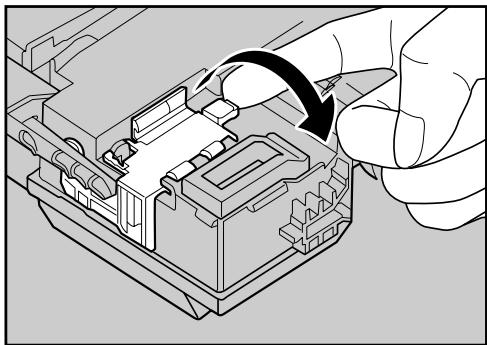
ASH043S
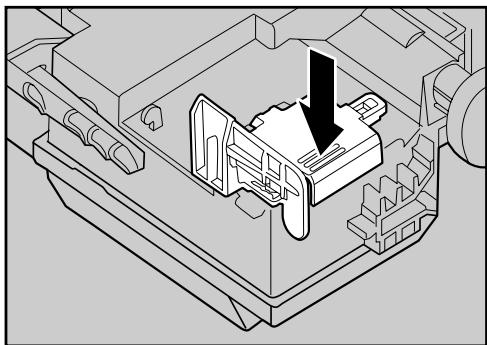
ASH101S
Hold the center of the new waste toner bottle, and then carefully insert it halfway into the printer body.
Leave the cap open.
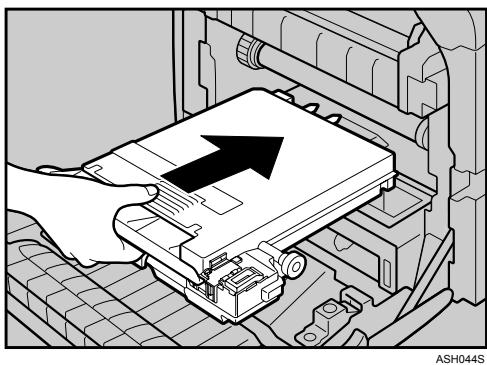
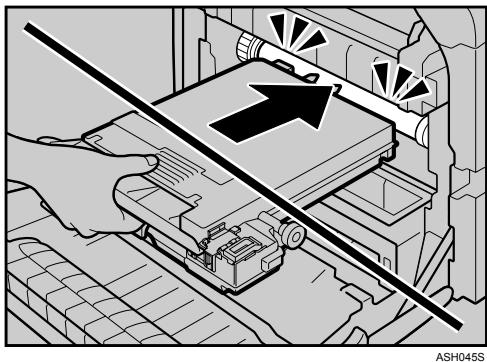
To prevent the waste toner bottle touching the intermediate transfer unit, do not lift the bottle while inserting it.
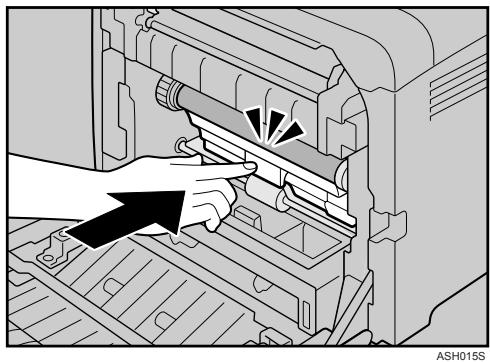
Push in the waste toner bottle until it clicks into place. Push the green part all the way in.
9 Place the transfer unit down on the front cover.
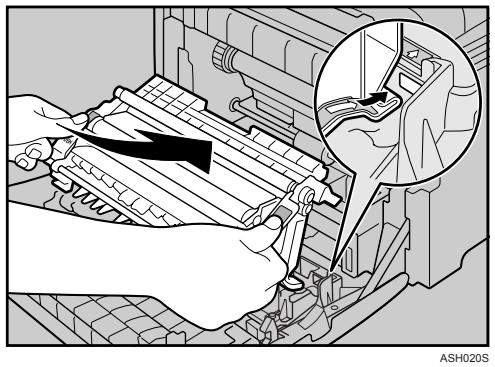
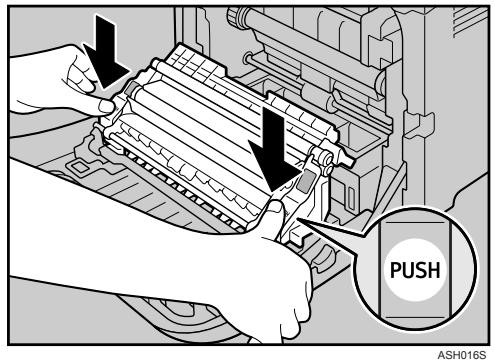
Slide the transfer unit along the guide rails into the printer. When it stops, push on the green PUSH mark until it clicks into place.
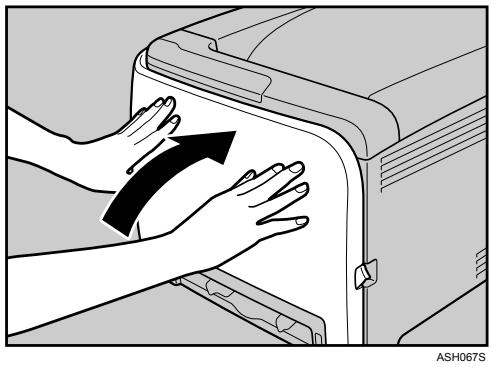
Close the front cover with both hands carefully.
Note
Before removing the waste toner bottle from the printer, spread paper or some other material around the area to keep toner from dirtying your workspace.
Cautions to Take When Cleaning
WARNING:
- Do not attempt any maintenance or troubleshooting other than that mentioned in this manual. This machine contains a laser beam generator and direct exposure to laser beams can cause permanent eye damage.
CAUTION:
- The inside of this printer becomes very hot. Do not touch parts labelled “△” (indicating a hot surface).
Clean the printer periodically to maintain fine printing.
Dry wipe the exterior with a soft cloth. If dry wiping is not enough, wipe with a soft, wet cloth that is wrung out well. If you still cannot remove the stain or grime, use a neutral detergent, and then wipe over with a well-wrung wet cloth, dry wipe, and let it dry.
Important
To avoid deformation, discoloration, or cracking, do not use volatile chemicals, such as benzine and thinner, or spray insecticide on the printer.
If there is dust or grime inside the printer, wipe with a clean, dry cloth.
- You must disconnect the plug from the wall outlet at least once a year. Clean away any dust and grime from the plug and outlet before reconnecting. Accumulated dust and grime pose a fire hazard.
- Do not allow paper clips, staples, or other small metallic objects to fall inside the machine.
Cleaning the Toner Density Sensor
Clean the toner density sensor when the following message appears on the Smart Organizing Monitor dialog box.
"Toner Density Sensor requires cleaning."
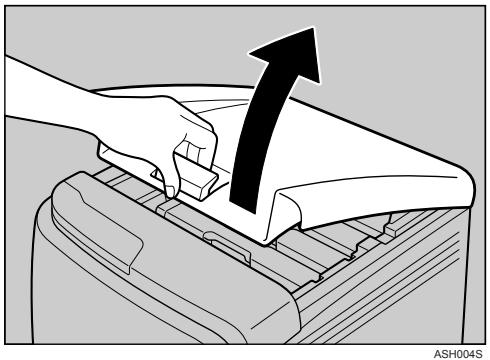
Pull up Top Cover Open Lever to open the top cover.
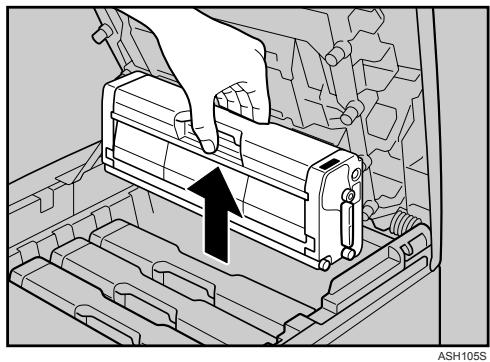
2 Lift out the cyan print cartridge.
3 Slide the toner density sensor lever once to the left.
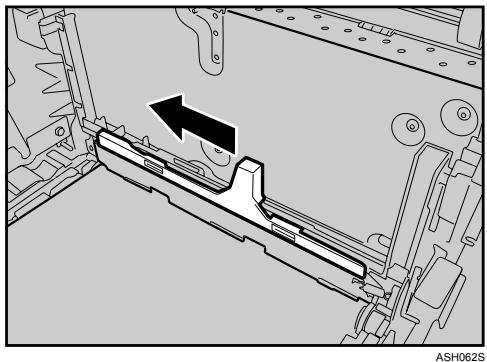
Slide the lever only once.
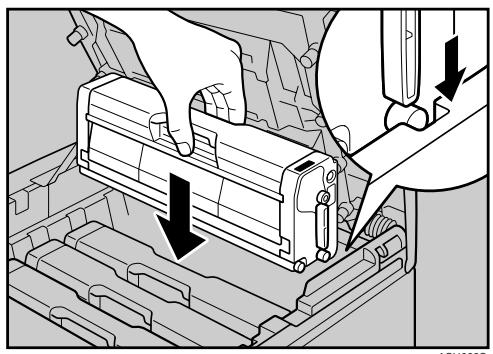
4 Reattach the cyan print cartridge removed in step 2. Push it all the way in carefully.
ASH063S
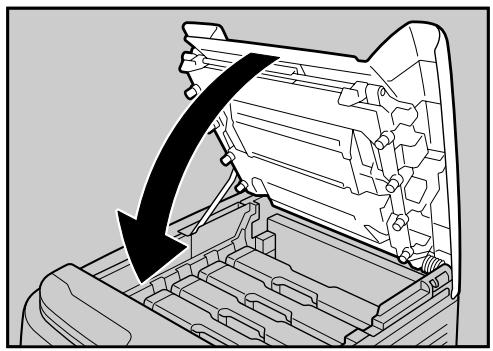
5 Close the top cover with both hands carefully.
ASH010S
Cleaning the Friction Pad and the Paper Feed Roller
If the friction pad or paper feed roller is dirty, a multi-feed or misfeed might occur. In this case, clean the friction pad and paper feed roller as follows:
CAUTION:
- Unplug the power cord from the wall outlet before you move the machine. While moving the machine, you should take care that the power cord will not be damaged under the machine.
Important
Do not use chemical cleaner or organic solvent such as thinner or benzine.
1 Turn off the power switch.
Pull out the plug from the socket. Remove all the cables from the printer.
3 Lift and pull Tray 1 carefully, and then pull it out with both hands.
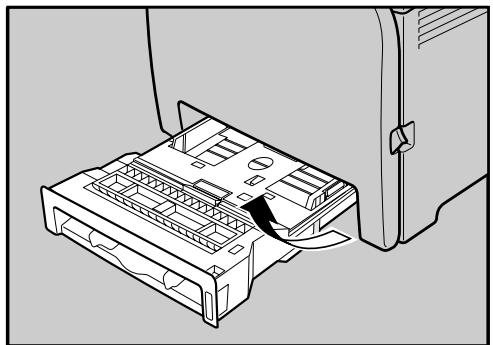
ASH032S
Place the tray on a flat surface. When there is paper in the tray, remove paper.
Wipe the friction pad with a damp cloth.
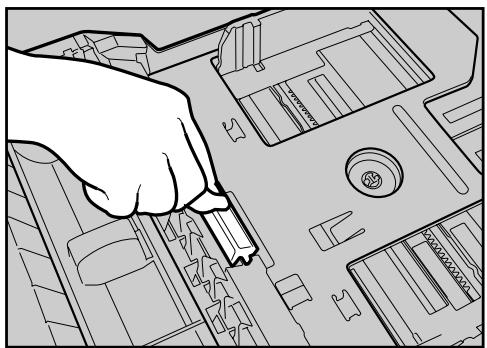
ASH064S
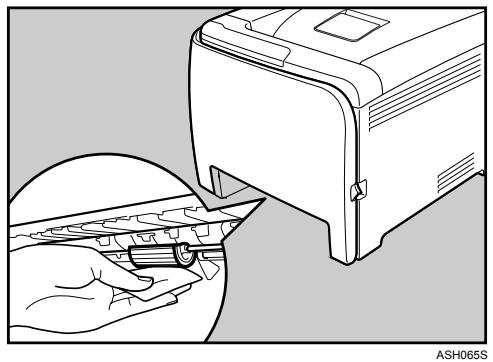
Wipe the rubber part of the roller with a soft damp cloth. After that, wipe it with a dry cloth to remove water.
Push the metal plate down until it clicks into place to lock.
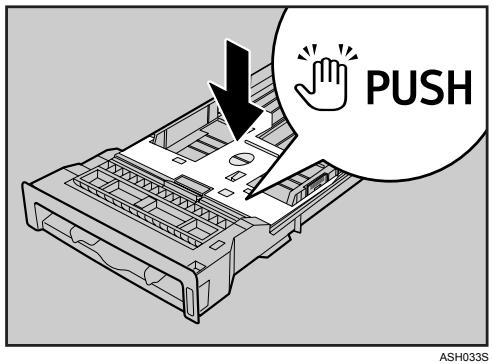
7 Slide Tray 1 along the rails, and push it carefully all the way into the printer.
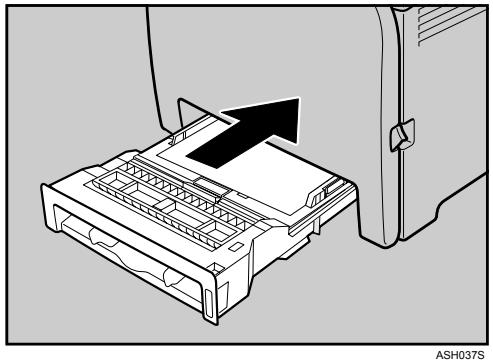
Insert the plug of the power cord into the wall socket securely. Connect all the interface cables that were removed.
9 Turn on the power switch.

Note
□ If misfeeds or multi-feeds of paper occur after cleaning the friction pad, contact your sales or service representative.
□ If the optional paper feed unit is installed, clean its friction pad in the same way as the main friction pad.
- Follow the same procedure to clean the paper feed roller of the optional paper feed unit.
Cleaning the Registration Roller
The surrounding registration roller might get dirty with paper dust when using paper other than standard paper.
Wipe off the paper dust when printing is affected by it.
CAUTION:
- Unplug the power cord from the wall outlet before you move the machine. While moving the machine, you should take care that the power cord will not be damaged under the machine.
- The inside of this printer becomes very hot. Do not touch parts labelled “ ” (indicating a hot surface).
Important
Do not use chemical cleaner or organic solvent such as thinners or benzine.
Do not touch the transfer roller.
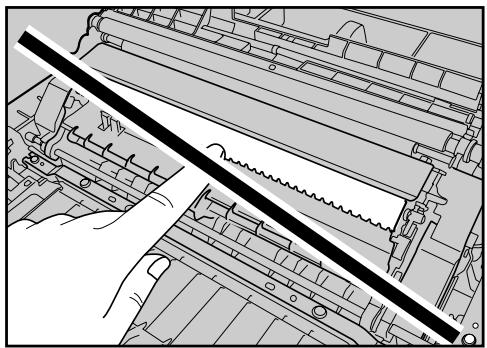
ASH098S
0 Turn off the power switch.
Pull out the plug from the socket. Remove all the cables from the printer.
Pull Front Cover Open Lever, and then open the front cover with both hands carefully.
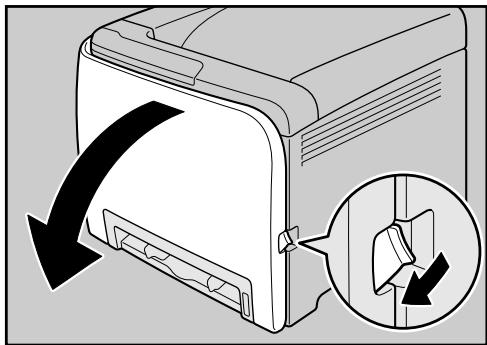
ASH011S
The registration roller is set in the position shown by the arrow.
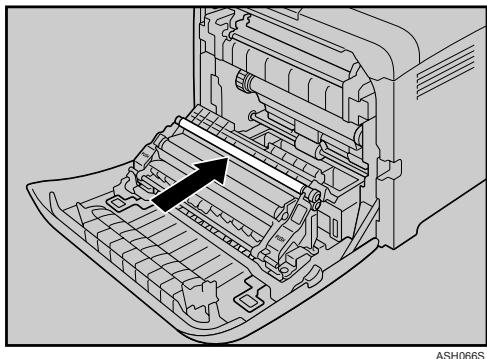
Clean the registration roller if printed paper becomes smeared after clearing a paper jam.
Using a cloth, wipe the metal registration roller.
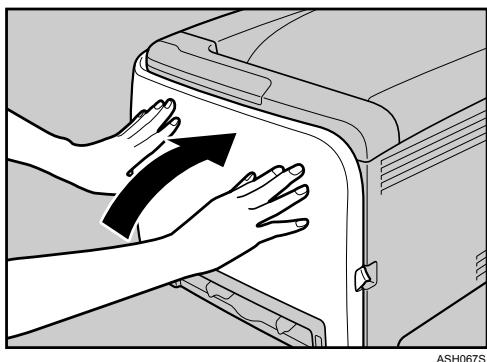
5 Close the front cover with both hands carefully.
6 Insert the plug of the power cord into the wall socket securely. Connect all the interface cables that were removed.
7 Turn on the power switch.
Error & Status Messages on Smart Organizing Monitor
This section explains what the message that appear on the Smart Organizing Monitor dialog box mean and what to do when a particular message appears.
| Message | Explanation | Recommended Action |
| Print overrun error has occurred. A higher specification PC may be required. | The print data could not be processed. | Print the job again from a higher performance computer. |
| Tray Not Detected The selected paper source tray is not set, or is not set properly. Check the indicated tray. [Tray 2] | The indicated paper input tray is not installed correctly, or not installed. | Install the indicated paper input tray correctly. |
| The selected paper size (name) is not supported to use with Duplex function. Please change the function or change Input Tray. | The printer received a request for a paper size not supported by duplex | Select simplex or change paper size. |
| The selected paper type (name) is not supported to use with Duplex function. | The printer received a request for a paper type not supported by duplex | Select simplex or change paper type. |
| Bypass Tray is not supported to use with Duplex function. Please change the function or change Input Tray. | When using the bypass tray, duplex printing cannot be specified. | Select simplex or change input tray. |
| Paper Size Mismatch Paper of the selected paper size is not loaded in the indi-cated paper source tray. [Bypass Tray] | The paper size setting in the tray differs from that of actual paper size in the tray. | Load paper of the selected size in the tray, and then change the paper size setting with printer driver. |
| Paper Size Mismatch Paper of the selected paper size is not loaded in the indi-cated paper source tray. [Tray 1] | The paper size setting in the tray differs from that of actual paper size in the tray. | Load paper of the selected size in the tray, and then change the paper size setting with Smart Organizing Monitor. |
| Paper Size Mismatch Paper of the selected paper size is not loaded in the indicated paper source tray. [Tray 2] | The paper size setting in the tray differs from that of actual paper size in the tray. | Load paper of the selected size in the tray, and then change the paper size setting with Smart Organizing Monitor. |
| Misfeed recovery print failed. Please try to print again. | The print data could not be recovered due to insufficient memory. | Print again. |
| Cannot use collate function. Set the collate function from the printer driver. | The computer does not have a print control module, or the job does not use a print driver. | Use the DDST driver to print. |
| Paper Type Mismatch Paper of the selected type is not loaded in the indicated pa-per source tray. Check the indicated tray. [Tray 1] | The paper type setting in the tray differs from that of actual paper type in the tray. | Load paper of the selected type in the tray, and then change the paper type setting with Smart Organizing Moni- tor. |
| Paper Type Mismatch Paper of the selected type is not loaded in the indicated pa-per source tray. Check the indicated tray. [Tray 2] | The paper type setting in the tray differs from that of actual paper type in the tray. | Load paper of the selected type in the tray, and then change the paper type setting with Smart Organizing Moni- tor. |
| Paper Type Mismatch Paper of the selected type is not loaded in the indicated pa-per source tray. Check the indicated tray. [Bypass Tray] | The paper type setting in the tray differs from that of actual paper type in the tray. | Load paper of the selected type in the tray, and then change the paper type setting with printer driver. |
| Paper Misfeed Open the indicated cover, and then remove any misfed pa-per. [Front Cover] | There is a misfeed in the print- er. | Remove the misfed paper. See p.89 “Removing Misfed Paper” |
| No Paper Load paper in the indicated paper source tray. [Tray 1] | The indicated tray is out of pa- per. | Load paper into the indicated paper tray. |
| No Paper Load paper in the indicated paper source tray. [Tray 2] | The indicated tray is out of pa- per. | Load paper into the indicated paper tray. |
| Cover Open Close the indicated cover. [Top or Front Cover] | The top cover or front cover is open. | Open and then close the top cover or front cover. |
| Unit Not Detected Open the indicated cover, and then check the Toner Cartridge. Top Cover: [Black] | The indicated print cartridge is not set correctly, or not set. (Black) | Set the indicated print cartridge correctly. (Black) |
| The error message appears even though the print cartridge is set correctly. | Using a dry cloth, carefully wipe the interface area on the print cartridge surface. | |
| Unit Not Detected Open the indicated cover, and then check the Toner car-tridge. Top Cover: [Magenta] | The indicated print cartridge is not set correctly, or not set. (Magenta) | Set the indicated print cartridge correctly. (Magenta) |
| The error message appears even though the print cartridge is set correctly. | Using a dry cloth, carefully wipe the interface area on the print cartridge surface. | |
| Unit Not Detected Open the indicated cover, and then check the Toner car-tridge. Top Cover: [Cyan] | The indicated print cartridge is not set correctly, or not set. (Cyan) | Set the indicated print cartridge correctly. (Cyan) |
| The error message appears even though the print cartridge is set correctly. | Using a dry cloth, carefully wipe the interface area on the print cartridge surface. | |
| Unit Not Detected Open the indicated cover, and then check the Toner Car-tridge. Top Cover: [Yellow] | The indicated print cartridge is not set correctly, or not set. (Yellow) | Set the indicated print cartridge correctly. (Yellow) |
| The error message appears even though the print cartridge is set correctly. | Using a dry cloth, carefully wipe the interface area on the print cartridge surface. | |
| Unit Not Detected The Waste Toner Bottle is not set, or is not set properly. [Waste Toner Bottle] | There is no waste toner bottle, or the waste toner bottle is not installed correctly. | Set the waste toner bottle correctly. |
| Controller FW download failed. | Controller FW could not be downloaded. | Wait for a while and do not turn off the power. |
| No Toner The following toner has run out. Open the indicated cover, and then replace the Toner Car-tridge. Top Cover: [Black] | The printer is out of toner (Black). | Replace the print cartridge (Black). See p.51 “Replacing the Print Cartridge” |
| No Toner The following toner has run out. Open the indicated cover, and then replace the Toner Cartridge. Top Cover: [Magenta] | The printer is out of toner (Magenta). | Replace the print cartridge (Magenta). See p.51 “Replacing the Print Cartridge” |
| No Toner The following toner has run out. Open the indicated cover, and then replace the Toner Cartridge. Top Cover: [Cyan] | The printer is out of toner (Cy- an). | Replace the print cartridge (Cyan). See p.51 “Replacing the Print Cartridge” |
| No Toner The following toner has run out. Open the indicated cover, and then replace the Toner Car- tridge. Top Cover: [Yellow] | The printer is out of toner (Yellow). | Replace the print cartridge (Yellow). See p.51 “Replacing the Print Cartridge” |
| Waste Toner Bottle Full The Waste Toner Bottle is full. Open the indicated cover, and then replace the Waste Toner Bottle. Front Cover: [Waste Toner Bottle] | It is time to replace the waste toner box | Replace the waste toner box with a new one. See p.56 “Replacing the Waste Toner Bottle”. |
| Tray Not Detected The selected paper source tray is not set, or is not set proper- ly. Check the indicated tray. [Tray 1] | The indicated paper input tray is not installed correctly, or not installed. | Install the indicated paper in- put tray correctly. |
| Functional problem within the printer. Turn power switch off, then on. If the error appears again, please call service. SC828 | There is a problem with the controller's ROM. | Turn off the main power, and then turn it on again. If the error occurs again, contact your service representative. |
| Functional problem within the printer. Turn power switch off, then on. If the error appears again, please call service. SC824 | There is an abnormality in the NVRAM on the controller. | Turn off the main power, and then turn it on again. If the error occurs again, contact service people to repair it. |
| Functional problem within the printer. Turn power switch off, then on. If the error appears again, please call service. SC827 | There is an abnormality in the memory on the controller. | Turn off the main power, and then turn it on again. If the error occurs again, contact your service representative. |
| DIMM memory check error has occurred. | There is an abnormality in the optional memory on the controller. | Turn off the main power, and then turn it on again. If the error occurs again, contact service people to repair it. |
| Functional problem within the printer. Turn power switch off, then on. If the error appears again, please call service. SC857 | There is an abnormality in the USB interface. | Turn off the main power, and then turn it on again. If the error occurs again, contact service people to repair it. |
| Functional problem within the printer. Turn power switch off, then on. If the error appears again, please call service. SC823 | There is an abnormality in the network interface. | Turn off the main power, and then turn it on again. If the error occurs again, contact service people to repair it. |
| Functional problem within the printer. Turn power switch off, then on. If the error appears again, please call service. SC819 | Call service people. | Call service people to repair it. |
| Functional problem within the printer. Turn power switch off, then on. If the error appears again, please call service. SC670 | It is impossible to communicate with the engine. | Turn off the main power, and then turn it on again. If the error occurs again, contact service people to repair it. |
| No Response from I/O Device Check the cable, power cord, and main switch. | No information has been received from the printer. | Check the main power switch is turned on and the power cord is securely connected. Check the USB or network cables are securely connected also. |
| Toner Density Sensor requires cleaning. | Color registration failed. | Clean the toner density sensor. See p.64 “Cleaning the Toner Density Sensor” |
Panel Indicator
The following table explains the meaning of the various Indicator patterns that the printer alerts to users about its conditions.
| Indicator patterns | Cause |
| All indicators are lit. | There are problems with the printer. Check the printer status on the Smart Organizing Monitor dialog box. After checking the printer's status, turn off the main power, and then turn it back on again. If all the indicators are still lit, contact your service representative. |
| The Alert indicator is flashing. | Printer's settings are being returned to their factory-set defaults. |
| The Alert indicator is lit. | The printer cannot be used normally. Confirm the error using Smart Organizing Monitor. |
| The Ready indicator is flashing. | The printer is receiving print data or preparing to print. |
| The Ready indicator is lit. | The printer is ready for use. |
| The Load Paper indicator is lit. | There is no paper in the tray. Load paper in the tray. |
| The Replace Print Cartridge indicator is flashing. | The print cartridge is almost empty. |
| The Replace Print Cartridge indicator is lit. | The print cartridge is empty. Replace the indicated print cartridge. |
| The Toner K indicator is flashing. | The print cartridge is almost empty. |
| The Toner K indicator is lit. | The print cartridge is empty. Replace the black print cartridge. |
| The Toner C indicator is flashing. | The print cartridge is almost empty. |
| The Toner C indicator is lit. | The print cartridge is empty. Replace the cyan print cartridge. |
| The Toner M indicator is flashing. | The print cartridge is almost empty. |
| The Toner M indicator is lit. | The print cartridge is empty. Replace the magenta print cartridge. |
| The Toner Y indicator is flashing. | The print cartridge is almost empty. |
| The Toner Y indicator is lit. | The print cartridge is empty. Replace the yellow print cartridge. |
Printer Does Not Print
| Possible Cause | Solutions |
| Is the power on? | Confirm that the cable is securely plugged into the power outlet and the printer. Turn the power on. |
| Does the Alert indicator stay red? | If so, check the error message on the Smart Organizing Monitor dialog box and take the required action. |
| Is paper loaded? | Load paper into the paper tray or the bypass tray. See p.34 “Loading Paper”. |
| Can you print a configuration page? | If you cannot print a configuration page, it probably indicates a printer malfunction. Contact your sales or service representative. See Software Guide. |
| Is the interface cable connected securely to the printer and the computer? | Connect the interface cable securely. If it has a fastener, fasten it securely as well. |
| Are you using the correct interface cable? | The type of interface cable you should use depends on the computer you use. Be sure to use the correct one. If the cable is damaged or worn, replace it with a new one. See p.104 “Specifications”. |
| Is the Ready indicator blinking or lit after starting the print job? | If not blinking or lit, the data is not being sent to the printer. ◆If the printer is connected to the computer using the interface cable Check the port connection setting is correct. For details about checking the port connection, see p.79 “When the Printer is Directly Connected to a Computer via USB Cable”. ◆Network Connection Contact your network administrator. |
If printing still does not start, contact your sales or service representative. Consult with the store where the printer was purchased for information about the location of sales or service representatives.
When the Printer is Directly Connected to a Computer via USB Cable
Windows
When the printer is directly connected via a USB cable to a computer but the Ready indicator does not flash or light up, use the following method to check the port connection:
- For a USB port connection, port USB00 (n) ^1 should be set.
^1 (n) is the number of printers connected.
Windows 2000
Click [Start], point to [Settings] and then click [Printers].
Click to select the icon of the printer. Next, on the [File] menu, click [Properties].
3 Click the [Ports] tab.
4 Check the [Print to the following port] box to confirm that the correct port is selected.
If the port (such as LPT1) is not correct, reinstall the driver.

Reference
For details about installation and port settings, see Software Guide.
Windows XP Professional, and Windows Server 2003/2003 R2
Access the [Printers and Faxes] window from [Start] on the taskbar.
2 Click to select the icon of the printer. Next, on the [File] menu, click [Properties].
3 Click the [Ports] tab.
4 Check the [Print to the following port(s).] box to confirm that the correct port is selected.
If the port such as LPT1 is not correct, reinstall the driver.

Reference
For details about installation and port setting, see Software Guide.
Windows XP Home Edition
Access the [Control Panel] window from [Start] on the taskbar.
2 Click [Printers and Other Hardware].
3 Click [Printers and Faxes].
4 Click to select the icon of the printer. Next, on the [File] menu, click [Properties].
5 Click the [Ports] tab.
6 Check the [Print to the following port(s).] box to confirm that the correct port is selected.
If the port such as LPT1 is not correct, reinstall the driver.
Reference
For details about installation and port setting, see Software Guide.
Windows Vista
1 Click [Control Panel] on the [Start] menu, and then click [Printer] in the "Hardware and Sound".
Click to select the icon of the printer. Next, on the [File] menu, click [Properties].
3 Click the [Ports] tab.
4 Check the [Print to the following port(s).] box to confirm that the correct port is selected.
If the port such as LPT1 is not correct, reinstall the driver.
Reference
For details about installation and port setting, see Software Guide.
Mac OS X
When the printer is connected to Mac OS X and the Ready indicator does not flash or light up, try the following procedures to check the port connection.
- Use [About This Mac] to check the USB information.
- Use the printer browser to check if the printer is displayed.
Using [About This Mac]
Click Apple Menu, and then select [About This Mac].
2 Click [More Info].
3 Under [Contents], for [Hardware], select [USB].
Using the printer browser
In the menu bar, click [Go], select [Application], and then select [Utilities].
Double click [Printer Setup Utility].
3 Click [Add].
The printer browser starts.
Confirm the printer is displayed on the browser. If it is not, reinstall the driver.
Other Printing Problems
| Status | Possible Causes, Descriptions, and Solutions |
| Toner smears appear on the print side of the page. | The paper setting may not be correct. For example, although you are using thick paper, the setting for thick paper may not be set. ·Check the printer driver's paper settings. See the printer driver Help. Confirm that the paper is not curled or bent. Envelopes can be curled easily. Flatten paper before loading. See p.23 “Paper and Other Media”. |
| Paper jams occur frequently. | ·Number of paper set in the tray exceeds the limit. Confirm that the top of the stack is not higher than the limit mark inside the tray. See p.34 “Loading Paper”. ·There may be a gap between the front end paper guide and the paper, or between the paper guide both side and the paper in the paper tray. Make sure there are no gaps. See p.34 “Loading Paper”. ·Paper is either too thick or too thin. See p.23 “Paper and Other Media”. ·Paper is bent or wrinkled. Use paper that has no bents or wrinkles. See p.23 “Paper and Other Media”. ·Paper has already been printed on. See p.23 “Paper and Other Media”. ·Paper is damp. Use paper that has been stored properly. See p.23 “Paper and Other Media”. ·The friction pad, or paper feed roller or registration roller might be dirty. Clean the relevant component. See p.66 “Cleaning the Friction Pad and the Paper Feed Roller”, and p.69 “Cleaning the Registration Roller”. |
| Prints fall behind the machine when they are output. | Raise the appropriate stop fence (forward fence for A4, rear fence for legal size prints). See p.1 “Exterior: Front View”. |
| Prints do not stack properly. | ·Paper is damp. Use paper that has been stored properly. See p.23 “Paper and Other Media”. ·Pull out the extender. ·Log on to Smart Organizing Monitor as an Administra- tor, and then select [Mode 2] or [Mode 3] in the [Anti-humid- ity:] list on the [System] tab. Note that the first print takes longer than subsequent prints to complete. ·Raise the appropriate stop fence (forward fence for A4, rear fence for legal size prints). See p.1 “Exterior: Front View”. |
| Multiple pages are fed at once. | There may be a gap between the front end paper guide and the paper, or between the paper guide both side and the paper in the paper tray. Make sure there are no gaps.See p.34 “Loading Paper”.Paper is either too thick or too thin.See p.23 “Paper and Other Media”.Paper has already been printed on.See p.23 “Paper and Other Media”.Number of paper set in the tray exceeds the limit. Confirm that the top of the stack is not higher than the limit mark inside the tray.See p.23 “Paper and Other Media”.Paper is static. Use paper that has been stored properly.See p.23 “Paper and Other Media”.The friction pad, paper feed roller, or registration roller might be dirty. Clean the relevant component.See p.66 “Cleaning the Friction Pad and the Paper Feed Roller” and p.69 “Cleaning the Registration Roller”.Check that paper was not added while there was still some left in the tray.Only add paper when there is none left in the tray.Fan the paper before loading. |
| Paper gets wrinkles. | Paper is damp. Use paper that has been stored properly.See p.23 “Paper and Other Media”.Paper is too thin.See p.23 “Paper and Other Media”.There may be a gap between the front end paper guide and the paper, or between the paper guide both side and the paper in the paper tray. Make sure there are no gaps.See p.34 “Loading Paper”. |
| The printed paper is curled. | Load the paper upside down in the paper tray.Pull out the extender of the output tray.If the paper curl is severe, take prints from the output tray more frequently.Paper is damp. Use paper that has been stored properly.See p.23 “Paper and Other Media”.Log on to Smart Organizing Monitor as an Administra-tor, and then select [Mode 2] or [Mode 3] in the [Anti-humid-ity:] list on the [System] tab. Note that the first print takes longer than subsequent prints to complete. |
| Images are not printed in the right position | Adjust the printing position from Smart Organizing Monitor.See Software Guide. |
| Images are printed diagonally to the pages | Adjust the front end paper guide and both side paper guides to match the paper size.See p.34 “Loading Paper”. |
| Vertical line appear.AAASH103S | |
| Horizontal lines appear on the printed paper. | The intermediate transfer belt is dirty.Follow the procedure below to clean the belt:① Open the top cover while the power is on.② Remove all print cartridges from the printer.③ Close the top cover with both hands carefully.The printer enters cleaning mode automatically.④ When cleaning finishes, open the top cover and reinsert all the print cartridges.If this procedure does not resolve the problem, contact your service representative. |
| Paper is not fed from the select-ed tray. | When you are using the Windows operating system, the printer driver settings override those set using the control panel. Set the desired input tray using the printer driver.See the printer driver Help. |
| A printed image is different from the image on the computer's display. | When you use some functions, such as enlargement and reduction, the layout of the image might be different from that displayed in the computer display. |
| It takes too much time to resume printing. | The data is so large or complex that it takes time to process it. If the Ready indicator is blinking, the data is being processed. Just wait until it resumes. The printer was in the Energy Saver mode. To resume from the Energy Saver mode, the printer has to warm up, and this takes time until printing starts. To disable the Energy Saver mode, select [Off] for [Energy Saver Mode 2:] using Smart Organizing Monitor. |
| It takes too much time to complete the print job. | Photographs and other data intensive pages take a long time for the printer to process, so simply wait when printing such data. Changing the settings with printer driver may help to speed up printing. See the printer driver Help. The data is so large or complex that takes time to process. If the Ready indicator is blinking, the data is being processed. Just wait until it resumes. If the Ready indicator on the control panel is flashing, the printer is warming up. Wait for a while. The printer is adjusting the color registration. Wait for a while. |
| Images are cut off, or excess pages are printed. | If you are using paper smaller than the paper size selected in the application, use the same size paper as that selected in the application. If you cannot load paper of the correct size, use the reduction function to reduce the image, and then print. See the printer driver Help. |
| The color of the printout is different from the color on the computer's display. | The colors made using color toner are different from colors displayed on the display in its production system. Color gradation might appear differently if [On] is selected for [Toner Saving] on the [Print Quality] tab in the printer driver's dialog box. See the printer driver Help. |
| The color of the printout is different from the color specified. | If a specific color is missing, turn the power switch off and on. If this does not solve the problem, contact your sales or service representative. |
| Photo images are coarse. | Some applications lower the resolution for making prints. |
| Color documents are printed in black and white. | The printer driver is not set up for color printing. See the printer driver Help. Some applications print color files in black and white. |
| Fine dot pattern does not print. | Change the [Dithering:] setting in the printer driver's dialog box. See the printer driver Help. |
| Solid areas, lines or text are shiny or glossy when created as a mixture of cyan, magenta, yellow. | Select [K (Black)] for [Gray Reproduction (Text/Line Art):] in the printer driver's dialog box.See the printer driver Help. |
| Black gradation is not natural. | Select [CMY + K] for [Gray Reproduction (Text/Line Art):] in the printer driver's dialog box.See the printer driver Help. |
| Solid lines are printed as broken lines. | Change the [Dithering:] setting in the printer driver's dialog box.See the printer driver Help. |
| A color is missing or partially blurred. | ·Paper is damp. Use paper that has been stored properly.See p.23 “Paper and Other Media”. ·Toner is almost depleted. If a toner indicator lights or flashes, or if an error message appears on the Smart Organizing Monitor dialog box, replace the print cartridge of the color indicated.See p.51 “Replacing the Print Cartridge”. ·Condensation may have collected. If rapid change in temperature or humidity occurs, use this printer only after it has acclimatized. |
| Color shift occurs. | Log on to Smart Organizing Monitor as an Administrator, and then click [Adjust] for [Color Registration] on the [Maintenance] tab. |
| The whole printout is blurred. | ·Paper is damp. Use paper that has been stored properly.See p.23 “Paper and Other Media”. ·Log on to Smart Organizing Monitor as an Administrator, and then select [Mode 1], [Mode 2], or [Mode 3] in the [Anti-humidity:] list on the [System] tab. Note that if you select [Mode 2] or [Mode 3], the first print takes longer than subsequent prints to complete. ·If you select [Toner Saving] on the [Print Quality] tab in the printer properties dialog box, printing is generally less dense.See the printer driver Help. ·Toner is almost depleted. If a toner indicator lights or flashes, or if an error message appears on the Smart Organizing Monitor dialog box, replace the print cartridge of the color indicated.See p.51 “Replacing the Print Cartridge”. ·Condensation may have collected. If rapid change in temperature or humidity occurs, use this printer only after it has acclimatized. |
| The backs of printed sheets are blemished. | When removing a jammed sheet, the inside of the printer may have become dirtied. Print several sheets until they come out clean. If document size is larger than paper size, e.g. A4 document on B5 paper, the back of the next printed sheet may be dirtied. |
| If rubbed with your finger, it smears out. | The setting of the paper may not be correct. For example, although thick paper is used, the setting for thick paper may not be set. Check the paper settings of this printer. See p.26 “Types of Paper and Other Media”. Check the paper settings of the printer driver. See the printer driver Help. |
| The toner has run out and printing has stopped. | When the toner runs out, pressing the [Stop/Start] key allows you to print a few more pages, but the print quality of those pages cannot be guaranteed. |
| The toner is powdery and comes away from the paper, or the printed image has a matt appearance. | Check if the fusing unit lever is lowered or the grey knobs are positioned as in the image below. ASH129S=☆ ☆ I O Ash129S |
If the problem cannot be solved, contact your sales or service representative.
Additional Troubleshooting
| Problems | Solutions |
| Strange noise is heard. | If a supply was recently replaced or an option in the area the strange noise is coming from, check the supply or option is properly attached. If the strange noise persists, contact your sales or service representative. |
| No e-mail is received when an Alert occurs, and after resolving an Alert. | ·Confirm [Auto E-mail Notification:] is set to [On] using Web Image Monitor or Smart Organizing Monitor. See Software Guide. ·When the power is turned off before the e-mail is transmitted, the e-mail will not be received. ·Check the e-mail address set for the destination. If the e-mail was sent but not received, it is possible the destination was incorrect. Also check error mail information from the e-mail server. |
| The setting for [Auto E-mail Notifi-cation:] on Web Image Monitor or Smart Organizing Monitor was changed from [Off] to [On], but e-mail is not arriving. | After changing the setting, turn the main unit's power off and then back on again. |
| When no date information is in- cluded in sent e-mail, the mail server has a malfunction. | Make the setting for obtaining time information from the SMTP server. For details, see Software Guide. |

Note
If the printer is still not operating satisfactorily, contact your sales or service representative. Consult with the store where the printer was purchased for information about the location of sales or service representatives.
8. Removing Misfed Paper
When Paper is Jammed
If a paper jam occurs, the Alert indicator on the control panel flashes and the following message appears on the Smart Organizing Monitor dialog box:
"Paper Misfeed. Open the indicated cover, and then remove any misfed paper. [Front Cover]"
Open the front cover, and check the following locations (in the order shown) for the paper jam.
Important
- Misfed paper may be covered in toner. Be careful not to get toner on your hands or clothes.
Toner on prints made after removing misfed paper may be loose (inadequately fused). Make a few test prints until smudges no longer appear.
□ Do not forcefully remove misfed paper, it will tear. Torn pieces remaining inside the printer will cause further misfeeds and possibly damage the printer. - Paper jams can cause pages to be lost. Check your print job for missing pages and reprint any pages that did not print out.
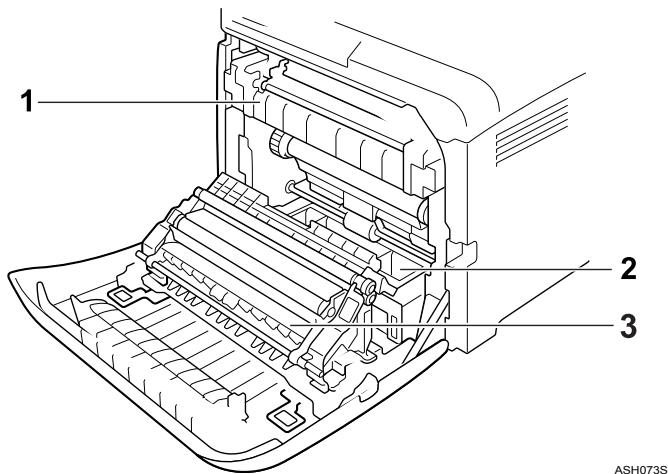
1. Fusing Unit
If a paper jam occurs in the fusing unit, see p.90 "When Paper Jams inside the Fusing Unit".
2. Tray
If a paper jam occurs in the tray, see p.92 "When Paper Jams Inside the Tray".
3. Transfer Unit
If a paper jam occurs in the transfer unit, see p.94 "When Paper Jams inside the Transfer Unit".
When Paper Jams inside the Fusing Unit
If the Alert indicator lights up, paper may be misfed:
A paper misfeed occurs during paper feeding. Open the front cover to remove the misfed paper.
CAUTION:
- The inside of this printer becomes very hot. Do not touch the parts labelled “ ” (indicating a hot surface).
- The fusing section of this machine might be very hot. Caution should be taken when removing misfed paper.
Important
Since the surrounding temperature is high around the guide, check for jammed paper when it gets a little cooler.
Pull Front Cover Open Lever, and then open the front cover with both hands carefully.
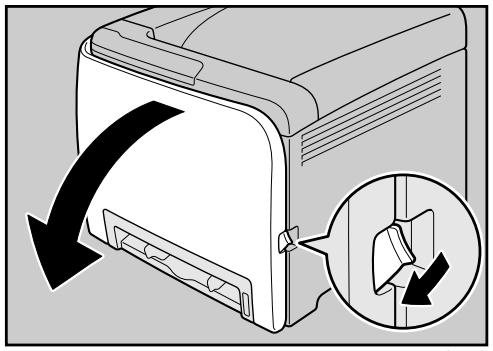
ASH011S
2 Lower the blue fusing unit lever, and then pull out the jammed paper carefully.
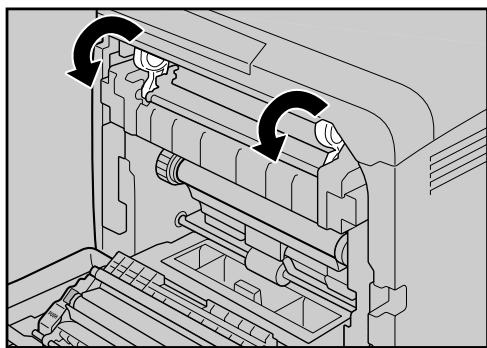
ASH046S
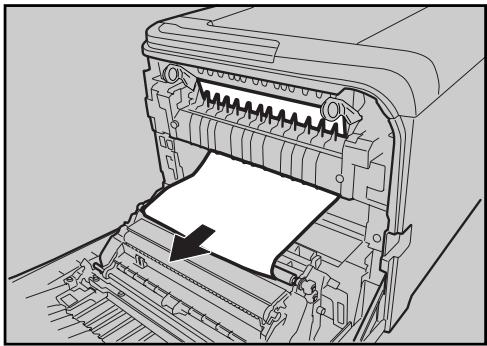
ASH047S
Pull the paper downward to remove it. Do not pull it upward.
If it is difficult to locate the paper, check for jammed paper by pulling down the guide.
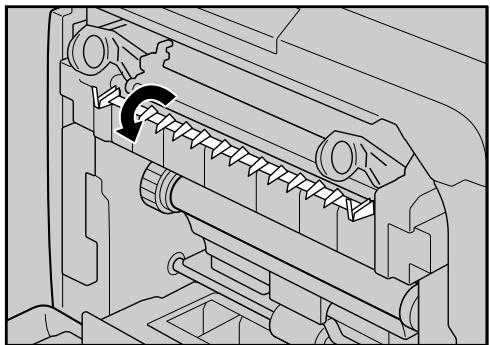
ASH048S
3 Carefully lift the blue fusing unit levers.
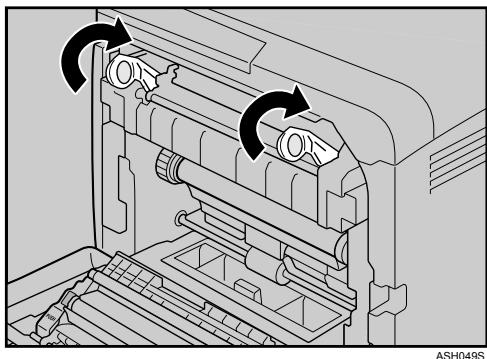
4 Close the front cover with both hands carefully.
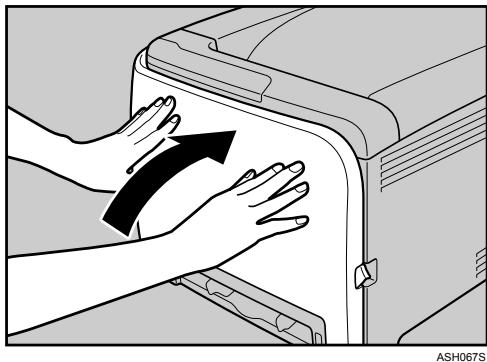
Note
- When closing the front cover, push the upper side of the cover firmly. After closing the cover, check that the error is cleared.
When Paper Jams Inside the Tray
If paper becomes jammed in Tray 1 or 2, open the front cover and remove it.
Pull Front Cover Open Lever, and then open the front cover with both hands carefully.
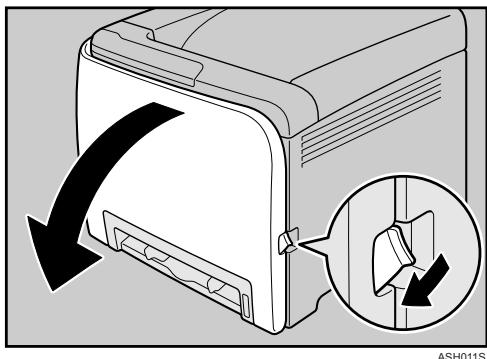
2 Carefully pull the jammed paper upward and out.
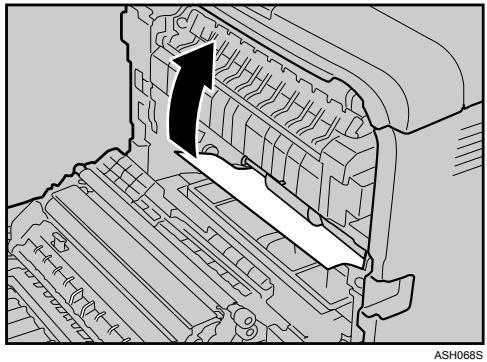
If paper has jammed inside the transfer unit, holding both sides of the paper, pull the paper carefully forward and out.
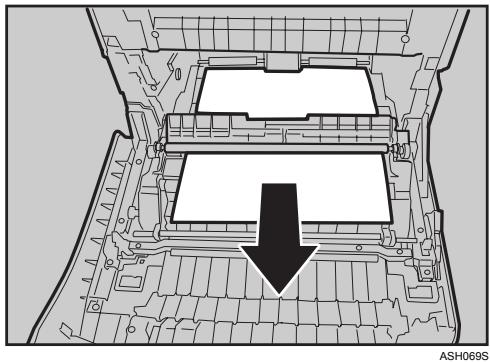
3 Close the front cover with both hands carefully.
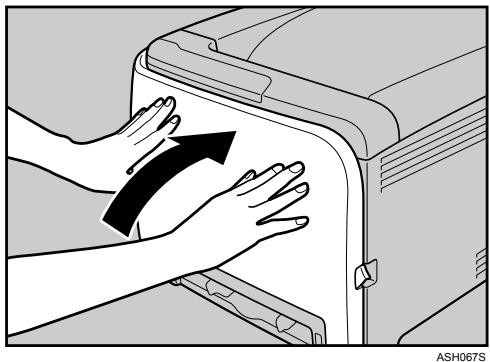
Note
Do not pull out the paper tray (Tray 1).
If paper is jammed in Tray 2 but is difficult to locate, pull out Tray 2 to remove it. After removing the paper, carefully push Tray 2 all the way back inside the printer.
- When closing the front cover, push the upper side of the cover firmly. After closing the cover, check that the error is cleared.
When Paper Jams inside the Transfer Unit
If a paper misfeed occurs inside the transfer unit, open the front cover and remove it.
A paper jam occurs when duplex printing is performed.
Pull Front Cover Open Lever, and then open the front cover with both hands carefully.
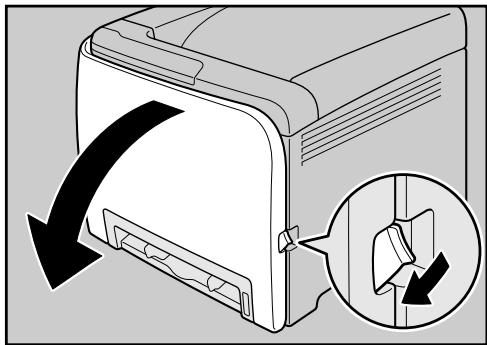
ASH011S
2 Carefully remove misfed paper under the transfer unit.
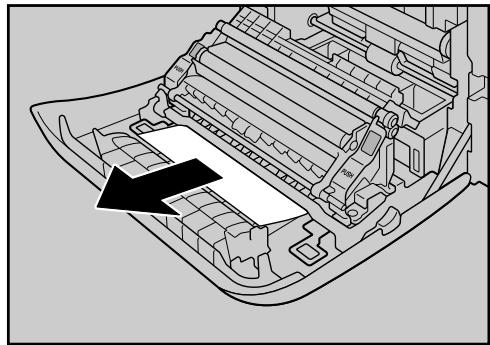
ASH050S
If you cannot find the misfed paper, look inside the printer.
3 Close the front cover with both hands carefully.
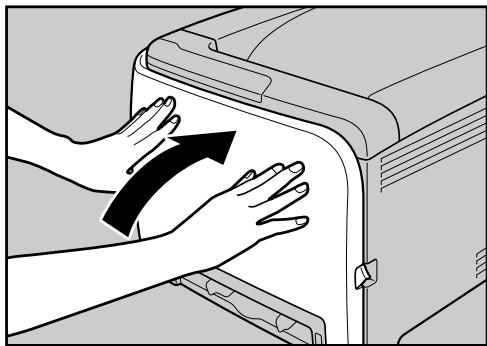
ASH067S
Note
- When closing the front cover, push the upper side of the cover firmly. After closing the cover, check that the error is cleared.
If the Printer is Not Going to Be Used for a Long Time
If the printer is going to be inactive for a long time, follow the procedure shown here.
WARNING:
- Plug and unplug the power cable with dry hands, or an electric shock could occur.
CAUTION:
- The inside of this printer becomes very hot. Do not touch parts labelled “△” (indicating a hot surface).
- Unplug the power cord from the wall outlet before you move the machine. While moving the machine, you should take care that the power cord will not be damaged under the machine.
Preparing the Printer For a Long Period of Inactivity
Use this procedure to prepare the printer for a long period of inactivity with its power switch turned to off.
Note that not using the following procedure could result in unusual noises when use of this printer is resumed.
Important
Do not switch off the printer during printing.
0 Turn off the power switch.
Pull out the plug from the socket.
Pull Front Cover Open Lever, and then open the front cover with both hands carefully.
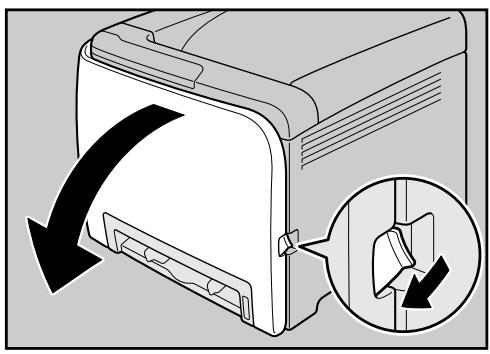
ASH011S
4 Lower the blue fusing unit lever.
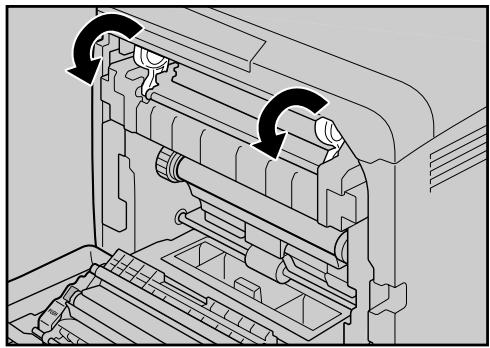
ASH046S
Using a coin, turn both gray knobs on the fusing unit 90 degrees counterclockwise (until the slots are horizontally aligned with the marking shown in the illustration below).
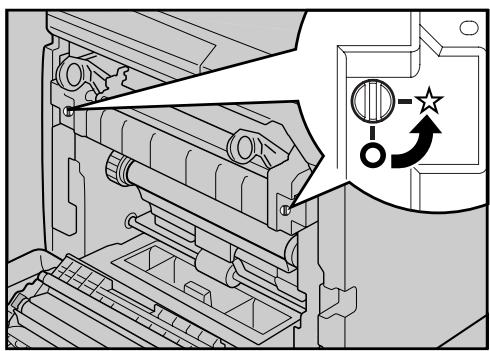
ASH127S
6 Carefully lift the blue fusing unit levers.
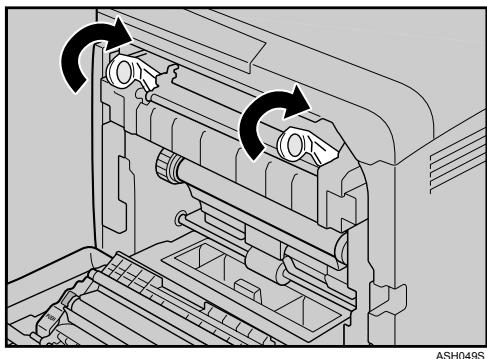
7 Close the front cover with both hands carefully.
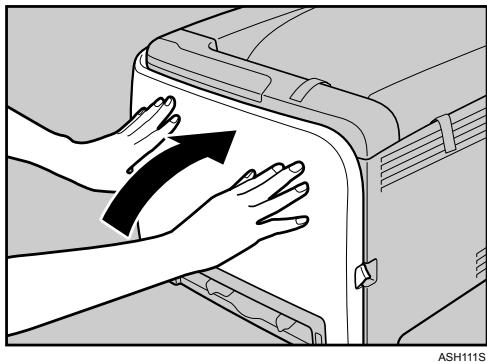
Note
This step is not necessary if the printer's power switch is on but the printer has been inactive for a long time.
Using the Printer Again after it has been Inactive for a Long Period
Use the following procedure to start using the printer again after it has been inactive for a long period.
Important
To avoid damage to the fusing unit's knobs, be sure to turn both knobs back to their original positions, as shown in the following procedure.
Plug in the power cable.
Pull Front Cover Open Lever, and then open the front cover with both hands carefully.
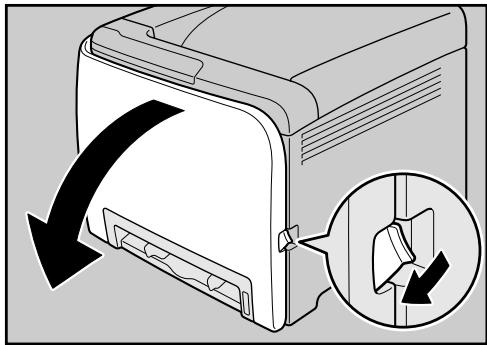
ASH011S
3 Lower the blue fusing unit lever.
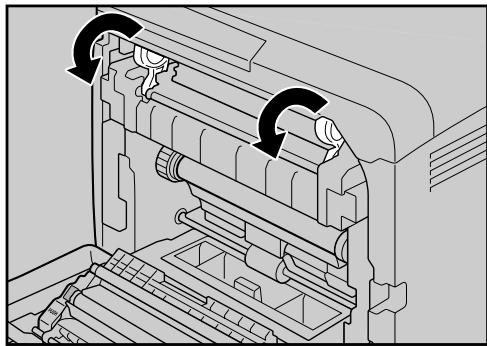
ASH046S
Using a coin, turn both gray knobs on the fusing unit 90 degrees clockwise (until the slots are vertically aligned with the marking shown in the illustration below).
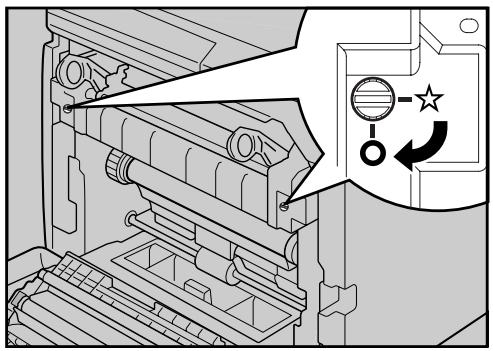
ASH128S
5 Carefully lift the blue fusing unit levers.
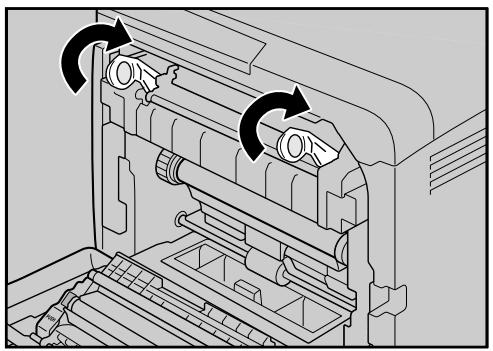
ASH049S
6 Close the front cover with both hands carefully.
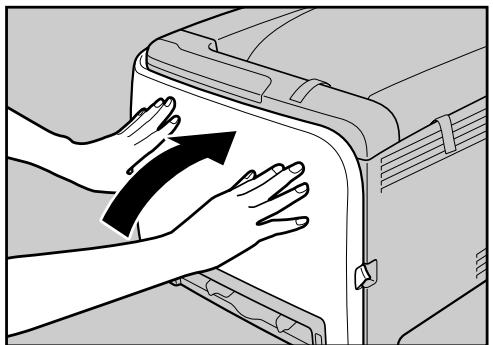
ASH111S
7 Turn the power switch to On.
Moving and Transporting the Printer
CAUTION:
- The printer weighs approximately 23kg (50.6 lb.). When moving the printer, use the inset grips on both sides, and lift slowly in pairs. The printer will break or cause injury if dropped.
- Unplug the power cord from the wall outlet before you move the machine. While moving the machine, you should take care that the power cord will not be damaged under the machine.
- When you disconnect the power plug from the wall outlet, always pull the plug (not the cable).
- When moving the printer after use, do not take out any of the toners, nor the waste toner bottle to prevent toner spill inside the machine.
Repack the printer in its original packing materials for transporting.
Important
- Be sure to disconnect all cables from the printer before transporting it.
The printer is a precision piece of machinery. Be sure to handle it carefully when moving it.
If the optional paper feed unit is installed, remove it from the printer, and then move them separately.
Do not grip on the tray area when lifting the printer.
Note
The printer weighs approximately 23kg (50.6 lb.).
Moving the Printer
CAUTION:
- Unplug the power cord from the wall outlet before you move the machine. While moving the machine, you should take care that the power cord will not be damaged under the machine.
Moving the printer in a short distance
1 Be sure to check the following points:
- The power switch is turned off.
- The power cable is unplugged from the wall outlet.
- The interface cable is unplugged from the printer.
2 If the external option is installed, remove it.
3 Lift the printer with two people by using the inset grips on both side of the printer, and then move it horizontally to the place where you want to install it.
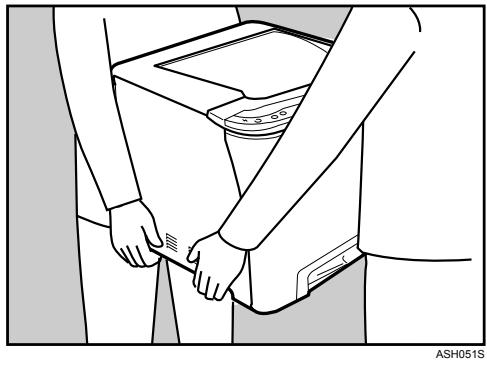
If you remove the option, reinstall it.
Note
- Be sure to move the printer horizontally. To prevent toner from scattering, move the printer carefully.
If the optional paper feed unit is installed, remove it from the printer, and then move them separately.
Consumables
CAUTION:
- Our products are engineered to meet high standards of quality and functionality, and we recommend that you use only the expendable supplies available at an authorized dealer.
Print Cartridge
| Print cartridge | Average number of pages printable per cartridge *1 |
| Black | 2,000 pages |
| Cyan | 2,000 pages |
| Magenta | 2,000 pages |
| Yellow | 2,000 pages |
^*1 A4/letter 5% test chart, printing continuously in monochrome/color only. The numbers for printable pages per cartridge comply with ISO/IEC 19798.
Note
If print cartridges are not changed when necessary, printing will become impossible. We recommend keeping a stock of bottles or purchasing them soon.
The actual number of printable pages varies depending on the image volume and density, number of pages to be printed at a time, paper type and paper size used, and environmental conditions such as temperature and humidity.
- Print cartridges may need to be changed sooner than indicated above due to deterioration over the period of use.
- Print cartridges (consumables) are not covered by warranty. However, if there is a problem, contact the store where they were purchased.
- When you first use this printer, use the four print cartridges packaged with the printer.
The supplied print cartridge is good for approximately 1,000 pages.
This printer routinely performs cleaning and uses toner during this operation to maintain quality.
To prevent a leaning malfunction, you may need to replace a print cartridge even if it is not empty.
□ If the toner has run out but you urgently need to continue printing, see p.82 "Other Printing Problems".
Waste Toner Bottle
| Name | Average printable number of pages *1 |
| Waste Toner Bottle SP C220 | 25,000 pages |
^*1 A4/letter 5 % test chart, 3 pages / job, printing in 50 % monochrome/color.
Note
The actual number of printable pages varies depending on the image volume and density, number of pages to be printed at a time, paper type and paper size used, and environmental conditions such as temperature and humidity.
If the waste toner bottles are not changed when necessary, printing will become impossible. We recommend keeping a stock of bottles or purchasing them soon.
Specifications
WARNING:
- The supplied power cord is for use with this equipment only. Do not use with other appliances. Doing so may result in fire, electric shock, or injury.
Main Unit
Configuration
Desktop
Print Process
Laser beam scanning & Electrophotographic printing 4 drums tandem method
First Print Speed
Monochrome: 14 sec or less (A4 /8^1 / _2× 11 )
Color: 14 sec or less (A4 /8^1 / _2× 110 )
Note
If the printer has not been used for a while, there may be a short delay before the first page starts printing.
Printing Speed
- SP C220N: Monochrome: maximum 16 pages per minute (A4 /8 ^1 /2×11 ) Color: maximum 16 pages per minute (A4 /8 ^1 /2×11 )
- SP C221N/SP C222DN: Monochrome: maximum 20 pages per minute (A4), 21 pages per minutes (8^1 / 2 × 11) Color: maximum 20 pages per minute (A4), 21 pages per minutes (8^1 / 2 × 11)
Printing speed may vary depending on the setting up environment.
Resolution
600 × 600 dpi Speed (1bit) 600 × 600 dpi Standard (2bits) 600 × 600 dpi Fine (4bits)
Paper size
See p.23 "Paper and Other Media"
Paper Weight
See p.23 "Paper and Other Media"
Media Type
See p.23 "Paper and Other Media"
Paper Output Capacity
Standard 150 sheets (80g / m^2,20lb.)
Paper Input Capacity
SP C220N:
| Standard Paper Tray | 250 sheets *1 |
| Bypass Tray | 1 *1 |
*1: Paper weight: 80 g/m^2 (20 lb. bond)
- SP C221N/SP C222DN:
| Standard Paper Tray | 250 sheets *1 |
| Bypass Tray | 1 *1 |
| Optional Paper Feed Units | 500 sheets *1 |
*1: Paper weight: 80g / m^2 (20 lb. bond)
Power Source
220-240V
220-240 V, 6A or more, 50/60 Hz
120V
120 V, 11 A or more, 60 Hz
Power Consumption
| Printing | 1300 W or less (No power is used during power off.) |
| Energy Saver | 15 W or less |
Warm-up Time
Less than 51 seconds (23 °C, 71.6 F) *1
*1 When no error is occurred.
Dimensions
| Width | Depth | Height | |
| Printer only (tray not extended) | 400 mm (15.8 inches) | 450 mm (17.8 inches) | 320 mm (12.8 inches) |
Weight
Approximately 23kg (50.6 lb.) (print cartridges included)
Noise Emission *1 Sound Power Level
| Mainframe only | |
| Stand-by | 43 dB (A) |
| During Printing | Monochrome: 63 dB (A) Color: 64 dB (A) |
Sound Pressure Level *2
| Mainframe only | |
| Stand-by | 35 dB (A) |
| During Printing | 57 dB (A) |
1 : The preceding measurements made in accordance with ISO7779 are actual values.
2: Measured at the position of a bystander.
Memory
- SP C220N: Standard 64M
- SP C221N/SP C222DN: Standard 128 MB, up to 320 MB (with the optional memory unit)
Interface
- Ethernet (10/100 Base-TX)
- USB2.0
- It requires a USB computer port and cable that support USB 2.0.
- USB Host (1.1)
Note
- USB Host (1.1) is only available for the SP C222DN model printer.
Printer Language
SP C220N: DDST
- SP C221N/SP C222DN:
PJL, PCL 5c/6, PostScript Level 3, PictBridge
Note
- PictBridge is only available for the SP C222DN model printer.
Fonts
- SP C221N/SP C222DN:
PCL
41 Symbolset, 35 Intellifonts, 10 TrueType fonts, 1 bitmap font.
PostScript 3
80 fonts
Options
Paper Feed Unit TK1010
Paper size
A4 and Letter (8^1 / 2× 11 inches)
Dimensions (W× D× H)
400 × 450 × 127 ~mm ( 15.8 × 17.8 × 5 inches)
Paper weight
60 - 105 g/m², (16 - 28 lb.)
Weight
Less than 4kg (8.8 lb.)
Memory Unit Type F 256MB
Module Type
DDR-DIMM (Double Data Rate Dual Inline Memory Module)
Memory Type
DDR-SDRAM (Double Data Rate Synchronous Dynamic RAM)
Number of Pins
100
INDEX
A
Additional troubleshooting, 88
Appendix, 100
Attaching Memory Unit Type F 256MB
-DDR-SDRAM Module), 16
Attaching Paper Feed Unit TK1010, 14
C
Cleaning the friction pad, 66
Cleaning the paper feed roller, 66
Cleaning the printer, 63
Cleaning the registration roller, 69
Cleaning the toner density sensor, 64
Connecting the printer network connection, 19
USB connection, 21
Consumables, 102
E
Ethernet, 19
Ethernet port, 19
F
Friction pad, 66
G
Guide to the printer
control panel, 4
exterior, 1
exterior - rear view, 2
inside, 3
H
How to read this manual, iii
1
Install the operating instructions, v
L
Loading paper, 25
optional paper feed unit, 34, 46
tray1,34
M
Memory Unit Type F 256MB, 16, 107
Moving and transporting the printer, 100
N
Network, 19
0
Options, 107
Other printing problems, 82
P
Paper and other media, 23
Paper feed roller, 66
Paper Feed Unit TK1010, 14, 107
Paper not supported, 31
Paper recommendations, 25
Print area, 32
Print cartridge, 51, 102
Printer does not print, 78
R
Registration roller, 69
Remove misfed paper
fusing unit, 90
optional paper feed unit, 92
transfer unit, 94
tray 1, 92
tray 2, 92
Removing misfed paper, 89
Replacing consumables, 51
Replacing the print cartridge, 51
Replacing the waste toner bottle, 56
s
Setting the paper type, 26
Specifications, 104
Specifying standard size paper
optional paper feed unit, 34
tray1,34
Storing paper, 25
T
Toner density sensor, 64
Types of paper, 26
Waste toner bottle, 56, 103
In accordance with IEC 60417, this machine uses the following symbols for the main power switch:
I means POWER ON.
means POWER OFF.
Trademarks
Microsoft, Windows, Windows Server, and Windows Vista are registered trademarks of Microsoft Corporation in the United States and/or other countries.
Adobe® and PostScript® are registered trademarks of Adobe Systems Incorporated.
PCL® is a registered trademark of Hewlett-Packard Company.
Apple, AppleTalk, EtherTalk, Macintosh, Mac OS, and True Type are trademarks of Apple Computer, Inc., registered in the U.S. and other countries.
PictBridge is a trademark.
Other product names used herein are for identification purposes only and might be trademarks of their respective companies. We disclaim any and all rights to those marks.
The proper names of the Windows operating systems are as follows:
The product names of Windows® 2000 are as follows:
Microsoft® Windows® 2000 Professional
Microsoft® Windows® 2000 Server
Microsoft® Windows® 2000 Advanced Server
The product names of Windows XP are as follows:
Microsoft® Windows® XP Professional
Microsoft® Windows® XP Home Edition
The product names of Windows Vista® are as follows:
Microsoft® Windows Vista® Ultimate
Microsoft® Windows Vista® Enterprise
Microsoft® Windows Vista® Business
Microsoft® Windows Vista® Home Premium
Microsoft® Windows Vista® Home Basic
The product names of Windows Server® 2003 are as follows:
Microsoft® Windows Server® 2003 Standard Edition
Microsoft® Windows Server® 2003 Enterprise Edition
Microsoft® Windows Server® 2003 Web Edition
The product names of Windows Server 2003 R2 are as follows:
Microsoft® Windows Server® 2003 R2 Standard Edition
Microsoft® Windows Server® 2003 R2 Enterprise Edition

Note
PostScript 3 in this manual stands for "Adobe PostScript 3 Emulation".

- Operating Instructions Hardware Guide
- Introduction
- Important
- Notes:
- Caution:
- Positions of WARNING and CAUTION labels
- Manuals for This Printer
- Safety Information
- Quick Installation Guide
- Hardware Guide
- Software Guide
- How to Read This Manual
- Symbols
- WARNING:
- Note
- Reference
- []
- 【】
- Description for the Specified Model
- 220-240V
- 120V
- Installing the Operating Instructions
- TABLE OF CONTENTS
- Guide to the Printer
- Installing the Printer and Options
- Connecting the Printer
- Paper and Other Media
- Replacing Consumables
- Cleaning the Printer
- Troubleshooting
- Removing Misfed Paper
- Appendix
- Exterior: Front View
- Top Cover
- Control Panel
- Front Cover
- Power Switch
- Bypass Tray
- Tray 1
- Top Cover Open Lever
- Standard tray extension
- Stop Fences
- Standard Tray
- Exterior: Rear View
- Inside
- Print Cartridge
- Fusing Unit
- Waste Toner Bottle
- Transfer unit
- Control Panel
- Alert Indicator
- Ready Indicator
- 3.【Stop/Start】key
- 4.【Job Reset】key
- Load Paper Indicator
- Replace Print Cartridge Indicator
- Installing the Printer
- Where to Put the Printer
- Space Required for Installation
- Optimum Environmental Conditions
- Environments to Avoid
- Power Source
- Unpacking
- Carefully lift the blue fusing unit levers.
- Close the front cover with both hands carefully.
- Pull up Top Cover Open Lever to open the top cover.
- Remove the protection tape.
- Take each print cartridge out.
- Turning the Power On
- Plug in the power cable.
- Turn the power switch to On.
- Installing Options
- Attaching Paper Feed Unit TK1010
- Check the package contains Paper Feed Unit TK1010.
- Attaching Memory Unit Type F 256MB (DDR-SDRAM Module)
- Loosen the screw securing the inner cover by using a coin.
- Be sure to install the memory unit as shown.
- To install the recommended memory, align the notch of the recommended memory with the protruding part of the vacant slot, and then carefully insert the module at an angle.
- P Reference
- Network Connection
- Remove the cable cover.
- Connect the Ethernet cable to the Ethernet port.
- Reading the LED Lamps
- USB Connection
- Connect the square-shaped connector of the USB2.0 cable to the USB port.
- Connect the opposite end's flat connector to devices such as your computer's USB interface.
- Attach the cable cover.
- Paper and Other Media Supported by This Printer
- Paper Recommendations
- Loading Paper
- Storing Paper
- Types of Paper and Other Media
- Setting the paper type
- Printer driver
- Smart Organizing Monitor
- Paper Not Supported by This Printer
- Print Area
- Paper
- Envelope
- Loading Paper in Tray 1
- Push the metal plate down until it clicks into place to lock.
- Pinch the clip on the side paper guide and slide it to match the standard size.
- Carefully push Tray 1 straight into the printer.
- Loading legal size paper
- Remove the rear cover using a coin.
- Pull Tray 1 carefully, and then hold it with both hands and pull it out.
- Pinch the extender in the "PUSH" direction, and then pull out the extender until it stops (you will hear a click).
- Load the new paper stack print side up.
- Check there are no gaps between the paper and the paper guides; both side and front end paper guides.
- Carefully push Tray 1 straight into the printer.
- Loading envelopes
- Set the envelopes in Tray 1 with the printing side facing up.
- Carefully slide the paper tray back in until it stops. To avoid paper jams, make sure the tray is securely inserted.
- Loading Paper in the Optional Paper Feed Unit
- Loading Paper in the Bypass Tray
- Insert the top edge of the paper into the printer.
- Adjust the paper guides to the paper size.
- Replacing the Print Cartridge
- When to replace the print cartridge
- Gripping its center, carefully pull the print cartridge upward and out.
- Take the new print cartridge out of the box, and then take it out of the plastic bag.
- Hold the print cartridge and shake it from side to side five or six times.
- Remove the cover from the print cartridge.
- Check the toner color and location correspond, and carefully insert the print cartridge vertically.
- Close the top cover with both hands carefully.
- Put the cover that you removed in step 5 on the old print cartridge. Then, put the old print cartridge into the bag, and then put it into the box.
- Replacing the Waste Toner Bottle
- When to replace the waste toner bottle
- Close the bottle cap.
- Hold the center of the new waste toner bottle, and then carefully insert it halfway into the printer body.
- Push in the waste toner bottle until it clicks into place. Push the green part all the way in.
- Place the transfer unit down on the front cover.
- Cautions to Take When Cleaning
- Cleaning the Toner Density Sensor
- Cleaning the Friction Pad and the Paper Feed Roller
- Cleaning the Registration Roller
- Error & Status Messages on Smart Organizing Monitor
- Panel Indicator
- Printer Does Not Print
- When the Printer is Directly Connected to a Computer via USB Cable
- Windows
- Windows XP Home Edition
- Windows Vista
- Mac OS X
- Using [About This Mac]
- Using the printer browser
- When Paper is Jammed
- Fusing Unit
- Tray
- Transfer Unit
- When Paper Jams inside the Fusing Unit
- Carefully lift the blue fusing unit levers.
- Close the front cover with both hands carefully.
- When Paper Jams Inside the Tray
- Carefully pull the jammed paper upward and out.
- Close the front cover with both hands carefully.
- When Paper Jams inside the Transfer Unit
- If the Printer is Not Going to Be Used for a Long Time
- Preparing the Printer For a Long Period of Inactivity
- Using the Printer Again after it has been Inactive for a Long Period
- Moving and Transporting the Printer
- Moving the Printer
- Moving the printer in a short distance
- Be sure to check the following points:
- If the external option is installed, remove it.
- Lift the printer with two people by using the inset grips on both side of the printer, and then move it horizontally to the place where you want to install it.
- If you remove the option, reinstall it.
- Consumables
- Print Cartridge
- Specifications
- Main Unit
- Printing Speed
- Media Type
- Paper Output Capacity
- Paper Input Capacity
- Power Consumption
- Warm-up Time
- Dimensions
- Weight
- Noise Emission *1 Sound Power Level
- Sound Pressure Level *2
- Memory
- Interface
- Printer Language
- Fonts
- Options
- Paper Feed Unit TK1010
- Memory Unit Type F 256MB
- INDEX
- A
- C
- E
- F
- G
- H
- 1
- L
- M
- N
- 0
- P
- R
- s
- T
- Trademarks
Brand : RICOH
Model : AFICIO SP C220N
Category : Color laser printer