USER MANUAL RMT-TX100D SONY
Interactive Remote Commander
Operating Instructions GB
Mode d'emploi FR
Owner's Record
The model and serial numbers are located on the rear of the unit. Record the serial number in the space provided below. Refer to them whenever you call upon your Sony dealer regarding this product.
Model No. Serial No.
WARNING
For customers in Europe
To prevent fire, do not cover the ventilation of the apparatus with newspapers, tablecloths, curtains, etc. And don't place lighted candles on the apparatus.
To prevent fire or shock hazard, do not place objects filled with liquids, such as vases, on the apparatus.
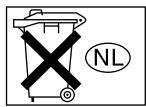
Don't throw away the battery with general house waste, dispose of it correctly as chemical waste.
For customers in the United States
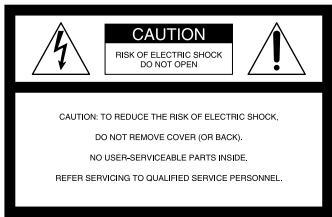

This symbol is intended to alert the user to the presence of uninsulated "dangerous voltage" within the product's enclosure that may be of sufficient magnitude to constitute a risk of electric shock to persons.

This symbol is intended to alert the user to the presence of important operating and maintenance (servicing) instructions in the literature accompanying the appliance.
To prevent fire or shock hazard, do not expose the unit to rain or moisture.
WARNING
This equipment has been tested and found to comply with the limits for a Class B digital device, pursuant to Part 15 of the FCC Rules.
These limits are designed to provide reasonable protection against harmful interference in a residential installation. This equipment generates, uses, and can radiate radio frequency energy and, if not installed and used in accordance with the instructions, may cause harmful interference to radio communications. However, there is no guarantee that interference will not occur in a particular installation. If this equipment does cause harmful interference to radio or television reception, which can be determined by turning the equipment off and on, the user is encouraged to try to correct the interference by one or more of the following measures:
- Reorient or relocate the receiving antenna.
- Increase the separation between the equipment and control amplifier.
- Connect the equipment into an outlet on a circuit different from that to which the control amplifier is connected.
- Consult the dealer or an experienced radio/TV technician for help.
CAUTION
You are cautioned that any changes or modifications not expressly approved in this manual could void your authority to operate this equipment.
If you have any questions about this product, you may call; Sony Customer Information Center 1-800-488-7669. The Number below is for the FCC related matters only.
Regulatory Information
Declaration of Conformity
Trade name: SONY
Model No.: RM-TP1
Responsible Party: Sony Electronics Inc.
Address: 680 Kinderkamack Road, Oradell, NJ. 07649 USA
Telephone No.: 201-930-6972
This device complies with Part 15 of the FCC Rules. Operation is subject to the following two conditions:
(1) This device may not cause harmful interference, and (2) this device must accept any interference received, including interference that may cause undesired operation.
For customers in Canada
This Class B digital apparatus complies with Canadian ICES-003.
CAUTION
TO PREVENT ELECTRIC SHOCK, DO NOT USE THIS POLARIZED AC PLUG WITH AN EXTENSION CORD, RECEPTACLE OR OTHER OUTLET UNLESS THE BLADES CAN BE FULLY INSERTED TO PREVENT BLADE EXPOSURE.
Table of Contents
Features 4
Preparations
Compatible components and functions ....5
Preparing the commander. 5
Screen hierarchy 7
Location of Parts and Controls
Front panel 8
Rear panel 9
Basic Operations
Registering the components 10
Operating the components 11
Operations for Sony Amplifiers/Receivers
Operating the amplifier/receiver 18
2 Way Remote Operations
Operating the amplifier/receiver 20
Operating the tuner 21
Operating the CD player or MD deck .... 21
Advanced Operations
Performing several commands in sequence automatically (Macro Play) 22
Learning the commands of other remote commanders 25
Switching the function on the amplifier/ receiver automatically (AMP LINK) 28
Changing the name of the remote (component) 28
Adjusting the commander's operating environment 29
Safety regulations 31
Precautions 33
Troubleshooting 34
Specifications 35
Maker compatibility list 36
Features
The RM-TP1 Interactive Remote Commander provides centralized control of all your AV components from a single remote commander and saves you the trouble of operating different AV components with different remote control devices. Its main features are as follows:
Centralized control of Sony AV components with this one remote commander
This Commander is preset to operate Sony brand components, so you can use it right out of the box as a control center for your Sony AV components. This Commander also incorporates a variety of operations especially for Sony amplifiers/receivers (page 18).
2-way remote operations
This Commander is of a 2-way remote system. You can operate Sony 2-way components (with Control A1/A1 II control system) with this Commander (page 19).
Preset remote control signals for non-Sony components
This Commander also contains presets for most other major component manufacturers. You can remote control your components by registering them (page 10).
Macro Play Function for one-touch operation of several commands
You can program the Commander to execute a series of operations (up to 24 steps) from a single key (page 22). You can program up to 16 Macro Plays.
Learning Function for programming additional remote control signals
This Commander has a Learning Function, to learn the signals from other remotes and operate non-preset components or functions (page 25). The Learning Function can be used with preset operation keys and USER RESERVE KEYS.
Easy-to-operate touch sensitive LCD and the jog dial
This Commander has a touch sensitive LCD that displays operation keys according to the selected component. You can operate components by touching the displayed keys or turning the jog dial. The display backlight allows operation even in the dark.
Name Editing Function for remote (component) names and MACRO names
You can edit the remotes (components) names and the Macro Play names (pages 23 and 28). This function is useful for distinguishing each component or Macro Play.
The frequently used amplifier/receiver and TV control buttons are located on the front panel, so that you can easily operate the amplifier/receiver and TV while operating other AV components.
This chapter describes how to prepare the remote commander for operation. Be sure to read this section before operating.
Compatible components and functions
This unit is a remote control system that utilizes infrared rays to control amplifiers/ receivers and AV components.
Compatible Components
This unit can be used to operate Sony AV components as well as AV components made by other manufacturers. Setup is necessary in order to operate components made by other manufacturers (page 10).
Note
Depending on the component, control may not be possible using this unit.
Functions
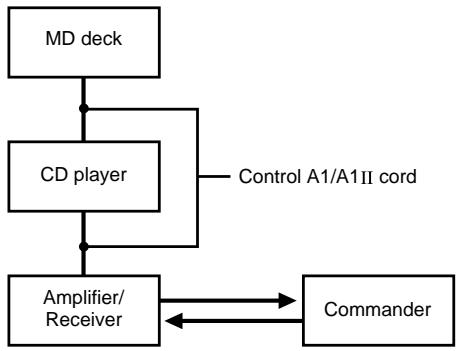
This commander operates under the 1-way and the 2-way remote system. As a 2-way remote commander, you can operate Sony components compatible with the 2-way remote system. Under the 2-way remote system, not only does it transmit infrared rays for operation of the amplifier/receiver, it also receives infrared rays emitted by the amplifier/receiver to display characters and other information from components connected to the amplifier/receiver with a CONTROL A1/A1 II cord. This commander can also exchange data directly with 2-way CD players (page 19).
In addition, this commander is equipped with 2 remote code transmitter/receiver sections in order to provide a greater operating range.
Preparing the commander
Charging the battery
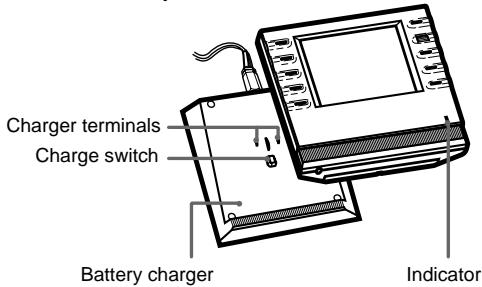
Before you use the commander, charge the battery. The exclusive rechargeable battery is built-in.
1. Connect the AC adapter to the battery charger. 2. Place the commander on the battery charger.
The indicator lights in red while charging. Charging is finished when the light turns green. It takes about 6 hours to fully charge the battery.
Notes
- The contrast and the touch panel are adjusted correctly when shipped. If the LCD shifts from the normal operating position, or the LCD is too bright or dark to see, use the RM SETUP screen to adjust them (page 29).
- The LCD turns on when touched. The LCD also turns on when the BACK LIGHT button is pressed.
- I/O/SYSTEM STANDBY, MASTER VOL +/-, MUTING, SLEEP, TV INPUT, TV CH +/-, and TV VOL +/- buttons can be used even when the LCD is not lit.
- Pressing the BACK LIGHT button turns the backlight on or off. Holding it down for about 2 seconds turns the LCD off.
- If the commander is not used for 60 seconds, the LCD turns off automatically (Auto Off function). The Auto Off function can be changed between 10 and 90 seconds under "Setting the LCD turn off time" in the RM SETUP screen (page 30).
continued
Preparing the commander (continued)
When to recharge the battery
When the battery becomes weak, a symbol appears. Recharge the battery.
Tip
Under normal conditions, the battery should last approximately 5 days per charge*. However, depending on how the commander is used and the initial voltage of the battery, the actual period of use per charge may be shorter or longer than that mentioned above.
- This value is based on 60 key operations a day with the backlight on. If the backlight is turned off, the battery should last much longer. In order to extend the life of the battery, it is recommended to keep the backlight off when operating the commander in a well lit area.
Caution
If a symbol appears, recharge the battery as soon as possible. If you leave the commander uncharged for more than 2 months, the adjusted settings may be cleared.
Notes
- When a symbol appears, the backlight turns off automatically.
- If the operation period after recharging becomes extremely short, the battery should be replaced. On replacing the battery, please consult your nearest Sony dealer.
(For customers in the United States and Canada)
Nickel Metal Hydride batteries are recyclable.
You can help preserve our environment by returning your used rechargeable batteries to the collection and recycling location nearest you.
For more information regarding recycling of rechargeable batteries, call toll free 1-800-822-8837, or visit http://www.rbrc.org/
Caution: Do not handle damaged or leaking Nickel Metal Hydride batteries.
Using the touch pen
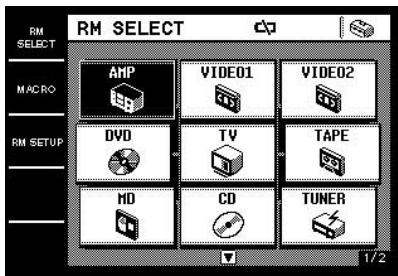
The commander's panel is touch sensitive and can be operated simply by touching it.
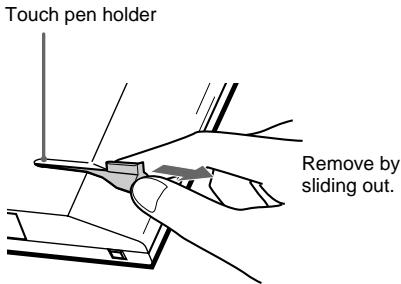
Remove the touch pen.
When returning the touch pen, always slide it in tip first.
Caution
Use only the touch pen provided with this unit or the soft tip of your finger to operate the touch panel. Using a commercially available writing utensil may damage the panel and make correct operation impossible. If the tip of the touch pen is damaged, or the touch pen is lost, please consult your nearest Sony dealer.
Screen hierarchy
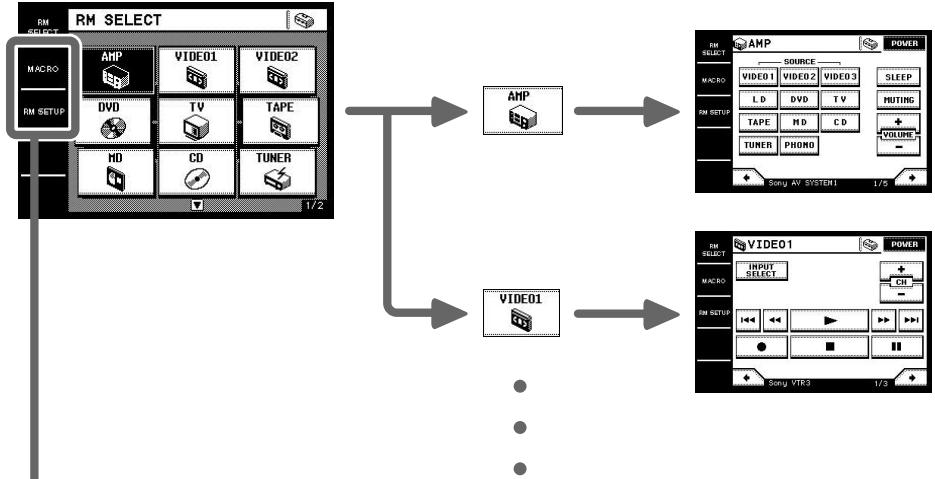
The following diagram shows the basic composition of this unit's screen hierarchy.
RM SELECT screen
Appears when RM SELECT is touched.
When you select the remote (component), the component operation screen appears.
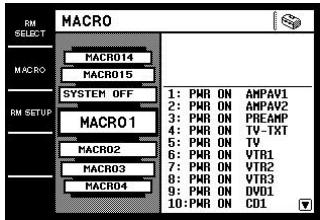
MACRO screen
Appears when MACRO is touched. This screen is for performing several commands in sequence automatically (page 22).
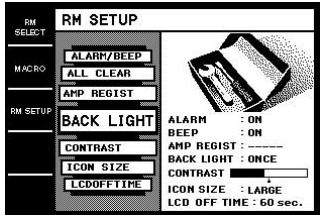
RM SETUP screen
Appears when RM SETUP is touched. This screen is for setting up the operation environment (page 29).
Location of Parts and Controls
This chapter provides information on the location of buttons and how to use them to perform basic operations.
However, some functions explained in this section may not operate depending on the component you are controlling.
Front panel
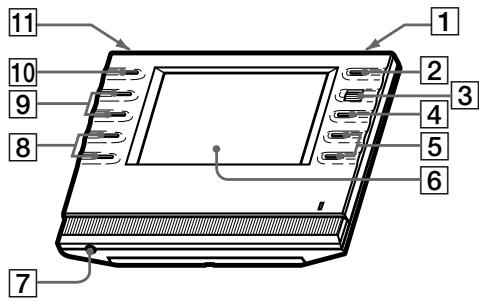
Press to turn the backlight on or off. Hold down for about 2 seconds to turn the LCD off. When the LCD is off, press to turn on the LCD and backlight.
- To prolong use of the battery, the LCD automatically turns off if there is no command entered in the touch panel for 60 seconds.
- To view the LCD display without turning on the backlight, touch the touch panel when both the backlight and LCD are off.
Normally used to turn the amplifier/receiver on or off.
When pressed for more than 2 seconds, it turns off all Sony components (SYSTEM STANDBY) by executing the Macro Play function SYSTEM OFF program (page 22).
3 Jog dial
Rotate to scroll through items in a list (etc.). Push to select the highlighted item.
Use to mute the sound of the amplifier/receiver.
Use to adjust the volume of the amplifier/receiver.
6 Touch panel
Touch to operate. The commander turns on automatically.
7 Stereo mini jack
Use to upgrade the firmware in the future.
Use to adjust the volume of the TV.
Use to select the channel of the TV.
Use to select the input of the TV.
Use to operate the amplifier/receiver's sleep timer function. The sleep timer settings appear in the amplifier/receiver's display, not the commander's LCD.
- The commander emits the remote code for operating the AMP (amplifier/receiver) or TV that is registered to this commander using the IR SETUP function (page 10).
If you register two or more AMPs or TVs, the commander emits the remote code for the component (icon) that appears first (on the left top side) in the RM SELECT screen.
Rear panel
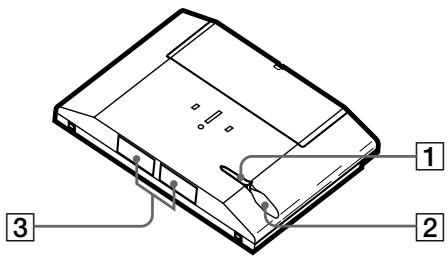
Touch pen 2 Touch pen holder
Keep the touch pen here when not in use.
3 Transmitter/receiver section Remote code receiver section
Transmits and receives infrared signals to and from the component.
When using the Learning function, this section receives the remote codes from other remote controls.
Registering the components
The following procedure lets you set up the commander to operate the components.
RM SELECT screen setup (HOOK UP)
You can set the RM SELECT screen not to display the remotes (components) you do not use.
1 Touch RM SELECT.
The RM SELECT screen appears.
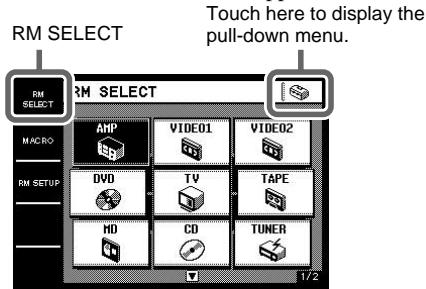
2 Touch
The pull-down menu appears.
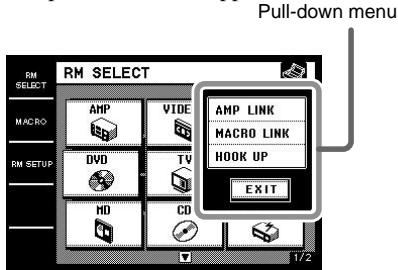
The HOOK UP screen appears.
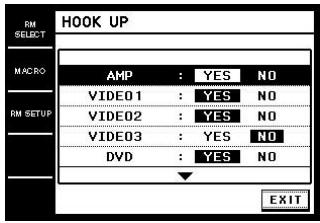
4 Select the component not to be displayed and touch NO.
To display other items, use the jog dial, or touch △ or ▽ to scroll through the list.
To display the components in the RM SELECT screen
Touch YES instead of NO in step 4.
Tip
Components that have been registered (see below) are set to "YES" automatically.
Registering the components (IR SETUP)
1 Touch RM SELECT.
The RM SELECT screen appears.
2 Touch the remote (component) you want to register ("VIDEO1" for example).
Or, turn the jog dial to select the remote (component), then press the jog dial to enter the selection. The screen for operating the component appears.
To display other items, use the jog dial, or touch or to scroll through the list.
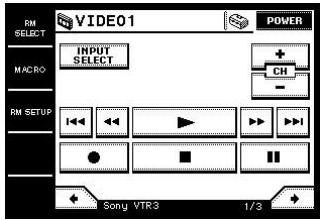
3 Touch
The pull-down menu appears.
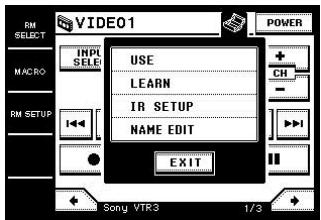
The IR SETUP: CATEGORY screen appears.
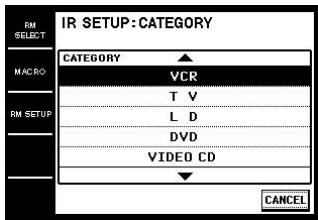
5 Select the component category ("VCR" for example).
To display other items, use the jog dial, or touch or to scroll through the list. The IR SETUP: MAKER CODE screen appears.
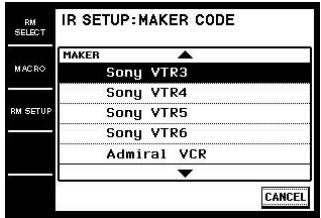
6 Select the maker and the command mode for the component ("Sony VTR1" for example).
See "Maker compatibility list" on page 36. The component selected in steps 5 and 6 will be registered at the remote (component) selected in step 2, and the screen for the selected category appears. The IR setting is displayed at the bottom of the screen.
A long beep sound is emitted to indicate that registration was successful. Operation is now possible from the RM SELECT screen.
To stop registration at any time
Touch EXIT or CANCEL during any step.
Notes
Depending on the maker, certain remote codes may not exist and cannot be operated with the keys (icons) on the screen. These keys are dimmed. - When registering components made by certain manufacturers, some commands may not function even though they are displayed. Depending on the model or the model year, you cannot operate the component even if it is listed in the "Maker compatibility list". In this case, you can use the Learning function to program the commands of the remote supplied with the component (page 25).
Operating the components
Selecting the remote (component)
To operate the registered components, first display the RM SELECT screen, then select the remote (component) you want to operate (CD, MD, etc.).
1 Touch RM SELECT.
The RM SELECT screen appears.
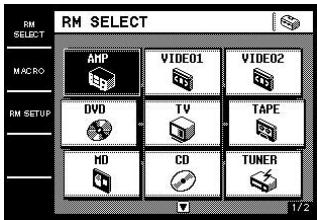
2 Touch the remote (component) you want to operate.
Or, turn the jog dial to select the remote (component), then press the jog dial to enter the selection. The screen for operating the component appears. Touch \nLeftrightarrow or \nRightarrow to display other screens. See the tables on pages 12-17 for information on the displayed keys.
To display other items, use the jog dial, or touch \triangle or \nabla to scroll through the list.
Tips
- You can change the name of remotes (components) (page 28).
- On the last screen for each remote (component), there are 8 keys specially for use with the Learning function (USER RESERVE KEYS). You can use these keys for programming additional remote codes (page 27).
continued
Operating the components (continued)
Operation examples
Operating a CD player
Touch to start playback.
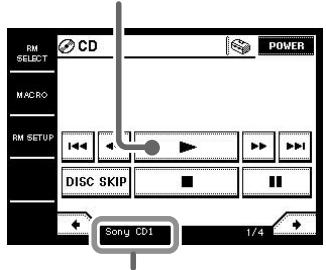
Selected maker and category (page 10)
Operating a tuner
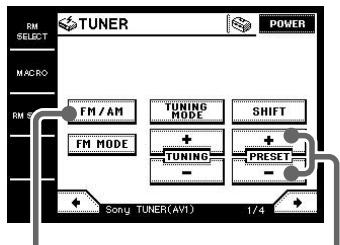
Touch to select the FM or AM band.
Touch to scan the radio stations.
Tables of preset functions
Notes
- Depending on the registered component, certain keys (icons) may not function. These keys are dimmed.
- These tables explain the major functions of the keys. Depending on the registered component, the keys may operate differently.
AMP
| Key | Function |
| POWER1) | To turn the power on/off. |
| VIDEO 1 | To select the input source:VIDEO 1 |
| VIDEO 2 | To select the input source:VIDEO 2 |
| VIDEO 3 | To select the input source:VIDEO 3 |
| LD | To select the input source:LD |
| DVD | To select the input source:DVD |
| TV | To select the input source:TV |
| TAPE | To select the input source:TAPE |
| MD | To select the input source:MD |
| CD | To select the input source:CD |
| TUNER | To select the input source:TUNER |
| PHONO | To select the input source:PHONO |
| SLEEP2) | To activate the sleep timer. |
| MUTING1) | To mute the volume on the amplifier/receiver. Press again to cancel the muting function. |
| VOLUME+/-1) | To raise or lower the volume. |
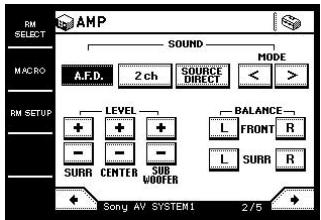
| A.F.D.2) | Auto Format Decoding. |
| 2ch2) | To turn off the sound field or select 2CH mode. |
| SOURCEDIRECT2) | To select the analog audio source. |
| MODE</>2) | To select a sound field. |
| LEVELSURR+/-2) | To adjust the level of the surround speakers. |
| LEVELCENTER+/-2) | To adjust the level of the center speaker. |
| LEVEL SUBWOOFER+/-2) | To adjust the level of the sub woofer. |
| BALANCEFRONTL/R2) | To adjust the balance between front left and right speakers. |
| BALANCESURRL/R2) | To adjust the balance between surround left and right speakers. |
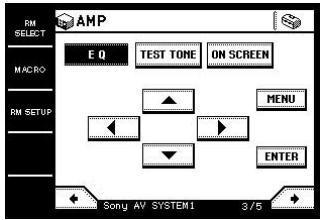
| EQ2) | To turn the equalizer on/off. |
| TEST TONE2) | To output the test tone. |
| ON SCREEN2) | To activate the on-screen display. |
| ▲/▼/▲/▼2) | To select a menu item. |
| MENU2) | To select the menu. |
| ENTER2) | To enter the selection. |
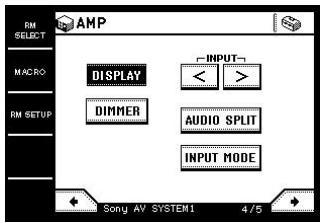
| DISPLAY2) | To select the displayed information. |
| DIMMER2) | To adjust the brightness of the display. |
| INPUT </>2) | To select the audio input. |
| AUDIO SPLIT2) | To assign the audio input for each function. |
| INPUT MODE2) | To select the input mode for your digital components. |
1) You can use the buttons on the front panel. 2) Sony amplifier/receiver only. For details, see page 18.
VIDEO
| Key | Function |
| POWER | To turn the power on/off. |
| INPUT SELECT | To change the input mode of the VCR. |
| CH +/- | To select a channel. |
| ← | To proceed to the previous location. |
| ← | To rewind. |
| ▶ | To play. |
| ▶ | To fast-forward. |
| ▶→ | To proceed to the next location. |
| ● | To record. |
| ■ | To stop. |
| || | To pause. |
| DISPLAY | To select information displayed on the TV screen. |
| ANT | To switch the antenna output. |
| TV/VTR | |
| SP/LP | To select the playback speed. |
| 1-9, 0 | To select the channel. Pressing 0 selects channel 10. |
| -/- | Press before selecting channel 11 or higher. (After pressing -/--, use the numeric buttons to select the channel, then press ENTER.) Or, press to select channel 11 directly. |
| ENTER | To enter the selection. Or, press to select channel 12 directly. |
| Key | Function |
| MENU | To call the MENU display. |
| +/♣/♣/♣ | To move the cursor. |
| EXECUTE | To enter selections in the MENU display. |
DVD
| Key | Function |
| POWER | To turn the power on/off. |
| AUDIO | To change the sound. |
| ANGLE | To switch angle. |
| SUB TITLE | To switch the subtitle. |
| SHUFFLE | To select Shuffle Play. |
| PROGRAM | To select Program Play. |
| REPEAT | To select Repeat Play. |
| DISC SKIP +/- | To select next/previous disc. |
| I | To proceed to the previous location or song. |
| ← | To rewind. |
| ▶ | To play. |
| ▶ | To fast-forward. |
| ▶→ | To proceed to the next location or song. |
| ■ | To stop. |
| II | To pause. |
| DISPLAY | To select information displayed on the TV screen. |
| TOP MENU | To call up the MENU display. |
| 1-9, 0 | Number buttons: To set items selected from the screen. |
| CLEAR | To clear the selected characters from the screen. |
| SEARCH | To change the search mode. |
| RETURN | To return to the last previous screen. |
| MENU | To display the DVD menu. |
| +/↓/←/→ | To move the cursor. |
| ENTER | To enter a setting or to set items selected from the screen. |
continued
Operating the components (continued)
TV
| Key | Function |
| POWER | To turn the power on/off. |
| MUTING | To mute the volume on the TV. Press again to cancel muting function. |
| INPUT3) | To change the input mode of the TV. |
| DISPLAY | To select information displayed on the TV screen. |
| JUMP | To toggle between the previous and current channels. |
| 1-9, 0 | To select the channel. Pressing 0 selects channel 10. |
| -/- | Press before selecting channel 11 or higher. (After pressing -/--, use the numeric buttons to select the channel, then press ENTER.) |
| ENTER | To enter the selection. Or, press to select channel 12 directly. |
| CH+/−3) | To select a channel. |
| VOLUME +/-3) | To raise or lower the volume. |
| P in P | To activate the picture-in picture function.4) |
| POSITION | To change the position of the small picture.4) |
| SWAP | To swap the small and large pictures.4) |
| WIDE | To select the wide-picture mode.5) |
| SUB CH +/- | To select preset channels for the small picture.4) |
3) You can use the buttons on the front panel. 4) Only with Sony TVs with the picture-in-picture function. 5) Only with Sony TVs that support the wide-picture mode.
TAPE
| Key | Function |
| SIDE A/B | To select the tape deck : Deck A or B (dual cassette deck only). |
| ←← | To proceed to the previous song. |
| ←↓ | To rewind. |
| ← | To reverse. |
| ▶ | To play. |
| ▶→ | To fast-forward. |
| ▶→↑ | To proceed to the next song. |
| ● | To record. |
| ■ | To stop. |
| || | To pause. |
MD
| Key | Function |
| POWER | To turn the power on/off. |
| ←→ | To select the previous track. |
| ←← | To rewind. |
| ▶ | To play. |
| ▶▶ | To fast-forward. |
| ▶→| | To select the next track. |
| ● | To pause for recording. |
| ■ | To stop. |
| || | To pause. |
| CONTINUE | To select Continuous Play. |
| SHUFFLE | To select Shuffle Play. |
| PROGRAM | To select Program Play. |
| REPEAT | To select Repeat Play. |
| 1-9,0 | To select the track number (0 selects track 10). |
| >10 | To select numbers 10 and above. |
| DISPLAY | To change the information on the display. |
| MENU/NO | To select editing operation or cancel editing. |
| YES | To perform editing operation. |
CD
| Key | Function |
| POWER | To turn the power on/off. |
| ←← | To select the previous track. |
| ←→ | To rewind. |
| ▶ | To play. |
| ▶→ | To fast-forward. |
| ▶→↓ | To select the next track. |
| DISC SKIP | To select a disc. |
| ■ | To stop. |
| || | To pause. |
| CONTINUE | To select continuous play mode. |
| SHUFFLE | To play in random order. |
| PROGRAM | To use for program play. |
| REPEAT | To select repeat play mode. |
| 1–9, 0 | To select the track number (0 selects track 10). |
| >10 | To select numbers 10 and above. |
| ENTER | To enter the setting. |
| DISC | To select the disc. |
| TRACK | To select the track. |
TUNER
| Key | Function |
| POWER | To turn the power on/off. |
| FM/AM | To select the FM or AM band. |
| FM MODE | To select stereo or monaural reception of FM stations. |
| TUNING MODE | To select the tuning mode. |
| SHIFT | To shift bands or preset select. |
| TUNING +/- | To scan the radio stations. |
| PRESET +/- | To scan the preset radio stations. |
| DIRECT | Enters Direct Tuning mode. |
| 1-9, 0 | Number buttons. |
| MEMORY | To store the preset stations. |
CABLE
| Key | Function |
| POWER | To turn the power on/off. |
| 1-9, 0, ENTER | To change the channel. For example, to change to channel 5, press 0 and 5 (or, press 5 and ENTER). |
| JUMP | To toggle between the previous and current channels. |
| CH +/- | To select a channel. |
SATELLITE
| Key | Function |
| POWER | To turn the power on/off. |
| 1-9, 0 | To select the channel.Pressing 0 selects channel 10. |
| -/- | Press before selecting channel 11 or higher. (After pressing -/--, use the numeric buttons to select the channel, then press ENTER.)Or, press to select channel 11 directly. |
| ENTER | To enter the selection.Or, press to select channel 12 directly. |
| JUMP | To toggle between the previous and current channels. |
| FAVORITE | To display the Favorite Station Guides. |
| CATEGORY | To display the Guide Category list. |
| GUIDE | To display the SAT guide. |
| INDEX | To bring up the Station Index |
| MENU | To call up the MENU display. |
| EXIT | To exit the mode. |
| TV/SAT | To switch the output of the SAT receiver to the TV (When you connect a TV cable or antenna to the amplifier/receiver, the output switches between a TV and SAT program). |
| DISPLAY | To select information displayed on the TV screen. |
| ▲/▼/▲/▲ | To move the cursor. |
| + | To enter the setting. |
| CH/PAGE +/- | To select the channel or the menu page. |
continued
Operating the components (continued)
PROJECTOR
| Key | Function |
| POWER ON | To turn the power on. |
| POWER OFF | To turn the power off. |
| INPUT | To switch to the input fromVIDEO jacks. |
| SELECT | VIDEO jacks. |
| VIDEO | |
| INPUT | To switch to the input fromVIDEO IN or SVIDEO IN jacks. |
| SELECT |
| SELECT | |
| A/B | To switch to the input from INPUT A or INPUT B jacks. |
| ▲/▼/<▲> | To move the cursor. |
| ENTER | To enter the setting. |
| MENU | To call up the MENU display. |
| MEMORY | To store the adjusted data in memory. |
| ZOOM +/- | To adjust the zoom of the picture. |
| SHIFT +/- | To adjust the lens shift of the picture. |
| FOCUS +/- | To adjust the focus of the picture. |
| BRIGHT +/- | To adjust the brightness. |
| CONTRAST | To adjust the contrast. |
| +/- | |
LD
| Key | Function |
| POWER | To turn the power on/off. |
| SIDE A/B | To select disc side A or B. |
| ←→ | To proceed to the previous location or song. |
| ←← | To rewind. |
| ▶ | To play. |
| ▶▶ | To fast-forward. |
| ▶▶■ | To proceed to the next location or song. |
| ■ | To stop. |
| || | To pause. |
| DISPLAY | To select information displayed on the TV screen. |
| PROGRAM | To program the tracks. |
| REPEAT | To repeat current track or programmed tracks. |
| 1-9, 0 | To select the track number (0 selects track 10). |
| +10 | To select numbers 10 and above. |
| SEARCH | To change the search mode. |
| FRAME/TIME | To change the frame or time information. |
VIDEO CD
| Key | Function |
| POWER | To turn the power on/off. |
| INDEX PREVIOUS | To return to the previous menu. |
| INDEX NEXT | To go to the next menu. |
| ← | To proceed to the previous location or song. |
| ← | To rewind. |
| ▶ | To play. |
| ▶ | To fast-forward. |
| ▶▶ | To proceed to the next location or song. |
| ■ | To stop. |
| || | To pause. |
| 1-9,0 | To select the track number (0 selects track 10). |
| >10 | To select numbers 10 and above. |
| RETURN | To return to the last previous screen. |
| TIME | To change the time information. |
| SELECT | To select the menu. |
| Key | Function |
| POWER | To turn the power on/off. |
| ←← | To select the previous track. |
| ←← | To rewind. |
| ▶ | To play. |
| ▶→ | To fast-forward. |
| ▶→↓ | To select the next track. |
| ● | To record. |
| ■ | To stop. |
| || | To pause. |
| REPEAT | To select Repeat Play. |
| 1-9,0 | To select the track number (0 selects track 10). |
| ENTER | To enter the setting. |
| CLEAR | To clear the setting. |
Operations for Sony Amplifiers/Receivers
When using Sony amplifiers/receivers, you can operate various functions. Before operating, register the Sony amplifier/receiver (page 10).
When selecting Sony amplifier/receiver from the IR SETUP: MAKER CODE list, be sure to select the appropriate command mode.
About the command mode (IR type)
If the amplifier/receiver's command mode (IR type) and the commander's command mode (IR type) do not match, you cannot use the commander to operate the amplifier/receiver.
Tip
To use the multi room function of the amplifier/receiver, select SONY MULTI ROOM1 (or 2) from the IR SETUP: MAKER CODE list.
Operating the amplifier/receiver
1 Touch RM SELECT.
The RM SELECT screen appears.
2 Touch AMP.
The screen for operating the amplifier/receiver appears.
3 Touch ⇔ or ⇒ to select the screen.
For details on each screen, see below.
Notes
- Depending on the amplifier/receiver, some commands may not function.
- For details about the operations, refer to the operating instructions supplied with the amplifier/receiver.
Screen 1/5
This screen is mainly for switching the input and adjusting the volume.
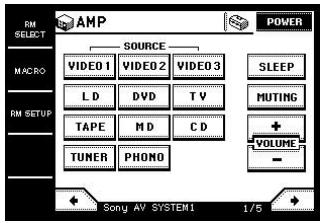
Screen 2/5
This screen is mainly for enjoying surround sound, adjusting the level and balance.
Screen 3/5
This screen is mainly for adjusting the equalizer and outputting the test tone. You can also adjust various settings using the MENU key, cursor keys, and ENTER key. When the amplifier/receiver has ON SCREEN function, it is recommended to adjust the settings using the TV screen.
Screen 4/5
This screen is mainly for setting the display on the amplifier/receiver and selecting the audio input.
Understanding the 2 way remote system
This commander operates under a 2 way remote system. With the 2 way remote system, the component responds to signals sent from the commander by sending additional signals (information about the status of the component, text data, etc.) back to the commander. Thus, operations are performed as a result of communication between the commander and the component.

When using a home entertainment system comprised of several components compatible with the 2 way remote system, please restrict 2 way remote system operation to a single component. Generally, the 2 way remote system is turned off on all components except for the amplifier/receiver.
If you would like to turn off the amplifier/receiver's 2 way remote system, refer to "Setting up the 2 way remote" in the operating instructions supplied with the amplifier/receiver.
Operation example
When a 2-way component is connected to the amplifier/receiver with a Control A1/A1I cord
When operating the 2-way CD changer directly

Notes for the 2-way remote operation
- To ensure good communication conditions, carry out the 2-way remote operation from directly in front of, and close to the component.
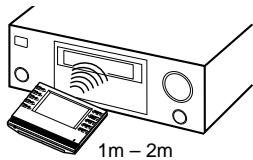
- Do not move the component during the 2-way remote operation.
- The commander receives and displays data transmitted from the component. Communication errors may occur if the commander's transmitter/receiver section is not directed properly toward the component's IR receptor. Be sure to point the commander's transmitter/receiver section towards the component's IR receptor.
Operating the amplifier/receiver
You can operate a Sony 2-way amplifier/receiver. You can also download the names of components (functions). Before operating, register the Sony amplifier/receiver using the IR SETUP function (page 10).
When performing the following procedure, be sure to turn on the amplifier/receiver and point the commander towards the IR receptor on the amplifier/receiver.
To register a 2-way amplifier/receiver
Use the RM SETUP screen.
Note
You cannot register the amplifier/receiver if it is not set to use the 2-way remote system. Refer to "Setting up the 2-way remote" in the operating instructions supplied with the amplifier/receiver.
1 Touch RM SETUP.
2 Touch AMP REGIST.
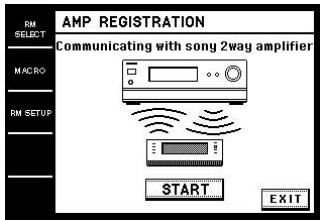
3 Touch START.
The communication starts and the amplifier/receiver is registered to the commander. The registered amplifier/receiver name appears in the screen. The amplifier/receiver name also appears in the RM SETUP screen as the current setting.
Note
If the amplifier/receiver name appears as "model others", the amplifier/receiver is not registered correctly. In this case, some 2-way operations may not be possible.
To operate the amplifier/receiver
1 Select the Sony amplifier/receiver in the RM SELECT screen.
"1WAY 2WAY" appears.
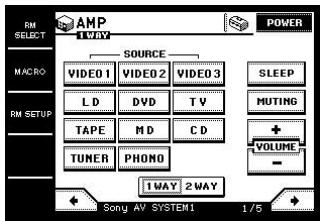
Tip
When you can select several Sony amplifiers/receivers in the RM SELECT screen, touch the AMP icon that appears first.
2 Touch 2WAY.
The screen for the 2-way operation appears and you can operate the amplifier/receiver registered in the RM SETUP screen.
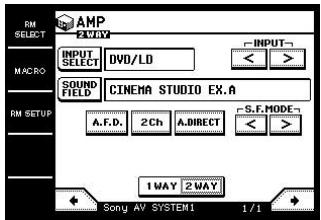
To download the names of components (functions), touch INPUT SELECT, then touch INPUT NAME DOWNLOAD.
To download the names of sound fields, touch SOUND FIELD, then touch S.F. NAME DOWNLOAD.
Notes
- 2 way operations may not be possible immediately after turning on the amplifier/receiver.
- You cannot use the jog dial when using the 2WAY screen.
- You cannot use the Learning function for the keys in the 2WAY screen.
Operating the tuner
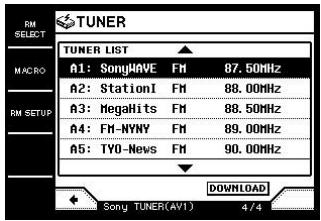
You can operate the built-in tuner of 2 way receiver. You can also download the station names registered on the receiver. Before operating, register Sony tuner using the IR SETUP function (page 10).
1 Select the tuner in the RM SELECT screen.
The communication starts.
2 To download the station names, touch → to select the following screen (screen 4/4), then touch DOWNLOAD.
The commander starts to download the data.
Operating the CD player or MD deck
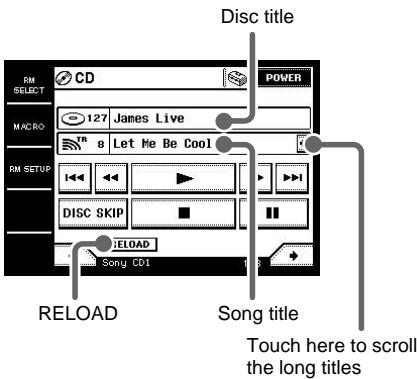
You can download the information (disc titles, etc.) from Sony 2 way CD player* or MD deck. Before operating, register Sony CD player or MD deck using the IR SETUP function (page 10).
- Compatible with Sony CD changers (5/50/200/300/400 CD).
Select the CD player or MD deck in the RM SELECT screen.
The communication starts, and the information such as disc titles and song names are displayed.
Tip
When the song number or song title is not displayed correctly, touch RELOAD.
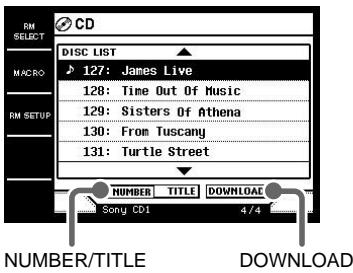
To download the data from CD changer
You can download the data from CD changer.
1 Select CD player in the RM SELECT screen.
2 Touch to select the following screen (screen 4/4), then touch DOWNLOAD.
The commander starts to download the data.
Tip
You can change the order of the disc list. Touch NUMBER to sort by the disc number, or touch TITLE to sort by the disc names.
The Macro Play function lets you link several IR codes in sequential order as a single command. The commander provides 16 macro lists. You can specify up to 24 IR codes for each macro list.
Tips
- MACRO 1 has been factory set to turn on Sony AV components.
- SYSTEM OFF has been factory set to turn off all Sony AV components. The same program is also executed when the I/O/SYSTEM STANDBY button on the front panel is pressed more than 2 seconds.
Setting the sequence of IR codes
1 Touch MACRO.
The MACRO screen appears.
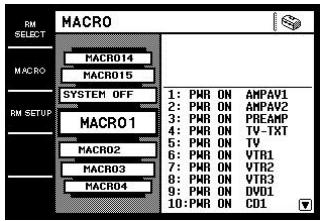
2 Turn the jog dial so that the Macro Play number you want to program ("MACRO3" for example) comes to the middle box.
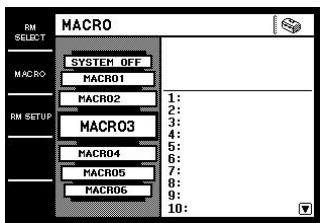
3 Touch
The pull-down menu appears.
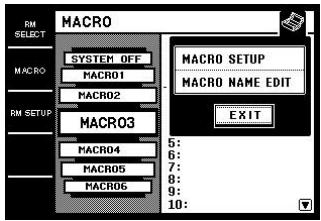
The macro step number (BOX) list appears.
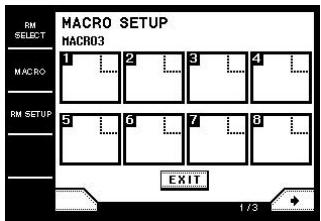
5 Touch the macro step number for the command you want to register ("1" for example).
The CATEGORY list appears.
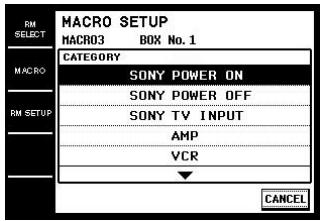
6 Select the category ("VCR" for example).
The MAKER list appears.
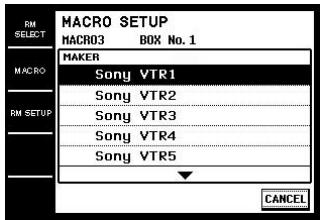
7 Select the maker ("Sony VTR1" for example).
The COMMAND list appears.
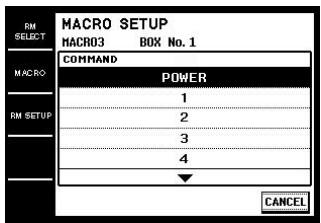
8 Select the command ("POWER" for example).
The items selected in steps 6 to 8 are registered in the box selected in step 5. The macro step number (BOX) list reappears. You can program up to 24 steps.
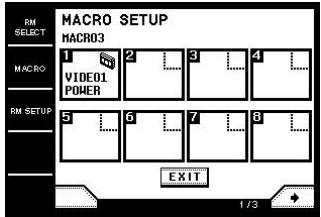
To operate Sony components
When selecting the category in step 6, you can select the operation such as turning on/off Sony components or switching the input of Sony TVs.
To delay the output of an IR code
Select "WAIT TIME" from the CATEGORY list. The wait time list ("1sec" to "60sec" (1 to 60 seconds)) appears. Select the time you want to wait.
To use learned codes under the Macro Play function
Select "RESERVE KEYS" from the CATEGORY list. Then, select the button for the learned IR code.
To cancel programming
Touch EXIT or CANCEL during any step.
To clear the programmed IR code
Select the macro step number (BOX) you want to clear the IR code, then select "MACRO CLEAR" from the CATEGORY list.
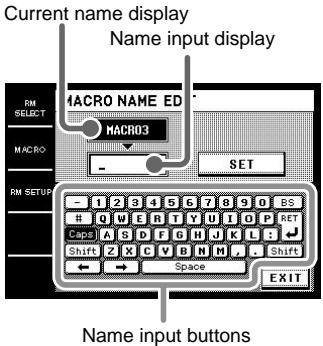
To change the name of the Macro Play
In step 4, touch MACRO NAME EDIT. Touch the name input buttons to enter the name (up to 10 characters), then touch SET. Touch EXIT to return to the MACRO screen.
To start Macro Play
1 Touch MACRO.
The MACRO screen appears.
2 Turn the jog dial to select the Macro Play, then press the jog dial to enter the selection.
To cancel the Macro Play during operation, press the jog dial again.
Note
If the Macro Play function does not work properly, try setting a "WAIT TIME" between each command.
continued
Performing several commands in sequence automatically (Macro Play) (continued)
To start Macro Play automatically (MACRO LINK)
You can link the remote (component) to operate the Macro Play automatically when the remote (component) is selected.
The following procedure uses an example to execute MACRO4 when "DVD" is selected in the RM SELECT screen.
AUTO POWER function
When Sony components are registered and the remote (component) is selected, this function enables you to turn on the component automatically. Besides, when Sony video components (VCR, DVD, etc.) are registered and the remote (component) is selected, this function enables you to turn on both TV and the component, and switch the input of the TV automatically.
1 Touch RM SELECT.
The RM SELECT screen appears.
2 Turn the jog dial to select the remote (component) you want to link to the Macro Play ("DVD" for example).
When you touch the remote (component), touch to display the RM SELECT screen.
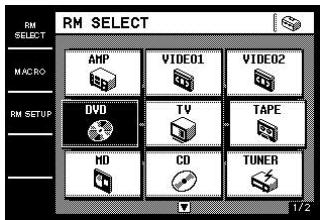
3 Touch
The pull-down menu appears.
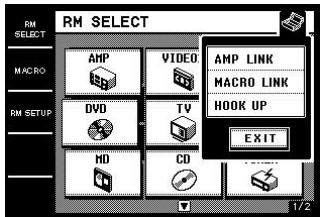
The MACRO LINK screen appears.
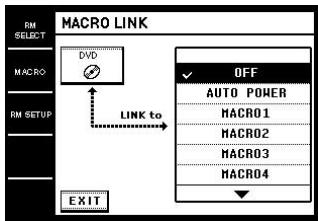
5 Select the Macro Play ("MACRO4" for example) you want to link to the remote (component).
A check (✓) appears in front of the selected Macro Play.
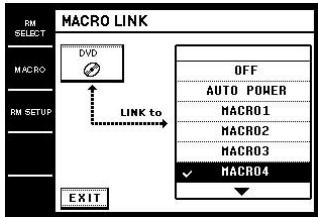
6 Touch EXIT.
The RM SELECT screen reappears. M appears in the box of the remote (component) selected in step 2.
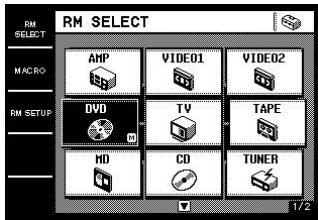
Using the Auto Power function
In step 5, link the remote (component) to "AUTO POWER". For the video components, the following display appears. Select the wait time and the input of the TV.
Select the input of the TV.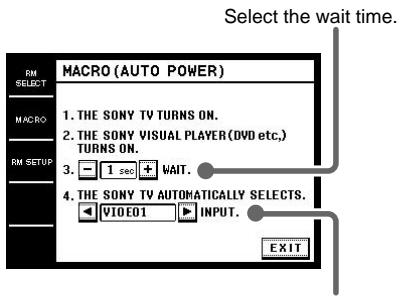
Notes
- The TV input may not switch automatically on all Sony TVs. This is because some TVs cannot receive remote control codes immediately after being turned on. In this case, set the wait time.
- When you select "TV" as the video input, the TV input does not switch.
To cancel MACRO LINK
Select "OFF" in the MACRO LINK screen.
Learning the commands of other remote commanders
Setting remote control codes that are not stored in the commander
When a remote control code is not one of the presets stored in the commander, it is possible for the commander to learn the code using the Learning function.
The Learning Function can be used for each preset operation key and USER RESERVE KEYS.
To program an IR code to the preset operation keys
1. Touch RM SELECT.
The RM SELECT screen appears.
2. Touch the remote (component) ("MD" for example).
Or, turn the jog dial to select the remote (component), then press the jog dial to enter the selection. The screen for operating the component appears.
3. Touch
The pull-down menu appears.
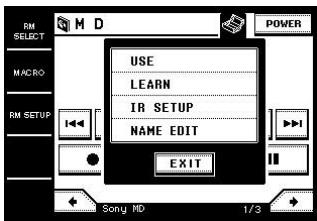
The commander enters the learning mode.
"LEARN" appears.
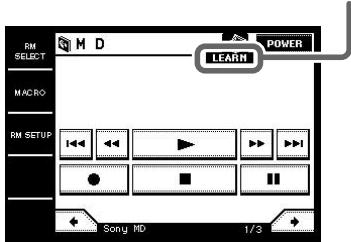
Learning the commands of other remote commanders (continued)
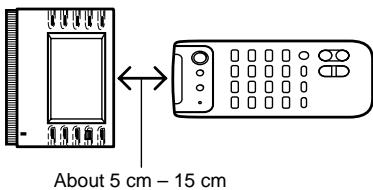
5 Point the remote code receiver section of this commander toward the receiver/transmitter on the remote control to be learned.
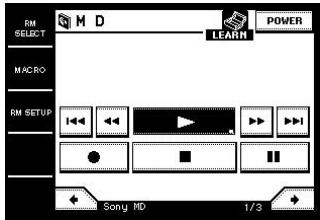
6 Touch the key on this commander you want to use the Learning function ("▶" for example).
A mark (□) blinks in the bottom right corner of the key. Perform step 7 within 30 seconds after the mark starts blinking.
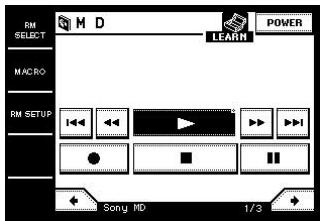
7 Press the appropriate button on the remote control to send the remote control code.
Press the button for more than 1 second. When this commander receives the remote control code and the learning is successful, the mark (□) in the bottom right corner stops blinking, and another mark (■) appears in the upper right corner of the key.
8 Touch
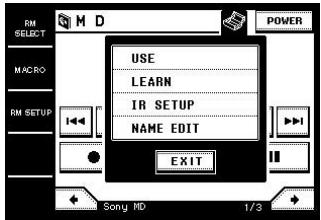
9 Touch USE in the pull-down menu.
The commander returns to the operation mode.
Use the Learning function for the same named keys in the operation screen for AMP or TV.
Example: When you use the Learning function for the MUTING key in the operation screen for AMP, the MUTING button on the front panel is also registered with the same code.
To clear the learned code
Perform steps 1 to 4 above, and touch the key you want to clear the learned code. The following display appears. Touch CLEAR to clear the learned code.
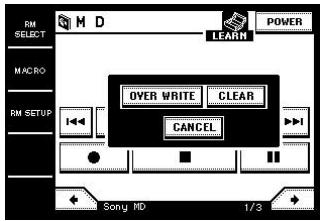
To overwrite the learned code
Perform steps 1 to 5 above, and touch the key you want to overwrite the learned code. The same display as "To clear the learned code" appears. Touch OVER WRITE. A mark (□) blinks in the bottom right corner of the key. Then follow steps 7 to 9.
To program the IR code to the USER RESERVE KEYS
1 Perform steps 1 to 5 of "To program an IR code to the preset operation keys", then in step 6, select one of the USER RESERVE KEYS you want to program the IR code.
The LEARN screen appears.
Selected key Message window
Command key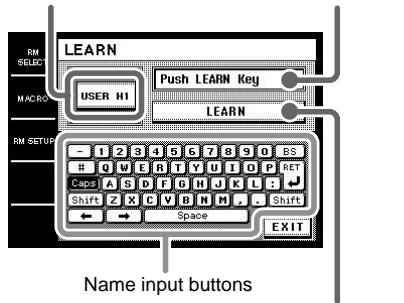
2 Touch LEARN.
"Please Send Signal." appears. Perform step 3 within 30 seconds after the mark starts blinking.
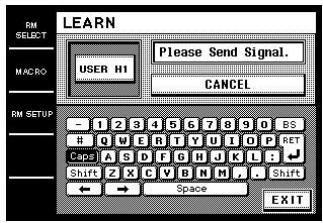
3 Press the appropriate button on the remote control to send the remote control code.
Press the button more than 1 second. When this commander receives the remote control code and the learning is successful, "This key have code." appears, and a mark (■) appears in the upper right corner of the key.
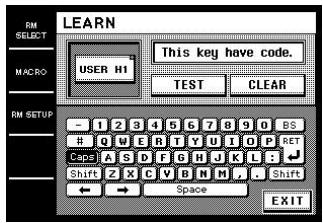
4 Touch EXIT. 5 Touch
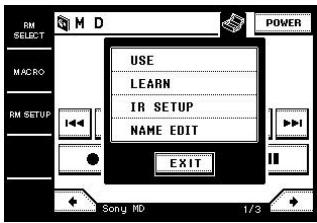
6 Touch USE in the pull-down menu.
The commander returns to the operation mode.
To cancel learning
Touch CANCEL in step 2.
To clear the learned code
After step 3, touch CLEAR. "Clear?" appears. Then, touch "YES". The learned code is cleared.
Tip
- You can test the USER RESERVE KEYS. Touch "TEST" after "This key have code." appears in step 3. The learned code is sent from the commander, and if correct, the corresponding operation is performed.
- You can make a name of up to 14 characters for the USER RESERVE KEYS. Touch the name input buttons as displayed to enter the name.
- To ensure proper learning, we recommend using new batteries in the remote to be learned.
Notes
- Normally, each remote (component) has 8 USER RESERVE KEYS. However, depending on the signals of the codes being learned, it may not be possible for the commander to store codes for all USER RESERVE KEYS.
- Some remote control codes cannot be learned.
Using a command that has been learned
Select the key which has learned the command.
Switching the function on the amplifier/receiver automatically (AMP LINK)
You can set the commander to switch the function on the amplifier/receiver to the component selected in the RM SELECT screen automatically.
The following procedure uses an example to switch the function on the amplifier/receiver to CD when "CD" is selected in the RM SELECT screen.
1 Touch RM SELECT.
The RM SELECT screen appears.
2 Turn the jog dial to select the remote (component) you want to use with the AMP LINK function ("CD" for example).
When you touch the remote (component), touch ← to display the RM SELECT screen.
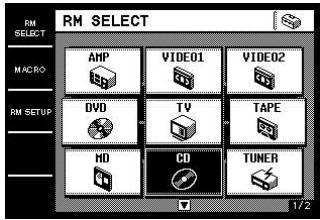
3 Touch
The pull-down menu appears.
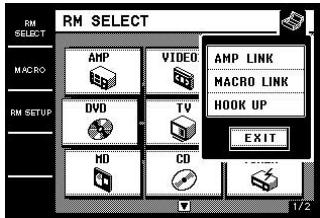
The AMP LINK screen appears.
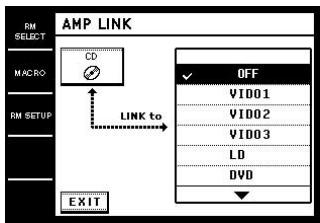
5 Select the function you want to switch the function to ("CD" for example).
A check (✓) appears in front of the selected function.
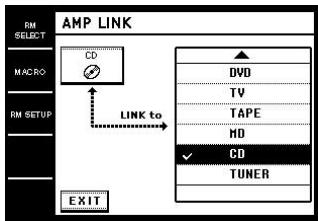
6 Touch EXIT.
The RM SELECT screen reappears.
A appears in the box of the remote (component) selected in step 2.
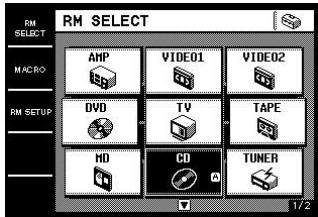
To cancel AMP LINK
Select "OFF" in the AMP LINK screen.
Changing the name of the remote (component)
You can change the name of the remote (component) that appears in the RM SELECT screen (up to 10 characters).
1 Touch RM SELECT.
The RM SELECT screen appears.
2 Touch the remote (component) you want to change the name ("VIDEO1" for example).
Or, turn the jog dial to select the remote (component), then press the jog dial to enter the selection. The screen for operating the component appears.
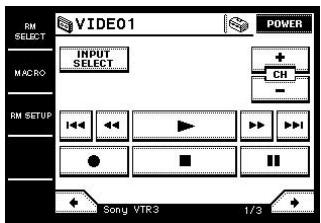
3 Touch
The pull down menu appears.
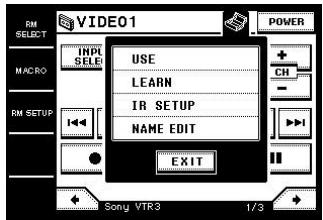
4 Touch NAME EDIT in the pull-down menu.
The RM NAME EDIT screen appears.
Current name display
Name input buttons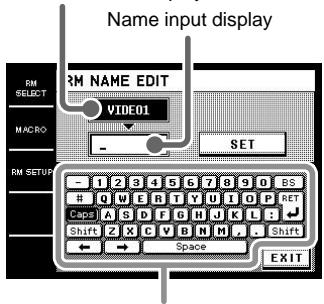
5 Enter the name you want. 6 Touch SET.
The new name is set in the commander.
7 Touch EXIT.
Adjusting the commander's operating environment
The RM SETUP screen allows you to adjust various settings and customize the commander's operating environment.
1 Touch RM SETUP.
The RM SETUP screen appears.
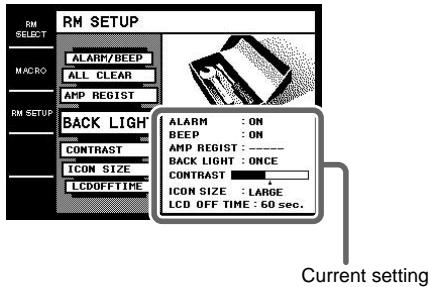
2 Touch the menu you want to adjust. See below for details about each menu. 3 Touch EXIT to return to the RM SETUP screen.
Adjusting the contrast of the display (CONTRAST)
You can adjust the contrast of the display.
Touch + or - to adjust the contrast.
Tips
- Depending on the brightness of the room and the angle at which the commander is viewed, the LCD may be difficult to see. When this occurs, changing the angle of the commander or adjusting the contrast of the LCD may make the LCD easier to see. When fingerprints (etc.) get on the LCD, wipe the LCD with a soft, dry cloth. It is recommended to use the touch pen supplied with the commander.
- The contrast lightens a little when the temperature lowers, and darkens a little when the temperature rises.
continued
Adjusting the commander's operating environment (continued)
Selecting the icon size (ICON SIZE)
You can select the icon size of the RM SELECT screen. Touch SMALL to use small icons (12 icons are displayed at a time) or touch LARGE to use large icons (9 icons are displayed at a time).
Setting the LCD turn off time (LCDOFFTIME)
The turn off time can be set between 10 and 90 seconds in 1 second intervals. Touch + or - to adjust the turn off time.
Tip
The turn off time is factory set to 60 seconds. To preserve battery life, set to a shorter time.
Adjusting the position of the touch panel (TOUCHPANEL)
Adjust the position of the LCD when it shifts from the normal operating position.
Touch the center of each of the 4 dots.
"Adjusted" appears in a short while and a long beep is emitted.
Setting the warning alarm and the operating beep sound (ALARM/BEEP)
You can set the warning alarm and the operating beep sound on or off. Touch ON to output the sound. Touch OFF to turn off the sound.
- Returning settings to their factory preset settings (ALL CLEAR)
Touch YES to erase all memorized settings and return them to their factory presets. A long beep is emitted and all settings return to the factory settings.
Please note that once erased, settings cannot be returned.
Registering the 2 way amplifier/receiver (AMP REGIST)*
When using Sony 2 way amplifier/receiver, touch START to download the amplifier/receiver information. For details, see page 20.
Setting the backlight (BACK LIGHT)
You can choose to turn the backlight on manually or to have the commander remember your previous setting.
Set to ONCE (factory setting) if you prefer to turn the backlight on manually as needed. Set to KEEP if you want the commander to remember the previous backlight setting. For example, if the backlight was on the last time the LCD was on, the backlight will automatically come on again the next time the LCD comes on. Likewise, if the backlight was off, it will stay off the next time too.
Safety regulations
On safety of the main unit (For the customers in Europe)
- Do not use an AC adapter other than that provided with the unit. Otherwise, a fire or electric shock may result.
- Do not use the unit for an extended period of time. Extended use of the unit may cause aches and pains in your arms and wrists. Whenever you feel an ache in a part of your body during the use of the unit, immediately stop using it and take a rest. Should the aches and pains persist after the rest, please consult your doctor.
- Do not install the unit where it will be exposed to oil soot, steam, moisture and excessive dust. Installing the unit in such a place as described above may result in a malfunction. Also note that using the unit in an environment other than the operating environment specified in the operating instructions may lead to malfunction.
- Do not allow water or a foreign object to enter the inside of the unit. Penetration of water or a foreign object may lead to malfunction.
- Do not attempt to disassemble the unit. The unit contains high-voltage parts inside. Careless opening of the case or front cover or modification of the unit may lead to malfunction. Refer internal check and servicing to your nearest Sony dealer.
- Do not touch the AC adapter with a wet hand. If you plug or unplug the AC adapter with a wet hand, electric shock may result.
- Do not wrap the AC adapter cord around the AC adapter body. Otherwise, wire disconnection or malfunction may result.
- Do not cover the main unit and/or AC adapter with a cloth or cushion. Otherwise, heat buildup may cause deformation of the case or a fire hazard.
- Install the unit on a stable surface. Do not install the unit on an unstable bench or tilted surface. Also do not install it sideways or upside down. Otherwise, the unit may fall or topple down, causing human injuries.
- Do not place a heavy object on the unit. Otherwise, damage to the unit or an injury to a person may result.
- Unplug the AC adapter before maintenance. Otherwise, malfunction may result.
- Unplug the AC adapter when the unit is not to be used for an extended period. When you will not use the unit for an extended period, unplug the AC adapter from the power outlet for safety.
- Do not install or store the unit in a place exposed to direct sunlight or near a heater. Otherwise, the internal heat build-up may cause malfunction.
- Do not apply shock or impact to the LCD. The screen (display panel) is made of glass. It may crack and cause injuries if it is twisted or dropped, if you rest your elbow on it or a heavy object is placed on it.
- Be careful not to touch or hit the LCD with a hard object. Otherwise, the LCD may break, causing malfunction or human injury.
- Do not apply a strong shock or impact to the main unit. Otherwise, malfunction may result.
- When thunder begins, do not touch the AC adapter. Otherwise, there is a risk of electric shock.
- Do not place the AC adapter near water. Water on the inside or the outside of the adapter, or use in a bathroom may result in fire or electric shock hazard.
continued
Safety regulations (continued)
On the safety of rechargeable battery
- Do not remove the battery cover. Removing the screws will expose dangerous high-voltage parts inside the battery. Refer servicing to your nearest Sony dealer.
- Use only the supplied battery charger to recharge the battery. If it is recharged with a different charger or under different conditions, the following may result; recharging at an excessive current level, fluid leaks, heat generation, cracking, or fire ignition of the battery.
- Do not throw the unit in fire or heat it. Otherwise, fluid leaks, cracking, or fire ignition of the battery may occur due to melting of the insulating materials of the inner cells, damage to the safety valves and mechanisms, or ignition of the produced hydrogen.
- If recharging does not complete in the specified time, stop recharging the battery. If recharging is continued in such a case, excessive recharging may cause fluid leak or heat generation from the battery.
- Do not use the unit if it is discolored, deformed, or otherwise altered. Otherwise, heat generation, cracking, or fire ignition of the battery may result.
- The rechargeable battery contains alkaline fluid inside, and contact of the battery fluid with human skin or clothes may damage the skin. Should an accidental contact occur, immediately wash the skin or clothes with clean water including tap water. Also, penetration of the battery fluid may cause loss of eyesight. Should this happen, immediately rinse the eye with clean water such as tap water and consult your doctor.
- Do not immerse the unit in either fresh or sea water or moisten it with water. This may cause heat generation from the battery as well as corrosion of the battery terminals.
- The ambient temperatures during the battery recharging should be as specified below. If recharging is performed outside the specified temperature range, fluid leak or heat generation from the battery may occur as well as drop in the performance and service life of the battery. Recharging: 5°C to 35°C
- Do not use or leave the unit under direct strong sunlight, in a closed automobile under the sun, or near a heater. Otherwise, fluid leak or heat generation from the battery may occur as well as drop in the performance and service life of the battery.
- If you notice the unit generating very high heat or some other abnormality during the first use of the unit after purchase, do not use it but bring or forward it to your dealer.
- When the unit is used for the first time after purchase or when it has not been used for a long period, the battery may not be charged fully. Recharge the battery in such cases.
- When the unit has not been used for an extended period, the battery may become unable to be recharged fully or at all. To prevent such a trouble, it is recommended to recharge it every other month even during the period in which it is not used.
On the safety of AC adapter and battery charger
- To prevent electric shock, fire or malfunction, do not attempt to open or modify the units.
- To prevent electric shock, smoke generation or fire hazard, do not use a damaged AC adapter cord.
- Do not moisten the AC adapter and battery charger. If a liquid such as water or a pet's urine enters the unit, heat generation, electric shock or malfunction may result. Take care in the place and method of their handling.
- Should a liquid such as water penetrate the battery charger, immediately unplug its AC plug from the power outlet.
- To prevent electric shock, do not touch the AC adapter, battery charger, AC adapter cord or AC plug with wet hands.
- Do not short-circuit the charger terminals while the battery charger is plugged to a power outlet. Also do not touch the charger terminals with your hand or finger. Otherwise, a fire, malfunction or electric shock may result.
- Never use the AC adapter or battery charger under high humidity, for example in a bathroom. Otherwise, electric shock may result.
- Remove dust from the AC plug, for it may cause a fire hazard.
- To prevent an electric shock or fire hazard, do not place a heavy object on the AC adapter.
- When unplugging the AC plug from the power outlet, be sure to grasp the AC adapter body, not the cord. If the cord is pulled, it may be damaged, causing an electric shock or fire hazard.
- Do not place the AC adapter and battery charger on an unstable surface during recharging. Also do not cover or wrap them with a cloth or cushion. Otherwise, heat buildup may cause a fire hazard.
- Replace the AC adaptor with one of the same type if replacement is necessary. Please ask the nearby Sony dealer of a model name.
Precautions
On power sources
(For customers in Europe)
The unit is not disconnected from the AC power source (mains) as long as it is connected to the wall outlet, even if the commander itself has been turned off.
On the touch pen
Use only the touch pen provided with this unit or the soft tip of your finger to operate the touch panel. Using a commercially available writing utensil may damage the panel and make correct operation impossible. If the tip of the touch pen is damaged, or the touch pen is lost, please consult your nearest Sony dealer.
On battery life per charge
When the backlight is not necessary, do not press BACK LIGHT to turn on the LCD. Touch the touch panel to turn on just the LCD. The life of the battery charge will be prolonged. The life of the battery charge may be shortened depending on the conditions in which the commander is used.
On cleaning
Clean the cabinet, panel and controls with a soft cloth slightly moistened with a mild detergent solution. Do not use solvent such as thinner, benzine, or alcohol as these will damage the surface of the commander.
On nameplate
(For customers in Europe)
The nameplate is located on the bottom exterior.
If you have any question or problem concerning your commander, please consult your nearest Sony dealer.
Troubleshooting
If you experience any of the following difficulties while using the commander, use this troubleshooting guide to help you remedy the problem. Should any problem persist, consult your nearest Sony dealer.
Operation can not be done with the commander.
- When using the commander as a 2-way remote, check that the amplifier/receiver and components are connected correctly (page 19).
- The commander and component are too far apart.
- Make sure that there are no objects between the commander and component.
- Make sure that the component's power is turned on.
- The commander's transmitter/receiver section is not pointed at the component.
- The commander's battery is exhausted. Recharge the battery (page 5).
- There is an inverter system fluorescent light near the commander or component. Please place away from the fluorescent light.
- Make sure you have selected the correct remote (component) on the commander.
- When you operate a non-Sony component, the remote (component) may not function properly depending on the maker and model of the component.
When using the Sony amplifier/receiver, the amplifier/receiver's functions and modes do not correlate with the displays on the commander.
- The information of the amplifier/receiver is not downloaded. Download the information (page 20).
The LCD does not appear.
- The LCD is not turned on. Touch the touch panel.
- Contrast is too light or too dark. Adjust the contrast (page 29).
The LCD shifts from the normal operating position.
- Adjusting the position of the touch panel (page 30).
When a component is connected to the amplifier/receiver with Control A1/A1 II cord, Auto Function does not work properly.
- Download the amplifier/receiver data (page 20).
Commands of components made by manufacturers other than Sony do not function.
- When registering components made by certain manufacturers, some commands may not function. These keys are dimmed.
When using a 2-way Sony amplifier/receiver, the commander and the amplifier/receiver cannot communicate.
- If the amplifier/receiver's command mode (IR type) and the commander's command mode (IR type) do not match, transmission is not possible between the commander and the amplifier/receiver.
appears in the screen.
- 2-way communication error occurred.
- When using the commander as a 2-way remote, check that the amplifier/receiver and components are connected correctly (page 19).
- The commander and component are too far apart.
- Make sure that there are no objects between the commander and component.
- Make sure that the component's power is turned on.
- The commander's transmitter/receiver section is not pointed at the component.
- The commander's battery is exhausted. Recharge the battery (page 5).
- There is an inverter system fluorescent light near the commander or component. Please place away from the fluorescent light.
- Make sure you have selected the correct remote (component) on the commander.
appears in the screen.
- The battery is running out. Recharge the battery.
Specifications
| Operating system | Liquid crystal touch panel |
| Liquid crystal size | 3.8 inches (256 x 200 dots) |
| Liquid crystal type | Reflection system (Monochrome type) |
| Touch panel | Resistant membrane system Analog type |
| Power requirements | Rechargeable (Ni-MH) battery |
Maximum external dimensions
(width × height × depth, including projecting parts and controls) 166 × 25 × 126 mm
Mass: 392 g (main unit only, including the rechargeable battery)
Supplied accessories
Battery charger (1)
AC adapter (1)
Design and specifications are subject to change without notice.
Maker compatibility list
AMP
SONY-AVI
SONY-AV2
SONY-AV3
SONY AMP
SONY PRE AMP
SONY AV MASTER
SONY MULTI ROOM1
SONY MULTI ROOM2
DENON
JVC
Kenwood
Onkyo
Pioneer
Technics
YAMAHA
VIDEO
SONY
Admiral
Aiwa
Akai
Alba
Audio Dynamic
Bell&Howell
Blaupunkt
Brocsonic
Bush
Canon
CGM
Citizen
Clatronic
Craig
Curtis Mathis
Daewoo
DBX
Dimensia
Emerson
Fisher
Funai
GE
GoldStar
Goodmans
Grundig
Hitachi
Instant Replay
ITT/Nokia
JC Penney
JVC
Kendo
Kenwood
Loewe
Luxor
LXI
Magnavox
Marantz
Marta
Matsui
Memorex
Minolta
Mitsubishi
Multitech
NEC
Nokia
Nokia Oceanic
Nordmende
Okano
Olympic
Orion
Panasonic
Pentax
Philco
Philips
Phonola
Pioneer
Quasar
RCA/PROSCAN
Realistic
SABA
| Samsung |
| Sunsui |
| Sanyo |
| Schneider |
| Scott |
| SEG |
| Seleco |
| Sharp |
| Siemens |
| Signature 2000 |
| Sylvania |
| Symphonic |
| Tandberg |
| Tashiro |
| Tatung |
| Teac |
| Technics |
| Telefunken |
| Thorn |
| Toshiba |
| Universum |
| Wards |
| W.Whouse |
| YAMAHA |
| Zenith |
DVD
| SONY |
| DENON |
| JVC |
| Panasonic |
| Pioneer |
| RCA |
| Samsung |
| Toshiba |
| YAMAHA |
TV
| SONY |
| Admiral |
| Aiwa |
| Akai |
| Alba |
| AOC |
| Bell&Howell |
| Bestar |
| Blaupunkt |
| Bulesky |
| Brandt |
| Brocsonic |
| Brush |
| Clatronic |
| Craig |
| Croslex |
| Curtis Mathis |
| Daewoo |
| Daytron |
| Dual |
| Emerson |
| Ferguson |
| First line |
| Fisher |
| Fraba |
| Funai |
| GE |
| GoldStar |
| Goodmans |
| Grundig |
| Hitachi |
| ICE |
| Irradio |
| Itt/Nokia |
| JC Penny |
| JVC |
| Kendo |
| KTV |
| Loewe |
| LXI |
| Magnavox |
| Mark |
Maker compatibility list (continued)
Matsui
Medion
Mitsubishi
Mivar
NEC
Nokia
Nokia Ocean
Nordmende
Okano
Onwa
Panasonic
Philco
Phonola
Pioneer
Portland
Quasar
Redio
Rediola
Redio Shack
RCA/PROSCAN
SABA
Samsung
Sanyo
Schneider
Scott
Sharp
Siemens
Signature
Sylvania
Symphonic
Tatung
Telefunken
Thomson
Thoron
Toshiba
Universum
Videch
Wards
Watson
W.W.House
YAMAHA
Zenith
TAPE
SONY
DENON
Fisher
JVC
Kenwood
Nakamichi
Onkyo
Panasonic
Philips
Pioneer
Teac
Technics
YAMAHA
MD
SONY
Denon
JVC
Kenwood
Pioneer
Sharp
YAMAHA
CD
SONY
DENON
Fisher
JVC
Kenwood
Magnavox
Onkyo
Panasonic
Philips
Pioneer
RCA
Sanyo
Sharp
Teac
Technics
YAMAHA
TUNER
SONY
Admiral
Aiwa
DENON
Fisher
Harman
Jensen
Kenwood
Magnavox
Marantz
Nakamichi
Onkyo
Panasonic
Philips
Pioneer
RCA
Sansui
Sharp
Teac
Technics
YAMAHA
CABLE
Hamlin/Regal
Jerrold/G.I.
Oak
Panasonic
Pioneer
Scientific
Tocom
Zenith
SATELLITE
SONY-DSS
SONY-BS DIGITAL
SONY-CS DIGITAL
Blaupunkt
Goldstar
Grounding
HNS/HUGHES
ITT/Nokia
NEC
Philips
RCA
Samsung
Siemens
PROJECTER
SONY
LD
SONY
DENON
Kenwood
Magnavox
Panasonic
Philips
Pioneer
YAMAHA
VIDEO CD
SONY
DAT
SONY
WARNING
Device programming (IR SETUP)
1 Touch RM SELECT.
To control the tuner
Communication begins.
Rechargeable battery power (Ni-MH)
Maximum external dimensions