
SEW-3040W - Surveillance Camera SAMSUNG - Free user manual and instructions
Find the device manual for free SEW-3040W SAMSUNG in PDF.

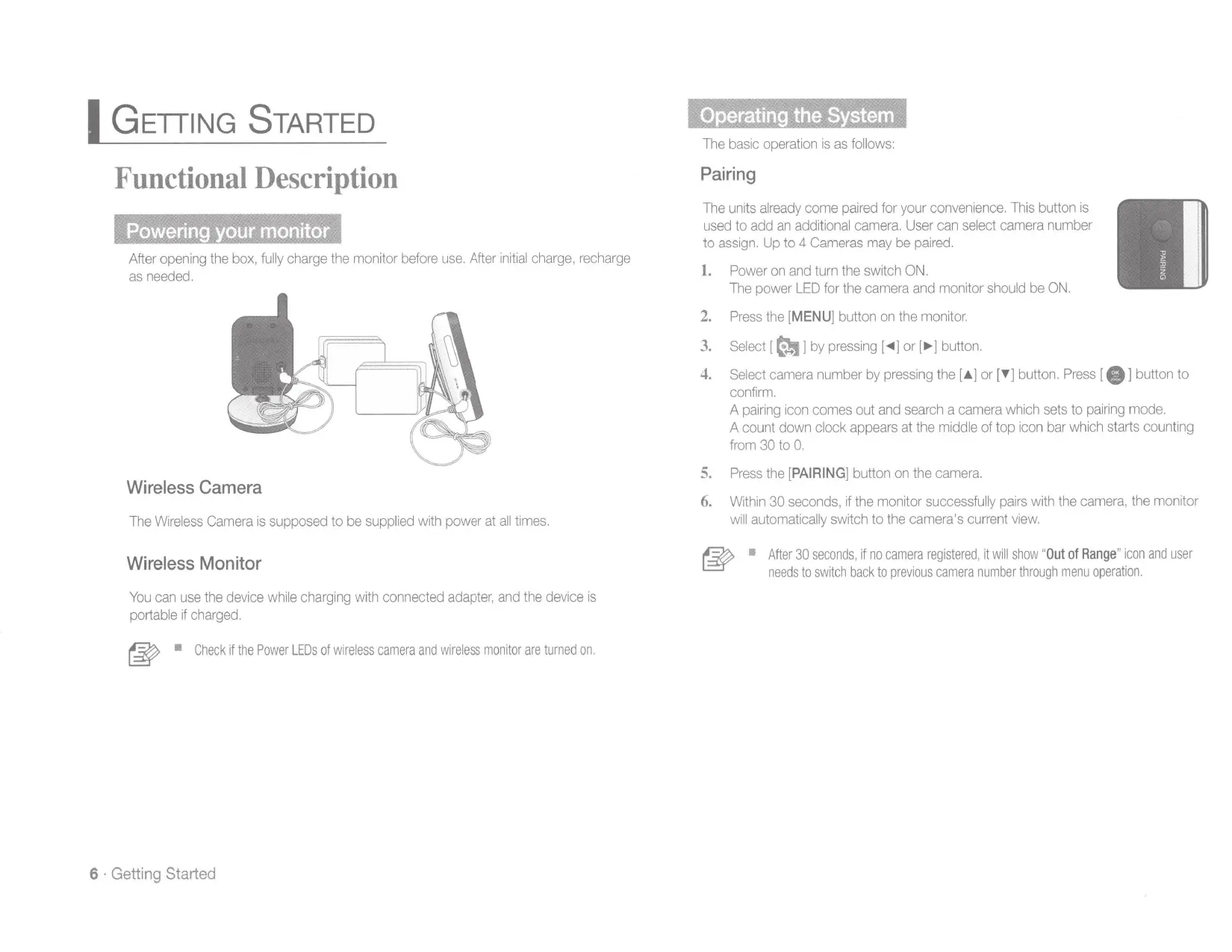

| Product type | Wireless surveillance camera |
| Brand | Samsung |
| Model | SEW-3040W |
| Image sensor | CMOS color 1/5", 640x480 pixels |
| Viewing angle | 56° (diagonal) |
| Night vision | 8 IR LEDs (940 nm), range 5 m |
| Transmission range | Up to 250 m in open field |
| Frequency | 2.4 GHz (FHSS) |
| Camera power supply | DC 6V ±10% mains adapter |
| Monitor power supply | DC 6V ±10% adapter or 3.7V 1300mAh lithium-polymer battery |
| Monitor screen | TFT color 4.3", 480x272 pixels |
| Number of supported cameras | Up to 4 cameras |
| Main functions | Two-way audio, 2x digital zoom, VOX mode, standby, sound detection, out-of-zone alerts |
| Mounting | On wall or flat surface (mount included) |
| Maintenance and cleaning | Clean with a soft, dry cloth. Avoid water and abrasive products. |
| Safety | Indoor use only. Keep cords out of reach of children. Do not use near water. |
| Spare parts and repairability | Use only the supplied adapters. Contact a Samsung authorized service center for any repairs. |
| Net weight (camera) | 122 g |
| Net weight (monitor) | 186 g |
| Operating temperature | 0°C to +40°C |
| Operating humidity | 85% RH maximum |
Frequently Asked Questions - SEW-3040W SAMSUNG
User questions about SEW-3040W SAMSUNG
0 question about this device. Answer the ones you know or ask your own.
Ask a new question about this device
Download the instructions for your Surveillance Camera in PDF format for free! Find your manual SEW-3040W - SAMSUNG and take your electronic device back in hand. On this page are published all the documents necessary for the use of your device. SEW-3040W by SAMSUNG.
USER MANUAL SEW-3040W SAMSUNG
©2014 Samsung Techwin Co., Ltd. All rights reserved.
Trademark
SAMSUNG
SAMSUNG TECHWIN is the registered logo of Samsung Techwin Co., Ltd.
The name of this product is the registered trademark of Samsung Techwin Co., Ltd. Other trademarks mentioned in this manual are the registered trademark of their respective company.
Restriction
Samsung Techwin Co., Ltd shall reserve the copyright of this document. Under no circumstances, this document shall be reproduced, distributed or changed, partially or wholly, without formal authorization of Samsung Techwin.
Disclaimer
Samsung Techwin makes the best to verify the integrity and correctness of the contents in this document, but no formal guarantee shall be provided. Use of this document and the subsequent results shall be entirely on the user's own responsibility. Samsung Techwin reserves the right to change the contents of this document without prior notice.
IMPORTANT SAFETY INSTRUCTIONS
- Read these instructions.
- Keep these instructions.
- Heed all warnings.
- Follow all instructions.
- Do not use this apparatus near water.
- Clean only with dry cloth.
- Do not block any ventilation openings, Install in accordance with the manufacturer's instructions.
- Do not install near any heat sources such as radiators, heat registers, stoves, or other apparatus (including amplifiers) that produce heat.
- Do not defeat the safety purpose of the polarized or grounding-type plug. A polarized plug has two blades with one wider than the other. A grounding type plug has two blades and a third grounding prong. The wide blade or the third prong are provided for your safety. If the provided plug does not fit into your outlet, consult an electrician for replacement of the obsolete outlet.
- Protect the power cord from being walked on or pinched particularly at plugs, convenience receptacles, and the point where they exit from the apparatus.
- Only use attachments/ accessories specified by the manufacturer.
- Use only with the cart, stand, tripod, bracket, or table specified by the manufacturer, or sold with the apparatus. When a cart is used, use caution when moving the cart/apparatus combination to avoid injury from tip-over.
- Unplug this apparatus during lighting storms or when unused for long periods of time.
- Refer all servicing to qualified service personnel. Servicing is required when the apparatus has been damaged in any way, such as power-supply cord or plug is damaged, liquid has been spilled or objects have fallen into the apparatus, the apparatus has been exposed to rain or moisture, does not operate normally, or has been dropped.


SPECIFY SERVICE INSTRUCTIONS AND WARRANTY TERMS
FCC Caution :
Any Changes or modifications not expressly approved by the party responsible for compliance could void the user's authority to operate the equipment.
This device complies with part 15 of the FCC Rules. Operation is subject to the following two conditions :
(1) This device may not cause harmful interference, and (2) this device must accept any interference received, including interference that may cause undesired operation.
Note :
This equipment has been tested and found to comply with the limits for a Class B digital device, pursuant to part 15 of the FCC Rules. These limits are designed to provide reasonable protection against harmful interference in a residential installation. This equipment generates, uses and can radiate radio frequency energy and, if not installed and used in accordance with the instructions, may cause harmful interference to radio communications. However, there is no guarantee that interference will not occur in a particular installation. If this equipment does cause harmful interference to radio or television reception, which can be determined by turning the equipment off and on, the user is encouraged to try to correct the interference by one or more of the following measures:
- Reorient or relocate the receiving antenna.
- Increase the separation between the equipment and monitor.
- Connect the equipment into an outlet on a circuit different from that to which the monitor is connected.
- Consult the dealer or an experienced radio/TV technician for help.
WARNING
- STRANGULATION HAZARD - Keep cord out of child's reach. NEVER place camera or cords within 3 feet of crib or playpen. Never use extension cords with AC Adapters. Only use the AC Adapters provided.
- Some adult assembly or installation required.
- This product contains small parts that may cause choking. Keep small parts away from children.
- This product is NOT intended to replace proper supervision of children. You MUST check your child's activity regularly, as this product will not alert parents to silent activities of a child.
-
Before using this product, read and follow all instructions contained in this booklet, and read and follow all instructions and warnings on the product.
-
NEVER use the transmitter or monitor near water, including near a bathtub, sink, laundry tub, wet basement, etc.
- This product is intended for indoor use only.
- This product is not intended for use as a medical monitor and its use should not replace adult supervision.
- The transmitter detects normal sound levels within a range of 2 to 3 meters (6 to 10 feet) from a child. If the child moves outside of this range, if may not be able to detect sounds from him or her.
- It is essential that you check the operating range and condition of the transmitter monitor on initial installation, and on a regular basis after that.
- Check reception regularly. Test monitor before use and after changing camera location.
The wireless signal transfer range may be shortened if an obstacle such as a concrete wall is in between the camera and monitor.
- To prevent overheating, keep the product and AC power adapters away from any direct sunlight and heat sources such as radiators, heat registers, cooking devices (e.g., stoves and ovens) and other appliances that produce heat (e.g., amplifiers, televisions and stereos).
- Ensure that the product is well ventilated during use. Avoid contact with pillows and furniture that may block ventilation.
- Use only the AC adapters provided with the product, as other adapters may damage the product. Plug the adapters only into standard household current (100~240 volts AC). Place the AC adapters avoiding pinch points otherwise you can damage the adapters.
- When an AC adapter is plugged into a power source, DO NOT touch the exposed end of the AC adapter's cord.
- Do not use extension cords with the AC power adapters to avoid entanglement.
- This product should only be serviced by qualified and authorized Samsung service centers.
- Images and sounds are transmitted by the product over public airwaves and transmissions may be picked up by other units.
- Caution if you use the system to watch a young child, do not place the camera where the child can reach.
- When using the system with only battery power and the charge is low, then the picture and or sound may affected.
- If this occurs then please connect the AC power adapter.
Contents
WHAT'S INCLUDED
Package Contents 5
GETTING STARTED
Functional Description 6
Powering your monitor 6
Operating the System 6
VIEWING MODE DISPLAY
Indicator Description 8
How to use the indicator 8
Menu Operation 8
How to use the setup buttons 8
How to use the setup icon 9
OVERVIEW
Getting to know your Monitoring system 10
Wireless Monitor 10
Wireless Camera 12
INSTALLATION
How to Install 13
Wireless Monitor 13
Wireless Camera 13
APPENDIX
Specifications 14
Troubleshooting 15
Package Contents
The system comes with the following components:
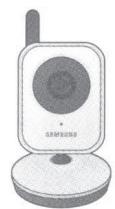
Wireless camera
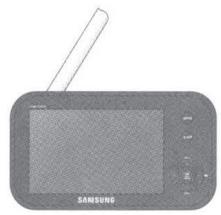
Wireless monitor
User Manual & Warranty Card
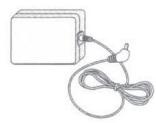
Camera Adapter
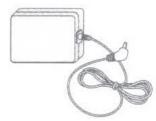
Monitor Adapter
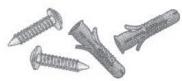
Screws (2EA) & Plastic anchors (2EA)
Check your package to confirm that you have received the complete system, including all components shown above.
GETTING STARTED
Functional Description
Powering your monitor
After opening the box, fully charge the monitor before use. After initial charge, recharge as needed.
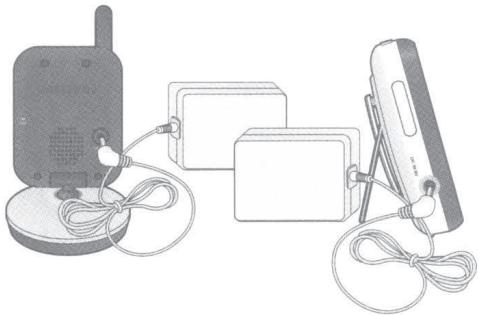
Wireless Camera
The Wireless Camera is supposed to be supplied with power at all times.
Wireless Monitor
You can use the device while charging with connected adapter, and the device is portable if charged.

Check if the Power LEDs of wireless camera and wireless monitor are turned on.
Operating the System
The basic operation is as follows:
Pairing
The units already come paired for your convenience. This button is used to add an additional camera. User can select camera number to assign. Up to 4 Cameras may be paired.
- Power on and turn the switch ON.
The power LED for the camera and monitor should be ON. - Press the [MENU] button on the monitor.
- Select [ ] by pressing [ ] or [ ] button.
- Select camera number by pressing the [▲] or [▼] button. Press [OK] button to confirm.
A pairing icon comes out and search a camera which sets to pairing mode.
A count down clock appears at the middle of top icon bar which starts counting from 30 to 0.
- Press the [PAIRING] button on the camera.
- Within 30 seconds, if the monitor successfully pairs with the camera, the monitor will automatically switch to the camera's current view.

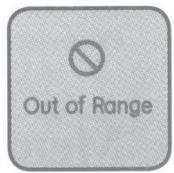
After 30 seconds, if no camera registered, it will show "Out of Range" icon and user needs to switch back to previous camera number through menu operation.

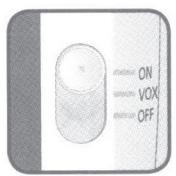
Voice activated (VOX)
Select to monitor significant sound with reduced ambient noise. The screen goes off in "VOX" mode if there is no significant sound louder than a certain level within 1 minute. Meanwhile, the monitor screen turns on as soon as detecting sound around the camera. In "VOX" mode, you can set the sensitivity with [ ] in menu.
- H(High) : Sets to higher sensitivity.
- L(Low) : Sets to lower sensitivity.
Sleep Mode
Press the [SLEEP] button to turn off the screen and save battery power. Your monitor will continue to detect sound around the camera. Press any button to turn the screen on again. If camera is disconnected, monitor screen would be turned on automatically in Sleep mode.
Out of Range
If the camera and monitor are not paired or if the monitor is outside of transmission range with the paired camera, the "Out of Range" message appears with warning beeps at regular intervals.
Two-way talk
Press the [TALK] button while talking to transfer audio to the camera.
Zoom
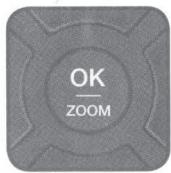
Press the [OK] button on the monitor to zoom in on the current screen. Press the button again to zoom back out.
Sound level
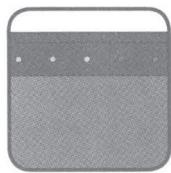
The louder the sound around the camera, the more LEDs turn on.
Portable monitoring
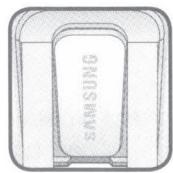
Slide the belt clip upwards to use the integrated belt clip on the monitor. When not in use, please push the clip back to its original position.
VIEWING MODE DISPLAY
Indicator Description
How to use the indicator
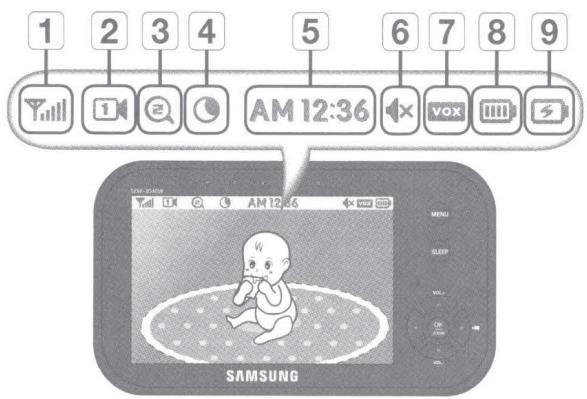

① Signal Indicator
The signal indicator shows the strength of the signal being received from the camera.
The number of bars in the signal indicator shows the strength of the signal - One or no bars indicate the signal is poor, and 5 bars indicate a strong signal.

2 Camera Number
Indicates which camera is being displayed on the current screen. Press the [▶] button on the monitor to switch between available cameras. When scan mode is selected, this icon will flash.

3 x2 Zoom mode
Indicates that current screen is Zoomed in. Use the four directional buttons to pan the camera. Press the [OK] button or x1 in the Menu bar to zoom back out.

4 Night Vision Indicator
Indicates camera night vision mode is turned on. The screen will appear in Black/White in this mode.
AM12:36 5 Digital Clock
Displays the time that is set on the monitor. It only provides AM / PM time format and no 24hour format.

6 Monitor Speaker Mute
Indicates the monitor speaker is muted. Once the monitor's speaker is muted, no sound from the camera is produced.

7 VOX On
Indicates the Power / VOX slide switch position is set at "VOX" mode.

8 Battery Capacity Level
Indicates remaining battery charge. Indicated in 4 levels, and one discharge warning.

9 Charging
Indicates the battery is charging by DC input power. If battery nearly empty, it will flash to alert user to charge up the unit.
No SignalWarnings
The "Out of Range" message means the monitor cannot access the camera. Please reposition the camera, or check the camera power.
Menu Operation
How to use the setup buttons
Press the [MENU] button of the monitor to display the menu screen.
Use [ / / / ] button to traverse the menu, and press [OK] button to apply the changes.
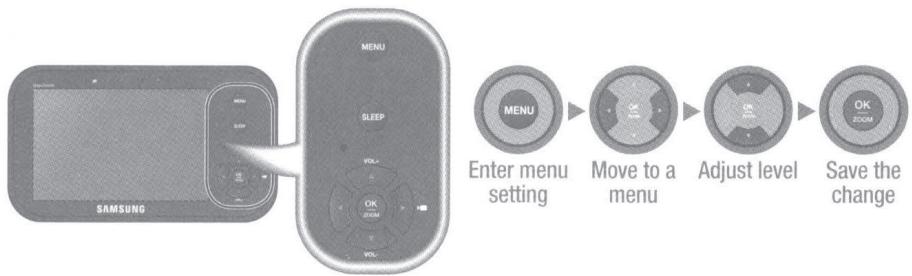
- Press [MENU] button to enter the menu setting or exit the menu setting.
- Move to other menu by press [<] or [>] button.
- Adjust option level by [ ] or [ ] button.
- Press [OK] button to save and complete.

If no action more than 20sec, it will be time out back to monitor mode with save.
How to use the setup icon
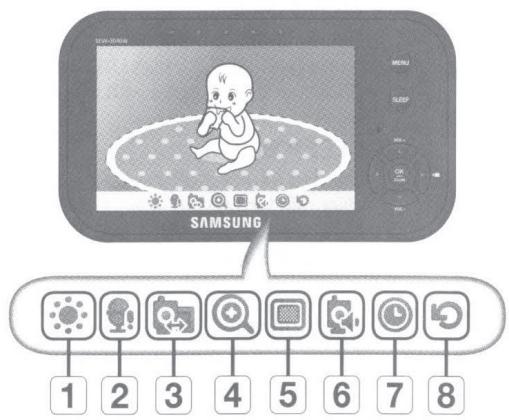

1 Brightness
Adjusts the brightness of the image shown. If you are using multiple camera, you can adjust the brightness of each individual camera.

2 Camera VOX Sensitivity
If not in "VOX" mode, "OFF" is displayed and not to be selected. In VOX mode, you can select "H" (High) or "L" (Low). If set to "H", monitor can be triggered by lower audio level than "L" setting.

3 Pairing
You can register a wireless camera with the monitor using the registration menu where you can view the video of the selected wireless camera.

4 Zoom
Zoom in on the current image (2x). If you are using multiple cameras, you can set the zoom for each camera.

5 Camera Select/Scan Mode
Set which camera is being currently viewed. Each time a different camera is selected, the Brightness, VOX Sensitivity Level, Camera Speaker Volume, and Zoom settings will be saved to that specific camera.
If "SCAN" mode is selected, each of the registered cameras will be viewed in ascending order at 10 second intervals. If one or more cameras are turned off or out of range, the monitor will show the "Out of Range" indicator for the 10 seconds for that particular camera.

6 Set Camera Speaker Volume
Adjust the volume of the speaker on the camera in this menu. The volume can be adjusted from 1 to 5, with 5 being the loudest setting and 1 being the quietest. If "MUTE" is selected, no audio will be transmitted to the speaker when the [TALK] button is pressed.

Time Setting
Set the time shown on the monitor. Use the [▲] or [▶] button to select a field. Use the [▲] or [▼] button to change the numbers in the selected field.

8 Reset
Choose <YES> to reset the monitor to factory defaults. All settings including time and paring information will be set to the factory defaults.
Getting to know your Monitoring system
Wireless Monitor
After opening the box, fully charge the monitor before use. After initial charge, recharge as needed.
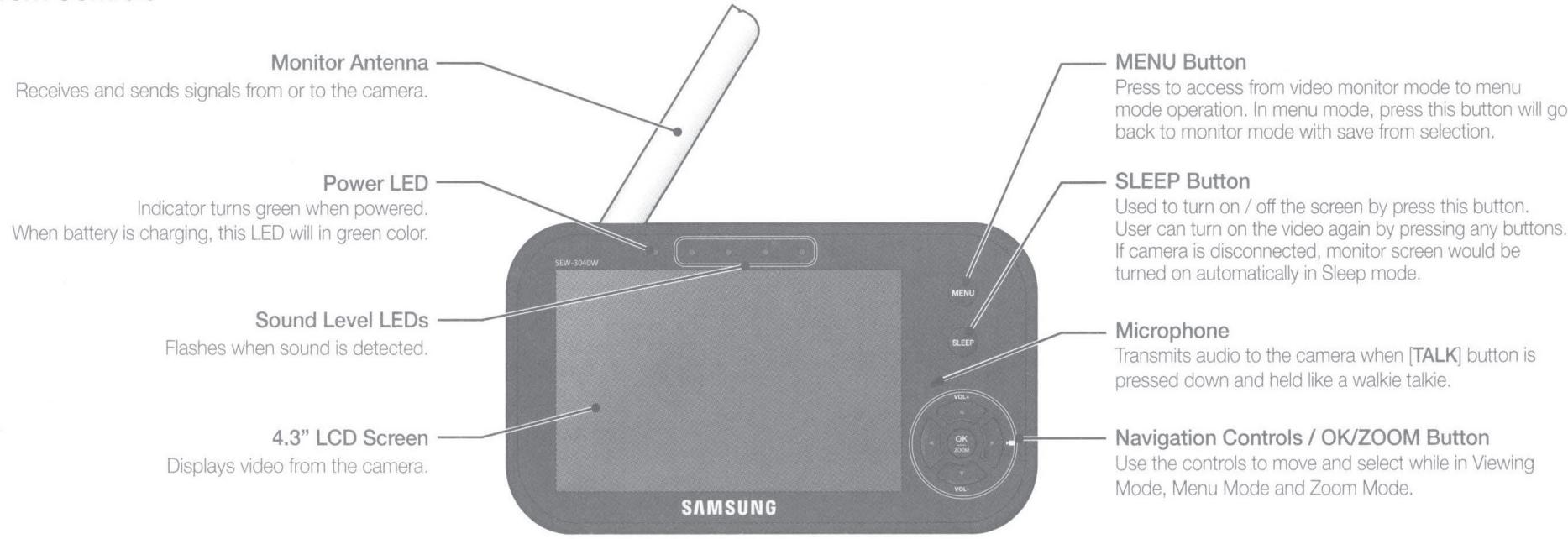
Front Controls
Navigation Controls / OK Button
Viewing Mode: The following controls are used while watching live video from the camera:
- Press the [] or [] buttons to increase or decrease the volume.
- Press the [▶] button to switch to the next connected camera's screen or enter SCAN mode.
- Press the [OK] button to zoom in / out the screen.
Menu Mode: Use the [ / / ] button arrows to navigate in Menu Mode.
Press the [OK 2009] button to confirm the menu selection.
Zoom Mode: While in zooming, use [ / / ] button to move the screen around.
Back Controls
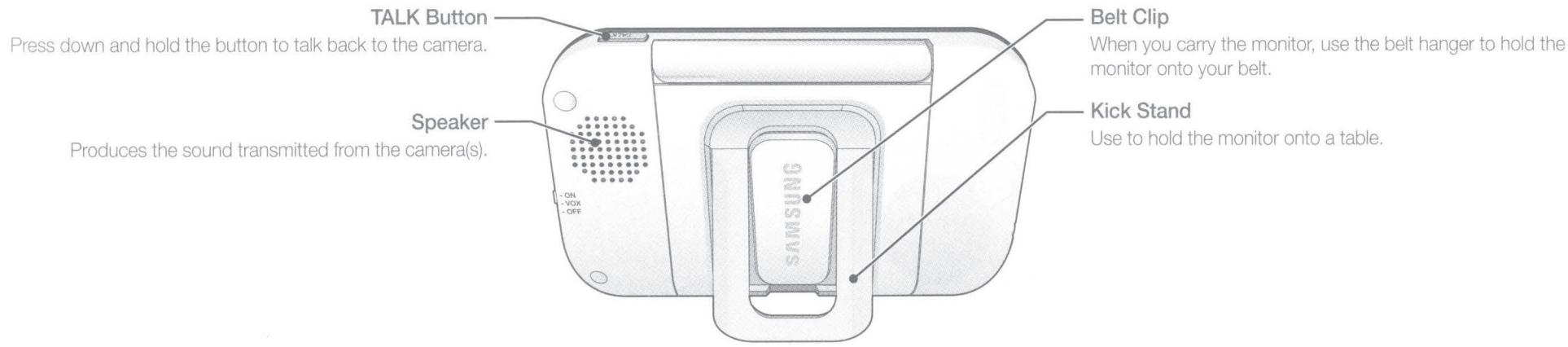

You must have more than one camera configured on the system when using the functions that requires more than one camera.
Side Controls
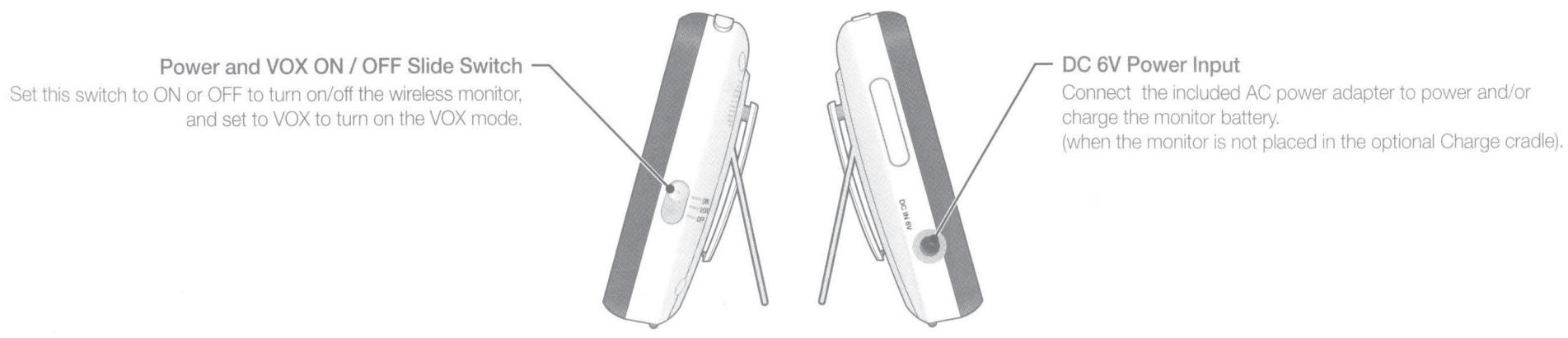
Wireless Camera
Front & Back Controls
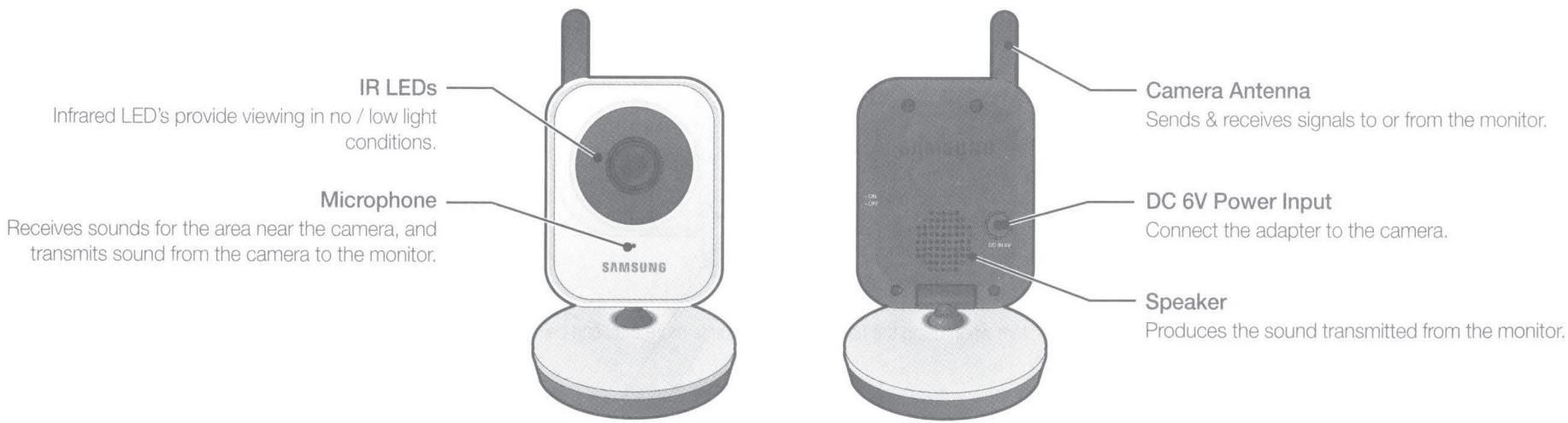
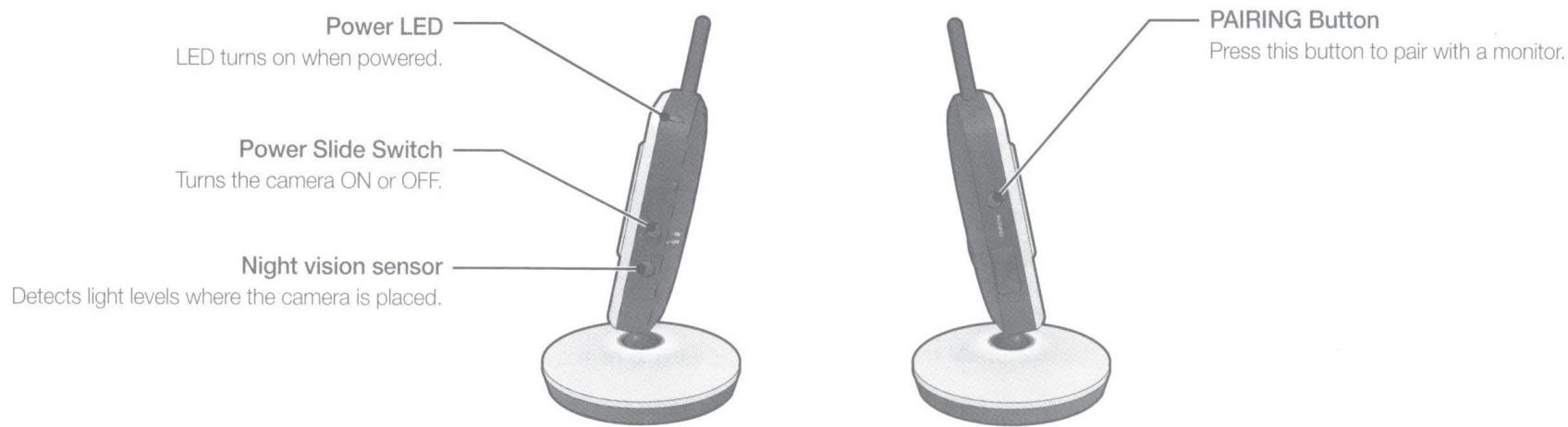
Side Controls
INSTALLATION
How to Install
CAUTION: If you use the system to watch a young child, do not place the camera in the child's reach.
Wireless Monitor
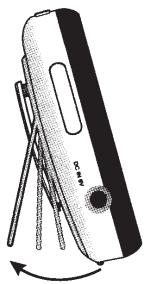
- Place the monitor in a place that will have clear reception with your camera(s).
- Pull out the stand.

- Do not pull up the stand lever with an excessive force.
Wireless Camera
Before you install the camera, carefully plan where and how it will be positioned, and where you will route the cable that connects the camera to the power adapter. Before starting permanent installation, verify its performance by observing the image on the monitor when camera is positioned in the same location/position where it will be permanently installed and the monitor is placed in the location where it will be used most of the time.
InstallationWarnings
Aim the camera(s) to best optimize the viewing area: Select a location for the camera that provides a clear view of the area you want to monitor, which is free from dust, and is not in line-of-sight to a strong light source or direct sunlight.
Avoid installing the camera where there are thick walls or obstructions between the camera and the monitor.
STRANGULATION HAZARD - Keep cord out of child's reach. NEVER place camera or cords within 3 feet of crib or playpen. Never use extension cords with AC Adapters. Only use the AC Adapters provided.
- Carefully unpack the camera.
If you are installing cameras that did not come with the system, please see the pairing camera section of this manual for details on installation.
- Mount the camera to the wall.
Mark the position of the screw holes on the wall, and drill holes and insert 2 screws, then firmly attach the camera to the wall by placing the stand over the installed screws and pushing the base downwards.
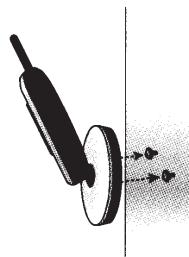

To install on a concrete wall, drill a hole and use plastic anchor to fix.
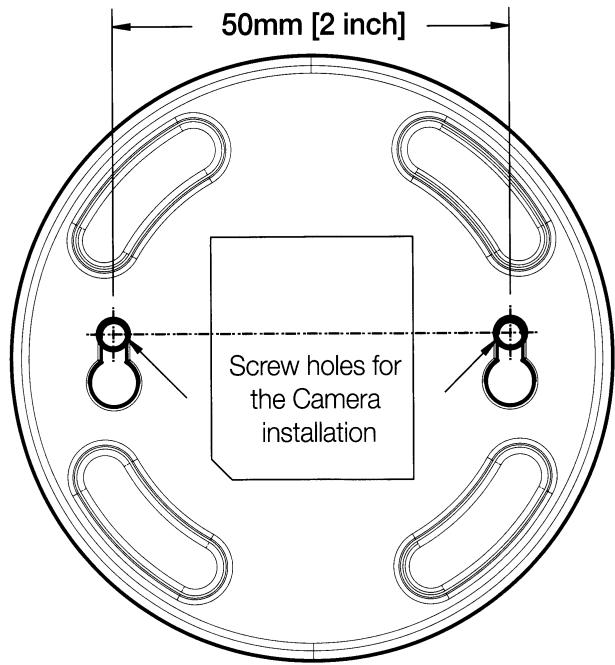
Use the drilling template to drill holes on the wall for camera installation. (Page 17)
- The camera can also be placed on a flat surface, such as a table or shelf, and no mounting hardware is required.
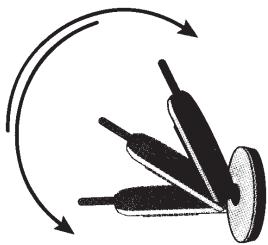
3. Adjust the viewing angle of the camera.

- You can install additional cameras (maximum of 4 cameras).
When adding cameras that were not included in the original box, you will need to pair up the cameras with the monitor.
APPENDIX
Specifications
| Item | Details |
| System General | |
| Operating Frequency Range | 2400 MHz~2483.5 MHz |
| Transmitting Power | 17dBm Max |
| Monitor Sensitivity | -88dBm |
| Type of Spread Spectrum TX | FHSS |
| Type of Modulation | GFSK |
| Data Rate | 3Mbps |
| Transmission range | Max 250m |
| Weight | Gross weight: 955g |
| Wireless Camera | |
| Image Sensor Type | 1/5" Color CMOS Image Sensor |
| Effective Pixel | H: 640, V: 480 |
| White Balance | Auto |
| Lens | EFL=3.0mm, F=2.5 |
| Viewing Angle (Diagonal) | 56 degree |
| IR LED Type/ Night Vision | 8pcs IR LED - 940nm /5m |
| Loud Speaker Output | 80dBA |
| Power Requirement | DC 6V ±10% |
| Power Consumption | 480mA Condition Night vision mode and talk back. |
| VOX level detection | High: 50dBA / Low: 60dBA |
| Operating Temperature Range | 0°C~+40°C |
| Item | Details |
| Wireless Camera | |
| Operating Humidity Range | 85% RH |
| Environment Rating | Indoor use only |
| Regulation Compliance | FCC/CE |
| RoHS Compliance | Yes for CE version only |
| Audio | Built in Microphone/ Speaker |
| Weight | 122g |
| Wireless Monitor | |
| Display Type/Size | Color TFT 4.3" |
| Resolution (Pixel) | 480X272 (RGB) |
| Viewing Angle | H: 80 degree, V: 100 degree |
| Number of Camera Support | Up to 4 cameras |
| Power Requirement | Adapter : DC 6V ±10%, Battery : 3.7V Li-polymer |
| Loud Speaker Output | 80dBA |
| Loud Speaker Noise level | 45dBA |
| Power Consumption | 480mA maximum Condition Charging + Speaker with voice at volume 5 |
| Operating Temperature Range | 0°C~+40°C |
| Operating Humidity Range | 85% RH |
| Environment Rating | Indoor use only |
| Regulation Compliance | FCC/CE |
| RoHS Compliance | Yes for CE version only |
| Audio | Built in Microphone/ Speaker |
| Other Special Feature | Volume control, Pairing |
| Battery Type | Li-on |
| Battery Capacity | 1300mAh |
| Weight | 186g |
Troubleshooting
| Problem | Solution |
| No picture from a camera | 1. Check all connections to the camera. Make sure the adapter is plugged in. 2. Make sure that the cameras and monitor are both ON. 3. Make sure that the camera is in range of the monitor. 4. Make sure the camera and monitor are paired. 5. Adjust the monitor antenna to vertical position. |
| The picture is or has become choppy | The picture may become choppy when experiencing a lower frame rate (i.e. 10 frames per second vs. a higher 20 frames per second). 1. Try moving the camera closer to the monitor. 2. Remove obstructions between the monitor and camera. 3. Adjust the monitor antenna to vertical position. |
| No sounds (even with both units turned on) | 1. Make sure that the power adapter is connected to the camera. 2. The battery on the monitor may be dead, be sure to charge it using the adapter included. 3. The monitor may be out of range of the camera; be sure to check if the Range LED in on continuously. |
| Your SimpleVIEW is emitting an high pitched noise/feedback. | This sound is normal feedback which occurs if the monitor and camera are too close together. Move them further apart. |

Low batteries will cause the supply current to become unstable and will affect the quality of the video/audio. Please charge the battery fully for use for superior video.
TEMPLATE
This template is used to install the camera on the wall.
CAMERA FRONT
SAMSUNG
SALES NETWORK
SAMSUNG TECHWIN CO., LTD.
Samsung Techwin R&D Center, 6, Pangyo-ro 319beon-gil, Bundang-gu, Songnam-si, Gyeonggi-do 463-400, Korea
TEL: +82-70-7147-8740~60 FAX: +82-31-8018-3745
100 Challenger Rd. Suite 700 Ridgefield Park, NJ 07660
Toll Free: 1-877-349-3149
www.samsungsv.com
SAMSUNG TECHWIN EUROPE LTD.
Samsung House, 1000 Hillswood Drive, Hillswood Business Park Chertsey,
Surrey, UNITED KINGDOM KT16 OPS
TEL: +44-1932-45-5300 FAX: +44-1932-45-5325


- Trademark
- Restriction
- Disclaimer
- IMPORTANT SAFETY INSTRUCTIONS
- SPECIFY SERVICE INSTRUCTIONS AND WARRANTY TERMS
- FCC Caution :
- Note :
- WARNING
- The wireless signal transfer range may be shortened if an obstacle such as a concrete wall is in between the camera and monitor.
- Contents
- WHAT'S INCLUDED
- GETTING STARTED
- VIEWING MODE DISPLAY
- OVERVIEW
- INSTALLATION
- APPENDIX
- Package Contents
- Functional Description
- Powering your monitor
- Wireless Camera
- Wireless Monitor
- Operating the System
- Pairing
- Voice activated (VOX)
- Sleep Mode
- Out of Range
- Two-way talk
- Zoom
- Sound level
- Portable monitoring
- Indicator Description
- How to use the indicator
- ① Signal Indicator
- Camera Number
- x2 Zoom mode
- Night Vision Indicator
- AM12:36 5 Digital Clock
- Monitor Speaker Mute
- VOX On
- Battery Capacity Level
- Charging
- No SignalWarnings
- Menu Operation
- How to use the setup buttons
- How to use the setup icon
- Brightness
- Camera VOX Sensitivity
- Pairing
- Zoom
- Camera Select/Scan Mode
- Set Camera Speaker Volume
- Time Setting
- Reset
- Getting to know your Monitoring system
- Navigation Controls / OK Button
- Back Controls
- Side Controls
- Front & Back Controls
- How to Install
- InstallationWarnings
- Adjust the viewing angle of the camera.
- Troubleshooting
- TEMPLATE
- SAMSUNG
- SALES NETWORK
Brand : SAMSUNG
Model : SEW-3040W
Category : Surveillance Camera