
MOBILE ZIP - Portable printer POLAROID - Free user manual and instructions
Find the device manual for free MOBILE ZIP POLAROID in PDF.


| Product Type | Portable Printer |
| Brand | Polaroid |
| Model | MOBILE ZIP |
| Printing Technology | ZINK (Zero Ink) Ink-free |
| Paper Format | ZINK Paper 5x7.6 cm |
| Connectivity | Bluetooth, NFC |
| Dedicated App | Polaroid ZIP App (Android/iOS) |
| Dimensions (approx.) | 7.6 x 12 x 2.5 cm |
| Weight (approx.) | 230 g |
| Power Source | Internal rechargeable battery via USB |
| Battery Life | Approximately 25 prints per charge |
| Main Functions | Quick printing, editing (filters, paint, frames), collage, Secret View (hidden messages), business card |
| Additional Functions | Mosaic (cutting over multiple pages), sharing via social networks |
| Maintenance and Cleaning | Clean the exterior with a soft, dry cloth; avoid liquids |
| Safety | Use in accordance with the instructions in the manual |
| Spare Parts and Repairability | ZINK paper available; battery not user-replaceable |
| General Information | Android and iOS compatibility; wireless printing |
Frequently Asked Questions - MOBILE ZIP POLAROID
User questions about MOBILE ZIP POLAROID
0 question about this device. Answer the ones you know or ask your own.
Ask a new question about this device
Download the instructions for your Portable printer in PDF format for free! Find your manual MOBILE ZIP - POLAROID and take your electronic device back in hand. On this page are published all the documents necessary for the use of your device. MOBILE ZIP by POLAROID.
USER MANUAL MOBILE ZIP POLAROID
Download the Polaroid ZIP App
Go to this address on your mobile device and download the compatible Polaroid ZIP app:
Google Play:
https://play.google.com/store/apps/details?id=com.polaroid/mobileprinter
iOS:
https://itunes.apple.com/us/app/polaroid-zip/id950902520?mt=8
Upon successful download, this icon identifying the Polaroid ZIP App is displayed in your apps library.
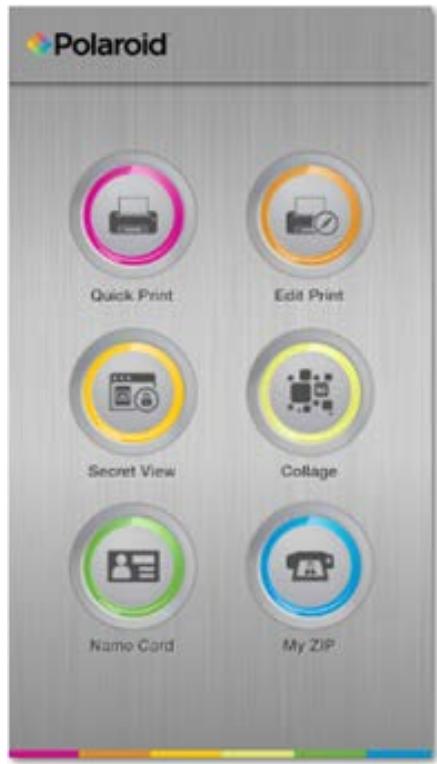
Tap the icon to select the Polaroid ZIP App; the home screen is displayed:
Quick Print
Quick print enables you to immediately print a photo you are about to take or one that is saved in your gallery of photos.
Tap the Quick Print button
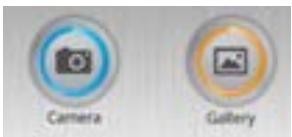
The Quick Print option buttons are displayed:
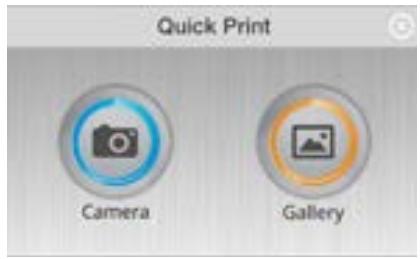
Camera Option:
Tap the Camera button to open the camera and take a picture. Your new photo is displayed offering you the option to use the photo or take another picture.
Gallery Option:
- Tap the Gallery button to select an image from your library of images.
- Tap your selection. Your image is displayed alone on the app screen.
- Tap your image again. Your image is displayed on the Print Screen.
To Print:
The following options are displayed prior to the image you selected:
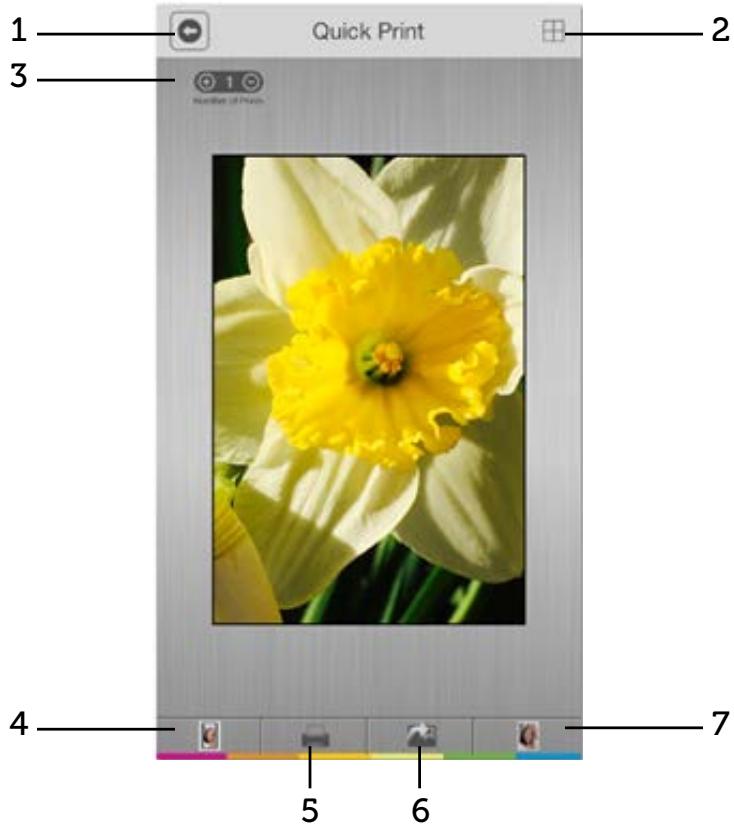
- Return to the home screen.
- Using the tile function, you create a larger print by dividing your image into 4 or 9 sections that are printed individually, which you manually assemble into one picture.
- Number of Prints Indicate the number of prints you require; tap the + to increment and the - to decrease the number of prints.
- Print image. This advances you to the Print Preview screen. Tap the printer icon again to send the image to the printer.
- 《 Return to the photo selection page.
- Scale the image to fill the picture area.
Edit Print
Tap the Edit Print button on the home screen: :
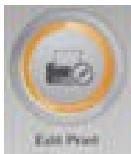
Tap the Camera button to open the camera and take a picture OR tap the Gallery button to select an existing image.
Editing Quick Tips
When you select an image to edit, a Quick Tips screen explaining the editing functions is displayed:
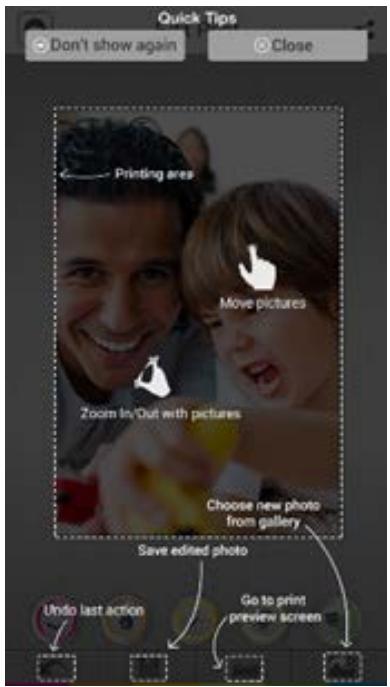
Notice the tool bar under the Editing buttons consisting of these functions: Undo, Save, Print Preview, and Select image from Gallery.
Tap close to remove the Quick Tips display; the image you selected is visible; begin editing.
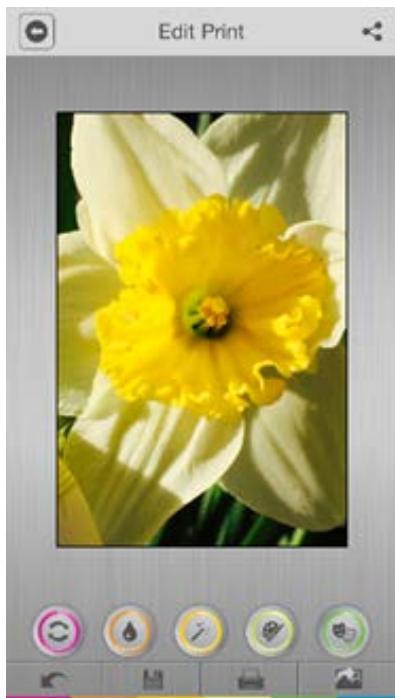

Returns you to the Polaroid ZIP App home screen.

Enables social media image sharing.
Editing Your Image
The five editing categories are displayed across the lower part of the screen: Positioning, Contrast, Filter, Paint and Drama. When you are satisfied with an effect in any category, tap the Save icon, which is positioned under the Editing ribbon, to retain the image in that condition in your gallery. Additionally, you can tap anywhere to keep the settings.
Tap the first icon to display the Positioning options:


The Positioning function enables rotating the image clockwise, counterclockwise, mirror image sideways, and mirror image up/down left, right. Tap the icons to position the image.
Tap the Color Adjustment button to display its options:

- Tap the Brightness icon. A slider is displayed for precise control. Slide to desired level of brightness.
- Tap the Contrast icon. Move the slider to desired level of contrast.
- Tap the Tint icon. Red, green and purple sliders enable you to select the desired effect.
Tap the Filters icon:
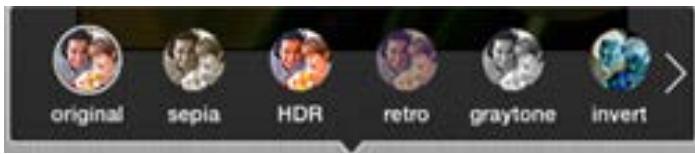
- The Polaroid ZIP App enables you to select from the following filters:
Original, Sepia, HDR, Retro, Graytone, Invert, Instafix, Testino, Ansel, Cyano Georgia, and Sahara. - When you see a white right-pointing arrow such as is displayed with the filters, swipe to display the rest of the ribbon items.
Tap the Paint icon.


The Paint ribbon consists of three sections:
- The first section is your palette displaying the colors available for your paintbrush.
- The second section consists of three buttons of increasing size that define the size of your paintbrush.
- The last section is an eraser you can use to remove paint strokes.
To paint:
Tap the color you desire from the palette. Tap to select the paintbrush size you wish to use and paint with your finger on the image. Use the eraser to remove brush strokes as needed.
Add Drama!
The rightmost Edit Print icon, an image of the masks of the theater, enables you to add special effects to your images of various emoticons including frames, smilies, accessories, hearts, holiday stamps, exclamations and alphanumeric characters. Tap on each icon on the Drama ribbon to display the options for that category.
Tap on the Frame options to see how your image looks surrounded by roses or holiday theme items such as snowflakes, etc. You can reposition the image within the frame and adjust the size with your fingers to achieve the desired effect. Swipe to display the rest of the available frames.
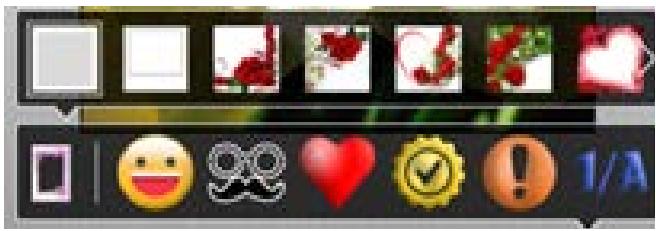
Tap the yellow Smiley Face to display the available smiley face options.
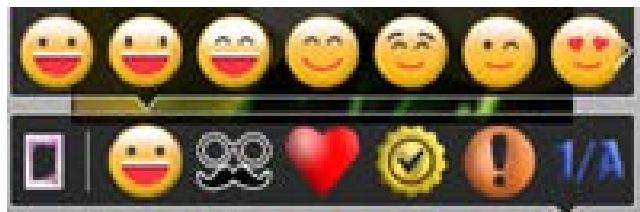
Move the smile on the image with your finger for correct positioning. Resize the smile by squeezing or extending your fingers. Swipe to display the rest of the ribbon items in iOS; in android tap on the expand button and drag.
Add mustaches, sunglasses, hats or scarves to your image using the Accessories option:
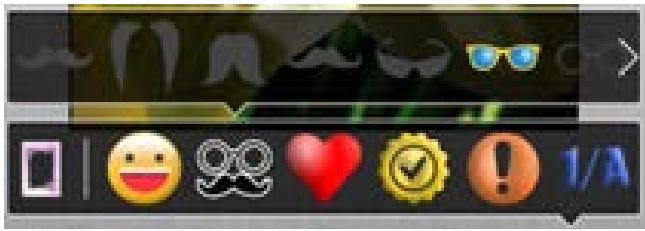
Move the accessories into desired position and resize using your finger.
The Polaroid ZIP App provides a large selection of Hearts you can add to your images as well. Don't forget to position and size them with your finger! Swipe to display the rest of the items.
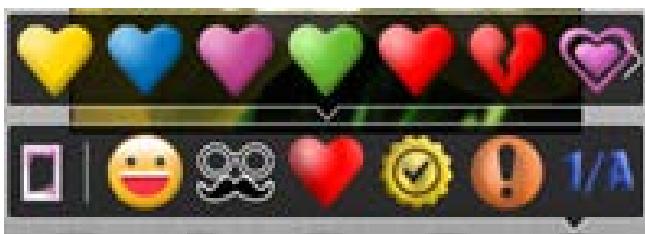
Add Holiday stickers to your images! Position and size them with your finger and swipe to display the full ribbon options.
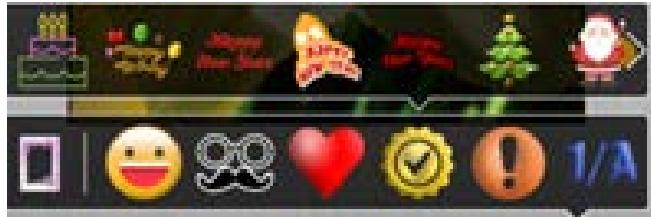
Use the remaining ribbons to add exclamations and alphanumeric characters to your images. Remember to adjust size and positioning with your finger and swipe for the full display of items on the ribbon.
Exclamations:

Alphanumeric Characters:

When done editing:
- Save your image using the Save option on the toolbar under the Edit Print buttons.
Display a Print Preview of your image by selecting the printer icon. - In Print Preview, use the options at the top of the screen to:
Return to the editing screen, rotate the picture frame, tile print, sharing, and utility functions.

Secret View
Secret View enables you to send secret messages in images. Create the secret message using the Secret View Create icon; the message may consist of text, emoticons, and voice that do not display when the image is printed; only Secret View Image displays the secret message.
Return to the editing screen, rotate the picture frame, tile print, sharing, and utility functions.
Press the Secret View button:
If you are not on the device on which the Secret View was created, enter the password defined for that image to display it again.
You can create or edit a Secret Image:
Using the Create button in a manner similar to the Edit Print function:
- Open a previously created Secret Image.
Download an image from the server using the QR code (see below). - Open a Gallery image.
Gallery Image:
Once your image is displayed, add the secret content such as voice, emoticons, or text. In the following image, you can see the secret message before the image has been saved or printed:
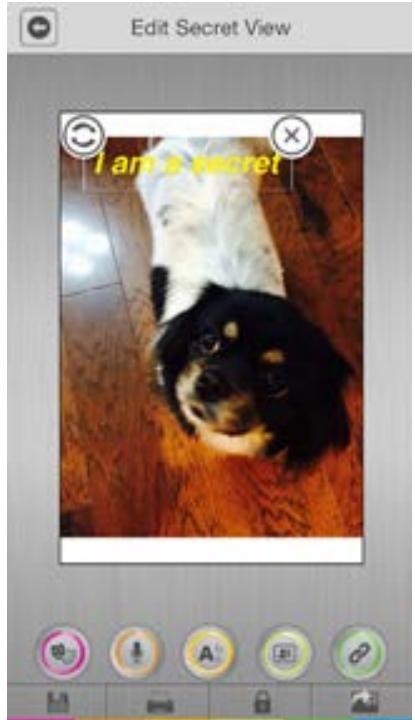
When you print this image, the app creates a QR code containing the secret content:
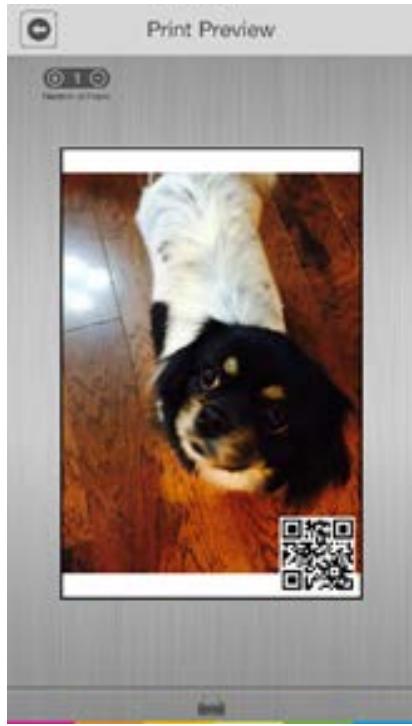
Using the View Button:
Tap the view button; you are placed in scan mode to scan an image that must include the QR (Quick Reference) code which reveals the secret message:
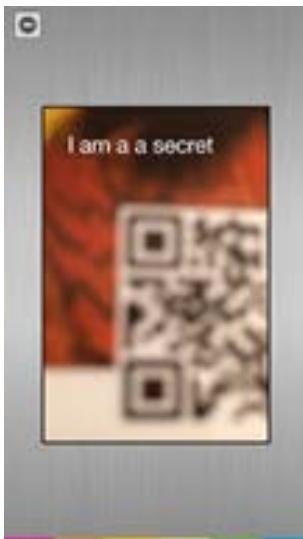
Once the image you selected is displayed in Edit Secret View, use the buttons to access the functions: Drama, Recording, Messaging, Contacts, or Link.

The Drama button enables access to all the Drama functions available in Edit Print mode.
The Microphone button allows you to record a short message.
The Messaging button opens a window and keyboard so you can type a message.
The Contacts button allows you to add contact information from your contact list to the photo.
Use the Link button to include a link in your Secret View.
Saving your Secret View
When you are done, select the Save. Your Secret View is saved to your Secret View gallery. You are requested to create and confirm a password; when this is done an image of a lock is displayed in the lower left of your Secret View. To view a Secret View image, from another device you and your contacts must enter the defined password.
Collage
When you tap the Collage button, you may choose to use the camera to take a new photograph or select an image from the Gallery.
When you have an image for your collage, review the Quick Tips displayed:
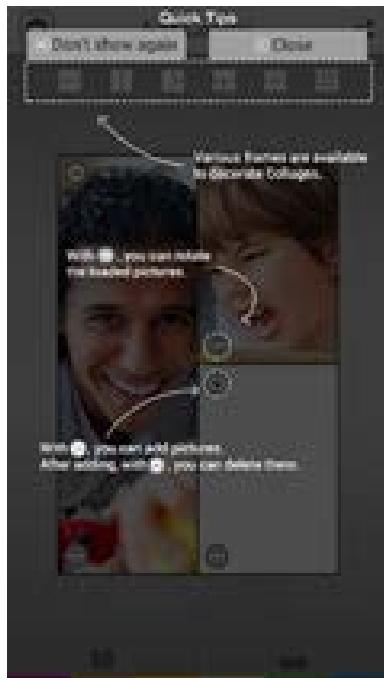
The image you selected is positioned in one section of the collage. Tap the collage options until you have the configuration you want.
- Tap the + and - buttons to add and remove images from the collage.
- Use the rotate button to position the images.
- Tap the Print Preview button to preview your selections and print when desired.
Name Card
Tap the Name Card button to create on-the-spot, memorable leave-behinds!
Review the Quick Tips.
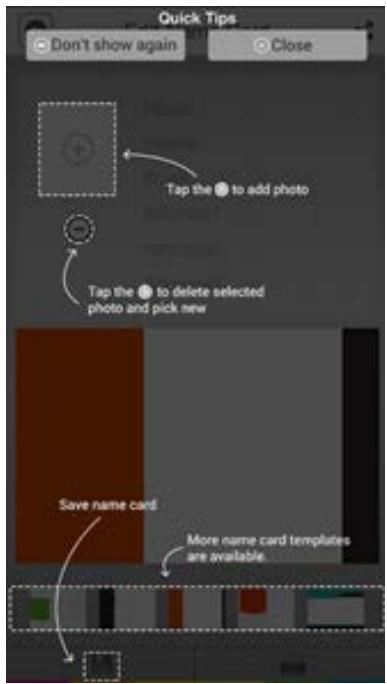
Tap to use the camera to take a new photo or gallery to use a saved photo for your card. The Polaroid ZIP App displays a card template with your selected photo. You may keep the selected photo or select another one:
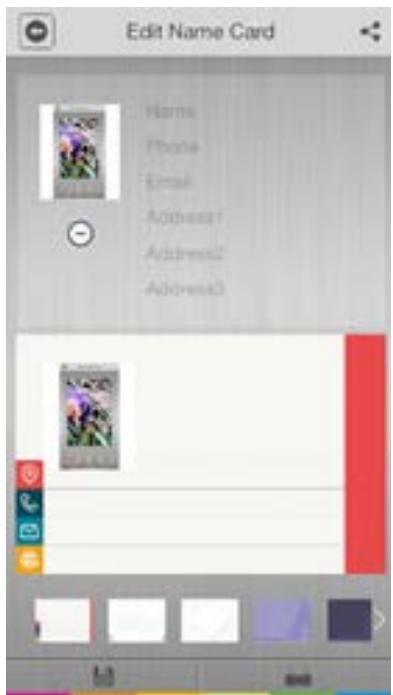
- Tap the fields provided in the upper section of the screen to open a keyboard to enter your personal information.
- Tap to select the desired card format.
- Swipe to display all of the options.
- Save and print.
My ZIP
The My ZIP button displays functions that are not directly related to immediate photo printing.
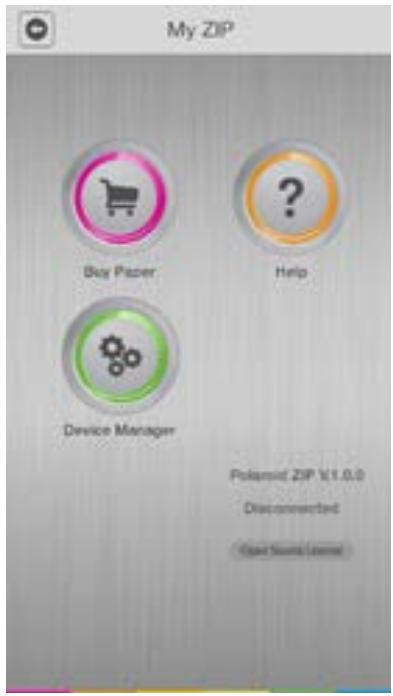
Tap the Buy Paper icon to reach direct you to where Polaroid Instant paper is available for purchase.
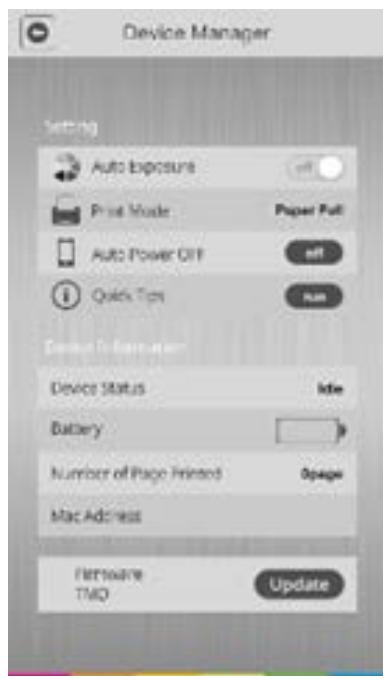
Tap Device Manager to set the Device Manager options and display device
Sharing Images
The Social Media icon displayed in the upper right on appropriate screens enables image sharing.
This image is from an iOS system; the details will differ for other devices:
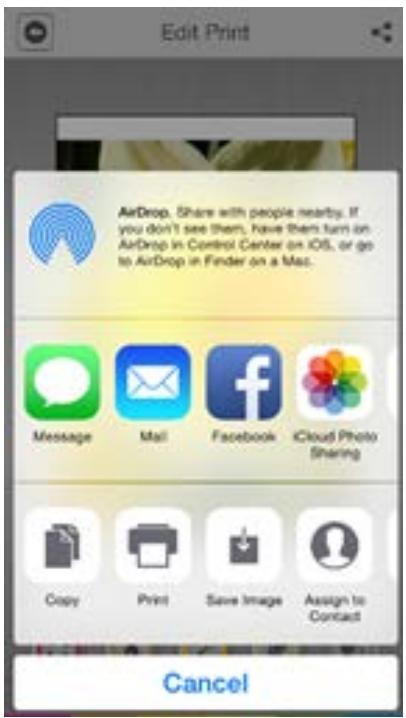
You can see how easy it is to share images through the listed methods such as Messages, Mail, Facebook etc. The last row of icons enables image management such as copies, print etc.
Bluetooth Pairing
Before you can print, you need to establish Bluetooth pairing to enable the app and the printer to recognize each other.
Android
- Press and hold the Power Button on the printer for 4-5 seconds to turn on its power.
Find the "Bluetooth Device List" in the printing menu. - When "Polaroid ZIP Printer" is displayed, tap to select it. A connection message confirms the success of the pairing.
- The devices are now paired and your printer is added to the "Paired Device List", enabling direct Bluetooth image sharing.
- Alternatively, to you can use your NFC connection by placing your phone with its back on the printer.
iOS
- Press and hold the Power Button on the printer for 4-5 seconds to it power on.
- Set your iOS device to Bluetooth scan or place it in discoverable mode.
- When the "Polaroid Mobile Printer" is displayed, tap it to select.
- A connection message is displayed when the pairing is established. Now you can print.
Tips
- The Polaroid ZIP App includes tips displayed introducing the functions. Only select the Don't show again option when you feel completely confident with that function.
- To display the Tips once you have terminated them, access My ZIP and select Device Manager; select the run option for Quick Tips.
- You do not need to define the printer to the Polaroid ZIP App. As soon as you require the printer, the Polaroid ZIP App looks for it automatically.
- If your Polaroid ZIP App is not able to activate access to your microphone, it may be because you have microphone access disabled. Check you settings to ensure the Polaroid ZIP App is enabled for microphone.
- If your Polaroid ZIP App is not able to activate access to your contacts, it may be because you have contacts access disabled. Check you settings to ensure the Polaroid ZIP App is enabled for contacts.
- Collage and Tile are often confused. Collage enables you to select various images, place them in one of the provided collage arrangements and then print the collage. Tile is a function that enables you to extend your image across four or nine photo pages. After they are printed, you can arrange them and have a larger image than you would by non-tile printing.
Instantly recognizable, Instantly reassuring, The Polaroid Classic Border and Polaroid Color Spectrum logos let you know you've purchased a product from the company's offices of our brand and that contributes to our rich heritage of quality and innovation.
Polaroid, Polaroid & Pixel, Polaroid Classic Border Logo, Polaroid Color Spectrum, and Polaroid ZIP are trademarks of PLR IP Holdings, LLC, used under license. PLR IP Holdings, LLC does not manufacture this product or provide any Manufacturer's Warranty or support.
The ZINK® Technology and ZINK® trademarks are owned by ZINK Imaging, Inc. Used under license.
iPad, iPhone, iPod and iPod touch are trademarks of Apple Inc., registered in the U.S. and other countries.
iPad Air, iPad mini, and Lightning are trademarks of Apple Inc.
Android is a trademark of Google, Inc.
© 2015 All Rights Reserved
- Download the Polaroid ZIP App
- Google Play:
- iOS:
- Quick Print
- Tap the Quick Print button
- Camera Option:
- Gallery Option:
- To Print:
- Edit Print
- Editing Quick Tips
- Editing Your Image
- To paint:
- Add Drama!
- Exclamations:
- Alphanumeric Characters:
- When done editing:
- Secret View
- Press the Secret View button:
- Gallery Image:
- Using the View Button:
- Saving your Secret View
- Collage
- Name Card
- My ZIP
- Sharing Images
- Bluetooth Pairing
- Android
- iOS
- Tips
Brand : POLAROID
Model : MOBILE ZIP
Category : Portable printer