
S-1 MAPLE - Radio PURE - Free user manual and instructions
Find the device manual for free S-1 MAPLE PURE in PDF.



| Product type | Stereo digital radio DAB/DAB+/DMB-R and FM |
| Brand | PURE |
| Model | S-1 MAPLE (EVOKE-1S Marshall) |
| Dimensions (H x W x D) | 175 mm x 210 mm x 110 mm |
| Weight | Approx. 0.8 kg (estimate) |
| Power supply | External mains adapter 230 V AC / 6 V DC (supplied); optional rechargeable battery ChargePAK E1 |
| Standby consumption | Less than 1 Watt (energy saving mode enabled) |
| Frequency ranges | DAB/DAB+/DMB-R: Band III 174–240 MHz; FM: 87.5–108 MHz |
| Loudspeaker | 3-inch extended range |
| Display | High-contrast yellow OLED graphic display 128 x 22 pixels |
| Presets | 30 (DAB and FM combined) |
| Main functions | DAB/FM radio, programmable alarm, timer, sleep, TextSCAN, Intellitext, 30 presets, auto and manual tuning |
| Inputs | 6 V DC adapter socket, 3.5 mm auxiliary input (stereo), mini-B USB port (for updates) |
| Outputs | 3.5 mm headphone socket, analog line out, auxiliary speaker output |
| Antenna | Telescopic, extendable |
| Care and cleaning | Clean with a soft, dry cloth; do not use liquid or abrasive products; avoid water ingress |
| Safety | Do not expose to heat, water; do not open the case; use only the supplied adapter; disconnect before inserting/removing battery |
| Spare parts and repairability | Mains adapter (ref. supplied); optional ChargePAK E1 battery; USB cable for updates (not supplied); repair by approved center |
| General information | CE certified, compliant with EMC and Low Voltage directives; EcoPlus; 2-year warranty |
Frequently Asked Questions - S-1 MAPLE PURE
User questions about S-1 MAPLE PURE
0 question about this device. Answer the ones you know or ask your own.
Ask a new question about this device
Download the instructions for your Radio in PDF format for free! Find your manual S-1 MAPLE - PURE and take your electronic device back in hand. On this page are published all the documents necessary for the use of your device. S-1 MAPLE by PURE.
USER MANUAL S-1 MAPLE PURE
Keep the radio away from heat sources. Do not use the radio near water. Avoid objects or liquids getting into the radio. Do not remove screws from or open the radio casing. Fit the mains adaptor to an easily accessible socket, located near the radio and ONLY use the mains power adapter supplied. Always switch the unit off and disconnect it from mains power before inserting or removing a ChargePAK.
Sicherheitshinweise
Copyright 2010 by Imagination Technologies Limited. All rights reserved. No part of this publication may be copied or distributed, transmitted, transcribed, stored in a retrieval system, or translated into any human or computer language, in any form or by any means, electronic, mechanical, magnetic, manual or otherwise, or disclosed to third parties without the express written permission of Imagination Technologies Limited.
Copyright
Marshall and the Marshall logo are trademarks or registered trademarks of Marshall Amplification plc. EVOKE-1S, the EVOKE-1S logo, Intellitext, textSCAN, ChargePAK, PURE, the PURE logo, PURE, the PURE logo, EcoPlus, the EcoPlus logo, Imagination Technologies, and the Imagination Technologies logo are trademarks or registered trademarks of Imagination Technologies Limited. All other product names are trademarks of their respective companies. Version 5 July 2010.
Warenzeichen
Quick set up 2
Controls at a glance 3
Rear connectors 3
Using your EVOKE-1S Marshall 4
Volume controls. 4
Switching between DAB (digital radio), FM and Auxiliary device. 4
Changing stations 4
Changing the information shown on screen. 5
Using textSCAN™ to pause and control scrolling text 5
Setting the alarm & timer 6
Setting the alarm 6
To cancel a sounding tone or radio alarm 7
Kitchen timer 7
Setting the sleep timer. 8
Presets and Intellitext 8
Storing and selecting presets 8
Intellitext 9
Setup options 10
Options available in DAB. 10
Options available in FM. 10
General options. 11
Changing your preferred language 11
Adjusting the display 11
Energy saving. 12
Software Updates 12
Using a ChargePAK™ 12
Help and Specifications 13
Secondary and inactive stations 13
Hints and tips 13
Technical Specifications 14
Quick set up
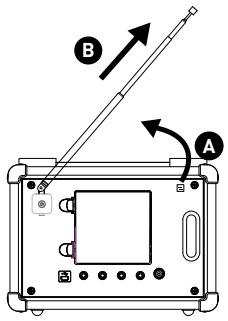
Unclip the aerial and fully extend it (steps A and B).
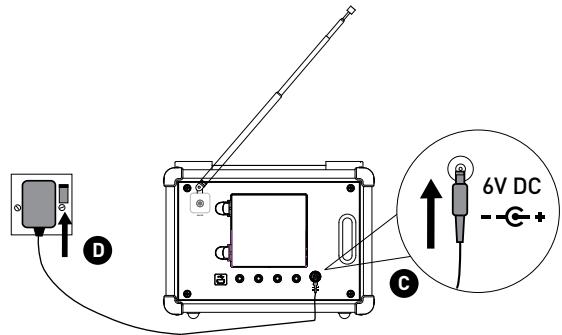
- Insert the jack of the supplied mains adapter into the socket on the rear of the radio (C).
- Plug the mains adapter into the mains supply (step D).
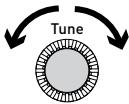
2 Select your language when prompted. Turn the tune dial to select (English/Francis/ Deutsch) and push to confirm.
ect Language. Choisissez
Deutsch

EVOKE-1S Marshall
This will be followed by the Energy Saving mode screen.
By default, Energy saving is enabled but can be switched off from within the menu.
Energy saving Enabled
With energy saving mode on, the power consumption of EVOKE-1S Marshall in standby is less than 1 Watt.
For more information: energy saving > page 12
Wait for EVOKE-1S Marshall to complete an Autotune for available digital stations (this takes about a minute). When the Autotune is complete, a station will be selected.
Autotune...


Now tuning...
Planet Rock
'World in blood': Slayer
Controls at a glance
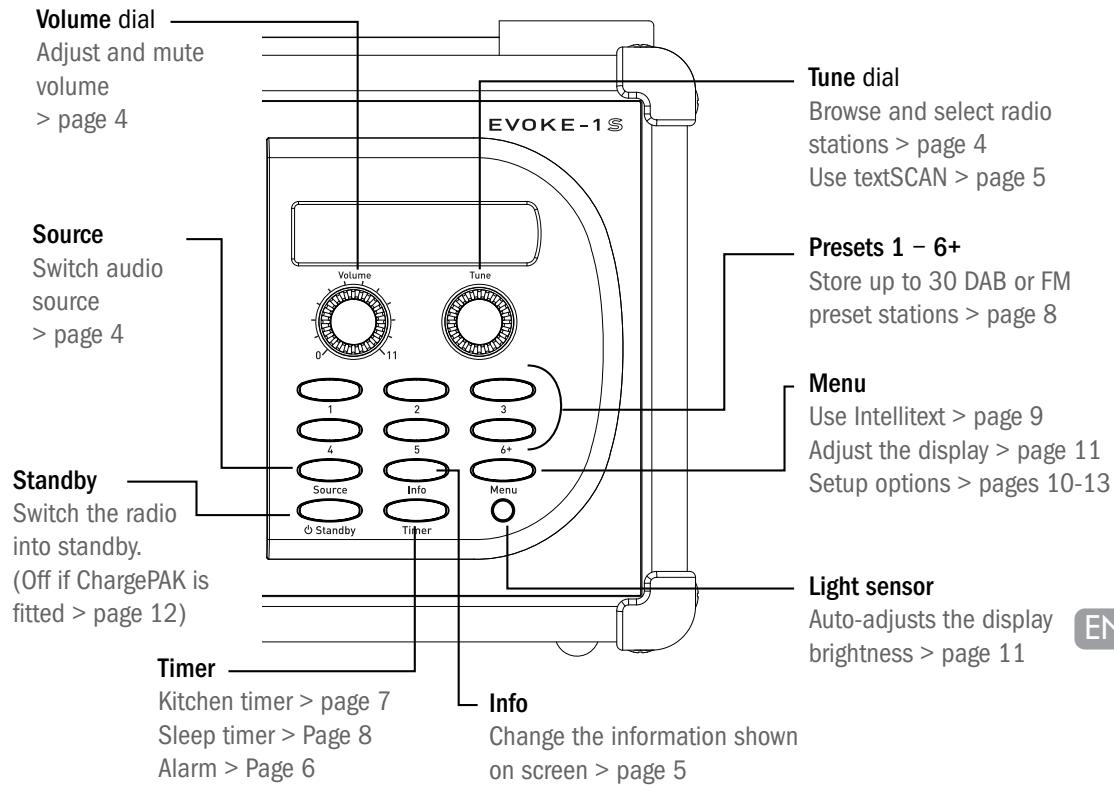
Rear connectors

USB

Aux Speaker


Stereo Out

Aux In


6V DC
Mini-B type USB connector for upgrades only.
Connect to an optional Marshall S-1 speaker for stereo sound.
3.5 mm
headphone
socket.
Connect to an external amplifier.
Analogue stereo input for iPod/MP3 player, etc.
Connect to supplied mains adapter only.
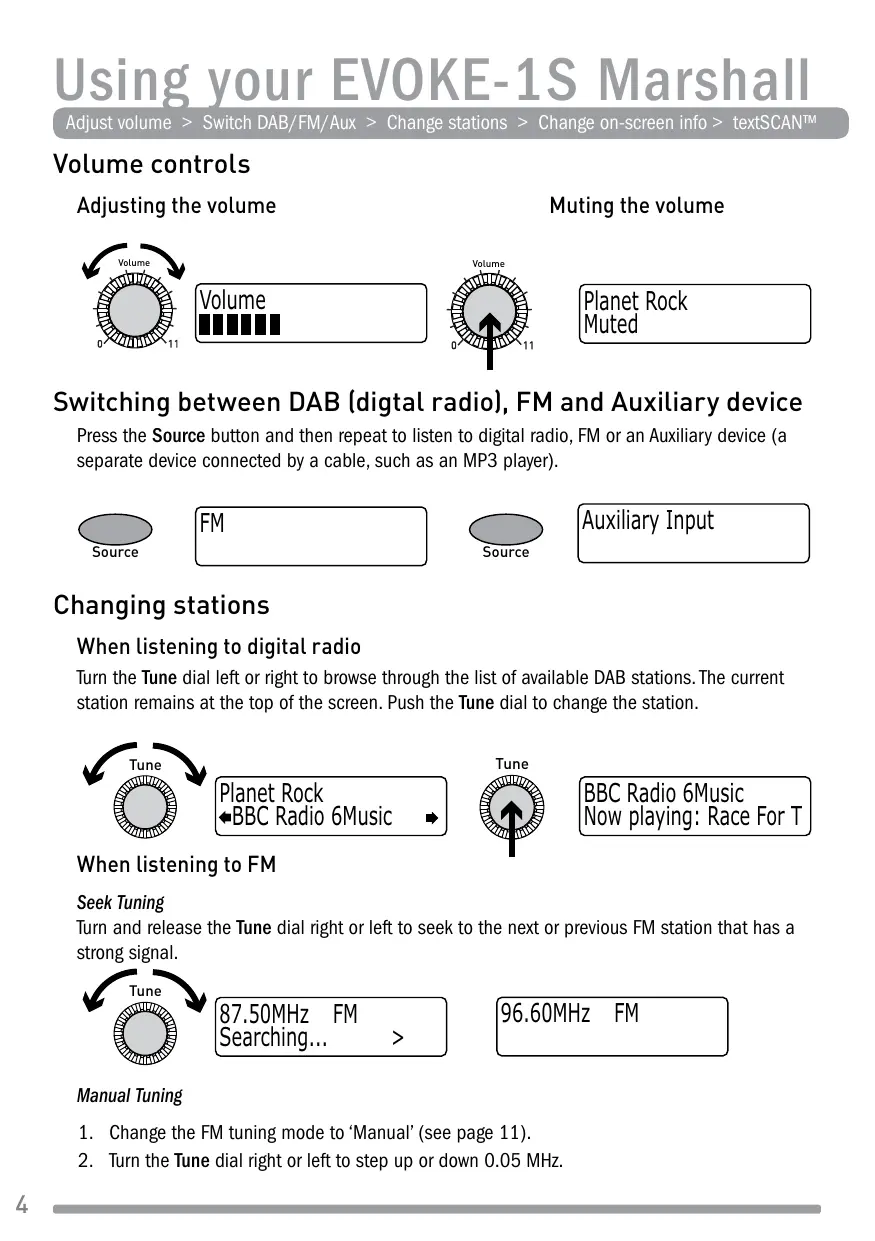
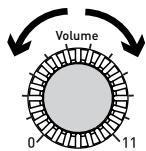
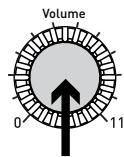
Volume controls
Adjusting the volume
Muting the volume
Volume
Planet Rock Muted
Switching between DAB (digital radio), FM and Auxiliary device
Press the Source button and then repeat to listen to digital radio, FM or an Auxiliary device (a separate device connected by a cable, such as an MP3 player).

Source
FM

Source
Auxiliary Input
Changing stations
When listening to digital radio
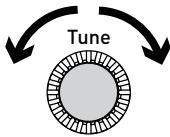
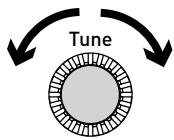
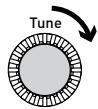
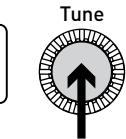
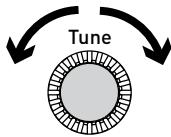
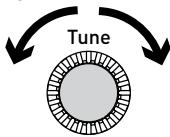
Turn the Tune dial left or right to browse through the list of available DAB stations. The current station remains at the top of the screen. Push the Tune dial to change the station.

Planet Rock BBC Radio 6Music

BBC Radio 6Music Now playing: Race For T
When listening to FM
Seek Tuning
Turn and release the Tune dial right or left to seek to the next or previous FM station that has a strong signal.
87.50MHz FM Searching... >
96.60MHz FM
Manual Tuning
- Change the FM tuning mode to 'Manual' (see page 11).
- Turn the Tune dial right or left to step up or down 0.05 MHz.
Changing the information shown on screen
You can change the information that is displayed on screen. Press the Info button and repeat to cycle through the information display options available for the current audio source.
Scrolling text
Information broadcast by most digital and FM (RDS) stations.
Full screen time
Displays the time (and an alarm indicator if the alarm is set).
Signal quality
Displays digital signal quality: 85-100 good; 70-84 OK; 0-69 poor.
Signal strength
Displays a meter illustrating the strength of the digital or FM signal.
ChargePAK status
Displays a charging or percentage power remaining indicator for the optional ChargePAK E1 rechargeable battery pack (see page 12).
Charging indicator
(on mains power).
BBC Radio 6Music

charging
OR
% Charge remaining
(when powered by ChargePAK E1)
BBC Radio 6Music

50%
Using textSCAN™ to pause and control scrolling text
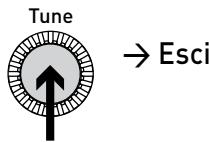
- When 'Scrolling text' information is displayed in either digital radio or FM, push the Tune dial to pause the scrolling text.
BBC Radio 6Music Now playing: Race For T

BBC Radio 6Music Playing: Race For Th
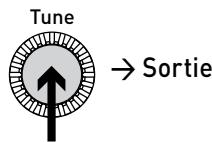
- Turn the Tune dial right and left to scroll forwards and backwards through the current scrolling text. To exit textSCAN push the Tune dial again.
BBC Radio 6Music The prize by Flaming

Exit
Setting the alarm (Timer > Alarm settings)
EVOKE-1S Marshall has an alarm which switches the radio on (from standby mode only) and tunes to a digital or FM radio station, or sounds an alarm tone.
- Press the Timer button, push the Tune dial to select 'Alarm settings'.
- Push the Tune dial to select 'Set alarm', scroll to 'On' and push the Tune dial to select. The alarm is now active.

- Push the Tune dial to select 'Set time'. To set the time you want the alarm to sound turn the Tune dial to adjust the hours and then push to confirm. Repeat to adjust the minutes.
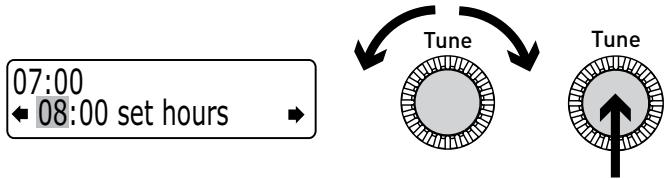
- Push the Tune dial to select 'Set days'. Choose when you want the alarm to repeat (turn the Tune dial to browse through the options and push to select).
Daily
Weekday Monday-Friday, every week
Weekend Every weekend
Saturday Every Saturday
Sunday Every Sunday
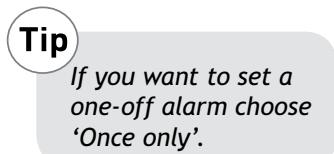
Once only The alarm will sound at the time you have selected and not repeat.
- Push the Tune dial to select 'Set mode' and choose the type of alarm you want to sound: DAB, FM or Tone. If you select 'Tone', there are no further options.
- For DAB and FM alarms only, push the Tune dial to select 'Select station' and choose which digital or FM radio station you want to sound for the alarm.
For DAB alarms
Select a digitalstation from the station list or 'last tuned'. If you select 'Last tuned' the alarm will tune to the last station you listened to before the alarm sounds.
For FM alarms
Choose between 'Last tuned' or an FM preset station.
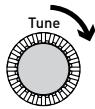
- If you have selected a DAB or FM alarm you can push the Tune dial to select 'Alarm volume' and turn to adjust the volume level for the alarm from 1 (very quiet) to 32 (very loud).
08
Alarm volume


←10


That's it! You can see if the alarm is currently switched on in the 'Full screen time' display (see page 5). Alarms can be set and adjusted from standby by pressing the Timer button.

08:30
The alarm is set to sound at 8:30 am
08:30
22:45
Tip
An outlined bell shows that the alarm will not sound within the next 24 hours.
To cancel a sounding tone or radio alarm
When a tone alarm is sounding, push the Tune dial or press Standby to cancel the alarm. To cancel a radio alarm and return the radio to standby, press the Standby button.

08:30


or
Standby
Kitchen timer
EVOKE-1S Marshall has a countdown timer which will sound an alarm after a set time period – handy for use in the kitchen.
To set a kitchen timer
- Press the Timer button.

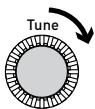
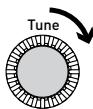
- Turn the Tune dial to change the hours and push to confirm. Turn again to change the minutes and push to confirm and start the countdown timer.
01 hours 00 mins

01 hours 25 mins

The alarm will sound after the time period you have set whether the radio is on or in standby.
Cancel the beeping alarm tone by pressing any button on the radio.
To stop and reset the kitchen timer
To stop and reset the kitchen countdown timer to zero before it sounds a beeping tone, press and hold down the Timer button for three seconds until you see the message 'Timer cleared'.

Timer
3secs
Timer cleared
Setting the sleep timer
EVOKE-1S Marshall has a sleep timer that switches your radio into standby (or off if powered by a ChargePAK) after a number of minutes has elapsed. Use this if you want to fall asleep to the radio.
To set a sleep timer
- Press the Timer button, turn the dial to display 'Sleep timer' then push the dial to select.
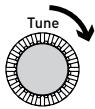
- Turn the dial to increase the duration of the sleep timer from 15 to 90 minutes in fifteen minute intervals. Press the dial to start the sleep timer.
The time remaining until shut-down is displayed on the right of the full-screen clock view.
Sleep off 45 minutes


08:30

To cancel a sleep timer
Press and hold the Timer button until you see the message 'Timers cleared'.
Presets and Intellitext
Store and select preset stations > Browse Intellitext
Storing and selecting presets
Store up to 30 of your favourite DAB or FM radio stations in a combined list.
To quick-store a station to a preset button (1-5)
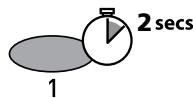
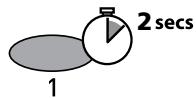
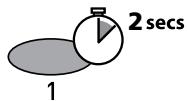
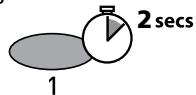
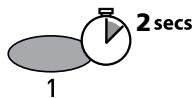
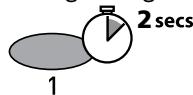
Tune to the digital or FM station you want to store. Press and hold one of the numbered Preset buttons (1-5) for two seconds until you see the 'Preset saved' message on the bottom line.
BBC Radio 6 Music Now playing: No Cars G
BBC Radio 6Music Preset 01 saved
To store a station to the preset list (1-30)
- Tune to the digital or FM station you want to store.

NME Radio Text us your gig stories
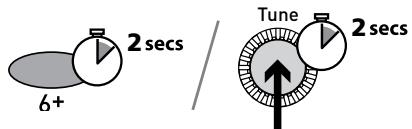
- Press and release the 6+ button to view the numerical list of stored presets, then turn the Tune dial to choose any Preset number between 1 and 30. You can overwrite existing presets.

- Press and hold the 6+ button (or the Tune dial) for two seconds until you see the 'Preset saved' message. The current station is now stored to that number on the Preset list.
NME Radio Preset 10 saved
To recall a preset when listening to radio
- To tune to Presets 1 to 5, press the corresponding numbered button on the unit (1 to 5).
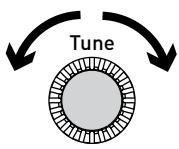
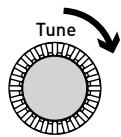
- To access the full list of presets (from 1 to 30), press and release the 6+ button, turn the Tune dial right or left to scroll through the list of presets, then push and release the Tune dial to tune to the selected preset. Presets are labelled with 'DAB', 'FM' or 'Empty Preset'.


NME Radio Text us your gig stories
Intellitext® (Menu >Intellitext >View)
Intellitext provides on-demand text information such as sports headlines, weather forecasts and news from digital stations that support the service. The text is updated by the broadcasters and stored in your radio while you listen to stations. Intellitext is listed by station and split into categories, eg, Football, Cricket, Headlines, etc.
To view Intellitext messages
- Press Menu, then use the Tune dial to select 'Intellitext' and enter the Intellitext menu. Push the Tune dial to select 'View' and access a list of stations for which you have Intellitext information (if you see 'No data' you need to tune to a station broadcasting Intellitext for a few minutes before information is received).
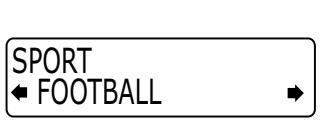
2 Push the Tune dial to select a station then turn and push the Tune dial to browse Intellitext categories for that station, e.g., Radio Sport > SPORT > FOOTBALL. The selected information will scroll across the screen.

FOOTBALL England team training fo
To change Intellitext options (Menu >Intellitext > Options)
Set timeout Choose to delete old Intellitext messages after 1 week (default) or 1 day. Clear all Delete all stored Intellitext messages immediately.
Options available in DAB
When listening to digital radio, press the Menu button, turn the Tune dial to scroll through the options and push the Tune dial to select.
Autotune (Menu > Autotune)
Scans all digital frequencies for stations and automatically adds any new stations found to the station list. This may take a few minutes. To stop an Autotune press Menu.
Options available in FM
FM tuning mode (Menu > FM tuning mode)
Seek
When you turn the Tune dial, the radio tunes to the next station with a good signal.
Manual
When you turn the Tune dial, the radio tunes up or down the FM frequency range by 0.05 MHz.
FM stereo mode (Menu > FM stereo mode)
Choose from Stereo or Mono (default). Mono may improve audio clarity where stereo signals are weak.
General options
Changing your preferred language (Menu > Language)
You can select the language that your EVOKE-1S Marshall uses for menus and options.
- Press Menu, scroll to 'Language' and push the Tune dial.
- Turn the Tune dial to select a language (English/Francais/Deutsch) and press to confirm.
Adjusting the display (Menu > Display settings)
You can adjust the brightness and time-out duration of the display for when the unit is switched on and in standby. To change display options:
- Press Menu, scroll to 'Display settings' and push the Tune dial.
- Now choose either 'Active' to change settings that apply when the unit is switched on, or 'Standby' to change settings that apply in standby.
Changing the display time-out duration
Select 'Duration' and choose from the following two modes:
Always on The screen is always set to your preferred brightness level.
Timed off The screen is set to your preferred brightness level when a button is pressed and then switches off after 7 seconds of inactivity.
Changing your preferred brightness level
Select 'Brightness' and choose from the following options:
Automatic The brightness of the screen adjusts automatically depending on the ambient light levels in the room (default).
1-10 Turn the Tune dial to vary the brightness level between 1 (very dim) and 10 (very bright) and push to confirm your preferred setting.
Set clock (Menu > Set clock)
You can manually set the time and date if required. If you have a digital signal and/or a good FM (RDS) reception these will be updated automatically.
Energy saving (Menu > Energy saving)
EVOKE-1S Marshall is part of the PURE EcoPlus product family, designed and manufactured to minimise power consumption when the unit is switched on and to use less than 1 Watt in standby. One way this low power consumption is enabled is by not collecting and storing Intellitext messages when the unit is in standby. You can override this option by switching off energy saving mode, but this will increase standby power consumption. Two options are available:
Energy saving On (the default setting)
EVOKE-1S Marshall updates the Intellitext data when you tune to a station that broadcasts Intellitext. Intellitext data is not collected in standby.
Energy saving Off
EVOKE-1S Marshall collects Intellitext data in standby from the last station you tuned to with Intellitext, which increases standby power consumption.
Note: if you fit the optional ChargePAK E1 (see below) the unit will switch off when you press the Standby button and not enter standby, as long as the unit is not connected to mains power.
Software Updates (Menu > Upgrade)
Software updates for your EVOKE-1S Marshall may be made available in the future. If you register your product and include a valid e-mail address you will receive notification of software updates. Alternatively, visit http://support.pure.com at any time to check for available software updates.
To update your software
Connect your radio to your PC using a suitable USB cable. Follow the instructions provided with the software download at support.pure.com.
Note: USB update requires a PC (not Mac) with internet access running Microsoft® Windows XP or higher and a suitable USB cable (not included).
Using a ChargePAK™ ChargePAK
ChargePAK E1 is a rechargeable battery pack which plugs into the socket in the radio's battery compartment. Whenever your radio is connected to a mains supply the ChargePAK will charge up and the power remaining will be available to view as a percentage in the Information display options (page 5).
To purchase a PURE ChargePAK E1, contact your nearest PURE dealer, or visit www.pure.com
Important: EVOKE-1S Marshall can only be powered by ChargePAK E1 and is not compatible with any other batteries, either disposable or rechargeable, or any other ChargePAK model. Always switch the unit off and disconnect it from mains power before inserting or removing a ChargePAK. Charge a new ChargePAK for 24 hours before first using battery power.
Secondary and inactive stations
(<>) Secondary services
Secondary services accompany some stations, providing extra information or alternative content and may only be broadcast at certain times. If a station has secondary services available, the station shows ‘>>’ next to its name in the station list and the secondary service appears next to the station in the list. A secondary service has a ‘<<’ before its name in the station list.
?) Inactive or unavailable stations
Inactive or unavailable stations appear on the station list preceded by '?' and cannot be tuned to. A station may be inactive or unavailable because the station is not broadcasting at the current time (check with the station) or has stopped broadcasting altogether. Also, you may not have a strong enough signal to receive the Multiplex on which the station is broadcast.
Hints and tips
Display says 'No stations available'
Use Autotune (page 10) to search for stations. Try adjusting your aerial or radio position.
Receiving new digital stations that have started broadcasting
Use Autotune (page 10) to scan for new stations and add any new DAB stations to the station list.
The screen is very dark
Check that the light sensor on the front panel is not obstructed.
Using the alarm when a ChargePAK E1 is fitted
When the radio is powered by a ChargePAK E1 for portable listening, i.e., a ChargePAK rechargeable battery is fitted and the unit is not connected to mains power, the radio switches off completely when the Standby button is pressed and the alarm will not sound. In this case, the message 'Disabling alarm' will be displayed when the Standby button is pressed.
Resetting your radio
Resetting your radio removes all presets, clears the station list and resets all options to defaults.
- Press and hold the Menu button for three seconds to enter the hidden menu. Select 'Factory reset'
- Push the Tune dial within 3 seconds to confirm the reset or the reset will cancel.
Technical Specifications
| Radio Frequencies | Stereo* digital and FM radio. DAB Band III 174-240 MHz (UK), FM 87.5-108 MHz. DAB/DAB+/DMB-R decode up to 256 kbps (non-UK). UK products receive DAB/FM; non-UK products receive DAB/DAB+/DMB Radio/FM. Chargeable DAB+ upgrade available for UK products if UK broadcasts commence. |
| Speaker Inputs | Full-range 3" drive unit. 6V DC power adaptor socket (230V supplied). 3.5mm Line-in for auxiliary devices. USB mini socket for software updates. |
| Outputs | 3.5mm headphone, 3.5mm line out (analogue), 3.5mm auxiliary speaker output. |
| Presents | 30 digital and FM presets in a combined list. |
| Display | High contrast yellow graphical 128 x 22 OLED display |
| Power supply | 230V AC to 6V DC external power adapter. |
| Approvals | CE marked. Compliant with the EMC and Low Voltage Directives (2004/108/EC and 2006/95/EC). ETSI EN 300 401 compliant. |
| Dimensions | 175 mm high x 210 mm wide x 110 mm deep. |
| Aerial | Captive telescopic aerial. |
*Stereo output requires optional auxiliary speaker, headphones or external amplifier.
Disposal of Waste Electrical & Electronic Equipment

This symbol on the product or on its packaging indicates that this product should not be treated as household waste. Instead it should be handed over to a suitable collection point for the recycling of electrical and electronic equipment. By ensuring this product is disposed of correctly, you will help prevent potential negative consequences for the environment and human health, which could otherwise be caused by inappropriate waste handling of this product. The recycling of materials will help to conserve natural resources. For more detailed information about recycling of this product, please contact your local council office, your household waste disposal service or the shop where you purchased the product.
Zu Beginn 2
Energy saving Enabled

Tune
BBC Radio 6Music
Now playing: Race For T

87.50MHz FM
Searching...
96.60MHz FM
Manuelle Senderwahl
BBC Radio 6Music Now playing: Race For T

BBC Radio 6Music Playing: Race For Th
BBC Radio 6Music Prize by Flaming Lips

→Beenden
DE
Sleep off 45 minutes



08:30
BBC Radio 6 Music Now playing: No Cars G
Preset 1 saved

NME Radio Text us your gig stories
NME Radio Text us your gig stories
Intellitext
FOOTBALL England team training fo
Anpassen der Intellitext-Optionen (Menu >Intellitext >Options)
Energy saving Enabled
BBC Radio 6Music Now playing: Race For T
87.50MHz FM Searching... >
96.60MHz FM
Syntonisation manuelle
BBC Radio 6Music Now playing: Race For T

BBC Radio 6Music Playing: Race For Th
BBC Radio 6Music Prize by Flaming Lips
FR
Programming de l'alarme (Menu > Alarm settings)
Sleep off 45 minutes


08:30
45
BBC Radio 6 Music
Now playing: No Cars G
BBC Radio 6Music Preset 01 saved
NME Radio Text us your gig stories
NME Radio Text us your gig stories
Intellitext
Energy saving Enabled
BBC Radio 6Music Now playing: Race For T
87.50MHz FM Searching... >

96.60MHz FM
BBC Radio 6Music Now playing: Race For T

BBC Radio 6Music Playing: Race For Th
BBC Radio 6Music The prize by Flaming
The alarm is set to sound at 8:30 am
08:30
22:45
Tip
Sleep off 45 minutes


08:30

BBC Radio 6 Music Now playing: No Cars G
Preset 1 saved
theJazz Now: Remember by Ha
NME Radio Text us your gig stories
Intellitext
FOOTBALL England team training fo
Upgrade (Aggiornamenti software)
Energy saving Enabled
FM stationer > side 8
menu
BBC Radio 6Music Now playing: Race For T
Now playing: Race For T

Tune
BBC Radio 6Music
Playing:RaceForTh
Prize by Flaming Lips

Tune
Afslut
DK
Weekend Hver weekend.
Saturday Hver Lordag.
Sunday Hver sordag
The alarm is set to sound at 8:30 am
08:30
22:45
Tip
Sleep off 45 minutes


08:30

BBC Radio 6 Music Now playing: No Cars G
BBC Radio 6Music Preset 01 saved
NME Radio Text us your gig stories
NME Radio Text us your gig stories
Intellitext (Menu > Intellitext > view)
FOOTBALL England team training fo
Shift at Intellitext indstillinger (Menu >Intellitext >Indstillinger)
Set timeout
Vaelg at slette gamle Intellitext meddelelser after 1 uge (standard ) aller 1 dag.
Clear all
Energy saving (Energispar) (Menu > Energy saving)

BBC Radio 6Music Now playing: Race For T
87.50MHz FM Searching... >
96.60MHz FM
BBC Radio 6Music Now playing: Race For T

BBC Radio 6Music Playing: Race For Th
BBC Radio 6Music The prize by Flaming

→ Salir
The alarm is set to sound at 8:30 am
08:30
22:45
Tip
Sleep off 45 minutes


08:30
45
BBC Radio 6 Music Now playing: No Cars G
BBC Radio 6Music Preset 01 saved
NME Radio Text us your gig stories
Warranty information
Imagination Technologies Ltd. warrants to the end user that this product will be free from defects in materials and workmanship in the course of normal use for a period of two years from the date of purchase. This guarantee covers breakdowns due to manufacturing or design faults; it does not apply in cases such as accidental damage, however caused, wear and tear, negligence, adjustment, modification or repair not authorised by us. Please visit www.pure.com/register to register your product with us. Should you have a problem with your unit please contact your supplier or contact PURE Support at the address shown on the rear of this manual.
Imagination Technologies Limited makes no representation or warranties with respect to the content of this document and specifically disclaims any implied warranties of merchantability or fitness for any particular purpose. Further, Imagination Technologies Limited reserves the right to revise this publication and to make changes in it from time to time without obligation of Imagination Technologies Limited to notify any person or organization of such revisions or changes.
Ausschlusschinweis
Imagination Technologies Ltd.
Home Park Estate
Kings Langley
Herts, WD4 8LZ
United Kingdom
http://support.pure.com
sales@pure.com
PURE
Karl-Marx Strasse 6
64589 Stockstadt/Rhein
Germany
sales_gmbh@pure.com
EVOKE-1S Marshall is a member of the PURE EcoPlus™ product family. All EcoPlus products are designed and manufactured to minimise their environmental impact, with:
- Reduced power consumption in operation and standby
- Components selected to minimize environmental impact
- Use of materials from recycled and sustainable sources
The smallest possible packaging
For more information please visit www.pure.com/ecoplus
101TL