COMPASS FOR MOLBOX - Software FLUKE - Free user manual and instructions
Find the device manual for free COMPASS FOR MOLBOX FLUKE in PDF.


User questions about COMPASS FOR MOLBOX FLUKE
0 question about this device. Answer the ones you know or ask your own.
Ask a new question about this device
Download the instructions for your Software in PDF format for free! Find your manual COMPASS FOR MOLBOX - FLUKE and take your electronic device back in hand. On this page are published all the documents necessary for the use of your device. COMPASS FOR MOLBOX by FLUKE.
USER MANUAL COMPASS FOR MOLBOX FLUKE
COMPASS® for molbox™
Flow Calibration Software
User's Manual
© 1998 - 2003 DH Instruments, Inc. All rights reserved.
Information in this document is subject to change without notice. No part of this document may be reproduced or transmitted in any form or by any means, electronic or mechanical, for any purpose, without the express written permission of DH Instruments, Inc. 4765 East Beautiful Lane, Phoenix AZ 85044-5318 USA.
DH Instruments makes sincere efforts to the ensure accuracy and quality of its' published materials; however, no warranty, expressed or implied, is provided. DH Instruments disclaims any responsibility or liability for any direct or indirect damages resulting from the use of the information in this manual or products described in it. Mention of any product does not constitute an endorsement by DH Instruments of that product. This manual was originally composed in English and subsequently translated into other languages. The fidelity of the translations cannot be guaranteed. In case of conflict between the English version and other language versions, the English version takes precedence.
DH Instruments, DH, DHI, molbox, molbloc and COMPASS are trademarks, registered and otherwise, of DH Instruments, Inc.
Windows is a registered trademark of Microsoft Corporation.
030918
550087h
Printed in the USA.
TABLE OF CONTENTS

TABLE OF CONTENTS
TABLES VI
FIGURES VIII
USER REGISTRATION XI
ABOUT THIS MANUAL XII
1. INTRODUCTION
1.1 PRODUCT OVERVIEW
2. GETTING STARTED 3
2.1 OVERVIEW 3
2.2 SYSTEM REQUIREMENTS 3
2.3 INSTALLING COMPASS FOR molbox 3
2.3.1.1.1.1 OR 3
2.3.2UPGRADING FROM VERSIONS LOWER THAN 4.00
2.3.3 [TOOLS], [FILE UPGRADE WIZARD] 5
2.4 RUNNING THE PROGRAM 5
2.5 UNINSTALLING 5
3. OPERATING PRINCIPLES 7
3.1 OVERVIEW 7
3.1.1 BASICS SUMMARY 7
4. QUICK TIPS 9
4.1 HOW DO I? 9
5. APPLICATION EXAMPLES 13
5.1 OVERVIEW 13
5.1.1 EXAMPLE #1 13
5.1.1.1 SET UP AN RS-232 DUT 14
5.1.1.2 SET UP A molbox AS THE REFERENCE 15
5.1.1.3 RUN THE TEST 16
5.1.2 EXAMPLE #2 18
5.1.2.1 SETUP
5.1.2.2 REFERENCE SETUP 18
5.1.2.3 RUN THE TEST 18
5.1.3 EXAMPLE #3 19
5.1.3.1 DUT DEFINITION SETUP 19
5.1.3.2 DMM CONFIGURATION SETUP 19
5.1.3.3 RUN THE TEST 20
5.1.4 EXAMPLE #4 20
5.1.4.1 DUT DEFINITION SETUP 20
5.1.4.2 TEST DEFINITION SETUP 21
5.1.4.3 TEST HARDWARE SETUP 21
5.1.4.4 RUN THE TEST 22
5.1.5 EXAMPLE #5 22
5.1.5.1 DUT DEFINITION SETUP 22
5.1.5.2 TEST DEFINITION SETUP 23
5.1.5.3 TEST HARDWARE SETUP 23
5.1.5.4 RUN THE TEST 24
5.1.6 EXAMPLE #6 24
5.1.6.1 DUT DEFINITION SETUP 24
5.1.6.2 TEST DEFINITION SETUP 24
5.1.6.3 RUN THE TEST 25
5.1.6.4 PLOT THE DATA 25
5.1.7 EXAMPLE #7 25
5.1.7.1 DUT DEFINITION SETUP 25
5.1.7.2 TESTDEFINITIONSETUP 25
5.1.7.3 RUN THE TEST 26
5.1.8 EXAMPLE #8 26
5.1.8.1 DUT DEFINITION SETUP 26
5.1.8.2 TEST DEFINITION SETUP 27
5.1.8.3 TEST HARDWARE SETUP 27
5.1.8.4 SET UP DATA GRID 27
5.1.8.5 RUN THE TEST 28
6. MAIN SCREEN 29
6.1 OVERVIEW 29
6.2 MAIN MENU BAR 29
6.3 STATUS BAR 29
6.4 RUN MODES 30
6.5 RUN TOOLBAR 31
6.5.1 RUN TOOLS 31
6.5.2 DISPLAY TOOLS 32
6.6 CONTROL TOOLBAR 33
6.6.1 CHANGE/RELOAD molbloc 34
6.6.2 TARE molbox 34
6.6.3 PURGE FUNCTION 35
6.6.4 LEAK TEST 35
6.6.5 MODIFY molbox VALVE DRIVERS 36
6.6.6 FLOW CONDITIONS 36
6.6.7 UNITS SELECTION 37
6.6.8 FLOW CONTROL 38
6.6.9 ENTER FLOW DATA 39
6.6.10 DATA ACQUISITION TOOLS 39
6.7 RUN SCREENS 42
6.7.1 DUT/REFERENCE COMPARISON RUN SCREEN 42
6.7.2 molbox OUTPUT RUN SCREEN 43
6.7.3 DUT OUTPUT RUN SCREEN 45
6.7.4 AVERAGE DATA RUN SCREEN 46
6.7.5 DATA GRID RUN SCREEN 47
6.7.6 DATA PLOT RUN SCREEN 48
6.7.7 SPYWINDOWS 48
7. [RUN] MODES 51
7.1 OVERVIEW 51
7.2 [RUN], [RUN TEST] 51
7.2.1 TEST INITIALIZATION 51
7.2.1.1 INITIALIZE molbloc/molbox 52
7.2.1.2 SELECT STARTING molbloc CHANNEL 52
7.2.1.3 SELECT DUT 53
7.2.1.4 SELECT TEST 54
7.2.1.5 SETUP DUT ID/INTERFACE 55
7.2.1.6 USERID 57
7.2.2 RUN TEST 57
7.2.2.1 MANUAL ENTRY DATA ACQUISITION 59
7.2.3 TEST CONCLUSION 59
7.3 [RUN molbox] 60
7.3.1.1.1.1 FIGURE 36.
7.4 [RUN DUT] 61
8. [SETUP], [DUT] 63
8.1 OVERVIEW 63
8.2 CREATING DUT DEFINITIONS 64
8.3 EDITING DUT DEFINITIONS 64
8.4 DUT DEFINITION SELECTOR 64
8.5 DUT DEFINITION EDITOR 65
8.5.1 TOOLBAR 66
8.5.2 [HEADER] TAB 67
8.5.3 [CORRECTION] TAB 69
8.5.4 [RANGE]TAB 71
8.5.5 [TOLERANCE] TAB 73
8.5.6 [TEST] TAB 74
8.5.7 [CONDITIONS] TAB 75
8.5.8 [READ]TAB 76
8.5.9 [SET] TAB 78
9. [SETUP], [TEST] 81
9.1 OVERVIEW 81
9.2 CREATING TEST DEFINITIONS 81
9.3 EDITING TEST DEFINITIONS 82
9.4 TEST DEFINITION SELECTOR 82
9.5 TEST DEFINITION EDITOR 82
9.5.1 TOOLBAR 83
9.5.2
9.5.3 [POINTS] TAB 86
9.5.4 [SEQUENCE] TAB 88
9.5.5 [TARE] TAB 89
9.5.6 [CONTROL] TAB 91
9.5.7 [LEAK TEST] TAB 93
9.5.8 [PURGE] TAB 93
9.5.9 [DATA]TAB. 94
9.5.10 [AUXILIARY] TAB 96
9.5.10.1 AUXILIARY DATA DEVICE SETUP 96
10. [SETUP], [SYSTEM]/[SETUP], [HARDWARE] 99
10.1 OVERVIEW 99
10.2 [SETUP], [SYSTEM] 100
10.3 [SETUP], [HARDWARE] 102
10.3.1 TOOLBAR 103
10.3.2 HARDWARE DEFINITION EDITOR 104
10.3.3 [REFERENCE] TAB 104
10.3.4 [DMM], [FREQUENCY], [PRESSURE], [TEMPERATURE] TABS 107
10.3.5 [POWER SUPPLY] TAB 111
10.3.7 [AUXILIARY] 118
10.3.8 [INTERFACE] TAB 119
11. [TOOLS], [OPTIONS] 121
11.1 OVERVIEW 121
11.2 [molbox] TAB 121
11.3 [GRID] TAB 124
11.4 [MAINTAIN LISTS] TAB 126
11.5 [INITIalyze TEST] TAB 127
11.6 [RUN TEST] TAB 128
11.7 [END TEST] TAB 130
11.8 [DATA FILE] TAB 132
11.9 [DISPLAY] TAB AND [DISPLAY] MENU 134
12. [DATA] 137
12.1 OVERVIEW 137
12.2 [Data], [View Data File] 137
12.3 [Data], [Print Test Data] 138
12.4 [Data], [Plot Data File] 138
12.4.2 PLOT PROPERTIES 141
12.4.2.1 GENERAL 141
12.4.2.2 SUBSETS 142
12.4.2.3 BEST FIT 142
12.4.2.4 CUSTOM PLOT 143
13. REMOTE INTERFACING 145
13.1 OVERVIEW 145
13.2 REMOTE COMMAND EDITOR 146
13.2.1 INITIALIZATION COMMANDS 146
13.2.2 READ COMMANDS 146
13.2.3 SET COMMANDS 147
13.2.4 EDITOR FEATURES 148
13.2.4.1
13.2.4.2 INSERT SPECIAL CHARACTER> 149
13.2.4.3
13.3 RS-232 INTERFACE 149
13.3.1 RS-232 SETUP 149
13.4 IEEE-488 INTERFACE 150
13.5 DEVICENET INTERFACE 150
13.6 [TOOLS], [REMOTE COMMUNICATIONS] 150
- [TOOLS], [FLOW UNIT EDITOR] 153
14.1 OVERVIEW 153
14.2 FLOW UNIT EDITOR 154
14.3 UNIT CONVERTER 156
- [TOOLS], [PROCESS GAS EDITOR] 159
15.1 OVERVIEW 159
15.2 FEATURES 160
15.3 GAS BLENDS 162
- [DATA], [REPORT EDITOR] 163
16.1 OVERVIEW 163
16.2 REPORT PRINCIPLES 163
16.3 MAIN MENU BAR 163
16.3.1 [FILE] 164
16.3.1.1 [FILE], [EDIT REPORT] 165
16.3.1.2 [FILE], [GENERATE REPORT] 165
16.3.1.3 [FILE], [EDIT TEMPLATE] 165
16.3.1.4 [FILE], [CREATE TEMPLATE] 166
16.3.1.5 [FILE], [SAVE] 167
16.3.1.6 [FILE], [SAVE AS] 167
16.3.1.7 [FILE], [SAVE ALL] 167
16.3.1.8 [FILE], [CLOSE] 167
16.3.1.9 [FILE], [CLOSE ALL]. 167
16.3.1.10 [FILE], [PRINT] 168
16.3.1.11 [FILE], [PRINT ALL] 168
16.3.1.12 [FILE], [EXIT] 168
16.3.2 [EDIT] 168
16.3.2.1 [EDIT], [UNDO] 168
16.3.2.2 [EDIT], [CUT] 168
16.3.2.3 [EDIT], [COPY] 169
16.3.2.4 [EDIT], [PASTE] 169
16.3.2.5 [EDIT], [EIND] 169
16.3.2.6 [EDIT], [FIND NEXT] 170
16.3.2.7 [EDIT], [SELECT ALL] 170
16.3.3 [FOMAT] 170
16.3.3.1 [FOMAT], [INSERT DATE/TIME] 170
16.3.3.2 [FORMAT], [INSERT FIELD KEY] 170
16.3.3.3 [FORMAT], [SELECT TEMPLATE] 171
16.3.3.4 [FORMAT], [MULTIPLE CYCLES] 172
16.3.3.5 [FOMAT], [PAGE SETUP] 173
16.3.4 [OPTIONS] 173
16.3.4.1 [OPTIONS], [TOOLBAR] 173
16.3.4.2 [OPTIONS], [FONT FORMAT BAR] 173
16.3.4.3 [OPTIONS], [RULER] 175
16.3.4.4 [OPTIONS], [PATH] 175
16.3.5 [WINDOW] 176
16.3.6 [HELP] 176
16.4 REPORT EDITOR AUTOMATION 176
16.4.1 DRAG AND DROP 176
16.4.2 COMMAND LINE ARGUMENTS 177
16.4.3 DDE (DYNAMIC DATA EXCHANGE) 177
-
[HELP] 179
17.1 OVERVIEW 179 -
DATA FILES 181
18.1 OVERVIEW 181
18.2 DATAFILECREATION 181
18.3 NAMING AND STORING DATA FILES 181
18.4 DATA FILE STRUCTURE 182
18.4.1 DATAFILEFIELDS 183
- CALCULATIONS 187
19.1 OVERVIEW 187
19.2 DUT FLOW 187
19.3 DUT SET POINTS 188
19.4 DUT ERRORS 188
19.5 DENSITY CORRECTIONS 189
19.6 TOLERANCE 191
19.7 BEST FIT 192
19.8 LINEARITY 192
19.9 HYSTERESIS 193
19.10 REPEATABILITY 193
19.11 MEASUREMENT UNCERTAINTY 193
19.12 FLOW UNIT CONVERSIONS 194
19.13 PRESSURE UNIT CONVERSIONS 200
19.14 WATER RATIO 200
- TROUBLESHOOTING 203
20.1 OVERVIEW 203 - GLOSSARY 207
22.ENDUSERLICENSEAGREEMENT 211
TABLES

Table 1. COMPASS Version Compatibility. 4
Table 2. Tools Available On The Run Toolbar 31
Table 3. Tools Available On The Display Toolbar 32
Table 4.
Table 5.
Table 6.
Table 7.
Table 8.
Table 9.
Table 10.
Table 11.
Table 12.
Table 13.
Table 14.
Table 15. DUT Definition Editor,
Table 16. DUT Definition Editor, [Header] Tab Fields 68
Table 17. DUT Definition Editor, [Correction] Tab Fields 70
Table 18. DUT Definition Editor, [Range] Tab Fields 72
Table 19. DUT Definition Editor, [Tolerance] Tab Fields 74
Table 20. DUT Definition Editor, [Test] Tab Fields 75
Table 21. DUT Definition Editor, [Conditions] Tab Fields. 76
Table 22. DUT Definition Editor, [Read] Tab Fields. 77
Table 23. DUT Definition Editor, [Set] Tab Fields. 79
Table 24. Test Definition Editor,
Table 25. Test Definition Editor,
Table 26. Test Definition Editor, [Points] Tab Fields 87
Table 27. Test Definition Editor, [Sequence] Tab Fields. 88
Table 28. Test Definition Editor, [Tare] Tab Fields 90
Table 29. Test Definition Editor, [Control] Tab Fields 92
Table 30. Test Definition Editor, [Leak Test] Tab Fields 93
Table 31. Test Definition Editor, [Purge] Tab Fields. 94
Table 32. Test Definition Editor, [Data] Tab Fields 95
Table 33. Test Definition Editor, [Auxiliary] Tab Fields. 96
Table 34.
Table 35. Hardware Configuration,
Table 36. Hardware Definition,
Table 37.
Table 38. Hardware Definition,
Table 39. Hardware Definition,
Table 40. Hardware Definition,
Table 41. Auxiliary Definition,
Table 42. [Options], [molbox] Tab Selections 122
Table 43. [Options], [Grid] Tab Selections 125
Table 44. [Options], [Maintain Lists] Tab Fields 126
Table 45. [Options], [Initialize Test] Tab Fields 127
Table 46. [Options], [Run Test] Tab Fields 128
Table 47. [Options], [Run Test] Tab, [Manual DUT P and T Entry Method] Fields 130
Table 48. [Options], [End Test] Tab Fields 131
Table 49. [Options], [Data File] Tab Fields 132
Table 50. [Options], [Display] Tab Fields. 135
Table 51.Data Plot Types 140
Table 52. [Plot Properties], [General] Tab Fields 141
Table 53. [Plot Properties], [Best Fit] Tab Fields 143
Table 54. [Plot Properties], [Custom Plot] Tab Fields 144
Table 55.
Table 56.
Table 57.
Table 58.
Table 59.
Table 60. COMPASS Report Editor, Font Format Toolbar 174
Table 61. COMPASS Report Editor, Ruler Features 175
Table 62. Data File/Grid Run Screen Main Sections 182
Table 63. Data File/Grid Run Screen Fields/Columns 183
Table 64. Flow Unit Conversion Formulas 196
Table 65. Definition Of Terms In Flow Unit Conversion Formulas 197
Table 66. Flow Unit Conversion Scaling Factors 197
Table 67. Supported Gas Molecular Weights. 198
Table 68. Conversions From kg/s To mole/s For Various Gases. 199
Table 69. Conversion From mole/s To pccm. 199
Table 70. Pressure Unit Conversion Chart. 200
Table 71. Troubleshooting 203
FIGURES

Figure 1. Example 1, DUT Range Setup. 14
Figure 2. Example 1, DUT Read Command Setup 15
Figure 3. Example 1, molbox1 Reference Setup 16
Figure 4. Example 1, System Configuration. 16
Figure 5. Example 1, DUT Interface Setup 17
Figure 6. Example 1, RS-232 Setup with Ref Com2. 17
Figure 7. Example 2, DMM Setup 19
Figure 8. Example 4, DUT Setup 20
Figure 9. Example 4, System Configuration. 21
Figure 10. Example 5, DUT Definition 23
Figure 11. Example 5, System Configuration 24
Figure 12. Example 7, Test Setup 25
Figure 13. Status Bar 30
Figure 14.
Figure 15.
Figure 16.
Figure 17.
Figure 18.
Figure 19.
Figure 20.
Figure 21.
Figure 22.
Figure 23.
Figure 24.
Figure 25. Run Screen 48
Figure 26. Run Screen 48
Figure 27.
Figure 28.
Figure 44. DUT Definition Editor, [Conditions] Tab. 75
Figure 45. DUT Definition Editor, [Read] Tab. 76
Figure 46. DUT Definition Editor, [Set] Tab. 78
Figure 47. Test Definition Editor,
Figure 48. Test Definition Editor,
Figure 49. Test Definition Editor, [Points] Tab 86
Figure 50. Test Definition Editor, [Sequence] Tab 88
Figure 51. Test Definition Editor, [Tare] Tab 90
Figure 52. Test Definition Editor, [Control] Tab 91
Figure 53. Test Definition Editor, [Leak Test] Tab 93
Figure 54. Test Definition Editor, [Purge] Tab. 94
Figure 55. Test Definition Editor, [Data] Tab 95
Figure 56. Test Definition Editor, [Data] Tab 96
Figure 57. Auxiliary Data Device Selector. 97
Figure 58.
Figure 59. Hardware Definition, [Reference] Tab 105
Figure 60. Hardware Definition,
Figure 61. Hardware Definition, [DMM] Tab 108
Figure 62. Hardware Definition,
Figure 63. Hardware Definition, [Power Supply] Tab 111
Figure 64. Hardware Definition,
Figure 65. Hardware Definition, [Controller] Tab 114
Figure 66. Hardware Definition,
Figure 67. Hardware Definition,
Figure 68. Hardware Definition, [Interface] Tab. 120
Figure 69. [Options], [molbox] Tab. 122
Figure 70. [Options], [Grid] Tab 124
Figure 71. [Options], [Maintain Lists] Tab 126
Figure 72. [Options], [Initialize Test] Tab 127
Figure 73. [Options], [Run Test] Tab!!! 128
Figure 74. [Options], [End Test] Tab!!! 131
Figure 75. [Options], [Data File] Tab 132
Figure 76. [Options], [Display] Tab. 134
Figure 77.Data File Viewer 138
Figure 78. [Data], [Plot Data File] Screen 139
Figure 79. [Plot Properties], [General] Tab 141
Figure 80. [Plot Properties][Subsets] Tab 142
Figure 81. [Plot Properties], [Best Fit] Tab 142
Figure 82. [Plot Properties], [Custom Plot] Tab 143
Figure 83.
Figure 84.
Figure 85.
Figure 86.
Figure 87.
Figure 88. Remote Communications Tool. 151
Figure 89.
Figure 90. Unit Converter 156
Figure 91.
Figure 92.
Figure 93. COMPASS Report Editor. 164
Figure 94.
Figure 95.
Figure 96.
Figure 97. Page Setup Screen 173
Figure 98. Report Editor, Main Toolbar 173
Figure 99. COMPASS Report Editor, Font Format Bar 174
Figure 100. COMPASS Report Editor, Ruler 175
USER REGISTRATION

COMPASS® for molbox™ Flow Calibration Software
Please fill out this registration sheet and return it to DH Instruments. Registering as a user will allow us to contact you with important information about COMPASS® including product upgrades, possible recalls and product announcements.
USER CONTACT
Name:
Company/Organization
Address 1:
Address 2:
City: State/Province:
Postal Code: Country:
Tel: Fax:
Email:
1) I am using COMPASS® for molbox™ Ver. __.
2) I will run COMPASS on a computer whose operating system is:
(circle one)
Windows 95, 98, ME, NT, 2000, XP Other
Please return this form by mail or fax to:
ATTN: COMPASS Registration
DH Instruments, Inc.
4765 East Beautiful Lane
Phoenix AZ 85044-5318 USA
or via Fax: 602.431.9559
email: dhi@dhinstruments.com
NOTE: COMPASS® for molbox™ is a licensed software product intended for single computer or molbox use. Running COMPASS simultaneously on two computers is a violation of the license agreement.
ABOUT THIS MANUAL

Manual Conventions
This manual provides the user with the basic information necessary to set up and run COMPASS for molbox. It also includes a great deal of additional information provided to help you optimize COMPASS use and take full advantage of its many features and functions.
Before using the manual, take a moment to familiarize yourself with:
Table of Contents - structure;
Section 1 - to help you get started
Section 5 - gives examples of setting up COMPASS for typical applications;
Section 4 - answers frequently asked questions;
Section 20 - for troubleshooting;
- Other sections - describe each of the six (6) main menu selections in detail.
Certain words and expressions have specific meaning as they pertain to COMPASS for molbox. The Glossary (see Section 21) is useful as a quick reference for specific terms and expressions as they are used in this manual and the program.

For those of you who don't read manuals, go directly to Section 2.3 to install COMPASS and then Section 3 for a summary of operating principles. Later ... when you have questions or start to wonder about all the great features you might be missing, get into the manual.
Cross references are used extensively to direct you towards additional information on a topic. Cross references are generally in parentheses and give the reference's section number. For example: (see Section 11).
[ ] indicates COMPASS menu or tab selections (for example [Data]). Menu or tab selection paths are always described hierarchically from highest to lowest level. For example: [Tools], [Options], [Maintain Lists].
<> indicates COMPASS text displays such as screen names, field names, prompts, warnings and instructions. For example:
File names are designated in quotation marks when they do NOT include a file extension. For example: "dat" file or *.dat.

(CAUTION) is used in the manual to identify user warnings and cautions.

(NOTE) is used in the manual to identify operating and applications advice and additional explanations.
1. INTRODUCTION
1.1 PRODUCT OVERVIEW

Welcome to COMPASS® for molbox™, the complete flow calibration software package for users of DHI molbloc/molbox flow transfer standards. COMPASS for molbox is designed to supply the missing link needed to get from individual automated hardware components to an automated calibration system and from owning a great flow standard to performing a wide variety of special calibrations and tests. Using COMPASS for molbox, you can create any number of calibration test scenarios; define characteristics of various devices under test (DUT); run tests; analyze test data and generate reports without ever leaving the program or you can export test data for analysis using other applications. COMPASS's flexible approach makes it easily adaptable to a wide variety of hardware and allows you to adjust the level of automation for many different tasks and Hardware Definitions from manual entry flow meters to fully automated mass flow controller calibrations.

Please fill in and return the User Registration form located in this manual immediately following the Table of Contents.
NOTES
2. GETTING STARTED

2.1 OVERVIEW
This section explains how to install COMPASS for molbox on your computer.
2.2 SYSTEM REQUIREMENTS
COMPASS for molbox is an application designed for Windows 32 bit operating systems. This includes Windows 95, 98 and NT. Although any computer running one of these operating systems has the basic requirements to run COMPASS, it is recommended that the following minimum configuration be used:
- Windows 95, 98, or NT
200 MHz, Pentium processor
32 MB RAM
10 MB free hard disk space
2.3 INSTALLING COMPASS FOR molbox
Insert the COMPASS for molbox CD into the CD drive. If the auto run feature is enabled on the PC, the setup application runs automatically.
If the setup program does not run after 10 seconds, press the Windows [Start] button and select [Run].
In the Run dialog box, type d:\setup or f:\setup, depending on the drive letter of the CD drive of the installation disk. Select COMPASS for molbox from the list of applications and follow the installation prompts to install the program.
2.3.1.1.1.1
OR
Insert the COMPASS for molbox CD into the CD drive.
Use the Add/Remove Programs feature in the Windows Control Panel. Press the Windows [Start] button and select [Settings] followed by [Control Panel].
Double-click the [Add/Remove Programs] icon and click the [Install] button. Follow the prompts to install COMPASS. Select COMPASS for molbox from the list of applications and follow the installation prompts to install the program.
2.3.2 UPGRADED FROM VERSIONS LOWER THAN 4.00
During the installation process, choose the directory of any existing version of COMPASS to automatically upgrade the program. When the new version runs for the first time, the COMPASS file Upgrade Wizard (see Section 2.3.3) will run to facilitate the conversion of
older DUT and Test Files to the new DUT and Test Definitions format. If the new version of COMPASS is not installed in the same location as the previous version, the automatic update option will not occur. Run COMPASS and then select [Tools], [File Upgrade Wizard] to convert DUT and Test Files to the new format.
Most aspects of user setup information and Data Files created with COMPASS versions lower than 4.00 are compatible with release 4.00 and higher. To the extent possible, COMPASS automatically incorporates older setup information into the required format. Table 1 summarizes COMPASS version compatibility.
Table 1. COMPASS Version Compatibility
| FEATURE | COMPATIBILITY | COMMENT |
| Data Files | Automatic (see Section 12) | Data Files created with COMPASS Ver. 4.00 and higher contain substantially more data than in previous versions. For this reason, Data File information such as the molbloc Tare will display as “N/A” in the <Data Viewer> and completed reports. |
| DUT Files | Use the Upgrade Wizard (see Section 2.3.3) | DUT Files are no longer maintained as a directory of individual files. Instead COMPASS uses a single database to store all DUTs. The file Upgrade Wizard is required to incorporate the DUT File information into the new database format. The Upgrade Wizard assumes that all DUT's both control and measure flow. Since this is not true in the case of MFM (Mass Flow Meters), it may be necessary to edit the DUT's after the upgrade process. |
| Test Files | Use the Upgrade Wizard (see Section 2.3.3) | Just like DUT Files, Test Files are no longer maintained as a directory of individual files. Instead COMPASS uses a single database to store all test records. The file Upgrade Wizard is required to incorporate the Test File information into the new database format. COMPASS for molbox versions 4.00 and higher do not contain DUT data acquisition information. This information is now contained in the DUT Definition. The upgraded tests will contain all other compatible information. There is no distinction between validation tests (.tsv) and adjustment tests (.tsa). These files are treated the same. |
| Reports | Only *.rtf format (see Section 16) | Only reports specifically saved as *.rtf files are compatible with the new report Editor. If a specific report is desired, regenerate it using the original Data File and report template with the desired format (see Section 16). |
| Templates | No compatibility | Report templates from older COMPASS versions are not supported. The new Data File format contains substantially more data and requires several more report template features. The new Report Editor can be used to create a template with the exact same features as the older version (see Section 16). |
| Process Gas Information | Automatic | All releases of COMPASS use the same process gas file. During the installation process, the setup program displays an overwrite prompt if a progas.txt file is already present. |
| DUT Models | Automatic | Any models set up in an existing version of COMPASS are automatically supported by the new installation. |
2.3.3 [TOOLS], [FILE UPGRADE WIZARD]
When the COMPASS installation is complete, run the program and select [Tools], [File Upgrade Wizard] to convert old DUT and Test Files to the new database format. DUT and Test Files can be selected individually or by directory. All selected files are automatically built into the appropriate COMPASS database. The file name of the converted file is set to the
Select the type of file to upgrade: DUT(.dut) or Test Files (.tsv, *.tsa).
Determine whether files should be selected individually or globally from a selected directory. When the individual option is selected, a file dialog box displays allowing the selection of a single or multiple files. The directory option displays a directory browser that should be used to locate the target directory to copy from. All files with the proper file extension are included in the
The files selected for upgrade display in the
COMPASS converts all listed files into the proper database. The number of files accessed and the number of files copied is provided for troubleshooting purposes in the event a DUT or Test File is not converted and an error message is displayed.
The upgrade process is complete.
![FLUKE COMPASS FOR MOLBOX - [TOOLS], [FILE UPGRADE WIZARD] - 1](/content/2019/12/19968/images/1c46df268eef99c09a6c9937e5f758631b300fa8362421278d6a64f38849d1d5.jpg)
Selecting DUT and Test Files more than one time will create duplicate entries in the respective DUT and Test databases.
2.4 RUNNING THE PROGRAM
When the software installation is complete, a new Windows group is created to hold the COMPASS program. To run the program, select it by pressing the Windows [Start] button, selecting the [Programs] sub-menu followed by the [COMPASS for molbox] group. Click the
2.5 UNINSTALLING
To uninstall COMPASS, use the
NOTES
3. OPERATING PRINCIPLES
3.1 OVERVIEW
COMPASS for molbox is an application program intended to automate the test and calibration process to the extent supported by the available calibration hardware and appropriate for the DUT being tested. COMPASS supports automated operation of DHI molbloc/molbox transfer standards but can also be used with any type of flow measurement system from any manufacturer. This feature allows COMPASS to be used systematically to provide consistent data formats and report generation for all of your flow calibrations.
COMPASS sets up and maintains setup requirements on devices under test (DUTs) (see Section 8) and testing procedures (see Section 9) to associate with DUTs. This information is recalled to run tests. Tests are run using the hardware that has been configured (see Section 10) in COMPASS. While running a test, data is acquired and stored in a delimited Data File (see Section 12). Within COMPASS, Data Files may be viewed, used to generate plots and to generate reports which can be customized with user editable templates (see Section 16). COMPASS operations follow conventional Windows protocol for file management, menu and message formatting, graphics and editing.
To run a test, first a DUT Definition must be created (see Section 8) to define the DUT that will be tested and a Test Definition must be created (see Section 9) to provide COMPASS with the exact testing procedure for the DUT. The Hardware Definition, must be set up with the necessary instruments to support the DUT, including the setup of the molbox remote interface. If the DUT requires voltage or current measurement, a DMM must be set up using the Hardware Definition Tool (see Section 10). The devices set up in the Hardware Definition must be selected as the current System Configuration (see Section 10.2). Once a DUT and test have been set up, and the Hardware Definition has been defined and selected, tests can be run (see Section 7.2).
The results of the test are stored in a Data File (see Section 18) that is designed to be used by COMPASS to generate reports or easily exported to other applications by the user for further analysis. Over 40 individual data items are logged for each test point. COMPASS includes integrated analysis and reporting functions. Fully customizable reports and plots can be created using Data Files (see Section 16).
Other than running tests, COMPASS supports direct molbox and DUT run options to allow remote control of the molbox and/or a DUT with all COMPASS features active (see Sections 0, 7.4). This feature provides a remote interface to all measurement and control instruments required by the DUT and setup in the current System Configuration (see Section 10.2). The output information displays on various program run screens. Use this feature to perform tests or operations that do not require creation of a Data File or execution of a specific test script.
Many operational preferences relating to how tests are initialized and run, and how data is gathered and stored are configurable with user options (see Section 11). The use of these configurable preferences results in a customized test environment to meet a very wide variety of testing requirements. By selecting the proper options, a user can start an automated test and return to a custom formatted report.
Detailed information and assistance on COMPASS application and functions are available in this manual (see Sections 4, 5 and 20) and with on-line help (accessed by pressing [F1] or selecting [Help]).
3.1.1 BASICS SUMMARY
In summary, the following steps and sections should be referred to when setting up and
running a test for the first time. Subsequent tests will only require a selection of the desired DUT and Test Definitions. The [Run Test] section of this manual has a more detailed explanation of the requirements to run a test in COMPASS (see Section 7.2). Several COMPASS examples and frequently asked questions are in the Quick Tips section of this manual (see Sections 4, 5). These sections are also very useful in getting started.

When first running COMPASS, make the minimum number of changes and modifications until you are familiar with the program. The default values in all setup screens are designed for the most common COMPASS uses. This will help to avoid confusion and setup conflicts as you develop experience in using COMPASS.
- Select [Setup], [DUT] to create a DUT Definition (see Section 8.2). A DUT that outputs an electrical signal such as V, mV or mA will most likely be read using a digital multimeter (DMM) or the molbox analog option. The DMM must be set up in the Hardware Definition before it will be available in the System Configuration (see Section 10.3.4). The molbox analog option does not require any additional setup. Whenever the flow reference is a molbox1, the analog option is automatically available in the System Configuration.
2 Select [Setup], [Test] to create a test script that describes flow points and other aspects of the testing procedure (see Section 9).
Select [Setup], [Hardware] to update the Hardware Definition of specific components available for use by COMPASS (see Section 10.3). This includes setting up the molbox remote interface as well as any other peripheral devices needed to run the DUT. This option should be used to set up a DMM, power supply, pressure device, temperature device and any flow controllers that may be used to control the flow of non-flow controlling DUT's. Once these entries are made, there is no need to access the Hardware Definition unless a change in one of these devices occurs.
Select [Setup], [System] to set up the System Configuration of specific instruments that will be used by COMPASS to measure reference flow, pressure, temperature, analog output and provide analog power (Section 10.2). Not all selections are mandatory. Only hardware specifically needed to run the test must be selected at any one time.
Select [Run], [Run Test].
4. QUICK TIPS

4.1 HOW DO I?
Set up and run a test?
Create a Test Definition to define the test procedure (see Section 9).
2 Create a DUT Definition to define a device under test (see Section 8).
Configure the test hardware to be used to run the test (see Section 10).
Run test (see Section 7.2).
Display the flow unit I want on the molbox1 or molbox RFM front panel display during COMPASS operation?

The various COMPASS run screens, rather than the molbox display, should be used to obtain molbox output information. COMPASS sets the molbox to fundamental mass flow units and then performs conversions to the other units and other operating conditions when required. Do not refer to the molbox display when you are running COMPASS.
A list of standard mass flow units available for display on the molbox can be selected using the [Tools], [Options, [molbox],
Run a test in which the flow at each point is adjusted to a nominal flow value, for example to the nominal point when calibrating a rotameter?
Specify "jog before dwell" in the Test Definition (see Section 9.5.6). This causes test execution to pause at each point to allow flow adjustment (jog) prior to taking data at the point.
Use COMPASS to run tests with a reference other than a DHI molbloc/molbox?
Though COMPASS only supports automated operation with DHI molbloc/molbox mass flow references, COMPASS can be used to run manual entry tests with any flow reference. Using the [Setup], [Hardware], [Reference] tab, set up a reference selecting
Set up COMPASS for my volume or actual flow units?
From the [Setup], [DUT], [Range] tab, select the
Test one specific DUT without having to enter its serial number and ID during test initialization?
Set the DUT up as an individual DUT (see Section 8.5.2). Individual DUTs define unique DUTs and include the DUT's serial and ID number. When a DUT definition is run, it is assumed there is only one DUT with the specified serial number and ID.
Repeat a point in a test?
Use the [Skip Back] and [Skip Forward] keys from the Run Test Toolbar (see Section 6.5.1).
Check what DUT or Test Definition is being run and check DUT and Test Definition details while a test is running?
Click on the [View DUT] or [View Test] Run Test Toolbar keys to cause the DUT or Test Definition screen for the current DUT or test to appear without affecting test execution. Close or move the display to view the previous run screens (see Section 6.5.1).
Repeat the same test several times without having to pause or restart the test?
Specify multiple test cycles in the Test Definition. In the [Sequence] tab of the Test Definition (see Section 9.5.4) specify a number >1 under
Create a custom plot of data logged in the data file?
There are two ways of going about this. First, COMPASS provides the ability to create custom plots within the [Plot Properties] toolbar option (see Section 12.4.2). A label for the plot as well as the X and Y data can be set up. The second method requires the use of a third party spreadsheet application, MS Excel for example. Import the delimited COMPASS data file and use plot functions within the tool to create a plot.
Avoid having to go through undesired initialization steps each time a test is started?
Use the [Tools], [Options], [Initialize Test] tab to set preferences to include or exclude the various test initialization steps (see Section 11.7).
Abort a test that is running?
Press the [Abort] key on the Run Test Toolbar (see Section 6.5.1) or use the [Run], [Abort Run Mode] menu option while the test is running.
Change the default RS-232 port for reading DUTs so that I don't have to re-select the port manually every time in the screen of test initialization?
Use [Setup], [System],
Add or remove a test point while editing a test definition?
In the Test Definition
Change the resolution with which the reference and/or DUT readings are displayed while running and recorded in the Data File?
DUT resolution is determined in the DUT Definition (see Section 9.5.8). To change the DUT resolution, edit the DUT
Run an automated test if my computer has only one COM port and the molbox reference and DUT (or DMM) are both RS-232?
Connect the computer COM port to COM1 of the molbox. Connect the DUT (or DMM) to COM2 of the molbox and set the DUT or DMM to be read on Ref COM2 (see Section 10.3.4 and/or 13.3.1). This solution is only possible with DHI molbox references that have a COM2.
Troubleshoot communications with remote devices (references, DMMs, DUTs, etc.)?
Use [Tools], [Remote Communications] (see Section 13.6) to interface directly with the device, send command strings and display the responses. Be sure to refer to the device's User's Manual for assistance specific to the device. Changes to interface settings made in [Tools], [Remote Communications] are temporary. If changes were necessary to establish communications, these changes must be made in the device's Hardware Definition (see Section 10.3).
Reposition the main program toolbars?
Right click the
Determine the "characters to strip" from the response of a remote DUT or DMM?
Use [Tools], [Remote Communications] (see Section 10.3) to query the device and observe its response string.
Use the same device for more than one task in the Hardware Definition (e.g., DMM also measure frequency)?
Set up the instrument in both Hardware Definitions and select it for both functions in the System Configuration (see Section 10). Make sure the same remote interface selection is used in both setups.
Log data not already logged by COMPASS?
Use [Setup][Hardware]
Log data without running a test or take data over an extended period of time?
Use [Run],[Run DUT] or [Run molbox] (see Section 7.3) to begin data acquisition with the molbox, (and DUT) and other support devices. Select the [Create data file] option on the
Customize the test report created by COMPASS to my own requirements?
Modify the report template to reflect your requirements (see Section 16.3.1.3). It is best to select an existing template, then use the
Remove items from drop down lists?
Certain COMPASS drop down lists are built automatically from operator entries. Items can be removed from these lists if desired. Use the [Tools], [Options], [Maintain Lists] tab (see Section 11.4).
Use the molbox1 MFC control option to control flow and an external DMM to measure the DUT output?
Set up a DUT Definition with a
Update my existing DUT and Test Files to work with this version of COMPASS?
Select [Tools], [File Upgrade Wizard] (see Section 2.3.3). Select the type of file to upgrade, either DUT or Test File. In either case you will be prompted to select whether you would like to convert all files in a directory or an individual file. Choose the target directory or the target file(s) to convert. The old file name will automatically be saved as the
Import COMPASS Data Files into Excel?
From within Excel select [File], [Open], locate and select the Data File that you would like to import. Excel will open the Text Import Wizard. Select the "Delimited" option, and the "Next" button. Choose the "semicolon" delimiter (or other selected delimiter see Section 12) and complete the action by pressing the "Finish" button. Be careful that you do not overwrite your COMPASS Data File with an Excel written file, it will no longer be compatible with COMPASS.
5. APPLICATION EXAMPLES
5.1 OVERVIEW

This section contains several generic application examples that cover many common COMPASS setups. Using these examples and the How Do I? tips in Section 4.1 will greatly simplify the learning process to get a test started. Although each example may not include explicit instructions on all test steps, there are three required steps that must always be followed before a test can be run:
Create (or select) a DUT Definition.
2 Create (or select) a Test Definition.
Set up the Hardware Configuration to support the DUT and Test Definitions.
Each of the examples in Sections 5.1.1 to 5.1.6 uses generic DUT command information. Refer to the actual DUT documentation when trying to run a test following any of these examples.
5.1.1 EXAMPLE #1
"How do I use a molbox1 reference to automatically calibrate a DUT that has a range of 0 to 50 sccm and uses an RS485 or digital interface?"
Most manufacturers that use RS485 and digital interfaces also supply a converter box that transforms the communications interface into RS-232. If this converter is available, set up the DUT Definition with an RS-232 as its
For this example, assume the Test Definition "Test1" was previously set up for DUT control and a sequence of test points that fit the requirements of the DUT has been set up (see Section 9). The DUT in this example outputs in the format "N+24.55" as 24.55% (corresponding to 12.28 sccm) when passed the command (02H)"01RFX." The (02H) is a non printable ASCII control code that has a hexadecimal value of 2 (see Section 8.5.8). These codes are sometimes required by DUTs when using an RS-232 converter. The DUT set command is "(02H)"01STD##where"#####" represents the numerical target flow value as a percentage of full scale. The objective of this example is to demonstrate the basic requirements of a direct flow output DUT using a remote command and how to use [Setup], [System] to configure the system hardware. The DUT in this example uses an RS-232 interface, however changing the DUT
5.1.1.1 SET UP AN RS-232 DUT
Use [Setup], [DUT] to create a new DUT Definition (see Section 8). If a DUT with similar characteristics already exists, it is easier to copy and edit the existing DUT than to start from scratch. Before attempting to set up the RS-232 DUT, refer to the DUT documentation to determine the commands used to measure and control flow as well as the RS-232 interface settings. The first step is to enter all of the DUT header information and decide whether to make this an
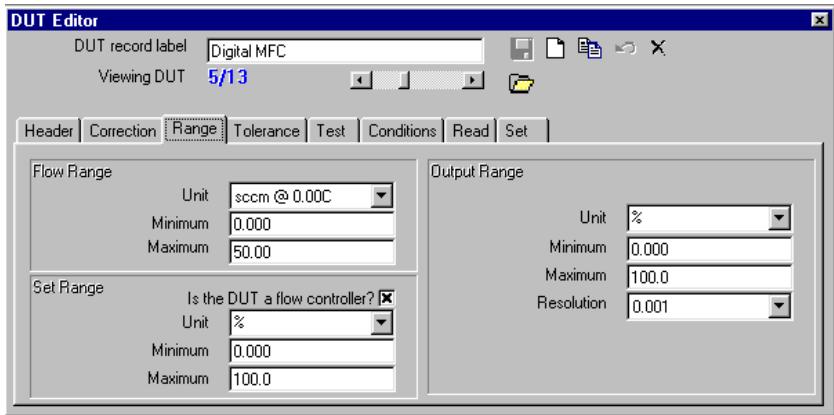
Figure 1. Example 1, DUT Range Setup
Select RS-232 as the DUT
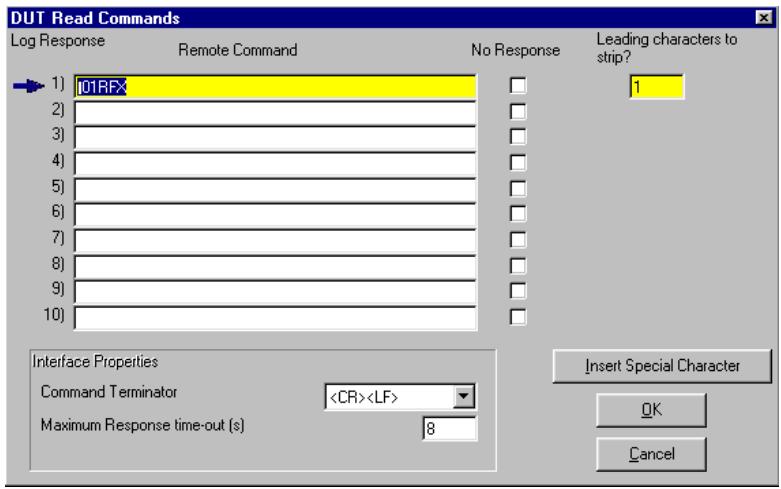
Figure 2. Example 1, DUT Read Command Setup
Setting up the
Save this DUT using the
5.1.1.2 SET UP A molbox AS THE REFERENCE
Use [Setup], [Hardware] to open the Hardware Definition screen (see Section 10.3.3). Select the [Reference] tab and check to see if the desired molbox is already in the list. If so, verify that the remote settings are correct and close the display. Otherwise press
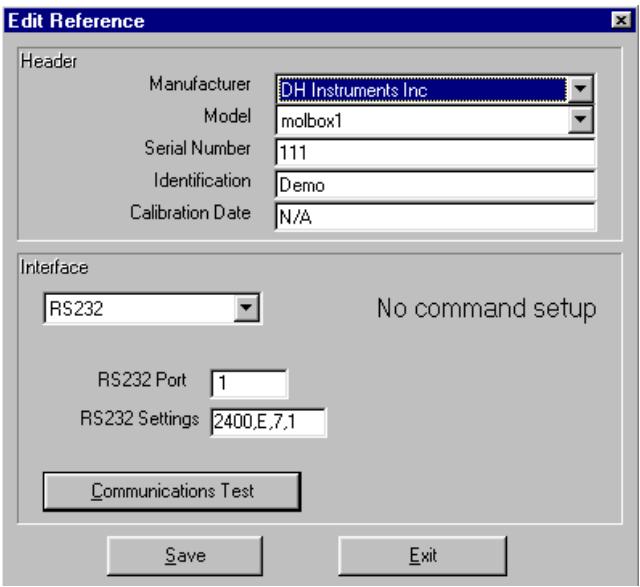
Figure 3. Example 1, molbox1 Reference Setup
Now that the molbox is set up, it must be selected in the System Configuration. Select [Setup], [System] from the main menu (see Section 10.2). This form is the only place the hardware to be used by COMPASS is specified. [Setup], [Hardware] creates Hardware Definitions which are lists of supported devices that can be selected to create the current System Configuration. Select the molbox in the
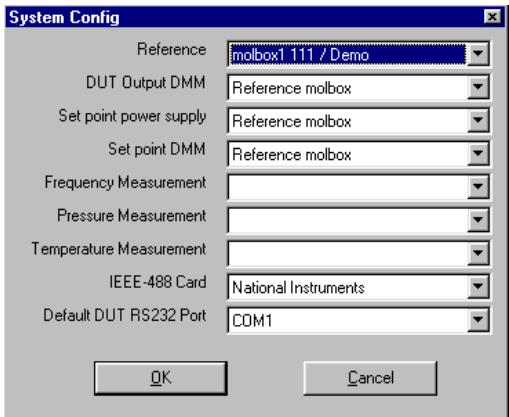
Figure 4. Example 1, System Configuration
5.1.1.3 RUN THE TEST
Use [Run], [Run Test] to execute a test (see Section 7.2). COMPASS will verify the interface of the reference molbox and determine which features it supports. Select the desired DUT and "Test1" in the test initialization (see Section 7.2.1).
Next, the

Figure 5. Example 1, DUT Interface Setup

The COM2 port of the molbox can be used instead of a communications port on the PC by selecting found at the end of the
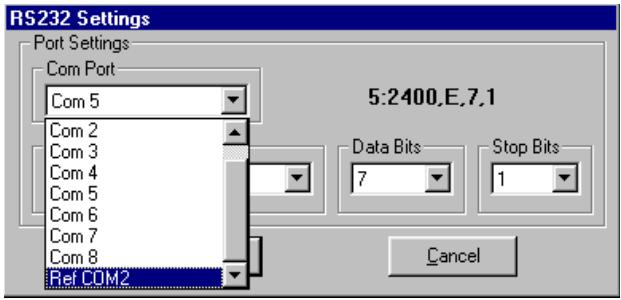
Figure 6. Example 1, RS-232 Setup with Ref Com2
5.1.2 EXAMPLE #2
Assuming the molbox1 from Example 1 is set up and it has the MFC control option, "How do I calibrate a DUT that outputs 0 to 5V corresponding to 0 to 1 slm?"
This example demonstrates the setup requirements of a common analog output DUT. The only setup required to use the molbox MFC control option is to make sure the molbox is set up with the proper remote interface in a Reference Hardware Definition and select the molbox in the System Configuration (see Section 10).
5.1.2.1 SETUP OUTPUT TYPE
Use the [Setup], [DUT] menu choice to open the DUT Definition Editor (see Section 8). Create a new DUT Definition and set up the basic header information corresponding to the DUT. In the [Range] tab (see Section 8.5.4), select the flow range units from the flow units list and enter the flow min and max values; 0 and 1 respectively. Check the
5.1.2.2 REFERENCE SETUP
Since we have assumed the reference molbox in Example #1 is already properly set up, we only need to make the necessary Hardware Definition selections to use the MFC control option. Use the [Setup], [System] menu option to display the
5.1.2.3 RUN THE TEST
Use [Run], [Run Test] to start a test sequence. Select the DUT just created and the desired Test Definition when prompted. There is no interface selection required when setting up the DUT interface during the test initialization.
5.1.3 EXAMPLE #3
"How do I use my HP34401A DMM to measure the DUT output?"
The HP34401A is a popular high accuracy Hewlett Packard multimeter that has an IEEE-488 and RS-232 interface. To read a voltage from this DMM, the command "MEAS:VOLT:DC?" must be issued. This example demonstrates the basic requirements of setting up a DMM for DUT data acquisition in the Hardware Definition.
5.1.3.1 DUT DEFINITION SETUP
The only requirement for DUT to be tested using an external DMM is that the output type of the DUT be
5.1.3.2 DMM CONFIGURATION SETUP
Use [Setup], [Hardware], then select the [DMM] tab and click
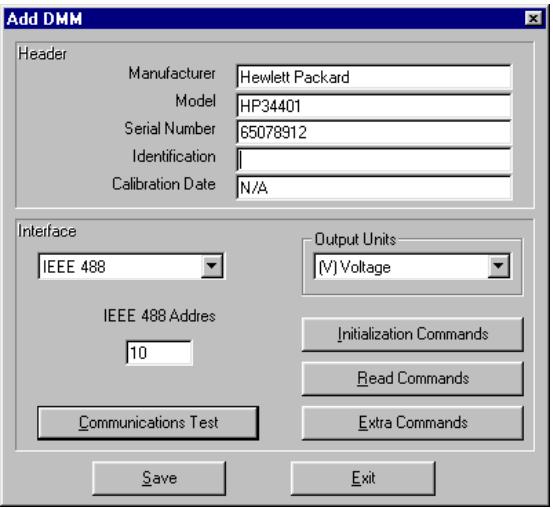
Figure 7. Example 2, DMM Setup
Access the System Configuration using the [Setup], [System] menu (see Section 10.2). Select this DMM as the
5.1.3.3 RUN THE TEST
Now that the COMPASS System Configuration includes the hardware necessary to run the test, use [Run], [Run Test] to start a test sequence (see Section 7.2). There is no interface selection required when setting up the DUT interface at the end of the test initialization. COMPASS will step through the test point sequence gathering data from the molbox and the DUT.
5.1.4 EXAMPLE #4
"How do I set up to calibrate a rotameter?"
Typical rotameters (variable area flowmeters) have scale indications that are either in mass flow units (sccm or slm, for example) or float position units (such as mm, inches). Since there is no electronic output of the rotameter's flow indication, the user must enter this value manually when a test is run.
If the rotameter's scale is marked in flow units or unitless divisions, the reference pressure and temperature should also be marked on the scale (or be listed in manufacturer literature). These values must be entered into the DUT Definition as the Normal Operating Conditions of the DUT (see Section 8.5.3).
If the scale is marked in float position units, the DUT Definition output range should be in the same units (see Section 8.5.4).
In either case, when a test is run, the actual gas conditions at the rotameter (temperature and absolute pressure) will need to be measured and supplied to COMPASS.
5.1.4.1 DUT DEFINITION SETUP
Select the [Setup], [DUT], [Header] tab, and select the DUT's process gas (see Section 8.5.2).
Select the [Setup], [DUT, [Correction] tab, and select the "Square Root" Gas Density Correction Type (see Section 8.5.3). You must also enter the Temperature and Absolute Pressure for the DUT's Normal Operating Conditions. The molecular mass or the specific gravity and the compressibility of the process gas must also be entered into COMPASS in this location. If the DUT process gas is a gas that is supported by molbox, these gas properties will be entered for you and cannot be edited.
Select the [Setup], [DUT], [Range] tab, and select or create the DUT's Flow Range units (these must be units of flow such as accm, or sccm – not scale indication such as mm or inches) and enter its Flow Range (see Section 8.5.4). Enter the DUT's Output Range units, and enter its Output Range (these can be units such as mm or in.).
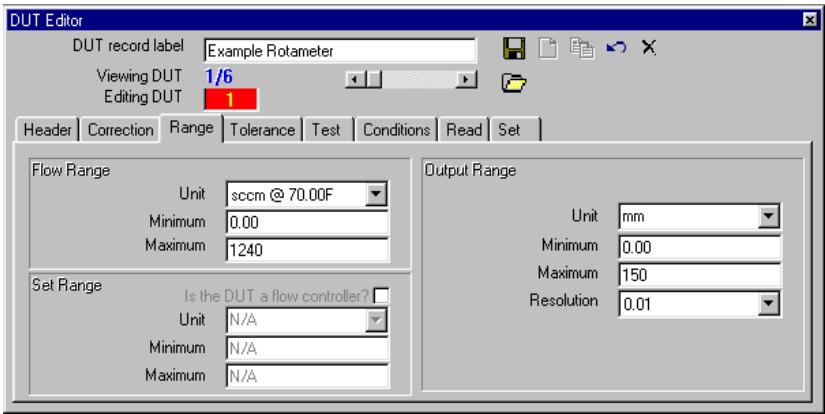
Figure 8. Example 4, DUT Setup
Select the [Setup], [DUT], [Test] tab, and select the "Calibration Gas" that you will be using to calibrate the rotameter (see Section 8.5.6).
Select the [Setup], [DUT, [Read] tab, and select "Manual" for the DUT Output Type (see Section 8.5.8).
5.1.4.2 TEST DEFINITION SETUP
There is nothing out of the ordinary about setting up a Test Definition for a rotameter (see Section 9), except that Jog Before Dwell should be checked on the [Control] if you are using the
5.1.4.3 TEST HARDWARE SETUP
The installation of the rotameter into the test plumbing should be made following the manufacturer's recommendations. In general, if the flow controlling device is upstream of the rotameter, the gas pressure and temperature measurements should be taken on the outlet side of the rotameter. If the flow control valve is on the outlet of the rotameter, the pressure and temperature measurements should be taken at the inlet of the rotameter.
Precise calculation of the flow to take into account that the rotameter is affected by gas density cannot be made without knowledge of actual gas temperature and absolute pressure at the rotameter during the test. This information must be entered manually when a test is run if it can't be obtained automatically.
The setup of manual entry of pressure and temperature is a two-part process. The [Setup], [System],
The setup of automatic pressure and temperature measurement is a two-step process. First the Hardware Definitions for the devices used to measure pressure and temperature must be created using the [Setup], [Hardware], [Temperature] and/or [Pressure] tab (see Section 10.3.4). Next the devices must be selected in the System Configuration using [Setup], [System], [Temperature] and [Pressure] pull-down menus (see Section 10.2).
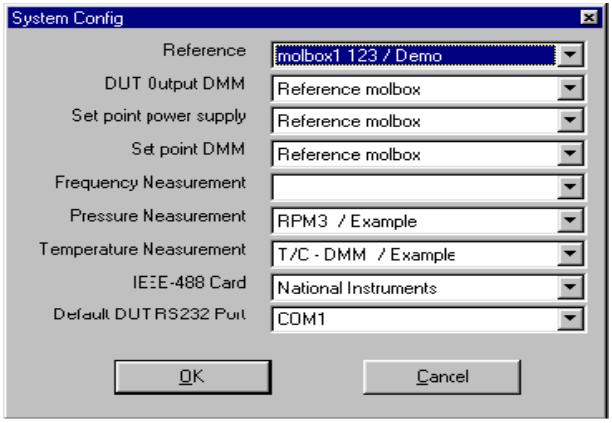
Figure 9. Example 4, System Configuration
5.1.4.4 RUN THE TEST
Now that the COMPASS System Configuration includes the hardware necessary to run the test, use [Run], [Run Test] to start a test sequence. COMPASS calculates two (2) flow data fields that are associated with the rotameter test. The field that contains the flow that is generated using the measured gas pressure and temperature and the Square Root Density Correction is called "Ref Q DUT Cond". This is the flow rate that is in the DUT's units and corrected to what the Reference flow would be at the DUT's normal operating conditions. The other flow value that COMPASS calculates is the "Ref Q". This is the Reference flow displayed in the DUT's flow units, without any type of gas density correction. "Ref Q DUT Cond" should always be used as the actual flow through the DUT and in evaluating its performance.

The data field "DUT Q" is the calculated value of flow derived by scaling the DUT Output Range to the DUT Flow Range. It is calculated at each point assuming a linear output. This is the value that is used to calculate percent errors, either as a percent full-scale or of reading.
5.1.5 EXAMPLE #5
"How do I set up to calibrate a DUT that outputs volume or actual flow units such as ccm, cfh, or accm, acfh?"

Volume or actual flow units of measure are NOT mass flow units. Very few flow measurements are made in these units even though the unit used may refer to volume (there are important differences between volume or actual units and volumetrically based mass flow units such as sccm). Before using volume or actual flow units, be absolutely sure that this is, in fact, what you want. See the [Unit] Section of the molbox Operation and Maintenance Manual for complete information on different flow unit types. COMPASS "axxxx" units correspond to volume or actual flow units in molbox.
Measuring actual or volume flow requires the actual pressure and temperature of the gas at the DUT to be known when a test is run. Current gas pressure and temperature data is indispensable to the determination of flow in volumetric or "actual" flow units. COMPASS supports different ways of acquiring gas pressure and temperature data including automatic data acquisition and manual entry.
5.1.5.1 DUT DEFINITION SETUP
Select the [Setup], [DUT], [Header] tab, and specify the DUT's process gas (see Section 8.5.2).
Select the [Setup], [DUT], [Range] tab, and select or create the DUT's Flow Range units (these will be in units of flow such as accm, or acfh) and enter its Flow Range (see Section 8.5.4). Enter the DUT's Output Range units, and enter its Output Range.
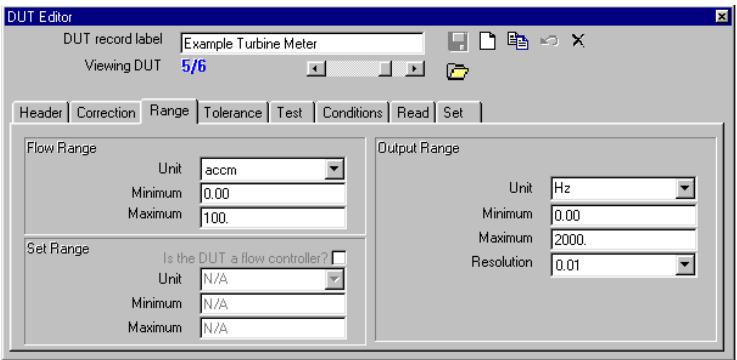
Figure 10. Example 5, DUT Definition
Select the [Setup], [DUT], [Test] tab, and select the "Calibration Gas" that you will be using to test the DUT (see Section 8.5.6).
Select the [Setup], [DUT], [Read] tab, and select the DUT Data Output Type (see Section 8.5.8). This is
5.1.5.2 TEST DEFINITION SETUP
There is nothing out of the ordinary about setting up a test to test a DUT that outputs volume or actual flow units (see Section 9).
5.1.5.3 TEST HARDWARE SETUP
The installation of a DUT that measures in volume or actual flow units should be made following the manufacturer's recommendations for straight piping lengths, etc.
Precise volume or actual flow measurements cannot be made without the knowledge of the actual temperature and absolute pressure of the gas at the DUT during the test. This information can be read automatically by COMPASS if the necessary Hardware Definitions are included in the System Configuration (see Sections 10.3.4, 10.2). If they cannot be read automatically they must be entered manually or set to a default value (see Section 11.6). Generally, the gas temperature and absolute pressure measurements should be taken at the inlet side of the DUT. Some manufacturers supply a test port for the connection of a pressure monitoring device.
The setup of manual entry of pressure and temperature is a two part process. The [Setup], [System],
The setup of automatic pressure and temperature measurement is a two-step process. First the Hardware Definitions of the measuring devices need to be created using the [Setup], [Hardware], [Temperature] and/or [Pressure] tabs (see Section 10.3.4). Next they must be selected for use by COMPASS using the [Setup], [System], [Temperature] and/or [Pressure] pull-down menus (see Section 10.2).
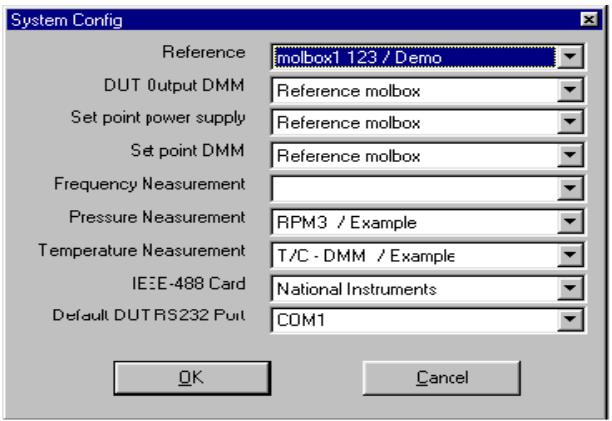
Figure 11. Example 5, System Configuration
5.1.5.4 RUN THE TEST
Use [Run], [Run Test] to start a test sequence (see Section 7.2).
5.1.6 EXAMPLE #6
"How do I set up to test at a single flow point for an extended period of time?"
You may desire to use COMPASS and the molbox/molbloc to capture mass flow data at one flow point over an extended period of time. This test method could be useful, for instance, to determine the stability of a DUT over time at a single set point.
5.1.6.1 DUT DEFINITION SETUP
Select or create a DUT Definition that matches the characteristics of the DUT that you will be running (see Section 8).
5.1.6.2 TEST DEFINITION SETUP
Select the [Setup], [Test], [Points] table, and enter the test point at which you would like to acquire the data (see Section 9).
Select the [Setup], [Test], [Sequence] tab, and enter the test sequence parameters. In order to run a long-term test, you can enter up to 100 readings per flow point. During the test, complete point reading sequences including averaging time will be made one after another with only the calculations, data storage, and data plotting operations in between. To make even more readings, repeat the same point in the

If your DUT is a controller, or you are using an "other controller", COMPASS has an option for two modes of flow regulation. You can select for COMPASS to make periodic flow control updates, and you can close the control loop on either the reference flow, or the DUT output (see Section 9.5.6).
Use [Run], [Run Test] to start the test sequence (see Section 7.2).
5.1.6.4 PLOT THE DATA
Once the test is complete, you can use the Plot options to product a plot of either Reference flow or DUT output versus point number (see Section 12.4).
5.1.7 EXAMPLE #7
"How do I set up to use COMPASS to compare molbox/molbloc flow to that of a piston prover or bell prover?"
The flow output of the molbloc can be connected to the input of a piston prover or bell prover and then their flow indications can be compared. This example assumes that the prover's flow indication is in mass flow units (such as kg/sec), or volumetrically based mass flow units (such as sccm). This implies that the prover accessories include density correction hardware and software. Volume or actual flow units (such as accm or cf are NIT mass flow units. When running this type of test take extra care to assure that the plumbing used for interconnection is leak-free, and that the inlet pressure to the molbloc is within its calibration limits.
5.1.7.1 DUT DEFINITION SETUP
Select the [Setup], [DUT], [Header] tab, and select the DUT's process gas (see Section 8.5.2). In this type of comparison the calibration gas should be the same as the process gas. Piston provers and/or bell provers do not usually have gas conversion or "K" factors.
Select the [Setup], [DUT], [Correction] tab, and ensure that "None" has been selected for the Gas Density Correction Type (see Section 8.5.3).
Select the [Setup], [DUT], [Range] tab, and select or create the DUT's Flow Range and Output Range units (these will be in units of mass flow such as sccm, slm, kg/sec, etc.). Enter the DUT's Flow Range and Output Range (see Section 8.5.4).
Select the [Setup], [DUT], [Test] tab, and select the calibration gas (see Section 8.5.6).
5.1.7.2 TEST DEFINITION SETUP
Select [Setup], [Test], [Sequence] tab, and enter the test sequence parameters. Set the Stability time and Dwell time to 0 seconds, and Averaging Time to manual, this will allow you to control and ensure that the prover is within its test stroke while the molbox is reading and averaging data (see Section 9.5.4).
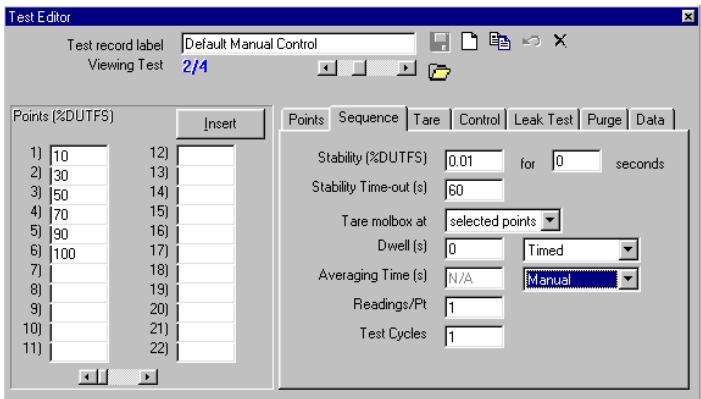
Figure 12. Example 7, Test Setup
5.1.7.3 RUN THE TEST
Use [Run], [Run Test] to start the test sequence.
If you are using manual flow control, COMPASS will prompt you to adjust the gas flow for the given test point. Flow will be set automatically if your test is using the
COMPASS will display the Test Message: "Press
It is important the COMPASS averaging time and the prover stroke be synchronized. Now you can initiate the stroke of your piston or bell prover. Once the prover system begins taking data, press the COMPASS "Start Avg" button. Just prior to the completion of data taking by the prover, press the "Stop Avg" button in COMPASS. The goal is for COMPASS to take data for as long a period as possible, but only during the actual measurement stroke of the prover.
5.1.8 EXAMPLE #8
"How do I set up to calibrate, in units of mass flow, a device that intrinsically measures volume flow and outputs proportionally to volume flow?"
Some devices (for example bell provers, piston provers, soap film meters, turbine meters) intrinsically measure volume flow and have an output that is proportional to volume flow. However, the objective when the instrument is used is to measure mass flow. Volume flow is converted to mass flow using the density of the flowing gas which requires knowledge of the gas pressure and temperature. Some devices include a "flow computer" and/or other accessories to measure the gas pressure and temperature and calculate mass flow from volume flow. For example, many piston prover systems include hardware and software to report mass flow. When this is not the case, the device output is proportional to volume flow, or it outputs volume flow directly. For example, a turbine meter's frequency output is proportional to volume flow and most soap film meters output volume flow. If you would like to calibrate such a device so that it can be used to measure mass flow, COMPASS can do so. This requires real time measurement of gas pressure and temperature at the DUT while calibrating it and use of the DUT proportional gas density correction. The limitation is that then the mass flow calibration will only be valid when the DUT is used in its defined "normal operating conditions" (i.e., reference gas pressure and temperature conditions).

COMPASS DUT gas density corrections only account for the effects of changing density on DUT readings and not for other, typically smaller, effects on the DUT that may occur when operating conditions change. Users should attempt to calibrate at conditions that are close to the DUT normal operating conditions to minimize the effect of possible non-density influences.
5.1.8.1 DUT DEFINITION SETUP
Set up the DUT record in a similar way to the DUT in Example #5 (Section 5.1.5) with the following changes:
Select [Setup], [DUT], [Range] tab and select the DUT flow unit. The unit will be a mass flow unit (e.g., sccm, mg/s, mol/s).
Select [Setup], [DUT], [Correction] tab and select the
these are the temperature and absolute pressure of the gas that will flow through the DUT when it is used in the field (this is NOT measured the gas temperature and pressure during the calibration). If you know the normal operating conditions that were used for the DUT's previous calibration, these conditions should be entered for this calibration to be compared to the previous calibration. If you don't know or if you want to change the DUT's normal operating conditions, enter the desired normal operating conditions for the DUT and the new calibration will be valid for the DUT when used under those conditions.
5.1.8.2 TEST DEFINITION SETUP
Generally, when running this type of DUT, the DUT output is adjusted to the DUT cardinal point at each flow increment. When using an
There is nothing out of the ordinary about setting up a test for this example (see Section 9).
5.1.8.3 TEST HARDWARE SETUP
The flow meter installation should be made following the manufacturer's recommendations. The gas pressure and temperature should be measured as close to the DUT as possible.
To correct for the effects of changes in gas density at different flow conditions, the gas temperature and pressure at the DUT must be known during the test. This information must be manually entered into COMPASS if it can't be obtained electronically.
The setup of manual entry of pressure and temperature is a two part process. The [Setup], [System], [Pressure Measurement] and [Temperature Measurement] should both read
To set up automatic pressure and temperature measurement first create the Hardware Definitions of the measuring devices using the [Setup], [Hardware], [Temperature] and/or [Pressure] tabs (see Section 10.3.4). Next they must be selected for use by COMPASS using the [Setup], [System], [Temperature] and/or [Pressure] pull-down menus (see Section 10.2).
5.1.8.4 SET UP DATA GRID
To display appropriate data in the Data Grid during the test, use the [Tools], [Options], [Grid] tab (see Section 6.7.5) and select the appropriate column headings. For tests using gas density corrections, the proper reference flow value to use is "Ref Q DUT Cond" (reference flow at DUT conditions). It is the adjusted reference flow value after making corrections for the effect of density changes on the DUT. This is the value of the flow that would be going through the DUT if it were currently at its normal operating conditions. In other words, this is the flow value that would produce the current DUT output, if the DUT were at its normal operating conditions.
"Ref Q" in the data grid is the reference flow expressed in the DUT flow units without any Gas Density Correction applied. This is the true value of the flow that is currently going through the DUT. This value is interesting because it shows the magnitude of the correction being applied due to the difference between current gas pressure and temperature conditions and the DUT's normal operating conditions. "Req Q" should NOT be used as the reference flow value in this example.

When no Gas Density Correction is being applied, the "Ref Q DUT Cond" value is equal to the "Ref Q" value. Therefore, "Ref Q DUT Cond" can be used as the reference flow for all tests in both the Data Grid and Report Editor.
5.1.8.5 RUN THE TEST
Generally, in this type of calibration, the flow is adjusted so that the DUT output is on a cardinal point.
If DUT output, pressure and temperature entries are set up for manual entry, COMPASS will prompt you to enter them at the appropriate times during the test. Be sure to enter these values in the units requested. These units can be changed using [Tools], [Options], [Run Test] tab.
6. MAIN SCREEN

6.1 OVERVIEW
The main screen contains the interface between the program setup and all of the data acquisition run screens. When COMPASS is first started up, the main screen displays without any child windows. Only after a menu option is selected does the screen update to display the corresponding window. The following features are available on the main screen:
- Main menu bar to access all COMPASS menus and functions (see Section 6.2).
- Status bar at the bottom of the screen that contains information on the current point in a test and the status of an operation (see Section 6.3).
- Run mode display to indicate the current COMPASS run mode (see Section 6.4).
- Run toolbar that provides quick access to runtime program displays and functions (see Section 6.5).
- Control toolbar that is available on the left of the main screen only in Run DUT and Run molbox modes (see Section 6.6).
- Several individual run screens that are available when running to provide real time data acquisition information (see Section 6.7).
6.2 MAIN MENU BAR
The main menu bar is divided into six separate selections. Each menu item is summarized below and covered in detail in various sections of this manual.
- [Run]: Use this choice to start one of the three COMPASS test running/data acquisition modes. [Run Test] initializes and runs Test Definitions while [Run DUT] and [Run molbox] both provide monitoring and control features without a pre-defined test script (see Section 7).
- [Setup]: All of the necessary program setup features are contained in this menu choice. The ability to create DUT and Test Definitions and to configure and select support hardware are the available choices (see Section 10).
- [Tools]: Access tools to customize COMPASS, convert pressure, temperature and flow units, create flow units, upgrade files from older COMPASS versions, directly communicate with any of the supported instruments, or run the Process Gas Editor (see Section 11).
- [Data]: View, plot or print the raw data contained in the Data Files that result from test execution (see Section 18). A link to the COMPASS Report Editor is also available in this menu choice (see Section 12).
- [Display]: Choose which child windows to display when a run mode has been selected. The windows can be tiled or cascaded if desired. New custom run displays can be created and previously saved custom displays can be selected (see Section 11.9).
- [Help]: Access on-line help (see Section 17).
6.3 STATUS BAR
The Status Bar is located at the bottom of the main screen. In all run modes, COMPASS flashes information related to the current operation on this display. While running tests, two panels and a progress indicator also display with status information on the current test step and point. The blue panel on the left displays the current test step or function. Each point of a test sequence has five basic test steps:
molloc Change (if specified for this point in Test Definition)
- Purge (if specified for this molbloc change)
- Leak Test (if specified for this molbloc change)
Set Flow to flow point specified
Stability Test for flow to stabilize at the set point
Tare (if specified for this point)
- Jog Flow (if specified for this point)
Dwell for dwell time at the set point
Take Point for length of averaging time
The red panel displays the current test point during a test. The notation used is "current cycle. current point
The progress indicator is a visual indication of the relationship between the current test point and the number of points in a test. The left side of the progress bar represents 0 progress and the right side represents 100% . Each step and reading of a test point increments the progress indicator. When

Figure 13.Status Bar
6.4 RUN MODES
Run mode describes the automatic execution function that COMPASS is in. Typically, instruments are polled over their remote interface while in a run mode. The top of the main screen always displays the current run mode. All run modes support the ability to log data to a data file. COMPASS has four run modes:
- Idle - No run mode is active. Menu items such as [Setup] can only be accessed in this mode. They are not available in active run modes.
- Run molbox - Activated by the [Run], [Run molbox] menu option. This run mode is to work with the molbox without a DUT and without a Test Definition (see Section 7.3).
- Run DUT - Activated by the [Run], [Run DUT] menu option. This run mode is to work with the molbox and a DUT Definition, but without a Test Definition (see Section 7.4).
- Run Test - Activated by the [Run], [Run Test] menu option. This run mode is to run a Test Definition on a DUT (see Section 7.2).
6.5 RUN TOOLBAR
This toolbar is only active after one of the [Run] menu choices has been made. Depending on the type of run mode, some of the toolbar options may be disabled. Unlike the control toolbar, the run toolbar always displays at the top of the screen regardless of the current run state. To use a tool, click on the tool icon.

Right click the toolbar to display a popup menu of options to reposition the toolbar. The toolbar can reside on any side of the main program window.

Use the [ToolBar] menu to access the toolbar functions without a mouse. Many toolbar functions contain shortcuts that can be accessed quickly from a keyboard.
6.5.1 RUN TOOLS
Table 2 describes the run toolbar features not related to run screens.
Table 2. Tools Available On The Run Toolbar
| ICON | DESCRIPTION |
| Step Back | Causes the current test point to be interrupted and the test point sequence to step back to the most recent set flow step. Subsequent clicks cause the test to step back one point for each click. This tool is used to repeat points when needed. The tool is enabled only in [Run Test] mode. |
| Step Forward | Causes the current test point to be interrupted and the test point sequence to step forward to the next step in a point sequence. This feature is available up to Step ⑤ of the highest point executed (see Section 6.3). The limitation is to ensure that data is logged at each point. Most often this tool is used to skip over previously executed points when the step back key has been used to go back several points. The tool is enabled only in [Run Test] mode. |
| Pause | Suspend remote communications with all instruments being used by COMPASS. Use this feature to allow front panel access to an instrument while COMPASS is in a run mode. This feature is also useful during test execution as it also pauses any test timers currently in operation. Click <Pause> again to resume operation. |
| Abort | <Abort> causes the <Abort Test> confirmation pop-up to appear to abort the test that is running. When COMPASS is in [Run molbox] or [Run DUT] mode, there is no confirmation after the button is pressed. |
| View DUT | Causes the DUT Definition Editor to display in the main screen with the information corresponding to the active DUT Definition (see Section 8.5). No editing or new DUT selections can be made at this time. This feature is not available when [Run molbox] is selected. |
| View Test | Causes the Test Definition Editor to display in the main screen with the information corresponding to the active Test Definition (see Section 9.5). This allows complete information on the current test procedure to be reviewed without interrupting the test. This feature is available only in [Run Test] mode. |
6.5.2 DISPLAY TOOLS
Table 3 describes toolbar features that relate to COMPASS run screens. With the exception of the
Table 3. Tools Available On The Display Toolbar
| ICON | DESCRIPTION |
| DUT/Reference Comparison | Display the <DUT/Reference Comparison> run screen. This display provides convenient, real time, error information calculated from the DUT and reference flows (see Section 6.7.1). |
| Molbox Output | Display the <molbox> run screen. This display contains real time updates of all of the basic molbloc/molbox conditions and output information (see Section 6.7.2). |
| DUT Output | Display the <DUT> run screen. The DUT output, flow, and set point information display on this run screen (see Section 6.7.3). |
| Average Data | Display the <Average Data> run screen. The average flow and output information are updated on this run screen each time an averaging cycle is completed (see Section 6.7.4). This feature is not available in [Run Test] mode. In this case average results are logged in the data grid. |
| Data Grid | Display the data grid with the data logged for the current test. The information displayed in the grid is customizable using the [Tools], [Options], [Grid] tab (see Sections 6.7.5 and 0). |
| Data Plot | Display the plot tool loaded with data from the current test. No new Data Files can be loaded in the plot tool while a test is running (see Section 6.7.6). |
| I/O Spy Window | Displays a pop-up window allowing the selection of all active remote interface spy windows (see Section 6.7.7). These windows are useful when troubleshooting remote communications problems in COMPASS. Each window displays the exact text used to send a command, the raw response to the command and the formatted response used by COMPASS. A separate spy window is displayed for each device even when the interface is shared. For example, a single device can be setup to read both the DUT pressure and temperature. Since COMPASS treats these setups as two separate devices, a different spy window will display for each setup. The spy options are listed below. ·molbox - Displays a spy window listing all command response interaction with the reference molbox. ·DUT Read - All non-molbox instruments used to read the DUT output display when selected. Up to three individual spy windows can be activated by this function depending on the DUT currently being run. If no remote interfaces are used to read DUT output information, this selection is not available. ·DUT Set - Displays a spy window of the instrument interface used to set the DUT flow. This could be the flow controller, power supply or the DUT interface. If no remote interfaces are used to set the DUT flow, this selection is not available. ·Auxiliary - Displays the spy windows of all active Auxiliary Data devices. Up to 10 individual spy windows can display. |
6.6 CONTROL TOOLBAR
This toolbar appears on the left of the main screen in [Run molbox] and [Run DUT] run modes. Since Test Definitions control many of the control toolbar functions, the toolbar is not available in [Run Test] mode. Each of the tools provides a link to many of the feature supported in the Test Definition and by molbox. Some toolbar selections trigger a new pop-up with more selections specific to a single function. These extended tool windows can be placed on any part of the screen but they cannot be scaled or tiled like the other run screens.
During tests, the

Right click the toolbar to display a popup menu of options to reposition the toolbar. The toolbar can reside on any side of the main program window.

Use the [ToolBar] menu to access the toolbar functions without a mouse. Many toolbar functions contain shortcuts that can be accessed quickly from a keyboard.

Not all options are available in all run modes. In [Run DUT] mode, the DUT Definition controls many values preventing changes. In some cases entire toolbar functions are disabled based on the DUT Definition.
6.6.1 CHANGE/RELOAD molbloc

This feature is represented by the toolbar icon:
When using molbox1 as a reference, this tool displays a pop-up panel allowing a new molbloc channel to be selected: A, B or A+B. If the selected channel does not contain a valid molbloc, an error message displays and the molbox flow displays
6.6.2 TARE molbox
The tare molbox feature is represented by the toolbar icon:

See the molbox Operation and Maintenance Manual, Tare Section, for complete information and recommendations on molbox pressure transducer taring.
This function executes the molbox sare function. When pressed, a message displays allowing the selection of the sare pressure: upstream or downstream. After this selection, the reference molbox's internal valves are actuated to set up the sare configuration. The current pressure measured by the molbox pressure transducers is displayed on the
See Table 4 for information on each of the tare molbox panel fields.
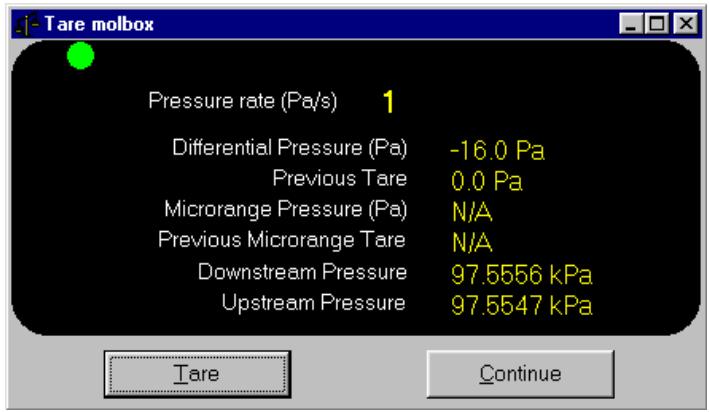
Figure 14.
Table 4.
| LABEL | DESCRIPTION |
| Red/Green Circular Ready Indicator | This indicator is green only when the pressure rate of change is within the molbox's internal tare rate criterion. In this state, the <Tare> button is enabled. When the indicator is red, the <Tare> button is disabled. |
| Pressure Rate (Pa/s) | Current differential pressure rate of change. |
| Differential Pressure (Pa) | Non-tare corrected differential pressure. After taring, this pressure value should be equivalent to the <Previous Tare> display. |
| Previous Tare (Pa) | Value of the old tare. This value is updated each time the tare button is pressed. |
| Microrange Pressure (Pa) | Current molbox RFM microrange option pressure. If the microrange is not supported by the molbox, this field displays as N/A. After taring, this pressure value should be equivalent to the <Previous Microrange Tare> display. |
| Previous Microrange Tare (Pa) | Value of the old microrange tare. |
| Downstream Pressure | Instantaneous downstream pressure. This value is corrected by 1/2 of the current tare value. |
| Upstream Pressure | Instantaneous upstream pressure. This value is corrected by 1/2 of the current tare value. |
6.6.3 PURGE FUNCTION

The molbox purge function is represented by the toolbar icon:
See the molbox Operation and Maintenance Manual, Purge Section, for a complete description and recommendations concerning use of the molbox purge function.
Use this function to purge the molbox of residual gases when flowing a new gas. Before activating this function make sure a flow has been set. When activated, a prompt allows the entry of the desired purging time, typically 30s should be sufficient. However, the actual purging time is dependent on the calibration gas and the volume of the system.
6.6.4 LEAK TEST

The molbox leak test function is represented by the toolbar icon:
See the molbox Operation and Maintenance Manual, Leak Test Section, for a complete description of the molbox leak check functions and instructions on their use.
COMPASS uses the molbox System Leak Test. The leak test takes 60s. During this time the molbox embedded software monitors the pressure changes. It then outputs a leak status based on the results.
6.6.5 MODIFY molbox VALVE DRIVERS
This feature is represented by the toolbar icon:

The state of the optional external molbox valve drivers can be adjusted by using this toolbar function. molbox valve drivers are commonly used to activate valves that isolate or exposes devices to the system flow. The
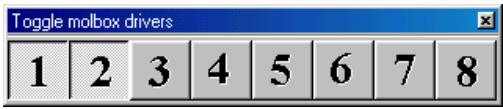
Figure 15.
6.6.6 FLOW CONDITIONS
The flow conditions function is represented by the toolbar icon:

The flow conditions function displays a flow conditions pop-up panel that is used to change the desired conditions. Change the desired value by drop down selection or numerical entry then press
See Table 5 for information on each of the flow conditions selection panel fields.

Press
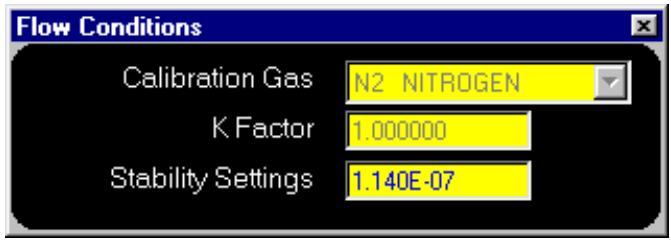
Figure 16.
Table 5.
| FEATURE | DESCRIPTION |
| Calibration Gas drop down list) | Select the calibration gas from the list of molbox supported gases. |
| Stability Setting (numeric entry field) | molbox stability criterion. The value entered is in the current molbox flow display units when in [Run molbox] mode and the DUT flow units when in [Run DUT] mode. The molbox stability criterion is the Ready/Not Ready criterion for molbox flow (see the molbox Operation and Maintenance Manual, Ready/Not Ready Section). |
| K Factor (numeric entry field) | Gas correction factor by which the molbox flow is multiplied when the gas flowing is not the normal DUT operating gas (process gas). The K factor is specific to the DUT (see the molbox Operation and Maintenance Manual, K Factor Section). |
6.6.7 UNITS SELECTION
The units selection function is represented by the toolbar icon:

Flow, pressure and temperature units of measure can be changed with this function. In [Run_DUT] mode, the flow units are controlled by the DUT Definition. The pressure and temperature units may also be controlled by the DUT Definition if it specifies a density correction (see Section 8.5.3).
Table 6 provides information on the units selection panel fields.

Press
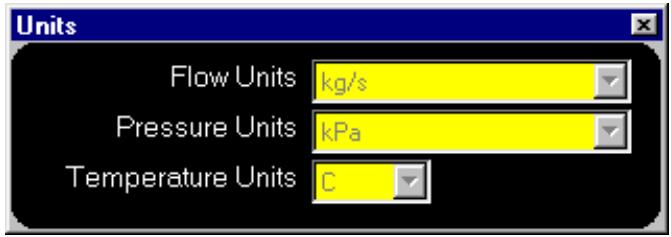
Figure 17.
Table 6.
| FEATURE | DESCRIPTION |
| Flow Units (drop down list) | Current display flow unit of measure. The value can be changed only in [Run molbox] mode. New flow units can be created by selecting the <Edit Units> option at the top of the drop down list. This selection displays the flow unit Editor (see Section 14). |
| Pressure Units (drop down list) | Select from the list of supported pressure units of measure. When in [Run DUT] mode and the DUT has a density correction, the pressure units are controlled by the DUT Definition (see Section 8.5.3). |
| Temperature Units (drop down list) | Select from the list of supported temperature units. When in [Run DUT] mode and the DUT has a density correction, the temperature units are controlled by the DUT Definition (see Section 8.5.3). |
6.6.8 FLOW CONTROL
The flow control function is represented by the toolbar icon:

If a non-manual flow control option is specified in [Run_DUT] mode or the reference molbox has the MFC control option in [Run_molbox] mode, this function is enabled to control the flow or molbox output. In [Run_DUT] mode, the flow can be changed by directly entering the target flow, scrolling to the desired target flow, using the jog function or activating one of the flow regulation modes. When the target flow is changed, an

The [Tools], [Options], [Run Test] tab contains the overshoot tolerance that limits the actual minimum and maximum set points based on the DUTs range (see Section 11.6). To set flows significantly above the DUTs defined range, this value must be increased while COMPASS is idle.
In [Run molbox] mode, there is no DUT information available to define the relationship between analog output and flow. As a result, flow regulation and jog functions are not available. The target flow field allows set points in volts and/or mA only based on the reference molbox.
Table 7 provides information on each of the flow control panel fields.

Press the
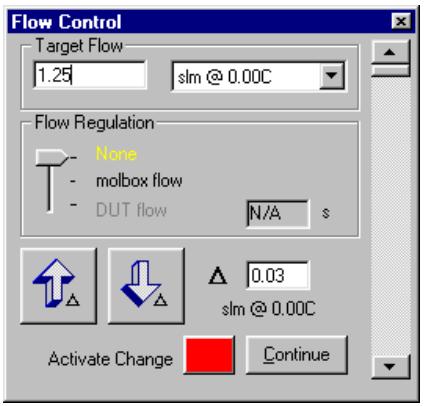
Figure 18.
Table 7.
| FEATURE | DESCRIPTION |
| Target Flow(conditional numericentry field) | The set point to activate using the currently configured flow control mechanism. This can be the DUT or a flow controller. The target flow value entered is assumed to be in the units specified in the drop down list box next to the flow entry field. If these units are changed, the target flow value is converted to the new unit using the DUT Definition information when available. |
| Vertical Scroll Bar(scroll bar) | Adjust the flow value by moving the scroll position indicator to the new target flow. Click and drag the indicator to the desired position or use the up and down arrows to achieve the desired flow. Each scroll position change is reflected in the target flow field. The top and bottom of the scroll bar respectively represent the maximum and minimum flow value including the configured overshoot tolerance (see Section 11.6). |
| Flow Regulation(slider control) | Turns ON one of the flow regulation modes (see Section 9.5.6). When activated the flow control is actively adjusted by COMPASS to set the flow to the target flow point as indicated by either the molbox or the DUT. Regulating to the DUT flow is not possible if the DUT output is not read remotely by COMPASS. When regulation mode is active, an asterisk appears next to the <Set Point> field on the <DUT> run screen. The time parameter to the right of the display determines the time between flow adjustments. Note that making the time between adjustments too short can cause unstable flow control. |
| Jog Up/Down(action button) | Changes the last set target flow by the amount specified next to the jog buttons. The set point resulting from each jog step displays on the <DUT> run screen. A fixed 2s delay occurs after each jog step. This prevents repeated jog steps from piling up in the buffer and causing erratic behavior. The jog function is the only flow control feature that does not require confirmation using the <Activate Change> button. Use the jog function when testing or testing DUTs for which you would like to adjust the flow so the DUT indicates a cardinal point. |
6.6.9 ENTER FLOW DATA

The flow entry function is represented by the toolbar icon:
This function is available in [Run_DUT] mode for DUTs that cannot be read remotely so their output must be entered manually. The entry could be the DUT output, current pressure or current temperature. The value entered is used to calculate the DUT flow so that error information is available on the

All entries must be in the units specified next to the entry label. Failure to enter values in the current units will result in erroneous DUT information.
6.6.10 DATA ACQUISITION TOOLS
In [Run molbox] and [Run DUT] run modes, data can be acquired based on the selection of the data acquisition options on the

When a data file is created in [Run DUT] and [Run molbox] run modes, data points can be taken without the constraints of a test. The resultant data file is identical to files generated with the [Run Test] option. Therefore, reports and plots can be created from the data file.

Using any of the
Table 8 describes each of the data acquisition toolbar options in detail.
Table 8.
| FEATURE | DESCRIPTION |
| Create Data File | Press this button to create a new data file. A standard windows filebox allows the selection of the data file name and location. In [Run molbox] run mode, the <Root DUT data directory> is used as the default file location. However, any read/write directory location is valid. [Run DUT] files use the same default naming convention as tests (see Section 11.8). The file created is identical to files generated during tests. Only 1 file can be active at a time. If a file is already open when this option is selected, the file is first closed before the new file is created. Use an <Initialization> preference to determine whether or not COMPASS automatically prompts for the data file during the initialization phase of the <Run molbox> and <Run DUT> run modes. |
| Log a single data point | Logs the instantaneous output of all devices to the data file. This is identical in function as using a 0 averaging time in a test. Any non automated devices must have their output entered in the <Enter Flow Data> window. If an auxiliary device is not setup to auto poll (see Section 10.3.7), the device will be read prior to logging the point. |
| Average and take 1 point | Averages all devices for the specified averaging time then logs the averaged results as a test point. This is identical to averaging data during a test. Both automatic and manual averages can be used to average the data (see Section 9.5.4). An automatic average is based purely on a time specified by the user. Manual averages allow the user to tell COMPASS when to start and stop averaging. When the <Control Toolbar> is located horizontally in COMPASS (top or bottom of display), the averaging mode is specified at the top of the drop down menu next to the average data icon. Use the <Change Averaging Setup> option to select the type of averaging to use. If the <Control Toolbar> is located vertically within COMPASS, the <Single Point Average Setup> (Figure 19) automatically displays providing the option to change settings. |
| Figure 19. <Single Point Average Setup> | |
| Log 1 point at fixed intervals | Logs an instantaneous data point at fixed time intervals. When the icon is pressed, an input box displays to allow entry of the time interval. Then COMPASS will automatically log a data point and repeatedly log data points until the <Abort Data Acquisition> button is pressed or the run mode is closed. Taking data in this way can be convenient when trying to monitor slowly evolving processes, i.e. the effect of temperature on a DUT. Realize that taking data at short time intervals can result in a very large data file. |
| The output of all manual entry devices must be entered for every data point logged. This minimizes the automation provided by this function. | |
| Average and log points at fixed intervals | Averages all device outputs and logs the results at fixed time intervals. When the icon is pressed the <Auto Point Average Setup> (see Figure 20) displays to allow entry of the averaging time and the intervals between averages. Then COMPASS will automatically begin averaging data. When the average is complete, the results are logged and the countdown to the next average begins. When the time specified as the <Restart average every (s)> has been reached, another averaging cycle will begin. This process is repeated until the <Abort Data Acquisition> button is pressed or the run mode is closed. Taking data in this way can be convenient when trying to mimic a test that includes multiple readings per point. Realize that taking data at short time intervals can result in very large data file. |
| Press the [Abort Data Acquisition] option to abort fixed interval data acquisition. | |
| Figure 20. <Auto Point Average Setup> | |
| Abort data acquisition | Press this icon to abort data acquisition at fixed intervals or a point currently being averaged. |
| Never use other <Control Toolbar> features when this icon is visible. Changing the state of the system while a point is in progress leads to faulty data logged in the data file. |
6.7 RUN SCREENS
COMPASS uses six different run screens and spy windows to display output information while in a run mode. The [Display] menu and the
6.7.1 DUT/REFERENCE COMPARISON RUN SCREEN
This run screen contains a simple display of errors useful when comparing the DUT and reference. The comparison run screen is considered to be the COMPASS program's main run screen.

The mouse pointer will change into a wand when the cursor is placed over any of the run screen fields that support unit changing. Click the field to get a pop-up menu of other unit of measure available. The DUT flow unit, output unit, set unit, and %DUTFS are the available choices. Click the DUT or reference output values to change their display units.
Information on each of the
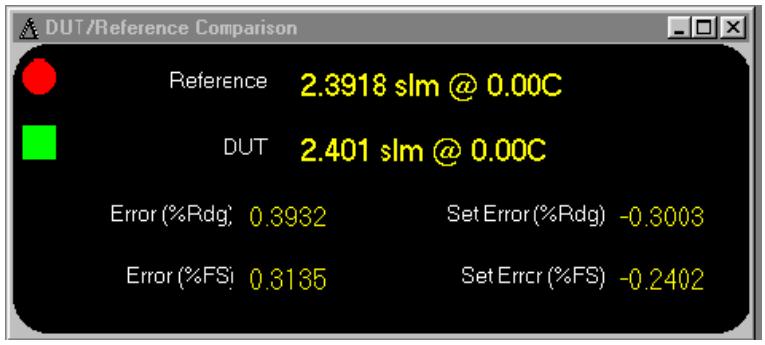
Figure 21.
Table 9.
| LABEL | DESCRIPTION |
| Red or Green Circular Indicator | molbox flow Ready/Not Ready indicator (see the molbox Operation and Maintenance Manual, Ready/Not Ready Section). The circle is green when molbox flow is ready and red when not ready. |
| Red or Green Square Indicator | DUT in or out of tolerance indication. The square is green only when the instantaneous flow error is within the tolerance specified in the DUT Definition (see Section 8.5.5). |
| Reference | Reference flow converted from the molbox display units to the current <DUT/Reference Comparison> run screen units. If the DUT Definition specifies a density correction (see Section 8.5.3), the reference flow value is the reference flow corrected for the DUT normal operating conditions ("Ref Flow DUT Cond" in the Data Grid). This allows the reference flow to represent the flow that would be present if the DUT were at its normal operating conditions. Put another way, reference flow corrected for the DUT normal operating conditions is what the DUT would indicate if it agreed perfectly with the reference. To change the display unit of measure, click the value and select the desired unit from the list. |
| DUT | The DUT flow converted to the current flow display units. When a manual entry DUT is used, the last output entry value displays until a new entry is made. The errors are therefore meaningless between entries. To change the display unit of measure, click the value and select the desired unit from the list. |
| Error (%Rdg) | DUT percent of reading error (see Section 19.4). |
| Error (%DUTFS) | DUT percent of full scale error (see Section 19.4). |
| Set Error (%Rdg) | DUT percent of reading set point error. If the measured set point is not available, the nominal value is used (see Section 19.3). |
| Set Error (%DUTFS) | DUT percent of full scale set point error. If the measured set point is not available, the nominal value is used (see Section 19.3). |
6.7.2 molbox OUTPUT RUN SCREEN
If a molbox is set up as the active flow reference, the
In [Run molbox] mode, the
Table 10 provides information on each field of the

Always use the COMPASS

When a mollocS does not have a valid back pressure ratio (BPR), the displayed flor is N/A.
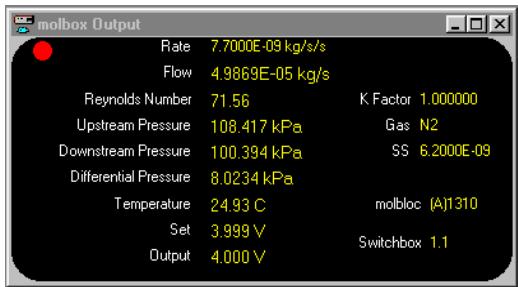
Figure 22.
Table 10.
| LABEL | DESCRIPTION |
| Red/Green Circle | Molbox flow Ready/Not Ready indicator (see the molbox Operation and Maintenance Manual, Ready/Not Ready Section). The circle is green when molbox flow is ready and red when not ready. |
| Rate | Instantaneous molbox flow rate of change in unit of flow per second. |
| Flow | Molloc flow. This value is the direct, unmanipulated output of the molbox in all run modes except [Run molbox]. In [Run molbox], the flow unit can be selected and the molbox output is converted to the currently selected flow unit. In all operating modes, except [Run molbox], the flow units available for this display are limited to the basic mass flow (mass/time) units. These are the base units COMPASS uses for its calculations. |
| Reynolds Number | Reynolds number of the flow through the molloc as calculated by the molbox. |
| Upstream Pressure | Pressure read by the molbox upstream pressure transducer. |
| Downstream Pressure | Pressure read by the downstream molbox pressure transducer. |
| Differential Pressure | The pressure drop across the molloc that is currently being used by the molbox to calculate flow.The differential pressure is the difference between the molbox upstream and downstream RPTs (in molbox RFM, it may be the measurement made by the microrange RPT). The molbox determines the differential pressure and outputs it to COMPASS. |
| BPR | BPR is the back pressure ratio, downstream pressure/upstream pressure. This field is present only when the reference is a mollocS. The value displayed is either the measured ratio or N/A when the value is not measured. The molbox front panel BPR setting determines whether or not BPR is measured or if the 2 molbox RPTs are averaged. Refer to the molbox operation and maintenance manual for |
| Temperature | Molloc temperature as measured by the molbox from the average of the molloc upstream and downstream PRT's. |
| Set | Active molbox flow set point. This value is used only in [Run molbox] mode if the molbox is equipped with the MFC control option. Change the setting using the flow control toolbar icon (see Section 6.6.8). |
| Output | Active molbox output. As with the <Set>, this value is used only in [Run molbox] mode if the molbox is equipped with the MFC control option. |
| Switchbox | Molbox MFC switchbox control and measurement channels. The format is <Set Channel . Measurement Channel>. This field has no value if the molbox does not have the MFC control option and an MFC switch box is not in use. Use the flow control icon in [Run molbox] mode to change the current channel. |
| K Factor | Active DUT gas conversion value in use by the molbox. In [Run molbox] mode, this value can be changed using the flow conditions toolbar icon (see Section 6.6.5). In all other run modes, the active DUT determines the K factor. In this case, the value cannot be changed. See the molbox Operation and Maintenance Manual, K Factor Section, for details on the use of K factors. |
| Gas | Active molbox calibration gas. In [Run molbox] mode, this value can be changed using the flow conditions toolbar icon (see Section 6.6.5). In all other run modes, the active DUT determines the calibration gas. In this case, the value cannot be changed. |
| Stability Setting | Active Ready/Not Ready stability criterion in the molbox. In [Run Test] mode, this value is fixed by the Test Definition in use. In all other run modes, the stability setting can be changed using the flow conditions toolbar icon (see Section 6.6.5). See the molbox Operation and Maintenance Manual, Ready/Not Ready Section, for additional information. |
| molbloc | The serial number and molbox channel of the active molbloc. The molbloc channel displays only when a two channel molbox is the active reference. |
6.7.3 DUT OUTPUT RUN SCREEN
The
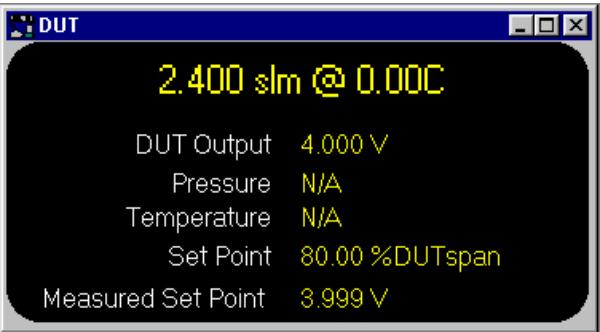
Figure 23.
Table 11.
| LABEL | DESCRIPTION |
| Flow | The top of the <DUT Output> run screen displays the flow measured by the DUT in the current DUT flow units. The value is updated each time the necessary output information is returned from the DUT. If the DUT is manual entry, this field is updated only when the user enters new output information. |
| Output | Raw DUT output. The displayed value is always in the output unit setup in the DUT record. |
| Pressure | DUT gas pressure for DUTs that specify a density correction. If no density correction is set up, the pressure field is N/A (see Section 8.5.3). When specified, the Pressure Device in the System Configuration is the source of this pressure value (see Section 10.2). Otherwise the pressure displayed is a default value or the last value manually entered (see Section 11.6). |
| Temperature | DUT gas temperature for DUTs that specify a density correction. If no density correction is set up, the temperature field is N/A (see Section 8.5.3). When specified, the Temperature Device in the System Configuration is the source of this temperature value (see Section 10.2). Otherwise the temperature displayed is a default value or the last temperature manually entered (see Section 11.6). |
| Set Point | Nominal DUT set point. When an asterisk appears next to the value, automatic flow regulation is active (see Section 8.5.6). |
| Measured Set Point | Measured DUT set point for DUTs that control flow with a voltage (V) or current (mA) based set point unit. The Set Point DMM in the System Configuration is the source of this data (see Section 10.2). |
6.7.4 AVERAGE DATA RUN SCREEN
Both [Run molbox] and [Run DUT] run modes provide continuous averaging of flow information. Each time the averaging time counts down to zero, the
Table 12 provides information on each field of the

The mouse pointer changes into a wand when the cursor is placed over any of the fields that support unit of measure changing. Click the field to get a pop-up menu of other display unit options. The DUT flow unit, output unit, set unit, and %DUTFS are the available choices. Click the DUT or reference fields to change their display units.
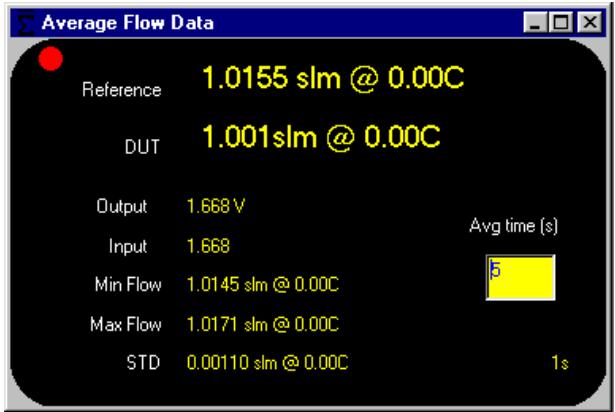
Figure 24.
Table 12.
| LABEL | DESCRIPTION |
| Red/Green Circular Display | molbox flow Ready/Not Ready indicator (see the molbox Operation and Maintenance Manual, Ready/Not Ready Section). The circle is red when any molbox flow reading during the averaging cycle was not ready and green when all molbox flow readings were ready. |
| Reference Flow | Average flow measured by the reference over the last averaging cycle. To change the display unit of measure, click the value and select the desired unit from the drop down list. If the DUT Definition [Correction] tab specifies a density correction, the reference flow value is corrected to express the flow that would be present at the DUT if the DUT were at its normal operating conditions. This correction allows the reference flow and DUT indication to be compared even though the DUT is not at its normal operating conditions (see Section 8.5.3). |
| DUT Flow | Average flow measured by the DUT over the last averaging cycle. To change the display unit of measure, click the value and select the desired unit from the drop down list. |
| DUT Output | Average DUT output over the last averaging cycle. This averaged output value is used to calculate the average flow. The output unit is specified in the DUT Definition (see Section 8.5.4). |
| Measured Set | Average measured DUT set point for DUTs that control flow with a voltage (V) or current (mA) based set point unit. The Set Point DMM in the System Configuration is the source of this data (see Section 10.2). |
| Min Flow | The minimum reference flow measured during the averaging interval. |
| Max Flow | The maximum reference flow measured during the averaging interval. |
| STD | The standard deviation of the reference flow values measured over the averaging period. |
6.7.5 DATA GRID RUN SCREEN
In [Run Test] mode, while running tests, the run screen is available to display the list of points taken and data associated with each point. Every point up to the current point in the current test cycle is displayed in this grid. The unit of measure for many columns is specified in the corresponding column header. As with the other run screens, the grid display is scalable. However, the individual grid columns do not automatically scale as the borders of the grid display are scaled. Instead click and hold the separator border between columns or rows and adjust the scale as desired. Spacing between columns is stored by COMPASS for display consistency between runs.
As a test progresses, the current point is automatically highlighted and selected in the grid. Use the options on the [Tools], [Options], [Grid] tab to prevent the automatic selection of the current test point (see Section 11.3). When automatic selection is on, if the grid is scrolled to the top to view points taken earlier in the test, completion of a new point will force the grid back to the last point.
The type of data and the ordering of data in the grid can be customized by using the [Tools], [Options], [Grid] tab (see Section 11.3). Any or all of the different data items logged during a test can be displayed at run time in the run screen. The order of points logged in the Data File is not affected by the grid display. By default, COMPASS displays six frequently used columns:
See Table 63 in Section 18.4.1 for an exhaustive list and description of all data available for display in the run screen.
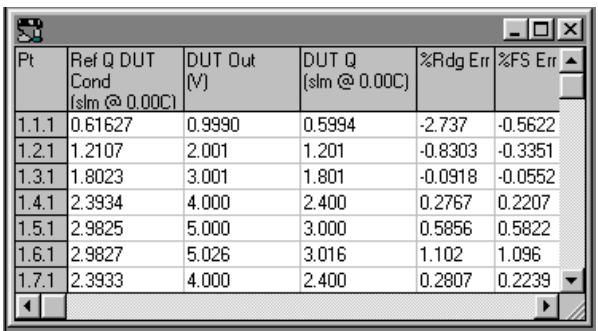
Figure 25. Run Screen
6.7.6 DATA PLOT RUN SCREEN
When running a test, the run screen can be used to display a variety of graphs of the data currently logged in the Data Grid. The graph can be changed or printed without affecting the run of the test. Unlike the [Data], [Plot Data File] graphing function, no new Data File can be selected. However, all other functions supported by the graphing tool are available during tests. For complete information on the graphing capabilities of COMPASS see Section 12.4. Each point taken during a test causes the graph to update with the current test point information. If the
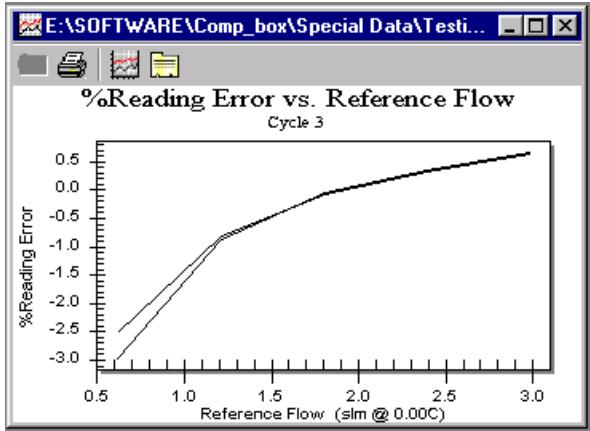
Figure 26. Run Screen
6.7.7 SPYWINDOWS
A spy window exists for each instrument interfaced with COMPASS. Use the
Spy windows are provided by COMPASS to troubleshoot or analyze remote communications. The caption of the spy window contains the instrument name and interface being spied on. Use the information in the
See
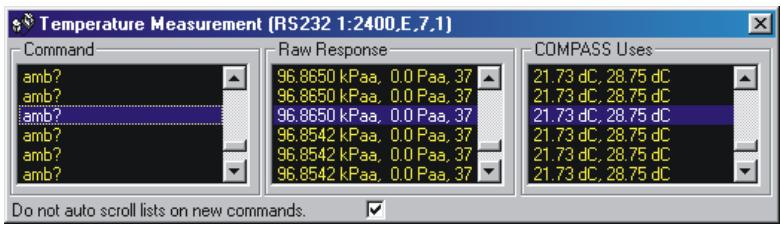
Table 13 for details on information displayed by spy windows.

Figure 27.
Selecting text in any column automatically highlights the corresponding text in the other columns. If the text width exceeds the column width, a tooltip message will display with the full text of the column if the mouse is held over the selection.

Pay close attention to the instrument interface in the spy window caption. If the interface displayed does not correspond to the actual instrument interface, there is a configuration problem in COMPASS. Use [Setup], [Hardware] to make interface changes to an instrument and [Setup], [System] to specify instruments to be used (see Sections 10.3, 10.2).
Table 13.
| FRAME LABEL | DESCRIPTION |
| Do not auto scroll lists on new commands | When checked, use the scroll bars of any field to view commands previously sent. The spy window will not auto scroll with each new command. If this option is not checked, every new command scrolls all three columns of the spy window. |
| Command | The exact command sent by COMPASS over the instrument interface. The command terminator is the only portion of the command that is typically not visible. For set commands, make sure the command and set value are properly formatted (see Section 13.2.3). |
| Raw Response | The unmanipulated response to the <Command> value issued. This field should always be blank if the command has the <No Response> box checked. |
| COMPASS Uses | The <Leading characters to strip> command setup information is used to format the <Raw Response>. The result is displayed in this field and logged as COMPASS data. Responses not specifically used by COMPASS do not have a value in this field. When troubleshooting, make sure the value displayed is the desired information. |
NOTES
7. [RUN] MODES
7.1 OVERVIEW

COMPASS has four basic run modes:
7.2 [RUN], [RUN TEST]
This menu selection is used to select a DUT Definition execute a test defined by a Test Definition (see Sections 8, 9). Test execution is divided into three sequential parts:
Test Initialization (see Section 7.2.1): Sets up the molbox interface, selects the DUT and Test Definition to run and enters user ID. Many of the sequential steps of test initialization can be turned ON or OFF using the [Tools], [Options], [Initialize Test] tab (see Section 11.5).
- Run Test (see Section 7.2.2): Runs purge (if included) and leak test (if included) followed by the test flow points taking data at each point based on the test data selections. The details of how a test runs are defined in the Test Definition (see Section 9). Certain aspects of how a test runs can be customized using the [Tools], [Options], [Run Test] and [End Test] tabs (see Sections 11.6, 11.7).
End Test (see Section 7.2.3): Presents the
7.2.1 TEST INITIALIZATION
Test initialization is the first part of test execution. With the exception of Step ① below, all the sequential steps of test initialization can be turned ON or OFF using the [Tools], [Options], [Initialize Test] tab (see Section 11.5). Test initialization proceeds as follows:
Initialize molbloc/molbox (see Section 7.2.1.1): If the reference specified in the System Configuration is a molbox, COMPASS loads the molbloc information into memory and determines which features are supported by the molbox. Depending on the current setup, this may take several seconds. This is the only Test Initialization step that cannot be disabled.
2 Select starting molbloc channel (see Section 7.2.1.2): When a two channel molbox reference is used, the initial molbloc channel can be selected if both channels have a valid molbloc. If this step is turned OFF, the current molbloc channel is automatically used.
Select DUT (see Section 7.2.1.3): The DUT selection tool is presented allowing selection of the DUT Definition to run. If this step is turned OFF, the screen is not shown and the last DUT used is automatically selected.
Select Test (see Section 7.2.1.4): The test selection tool is presented identifying the Test Definition associated with the DUT selected in Step ③. A different Test Definition can be selected or viewed at this point. If this step is turned OFF, the screen is not shown and the Test Definition associated with the DUT is automatically selected. If the DUT Definition does not specify a valid Test Definition, this step must be completed regardless of the initialize options.
Re-select DUT interface settings (see Section 7.2.1.5): When applicable, the DUT ID/Interface screen is presented with the default interface parameters for the DUT. Select new settings or accept the default values. If the DUT Definition is a DUT profile (see Section 8.5.2), the extra step of entering the DUT's serial number and/or identification is required. If this step is turned OFF and the DUT Definition is not a DUT profile, this screen does not display. The screen is automatically skipped if neither RS-232 nor IEEE-488 interfaces are set up for DUT set or read modes and the DUT Definition is not a DUT profile.
User ID Entry (see Section 7.2.1.6): The user ID entry screen is presented. The last user ID can be accepted, a new user ID may be entered, or a previously entered user ID may be selected from the user ID drop down list. If this step is turned OFF, the screen is not shown and the last user ID selected is automatically used.
Test initialization is complete, run test begins (see Section 7.2.2).
7.2.1.1 INITIALIZE molloc/molbox
When any model molbox is specified as the reference in the System Configuration (see Section 10.2), test initialization always begins by loading the molbloc into memory and determining which features are available. Depending on the molbox model and the type of interface used, this step may take several seconds. No user interaction is required while this step is in progress. COMPASS uses the information loaded to check for conflicts and range issues that may exist with the DUT Definition subsequently selected. Error messages are displayed if configuration conflicts or remote communication errors exist. Common examples are an RS-232 time-out which can occur if the molbox is not connected to the PC by an RS-232 cable. If the System Configuration specifies the
The molbox front panel display flow unit of measure is set up during this initialization step. The unit can be changed using the [Tools], [Options], [molbox] tab (see Section 11.2). If for any reason, the unit is changed after this initialization step, COMPASS will not be able to properly determine the reference flow.

Erroneous data will be logged if the reference molbox flow, pressure or temperature units are modified after the initialize molblob/molbox test initialization step. COMPASS expects the units of measure to remain constant once the system is initialized.
7.2.1.2 SELECT STARTING molloc CHANNEL
molbox1 models with two molbloc channels have an option to select the starting molbloc channel during the test initialization. When this feature is turned ON (see Section 11.2) and there are two molblocs connected to the molbox, the molbloc channel selector displays. Select the starting molbloc channel by clicking the A, B or A+B buttons. Close the channel selector panel to abort the test.
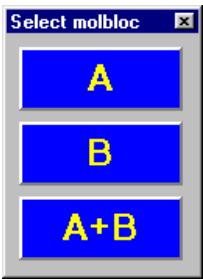
Figure 28.
7.2.1.3 SELECT DUT
The DUT Definition selection tool is presented allowing browsing of DUT Definitions available and selection of the DUT to run (see Section 8). If this step is turned OFF (see Section 11.2), the screen is not shown and the last DUT Definition used or accessed is automatically selected.
DUTs are listed by manufacturer, model, serial number, identification and record label. The list is sorted according to the most recently selected sort order. Use your keyboard's arrow keys or pointing device to highlight the desired DUT. The highlighted DUT record label is listed at the bottom of the display. To select a DUT from the DUT list, double click on the desired listing or press
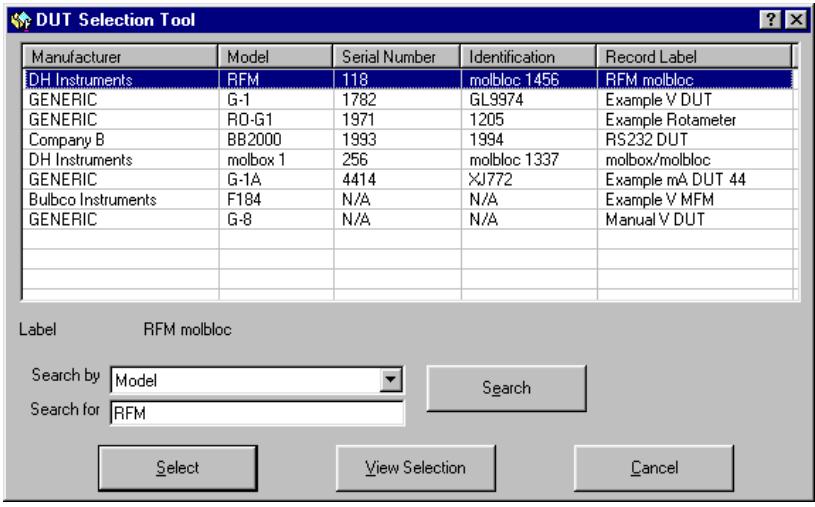
Figure 29.
The current selection is viewed using the
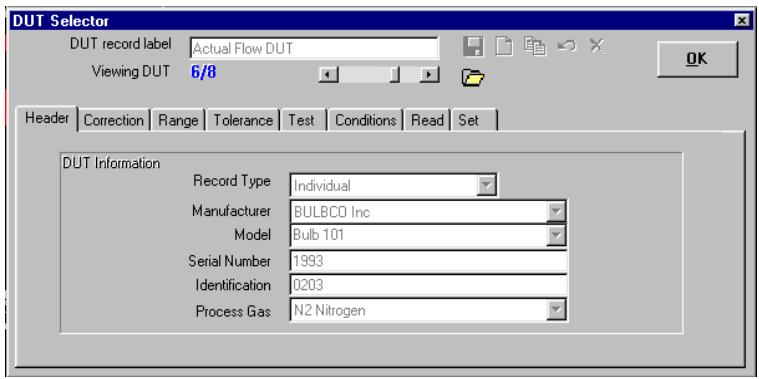
Figure 30.
7.2.1.4 SELECT TEST
The Test Definition selection tool is presented identifying the Test Definition associated with the current DUT Definition (see Sections 8.5.6, 8.5.9). If the DUT Definition does not specify a test, the last test accessed is selected by default. If this step is turned OFF (see Section 11.5), the screen is not shown and the Test Definition specified in the DUT Definition is automatically selected. COMPASS performs various checks for compatibility between the selected Test Definition and the DUT. When conflicts are detected, error and warning messages are displayed.
The test selection screen contains the core information about the Test Definitions available which may be helpful in selecting the test to run. Double click a Test Definition selection or press <0K> to accept the currently selected Test Definition. Press
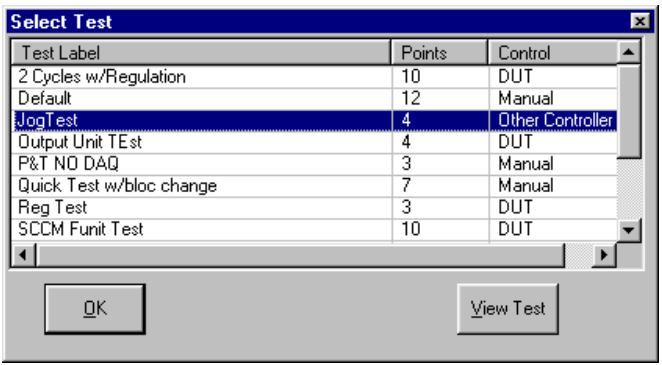
Figure 31.
When
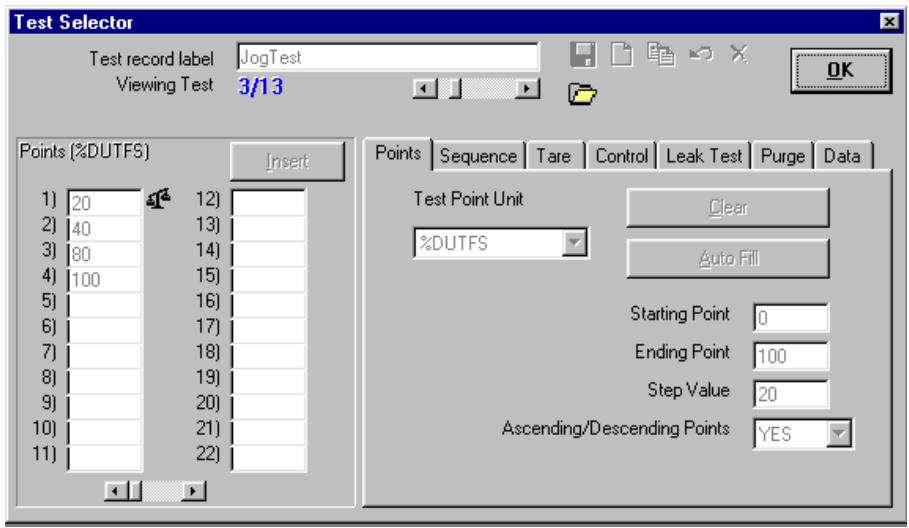
Figure 32.
7.2.1.5 SETUP DUT ID/INTERFACE
The setup DUT ID/Interface screen is presented. This screen is intended to allow input of DUT identification and communication details if necessary. There are some cases in which this display is not presented regardless of the options selected. This occurs when the selected DUT Definition is Individual DUT (see Section 8.5.2), and neither RS-232 nor IEEE-488 are specified to read or set the DUT. The display will always occur regardless of the state of the initialization option if the DUT Definition is a DUT Profile. Entry of the serial number and identification information is required in this case.

See Section 8 for information on Individual vs. Profile DUT Definitions and the DUT read and set types.

Do not use the following characters in the DUT serial number or identification fields: \/, :, *, ?, " , <, >, l, a comma or tab character. These characters will cause problems when importing the Data File or creating the Data File directory.
The setup DUT ID/Interface screen's appearance and operation vary depending on whether the DUT Definition being run is an Individual DUT or a DUT Profile and on the DUT's read and set type (see Sections 8.5.2, 8.5.8, 8.5.9).
- If the DUT Definition is a DUT Profile, the screen sets up with blank information in the serial number and identification fields. At least one of these fields must be completed prior to closing the window. This window displays regardless of the state of the setup DUT option in [Tools], [Options], [Initialize Test],
- If the DUT read or set type is RS-232 or IEEE-488, the default communications settings for the selected interface type display in the interface field (see Sections 8.5.8,8.5.9). If the interface is IEEE-488, enter the numerical IEEE-488 address. If the interface is RS-232, click the field to select the RS-232 settings. When both set and read share the same interface type, a change to the read interface automatically makes the same change to the set interface. Changes to the set interface do not automatically update the read interface. It is therefore possible for the set and read interfaces to be different. This is an atypical use of this feature but it is supported.
- If the DUT read or set type is neither RS-232 nor IEEE-488, the interface description contains the text representing the type of interface to use. This can be
, , or .

If the DUT is connected to the molbox's RS-232 COM2 port, use the selection at the bottom of the Com Port drop down list. COMPASS automatically handles the necessary command formatting to pass commands through the COM2 port.

When using the
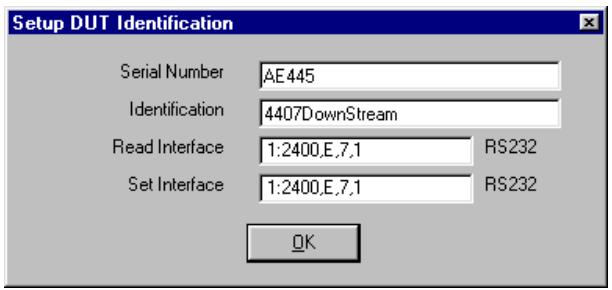
Figure 33.
7.2.1.6 USER ID
The user ID entry screen is presented. The last user ID can be accepted, a new user ID may be entered, or a previously entered user ID may be selected from the user ID drop down list. If this step is turned OFF in [Tools], [Options], [Initialize Test] (see Section 11.5), the screen is not shown and the last user ID selected is automatically used.
Any time a new user ID is entered, it is automatically added to the user ID list. Names can be removed from the list using [Tools], [Options], [Maintain Lists] (see Section 11.4).
7.2.2 RUN TEST
After test initialization is complete (see Section 7.2.1), run test begins.

The test procedure is defined by the Test Definition (see Section 9) associated with the selected DUT Definition (see Section 8). Prior to running a test, various aspects of run test behavior may be customized (see Section 11.6).
During run test the main menu bar is disabled but the
A test that is running can be aborted at any time by pressing the
The run test sequence is as follows:
- Run purge: If purge is specified in the Test Definition (see Section 9.5.8), COMPASS will set the purge flow rate, activate the necessary molbox valves to purge the molbox and then start the purge count down. When the purge time expires the valves are automatically adjusted back to normal operation.
Run leak test: If a leak test is specified in the Test Definition (see Section 9.5.7) and the reference molbox supports leak tests, a message displays to notify the user to make the necessary preparations for a leak test. After the message is confirmed, the leak time count down begins. All leak tests last approximately 60s. When the leak time expires, the status bar displays the Pass or Fail status. The results of the leak tests are also recorded in the Data File. Unless theoption is checked on the [Leak Test] tab of the Test Definition, test execution continues regardless of the leak test results.
Change molloc: If a molloc change is specified for the test point in the Test Definition (see Section 9.5.2), COMPASS displays a prompt to change the molloc. When the message is confirmed, the new molloc information is loaded into memory. If the molloc has not changed or an error occurs in loading the new molloc, an error message displays. The molloc range and serial number are logged in thecolumn of the data grid. If purge after molloc change is specified, the purge function described in Step ① is repeated. If leak test after molloc change is specified in the Test Definition, the leak test described in Step ② is repeated. The result of each leak test is logged in the column of the data grid as well as in the Data File (see Section 18.4).
Set flow point: The flow test point is set. The method used to set the flow is determined by the (see Section 18.4). After completing the flow stability test, test execution continues.
Tare molbox: If the current test point requires a tare (see Section 9.5.2) and the reference is a molbox, the molbox internal valves are adjusted for taring and the
Jog before dwell: If jog mode is selected in the Test Definition (see Section 9.5.6), the
Dwell: If timed dwell is specified in the Test Definition (see Section 9.5.4), the dwell time counts down and execution continues. If the Test Definition specifies manual dwell, COMPASS waits for the operator to press
Take data: Following the settings in the Test Definition [Data] tab, the reference, DUT and measured DUT set point are read as many times as possible for the averaging period (see Section 9.5.9). If timed averaging is specified in the Test Definition (see Section 9.5.4), the averaging time counts down as the flow data is averaged. If manual averaging is selected, a message displays awaiting confirmation of when to start averaging. A fixed averaging time can be entered in this window if desired. If the fixed time is entered and the
9 If this is not the last point in a test cycle, the sequence repeats starting with the Step Change molloc. If this is the last point in a test cycle, the [Tools], [Options], [End Test] tab (see Section 11.7) last point selection is used to determine what to do after the last point. During all other test points, pressing the
When run test is complete, test conclusion begins (see Section 7.2.3).
7.2.2.1 MANUAL ENTRY DATA ACQUISITION
When the reference or any portion of the required DUT data requires manual entry, the
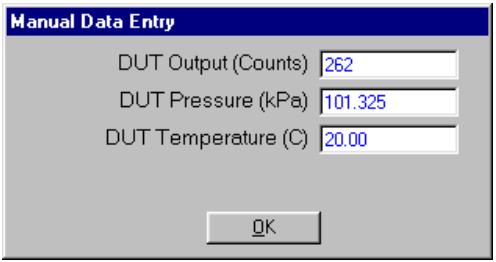
Figure 34.
7.2.3 TEST CONCLUSION
After run test is complete (see Section 7.2.2), test conclusion begins. Other than the repeat point option, there are two main steps to the test conclusion.
- Test Notes: The
pop-up appears to allow the user to enter notes concerning the test run that has just completed. The notes are included in the Data File and can be used in reports. In multi-cycle tests, only one display for the test notes occurs. The test notes step can be skipped by selection in the [Tools], [Options], [End Test] tab (see Section 11.7). - Test Complete Screen: If the auto generate report option is selected on the [Tools], [Options], [End Test] tab (see Section 11.7), the current report template is used to generate a report with the test Data File. Regardless of this selection, the
screen displays with the name and path of the test Data File and offers various post test options. Operation always returns to the screen until has been selected.
Table 14 lists the
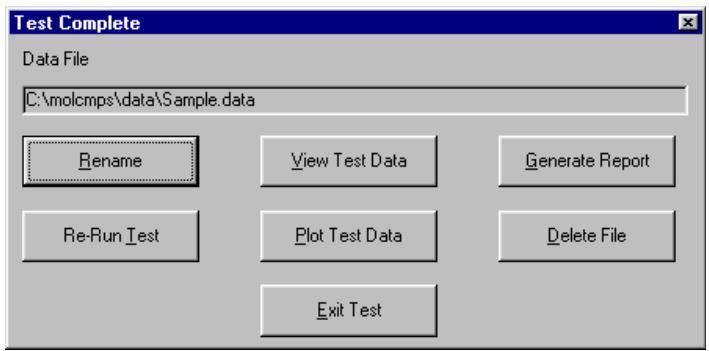
Figure 35.
Table 14.
| FEATURE | DESCRIPTION |
| <Rename>(action button) | Used to override the default name and directory for the Data File resulting from the test. Brings up a standard Windows Save As file box showing the default directory and file name. These can be rewritten, if desired. |
| <View Test Data>(action button) | Used to review raw test data immediately following test completion without exiting the test completely. This selection causes the Data File viewer to appear with the *.dat file from the test that has just completed open. This is functionally equivalent to selecting [Data], [View Data File] with the Data File from the test that has just completed (see Section 12.2). Close the Data File viewer using the control box <X> or press <Esc> to return to the <Test Complete> selections. |
| <Generate Report>(action button) | Used as a shortcut to generate a test report immediately following test completion. The COMPASS Report Editor merges the Data File with the last used report template to generate a report. Multiple individual reports can automatically be created with the selected template if the proper report Editor options are selected (see Section 16.3.3.4). The report Editor displays each report generated. This is functionally equivalent to running the COMPASS Report Editor as a standalone application and selecting the [File], [Generate Report] option (see Section 16.3.1.2). |
| <Re-Run Test>(action button) | Used to re-run the exact same test under the exact same conditions without initialization prompts or selections. This feature does not overwrite the current Data File, it creates a new Data File. |
| <Plot Test Data>(action button) | Used as a shortcut to immediately view plots using the data from the test that just completed. This choice is functionally equivalent to exiting the test and selecting [Data], [Plot Data File] (see Section 12.4). Close the plot function using the control box <X> or press <Esc> to return to the <Test Complete> selections. |
| <Delete File>(action button) | Used to delete the current test Data File. Use this feature if the data taken will not be used. When used, a delete confirmation prompt must be answered prior to deleting the Data File. When confirmed, the file is deleted and the <Test Complete> window automatically closes. |
| <Exit Test>(action button) | Exits the test. The <Test Complete> pop-up disappears and the main menu and associated screen reappear. The current test data remains active until another test is started. |
7.3 [RUN molbox]
This run mode is used as a virtual interface to the molbox. Flow, pressure, temperature and analog output information (if available) are continuously updated on the
![FLUKE COMPASS FOR MOLBOX - [RUN molbox] - 1](/content/2019/12/19968/images/089326dabf38d6c5f3b9abd372fe3988aec7c568984154e0faf011c6f8509414.jpg)
The Run molbox option is similar to running a test without a DUT and a fixed sequence. All operations available in the test are available on the
Provided that a molbox is properly interfaced with the PC and is selected in the System Configuration as the flow reference; the only initialization step for this run mode is to select the data acquisition options to use in addition to the molbox. A dialog display (Figure 36) similar to the and
same fashion as a test if any of the
![FLUKE COMPASS FOR MOLBOX - [RUN molbox] - 2](/content/2019/12/19968/images/bb699164f514c4df5209811e88f4a33abe46eb3c7e24769168798b80f47a8c8a.jpg)
Figure 36.
Some
![FLUKE COMPASS FOR MOLBOX - [RUN molbox] - 3](/content/2019/12/19968/images/e2836226afb8d09a369df13e512855c9371f18e1dfeabf1ad3a97dd8a2399386.jpg)
Using any of the
COMPASS polls the molbox and responds to the toolbar options until the
7.4 [RUN_DUT]
Use this feature to access the predefined settings specified in a DUT Definition (see Section 8) without running a specific Test Definition. In this run mode, COMPASS provides all of the features of a test in an easily accessible toolbar. The
This function requires the selection of a DUT Definition as part of the initialization process. If the DUT is not set up as a controller (see Section 8.5.4), a flow control selection is also required. Flow control can be manual, or a previously set up flow controller can be selected. The selected DUT must also have the necessary support instruments configured in the System Configuration (see Section 10.2).
It is also possible to setup support devices to log data from. A dialog display (Figure 36) similar to the and
deactivated at this time. DUT's that are setup to use a density correction or DUTs with actual flow units must use pressure and temperature data acquisition.
![FLUKE COMPASS FOR MOLBOX - [RUN_DUT] - 1](/content/2019/12/19968/images/969387a1f71cadb1d0232d73b702bb15e0e0093d758919ec31603e66450a4a20.jpg)
The Run DUT option is similar to running a test without a fixed sequence. All operations available in the test are available on the
Based on the DUT Definition, not all
![FLUKE COMPASS FOR MOLBOX - [RUN_DUT] - 2](/content/2019/12/19968/images/52e41028fc8b1942ed6dde30dc465bb3974505a6e33dfdbd18fdeef7b0987dd9.jpg)
Using any of the
8. [SETUP], [DUT]
8.1 OVERVIEW

COMPASS is organized around the support and testing of Devices Under Test (DUTs). DUTs are defined in DUT Definitions. The information contained in the DUT Definition determines which System Configuration devices are required (see Section 10.2) for the COMPASS run modes. DUT Definitions not only specify the relationship between set point, output and flow; they determine how this data will be acquired. Some DUTs can output directly using an RS-232 or IEEE-488 interface while others require a DMM or a manual entry to log their output. Some DUTs are sensitive to the density of the flowing gas so that gas density corrections must be made to properly evaluate them. There are DUT's that control flow and others that measure only. The DUT Definition supports all the necessary features to properly set up a very wide variety of DUTs.
There are two types of DUT Definitions specified in the DUT [Header] tab (see Section 8.5.2):
- Individual DUT Definitions are intended to define a specific, individual DUT. They include a unique DUT serial number and identification value. This type of DUT Definition does not require new entries during test initialization (see Section 7.2.1.5).
- DUT Profile Definitions are intended to define a general DUT type. They do not include serial number and identification values. DUT profiles are useful when several DUTs of the same type will be tested. Instead of creating multiple DUTs all differing by serial number and/or identification only, use a DUT profile. This type of DUT Definition requires that the DUT be identified during test initialization (see Section 7.2.1.5).
Access the DUT Definition Editor using the [Setup], [DUT] menu option. When selected, the last accessed DUT Definition displays in the DUT Definition Editor. While in the Editor, use the toolbar options to create, edit, view and delete DUTs (see Section 8.5.1).
Only one DUT can be edited at a time, however, other DUTs can be viewed prior to completing the changes on the DUT being edited. The DUT scroll bar and the DUT Selector are available to make new DUT selections. A flashing indicator displays the ID number of the DUT currently being edited. This ID will change as the DUT sort order changes. The edited DUT always displays in blue text in the DUT Selector (see Section 8.4). Use these editing signals to locate the DUT if necessary.

DUT Definitions can be edited only when COMPASS is not in an active run mode. If a run mode is active, all DUT fields and selection functions are disabled.
8.2 CREATING DUT DEFINITIONS
Open the DUT Definition Editor using the [Setup], [DUT] menu option. Use the

If a DUT Definition exists that is similar to the one that will be created, use the
8.3 EDITING DUT DEFINITIONS
DUTs can be edited whenever COMPASS is not in an active run mode. Use the [Setup], [DUT] menu option to display the DUT Definition Editor. Simply changing information in the DUT Definition Editor places the Editor in the edit mode. No specific option must be selected to begin editing a DUT Definition. Use the
8.4 DUT DEFINITION SELECTOR
The DUT Definition Selector is most frequently used to select DUTs. This tool is used when initializing [Run_DUT] and [Run_Test] run modes (see Sections 7.4, 7.2). Click any of the Selector column headers to sort the DUT Definitions low to high by the data in that column. For example, clicking the
Use the search tools on the DUT Definition Selector to locate a DUT when many exist. Use the
Click, hold and move the separator bar between column headers to expand or contract the column widths. This may be necessary if a DUT field extends beyond the width of the default column display. The difference between individual DUTs and DUT Profiles is evident in the Selector. The former displays serial number and identification information, while the latter does not. Since most frequently the
The DUT Definition Editor has a scroll feature allowing DUTs to be selected by scrolling (see Section 8.5.1). The ordering of the scrolled DUTs is determined by the last sort order in the DUT Selector.

An edited DUT Definition displays in blue text in the DUT Selector.
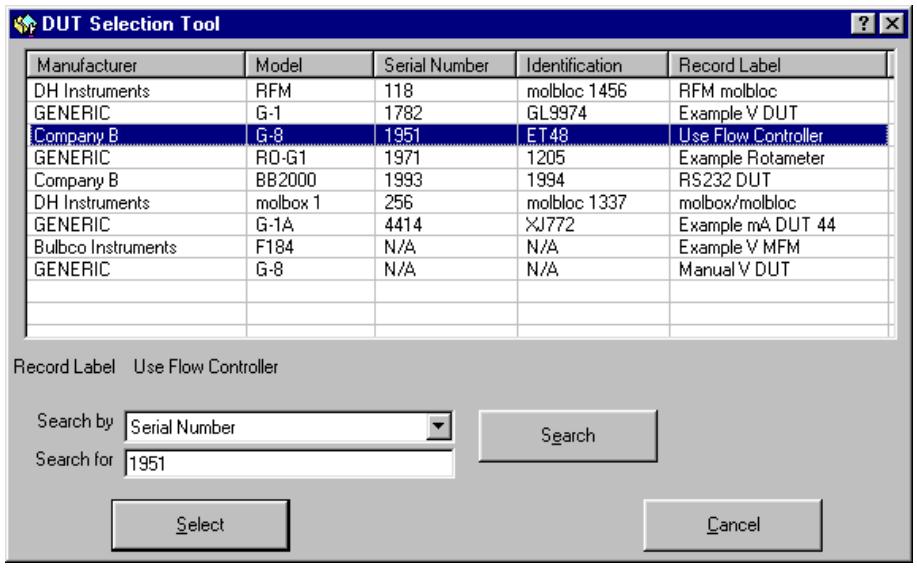
Figure 37.
8.5 DUT DEFINITION EDITOR
All DUT Definitions are created or edited using the DUT Definition Editor. The Editor also acts as a viewer in other COMPASS functions. When editing a DUT, verify that each Editor tab contains the proper information. This will help to avoid conflicts when using the DUT Definition in a COMPASS run mode. Refer to Sections 8.5.1 through 8.5.9 for detailed information on the features and entry fields of the DUT Definition Editor.
The DUT Definition Editor is made up of multiple sections:
(see Section 8.5.1): Includes tools to identify and select DUT Definitions and icons to create, save, copy and delete Definitions. - [Header] Tab (see Section 8.5.2): Contains general DUT identifying information and the Profile or Individual type choice.
- [Correction] Tab (see Section 8.5.3): Specifies whether a gas density correction should be made for the DUT and the DUT's standard operating gas pressure and temperature conditions.
- [Range] Tab (see Section 8.5.4): Defines the DUT's flow and measurement output unit and range. Specifies if the DUT is a flow controller.
- [Tolerance] Tab (see Section 8.5.5): Specifies the DUT's measurement tolerance type and quantifies the tolerance.
- [Test] Tab (see Section 8.5.6): Identifies the default Test Definition to be used when the DUT is selected in [Run Test] mode.
- [Conditions] Tab (see Section 8.5.7): Records conditions under which the DUT is tested (orientation, downstream pressure).
- [Read] Tab (see Section 8.5.8): Defines the DUT's output type and commands to be used. Sets resolution to use when running tests.
- [Set] Tab (see Section 8.5.9): If the DUT is a flow controller, defines the set point type and range and commands to be used in the case of RS-232 or IEEE-488 DUTs.
8.5.1 TOOLBAR
All fields above the tabs on the DUT Definition Editor are considered part of the toolbar. The toolbar not only identifies which Definition is active, but also provides tools to create, delete, save, restore, identify and select DUT Definitions. Table 15 identifies the toolbar features and their functions.

Figure 38. DUT Definition Editor,
Table 15. DUT Definition Editor,
| FEATURE | DESCRIPTION |
| DUT record label (required text entry field) | This field is analogous to a file name. The text entered should make the DUT easily distinguishable from other DUTs. Up to 40 characters can be entered in the label. In some cases it may be useful to set up a single DUT more than one time, for example if the DUT supports multiple gases. In this case, a proper use of this field would be to include the mention of the calibration or process gas as part of the record label. |
| Do not use the following characters in the DUT record label: \/, \, *, ?, " , <, >, I, a comma or tab character. These characters will cause problems when importing the Data File or creating the Data File directory based on the data directory naming convention selected using the [Tools], [Options], [Data File] tab (see Section 11.8). | |
| Viewing DUT _label) | Identifies the current relative sort position of the DUT in the Editor. As the sort order changes, this field also changes (see Section 8.4). The notation is “Current DUT/Total number of DUTs”. |
| Editing DUT _label) | Identifies the sort identification of a DUT that is being edited. This field does not display unless a DUT is being edited. As the sort order changes, this field also changes (see Section 8.4). |
| Save toolbar button) | Saves changes to an edited DUT Definition. This button is not active when no edits have been made. Any DUT conflicts result in error messages when saving. These conflicts must be resolved before saving can be completed. |
| New toolbar button) | Creates a new DUT Definition with default information (see Section 8.2). |
| Copy toolbar button) | Copies the contents of the current DUT Definition to a new DUT Definition. The <Record Label> of the copied DUT includes the text “Copy”. This is the only difference between the original DUT Definition and the copy. Make sure the new DUT is properly edited before saving. |
| Restore toolbar button) | Restores a DUT Definition that is being edited to the last saved state. Use this feature to abandon edits made to a DUT before saving. If a new DUT was created using the <New> option, the restore button is nonfunctional. |
| Delete(X)(toolbar button) | Deletes the current DUT Definition. A message prompt for confirmation displays prior to removing the DUT Definition record. |
| Open/Select(X)(toolbar button) | Displays the DUT Selector loaded with a sorted list of the DUTs (see Section 8.4). The selected DUT will display in the DUT Definition Editor. |
| Scroll Select(X)(scroll bar) | Scrolls to the next DUT Definition following the current sort order (see Section 8.4). |
8.5.2 [HEADER] TAB
This DUT Definition Editor folder contains common DUT header information. The purpose of the [Header] fields and settings as well as instructions on how to use them are provided in Table 16.
![FLUKE COMPASS FOR MOLBOX - [HEADER] TAB - 1](/content/2019/12/19968/images/b5bac0382ec58817b35dd50f9102d67b05a9648b4037d70d6be19c604379f972.jpg)
Do not use the following characters in any of the
![FLUKE COMPASS FOR MOLBOX - [HEADER] TAB - 2](/content/2019/12/19968/images/7512bfcfd5e269aef58782c2810c80c7d62b3c3ff78ee0a1f21bc60243baa2d2.jpg)
Figure 39. DUT Definition Editor, [Header] Tab
Table 16. DUT Definition Editor, [Header] Tab Fields
| FEATURE | DESCRIPTION |
| Record Type (required drop down list selection) | There are two types of DUT Definitions: · Individual DUT Definitions are intended to define a specific, individual DUT. They include a unique DUT serial number and identification value. This type of DUT Definition does not require new entries during test initialization (see Section 7.2.1.5). · DUT Profile Definitions are intended to define a general DUT type. They do not include serial number and identification values. DUT profiles are useful when several DUTs of a specific type will be tested. Instead of creating multiple DUTs all differing by serial number and/or identification only, use a DUT profile. This type of DUT Definition requires that the DUT be identified during test initialization (see Section 7.2.1.5). One definition type must be selected. Default is Individual DUT. |
| Manufacturer (required drop down list selection) | The DUT manufacturer is selected from the drop down list box. The manufacturer selected along with the <Process Gas> and <Calibration Gas> determine the default DUT gas conversion <K Factor>. Therefore, the manufacturer is a required field. Gas conversion factors, often called K factors, are used when a DUT cannot be tested with the gas with which it is normally operated. K factor definition and uncertainty are the responsibility of the DUT manufacturer (see Section 15.1 and the molbox Operation and Maintenance Manual, [K] Section). If the desired manufacturer is NOT in the list of manufacturers, then the <Process Gas Editor> can be used to add this manufacturer and the allowable process gases and associated K factors (see Section 15). The [Tools] menu contains a link to the <Process Gas Editor>. Alternatively, a new manufacturer can be entered manually by choosing the <Add Manufacturer> option at the beginning of the list. Manually entered manufacturers are automatically added to the drop down list (alphabetically). Use the [Tools], [Options], [Maintain Lists] tab to delete unwanted manufacturers added in this fashion (see Section 11.4). NOTE: Manually added manufacturers do not contain K factor information as do manufacturers added with the <Process Gas Editor>. As a result, the <K Factor> field does not automatically refresh with each new <Process Gas> and <Calibration Gas> selection. Manually added manufacturers are typically used with DUTs that do not use K factors. The default Data File directory naming preference can use this entry to create the directory for Data Files created when this DUT is run (see Section 11.8). |
| Model (required drop down list selection) | The model number or name for the DUT can be selected from the drop down list or a new model can be entered manually. Manually entered models are automatically added to the drop down list (alphabetically). Use the [Tools], [Options], [Maintain Lists] tab to delete unwanted models from the list (see Section 11.4). DUT Definitions that contain a deleted model are still valid. The default Data File directory naming preference can use this entry to create the data directory for Date Files created when this DUT is run (see Section 11.8). |
| Serial Number (optional text entry field, Individual DUT Definitions only) | Write in the DUT serial number. DUT Profiles do not include a serial number during the creation of the DUT. The default Data File directory naming preference can use this entry to create the data directory for Date Files created when this DUT is run (see Section 11.8). |
| Identification (optional text entry field, Individual DUT Definitions only) | Write a DUT identification, if desired. This field can be used for internal tracking of DUTs or to record other information. Any combination of information can be entered into the ID field. The value entered will be included in the test Data Files and can be included in reports. The default Data File directory naming preference can use this entry to create the data directory for date files created when this DUT is run (see Section 11.8). Profile Type DUT Definitions do not include a device ID. |
| Process Gas (required drop down list selection) | The process gas is the gas with which the DUT is intended to operate in its actual application. This is a required field since it is used to determine the default gas conversion "K" factor for the DUT (see Section 15.1). If a gas is not included in the drop down list, the gas can be added in two ways: 1. If the selected <Manufacturer> was created with the <Process Gas Editor>, the <Process Gas Editor> must be used to add the gas (see Section 15). Use the link to the Editor found in the [Tools] menu. 2. If the selected <Manufacturer> was manually entered, use the <Add Gas> option at the top of the list to add the gas. Realize that no K factor information will be provided by COMPASS for this gas. The K factor must be manually entered in the [Test] tab (see Section 8.5.6). |
8.5.3 [CORRECTION] TAB
The [Correction] DUT Definition tab is provided to accommodate DUTs that are sensitive to gas density. COMPASS can perform a square root or proportional gas density correction based on the characteristics of the flowing gas, the DUT's normal operating pressure and temperature and the current gas pressure and temperature. This feature allows a density sensitive DUT that is intended to be operated at a given pressure and temperature to be tested under current pressure and temperature conditions.
In general, gas density corrections do not apply to thermal mass flow controllers and meters (MFCs and MFMs). A density correction is commonly used on rotameters, turbine meters and other devices whose operating principle is the measurement of volume flow and a conversion to mass flow. If the DUT outputs in mass flow units (e.g., sccm, mol/s, mg/s), density corrections, if needed, are almost certainly performed by the DUT itself. See the molbox Operation and Maintenance Manual, Unit Section for additional information and the Section 5 of this manual for examples.
For COMPASS to perform gas density corrections, the normal operating pressure and temperature of the DUT along with the molecular mass and the compressibility factor of the DUT's process gas must be specified in the DUT Definition.
The information entered is used to determine the density of the flowing gas under the normal operating conditions of the DUT. The density is then applied to the reference flow based on the density correction method selected, the resultant value is the reference flow under the DUT's normal operating conditions. This information is displayed on the
The purpose of the [Correction] tab fields and settings as well as instructions on how to use them are provided in Table 17.
![FLUKE COMPASS FOR MOLBOX - [CORRECTION] TAB - 1](/content/2019/12/19968/images/6b95ae86d00b6d5ef93347bc4efcabd38e4b773b3b6ab6c882acc2478cd63cc6.jpg)
Selecting a
![FLUKE COMPASS FOR MOLBOX - [CORRECTION] TAB - 2](/content/2019/12/19968/images/69138c63f56d92f29ac2126d22a6b6127449e3891ade48cf14a84914537dfaec.jpg)
If a density correction is selected and the
![FLUKE COMPASS FOR MOLBOX - [CORRECTION] TAB - 3](/content/2019/12/19968/images/747d5212db589f6cfa73023adc379fe3472537c7e6dca0463ffc5a8144f05680.jpg)
Figure 40. DUT Definition Editor, [Correction] Tab
Table 17. DUT Definition Editor, [Correction] Tab Fields
| FEATURE | DESCRIPTION |
| Gas Density Correction Type (required drop down list selection) | Determines which type of density correction will be used when the DUT is run. The density correction selected is applied to the reference flow to correct the reference flow to the DUT's normal operating conditions. The DUT flow is still determined by the output to flow relationship setup on the <Range> tab. Refer to the calculations in Section 19.5 for detail on how the density correction is applied. · None - No density correction is applied. Entry in all other fields of this folder is disabled. This is the normal selection for thermal mass flow controllers and meters (MFCs, MFMs). This should be the selection for any DUT for which it is not explicitly known that a proportional or square root gas density correction is appropriate. · Proportional - The ratio of the current gas density to the normal operating gas density is used to determine the reference flow in the DUT's normal operating conditions. This type of correction is also used to determine actual or volumetric flow. Turbine meters that output volume flow typically use this type of correction. All fields in this tab require an entry when proportional is selected. · Square Root - The square root of the ratio of the current gas density to the normal operating density is used to determine the reference flow in the DUT's normal operating conditions. Variable area style flow meters (rotameters) typically use this type of correction. All fields on this tab require an entry when square root is selected. |
| Absolute Pressure (required numeric entry if a gas density correction is used) | The normal operating pressure of the DUT. This value is provided by the DUT manufacturer. It may be marked on the DUT and/or in its calibration report. Enter the pressure value and select the pressure unit of measure. Note that the pressure value is an absolute pressure, not a gauge pressure. Gas density is a function of absolute pressure. If the DUT normal operating pressure is specified as a gauge pressure, add standard atmospheric pressure of 101.325 kPa (14.696 psi) to determine absolute pressure. Refer to Section 19.5 for calculation details concerning this parameter. If the DUT normal operating pressure is not specified at all, consider using standard atmospheric pressure or the absolute operating pressure at which the DUT is typically used if you know it. |
| Temperature (required numeric entry if a density correction is used) | The normal operating temperature of the DUT. This value is provided by the DUT manufacturer. It may be marked on the DUT and/or in its calibration report. Enter the temperature and select the corresponding units of measure. Refer to Section 19.5 for calculation details concerning this parameter. If the DUT normal operating temperature is not specified at all, consider using 20 °C or the operating temperature at which the DUT is typically used if you know it. |
| Process Gas and Gas Constant (required entry if a density correction is used) | The currently selected <Process Gas> is the process gas specified in the <Header> tab (see Section 8.5.2) and cannot be changed here. The gas constant in this panel must correspond to the process gas. The drop down list should be used to determine how the gas constant information is entered. In the event the <Process Gas> is also a COMPASS supported <Calibration Gas>, all gas specific entries are disabled, and COMPASS will automatically calculate the gas density based on the pressure and temperature data entered. The choices are: • Molecular Mass (g/mol) – The entry field should contain the molecular mass in g/mol units. COMPASS automatically enters this value when the process gas is also a supported calibration gas. • Specific Gravity – The entry field should contain the dimensionless specific gravity value for the process gas. This value is the ratio of the gas density in standard conditions to the density of air in standard conditions. • Density (kg/m3) – The entry field should contain the density of the gas in the specified normal operating pressure and temperature conditions. COMPASS will not modify this value when applying the density correction. In the previous cases, COMPASS must calculate the density using the entered information prior to applying the density correction. Refer to Section 19.5 for calculation details concerning this parameter. |
| In all cases, make absolutely sure that the gas constant value entered is in the proper units and corresponds to the current <Process Gas>. Failure to due so will result in erroneous data. | |
| Process Gas Compressibility (required entry if a density correction is used) | Specifies the compressibility factor of the <Process Gas> at the DUT's normal operating conditions (listed in the <Normal Operating Conditions> panel of this tab. The gas compressibility does not change significantly over a very wide range of pressure and temperature. For this reason, 1.00 is used as the default value. This entry is used to determine the density of the <Process Gas> in the DUT's normal operating conditions. Refer to Section 19.5 for calculation details concerning this parameter. When the gas constant is entered as a density value, this field is disabled. |
8.5.4 [RANGE] TAB
The DUT Definition [Range] tab is provided to define the relationship between the DUT flow, output and set point (if applicable) ranges and units. It is assumed that all of these values are linearly proportional in the sense there is a constant ratio between output, flow and set point. Select the units that correspond to each parameter using the drop down list provided.
Table 18 provides details on each of the [Range] tab fields.
![FLUKE COMPASS FOR MOLBOX - [RANGE] TAB - 1](/content/2019/12/19968/images/ffaa2d3d1627c870fb1119202f9635a6a1d1ee88dd3b5bbc35e682891050ceaa.jpg)
Figure 41. DUT Definition Editor, [Range] Tab
Table 18. DUT Definition Editor, [Range] Tab Fields
| FEATURE | DESCRIPTION |
| Flow Range Unit (required drop down list selection) | Select the DUT flow unit of measure from the drop down list. The final calculated DUT flow always displays in this unit. The minimum and maximum flow must be entered in the selected unit. If the desired flow unit is not on the list, use theEdit Units> option at the top of the drop down list to display theFlow Unit Editor>(see Section 14). All new units created automatically appear in the list of flow units of measure. |
| Flow Range Min Flow (required numeric entry field) | Enter the lowest DUT flow in the flow range unit of measure. Typically this value is 0. In some special cases, the minimum flow is non-zero. Regardless, the value entered must correspond to the DUT's<Min Output>(see below). This is the expected flow when the DUT's<Min Output> occurs. All %DUTFS errors are based on the flow span. Full scale and span are equivalent as long as the<Min Flow> value is zero. If a non zero value is entered, there will be a discrepancy between the actual full scale error and the %DUTFS value determined by COMPASS. If true full scale error is desired, always enter 0 as the<Min Flow> value. |
| Flow Range Max Flow (required numeric entry field) | Enter the maximum DUT flow in the flow range unit of measure. This is the expected flow when the DUT's<Max Output> occurs. |
| Resolution (required list box selection) | Sets the resolution with which the calculated DUT flow data will be logged and displayed. Select the desired resolution from the drop down list. This option should be used to adjust the resolution to a level that is appropriate for the performance of the DUT. Typically, resolution is set to one order of magnitude greater than the DUT tolerance. By default, the reference resolution is set to be 1 order of magnitude greater than the resolution selected in this field. |
| Output Range Units (required drop down list/text entry field) | Select the DUT output unit from the drop down list. If the unit is not on the list, type the unit into the list box. If the output range unit is the flow range unit, the min/max output fields are automatically set to the min/max flow range fields. If the DUT's<Output Type> on the [Read] tab is<Voltage/Current>, the output unit must be V, mV, A or mA. If the DUT's data acquisition mode is<Frequency>, the output unit must be Hz, kHz, MHz or s. |
| Output Range Min Output (required numeric entry field) | Enter the lowest output (output corresponding to the<Min Flow>) of the DUT in the output range unit of measure. If the output unit is the flow range unit, the<Min Flow> value is copied here and cannot be changed. |
| Output Range Max Output (required numeric entry field) | Enter the highest output (output corresponding to the<Max Flow>) of the DUT in the output range unit of measure. If the output unit is the flow range unit, the<Max Flow> value is copied here and cannot be changed. |
| Output Range Resolution (required drop down list selection) | Sets the resolution with which DUT output (and set) data will be logged and displayed. Select the desired resolution from the drop down list. The resolution is applied to all calculated DUT information. This option should be used to adjust the resolution to a level that is appropriate for the performance of the DUT. Typically, resolution is set to one order of magnitude greater than the DUT tolerance. |
| Set Range Is the DUT a Controller? (check box) | Check this field if the DUT is a flow controller. This will cause the DUT to be handled as a flow controller when tests are run. DUT's that have a density correction selected in the DUT Definition [Correction] tab cannot be set up as flow controllers. |
| Set Range | Select the DUT set point unit from the drop down list. If the unit is not in the list, type the unit into the list box. If the set range unit is the flow range unit, the min/max set point fields are automatically set to the min/max flow range values. If the DUT's <Set Point Type> in the DUT Definition [Set] tab is <Voltage/Current>, the set point unit must be V, mV, A or mA. |
| Set Units | |
| (conditional drop down list/text entry field) | |
| There is no set range if the DUT is NOT a controller. | |
| Set Range | Enter the lowest set point (set point corresponding to the <Min Flow>) of the DUT in the set point unit. If the set point unit is the flow range unit, the <Min Flow> value is copied here and cannot be changed. |
| Min Set | |
| (conditional numeric entry field) | There is no set range if the DUT is NOT a controller. |
| Set Range | Enter the highest set point (set point corresponding to the <Max Flow>) of the DUT in the set point unit specified above. If the set point unit is the flow range unit, the <Max Flow> value is copied here and cannot be changed. |
| Max Set | |
| (conditional numeric entry field) | There is no set range if the DUT is NOT a controller. |
8.5.5 [TOLERANCE] TAB
The DUT Definition [Tolerance] tab is used to provide a specification for the DUT. The DUT specification is used in calculating DUT errors and in determining the status of a test point when tests are run (see Section 7.2), the state of the
Table 19 provides details on each of the [Tolerance] tab fields.
![FLUKE COMPASS FOR MOLBOX - [TOLERANCE] TAB - 1](/content/2019/12/19968/images/2147973069941002fbe28cda6af8e3b30c69634fa13e0df481d2e30f3a304ad6.jpg)
%Rdg only tolerances should be avoided if test points at or near O will be taken. The tolerance becomes infinitely small as the reference flow approaches zero. Instead, use a combination tolerance such as <% DUTFS OR %Reading (Greater of)> .
![FLUKE COMPASS FOR MOLBOX - [TOLERANCE] TAB - 2](/content/2019/12/19968/images/f2dbd47cb4e9b78b1261cc92facd21638145b59254bf8b9de8940ec2107a4454.jpg)
Figure 42. DUT Definition Editor, [Tolerance] Tab
Table 19. DUT Definition Editor, [Tolerance] Tab Fields
| FEATURE | DESCRIPTION |
| Tolerance Type (required drop down list selection) | Selects the DUT tolerance formula used to calculate DUT error at test points. Choices are: ·%DUTFS: DUT tolerance is calculated as the flow span of the DUT times the tolerance value. Span and full scale errors are always the same when the DUT <Min Flow> value is zero. ·%Reading: DUT tolerance is calculated as the current reading of the DUT times the tolerance value. ·%DUTFS or %DUTreading (greater of): DUT tolerance is calculated at each point as both %DUTFS and %reading. The tolerance used is the greater of the two. ·%DUTFS + %Rreading: DUT tolerance is calculated at each point as both %DUTFS and %Reading. Tolerance used is the sum of the two. ·Flow Units: DUT tolerance is specified as the ± value of the fixed flow value entered in the DUT flow range unit (from the DUT Definition [Range] tab). ·Output Units: DUT tolerance is specified as the ± value of the fixed output value entered in the DUT output range unit (from the DUT Definition <Range> tab). ·Set Units: DUT tolerance is specified as the ± value of the fixed set point value entered in the DUT set range unit (from the DUT Definition [Range] tab). ·None: There is no DUT tolerance specification. See Section 19.4 for details on error calculations. |
| Tolerance Value (required numeric entry field) | Specifies the numeric value used to calculate the DUT tolerance. Combination tolerance selections provide two entry fields. |
8.5.6 [TEST] TAB
The DUT Definition [Test] tab specifies information specific to testing the DUT. These include the default Test Definition to use to test the DUT as well as the
Table 20 provides information on each of the [Test] tab fields.
![FLUKE COMPASS FOR MOLBOX - [TEST] TAB - 1](/content/2019/12/19968/images/c0fcc495583f09264431b677995f6444085a2bfb3beaf1e252f808e1f7456d0f.jpg)
Figure 43. DUT Definition Editor, [Test] Tab
Table 20. DUT Definition Editor, [Test] Tab Fields
| FEATURE | DESCRIPTION |
| Calibration Gas (required drop down list selection) | This is the gas that is actually flowed through the reference and the DUT when the DUT is tested. The value entered is used to determine the default <K Factor> (see immediately below). All molbox supported gases are selectable as calibration gases. If a density correction is selected in the DUT Definition <Correction> tab, the calibration gas is automatically set to the process gas and cannot be changed. |
| K Factor (conditional numeric entry field) | This is the DUT's gas conversion factor from the calibration gas to the process gas for the particular manufacturer selected. DUTs that specify a density correction in the DUT Definition [Correction] tab do not use this field. The value is automatically updated if the <Manufacturer> was set up using the <Process Gas Editor> and conversion information is supported for the test gases (see Section 15). |
| Gas correction factors (K factors) are supplied by DUT manufacturers to allow calibration of the DUT with a gas other than the process gas. Using incorrect gas correction factors or failing to properly estimate the uncertainty on gas corrections factors may lead to erroneous data. molloc/molbox does not use gas correction factors. For additional information, see the molbox Operation and Maintenance Manual Sections concerning [K] and K factors. | |
| Default Test (optional entry field) | Specifies the Test Definition (see Section 9) that is most commonly used to run this DUT. When a DUT to run is selected in [Run Test], the Test Definition specified here is automatically offered as the Test Definition to use (though a different test can be selected). If test selection in test initialization is turned OFF (see Section 11.5), the <Default Test> will be used automatically. The association of a test with a DUT makes it possible to assure that a DUT is always tested with the correct test procedure. Click the field or press the <Select> button to display the <Test Definition Selector> (see Section 9.4). Highlight the desired Test Definition and press <OK> to select it. Right click this field to remove the Test Definition entry. |
8.5.7 [CONDITIONS] TAB
The DUT Definition [Conditions] tab is used to record information about the conditions under which the DUT is normally tested. The information is included in the Data File when tests are run. No calculations are performed using this [Conditions] tab information and it has no affect on COMPASS operation.
Table 21 provides information on the various [Conditions] tab selections.
![FLUKE COMPASS FOR MOLBOX - [CONDITIONS] TAB - 1](/content/2019/12/19968/images/76ba92936e9539c2f0d5db4f16d82fb817c21e3e0f296883458ce03eb13fe6cc.jpg)
Figure 44. DUT Definition Editor, [Conditions] Tab
Table 21. DUT Definition Editor, [Conditions] Tab Fields
| FEATURE | DESCRIPTION |
| Attitude (scroll bar) | Defines the orientation of the DUT during a test. This is recorded as descriptive text in the Data File and can be used in reports. The attitude is selected by using the attitude scroll bar. The DUT icon to the right of the fields moves to illustrate the current attitude selection. |
| Description (optional text entry field) | The text representing the attitude is logged in the Data File. Each attitude has a different default description, however, any text entered will be used. |
| Normal Exhaust Condition (required drop down list selection) | Select the pressure conditions downstream of the DUT. The choices include <Vacuum>, <Atmosphere> or <Pressure>. When <Pressure> is selected, a pressure value must be entered in the <Exhaust Pressure> field. |
| Exhaust Pressure (conditional numeric entry field) | Enter the pressure value and select the unit of measure of the pressure just downstream of the DUT. This field is enabled only when the pressure exhaust condition is selected. |
8.5.8 [READ] TAB
The DUT Definition [Read] tab defines how COMPASS acquires data from the DUT. Whatever the data acquisition method, DUT flow output data must be obtained in the output units specified on the [Range] tab. DUT's that interface directly by RS-232 or IEEE-488 require a remote command setup. All other non-manual DUT data acquisition selections require that the appropriate data acquisition instrument(s) be available to COMPASS by selection in the
Table 22 provides information on the individual [Read] tab fields.
![FLUKE COMPASS FOR MOLBOX - [READ] TAB - 1](/content/2019/12/19968/images/634829cb6b952ad3bac41a3a5a1be86c201c6bc14e62bbd4b5bb821d6a96e9b6.jpg)
Figure 45. DUT Definition Editor, [Read] Tab
Table 22. DUT Definition Editor, [Read] Tab Fields
| FEATURE | DESCRIPTION |
| Output Type (required drop down list selection) | Specifies what form of data will be acquired from the DUT. The available selections are: • Voltage/Current: The DUT outputs an electrical signal that will be acquired by the <DUT Output DMM> specified in the System Configuration (see Section 10.2). The output units must be: V, mV, A or mA when this selection is used. COMPASS automatically makes the necessary conversions from the DMM's output unit, (typically V or A), to the DUT's output unit. No command information is required as commands are provided in the DMM Hardware Definition (see Section 10.3.4). • RS-232: DUT data is gathered directly over the DUT's RS-232 interface. The <Initialization Commands> will be issued during run mode initialization, then the <Read Commands> will be repeatedly sent to obtain real time output from the DUT. The <RS232 Settings> must be selected by clicking the field and making the necessary selections. Information on commands required to read the DUT by RS-232 must be provided. Review Section 13.3 for details on the requirements of RS-232 data acquisition. This selection is normally used only when the DUT actually outputs directly by RS-232. However, it can also be used in a variety of situations in which the DUT does not directly output in RS-232 but the device used to read the DUT has an RS-232 interface, for example to read DUTs through a conversion module. • IEEE-488: DUT data is gathered using the IEEE-488 interface provided by the IEEE-488 card specified in the System Configuration (see Section 10.2). The <IEEE-488 Address> must be entered before saving the DUT. Information on the commands required to read the DUT by IEEE-488 must be provided. Review Section 13.4 for details on the requirements of IEEE-488 data acquisition. This selection is normally used only when the DUT actually outputs directly by IEEE-488. However, it can also be used in a variety of situations in which the DUT does not directly output in IEEE-488 but the device used to read the DUT has an IEEE-488 interface. • Frequency: The DUT output is a frequency that will be acquired using the <Frequency Measurement> device selected in the System Configuration (see Section 10.2). The output units of the DUT must be: Hz, kHz, MHz or s. COMPASS automatically makes the necessary conversions from the frequency based output unit, (typically Hz) to the DUT's output units. No command information is required as commands are provided in the frequency counter Hardware Definition. • Manual: DUT data must be entered manually in [Run Test] and [Run DUT] modes. No command or interface information is required. |
| RS-232 Settings/IEEE-488 Address(conditional entry field) | This is the interfacing information for a DUT whose output type is RS-232 or IEEE-488. An entry in this field is only required if the <Output Type> in this tab is RS-232 or IEEE-488. |
| InitializationCommands(conditional drop down list/action button) | These are the commands needed to initialize a DUT whose <Output Type> is RS-232 or IEEE-488. Click the <Edit> button to display the <Remote Command Editor> form (see Section 13.2). Enter the desired commands then close the form. These commands will be issued during the initialization process of [Run DUT] and [Run Test] run modes when the DUT <Output Type> is RS-232 or IEEE-488. If the DUT does not require a specific initialization this field is not used. Refer to the DUT's remote interface manual to determine whether initialization commands are necessary. Possible initialization commands include: setting unit of measure, gas or range. If initialization commands are needed, enter them in the remote command Editor. All commands entered will appear in appropriate list box. |
| Read Commands(conditional drop down list/action button) | These are the commands needed to read a DUT whose <Output Type> is RS-232 or IEEE-488. Click the <Edit> button to display the <Remote Command Editor> form (see Section 13.2). Enter the desired read commands then close the form. These commands are continuously sent to the DUT in all run modes that use the DUT. Up to 10 commands can be issued as part of the reading process, however only one command can be specified as the actual read command. The actual read command is the command that causes the DUT to return its output value. The actual read command is specified by the arrow next to the command, “→”. All commands entered will appear in the appropriate list box. |
| CommunicationsTest(action button) | This feature is used to test communication with a DUT whose <Output Type> is RS-232 or IEEE-488. Press this button to send the <Initialization Commands> and <Read Commands> to the DUT. A <Spy Window> will display with the command response information used (see Section 6.7.7). This feature is designed to provide on the spot troubleshooting of the remote commands setup. If a command is not properly entered or the response format is not correct, the problem should be visible in the spy window. Use the <Remote Communications> option for further troubleshooting (see Section 13.6). |
8.5.9 [SET] TAB
The DUT Definition [Set] tab defines how COMPASS is to set flow when running test on DUTs that are set up as flow controllers in the DUT Definition [Range] tab (see Section 8.5.4). If the DUT is NOT set up as a flow controller, the [Set] tab is not active. If the DUT is NOT a flow controller, flow may be set manually or by a flow controlling device specified in the Test Definition [CONTROL] table (see Section 9.5.6).
Choose the manner in which set point commands are given from the
Table 23 provides information on the individual fields of the [Set] tab.
![FLUKE COMPASS FOR MOLBOX - [SET] TAB - 1](/content/2019/12/19968/images/79a6011e0d671c5acde2e1bbc44991dfb56e7c1ec08b4f9f515803414be607bc.jpg)
Figure 46. DUT Definition Editor, [Set] Tab
Table 23. DUT Definition Editor, [Set] Tab Fields
| FEATURE | DESCRIPTION |
| Set Point Type(conditional drop down list selection) | Specifies the manner in which set point commands are given for DUTs that can control flow. If the DUT is NOT set up as a controller in the DUT Definition [Range] tab (see Section 8.5.4), this field is disabled and the flow control method will be determined by the Test Definition or a [Run DUT] initialization selection (see Sections 9.5.6, 11.6). For DUTs that do control own flow, the available selections are:Voltage/Current: The DUT flow setpoint command is an analog electrical value supplied by an analog power supply. To run tests, the analog power supply that COMPASS is to use must be specified as the <Set Point Power Supply> in the System Configuration (see Section 10.2). The analog option of a reference mulbox1 is an option in this list. The set point unit must be: V, mV, A or mA when this selection is used. COMPASS automatically makes the necessary conversions from the original target flow units, to the set point units to the power supply units.RS-232: The DUT flow setpoint command is an ASCII string it receives over its RS-232 interface. If <RS323> is the <Set Point Type> selection, <RS232 Settings> must be specified correctly. The [Set] tab <Initialization Commands> will be issued during run mode initialization, then the <Set Commands> will be issued as needed to set the flow. Responses to set commands are not used or handled by COMPASS. By default, the RS-232 settings and the initialization commands are the same as those set up in the DUT Definition [Read] tab <Output Type> when the output type is also RS-232 (see Section 8.5.8). See Section 13.3 concerning RS-232 communications.IEEE-488: The DUT flow setpoint command is an ASCII string it receives over its IEEE-488 interface. If <IEEE-488> is the <Set Point Type> selection, the <IEEE-488 address> of the DUT must be specified correctly. When tests are run, a valid IEEE-488 card must be specified in the System Configuration (see Section 10.2). The [Set] tab <Initialization Commands> will be issued during run mode initialization, then the <Set Commands> will be issued as needed to set the flow. Responses to set commands are not used or handled by COMPASS. By default, the <IEEE-488 Address> and the <Initialization Commands> are the same as those set up in the DUT Definition [Read] tab <Output Type> when the output type is also IEEE-488 (see Section 8.5.8). See Section 13.4 concerning IEEE-488 communications.See Section 13 for information on COMPASS remote communications. |
| Initialization Commands(conditional drop down list/action button) | These are the commands needed to initialize a DUT whose <Set Point Type> is RS-232 or IEEE-488.Click the <Edit> button to display the <Remote Command Editor> form (see Section 13.2).Enter the desired commands then close the form. These commands will be issued during the initialization process of [Run DUT] and [Run Test] run modes when the DUT <Set Point Type> is RS-232 or IEEE-488. If the DUT does not require a specific initialization this field is not used.Refer to the DUT's remote interface manual to determine whether initialization commands are necessary. Possible initialization commands include: setting unit of measure, gas or range.If initialization commands are needed, enter them in the remote command Editor. All commands entered will appear in appropriate list box. Consider that initialization commands may also be included on the DUT Definition [Read] tab if the DUT uses the same interface for reading and setting.See Section 13 for information on COMPASS remote communications. |
| Set Commands(conditional drop down list/action button) | These are the commands needed to set a DUT whose <Set Point Type> is RS-232 or IEEE-488.Click the <Edit> button to display the <Remote Command Editor> form (see Section 13.2).Enter the desired set commands then close the form. Up to 10 commands can be included.All commands entered will appear in the appropriate list box. Refer to the DUT manual for details on how the DUT interface functions.Set commands typically require the <Set Unit Variable> to specify where the numerical target flow information should be located in the command string. Enter the command string then drag and drop or type the <Set Unit Variable> text into the appropriate location in the command string. COMPASS substitutes the current numerical set point in the <Set Units> for the <Set Unit Variable> to create the final set command.The set point command(s) is sent each time a new flow increment or set point is initiated in a COMPASS run mode.See Section 13 for information on COMPASS remote communications. |
| Communications Test(action button) | This feature is used to test communication with a DUT whose <Set Point Type> is RS-232 or IEEE-488. Press this button to send the <Initialization Commands> and <Set Commands> to the DUT. A <Spy Window> will display with the command response information used (see Section 6.7.7). This feature is designed to provide on the spot troubleshooting of the remote commands setup. If a command is not properly entered or the response format is not correct, the problem should be visible in the spy window. Use the [Remote Communications] tool for further troubleshooting (see Section 13.6). |
NOTES
9. [SETUP], [TEST]
9.1 OVERVIEW
Test Definitions are used to define a specific test procedure including a sequence of flow points and a large number of operational details. In COMPASS [Run Test] mode, a DUT to be tested is selected an then the Test Definition to be executed is specified. A pointer to a default Test Definition for a DUT is included in the DUT Definition [Test] tab (see Section 8.5.6).
Access the Test Definition Editor using the [Setup], [Test] menu option. When selected, the last accessed Test Definition displays on the Test Definition Editor. While in the Editor, use the toolbar options to create, edit, view and delete tests (see Section 9.5.1).
The Test Definition Editor is designed with the same editing concepts as the DUT Definition Editor (see Section 8.5). Only one Test Definition can be edited at a time, however, other Definitions can be viewed prior to completing the changes. The test scroll bar and the Test Selector are available to make new test selections. A flashing indicator displays the ID number of the Test Definition currently being edited. This ID will change as the test sort order changes (see Section 9.4). The edited test always displays in blue text in the Test Definition Selector (see Section 9.4). Use these editing signals to locate the test that is being edited if necessary.

Test Definitions can only be edited when COMPASS is not in an active run mode. If a run mode is active, all Test Definition fields and selection functions are disabled.
9.2 CREATING TEST DEFINITIONS
Open the Test Definition Editor using the [Setup], [Test] menu option. Use the

Familiarity with test execution sequence is necessary for proper creation of Test Definition (review Section 7.1).

If a Test Definition exists that is similar to the one that will be created, use the
9.3 EDITING TEST DEFINITIONS
Tests can be edited whenever COMPASS is not in an active run mode. Use the [Setup], [Test] menu option to display the Test Definition Editor if not already open. Simply changing information in the Test Definition Editor places the Editor in the edit mode. No specific option must be selected to begin editing a Test Definition. Other Test Definitions can be viewed while editing a Test Definition. A flashing indicator displays the ID number of the test currently being edited. Use the
9.4 TEST DEFINITION SELECTOR
The Test Definition Selector is most frequently used to select a Test Definition. This tool can be used when initializing the [Run Test] mode to select a test other than the test associated with the DUT Definition (see Section 7.2.1.4). It can also be accessed by clicking the

Any edited Test Definition displays in blue text in the Test Selector.
9.5 TEST DEFINITION EDITOR
All Test Definitions are created or edited using the Test Definition Editor. The Editor also acts as a viewer in other COMPASS functions. When editing a test, verify that each Editor tab contains the proper information. This will help to avoid conflicts when using the Test Definition in [Run Test] mode. Refer to Sections 9.5.1 through 9.5.10 for detailed information on the features and entry fields of the Test Definition Editor.
The Test Definition Editor is made up of multiple sections:
(see Section 9.5.1): Includes tools to identify and select Test Definitions and icons to create, save, copy and delete Definitions. Table (see Section 9.5.2): Lists the flow points, tare points, purge points and molbloc change points included in the test procedure. Test points can be edited in the table or using the autofill feature under the [Points] tab.
[Points] Tab (see Section 9.5.3): Provides a short cut method for filling in the flowtable. - [Sequence] Tab (see Section 9.5.4): Defines/modifies test point execution aspects including dwell time, averaging time, number of test cycles and reference resolution.
- [Tare] Tab (see Section 9.5.5): Determine the tare pressure (upstream or downstream) and whether tare occurs automatically or waits for operator confirmation.
- [Control] Tab (see Section 9.5.6): Specifies how flow will be controlled when the test is run.
- [Leak Test] Tab (see Section 9.5.7): Determines whether a leak test will be included in the test procedure and defines the leak test parameters.
-
[Purge] Tab (see Section 9.5.8): Determines whether purging is included in the test procedure.
-
[Data] Tab (see Section 9.5.9): Defines what data is collected during tests.
9.5.1 TOOLBAR
All fields above the display tab on the Test Definition Editor are considered part of the toolbar. The toolbar not only identifies which test is active, but also provides tools to create, delete, save, restore, identify and select tests.
Table 24 identifies the toolbar features and their functions.

Figure 47. Test Definition Editor,
Table 24. Test Definition Editor,
| FEATURE | DESCRIPTION |
| Test record label (required text entry field) | This field is analogous to a file name. The text entered should make the test easily distinguishable from other tests. Up to 40 characters can be used in the field. |
| Do not use the following characters: \, , :, *, ?, " , <, >, l, a comma or tab character. These characters will cause problems when importing the Data File or creating the Data File directory based on the data directory naming convention selected using the [Tools], [Options], [Data File] tab (see Section 11.8). | |
| Viewing Test idelberg | Identifies the current relative sort position of the test in the Editor. As the sort order changes, this field also changes (see Section 9.4). The notation is “Current Test Definition/Total number of Test Definitions”. |
| Editing Test idelberg | Identifies the sort identification of a test that is being edited. This field does not display when no edits have been made. As the sort order changes, this field also changes (see Section 9.4). |
| Save (toolbar button) | Saves changes to an edited Test Definition. This field is not available when no edits have been made. Any test conflicts result in error messages when saving. These conflicts must be resolved before saving. |
| New (toolbar button) | Creates a new Test Definition with default information (see Section 9.2). |
| Copy (toolbar button) | Copies the contents of the current Test Definition to a new Test Definition. The <Record Label> of the copied test includes the text “Copy”. This is the only difference between the original Test Definition and the copy. Make sure the new Test Definition is properly updated before saving. |
| Restore toolbar button | Restores the Test Definition to the last saved state. Use this feature to abandon edits made to a Test Definition before saving. If a new test was created using the <New> option, the restore button is nonfunctional. |
| Delete toolbar button | Deletes the current Test Definition. A message prompt for confirmation displays prior to removing the Test Definition. |
| Open/Select toolbar button | Displays the Test Definition Selector loaded with a sorted list of the tests (see Section 9.4). The selected test will display in the Test Definition Editor. |
| Scroll Select toolbar button | Scrolls to the next Test Definition according to the current sort order (see Section 9.4). |
| (,) |
9.5.2 TABLE
The Test Definition
The purpose of the

Delete test points from the point sequence by double clicking the point. Click on any molloc or tare image to remove the feature from the test sequence.
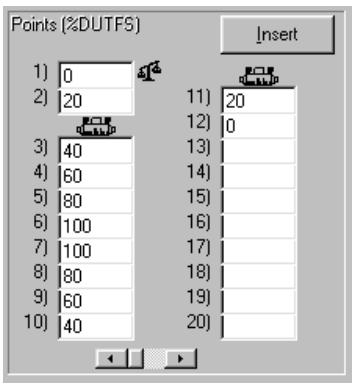
Figure 48. Test Definition Editor,
Table 25. Test Definition Editor,
| FEATURE | DESCRIPTION |
| Point Type Indication (label) | Indicates how the flow point values in the <Points> table will be interpreted when the test is run. The choices are: <%DUTFS>, <Flow Units>, <Output Units> or <Set Units>. If the indication is <%DUTFS>, when the test is run, the flow points will be calculated from the DUT input span defined in DUT Definition [Range] tab (see Section 9.5.4). Specifying points in <%DUTFS> is useful in setting up a common test procedure that runs the same point distribution for DUTs with different ranges. All other unit types are run directly as values in the unit specified in the corresponding DUT Definition tab. To change the point type, use the Test Definition [Points] tab (see Section 9.5.3). |
| Insert (action button) | Clicking <Insert> causes a pop-up window to display with three separate insert options: • Tare Point changes the cursor into a tare icon that can be dropped onto the desired point to for a tare of the reference molbox to occur at that point. The tare icon will remain next to the point unless removed by clicking it. Use the Test Definition [Tare] tab to specify tare execution details (see Section 9.5.4). If the Test Definition [Sequence] tab (see Section 9.5.4) specifies a fixed taring sequence, this selection is disabled. • Change molloc changes the cursor into a molloc icon that can be dropped onto the point at which a molloc change should occur. Realize the molloc change occurs BEFORE the point is executed. This feature may be used when a molloc change during the test is needed to maintain desired reference measurement uncertainty. Click the molloc icon to remove the molloc change from the list. • Insert Point changes the cursor into a pencil icon that can be dropped on any point to insert a blank point at that location. The selected point (and all subsequent points) then shift down, leaving a blank point available for entry. Double click any test point to remove it from the list. • Valve Driver Change displays the <Toggle molbox Drivers> form to allow the state of the external molbox valve drivers to be changed. A depressed button indicates the valve will be activated. Activate and deactivate the desired valves and press <OK>. The cursor will change into the valve driver icon. Place it onto any point. Realize that the valve driver change occurs before the flow is set for the selected point but after any <Change molloc>. To view the valve driver state of an existing <Valve Driver Change>, move the cursor over the icon and the existing state will display in a tool tip message. • Timed Delay displays an input box to allow entry of a delay time. After the delay time is entered, the cursor will change into a stopwatch that can be dropped onto any test point. The entered delay will occur at the beginning of the selected point prior to setting the flow but after any <Valve Driver Change>. |
| Test Point Table (numeric entry fields) | The test point table lists the test flow points that will be run in sequential order when the Test Definition is executed. The values entered are assumed to be in the unit specified by the <Point Type Indication> at the top of the table. If the test points exceed the 22 points that are normally displayed, the scroll bar at the bottom of the table can be used to scroll to additional columns of test points. Up to 100 test points can be included. The test point table can be filled in by placing the cursor in the test point field and editing the desired test point value. It can also be filled in automatically using the [Points] tab (see Section 9.5.3). The test point table can be cleared using <Clear> on the [Points] tab. |
9.5.3 [POINTS] TAB
The Test Definition [Points] tab is used to set the
The purpose of the [Auto Fill Points] tab's fields and settings as well as instructions on how to use them are provided in Table 26.
![FLUKE COMPASS FOR MOLBOX - [POINTS] TAB - 1](/content/2019/12/19968/images/a4cb6a10201bd39125be36f71fbbdb8e9aa704de95a8d4b51f69e75ebf1d9fb1.jpg)
Figure 49. Test Definition Editor, [Points] Tab
Table 26. Test Definition Editor, [Points] Tab Fields
| FEATURE | DESCRIPTION |
| Test Point Type (drop down list) | Determines how the flow point values in the <Points> table will be interpreted when the test is run. Use the drop down list to select the type. The choices are: <%DUTFS>, <Flow Units>, <Output Units> or <Set Units>. If the indication is <%DUTFS>, when the test is run, the flow points will be calculated from the DUT output span defined in DUT Definition [Range] tab (see Section 9.5.4). Specifying points in <%DUTFS> is useful in setting up a common test procedure that runs the same point distribution for DUTs with different ranges. All other unit types are run directly as values in the unit specified in the corresponding DUT Definition tab. The current point type selection is indicated at the top of the <Points> table (see Section 9.5.2). |
| Starting Point (numeric entry field) | Defines the first point of an Auto Fill test point sequence. Entering a value in this field has no affect until <Auto Fill> is pressed. |
| Ending Point (numeric entry field) | Defines the last point of an Auto Fill test point sequence. Entering a value in this field has no affect until <Auto Fill> is pressed. |
| Step Value (numeric entry field) | Defines the increment used by Auto Fill to determine test points between the starting point and ending point. Entering a value in this field has no affect until <Auto Fill> is pressed. |
| Ascending/Descending Points (drop down list selection) | Selects whether the Auto Fill point sequence will run from starting point to ending point only or from starting point to ending point and back to starting point. If <Yes> is selected, the test point sequence is from starting point to ending point and back to starting point. The ending point is repeated to provide proper point weighting when calculating best fits from the test data. If this repeated point is not desired, right click the point after the points have been filled in. Making a selection has no affect until <Auto Fill> is pressed. |
| Auto Fill (action button) | Clicking <Auto Fill> causes the test point table to clear and fills in the table with the points calculated from the Auto Fill instructions (<Starting Point>, <Ending Point>, <Step Value>, <Ascending/Descending Points>). If the values are such that the distance from starting point to ending point is not an even multiple of the step value, the last step value is adjusted to end exactly on the ending point. Points set up by Auto Fill can be edited directly in the <Points> table and new points, tares and/or molbloc changes can be inserted at any point using the <Points> table <Insert> button (see Section 9.5.2). |
| Clear (action button) | Clicking <Clear> at any time causes all entries in the test point table to clear. |
9.5.4 [SEQUENCE] TAB
The Test Definition [Sequence] tab is used to specify details of how the test points of a test will execute (see Section 7.1). This includes defining dwell and data reading parameters as well as the number of times to run the test (number of cycles). Note that the order of the fields of the sequence tab follows the order of execution of the different steps of each flow point when a test is actually run.
The purpose of the [Sequence] tab's fields and settings as well as instructions on how to use them are provided in Table 27.
![FLUKE COMPASS FOR MOLBOX - [SEQUENCE] TAB - 1](/content/2019/12/19968/images/b125511edb016ce40887e206c24807f8b00022c2d6c576dc438685618b19d73b.jpg)
Figure 50. Test Definition Editor, [Sequence] Tab
Table 27. Test Definition Editor, [Sequence] Tab Fields
| FEATURE | DESCRIPTION |
| StabilityTest and HoldTime(required numeric entry fields) | Defines the stability limit to be used to determine a ready condition in the molbox after a target flow is set. Generally, this value is set about 10 times smaller than the DUT tolerance/second (see the molbox Operation and Maintenance Manual, Ready/Not Ready Section). The associated time entry field is the Stability Hold time. For COMPASS to consider that the stability test has been met and test execution can continue, the ready condition (flow inside stability limit) must be present and uninterrupted for the Stability Hold time. If during the Stability Hold Time, the molbox outputs a not ready signal, the hold time will start over after the next ready output is received. This process continues until either the stability test is passed or the <Stability Time-Out> occurs.Depending on the configuration of the test system and the performance of the device controlling the flow, the flow may stabilize within the stability test and a ready condition may occur momentarily before the flow has truly stabilized. The Stability Hold Time can be used to assure that the flow remains stable for a certain amount of time before the stability test is considered to have been met and test execution continues. |
| Stability Time-out(required numeric entry field) | The maximum amount of time that the <Stability Test> process may consume. If the stability test and Stability Hold Time have not been satisfied within the <Stability Time-Out> an indicating character is recorded in the Data File and on the Test Grid and test execution continues. The stability time out is used to assure that a test will not hang indefinitely if the stability test cannot be met at a flow point. |
| Tare molbox (required drop down list selection) | Use the drop down list to select the flow points at which the molbox pressure transducers should be tared (see the molbox Operation and Maintenance Manual, [Tare] Section). The tare occurs after completion of the stability test. After taring, stability is rechecked before continuing with the next test step. Use the Test Definition [Tare] tab to determine the tare pressure and how the tare will be activated (see Section 9.5.5). There are 3 choices: • Selected points: Uses the tare points manually inserted into the sequence using the <Points> table <Insert> option (see Section 9.5.2). • First point: Automatically adds a tare at the first test point. The <Points> table <Insert> option is not active when this choice is selected. • All points: Automatically inserts a tare at every test point in the test point table. When new points are added, they automatically receive a tare when this choice is selected. The <Points> table <Insert> option is not active when this choice is selected. |
| Dwell (required entry field and drop down list selection) | Dwell is a pause that occurs following stability testing, prior to taking averaged test data at each flow point. When <Dwell> is set to <Timed>, COMPASS dwells at each test point for the specified <Dwell Time>, 0 - 999s. When <Dwell> is set to <Manual>, COMPASS dwells at each test point until <OK> is clicked on the <Continue Test> pop-up. This feature can be used to synchronize readings or to pause operation during flow setting, for example to make adjustments to the DUT. |
| Averaging Time(s) (required entry field and drop down list selection) | Determines a fixed or user selectable time over which reference and DUT readings are averaged when taking data at each flow point. When <Timed> is specified, COMPASS averages for the fixed <Averaging Time> entered, 0-999s. <Manual> averaging allows either a fixed time or user selectable starting and stopping at each point. Averaging only occurs when reference and DUT output readings can be taken remotely. As many readings as possible are taken during the averaging period. The time value must be between 0 and 999s. |
| Readings/point (required entry field) | The number of repeated, independent averages taken at each point. Points are not reset or re-tested for stability between averages. Leave this value at one unless you want more than one complete, averaged data values at each flow point. |
| Number of Test Cycles (required entry field) | COMPASS can run up to 10 test cycles in one test. A test cycle includes setting and taking data at each of the flow points in the <Points> table. When more than one test cycle is specified, system leak testing and purging occurs only at the beginning of the first cycle. Data from multiple cycles is included in a single Data File. |
9.5.5 [TARE] TAB
The Test Definition [Tare] tab is used to specify how a new tare value should be activated and whether to tare at the molbloc upstream or downstream pressure. The flow points at which the molbox should be tared are specified in the
The purpose of the [Tare] tab's fields and settings as well as instructions on how to use them are provided in Table 28.
![FLUKE COMPASS FOR MOLBOX - [TARE] TAB - 1](/content/2019/12/19968/images/ce59084efc969a29f4272e2416844ef0698db775558bac0bca1aae52cb69e5eb.jpg)
Figure 51. Test Definition Editor, [Tare] Tab
Table 28. Test Definition Editor, [Tare] Tab Fields
| FEATURE | DESCRIPTION |
| Wait for <Enter> to tare (check box) | If checked, COMPASS waits for a user response before proceeding with the tare procedure. If not checked, COMPASS automatically executes the tare sequence and activates the new tare value without operator intervention. In both cases the <Tare> panel is displayed with a real time update of molbox tare information (see Section 6.6.2).Do not check this option if you wish to run a completely automated test without operator intervention. |
| Tare Pressure (drop down list selection) | Select whether the <Upstream> or <Downstream> molbloc pressure should be used for taring. COMPASS automatically adjusts the molbox valves to connect to the selected tare pressure. The tare pressure should be the pressure that remains the most stable during the test. Generally, this is the upstream pressure if the molbloc is upstream of the DUT and the downstream pressure if the molbloc is downstream of the DUT. |
9.5.6 [CONTROL] TAB
The Test Definition [Control] tab is used to specify how flow will be controlled to set the flow to the test point values as well as for purging. In the case of automated flow control,
The purpose of the [Control] tab's fields and settings as well as instructions on how to use them are provided Table 29.
![FLUKE COMPASS FOR MOLBOX - [CONTROL] TAB - 1](/content/2019/12/19968/images/c0c2394f74012a9fc6afa874c2ab13439f2feda807d051c515f68648baea89d3.jpg)
Figure 52. Test Definition Editor, [Control] Tab
Table 29. Test Definition Editor, [Control] Tab Fields
| FEATURE | DESCRIPTION |
| Flow Control (drop down list) | Determines how flow will be controlled to set flow during tests. The choices are: • Manual: Flow will be set manually by the operator, not by a device that COMPASS can control remotely. As a test is run, the operator will be prompted to set the flow to the target value at each point. Use this choice when a manual flow control system or an automated controller with which COMPASS cannot communicate remotely is being used. • DUT: Flow will be set by the DUT. The DUT is a flow controller and has been set up as a controller in the DUT Definition [Range] and [Set] tabs (see Sections 8.5.4, 8.5.9). If the DUT being tested is not specified as a <Controller>, an error will occur during test initialization. • Other Controller: Flow will be set automatically by COMPASS using a flow controller which COMPASS can control remotely but which is NOT the DUT. The flow controller to use is specified by selecting it from the <Controller> drop down list on the [Control] tab. COMPASS automatically performs the necessary unit conversions when the flow controller is used. |
| Controller (conditional drop down list) | Specifies the flow controller to use when <Other Controller> has been selected as the <Flow Control> method. The drop down list is made up of flow controllers set up in the Hardware Definition [Flow Controller] tab (see Section 10.3.6). These must be supported by a <Set point power supply> in the System Configuration (see Section 10.2). |
| Jog flow before dwell (check box) | If this is checked, test execution will pause just before the dwell phase of the test point to allow the flow rate to be adjusted before the reference and DUT readings are taken. If flow control is automated, adjustments are made using the <Flow Control> panel (see Section 6.6.8). This feature is most often used to adjust the flow to the DUT's cardinal point when testing a visual output flow meter. <Jog flow before dwell> has no affect when flow control is manual and is mutually exclusive with the <Flow Regulation> option. |
| Regulate Flow To (drop down list and entry field) | This feature is used to specify to what device's reading the flow should be adjusted when an automated flow control device is included in the test. The choices are: • None: COMPASS calculates and sends the command for the target flow point to the controller and makes no further adjustments. In this case, how close the final flow at a flow point will be to the desired value depends on the calibration of the controlling flowmeter. Check <Jog before dwell> if you want to adjust flow at the point, for example to put the DUT reading on a cardinal point. • Molbox flow: At each flow point in the test, COMPASS continuously readjusts the set point command to the flow controller to adjust the flow to the target value as indicated by the molbox. This option causes the final flow value at a test point to be very close to the cardinal point as read by the molbox. • DUT flow: At each flow point in the test, COMPASS continuously readjusts the set point command to the flow controller to adjust the flow to the target value as indicated by the DUT. This option causes the final flow value at a test point to be very close to the cardinal point as read by the DUT. For this selection to operate, the DUT cannot be a manual entry output type. The Regulation Delay entry determines the time, in seconds, between regulation loop cycles. This is how often the set point will be readjusted to get closer to the target value. Setting this value to a time value that is too short relative to the response time of the flow system will result in unstable flow control. |
9.5.7 [LEAK TEST] TAB
The Test Definition [Leak Test] tab is used to specify whether a leak test will be run at the beginning of the test (see Section 7.1) and/or after molbloc changes. The leak test used is the SYSTEM leak test function (see the molbox Operation and Maintenance manual, Leak Test Section).
The purpose of the [Leak Test] tab's fields and settings as well as instructions on how to use them are provided in Table 30.
![FLUKE COMPASS FOR MOLBOX - [LEAK TEST] TAB - 1](/content/2019/12/19968/images/ae981e6337f1dc4dfdda282d408200998c331180f71da556ce37ca4d9675248c.jpg)
Figure 53. Test Definition Editor, [Leak Test] Tab
Table 30. Test Definition Editor, [Leak Test] Tab Fields
| FEATURE | DESCRIPTION |
| System leak test(check box) | Check this box to include a leak test at the beginning of the test. If a leak test is run, results are included in the test's Data File. Use theAbort test on failure>to cause the test to abort after a leak test failure. Do not check this box if you want the test to continue after a failed leak test. |
| Leak test aftermollocchange(check box ) | Check this box for a leak test to be run after any molbloc change included in the test point sequence. If the test fails, the failure is identified in theData Grid><Status>and in the test's Data File (see Section 18.4). Use theAbort test on failure>to determine whether the test should continue after a leak test failure. |
| Abort test onfailure(check box) | Check this box to cause the test to abort if a leak test is failed. If not checked, the leak check failure is recorded in the test's Data File but the test continues. Note that leaks in the flow system may cause the test data to be invalid. |
9.5.8 [PURGE] TAB
The Test Definition [Purge] tab is used to specify whether a gas purge routine will be run at the beginning of the test (see Section 7.1) and/or after molbloc changes. The purge routine used is the molbox purge function (see the molbox Operation and Maintenance Manual, Purge Section).
The purpose of the [Purge] tab's fields and settings as well as instructions on how to use them are provided in Table 31.
![FLUKE COMPASS FOR MOLBOX - [PURGE] TAB - 1](/content/2019/12/19968/images/45b059cff9f62339e81993e141d9514eb195d444dfe0b017b729af759f4be2ab.jpg)
Figure 54. Test Definition Editor, [Purge] Tab
Table 31. Test Definition Editor, [Purge] Tab Fields
| FEATURE | DESCRIPTION |
| Automatic system purge (check box) | Check this box to include a purge routine at the beginning of a test. The flow rate at which to purge and purge time are set in other fields of this tab. |
| Purge after molbloc changes (check box) | Check this box for a purge routine to be run after any molbloc change included in the test sequence. The flow rate and purge time are set in other fields of this tab. |
| Purge target flow (conditional numeric entry field) | Determines the flow rate at which any purge routine included in the test will be executed. Note that the unit is % FS of the DUT being tested. |
| Purge time (conditional numeric entry field) | Determines the duration, in seconds, of any purge routine included in the test. |
9.5.9 [DATA]TAB
The Test Definition [Data] tab is used to specify whether or not to log certain data items when tests are run.
The purpose of the [Data] tab's fields and settings as well as instructions on how to use them are provided in Table 32.
![FLUKE COMPASS FOR MOLBOX - [DATA]TAB - 1](/content/2019/12/19968/images/54e436d58fa9d0627f9989d3534e6089673628373a321a63f01f61edf4baeacb.jpg)
Figure 55. Test Definition Editor, [Data] Tab
Table 32. Test Definition Editor, [Data] Tab Fields
| FEATURE | DESCRIPTION |
| Read DUT Output(check box) | When checked, the DUT output is read during the test and logged in the Data File. If not checked, no prompts for DUT output will occur regardless of the DUT <Output Type> (see Section 8.5.4). Note that no DUT flow will be determined, therefore, no flow errors will be available on the <DUT/Ref Comparison> window. This impacts reporting and plotting functions as well. Uncheck this option only when DUT flow information is not desired. |
| Read DUT Set Point(check box) | When checked, the DUT <Measured Set Point> is read and logged during the test. This applies only to DUTs that are set up as a controller using <Voltage/Current><Set Point Type> (see Sections 8.5.4, 8.5.9). All set errors will be based on this measured value. If the value is not checked, set errors are based on the nominal test set point. |
| Read DUT Pressure(check box) | When checked, DUT pressure is read and logged during a test. If a remote pressure device is set up in the System Configuration (see Section 10.2), the pressure is logged automatically. Otherwise, manual entry of pressure is required. If the DUT uses a density correction (see Section 8.5.3) or an actual flow unit, pressure is logged in the Data File regardless of this selection. |
| Read DUT Temperature(check box) | When checked, DUT temperature is read and logged during a test. If a remote temperature device is set up in the System Configuration (see Section 10.2), the temperature is logged automatically. Otherwise, manual entry of temperature is required. If the DUT uses a density correction (see Section 8.5.3) or an actual flow unit, temperature is logged in the Data File regardless of this selection. |
9.5.10 [AUXILIARY] TAB
The Test Definition [Auxiliary] tab is really an extension of the [Data] tab. The options on the tab determines if Auxiliary data will be logged and which devices will be used.
![FLUKE COMPASS FOR MOLBOX - [AUXILIARY] TAB - 1](/content/2019/12/19968/images/588b0009151c9b384e5c70db485cd1a87f1dae22ba838a2a104877bf4998d851.jpg)
Edits to the list of Auxiliary devices will impact the list of devices saved in a Test Definition (see Section 10.3.7).
![FLUKE COMPASS FOR MOLBOX - [AUXILIARY] TAB - 2](/content/2019/12/19968/images/b279d42e51cd4c0b15bf25574d55bafaf19a29de228e0d35c3e8a75ed114d08c.jpg)
Figure 56. Test Definition Editor, [Data] Tab
Table 33. Test Definition Editor, [Auxiliary] Tab Fields
| FEATURE | DESCRIPTION |
| Read Auxiliary Data(check box) | When checked, the output of the auxiliary data devices listed is logged in the data file during tests. See [Setup], [Hardware], [Auxiliary] for details on how to setup an Auxiliary Data device. The output can be either text or numeric and a label can be associated with the output. Up to 10 devices can be used at a time, and any single device can be used multiple times. Use the [Edit List] button to modify the list of devices. The information logged is not used in calculations, however, it can be used in reports and is visible on the <Run DUT> run screen and when viewing the Data File (see Section 18.4). When the box is unchecked (default value) no interaction with auxiliary data is used during tests. |
| Edit List(action button) | Press this button to edit the list of Auxiliary Data devices used during the test (see Section 9.5.10.1). The selected devices display in the list box when the editor closed. |
9.5.10.1 AUXILIARY DATA DEVICE SETUP
The
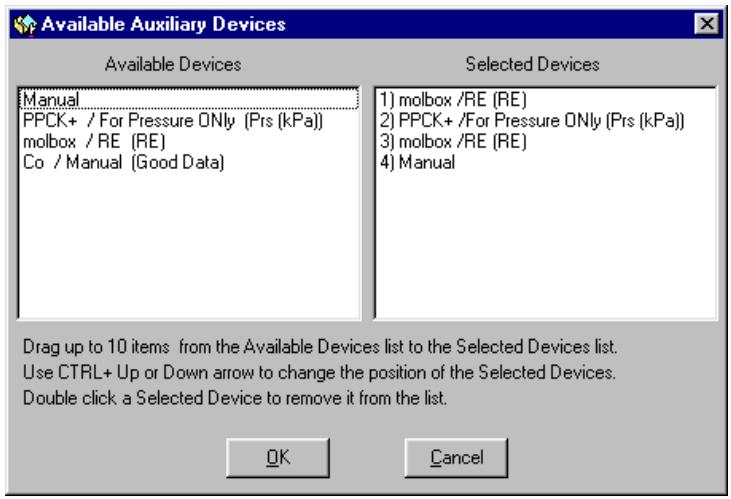
Figure 57. Auxiliary Data Device Selector
NOTES
10. [SETUP], [SYSTEM]/ [SETUP], [HARDWARE]
![FLUKE COMPASS FOR MOLBOX - [SETUP], [SYSTEM]/ [SETUP], [HARDWARE] - 1](/content/2019/12/19968/images/7d4f4abd349c16fca1d96d72d0f8e377dc215a074b0fe36e5b449403751a5168.jpg)
10.1 OVERVIEW
COMPASS's System Configuration specifies the data acquisition and control hardware that COMPASS uses to accomplish specific data acquisition and control tasks. The System Configuration is created using [Setup], [System] to select Hardware Definitions for each specific task. Hardware Definitions are created using [Setup], [Hardware]. Hardware Definitions define each, individual hardware component that is available to be included in the System Configuration. They include information to identify the component and to allow COMPASS to communicate with it. When COMPASS is in a run mode, for any data acquisition or control task, it attempts to use the hardware specified in the System Configuration. If COMPASS cannot communicate with a hardware item, an error occurs. To correct this error the Hardware Definition for that item must be adjusted or a different Hardware Definition must be selected to include in the System Configuration.
The System Configuration/Hardware Definition approach allows all the hardware available to COMPASS to be set up at one time (in an unlimited number of Hardware Definitions) and quickly swapped or adjusted when needed (by changing the Hardware Definitions included in the System Configuration).

The only Hardware Definitions that need to be included in the System Configuration are those that are actually needed to execute the run mode. If, for example, you do not need to make pressure and/or temperature measurements, no Hardware Definitions need to be created for these items and they do not need to be selected in the System Configuration. Only instruments specifically required by the DUT and/or flow controller to run need to be set up.
See Section 10.3 for information on creating Hardware Definitions and Section 10.2 regarding setting up the System Configuration.
10.2 [SETUP], [SYSTEM]
[Setup], [System] is a pop-up window used to select the Hardware Definitions to include in the System Configuration that COMPASS uses when in a run mode. The window is organized by the specific data acquisition and control functions that COMPASS may use in its various run modes. A hardware component for each function is selected from a drop down list. With the exception of molbox specific features, the Hardware Definitions available on the drop down lists are created using [Setup ], [Hardware] (see Section 10.3). molbox features such as the MFC control option and the ability to read pressure and temperature become available in the appropriate lists when a molbox is selected as the flow reference.
The
![FLUKE COMPASS FOR MOLBOX - [SETUP], [SYSTEM] - 1](/content/2019/12/19968/images/f3259281d8f6f1a73b623053c5812d62d19034aa9ee62fe7e968aa0c414e1db1.jpg)
If a molbox is selected as the
![FLUKE COMPASS FOR MOLBOX - [SETUP], [SYSTEM] - 2](/content/2019/12/19968/images/204ccc652199abc60087759c509b6eb7a360edaa6e0b26ba84ca9c890e2e16e9.jpg)
Figure 58.
![FLUKE COMPASS FOR MOLBOX - [SETUP], [SYSTEM] - 3](/content/2019/12/19968/images/74c82f528d933fe7eab16ae7400f2f9347f534b8f010b6d642ac74bb85b8940e.jpg)
Use the delete or backspace key to remove a selection in any of the drop down lists.
Table 34.
| FEATURE | DESCRIPTION |
| Flow Reference drop down list selection) | This is the source of reference flow values in the COMPASS run modes. The drop down list choices are created using the Hardware Definition [Reference] tab (see Section 10.3.3). This is a required selection as all run modes include measurement of reference flow. A molbox is the only reference flow device for which remote communications are supported. All other reference devices require manual entry in run modes. When a molbox reference is selected, molbox specific features are selectable in other System Configuration fields. |
| DUT Output DMM (drop down list selection) | This is the device used to read the output of DUTs whose <Output Type> is <Voltage/Current> in the DUT Definition [Read] tab (see Section 8.5.8). The drop down list choices are created using the Hardware Definition [DMM] tab (see Section 10.3.4). If a molbox is selected as the <Flow Reference>, <Reference molbox> is a choice in this list. A selection in this category is required only to run <Voltage/Current> output type DUTs. |
| Set point power supply (drop down list selection) | This is the device used to send analog set point values to DUTs that are checked as flow controllers in the DUT Definition [Range] tab and whose <Setpoint Type> is <Voltage/Current> in the DUT Definition [Set] tab (see Sections 8.5.4, 8.5.9). The drop down list choices are created using the Hardware Definition [Power Supply] tab (see Section 10.3.5). If a molbox is selected as the <Flow Reference>, <Reference molbox> is a choice in this list. A selection in this category is required only to run DUT's that are flow controllers and whose set point type is <Voltage/Current>. |
| Set point DMM (drop down list selection) | This is the device used to measure the analog set point value to DUTs that are checked as flow controllers in the DUT Definition [Range] tab and whose <Setpoint Type> is <Voltage/Current> in the DUT Definition [Set] tab (see Sections 8.5.4, 8.5.9). The drop down list choices are created using the Hardware Definition [DMM] tab (see Section 10.3.4). This is the same list as the <DUT Output DMM> in this screen. A selection in this category is required only when the DUT being run is a flow controller, its set point type is <Voltage/Current> and the test being run specifies <Set Point> data acquisition (see Section 9.5.9). |
| Frequency Measurement (drop down list selection) | This is the device used to read the output of DUTs whose <Output Type> is <Frequency> in the DUT Definition [Range] tab (see Section 8.5.4). The drop down list choices are created using the Hardware Definition [Frequency] tab (see Section 10.3.4). A selection in this category is required only to run <Voltage/Current> output type DUTs. |
| Pressure Measurement (drop down list selection) | This is the device used to automatically read the gas pressure at the DUT for DUTs that specify a <Gas Density Correction Type> in the DUT Definition [Correction] tab (see Section 8.5.3) or when a Test definition has the DUT pressure option checked on the [Data] tab (see Section 9.5.9). The drop down list choices are created using the [Pressure] tab in the Hardware Definition (see Section 10.3.4). If a molbox is selected as the <Flow Reference>, <molloc upstream pressure> and <molloc downstream pressure> are choices on this list. There are no circumstances in which a selection is required. If a selection is present, COMPASS will attempt to use the specified device to measure the absolute pressure of the gas at the DUT when applicable. If no automated pressure measurement device is available, select <Manual>. |
| <olbox upstream or downstream pressure can only approximate the pressure of the gas at the DUT since, due to the flow in the system, the pressure at the molloc and at the DUT cannot be identical. Keep this in mind when estimating the uncertainty on the DUT pressure. | |
| Temperature Measurement (drop down list selection) | This is the device used to automatically read the temperature of the gas at the DUT for DUTs that specify a <Gas Density Correction Type> in the DUT Definition [Correction] tab (see Section 8.5.3) or when a Test definition has the DUT temperature option checked on the [Data] tab (see Section 9.5.9). The drop down list choices are created using the [Temperature] tab in the Hardware Definition (see Section 10.3.4). If a molbox is selected as the <Flow Reference>, <Reference molbloc> is a choices in this list. There are no circumstances in which a selection is required. If a selection is present, COMPASS will attempt to use the specified device to measure the temperature of the gas at the DUT when applicable. If no automated temperature measurement device is available, select <Manual>. |
| <1> molbloc temperature can only approximate the temperature of the gas at the DUT. Keep this in mind when estimating the uncertainty on the gas temperature at the DUT. | |
| IEEE-488 Card (drop down list selection) | Select the manufacturer of the IEEE-488 card used by the computer running COMPASS to read IEEE-488 devices included in the System Configuration and/or IEEE-488 DUTs whose <Output Type> is <IEEE-488> in the DUT Definition [Read] tab. A selection in this category is required only to run tests that include communications with an IEEE-488 System Configuration device or an IEEE-488 Output Type DUT. Otherwise, <None> may be selected. COMPASS supports only CEC and National Instruments IEEE-488 cards. To run a test that includes any type of IEEE-488 communications, an IEEE-488 card must be included and properly configured for use by the computer running COMPASS. Refer to the card instructions for information on how to set up the card and troubleshoot problems. After proper card installation, no special setup is required to use the card in COMPASS. |
| D (drop down list selection) | Select the manufacturer of the DeviceNet card used by the computer running COMPASS to read DeviceNet DUTs. A selection in this category is required only to run tests that include communications with a DeviceNet. Otherwise, <None> may be selected. COMPASS supports only SST and National Instruments DeviceNet cards. The selected card must be properly configured for use by the computer running COMPASS. Refer to the card instructions for information on how to set up the card and troubleshoot problems. After proper card installation, no special setup is required to use the card in COMPASS. Use the [Setup],[Hardware], menu choice to modify the selected card's MacID (see Section !!!) |
| Default DUT RS-232 Port (drop down list selection) | This is the default RS-232 port to use to communicate with DUTs whose <Output Type> is <RS232> in the DUT Definition [Read] tab and/or whose <Setpoint Type> is <RS232> in the DUT Definition [Set] tab (see Section 8.5.9). This is only the default selection. COMPASS will still prompt for entry of the actual port during test initialization. The default value can be used automatically by turning OFF the appropriate test initialization option (see Section 11.5). |
10.3 [SETUP], [HARDWARE]
[Setup], [Hardware] is a pop-up window used to create the Hardware Definitions that are available for selection in the System Configuration (see Section 10.2). The window is made up of tabs corresponding to different hardware types. In each tab, functions are available to display, edit, copy, create and delete Hardware Definitions. All editing occurs on the
-
[Reference] (see Section 10.3.3): Defines and stores flow references. These are the devices that are available in the System Configuration
drop down list and used by COMPASS as the source of reference flow values when running tests. Only molblob/molbox flow references support automated data acquisition within COMPASS. -
[DMM] (see Section 10.3.4): Defines and stores digital multimeters (DMMs). These are the devices that are available in the System Configuration
and drop down lists and can be used by COMPASS to read output and set point type DUTs (see Sections 8.5.8, 8.5.9). - [Power Supply] (see Section 10.3.5): Defines and stores analog power supplies. These are the devices that are available in the System Configuration
drop down list and can be used by COMPASS to set the flow for setpoint type DUTs (see Section 8.5.9). - [Frequency] (see Section 10.3.4): Defines and stores frequency counters. These are the devices that are available in the System Configuration
drop down list and can be used by COMPASS to read output type DUTs (see Section 8.5.8). - [Pressure] (see Section 10.3.4): Defines and stores absolute pressure measuring devices. These are the devices that are available in the System Configuration
drop down list and can be used by COMPASS to read the gas pressure at the DUT (see Section 8.5.3). - [Temperature] (see Section 10.3.4): Defines and stores temperature measuring devices. These are the devices that are available in the System Configuration
drop down list and can be used by COMPASS to read the gas temperature at the DUT. - [Flow Controller] (see Section 10.3.6): Defines and stores flow controllers used to control the test flow. The controllers can be selected in the Test definition (see Section 9.5.6) or during the initialization process of Run DUT (see Section 7.4).
- [Interface] (see Section 10.3.8): Selects the IEEE-488 and DeviceNet card addresses for the card installed in the computer running COMPASS. The default values should function in the majority of cases.
10.3.1 TOOLBAR
A toolbar is present on all Hardware Definition tabs with the exception of the [IEEE-488] tab. The functions on the toolbar are applied to the Hardware Definition that is currently displayed. Use the toolbar to create, edit, copy and delete Hardware Definitions. Table 35 identifies the toolbar features and their functions.
Table 35. Hardware Configuration,
| FEATURE | DESCRIPTION |
| New | Creates a new Hardware Definition. Activates the Hardware Definition Editor with default information for the type of device selected (see Section 10.3.2). |
| Copy | Copies the contents of the current Hardware Definition to a new device then activates the Hardware Definition Editor (see Section 10.3.2). |
| Edit | Displays the Hardware Definition Editor (see Section 10.3.2) loaded with the information for the current device. This function is provided for editing an existing Hardware Definition. |
| Delete | Deletes the Hardware Definition currently selected in the display. A confirmation prompt displays prior to removing the Hardware Definition. |
10.3.2 HARDWARE DEFINITION EDITOR
Editing of all Hardware Definitions including altering existing configurations and creating new ones occurs in the Hardware Definition Editor. The name that appears in the Editor title bar and certain aspects of the Editor's specific content are dependent on the type of Hardware Definition that generated the Editor. Each device type requires a few unique selections. Make sure that these unique features are addressed when editing. Refer to Section 13 for information related to remote interface setup. When tests are run, the manufacturer, model, serial number, identification and calibration date of each Hardware Definition used are logged in the Data File and are available for reports (see Section 18.4).

It is critical to specify the proper unit of measure when a unit is requested for a device. Failure to identify the unit correctly will result in erroneous data. [Power Supplies] and [DMMs] can have independent setups for both volt (V) and current (A) units at the same time. COMPASS will automatically use the correct setup when running.
10.3.3 [REFERENCE] TAB
The [Setup], [Hardware], [Reference] tab is used to manage the flow reference Hardware Definitions that are included in the System Configuration
The [Reference] tab provides a list of the flow reference Definitions available, displays complete information on the selected Definition and allows the selected Definition to be edited or a new Definition to be created.
To select a reference Definition to view, single click on the reference name and serial number in the display panel (upper left-hand corner). To edit an existing reference Definition, double click on the reference device listing or click on the
The
The purpose of the flow reference Definition fields and settings as well as instructions on how to use them are provided in Table 37. When creating a new Definition, all the fields come up blank. When editing an existing Definition, the fields come up populated with the information on that device. When editing is complete, click
![FLUKE COMPASS FOR MOLBOX - [REFERENCE] TAB - 1](/content/2019/12/19968/images/92b69087f1e0bf31c4dd96a7e3d95ab7724b38d346669265b6ce8ffaecf65243.jpg)
Figure 59. Hardware Definition, [Reference] Tab
![FLUKE COMPASS FOR MOLBOX - [REFERENCE] TAB - 2](/content/2019/12/19968/images/7ded3fde095a13b30c749fb3e2381fb0c12e54fa049bc6130f71b0e9afaaa50d.jpg)
Figure 60. Hardware Definition,
Table 36. Hardware Definition,
| FEATURE | DESCRIPTION |
| Manufacturer | Defines the manufacturer of the reference device. If DH Instruments is selected, the <Model> listbox is populated with the supported molbox references. An <Other> choice is also available. Use this choice to set up reference devices other than DHI models. When <Other> is selected, a pop-up appears for entry of the manufacturer name of the reference device. A remote interface with COMPASS is not supported for non-DHI flow references. |
| Model (drop down list selection) | Defines the model of the reference device. When the manufacturer is DH Instruments, the drop down list choices include all of the DHI models which COMPASS supports with remote communications; non-DHI models must be entered manually. |
| Serial Number (required text entry field) | Write in the device's serial number. |
| Do not use the following characters: \/, :, *, ?, " , <, > , l, a comma or tab character. These characters will cause problems when importing the Data File or creating the Data File directory based on the data directory naming convention selected using the [Tools], [Options], [Data File] tab (see Section 11.8). | |
| Identification (optional text entry field) | Write in a device identification, if desired. The field can be used for internal tracking of devices or any other information desired. The value entered will be included in the run test Data Files and can be included in reports. |
| Do not use the following characters: \/, :, *, ?, " , <, > , l, a comma or tab character. These characters will cause problems when importing the Data File or creating the Data File directory based on the data directory naming convention selected using the [Tools], [Options], [Data File] tab (see Section 11.8). | |
| Calibration Date (optional text entry field) | The value entered should represent the next required calibration date of the device. No special formatting is expected or checked in this field, however, entering the date in a consistent format including the full year, month and day is recommended. The value entered is logged in the run test Data Files and can be included in reports. |
| Uncertainty (optional entry field) | The uncertainty of the reference expressed in %Reading or directly entered in a flow unit. The value entered is used to determine the DUT measurement uncertainty when tests are run (see Section 19.10). This field may be left blank if not used. |
| Remote Interface (drop down selection list) | The choices available include <None>, <RS232> and <IEEE-488>. To set up the device for remote communications, select the type of interface that is on the device. When an interface type is selected, the rest of the <Remote Interface> panel changes as appropriate to accommodate definition of the interface characteristics. If the reference device model is <Other>, the drop down list is not active. The <None> selection for a device requires manual entry and manual control of reference flow during a test. |
| Remote communications are not supported for reference devices other than DHI molbloc/molbox flow references. | |
| RS-232 Settings(conditional display panel) | If the <Remote Interface> selection is RS-232, the <RS232 Settings> panel is shown. When creating a new device Definition, the settings are loaded with COMPASS default settings. Port settings are listed: baud rate, parity, data bits, stop bits. Clicking on any setting field causes the <RS232 Settings> Editor to appear (see Section 13.3.1). Select the correct settings for the reference device from the drop down lists and click <OK> when ready. |
| IEEE-488 Address(conditional entry field) | If the <Remote Interface> selection is IEEE-488, the <IEEE-488 Address> entry field is shown. When creating a new Definition, the IEEE-488 address is set to the default address 10. The address can be edited directly in the entry field. |
| Communications Test(action button) | Clicking on the [Communications Test] button causes COMPASS to attempt to communicate with the device using the current device interface settings. If communication with the device is successful, a message confirming that the device was detected is displayed; if communications cannot be established, an error message is displayed. |
10.3.4 [DMM], [FREQUENCY], [PRESSURE], [TEMPERATURE] TABS
The [Setup], [Hardware] tabs for [DMM], [Frequency], [Pressure], and [Temperature] are identical except for the drop down list of output units.
The [DMM], [Frequency], [Pressure], and [Temperature] tabs are used to manage the Hardware Definitions of specific devices that are included in the System Configuration
Each of the tabs provides a list of the existing Hardware Definitions for that type of device, displays complete information on the Definition, allows the selected Definition to be edited or a new Definition to be created.
To select a Definition to view, single click on its name and serial number in the display panel (upper left-hand corner). To edit an existing Definition, double click it or click on the
The purpose of the [DMM], [Frequency], [Pressure], and [Temperature] Definition Tab fields and settings as well as instructions on how to use them are provided in Table 37. When creating a new Definition, all the fields come up blank. When editing an existing Definition, the fields come up populated with the information on that device. When editing is complete, click
![FLUKE COMPASS FOR MOLBOX - [DMM], [FREQUENCY], [PRESSURE], [TEMPERATURE] TABS - 1](/content/2019/12/19968/images/028e328a948f7bfa05e84a0ec8569c7ad63c0e7c3c9840ef74cf10b43e97d7d8.jpg)
It is critical to specify the proper unit of measure when a unit is requested for a device. Failure to identify the unit correctly will result in erroneous data. [Power Supplies] and [DMMs] can have independent setups for both volt (V) and current (A) units at the same time. COMPASS will automatically use the correct setup when running.
![FLUKE COMPASS FOR MOLBOX - [DMM], [FREQUENCY], [PRESSURE], [TEMPERATURE] TABS - 2](/content/2019/12/19968/images/c756394eaa392a1deddd31db4eba5fdb19da6ea95b9d66f6e70dbf992e79f260.jpg)
The molbox1 MFC control option acts as a [DMM] and as a [Power Supply], however, it
does not need to be set up under these tabs. In the System Configuration, when a molbox is selected as the
![FLUKE COMPASS FOR MOLBOX - [DMM], [FREQUENCY], [PRESSURE], [TEMPERATURE] TABS - 3](/content/2019/12/19968/images/0bd2dfa2ae069c09b7ab1f2aa523b3511fc766630dd970b8d82789364d561740.jpg)
Figure 61. Hardware Definition, [DMM] Tab
![FLUKE COMPASS FOR MOLBOX - [DMM], [FREQUENCY], [PRESSURE], [TEMPERATURE] TABS - 4](/content/2019/12/19968/images/b4d166002622372505eab619e0f55d249d9f8ac29dec747c465ef6226fd3ea63.jpg)
Figure 62. Hardware Definition,
Table 37.
| FEATURE | DESCRIPTION |
| Manufacturer (required text entry field) | Labels the device manufacturer. Write in a manufacturer name. |
| Model (required text entry field) | Defines the device model. Write in a model name. |
| Serial Number (required text entry field) | Defines the device serial number. Write in a serial number. |
| Identification (optional text entry field) | Provides a device identification. Write in a device identification, if desired. The field can be used for internal device tracking or any other information desired. The value entered will be included in run test Data Files and can be included in reports. |
| Do not use the following characters: \/, :, *, ?, " , <, > , l, a comma or tab character. These characters will cause problems when importing the Data File or creating the Data File directory based on the data directory naming convention selected using the [Tools], [Options], [Data File] tab (see Section 11.8). | |
| Calibration Date (optional text entry field) | This field is available to keep track of a calibration date. The value entered may be the calibration due date or the last calibration date, as preferred. No special formatting is expected or checked in this field however, entering the date in a consistent format including the full year, month and day is recommended. The value entered is logged in the run test Data Files and can be included in reports. |
| Output Resolution (required list box selection) | Select the resolution to apply to the device output. All data logged and displayed for the device will be specified with the selected resolution. Select the resolution that is appropriate for the device. Resolution is typically specified as 1 more digit than the device tolerance. |
| Remote Interface (drop down selection list) | The choices available are <RS232> and <IEEE-488>. To set up the device for remote communications, select the interface that is on the device. When an interface type is selected, the rest of the <Remote Interface> and <Command Information> panels change as appropriate to accommodate definition of the interface characteristics. A remote interface selection is required. COMPASS generates an error when <None> is selected. See Section 13 for information on COMPASS remote communications. |
| RS-232 Settings (conditional display panel) | If the remote interface selection is RS-232, the <RS232 Settings> information is shown. When creating a new device, the settings are loaded with COMPASS default settings. Port settings are listed baud rate, parity, data bits, stop bits. Clicking on any setting field causes the <RS232 Settings> Editor to appear (see Section 13.3.1). Select the correct settings for the device and click <OK> when ready. |
| IEEE-488 Address (conditional entry field) | If the remote interface selection is IEEE-488, the <IEEE-488 Address> entry field is shown. When creating a new Definition, the IEEE-488 address is set to the default address 10. The address can be edited directly in the entry field. |
| Output Units (drop down selection list) | For a DMM, indicates whether the <Read Commands> are for reading voltage (V) or current (A). DMMs save both voltage and current commands in a single DMM profile.For a frequency, pressure or temperature device, specifies the unit of measure in which the device output is returned. These setups only store one set of commands for the units selected.The <Initialization Commands> and/or <Read Commands> specified are the commands for reading the device output in the specified output units. COMPASS always reads in these units and performs the necessary calculations to convert to the units required by the DUT or Test Definition when necessary. |
| Initialization Commands (action button) | Click this button to display the <Remote Command Editor> form (see Section 13.2.1). Enter the desired commands then close the form. These commands are issued during the initialization process if required by the selected device. Each device may or may not require a specific initialization. Refer to the device's remote interface manual to determine whether initialization commands are necessary. Some devices may require a unit of measure and range selection before being used. If this is the case, and the device has the necessary commands to complete this task, enter the commands in the remote command Editor. |
| Read Commands (action button) | Click this button to display the <Remote Command Editor> form (see Section 13.2.2). Enter the desired read commands then close the form. These commands are continuously sent to the device in all run modes if selected in the System Configuration and required by the DUT or Test Definition. Up to 10 commands can be issued as part of the reading process, however, only one of the commands can be specified as the "actual read command". The "actual read command" is identified by the arrow, "\(\rightarrow\)", to the left of the command. All commands entered appear in the appropriate list box. Each device has its own unique set of remote interface commands. Refer to the device manual for details on how to interface with it. See Section 13.2 for information related to remote interfaces in COMPASS.In a DMM Definition there are separate read commands for voltage (V) and current (A) so that COMPASS can use the DMM to read either when required.Unlike other device setups, both voltage and current commands (two different measurement units) can be stored in one DMM profile. |
| Communications Test (action button) | Press this button to send the <Initialization Commands> and <Read Commands> to the device. A <Spy Window> will display with the command response information used (see Section 6.7.7). This feature is designed to provide on the spot troubleshooting of the remote commands setup. If a command is not properly entered or the response format is not correct, the problem should be visible in the spy window. Use the <Remote Communications> option for further troubleshooting (see Section 13). |
10.3.5 [POWER SUPPLY] TAB
The [Setup], [Hardware], [Power Supply] tab is used to manage the power supply. Definitions that are included in the System Configuration
The [Power Supply] tab provides a list of the power supplies available, displays complete information on the selected power supply, allows the power supply to be edited or a new power supply to be created.
To select a power supply Hardware Definition to view, single click on the power supply name and serial number in the display panel (upper left-hand corner). To edit an existing power supply, double click on the power supply listing or click on the
The
The purpose of the power supply Definition fields and settings as well as instructions on how to use them are provided in Table 38. When creating a new Definition, all the fields come up blank. When editing an existing Definition, the fields come up populated with the information on that device. When editing is complete, click <0K> to save changes.
![FLUKE COMPASS FOR MOLBOX - [POWER SUPPLY] TAB - 1](/content/2019/12/19968/images/47d556552252c2747e7c2a80d63fa2073f9b8a59957dc0471f43449447f3e30f.jpg)
The molbox MFC control option acts as a [Power Supply], however, it does not need to be set up under the [Power Supply] tab. In the System Configuration, when a molbox is selected as the
![FLUKE COMPASS FOR MOLBOX - [POWER SUPPLY] TAB - 2](/content/2019/12/19968/images/7bb8a503240bedfd0ea49a44505224986baf508a5a273672373f8a7dbcde0c91.jpg)
Figure 63. Hardware Definition, [Power Supply] Tab
![FLUKE COMPASS FOR MOLBOX - [POWER SUPPLY] TAB - 3](/content/2019/12/19968/images/98e341209f550c2c9faf41bce86d1ca18dee17a300f28d8c4832885ac8fa1e22.jpg)
Figure 64. Hardware Definition,
Table 38. Hardware Definition,
| FEATURE | DESCRIPTION |
| Manufacturer (required text entry field) | Labels the device manufacturer. Write in a manufacturer name. |
| Model (required text entry field) | Defines the device model. Write in a model name. |
| Serial Number (required text entry field) | Defines the device serial number. Write in a serial number. |
| Identification (optional text entry field) | Provides a device identification. Write in a device identification, if desired. The field can be used for internal device tracking or any other information desired. The value entered will be included in run test Data Files and can be included in reports. |
| Do not use the following characters: \/, :, *, ?, "", <,>, l, a comma or tab character. These characters will cause problems when importing the Data File or creating the Data File directory based on the data directory naming convention selected using the [Tools], [Options], [Data File] tab (see Section 11.8). | |
| Calibration Date (optional text entry field) | The value entered should represent the next required calibration date for the device. No special formatting is expected or checked in this field, however, entering the date in a consistent format including the full year, month and day is recommended. The value entered is logged in the run test Data Files and can be included in reports. |
| Set Units (drop down selection list) | Indicates whether the <Set Commands> are for setting voltage (V) or current (A). |
| Separate <Set Commands> are set up for reading voltage (V) and current (A) in the same profile so that COMPASS can set in either mode as required by the current flow controlling device. | |
| The <Set Commands> specified are the commands for setting power in the <Set Units>. COMPASS always makes the necessary conversion to this unit before sending the set command. | |
| Remote Interface (drop down selection list) | The choices available are <RS232> and <IEEE-488>. To set up the device for remote communications, select the interface that is on the device. When an interface type is selected, the rest of the <Remote Interface> and <Command Information> panels change as appropriate to accommodate definition of the interface characteristics. A remote interface selection is required. COMPASS generates an error when <None> is selected. |
| RS-232 Settings (conditional display panel) | If the remote interface selection is RS-232, the <RS232 Settings> information is shown. When creating a new device, the settings are loaded with COMPASS default settings. Port settings are listed: baud rate, parity, data bits, stop bits. Clicking on any setting field causes the <RS232 Settings> Editor to appear (see Section 13.3.1). Select the correct settings for the device and click <OK> when ready. |
| IEEE-488 Address (conditional entry field) | If the remote interface selection is IEEE-488, the <IEEE-488 Address> entry field is shown. When creating a new Definition, the IEEE-488 address is set to the default address 10. The address can be edited directly in the entry field. |
| Initialization Commands (action button) | Click this button to display the <Remote Command Editor> form (see Section 13.2.1). Enter the desired commands then close the form. These commands are issued during the initialization process if required by the selected device. The device may or may not require a specific initialization. Refer to the device's remote interface manual to determine whether initialization commands are necessary. Some devices may require a unit of measure and range selection before being used. If this is the case, and the device has the necessary commands to complete this task, enter the commands in the remote command Editor. |
| Set Commands (action button) | Click this button to display the <Remote Command Editor> form (see Section 13.2.3). Enter the desired set commands then close the form. Set commands typically require the <Set Unit Variable> to specify where the numerical target flow information should be located in the command string. Enter the command string then drag and drop or type the <Set Unit Variable> text into the appropriate location in the command string. COMPASS substitutes the current numerical set point in the <Set Units> with the <Set Unit Variable> to create the final set command. This command is sent as needed to control the flow when tests are run. Up to 10 commands can be issued as part of the set flow process. |
| Communications Test (action button) | This feature can be used only when the <Output Type> is RS-232 or IEEE-488. Press this button to send the set <Initialization Commands> and a single target flow. When the option is first selected, a dialog box prompts for the desired target flow. A <Spy Window> will display with the command response information used (see Section 6.7.7). This feature is designed to provide on the spot troubleshooting of the remote command setup. If a command is not properly entered or the response format is not correct, the problem should be visible in the spy window. Use the <Remote Communications> tool for further troubleshooting (see Section 13). |
10.3.6 [FLOW CONTROLLER] TAB
The [Setup], [Hardware], [Controller] tab is used to manage the Hardware Definitions of flow controllers that are included in the Test Definition [Control] tab,
The [Controller] tab provides a list of the available flow controllers, displays complete information on the selected controller, allows the controller to be edited or a new controller to be created.
To select a flow controller Hardware Definition to view, single click on the controller name and serial number in the display panel (upper left-hand corner). To edit an existing flow controller, double click on the controller listing or click on the
The
The basic setup of the flow controller is very similar to setting up a DUT that is a flow controller. The flow controller setup requires selections on three different tabs
The purpose of the flow controller Definition fields and settings as well as instructions on how to use them are provided in Table 39. When creating a new Definition, all the fields come up blank. When editing an existing Definition, the fields come up populated with the information on that device. When editing is complete, click
![FLUKE COMPASS FOR MOLBOX - [FLOW CONTROLLER] TAB - 1](/content/2019/12/19968/images/610610dfce3e76dcc086844b992d47380e19ddc84e7bc719151e0ac3120e2abf.jpg)
Figure 65. Hardware Definition, [Controller] Tab
![FLUKE COMPASS FOR MOLBOX - [FLOW CONTROLLER] TAB - 2](/content/2019/12/19968/images/277b8de121cffc8c87a5480555af1ff3c835add8809bf62cd2c0d2dd3f537042.jpg)
Figure 66. Hardware Definition,
Table 39. Hardware Definition,
| FEATURE | FIELD TYPE | DESCRIPTION |
| Manufacturer | Required Text Entry | Labels the device manufacturer. Write in a manufacturer name. |
| Model | Required Text Entry | Defines the device model. Write in a model name. |
| Serial Number | Required Text Entry | Defines the device serial number. Write in a serial number. |
| Identification | Optional Text Entry | Provides a device identification. Write in a device identification, if desired. The field can be used for internal device tracking or any other information desired. The value entered will be included in run test Data Files and can be included in reports. |
| Do not use the following characters: \/, \:, *, ?, ", <, >, I, a comma or tab character. These characters will cause problems when importing the Data File or creating the Data File directory based on the data directory naming convention selected using the [Tools], [Options], [Data File] tab (see Section 11.8). | ||
| Calibration Date | Optional Text Entry | The value entered should represent the next required calibration date for the device. No special formatting is expected or checked in this field, however, entering the date in a consistent format including the full year, month and day is recommended. The value entered is logged in the run test Data Files and can be included in reports. |
| Set Range Set Units | Required Drop Down List Selection | Select the flow controller set point unit from the drop down list. If the unit is not in the list, type the unit into the list box. If the current flow units are selected in the list, the min/max set point fields are automatically set to the min/max flow range fields. If the flow controller interface is <Voltage/Current>, the set point unit must be V, mV, A or mA. |
| Set Range Min Set | Required Numeric Entry Field | Enter the lowest set point (set point corresponding to the <Min Flow>) of the flow controller in the set point units specified immediately above. If the set point units are the current flow units, the <Min Flow> value is copied here and cannot be changed. |
| Set Range Max Set | Required Numeric Entry Field | Enter the highest set point (set point corresponding to the <Max Flow>) of the flow controller in the set point units specified above. If the set point units are flow units, the <Max Flow> value is copied here and cannot be changed. |
| Flow Range Unit | Required Drop Down Selection List | Select the flow controller flow unit from the drop down list. The flow range information entered should always be entered in the selected unit. If the desired flow unit is not in the list, use the <Edit Units> option at the top of the list to display the <Flow Unit Editor> (see Section 14). All new units created automatically appear in the list of flow units. |
| Flow Range Min Flow | Required Numeric Entry | Enter the lowest flow controller flow. Typically this value is 0. In some special cases, the minimum flow is non-zero. Regardless, the value entered must be the expected flow when the flow controller's <Min Set> occurs. |
| Flow Range Max Flow | Required Numeric Entry | Enter the maximum flow controller flow. This is the expected flow when the flow controller's <Max Set> occurs. |
| Calibration Gas | Optional Drop Down List | All molbox supported gases are selectable in this list. Select a gas then enter a <K Factor to N2> (see immediately below) for all gases supported by the flow controller. The <K Factor to N2> information is stored for every gas entered. 1 is used by default for all gases not specifically set up. |
Table 40. Hardware Definition,
| FEATURE | FIELD TYPE | DESCRIPTION |
| K Factor to N2 | Optional Numeric Entry | This is the flow controller's gas conversion factor from the selected <Calibration Gas> to N2. A new value can be entered for every <Calibration Gas> gas selected. The values entered are used to improve the control accuracy when the flow controller is used during [Run DUT] and [Run Test] run modes. |
| Remote Interface | Drop Down Selection | The choices available are <RS232>, <IEEE-488> and <Voltage/Current>. To set up the flow controller for remote communications, select the appropriate interface. When an interface type is selected, the rest of the <Remote Interface> and command information panels change as appropriate to accommodate definition of the interface characteristics. <RS232> and <IEEE-488> selections require set command information. Use <Voltage/Current> when the flow controller requires an analog power supply to set the flow. If this is the selection, V, mV, A or mA must be the flow controller <Set Units>. |
| RS-232 Settings | Conditional Display Panel | If the remote interface selection is RS-232, the <RS232 Settings> information is shown. When creating a new flow controller Definition, the settings are loaded with COMPASS default settings. Port settings are listed baud rate, parity, data bits, stop bits. Clicking on any setting field causes the <RS232 Settings> Editor to appear. Select the correct settings for the device from the drop down list and click <OK> (see Section 13.3.1). |
| IEEE-488 Address | Conditional Entry Field | If the remote interface selection is IEEE-488, the <IEEE-488 Address> entry field is shown. When creating a new reference device, the IEEE-488 address is set to the default address, 10. The address can be edited directly in the entry field. |
| Initialization Commands | Action Button | Click this button to display the <Remote Command Editor> form (see Section 13.6). Enter the desired commands then close the form. These commands are issued during the initialization process if required by the selected flow controller. Each device may or may not require a specific initialization. Refer to the device's remote interface manual to determine the necessity of initialization commands. Some devices may require a unit, range and/or gas selection before being used. If this is the case, and the device has the necessary commands to complete the task, enter the commands in the remote command Editor. The response of these commands is not used by COMPASS. |
| Set Commands | Action Button | Click this button to display the <Remote Command Editor> form (see Section 13.2.3). Enter the desired set commands then close the form. Set commands typically require the <Set Unit Variable> to specify where the numerical target flow information should be located in the command string. Enter the command string then drag and drop or type the <Set Unit Variable> text into the appropriate location in the command string. COMPASS substitutes the current numerical set point in the <Set Units> with the <Set Unit Variable> to create the final set command. This command is sent as needed to control the flow. Up to 10 commands can be issued as part of the target flow process. |
| Communications Test | Action Button | This feature can be used only when the <Output Type> is RS-232 or IEEE-488. Press this button to send the <Initialization Commands> and a single target flow. When the option is first selected, a dialog box prompts for the desired target flow. A <Spy Window> will display with the command response information used (see Section 6.7.7). This feature is designed to provide on the spot troubleshooting of the remote command setup. If a command is not properly entered or the response format is not correct, the problem should be visible in the spy window. Use the <Remote Communications> option for further troubleshooting (see Section 13). |
10.3.7 [AUXILIARY]
The [Setup],[Hardware],[Auxiliary] tab is used to setup instruments to read and log data other than the data normally used by COMPASS. If a device has the capability to output information that you would like to include in the Data File but COMPASS would not normally acquire,
Realize that an Auxiliary Data device can be a device already used by COMPASS. The valve voltage output of the molbox can be logged using this feature even when the molbox is the flow reference device. The only requirement is that the interface settings are the same. An example of this setup is included with the default Auxiliary device installed with the program. In addition, a single Auxiliary Data device can be used multiple times for the same run mode.
![FLUKE COMPASS FOR MOLBOX - [AUXILIARY] - 1](/content/2019/12/19968/images/675fe2097e5d731261fc119dac6dfa33f9e4a6b4d4023623e02434c08bcc2c4c.jpg)
A single RS-232 or IEEE-488 enabled instrument can be used for more than one device in COMPASS. The only requirement is that the interface settings be the same in each setup. Refer to the instrument documentation for the specifics of remote communications with the instrument.
To select an Auxiliary device to view, single click on its name and serial number in the display panel (upper left-hand corner). To edit an existing Auxiliary device, double click it or click on the
The setup of an Auxiliary Data device is the same as a Pressure Device (see Section 10.3.4). Enter the header information, then select the interface and interface settings. Enter any required
![FLUKE COMPASS FOR MOLBOX - [AUXILIARY] - 2](/content/2019/12/19968/images/a9e3b54ab591afd97fafdae1bf1cd2451064b695055483c6e1a215112cae1be1.jpg)
Figure 67. Hardware Definition,
Table 41. Auxiliary Definition,
| FEATURE | DESCRIPTION |
| Manufacturer (required text entry field) | See Section 10.3.4 for details on the other options on this dialog. |
| Response Label (text entry) | Enter a label in this field that describes the output provided by the auxiliary device. The text will display on the [Run DUT] window when the device is selected and is also listed as a column header in the data grid. The text entered is logged in the data file and is available in reports. |
| Auto poll output (check box) | Check this box to continuously read the auxiliary device when activated. When this option is not checked, the device is read only to log data. |
| Log output as text (check box) | Instrument outputs that are non numeric in nature should use this option. This prevents COMPASS from attempting to convert the output into a number. When this option is not checked, the output is converted into a number and averaged just like any other automated device output. |
10.3.8 [INTERFACE] TAB
The [Setup], [Hardware], [Interface] tab is used to set up the IEEE-488 and DeviceNet card(s) that the computer running COMPASS can use for communication. The panel allows the address of a selected interface card to be entered. COMPASS supports Capital Equipment Corporation (CEC) and National Instruments IEEE-488 cards;and SST and National Instruments DeviceNet cards. Select the actual interface card to use in the System Configuration, [Setup][System] (see Section 10.2).
The
![FLUKE COMPASS FOR MOLBOX - [INTERFACE] TAB - 1](/content/2019/12/19968/images/29df776a8f5007654bc7bcb4a16353252dd094a84bb69795fd0631773aaa0119.jpg)
The default selections within COMPASS are designed to work with the default Windows set up of the supported IEEE-488 and DeviceNet cards. Unless the host PC has multiple interface cards or is specially configured, a properly installed IEEE-488 or DeviceNet card with a default setup will work with COMPASS. Simply select the card in the System Configuration (see Section 10.2). This section is provided to display and edit the card's address only. Do not confuse the card address with that of an individual instrument.
![FLUKE COMPASS FOR MOLBOX - [INTERFACE] TAB - 2](/content/2019/12/19968/images/f94433e022e95b13eb7fa97dfe7a2c02540e7c00d8ad33eff8d193db79956e56.jpg)
Figure 68. Hardware Definition, [Interface] Tab
11. [TOOLS], [OPTIONS]
![FLUKE COMPASS FOR MOLBOX - [TOOLS], [OPTIONS] - 1](/content/2019/12/19968/images/95d8f01c0e3a2dd11e814dd741fa258cc48d07e59a9e7b06b1d248f5780e2e3c.jpg)
11.1 OVERVIEW
[Tools], [Options] is used to adjust a variety of COMPASS operational preferences. [Tools], [Options] is organized into six tab selected panels including:
- [molbox] Tab (see Section 11.2): Enable or disable molbox specific features and specify default molbox display units of measure.
- [Grid] Tab (see Section 11.3): Customize the test Data Grid run screen.
- [Maintain Lists] Tab (see Section 11.4): Delete items from COMPASS's automated entry drop down lists.
- [Initialize Test] Tab (see Section 11.5): Set user preferences for steps to include or suppress during test initialization.
- [Run Test] Tab (see Section 11.6): Set user preferences affecting the run test portion of test execution.
- [End Test] Tab (see Section 11.7): Set user preferences affecting the end test portion of test execution.
- [Data File] Tab (see Section 11.8): Set user preferences affecting the Data File (*.dat) into which the data from a test run is logged.
- [Display] Tab (see Section 11.9): Set user preferences affecting the default display for each COMPASS run mode.
11.2 [molbox] TAB
The [Tools], [Options], [molbox] tab is used to set molbox specific options, to avoid prompts for features that are not used and to customize molbox settings.
The purpose of the [molbox] tab fields and settings as well as instructions on how to use them are provided in Table 42. When selections are complete, click
![FLUKE COMPASS FOR MOLBOX - [molbox] TAB - 1](/content/2019/12/19968/images/4937d03f7f60967869bdfe34ef9afc7f9622c81e3f087cdae25758be2a02fd92.jpg)
Figure 69. [Options], [molbox] Tab
Table 42. [Options], [molbox] Tab Selections
| FEATURE | DESCRIPTION |
| Allow selection of gases for which the molloc is not calibrated(check box) | Though any molbox supported gas can always be selected on the molbox, the molloc may or may not have been calibrated with that gas. The molbox can determine whether the molloc has been calibrated with a gas or not. By default this field is checked to allow a test to proceed with any molbox supported gas regardless of whether the molloc has been calibrated with that gas. When this field is not checked, a warning message is generated when a gas with which the molloc was not specifically calibrated is selected. |
| Enable MFC switchbox(check box) | By default this field is checked to provide selections for the MFC switchbox when a molbox1 that supports the switchbox is the flow reference in [Run DUT] and [Run Test] run modes. If the optional MFC switchbox was not purchased with the molbox or will not be used, uncheck this function to avoid the extra prompts that occur during test initialization. |
| Prompt for MFC-CB channel(check box) | Check this option when the channel used on an MFC-CB may differ from test to test. A message displays during test initialization that allows the MFC-CB channel to be selected for controlling or measuring an MFC. If an MFC-CB is not selected for use in the Hardware Configuration, this option is not ignored. Do not check this option if you wish to use the active MFC-CB channel for controlling and measuring MFCs. |
| Always use molbox RFMMicrorange(check box) | This option is on by default to always activate the molbox RFM microrange (when available) as part of the test initialization. This is typically the desired use of the molbox RFM. Uncheck the field to use the current microrange state when using the molbox RFM. See the molbox RFM Operation and Maintenance Manual for additional information on the microrange. |
| Use active molbox channel by default(check box) | Check this option to use the currently active molbox1-95 channel when initializing the molbox. Checking this option speeds up the initialization time by preventing the need to read both molbox channels. For example, if the molbox1-95 is setup to use channel B, COMPASS assumes channel B will be used for testing. This feature has no function when a molbox1 or molbox RFM is used as the flow reference device. |
| Test molbox change mode (drop down list box) | A molbloc change inserted into a Test Definition can occur in one of 3 ways:· prompt for change - A user prompt displays to change the mobloc. It is up to the user to make all necessary electrical and pneumatic connections prior to responding to the prompt. This may involve simply changing the active molbloc channel or re-connecting a new molbloc.· toggle active channle - When a 2 channel molbox is the flow reference, the active molbloc channel is automatically switched; A to B or B to A. No prompt is provided. Using this option and a Test Definition valve driver change, a fully automated two molbloc test can be executed. If the reference is not a 1 channel molbox, a prompt to change the molbloc is displayed. Prior to running the test, the flow hardware must be setup such that the 2 reference molblocs are on channels A and B of the reference molbox. An electric valve(s) should be used to isolate the moblocs. The required valve state to expose a new molbloc and isolate a molbloc should be added to the Test Definition along with a molbloc change.· delay and re-load - Use this option only when the ability to automatically change a molbloc with external software and/or hardware is available. When selected, a 20s delay occurs then the active channel molbloc is re-loaded. COMPASS will display a warning if the serial number of the new molbloc is the same as the serial number of the original molbloc. |
| Apply water ratio (drop down list box) | The water ratio selection effects the flow of sonic nozzles only when Air is used as the calibration gas. In all other situations, the water ratio selection is ignored. Refer to the molbox operation and maintenance manual for details on the water ratio. The choices are:· Set to 0 - COMPASS automatically sets the water ratio in the molbox to 0. This option is recommended only if a water ratio value is not used in the molbox.· Use active molbox value - The water ratio value in the molbox is used. COMPASS does not change this value.· Prompt for new value - The <Calculate Water Ratio> form displays and allows a new water ration to be determined based on the entered ambient pressure, ambient temperature and ambient humidity. |
| Sonic nozzle leak rate limit (%P Start) (numeric entry) | The value entered represents the leak rate limit of a molblocS based leak test. The number represents the maximum percentage change in the starting upstream molbloc pressure over the 60s leak test interval. A leak test executed with a reference other than a molblocS ignores this selection. |
| Default absolute pressure unit (drop down list box) | Determines the molbox pressure unit of measure to use in [Run DUT] and [Run Test] run modes when the DUT does not require a density correction (see Section 8.5.3). If the DUT does use a density correction, the molbox pressure unit is set to the DUT's normal operating pressure unit. |
| Default temperature unit (drop down list box) | Determines the molbox temperature unit of measure to use in [Run DUT] and [Run Test] modes when the DUT does not require a density correction (see Section 8.5.3). If the DUT does use a density correction, the molbox temperature unit is set to the DUT's normal operating temperature unit. |
| Display mass flow unit (drop down list box) | COMPASS always calculates and displays the final molbox flow in the selected DUT Definition flow unit of measure in COMPASS run screens. However, the front panel of the molbox always displays in the fixed mass flow unit selected by this option. This flow unit will display in the <molbox Output> run screen during [Run DUT] and [Run Test] run modes (see Section 6.7). The molbox display flow units are limited because the COMPASS always reads and uses true mass flow units. |
11.3 [GRID] TAB
The [Tools], [Options], [Grid] tab is used to customize the Data Grid run screen that is available while running tests (see Section 6.7.5). The grid can be customized to display only desired columns of data, suppressing other columns, and to put the columns in a desired order. Any test data item logged in the Data File can be included in any column of the Data Grid run screen by using the correct combination of features (see Section 18.4.1).
Instructions on the operation of the [Grid] tab are provided in Table 43. When the grid is set up as desired, click
![FLUKE COMPASS FOR MOLBOX - [GRID] TAB - 1](/content/2019/12/19968/images/022a16d6af434b034732f0f0be4b00e8f3a9e4ccd969675f6fbc2fa0ec7b2de8.jpg)
All data is logged to the Data File in the same format regardless of the columns of data selected for display using the [Grid] tab. The grid setup is provided for customization of the run screen only (see Section 6.7.5). Use the [View Data File] option to view all columns of test data (see Section 12.2).
![FLUKE COMPASS FOR MOLBOX - [GRID] TAB - 2](/content/2019/12/19968/images/f25967e4a276a1786ab707ca555317a3cfdeb42cd55449d03d7061e964baf168.jpg)
Multiple grid display items can be selected in two ways: a) hold down the SHIFT key and use the UP and/or DOWN arrow keys to make multiple contiguous selections; b) hold down the CTRL key and use the mouse to make multiple non contiguous selections. Add or remove the selections by using the appropriate shift button.
![FLUKE COMPASS FOR MOLBOX - [GRID] TAB - 3](/content/2019/12/19968/images/2132b8497e00e3373d481f76dce5303be301f9fe1553cfbe78040c6b41db3111.jpg)
Sort the
![FLUKE COMPASS FOR MOLBOX - [GRID] TAB - 4](/content/2019/12/19968/images/94b04f7b76cda7f645f937ae86b457a04ba8dea6d728b341e5cefcc51640bfd6.jpg)
Figure 70. [Options], [Grid] Tab
Table 43. [Options], [Grid] Tab Selections
| FEATURE | DESCRIPTION |
| Available columns(list box) | Contains an alphabetically sorted list of the columns not currently included in the Data Grid run screen. Individual elements can be dragged and dropped onto the <Columns in grid> field. Alternatively, multiple columns can be selected and moved by using combinations of the shift, arrow and control keys along with the shift right button “>>>”. |
| Columns in grid(list box) | These are the columns of data that will display in the Data Grid run screen when a test is running. With the exception of the <Point> column, all data columns can be added, removed or arranged in any order. Individual elements can be removed by dragging and dropping a selected item into the <Available Columns> field. Alternatively, multiple columns can be selected and moved by using combinations of the shift, arrow and control keys along with the shift left button “<<<<”。Sort the display by selecting an item then using the UP or DOWN arrow keys while holding the CTRL button. |
| Scroll to display current data point(check box) | When checked, the current data point is automatically displayed in the Data Grid run screen when COMPASS is in the [Run Test] mode. If the grid is scrolled between points, and a new point is taken, the grid will automatically scroll to the bottom to display the new point. The plot is also updated to force the display of the current point in the current test cycle even if the plot has been customized to not display the current cycle.Uncheck this box to avoid automatic forced updating of the Data Grid and Plot run screens. |
11.4 [MAINTAIN LISTS] TAB
The [Tools], [Options], [Maintain Lists] tab is used to delete unwanted items from the various lists that COMPASS adds to automatically. To delete an item from a list, select the item from the drop down list and click the corresponding button.
Details on the lists affected by the [Maintain Lists] tab fields are provided in Table 44. When list item deletions are complete, click
![FLUKE COMPASS FOR MOLBOX - [MAINTAIN LISTS] TAB - 1](/content/2019/12/19968/images/fb3a1fa32e67777d3567dd145be051d7cb993d1ebdb8fe050bba729c0bba801a.jpg)
Figure 71. [Options], [Maintain Lists] Tab
Table 44. [Options], [Maintain Lists] Tab Fields
| FEATURE | DESCRIPTION |
| DUT Manufacturers drop down list box) | Affects DUT manufacturers added in the <DUT Definition Editor> (see Section 8.5.2). Manufacturers not manually added can be removed and edited using the Process Gas Editor (see Section 15). |
| DUT Models (drop down list box) | Affects DUT models added in the <DUT Definition Editor> (see Section 8.5.2). |
| Process Gases (drop down list box) | Affects process gasses added manually when a manually entered manufacturer is selected (see Section 8.5.2). Process gases not manually added can be removed and edited using the Process Gas Editor (see Section 15). |
| Output Units (drop down list box) | Affects output units added manually in the <DUT Definition Editor> (see Section 8.5.4). |
| Set Units (drop down list box) | Affects set units added manually in the <DUT Definition Editor> (see Sections 8.5.4, 8.5.9). |
| Test Users (drop down list box) | Affects user IDs added manually in response to the <Enter User ID> pop-up or [Run Test] mode (see Section 7.2.1.6). |
| Edit Flow Units (action button) | Activates the <Flow Unit Editor> (see Section 14). |
11.5 [INITIALIZE TEST] TAB
The [Tools], [Options], [Initialize Test] tab is used to set user preferences affecting the initialization portion of test execution (see Section 7.2.1.5). The test initialization steps can be turned ON or OFF to avoid repeating undesired or unnecessary steps each time a test is run. The panel lists the different steps of test initialization in order of execution. Clicking on the check box corresponding to a step turns it ON or OFF (ON if box checked, OFF is box is blank).
The purpose of the [Initialize Test] tab fields and settings as well as instructions on how to use them are provided in Table 45. When selections are complete, click
![FLUKE COMPASS FOR MOLBOX - [INITIALIZE TEST] TAB - 1](/content/2019/12/19968/images/f6c575ad27f329946c9073b09c2d3e7a71202d7c4786f2798087bc00eeb796d8.jpg)
Figure 72. [Options], [Initialize Test] Tab
Table 45. [Options], [Initialize Test] Tab Fields
| FEATURE | DESCRIPTION |
| Select/verify starting molbloc Channel(check box) | When checked a molbloc selection form appears when the flow reference is a molbox1 with two valid molblocs (see Section 7.2.1.2). If unchecked, the test will run using the current molbloc channel. This selection is ignored when the reference does not contain two valid molblocs. |
| Select DUT(check box) | When checked the DUT Selector is offered (see Section 7.2.1.3). If unchecked, the select DUT step is skipped and the last DUT that has been accessed (edited, viewed, created or run) is automatically used as the selected DUT. |
| Select Test(check box) | If checked, the Test Selector is offered (see Section 7.2.1.4). If unchecked, the test specified in the DUT Definition [Test] Tab is automatically selected (see Section 8.5.6). If COMPASS cannot access the Test Definition, then the Test Selector appears anyway. |
| Re-select DUTinterface settings(check box) | If checked, the <Setup DUT/ID Interface> pop-up appears to allow changing of DUT communications parameters if the DUT uses an RS-232 or IEEE-488 interface (see Section 7.2.1.5).Unchecking this selection only has an affect if the DUT Definition is a DUT Profile (i.e., not an Individual DUT type) (see Section 8.5.2). DUT Profiles require <Setup DUT/ID Interface> for identification of the DUT being run. |
| Select/enter user name(check box) | If checked, the user is prompted to enter his/her name (or select it from the drop down user name list) (see Section 7.2.1.6). This name appears under user in the test Data File and in reports. If unchecked, the most recently used name is automatically selected as the user for the current test. Unchecking this prompt is useful for single user systems and can even be done after the first run of the day for a specific operator. |
11.6 [RUN TEST] TAB
The [Tools], [Options], [Run Test] tab is used to set user preferences affecting the run test part of test execution (see Section 7.2.2). Various aspects of run test behavior can be changed using this feature.
The purpose of the [Run Test] tab fields and settings as well as instructions on how to use them are provided in Table 46. The
![FLUKE COMPASS FOR MOLBOX - [RUN TEST] TAB - 1](/content/2019/12/19968/images/e9f99aef55da0de8a7ba1f20d2c76c36ff56cb2b28569524d8e080008e2344cc.jpg)
Figure 73. [Options], [Run Test] Tab!!!
Table 46. [Options], [Run Test] Tab Fields
| FEATURE | DESCRIPTION |
| Disable flow regulation while averaging(check box) | When checked, flow regulation is canceled when averaging data prior to logging a point. Flow regulation is not reset until a new set point is requested either by the user or as part of a test. Use this option to reduce noise while averaging. Typically changing the averaging time interval will serve the same purpose. |
| Force reference flow to zero when the set point is zero(check box) | When this option is checked the reference flow is always be logged as zero when the test sequence target flow is zero. This feature over rides the actual reference flow at zero set points to avoid non-zero or negative flow values in the Data File. This option is most often used when a shut off valve is used to assure zero flow at the zero point. Uncheck this option to use the actual molbox flow as the reference flow even when the target flow is zero. |
| The only criterion for logging zero as the reference flow is a zero set point. No limits are placed on the actual flow compared to the set point. If a zero set point is encountered and the flow is not properly set, the reference flow is still logged as zero. | |
| A molloc5 flow is not defined at O flow. In this case N/A will display as the reference flow, however O is still logged in the data file when this option is selected. | |
| Prompt for manual valve isolation for zero set points(check box) | Checking this option causes COMPASS to pause test execution and prompt for manual valve operation when a zero flow set point is encountered in the test sequence. A prompt to open the valves occurs after the flow is averaged for that set point. Use this feature if a manual valve is included in the test system and used to assure zero flow at the zero set point.Uncheck this option to avoid a valve operation prompt at zero flow set points. |
| Allow flow adjustments for leak tests and zero set points(check box) | When checked, this feature causes the<Flow Control>form to display prior to a leak test and when setting zero flow to allow the flow to be adjusted. Some DUTs have a very small natural leak when closed. As a result, if setting zero flow, an apparent flow is achieved by the leak through the DUT. This leak can be present only when there is a differential pressure on the DUT. To remove the differential pressure, the DUTs internal valves can be opened up all the way to allow pressure equilibrium. This feature should only be used when true manual isolation of flow is present. |
| Use DUT Error as DUT Set Error for zero set points(check box) | Use this feature to force the calculation of DUT Set Error to be the same as the DUT Error at zero set points. This allows the offset of the DUT Set Error to be logged at zero. By default, this feature is not checked. Tests with zero set points with or without jogging and flow regulation will still force the new error calculation, provided that the test defined set point is zero. When using the [RUN DUT] option, the error calculation is changed only when the actual set point is 0 flow. |
| Apply DUT K Factor to manual entry reference(check box) | When checked, COMPASS multiplies manually entered reference flow values by the DUT's K Factor. Use this option only when the value entered is not already K Factor corrected. If the DUT does not use a K Factor or the reference does not require manual entry, no action is taken regardless of the state of the check box. |
| DUT overrange limit(numeric entry field, default 15 %) | There are occasions in Test Definitions in which the target flow must be a flow value that exceeds the defined flow range of the DUT. This option defines the maximum acceptable DUT overrange as a % FS of the DUT flow range. Entering a value that is too small can prevent the actual flow from being set when less accurate DUTs are used while a value that is too large may cause errors from the instrument controlling the flow.This limit can be significant when flow regulation is active and COMPASS is actively controlling the flow (see Section 9.5.6). For example, if the DUT's<Max Flow>entry is 5 slm but 5.5 slm is required due to the current regulation setup, an overrange limit of 5 % will not allow flow to be properly regulated. Alternatively, if flow regulation is active but the flow supply is not adequate, COMPASS will continue to increase the set command in an attempt to reach the desired flow. If the supply is inadequate to reach the target flow, the target flow will never be achieved and COMPASS will eventually send set point commands well beyond the upper limit of the DUT in an attempt to reach the target flow. The DUT overrange limit prevents infinitely high set point commands in this situation. |
The
Table 47. [Options], [Run Test] Tab, [Manual DUT P and T Entry Method] Fields
| FEATURE | DESCRIPTION |
| Enter at (drop down list box) | Determines when manual gas pressure and/or temperature entries will be made in the test sequence. There are three possible choices: • First Point: Pressure and/or temperature entry is prompted only at the first flow point of the test. No more entries will be requested and the values entered at the first point will be used for all the points. • Every Point: Pressure and/or temperature entry is prompted at each flow point in the test. The values entered at each point are used for the point. • Use Default: No pressure and/or temperature entry will prompted. The default pressure and/or temperature value(s) specified in the lower part of this panel will be used. |
| Default absolute pressure (drop down list box/numeric entry) | Specifies the absolute pressure value and unit of measure to be used when the <Use Default> choice is specified in the <Enter At> selection above. The pressure entered is also the default pressure used when creating new DUT Definitions that include a density correction (see Section 8.5.3). Enter the pressure value and select the pressure unit of measure. Note that the pressure value is an absolute pressure, not a gauge pressure. Gas density is a function of absolute pressure. To convert gauge pressure to absolute pressure, add the typical value of atmospheric pressure at your location or standard atmospheric pressure of 101.325 kPa (14.696 psi) to the gauge pressure value. |
| Default temperature (drop down list box/numeric entry) | Specifies the temperature value and unit of measure to be used when the <Use Default> choice is selected in the <Enter At> selection above. The temperature entered is also the default temperature used when creating new DUT Definitions that include a density correction (see Section 8.5.3). |
| Default humidity (%RH) (numeric entry) | Enter the default relative humidity for humidity based calculations. Enter the value in terms of a percentage concentration of relative humidity. |
| Manually enter pressure and temperature in default units. | Select this option to enter pressure and temperature values in the default units instead of the units specified in the selected DUT. COMPASS will convert the entered value into the units setup by the DUT. If the DUT does not require a pressure or temperature value, the default manual entry unit is always the default units specified in the default pressure and temperature. |
11.7 [END TEST] TAB
The [Tools], [Options], [End Test] tab is used to set user preferences affecting operations that occur to conclude a test sequence (see Section 7.2.3).
The purpose of the [End Test] tab fields and settings as well as instructions on how to use them are provided in Table 48. When selections are complete, click
![FLUKE COMPASS FOR MOLBOX - [END TEST] TAB - 1](/content/2019/12/19968/images/8a2ece2d1fc58ae29e2c04626d93b54d56f1233988876b3585fce71932472322.jpg)
Selecting a fixed repeat point delay, deactivating the test notes and enabling the auto report generation can allow an automated test to run and generate a complete report without any user intervention.
![FLUKE COMPASS FOR MOLBOX - [END TEST] TAB - 2](/content/2019/12/19968/images/7fc27eb408c31af4f08dc26db9bb179e195828739e2fd0ed9e184ff5279bcb68.jpg)
Figure 74. [Options], [End Test] Tab!!!
Table 48. [Options], [End Test] Tab Fields
| FEATURE | DESCRIPTION |
| Repeating final point of each cycle (radio button) | COMPASS provides the capability to repeat test points using the<Back><Run Toolbar> button (see Section 6.5.1). However, if a test ends automatically after the last point, there is no opportunity to repeat points when the last point has completed. This options determines whether COMPASS will pause to allow points to be repeated after the last point is complete or automatically end the test without pause.There are three choices:· Enable repeat for fixed time delay: The test will pause for a fixed time delay after the last flow point is complete. During the delay, the<Back><Run Toolbar> button remains active allowing points to be repeated. This choice gives the possibility of repeating points after the last point is complete but also causes the test to continue automatically without operator intervention.Prompt to repeat final point: Systematically pauses the test at the end of each test cycle and prompts the user as to whether the last test point should be repeated. This selection guarantees that the operator will consider whether to repeat points but it also prevents the test from completing automatically.No final point verification: The test will automatically conclude after the last point. There is no opportunity to repeat points after the last point is complete. Use this choice to prevent any delays or interruptions in the test sequence. |
| Prompt for test notes at the end of the test(check box) | If checked, COMPASS always prompts for test notes to be entered at the end of the test.Uncheck this option to avoid the test notes prompt. In this case, no test notes can be included in the test's Data File. |
| Auto generate report after complete tests(check box) | Check this option to automatically create a report at the end of complete tests. The report is generated using the last report template used. The <Test Complete> options still display at the end of the test. |
| Auto print generated report(check box) | This option is enabled only when the<Auto generate report after complete test> option is enabled. When this option is checked, COMPASS will generate and print a report using the last selected report template. |
11.8 [DATAFILE]TAB
The [Tools], [Options], [Data File] tab is used to set user preferences affecting the Data File (.dat) which records the data from a test run (see Section 18).
The purpose of the [Data File] tab fields and settings as well as instructions on how to use them are provided in Table 49. When selections are complete, click
![FLUKE COMPASS FOR MOLBOX - [DATAFILE]TAB - 1](/content/2019/12/19968/images/fd55bcf2cfdf59132449aaaa03e2c6f81a0d5d0cf789f21c712cb2a50a23f29e.jpg)
Figure 75. [Options], [Data File] Tab
Table 49. [Options], [Data File] Tab Fields
| FEATURE | DESCRIPTION |
| Use long data file name format(check box) | Check this option to use the long Data File naming convention as described in Section 18.3. This feature is checked by default. Although COMPASS is a 32 bit Windows application, Data Files may be stored on a network or other location that does not support the long file naming convention. To avoid file name truncation, uncheck this option to create default file names that are 8 characters or less. |
| Write protect all complete data files(check box) | When this option is checked, test Data Files are write protected. Check this option to protect data gathered from completed tests. Write protected files are not easily modified, so this option helps to prevent accidental data contamination.If this option is unchecked, Data Files are NOT write protected. |
| Auto delete data files from incomplete tests(check box) | When this option is checked, COMPASS automatically deletes Data Files that do not include at least one complete test cycle. This avoids having collecting partial Data Files for tests that were not completed.If this option is unchecked, a prompt for whether to delete the Data File or not appears whenever a test is aborted. |
| Data file delimiter(drop downlist box) | This preference sets the data delimiter for the data in test Data Files (*.dat)(see Section 18.4). The choices are comma, tab or semicolon. Thesemicolon delimiter is the default. The choice can be useful to assurecompatibility when COMPASS Data Files will be exported to another program.The COMPASS internal data and report functions automatically detect andhandle which delimiter was used in the Data File so the choice can bechanged occasionally without affecting COMPASS operation.Be sure that the selected delimiter is not used as a character in any entryfield or file delimiting will be incorrect. |
| Root Data file directory(text entry field) | Defines the root directory to use when creating new DUT based subdirectories and copying Data Files. The selected directory can be on anetwork or on an internal hard drive. Any directory selection can be usedprovided there is enough room to store test Data Files and that the location isnot write protected.Use the<Browse> button next to the entry field to selecta new or existing directory using a directory browsing tool. |
| Directory Name drop down list box) | COMPASS generates default file names for Data Files (*.dat) it creates whena test is run. It also creates and uses default directories for the Data Filesbased on the DUT Definition on which the test was run (see Section 18.3).This DUT dependent data directories are created as subdirectories of the<Broot Data File directory>. This feature automatically sorts Data Files indUT dependent directories so that they can easily be retrieved when desired.The <Directory Name> option determines how the Data File directories willbe named. The choices are DUT serial number, identification, model,manufacturer or record label. In addition,<None> can be selected. Thedirectory name will include the full text of the DUT Definition field selectedunless the <long file name...> option is disabled or DUT informationcontains one of the following invalid characters as part of the field: /, \, ?, :, *,<, >, |, or “. If so, the directory name will contain all text up to the firstoccurrence of the character. |
11.9 [DISPLAY] TAB AND [DISPLAY] MENU
The [Tools], [Options], [Display] tab is used to set user preferences affecting the default COMPASS display for each run mode (see Section 6.7). Regardless of the default selections chosen, all available run screens can be repositioned and scaled as desired during any run mode. This tab also provides the option to remove unwanted displays. The purpose and operation of [Display] tab functions are described in Table 50.
The list of available displays is created using [Display][Save Custom Display As] during [Run DUT], [Run molbox] and [Run Test] run modes (see Section 7). While running, use the
![FLUKE COMPASS FOR MOLBOX - [DISPLAY] TAB AND [DISPLAY] MENU - 1](/content/2019/12/19968/images/5d02475cdbed11660854cac3791b8bcb9620718159d4f3a393f0fe856d981e24.jpg)
Since not all run screens are available in each run mode, it is best to select default displays created during the run mode. This will insure that the default display selected will arrange the run screens as expected.
![FLUKE COMPASS FOR MOLBOX - [DISPLAY] TAB AND [DISPLAY] MENU - 2](/content/2019/12/19968/images/15b7752bbf8a2e2288b2beb496437e3bdf38cccccfbdc232aa58584b73b4a184.jpg)
Figure 76. [Options], [Display] Tab
Table 50. [Options], [Display] Tab Fields
| FEATURE | DESCRIPTION |
| Run molbox drop down list box) | Select the default [Run molbox] run mode display from the list. Realize that only the <molbox Output> and the <Averaging> run screens are available for display in this run mode. Run screens other than these will not display regardless of the display mode selected. |
| Run DUT (drop down list box) | Select the default [Run DUT] run mode display from the list. Realize that only the <molbox Output>, <DUT Output>, <Comparison Screen> and the <Averaging> run screens are available for display in this run mode. Run screens other than these will not display regardless of the display mode selected. |
| Run Test (drop down list box) | Select the default [Run Test] run mode display from the list. All run screens with the exception of the <Averaging> screen are available in this run mode. Any display selected that contains this window will not arrange as expected. |
| Remove Display Selection (drop down list box) | Use this feature to remove unwanted custom displays. Select the display from the list then press the <-> button. |
NOTES
12. [DATA]
![FLUKE COMPASS FOR MOLBOX - [DATA] - 1](/content/2019/12/19968/images/2058ed2f459f1c07452d450e9d5e75d31bd0c2880ad5c8c979d5f84b70cd299f.jpg)
12.1 OVERVIEW
When COMPASS runs a test using [Run Test], it logs exhaustive information about the test in a Data File (.dat). The Data File is automatically generated and stored to a DUT dependent directory.
The [Data] menu accesses tools to work directly with COMPASS Data Files (.dat). The data tools allow the Data File to be viewed and printed. There is also a plotting tool to produce and print a variety of error plots from the Data File data. These tools are provided to allow rapid and direct access to test data without creating complete test reports.
12.2 [Data], [View Data File]
[Data], [View Data File] is used to directly view the contents of a test Date File.
When [Data], [View Data File] is selected, a standard Windows file browser appears with the default directory set to the root Data File directory (see Section 18.3). Selecting a Data File, causes that file to be opened and displayed in the COMPASS screen. The provides no formatting. It displays only, there are no options to edit and/or save Data Files using this feature. The name and directory path of the Data File currently being viewed are shown at the top of the window.
While viewing a Data File, a toolbar on the top left of the display is available for new file selection, printing and displaying the test data in a grid format. The function of each toolbar option is described below:
![FLUKE COMPASS FOR MOLBOX - [Data], [View Data File] - 1](/content/2019/12/19968/images/3fcf635b762e30647d2fa08c23e7e1e2d41800b4975398882ca0695cae1af3bc.jpg)
![FLUKE COMPASS FOR MOLBOX - [Data], [View Data File] - 2](/content/2019/12/19968/images/f12eca18eaeb9198cc834b1f43cde5b126f64d6f1ae70286bb173fc6b6bc51c0.jpg)
![FLUKE COMPASS FOR MOLBOX - [Data], [View Data File] - 3](/content/2019/12/19968/images/8cd21d57b8065aae8d46f4fa39bda050ef5570ecc1199ef692bc0c1116399f92.jpg)
Used to pick a different Data File to view. This function is disabled when the Data File is being viewed from the
Used to print the Data File that is being viewed using the standard Windows print function and the current default printer.
Toggles the display of the run screen (see Section 6.7.5). If the Data File is incomplete, this option is disabled.
![FLUKE COMPASS FOR MOLBOX - [Data], [View Data File] - 4](/content/2019/12/19968/images/ebfade26528ba52e6a24a434ba581505a0169eccf362d85e9e837a0649e9442a.jpg)
Figure 77.Data File Viewer
12.3 [Data], [Print Test Data]
[Data], [Print Test Data] is used to print unformatted Data Files (see Section 16 to create reports from Data Files).
When [Data], [Print Test Data] is selected, a standard Windows file browser appears set to the default Data File directory (see Section 18.3). Selecting a file causes the standard Windows print function to open allowing the file to be printed with any printer that is set up.
![FLUKE COMPASS FOR MOLBOX - [Data], [Print Test Data] - 1](/content/2019/12/19968/images/cd2b273b0382398cb7f3bb3fa86b6d673acbe1d9419213c15e08495033e355bb.jpg)
Data Files may also be printed from within [View Test Data] by clicking on the printer icon.
12.4 [Data], [Plot Data File]
[Data], [Plot Data File] is used to generate error plots of DUT and reference flow information stored in Data Files (.dat). The plots generated may be viewed and/or printed. This function is useful to quickly analyze data. The plots may also be selected for inclusion in COMPASS reports (see Section 16).
![FLUKE COMPASS FOR MOLBOX - [Data], [Plot Data File] - 1](/content/2019/12/19968/images/834ad0a70ab4fb2efdd6a4a4aa02c71aeb8f84c0c4ddd0df9be1fcc5f7e5c84b.jpg)
Calculations used to produce data plots are documented in Section 19.4.
When [Data], [Plot Data File] is selected, a standard Windows file browser appears set to the directory that holds the Data Files. Selecting a file causes the
![FLUKE COMPASS FOR MOLBOX - [Data], [Plot Data File] - 2](/content/2019/12/19968/images/b249dc9bdf53393b2311d78f40400b83e2261c7727cf5e02db5e7aa7cff0f709.jpg)
Figure 78. [Data], [Plot Data File] Screen
The name and directory path of the Data File currently being plotted is shown at the top of the plot screen. A plot toolbar is provided to select new Data Files, print the current plot, change the type of plot and access common plot properties. The toolbar features are summarized below:
![FLUKE COMPASS FOR MOLBOX - [Data], [Plot Data File] - 3](/content/2019/12/19968/images/8f6797129cd6f7b7ff5b448c60e9889355c01a4bb5776c603750f11b511b031c.jpg)
![FLUKE COMPASS FOR MOLBOX - [Data], [Plot Data File] - 4](/content/2019/12/19968/images/d5ed1c72b6e8e332554fa25cf7cb13eddde3565a06c64318ba438c7dda6d81bc.jpg)
![FLUKE COMPASS FOR MOLBOX - [Data], [Plot Data File] - 5](/content/2019/12/19968/images/c2f91a4d11276969ba58da1b7745bac7325274799acd911291f8faa9710aa93a.jpg)
![FLUKE COMPASS FOR MOLBOX - [Data], [Plot Data File] - 6](/content/2019/12/19968/images/2354ea31d70dbdabbb0716401de01ae16a5669654d89e1c7bd2ff2424e10c227.jpg)
- Allows selection, using a standard Windows file browser, of a different Data File to be plotted. During test execution, this icon is disabled. Only the current test can be viewed in the plot tool while a test is active.
Allows selection, using a standard Windows file browser, of a different Data File to be plotted. During test execution, this icon is disabled. Only the current test can be viewed in the plot tool while a test is active.
Allows the graph currently selected to be printed using the standard Windows print function.
Allows switching between the different plots types using the current Data File.
Displays an options window to customize the plot properties (see Section 12.4.2).
12.4.1 PLOT TYPES
From the [Plots] button, eleven predefined plot types can be selected. Each new plot selection automatically generates the selected plot in accordance with the current

The selection of plot type is accessed by clicking on the icon while viewing a plot. The current plot choice is indicated by a check mark by that menu item. The plot types available are described in Table 51. See Section 19.4 for information on calculation of the errors that are plotted.
Table 51.Data Plot Types
| PLOT TYPE | DESCRIPTION |
| Reference Flow vs. DUT Flow | The reference flow in the DUT's flow units is plotted against the DUT flow in the same flow unit. If there is perfect agreement between the DUT and the reference, this plot is a straight line starting at origin with a slope of 1. |
| DUT Output vs. Reference Flow | The DUT output in the DUT's output units is plotted against the reference flow in the DUT's flow units. This plot is used to get quick visual representation of the DUT output to flow relationship. |
| Reference Flow vs. DUT Output | The reference flow in the DUT's flow units is plotted against the DUT output in the DUT's output units. This plot is the inverse of the DUT Output vs. Reference Flow plot option. This plot is used to get quick visual representation of the flow to DUT output relationship. |
| % DUTFS Error vs. Reference Flow | The DUT error as a percent of full scale at each flow point is plotted against the reference flow. |
| %Reading Error vs. Reference Flow | The DUT error as a percent of reading at each flow point is plotted against the reference flow. |
| DUT Flow vs. Points | The DUT flow is plotted against each test point taken. This type of plot is typically used when the Data File specifies multiple readings/point. |
| Reference Flow vs. Points | The reference flow is plotted against each test point taken. This type of plot is typically used when the Data File specifies multiple readings/point. |
| %DUTFS vs. Points | The DUT full scale error is plotted against each test point taken. This type of plot is typically used when the Data File specifies multiple readings/point. |
| Reference Flow vs. Set Point | The reference flow is plotted against the DUT set point. When the Data File contains measured set point data (if the DUT is a controller), the measured value is used as the set point. Otherwise, the nominal set point is used. This plot is used to evaluate how close to the target flow the reference flow was actually set at each flow point. |
| %DUTFS Set Error vs. Reference Flow | The full scale set point error is plotted against the reference flow at each flow point. When the Data File contains measured set point data (if the DUT is a controller), the measured value is used. Otherwise, the nominal set point is used. |
| %Reading Set Error vs. Reference Flow | The percent of reading set point error is plotted against the reference flow at each flow point. When the Data File contains measured set point data (if the DUT is a controller), the measured value is used. Otherwise, the nominal set point is used. |
| Custom Plots | All custom plots created using the <Custom Plots> option (see Section 12.4.2.4) are listed at the bottom of the list of plots. Selecting any of these plots is the same as selecting a built-in plot. The only difference is the data plotted. |
12.4.2 PLOT PROPERTIES

The plot toolbar plot properties icon, , activates the plot properties window. There are three tabs on the display window that can be used to customize the current plot. The elections made are saved and applied to all subsequent plots until a new selection is made. Many combinations of plot properties are possible to offer a high level of customization. These properties are also available on report template plot selections (see Section 16). Check an option to turn it ON and uncheck it to turn it OFF.
12.4.2.1 GENERAL
The features on the [General] tab of the plot properties window are described in Table 52.

Best fit and tolerance options do not apply to custom plots.
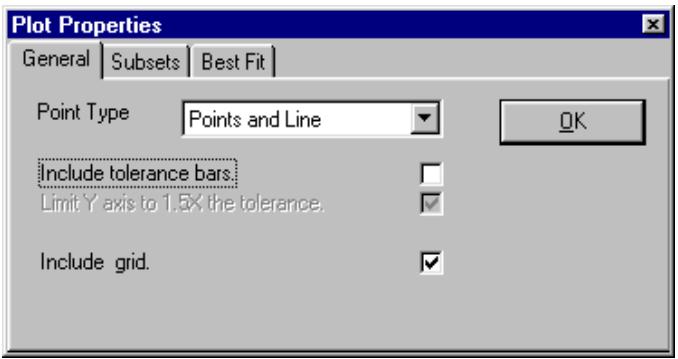
Figure 79. [Plot Properties], [General] Tab
Table 52. [Plot Properties], [General] Tab Fields
| FEATURES | DESCRIPTION |
| Point Type (drop down list box) | Determines the type of point plotting method to apply to the plot data. • Points and Line: Applies a symbol to all data points and connects a straight line between them. • Line: A straight line is used to connect all data points, but no specific indication is used to mark each data point. • Points: A symbol is used to mark each data point in the plot and no line is used to connect them. |
| Include tolerance bars (check box) | Causes tolerance bars to be displayed on the graph. The tolerance bars are calculated using the tolerance from the DUT Definition [Tolerance] tab (see Section 8.5). |
| Limit Y axis to 1.5X tolerance (check box) | This option is active only when tolerance bars are included in the plot and an error plot type is selected. If the error exceeds the tolerance by 50%, the actual DUT error plot will not be visible. When this function is not active, all plots are auto-scaled. This option is often use for plots included in reports so that all plots are scaled in the same manner regardless of actual error magnitude. |
| Include grid (check box) | Activates and deactivates a grid overlay on the plot. |
12.4.2.2 SUBSETS
Data files created from multi-cycle tests allow discrete selection of the test cycles to plot. Any combination of cycles can be plotted at any given time. Check the cycle numbers that you wish to include in the current plot and uncheck those that you wish to remove from the plot. All formatting and other plot options are enforced on all plotted cycles.
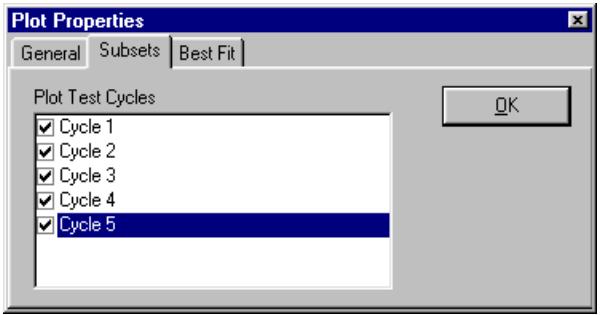
Figure 80. [Plot Properties][Subsets] Tab
12.4.2.3 BEST FIT
The [Best Fit] tab is used to apply a polynomial fit to the data plotted. Table 53 provides information on operation of the [Best Fit] tab. See Section 19.7 for information on best fit calculations.

Best fit and tolerance options do not apply to custom plots.
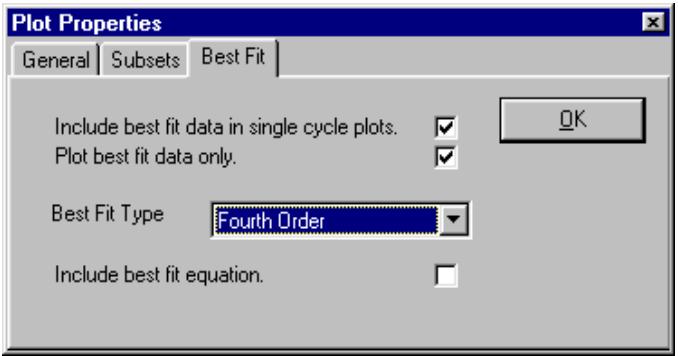
Figure 81. [Plot Properties], [Best Fit] Tab
Table 53. [Plot Properties], [Best Fit] Tab Fields
| FEATURES | DESCRIPTION |
| Include best fit data in single cycle plots(check box) | Causes the best fit straight line of the plotted data to be calculated and plotted in addition to the actual error plot. Applies only to error type plots and does not apply when more than one test cycle is plotted. |
| Plot best fit data only(check box) | Causes the best fit straight line of the data to be calculated and plotted. The actual error plot is not included. Applies only to error type plots and does not apply when more than one test cycle is plotted. |
| Best Fit Type drop down list box) | When a best fit is applied to the plot, this feature determines the order of the best fit polynomial used. See the calculations section for details on how the best fit data is determined (see Section 19.7). |
| Include best fit equation(check box) | This feature displays the best fit polynomial on the plot when a best fit is included in the plot. The equation of the first data cycle plotted is used when multiple cycles are plotted. |
12.4.2.4 CUSTOM PLOT
This tab allows custom plots to be created and removed. All custom plots are available at the bottom of the list selectable plots (see Section 12.4.1). Use the [New] toolbar option to create a new plot. Enter the plot title and select the data to plot on the X axis followed by the data to plot on the Y axis. All numeric data logged for each point in the data file can be selected as X or Y plot data.

The tolerance and best fit selections are not applied to custom plots. Export the COMPASS data file into a spread sheet application for more extensive plotting ability.
Figure 82 shows the
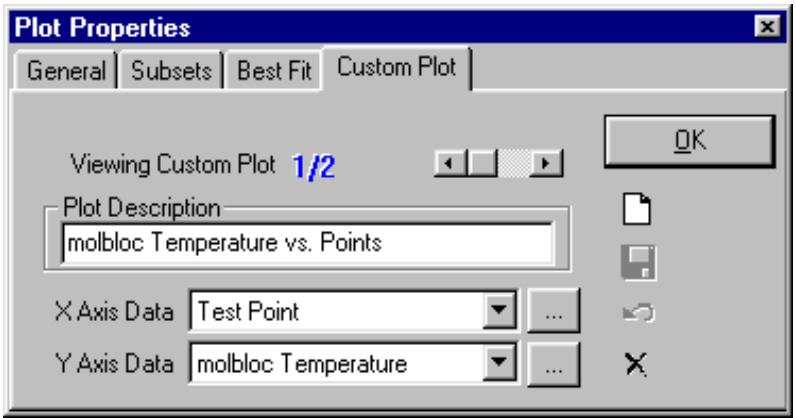
Figure 82. [Plot Properties], [Custom Plot] Tab
Table 54. [Plot Properties], [Custom Plot] Tab Fields
| FEATURES | DESCRIPTION |
| Plot Description (text entry) | Enter text that describes the data that will be plotted. The text entered will appear at the bottom of the list of selectable plots and at the top of plots generated using this plot selection. |
| X Axis Data (list box) | Select the data that will display along the X axis. The text of the selection followed by units (when appropriate) will appear along the bottom of the plot. Press the button next to the drop down list to change the text to associated with <X Axis Data>. |
| Y Axis Data (list box) | Select the data that will display along the Y axis. The text of the selection followed by units (when appropriate) will appear along the vertical axis of the plot. Press the button next to the drop down list to change the text to associated with <Y Axis Data>. |
13. REMOTE INTERFACING
13.1 OVERVIEW

The ability to communicate quickly and simply with a wide variety of instruments is one of the most important features of COMPASS. Without this capability, the benefits of automation could not be fully realized as data acquisition and control functions would still have to be performed manually.
This section provides information on COMPASS's facilities for interfacing with remote instruments. This includes how commands are sent to instruments, the formatting of responses, troubleshooting tips and overall interface timing.
COMPASS supports remote communications over RS-232 and IEEE-488 interfaces. In general, initialization, set and read command sets with up to 10 discrete commands per set can be issued to complete a desired function. In many cases, multi-command sets are not needed. COMPASS's highly versatile command structuring support and the near universality of RS-232 and/or IEEE-488 interfaces on today's computers and test instruments, make it possible to use just about any test instrument with remote communications capability with COMPASS.
There are two main interface types set up in COMPASS. Read interfaces are used when COMPASS must acquire data from a device such as a digital multimeter used to read a DUT's output. Set interfaces are used to send flow setting commands directly to a flow controlling device or a programmable power supply. Each of these main interface types usually include two command sets: a) the initialization to prepare to the device to set or read properly (not needed in all cases but indispensable in some); and b) the actual read or set instructions. Read interfaces must always be set up so that the device responds in a specific, preplanned measurement unit; set interfaces must be structured to include a variable which is the numerical value of the set target since the target value changes at different points in a test.
Most devices that support remote interfacing use a common text command and response format. Typically, commands are word fragments that resemble the function of the command. Responses to numerical query commands frequently output as a direct numerical value or a condensed string with the number embedded. Some instruments require ASCII control codes as part of the command set. Control codes are specified in the instrument documentation as non-printable hexadecimal characters, e.g., 04H or H04. COMPASS is designed to handle all of these cases. The

It is critical to check the

All remote commands must be entered contiguously. The first blank command entry is assumed to be the end of the command list even if commands are specified beyond the blank entry.

Up to 10 commands can be issued as part of the initialize, read or set command setup.
13.2 REMOTE COMMAND EDITOR
The remote command editor is used to define commands issued using an RS-232 or IEEE-488 interface. The editor changes display options based on the type of command being set up. Some commands require a response while others do not.
Remote command editors are connected to the DUT Definition [Read] and [Set] tabs (see Sections 8.5.8, 8.5.9) as well as to the Hardware Definition [DMM], [Power Supply], [Frequency], [Pressure], [Temperature] and [Flow Controller] tabs (see Section 10.3).
13.2.1 INITIALIZATION COMMANDS
Initialization commands are used to set a remote device to a known state. This can include setting a specific unit of measure, range information, gas selection, clearing error buffers, etc. All commands entered are sent just one time during the initialization phase of [Run DUT] and [Run Test] run mode execution (see Sections 7.2, 7.4). Responses to initialization commands are not used in any way by COMPASS. Therefore, there is no requirement to specify set or read information.
See Section 13.2.4 for information on Command Editor features.
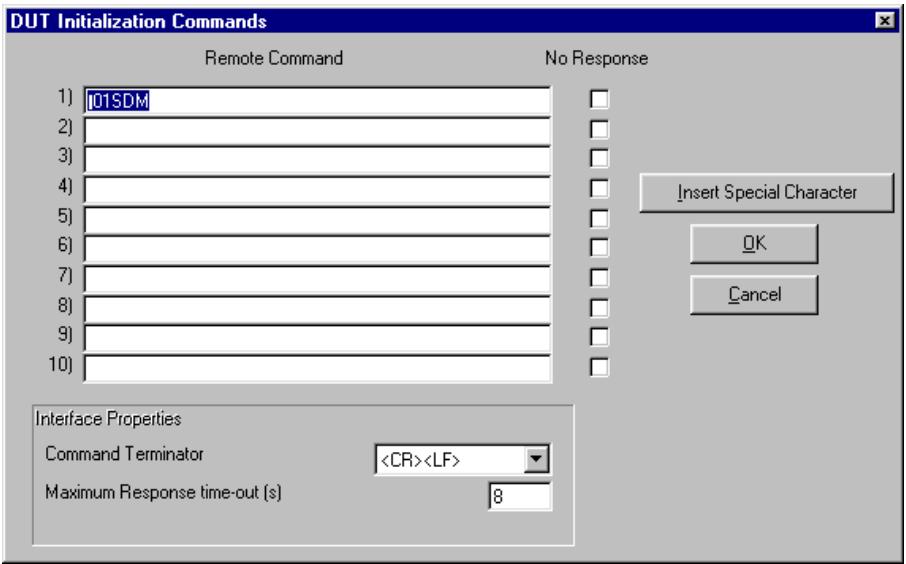
Figure 83.
13.2.2 READ COMMANDS
Read commands are used to obtain an output from a remote device. When COMPASS is in a run mode that uses the device, the read commands are constantly sent in order to provide real time updating. The faster the instrument responds, the faster the refresh rate on the run screens (see Section 6.7). For this reason, it is best to use the smallest number of commands possible to obtain the desired instrument response.
Although, up to ten commands can be issued as part of the read process, one command must be specified as the actual read command. This command, when formatted using the
See Section 13.2.4 for information on Command Editor features.
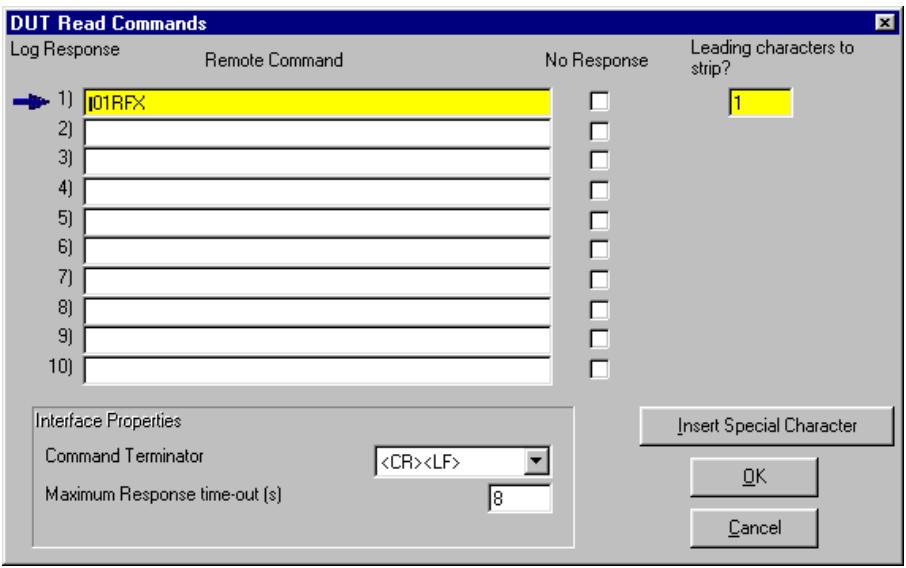
Figure 84.
13.2.3 SET COMMANDS
Set commands are used to stimulate an output in the instrument being set up. For DUT's and flow controllers, the set commands should generate a flow in the
See Section 13.2.4 for information on Command Editor features.
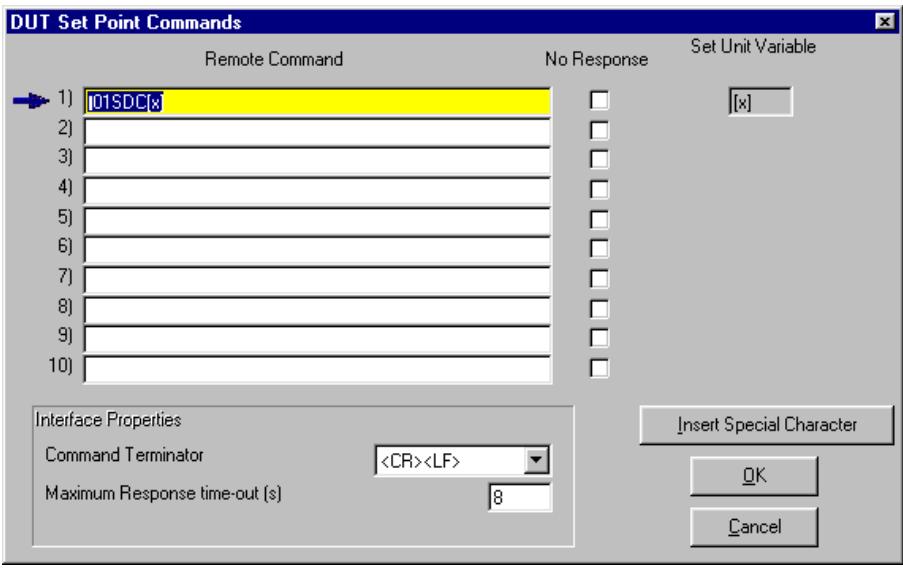
Figure 85.
13.2.4 EDITOR FEATURES
All Command Editors have common features and some that are specific to certain types of Command Editors.
13.2.4.1
For example, a device might return the string, "Mass Flow:4.343 slm". The actual output value for this example appears at position 11. Therefore, ten leading characters need to be stripped prior to processing the string. Alternatively, if the colon following "Pressure" will always appear prior to the flow value, ". . ." could be entered as the leading character to strip. In some cases both a delimiter and a number of characters to strip may be required. For example, if a remote device returns "Range 1, 4.34 volts, NR 4.431 slm", the number of characters in the volts output can change making it impossible to use a fixed length value for the number of spaces to remove to access the flow value. To avoid this problem enter the text <,4> as the leading characters to strip value. This tells COMPASS to move to the second comma, then increment four spaces to read the flow output value.

Only non-numeric text can be used as a delimiter in the leading characters to strip field. All numerical entries are assumed to represent the corresponding numerical value.
13.2.4.2 INSERT SPECIAL CHARACTER>
Use the
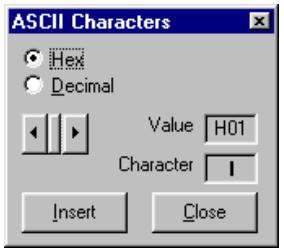
Figure 86.
13.2.4.3
Defines how the instrument terminates command strings. The selections available from the drop down list are carriage return,
13.3 RS-232 INTERFACE
RS-232 is one of the most widely used interface standards. At least one RS-232 port is built into every IBM compatible computer. The interface connects two devices in a full duplex fashion so that both devices can talk simultaneously. The connection requires that the RS-232 receive line of one device is connected to the transmit line of the second device and visa versa. In addition to this connection, some devices require the connection of "handshaking" lines to signal the beginning and the interface conversation.
To set up an RS-232 instrument, an RS-232 cable must be connected between the instrument and the computer. The port on the computer must be specified along with the settings of the remote instrument. The computer RS-232 port must be specified and the settings of the port must be adjusted to the settings of the remote instrument. COMPASS provides setup features to facilitate this step. Refer to the instrument's manual to determine how to retrieve the RS-232 settings.
13.3.1 RS-232 SETUP
If the remote interface selection is RS-232, the
represent the physical connection of the device and an RS-232 port on the host computer or the currently configured reference device.
Use the selection found at the end of the
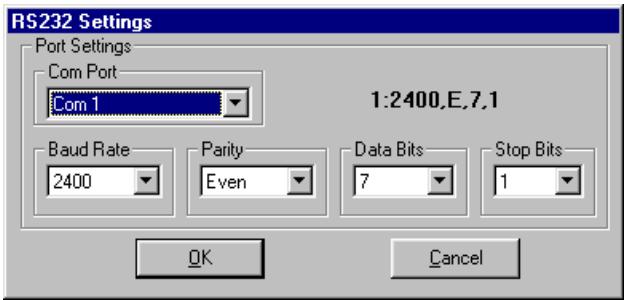
Figure 87.
13.4 IEEE-488 INTERFACE
IEEE-488, also known as GPIB (General Purpose Interface Bus), is a popular instrument interface protocol. This interface allows a single IEEE-488 controller card to simultaneously interface with up to 15 instruments. Each instrument must be set to an independent IEEE-488 address from 1 to 30. The controller card also has an address that is used when multiple IEEE-488 cards are installed in the PC. However, this is a rare case.
To use IEEE-488 with COMPASS, use the [Setup][System],
13.5 DEVICENET INTERFACE
COMPASS supports National Instruments and SST DeviceNet interface cards. Select the card to use with the [Setup][System], [DeviceNet Card] option (see Section 10.2). The command protocol as outlined by the ODVA DeviceNet Specification is used by COMPASS to read and set flow. For this reason, a remote command setup is not necessary. Output units and other settings within the device are not changed. The DUT Definition must include the correct output range and unit information just like any other DUT. The DeviceNet device MacID and baudrate are the only selections required to setup the DeviceNet interface of a DUT.
13.6 [TQOLS], [REMOTE COMMUNICATIONS]
[Tools], [Remote Communications] provides a simple means of sending individual command strings to remote devices and receiving and displaying the response. This tool can be used for discreet remote device communication and communications testing. Use this tool to familiarize yourself with the device's communications, for troubleshooting communications problems and determining the appropriate
commands to send prior to entering command information into any of the Command Editors. If a command issued to a device does not give the desired results, refer to the device documentation for information.
[Tools], [Remote Communications] allows the desired interface type to be selected and interface parameters to be specified. IEEE-488 communication assumes the computer is using the IEEE-488 card selected in the System Configuration (see Section 10.2). Enter the command to be sent in the command field. Clicking
Some RS-232 instruments automatically output data without requiring a command response pair. To test these interfaces, check the
![FLUKE COMPASS FOR MOLBOX - [TQOLS], [REMOTE COMMUNICATIONS] - 1](/content/2019/12/19968/images/2e1468efb9a90a6c188275aa3dc0281f2831007afe82620695846e5bfaddfd37.jpg)
Figure 88. Remote Communications Tool
NOTES
14. [TOOLS], [FLOW UNIT EDITOR]
![FLUKE COMPASS FOR MOLBOX - [TOOLS], [FLOW UNIT EDITOR] - 1](/content/2019/12/19968/images/58c6cd4ca59c757a3a523348e34369464a80d8b1b3a6176493f604e4a27b1be1.jpg)
14.1 OVERVIEW
Flow unit of measure selection is used in COMPASS DUT Definitions (see Section 8). In all lists that allow the selection of a flow unit of measure, there is an
COMPASS supports the creation of new flow units of measure by allowing the selection of a
$$ \frac {k g}{s} = \frac {k g}{s} \frac {6 0 s}{m} \frac {6 0 m}{h} $$
$$ \frac {k g}{s} \Rightarrow \frac {3 6 0 0 k g}{h} $$

See the molbox Operations and Maintenance Manual, UNIT Section for extensive information on flow units of measure.

Flow unit of measure conversions used by COMPASS are defined in Section 19.3.
14.2 FLOW UNIT EDITOR
The
When the
When creating a new flow unit of measure, always start by selecting a
Table 55 provides information on the fields and functions of the

The flow units kg/s, mg/s and mols/s should never be deleted or modified. COMPASS must use the flow units in their raw form to read flow data from the molbox.

See the molbox Operation and Maintenance Manual, [Unit] Section for additional information on flow unit types and units of measure.
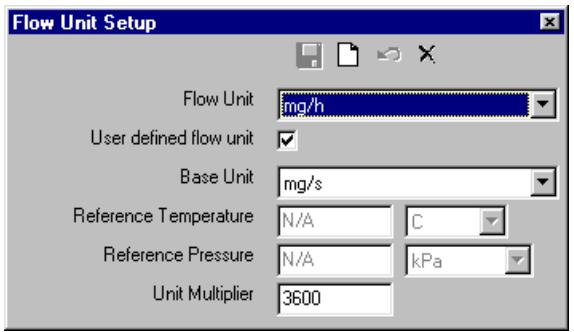
Figure 89.
Table 55.
| FEATURE | DESCRIPTION |
| Flow Unit (drop down list box) | When the editor is in view mode, the list of currently supported flow units is in the drop down list. The settings for each flow unit appear in the corresponding portions of the flow unit editor. When the editor is in edit mode, the field is disabled when the <User Defined Flow Unit> option is not checked. In this case, COMPASS displays the default flow unit name based on the current <Base Unit>. If a user defined unit is being set up, the name of the user defined unit should be entered in this field. No two flow units can share the same <Flow Unit> value. |
| User defined flow unit (check box) | When checked, the <Unit Multiplier> value is active and the <Flow Unit> field represents the manually entered flow unit name. If this option is not checked, COMPASS uses the default flow unit name based on the <Base Unit>. Flow units can be renamed by checking this option and leaving the <Unit Multiplier> equal to 1. This enables the <Flow Units> field for input. |
| Base Unit (drop down list box | A list of standard mass and volume or actual flow units are selectable in this list. All user defined flow units are derived from these units. Volumetrically based mass flow units such as, "slm" and "sccm", require reference pressure and temperature entries. Actual flow units such as "alm" and "accm" require data acquisition of pressure and temperature. The <Pressure Measurement> and <Temperature Measurement> selections in [Setup], [System] determine whether or not these are read automatically or entered manually in COMPASS run modes (see Section 10.2). |
| Reference Temperature (numeric entry field/drop down list box) | The reference temperature for a volumetrically based mass flow unit (do not confuse the flow unit of measure reference temperature with the DUT's normal operating temperature, see Section 8.5.3). This field is enabled only when a volumetrically based mass flow units such as "slm" or "sccm" is selected. When an actual flow unit such as "alm" or "accm" is selected, data acquisition of the actual DUT gas temperature is required in COMPASS run modes. |
| Reference Pressure (numeric entry field/drop down list box) | The reference pressure for a volumetrically based mass flow unit (do not confuse the flow unit of measure reference temperature with the DUT's normal operating pressure, see Section 8.5.3). This field is enabled only when a volumetrically based mass flow unit such as "slm" and "sccm" is selected. When an actual flow unit such as "alm" or "accm" is selected. Data acquisition of the actual DUT gas pressure is required in COMPASS run modes. |
| Unit Multiplier (check box) | Defines the value by which to multiply the base flow unit to obtain the user defined flow unit. Most conversions consist of time and/or volume translations; e.g. seconds or hours and/or cubic centimeters to cubic meters. However, any translation can be made. Use dimensional analysis to determine the required multiplier to create the new flow unit. Make sure the unit is appropriately named. |
14.3 UNIT CONVERTER
A general unit conversion tool is available in the [Tools], [Unit Converter] menu. This tool allows the conversion of pressure, temperature and flow from one unit to another. This tool is useful when defining ranges or when trying to analyze data in units not reported.
When using the tool, enter numeric values with appropriate resolution. The calculated values always display with resolution based on the resolution of the original input. This can be confusing if a small quantity unit is converted to a large quantity unit. For example, if Pa (Pascal) pressure units are converted to MPa (Mega Pascal), entering 1 Pa will yield 0.0MPa . To see the actual value enter, the Pa value with more resolution: 1.00000 or 1e5.
Table 56 describes the fields and function of the Unit Converter.

The resolution of any value entered in the Unit Converter to determines the resolution of the corresponding calculated value. To obtain more resolution in the output, use more resolution in the input.
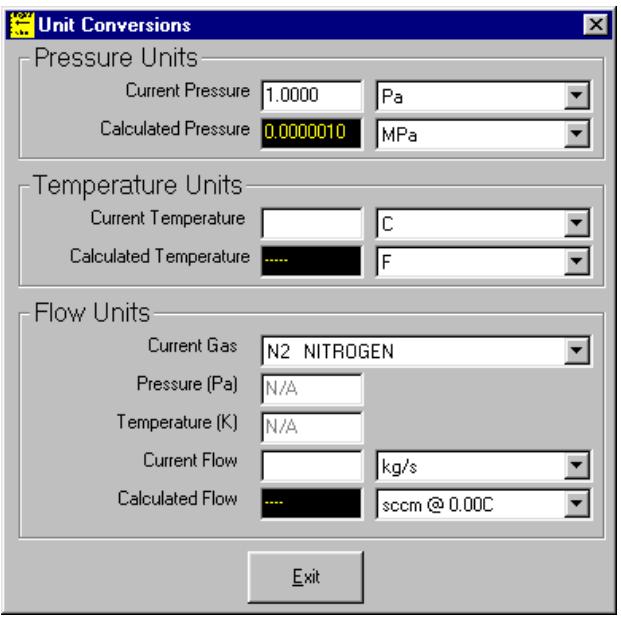
Figure 90. Unit Converter
Table 56.
| FEATURE | DESCRIPTION |
| Current Pressure (numeric entry field/drop down list box) | The numeric pressure value in the units that will be converted. |
| Calculated Pressure (display field/ drop down list box) | The converted pressure value in the selected pressure units. |
| Current Temperature (numeric entry field/drop down list box) | The numeric temperature value in the units that will be converted. |
| Calculated Temperature (display field/ drop down list box) | The converted temperature value in the selected temperature units. |
| Current Gas drop down list box) | The gas for which the flow unit conversion will take place. The complete list of COMPASS supported calibration gases is available for selection. |
| Pressure (optional numeric entry field) | Ignore this field if you are not converting a volume or actual flow unit. Volume or actual flow unit conversions require instantaneous pressure values. If an actual flow unit is selected enter the pressure in Pascal into this field. If necessary use the pressure unit converter to determine the actual pressure in Pascal. |
| Temperature (optional numeric entry field) | Ignore this field if you are not converting a volume or actual flow unit. Volume or actual flow unit conversions require instantaneous temperature values. If an actual flow unit is selected enter the temperature in Kelvin (K) into this field. If necessary use the temperature unit converter to determine the actual temperature in K. |
| Current Flow (numeric entry field/drop down list box) | Enter the numeric value of the flow in the units that will be converted. The drop down list of flow units contains the complete list of units defined by the Flow Unit Editor (see Section 14.2). Since actual flow units require a density correction, pressure and temperature values must also be specified if an actual flow unit is selected. |
| Calculated Flow (display field/ drop down list box) | The converted flow based on the supporting flow unit information. If the selected flow unit is an actual flow unit, pressure and temperature data must be included. |
NOTES
15. [TOOLS], [PROCESS GAS EDITOR]
![FLUKE COMPASS FOR MOLBOX - [TOOLS], [PROCESS GAS EDITOR] - 1](/content/2019/12/19968/images/d54b8c87efb3d1b29893210f28a65be2e2352e717b8f7157411b19e170f2e572.jpg)
15.1 OVERVIEW
The Process Gas Editor is a separate application included with COMPASS that is used to create and maintain information on the DUT manufacturer process gases available in the DUT Definition [Header] tab (see Section 8.5.2). The goal of the application is to allow users to add and maintain a list of DUT manufacturers with specific gas conversion factors (often called "K" factors) based on process gases and gas blends. The gas conversion factor allows a DUT designed for a specific process gas to be calibrated with a different calibration gas. Refer to the molbox Operation and Maintenance Manual, [K] Section, for more details on gas conversion factors.
The Process Gas Editor is automatically installed with COMPASS. The program can be run directly from the COMPASS program group, or by using the [Tools], [Process Gas Editor] menu short cut.
All DUT manufacturer information created with the Process Gas Editor is stored and accessed by the COMPASS main program. The information is used to automatically display gas conversion factors appropriate for the DUT manufacturer, process gas and calibration gas selected in a DUT Definition. DUT manufacturers that do not use or require K factors do not need the Process Gas Editor. Instead, select the
When the program is active, select a manufacturer from the list or use the

Gas conversion factors, often called K factors, are used when a DUT cannot be tested with the gas with which it is normally operated. K factor definition and uncertainty are the responsibility of the DUT manufacturer (see Section 15.1 and the molbox Operation and Maintenance Manual, [K] Section).
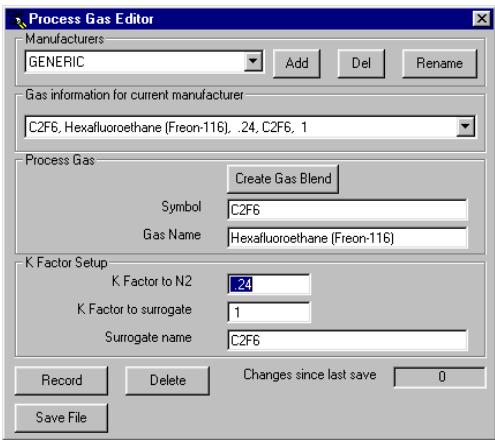
Figure 91.
15.2 FEATURES
A description of the functional aspects of the Process Gas Editor is included in Table 57.
Table 57.
| FEATURE | DESCRIPTION |
| Manufacturer drop down list box) | Select the name of the DUT manufacturer whose list of process gases is being updated. This field can also be used to create, rename or delete DUT manufacturers. Once the manufacturer has been selected, all other fields and action buttons on the Process Gas Editor act on the information for the selected manufacturer. Start defining the process gases for this manufacturer by typing the chemical symbol for the desired gas in the Process Gas Symbol field. When the gas symbol is entered, the Editor automatically fills in the other fields with whatever information is already available about the gas just entered. The user may modify any of the fields. When all the data is acceptable, click the <Record> button. |
| Add (action button) | Adds a new manufacturer to the list. All items added will be available in the <DUT Definition Editor> in the COMPASS main program (see Section 8.5). |
| Del (action button) | Use this button to remove the currently selected manufacturer from the list. If a DUT with the deleted manufacturer already exists, it will continue to function normally. The side effect is that it will add the manufacturer back to the list but without automatic gas conversion factor support. This is similar to using the <Add Manufacturer> option in the DUT Definition Editor. |
| Rename (action button) | Displays a pop-up window that allows the currently selected manufacturer name to be changed. |
| Gas information for current manufacturer drop down list box) | A list of stored gas information for the current manufacturer. When a new item is selected, the remaining fields of the Process Gas Editor are updated with the information specific to the selected gas. |
| Create Gas Blend (action button) | Press this button to create a blended gas (see Section 15.3). |
| Symbol (text entry field) | An abbreviated version of the <Gas Name>. To create a new gas, always start by entering the symbol first. |
| Gas Name (text entry field) | The full text name of the process gas. |
| K Factor to N2 (numeric entry field) | The gas conversion factor from the process gas to N2. |
| K Factor to surrogate (numeric entry field) | The gas conversion factor from the process gas to the selected surrogate gas. |
| Surrogate name (text entry field) | A full text name of the surrogate gas. |
| Record (action button) | Record the changes to the displayed process gas information. When <Record> is pressed, a new gas can be added or edited prior to saving the file. Failure to press record will undo all changes made. |
| Delete (action button) | Remove the current process gas from the DUT manufacturer. The <Gas information for current manufacturer> selection determines which gas will be removed. |
| Save File (action button) | Permanently saves all changes recorded in the Process Gas Editor. If this button is not pressed prior to closing the editor, none of the updates will be stored. |
15.3 GAS BLENDS
Press
Use the drop down list box to select the first gas in the blend. Enter the percentage of the blended gas that the selected gas represents in the
A nominal gas conversion factor is calculated by taking the reciprocal of the weighted reciprocal sum of each of the component gas conversion factors. The recommended surrogate is the recommended surrogate for the highest percentage gas (or the first gas selected if the percentages are equal).
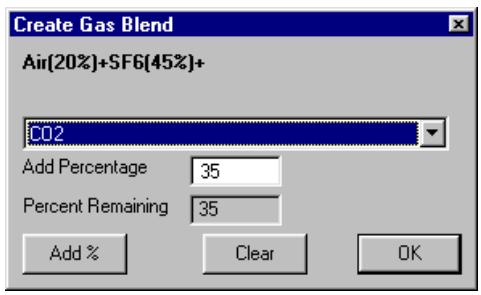
Figure 92.
16. [DATA], [REPORT EDITOR]
![FLUKE COMPASS FOR MOLBOX - [DATA], [REPORT EDITOR] - 1](/content/2019/12/19968/images/7dd1f08120de1dc6098161800a3d6dacf56c90f1a7914aa4306762122b75e184.jpg)
16.1 OVERVIEW
The purpose of the COMPASS Report Editor is to generate test reports from Data Files (.dat), view the reports, edit and print them.
The Report Editor is a separate application installed when COMPASS is installed.
The COMPASS Report Editor can be accessed in three ways: using the [Data], [Report Editor] menu option; pressing the
16.2 REPORT PRINCIPLES
The COMPASS Report Editor is used to create templates (.rtf/*.tpl files) that are merged with Date Files (.dat) (see Section 16) to generate a report. Several report templates can be created to have custom reports to support a variety of report styles. All basic word processing features are included to allow custom formatting, cut and paste ability, changing font types and point size, inserting objects, etc. Several reports and templates can be viewed, edited, saved or printed within the report editor at the same time.

Only the top most file displayed within the COMPASS Report Editor is acted on by the tool bar and menu selections unless the selection specifically refers to "All." The [Option] functions are not file specific.
The report Editor includes a Test Data Field Insertion Tool. This tool allows links to fields in COMPASS Date Files (*.dat) to be embedded into the report template. The ability to insert Data File links at any location within a report template using any available text formatting is one of the most important features of the Report Editor. Access this tool by pressing
The default directory locations for .dat, .rtf, and .tpl files are determined by the Report Editor [Options], [Paths] selections (see Section 16.3.4.4). Each file selection box within the report Editor defaults to one of these directories depending on the type of file required. Unless changed by the user, all report templates are stored in the .\template sub-directory of the COMPASS root directory. Reports automatically have the same name as the Data File that was merged with a report template, but with the extension .rtf. By default they are stored in the same directory as the Data File (see Section 18.3). The
The COMPASS Report Editor supports Windows drag and drop functionality. All supported files of the Report Editor can be dragged to the title bar of the program from Windows Explorer. Depending on the type of file, the Report Editor will either generate a report or display the file.
16.3 MAIN MENU BAR
The main menu of the Report Editor is divided into several sections, each with a separate function. Many of these functions can also be accessed by a shortcut included on one of the COMPASS Report Editor toolbars. Each menu is summarized immediately below and covered in detail in subsections of this section.
- [File] (see Section 16.3.1): Print, save, open and close reports (.rtf) and report templates (.tpl).
- [Edit] (see Section 16.3.2): Search, cut and paste text. These features are also available using the toolbar and standard Windows shortcuts.
- [Format] (see Section 16.3.3): Insert fields, select the current report template.
- [Options] (see Section 16.3.4): Toggle the display state of toolbar and adjust the default file paths used by the Report Editor.
- [Window] (see Section 16.3.5): Change the current top Window within the COMPASS Report Editor display. This changes the file which will be acted on by the menu options.
- [Help] (see Section 16.3.6): Access on-line help.
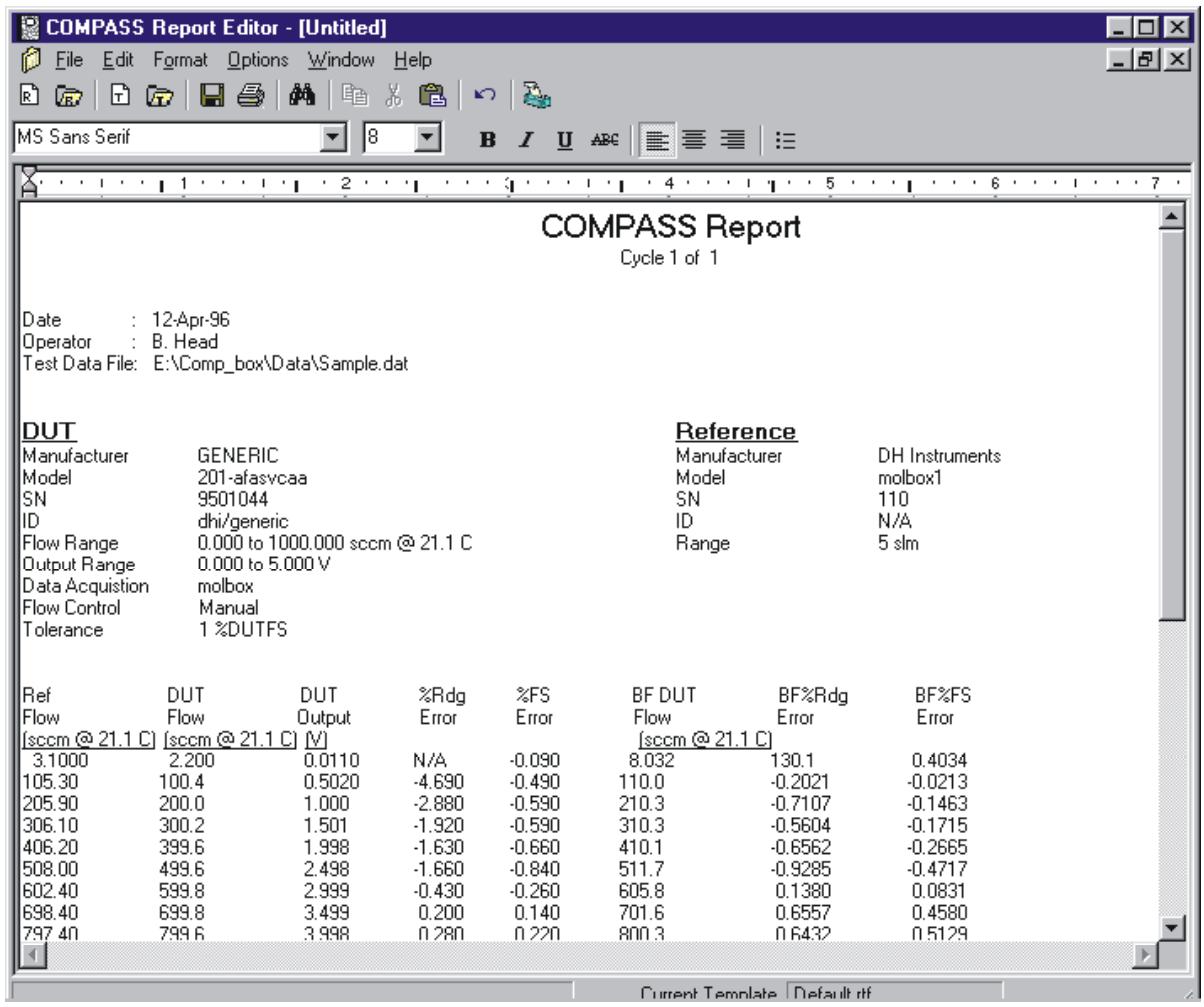
Figure 93. COMPASS Report Editor
16.3.1 [FILE]
Detailed information on each of the items in the [File] menu is listed in this section. Items that have an equivalent toolbar shortcut, display the icon of the tool bar next to the section title.
![FLUKE COMPASS FOR MOLBOX - [FILE] - 1](/content/2019/12/19968/images/65c55e9fc8bb0f1506297c1346c850dddd52f02a14f766c0f567d8772a09e398.jpg)
Multiple files can be selected using many of the [File] menu options. Specifically, when selecting a .dat file to generate a report or selecting a .rtf or .tpl file to edit a report or report template. Use the Shift and arrow keys to highlight the desired files within the Windows file selection tool when making a multi-file selection. The function that generated the file selection will act on all files selected. For example, generating reports starts with the selection of .dat files. Selecting, several *.dat files in the file box generates a separate report for each file selected. It is a short cut to selecting each file one at a time.
16.3.1.1 [FILE], [EDIT REPORT]
This feature is represented by the toolbar icon:
![FLUKE COMPASS FOR MOLBOX - [FILE], [EDIT REPORT] - 1](/content/2019/12/19968/images/638d65c2f01c4185fc56c89e282e2cb33728f173362027b7d122298973be0c1f.jpg)
[Edit Report] is used to edit an existing report. Selecting this feature displays a standard Windows file selection tool set to the directory containing the data subdirectories in which reports are stored. The selected report file opens in the Editor where it can be edited as desired. Use the [File], [Save] feature or the toolbar shortcut to save the file.
16.3.1.2 [FILE], [GENERATE REPORT]
This feature is represented by the toolbar icon:
![FLUKE COMPASS FOR MOLBOX - [FILE], [GENERATE REPORT] - 1](/content/2019/12/19968/images/55e7cd4d070f95ad8d0c6244b5c71aacecccea07e170378002f151bc7af8ed1a.jpg)
[Generate Report] is used to create new test reports from Data Files (.dat) and a template file (.mpl). The first step is to select a Data File using the standard Windows file selection tool. As previously described at the beginning of this section, a single or multiple Data Files can be selected. The COMPASS Report Editor merges the selected Data File(s) with the current template to generate the report(s). All formatting characteristics of the field key that are present in the report template are maintained during report generation. The final report is automatically saved and loaded into the report Editor. At this point the report file can be acted on like any other document within the report Editor.
![FLUKE COMPASS FOR MOLBOX - [FILE], [GENERATE REPORT] - 2](/content/2019/12/19968/images/7570512fd8b5a61fe6c94b0ce1f8eba759c7b671150217be3aafaaad395a11d0.jpg)
Prior to using this option, make sure the desired report template is selected by noting the name of the file on the bottom status bar's
16.3.1.3 [FILE], [EDIT TEMPLATE]
This feature is represented by the toolbar icon:
![FLUKE COMPASS FOR MOLBOX - [FILE], [EDIT TEMPLATE] - 1](/content/2019/12/19968/images/954e431ac508e7601c91f9cd09739c205dc4bc85c8437c3f264b82f8e0bd58bc.jpg)
[Edit Template] is used to edit an existing template. This can be used either to
change an existing template or to create a new template similar to an old template. For example, if an existing template contains a standard header, footer and formatting, it may be simpler to create a new template by editing an existing template and saving it to a new name rather than to start a new template from scratch.
The first step is to select the template file to edit using the Windows file selection tool that displays after this option is selected. The selected template displays in the Report Editor. Edit all constant text that you wish to display on every report. Use the format toolbar and menu features of the Report Editor to make any visual edits desired. To insert a Data File link use the [Format], [Insert Field Key] menu option or toolbar shortcut (see Section 16.3.3.2). After all edits have been made, save the template. At this point the template has not been selected for report generation unless it is already listed in the
![FLUKE COMPASS FOR MOLBOX - [FILE], [EDIT TEMPLATE] - 2](/content/2019/12/19968/images/adba86ce79d879676d4c354e201bbe1f33e2baaf86e8fca9ac2cc4e34ce3315d.jpg)
The font and paragraph format of a field key is maintained during report generation. As a result the Data File information that the field key represents will be inserted using the font and alignment characteristics of the field key. For example, if the Data File key in a template uses a font point size of 20 with bold text. The Data File name will display in the completed report with a font point size of 20 and also have bold text. Keep this in mind when generating a report template.
16.3.1.4 [FILE], [CREATE TEMPLATE]
This feature is represented by the toolbar icon:
![FLUKE COMPASS FOR MOLBOX - [FILE], [CREATE TEMPLATE] - 1](/content/2019/12/19968/images/e3d11bc94032a94393421366c231cc30d19ea3e8e8ec0812bbcfbc47e50bb1e8.jpg)
[Create Template] is provided to create a template from scratch. The flexibility of report templates and the ease with which they can be created and edited allow COMPASS test reports to be personalized to your exact requirements.
When [Create Template] is used, a new blank report template will be opened for edit. The report template defines the information from COMPASS Data Files (*.dat) that will be included in the report. It also defines the fixed information and the report format. A typical report template includes a customized header and footer, data labels and embedded Data File links.
The first step is to add constant text that should appear on all reports generated with this template. Company specific information is a good example of constant text. If the template is being created for a specific model of DUT, constant information specific to this model could be entered. When all text is entered and formatted as desired use [Format], [Insert Field Key] to insert Data File links using the Field Insertion Tool (see Section 16.3.3.2). Although field keys can be entered at any time, it is recommended that they be entered after constant text to prevent the chance of corrupting the field key. Regardless of the approach, the final step is to save the template with a descriptive name that will make it easy to distinguish from other template files. To choose the template for report generation, select [Format], [Select Template]. Creating and/or editing a template does not make it the
![FLUKE COMPASS FOR MOLBOX - [FILE], [CREATE TEMPLATE] - 2](/content/2019/12/19968/images/909595d7efcf9bd3cd8f349f79144f192babc967c54fba7f6df3811faf9bf3bb.jpg)
[File]. [Create Template] is provided to create a template from scratch. This is a more advanced report feature that should only be used after the report generation process is thoroughly understood. It is a much simpler task to edit an existing template and save that template with a different file name (see Section 16.3.1.3). Try editing one of the sample templates provided with COMPASS before creating a new report from scratch.
16.3.1.5 [FILE], [SAVE]
This feature is represented by the toolbar icon:
![FLUKE COMPASS FOR MOLBOX - [FILE], [SAVE] - 1](/content/2019/12/19968/images/9910fd2d57fbee9021bde9bf0ef4b2cd35ba39ee2071c6eafb05e409d09da447.jpg)
[Save] acts on the current top file in the Report Editor. If the current top file has previously been named, the name of the file appears in the title bar of the text window. Choosing [Save] in this case saves the current contents of the window to the current file name without further prompts. Files that have not previously been saved display
16.3.1.6 [FILE], [SAVE AS]
[Save As] is used to save the current top file with a different name, essentially making a copy of the file. The option always displays a file selection box allowing the entry of a new file name and follows the same procedure as the [Save] option when an untitled file is saved (see Section 16.3.1.5).
16.3.1.7 [FILE], [SAVE ALL]
Unlike the other save options, [Save All] acts on all documents open in the Report Editor. It is the equivalent to selecting each file and choosing [File], [Save] (see Section 16.3.1.5). Untitled files will still require the input of a new file name. This is a shortcut save option that can be used when multiple files have been modified and you wish to save the changes to all of them.
16.3.1.8 [FILE], [CLOSE]
[Close] has the same function as pressing the close <X> in the Windows control box of any open document. It closes the current file, unloading the contents from memory. If changes have been made to the document since the previous save, a prompt to save the file occurs. Choosing <Yes> saves the file applying the rules of the [File], [Save] option (see Section 16.3.1.5). Selecting <No> closes the file ignoring any changes that may have occurred.
16.3.1.9 [FILE], [CLOSE ALL]
[Close All] is a short cut to selecting every file currently open in the Report Editor then choosing [File], [Close] (see Section 16.3.1.8). This is a convenient way to close several open files. If changes have occurred there is still a prompt
to save the file before closing. When several files are being closed, an extra option is provided to automatically save any changed files preventing the need to make a selection for each file. The prompt displays only after a changed file is encountered and more than one file is currently open.
16.3.1.10 [FILE], [PRINT]
This feature is represented by the toolbar icon:
![FLUKE COMPASS FOR MOLBOX - [FILE], [PRINT] - 1](/content/2019/12/19968/images/dacf37a07de90a89fec9cb0218eec3326724e6b3aa502b97a9457154994b91c3.jpg)
[Print] is used to print the current file to any printer set up on the PC in use. A printer setup window displays prior to printing allowing a printer to be selected and set up before printing. The COMPASS Report Editor prints the document exactly as it is displayed within the Report Editor unless a printer specific issue overrides a document feature.
16.3.1.11 [FILE], [PRINT ALL]
[Print All] displays one printer setup dialog and prints all open documents according to the printer settings. This feature is provided as a short cut to selecting the [File], [Print] option for each open file (see Section 16.3.1.10).
16.3.1.12 [FILE], [EXIT]
Selecting [Exit] closes the report Editor.
16.3.2 [EDIT]
The [Edit] menu provides common word processor editing functions. Many of these functions have several possible shortcuts. The toolbar and short cut keystrokes provide direct access to many editing features. All edit functions act on the current document only.
![FLUKE COMPASS FOR MOLBOX - [EDIT] - 1](/content/2019/12/19968/images/7ae684759547b71d388deabfe093c67eaaa6031837ef44e6beba6f5e17ddd77d.jpg)
A right mouse click in any open document accesses a mini edit menu with the basic edit options.
16.3.2.1 [EDIT], [UNDO]
This feature is represented by the toolbar icon:
![FLUKE COMPASS FOR MOLBOX - [EDIT], [UNDO] - 1](/content/2019/12/19968/images/897552b2ae45349e227e1005d57ea8fe421961b83984326371809fcaa770ead0.jpg)
[Undo] is provided to undo the most recent editing operation within the Report Editor. Undo support in the COMPASS Report Editor does not provide the ability to undo several previous steps. Only the most recent step per open document is maintained in the undo buffer. As a result, the first time [Undo] is activated the most recent step is undone. The next time it is activated it will Redo this step because that is what is required to undo the last action. This is essentially a toggle between undo and redo.
16.3.2.2 [EDIT], [CUT]
This feature is represented by the toolbar icon:
![FLUKE COMPASS FOR MOLBOX - [EDIT], [CUT] - 1](/content/2019/12/19968/images/845bedb21f85776ba2a85392873117846bd97b8c7dd697b1425ca079f7b7db72.jpg)
[Cut] deletes the current selection and copies it to the Windows clipboard.
This information can be pasted into other applications or other locations within the COMPASS Report Editor.
16.3.2.3 [EDIT], [COPY]
This feature is represented by the toolbar icon:
[Copy] copies the current selection to the Windows clipboard without first deleting it. The information can be pasted into other applications or other locations within the COMPASS Report Editor.
16.3.2.4 [EDIT], [PASTE]
This feature is represented by the toolbar icon:
[Paste] copies the contents of the Windows clipboard to the current cursor location in the document.
16.3.2.5 [EDIT], [FIND]
This feature is represented by the toolbar icon:
[Find] provides the ability search for specific text within a report or report template. Enter the search text in the
Table 58 provides information on the
![FLUKE COMPASS FOR MOLBOX - [EDIT], [FIND] - 1](/content/2019/12/19968/images/9f653653dc1bd07f75dc2209575b74df226e4aef7b1c8f346aed9d96123c9e40.jpg)
Figure 94.
Table 58.
| FEATURE | DESCRIPTION |
| Find What (required entry field) | The text entered in this field is the search text. |
| Match Case (check box) | Select this feature when the search should match both case and text. |
| Find Whole Word Only (check box) | Causes search to ignore occurrences of the search text that are embedded in other words. |
| Find (action button) | Starts the text search according to information provided on the form. |
| Cancel (action button) | Closes the search tool. |
16.3.2.6 [EDIT], [FIND NEXT]
[Find Next] performs another text search using the most recent search criteria (see Section 16.3.2.5). It is most efficient to use the shortcut key combination [CTRL]+F instead of making a menu selection.
16.3.2.7 [EDIT], [SELECT ALL]
[Select All] highlights all text in the active document. Most frequently, selecting all text is used to copy the information to later paste it in another application or open document. The selected text can also be deleted to clear an entire document of all text.
16.3.3 [FOMETRY]
16.3.3.1 [FORMAT], [INSERT_DATE/TIME]
[Insert Date/Time] adds the current system date and time to the active document according to the format specified in the Regional Settings of the Windows Control Panel. The text is always entered at the current text insertion point.
16.3.3.2 [FOMAT], [INSERT FIELD KEY]
This feature is represented by the toolbar icon:
![FLUKE COMPASS FOR MOLBOX - [FOMAT], [INSERT FIELD KEY] - 1](/content/2019/12/19968/images/ac60b2dae19576e24a5bc72dfe099feff331569ca81159f8ee6f6cb2351ce2c6.jpg)
[Insert Field Key] displays the Field Insertion Tool which is used to embed links to COMPASS Data Files into report templates. The toolbar icon displayed above or [CTRL]+T are shortcuts to displaying this tool.
To embed a link using the field insertion tool, place the cursor in the report template at the desired location of the link. Press [CTRL] + T to invoke the Data Field Insertion Tool. The tool appears over the top of the open report template. The Data File fields available are sorted into "field categories". Select a
![FLUKE COMPASS FOR MOLBOX - [FOMAT], [INSERT FIELD KEY] - 2](/content/2019/12/19968/images/028898691e491604e4ce801f4dc8d47ae876893ec03b69b33872ab2f91779a41.jpg)
It is a good idea to use tabs to fix field key locations when column alignment is desired in a report. Using spaces does not always give the desired results. Text can vary in size based on the selected font. This moves the relative location of an inserted field preventing the desired column alignment. Click the
![FLUKE COMPASS FOR MOLBOX - [FOMAT], [INSERT FIELD KEY] - 3](/content/2019/12/19968/images/542966782240998141355afa8525bb6df7c2911a3c2e94750988ab6315f5caf9.jpg)
Figure 95.
16.3.3.3 [FORMAT], [SELECT TEMPLATE]
[Select Template] displays a standard Windows file selection tool set to the template directory specified by [Options], [Path],
16.3.3.4 [FOMAT], [MULTIPLE CYCLES]
[Multiple Cycles] is used to determine how the report editor should handle Data Files that contain test data from multiple cycles (see Section 9.5.4). The options provide the ability to override the report template fields that identify data from a specific test cycle. These fields are limited to
Table 59 describes the [Multiple Cycles] options.
![FLUKE COMPASS FOR MOLBOX - [FOMAT], [MULTIPLE CYCLES] - 1](/content/2019/12/19968/images/eb2075c43319166cc152a5138ed2de65eb57501af6d292b8127520b07f3039e6.jpg)
Figure 96.
Table 59.
| FEATURE | DESCRIPTION |
| Auto generate multiple reports of individual cycle data with the current report template (radio button) | Automatically creates an independent report for each data cycle stored in the selected Data File. All field keys that have a specifically assigned data cycle are ignored. Each report generated will be formatted based on the selected report template, however, the report will always contain information from only one cycle at a time. For example, a five cycle Data File will generate five individual reports. |
| Prompt to create individual or multiple reports (radio button) | Data files with multiple data cycles require the selection of which data cycles to include in the reports. An individual report will be created for each cycle selected. Only data from one cycle will be included in each report, regardless of any specific cycle selections stored in the report template. |
| Report only information specifically requested in the report template (radio button) | Uses the data cycle related field keys exactly as they were stored in the report template. When this option is selected, only one report is generated regardless of how many data cycles are stored in the selected Data File. This selection is useful when comparing data from different test cycles. For example, a report template and corresponding report can be created that displays the errors of cycles 1 through 5. |
16.3.3.5 [FOMAT], [PAGESETUP]
[Page Setup] is provided to change the margins of the active document. By default, all page margins are 0.5 inches on new documents. Use the [↑] and [↓] arrow keys to modify the page margins. Each key press corresponds to a 0.1 inch margin increment in the direction of the arrow. A margin value can also be entered manually. Margin changes are not reflected on the active document. The margin change is evident only after printing the file.
![FLUKE COMPASS FOR MOLBOX - [FOMAT], [PAGESETUP] - 1](/content/2019/12/19968/images/682bc1a9f4babf1672eef51eeaef3244963554d644de56cd4e3d6f7a34a5c738.jpg)
Figure 97. Page Setup Screen
16.3.4 [OPTIONS]
The [Options] menu is the only main menu that does not depend on the active document. The options in this menu toggle the display state of the program's toolbars. The [Path] function to set default file paths is also located here.
16.3.4.1 [OPTIONS], [TOOLBAR]
The [ToolBar] refers to the main toolbar containing shortcuts to many of the file options. Selecting this item toggles the display state of the toolbar. Refer to the sub-sections of Section 16 for specific information on the functions accomplished by these toolbar shortcuts.
![FLUKE COMPASS FOR MOLBOX - [OPTIONS], [TOOLBAR] - 1](/content/2019/12/19968/images/d462cca5a2eb939f7e9cfbc16f95faaa52795769b9348d21aae2094752d4b1b5.jpg)
Figure 98. Report Editor, Main Toolbar
16.3.4.2 [OPTIONS], [EONT FORMAT BAR]
The [Font Format Bar] provides access to standard font and paragraph formatting options. The purpose and use of each option on this toolbar are summarized in Table 60.
Each selection on the [Font Format Bar] can be used to affect a range of text by highlighting the desired text then making a selection. When a text range is not selected, any [Font Format Bar] selection will affect all text entered at the current insertion point only. This toolbar also displays the formatting in place at the current insertion point when a selection is not made. Using the arrow keys to
move within the text of an open document refreshes this toolbar with the current text formatting at the cursor insertion point.
![FLUKE COMPASS FOR MOLBOX - [OPTIONS], [EONT FORMAT BAR] - 1](/content/2019/12/19968/images/bc77c1255463522feb968e637b544b93b7a929e238ad620eaed25d74dbef2bbb.jpg)
Figure 99. COMPASS Report Editor, Font Format Bar
Table 60. COMPASS Report Editor, Font Format Toolbar
| FEATURE | DESCRIPTION |
| Times New RomanFontSelection | Displays and changes the current font. A complete list of all fonts supported by the PC displays in the font selection box. |
| 8 Font Size | Displays and changes the current font size. Enter the numerical value of the desired font size and press [ENTER]. Each value entered or present in the document is added to the list of available font sizes and can be selected using \( \downarrow \). |
| B Font Bold | Displays and changes the current font bold setting. [CTRL]+B is a shortcut to this toolbar item. This font is in bold. |
| I Font Italic | Displays and changes the current font italic setting. [CTRL]+I is a shortcut to this toolbar item. This font is in italics. |
| U Font Underscore | Displays and changes the current font underscore setting. [CTRL]+U is a shortcut to this toolbar item. This font uses an underscore. |
| ABC Font Strikeout | Displays and changes the current font strike out setting. This font uses a the font strike-out. |
| Left Justify | Displays and changes the paragraph justification to left. Left justification forces all text to begin at the current left indentation point. Only one style of justification can be used per paragraph. |
| Center | Displays and changes the paragraph justification to center. When active, text is centered between the left and right indentation points. |
| Right Justify | Displays and changes the paragraph justification to right. When active, text is aligned to the right indentation point of the document. Most commonly this is the right margin. |
| Bullets | Adds or removes bullets to a paragraph. |
16.3.4.3 [OPTIONS], [RULER]
The [Ruler] gives a visual indication, in inches, of the document layout. At all times the left most position of the ruler corresponds to the left margin setting of the document. Changes in the margin settings will not reflect on the ruler. The COMPASS Report Editor uses the ruler mainly to support tab positioning and paragraph indentation.
Table 61 gives a functional description of the options present on the Ruler toolbar.
![FLUKE COMPASS FOR MOLBOX - [OPTIONS], [RULER] - 1](/content/2019/12/19968/images/20739186f48df8a50e38b5a75f4bbd7f2d2b4a9146fb613e53590e10da97603a.jpg)
Tabs and indent values are adjusted by using the mouse to click and drag the tool to the desired location. Where the mouse button is released determines the new location of the indent or tab.
![FLUKE COMPASS FOR MOLBOX - [OPTIONS], [RULER] - 2](/content/2019/12/19968/images/83e47876f81a33c07b7397f4a91f07ed84a559b56dba1dd59c7ac612007310ef.jpg)
Figure 100. COMPASS Report Editor, Ruler
Table 61. COMPASS Report Editor, Ruler Features
| FEATURE | DESCRIPTION |
| Left Indent | Sets or displays the left indentation point of the first line of a paragraph. The ruler location of this indent always displays as the number of inches from the left margin. |
| Left Hanging Indent | Sets or displays the left hanging indent of subsequent lines in a paragraph. Using the mouse, click the left hanging indent image and drag it to the desired location then release the mouse button to drop it. This parameter has no effect on the first line of a paragraph and can be greater than or less than the left indent. |
| Right Indent | Sets or displays the right indentation point of a paragraph. Unlike the left indent properties, the right indent affects the entire paragraph. The ruler location of this indent always displays as the number of inches from the left margin. |
| Tab | Sets or displays the location of all tabs that affect the current insertion point. To add a tab, click the ruler where you want the tab to be located, a “T” appears indicating the new tab location. Adjust tab locations by using a mouse drag and drop operation. Right click a tab to remove it from the ruler. A Windows standard tab of 0.5 inches is always present, even when no other tabs display on the ruler. A maximum of 15 tabs can be used to affect a single range of text. |
16.3.4.4 [OPTIONS], [PATH]
[Path] allows the selection of the default path for storage of Data Files, Report Templates and Reports. A browse key to the right of each path definition, allows selection using a standard Windows file selection tool. New directories can be created. A check box on the Report Destination frame allows the location of created Reports to automatically be the same as the Data File used to generate the report.
![FLUKE COMPASS FOR MOLBOX - [OPTIONS], [PATH] - 1](/content/2019/12/19968/images/1d35cb78a95846e13bfacf8f20857f4b2a995468d646818338b5e0f2dcadf4e1.jpg)
The Data File path specified by [Options], [Path] in the COMPASS Report
Editor determines the default storage location for Data Files used by the Report Editor. There is also a Data File path selection in COMPASS on the [Tools], [Options], [Data File] tab (see Section 11.8). Normally, the Report Editor and COMPASS main program default Data File paths are set to the same location.
16.3.5 [WINDOW]
The [Window] menu contains a list of the file names of all open documents in the COMPASS Report Editor. Any document selected in the list becomes the current top document in the Editor. As an alternative to using this menu feature, clicking any open document in the display can make it the current top document.
16.3.6 [HELP]
The [Help] menu accesses the COMPASS Report Editor on line help.
[Show Help] opens the Help function to the Contents screen from which help functions can be accessed.
[Search Help] opens the Help function to a standard keyword search tool.
16.4 REPORT EDITOR AUTOMATION
The COMPASS Report Editor supports several Windows automation features which allow the report editor to be used with other applications. The intent of these features is to allow another applications to cause the Report Editor to generate a report using COMPASS Data Files (.dat).

The automation features of the COMPASS Report Editor are advanced topics requiring information beyond the scope of this manual. This information is provided for advanced users. There is no intent for the COMPASS Report Editor to act as a generic reporting tool for other applications. Only Data Files generated by COMPASS will successfully produce reports. All other files are opened as documents in the Editor.
16.4.1 DRAG AND DROP
The COMPASS Report Editor supports standard Windows file drag and drop features. A set of file names can be dragged to the title bar of the COMPASS Report Editor from Windows Explorer or the
16.4.2 COMMAND LINE ARGUMENTS
COMPASS uses command line arguments and DDE (Dynamic Data Exchange) to generate reports in the Report Editor after the completion of a test. Running the Report Editor with a command line of Data File names separated by the pipe character “|” generates a separate report for each Data File using the current report template. The command line is accessed using the shortcut target property of an icon in Windows. Familiarity with creating and editing Windows icons is required to use this feature. Refer to the Windows documentation and Help for details.
16.4.3 DDE (DYNAMIC DATA EXCHANGE)
The COMPASS Report Editor has an object that acts as a DDE source that can be changed to generate a report or open documents. To simplify the DDE exchange, the Report Editor acts as a source instead of a destination to avoid the requirement for a user setup in the Report Editor. The three basic requirements to establish a DDE link are the application name, link topic and link item. These values respectively correspond to: "COMPASS Report Editor", "mdiReprt" and "IbIDDE." Use these values with the DDE destination application to initiate the DDE link. Poke Data File names separated by a pipe character "|" into the "IbIDDE" source to generate reports. Poke refers to the technique of setting data in a DDE source using a DDE destination application.
NOTES
17. [HELP]
![FLUKE COMPASS FOR MOLBOX - [HELP] - 1](/content/2019/12/19968/images/98a705cd1d3d433035674eae0dd14a240b8738396c8718b4a8f4f76e66b76170.jpg)
17.1 OVERVIEW
[Help] accesses COMPASS on line help.
[Show Help] opens the Help function to the Welcome screen from which Help functions can be accessed.
[Search Help] opens the Help function to a standard keyword search tool.
What's This? help is available on all displays that contain a question mark in the top right hand corner control box. To access this help, first click the question mark. This changes the cursor into a question mark that can be clicked on any field desired. Information specific to the clicked field will display. The What's This? help mechanism is a quick and convenient way to learn more about COMPASS without directly accessing the manual. What's This help is not designed to jump to other help locations. To jump to specific help locations use the [Show Help] selection from the main [Help] menu.
NOTES
18. DATA FILES

18.1 OVERVIEW
Data files (.dat) are the files created by COMPASS to store the data relating to a test run on a DUT using [Run Test] (see Section 7.2). Data files can be viewed, edited, printed and made into custom reports all within COMPASS. Data files have also been designed to be easily exported to third party applications, such as spreadsheets or instrument management software.
18.2 DATA FILE CREATION
At the beginning of a test run (see Section 7.2), a Data File (.dat) is created. This file contains all the details on the test (reference information, DUT information, test information) and test data is logged to it as the test runs. If a test is aborted before test conclusion is reached, the [Tools], [Options], [Data File] tab setting (see Section 11.8) determines whether COMPASS queries the operator as to whether to keep or delete the partial Data File or the Data File is automatically deleted by COMPASS.
18.3 NAMING AND STORING DATA FILES
Data files are named and stored automatically. The default directory for COMPASS Data Files is "data\DUTIDinfo*.dat". The "DUTIDinfo" sub-directory is created automatically by COMPASS using the DUT information selected on the [Tools], [Options], [Data File] tab (see Section 11.8). By default, the DUT serial number is used (specified in the DUT Definition, see Section 8.5.2). The DUT based subdirectories are automatically created by COMPASS at the designated location.
The automated Data File name follows one of two formats determined by the [Tools], [Options], [Data File] tab preference (see Section 8.5.2). Realize that this is a default file name and that all complete Data Files can be renamed using the
Long Data File naming is used by default. This name is formatted as YYYY_ddd_rrr where:
- YYYYY: Is the four digit year.
- ddd: Is the three digit day of the year (Julian date). e.g., 001 for January 1 and 365 for December 31.
- rrr: Represents the test run number on the DUT being tested for the current day. This indicator increments from 000 to 999.
Short Data File naming displays as YYddrrr where:
- YY: Is the two digit year.
- ddd: Is the three digit day of the year (Julian date). e.g., 001 for January 1 and 365 for December 31.
- rrr: Represents the test run number on the DUT being tested for the current day. This indicator increments from 000 to 999.

COMPASS's automatic naming convention for Data Files makes it possible for two *.dat files to have the same name. However, the two files will always be stored in different directories since they would have to be for DUTs with different identifications. To avoid conflicts or accidental overwrites when moving Data Files to new locations, the user should keep in mind that different Data Files may have the same name.
18.4 DATA FILE STRUCTURE
The Data File structure includes headings and labels that make it easy to read and follow. The information in the Data File is divided into sections. Each section, with the exception of the first section, is preceded with a blank line followed by a single line describing the section. The Data File sections are described in Table 62.
The data in a Data File may be delimited by commas, tabs or semi-colons (see Section 11.8). The default choice is semicolon data delimiters. The COMPASS functions that use *.dat files adapt automatically to the delimiting value used by the Data File. When using a third party application, be sure to choose the appropriate delimiter prior to importing the data.

The data file delimiter must not be a character that is used in any entry field or delimiting will be incorrect.
Table 62. Data File/Grid Run Screen Main Sections
| SECTION | DESCRIPTION |
| Run Information (No Section Title) | Gives test data, start time and operator name. |
| DUT | Includes the information on the DUT that was tested from the DUT definition (see Section 8). |
| Reference | Includes information on the flow reference included in the Hardware Definition at the time the test was run (see Sections 10.2, 10.3.2). |
| Output Device | Includes information on the DMM or frequency counter used to measure the DUT output during test execution (see Sections 10.2, 10.3.4). These fields are set to N/A if the DUT did not use this type of data acquisition. |
| Set Point DMM | Includes information from the DMM used to measure the DUT set point (see Sections 10.2, 10.3.4). If the DUT set point was not measured during the test, these fields are set to N/A. |
| Pressure | Includes information on the pressure measuring device used to log gas pressure at the DUT during test execution (see Sections 10.2, 10.3.4). If pressure was not measured during the test, these fields are set to N/A. |
| Temperature | Includes information on the temperature measuring device used to log gas temperature at the DUT during test execution. (see Sections 10.2, 10.3.4). If temperature was not measured during the test, these fields are set to N/A. |
| Flow Controller | Includes information on the flow controller used to control flow during the test (see Section 9.5.6, 10.3.6). If the flow control was by the DUT or was manual, these fields are set to N/A. |
| Test | Includes information from the Test Definition that defines the test procedure used to run the test (see Section 9). |
| Pre Test | Includes the results of the leak test, if included, and specifies whether or not a system purge was used at the beginning of the test (see Sections 7.2, 7.2.1). |
| Test Data | Includes all point by point data logged during the test (see Section 7.2.2). |
| Statistics | Includes values calculated from the test data: measurement uncertainty, linearity, hysteresis, repeatability, and the best fit straight line transfer functions. When multiple test cycles are used the final statistics values determine statistics related to all data acquired during the test and not a single cycle. |
| Notes | User notes entered at the end of the test (see Section 7.2.3). |
| Pressure | Includes information on the pressure measuring device used to log gas pressure at the DUT during test execution (see Sections 10.2, 10.3.4). If pressure was not measured during the test, these fields are set to N/A. |
| Temperature | Includes information on the temperature measuring device used to log gas temperature at the DUT during test execution. (see Sections 10.2, 10.3.4). If temperature was not measured during the test, these fields are set to N/A. |
| Flow Controller | Includes information on the flow controller used to control flow during the test (see Section 9.5.6, 10.3.6). If the flow control was by the DUT or was manual, these fields are set to N/A. |
| Test | Includes information from the Test Definition that defines the test procedure used to run the test (see Section 9). |
| Pre Test | Includes the results of the leak test, if included, and specifies whether or not a system purge was used at the beginning of the test (see Sections 7.2, 7.2.1). |
| Test Data | Includes all point by point data logged during the test (see Section 7.2.2). |
| Statistics | Includes values calculated from the test data: measurement uncertainty, linearity, hysteresis, repeatability, and the best fit straight line transfer functions. When multiple test cycles are used the final statistics values determine statistics related to all data acquired during the test and not a single cycle. |
| Notes | User notes entered at the end of the test (see Section 7.2.3). |
18.4.1 DATAFILEFIELDS
Table 63 identifies and provides information on the data fields logged by COMPASS for each point of a test run. Any or all of the fields can be included in the run screen (see Section 6.7.5). Including or excluding columns or changing their order in the run screen has no effect on the Data File fields content or order.
Table 63. Data File/Grid Run Screen Fields/Columns
| FEATURE | DESCRIPTION |
| Point | The current test point in a test (see Section 9.5.2). The format is "Cycle.Point.Reading". This is the only column value that cannot be moved. It must always be the first data column. |
| Date | The date the point was taken. The current medium date format setup in the International section of the windows control panel is used to format this date value. |
| Time | Time the point was taken. The value is formatted as "hh:mm:ss". |
| Status | Character display representing the status of the point taken. Many combinations of these values may exist for any given point. The definitions of the characters are:OK - Flow was stable and within tolerance (see Sections 8.5.5, 9.5.4).T - Error was beyond the DUT specified tolerance specified in the DUT Definition (see Section 8.5.5).s - Reference flow did not meet the flow stability criterion within the stability timeout specified in the Test Definition (see Section 9.5.4).S - At least one unstable reading was recorded during the averaging time (see Section 9.5.4).t - A tare occurred, view results in the <Tare> columns (see Sections 9.5.2, 9.5.5).M - The reference molbloc was changed. The new molbloc information is in the <molbloc> column (see Section 9.5.2).L - Leak test failure after a molbloc change (see Section 9.5.2, 9.5.7).P - Purge failure after a molbloc change (see Section 9.5.2, 9.5.8).E - An interface error occurred during the averaging cycle. Generally, this indicates a reading could not be made on the reference flow device. |
| Stab Time | Time elapsed to reach valid flow stability within the stability criterion specified in the Test Definition [Sequence] tab (see Section 9.5.4). If a stability time-out occurred, the value displays as N/A. |
| Avg Time | The amount of time over which the data was averaged (see Section 9.5.4). For tests that specify a fixed averaging time, variances in this value are a result of systematic delays in the current System Configuration (see Section 10.2). Ideally the averaging times are always the same, however, it is possible for the averaging time to end just as a new command is issued to a supported instrument. The average will not complete until this value is returned. |
| Set Pt | Nominal flow set point in the set point unit of measure specified in the Test Definition (see Sections 9.5.2, 9.5.3). When the measured set point is not available, the nominal set point is used to determine set point errors. |
| Raw Ref Q | Unmanipulated molbox flow in the mass flow units specified on the [Tools], [Options], [molbox] tab (see Section 11.2). If the flow reference is not a molbox, this value is N/A. Do not use this value as the value of the reference flow. Use Ref Q DUT Cond. |
| Ref Q DUTCond | This is the value that should always be used for the reference flow.If the DUT Definition [Correction] tab (see Section 8.5.3) specifies no density correction, the <Ref Q DUT Cond> is equal to <Ref Q> immediately below. If the DUT Definition [Correction] tab does specify a density correction, the reference flow value is corrected to express the flow that would be present at the DUT if the DUT were at its normal operating conditions. This correction allows the reference flow and DUT indication to be compared even though the DUT is not at its normal operating conditions. |
| Ref Q | Reference flow in the DUT Definition's flow unit of measure. Never includes a density correction. Do not use this value as the reference flow, use <Ref Q DUT Cond> above as it is valid in all cases. |
| DUT Q | DUT flow (flow measured by the DUT) in the DUT Definition [Range] tab's flow unit of measure (see Section 8.5.4). The value is determined from the average DUT output value. |
| DUT OUT | DUT output in the DUT Definition [Read] tab's output unit of measure (see Section 8.5.8). |
| DUT Set | Measured DUT set point. This value is present only when a Test Definition [Data] tab specifies set point measurement (see Section 9.5.9). |
| DUT P | Gas pressure at the DUT in the DUT Definition's normal operating pressure unit of measure (see Section 8.5.3). A value is present only if DUT pressure logging was required. |
| DUT T | Gas temperature at the DUT in the DUT Definition's normal operating temperature unit of measure (see Section 8.5.3). A value is present only if DUT temperature logging was required. |
| %FS Err | Percent of span error calculated from the DUT and reference flows and the DUT's span. Span and full scale errors are the same as long as the DUT's <Min Flow> value is 0 (see Sections 8.5.4, 19.4). |
| %Rdg Err | Percent of reading error calculated from the DUT and reference flows (see Sections 8.5.4, 19.4). |
| %FS Set Err | Percent of span error calculated from the reference flow, the DUT span and the measured or nominal set point. If the measured set point is not available, the nominal value is used. Span and full scale errors are the same as long as the DUT's <Min Flow> value is 0 (see Sections 8.5.4, 19.4). |
| %Rdg Set Err | Percent of reading error based on the reference flow and the measured or nominal set point. If the measured set point is not available, the nominal value is used (see Section 8.5.4, 19.4). |
| SD DUT Q | Standard deviation of the DUT flow over the averaging period. This value is set to N/A when less than two points are logged during the average. |
| # DUT Pts | The number of DUT measurements taken during the averaging period. This number may not be the same from point to point and may not be equal to the <# Ref Pts> value. Systematic delays with the System Configuration and basic instrument response time make it possible for some instruments to communicate faster than others (see Section 10.2). |
| Min Ref Q | Minimum reference flow measured during the averaging period. |
| Max Ref Q | Maximum reference flow measured during the averaging period. |
| SD Ref Q | Standard deviation of the reference flow during the averaging period. |
| # Ref Pts | The number of reference flow points measured during the averaging period. This number may not be the same from point to point and may not be equal to the <# DUT Pts> value. Systematic delays with the System Configuration and basic instrument response time make it possible for some instruments to communicate faster than others (see Section 10.2). |
| Up P | molbloc upstream pressure as measured by the molbox. |
| Down P | molbloc downstream pressure as measured by the molbox. |
| DP | molbloc differential pressure across the molbloc as measured by the molbox. If a molbox RFM with an active micro range is the reference, this field represents the micro range RPT measurement. |
| molbloc Re | molbloc flow Reynolds number as calculated by the molbox. |
| molbloc T | molbloc temperature as measured by the molbox from the molbloc PRTs. |
| Tare | The molbox RPT tare in effect when the point was taken. |
| Micro Tare | The molbox RFM micro range RPT tare in effect when the point was taken (available only when using a molbox RFM with microrange as the reference). |
| molbloc | Serial number and range of the molbloc in use when the data point was taken. When changing molblocs during tests, this field can be useful to make sure that the correct molbloc was used when the point was taken. |
| Auxiliary Data 0 - 9 | Auxiliary Data fields are used to hold any auxiliary data entered manually or automatically logged by COMPASS (see Section 10.3.7). |
NOTES
19. CALCULATIONS

19.1 OVERVIEW
COMPASS operation includes many internal calculations. Most of these calculations are related to analyzing the data taken during a test run. The internal calculations performed by COMPASS are documented in the sections that follow. The calculations have been verified both by comparison of the program code content to the defined formulas and by parallel manual calculation.
19.2 DUT FLOW
The DUT flow is the DUT output converted to the DUT flow unit.
The DUT flow is calculated by first determining the percentage of the current output value relative to the DUT output span and then applying this percentage to the DUT flow span (see Sections 8.5.4, 8.5.8 for information on DUT output and flow spans). This calculation is used regardless of the state of the DUT's
$$ D_{\%} = \frac{O_{current} - O_{min}}{O_{span}} $$
$$ Q _ {D U T} = D _ {\%} \times Q _ {s p a n} + Q _ {\min} $$
| VARIABLE | DESCRIPTION |
| D% | Proportion of the DUT span output based on the measured DUT output. |
| Ocurrent | Current DUT output value. |
| Omin | DUT minimum output defined by the DUT Definition. |
| Ospan | DUT output span as determined by the difference between the maximum and minimum outputs in the DUT Definition. |
| Qspan | DUT flow range span as determined by the difference between the maximum and minimum flow output values in the DUT Definition. |
| Qmin | DUT minimum flow output defined in the DUT Definition. |
| QDUT | Calculated DUT flow in the DUT's flow range units. |
19.3 DUT SET POINTS
DUT set points are determined in almost the exact opposite manner as the DUT flow described in Section 19.2. The percentage of the DUT flow range relative to the span is used to determine the DUT output (see Sections 8.5.4, 8.5.8 for information on DUT output and flow spans). This percentage is then applied to the DUT set point span to determine the required set point. This calculation is used regardless of the state of the DUT's

The procedure for converting from the DUT flow unit to the DUT output unit is identical to the conversion to the set point unit. In fact, all conversions between the DUT flow, output and set point follow the same procedure. The only requirement is that the appropriate span and minimum value be substituted into the equation.
$$ Q_{\%} = \frac{Q_{current} - Q_{min}}{Q_{span}} $$
$$ S _ {D U T} = Q _ {\%} \times S _ {s p a n +} S _ {\min} $$
| VARIABLE | DESCRIPTION |
| Q% | Proportion of the DUT flow span based on the measured DUT flow. |
| Qcurrent | Current DUT flow. |
| Qspan | DUT flow range span as determined by the difference between the maximum and minimum flow output values in the DUT Definition. |
| Qmin | DUT minimum flow output defined in the DUT Definition. |
| Smin | DUT minimum set point defined in the DUT Definition. |
| Sspan | DUT set point span as determined by the difference between the maximum and minimum set points in the DUT Definition. |
| SDUT | Calculated DUT set point. |
19.4 DUT ERRORS
The DUT error expresses the difference between the DUT reading and the reference flow at a flow point in a test.
Errors are calculated in four different ways: %Reading, %DUTFS, %Reading Set Point, and %DUTFS Set point.
%Reading and %DUTFS errors express the difference between the DUT flow and the reference flow or the DUT span. The %Reading Set Point and %DUTFS Set Point options express the difference between the reference flow and the set point or the DUT span.

%Reading errors are undefined near O (zero) reference flows.

Set point errors are determined using the measured DUT set point whenever possible. If a measured value is not available, the nominal value is used as the set point.
$$ E _ {\% D U T F S} = \frac {Q _ {D U T} - Q _ {\text {R e f}}}{Q _ {D U T s p a n}} \times 100 $$
$$ E _ {\% R d g} = \frac {Q _ {D U T} - Q _ {\text {R e f}}}{Q _ {\text {R e f}}} \times 100 $$
$$ E _ {\% D U T F S _ S e t} = \frac {Q _ {r e f} - Q _ {S e t}}{Q _ {D U T s p a n}} \times 100 $$
$$ E _ {\% R d g _ S e t} = \frac {Q _ {r e f} - Q _ {s e t}}{Q _ {s e t}} \times 100 $$
| VARIABLE | DESCRIPTION |
| Q DUT | Current DUT flow. |
| Q Re f | Current reference flow. |
| Q DUT span | DUT flow range span as determined by the difference between the maximum and minimum flow output values in the DUT Definition. |
| E % DUTFS | DUT percent of full scale error. |
| E % Rdg | DUT percent of reading error. |
| Q Se | DUT set point flow in DUT flow units. |
| E % DUTFS_Set | DUT percent of full scale set point error. |
| E % Rdg_Set | DUT percent of reading set point error. |
19.5 DENSITY CORRECTIONS
COMPASS includes two gas density correction options to assist in testing of gas density dependent devices under conditions different from their normal operating pressure and temperature conditions. The two correction types are square root and proportional.
The gas density correction considers only gas density and no other pressure or temperature based DUT corrections. For example, gas viscosity changes with pressure and temperature and this can have a significant effect on small float rotameters but COMPASS does make a viscosity correction. Gravity has an effect on rotameters but COMPASS has no gravity correction. Generally, corrections other than density are not significant relative to the tolerances of these types of devices but, since they will not be
made and their uncertainties may be poorly quantified, testing of density sensitive devices should always be made under conditions as close as possible to the DUT's normal operating conditions.
Although the density correction is specified by the DUT, the actual correction is applied to the reference flow to determine the reference flow in the DUT's normal operating conditions, i.e., what the flow through the DUT would be if it were operating under its normal operating conditions, not the current operating conditions.
The square root density correction multiplies the reference mass flow by the square root of the ratio of the normal operating conditions gas density to the current measured gas density. The proportional density correction multiplies the reference mass flow by the simple ratio of the normal operating conditions gas density to the current measured gas density. The corrected reference mass flow is then converted to the DUT's flow unit of measure in the normal manner (see Section 19.2). Keep in mind that the correction determines the flow in the normal operating conditions, so any actual flow unit conversion must assume that these are the actual conditions.

Gas density corrections always use the reference flow converted to mg/s. The density correction ratio is applied to this value to get the corrected DUT flow in mg/s. The flow is then converted from mg/s to the DUT's flow unit to define the DUT's corrected flow under its normal operating conditions.
The equations below detail the two density correction types.
$$ \rho = \frac {M P}{Z R T} $$
$$ Q _ {\text {C o n d 1}} = Q _ {\text {r e f}} \times \frac {\rho_ {\text {o p}}}{\rho_ {\text {n o w}}} $$
$$ Q _ {C o n d 2} = Q _ {r e f} \times \left(\frac {\rho_ {o p}}{\rho_ {n o w}}\right) ^ {\frac {1}{2}} $$
| VARIABLE | DESCRIPTION |
| ρ | Gas density. The subscript “op” specifies under normal operating pressure and temperature and “now” specifies the current conditions. |
| M | Molecular mass of the gas in g/mol. |
| P | Absolute gas pressure in Pascal. |
| R | Ideal gas constant |
| Z | Gas compressibility. |
| T | Gas temperature in Kevin. |
| Q(ref) | Reference mass flow. |
| Q(cond2) | Reference mass flow in the DUT's normal operating conditions determined using the square root density correction. This value must be converted from the reference mass flow unit, to the DUTs flow unit. |
| Q(cond1) | Reference mass flow in the DUT's normal operating conditions determined using the proportional density correction. This value must be converted from the reference mass flow unit, to the DUTs flow unit |
19.6 TOLERANCE
The determination of whether a point is in or out of tolerance depends on the type of tolerance selected, and the DUT and reference flows. Tolerance values may be specified in multiple units (see Section 8.5.5). COMPASS first determines the tolerance value in DUT flow units and then compares the value to the current DUT flow error to determine if the error is smaller (in) or larger (out) than the tolerance. When the DUT tolerance selection is (%DUTspan + %Reading) the tolerance is the sum of the two values. If the selection is %DUTspan or %Reading, the tolerance used is the greater of the two values. Tolerances that are defined in DUT flow, set, or output units are also compared directly in flow units. The conversion from set and output units is described in Section 19.3.
$$ Q T _ {\% D U T s p a n} = \frac {T _ {\% D U T s p a n}}{100} \times Q _ {D U T s p a n} $$
$$ Q T _ {\% \text {reading}} = \frac {T _ {\% \text {reading}}}{100} \times Q _ {\text {Re f}} $$
| VARIABLE | DESCRIPTION |
| T% DUTspan | %DUTFS tolerance value defined in the DUT definition. |
| QDUTspan | DUT flow range span as determined by the difference between the maximum and minimum flow output values in the DUT Definition. |
| QT% DUTspan | Maximum allowable (DUT – reference flow) deviation based on a%DUTFS tolerance. |
| QRf | Current reference flow. |
| T% reading | %Reading tolerance value defined in the DUT definition. |
| QT% reading | Maximum allowable (DUT – reference flow) deviation based on a%Reading tolerance. |
19.7 BEST FIT
All best fit values in COMPASS are determined using the least squares method. This defines a selectable order polynomial equation that defines a line (or curve) that minimizes the sum of the squares of the distances from the calculated line (or curve) to the actual line (or curve). A set of general equations is described below. Based on the order of the polynomial fit, a system of equations is described. Solving these equations for each of the polynomial coefficients determines the resultant polynomial equation.
$$ \begin{array}{l} b _ {o} n + b _ {1} \sum_ {j = 1} ^ {n} x _ {j} + b _ {2} \sum_ {j = 1} ^ {n} x _ {j} ^ {2} + \dots . b _ {m} \sum_ {j = 1} ^ {n} x _ {j} ^ {m} = \sum_ {j = 1} ^ {n} y _ {j} \ b _ {o} \sum_ {j = 1} ^ {n} x _ {j} + b _ {1} \sum_ {j = 1} ^ {n} x _ {j} ^ {2} + b _ {2} \sum_ {j = 1} ^ {n} x _ {j} ^ {3} + \dots . b _ {m} \sum_ {j = 1} ^ {n} x _ {j} ^ {m + 1} = \sum_ {j = 1} ^ {n} x _ {j} y _ {j} \ \end{array} $$
$$ b _ {o} \sum_ {j = 1} ^ {n} x _ {j} ^ {m} + b _ {1} \sum_ {j = 1} ^ {n} x _ {j} ^ {m + 1} + b _ {2} \sum_ {j = 1} ^ {n} x _ {j} ^ {m + 2} + \dots . b _ {m} \sum_ {j = 1} ^ {n} x _ {j} ^ {m + m} = \sum_ {j = 1} ^ {n} x _ {j} ^ {m} y _ {j} $$
| VARIABLE | DESCRIPTION |
| n | Number of X and Y points taken. |
| m | The order of the polynomial to fit. First order m = 1, second order m = 2 and so on. |
| bo, b1.. | Polynomial fit coefficients. |
| xj | X axis data. This may be either the DUT or reference flow. It depends on the purpose of the best fit. Typically, it is the DUT flow. |
| yj | Y axis data. The data may be either the DUT or reference flow. It depends on the purpose of the best fit. Typically, it is the reference flow. |
19.8 LINEARITY
COMPASS determines the terminal based linearity of the DUT errors relative to the reference readings. The linearity value is included in the
There are two possible linearity calculations depending upon the test point sequence.
If the test point sequence is made up of corresponding ascending and descending (or vice-versa) points, linearity is calculated by taking the average between corresponding DUT flows, drawing a straight line between the minimum and maximum DUT flows and determining the maximum deviation of any average DUT flow from this line. In this case, hysteresis is also calculated (see Section 19.9).
If the test point sequence is not made up of corresponding ascending and descending (or vice-versa) points, linearity is calculated by drawing a straight line between the minimum and maximum DUT flows and determining the maximum deviation of any DUT flow from this line. In this case, hysteresis is not calculated (see Section 19.9).

If the minimum and maximum reference flows in the test sequence are equal, linearity cannot be calculated and COMPASS displays < N/A > in place of a number.
19.9 HYSTERESIS
COMPASS determines the hysteresis of DUT output relative to the reference readings. The hysteresis value is included in the
COMPASS first analyzes the test data to determine if a meaningful hysteresis calculation can be made. For hysteresis to be calculated, the test flow sequence must correspond to a normal ascending and descending (or vice versa) calibration sequence. This means that the first and last nominal flow points must be the same as well as the second and second to last, etc. If the sequence does not meet this criterion, COMPASS displays < N / A > in place of a number. This is the same test used to determine which type of linearity calculation will be used (see Section 19.9).
Hysteresis is the maximum difference between corresponding ascending and descending DUT flows in a test point sequence. The hysteresis value is expressed in %DUTFS.
19.10 REPEATABILITY
A calculated repeatability value is included in the
19.11 MEASUREMENT UNCERTAINTY
The DUT measurement uncertainty resulting from the test is calculated as the root sum square of the various components that determine the overall system uncertainty. This includes: linearity, hysteresis, repeatability, resolution and reference uncertainty. DUT resolution is obtained from the DUT Definition [Range] tab (see Section 8.5). DUT linearity, hysteresis and repeatability are calculated from the test data (see Sections 19.8, 19.9, 19.10). Reference uncertainty is obtained from the [Reference] Hardware Definition (see Section 10.3.3). Each of the values is converted to a single standard deviation by dividing by the appropriate value. The final measurement uncertainty value is then multiplied by 2 to obtain a coverage factor of 2. The uncertainty value is converted to %DUTFS for reporting. The calculation described below determines the value in the DUT's flow unit of measure. The measurement uncertainty equation is described below. A full description and analysis of each of the measurement uncertainty components is beyond the scope of this manual (see ISO/TAG 4WG3 Guide to the Expression of Uncertainty Measurement). COMPASS determines measurement uncertainty for each test cycle individually as well as for all test data combined. The complete test data determination is found in the final statistics section of the data file.
$$ U _ {D U T} = 2 * \sqrt {S _ {E s t E r r} + \left[ \frac {E _ {r e s o l u t i o n}}{\sqrt {3}} \right] ^ {2} + \left[ \frac {U _ {s t d}}{2} \right] ^ {2}} $$
| VARIABLE | DESCRIPTION |
| UDUT | Calculated DUT measurement uncertainty expressed as a value in DUT flow units, using a coverage factor of 2. The value is reported as %DUTFS by dividing by the DUT's span and multiplying by 100. |
| SEstErr | Standard estimate of error for a first order linear regression. This value combines linearity, hysteresis and repeatability. The value is the standard deviation of the error from a linear fit. |
| Eresolution | Specified DUT resolution. This value is determined by the resolution selection in the DUT Definition. |
| Ustd | Uncertainty of the reference as specified in the reference hardware definition. The value is converted to the DUT's flow unit of measure for the calculation. |
19.12 FLOW UNIT CONVERSIONS
COMPASS performs all internal flow conversion to and from kg/s. There are three types of unit conversion: mass to mass, mass to volume, and mass to perfect. Each type of conversion may require a scaling factor to convert time, volume and mass dimensions as required by the unit. In other cases, gas specific properties are required for the conversion. A mass to mass conversion requires a simple scaling factor. Mass to volume conversions always convert to sccm (or ccm) at the required pressure and temperature, then a scaling factor is used to convert to the final unit. For example, sccm to slim conversions require multiplication by 0.001. Mass to perfect unit conversions first convert to mol/s then to pccm. A scaling factor is applied as need to convert from pccm to other perfect units. Use [Tools], [Unit Converter] to determine flow unit conversions in various gases.
Table 64 describes the basic equations to perform each conversion.
Table 65 to Table 69 define the variables and conversion constants required to convert flow units. Use the conversion factors as necessary to begin with sccm, ccm, pccm, mol/s or kg/s. Then use the appropriate formula to convert to kg/s then from kg/s to sccm, ccm, pccm or mol/s. Use a scaling factor as necessary to convert to the final flow unit from sccm, ccm, pccm, mol/s or kg/s. User defined units follow this same process. The only difference is that the flow value is multiplied by the user defined unit multiplier prior to beginning the conversion (see Section 14).
Table 64. Flow Unit Conversion Formulas
| DESCRIPTION | EQUATION |
| Determine gas density for any gas. | ρ(P,T)=MwP/Z(P,T)RT |
| Determine kg/s flow from sccm (or ccm) at a given pressure and temperature. If sccm is used, P and T are defined by the flow unit. sccm @ 70F would use standard atmosphere (101.325 kPa) for P and 70F for T (see Section 14.1). If the unit is ccm, the instantaneous pressure and temperature must be used for P and T. | kg/s = ρ(P,T)sccm(P,T)/6x10^7 |
| Determine sccm (or ccm) flow from kg/s at a given pressure and temperature. | sccm(P,T)=kg/6x10^7/s ρ(P,T) |
| Conversion from pccm to mol/s | pccm=1.34483x10^6 mol/s |
| Conversion from pccm to mol/s | mol/s = pccm/1.34483x10^6 |
| Determine kg/s from mol/s. | kg/s = Mw/mol/s |
| Determine mol/s from kg/s. | mol/s = 1000/kg/Mw/s |

The "p" in pccm indicates "perfect" in which a gas compressibility factor of 1 is assumed for all gases. In early 1996, SEMI, a semiconductor industry group, adopted standard E12-96 which specified that this definition be used for volumetrically base mass flow units.
Table 65. Definition Of Terms In Flow Unit Conversion Formulas
| VARIABLE | DESCRIPTION |
| Mw | Molecular weight of the gas used. |
| R | Ideal gas constant = 8314.411. |
| T | Temperature of the gas or the reference temperature of the flow unit converted to degrees Kelvin. |
| P | Pressure of the gas or the reference pressure of the flow unit converted to Pascal. |
| Z(P,T) | Gas compressibility as a function of pressure and temperature. COMPASS has all of the necessary information to determine compressibility for the supported calibration gases. When the conversion is done for non supported gases, 1 is assumed. |
| ρ(P,T) | Gas density as a function of pressure and temperature. |
| kg/s | Flow in kg of gas per second. |
| sccm(P,T) | Flow in sccm or ccm at a given pressure and temperature. The only difference is if the flow unit was setup as an actual flow unit or volumetrically based mass flow unit. Actual flow units require real time pressure and temperature information. Volumetrically based mass flow units reference a constant pressure and temperature. |
| mol/s | Flow in moles of gas per second. |
Table 66. Flow Unit Conversion Scaling Factors
| CONVERSION | MULTIPLY BY |
| kg/s to mg/s | 1000000 |
| ccm, pccm and sccm to lm, plm, and slm respectively | 0.001 |
| ccm, pccm and sccm to lh, plh and slh respectively | 0.06 |
| ccm, pccm and sccm to cfm, pfm and scfm respectively | 0.0000353147 |
| ccm, pccm and sccm to cfh, pfh and scfh respectively | 0.00211888 |
| ccm, pccm and sccm to m3m, pm3m, and sm3m respectively | 0.000001 |
| ccm, pccm and sccm to m3h, pm3h, and sm3h respectively | 0.00006 |
Table 67. Supported Gas Molecular Weights
| GAS | MOLECULAR WEIGHT |
| Air (Air) | 28.959 |
| Argon (Ar) | 39.948 |
| Butane (C4H10) | 58.1245 |
| Carbon Dioxide (CO2) | 44.0100 |
| Carbon Monoxide (CO) | 28.0106 |
| Carbon Tetrafluoride (CF4) | 88.0048 |
| Ethane (C2H6) | 30.0702 |
| Ethylene (C2H4) | 28.054 |
| Fluoroform (CHF3) | 70.0144 |
| Helium (He) | 4.0026 |
| Hexafluoroethane (C2F6) | 138.0128 |
| Hydrogen (H2) | 2.0159 |
| Methane (CH4) | 16.043 |
| Nitrogen (N2) | 28.0134 |
| Nitrous Oxide (N2O) | 44.0128 |
| Oxygen (O2) | 31.9988 |
| Propane (C3H8) | 44.0974 |
| Sulfur Hexafluoride (SF6) | 146.0544 |
| Xenon (Xe) | 131.3 |
Table 68. Conversions From kg/s To mole/s For Various Gases
| TO CONVERT kg/sec TO mole/s | MULTIPLY BY |
| Air (Air) | 3.45316 E+01 |
| Argon (Ar) | 2.50325 E+01 |
| Butane (C4H10) | 1.72049 E+01 |
| Carbon Dioxide (CO2) | 2.27221 E+01 |
| Carbon Monoxide (CO) | 3.57015 E+01 |
| Carbon Tetrafluoride (CF4) | 1.13624 E+01 |
| Ethane (C2H6) | 3.32568 E+01 |
| Ethylene (C2H4) | 3.56455 E+01 |
| Fluoroform (CHF3) | 1.42837 E+01 |
| Helium (He) | 2.49838 E+02 |
| Hexafluoroethane (C2F6) | 7.24533 E+00 |
| Hydrogen (H2) | 4.96032 E+02 |
| Methane (CH4) | 6.23325 E+01 |
| Nitrogen (N2) | 3.56939 E+01 |
| Nitrous Oxide (N2O) | 2.27206 E+01 |
| Oxygen (O2) | 3.12512 E+01 |
| Propane (C3H8) | 2.26778 E+01 |
| Sulfur Hexafluoride (SF6) | 6.84697 E+00 |
| Xenon (Xe) | 7.61615 E+00 |
Table 69. Conversion From mole/s To pccm
| TO CONVERT mole/sec TO pccm | MULTIPLY BY |
| ANY GAS | 1.34483 E+06 |
19.13 PRESSURE UNIT CONVERSIONS
COMPASS performs all internal pressure conversion to and from Pascal [Pa], the SI unit for pressure.
Table 70 provides the conversion coefficients used by COMPASS and other DHI products to convert numerical values expressed in Pascal [Pa] units to corresponding values expressed in other units.
Table 70. Pressure Unit Conversion Chart
| TO CONVERT FROM Pa TO | MULTIPLY BY | |
| Pa | Pascal | 1.0 |
| Mbar | Millibar | 1.0 E-02 |
| KPa | kilo Pascal | 1.0 E-03 |
| Bar | Bar | 1.0 E-05 |
| mmWa @ 4 °C | Millimeter of water | 1.019716 E-01 |
| mmHg @ 0°C | Millimeter of mercury | 7.50063 E-03 |
| Psi | Pound per square inch | 1.450377 E-04 |
| Psf | Pound per square foot | 1.007206 E-06 |
| inWa @ 4 °C | inch of water | 4.014649 E-03 |
| inWa @ 20 °C | inch of water | 4.021732 E-03 |
| inWa @ 60 °F | inch of water | 4.018429 E-03 |
| inHg @ 0 °C | inch of mercury | 2.953 E-04 |
| kcm² | Kilogram force per centimeter square | 1.019716 E-05 |
| User | User | User defined coefficient |
19.14 WATER RATIO
The water ratio is used to correct the flow of a molblocS for the difference between moist and dry Air flow. The water ratio is never used for laminar molblocks or with gases other than Air. When dry Air is used, the water ratio should be 0. The water ratio is determined based on the current ambient pressure, temperature and humidity following Dalton's Rule and thermodynamic principals using water saturation properties.
The water ratio is calculated on the
$$ W = . 6 2 1 8 8 \frac {P _ {\mathrm {g}} \left(\frac {R H}{1 0 0}\right)}{P _ {\mathrm {a m b}} - P _ {\mathrm {g}} \left(\frac {R H}{1 0 0}\right)} $$
$$ P _ {g} = C _ {0} T _ {a m b} ^ {3} + C _ {1} T _ {a m b} ^ {2} + C _ {2} T _ {a m b} + C _ {3} $$
| Variable | Definition |
| W | Calculated water ratio. |
| Pg | Calculated water saturation pressure. |
| RH | Relative humidity. |
| Pamb | Ambient pressure in Pa. |
| Tamb | Ambient temperature in Kelvin. |
| C0 | 0.0649289 |
| C1 | -53.0528 |
| C2 | 14509.9 |
| C3 | -1327760 |
NOTES
20. TROUBLESHOOTING

20.1 OVERVIEW
COMPASS for molbox is a sophisticated software package with many advanced features with the potential to be misused and/or misunderstood. Check the HOW DO I? section for an explanation on how to properly use COMPASS for several common applications as well as quick tips on how to use many features. Before assuming that unexpected behavior is caused by a software or hardware defect, the operator should use this manual in conjunction with the documentation on other instruments used with COMPASS to troubleshoot and identify normal behavior. The following section contains suggestions and solutions to resolve many commonly encountered issues. Identify the unexpected behavior from the symptoms list in Table 71. A Probable Cause and Solution are proposed including cross references to sections in this manual that may be of assistance.
Table 71. Troubleshooting
| SYMPTOM | PROBABLE CAUSE | SOLUTION |
| The test report logs N/A as the hysteresis value. | Identical ascending and descending points were not used in the Test Definition. | Define a test that has identical ascending and descending test points. 19.9, 9.5.2. |
| A test runs but all DUT flow and/or output values are 0.00 or another unexpected value. | • The DUT <Read Command> or <Leading characters to strip> entry is incorrect when the DUT data acquisition is RS-232 or IEEE-488. • The DMM <Read Command> or <Leading characters to strip> entry is incorrect when the DUT data acquisition inVoltage/Current>. | Use [Tools], [Remote Communications] to send discrete commands to verify the command being used by the DUT or DMM, then make the appropriate edits to the DUT or DMM setup. Refer to the documentation of the data acquisition instrument for command details. 10.3.4, 13.3, 13.2.5.1. |
| A COMPASS time-out occurs when reading a device during test initialization. This can occur when using any supported device. | • The device interface is not properly set up. • The RS-232 or IEEE-488 interface cable is not secure. • A device command is used that does not respond. • The device power is not ON. | Always make sure a device is powered ON and has the remote interface securely attached prior to use. The remote interface settings of all supported devices can be adjusted in their respective setups. Make sure that the <No Response> button is checked when any remote command is issued that does not respond. 13.1, 13.3. |
| When using a molbox reference to run a test, the reference Ready indicator is always red though the flow appears very stable. | The %DUTspan Test Definition stability limit is in the test results in a stability limit that is too small for the current setup. | Use the [Setup], [Test], [Sequence] tab to change the stability limit in the test. 9.5.4. |
| When flow regulation is active, the reference flow oscillates significantly around the target flow. | The flow regulation time is too small.The gas supply is running out causing faulty control.The target flow is not within the resolution of the flow controller. | Make sure the gas supply is sufficient for the current test and that the flow controller has the proper performance.Use the [Setup], [Test] [Control] tab to change the regulation limit in the test. 9.5.6. |
| I chose a new reference (or other device) on the [Reference] tab of the Hardware Definition and COMPASS still tried to use the previous reference when I ran a test. | All tabs in the Hardware Definition are displays of available selections.A selection on any of these tabs updates the display only. | Only the System Configuration is used to make a selection of hardware to be used by COMPASS.The desired IEEE-488 card, reference, DMM, etc. should all be selected in the System Configuration. 10.2. |
| The flow output of my mulbox is changing erratically in COMPASS yet my flow is stable. | Interface is not properly buffered by the operating system.The RS-232 cable is not properly grounded.The PC's RS-232 port is going bad. | This issue is typically associated with the Windows NT operating systems. If this is the case, open Control Panel then select Ports. Select the effected RS-232 port from the list then choose Settings. Change the state of the FIFO Enabled option at the bottom of the Settings display.Verify that all pins are properly connected. Especially pin 5 (ground).However rare, RS-232 do go bad.This problem is associated with intermittent communications.Verify that other RS-232 devices function properly while being continuously polled. |
| A report displays $... instead of an expected piece of Data File. | The report template in use has a corrupted field. | Edit the report template and re-insert the desired field using the [Field Insertion Tool]. 16.3.1.3, 16.3.3.2. |
| I cannot edit a selected DUT or Test Definition during the initialization of a test. | COMPASS displays test and DUT Definitions in their respective Editors for viewing purposes only during test initialization and while a test is running. | Edit DUTs and tests using [Setup], [DUT] and [Setup], [Test], while COMPASS is idle. 7.1, 8.5, 9.5. |
| The test Data File appears in the COMPASS root directory as opposed to a directory based on the DUT serial number or identification. | An invalid character appears in the DUT serial number or ID field: /, \, ?, :, *, <, >, |, or “ These characters cannot be used in file or directory naming in Windows.The target directory for Data Files has restricted access or does not exist.COMPASS always defaults to the root directory without generating an error when trying to create test Data Files. | Use the DUT Definition Editor to remove any invalid characters in the DUT Definition serial number or ID field. Make sure these characters are not entered during the <Setup DUT(s)> step of test initialization. 8.5.2, 7.2.1.5.Use Windows Explorer to verify the Data File directory selection on [Tools], [Options], [Data File] tab is valid. 11.8. |
| Data Files are not being stored to the right directory. | Data Files are stored under the Data File name and the directory path specified. You may not be looking in the correct directory path. | Familiarize yourself with the Data File naming and storing protocol. Also consider that the COMPASS main program and the COMPASS Report Editor may be specifying two different paths. 18.3, 11.8, 16.3.4.4. |
| The front panel of my DUT displays more resolution than the main run screen of COMPASS. | The output resolution selection in the DUT Definition is less than the actual DUT device resolution. | Use the DUT Definition Editor to change the <Output Resolution> field of the DUT to get the desired output resolution. 8.5.4. |
| When running COMPASS, the front panel of the molbox only displays mass flow in units like kg/sec, mg/sec, or mol/sec. | COMPASS resets the molbox to a known state which removes any user setups of units, gas, K-factor, etc. The front panel options for the top row display are: mg/s (Default), kg/s, mol/s, slm @ 0.00C, sccm @ 0.00C, scfh @ 0.00C, and scfm @ 0.00C. | Using the [AVERAGE] or [DISPLAY] key on the molbox1/molbox RFM front panel, you may select the mass or volume (actual) flow units that you would like displayed on the second (bottom) line of the molbox display. (The units of this display will not change when you change units within COMPASS.) Refer to the molbox/molbox Operation and Maintenance Manual, [Display], <5unit> Section for details. |
NOTES
21. GLOSSARY

| Absolute | As in “absolute pressure”. Pressure expressed relative to vacuum. |
| Actual Flow Units | Units of measure of volume flow (sometimes called “volume flow”). Do not confuse volume flow units with volumetrically based mass flow units. See the molbox Operation and Maintenance Manual, [Unit] Section, for an extensive discussion of flow units of measure. |
| Averaging Time | The time over which reference and DUT readings are taken at a flow point in a COMPASS run mode. COMPASS makes as many readings as possible during the averaging time and then averages the readings to arrive at the reference and DUT reading for the flow point. |
| Calibration Gas | The gas with which a DUT is normally calibrated. The calibration gas may be a surrogate gas for the process gas (see also surrogate gas and process gas). |
| Cycle (Test Cycles) | A complete set of flow points in a COMPASS test run. Tests may include multiple cycles. Number of cycles is set in the Test Definition [Sequence] tab. |
| DAQ | The short form of Data Acquisition. This refers to the method used to gather data from a DUT. |
| Data File (.dat) | Files automatically created by COMPASS to store the data from a test. |
| DMM | Digital multimeter. Used by COMPASS to read the electrical outputs of DUTs. |
| Downstream | Location of point A relative to point B in a flow system in which point A is at a different location in the direction of the flow. For example, the downstream molbloc pressure port is downstream relative to the upstream pressure port because it is at a different location from the upstream port in the direction of the flow. |
| DUT | Device Under Test, Test Instrument (TI), Unit Under Test (UUT). The device that is being tested using COMPASS. DUTs are defined in DUT Definitions. |
| DUT Definition | The record in the DUT database in which COMPASS stores DUT information. Defines the DUTs that are tested by COMPASS. |
| DUT Profile | A type of DUT Definition that is intended to define a type of DUT. This is a generic definition that does not include serial number or ID. Can be used to test any DUT of a specific type. See also Individual DUT. |
| DUT Tolerance | The performance limit of a DUT expressed in terms of maximum allowable disagreement with the flow reference. DUT tolerance may be expressed in flow units, as a % of DUT FS, as a % of reading or as a combination. |
| Dwell | A waiting period at a flow point between the time the flow has been set and stabilized and the start of data acquisition to take the DUT and reference readings at the flow point. |
| Error | The disagreement between the DUT indication and the flow measured by the reference at a flow point. The error is always calculated using (DUT – reference). |
| FS | Abbreviation of “full scale”. The full scale value is the maximum value or the span of a measurement range. Limits and specifications are often expressed as % FS. |
| Hardware Definition | The record in the hardware database of a specific hardware item available for use by COMPASS. The Hardware Definition defines the piece of hardware including manufacturer, serial number ID and interfacing details. Hardware Definitions are selected to put together the System Configuration that COMPASS uses to run tests. |
| Individual DUT | A type of DUT Definition that is intended to define a specific DUT including its serial number and ID. Individual DUT Definitions can only be used to test one specific DUT. See also DUT Profile. |
| Jog | Adjust flow slightly at a flow point prior to taking DUT and reference readings at the point. Jog is most often used when testing visual output devices such as rotameters to set the flow so that the DUT indication is on the nominal flow point prior to taking data at the point. COMPASS Test Definitions allows "jog before dwell" to be included in the test procedure. |
| K Factor | A factor representing the relationship between the process gas and a surrogate gas for a DUT. Also called gas conversion factor. See the molbox Operation and Maintenance Manual, [K] Section, for additional information. |
| Leak Check | A process in which a pressure is set in the test system and then allowed to evolve freely for 60 seconds. The decay rate of the pressure over time is used as an indication of the leak present in the system. COMPASS Test Definitions can include a leak test at the start of the test. See the molbox Operation and Maintenance Manual, Leak Test Section. |
| Manual Flow Control | Indicates, in a Test Definition, that the flow will not be controlled in response to remote commands sent by COMPASS. When running a test, COMPASS will therefore prompt the user to set the flow at each point. |
| Mass Flow | Flow measured in terms of quantity of gas per quantity of time. Nearly all flow measurements, including volumetrically based flow units such as "sccm", are mass flow measurements. See also "volume flow" and "actual flow". See the molbox Operation and Maintenance Manual, [Unit] Section, for an extensive discussion of flow units of measure. |
| Microrange | An optional molbox RFM feature which improves flow measurement resolution and accuracy under 10% of FS of the molbloc. Includes a low differential RPT and valve to put the RPT into and out of service. |
| Normal DUT Operating Conditions; Normal Operating Pressure and Temperature | The gas pressure and temperature conditions under which a DUT is normally operated. The conditions for which it is calibrated. Normal Operating Conditions must be specified in DUT Definitions that include a gas density correction. |
| Perfect Mass Flow Units | Volumetrically based mass flow units of measure that assume ideal gas behavior for all gases (compressibility factor of 1). See the molbox Operation and Maintenance Manual, [Unit] Section, for an extensive discussion of flow units of measure. |
| Process Gas | The gas for which a device under test is to be characterized or calibrated. The gas that will actually flow in the device under test when it is used in a process. |
| Purge | A procedure used to assure that the "old" gas species has been completed removed from the test system when a "new" gas species is being flowed. Purge can be included in COMPASS test definitions at the start of a test and/or when a molbloc has been changed. See the molbox Operation and Maintenance Manual, Purge Section. |
| Ready/Not Ready | Indication from a molbox of when flow is stable within the stability limit and below the flow Reynolds number limit. A Ready condition is required in a test sequence for the test to continue and readings to be taken. See also Stability Limit. See the molbox Operation and Maintenance Manual, Ready/Not Ready Section. |
| Reference, Flow | The device that will be used by COMPASS as the source of reference flow values when running a test; the flow standard in the test, the value of flow measured by the reference flow device. |
| Return to Start | Execute the flow point sequence in reverse order. |
| RPT | Reference Pressure Transducer. The pressure transducers used in molbox1 and molbox RFM are referred to as RPTs. |
| Span | The difference between the minimum and the maximum DUT input or output. Often referred to as full scale but more meaningful than full scale for DUTs whose minimum flow or output is not zero. |
| Stability | Rate of change of flow in flow unit/second. |
| Stability Limit | A limit expressed in units of flow per second (e.g., sccm/second). The stability limit is used as the molbox Ready/Not Ready criterion Ready (<*) if rate is less than stability limit, Not Ready (<↑> or <↓>) if rate is greater than stability limit. See also Rate. |
| Surrogate Gas | A gas whose behavior, from the standpoint of a device under test (DUT), is similar to the process gas for which the device is to be characterized and used. A surrogate gas is often used in calibration and testing when the process gas cannot be used for safety or cost reasons. A DUT gas conversion factor ("K" factor) is used to convert from the surrogate gas to the process gas. |
| System Configuration | A listing of the specific hardware items that COMPASS uses by default to perform various data acquisition and control functions. The System Configuration is made up of individual Hardware Definitions. |
| Tare | “Zeroing” of the molbox pressure transducers at the upstream or downstream pressure to eliminate the zero error in the measurement of the differential pressure across a molbloc. molbox1 and molbox RFM have automated taring routines and COMPASS can cause these to execute during a test. See the molbox Operation and Maintenance Manual, [Tare] Section. |
| Test Definition | A database record which defines all the aspects of a test procedure that COMPASS can run on a DUT. Test Definitions are associated with DUTs and control the test procedure when a test is run. |
| Test Gas | The gas flowing through the molbloc that is being used to run the test or calibration. The test gas, from the standpoint of the device under test, could be a surrogate gas or the process gas. |
| Tolerance | Same as DUT tolerance. |
| Upstream | Location of point A relative to point B in a flow system in which point A is at a different location in the reverse direction of the flow. For example, the upstream molbloc pressure port is upstream relative to the downstream pressure port because it is at a different location from the downstream port in the opposite direction of the flow. |
| Volume Flow Units | Units of measure of volume flow (sometimes called “actual flow”). Do not confuse volume flow units with volumetrically based mass flow units. See the molbox Operation and Maintenance Manual, [Unit] Section, for an extensive discussion of flow units of measure. |
NOTES
22. END USER LICENSE AGREEMENT

COMPASS for molbox (COMPASS) is protected by copyright laws and international copyright treaties, as well as other intellectual property laws. COMPASS is licensed, not sold.
You may install or use one copy of COMPASS on a single computer. The primary user of the computer on which COMPASS is installed may make a second copy for his or her use on a second computer used only for producing reports using the COMPASS Report Editor function.
You may also store or install a copy of COMPASS on a storage device for the sole purpose of backing up or archiving in case of accidental loss or for validating the program functions or maintaining required quality assurance records.
Running more than one licensed copy of COMPASS at a time for purposes other than generating COMPASS reports or archiving as described in the previous paragraph requires a separate licensed copy of COMPASS for each computer.