USER MANUAL WIRELESS DESKTOP MK330 LOGITECH
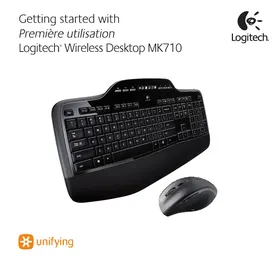
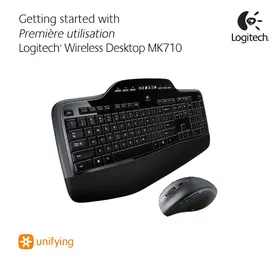
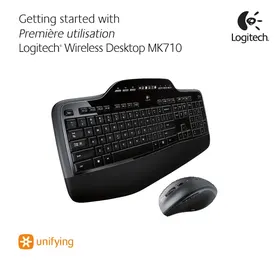
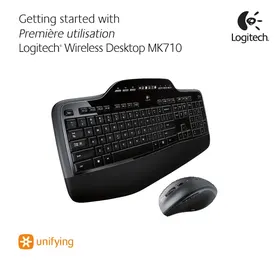
Getting started with
English Setup, 3 Features and troubleshooting, 8
Your keyboard and mouse are now ready for use. Install the Logitech SetPoint Software to do the following:
- Enable some of the F-keys and customize up to 14 keys on the keyboard
- Enable the Mute icon on the LCD
- Enable the tilt wheel and customize up to 6 buttons on the mouse
Espanol
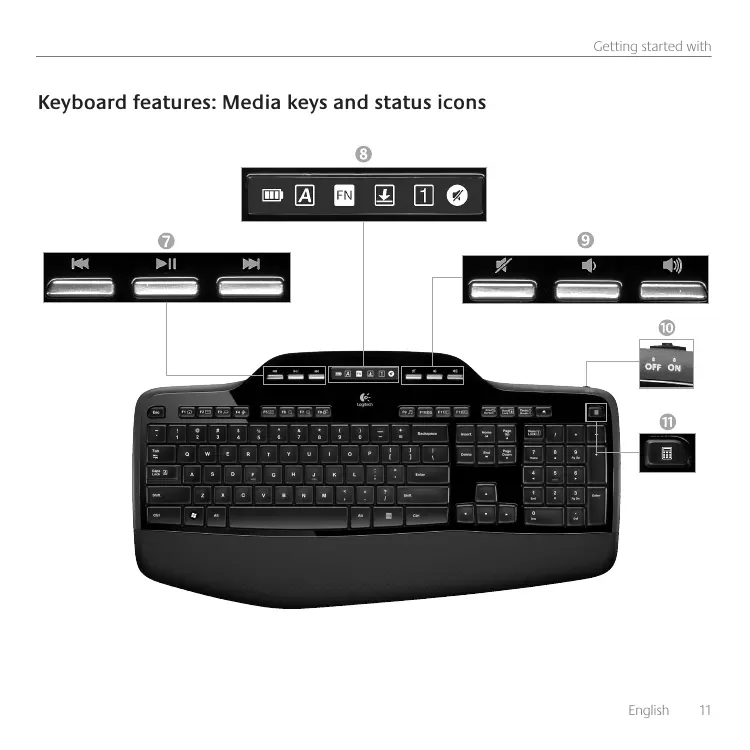
Keyboard features: F-key usage
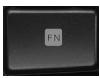
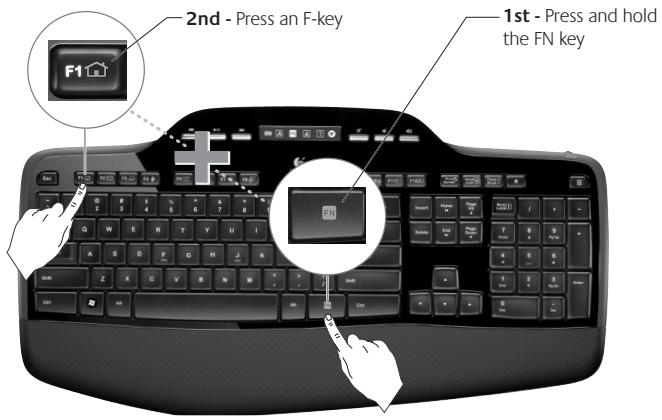
User-friendly enhanced F-keys let you launch applications easily. To use the enhanced functions (yellow icons), first press and hold the FN key; second, press the F-key you want to use.
Tip: In the software settings, you can invert the FN mode if you prefer to access directly the enhanced functions without having to press the FN key.
Keyboard features: F-keys and more
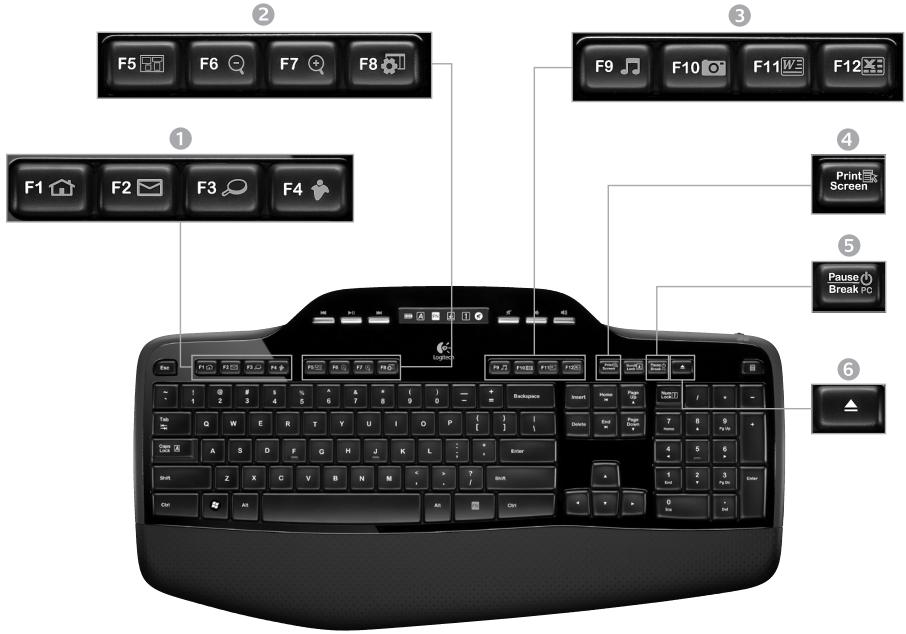
1. Internet zone
Launches Internet browser
Launches e-mail application
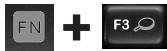
One Touch Search
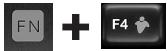
Launches instant message application*
2. Convenience zone
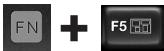
Launches application switcher*
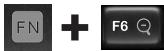
Zoom in*
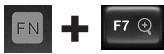
Zoom out*
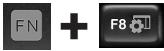
Windows
Gadget*
3. Productivity zone
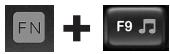
Launches media player
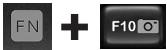
Launches Photo Gallery*
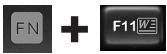
Launches document application*
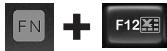
Launches spreadsheet application*

Display contextual menu of selected item.
5. PC sleep mode
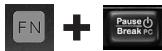
Places your computer in energy-saving sleep mode.

Opens CD/DVD-ROM drive drawer.
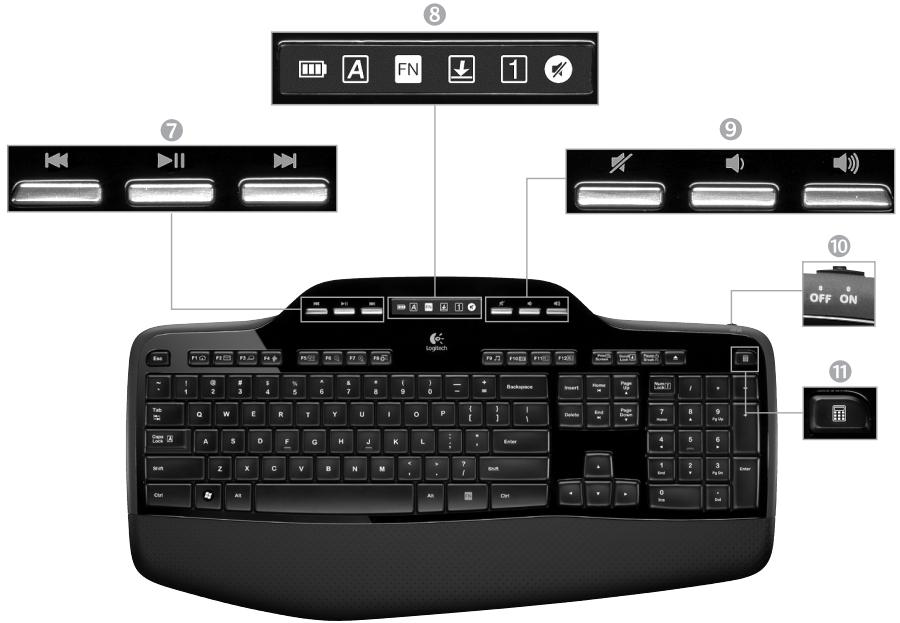

Back/previous track

Play/pause

Forward/next track
8. LCD Dashboard icon status

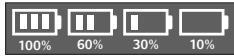
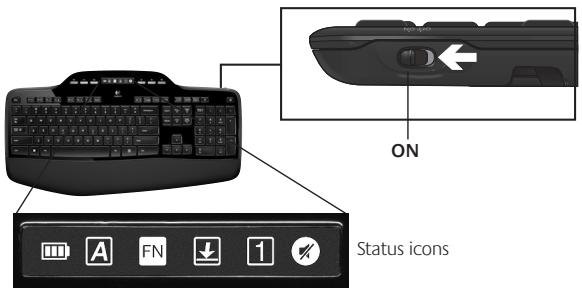
Battery status indicator (see Battery management for more information)

Caps lock on

FN on

Scroll lock on

Num lock on

Mute on*
- Logitech® SetPoint™ software installation is required.
9. Volume control

Mute

Volume down

Volume up
10. Keyboard off/on switch

11. Launches calculator

Mouse features
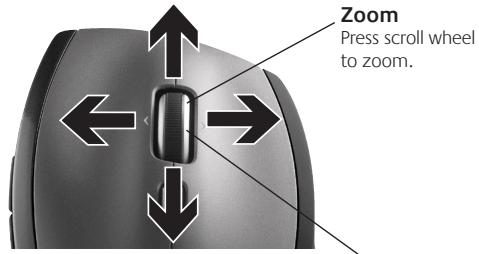
Tilt wheel for side-to-side (horizontal) scrolling through spreadsheets or wide documents. The scroll wheel doubles as a middle button. Press down to use and press again to release.
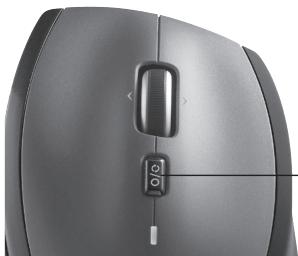
With the flick of a switch, change between precision (click-to-click) scrolling and hyper-fast scrolling.
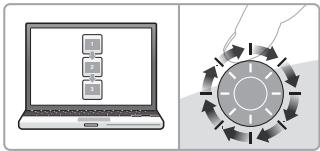
Use click-to-click mode to navigate lists or slides.
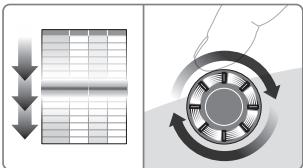
The wheel spins freely, allowing you to fly through long documents and Web pages.
More mouse features
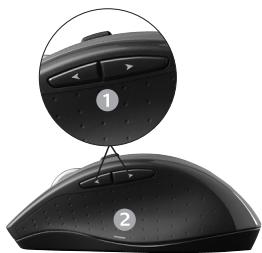
- Back and Forward Buttons* - Press to flip between web pages.
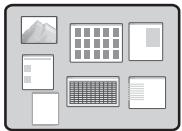
- Application Switch* - Press rubber grip to switch between applications.
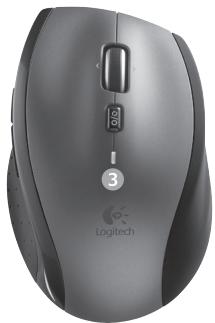
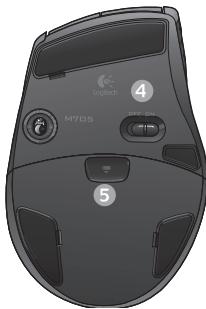
- Battery Indicator Light - Turns red when a couple weeks of battery life remain.
- On/Off Switch - Slide to turn mouse on and off.
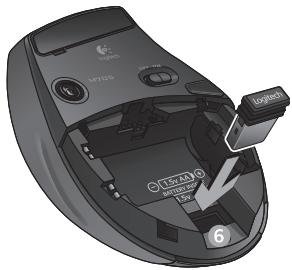
- Battery Door Release - Press where indicated and slide door off mouse. Reduce weight by installing a single battery.
6. Receiver Storage Space Inside the Mouse
- Application Switcher and side-to-side scrolling require Logitech software. Depending on your operating system, the back, forward, and middle buttons may also require Logitech software.
Customizing the keyboard and mouse
- Double-click the Mouse and Keyboard Settings icon on the Windows desktop to make changes.
- To customize the keyboard, click the My Keyboard tab. For the mouse, click the My Mouse tab.
- For either the keyboard or mouse, a series of tabs is shown on the left.
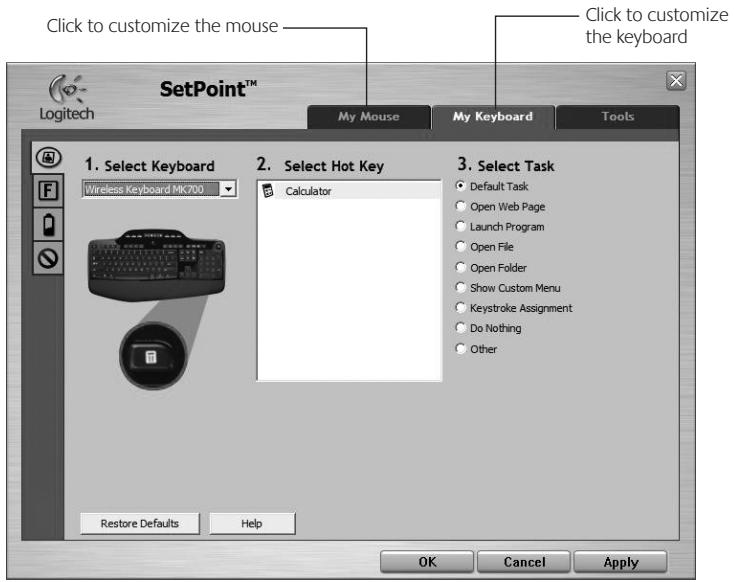
- Choose a tab, such as the keyboard F-key Settings. A picture of the keyboard is displayed showing F-keys (list 2) to which tasks can be assigned (list 3).
- In the 2. Select F-key list, highlight the F-key to be reassigned a task.
- In the 3. Select Task list, highlight the new task.
- When you are done, click OK to save the new F-key assignments.
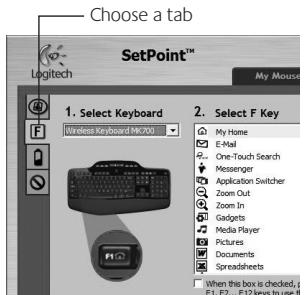
Keyboard F-key Settings tab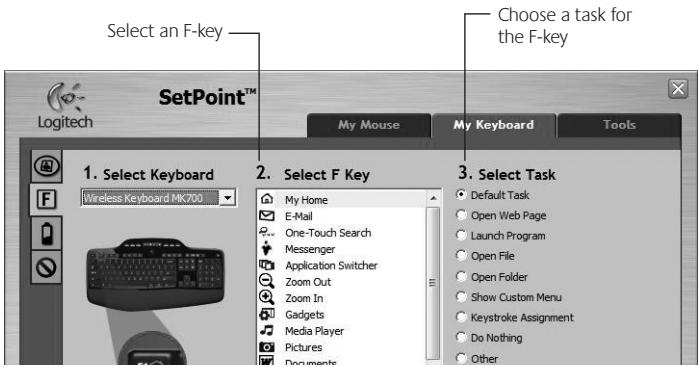
Battery management
Your keyboard and mouse have up to three years of battery life.*
Battery sleep mode
Did you know that your keyboard and mouse go into sleep mode after you stop using them for a few minutes? This feature helps limit battery usage and eliminates the need to keep switching your devices on and off. Both your keyboard and mouse are up and running immediately once you begin using them again.
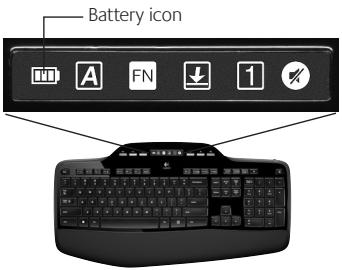
How to check the battery level for the keyboard
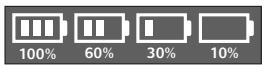
The battery icon on the keyboard LCD shows the current battery level for the keyboard. As the battery level decreases, the battery icon shows how much battery power remains, as shown in the image to the right.
How to check the battery level for the mouse
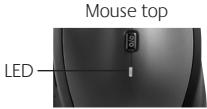
Option 1: Turn the mouse off then back on using the On/Off switch on the mouse bottom. If the LED on top of the mouse glows green for 10 seconds, the batteries are good. If the LED blinks red, the battery level has dropped to 10% and you have only a few days of battery power left.
Option 2: Launch the SetPoint Software, and click the Mouse Battery tab to see the current battery level of the mouse.
Mouse bottom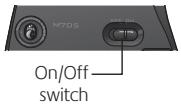
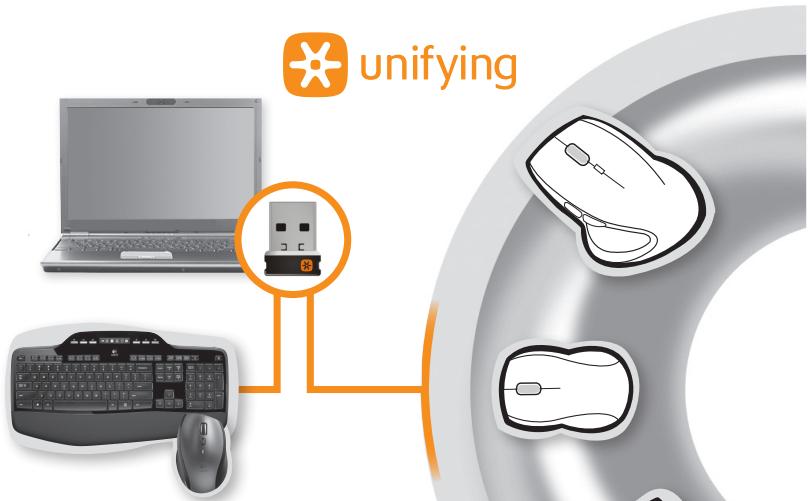
Plug it. Forget it. Add to it.
You've got a Logitech Unifying receiver. Now add a compatible wireless keyboard or mouse that uses the same receiver. It's easy. Just start the Logitech Unifying software* and follow the onscreen instructions. For more information and to download the software, visit www.logitech.com/unifying
*Go to Start / All Programs / Logitech / Unifying / Logitech Unifying Software
Troubleshooting
Keyboard and mouse are not working
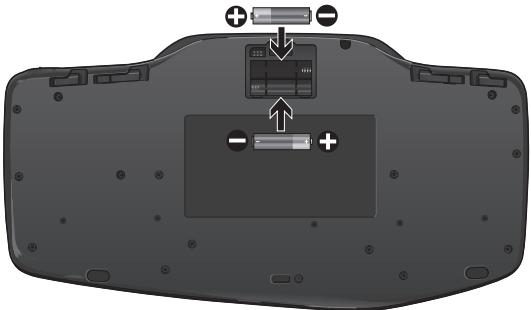
Check the USB connection. Also, try changing USB ports. Move closer? Try moving the keyboard and mouse closer to the Unifying receiver, or plug the Unifying receiver into the receiver extender cable to bring it closer to the keyboard and mouse. Check battery installation. Also check the battery power of each device. (See Battery management for more information.)
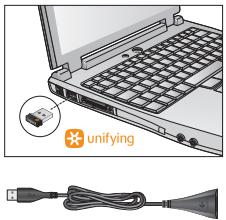
On the mouse bottom, slide the On/Off switch right to turn on the mouse. The Battery LED on the mouse top case should light green for 10 seconds. (See Battery management for more information.)
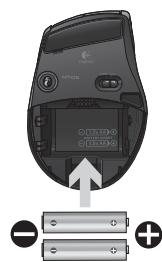
Mouse bottom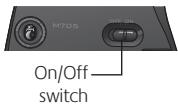
Troubleshooting
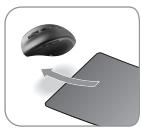
Are you experiencing slow or jerky cursor movement?
Try the mouse on a different surface (e.g., deep, dark surfaces may affect how the cursor moves on the computer screen). Is the keyboard turned on? Slide the keyboard Off/On switch to the On position, as shown in the image below. The keyboard Status icons should light up.
Re-establish the connection. Use the Unifying software to reset the connection between the keyboard/mouse and Unifying receiver. Refer to the Unifying section in this guide for more information (p. 18).
For more information about using your product, and for ergonomics.
www.logitech.com/support
United States +1 646-454-3200
Argentina +00800-555-3284
Brasil +0 800-891-4173
Canada +1 866-934-5644
Chile 12300205484
Latin America +1 800-578-9619
Mexico 0018005789619
| FC CE C US Listed LTZ ACCESSORY WOO | EN 60950-1 |
| M/N:C-U0003 Rating: 5V ---, 100mA Approval No: ETA-0035/2009/WRLO CMTT ID: 2009DJ1025 11059/POSTEL/2009 2100 FCC ID: JNZCU0003 IC: 4418A-CU0003 MADE IN CHINA | M/N:C-U0004 Rating: 5V ---, 100mA FCC ID: JNZCU0004 IC: 4418A-CU0004 MADE IN CHINA |
| M/N:C-U0007 Rating: 5V ---, 100mA FCC ID: JNZCU0007 IC: 4418A-CU0007 MADE IN CHINA |
www.logitech.com
© 2010 Logitech. All rights reserved. Logitech, the Logitech logo, and other Logitech marks are owned by Logitech and may be registered. All other trademarks are the property of their respective owners. Logitech assumes no responsibility for any errors that may appear in this manual. Information contained herein is subject to change without notice.