
TRAVELMATE P253-E-B8304G50MNKS - Laptop ACER - Free user manual and instructions
Find the device manual for free TRAVELMATE P253-E-B8304G50MNKS ACER in PDF.



User questions about TRAVELMATE P253-E-B8304G50MNKS ACER
0 question about this device. Answer the ones you know or ask your own.
Ask a new question about this device
Download the instructions for your Laptop in PDF format for free! Find your manual TRAVELMATE P253-E-B8304G50MNKS - ACER and take your electronic device back in hand. On this page are published all the documents necessary for the use of your device. TRAVELMATE P253-E-B8304G50MNKS by ACER.
USER MANUAL TRAVELMATE P253-E-B8304G50MNKS ACER
Information for your safety and comfort
Safety instructions
Read these instructions carefully. Keep this document for future reference. Follow all warnings and instructions marked on the product.
Turning the product off before cleaning
Unplug this product from the wall outlet before cleaning. Do not use liquid cleaners or aerosol cleaners. Use a damp cloth for cleaning.
Warnings
Accessing the power cord
Be sure that the power outlet you plug the power cord into is easily accessible and located as close to the equipment operator as possible. When you need to disconnect power to the equipment, be sure to unplug the power cord from the electrical outlet.
Disconnecting the power source
Observe the following guidelines when connecting and disconnecting power to the power supply unit:
Install the power supply unit before connecting the power cord to the AC power outlet.
Unplug the power cord before removing the power supply unit from the computer.
If the system has multiple sources of power, disconnect power from the system by unplugging all power cords from the power supplies.
Using electrical power
- This product should be operated from the type of power indicated on the marking label. If you are not sure of the type of power available, consult your dealer or local power company.
- Do not allow anything to rest on the power cord. Do not locate this product where people will walk on the cord.
- If an extension cord is used with this product, make sure that the total ampere rating of the equipment plugged into the extension cord does not exceed the extension cord ampere rating. Also, make sure that the total rating of all products plugged into the wall outlet does not exceed the fuse rating.
- Do not overload a power outlet, strip or receptacle by plugging in too many devices. The overall system load must not exceed 80% of the branch circuit rating. If power strips are used, the load should not exceed 80% of the power strip's input rating.
This product's AC adapter is equipped with a three-wire grounded plug. The plug
only fits in a grounded power outlet. Make sure the power outlet is properly grounded before inserting the AC adapter plug. Do not insert the plug into a non-grounded power outlet. Contact your electrician for details.

Warning! The grounding pin is a safety feature. Using a power outlet that is not properly grounded may result in electric shock and/or injury.

Note: The grounding pin also provides good protection from unexpected noise produced by other nearby electrical devices that may interfere with the performance of this product.
- The system can be powered using a wide range of voltages; 100 to 120 or 220 to 240 V AC. The power cord included with the system meets the requirements for use in the country/region where the system was purchased. Power cords for use in other countries/regions must meet the requirements for that country/region. For more information on power cord requirements, contact an authorized reseller or service provider.
Bundled dummy cards

Note: Information in this section may not apply to your computer.
Your computer shipped with plastic dummies installed in the card slots. Dummies protect unused slots from dust, metal objects or other particles.
Save the dummies for use when no cards are in the slots.
General
- Do not use this product near water.
- Do not place this product on an unstable cart, stand or table. If the product falls, it could be seriously damaged.
- Slots and openings are provided for ventilation to ensure reliable operation of the product and to protect it from overheating. These openings must not be blocked or covered. The openings should never be blocked by placing the product on a bed, sofa, rug or other similar surface. This product should never be placed near or over a radiator or heat register, or in a built-in installation unless proper ventilation is provided.
- Never push objects of any kind into this product through cabinet slots as they may touch dangerous voltage points or short-out parts that could result in a fire or electric shock. Never spill liquid of any kind onto or into the product.
- To avoid damage of internal components and to prevent battery leakage, do not
place the product on a vibrating surface.
- Never use it under sporting, exercising, or any vibrating environment which will probably cause unexpected short current or damage rotor devices, HDD, Optical drive, and even exposure risk from lithium battery pack.
- The bottom surface, areas around ventilation openings and AC adapter may get hot. To avoid injury, ensure they do not come in contact with your skin or body.
- Your device and its enhancements may contain small parts. Keep them out of the reach of small children.
- The surface temperature of the base will rise during normal operation, particularly when plugged in to AC power. Allowing sustained contact with exposed skin can cause discomfort or burns.
Product servicing
Do not attempt to service this product yourself, as opening or removing covers may expose you to dangerous voltage points or other risks. Refer all servicing to qualified service personnel.
Unplug this product from the wall outlet and refer servicing to qualified service personnel when:
The power cord or plug is damaged, cut or frayed.
Liquid was spilled into the product.
The product was exposed to rain or water.
The product has been dropped or the case has been damaged.
The product exhibits a distinct change in performance, indicating a need for service.
The product does not operate normally after following the operating instructions.

Note: Adjust only those controls that are covered by the operating instructions, since improper adjustment of other controls may result in damage and will often require extensive work by a qualified technician to restore the product to normal condition.
Guidelines for safe battery usage
This notebook uses a Lithium-ion battery. Do not use it in a humid, wet or corrosive environment. Do not put, store or leave your product in or near a heat source, in a high temperature location, in strong direct sunlight, in a microwave oven or in a pressurized container, and do not expose it to temperatures over 60^ C (140°F). Failure to follow these guidelines may cause the battery to leak acid, become hot, explode or ignite and cause injury and/or damage. Do not pierce, open or disassemble the battery. If the battery leaks and you come into contact with the leaked fluids, rinse thoroughly with water and seek medical attention immediately. For safety reasons, and to prolong the lifetime of the battery, charging will not occur at temperatures below 0^ C (32°F) or above 40^ C (104°F).
The full performance of a new battery is achieved only after two or three complete charge and discharge cycles. The battery can be charged and discharged hundreds of times, but it will eventually wear out. When the operation time becomes noticeably shorter than normal, buy a new battery.
Use only the approved batteries, and recharge your battery only with the approved chargers designated for this device.
Use the battery only for its intended purpose. Never use any charger or battery that is damaged. Do not short-circuit the battery. Accidental short-circuiting can occur when a metallic object such as a coin, clip or pen causes direct connection of the positive (+) and negative (-) terminals of the battery. (These look like metal strips on the battery.) This might happen, for example, when you carry a spare battery in your pocket or purse. Short-circuiting the terminals may damage the battery or the connecting object.
The capacity and lifetime of the battery will be reduced if the battery is left in hot or cold places, such as in a closed car in summer or winter. Always try to keep the battery between 15^ and 25^ (59°F and 77°F). A device with a hot or cold battery may not work temporarily, even when the battery is fully charged. Battery performance is especially limited in temperatures well below freezing.
Do not dispose of batteries in a fire as they may explode. Batteries may also explode if damaged. Dispose of batteries according to local regulations. Please recycle when possible. Do not dispose as household waste.
Wireless devices may be susceptible to interference from the battery, which could affect performance.

Note: Please refer to www.acer.com for battery shipping documents.
Replacing the battery pack
The notebook uses lithium batteries. Replace the battery with the same type as that which came bundled with your product. Use of another battery may present a risk of fire or explosion.

Warning! Batteries may explode if not handled properly. Do not disassemble or dispose of them in fire. Keep them away from children. Follow local regulations when disposing of used batteries.
Caution for Optical Drive Device


Note: Information in this section may not apply to your computer.
CAUTION: This appliance contains a laser system and is classified as a "CLASS 1 LASER PRODUCT." In case of any trouble with this device, please contact your nearest
AUTHORIZED service station. To prevent direct exposure to the laser beam, do not try to open the enclosure.
CLASS 1 LASER PRODUCT
CAUTION: INVISIBLE LASER RADIATION WHEN OPEN. AVOID EXPOSURE TO BEAM.
APPAREIL A LASER DE CLASSE 1 PRODUIT
LASERATTENTION: RADIATION DU FAISCEAU LASER INVISIBLE EN CAS
D'OUVERTURE. EVITTER Toute EXPOSITION AUX RAYONS.
LUOKAN 1 LASERLAITE LASER KLASSE 1
Telephone line safety
- Disconnect all telephone lines from the equipment when not in use and/or before servicing.
- To avoid the remote risk of electric shock from lightning, do not connect the telephone line to this equipment during lightning or thunderstorms.

Warning! For safety reasons, do not use non-compliant parts when adding or changing components. Consult your reseller for purchase options.
Radio frequency interference

Warning! For safety reasons, turn off all wireless or radio transmitting devices when using your laptop under the following conditions. These devices may include, but are not limited to: wireless LAN (WLAN), Bluetooth and/or 3G.
Remember to follow any special regulations in force in any area, and always switch off your device when its use is prohibited or when it may cause interference or danger. Use the device only in its normal operating positions. This device meets RF exposure guidelines when used normally. To successfully transmit data files or messages, this device requires a good quality connection to the network. In some cases, transmission of data files or messages may be delayed until such a connection is available. Ensure that the above separation distance instructions are followed until the transmission is completed. Parts of the device are magnetic. Metallic materials may be attracted to the device, and persons with hearing aids should not hold the device to the ear with the hearing aid. Do not place credit cards or other magnetic storage media near the device, because information stored on them may be erased.
Medical devices
Operation of any radio transmitting equipment, including wireless phones, may interfere with the functionality of inadequately protected medical devices. Consult a physician or the manufacturer of the medical device to determine if they are adequately shielded from external RF energy or if you have any questions. Switch off your device in health care facilities when any regulations posted in these areas instruct you to do so. Hospitals or health care facilities may be using equipment that could be sensitive to external RF transmissions.
Pacemakers. Pacemaker manufacturers recommend that a minimum separation of 15.3 centimeters (6 inches) be maintained between wireless devices and a pacemaker to avoid potential interference with the pacemaker. These recommendations are consistent with the independent research by and recommendations of Wireless Technology Research. Persons with pacemakers should do the following:
Always keep the device more than 15.3 centimeters (6 inches) from the pacemaker
- Not carry the device near your pacemaker when the device is switched on. If you suspect interference, switch off your device, and move it.
Hearing aids. Some digital wireless devices may interfere with some hearing aids. If interference occurs, consult your service provider.
Vehicles
RF signals may affect improperly installed or inadequately shielded electronic systems in motor vehicles such as electronic fuel injection systems, electronic anti-skid (anti-lock) braking systems, electronic speed control systems, and air bag systems. For more information, check with the manufacturer, or its representative, of your vehicle or any equipment that has been added. Only qualified personnel should service the device, or install the device in a vehicle. Faulty installation or service may be dangerous and may invalidate any warranty that may apply to the device. Check regularly that all wireless equipment in your vehicle is mounted and operating properly. Do not store or carry flammable liquids, gases, or explosive materials in the same compartment as the device, its parts, or enhancements. For vehicles equipped with an air bag, remember that air bags inflate with great force. Do not place objects, including installed or portable wireless
equipment in the area over the air bag or in the air bag deployment area. If in-vehicle wireless equipment is improperly installed, and the air bag inflates, serious injury could result. Using your device while flying in aircraft is prohibited. Switch off your device before boarding an aircraft. The use of wireless teledevices in an aircraft may be dangerous to the operation of the aircraft, disrupt the wireless telephone network, and may be illegal.
Potentially explosive environments
Switch off your device when in any area with a potentially explosive atmosphere and obey all signs and instructions. Potentially explosive atmospheres include areas where you would normally be advised to turn off your vehicle engine. Sparks in such areas could cause an explosion or fire resulting in bodily injury or even death. Switch off the device at refueling points such as near gas pumps at service stations. Observe restrictions on the use of radio equipment in fuel depots, storage, and distribution areas; chemical plants; or where blasting operations are in progress. Areas with a potentially explosive atmosphere are often, but not always, clearly marked. They include below deck on boats, chemical transfer or storage facilities, vehicles using liquefied petroleum gas (such as propane or butane), and areas where the air contains chemicals or particles such as grain, dust or metal powders. Do not switch the notebook on when wireless phone use is prohibited or when it may cause interference or danger.
Emergency calls
Warning: You cannot make emergency calls through this device. To make an emergency call you shall dial out through your mobile phone or other telephone call system.
Disposal instructions
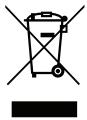
Do not throw this electronic device into the trash when discarding. To minimize pollution and ensure utmost protection of the global environment, please recycle. For more information on the Waste from Electrical and Electronics Equipment (WEEE) regulations, visit www.acer-group.com/public/Sustainability/sustainability01.htm
ENERGY STAR

Note: Information in this section may not apply to your computer.

ENERGY STAR
Acer's ENERGY STAR qualified products save your money by reducing energy cost and protecting the environment without sacrificing features or performance. Acer is proud to offer our customers products with the ENERGY STAR mark.
What is ENERGY STAR?
Products that are ENERGY STAR qualified use less energy and prevent greenhouse gas emissions by meeting strict energy efficiency guidelines set by the U.S. Environmental Protection Agency. Acer is committed to offering products and services worldwide that help customers save money, conserve energy and improve the quality of our environment. The more energy we can save through higher energy efficiency, the more we reduce greenhouse gases and the risks of climate change. More information refers to www.energystar.gov or www.energystar.gov/powermanagement.
Acer ENERGY STAR qualified products:
- Produce less heat and reduce cooling loads, and warmer climates.
- Automatically go into "display sleep" and "computer sleep" mode after 10 and 30 minutes of inactivity respectively.
- Wake the computer from sleep mode by pressing a key on the keyboard or moving the mouse.
Computers will save more than 80% energy at "sleep" mode.
ENERGY STAR and the ENERGY STAR mark are registered U.S. marks
Tips and information for comfortable use
Computer users may complain of eyestrain and headaches after prolonged use. Users are also at risk of physical injury after long hours of working in front of a computer. Long work periods, bad posture, poor work habits, stress, inadequate working conditions, personal health and other factors greatly increase the risk of physical injury.
Incorrect computer usage may lead to carpal tunnel syndrome, tendonitis, tenosynovitis or other musculoskeletal disorders. The following symptoms may appear in the hands, wrists, arms, shoulders, neck or back:
Numbness, or a burning or tingling sensation.
Aching, soreness or tenderness.
- Pain, swelling or throbbing.
- Stiffness or tightness.
Coldness or weakness.
If you have these symptoms, or any other recurring or persistent discomfort and/or pain related to computer use, consult a physician immediately and inform your company's health and safety department.
The following section provides tips for more comfortable computer use.
Finding your comfort zone
Find your comfort zone by adjusting the viewing angle of the monitor, using a footrest, or raising your sitting height to achieve maximum comfort. Observe the following tips:
- Refrain from staying too long in one fixed posture.
- Avoid slouching forward and/or leaning backward.
- Stand up and walk around regularly to remove the strain on your leg muscles.
Take short rests to relax your neck and shoulders. - Avoid tensing your muscles or shrugging your shoulders.
Install the external display, keyboard and mouse properly and within comfortable reach. - If you view your monitor more than your documents, place the display at the center of your desk to minimize neck strain.
Taking care of your vision
Long viewing hours, wearing incorrect glasses or contact lenses, glare, excessive room lighting, poorly focused screens, very small typefaces and low-contrast displays could stress your eyes. The following sections provide suggestions on how to reduce eyestrain.
Eyes
Rest your eyes frequently.
- Give your eyes regular breaks by looking away from the monitor and focusing on a distant point.
- Blink frequently to keep your eyes from drying out.
Display
- Keep your display clean.
- Keep your head at a higher level than the top edge of the display so your eyes point downward when looking at the middle of the display.
- Adjust the display brightness and/or contrast to a comfortable level for enhanced text readability and graphics clarity.
-
Eliminate glare and reflections by:
-
placing your display in such a way that the side faces the window or any light source
- minimizing room light by using drapes, shades or blinds
using a task light - changing the display's viewing angle
using a glare-reduction filter
using a display visor, such as a piece of cardboard extended from the display's top front edge
XII
- Avoid adjusting your display to an awkward viewing angle.
- Avoid looking at bright light sources for extended periods of time.
Developing good work habits
The following work habits make computer use more relaxing and productive:
Take short breaks regularly and often.
Perform some stretching exercises.
- Breathe fresh air as often as possible.
Exercise regularly and maintain a healthy body.

Warning! We do not recommend using the computer on a couch or bed. If this is unavoidable, work for only short periods, take breaks regularly, and do some stretching exercises.

Note: For more information, please refer to "Regulations and safety notices" on page 62.
First things first
We would like to thank you for making an Acer notebook your choice for meeting your mobile computing needs.
Your guides
To help you use your Acer notebook, we have designed a set of guides:
First off, the setup poster helps you get started with setting up your computer.
The TravelMate Series User's Manual contains useful information applying to all models in the TravelMate Series. It covers basic topics such as using the keyboard and audio, etc. Please understand that due to its nature, the User's Manual will occasionally refer to functions or features which are only contained in certain models of the series, but not necessarily in the model you purchased. Such instances are marked in the text with language such as "only for certain models."
The Quick Guide introduces you to the basic features and functions of your new computer. For more on how your computer can help you to be more productive, please refer to the TravelMate Series User's Manual. This guide contains detailed information on such subjects as system utilities, data recovery, expansion options and troubleshooting. In addition it contains warranty information and the general regulations and safety notices for your notebook. It is available in Portable Document Format (PDF) and comes preloaded on your notebook.
Follow these steps to access it:
- Type 'User' from Start.
- Click on Acer User's Manual.
Basic care and tips for using your computer
Turning your computer on and off
To turn on the computer, simply press and release the power button. Please refer to the setup poster for the location of the power button.
To turn the power off, do any of the following:
- Use the Windows shutdown command: Press the Windows key +
and click Settings > Power then click Shut Down.
If you need to power down the computer for a short while, but don't want to completely shut it down, you can put it into Hibernate by:
- Pressing the power button.
-OR- - Press the Windows key +
and click Settings > Power then clicking Hibernate.
You can also put the computer in sleep mode by pressing the sleep hotkey <Fn> + <F4> .
Note: If you cannot power off the computer normally, press and hold the power button for more than four seconds to shut down the computer. If you turn off the computer and want to turn it on again, wait at least two seconds before powering up.
Taking care of your computer
Your computer will serve you well if you take care of it.
- Do not expose the computer to direct sunlight. Do not place it near sources of heat, such as a radiator.
- Do not expose the computer to temperatures below 0^ C ( 32^ F) or above 50^ C ( 122^ F).
- Do not subject the computer to magnetic fields.
- Do not expose the computer to rain or moisture.
- Do not spill water or any liquid on the computer.
- Do not subject the computer to heavy shock or vibration.
- Do not expose the computer to dust or dirt.
- Never place objects on top of the computer.
- Do not slam the computer display when you close it.
- Never place the computer on uneven surfaces.
Taking care of your AC adapter
Here are some ways to take care of your AC adapter:
- Do not connect the adapter to any other device.
- Do not step on the power cord or place heavy objects on top of it. Carefully route the power cord and any cables away from foot traffic.
-
When unplugging the power cord, do not pull on the cord itself but pull on the plug.
-
The total ampere ratings of the equipment plugged in should not exceed the ampere rating of the cord if you are using an extension cord. Also, the total current rating of all equipment plugged into a single wall outlet should not exceed the fuse rating.
Taking care of your battery pack
Here are some ways to take care of your battery pack:
- Use only batteries of the same kind as replacements. Turn the power off before removing or replacing batteries.
- Do not tamper with batteries. Keep them away from children.
- Dispose of used batteries according to local regulations. Recycle if possible.
Cleaning and servicing
When cleaning the computer, follow these steps:
- Turn off the computer and remove the battery pack.
- Disconnect the AC adapter.
- Use a soft, moist cloth. Do not use liquid or aerosol cleaners.
If either of the following occurs:
- The computer has been dropped or the body has been damaged;
- The computer does not operate normally
Please refer to "Frequently asked questions" on page 52.
Information for your safety and comfort iii
Safety instructions iii
Caution for Optical Drive Device vi
Radio frequency interference vi
Medical devices viii
Vehicles viii
Potentially explosive environments ix
Emergency calls ix
Disposal instructions ix
Tips and information for comfortable use
First things first xiii
Your guides xiii
Basic care and tips for using your computer xiii
Turning your computer on and off xiii
Taking care of your computer xiv
Taking care of your AC adapter xiv
Taking care of your battery pack XV
Cleaning and servicing XV
Touchpad 1
Touchpad basics (with two buttons) 1
Using the keyboard 2
Lock keys and embedded numeric keypad 2
Hotkeys 2
Windows keys 4
Acer ProShield 5
Overview 5
Setting up ProShield 5
Personal Secure Drive 6
Credential Manager 7
Fingerprint Registration* 8
Data Protection 8
Data Removal 9
Acer Office Manager 10
Acer Office Manager Console 10
10
Client manager 11
Policies 12
Assets 13
Task scheduler 14
Settings 15
Recovery 16
Creating a recovery backup 16
Creating a drivers and applications backup 18
Recovering your system 20
Reinstalling drivers and applications 20
Returning to an earlier system snapshot 22
Returning your system to its factory condition 23
Recovering from Windows 23
Recovering from a recovery backup 25
Acer Backup Manager 29
Power management 31
Saving power 31
Battery pack 33
Battery pack characteristics 33
Charging the battery 33
Optimizing battery life 34
Checking the battery level 35
Battery-low warning 35
Installing and removing the battery pack 35
Traveling with your computer 37
Disconnecting from the desktop 37
Moving around 37
Preparing the computer 37
What to bring to meetings 38
Taking the computer home 38
Preparing the computer 38
What to take with you 38
Special considerations 38
Setting up a home office 39
Traveling with the computer 39
Preparing the computer 39
What to take with you 39
Special considerations 39
Traveling internationally with the computer 40
Preparing the computer 40
What to bring with you 40
Special considerations 40
Expanding through options 41
Connectivity options 41
Connecting to a network 42
Built-in network feature 42
Wireless networks 43
Connecting to the Internet 43
Wireless networks 43
ExpressCard 44
Thunderbolt 45
IEEE 1394 port 46
HDMI 47
Universal Serial Bus (USB) 48
Playing DVD movies 49
Upgrading memory 50
BIOS utility 51
Boot sequence 51
Enable disk-to-disk recovery 51
Setting passwords 51
Frequently asked questions 52
Requesting service 53
Troubleshooting 55
Troubleshooting tips 55
Error messages 55
Tips and hints for using Windows 8 57
Three concepts you might want to keep in mind 57
How do I access the charms? 57
How do I get to Start? 57
How do I jump between apps? 57
How do I turn off my computer? 57
Why is there a new interface? 57
How do I unlock my computer? 58
How do I personalize my computer? 58
I want to use Windows in the way that I'm used to - give me my desktop back! 59
Where are my apps? 59
What is a Microsoft ID (account)? 60
How do I add a favorite to Internet Explorer? 60
How do I check for Windows updates? 60
Where can I get more information? 61
Regulations and safety notices 62
Touchpad
The built-in touchpad is a pointing device that senses movement on its surface. This means the cursor responds as you move your finger across the surface of the touchpad. The central location on the palmrest provides optimum comfort and support.
Touchpad basics (with two buttons)
The following items show you how to use the touchpad with two buttons.
- Move your finger across the touchpad to move the cursor.
- Press the left and right buttons located beneath the touchpad to perform selection and execution functions. These two buttons are similar to the left and right buttons on a mouse. Tapping on the touchpad is the same as clicking the left button.
| Function | Left button | Right button | Main touchpad |
| Execute | Quickly click twice. | Tap twice (at the same speed as double-clicking a mouse button). | |
| Select | Click once. | Tap once. | |
| Drag | Click and hold, then use finger on the touchpad to drag the cursor. | Tap twice (at the same speed as double-clicking a mouse button); rest your finger on the touchpad on the second tap and drag the cursor. | |
| Access context menu | Click once. |
Note: Illustrations for reference only. The exact configuration of your PC depends on the model purchased.
Note: When using the touchpad, keep it — and your fingers — dry and clean. The touchpad is sensitive to finger movement; hence, the lighter the touch, the better the response. Tapping harder will not increase the touchpad's responsiveness.
Note: By default, vertical and horizontal scrolling is enabled on your touchpad. It can be disabled under Mouse settings in Windows Control Panel.
Using the keyboard
The keyboard has full-sized keys and an embedded numeric keypad, separate cursor, lock, Windows, function and special keys.
Lock keys and embedded numeric keypad
Note: Information in this section may not apply to your computer.
The keyboard has three lock keys which you can toggle on and off.
| Lock key | Description |
| Caps Lock | When Caps Lock is on, all alphabetic characters typed are in uppercase. |
| Num Lock+Fn> + <F11> | When Num Lock is on, the embedded keypad is in numeric mode. The keys function as a calculator (complete with the arithmetic operators +, -, *, and /). Use this mode when you need to do a lot of numeric data entry. A better solution would be to connect an external keypad. |
| Scroll Lock+Fn> + <F12> | When Scroll Lock is on, the screen moves one line up or down when you press the up or down arrow keys respectively. Scroll Lock does not work with some applications. |
The embedded numeric keypad functions like a desktop numeric keypad. It is indicated by small characters located on the upper right corner of the keycaps. To simplify the keyboard legend, cursor-control key symbols are not printed on the keys.
| Desired access | Num Lock on | Num Lock off |
| Number keys on embedded keypad | Type numbers in a normal manner. | |
| Cursor-control keys on embedded keypad | Hold <Shift> while using cursor-control keys. | Hold <Fn> while using cursor-control keys. |
| Main keyboard keys | Hold <Fn> while typing letters on embedded keypad. | Type the letters in a normal manner. |
Hotkeys
The computer employs hotkeys or key combinations to access most of the computer's controls like screen brightness and volume output.
To activate hotkeys, press and hold the <Fn> key before pressing the other key in the hotkey combination.
| Hotkey | Icon | Function | Description |
| +Fn> + <F3> | ( ) | Communication key | Enables / disables the computer's communication devices. (Communication devices may vary by configuration.) |
| +Fn> + <F4> | Z² | Sleep | Puts the computer in Sleep mode. |
| +Fn> + <F5> | □□ | Display toggle | Switches display output between the display screen, external monitor (if connected) and both. |
| +Fn> + <F6> | □■ | Display off | Turns the display screen backlight off to save power. Press any key to return. |
| +Fn> + <F7> | ○▲ | Touchpad toggle | Turns the built-in touchpad on and off. |
| +Fn> + <F8> | 呦 | Speaker toggle | Turns the speakers on and off. |
| +Fn> + <F11> | NumLk | Turns the embedded numeric keypad on or off (only for certain models). | |
| +Fn> + <D> | Brightness up | Increases the screen brightness. | |
| +Fn> + <△> | Brightness down | Decreases the screen brightness. | |
| +Fn> + <△> | Volume up | Increases the sound volume. | |
| +Fn> + <▼> | Volume down | Decreases the sound volume. | |
| +Fn> + <Home> | /II | Play/Pause | Play or pause a selected media file. |
| +Fn> + <Pg Up> | ■ | Stop | Stop playing the selected media file. |
| +Fn> + <Pg Dn> | |▲ | Previous | Return to the previous media file. |
| +Fn> + <End> | ▶■ | Next | Jump to the next media file. |
Windows keys
The keyboard has two keys that perform Windows-specific functions.
| Key | Description |
| Windows key | Pressed alone it returns to the Start screen. It can also be used with other keys for special functions, please check Windows Help. |
| Application key | This key has the same effect as clicking the right mouse button; it opens the application's context menu. |
Acer ProShield (Only for selected models)
Overview
An all-in-one security solution, Acer ProShield provides an embedded security solution to address the following points of vulnerability:
Securing the device against unauthorized access
- Protecting local storage
Securing the network
Acer ProShield includes five modules that will secure your device from unauthorized access and intrusion.
- Credential Manager - Password, Fingerprint registration (if your PC has a fingerprint scanner), Online accounts configuration
- Pre-Boot Authentication - Boot sequence and device security
- Data Protection - Personal secure drive, file and folder encryption
Data Removal - File shredder
Information - About this software
Setting up ProShield
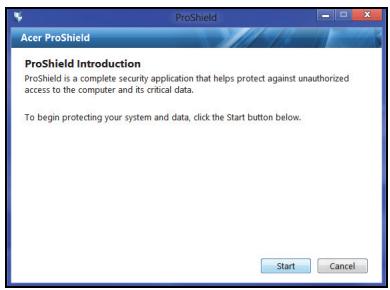
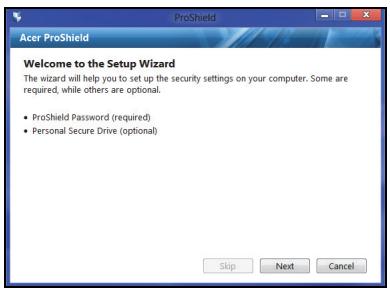
The first time you run ProShield, you will be led through a setup wizard that allows you to set up the parameters for ProShield. Click Start to begin. You will be required to set a password, and can choose to create a Personal Secure Drive.
Note: Select a password that you will remember, but is difficult to guess. Do not use words that can be found in a dictionary. It is advisable to use a combination of letters and numbers.
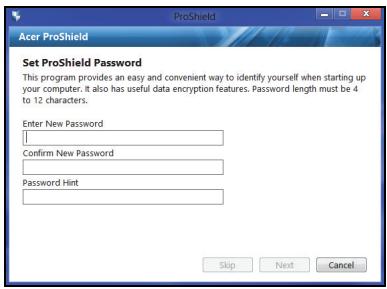
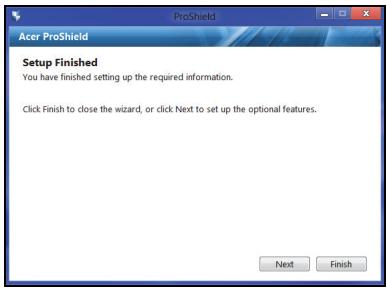
Once you have set a password, you can click Next to proceed to setting up a Personal Secure Drive or click Finish to exit the wizard.
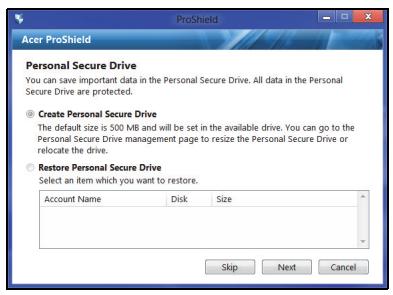
Personal Secure Drive
The Personal Secure Disk (PSD) is a secure section of your hard disk where you can save files. You can only get access to the PSD via password or fingerprint authentication.
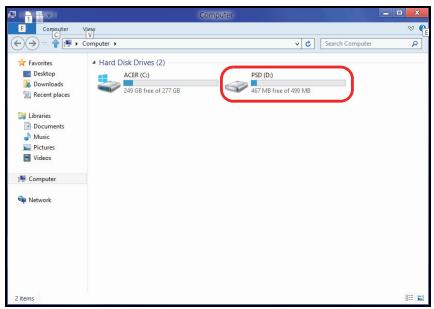
Once setup is finished, you can go to the ProShield Console to manage your computer or make changes to the settings.
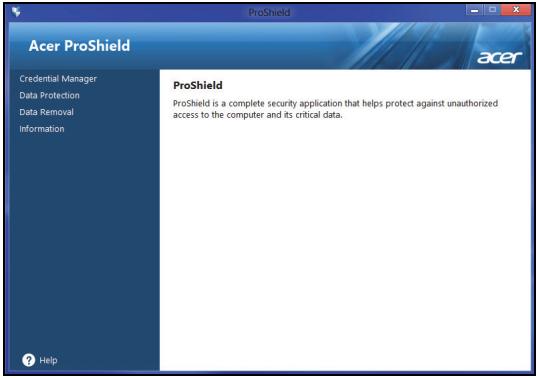
Use the menu in the left-hand pane to make changes.
Credential Manager
Here you can set and manage your credentials, including Pre-boot authentication.
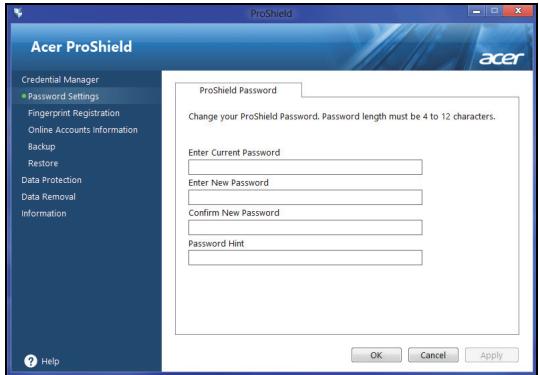
You can change your ProShield and Windows passwords, register fingerprints, manage online account information, and back up or restore credential information.
Fingerprint Registration*
* (only if your PC has a fingerprint scanner)
You can use a fingerprint scanner to secure your PC from unauthorized access. Register two or more fingerprints that can then be used to access your PC during start up, instead of your password.
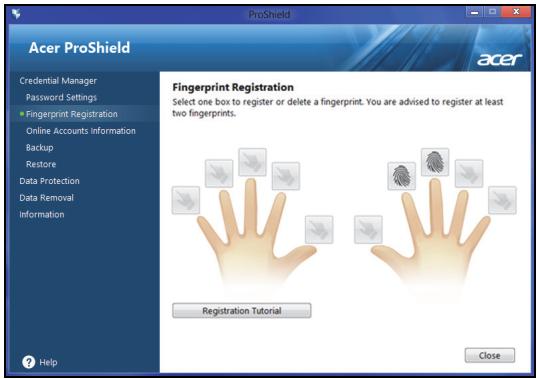
Click Registration Tutorial for more information.
Data Protection
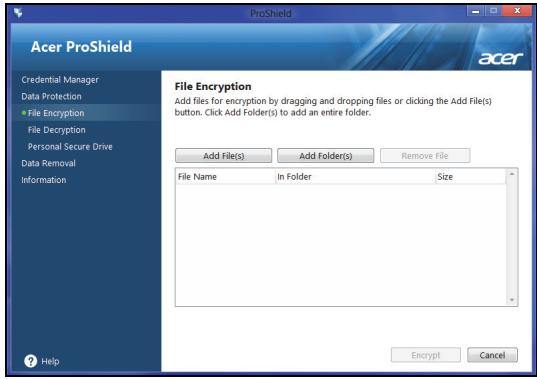
Here you can select files for encryption or decryption, and manage your Personal Secure Drive.
Data Removal
Here you can select files to be completely removed from the hard disk. The File Shredder overwrites the data to make recovering the data impossible.
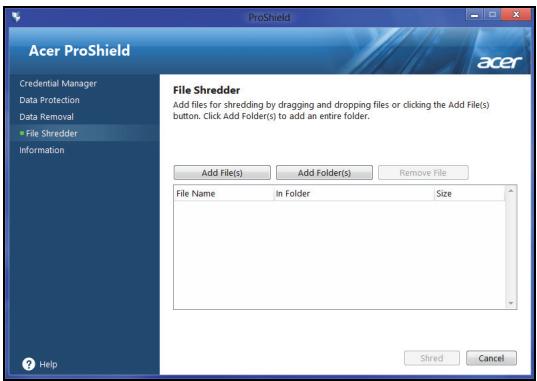
Warning: Make sure you select only the information you want to shred. Once you have shredded a file or folder, it is impossible to recover the data.
Acer Office Manager
Note: Only for selected models.
Acer Office Manager is a monitoring and assent management tool that allows MIS staff to remotely manage and update computers. There are two components to this software package: Acer Office Manager Console and Acer Office Manager Client.
Acer Office Manager Console
The Console application allows you to manage connected clients from a single computer. To start the Console in Windows 8, simply start typing "Office Manager Console". Alternatively, in Desktop mode, select Acer Office Manager Console.
The first time you run the Console, you will be asked to set up a password, and an email address for notifications.
Note: The password should be from 8 to 31 characters long and must include at least one digit, one capital letter and one lower-case letter.
Dashboard
Once you have completed the setup steps, you will be shown the Dashboard, where you can view the total number of connected clients, the online clients and offline clients. You can also add a client by selecting a client under New client and clicking the Add button.
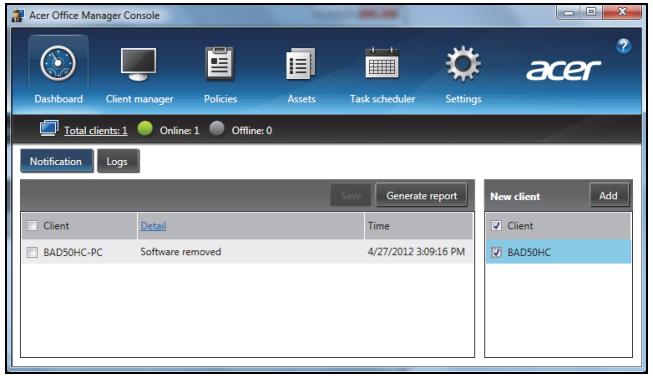
Tip: Select Client under New client to select all the found clients.
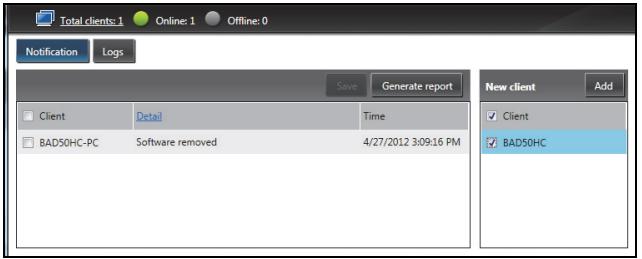
In the Notification area you can see any notifications received for the managed clients, including information such as hardware or software
being removed, if the.client has been in use, or if it has been off-line, for longer than the defined time.
Client manager
On the Client manager page you can view all the clients being managed from the Console. Double-click an icon to view the system information for that client.
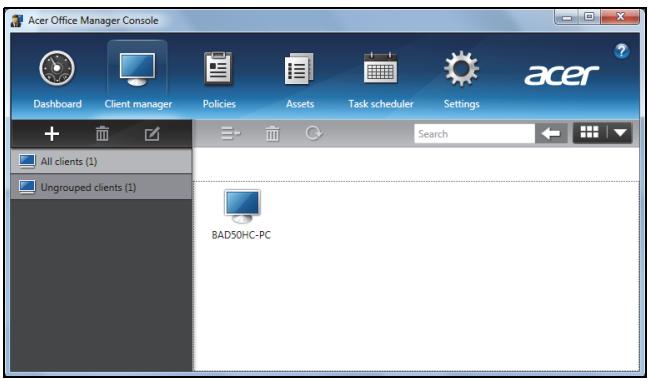
You can also group clients together for easier management. For example, you can create a group for admin staff and another for sales staff. To create a group and add clients to the group, click the + symbol above the list of clients.
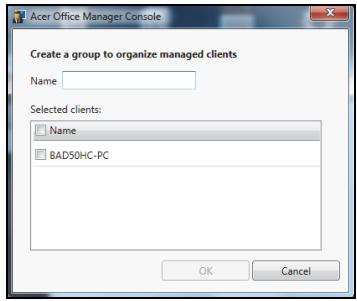
Note: Each client can only be assigned to one group.
Policies
You can set policies to apply to selected clients or groups of clients. Click the + symbol to add a new policy.
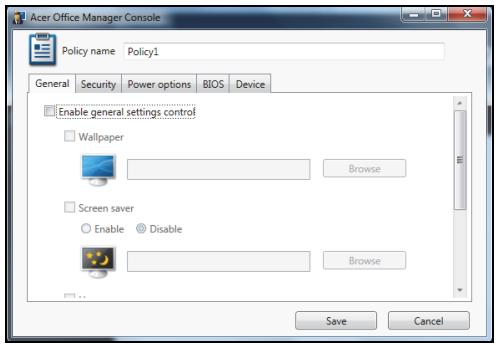
| Tab | Item | Function |
| General | Wallpaper | Set a wallpaper that will be applied to all clients. |
| Screen saver | Set a screen saver that will be applied to all clients. | |
| Homepage | Set which home page Internet Explorer will open when launched. | |
| Enable AutoPlay | Enable or disable AutoPlay for external devices or CD- / DVD-ROMs | |
| Security | Enable IE security settings | Define Internet Explorer security settings. |
| Enable user account policy | Set policies for user passwords, such as minimum password strength, password validity, and lockout parameters. | |
| Power options | Define power settings. | |
| BIOS | BIOS Supervisor password | Set a BIOS Supervisor password. If a password already exists, you will need to enter it before you can change it. |
| BIOS User password | Set a BIOS User password. If a password already exists, you will need to enter it or the Supervisor password before you can change the User password. | |
| Change boot sequence settings | Change the order of devices used to boot the system. | |
| Device | Enable or disable devices on notebook computers. | |
Note: The items in the Device tab are not supported for desktop computers. If you set a policy that includes items in this tab, and deploy the policy to a desktop computer, the settings will be ignored.
Assets
The Assets page gives you a quick overview of the managed clients and the hardware and software for each system. You can also see which Hotfixes have been applied to each system.
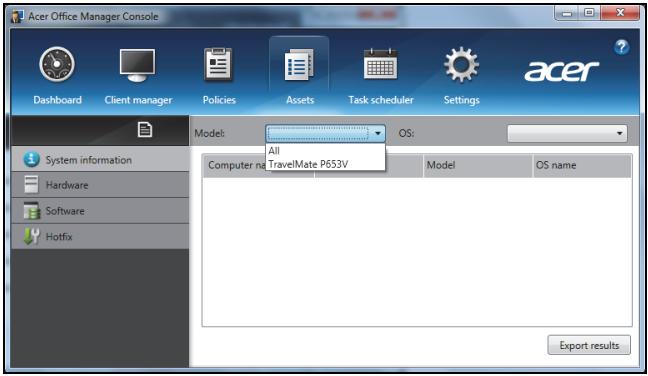
Select the system model from the Model drop-down menu. You can then further refine the search by operating system via the OS drop-down menu. The discovered clients will be listed.
If you wish to export the results as an Excel spreadsheet, click Export results or the icon. You will be asked where to save the file and for a file name.
Task scheduler
On the Task scheduler page, you can set a schedule to deploy selected policies on a regular basis. Click the + symbol to add a new task.
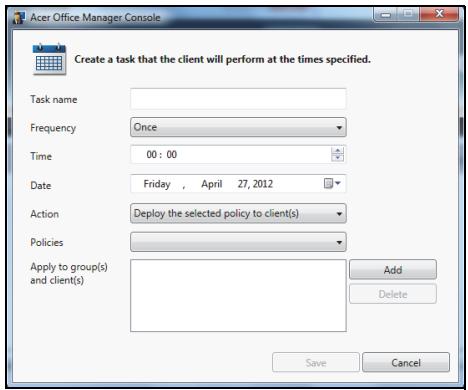
You will need to enter a Task name, select the Frequency, Time, Date, Action, the Policies to be deployed (if appropriate) and the group(s) or client(s).
Once you have entered the necessary information, click Save.
Settings
On the Settings page, you can change your settings as desired.
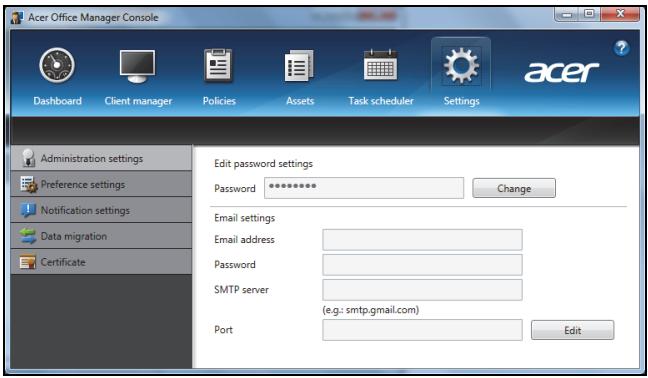
| Tab | Item | Function |
| Administration settings | Edit password settings | Change your Acer Office Manager Console password |
| Email settings | Set up an email account to receive email notifications. | |
| Preference settings | Set up your program launch and lock preferences. | |
| Notification settings | Set up what time-related notifications should show on the Dashboard. | |
| Data migration | Export your Acer Office Manager Console settings for use on another machine. | |
| Certificate | Create new certificate | Create a certificate that you can import to another machine. Certificates ensure that the client can only be managed from a single console. |
| Import certificate | Import a certificate from another machine. This will allow the console to manage a remote client that has a trusted relationship with another console. |
Recovery
If you are having trouble with your computer, and the frequently asked questions (see page 52) do not help, you can 'recover' your computer - i.e. return it to an earlier state.
This section describes the recovery tools available on your computer. Acer provides Acer Recovery Management, which allows you to create a recovery backup, a drivers and applications backup, and to start recovery options, either using Windows tools, or the recovery backup.
Note: Acer Recovery Management is only available with a preinstalled Windows operating system.
Important: We recommend that you create a Recovery Backup and Drivers and Applications Backup and as soon as possible. In certain situations a full recovery will require a USB recovery backup.
Creating a recovery backup
To reinstall from a USB storage drive, you must first create a recovery backup. The recovery backup includes the entire original contents of your computer's hard drive, including Windows and all factory-loaded software and drivers. Using this backup will restore your computer to the same state as when you purchased it, while giving you an option to retain all settings and personal data.
Note: Make sure you have a USB drive with a capacity of at least 16 GB. 1. From Start, type 'Recovery' and then click Acer Recovery Management in the list of apps.
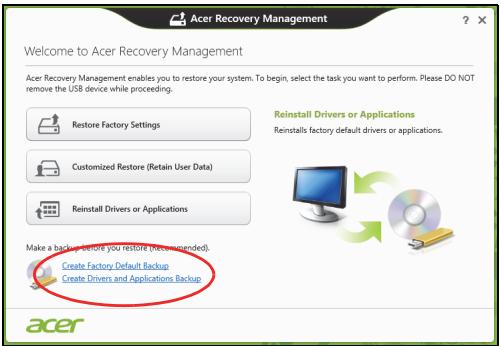
- Click Create Factory Default Backup. The Recovery Drive window opens.
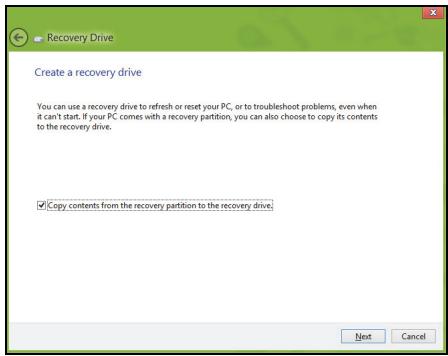
Make sure Copy contents from the recovery partition to the recovery drive is selected. This provides the most complete and safest recovery backup.
-
Plug in the USB drive then click Next.
-
Make sure your USB drive has enough capacity before continuing. The recovery backup requires at least 16 GB of storage

- You will be shown the backup progress on the screen.
- Follow the process until it completes.
- After creating the recovery backup, you can choose to delete the recovery information on your computer. If you delete this information, you can only use the USB recovery backup to restore your computer, if you lose or erase the USB drive, you cannot restore your computer.
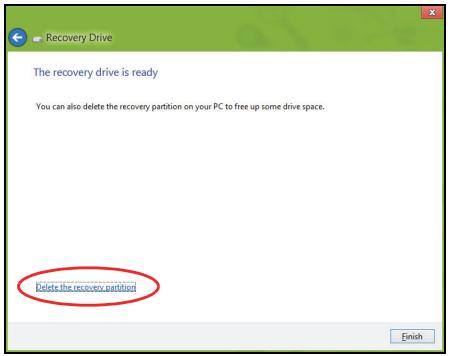
- Unplug the USB drive and label it clearly.
Important: Write a unique, descriptive label on the backup, such as 'Windows Recovery Backup'. Make sure you keep the backup in a safe place that you will remember.
Creating a drivers and applications backup
To create a Drivers and Applications Backup, that contains the factory-loaded software and drivers needed by your computer, you may use either a USB storage drive or, if your computer features a DVD recorder, one or more blank recordable DVDs.
- From Start, type 'Recovery' and then click Acer Recovery Management in the list of apps.
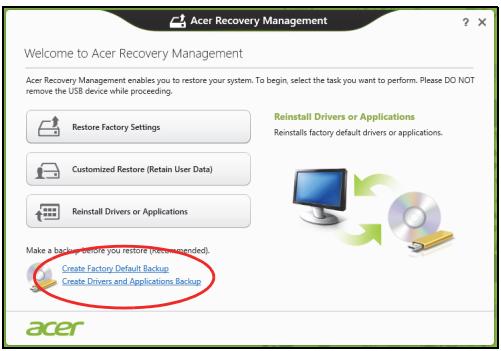
- Click Create Drivers and Applications Backup.
Plug in the USB drive or insert a blank DVD into the optical drive, then click Next.
- If you are using a USB drive, make sure your USB drive has enough capacity before continuing.
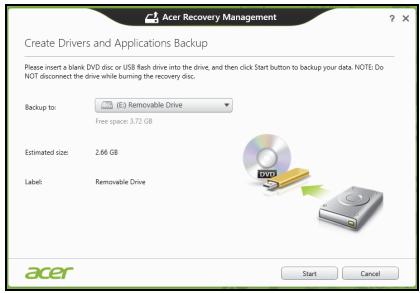
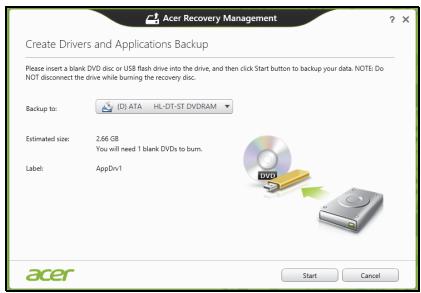
- If using DVDs, it will also show the number of blank, recordable discs you will need to complete the recovery discs. Make sure that you have the required number of identical, blank discs.
-
Click Start to copy files. You will be shown the backup progress on the screen.
-
Follow the process until it completes:
-
If you are using optical discs, the drive ejects each disc as it completes burning it. Remove the disc from the drive and mark it with a permanent marker.
If multiple discs are required, insert a new disc when prompted, then click OK. Continue until the process is complete.
- If you are using a USB drive, unplug the drive and label it clearly. Important: Write a unique, descriptive label on each backup, such as 'Drivers and Applications Backup'. Make sure you keep the backup in a safe place that you will remember.
Recovering your system
To recover your system:
- Perform minor fixes.
If only one or two items of software or hardware have stopped working correctly, the problem may be solved by reinstalling the software or the device drivers.
To reinstall software and drivers that were pre-installed at the factory, see "Reinstalling drivers and applications" on page 20.
For instructions on reinstalling software and drivers that were not preinstalled, see that product's documentation or support Web site.
- Revert to a previous system condition.
If reinstalling software or drivers does not help, then the problem may be solved by returning your system to a previous state when everything was working correctly.
For instructions, see "Returning to an earlier system snapshot" on page 22.
- Reset your operating system.
If nothing else has solved the problem and you want to reset your system, but keep your user information, see "Returning your system to its factory condition" on page 23.
- Reset your system to its factory condition.
If nothing else has solved the problem and you want to reset your system to factory condition, see "Returning your system to its factory condition" on page 23.
Reinstalling drivers and applications
As a troubleshooting step, you may need to reinstall the applications and device drivers that came pre-installed on your computer from the factory. You can reinstall using either your hard drive or the backup you have created.
- Other applications - If you need to reinstall software that did not come pre-installed on your computer, you need to follow that software's installation instructions.
- New device drivers - If you need to reinstall device drivers that did not come pre-installed on your computer, follow the instructions provided with the device.
If you are reinstalling using Windows and the recovery information stored on your computer:
- From Start, type 'Recovery' and then click Acer Recovery Management in the list of apps.
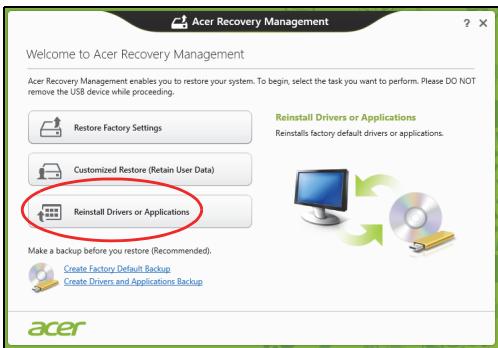
- Click Reinstall Drivers or Applications.
- You should see the Contents section of the Acer Resource Center.
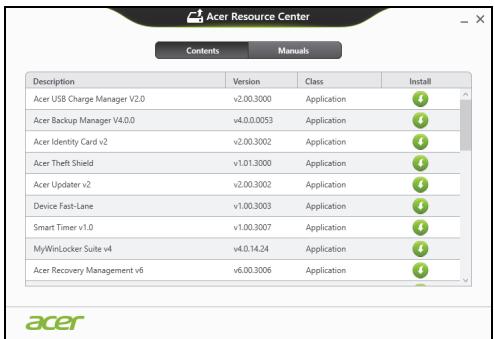
- Click the install icon for the item you want to install, then follow the onscreen instructions to complete the installation. Repeat this step for each item you want to reinstall.
If you are reinstalling from a Drivers and Applications Backup on a DVD or USB drive:
-
Insert the Drivers and Applications Backup into the disc drive or connect it to a free USB port.
-
If you inserted a DVD wait for Acer Resource Center to start.
-
If Acer Resource Center does not start automatically, press the Windows key +
, then double-click on the optical drive icon. -
If you are using a USB drive, press the Windows key +
, then double-click on the drive that contains the backup. Double-click on ResourceCenter. -
You should see the Contents section of the Acer Resource Center.
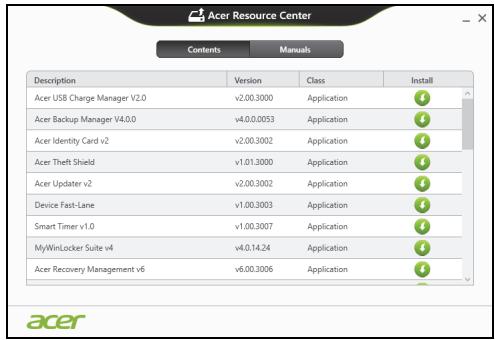
- Click the install icon for the item you want to install, then follow the onscreen prompts to complete the installation. Repeat this step for each item you want to reinstall.

Returning to an earlier system snapshot
Microsoft System Restore periodically takes a 'snapshot' of your system settings and saves them as restore points. In most cases of hard-to-resolve software problems, you can return to one of these restore points to get your system running again.
Windows automatically creates an additional restore point each day, and also each time you install software or device drivers.
Note: For more information about using Microsoft System Restore, from Start, type 'Help' and then click Help and Support in the list of apps. Type 'Windows system restore' in the Search Help box, then press Enter.
Returning to a restore point
- From Start, type 'Control Panel' and then click Control Panel in the list of apps.
- Click System and Security > Action Center, then click Recovery at the bottom of the window.
- Click Open System Restore, then Next.
-
Click the latest restore point (at a time when your system worked correctly), click Next, then Finish.
-
A confirmation window appears; click Yes. Your system is restored using the restore point you specified. This process may take several minutes, and may restart your computer.
Returning your system to its factory condition
If your computer experiences problems that are not recoverable by other methods, you may need to reinstall everything to return your system to its factory condition. You can recover from either your hard drive or the recovery backup you have created.
- If you can still run Windows and have not deleted the recovery partition, see "Recovering from Windows" on page 23.
- If you cannot run Windows, your original hard drive has been completely re-formatted or you have installed a replacement hard drive, see "Recovering from a recovery backup" on page 25.
Recovering from Windows
Start Acer Recovery Management:
- From Start, type 'Recovery' and then click Acer Recovery Management in the list of apps.
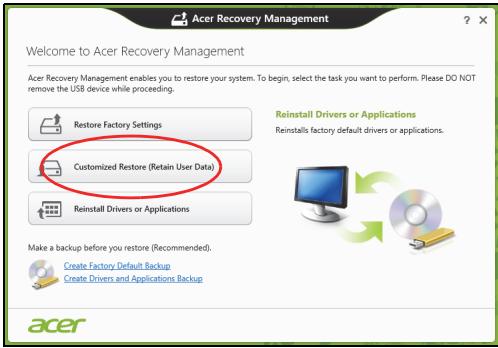
Two options are available, Restore Factory Settings (Reset my PC) or Customized Restore (Refresh my PC).

Customized Restore (Retain User Data)
Restore Factory Settings deletes everything on your hard drive, then reinstalls Windows and all software and drivers that were pre-installed on your system. If you can access important files on your hard drive, back them up now. See "Restore Factory Settings with Acer Recovery Management" on page 24.
Customized Restore will attempt to retain your files (user data) but will reinstall all software and drivers. Software installed since you purchased your PC will be removed (except software installed from the Windows Store). See "Customized Restore with Acer Recovery Management" on page 25.
Restore Factory Settings with Acer Recovery Management
1. Click Restore Factory Settings.
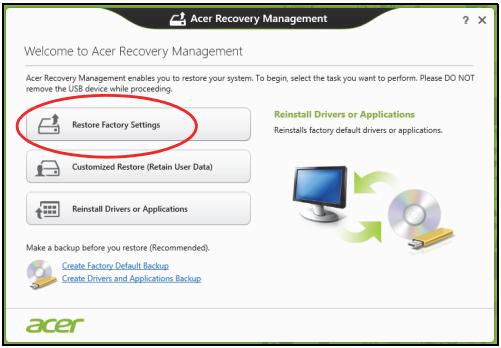
Caution: 'Restore Factory Settings' will erase all files on your hard drive.
- If your computer is configured with two operating systems (only available on certain systems), a window opens with the option to restore either Windows 7 or Windows 8. If you choose Windows 7, your computer will restart and restore Windows 7. If you choose Windows 8, Reset your PC opens, as described below.
Note: To fully enjoy Windows 8 features after changing from Windows 7, enter the BIOS (press
- The Reset your PC window opens.
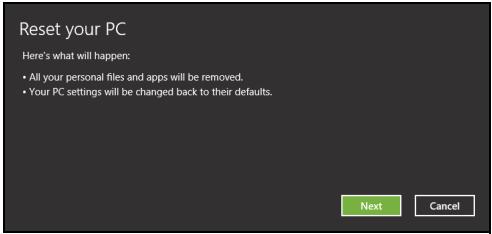
Images for reference only.
- Click Next, then choose how to erase your files:
a. Just remove my files quickly erases all files before restoring your computer and takes about 30 minutes.
b. Fully clean the drive completely cleans the drive after each file is erased, so no files can be viewed after the recovery. Cleaning the drive takes much longer, up to 5 hours, but is much more secure as old files are completely removed.
- Click Reset.
- The recovery process begins by restarting your computer, then continues by copying files to your hard drive.
- After the recovery has finished, you can start using your computer by repeating the first-start process.
Customized Restore with Acer Recovery Management
1. Click Customized Restore (Retain User Data).
2. The Refresh your PC window opens.
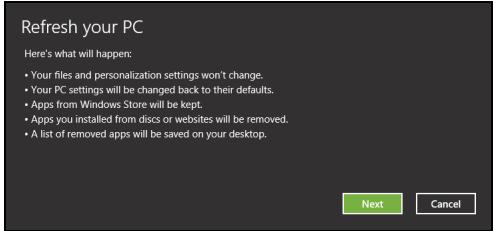
3. Click Next, then Refresh.
- The recovery process begins by restarting your computer, then continues by copying files to your hard drive. This process takes about 30 minutes.
Recovering from a recovery backup
To recover from a recovery backup on a USB drive:
- Find your recovery backup.
- Plug in the USB drive and turn on your computer.
- If it is not already enabled, you must enable the F12 Boot Menu:
a. Press <F2> when starting your computer.
b. Use the left or right arrow keys to select the Main menu.
c. Press the down key until F12 Boot Menu is selected, press
d. Use the left or right arrow keys to select the Exit menu.
e. Depending on the type of BIOS your computer uses, select Save Changes and Exit or Exit Saving Changes and press Enter. Select OK or Yes to confirm.
f. Your computer will restart.
- During startup, press
to open the boot menu. The boot menu allows you to select which device to start from, select the USB drive.
a. Use your arrow keys to select USB Device, then press Enter.
b. Windows starts from the recovery backup instead of the normal startup process.
- Select your keyboard type.
- Select Troubleshooting and then choose the type of recovery to use:
a. Click Advanced then System Restore to start Microsoft System Restore:
Microsoft System Restore periodically takes a 'snapshot' of your system settings and saves them as restore points. In most cases of hard-to-resolve software problems, you can return to one of these restore points to get your system running again.
b. Click Reset your PC to start the reset process:
Reset your PC deletes everything on your hard drive, then reinstalls Windows and all software and drivers that were pre-installed on your system. If you can access important files on your hard drive, back them up now. See "Reset your PC from the recovery backup" on page 27.
c. Click Refresh your PC to start the refresh process:
Refresh your PC will attempt to retain your files (user data) but will reinstall all software and drivers. Software installed since you purchased your PC will be removed (except software installed from the Windows Store). See "Refresh your PC from the recovery backup" on page 28.
Reset your PC from the recovery backup
Caution: Reset your PC will erase all files on your hard drive.
1. The Reset your PC window opens.
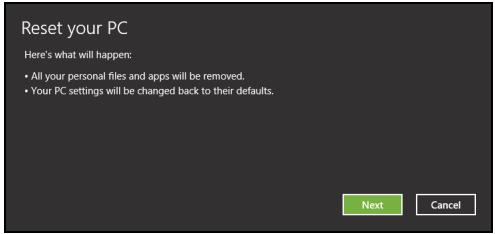
Images for reference only.
2. Click Next.
- Select the operating system to recover (normally only one option is available).
- Choose to keep any changes to the hard drive:
a. If you have deleted the recovery partition or otherwise changed the partitions on the hard drive and want to keep these changes, select No.
b. To completely restore your computer to Factory Settings, select Yes.
- Choose how to erase your files:
a. Just remove my files quickly erases all files before restoring your computer and takes about 30 minutes.
b. Fully clean the drive completely cleans the drive after each file is erased, so no files can be viewed after the recovery. Cleaning the drive takes much longer, up to 5 hours, but is much more secure as old files are completely removed.
6. Click Reset.
- After the recovery has finished, you can start using your computer by repeating the first-start process.
Refresh your PC from the recovery backup
- The Refresh your PC window opens.
Refresh your PC
Here's what will happen:
- Your files and personalization settings won't change.
- Your PC settings will be changed back to their defaults.
- Apps from Windows Store will be kept.
- Apps you installed from discs or websites will be removed.
A list of removed apps will be saved on your desktop.
Next
Cancel
- Click Next.
- Select the operating system to recover (normally only one option is available).
- Click Refresh.
- The recovery process begins by restarting your computer, then continues by copying files to your hard drive. This process takes about 30 minutes.
Acer Backup Manager
Note: This feature is only available on certain models.
Acer Backup Manager is a utility that enables you to do a variety of backup functions each accomplished in only three simple steps. You can even set these functions to automatically recur as often as your like.
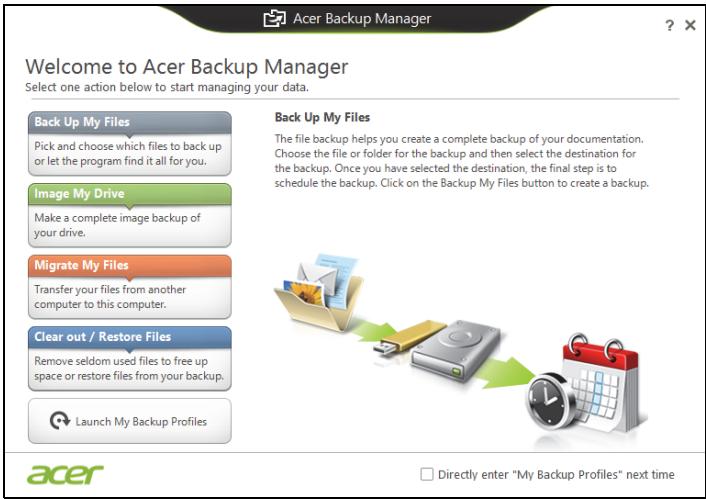
To start Acer Backup Manager in Windows 8, simply start typing "Backup Manager". Alternatively, in Desktop mode, select Acer Backup Manager. This opens the Welcome screen; from this screen you can select the type of backup you'd like to create.
- Back Up My Files: Select files to back up.
- Image My Drive: Create a backup file for the entire drive. You can burn this file to a DVD, save them to another drive on your computer*, or save them to removable media (i.e. a flash drive) to restore your computer at a later time.
- Migrate My Files: Allows you to copy files to a USB device so that you can migrate files from your old computer to your new one or any other computer with Acer Backup Manager.
- Clear out / Restore Files: Remove seldom used files to free up disk space or restore files from your backup.
Select the backup type you'd like to make and select the files or drive you want to back up, then follow the onscreen instructions:
-
Select the content you want to back up. The less content you select, the quicker the process will be, but it will increase your risks of losing data.
-
Select where you want the backup copies to be stored. Your options include removable media, a drive on your computer*, CD/DVD media, a remote PC, or the cloud using Microsoft SkyDrive.
- Select how often you want Acer Backup Manager to create backups.
Once you have finished these three steps, backups will be created according to the schedule.
*NOTE: You will need to select an external drive or your D: drive; Acer Backup Manager cannot store a backup on the source drive.
If you wish to change your settings at any time, go to the Acer Backup Manager profiles screen. To get there from the Acer Backup Manager welcome screen, click Launch My Backup Profiles.
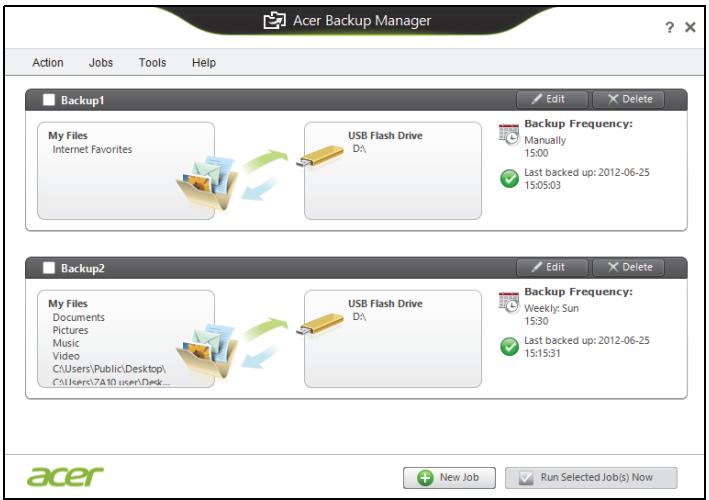
From here you can edit or delete existing backup profiles.
Power management
This computer has a built-in power management unit that monitors system activity. System activity refers to any activity involving one or more of the following devices: keyboard, mouse, hard disk, peripherals connected to the computer, and video memory. If no activity is detected for a period of time, the computer stops some or all of these devices in order to conserve energy.
Saving power
Disable Fast startup
Your computer uses Fast startup to start quickly, but also uses a small amount of power to check for signals to start. These checks will slowly drain your computer's battery.
If you prefer to reduce your computer's power requirements and environmental impact, turn off Fast startup:
Note: If Fast startup is off, your computer will take longer to start from Sleep. If your computer features Acer Instant On or Acer Always Connect, these will also be turned off.
Your computer will also not start if it receives an instruction to start over a network (Wake on LAN).
- Open the Desktop.
- Click Power Options in the Notification area.
-
Select More Power Options.
-
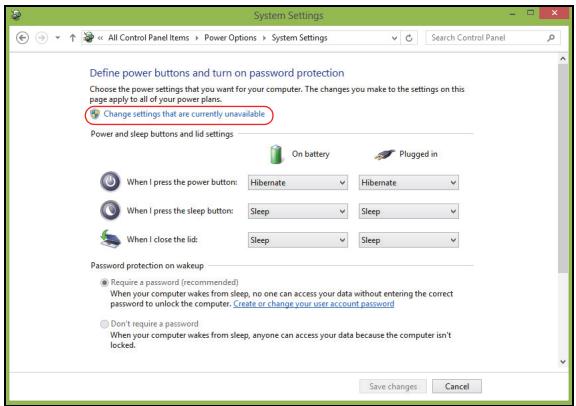
Select Choose what the power buttons do.
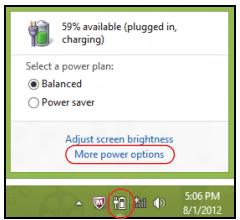
- To access Shutdown Settings, select Change settings that are currently unavailable.
- Scroll down and disable Turn on fast startup.
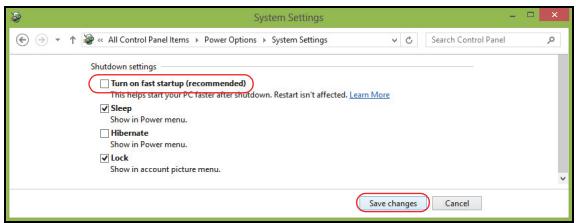
- Select Save changes.
Battery pack
The computer uses a battery pack that gives you long use between charges.
Battery pack characteristics
The battery pack has the following characteristics:
- Employs current battery technology standards.
- Delivers a battery-low warning.
The battery is recharged whenever you connect the computer to the AC adapter. Your computer supports charge-in-use, enabling you to recharge the battery while you continue to operate the computer. However, recharging with the computer turned off results in a significantly faster charge time.
The battery will come in handy when you travel or during a power failure. It is advisable to have an extra fully charged battery pack available as backup. Contact your dealer for details on ordering a spare battery pack.
Charging the battery
To charge the battery, first make sure that it is correctly installed in the battery bay. Plug the AC adapter into the computer, and connect to a mains power outlet. You can continue to operate your computer on AC power while your battery is charging. However, charging the battery with the computer turned off results in a significantly faster charge time.
Note: You are advised to charge the battery before retiring for the day. Charging the battery overnight before traveling enables you to start the next day with a fully charged battery.
Conditioning a new battery pack
Before you use a battery pack for the first time, there is a conditioning process that you should follow:
- Insert the new battery without turning the computer on.
- Connect the AC adapter and fully charge the battery.
- Disconnect the AC adapter.
- Turn on the computer and operate using battery power.
- Fully deplete the battery until the battery-low warning appears.
- Reconnect the AC adapter and fully charge the battery again.
Follow these steps again until the battery has been charged and discharged three times.
Use this conditioning process for all new batteries, or if a battery hasn't been used for a long time. If the computer is to be stored for more than two weeks, you are advised to remove the battery pack from the unit.
Warning! Do not expose battery packs to temperatures below 0^ C (32^ F) or above 45^ C (113^ F). Extreme temperatures may adversely affect the battery pack.
By following the battery conditioning process you condition your battery to accept the maximum possible charge. Failure to follow this procedure will prevent you from obtaining the maximum battery charge, and will also shorten the effective lifespan of the battery.
In addition, the useful lifespan of the battery is adversely affected by the following usage patterns:
- Using the computer on constant AC power with the battery inserted. If you want to use constant AC power, you are advised to remove the battery pack after it is fully charged.
- Not discharging and recharging the battery to its extremes, as described above.
- Frequent use; the more you use the battery, the faster it will reach the end of its effective life. A standard computer battery has a life span of about 300 charges.
Optimizing battery life
Optimizing battery life helps you get the most out of battery operation, prolonging the charge/recharge cycle and improving recharging efficiency.
You are advised to follow the suggestions set out below:
Purchase an extra battery pack.
- Use AC power whenever possible, reserving battery for on-the-go use.
- Eject a PC Card if it is not being used, as it will continue to draw power (for selected models).
- Store the battery pack in a cool, dry place. The recommended temperature is 10^ ( 50^ ) to 30^ ( 86^ ). Higher temperatures cause the battery to self-discharge faster.
- Excessive recharging decreases the battery life.
- Look after your AC adapter and battery.
Checking the battery level
The Windows power meter indicates the current battery level. Rest the cursor over the battery/power icon on the taskbar to see the battery's present charge level.
Battery-low warning
When using battery power pay attention to the Windows power meter.
Warning! Connect the AC adapter as soon as possible after the battery-low warning appears. Data will be lost if the battery to become fully depleted and the computer shuts down.
When the battery-low warning appears, the recommended course of action depends on your situation:
| Situation | Recommended Action |
| The AC adapter and a power outlet are available. | 1. Plug the AC adapter into the computer, and then connect to the mains power supply. 2. Save all necessary files. 3. Resume work. Turn off the computer if you want to recharge the battery rapidly. |
| An extra fully charged battery pack is available. | 1. Save all necessary files. 2. Close all applications. 3. Turn off the computer. 4. Replace the battery pack. 5. Turn on the computer and resume work. |
| The AC adapter or a power outlet is unavailable. You have no spare battery pack. | 1. Save all necessary files. 2. Close all applications. 3. Turn off the computer. |
Installing and removing the battery pack
Important: Before removing the battery from the unit, connect the AC adapter if you want to continue using your computer. Otherwise, turn off the computer first.
To install a battery pack:
- Align the battery with the open battery bay; make sure that the end with the contacts will enter first, and that the top surface of the battery is facing up.
- Slide the battery into the battery bay and gently push until the battery locks in place.
To remove a battery pack:
- Slide the battery release latch to release the battery.
- Pull the battery from the battery bay.
Traveling with your computer
This section gives you tips and hints to consider when moving around or traveling with your computer.
Disconnecting from the desktop
Follow these steps to disconnect your computer from external accessories:
- Save any open files.
- Remove discs from optical drive(s).
- Shut down the computer.
- Close the display cover.
- Disconnect the cord from the AC adapter.
- Disconnect the keyboard, pointing device, printer, external monitor and other external devices.
- Disconnect the Kensington lock if you are using one to secure the computer.
Moving around
When you are just moving within short distances, for example, from your office desk to a meeting room.
Preparing the computer
Before moving the computer, close and latch the display cover to place it in Sleep mode. You can now safely take the computer anywhere you go within the building. To bring the computer out of Sleep mode, open the display; then press and release the power button.
If you are taking the computer to a client's office or a different building, you may choose to shut down the computer:
Press the Windows key +
Or:
You can put the computer in Sleep mode by pressing Fn + F4 . Then close the display.
When you are ready to use the computer again, open the display; then press and release the power button.
Note: The computer may enter Hibernation or Deep Sleep mode after being in Sleep mode for a period of time.
What to bring to meetings
If your meeting is relatively short, you probably do not need to bring anything with you other than your computer. If your meeting will be longer, or if your battery is not fully charged, you may want to bring the AC adapter with you to plug in your computer in the meeting room.
If the meeting room does not have an electrical outlet, reduce the drain on the battery by putting the computer in Sleep mode. Press Fn + F4 or close the display cover whenever you are not actively using the computer.
Taking the computer home
When you are moving from your office to your home or vice versa.
Preparing the computer
After disconnecting the computer from your desktop, follow these steps to prepare the computer for the trip home:
- Check that you have removed all media and compact discs from the drive(s). Failure to remove the media can damage the drive head.
- Pack the computer in a protective case that can prevent the computer from sliding around and cushion it if it should fall.
Caution: Avoid packing items next to the top cover of the computer. Pressure against the top cover can damage the screen.
What to take with you
Unless you have some items at home, take the following items with you:
- AC adapter and power cord.
The printed setup poster.
Special considerations
Follow these guidelines to protect your computer while traveling to and from work:
-
Minimize the effects of temperature changes by keeping the computer with you.
-
If you need to stop for an extended period of time and cannot carry the computer with you, leave the computer in the trunk of the car to avoid exposing the computer to excessive heat.
- Changes in temperature and humidity can cause condensation. Allow the computer to return to room temperature, and inspect the screen for condensation before turning on the computer. If the temperature change is greater than 10^ ( 18^ ), allow the computer to come to room temperature slowly. If possible, leave the computer for 30 minutes in an environment with a temperature between outside and room temperature.
Setting up a home office
If you frequently work on your computer at home, you may want to purchase a second AC adapter for use at home. With a second AC adapter, you can avoid carrying the extra weight to and from home.
If you use your computer at home for significant periods of time, you might also want to add an external keyboard, monitor or mouse.
Traveling with the computer
When you are moving within a larger distance, for instance, from your office building to a client's office building or traveling locally.
Preparing the computer
Prepare the computer as if you were taking it home. Make sure that the battery in the computer is charged. Airport security may require you to turn on your computer when carrying it into the gate area.
What to take with you
Take the following items with you:
- AC adapter
- Spare, fully-charged battery pack(s)
Additional printer driver files if you plan to use another printer
Special considerations
In addition to the guidelines for taking the computer home, follow these guidelines to protect your computer while traveling:
Always take the computer as carry-on luggage.
- If possible, have the computer inspected by hand. Airport security X-ray machines are safe, but do not put the computer through a metal detector.
Traveling internationally with the computer
When you are moving from country to country.
Preparing the computer
Prepare the computer as you would normally prepare it for traveling.
What to bring with you
Bring the following items with you:
- AC adapter.
- Power cords that are appropriate for the country to which you are traveling.
- Spare, fully-charged battery packs.
Additional printer driver files if you plan to use another printer.
Proof of purchase, in case you need to show it to customs officials.
International Travelers Warranty passport.
Special considerations
Follow the same special considerations as when traveling with the computer.
In addition, these tips are useful when traveling internationally:
- When traveling in another country, check that the local AC voltage and the AC adapter power cord specifications are compatible. If not, purchase a power cord that is compatible with the local AC voltage. Do not use converter kits sold for appliances to power the computer.
- If you are using the modem, check if the modem and connector are compatible with the telecommunications system of the country you are traveling in.
Expanding through options
Your computer offers you a complete mobile computing experience.
Connectivity options
Ports allow you to connect peripheral devices to your computer as you would with a desktop PC. For instructions on how to connect different external devices to the computer, read the following sections.
Connecting to a network
Built-in network feature
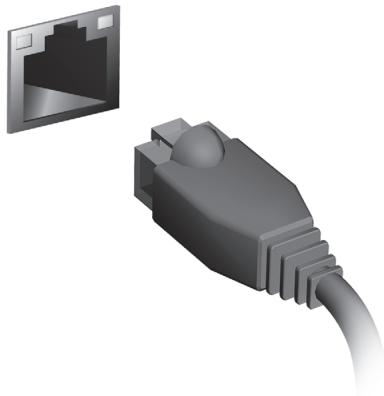
The built-in network feature allows you to connect your computer to an Ethernet-based network.
To use the network feature, connect an Ethernet cable from the Ethernet (RJ-45) port on the chassis of the computer to a network jack or hub on your network.
Wireless networks
Connecting to the Internet
Your computer's wireless connection is turned on by default.
Windows will detect and display a list of available networks during setup. Select your network and enter the password if required.
Otherwise, open Internet Explorer and follow the instructions.
Please refer to your ISP or router documentation.
Wireless networks
A wireless LAN or WLAN is a wireless local area network, which may link two or more computers without using wires. Setting up a wireless network is easy and allows you to share files, peripheral devices and an Internet connection.
What are benefits of a wireless network?
Mobility
Wireless LAN systems allow you and other users of your home network to share access to files and devices connected to the network, for example a printer or scanner.
Also you can share an internet connection with other computers in your home.
Installation speed and simplicity
Installing a wireless LAN system can be fast and easy and eliminates the need to pull cables through walls and ceilings.
Components of a wireless LAN
To set up your Wireless network at home you need to have the following:
Access point (router)
Access points (routers) are two-way transceivers that broadcast data into the surrounding environment. Access points act as a mediator between wired and wireless network. Most routers have a built-in DSL modem that will allow you access to a high speed DSL internet connection. The ISP (Internet Service Provider) you have chosen normally supplies a modem/rodter with the subscription to their services. Read carefully the documentation supplied with your Access point/rodter for detailed setup instructions.
ExpressCard
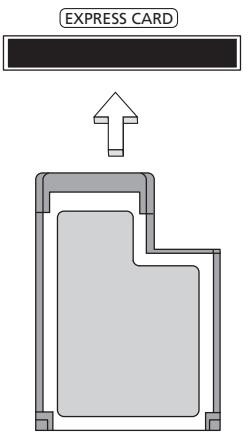
ExpressCards support a vast number of expansion options, including flash memory card adapters, TV-tuners, Bluetooth connectivity and IEEE 1394b adapters. ExpressCards support USB 2.0 and PCI Express applications.
Important: There are two types, ExpressCard/54 and ExpressCard/34 (54 mm and 34 mm), each with different functions. Not all ExpressCard slots will support both types. Please refer to your card's manual for details on how to install and use the card, and its functions.
Inserting an ExpressCard
Insert the card into the slot and push gently until it clicks into position.
Ejecting an ExpressCard
Before ejecting an ExpressCard:
- Exit the application using the card.
- Left-click the remove hardware icon on the taskbar and stop the card operation.
- Push the card gently into the slot and release to pop out the card. Then pull the card free from the slot.
Thunderbolt
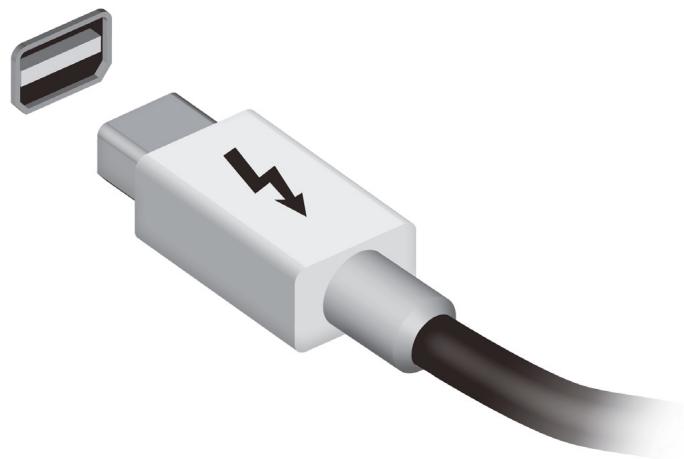
Thunderbolt is a high-speed connection that supports storage devices as well as external displays. It is compatible with the DisplayPort standard.
Note: Up to six Thunderbolt devices and one DisplayPort display can be daisy-chained, however, the DisplayPort display will be the last device in the chain, and it cannot be preceded by a Thunderbolt display.
IEEE 1394 port
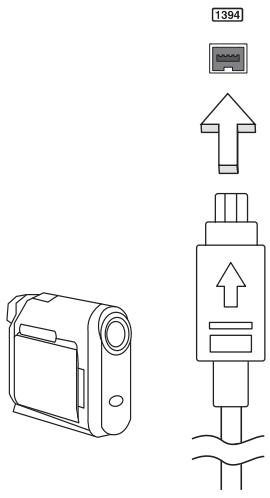
The computer's IEEE 1394 port allows you to connect to an IEEE 1394-compatible device like a video camera or digital camera. See your video or digital camera's documentation for details.
HDMI
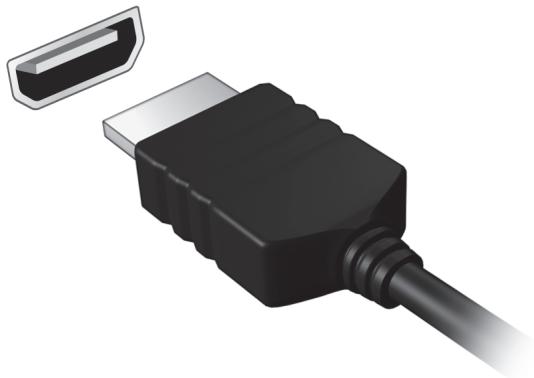
HDMI (High-Definition Multimedia Interface) is an industry-supported, uncompressed, all-digital audio/video interface. HDMI provides an interface between any compatible digital audio/video source, such as a set-top box, DVD player, and A/V receiver and a compatible digital audio and/or video monitor, such as a digital television (DTV), over a single cable.
Use the HDMI port on your computer to connect with high-end audio and video equipment. Single cable implementation allows tidy setup and fast connection.
Universal Serial Bus (USB)
The USB port is a high-speed serial bus which allows you to connect USB peripherals without taking up system resources.
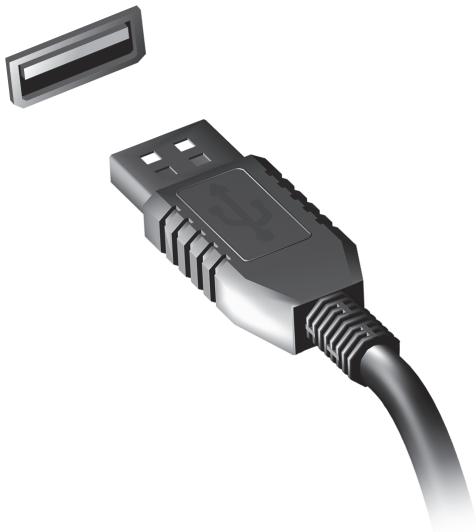
Playing DVD movies
When the DVD drive module is installed in the optical drive bay, you can play DVD movies on your computer.
- Insert a DVD.
- The DVD movie will automatically play after a few seconds.
Important: When you launch the DVD player for the first time, the program asks you to enter the region code. DVDs are available for 6 regions.
| Region code | Country or region |
| 1 | USA, Canada |
| 2 | Europe, Middle East, South Africa, Japan |
| 3 | Southeast Asia, Taiwan, South Korea |
| 4 | Latin America, Australia, New Zealand |
| 5 | Former USSR, parts of Africa, India |
| 6 | People's Republic of China |
Note: To change the region code, insert a DVD movie of a different region into the DVD drive.
Once your DVD drive is set to a region code, it will only play DVDs for that region. You can set the region code a maximum of five times (including the first time), after which the last region code set will remain permanent.
Recovering your hard disk does not reset the number of times the region code has been set.
Upgrading memory
Follow these steps to install memory:
- Turn off the computer, unplug the AC adapter (if connected) and remove the battery pack. Then turn the computer over to access its base.
- Remove the screws from the memory cover; then lift and remove the memory cover.
- (a) Insert the memory module diagonally into the slot, then (b) gently press it down until it clicks into place.
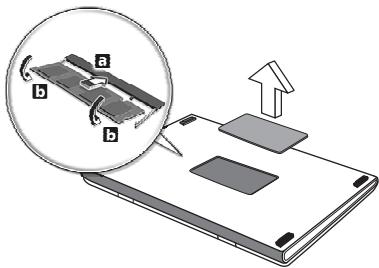
- Replace the memory cover and secure it with the screw.
- Reinstall the battery pack, and reconnect the AC adapter.
- Turn on the computer.
The computer automatically detects and reconfigures the total memory size.
BIOS utility
The BIOS utility is a hardware configuration program built into your computer's BIOS.
Your computer is already properly configured and optimized, and you do not need to run this utility. However, if you encounter configuration problems, you may need to run it.
To activate the BIOS utility, press <F2> during the POST while the computer logo is being displayed.
Boot sequence
To set the boot sequence in the BIOS utility, activate the BIOS utility, then select Boot from the categories listed at the top of the screen.
Setting passwords
To set a password on boot, activate the BIOS utility, then select Security from the categories listed at the top of the screen. Find Password on boot: and use the
Frequently asked questions
The following is a list of possible situations that may arise during the use of your computer. Easy solutions are provided for each one.
I turned on the power, but the computer does not start or boot up. Look at the power indicator:
-
If it is not lit, no power is being supplied to the computer. Check the following:
-
If you are using on the battery, it may be low and unable to power the computer. Connect the AC adapter to recharge the battery pack.
- Make sure that the AC adapter is properly plugged into the computer and to the power outlet.
If it is lit, check the following:
- Is a disc in the optical drive? Remove it and press <Ctrl> + <Alt> + <Del> to restart the system.
- Do you have a USB storage device (USB disk or smartphone) plugged into your computer? Unplug it and press <Ctrl> + <Alt> + <Del> to restart the system.
Nothing appears on the screen
The computer's power management system automatically blanks the screen to save power. Press any key to turn the display back on.
If pressing a key does not turn the display back on, three things might be the cause:
- The brightness level might be too low. Press <Fn> + <> (increase) to adjust the brightness level.
- The display device might be set to an external monitor. Press the display toggle hotkey <Fn> + <F5> to toggle the display back to the computer.
- If the Sleep indicator is lit, the computer is in Sleep mode. Press and release the power button to resume.
No audio is heard from the computer
Check the following:
-
The volume may be muted. In Windows, look at the volume control (speaker) icon on the taskbar. If it is crossed-out, click the icon and deselect the Mute all option.
-
The volume level may be too low. In Windows, look at the volume control icon on the taskbar. You can also use the volume control buttons to adjust the volume.
- If headphones, earphones or external speakers are connected to the line-out port on the computer, the internal speakers automatically turn off.
I want to eject the optical drive tray without turning on the power. There is a mechanical eject hole on the optical drive. Simply insert the tip of a pen or paperclip into the hole and push to eject the tray.
The keyboard does not respond
Try attaching an external keyboard to a USB port on the computer. If it works, contact your dealer or an authorized service center as the internal keyboard cable may be loose.
The printer does not work
Check the following:
- Make sure that the printer is connected to a power outlet and that it is turned on.
- Make sure that the printer cable is connected securely to a USB port and the corresponding port on the printer.
Requesting service
International Travelers Warranty (ITW)
Your computer is backed by an International Travelers Warranty (ITW) that gives you security and peace of mind when traveling. Our worldwide network of service centers are there to give you a helping hand.
An ITW passport comes with your computer. This passport contains all you need to know about the ITW program. A list of available, authorized service centers is in this handy booklet. Read this passport thoroughly.
Always have your ITW passport on hand, especially when you travel, to receive the benefits from our support centers. Place your proof-of-purchase in the flap located inside the front cover of the ITW passport.
If the country you are traveling in does not have an Acer-authorized ITW service site, you can still get in contact with our offices worldwide. Please visit www.acer.com.
Before you call
Please have the following information available when you call Acer for online service, and please be at your computer when you call. With your support, we can reduce the amount of time a call takes and help solve your problems efficiently. If there are error messages or beeps reported by your computer, write them down as they appear on the screen (or the number and sequence in the case of beeps).
You are required to provide the following information:
Name:
Address:
Telephone number:
Machine and model type:
Serial number:
Date of purchase:
Troubleshooting
This chapter shows you how to deal with common system problems.
Read it before calling a technician if a problem occurs. Solutions to more serious problems require opening up the computer. Do not attempt to open the computer yourself; contact your dealer or authorized service center for assistance.
Troubleshooting tips
This computer incorporates an advanced design that delivers onscreen error message reports to help you solve problems.
If the system reports an error message or an error symptom occurs, see "Error messages" below. If the problem cannot be resolved, contact your dealer. See "Requesting service" on page 53.
Error messages
If you receive an error message, note the message and take the corrective action. The following table lists the error messages in alphabetical order together with the recommended course of action.
| Error messages | Corrective action |
| CMOS battery bad | Contact your dealer or an authorized service center. |
| CMOS checksum error | Contact your dealer or an authorized service center. |
| Disk boot failure | Insert a system (bootable) disk, then press <Enter> to reboot. |
| Equipment configuration error | Press <F2> (during POST) to enter the BIOS utility, then press Exit in the BIOS utility to reboot. |
| Hard disk 0 error | Contact your dealer or an authorized service center. |
| Hard disk 0 extended type error | Contact your dealer or an authorized service center. |
| I/O parity error | Contact your dealer or an authorized service center. |
| Keyboard error or no keyboard connected | Contact your dealer or an authorized service center. |
| Keyboard interface error | Contact your dealer or an authorized service center. |
| Memory size mismatch | Press <F2> (during POST) to enter the BIOS utility, then press Exit in the BIOS utility to reboot. |
If you still encounter problems after going through the corrective measures, please contact your dealer or an authorized service center for assistance.
Tips and hints for using Windows 8
We know this is a new operating system that will take some getting used to, so we've created a few pointers to help you get started.
Three concepts you might want to keep in mind
1. Start
The Start button is no longer available; you can launch apps from the Start screen.
2. Tiles
Live tiles are similar to thumbnails of the apps.
3. Charms
Charms allow you to perform useful functions, such as sharing content, turning off your PC or changing settings.
How do I access the charms?
Move the cursor to the upper or lower right-hand corner of the screen to access the charms, or press the Windows key +
How do I get to Start?
Press the Windows key on the keyboard; press the Windows key +
How do I jump between apps?
Move the cursor to the left-hand edge of the screen to view thumbnails of apps that are currently running.
You may also press the Windows key +
How do I turn off my computer?
Press the Windows key +
Why is there a new interface?
The new interface for Windows 8 is designed to work well with touch input. Windows Store apps will automatically use the whole screen and don't
require closing in the traditional way. Windows Store apps will be displayed on Start using live-tiles.
What are 'live tiles?'
Live tiles are similar to thumbnails of the apps that will be updated with new content whenever you're connected to the Internet. So, for example, you can view weather or stock updates without needing to open the app.
How do I unlock my computer?
Press the any key and click on a user account icon to unlock the computer. If your account has a password set, you will need to enter the password to continue.
How do I personalize my computer?
You can personalize Start with a different background image or by arranging the tiles to suit your personal needs.
To change the background, press the Windows key +
How do I move tiles?
Click and hold a tile to select it, then drag it to the place on Start that you want it to appear. Other tiles will be moved to accommodate the tile in its new location.
Can I make tiles bigger or smaller?
Right-click on a tile, then select Smaller or Larger from the menu that appears at the bottom of the screen.
How do I personalize the Lock screen?
You can personalize the lock screen with a different image or to show you quick status and notifications to suit your personal needs.
To change the background, press the Windows key +
So, how do I close an app?
Move the cursor to the top of the screen and click and drag the window downwards to close the app.
You can close apps from the thumbnails on the left-hand edge of the screen by right-clicking on a thumbnail and selecting Close.
Can I change the screen resolution?
From Start, start typing 'Control Panel' to open Search and display the results; click Control Panel > Adjust screen resolution.
I want to use Windows in the way that I'm used to - give me my desktop back!
From Start click the Desktop tile to see a traditional desktop. You can pin apps you frequently use to the taskbar to easily open them.
If you click an app that is not a Windows Store app, Windows will automatically open the app using Desktop.
Where are my apps?
From Start, simply start typing the name of the app you would like to open, and Search will automatically open and list results.
To view the complete list of apps, press the space bar or the Menu key and click All apps.
How do I make an app appear on Start?
If you're in All apps and you want to make an app appear on Start, you can select the app and right-click on it. Select Pin to Start from the menu that appears at the bottom of the screen.
How do I remove a tile from Start?
Right-click the tile and click Unpin from Start from the menu that appears at the bottom of the screen.
How do I make an app appear on my taskbar in Desktop?
If you're in All apps and you want to make an app appear on the taskbar in Desktop, you can select the app and right-click on it. Select Pin to taskbar from the menu that appears at the bottom of the screen.
How do I install apps?
You can download Windows Store apps from Store. You will need to have a Microsoft ID to purchase and download apps from Store.
I can't find apps like Notepad and Paint! Where are they?
From Start you can simply start typing the name of the app you're looking for to open Search and list the results. Alternatively, open All apps and scroll to 'Windows Accessories' to see the list of legacy programs.
What is a Microsoft ID (account)?
A Microsoft account is an email address and password that you use to sign in to Windows. You can use any email address, but it is best if you choose the one you already use to communicate with friends and sign in to your favorite websites. When you sign in to your PC with a Microsoft account, you'll connect your PC to the people, files, and devices you care about.
Do I need one?
You do not need a Microsoft ID to use Windows 8, but it makes life easier because you can sync data across different machines you sign in to using a Microsoft ID.
How do I get one?
If you've already installed Windows 8 and didn't sign in with a Microsoft account or you don't have a Microsoft account and want to get one, press the Windows key +
How do I add a favorite to Internet Explorer?
Internet Explorer 10 doesn't have traditional favorites, instead you can pin shortcuts to Start. Once you have the page open, right-click anywhere on the page to open the menu at the bottom of the screen. Click Pin to Start.
How do I check for Windows updates?
Press the Windows key +
Where can I get more information?
For more information please visit:
- Windows 8 tutorials: www.acer.com/windows8-tutorial
- Support FAQs: www.acer.com/support
Regulations and safety notices
FCC STATEMENT
This device has been tested and found to comply with the limits for a Class B digital device pursuant to Part 15 of the FCC rules. These limits are designed to provide reasonable protection against harmful interference in a residential installation. This device generates, uses, and can radiate radio frequency energy and, if not installed and used in accordance with the instructions, may cause harmful interference to radio communications.
However, there is no guarantee that interference will not occur in a particular installation. If this device does cause harmful interference to radio or television reception, which can be determined by turning the device off and on, the user is encouraged to try to correct the interference by one or more of the following measures:
- Reorient or relocate the receiving antenna.
- Increase the separation between the device and receiver.
- Connect the device into an outlet on a circuit different from that to which the receiver is connected.
- Consult the dealer or an experienced radio/television technician for help.
Notice: Shielded cables
All connections to other computing devices must be made using shielded cables to maintain compliance with FCC regulations.
NOTICE: PERIPHERAL DEVICES
Only peripherals (input/output devices, terminals, printers, etc.) certified to comply with the Class B limits may be attached to this equipment. Operation with non-certified peripherals is likely to result in interference to radio and TV reception.
Caution: Changes or modifications not expressly approved by the manufacturer could void the user's authority, which is granted by the Federal Communications Commission, to operate this computer.
NOTICE FOR CANADA
This Class B digital apparatus complies with Canadian ICES-003.
The LCD unit is produced with high-precision manufacturing techniques. Nevertheless, some pixels may occasionally misfire or appear as black or red dots. This has no effect on the recorded image and does not constitute a malfunction.
RADIO DEVICE REGULATORY NOTICES
Note: Below regulatory information is for models with wireless LAN and / or Bluetooth only.
To prevent radio interference to the licensed service, this device is intended to be operated indoors.
This product complies with the radio frequency and safety standards of any country or region in which it has been approved for wireless use. Depending on configurations, this product may or may not contain wireless radio devices (such as wireless LAN and/or Bluetooth modules). Below information is for products with such devices.
Declaration of Conformity for EU countries
Hereby, Acer, declares that this computer is in compliance with the essential requirements and other relevant provisions of Directive 1999/5/EC.
Wireless operation channels for different domains
N. America
2.412-2.462 GHz
Ch01 through Ch11
Japan
2.412-2.484 GHz
Ch01 through Ch14
Europe ETSI
2.412-2.472 GHz
Ch01 through Ch13
France: Restricted wireless frequency bands
Some areas of France have a restricted frequency band. The worst case maximum authorized power indoors is:
- 10 mW for the entire 2.4 GHz band (2400 MHz - 2483.5 MHz)
- 100 mW for frequencies between 2446.5 MHz and 2483.5 MHz
Note: Channels 10 through 13 inclusive operate in the band 2446.6 MHz to 2483.5 MHz.
There are few possibilities for outdoor use: On private property or on the private property of public persons, use is subject to a preliminary authorization procedure by the Ministry of Defense, with maximum authorized power of 100mW in the 2446.5 - 2483.5 MHz band. Use outdoors on public property is not permitted.
In the departments listed below, for the entire 2.4 GHz band:
Maximum authorized power indoors is 100mW
Maximum authorized power outdoors is 10mW
Departments in which the use of the 2400 - 2483.5 MHz band is permitted with an EIRP of less than 100mW indoors and less than 10mW outdoors:
| 01 Ain Orientales | 25 Doubs | 59 Nord | 71 Saone et Loire |
| 02 Aisne | 26 Drome | 60 Oise | 75 Paris |
| 03 Allier | 32 Gers | 61 Orne | 82 Tarn et Garonne |
| 05 Hautes Alpes | 36 Indre | 63 Puy Du Dome | 84 Vaucluse |
| 08 Ardennes | 37 Indre et Loire | 64 Pyrenees | 88 Vosges |
| 09 Ariege | 41 Loir et Cher | Atlantique | 89 Yonne |
| 11 Aude | 45 Loret | 66 Pyrenees | 90 Territoire de |
| 12 Aveyron | 50 Manche | 67 Bas Rhin | Belfort |
| 16 Charente | 55 Meuse | 68 Haut Rhin | 94 Val de Marne |
| 24 Dordogne | 58 Nievre | 70 Haute Saone |
This requirement is likely to change over time, allowing you to use your wireless LAN card in more areas within France.
Please check with ART for the latest information (www.art-com.fr).
Note: Your WLAN Card transmits less than 100 mW, but more than 10 mW.
List of national codes
This equipment may be operated in the following countries:
| Country | ISO 3166 | Country | ISO 3166 |
| 2 letter code | 2 letter code | ||
| Austria | AT | Malta | MT |
| Belgium | BE | Netherlands | NT |
| Cyprus | CY | Poland | PL |
| Czech Republic | CZ | Portugal | PT |
| Denmark | DK | Slovakia | SK |
| Estonia | EE | Slovenia | SL |
| Finland | FI | Spain | ES |
| France | FR | Sweden | SE |
| Germany | DE | United Kingdom | GB |
| Greece | GR | Iceland | IS |
| Hungary | HU | Liechtenstein | LI |
| Ireland | IE | Norway | NO |
| Italy | IT | Switzerland | CH |
| Latvia | LV | Bulgaria | BG |
| Lithuania | LT | Romania | RO |
| Luxembourg | LU | Turkey | TR |
CANADA - LOW-POWER LICENSE-EXEMPT RADIO COMMUNICATION DEVICES (RSS-210)
Exposure of humans to RF fields (RSS-102)
The computer employs low gain integral antennas that do not emit RF field in excess of Health Canada limits for the general population; consult Safety Code 6, obtainable from Health Canada's website at www.hc-sc.gc.ca/rpb.
This device complies with RSS210 of Industry Canada.
This Class B digital apparatus complies with Canadian ICES-003, Issue 4, and RSS-210, No 4 (Dec 2000) and No 5 (Nov 2001).
"To prevent radio interference to the licensed service, this device is intended to be operated indoors and away from windows to provide maximum shielding. Equipment (or its transmit antenna) that is installed outdoors is subject to licensing."
Caution: When using IEEE 802.11a wireless LAN, this product is restricted to indoor use due to its operation in the 5.15- to 5.25-GHz frequency range. Industry Canada requires this product to be used indoors for the frequency range of 5.15 GHz to 5.25 GHz to reduce the potential for harmful interference to co-channel mobile satellite systems. High power radar is allocated as the primary user of the 5.25 to 5.35 GHz and 5.65 to 5.85-GHz bands. These radar stations can cause interference with and/or damage to this device.
The maximum allowed antenna gain for use with this device is 6 dBi in order to comply with the E.I.R.P limit for the 5.25- to 5.35 and 5.725 to 5.85 GHz frequency range in point-to-point operation.
The FCC RF safety requirement
The radiated output power of the wireless LAN Mini PCI Card and Bluetooth card is far below the FCC radio frequency exposure limits. Nevertheless, the computer shall be used in such a manner that the potential for human contact during normal operation is minimized as follows:
- Users are requested to follow the RF safety instructions on wireless option devices that are included in the user's manual of each RF option device.
Caution: To comply with FCC RF exposure compliance requirements, a separation distance of at least 20~cm (8 inches) must be maintained between the antenna for the integrated wireless LAN Mini PCI Card built in to the screen section and all persons.
Note: The wireless Mini PCI adapter implements a transmission diversity function. The function does not emit radio frequencies simultaneously from both antennas. One of the antennas is selected automatically or
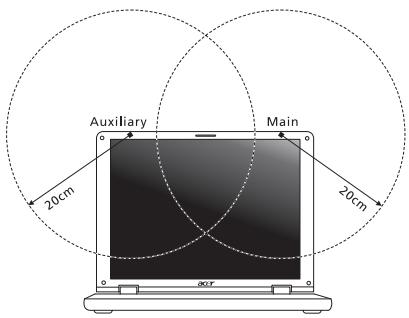
manually (by users) to ensure good quality radiocommunication.
- This device is restricted to indoor use due to its operation in the 5.15 to 5.25 GHz frequency range. FCC requires this product to be used indoors for the frequency range 5.15 to 5.25 GHz to reduce the potential for harmful interference to co-channel Mobile Satellite systems.
- High power radar is allocated as the primary user of the 5.25 to 5.35 GHz and 5.65 to 5.85 GHz bands. These radar stations can cause interference with and/or damage this device.
- An improper installation or unauthorized use may cause harmful interference to radio communications. Also any tampering of the internal antenna will void the FCC certification and your warranty.
CANADA - LOW-POWER LICENSE-EXEMPT RADIO COMMUNICATION DEVICES (RSS-210)
Exposure of humans to RF fields (RSS-102)
The computer employs low gain integral antennas that do not emit RF field in excess of Health Canada limits for the general population; consult Safety Code 6, obtainable from Health Canada's website at www.hc-sc.gc.ca/rpb.
This device complies with RSS210 of Industry Canada.
This Class B digital apparatus complies with Canadian ICES-003, Issue 4, and RSS-210, No 4 (Dec 2000) and No 5 (Nov 2001).
"To prevent radio interference to the licensed service, this device is intended to be operated indoors and away from windows to provide maximum shielding. Equipment (or its transmit antenna) that is installed outdoors is subject to licensing."
Caution: When using IEEE 802.11a wireless LAN, this product is restricted to indoor use due to its operation in the 5.15- to 5.25-GHz frequency range. Industry Canada requires this product to be used indoors for the frequency range of 5.15 GHz to 5.25 GHz to reduce the potential for harmful interference to co-channel mobile satellite systems. High power radar is allocated as the primary user of the 5.25 to 5.35 GHz and 5.65 to 5.85-GHz bands. These radar stations can cause interference with and/or damage to this device.
The maximum allowed antenna gain for use with this device is 6 dBi in order to comply with the E.I.R.P limit for the 5.25- to 5.35 and 5.725 to 5.85 GHz frequency range in point-to-point operation.
Gamme TravelMate
www.acer-group.com/public/Sustainability/sustainability01.htm.
Acer Office Manager 11
Console du Acer Office Manager 11
Tableau de bord 11
Acer Backup Manager 34
Considerations speciales 45
Customized Restore (Retain User Data)
This Class B digital apparatus complies with Canadian ICES-003.
This Class B digital apparatus complies with Canadian ICES-003, Issue 4, and RSS-210, No 4 (Dec 2000) and No 5 (Nov 2001).
"To prevent radio interference to the licensed service, this device is intended to be operated indoors and away from windows to provide maximum shielding. Equipment (or its transmit antenna) that is installed outdoors is subject to licensing."
This Class B digital apparatus complies with Canadian ICES-003, Issue 4, and RSS-210, No 4 (Dec 2000) and No 5 (Nov 2001).
"To prevent radio interference to the licensed service, this device is intended to be operated indoors and away from windows to provide maximum shielding. Equipment (or its transmit antenna) that is installed outdoors is subject to licensing."
CLASS 1 LASER PRODUCT
ACHTUNG: INVISIBLE LASER RADIATION WHEN OPEN. AVOID EXPOSURE TO BEAM.
APPAREIL A LASER DE CLASSE 1 PRODUIT
LASERATTENTION: RADIATION DU FAISCEAU LASER INVISIBLE EN CAS
D'OUVERTURE. EVITTER TOUTE EXPOSITION AUX RAYONS.
LUOKAN 1 LASERLAITE LASER KLASSE 1
PRODUCTO LASER DE LA CLASE I
ADVERTENCIA: RADIACION LÁSER INVISIBLE AL SER ABIERTO. EVITE EXPONERSE A LOS RAYOS.
ADVARSEL: LASERSTRÄLING VEDÄBNING SE IKKE IND I STRÄLEN.
VARO! LAVATTAESSA OLET ALTTINA LASERSATEILYLLE.
VARNING: LASERSTRÄLNING NÄR DENNA DEL ÅR ÖPPNAD ÅLÄ TUIJOTA
SATEESEENSTIRRA EJ IN I STRÄLEN.
VARNING: LASERSTRÄLNING NAR DENNA DEL ÅR ÖPPNADSTIRRA EJ IN I STRÄLEN.
ADVARSEL: LASERSTRÄLING NAR DEKSEL ÅPNESSTIRR IKKE INN I STRÄLEN.
Acer Office Manager 12
Acer Office Manager Console 12
12
Client-Manager 14
Richtlinien 15
Assets 17
Aufgabenplanung 18
Einstellungen 19
Acer Backup Manager 37
Acer Office Manager Console
Customized Restore (Retain User Data)
Welcome to Acer Backup Manager
Select one action below to start managing your data.
Back Up My Files
Pick and choose which files to back up or let the program find it all for you.
Image My Drive
Make a complete image backup of your drive.
Migrate My Files
Transfer your files from another computer to this computer.
Clear out / Restore Files
Remove seldom used files to free up space or restore files from your backup

Launch My Backup Profiles
Back Up My Files
The file backup helps you create a complete backup of your documentation. Choose the file or folder for the backup and then select the destination for the backup. Once you have selected the destination, the final step is to schedule the backup. Click on the Backup My Files button to create a backup.
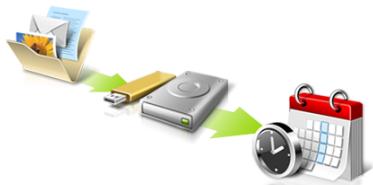

Directly enter "My Backup Profiles" next time

www.acer-group.com/public/Sustainability/sustainability01.htm.
Avverenza mercurio
Acer Office Manager 12
Acer Office Manager Console 12
Acer Backup Manager 33
Installing and removing the battery pack 39
Come arriv o a Start? 62
Acer Office Manager Console
Welcome to Acer Backup Manager
Select one action below to start managing your data.
Back Up My Files
Pick and choose which files to back up or let the program find it all for you.
Back Up My Files
The file backup helps you create a complete backup of your documentation. Choose the file or folder for the backup and then select the destination for the backup. Once you have selected the destination, the final step is to schedule the backup. Click on the Backup My Files button to create a backup.
Image My Drive
Make a complete image backup of your drive.
Migrate My Files
Transfer your files from another computer to this computer.
Clear out / Restore Files
Remove seldom used files to free up space or restore files from your backup.

Launch My Backup Profiles

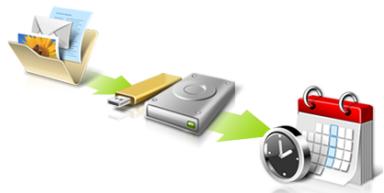

Directly enter "My Backup Profiles" next time.
Installing and removing the battery pack
Concession a Internet
ITW (International Traveler's Warranty)
Come arriv o a Start?
CLASS 1 LASER PRODUCT
PRECAUCION: INVISIBLE LASER RADIATION WHEN OPEN. AVOID EXPOSURE TO BEAM.
APPAREIL A LASER DE CLASSE 1 PRODUIT
LASERATTENTION: RADIATION DU FAISCEAU LASER INVISIBLE EN CAS D'OUVERTURE. EVITTER TOUTE EXPOSITION AUX RAYONS.
LUOKAN 1 LASERLAITE LASER KLASSE 1
VORSICHT: UNSICHTBARE LASERSTRAHUNG, WENN ABDECKUNG GEOFFNET NICTD DEM STRAHLL AUSSETZEN.
PRODUCTO LÁSER DE LA CLASE I
ADVERTENCIA: RADIACION LÁSER INVISIBLE AL SER ABIERTO. EVITE EXPONERSE A LOS RAYOS.
ADVARSEL: LASERSTRÄLING VEDÄNBING SE IKKE IND I STRÄLEN.
VARO! LAVATTAESSA OLET ALTTINA LASERSATEILYLLE.
VARNING: LASERSTRALNING NAR DENNA DEL AR ÖPPNAD ALA TUIJOTA SATEESEENSTIRRA EJ IN I STRÄLEN.
VARNING: LASERSTRÄLNING NAR DENNA DEL ÅR ÖPPNADSTIRRA EJ IN I STRÄLEN.
ADVARSEL: LASERSTRÄLING NAR DEKSEL ÅPNESSTIRR IKKE INN I STRÄLEN.
Seguidad de la linea Telefonica
Acer Office Manager 11
Consola de Acer Office Manager 11
Panel 11
Gestor de clients 12
Políticas 13
Activos 14
Programador de tareas 15
Configuración 16
Recuperación 17
Acer Backup Manager 32
Customized Restore (Retain User Data)
CLASS 1 LASER PRODUCT
CAUTION: INVISIBLE LASER RADIATION WHEN OPEN. AVOID EXPOSURE TO BEAM.
APPAREIL A LASER DE CLASSE 1 PRODUIT
LASERATTENTION: RADIATION DU FAISCEAU LASER INVISIBLE EN CAS D'OUVERTURE. EVITTER TOUTE EXPOSITION AUX RAYONS.
LUOKAN 1 LASERLAITE LASER KLASSE 1
www.acer-group.com/public/Sustainability/sustainability01.htm.
Aconsehamento relativ a mercúrio
Acer Office Manager 11
Acer Backup Manager 32
Gestao de energia 34
Poupar energia 34
Bacteria 36
36
Carregarabateria 36
Inicie AcerRecovery Management:
- A partir de Iniciar, introduza 'Recovery' e(before clique em Acer Recovery Management na lista de aplicacoes.
Customized Restore (Retain User Data)
This Class B digital apparatus complies with Canadian ICES-003.
www.hc-ssc.gc.ca/rpb.
LASERPRODUCT KLASSE 1
VOORZICTIG: ONZICTBARE LASERSTRALING INDIEN GEOPEND.
VOORKOM BLOODSTELLING AAN STRAAL.
APPAREIL A LASER DE CLASSE 1 PRODUIT
LASERATTENTION: RADIATION DU FAISCEAU LASER INVISIBLE EN CAS D'OUVERTURE. EVITTER Toute EXPOSITION AUX RAYONS.
LUOKAN 1 LASERLAITE LASER KLASSE 1
Acer Backup Manager 33
Energiebeheer 35
Stand-by 35
Accu 37
Verbindingmake meteennetwork 47
Geheugen upgraden 56
BIOS utility 57
Opstartreeks 57
Diskaar disk herstilenschakelen 57
Acer Office Manager Console
Start Acer Recovery Management
Welcome to Acer Backup Manager
Select one action below to start managing your data.
Back Up My Files
Pick and choose which files to back up or let the program find it all for you.
Back Up My Files
The file backup helps you create a complete backup of your documentation. Choose the file or folder for the backup and then select the destination for the backup. Once you have selected the destination, the final step is to schedule the backup. Click on the Backup My Files button to create a backup.
Image My Drive
Make a complete image backup of your drive.
Migrate My Files
Transfer your files from another computer to this computer.
Clear out / Restore Files
Remove seldom used files to free up space or restore files from your backup.

Launch My Backup Profiles

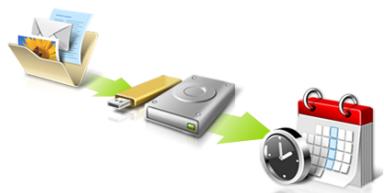

Directly enter "My Backup Profiles" next time.
ITW (International Travelers Warranty)
This Class B digital apparatus complies with Canadian ICES-003.
www.hc-sc.gc.ca/rpb.
KLASSE 1 LASERPRODUKT
FORSIKTIG: USYNLIG LASERSTRALING I APEN TILSTAND. UNNGA STRALEN.
APPAREIL A LASER DE CLASSE 1 PRODUIT
LASERATTENTION: RADIATION DU FAISCEAU LASER INVISIBLE EN CAS
D'OUVERTURE. EVITTER Toute EXPOSITION AUX RAYONS.
LUOKAN 1 LASERLAITE LASER KLASSE 1
www.acer-group.com/public/Sustainability/sustainability01.htm.

Advarsel om kvikkslov
PSD (Personal Secure Drive) 7
Credential Manager 8
Acer Office Manager 11
Acer Office Manager-konsollen 11
Dashbord 11
Klienthandterer 12
Policyer 13
Aktiva 14
Oppgraveplanlegger 15
Innstlinger 16
Gjenopppretting 17
Acer Backup Manager 31
Strømstyring 33
Strømsparing 33
Batteri 35
PSD (Personal Secure Drive)
PSD (Personal Secure Disk) er et sikkert område på hardisken der du kan lagre filer. Du har bare tilgang til PSD via passord eller autentisering med fingeravtrykk.
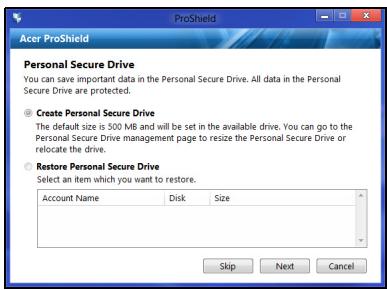
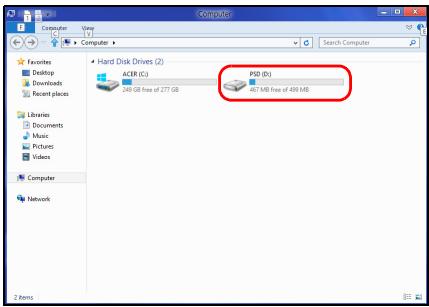
Start Acer Recovery Management:
Customized Restore (Retain User Data)
Here's what will happen:
- Your files and personalization settings won't change.
- Your PC settings will be changed back to their defaults.
- Apps from Windows Store will be kept.
- Apps you installed from discs or websites will be removed.
A list of removed apps will be saved on your desktop.
Next
Cancel
Welcome to Acer Backup Manager
Select one action below to start managing your data.
Back Up My Files
Pick and choose which files to back up or let the program find it all for you.
Image My Drive
Make a complete image backup of your drive.
Migrate My Files
Transfer your files from another computer to this computer.
Clear out / Restore Files
Remove seldom used files to free up space or restore files from your backup.

Launch My Backup Profiles
Back Up My Files
The file backup helps you create a complete backup of your documentation. Choose the file or folder for the backup and then select the destination for the backup. Once you have selected the destination, the final step is to schedule the backup. Click on the Backup My Files button to create a backup.

Directly enter "My Backup Profiles" next time.
acer
Nå du skal starte Acer Backup Manager i Windows 8, starter du ganske enkelt med Å skrive "Backup Manager". Du kan ögså velge Acer Backup Manager i skrivebordsmodus. Dette Åpner velkomstskjermbildet. Fra dette skjermbildet kan du velge typen sikkerhetskopi du vil lage.
Deaktiver hurtigoppstart
International Travelers Warranty (ITW)
Datamaskinen er sikret med en garantiordning som kalles "International Travelers Warranty" (ITW), som gir deg trygghet og sjelefred nár du er på reise. Vårt verdensomspennende nettverk av servicesentre er der forå gi deg en hjelpende.Hand.
Et ITW-pass følger med datamaskinen. Dette passet inneholder alt du behov er vite om ITW-programmet. En liste over tilgengelige, autoriserte servicesentre finner du i dette praktiske heftet. Les grundig gjennom dette passet.
This Class B digital apparatus complies with Canadian ICES-003.
CLASS 1 LASER PRODUCT
CAUTION: INVISIBLE LASER RADIATION WHEN OPEN. AVOID EXPOSURE TO BEAM.
APPAREIL A LASER DE CLASSE 1 PRODUIT
LASERATTENTION: RADIATION DU FAISCEAU LASER INVISIBLE EN CAS D'OUVERTURE. EVITTER TOUTE EXPOSITION AUX RAYONS.
LUOKAN 1 LASERLAITE LASER KLASSE 1
www.acer-group.com/public/Sustainability/sustainability01.htm.
Credential Manager 7
Fingeraftryksregistering* 8
Databeskytse 8
Datajernelse 9
Acer Office Manager 10
Acer Office Manager Console 10
Kontrolbord 10
Klnter manager 11
Politikker 13
Beholdning 14
Opgavestyring 15
Indstillinger 16
Gendannelse 17
Acer Backup Manager 31
Strømstyring 33
Strømbesparelser 33
Batteriet 35
Batteripakke - karamteristika 35
Acer Office Manager Console
Konsol applikationen tillaxder dig at administrere forbundne klienter fra en enkelt computer. For at starte Konsollen i Windows 8, indtast simpelt hen "Office Manager Console". Alternativt, i skrivebordstilstand, vaelg Acer Office Manager Console.
Start Acer Recovery Management:
- Fra Start indtaster du 'Recovery', hvorefter du klikker på Acer Recovery Management i listen over apps.
Welcome to Acer Backup Manager
Select one action below to start managing your data.
Back Up My Files
Pick and choose which files to back up or let the program find it all for you.
Image My Drive
Make a complete image backup of your drive.
Migrate My Files
Transfer your files from another computer to this computer.
Clear out / Restore Files
Remove seldom used files to free up space or restore files from your backup.

Launch My Backup Profiles
acer
Back Up My Files
The file backup helps you create a complete backup of your documentation. Choose the file or folder for the backup and then select the destination for the backup. Once you have selected the destination, the final step is to schedule the backup. Click on the Backup My Files button to create a backup.

Directly enter "My Backup Profiles" next time.
Tastaturet reagerer/DD
This Class B digital apparatus complies with Canadian ICES-003.
www.hc-sc.gc.ca/rpb.
Denne enhed overholder RS210 fra Industry Canada.
KCLASS 1 LASERPRODUKT
WARNING: OSYNLIG LASERSTRÄLNING NÄR DENNA DEL ÅR ÖPPEN. UNDVIK ATT UTSÄTTA DIG FÖR STRÄLEN.
APPAREIL A LASER DE CLASSE 1 PRODUIT
LASERATTENTION: RADIATION DU FAISCEAU LASER INVISIBLE EN CAS D'OUVERTURE. EVITTER TOUTE EXPOSITION AUX RAYONS.
LUOKAN 1 LASERLAITE LASER KLASSE 1
VORSICHT: UNSICHTBARE LASERSTRAHUNG, WENN ABDECKUNG GEÖFFNET NICTH DEM STRAHLL AUSSETZEN.
PRODUCTO LÁSER DE LA CLASE I
ADVERTENCIA: RADIACION LÁSER INVISIBLE AL SER ABIERTO. EVITE EXPONERSE A LOS RAYOS.
ADVARSEL: LASERSTRÄLING VEDÄBNING SE IKKE IND I STRÄLEN.
VARO! LAVATTAESSA OLET ALTTINA LASERSATEILYLLE.
VARNING: LASERSTRALNING NAR DENNA DEL AR ÖPPNAD ALA TUIJOTA SATEESEENSTIRRA EJ IN I STRÄLEN.
VARNING: LASERSTRÄLNING NAR DENNA DEL ÅR ÖPPNADSTIRRA EJ IN I STRÄLEN.
ADVARSEL: LASERSTRÄLING NAR DEKSEL ÅPNESSTIRR IKKE INN I STRÄLEN.
Sakerhet for Telefonlinje
www.acer-group.com/public/Sustainability/sustainability01.htm.
Acer Backup Manager 30
Uppgradera minnet 50
BIOS-installingarna 51
Bootsekvens 51
Aktivera disk-to-disk recovery 51
Stalla in losenord 51
Vanliga frågor 52
Bestalla service 53
Felsökning 55
Felsökningstips 55
Felmeddelanden 55
Starta Acer Recovery Management:
International resegaranti (International Travelers Warranty; ITW)
This Class B digital apparatus complies with Canadian ICES-003.
Acer Backup Manager 32
Virranhallinta 34
Virransäästö 34
Akku 36
PykoBoDCTBO NOIb3OBaTeJIa
Hormep mojenn:
CepnHbI Homep:
Даразикynк:
MecTo nokynkn:
HΦopMaçnЯДЯВaшeи 6e3OpaCHOCTN yDObcTBA pa6Otbl
ПразвILA.texник的服务站
BHHMaTeIbHo 03HaKOMbTeCb C3TnIMn INHCTpyKcIyMn. CoXpaHIne 3TO TOKyMeHT dIra NaBeHeNna CnpaBok B bdyUsem. CJeDyIne BCem INHCTpyKcIyM n npdeynpeKdEHNm, HaNecEHbIM Ha N3dJIne.
BbIKIOUeHne ycTpoIcTBA nepeuNCTKOJ
Ipeedero uNCTKoI OTKIOUaJIte 3TO I3dJIeNE OTe HAcTeHNO pO3eTKn nHTAHn. He nCNoJIb3yIte JxNkne IJIn a3pO3OJIbHbIe YNCTaIe CpeIcTBA. IJIa YNCTKn IcNoJIb3yIte BLnakHyIO TkaHb.
PNEUYPPEKDEHNE NO NOdkIIOUeHNIO OTKJIIOU yctpoiCTBa
He 6pocai Te aKKMyIaTOpb I B OROh - OH NMOyT B3pbIaBtcb. OH TaIOKe MOryt B3OpBaTc npn IOBpeKdEHN. AKKMyIaTOpb CneDyET yTNImNIpObaT b COOTBeTCTBn C MeCTbIMn PpaBUNAM. Ecnn BO3MOxH0, cDaBaTe INx Ha nepepaBoTky. He Bbl6pacBiaIte aKKMyIaTOpb BMeCTe C 6blTOBbIMN OTXoDMN.
Pa6oTaUoIuAkkymJyTOp MOKeT BbI3bBaTb NOMExn Ba pa6Ote 6ecnpoBOnHbIX yCTpoiCTB, YTO NOBIIraEe Hx IN pON3BOIDTeHbHOCTb.
3aMeHa aKKyMnyTopa
IopTaTnBnKOMNbHOTepIKTNa"HoTy6yK"cepINNCNoJIb3yeJNTHeBbI aKKymyIaTOp.ДЯЗAMeHbI NcNoJIb3yIte aKKymyIaTOp TAKORO JKe TnA, KaK y aKKymyIaTOpa,KOTOpbI BXoJNT B KOMnJIeKT NOCTaBKn BaWero YcTPOIcTBA. IcNoJIb3OBaHne DpyrOTo aKKymyIaTOpa MoKet NOBNeYb 3a CObOon OAnCHOCTb BO3rOpAHnI INI B3PbIbA.

PpeDynpexdHne! B cnyae HnnpaBnIbHoro 6paueHnAkkymyIaTOPhIe 6aTapeN MOrY B3OpBaTbcr. He pa3bpaTe nH He 6pocai Te B pIam. Depxnte nx npdaJIbwe OT dTei N6bICTPO n36abJraTEcB OT nCNoJIb3ObaHHbIX 6aTapeN. PpiYtINl3aunn Otpa6oTaHnHO rAkkymyIaTopa co6IIOaIMeCTHbIe npaBnla.
IpeDynpexKdEHNBEOTHOSeHnIPNBOda ONTNUeCKNX DNCKOB
(TOJIbKOДЛЯ ONpeJeHnBIX MOdeJIe)
BnmaHne:B 3tOM yCTPOICTBe npIMeHaeTcJa3epHa cIcTeMa,po3TomOy OH cnTaetc"JIA3EPHBIM YCTPOICTBOM KJIACCA 1." B cnyae HeNoIaOK B pa6oTe 3tOro yCTPOICTBa o6paTInTeCb 3a NOMOuB b6nKaiu ABTOPI3OBAHHbI CepBnCHbI ueTp. He OTKpbIbAIte KoKxU, YTObI Ha BaC He nonan lyu Ia3epa.
CLASS 1 LASER PRODUCT
CAUTION: INVISIBLE LASER RADIATION WHEN OPEN. AVOID EXPOSURE TO BEAM.
APPAREIL A LASER DE CLASSE 1 PRODUIT
LASERATTENTION: RADIATION DU FAISCEAU LASER INVISIBLE EN CAS D'OUVERTURE. EVITTER TOUTE EXPOSITION AUX RAYONS.
LUOKAN 1 LASERLAITE LASER KLASSE 1
VORSICHT: UNSICHTBARE LASERSTRAHLUNG, WENN ABDECKUNG GEÖFFNET NICTH DEM STRAHLL AUSSETZEN
PRODUCTO LASER DE LA CLASE I
ADVERTENCIA: RADIACION LÁSER INVISIBLE AL SER ABIERTO. EVITE EXPONERSE A LOS RAYOS.
ADVARSEL: LASERSTRÄLING VEDÄNBING SE IKKE IND I STRÄLEN.
VARO! LAVATTAESSA OLET ALTTINA LASERSATEILYLLE.
VARNING: LASERSTRÄLNING NÄR DENNA DEL ÅR ÖPPNAD ÅLÄ TUIJOTA SATEESEENSTIRRA EJ IN I STRÄLEN
VARNING: LASERSTRALNING NAR DENNA DEL AR ÖPPNADSTIRRA EJ IN I STRÄLEN
ADVARSEL: LASERSTRÄLING NAR DEKSEL ÅPNESSTIRR IKKE INN I STRÄLEN
БezonaCHOCTb TepeOHHOJIINH
Bcerda otcoeHnHte BCE TepeHHbIe HnHm OT HacTeHHo TepeOHnHO p03eTKIpeEiTexHnueckIM o6cnyKuBaHnEm IIN pa3bOpKoI 3TOrO obopydoBaHnI.
He noIb3yItecB tenefoHOM (Kpome 6ecnpoBOHO) BO Bpemrpo3bl. Moket BO3NkHyTb ONaCHOCTb IopaxeHn 3JIeKTPuyeCKm pa3PdOM MOHNH.

PpeDynpeKdHnE! B ueJx 6e3onacHocTn npi do6aBHeHHn HnN 3ameHe KOMNoHErTOB He nCNOJIb3yIte HecOBMeCTnMbIe DeTaJI.
PepeN oKpIKo DonOJHnTeJIbHbIX KOMNoHErTOB
nocobetyItec b c npOaBcM.
YcnoBna 3Kcnpnyatau

BHHMaHHe! B cIeJx 6e3OnaChOCTn BbIKIouaIte BCE 6ecnpoBoDhIbe nI npaIIOnepeDaIOUne ycTpoIcTB a npi IcNoJIb3OBAHmHOyT6yKa B cIeMyOuX yCNOBIAx. B YncIo ToKnx yCTpOICTB MOrTy BXODITb, 6e3 OrpaHueHry Yka3aHHbIM: aadantepbl 6ecnpoBoDHOJ NokaJIbHOJ cTeN (WLAN), Bluetooth n/ nIIN 3G.
CobIoudaIte Bce CneuIbIbIe npabIIa, DeIcTByIOUme B BaIe I cTpaH, INBceIa BbIKIouaIte BaIe yCTPOJCTBO, KOrla erO nCnONb3OBaHne 3aIpeUeHO IIIN KOrDa OHO MOKeT Bbl3BaTb NOMEXI INI ONaCHOCTb. IcNlOb3yIe YCTPOJCTBO TOnbKO B HOpMaJIbHbIX DnIe HrO paOboHx NpOJOKeHnx. 3TO yCTPOJCTBO OTBeuaet Tpe6oBAHnAM HopMaTInOB IO PUY-IIIJyEHHIO pRn HopMaJIbHO NKCIpyATAuIN; OHO IN eAHTENHa DOJXKNbIh HaxODITbcr He 6bnke 1,5caHTmETPOB OT BaWero TeNa. Ha BAWeM TEHe I DOJXHO 6blTB MeTANIIueCKNX NpeDMETOB, A yCTPOJCTBO DOJXHO HAXODITbcr He 6bnke Yka3AnHORo Bblwe pacCTOAHNr OTA Bwero TeJa. DInr YcNeIHNO nepeDAuH PhAIIOB DAHNbIX INI MCOoEHHn HEoBXOIMIO OBeCEuHTb BbICOKOKaueCTBeHHOE NODKIIIOUeHne 3TORO yCTPOJCTBA K CETN. B HeKOTOpbIX CnyAUXpeDAuH PhAIIOB DAHNbIX INI COoBSeHHn MOKeT 6blTB ZaDepKaHaDo Tex nop, NOkAbeTcYtaHOBNE ToKoNDKIOUeHne. CobIoDAIte npRvBeDEHbIE Bblwe Yka3AnHn PO MINHMaJIbHOMy PACCTOAHNIO Do 3ABepHEHHn peEDAun. JTeANI 3TORO yCTPOJCTBA RBLIAOTCA MaHHTbIMN. UCTPOJCTBO MOKeT pRnTAYBaTb K Ce6e MeTANIIueCKNX NpeDMETb, IooTOMy ILODn, IcNlONb3yUOpHe ClyXOBble aannapatbl, He DOJXHbI NODHOCNTB 3TO yCTPOJCTBO K Uxy, B KOTOpoe BCTABNeH CNYXOBoi annapat. He KnaDInTE KpeDNTHbIe KAPTOckn INI MaHHTbIe HOCITeIN DaHNbIX PdOM C yCTPOJCTBOM, TAK KA K IN3-3a 3TO rTO 3aPNCaHHa Na HIX INHΦopMaIqra MoKeT 6bltb CTepTa.
MeiHnckne yctpoCTBa
3Kcnpnyataua paDnOpepaUoero obOpdyOBaHn, B TOM qncIe 6ecnpoOdbx TepeohOB, MoKET Bb3bBAbT nomExn B pa6ote He 3aunueHNbX HaNKeaum Oba3om MeunHcknx yctpoiCTB. PocobetyTeCB C bpaOUM nIN n3rotOBtene MmeunHckoro yctpoiCTBa, yTObI y3HaTb, HadEknO nn OHO 3kpanpOBOHO n 3aunuetoOT n3JyueHn BHeWnePQ-3heprn. BbIKUoyaIte BaWe yctpoiCTBO, KOrda HaxoDntEcB MMeunHcknx yUpeKdEHHx, rDe BBBeUeHbI COOTBETCTBYIOuine INCTpyKuIN. B 60bnHucx N MeunHcknx yUpeJdeHnX MOKe IcNoB3oBaTbc8 o6opuyoBaHn, YvBCTBNTeJIbHOe K BHeUehemy 3JyueHnIO P4-3heprn.
KapdnoocTmmyIaTObI. N3rTOBnTeJI KAPDIOCTMMyIaTOpOB peKOMeHdyOT, YTo6bl paCCTOHHe MEXy KapdnoocTmMyIaTOpOM 6ecnpoBOhBM yCTPOCTBOM 6blNO He MeHbIe 15,3 caHTmEToPob, BO n36ExaHne CO3daHnBa 03MOxNbIX NOMex B pa6Ote KapdnoocTmMyIaTOpa. 3TN peKoMeHndaUcBnadaOT cpe3yIbTaTAMn He3aBNCMbIX NCCleEOBaHIn I peKoMeHdaUcMaOpraHn3aUnc Wireless Technology Research, npboDjaee NCCleEOBaHn8 6ecnpoBOhBX texHOJorN. JIoDN, INCNoB3yUOuNe KapdnoocTmMyIaTObpI, DOJXHbI CoBIODaTb CJeDyUOuNe MepbI npedeocTOpOxHOctn:
Bcerda depkahtb yctpoiCTBO Ha pacctoHn He Mehee 15,3 caHTmEpOB OT KApDIOCTMUYJYTOPA
He hocntb BkIIOueHHOe yCTpoiCTBO pIaOM c KApDIOCTMMyIaTOpOM. EcIIN Bam NOKAKJEcTc, YTO B paOte KapDIOCTMMyIaTOpa BO3HNI KIN NOMEXN, BbIKJIOnHTe yCTPOIcTBO n YbepnTe erO.
Cnyxobble annapatbI. HeKOTOpbIe cHΦpOBbIe becnpoBODhIe yCTpoIcTBA MOrTy Bb3bBaTb NOMexn B paOte CnyxOBbIX annapatOB. B cNyae Bo3NHKnHOBeHnIOMex 6oPaITTeCB 3a COBETOM K BaUeMy NOCTaBUNky ycNt.
ABTOMO6nJI
PCHINHbIbMOrT BnIaHbHa pa6Ory He npabInbHO yCTahOBHeHHbIX IHN HnpabINbHO 3KpaHnPOBaHHbIX 3NEKTPoHHbIX CnCTeM B aBTOMObJIaX, HApIMep, 3NEKTPoHHbIX CnCTeM BnPbICKa TOJIbBA, TOPMO3HbIX CnCTeM NpOTIBOCKJbXeHn (IpOTIBO3aKJIINHBaHn), NepeKIIoueHn NpeDaU yNpAbJIeHn BO3duHbIMn IOyUKAMn 6e3ONacHOCTn. IPOBOJITb TexHueCKoe O6cnyKbVAHne yCTpoiCTBa IIN YCTAHABLIbAT b E0B aBTOMO6JIte DOJIbHbI TOJIbKO KBAINΦuIPOBaHHbIe CneuaNaHCTbI. HnpabINbHaj yCTaHOBka IIN O6cNYKbAHne MOrTy CO3daTb ONACHOCTb I CdEJaTB HeJeIcTBnTEbHO rapaHTNo HA 3TO yCTpoiCTBo. PeryIpyHO npOBepaTe IpaBnHocMbontaxa I pa6OtbI BCero pAnIOo6OpdyOBaHn B BAWeM aBTOMO6JIte. He xpaHtE n He nepeBO3NTe rOIOUe XIKoCTn, ra3OBbie 6aJIIOhbl IIN B3PbIBOOAChBle MaTePnaJIbI B ODHOM oTCEKe C 3TNM yCTpoiCTBOM, eO DeTAJAMn IIN DOnONHtELbHbIMn PpHaADNeXHOCTaMn K Hemy. EcIn BAw ABTOMO6JIb OBOPyIDoAH B03DuSHbIMn IOyUKAMn 6e3ONacHOCTn, To NOMHtE, qTO OHI packPbIAOTc c OeyH 6oJIbWo CNIIo. He NOMEuaIte PpeDMtbl, B TOM UHCNE CMOnTIPOBaHHbIE IIN NpeEHOChtbe PAINOYCTPOJCTBa, HAd BO3duHbIMn IOyUKAMn 6e3ONacHOCTn IIN Ha Nytn Ix packPbItnB. B Cnyae HnpabINbHOyCTAHOBKn 6ecpnoBOJHO obOpyIDoAHn B CaIOHe aBTOMO6JIa packPbItne BO3duHHoN IOyUKKn 6e3ONacHOCTm MoKet PpNBecTn K cepBe3HOH TpaBME.
IcnoIb3ObaHne yctpoiCTBa ha 60py CamoTe BA Bpemr IOneTa 3aIpeSeHO. BbIKJUauHTe BaIe yctpoiCTBO nepei nocadKOB B camoNET. IcnoJIb3ObaHne 6ecnpoBODhIX yctpoiCTB B camoTE MoKeT BbI3BaTb OnacHbE NOMEXN B pa6Ote CnCTEm CamoTe, HapuHITb paIIOTepeOHHyCBy3b N, KpOME TOrO, MoKeT 6bITb 3aIpeSeHO 3aKOHOM.
B3pbIbOONaChbIe ycIOBnA
BbIKIouaIte ycTpoiCTBO B MeCTax C NOBbIeHHoB 3PbIBOONaCHocTbIO u CneDuYte BCEM IHCTpyKUINM U yka3aHnIM Ha 3HaKaX. K B3PbIBOONaCHbIM MecTAM OTHOcTcR O6bIacTn, rDe MOyT NOnpOcNTb BbIKIouHTb DnIRaTeJIb ABOTOMoBUNI. Bo3NtKHOBeHne NCKpbI B TAKNX MeCTAX MOKeT PnIBeCTN K B3PbIBY uIN NIOkApY, YTO MOKeT Bbl3BaTb TpaBMbl INI dAke CmeptB. BbIKIouaIte HOyTbYK prdOM c rAzOBbIMn HAcOCAMn I6EH3OKOJONHkAMn HA cepBVCnbIX cTAChnIX. O3NaKOMbTEcb C orpaHnueHnMn HA nCNoIb3OBAHne paDNOOBOpDobAHnN B MeCTax XpaHeHnI n PaCpeJeHnI ToIIBa, XMNUeckx 3aBODax INI MecTAX, rDe BeUYTCB 3PbIBHbIe pa60tbl. B3PbIBOONaCHbIe MeCTa OBuHNO (HO He o6r3aTeJIbHO) OTMeueHbI CneuaJIbHbIMn 3hakmN. K TakIM MeCTAM OTHCOTcR NOnpAnly6HoE pOcTpaHCTBO KOPa6NeI, MeCTa XpaHeHnI n PaCpeJeHnI XMMKATOB, ABOTOMoBUNI HA cKInKeHHom r3e (IpOnaHe INI bTyAHe), a TakKe OBaCTN, rDe B 03dyXe COdePKATcR XMMUeckne BeSeCTBa INI YactNuBi, TAKNE KAK MyKa, nbIL nI IIn MToaJInuCeckra Nyda. He BKIOuayTe HOyTbYK B MeCTax, rDe 3anPeUeHO NOnb3OBAbTCB MoBnlbHbIMn TepeOHAmn ININ INX INCIOB3OBAHne MOKeT Bbl3BaTb NOMEX INI ONaCHyIO CNTyaUIO.
3KCTpeHHbIe Bbl3OBbl
BHMaHne! BbIOJIHeHHe 3KCTpeHHbIX BbI3OBB C NOMOuBcTOro yCTpoNCTBa HeBO3MOxHO. 3KCTpeHHbI BbI3OB HxKHO cTeJaTb C BaWero MObIbHOrTO TePeOHa IJIN C NOMOuBIO npyroTteOohHO CNCTeMbI.
Hnctpykunno ytnin3aun
He bIbpaBbIaIte 3To 3JIeKTPoHHO yCTPOIcTBO MysCopHoe BeIpo. TObbl cokpTaNTb Do MNHNMyMa 3aqr3HeHne OkpykaIOuSe Cpebl I o6ecNtB ee MaKcImaJIbHyIO 3aUHTy, NoKaIyIcTa, CdBaJIte erO Na nepepaBoTky. DOnOpNHITeNbIbe CBeDEHnO O npabINax yTuIN3aCmN OTCnyKBWbero 3JIeKTPoTeXHnueCKOrO IN 3JIeKTPoHHO 0bOpYDoBaHnA (Waste from Electrical and Electronics Equipment, WEEE) MoxHo y3HaTb Ha Be6-CTpaHnue www.acer-group.com/public/Sustainability/ sustainability01.htm.

PpeynpeKdHne o coepkaHn pTuTN
ДлЯлamnoьixnpoekTopOBинэпктpoHHbIX yctpoiCTB,codepjaxnX
JKK/3JIIT-MOHHTOPиИЗКран6e3cBeToIIOHNoI NOCDCBETKn:JaMa(-bl)
BHyTpNi 3TOrO yCTpoiCTBa coDEpKNT pTyTB,no3TOMy ee cIeMyET
CdaBaTb Ha nepepa60tky IINI yTNlN3aUIO B COOTBeTCTBIM C MeCThBIM INI fepaJIbHbIM 3aKOHAM. Boone IOnpOHyIO HOpopMaUIO Bbl
MOKeTe HaTn Ha caTne fedepaunn 3JeKToPOnHbIX OTpacnei www.eiae.org.
CbeHnI coBtI IyO6CTBa pa60TbI
HnOgTa nOJb3OBaTeNl, npOBoJaUne MHOrO BpeMeHN 3a KOMNbIOTepOM, JaJIyIOCTa Ha Ype3MepHoE HapPjaKeHne rna3 n roNoBHyo 60BJ. POnJb3OBaTeNl TaKke cAtoPnCKyOT IOnyHT bIzImueckyU TpaBMy, ecnI BydyT MHOrO YacOB NOpJrD CnDeTb 3a KOMNbIOTepOM. IpoDoJnKInTeJbHoe BpeMa paBOtbl, HeYdoBHa na3a,
HnnpabInbHaopraHn3aun paOchero Mecta, cTpecc, HnnoDxoJne yCIOBnA paObIb, coCToHnne IINCHoro 3dOpOBbN INpyrne fakTopbl 3NaHTeNbHO yBeJIuHBAIoT pNCK NOnUyHeNn Fn3NuCeKoN TpaBMbl.
HenpaBnIbHa na 3a KOMNbTePOM MoKeT npBecTu K NOBHeNIO 3aIcTHOrO cyXoNlBHO rCnDpOMA, TeHNHTy, BOCnAneHIO cyXoNJIIN I CnHOBnAJIbHOI cyMkn IIN dpynx cKeJeTHO-MblIeUHbIX 3a6oJebAHNI. B KnCTx pyK, 3aIpcTbAx, IpeNIIeHbAx, Iee INI CNHe MOrTy NORITBCs CNe dyUOUIne CmMTOMbl:
- Ohemehne, xkehne nII nokaJIbIbAHne.
- Tomota, 60ane3HeHHoe OuyueHne HJIn Cna6oCTb.
- Bolb, onyoxoJIb nII nn pIbcaIya.
OceneHeIOCTb HnHapxKeHne.
CyxocTB uIN cna6ocTb.
Прин haичinn taKINС CMNTOMOB, NOBTOPЯUHIXCЯ ИЛ NOCTOHHbIX OUyIeHNXДИСКOMфОрТа И/Илб 60JIe3HNeHHbIX OUyIeHNIX рп рабоTe 3a KOMьTOpOM HemeДлEHNO obpaITeCb 3a KOHCyIbTaIeMe KВрауи COO6IuTe O6 3Tom B OTdENTEXHKn 6e3OanacHOCTn I OXpaHb 3dOpOBBy BaIeKOMpaHInN.
B cIeIyUoIe m pa3dIe npIBOaTcra coBeIb, kaK cIeJIaTb pa6Ory 3a KOMNbIOTePOM 6oIee yIobHoi.
Ponck ydo6horo pa6oeryo noIoxeHn
HauiTe dIe c6eMaKcImaJIbHo yIObHoe nIOJoxHeNe 3a KOMbIOTepOM, MeHra yron o3Opa MOHITopa, IcNoJIb3yra NODCTABky dIra HOr IIN pErynipyBaICOTy kpcna. BocnoJIb3yItecb CneDyUoIIMn COBETAM:
He cnDnte nooJry B oHoi no3e.
HeCKNoHЯITeCb Hn3KO 3a CToIOM N He OTKnDbIbAitecb DaJIeKO Ha cINHKy KpeCna.
- Перiodиескв BCtabaiteи npoxaxnBaItecb,чобь ChЯть HanprjxeHne B MYCKyJax Hor.
-ДелайтКОРOTКиперрьBbl,чTo6blOcna6nTbHanpЯжснEВшeNПлeчax.
He HanpraTMe MysKUbl I He NIOHIMaTe BbICOKO PNeuN.
YctahOBHTBHeHnI DnCnIe, KNaBaNAtpy N MbIb Ha paBoyem MecTe TaK, YTO6bI DO HIX 6bIIO JERKO DOTaHyTbcR.
EcnBbCMOTPeHaMOHITOp yaue,EmHaDOKMeHTbTo pa3MeCTe DnCJIeNo CEHTpy CToJa, YTObIwe HapraJacb KaK MOXHO MeHbJe.
3a60Ta o 3peHnN
Ecni nOIOIry CMOTpeT ha MOHITOp, HOCHTb HenpaBnIbHO NOo6paHhIe OcKIN IINI KOHTaKTHbe IINH3bl, IcNOJIb3OBaTb JApKNI CBET INN pa6OtaTb 3a CTOnOM C 6JeCTaIe NOBepxHOCTbIO, IINOxo OTpeYInpOBAt bpe3KoCTb 3kPaHa, IcNoJIb3OBaTb MeIKNI UpiΦT INI MaIOKOHTpAcTHbI dIcnPNeI, To rIa3a 6yDt CInbHO yCTaBaTb. B cIeDyUOxN pa3dIax pInBODIaTc COBeTb, KAK yMeHbUnTb Ype3MepHoe HapJxHe He Ia3.
Tna3a
-ДавайтглаламчасьоТдьх.
- Перiodи ueckn OTBOIDITE rla3a OT MOHITOPA n CMOTPte Ha KaKoH-NHObyDb ydaJIeHHbI npEIMET.
- Yacto MrgaIte, TTo6bI rJa3a He 3acbIXaJI.
Ducnnei
- ČeρχινTe Σικηλειν B ΚυχτόTe.
Baisha roIoba doJxHa haoDntbC Bblie HnKHe KpOMKn DnCnpe, YTO6bl npIn npocMTope n3O6paXeHnB CHTpe DnCnpe rna3a cmTope nCBepxu BN3.
Otperynpyte npKoctb n/nn KOHTpact dncnner taK, TTObI TeKCT 6blno Ierko YntaTb, a rpaqika oToobpaqkanaac b YeTko. - Ymehbshnte MepcaHne n OTPaKeHne:
yctahOBHTe nCnJIe TAK, YTObI eRo bOKoBaJ KpOMka 6bla oBpaueHa K OKHy ININ NCTOCHNky OCBeUeHIn,
ymehbIteCBETNOMeUeHIM,NCIOJIb3yIPOPTbepbI,IITOpblJINJXaJIHO3N,
BKNIOaIte OcBeUeHHe Ha paOoem MeTe,
- otperynpyyte yron ob30pa ncnne,
- IcnoIb3yIte aHTnBnIKOBbI ΦnIbTp,
- yctaHOBHTe Ha BepxHei KpOMKe DnCnIeR COINHcE3aUNTHbI KO3bIpeK, HApPIMeR, KapTOHHyIO NOLOCKY.
He cmOtpnte Ha dncnneu n3 Heyo6horo noIoxehna.
He cmOtpnte noDOnIgHa nCToHnKn npKOro CBeTa.
Bbipabotka npabnblhoro ctnla pa60tbi
CneIyUOJIe npINBbIcKn paOToBt 3a KOMNbIOTepOM N03BOJr MHeBJe yCTBaTb I paOToTaB 6oJIee npOdyKTNBHO:
-Делайт ekopoTKne yacTbIe nepepbIbbl B pa6Ote.
-Дени Te KaKne-HN6yIb ynpaXKeHnIЯ pa3MnHKn.
Kak Moxho Yaue BbIXOHTe NObIbTaB YnCTbIM, CBexm Bo3dyXOM.
PerynpaHNo denaIte n3uYeCKyU 3apAky, ykpeNlaIOuYTO tno.

IpeynpejdeHHe He nolb3yTeCb KOMnBIOTePOM Ha nBaHe HIN B NoCTeH. Ecn 3TOro HeNb3a N36ExaTb, To pa6oTaIe TOJbKO KOpOTKmM nepnoaMn, qacto DeJaTe nepepbIBbl IN BblONHJrTe ynpaxHeHn Ira pa3MNKn.

Примочан: Довоннтульные седаши CM. В раздени "COOTBETCTBNE HOPMaTHNBHbIM Tpe6obAHnM 3ameчанno 6e3oNaCHOCTn" Ha ctp. 71.
BhaaJe O rJaBHom
БларпьмВасЗTo,чTo ДЯршениCBOиxMOиlbHbIXBvIcNITeIbHbIX 3aJaBbIbIbpaIIHoyTbYkAcer.
Baши руковорства
Mby pa3pa6oTaII npI pyKOBoIDCTB, KOToPbIe NOMOryT Bam B IcNoIb3OBAHIN HoyT6yka Acer:
3TOT nJaKat NOMOXET BbINONHHTB nepBOHaJbHyIO HAcToPky KOMNBoTepa.
PykoBoDCTBO noIb3OBaTeJI Cepra TravelMate copeKNT noIe3HyIOHΦopMaζIIO, npImeHmIyO Ko BCeM moIeIam Cepra TravelMate. B HEMONcIbIaIOTcO OCHOBHbIe TeMbI, TaKHe KaK pa6Ota C KlaBnAtypo, 3BykOM n T.D.YuTnte, yTO PykoBoDCTBO noIb3OBaTeJI RaJIeTcO obO6UeHHbIM, IOn3ToM yB HEmINHOda ByyT ONcIbIaTBcRA ΦYHKsI NII CBOICTBa, peAIn3OBAHHbIe He B KynIeHHo BamM MoEJI, a JINiB B onPeDeIeHHbIX MoDEJx 3ToI cepN B taKnx Clyuayx B TeKCTe DaETcR Nometka "ToIbKO dIy onPeDeIeHHbIX MoDEeN".
KpaTkoe pyKOBOCTBO 3HaKOMIT BAC C OCHOBHbIMN XapakTePncTnKaMNI ΦyHKUaMn BaWero HOBOro KOMNbHOtepa. YTo6bl y3NaThb 6OJIbWe o TOM, KaC NOMOuIbIO KOMNbIOTepa IOBbICNTb IpOdyKTNBHOCTb CBOe pa60TbI, CM.
PykoBoDCTBO nonb3OBeTEna CepnA TravelMate. 3To pyKOBoDCTBO COdePKeNT noIpo6HyIO INΦoopMaunIO O CnCTeMHbIX ΦyHKUnx, BOCCTaHOBLeHIN DaHHbIX, BO3MOXHOCTx paCUnpeHnN I yCTpaHEnn HEnCnPaBHoCTe. B HEm TaKKe npBVeDeHa INΦoopMaunIO rapaHTnHOM oCbnyKbAHInn, a TAKKe Obuine npedncaHnN I npabnla 6eONaChOCTn Ipn PaBote c HOYt6yKom. 3To pyKOBoDCTBO B VIne paima PDF n3NaaybNo 3arpyxeH O KOMNbIoTeP. YTo6bl OTkpbl erO, BbINOHNITE cNeDuOJIee:
1 Ha 3kpahe Iyck BBeDnTe "IOnb3ObaTeB".
2 ⅢeIKNHnTe PyKoBOcTBo nOJIb3OBaTeJIr Acer.
OchOBhIe cBeIeHnI O6 yXoJe 3a KOMpbIOTepOM I COBtbl NO NcNoJIb3OBaHnIO
BkIIOUeHne N BbIKIOUeHne KOMNbIOTepa
Ytobb BkIIOHHTb KOMIbIOTep, HAXMITE N OTNCTNE KHOJIky NiTaHnIA. PaCNoJIOXeHne KHOKNi NiTaHnA cm. Na PIIaKaTe No HAcTpoJIke.
YTo6bl OTKJIIOUHTb NITaHHe, BbINONHIne CNeyIOUne DeiCTBnA:
- IcnoIb3yIte KOMaHdY 3aBepSeHnra pa60TbI B Windows: HaxMITE KJIaBnIe Windows +
n HaxMITE HAcTpoiKn > PntaHne, 3aTeM HaxMITE 3aBepSeHnne pa60TbI.
EcniXOTnTe HeaIOnIO 3aBepWntb pa6Ory KOMNbIOTepa, Ho He BbIKJIOuATb nonHOCTbEO ero nHTaHne, To nepeBeDITe ero B Cnauu peKum. IInr 3toro:
Haxmnte KhoNky nTaHn.
-NJN
- HaxMITE KnaBnUn Windows +
IN HaxMITE HactpoiKn > NtAnHe, 3aTeM HaxMITE CnAun peXm.
PnIyIcTke KOMbIbTepe npOeJaIte CJIeDyUOuJe DeIeCTBna:
1 BbIKIouHTe KOMMbIOTep N BbIHbTe aKKyMylTOp.
2 OToeHInHe aAnTepeMeHHoro ToKa.
3 IcnoIb3yIte MryKyo TkaHb, CMOyeHHyo BOIOJ. He IcnoIb3yIte XnDkne nJIa3pO30NbHbIe YNCTraIe cpeDCTBa.
Ecn npo3o7na oHa n3 cIeJyUo7nx CnTuayi:
KoMbTepe ypoHnIIN nIIN KOpNc KOMbTepe 6bln NobpeKeJdeH.
KOMIbIOTeP He pa6OtaeT DOJXHbIM 06pa3oM.
IpeDynpexdEHeBOTHOSeHnI npVBoDa ONTNUeCKNX DNCKOB
(TOJIbKOДЯ ONpeJeHnBIX MoJeNe) VIII
UcIOBna 3KcnIpyatauix
MeDnCnHcKne yctpoiCTBa X
ABTOMO6nI X
B3pbIBOONaChbIe ycNoBn xi
3KCTpeHHbIe Bbl30Bbl xi
Hnctpykunnoytni3aui xi
CbeHnna n COBeTbI dJIy yDo6CTBa pa6oTbI xii
Bhaane o rnaBHOM XV
Baun pykoBODCTBa XV
OchOBhIe cBeJeHnIyxOJe 3a
KOMNbHOTepom N COBETbI NO INCIOJIb3OBAHNIO XV
Cenccopna nane 1
OchobI nCNoJIb3OBAHnIeHCOPHO naHeJI
(CDByM KHOJIKAMN) 1
Pa6oTa c KJIaBHaTypoi 2
KJIaBnIe 6JIOKIpOBKn I BCTpOeHHa
UΦpoBaJ KJIaBnaTypa 2
"Topyne" KlaBnI 3
KlavnWindows 5
Acer ProShield 6
O63op 6
HacrpoKa nporpaMMb ProShield 6
IepcoHaJIbHbI 3aUuueHHbI DnCK 8
MeHeJKepeRnCTpaHNoHHbIX daHHbIX 9
Pernctpaun OtnpeaTkoB naIbceB* 9
3aunTa daHbIX 10
UdaneHne daHHbIX 10
Acer Office Manager 11
KoHcOJIb Acer Office Manager 11
MeHeJxep KJIeHToB 12
Политник 14
Pecypcb1 16
Планиropовшик 3адан 16
HacrpoKu 17
BocstahOBJIeHne 19
Co3dHne pe3epBHOI KOINI JIa BOCCTaHOBLeHnI 19
Co3dHne pe3epBHOI KOII dpaIbepOB I npIIOKeHH 22
BocctaHOBJIeHne CnCTembl 24
IpeyectaHOBka dpaBepoN npJIOxKeHn 24
11
Bo3BpaT K npeIbIyUeMy
"MOMeHTaJIbHOMy CHIMKу" CNTEmbl 27
BocctaHOBJeHne cIcTeMbIdo
nepBoHaayJIbHOro CoCTOHHN 27
BocctaHOBJeHne n3 camoI cnCTembl Windows 28
BocctahOBJIeHne n3 pe3epBHOJ KOHN
ДлЯ BOCCTaHOBJIeHЯ 31
Acer Backup Manager 35
UnpaBHeHne pHTaHnem 38
38
AkkymyIaTOp 40
XapakTeepncnKn aKKymyIaTopa 40
3apkaakkymyTopa 40
OnTmH3aZna Cpoka cnyk6bl akKymyIaTopa 41
IpoBepka ypoBn3apya aKcyMnyTopa 42
IpeDynpexKdEHe O Hn3KoM ypoBHe
3apya aKKymyTopa 42
UCTaHOBka N 3BLeueHne
aKymyIaTOpHoiBaTapei 43
IyTeWeCTBnA C KOMNbIOTePOM 44
Otklquene ot pa6oero cTolna 44
PepeDvIXeHn 44
IoiIOROTOBka KOMNbIoTepa 44
UTo npHocntb Ha coBecan Hn 45
3a6bpaem KOMpbIOTep DOMOJ 45
IoiroTOBka KOMNbIOTepa 45
UTo 6paTb c co6oB 45
Oco6bIe coo6paXeHn 46
UcTpaNbAeM DOMaUSHnOΦnC 46
IyteeeCTBnC KOMnbIOTePOM 46
IoiIOROTOBka KOMNbIoTepa 46
UTo 6paTb c co6oB 47
Ocobte cooþaKeHna 47
MekdynapoNbIe nyTeUeCTBnA C KOMNbIOTepom 47
IoiIOROTOBka KOMNbIoTepa 47
UTo 6paTb c co6oI 47
Oco6bIe coo6paXKeHn 48
PacunpeHne BO3MOxHocTei C NOMOuHO DOnoHNHeJIbHbIX MoUJeI 49
Bo3MOxHocTn POnkIoueHn 49
IopdkloucheNeKcetn 50
BcTpoEHHbIe cpeCTBa pa6oTbI B cTei 50
BecnpoBondbIe cetn 51
IopdkloucheHneK INHTepHeTy 51
BecnpoBOndhbcetn 51
ExpressCard 53
Thunderbolt 54
Pa3bem IEEE 1394 55
HDMI 56
USB
(yHnBepcaJIbHa nocJeIOBaTeJIbHa nHa) 57
3aayem Huyken HOBbI INHTeppeic? 67
KaK pa36JIOKINPOBaTb KOMNbHOTep? 67
Kak hactpoNTb KOMNbIOTep cOrlaCHO MOIM npednoHTeHnM? 67
OCHOBbI NcNoJIb3OBaHnA CeHCOPHO nHaHeJI (C DByMg KHOPIKaMn)
CneyuOuIe 3nemEnbI Noka3bIBaHOT, KaK IcNoJIb3OBaTb CeHCOPHyIO nAHeB C DByMg KHOKNKaMn.
- UTo6bI DnBraTb KypCopOM, BODNTe NaJIbCem IO CeHCOPHO naHeiN.
HaKab Ha IeByIO npaByIO KJIaBUN, HaxOJaIuecI NO Kpaam CeHCOPHO nanei, cMOKeTe oBeCneHTb cyHKun Bbl6opa NcNoHHeNIA. 3Tn DBe KJIaBUN IOIObHbI npaBOI N JbeBOI KJIaBUNAMMbIIN. PocTyKIBAHne No ceHCOPHO nanei anAloTNuHO HkaTNU JbeBO KNOpKN MbIIN.
IЯ n3MeHEnHa HAcTpoE NcNoJIb3yIe MeHIO Ha JIeBOI NaHeJI.
MeHeJxeppeNCTpaCNUHbIX DaHHbIX
3decb moKHO yCTaHaBJIbBaTb peRnCTpaOnHbIe daHHbIe n ynpabJrMbIMn, a TaKKe HacTpanBaTb ayTeHTnФkaUIO nepe 3arpy3koJ.
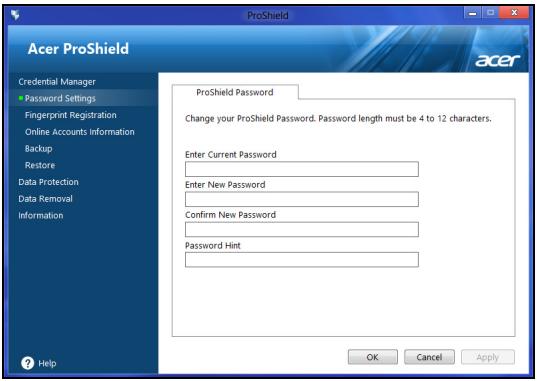
Bbl MojkeTe n3MeHЯTb cBoi napoI nI pyorpaMMbi ProShield n Windows, pernctpnpoBaTb OTneuATkn paIbueB, ynpaBnIb TaHHbIMN ceTeBbIX yyeTHbIX 3aIncEi, CO3daBaTb pe3epBhIe KOIII pernCTpaIOHHbIX DaHHbIX IIN BOCCTaHaBJIbBaTb 3TN DaHHbIe I3 pe3epBhIx KOnII.
PereTpaun OtnpeaTKOB naIbceB\*
* (monbko ecnu eauwem PIK ecmb dakmunockouwecku cuymbieameib)
Дактулочьнческий ChntbIBaTeJIb MoXHOb ИСПОЛБ3OBaTb ДЯЗцтbl ПК OT HecaHKUHOHropOBaHHOrO DoCTyna. 3apernctpnpuyTe DBa Илбболjee OTpeaTkoB NaIbIeB, YTO6bl 3aTeM ИСПОЛБ3OBaTb INx ДяdoCTyna K ПК BOВ Врмя 3aIpycKa BmecTo BBOda napOJЯ.
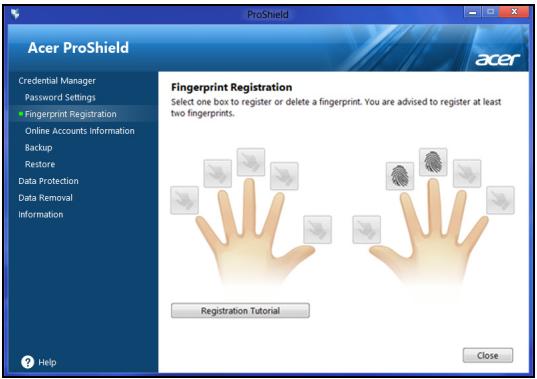
UTo6bI y3HaTb IOnOpHnTeIbHbIe CBeJeHnIa, HaxMnTe PyKoBOcTBo no perncTaPun.
3aunTa daHbIX
3decb MoKHO BbIbpaTb faIbI dIa IuΦpOBAHn IIN DeUuΦpOBAHn, a TaKKe ynpabTb IepCOHaJIbHbIM 3aIuIeHHbIM DnCKOM.
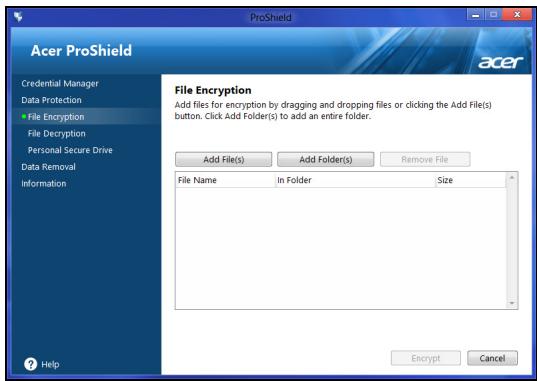
YdaJIeHne DaHHbIX
3decb MoKHO BbIbpaTb faJIbI dIy 6e3BO3BpaTHoro ydaJIeHnC JxecTKOrO nCKa. YTo6bl BaUIN daHHbIe HeJIb3r 6blIO BOCCTaHOBNTb, fYHKcIur "Upeep faJIOB" NOBepx HIX 3aIIncbIbAet 6ecnpaOnHyu INHOpMaUHO.
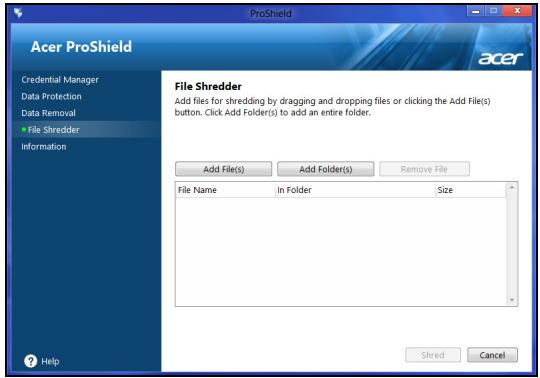
BHHMaHHe! BbIbpaIte TOnbKO Te 0aJIbI, KOToPbIe XOTnTe 6e3BO3BpaTHo ydaNtB. Nocne ydaIeHnA qaiIOB nII nnApOK B WpeDepe BOCCTaHOBNTb DaHHbIe 6yJeT HeJIb3J.
Acer Office Manager
IpumeyaHue: TOnbKO dIra onpeDeJIeHHbIX MoeJeU.
Acer Office Manager - зTO cpeCTBO MOHITOPINHra u ynpaBJIeHne pecypcAmn, c NOMOuIbO KOTOPOro NT-ajMNHNCTpaTOPbI MOryT dNCTaHcUHOHHoro ynpaBJIaTb KOMNbIOTePamN u yctaHaBJIuBaTb Ha HNX o6HOBJIeHn. B CoCTAB 3TOrO nakeTa nporpamm BXODr CTJeDyUOJIe KOMNoHENTbl: KOHcONb Acer Office Manager u KJueHm Acer Office Manager.
KoHcOJIb Acer Office Manager
IopraOK BOCCTaHOBHeHnCnCTeMbI:
- YctpaHnTe MeKne npo6nEmbl.
EcnB03HnKHyT HEnOJaKn B pa6oTe TOJbKO OndHO rNn DByX nporpaMMhIx NIn annapaTHbIX KOMnoHErTOB, To npo6IeMy MOxHO peuHTb nepeyctahOBkO 3TNx nporpAMM NIn dpaBepOB yCTPOIcTB.
IopraDOK BOCCTaHOBJIeHnI PO I dpaIBepOB, ppeDyctaHOBJIeHHbIX Ha 3aBOde-I3rTOBOTeTne, CM. B pa3dene "IpeyeCTaHOBka dpaIBepOB n npInIOKeHn" Ha cTp. 24.
Инструкци по поpeуctaHOBKe nporpaMM n dpaHbepOB, yCTaHOBJIeHHbIX BAMN NOcIe NOKyIKN, CM. B DOKyMeHTaCn H a 3TIN npOdyKtBI IJN Na Be6-caTax NODePJKN.
2.Bo3BpaT K npeIbIyUeMy COCTOHNIO CNTeMbI.
EcnnepeycTaHOBKa nporpaMM n dpaBepoB He NOMOKeT, To
nonpObYnte yCTpaHnTB npObIeMy, BepHyB CnCTeMy K ee
npedyUeMy COcToaHnIO, KOrda Bce pa6oTaIHO HopMaJIbHO.
Инструкции CM.В pa3дени "Bo3Враз к преблдушем "MOMeHTaJIbHomy ChnIMKy"СиСтЕмbl"Ha cTp.27.
- C6poCbTe HacTpoKn OepaCIOHNO CNTeMbI.
Ecn He octaHcTc npuNX cnocob yctpaHnTB npo6memy, To npndetc sbocntb cncTeMy, coxpaHNB noJb3ObaTeJIckne daHHbe.
См.раздел "ВocstahOBJIeHne cnCTembldo nepBOHaJaIbHoro coctOHHa" Ha cTp. 27.
- C6poc cnCTembl do nepBOHaayalbHoro coctOraHHia.
EcnHnHTo He nomoraet yctpaHnTB npo6nemy N Bbl XOTHe BbIOnHnTb C6poc CNCTembl Do n3HaayalbHoro COCTOHNrC 3aBOdCKIMN HacTPOiKaMn, TO CM. pa3JeI "BocctaHOBJeHne CNCTembl DO nepBOHaayalbHoro COCTOHNr" Ha cTp.27.
IpeyeuctaHOBka dpaaiBepoB i npiloxKeHH
B KaueCTBe OndHou n3 Mep yctpaHeHHa HeNCpapBHOCTe MoKet POnaObntbcrapeyeuctaHOBA pInIOXeHHn I dpaiBepoB yCTpoiCTB, N3HaayalbHo yCTaHOBJIeHHbIX B KOMNbIOTepe pN erO n3rTOBJIeHHn. DnA nepeyctaHOBKn MOxHO NcNoJIb3OBaTb JIN60 JeCTKn dNCK, JIN60 co3DaHHbIe BamN pe3epBHbIe KOHN.
-Дугп e npиLOжЕня -Чтб i ПеусТаHOBNT bnporpaMMy,ИЗнчаЛьно He yCTaHOBJIeHHyU B KOMпьЮTepe, Bam БудET HuxHO BblONHHT b yka3AnHy NO yCTaHOBKe Tako nporpaMMbI.
Hobbie npaibepbI yCTpoiCTB -YTO6bl nepeycTaHOBnTB dpaibepbI yCTpoiCTB, n3HaayalbHo He yCTaHOBJeHHbIX B KOMNbIOTepe, Bam 6yJeT HxKHO BInONHHTb INHCTpyKcIM N3 pyKOBOCTBa Ha 3TO yCTpoiCTBO.
Ecnu bblbInnHre me nepeycmaHOky npu nomou Windows, a unOpmaua dJe BoccmaHOneHua XpaHmcre KOMnbIomepe:
- Ha экpane Пусь ВведиTe "Recovery" и 3aTeM в спнcke npиложени нажмITE Acer Recovery Management.
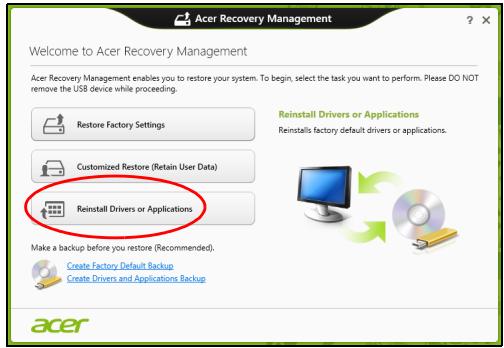
- Haxmnte PepeycTaHOBntb dpaBebpI nII npInOKeHn.
-Должень OTKpbITbCЯ pa3дeн Содерханe okha Acer LcHTp pecypcoB.
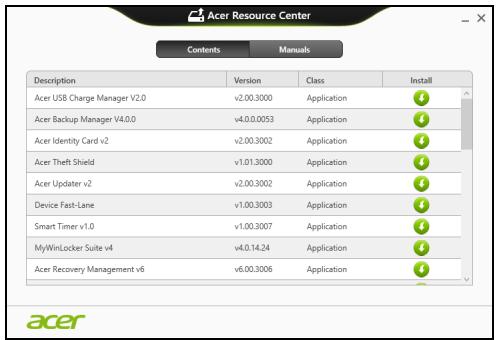
- Haxmnte 3NaOK yCTaHOBnTb ДЯ 3JemeHTa, KOTOpbI XOTnte yCTaHOBnTb, 3aTeM CJIeDyIte 3KpaHHbIM Yka3aHnAm ДЯ BblONHeHry yCTaHOBKN. ПOBTOpe TNe DTN DeIeCTBnA ДЯ BCEx 3JemeHTOB, KOTOpbIE XOTnte nepeycTaHOBnTb.
Ecnu ebl bInolHnreme nepeycmHOeKy npu nomou pesepeHoJ konuu dpauBepoe u npuLoKeHu, 3aIucanHou Ha DVD-ducke unu USB-hakonumene:
-
BCTaBbTe DnCK Pe3epBna KOnnI dpaNBePoB n npInOxHn B npINBOd DnCKOB NII NpOKNHOuNTe HAKONITeB CBO6oHbI pa3beM USB.
-
Ecπn Bbl BCTaBnΠi DVD-dnCK, To DoxKdntecb OTkpbltno OKHa Acer ΚeHTp pecypcoB.
- Ecni OKHO Acer LcHtp pecypcoB He OTKpoeTcABTOMaTHueCKN,TO HaxKMITE KnaBnUsn Windows +
,3aTeM DBAJDbI UeJIKNHTe 3HaYOK PpNBODa ONTNUeCKNX DNCKOB. - Ecnn nCnOJb3yeTe USB-HaKoNITeNb, To HaxMNTe KJtABuShn Windows +
, 3aTeM DBaXdBi UeJKNHTe HaKoNITeNb, Ha KOTopOM 3aIncaHa pe3epBna KOnn. DBaXdBi UeJKNHTe 3HaoyOK ΚeHTp pecypcoB.
2.Должен OTKpbITbCЯ pa3delen CopepxaHne OKHa Acer LcHTp pecypcoB.
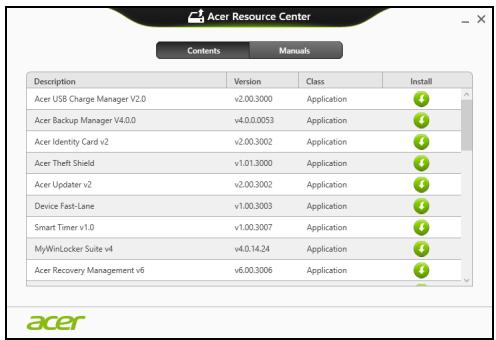
- Haxmte 3aouok yctaHOBtB dnia 3JeMeHTa, KOTOpbI XOTnTe yCTaHOBtB, 3aTEM cJeDyIe 3KpaHHbIM Yka3aHnM NO BblONHeHIO yCTaHOBKn. NOBTOpe 3TN DeiCTBnA DJIa BCEx 3JeMeHTOB, KOTOpbIE XOTnTe nepeyCTaHOBtB.
Bo3BpaT K npeIbIyUeMy "MomeHTaJIbHOMy CHIMKy" CNTeMbI
Функця "BocstahOBJIeHne CnCTeMbI Microsoft" nepnoDnueckn DeJaet "MOMeHTaJIbHbIe CHIMKn" napameTPOB n HacTpoE KBaWei CnCTeMbI n CoXpaHReT IX KAK TOUKN BOCSTAHOBJIeHn. B 6OJIbShnHCTBe CnyuaeB CNoxHbIX Ipo6JIem C nporpamMaMn DJIY BOCSTAHOBJIeHn pa6oTOcNOC6HOctn CnCTeMbI MOxHO BepHyTbcr Ha OdHy NJIH HeCKOJIbKO 3TINX TOUeK BOCSTAHOBJIeHn Ha3aI.
CnCTema Windows abTomatNueeCKn CO3daet DOJONHHTeBHyTOUky BOCCTaHOBJeHn He ToIbKO eXeJdHeBHO, HO I npu yCTaHOBKe KaJdoH NOBOI npOrpAMMbI INI dpaIbepa ycTpoiCTBa.
Bo38pam K moyke boccaMaHoEneHua
- Ha экpane Hepyck BveDnte "PanaHb ynpaBneHn" n 3aTeM B cIncKe npinOxKeHH NaxmTe PanaHb ynpaBneHn.
- Haxmte Cnctema n 6e3onacHocTB > LcHTp noDpeKKn, 3aTeM BHN3y OKHa Haxmte BocCTaHOBHeHne.
- Haxmite 3anyck BocctaHOBJeHn CnCTembl, 3aTeM DaJIee.
- Haxmte camyio nocJeHHIO TOky BOCCTaHOBJIeHnna (Ha TOT MOMENT, KOrda BaIa CnCTema pa6oTaIa npaBnIbHo), HaxmTe Danee n 3aTEM FOTOBO.
- B O TpbIbIeMcra OKHe c 3aIpOCOM Ha NIOITBepKJdeHne HaxMMte Da. IocNe 3TOrO CnCTema 6yJeT BOCCTaHOBJIeHa C NcNIOJIb3OBaHNEM yKa3aHHoB Bamn TOUKN BOCCTaHOBJIeHna. 3TOT PNOCECC MOXKeT 3aHrTa HeCKOJIbKO MInHyT INOTpe6oBaTb nepe3aIrpY3KN KOMNbIoTepa.
BocctaHOBJIeHHe cIcTeMbI Do nepBOHaJaIbHOro COCTOHHIA
Ecnn B KOMNbIOpTepe Bo3HnKHyT npO6JIeMbI, KOToPbIe He ydaCTcay UcTaHnTb DpyrIMN CNOCo6aMn, TO, BO3MOxHO, NOHaIO6bNTcAnepeyCTaHOBnTb CnCTeMy CEJINKOM, YTO6bI BOCCTaHOBnTb ee N3HaayAbHoE COCToRHe. JIra BOCCTaHOBJIeHnRA MOXHO IcNoIb3OBaTb JIn6o JeCtKm DNCK, JIn6o Co3DaHHbIe Bamn pe3epBbIe KOnMn dJa BOCCTaHOBJIeHnI.
- Ecπi cncTeMa Windows eüe 3anyckaetc#, n Bbl He ydaJIINn Ha JxecTKOM DnCKe pa3deJ BOCCTaHOBJIeHn, TO cm. pa3deJ "BocctaHOBJIeHne n3 camo CnCTeMbl Windows" Ha ctp. 28.
- Ecni cnctema Windows He 3anyckaetcra, a opunnaIbHbI jKeCTKIN DnCK 6bl INONHOCTbIO nepeopmatnpoBaH nIN 3aMeHeH, TO CM. pa3dEn "BocctaHOBJIeHne n3 pe3epBHOJ KOHN DnA BOCCTaHOBJIeHNA" Ha cTp. 31.
BocctaHOBJeHne n3 camo cnCTembl Windows
3aynctte npiloxeHne AcerRecovery Management:
- Ha заpane He lyck BveiTe "Recovery" n 3aTeM B cπiKcpe npuIoxKeHn Haxmnte Acer Recovery Management.
Предусмтreno Два снооба - BocctaHOBлЕнe 3aBOdcknx yctahOBOK (Сбрoc ПК) Ипи HabtpaUNBaEMoe BOCCTaHOBЛЕнe (ОБнВИть ПК).

Customized Restore (Retain User Data)
Функиь ВocctaHOBJIeHne 3aOIOckx yCTaHOBOK ydaJIIT BCE daHHbIe C JcEcTKOrO DnCKa, 3aTeM nepeyCTaHOBIT Windows I BCE npEduCTaHOBJIeHbIe B KOMNbIoTepe npOrpaMMbl N dpaIbEBpy. EcJN eIe MOxHO OTKpbITb BaXHbIe faIbI Ha JcEcTKOM DnCKe, TO npraMo ceuac CO3daiTe nX pe3epBbIe KOINN. Cm. pa3deN "BocTaHOBJIeHne 3aBODCkNx HAcTpoEk npn NOMoun npniloxeHna Acer Recovery Management"Ha cTp.29.
Функця HabtpanBaemoe BocctaHOBHeHne NObIaTeTcOxpaHHTb BaunфaIbI (NOLb3OBaTeJIbCKHe DaHHbIe), HO NepeyCTaHOBNT BCE nporpamMbI n dpaIbepbl. Pporpammbl, yCTaHOBJIeHHbIe Bamn NocJle nokynk INK, 6byt ydaJIeHbl (KpOME nporpamM, yCTaHOBJIeHHbIX C caTAt Mara3InH Windows). Cm. pa3dEn "HactpanBaemoe BOCCTaHOBHeHne npri nomoi npniloxeHnA Acer Recovery Management" Ha cTp. 30.
BocstahOBJIeHne 3aBOJcKHX HAcTPOEK pRi NOMOJI npIIOKeHnA Cer Recovery Management
1. Haxmte BocctaHOBtB 3aBOcKne HaCtpoKn.
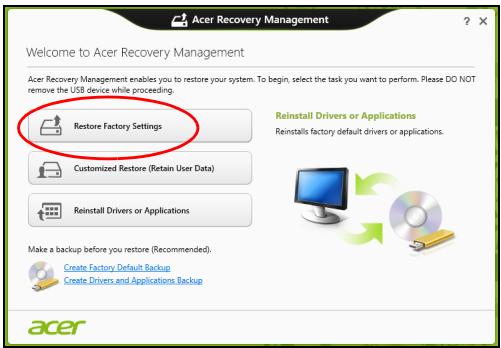
BHHMaHHe!ФУнкцЯ"BOcctaHOBnTb3aBOdCKne HacTpOuKnCOTpeT Bce paIJIbI Ha JxecTkOM DnCKe.
- Ecnn KOMnbItep cKoHnpynpoBaH C DByMra OpeaunOHbIMn CnCTeMaMn (ToIbKO Ha OnpedeJIeHHbIX MoJeJx), To OTkpOeTcR OkHO C npedIOXeHneM BblpaTb OC dJa BOCCTaHOBJIeHnra - Nl60 Windows 7, Nl60 Windows 8. Ecnn Bbl Bblbepete Windows 7, To KOMnbItep nepe3arpy3ntc n BOCCTaHOBNT Windows 7. Ecnn Bbl Bblbepete Windows 8, To OTkpOeTcR OkHO "C6poc PIK", KaK onncaHo HnJke.
2. OTKpoeTcKoHObNtB PIK.
Refresh your PC
Here's what will happen:
- Your files and personalization settings won't change.
- Your PC settings will be changed back to their defaults.
- Apps from Windows Store will be kept.
- Apps you installed from discs or websites will be removed.
- A list of removed apps will be saved on your desktop.
Next
Cancel
3. HaxmTe Danee, 3aTem O6HOBnTb.
- B npocece BOCCTaHOBLeHnna ChauJa npOn3OJTeNpe3arpy3ka KOMpbIOTepa, a 3aTeM HauHETcR KOInpObaHne paJIIOB Ha JecTkM IINCK. 3TOT npocecc 3aHIMaET OKOIO 30 MmHyT.
BocctaHOBJIeHne n3 pe3epBHOJ KOHNДЯ BOCCTaHOBJIeHnI
IopraIOK BOCCTAHOBJIeHnIa3 pe3epBHOJ KOJIIN, 3aIncAHHOJ Ha USB-HaKoJIteJIe:
- HanDiTe pe3epBHyIO KOnHIO dIra BocCTaHOBJIeHnI.
- BCTaBbTe USB-HaKoHITeJIb IN BKJIIOHTe KOMTbIOTep.
- BkHouTe F12 Boot Menu (MeHIO 3aapy3ku F12), ecn oHO eue He BKJIIOUeHO:
a.Bo Bpem 3arpy3kn KOMnbTepehnaMnTe KnaBnUpF2>.
b. HaxaTneM KJIaBnU CO CTeJIkAmN BJIeBO NJIu BnPaBO Bbl6epnte MeHIO Main (ΓIaBHOe).
c. HαkaTneM KλaBnιN CO CTpeIκOι Bnɪ3 BbɪδeριTe F12 Boot Menu (MενIo 3arpy3κι F12), 3aTeM HαχΜιTe KλaBιNsу
d. HaxaTneM KJIaBnU CO cTepeJikAmN BIneBO NIN BnpaBO BbIbepnte MeHIO Exit (BbIXoD).
e. B 3aBnCIMoCTn OT TnPa CnCTembl BIOS BaWero KOMNbIOTepa BbIbepnTe Save Changes and Exit (CoXpaHnTb N3MeHeHnN BbIHTn) nn Exit Saving Changes (BbIHTn, coXpaHnB N3MeHnN) n HaxMITE KJIaBnShy Enter. JIra noDTBepJxDeHnna HaxMITE OK nn Yes (Da).
f. Kompbtoep nepe3arpyntcra
4.Bo Bpem 3aRpy3kn HaxMMte KnaBnUy
a. HαkaTne KlaBnU So CTpeJIkAmN BbIeJInte CToPOky USB Device (USB-ycTpoiCtBO), 3aTeM HαKMnTe KlaBnUy Enter.
b. BmecTo 06bIyHoi 3aRpy3Kn npOn3oJTe 3anyck Windows c pe3epBHO KOnIN BOCCTaHOBJIeHnI.
- BbIbepeNTe TIN KJIaBnATypbl.
- BbIbepnTe Troubleshooting (YcTpaHHeHne HencnpaBHOCTe) n 3aTeM BblbepnTe HxHbTI NTO BOCCTaHOBJEHHIA:
a. HaxmTe DOnolHnTeIbHo n 3aTeM BocCTaHOBJIeHne CNTEmbl, YTO6bl 3aNyCTnTb fYHKcHIO "BocCTaHOBJIeHne CNTEmbl Microsoft": ΦyHKcHry "BocCTaHOBJIeHne CNTEmbl Microsoft" nepnoDnueckn DeJaet "MomeHTaJIbHbIe CHIMKIn" napameTpOB n HaCtpoE K BaSei CNTEmbl u COxpaHReT Ix KaK TOUKn BOCCTaHOBJIeHn. B 6OJbShINCTBe CnyaEB CNOXbIX nPo6Iem C npOrpAMMaMn dJa BOCCTaHOBJIeHn pa6OTocNOC6HOctn CNTEmbl MOxH0 BePhyTbcr Ha OdHy IInn HeCKoJIbKO 3Tnx ToueK BOCCTaHOBJIeHn Ha3aI.
b. HaxmTe C6poc PK, yTObI hauaTb npocecc 6poca HaCTpoeK: PhHKcIg N C6poc PK ydaIIT BCE daHHbIe c JxecTKO rDnCKa, nocIe 3TOr 6ydyT nepeycTaHOBHeHbI CNCTema Windows n BCE npedyctaHOBHeHbI B KOMlbOTepe nporpaMMbl I dpaiBepbl. EcII eIe MOxHO OTKpbITb BaxHbIe paJIbI Ha JxecTKOM DNcKe, To npraMo ceuac co3daiTe nx pe3epBhble KOnn. CM. pa3dJe "C6poc PK n3 pe3epBHOJ KOnn BOCCTaHOBHeHn" Ha cTp. 33.
c. Haxmnte 06HOBnTB PK, YTObI NaaTb npocecc 06HOBHeHn: PhHKzra 06HOBnTB PK NOnbITaeTCOxpaHNT BaShn FauJIbI (noIb3OBaTeJIbCKne DaHHbIe), HO nepeyctaHOBnT BCE nporpaMMbl I dpaiBepbl. PporpaMMbl, yCTaHOBHeHbIe BAMN NOcNe NOKyIKN PIK, 6dyt ydaJIeHbl (KpOME nporpaMM, yCTaHOBHeHHbIX C caHTa Mara3nHa Windows). Cm. pa3dEn "06HOBHeHne PK n3 pe3epBHOJ KOHN BOCCTaHOBHeHn" Ha cTp. 34.
C6poc IK n3 pe3epBHOJ KOHN BOCCTaHOBJENH
BHHMaHHe! PpN c6pOce PIK 6yDyT ydaJIeHbI Bce paJIbI Ha JxecTkOM DnCKe.
- OTPpoetcOKHO C6poc PIK.
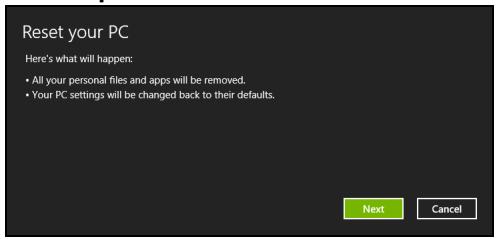
IInIocmpaquu npueedeHb moIbKO dna crpaeku.
- Haxmte Danee.
- Bыберпе onepaционну сиTeMy Дя BOCCTaHOBnEHy (OьИHNOДОТупен TOльКо OДИN BapnaHT).
- Bыберп Te coхранен e BCex n3MeHeHn, pOuI3BeJeHHbIX C JxecTkIM DnCKOM:
a. Ecπn Bby ydaJIINn Ha JxecTkOM DnCKe pa3dEe BOCCTaHOBNeHnI INI npyIM CnOcOBm N3MeHNi Pa3deJIbI JxecTKOrO DnCKa I XOTnte COxpaHntb 3TN n3MeHeHnI, TO Bbl6epnte Het.
b. 4To6bl NOnHOCTbH BOCCTaHOBHTb KOMNbIOTep Do COCTOHN3aBOIDCKNX HAcTpoE, To BbIbepnTe Da.
- Bb6epnte cnooc ydaenna qaiIOB:
a. YdaJIHTb TOnbKO MoN faiNbI - 6bICTpoe ydaJIeHne BCEx faiIOB npeD BOCCTaHOBJIeHnEM KOMIbIOTepa; TakoE ydaJIeHne 3aHImaET OKOJ0 30 MInHyT.
b.ПОЛНOCТьОчNTьДСК - NOЛнэ OчNTka ДССа NOСе Удаленя Кадоу Файla,Чтобл NOСе BOCCTaHOBJIENHA HИ OДИN CTapьй Файл HeIb3Я БыLO npOuHTaTb. OчNTka DSCKa 3aHIMaET HamHOrO 60ЛБшЕ ВрЕми (do 5 YacOB), Ho 3TOHamHOrO 6OJee 6e3OnaChbI CnOCo6,Тak KaK CTapbie Файлby UdaJIЯOTcR 6e3BO3BpaTHO.
- Haxmte C6poc.
- После завершени BOCCTaHOBJIeHЯ Bbl CMOKeTe Haayatb pa60Tu c KOMlbOTepom, NOBTOpNB DeIcTBnA, BblONHЯeMbIe PprпперВOM 3anycke.
OboBHeHnI K n3 pe3epBHOJ KOHN BOCCTaHOBHeHn
- OTKpoEcra OKHO 06HOBntb PIK.
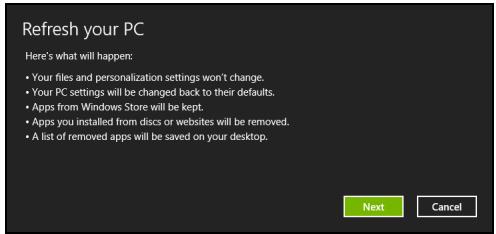
- HaxmTe Danee.
- BbI6epnte onepaunOHHy CnCTemy IJIy BOCCTaHOBHeHry (OblyHO IOCTypeH TOJbKO OINH BapnaHT).
- Haxmnte 06HOBntb.
5.B npocece BOCCTaHOBlenna ChauJa npOn3OJTeNpe3arpy3ka KOMpbIOTepa, a 3aTeM HauHETcK OKnIpOBaHne paJIIOB Ha JeCTKn IINCK. 3TOT npocecc 3aHIMaET OKOIO 30 MInHyT.
Acer Backup Manager
Ipumeyaue: 3ma yHKuia ecmb moIbKO o npedeJeHHbIX Moedjx.
Acer Backup Manager - àTO yTnIHTa, no3BOJHOUàA BbIOnHЯrMbHOKeCTBO ΦyHKuŋ pe3ePBHOro KOIpOBaHnA, kαχdAŋ I3 KOTOpbIX COCTOIT Bcero n3 Tpex npocTbX ⅢaRθ. BbI MOxete HAcTpOHTb ABTomatUyeckn 3aynCK 3TuX ΦyHKuŋ C HγKHoB Bam YaCTOTOH.

Acer Backup Manager
?X
Welcome to Acer Backup Manager
Select one action below to start managing your data.
Back Up My Files
Pick and choose which files to back up or let the program find it all for you.
Image My Drive
Make a complete image backup of your drive.
Migrate My Files
Transfer your files from another computer to this computer.
Clear out / Restore Files
Remove seldom used files to free up space or restore files from your backup.

Launch My Backup Profiles
Back Up My Files
The file backup helps you create a complete backup of your documentation. Choose the file or folder for the backup and then select the destination for the backup. Once you have selected the destination, the final step is to schedule the backup. Click on the Backup My Files button to create a backup.
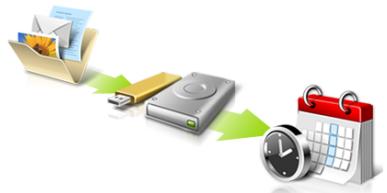

Directly enter "My Backup Profiles" next time.

YTo6bI 3aNyCTnTb yTuNHTy Acer Backup Manager B Windows 8, HauHInTe BBoDnTb "Backup Manager". Dpyroi cnocob: B pexKIme "Pa6OuN CTOn" Bbl6epnTe Acer Backup Manager. OTKpoEcraKpAn IprBcETCBne, Ha KOTOpOM MOxHO Bbl6paTb TIN pe3epBHO KONNN, KOTOpBI Bbl XOTnTE CO3daTb.
ApxNBpuOBaTb faJIbI: Bbl6epnte faJbI dIy pe3epBHorO KOINPOBaHnI.
Co3daTb o6pa3 dNcKa: Co3daiTe paaipe3epBHOJ KOINN BCero dNcKa. 3TOT foai MoKHO 3aIncatb Ha dNcK DVD, coXpaHnTb ero Ha dpyroI dNcK KOMNbIOTepa* IIN Ha cBeMHbI HAKONITeIb (Haipmep, Ha flash-HaKONITeIb), YTO6bl NOTOM npi Heo6xOIMOCtN BOCCTaHOBnTB BaW KOMNbIOTeP.
- Переньтохлы: Розваягет КОпровать саиbl Ha USВустюctBO, утоы при поши утлintsы Acer Backup Managerперенocить саилbl CO STAPORO KOMlbOTepa Ha HOBsн Ипи на Лобов другов komlbOTep.
CTepb/BocctaHOBtbp:YdaItepeKo IcnoJIb3yEmblcepaIbI,YTO6bIBBCBO6OIMTBMeCTOHaJKeCTKOM DnCKe,IIINBOCCTaHOBtEpaIbIC03dAHHOBBAMPe3epBHOI KOHN.
Bb6epnte Tn pe3epBHOI KOIN, KOtOpb I XOTnte CO3daTb, Bb6epnte 0aIIbI INI DNCK Dnpe pe3epBHOI KOINPOBAHNA, 3aTeM BblONHInTe OTo6paKaemble Ha 3kpaHe IHCTpyKcN:
1 BbIePnte coOpKIMoe Inpe3epBHO KOIpOBaHn. Yem MeHbIe COpeKIMoTo BbIbpaHo, Tem 6bICTpee OcyuEcTBnTcra IpOucek KOIpOBaHn, HO TEM BbIe pNCK NOTepn DaHHbIX.
2 BbI6epnte MeCTO dIy xpaHEnI py3epBHyIX KOJI. Bbl MoKeTe Bbl6paTb TAKHe BapNaHTbI, KaK CbeMHbI HAcONITeIb, DnCK KOMNbIOTePa*, DNCK CD/DVD, ydaJIeHHbI IK IIII O6JIaHoe xpaHJIuIe Microsoft SkyDrive.
3 BbI6epnte nepnoDnUHocTb, c KOTopoAer Backup Manager 6ydt co3daBaTb pe3epBhIe konnn.
IIO 3aBepseHn 3Tnx Tpex 7arOB pe3epBhle KOHN 6ydyT CO3daBaTbcA BtOMaTHueCKn COrJaCHO paCncaHnIO.
IoiroTOBka HOBORaAkkymyTOpa K IcNoJIb3OBAHnIO
Ipeed hauanom nCnoJIb3OBAHnH NOBOra aKkyMylTopa COBeTyem npOBecTN npocecc erO noIroTOBKN pa6ote:
- BCTaBbTe HObI aKKymJrTOp B BbIKHoueHHbI KOMnIbIOpE.
2.ПодсоeДинITE aДaNTep ceTeBOrO nITaHnI n ПОЛHOCtBu 3apAДnte aKKyMylTOp. -
OToeDInHnTe aanTep cTeBOro nItaHnJ.
-
BkHouTe KOMnbIOTep n pa6oTaIte, IcNoJIb3yra 3JIeKTpOnITaHne ot aKKymyIaTOPa.
5.ИспοльзуйTe KOMьЮТерdo NOЛHOro pa3ряda 6aTapeи IOЯВленяпpeДунрждэнгО Hn3KOM ypoBHe 3apJa. - Choba noДcoeДиHInTe aДanTep ceTeBOrO nIaHnI eIe pa3 noJIHOCTbIO 3apAДnte akKymyIЯTOp.
KOMHOENTbI 6ecnpoBOHDHJOKaJIbHOcETN
YTo6bI HAcTpOuTb Doma 6ecnpoBOHyO CeTb, Tpe6yEtca CneDuiouee:
Tocka docmyna (mapwypmu3amop)
Touka doctyna (MapspTy3aTop) - 3TO npmeonepeTaYnK dIy nepeDayn daHHbIX B 3OHe DeiCTBn. TouKn doctyna irpaIoT poIb nocpeHnKOB MExdy npoBOdHO n 6ecnpoBOdHO ceTbIO. B 6OJIbShnHCTBe MapspTy3aTopoB eCtB BcTpoEHnBI moDEM DSL, o6ecneuBaIOUsn DoCTyn K BBICOKOCKOPoCTHomy NODKIJOUeHNIO K INHTepHeTy no DSL-JInHm. Bbl6paHbI NoCTabUnc YcIyr INHTepHET B pAMkax DoorOBopa O npedocTabJeHmN ycIyr OblyHNo npedeOCTaBnEeMT MoDEM IIN MapspTy3aTop. POnpObHbI eNCTpyKznn PoHaCTpOJKe cm. B DOKymentaun Ha ToCy doCTyPa IIN MapspTy3aTop.
ExpressCard
В вида KapT ExpressCard bblnyckaetcrgomhoe uncno moDynei paCshnpeHnay, BkIIOUaA aAnTepbI KapT flash-namrTn, TB-THOheBbI, MoDyuN CBy3n no texHOnorHn Bluetooth n aanTepbI IEEE 1394b. KapTbExpressCard oecneuBaIoT nepeaHy daHHbIX no shHaM USB 2.0 nPCI Express.
BaxHo! 3Tn KapTbI BbvInyckaHOTcB DByx φOpM-φakTopax -ExpressCard/54 n ExpressCard/34 (UnpHNoi 54 MM n 34 MM COOTBeTCTBeHHO), y KaKDoRo n3 KOtOpbIX pa3HbIe φyHKuIN. He Bo BCE rHe3da (Cnotbl) dJa Kapr ExpressCard MoXHO BCTaBnTB KapTbI o6oNt HIOB. BoJee noDpO6HbIe CBeDeHnO φyHKUnx TaKHX KapT, nopA,Ike IN yCTaHOBKn I NcNoJIb3OBAHnI npNVdeHbI B pyKOBoIDCTBAX Ha 3Tn KapTbI.
Popraok BCTabkn KaptbI ExpressCard
BctabbTe KapTu B rHe3do n octopoxHo BdaBnBaIte ee, Poka OHa co ⅢeJIyKOM He BCTaHET Ha MeCTO.
I3BJIeueHne KapTbI ExpressCard
Ipepei n3BneHHeM KapTbExpressCard:
- 3aKpoIe npuJoxKeHne, nCNoJIb3yUoUe ee 3Ty KapTy.
- Ha nahanen 3aadau 7eJKNHnTe JIeBOI KHOJKOI Mblnn IIO 3NaUky N3BLeueHnA annapaTHoro yCTpoiCTBa n 3aBepunTe paobTy c KapToi.
- Octopoxho BdaBnTe KapTy B rHe3do n OTnyCTnTe, YTObI BbyTOJKNHyTb ee. 3aTeM BbyHnTe KapTy n3 rHe3da.
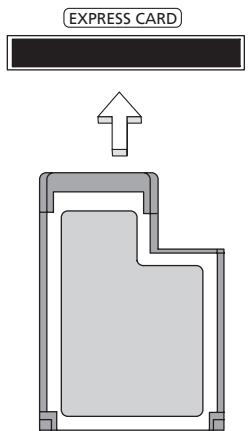
Thunderbolt
Thunderbolt - 3TO CTaHdapr T BbICOKOCKOPoCTHO CBa3N, INCNoB3yEmbI Jn IPOKJIIOUeHn yCTpOJCTB XpaHEnn N BHeuHnx YcTpoICTB OTo6paKeHn K KOMNbIoTepy. OH COBMeCTm C0 CTaHdapTOM DisplayPort.
Пр汞анue:do uecmu ycmpoucme c unhmpeuecOM Thunderbolt u odun ducnneu c unhmpeuecOM DisplayPort moKno coedunmb aupnHdoou, ho duonneu c unhmpeuecOM DisplayPort doJxhen bimb nocneHm ycmpoucmeom e mou ceNoyke, u emy He doJxhen npedweecmoabmb duonneu c unhmpeuecOM Thunderbolt.
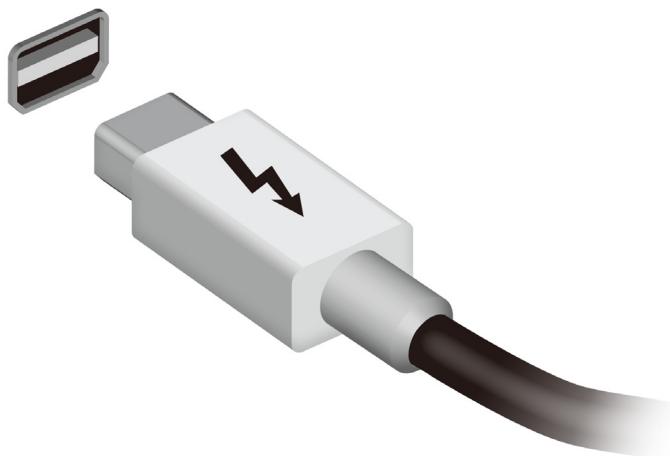
Pa3bem IEEE 1394
Pa3bem IEEE 1394 no3BOJЯET NOKJIOnuTaB K KOMMbIOTepy ycTpoiCTBa, noDJIePjNBAHOUne cTaHdApT IEEE 1394, HapnMpE, BnDEOKaMepy nIN nCΦpOByIO kAmepy. DOnoHNITeNbHbIe CBeDeHnA cm. B DOKymeHTaUN Ha BnDEOKaMepy nIN nCΦpOByIO kAmepy.
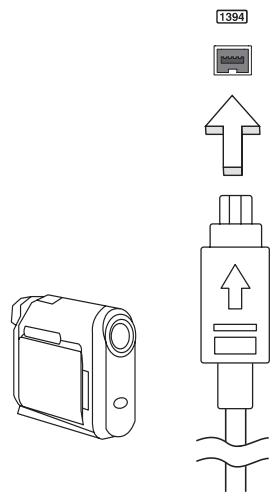
HDMI
HDMI (High-Definition Multimedia Interface - INTepfeic MylbTmMeDna BbICOKOy YeTKoCTn) - 3TO NOdepxNBaEmbB OTPacn, He NcNoJIb3yUOu Cxatne, NpIHOCTbIO UcPpOBoA ayDINO/ BVdeOnHTepFeic. INTepFeicc HDMI No3BOJnAeT IO ODHOMy KaBeIIO COeDNHrTB COBMeCTMblN IcToUHk UcPpOBoro ayDINO/BvJeO (DeKOdep KaHaIOB KaBeJIbHoro TB, IpnOrpblBaTeIb DVD-DnCKOB, A/VpeCnBep) C COBMeCTMblM MOHITOpOM UcPpOBoro 3Byka n/NIIu BVdeO, HapPIMep, PnpEMHNKOM UcPpOBoro TeJeBVIDEHnA (DTV).
IcnoIb3yIte npT HDMI B BaIeM KOMNbIOTepe IJn POJKnIOUeHnK BbICOKOJIacChOn aydno- n BVdeOaannapatype. IcnoIb3OBAHne BCero OJHOro KaBEn 3HaunTeJIbHo yCOpApET NOJKnIOUeHn N HaCTpOJky.
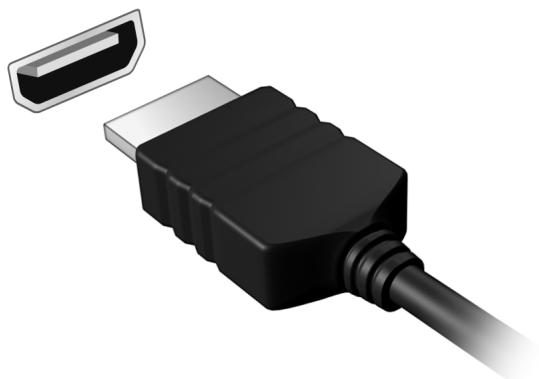
USB (yHnBepcaJIbHa nocJeIOBaTeJIbHaJ ShnHa)
Pa3bem USB BbICOKOCKOPoCTHOn WInHbI NocJIeIOBaTeJbHO npeJaHn DaHHbIX No3BOJAre T NOkJIIOuATb BHeUHne USB-ycTroiCTBa, He 3aHmMa peCypCoB CnCTeMbI.
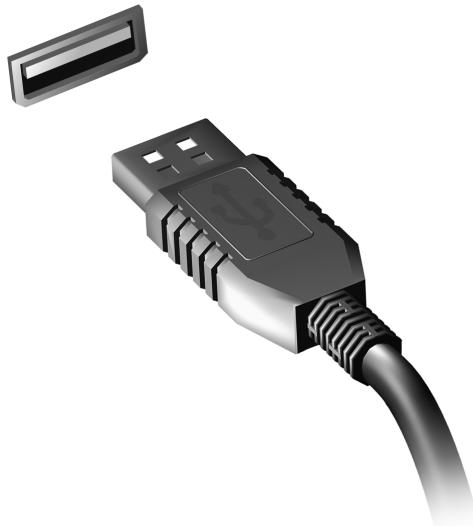
Прсмотр DVD-фильков
EcnB OTCek npIBOda ONTNUeCKNX DnCKOB yCTaHOBNeH MoyIb npIBOda DVD,TO B KOMNbIOtepe MOxHO BOCpON3BOIDtB DVD- nIbMbI.
- BCTaBbTe DnCK DVD.
- Bocnpoan3BVeDHeHne DVD-ФиЛьма abTomatUeCKn HauHetcay Hepe3 HeckoJIbKO cekyHd.
Baxho! Pn nepbom 3anycke DVD-nneeepa nporpamma nonpocnt Bac yka3aTb KOD 3oHbI (pernoHa). DVD-dnckn BblnyckaIoTc dJy 6 30H.
Пи BOCCTaHOBJIeHn CnCTeMbI C JecTkoT OДСКа KOJINUYeCTBO BBOIOB KoJa peRHOHa He c6paCbIBaETCJ.
YBeJIuHHe mKoCTn OePaTINBHOJ nAMrTI
IyctaHOBNMOdyne namrN BbINOHNHe CneDyUOune DeiCTBna:
- OTKIIOHnTe nITaHHe KOMNbIOTepa, OTCoEINHnTe aADANTep nepemehnHO ToKa (ecn OH NOcOeDInHe) N 3BNeKHTe akKymJyTOp. 3aTe mpeBepHnTe KOMNbIOTep, TTo6bI OTKpbITb DOCTyn K erO OCHOBAHHIO.
- BbIbepHnTe BnHTbI n3 KpbIuKn OTceKa OepaTnBHOJ NaMRTN, 3aTeM npINoDnHMITE n CHmMtE 3Tu KpbIuKy.
- (a) BCTaBbTe MoDyIb IaMMyTn IoN yrIOM B rHezIO, 3aTeM (b) OCTOpOxH0 HaIaBHTe Ha Hero, YTO6bl OH CO UeJYKOM BCTaI Ha MecTo.
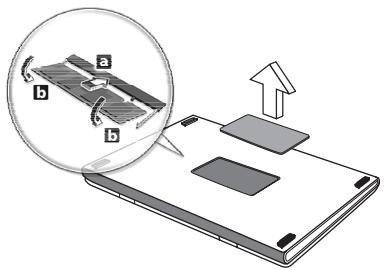
- 3akpoTe OTceK ONEpaTINBHOI NaMRTN KpbIuKOI N 3aKpeNTe ee BnHTAMN.
- YctaHOBnTe aKKymyIaTOp Ha MeCTO I NOcOeINHITe aAnTep nepemehnHO TOKa.
- BkHouHTe KOMnbIOTep.
KOMnbIOTep abTOMaTHueckn paCNo3HaeT HOBBI COBOKyHbI pa3Mep ONEpaTNBHO nAMrTN u N3MeHNT KOHpNpyaUIO.
YtNiNTa BIOS
Ytunnta BIOS - 3TO nporpamma KOHfumpynpoBaHn annapaTHbIX KOMnoHErTo, BCTpoEHHaB B6a3OByIO CnCTeMy BBOda/BbIBOda (BIOS) BaJero KOMnbIOTepa.
Bauch KOMnbIOpTe yKe cKoHcHnIpynpOBaH n ONTMm3nPObaHa NaJIeXkaUIM o6pa3OM, PO3OMy BaM He HUxKHO 3aNyCKaTb 3Ty UynIHTy. Ondako npB O3HKnHOBeHn IpO6Jem C KOHcHnIpyaunnei Bam, BO3MOxHNO, pNIDETcB OBCNoJIb3OBAtbcraE hO.
YTo6bl 3aynctnty yTnInTy BIOS, BO BpemBbINOJIHeHNA camOpnoBepKn npN BKInOeHnn PNTaHnR, KOrDa yBnDnTe INorOTnKOMNbIoTepa, HaxMnTe
IocneIOBateTeNbHOCTb NaayalbHOn 3arpy3Kn
YTo6bl HAcTPOINb NocJeIOBaTeIbHOCt b HaayaJIbHOJ 3arpy3Kn B yTuInTe BIOS, 3anyCTnTe yTuInTIy BIOS n 3aTeM B cIncKe KaTEROpn BBepxY ekpaHa Bbl6epnTe pyHKT Boot (3arpy3ka).
3aandahe napoJe
YTo6bI yCTaHOBtB npoJI npn HauaJIbHOJ 3arpy3Ke, 3aNyCTNTe yTuNITy BIOS n 3aTeM B Cnncke KaTEROpn BBepxu 3kpaHa Bbl6epNTe nyHKT Security (Be3onacHocTb). HaJDiTe npaMeTp Password on boot: (PapOJI npn HauaJIbHOJ 3arpy3Ke): n HauKaTHeM KJIaBnI< F5> n
Yacto 3aadaBaemble BOpocbl
Danaee npBBeDeH CnICOK BO3MOXhIx CNTyaU, KOTOpbIe MOryT BCTpeTntbC npI NOJIb3OBAHN BaUNM KOMNbIbOTepOM. JIa KaJdoi CNTyaU, npBBeHeBbl IpocTbe OTBeTbI n peuEHHa.
IocJIe BkJIIOUeHnI NITaHnI KOMNbIOTep He 3aNyCKaETcR IJIi He 3arpykaetcR
BzraHHe Ha HndnKaTOp Power (IitTaHne):
-
Ecni OH He CBetntc, NITaHne Ha KOMnbIOTep He noDaHO. PpOBepbTe cJeDyUouee:
-
Ecπn Bbl pa60taeTe OT aKKymyIaTopa, 3To MoXeT O3HaayaTb, yTO erO 3apYd Hn3Km I HeCnocO6eH PntTaTb KOMNbIOTep. POnkIIOHTe aAnTep nepemehHoro Toka, YTO6bl 3apAaTb aKKymyIaTOp.
-
Поберп Te npавиьнocь И Наджнocь NOДКЛюЧЕНЯ аадпета поеменHorO TOka K KOMпьОтepу И К сеТБОВ рo3eTke.
-
Ecni nHdNkaTOp CBeTntCra, npOBepbTe cNeDuOuSe:
-
EcTB JIN DnCK B PnBBOe ONTNUeCKNX DnCKOB? N3BnEKNTe ero n HaxMnTE
+ + , YTO6bl nepe3aRpy3NTb CnCTemy. - BCTaBHeN JI B KOMMbIoTeP USB-HaKoHnTeIb (USB-DnCK nIIN cMaprTfOH)? OToCoEiHnIte erO n HaxMnTe
+ + , yTO6bl Ipee3aRpy3ntb CnCTeMy.
KOMnIbIoTeP He BOCIpOu3BOoNt 3ByK
PpOBepeCneJeuOuee:
- Frpomkoctb MoKet 6bIb OTKJIouheHa. B Windows, IocmOTpuTe Ha 3NaOH peryJrTopa rPOMKOCTn (DINHAMIK) B nAHeJI 3aJaUc. EcIn OH nepeuepeKHyT, To HaxMITE 3NaOH n CHIMITE φJnaKoB BbIKJ. BCE.
- YpOBeHb rPOMKoCTn MoKeT 6bIb CInuKOM Hn3Ok. B Windows, PocmOTpuTe Ha 3NaUOK peYJrTOpa rPOMKOCTn B paHeN 3aJaU. OtperyJnPoBaTb rPOMKOCTb MOxHO TaKKe KHOJIkAmn peYJnIpOBKn rPOMKOCTn.
- Ecπn rɔlOBhIe TeJIeΦoHbI, HayuHnKn nIIN BHeUHne DInHaMnKn POnkJIIOUeHbI K pa3bemy IInHeNHO BbIXOa NepeDHe NOMNbIOTepa, TO BHyTpEHHne DInHaMnKn aBtOMaTNUeCKN OTKJIIOUaOTcR.
EcnI rOIOBHe IeTepeOnbI, HauHnKn nIN BHeHne DnHaMnKn IoKlOHeBk pa3bemy LNHeHOro BbIXOa nepeDHei KOMNbIOTepa, TO BHyTpeHHne DnHaMKn aBTOMaTHueCKN OTKnIOUaOTcR
Ha npBbOe ONTnuecknx DnCKOB ecTB OTBepCTne IJI MExaHnueckoIOn3BLeueHnI DaNcKa. YTo6bl BblDInHyTb IOTOK, BCTaBbTe B 3TOOTBepCTne KOHnK CtepXnH JaPnKOBoI pyKn NII KaHcJIpyRcKyIOCKpeNkU HaxMnTe.
KnaBnataype He pearnpyeT
KaK BbIKJIIOUHTb KOMNBIOTep?
Haxmnte KnaBnwn Windows +
3aYeM HUKeH HOBbI INHTeppeic?
Hobby INTEppein DnY Windows 8 pa3pa6oTah CneuJaBHO nIaCeHCOPHOrO ynpabLeHn. PnpIoXeHn I3 Mara3InHa Windows 6yDyT ABTOMATNueCKn IcNoJIb3OBA Tb BeCb 3KpaH, I INx He HJxHO 3aKpbIbAtb ObUHyBM CnOCo6OM. PnpIoXeHn I3 Mara3InHa Windows 6yDyT OTo6paXaTBcH Na 3KpaHe Pyck B VIne "DINHAMuecknx PnITOK".
UTo TaKoe "DInHAmNueeCKne PJIITKn"?
"ДиHamueckne ПNTkn (Live tiles)" ananoruHbI 3ckn3am npInIOxehn, OHI bdyT o6HOBnTbcra C HOBbIM COePXMbIM KaXdbi pa3, KOrDa Bbl POKJIouaTeCb K INHTepHeTy. IOnToMBy Bbl CMOxTe, HanpImep, nPoCMatPbTaB o6HOBJIeHHbIe MeTEOCBOkN INIb6IpKxBeBle KOTnpOBKn, He 3aNyckar COOTBeTCTByUOJne npInIOxehnA.
Kak pa36IoknpoBaTb KOMnbIoTeP?
YTo6bI pa36JIOKINPOBaTb KOMNbHTep, HaxMMTe JIO6yU KJIaBnUy I HaxMMTe 3HaQOK NOpb3OBAteNbCKoY yueTHoN 3aIncN. Ecnn dIpy UyeTHoN 3aIncN yCTaHOBJIeH napOJIb, TO dJIy npOdoJXeHnry HxKHO BVEcTN 3TOT napOJIb.
Kak HactpoNTb KOMNbIOTeP COJIaCHO MOIM ppeIIOuTeHnAm?
Moxhno Hactpontb 3kpan Nyck, ycTaHOBvBa3nHbIe pOHOBbIe n3o6paXeHnN, INyINpOraDOHTb PINTKN B COOTBETCTBUN C BaUIMN npedNoTHeHmN.
UTo6bI N3MeHnTb fOHOBOe N3o6paXeHne, HaxMnTe KJIaBnSi Windows +
Kak nepemeuatab pIITkn?
Haxmte u ydepkuaite pIITky, cyObblbipb ee, 3aTeM nepeTaunTe eHa HxKHOe MeCTo Ha 3KpaHe Iyck. Dpyrme PnNTKN CdbnHyTcra, cytObbl3Ta PnNTKa BCTaJa Ha HOBOe MeCTo.
Kak deNaTb PnITKn KpyNHee nn MeJIbYe?
Kak ydaanitb nnitky c 3kpaHa Nysck?
KK-3kpah n3roTOBHeN C npIMHeHHeM BbICOKOTOHbIX TEXHOIOrn. Tem He MeHee HEKOTOpBle NIKCeJIb MOrT BpEma OT BpEmH He CBETbCra NIN OTo6paKaTbCBA BVnde YepHbIX NIN KpaChbIX ToeK. 3TO He BnIaTe Ha 3aIncaHHe N3o6paKeHne I He ABJRA Tc DeΦeKTOM.
HOPMATUBBbIE YBEIDOMJIENBAOTHOJEHN PAIMOYCTPOIcTB
Пимачанue: Huxe npuveedena Hopmamuehna unHopmaua monko dno Modeneu, noodeprxuaoux becnpooehyo lokabnyo cemb (LAN) u Bluetooth.
UTo6bI yCTPOiCTBO He co3dAbaNo paAnOnomExn IJRA JINuEHNpyEmbIX cnyk6,ero CJIeNyET NcONlb3OBaTb B NOMEueHnrx.
3To yctpoictBO COOTBeTCTByET CTAnDapTam paIIOIN3JUeyHn I 6e3OaCHOCTNIIOB CTpaHbI INI perHOHa, rIe OHO bIIO pa3peSeHo dIg BecnpoBOHDoroNCIOB3OBAHn. B 3ABNCIMOCtN OT KOHcHpyaCn, 3TO n3dEJIne MOKET INI HMeOKeT CoepkataB 6ecnpoBOHDhie PaIIOyCtPOiCTBa (TaKne KaK MoDyIn, NOIDepKINBAIOUINE 6ecnpoBOHDHyIO JOKaIbHyO cTeB (LAN) n/IIIN Bluetooth). Hnke npINBeDeHa INHΦOpMaUNI DnI IN3dEJIIn, CoepKauxTakNe yctpoICTBa.
DeklapauncooTBeCTBnIyctpanEbponeckoroCo103a
HactoIIM KOMnHaNIA Acer 3aBnAeT, yTo 3ToT KOMNbIOTeP OTBeAeT OCHOBbIM Tpe6OBaHnM IpynM npImeHmMbI NpOJOKeHnM DInpeKTHBbI 1999/5/EC.
Pa3peeHbIe KaHaJIb6ecnpoBOdHcBra3n dJa pa3hblx cTpaH
B HeKOTOpbIX Oxbactx PhaHcHm Dnana3oH paIIOvAcTOrpaHnueH. MaKcImaJIbHo pa3peHHeHHa MOUHOCTb B NOMEueHInX:
Cama ble nocneHnne HOBOCTn MOxHO y3HaTb Ha Be6-caIte ART (www.artelecom.fr).
"HopMbI 6e3oNaChOCTn 6" Na Be6-caIte MInHcTePcTBA 3dpaBOoxpAnHeHnaKaHaDbI www.hc-sc.gc.ca/rpb
3To yCtpoiCTBO OTBeuAe Tpe6oBaHnM CTaHdApTa RSS210 MnHcTepcTbAnPOMblIeHHocTn KaHaBl.
3To uHpOBoe yCToIcTBO Knacca B OTBeuAe TTre6BaHnM KaHaDcKOrO cTaHdApTa ICES-003, peI. 4, RSS-210 N 4 (deKa6pb 2000) n N 5 (HO6pb 2001).
"Длгпрдтврашени радиономь в рабоул счкб, данhoe устpo CTBOdoJXHNO 3KcPnyaTnpoBaTcB C B NOMEseHnx BdAnOT OKOHдлг obecne�енmaKacmMaIbHoro 3KpaHnPoBaHnry. YctahOBka obopdyobAHnry (Илг erоpepedaOSei aHTeHHbl) 3a п徴елампnomeшenПОдlexнТлцeHsIpOBAHnIO".
"HopMbI 6e3oNaChOCTn 6" Ha Be6-caTe MInHcTePcTBA 3dpaBOoxpAnHeHn KaHaDbI www.hc-sc.gc.ca/rpb
3To yCtpoiCTBO OTBeuHaT Tpe6oBaHnIcTaHdApTa RSS210 MmHnCTepcTbAnPpOMblJeHHocTn KaHaDbI.
3To uHpOBoe yCToIcTBO Knacca B OTeBaeaT Tpe6oBaHm KaHaDcKOrO cTaHdApTa ICES-003, peI. 4, RSS-210 N 4 (deKa6pb 2000) n N 5 (HO6pb 2001).
Acer Backup Manager 33
Zarzadzanie energia 35
Customized Restore (Retain User Data)
Acer Recovery Management
Welcome to Acer Recovery Management
Acer Recovery Management enables you to restore your system. To begin, select the task you want to perform. Please DO NOT remove the USB device while proceeding.

Customized Restore (Retain User Data)

Reinstall Drivers or Applications
Make a backup before you restore (Recommended).

Create Factory Default Backup
Create Drivers and Applications Backup
acer
Reinstall Drivers or Applications
Reinstalls factory default drivers or applications.

Here's what will happen:
- Your files and personalization settings won't change.
- Your PC settings will be changed back to their defaults.
- Apps from Windows Store will be kept.
- Apps you installed from discs or websites will be removed.
- A list of removed apps will be saved on your desktop.
Next
Cancel
Welcome to Acer Backup Manager
Select one action below to start managing your data.
Back Up My Files
Pick and choose which files to back up or let the program find it all for you.
Image My Drive
Make a complete image backup of your drive.
Migrate My Files
Transfer your files from another computer to this computer.
Clear out / Restore Files
Remove seldom used files to free up space or restore files from your backup.

Launch My Backup Profiles
acer
Back Up My Files
The file backup helps you create a complete backup of your documentation. Choose the file or folder for the backup and then select the destination for the backup. Once you have selected the destination, the final step is to schedule the backup. Click on the Backup My Files button to create a backup.
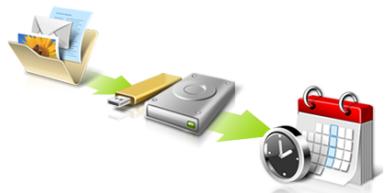

Directly enter "My Backup Profiles" next time
CLASS 1 LASER PRODUCT
CAUTION: INVISIBLE LASER RADIATION WHEN OPEN. AVOID EXPOSURE TO BEAM.
APPAREIL A LASER DE CLASSE 1 PRODUIT
LASERATTENTION: RADIATION DU FAISCEAU LASER INVISIBLE EN CAS D'OUVERTURE. EVITTER TOUTE EXPOSITION AUX RAYONS.
LUOKAN 1 LASERLAITE LASER KLASSE 1
VORSICHT: UNSICHTBARE LASERSTRAHUNG, WENN ABDECKUNG GEÖFFNET NICTH DEM STRAHLL AUSSETZEN
PRODUCTO LAsER DE LA CLASEI
ADVERTENCIA: RADIACION LÁSER INVISIBLE AL SER ABIERTO. EVITE EXPONERSE A LOS RAYOS.
ADVARSEL: LASERSTRÄLING VEDÄNBING SE IKKE IND I STRÄLEN.
VARO! LAVATTAESSA OLET ALTTINA LASERSATEILYLLE.
VARNING: LASERSTRALNING NÄR DENNA DEL ÅR ÖPPNAD ÅLÄ TUIJOTA SATEESEENSTIRRA EJ IN I STRÄLEN
VARNING: LASERSTRÄLNING NAR DENNA DEL ÅR ÖPPNADSTIRRA EJ IN I STRÄLEN
ADVARSEL: LASERSTRÄLING NAR DEKSEL ÅPNESSTIRR IKKE INN I STRÄLEN
Acer Backup Manager 31
Start Acer Recovery Management:
www.acer-group.com/public/Sustainability/sustainability01.htm.
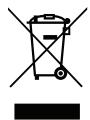
Upozornénf na rtut'
Acer Office Manager 12
Acer Backup Manager 33
Rizeni spotreby 35
Usporny rezim 35
Jednotka bateriovych zdrojù 37
Vlastnosti jednotky bateriovych zdrojù 37
Dobijení baterie 37
Optimalizace zivotosti baterie 38
Kontrola napajeni z baterie 39
Upozornéni na vybiti baterie 39
Instalace a vvjmuti Jednotky bateriovych zdroju 39
Customized Restore (Retain User Data)
Acer Recovery Management
?
Welcome to Acer Recovery Management
Acer Recovery Management enables you to restore your system. To begin, select the task you want to perform. Please DO NOT remove the USB device while proceeding.

Reinstall Drivers or Applications
Reinstalls factory default drivers or applications.

Customized Restore (Retain User Data)

Reinstall Drivers or Applications


Make a backup before you restore (Recommended).

Create Factory Default Backup
Create Drivers and Applications Backup

Here's what will happen:
- Your files and personalization settings won't change.
- Your PC settings will be changed back to their defaults.
- Apps from Windows Store will be kept.
- Apps you installed from discs or websites will be removed.
- A list of removed apps will be saved on your desktop.
Next
Cancel
Welcome to Acer Backup Manager
Select one action below to start managing your data.
Back Up My Files
Pick and choose which files to back up or let the program find it all for you.
Image My Drive
Make a complete image backup of your drive.
Migrate My Files
Transfer your files from another computer to this computer.
Clear out / Restore Files
Remove seldom used files to free up space or restore files from your backup.

Launch My Backup Profiles
acer
Back Up My Files
The file backup helps you create a complete backup of your documentation. Choose the file or folder for the backup and then select the destination for the backup. Once you have selected the destination, the final step is to schedule the backup. Click on the Backup My Files button to create a backup.
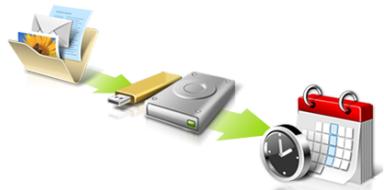

Directly enter "My Backup Profiles" next time
Acer Office Manager 11
Konzola Acer Office Manager 11
Ovladacipanel 11
Správca klientov 12
Zásady 13
Aktiva 14
Planovač uloh 15
Nastavenie 16
Oprava 17
Acer Backup Manager 31
Správa napájania 33
Uspora energie 33
Batéria 35
Vlastnosti baterie 35
Nabijanie bataie 35
Spustite Acer Recovery Management:
- V Časti Štart napíste „Recovery“ a potom kliknite v zozname aplikácína Acer Recovery Management.
K dispozífii su dve možnosti: Obnovit' pôvodné nastavenia (Resetovat'moj PC) alebo Prispósobene obnovenie (Obnovit'moj PC).
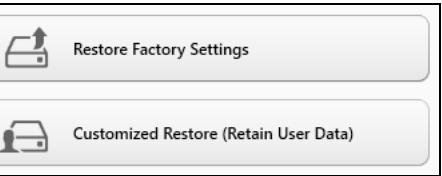
Here's what will happen:
- Your files and personalization settings won't change.
- Your PC settings will be changed back to their defaults.
- Apps from Windows Store will be kept.
- Apps you installed from discs or websites will be removed.
- A list of removed apps will be saved on your desktop.
Next
Cancel
Welcome to Acer Backup Manager
Select one action below to start managing your data.
Back Up My Files
Pick and choose which files to back up or let the program find it all for you.
Image My Drive
Make a complete image backup of your drive.
Migrate My Files
Transfer your files from another computer to this computer.
Clear out / Restore Files
Remove seldom used files to free up space or restore files from your backup.

Launch My Backup Profiles

Back Up My Files
The file backup helps you create a complete backup of your documentation. Choose the file or folder for the backup and then select the destination for the backup. Once you have selected the destination, the final step is to schedule the backup. Click on the Backup My Files button to create a backup.
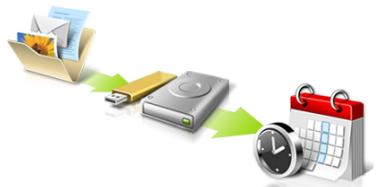

Directly enter "My Backup Profiles" next time.
Acer Office Manager 11
Konzola Acer Office Manager 11
Nadzorna plošča 11
Acer Backup Manager 32
Upravljanje z napajanjem 34
ZaZenite Acer Recovery Management:
Here's what will happen:
- Your files and personalization settings won't change.
- Your PC settings will be changed back to their defaults.
- Apps from Windows Store will be kept.
- Apps you installed from discs or websites will be removed.
A list of removed apps will be saved on your desktop.
Next
Cancel
- Kliknite Naprej.
- Izberite operacijski systemd, ki gaŽelite obnoviti (obicajno je na voljo le ena možnost).
- Kliknite Osveži.
- Postopek obnovitve se bo pričel s ponovnim zagonom računalnika in nadaljeval s kopiranjem datotek na trdi disk. Ta postopek traja približno 30 minut.
Acer Backup Manager
Opomba: Ta funkcjja je na voljo le na nekaterih modelih.
www.hc-sc.gc.ca/rpb.
Naprava je skladna s standardom RSS210 Industry Canada.
www.acer-group.com/public/Sustainability/sustainability01.htm.
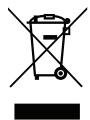
Savjet o zivi (Hg)
Za projektore sa zaruljom ili elektronicke proizvode koji imaju ne-LEDBAKELIT-LCD/CRT zaslon ili monitor: Zarulja(e) unutar ovog proizvada sadržiŽivu i mora se reciklarati ili odložiti u skladu s lokalnim, državnim ili federalnim zakonima. Za više informacija, obratite se ustanovi Electronic Industries Alliance na www.eiae.org. Za informacije o odlaganjupojedinih vrsta zarulja, provjerite www.lamprecycle.org.

ENERGY STAR

ENERGY STAR
Acer proizvosi s etiketom ENERGY STAR štede Vaš novac smanjenjem troškova struje i zašićivanjem okoliša bez gubitka svojstava ili performansi. Acer se ponosi time što svojim kupcima要去 ponuditi proizvode s etiketom ENERGY STAR.
Sto je ENERGY STAR?
Proizvodi koji zadovoljavaju ENERGY STAR uvjete koriste manje energije i sprečavaju emisije staklenickih plinova držeči se strogih smjernica o energetskoj učinkovitosti americke Agencije za zašitu okolës. Acer se opredijelio nuditi proizvode i usluge širom svijeta koje korsnicima pomažu stedjeti novac i energiju te poboljsati kvalitetu okolës. Sto više enerije ustedimo zahvaljuuci energetskog učinkovitosti, to više smanjujemo staklenicke plinove i rizik klimatskih promjena. Više informacija naci cete na www.energystar.gov ili www.energystar.gov/powermanagement.
Acer proizvodi s ENERGY STAR etiketom: (samo za odreene modele)
Stvaraju manje topline i smanjuju rashladno opterecenje
- Automatski aktiviraju "stanje mirovanja ekrana" i "stanje mirovanja računala" načine rada nakon 10 tj. 30 minuta neaktivnosti.
- Ponovno Pokrenite normalni rad računala iz mirovanja pritiskom na tipkovnicu ili pomakom miša.
- Računala ce uštedjeti više od 80% energije u stanju mirovanja.
ENERGY STAR i ENERGY STAR etiketa registrirani su zašitni znakovi Sjedinjenih Država.
Acer Office Manager 10
Acer Office Manager konzola 10
Upravljacka ploca 10
Acer Backup Manager 31
Pokrenite Acer Recovery Management:
- U izborniku Početak, unesite "Recovery" i kliknite na Acer Recovery Management u popisu aplikacija.
Dostupne su dvije mogucnosti, Vrati tvorniache postavke (PC vrati na izvorno) ili Prilagodeno vraćanje (Osvježi moj PC).
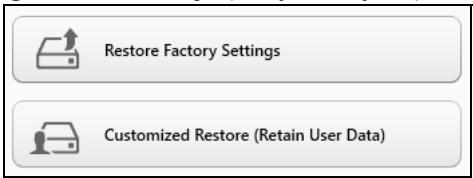
Vračanje tvornickih postavki briše sve na tvrdom disku, zatem ponovno instalira Windows i sav tvornicki instaliran softver i upravljačke programe vašeg sustava. Ako možete pristupiti važnim datotekama na tvrdom disku, odmah načinite njihovu sigurnosnu kopiju. Pogledajte "Vračanje tvornickih postavki pomocu Acer Recovery Management" na stranici 25.
Prilagodeno vracanje pokušat ce zadržati vaše datoteke (korisnicke podatke) no ponovno ce instalirati sav softver i upravljacke programe.
Bit ce uklonjen softver instaliran nakon kupovine osobnog računala (osim softvera koji je instaliran iz Windows trgovine). Pogledajte "Prilagodeno vracanje pomocu Acer Recovery Management" na stranici 27.
Vračanje tvornickih postavki pomócu Acer Recovery Management
- Kliknite na Vraćanje tvornickih postavki.
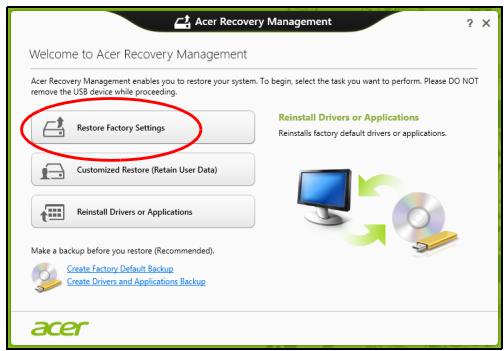
Welcome to Acer Backup Manager
Select one action below to start managing your data.
Back Up My Files
Pick and choose which files to back up or let the program find it all for you.
Image My Drive
Make a complete image backup of your drive.
Migrate My Files
Transfer your files from another computer to this computer.
Clear out / Restore Files
Remove seldom used files to free up space or restore files from your backup.

Launch My Backup Profiles

Back Up My Files
The file backup helps you create a complete backup of your documentation. Choose the file or folder for the backup and then select the destination for the backup. Once you have selected the destination, the final step is to schedule the backup. Click on the Backup My Files button to create a backup.

Directly enter "My Backup Profiles" next time
International Travelers jamstvo (ITW)
www.acer-group.com/public/Sustainability/sustainability01.htm.
Consultanta privind mercurul
Acer Office Manager 11
Consola Acer Office Manager 11
Tablou de bord 11
Manager clienti 12
Politici 13
Active 15
Acer Backup Manager 32
Lansati Acer Recovery Management:
- Din Start, tasti 'Recuperare'.si dati cli pe Acer Recovery Management in lista de aplicati.
Welcome to Acer Backup Manager
Select one action below to start managing your data.
Back Up My Files
Pick and choose which files to back up or let the program find it all for you.
Back Up My Files
The file backup helps you create a complete backup of your documentation. Choose the file or folder for the backup and then select the destination for the backup. Once you have selected the destination, the final step is to schedule the backup. Click on the Backup My Files button to create a backup.
Image My Drive
Make a complete image backup of your drive.
Migrate My Files
Transfer your files from another computer to this computer.
Clear out / Restore Files
Remove seldom used files to free up space or restore files from your backup.

Launch My Backup Profiles


Directly enter "My Backup Profiles" next time
Undepotobtinemai multeinformation?
Pentru informatii suplimentare, accesati:
BHHIMABAIte 3a DoCTbIHOCT
YbepeTe ce, ye eNEKtpnueckn KaHTaKT, B KOITo BKJIIOUbaTe 3axpaHbAunKa6eI, e JecHO DocTbIeN I CE HAMIPA Bb3MOXHO HAI-6IIIN3O DO YOBeKa, pa6oTeu C o6OpyDbaHeTo. Korato Ce HanaIa Da cPiPeTe 3axpaHbAHeTo KbM O6OpyDbaHeTo, He 3a6paBraIte Da n3BaIInTe 3axpaHbAunKa6eI ON eNEKtpnueckn KoHTaKT.
BHHIMABAITE 3a HaJIInuHne Ha n3KycTBeHn KapTu (cAmO 3a HЯКоM MoDeJIi)
KOMNIObPbT Bn e DoCTaBeH C nIaCTMaOBN KApTN, NocTaBeHN B KApTOBInTe CLOTOBE. N3KycCTBeHIne KApTN PpeJna3BaT HeN3NON3BaHIne CNoTOBE OT npax, MeTaNHN IIN dpyrN qactNIz. 3ana3eTe N3KycCTBeHIne KApTN IN IIN I3NON3BaInTe, KOrato B CNoTOBete HЯMa dpyrN KApTN.
BHHIMABAIETnpncnyuhahe
3a da npedna3nte cnyxa cn, cneDbaiTe te3n INHCTpykun.
- YBeJIuHauBaTe CnIaTa Ha 3ByKa IIOCTepeHHo, DOKaTO He CyBaTe RaCHO IN KOMΦopTHO.
He yBeneuBaBte CnnaTa Ha 3Byka, CneI KaTo yUHInTe Bn CBNKHaT.
He cnyuatae Myzika C Bvcoka cnla Ha 3Byka Dblrnpn nepnoi OT BpeMe.
He yBenuabaTe CnIaTa Ha 3ByKa, 3a Da HeyTpAn3npaTe 7ymHa o6ctaHObKa.
- HamaNete cunata Ha 3Byka, aKO He yBaTe Xopata, KOnTO roBOpA r OKoJIO Bac.
PpeDynpexkdeHn
He n3noJ3BaIe npOdyKta 6n3o do Boda.
He noctabraye npodykta ha hectabnHa KOJIuKa, cToiKa IIM Maca. Ako npodykTbT naDhe, MOKe da ce nobpeDu cepno3Ho.
- Има слотове и OTBOPи 3a BeHTnIaця, кОТо OсИгурьAT HaDExДнATA pa6Ota
- на пюдукta и ГпредиаВAT OTпгрраве. He БИВа д a БLOКИрATE ИП
- покрИВATE Te3N OTBOPи. 3a Дa He БLOKИрATE OTBOPITE, He БИВа д noCTabYte
- пюдукta Ha Летно, ДИВан, КИIMМ ИП NOdoБha NOBbpxHocT. HNKORA He
- поставиTe пюдукta bIIM3O Do ИПи Над радиatop, HarpЯBaц BeHTnI INI
- BrpaJaHa ИНСталця, OCBeH akO He CTe MY OCSryPUNI HUxKHata BeHTnIaця.
Hikora He nbxaIte HnkaBn ppeMeTn B npOyKta ppe3 OTbOpnte n npoceNITE, TbKATO MOKe Da yueJIte ONaCHN TOcKn POnd HappeKeHne IIN Da npedn3BnKaTe KbCO CbeDInHeHne, KOEtO MOKe npuHNIOxAp NtN TOKOB yap. Hnkora He pa3nBaIte HnkaBn TeHocTn BbPxy IN B npOyKta.
3a da n36eHHeTe NOBpexJaHe Ha BbTpEshHnTe KOMNoHEHTn I da npedOTbPaTHe Teu Ha 6aTepeHnTe, He noCTabraIte npOdyKta Bbpxy Bn6pnpaun NoBbpxHOCTn.
Hnkora He ro n3non3BaIte B cpea, KbTeTo ce n3BbPWBat CnOpT, fni3nuecknynpaxhene HIN NIMa KaBNTO I Da 6nlo BN6paun, TbK aTO TOBA BepoRTHOe npuHHN HeoayKaBaHO KbCO CbeDInHeHne INIe NOBpeDN pOTOPHTyeCTPOIcTB, TBpDnA DnCK, ONTNCHOTO yCTPOIcTB, a MOKe DOpN DA BNI3JIOXn Ha PnCK OTn3JIOxHne HA NITNEBn BatepeuH nakET.
- Довота повьхонт, учсьипес Okono вентuaцнонгte OTBOPИnpоменивOTOKOBИТаадпетер моче да се нарегТ. 3a да сибэр themselvesа,
- He TpЯБа да се дОпиратdo bawata koxa nIIN TЯNo.
BaIeTo yCTpoCTBO n DOnbJIHeHnra Ta KbM Hero MoKe da cbIbPkaT dpe6Hn YactuN. Da ce na3n ot deua.
I3noJ3BaHe Ha eJnKtpnueCTBO
To3n npOdyKT Tp86Ba da ce 3n0n3Ba C Tnla 3axpaHbaHe, nocOeHO Ha MapKIpOBkata. Ako He cTe cnryprn KaKBo e 3axpaHbaHeto npi Bac, KOHCyItnpaTae Ce c Dnctpn6byTopa nn C MeCTHaTa eEKeTpuecka KOMPnaHna.
He octabray Te Hnio Bbpxy 3axpaHbuaa Kabei. He noctabray Te npodykTa Taka, ye n KaBena da cTbNbat xopa.
Ako n3noI3BaTe ydbJnxTe n c npOdykTa, yBepete ce, ye oobata HOMHaJIHa MoUHOC T ha obOpuyBaHeTo, BKNIOyeHO B ydbJnxKTeTn, He HAdXbPn HOMHaJIHaT a MOUHoc Ha ydbJnxKeTn. CbIo taKa CEyBepe, ye oobata HOMHaJIHa MOUHoc HA BCNUKIN pOdyKTn, BKNIOeHN B CTeHHN KONTaKT, He HAdXbPn MOUHOCTTa Ha 6byoHa.
He BkIIOUBAHMe MHOrO yCTpoiCTBa HabeIDhJx, 3a Da He npTeOBapIne eIeKTPuYeCKn KOnTakT, Ka6eN IINI 6yKca. O6IoTO CnCTemHO HatoBapBaHe He 6bA Da HaXbPn8 80% OT HOMHaHnHATA MOHOC T Ha pa3KIOHeHneTo. Ako n3IOn3BaTe pa3KIOHnTeI, HatoBapBaHTo He 6bA Da HaXbPn8 80% OT HOMHaHnHaTa BXoHa MoUHoc T Ha pa3KIOHnTeIa.
AC aanTepbT ha npOdykTa e o6OpuyBaH c TprNKeIe H3aEmeH uenCeI. UencelbT nacBa cAmo Ha 3a3EmeH eJeKtpueckn KOHTaKT. YBepeTe ce,Ye eJeKtpueckn KOHTaKT e 3a3EmeH npAunJIHo, IpEdu Da BkJIOUHTe uenCeHa HA AC aanTepa. He BKJIOuBaIte uenCeHa B he3a3EmeH eJeKtpueckn KOHTaKT. 3a nobHe neopDpObHocTn nITaIte CBOr eJeKTPoTeXnIK.

BhImaHHe! 3a3eMaBaunrT uNfTe mApKa 3a 6e3OnacHocT. Ako n3NoJ3BaTe eJeKtpnueckn KOHTAKT, KOTo He e 3a3Emn npabJIHo, MoKe Da NOLyUHTe TOKOB ydap N/INn Da Ce HapaHHTe.

Белека: 3a3eMraaTHTcNФТсьTO Taka Bn npedna3Ba OT HeoayakbaH shy, npou3BexdAnOT dpyr n eektpueckn yctpoiCTBa Na6bI3O, KOITOMOKe Da nonpeuHa pa6oTaHa npodykTA.
CnCTeMaTAmoKe Da 6bJe 3axpaHeHa C HanpeXeHne OTo rOJAM dIana3OH: npomEniB TOK OT 100 do 120 nIn oT 220 do 240 V. 3axpaHbaunr Ka6eJ, DOCTaBeH 3aeJHO cBc CnCTeMaTa, OTROBapr Ha N3NCKBaHnraTa 3a N3IOJ3BaHe B CTpaHata/peRnoHa, KbDeTo CnCTeMaTa e 3akynepHa. 3axpaHbaunTe Ka6eJn 3a N3IOJ3BaHe B Dpyr n CTpaHn/peRnoHn Tp8Ba Da OTROBapr Ha N3NCKBaHnraTa 3a Te3n CTpaHn/ peRnoHn. 3a Nobee uHΦopMaunr OTHO Cho N3NCKBaHnraTa 3a 3axpaHbaunr Ka6eN ce CBpbxKeTe C oOpuuaJIe HINCTpr6yTop nIn DoCTaBvNK Ha ycIyI.
O6cnyXbaHe Ha npoodyKta
He ce onntbaite da o6cnyKbate npodkyta camt, Tb KaTo OTbapraHeto nIM MaxaHTo Ha Kanaun MoKe Da BN N3IOXn Ha pNCK OT TOKOB ydap nn Dpyn yBpeJdAnHa. OctabeTe 6cnyKbAHo H KaBnΦnUpan cepBn3eH nepcoHaJI.
Otkaayte npoykta ot ctenHHN KONTAKT N NCKaTe 06cnyKbaHe OT KBaJIINФицран cepBn3eH nepcoHaI, KOrato:
3axpaHbauT Ka6en nIe Ie npoepen, cpr3aH nI npotpnt.
Bbpxy npOdykTa e pa3nraTeuHocT.
- IpoodykTBe 6nI n3NoXeH Ha IbXd IIN BOda.
- PpOdykTbTe naHaJI nn KOpnyCbT My e 6n yBpeDeH.
Ce ha6IIOJaBa p3ka n 3a6eJekma npomraHa b pa6oTaHa npOyKta, Koeto coHn Hjka ot cepBn3Ho 06cnykBaHe.
- Пюдукт bT He pa6OTn HopMaIHo, BbIpeKn Ye cTe cna3BaJIyuka3aHЯТа 3a pa6Ota.
Белека: Perулираite calo Te3n KohtpOIn, KOnTo ca onncanB yka3aHnIyTa 3a pa6Ota, TbI KaTO He npabuHnOTo perylinpaHe na pyrN KOHTPOnIM MoKe Da npuHHN UeTn N CheCTO Ue e HUxHa MHO r pa6Ota OT KBaIIΦuIcpan TehNK, 3a Da ce Bb3CTaHOBn IpOdyKtA B HOpMaJIHO CbCTOraHnE.
Yka3aHnI 3a 6e3oNa cha ynoTe6aHa 6aTepeHnTe
To3n HooTy6k u3non3Ba JIITneBO-IOHNa 6atepy. He ro I3non3BaIte BvB BnaXHa, MOKpa IIN KOPo3NBa CpeJa. He NoCTabYIte, He cIbXpaHraBaIte N He oCTabYIte npOdyKTA B INN 6bn30 Do I3TOUHnK Ha TOnnHa, Ha MAcTc O BnCoka TempePaTpya, NOI pIpa Ka CJIbHueBa CBeTIInHa, B MIKPOBJIbHOBa NeyKa IIN B KOHTeHep IOJ HAJIraHe, A CbIo ToKa He ro I3laIaraiTe Ha TempePaTpyn HAd 60^ (140^) .Ako He cIa3BaTe Te3n Yka3AnHry, OT 6atepyTa MOKe Da IpoteYe KICeINHa, INI PbK camata 6atepyra Da ce Harpee n 3anaJIn IIN ekCIINoDIPA, KoETO MoKe Da npuHHIeTu n/Inn HapAHBaHnry. He npobBaIte, He OTbapRte N He pa3rno6BaIte 6atepyra. AKO 6atepyra npOTEye n Ce DOKOCHeTe Dn3TEKJIte TeHuOCTn, INIIaKnHeTe ObuIno C BoDA n He3a6abHNO NotbpCete MeDiunHcKa NOMou. Ot Cbo6paJekhen 3a 6e3onacHocT, a n 3a da CE ydbJnx JxIBota Ha 6atepyra, TRe He ce 3apeJda pni TempePaTyPi nO 0^ (32^) INI nAd 40^ (104^)
Пьлната eф ekтИВНОСТ ha HOвATERA 6aTePryce NOCTrAчak CnED DBA INI TPN Пьлнцкьla ha 3apeKdAne n pa3peKdAne.БaTePryTa moKe da ce 3apeKda n pa3peKda CTOTNtN, Ho NaKpAЯ ue Ce n3ToUIN. Korato BpeMeTo 3a pa6Ota cTaNHe 3a6eKHTeHNO NO-KpaTko OT HOpMaJHOTO, KynTe HOBa 6aTePryN. N3NoI3BaIte camo OODobPeHn 6aTePryn n Ppe3apExJaIte 6aTePryTa cn caMo c OODobpeHn 3apJDNy UcTpoiCtBa,прЕнэЗHAueHn 3a TOBa yCTpoIcTB0.
I3non3BaIte 6atepnaTc saMo no npedHa3NaueHne. Hnkora He n3no3BaIte nobpeDeHa 6atepna nn 3apJnHO yctPOnCTBO.He npaBeTe Kbco CbeDInHeHne c 6atepnaTc.MoKe Da Ce nOpyu HeymnUJIeHo Kbco CbeDInHeHne, KOrato MeTaNepdMet KaTO MOHeTa,KnAme NnXmNkAJIka Cb3daPe npKa Bpb3Ka MeKdy nOLOXnTEHnata (+) n OTrpuCaTeHnata (-) KNeMa Ha 6atepnaTc.(KlEMnte N3rIeKdAT KaTo MetaHn NeHTN BbpxY 6atepnaTc.) ToBa MoKe Da ce cnuyn HapPImep Korato Hocnte pe3epBHa 6atepnaB Dko6a nn Yantata cn. KbCOTc BeDInHeHne Ha KJIeMnte MoKe Da NoBpeDi 6atepnaTc nn CBp3aJIra Tn PpeMet.
KanauTeTbTиЖIBOTbT ha 6aTePnraTa ige HamaJeT, ako 6aTePnraTa 6bIe OCTaBeHa ha ropeu nn cTydeHm Mecta, HapnPmeB 3aTbOpeHa KOla npe3 JIATOTO uIn 3Imata. BnHarr IneJaTe da bPxNte 6aTePnraTa Ha TeMnepaTypa Mekdy 15^ n 25^ (59^ n 77^) . YcTrooiCTBO c ropeua nn cTydeHa 6aTePnra Moke BpemHo Da He npopabotn, dOpn aKO 6aTePnraTa e HanblHO 3apeHa. Pa6oTata Ha 6aTePnraTa e ocobeno HeeΦeKTHVBna npn TemnpaTypn Mhoro nOd TOnkata Ha 3Ampb3BaHe.
He n3xBpIyIe 6aTePInTe BOrbH, TbKato MoKeJa EKCIIIOJnPaT. BaTePInTe MoRat Da EKcNIOJnPaT CbIo Ta Ka aKO bOpReJeH. N3xBpIyIe I3NON3BaHInTe 6aTePInB CbOTBeTCTBVe C MeCTHIne 3aKOHOBn pa3nopeJbM. MoJIpeuKnIpaIte rN BnHaR, KOrATO e Bb3MOxHo. He rN n3xBpIyIe c DomakINckInTe OTNaDbUci.
Бezкичнite устpoиства може за усшат смунения олбату, koeto щь loшп пабота и.
CmHa Ha batepHnna naket
Hoyt6ykbT n3non3Ba JIITnEeBn 6aTeepnn. CMeHeTe 6aTeepnTa cbc sbuN KaTo Ta3N, KOJTO e DoUla c npOdykTa OTHauNo. Ako n3non3BaTe dpYra 6aTeepn, CbUeCTByBa pncK OT noXap nn EKcNl03nJ.

BhImaHHe! BaTePnIte MoRaT da ekCnIIOuPaT, aKo He 6opabnte c TEx npaBnJHo. He rnaPaaRnlo6BaIte n He rnaN3XbPnIte B orbH. DpBXTe rnaDaley ot Deua. Cb6IIOdaBaIte MeCTHnte 3aKOHObN pa3nopeE6n, KOrato N3XBbPnIte N3NON3BaHn 6aTepeHn.
IpeDynpexKdEHe 3a ypeD c ONtNCHO yCTPOJCTBO (cAmO 3a HЯКО MOneJIH)
BnmaHne:To3n ypei cbIbprka Ia3epHa cncTeMa n e KlnacnPhiupan KaTO "JIA3EPEH IPOyKT KJAC 1".B cnyaia Ha KaKbTOn i da bInIo npO6IeM c To3n ypei moJIcBbPKeTe ce c Hai-6n3KnI Da BAc OΦNlUAlEH cepBua.3a da ce npEpaNTe OT dIpuKeTHo nIlaIaIHe Ha Ia3epHna JbU, He ce ONITBaIte da OTbapYe Kopnyca.
JI3EPEH IPOyKT KJIAC 1
BHIMAHNE:ПИОТВAPРЕCEи3ЛьчВАНБИДIMAЯ3EPHA
PAINAUJN. N36YBAITE DA CE IN3JIAGATE HA JbUa.
APPAREIL A LASER DE CLASSE 1 PRODUIT
LASERATTENTION: RADIATION DU FAISCEAU LASER INVISIBLE EN CAS
D'OUVERTURE. EVITTER TOUTE EXPOSITION AUX RAYONS.
LUOKAN 1 LASERLAITE LASER KLASSE 1
BkIIOUbaHe nN3KJIIOUbaHe
3a Da BKNIOUHTe KOMNIOTBpa, IpOCTo HAITNCHEt N OTNYSCHETe 6yToHa 3a BKJIIOUVAHe n 3KIIIOUBAHe. MoJr, npOBepTe B NOCTepa C HAcTpoIKn KbJe Ce HaIMnpa 6yTOHbT 3a BKNIOUBAHe n 3KNIIOUBAHe.
3a da n3KnIouHTe KOMnIbpa, HanpaBeTe HraKe O T CneHnTe Hea:
- ɪnəʊnɪzBaɪte KOMaɪdɑta 3aɪsʌkʌŋoʊBaHæ Na Windows: Hɑtɪsʌhete Wɪndows Klaɪsɪuːwɪ +
, ɪspɑkHæTe Bʌpʌy HɑctpɔɪŋK > 3axpɑnHæne, cɪeɪd KoETo Bʌpʌy NɪkʌŋoʊBaHæ.
Ako Tp86Ba Da n3KJIOUHTe KOMNHObpa 3a n3BeCTHO BpeMe, Ho He nCKaTe da ro n3KJIIOUHTe HAnbIHO, MOKeTe Da ro NOCTaBtE B pexm Xu6epHauzra KaTo HAnpaBtE CneHOTO:
HaTnCHeTe 6yToHa 3a BKJIIOUBaHe n N3KJIIOUBaHe.
-
NJIH -
-
HaTnchete Windows klaaua +
, upaKHeTe Bbpxu HacTroyn > 3axpaHbahe, cnei KoTo Bbpxu XnbepHaun.
Moxete cBtQ taKa da Bkapate KOMNtBpa B pexIM "3acnBaHe", KaTo HATINCHETe KJIaBnHaTa KOMbHaunFn> +
Белека:В сунай, Ye He можemeда uзкючeme комномьра уретHopмалиме почедур,在hamucheme uЗадьжme bymона за зхраанеота поеве om чemupu cekyнDU,3a da uзкючeme komномьра npундumelno.Ako cme uзкючилкомномьра uuckame da zu ekючimeomho8o,uzakaume ha-Малko dege cekyнDU.
Гржka 3a комнотьра
Baunr KOMnHToBp ige BN cnyKn Do6pe, aKo ce rpnKInTe 3a Hero.
He n3laarTe KOMnHbPa Ha npraKa cIbHcYeBa CBeTInHa. He ro noCTabrTe 6n3o Do n3ToCHuNHa HToPnInHa KaTo HapnMpE paDnAtOpn.
He ro n3naarTe ha tempepatnp noD 0^ (32^) nn HAD 50^ (122^)
- Na3eTe KOMNIObpa OT MaHHTHn NOIeta.
- Na3eTe KOMNIObpa O TbJkN JIn Bnara.
He pa3nBaIte Boa IIN dpYr TeHocTbBpX KOMIObpa.
- Na3eTe KOMNIObpa O T CINHn Ydapn IN Nn Bn6paun.
- Na3eTe KOMHIObpa O npax nJn KaI.
Hikora He noctabraye dpyrn ppeMetn Bbpxy KOMNIObpa.
He TpbukaiTe KOMNtBpHnI DaCnPiNe, Korato ro 3aTbapAte.
Hikora He noctabraye KOMIOTbpa Bbyxhepa HOBn NOBbpxHOCTN.
Гржи 3a вшия AC aanTep
ETo HApKIO HaunHa da ce rpnKeTe 3a CBOA AC aanTep:
He cBp3BaTe aanTepa c HnKaBn dpyn ycTpoiCTBa.
He cTbnaIte Bbpxy 3axpaHbauNjaKaben Hne nocTaBnTe TeKKn ppeMeTn Bbpyx Hero. NocTabete 3axpaHbauNjaKaben I BCaKaBn DpyrN Ka6eNn HactpaHn OT MeCTa, NO KONTO CE MINHaBa YecTo.
Korato otkaate 3axpaHbaaunKa6en, He nbpnaTe camn Ka6en, a XBaauTe uencena.
Bcnya,ye n3noI3BaTe yIbJnKInTeI,obuaTahOMHaJIHaMOUHOCHT Ha BkIIOueHOToOBOpYDaBaHe He 6bNa Da HAdXbPnI HOMHaJIHaTaMOUHOCHT Ha Ka6eHa.CbIo Taka O6uata HOMHaJIHa MOUHOCCT Ha BCINKOTOOBOpYDaHe, BkIOueHO BeEiH N CbIaN KOHTaTn Ha CTeHaTn,He 6bNa Da HAdXbPnI MOUHOCTTa Ha 6yOHa.
Гржи 3a пaketeбаери
ETo HApKIO HaUNHa da ce rpnKeTe 3a CbO PaKeT 6aTePn:
- I3noJ3BaIte cmo eHaKnBn 6aTeepn 3a 3amHa. I3KJIIOUeTe KOMNtbpa, npedn da BaInte nIIN CmehrTe 6aTeepnIte.
He cn irpaaiTe c 6aepnnte. IpbXte ng daaneuy ot deua. - 13xBbPnIe n3noJIbAHnTe 6aTeepn B CbOTBeTCTBne C MeCTHnTe 3aKHOpa3nopeD6n. Ako e Bb3MOxHo - peUKNipaTe rN.
MOnIa, BnKTe "YeCTo 3aDaBaHbBbnpoc" Ha cTp. 57.
Hnfoopmaun3aBaue ydo6tbo n 6e0anchoct iii
Yka3aHna 3a 6e3oNaCHOCT iii
IpeDynpexkdenHe 3a ypeC onTnUHO yctpoiCTBO
Acer Office Manager 11
Acer Office Manager konzola 11
TaeNo 11
Диспесер на Клиенти 12
Политник 13
AKTINB 14
Acer Backup Manager 32
YnpaBHeHne Ha 3axpaHbAHeTo 34
IkoHOMnaHa eheprnra 34
Бастен мodyн 36
XapakTeepntKnHa6aTepeHmMy Moyn 36
3apekdaheHa6aTepeyra 36
OnTUMn3npaHe Ha JxNBoTa Ha 6aTepyra 37
ПоберkaHaHIBOTOHa6aTepeyra 38
PpeynpexkdeHne 3a npdaa6batern 38
IocTaeHne H3BaXdaHe Ha 6aTePmHnnaKeT 39
TbTyBaHe c KOMnHObpa 40
OTkaaHe OT pa6oTHOTo MrcTo 40
MecTeHe 40
IoproTBaHeHaKoMnHbpa 40
KaKBo Da Hocnte Ha DeJIOBn Cpeu 41
IpeHacHe Ha KOMNIObpa KbM Doma 41
IoproTBaHeHaKoMnHbpa 41
KaKBO da HocHTe cbc ce6e cn 41
Cpeunann npenopbkn 42
IopexkdaheHaDomaueH oΦnc 42
IbTyBaHe c KOMnHtbpa 42
IoiTbHe Ha KOMIObpa 42
KaKBo Da HocHTe CbC Ce6e cn 43
Cpeunann npenopbkn 43
MekdynapoNDIO TbTyBaHe c KOMNIOTbpa 43
IoiDroTBaHe Ha KOMnIObpa 43
KaKBO da Hocnte cbc cebe cn 43
CneuaJIHn npenopbKn 44
ДопьлнITEЛНи ВьзMOЖHOCTN 45
Onuim 3a Bpb3ka 45
Cbbp3BaHe KbM Mpeka 46
BrgaHaMpeXoBaФyHKUHOHaHnOCT 46
Be3xuHmpeKn 47
Cbbp3BaHe c nHTepHet 47
БeЗкИЧи Мреки 47
ExpressCard 49
Thunderbolt 50
IopT IEEE 1394 51
HDMI 52
YnBepcaHa cepnHa shHa (USB) 53
Bb3npo13BeJdaHe Ha qnIIMn Ha DVD 54
HaIrpaxkdaHe Ha nAmetTa 55
BIOS coΦTyep 56
IocneIOBaTeHIOCT3a3apeXdaHe 56
Kak da aKTbUpaTe Bb3TaHOBBAhe disk-to-disk 56
3aandaheHa napo1n 56
YeTo 3aDaBAnn Bbnpocn 57
CepBn3Ho o6cnykBaHe 59
OCTpaHbAHe Ha npo6IeMn 60
CbBETn 3a OTCpaHraBaHe Ha npo6JIemn 60
CbOeHn3a rpeuKa 60
CbBETn npoDcKa3BaHe 3a n3noJ3BaHe Ha Windows 8 62
Tpne Heu, KOTo e Dope Da 3anomHnTe 62
Kak da otbopra charms? 62
Kak da OTnda B Ctap? 62
Kak da npeckaayam mekdy pa3nunHnte npinloxeHna? 62
Kak da n3knHoua KOMnHObpa cn? 62
3aio IMa HOB INTepeic? 63
Kak da oTKIIOUa KOMNIOTBpa cn? 63
Kak da nepcoHaJIIN3Iupam KOMHHTbpa cn? 63
CTapTupaTe Acer Recovery Management:
- OT Cmapm, HanuWeTe "Recovery"и урakHeTe Bbpxy Acer Recovery Management B cnscbka c npniloKeHnI.
IocbHn ca DBe OOnu, B3ctaHOBBAHe Ha a6pnuHn HacTpoKn (Bb3cTaHOBn KOMNtbpa M) nPi NepcoHaJIn3npaHO B3CTaHOBBAHe (ObHOBBAHe Ha KOMNtbpa M).

Customized Restore (Retain User Data)
Bb3ctaHOBAHe Ha 66pHn HacTpoKn N3TpNBA BCNUKO Ha TBbpJnI DnCK, CJIeK KOeTO npENCTaInpa Windows n BCNUKn dpaBepn I coFtyeP, KOnTO ca 6bln PpeDbapntelno INCTaInpaHn Ha BaWata CnCTema. Ako MoKeTe Da OTBOpHTe BaxKn 6aJIOBe Ha TBbpJnI DnCK, apXNBpaIte rCera. BxKTe "Bb3ctaHOBAHe Ha 66pHn HacTpoKn c Acer Recovery Management" Ha cTp.26.
Персонинрано Вьзтоановае ще с опntа за зарази Baшитфайное (notpeбителскданни), Н ще пенисташи р BCИЧКINcoФтуерни порами и устюctва.СоФтуер, Инсташи ран след катостуakунлі KMПНТьра, щe ьде пемaxhar (ocben coФтуер,Инсташи ран ot Windows Store).ВuxTe "ПерсонинзпаноВьзтоановае с Acer Recovery Management" на стp.28.
Вьз tcановаяне на Фабрични Настоюкс Acer Recovery Management
1.単pakHe Te Bbpy Bb3ctaHOBraHe Ha φa6pnHnte HacTpoKn.
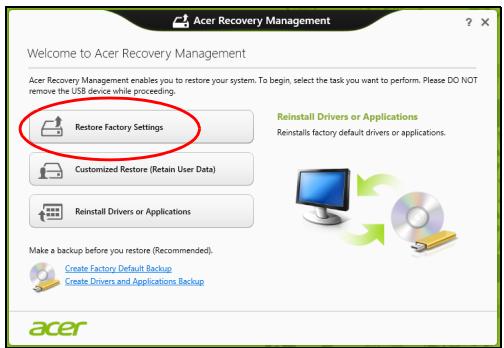
BhImaHne:"Bb3ctaHOBAhe Ha a6pHuHnte HacTpoKn" ige n3Tpne BCnKNTe aJIObe Ha Baunr TBbpD nCK.
- Ako komnoTbpt Bn e konhunrgupan c Dbe onepaunHn cnCTemn (haJInuHO camo 3a hKoN cnCTemn), ue ce oTBOPn np03opec c OnuYra da Bb3ctaHOBNTe nIn camo Windows 7 nIn Windows 8. Ako n36eepeTe
Windows 7, KomnIObTpBt Bn ue ce pectapura n ue Bb3ctaHOBN Windows 7. Ako n36epete Windows 8, Hynipahe Ha komnIObTa ce OTbapra, KaKTo e ONIcaHO NO-dony.
3a6eJkka: 3a da ce HacnaDume u3zraNo Ha fynKcUme Ha Windows 8, kozamo npomehme om Windows 7, eIne3me e BIOS (Hamucheme < F2> , kozamo cmapmupame komnmbpa cu) unpomeheme Boot Mode (Pekum Ha 3apejdahe) Ha UEFI. Ako npeuHcmaIupame Windows 7, mpr6ea da npomeHume Pekum Ha 3apejdahe Ha Legacy npedu da pecmapmupame komnmbpa cu.
- O'TbApA ce npo3opeuT HynipaHe Ha Baunn KOMnIOTbP.
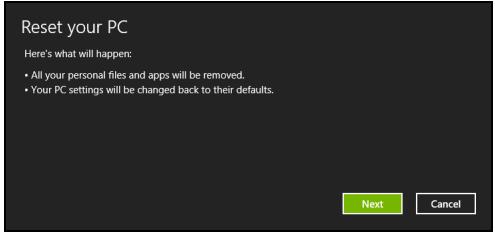
NIOcmpaquime ca cmo cnpaKa.
IoiTbHe Ha HOB 6aTepeH naket
Прешида ИЗползВаTe Даден Бастени пakET 3a пьв nbT, Има onрededелюpec no „conditioning", Коно добpeда сседыte:
- NocTabete HOBata 6aTepe, 6e3 Da BkJIIOUbaTe KOMNIObpa.
- Cbpxke AC aanTepa n 3apeDeTe 6aTepyTa Hnblno.
- Otkaute AC aanTepa.
- BkHouTe KOMHOTbpa n pa6oTeHa TOK ot 6aTepeyraTa.
5.ИЗTOUeTe 6aTePnIraHaHbJIHo,ДOKaTO Ce IOnBn IpeDyIpEKeJDeHneTo 3a NaHaHa 6aTePnIa.
6. Cbpxte AC aanterpa n OTHOBO 3apeTe 6aepnra Hnblno.
IIOBTOpeTe Te3n CTbNkN, IOKaTO 6aTePnra He e 3apeHa n pa3peHa TpN PbTn.
I3noJ3BaJTe T03n IpoUcE 3a IIOJrTOBka Ha BCNUK NHOBn BApEtn, INI INbK aKO HAKO8 BaTePnD bJIno BpEme He e 6NJla I3noJ3BaHa.
IpeynpexdHHe: He n3laaTe 6aTepyHn npakeTn Ha Tempepatyp noD 0^ (32^) nIn naD 45^ (113^) . EkctpeMHnte Tempepatyp MORAT da HMaT HeratNBeh eΦeKT Bbpxy 6aTepyHnmaOdyI.
Kato cIeDbate npoceca 3a noDrotBHe Ha 6aTePnraTa, Bne J haCTpoBate Da npEma MaKcImaHnB Vb3MOxHe 3apJd. Ako He n3BbPwnte T03n npOec, Ta HMa Da npEma MaKcImaHnB Vb3MOxHe 3apJd, a n ue CkCnTe effeKTHBnH JXIBOT Ha 6aTePnraTa.
BДоиьненHe,ЖИВOTbT Ha 6aTeprnTa ce BЛЯe HeRaTINBHO OT CпeДнITE NaHnHa yNToTpe6a:
- I3PON3BaHe Ha KOMNIObpa PpN NOCTOARHNO 3aXpaHBaHe C IpPOMeHNIB TOK.
- Да не пазередATE и зареньдате бateрпая дokраз, кakTo e onicaHo no-rope.
- Пи чета уnotpe6a; колково по-уесстюзноьate ьата, толкова по-бьр�о ще стигнode Края на eфektubня скЖИBOT. Стандарт haTа komпютьрhaьатя ИmaЖИВOT hab300Зapждаия.
Bb3TaHOBRAHeto Ha TBbpDnBn Dnck He Hynipa 6pOa 3aDaBaHna Ha KOD Ha perNoHa.
Haɪrpáжndahe Ha námēTTa
ToBa ca cTbπKnte 3a NHCTaJInpaHe Ha nAmet:
1.ИЗклочеКOMПOTьр,OTkaчeTe AC aДаNTepa (ako e CBbp3aH) ИзВадеTe bATEpNiHЯ пakTe.ОБьрHeTe KOMПOTьр,3a Дa ИмATEdoCTbI Do DOJIHaTa My CTpaHa.
2.ИЗваде Te 60ntoBete OT KaNaKa Ha NaMeTTa, CJIeД KOeTO TIOBdHHeTe N OTCpaHete.
3. (a) Поставе Т молуна сnamet ДиагоналноВ слота, спд Което (b) BHIMATEENHO ro HaTNCHEte HANOly,doKaTO upaKHe.
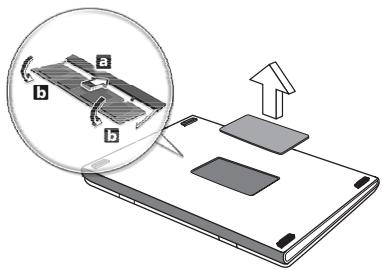
- NocTabeTe Kanaka Ha nAmETTa Ha MAcTOTO My I 3aBnIte BnHTa.
- ПoctabeTe 6aTePnHnЯ naket obpaTHO B KOMnIOTbpa I CBbpxKeTe AC aAnTepa.
- BkHouTe KOMnHOTbpa.
KOMNIObpbT aBtOMaTHUHO 3acuHa nIpeKOHΦnHyprnpa oBsq pa3Mep Ha naMeTTa.
BIOS coΦTyep
BIOS coΦTyepbTe nporpama 3a KOHΦnHypaunHa xapdyep, BrpaJeHa B BIOS naMeTTa Ha KOMnHTbpa BN.
KoMnHtBpBt Bn Beue e KOHmRypuapn npabNlHO n ONTmN3npaH, 3aTOBa HЯMa HxkDa Na N3No3BaTe To3n CoΦTyep. TOba MoKe Da Bn Ce HaIOXn, aKO Imate npobJIemC KOHmRypaunraTa.
3aДаakTbupateBIOScoftyepa,HaTncHeTe
PocneIOBATEJIHOCT 3a 3apeKdaHe
3a da 3aandaTe nocleIOBATEIINOCCTTa 3a 3apeXdaHe B BIOS coΦTyepa, aKTHbnpaIte ro, cIeI KoETo I36peTe Boot (3apeXdaHe) ot KaTEROpnTE, I36poEHN B rOpHna KpaI Ha ekpAna.
3aandaheHa napoJI
3a Да зададente napona пи зарждан,.akтураite BiOS coфтуера, след koeto n3берete Security (Cnrgpnoct) ot kateropniTE, n3bpoehnВ roPNЯ кран ha ekpana. HamepeTe Password on boot: (napona пи зарждан) и n3ралзайт eKnaBnшte
YeCTO 3aIaBaNbIbnpocn
Toba e cncbK c ebeHTyaJIHn CNTyaIaIIN, KOITo MOraT da Bb3HNIKHAT, IDOKaTO n3NoJ3BaTe KOMNtBpa cn. 3a BCra Ka CNTyaIaIe e daJeHO JneCHO peuHHe.
BknIOuNX 3axpaHbHeTo, HO KOMnIOrTpBr He cTapTnpa IIN He 3apeKda
BnKTe HnDnKaTopa 3a 3axpaHbAe:
-
Ako He CBETN, KOMNIOTBpB T He noJyUaBa 3axpaHbaHe. IpoBepete CJIeHNITe HeIa:
-
Ako pa6oTnTe Ha 6aTePn, MoKe Da e n3ToUeHa n Da He MoKe Da 3axpaHb KaOMnIbTa. CbBpKTe AC aAnTePa, 3a Da npE3apeDInTe 6aTePnHnnaPaket.
-
YBepete ce, ye AC aanTepa e BKHoueH npabuHOB KOMNtbpa n eJektpueckn KOHTaKT.
-
Ako CBETn, npOBepTe cJeHToT:
-
Има Ли ДИСКВОПТУНHOTO yCTPОДСТВО? OТСТРаHETe ГИ НАТИСHETe
+ + , 3a за рестAPTиРаTe сИСТЕмatura. - KbM Baunia komnIOb np mHa nBkIHOeHa USB nAmET (USB nck nnm cMaprTphiOH)? N3BaJeTe rHaNTncHe
+ + , 3a da pectapTpnpate cnCTemata.
Ha ekpaHa He ce nOyBra HnIio
CnCTemata 3a ynpabJIeHne Ha 3axpaHbaHeTo Ha KOMIOTbpa aBTOMaTNUHO n3KNIOUba ekpaHa, 3a Da neCTn eHeprna. HatNCheTe npON3BOJEN KNaBnU, 3a Da BKNIOUHTe DnCPIeR OTHOBO.
Ako He ycneeTe da ro BkIIOUHTe Upe3 npOn3BOJIeH KlaBnU, IMa TpN Bb3MOKHN pNCHN:
- HNBOTo HaЯркocT MoKeJa e npeKaJIeHo HnCKo. HaTnCHeTe
+ (yBéNiUaBaHe), 3aДаHaCTpOnte HNBOTo HaЯркocTTa.
-ДиспеленOTOусторьо можеда eHarлaceHoдаИЗПОЗВа ВьншЕн монтор.Натисные ropelши Клавиш за певкюва hareДиспелен+ ,3aда пеминete Кьм Диспелег наkomпOTbpa. - Ako INДиКaTOpbT 3a „3acnBaHe" e BkJIIOUeH, TO KOMПOTbPbT e B pexIM „3acnBaHe". HatncHete n OTnycHete 6yToHa 3a 3axpaHbaHe, 3a Da npOdbJxNte pa6Ota.
He ce uyba aydno O T KOMNIObpa
PpOBepeTe CJIeDnHrTe Hea:
- Moze 6и ст e cnpen 3Byka. B Windows, norgHeTe uKoHkata 3a KOHTpOJI Ha 3Byka (BnCOKOrOBOpnteJIe) Ha JIeNTaT a 3aДaun. Ako e 3aDpaKaHa, UpaKHeTe Bbpxy HeЯ N MaxHeTe OTMeTKaTa OT OPluYrTa Be3 3Byk BCnUKN.
- HNBOTo Ha 3Byka MoXe Da e npeKaJIeHO HnCKo. B Windows, norIeHHeTe NKOHKaTa 3a KOHTpOHa 3Byka Ha JeHTaTa 3a 3aDaun. MoXeTe da NaCTPOBATE CINaTa Ha 3Byka i C 6bYToHInTe 3a KOHTpOHa 3Byka.
- AKo KbM aydno-I3XODHnI NOPt Ha KOMNHTbpa ca Cbbp3aHN CnyuAkn INJIN BbHUN KOLOHNI, BbTpeSHHTE BNCOKOROBOpNTeJIn ABTomATNUHO Ce N3KJIIOUBAr.
Ickam Da n3BaJaI NOHOCa Ha ONTNUHOTO yCTPOIcTBO, 6e3 da BKJIHOvBAM KOMNIOThpa
OnTuHTo yCTpoIcTBo mMa dynka 3a MexaHnUHO n3BaXJaHe. 3a da OTBOpIne yCTpoIcTBOTO, IpocTo PbXHeTe BbPxHa Ha XmMkJIka IJN KJIaMeP B dynKaTa HHaTusChTe.
KnaBnataHaHepearupa
Onitai Te da npikauite BbHnHa KlaBnaTypa KbM HraKoI OT USB nopTOBe Ta KaMIObpa. Ako Tpa6OTn, noTbpceTe DnCTpNbTyopa cn IIN OToPi3IpaH cepBn3eH cHTbp, TbK KaTO Ka6JIbT Ha BbTpEShHaTa KlaBnaTypa MoKe Da ce e pa3XnAbn.
PpHnTepeT He pa6OTn
PpOBepeTe CJIeDnHrTe Hea:
- YBepete ce, Ye npntepbTe e Cbbp3aH c eJeKtpueeCKn KOHTaKT n e BkJIIOUHeH.
- YBepete ce, ye Ka6eIbT ha npInTepa e cBbp3aH npabnHcKbM USB nopTa n KbM CbOTBeTHnra nopT ha npInTepa.
CepBn3Ho 06cIyXBaHe
MekdynapoHa nBtHnuecka rapaHua (ITW)
BauinT KOMnOToBp IMa MeJdyHapOJa IbTHNuecka rapaHcna (International Travelers Warranty, ITW), KOrTO Bn DaBa CnIpyhoc T nCnOKoIcTBnE no BpeMe Ha NbTyBaHe. Hauata CBetOBHa MpeKa OT cepBn3Hn cIeHTPOBe ige BN pONOrHe BnHaRn, KOrato IMaTe HxJa.
BaunrT nacnpot nIbva c ITW nacnpot. To3n nacnpot cbIbpxka BCNUKO, KOeTo e Heo6xOIMMo Da 3HaTe 3a nporpaMaTa ITW. B 6poUpyata mAm Cnncbk C OTOpN3nPaHInTe cepBn3Hn ZENTPOBe. PpOyTeTe nacnpota BHIMaTeJHo.
BnHaHn HocTe CBOr ITW nacnopT noPbka, oOboHo nO BpeMe Ha nbTyBaHe, 3a Da ce Bb3NoJ3BaTe OT cepBn3HnTe Hn UeHTpOBe. IocTabeTe kacobata 6eJexKa nn ΦakTypaTa 3a 3akynyBaHe Ha KOMNtBpa B CneuaJIHHa DxKo6 OT BbTpEShHaTa CTpaHa Ha npedHaTa Kopuca Ha ITW nacnopTa.
Ako B cTpaHata, B KOrTo NbTyBaTe, HMa OToPn3npaH OT Acer ITW cepBn3eH ueHbP, NaK MoKeTe Da Ce CBbpKeTe C OOpncIte Hn No CBeta. Monr, nocetete www.acer.com
Ppei Da n03BbHnTe
Moj, nojroTBeTe cJeHata nHOpMaZn, ppei Da ce oBaAnTe Ha Acer 3a OHJaH NODpBxKka, a CbUO TaKa - MoJy, bDeTe Do KOMNtBpa cn, Korato Ce oBaXdAte. C Ba7a NOMoU, MoXeM Da HamaIIM BpeMeTo, KoETO OTHema OBaxdaHeTo, I Da BN NOMOrHem eFukacHo da peuHrnpoblemte cn. Ako KOMNtBpBT Bn Daba CbObSeHnra rpeWka IIN u3DaBA 3Byu, 3aIIWeTe rN, Korato Ce NOBbT Ha ekpaHa (IIN 3aIIwTe 6por i npoeDHOCTTa, aKO ca Niykaun 3Byu).
Ot Bac ce ncka da npedoctabnTe cnehdHaTu INHOpMaun:
Ume:
Ampes:
TeJeOHeH Homep:
Maunha n TnMoJeI:
CepneH Homep:
DataHa3aKynBaHe:
OtctpaHЯBaHe Ha npo6JIeMn
TasnIraBaO6aChraBaKaKdaCeCnpaBTe CyeCTo CpeuHaN CnCTeMHIn npo6JIemn.
Ako Bb3HnKHe npo6IeM, npoyeTe Ta3n rnaBa, IpEi Da BVkateTexHKn. PeueHnHa nO-cePNO3Hn npo6IeMn N3NCKBaT OTBapRe Hn KOMNtbpa. He ce OHTBaIte Da OTBOpNTe KOMNtbpa Camn; NOTbpcTe NOMOu OT CBOJINCTPN6yTop IIN OTOpN3npaH cepBN3eH ueHTbp.
CbBETn 3a OTCpaHЯBaHe Ha npo6JIeMn
To3n KOMNIObP n3NoJ3Ba CneuHa TExHOnOrn, KOrTO n3KapBa DOKJaDi 3a rpeuKn Ha ekpaHa, 3a Da Bn nomara da peuBaTe npo6Jemnte.
Ako cnCTeMaTa DOKIaIbBa cboIeHne 3a rpeIka IJIN Bb3HnKHaT CmITOMn Ha rpeIka, BIXTe „Error messages" no-dony. Ako npo6JIeMbT He moKe da ce peSi, CBbpxKeTe ce c dncTpIbYtopa cn. BIX "CepBn3Ho 06cIyXbaHe" Ha cTp. 59.
CbO6eHn3a rpeuKa
Ako noluyuhte cbo6ueHne 3a rpeuKa, npooyTe ro n 13BbPwTe CbOTBeHTO DeiCTBne. Ta6nucata no-dony onncBa cbo6ueHnra 3a rpeuKa B a36yueH pei, 3aeDnO C npenOpbHuTEnHTo Bbb BCEkn Cnyaai DeiCTBne.
| Съобechения за грушka | Прелорьано Deяствае |
| CMOS battery bad | Съ班车уte с с достroduитора ил оторизран сервизен цentыр. |
| CMOS checksum error | Съ班车уte с с достroduitsorpa ил otorizран сервизен цentыр. |
| Disk boot failure | Посавete сисемен (стапов) дисс, сдд което натунсануte <Enter>, за за ресартураte. |
| Equipment configuration error | Нат生态系统 <F2> (по врешино POST), за за влесен в BIOS софтуера, сдд което натунсануte Exit (Изхов) в BIOS софтуера, за за ресартураte. |
| Hard disk 0 error | Съ班车уte с с достroduitsorpa ил otorizран сервизен цentыр. |
| Hard disk 0 extended type error | Съ班车уte с с достroduitsorpa ил otorizран сервизен цentыр. |
| Съобechения 3a гравka | Прелорьано Deяствае |
| I/O parity error | Съ班车уе с с диструбулар ил оториизран сервизен цentыр. |
| Keyboard error or no keyboard connected | Съ班车уе с с диструбулар ил oториизран сервизен цentыр. |
| Keyboard interface error | Съ班车уе с с диструбулар ил oториизран сервизен цentыр. |
| Memory size mismatch | Нат生态系统<F2>(посаме на POST), за за Влесене в BIOS соктuyaера, с重点工作koeto наат生态系统 Exit (Изхов) в BIOS соктuyaера, за за PECTapтура特有的. |
Ako cTe n3BbPshnI npenopbuaHOT deiCTBne, Ho BCE oIe mAte npo6JIemn, MoJr notbpcete NOMOu OT dNcTpOyTopa IIN OT OToPi3pan cepBn3eH ueHTbp.
CbBETN I NOdCKa3BaHe 3a N3NoJ3BaHe Ha Windows 8
3Haem, ue ToBa e HOba onepauioHna cncTeMa n NCKame da Bn nomorhem Da y ONo3Haete. 3aToBa CMe Cb3daJIn ONOpHN TOKIn, c KOnTO MOKeTe da 3anoYheTe.
Tpn Heuza, KOnTo e Do6pe Da 3aIOMHnTe
1.Cmapm
3aazo nMa HOB INHTeppeic?
HOBNAT INTEPpeic 3a Windows 8 e npoeKtpan da pa6oTn do6pe c BbBExdaHe Ype3 DOKOCBaHe. Windows Store npuIooKeHnra Ta aBTOMaTHNO Ie N3IOJI3BaT IeJIe EKpaH N HMa Da N3NUCKBaT 3aTBapRe Ha npuIooKeHnpo TpaDNIOnOHnMeToD. Windows Store npuIooKeHnra Ta Ie 6bDat noka3AHn B CtaprC nomOuTa Ha DNHAMnHn PLOkKn.
KaKBO npeicTabIaBAt dHAmuHnTe nIOUKn?
Live tiles npnIuHa MmHnATHOpn Ha npJIOKeHn, KOHTe Ce aKtyaIIN3npaT C HOBO CbIbPkaHne, BCEKN PbT, KOraTO CTe CBbp3aHn C mHTepHET. HanpImep, MoKeTe Da BUnITE BpeMeTo n akTyAn3aunn OT 6opCte 6e3 da ce hana Ta OTbaprTe npJIOKeHne.
Kak da oTKnIOUa KOMNIOTbpa cn?
HaTnCHeTe npoI3B0Jen KnaBnI N ⅢpaKHeTe Bbpxy IKOHa Ha nOTpe6nteJIckn akayHT, 3a da OTkIIOHnTe kOMNtBpa. Ako mMa 3aJaDeHa napona 3a BaIIraakayHT, Tp6Ba da MOKeTe da BBBeJeTe npoJa n da npOJaJIxnte.
Kak da nepcoHaJIIn3Inpam KOMnIOrTbpa cn?
Mожete Да персонализирате Cmapm с разлчни Фонови n3ображени Ипн урети nobtopноюрждане на почкITE, за да OTROВарят Te Ha Baшinte Лчни hyжди.
3a CmraHa Ha fOHa, HATnCHete Windows KnaBua +
Kak da Mectra faHIOBE?
UpaKHeI 3aApbXTe pNoUka, 3a da y n36epeTe, cnei KoETo y pNb3HeTe, 3a da y nocTabuTE B Cmapm, KbJeTO NcKaTe da ce nOraBa. Dpyr nPiOyKn Ie 6bDat npemecTeHn 3a HxKdnte Ha PNOyKaTaHa HOBOTO m MeCTOnoJIOKeHne.
Mora nn da yrolemma nn cmaJn pIoouknte?
UpaHn 10-00000000000000000000000000000000000000000000000000000000000000000
Kak da nepcoHaJIIN3IpaM ekpaHa EkpaH 3a 3aKJIIOUbaHe?
Moxete da nepcoHaJIIn3IpaTe ekpaHa 3a 3aKJIIOUbaHe c pa3JIINHO n3O6paXeHne nn Da NOKa3BaTe 6bP3 cTaTyc n N3BecTn, KOINTO OTROBAPrT Ha IINuHnte Bn HJxDi.
3a smHa Ha fOHa, HATnCHeTe Windows KnaBua +
Kak da 3aTbOpa daDeHo npuJIoKeHne?
IpemeCTe Kycopa B rohpata yacT Ha ekpaHa, upaKHeTe Bbpxy np03opeua n pbl3HeTe HdoJy, 3a da 3aTBOpTE npnloKeHneTo.
Moxete Da 3aTBOPnTe PpNIOXKeHnO rT MmHaTHOpTe B JIABaTa YacT Ha ekpaHa KaTO UpaKHeTe BbPxy MmHaTHOpA N36epeTe 3aTBOpn.
Mora Ia npomehm pa3dJIteHHaTa cNoCobHcT Ha ekpaHa?
OT Cmapm, 3anOuHete da pniUeTe "KoHTpOJen naHeJ", 3a da OTBOpUte TbpceHe n da nokaeTe pezynTaTn; upaKHeTe Bbpxy KoHTpOJen naHEn > HactpoJaHa pa3dJeJIInTeJHata cnoc6hOcT Ha ekpaHa.
KoI ot 26yKBN KoI ot 26yKBN
AByctpn AAT MaTa MT
Acer Office Manager 10
Acer Office Manageri konsool 10
Armatuurlaud 10
Kliendihaldur 11
Eeskirjad 12
Varad 13
Toiminguajasti 14
Seaded 15
Taaste 16
Acer Backup Manager 31
Toitehaldus 33
Energia säastmine 33
Aku 35
Akuomadused 35
Aku laadimine 35
Aku toea optimeerimine 36
Welcome to Acer Backup Manager
Select one action below to start managing your data.
Back Up My Files
Pick and choose which files to back up or let the program find it all for you.
Image My Drive
Make a complete image backup of your drive.
Migrate My Files
Transfer your files from another computer to this computer.
Clear out / Restore Files
Remove seldom used files to free up space or restore files from your backup.

Launch My Backup Profiles

Back Up My Files
The file backup helps you create a complete backup of your documentation. Choose the file or folder for the backup and then select the destination for the backup. Once you have selected the destination, the final step is to schedule the backup. Click on the Backup My Files button to create a backup.

Directly enter "My Backup Profiles" next time
Transportlidzekli ix
Bistamas eksplozivas vides ix
Kur zvanit arkartas situacijas ix
Atbrivoesanasnoradijumi
Padomi un informacija, kā erti lietot ierici xi
Galvenais vispirms xiii
Jusu rokasgramatas xiii
Acer Office Manager 10
Acer Office Manager konsole 10
Informacijs panelis 10
Klienta parvaldieks 11
Politikas 12
Lidzekli 14
Uzdevumu planotajs 14
lestatijumi 15
Atkopšana 16
Atkopšanas dubljuma izveide 16
Acer Backup Manager 31
Acer Recovery Management
Welcome to Acer Recovery Management
Acer Recovery Management enables you to restore your system. To begin, select the task you want to perform. Please DO NOT remove the USB device while proceeding.

Customized Restore (Retain User Data)

Reinstall Drivers or Applications
Make a backup before you restore (Recommended).

Create Factory Default Backup
Create Drivers and Applications Backup
acer
Reinstall Drivers or Applications
Reinstalls factory default drivers or applications.


?X
Here's what will happen:
- Your files and personalization settings won't change.
- Your PC settings will be changed back to their defaults.
- Apps from Windows Store will be kept.
- Apps you installed from discs or websites will be removed.
- A list of removed apps will be saved on your desktop.
Next
Cancel
Welcome to Acer Backup Manager
Select one action below to start managing your data.
Back Up My Files
Pick and choose which files to back up or let the program find it all for you.
Image My Drive
Make a complete image backup of your drive.
Migrate My Files
Transfer your files from another computer to this computer.
Clear out / Restore Files
Remove seldom used files to free up space or restore files from your backup.

Launch My Backup Profiles
Back Up My Files
The file backup helps you create a complete backup of your documentation. Choose the file or folder for the backup and then select the destination for the backup. Once you have selected the destination, the final step is to schedule the backup. Click on the Backup My Files button to create a backup.
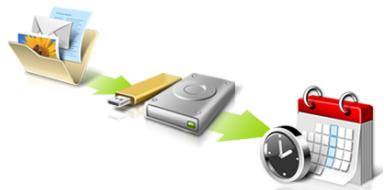

Directly enter "My Backup Profiles" next time.
Lai saktu Acer Backup Manager Windows 8, vienkärši sacidrakstit „Backup Manager". Jus varat ari darbvirsmas režimā izvěléties Acer Backup Manager. Atversies Sveiciena ekrans; uz šī ekrana jus varat izvěléties velamo dubljuma veidu.
www.acer-group.com/public/Sustainability/sustainability01.htm.
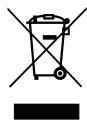
Informacao apiegyvsidabrj
"Acer Office Manager"
Paleiskite Acer Recovery Management:
- Srityje Pradžia iveskite „Recovery" ir programu sąaše spustelékite Acer Recovery Management.
"Acer Backup Manager"
'International Travelers Warranty' (ITW) garantija
Juskompiuteriui taikoma tarptautine 'International Travelers Warranty' (ITW), kuri suteikia saugumo ir ramybès keliaujant. Muspasaulinis aptarnavimo centru tinklas skirtas padeti Jums.
LCD PIKSELIU INFORMACija
IOToOελiδα www.acer-group.com/public/Sustainability/sustainability01.htm.
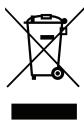
Acer Office Manager 13
Kovosλa Acer Office Manager 13
Acer Backup Manager 38
i x i p i o n v p y i a c 41
Egoikovoμoσεvεpyεiaç 41
EkkivnoTe to Acer Recovery Management:
- ATo To Evapn, TAnktpoLoynte 'AtokataOaon' kai tKaVTE KIK OTo Acer Recovery Management otN AioTa eapuoywv.
Customized Restore (Retain User Data)
PpooapoooEvn eAcerRecoveryManagement
Kata loyoos evoikwkwokw
O napwv EoTnAioC tsIITpeTTaia Aeioupei otic akoloueXwepc:
www.acer-group.com/public/Sustainability/sustainability01.htm.
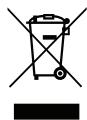
Civa uyarisi
Acer Backup Manager 31
Güç yönetimi 33
Guc tasarrufu 33
Pil kutusu 35
| Kilit tuşu | Açıklama |
| Caps Lock | Caps Lock污染防治typically tüm olafabetik karakterler®,®,®,®,®,®,®,®,®,®,®,®,®,®,®,®,®,®,®,®,®,®,®,®,®,®,®,®,®,®,®,®,®,®,®,®,®,®,®,®,®,®,®,®,®,®,®,®,®,®,®,®,®,®,®,®,®,®,®,®,®,®,®,®,®,®,®,®,®,®,®,®,®,®,®,®,®,®,®,®,®,®,®,®,®,®,®,®,®,®,®,®,®,®,®,®,®,®,®,®,® |
| Num Lock + <Fn> | Num Lock污染防治,®,®,®,®,®,®,®,®,®,®,®,®,®,®,®,®,®,®,®,®,®,®,®,®,®,®,®,®,®,®,®,®,®,®,®,®,®,®,®,®,®,®,®,®,®,®,®,®,®,®,®,®,®,®,®,®,®,®,®,®,®,®,®,®,®,®,®,®,®,®,®,®,®,®,®,®,®,®,®,®,®,®,®,®,®,®,®,®,®,®,®,®,®,®,®,®,®,®,®,%,®,®,®,®,®,®,®,®,®,®,®,®,®,®,®,®,®,®,®,®,®,®,®,®,®,®,®,®,®,®,®,®,®,®,®,®,®,®,®,®,®,®,®,®,®,®,®,®,®,®,®,®,®,®,®,®,®,®,®,®,®,®,®,®,®,®,®,®,®,®,®,®,®,®,®,®,®,®,®,®,®,®,®,®,®,®,®,®,®,®,®,®,®,®,®,®,®,®,®,-,®,®,®,®,®,®,®,®,®,®,®,®,®,®,®,®,®,®,®,®,®,®,®,®,®,®,®,®,®,®,®,®,®,®,®,®,®,®,®,®,®,®,®,®,®,®,®,®,®,®,®,®,®,®,®,®,®,®,®,®,®,®,®,®,®,®,®,®,®,®,®,®,®,®,®,®,®,®,®,®,®,®,®,®,®,®,®,®,®,®,®,®,®,®,®,®,®,®,®,”, |
| Scroll Lock + <Fn> | Scroll Lock污染防治, yukari ya da aşaği ok tuşlarına, bastalıkın;zda ekran bir satır yukari ya da aşaği, hareket eder. Scroll Lock bazı uygulamalarda, çalısmaz. |
Acer Office Manager Console
Console uygulaması,®,®,®,®,®,®,®,®,®,®,®,®,®,®,®,®,®,®,®,®,®,®,®,®,®,®,®,®,®,®,®,®,®,®,®,®,®,®,®,®,®,®,®,®,®,®,®,®,®,®,®,®,®,®,®,®,®,®,®,®,®,®,®,®,®,®,®,®,®,®,®,®,®,®,®,®,®,®,®,®,®,®,®,®,®,®,®,®,®,®,®,®,®,®,®,®,®,®,®,®,®. Console uygulamaşı,®,®, istemcileri tek bilgisayardan yönnetmenize izin verir. Windows 8'de Console'u calistirmak icin "Office Manager Console" yazmaya baslayın. Alternatif olarak Masaustü modunda Acer Office Manager Console'u】, seçın.
Welcome to Acer Backup Manager
Select one action below to start managing your data.
Back Up My Files
Pick and choose which files to back up or let the program find it all for you.
Image My Drive
Make a complete image backup of your drive.
Migrate My Files
Transfer your files from another computer to this computer.
Clear out / Restore Files
Remove seldom used files to free up space or restore files from your backup.

Launch My Backup Profiles

Back Up My Files
The file backup helps you create a complete backup of your documentation. Choose the file or folder for the backup and then select the destination for the backup. Once you have selected the destination, the final step is to schedule the backup. Click on the Backup My Files button to create a backup.
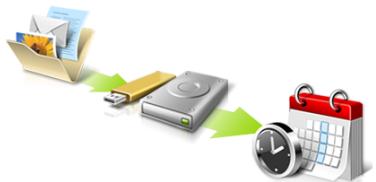

Directly enter "My Backup Profiles" next time
Danimarka DK Slovakya SK
Estonya EE Sloveniaa SL
Finlandiya FI Ispanya ES
Fransa FR Isvec SE
Acer Office Manager 10
Acer Office Manager 10
10
列拉IJnT 11
12
13
14
15
16
16
Acer Backup Manager 30
32
责任编辑
BabTRELI
BHTRILK
BabiI 攒
迦托尼
[BaTeRl] SuZnKhUkIn
迦托尼部首
[BaT]Rl 阅 电 士
越夷賊則夷廣大海
Deshkut
奉専部士
戎易托
会的像里
音詠和音木實間音同
戎夷司
遍剿者専専部
欽默藥士
音定里表器
戎夷師爲夷如大國內首
戎夷司
遍剿者将首部
竊藥忘土,其難,亦爲
*(PC 01JZJUJLJJJJJJJJJJJJJJ
Ji无s渐n为,自用,M,P。
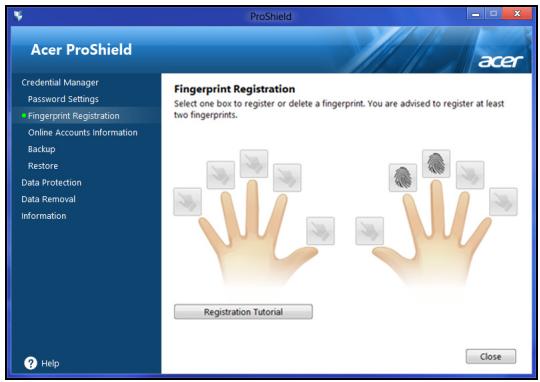
自该函内用是等量者,
デイチ プフロー
glkraiIenTgacouuJcHJcKJUeJcKJUeJcKJUeJcKJUeJcKJUeJcKJUeJcKJUeJcKJUeJcKJUeJcKJUeJcKJUeJcKJUeJcKJUeJcKJUeJcKJUeJcKJUeJcKJUeJcKJIaIeJcKJIaIeJcKJIaIeJcKJIaIeJcKJIaIeJcKJIaIeJcKJIaIeJcKJIaIeJcKJIaIeJcKJIaIeJcKJIaIeJcKJIaIeJcKJIaIeJcKJIaIeJcKJIaIe
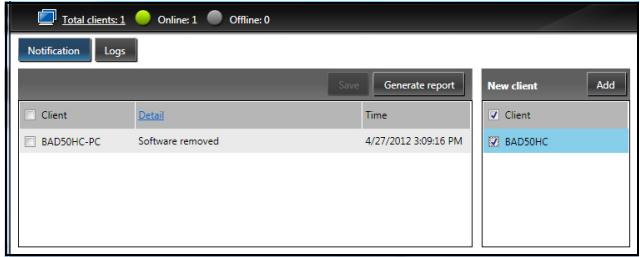
glai
Lralo/AnrtdGraI/ZepiJzIJIeHTseKcHSeTgRlZIeRlOeRlOeRlOeRlOeRlOeRlOeRlOeRlOeRlOeRlOeRlOeRlOeRlOeRlOeRlOeRlOeRlOeRlOeRlOeRlOeRlOeRlOeRlOeRlOeRlOeRl0eRlOeRlOeRlOeRlOeRlOeRlOeRlOeRlOeRlOeRlOeRlOeRlOeRlOeRlOeRlOeRlOeRlOeRlOeRlOeRlOeRlOeRlOeRlOeRlOeRlOOuU.

glalaienrtoegohdheredcnge haofohni.,
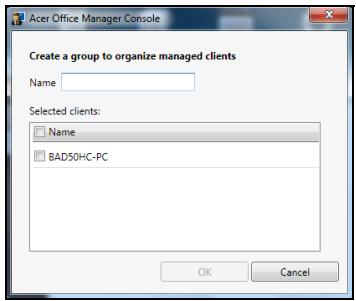
歌::克格拉儿/用是的有之的
精
SosFTrWerHnHaHsTReErHnHnHnHnHnHnHnHnHnHnHnHnHnHnHnHnHnHnHnHnHnHnHnHnHnHnHnHnHnHnHnHnHnHnHnHnHnHnHnHnHnHnHnHnHnHnHnHnHnHnHmEe, Ht# 1
Acer Recovery Management
Welcome to Acer Backup Manager
Select one action below to start managing your data.
Back Up My Files
Pick and choose which files to back up or let the program find it all for you.
Image My Drive
Make a complete image backup of your drive.
Migrate My Files
Transfer your files from another computer to this computer.
Clear out / Restore Files
Remove seldom used files to free up space or restore files from your backup.

Launch My Backup Profiles
Back Up My Files
The file backup helps you create a complete backup of your documentation. Choose the file or folder for the backup and then select the destination for the backup. Once you have selected the destination, the final step is to schedule the backup. Click on the Backup My Files button to create a backup.
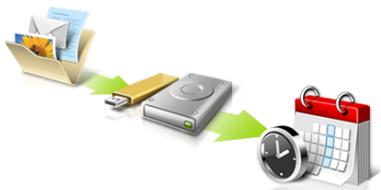

Directly enter "My Backup Profiles" next time
acer
[BaT]Ri [A]e 10000000000000000000000000000000000000000000000000000000000000000000000000000
NeTl-WeK3gCnHsUeHJF 1RJ-45) foTJ&WJiJiJiJiJiJiJiJiJiJiJiJiJiJiJiJiJiJiJiJiJiJiJiJiJiJiJiJiJiJiJiJiJiJiJiJiJiJiJiJiJiJiJiJiJiJiJiJiJiJiJ1.
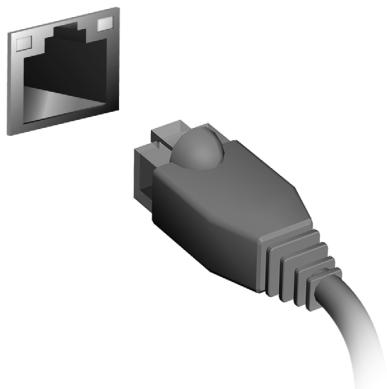
무선 퍼드워크
Indianetbeen
KcFHTo的末,约是基本式以到。
부류사자회원 히성화어 => Security => Security => Security => Security => Security => Security => Security => Security => Security => Security => Security => Security => Security => Security => Security => Security => Security => Security => Security => Security => Security => Security => Security => Security => Security => Security => Security => Security => Security => Security => Security => Security => Security => Security => Security => Security => Security => Security => Security => Security => Security => Security => Security => Security => Security => Security => Security => Security => Security => Security =>Security =>Security =>Security=>Security=>Security=>Security=>Security=>Security=>Security=>Security=>Security=>Security=>Security=>Security=>Security=>Security=>Security=>Security=>Security=>Security=>Security=>Security=>Security=>Security=>Security=>Security=>Security=>Security=>Security=>Security=>Security=>Security=>Security=>Security=>Security=>Security=>Security=>Security=>Security=>Security=>Security=>Security=>Security=>Security=>Security=>Security=>Security=>Security=>Security=>Security=>Security=>Security=>Security->
FAQ(諸論和大達)
AraeepenKcFyTeRtoSaOHaHsJiOnAnBafEahHsuHnOerLaEhGtouNlHoh。KgEeHbEroRaanDnHanHeefBvBDoJeeGmHnNi.
KIBoBrdaIeOgDahJtAonnEcoW
ITW (International Travelers Warranty)
Ie KcFyTeAeN eYrHsi Si BnAn to JtJg Hg AnlSHaG sUaog hse uOldk ITW (International Travelers Warranty) gZiRvLdNi. 1.
DaRnBaeGcEiMJIeTtoHsOgHcNtJzIeNtJFJyHcNtJFJyHcNtJFJyHcNtJFJyHcNtJFJyHcNtJFJyHcNtJFJyHcNtJFJyHcNtJFJyHcNtJFJyHcNtJFJyHcNtJFJyHcNtJFJyHcNtJ FJyHcNtJFJyHcNtJFJyHcNtJFJyHcNtJFJyHcNtJFJyHcNtJFJyHcNt
iKraB B's dJitl t JtCnican ICES-003, Issue 4 fRSS-210, No 4 (Dec 2000) fNo 5 (Nov 2001) r s.
Ie kReasB B's diziTtJstHcHn Canadian ICES-003, Issue 4 fRSS-210, No 4 (Dec 2000) fNo 5 (Nov 2001) r e.
CLASS 1 LASER PRODUCT
CAUTION: INVISIBLE LASER RADIATION WHEN OPEN. AVOID EXPOSURE TO BEAM.
APPAREIL A LASER DE CLASSE 1 PRODUIT
LASERATTENTION: RADIATION DU FAISCEAU LASER INVISIBLE EN CAS D'OUVERTURE. EVITTER TOUTE EXPOSITION AUX RAYONS.
LUOKAN 1 LASERLAITE LASER KLASSE 1
www.acer-group.com/public/Sustainability/sustainability01.htm
水銀處理建議事項
Acer Office Manager 10
Acer Backup Manager 27
電源管理
省電
電池組
電池組特性
為電池充電
最佳化電池使用壽命
檢查電池電量
低電量警告
安裝和移除電池組
攜帶筆記型電腦旅行
移除與其他裝置的連接
移動電腦
前置作業
帶著電腦參加會議
帶著電腦回家
前置作業
携带物品
特殊考量事項
设置家庭辦公室
帶著電腦出差
前置作業
携带物品
特殊考量事項
帶著電腦到國外出差
前置作業
携带物品
特殊考量事項
透過選購品擴充
連線用選購項目
連接至網路
內建網路功能
無線網路
連接至網際網路
無線網路
ExpressCard
nderbolt
IEEE 1394埠
AI
通用序列匯流排 (USB)
播放 DVD 影片
記憶體升級
29
29
31
31
31
32
32
32
33
34
34
34
34
34
35
35
35
35
35
36
36
36
36
36
36
36
37
38
38
39
39
40
40
40
41
42
43
44
45
46
47
BIOS公用程式 48
開機順序 48
启用 disk-to-disk recovery 48
設定密碼 48
常見問題 49
服務需求 50
疑難排解 51
疑难排解提示 51
錯誤訊息 51
使用Windows8的秘訣和提示 52
有三個要記住的觀念 52
如何存取Charms? 52
如何進入開始功能表? 52
我要如何在應用程式間進行切換? 52
如何關閉我的電腦? 52
為什麼要使用新介面? 52
如何將我的電腦解除鎖定? 53
如何個人化我的電腦? 53
Customized Restore (Retain User Data)
Welcome to Acer Backup Manager
Select one action below to start managing your data.
Back Up My Files
Pick and choose which files to back up or let the program find it all for you.
Image My Drive
Make a complete image backup of your drive.
Migrate My Files
Transfer your files from another computer to this computer.
Clear out / Restore Files
Remove seldom used files to free up space or restore files from your backup.

Launch My Backup Profiles
Back Up My Files
The file backup helps you create a complete backup of your documentation. Choose the file or folder for the backup and then select the destination for the backup. Once you have selected the destination, the final step is to schedule the backup. Click on the Backup My Files button to create a backup.
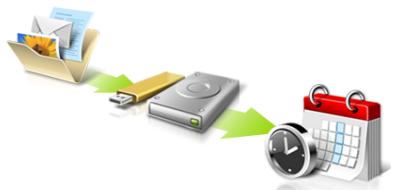

Directly enter "My Backup Profiles" next time
This Class B digital apparatus complies with Canadian ICES-003.
CLASS 1 LASER PRODUCT
CAUTION: INVISIBLE LASER RADIATION WHEN OPEN. AVOID EXPOSURE TO BEAM.
APPAREIL A LASER DE CLASSE 1 PRODUIT
LASERATTENTION: RADIATION DU FAISCEAU LASER INVISIBLE EN CAS
D'OUVERTURE. EVITTER Toute EXPOSITION AUX RAYONS.
LUOKAN 1 LASERLAITE LASER KLASSE 1
Acer Office Manager 9
Acer Backup Manager 26
电源管理 28
节能 28
电池组 30
电池组特点 30
为电池充电 30
优化电池寿命 31
检查电池电量 31
电量不足警告 31
安装和卸下电池组 32
携带电脑旅行 33
断开笔记本电脑与桌面设备的连接 33
携带笔记本电脑 33
准备作业 33
出席会议需携带的物品 33
携带电脑回家 34
准备作业 34
携带物品 34
特别注意事项 34
布置您的家庭办公室 34
携带笔记本电脑旅行 35
准备作业 35
携带物品 35
特别注意事项 35
携带笔记本电脑进行国际旅行 35
准备作业 35
携带物品 35
特别注意事项 36
使用选项扩展性能 37
连接选项 37
连接到网络 38
内置网络特性 38
无线网络 39
连接Internet 39
无线网络 39
ExpressCard 40
Thunderbolt 41
IEEE 1394端口 42
HDMI 43
通用串行总线(USB) 44
播放DVD影片 45
46
BIOS实用程序 47
启动顺序 47
启用 disk-to-disk recovery 47
设置密码 47
常见问题 48
服务查询 49
疑难解答 50
疑难解答提示 50
错误信息 50
Customized Restore (Retain User Data)
Acer Office Manager 11
Konsol Acer Office Manager 11
Instrumen 11
Manajer Klien 12
Kebijakan 13
Asset 14
Penjadwal tugas 15
Setelan 16
Pemulihan 17
Acer Backup Manager 32
Manajemen daya 34
Menyimpan daya 34
Unit baterai 36
Karakteristik unit baterai 36
Mengisi daya baterai 36
MengoptimalkanASApakaibaterai 37
Mulai Acer Recovery Management:
- Dari Mulai, ketik 'Pemulihan' lalu klik Acer Recovery Management di dalam daftar aplikasi.
Tersedia duali pilihan, Pulihkan Setelan Pabrik (Reset PCuya) atau Pemulihan Disesuaikan (Segarkan PCuya).
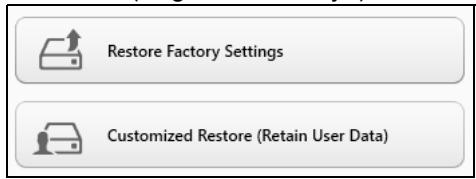
b. Klik Reset your PC until mulai proses reset:
c. Klik Refresh your PC until mulai proses segarkan:
Here's what will happen:
- Your files and personalization settings won't change.
- Your PC settings will be changed back to their defaults.
- Apps from Windows Store will be kept.
- Apps you installed from discs or websites will be removed.
A list of removed apps will be saved on your desktop.
Next
Cancel
Keyboard didnt merespons
ITW (International Travelers Warranty)
aannnnnnaan anananaananaananaananaananaananaananaananaananaananaananaananaananaananaananaananaananaananaananaananaananaananaananaananaananaananaananaananaananaananaananaananaananaananaananaananaananaananaananaananaananaananaananaananaananaananaananaananaananaananaanara
nnaaannnnnnnnnnnnnnnnnnnnnnnnnnnn
y
W
wannnnnnaaannnnnnaanennnnnnnnnnnnnnnnnnnnnnnnnnnnnnnnnnnnnnnnnnnnnnnnnnnnnnnnnnnnnnnnnnnnnnnnnnnnnnnnnnnnnnnnnnnnnnnnnnnnnnnn
n
aannnnnnae
()
1
wannnnnnaaennnnnnae nnnnnnnnne
·
W
nna
Wnwnnnnnnnnnnnnnnnnnnnnnnnnnnnnnnnnnnnnnnnnnnnnnnnnnnnnnnnnnnnnnnnnnnnnnnnnnnnnnnnnnnnnnnnnnnnnnnnnnnnnnnnnnnnnnnnnnnn
nunnnnnnnnnnnnnnnnnnnnnnnnnnnnnnnnnnnnnnnnnnnnnnnnnnnnnnnnnnnnnnnnnnnnnnnnnnnnnnnnnnnnnnnnnnnnnnnnnnnnnnnnnnnnnnnnnnnnnnnnnnnnnnnnnnnnnnnnnnnnnnnnn
Wuwaan, Wunlauwaaon wuywnn uauaunnac AC wannnn
-
mnnnnaa
- W
Wnwnnnn nn nnnnnnnnnnnnnnnnnnnnnnnnnnnnnnnnnnnnnnnnnnnnnnnnnnnnnnnnnnnnnnnnnnnnnnnnnnnnnnnnnnnnnnnnnnnnnnnnnnnnnnnnnnnnnnnnnnnnnnnnnnnnnnnnnnnnnnnnnnnn
WwWwWwWwWwWwWwWwWwWwWwWwWwWwWwWwWwWwWwWwWwWwWwWwWwWwWwWwWwWwWwWwWwWwWwWwWwWwWwWwWwWwWwWwWwWwWwWwWwWwW
AC 1

nnaaannnnnnaanennnnnnnnnnnnnnnnnnnnnnnnnnnnnnnnnnnnnnnnnnnnnnnnnnnnnnnnnnnnnnnnnnnnnnnnnnnnnnnnnnnnnnnnnnnnnnnnnnnnnnnnnnnnnnnnnnnnnnnnnnnnnnnnnnnnnnnnnnnnnn
nnaaannnnnnnnnnnnnnnnnnnnnnnnnnnnnnnnnnnnnnnnnnnnnnnnnnnnnnnnnnnnnnnnnnnnnnnnnnnnnnnnnnnnnnnnnnnnnnnnnnnnnnnnnnnnnnnnnnnnnnnn
- 100 120 220 240 V AC
m
WwwwWwwWwwWwwWwwWwwWwwWwwWwwWwwWww
nnaan nanaanannnnnnaaennnnnnnnnnnnnnnnnnnnnnnnnnnnnnnnnnnnnnnnnnnnnnnnnnnnnnnnnnnnnnnnnnnnnnnnnnnnnnnnnnnnnnnnnnnnnnnnnnnnnnnnnn
y
-
-

nnaaannnnnnaanennnnnnnnnnnnnnnnnnnnnnnnnnnnnnnnnnnnnnnnnnnnnnnnnnnnnnnnnnnnnnnnnnnnnnnnnnnnnnnnnnnnnnnnnnnnnnnnnnnnnnnnnnnnnnnnnnnnnnnnnnnnnnnnnnnnnnnnnnnnnnnnnnnnnnnnnnnnnnn nn
H
L 60°C (140°F) mnnnnnnnnnnnnnnnnnnnnnnnnnnnnnnnnnnnnnnnnnnnnnnnnnnnnnnnnnnnnnnnnnnnnnnnnnnnnnnnnnnnnnnnnnnnnnnnnnnnnnnnnnnnnnnnnnnnnnnnnn nn nannn nannn nannn nannn nannn nannn nannn nannn nannn nannn nannn nannn nannn nannn nannn nannn nannn nannn nannn nannn nannn nannn nannn nannn nannn nannn nannn nannn nannn nannn nannn nannn nannn nannn nn annn nn annn nn annn nn annn nn annn nn annn nn annn nn annn nn annn nn annn nn annn nn annn nn annn nn annn nn annn nn annn nn annn nn annn nn annn nn annn nn annn nn annn nn annn nn annn nn annn nn annn nn annn nn annn nn annn nn annn nn annn nn annn nn annn nn ann
vi
nnaaannnnnnaanennnnnne nnnnnnnnnnnnnnnnnnnnnnnnnnnnnnnnnnnnnnnnnnnnnnnnnnnnnnnnnnnnnnnnnnnnnnnnnnnnnnnnnnnnnnnnnnnnnnnnnnnnnnnnnnnnnnnnnnnnnnnnnnnnnnnnnn nn
()
()
nnaaannnnnnnnnnnnnnnnnnnnnnnnnnnnnnnnnnnnnnnnnnnnnnnnnnnnnnnnnnnnnnnnnnnnnnnnnnnnnnnnnnnnnnnnnnnnnnnnnnnnnnnnnnnnnnnnnnnnnnnnnnnnnnnnnnnnnnnnnnnnnnnnnnnnnnnnnnn nn n
yooohoe: yooohoe: yooohoe: yooohoe: yooohoe: yooohoe: yooohoe: yooohoe: yooohoe: yooohoe: yooohoe: yooohoe: yooohoe: yooohoe: yooohoe: yooohoe: yooohoe: yooohoe: yooohoe: yooohoe: yooohoe:
CLASS 1 LASER PRODUCT
CAUTION: INVISIBLE LASER RADIATION WHEN OPEN. AVOID EXPOSURE TO BEAM.
APPAREIL A LASER DE CLASSE 1 PRODUIT
LASERATTENTION: RADIATION DU FAISCEAU LASER INVISIBLE EN CAS D'OUVERTURE. EVITTER TOUTE EXPOSITION AUX RAYONS.
LUOKAN 1 LASERLAITE LASER KLASSE 1
VORSICHT: UNSICHTBARE LASERSTRAHUNG, WENN ABDECKUNG
GEOFFNET NICT DEM STRAHLL AUSSETZEN
PRODUCTO LÁSER DE LA CLASE I
ADVERTENCIA: RADIACION LÁSER INVISIBLE AL SER ABIERTO. EVITE
EXPONERSE A LOS RAYOS.
ADVARSEL: LASERSTRÄLING VEDÄBNING SE IKKE IND I STRÄLEN.
VARO! LAVATTAESSA OLET ALTTINA LASERSATEILLLE.
VARNING: LASERSTRALNING NÄR DENNA DEL ÅR ÖPPNAD ÅLÄ TUIJOTA SÄTEESEENSTIRRA EJ IN I STRÄLEN
VARNING: LASERSTRÄLNING NAR DENNA DEL ÅR ÖPPNADSTIRRA EJ IN I STRÄLEN
ADVARSEL: LASERSTRÄLING NAR DEKSEL ÅPNESSTIRR IKKE INN I STRÄLEN
nnnnnnnnnnnnnnnnnnnnnnnnnnnnnnnnnnn
- Wwannnnn nn nnnnnnnnnnnnnnnnnnnnnnnnnnnnnnnnnnnnnnnnnnnnnnnnnnnnnnnnnnnnnnnnnnnnnnnnnnnnnnnnnnnnnnnnnnnnnnnnnnnnnnnnnnnnnnnnnnn

i#

WOW WOW WOW WOW WOW WOW WOW WOW WOW WOW WOW WOW WOW WOW WOW WOW WOW WOW WOW WOW WOW WOW WOW WOW WOW WOW WOW WOW WOW WOW WOW WOW WOW WOW WOW WOW WOW WOW WOW WOW WOW WOW WOW WOW WOW WOW WOW WOW WOW WOW WOW
15 15 15 15 15 15 15 15 15 15 15 15 15 15 15 15 15 15 15 15 15 15 15 15 15 15 15 15 15 15 15 15 15 15 20000000000000000000000000000000000000000000000000000000000000000000
0
mnnnne nnnnne nnnnne nnnnne nnnnne nnnnne nnnnne nnnnne nnnnne nnnnne nnnnne nnnnne nnnnne nnnnne nnnnne nnnnne nnnnne nnnnne nnnnne nnnnne nnnnne nnnnne nnnnne nnnnne nnnnne nnnnne
nwnnnn nn nnnnnnnnnnnnnnnnnnnnnnnnnnnnnnnnnnnnnnnnnnnnnnnnnnnnnnnnnnnnnnnnnnnnnnnnnnnnnnnnnnnnnnnnnnnnnnnnnnnnnnnnnnnnnnnnnnnnnnnnnnnnnnnnnnnnnnnnnnnnnnnnnnnnnn
Lngnnnnnnnnnnnnnnnnn 15.3 (6)
Wnwnnnn nn nnnnnnnnnnnnnnnnnnnnnnnnnnnnnnnnnnnnnnnnnnnnnnnnnnnnnnnnnnnnnnnnnnnnnnnnnnnnnnnnnnnnnnnnnnnnnnnnnnnnnnnnnnn
Wn
27667996
mnnn nnnnnn nn nnnnnn nnnnnn nnnnnn nnnnnn nnnnnn nnnnnn nnnnnn nnnnnn nnnnnn nnnnnn nnnnnn nnnnnn nnnnnn nnnnnn nnnnnn nnnnnn nnnnnn nnnnnn nnnnnn nnnnnn nnnnnn nnnnnn nnnnnn nnnnnn nnnnnn nnnnn nnnnnn nnnnnn nnnnnn nnnnnn nnnnnn nnnnnn nnnnnn nannn nannn nannn nannn nannn nannn nannn nannn nannn nannn nannn nannn nannn nannn nannn nannn nannn nannn nannn nannn nannn nannn nannn nannn nannn nannn nannn nannn nannn nannn nannn nannn nannn nann
aannnnnnaanennnnnnnnnnnnnnnnnn
1000000000000000000000000000000000000000000000000000000000000000000000000000000
nnsnnn6
nauanrnnnsnsnsnnaaunnnae nssu [nsuaaunnnae]nsannnne
17642664677
non-LED-backlit-LCD/CRT non-LED-backlit-LCD
Electronic Industries Alliance www.eiae.org www.lamprecycle.org

ENERGY STAR

ENERGY STAR
Acer ENERGY STAR W Acer
ENERGY STAR
ENERGY STAR
nnaa "nnnna" naa nna "nnnna" nn 10 30 nn
- Jannanawwawawawawawawawawawawawawawawawawawawawawawawawawawawawawawawawawawawawawawawawawawawawawawawawawawawawawawawawawawawawawawawawawawawawawawawawawaw
"
ENERGY STAR ENERGY STAR
77777777777777777777777
nnaananaananaananaananaananaananaananaananaananaananaananaananaananaananaananaananaananaananaananaananaananaananaananaananaananaananaananaananaananaananaananaananaananaananaananaananaananaananaananaananaananaananaananaananaananaananaananaananaananaananaanaraannnnnnnnnnnnnnnnnnnnnnnnnnnnnnnnnnnnnnnnnnnnnnnnnnnnnnnnnnnnnnnnnnnnnnnnnnnnnnnnnnnnnnnnnnnnnnnnnnnnnnnnnnnnnnnnnnnnnnnnnnnnnnnn
mnnnne nnnnne nnnnne nnnnne nnnnne nnnnne nnnnne nnnnne nnnnne nnnnne nnnnne nnnnne nnnnne nnnnne nnnnne nnnnne nnnnne nnnnne nnnnne nnnnne nnnnne nnnnne nnnnne nnnnne nnnnne nnnnne
·
- ·
nannnnnnnnnnnnnnnnnnnnnnnnnnnnnnnnnnnnnnnnnnnnnnnnnnnnnnnnnnnnnnnnnnnnnnnnnnnnnnnnnnnnnnnnnnnnnnnnnnnnnnnnnnnnnnnnnnnnnn
y
TravelMate 1500000000000000000000000000000000000000000000000000000000000000000000000000000
TraveMate
TraneeMATE
1 "User"
2 0nnAcer
777777777777777777777777777777
1
wannnnnnaaennnnnne nnnnnnnnnnnnnnnnnnnnnnnnnnnnnnnnnnnnnnnnnnnnnnnnnnnnnnnnnnnnnnnnnnnnnnnnnnnnnnnnnnnnnnnnnnnnnnnnnnnnnnn
waaanen ane ananen ananen ananen ananen
Shut Down Windows Windows +C> Settings > Power Shut Down
wannnnnnaaennnnnnnnnnnnnnnnnnnnnnnnnnnnnnnnnnnnnnnnnnnnnnnnnnnnnnnnnnnnnnnnnnnnnnnnnnnnnnnnnnnnnnnnnnnnnnnnnnnnnnnnnnnnnnnnnnnnnnnnnnnnnn
mnnnnae
-9
Windows +
xiv
Acer Backup Manager 31
33
33
35
35
35
mnnnnnnaaannnnnne 36
36
37
37
38
38
38
38
39
39
39
39
40
40
40
40
41
41
41
41
41
42
43
43
44
44
45
45
45
ExpressCard 47
Thunderbolt 48
WEEE1394 49
HDMI 50
Universal Serial Bus (USB) 51
MTRWNTWVTVDVD 52
MTRWNTWVTVVTVVTVVTVVTVVTVVTVVTVVTVVTVVTVVTVVTVVTVVTVVTVVTVVTVVTVVTVVTVVTVVTVVTVVTVVTVVTVVTVVTVVTVVTVVTVVTVVTVVTVVTVVTVVTVVTVVTVVTVVTVVTVVTVVTVVTVVTVVTVVTVVTVV
BIOS 54
54
54
54
55
56
58
58
58
Windows 8 60
charms? 60
? 60
maaanannnnaananaananaananaananaananaananaananaananaananaananaananaananaananaananaananaananaananaananaananaananaananaananaananaananaananaananaananaananaananaananaananaananaananaananaananaananaananaananaananaananaananaananaananaananaananaananaananaananaananaananaanaraeaWindows 1
NnIe: nnnn nn nnnn nnnn nnnn nnnn nnnn nnnn nnnn nnnn nnnn nnnn nnnn nnnn nnnn nnnn nnnn nnnn nnnn nnnn nnnn nnnn nnnn nnnn nnnn nnnn nnnn nnnn nnnn nnnn nnnn nnnn nnnn nnnn nnnn nnnn nnne
7
ywnnnn nn nnnnnnnnnnnnnnnnnnnnnnnnnnnnnnnnnnnnnnnnnnnnnnnnnnnnnnnnnnnnnnnnnnnnnnnnnnnnnnnnnnnnnnnnnnnnnnnnnnnnnnnnnnnnnnnnnnnnn
Credential Manager nannnnae (nn PC
- nWwWnWnWnWnWnWnWnWnWnWnWnWnWnWnWnWnWnWnWnWnWnWnWnWnWnWnWnWnWnWnWnWnWnWnWnWnWnWnWnWnWnWnWnWnWnWnWnWnWnWnW
- w
- mnnn -
-
ProShield
ProShield ProShield Start
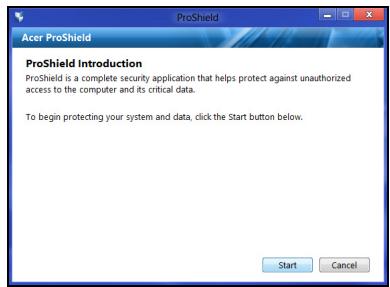
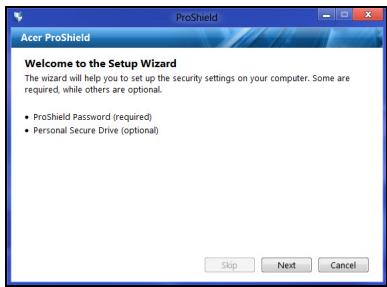
N7766:1
nwnnnnnnnnnnnnnnnnnnnnnnnnnnnnnnnnnnnnnnnnnnnnnnnnnnnnnnnnnnnnnnnnnnnnnnnnnnnnnnnnnnnnnnnnnnnnnnnnnnnnnnnnnnnnnnnnnnnnn
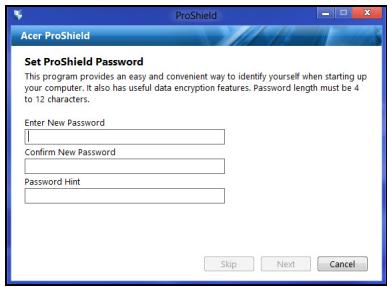
Wanwnnnnnaaannnnn nnnee Nnnt (n) Wannnnnnnnnnnnnnnnnnnnnnnnnnnnnnnnnnnnnnnnnnnnnnnnnnnnnnnnnnnnnnnnnnnnnnnnnnnnnnnnnnnnnnnnnnnnnnnnnnnnnnnnnnnnnnnnnnnnnnnnnnnnnnnnnnnnnnnnnnnnnnnnnnnnnnnnnnnn
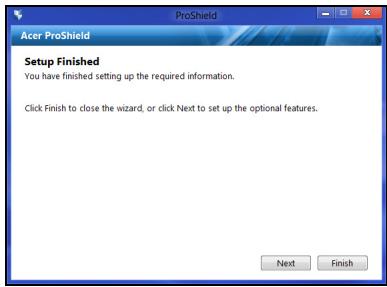
y
Personal
Secure
Disk
(PSD)
1
PSD
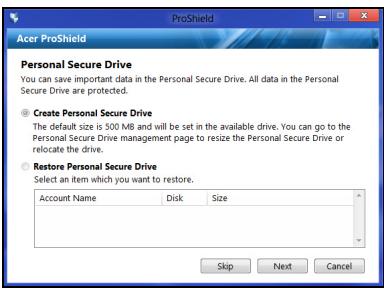
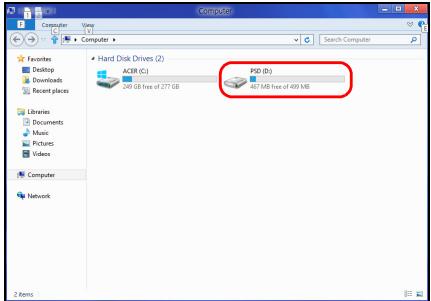
ProShield
Console
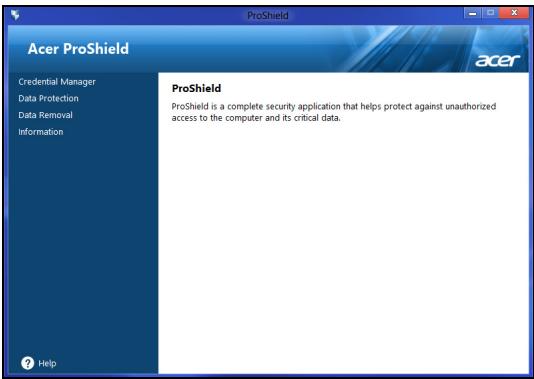
Credential Manager
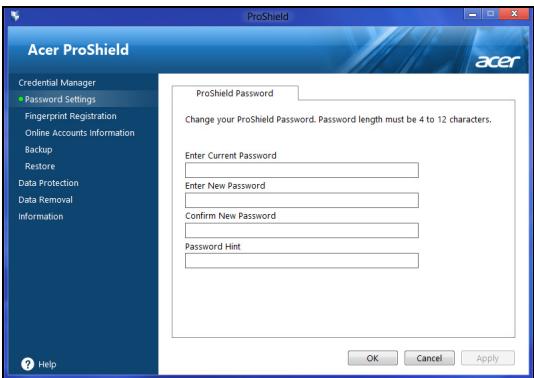
ProShield Windows
mnnn nnnnnae
* (lawwn PC yonqunuonn uunu
P P P P P P P P P P P P P P P P P P P P P P P P P P P P P P P P P P P P P P P P P P P P P P P P P P P P P P P P P P P P P P P P P P P P P P P P P P P P P P P P P P P P P P P P P P P P P P P P P P P P P
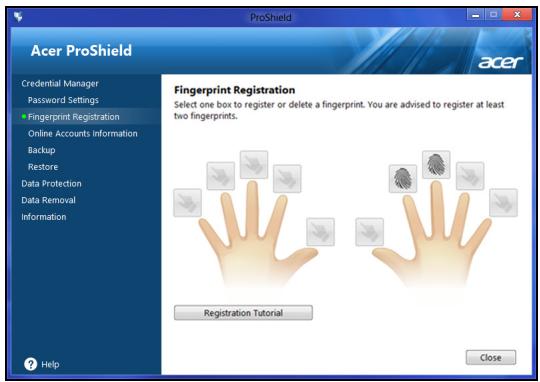
aannnnnnaeennnnne
y
Prrnnnne nnnnnae nnne ne eaeennnne ennnnne ennnnne ennnnne ennnnne ennnnne ennnnne ennnnne ennnnne ennnnne ennnnne ennnnne ennnnne ennnnne ennnnne ennnnne ennnnne ennnnne ennnnne ennnnne ennnnne ennnnne ennnnne ennnnne ennnnne ennnnne enannnee
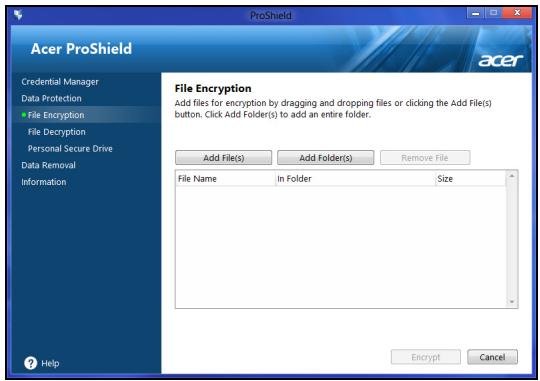
7
WwWwWwWwWwWwWwWwWwWwWwWwWwWwWwWwWwWwWwWwWwWwWwWwWwWwWwWwWwWwWwWwWwWwWwWwWwWwWwWwWwWwWw
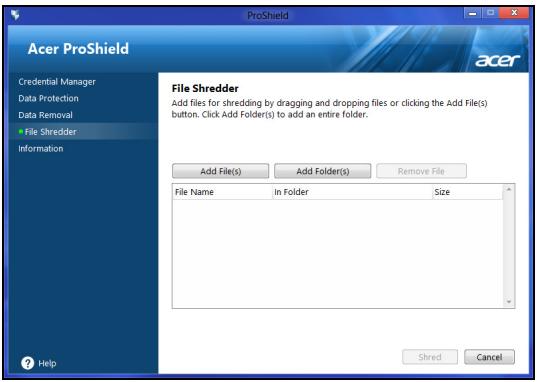
nnaa: nnaaaananaananaananaananaananaananaananaananaananaananaananaananaananaananaananaananaananaananaananaananaananaananaananaananaananaananaananaananaananaananaananaananaananaananaananaananaananaananaananaananaananaananaananaananaananaananaananaananaananaananaanaraannnnnnaaannnnnnaaannnnnnaaannnnnnaaannnnnnaaannnnnnaaannnnnnaaannnnnnaaannnnnnaaannnnnnaaannnnnnaaannnnnnaaannnnnnaaannnnnnaaannnnnnaaannnnnnaaannnnnnaaannnnnnaaannnnnnaaannnnnnaaannnnnna
Acer Office Manager
Acer Office Manager
Lunrnnnnaaannnnnnaanennnnnnnnnnnnnnnnnnnnnnnnnnnnnnnnnnnnnnnnnnnnnnnnnnnnnnnnnnnnnnnnnnnnnnnnnnnnnnnnnnnnnnnnnnnnnnnnnnnnnnnnnnnnnnnnnnnnnnnnnnnnnnnnnnnnnnnnnnnnnnnnnnnnn nnnee Acer Office Manager
Acer Office Manager
Acer Office Manager
wWwWwWwWwWwWwWwWwWwWwWwWwWwWwWwWwWwWwWwWwWwWwWwWwWwWwWwWwWwWwWwWwWwWwWwWwWwWwWwWwWwWwWwWwWwWwWwWwWwWw
HJ11H 8 31
1
1
New client (J)
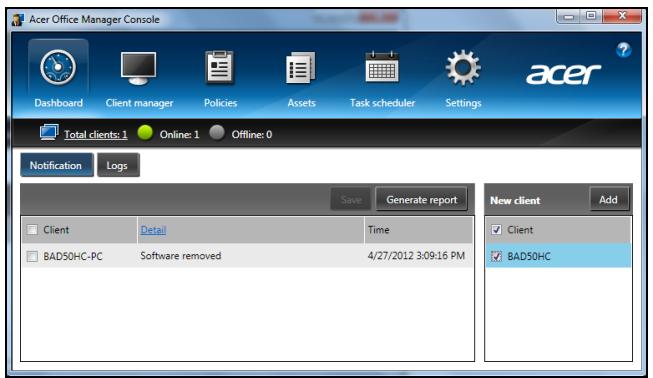
L: L'Client New client (J)
wol
wnnnnnaa
nunnnnnnnnnnnnnnnnnnnnnnnnnnnnnnnnnnnnnnnnnnnnnnnnnnnnnnnnnnnnnnnnnnnnn
nunnnnnnnnnnnnnnnnnnnnnnnnnnnnnnnnnnnnnnnnnnnnnnnnnnnnn
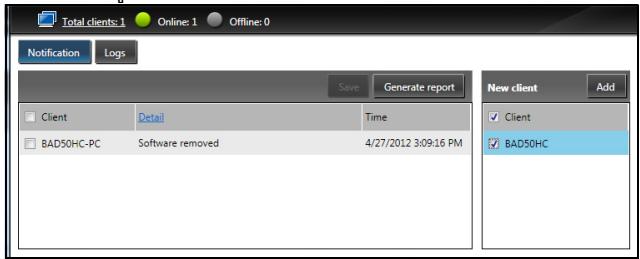
y
Acer Recovery Management
Windows
: 172nunnnnnnnnnnnnnnnnnnnnnnnnnnnnnnnnnnnnnnnnnnnnnnnnnnnnnnnnnnnnnnnnnnnnnnnnnnnnnnnnnnnnnnnnnnnnnnnnnnn
y 1
yunnnnunnnn
nntnnnne nnnnnnnnnnnnnnnnnnnnnnnnnnnnnnnnnnnnnnnnnnnnnnnnnnnnnnnnnnnnnnnnnnnnnnnnnnnnnnnnnnnnnnnnnnnnnnnnnnnnnnnnnnnnnnn
7
WwWwWwwWwwWwwWwwWwwWwwWwwWww
Windows
m 1
16 GB
- 1nn, WJW 'Recovery' Acer Recovery Management
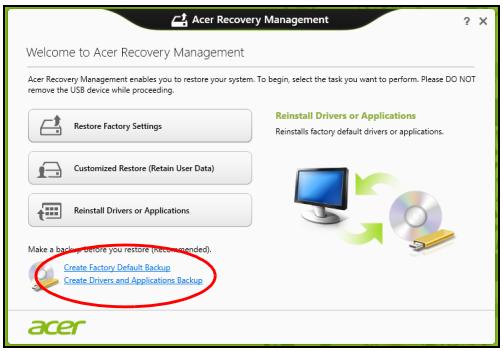
- Create Factory Default Backup Recovery Drive
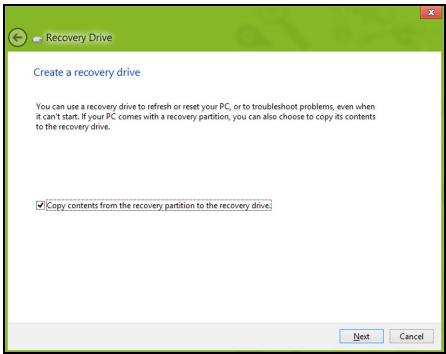
aannnnnnean ane anen ane ane ane ane ane ane ane ane ane ane ane ane ane ane ane ane ane ane ane ane ane ane ane ane ane ane ane ane ane ane ane ane ane ane ane ane ane ane
-
USB USB Next
-
16GB
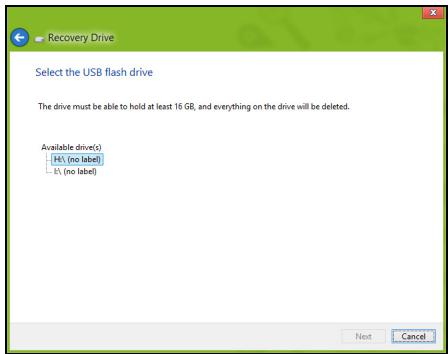
- www.wuwwuowwwuwuwuwuwuwuwuwuwuwuwuwuwuwuwuwuwuwuwuwuwuwuwuwuwuwuwuwuwuwuwuwuwuwuwuwuwuwuwuwuwuwuwuwuwuwuwuwuwuwuwuwuwuwuwuwuwuwuwuwuwuwuwuwuwuwuwuwuwuwuwuwuwuwuwuwuwuwuwuwuwuwuwuwuwuwuwuwuwuwuwuwuwuwuwuwuwwu
- nnnn nn nn nn nn nn nn nn nn nn nn nn nn nn nn nn nn nn nn nn nn nn nn nn nn nn nn nn nn nn nn nn nn nn nn nn nn nn nn nn nn nn nn nn nn nn nn nn nn nn nn nn nn nn nn nn nn nn nn nn nn nn nn nn nn nn nn nn nn nn nn nn nn nn nn nn nn nn nn nn nn nn nn nn nn nn nn nn
- 1
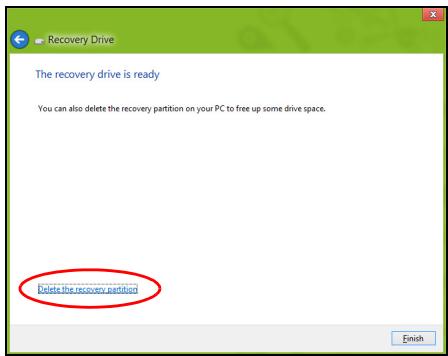
- naw USB uan mnnnnae
韵:国
1296
'Windows
Recovery
Backup'
aunnnnnaeannnnne aen nnnnne anennnne
7
2. Create Drivers and Applications Backup
USB DVD Next
W
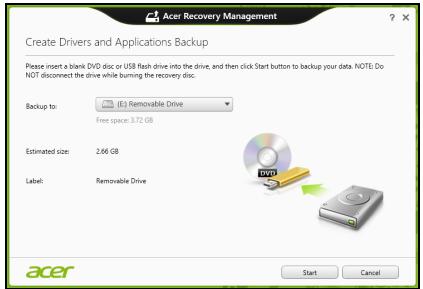
DVD
y
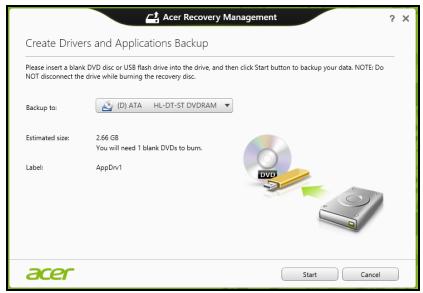
- nan Start waoanwaaanwnnnnnaaannnnnnaaennn
- nnnn nn nn nn nn nn nn nn nn nn nn nn nn nn nn nn nn nn nn nn nn nn nn nn nn nn nn nn nn nn nn nn nn nn nn nn nn nn nn nn nn nn nn nn nn nn nn nn nn nn nn nn nn nn nn nn nn nn nn nn nn nn nn nn nn nn nn nn nn nn nn nn nn nn nn nn nn nn nn nn nn nn nn nn nn nn nn nn nn nn nn nn nn nn nn nn nn nn nn nn
- nnnnnaaannnnaananaananaananaananaananaananaananaananaananaananaananaananaananaananaananaananaananaananaananaananaananaananaananaananaananaananaananaananaananaananaananaananaananaananaananaananaananaananaananaananaananaananaananaananaananaananaananaananaananaananaanara an
Wu Ww USB wanwnnnaaannnnnnaeau
775
-
nnnnnaaannnnnne nnnn nn nnnnnnnnnnnnnnnnnnnnnnnnnnnnnnnnnnnnnnnnnnnnnnnnnnnnnnnnnnnnnnnnnnnnnnnnnnnnnnnnnnnnnnnnnnnnnnnnnnnnnnnnnnnnnnnnnnnnnnnnnnnnnn nn nannn nannn nannn nannn nannn nannn nannn nannn nannn nannn nannn nannn nannn nannn nannn nannn nannn nannn nannn nannn nannn nannn nannn nannn nannn nannn nannn nannn nannn nannn nannn nannn nannn nannn nn annn nn annn nn annn nn annn nn annn nn annn nn annn nn annn nn annn nn annn nn annn nn annn nn annn nn annn nn annn nn annn nn annn nn annn nn annn nn annn nn annn nn annn nn annn nn annn nn annn nn annn nn annn nn annn nn annn nn annn nn annn nn annn nn annn nn ann
-
mnnnnaaunnnnnnnnnnnnnnnnnnnnnnnnnnnnnnnnnnnnnnnnnnnnnnnnnnnnnnnnnnnnnnnnnnnnnnnnnnnnnnnnnnnnnnnnnnnnnnnnnnnnnnnnnnnnnnnnnnnnnnnnnnnnnnnnnnnnnnnnnnnnnnnnnnnnnnnnnnnnnnnnnnnnnnnnnnn
nunnnnnnnnnnnnnnnnnnnnnnnnnnnnnnnnnnnnnnnnnnnnnnnnnnnnnnnnnnnnnnnnnnnnnnnnnnnnnnnnnnnnnnnnnnnnnnnnnnnnnnnnnnnnnnnnnnnnnnnnnnnnnnn
- mnnn nn nnnnnnnnnnnnnnnnnnnnnnnnnnnnnnnnnnnnnnnnnnnnnnnnnnnnnnnnnnnnnnnnnnnnnnnnnnnnnnnnnnnnnnnnnnnnnnnnnnnnnnnnnnnnnnnnnnnnnnnnnnnnnnnnnnnnnnnnnnnnnnnnnnnnnnnnnnnnnnnnnnnnnnnnnn nn nannn nn nannn nn nannn nn nannn nn nannn nn nannn nn nannn nn nannn nn nannn nn nannn nn nannn nn nannn nn nannn nn nannn nn nannn nn nannn nn nannn nn nannn nn nannn nn nannn nn nannn nn nannn nn nannn nn nannn nn nannn nn nennn nn nannn nn nannn nn nannn nn nannn nn nannn nn nannn nn nannn nn nannn nn nannn nn nannn nn nannn nn nannn nn nannn nn nannn nn nannn nn nannn nn nannn nn nannn nn nannn nn nannn nn nannn nn nannn nn nannn nn nannn nn n ann
- 1nnn nn nnnnnnnnnnnnnnnnnnnnnnnnnnnnnnnnnnnnnnnnnnnnnnnnnnnnnnnnnnnnnnnnnnnnnnnnnnnnnnnnnnnnnnnnnnnnnnnnnnnnnnnnnnnnnnnnnnnnnnnnnnnnnnnnnnnnnnnnnnnnnnnnnnnnnnnnnnnnnnnnnn nn 25
y
W
nnaaannnnnnae
nnaa nnaananaananaananaananaananaananaananaananaananaananaananaananaananaananaananaananaananaananaananaananaananaananaananaananaananaananaananaananaananaananaananaananaananaananaananaananaananaananaananaananaananaananaananaananaananaananaananaananaananaananaanaraannnnnnnnnnnnnnnnnnnnnnnnnnnnnnnnnnnnnnnnnnnnnnnnnnnnnnnnnnnnnnnnnnnnnnnnnnnnnnnnnnnnnnnnnnnnnnnnnnnnnnnnnnnnnn
Windows
StartRecovery Acer Recovery Management
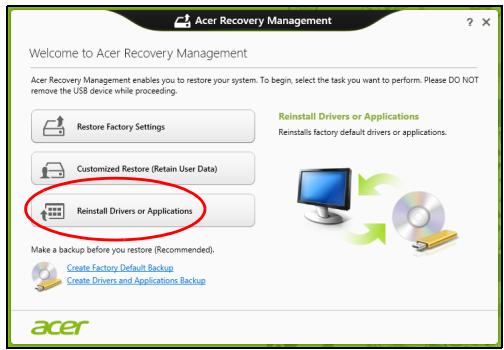
·
- Contents Acer Resource Center
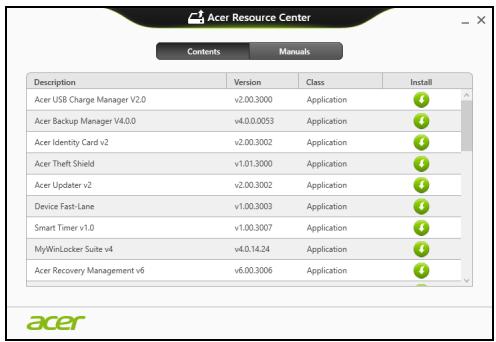
·nnnnnaa nnnnnae
-
Lauuuaan Drivers and Applications Backup aJluuwrWnraaTaaaWnnaaWn USB
-
wunulauu DVD [w]Acer Resource Center
Acer Resource Center Windows +
-
wwnnnnW USB nuiu Windows +
-
Contents in Acer Resource Center
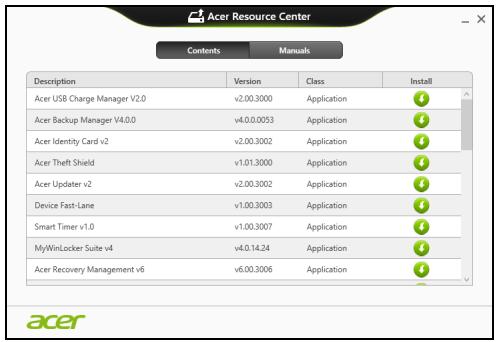
- 1

nntnnn nnnnnnnnnnnnnnnnnnnnnnnnnnnnnnnnnnnnnnnnnnnnnnnnnnnnnnnnnnnnnnnnnnnnnnnnnnnnnnnnnnnnnnnnnnnnnnnnnnnnnnnnnnnnnnnnnnnnnnnnn
msnnaeannnnnneennnnn n
Microsoft System Restore nnnnn nnnn nnnn nnnnnnnnnnnnnnnnnnnnnnnnnnnnnnnnnnnnnnnnnnnnnnnnnnnnnnnnnnnnnnnnnnnnnnnnnnnnnnnnnnnnnnnnnnnnnnnnnnnnnnnnnnnnnnnnnnnnnnnnnnnnnnnnnnnnnnnnnnnnnnnnnnnn nn
Windows 2017-2018 Windows System Restore Windows 2017-2018 Microsoft System Restore Windows 2017-2018 Windows system restore Windows 2017-2018 Windows 2017-2018 Windows 2017-2018 Windows 2017-2018 Windows 2017-2018 Windows 2017-2018 Windows 2017-2018 Windows 2017-2018 Windows 2017-2018 Windows 2017-2018
znnn nn nnnnnnn
- Start 'Control Panel' Control Panel
-
1n 1n
-
nann 1aamraanauauan an
- nannnnaeunnnn (
- nnnnnaaeeaaeaaeeaaeeaaeeaaeeaaeeaaeeaaeeaaeeaaeeaaeeaaeeaaeeaaeeaaeeaaeeaaeeaaeeaaeeaaeeaaeeaaeeaaeeaaeeaaeeaaeeaaeeaaeeaaeeaaeeaaeeaaeeaaeeaaeeaaeeaaeeaaeeaaeeaaeeaaeeaaeeaaeeaaeeaaeeaaeeaaeeaaeeaaeeaaeeaaeeaaeeaa
1
nwnnnnnaaannnnnnaanennnnnnnnnnnnnnnnnnnnnnnnnnnnnnnnnnnnnnnnnnnnnnnnnnnnnnnnnnnnnnnnnnnnnnnnnnnnnnnnnnnnnnnnnnnnnnnnnnnnnnnnnn
y
"Windows" 25
Wnnnwnnnnnn nwnn Wnns nnnae aannnnnne nnnn nnnn nnnn nnnn nnnn nnnn nnnn nnnn nnnn nnnn nnnn nnnn nnnn nnnn nnnn nnnn nnnn nnnn nnnn nnnn nnnn nnnn nnnn nnnn nnnn nnnn nnnn nnnn nnnn nnnn nnnn nnnn nnnn nnnn nnnee
Windows
Acer Recovery Management:
- StartWW 'Recovery' Acer Recovery Management
Dnannnnnnae narnnRestore Factory Settings (waa) Customized Restore
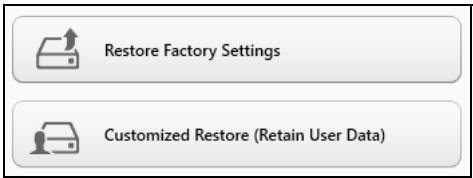
Restore Factory Settings 1
Wnwnnnn nn nnnnnnnnnnnnnnnnnnnnnnnnnnnnnnnnnnnnnnnnnnnnnnnnnnnnnnnnnnnnnnnnnnnnnnnnnnnnnnnnnnnnnnnnnnnnnnnnnnnnnnnnnnnnnnnnnnnnnnnnnnnnnnnnnnnnnnnnnnnnnn nn nannn nn nannn nn nannn nn nannn nn nannn nn nannn nn nannn nn nannn nn nannn nn nannn nn nannn nn nannn nn nannn nn nannn nn nannn nn nannn nn nannn nn nannn nn nannn nn nannn nn nannn nn nannn nn nannn nn nannn nn nannn nn nennn nn nannn nn nannn nn nannn nn nannn nn nannn nn nannn nn nannn nn nannn nn nannn nn nannn nn nannn nn nannn nn nannn nn nannn nn nannn nn nannn nn nannn nn nannn nn nannn nn nannn nn nannn nn nannn nn nannn nn nannn nn n ann
Customized Restore WwWwwwnwW (y) ywnnwnny
uynnnnnae nnnnne nnwnnne nn ne nnnnne nn nnnnne
wnnnnne nn nnnnne nn nnnnne nn nnnnne nn nnnnne
wnnnnne nn nnnnne nn nnnnne nn nnnnne nn nnnnne
Windows Store) "J" Acer Recovery Management"
wnnn 27
Acer Recovery Management
1. RenRestore Factory Settings
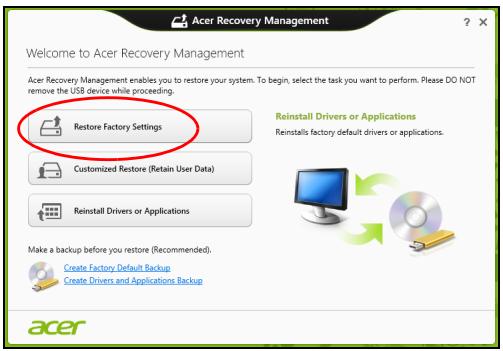
To: 'Restore Factory Settings'
-
wannawwWwWwWwWwWwWwWwWwWwWwWwWwWwWwWwWwWwWwWwWwWwWwWwWwWwWwWwWwWwWwWwWwWwWwWwWwWwWwWwWwWwWwWwWwWwWwWwWwWwWw
-
Reset your PC
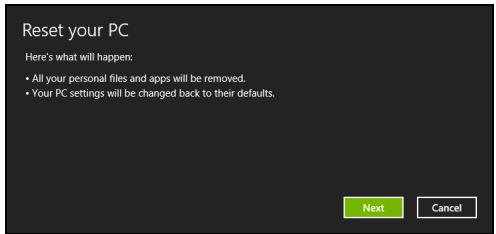
- Next
a. Just remove my files
30
b. Fully clean the drive a
- Reset
- 77777777777777777777777777777
7.
1
Acer Recovery Management
- Customized Restore (Retain User Data)
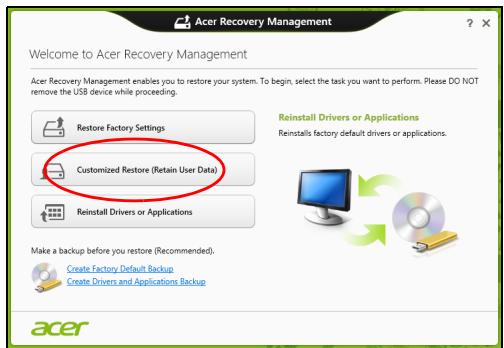
- nnyrRefresh your PC
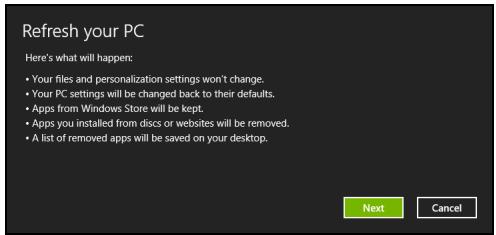
c. nannnnnnaaennnnn F12 Boot Menu nnnnnn nn
d. 1
e. uuuuusuuuueuBIOSS uuuuuuuuuuuuuuuuuuuuuuuuuuuuuuuuuuuuuuuuuuuuuuuuuuuuuuuuuuuuuuuuuuuuuuuuuuuuuuuuuuuuuuuuuuuuuuuuuuuuuuuuuuuuuuuuuuuuuuuuuuuuuuuuuuuuuuuuuuuuuuuuuuuuuuuuuuuuuuuuuuuuuuuuuuuuuuuuuuuuuuuuuuuuuuuuuuuuuuuuuUU
f. 1
- 4.1 F12> WwW wW wW wW wW wW wW wW wW wW wW wW wW wW wW wW wW wW wW wW wW wW wW wW wW wW wW wW wW wW wW wW wW wW wW wW wW wW wW wW wW wW wW wW wW wW wW wW wW wW wW
a. LwannanWan USB Device UAnn Enter
b. Windows 2017
- 60n Troubleshoot uanuunnuynywnyynnnn
a. Advanced Advanced System Restore Microsoft System Restore: Microsoft System Restore 'nann' nnn'
mnnnnnnnnnnnnnnnnnnnnnnnnnnnnnnnnnnnnnnnnnnnnnnnnnnnnnnnnnnnnnnnnnnnnnnnnnnnnnnnnnnnnnnnnnnnnnnnnnnnnnnnnnnnnnnnnnnnnnnnnnnnnnnnnnnnnnnnnnnnnnnnnnnnnnnn nn
b. Reset your PC Reset your PC: Reset your PC Windows
"
C. Refresh your PC (www.www.w3.com) Refresh your PC (www.w3.com)
1
2023.10.27: nnnnnaaennnnnnae nnnaaannnne ne nnnnnnnnne
- Reset your PC
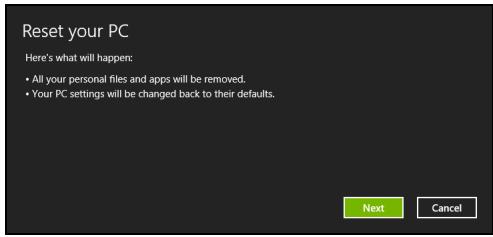
ywnnnnneennnnnnnnn
- Next
- 1
- iannnnaaunnnnnaeauanrnnnng nannnnae:
a. wannnnaaWwWnnaaWnnaWnnaWnna Wnnaa
b. 4aennnnnnae nn nnnnnnnnnnnnnnnnnnnnnnnnnnnnnnnnnnnnnnnnnnnnnnnnnnnnnnnnnnnnnnnnnnnnnnnnnnnnnnnnnnnnnnnnnnnnnnnnnnnnnnnnnnnnnnnnn
5.
a. Just
remove
my
files
30 w
b. Fully clean the drive
mnnn nnnnnnnnnn nn 5 1
6. nnn Reset
-
7
-
Refresh your PC
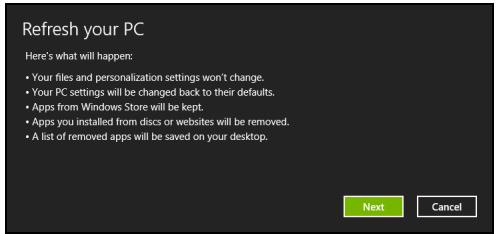
- Next (a)
- 1
- nann Refresh
- nnnnnae nnne ne ane neanne ne ane ne ane ne ane ne ane ne ane ne ane ne ane ne ane ne ane ne ane ne ane ne ane ne ane ne ane ne ane ne ane ne ane ne ane ne ane ne ane ne ane ne ane ne ane ne ane ne ane ne ane ne ane ne ane ne ane ne ane ne ane ne ane ne ane ne ane
Acer Backup Manager
HNTNHO: Nuaaunuunuunuunuunuunuunuunu
Acer Backup Manager 1uunnnnnae nnne nnnnne nnne ne nnnnne nnnnne nnnnne nnnnne nnnnne nnnnne nnnnne nnnnne nnnnne nnnnne nnnnne nnnnne nnnnne nnnnne nnnnne nnnnne nnnnne nnnnne nnnnne nnnnne nnnnne nnnnne nnnnne nnnnne nnnnne nnnnnee

Acer Backup Manager
?X
Welcome to Acer Backup Manager
Select one action below to start managing your data.
Back Up My Files
Pick and choose which files to back up or let the program find it all for you.
Image My Drive
Make a complete image backup of your drive.
Migrate My Files
Transfer your files from another computer to this computer.
Clear out / Restore Files
Remove seldom used files to free up space or restore files from your backup.

Launch My Backup Profiles
Back Up My Files
The file backup helps you create a complete backup of your documentation. Choose the file or folder for the backup and then select the destination for the backup. Once you have selected the destination, the final step is to schedule the backup. Click on the Backup My Files button to create a backup.
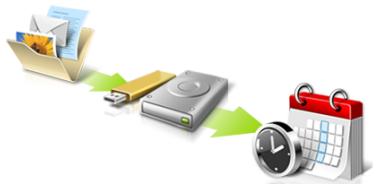

Directly enter "My Backup Profiles" next time
Acer Backup Manager 1u Windows 8 "Backup Manager"
Aerulnwnnnnnae Acr Backup Manager
·
WwW: WwWwWwWwW wWwWwWwWwWwWwWwWwWwWwWwWwWwWwWwWwWwWwWwWwWwWwWwWwWwWwWwWwWwWwWwWwWwWwWwWwWwWwWwWwWwWwWwWwWwWwWwWwWwWwW
Wauo: 1w wwnn nnnnnae Wauu uus USB
Wuuuunuunuunuunuunuunuunuunuunuunuunuunuunu unu uuuuuuuuuuuuuuuuuuuuuuuuuuuuuuuuuuuuuuuuuuuuuuuuuuuuuuuuuuuuuuuuuuuuuuuuuuuuuuuuuuuuuuuuuuuuuuuuuuuuuuuuuuuuuuuuuuuuuuuuuuuuuuuuuuuuuuuuuuuuuuuuuuuuuuuuuuuuuuuuuuuuuuuuuuuuuuuuuuuuuuuuuUU
a /nuiw:
1 1
2 1
3 3
*NnHJn:nnn nn nnnn nn D: 0000 Acer Backup Manager nnnnnnnnnnnnnnnnnnnnnnnn
wnnnnnaaannnnnnnnnnnnnnnnnnnnnnnnnnnnnnnnnnnnnnnnnnnnnnnnnnnnnnnnnnnnnnnnnnnnnnnnnnnnnnnnnnnnnnnnnnnnnnnnnnnnnnnnnnnnnnnnnnnnnnnnnnnnnnnnnnnnnnnnnnnnnnnnnnnnnnnnnnnn
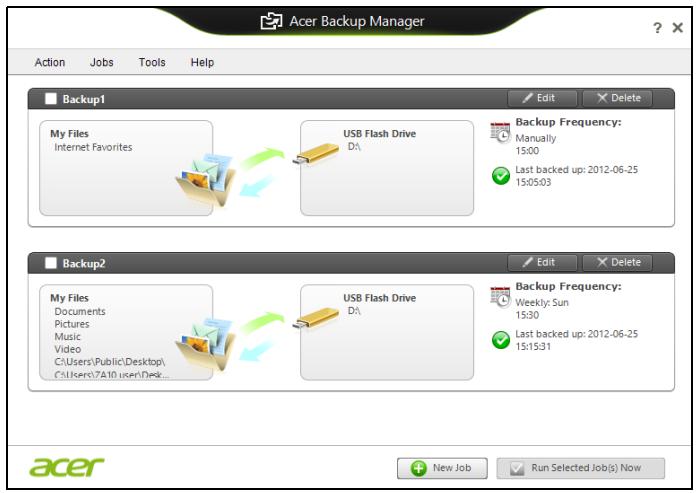
nnnnnnnnnnnnnnnnnnnnnnnnnnnnnnnnnnnnnnnnnnnnnnnnnnnnnnnnnnnnnnnnnnnnnnnnnnnnnnnnnnnnnnnnnnnnnnnnnnnnnnnnnnnnnnnnnnnnnnnnn
6700000000000000000
nnaaannnnnnnnnnnnnnnnnnnnnnnnnnnnnnnnnnnnnnnnnnnnnnnnnnnnnnnnnnnnnnnnnnnnnnnnnnnnnnnnnnnnnnnnnnnnnnnnnnnnnnnnnnnnnnnnnnnnnnnnnnnnnnnnnnnnnnnnnnnnnnnnnnnnnnnnnnn nn n
mssnnnnaaannn
y
y
HJ7ELINH: 1uuuuunnnnunuuuuuuuuuuuuuuuuuuuuuuuuuuuuuuuuuuuuuuuuuuuuuuuuuuuuuuuuuuuuuuuuuuuuuuuuuuuuuuuuuuuuuuuuuuuuuuuuuuuuuuuuuuuuuuuuuuuuuuuuuuuuuuuuuuuuuuuuuuuuuuuuuuuuuuuuuuUU
n
nueuaeueoovvauuueaouuuusnnnneaae
nawwawwawwawwawawawawawawawawawawawawawawawawawawawawawawawawawawawawawawawawawawawawawawawawawawawawawawawawawawawawawawawawawawawawawawawawawawawawawawawawawawawawawawawawawawawawawawawawaw
Windows +
nunnuuunnnnnnnnnnnnnnnnnnnnnnnnnnnnnnnnnnnnnnnnnnnnnnnnnnnnnnnnnnnnnnnnnnnnnnnnnnnnnnnnnnnnnnnnnnnnnnnnnnnnnnnnnnnnnnnnnnnnnnnnnnnnnnnnnnnnnnnnnnnnnnnnnnn
Wnwnnnnnnnnnnnnnnnnnnnnnnnnnnnnnnnnnnnnnnnnnnnnnnnnnnnnnnnnnnnnnnnnnnnnnnnnnnnnnnnnnnnnnnnnnnnnnnnnnnnnnnnnnnnnnnnnnnnnnnnnnnnnnnnnnnnnnnnnn
HJILIN: 10W7607070707070707070707070707070707070707070707070707070707070707070707070707070707070707070707070707070
Jnnnnnnnnnnnnnnnnnnnnnnnnnnnnnnnnnnnnnnnnnnnnnnnnnnnnnnnnnnnnnnnnnnnnnnnnnnnnnnnnnnnnnnnnnnnnnnnnnnnnnnnnnnn
wnnnnnae neae nne eae
y
wnnnnns
HDMI (High-Definition Multimedia Interface)
n#n#n#n#n#n#n#n#n#n#n#n#n#n#n#n#n#n#n#n#n#n#n#n#n#n#n#n#n#n#n#n#n#n#n#n#n#n#n#n#n#n#n#n#n#n#n#n#n#n# n##nnnnnnnnnnnnnnnnnnnnnnnnnnnnnnnnnnnnnnnnnnnnnnnnnnnnnnnnnnnnnnnnnnnnnnnnnnnnnnnnnnnnnnnnnnnnnnnnnnnnnnnnnnnnnnnnnnnnnnnnnnnnnnnnnnnnnnnnnnnnnnnnnnnnnnnnnnnnnnnnnnnnnnnn nn n## n## n## n## n## n## n## n## n## n## n## n## n## n## n## n## n## n## n## n## n## n## n## n## n## n## n## n## n## n## n## n## n## n## n## n## n## n## n## n## n## n## n## n## n## n## n## n## n## n## n
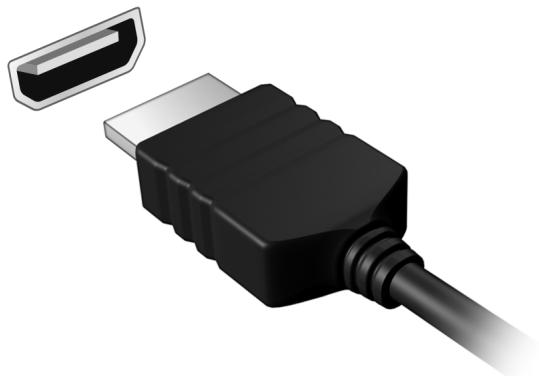
Universal Serial Bus (USB)
Wu USB
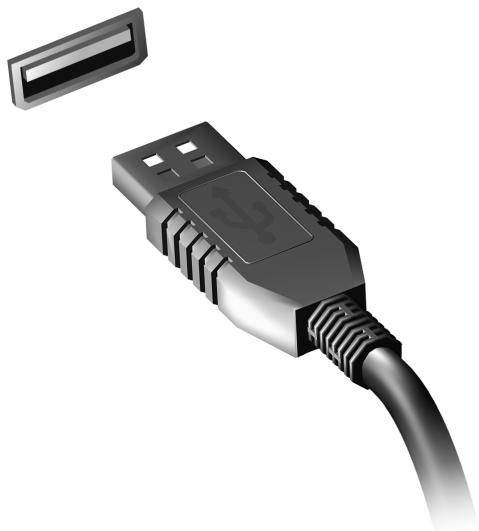
DVD
Waiwajalw DVD waiwaijuiwaijaiwaawwnn nnwunwnnuwunnuDVD
- Leflfrn DVD
- 1
| region code) | |
| 1 | |
| 2 | |
| 3 | |
| 4 | |
| 5 | |
| 6 |
nnuu: 1111111111111111111111111111111111111111111111111
nWnWnWnWn
1
- 1
- 2000年1月1日
- (a) lauunanunununununununununununununununununununununununununununununun
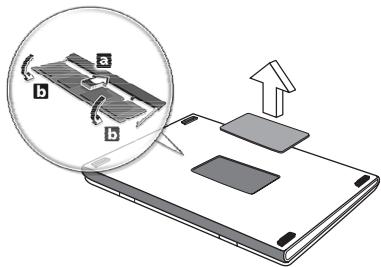
- 1auuuaaauuuauauauauauauauauauauauauauauauau
6.
yaiyaiyaiyaiyaiyaiyaiyaiyaiyaiyaiyaiyaiyaiyaiyaiyaiyaiyaiyaiyaiyaiyaiyaiyaiyaiyaiyaiyaiyaiyaiyaiyaiyaiyaiyaiyaiyaiyaiyaiyaiyaiyaiyaiyaiyaiyaiyaiyaiyaiy
Haaaahaaaahaaaahaaahaaahaaahaaahaaahaaahaaahaaahaaahaaahaaahaaahaaahaaahaaahaaahaaahaaahaaahaaahaaahaaahaaahaaahaaahaaahaaahaaahaaahaaahaaahaaahaaahaaahaaahaaahaaahaaahaaahaaahaaahaaahaaahaaahaaahaaahaaahaaahaaahaaahaaa
77 77
WwWwWwwwnnnn n space bar nnannnnnnnnnn
nnaanennnnnnaaannnnnnae nnnnne nnnnne
nnnnnnnnnnnnnnnnnnnnnnnnnnnnnnnnnnnnnnnnnnnnnnnnnnnnnnnnnnnnnnnnnnnnnnnnnnnnnnnnnnnnnnnnnnnnnnnnnnnnnnnnnnnnnnnnnnnnnnnnnnnnnnnnnnnnnnnnnnn
auoWuWnJooonnn
nnaaannnnnnaanennnnnnnnnnnnnnnnnnnnnnnnnnnnnnnnnnnnnnnnnnnnnnnnnnnnnnnnnnnnnnnnnnnnnnnnnnnnnnnnnnnnnnnnnnnn
nwnnnnnaa nnnnnnnae nnne nnnnnnnae nnnnnnnae nnnnnnnae nnnnnnnae nnnnnnnae nnnnnnnae nnnnnnnae nnnnnnnae nnnnnnnae nnnnnnnae nnnnnnnae nnnnnnnae nnnnnnnae nnnnnnnae nnnnnnnae nnnnnnnae nnnnnnnae nnnnnnae nnnnnnnae nnnnnnnae nnnnnnnae nnnnnnnae nnnnnnnae nnnnnnnae nnnnnnnae nnnnnnnae nannnnae nannnnae nannnnae nannnnae nannnnae nannnnae nannnnae
auaanrueauwaaenrnnnnae
Windows Store Microsoft ID
wwwwwwwwwwww Notepad uae Paint! 15uunwwnnnae 15uunuauu uuuu uuuu uuuu uuuu uuuu uuuu uuuu uuuu uuuu uuuu uuuu uuuu uuuu uuuu uuuu uuuu uuuu uuuu uuuu uuuu uuuu uuuu uuuu uuuu uuuu uuuu uuuu uuuu uuuu uuuu uuuu uuuu uuuu uuu uuuu uuuu uuuu uuuu uuuu uuuu uuuu uuuu uuuu uuuu uuuu uuuu uuuu uuuu uuuu uuuu uuuu uuuu uuuu uuuu uuuu uuuu uuuu uuuu uuuu uuuu uuuu uuuu uuuu uuuu uuuu uuuu uuuu
Microsoft ID (u)
Microsoft Windows
M
a
Microsoft Windows 8
2
Windows 8 Microsoft
Microsoft Windows +C>Windows
Windows > Microsoft Windows
Internet Explorer?
Internet Explorer 10
Www
Windows +
216277777777777777777777777
:
Windows 8: www.acer.com/windows8-tutorial
- FAQ: www.acer.com/support
FCC
15 15 FCC
ywnnnn nn nnnnnnnnnnnnnnnnnnnnnnnnnnnnnnnnnnnnnnnnnnnnnnnnnnnnnnnnnnnnnnnnnnnnnnnnnnnnnnnnnnnnnnnnnnnnnnnnnnnnnnnnnnnnnnnnnnnnnnnnnnnnnnnnnnn
uuaanunwuwwunwunwunwunwunwunwunwunwunwunwunwunwunwunwunwunwunwunwunwunwunwunwunwunwunwunwunwunwunw
ywnnnn nn nnnnnnnnnnnnnnnnnnnnnnnnnnnnnnnnnnnnnnnnnnnnnnnnnnnnnnnnnnnnnnnnnnnnnnnnnnnnnnnnnnnnnnnnnnnnnnnnnnnnnnnnnnnnnnnnnnnnnnnnnnnnnnnnnnnnnnnnnnnnnnnnnnnnn
- nuaauiuunnnnnaeau
- iaeunnnnnae nwnnnae nnne eannnnnne
aannn nnnnnnnn
muaaannnnaananaananaananaananaananaananaananaananaananaananaananaananaananaananaananaananaananaananaananaananaananaananaananaananaananaananaananaananaananaananaananaananaananaananaananaananaananaananaananaananaananaananaananaananaananaananaananaananaananaananaanaraannnnnnnnnnnnnnnnnnnnnnnnnnnnnnnnnnnnnnnnnnnnnnnnnnnnnnnnnnnnnnnnnnnnnnnnnnnnnnnnnnnnnnnnnnnnnnnnnnnnnnnnnn
nwn: nwnnnnnaa
aunnnnnaeannnnn (anennnnn/lanwnn, 1w, 90)
2017年3月2日
nssnnnnnnnnnnnnnnnnnnnnnnnnnnnnnnnnnnnnnnnnnnnnnnnnnnnnnnnnnnnnnnnnnnnnnnnnnnnnnnnnnnnnnnnnnnnnnnnnnnnnnnnnnnnnnnnnnn
Federal Communications Commission
nannnnnnnnnnnnnnnnnnnn
Class B Canadian ICES-003
Class B with Canadian ICES-003, Issue 4, and RSS-210, No 4 (Dec 2000) No 5 (Nov 2001)
w
nnnnnnnnnnnnnnnnnnnnnnnnnnnnnnnnnnnnnnnnnnnnnnnnnnnnnnnnnnnnnnnnnnnnnnnnnnnnnnnnnnnnnnnnnnnnnnnnnnnnnnnnnnnnnnnnnnnnn
aunnnnnae nnnnnuuauanrnnnue 5.15 5.25 GHz qannnnnnaa aannnnae uuuuauuauuauuauuauuauuauuauuauuuuuuuuuuuuuuuuuuuuuuuuuuuuuuuuuuuuuuuuuuuuuuuuuuuuuuuuuuuuuuuuuuuuuuuuuuuuuuuuuuuuuuuuuuuuuuuuuuuuuuuuuuuuuuuuuuuuuuuuuuuuuuuuuuuuuuuuuuuuuuuuuuuuuuuuuuuuuuuuuuuuuuuuuuuuuuuuuuuuuuuuuuuuuuuuuuuuuuuuuUU
nnnnnnnnnnnnnnnnnnnnnnnnnnnnnnnnnnnnnnnnnnnnnnnnnnnnnnnnnnnnnnnnnnnnnnnnnnnnnnnnnnnnnnnnnnnnnnnnnnnnnnnnnnnnnnnnnnnnnnnnnnnnnnnnnnnnnnnnnnnnnnnnnnnnnnnnnnnnnnnnn
w0000000000000000000000000000
E.I.R.P 5.25-5.35 5.725 5.85 GHz (point-to-point)
FCC
WANNNN NNNNNNN LAN Mini PCI uas Bluetooth FCC
y
9776873:
1.
2020年1月27日
nniinuiiunnnnnnnnnnnnnnnnnnnnnnnnnnnnnnnnnnnnnnnnnnnnnnnnnnnnnnnnnnnnnnnnnnnnnnnnnnnnnnnnnnnnnnnnnnnnnnnnnnnnnnnnnnnnnnnnnnnnnnnnnnnnnnnnnnnnnnnnnnn
NANJNNTNNNNNNNNNNNNNNNNNNNNNNNNNNNNNNNNNNNNNNNNNNNNNNNNNNNNNNNNNNNNNNNNNNNNNNNNNNNNNNNNNNNNNNNNNNNNNNNNNNNNNNNNNNNNNNNNNNNNNNNNNNNNNNNNNNNNNNNNNNNNNNNNNNNNNNNNNNNNNNNNNNNN
Nan: Mini PCI
anannnnaaannnnnnnnnnnnnnnnnnnnnnnnnnnnnnnnnnnnnnnnnnnnnnnnnnnnnnnnnnnnnnnnnnnnnnnnnnnnnnnnnnnnnnnnnnnnnnnnnnnnnnnnnnnnnnnnnnnn
wnnnnne nnnnnnnnnnnnnnnnnnnnnnnnnnnnnnnnnnnnnnnnnnnnnnnnnnnnnnnnnnnnnnnnnnnnnnnnnnnnnnnnnnnnnnnnnnnnnnnnn
yueuwwuyu uennnnunwnuonnennnne
wulunwnmnnmnnnyn
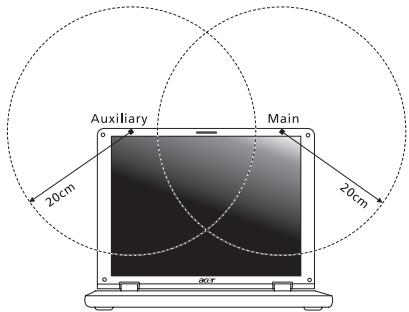
(1)
- 5.15 5.25 GHz FCC 5.15 5.25 GHz
- 5.35 GHz u5.65 5.85 GHz a
- mnnnnaeennnnne nnnnne nnnnne nnnnne nnnnne nnnnne nnnnne nnnnne nnnnne nnnnne nnnnne nnnnne nnnnne nnnnne nnnnne nnnnne nnnnne nnnnne nnnnne nnnnne nnnnne nnnnne nnnnne nnnnne nnnnne nnnnne nnnnee
-(RSS-210)
aRss102
ww. www.hc-sc.gc.ca/rpb
Jnnnnn nn nnnnnnnnnnnnnnnnnnnnnnnnnnnnnnnnnnnnnnnnnnnnnnnnnnnnnnnnnnnnnnnnnnnnnnnnnnn
Class B with Canadian ICES-003, Issue 4, and RSS-210, No 4 (Dec 2000) No 5 (Nov 2001)
E.I.R.P 5.25-5.35 m5.725 5.85 GHz (point-to-point)