USER MANUAL HW-F450 SAMSUNG
Crystal Surround Air Track
(Avive Speaker System) user manual
imagine the possibilities
Thank you for purchasing this Samsung product.
To receive more complete service,
please register your product at
www.samsung.com/register
SoundShare
SoundShare produces TV sound on your SAT via a Bluetooth connection and controls the sound.
HDMI
HDMI transmits video and audio signals simultaneously, and provides a clearer picture.
The unit is also equipped with the ARC function which lets you listen to sound from your TV via an HDMI cable through the Crystal Surround Air Track. This function is only available if you connect the unit to an ARC compliant TV.
3D SOUND PLUS
The 3D SOUND PLUS feature adds depth and spaciousness to your listening experience.
Wireless Subwoofer
Samsung's wireless module does away with cables running between the main unit and the subwoofer. Instead, the subwoofer connects to a compact wireless module that communicates with the main unit.
Special Sound mode
You can select from 7 different sound modes - MUSIC, NEWS, DRAMA, CINEMA, SPORTS, GAME, and OFF (Original Sound) - depending on the type of content you want to enjoy.
Multi-function Remote Control
The supplied remote control can be used to control the TV connected to this unit. (Works only for Samsung TVs)
The remote control has a TV hotkey that enables you to perform various operations with the simple press of a button.
Active Speaker System
This unit features an Active Speaker System that provides high sound quality in a single slim unit.
This unit does not require any satellite loudspeakers or speaker cabling, which are normally associated with conventional surround sound systems.
USB Host support
You can connect and play music files from external USB storage devices such as MP3 players, USB flash memory, etc. using the Air Track's USB HOST function.
Bluetooth Function
You can use connect a Bluetooth device to the SAT and enjoy music with high quality stereo sound, all without wires!
LICENSE
DOLBY DIGITAL
Manufactured under license from Dolby Laboratories. Dolby and the double-D symbol are trademarks of Dolby Laboratories.
dtst 2.0 Channel
Manufactured under license under U.S. Patent Nos: 5,956,674; 5,974,380; 6,487,535 & other U.S. and worldwide patents issued & pending. DTS, the Symbol, & DTS and the Symbol together are registered trademarks & DTS 2.0 Channel is a trademark of DTS, Inc. Product includes software. © DTS, Inc. All Rights Reserved.
HOMI
The terms HDMI and HDMI High-Definition Multimedia Interface, and the HDMI Logo are trademarks or registered trademarks of HDMI Licensing LLC in the United States and other countries.
- To send inquiries and requests regarding open sources, contact Samsung via Email (oss.request@samsung.com).
SAFETYWARNINGS
TO REDUCE THE RISK OF ELECTRIC SHOCK, DO NOT REMOVE THE COVER(OR BACK).
NO USER-SERVICEABLE PARTS ARE INSIDE. REFER SERVICING TO QUALIFIED SERVICE PERSONNEL.

CAUTION
RISK OF ELECTRIC SHOCK DO NOT OPEN


This symbol indicates "dangerous voltage" inside the product that presents a risk of electric shock or personal injury.

This symbol indicates important instructions accompanying the product.
WARNING : To reduce the risk of fire or electric shock, do not expose this appliance to rain or moisture.
CAUTION : TO PREVENT ELECTRIC SHOCK, MATCH WIDE BLADE OF PLUG TO WIDE SLOT, FULLY INSERT.
- This apparatus shall always be connected to a AC outlet with a protective grounding connection.
- To disconnect the apparatus from the mains, the plug must be pulled out from the mains socket, therefore the mains plug shall be readily operable.
CAUTION
- Do not expose this apparatus to dripping or splashing. Do not put objects filled with liquids, such as vases on the apparatus.
- To turn this apparatus off completely, you must pull the power plug out of the wall socket. Consequently, the power plug must be easily and readily accessible at all times.
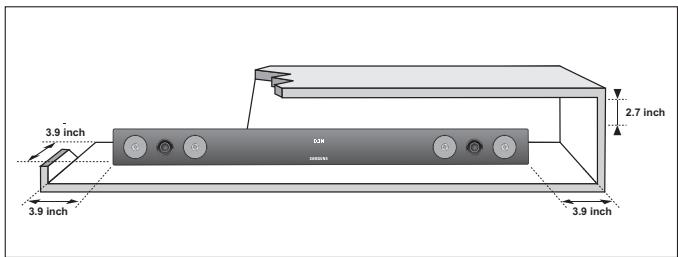
Ensure that the AC power supply in your house complies with the power requirements listed on the identification sticker located on the back of your product. Install your product horizontally, on a suitable base (furniture), with enough space around it for ventilation (3~4 inches). Make sure the ventilation slots are not covered. Do not place the unit on amplifiers or other equipment which may become hot. This unit is designed for continuous use. To fully turn off the unit, disconnect the AC plug from the wall outlet. Unplug the unit if you intend to leave it unused for a long period of time.
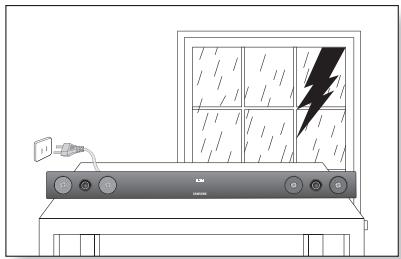
During thunderstorms, disconnect the AC plug from the wall outlet. Voltage peaks due to lightning could damage the unit.
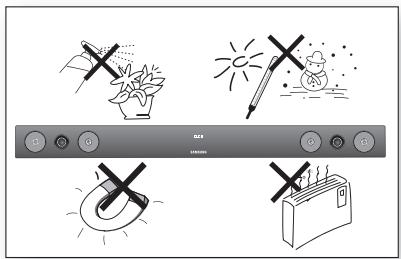
Protect the product from moisture (i.e. vases), and excess heat (e.g. a fireplace) or equipment creating strong magnetic or electric fields Disconnect the power cable from the AC supply if the unit malfunctions. Your product is not intended for industrial use. This product is for personal use only.
Condensation may occur if your product has been stored in cold temperatures. If transporting the unit during the winter, wait approximately 2 hours until the unit has reached room temperature before using.
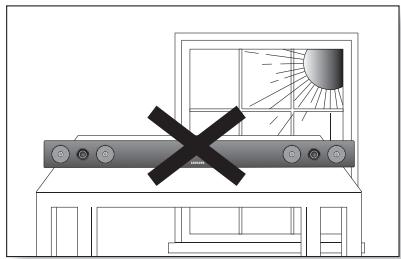
Do not expose the unit to direct sunlight or other heat sources. This could lead to overheating and cause the unit to malfunction.
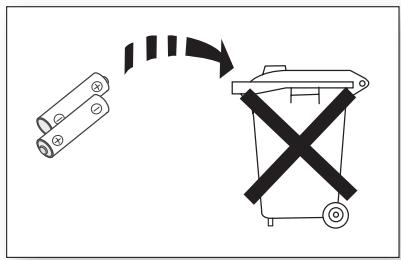
The batteries used with this product contain chemicals that are harmful to the environment.
Do not dispose of batteries in the general household trash.
FEATURES
2
3
GETTING STARTED
6
DESCRIPTIONS
7
REMOTE CONTROL
8
CONNECTIONS
9
FUNCTIONS
14
TROUBLESHOOTING
22
APPENDIX
23
2 Features
2 License
3 Safety warnings
4 Precautions
6 Before reading the User's manual
6 What's included
7 Front/Rear Panel
8 Tour of the remote control
9 Installing the wall mount
10 Connecting the Wireless Subwoofer
11 Attaching the Toroidal Ferrite Core to the Power Cord of the Subwoofer
11 Looping the Power Cable around the Toroidal Core
12 Connecting an external device using HDMI cable
13 Connecting an external device using Audio (Analog) cable or Optical (Digital) cable
14 Input mode
14 Bluetooth
16 SoundShare
17 USB
18 Using the remote control
21 Software Upgrade
22 Troubleshooting
23 Specifications
BEFORE READING THE USER'S MANUAL
Note the following terms before reading the user manual.
Icons used in this manual
| Icon | Term | Definition |
| ! | Caution | Indicates a situation where a function does not operate or settings may be canceled. |
| Note | Indicates tips or instructions on the page that help you operate a function. |
Safety Instructions and Troubleshooting
1) Be sure to familiarize yourself with the Safety Instructions before using this product. (See page 3)
2) If a problem occurs, check Troubleshooting. (See page 22)
Copyright
©2013 Samsung Electronics Co., Ltd.
All rights reserved; no part or whole of this user's manual may be reproduced or copied without the prior written permission of Samsung Electronics Co., Ltd.
WHAT'S INCLUDED
Check for the supplied accessories shown below.
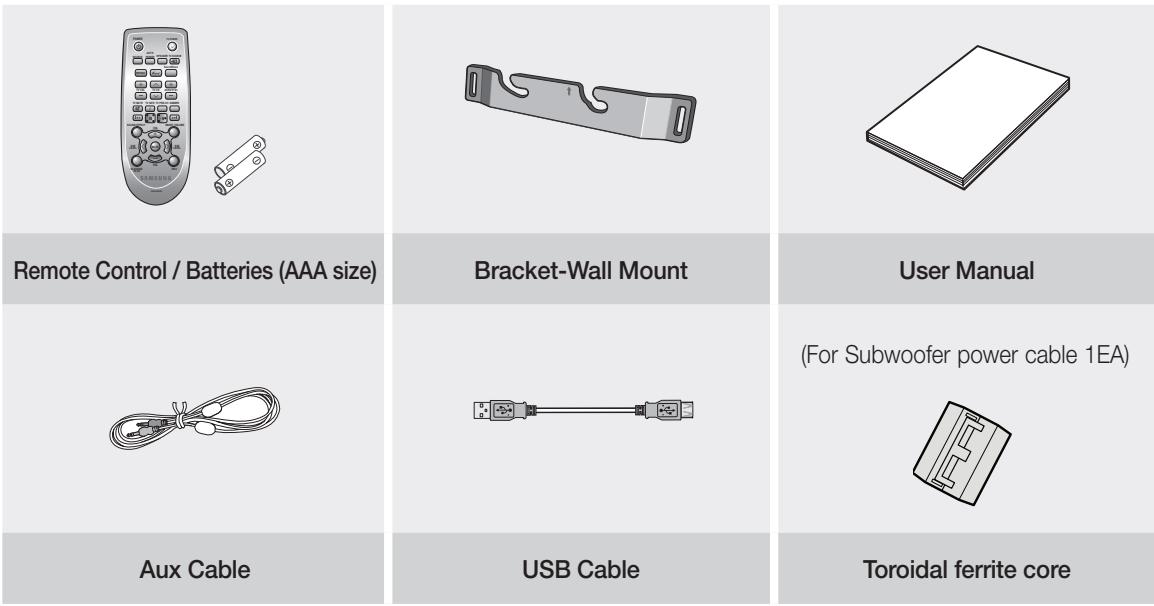

- The appearance of the accessories may differ slightly from the illustrations above.
- Use the dedicated USB cable to connect external USB devices to the unit.
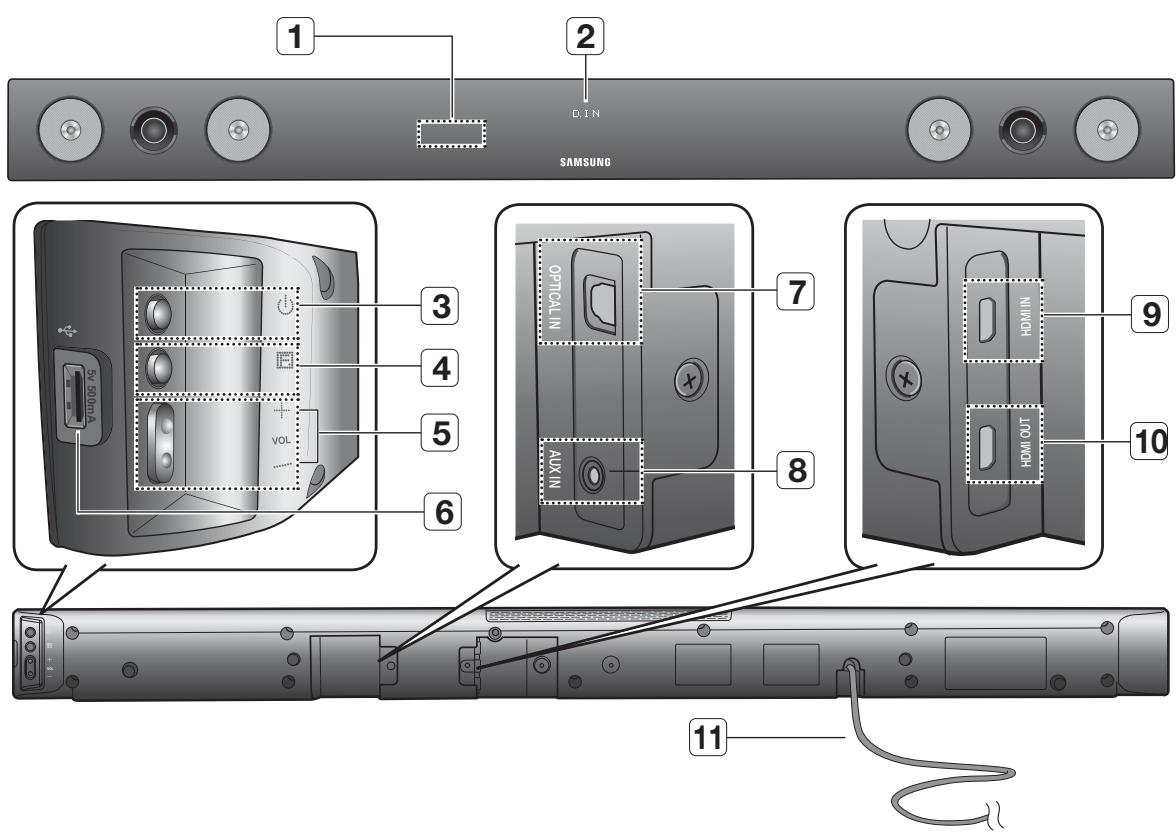
FRONT/REAR PANEL
| 1 | REMOTE
CONTROL
SENSOR | The remote control can operate
Air Tracks made by SAMSUNG
only. |
| 2 | DISPLAY | Displays the current mode. |
| 3 | POWER
BUTTON | Turns the Crystal Surround Air
Track on and off. |
| 4 | FUNCTION
BUTTON | Selects the D.IN, AUX, HDMI,
BT, TV, USB input.
- While the unit is powered,
pressing the button for more
than 3 seconds sets the button
to act as MUTE button. To
cancel MUTE button setup,
press button for more than 3
seconds again. |
| 5 | VOLUME
(+/-) | Controls the volume level. |
| 6 | USB PORT | Connect USB devices such as MP3 players here to the play files on the devices. |
| 7 | OPTICAL IN | Connect to the digital (optical) output of an external device. |
| 8 | AUX IN | Connect to the Analog output of an external device. |
| 9 | HDMI IN JACK | Receives digital video and audio signals simultaneously from an external source using an HDMI cable. |
| 10 | HDMI OUT JACK | Outputs digital video and audio signals simultaneously using an HDMI cable. |
| 11 | POWER SUPPLY CABLE | Plug the power supply cable into the AC wall outlet. |

- When you turn on this unit, there will be a 4 to 5 second delay before it produces sound.

- When disconnecting the power cable from the wall outlet, pull the plug. Do not pull the cable.
- Do not connect this unit or other components to an AC outlet until all connections between components are complete.
TOUR OF THE REMOTE CONTROL
Turns the Crystal Surround Air Track on and off.
SOURCE
Press to select a connected SAT source. (SAT:Surround Air Track)
AUTO POWER
Synchronizes the Air Track to a connected Optical source via the Optical jack so it turns on automatically when you turn on your TV.
REPEAT
Select Repeat File, All, Random.
TV VOLUME
Adjusts the TV volume level.
TV MUTE
Mutes the sound from the TV. Press again to restore the sound to the previous volume level.
TVINFO, TV PRE-CH
Display current TV status.
Moves to the previous TV channel.
Play, pause, or stop playing a music file, or search forwards or backwards for a music file.
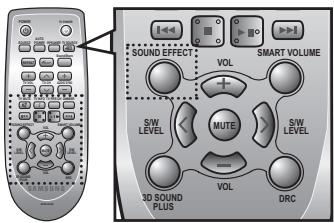
SOUND EFFECT
Selects the Sound Effect:
(MUSIC, NEWS, DRAMA, CINEMA, SPORTS, GAME, OFF (Original Sound))
3D SOUND PLUS
This feature adds depth and spaciousness to the sound.
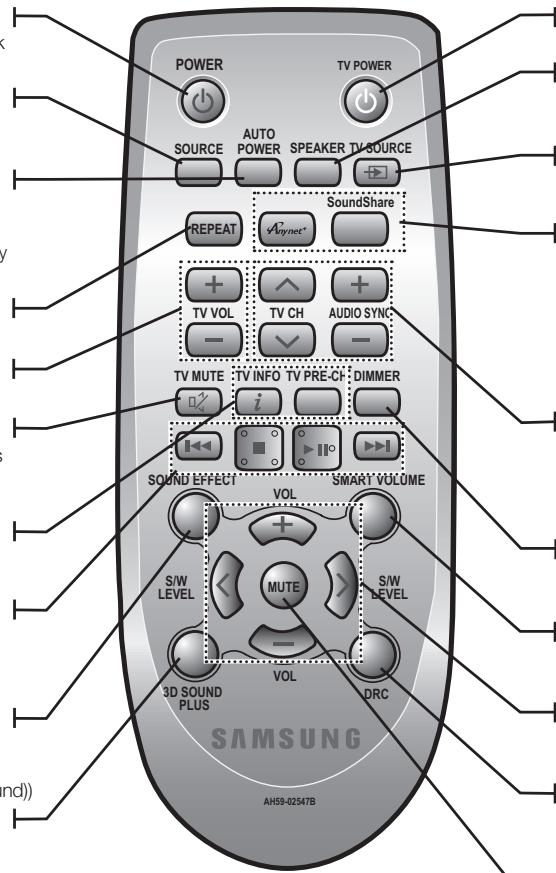
Turns your Samsung TV on and off.
SPEAKER
This button allows you to choose to listen to audio from the Air track or your TV.
TV SOURCE
Press to select a connected TV's video source.
Anynet+, SoundShare
Anynet+ is a function that enables you to control other Samsung Devices with your Samsung TV's remote control.
This produces TV sound on your SAT via a Bluetooth connection and controls the sound.
TV CHANNEL, AUDIO SYNC
Switches between the available TV channels.
Used to help sync video to audio when connected to a digital TV.
DIMMER
You can control the brightness of the Display.
SMART VOLUME
Regulates and stabilizes the volume level against a drastic volume change.
VOLUME, S/W LEVEL
Adjusts the volume level of the unit. Adjusts the Subwoofer level.
DRC
You can use this function to enjoy Dolby Digital sound when watching movies at low volume at night (Standard, MAX, MIN).
MUTE
Mutes the sound from the unit. Press again to restore the sound to the previous volume level.

SAT stands for Surround Air Track, which is a Samsung's proprietary name.
The remote control can operate TVs made by SAMSUNG only.
Depending on the TV you are using, you may not be able to operate your TV with this remote control. If you can't, operate the TV using the TV's remote control.
Installing batteries in the Remote Control
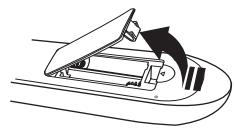

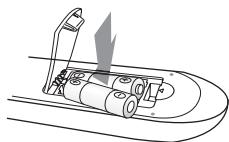

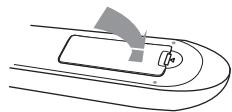
-
Lift the cover at the back of the remote control upward as shown.
-
Install two AAA size batteries.
Make sure to match the "+" and "-" ends of the batteries with the diagram inside the compartment.
-
Replace the cover. Assuming typical TV usage, the batteries last for about one year.
Operational Range of the Remote Control
You can use the remote control up to 23 feet (7 meters) in a straight line from the unit. You can also operate the remote at a horizontal angle of up to 30^ from the remote control sensor.
INSTALLING THE WALL MOUNT
You can use the wall mount bracket to mount this unit on a wall.
Installation Precautions
Install on a vertical wall only.
- For the installation, avoid a location with high temperature or humidity, or a wall that cannot sustain the weight of the set.
- Check the strength of the wall. If the wall is not strong enough to support the unit, reinforce the wall or install the unit on different wall that can support the unit's weight.
- Purchase and use the fixing screws or mollys appropriate for the kind of wall you have (plaster board, iron board, wood, etc.). If possible, fix the support screws into wall studs.
- Connect cables from the unit to external devices before you install it on the wall.
- Make sure the unit is turned off and unplugged before you install it. Otherwise, it may cause an electric shock.
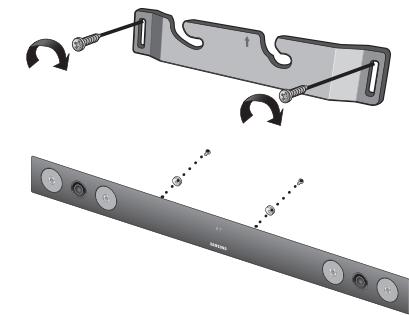
- Place the wall mount bracket on a wall surface and then secure it with two screws (not supplied).
If you are hanging the unit below a TV, be sure to install the wall mount bracket so that the arrow () is placed in the center of the TV.
Also make sure the unit is at least two inches (5 cm) below the TV.
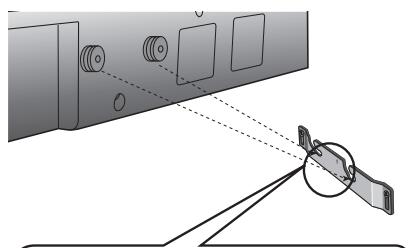
- Align the two HOLDER-SCREWs with the screw holes on the left and right sides of the MAIN UNIT, and then fix them to the main unit with the supplied screws.
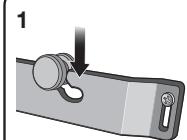
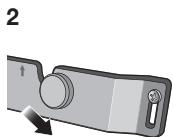
- Fit the unit into the corresponding slots of the wall mount bracket. For secure installation, make sure the mounting studs slide firmly down into the bottom of the slots.
- The installation is complete.
2 inches (5 cm) or more


- Do not hang onto the installed unit and avoid any impact to the unit.
- Secure the unit firmly to the wall so that it does not fall off. If the unit falls off, it may cause an injury or damage the product.
- When the unit is installed on a wall, please make sure that children do not pull any of the connecting cables, as it may cause it to fall.
- For the optimal performance of a wall mount installation, install the speaker system at least 2 inches (5 cm) below the TV.
CONNECTING THE WIRELESS SUBWOOFER
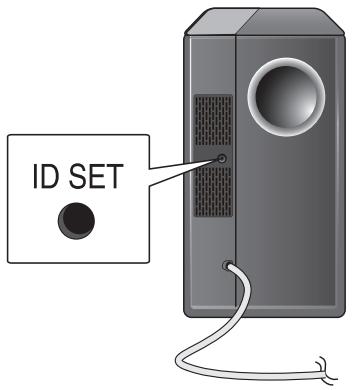
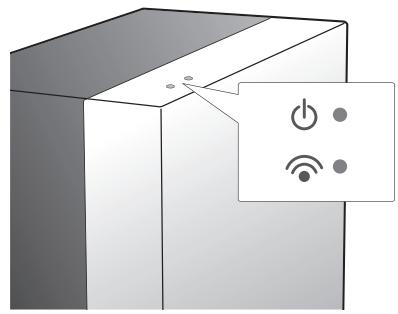
The Subwoofer's linking ID is preset at the factory and the main unit and subwoofer should link (connect wirelessly) automatically when the main unit is turned on. If the link indicator () does not light when the main unit and subwoofer are turned on, please set the ID by following the procedure below.
- Plug the power cords of the main unit and subwoofer into an AC wall outlet.
-
Press the ID SET button on the back of the subwoofer with a small, pointed object for 5 seconds.
-
The STANDBY indicator is turned off and the LINK indicator (Blue LED) blinks quickly.
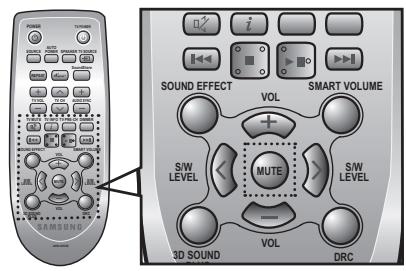
- While the main unit is powered off (STANDBY mode), press MUTE on the remote control for 5 seconds.
- The ID SET message appears on the main unit's VFD display.
-
To finalize the link, turn the main unit's power on while the subwoofer's Blue LED blinks.
-
The main unit and the subwoofer are now linked (connected).
- The Link indicator (blue LED) on the subwoofer is turned on.
- You can enjoy better sound from the wireless subwoofer by selecting the sound effect. (See page 19)

- Before moving or installing the product, be sure to turn off the power and disconnect the power cord.
- If the main unit is powered off, the wireless subwoofer will be in the standby mode and the STANDBY LED on the upper side will come on after the Link indicator (Blue LED) blinks for 30 seconds.
- If you use a device that uses the same frequency (2.4GHz) near the system, interference may cause some sound interruption.
- The transmission distance of the wireless signal between the main unit and sub is about 33 ft., but may vary depending on your operating environment. If a steel-concrete or metallic wall is between the main unit and the wireless subwoofer, the system may not operate at all, because the wireless signal cannot penetrate metal.
- If the main unit doesn't make a wireless connection, follow steps 1-5 above to retry the connection between the main unit and wireless subwoofer.

- The wireless receiving antenna is built into the wireless subwoofer. Keep the unit away from water and moisture.
- For optimal listening performance, make sure that the area around the wireless subwoofer location is clear of any obstructions.
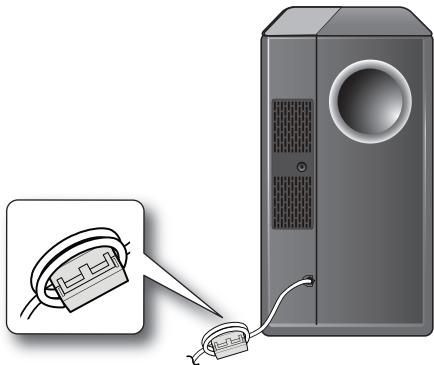
ATTACHING THE TOROIDAL FERRITE CORE TO THE POWER CORD OF THE SUBWOOFER
Attaching the Toroidal ferrite core to the power cord of the subwoofer helps prevent RF interference from radio signals.
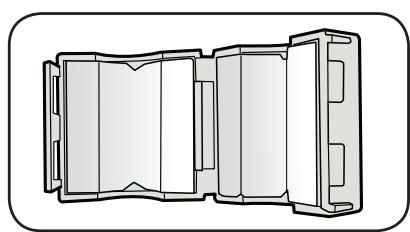
- Pull the fixing tab of the Toroidal ferrite core to open it.
- Make two loops around the core with the power cable of the subwoofer.
- Attach the Toroidal ferrite core to the Subwoofer power cord as the figure shows and press it until it clicks.
LOOPING THE POWER CABLE AROUND THE TOROIDAL CORE
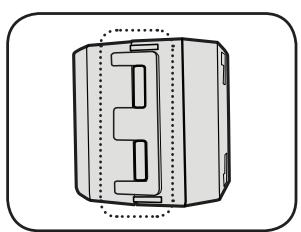
Lift up to release the lock and open the core.
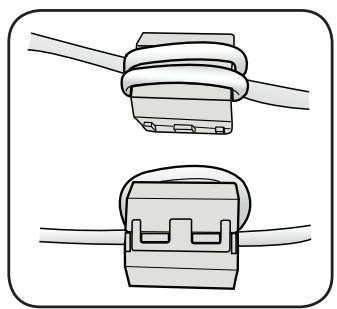
Close the lock.

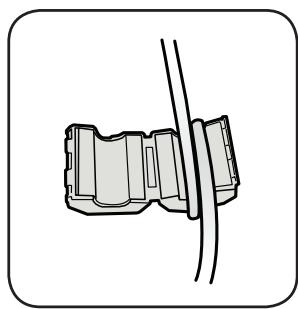
Make two loops around the core with the power cable.
(Start winding 5-10cm (12.75 - 25.5 in.)
away from the core).
CONNECTING AN EXTERNAL DEVICE USING HDMI CABLE
HDMI is the standard digital interface for connecting to such devices as a TVs, projectors, DVD players, Blu-ray players, set top boxes, and more.
HDMI removes any loss of signal from analog conversion, enabling you to enjoy video and audio sound quality as it was originally created in the digital source.
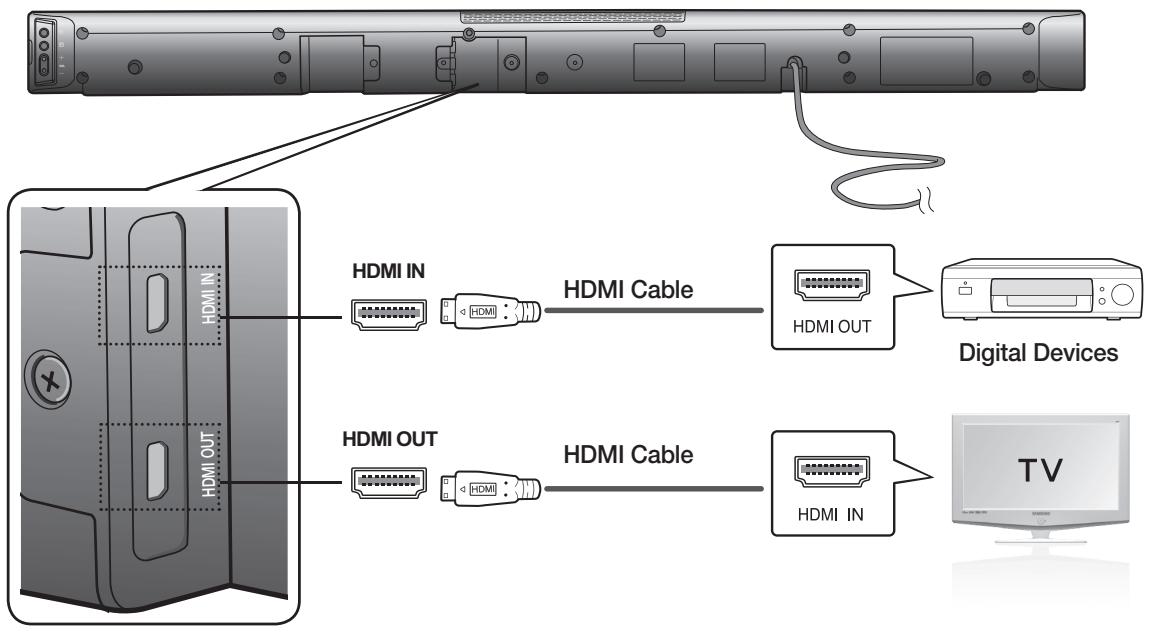
HDMI IN
Connect an HDMI cable (not supplied) from the HDMI IN jack on the back of the product to the HDMI OUT jack on your digital devices.
and,
HDMI OUT (HDMI)
- Connect an HDMI cable from the HDMI OUT jack on the back of the product to the HDMI IN jack on your TV.

- HDMI is an interface that enables the digital transmission of video and audio data with just a single connector.
HDMI OUT (ARC)
- The ARC function allows digital audio to output via the HDMI OUT (ARC) port. It can be enabled only when the Air Track is connected to a TV that supports the ARC function.
- Anynet+ must be turned on.

- This function is not available if the HDMI cable does not support ARC.
CONNECTING AN EXTERNAL DEVICE USING AUDIO (ANALOG) CABLE OR OPTICAL (DIGITAL) CABLE
This unit comes equipped with one optical in digital jack and one audio analog in jack, giving you two ways to connect it to a TV.
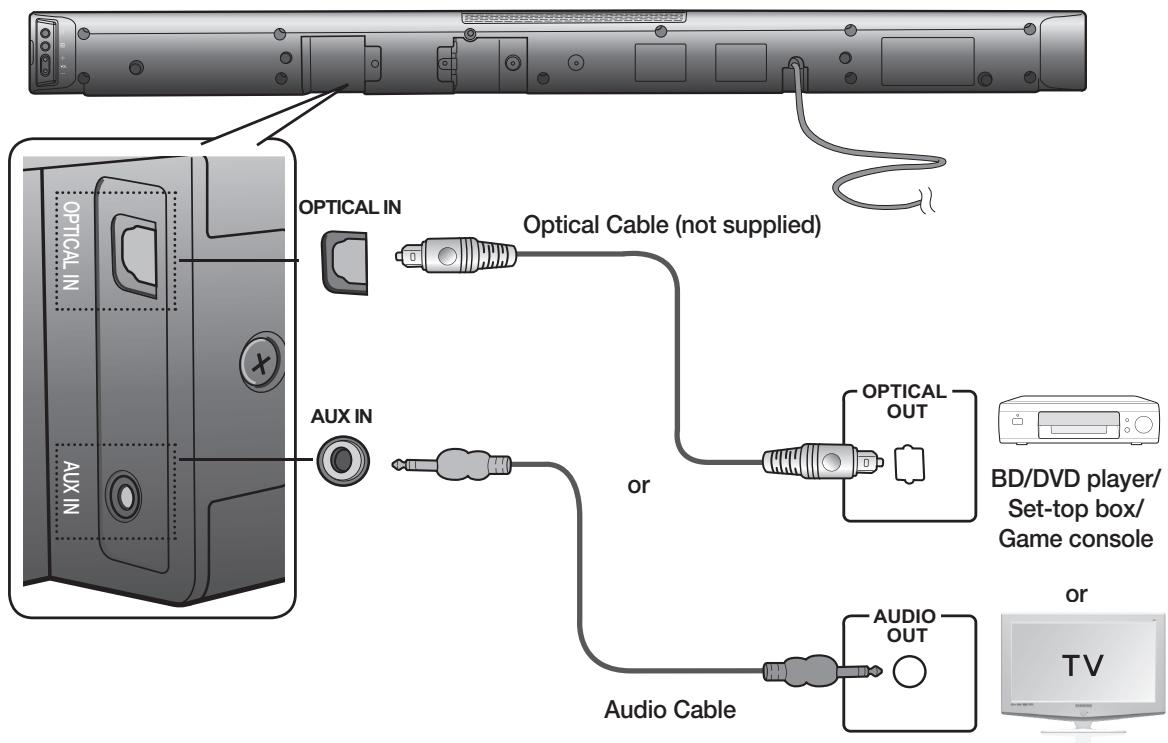
OPTICAL IN
Connect the Digital Input on the main unit to the OPTICAL OUT of the TV or Source Device.
or,
AUX IN
Connect AUX IN (Audio) on the main unit to the AUDIO OUT of the TV or Source Device.
Be sure to match connector colors.

- Do not connect the power cord of this product or your TV to the wall outlet until all connections between components are complete.
- Before moving or installing this product, be sure to turn off the power and disconnect the power cord.
You can select D.IN, AUX, HDMI, BT, TV input or USB input.
| Input mode | Display |
| Optical Digital input | D.IN |
| AUX input | AUX |
| HDMI input | HDMI |
| BLUETOOTH mode | BT |
| TV mode | TV |
| USB mode | USB |
The unit turns off automatically in the following situations:
- BT/TV/USB/HDMI/ARC/D.IN MODE
- If there is no audio signal for 20 minutes.
- AUX Mode
- If no KEY input is entered for 8 hours when the cable is connected.
- If the AUX cable is disconnected for 20 minutes.
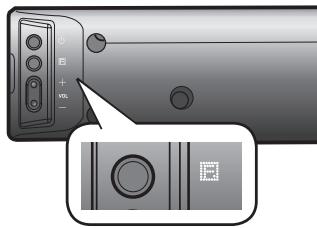
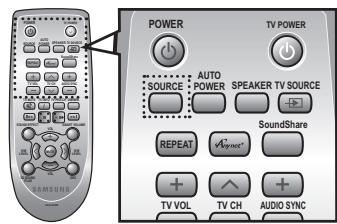

- The ARC function is activated in D.IN mode if the unit is connected to an ARC supporting TV.
- To turn off the ARC function, turn Anynet off.
- Use the provided cable if a USB flash memory device cannot be connected directly to the unit.
BLUETOOTH
You can use a Bluetooth device to enjoy music with high quality stereo sound, all without wires!
What is Bluetooth?
Bluetooth is a technology that enables Bluetooth-compliant devices to interconnect easily with each other using a short wireless connection.
-
A Bluetooth device may cause noise or malfunction, depending on usage, when:
-
A part of your body is in contact with the receiving/transmitting system of the Bluetooth device or the Air Track.
- It is subject to electrical variation from obstructions caused by a wall, corner, or office partition.
-
It is exposed to electrical interference from same frequency-band devices including medical equipment, microwave ovens, and wireless LANs.
-
Pair the Air Track with the Bluetooth device while they are close together.
- The further the distance is between Air Track and Bluetooth device, the worse the quality is. If the distance exceeds the Bluetooth operational range, the connection is lost.
- In poor reception-sensitivity areas, the Bluetooth connection may not work properly.
- The Bluetooth connection only works when it is close to the set. The connection will be automatically cut off if the Bluetooth device is out of range. Even within range, the sound quality may be degraded by obstacles such as walls or doors.
- This wireless device may cause electric interference during its operation.
Check if the Bluetooth device supports the Bluetooth compliant stereo headset function.
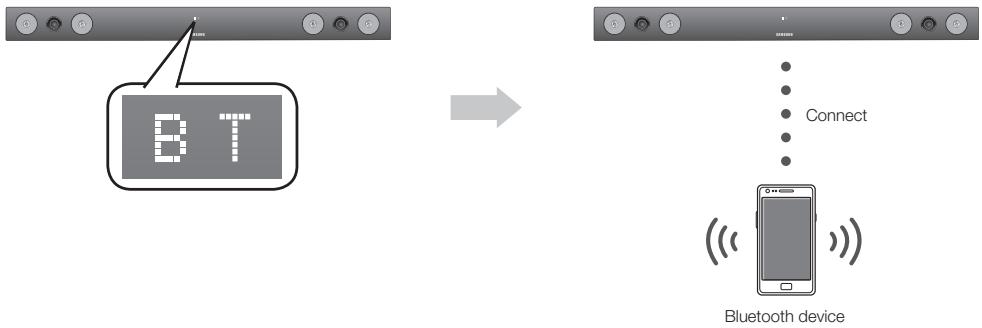
-
Press the SOURCE button on the remote control of the AirTrack to display the BT message.
-
You will see WAIT for 4 seconds and then BT READY on the front display of the Air Track.
-
Select the Bluetooth menu on the Bluetooth device you want to connect. (Refer to the Bluetooth device's user manual.)
-
Select the Stereo headset menu on the Bluetooth device.
-
You will see a list of scanned devices.
-
Select "[Samsung] AirTrack" from the list.
-
When the Air Track is connected to the Bluetooth device, it will display BT CONNECTED BT on the front display.
-
If the Bluetooth device has failed to pair with the Air Track, delete the previous "[Samsung] AirTrack" found by the Bluetooth device and have it search for the Air Track again.
-
Play music on the connected device.
-
You can listen to the music playing on the connected Bluetooth device over the Crystal Surround Air Track system.
- In BT mode, Play/Repeat/Stop/Next/Prev functions are not available.

- You may be required to enter a PIN code (password) when connecting the Bluetooth device to the Air Track. If the PIN code input window appears, enter <0000> .
The Air Track supports SBC data (44.1kHz, 48kHz).
The AVRCP feature is not supported.
- Connect only to a Bluetooth device that supports the A2DP (AV) function.
- You cannot connect to a Bluetooth device that supports only the HF (Hands Free) function.
- Only one Bluetooth device can be paired at a time.
-
Once you have turned off Air Track and the pairing is disconnected, the pairing will not be restored automatically. To reconnect, you must pair the device again.
Search or connection may not be performed properly by Air Track in the following cases:
-
If there is a strong electrical field around Air Track.
- If several Bluetooth devices are simultaneously paired with AirTrack
- If the Bluetooth device is turned off, not in place, or malfunctions
- Note that such devices as microwave ovens, wireless LAN adaptors, fluorescent lights, and gas stoves use the same frequency range as the Bluetooth device, which can cause electric interference.
To disconnect the Bluetooth device from the Air Track
You can disconnect the Bluetooth device from the Air Track. For instructions, see the Bluetooth device's user manual.
- The Air Track will be disconnected.
- When the Air Track is disconnected from the Bluetooth device the Air Track will display BT DISCONNECTED on the front display.
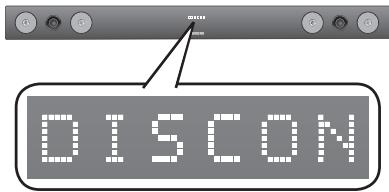
To disconnect the Air Track from the Bluetooth device
Press the button on the front panel of the Air Track to switch from BT to another mode or turn off the Air Track.
- The connected Bluetooth device will wait a certain amount of time for a response from the Air Track before terminating the connection. (Disconnection time may differ, depending on the Bluetooth device)
- The currently connected device will be disconnected.

- In Bluetooth connection mode, the Bluetooth connection will be lost if the distance between the Air Track and the Bluetooth device exceeds 16.25 ft. (5m).
- If the Bluetooth device comes back into the effective range after disconnecting, you can restart the Air Track to restore the pairing with the Bluetooth device.
- The Air Track automatically turns off after 20 minutes in the Ready state.
SOUNDSHARE
This section explains how to connect the Crystal Surround Air Track to a Bluetooth compatible SAMSUNG TV.
To connect the Crystal Surround Air Track to a Bluetooth compatible Samsung TV
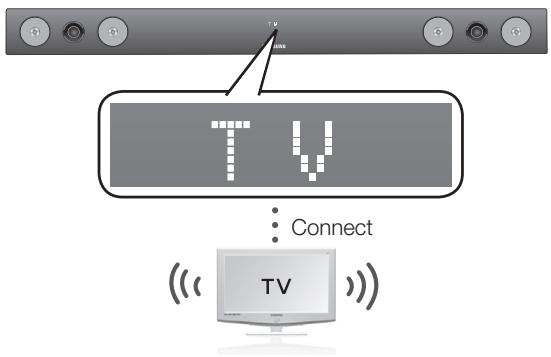
Press the button to select the TV mode, and then connect the TV to the Crystal Surround Air Track.
- The unit will play the TV's audio when it is connected to the TV.
- If you change to another mode, except the TV SoundShare mode, or turn off the Air Track, you will hear audio from the TV again.
To produce TV sound on your Air Track via a Bluetooth connection, you need to pair your system to the Bluetooth compliant TV first. Once the pairing is established, the pairing information is recorded and kept and no further Bluetooth connection message will appear. Bring the Air Track and the TV close together before pairing.
-
Turn on the Samsung TV and Air Track.
-
Set Add New Device in the TV's SoundShare Setting menu to On.
-
The SoundShare function is supported by some Samsung TVs released after 2012. Check whether your TV supports SoundShare before you begin. (For more information, refer to the user's guide of your TV)
-
When you change the mode of the Air Track to TV, a message asking whether to proceed with Bluetooth pairing is displayed. "[Samsung] AirTrack" appears on the TV screen.
-
Select on the TV screen. The pairing with the Air Track will be completed.
-
Once the pairing is established, when you change the Air Track to the TV mode from other input modes, it will automatically connect to the TV.
- Changing the Air Track from TV mode to any other mode will cancel the SoundShare connection.
-
If you want to cancel the existing pairing of the SAT to a TV and pair your SAT to a different TV.
-
Press the PLAY/PAUSE button on the SAT for 5 seconds in the TV input mode to cancel the existing pairing. You can now pair it to a different TV.
-
In the SoundShare mode, you can control the volume and mute using either the TV remote or the SAT remote.

TV SoundShare operation range
- recommended pairing range: within 20 inches (within 50cm.)
-
recommended operation range: within 16.25 ft. (5m)
-
If the distance between the Air Track and Samsung TV is over 16.25 ft. (5m), the connection or the sound can be cut off. If this occurs, connect to the Bluetooth device again within the operational range.
Make sure the Samsung TV's SoundShare mode is on before you use this function.
-
The PLAY, NEXT, PREV, STOP buttons will not work in the SoundShare mode.
Bluetooth Standby On function
-
Air Track will be powered on automatically when you turn the TV on if you connected TV and Air Track with SoundShare function.
- You can toggle this fucntion On/Off by pressing SOURCE button over 5 seconds when AirTrack is powered off. If set to Off, the product turns off automatically when the TV turns off, but it does not turn on automatically.
- This function is supported by Samsung TVs released from 2013.
USB
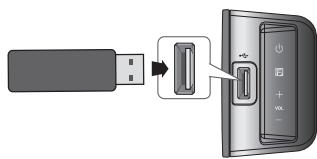
- Connect the USB device to the USB port on the side of the unit.
-
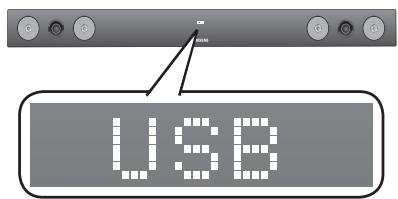
Press the (1) button on the front panel of the Air Track repeatedly until USB appears.
-
USB appears on the display screen and then disappears.
-
The Crystal Surround Air Track connection is complete.
- The SAT automatically turns off (Auto Power Off) if no USB device has been connected for more than 20 minutes.
Before you connect a USB device
Be aware of the following:
functions
- Connect USB devices directly to the USB port of the product. Otherwise, you may encounter a USB compatibility problem.
- Do not connect multiple storage devices to the product via a multi-card reader. It may not operate properly.
- Digital camera PTP protocols are not supported.
- Do not remove the USB device while it is being read.
- DRM-protected music files (MP3, WMA) from a commercial web site will not be played.
- External HDDs are not supported.
- Mobile phone devices are not supported.
- File Format Type Compatibility list:
| Format | Codec |
| *.mp3 | MPEG 1 Layer2 |
| MPEG 1 Layer3 |
| MPEG 2 Layer3 |
| *.wma | Wave_Style_MSAudio1 |
| Wave_Style_MSAudio2 |
| *.aac | AAC |
| AAC-LC |
| HE-AAC |
| *.wav | - |
| *.Ogg | OGG 1.1.0 |
| *.Flac | FLAC 1.1.0, FLAC 1.2.1 |
Supporting Sampling Rate above 16KHz
USING THE REMOTE CONTROL
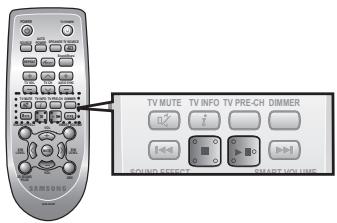
Play/Pause/Stop
During playback, press the button.
- Press the button again to stop playing the file temporarily. Press the button to play the selected file.
- To stop playback, press the Stop (■) button during playback.
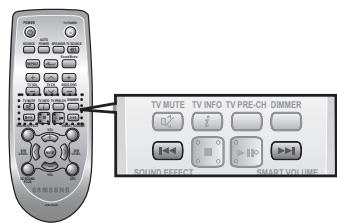
Skip Forward/Back
During playback, press the , button.
- When there is more than one file and you press the button, the next file is selected.
- When there is more than one file and you press the button, the previous file is selected.
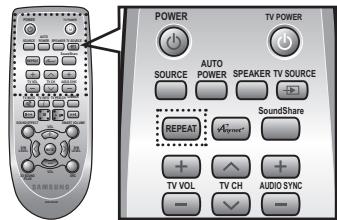
Using the REPEAT function
Repeat playback allows you to repeatedly play a file, repeat all, randomly play files, or turn Repeat off.
Press the REPEAT button.
- REPEAT OFF : Cancels Repeat Playback.
- REPEAT FILE : Repeat playing a track.
- REPEAT ALL:Repeat playing all tracks.
- REPEAT RANDOM : Plays tracks in random order. (A track that has already been played may be played again.)
Muting the sound
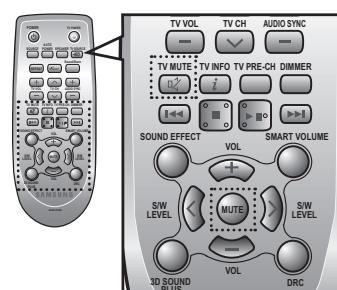
This is useful when answering a doorbell or telephone call.
- To mute the sound of this unit, press the MUTE button on the remote control.
- To mute the TV, press the TV MUTE ( ) button on the remote control.
- Press MUTE/ TV MUTE (α+) on the remote control again (or press VOLUME +/-) to restore the sound.
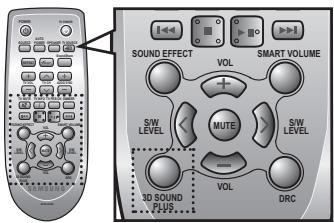
Using the 3D SOUND PLUS function
The 3D Sound Plus feature adds depth and spaciousness to the sound.
Press 3D SOUND PLUS on the remote control.
Each time the button is pressed, the selection changes as follows: 3D SOUND PLUS OFF 3D SOUND PLUS MUSIC 3D SOUND PLUS MOVIE

- When you turn on 3D Sound Plus, the Sound Effect function will automatically change to OFF.
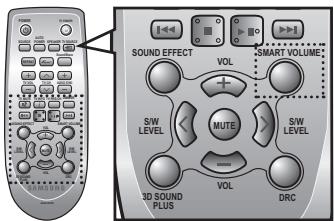
Using the SMART VOLUME function
This will regulate and stabilize the volume level against a drastic volume change caused by a channel change or scene transition.
Press SMART VOLUME on the remote control.
Each time the button is pressed, the selection changes as follows: SMART VOLUME ON SMART VOLUME OFF
Using the Sound effect function
You can select from 7 different sound modes - MUSIC, NEWS, DRAMA, CINEMA, SPORTS, GAME, and OFF (Original Sound) - depending on the type of sources you want to enjoy.
Press SOUND EFFECT on the remote control.
- Select the OFF mode if you want to enjoy the original sound.

- We recommend that you select a Sound Effect based on the source material and your personal taste.
- When you choose a Sound Effect mode (except OFF), 3D Sound Plus will automatically be turned OFF.
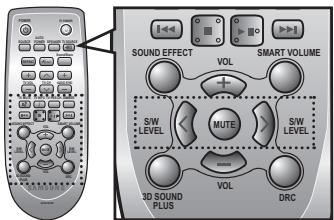
Using the S/W LEVEL function
You can control the base volume with the S/W Level button on the remote control.
- Press the S/W LEVEL button on the remote control.
- "SW 0" appears on the display.
- Press < or > button on the LEVEL key if you want to increase or decrease the subwoofer volume. You can set it from SW -6 to SW +6.
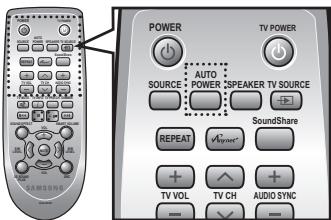
Using the AUTO POWER LINK function
The Crystal Surround Air Track is automatically turned on when you turn on the TV or any device connected to the Air Track with the optical cable.
Press AUTO POWER on the remote control of this unit.
- The Auto power link function turns on and off each time you press AUTO POWER.
| AUTO POWER LINK | Display |
| ON | POWER LINK ON |
| OFF | POWER LINK OFF |

- If a TV or any device connected to Air Track with the optical cable is off and there is no digital input, the Air Track is turned off after 20 minutes.
- These functions are available only when Anynet+ (HDMI-CEC) is turned off.
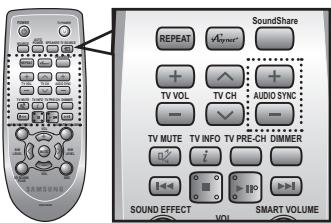
Using the AUDIO SYNC function
Video may appear out of synch with the audio if the Air Track is connected to a digital TV. If this occurs, adjust the audio delay time to match the video.
Press AUDIO SYNC + / - on the remote control of this unit.
- You can use the + , - buttons to set the audio delay time between 0 ms and 300 ms.

- In USB mode, TV mode or BT mode, the Audio Sync function may not work.

Using the DRC function
This feature balances the range between the loudest and quietest sounds. You can use this function to enjoy Dolby Digital sound when watching movies at low volume at night.
Press DRC on the remote control of this unit.
Each time the button is pressed, the selection changes as follows: DRC STANDARD DRC MAX DRC MIN
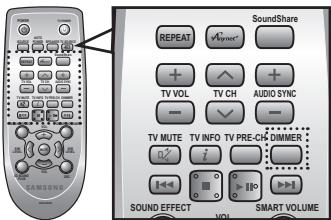
Using the DIMMER function
This feature controls the brightness of the Display.
Press DIMMER on the remote control of this unit.
Each time the button is pressed, the selection changes as follows : DIMMER ON DIMMER OFF
If the TV and Air Track are connected via HDMI, this button lets you select between listening to audio through your TV or through the Air Track.
Press SPEAKER on the remote control of this unit.
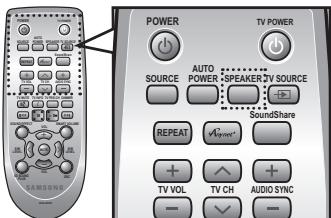
| AUDIO MODE | SPEAKER | Scroll Display | Display |
| HDMI IN | TV | TV SPEAKER | TV SPK |
| Air Track | AVR SPEAKER | HDMI |
| ARC | TV | TV SPEAKER | S MUTE |
| Air Track | AVR SPEAKER | TV ARC |
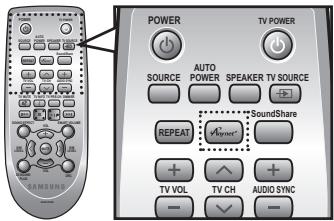
Using the Anynet+(HDMI-CEC) function
Anynet+ is a function that enables you to control other Samsung Devices with your Samsung TV's remote control.
The Anynet+ function turns on and off each time you press Anynet+.
- Connect the product to a Samsung TV with an the HDMI cable. (See page 12)
- Set the Anynet+ function on your TV and the SAT to ON. (See the TV instruction manual for more information.)

Depending on your TV, certain HDMI output resolutions may not work.
- Please refer to the user's manual of your TV and check for the _net +^ logo (If your TV has an _net +^ logo, then it supports the Anynet + function.)
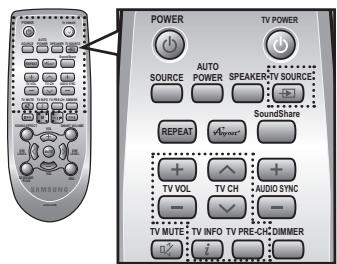
Using the TV functions (with Samsung TVs only)
- Press TV SOURCE on the remote control to change the TV's input source.
- Press TV INFO on the remote control to display the TV channel information.
- Press TV CH on the remote control to select the TV channel.
- Press TV VOL on the remote control to increase or decrease the volume level.
- Use TV PRE-CH button to move to the previous TV channel in TV mode.

- When you press the SoundShare button, the TV's sound is transmitted through the Air Track system via a Bluetooth connection. The Air Track also controls the sound volume, sound quality, etc.
- The remote control can operate TVs made by SAMSUNG only.
SOFTWARE UPGRADE
Samsung may offer upgrades for the Crystal Surround Air Track's system firmware in the future. If an upgrade is offered, you can upgrade the firmware by connecting a USB drive with the firmware upgrade stored on it to the USB port on your Air Track.
Note that if there are multiple upgrade files, you must load them onto the USB drive singly and use them to upgrade the firmware one at a time.
Please visit Samsung.com or contact the Samsung call center to receive more information about downloading upgrades files.
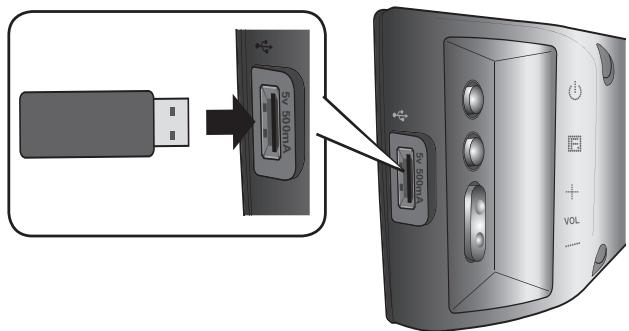

- Insert a USB drive containing the firmware upgrade into the USB port on the main unit.
- Do not disconnect the power or remove the USB drive while upgrades are being applied. The main unit will turn off automatically after completing the firmware upgrade.
When software is upgraded, settings you have made will return to their default (factory) settings.
We recommend you write down your settings so that you can easily reset them after the upgrade.
- Once upgrading the product software is completed, turn off the product and then press and hold (■) button for a while to reset the product.
If the firmware fails to upgrade, we recommend formatting the USB device in FAT16 and trying again.
For upgrading purposes, do not format the USB drive in NTFS format because it is not a supported file system.
Depending on the manufacturer, some USB devices may not be supported.
Before requesting service, please check the following.
| Symptom | Check | Remedy |
| The unit will not turn on. | ·Is the power cord plugged into the outlet? | ·Connect the power plug to the outlet. |
| A function does not work when the button is pressed. | ·Is there static electricity in the air? | ·Disconnect the power plug and connect it again. |
| Sound is not produced. | ·Is the unit properly connected to your TV?
·Is the Mute function on?
·Is the volume set to minimum? | ·Connect it correctly.
·Press the Mute button to cancel the function.
·Adjust the volume. |
| The Picture does not appear on a TV when the function is selected. | ·Is the TV connected properly? | ·Connect it correctly. |
| The remote control does not work. | ·Are the batteries drained?
·Is the distance between remote control and main unit too far? | ·Replace with new batteries.
·Move closer to the unit. |
| The sound from the left/right channels are reversed. | ·Are the left/right audio output cables from the TV connected properly? | ·Check the left/right channel and connect it/them correctly. |
| The SoundShare (TV pairing) failed. | ·Does your TV support SoundShare?
·Is your TV firmware the latest version?
·Does an error occur when connecting?
·Reset the BT/TV MODE and connect again. | ·SoundShare is supported by some Samsung TVs released after 2012. Check your TV to see if it supports SoundShare.
·Update your TV with the latest firmware.
·Contact the call center.
·Press▶按钮 for 5 seconds to reset the product. |
SPECIFICATIONS
Model name HW-F450
| GENERAL | USB | 5V/0.5A |
| Weight | Main unit | 4.28 lbs |
| Subwoofer (PS-WF450) | 12.01 lbs |
| Dimensions (W x H x D) | Main unit | 35.67 x 1.77 x 2.76 inches |
| Subwoofer (PS-WF450) | 6.89 x 13.78 x 11.61 inches |
| Operating temperature range | +41°F to +95°F |
| Operating humidity range | 10 % to 75 % |
| AMPLIFIER | Rated output power | Main unit | 80W/CH, 4OHM, THD = 10%, 1kHz |
| Subwoofer (PS-WF450) | 120W, 4OHM, THD = 10%, 70Hz |
| S/N ratio (analog input) | 65 dB |
| Separation(1kHz) | 65 dB |
- S/N ratio, distortion, separation and usable sensitivity are based on measurement using AES (Audio Engineering Society) guidelines.
*: Nominal specification
Samsung Electronics Co., Ltd reserves the right to change the specifications without notice.
- Weight and dimensions are approximate.
LIMITED WARRANTY TO ORIGINAL PURCHASER
Samsung Electronics Canada Inc.(SECA), warrants that this product is free from defective material and workmanship.
SECA further warrants that if this product falls to operate properly within the specified warranty period and the failure is due to improper workmanship or defective materials, SECA will repair or replace the product at its option.
All warranty repairs must be performed by a SECA Authorized Service Center. (The name and address of the location nearest you can be obtained by calling toll free: 1- 800- SAMSUNG)
LABOR
One year (Carry-in)
PARTS
One year
On carry-in models, transportation to and from the service center is the customer's responsibility.
The original dated sales receipt must be retained by the customer and is the only acceptable proof of purchase. It must be presented to the authorized service center at the time service is requested.
EXCLUSIONS (WHAT IS NOT COVERED)
This warranty does not cover damage due to accident, fire, flood and/ or other acts of God; misuse, incorrect line voltage, improper installation, improper or unauthorized repairs, commercial use or damage that occurs in shipping. Exterior and interior finish, lamps, glass are not covered under this warranty. Customer adjustments which are explained in the instruction manual are not covered under the terms of this warranty. This warranty will automatically be voided for any unit found with a missing or altered serial number. This warranty is valid only on products purchased and used in Canada.
HEADQUARTERS
SAMSUNG ELECTRONICS CANADA INC.,
CUSTOMER SERVICE
55 STANDISH COURT MISSISSAUGA, ONTARIO L5R 4B2 CANADA
FABRIQUE EN CORÉE
If you have any questions or comments relating to Samsung products, please contact the SAMSUNG customer care center.
| Area | Contact Center | Web Site |
| ■ North America |
| CANADA | 1-800-SAMSUNG(726-7864) | www.samsung.com/ca
www.samsung.com/ca_fr (French) |
| MEXICO | 01-800-SAMSUNG(726-7864) | www.samsung.com |
| ■ Latin America |
| ARGENTINE | 0800-333-3733 | www.samsung.com |
| BRAZIL | 0800-124-421
4004-0000 | www.samsung.com |
| CHILE | 800-SAMSUNG(726-7864)
From mobile 02-482 82 00 | www.samsung.com |
| Bolivia | 800-10-7260 | www.samsung.com |
| COLOMBIA | 01-8000112112 | www.samsung.com |
| COSTA RICA | 0-800-507-7267 | www.samsung.com |
| DOMINICA | 1-800-751-2676 | www.samsung.com |
| ECUADOR | 1-800-10-7267 | www.samsung.com |
| EL SALVADOR | 800-6225 | www.samsung.com |
| GUATEMALA | 1-800-299-0013 | www.samsung.com |
| HONDURAS | 800-27919267 | www.samsung.com |
| JAMAICA | 1-800-234-7267 | www.samsung.com |
| NICARAGUA | 00-1800-5077267 | www.samsung.com |
| PANAMA | 800-7267 | www.samsung.com |
| PERU | 0-800-777-08 | www.samsung.com |
| PUERTO RICO | 1-800-682-3180 | www.samsung.com |
| TRINIDAD & TOBAGO | 1-800-SAMSUNG(726-7864) | www.samsung.com |
| VENEZUELA | 0-800-100-5303 | www.samsung.com |