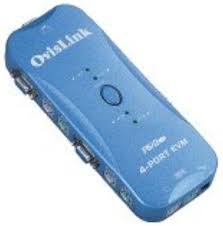
KVM-104 - KVM Switch OVISLINK - Free user manual and instructions
Find the device manual for free KVM-104 OVISLINK in PDF.



| Brand | OVISLINK |
| Model | KVM-104 |
| Category | KVM Switch |
| Product Type | 4-Port KVM Switch (PS/2) |
| Dimensions | 102 x 100 x 42 mm |
| Power Supply | DC 9V / 300 mA (optional) |
| Max. Video Resolution | 1920 x 1440 |
| Video Frequency | 250 MHz |
| PC Selection Method | Keyboard shortcuts and automatic mode |
| User Connectors | PC1: 1x HD-15M, 2x MD-6F |
| PC2-PC4 Connectors | 3x HD-15M, 6x MD-6M |
| Transmission Distance (PC to switch) | 5 m |
| Transmission Distance (user to switch) | 2 m |
| Housing Material | Plastic |
| Warranty | Lifetime (exchange) |
| Compliance | Directive 1999/5/EC |
| Main Features | Keyboard, mouse, monitor emulation; Plug & Play; automatic or shortcut selection |
| Maintenance and Cleaning | Clean with a soft, dry cloth |
| Safety | Use the appropriate power supply and follow specifications |
| General Information | Manufacturer: OvisLink France SA, 16-18 Route de ROUEN, 27950 SAINT-MARCEL, France |
Frequently Asked Questions - KVM-104 OVISLINK
User questions about KVM-104 OVISLINK
0 question about this device. Answer the ones you know or ask your own.
Ask a new question about this device
Download the instructions for your KVM Switch in PDF format for free! Find your manual KVM-104 - OVISLINK and take your electronic device back in hand. On this page are published all the documents necessary for the use of your device. KVM-104 by OVISLINK.
USER MANUAL KVM-104 OVISLINK
The Total Networking Solution






















SWITCH FOR 4 COMPUTERS ACCESS KVM-104+
OvisLink thanks you for the loyalty you have shown in our company, for sure the performance and the quality of our devices will satisfy your demands.
PACKAGE CONTENT:
Before proceed with the installation procedure, please make sure you have received all the next elements:
- KVM Switch
- All cables included
- Quick Installation Guide.
If any element is missing, please contact with your distributor.
QUICK INSTALLATION GUIDE:
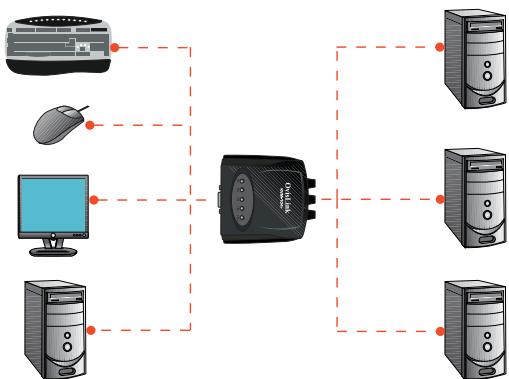
KEY FEATURE
- Keyboard, Mouse, Monitor Emulation & "PnP
- PC selection by Auto scan and easy Hot Key control.
- Save Space, Energy & Equipment Cost.
OPERATION:
- First turn on the monitor followed by the PC with KVM Switch, the other PC.
- Make sure each PC is boot-up completely before switching the KVM Switch.
HOT-KEY:
To activate the scan mode (Auto Status):

To desactivate the scan mode (Manual Status):
- Press any key on the Keyboard
To activate the scan mode (Auto Status):
(SELECT PC1)

Repeat step 2 for PC's2, 3 and 4
TROUBLE SHOOTING:
-
The reason for not compatible with Auto KVM Switch.
-
The BIOS in the mother board.(Basic Input / Output System).
- The hardware equipment. (Keyboard. Mouse)
- Software. OS (Operating System)
| SITUATION | SOLUTION |
| Mouse Problems | Check whether the mouse install mouse driver. |
| Exchange other mouse. (PS/2 mouse only for user side) | |
| Connect the mouse to PC directly. | |
| Exchange the PC port. | |
| Try to select other port and then switch back. | |
| Check all cable connections to make sure they are completely seated in their sockets. | |
| Keyboard Problems | Exchange other keyboard. |
| Connect the keyboard to PC directly. | |
| Exchange the PC port. | |
| Try to select other port and then switch back. | |
| Check all cable connections to make sure they are completely seated in their sockets. | |
| Video Problems | Recommend that you use the high quality cables. Use of high quality cables should eliminate video problem. |
| Check all cable connections to make sure they are completely seated in their sockets. | |
| Improper Operation | Do not move keyboard, mouse or select PC if the initial turn-on operation procedure is not completed. |
| Reboot after the PC is turned off for 5 seconds later. | |
| Try to select other port and then switch back. |

SPECIFICATION:
| FUNCTION | SPECIFICATION |
| Description | 4 PCs (PS/2) to 1User |
| PC Selection Method | Keyboard Hot Keys |
| PC Side Connectors | PC1: HD-15M x 1, MD-6F x 2 PC2-PC4: HD-15M x 3, MD-6M x 6 |
| Max. Video Resolution | 1920 x 1440 |
| Video Bandwidth | 250 MHz |
| Horizontal Frequency | 30-180 KHz |
| Vertical Frequency | 43-250 Hz |
| Transmission Distance | PC Side to Switch: 5 Meter User Side to Switch: 2 Meter |
| Case Design | Plastic Case |
| Dimension | 102mm x 100mm x 42mm |
| Cable | Molding with 1.2M Coaxial Cable for PC2~PC3 1.8M Coaxial Cable for PC1 |
| User Side Connectors | HD-15F x 1, MD-6F x 2 |
DECLARATION OF CONFORMITY:
Hereby, OvisLink Corporation declares that this KVM-104+ is in compliance with the essential requirements and other provision of Directive 1999/5/EC.
The following importer/manufacturer is responsible for this declaration of conformity:
Company Name: OvisLink France S.A.
Adress: 16-18 Route de ROUEN, 27950 SAINT-MARCEL. France.
Tel.: +33 (0) 232711509
Fax: +33 (0) 232548728
Name: Horia SCURTU
Position: General Manager.
Date: 25/06/2004.
Signature:
Hou8
GUARANTEE CONDITIONS FOR UNITED KINGDOM AND IRELAND.
This product has passed successfully strict quality tests that guarantee this product is in perfect working condition; free of manufacture defects enabling best performance.
This product has a Life Time Guarantee, in the event that any fault or defect is discovered, we will, unless the fault or defect has been caused by a misuse of the goods or manipulation by non-qualified person or because of future incompatibilities or by the product being used for a purpose for which it was not been designed, either repair or, at our option, it will be replaced by other similar or better, new or repaired product free of charge to the purchaser.
Contact with your local distributor for further information respect change procedure.
For further information, please contact with OvisLink:
United Kingdom and Ireland.
Tel.: +44 1256 398597
WEB: http://www.ovislink.co.uk
SWITCH POUR LE CONTROLE DE 4 ORDINATEURS KVM-104+
| SITUATION | SOLUTION |
| Mouse Problems | Check whether the mouse install mouse driver. |
| Exchange other mouse. (PS/2 mouse only for user side) | |
| Connect the mouse to PC directly. | |
| Exchange the PC port. | |
| Try to select other port and then switch back. | |
| Check all cable connections to make sure they are completely seated in their sockets. | |
| Keyboard Problems | Exchange other keyboard. |
| Connect the keyboard to PC directly. | |
| Exchange the PC port. | |
| Try to select other port and then switch back. | |
| Check all cable connections to make sure they are completely seated in their sockets. | |
| Video Problems | Recommend that you use the high quality cables. Use of high quality cables should eliminate video problem. |
| Check all cable connections to make sure they are completely seated in their sockets. | |
| Improper Operation | Do not move keyboard, mouse or select PC if the initial turn-on operation procedure is not completed. |
| Reboot after the PC is turned off for 5 seconds later. | |
| Try to select other port and then switch back. |
Cargo: Director General.
The Total Networking Solution


OvisLink Corporation declares that this device is in compliance with the essential requirements and other relevant provisions of directive 1999/5/EC.


- SWITCH FOR 4 COMPUTERS ACCESS KVM-104+
- PACKAGE CONTENT:
- QUICK INSTALLATION GUIDE:
- KEY FEATURE
- OPERATION:
- HOT-KEY:
- TROUBLE SHOOTING:
- SPECIFICATION:
- DECLARATION OF CONFORMITY:
- GUARANTEE CONDITIONS FOR UNITED KINGDOM AND IRELAND.
- SWITCH POUR LE CONTROLE DE 4 ORDINATEURS KVM-104+
- The Total Networking Solution
Brand : OVISLINK
Model : KVM-104
Category : KVM Switch