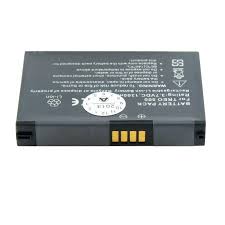
TREO 500V - Smartphone PALMONE - Free user manual and instructions
Find the device manual for free TREO 500V PALMONE in PDF.


| Product type | Smartphone |
| Brand | PalmOne |
| Model | TREO 500V |
| Dimensions (L x W x H) | 111 x 61 x 17 mm |
| Weight | 130 g |
| Power | Rechargeable lithium-ion battery 1100 mAh |
| Standby time | Up to 250 hours |
| Talk time | Up to 4 hours |
| Operating system | Windows Mobile 6 Professional |
| Display | TFT touchscreen 2.5 inches (240 x 320 pixels) |
| Keyboard | Sliding QWERTY keyboard |
| Camera | 2 megapixel sensor with LED flash |
| Connectivity | Bluetooth 2.0, Wi-Fi 802.11b/g, USB 2.0 |
| Network | Tri-band GSM (900/1800/1900 MHz), UMTS 2100 MHz |
| Internal memory | 256 MB (expandable via microSD card) |
| GPS | Integrated GPS (assisted) |
| Main features | Calls, SMS, MMS, Email, Internet, Media player, Camera, GPS, Organizer |
| Maintenance and cleaning | Clean with a soft, dry cloth. Do not use abrasive products. |
| Safety | Use the device according to safety instructions. Avoid prolonged exposure to heat. |
| Spare parts | Battery, display, keyboard, motherboard, back cover |
| Repairability | Repairability score not provided. Refer to the manual for repair procedures. |
Frequently Asked Questions - TREO 500V PALMONE
User questions about TREO 500V PALMONE
0 question about this device. Answer the ones you know or ask your own.
Ask a new question about this device
Download the instructions for your Smartphone in PDF format for free! Find your manual TREO 500V - PALMONE and take your electronic device back in hand. On this page are published all the documents necessary for the use of your device. TREO 500V by PALMONE.
USER MANUAL TREO 500V PALMONE
© 2007 Palm Inc. All rights reserved. Trademark, copyright, patent, and other intellectual property notices are set forth on page ii within Introducing Your Palm® Treo™ 500v Smartphone, which can be found in your smartphone package.
Disclaimer and limitation of liability
Palm Inc. and its suppliers assume no responsibility for any damage or loss resulting from the use of this guide. Palm Inc. and its suppliers assume no responsibility for any loss or claims by third parties that may arise through the use of this software. Palm Inc. and its suppliers assume no responsibility for any damage or loss caused by deletion of data as a result of malfunction, dead battery, or repairs. Be sure to make backup copies of all important data on other media to protect against data loss.
Palm Take Back and Recycling Program

This symbol indicates that Palm products should be recycled and not be disposed of in unsorted municipal waste. Palm products should be sent to a facility that properly recycles electrical and electronic equipment. For information on environmental programs visit: palm.com/environment
As part of Palm's corporate commitment to be a good steward of the environment, we strive to use environmentally friendly materials, reduce waste, and develop the highest standards in electronics recycling. Our recycling program keeps Palm handheld devices, smartphones, and mobile companions out of landfills through evaluation and disposition for reuse and recycling.
Palm customers may participate in the recycling program free of charge. Visit palm.com/recycle for additional details and information about how you can help reduce electronic waste.
PN:406-11180-01
v 1.1
Contents
Chapter 1: Welcome
Your new smartphone 9
What's in the box? 9
What do I need to get started? 10
Where to learn more 10
Chapter 2: Setting up 13
Palm Treo 500v smartphone overview 15
Inserting the SIM card and battery 17
Charging the battery 19
Making your first call 22
Setting up synchronisation 23
Chapter 3: Moving around on your Palm® Treo™ 500v smartphone 25
Navigating around the screen 27
Using the keyboard 33
Opening and closing applications 36
Using your Home screen 39
Chapter 4: Your phone 41
Turning your Palm® Treo™ 500v smartphone on/off 43
Making calls from the Home screen 45
Other ways of making calls 48
Receiving calls 49
Using voicemail 50
What can I do during a call? 51
Working with called numbers 56
Creating speed dials 58
Using a phone headset 60
Customising phone settings 63
Using the SIM toolkit 71
What are all those icons? 72
Chapter 5: Synchronising information 75
Synchronisation overview 77
How do I synchronise? 77
What can I synchronise? 78
Setting up wireless synchronisation 81
Setting up your computer for synchronisation 86
Synchronising using the sync cable 92
Other ways to synchronise 92
Setting synchronisation options 94
Chapter 6: Your email 97
Setting up email 99
Sending and receiving messages 108
Working with email messages 112
Working with meeting invitations 120
Sending email messages from within another application 121
Chapter 7: Your text and multimedia messages 123
Sending and receiving messages 125
Customising your message settings 132
Using Windows Live 136
Chapter 8: Your connections to the web and wireless devices 141
Browsing the web 143
Connecting to devices with Bluetooth® wireless technology 149
Using your device as a wireless modem 154
Chapter 9: Your photos, videos, and music 157
Synchronising your media files 159
Camera 160
Pictures & Videos 165
Windows Media Player Mobile 169
Mobile TV 177
Chapter 10: Your personal information organiser 179
Contacts 181
Calendar 186
Tasks 191
Voice Notes 194
Chapter 11: Your Microsoft Office and other document tools 195
Synchronising your Microsoft Office files 197
Word Mobile 199
PowerPoint Mobile 202
Excel Mobile 205
PDFViewer 212
Chapter 12: Your application and info management tools 215
Finding information 217
Installing applications 218
Removing applications 221
Sharing information 222
Beaming information 222
Using expansion cards 224
Calculator 229
Chapter 13: Your personal settings 231
Home screen settings 233
System sound settings 234
Display and appearance settings 237
Application settings 239
Locking your smartphone and info 241
System settings 245
Connection settings 250
Chapter 14: Troubleshooting 257
Transferring info from another device 259
Reinstalling the desktop software 259
Resetting your smartphone 260
Performance 263
Screen 264
Network connection 265
Synchronisation: Overview 268
Synchronisation: Desktop sync software 269
Synchronisation: Exchange ActiveSync (wireless synchronisation) 274
Email 275
Bluetooth wireless technology 278
Web 278
Camera 279
Third-party applications 280
Making room on your smartphone 281
Voice quality 282
Terms 285
Important safety and legal information 291
Specifications 301
Index 303
Welcome
Congratulations on the purchase of your Palm® Treo™ 500v smartphone!
Benefits
Make and receive phone calls
- Manage your contacts, calendar, and task list
Receive and send corporate and personal email messages
Browse the web
- Use a Bluetooth® headset (sold separately) for hands-free operation
In this chapter
Your new smartphone 9
What's in the box? 9
What do I need to get started? 10
Where to learn more 10
Your new smartphone
In one compact and indispensable device—your new Palm® Treo™ 500v smartphone—you now have all of the following:
An advanced wireless smartphone
- A Windows Mobile® organise with portable expansion capability (microSD)
High-speed data with GPRS and UMTS (3G) support
A 2-megapixel digital camera
Support for numerous mobile email solutions
Text and multimedia messaging
- Windows Media Player Mobile
Microsoft Office Viewer applications
This guide will help you set up your smartphone and quickly learn to use it.
NOTE If you want to use your phone and send and receive text messages, you need a service contract with your network operator. If you also want to browse the web and send and receive email, you need
not only a service contract but also a data service plan from your network operator. You may also need a specific data service plan to send and receive multimedia messages. Data speeds vary based on network availability and capacity.
TIP LOOK HERE: Don't miss the helpful tips and cross-references given in these boxes.
What's in the box?
All of the following items should be in the smartphone box:
Hardware
Treo 500v smartphone
- Rechargeable battery (1200 mAh)
- AC charger with international adapters
- USB sync cable
- Stereo headset
Documentation and software
Quick Start Guide
- Introducing Your Palm® Treo™ 500v Smartphone
-
Windows Mobile Getting Started CD, which includes links to the following:
-
Desktop synchronisation software download (ActiveSync® desktop software for Windows XP, Windows Mobile Device Center for Windows Vista)
- Microsoft Office Outlook® software download
- User Guide (this guide)
Palm warranty
End User Licence Agreement
What do I need to get started?
As you work through the instructions in this guide, you need all the items that came in the smartphone box (see What's in the box?), as well as the following:
- You must have an activated wireless account (using a SIM card from your network operator) with data services.
If you plan to synchronise personal information between your smartphone and a computer, you need access to that computer during setup. - You must also have your smartphone within range of your network operator's cellular coverage.
Where to learn more
Websites
Support from Palm and online forums: go.palm.com/treo500v/.
Registration
To obtain discounts on software and accessories, faster technical support, updates, and special promotions: palm.com/register. Registration is free.
Customer service from your network operator
For questions about your mobile account or features.
Corporate network support/your IT administrator
If you are having problems synchronisinginformation on a corporate network
Setting up
You're about to discover the many things about your smartphone that will help you better manage your life and have fun, too.
As you become more familiar with your smartphone, you'll want to personalise the settings and add applications to make it uniquely yours. But first, follow these few easy steps to set up your smartphone and get it running.
Benefits
-
Know where your smartphone controls are located
-
Start using your smartphone right away
In this chapter
Palm Treo 500v smartphone overview. 15
Inserting the SIM card and battery. 17
Charging the battery. 19
Making your first call 22
Setting up synchronisation 23
Palm Treo 500v smartphone overview
Front view
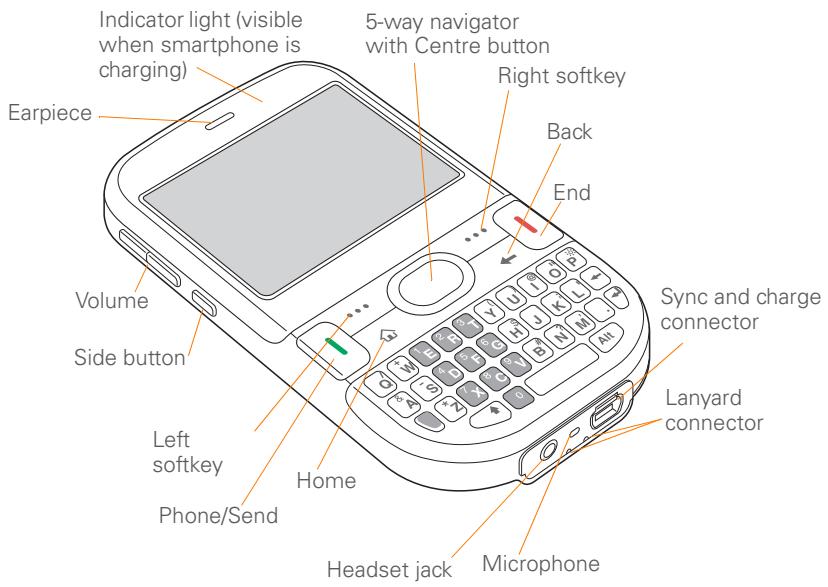
Tip Be careful not to scratch or crush your smartphone screen. Do not store it in a place where other items might damage it.
DID YOU KNOW? Pressing and holding the Side button opens Internet Explorer Mobile (see Browsing the web).
Tip To connect a lanyard (sold separately), remove the battery door, connect the lanyard, and then replace the battery door.
Back view
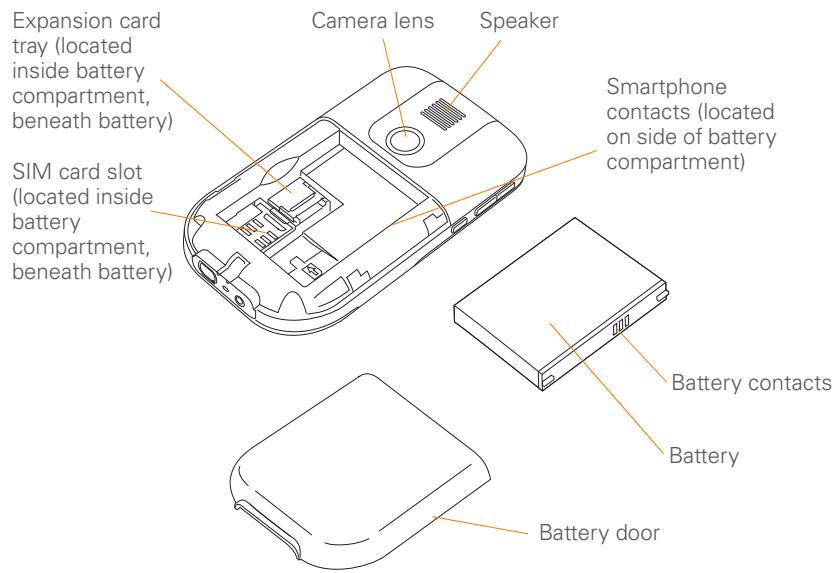
IMPORTANT The smartphone speaker includes a large magnet, so be sure not to store your smartphone near credit cards or other items that could be demagnetised.
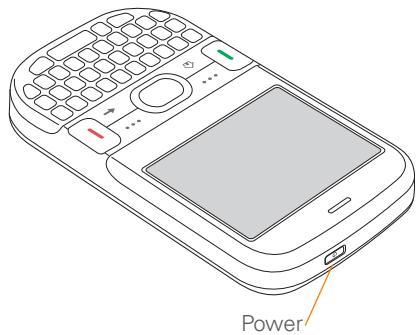
Top view
Inserting the SIM card and battery
Your SIM card contains account information such as your phone number
and voicemail access number. To use your smartphone's phone, email, or web features, you need to insert a SIM card. If a SIM card is not included in your smartphone box, your network operator will provide you with one.
To take advantage of the high-speed data connection available on your smartphone, you need to have a 3G SIM card. A 3G SIM card has "3G" on it.
Tip If you don't have a SIM card, contact your network operator.
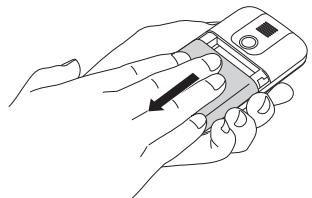
1 Holding your smartphone screen side down, use two or more fingers to press firmly against the battery door while pulling downward to release it, and then slide the door off the back of your smartphone.
2 If the battery is installed, remove it. Slide your finger under the left side of the battery and lift up to remove it.
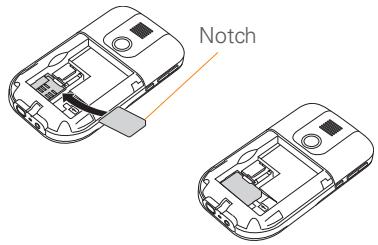
3 With the metal contacts facing the battery compartment, slide the SIM card into the cutout in the lower-left corner of the compartment until you feel the card click into place. Align the notches to make sure you have the card oriented correctly.
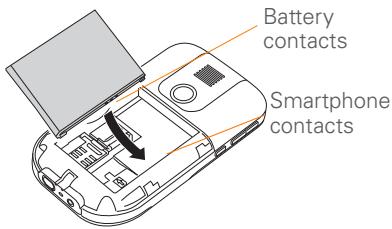
4 Align the metal contacts on the battery with the contacts inside the battery compartment, insert the battery into the compartment at a 45-degree angle, and then press it into place.
5 Slide the battery door back into place.
6 Press and hold Power until the Palm® logo appears.
Tip If your smartphone does not turn on after you insert the battery, you need to connect it to the AC charger to charge it (see Charging the battery). If it still doesn't start, perform a soft reset (see Performing a soft reset).
7 Follow the onscreen instructions to finish the installation.
8 If your SIM card is not already activated, follow the activation steps provided by your network operator, or contact your network operator directly for assistance. If you plan to use email and web browsing, you need a data service
plan from your network operator in addition to your service contract. You may also need a data service plan to send and receive multimedia messages.
Tip You can buy an extra battery as a spare for long airplane trips or periods of heavy data use. To ensure proper functioning and avoid nullifying the warranty, be sure to use batteries from Palm only. Visit palm.com.
Charging the battery
Although the battery may come with a sufficient charge to complete the setup process, we recommend that after setup you charge your smartphone for three hours (or until the indicator light is solid green) to give it a full charge. See Maximising battery life for tips on making your battery's power last longer.
BEFORE YOU BEGIN Make sure the battery is inserted in your smartphone before you charge. If you connect your smartphone to a power source without the battery inserted, nothing happens.
1 Prepare the AC charger by inserting the adapter that fits the wall outlet you're going to use.
2 Plug the AC charger into a wall outlet.
3 Connect the charger cable to the bottom of your smartphone.
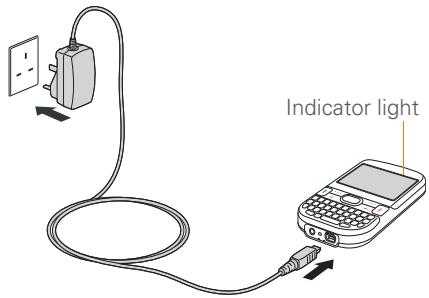
4 Check the indicator light to confirm that your smartphone is charging.
- Solid red indicates that your smartphone is charging.
- Solid green indicates that your smartphone is fully charged.
DID YOU KNOW? If the battery is low, the indicator light flashes red.
When your smartphone is on (see Turning your Palm® Treo™ 500v smartphone on/off), the onscreen battery icon displays the charging status:

This icon indicates that the battery is being charged.

This icon indicates that the battery is fully charged.

This icon indicates that the battery needs to be charged immediately.
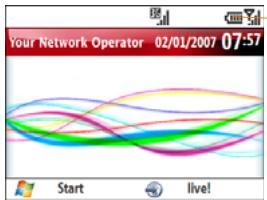
Battery icon
DID YOU KNOW? If your battery ever becomes fully drained, your info remains safely stored on your smartphone. Recharge the battery to access your info.
Tip You can also charge your smartphone from your computer by connecting them with the sync cable.
Maximising battery life
Battery life depends on how you use your smartphone. You can maximise the life of your battery by following a few easy guidelines:
- Charge your smartphone whenever you're at your desk, or charge it overnight each day. The battery in your smartphone has a much longer useful life if you charge it frequently instead of waiting until it's fully drained.
- If you spend a lot of time using the camera, games, media players (including listening to music with wireless headphones using the built-in Bluetooth® wireless technology), or other applications, keep an eye on the battery icon and charge when necessary.
- The wireless features (phone, email, messaging, instant messaging, and web) on your smartphone generally consume more power than the organiser features. If you don't plan to use the wireless features on your smartphone for a while, turn off your wireless services (see Turning wireless services on/off). You can forward calls
to a different number or let all calls be picked up by voicemail (see Forwarding calls). To see if your wireless services are on, press Power 公 and select Wireless Manager.
If you are synchronising email and other information directly with your corporate Exchange server using Microsoft Exchange ActiveSync, set the synchronisation interval to a maximum of every 15 minutes during peak times and every hour (or turned off completely) during non-peak times (see Setting the synchronisation schedule).
- Turn off the Bluetooth feature when you do not need to make a Bluetooth connection (see Entering basic Bluetooth settings).
- As with any mobile phone, if you are in an area with no wireless coverage, your smartphone searches for a signal, which consumes power. If you cannot move to an area of better coverage, temporarily turn off your phone (see Turning your phone off).
Tip When your phone is on, press Power to display a list of options from which you can quickly turn off the phone (see Turning your phone off), silence the ringer (see Selecting a sound profile), and more.
- Turn down the screen brightness (see Adjusting the brightness).
- Set your screen to turn off automatically after a shorter period of inactivity (see Optimising power settings).
- Turn off the option to receive beamed information using Bluetooth technology (see Beaming an entry or file).
If you use Internet Connection Sharing to connect to the Internet, make a connection to your computer using the USB sync cable instead of wirelessly using Bluetooth technology (see Using your device as a wireless modem). -
Keep your battery away from direct sunlight and other sources of heat. Temperatures over 50 degrees Celsius can permanently reduce the capacity and life span of any lithium-ion battery.
-
Charge your battery at a comfortable room temperature. Charging your battery in cold temperatures results in lower usable charge capacity.
Making your first call
1 Press Home to display your Homescreen.
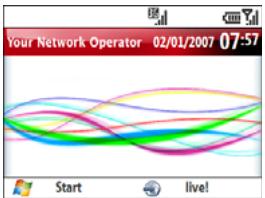
Tip You can also press End to display your Home screen, unless you are on a call. If you are on a call, pressing End hangs up the call.
2 Using the numbered keys (and the +, *, and # keys, if necessary) on the keyboard, enter a phone number.
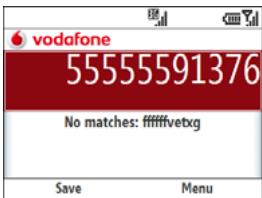
3 Press Phone/Send to dial.
4 When your call is complete, press End to end the call.
Adjusting call volume
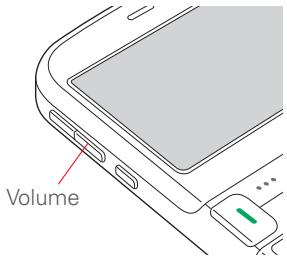
While a call is in progress, press the Volume button on the side of your smartphone to adjust the call volume.
What's my number?
BEFORE YOU BEGIN Make sure your phone is on (see Turning your phone on).
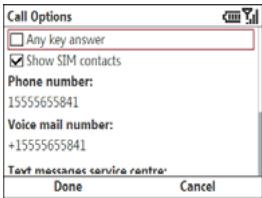
1 Press Home , and then press Start (left softkey).
2 Navigate to the My Settings content list and press All Settings (right softkey).
3 Select Phone, and then select Call Options.
Look here for your phone number
4 Press Done (left softkey).
Tip If your phone number doesn't appear on the Call Options screen, your network has not yet sent the number to the SIM card (this does not affect SIM card functionality). Turn your phone off, wait a few hours, and then turn on your phone and repeat these steps. If your phone number still does not appear, contact your network operator for assistance.
Setting up synchronisation
After you've finished setting up your smartphone, we recommend that you set up a synchronisation method to get the most out of your smartphone.
Synchronising means that information that has been entered or updated in one place—your smartphone, your computer, or your corporate server—is automatically updated in the other (see Synchronising information).
Moving around on your Palm® Treo™ 500v smartphone
Have you ever been to a new city and felt a bit lost until you figured out the streets? Learning to move around on your Palm® Treo™ 500v smartphone is similar. Most applications that work on your smartphone use the same set of controls. So once you learn how to use these controls, you'll be driving all over town and you won't even need a map.
Benefits
-
Quickly move around and complete tasks in applications using one thumb on the 5-way navigator
-
Access extra features with menus
Find and open applications quickly
In this chapter
Navigating around the screen 27
Using the keyboard 33
Opening and closing applications. 36
Using your Home screen 39
Navigating around the screen
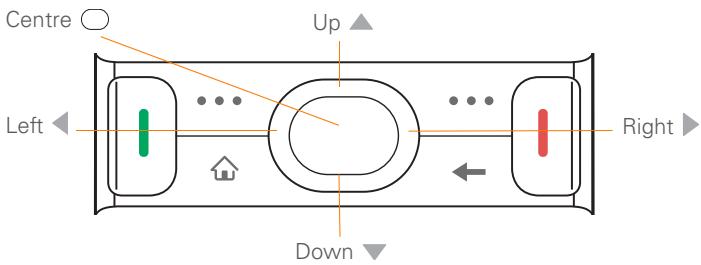
Using the 5-way, press Right , Left , Up , or Down to move around the screen. Press Centre to highlight and select items.
To navigate around the smartphone screen, you use the 5-way navigator. As you become familiar with your smartphone, you'll find your own favourite way to scroll, highlight, and select items.
Tip The arrow icons that indicate directions on the 5-way are different from the onscreen arrows that indicate that a list is available (see Selecting options in a list).
Scrolling through screens
As on a computer, on your smartphone you scroll to move from field to field or page to page, or in some cases to highlight an item or option in a list. There are several methods of scrolling:
Use the 5-way on the front of your smartphone. Press Right, Left, Up ▲, or Down to move to the next field, button, or action in that direction.
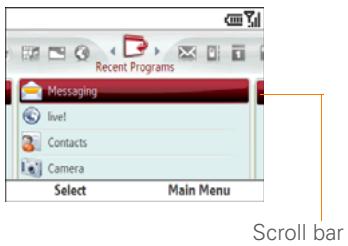
Tip If a scroll bar appears on the right side of a screen, this indicates that more options are available than what is shown on the screen. Press Up or Down on the 5-way to display additional options.
- When inside a text field, press Right or Left to move to the next character, and press Up or Down to move between lines.
- When inside a list, press and hold Up or Down to rapidly scroll through the list.
Closing screens
To accept the information you entered on a screen and to return to the previous screen—or to return to the previous screen without making any changes—press Back
Highlighting and selecting items
On most screens, one item—an icon, a list entry, or a check box—is highlighted by default. The highlight identifies which item is affected by your next action. Use the 5-way to move the highlight from one item to another before opening or selecting it.
Tip The best way to learn to use the 5-way is to experiment. Press the 5-way buttons, and as you do, follow the movement of the border around the screen. The behaviour of the 5-way varies slightly in each application.
The highlight can take one of two forms, depending on what is highlighted:
- Border: This rectangular border highlights items such as a text-entry field, a check box, an option, or a web link.
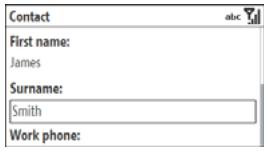
Light text on a dark background: This highlights items such as a phone number, an email address, or an item in a menu or a list.
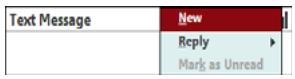
After highlighting an item with the 5-way, select or activate it by pressing Centre
Using the softkeys
Left softkey activates this command Left softkey
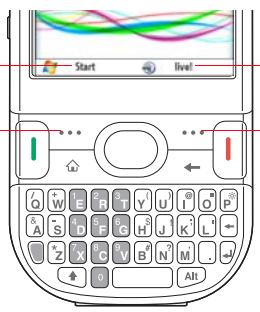
Right softkey activates this command Right softkey
The left and right softkeys give you quick access to tasks that you can do on the current screen, so the softkey items vary from application to application and from screen to screen. Look on the screen directly above the softkey to see the action that it takes in the current context. In some contexts, these keys may do nothing at all. In most cases the right softkey [ ] opens the menu, and the left softkey [ ] activates a specific command, such as New or Done. Remember that softkey functions vary from screen to screen, so be sure to check the onscreen label before pressing the softkeys.
Selecting menu items
In many applications, a menu provides access to additional features. The menu is hidden until you press Menu (right softkey). To get the most out of your smartphone, it's a good idea to familiarise yourself with the additional features available through the menu in various applications.
1 Press Menu (right softkey) to display an application's menu.
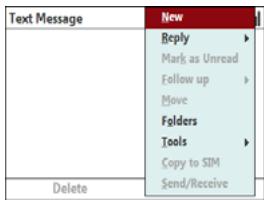
2 Press Up ▲ or Down ▼ to highlight a menu item.
3 If an arrow appears at the top or bottom of the displayed menu items, press Up or Down to view additional items.
4 If an arrow appears next to a menu item, press Centre or Right to display additional options for that item, and then press Up or Down to highlight a menu item. To return to the original menu without making a selection, press Left.
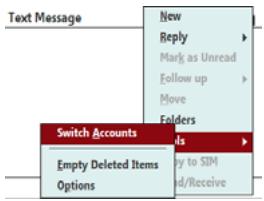
5 Press Centre to select the menu item, or press Left or Menu (right softkey) to close the menu and cancel your selection.
DID YOU KNOW? You can select most menu items by pressing a key on the keyboard. To quickly access a menu item, press Menu (right softkey) followed by the underlined letter in the menu item's name.
Selecting options in a list
If a rectangle appears around a field and the field contains both a right- and a left-pointing arrow, a list is available. On most screens, the rectangle does not appear until you navigate to the field using the 5-way.
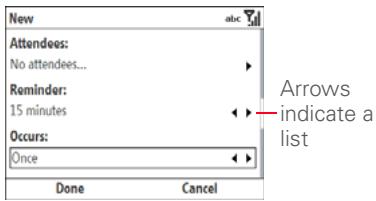
Tip Fields that display a right arrow only do not contain list items. These are either text-entry fields (see Using text-entry fields), or selection fields (for example, the Attendees field in Calendar or the Categories field in Contacts or Tasks). In a selection field, press Centre or Right to view additional options.
NOTE A list is available for the Subject field in Calendar and Tasks, even though this field does not display arrows.
Lists are different from the menus described earlier in this section.
To select from a list, do any of the following:
Use the 5-way to highlight the field, and then press Centre to display the items in the list. Press Up or Down to highlight the item you want, and then press Centre to make your selection.
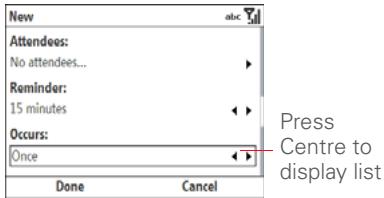
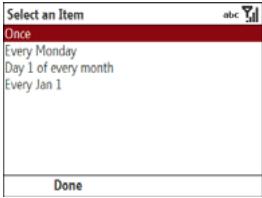
- With the field highlighted, press Right or Left to scroll through the options until the one you want appears. This works with all list fields except the Subject field in Calendar and Tasks. In that field, you can press Centre to display list items.
Using the keyboard
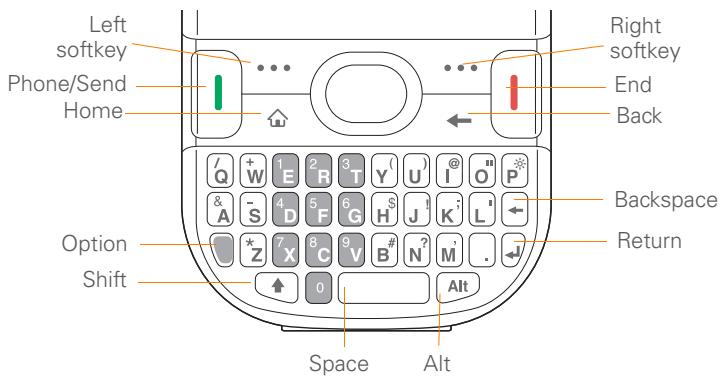
Use the keyboard to enter text and other symbols in many applications on your smartphone, as well as to dial phone numbers (see Using your Home screen).
NOTE Depending on your region, your keyboard layout may be different from the one shown above.
Understanding the keyboard backlight
Your smartphone includes a keyboard backlight for low light conditions. The keyboard backlight activates automatically when the screen turns on. The backlight turns off automatically when the screen turns off or when you are on a call or playing music in the background for longer than the time specified in Backlight Settings. You can set different time intervals depending on whether the smartphone is operating on battery power or is connected to an external power source. The backlight also turns off when an application's power-saving features turn it off.
Tip You can change the backlight shut-off interval. Press Home, press Start (left softkey), navigate to the My Settings content list, and then press All Settings (right softkey). Select More, and then select Power Management. Use the two Backlight time out on... lists to specify how long the backlight stays on.
Using text-entry fields
In applications such as Contacts, Calendar, and Tasks, text-entry fields are designated by a rectangle around the field. On most screens, the rectangle does not appear until you navigate to the field using the 5-way. To enter text in a field, highlight the field and use the keyboard to enter text.
Some text-entry fields—for example, the Street field in Contacts or the Notes field in Contacts, Calendar, or Tasks—display a right-pointing arrow. In these fields, press Centre or Right to open a text-entry screen that allows you to enter more than one line of text.
The address and subject lines in an email, text, or multimedia message you compose, as well as the message body, are also text-entry fields.
Tip Some fields that display a right arrow-for example, the Attendees field in Calendar or the Categories field in Contacts or Tasks-are selection fields, not text-entry fields. In a selection field, press Centre or Right to view additional options.
Tip If a field displays both a right and a left arrow, it is not a text-entry field. Instead, it is a field for which a list is available (see Selecting options in a list).
Entering lowercase and uppercase letters
By default, the first letter of each sentence or field is capitalised and the remaining text you enter is lowercase. In some cases, the initial capital letter does not appear until after you finish typing the first word and press Space or Enter
To enter other uppercase letters, do one of the following:
-
Press Shift (, ) and enter a letter. You don't need to press and hold Shift while entering a letter.
-
Press Shift twice to turn on Caps Lock, and then enter a series of letters. When Caps Lock is on, this symbol appears at the bottom of the screen: ABC. To turn off Caps Lock, press Shift again.
Entering numbers, punctuation, and symbols
Numbers, punctuation, and symbols appear above the letters on the keys. To enter these characters, do one of the following:
- Press Option , and then press the key of the desired character. You don't need to hold Option while pressing the key.
- Press Option twice to turn on Option Lock, and then press the desired keys to enter a series of characters. When Option Lock is on, this symbol appears at the bottom of the screen: 123. To turn off Option Lock, press Option again.
Entering other symbols and accented characters
You can enter symbols and accented characters that don't appear on the keys by using the alternative character list.
1 Press Alt to display the alternative character list.
2 Press Prev (left softkey) or Next (right softkey) to scroll through the alternative character screens.
3 When the character you want appears on the screen, use the 5-way to highlight the character.
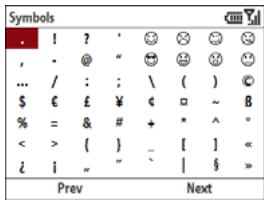
4 Press Centre to insert the character.
Tip To quickly view the most commonly used accented characters, press Alt and then press Prev (left softkey).
Entering passwords
You can't see your password as you enter it, so be careful. Be sure Caps Lock and Option Lock are not on unless you need them. For info on how to enter characters, see Entering lowercase and uppercase letters and Entering numbers, punctuation, and symbols.
Opening and closing applications
You can open applications in one of the following ways:
Recent Programs content list: Contains the ten programs you used most recently.
Other content lists: Contain groups of related items to give you fast access to frequently used applications.
Keyboard shortcuts: Open applications with just two key presses.
Main Menu: Gives you full access to all applications and files on your smartphone.
Your smartphone can run multiple apps at the same time, so when you finish using one, just open the next one you want to use.
Using the Recent Programs content list
1 Press Home 10 , and then press Start 10 (left softkey). The Recent Programs content list is displayed.
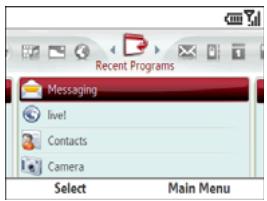
2 Press Up ▲ or Down ▼ to highlight the desired application.
3 Press Centre to open the app.
Using other content lists
Other content lists contain a mix of applications, files, and features. If you select a file or feature from a content list, it opens in the related application on your smartphone. For example, selecting a
picture opens the Pictures & Videos app, while selecting the "Add a Favourite" feature opens Contacts.
NOTE The content list icons and entries may vary according to your network operator.
1 Press Home , and then press Start (left softkey).
2 Press Right or Left to navigate to the content list containing the application, file, or feature you want.
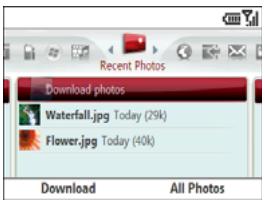
3 Press Up ▲ or Down ▼ to highlight the desired item.
4 Press Centre to open the item in the appropriate application.
Using keyboard shortcuts
Home + Right: Opens the Message Centre content list.
Home + Left: Opens the live! content list.
Tip You can create additional keyboard shortcuts to quickly open apps (see Creating keyboard shortcuts).
Using the Main Menu
1 Press Home , and then press Centre ° .
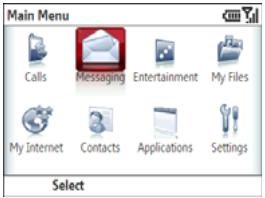
2 Navigate to the category or item you want and press Centre. You may need to navigate through one or more levels of folders to get to the item you want.
DID YOU KNOW? If you have a new email, text, or multimedia message alert, pressing Home + Centre opens the message. If you have a new voicemail message alert, pressing Home + Centre dials your voicemail number.
Tip To view all available applications, select Applications.
Tip When you open a category from the Main Menu, items appear in a list with a letter to the left of each item. To open an item, either select it with the 5-way or press the letter on the keyboard.
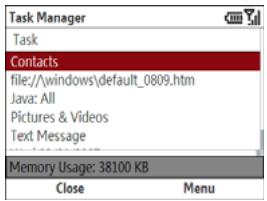
Closing applications
You can have several applications open at once, so you don't need to exit an application to open another one. In most cases, applications close automatically when available memory is low, but you can also close applications manually.
NOTE If you press Back ← to leave an application, the current application continues to run in the background. Manually closing applications helps free up memory.
1 Press Home , and then press Centre .
2 Select Applications , and then select Organiser & Tools
3 Press More (left softkey) and select Task Manager
4 Do one of the following:
Close a single application: Highlight the application you want and press Close (left softkey).
Close all open applications: Press Menu (right softkey) and select Close All.
Using your Homescreen
From your Home screen you can quickly see your call and connection status and access all of your applications.
To access your Home screen, press Home
Tip You can also open the Home screen by pressing End, unless you are on a call. If you are on a call, pressing End hangs up the call.
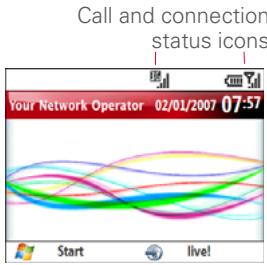
-
Title bar and status icons: See What are all those icons? to learn about the icons that appear in this area.
-
Start (left softkey): Press this key to open the content lists (see Using the Recent Programs content list and Using other content lists).
- live! (right softkey): Press this key to open your smartphone's web browser to the Vodafone live! website.
Tip You can select a picture for your Home screen background and select which items appear in the Home screen. See Home screen settings for details.
Your phone
The phone is your home base for making and receiving calls.
You can creatively manage multiple calls, such as swapping between calls and creating conference calls. You can also access voicemail or talk using a wired or wireless headset.
Benefits
-
Stay in touch—you choose how
Work in other applications when on a call -
Add contact numbers to your Favourite Contacts content list for quick access
In this chapter
Turning your Palm® Treo™ 500v smartphone on/off 43
Making calls from the Home screen 45
Other ways of making calls 48
Receiving calls 49
Using voicemail 50
What can I do during a call? 51
Working with called numbers 56
Creating speed dials. 58
Using a phone headset 60
Customising phone settings 63
Using the SIM toolkit 71
What are all those icons? 72
Turning your Palm® Treo™ 500v smartphone on/off
The term smartphone refers to the device and its physical aspects. The term phone refers to the wireless feature of your Palm® Treo™ 500v smartphone that enables you to connect to your network operator's network so that you can make and receive calls and send and receive data.
The phone and your smartphone can be turned off and on separately. This means you can turn on your smartphone to use just the organiser features without turning on the phone.
Turning your phone off
When you turn the phone off, you can still use the Microsoft Office apps and all the organiser features of your smartphone.
1 Press Power and select Wireless Manager.
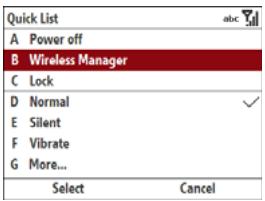
2 Select Phone.
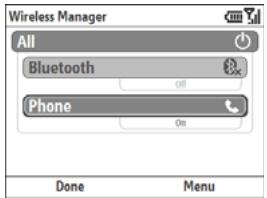
3 Press Done (left softkey).
When your phone is off, the phone-off icon appears at the top of the screen and Phone Off appears in the upper-left of the screen. Your phone is not connected to any mobile network. Although you can no longer use the phone, you can still use Microsoft Office apps and all the organiser features of your smartphone.
Tip When you travel by plane, you need to turn off all radios on your smartphone, which include the phone and the Bluetooth® wireless technology feature. This is sometimes referred to as flight mode. To turn off all radios, press Power, select Wireless Manager, and then select All.
Tip You can also press Power and select Silent to quickly silence the ringer on your phone.
Turning your phone on
When you turn on your phone, it connects to a mobile network so that you can make and receive phone calls and use other wireless services (if supported by the local network).
NOTE The first time you turn your smartphone on (see Turning your smartphone on), the phone is on by default.
1 Press Power and select Wireless Manager.
2 Select Phone.
3 Press Done (left softkey).
When your smartphone locates a signal, your network operator's name appears in the upper-left of the screen and the signal-strength icon appears at the top of the screen.
When you are inside a coverage area, the signal-strength icon has bars in it. If you're outside a coverage area, the indicator light flashes red and no bars appear in the signal-strength icon.
Turning your smartphone on
Press and hold Power 0 until the Palm® logo appears.
Tip If battery power is extremely low, the screen does not turn on when you press and hold Power. If this happens, you need to charge the battery.
Turning your smartphone off
- Press and hold Power . When your smartphone is off, the screen turns off. You cannot make phone calls or use any of the Microsoft Office apps or the organise features on your smartphone.
Tip You can also turn your smartphone off by pressing Power and selecting Power off.
Waking up the screen
After a designated period of inactivity, your smartphone screen turns off, even though your smartphone is still powered on. If the screen turns off, wake up the screen by pressing any key. If you press End 1 , you automatically go to the Home screen after you wake up the screen. If you press any other key, the last screen you were using is displayed.
Tip You can change the time interval for the period of inactivity that takes place before the screen turns off. Press Home, press Start (left softkey), navigate to the My Settings content list, and then press All Settings (right softkey). Select More, and then select Power Management. Select the Display time out list and specify how many minutes the screen stays on during a period of inactivity.
Making calls from the Home screen
Your smartphone offers several ways to make phone calls from the Home screen.
Dialling from the Home screen
BEFORE YOU BEGIN Make sure your phone is on and that you're inside a coverage area (see Turning your phone on).
1 Press Home
2 Using the numbered keys (and the +, and # keys, if needed) on the keyboard, enter a phone number.
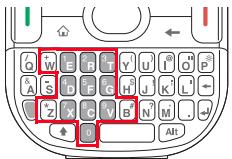
DID YOU KNOW? When you're on a call, you can enter ^+ *, or # without first pressing Option. You can also press P to pause. This makes it easy to respond to further dialling instructions.
3 Press Phone/Send to dial.
NOTE You do not need to press Option to access the numbers on the keyboard. However, when dialling short numbers, the number may conflict with a contact name. If this occurs, press Option to avoid starting a contact lookup. For emergencies, you can dial your national emergency number (such as 999 or 112) without pressing Option first.
Tip If you lock your smartphone and select Simple PIN as the password type, you can dial an emergency number by entering the number in the password field and pressing Phone/Send. You do not need to press Option before entering the number. However, if you select Strong alphanumeric as the password type, you must first press Option twice before entering the number in the password field. See Locking your smartphone.
Dialling by contact name
You can look up contacts quickly by entering just a few letters of a contact's name directly from your Home screen.
BEFORE YOU BEGIN
- Before you can dial a number by contact name, you must create some contacts (see Adding a contact.) or import them by synchronising (see Synchronising information).
Make sure your phone is on and that you're inside a coverage area (see Turning your phone on).
1 Press Home
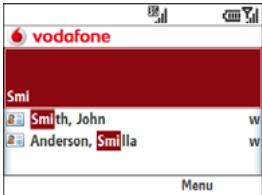
2 Using the keyboard, begin entering one of the following for the contact you want to call:
-
First name (JOH for John)
-
Last name (SMI for Smith)
- First initial, a space, and then last initial (J S for John Smith)
- A few letters of the first name, a space, and then a few letters of the last name (JOH SMI for John Smith)
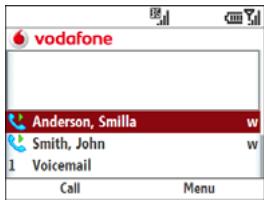
For example, entering SM finds both Smilla Anderson and John Smith. Entering SM AN finds only Smilla Anderson.
Tip You can type letters from the last name first; for example, typing "S J" or "Smi Joh" also finds "John Smith."
DID YOU KNOW? The search function offers several features that make it easy to find the contact you want, even if you are not sure of the exact name: 1) Search results include name variations, such as "David" for "Dave." 2) The search function inserts a space before the last letter typed if it cannot find a match. So if entering "Davidm" returns no results, the search function automatically tries to search for "David M." 3) Search results include soundalike entries, so entering "Dwayne" also returns results for "Duane."
To delete letters when correcting a misspelled name, press Backspace → .
3 Each matching contact is displayed with a code for the type of number you last entered for that contact: "w" for work, "m" for mobile, and so on.
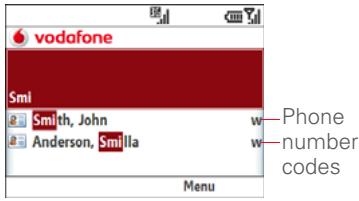
DID YOU KNOW? If you enter a letter—for example, "E"—that corresponds to a number key, both the number and any matching contact names appear on the screen. The onscreen numbers do not affect the process for dialling by contact name.
If the name you want is displayed with the correct phone number code, highlight the name and press Phone/Send to dial the number.
If you want to dial a different number for a displayed contact, select the contact name, select the number to dial, and then press Phone/Send 1.
Dialling with a speed dial BEFORE YOU BEGIN
- Create some speed dials. See Creating speed dials.
Make sure your phone is on and that you're inside a coverage area (see Turning your phone on).
You can make a call using a speed dial you have assigned to a contact's phone number.
1 Press Home
2 Press and hold the key or keys that you assigned as a speed dial to the contact number you want to call. If you have assigned a two-digit speed dial to this number, press the first key and then press and hold the second key.
Redialling a recently called number
To dial the last number you called: Press Home 念 , and then press Phone/Send twice.
To select from your most recently dialled numbers: Press Home l ,press Phone/Send 1, highlight the number or
contact name you want to call, and then press Phone/Send 1 to dial.
Tip You can manage information about a recently called number in several ways (see Working with called numbers).
Other ways of making calls
Your smartphone offers several ways to make phone calls other than from the Home screen. Try them all and you'll discover which methods you prefer.
Dialling by company name
BEFORE YOU BEGIN Make sure your phone is on and that you're inside a coverage area (see Turning your phone on).
1 Press Home 心 , and then press Start (left softkey)
2 Navigate to the Favourite Contacts content list and press All Contacts (right softkey).
3 Press Menu [...] (right softkey) and select View By > Company.
4 Press Phone/Send to go to your Home screen.
5 Using the keyboard, begin entering the first few letters of the company name.
6 Select the number you want to dial.
7 Press Phone/Send to dial.
Dialling from a message
Your smartphone recognises most phone numbers that appear in text, email, or multimedia messages.
1 Use the 5-way to highlight the phone number you want to dial in the message.
2 Press Phone/Send to dial.
Tip If the message includes the name of a contact whose contact entry contains a phone number, you can also highlight the contact name and press Phone/Send to dial the associated number.
Tip Highlight a name or phone number in a message and press Centre to create a new contact containing the highlighted information or edit an existing contact to include the highlighted information.
Receiving calls
To answer calls, your phone must be on. This is different from having only your smartphone turned on (see Turning your phone on). When your phone is off, your calls go to voicemail.
TIP See a picture of the person calling you! Learn how to assign a caller ID picture in Adding a contact.
If music is playing when a call arrives, the smartphone rings softly. You can answer
the phone as you normally would. The audio pauses during your call.
To answer a call, do one of the following:
Press Phone/Send 1.
- Press Answer (left softkey).
If a headset is attached, press the headset button.
To ignore a call and send it to voicemail, select Ignore (right softkey) or press End.
Using voicemail
Setting up voicemail
1 Press Home
2 Press and hold 1 on the keyboard to dial your network operator's voicemail system.
3 Follow the voice prompts to set up your voicemail.
Retrieving voicemail messages from the Home screen
Voicemail icon
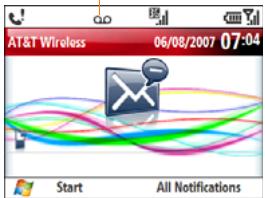
When you have unretrieved voicemail messages, a Voicemail icon appears at the top of your screen.
1 Press Home
2 Press and hold 1 on the keyboard to dial your network operator's voicemail system.
3 Enter your voicemail password using the keyboard.
4 Follow the voice prompts to listen to your messages.
What can I do during a call?
Your smartphone offers many advanced telephone features, including call waiting, six-way conferencing, and call forwarding. These features depend on your service plan. Contact your network operator for more information.
When you make or receive a call, the call info appears on your Home screen.
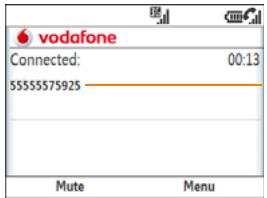
Caller's name and/or number
During a call, you can do any of the following:
Navigate around the Home screen: Use Up and Down to move around or highlight items.
Put the call on hold: Press Menu (right softkey) and select Hold. To take the call off hold, press Unhold (left softkey).
Mute the microphone so you can't be heard: Press Mute (left softkey). To turn the microphone back on, press Unmute (left softkey).
DID YOU KNOW? The "Connected" screen (shown above) must be displayed if you want to place a call on hold or mute a call. If the "Connected" screen is not displayed, press Back until it appears.
Use the built-in speakerphone: Press Menu (right softkey) and select Speakerphone On. To turn the speakerphone off, press Menu (right softkey) and select Speakerphone Off.
DID YOU KNOW? When you are on a call, the screen dims to conserve battery power. Press any key except End to light up the screen.
DID YOU KNOW? You can send and receive text messages during a call. This is a great way to stay connected with colleagues during a long call.
Ending a call
Do one of the following:
Press End
- Press the headset button (if a headset is attached and has a button on it). Some headsets do not have a button.
Switching applications during an active call
You can use many other applications on your smartphone, including the organise and text message features, while holding a phone conversation. You cannot, however, make some data connections during an active call while connected to a GPRS network. If you're connected to a GPRS network, you cannot browse the web or send and receive email or multimedia messages while on a voice call. If you're connected to a UMTS (3G) network, you can perform simultaneous voice and data functions. How can you tell which kind of network you're connected to? See What are all those icons?
To open an application, see Opening and closing applications.
From any application, press Home to return to your Home screen.
Saving phone numbers
After you hang up a call, you can add the number of the person you were talking with to Contacts if it's not already in your list. If an incoming call uses caller ID blocking, you cannot save the number.
1 After you hang up the call, press Save (left softkey).
2 Do one of the following:
Create a new contact: Select
Add this number to an existing contact: Select the contact name.
Decline adding the number: Press Cancel (right softkey).
Tip You can also save contact info from email messages.
If you don't add a number right away, follow these steps to add it later:
1 Press Home , and then press Phone/Send .
2 Highlight the number you want to save.
3 Press Save (left softkey).
4 Do one of the following:
Create a new contact: Select
Add this number to an existing contact: Select the contact name
Decline adding the number: Press Cancel (right softkey).
Making a second call
You can make a second call while your first call is still active:
1 Place your first call on hold by pressing Menu (right softkey) and selecting Hold.
2 Dial a second number using any of the methods described in Making calls from the Home screen.
When two calls are active, your Home screen includes two call status sections, each representing one of the calls.
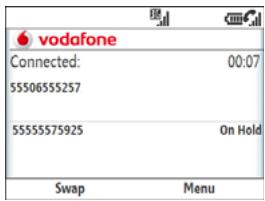
Answering a second call (call waiting)
When you're on a call and you receive a second call, the call waiting notification appears if you have chosen to be notified (see Setting call waiting notification). You can do any of the following:
Send the new call to voicemail: Press Ignore (right softkey).
Place the current call on hold and answer the new call: Press Answer (left softkey) or Phone/Send. After you answer the call:
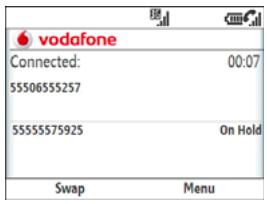
- Press Swap (left softkey) to move between callers by placing the current active call on hold and talking on the other line.
Make the calls a conference call. See Making a conference call.
Making a conference call
BEFORE YOU BEGIN Not all service plans support the conference call feature. Even if your home network supports conference calling, the feature may not be supported if you are roaming. If you experience problems, check with your network operator to confirm that your service plan includes conference calling. If you are roaming, try a test call to see if conference calling is supported.
IMPORTANT You can join up to 5 calls into a 6-way conference call. The number of calls you can join in conference depends on your service plan. Additional charges may apply, and minutes in your mobile account may be deducted for each call. Please contact your network operator for more information.
1 Answer a second call (see Answering a second call (call waiting)), or put the first call on hold and make a second call (see Making a second call).
2 Press Menu (right softkey) and select Conference. This joins the two calls with you in a conference.
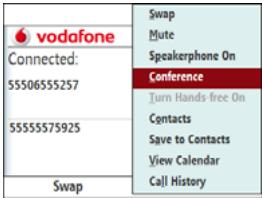
3 (Optional) Do one or more of the following:
- Make or answer more calls and join them into the conference call. The
number of calls you can join in conference depends on your service plan.
- Extract a caller from the conference call to talk with them privately by pressing Menu (right softkey), selecting Private, and then selecting the phone number. The extracted call becomes the active call. To return that call to the conference, press Menu (right softkey) and select Conference.
| Swap | |
| vodafone | Mute |
| Connected: | Speakerphone On |
| 55506555257 | Private |
| 55555575925 | Turn Hands free On |
| Contacts | |
| Save to Contacts | |
| View Calendar | |
| Call History | |
| Swap |
- Swap between the conference call and the private call by pressing Swap (left softkey).
4 When you're done, do one of the following: - If you have extracted a call, press End twice to hang up all calls or
press End once to hang up just the active call.
- If you have not extracted a call, press End once to hang up all calls.
Forwarding calls
You can forward calls to another phone number. Please check with your network operator about availability and pricing of forwarded calls; additional charges may apply.
When all calls are forwarded, the call forwarding C icon appears in the title bar.
BEFORE YOU BEGIN Make sure your phone is on and that you're inside a coverage area (see Turning your phone on).
1 Press Home , and then press Start (left softkey).
2 Navigate to the My Settings content list and press All Settings (right softkey).
3 Select Phone, and then select Call Forwarding.
4 Select when you want calls to be forwarded. Select Unconditional if you want all calls to be forwarded. Some of
the settings may already be set by your network operator to send your calls to voicemail.
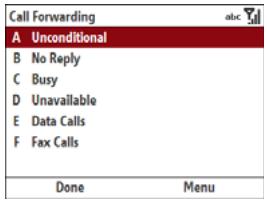
5 Press Done [... (left softkey).
Tip To turn off call forwarding, press Menu (right softkey) and select Disable All.
Working with called numbers
You can redial a number you've recently called (see Redalling a recently called number). You can also view call details, send a text message to a number, save the number to your contact list, and more.
Working with recently called numbers
1 Press Home , and then press Phone/Send I.
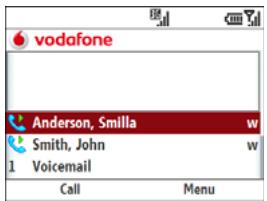
DID YOU KNOW? On the recent calls list, outgoing calls are designated by a right-pointing green arrow, and incoming calls are designated by a left-pointing yellow arrow. Missed calls are designated by a red exclamation point.
Tip To filter the calls shown on the recent call list, press Menu (right softkey), select View, and then select the option you want.
2 Highlight the number you want and do one or more of the following:
Save the phone number to a contact: See Saving phone numbers.
Send a text message to the number: Press Menu (right softkey) and
select Send Text Message. Enter the message text and press Send (left softkey).
View more details about the number:
Press Menu (right softkey) and select Open Call. The first entry shows the length of your last call with this number. Use the other entries to call the number or send a text message.
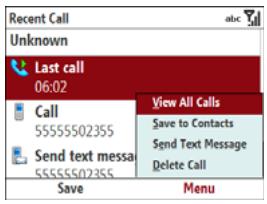
3 With the call open, do either of the following:
View all calls with this number: Press Menu (right softkey) and select View All Calls. All calls with this number are shown, including their duration.
Delete the call from the recent calls list: Press Menu (right softkey)
and select Delete Call. Press Yes (left softkey) to confirm the deletion.
Viewing all of your calls
Your Call History list contains the numbers for all incoming and outgoing calls.
1 Press Home , and then press Centre
2 Select Calls
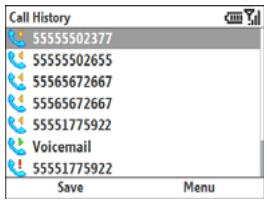
DID YOU KNOW? On the Call History list, outgoing calls are designated by a right-pointing green arrow, and incoming calls are designated by a left-pointing yellow arrow. Missed calls are designated by a red exclamation point.
3 Highlight a number and do one or more of the following:
Save the phone number to a contact: Press Save (left softkey) and refer to Saving phone numbers.
Open the contact associated with the phone number: Press Menu (right softkey) and select Find Contact.
Send a text message to the number: Press Menu (right softkey) and select Send Text Message. Enter the message text and press Send (left softkey).
Send an email message to the contact associated with the number:
Press Menu (right softkey) and select Email. Enter the message text and press Send (left softkey).
View timers for the most recent call, all calls, and more with this number: Press Menu (right softkey) and select View Timers.
Tip To reset call timers to zero for this number, press Menu (right softkey) and select Reset Timers. Press Yes (left softkey) to confirm that you want to reset all timers.
Delete the number from the list:
Press Menu (right softkey) and select Delete. Press Yes (left softkey) to confirm the deletion.
Delete the entire Call History list:
Press Menu (right softkey) and select Delete List. Press Yes (left softkey) to confirm the deletion.
Tip To filter the calls shown on the Call History list, press Menu (right softkey), select Filter, and then the type of calls you want to view.
Creating speed dials
You can assign a speed dial to any contact phone number. You can create up to 99 speed dials.
BEFORE YOU BEGIN Before you can assign a speed dial to a contact phone number, you must create some contacts (see Adding a contact) or import them by synchronizing (see Synchronising information).
1 Press Home , and then press Start (left softkey).
2 Navigate to the Favourite Contacts content list and press All Contacts (right softkey).
3 Select the contact to whom you want to assign a speed dial.
4 Highlight the phone number to which you want to assign a speed dial.
5 Press Menu (right softkey) and select Add to Speed Dial.
6 If you want to change the name for this speed dial, select the Name list and enter a new name.
7 Select the Keypad assignment list, and then select the speed dial you want to assign to this phone number.
DID YOU KNOW? If you select a number that is already assigned as a speed dial to a different phone number, you receive an alert asking if you want to replace the existing assignment with the new one.
DID YOU KNOW? The number 0 is reserved for entering the ^+ symbol in a phone number, and the number 1 is reserved for dialing your voicemail system. You cannot assign either of these numbers as a speed dial.
Tip You can also create speed dials to quickly open applications (see Creating keyboard shortcuts).
Using a phone headset
You can connect a phone headset for hands-free operation. You can use either the headset that came with your smartphone or a compatible third-party headset.
IMPORTANT If driving while using a smartphone is permitted where you are and you need to make a call, we recommend using a phone headset or a hands-free car kit (sold separately). If you must use the wired headset while driving, place a speaker in only one ear. Leave the other ear free to hear outside noises. Make such a call only if it is legal to do so and you can do so safely.
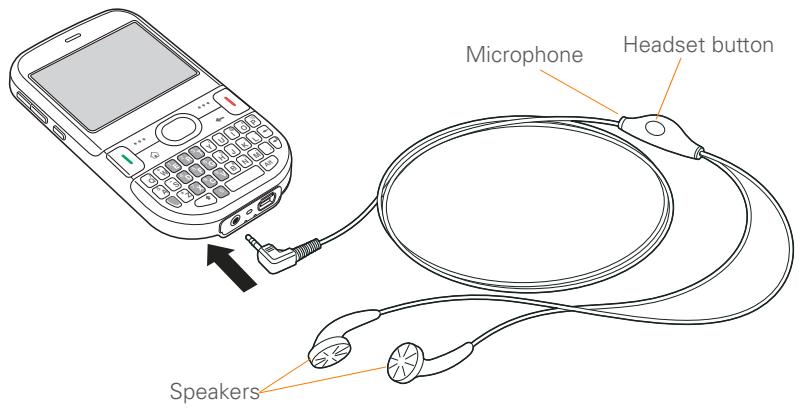
Using a wired headset
The headset button is context-sensitive, and it performs various actions based on the situation. You can press the headset button to perform tasks such as the following:
Answer an incoming call
- Respond to call waiting
- Hang up a single active call or all calls on a conference call if there is no extracted call
- Swap between calls if there is one active call and one call on hold
NOTE Your smartphone works with headsets that have a 2.5mm, 3-pin connector (look for three dark bands on the plug). When in doubt, ask the third-party headset manufacturer if the product is compatible with your smartphone. If you hear a headset buzz or poor microphone performance, your headset may be incompatible with your smartphone.
Connecting to a Bluetooth® hands-free device
Your smartphone is also compatible with many headsets and car kits (sold
separately) enabled with Bluetooth® wireless technology version 2.0 or earlier.
For a list of compatible hands-free devices with Bluetooth wireless technology, go to go.palm.com/treo500v/.
After you set up a connection with a Bluetooth headset or hands-free car kit, you can communicate with that device whenever it is within range and the Bluetooth feature on your smartphone is turned on. The range varies greatly, depending on environmental factors. The maximum is about 9 metres.
DID YOU KNOW? If you have both a compatible Bluetooth headset and a car kit, the one you connected to your smartphone last becomes the active device.
1 If necessary, prepare the other device, such as a headset, to accept a new connection. Check the device's documentation for details. Be sure to find out if the device has a predefined passkey that you need to enter on your smartphone in step 9.
2 Press Home , and then press Start (left softkey).
3 Navigate to the My Settings content list, highlight Bluetooth, and then press Turn On (left softkey).
4 Select Bluetooth, and then select Add new device.
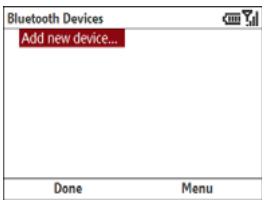
5 Wait for your smartphone to search for devices and to display the device list.
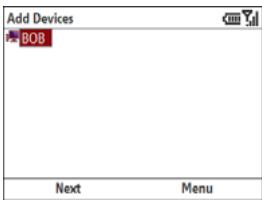
6 Select the device you want to connect to and press Next (left softkey).
7 Enter a passkey between 1 and 16 digits long and press Next (left
softkey). You do not need to press Option before entering digits
IMPORTANT Some hands-free devices have a predefined passkey. If your hands-free device has a predefined passkey, you can find it in the documentation for that device. Other devices provide a screen where you enter a passkey that you make up. In either case, you must use the same passkey on both your smartphone and your hands-free device. We recommend that you use a passkey of 16 digits, where possible, to improve the security of your smartphone. The longer the passkey, the more difficult it is for the passkey to be deciphered.
DID YOU KNOW? The Bluetooth icon on your Home screen indicates the status of the Bluetooth feature. See The Bluetooth status icon for details.
8 If the passkey is not predefined, enter the same passkey on the other Bluetooth device.
9 Press OK (left softkey).
You can now communicate with this device whenever it is within range and the Bluetooth feature on your smartphone is turned on. The range varies greatly, depending on environmental factors. The maximum is about 9 metres.
Using a Bluetooth hands-free device
To learn how to set up and connect to Bluetooth devices, see Connecting to a Bluetooth® hands-free device.
Here are tips for working with a Bluetooth hands-free device:
- To transfer a call from the handset to a Bluetooth hands-free device during a call, press Menu (right softkey) and select Connect Bluetooth. To transfer the call back to the headset, press Menu (right softkey) and select Cancel Bluetooth.
To transfer a call from a wired headset to a Bluetooth headset or car kit that is within range and with which you've previously set up a partnership (Bluetooth headset or car kit required, sold separately), unplug the wired
headset and press the button on the Bluetooth headset or car kit.
DID YOU KNOW? If you're using a Bluetooth hands-free device and it is within range, your smartphone routes all calls to the hands-free device instead of to the earpiece on your smartphone. Bluetooth range is up to 9 metres in optimum environmental conditions.
Tip To find out how to transfer your contacts from your smartphone to your car kit, go to go.palm.com/treo500v/.
Customising phone settings
Selecting ringtones and alert sounds
You can set tones for incoming phone calls, notifications, and voicemail messages. You can download MP3, MIDI, AMR, WAV, and WMA ringtones directly to your smartphone (see Downloading files and images from a web page). You can also download ringtones to your computer and then email them to your phone.
BEFORE YOU BEGIN If you want to use a downloaded or emailed ring tone, make sure it has been saved or copied to the My Ringtones folder on your smartphone (see Finding information).
1 Press Home , and then press Start ... (left softkey).
2 Navigate to the My Settings content list and press All Settings (right softkey).
3 Select Sounds.
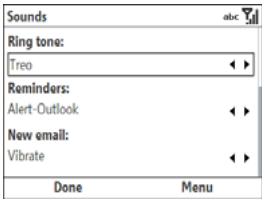
4 Select one or more of the following lists, and then press Right or Left to make your selection:
Ring tone: Sets the ring sound for incoming calls.
TIP Select Vibrate to have your smartphone vibrate when a call arrives (see Selecting a sound profile).
New voice message: Sets the sound when you receive a new voicemail message.
5 (Optional) To preview the selected sound, press Menu (right softkey) and select Play.
6 Press Done [... (left softkey).
Tip You can also set sounds for messaging notifications, calendar reminders, and other events (see Selecting Sounds & Notifications).
Adjusting call and ringer volume
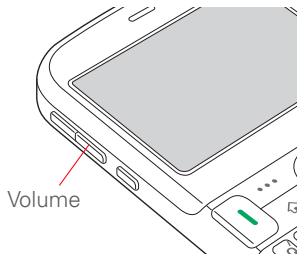
When the phone is ringing, press Volume (on the side of your smartphone) to adjust the ring volume.
While a call is in progress, press Volume to adjust the call volume.
Assigning a caller ID ringtone
1 Press Home , and then press Start (left softkey).
2 Navigate to the Favourite Contacts content list and press All Contacts (right softkey).
3 Highlight the contact's name.
4 Press Menu (right softkey) and select Edit.
5 Select the Custom ring tone list, and then select a tone for this contact entry.
6 Press Done (left softkey).
Automatically answering calls
You can set your smartphone to automatically answer calls when you are using a hands-free device.
NOTE Automatic answering is not available when the sound profile is set to Silent (see Selecting a sound profile).
1 Press Home 心 , and then press Start (left softkey).
2 Navigate to the My Settings content list and press All Settings (right softkey).
3 Select Phone, and then select Auto Answer.
4 Select an option for how quickly calls are automatically answered when using a hands-free device.
5 Press Done (left softkey).
Blocking calls
You can block (bar) incoming or outgoing calls.
BEFORE YOU BEGIN You need to do the following:
Make sure that call barring is supported by your service plan. Check with your network operator for more information.
- Get a call barring password from your network operator.
Make sure your phone is on and that you're inside a coverage area (see Turning your phone on).
1 Press Home 公 , and then press Start ... (left softkey).
2 Navigate to the My Settings content list and press All Settings (right softkey).
3 Select Phone, and then select Call Barring.
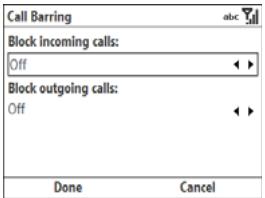
4 Select the Block incoming calls list, and then select one of the options:
Off: No incoming calls are blocked.
When roaming: All incoming calls are blocked when roaming.
All calls: All incoming calls are blocked.
5 Select the Block outgoing calls list and then select one of the options:
Off: No outgoing calls are blocked.
Int'l except to home: All outgoing international calls are blocked except to the country where the phone is based.
Int'l calls: All outgoing international calls are blocked.
All calls: All outgoing calls are blocked.
6 Press Done (left softkey).
7 Enter a call barring password and press Done (left softkey).
Setting call waiting notification
You can choose to be notified when you receive a call while you are on a call. If you set up call waiting, you can choose to accept the call or not. See Answering a second call (call waiting).
BEFORE YOU BEGIN Make sure your phone is on and that you're inside a coverage area (see Turning your phone on).
1 Press Home 心 , and then press Start (left softkey).
2 Navigate to the My Settings content list and press All Settings (right softkey).
3 Select Phone, and then select Call Waiting.
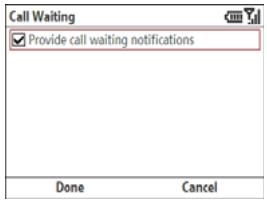
4 Check the box if you want to receive call waiting notifications.
5 Press Done (left softkey).
Setting caller ID
You can set the option for who can see your number when you call them.
BEFORE YOU BEGIN Make sure your phone is on and that you're inside a coverage area (see Turning your phone on).
1 Press Home 山 , and then press Start (left softkey).
2 Navigate to the My Settings content list and press All Settings (right softkey).
3 Select Phone, and then select Caller ID.
4 Select the appropriate option to provide your caller ID to Everyone, No one, or Only my contacts.
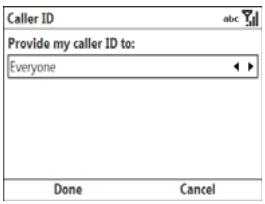
5 Press Done (left softkey).
Enabling fixed dialling
Fixed dialling allows you to restrict your outgoing calls and messages to selected phone numbers included in your fixed dialling list. After the service is activated, you can call and send messages only to the phone numbers from the list.
The list is protected by a PIN2 code. If you enter an incorrect PIN2 more times than allowed by your network operator, the SIM card locks. After the SIM card locks, you need the PUK2 (pin unblocking key) to
unlock the SIM card. Contact your network operator for more information and your PIN2 and PUK2.
BEFORE YOU BEGIN
Make sure your phone is on and that you're inside a coverage area (see Turning your phone on).
- Get your PIN2 from your network operator.
1 Press Home 心 , and then press Start (left softkey).
2 Navigate to the My Settings content list and press All Settings (right softkey).
3 Select Phone.
4 Select More, and then select Fixed Dialling.
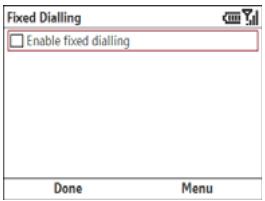
5 Check the Enable fixed dialling box and press Done (left softkey).
6 Enter your PIN2 and press Done (left softkey).
7 Press Menu (right softkey) to add, delete, or edit the phone numbers in the list. The options to add or delete numbers appear only when fixed dialling has been enabled.
Tip You can add or edit numbers only in the fixed dialling list. You cannot edit the names that appear.
8 Press Done (left softkey).
Tip If your network operator provides you with a new PIN2, you can easily change it on your smartphone. Press Home, press Start, and navigate to the My Settings content list. Press All Settings (right softkey), select More, and then select Security. Select Change PIN2 and enter your new PIN2.
Manually selecting your wireless band
IMPORTANT The wireless band setting is preset for optimum performance. Do not change this setting unless instructed to do
so by a representative from your network operator.
BEFORE YOU BEGIN Make sure your phone is on and that you're inside a coverage area (see Turning your phone on).
1 Press Home 空 , and then press Start (left softkey).
2 Navigate to the My Settings content list and press All Settings (right softkey).
3 Select Phone.
4 Select More, and then select GSM/3G Networks.
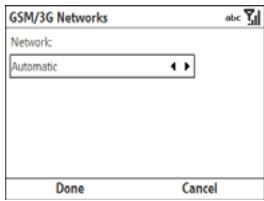
5 Select the Network list, and then select one of the following:
Automatic: Automatically selects a network.
GSM: Connects only to GSM networks.
6 Press Done (left softkey).
7 If prompted, turn off your smartphone (see Turning your smartphone off).
Manually selecting your network settings
IMPORTANT The network settings are preset for optimum performance. Do not change these settings unless instructed to do so by a representative from your network operator. The network settings options vary according to your wireless service provider.
BEFORE YOU BEGIN Make sure your phone is on and that you're inside a coverage area (see Turning your phone on).
1 Press Home 心 , and then press Start (left softkey).
2 Navigate to the My Settings content list and press All Settings (right softkey).
3 Select Phone.
4 Select More, and then select Networks.
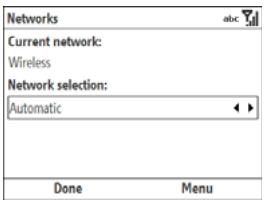
5 To search for other available networks, press Menu (right softkey), select Find a New Network, and then select an available network.
6 To switch to another network, press Menu (right softkey), select Select a Network, and then select an available network.
7 To change your preferred network, select Preferred Networks, check the box next to the networks you want, and then select your order of preference.
8 From the Network selection list, select an option:
Automatic: The network connection is automatically made.
Manual: Network connections are manually made. If you are manually selecting a network, select a network from the list of available networks.
9 Press Done (left softkey).
Setting other call options
You can change your voicemail number, enter a country or dialling code, and more.
1 Press Home 空 , and then press Start ... (left softkey).
2 Navigate to the My Settings content list and press All Settings (right softkey).
3 Select Phone, and then select Call Options.
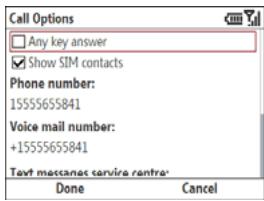
4 Select one or more of the following options:
Any key answer: Check the box if you want to answer incoming calls by pressing any key.
Show SIM contacts: Check the box if you want contacts on your SIM card displayed when you do a contact lookup.
Voice mail number: Your network operator's voicemail number is entered by default. Enter a new number only if your network operator changes its voicemail number.
Text messages service centre: The number for your network operator's text message service centre is entered by default. Enter a new number only if your network operator changes its text message service centre number.
Country code: Enter a country code that you want to be dialled automatically when you enter a phone number. All numbers you dial are preceded by this code.
Dialling code: Enter any other dialling code, such as a "1," that you want to be dialled automatically when you enter a phone number. All numbers you dial are preceded by this code.
5 Press Done (left softkey).
Using the SIM toolkit
The SIM toolkit is a set of small applications that are stored on your SIM card and enable you to do certain tasks. For example, using the SIM toolkit, you might be able to check your prepaid balance or call customer service.
IMPORTANT Not all network operators offer the SIM toolkit on their SIM cards. For those network operators that do support the SIM toolkit, features vary by network operator. If your network operator does not support the SIM toolkit, you cannot open this application on your smartphone.
BEFORE YOU BEGIN The name of the SIM toolkit application varies depending on your network operator. Contact your network operator for the SIM toolkit application name.
1 Press Home , and then press Centre
2 Select Applications , and then select More.
3 Select the SIM toolkit application.
What are all those icons?
You can monitor the status of several items using icons at the top of your Home screen:

You missed an incoming call.

You have a voicemail message.

You have a new text, multimedia, or email message.

You have a new text message.

You have a new instant message.

No SIM card is inserted.

There is a problem reading the SIM card.

The ringer on your phone is off.

Your phone is on. The bars display the signal strength.
The stronger the signal, the more bars that appear.

Your phone is on but there is no signal.

Your phone is on but you are in an area where there is no service, or the SIM card is locked and you have exceeded the number of tries permitted to unlock the SIM card (see Locking the SIM card).

Your phone is off.

The SIM card is locked. You need to enter a PIN or a PUK to unlock the SIM card (see Locking the SIM card).
A voice call is in progress.
A voice call is on hold.
All calls are being forwarded.
A data call is in progress.
The speakerphone is turned on.
You are in a roaming coverage area. Additional fees may apply for calls or data transmission.
Your phone is connected to a 3G UMTS network, but you are not actively transmitting data. You can still make or receive calls.

Your phone is on and a 3G UMTS data connection is active. You can make and receive calls and transmit data simultaneously.

You are in a roaming coverage area and your phone is connected to a 3G UMTS network, but you are not actively transmitting data. Additional fees may apply for calls or data transmission.

Your phone is connected to a GPRS network, but you are not actively transmitting data. You can still make or receive calls.

Your phone is on and a GPRS data connection is active. You can still make or receive calls, but the data transmission is automatically interrupted.

You are in a roaming coverage area and your phone is connected to a GPRS network, but you are not actively transmitting data. Additional fees may apply for calls or data transmission.

No battery is inserted into your smartphone.

Your smartphone's battery is low.

Your smartphone's battery is being charged.

Your smartphone's battery is fully charged.
Network Your phone is on. When you turn operator off your phone, Phone Off name appears instead.

A synchronisation error occurred.

The vibrate profile is enabled.

The Bluetooth® wireless technology feature is turned on.

A call is in progress and your smartphone is connected to a Bluetooth headset or car kit.

Music files are playing from your smartphone through a connected Bluetooth headset.
abc
Lowercase text entry is enabled.
Abc
Shift is enabled.
ABC
Caps Lock is enabled.
123
Option is enabled.
123
Option Lock is enabled.
#
You have an alert from Microsoft.
Synchronising information
Synchronising means that information that has been entered or updated in one place—your Palm® Treo™ 500v smartphone, your computer, or your corporate server—is automatically updated in the other. There's no need to enter information twice. Some types of synchronisation can happen on an automated schedule, so you don't even have to think about it.
After you get into the habit of synchronising regularly, you'll know what a powerful tool synchronisation is for transferring, updating, and backing up large amounts of information on your smartphone.
Benefits
-
Quickly update information on your computer, your corporate server, and your smartphone
-
Protect your information
-
Send photos and videos to your smartphone from your desktop computer
In this chapter
Synchronisation overview 77
How do I synchronise? 77
What can I synchronise? 78
Setting up wireless synchronisation. 81
Setting up your computer for synchronisation 86
Synchronising using the sync cable 92
Other ways to synchronise 92
Setting synchronisation options 94
Synchronisation overview
This chapter discusses using desktop sync software and other methods to synchronise your smartphone and your computer.
When you synchronise, info you enter on your smartphone, your computer, or your corporate server is automatically updated in the other location. There's no need to enter the info twice. This is true whether you sync wirelessly with your company's Exchange server using Microsoft Exchange ActiveSync (see Setting up wireless synchronisation) or with your computer using desktop synchronisation software (see Setting up your computer for synchronisation).
How do I synchronise?
There are a number of ways to make synchronisation occur. You may be able to synchronise wirelessly with an Exchange server, or you can install desktop sync software on your computer to synchronise in one of several ways. You can also maximise your sync options and sync with both an Exchange server and desktop sync software.
Synchronising wirelessly with the server
You can set up your smartphone to synchronise email and other information wirelessly with Microsoft Exchange Server 2003 or Exchange Server 2007 using Microsoft Exchange ActiveSync (see Setting up wireless synchronisation). If you choose this method, synchronisation takes place automatically after setup. You do not need to install the software from the Windows Mobile Getting Started CD.
NOTE We recommend that you install the desktop sync software from the CD even if
you synchronise wirelessly with the server. You need the desktop sync software to synchronise pictures, videos, music files, and other info directly with your computer.
Synchronising with desktop sync software
BEFORE YOU BEGIN Install the software from the Windows Mobile Getting Started CD, which came with your smartphone. You must install this software even if you have already installed a previous version of desktop sync software. See Installing ActiveSync desktop software: Windows XP or Installing Windows Mobile Device Center: Windows Vista for instructions.
After you install desktop sync software, you can synchronise in either of the following ways:
- By connecting your smartphone to your computer using the sync cable (see Synchronising using the sync cable)
- By connecting your smartphone to your computer using Bluetooth® wireless technology (see Synchronising over a Bluetooth connection)
If you have a Windows XP computer:
The desktop sync software is called ActiveSync® desktop software.
If you have a Windows Vista computer:
The desktop sync software is called Windows Mobile Device Center. The sync application on your smartphone is called ActiveSync.
What can I synchronise?
If you have Microsoft Office Outlook® 2003 or later installed on your computer, by default, the following information is synchronised when you synchronise using either desktop sync software or Microsoft Exchange ActiveSync:

Contacts Calendar

E-mail Tasks
You can, however, customise sync settings to suit your needs and sync only some of these applications.
Tip If you don't already have Outlook 2003 or later installed on your computer, you can install a trial version of Outlook 2007 from the Windows Mobile Getting Started CD. Insert the CD into your computer's CD drive, select Add Programs (Windows XP) or Bonus Software (Windows Vista), and then select the link to download a trial version of Outlook 2007.
If you set up synchronisation with your computer using the desktop sync software, information in the Favourites application is synchronised by default as well. Synchronising Favourites gives you an easy way to get web favourites from the web browser on your computer into the web browser on your smartphone. Just add them to the folder called Mobile Favourites, which shows up in your computer's browser. When you sync, they
become available on your smartphone as well. Backup copies of any favourites that you add on the smartphone browser are also stored in the Mobile Favourites folder.
You can also change settings to synchronise Word, Excel, PowerPoint, and PDF files, as well as pictures, music, videos, and other types of files (see Changing which applications sync).
Tip If you want to synchronise with a personal information manager (PIM) other than Microsoft Office Outlook, you must install a third-party solution. Contact the PIM's vendor to learn if software is available for your smartphone.
The following table lists the types of info you can synchronise and the methods to use.
| Info type | Method | Where to learn more |
| Outlook Contacts, Calendar, Tasks | Desktop sync software (sync with computer) or Exchange ActiveSync (direct sync with server) | Setting up your computer for synchronisation or Setting up wireless synchronisation |
| Outlook Email | Desktop sync software or Exchange ActiveSync | Setting up your computer for synchronisation or Setting up wireless synchronisation |
| Word, Excel, PowerPoint, PDF files | Desktop sync software | Setting up your computer for synchronisation Synchronising your Microsoft Office files Changing which applications sync |
| Music and video files | Desktop sync software and Windows Media Player | Setting up your computer for synchronisation Changing which applications sync Transferring media files to your smartphone |
| Pictures | Windows XP: Desktop sync software Windows Vista: Desktop sync software and Windows Media Player | Setting up your computer for synchronisation Changing which applications sync Transferring media files to your smartphone (Windows Vista) |
| Outlook Notes | Desktop sync software | Setting up your computer for synchronisation Changing which applications sync |
| Files to be transferred to an expansion card | Desktop sync software | Setting up your computer for synchronisation Changing which applications sync |
Tip If you want to synchronise music and videos, you need to have Windows Media Player 10 or later installed on your computer. If you don't already have Windows Media Player on your computer, you can download it from microsoft.com.
Setting up wireless synchronisation
Does your company use Microsoft Outlook as its email solution? Does your company also use Microsoft Exchange Server 2003 or 2007 as its email server? If so, you may be able to wirelessly synchronise the email and other Outlook info on your smartphone and the same info stored on the Exchange server using Microsoft Exchange ActiveSync.
If you are using Exchange Server 2007 or Exchange Server 2003 that has been upgraded to Service Pack 2, you may be able to take advantage of the additional features of Microsoft Direct Push. Microsoft Direct Push is a two-way wireless delivery method that keeps your Outlook information always up-to-date and provides more efficient communication between the server and your smartphone. It includes features like Global Address List; Tasks Over The Air (OTA); and IP-based push updating of Calendar, Messaging, and Inbox (email).
DID YOU KNOW? Because your desktop copy of Outlook also syncs with the server, whatever is synchronised to the server from your smartphone also shows up in Outlook; and whatever you enter or change in Outlook on your computer syncs to the server and then shows up on your smartphone.
DID YOU KNOW? You cannot synchronise email distribution lists wirelessly with the Exchange Server. However, you can search for a Global Address List in Contacts (see Finding a contact in an online address book) and add it as a single entry in your contact list. This contact entry can then synchronise with the server.
Tip If you are using Microsoft Exchange ActiveSync and you lose your smartphone, contact your IT department as soon as possible to have them deactivate access to the Exchange server from your smartphone.
NOTE Even if you sync with an Exchange server, we recommend that you install the desktop sync software as well, to take full advantage of your smartphone's capabilities.
BEFORE YOU BEGIN To synchronise wirelessly, you need to set up an Exchange Server account. Work with your system administrator to gather the following info, and then follow the steps in this section to set up an account:
- Mail server address and domain name.
DID YOU KNOW? If you use Outlook Web Access (OWA) services, the mail server address is usually the same as your OWA address.
Tip If you use hosted Exchange services, contact the host company to get the domain name.
- The username and password you use to access your corporate mail server.
- Security connection: Does your server use an encrypted (SSL) connection?
- Whether it is OK to store your corporate email password on your smartphone. To maintain security, the administrator may require you not to store the password on your smartphone.
Tip If you installed ActiveSync desktop software on a Windows XP computer, you may have already set up your smartphone to synchronise wirelessly with the server. To check, press Home, press Centre on the 5-way, and then select Applications. Select Organiser & Tools, and then select ActiveSync. Press Menu (right softkey). If Configure Server appears instead of Add Server Source, wireless sync is already set up, and you can skip this procedure.
1 Press Home 心 , and then press Centre
2 Select Applications , and then select ActiveSync
3 Press Menu (right softkey) and select Add Server Source.
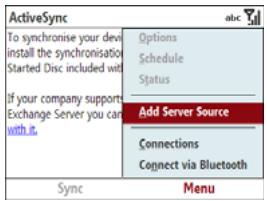
4 Enter the server address.
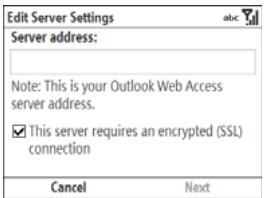
5 Check the This server requires an encrypted (SSL) connection box if your server uses an encrypted connection. In most cases, this box should be checked.
6 Press Next [... (right softkey).
7 Enter the username and password you use to access your corporate mail server, and enter the Exchange server domain.
NOTE You can't see your password as you enter it, so be careful. Be sure Caps Lock and Option Lock are not on unless you need them. For info on how to enter characters, see Entering lowercase and uppercase letters and Entering numbers, punctuation, and symbols.
TIP The Exchange server settings are case-sensitive. Be sure to enter uppercase and lowercase letters properly.
8 Check the Save password box.
TIP If you found out from your system administrator that it is not OK to store your password, don't check the Save password box; you must synchronise manually (see Initiating a wireless sync manually).
Tip If you check this box and later change your Exchange password, you need to repeat the steps in this procedure and enter the new password. You cannot synchronise wirelessly until you update the password.
9 Press Next (right softkey) and check the boxes for the types of information you want to synchronise with the Exchange server.
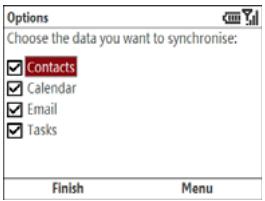
10 (Optional) Highlight an item, press Menu (right softkey), and then select Settings to change the synchronisation settings for that type of information. Settings are not available for all items.
Tip To automatically download more of an incoming email message than the default setting, select E-mail in step 10 and select a higher number from the Download size limit list. If you don't increase this setting, you can manually download the rest of the message at your convenience.
11 Press Finish (left softkey). Synchronisation with your Exchange server begins automatically. A status bar appears onscreen indicating sync progress.
You can set a schedule for synchronisation to take place anytime info is updated on either your smartphone or the server or at certain intervals (see Setting the synchronisation schedule), or allow synchronisation to take place only when you initiate it manually (see Initiating a wireless sync manually).
Setting the synchronisation schedule
You can set a synchronisation schedule in either of the following situations:
If you use Microsoft Exchange Server 2007 or Microsoft Exchange Server 2003 with Service Pack 2: By default, wireless sync takes place anytime info is updated on either your smartphone or the server using Microsoft Direct Push. To save battery life, however, you can set synchronisation to take place at intervals that you specify.
If you use Microsoft Exchange Server 2003 that is not upgraded to Service
Pack 2: By default, wireless sync does not take place automatically. Set a synchronisation schedule to have sync take place either anytime info is updated on your smartphone or the server, or at certain intervals.
1 Press Home 空 , and then press Centre ° .
2 Select Applications , and then select ActiveSync
3 Press Menu (right softkey) and select Schedule.
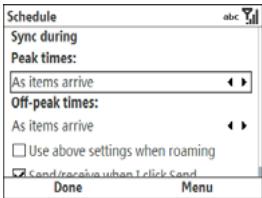
4 Set any of the following options:
Peak times: Sets the frequency for high-traffic time periods such as when you are at work or when email volume is high.
Off-peak times: Sets the frequency for low-traffic time periods such as late at night.
Use above settings when roaming:
Sets the frequency while you are roaming outside your network operator's network. You should keep this box checked to ensure that wireless sync works properly.
Send/receive when I click Send:
Specifies whether items are sent as soon as you select Send in the email application, or whether they are held until the next synchronisation.
5 Press Done [... (left softkey).
Initiating a wireless sync manually
If you want to control exactly when a wireless sync takes place, or if it is not OK to store your corporate email password on your smartphone, you can initiate synchronisation manually.
1 To set up manual sync, follow the preceding procedure, Setting the synchronisation schedule. In the Peak times and Off-peak times lists, select Manual.
2 To initiate a manual sync, press Home l , and then press Centre l
3 Select Applications , and then select ActiveSync
4 Press Sync [---] (left softkey).
Setting up your computer for synchronisation
Even if you are synchronising email, contacts, calendar events, and tasks directly with Exchange Server 2003 or 2007, we recommend that you install the desktop sync software (accessible from a link on the Windows Mobile Getting Started CD) so that you can sync your smartphone directly with your computer. Why? Using the desktop sync software enables you to synchronise additional info such as pictures, videos, music files, Microsoft Office files, and notes. So you can create and work on files on your smartphone and then sync changes to your computer, where you then have a backed-up and up-to-date copy of important info.
Before you can synchronise, you need to install your desktop sync software and connect the USB sync cable to your computer. Even if you already have desktop sync software installed on your
computer, you must install the software that you can download from the link on the Windows Mobile Getting Started CD that came with your smartphone.
System requirements
Your computer must meet the following minimum system requirements:
- Windows XP Service Pack 2 or Windows Vista (later versions may also be supported)
32MB of available memory (RAM)
170MB of free hard disk space
CD drive
Available USB port - USB sync cable (included with your smartphone)
- Adobe Flash Player (required to run the installation program)
Tip If you do not have Adobe Flash Player on your computer, you can download it for free from adobe.com.
Installing ActiveSync desktop software: Windows XP
If you have a Windows XP computer, the desktop sync software is called ActiveSync desktop software. The Windows Mobile Getting Started CD recognises that you have a Windows XP computer and automatically directs you to install ActiveSync desktop software. On your smartphone, the sync application is also called ActiveSync.
BEFORE YOU BEGIN
If you are installing the software on a computer at work, make sure your company allows you to install new software. Contact your company's IT department for help.
- Make sure your computer is connected to the Internet so that you can download the software.
- Turn off any firewall settings on your computer that can interfere with the synchronisation process. Contact your company's IT department for help.
1 Close any applications that are currently running on your computer, including those running in the background. Your
computer must have all its resources available to install the software.
2 Insert the Windows Mobile Getting Started CD into the CD drive on your computer.
3 Follow the installation instructions that appear on both your computer and your smartphone.
During installation, you connect your smartphone to your computer and sync for the first time. Be sure to watch what's happening on both your computer and your smartphone. For more info, see Connecting your smartphone to your computer and Synchronisation: Overview.
TIP During software installation, you can select an option to synchronise email, contacts, calendar events, and tasks directly with Microsoft Exchange Server 2003 or 2007. If you choose this option, you are prompted to enter your mail server address and domain name and your Exchange Server account username and password.
Installing Windows Mobile Device Center: Windows Vista
If you have a Windows Vista computer, the desktop sync software is called Windows Mobile Device Center. The Windows Mobile Getting Started CD recognises that you have a Windows Vista computer and automatically directs you to install Windows Mobile Device Center. On your smartphone, the sync application is called ActiveSync.
BEFORE YOU BEGIN
If you are installing the software on a computer at work, make sure your company allows you to install new software. Contact your company's IT department for help.
- Make sure your computer is connected to the Internet so that you can download the software.
- Turn off any firewall settings on your computer that can interfere with the synchronisation process. Contact your company's IT department for help.
1 Close any applications that are currently running on your computer, including those running in the background. Your
computer must have all its resources available to install the software.
2 Insert the Windows Mobile Getting Started CD into the CD drive on your computer.
3 If prompted, click RunStart.exe.
4 Click Continue.
5 Select your language and click Next.
6 Select Setup and Installation.
7 Make sure the Windows Mobile Device Center box is checked, and click Install.
8 Follow the installation instructions that appear on both your computer and your smartphone.
During installation, you connect your smartphone to your computer and sync for the first time. Be sure to watch what's happening on both your computer and your smartphone. For more info, see Connecting your smartphone to your computer and Synchronisation: Overview.
Using the desktop sync software
After you install the desktop sync software, synchronisation happens
automatically anytime you connect your smartphone to your computer, as described in the next section. You can also open the desktop sync software window on your computer to perform the following tasks:
- Install applications from your computer to your smartphone (see Installing applications from your computer) or to an expansion card inserted into the expansion card slot on your smartphone (see Installing applications onto an expansion card).
- Change which applications synchronise.
- In ActiveSync desktop software on a Windows XP computer, enter settings to synchronise wirelessly with Microsoft Exchange Server 2003 or 2007.
DID YOU KNOW? You can also change which applications synchronise (see Changing which applications sync) and enter settings to synchronise wirelessly (see Setting up wireless synchronisation) in the ActiveSync app on your smartphone. Whether you enter changes on your smartphone or on your computer, the changes are transferred to the other location the next time you synchronise.
To open the desktop sync software, do one of the following:
Windows XP: To open the ActiveSync desktop software window, double-click the ActiveSync icon in the taskbar in the lower-right corner of your computer screen.
Tip If the ActiveSync icon does not appear in the taskbar, go to Start, navigate to Programs, and then select Microsoft ActiveSync to open the ActiveSync window.
Tip You can enter a setting to have the ActiveSync window open automatically when you connect your computer and your smartphone. In the ActiveSync window, select File > Connection Settings, and then check the Open ActiveSync when my device connects box.
Windows Vista: To open Windows Mobile Device Center, click Start > All Programs > Windows Mobile Device Center.
Desktop software installation also creates a folder for your smartphone on your computer. When your smartphone is connected to your computer, opening My Computer or Windows Explorer (Windows
XP or Computer (Windows Vista) displays an icon representing your smartphone. Double-clicking this icon displays folders containing items you synchronised, such as music files, pictures, and videos.
Connecting your smartphone to your computer
1 Plug the USB sync cable into an available USB port or into a powered USB hub on your computer.
Tip For best performance, plug the sync cable directly into a USB port on your computer. If your computer has USB ports on both the front and back, we suggest using the back port. If you use a USB hub, make sure it's a powered hub.
2 Connect the sync cable to your smartphone by inserting it into the connector on the bottom of the smartphone.
Tip To charge your smartphone, connect the AC charger to the connector on the bottom of the smartphone. Your smartphone also charges when it is connected to your computer using the sync cable.
DID YOU KNOW? When your smartphone is connected to your computer, it uses your computer's Internet connection (if one is active) to access the Internet.
NOTE If you're transferring info from a previous Windows Mobile® device or from a Palm OS® by ACCESS device, you can learn more about how to move content, such as pictures, music, and files, to your smartphone by going to go.palm.com/treo500v/.
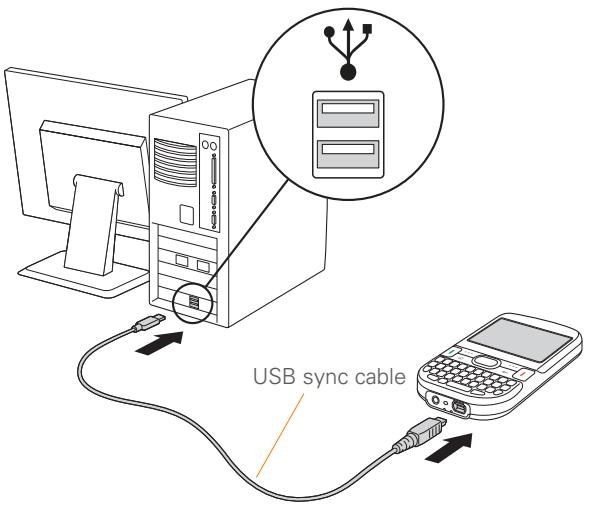
Synchronising using the sync cable
Every time you connect your smartphone to your computer, the desktop sync software automatically turns on and checks whether changes you made on the computer or on the smartphone need to be synchronised.
- Connect your smartphone to your computer (see Connecting your smartphone to your computer).
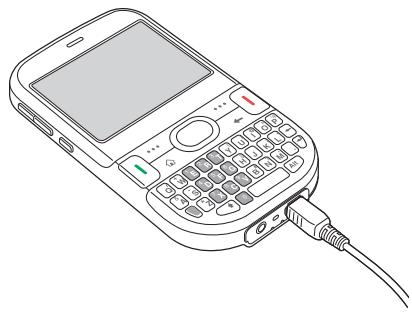
If you have any problems synchronising, see Synchronisation: Overview for troubleshooting suggestions.
Other ways to synchronise
Synchronising over a Bluetooth connection
You can synchronise your computer and smartphone using Bluetooth wireless technology.
BEFORE YOU BEGIN Make sure your computer is equipped with Bluetooth wireless technology.
1 Do one of the following:
Windows XP: On your computer, right-click the ActiveSync icon in the taskbar in the lower-right corner of the screen, and select Connection Settings.
Windows Vista: Click Start > All Programs > Windows Mobile Device Center. Select Connect without
setting up your device, and then select Connection settings.
2 Check the Allow connections for one of the following box, and then select Bluetooth.
3 On your smartphone, press Home and then press Start (left softkey).
4 Navigate to the My Settings content list, highlight Bluetooth, and then press Turn On (left softkey).
5 Press Home , and then press Centre
6 Select Applications , and then select ActiveSync
7 Press Menu (right softkey) and select Connect via Bluetooth.
8 If this is the first time you're making a Bluetooth connection to this computer, follow the onscreen prompts to set up a Bluetooth partnership with this computer. See Connecting to devices with Bluetooth® wireless technology for more information on partnerships.
9 Select Sync.
10 When synchronisation has finished, press Menu (right softkey) and select Disconnect Bluetooth.
Synchronising with multiple computers
You can set up your smartphone to synchronise with up to two computers as well as with Exchange Server 2003 or 2007. When synchronising with multiple computers, the items that you synchronise appear on all the computers.
For example, if you set up to sync your smartphone with two computers named C1 and C2, when you sync Contacts and Calendar on your smartphone with both computers, you get the following results:
- The contacts and calendar appointments that were on C1 are now also on C2.
- The contacts and calendar appointments that were on C2 are now also on C1.
- The contacts and calendar appointments from both computers are on your smartphone.
NOTE Microsoft Office Outlook E-mail can synchronise with only one computer.
Setting synchronisation options
Changing which applications sync
You must select sync options if you want to synchronise notes, pictures, and other types of files.
1 Press Home , and then press Centre
2 Select Applications , and then select ActiveSync
3 Press Menu (right softkey) and select Options.
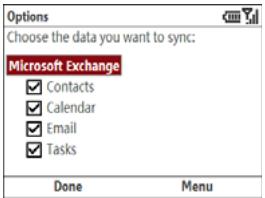
4 Do any of the following:
- Check the box next to any items you want to synchronise. If you cannot check a box, you might have to uncheck a box for the same information type elsewhere in the list.
- Uncheck the box next to any items you want to stop synchronising.
Tip To end the sync relationship between your smartphone and a computer so that items are no longer synchronised with that computer, highlight the computer name on the Options screen, press Menu (right softkey), and then select Delete.
- Highlight an item and then select Settings to customise the settings for that item. Settings are not available for all items.
Tip For detailed information on synchronising Word documents, Excel spreadsheets, and PowerPoint presentations, see Synchronising your Microsoft Office files. For detailed information on synchronising pictures, videos, and music files, see Synchronising your media files.
Stopping synchronisation
If you ever need to manually stop synchronisation, follow these steps:
1 Press Home 公 , and then press Centre ° .
2 Select Applications , and then select ActiveSync
3 Press Stop (left softkey).
Your email
You already know how efficient email is for staying in touch. Now your Palm® Treo™ 500v smartphone brings you a new level of convenience: email on the go. Enjoy the ease and speed of communicating with friends, family, and colleagues anywhere you can access your network operator's data network.
You can send photos to your friends and family, or create Microsoft Word or Excel files and send them to your colleagues. You can also receive attachments to view at your convenience.
Benefits
Receive photos, sound files, Word and Excel files, and more
- Attach and send files of almost any type
- Save messages from your computer to view at a convenient time
In this chapter
Setting up email 99
Sending and receiving messages 108
Working with email messages. 112
Working with meeting invitations 120
Sending email messages from within another application. 121
Setting up email
BEFORE YOU BEGIN
- Before you use your smartphone to send or receive messages, consult your network operator for pricing and availability of email services and data rate plans.
Make sure your phone is on and you're inside a coverage area before you send or receive messages.
personal email service, which you can use to access one or more email accounts, already installed. You can also use other applications on your smartphone to access the many kinds of email you may use: corporate, ISP, and web-based (like Gmail and Yahoo! Mail). Before you can send and receive email on your smartphone, you need to decide which type of email account you want to access. The setup process is different for each email account type, so it is very important that you select the correct type.
Entering settings for an email account
Depending on your network operator, your smartphone may come with the MyMail
| Email account type | Type of email you can access | How to set up |
| POP/IMAP | You can obtain email from an ISP or Internet email account such as EarthLink, or from a small business or corporate Internet email account. | See Setting up a personal email account using the MyMail service, Setting up a POP/IMAP account: Common email providers, or Setting up a POP/IMAP account: Other email providers. |
| Microsoft Exchange server | You can retrieve corporate email using a Microsoft Exchange server. You can access email wirelessly if your company is using Microsoft Exchange ActiveSync®. | See Setting up wireless synchronisation. You may need to check with your IT organisation to ensure that Exchange ActiveSync®is supported and to obtain the configuration settings. |
| Hotmail | You can use Windows Live to access mail from your web-based Hotmail account. | See Using Windows Live |
| Free web-based email | You can access mail from Yahoo! and other free web-based systems. | Access the email website directly using your smartphone's web browser. |
TIP Some web-based email providers such as Yahoo! and Gmail allow you to configure your email account so that you can access it from the email application on your smartphone instead of from the web browser. Check the provider's website for information.
Setting up a personal email account using the MyMail service
If your network operator supports the MyMail service, your MyMail account
provides secure, remote access to messages from a personal email account directly from your smartphone.
BEFORE YOU BEGIN Not all network operators support the MyMail service. Check with your network operator for information.
1 Press Home l , and then press Right to open the Message Centre content list.
2 Select MyMail.
3 Select the Welcome to Vodafone! Set up your MyMail account message.
4 Select the link within the message.
5 If prompted, press Yes (left softkey) to go to the web page.
6 Follow the instructions for setting up your MyMail email account.
Setting up a POP/IMAP account: Common email providers
Follow this procedure if you have a common email provider such as AOL, EarthLink, or Yahoo!. If you are setting up the Inbox application to work with your corporate email account, or you have a less common email provider, see Setting up a POP/IMAP account: Other email providers.
BEFORE YOU BEGIN Ask your email provider or system administrator for your account username and password if you don't know them.
1 Press Home , and then press Centre
2 Select Messaging, and then select New Email Account.
3 Enter the email address that you want to set up. Check the box to have the setup process get your account settings from the Internet.
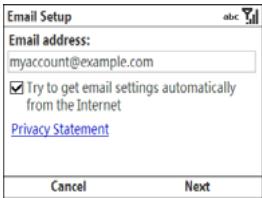
4 Press Next (right softkey).
5 If the setup process finds your account settings, press Next (right softkey).
If the setup process does not find your account settings, go to Setting up a POP/IMAP account: Other email providers and continue with step 6 of that procedure.
6 Enter your name and, if you want, change your account display name to something meaningful. For example, if this is your work email account, you can change the display name to "Work" or your company's name.
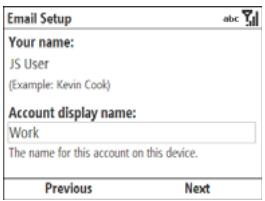
7 Press Next (right softkey).
8 Enter your account username and password.
9 If you want your password entered automatically, check the Save password box. If you want to enter your password each time you access this account, do not check this box.
DID YOU KNOW? Checking the Save password box makes it easier to check your email, because you don't have to enter your password each time. Leaving the box unchecked keeps your email more secure, because no one can download messages without entering your password.
10 Press Next (right softkey).
11 (Optional) Select either of the following:
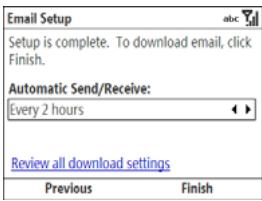
Automatic Send/Receive: Change the time interval for automatically downloading email, from every 5 minutes to once a day. If you do not want to automatically download messages, select Manually.
Review all download settings: Select this option to change download settings; see Changing email download settings for information.
12 Press Finish (right softkey). If prompted, press OK (left softkey) to download messages for this account now.
Setting up a POP/IMAP account: Other email providers
You can set up an account to send and receive email messages using an email
account that you have with an Internet service provider (ISP), an email account that you access using a VPN server connection (such as a work account; see Connecting to a VPN), or any other IMAP or POP email account.
BEFORE YOU BEGIN Work with your email provider or system administrator to gather the following info:
- Account type (POP3 or IMAP)
- Mail server name for receiving mail
- Your username and password
Any special security requirements
1 Press Home , and then press Centre
2 Select Messaging, and then select New Email Account.
3 Enter the email address that you want to set up. Check the box if you want the setup process to try to get your account settings from the Internet.
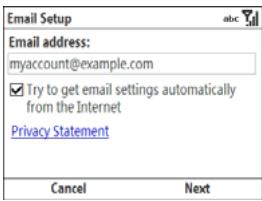
4 Press Next (right softkey).
5 If you did not check the box in step 4 or the setup process does not find account settings, press Next (right softkey).
If you did check the box and the account setup process finds your account settings, go to Setting up a POP/IMAP account: Common email providers and continue with step 6 of that procedure.
6 If prompted, select either of the following as your email provider:
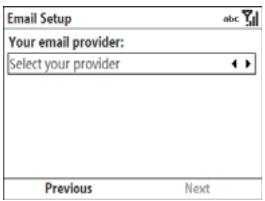
Internet email: Select this option if you access email from any type of email account except a corporate account that uses an Exchange mail server.
Exchange server: Select this option if you access email from a corporate email account using an Exchange server.
7 Press Next (right softkey).
8 Enter your name and, if you want, change your account display name to something meaningful. For example, if this is your work email account, you can change the display name to "Work" or your company's name.
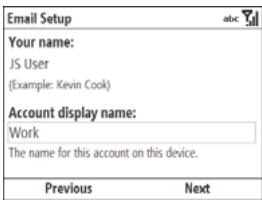
9 Press Next (right softkey).
10 Enter the name of the incoming mail server.
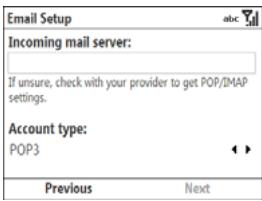
11 Select the Account type list, and then select POP3 or IMAP.
12 Press Next (right softkey).
13 Enter your account username and password.
14 If you want your password entered automatically, check the Save
password box. If you want to enter your password each time you access this account, do not check this box.
DID YOU KNOW? Checking the Save password box makes it easier to check your email, because you don't have to enter your password each time. Leaving the box unchecked keeps your email more secure, because no one can download messages without entering your password.
Tip For a corporate email account, ask your system administrator if it is OK to store your corporate email password on your smartphone (for increased security, you may need to enter your password each time you access your email). If it is not OK, don't check the Save password box.
15 Press Next (right softkey).
16 If you receive an alert that your network operator has already customised the outgoing mail server settings, press OK (left softkey to close the alert, and then press Next (right softkey) on the outgoing mail server settings screen. Do not enter or change anything on the screen.
If you do not receive an alert, go to Entering outgoing server settings.
Tip If you do not receive an alert, and if your incoming mail requires SSL, you set that option with the outgoing server settings. See Entering outgoing server settings and check the Require SSL for Incoming e-mail box on the Advanced Server Settings screen.
17 (Optional) Select either of the following:
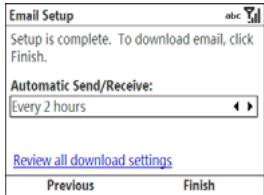
Automatic Send/Receive: Change the time interval for automatically downloading email, from every 5 minutes to once a day. If you do not want to automatically download messages, select Manually.
Review all download options: Select this option to change download
settings; see Changing email download settings for information.
18 Press Finish (right softkey). If prompted, press OK (left softkey) to download messages for this account now.
Tip To delete an email account or to edit account settings—for example, if you need to change the name of the outgoing mail server—press Home, press Centre on the 5-way, and then press Messaging. To delete an account, highlight the account you want, press Menu (right softkey), and then select Delete. (To delete an Outlook Email account, use the ActiveSync application.) To edit an account, highlight the account you want, press Menu (right softkey), and then select Settings. Go through the screens to change the settings you want to edit.
Entering outgoing server settings
If, during account setup, you do not receive an alert saying that your network operator has set the outgoing mail options, you need to manually enter these settings.
BEFORE YOU BEGIN Work with your email provider or system administrator to gather the following info:
- Mail server name for sending mail
Any special security requirements
1 On the screen for entering outgoing mail settings, select the correct settings for the following:
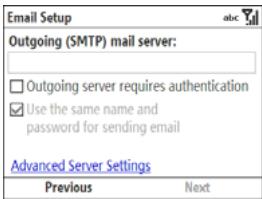
Outgoing (SMTP) mail server: Enter the server name.
Outgoing server requires authentication: Check the box if your outgoing mail server requires authentication.
Use the same name and password for sending email: Check the box if the server requires you to use your account
username and password when sending email.
2 Select Advanced Server Settings, and then select the correct settings for either of the following:
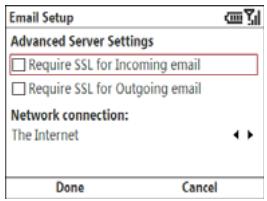
Require SSL for Incoming email:
Check the box if your account requires SSL for incoming messages.
Require SSL for Outgoing email:
Check the box if your account requires SSL for outgoing messages.
Network connection: Select the type of connection to use for sending and receiving email.
3 Select Done (left softkey). On the outgoing mail server screen, press Next (right softkey).
4 (Optional) Select either of the following:
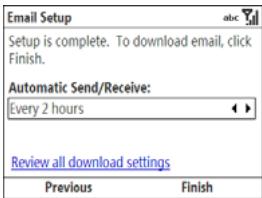
Automatic Send/Receive: Change the time interval for automatically downloading email, from every 5 minutes to once a day. If you do not want to automatically download messages, select Manually.
Review all download options: Select this option to change download settings; see Changing email download settings for information.
5 Press Finish (right softkey). If prompted, select OK to download messages for this account now.
Sending and receiving messages
Selecting which email account to use
If you set up more than one email account on your smartphone (see Setting up email), you can select the account you want to use to view or send messages in one of the following ways:
- Press Home l , and then press Right to open the Message Centre content list. Select the account you want.
- By default, when you press Home , press Centre , and then select Messaging , a list of all of your email accounts appears. Select the account you want.
- If you turn off the option to display the list of accounts (see Customising your email settings), when you open the Messaging application, the last account you were using is displayed. Press Left to cycle through your accounts until the name of the account you want appears in the title bar.
Tip Also press Left to switch to a different account after you are finished working in the first account you selected.
Creating and sending an email message
1 Press Home 10 , and then press Right to open the Message Centre content list.
2 Highlight the email account you want.
3 Press New (left softkey).
4 Enter the recipient's email address. Here are some shortcuts:
- If the recipient's name and email address are in your Contacts list, press Menu (right softkey), select Add Recipient, and then select the recipient from the list.
- If the recipient's name is in an online address book, you can find the name and add it (see Using an online address book for information).
DID YOU KNOW? When addressing a message, you can enter one or more letters of the contact's first and last names, separated by a space, and then select the name.
Tip To address a message to multiple recipients, separate the addresses by pressing Enter or entering a semicolon (·)
Tip To display the Cc and Bcc fields so you can enter addresses in them, put the cursor in the To field and press Up on the 5-way.
5 Select Subject and enter a title for the message.
6 Press Down to go to the body of the message. Enter your message, or press Menu (right softkey), select My Text, and then select a predefined phrase you want to insert.
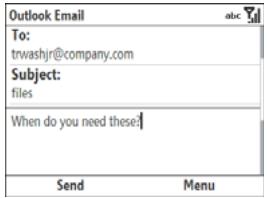
7 (Optional) To attach an item to the message, press Menu [right softkey] and select Insert. Select the type of item you want to attach, and then select the file or record a voice note.
Tip You can send an email message with a file attached from directly within other applications on your smartphone; see Sending email messages from within another application.
8 (Optional) Press Menu (right softkey) and select Message Options. Select the Priority list, select a priority setting for the message, and then press Done (left softkey).
9 Press Send (left softkey).
Tip To save memory on your smartphone, turn off the option to save sent messages in the Sent folder. In the Inbox, press Menu (right softkey) and select Tools > Options. Select Sending, and then uncheck the Save copies of sent items box.
Receiving email messages
How you receive email messages depends on the type of account you are using and how you synchronise:
If you set up a MyMail email account, new email messages are sent to your smartphone as they appear on the server.
- If you synchronise wirelessly with your Exchange server using Microsoft Exchange ActiveSync, new email messages are sent to your smartphone when they appear on the server, according to the schedule you set up (see Setting the synchronisation schedule), or when you manually initiate a sync (see Initiating a wireless sync manually.
Tip If you sync email with Microsoft Exchange Server 2003 or 2007, you can synchronise messages in sub folders you create. In the account Inbox, press Menu (right softkey) and select Tools > Manage Folders. Folders containing sub folders display a +. Select the + to view the sub folders. Check the box to the left of any subfolder you want to sync.
Tip If you synchronise email with Microsoft Exchange Server 2007, and you receive a message containing a link to a document on SharePoint or an internal file server, you can view the document by selecting the link.
- If you use desktop sync software to synchronise your smartphone with your computer, messages in Outlook on your computer are transferred to your smartphone when you connect your computer and your smartphone (see Connecting your smartphone to your computer).
- For all other types of accounts, including ISP accounts and accounts you access using a VPN server connection (typically a work account; see Connecting to a VPN), message retrieval depends on the option you chose from the Automatic Send/
Receive list during account setup (see Setting up a POP/IMAP account: Common email providers or Setting up a POP/IMAP account: Other email providers), as follows:
If you chose a time interval: Your smartphone automatically checks for and downloads new messages according to that interval.
If you chose Manually: Follow these steps to send and receive messages:
1 Press Home , and then press Right to open the Message Centre content list.
2 Select the email account containing the messages you want to view.
3 Press Menu (right softkey) and select Send/Receive to synchronise your smartphone with your email server.
Tip Partially downloaded messages appear in the message list with a partial envelope icon to the left of the sender's name. To view the full message, either press Menu (right softkey) and select Download Message, or open the message and select Get the rest of this message.
DID YOU KNOW? You can view messages sent as HTML with the HTML formatting intact.
Receiving attachments
1 Scroll to and select the attachment name (below the subject). This marks it for download.
2 Synchronise the email account that contains the message as described in the previous sections.
3 Scroll to and select the attachment name again.
4 Press Open (left softkey).
DID YOU KNOW? You can receive and open attachments in a number of different formats, including PDF. PDF file attachments open in PDF Viewer on your smartphone (see PDF Viewer).
Tip You can save an attachment to an expansion card inserted into your smartphone. On the Attachment Options screen, press Menu (right softkey) and select Save As. Select the Location list, and then select Storage Card.
Working with email messages
Adding a contact from an email message
You can add a contact name or email address to your Contacts list directly from the To, Cc, or Bcc field of an email message. You can select the name or address from either an outgoing or an incoming message, and you can either create a new contact or add the information to an existing contact.
1 In an open message, highlight the name or address of the contact you want to add.
2 Press Centre
3 Press Save (left softkey).
4 Select
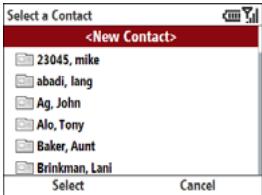
5 Enter or edit the contact information.
6 Press Save (left softkey).
Using an online address book
You can access contact information, such as an email address or phone number, from your organisation's online address book or Global Address List (GAL). To access a GAL, make sure you are accessing either
Exchange Server 2007 or Exchange Server 2003 upgraded to Service Pack 2. This feature is useful only if you know the exact name as it appears in the directory.
DID YOU KNOW? You can use the Global Address List to find a contact. In Contacts, press Menu (right softmax) and select Company Directory. When sending a meeting request, select Attendees, press Menu (right softmax) and select Company Directory.
1 In a new message, select To.
2 Press Menu (right softkey) and select Add Recipient.
3 Select New
4 Enter the contact name as it appears in the directory and press Find (left softkey). You must spell the contact name correctly.
Tip When you sync with Outlook on your computer, disable your online address books to avoid errors. Press Menu (right softkey) and select Tools > Options. Select Address, select each online address book, and then uncheck the Check name against this server box. Be sure to turn this option back on if you synchronise other email accounts.
TIP While you cannot wirelessly synchronise distribution lists from the Contacts application, you can add a distribution list as a contact by adding it from the online address book. The contact contains all of the members of the distribution list, even though you cannot see the individual names. Be sure to name the contact something similar to—but not exactly the same as—the original distribution list so that you don't confuse them on your computer.
Finding messages
You can find messages containing a specific word or phrase. The find feature searches names, email addresses, and subject lines.
1 Press Home 40 , and then press Right to open the Message Centre content list.
2 Select the account you want.
3 Begin typing the word or phrase you want to find. This can appear in any of the address fields or the subject field. The list display changes to show only those messages containing the letters you have entered.
4 Continue entering letters to narrow the display until the message you want appears.
DID YOU KNOW? If you synchronise with Microsoft Outlook 2007, you can also find messages stored on your mail server.
Replying to a message
1 Open the message to which you want to reply.
2 Press Reply (left softkey).
3 Enter any text you want to add.
4 (Optional) Select Edit sender's message to edit the original sender's message text that you include in your reply.
5 Press Send (left softkey).
DID YOU KNOW? If you reply to a message sent as HTML, the reply is sent in HTML also.
Forwarding a message
1 Highlight or open the message you want to forward.
2 Press Menu (right softkey) and select Reply > Forward.
3 Address the message and enter any text you want to add.
4 (Optional) Select Edit sender's message to edit the original sender's message text that you include in your forwarded message.
5 Press Send (left softkey).
Deleting messages
You can delete a message you are reading, or you can delete a message from the message list.
To delete a message you are reading:
- Press Menu (right softkey) and select Delete.
To delete messages from the message list:
1 Highlight the message you want to delete.
2 Press Delete [...] (left softkey).
3 Select Yes to confirm the deletion.
Using email shortcuts
You can perform common email tasks by pressing and holding certain keys on the keyboard. Open the message you want, and then press and hold any of the following. You do not need to press Option first.
| Press and hold... | To... |
| 0 | View all email shortcuts |
| 1 | Reply to the sender of a message and all other addressees |
| 2 | Reply to the sender only |
| 3 | Mark a message read or unread |
| 4 | Flag a message as high priority |
| Press and hold... | To... |
| 5 | Move a message between folders |
| 6 | Forward a message |
| 7 | Delete a message |
| 8 | Fully download a partially downloaded message |
| 9 | Synchronise your smartphone with the server to get and send new messages |
Adding a signature to your messages
You can use a different signature with each email account.
1 Press Home 心 , and then press Right to open the Message Centre content list.
2 Select any email account.
3 Press Menu (right softkey) and select Tools > Options.
4 Select Signatures.
5 Select the account for which you want to create a signature.
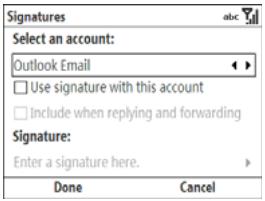
6 Check the Use signature with this account box to add this signature to new messages you create with this account.
7 (Optional) Check the Include when replying and forwarding box to add this signature to messages you reply to or forward with this account.
8 Select Enter a signature here and enter the signature text you want to use.
9 Press Done (left softkey) twice.
Customising your email settings
When you customise settings for an email account, the options you choose apply to that account only.
1 Press Home 心 , and then press Right to open the Message Centre content list.
2 Select the account you want.
3 Press Menu (right softkey) and select Tools > Options.
4 Select Display and set any of the following options. Press Done (left softkey) when you have finished.
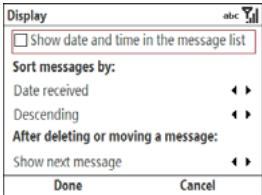
Show date and time in the message list: Sets whether the date and time a message is received is displayed in the message list.
Sort messages by: The first list specifies the criteria by which messages are sorted in the message list. The second list sets whether the sort order is ascending (A-Z or most
recent to oldest) or descending (Z-A or oldest to most recent).
After deleting or moving a message: Specifies what you want to see after you delete or move an email message you are reading: the message list, the next message, or the previous message.
5 Select Sending and set either of the following options. Press Done (left softkey) when you have finished.
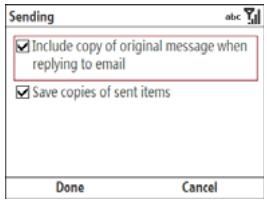
Include copy of original message when replying to email: Indicates whether the body of a message you received appears in your response to that message.
Save copies of sent items: Indicates whether messages you send are stored in the Sent folder.
6 Select Security Settings and check the Warn before navigating to a URL or file link that is not on my device box if you want to receive a warning message before you open a URL or file link that is not on your smartphone. Press Done (left softkey) when you have finished.
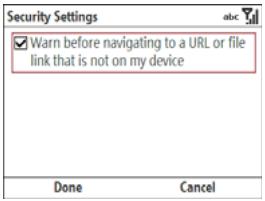
7 Select Other and set either of the following options. Press Done (left softkey) when you have finished.
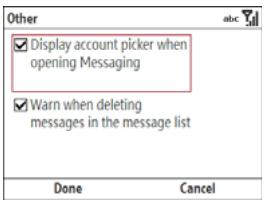
Display account selector when opening Messaging: Specifies whether a list of your email accounts appears when you open the Messaging application, allowing you to select the one you want to use. If the box is unchecked, the Inbox application opens to the last account you used.
Tip If the Display account selector when opening Messaging box is unchecked, repeatedly press Left on the 5-way after you open the Messaging application to cycle through your accounts.
Warn when deleting messages in the message list: Specifies whether a confirmation message appears when you delete one or more messages from the message list.
8 Press Done (left softkey).
Changing email download settings
You can customise the download options for each email account that you have with an Internet service provider (ISP) or that you access using a VPN server connection (typically a work account).
NOTE To change options for a Microsoft Office Outlook email account, Press Home 山 , press Centre 山 , select Applications 山 , and then select ActiveSync 山 . Press Menu (right softkey) and select Options.
1 Press Home , and then press Right to open the Message Centre content list.
2 Select the email account you want.
3 Press Menu (right softkey) and select Tools > Options.
4 Select Account Settings.
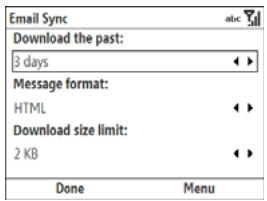
5 Select any of the following:
Download the past: Specifies the number of days' worth of email to be retrieved for each automatic or manual retrieval.
TIP To save memory, limit the number of emails that are downloaded to your smartphone by selecting a smaller time interval for how many days' worth of messages are downloaded.
Message format: Select the format for sending and receiving messages. If you select HTML, messages sent to you as HTML are received with their formatting intact. If you select Plain Text, all messages are received as plain text.
DID YOU KNOW? Messages sent to you as plain text are always received as plain text, even if you select HTML.
Download size limit: Select the size of an incoming message that is automatically downloaded. For any message that exceeds this size, you must manually download the rest of the message. Selecting a higher limit means more of your messages will be fully downloaded, but message retrieval might take longer. You can also choose to download message headers only, regardless of size.
6 Press Menu (right softkey), select Advanced, and then select any of the following:
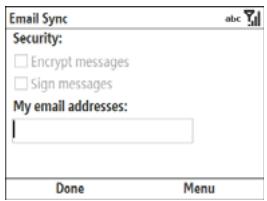
Encrypt messages: Specifies whether downloaded messages should be encrypted for extra security.
Sign messages: Specifies whether messages should be given a digital signature as an extra security measure.
My email addresses: Indicates the addresses to which the security measures should be applied.
7 Press Done (left softkey).
Working with meeting invitations
You can receive meeting invitations on your smartphone in the same way that you receive email messages.
NOTE You can create meeting invitations on your smartphone; see Sending a meeting request.
Here are the key features of meeting invitations:
- Meeting invitations appear on your smartphone in the Inbox application, not in the Calendar application.
From within the Inbox application, you can accept, decline, or tentatively accept a meeting invitation.
If you accept an invitation, the meeting shows up as an appointment in the Calendar application. - You can reply to and forward meeting invitations in the same way as email messages.
1 Press Home 10 , and then press Right to open the Message Centre content list.
2 Select the account you want.
3 Select a meeting invitation to open it. Meeting invitations are displayed with this icon:
4 To accept the invitation, press Accept (left softkey), select whether to edit (include comments with) your response, and then select OK (left softkey).
To decline or tentatively accept the invitation, press Menu (right softkey) and select Decline or Tentative.
TIP If you receive an updated meeting invitation, you can again choose to accept, decline, or tentatively accept. If you receive a meeting cancellation, you don't need to do anything.
Sending email messages from within another application
You can send files such as pictures, videos, and ringtones as attachments to email messages (see Creating and sending an email message).
You can send certain files as attachments from within the application where the file is created or stored. For example, if you take a picture with the built-in camera on your smartphone, you can select an option to send the picture as an attachment to an email message. You can also use this feature with videos and sound files. For details, see the chapter on the specific application.
Your text and multimedia messages
If you need to get a short message to a friend or a coworker fast, send a text message from your Palm® Treo™ 500v smartphone to their mobile phone or email address.
If you need more than text to express yourself, use multimedia messaging to give your message extra impact by adding a photo, video, or sound file.
Benefits
-
Enjoy quick communication
Use text messaging to chat with friends -
Be as simple or as creative as you want
In this chapter
Sending and receiving messages 125
Customising your message settings 132
Using Windows Live 136
Sending and receiving messages
You can use your smartphone to send and receive brief text messages (SMS) and multimedia messages (MMS). Before you send or receive messages, consult your network operator for pricing and availability of text and multimedia messaging services.
NOTE The network settings for multimedia messaging are preset by the network operator that provided the SIM card included with your smartphone. If you change to a SIM card from a network operator that is not affiliated with Vodafone, you need to manually enter multimedia messaging network settings to use messaging services. See Manually entering network connection settings for instructions.
Creating and sending a text message
Each text message can have up to 160 characters. You can send a message of more than 160 characters, but the
message will automatically be split into two or more messages. If you send a text message to an email address, the email address is included in the 160-character count.
DID YOU KNOW? You can send and receive text messages even while you are on a phone call. This is easiest when using a hands-free headset or the speakerphone.
BEFORE YOU BEGIN Make sure that your phone is on and that you're inside a coverage area (see Turning your phone on).
1 Press Home 10 , and then press Right to open the Message Centre content list.
2 Highlight Text Message.
3 Press New (left softkey).
4 Enter the recipient's name, mobile phone number, or email address. Here are some shortcuts:
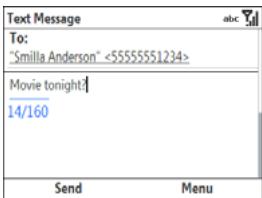
- If the recipient's name, mobile number, or email address is in your Contacts list, press Menu (right softkey), select Add Recipient, and then select the recipient from the list.
TIP You can also send a text message to a contact whose record contains a mobile phone number from within the Contacts application. Select the contact and select Send text message.
- Press Centre to view a list of recently used addresses, and select the recipient from the list.
- If the recipient's name is in an online address book, press Centre , enter the name, press Menu (right softkey), and then select Company Directory. Select the
name, and then select either the phone number or the email address. For more information, see Using an online address book.
- If the recipient's name or mobile number are not in your Contacts list, enter the full mobile number or email address.
Tip To address a message to multiple recipients, separate the addresses by pressing Enter or entering a semicolon (); You can send a message to up to 20 addresses.
Tip To send a message to a different number for a contact, select the contact in the To field, and then edit the number that appears next to the contact name.
5 Press Down to go to the body of the message. Enter your message, or press Menu (right softkey), select My Text, and then select a predefined phrase you want to insert.
6 Press Send (left softkey).
Setting text message delivery options
You can set options for individual text messages you send.
DID YOU KNOW? You can set general preferences that apply to all incoming and outgoing messages (see Customising your message settings). If you set options for an individual message, those options override your general preferences for that message only.
1 On the message compose screen, press Menu (right softkey).
2 Select Message Options.
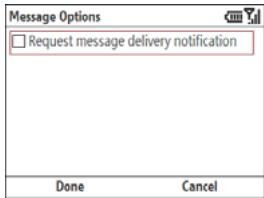
3 Check the Request message delivery notification box to receive confirmation that the message has been delivered.
4 Press Done (left softkey).
Creating and sending a multimedia message
Multimedia messages consist of pictures, videos, text, and sounds presented as one or more slides. You can include any of the following items:
Ringtones
MIDI
Sound clips
AMR
QCELP
Pictures
JPEG
GIF
WBMP
Videos
3GPP
3GPP2
MPEG4
Outgoing multimedia messages can be up to 300KB by default, but your network operator may have a different maximum message size.
BEFORE YOU BEGIN Make sure that your phone is on and that you're inside a coverage area (see Turning your phone on).
1 Press Home 10 , and then press Right to open the Message Centre content list.
2 Highlight MMS.
3 Press New (left softkey).
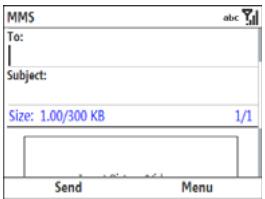
4 Enter the recipient's mobile phone number or email address. Here are some shortcuts:
-
If the recipient's name, mobile number, or email address is in your Contacts list, press Menu (right softkey), select Add Recipient, and then select the recipient from the list.
-
Press Centre to view a list of recently used addresses, and select the recipient from the list.
- If the recipient's name is in an online address book, press Centre , enter the name, press Menu (right softkey), and then select Company Directory. Select the name, and then select either the phone number or the email address. For more information, see Using an online address book.
- If the recipient's name and mobile number are not in your Contacts list, enter the full mobile number or email address.
Tip To display the Cc and Bcc fields so you can enter addresses in them, put the cursor in the To field and press Up on the 5-way.
5 Select Subject and enter a title for the message.
6 Select one or more of the following: Insert Picture/Video: Enables you to insert a picture or video. You can take a new picture or video with the built-in
camera or insert an existing picture or video.
Insert Audio: Enables you to record a message, such as a voice caption for a picture, or insert an existing sound, such as a ringtone. You can add one sound per slide; to send more than one sound in a message, add another slide to your message.
DID YOU KNOW? You can add both a picture and a sound clip to the same slide in a message.
7 (Optional) Select Insert Text and enter a text caption or message for the slide you inserted.
8 (Optional) Press Menu (right, softkey), select Slides > Insert, and repeat steps 6 and 7 to add another slide in this message.
DID YOU KNOW? If you add more than one slide to a message, you can set the length of time each slide is displayed. Press Menu (right softkey) and select Slides > Duration.
9 (Optional) To add a vCard (contact file) or vCalendar (calendar event file) to a message, press Menu [...] (right softkey) and select Insert > vCard or Insert > vCalendar.
10 Press Send (left softkey).
Setting multimedia message delivery options
You can set options for individual multimedia messages you send.
DID YOU KNOW? You can set general preferences that apply to all incoming and outgoing messages (see Customising your message settings). If you set options for an individual message, those options override your general preferences for that message only.
1 On the message compose screen, press Menu (right softkey).
2 Select Options > Send Options.
3 Select any of the following options:
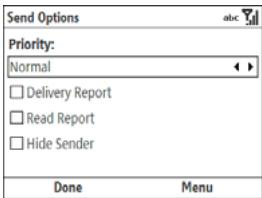
Priority: Indicates the priority for this message.
Delivery/Read Report: Indicates whether you want to receive confirmation that the message has been delivered or has been read.
Hide Sender: Specifies that you do not want your phone number included with the message identifying you as the sender.
4 Press Done (left softkey).
Tip To change the background colour of outgoing multimedia messages, on the message compose screen, press Menu (right softkey) and select Options > Background Colour. Select the colour you want, and then press Select (left softkey).
Receiving text and multimedia messages
When your phone is on and you are in a wireless coverage area, a notification appears anytime you receive a new text or multimedia message. You can open the message directly from the notification, or you can open the message later in the Messaging applications.
1 Do one of the following to open the message:
- When a message notification appears onscreen, press Message (right softkey).
- If you want to view the message later, press Home 山 , and then press Right to open the Message Centre content list. Select Text Message or MMS.
2 Select the message you want to view.
3 If prompted, press Download (left softkey) to download the full message.
4 Do any of the following: Pause or resume playback (multimedia message only): Press Pause (left softkey). To
resume playback, press Play (left softkey).
Save the item that is playing (multimedia message only): Press Menu (right softkey) and select Save.
Reply to the message: Press Menu (right softkey) and select Reply > Reply or Reply > Reply All.
NOTE If the message is a text message or a multimedia message containing a single picture with no audio, press Reply (left softkey) to reply to the message.
Forward the message: Press Menu (right softkey) and select Reply > Forward.
Add the sender's information to your Contacts list: Select the sender's phone number or email address and press Yes (left softkey) when asked if you want to create a new contact for the sender. Select
DID YOU KNOW? When viewing a multimedia message containing multiple slides, you can press Right on the 5-way to move to the next slide, or press Left on the 5-way to move to the previous slide.
5 Press Done (left softkey).
Using links in messages
When you receive a text message that contains a telephone number, email address, or URL, you can dial the number, send an email message, or go to the web page immediately. Your smartphone automatically opens the appropriate application from the link.
1 Open a message in the Inbox or another folder.
2 Select the phone number, email address, or URL (appears as underlined blue text).
Deleting a message
1 Go to the Inbox or other folder containing the message you want to delete.
2 Highlight the message.
3 Press Delete (left softkey).
4 Select Yes to confirm the deletion.
Customising your message settings
Many of the settings that apply to email accounts also apply to text and multimedia messaging accounts. For instructions on customising these settings, see Customising your email settings.
You can customise additional settings for text and multimedia messages.
DID YOU KNOW? Options you select for an individual message (see Setting text message delivery options and Setting multimedia message delivery options) override the general preferences you set for all messages.
Customising text message settings
1 Press Home , and then press Right to open the Message Centre content list.
2 Select Text Message.
3 Press Menu (right softkey) and select Tools > Options.
4 Select Account Settings.
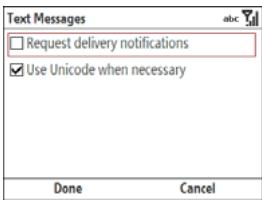
5 Select either of the following options: Request delivery notifications: Specifies that you want to receive
confirmation that text messages message have been delivered.
Use Unicode when necessary:
Automatically converts a message to Unicode language if the receiving device requires it.
6 Press Done (left softkey).
Customising multimedia message settings
1 Press Home l , and then press Right to open the Message Centre content list.
2 Select MMS.
3 Press Menu (right softkey) and select MMS Settings.
4 Select MMSC Settings and set any of the following options:
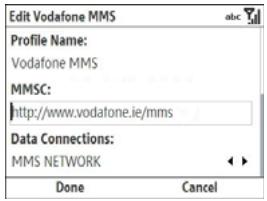
Profile Name: Indicates the name of your multimedia messaging service.
MMSC: Indicates the web address of your multimedia message servicing center.
Data Connections: Indicates the type of data network used for multimedia messaging.
Gateway: Indicates the type of gateway used for multimedia messaging.
5 Select Send Options and set any of the following options. Press Done (left softkey) when you have finished.
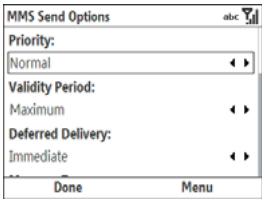
Priority: Indicates the priority for outgoing messages.
Validity Period: Indicates how long messages remain available to be sent if the recipient's phone or email address is not available when you originally send the message. For example, if your messages generally contain information that will not be useful to recipients after an hour, you can set the validity for one hour. Select Maximum to allow messages to remain available for the maximum period of time permitted by your network operator.
Deferred Delivery: Indicates whether you want message delivery to be deferred for the period of time you specify.
Message Type: Specifies the type of messages you are sending.
Message Size: Sets the maximum message size you can send. Do not change the size unless instructed by your network operator.
Delivery/Read Report: Indicates whether you want to receive confirmation that the message has been delivered or has been read.
Hide Sender: Specifies that you do not want your phone number included with the message identifying you as the sender.
Reply Charging/Charging: Specifies whether to apply reply charging to the entire message, to the message text only, or not at all.
6 Select Receive Options and set any of the following options. Press Done (left softkey) when you have finished.
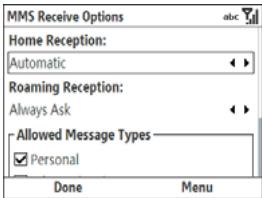
Home Reception: Indicates whether multimedia messages are downloaded automatically or whether you receive a prompt to download multimedia messages when you are inside your home network.
Roaming Reception: Indicates whether multimedia messages are downloaded automatically or whether you receive a prompt to download multimedia messages when you are roaming outside of your home network.
Allowed Message Types: Specifies which types of messages you allow to be downloaded to your smartphone.
Reject Anonymous Message:
Specifies that messages whose sender is hidden should not be downloaded to your smartphone.
7 Select General Options, and then select the number of times your smartphone should attempt to send or receive a message before an error message is displayed. Press
Done (left softkey) when you have finished.
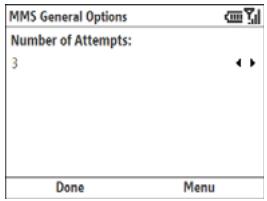
Tip Select About on the MMS Settings screen to view detailed information about the multimedia messaging software.
Tip You can restore the default settings for any of the options in this procedure by pressing Menu (right softkey) and selecting Reset to Default. This resets all of the settings for the option screen that is currently displayed.
8 Press Done (left softkey).
Using Windows Live
Windows Live is a set of services that combines online search features, email, and instant messaging:
Live Search: Enables you to search for text on the web directly from your smartphone.
Windows Live Mail: The next generation of the Hotmail web-based email application. Windows Live Mail offers more storage, greater message security, and easier filing of messages.
Windows Live Messenger: Enables you to see who's online and exchange instant messages (IM). Make calls to phones and computers (including video calls) and exchange pictures and other files.
Using Live Search
1 Press Home , and then press Start (left softkey).
2 Navigate to the Windows Live content list and select Live Search.
3 In the search bar at the top of the screen, enter the text you want to find.
4 Press Centre
5 Select the item you want from the search results. If the item you want does not appear, select Refine to change the text you enter, or select More to see more results.
Setting up Windows Live Mail
BEFORE YOU BEGIN You must have an existing Hotmail account to use Windows Live Mail. If you do not have an account, use the web browser on your smartphone to go to hotmail.com, and follow the steps to set up an account.
1 Press Home 空 , and then press Start ... (left softkey).
2 Navigate to the Windows Live content list and select Windows Live Hotmail.
3 Select Sign in to Windows Live.
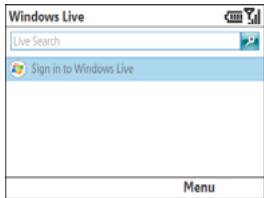
4 The first time you sign into Windows Live, press Accept (left softkey).
5 Enter your Hotmail email address and password. Leave the Save password box checked if you want to have your password entered automatically.
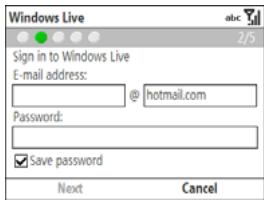
6 Press Next (left softkey).
7 Check the Live Search bar box to have the Live Search bar appear on your Home screen. Check the Windows Live services box to have Windows Live Email and Windows Live Messenger appear on your Home screen.
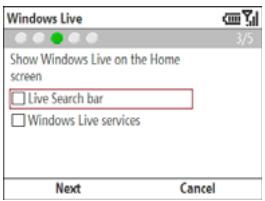
8 Press Next (left softkey).
9 Select which application information—contacts, Windows Live Messenger, and/or email—you want to synchronise between the Windows Live mail server and Windows Live on your smartphone. For the applications you choose, any information that appears in your Hotmail/Windows Live account on the web—for example, your email messages and contact list—appears in Windows Live on your smartphone when you synchronise.
NOTE If you synchronise email, your Windows Live email account also appears in the Messaging application. If you synchronise contacts, your Windows Live contacts also appear in the Contacts application.
10 Press Next (left softkey).
11 Press Done (left softkey). Your Windows Live main page is displayed.
Using Windows Live Mail
BEFORE YOU BEGIN Make sure that your phone is on and that you're inside a coverage area (see Turning your phone on).
1 Press Home , and then press Start (left softkey).
2 Navigate to the Windows Live content list and select Windows Live Hotmail.
3 To synchronise email, contact, and/or Windows Live Messenger information, do the following:
- Press Right or Left until Sync is highlighted.
- Press Centre. Information is synchronised for any of the applications you selected during setup.
4 To read your email, do the following:
-
On your Windows Live main page, select Mail.
-
The Messaging application opens, displaying your Windows Live mail. You can view, send, and work with messages in your Windows Live account in the same way as with messages for any other account.
Tip You can set an option to have messages pushed to Windows Live Mail on your smartphone as they arrive on the server. Open Windows Live, press Menu (right softkey), select Options, select Sync schedule, select the Sync frequency list, and then select As items arrive.
Using Windows Live Messenger BEFORE YOU BEGIN
- You must have an existing Hotmail account to use Windows Live Messenger. If you do not have an account, use the web browser on your smartphone to go to hotmail.com, and follow the steps to set up an account.
Make sure that your phone is on and that you're inside a coverage area (see Turning your phone on).
1 Press Home , and then press Start (left softkey).
2 Navigate to the Windows Live content list and select Windows Live Messenger.
3 Press Sign in (left softkey).
4 If you have not already set up a Windows Live Mail account (see Setting up Windows Live Mail), the first time you sign into Windows Live Messenger, press Accept (left softkey).
5 If prompted, enter your Hotmail email address and password.
6 To send an instant message to a contact who is online, highlight the contact name and press Send IM (left softkey).
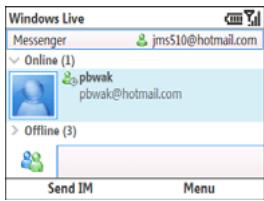
Tip If the contact you want is offline, send an email message instead. Highlight the contact name and press Send e-mail (left softkey). Enter a subject and body text for the email message, and then press Send (left softkey).
7 Do one of the following:
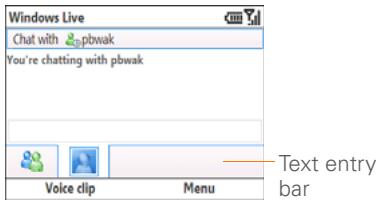
- Highlight the text entry bar and enter your message text.
- Press Voice clip (left softkey) and record a voice note by speaking clearly with your smartphone held up facing you.
8 (Optional) To add an emoticon to your message, press Menu (right softkey), select Add emoticon, and then select the emoticon you want.
9 (Optional) To send a picture or other file, press Menu [right softkey], select Send, and then select the type of file you want to send. Capture or select the picture or other file you want.
10 Press Send (left softkey).
11 (Optional) To exchange messages with more than one person, press Menu (right softkey) and select Options > Add participant. Select the participant you want to add.
12 To end the messaging session, press Menu (right softkey) and select End conversation. If you are exchanging messages with more than one person, select End all conversations to stop all the sessions at once.
Tip From the Messenger contacts list screen, press Menu (right softkey) and select options to add, block, or remove a contact; change your status to "Busy," "Away," and so on; add a display picture or personal message; and more.
Your connections to the web and wireless devices
You use the web for so many things: finding driving directions, getting news, buying gifts, checking web-based email. Now, with your network operator's network and your Palm® Treo™ 500v smartphone's built-in web browser, you can take the web with you almost anywhere you go.
The built-in Bluetooth® wireless technology on your smartphone helps you easily set up wireless connections to a number of devices, so you can enjoy the convenience of cable-free connectivity. You can also use your smartphone to connect your computer to the Internet and to share contacts or your favourite photos with other people.
Benefits
- Carry the web with you
-
Store web pages for offline viewing
-
Connect to Bluetooth headsets and car kits
- Connect your computer to the Internet through your smartphone
In this chapter
Browsing the web 143
Connecting to devices with Bluetooth® wireless technology. 149
Using your device as a wireless modem 154
Browsing the web
Internet Explorer Mobile provides quick and easy access to web pages. You can view most sites on your smartphone that you can view on your computer, including those with security and advanced features, such as JavaScript and frames.
Internet Explorer Mobile supports JavaScript, Secure Sockets Layer (SSL), and cookies, but does not support plug-ins (Flash, Shockwave, VBScript, WML script, and so on) or Java applets.
DID YOU KNOW? The security certificates and 128-bit SSL strong encryption enable you to browse secure sites, such as online shopping, banking, and email. Remember, some secure sites also require a specific browser and may not work with Internet Explorer Mobile. Ask the organisation for an alternative access point that is compatible with Internet Explorer Mobile.
BEFORE YOU BEGIN Do the following:
- Be sure to subscribe to data services from your network operator. This is necessary for browsing the web.
Make sure your phone is on and that you're inside a coverage area (see Turning your phone on).
By default, Internet Explorer Mobile scales web page content to fit your smartphone screen so that you can view most of the information without scrolling left or right.
Opening the Vodafone live! website
The Vodafone live! website gives you access to features such as ringtones, music downloads, and news. Additional fees may apply; contact your network operator for more information.
- Press Home 公 , and then press live! ... (right softkey).
Opening other web pages
1 Press Home 心 , and then press Start (left softkey).
2 Navigate to the live! content list and select Internet Explorer.
3 Enter the URL for the web page you want to visit.
4 Press Go [...] (left softkey).
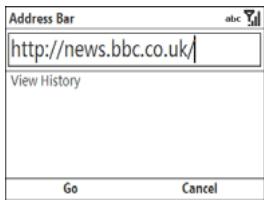
5 Press Menu (right softkey), select View, and then select one of the following:
One Column: Arranges web pages into one column that is as wide as the screen, so that you don't have to scroll horizontally.
Fit To Screen: Maintains a layout similar to what you see on a desktop computer, but it makes items smaller and arranges the content so that you can see most of it without scrolling horizontally.
Desktop: Keeps the same layout and size as on a desktop computer, which requires both horizontal and vertical scrolling.
Full Screen: Hides the status and navigation areas and fills the entire screen with the web page. To exit full screen mode, press (right softkey).
Show Pictures: Shows or hides pictures on web pages. Hiding pictures speeds up the time it takes to load pages.
6 Here are some tips on viewing web pages and moving around in them:
To view the previous page, press Back (left softkey) or Backspace.
To refresh the page with the latest content from the Internet, press Menu (right softkey) and select Refresh.
- To scroll through the page in One Column View or Default View, press Up or Down . In Desktop View, press Up , Down , Left , or Right to scroll in all directions.
To follow a link to another web page press Up or Down to highlight the link, and then press Centre to go to the selected page.
- To send email from a web page, select the address link. You need to configure an email application on your smartphone before you can use this feature (see Your email).
To adjust the size of the text on web pages, press Menu (right softkey), select View > Text Size, and then select the size you want. - To view a web page's properties, press Menu (right softkey) and select Tools > Properties.
- To view each item in a list, select the list and scroll using Up ▲ or Down ▼.
- In a list, press Left or Right to cycle between items, and then press Centre to accept the option you want.
In a form, such as a browser search field, press Centre to interact with the form, and then press Centre to stop interacting with the form.
7 Press Back ← to close Internet Explorer Mobile.
Tip To send a link, press Menu (right softkey) and select Tools > Send Link. Select the option you want to use to send the link: SMS (text message), MMS (multimedia message), Windows Live (if you have set up Windows Live on your smartphone), or an email account.
Creating a favourite
You can create web favourites to quickly access the web pages you visit most often. These are different from favourite contacts.
BEFORE YOU BEGIN Create the folders where you want to store your favourites first. After you create a favourite, you can't move it to another folder (see Organising your favourites).
1 Go to the page you want to mark as a favourite.
2 Press Menu (right softkey) and select Add to Favourites.
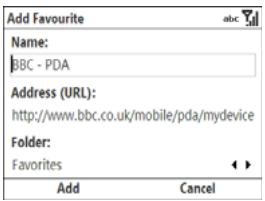
3 (Optional) Select Name and enter a different description.
4 (Optional) Select Folder, and then select the folder where you want to store the favourite.
5 Select Add (left softkey).
Tip To delete a favourite or folder, press Menu and select Favourites. Highlight the item you want to delete, press Menu (right softkey), and then select Delete. Press Yes (left softkey) to confirm the deletion.
Viewing a favourite
1 Press Home , and then press live! (right softkey).
2 Press Favourites (left softkey).
3 Select the folder containing the favourite, and then select the page you want to view in the list.
Organising your favourites
You can create folders to organise your favourites. For example, you can store travel links in one folder, stock links in another, and business links in a third folder.
1 Press Home , and then press live! (right softkey).
2 Press Favourites (left softkey).
3 Press Menu (right softkey) and select Add Folder.
4 Enter the folder name.
5 Press Add (left softkey).
Downloading files and images from a web page
You can download files that are usable on your smartphone, such as new applications, MIDI ringtones, or pictures.
1 Go to the page that contains the link to the file you want to download.
2 Select the link to download the file.
3 Select Name and enter a new name for the file.
4 Select the Folder list, and then select the folder where you want to save the file.
5 Select the Location list, and then select where you want to store the file: Main memory or Storage card.
DID YOU KNOW? The Storage card option is available only if you have an expansion card (sold separately) inserted into your smartphone.
6 Press Done (left softkey).
DID YOU KNOW? You can access specially formatted streaming content by pressing Favourites (left softkey) and selecting WindowsMedia.com.
Returning to recently viewed pages
The History list stores the addresses of the pages you visited recently.
1 Press Menu (right softkey) and select History.
2 Select the web page you want to view.
Customising your Internet Explorer Mobile settings
1 Press Menu (right softkey) and select Tools > Options.
2 Select General and set any of the following options. Press Done (left softkey) when you have finished.
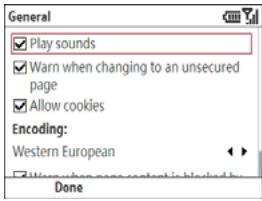
Play sounds: Specifies whether your smartphone plays any sounds associated with a web page.
Warn when changing to an unsecured page: Sets whether a message appears when you switch from a secure page to one that is not secure.
Allow cookies: Sets whether your smartphone accepts cookies (small files containing info about your identity and
preferences). The page sends the file and stores it on your smartphone.
Encoding: Sets the character set for the web pages you view.
Warn when page content is blocked by security settings: Sets whether a message appears when you attempt to open a page that does not meet the security standards associated with your smartphone.
3 Select Connections and set either of the following options. Press Done (left softkey) when you have finished.
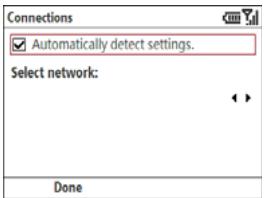
Automatically detect settings:
Specifies that you want your smartphone to automatically determine the correct network settings for connecting to the Internet.
Select network: Specifies the type of network you want to connect to.
4 Select Memory, highlight any of the three options—Temporary Files, Cookies, or History—and press Clear (right softkey) to delete the selected files. Press Done (left softkey) when you have finished.
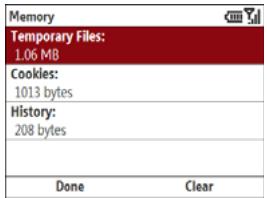
5 Press Done (left softkey).
Connecting to devices with Bluetooth wireless technology
With the built-in Bluetooth® wireless technology on your smartphone, you can connect to a number of Bluetooth devices such as a headset or hands-free car kit, as well as to other phones, handhelds, or piconets. When you connect to another device, you create a partnership (also referred to by terms such as trusted pair, trusted device, or pairing) with that device.
KEY TERM Partnership Two devices—for example, your smartphone and a hands-free device—that can connect because each device finds the same passkey on the other device. After you form a partnership with a device, you don't need to enter a passkey to connect with that device again. Partnership is also known as paired relationship, pairing, trusted device, and trusted pair.
If your computer is enabled with Bluetooth wireless technology, you can also synchronise wirelessly or use your phone as a wireless modem.
You can create a list of Bluetooth devices that you trust to communicate with your smartphone. When communicating with trusted devices, your smartphone skips the discovery process and creates a secure link as long as the device is within range. Bluetooth range is up to 9 metres in ideal conditions. Performance and range are affected by physical obstacles, radio interference from nearby electronic equipment, and other factors.
When you configure a headset (see Connecting to a Bluetooth® hands-free device), the headset is automatically added to your trusted device list. Follow the steps in this section to add other devices, such as your computer, to your trusted device list.
DID YOU KNOW? Check your battery level before establishing a Bluetooth connection. If the battery level is low, you can't make a Bluetooth connection.
Tip You can set up a connection to a nearby Bluetooth printer. To print a file, open the file, press Menu (right softkey), and then select Print via Bluetooth in any application that supports this feature.
Entering basic Bluetooth settings
1 Press Home , and then press Start (left softkey).
2 Navigate to the My Settings content list, highlight Bluetooth, and then press Turn On (left softkey).
3 If you want to allow Bluetooth devices that are not on your Trusted Device list to request a connection with your device, select Bluetooth, press Menu (right softkey), and select Turn On Visibility, Your device remains accessible to other devices until you press Menu (right softkey) and select Turn Off Visibility.
The Bluetooth status icon
The Bluetooth icon on your Home screen indicates the status of the Bluetooth feature:

Bluetooth on.

Call in progress with a Bluetooth headset or car kit.

Music files are playing through a Bluetooth headset.
Requesting a connection with another Bluetooth device
1 Press Home , and then press Start (left softkey).
2 Navigate to the My Settings content list, highlight Bluetooth, and then press Turn On (left softkey).
3 Select Bluetooth, and then select Add new device.
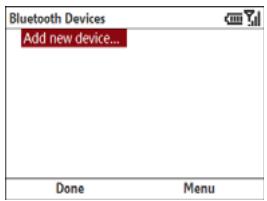
4 Wait for your smartphone to search for devices and to display the device list.
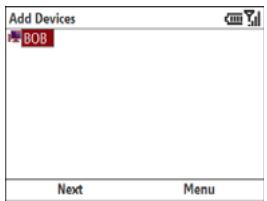
5 Select the device with which you want to connect, and press Next (right softkey).
6 Enter a numeric passkey between 1 and 16 digits long and press Next (right softkey).
IMPORTANT Some hands-free devices have a predefined passkey. If your device has a predefined passkey, you can find it in the documentation for that device. Other devices provide a screen where you enter a passkey that you make up. In either case, you must use the same passkey on both your smartphone and the other device. We recommend that where possible, you make up a numeric passkey of 16 digits to improve the security of your smartphone. The longer the passkey, the more difficult it is for the passkey to be deciphered.
7 If the passkey is not built-in, enter the same passkey on the other Bluetooth device, and then press OK (right softkey).
8 Enter a new display name if desired, and then press Next (left softkey).
9 Press Done (left softkey).
You can now communicate with this device whenever it is within range and the Bluetooth feature on your smartphone is turned on. The range varies greatly depending on environmental factors. The maximum is about 9 metres.
Tip To delete the established partnership with a device, go to the Bluetooth Devices screen and highlight the connection you want to remove. Press Menu (right softkey) and select Delete. Press Yes (left softkey) to confirm the deletion. The deleted device can no longer automatically connect with your smartphone.
Accepting a connection from another Bluetooth device
BEFORE YOU BEGIN To prepare your smartphone to be able to accept a connection from a requesting device, enter the basic Bluetooth settings as described in Entering basic Bluetooth settings.
1 Press Home , and then press Start (left softkey).
2 Navigate to the My Settings content list, highlight Bluetooth, and then press Turn On (left softkey).
3 If you have already set up a partnership with the transmitting device, your smartphone is ready to receive the info. If you haven't set up a connection, select Bluetooth, press Menu
(right softkey), and select Turn On Visibility to let the device find your smartphone and request a connection.
4 When prompted to add this device, select Yes.
5 Enter the same passkey on your smartphone and on the Bluetooth device.
6 (Optional) To give the partnership a more meaningful name, select Display Name and enter a new name.
7 Press Done (left softkey).
8 When your smartphone is receiving info, a notification tells you that a transmission is in progress. To stop the transmission, press Cancel (right softkey). To close the notification, press Hide (left softkey).
Entering advanced Bluetooth settings
You can use Bluetooth profiles to enter settings for transferring images, connect to a Bluetooth printer, and more.
1 Press Home , and then press Start (left softkey).
2 Navigate to the My Settings content list and press All Settings (right softkey).
3 Select Connections, and then select Bluetooth Profiles.
4 Select any of the following options: File Transfer: Enables you to specify where to store files you receive through a Bluetooth connection. You can also select whether your smartphone prompts for server authorisation credentials.
Images: Enables you to specify where to store images you receive through a Bluetooth connection. You can also select whether your smartphone prompts for server authorisation credentials, whether to open images automatically once the transfer has finished, and whether to request a thumbnail image of transmitted images.
Security: Specifies a time interval after which your smartphone reverts from visible to hidden status.
Printer: Enables you to manage print jobs with Bluetooth printers. If you select this option, you can do the following:
- If you have formed a connection with a Bluetooth printer but the printer is not displayed on the Printer screen, press Menu (right softkey) and select Refresh.
- To view current print jobs, press Menu (right softkey) and select Status. To cancel a print job, on the Print Manager screen, press Menu (right softkey) and select Cancel Jobs.
Identification: Lets you enter a name for your smartphone and select whether to use this as the Bluetooth device name.
5 After entering each setting you want, press Done (left softkey).
Using your device as a wireless modem
Internet Connection Sharing (ICS) is the feature that converts your smartphone into a modem so that you can access the Internet from your computer.
You can set up Internet Connection Sharing in one of two ways:
- Connect your smartphone to your computer using the USB sync cable.
- If your computer is enabled with Bluetooth wireless technology, you can set up your smartphone as a wireless modem using the built-in Bluetooth technology.
Setting up a USB Internet Connection Sharing connection
1 Press Home , and then press Centre
2 Select Applications, and then select Internet Sharing
3 Select the PC Connection list, and then select USB.
4 Press Connect (left softkey).
5 On your computer, open your web browser to confirm that you can connect to the Internet.
Creating a Bluetooth Internet Connection Sharing connection
BEFORE YOU BEGIN
Make sure your smartphone is visible (see Entering basic Bluetooth settings).
- Create a partnership between your smartphone and your computer. We recommend that you initiate the partnership from your smartphone (see Requesting a connection with another Bluetooth device).
1 On your computer, double-click the icon to open the Bluetooth connections window. Check the documentation included with your computer for instructions.
2 Select the option to view devices within range.
3 You should see an icon representing your smartphone. Double-click this icon to make sure that "Network Access
Point" or something similar appears in the list of Bluetooth services.
Tip Don't see your smartphone icon or the list of services? Check the documentation included with your computer, or contact your computer manufacturer for help. Different computer models use different terminology for the Bluetooth connection features.
4 On your smartphone, press Home , and then press Centre .
5 Select Applications, and then select Internet Sharing
6 Select the PC Connection list, and then select Bluetooth PAN.
NOTE Keep the default setting on the Network Connection list.
Press Connect (left softkey) and follow the wizard to set up Internet Sharing.
7 On your computer, follow the steps to accept or enable a Bluetooth PAN connection with your smartphone. Check the documentation included with your computer for instructions.
8 After you have connected, on your computer, open your web browser to confirm that you can connect to the Internet.
Your photos, videos, and music
Do you have a wallet bulging with photos of friends, family, pets, and your most recent holiday?
Are you tired of carrying both your MP3 player and your phone?
Your Palm® Treo™ 500v smartphone solves both problems. You can keep your favourite photos right on your smartphone—videos, too. And there's no need to carry an expensive MP3 player, because you can play music on your smartphone.
Simply transfer music onto your smartphone or an expansion card (sold separately) and then listen through your stereo headset.
Benefits
- Never be far from your favourite people, places, and music
-
Arrange your photos, videos, and music
-
Avoid having to use a separate photo viewer, MP3, CD, or mini-disc player
In this chapter
Camera. 160
Pictures & Videos 165
Windows Media Player Mobile 169
Synchronising your media files
You can synchronise pictures, videos, and music files between your smartphone and your computer so that changes you make show up on both your computer and your smartphone. To synchronise media files, you must first choose Media as one of your synchronisation options on your smartphone; see Changing which applications sync.
The procedure for synchronising media files is different for computers running Windows XP and computers running Windows Vista.
Synchronising media files: Windows XP
BEFORE YOU BEGIN You must install ActiveSync® desktop software, available from a link on the Windows Mobile Getting Started CD (see Installing ActiveSync desktop software: Windows XP), and select the option to synchronise media (see Changing which applications sync).
When you synchronise your smartphone, your pictures and videos are synchronised between your smartphone and your desktop computer. On your computer, you can view the pictures and videos, and you can also send them to friends using your desktop email application.
To find all synchronised pictures and videos on your computer, look in C:\Documents and Settings\Username>My Documents\Treo My Documents.
You use Windows Media Player to synchronise music files; see Transferring media files to your smartphone.
Synchronising media files: Windows Vista
BEFORE YOU BEGIN You must install Windows Mobile Device Center, available from a link on the Windows Mobile Getting Started CD (see Installing Windows Mobile Device Center: Windows Vista), and select the option to synchronise media (see Changing which applications sync).
On a computer running Windows Vista, you use Windows Media Player to synchronise all types of media files—pictures, videos, and music files—that are on your computer to your smartphone. See Transferring media files to your smartphone.
To synchronise pictures and videos from your smartphone to your computer, follow these steps:
1 Connect your smartphone to your computer with the USB sync cable.
2 On your computer, click Start > All Programs > Windows Mobile Device Center.
3 Select Connect without setting up your device.
4 Select Pictures, Music and Video.
5 Select X new pictures/video clips are available for import.
All new or changed pictures and videos on your smartphone are synchronised to your computer.
Camera
Your smartphone comes with an easy-to-use, built-in, 2-megapixel camera with 2x zoom. You can use the camera to take and view pictures and videos and send them to your friends and family. To add a personal touch to your smartphone, use your pictures as your Home screen background and as caller ID images.
You can receive and view pictures and videos, and send pictures and videos as attachments or multimedia messages (see Pictures & Videos). Or add a picture to a contact (see Adding a contact). You can also move pictures and videos to a computer by synchronising your smartphone with your computer.
Taking a picture
By default, pictures are stored in the My Pictures folder on your smartphone. If you want to store your pictures on an expansion card, you can change where pictures are stored (see Customising your Camera settings). For information on accessing your pictures on your computer,
see Synchronising media files: Windows XP.
DID YOU KNOW? Pictures are captured and stored in 16-bit colour, JPG format. Resolution settings range from a low end of 96 × 72 pixels to a high end of 1600 × 1200 pixels. You can change the default setting. See Customising your Camera settings for details.
1 Press Home 空 , and then press Start ... (left softkey).
2 Navigate to the Recent Photos content list and press All Photos (right softkey).
3 Press Camera (left softkey).
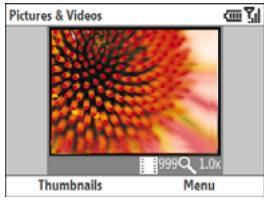
Tip If you see a camcorder icon below the preview image, video mode is on. To turn on the still camera, press Menu (right softkey) and select Still.
4 Adjust the position of your smartphone until you see the subject you want to photograph on the screen.
5 (Optional) Adjust any of the following:
Zoom: Press Up to zoom in or Down to zoom out.
Brightness: Press Menu (right softkey) and select Brightness to change the image brightness.
Resolution: Press Menu (right softkey) and select Resolution to change the image quality.
6 (Optional) Set a five-second timer: Press Menu (right softkey) and select Mode > Timer.
7 Press Centre to capture the picture or start the timer.
8 Hold your smartphone still until the picture renders, and then do one of the following:
- Press Camera (left softkey) to take another picture.
- Press Back ← and then press Thumbsnails (left softkey) to return to Thumbsnail View.
DID YOU KNOW? After three minutes of inactivity when previewing an image, the camera goes into standby mode. Press any key to return to the image preview.
Taking pictures in burst mode
Burst mode takes five pictures in quick succession, with one button press.
1 Press Home 心 , and then press Start (left softkey).
2 Navigate to the Recent Photos content list and press All Photos (right softkey).
3 Press Camera (left softkey).
4 Press Menu (right softkey) and select Mode > Burst.
5 Press Centre
Recording a video
Videos can be any length, provided you have enough storage space available. By default, videos are stored in the My Pictures folder on your smartphone. If you want to store your videos on an expansion card, see Customising your Camera settings to change where videos are stored. For information on accessing your videos on your computer, see Synchronising media files: Windows XP.
DID YOU KNOW? Videos are captured and stored in WMV format. Video resolution ranges from 176 x 144 pixels to 320 x 240 pixels. You can change the resolution setting by pressing Menu (right softkey) and selecting Quality.
1 Press Home 心 , and then press Start (left softkey).
2 Navigate to the Recent Photos content list and press All Photos (right softkey).
3 Press Camera (left softkey).
4 Press Menu (right softkey) and select Video.
5 Adjust the position of your smartphone until you see the subject you want to record on the screen.
6 (Optional) Adjust either of the following: Brightness: Press Menu (right softkey) and select Brightness to change the image brightness.
Resolution: Press Menu and select Quality to change the video resolution.
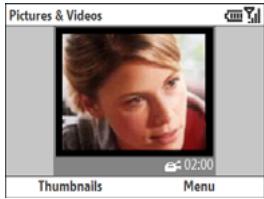
7 Press Centre to start recording.
8 When you're finished recording, press Stop (left softkey) or Centre to stop recording.
9 (Optional) To review the video in Windows Media Player Mobile, press Thumbsnails (left softkey), highlight the video, and then press
Centre .Press Back ← to return to Thumbnail View.
TIP If you don't like a video you recorded, delete it. See Deleting a picture or video for details.
DID YOU KNOW? After three minutes of inactivity when previewing an image, the camera goes into standby mode. Press any key to return to the image preview. If the camera goes to standby while the recording is paused, the video recording is stopped and the video is saved.
Customising your Camera settings
1 Press Home 心 , and then press Start ... (left softkey).
2 Navigate to the Recent Photos content list and press All Photos (right softkey).
3 Press Menu (right softkey) and select Options.
4 Select General and set any of the following options. Press Done (left softkey) when you have finished.
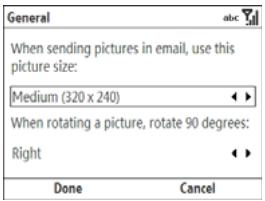
When sending pictures in email, use this picture size: Sets the size of pictures you send in an email message.
When rotating a picture, rotate 90 degrees: Sets the direction in which pictures rotate.
5 Select Slide Show and set any of the following options. Press Done (left softkey) when you have finished.
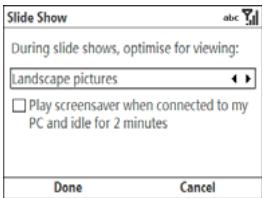
During slide shows, optimise for viewing: Sets whether pictures are optimised for portrait or landscape format during slide shows.
Play screensaver when connected to my PC and idle for 2 minutes: Sets whether the pictures in your My Pictures folder are used as a screenshot when your smartphone is connected to your computer and the desktop synchronisation software is not running.
6 Select Camera and set any of the following options. Press Done (left softkey) when you have finished.
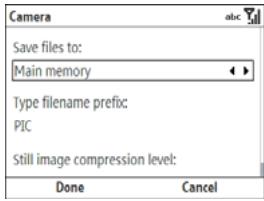
Save files to: Specifies whether pictures and videos are stored on your smartphone or on an expansion card.
Type filename prefix: Assigns a name to a series of pictures to be captured, such as Seattle001, Seattle002, and so on.
Still image compression level:
Sets the default quality and size for newly captured still pictures.
7 Select Video and set either of the following options, Press Done (left softkey) when you have finished.
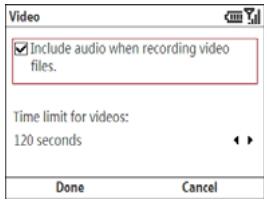
Include audio when recording video files: Turns the microphone on and off so that you can record videos with or without sound.
Time limit for videos: Limits the length of videos you record. You can select the No limit option.
Pictures & Videos
Viewing a picture
In addition to viewing the pictures you capture with the built-in camera, you can view pictures captured on many popular digital cameras or downloaded from the Internet. Your smartphone supports the following picture formats:
- JPG
PNG
BMP
GIF
1 Press Home 仓 , and then press Start (left softkey).
2 Navigate to the Recent Photos content list.
3 If the picture you want appears on the list, select it. If the picture does not appear, press All Photos (right softkey) and select the picture you want to view.
4 Press Back ← to return to Thumbnail View.
Viewing a video
In addition to viewing the videos you capture with the built-in camera, you can view videos captured on many popular digital cameras or streamed from websites. Your smartphone supports and streams the following types of video files:
MPEG-4
3GPP2
3GPP
WMV,WMA,ASF
- RTSP Streaming
1 Press Home 公 , and then press Start ... (left softkey).
2 Navigate to the Music & Video content list.
3 If the video you want appears on the list, select it. If the video does not appear, press All Music (right softkey), select My Videos, select All Video, and then select the video you want to view.
4 Press Back ← to return to My Videos.
Viewing a slide show
1 Press Home 空 , and then press Start ... (left softkey).
2 Navigate to the Recent Photos content list and press All Photos (right softkey).
3 Press Menu (right softkey) and select Play Slide Show. The slide show plays automatically.
4 Press Back ← to stop the slide show and return to Thumbnail View.
Sending a picture or video
You can send a picture or video to other picture-enabled mobile smartphone devices or to an email address as an attachment.
You cannot send copyrighted pictures or videos that appear with a lock icon in Thumbnail View.
1 Highlight the picture or video you want to send.
2 Press Menu (right softkey) and select Send.
3 Select the option you want to use to send the picture or video: an email account or MMS.
4 When the Messaging application opens, address and send the message (see Creating and sending an email message or Creating and sending a multimedia message).
Tip You can also beam a picture or video using the built-in Bluetooth® wireless technology on your smartphone to another nearby Bluetooth device. Highlight the picture or video, press Menu (right softkey), and select Beam. Select the receiving device and press Beam (left softkey).
Creating new folders for storing pictures and videos
You can create folders to organise your pictures and videos. For example, you can store trip items in one folder and holiday items in another.
1 Press Home , and then press Start (left softkey).
2 Navigate to the Recent Photos content list and press All Photos (right softkey).
3 Press Menu (right softkey) and select Edit > New Folder.
Tip You can navigate to and rename a folder after you create it (see Exploring files and folders).
Organising your pictures and videos
You can move or copy pictures and videos to other folders or between your smartphone and an expansion card.
1 Highlight the picture or video you want to move or copy.
2 Do one of the following:
To move the picture or video to another location, press Menu (right softkey) and select Edit > Cut.
To keep the picture or video in two locations, press Menu (right softkey) and select Edit > Copy.
3 Press Menu (right softkey), select Folders, and then select the folder where you want to paste the picture or video. After you select a folder, you can navigate to a subfolder within that folder.
Tip If you have an expansion card inserted into your smartphone, select Storage Card to paste the picture or video to the card.
4 Press Menu (right softkey) and select Edit > Paste.
Using a picture as the Home screen background
1 Select the picture you want to use.
2 Press Menu [...] (right softkey) and select Use as Home Screen.
3 If prompted, press Up ▲ or Down ▼ to adjust the area of the picture that appears on the Home screen.
4 Press Next [...] (right softkey)
5 Press Right or Left to select the transparency level. Use a higher percentage for a more transparent picture and a lower percentage for a more opaque picture.
6 Press Finish (right softkey).
Editing a picture
For more extensive edits, just download your picture or video to your computer and
edit it in your favourite graphics program. Then sync the picture or video back to your smartphone.
1 Select the picture you want to edit.
2 Press Menu (right softkey) and select Edit.
3 Do any of the following:
To rotate the picture 90 degrees, press Menu and select Rotate (left softkey).
- To crop the picture, press Menu (right softkey) and select Crop. Navigate to the upper-left corner of the area you want to crop and press Centre. Navigate to the lower-right corner of the area you want to crop and press Centre to crop the image.
To adjust the brightness and contrast levels of the picture, press Menu (right softkey) and select AutoCorrect.
- To undo an edit, press Menu (right softkey) and select Undo.
- To cancel all unsaved edits you made to the picture, press Menu (right softkey) and select Cancel.
- To save the edited picture with a new file name, press Menu (right softkey), select Save As, enter a name for the picture, and press Done (left softkey).
Deleting a picture or video
1 Highlight the picture or video you want to rename.
2 Press Menu (right softkey) and select Delete.
3 Select Yes (left softkey) to confirm the deletion.
Renaming a picture or video
1 Select the picture or video you want to delete.
2 Press Menu (right softkey) and select Properties.
3 Enter a new name for the picture or video.
4 Press Done (left softkey).
Windows Media Player Mobile
Windows Media Player Mobile can play music, audio, and video files that are stored on your smartphone or on an expansion card (sold separately) in any of the following file formats:
WMA
WMV
MP3
3GP
AAC
AAC+
MPEG-4
DID YOU KNOW? You can also download animated GIF files and view them in Internet Explorer Mobile.
IMPORTANT You must have QuickTime Player version 6.5 or later installed on your computer to play videos recorded by your smartphone. You can download the videos from an expansion card or you can click the
video thumbnail after synchronising the files.
You can listen to these music, audio, and video files through the speaker on the back of your smartphone or through stereo headphones.
Transferring media files to your smartphone
Use the Sync feature in the desktop version of Windows Media Player to transfer digital music, audio, video, and playlist files from your computer to an expansion card or your smartphone. Using the Sync feature ensures that the files are transferred correctly.
Tip For tips on using the desktop version of Windows Media Player, go to the Help menu in Windows Media Player on your computer.
BEFORE YOU BEGIN Do the following:
- Be sure you have Windows Media Player 10 or later installed on your computer. On a Windows XP computer,
Windows Media Player 10 must be installed on your computer before you install ActiveSync desktop software.
Tip If you don't already have Windows Media Player 10 or later installed on your Windows XP computer, you can download it from microsoft.com. Windows Media Player 11 is installed on Windows Vista computers by default.
- To sync media files with your computer, set the Media sync option on your smartphone (see Changing which applications sync).
1 On your computer, open Windows Media Player.
2 (Optional) If you're transferring media files to an expansion card, insert a 32MB or larger expansion card into your smartphone.
3 Connect your smartphone to your computer with the USB sync cable.
4 Do one of the following:
Windows XP: When the Device Setup Wizard opens on your computer, click Automatic. Check the Customise the playlists that will be synchronised box.
Windows Vista: Select the Sync tab, and then select Treo > Set Up Sync. Check the Sync this device automatically box.
5 Select the playlists you want to sync. On a Windows Vista computer, select the All Photos and All Videos playlists to synchronise pictures and videos between your smartphone and your computer.
6 Click Finish to begin the transfer. If you are transferring files to an expansion card, be patient; transferring media files to an expansion card can take several minutes.
Tip You can also transfer media files from a Windows XP computer manually. Double-click the ActiveSync icon in the taskbar to open the ActiveSync desktop software window, select Explore, and then drag the media files onto the icon representing your smartphone. Update the library in Windows Media Player on your smartphone to complete the transfer; see Working with libraries.
TIP Another easy way to manually transfer media files is to copy them to an expansion card (sold separately). Insert the card into your smartphone (see Inserting and removing expansion cards) and then update the library (see Working with libraries) so that Windows Media Player can access the files on the card.
Playing media files on your smartphone
1 Press Home 空 , and then press Start ... (left softkey).
2 Navigate to the Music & Video content list and press All Music (right softkey).
3 Press Menu (right softkey) and select Library.
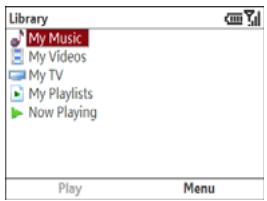
4 Select the library you want to use. If you can't find a media file on your expansion card, update the library (see Working with libraries).
TIP To play a file that is not in a library, go to the Library screen, press Menu (right softkey), and then select Open File.
5 Select the category containing the media file you want to play.
6 Select the item you want to play (such as a video, song, album, or artist name).
7 Press Play (left softkey).
8 Press Menu (right softkey) and select any of the following during playback:
Library: Displays the Library screen so you can select a different song or video to play.
Play/Pause: Plays or pauses the current file.
Shuffle/Repeat > Shuffle: Plays the Now Playing playlist in random order. A checkmark appears next to this command when it is on.
Shuffle/Repeat > Repeat: Plays the Now Playing playlist repeatedly. A checkmark appears next to this command when it is on.
Full Screen: Displays a video on the full screen.
Options: Set options including network, skin, and hardware button options.
Tip To view detailed information about the track that is playing, press Menu (right softkey), and select Properties.
Use any of the following onscreen controls during playback:
Centre pauses or plays the current file.
Left skips to the beginning of the current file or to the previous file.
Right skips to the next file.
Volume button increases or decreases the volume level.
DID YOU KNOW? You can play streaming files from the web. To play an MMS (Microsoft Media Streaming) file, press Menu on the Library screen and select Open URL. Select URL and enter the website address, or select History and select a site you've visited before.
DID YOU KNOW? If you close the Windows Media Player Mobile window, your music continues to play in the background.
DID YOU KNOW? The Music & Video content list displays the media files you most recently played. To replay an item, simply select it from the content list.
Working with libraries
A library represents each of the storage locations available to Windows Media Player Mobile, so you should have two libraries: My Device and, if you have purchased and inserted an expansion card (sold separately), My Storage Card. Each
library contains links to the media files in that location. Windows Media Player Mobile usually updates the My Device library automatically, but you must manually update the My Storage Card library.
Tip If you don't see a media file that you added, manually update the library.
1 Press Home 山 , and then press Start (left softkey).
2 Navigate to the Music & Video content list and press All Music (right softkey).
3 Press Menu (right softkey, and select Library.
4 Press Menu (right softkey) and select Update Library.
5 Wait for the files to be added, and then press Done (right softkey).
Tip To delete an item from a library, highlight the item, press Menu (right softkey), and select Delete from Library. Press Yes (left softkey) to confirm the deletion.
DID YOU KNOW? If you move files between your smartphone and an expansion card, be sure to update your libraries, or you won't be able to see the files in their new location.
Working with playlists
A playlist is a list of media files that play in a specific order. You can use playlists to group audio files together or video files together for convenient playback. For example, in the desktop Windows Media Player, you can create a playlist of upbeat music for when you exercise and a playlist of soothing songs for a long flight. When you synchronise, your favourite playlists are automatically copied to your smartphone. Your playlists appear in your libraries (in the My Playlists category).
A temporary playlist, called Now Playing, appears on the Now Playing menu. It lists the currently playing file, as well as any files that are queued up to play next. You can add to, modify, or clear the files on the Now Playing playlist.
1 Go to the Now Playing screen:
- If you are on the Library screen, select Now Playing.
- If you are on the Playback screen, select Now Playing.
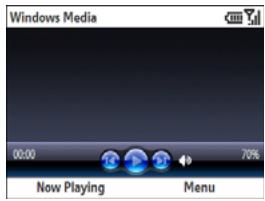
2 Do any of the following:
To move a file up or down one slot, highlight the file, press Menu (right softkey), and then select Move Up or Move Down.
To add a file, highlight the file, press Menu (right softkey) and select Library. Highlight the file, press Menu (right softkey), and then select Queue Up.
To delete a file from the playlist, highlight the file, press Menu l and select Delete from Playlist.
To view more info about a file, highlight the file, press Menu , and select Properties.
To save the playlist, press Menu (right softkey) and select Save Playlist.
To remove all items from the Now Playing playlist, press Menu (right softkey) and then select Clear Now Playing.
Customising Windows Media Player Mobile
1 If you are on any screen other than the Playback screen, press Back ← to go to the Playback screen.
2 Press Menu (right softkey) and select Options.
3 Select Playback and set any of the following options. Press Done (left softkey) when you have finished.
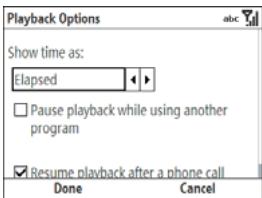
Show time as: Sets whether the time remaining or time elapsed appears in the Playback screen.
Pause playback while using another program: Sets whether playback continues if you switch to another application.
Resume playback after a phone call: Sets whether playback continues after you finish a phone call.
4 Select Video and set either of the following options. Press Done (left softkey) when you have finished.
Play video in full screen: Sets whether videos automatically play in full screen format.
Shrink to fit window: Sets whether videos are automatically scaled to fit the Playback screen.
5 Select Network and set the following options. Press Done (left softkey) when you have finished.
Internet Connection Speed: Specifies the speed of your network connection, and specifies whether you want the device to detect connection speed.
Protocol: Enables and disables the available protocols. You must select at least one protocol. You can also set a UDP Port.
6 Select Library and set whether you want to see the Library or Player screen when you open Windows Media Player Mobile. Press Done (left softkey) when you have finished.
7 Select Skins and press Right or Left to set the player's background. Press Done (left softkey) when you have finished.
8 Select Buttons to change any of the available button settings:
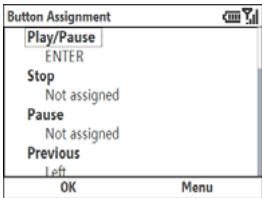
- To assign a button, highlight the item you want to set, press Menu (right softkey), and then select Assign. Press the button you want to use for that item.
To restore an item's factory setting, highlight the item, press Menu (right softkey), and then select Reset. - To unassign an item, highlight the item, press Menu (right softkey), and then select None.
9 Press OK (left softkey).
10 Press Done (left softkey).
Mobile TV
Mobile TV lets you watch entertainment, sports, news, and other television programming right on your smartphone. The content is displayed at a fixed resolution and size on your smartphone screen.
BEFORE YOU BEGIN
- You must subscribe to data services from your network operator. This is necessary for using Mobile TV.
- You must subscribe to the Mobile TV service; additional fees apply. Contact your network operator for information.
Make sure your phone is on and that you're inside a coverage area (see Turning your phone on).
1 Press Home , and then press Left to open the live! content list.
2 Select Mobile TV.
3 Select the channel you want to watch.
TIP Repeat steps 1-3 to switch to a different channel.
Your personal information organiser
Say good-bye to paper calendars and throw away those scribbled to-do lists. Your Palm® Treo™ 500v smartphone is all you need to organise your personal information and keep it with you wherever you go.
You never lose your information, even if your battery is completely drained. All your personal information is backed up each time you synchronise, and your information is kept private when you use the security features available on your smartphone. Also, you can easily share info with others electronically.
Benefits
-
Track current, future, and past appointments
Make to-do lists that get done -
Set reminders for appointments, birthdays, important tasks, and more
In this chapter
Contacts. 181
Calendar 186
Tasks 191
Voice Notes 194
Contacts
Adding a contact
1 Press Home 空 , and then press Start (left softkey).
2 Navigate to the Favourite Contacts content list and press All Contacts (right softkey).
3 Press New (left softkey).
4 Select the type of contact to create: Outlook Contact: This type of contact is stored in the Contacts application on your smartphone and synchronises with the Contacts application in Microsoft Outlook on your computer.
SIM Contact: This type of contact is stored on the SIM card in your smartphone and does not synchronise. If you use the SIM card with another smartphone, you can access any contacts on the SIM card.
Tip If you have set up a Windows Live account (see Using Windows Live), you can save the contact as a Windows Live contact. A Windows Live contact synchronises with your Hotmail contacts list but not with Microsoft Outlook on your computer.
5 Use the 5-way navigator to move between fields as you enter information.
NOTE For a SIM contact, you can enter a name and phone number only.
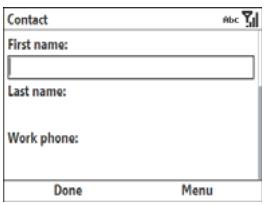
TIP Take some time to scroll down through all the fields in a new contact. There are fields for multiple addresses, phone numbers, email addresses, and much more.
TIP Be sure to enter mobile numbers and email addresses in the correct fields so that Messaging can find this info when you address a message and Calendar can find your contacts when you want to invite them to meetings.
Here are some helpful tips for entering info:
- To assign a ringtone to the entry, select Custom ring tone and select a tone.
- To add a caller ID picture that displays when that person calls, select Picture, and then select Camera and take a picture, or select an existing picture from Thumbnail View.
- To assign the entry to one or more categories, select Categories and then check the categories under which you want this entry to appear.
- To add a note to an entry, select Notes and enter the note text.
6 After you enter all the information, press Done (left softkey).
Tip If you need to enter multiple contacts that share information—for example, multiple people who work at the same company—you can copy one contact's information and then change only the fields you need for another contact. In the contact list, highlight the first contact, press Menu (right softkey), and then select Copy Contact.
Viewing or changing contact information
1 Press Home , and then press Start (left softkey).
2 Navigate to the Favourite Contacts content list.
3 If the contact you want is displayed on the list, select the contact to view the contact's information; to edit the information, skip to step 5.
If the contact is not displayed, press All Contacts (right softkey).
4 In the Contacts list (viewed by name), begin entering one of the following for the contact you want to view or edit:
-
First name
-
Last name
- One or more letters of the first and last name separated by a space
- Phone number (be sure to press Option twice to turn on Option Lock before entering a phone number)
Tip You can type letters from the last name first; for example, typing "S J" or "Smi Joh" also finds "John Smith."
DID YOU KNOW? The search function offers several features that make it easy to find the contact you want, even if you are not sure of the exact name: 1) Search results include name variations, such as "David" for "Dave." 2) The search function inserts a space before the last letter typed in if it cannot find a match. So if entering "Davidm" returns to no results, the search function automatically tries to search for "David M." 3) Search results include soundalike entries, so entering "Dwayne" also returns results for "Duane."
5 Select the entry you want to open.
DID YOU KNOW? When you select a contact entry, you are presented with several options for contacting the person, depending on what information you have entered for the contact. For example, you may see options for calling a number associated with the contact, sending an email to the contact's email address, or calling the last number you dialled to call the contact.
6 Press Menu (right softkey) and select Edit.
7 Make changes to the entry as necessary.
8 Press Done (left softkey).
DID YOU KNOW? You can find a contact by company name. Press Menu (right softkey) and select View By > Company. Select a company name to see the contacts who work there.
Tip To view a particular group of contacts, press Menu (right softkey), select Filter, and then select the category you want to view.
Deleting a contact
1 In the Contacts list, highlight the contact you want to delete.
2 Press Menu (right softkey) and select Delete Contact.
3 Press Yes (left softkey) to confirm the deletion.
Adding a contact to the Favourite Contacts list
You can add up to 10 contacts to the Favourite Contacts list so that you can quickly access them.
1 Press Home , and then press Start (left softkey).
2 Navigate to the Favourite Contacts content list and select Add a Favourite.
3 Select the contact you want to add and press Centre. If the contact has multiple phone numbers or email addresses, select the number or address you want to use and press Centre.
Finding a contact in an online address book
In addition to having contacts on your device, you can also access contact information from your organisation's online address book or Global Address List (GAL).
BEFORE YOU BEGIN Do the following:
Make sure you are accessing Exchange Server 2007 or Exchange Server 2003 upgraded to Service Pack 2.
- Synchronise with the Exchange server in order for the Company Directory option to appear.
1 Press Home 山 , and then press Start (left softkey).
2 Navigate to the Favourite Contacts content list and press All Contacts (right softkey).
3 Press Menu (right softkey), select Company Directory, enter the name of the contact, and then select Search.
Sending a contact
Your smartphone provides multiple options for sending a contact's information to someone else.
1 Press Home 公 , and then press Start (left softkey).
2 Navigate to the Favourite Contacts content list and press All Contacts (right softkey).
3 Highlight the contact you want to send.
4 Press Menu (right softkey) and select one of the following options:
Beam a contact to a nearby Bluetooth device: Select Send Contact > Beam, select the device, and then press Beam (left softkey).
Send a text message containing the contact information: Select Send Contact > Text Message. Select which contact information you want to send and press Done (left softkey). Address the text message and press Send (left softkey).
Send a multimedia message containing the contact information:
Select Send as vCard, address the multimedia message, and then press Send (left softkey).
Tip You can also quickly send a multimedia message to a contact from within the Contacts application. Highlight the contact name, press Menu (right softkey), and then select Send MMS.
Using SIM Manager
You can manage the contacts on your SIM card, including deleting numbers and transferring numbers between the card and the Contacts application on your smartphone.
1 Press Home , and then press Centre
2 Select Applications , and then select Organiser & Tools
3 Select SIM Manager
4 Highlight the contact you want.
5 Press Menu (right softkey) and select the option you want to edit the contact's information, delete the contact, copy it to the Contacts application, and more.
Tip You can also use SIM Manager to copy a contact from the Contacts application to the SIM card. Press Menu (right softkey), select Copy Contact to SIM, and then select the contact you want. Or send a text message to the highlighted contact by pressing Menu (right softkey) and selecting SMS.
Calendar
Displaying your calendar
1 Press Home 公 , and then press Start ... (left softkey).
2 Navigate to the Upcoming Events content list and press All Events (right softkey).
3 Press Menu (right softkey) and select one of the following view options:
Week View: Shows your schedule for an entire week.
Month View: Shows your schedule for a whole month. In Month View, the following icons appear on the date of the appointment:
A morning appointment
An afternoon appointment
Both morning and evening appointments
An all-day event
Go to Today: Shows your daily schedule in list format. Upcoming appointments are bold; past appointments are dimmed.
Go to Date: Shows your daily schedule in day-planner format. This view displays a horizontal time strip at the top to show at a glance when you have appointments.
DID YOU KNOW? If your schedule contains a conflict—two appointments that overlap—you can see the conflict in Today View, Date View, and Week View.
Tip To switch views, press the left softmax. Don't confuse the view name displayed above the left softmax with the current view. The name above the left softmax is the name of the next view you see when you press the key.
Creating an appointment
1 Press Home , and then press Start (left softkey).
2 Navigate to the Upcoming Events content list and press New (left softkey).
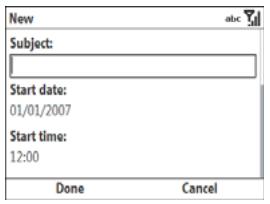
3 Use the 5-way navigator to move among fields and enter information. Note the following:
- In the Subject field, you can enter a subject, or press Centre to select from a list of predefined subjects.
- In fields in which you select a time, if your time format displays AM and PM, press A or P to select the option you want, or press any number key to switch between AM and PM.
4 Press Done (left softkey).
Tip To "pencil in" an appointment, open the appointment, select Status, and then select Tentative.
Tip You can display your appointments on your Home screen (see Selecting your Home screen layout).
Adding an alarm reminder to an event
You can use the Reminder list to set an alarm for an event when you create the event. You can also add an alarm to an event later, after you have created it.
1 Create an event and then select it.
2 Press Menu (right softkey) and select Edit.
3 Select the Reminder list and then select the number of minutes, hours, days, or weeks before the event you would like to receive the alarm.
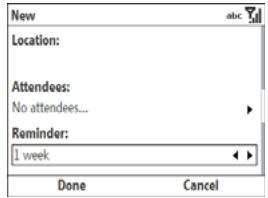
4 Press Done (left softkey).
Creating an untimed event
An untimed event, such as a birthday, anniversary, or holiday, does not occur at a particular time of day. These events appear
as banners at the top of your calendar; they don't occupy blocks of time. For example, "Submit Final Draft" in the screenshot shown below is an untimed event.
DID YOU KNOW? An untimed event can last longer than a day.
1 Press Home 公 , and then press Start ... (left softkey).
2 Navigate to the Upcoming Events content list and press New (left softkey).
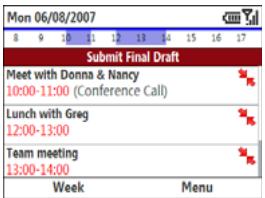
3 Enter a subject (description).
4 Select the starting and ending dates. Do not enter anything in the Start time or End time field.
5 Check the All day event box.
6 Press Done (left softkey).
Scheduling a repeating appointment
1 Create an appointment or untimed event, and then select it.
2 Press Menu (right softkey) and select Edit.
3 Select the Occurs list, and then select a repeat pattern.
Tip To enter a birthday or an anniversary, create an untimed event that repeats every year.
4 Press Done (left softkey).
Sending a meeting request
You can email meeting invitations to contacts who use Microsoft Office Outlook or Outlook Mobile.
BEFORE YOU BEGIN Create contact entries with email addresses for the people you want to invite to a meeting. You can't access contact entries without email addresses from your calendar.
1 Create an event, and then select it.
2 Press Menu (right softkey) and select Edit.
3 Select theAttendees list. Select Add Required Attendee, and then select the name of the contact you want to invite.To invite other attendees,select Add Required Attendee, and then select the name.
4 (Optional) To invite an optional attendee, select Add Optional Attendee, and then select the name.
DID YOU KNOW? If you are using Exchange Server 2007 or Exchange Server 2003 with Service Pack 2, you can use your corporate Global Address List to find contact information for an attendee. On the contact list, select Company Directory, and then select the name of the contact you want to invite.
5 Press Done (left softkey).
The next time you synchronise, the meeting request is sent to the attendees. When attendees accept your meeting request, the meeting is automatically added to their schedules. When you receive their response, your calendar is updated as well.
Replying to a meeting request
You receive and reply to meeting requests in the email application (see Working with meeting invitations). If you accept or tentatively accept an invitation, it shows up as an appointment in your Calendar.
Marking an event as sensitive
If other people have access to your Microsoft Office Outlook calendar on your computer and you don't want them to see an appointment, you can mark that appointment as private to hide it from other Microsoft Office Outlook users.
1 Create an event, and then select it.
2 Press Menu (right softkey) and select Edit.
3 Select the Sensitivity list, and then select one of the following:
Personal: Displays the event on your smartphone and on your computer. Meeting attendees or recipients see "Please treat this as Personal" near the top of an open appointment.
Private: Displays the event on your smartphone and on your computer. Meeting attendees or recipients see
"Please treat this as Private" near the top of an open appointment. If you sync with an Exchange server, other users who can access your folders can't see your private events; they see private events as unavailable time slots.
Confidential: Displays the event on your smartphone and on your computer. Meeting attendees or recipients see "Please treat this as Confidential" near the top of an open appointment.
TIP If you don't see an option on the screen, press Down on the 5-way to scroll to other options. For example, when editing an event, you don't see the Sensitivity option until you scroll toward the bottom of the entry.
4 Press Done [... (left softkey).
Deleting an event
1 Highlight the event you want to delete.
2 Press Menu (right softkey) and select Delete Appointment.
3 Press Yes (left softkey) to confirm the deletion.
Customising Calendar
1 Press Menu (right softkey) and select Tools > Options.
2 Set any of the following options:
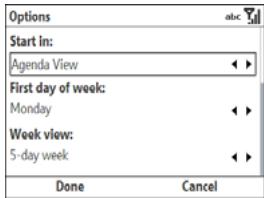
Start in: Specifies which view is displayed when you open Calendar.
First day of week: Specifies Sunday or Monday as the first day of the week for all Calendar views.
Week view: Specifies whether five, six, or seven days appear in Week View.
Month view/Show week numbers:
Specifies whether week numbers (1-52) appear in Month View.
Set reminders: Specifies whether a reminder is automatically added to new events and how long before the event the reminder appears. You can override this setting for individual events.
Send meeting requests via: Specifies the email account used to send meeting requests.
3 Press Done (left softkey).
Sending an appointment
1 Press Home , and then press Start (left softkey).
2 Navigate to the Upcoming Events content list and press All Events (right softkey).
3 Select one of the following options: Beam an appointment to a nearby Bluetooth device: Select the appointment you want to send. Press Menu (right softkey) and select Beam Appointment. Select the receiving device and press Beam (left softkey).
Send a multimedia message containing the appointment: Highlight the appointment you want to send. Press Menu (right softkey) and select Send as vCalendar. Address the multimedia message, and then press Send (left softkey).
Tasks
You can use Tasks to remind you of tasks you need to complete and to keep a record of completed tasks.
Adding a task
1 Press Home , and then press Centre .
2 Select Applications, and then select Organiser & Tools.
3 Press More (left softkey) and select Tasks.
4 Press Menu (right softkey) and select New Task.
5 Set any of the following:
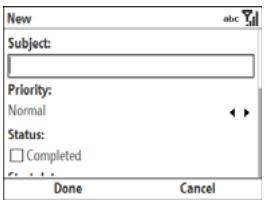
Subject: Specifies a name for the task.
Priority: Specifies the priority level for this task. Later you can arrange your tasks based on the importance of each task.
Status: Indicates whether the task is now completed.
Start date: Specifies when the task begins.
Due date: Specifies the due date for the task.
Occurs: Indicates if the task repeats at regular intervals and how often it repeats.
Reminder: Sets an alarm for this task and indicates when you want to be reminded.
Categories: Assigns the task to one or more categories.
Sensitivity: Marks this task as Normal, Personal, Private, or Confidential.
Notes: Enables you to enter additional text for the task.
6 Press Done [---] (left softkey).
Tip You can also add a task by selecting the Tasks entry bar at the top of the task list screen, entering the task description, and pressing Centre on the 5-way.
Tip You can display your tasks on your Home screen (see Selecting your Home screen layout).
Checking off a task
1 Highlight the task you want to check off.
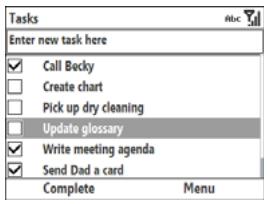
2 Press Complete (left softkey).
DID YOU KNOW? Overdue tasks appear in red.
Organising your tasks
1 In the Tasks list, press Menu (right softkey) and select Filter.
2 Select which tasks you want to view: All Tasks, Recent, No Categories, Active Tasks, Completed Tasks, or a specific category, such as Business or Personal.
3 Press Menu (right softkey) and select Sort By.
4 Select the sort method: Status, Priority, Subject, Start Date, or Due Date.
Deleting a task
1 Highlight the task you want to delete.
2 Press Menu (right softkey) and select Delete Task.
3 Press Yes (left softkey) to confirm the deletion.
Customising Tasks
1 Go to the Tasks list.
2 Press Menu (right softkey) and select Options.
3 Set any of the following options:
Set reminders for new items:
Automatically adds a reminder to new tasks. The default reminder is set to 8:00 on the morning the task is due. You can override this setting for individual tasks.
Show start and due dates: Displays task start and due dates in the Tasks list.
4 Press Done (left softkey).
Voice Notes
Voice notes are a great way to capture thoughts, questions, and meeting notes on your smartphone.
Recording a voice note
1 Press Home 公 , and then press Centre ° .
2 Select Applications , and then select Organiser & Tools
3 Press More (left softkey) and select Voice Notes
4 Press Record [...] (left softkey).
5 Speak into the microphone on your smartphone, or hold it close to another sound source.
6 When you have finished recording, press Stop (left softkey).
Playing a voice note
1 Highlight the voice note you want to play.
2 Press Menu (right softkey) and select Play.
Renaming a voice note
1 Highlight the voice note you want to rename.
2 Press Menu (right softkey) and select Rename.
3 Enter a new name for the note.
4 Press Done (left softkey).
Deleting a voice note
1 Highlight the voice note you want to delete.
2 Press Menu (right softkey) and select Delete.
3 Press Yes (left softkey) to confirm the deletion.
Using a voice note as your ringtone
1 Highlight the voice note you want to use.
2 Press Menu (right softkey) and select Set As Ringtone.
3 Press OK (left softkey).
Your Microsoft Office and other document tools
Your Palm® Treo™ 500v smartphone enables you to take your office with you—including your Microsoft Office files. With Microsoft Office Mobile, you can carry, view, and manage Microsoft Word, Excel, and PowerPoint files on your smartphone. You can keep updated copies of the files on both your smartphone and your computer so that you can view them in the most convenient location at any time.
You can also use PDF Viewer to view PDF files on your smartphone.
Benefits
-
Manage Word, Excel, and PowerPoint files on your smartphone
-
Improve productivity by taking important docs, spreadsheets, and presentations with you
Work with PDF files
In this chapter
Synchronising your Microsoft Office files 197
Word Mobile 199
PowerPoint Mobile 202
Excel Mobile. 205
PDFViewer 212
Synchronising your Microsoft Office files
You can create and edit Microsoft Office files on your computer and then synchronise the files so that changes you make show up on both your computer and your smartphone. To synchronise Microsoft Office files, you must first choose Files as one of your synchronisation options on your smartphone if you did not do so during desktop software installation; see Setting up wireless synchronisation and Changing which applications sync.
The procedure for synchronising files is different for computers running Windows XP and computers running Windows Vista.
NOTE The Office mobile applications on your smartphone are not compatible with the Office 2007 desktop applications.
Synchronising files: Windows XP
1 Connect your smartphone to your computer with the USB sync cable.
NOTE Most ActiveSync desktop software options are available only when your smartphone is connected to your computer.
2 On your computer, double-click the ActiveSync icon in the taskbar in the lower-right corner of your computer screen to open the ActiveSync desktop software window.
Tip If the ActiveSync icon does not appear in the taskbar, go to Start, navigate to Programs, and then select Microsoft ActiveSync to open the ActiveSync window.
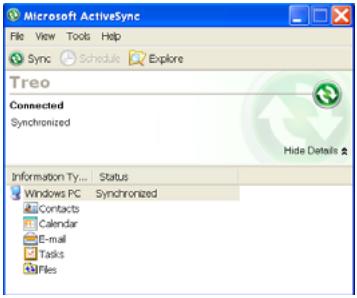
3 Under Information Type, double-click Files to view a list of all synchronised files.
Tip If Files doesn't appear under Information Type, open the Tools menu and select Options. Make sure the Files box is checked.
4 Do any of the following:
- To delete a file from the file sync folder on your computer and from your smartphone, highlight the file name and click Remove.
- To copy a file from your computer to your smartphone, click Add, browse to and highlight the file, and then click Open.
NOTE If you receive an error while synchronising files, make sure that all of the files you're trying to sync are closed on both your computer and on your smartphone.
Synchronising files: Windows Vista
1 On your computer, copy or save the file to the Documents\Documents on username's Smartphone folder.
DID YOU KNOW? The Documents on username's Smartphone folder is created when you select the option to sync Files.
2 Connect your smartphone to your computer with the USB sync cable. Synchronisation takes place automatically.
Where are the changes I made to my file?
If you sync a file from your computer to your smartphone, edit it on your smartphone, and then sync it back to your computer, don't look for the changed file in its original location on your computer. Only the synchronised version contains the changes, and that version is in the ActiveSync file sync folder. To find this folder, do one of the following:
Windows XP: On your computer desktop, double-click the file sync folder icon. This is a shortcut to the file sync folder.
Alternately, in ActiveSync desktop software, double-click Files. The location of the file sync folder appears in the File Synchronisation Settings dialog box (under
On this computer, synchronise the files in this folder).
Windows Vista: Open the Documents\ Documents on username's Smartphone folder.
On your smartphone, you can find the synchronised file by doing either of the following:
- Press Home l , and then press Centre l . Select Applications l , press More l (left softkey), and then select Office Mobile l . Select the application that opens the file: Word Mobile l , Excel Mobile l , or PowerPoint Mobile l .
Press Home , and then press Centre . Select My Files
Word Mobile
With Word Mobile, you can view and change the text formatting of documents stored on your smartphone or on an expansion card (sold separately) inserted into your smartphone.
DID YOU KNOW? If you have a PDF file (.pdf), you can view the file using PDF Viewer. Press Start, select Programs, and then select PDF Viewer (see PDF Viewer).
Opening a document
1 Press Home 空 , and then press Centre ° .
2 Select Applications
3 Press More (left softkey), and then select Office Mobile
4 Select Word Mobile
5 Navigate to and select the file you want.
6 To close the document, press Menu (right softkey) and select Close File.
Tip If you want to create a new document, open an existing document and save it with a new name (see Saving a copy of a document). Alternatively, open the blank document template located in the My Files/Templates folder (see Exploring files and folders) and then save it with a new name.
Tip To open a file on an expansion card, press Menu (right softkey) and select Storage Card.
Tip To zoom in or out of an open document, press View (left softkey) and select the zoom level. To fit the document to your smartphone's screen, press View (left softkey) and select Wrap to Window.
Tip To view a document's properties, including the size and the date created, highlight the document name, press Menu (right softkey), and then select Properties.
Formatting text in a document
1 Open the document whose text you want to edit.
2 Press Menu (right softkey) and select Edit Mode.
3 Position the cursor immediately to the right of the text you want to format.
4 Press Menu (right softkey), select Format, and then select the formatting option you want: Bold, Italic, Underline, or Highlight.
Tip To undo the formatting change, press Menu (right softkey) and select Undo. To redo the last formatting change, highlight the text you want, press Menu (right softkey), and then select Redo.
Tip To exit Edit mode, press Menu (right softkey) and select View Mode.
Finding or replacing text in a document
1 Open the document containing the text you want to find.
2 Press Menu (right softkey) and select Find.
3 Select Find What and enter the text you want to find.
4 (Optional) Check the Match case box to find text that matches the capitalisation in the text you entered step 3.
5 (Optional) Check the Whole words only box to find only full words that match the text you entered in step 3.
6 Press Find (left softkey).
7 Press Next (left softkey) to find the next instance of the text, or press Cancel (right softkey) to stop searching.
Saving a copy of a document
NOTE If a document was previously saved on a computer, any unsupported formatting may be lost when you save the file.
1 Open the document you want to copy.
2 Press Menu (right softkey) and select File > Save As.
3 Select Name and enter a new name for the file.
4 Select the Location list, and then select whether you want to store the file to the My Files folder on your smartphone (Main memory) or on an expansion card (Storage Card).
5 Select Save.
Tip If you select Main memory, the document is saved to the My Files folder on your smartphone by default. After the file is saved, you can move it to a different folder if you want (see Finding information).
Changing the document list display
You can choose whether to displaydocuments in the documents list as icons
or in list format. You can also choose how documents are sorted.
The options you choose apply to files within the selected folder only. When you select a folder, all items in that folder—including any sub folders and other types of files—are displayed or sorted according to the options you select.
1 Press Home , and then press Centre .
2 Select Applications
3 Press More (left softkey), and then select Office Mobile.
4 Select Word Mobile
5 If the last document you were viewing is displayed, press Menu (right softkey) and select Close File to view the documents list.
6 Press Menu (right softkey) and select the folder containing the documents you want to work with: My Device, Storage Card (if an expansion card, sold separately, is inserted into your smartphone), or My Files.
Tip To sort documents in a different folder, select My Device or My Files and navigate to the folder you want.
7 To change the documents list display, press Menu (right softkey) and select View. Select Icons or List.
8 To change the sort criteria, press Menu (right softkey) and select Sort By. Select the sort option you want: Name, Date, Size, or Type.
The first time you select a sort option, items are sorted in ascending (A-Z, oldest to most recent, or smallest to largest) order. To change to descending (Z-A, most recent to older, or largest to smallest) order, press Menu (right softkey) and select the same sort option.
PowerPoint Mobile
With PowerPoint Mobile, you can open and view slide show presentations created on your computer. Many presentation
elements such as slide transitions, animations, and URL links are supported.
Playing a presentation
1 Press Home , and then press Centre
2 Select Applications
3 Press More (left softkey), and then select Office Mobile.
4 Select PowerPoint Mobile
5 Navigate to and select the file you want.
Tip To open a file on an expansion card, press Menu (right softkey) and select Storage Card.
Tip To view a document's properties, including the size and the date created, highlight the document name, press Menu (right softkey), and then select Properties.
6 Press Right to advance to the next slide or Left to view the previous slide.
NOTE If a presentation is set up as a timed slide show, the slides advance automatically. Presentations pause during zooming.
7 (Optional) If the softkey text labels are hidden, press the right or left softkey to display the labels, and then do either of the following:
- Press Menu [---] (right softkey), select Go to Slide, and then select the slide you want to view.
- Press Menu (right softkey) and select Zoom In or Zoom Out.
Tip To show web addresses as underlined hyperlinks, press Menu (right softkey) and select Show Links.
8 Press End (left softkey) to stop the show.
DID YOU KNOW? By default, the softmax labels such as Menu are hidden when you open a presentation, so you need to press the right or left softmax once to display them, and then press Menu (right softmax) to open the menu.
Setting presentation playback options
1 Open the presentation for which you want to change the settings.
2 Press Menu (right softkey) and select Options.
3 Select the Orientation list, and then select the orientation you want.
4 Check the Override playback options box and set any of the following options:
Without animation: Turns off builds and other animations.
Without transition: Turns off transition effects between slides.
Without media: Turns off sound or other media files.
Use timings: Enables the timings recorded with each slide in a presentation. If a presentation is set up as a timed slide show, the slides advance automatically. Presentations pause during zooming.
Loop continuously: Advances to the first slide after playing the last slide in a presentation.
5 Press Done [... (left softkey).
Tip To turn the presentation into a continuously looping slide show, check both the Use timings and the Loop continuously boxes.
Tip To customise your presentation playback, press Menu (right softkey); select Custom; and then select the slides you want to include, the order of slides, and so on. Custom slide show is not available for all presentations.
Changing the presentation list display
You can choose whether to display presentations in the presentations list as icons or in list format. You can also choose how presentations are sorted.
The options you choose apply to files within the selected folder only. When you select a folder, all items in that folder—including any sub folders and other types of files—are displayed or sorted according to the options you select.
1 Press Home , and then press Centre
2 Select Applications
3 Press More (left softkey), and then select Office Mobile.
4 Select PowerPoint Mobile
5 If the last presentation you were viewing is displayed, press End (left softkey) to close the presentation and view the presentations list.
6 Press Menu (right softkey) and select the folder containing the presentations you want to work with: My Device, Storage Card (if an expansion card, sold separately, is inserted into your smartphone), or My Files.
Tip To sort presentations in a different folder, select My Device or My Files and navigate to the folder you want.
7 To change the presentations list display, press Menu (right softkey) and select View. Select Icons or List.
8 To change the sort criteria, press Menu (right softkey) and select Sort By. Select the sort option you want: Name, Date, Size, or Type.
The first time you select a sort option, items are sorted in ascending (A-Z, oldest to most recent, or smallest to largest) order. To change to descending (Z-A, most recent to older, or largest to
smallest) order, press Menu (right softkey) and select the same sort option.
Saving a copy of a presentation
NOTE If a presentation was previously saved on a computer, any unsupported formatting may be lost when you save the file.
1 Open the presentation you want to copy.
2 If the softmax text labels are hidden, press the right or left softmax to display the labels.
3 Press Menu (right softkey) and select File > Save As.
4 Select Name and enter a new name for the file.
5 Select the Location list, and then select whether you want to store the file to the My Files folder on your smartphone (Main memory) or on an expansion card (Storage Card).
6 Select Save.
Tip If you select Main memory, the presentation is saved to the My Files folder on your smartphone by default. After the file is saved, you can move it to a different folder if you want (see Finding information).
Excel Mobile
With Excel Mobile you can view and edit workbooks on your smartphone. You can also edit workbooks that you create on your computer. However, keep in mind that you may lose some of the information and formatting when you save the workbook on your smartphone.
Viewing a workbook
1 Press Home , and then press Centre
2 Select Applications
3 Press More (left softkey), and then select Office Mobile.
4 Select Excel Mobile
5 Navigate to and select the file you want.
Tip To open a file on an expansion card, press Menu (right softkey) and select Storage Card.
DID YOU KNOW? By default, the softkey labels such as Menu are hidden when you open a workbook, so you need to press the right or left softkey once to display them, and then press Menu (right softkey) to open the menu.
Tip To zoom in or out and set other viewing options, press the right or left softkey, press View (right softkey), and then select the options you want.
6 If the softmax text labels are hidden, press the right or left softkey to display the labels.
7 Press View (left softkey) and select any of the following:
Full Screen: Shows as much of a worksheet as can be displayed with a readable text size.
Cell Text: Shows the full contents of a highlighted cell, as well as the cell row letter and column number. The Cell Text option does nothing if an empty cell is highlighted.
Overview: Shows an entire worksheet. In Overview view, you can select an area of the worksheet to view in Full Screen view. Use the 5-way to move the red selection border, and press Centre to select the area you want to view.
Freeze Panes: Locks rows and columns so they remain visible while you scroll. Highlight the cell at the point at which you want to lock before you select this command. To unlock the rows or columns, select View > Unfreeze Panes.
Zoom: Sets the magnification level so that you can easily read the worksheet.
Sheet: Lets you switch to a different worksheet.
Tip To jump to a cell or region, press Menu (right softkey) and select Go To. (In Edit mode, select Tools > Go To.) Select Cell reference or name and enter the target cell info. Press OK (left softkey).
Tip If you want to create a new workbook, open an existing workbook and save it with a new name (see Saving a copy of a workbook). Alternatively, open the blank workbook template located in the My Files/Templates folder (see Exploring files and folders) and then save it with a new name.
Entering text in a cell
1 Open the workbook where you want to enter text.
2 If the softkey text labels are hidden, press the right or left softkey to display the labels.
3 Press Menu (right softkey) and select Edit Mode.
4 Press Menu (right softkey) and select Edit > Cell Text.
5 Enter the text you want.
6 Press Done (left softkey).
Tip To quickly delete cell text, in Edit mode, press Menu (right softkey) and select Edit > Clear Cell.
Tip To undo or redo any edits you make in a workbook, in Edit mode, press Menu (right softkey) and select Undo [last action] or Redo [last action].
Inserting a function
1 Open the workbook where you want to insert the function.
2 If the softmax text labels are hidden, press the right or left softmax to display the labels.
3 Press Menu (right softkey) and select Edit Mode.
4 Select the cell where you want to insert the function.
5 Press Edit (right softkey) and select Insert Function.
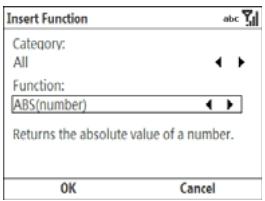
6 Select the Category list, and then select the type of function you want to insert.
7 Select the Function list, and then select the specific function you want to insert.
8 Press OK [... (left softkey).
9 Enter any values needed in the function.
10 Press Done (left softkey).
Selecting cells, rows, or columns
1 Open the workbook containing the elements you want to select.
2 If the softkey text labels are hidden, press the right or left softkey to display the labels.
3 Press Menu (right softkey) and select Edit Mode.
4 Navigate to one of the cells you want to select so that it is highlighted.
5 Press Menu (right softkey), select Select, and then select the type of item you want to select: Cells, Columns, Rows, or All (all cells in the worksheet).
6 If you selected Cells, Columns, or Rows, use the 5-way to highlight the items you want.
7 Press Done (left softkey).
Adding cells, rows, or columns
1 Open the workbook you want.
2 If the softkey text labels are hidden, press the right or left softkey to display the labels.
3 Press Menu (right softkey) and select Edit Mode.
4 Select the area above or to the left of where you want to insert an element (see Selecting cells, rows, or columns).
5 Press Menu [...] (right softkey), select Insert, and then select how you want to insert the elements:
Row: Inserts the same number of new rows as the number of cells you selected vertically in step 2—for example, if you selected an area containing two cells vertically (A1 and
A2), selecting Entire row inserts two rows; so the original rows 1 and 2 (and their contents) are now rows 3 and 4. The rows containing the selected area and all rows beneath it move the same number of rows—two in this example—down.
Column: Inserts the same number of new columns as the number of cells you selected horizontally in step 2. For example, if you selected an area containing two cells (A1 and B1) horizontally, selecting Entire column inserts two columns; so the original columns A and B (and their contents) are now columns C and D. The columns containing the selected area and all columns to the right of it move the same number of columns—two in this example—to the right.
Shift Right: Inserts the same number of new cells as the number of cells you selected horizontally in step 2. For example, if you selected an area containing two cells (A1 and B1) horizontally, selecting Shift cells right inserts two horizontal cells; so the original A1 and B1 (and their contents)
are now C1 and D1. The selected area and all cells to the right of it move the same number of columns—two in this example—to the right.
Shift Down: Inserts the same number of new cells as the number of cells you selected vertically in step 2. For example, if you selected an area containing two cells (A1 and A2) vertically, selecting Shift cells down inserts two vertical cells; so the original A1 and A2 (and their contents) are now A3 and A4. The selected area and all cells below it move the same number of rows—two in this example—down.
6 Press Done (left softkey).
Moving cells, rows, or columns
You can cut or copy an area of a worksheet and paste it elsewhere on the same worksheet or on a different worksheet.
1 Open the workbook containing the elements you want to move.
2 If the softmax text labels are hidden, press the right or left softmax to display the labels.
3 Press Menu (right softkey) and select Edit Mode.
4 Select the area you want to move (see Selecting cells, rows, or columns).
5 Press Menu [right softkey] and select Edit > Cut or Edit > Copy.
6 Navigate to the area where you want to insert the cells, rows, or columns.
7 Press Menu (right softkey) and select Edit > Paste,
Deleting cells, rows, or columns
1 Open the workbook containing the elements you want to delete.
2 If the softmax text labels are hidden, press the right or left softkey to display the labels.
3 Press Menu (right softkey) and select Edit Mode.
4 Select the area you want to delete (see Selecting cells, rows, or columns).
5 Press Menu (right softkey), select Edit > Delete Cells, and then select how you want to remove the elements:
Shift cells left: deletes the highlighted cells and moves all cells on their right to the left.
Shift cells up: Deletes the highlighted cells and moves all cells below them up.
Entire row: Deletes the entire row(s) in which the highlighted cells are located, and moves all rows below them up.
Entire column: Deletes the entire column(s) in which the highlighted cells are located, and moves all columns on their right to the left.
NOTE Excel Mobile adjusts formulas to reflect the new cell locations. However, a formula that refers to a deleted cell displays the #REF! error value.
6 Press Done (left softkey).
Naming a cell or range of cells
1 Open the workbook containing the cells you want to name.
2 If the softmax text labels are hidden, press the right [---] or left [---] softmax to display the labels.
3 Press Menu (right softkey) and select Edit Mode.
4 Press Menu (right softkey) and select Edit > Define Name.
5 Select Range Name and enter a name for the cell or range.
6 Select Refers to and enter the cell range to be included.
7 Press Done (left softkey).
Sorting info in a worksheet
1 Open the workbook containing the elements you want to delete.
2 If the softkey text labels are hidden, press the right or left softkey to display the labels.
3 Press Menu (right softkey) and select Edit Mode.
4 Select the cells you want to sort (see Selecting cells, rows, or columns).
5 Press Menu (right softkey) and select Tools > Sort.
6 Select the Sort by list, and then select the primary sort column.
7 Check the Ascending box to sort in ascending order. Leave the box unchecked to sort in descending order.
8 (Optional) Select the Then by lists, and then select second- and third-level sorting options.
9 Check or uncheck the Exclude header row from sort box to indicate whether you want to sort the header row.
10 Press OK (left softkey).
Finding info in a workbook
1 Open the workbook containing the info you want to find.
2 If the softmax text labels are hidden, press the right or left softkey to display the labels.
3 Press Menu (right softkey) and select Find. If you are in Edit mode, select Tools > Find.
4 Select Find what and enter the info you want to find.
5 (Optional) Check the Match case box to find text that matches the capitalisation in any text you entered in step 3.
6 (Optional) Check the Match entire cells box to find only entire cell contents that match any text you entered in step 3.
7 Select the Look in list and select whether to look in Formulas or Values.
8 Press Find (left softkey).
9 Press Next (left softkey) to find the next instance of the text, or press Cancel (right softkey) to stop searching.
Saving a copy of a workbook
NOTE If a workbook was previously saved on a computer, any unsupported formatting may be lost when you save the file.
1 Open the workbook you want to copy.
2 If the softmax text labels are hidden, press the right or left softkey to display the labels.
3 Press Menu (right softkey) and select File > Save As.
4 Select Name and enter a new name for the file.
5 Select the Location list, and then select whether you want to store the file to the My Files folder on your smartphone (Main memory) or on an expansion card (Storage Card).
6 Select Save.
TIP If you select Main memory, the workbook is saved to the My Files folder on your smartphone by default. After the file is saved, you can move it to a different folder if you want (see Finding information).
PDF Viewer
ClearVue PDF Viewer lets you view PDF files whether they are saved to your smartphone, attached to email messages, stored on an expansion card (sold separately) inserted into your smartphone's expansion card slot, or downloaded from the web.
Opening a file
1 Press Home , and then press Centre
2 Select Applications , and then select Organiser & Tools
3 Select PDF Viewer
4 Press File (left softkey) and select Open.
5 Navigate to and select the file you want.
Tip To open a recently viewed file, press File (left softkey) and select Recent Files.
Tip To open a file on an expansion card, after you select Open, select the topmost folder icon with two periods next to it, and then select Storage Card.
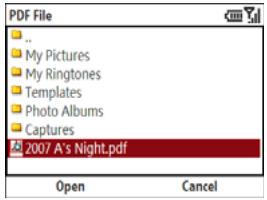
6 Press Up , or Down to scroll through the file.
7 (Optional) To zoom in or out, press Zoom (right softkey) and select the zoom level. Select Page Width to resize the file so that the width of the file matches the width of the screen.
8 When you have finished viewing the file press File (left softkey) and select Close.
Tip To view detailed information about PDF Viewer, press File (left softkey) and select About. For help using the application, press File (left softkey) and select Help.
Your application and info management tools
Your Palm® Treo™ 500v smartphone comes equipped with a variety of tools for managing and organising your information. Get the most out of your smartphone: Install business, education, or leisure-time applications. After you use your smartphone to create or capture important business and personal information, use one of several options to share the info with others. Insert expansion cards (sold separately) for a compact and virtually limitless answer to the storage dilemma. And because there's one on your smartphone, you never need to carry a separate calculator.
Benefits
- Quickly locate files and folders
Install applications, games, and other software -
Store and carry info
-
Keep others up-to-date with meaningful business and personal information
Always have a calculator with you
In this chapter
Finding information 217
Installing applications 218
Removing applications 221
Sharing information 222
Beaming information 222
Using expansion cards 224
Calculator 229
Finding information
Quickly find who or what you're looking for by using one of these search features:
- Lookup: Find and dial your contacts by name or phone number. See Dialling by contact name for details.
- My Files: Browse through the files and folders on your smartphone or on an expansion card.
- Global Address List Lookup: Look up names in your online corporate address list.
- Email message search: Display only those messages whose senders, recipients, or subjects match the text you enter (see Finding messages).
TIP For information on opening and closing apps, see Opening and closing applications.
Exploring files and folders
You can browse the contents of folders on your smartphone or on an expansion card. The root folder on your smartphone is named My Device. My Device is similar to
My Computer (Windows XP) or Computer (Windows Vista) on your computer.
Your smartphone also contains a My Files folder where pictures you capture and Microsoft Office Mobile files you save are stored by default. My Files is similar to My Documents (Windows XP) or Documents (Windows Vista) on your computer
1 Press Home , and then press Centre
2 Select My Files
3 Navigate to and select the folder you want to explore. Here are some tips:
To move up one folder level: Press Up (left softkey).
To quickly jump to the My Device folder: Press Menu (right softkey) and select My Device.
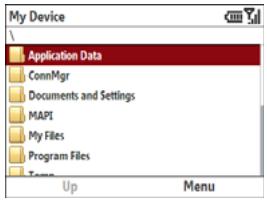
To quickly jump to the My Files folder: Press Menu (right softkey) and select My Files.
Tip When the items in a folder are displayed, you can sort them by name, date, size, or type. Press Menu (right softkey), select Sort by, and then select the sort method.
4 Do any of the following:
- To open an item, select it.
- To delete or rename an item, highlight the item, press Menu (right softkey), select Edit, and then select the appropriate command.
IMPORTANT Do not delete any files that you cannot identify. These files may be required for your smartphone to function properly.
-
To send an item, highlight the item, press Menu (right softkey), and then select Beam to send to another nearby Bluetooth device, or select Send and select the method you want to use the send the item.
-
To move or copy a file to another folder, highlight the item, press Menu (right softkey), and then select Edit > Cut or Edit > Copy. Open the destination folder, press Menu (right softkey), and then select Edit > Paste.
- To highlight multiple items, while pressing and holding Shift +p , press Up or Down .
Installing applications
Your smartphone comes with several built-in and ready-to-use applications. You can also install third-party applications that are compatible with Microsoft Windows Mobile® 6 Standard edition devices, such as business software, games, and more.
Applications you download to your computer are likely to be in a compressed format such as ZIP. If the file is compressed, you need to use a decompression utility on your computer,
such as WinZip, to decompress the file before you install the application on your smartphone.
These instructions tell you how to install basic files onto your smartphone. Some software uses an installer or wizard to guide you through the process. For details, consult the documentation that came with the software.
Tip If an application does not have a Microsoft Mobile to Market certificate, you see a message indicating that the application is untrusted. If this occurs, you can indicate whether you want to continue the installation.
Installing third-party applications
When installing third-party applications, note the following:
Install only apps that are designed for Microsoft Windows Mobile 6 Standard.
- Apps designed for Microsoft Windows Mobile 6 Professional or any edition of Windows Mobile 5.x software are not compatible with your smartphone.
If you can try a free or trial version of the software before purchasing it, you
can test it first to make sure it works properly.
NOTE If you encounter a problem with a third-party application (such as an error message), contact the application's vendor. For general troubleshooting of third-party applications, see Third-party applications.
DID YOU KNOW? You can purchase a third-party application that lets you run Palm OS® applications on your smartphone.
Installing applications from the Internet
You can use Internet Explorer Mobile to install Windows Mobile apps in the CAB file format directly from the Internet. For files in any other format except CAB, you must first download the files to your computer and then install them to your smartphone by synchronising.
1 Make sure your phone is on and that you are in a coverage area (see Turning your phone on).
2 Download the application file you want to install (see Downloading files and images from a web page).
3 When the download has finished, press Home l , and then press Centre l
4 Select My Files
5 Select the file you downloaded to start the installation program.
Installing applications from your computer
BEFORE YOU BEGIN To install an application from your computer to your smartphone, you must first install the desktop synchronisation software on your computer (see Installing ActiveSync desktop software: Windows XP or Installing Windows Mobile Device Center: Windows Vista).
1 Open My Computer or Windows Explorer on your computer.
2 Double-click the icon representing your smartphone.
3 Copy the application file(s) into the folder.
4 Connect your smartphone to your computer to synchronise and install the application(s) on your smartphone.
Tip You can install Java application files called Midlets onto your smartphone, either from your computer or from the Internet. (To install a Midlet from your computer, first copy the file to your smartphone using your desktop synchronisation software.) Press Home, press Centre, and then select Applications. Select Organiser & Tools, and then select Java. Press Menu (right softkey), select Install, and then select Local (to install a file from your computer) or Internet. After you install the file, press Menu (right softkey) to perform various tasks using the file.
Installing applications onto an expansion card
BEFORE YOU BEGIN To install an application from your computer to an expansion card, you must first install the desktop synchronisation software on your computer (see Installing ActiveSync desktop software: Windows XP or Installing Windows Mobile Device Center: Windows Vista).
1 Insert the expansion card into the expansion card slot (see Inserting and removing expansion cards).
2 Connect your smartphone to your computer using the USB sync cable.
3 Open My Computer or Windows Explorer on your computer.
4 Double-click the icon representing your smartphone.
5 Navigate to the folder representing the expansion card.
6 Copy the application file(s) into the expansion card folder.
Removing applications
To free up memory on your smartphone, you can remove applications that you no longer use. You can remove only applications, patches, and extensions that you install; you cannot remove the built-in applications that reside in the Read-Only Memory (ROM) portion of your smartphone.
1 Press Home , and then press Start (left softkey).
2 Navigate to the My Settings content list and press All Settings (right softkey).
3 Select More, and then select Remove Programs.
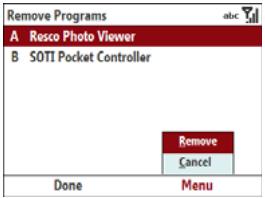
4 Highlight the application that you want to remove.
DID YOU KNOW? Built-in applications that cannot be deleted are not listed in the Remove Programs list.
5 Press Menu (right softkey) and select Remove.
6 Press Yes (left softkey) to confirm the deletion.
7 Press Done (left softkey).
Sharing information
Your smartphone comes equipped with a variety of options for sharing information, so that you can choose the quickest, most convenient way to send your info or to receive info from another device.
- When you have a file open such as a picture or a Word document, you can easily share a file by pressing Menu (right softkey) and then selecting the Send or Beam option. The option name changes depending on the type of file you are sending.
- You can insert a picture or attach a note or other file to an email. You can also receive pictures and attachments (see Your email).
- You can attach a picture, video, or sound file to a multimedia message (see Creating and sending a multimedia message).
- You can synchronise to share info between your smartphone and your computer or between your smartphone
and Microsoft Exchange Server 2003 or 2007 (see Synchronising information).
If you are near someone, you can beam files and applications between your smartphone and your neighbor's device using the built-in Bluetooth® wireless technology (see Beaming information).
- You can also store files on an expansion card and share the expansion card (see Using expansion cards).
Beaming information
Your smartphone is equipped with built-in Bluetooth wireless technology that enables you to beam information to another device enabled with Bluetooth technology.
The maximum range for beaming with Bluetooth technology is about 9 metres. Performance and range are affected by physical obstacles, radio interference from nearby electronic equipment, and other factors.
Tip For best results, the path between the two devices must be clear of obstacles, and both devices kept stationary. If you have difficulty beaming, shorten the distance and avoid bright sunlight.
DID YOU KNOW? The type of information you can beam depends on the type of device to which you are beaming. Other Windows Mobile 6 Standard devices are always compatible with your Treo 500v smartphone.
Beaming an entry or file
BEFORE YOU BEGIN Make sure your smartphone has the Bluetooth feature turned on (see Entering basic Bluetooth settings).
1 Highlight the entry or file you want to beam.
2 Press Menu (right softkey) and select Beam... (the menu item changes names based on the type of item you highlighted).
3 Select the name of the receiving device.
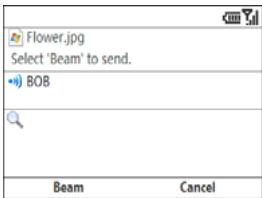
4 Wait for "Done" to appear next to the name of the receiving device before you continue using your smartphone.
Tip The regional setting determines the list of characters that can be used when info is beamed between devices. If you try to send or receive a character that is not on the list, it appears as a question mark (see Setting display formats).
Turning on the option to receive beamed information
By default, the option to receive beamed information on your smartphone is turned off. You need to turn the beam option on before you can receive information being beamed from another device.
1 Press Home 山 , and then press Start (left softkey).
2 Navigate to the My Settings content list and press All Settings (right softkey).
3 Select Connections, and then select Beam.
4 Check the Receive incoming beams box.
Receiving beamed information
BEFORE YOU BEGIN Make sure your smartphone has both the Bluetooth feature (see Entering basic Bluetooth settings) and the option to receive beamed information (see Turning on the option to receive beamed information) turned on.
1 Turn on your screen if it is not already on.
2 When the Receiving Data message appears, select Yes to receive the beam.
TIP If the option to receive beamed information is turned on but you can't receive beamed info, try a soft reset (see Resetting your smartphone).
Using expansion cards
The expansion card slot on your smartphone enables you to add microSD expansion cards to extend the storage capacity of your smartphone. For example, expansion cards can store the following:
Pictures
Games
Videos
- Applications
MP3 audio files
Databases
- Email attachments
Expansion cards are sold separately.
Tip We recommend that you purchase preformatted expansion cards (most cards are preformatted). To format a card on your own, you need to connect a card reader (sold separately) to your computer.
DID YOU KNOW? You can print pictures from an expansion card or use one with your computer. Most cards are sold with a card adapter that allows you to use your card in the same way as a regular-sized expansion card. If your expansion card does not come with an adapter, you can purchase one separately.
Inserting and removing expansion cards
1 Slide the battery cover off the back of your smartphone and remove the battery.
2 Gently push the guide on the expansion card tray toward the side of battery compartment (1) until it pops up (2).
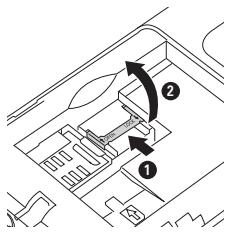
3 Lift the tray until it is fully extended, and then insert the expansion card into the tray (1). The gold contacts on the card should be toward the bottom of your smartphone and should be visible.
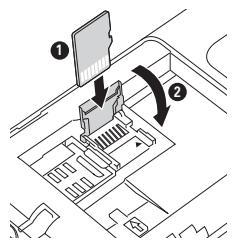
4 Press the tray down toward the bottom of the battery compartment (2).
5 Gently push the guide away from the side of the battery compartment until it locks into place.
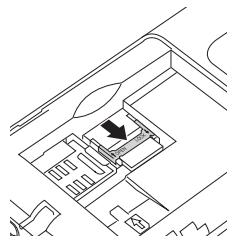
6 Reinsert the battery and replace the battery cover.
7 Press and hold Power until the Palm® logo appears.
NOTE Repeat these steps when you want to remove or replace an expansion card.
Opening applications on an expansion card
After you insert an expansion card into the expansion card slot, you can open any of the applications stored on the expansion card.
TIP To run an application on an expansion card, your smartphone must have enough free space in the internal memory to run the application.
1 Insert the expansion card into the expansion card slot.
2 Press Home , and then press Centre
3 Select My Files
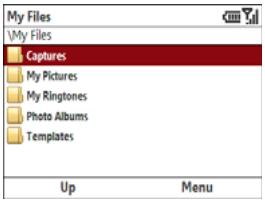
4 Press Menu (right softkey) and select Storage Card.
5 Select the application you want to open.
Saving files to an expansion card
You can save space on your smartphone by saving files to an expansion card. For example, when you create new Word Mobile documents, notes, Excel Mobile workbooks, pictures, videos, and audio files, you can save them directly to an expansion card. Saving files to an expansion card also makes it easy to share those files with others. (Some applications may not support this feature.)
1 Insert an expansion card into the expansion card slot.
2 Open the application containing the file you want to save.
3 Press Menu (right softkey) and select the option to save the file. The option name and location may change depending on the type of file you are sending.
Tip If you don't see a save option when you press Menu (right softkey), look in the submenus (if present). If you still can't find a save option, the application may not support this feature.
4 Select the option for where to save info, and then select Storage Card. The option name changes depending on the application you are in.
5 Press Save (left softkey).
Copying or moving applications and files between your smartphone and an expansion card
1 Insert the expansion card into the expansion card slot.
2 Press Home , and then press Centre
3 Select My Files
4 Select the file or application you want to copy or move (see Exploring files and folders).
TIP Your applications are usually located in the My Device/Program Files folder.
5 Press Menu [---] (right softkey) and select Edit > Copy or Edit > Cut.
6 Press Menu (right softkey) and select Storage Card.
7 Go to the folder where you want to place the selected item.
8 Press Menu (right softkey) and select Edit > Paste.
Tip You can also use the explore option in your desktop synchronisation software to drag and drop files to your smartphone or copy files between your smartphone and an expansion card.
Exploring files on an expansion card
1 Insert the expansion card into the expansion card slot.
2 Press Home , and then press Centre
3 Select My Files
4 Press Menu (right softkey) and select Storage Card.
5 Select the folder or files you want to view.
Renaming an expansion card
If you change the contents of an expansion card, you may at some point want to rename the card to better match its contents.
Tip Before copying information to or renaming the files or folders on an expansion card, or renaming the card itself, make sure the card is not write-protected. See the instructions that came with your card for details.
1 Insert the expansion card into the expansion card slot.
2 Press Home , and then press Centre
3 Select My Files
4 Press Menu (right softkey) and select My Device.
5 Highlight the current expansion card name (Storage Card by default).
6 Press Menu (right softkey) and select Edit > Rename.
7 Enter a new name for the card.
8 Press Centre
Encrypting an expansion card
When you encrypt an expansion card, the info on the card can be read only by your smartphone—so no one can see what's on the card if it gets lost or stolen.
1 Insert the expansion card into the expansion card slot.
1 Press Home , and then press Start (left softkey).
2 Navigate to the My Settings content list and press All Settings (right softkey).
3 Select More, and then select Security.
4 Select Encryption.
5 Check the Encrypt files placed on storage cards box.
6 Press Done (left softkey).
NOTE If your organisation enforces an encryption policy, you can see that the box is checked but cannot uncheck it.
Calculator
You can use Calculator for basic arithmetic calculations, such as addition, subtraction, multiplication, and division.
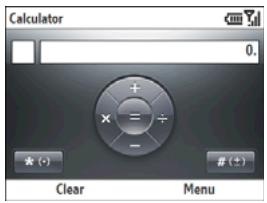
Performing calculations
1 Press Home , and then press Centre
2 Select Applications , and then select Organiser & Tools
3 Select Calculator
4 Use the number keys to enter numbers.
5 To perform calculations, do any of the following:
Add numbers: Press Up ▲.
Subtract numbers: Press Down .
Multiply numbers: Press Left.
Divide numbers: Press Right.
Calculate the result: Press Centre
Enter a decimal point: Press the * key.
Switch a number between positive and negative: Press the # key.
Express the displayed number as a percentage: Press Menu (right softkey) and select %.
Calculate the square root of the displayed number: Press Menu (right softkey) and select
Calculate the displayed number as the fraction 1/[displayed number]:
Press Menu (right softkey) and select 1 / x
Clear the current calculation and displayed number: Press Clear (left softkey).
Tip For more advanced calculations, use Excel Mobile. See Excel Mobile for details.
Using the Calculator memory
To store only the displayed number in memory: Press Menu (right softkey) and select MS.
DID YOU KNOW? When you store a number in memory, it replaces the number that is currently stored.
To add the displayed number to any number already stored in memory: Press Menu (right softkey) and select M+.
To display the number stored in memory: Press Menu (right softkey) and select MR.
To clear the memory: Press Menu (right softkey) and select MC.
Your personal settings
Customising is optional. But why not personalise your Palm® Treo™ 500v smartphone to make it match your lifestyle and work even harder for you?
You can easily customise the sounds, fonts, screen colours, and more on your smartphone. Take advantage of various levels of security. Prevent making an accidental (and expensive) phone call by locking the keyboard. There are lots of ways to make your smartphone work better for you.
Benefits
- Conserve power
Make your screen easy to read
- Secure your phone and your data
In this chapter
Home screen settings 233
System sound settings. 234
Display and appearance settings 237
Application settings 239
Locking your smartphone and info 241
System settings 245
Connection settings 250
Home screen settings
Selecting your Home screen background
You can use any picture that is stored on your smartphone, or on an expansion card (sold separately) inserted into your smartphone, as the background for your Home screen. Your smartphone automatically detects all supported picture files on your smartphone or an expansion card and displays them as options in the background selection list.
1 Press Home , and then press Start (left softkey).
2 Navigate to the My Settings content list and select Home Screen.
3 Press Right or Left to select the picture you want to use.
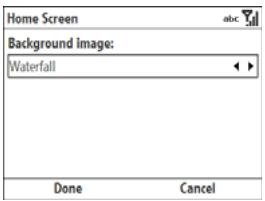
4 Press Done (left softkey).
DID YOU KNOW? In addition to setting a background image for your Home screen, you can change the colour theme for your smartphone (see Changing the system colour scheme).
Selecting your Home screen layout
You can select a Home screen option to display or hide items such as recently used application icons, upcoming calendar appointments, and new text or email messages.
1 Press Home , and then press Start (left softkey).
2 Navigate to the My Settings content list and press All Settings (right softkey).
3 Select Home Screen.
4 Select the Home Screen layout list, and then select the layout you want.
5 Press Done (left softkey).
DID YOU KNOW? The default Home screen layout on your smartphone is called Vodafone. This layout allows you quick access to content lists and the Main Menu. If you choose another layout, to access the content lists from the Home screen, press Start (left softkey). With the content lists open, to access the Main Menu, press Main Menu (right softkey).
System sound settings
When you're in a meeting, at the movies, or anywhere that silence is required, you can silence all sounds on your smartphone, including Calendar notifications and system sounds. This does not mute the speaker during phone calls. You can also set a different sound profile such as having your smartphone vibrate.
BEFORE YOU BEGIN If you want to use a downloaded sound file, a sound file on an expansion card (sold separately) inserted into your smartphone, or a sound file that you installed onto your smartphone, make sure the file has been saved or copied to the My Ringtones folder on your smartphone (see Finding information). The sound file then becomes available to use for any of the sound settings described in this section.
Selecting a sound profile
1 Press Power
2 Select the sound option you want: Normal, Silent, or Vibrate. To select additional options, select More, and then select Outdoor or Automatic.
NOTE When the profile is set to Silent, you can still listen to music through your smartphone's speaker. System sounds such as the battery charge alert and camera shutter are also still audible.
DID YOU KNOW? The Automatic profile switches from the Normal profile to Vibrate when the Calendar application on your smartphone indicates that you currently have an appointment.
Customising sound profiles
For each sound profile except Automatic, you can customise the settings for that profile. The Automatic profile uses whatever options you set for the Normal and Vibrate profiles.
1 Press Home , and then press Start (left softkey).
2 Navigate to the My Settings content list and select Profile.
3 Highlight the profile you want to customise.
4 Press Menu (right softkey) and select Edit.
5 Set any of the following options: Name: Specifies a name for the profile.
Ring type: Sets the ringtone associated with this profile.
Ring volume: Sets the ringer volume associated with this profile.
Alarm type: Sets how your smartphone presents an alarm when using this profile.
Alarm volume: Sets the alarm volume associated with this profile.
Reminder type: Sets how your smartphone presents a reminder when using this profile.
Reminder volume: Sets the reminder volume associated with this profile.
Notification type: Sets how your smartphone presents a notification when using this profile.
Notification volume: Sets the notification volume associated with this profile.
System sound volume: Sets the volume for all system sounds when using this profile.
6 Press Done (left softkey).
Tip To restore a profile's default settings, highlight the profile, press Menu (right softkey), and then select Reset to default.
Selecting Sounds & Notifications
1 Press Home , and then press Start (left softkey).
2 Navigate to the My Settings content list and select Ring Tone.
3 Set any of the following options:
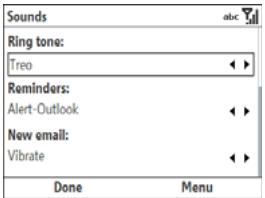
NOTE To select sound options associated with phone calls, see Selecting ringtones and alert sounds).
Reminders: Sets the alert tone for calendar and task reminders.
New email: Sets the alert tone for new incoming email messages.
New Text/MMS message: Sets the alert tone for new incoming text and multimedia messages.
New instant message: Sets the alert tone for new incoming instant messages, if you have set Windows Live Messenger (see Using Windows Live Messenger).
New channel message: Sets the alert tone for new incoming system messages from your network operator.
Alarm clock: Sets the alarm clock tone (see Setting system alarms).
SIM toolkit messages: Sets the alert tone for new incoming messages associated with the SIM toolkit, if your network operator has activated SIM toolkit services (see Using the SIM toolkit).
Exclamation/Question/Warnings:
Sets the tones for the various types of system alerts on your smartphone.
DID YOU KNOW? Exclamations, questions, and warnings are alerts that require some type of input from you. They represent three different levels of importance, with exclamations representing critical errors that require input.
Keypad control: Specifies whether you hear a tone or a click when you press keys.
Tip For most alert types, you can select Vibrate to have your smartphone vibrate rather than make a sound. You can also select None to receive no alert.
DID YOU KNOW? When you select a sound, the sound plays briefly after a few seconds so you can preview it.
Tip To delete sounds, press Menu (right softkey) and select Delete Sounds. You can delete sounds that you have added to your smartphone only.
Setting alert options
You can set a timeout interval for alerts that require user interaction (such as warnings and questions), and set the volume for alerts that arrive when you are on a call.
1 Press Home , and then press Start (left softkey).
2 Navigate to the My Settings content list and press All Settings (right softkey).
3 Select More, and then select Accessibility.
4 Set either of the following options: Confirmation time out: Sets the time interval that alerts requiring user interaction are displayed before timing out.
In-call alert volume: Specifies the volume for alerts that arrive while you are on a call.
5 Press Done (left softkey).
Display and appearance settings
Adjusting the brightness
1 Press Option, and then press P.
2 Press Left and Right to adjust the brightness.
3 Press Done (left softkey).
Changing the text size
You can make the onscreen text larger for easier viewing. This affects text within all applications and settings screens; it does not affect text on the Home screen, content lists, or the Main Menu.
1 Press Home , and then press Start (left softkey).
2 Navigate to the My Settings content list and press All Settings (right softkey).
3 Select More, and then select Accessibility.
4 Select System font size.
5 Press Right or Left to adjust the text size.
6 Press Done (left softkey).
Setting display formats
1 Press Home , and then press Start (left softkey).
2 Navigate to the My Settings content list and press All Settings (right softkey).
3 Select More, and then select Regional Settings.
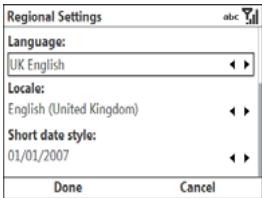
4 Scroll among the fields and customise the format settings. Note the following:
Locale: Sets the default format settings. The locale setting determines all display formats (date, time, and so on) on your smartphone unless you use another Regional Settings field to select a different format for a specific type of display item.
X date style: Sets the short date style and long date style.
Time formats: Sets the time style, separators, and AM and PM symbols.
Positive/Negative number: Sets the decimal symbol and number of decimal places, the digit grouping symbol and
group size, list separators, negative number sign symbol and format, leading zero display, and measurement system (metric vs. imperial).
Positive/Negative currency: Sets the currency symbol and position, the decimal symbol and position, digit grouping symbol and group size, and negative number format.
5 Press Done (left softkey).
Changing the system colour scheme
Tip You can also set the background for your Home screen (see Selecting your Homescreen background).
1 Press Home 公 , and then press Start ... (left softkey).
2 Navigate to the My Settings content list and press All Settings (right softkey).
3 Select Home Screen.
4 Select the Colour scheme list, and then select the layout you want.
5 Press Done (left softkey).
Application settings
Creating keyboard shortcuts
You can create keyboard shortcuts for applications you use frequently so that you can quickly access them. On your smartphone, shortcuts are called speed dials.
1 Press Home , and then press Centre
2 Select Applications
3 Highlight the application for which you want to create a shortcut.
4 Press Menu (right softkey) and select Add Speed Dial.
5 (Optional) To change the name of this shortcut, select Name and enter the new name.
DID YOU KNOW? The Value field always displays the actual application name, even if you change the shortcut name.
6 Select the Keypad assignment list, and then select the key you want to assign to this application.
DID YOU KNOW? You can select a key that is already assigned to another application. An alert appears asking you to confirm that you want to replace the existing application with the new one. The 1 key is reserved for dialling your network operator's voicemail system and cannot be overwritten.
7 Press Done (left softkey).
To access the application, press and hold the shortcut key.
Tip To view all of your current shortcuts, press Home, press Centre on the 5-way, and then select Applications. Select Organiser & Tools, press More (left softkey) and then select Speed Dial. To delete a shortcut, highlight the shortcut you want, press Menu (right softkey), and then select Delete. Press Yes (left softkey) to confirm the deletion.
Setting input options
1 Press Home , and then press Start (left softkey).
2 Navigate to the My Settings content list and press All Settings (right softkey).
3 Select More, and then select More again.
4 Select Text Input Settings.
5 Set any of the following options:
Input Language: Specifies the language to be used when you enter information using the keyboard.
Suggest words when typing:
Indicates whether word suggestions appear as you enter text. You can also specify how many letters you want to enter before a suggestion appears and how many suggestions you want to see.
Tip To enter a suggested word, press Down to highlight the suggestion, and then press Centre to accept it.
Tip To delete all entries from the list of word suggestions, press Menu (right softkey) and select Clear Input History.
Add a space after word: Specifies whether a space appears after you insert a suggested word.
Enable auto-correct: Indicates whether common misspellings such as "teh" are corrected automatically.
6 Press Done (left softkey).
Tip You can also set the time interval that must pass before the keyboard recognises a second press of the same key. Press Home, press Start, and then navigate to the My Settings content list. Press All Settings (right softkey), select More, and then select Accessibility. Select the Multipress time out list, and then select a time interval.
Locking your smartphone and info
Your smartphone includes several features that help you protect your smartphone from inadvertent use and keep your information private. The built-in security software lets you use your smartphone for emergency calls, such as dialling your national emergency number, such as 112, even if it is locked. You can lock any of the following:
Keyboard: Manually disable all buttons to prevent accidental presses in your briefcase or pocket.
SIM card: Require a PIN to turn on your phone so you can make and answer calls.
Smartphone: Require a password to see any information on your smartphone.
Locking your keyboard
Do either of the following:
Press and hold End ①.
Press Power 心 and select Lock.
Tip If you're using a headset or hands-free device and your smartphone is in a pocket or bag, you can lock the keyboard during a call to prevent accidental key presses.
Unlocking the keyboard
When the keyboard is locked, follow these steps to unlock it.
1 Press Unlock (left softkey).
2 Press the * key. (You do not need to press Option 📁 first.)
Locking the SIM card
You can lock your SIM (Subscriber Identity Module) card to prevent unauthorized use of your mobile account. When your SIM card is locked, you must enter the PIN to power on your phone to make or receive calls, except for emergency numbers. The SIM card remains locked even if you move the card to another phone.
When your SIM card is locked, you can unlock your SIM card by trying to turn on the phone. A dial pad appears for you to enter your PIN.
BEFORE YOU BEGIN
Make sure your phone is on and that you're inside a coverage area (see Turning your phone on).
- Get your default PIN from your network operator.
TIP The PIN is normally a four-digit number printed on a card that comes with your SIM card. Store the PIN card in a safe location in case you later need to remember your PIN.
1 Press Home 公 , and then press Start ... (left softkey).
2 Navigate to the My Settings content list and press All Settings (right softkey).
3 Select More, and then select Security.
4 Select Enable SIM PIN.
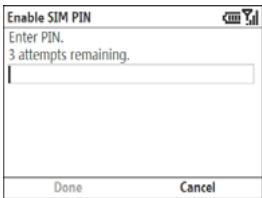
5 Enter the PIN and press Done (left softkey).
6 Turn your phone off to activate the SIM card lock feature.
When your SIM card is locked, you can unlock your SIM card by turning on your smartphone and entering your PIN when prompted.
Tip You can unlock your SIM card so that you do not need to enter a PIN when you turn on your smartphone. Follow the steps in the preceding procedure, but select Disable SIM PIN in step 4.
NOTE You need your PIN number to edit your PIN number or remove the locking feature. If you enter an incorrect PIN more times than allowed by your network operator, the SIM card locks. After the SIM card locks, you need the PUK (PIN Unlock Key) to unlock the SIM card. Contact your network operator for more information and the PUK.
Locking your smartphone
To protect your personal information, you can lock the system so that you need to enter your password to access any of your information or use other features of your smartphone.
IMPORTANT If you lock your system, you must enter the exact password to unlock it. If you enter an incorrect password, you are given another chance. Each time an incorrect password is entered, you are given progressively longer time periods between your chances to enter the password. If you forget the password, you need to perform a hard reset to resume using your smartphone. Performing a hard reset deletes all the entries in your smartphone and all applications you have
added, such as third-party software. However, you can restore all previously synchronised info the next time you sync (see Synchronising information).
1 Press Home , and then press Start (left softkey).
2 Navigate to the My Settings content list and press All Settings (right softkey).
3 Select More, and then select Security.
4 Select Device Lock.
5 Check the Prompt if device unused for box to turn on the password feature.
6 Select the first field, and then select how long a period of inactivity must pass before your smartphone locks.
7 Select Password type, and then select a format for your password:
Strong alphanumeric: A strong alphanumeric password must contain at least 7 characters and must contain a combination of letters, numerals, and punctuation. You must press Option or Alt before entering numerals or punctuation.
Simple PIN: A simple PIN must contain at least 4 characters and includes numerals only. You do not need to press Option before entering the PIN numerals.
8 Select Password and enter your password.
9 Select Confirm password and enter the password again.
10 Press Done (left softkey).
11 Press Yes (left softkey) to confirm your password.
Tip If you lock your smartphone and use a Simple PIN as the password, you can dial an emergency number by entering the number in the password field and pressing Phone/ Send. You do not need to press Option before entering the number. However, if you select Strong alphanumeric as the password type, you must first press Option twice before entering an emergency number in the password field.
Entering owner information
You can enter personal information that you want to associate with your smartphone, such as your name, company
name, and phone number. If you lose your smartphone, this feature can help the person who finds it return it to you.
1 Press Home , and then press Start (left softkey).
2 Navigate to the My Settings content list and press All Settings (right softkey).
3 Select More, and then select More again.
4 Select Owner Information.
5 Enter any of the information you want to include. Use the Notes field to enter any additional text you want to include.
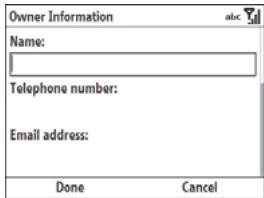
6 Press Done (left softkey).
System settings
Setting the date and time
Use Clock & Alarm Settings to set the time zone, time, and date for your home location and a location that you visit.
To set the display format for the date and time, see Setting display formats.
1 Press Home 空 , and then press Start ... (left softkey).
2 Navigate to the My Settings content list and press All Settings (right softkey).
3 Select Clock & Alarm, and then select Date and Time.
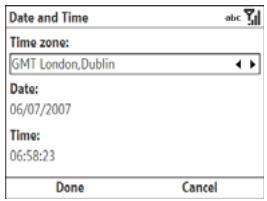
4 Select the Time zone list, and then select the time zone for your location.
5 Select Date and enter the date.
6 Select Time and enter the time. If your time format displays AM and PM, press the A or P key to select the option you want, or press any number key to switch between AM and PM.
7 Press Done (left softkey).
Setting system alarms
System alarms let you set alarms that are not associated with a task or appointment. For example, you can use your smartphone as an alarm clock when you travel, or set alarms to remind you when it's time to take medication or pick up the kids.
1 Press Home 山 , and then press Start (left softkey).
2 Navigate to the My Settings content list and select Alarm.
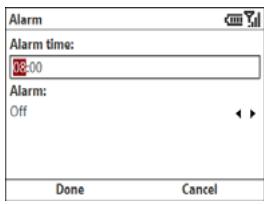
3 Select Alarm time and enter the time you want the alarm to go off. If your time format displays AM and PM, press the A or P key to select the option you want, or press any number key to switch between AM and PM.
4 Select the Alarm list, and then select whether you want the alarm to go off on weekdays only or every day.
5 Press Done [...] (left softkey).
Tip Use the Sounds & Notifications settings to change the alarm sound (see Selecting Sounds & Notifications).
Managing identity certificates
Your smartphone may include preinstalled certificates. Certificates are digital documents that are used to authenticate and exchange information on networks. Certificates can be issued for a user, a device, or a service.
1 Press Home , and then press Start ... (left softkey).
2 Navigate to the My Settings content list and press All Settings (right softkey).
3 Select More, and then select Security.
4 Select Certificates.
5 Select the type of certificate you want to view:
Personal: Displays certificates that establish your identity when you log in to a secured network, such as a corporate network.
Intermediate: Displays certificates issued by the root whose purpose is to then issue personal certificates.
Root: Displays certificates that identify the computers, such as servers, to which you connect. These certificates
help prevent unauthorised users from accessing your smartphone and information.
6 Do either of the following:
View certificate details: Highlight the certificate, press Menu (right softkey), and then select View. Press Done (left softkey) when you have finished viewing the certificate details.
Delete a certificate: Highlight the certificate, press Menu (right softkey), and then select Delete. Press Yes (left softkey) to confirm the deletion.
7 Press Done (left softkey).
How much storage space do I have left?
1 Press Home , and then press Start ... (left softkey).
2 Navigate to the My Settings content list and press All Settings (right softkey).
3 Select More, and then select More again.
4 Select About.
Tip If storage memory is low, consider using an expansion card to store files (see Using expansion cards). If program memory is low, close some applications to avoid slow smartphone performance (see Closing applications).
Tip After you select More twice in step 3, select System Information to view other information about your smartphone, such as the serial number, software version, and more. This information can be useful if you need to contact support.
5 Press Done (left softkey).
Optimising power settings
1 Press Home , and then press Start (left softkey).
2 Navigate to the My Settings content list and press All Settings (right softkey).
3 Select More, and then select Power Management. The Main battery bar displays the power remaining in your battery.
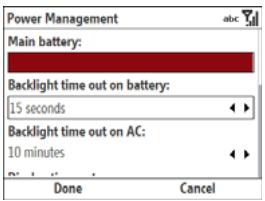
4 Select any of the following options:
Backlight time out on battery:
Specifies how long the keyboard backlight remains lit during a period of inactivity when your smartphone is running on battery power.
Backlight time out on AC: Specifies how long the keyboard backlight remains lit during a period of inactivity when your smartphone is connected to the AC charger.
Display time out: Specifies how many minutes the screen stays on during a period of inactivity.
5 Press Done (left softkey).
Turning wireless services on/off
1 Press Power φ and select Wireless Manager.
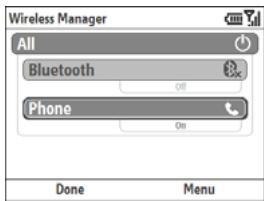
2 Turn the wireless features on your smartphone on/off. Select All to turn all wireless features on/off.
Tip To change the settings for one of the displayed wireless features, press Menu (right softkey) and select the wireless feature you want to change.
3 Press Done [... (left softkey).
Updating the system software
Windows Update lets you download security updates and other important updates to the Windows Mobile operating system software on your smartphone.
1 Press Home , and then press Start (left softkey).
2 Navigate to the My Settings content list and press All Settings (right softkey).
3 Select More, and then select More again.
4 Select Windows Update.
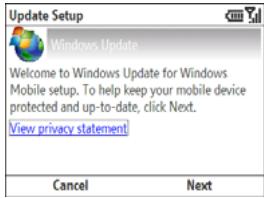
5 On the Update Setup screen, press Next [right softkey].
Tip Select View privacy statement to read about how using Windows Update affects the personal information on your smartphone.
6 Select whether you want to run Windows Update manually or you want it to check for updates automatically,
and then press Next (right softkey).
7 If you selected automatic updates, check the Use my data plan to check for and download updates box if you want to use your data plan instead of your basic wireless plan to update your smartphone. Using your data plan means that updates may occur more frequently but may result in additional data charges. Press Next (right softkey).
8 Press Done (left softkey).
9 If you select Automatic in step 6, Windows Update periodically checks for and downloads updates automatically. If you selected Manual in step 6, you can check for updates at any time by opening Windows Update and pressing Check Now (left softkey).
Tip To switch between manual and automatic updates, open Windows Update, press Menu (right softkey), and then select Change Schedule. To select or deselect the option to use your data plan to check for and download updates, press Menu (right softkey) and select Connections.
10 To view detailed results of the last check for updates, press Menu (right softkey) and select View details.
Connection settings
Manually entering dial-up connection settings
Your smartphone is already set up to connect to the Internet using a high-speed data connection on your network operator's network. To connect to the Internet, simply start Internet Explorer Mobile.
For special situations, such as connecting to your Internet service provider (ISP) or to a remote access server (RAS), you can set up another connection.
BEFORE YOU BEGIN Obtain the following information from your ISP or system administrator:
The type of network you are connecting to: Internet, MMS, WAP, or other
- ISP server phone number or access point
-Username
- Password
- Domain, if any
1 Press Home 心 , and then press Start (left softkey).
2 Navigate to the My Settings content list and press All Settings (right softkey).
3 Select Connections, and then select Dial-up.
4 Select the connection you want to view or change, or to create a new connection, select New.
5 If this is a new connection, select Description and enter a descriptive name for the connection.
6 Select the Connects to field, and then select the type of network to which you are connecting.
7 Select Phone number, User name, Password, and Domain and enter the information you obtained from your ISP or system administrator.
8 Press Done [... (left softkey).
Tip To delete a dial-up connection, highlight the connection, press Menu (right softkey), and then select Delete. Press Yes (left softkey) to confirm the deletion.
Changing your network connection
If you travel outside of your home region and use a SIM card from another Vodafone network operator, you can change the settings on your smartphone to work with the new SIM card.
IMPORTANT If you use a different SIM card from a network operator that is not associated with Vodafone, you need to manually enter network settings. Do not use this procedure; instead, see Manually entering network connection settings.
1 Press Home 公 , and then press Centre ° .
2 Select Applications , and then select Organiser & Tools
3 Select Network Setting
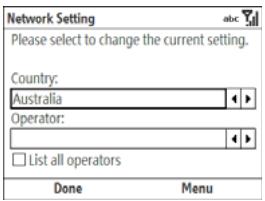
4 Select the Country list, and then select the country associated with your new SIM card.
5 Select the Operator list, and then select the operator associated with your new SIM card.
DID YOU KNOW? You can leave the List all operators box unchecked. All operators appear in the Operator list.
Tip To quickly find the optimal settings for the card that is currently inserted into your smartphone, press Menu (right softkey) and select Auto Detect.
6 Press Done (left softkey).
Manually entering network connection settings
Your smartphone is already set up to connect to the Internet using a high-speed data connection on your network operator's network. To connect to the Internet, simply start Internet Explorer Mobile.
For special situations, for example, if you use a different SIM card associated with a different network operator, you need to manually enter network settings.
IMPORTANT If you are using a different SIM card associated with a Vodafone network operator, follow the procedure Changing your network connection instead.
BEFORE YOU BEGIN Obtain the following information from your network operator:
The type of network you are connecting to: Internet, MMS, WAP, or other
The access point name (SSID)
-Username
- Password
Authentication type, if any
Primary and secondary DNS server addresses
IP address
1 Press Home 心 , and then press Start (left softkey).
2 Navigate to the My Settings content list and press All Settings (right softkey).
3 Select Connections, and then select GPRS.
4 Select the connection you want to view or change, or to create a new connection, select New.
5 If this is a new network, select Description and enter a descriptive name for the connection.
6 Select each field and enter the information you obtained from your network operator.
7 Press Done (left softkey).
Tip To delete a network connection, highlight the connection, press Menu (right softkey), and then select Delete. Press Yes (left softkey) to confirm the deletion.
Connecting to a VPN
If you want to use your smartphone to access your corporate email account or other files on your corporate server, you may need to set up a VPN (virtual private network). A VPN enables you to log in to your corporate server through the company's firewall (security layer).
BEFORE YOU BEGIN Check with your company's system administrator to see if a VPN is required to access the corporate network. If you need a VPN, you must purchase and install a third-party VPN client to use this feature.
Ask your corporate system administrator for the following information:
- The VPN type: IPSec/L2TP or PPTP
- Your server name
- The type of network you are connecting from and the type you are connecting to: Internet, MMS, WAP, or other
- Your VPN username and password
- Your server's domain name
- The IPSec authentication type, if any
The IPSec preshared key, if any
1 Install your third-party VPN client (see Installing applications).
2 Press Home , and then press Start (left softkey).
3 Navigate to the My Settings content list and press All Settings (right softkey).
4 Select Connections, select More, and then select VPN.
5 Select the connection you want to view or change, or to create a new connection, select New.
6 If this is a new connection, select Description and enter a descriptive name for the connection.
7 Select each field and enter the information you obtained from your system administrator.
8 Press Done [... (left softkey).
Setting up a proxy server
BEFORE YOU BEGIN Obtain the following information from your ISP or system administrator:
-
The type of network you are connecting from, and the type you are connecting to: Internet, MMS, WAP, or other
-
The proxy server name, port number, and type
-Username - Password
1 Press Home , and then press Start (left softkey).
2 Navigate to the My Settings content list and press All Settings (right softkey).
3 Select Connections, select More, and then select Proxy.
4 Select the connection you want to view or change, or to create a new connection, select New.
5 If this is a new connection, select Description and enter a descriptive name for the connection.
6 Select each field and enter the information you obtained from your system administrator.
7 Press Done (left softkey).
Entering advanced connection settings
1 Press Home 空 , and then press Start ... (left softkey).
2 Navigate to the My Settings content list and press All Settings (right softkey).
3 Select Connections.
4 Press Menu (right softkey) and select Advanced.
5 For each connection type—Internet, Work, WAP, and Secure WAP—select the connection option you want.
6 Do either of the following:
Set connection options: Highlight a field containing a connection type, press Menu (right softkey), and then select Options. Set the number of radial attempts, the interval for disconnecting after a period of inactivity, and the type of connection. Press Done (left softkey).
Exclude a work URL from these settings: Highlight a connection, press Menu (right softkey), and then select Work URL Exceptions. Press Menu (right softkey), select Add,
and then enter the pattern for the URL to be excluded. Press Done (left softkey).
TIP On the Work URL Exceptions screen, highlight a URL, press Menu (right softkey), and then select Edit or Delete to make changes to or delete the exception.
7 Press Done (left softkey).
Ending a data connection
If your service plan includes minutes-of-use fees for data connections, you can reduce costs by ending the data connection when you've finished browsing the web.
1 Press Power φ and select Wireless Manager.
2 Press Menu (right softkey) and select Disconnect Cellular Data.
Troubleshooting
Although we can't anticipate all the situations that might arise, this chapter provides helpful information and answers to some of the most commonly asked questions. For additional information and technical support, visit go.palm.com/treo500v/.
In this chapter
Transferring info from another device 259
Reinstalling the desktop software 259
Resetting your smartphone 260
Performance. 263
Screen 264
Network connection. 265
Synchronisation: Overview. 268
Synchronisation: Desktop sync software 269
Synchronisation: Exchange ActiveSync (wireless synchronisation) . 275
Email 275
Bluetooth wireless technology 278
Web 278
Camera. 279
Third-party applications 280
Making room on your smartphone. 281
Voice quality 282
Transferring info from another device
For information on transferring your info from a previous Windows Mobile® device or from a Palm OS® device to your new Palm® Treo™ 500v smartphone, visit go.palm.com/treo500v/ for instructions.
DID YOU KNOW? You can purchase a third-party application that lets you run Palm OS® applications on your smartphone.
DID YOU KNOW? If you have questions about Windows Mobile, you can go to the Microsoft Windows Mobile website. Search for Palm devices for information.
IMPORTANT Do not use a backup utility to transfer your info from another device to your new smartphone. This can cause your smartphone to malfunction.
Reinstalling the desktop software
If you have problems synchronising using your desktop sync software, you may need to reinstall the software.
BEFORE YOU BEGIN Make sure your computer profile includes administrator rights to install software. In large organisations, these are usually granted by the system administrator.
1 Shut down your computer and turn it on again.
2 On your computer, click Start > Control Panel > Add or Remove Programs.
3 Remove your desktop software. For computers running Windows XP, the software is called Microsoft ActiveSync. For computers running Windows Vista, the software is called Windows Mobile Device Center.
4 Quit any active applications, including virus scanners and Internet security applications.
5 To reinstall the software, insert the Windows Mobile Getting Started CD into your computer's CD drive, and follow the onscreen instructions. See Installing ActiveSync desktop software: Windows XP or Installing Windows Mobile Device Center: Windows Vista for detailed instructions.
IMPORTANT You must install the desktop sync software that you can download from the link on the Windows Mobile Getting Started CD, included with your smartphone. Other versions do not work with this smartphone.
DID YOU KNOW? If you want to synchronise with a different personal information manager (PIM), you must install a third-party solution. Contact the PIM's vendor to learn if software is available for your smartphone.
Resetting your smartphone
Performing a soft reset
Performing a soft reset is similar to restarting a computer. If your smartphone is not responding or you have trouble synchronising with your computer, a soft reset may help.
1 Holding your smartphone screen side down, use two or more fingers to press against the battery door to release it, and then slide the door off the back of your smartphone.
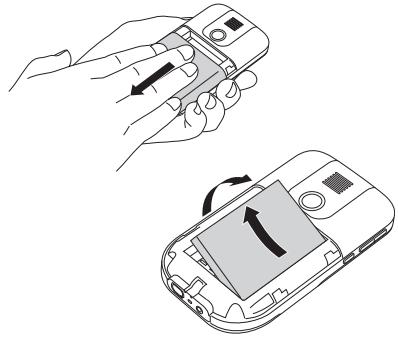
2 Remove and reinsert the battery, and then replace the battery cover.
3 Press and hold Power until the Palm® logo appears.
DID YOU KNOW? If the phone or the Bluetooth® wireless technology feature was on before a reset, these automatically turn on after the reset.
Performing a hard reset
A hard reset erases all personal information, such as appointments, contacts, and tasks, as well as programs you have added, such as third-party software on your smartphone. Never do a hard reset without first trying a soft reset. You can restore previously synchronised information the next time you sync.
IMPORTANT Synchronise to restore your Outlook data, such as Outlook email, Calendar, Contacts, and Tasks. You can also use a backup and restore solution. Make sure it's an application that's approved by Palm.
TIP Some third-party applications do not create a backup on your computer when you synchronise. If you do a hard reset, you may lose info in these applications and you need to reinstall the application on your smartphone after the hard reset. Please contact the application vendor to find out if your info is backed up during synchronisation.
DID YOU KNOW? When you synchronise after a hard reset, the source folder in My Documents changes from Treo My Documents to WM-your name.
DID YOU KNOW? We recommend performing a hard reset before selling, repairing, or recycling your smartphone so that your information is deleted. Remember to also remove your SIM card and any expansion card inserted into your smartphone.
A hard reset can tell you whether a problem stems from your smartphone or from an application installed on it. If you do not experience the problem after you perform a hard reset, the problem may be related to software you installed. See Third-party applications for suggestions on diagnosing third-party software issues.
1 Synchronise your smartphone with your computer so that your smartphone applications and info can be restored by synchronising again after you perform the hard rest.
2 Holding your smartphone screen side down, use two or more fingers to press against the battery door to release it, and then slide the door off the back of your smartphone.
3 Remove and reinsert the battery, and then replace the battery cover.
4 While pressing and holding End 1, press and hold Power φ until the screen wakes up.
5 When prompted, press Up ▲ to erase all data.
6 (Optional) Synchronise to restore your previously synchronised info. If you use a backup utility, you may also need to restore a backup to recover additional info and settings.
Tip You can also perform a hard reset using the Default Settings application on your smartphone. Press Start, press Centre, and then select Applications. Select Organiser & Tools, and then select Default Settings.
Enter 1234 (you do not need to press Option) and press OK (left softkey).
Replacing the battery
Your smartphone comes with a replaceable battery. Be sure to use a replacement battery from Palm that is compatible with Treo 500v models. Do not use a battery from any earlier model of smartphone.
CAUTION There is a risk of explosion if the battery is replaced by an incorrect type. Dispose of used batteries according to the instructions.
Tip Be sure to dispose of your old battery in an environmentally responsible and legal way. In some areas, disposal in household or business trash is prohibited. Visit palm.com/ environment for more information.
DID YOU KNOW? Your smartphone stores all your info even when you remove the battery.
1 Press and hold Power to turn your smartphone off.
2 Holding your smartphone screen side down, use two or more fingers to press firmly against the battery door while pulling downward to release it, and then slide the door off the back of your smartphone.
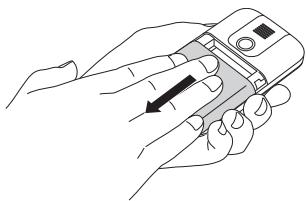
3 Slide your finger under the left side of the battery and lift up to remove it.
4 Align the new battery's contacts with the phone contacts inside the battery compartment.
5 Insert the new battery into the compartment at a 45-degree angle, pressing it into place. Slide the battery door onto the back of the smartphone until it clicks into place.
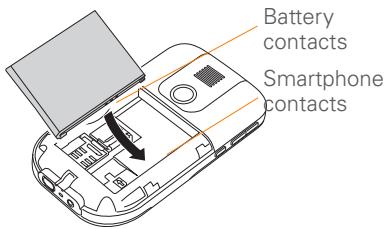
6 Press and hold Power until the Palm logo appears.
Performance
The applications are running slower than usual
1 Press Home l , and then press Centre
2 Select Applications , and then select Organiser & Tools
3 Press More (left softkey) and select Task Manager.
4 Press Menu (right softkey) and select Close All to close all your open applications.
5 Press Done (left softkey).
If the previous steps don't fix the problem, try doing a soft reset (see Performing a soft reset).
TIP Be sure that third-party applications are designed for Windows Mobile 6 Standard. Applications written for Windows Mobile 6 Professional or earlier versions of Windows Mobile software do not work with your smartphone.
If you can try a free version of the software before purchasing it, you can test it first to make sure it works properly.
My battery seems to drain quickly
If you have a Microsoft Direct Push email solution (such as MyMail) or if you have set up a schedule for wireless synchronisation, check with your email provider or system administrator to make sure that the server is set up properly to work with your smartphone. Incorrect server setup can cause excessive drain on your battery.
For more tips on conserving battery life, see Maximising battery life.
Screen
The screen appears blank
1 If you're on a call, when the time period specified in Power Management expires, the screen dims. Press any key except End to wake up the screen. Pressing End hangs up the call.
2 Look closely at the screen. If you can see a dim image, try adjusting the screen brightness (see Adjusting the brightness).
3 If that doesn't work, perform a soft reset (see Performing a soft reset).
4 If that doesn't work, connect your smartphone to the AC charger (see Charging the battery) and perform a soft reset again.
5 If that doesn't work, perform a hard reset (see Performing a hard reset).
Tip If you are using a third-party application, make sure that the application supports 320x240 screen resolution.
Network connection
Signal strength is weak
1 If you're standing, move about 3 metres in any direction.
2 If you're in a building, move near a window. Open any metal blinds.
3 If you're in a building, move outdoors or to a more open area.
4 If you're outdoors, move away from large buildings, trees, or electrical wires.
5 If you're in a vehicle, move your smartphone so that it's level with a window.
TIP Become familiar with low coverage areas where you live, commute, work, and play so you know when to expect signal strength issues.
My smartphone won't connect to the mobile network
1 Try the suggestions above for weak signals.
2 Turn off your phone and turn it on again (see Turning your Palm® Treo™-500v smartphone on/off).
3 Perform a soft reset (see Performing a soft reset).
My phone seems to turn off by itself
If a system error and reset occur, the phone automatically turns on if it was on before the reset. However, if your smartphone can't determine if your phone was on before the reset, it does not automatically turn on the phone (see Turning your phone on).
I can't tell if data services are available
The following icons appear in the title bar to indicate whether data services are available:

Your phone is connected to a 3G UMTS network, but you are not actively transmitting data. You can still make or receive calls.

Your phone is on and a 3G UMTS data connection is active. You can make and receive calls and transmit data simultaneously.

You are in a roaming coverage area and your phone is connected to a 3G UMTS network, but you are not actively transmitting data. Additional fees may apply for calls or data transmission.

Your phone is connected to a GPRS network, but you are not actively transmitting data. You can still make or receive calls.

Your phone is on and a GPRS data connection is active. You can still make or receive calls, but the data transmission is automatically interrupted.

You are in a roaming coverage area and your phone is connected to a GPRS network, but you are not actively transmitting data. Additional fees may apply for calls or data transmission.
My smartphone won't connect to the Internet
Your smartphone supports GPRS or UMTS (3G) wireless data networks. To connect to the Internet, you must subscribe to data services with your network operator.
- Contact your network operator to verify that your subscription plan includes data services and that these services have been correctly activated. Your network operator should also be able to tell you if there are any outages in your location.
- Press Power , select Wireless Manager, and then select Phone to turn off your phone; then repeat these steps to turn it back on.
- Perform a soft reset (see Performing a soft reset).
- Confirm that data services are correctly configured on your smartphone by doing the following:
1 Press Home 心 , and then press Start (left softkey).
2 Navigate to the My Settings content list and press All Settings (right softkey).
3 Select Phone.
4 Select More, and then select Networks.
5 If your network operator's name appears in the list, press Done (left softkey). If not, contact your network operator for assistance.
I can't send or receive text or multimedia messages
Make sure your phone is on and that you're inside a coverage area (see Turning your phone on).
- Contact your network operator to verify that your plan includes messaging services, that these services have been correctly activated, and that they are available at your location. Your network operator should be able to tell you if messaging services have been experiencing transmission delays.
If possible, contact the recipient or sender of the message, and make sure the receiving device can handle the type of message you're sending.
- If a text message arrives but does not display a notification, perform a soft reset (see Performing a soft reset).
- The network settings for text and multimedia messaging are preset by the network operator associated with the SIM card included with your smartphone. If you use a different SIM card associated with a different network operator, you need to manually enter network settings to use messaging services (see Manually entering network connection settings).
I can't make or receive calls using a hands-free device with Bluetooth® wireless technology
Verify all of the following:
- The Bluetooth feature on your smartphone is turned on (see Entering basic Bluetooth settings).
- Your Bluetooth device is charged and turned on.
- Your smartphone is within range of the hands-free device. Bluetooth range is up to 9 metres in optimum environmental conditions. Performance
and range can be affected by physical obstacles, radio interference from nearby electronic equipment, and other factors.
- You are away from other devices using the 2.4 GHz radio frequency, such as cordless phones, microwaves, and Wi-Fi equipment. If this is impossible, move the phone closer to the hands-free device.
- The device specifications are compatible with your smartphone.
I lost the connection between my smartphone and my Bluetooth headset
If the headset doesn't work, delete the existing partnership and create a new one. To delete the partnership:
1 Press Home , and then press Start (left softkey).
2 Navigate to the My Settings content list and select Bluetooth.
3 On the Bluetooth Devices list, highlight your headset.
4 Press Menu (right softkey), select Delete, and then press Yes (left softkey) to confirm the deletion.
5 Create a new partnership (see Connecting to devices with Bluetooth® wireless technology.
Synchronisation: Overview
Synchronisation enables you to back up the information on your smartphone onto your computer or your server. If you ever need to perform a hard reset or otherwise erase all your information on your smartphone, you can synchronise your smartphone with your computer to restore the info. To make sure you always have an up-to-date backup of your info, synchronise frequently.
You can synchronise email and other information directly with Microsoft Exchange Server 2003 with Service Pack 2 or Exchange Server 2007 using Microsoft Exchange ActiveSync, or you can synchronise your smartphone with your computer, using the desktop sync software, accessible from a link on the Windows Mobile Getting Started CD that came with your smartphone.
DID YOU KNOW? You can go to the Windows Mobile website for more information at windowsmobile.com.
DID YOU KNOW? A common cause of sync problems is the presence of protective software, such as VPNs or firewalls, on your computer or network.
Synchronisation: Desktop sync software
This section covers issues with synchronising using the desktop sync software that came with your smartphone. If you have a Windows XP computer, the desktop sync software is called ActiveSync desktop software. If you have a Windows Vista computer, the desktop sync software is called Windows Mobile Device Center.
NOTE See Synchronisation: Exchange ActiveSync (wireless synchronisation) for help with direct wireless synchronisation with an Exchange server.
The desktop sync software does not respond to sync attempt
As you complete the following steps, synchronise after each step. If the synchronisation is successful, you do not need to complete the remaining steps.
1 Verify that the USB sync cable is securely connected at all points (see Setting up your computer for synchronisation).
2 Make sure that all of the files you're trying to sync are closed on both your computer and your smartphone.
3 On a Windows XP computer, look for the ActiveSync icon in the taskbar on your computer to make sure ActiveSync desktop software is running on your computer.
If the correct icons are not displayed, do the following:
Smartphone: Press Home , and then press Centre . Select
Applications, and then select
ActiveSync .Press Menu
(right softkey) and select Connections.
Make sure the Synchronise all PCs
using this connection box is checked, and that USB is selected from the list.
Windows XP computer: Click Start, navigate to Programs, and then select Microsoft ActiveSync.
Windows Vista computer: Click Start, select All Programs, and then select Windows Mobile Device Center.
4 Do one of the following:
Windows XP computer: Double-click the ActiveSync icon in your taskbar. From the File menu, select Connection Settings. Make sure the Allow USB connections box is checked, and then click Connect.
Windows Vista computer: Click Start, select All Programs, and then select Windows Mobile Device Center. Select Connect without setting up your device, and then select Connection settings. Make sure the Allow USB connections box is checked, and click Connect.
5 Perform a soft reset (see Performing a soft reset).
6 Restart your computer and make sure the desktop sync software is running.
7 If the problem persists, you can enable advanced ActiveSync network functionality. Press Home , and then press Start (left softkey). Navigate to the My Settings content list and press All Settings (right softkey). Select Connections, select More, and then select USB to PC. Check the Enable advanced network functionality box.
8 If problem persists, and you're synchronising through a USB hub, try connecting the sync cable to a different USB port or directly to your computer's built-in USB port.
9 If you're already synchronising through a built-in USB port on the front of your computer, move the sync cable to a USB port on the back of your computer if your computer has USB ports in both places.
10 Uninstall the desktop sync software that came with your smartphone, restart your computer, and then insert the Windows Mobile Getting Started CD, which came with your smartphone.
Repeat the installation process (see Reinstalling the desktop software).
11 For a Windows XP computer only, delete the existing relationship between your smartphone and your computer and create a new one by doing the following steps in turn:
- Disconnect your smartphone and your computer from the sync cable.
- Right-click the grey ActiveSync icon in the taskbar in the lower-right corner of your computer screen, and then select Open Microsoft ActiveSync.
- Click File, and then click Delete Mobile Device. When asked to confirm, click Yes.
- Connect your smartphone and your computer to the sync cable.
- When the Synchronisation Setup Wizard appears, follow the steps to establish a sync relationship between your smartphone and your computer.
12 If your organisation uses a firewall or a VPN connection, synchronising with ActiveSync may not work. For a Windows XP computer only, go to
microsoft.com and search for the following topics to help with specific firewall setup situations:
ActiveSync USB Connection Troubleshooting Guide
ActiveSync with Sygate Personal Firewall
ActiveSync with TrendMicro PC-cillin Internet Security
ActiveSync with Norton Personal Firewall
ActiveSync with Zone Alarm Security Suite
ActiveSync with McAfee Personal Firewall
ActiveSync with Windows Firewall
13 Verify with your computer hardware vendor that your operating system supports your internal USB controller.
Synchronisation finishes but info doesn't appear where it should
First, check to see if any of these items applies to your situation:
- With the included desktop sync software, your smartphone can
synchronise with the root folders of Microsoft Office Outlook Contacts, Calendar, and Tasks (Outlook sold separately; a free trial version is available for download from the Windows Mobile Getting Started CD). If you want to synchronise with a global Exchange Address Book, you must copy the addresses to your local Contacts list in Microsoft Office Outlook (right-click the addresses and select Add to Personal Address Book).
- Microsoft Office Outlook sub folders and public folders are not accessible with the included software. You may want to use a third-party solution instead.
If you're trying to sync offline, be sure to set your Microsoft Office Outlook Calendar, Contacts, and Tasks to be available offline.
If you're still having problems, try the following:
1 Make sure you're synchronising with the intended desktop personal information manager (PIM). The Windows Mobile Getting Started CD includes desktop synchronisation
software that lets you synchronise with Microsoft Outlook for Windows. If you use a different PIM, you need to install third-party software to synchronise. For more information, consult the company that makes the PIM.
2 Open the desktop sync software on your computer, and make sure the Files synchronisation option is selected (see Changing which applications sync).
3 Uninstall the desktop sync software, reboot your computer, insert the Windows Mobile Getting Started CD, which came with your smartphone, and then repeat the installation process (see Reinstalling the desktop software).
Synchronisation starts but doesn't finish
Make sure that you installed the desktop software that came with your smartphone. If you're not sure whether this software is installed, reinstall it (see Reinstalling the desktop software).
My video and music files won't sync
1 Make sure you have Windows Media Player 10 or later installed on your computer.
2 Reinstall the desktop sync software, accessible from a link on the Windows Mobile Getting Started CD, which came with your smartphone (see Reinstalling the desktop software). Media file synchronisation fails if you installed the desktop sync software before you installed Windows Media Player.
My appointments show up in the wrong time slot after I sync
1 Make sure that you installed the desktop sync software that came with your smartphone. If you're not sure whether this software is installed, reinstall it (see Reinstalling the desktop software).
2 Open Microsoft Office Outlook and correct the wrong entries.
3 Manually enter any information you added to your smartphone since the last time you synchronised.
4 Synchronise your smartphone and your computer.
My scheduled sync doesn't work
By default, a scheduled sync does not work while you are roaming. This is to prevent roaming charges on your account. If roaming charges are not a concern, follow these steps to continue your sync schedule while roaming:
1 Press Home , and then press Centre ° .
2 Select Applications , and then select ActiveSync
3 Press Menu (right softkey) and select Schedule.
4 Check the Use above setting when roaming box.
5 Press Done [... (left softkey).
An alert tells me that ActiveSync encountered a problem on the server
There is a temporary problem with the server or the server may be temporarily overloaded. Try again later, and if the problem persists, contact your system administrator.
An alert tells me that there is not enough free memory to sync my info
The ActiveSync application on your smartphone ran out of storage space. Try the following:
1 Close all running programs (see Closing applications).
2 If the problem persists, see Making room on your smartphone for suggestions on other ways to free up space on your smartphone.
An alert tells me that ActiveSync encountered a problem with [item type] [item name]
An error occurred during the sync of a single item. This error can usually be corrected only by removing the item that caused the error. If you sync again to see if the error persists, be aware that items causing this type of error are skipped and do not show up again.
My Home screen settings are not restored after a hard reset
Settings such as the background image arenot backed up during synchronisation, so
they can't be restored after a hard reset. If you use a backup utility, you may be able to restore a backup to recover your Home screen settings and other additional info.
Synchronisation: Exchange ActiveSync (wireless synchronisation)
This section covers issues with direct wireless synchronisation with an Exchange server. See Synchronisation: Desktop sync software for help with synchronising using your desktop sync software.
TIP If you are synchronising with an Exchange server and you're unable to change your lock settings, check with your system administrator to find out if a systemwide locking policy is in place.
An alert tells me that the server could not be reached
Your smartphone had to wait too long to connect to the Exchange server. The connection may have been lost, the server may be temporarily overloaded, or the server may have encountered an internal error. Check your Exchange server name and proxy server settings (see Setting up wireless synchronisation), and try again later.
An alert tells me that my account information could not be detected
When you set up the Exchange server sync options, the credentials page was left blank. Correct the credentials (see Setting up wireless synchronisation), or set up your smartphone to sync only with a computer, and try to sync again.
An alert tells me the device timed out while waiting for credentials
The Exchange server credentials screen was left open too long. Re-enter the Exchange server credentials, and try to sync again.
I have problems using my account
Occasionally you may experience problems using an email account after you set it up. If you followed the account setup procedure (see Setting up email) and are experiencing problems in using the account, verify that the account complies with your email provider's requirements by following these steps:
- Verify both your password and your username for your email account.
- Some email service providers require you to be on their network to use your email account. If this is the case, be sure to use your provider's network as the connection type for the account.
- Some email service providers have other requirements specific to their service. For example, Yahoo! requires you to set up POP mail forwarding for your Yahoo! account to download email messages to your smartphone. Check with your service provider to see if any provider-specific requirements exist.
Service provider settings frequently change. If your email account was working but you are currently experiencing problems, check with your service provider to see if any of the account settings have changed.
I have problems sending and receiving email
Short periods of time when email is unavailable are common due to server problems or poor wireless coverage. If you have problems sending or receiving mail for an extended period of time, check with your ISP or email service provider to verify that the service is working properly.
Scheduled email synchronisation is not working
If email synchronisation is occurring and you turn your smartphone off or the connection to your email service provider is disconnected, the synchronisation fails.
-
Check the synchronisation schedule to make sure that email sync is set to occur at the expected day and time. See Setting the synchronisation schedule for details.
-
Press Home l , and then press Centre l . Select Applications l and then select ActiveSync l . Press Menu l (right softkey) and select Configure Server. Make sure the verify password setting is on. This is required for over-the-air synchronisation.
I have problems sending email
If you are able to receive email messages but cannot send them, try the following steps, in turn:
-
Make sure your ISP or email provider allows you to access email on a smartphone. Some providers do not offer this option at all; other providers require an upgrade for accessing email on a smartphone.
-
Press Home , and then press Centre . Select Applications , and then select ActiveSync . Press Menu (right softkey) and select Configure Server. Make sure the This server requires an encrypted (SSL) connection box is checked.
-
Enter the name of a different outgoing mail server for sending mail. Many ISPs, such as cable companies, require that
you have an Internet connection to their network to send email through their servers. In this case, you can almost always receive email from these accounts, but if you want to send email, you must send it through another server (see Setting up a POP/IMAP account: Common email providers).
My vCard or vCal email attachment isn't forwarding correctly
Microsoft Office Outlook provides several features including vCard and vCal that work with email client software on a Windows computer. For these features to work correctly, the email client software must be properly set up. Follow these steps to check the settings:
1 Click Start on your computer, and then select Settings.
2 Select Control Panel.
3 Select Internet Options, and then click the Programs tab.
4 Make sure that the email field is set to the correct email client software.
5 Click OK.
6 Start the email client software and make sure it is configured as the default MAPI client. Consult the documentation for your desktop email application for more information.
When I sync with my Exchange server my info is not downloading to my smartphone
Check with your system administrator to obtain the name of the mail server that offers you wireless access to the corporate mail system. If you cannot obtain the name of this server (some companies do not give it out, because they do not want wireless access to their servers), you cannot use Exchange ActiveSync to synchronise with the Exchange server. You can also check the following setting:
1 Press Home 空 , and then press Centre ° .
2 Select Applications , and then select ActiveSync
3 Press Menu (right softkey) and select Configure Server.
4 Make sure the This server requires an encrypted (SSL) connection box is checked.
Bluetooth wireless technology
I am unable to send information using a Bluetooth connection with another device.
Make sure that the other device has the Bluetooth visibility option turned on.
I am unable to receive information that another device is sending me over a Bluetooth connection.
Make sure that the option to receive beamed information on your smartphone is turned on (see Turning on the option to receive beamed information).
Web
I can't access a web page
First, make sure you have Internet access: Open Internet Explorer Mobile and try to view a web page you've loaded before. To ensure that you're viewing the page directly from the Internet, press Menu (right softkey) and select Refresh.
After confirming your Internet connection, try to view the page in question again. If it comes up blank, press Menu (right softkey) and select Refresh.
If you're still having trouble, the page may contain elements that are not supported by Internet Explorer Mobile, such as Flash, Shockwave, VBScript, WML script, and other plug-ins.
Some websites use a redirects to their true home page. For example, if you enter the address http://palm.com/support, it may resolve to http://palm.com/us/support. If Internet Explorer Mobile can't follow the redirect, try using a desktop browser to see the landing page of the redirects, and enter that address in Internet Explorer Mobile.
Tip Your smartphone can open your email application when you select an email address on a web page. If nothing happens when you select the link, try setting up your email application first (see Setting up email).
An image or map is too small on my smartphone screen
Internet Explorer Mobile has several viewing modes: One Column, Default, Desktop, and Full Screen. Switch to Desktop to see the full-size image (see Browsing the web).
A secure site refuses to permit a transaction
Some websites don't support certain browsers for transactions. Please contact the site's webmaster to make sure the site allows transactions using Internet Explorer Mobile.
Camera
DID YOU KNOW? Pictures are 16-bit colour.
Resolution settings range from the low end of 96 × 72 pixels to a high end of 1600 × 1200 pixels. Video resolution settings range from a low end of 176 × 144 pixels to a high end of 320 × 240 pixels. You can change the resolution setting by pressing Menu (right softkey) and selecting Resolution (still images) or Quality (video).
Here are some tips for taking good pictures with the built-in camera:
- Clean the camera's lens with a soft, lint-free cloth.
Take pictures in bright lighting conditions. Low-light images may be grainy, due to the sensitivity of the camera. - Hold the camera as still as possible. Try supporting your picture-taking arm against your body or a stationary object (such as a wall).
-
Keep the subject of the pictures still. Exposure time is longer with lower light levels, so you may see a blur.
-
For best results, verify that you have the brightest light source coming from behind you, lighting the subject's face. Avoid taking indoor pictures with the subject in front of a window or light.
Make sure the subject is at least 0.5 metres away from the camera to ensure good focus.
Remember that when you synchronise with a Windows XP computer, your Camera images are stored in the C:\Documents and Settings\Username>My Documents\Treo My Documents folder on your hard drive (see Camera).
The Camera preview image looks strange
Some third-party applications overwrite the colour settings on your smartphone with their own 8-bit colour settings. This can affect the Camera Preview Mode. Delete third-party applications one by one until the preview image improves (see Removing applications).
Third-party applications
Sometimes third-party applications can cause conflicts on your smartphone. Third-party applications that modify wireless features may affect the performance of your smartphone and may require extra troubleshooting. Use caution when installing the following types of applications:
- Ringtone managers
- Caller ID applications
- Instant messaging
- Applications that modify when your phone or data connections turn on or off and how your phone behaves
If you recently installed an application and your smartphone seems to be stuck, try the following:
1 Perform a soft reset (see Performing a soft reset).
2 Make sure the third-party application is compatible with the Windows Mobile 6
Standard operating system on your smartphone.
3 Delete the most recently installed application from your smartphone (see Removing applications).
4 If the problem persists, perform another soft reset.
5 If possible, synchronise or use a backup utility to back up your most recent info.
6 Perform a hard reset (see Performing a hard reset).
7 Synchronise or restore your backup to restore the info in your built-in applications.
8 If the problem is resolved, begin reinstalling your third-party applications one at a time.
9 If the problem recurs, delete the last application you installed and report the problem to its developer.
Getting more help
Contact the vendor of any third-party software if you require further assistance.
TIP Remember that not all third-party applications were written with the Treo 500v smartphone keyboard and 5-way navigator in mind. You may encounter strange behaviour or errors in these applications if you use the keyboard and the 5-way navigator.
Making room on your smartphone
If you store a large amount of information, or install many third-party applications, the internal memory on your smartphone may fill up. Here are some common ways to clear space on your smartphone:
- Camera: Large images or videos take up a lot of memory. Move images to an expansion card or delete images from your smartphone (see Pictures & Videos).
- Messaging: Multimedia content and email attachments can consume excessive memory. Move multimedia content and attachments to an expansion card, or delete large files
from your smartphone (see Deleting messages and Deleting a message).
You may also want to empty the deleted items folder.
- Internet: If you save links to pages you've visited in Internet Explorer Mobile, you may want to clear all recent pages (see Customising your Internet Explorer Mobile settings).
- Third-party applications: You can delete infrequently used applications or move them to an expansion card (see Copying or moving applications and files between your smartphone and an expansion card).
Also, remember that your smartphone includes an expansion card tray, and that you can store applications and information on expansion cards. However, you still need free memory on the smartphone itself to run applications from an expansion card.
Voice quality
Is the other person hearing an echo?
Try each of the following, in turn:
Try decreasing the volume on your smartphone to avoid coupling or feedback on the other person's end. This applies to both the speakerphone and to the handset earpiece.
- Position the smartphone closer to your ear to prevent sound leaking back to the microphone. Keep your hand away from the microphone hole, which is on the lower-right side of your smartphone.
If you're using Speakerphone mode with your smartphone lying on a flat surface, try turning the smartphone "face down" (screen facing the surface).
Are you hearing your own voice echo?
Ask the other person to turn down their volume or to hold the phone closer to their ear.
Is your voice too quiet on the other end?
Be sure to hold the bottom of the smartphone, or the hands-free microphone, close to your mouth.
Check the signal strength indicator. If the signal is weak, try to find an area with better coverage.
Terms
ActiveSync
The software on your smartphone that exchanges and updates the information on your Palm® Treo™ 500v smartphone with the information on your computer.
ActiveSync desktop software
The software on your Windows XP computer that exchanges and updates the information on your computer with the information on your smartphone. To open ActiveSync on your computer, double-click the ActiveSync icon in the taskbar in the lower-right corner of your screen. If the icon does not appear, click Start, click All Programs (or navigate to the Programs group), and then select Microsoft ActiveSync. See Installing ActiveSync desktop software: Windows XP.
Alt (alternative) AB
The key that you use to enter accented characters and symbols that do not appear on your keyboard. Press Alt to view the alternative characters available. See
Entering other symbols and accented characters.
beam
The process of sending or receiving an entry or application using Bluetooth® wireless technology. See Beaming information.
Bluetooth® wireless technology
Technology that enables devices such as smartphones, headsets, and computers to connect wirelessly to each other so that they can exchange information over short distances. For more info, visit bluetooth.com. See Connecting to devices with Bluetooth® wireless technology.
content list
A grouping of related applications that gives you fast access to frequently used items. Content lists contain a mix of applications, files, and features. If you select a file or feature from a content list, it opens in the related application on your smartphone. See Opening and closing applications.
desktop software
A Personal Information Manager (PIM) application for computers, such as Microsoft Office Outlook®, that helps you manage your personal information and keep it synchronised with your smartphone. See Installing ActiveSync desktop software: Windows XP or Installing Windows Mobile Device Center: Windows Vista.
GPRS (General Packet Radio Service)
A mobile Internet connectivity technology that allows persistent data connections. (Additional charges may apply.) See What are all those icons?
lithium-ion (Li-ion)
The rechargeable battery technology used in your smartphone. See Charging the battery.
Microsoft Exchange ActiveSync
Technology that allows your smartphone to synchronise email, contacts, calendar events, and tasks wirelessly with Microsoft Exchange Server 2003 or 2007. See Setting up wireless synchronisation.
MMS (Multimedia Messaging System)
An enhanced messaging system that enables you to send pictures, animations, and ringtones almost instantly. See Creating and sending a multimedia message.
Option
Press this key and then a second key to enter the character or to access the feature displayed above the letter on the second key. See Entering numbers, punctuation, and symbols.
partnership
The connection that you make between two devices by means of Bluetooth wireless technology. The devices recognise each other because each device finds the same passkey on the other device. After you create a partnership between the devices, you no longer need to enter the passkey. Partnership is also known as paired relationship, pairing, trusted device, and trusted pair on some devices. See Connecting to devices with Bluetooth® wireless technology.
Phone Off
Appearing on the Home screen, this indicates that your smartphone is not connected to any network, and you cannot make calls. You can still use the organizer features, however. To turn the phone on/off, go to the Wireless Manager. See Turning your phone on.
Phone/Send 1
The button on your smartphone that dials after you've entered a phone number. See Making calls from the Home screen.
piconet
An ad-hoc network of devices that uses Bluetooth wireless technology to connect one master device with up to seven active slave devices. The network can include up to 255 inactive, or parked, slave devices which the master device can bring into active status at any time.
PIM (personal information manager)
A genre of software that includes applications such as Microsoft Outlook, Palm® Desktop software, Lotus Notes, and ACT!. PIMs generally store contacts, schedules, tasks, and memos.
PIN (personal identification number)
The password assigned to your SIM card by your network operator. Turning on the PIN lock secures your wireless account. See also PUK. See Locking the SIM card.
PIN2 (personal identification number 2)
A code that protects certain network settings such as fixed dialling.
PUK (PIN unlock key)
A special extended password assigned to your SIM card. If you enter the wrong PIN more than the allowed number of times, your SIM is blocked and you must call your network operator for the PUK. See Locking the SIM card.
Secure Sockets Layer (SSL)
A security protocol that enables you to send personal information in a more secure manner over the Internet.
SIM (Subscriber Identity Module) card
The smartcard, inserted into your smartphone, that contains your mobile account information, such as your phone number and the services to which you subscribe. You can also store addresses, phone numbers, and SMS messages on
the SIM card. See Inserting the SIM card and battery.
SMS (Short Messaging Service)
The service that exchanges short text messages almost instantly between mobile devices. Your smartphone can send and receive text messages while you are on a call. See Creating and sending a text message.
Start
The button on your smartphone from which you can open all applications. See Opening and closing applications.
streaming
Technology that enables you to access media content—for example, to watch video or to listen to an audio program—directly from the Internet on your smartphone without needing to download and save a file on your smartphone. See Viewing a video.
synchronisation
The process in which information that is entered or updated on your smartphone, your computer, or a server is automatically updated in one of the other locations either
wirelessly or by means of a cable connection. See Synchronising information.
time out
The time of inactivity that passes before the screen on your smartphone turns off. The wireless features on your smartphone are unaffected by this setting. See Optimising power settings.
UMTS (Universal Mobile Telecommunications System)
One of the third-generation (3G) mobile phone technologies that is designed for high-speed data transfer, with rates up to 384 Kbps, as well as voice and multimedia services. It uses W-CDMA as the underlying technology. See What are all those icons?
username
The name associated with your smartphone that distinguishes it from other Windows Mobile® devices. If you install desktop synchronisation software, you are asked to give your smartphone a username. If you only synchronise wirelessly using Microsoft Exchange ActiveSync, you do not need to give your smartphone a username. See Installing
ActiveSync desktop software: Windows XP.
Windows Mobile
The operating system of your Treo 500v smartphone. Your smartphone uses Windows Mobile® 6 Standard edition. When installing third-party applications to your smartphone, be sure to install only apps that are written for Microsoft Windows Mobile 6 Standard. Apps designed for Microsoft Windows Mobile 6 Professional or any edition of Windows Mobile 5.0 software are not compatible
with your Treo 500v smartphone. See Installing third-party applications.
Windows Mobile Device Center
The software on your Windows Vista computer that enables you to synchronise content and manage music, pictures, and videos between your smartphone and your computer. To open Windows Mobile Device Center on your computer, click Start, click All Programs, and select Windows Mobile Device Center. See Installing Windows Mobile Device Center: Windows Vista.
Important safety and legal information
FCC Statement
This equipment has been tested and found to comply with the limits for a Class B computer peripheral, pursuant to part 15 of the FCC Rules. These limits are designed to provide reasonable protection against harmful interference in a residential installation. This equipment generates, uses and can radiate radio frequency energy and, if not installed and used in accordance with the instructions, may cause harmful interference to radio communications. However, there is no guarantee that interference will not occur in a particular installation. If this equipment does cause harmful interference to radio or television reception, which can be determined by turning the equipment off and on, the user is encouraged to try to correct the interference by one or more of the following measures:
Reorient or relocate the receiving antenna.
- Increase the separation between the equipment and receiver.
- Connect the equipment into an outlet on a circuit different from that to which the receiver is connected.
- Consult the dealer or an experienced radio/TV technician for help.
This device complies with part 15 of the FCC Rules. Operation is subject to the following two conditions: (1) This device may not cause harmful interference, and (2) this device must accept any interference received, including interference that may cause undesired operation.
RF exposure
General statement on RF energy: Your smartphone contains a transmitter and a receiver. When it is ON, it receives and transmits RF energy. When you communicate with your smartphone, the system handling your call controls the power level at which your smartphone transmits.
Specific Absorption Rate (SAR): Your mobile device is a radio transmitter and receiver. It is designed not to exceed the limits for
exposure to radio waves recommended by international guidelines. These guidelines were developed by the independent scientific organisation ICNIRP and include safety margins designed to assure the protection of all persons, regardless of age and health.
The guidelines use a unit of measurement known as the Specific Absorption Rate, or SAR. The SAR limit for mobile devices is 2W / kg and the highest SAR value for this device when tested at the ear was 0.888W / kg . As mobile devices offer a range of functions, they can be used in other positions, such as on the body.
As SAR is measured utilising the device's highest transmitting power, the actual SAR of this device while operating is typically below that indicated above. This is due to automatic changes to the power level of the device to ensure it only uses the minimum power required to communicate with the network.
| Maximum SAR Values (W/kg) CE | |||
| Band | GSM 900 | GSM 1800 | WCDMA 2100 |
| Head SAR | 0.888 | 0.502 | 0.504 |
To view the most recent SAR values of the Treo 500v smartphone, visit palm.com/55005.
Body worn operation: Important safety information regarding radio frequency radiation (RF) exposure:
To ensure compliance with RF exposure guidelines the smartphone must be used with a minimum of 15mm separation from the body.
Failure to observe these instructions could result in your RF exposure exceeding the relevant guideline limits.
Limiting exposure to radio frequency (RF) fields: For individuals concerned about limiting their exposure to RF fields, the World Health Organisation (WHO) provides the following advice:
Precautionary measures: Present scientific information does not indicate the need for any special precautions for the use of mobile phones. If individuals are concerned, they might choose to limit their own or their children's RF exposure by limiting the length of calls, or using 'hands-free' devices to keep mobile phones away from the head and body.
Further information on this subject can be obtained from the WHO home page http://www.who.int/peh-emf WHO Fact sheet 193: June 2000.
FCC RF Safety Statement
In order to comply with FCC RF exposure safety guidelines, users MUST use one of the following types of body-worn accessories:
- A Palm® brand body-worn accessory that has been tested for SAR compliance and is intended for use with this product.
- An accessory that contains NO metal (snaps, clips, etc) and provides AT LEAST 1.5cm of separation between the users body and the unit.
Do NOT use the device in a manner such that it is in direct contact with the body (i.e. on the lap or in a breast pocket). Such use will likely exceed FCC RF safety exposure limits. See www.fcc.gov/oet/rlsafety/ for more information on RF exposure safety.
Responsible party
(North America)
Palm Inc.
950 W. Maude Ave.
Sunnyvale, CA 94085
USA
palm.com
(Europe)
Roy Bedlow
Buckhurst Court
London Road
Wokingham, Berkshire RG40 1PA
UK
Declaration of Conformity
We, Palm Inc., declare under sole responsibility that the product:
Model name: Treo 500v
Description: PDA phone
Is in conformity with the following standards and/or other normative document:
ETSI EN 301 511
ETSI EN 301 908-1
ETSI EN 301 908-2
ETSI EN 300 328
ETSI EN 301 489-1/-7/-17/-24
EN60950-1
EN50360
We hereby declare that the above named product is in conformance to all essential requirements of the RTTE Directive 1999/5/EC.
The conformity assessment procedure referred to Article 10 and detailed in Annex IV of directive 1999/5/EC has been related to Articles:
R&TTE Article 3.1 (a) Health and Safety
R&TTE Article 3.1 (b) EMC
R&TTE Article 3.2 Spectrum Usage
Identification mark 0984 (notified body) CE.
This identification mark is permanently provided on the device label.
The technical documentation relevant to the above equipment will be held at:
Palm Inc.
950 W Maude Avenue
Sunnyvale, CA. 94085
U.S.A.
Person responsible for making this declaration:

David Woo/Sr. Compliance Engineer
Sunnyvale/June 30,2007
Antenna Care/Unauthorised Modifications
Use only the supplied integral antenna. Unauthorised antenna modifications or attachments could damage the unit and may violate FCC regulations. Any changes or modifications not expressly approved by the party responsible for compliance could void the user's authority to operate the equipment.
Potentially Unsafe Areas
Potentially explosive atmospheres: Turn off your smartphone when you are in any areas with a potentially explosive atmosphere, such as fueling areas (gas or petrol stations) or storage facilities for fuel or chemicals.
Declaration of Conformity
Treo 500 and Treo 500v
Palm declares that the above model of Treo 500v smartphone is compliant with the regulations below. The declaration applies to the smartphone and its associated accessories (power supply, headset, and USB cable) where applicable.
| Maximum Scaled SAR Values (W/kg) FCC | |
| Head SAR (Held to Ear) | 1.17 |
| Body SAR (Worn) | 0.835 |
| Maximum SAR Values (W/kg) CE | |||
| Band | GSM 900 | GSM 1800 | WCDMA 2100 |
| Head SAR | 0.888 | 0.502 | 0.504 |
To view the highest reported (FCC) SAR values of the Treo 500v, visit palm.com/65005.
FCC OET Bulletin 65 Supplement C
Safety: EN 60950:2000 (Jan-2000)
Radiated Emissions: EN 55022
FCC ID: MSQ-777
IC ID: 3905A-777

Power specifications
Keep your battery away from direct sunlight and other sources of heat. Temperatures over 50 degrees Celsius (120 degrees
Fahrenheit) can permanently reduce the capacity and life span of any lithium-ion battery.
Adapter source: PI Electronics (H.K.) Ltd.
Model: AD7112A
Input Rating: 100-240 Vac, 50/60Hz, 0.25A
Output Rating: 5.2Vdc, 500mA
Adapter source: Dee Van Enterprise Co., Ltd.
Model: DSC51F 52100
Input Rating: 100-240 Vac, 50/60Hz, 0.2A
Output Rating: 5.2Vdc,1A
Battery Source: Palm
Model: SBP-10
Rating: 3.7Vdc,1200mAh
Battery Source: Palm
Model: 157-10099-00
Rating: 3.7Vdc,1200mAh
Operational Warnings
IMPORTANT INFORMATION ON SAFE AND EFFICIENT
OPERATION. Read this information before using your integrated multi-service portable radio.
For the safe and efficient operation of your radio, observe these guidelines:
Potentially Unsafe Areas/Potentially explosive
atmospheres Obey all signs and instructions regarding turning off your smartphone. In particular, turn off your smartphone when you are in any areas with a potentially explosive atmosphere, such as fueling areas (gas or petrol stations, below deck on boats), storage facilities for fuel or chemicals, blasting areas and areas near electrical blasting caps, and areas where there are chemicals or particles (such as metal powders, grains, and dust) in the air.
Interference to Medical and Personal Electronic Devices Most but not all electronic equipment is shielded from RF signals and certain electronic equipment may not be shielded against the RF signals from your smartphone.
Pacemakers The Health Industry Manufacturers Association recommends that a minimum separation of 15 centimeters be maintained between a smartphone and a pacemaker to avoid potential interference with the pacemaker. These recommendations
are consistent with the independent research by the recommendations of Wireless Technology Research.
Persons with pacemakers should:
- ALWAYS keep the smartphone more than six inches from their pacemaker when the smartphone is turned ON.
Not carry the smartphone in a breast pocket. - Use the ear opposite the pacemaker to minimise the potential for interference.
- Turn the smartphone OFF immediately if you have any reason to suspect that interference is taking place.
Audio Safety Some hearing aids may be affected by some digital smartphone models. You may want to consult your doctor in the event that you experience interference with your hearing aid while using your smartphone. When using the speakerphone feature, it is recommended that you place your smartphone at a safe distance from your ear.
Other Medical Devices If you use any other personal medical device, consult the manufacturer of your device to determine if it is adequately shielded from external RF energy. Your physician may be able to assist you in obtaining this information.
Turn your smartphone OFF in health care facilities when any regulations posted in these areas instruct you to do so. Hospitals or health care facilities may be using equipment that could be sensitive to external RF energy.
Interference to Other Electronic Devices RF energy may affect improperly installed or inadequately shielded electronic operating and entertainment systems in motor vehicles. Check with the manufacturer or representative to determine if these systems are adequately shielded from external RF energy. Also check with the manufacturer of any equipment that has been added to the vehicle.
Repetitive Motion Injuries When using the keyboard or playing games on your smartphone, you may experience discomfort in your neck, shoulders, hands, arms, of other parts of the body. To avoid any injury, such as tendonitis, carpal tunnel syndrome, or other musculoskeletal disorder, make sure to take necessary breaks from use, take longer rests (such as several hours) if discomfort or tiring begins, and see a doctor if discomfort persists.
Blackouts and Seizures Blinking lights, such as those experienced with television or playing video games, may cause some people to experience blackout or seizure, even if never experienced before. In the event a smartphone user should experience any disorientation, loss of awareness, convulsion, eye or muscle twitching or other involuntary movements, stop use immediately and consult a doctor. Individuals with personal or family history of such events should consult a doctor before using the device. To limit the possibility of such symptoms, wherever possible every hour take a minimum of 15 minutes, use in a well lighted area, view the screen from the farthest distance and avoid exposure to blinking lights if you are tired.
Aircraft While in aircraft, follow all instructions regarding the operation of your smartphone. Use of your smartphone while on board an aircraft must be done in accordance with compliance with airline instructions and regulations.
Vehicles with Air Bags Your smartphone should not be placed in a position that would affect the operation of air bag deployment or in a position that, should the air bag inflate, could propel the smartphone. Air bags will inflate with great force and care should be taken to protect within a vehicle that has air bags.
Battery Your smartphone includes an internal lithium-ion battery. Please note that use of certain data applications can result in heavy battery use and may require frequent battery charging. Any disposal of the smartphone must comply with laws and regulations pertaining to lithium ion batteries.
Distraction
Driving: Full attention must be given to driving at all times in order to reduce the risk of an accident. Using a smartphone while driving (even with a hands-free kit) causes distraction and can lead to an accident. You must comply with local laws and regulations restricting the use of wireless devices while driving.
Operating machinery: Full attention must be given to operating the machinery in order to reduce the risk of an accident.
Product handling
General statement on handling and use: You alone are responsible for how you use your smartphone and any consequences of its use.
You must always switch off your smartphone wherever the use of a phone is prohibited. Use of your smartphone is subject to safety measures designed to protect users and their environment.
Always treat your smartphone and its accessories with care and keep it in a clean and dust-free place.
- Do not expose your smartphone or its accessories to open flames or lit tobacco products.
- Do not expose your smartphone or its accessories to liquid, moisture, or high humidity.
- Do not drop, throw, or try to bend your smartphone or its accessories.
- Do not use harsh chemicals, cleaning solvents, or aerosols to clean the device or its accessories.
- Do not paint your smartphone or its accessories.
- Do not attempt to disassemble your smartphone or its accessories; only authorised personnel must do so.
- Do not expose your smartphone or its accessories to extreme temperatures, minimum 0 and maximum +45 degrees Celsius.
- Please check local regulations for disposal of electronic products.
- Do not carry your smartphone in your back pocket as it could break when you sit down.
Small children: Do not leave your smartphone and its accessories within the reach of small children or allow them to play with it.
They could hurt themselves or others, or could accidentally damage the smartphone.
Your smartphone contains small parts with sharp edges that may cause an injury or which could become detached and create a choking hazard.
Demagnetisation: To avoid the risk of demagnetisation, do not allow electronic devices or magnetic media close to your smartphone for a long time.
Electrostatic discharge (ESD): Do not touch the SIM card's metal connectors.
Antenna: Do not touch the antenna unnecessarily.
Normal use position: When making or receiving a phone call, hold your smartphone to your ear, with the bottom towards your mouth or as you would a fixed line phone.
Air bags: Do not place a smartphone in the area over an air bag or in the air bag deployment area. Store the smartphone safely before driving your vehicle.
Seizures/blackouts: This smartphone is capable of producing bright flashing lights.
Repetitive motion injuries: To minimise the risk of RSI, when texting or playing games with your smartphone:
- Do not grip the smartphone too tightly
- Press the buttons lightly
Make use of the special features in the handset which minimise the number of buttons which have to be pressed, such as message templates and predictive text
Take lots of breaks to stretch and relax
Emergency calls: This smartphone, like any wireless phone, operates using radio signals, which cannot guarantee connection in all conditions. Therefore, you must never rely solely on any wireless phone for emergency communications.
Loud noise: This smartphone is capable of producing loud noises which may damage your hearing.
Bright light: This smartphone is capable of producing a flash of light or can be used as a torch. Do not use it too close to the eyes.
Smartphone heating: Your smartphone may become warm during charging and during normal use.
Electrical Safety
Accessories: Use only approved accessories.
Do not connect with incompatible products or accessories.
Take care not to touch or allow metal objects, such as coins or key rings, to contact or short-circuit the battery terminals.
Connection to a car: Seek professional advice when connecting a phone interface to the vehicle electrical system.
Faulty and damaged products: Do not attempt to disassemble the smartphone or its accessory.
Only qualified personnel must service or repair the smartphone or its accessory.
If your smartphone or its accessory has been submerged in water, punctured, or subjected to a severe fall, do not use it until you have taken it to be checked at an authorised service centre.
Interference
General statement on interference: Care must be taken when using the smartphone in close proximity to personal medical devices, such as pacemakers and hearing aids.
Pacemakers: Pacemaker manufacturers recommend that a minimum separation of 15cm be maintained between a mobile phone and a pacemaker to avoid potential interference with the pacemaker. To achieve this use the smartphone on the opposite ear to your pacemaker and do not carry it in a breast pocket.
Hearing aids: People with hearing aids or other cochlear implants may experience interfering noises when using wireless devices or when one is nearby.
The level of interference will depend on the type of hearing device and the distance from the interference source; increasing the separation between them may reduce the interference. You may also consult your hearing aid manufacturer to discuss alternatives.
Medical devices: Please consult your doctor and the device manufacturer to determine if operation of your smartphone may interfere with the operation of your medical device.
Hospitals: Switch off your wireless device when requested to do so in hospitals, clinics, or health care facilities. These requests are designed to prevent possible interference with sensitive medical equipment.
Aircraft: Switch off your wireless device whenever you are instructed to do so by airport or airline staff.
Consult the airline staff about the use of wireless devices on board the aircraft; if your device offers a "flight mode" this must be enabled prior to boarding an aircraft.
Interference in cars: Please note that because of possible interference to electronic equipment, some vehicle manufacturers forbid the use of mobile phones in their vehicles unless a hands-free kit with an external antenna is included in the installation.
Explosive environments
Petrol stations and explosive atmospheres: In locations with potentially explosive atmospheres, obey all posted signs to turn off wireless devices such as your smartphone or other radio equipment.
Areas with potentially explosive atmospheres include fuelling areas; below decks on boats; fuel or chemical transfer or storage facilities; and areas where the air contains chemicals or particles, such as grain, dust, or metal powders.
Blasting caps and areas: Turn off your mobile phone or wireless device when in a blasting area or in areas posted turn off "two-way radios" or "electronic devices" to avoid interfering with blasting operations.
Driving Safety Tips Overview
Always obey all laws and regulations on the use of the smartphone in your driving area.
IMPORTANT Driving while using a phone may not be permitted in your region. Check with your local authorities.
Safety — Your most important call. The Wireless Industry reminds you to use your smartphone safely when driving.
1 Get to know your smartphone and its features, such as speed-dial and radial.
2 When available, use a hands-free device.
3 Position your smartphone within easy reach.
4 Let the person you are speaking to know you are driving; if necessary, suspend the call in heavy traffic or hazardous weather conditions.
5 Do not take notes or look up phone numbers while driving.
6 Dial sensibly and assess the traffic; if possible, place calls when you are not moving or before pulling into traffic.
7 Do not engage in stressful or emotional conversations that may divert your attention from the road.
8 Dial your national emergency number (such as 112 or 999) to report serious emergencies. This is a free call from your smartphone.
9 Use your smartphone to help others in emergencies.
10 Call roadside assistance or a special non-emergency wireless number when necessary.
Driving Safety Tips Details
1 Get to know your smartphone and its features such as speed-dial and redial. Carefully read your instruction manual and learn to take advantage of valuable features most smartphone models offer including, automatic redial and memory dial-most smartphone models can store up to 99 numbers in memory dial. Also, work to memorise the smartphone keyboard so you can use the speed-dial function without taking your attention off the road.
2 When available, use a hands-free device. A number of hands-free smartphone accessories are readily available today. Whether you choose an installed mounted device for your smartphone or a speaker phone accessory, take advantage of these devices if available to you.
3 Make sure you place your smartphone within easy reach and where you can grab it without removing your eyes from the road. If you get an incoming call at an inconvenient time, let your voicemail answer it for you.
4 Suspend conversations during hazardous driving conditions or situations. Let the person you are speaking to know you are driving; if necessary, suspend the call in heavy traffic or hazardous weather conditions. Rain, sleet, snow, and ice can be hazardous, but so is heavy traffic. As a driver, your first responsibility is to pay attention to the road.
5 Do not take notes or look up phone numbers while driving. If you are reading an address book or business card while driving a car, or writing a to-do list, then you are not watching where you are going. It's common sense. Don't get caught in a dangerous
situation because you are reading or writing and not paying attention to the road or nearby vehicles.
6 Dial sensibly and assess the traffic; if possible, place calls when you are not moving or before pulling into traffic. Try to plan your calls before you begin your trip, or attempt to coincide your calls with times you may be stopped at a stop sign, red light or otherwise stationary. But if you need to dial while driving, follow this simple tip: Dial only a few numbers, check the road and your mirrors, then continue.
7 Do not engage in stressful or emotional conversations that may be distracting. Stressful or emotional conversations and driving do not mix-they are distracting and even dangerous when you are behind the wheel. Make people you are talking with aware you are driving and if necessary, suspend phone conversations which have the potential to divert your attention from the road.
Use your smartphone to call for help. Your smartphone is one of the greatest tools you can own to protect yourself and your family in dangerous situations with your smartphone at your side, help is only three numbers away. Dial your national emergency number (such as 112 or 999) in the case of fire, traffic accident, road hazard, or medical emergencies. Remember, your national emergency number is a free call on your smartphone.
9 Use your smartphone to help others in emergencies. If you see an auto accident, crime in progress, or other serious emergency where lives are in danger, call 112, as you would want others to do for you.
Call roadside assistance or a special wireless non-emergency assistance number when necessary. Certain situations you encounter while driving may require attention, but are not urgent enough to merit a call to 112. But you can still use your smartphone to lend a hand. If you see a broken-down vehicle posing no serious hazard, a broken traffic signal, a minor traffic accident where no one appears injured, or a vehicle you know to be stolen, call roadside assistance or other special non-emergency wireless number.
NOTICE FOR CONSUMERS WITH HEARING DISABILITIES
Digital Wireless Phones to be Compatible with Hearing Aids On July 10, 2003, the Federal Communications Commission (FCC) modified the exemption for wireless phones under the Hearing Aid Compatibility Act of 1988. This means that wireless phone manufacturers and service providers must make digital wireless phones accessible to individuals who use hearing aids.
For more information, please go to the FCC's Consumer Alert on accessibility of digital wireless phones at http://www.fcc.gov/cgb/consumerfacts/accessiblewireless.html.
Wireless telephones are hand-held phones with built-in antennas, often called cell, mobile, or PCS phones. These phones are popular with callers because they can be carried easily from place to place.
Wireless telephones are two-way radios. When you talk into a wireless telephone, it picks up your voice and converts the sound to radio frequency energy (or radio waves). The radio waves travel through the air until they reach a receiver at a nearby base station. The base station then sends your call through the telephone network until it reaches the person you are calling.
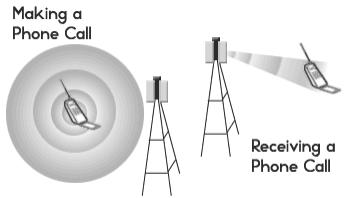
When you receive a call on your wireless telephone, the message travels through the telephone network until it reaches a base station close to your wireless phone. Then the base station sends out radio waves that are detected by a receiver in your telephone, where the signals are changed back into the sound of a voice.
The Federal Communications Commission (FCC) and the Food and Drug Administration (FDA) each regulate wireless telephones. FCC
ensures that all wireless phones sold in the United States follow safety guidelines that limit radio frequency (RF) energy. FDA monitors the health effects of wireless telephones. Each agency has the authority to take action if a wireless phone produces hazardous levels of RF energy.
FDA derives its authority to regulate wireless telephones from the Radiation Control provisions of the Federal Food, Drug, and Cosmetic Act (originally enacted as the Radiation Control for Health and Safety Act of 1968). [http://www.fda.gov/cdrh/comp/eprc.html].
FCC derives its authority to regulate wireless telephones from the National Environmental Policy Act of 1969 (NEPA) and the Telecommunications Act of 1996 http://www.fcc.gov/telecom.html.Updated 7/16/2003
Hands-Free Capability All CTIA Certified portable products provide the consumer with a toll-free number for the purchase of a compatible hands-free device. 1-800-881-7256
STATIC ELECTRICITY, ESD, AND YOUR PALM DEVICE
Electrostatic discharge (ESD) can cause damage to electronic devices if discharged into the device, so you should take steps to avoid such an occurrence.
Description of ESD Static electricity is an electrical charge caused by the buildup of excess electrons on the surface of a material. To most people, static electricity and ESD are nothing more than annoyance. For example, after walking over a carpet while scuffing your feet, building up electrons on your body, you may get a shock—the discharge event—when you touch a metal doorknob. This little shock discharges the built-up static electricity.
ESD-susceptible equipment Even a small amount of ESD can harm circuitry, so when working with electronic devices, take measures to help protect your electronic devices, including your Palm* device, from ESD harm. While Palm has built protections against ESD into its products, ESD unfortunately exists and, unless neutralised, could build up to levels that could harm your equipment. Any electronic device that contains an external entry point for plugging in anything from cables to docking stations is susceptible to entry of ESD. Devices that you carry with you, such as your Palm device, build up ESD in a unique way because the static electricity that may have built up on your body is automatically passed to the
device. Then, when the device is connected to another device such as a docking station, a discharge event can occur.
Precautions against ESD Make sure to discharge any built-up static electricity from yourself and your electronic devices before touching an electronic device or connecting one device to another. The recommendation from Palm is that you take this precaution before connecting your Palm device to your computer, placing the device in a cradle, or connecting it to any other device. You can do this in many ways, including the following:
Ground yourself when you're holding your device by simultaneously touching a metal surface that is at earth ground. For example, if your computer has a metal case and is plugged into a standard three-pronged grounded outlet, touching the case should discharge the ESD on your body.
- Increase the relative humidity of your environment.
Install ESD-specific prevention items, such as grounding mats.
Conditions that enhance ESD occurrences Conditions that can contribute to the buildup of static electricity in the environment include the following:
Low relative humidity.
- Material type (The type of material gathering the charge. For example, synthetics are more prone to static buildup than natural fibers like cotton.)
- The rapidity with which you touch, connect, or disconnect electronic devices.
While you should always take appropriate precautions to discharge electricity, if you are in an environment where you notice ESD events, you may want to take extra precautions to protect your electronic equipment against ESD.
Precaution against hearing loss Protect your hearing. Listening to this device at full volume for a long period of time can damage your hearing.
| Radio | • Dual mode GSM/UMTS phone • GSM 900/1800/1900 • UMTS 2100 • GPRS Multi-slot Class 10, Class B • UMTS PS data |
| Phone features | • Personal speakerphone • Hands-free headset jack (2.5 mm, 3-barrel connector) • Microphone mute option |
| Processor technology | • Marvell processor PXA 270 |
| Expansion | • microSD expansion card tray |
| Battery | • Rechargeable lithium-ion • 1200mAh power • Removable for replacement • 3 hours full charge time |
| Operating system | • Windows Mobile® 6 Standard |
| Camera | • Still image capture resolution:1600 x 1200, 2 megapixel • 2x digital zoom |
| Size | • 110mm x 61.5mm x 16.5mm |
| Weight | • 120g |
| Connectivity | • Bluetooth® wireless technology (2.0 compliant) |
| Display | • Up to 65,536 colours (16-bit colour) • Resolution: 320 x 240 • User-adjustable brightness |
| Keyboard | • Built-in 30-key keyboard plus 5-way navigator • Backlight for low lighting conditions |
| Included software | • Phone • Messaging (text, multimedia, and email) • Internet Explorer Mobile (web browser) • Camera • Pictures & Videos • Windows Media Player Mobile • Contacts |
| System requirements | • Windows XP or Vista (later versions may also be supported) • 32MB of available memory (RAM) • 170MB of free hard disk space • Available USB port |
| Operating and storage temperature range | • 0°C to 45°C (32°F to 113°F) • 5% to 90% RH |
Index
NUMERICS
112 calls 46, 241, 297
3G networks 52
3G SIM cards 17
5-way navigator 15, 27, 28, 281
A
AC charger 18, 19
accented characters 36
accessing
alternative characters 36
applications 36, 39, 285
calculator 229
corporate mail 82
email 100
menu items 30
online address books 112
remote files 253
the Internet 141, 154
voicemail 38
web pages 145
accessories 10, 61, 296
account information 17
accounts
accessing MyMail 100
changing SIM cards and 251
changing voicemail 71
deleting email 106
getting help with 11
making phone calls and52, 54, 55, 67
missing phone numbers and 23
preventing unauthorised use of 241
saving passwords and 84
selecting email 108
sending or receiving messages and 9, 99, 125, 132, 134
setting up email 99-107
setting up Exchange server 82-86
setting up voicemail 50
troubleshooting 275
web browsing and 9, 143
action keys. See softkeys actions 30
activating items on screen 29
activating SIM cards 18
active call information 51, 53
active calls. See phone calls
ActiveSync
defined 285
installing 87
opening 90, 285
starting manually 86
stopping 95
synchronising with 78, 83, 94
transferring files and 171
troubleshooting 259, 269-274
ActiveSyncicon90,285
Add emoticon command 139
Add Favourite screen 146
Add Folder command 146
Add participant command 140
Add Recipient command 108, 113, 126, 128
Add Server Source command 83
Add to Favourites command 145
Add to Personal Address
Book command 272
adding
appointments 186
attachments 109, 121
Bluetooth devices 62, 150
pager ID pictures 182
contacts 49, 112, 131, 181
expansion cards 224
notes 182
passkeys 62,151
signatures 115
tasks 191, 192
address book 112, 113, 184, 272
addresses
adding 112, 113
blocking 120
copying 272
looking up 217
selecting 131, 279
sending email and 108, 109, 113
sending messages and 125, 126, 128
synchronising 82, 272
viewing 126, 128
adjusting screen brightness 237
adjusting volume. See volume
Adobe Flash Player 87
Advanced Server Settings (Email Setup) 107
advancing slides 202, 203
alarm clock 236, 245, 246
alarms 187, 191, 192, 193
alert options 237
alert tones 236
errors 236
See also alarms
All Contacts softkey 49
All day event check box 188
Allow cookies check box 147
Allow USB connections check box 270
Allowed Message Types option 135
Altkey33,285
alternative characters 36
animation 169, 202, 203
anniversaries 188
anonymous messages 135
Answer softkey 50
answering phone calls 49, 53, 65, 71
antenna 293
application shortcuts 240
applications
See also third-party applications
accessing 36, 39, 285
choosing menu items in 30-31
closing 38
copying 227
customising 239-241
deleting 221, 282
displaying available 38
displaying menus in 30
downloading 218, 219
enteringinfoin34
included with device 302
installing 218-221, 280, 281
losing information in 261
making calls and 52
maximising battery and 20
moving to expansion cards 227
opening 36, 226
reinstalling 259, 261
running from expansion cards 226, 282
selecting items in 28
storing 282
synchronising information in 78, 79, 94
troubleshooting 261, 263pointments
adding 186
appearing in wrong timeslots 273
deleting 190
displaying conflicting 186
hiding 189
marking as private 189
scheduling repeating 188
sending 191
setting reminders for 187, 191
viewing 186
arrow icons 27
attachments
adding 109, 121
opening 111, 112
receiving 111
saving 112
storing 281
troubleshooting 277
Attendees list 189
audio 49, 165, 170
audio files 169
audio safety guidelines 294, 299
authentication 106
Auto Answer option 65
Auto Correct option 168, 241
Auto Detect command 251
auto-completion options 240
Automatic Send/Receive option 102
auto-off interval 288
B
Back button 15, 28, 38
back view (device) 16
background colours 130
background music 173
backgrounds 168, 176, 233
backing up information 75, 259, 261
backlight(keyboard)34
Backlight time out on... options 34
Backspace key 33
backup utilities 259, 261, 274
backups,restoring262,274
battery
charging 19-20, 22
disposing of 262
draining 20, 264
inserting 18
maximising life of 20-22, 293
purchasing 19, 262
removing 17, 18, 263
viewing status of 19, 20
battery contacts 16
battery door 16
battery icon 20
battery specifications 301
battery technology 286
Bcc fields 109, 128
Beam a contact option 185
Beam Appointment options 191
Beam command 218, 222, 223
beaming 21, 167, 222-224, 285
bolidays 188
Block incoming calls list 66
Block outgoing calls list 66
blocking phone calls 65-66
Bluetooth, enabling or disabling 44
Bluetooth connections
accepting 152
checking status of 62
communicating over 61, 149
maximizing battery and 21
troubleshooting 278
Bluetooth devices
adding 62, 150
beaming to 222, 223
checking status of 150
connecting to 149-151
discovering 149, 150
hiding 153
making calls and 61-63
printing with 150, 153
purchasing 61
synchronising over 92
transferring calls to 63, 65
troubleshooting 267
Bluetoothicon62,150
Bluetooth Internet
Connection Sharing
connection 154
Bluetooth profiles 152
Bluetooth technology 285
border highlight 29
Brightness command 161, 163
brightness, adjusting 161,
163,237
browsing files and folders
217, 227
browsing the web. See web
browsing
built-in applications 221
built-in camera. See camera
burst mode 162
button settings 176
buttons 27, 28, 176
C
CAB file formats 219
calculations 229
Calculator application 229-230
Calculator icon 229
calendar
adding items to 191
customising 190-191
displaying 186
removing events 190
selecting views 186, 190
setting alarms for 187
sorting tasks on 193
unavailable slots on 190
Calendar application 79, 182
calendar icons 186
calendar options 190-191
call barring 65-66
Call Barring screen 66
callforwarding55,56
callforwardingicon55
Call Forwarding screen 55
Call History list 57-58
Call Options screen 23, 70
call waiting 53,66
Call Waiting screen 67
pager ID applications 280
caller ID blocking 52
Caller ID screen 67
caller IDs 65, 67, 160, 182
camcordericon161
camera
adjusting brightness 161, 163
capturing videos with 162-163
maximising battery and 20
taking pictures with 160- 162
troubleshooting 279
camera lens 16
Camera Preview Mode 280
Camera screen 164
camera settings 163-165
Camera softkey 161
camera specifications 301
Cancel Bluetooth command 63
Cancel command 168
capitalisation 35
Caps Lock icon 35
Caps Lock mode 35
captions 129
car kits 60, 61, 63
card readers 224
carrier. See accounts
cascading menus 31
case-sensitive searching 200, 212
category lists 38
Cc fields 109, 128
cell phones. See wireless phones
Cell Text command 207
Cell Text option 206
certificates 143, 219, 246, 247
Change PIN2 option 68
changes,undoing 168
changing
calendar views 186
colour schemes 239
connections 252
contacts 182
date and time settings 245
email accounts 106, 108
network connections 251
network settings 69
passwords 84
picture or video resolution 161, 163, 279
PINs 68,243
SIM cards 125, 251
wireless band settings 68
character sets 148
characters
creating passkeys and 62
entering 35, 240
moving to specific 28
searching on 46
sending messages and 125
typing alternate 36
charge connector 15
chargeindicator15,19
charger 18, 19
charger cable 19
charging
device 18, 20, 91
device battery 19-20, 22
check boxes 29
Clear Input History command 240
Clear Now Playing command 175
clearing
calculator 229
web links 282
Clock & Alarms Settings screen 245
closing
applications 38
menus 31
screens 28
Colour scheme list 239
colour settings 130, 280
colour themes 233, 239
commands 30
See also menus; voice commands
Company command 49
Company Directory
command 113, 126, 128
company names 49, 183
Complete softkey 193
completed tasks 192
compressed files 218
compression levels 165
computers
connecting to 90
finding media files on 159
installing from 220
opening sync software for 90
reinstalling desktop
software on 259
sending ringtones over 63, 64
synchronising with 79,
86-90, 92, 93, 94, 160
conference calls 54-55
Conference command 54
confidential events 190
confirmation messages 127, 130, 132, 134
Confirmation time out option 237
conflicting appointments 186
Connect Bluetooth command 63
Connect via Bluetooth command 93
connecting
device to PCs 90
headsets to phone 60-63
to Bluetooth devices 61- 63, 149- 151
to hands-free car kits 61
to mobile networks 265
to networks 70
to the Internet 143, 250, 252
to VPNs 253
connection settings 250-255
Connection Settings command 270
connections
acceptingBluetooth152
accessing high-speed 17
changing 251, 252
changing network settings for 69
changing wireless band setting and 68
closing Internet 145
creating 250, 252
detecting 148
displaying status of 39
encrypting 83
ending 255
losing 268
making phone calls and52, 70
maximizing battery and 21
settingmanually250,252
synchronising informationand 77,81,86,92
timing out 275
troubleshooting 265-268, 278
turning phone off and 43
Connections screen 148
connectivity specs 301
contact names, dialling by 46-47
contacts
adding 49, 112, 131, 181
addressing email to 108, 109, 113
addressing messages to 126, 128
assigning ringtones to 65, 182
categorizing 182
changinginfofor182
copyinginfofor182
deleting 183
displaying 182, 183
filtering 183
looking up 46, 47, 58, 71, 184
saving phone numbers for 52, 58
selecting 182
sending info for 184
sending meeting requests to 188
synchronising 79, 82
transferring to car kits 63
Contacts application 79, 181
Contacts list 131
content list icons 37
content lists 37, 40, 285
continuous playback (slides) 204
controls (device) 15-17, 25
controls (media playback) 172
cookies 143, 147
Copy command 167, 227
Copy Contact command 182
copying
addresses 272
applications 227
items in folders 218
pictures and videos 167
presentations 205
copyrighted items 166
corporate mail systems 100, 104,253,277
corporate networks 11
corporate servers 21, 253
See also Exchange servers storing passwords for 82
country codes 71
coupling 282
coverage area 21, 44, 265
creating
Bluetooth profiles 152
pager ID pictures 182
contacts 181
documents 199
email messages 108
favourites 145-146
keyboard shortcuts 239
meeting requests 120
multimedia messages 127-129
passkeys 62,151
playlists 174-175
signatures 115
text messages 125-126
untimed events 187
webfavourites 145
credentials 275
cropping pictures 168
currency symbols 239
Custom ring tone list 65
customer service 11
customising
applications 239-241
calendar 190-191
camera 163-165
dates and time 245
email settings 116-120
Home screen 233
Internet Explorer Mobile 147-148
Media Player Mobile 175
phone 63-71
presentations 204
regional formats 238
sync settings 94
system settings 245-250
system sounds 234-237
tasks 193
text or multimedia
messages 132-135
Cut command 167
D
data 261
See also information
data service icons 265
data service providers 266
data services 265, 266
data transmission speeds 9, 17
date formats 238
dates 245
day-planner formats 186
decimal places 238
decimal symbols 238, 239
decompression utility 218
default format settings 238
default PINs 242
default settings 135, 176
Default Settings application 262
Deferred Delivery option 134
delays 267
Delete Appointment command 190
Delete Cells command 210
Delete Contact command 184
Delete from Library command 174
Delete List command 58
Delete Task command 193
deleted items folder 282
deleting
applications 221, 282
Call History list 58
contacts 183
email 114, 117, 118
email accounts 106
events 190
favourites 146
files 218, 281
folders 146
identity certificates 247
items from libraries 174
items from playlists 174
items in folders 218
keyboard shortcuts 240
messages 132
partnerships 152
pictures 169
system sounds 237
tasks 193
text 207
videos 169
voice notes 194
Desktop option 144
desktop software 259, 286
See also applications; software
device names. See
usernames
devices
connecting lanyard 16
maximising battery and 20
transferring info from 259
dialling 45-47, 49, 67
dialling codes 71
dial-up connections 250
digital cameras 165
See also camera
digital signatures 120
dimmed images 264
Direct Push technology 81
Disconnect Bluetooth command 93
Disconnect Cellular Data command 255
discovering Bluetooth devices 149, 150
disk space 302
See also memory
display formats 238
Display Name option 152
display settings 237-239
Display time out list 45
displaying
active call info 51, 53
addresses 126, 128
alternative character list 36
appointments 186
calendar 186
connection status 39
contacts 182, 183
daily schedules 186
documents 201, 202
email accounts 118
events 187
favourites 146
folder contents 217
large messages 111
memory usage 247
menu items 31
menus 30
multimedia messages 131
PDF files 199, 212
pictures 165
presentations 204
softkey actions 30
sub folders 110
tasks 193
videos 166, 172, 175
web pages 143, 144, 146
workbooks 205-207
distribution lists 113
document templates 199
documentation 9, 43
documents
creating 199
displaying 201, 202
finding and replacing text in 200
formatting text in 200
opening 199
saving 201
sorting 202
documents list 201
domain names 82
Download Message command 111
Download size limit list 84
downloading
Adobe Flash Player 87
applications 218, 219
attachments 111
email 84,102,111,118 119
files 146, 219
images 169
multimedia messages 130, 134
Outlook 79
ringtones 63, 64
sounds 234
sync software 10
text messages 130
updates 249
videos 169
Windows Media Player 81 drag and drop operations 227
draining the battery 20
driving safety tips 297-298
drop-down lists. See lists
drop-down menus 31
E
earpiece 15
echoes 282
Edit command 168, 183
Edit Mode command 200, 207
Edit sender's message option 114
Edit Server Settings screen 83
editing. See changing
electronic devices 295, 299
electrostatic discharge 299 email
accessing 100
adding distribution lists for 113
adding signatures 115
addressing 108, 109
attaching items 109, 121
creating 108
deleting 114, 117, 118
downloading 84, 102, 111, 118, 119
encrypting 120
forwarding 114
getting attachments 111
getting from corporate servers 253
making calls and 49, 52
opening 38
receiving 110
replying to 114
requirements for 9
saving 109, 117
searching 113-114, 217
selecting formats for 119
sending 58,109,117 121,145
setting alert tones for 236
settingpriority109
sorting 116
storing 281
synchronising 80, 110
troubleshooting 275-278
viewing large messages 111
email account types 99
email accounts
accessing MyMail and 100
changing 106
connecting to Exchange servers and 82-86
connecting to POP/IMAP servers and 101-107
customising 116-120
deleting 106
displaying 118
entering outgoing server settings for 106
renaming 101, 104
selecting 108, 118
setting up 99
troubleshooting 275
email client software 277
Email command 58
email distribution lists 82
email options 116-120
email providers 100, 101, 102
Email Setup screen 101, 102, 103, 105, 107
email shortcuts 115
Email Sync screen 118, 119
emergency calls 46, 241, 297
emoticons 139
Enable fixed dialling check box 68
Enable SIM PIN option 242
encoding options 148
Encrypt files placed on storage cards check box 228
End conversation command 140
End User Licence Agreement 10
ending phone calls 22
Entire column option 210
Entire row option 210
error messages 274
errors 265, 274
ESD (electrostatic discharge) 299
events
creating meeting requests and 188
creating untimed 187
deleting 190
hiding 189
marking as sensitive 189
setting reminders for 187, 191
Excel files 80, 97, 195
Excel Mobile 205-212
Excel Mobile icon 205
ExchangeActiveSync21,78 82,274,277,286
Exchange Address Book 272
Exchange server credentials screen 275
Exchange server option 104
Exchange servers changing sync settings 84 deactivating access to 82
entering passwords for 83, 84
receiving email and 100, 104, 110
setting up accounts 82-86
synchronising with 21, 77, 81, 84, 85, 93
troubleshooting 274, 277
Exchange services 82
exiting applications 38
expansion card slot 224
expansion card tray 16, 301
expansion cards
adding 224
as storage medium 282
browsing on 227
encrypting 228
formatting 224
inserting 225-226
installing apps on 220-221
moving apps to 227
opening files on 200
opening items on 226
renaming 228
transferring files to 226, 227
transferring media files to 167, 170, 174
Explorer Mobile 219
F
factory defaults 135, 176
factory-installed applications 221
Favourite Contacts list 49, 59, 181, 182, 184
favourites 145-146
Favourites application 79
Favourites command 146
Favourites softkey 146
features 9, 17
feedback 282
fields. See selection fields; text-entry fields
file links 117
file names 201
files
accessing from corporate accounts 253
attaching 109, 121, 140
beaming 223
browsing 217, 227
decompressing 218
deleting 218, 281
downloading 146, 219
installing from Internet 219
moving 218
opening 200, 213
opening relatedapplications for 37
printing 150
receiving over Bluetooth 153
saving 226, 227
selecting multiple 218
synchronising 81, 94
transferring to expansion cards 170, 174, 226, 227
Filter command 183, 193
filtering
contacts 183
phone calls 56, 58
tasks 193
Find a New Network command 70
Find command 200, 211
Find Contact command 58
finding
contacts 46, 47, 58, 71, 184
device phone number 23
information 211, 217
media files 159
messages 113-114
text 200
firewalls 253, 269
First day of week option 190
Fit To Screen option 144
5-way navigator 15, 27, 28, 281
fixed dialling 67-68
Fixed Dialling screen 68
Flash Player 87
flashingindicatorlight19,44
flight mode 44
folders
browsing 217, 227
creating 146, 167
deleting 146
moving items to 218
opening items in 218
organising media files in 167
organising web favourites in 145, 146
receiving email and 110
selecting 217
sorting contents 218
forgetting passwords 243
format options 119, 238
formatting
expansion cards 224
text 200
formatting options 200
forms (web) 145, 279
formulas 210
forwarding
messages 114, 131
phone calls 55, 56
freeing memory 221, 274, 281
Freeze Panes option 206
front view (device) 15
full charge 19
Full Screen option 144, 172, 206
G
games 20
getting started 10, 22, 23, 30
Global Address List 82, 112, 113, 184
Global Address List Lookup 217
Glossary 285
Go to Slide command 203
GPRS connections 286
GPRS networks 52
graphics programs 168
green indicator light 19
GSM networks 69
GSM/3G Networks screen 69
H
handset. See smartphone
hands-free car kits 60, 61, 63
hands-free devices
connecting to phone 60- 63
entering passkeys for 62
lockingkeyboardand241
transferring calls to 63, 65
troubleshooting 267
hanging up phone 52
hard resets 261
hardware 9
headphones 170
headset button 60, 61
headset jack 15
headsets
configuring as trusted
devices 149
connecting 60-63
locking keyboard and 241
making phone calls and 50, 52, 63
hearing devices 294, 296, 298
help 9, 10, 257
hiding
appointments 189
events 189
phone numbers 130, 134
web page images 144
highlight 28, 29
highlighting
alternative characters 36
items in folders 218
items in menus 31
items on screen 28-29
options in lists 28, 32
high-speed connections 17
History command 147
History list 147
Hold command 51, 53
Home button 15, 22
home locations 245
Home Reception option 134
Home screen 22, 39, 51, 72, 233
Home Screen layout list 234
hosted Exchange services 82
Hotmail 100
Hotmail accounts 136, 138
HTML formats 111, 114
HTML option 119
hyperlinks 203
See also web links
1
icons 27, 72, 201, 204, 265
identity certificates 143, 219, 246, 247
Ignore softmax 50
IM messaging 136, 236
image files 127, 281
images
See also pictures
dimmed 264
downloading 169
hiding web page 144
incorrect colour settings and 280
receiving 153
troubleshooting 279
IMAP servers 99, 101-107
inactivity 45, 162
Inbox 110
In-call alert volume option 237
incoming calls 56, 57, 63, 65
incoming mail servers 104
incorrect passwords 243
incorrect PINs 67,243
indicator light 15, 19, 44
information
backing up 75, 259, 261
beaming 223
entering 34, 34-36
erasing all 268
losing 261
protecting 241-244
receiving 223, 224
restoring 261, 262
searching for 211, 217- 218
sharing 222
storing 224, 281, 282
synchronising 77, 78, 79
transferring 75, 91, 259
updating 75, 77
input options 240
Insert Function screen 207, 208
inserting expansion cards 225-226
installation, troubleshooting 280
installing
applications 218-221, 280, 281
device battery 18
SIM cards 17-19
synchronisation software 77, 78, 87, 88
VPN clients 253
instant messaging 136, 236
instant messaging applications 280
interference 296
internal memory. See memory
international calls 66
Internet
See also web browsing accessing 141, 154
connecting to 143
installing apps from 219
receiving email and 100, 101, 103, 110
Internet Connection Sharing 21, 154-155
Internet Connection Speed option 176
Internet connections
closing 145
detecting settings for 148
setting up 250, 252
troubleshooting 266, 278
Internet email option 104
Internet Explorer Mobile 219
browsing with 143-147
closing 145
customising 147-148
unsupported elements for 143
Internet service providers 103,250
Internet Sharing icon 154
ISPs. See Internet service providers
J
Java applications 220
JavaScript 143
K
key presses 241
keyboard
accessing alternativecharacters on 36
answering calls from 71
dialling from 22, 45, 46
enabling tones for 237
entering information with 34, 34-36
locking or unlocking 241
selecting menu items from 31
troubleshooting 281
waking up screen and 45
keyboard backlight 34
keyboard shortcuts 38, 239, 240
keyboard specifications 302
Keypad assignment list 239
L
landscape format 164
language settings 238, 240
Lanyard connector 15
lanyard devices 16
LCD screen. See screen
leading zeros 239
leftsoftkey15,30
libraries (media) 173
Library command 171
Library screen 172, 176
Licence Agreement 10
Li-ion battery. See battery
linking to media files 173
links. See web links
list separators 239
lists
highlighting in 28, 32
navigating web page 145
scrolling through 28
selecting options in 31-33
Lithium Ion battery. See battery
Live Search 136
Live Search bar 137
live! content list 38
live! softkey 40
locale setting 238
locating
contacts 46, 47, 58, 71, 184
device phone number 23
information 211, 217
Location list 201, 205
location-specific information 238, 240, 245
lockicon166
locking
device 243, 244
SIM cards 242
the keyboard 241
looking up contacts 46, 47, 58, 71, 184
lookup feature 217
losing connections 268 information 261 passwords 243 smartphone 82, 244 third-party apps 261
low coverage areas 265
low light conditions 34
lowercase letters 35
M
magnet 17
magnetic media 295
magnification. See zoom options
mail servers 82,111,114 277
See also incoming mail servers; outgoing mail servers
Main Menu 38
Manage Folders command 110
management tools 215
MAPI clients 277
maps 279
Match case check box 200, 212
Match entire cell check box 212
Match whole words only check box 200
measurement units 239
media files 81, 159, 169, 171, 203, 272
media libraries 173
Media Player 81, 160, 170
Media Player Mobile 169- 176
media players 20
Media sync option 170
medical devices 294, 296
meeting invitations. See meeting requests
meeting requests 113, 120, 188, 191
memory
freeing 221, 274, 281
running apps and 38, 226
sending email and 109, 119
storing numbers in 230
viewing status of 247
memory dial 297
memory options (web) 148
Memory screen 148
menu items 30-31
Menu softkey 30, 31
menus 30, 31
Message Centre list 38
message delivery
confirmations 127, 130, 132, 134
message formats 119
message headers 119
Message Options command 109
Message Options screen 127
message settings 132-135
Message softkey 130
Message Type option 134 messages
See also multimedia messages; text
messages; voice notes
adding contacts and 49, 112, 131
adding signatures 115
adding slides to 129
automatically receiving 102
automatically resending 134
converting to Unicode 133
creating email 108
displaying date and time in 116
encrypting 120
finding 113-114
forwarding 114, 131
including in response 117
recording 129
rejecting anonymous 135
retrieving voicemail 50
selecting links in 131
sending to multiple recipients 109, 126, 140
setting size 84, 119, 134
Messaging application
See also text messages; multimedia messages
adding contacts and 182
displaying email accounts 108, 118
setting up email accounts 101, 103
messaging applications 280
messaging services 71, 125, 133, 267, 286, 288
microphone 15, 51, 165, 282
microSD cards 224
Microsoft ActiveSync. See ActiveSync
Microsoft Exchange ActiveSync. See Exchange ActiveSync
Microsoft Office 43, 195, 197
Microsoft Windows Mobile software 219
Microsoft Windows Mobile website 259
Microsoft Word documents. See Word
Midlets 220
missed phone calls 56, 72
MMS General Options screen 135
MMS messaging 125, 286
MMS Receive Options screen 134
MMS screen 128, 130
MMS Send Options screen 133
MMS Settings command 133
MMSC Settings screen 133
Mobile Device Center 78, 88, 90
mobile devices 223
Mobile Favourites folder 79
mobile networks 265
mobile phone numbers 126, 128
Mobile to Market certificates 219
Mobile TV 177
modems 154-155
Month View 186, 190
moving
files to expansion cards 167, 170, 174, 226, 227
files to folders 218
items on playlists 174
pictures and videos 167
moving around the screen 27-33
moving through web pages 144
multi-line text fields 28, 34
multimedia features 157
multimedia files 127, 281
multimedia messages addressing 128
conserving memory and 281
creating 127-129
customising 129, 133
deleting 132
dialling from 49
displaying 131
forwarding 131
opening 130
overview 123
receiving 130, 134
replying to 131
requirements for 9
sending 127, 129, 133, 185
setting alert tones for 236troubleshooting 267
multimedia messaging services 133
Multimedia Messaging System. See MMS messaging
multiple recipients 109, 113, 126, 140
Multipress time out list 241
music 49, 160, 170
Music & Video list 171, 173
music files 80, 169, 272
Mute softkey 51
My Device command 217
My Device folder 217
My Device library 173
My Documents folder 261
My Files command 218
My Files folder 205, 217, 218
My Files icon 217
My Pictures folder 160, 162
My Playlists category 174
My Ringtones folder 64, 234
My Storage Card library 173
My Text command 109, 126
My Text phrases 109, 126
MyMail accounts 100, 110
N
names 288
naming
document files 201
expansion cards 228
groups of pictures 165
partnerships 152
presentations 205
smartphone 153
workbooks 212
Worksheet cells 211
navigating the screen 27-33
navigating web pages 144
navigator, 5-way 15, 27, 28, 281
navigator buttons 27
negative numbers 239
Network list 69
network options 176
Network selection list 70
network services. See accounts
Network Setting screen 251
network settings 69-70
network support 11
networks
changing 69
connecting to 70, 251
logging in to 246
receiving email over 107
selecting 69-70, 148
troubleshooting 265-268
Networks screen 70
New Email Account option 101, 103
New Folder command 167
New Task command 191
New voice message list 64 notes
adding 182, 192
synchronising 80, 94
notifications
confirming message delivery 127, 130, 132, 134
connecting to Bluetoothdevices and 152
receiving messages and 130
receiving phone calls and 53,66,67
selecting ringtones for 63
setting sound options for 236
silencing sounds for 234
troubleshooting 267
Now Playing playlist 174, 175
Now Playing screen 174
number formats 238
number sign symbol 239
numbers 35
0
Office files. See Microsoft Office; specific app
Office Mobile icon 199
Off-peak times option 85
online address book 112, 113, 184
online forums 10
online support (Palm) 10
Open Call command 57
opening
ActiveSync 90, 285
applications 36, 226
attachments 111, 112
category lists 38
content lists 40
documents 199
email messages 38
files 200, 213
Home screen 39
items in folders 218
Main Menu 38
PDFViewer199,213
SIM Toolkit 71
text or multimedia messages 130
web browser 40
web pages 143
Windows Mobile Device 90
operatingsystem(device) 264,289
operating systems (PCs) 87
Option key 33, 35, 286
Option Lock icon 35
Option Lock mode 35
options
displaying 21
highlighting 28, 29, 32
scrolling 33
selecting 31-33, 132
organiser features 43, 179
orientation (slides) 203
Orientation list 203
outages 266
outgoing calls 56, 57, 65
outgoing mail servers 105, 106
Outlook
copying addresses to 272 downloading 79
finding messages and 114
receiving email and 110, 118
synchronising with 78, 79, 81, 82, 113
troubleshooting 272
Outlook calendar 189
Outlook Contact option 181
Outlook E-mail 80, 93, 106
Outlook Notes 80
Outlook Web Access services 82
overdue tasks 193
Override playback options 203
Overview view 206
OWA services 82
owner information 244
P
paired relationships. See partnerships
pairing. See partnerships
Palm online support 10
Palm OS apps 219, 259
Palm OS devices 91, 259
partial envelope icon 111
partnerships 149, 152, 286
passkeys 62, 151
Password type list 243
password types 46
passwords
accessing corporate servers and 82
adding Exchange servers and 83, 84
changing 84
entering 36, 243, 244
forgetting or losing 243
locking device and 241
requiring 243
saving 84, 102, 105
sending email and 102, 104, 106
Paste command 168
Pause playback option 130, 175
PCS phones. See wireless phones
PCs. See computers
PDF files 80, 112, 199, 212
PDFViewer199,212-213
PDF Viewer icon 213
Peak times option 85
performance 263, 280
Personal Address Book 272
personal computers. See computers
personal events 189
personal identification numbers (PINs) 67, 68, 241, 242, 244, 287
personal information 17, 243, 244, 286
personal information managers 287
See also PIM applications
personalising smartphone 231
phone
adjusting ringer volume 65
answering 49, 53, 65, 71
changing network settings for 69
changing wireless band setting for 68
connectingheadsets to 60-63
customising 63-71
dialling 45-47, 49, 67
driving safety tips for 60, 297-298
getting started with 22
hanging up 52
maximising battery and 20
monitoring status 72
redialling 48
resetting timers for 58
selecting ringtones 63-64
troubleshooting 267, 282
turning on or off 43, 44
waking up screen for 51
phone calls
See also phone; phone numbers
adding a second 53
adjusting volume for 22, 65
automatically answering 65
blocking 65-66
ending 22, 52
extracting 55
filtering 56, 58
forwarding 55, 56
making 45, 48, 51, 56
muting microphone for 51
placing on hold 51, 54
receiving notifications for 53,66,67
restricting 67-68
sending to voicemail 49
setting up conference 54- 55
transferring to hands-free device 63, 65
viewing information about 51, 53, 56, 57
viewing status of 39
phone headsets. See headsets
phone number codes 47
phone numbers
adding country codes 71
entering 22, 45, 46
hiding 130, 134
locating device 23
missing from Call Optionsscreen 23
removing from Call History 58
saving 52, 58
selecting 48, 49, 131
Phone Off message 43, 287
phone settings 63-71
phone specifications 301
Phone/Send button 15,287
phone-off icon 43
photos. See pictures
pick lists. See lists
piconets 287
Picsel PDF Viewer 212-213
picture file types 127
picture files 161, 165, 233, 281
picture formats 165
pictures
See also images
adding as backgrounds 168,233
adding asscreensaver 164
adjusting contrast 168
adjusting resolution 161
attaching to messages 121, 128, 140, 166
creating caller ID 182
cropping 168
deleting 169
editing 168
naming groups of 165
previewing 162, 280
printing 224
recording captions for 129
renaming 169
rotating 164, 168
saving 164, 169
selecting 165
setting compression level for 165
setting size 164
storing 167, 281
synchronising 80, 94, 160
taking 160-162, 279
transferring to expansion cards 167
viewing 165
Pictures & Videos application 165
PIM applications 287
PIN unlock key 243, 287
PINs 67, 68, 241, 242, 244, 287
Plain Text option 119
Play Slide Show command 166
Play softkey 172
Play sounds option 147
Play/Pause command 172
playback options 175
Playback screen 175, 176
playing
media files 169, 171, 172, 175
multimedia messages 130
presentations 202, 203, 204
ringtones 64
videos 169
voice notes 194
playlists 170, 171, 174-175
POP servers 99, 101-107
portable radio. See radios
portrait format 164
Power button 17, 44
Power Management screen 247
power settings 247-248
power specifications 293
PowerPoint files 80, 195
PowerPoint Mobile 202-205
PowerPoint Mobile icon 202
predefined text phrases 109, 126
preferences 132
Preferred Networks option 70
preinstalled applications 221
presentation list display 204
presentations 202, 203, 205
See also PowerPoint Mobile
Preview Mode (camera) 280
previewing
pictures 162, 280
ringtones 64
system sounds 237
videos 163
Print via Bluetooth command 150
Printer screen 153
printers 150, 153
priority levels 130, 133, 192
Priority list 109
privacy statement 249
Private command 55
private events 189
processor 301
Program Files folder 227
programs. See applications; software
Prompt if device unused for check box 243
Properties command 145
protecting info 241-244
proxy servers 253
PUK (PIN unlock key) 243, 287
punctuation marks 35
push technology 81
0
Quality command 163
QuickTime Player 169
quitting applications 38
R
radio frequency emissions 291, 292, 294
radios 44,294,301
RAS connections 250
Receive incoming beams check box 224
Receiving Data message 224
recent calls list 56, 57
Recent Photos list 161, 163
Recent Programs list 37
rechargeable battery. See battery
recipients, sending to
multiple 109, 113, 126, 140
recording
messages 129
videos 162-163
voice notes 139, 194
recurring appointments. See repeating appointments
red indicator light 19
redialling phone 48
redirector (websites) 278
Refresh command 144
refreshing web pages 144, 278
Regional Settings screen 238
registering device 10
reinstalling software orapplications 259, 261
Reject Anonymous Message option 135
Reminder list 187
reminders 187, 191, 192, 193, 236
remote access servers 250
remote files 253
Remove Programs list 221
Remove Programs screen 221
removing
See also deleting
applications 221, 282
device battery 263
files 218, 281
items from folders 218
items from libraries 174
items from playlists 174
Rename command 228
renaming
expansion cards 228
items in folders 218
pictures 169
videos 169
voice notes 194
Repeat command 172
repeating appointments 188
repeating tasks 192
replacing
information 211
text 200
Reply softkey 114
Reset Timers command 58
Reset to Default command
135
retsets 260-262
resetting call timers 58
resizing text 145, 238
resolution (camera) 279
resolution (screen) 264, 302
resolution (videos) 162
Resolution command 161, 279
restarting Treo device. See
resets
restoring
backups 262, 274
defaults 135, 176
information 261, 262
Resume playback option 130, 175
Return key 33
reverse type 29
Review all download settings option 102
RF emissions 291, 292, 294
rightsoftkey15,30
Ring tone list 64
ringtone file types 127
ringtone managers 280
ringtones
adding to contacts 65, 182
adding voice notes as 194
downloading 63, 64
reviewing 64
selecting 63-64
sending 129
setting sound options for 236
roaming 54, 66, 85, 273
Roaming Reception option 135
rotating pictures 164, 168
S
Save copies of sent items check box 109
Save password check box 84,102,105
Save Playlist command 175
Save softkey 227
Saved folder 109
saving attachments 112
documents 201
email 109, 117
files 226, 227
multimedia items 131
passwords 84, 102, 105
phone numbers 52, 58
pictures 164, 169
playlists 175
presentations 205
videos 164
workbooks 205, 212
Schedule command 85, 273
Schedule screen 85
scheduled syncs 276
schedules. See calendar
scheduling synchronisation 85-86
screenactivating items on 29
adjusting brightness 237
adjusting display 237-239
arranging web pages 144
caring for 16
changing colour schemes for 239
disabling touch-sensitivity for 241
maximizing battery and 21
moving around on 27-33
returning to previous 28
scrolling 28
selecting backgrounds for 168,233
selecting items on 29
troubleshooting 44, 264
waking up 45, 51
screen resolution 264, 302
screen specifications 302
screens, closing 28
screensavers 164
scrollbars28
scrolling 28, 33, 144
SD expansion cards 224
search results 47
searching
documents 200
email 113-114, 217
searching for information 211, 217-218
searching for signal 21
Secure Sockets Layer (SSL) 107, 143, 287
secure websites 279
security 241-244
security certificates 143, 219, 246, 247
Security Settings screen 117
security software 241
security updates 248
Select a Network command 70
selection fields 32
Send as vCalendar command 191
Send as vCard command 185
Send command 222
Send IM softkey 139
Send Link command 145
Send Options screen 129
Send Text Message command 57, 58
Send/Receive command 111
sending appointments 191
copyrighted items 166
email 58,109,117,121 145
meeting requests 113, 188, 189, 191
multimedia messages 127, 129, 133, 185
pictures 121, 128, 140, 166
ringtones 129
text messages 56, 58, 125, 126
videos 128, 166
web links 145
sending to multiple recipients 109, 113, 126, 140
Sensitivity list 189
sensitivity options 189, 192
Sent folder 117
servers,troubleshooting 273,275,277
service contracts 9
See also accounts
service plans 9
See also accounts
service providers 266
Set As Ringtone command 194
Set reminders for new items option 193
settings. See options
sharing information 222
Shift cells options 210
Shift key 33, 35
Short Messaging Service.
See SMS messaging
shortcuts 30, 38, 239, 240
Show Pictures option 144
Show start and due dates option 193
Show week numbers option 190
Shuffle command 172
Side button 15
signal, searching for 21
signal strength 72, 265, 283
signal-strength icon 44
signatures 115
Signatures screen 115, 116
silencing system sounds 234
SIM card slot 16
SIM cards
accessing contacts on 181
activating 18
changing 125, 251
defined 287
entering incorrect PINs and 67
finding contact info on 71
installing 17-19
locking or unlocking 242-243
SIM Contact option 181
SIM Manager screen 185
SIM toolkit 71, 236
Simple PIN option 46, 244
skins 176
Slide Show screen 164
slide shows 164, 166, 202, 204
slide timing option 203
slide transitions 202, 203
slides 129, 131, 202
smartcards. See SIM cards
smartphone
charging 18, 20, 91
checking space on 247
connecting to PCs 90
converting to modem 154-155
freeing space on 221, 274, 281
getting help with 10
getting phone number 23
getting started with 22, 23, 30
locking or unlocking 243, 244
losing 82, 244
moving around on 25
naming 153
not responding 260, 280
operating 10, 17, 295-296
overview 15-17
personalising 231
purchasing accessories for 10,61,296
resetting 260-262
storing 16, 17
transferring information to 75,91,259
troubleshooting 257
turning on or off 43, 45
unpacking 9
updating information on 75, 77
smartphone contacts 16
SMS messaging 125, 288
soft resets 260
softkey labels 203, 206
softkeys 15,30
software
See also applications
downloading 10
included with device 302
installing synchronisation 77, 78, 87, 88
losing 261
purchasing 264
reinstalling 259, 261
updating 248
Sort By command 193, 202, 204
Sort by list 211
Sort command 211
sort options 193, 202, 204
sort order 116,202,204 211
sorting
documents 202
email 116
folder items 218
presentations 204
tasks 193
Worksheet info 211
sound clips 127, 129
sound files 121, 234
sound profiles 234
sound settings 234-237
sounds 147
Sounds screen 64
Space key 33
speaker 16, 17, 170
speakerphone 51, 294
special characters. See
alternative characters; symbols
spreadsheets. See Excel files
SSL protocol 107, 143, 287
standby mode 162
Start softkey 40
starting
Excel Mobile 205
PowerPoint Mobile 202
Word Mobile 199
static electricity 299
status information 39, 72
stereo headphones 170
Still image compression level list 165
stopping synchronisation 95
Storage Card command 226, 227
storage cards. See expansion cards
storage space 247, 274
storing
device 16, 17
information 224
streaming content 147, 173, 288
strong alphanumeric
passwords 46, 243, 244
submenus 31
Suggest words when typing check box 240
support 10
Swap softkey 54, 55
symbols 35
sync cable 20,86,90,92 154
sync connector 15
Sync feature 170
sync schedules 273, 276
Sync softkey 86
synchronisation
battery life and 21
Bluetooth devices and 92
defined 288
hard resets and 261, 262
multiple computers and 93
overview 75, 77, 78
preparing for 82, 86, 92
scheduling 85-86
setting up 23
starting manually 86
stopping 95
sync cable and 92
third-party apps and 79, 261
troubleshooting 11, 260, 268-275, 277
wireless connections and 77,81,86,92
synchronisation methods 79
synchronisation options 94
synchronisation software downloading 10
installing 77, 78, 87, 88
opening 90
receiving email and 110
running 89
selecting 79
synchronising
addresses 272
contacts 79, 82
email 80,110
information 77, 78, 79
media files 81, 159, 170
notes 80, 94
Office files 197-199
pictures 80,94,160
playlists 171
webfavourites 79
system alarms 245
system alerts 236
system dates and time 245
system errors 265
system locks 241, 243
system messages 236
system requirements (PCs) 87
system settings 245-250
system sounds 234-237
T
taking pictures 160-162, 279
Task Manager 39
tasks
adding 191, 192
adding notes to 192
categorizing 192
completing 192
customising 193
deleting 193
displaying 193
marking as sensitive 192
organising 193
setting due dates for 192
setting reminders for 192, 193
Tasks application 79, 191
Tasks entry bar 192
Tasks list 193
technical support 10
Templates folder 199
tentative appointments 187
text
See also text messages
deleting 207
entering 34, 34-36, 207, 240
finding and replacing 200
formatting 200
resizing 145, 238
text captions 129
Text Input Settings option 240
Text Message screen 125, 130, 132
text message service centre 71
text messages
addressing 125, 126
creating 125-126
customising 126, 132
deleting 132
forwarding 131
making phone calls and 49, 51, 52
opening 130
overview 123
receiving 130, 134
replying to 131
sending 56, 58, 125, 126
setting alert tones for 236
troubleshooting 267
text phrases 109, 126
Text Size command 145
text-entry fields
entering text in 34
moving to 28
scrolling in 28
text-entry screens 34
themes 233, 239
third-party applications
5-way navigator and 281
deleting 282
getting help with 281
installing 218, 219, 280, 281
losing 261
previewing pictures and 280
reinstalling 259, 261
screen resolution and 264
synchronising with 79, 261
troubleshooting 219, 264, 280-281
third-partyheadsets61
Thumbnail View 162, 163
Thumbnails softkey 162, 163
time formats 238
time settings 245
time zones 245
timed slide shows 202
timeout intervals 237
timer 58, 161
tips 9
title bar (Home screen) 39
top view (device) 17
touch-sensitive feature 241
touch-sensitive screen. See screen
transmission delays 267
Treo device. See smartphone
Treo My Documents folder 159
troubleshooting 257
trusted device list 149
trusted devices 149
See also partnerships
trusted pairs. See partnerships
Turn Off Visibility command 150
TurnOnVisibilitycommand 150,152
U
UMTS networks 52
UMTS services 288
unauthorised users 241
unavailable time slots 190
Undo command 168
Unfreeze Panes option 206
Unhold softkey 51
Unicode language 133
unlocking device 243
SIM cards 242
the keyboard 241
Unmute softkey 51
unretrieved voicemail 50
untimed events 187
Upcoming Events list 186
Update Library command 173
Update Setup screen 249
updates 10,249
updating information 75, 77 system software 248
upgrades 259
upercase letters 35
URLs 117, 131, 143, 202, 254
See also web links
USB controllers 271
USB hubs 90, 270
USB ports 90,270
USB sync cable 20,86,90, 92,154
usernames 288
V
vCal attachments 277
vCalendar attachments 129
vCard attachments 129, 277
Video command 162
video file types 127, 166
video files 80, 162, 169, 272, 281
video mode 161
video options 175
Video screen 165, 175
videos
attaching to messages 121, 128
changingresolution163
deleting 169
downloading 169
including audio with 165
limiting length 165
playing 169
reviewing 163
recording 162-163
renaming 169
saving 164
selecting 166
sending 166
settingresolutionfor279
storing 167
synchronising 160
transferring to expansion cards 167, 170
viewing 166, 172, 175
View All Calls command 57
View certificate details option 247
View privacy statement option 249
View Timers command 58
viewing
active call info 51, 53
addresses 126, 128
alternative character list 36
appointments 186
calendar 186
connection status 39
contacts 182, 183
daily schedules 186
documents 201, 202
email accounts 118
events 187
favourites 146
folder contents 217
large messages 111
memory usage 247
menu items 31
menus 30
multimedia messages 131
PDF files 199, 212
pictures 165
presentations 204
softkey actions 30
subfolders 110
tasks 193
videos 166, 172, 175
web pages 143, 144, 146
workbooks 205-207
virtual private networks. See
VPN connections
visibility, disabling 153
Vista computers 88,90,92 159,199
Vodafone live! website 40, 143
voice captions 129
Voice clip softkey 139
voice notes 139, 194
Voice Notes icon 194
voicemail
accessing 38
changing account number for 71
retrieving messages 50
selecting ringtones for 63, 64
sending calls to 49
setting up 50
Voicemail icon 50
voicemail system 240
volume
errors 237
phone 22, 65
ringer 65
Volume button 15, 173
VPN clients 253, 269
VPN connections 103, 110, 253
W
waking up the screen 45, 51
warnings 236
warranty 10
weak signals 265, 283
Web Access services 82
web addresses 203, 279
See also web links
web browser 40, 143
web browsing
making calls and 52
memory consumption and 282
requirements for 9
secure sites and 143, 279
troubleshooting 278
webfavourites 79,145-146
webforms145,279
web links
clearing 282
highlighting 29
selecting 131, 144
sending 145
troubleshooting 279
web pages
accessing 143, 145
blocking 148
changing to unsecured 147
displaying properties 145
downloading from 146
hiding images on 144
moving to previous 144
opening 143
refreshing 144, 278
resizing text on 145
returning to recently viewed 147
scrolling 144
selecting addresses on 279
sending email from 145
viewing 143, 144, 146
web-based email providers 100, 101, 103, 110
website redirectors 278
websites
accessing 141
ending connections to 255
opening Vodafone live! 143
submitting transactions and 279
week numbers 190
Week View 186, 190
Week view option 190
Windows Live contacts 181
Windows Live Mail 136, 136-138
Windows Live Messenger 136, 138-140
Windows Live services 136
Windows Media Player 81, 160, 170
Windows Media Player Mobile 169-176
Windows Mobile 264, 289
Windows Mobile Device Center 78, 88, 90, 289
Windows Mobile devices 91, 223, 259
Windows Mobile Getting Started CD 10
Windows Mobile software 219
Windows Update 248-250
Windows XP computers 87, 89, 90, 92, 159, 198
wiredheadsets60,63
wireless band setting 68-69
wireless connections. See connections
wireless features 17, 20, 248, 280
Wireless Manager 43, 44, 248, 255
wirelessmodems154-155
wireless phones 298
wireless services 20, 248
Word files 80, 97, 195
See also documents
word matching 200
Word Mobile 199-202
Word Mobile icon 199
word suggestions 240
Work URL Exceptions command 254
workbooks
See also Excel Mobile displaying 205-207
moving around in 207
naming 212
replacing information in 211
saving 205, 212
searching 211
worksheets
entering formulas in 210
entering functions in 207
entering text 207
freezing panes in 206
inserting elements 208
moving areas in 209
naming cells 211
removing elements in 210
selecting elements on 208
sorting info in 211
switching 206
Wrap to Window option 200
Z
ZIP files 218
zoom options 200, 203, 206, 213
zoom options (camera) 161

- Disclaimer and limitation of liability
- Palm Take Back and Recycling Program
- Contents
- Chapter 1: Welcome
- Chapter 2: Setting up 13
- Chapter 3: Moving around on your Palm® Treo™ 500v smartphone 25
- Chapter 4: Your phone 41
- Chapter 5: Synchronising information 75
- Chapter 6: Your email 97
- Chapter 7: Your text and multimedia messages 123
- Chapter 8: Your connections to the web and wireless devices 141
- Chapter 9: Your photos, videos, and music 157
- Chapter 10: Your personal information organiser 179
- Chapter 11: Your Microsoft Office and other document tools 195
- Chapter 12: Your application and info management tools 215
- Chapter 13: Your personal settings 231
- Chapter 14: Troubleshooting 257
- Terms 285
- Important safety and legal information 291
- Specifications 301
- Index 303
- Welcome
- Benefits
- In this chapter
- Your new smartphone
- What's in the box?
- Hardware
- Documentation and software
- What do I need to get started?
- Where to learn more
- Websites
- Registration
- Customer service from your network operator
- Corporate network support/your IT administrator
- Setting up
- Palm Treo 500v smartphone overview
- Front view
- Back view
- Inserting the SIM card and battery
- Charging the battery
- Maximising battery life
- Making your first call
- Adjusting call volume
- What's my number?
- Setting up synchronisation
- Moving around on your Palm® Treo™ 500v smartphone
- Navigating around the screen
- Scrolling through screens
- Closing screens
- Highlighting and selecting items
- Using the softkeys
- Selecting menu items
- Selecting options in a list
- Using the keyboard
- Understanding the keyboard backlight
- Using text-entry fields
- Entering lowercase and uppercase letters
- Entering numbers, punctuation, and symbols
- Entering other symbols and accented characters
- Entering passwords
- Opening and closing applications
- Using the Recent Programs content list
- Using other content lists
- Using keyboard shortcuts
- Using the Main Menu
- Closing applications
- Using your Homescreen
- Your phone
- Turning your Palm® Treo™ 500v smartphone on/off
- Turning your phone off
- Select Phone.
- Turning your phone on
- Turning your smartphone on
- Turning your smartphone off
- Waking up the screen
- Making calls from the Home screen
- Dialling from the Home screen
- Press Phone/Send to dial.
- Dialling by contact name
- BEFORE YOU BEGIN
- Press Home
- Dialling with a speed dial BEFORE YOU BEGIN
- Redialling a recently called number
- Other ways of making calls
- Dialling by company name
- Dialling from a message
- Receiving calls
- Using voicemail
- Setting up voicemail
- Retrieving voicemail messages from the Home screen
- What can I do during a call?
- Ending a call
- Switching applications during an active call
- Saving phone numbers
- Making a second call
- Answering a second call (call waiting)
- Send the new call to voicemail: Press Ignore (right softkey).
- Making a conference call
- (Optional) Do one or more of the following:
- Forwarding calls
- Press Done [... (left softkey).
- Working with called numbers
- Working with recently called numbers
- View more details about the number:
- Viewing all of your calls
- Creating speed dials
- Using a phone headset
- Connecting to a Bluetooth® hands-free device
- Using a Bluetooth hands-free device
- Customising phone settings
- Selecting ringtones and alert sounds
- Adjusting call and ringer volume
- Assigning a caller ID ringtone
- Automatically answering calls
- Blocking calls
- Setting call waiting notification
- Setting caller ID
- Enabling fixed dialling
- Manually selecting your wireless band
- Manually selecting your network settings
- Setting other call options
- Using the SIM toolkit
- What are all those icons?
- abc
- 123
- #
- Synchronising information
- Synchronisation overview
- How do I synchronise?
- Synchronising wirelessly with the server
- Synchronising with desktop sync software
- If you have a Windows XP computer:
- If you have a Windows Vista computer:
- What can I synchronise?
- Contacts Calendar
- E-mail Tasks
- Setting up wireless synchronisation
- Check the Save password box.
- Setting the synchronisation schedule
- If you use Microsoft Exchange Server 2003 that is not upgraded to Service
- Use above settings when roaming:
- Send/receive when I click Send:
- Initiating a wireless sync manually
- Setting up your computer for synchronisation
- System requirements
- Installing ActiveSync desktop software: Windows XP
- Installing Windows Mobile Device Center: Windows Vista
- Using the desktop sync software
- Connecting your smartphone to your computer
- Synchronising using the sync cable
- Other ways to synchronise
- Synchronising over a Bluetooth connection
- Synchronising with multiple computers
- Setting synchronisation options
- Changing which applications sync
- Stopping synchronisation
- Your email
- Setting up email
- Entering settings for an email account
- Setting up a personal email account using the MyMail service
- Setting up a POP/IMAP account: Common email providers
- Setting up a POP/IMAP account: Other email providers
- Entering outgoing server settings
- Require SSL for Incoming email:
- Require SSL for Outgoing email:
- Sending and receiving messages
- Selecting which email account to use
- Creating and sending an email message
- Receiving email messages
- Receiving attachments
- Working with email messages
- Adding a contact from an email message
- Using an online address book
- Finding messages
- Replying to a message
- Forwarding a message
- Deleting messages
- Using email shortcuts
- Adding a signature to your messages
- Customising your email settings
- Changing email download settings
- Working with meeting invitations
- Sending email messages from within another application
- Your text and multimedia messages
- Creating and sending a text message
- Setting text message delivery options
- Creating and sending a multimedia message
- Ringtones
- Sound clips
- Pictures
- Videos
- Setting multimedia message delivery options
- Receiving text and multimedia messages
- Using links in messages
- Deleting a message
- Customising your message settings
- Customising text message settings
- Use Unicode when necessary:
- Customising multimedia message settings
- Reject Anonymous Message:
- Using Windows Live
- Using Live Search
- Setting up Windows Live Mail
- Using Windows Live Mail
- Using Windows Live Messenger BEFORE YOU BEGIN
- Your connections to the web and wireless devices
- Browsing the web
- BEFORE YOU BEGIN Do the following:
- Opening the Vodafone live! website
- Opening other web pages
- Creating a favourite
- Viewing a favourite
- Organising your favourites
- Downloading files and images from a web page
- Returning to recently viewed pages
- Customising your Internet Explorer Mobile settings
- Automatically detect settings:
- Connecting to devices with Bluetooth wireless technology
- Entering basic Bluetooth settings
- The Bluetooth status icon
- Requesting a connection with another Bluetooth device
- Accepting a connection from another Bluetooth device
- Entering advanced Bluetooth settings
- Using your device as a wireless modem
- Setting up a USB Internet Connection Sharing connection
- Creating a Bluetooth Internet Connection Sharing connection
- Your photos, videos, and music
- Synchronising your media files
- Synchronising media files: Windows XP
- Synchronising media files: Windows Vista
- Camera
- Taking a picture
- Taking pictures in burst mode
- Recording a video
- Customising your Camera settings
- Still image compression level:
- Pictures & Videos
- Viewing a picture
- Viewing a video
- Viewing a slide show
- Sending a picture or video
- Creating new folders for storing pictures and videos
- Organising your pictures and videos
- Using a picture as the Home screen background
- Editing a picture
- Deleting a picture or video
- Renaming a picture or video
- Windows Media Player Mobile
- Transferring media files to your smartphone
- Playing media files on your smartphone
- Working with libraries
- Working with playlists
- Customising Windows Media Player Mobile
- Mobile TV
- Your personal information organiser
- Contacts
- Adding a contact
- Viewing or changing contact information
- Deleting a contact
- Adding a contact to the Favourite Contacts list
- Finding a contact in an online address book
- Sending a contact
- Using SIM Manager
- Calendar
- Displaying your calendar
- Creating an appointment
- Adding an alarm reminder to an event
- Creating an untimed event
- Scheduling a repeating appointment
- Sending a meeting request
- Replying to a meeting request
- Marking an event as sensitive
- Deleting an event
- Customising Calendar
- Sending an appointment
- Tasks
- Adding a task
- Set any of the following:
- Press Done [---] (left softkey).
- Checking off a task
- Organising your tasks
- Deleting a task
- Customising Tasks
- Set reminders for new items:
- Voice Notes
- Recording a voice note
- Playing a voice note
- Renaming a voice note
- Deleting a voice note
- Using a voice note as your ringtone
- Your Microsoft Office and other document tools
- Synchronising your Microsoft Office files
- Synchronising files: Windows XP
- Synchronising files: Windows Vista
- Where are the changes I made to my file?
- Word Mobile
- Opening a document
- Formatting text in a document
- Finding or replacing text in a document
- Saving a copy of a document
- Changing the document list display
- PowerPoint Mobile
- Playing a presentation
- Setting presentation playback options
- Changing the presentation list display
- Saving a copy of a presentation
- Excel Mobile
- Viewing a workbook
- Entering text in a cell
- Inserting a function
- Selecting cells, rows, or columns
- Adding cells, rows, or columns
- Moving cells, rows, or columns
- Deleting cells, rows, or columns
- Naming a cell or range of cells
- Sorting info in a worksheet
- Finding info in a workbook
- Saving a copy of a workbook
- PDF Viewer
- Opening a file
- Your application and info management tools
- Finding information
- Exploring files and folders
- Installing applications
- Installing third-party applications
- Installing applications from the Internet
- Installing applications from your computer
- Installing applications onto an expansion card
- Removing applications
- Sharing information
- Beaming information
- Beaming an entry or file
- Turning on the option to receive beamed information
- Receiving beamed information
- Using expansion cards
- Inserting and removing expansion cards
- Opening applications on an expansion card
- Saving files to an expansion card
- Copying or moving applications and files between your smartphone and an expansion card
- Exploring files on an expansion card
- Renaming an expansion card
- Encrypting an expansion card
- Calculator
- Performing calculations
- Using the Calculator memory
- Your personal settings
- Home screen settings
- Selecting your Home screen background
- Selecting your Home screen layout
- System sound settings
- Selecting a sound profile
- Customising sound profiles
- Selecting Sounds & Notifications
- Exclamation/Question/Warnings:
- Setting alert options
- Display and appearance settings
- Adjusting the brightness
- Changing the text size
- Setting display formats
- Changing the system colour scheme
- Application settings
- Creating keyboard shortcuts
- Press Done (left softkey).
- Setting input options
- Suggest words when typing:
- Locking your smartphone and info
- Locking your keyboard
- Unlocking the keyboard
- Locking the SIM card
- Locking your smartphone
- Entering owner information
- System settings
- Setting the date and time
- Setting system alarms
- Managing identity certificates
- How much storage space do I have left?
- Optimising power settings
- Backlight time out on battery:
- Turning wireless services on/off
- Updating the system software
- Connection settings
- Manually entering dial-up connection settings
- Changing your network connection
- Manually entering network connection settings
- Connecting to a VPN
- Setting up a proxy server
- Entering advanced connection settings
- Ending a data connection
- Troubleshooting
- Transferring info from another device
- Reinstalling the desktop software
- Resetting your smartphone
- Performing a soft reset
- Performing a hard reset
- Replacing the battery
- Performance
- The applications are running slower than usual
- My battery seems to drain quickly
- Screen
- The screen appears blank
- Network connection
- Signal strength is weak
- My smartphone won't connect to the mobile network
- My phone seems to turn off by itself
- I can't tell if data services are available
- My smartphone won't connect to the Internet
- I can't send or receive text or multimedia messages
- I can't make or receive calls using a hands-free device with Bluetooth® wireless technology
- I lost the connection between my smartphone and my Bluetooth headset
- Synchronisation: Overview
- Synchronisation: Desktop sync software
- The desktop sync software does not respond to sync attempt
- Synchronisation finishes but info doesn't appear where it should
- Synchronisation starts but doesn't finish
- My video and music files won't sync
- My appointments show up in the wrong time slot after I sync
- My scheduled sync doesn't work
- An alert tells me that ActiveSync encountered a problem on the server
- An alert tells me that there is not enough free memory to sync my info
- An alert tells me that ActiveSync encountered a problem with [item type] [item name]
- My Home screen settings are not restored after a hard reset
- Synchronisation: Exchange ActiveSync (wireless synchronisation)
- An alert tells me that the server could not be reached
- An alert tells me that my account information could not be detected
- An alert tells me the device timed out while waiting for credentials
- I have problems using my account
- I have problems sending and receiving email
- Scheduled email synchronisation is not working
- I have problems sending email
- My vCard or vCal email attachment isn't forwarding correctly
- When I sync with my Exchange server my info is not downloading to my smartphone
- Bluetooth wireless technology
- Web
- An image or map is too small on my smartphone screen
- A secure site refuses to permit a transaction
- The Camera preview image looks strange
- Third-party applications
- Getting more help
- Making room on your smartphone
- Voice quality
- Is the other person hearing an echo?
- Are you hearing your own voice echo?
- Is your voice too quiet on the other end?
- Terms
- ActiveSync
- ActiveSync desktop software
- Alt (alternative) AB
- beam
- Bluetooth® wireless technology
- content list
- desktop software
- GPRS (General Packet Radio Service)
- lithium-ion (Li-ion)
- Microsoft Exchange ActiveSync
- MMS (Multimedia Messaging System)
- Option
- partnership
- Phone Off
- Phone/Send 1
- piconet
- PIM (personal information manager)
- PIN (personal identification number)
- PIN2 (personal identification number 2)
- PUK (PIN unlock key)
- Secure Sockets Layer (SSL)
- SIM (Subscriber Identity Module) card
- SMS (Short Messaging Service)
- Start
- streaming
- synchronisation
- time out
- UMTS (Universal Mobile Telecommunications System)
- username
- Windows Mobile
- Windows Mobile Device Center
- Important safety and legal information
- FCC Statement
- RF exposure
- FCC RF Safety Statement
- Responsible party
- Declaration of Conformity
- Antenna Care/Unauthorised Modifications
- Potentially Unsafe Areas
- Power specifications
- Adapter source: PI Electronics (H.K.) Ltd.
- Adapter source: Dee Van Enterprise Co., Ltd.
- Battery Source: Palm
- Operational Warnings
- Potentially Unsafe Areas/Potentially explosive
- Distraction
- Product handling
- Electrical Safety
- Interference
- Explosive environments
- Driving Safety Tips Overview
- Driving Safety Tips Details
- NOTICE FOR CONSUMERS WITH HEARING DISABILITIES
- STATIC ELECTRICITY, ESD, AND YOUR PALM DEVICE
- Index
- NUMERICS
- A
- B
- C
- D
- E
- F
- G
- H
- J
- K
- L
- M
- N
- 0
- P
- R
- S
- T
- U
- V
- W
- Z
Brand : PALMONE
Model : TREO 500V
Category : Smartphone