
PIXI PLUS - Smartphone PALMONE - Free user manual and instructions
Find the device manual for free PIXI PLUS PALMONE in PDF.


| Product Type | Smartphone |
| Brand | PALMONE |
| Model | PIXI PLUS |
| Dimensions (approx.) | 110 x 60 x 12 mm |
| Weight (approx.) | 120 g |
| Screen | 3.2-inch capacitive, resolution 320 x 480 pixels |
| Processor | Qualcomm Snapdragon S1 at 800 MHz |
| RAM Memory | 512 MB |
| Internal Storage | 512 MB (expandable via microSD up to 32 GB) |
| Main Camera | 5 megapixels with LED flash |
| Operating System | Android 2.3 (Gingerbread) |
| Battery | 1200 mAh removable lithium-ion |
| Connectivity | Wi-Fi 802.11 b/g/n, Bluetooth 2.1, GPS, microUSB 2.0 |
| Mobile Network | GSM / 3G (HSPA+ 7.2 Mbit/s) |
| Sensors | Accelerometer, proximity sensor |
| Care and Cleaning | Turn off the device, use a soft slightly damp cloth. Do not use abrasive products. |
| Safety | Avoid exposure to moisture and extreme temperatures. Use only approved accessories. |
| Spare parts and repairability | Removable battery and SIM card. Screen and other components repairable at an authorized center. |
| General Information | Entry-level smartphone, ideal for calls, SMS and basic browsing. |
Frequently Asked Questions - PIXI PLUS PALMONE
User questions about PIXI PLUS PALMONE
0 question about this device. Answer the ones you know or ask your own.
Ask a new question about this device
Download the instructions for your Smartphone in PDF format for free! Find your manual PIXI PLUS - PALMONE and take your electronic device back in hand. On this page are published all the documents necessary for the use of your device. PIXI PLUS by PALMONE.
USER MANUAL PIXI PLUS PALMONE
© 2009 Palm, Inc. All rights reserved. Palm, Pixi, Synergy, Touchstone, webOS, and the Palm and Pixi logos are among the trademarks or registered trademarks owned by or licensed to Palm, Inc. Microsoft and Outlook are trademarks of the Microsoft group of companies. Exchange ActiveSync Enabled. Facebook® is a registered trademark of Facebook, Inc. Google and Google Maps are trademarks of Google, Inc. Amazon, Amazon MP3, and the Amazon MP3 logo are trademarks of Amazon.com, Inc. or its affiliates. Doc View and PDF View are provided by Documents To Go®, a product of DataViz, Inc. (dataviz.com). All other brand and product names are or may be trademarks of, and are used to identify products or services of, their respective owners.
Disclaimer and limitation of liability
Palm, Inc. and its suppliers assume no responsibility for any damage or loss resulting from the use of this guide. Palm, Inc. and its suppliers assume no responsibility for any loss or claims by third parties that may arise through the use of this software. Palm, Inc. and its suppliers assume no responsibility for any damage or loss caused by deletion of data as a result of malfunction, dead battery, or repairs. Be sure to make backup copies of all important data on other media to protect against data loss.
Patent pending. This product also is licensed under United States patent 6,058,304.
Use of this device requires providing a valid email address, mobile phone number, and related information for account setup and activation. A data plan is also required. An unlimited-usage data plan is strongly recommended, or additional data charges may apply.
Open Source License information
You can view the Open Source License terms on your phone. Tap the center of the gesture area, and then tap the Launcher icon. Swipe left until the PDF View icon appears. Tap PDF View and then tap Open Source Information.pdf.
You can also view the file on your computer. Connect your phone to your computer with the USB cable. On your phone, tap USB Drive. On your computer, locate and double-click the removable drive named for your phone. To locate the drive, do the following for your operating system:
- Windows Vista/Windows 7: Open Computer.
- Windows XP: Open My Computer.
Mac: Open Finder.
Linux (Ubuntu): The drive is displayed on the desktop. - Other Linux distribution: The location of the drive may vary by system.
After you open the drive, double-click the file Open Source Information.pdf.
Recycling and disposal

This symbol indicates that Palm products should be recycled and not be disposed of in.
unsorted municipal waste. Palm products should be sent to a facility that properly
recycles electrical and electronic equipment. For information on environmental
programs visit palm.com/environment or recyclewirelesss.com/.
As part of Palm's corporate commitment to be a good steward of the environment, we strive to use environmentally friendly materials, reduce waste, and develop the highest standards in electronics recycling.
v. 1.0
Contents
Chapter 1 Welcome
6 Your Palm® Pixi™ Plus phone
7 What's in the box?
8 Where can I learn more?
Chapter 2 Basics
10 Get to know your phone
13 Set up your phone
13 Charge the battery
15 Turn the phone on/off
17 Use gestures: tap, swipe, drag, flick, pinch
23 Open applications
24 Work with applications
27 Enter and save information
31 Use the menus
32 Search to find info and make calls
34 View and respond to notifications
35 Update the software on your phone
36 Use App Catalog to shop for new applications
40 Copy files between your phone and your computer
Chapter 3 Transferring data
44 Data transfer overview
44 How do I get data from my old phone?
44 How do I get data off my computer?
46 I'm already using Google, Facebook, Yahoo!, and/or Microsoft Exchange
46 I want to keep using my current desktop app and sync with an online account on my phone
47 I don't need to sync, but I do want a copy of my data backed up somewhere besides my phone
47 I'd rather sync directly with my computer
Chapter 4 Phone
50 Make calls
53 Receive calls
54 Use voicemail
54 What can I do during a call?
57 What's my number?
57 View your call history
58 Save a phone number to Contacts
58 Use a phone headset
59 Customize phone settings
Chapter 5 Email and other messages
64 Email
74 Messaging
Chapter 6 Personal information
84 Contacts
93 Calendar
100 Tasks
104 Memos
105Clock
107 Calculator
107 Facebook
Chapter 7 Photos, videos, and music
110 Camera
110 Photos
114 Videos
116 YouTube
117 Music
119 Amazon MP3
Chapter 8 Web and wireless connections
124 Wi-Fi
126 Location Services
127 Web
131 Google Maps
132 VZ Navigator
134 Bluetooth® wireless technology
Chapter 9 Documents
138 Doc View
141 PDF View
Chapter 10 Preferences
144 Backup
146 Date & Time
147 Device Info
150 Regional Settings
150 Screen & Lock
152 Sounds & Ringtones
Chapter 11 Troubleshooting
156 For users of other Palm® devices
156 Battery
161 Screen and performance
162 Phone
163 Hands-free devices
164 Synchronization
166 Sending and receiving data in Email, Messaging, and Web
167 Email
167 Messaging
168 Web
169 Calendar and Contacts
169 Camera
170 Amazon MP3
170 Transferring information from your computer
170 Backing up and restoring data
171 Updates
171 Transferring information from another Palm® webOS™ platform phone
172 Third-party applications
172 Making room on your phone
Terms
Regulatory and Safety Information
Specifications
185 Specifications
188 Online accounts available for webOS phones
Index
Welcome
Congratulations on the purchase of your Palm® Pixi™ Plus phone.
In this chapter
6 Your Palm® Pixi™ Plus phone
7 What's in the box?
8 Where can I learn more?
Your Palm® Pixi™ Plus phone
In one compact and indispensable device, you now have all of the following:
- An advanced wireless phone running the Palm® webOS™ platform
- A full suite of organizer applications: Contacts, Calendar, Memos, and Tasks
- High-speed data transfer with EvDO and 1x support
Wi-Fi capability
A 2-megapixel digital camera
GPS functionality - Integrated text, multimedia, and instant messaging (IM)
- Tools to view and manage Microsoft Office and Adobe PDF files
- App Catalog, where you can download applications designed for your phone; select from an ever-expanding list of applications.
Your Palm® Pixi™ Plus phone puts Palm's new multitasking, gesture-based operating system, the Palm® webOS™ platform, inside a small, beautiful device. Here are a few highlights of your new phone.
Gestures: On your Pixi Plus phone, you make calls, move around, and manage your applications and info by making simple gestures either on the touchscreen or in the gesture area directly beneath the screen. For more information, see Use gestures: tap, swipe, drag, flick, pinch, and go to palm.com/support to see animations that demonstrate these gestures. Carry the Gesture Guide (included in the box with your Pixi Plus phone) around with you and you'll soon know all the gestures by heart.
Multitasking: You can have many applications open at once and easily move among them. Go to the Launcher to open apps. See the lineup of your open apps in Card view. Tap an app to bring it into the foreground and work with it. For more information, see Open applications.
The Palm® Synergy™ feature: The Palm® Synergy™ feature on your Pixi Plus phone displays information from several sources in a single view, so you can access your info quickly, without having to remember where you stored it.
For example, suppose you have a Google account for personal email, contacts, and calendar events, and an Exchange account for your corporate email, contacts, and events. The Email, Contacts, and Calendar applications on your Pixi Plus phone all provide a kind of view in which you can see information from both of those accounts in one place—but even though the information is brought into one view, the sources of that information are kept separate. For more information, read about linked contacts, layered calendars, and the single inbox for your email in Contacts, Calendar, and Email.
NOTE See the online accounts table at the back of the user's guide for the current list of online accounts that you can set up on your phone and for information about the behavior of these accounts.
Thanks also to the Synergy feature, in the Messaging application, all your conversations with the same person are grouped together in one chat-style view. If you start an IM chat with Ed, for example, you can continue the same conversation when Ed signs out of IM by sending him a text message—and you can see it all in the same view. For more information, see Messaging.
Universal search: Need to call Ed? Just type ed. If he's listed in your Contacts, you can get his numbers from the search results. Tap a number and you've made the call. Search works just as fast when you need to search the web. For more information, see Search to find info and make calls.
Sync: Your Pixi Plus phone gives you synchronization without a cable. You can sync with online services that Palm has partnered with so that you can store and sync your info in online accounts. You can access your data even when you are not able to make a connection to the Web because a copy of your data is stored on the device.
Your Palm profile: When you set up your phone, you create a Palm profile. Your profile gives you access to services like automatic updates and automatic, frequent backups of any of your info that is stored only on your phone and isn't synchronized with an online account. See What is a Palm profile?.
WARNING Please refer to Regulatory and Safety Information for information that helps you safely use your phone. Failure to read and follow the important safety information in this guide may result in property damage, serious bodily injury, or death.
What's in the box?
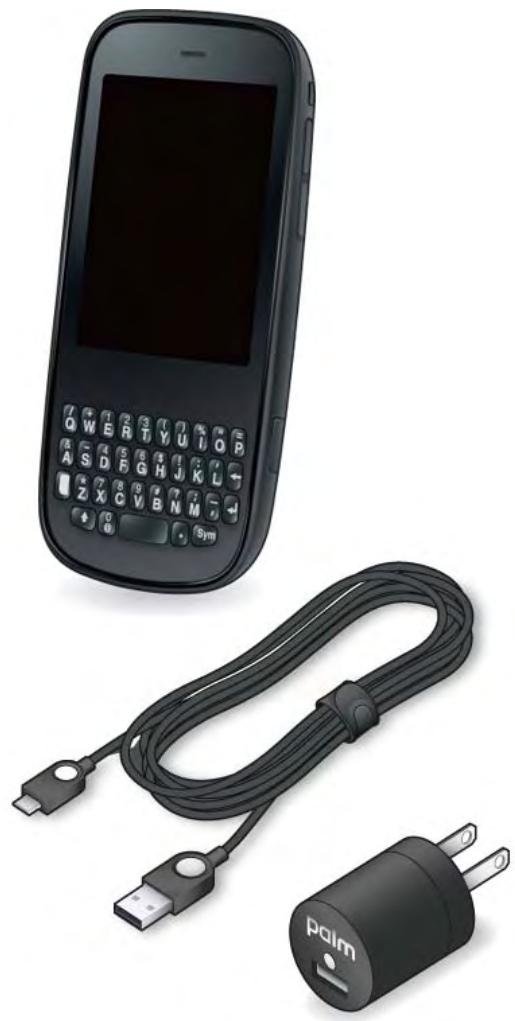
All of the following items are included in the phone box:
Print material
Getting Started guide
- Consumer Information About Radio Frequency Emissions and Responsible Driving
- Gesture Guide
- Limited Warranty
- General User Guide: Important Safety and Legal Information
Hardware
- Palm Pixi Plus phone
- USB cable
- AC charger
- Standard lithium-ion battery (installed)
Where can I learn more?
- On-device Help: Read short how-tos and watch animations on your new phone.
To view all Help: Open Help
To view Help topics for a single application: Open the application, open the application menu, and tap Help.
- Online support from Palm: Visit palm.com/support to edit your Palm profile, watch how-to animations, access the Data Transfer Assistant, and read comprehensive information about your phone.
- Customer service from Verizon Wireless: For questions about your mobile account or features, contact Verizon Wireless's customer care.
Basics
You're about to discover the many things about your Palm® Pixi™ Plus phone that can help you better manage your life and have fun, too. As you become more familiar with your phone, you'll want to personalize the settings and add applications to make it uniquely yours.
But first, take the few easy steps in this chapter to set up your phone and get it running. Then learn about the key features that make moving around on your phone and accessing your information easy: gestures, menus, search, notifications, and more.
In this chapter
10 Get to know your phone
13 Set up your phone
13 Charge the battery
15 Turn the phone on/off
17 Use gestures: tap, swipe, drag, flick, pinch
23 Open applications
24 Work with applications
27 Enter and save information
31 Use the menus
32 Search to find info and make calls
34 View and respond to notifications
35 Update the software on your phone
36 Use App Catalog to shop for new applications
40 Copy files between your phone and your computer
Get to know your phone
Front view
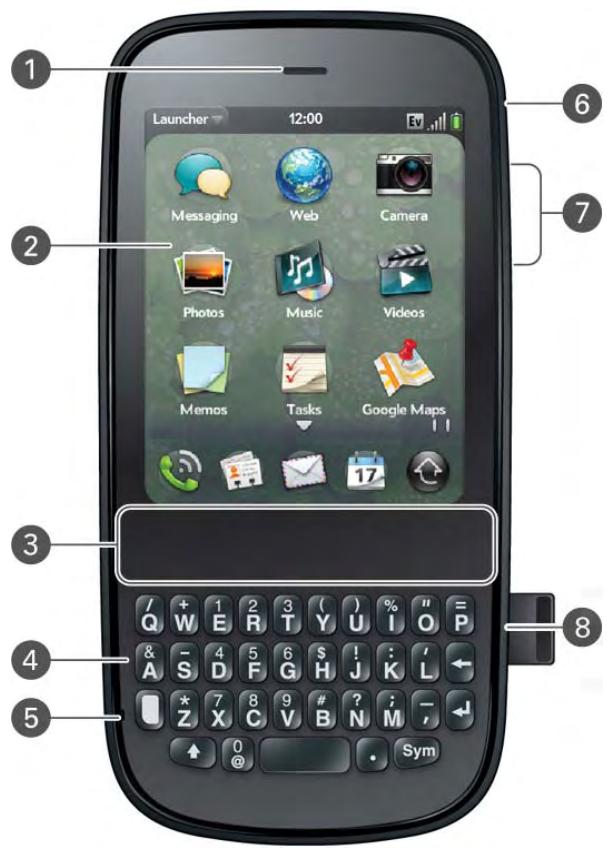
1 Earpiece
2 Touchscreen: Tap and make other gestures directly on the screen. See Touchscreen.
3 Gesture area: Make the back gesture and begin other gestures here.
4 Keyboard: See Use the keyboard.
5 Microphone
6 Ringer switch: Slide to turn the ringer and notification sounds on or off. (Red means off.) The ringer switch does not affect music or video playback sounds.
7 Volume
8 Charger/microUSB connector
IMPORTANT Be careful not to scratch, crush, or apply too much pressure on the touchscreen. Do not store your phone in a place where other items might damage it.
Keyboard
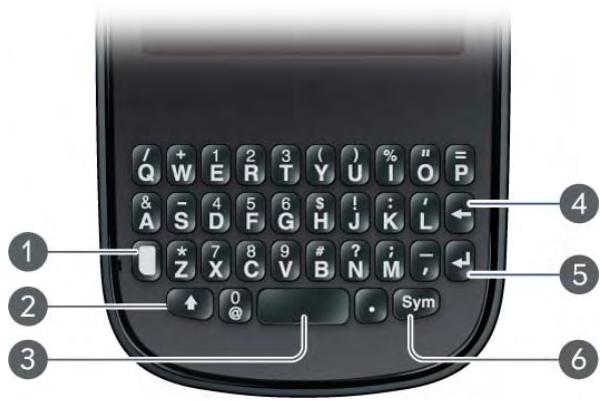
1 Option: Press to enter numbers, punctuation, and symbols that appear above the letters on the keys (see Enter alternate keyboard characters), or to move the cursor (see Text selection gestures).
2 Shift: See Enter uppercase letters.
3 Space
4Backspace
5 Enter: Press to enter a line return (for example, in a memo or in an email message you are composing) or to accept information you entered in a field. See Enter information in a field.
6 Sym: Press to enter symbols and accented characters that don't appear on the keys. See Enter characters from the symbols table.
Touchscreen
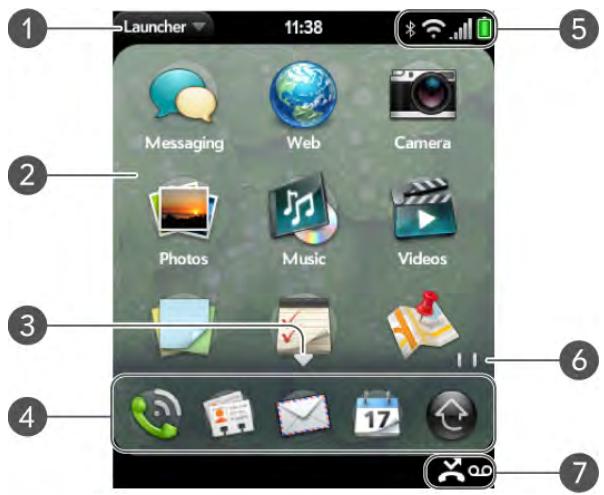
1 Application name: Displays the name of the currently open application. Drag down over the app name to open the application menu.
2 Launcher: See Open an application in the Launcher.
3 Scroll arrow: Swipe up or down to see icons that are on the page but hidden.
4 Quick Launch: See Open an application in Quick Launch.
5 Connection icons: Show the status of wireless service connections and battery strength (see Icons in the title bar). Tap the icons to open the connection menu.
6 Page indicators: Show how many Launcher pages are to the right or the left of the currently displayed page. Swipe left or right on the screen to see other pages.
7 Notification icons: Show missed calls, new voicemail and email messages, and more. Tap the bottom of the screen to view notification details (see View all your notifications).
Icons in the title bar
You can monitor the status of several items using icons in the area at the top of the phone screen:
Table 1. Title bar icons and descriptions
| Item | Description |
| The battery is being charged. | |
| The battery is fully charged. | |
| The battery is low. See Charge the battery. | |
| Airplane mode is turned on. This means that the phone, Wi-Fi feature, and Bluetooth® wireless technology feature are off (incoming calls go to voicemail). See Turn wireless services off (airplane mode). | |
| Wi-Fi is turned on. The number of filled-in bars denotes signal strength. See Wi-Fi. | |
| The phone is searching for a Wi-Fi network. | |
| The phone is on. The number of filled-in bars denotes signal strength. See Turn wireless services on. | |
| 1x | Your phone is connected to a 1x data network. Data is not currently being transmitted over the network. |
| 1x | Your phone is connected to a 1x data network and data is being transmitted over the network. |
| Ev | Your phone is connected to an EvDO data network. Data is not currently being transmitted over the network. |
| Ev | Your phone is connected to an EvDO data network and data is being transmitted over the network. |
| Verizon Wireless | Your phone is on and connected to the Verizon Wireless network. |
| Searching | The phone is searching for the Verizon Wireless network. |
| No Service | The Verizon Wireless network is not available. |
Table 1. Title bar icons and descriptions
| Item | Description |
| Bluetooth® wireless technology is turned on. See Bluetooth® wireless technology. | |
| A Bluetooth connection is in progress. | |
| A Bluetooth connection has been made. | |
| Your phone is performing a search on the characters you entered. If you are in Card view or the Launcher, your phone conducts a universal search (see Search to find info and make calls). If you are in an application such as Contacts or Memos, your phone searches for items within the app that match the search term you entered. | |
| Your phone is in roaming coverage. See Set roaming and data usage preferences. | |
| TTY is turned on. See Enable TTY/TDD. | |
| HAC is turned on. See Enable HAC. |
Back view
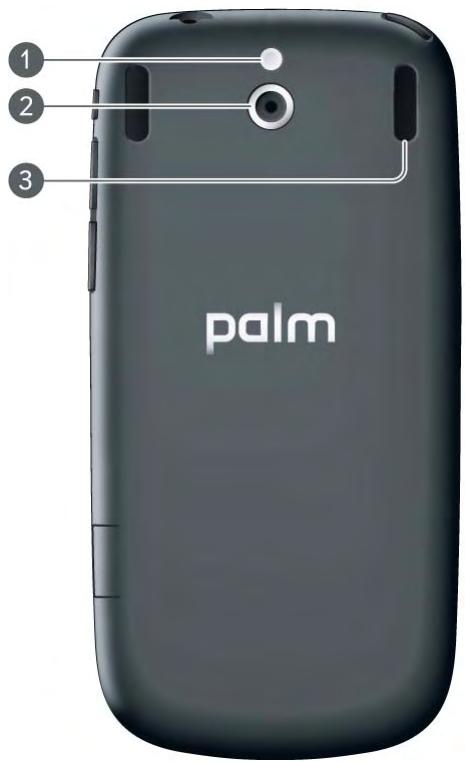
1 Camera flash
2 Camera lens
3 Speaker
Top view

1 3.5mm headset jack
2 Power: Press to wake up or turn off the screen. Press and hold to turn wireless services on and off, replace the battery, or turn your device completely on and off. Turn your device completely off before you remove the battery.
Set up your phone
Complete setup
1 Press and hold the power button G on the upper-left corner of your phone until you see the Palm® logo on the screen (approximately five seconds).
2 Follow the onscreen instructions to complete setup.
3 To create a Palm profile, enter a working email address and select and answer a security question (see What is a Palm profile?).
NOTE If you have a Palm profile from an old webOS phone that you no longer use, you can enter that profile email address and username to download that profile information to your new phone. But if you are still using the other phone, you must create a new Palm profile for your Pixi Plus phone—you can't use the same profile on two phones.
4 Your phone is ready to use. To learn how to make your first call, see Make calls.
Verify your profile
After you finish setup, look for an email on your computer at the address you used for your Palm profile. Click the link in the email to do the following:
- Verify your Palm profile.
- Follow a link to learn about getting data like contacts and appointments onto your phone from your desktop organizer software (see How do I get data off my computer?).
TIP If you don't see the confirmation email in your Inbox, check your spam mail folder in your desktop email program.
What is a Palm profile?
Your Palm profile gives you the following benefits:
Automatic system and software updates are sent to your phone.
- A Palm profile account is automatically created for you on your phone. In this account you can store Contacts and Calendar info that you don't store in online accounts like Google or Exchange.
NOTE You cannot access Palm profile data on the profile website—you can access the data on your phone only.
- Info stored in your Palm profile account, as well as info you have in applications on your phone (like Memos and Tasks), is automatically backed up to servers administered by Palm.
- If your phone is lost or stolen, you can do a remote erase of the info on the phone.
NOTE If you want to erase data on your phone while you are still in possession of the phone—for example, before you give it to someone else—don't do a remote erase. Instead, do a partial or full erase of the phone itself (see Erase data and reset your phone).
For detailed information about your Palm profile, see Backup.
Although you create a Palm profile by entering a valid email address, setting up a Palm profile is different from setting up email on your phone. To set up email, see Set up email. To change your Palm profile information after you have set it up, see Update your Palm Profile settings.
Charge the battery
When the battery is very low, the battery icon in the upper-right corner of the screen changes to red. When the battery is fully charged, the icon appears full and changes to green.
WARNING Use only batteries and chargers that are approved by Palm with your phone. Failure to use a battery or charger approved by Palm may increase the risk that your phone will overheat, catch fire, or explode, resulting in property damage, serious bodily injury, or death. Use of unapproved third-party power supply accessories may damage the phone and void the Limited Warranty for the product.
Although the battery may come with a sufficient charge to complete the setup process, we recommend that after setup you charge your phone until the battery icon in the upper-right corner of the screen is full to ensure that the battery is fully charged.
See Maximizing battery life for tips on making your battery's power last longer.
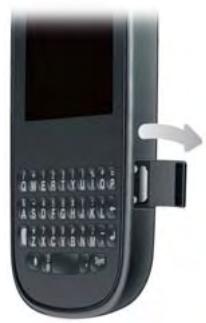
1 On the right side of your phone, open the charger/microUSB connector.
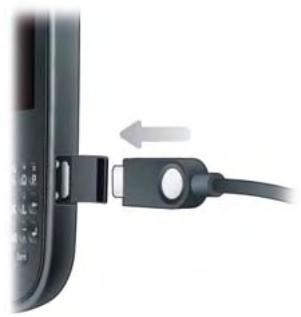
2 Connect the small end of the USB cable to the charger/microUSB connector.
3 Connect the other end of the USB cable to the AC charger.
4 Plug the AC charger into a working outlet.
TIP You can also charge your phone battery by connecting your phone to your computer using the USB cable. Charging this way takes much longer than using the AC charger. Do not, however, connect the Palm® Touchstone™ charging dock (sold separately) to your computer.
Maximizing battery life
Battery life depends on how you use your phone. You can maximize the life of your battery by following a few easy guidelines:
- Charge your phone whenever you can. Charge it overnight. The battery has a much longer useful life when it is topped off frequently than when it is charged after it is fully drained.
- Set your screen to turn off automatically after a shorter period of inactivity (see Set the interval for turning the screen off automatically).
-
Keep your battery away from direct sunlight and other sources of heat. Temperatures over 113 degrees Fahrenheit (45 degrees Celsius) can permanently reduce the capacity and life span of any lithium-ion battery.
-
As with any mobile phone, if you are in an area with no wireless coverage, your phone continues to search for a signal, which consumes power. Turn off your phone if you are outside a coverage area (see Turn wireless services off (airplane mode)).
- The fewer wireless connections you have, the less power is required of the battery. Turn on airplane mode when you don't need to be wirelessly connected. Airplane mode turns off your connection to the Verizon Wireless network, and it also turns off Wi-Fi and Bluetooth. You can turn on Wi-Fi (see Wi-Fi) and Bluetooth (see Bluetooth® wireless technology) separately when airplane mode is on. You can also turn off GPS (see Location Services).
- If you set up an email account in the Email application, set the interval to automatically download email to every two hours or less frequently (see Enter advanced account settings).
- Lower the screen brightness (see Change screen brightness).
- Keep in mind that frequent use of instant messaging (IM) can reduce battery life.
- Turn the phone completely off if you won't be using it for an extended period of time (see Turn everything (the screen and wireless services) on/off).
- Buy an extra battery as a spare for long plane trips or periods of heavy use. To purchase batteries that are compatible with your phone, go to palm.com/store and click Accessories for your phone.
Turn the phone on/off
Your Pixi Plus phone's screen can be turned on and off separately from its wireless services (which are the Phone app, Wi-Fi app, and Bluetooth app). This means you can wake up the screen to use just the organizer features of your device (Calendar, Contacts, Tasks, Memos, and so on) without turning on the phone and other wireless features. Also, when the screen is turned off, the phone can be on and ready for you to receive phone calls or messages.
Turn the screen on/off
Turn the screen on and leave the wireless services turned off when you want to use only the organizer features, for example, when you're on a plane and you must turn off all wireless services, but you want to look at your calendar.
To turn the screen on, press power G. Drag up to unlock the screen.
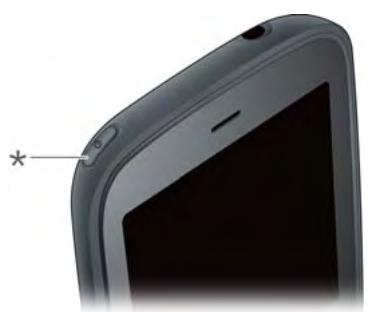
* Power
To turn the screen off, press power G .
To save power, the screen dims automatically after a period of inactivity and then turns off. You can be on a call when the screen dims and turns off—this does not affect the call. To brighten the screen after it dims, tap the screen.
TIP You can set how long the screen stays on during a period of inactivity (see Set the interval for turning the screen off automatically).
Turn wireless services off (airplane mode)
Airplane mode turns off your phone as well as the Wi-Fi and Bluetooth® wireless technology features. Use airplane mode when you are on a plane or anywhere else you need to turn off all wireless services. You can't browse the web, but you can still use apps like Calendar, Contacts, Photos, Music, Doc View, and PDF View.
Do one of the following:
- Tap the upper-right corner of any screen to open the connection menu. Tap Turn on Airplane Mode.
- Press and hold power G and tap Airplane Mode.
When your phone is in airplane mode, the airplane mode icon appears at the top of every screen, and Airplane Mode appears in the upper-left corner of the screen in the Launcher, Card view, and Phone. Your phone is not connected to any mobile network.
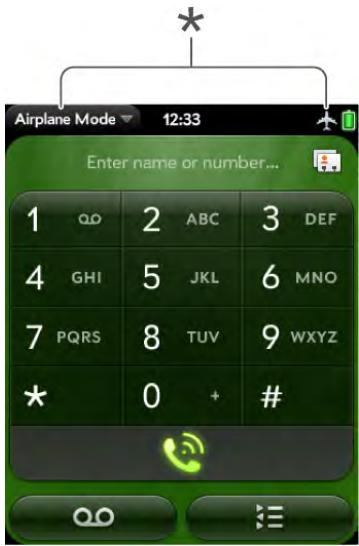
* These indicate that wireless services are off (airplane mode).
TIP When your phone is in airplane mode, you can turn the Wi-Fi and Bluetooth features on individually (see Turn Wi-Fi on and off and Turn the Bluetooth feature on/off). To turn your phone back on, you must turn airplane mode off.
Turn wireless services on
When you turn on your phone, it automatically connects to your mobile network so that you can make and receive phone calls and use other wireless services (if supported by the local network).
- If airplane mode is turned on, you need to turn it off before you can connect to your mobile network. Tap the upper-right corner of any screen to open the connection menu. Tap Turn off Airplane Mode.
When your phone locates a signal, Verizon Wireless appears in the upper-left corner of the screen in the Launcher, Card view, and Phone, and the signal-strength icon appears at the top of the screen.
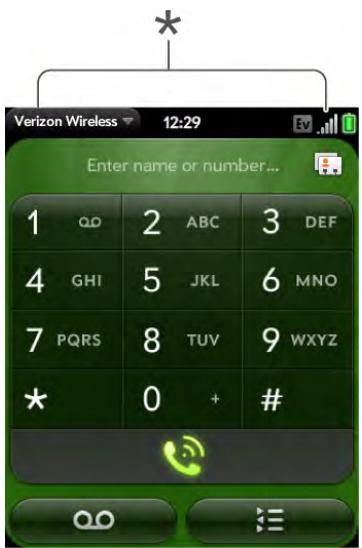
* These indicate that wireless services are on.
When you are inside a phone coverage area, the bars on the signal-strength icon are filled in. If you're outside a coverage area, the bars in the signal-strength icon appear dimmed with an X.
Turn everything (the screen and wireless services) on/off
Usually, turning your phone off and/or putting it in airplane mode is sufficient for normal periods when you have the phone with you but you're not using it. On rare occasions, however, you may want to put your phone into deep sleep because you are not going to use it for an extended period. At those times, do one of the following:
- Open Device Info and tap Reset Options. Tap Shut Down, and tap Shut Down again.
- Press and hold power G, and tap Power. Tap Shut Down/Swap Battery, and tap Shut Down.
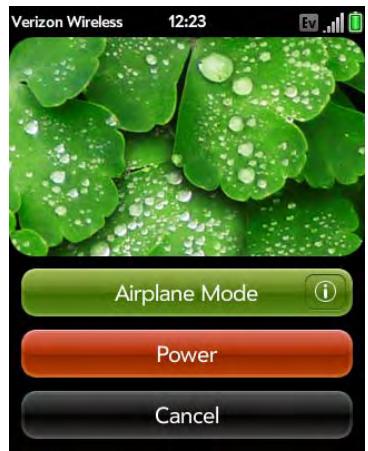
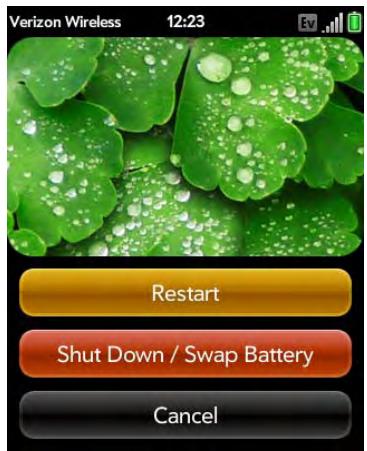
NOTE When you turn everything off, the phone's alarms, ringer, and notifications are also turned off.
To turn both the screen and wireless services back on, press and hold power G .
Use gestures: tap, swipe, drag, flick, pinch
Gestures are an important, basic part of your phone. They're easy to learn, and they make working with the phone fast. You make most gestures with one finger. For a few, you need two. Make gestures with the tip of your finger. Don't use your fingernail. Don't bear down.
To see short animations illustrating how to do gestures, go to palm.com/support or tap Clips in Help on your phone (see Open applications for information on how to open Help).
You make gestures in two areas on your phone: the touchscreen and the gesture area. The gesture area is the black area extending along the bottom of the screen.
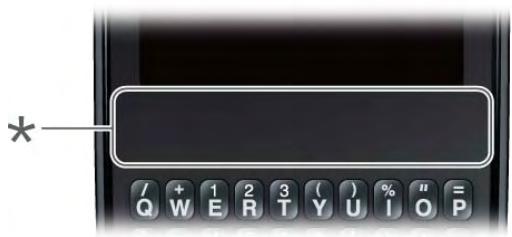
* Gesture area
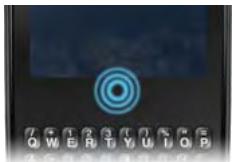
When you're working in an application, the gesture area displays a lighted bar in the center. The lighted bar also appears when you tap the center of the gesture area to maximize a card in Card view.
Basic gestures
Tap: Tap with the tip of the finger—not the fingernail. Tap fast and firmly, and then immediately lift your fingertip off the screen. Don't bear down on what you're tapping. Don't wait for a response; the response comes after you lift your finger. Don't linger on the gesture; a tap takes a split second to do.
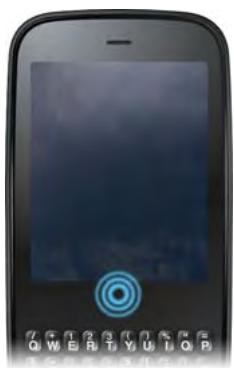
Tap the center of the gesture area to do the following:
- When you're working in an application, tap the center of the gesture area to see Card view. Card view shows you all the applications that are currently open, displayed as a series of cards (small active windows).
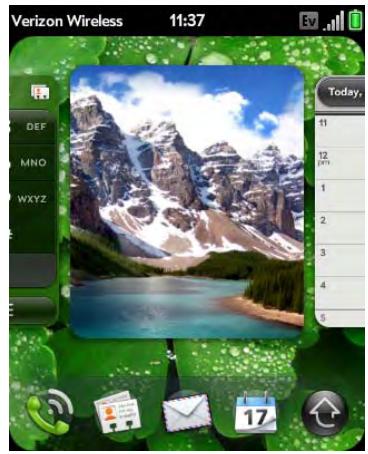
- When you're in Card view, tap the center of the gesture area to maximize the app in the center of the view.
Swipe: A swipe is most often a horizontal gesture, from right to left or left to right. Do it fast, do it lightly. In a swipe, your fingertip just skims the surface of the touchscreen or gesture area.
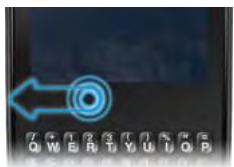
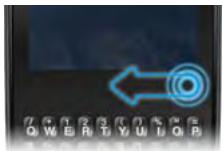
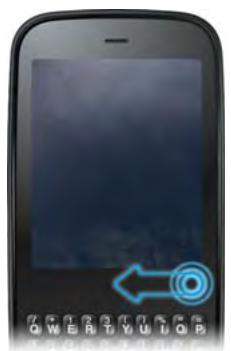
One kind of swipe you'll use a lot: Back. Make the back gesture from right to left anywhere in the gesture area. Back takes you up one level from a detailed view to a more general view of the application you're working in.
For example, when you finish reading an email message, make the back gesture to close the message and return to your list of messages. Or when you finish writing a memo, make the back gesture to close and save the memo and return to the display of all your memos. When you make the back gesture in an application and that's the only screen of that app that's open, you minimize the app and go back to Card view.
In Web, the back gesture performs the same function as the back button on the browser, allowing you to move back through previously viewed pages.
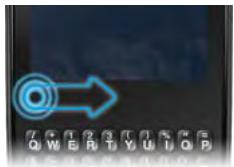
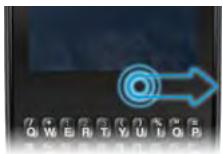
The forward gesture, available in Web only, is a swipe from left to right anywhere in the gesture area. The forward gesture allows you to move forward through previously viewed web pages.
Drag: Drag is the gesture you make for a slow scroll up and down a list. Slide your fingertip slowly along the surface—no need to bear down.
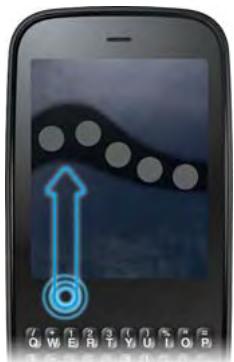
One kind of drag that you'll use a lot brings up Quick Launch when you're in an application. This drag gesture begins in the gesture area and ends on the touchscreen. As your fingertip slowly crosses the border between the gesture area and the touchscreen, it seems to drag Quick Launch into view. To open one of the apps in Quick Launch, move your finger to its icon. When you see the app name appear, lift your finger. The application opens.
You also make the drag gesture as part of a drag and drop.
Flick: As its name tells you, this is a quick gesture, great for scrolling long lists. Do it fast, do it lightly; as with a swipe, your fingertip just skims the surface. The faster you flick, the faster and farther you scroll up or down a list.
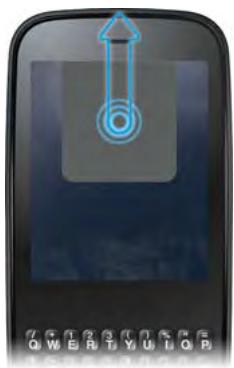
To close an application in Card view, flick the card up toward the top of the touchscreen. This is called throwing the card off the top of the screen.
In some applications, such as Email and Messaging, you can throw a list item off the side of the screen to delete the item.
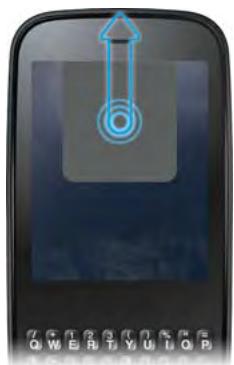
If an application is maximized, you can flick up from the gesture area to the screen to minimize the app and display Card view. This is the up gesture. If you make the up gesture when Card view is displayed, you open the Launcher.
Scroll gestures
Scroll slow: Drag the screen in the desired direction.
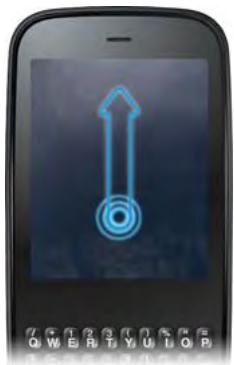
Scroll fast: Flick the screen in the desired direction.
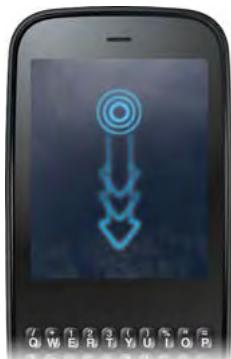
Stop scrolling: Tap or drag the screen while scrolling.
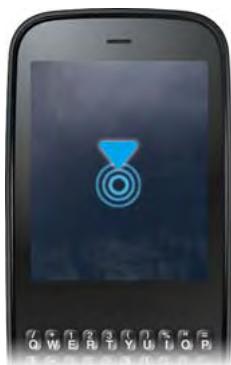
Zoom gestures
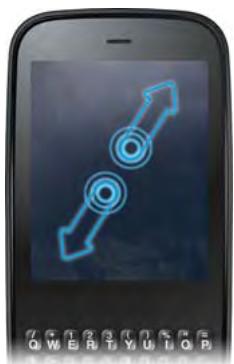
Zoom in/pinch out to increase the size of items on the screen in Email, Web, Photos, Doc View, PDF View, Google Maps: Place two fingers on the screen and spread them slowly apart.
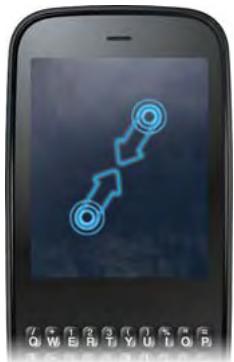
Zoom out/pinch in to decrease the size of items on the screen in Email, Web, Photos, Doc View, PDF View, Google Maps: Place two fingers on the screen and bring them together.
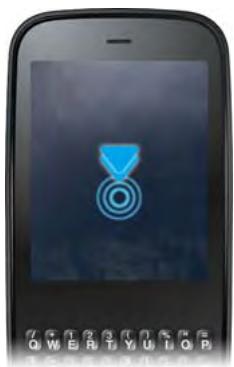
Zoom in or out a fixed amount in Web, Photos, Doc View, PDF View: Double-tap the screen.
Text selection gestures
TIP See Cut, copy, and paste information and Use the Copy All or Select All feature for information on working with text you've selected.
Insert the cursor in a text field: Tap the location.
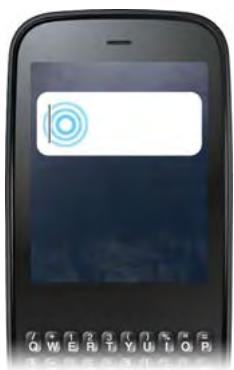
Move the cursor: Tap the location to insert the cursor. Press and hold Option . Place your finger anywhere onscreen and drag your finger in the direction you want to move the cursor.
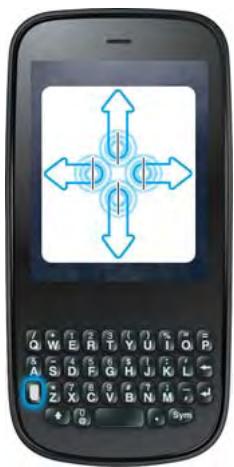
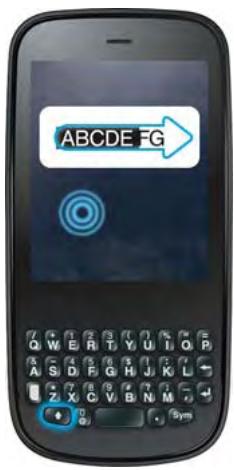
Select text when you can see a cursor: Tap the location to insert the cursor. Press and hold Shift. Place your finger anywhere onscreen and drag your finger in the direction you want to select text. Tap the highlighted text to deselect it.
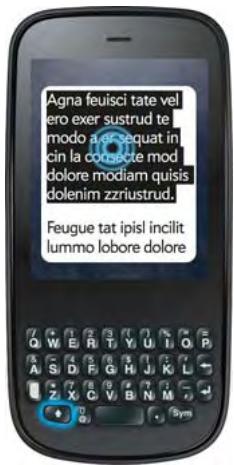
Select a paragraph of text: When you cannot insert a cursor in the text—for example, on a web page or in an email message you received—the smallest amount of text you can select is a whole paragraph. Press and hold Shift , and then tap a paragraph. Tap an adjacent paragraph to add it to your selection (you can't skip around). If you need to scroll down to select the next paragraph, release Shift , scroll, press Shift , and tap the paragraph. Tapping any part of the highlighted selection deselects it.
Drag and drop
Tap and hold the item, drag it, and then lift your finger to drop it. You get a visual cue that the item is ready to be dragged. For example, an icon in the Launcher is ready to be dragged when you see a halo around the icon. A
card in Card view is ready to be dragged when it changes size and becomes transparent.
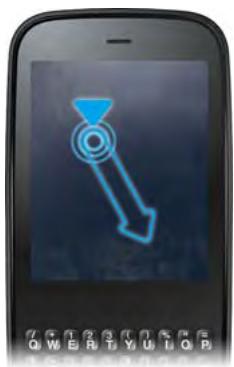
Delete a list item
Throw the item off the side of the screen. If prompted, tap Delete to confirm the deletion.
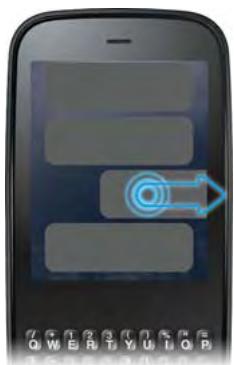
The delete gesture is available in applications such as Email, Messaging, Tasks, Music, and Bluetooth. If you can't delete a list item by throwing it, open the item and look in the application menu for a delete command.
TIP To delete multiple list items, throw each one off the screen. If you get the Delete confirmation prompt after throwing the first item, you don't need to tap it—just throw the second item, and the first deletion is confirmed automatically.
Open applications
You can have as many applications open at one time as you like, limited only by the amount of memory available on your phone at the time.
Open an application in Quick Launch
Quick Launch is the bar of five icons that is always available at the bottom of Card view and the Launcher. To open an application from Quick Launch, just tap the icon.
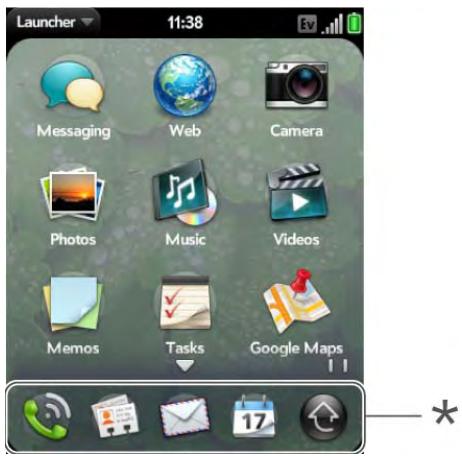
* Quick Launch
Quick Launch can display no more than five icons. By default it displays, from left to right, Phone, Contacts, Email, Calendar, and the Launcher. You can change the order of icons (except the Launcher icon) in Quick Launch (see Reorder Quick Launch icons), or swap in whatever applications you like (see Change the applications that appear in Quick Launch).
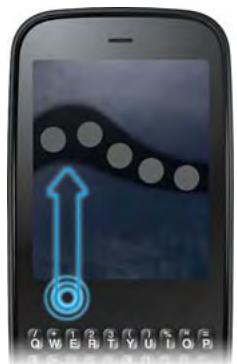
When an application fills the whole screen, make the following gesture to display Quick Launch and open one of its applications.
1 Drag up slowly from the gesture area to the screen.
NOTE Don't confuse this "drag up" with the up gesture, which is a flick up from the gesture area to the screen that displays Card view.
2 Move your finger to the application icon. When you see the app name appear, lift your finger. The application opens.
Open an application in the Launcher
The Launcher displays all your applications that are not on Quick Launch. The Launcher includes multiple pages, which you can organize to group apps the way you want (see Reorder Launcher icons).
1 Tap the center of the gesture area to open Card view, and tap
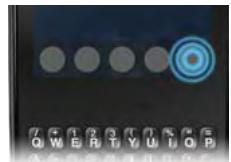
TIP You can also open the Launcher by flicking up twice from the gesture area to the screen. If you are in Card view, just flick up once to open the Launcher.
2 To find the app you want, swipe up or down to see all the icons on a page. Swipe left or right to see other pages.
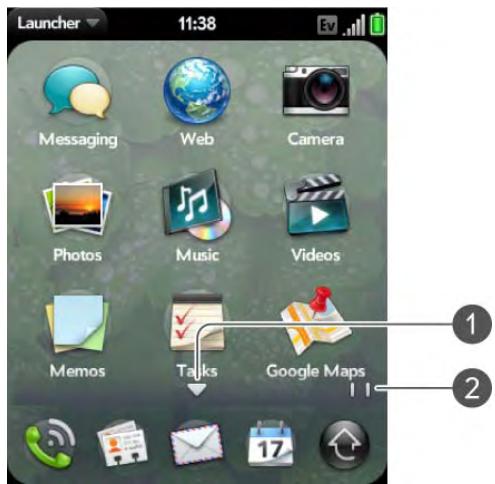
1 Arrow indicates that you can swipe up to see partially or fully hidden icons.
2 Page indicators show that there are two Launcher pages to the right—swifte right to left on the screen to see them.
3 Tap the application icon.
To close the Launcher, do one of the following:
- Tap the center of the gesture area.
- Tap
- Make the up gesture: Flick up from the gesture area to the screen.
Open an application using search
1 Tap the center of the gesture area to open Card view.
2 Enter the name of or a keyword for the application (see Universal search application keywords).
3 When the application icon appears in the search results, tap it.
Work with applications
Go up one level in an app (back gesture)
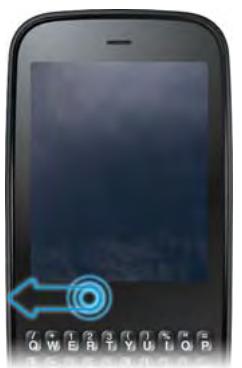
The back gesture takes you up one level from a detailed level to a more general view of the application you're working in. For example, when you finish reading an email message, make the back gesture to close the message and return to your list of messages. Or when you finish writing a memo, make the back gesture to close and save the memo and return to the display of all your memos. When you make the back gesture in an application and that's the only screen of that app that's open, you minimize the app and go back to Card view.
To make the back gesture, swipe right to left anywhere in the gesture area.
Display all open applications (Card view)
Card view displays open applications as small cards, so that you can easily scroll through them and drag them to change their order.
When an application fills the screen and you want to go to Card view, do one of the following:
- Tap the center of the gesture area.
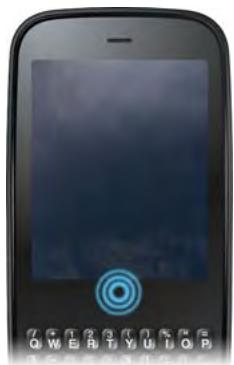
- Make the up gesture: Flick up from the gesture area to the screen.
Move among open applications
1 In Card view (see Display all open applications (Card view)), swipe left or right on the screen to see other open apps.
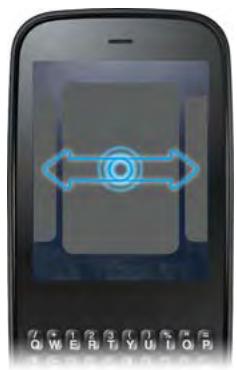
2 Tap a card to maximize the application.
TIP You can also maximize the center card in Card view by flicking down from the screen to the gesture area.
TIP You can set a preference to move among open apps without first going to Card view (see Turn advanced gestures on/off).
Reorder open cards
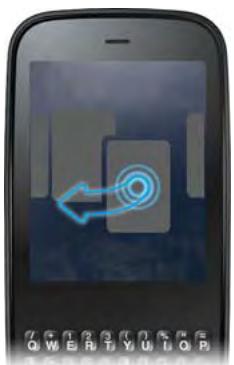
1 In Card view (see Display all open applications (Card view)), tap and hold a card to further reduce the size of the cards.
TIP You can also tap anywhere on the screen around the cards to reduce the size of the cards.
2 Tap and hold a card, and after the card becomes transparent, drag it to another position.
Close an application
- In Card view (see Display all open applications (Card view)), throw the card off the top of the screen.
Change the applications that appear in Quick Launch
If Quick Launch contains five icons, you must remove an application from Quick Launch before you can add another one. You can remove any application except the Launcher.
1 Open the Launcher. Quick Launch appears at the bottom.
2 Tap and hold a Quick Launch icon, and after the halo appears around the icon, drag it onto the Launcher.
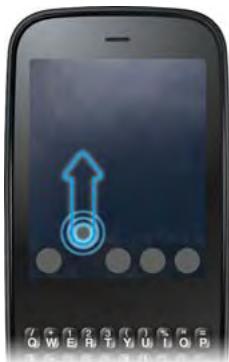
3 Tap and hold an icon in the Launcher, and after the halo appears around the icon, drag the icon onto the Quick Launch bar.
Reorder Quick Launch icons
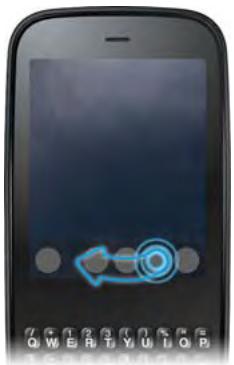
You can change the position of any Quick Launch icon except the Launcher icon.
1 In Card view, tap and hold a Quick Launch icon.
2 After the halo appears around the icon, drag it to another location.
Reorder Launcher icons
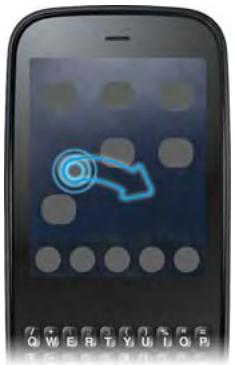
1 In the Launcher, tap and hold an icon.
2 After the halo appears around the icon, drag it to another location.
3 To move the icon to another page, drag it to the left or right edge of the screen. Don't release the icon until the new page appears.
Delete an application
You can delete applications that you installed on your phone.
1 While pressing and holding Option , tap the app icon.
2 Tap Delete.
TIP You can also delete an application you installed by opening the Launcher, opening the application menu, and tapping List Apps. On the list of applications, tap and hold an app name or throw the app of the side of the screen, and then tap Delete.
Enter and save information
Use the keyboard
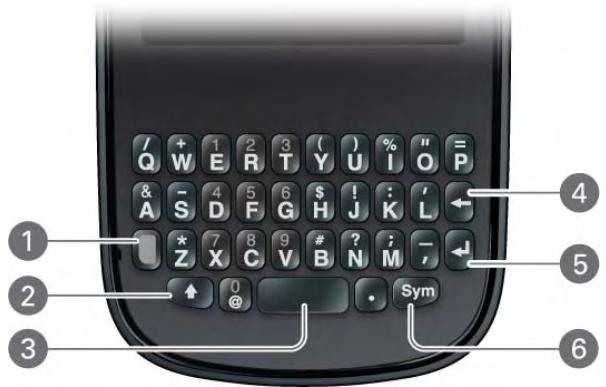
1 Option: Press to enter numbers, punctuation, and symbols that appear above the letters on the keys (see Enter alternate keyboard characters), or to move the cursor (see Text selection gestures).
2 Shift: See Enter uppercase letters and Text selection gestures.
3 Space
4Backspace
5 Enter: Press to enter a line return (for example, in a memo or in an email message you are composing) or to accept information you entered in a field. See Enter information in a field.
6 Sym: See Enter characters from the symbols table.
Enter uppercase letters
By default, the first letter of each sentence or field is capitalized and the remaining text you enter is lowercase. To enter other uppercase letters, do one of the following:
- Press Shift and press the letter key. The Shift symbol appears: . You don't need to hold down Shift while you press the letter key.
- Turn on Caps Lock: Press Shift twice. The Caps Lock symbol appears: .
- Turn off Caps Lock: Press Shift.
Enter alternate keyboard characters
Numbers, punctuation, and symbols appear above the letters on the keys. To enter these characters, do one of the following:
- Press Option and press the key for the character. The alternate character symbol appears: . You don't need to hold down Option while pressing the second key.
- Enter a series of alternate characters: Press Option twice to turn on Option Lock. The Option Lock symbol appears: .
- Turn off Option Lock: Press Option .
Enter passwords
You can see each character of a password only as you enter it, so be careful. Be sure Caps Lock and Option Lock are off unless you need them. For information on how to enter characters, see Enter uppercase letters and Enter alternate keyboard characters.
Enter characters from the symbols table
You can enter symbols and accented characters that don't appear on the keys by using the symbols table. See Symbols and accented characters for a list of the available symbols and accented characters.
1 Press Sym to display the symbols table.
2 Narrow the list by pressing the key that corresponds to the character you want. For example, to enter an é, press e. See the table below for a list of corresponding characters.
TIP The symbols and accented characters are grouped according to their similarity to the corresponding key. In some cases, the symbol is related to the alternate character on the key, not the letter. For example, to type a or other currency symbol, press Sym + h. Why? Because the alternate character on the H key is \ 123,456$ .
TIP If you press the wrong key, press Backspace to return to the full list of symbols and accented characters. You can then press another key.
3 Scroll to find the character you want.
4 Tap the character to insert it.
Symbols and accented characters
Table 2. Symbols and accented characters
| Press Sym Sym and press... | to select... |
| a or A | à à ā aā āæ ÅÅ ÅÅ ÅÅ ÅE a ~ \ • ÷^ [] {} < > ≪» Ø μ | |
| b or B | ~ \ • ÷^ [] {} < > ≪» Ø μ | |
| c or C | © Ⓒ Ⓒ Ⓒ Ⓒ |
| d or D | † ‡ |
| e or E | éèëëë ÉÉÉÉ € 1 1/4 1/2 |
Table 2. Symbols and accented characters
Press Sym and to select...
press...
h or H £ f i or I i i i i i i i ÷ % j or J i
k or K :-):-(;-)
I or L ' ', ''
m or M : -: (· -) n or N ; o or O p or P ^ ÷^ [] < > | q or Q | r or R ⑧ 2 s or S ^ ÷^ [] < > | t or T ^TM334 u or U [] < > v or V w or W ÷^ ± x or X x^a y or Y y'Y'Y[] < > z ,or_ \~\·÷^[]{< > «»∅ μ|
. ...~\\·÷^[]{< > «»∅ μ|
@ °·∅
Enter information in a field
You can enter information in a field by typing or by pasting previously copied information (see Cut, copy, and paste information).
Applications with text fields support the auto-correct feature. If the app recognizes a common misspelling, it auto-corrects the word. To cancel the auto-correction, press Backspace .
To accept the information you entered, do one of the following:
- Tap outside the field.
- Press Enter. If a screen contains multiple fields, pressing Enter accepts the information you just entered and jumps the cursor to the next field.
- When you are done entering information on the screen containing the field, make the back gesture to accept the information and back out of the screen (see Go up one level in an app (back gesture)).
Select items in a list
Lists enable you to select from a range of options. Lists are different from menus (see Use the menus), which give you access to additional features.
Lists are hidden until you tap the currently displayed option for that list.
1 Tap the currently displayed option to open the list. For example, when creating a new event in Calendar, tap 15 minutes before to display the list of reminder options.
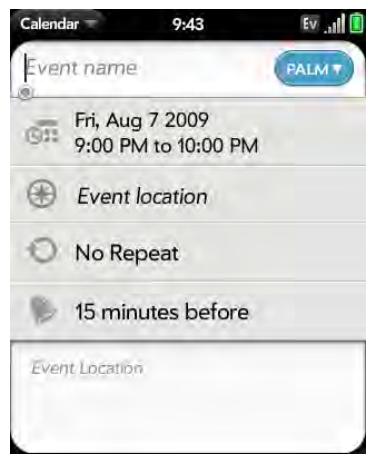
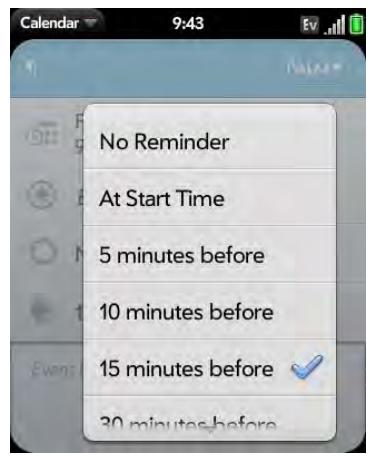
2 Tap the list item you want.
Cut, copy, and paste information
You can copy any selectable text, and you can cut any selectable text that you yourself entered, for example, in a memo or an email. This includes text
you can select by dragging the cursor and paragraphs you can select by tapping them (see Text selection gestures).
1 Select the text you want to cut or copy (see Text selection gestures).
2 Open the application menu and tap Edit > Cut or Copy.
3 Open the app and insert the cursor where you want to paste the text (see Text selection gestures).
4 Open the application menu and tap Edit > Paste.
TIP You can also use keyboard shortcuts to cut, copy, and paste. After selecting the text or inserting the cursor, press and hold the gesture area until a light appears under the surface of the gesture area, and press X (cut), C (copy), V (paste), or A (copy/select all, in apps that support this feature).
Use the Copy All or Select All feature
Some applications offer a Copy All menu option. For example, in Messaging, you can start or open a conversation, open the application menu, and tap Edit > Copy All. This saves the entire conversation as plain text, which you can paste in a memo, email message, and so on.
Other apps offer a Select All menu option. For example, in Memos, you can open a memo, open the application menu, and tap Edit > Select All. This highlights the full memo text, which you can cut or copy.
Some apps offer both the Copy All and Select All features to perform different text selection tasks:
Email: In an open email message in Email, use Copy All to copy the entire message (including header info such as sender, recipient, and subject), or use Select All to select just the message body text (see Copy messages).
Contacts: On the contact details screen, use Copy All to copy the contents of the contact entry as plain text; or, on the contact edit screen, insert the cursor in a field and use Select All to highlight the contents of that field.
Save information
- On most screens, your information is saved automatically. Just make the back gesture to close the screen (see Go up one level in an app (back gesture)), and your info is saved at the same time.
- Your info is also saved if you minimize an app screen to a card and throw the card off the top of the screen to close the app.
- On screens with a Done button, tap Done to save your information.
Use the menus
Most applications have an application menu hidden in the upper-left corner, which provides access to additional features. There is also a connection menu hidden in the upper-right corner, which provides access to wireless services.
Some applications have additional menus. For example, in Photos, tap an open picture and tap to display a menu of tasks you can do with the picture (see Photos).
To get the most out of your phone, it's a good idea to familiarize yourself with the additional features available through the menus in various applications.
Open the application menu
The application menu contains items for the application you are working in, such as Cut and Copy, Preferences, Help, and other application-specific commands.
1 Do one of the following:
- Drag down from the upper-left corner of the phone (above the screen) onto the screen.
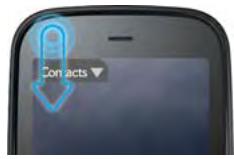
- Tap the application name in the upper-left corner of the screen.
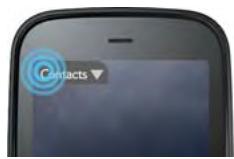
2 Tap a menu item to open it. If a menu item displays a right-pointing arrow , tap the item to display the submenu for that item—for example, tap the Edit menu item to open a submenu containing Cut, Copy, and Paste items. If you see a downward-pointing arrow at the bottom of the menu, scroll down to see additional menu items.
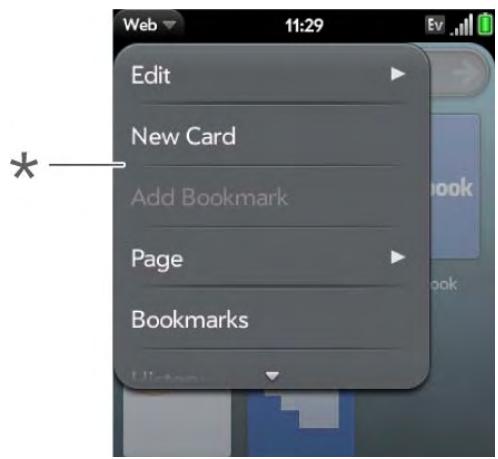
- Application menu
Open the connection menu
The connection menu lets you manage wireless services—the phone, Wi-Fi, and Bluetooth® wireless technology.
DID YOU KNOW? The connection menu also displays the current day and date and the battery charge level.
1 Do one of the following:
- Drag down from the upper-right corner of the phone (above the screen) onto the screen.
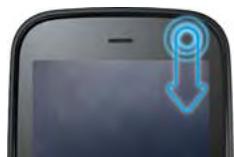
- Tap the upper-right corner of the screen.
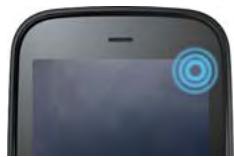
2 Tap a menu item to turn that wireless feature on or off or to display a list of menu items for that feature (see Turn wireless services off (airplane mode)). If you see a downward-pointing arrow at the bottom of the menu, scroll down to see additional menu items.
Search to find info and make calls
Use universal search
You can search for contacts and applications on your phone, or search the web.
1 Open Card view (see Display all open applications (Card view)) or the Launcher (see Open an application in the Launcher).
2 Begin typing a search term or keyword (see Universal search application keywords). As you type, search displays any contact names and application names that match the character or application names that are associated with the keyword. As you continue typing, the search results narrow.
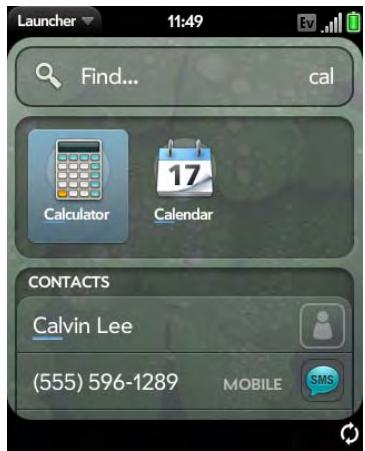
TIP You can also start a search by copying text in another application, opening the Launcher, and pasting the text. The text appears at the top of the screen as the search term. Note that you can't paste text in Card view.
3 Do one of the following:
- To look up or get in touch with someone: Tap a contact name to open the person's contact information. Tap a phone number to dial it, an email address to send a message, and so on. If only the contact name is displayed, tap the name to display ways to get in touch. You can also tap Add Reminder to add a reminder message to the contact (see Assign a reminder message to a contact).
- To perform a web search: Tap the search term you entered to open a list of web search options, and tap the option. If your search returns no contacts or applications, the web search options are displayed automatically.
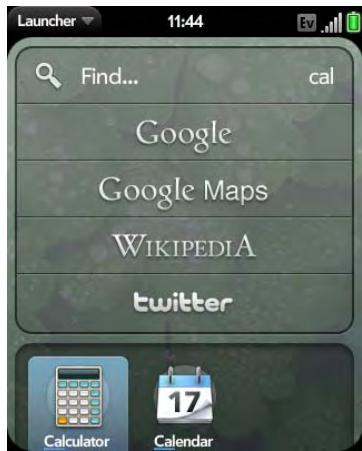
- To open an application: Tap the application.
Universal search application keywords
If you don't know the name of the app you are searching for, you can enter a keyword associated with the app. This table shows the keywords you can use to find an app on your phone.
Table 3.
| Application Name | Keywords |
| App Catalog | Store |
| Backup | Settings, Preferences |
| Bluetooth | Settings, Preferences, Wireless |
| Calendar | Datebook, Meetings, Events |
| Clock | Alarm, Time, Watch |
| Contacts | Addresses, People |
| Date & Time | Clock, Settings, Preferences |
| Device Info | Settings, Preferences, Reset |
| Doc View | Word, Excel, PowerPoint |
| Google Maps | Maps |
| Location Services | Settings, Preferences |
| Memos | Notes, Stickies, Notepad |
| Messaging | Text, SMS, MMS, IM, Instant Chat |
| Music | Songs, Tunes, Audio |
| PDF View | Acrobat |
| Phone | Dial |
| Photos | Pictures |
| Regional Settings | Settings, Preferences |
| Screen & Lock | Wallpaper, Security, Desktop, Brightness, Unlock, Gestures, Settings, Preferences |
Table 3.
| Application Name | Keywords |
| Sounds & Ringtones | Audio, Music, Volume, Vibrate, Silent, Settings, Preferences |
| Tasks | To Do, Todos, Checklist |
| Updates | Settings, Preferences |
| Videos | Movies |
| Web | Browser, Blazer, Internet |
| YouTube | Videos, Movies |
Search within an application
In applications such as Contacts, Email, Memos, Doc View, and PDF View, you can search for entries or files. From the list view, enter the file name; a few words from a memo; or a contact name, initials, address, or number. See the individual application sections for details.
You can also enter a search term in the Help application to search for help content related to the term.
View and respond to notifications
Respond to a notification
Notifications show up at the bottom of the screen to notify you of new voicemail and messages, upcoming appointments, missed calls, and more.
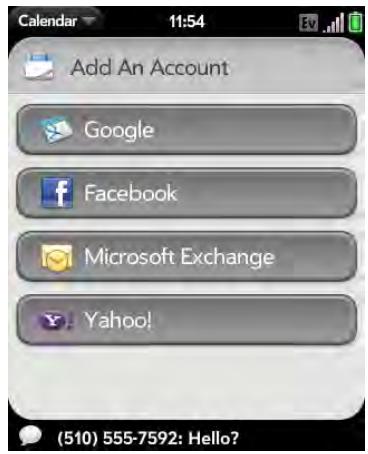
Do one of the following:
- Tap the notification to act on it.
- For some types of notifications, throw the notification off the side of the screen to dismiss it.
View all your notifications
For most types of notifications, if you do not tap a notification after a few seconds, it becomes an icon in the lower-right portion of the screen.
1 Tap anywhere on the bottom of the screen to display your notifications.
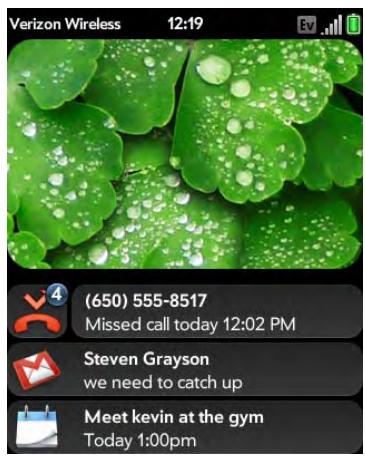
2 Tap a notification to act on it.
Reorder notifications and other dashboard items
The area that displays all of your notifications (see View all your notifications) is called the dashboard.
-
Tap and hold a dashboard item, and then drag it to a different location.
-
Throw a dashboard item off the side of the screen to dismiss it.
Update the software on your phone
Palm continually provides updates to your phone's operating system. Update notifications are sent to your phone automatically when a system update is available (see Respond to a system software notification). When you update your phone's operating system, your personal information and files are not affected. In addition to receiving update notifications, you can manually check for operating system updates at any time (see Manually check for system updates).
What's more, both Palm and many application developers make updates available for applications you have installed on your phone. You can check in App Catalog at any time for application updates (see Update downloaded applications).
Respond to a system software notification
When you get a notification that a system update is available, do one of the following:
- Tap Install Now twice. When installation is complete and the phone resets, tap Done. Installation may take around 15 minutes.
- Tap Install Later. The next time you charge your phone, you receive another update notification. You can again choose whether to install the update now or later. If you do not tap Install Later within 10 minutes of receiving the notification, installation begins automatically.
NOTE You can use your phone while updates are being downloaded, but you cannot use your phone while updates are being installed—including making emergency calls.
IMPORTANT Do not remove the battery while updates are being installed.
Here is some additional information about system updates:
- If you have Wi-Fi turned on and the battery has at least a 30% charge, your phone automatically downloads a system update if one is available—you don't have to do anything. If Wi-Fi is not turned on when the update becomes available, the Palm servers continue to check your phone for Wi-Fi availability for two days.
-
If you do not have Wi-Fi turned on anytime within two days of an update's becoming available, your phone automatically downloads the update over Verizon Wireless's network as long as the battery has at least a 30% charge and you have a data connection, as indicated by the Ev or Ix icon at the top of the screen.
-
If the battery has less than a 30% charge, you must charge the battery before you can download or install an update.
- To avoid roaming charges, updates are not downloaded if your phone is in roaming coverage.
- If you do not install an update immediately after downloading it, you are prompted to install the update the next time you charge your phone. You can choose whether to install the update now or later. You have ten minutes to decide; otherwise, the update installs automatically.
Manually check for system updates
1 Open Updates
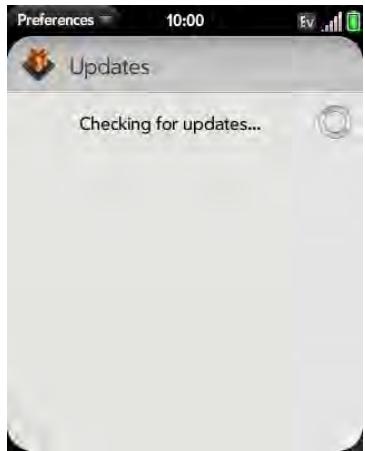
2 If a message appears stating that a system update is available, do the following:
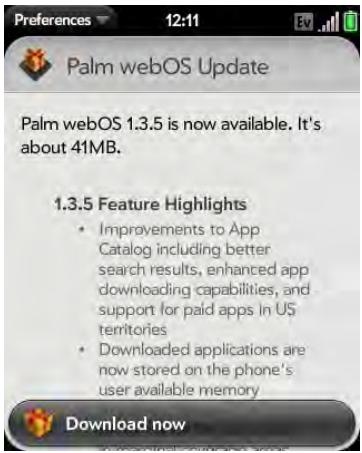
- Tap Download Now.
- When prompted, tap Install Now.
- After installation has finished and the phone resets, tap Done.
IMPORTANT Do not remove the battery while updates are being installed.
Use App Catalog to shop for new applications
Browse applications in App Catalog
Use App Catalog to browse and download any of the many applications available for your phone. App Catalog contains both free apps and apps you can buy.
NOTE Applications you installed on your old Palm OS® by ACCESS or Windows Mobile smartphone do not work on your Pixi Plus phone because your Pixi Plus phone uses the new Palm® webOS™ platform. Check App Catalog for a new version of your old favorites. Or purchase the Classic app from App Catalog. Classic enables you to run many Palm OS applications on your Pixi Plus phone.
1 Open App Catalog
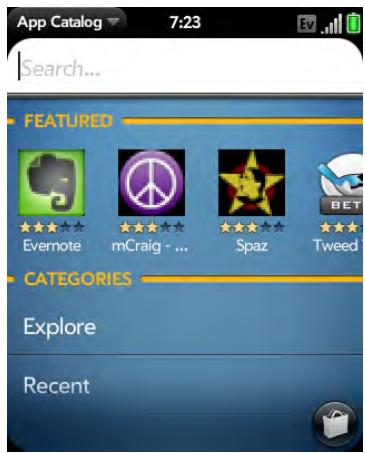
2 The first time you open App Catalog, tap Accept.
3 Swipe right or left on the thumbnails to see featured applications, or do one of the following:
- To search by name: Tap Search, enter the search term, and press Enter
- To search apps by category: Tap Explore. To view categories in an alphabetical list, tap . To view them as a tag cloud, tap .
DID YOU KNOW? In a tag cloud, categories that have more items or more popular items appear in a larger font size, giving you a visual clue as to which categories you might want to explore.
- To find the most recently added apps: Tap Recent.
- To find the most popular apps: Tap Popular.
4 (Optional) To sort the list of applications or to browse results by date, alphabetical order, rating, or price, tap a sort icon at the bottom of the screen.
5 When the app you want appears, tap the name to display app details.
NOTE New apps that are in beta (test) mode are shown on a green background. Apps that are delivered from the web and have not been tested by Palm are shown on a gray background.
6 On the app details screen, do any of the following:
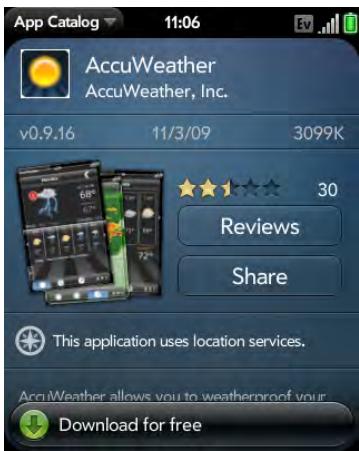
- Tap a screenshot to see a larger view.
- Tap Reviews to read all reviews.
- Tap Share and then tap Email or Text Message to share info about an app with a friend.
- Tap Developer Home to go to the app developer's home page.
- If available, tap Support to go to the developer's product support page.
Download a free application
BEFORE YOU BEGIN Before you put applications on your phone, make sure you have enough storage space on your phone to fit the app. Open Device Info and look at the Available field under Phone. If you need to free up memory for a new app, you can delete an app (see Delete an application) or you can delete some files from your phone (see Copy files between your phone and your computer).
1 Open App Catalog
2 Browse to the app you want (see Browse applications in App Catalog).
3 Tap the app name, and then tap Download for free.
4 If the app uses Location Services, a notification is displayed (see Location Services). Tap Continue.
TIP To pause a download, tap the Downloading progress bar. To resume downloading, tap Download paused.
5 To cancel a download, tap ±bx on the Downloading progress bar.
6 To open a downloaded app, tap Tap to Launch. The app also now appears as an icon in the Launcher, so you can open it from the Launcher as well.
You can move to other screens and work in other applications while your new app downloads in the background. For example, find another app in App Catalog and start its download while the first download is finishing.
Buy an application
BEFORE YOU BEGIN Before you put applications on your phone, make sure you have enough storage space on your phone to fit the app. Open Device Info and look at the Available field under Phone. If you need to free up memory for a new app, you can delete an app (see Delete an
application) or you can delete some files from your phone (see Copy files between your phone and your computer).
1 Open App Catalog
2 Browse to the app you want (see Browse applications in App Catalog).
3 Tap the app name, and then tap Download for [price].
4 If the app uses Location Services, a notification is displayed (see Location Services). Tap Continue.
5 Do one of the following:
- If you have set up a billing account: If prompted, enter your Palm profile password to authorize the purchase, and tap Continue.
- If you have not set up a billing account: Tap Continue. Enter your Palm profile password, and tap Continue. See Set up a billing account.
If you enter an incorrect Palm profile password three times, a message appears that explains how you can contact Palm support for help.
6 Tap OK.
TIP To pause a download, tap the Downloading progress bar. To resume downloading, tap Download paused.
7 To cancel a download, tap x on the Downloading progress bar.
8 To open a downloaded app, tap Tap to Launch. The app also now appears as an icon in the Launcher, so you can open it from the Launcher as well.
TIP If you delete a purchased application, you can reinstall it without paying for it again (see Manage applications).
You can move to other screens and work in other applications while your new app downloads in the background. For example, find another app in App Catalog and start its download while the first download is finishing.
Manage applications
1 Open App Catalog E.
2 Tap and tap Applications.
3 Tap the app name.
4 Do one of the following:
- To report a problem with an application: Open the application menu and tap Report A Problem.
- To read reviews: Tap Reviews on the app details screen.
- To add a review: Tap Reviews on the app details screen and then tap Review.
- To share info about an app: Tap Share on the app details screen and then tap Email or Text Message.
- To delete an application: Open the application menu, tap Delete Application, and then tap Delete.
- To reinstall a deleted application: Browse to the app (see Browse applications in App Catalog), tap the app name, and tap Download. You do not need to buy the app again.
Update downloaded applications
1 Open App Catalog E.
2 Tap . The list of your downloaded apps appears. Apps with an available update display an icon to the right of the app name with a number and a green arrow.
3 Do one of the following:
- To update one app: Tap the icon to the right of the app name.
- To update all apps: Tap Install Updates.
Set up a billing account
1 Open App Catalog
2 Do one of the following:
- Tap an app you want to buy, and tap Continue.
- Open the application menu, tap Preferences & Accounts, and tap Add Account.
3 Enter your Palm profile password and tap Continue.
NOTE If you enter an incorrect Palm profile password three times, a message appears that explains how you can contact Palm support for help.
4 Tap the credit card type you want to use. Enter your credit card and billing address details, and tap Submit.
IMPORTANT Your credit card details are not stored on your phone. They are encrypted and stored in your Palm profile.
5 Tap OK to verify your email address, or tap Change This Address to enter a different one. Purchase receipts are sent to the address shown here.
6 In Password is Required, select one of the following:
Once every 4 hours: You must enter your password the first time you make a purchase. If you make any other purchases within four hours, you don't need to enter your password again. After four hours, you
enter your password again for the first purchase, which starts a new four-hour clock.
Every Purchase: You must enter your password for each purchase, regardless of the time interval.
Update or delete a billing account
1 Open App Catalog
2 Open the application menu and tap Preferences & Accounts.
3 Tap your account name.
4 Enter your Palm profile password and tap Continue.
If you enter an incorrect Palm profile password three times, a message appears that explains how you can contact Customer Support for help.
5 Do one of the following:
- Edit the account information: Change the information as needed and tap Submit.
- Delete the account information: Tap Remove Account.
Copy files between your phone and your computer
You can copy any type of file from a computer to your phone, and from your phone to your computer, by putting your phone in USB Drive mode.
After you copy a file to your phone, you can open the file if your phone has an application that supports the file type. You can open many file formats for photos, videos, and music; Microsoft Office files; and PDF files. You can also copy ringtones that you download from your computer's web browser.
IMPORTANT All files that you store on the USB drive of your phone are not backed up to your Palm profile, and they cannot sync to any of your online accounts. So be sure to keep a copy of all such files somewhere besides your phone just in case you lose your phone or you must do a full erase of the info on your phone.
When your phone is in USB Drive mode, you can't make or receive calls or use other wireless features such as email or the web.
BEFORE YOU BEGIN Before you copy files from your computer, make sure you have enough storage space on your phone to fit the file. Open Device Info and look at the Available field under Phone.
1 Connect your phone to your computer using the USB cable.
2 On your phone, tap USB Drive. On your computer, your phone appears as a removable drive.
3 On a Windows computer, if the Found New Hardware wizard opens, click Cancel to close the wizard.
4 Open My Computer (Windows XP), Computer (Windows Vista/Windows 7), or the Finder (Mac), double-click the drive representing your phone, and drag and drop files to your phone. The drive displays folders that you can use to organize the files you copy. You can also create your own folders.
NOTE If you copy ringtones to your phone, be sure to place them in the ringtones folder on your phone's USB drive.
5 On a Windows computer, to end the connection safely, right-click the drive representing your phone and click Eject. On a Mac computer, from your desktop, drag the drive representing your phone to the Trash. Trash changes to Eject.
6 Disconnect the USB cable from the computer when the USB drive screen is no longer displayed on your phone.
Copy music, photos, and videos using third-party software
Besides using USB Drive mode to copy your photos, videos, and DRM-free music from your computer to your phone, you can also use solutions available from third-party software developers (sold separately) that facilitate the transfer of media files to your phone. For more information, go to palm.com/sync-solutions.
Sync personal data using third-party software
You can set up online accounts like Google and Exchange to sync your contacts (see How do I add names and other info into Contacts?) and calendar events (see How do I get events into Calendar?).
If, however, you prefer to leave your personal data on your computer and sync it directly with the data on your phone, there are third-party solutions (sold separately) available to enable you to do that. For more information, go to palm.com/sync-solutions.
Transferring data
If you have data such as contacts or calendar appointments in a desktop organizer such as Palm® Desktop software by ACCESS or Microsoft Outlook®, you can transfer that data to your Palm® Pixi™ Plus phone.
From a Windows computer, you can transfer contacts, calendar appointments, tasks, and memos/notes from Palm Desktop software by ACCESS version 6.2 and Microsoft Outlook 2003 or later. From a Mac computer, you can transfer contacts, calendar events, and tasks from Address Book and iCal.
In this chapter
44 Data transfer overview
44 How do I get data from my old phone?
44 How do I get data off my computer?
46 I'm already using Google, Facebook, Yahoo!, and/or Microsoft Exchange
46 I want to keep using my current desktop app and sync with an online account on my phone
47 I don't need to sync, but I do want a copy of my data backed up somewhere besides my phone
47 I'd rather sync directly with my computer
Data transfer overview
While you have many options for transferring data, Palm recommends that you take advantage of the Palm® Synergy™ feature by putting your data in an online account—for example, if you don't have a Google account, we recommend that you create one and store your data there (see How do I add names and other info into Contacts?, How do I get events into Calendar?, and How do I send and receive email on my phone?).
If you don't want to sync with an online account, there are other ways to get data on your phone. See I'd rather sync directly with my computer.
Consider carefully whether you'll want to be able to access and change your data somewhere besides your phone. If you do, do you prefer the other means of access to be a website (for example, Google), or to be software that is installed on your computer? In either case, you can set things up so that you can synchronize new or changed data between your phone and the other data location.
You could also decide not to have a sync setup for your data, in which case you can use your Palm profile to back up your data (see Backup). You can't access this data anywhere but on your phone. However, your data is backed up, and in an emergency (such as a lost or stolen device), you can remove the data on your lost or stolen phone and restore it to a new Pixi Plus phone.
How do I get data from my old phone?
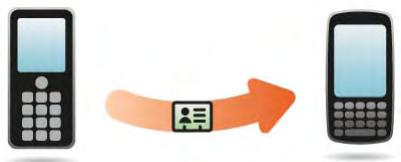
Do you want to sync your personal information between your Pixi Plus phone and Google or Exchange, but first need to get your data out of an old
phone that you want to stop using? You can do a one-time, one-way export of data to your Pixi Plus phone, and then if you choose to, use the Synergy feature to sync the data to Google or Exchange.
1 On your computer, set up an account on the Google website (go to gmail.com) or with Microsoft Exchange (speak to an IT person at your company).
2 Open Contacts on your Pixi Plus phone.
3 Enter your username and password for the Google or Exchange account. See Use Contacts for the first time.
NOTE You don't have to go to Calendar to set up your account there—that's done automatically using the username and password you enter in Contacts.
4 Go to a Verizon Wireless store and ask a support agent for help in transferring data from your old phone. When you're ready to transfer data from your old phone, be sure to tell the agent which account to transfer the data to.
How do I get data off my computer?
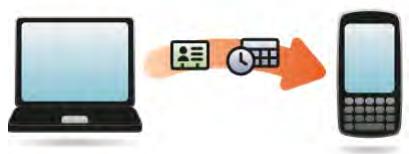
Do you want to sync your personal information between your Pixi Plus phone and Google or Exchange, but first need to get the data out of a desktop app that you want to stop using? You can do a one-time, one-way export of data to your phone, and then if you choose to, sync the data to Google or Exchange.
1 On your computer, set up an account on the Google website (go to gmail.com) or with Microsoft Exchange (speak to an IT person at your company).
2 Open Contacts on your Pixi Plus phone.
3 Enter your username and password for the Google or Exchange account.
NOTE You don't have to go to Calendar to set up your account there—that's done automatically using the username and password you enter in Contacts.
4 To transfer data from a desktop app that you want to stop using, go to palm.com/migrate-pixel for more information about the Data Transfer Assistant (DTA)—it's a free download from Palm.
About the Data Transfer Assistant
The DTA enables you to do a one-time, one-way export of data from selected desktop apps to your Pixi Plus phone through the USB cable included with your phone. After the data is on your phone, you can select the account you want to import the data to.
IMPORTANT The DTA is not synchronization software. It is meant to be used once per desktop app, to export your info from the desktop app to an account on your phone.
These are the desktop apps that the DTA works with, and what data the DTA transfers to your phone:
Table 1. DTA: application data transferred
| Desktop application | Contacts | Calendar | Tasks | Memos/ Notes | |
| Windows XP, Vista®, or 7 | Outlook 2003 or 2007 | ✓ | ✓ | ✓ | ✓ |
| Palm Desktop v6.2 | ✓ | ✓ | ✓ | ✓ | |
| Mac OS 10.5 | Address Book iCal | ✓ | |||
| ✓ |
Note the following:
- Depending on the amount of data you are transferring, it can take up to an hour to transfer data with the DTA.
- On Windows Vista and Windows 7, only Outlook 2007 is supported.
- If you have an earlier version of Palm Desktop, you can download version 6.2 for free from palm.com/Desktop. Install it, sync with your old Palm device, and then use the DTA to transfer your data.
- Do you use Palm Desktop on the Mac? Don't worry, you can export your contacts, calendar events, and tasks into Address Book and iCal. Then use the DTA to transfer your data. For more information, go to palm.com/migrate-pixel.
- To transfer Calendar and Contacts to Yahoo!, you must use the upload tool provided by Yahoo!. For more information, go to palm.com/migrate-pixel.
I'm already using Google, Facebook, Yahoo!, and/or Microsoft Exchange
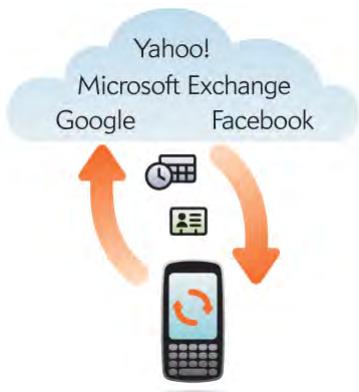
If you are already using Google, Facebook, Yahoo!, and/or Exchange to manage your calendar and contacts, then all you need to do is set up one or more of these accounts on your phone.
Table 2. Online account sync table
| Set up your Pixi Plus phone to sync with... | To sync this data... |
| Contacts and calendar events | |
| Exchange | Contacts, calendar events, and tasks |
| Yahoo! | Contacts and calendar events |
| Contacts and calendar events |
NOTE Changes you make in your Yahoo! or Facebook account on the web show up on your phone. Contacts and calendar events you add or change on your phone, however, do not automatically update your Yahoo! or Facebook account on the web.
2 Enter the account credentials for your Google, Facebook, Yahoo!, or Exchange account. See Use Contacts for the first time.
NOTE You don't have to go to Calendar to set up your account there—that's done automatically using the credentials you entered in Contacts.
I want to keep using my current desktop app and sync with an online account on my phone
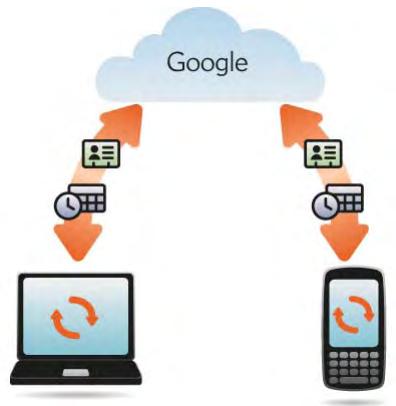
If you want to continue using a desktop app to store your contacts, calendar events, and tasks—iCal and Address Book on the Mac, or desktop Outlook® or Palm® Desktop by ACCESS on Windows—consider adopting this solution.
Download and install a third-party application (sold separately) that can sync your desktop app to Google. Your desktop app syncs with your Google account, and then the Synergy feature takes over to sync your Google account, and your phone also syncs with Google.
1 On your computer, set up an account on the Google website (go to gmail.com).
2 Open Contacts on your Pixi Plus phone.
3 Enter the account credentials for your Google account. See Use Contacts for the first time.
NOTE You don't have to go to Calendar to set up your account there—that's done automatically using the credentials you entered in Contacts.
4 Install a third-party application on your computer that enables you to sync with Google. Go to palm.com/migrate-pixel to learn about available third-party sync solutions.
5 Follow the instructions of the third-party app to sync the data in your desktop app with Google. The next time Google syncs with your phone, your data appears on your phone.
I don't need to sync, but I do want a copy of my data backed up somewhere besides my phone
Use the Data Transfer Assistant to move your data into your Palm profile account. For information on your Palm profile account, see Backup.
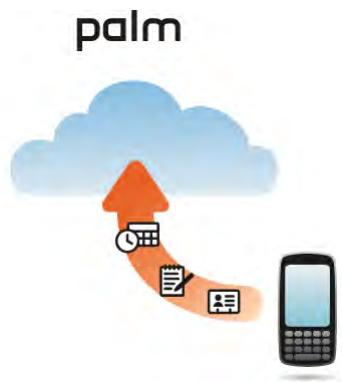
I'd rather sync directly with my computer
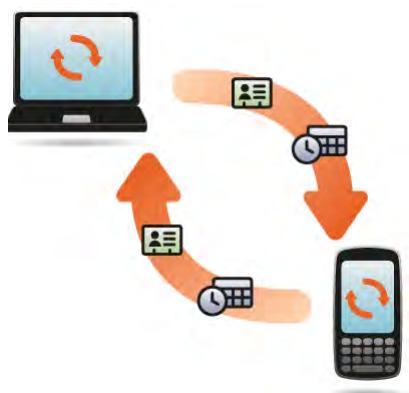
Would you rather sync your Pixi Plus phone directly to your computer without going through the web? Download a third-party application (sold separately) that enables synchronization of your phone and your desktop app.
1 Go to palm.com/migrate-pixel to learn about third-party applications that enable you to sync your phone with your computer using Wi-Fi.
2 Follow the instructions given by the third-party vendor to install the app on your computer.
NOTE You may also have to install another part of the application on your phone. Follow the instructions of the third-party vendor.
Phone
- Your Palm® Pixi™ Plus phone enables you to effectively manage multiple calls. You can answer a second call, swap between calls, and set up a three-way conference call. You can also work with other applications while on a call. Your Pixi Plus phone helps you to do all these tasks with ease.
In this chapter
50 Make calls
53 Receive calls
54 Use voicemail
54 What can I do during a call?
57 What's my number?
57 View your call history
58 Save a phone number to Contacts
58 Use a phone headset
59 Customize phone settings
Make calls
For information on turning the phone off and back on, see Turn the phone on/off.
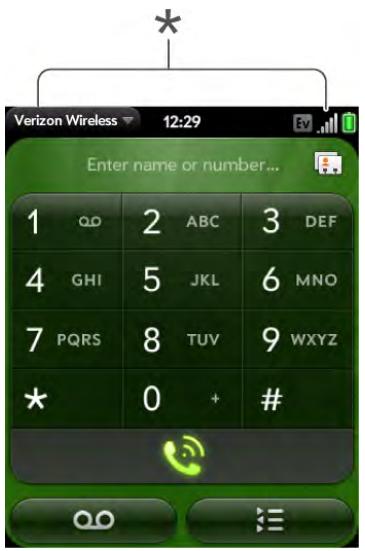
* These indicate that the phone is on.
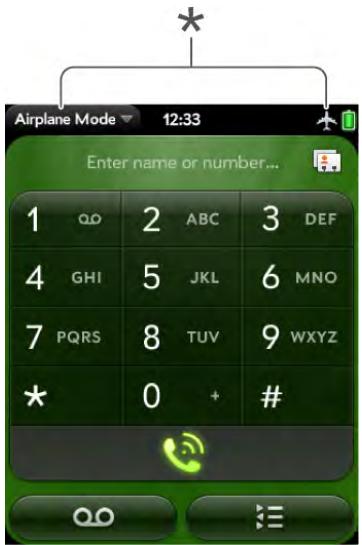
* These indicate that the phone is off (airplane mode).
Dial using the onscreen dial pad
The onscreen dial pad is useful when you need to dial numbers that are expressed as letters and when you need large, brightly lit numbers that you can tap.
1 Open Phone
2 Tap the dial pad numbers to enter the number.
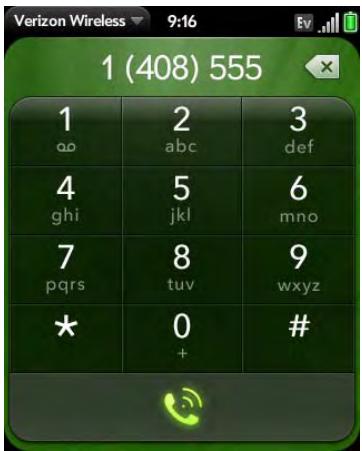
3 Tap to dial.
TIP Press Backspace or tap the onscreen backspace icon (to the right of the number you enter) to delete numbers one at a time. Tap and hold the icon to delete all the numbers.
TIP You can paste numbers copied from other applications—for example, from an email message or a memo—into the dial pad.
TIP To enter +, tap and hold 0 onscreen.
Dial by contact name using universal search
1 Open Card view (see Display all open applications (Card view)) or the Launcher (see Open an application in the Launcher).
2 Begin typing the contact first or last name, or initials.
3 Tap one of the contact's phone numbers to dial it. If only the contact name appears, tap the name to display the phone numbers for that contact, and then tap the number.
Dial using the keyboard
1 In the Launcher, Card view, or Phone, use the keyboard to enter the number. You do not need to press Option to enter numbers, *, or #.
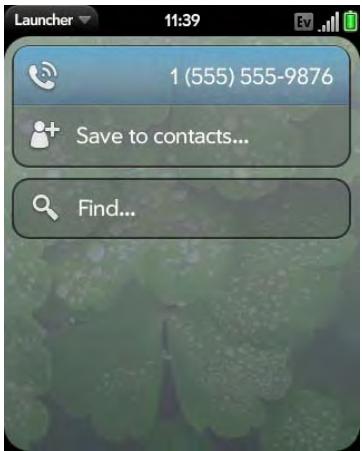
2 When you finish entering the number, tap it to dial.
TIP If you turn off the preference to show contact matches in the dial pad (see Show contact matches), this changes how you dial using the keyboard in the Phone application. In Phone, after you enter the number with the keyboard, tap the onscreen dial icon to dial.
Dial using a speed dial
See Assign a speed dial to a contact for instructions on creating a speed dial.
- In the Launcher, Card view, or Phone, press and hold the speed-dial key you assigned to the number.
Dial by contact name in the Phone application
See How do I add names and other info into Contacts? for instructions on adding contacts to your phone. You can also look up and dial contacts using universal search (see Dial by contact name using universal search).
1 Open Phone
2 Using the keyboard, enter a name or initials until the contact you want appears.
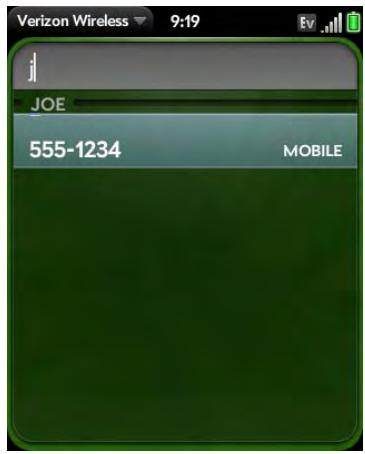
DID YOU KNOW? If you press E, R, or any other key that displays both a letter and a number, you see both matching names and numbers onscreen.
DID YOU KNOW? If your company uses Microsoft Exchange Server with a Global Address List (GAL), entering the contact search information returns matching results from the GAL as well.
3 Tap the number.
TIP If you do not want contact matches to appear when you type a number on the keyboard, you can turn off the Show Contact Matches preference (see Show contact matches). When this preference is off, you can still dial by contact name in the Phone application. After opening Phone, tap the contact list icon to the right of "Enter name or number." Type the contact name or initials, and tap the number when it appears.
Redial the last number dialed
1 Open Phone
2 Tap. When the contact name or number appears at the top of the screen, tap again to dial.
Dial your national emergency number
To dial 911, do the following:
1 Press power G to wake up the screen.
2 Tap the center of the gesture area to display Card view.
3 Enter the emergency number, and tap the number to dial. If the phone is turned off, a notification appears prompting you to turn it on. You don't have to press Option to enter numbers.
Dial from another application
If a phone number appears in another application as an underlined link, you can begin dialing the number directly from that application. For example, you can dial phone numbers that appear in web pages, in messages (email, text, or multimedia), or in notes to calendar events.
1 If a phone number appears as an underlined link, tap the number. This displays the dial pad with the number already entered.
2 Tap to dial.
Receive calls
If you want to answer calls, your phone must be on. This is different from having only the screen turned on (see Turn the phone on/off). When your phone is off, your calls go to voicemail.
TIP You can pick the ringtone for incoming calls (see Select the ringtone for incoming calls). You can set a ringtone for individual contacts as well (see Add a ringtone to a contact).
Answer a call
Do one of the following:
- If the screen is on when the phone starts ringing, tap
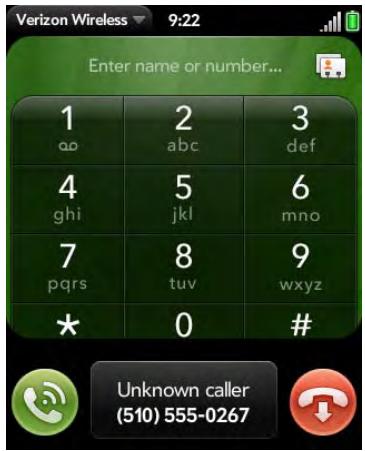
- If the screen is off, drag up to unlock the screen and answer the call.
DID YOU KNOW? If you are playing music or a video on your phone and a call arrives, playback pauses automatically and resumes when you hang up or ignore the call.
TIP You can see a photo of the person calling you by assigning a caller ID photo. See Add a photo to a contact.
Silence the ringer on an incoming call
When you silence the ringer on an incoming call, you can answer the call or let it ring through to voicemail.
Do one of the following:
- Press power G.
- Press volume up or volume down.
- Slide the ringer switch off (red means off). This silences the ringer and any notification sounds. These sounds remain off until you slide the ringer switch back on. Other sounds, such as music and video playback, are not affected by sliding the ringer switch off.
Ignore a call
To send a call immediately to voicemail, do one of the following:
- Tap
- Press power twice.
To reply to a caller who is in your Contacts list after you ignore a call, tap the ignored call notification. This opens the caller's contact entry, where you can select a reply method. To reply to a caller who's not in your Contacts list, go to your call history (see View your call history).
Use voicemail
Set up voicemail
1 In the Launcher, Card view, or Phone, press and hold 1. When the search results screen appears, continue holding 1 until the Phone application appears.
2 Follow the voice prompts to set up your voicemail.
Listen to voicemail messages
1 Do one of the following:
- In the Launcher, Card view, or Phone, press and hold 1 E.
- Tap a voicemail notification at the bottom of the screen.
- Open Phone . Then tap 010.
- Open Phone. Then tap and hold 1 onscreen.
2 Follow the voice prompts to listen to your messages.
What can I do during a call?
Your phone offers many advanced telephone features, including call waiting and three-way conferencing. These features depend on your service plan. Contact Verizon Wireless for more information.
While you're on a call, info about the call appears on the call screen. When you're on a call, you can open other applications and work in them, and you won't lose your call. See Open applications.
If you created a reminder in the contact info of a caller, the reminder appears as a notification when you make a call to or receive a call from the person. See Assign a reminder message to a contact.
Manage a call
Do any of the following:
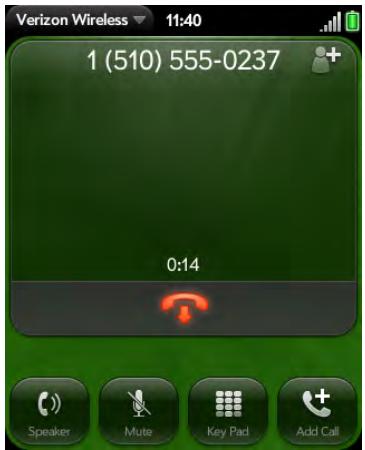
- Put the call on speakerphone: Tap a.
- Mute the microphone so you can't be heard: Tap
TIP You don't need an on-hold button to put a call on hold. Just tap the mute icon to mute your end of the line.
- Open the dial pad to enter numbers for navigating phone trees, responding to prompts, and so on: Tap
- Add a call: See Make a second call.
- Adjust call volume: Press volume up or volume down.
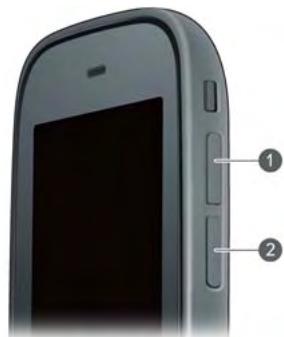
1 Volume up
2 Volume down
DID YOU KNOW? You can send and receive text messages during a call. This is a great way to stay connected with friends and colleagues during a long call.
End a call
- Tap
Use another application while on a call
While you're on a call, you can use many other applications on your phone, for example, the personal information applications (Contacts, Calendar, and so on). You can also send and receive text messages. But you can use the Verizon Wireless network for only one activity at a time—phone (which includes text messaging) or data—so you cannot use the network to browse the web, send and receive email, or send and receive multimedia or instant (IM) messages when you are on a call. To browse the web or send and receive email or IM messages during a call, you must connect to a Wi-Fi network (see Wi-Fi).
NOTE You cannot send or receive multimedia messages using a Wi-Fi network.
1 Open Card view (see Display all open applications (Card view)) or the Launcher (see Open an application in the Launcher) while on a call.
2 Tap the other application.
3 Tap the call notification at the bottom of the screen to return to the call screen.
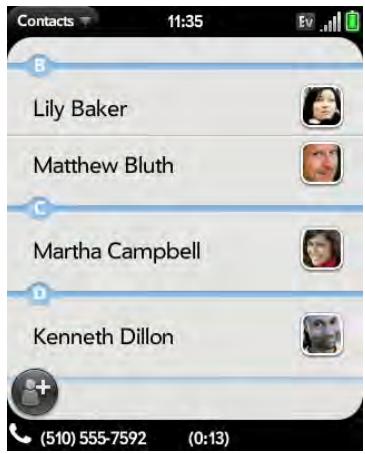
Make a second call
1 While on a call, tap
2 Dial the second call.
Answer a second call (call waiting)
When a second call notification appears, tap . The first call is put on hold.
Swap between two calls
You can swap between calls only if the second call is incoming.
- Tap to put the active call on hold and switch to the other caller.
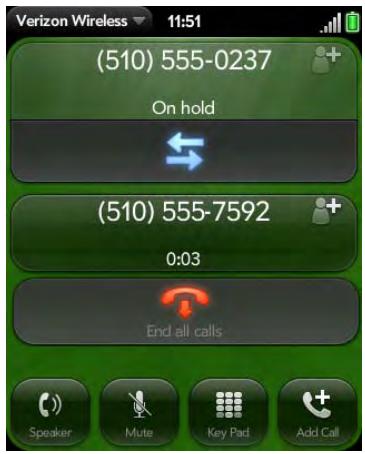
Make a conference call
When you're on a call, you can make a second call and create a three-way conference call, provided that the service is available in your area. Please contact Verizon Wireless for more information. Additional charges may apply, and minutes in your mobile account may be deducted for each call you make.
1 While you're on a call, make a second call. This is the limit of conference callers. Check your service plan about conference calls.
2 Tap to create the conference call.
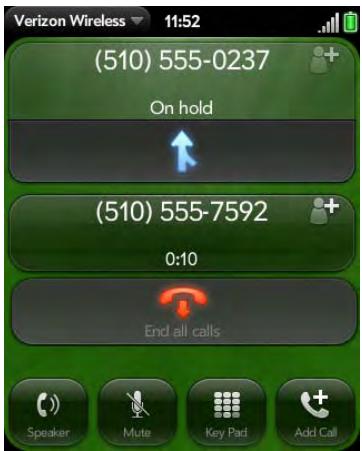
3 Do one of the following:
- Tap to end all calls.
- Ask one of the callers to hang up, so you can stay connected to the other caller.
Look up or send a message to a contact
When you're on a call with a contact, tap the contact name to see the person's information in Contacts. With the contact entry open, you can do the following:
- Tap to send the contact a text message. For example, if the contact is on hold while you're having a long conversation with a second caller, you can send the contact a text stating you'll call him or her back.
- Tap Edit to edit the contact entry. For example, if a contact gives you his or her new email address while you're talking, you can enter the address during the call.
What's my number?
1 Open Phone
2 Open the application menu and tap Preferences. Your phone number appears at the top of the Phone Preferences screen.
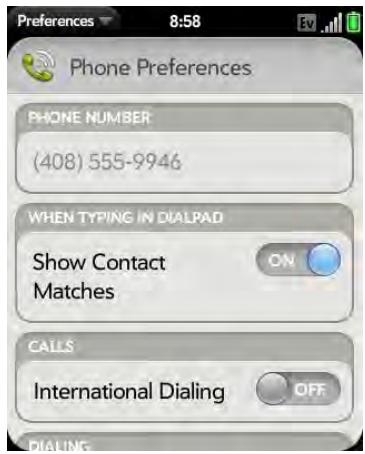
TIP You can also see your phone number by opening Device Info. The number appears as the first entry under Phone.
View your call history
1 Open Phone
2 Tap
3 Do any of the following:
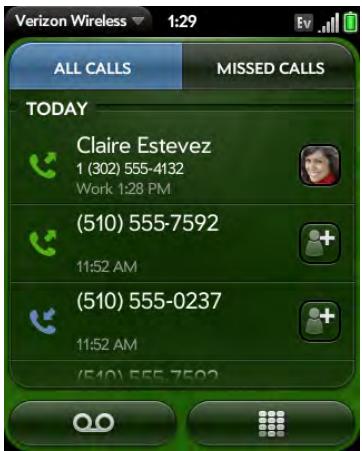
- Switch the types of calls displayed: Tap All Calls or Missed Calls.
- Call a number: Tap the number.
- Save the number to Contacts: Tap + to the right of the number (see Save a phone number to Contacts).
- View a contact entry: Tap or the contact picture to the right of the number.
- Delete a call history entry: Throw the entry off the side of the screen. Tap Delete to confirm.
- Clear the call history: Open the application menu, tap Clear Call History, and tap Clear Call History to confirm.
DID YOU KNOW? In the call history, outgoing calls are designated by a right-pointing green arrow, and incoming calls are designated by a left-pointing blue arrow. Missed calls are designated by a bent red arrow. Ignored calls are designated by a red X.
Save a phone number to Contacts
You can save the number from an incoming or outgoing call to an existing contact, or create a new contact for the number. If an incoming call uses caller ID blocking, you cannot save the number.
1 Do one of the following:
- Before dialing a number you entered in the dial pad: Tap Add to Contacts.
During a call: Tap - After a call: From the dial pad, tap. Tap to the right of the number, and tap Add To Contacts.
2 Tap one of the following:
Add New Contact: Create a new contact for the phone number.
Add To Existing: Tap the contact you want to add the phone number to.
Use a phone headset
You can connect a 3.5mm headset (sold separately) for hands-free operation.
WARNING If driving while using a phone is permitted in your area, we recommend using a headset or hands-free car kit (sold separately). However, be aware that use of a headset that covers both ears impairs your ability to hear other sounds. Use of such a headset while operating a motor vehicle or riding a bicycle may create a serious hazard to you and others, and may be illegal. If you must use a stereo headset while driving, place a speaker in only one ear. Leave the other ear free to hear outside noises, and use the headset only if it is legal and you can do so safely.
Use a wired headset
Your phone works with headsets that have a 3.5mm connector (look for three colored bands on the plug). When in doubt, ask the third-party headset manufacturer if the product is compatible with your phone. If you hear a headset buzz or poor microphone performance, your headset may be incompatible with your phone.
1 Connect the headset. While on a call, the icon changes to
2 The headset button performs different actions depending on the headset model and what's happening on the phone. Press the headset button once to perform any of the following tasks supported by your particular headset:
- Answer an incoming call.
- Respond to call waiting.
- Hang up a single active call or all calls on a conference call.
3 If you want to stop using the headset, do any of the following:
- Switch from the headset to your phone's speaker: Tap 🇦 and tap Speaker.
- Switch from the wired headset to a previously paired Bluetooth® hands-free device: Tap and tap the device name.
- Use your phone without the headset: Disconnect the headset.
Set up and use a Bluetooth® hands-free device
Your phone is compatible with many headsets and car kits (sold separately) enabled with Bluetooth® wireless technology version 2.1, with EDR and stereo (with AVRCP media controls).
After you set up a connection with a Bluetooth headset or hands-free car kit, you can communicate using that device whenever it is within range and the Bluetooth feature on your phone is turned on. The range varies greatly, depending on environmental factors. The maximum is about 30 feet (10 meters).
NOTE You can use a stereo (A2DP-enabled) Bluetooth headset or speakers to listen to music files on your phone. You cannot, however, use a mono Bluetooth headset to listen to music files.
1 Open Bluetooth
2 If the Bluetooth setting at the top of the screen is off, tap Off to switch the Bluetooth feature from Off to On.
3 Tap Add device and tap the device name.
4 To use a Bluetooth device with your phone, follow the instructions that came with the Bluetooth device.
5 To switch to another Bluetooth device while on a call: Tap and tap the new device name. You can also tap Handset or Speaker to use your phone without the headset.
TIP If you make a Bluetooth connection with a car kit, you might get a notification on your phone asking if you want to upload contacts to the car kit. Tap Allow to upload contacts. If you later want to delete the contacts from the car kit, check the car kit documentation for instructions.
For more information on using the Bluetooth feature on your phone, see Bluetooth® wireless technology.
Customize phone settings
Use Phone Preferences to customize phone settings.
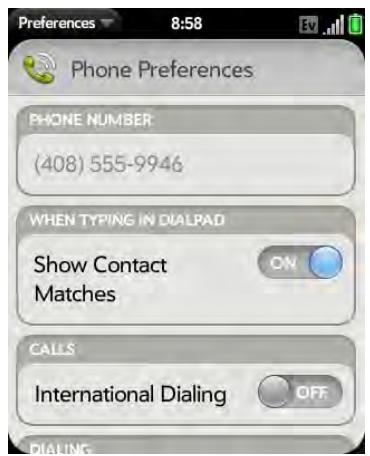
Show contact matches
By default, when you have the dial pad displayed but you're using the keyboard to enter a phone number, both numbers and letters appear and your phone performs a search of matching names in Contacts. If you turn off this preference, typing on the keyboard with the dial pad displayed enters numbers only, and no search is done in Contacts.
1 Open Phone
2 Open the application menu and tap Preferences.
3 In Show Contact Matches, tap On or Off.
TIP If you turn off the Show Contact Matches preference, you can still perform a contact search in the Phone application. After opening Phone, tap the contact list icon to the right of "Enter name or number." Type the contact name or initials, and tap the number when it appears.
Enable international dialing
The international dialing preference makes it easy to make calls to another country, for example, to call home when you are traveling abroad. When you make a call, your phone automatically adds the dialing prefix for the country you are calling. Suppose you select the U.S. or Canada as the country for your international dialing preference. Your phone adds “+1” if you dial a 10-digit U.S. or Canadian number. It adds “+1” and your phone's area code if you dial a 7-digit US or Canadian number.
1 Open Phone
2 Open the application menu and tap Preferences.
3 In International Dialing, tap Off to switch international dialing from Off to On.
4 Tap the country whose dialing prefix you want to use. If multiple prefixes are displayed, tap the correct prefix.
NOTE Your Pixi Plus phone supports only International CDMA Roaming. Refer to verizonwireless.com for a complete list of the over 40 countries in which your Pixi Plus phone is Global Ready."
Use dialing tones
Dialing tones, also known as DTMF tones, are the tones that play when you press a key to dial. A short tone plays briefly and then stops, no matter how long you press the key. A long tone plays until you release the key.
1 Open Phone
2 Open the application menu and tap Preferences.
3 In DTMF tones, tap Short or Long, and then tap the option you want.
Use dialing shortcuts
Dialing shortcuts add a prefix at the beginning of a number, so you can dial an extension instead of the whole number.
1 Open Phone
2 Open the application menu and tap Preferences.
3 Under Dialing Shortcuts, tap Add new number.
4 Set the following:
When I Dial: Tap this field and select the number of digits you need to enter to have your phone add a dialing shortcut.
Use This Dialing Prefix: Enter the prefix to be added at the beginning of the dialed number. The combination of prefix and digits you enter must add up to a complete phone number.
5 Tap Done.
Example: A complete phone number in your company's phone system has 11 numbers, for example, 1-555-408-1122. When dialing from a phone that's part of the system, you need to dial only the last five digits (81122). When you create a dialing shortcut on your phone, you select "5 digit numbers" for When I Dial and enter "155540" in Use This Dialing Prefix. So when you dial your co-worker's five-digit extension (51122), your phone automatically dials the whole number: 1-555-408-1122.
Set roaming and data usage preferences
Use roaming and data usage preferences to set options for using your phone in your home network and while roaming. For example, you can set options to prevent placing a call or making a data connection while roaming, so that you avoid extra charges.
1 Open Phone
2 Open the application menu and tap Preferences.
3 Under Network, set any of the following:
Voice Network: Tap Verizon Only to allow phone calls only when you are on the Verizon Wireless network, or tap Automatic to allow roaming on other networks.
NOTE On some phones, the Voice Network list might display several Automatic options: Automatic-1, Automatic-2, and so on. If you see these options, contact Verizon Wireless to find out which option to select.
Data Roaming: Set whether to allow web browsing, email, multimedia messaging, and instant messaging when you are roaming. This option appears only if you have set Voice Network to Automatic.
Data Usage: Set whether to turn data services—web browsing, email, multimedia messaging, and instant messaging—on or off.
Enable TTY/TDD
A TTY (also known as TDD or text telephone) is a telecommunications device that allows people who are deaf or hard of hearing, or who have speech or language disabilities, to communicate by telephone. Your phone is compatible with select TTY devices.
You can connect a TTY/TDD machine to your phone using the headset jack. Check with the manufacturer of your TTY device for connectivity information. Be sure that the TTY device supports digital wireless transmission.
NOTE When TTY is enabled, you cannot use the headset jack for anything else, and all audio modes are disabled on your phone, including holding the phone up to your ear and listening.
1 Connect a TTY/TDD device to your phone using the headset jack.
2 Open Phone
3 Open the application menu and tap Preferences.
4 In TTY/TDD, tap Off to switch TTY/TDD from Off to On.
Enable HAC
To use your phone with a hearing aid, turn on the HAC feature. This feature ensures that your phone can make the necessary connection with a hearing aid.
1 Open Phone
2 Open the application menu and tap Preferences.
3 In HAC, tap Off to switch HAC from Off to On.
Reset the voicemail count
Occasionally you may continue to receive notifications of new voicemail messages even after you have listened to or deleted all your messages. If this happens, use the Reset Voicemail Count preference to stop the notifications.
1 Open Phone
2 Open the application menu and tap Preferences.
3 Tap Reset Voicemail Count.
Email and other messages
Enjoy the ease and speed of keeping in touch with friends, family, and colleagues by email anywhere you can access Verizon Wireless's data network or a Wi-Fi network. You can send and receive attachments as well.
And keep the Messaging app in mind for times when you need to send a short text, multimedia, or instant message to a mobile phone number—especially handy when you're in a meeting that's running late.
In this chapter
64 Email
74 Messaging
How do I send and receive email on my phone?
Use the Email application on your phone to access the many email accounts you have: company (like Exchange), ISP (like EarthLink or Comcast), and web-based (like Gmail).
The Palm® Synergy™ feature makes it easy to synchronize all data from an online account. By setting up synchronization in one app, synchronization of the other apps is automatically set up for you. For example, if you set up your Google contacts account in Contacts before you set up Gmail, when you first open Email, you find that your Gmail messages are already downloaded. And when you first open Calendar, you find that your Google calendar events are already in your phone's Calendar app.
For email accounts that do not make use of the Synergy feature, you need to enter the settings for that account—such as username and password—directly in the Email application (see Set up email).
You can also use your phone's web browser to view your web-based email—just go to the email provider's website.
Merged inboxes in Email
You can set up multiple email accounts on your phone. When you open Email, you see all your accounts in a single view: Account List view. From there, you can open the inbox of an individual account—or, thanks to the Palm® Synergy™ feature, you can see all messages from all your inboxes displayed in a single merged view called All inboxes.
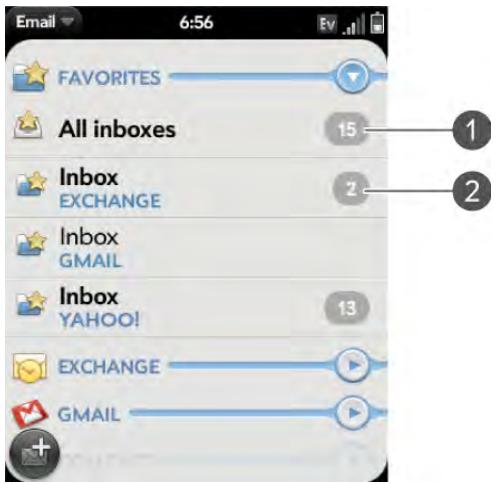
1 The number to the right of All inboxes indicates the total number of unread email messages in all your email accounts.
2 The number to the right of an individual folder name indicates the number of unread messages in that folder.
If you reply to a message when you're working in All inboxes, the message is sent from the same account in which it was received.
If you create a new message when you're working in All inboxes, the message goes out using the account you set as the default account (see Set email preferences).
Set up email
Follow this procedure if you have a common email provider, for example, AOL, EarthLink, or Yahoo! If you are setting up the Email application to work with your corporate email account that uses Microsoft Exchange ActiveSync, see Set up email: Microsoft Exchange ActiveSync (EAS).
If the email account you set up takes advantage of the Synergy feature, then setting up email also synchronizes the provider's calendar and contacts.
2 The first time you open Email, do one of the following:
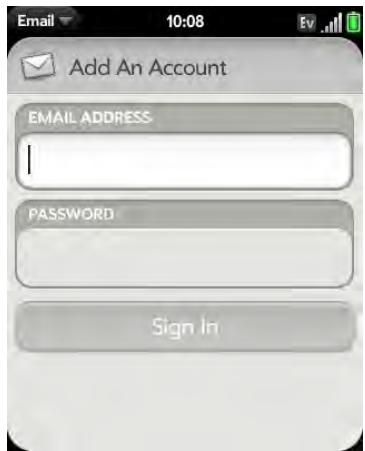
- If this is the first email account you are setting up: The email address you used for your Palm profile is entered by default. Use that address, or enter an address for one of your other email accounts. Enter your password for the account, tap Sign In, and tap Done.
- If you have already set up an account that takes advantage of the Synergy feature and want to set up another one: Tap Add An Account and enter the email address and password. Tap Sign In.
3 Any other time you open Email, open the application menu, tap Preferences & Accounts, and tap Add An Account. Enter the email address and password and tap Sign In.
NOTE If automatic setup fails for your email account, an error message appears. Tap OK, tap Manual Setup, gather the settings info you need, and enter the account settings (see Set up email when automatic setup fails).
Set up email: Microsoft Exchange ActiveSync (EAS)
Follow this procedure to get email from an Exchange account.
BEFORE YOU BEGIN Get this info from your email provider or system administrator:
- Mail server name or IP address for receiving mail
- Server domain name
- Your username and password
NOTE If your corporate Exchange system utilizes policies such as remote wipe and password enforcement (including minimum password length, allowed number of failed password attempts, and other parameters), those policies are supported in your Exchange account on your phone. Check with your system administrator for details.
1 Open Email
2 The first time you open Email, do one of the following:
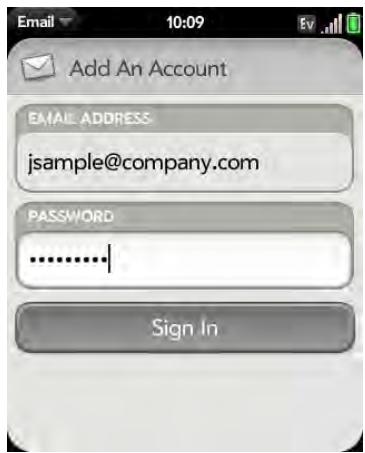
- If this is the first email account you are setting up: The email address you used for your Palm profile is entered by default. Use that address, or enter an address for one of your other email accounts. Enter your password for the account.
- If you have already set up an account that takes advantage of the Synergy feature and want to set up another one: Tap Add An Account. Enter your username and password.
3 Any other time you open Email, open the application menu, tap Preferences & Accounts, and tap Add An Account. Enter your username and password.
4 Open the application menu and tap Manual Setup.
5 Tap the Mail Type field and tap Exchange (EAS).
6 Enter info for the incoming and outgoing mail server as needed, based on the info you learned. You can enter either the server name or IP address in the Incoming Mail Server field.
7 Tap Sign In.
Set up email when automatic setup fails
Follow these steps if automatic setup (see Set up email) does not work for your email account.
BEFORE YOU BEGIN Get this info from your email provider or system administrator:
- Account type (POP or IMAP)
- Incoming and outgoing mail server names
- Incoming mail server username and password
- Incoming and outgoing server port numbers
- Any SSL requirements for incoming and/or outgoing mail
- Any authentication (ESMTP) requirements for outgoing mail
- Root folder (IMAP accounts only)
1 If you have already started account setup and an "Unable To Sign In" message appears, tap OK, tap Manual Setup, and skip to step 7. Otherwise, start at step 2.
2 Open Email
3 The first time you open Email, do one of the following:
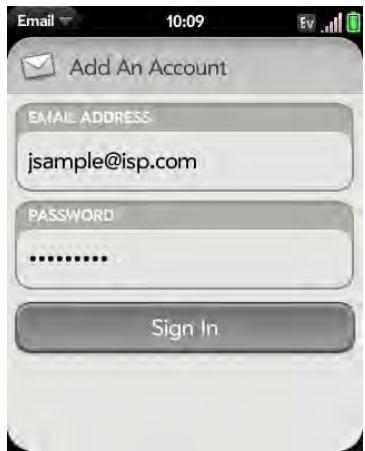
- If this is the first email account you are setting up: The email address you used for your Palm profile is entered by default. Use that address, or enter an address for one of your other email accounts. Enter your password for the account.
- If you already set up an account that takes advantage of the Synergy feature and want to set up another one: Tap Add An Account. Enter your username and password.
4 Any other time you open Email, open the application menu, tap Preferences & Accounts, and tap Add An Account. Enter your username and password.
5 Open the application menu and tap Manual Setup.
6 Tap the Mail Type field and tap your account type.
7 Enter info for the incoming and outgoing mail server as needed, based on the info you learned.
8 Tap Sign In.
Enter advanced account settings
These settings apply only to the account you select in step 3.
1 Open Email
2 Open the application menu and tap Preferences & Accounts.
3 Tap the account name.
4 Set any of the following:
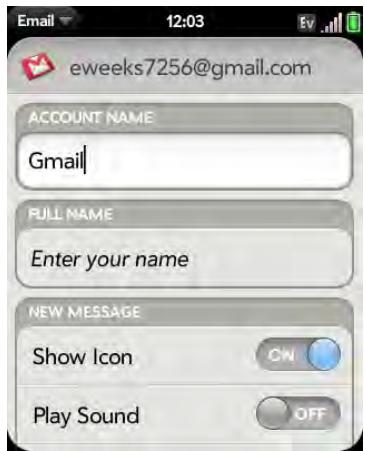
Account Name: Enter the name that appears in the account list.
Full Name: Enter the name you want to appear in the From field for messages you send.
Show Icon: Set whether a notification icon appears onscreen when a new message arrives.
Play Sound: Set whether a sound plays when a new message arrives.
Vibrate: Set whether your phone vibrates when a new message arrives.
Signature: Tap to create a signature that's added to outgoing messages (see Add a signature to outgoing messages for more information).
Reply-to Address: Enter the address you want recipients to see and reply to on your outgoing messages, if this is different from your actual email address.
Sync deleted emails (POP accounts only): Set whether messages should be deleted on the server when you delete them on your phone.
Show Email: Set how many days' worth of messages to retrieve from the server.
Get Email: Set how frequently to synchronize email for this account.
Default Folders (IMAP accounts only): Specify the folder where messages you send, save as drafts, or delete are stored.
Remove Account: See Delete an email account.
Change Login Settings: See Change account login settings.
Change account login settings
When you change your password for an online email account, remember to make the change in the account settings on your phone also.
1 Open Email
2 Open the application menu and tap Preferences & Accounts.
3 Tap the account name.
4 Tap Change Login Settings and tap the relevant fields to change the account information.
Delete an email account
When you delete an email account from your phone, it removes the account information from your phone only. It does not affect your account with the email provider.
1 Open Email
2 Open the application menu and tap Preferences & Accounts.
3 Tap the account name.
4 Tap Remove Account, and then tap Remove Email Account.
Create and send an email message
1 Open Email
2 If this is the first time you have opened the Email application, and you have set up at least one email account, tap Done. If you have not set up an email account, see Set up email.
3 Tap
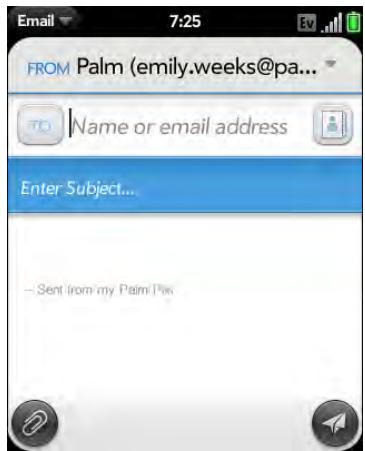
4 (Optional) Tap From to change the email account you are using to send the message. This option appears only if you have more than one email account set up on your phone.
5 In the To field, do one of the following to address the message:
- Enter a contact name, initials, or email address. Tap the email address when it appears.
- Tap to open the full contact list. Tap the contact you want, or enter a name or address to narrow the list.
- Enter the full email address for a recipient who is not a contact.
6 (Optional) Tap To to open the Cc and Bcc fields, and enter an address.
7 (Optional) Repeat steps 5 and 6 to enter additional addresses.
8 Enter the subject, press Enter , and enter the body text.
9 (Optional) To format body text, do one of the following:
- To enter bold, italic, or underlined text: Open the application menu and tap Edit > [the option you want]. Enter the text. To turn off the formatting, open the application menu and tap Edit > [the option you want to turn off].
- To enter colored text: Open the application menu and tap Edit > scroll down > Text Color. Tap the color and enter the text.
TIP To format text you already entered, select the text, open the application menu, and tap Edit > [the option you want]. To turn off a formatting option, open the application menu and tap Edit > [the option you want to turn off]. For text color, tap the black square.
10 (Optional) To set the priority for the message, open the application menu and tap Set As Normal Priority or Set As High Priority.
11 Tap
Add attachments to a message
1 While composing a message, tap
2 To locate a file, do the following:
- Tap an icon at the bottom of the screen to search for pictures, videos, music files, or documents.
- Begin typing the file name.
TIP To take a new picture to send as an attachment, tap the photo icon at the bottom of the screen and tap New Photo.
3 Tap the file name.
4 Repeat steps 1-3 to attach other files.
Save a message as a draft
- While composing a message, open the application menu and tap Save As Draft.
Receive and read email messages
The Email application synchronizes messages anytime you open a mail folder. It also synchronizes messages on an automatic schedule—the default interval is every 30 minutes (see Enter advanced account settings for information on changing the interval).
Follow these steps to manually retrieve messages.
1 Open Email
2 If the folders for the account you want are hidden, tap to display the folders.
3 Tap the folder you want to check messages for. If synchronization doesn't start, tap
TIP How can you tell if sync is happening? Look for the animated circular movement around the number of messages in the upper-right corner of the screen.
4 Tap a message to open it.
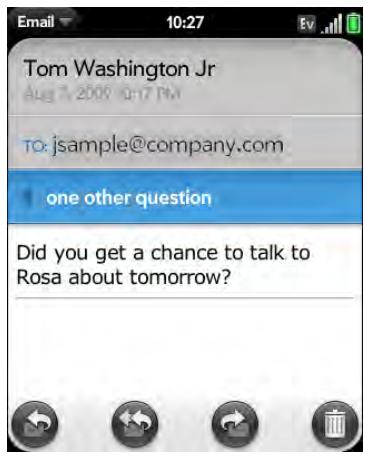
5 Tap or in the subject line to view the next newer or older message.
6 To view messages for another account, make the back gesture (see Go up one level in an app (back gesture)) to return to the account list, and tap the account name.
Save or share an inline image
If a message contains an inline image—an image inserted right into the body text—you can share the image with someone else via email. If you choose this option, a new blank email message opens with the image file as an attachment.
If the image is in JPG, BMP, or PNG format, you can also save it to and view it in the Photos app.
1 With the message open, press and hold Option and tap the image.
2 Tap Copy To Photos (if available) or Share.
Open attachments
You can receive any kind of file sent to you, but you can only open an attachment if your phone has an application that can open the file type.
- To open a single attachment: Tap the name to open the attachment. For large attachments, tap the name to fully download the attachment, and tap the name again to open the attachment.
- To open multiple attachments: Tap the list of attachment names to view the attachments, and tap an attachment name to open the file.
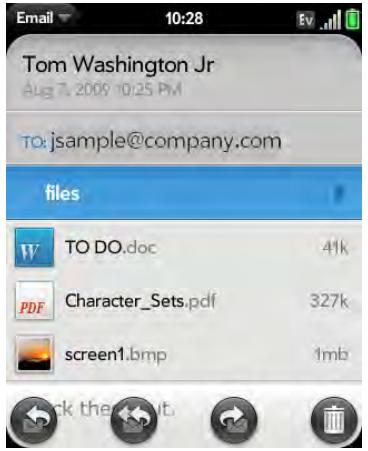
Save attachments
When you open attachments of certain file types, you can save them to your phone so you can view them later in one of your phone's applications.
1 Open the attachment (see Open attachments).
2 Do one of the following:
- For pictures in JPG, BMP or PNG format: Tap Copy To Photos.
- For other file types: Open the application menu and tap Save As. If the Save As menu item is not available, you cannot save the attachment.
- To save an attached image that appears in the body of an email to your phone: Tap the image. If the image is in JPG BMP, or PNG format, you can view it in Photos.
Add a contact from an email message
You can add a contact name or email address to your Contacts list directly from the To, Cc, or Bcc field of an incoming email message. You can either create a new contact or add the information to an existing contact.
1 In a message you received, tap the name or email address.
2 Tap Add To Contacts.
3 Tap one of the following:
Add New Contact: Create a new contact for the name or address.
Add To Existing: Tap the contact you want to add the name or address to.
View a contact from an email message
- In a message you received from someone listed in the Contacts app, tap the name to open the contact entry.
Search for an email message
You can search for messages in any email folder. Incoming messages must be fully downloaded to your phone to show up in search results.
- In the folder containing the message, type a few characters of a name or email address in the From, To, or Cc line, or a few characters of the subject. Matching results appear as you type. Keep entering characters to narrow the list.
Reply to a message
1 Open a message.
2 Do one of the following:
- Reply to just the sender: Tap
- Reply to the sender and all other addressees: Tap
3 Enter the reply message text and tap
Forward a message
1 Open a message and tap
2 Address the forwarded message (see Create and send an email message).
3 Enter the forwarded message text and tap
Copy messages
1 Open a message.
2 Do one of the following:
- To copy the entire contents of the message, including the sender, date, recipient, subject, and body text: Open the application menu, tap Edit, and tap Copy All.
- To copy the body text only: Open the application menu, tap Edit, and tap Select All. Then open the application menu, tap Edit, and tap Copy.
Move a message to another folder
1 Open a message.
2 Open the application menu and tap Move To Folder.
3 Tap the folder you want.
Mark a message as read or unread
1 Open a message.
2 Open the application menu and tap Mark As Read/Unread.
Flag or unflag a message
1 Open a message.
2 Open the application menu and tap Set Flag or Remove Flag.
Show or hide message header details
1 Open a message.
2 Tap a recipient name to show details. Tap again to hide details.
Delete a message
Deleting a message moves it to your deleted items folder, so it's still on your phone. Depending on your email account, this folder is called Deleted Items, Deleted,Trash,or something else.
If you accidentally delete a message, you can move it back to the original folder (see Move a message to another folder). To remove a message from your phone permanently, delete it from the deleted items folder.
TIP If you change the folder where you store deleted messages for an IMAP account (see Enter advanced account settings), deleting messages from this folder removes them from your phone.
Do one of the following:
- In the message list: Throw the message off the side of the screen.
- In an open message: Tap
Add a signature to outgoing messages
A signature includes information you want to add to the closing of all your outgoing messages—for example, your name, address, and phone numbers; your website; or a personal motto. You can use a different signature for each email account.
1 Open Email
2 Open the application menu and tap Preferences & Accounts.
3 Tap the account you want.
4 Tap the Signature field and enter the signature text. To format the text with bold, italics, or color, select the text (see Text selection gestures), open the application menu, and tap Edit > [the option you want].
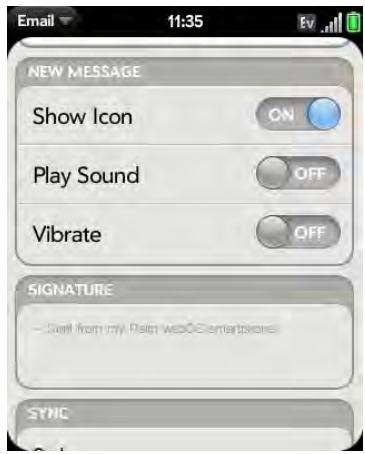
View mail folders
1 Open Email
2 Do any of the following:
View all folders for an account: Tap
- Open a folder: Tap the folder name.
- View folder information such as last sync and number of messages: Open the folder, and then tap the folder header.
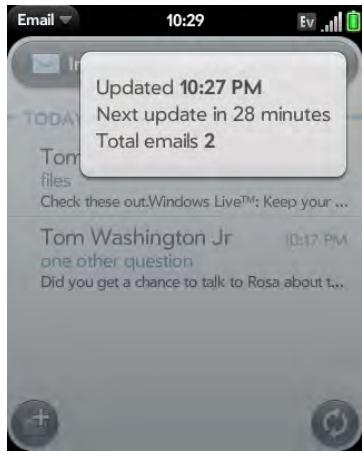
Add a folder as a favorite
Favorites appear at the top of Account List view.
1 Open Email
2 If the folder you want is not displayed, tap to the right of the email account name to display the folder.
3 Tap to the right of the folder name.
To remove a folder as a favorite, repeats steps 1 and 2 and tap to the right of the folder name.
Set email preferences
1 Open Email
2 Open the application menu and tap Preferences & Accounts.
3 Set any of the following:
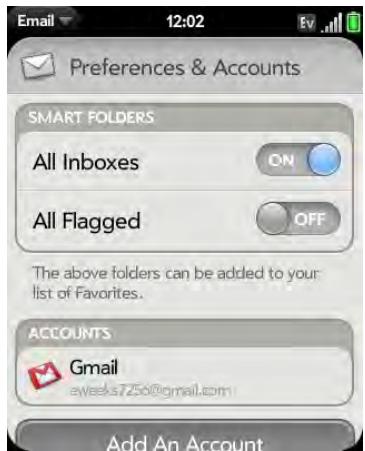
Smart Folders: Set whether to include All Inboxes and/or All Flagged messages as favorites at the top of Account List view.
Accounts: Tap an account name to enter advanced settings (see Enter advanced account settings).
Default Account: Tap the account shown to set another account as the default. The default account is used to send a message when you create a new message in Account List view or in a merged folder such as All Inboxes or All Flagged. If you have only one email account on your phone, the Default Account preference is not displayed.
Add An Account: See Set up email.
Reorder accounts
1 Open Email
2 Open the application menu and tap Preferences & Accounts.
3 Tap and hold the account name, wait for the visual cue, and then drag the account up or down. This changes the order of the accounts in Account List view.
Reply to meeting invitations
You can receive meeting invitations on your phone in the same way that you receive email messages. You cannot create meeting invitations on your phone.
- Tap whether to accept, tentatively accept, or decline an invitation.
Here are the key features of meeting invitations:
- Meeting invitations appear on your phone in the Email application, not in the Calendar application.
- From within the Email application, you can accept, decline, or tentatively accept a meeting invitation.
- If you accept or tentatively accept an invitation, it appears as an event in Calendar.
- You can reply to and forward meeting invitations in the same way as email messages.
TIP If you receive an updated meeting invitation, you can again choose to accept, decline, or tentatively accept. If you receive a meeting cancellation, open the message and tap Remove From Calendar to delete the meeting from your calendar.
Send email messages from within another application
Look in the application menu to see if an application supports sending an item as an attachment to an email message. This menu item is available in the Contacts, Photos, Doc View, PDF View, and Memos applications, among others. Depending on the app, the menu item might be named Share, Send, or Email. For details, look in this guide for the section that documents the specific application.
Messaging
What kinds of messages can I send and receive?
You can use the Messaging application to send and receive the following types of messages:
- Text and multimedia messages (see Create and send a text or multimedia message)
- Instant messages for an IM account you already have set up online (see Set up an instant messaging (IM) account)
The Synergy feature enables the Messaging app to gather all your text, multimedia, and instant messages to and from the same contact or phone number into a single conversation (sometimes called a thread). So you can see your entire message history with a person regardless of the different methods you happened to use to communicate with that person (see Work with conversations). You can even switch from account to account without losing the thread of your conversation (see Switch between messaging accounts in a conversation)—just pick the messaging account that's most likely to keep you in unbroken contact with the person you're talking to.
Work with conversations
When you exchange more than one message with a person, the messages are grouped into a conversation. A single conversation can contain text, multimedia, and IM messages. When you start or continue a conversation, the upper part of the conversation screen displays all messages you've exchanged with this person, and the bottom part provides the area where you type your next message.
You can carry on multiple conversations at the same time.
1 Open Messaging
2 Do one of the following:
- Start a new conversation: Create a message (see Create and send a text or multimedia message or Send and receive IM messages), or tap a message and reply to it.
- Continue an existing conversation: Tap the conversation.
3 Enter your message.
4 Tap
TIP You can copy the contents of a conversation as plain text, which you can paste in a memo, email message, and so on (see Copy messages).
Switch between messaging accounts in a conversation
In a single conversation, you can switch between text/multimedia messaging and an IM account. So if you are having an IM chat with someone and he or she goes offline, you can send the person a text message to wrap up the conversation. You can also switch between different phone numbers for sending a text message to a person.
1 In Messaging, start a new conversation or open one that's listed in Conversations view.
2 Tap Text or an IM account name in the upper-right corner of the screen. If available, the other ways to communicate with this contact appear in a list. Tap the account or phone number you want to use.
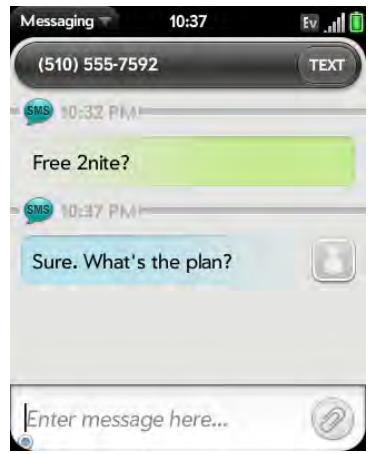
Switch between Conversations view and Buddies view
Conversations view lists all of your Messaging conversations. Buddies view lists all of your IM buddies.
1 Open Messaging
2 For Conversations view, tap Conversations. For Buddies view, tap Buddies.
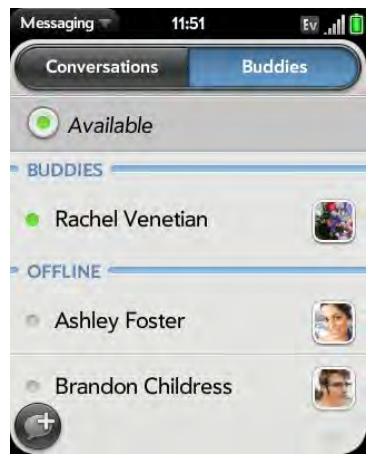
3 In Buddies view, tap to expand a buddy list. Tap a buddy name to contact that person.
TIP You can set a preference to show all your buddies, whether they are online or offline, or to hide offline buddies. In Buddies view, open the application menu and tap Show/Hide Offline Buddies.
Create and send a text or multimedia message
Each text message can have up to 160 characters. If you send a text message to an email address, the email address is deducted from the 160-character count.
Multimedia messages consist of both text and pictures. You can include pictures in JPG format.
DID YOU KNOW? You can send and receive text messages even while you are on a phone call. This is easiest when using a hands-free headset or the speaker.
BEFORE YOU BEGIN Make sure that your phone is on and that you're inside a coverage area (see Turn wireless services on).
1 Open Messaging
2 The first time you open Messaging, tap Done to send a text or multimedia message. Thereafter, skip to step 3.
TIP If you want to set up an instant messaging (IM) account the first time you open Messaging, tap Add An Account and see Set up an instant messaging (IM) account for instructions.
3 Tap. The cursor is in the To field. Do one of the following to address the message:
- Enter a contact's first or last name or initials, screen name, phone number, or email address. Tap the phone number, IM, or email address you want to use to send the message when it appears.
- Tap to open your full contact list. Tap the contact you want or enter a name or address to narrow the list.
- Enter a phone number for a recipient who is not a contact.
TIP Do you need to enter a short code that contains letters? Use the keyboard to enter it; just press the letter keys. For example, if the code is "win01," press W to enter w, I to enter i, and so on. No need to figure out the numbers that correspond to the letters.
4 Tap the To field and repeat step 3 to enter additional recipients.
5 Do one of the following to attach a picture to a multimedia message:
- Before entering the message text: Tap 📦. Tap the album containing the picture you want. Tap the picture, or tap New Photo and take the picture. Tap Attach Photo.
- After entering the message text: Open the application menu and tap Add Picture. Tap the album containing the picture you want and tap the picture, or tap New Photo and take the picture. Tap Attach Photo.
TIP You can include emoticons in your message (see Use emoticons in a message).
TIP You can also send a contact entry as part of a multimedia message. Do this in the Contacts app (see Send Contacts).
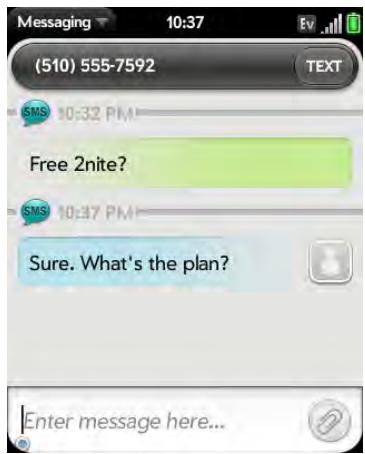
Use emoticons in a message
To include an emoticon in a text, multimedia, or IM message, type in a keyboard character combination for that emoticon. Most emoticons can be created by more than one combination. After you send the message, the emoticon image appears in the conversation on your phone and on the recipient's phone, as long as the receiving IM application supports the image.
This table shows the emoticons that are supported on your phone.
NOTE Emoticon combinations that use words, such as :cool or :cry, are not supported in most chat applications. Emoticons created using these combinations may not appear correctly on the recipient's phone.
Table 1. Supported emoticons
| To display this emoticon... | Enter any of these keyboard character combinations... |
| :>o >:-o >:O >:-O >:( >:-( :angry :mad | |
| o_O :confused | |
| 8) 8- ) B) B-) :cool | |
| :'( ='( :cry | |
| [: :-[ ==[- redface | |
| :S :-S :s :-s %-( %( X-( X( :eww :gross | |
| ! :-! :eek | |
| (: :-( ==(- :sad | |
| :O :-O :o :-o =O =:-O =o =:-o :surprised | |
| :shock :omg | |
| ^^ ^^ ^^ :grin :biggrin | |
| <3 :heart | |
| O:) O:-) o:) o:-) :innocent :angel | |
| :*:* *= *= * :kiss | |
| :-D :D =D =-D :laugh :lol | |
| >:-) >:) >:-> >:-> :evil :twisted | |
| | :-| :neutral :meh | |
| :-& :& =& =-& ::-@ :@ =@ =-@ :sick | |
| (:) :-) =) =-) :smile |
Table 1. Supported emoticons
| To display this emoticon... | Enter any of these keyboard character combinations... |
| :/ :/ :\\ :\\ =/ =/ =\\ =\\ :doh | |
| ; ) ;-) :wink | |
| :P :-P :p :-p :b :=p =P =b =-b =-p | |
| =-P :yuck :razz |
Receive and view text and multimedia messages
You can view pictures and videos and listen to music files included in a multimedia message. You can save pictures in JPG format to your phone for viewing in the Photos application.
1 Open Messaging
2 Tap a conversation to view messages.
3 If Download MMS is displayed, tap it to view the attached file. (See Turn automatic download of multimedia messages on or off.)
4 In a multimedia message, tap a music, video, or vCard file name to view the attached file. (Attached pictures are displayed within the message.) To save an attached JPG picture, tap the photo, tap View, and then tap Copy Photo.
Add a contact from a message
1 In Conversations view, tap a conversation with someone who is not a contact.
2 Tap the header at the top of the screen.
3 Tap Add To Contacts.
4 Tap one of the following:
Add New Contact: Create a new contact for the name or address.
Add To Existing: Tap the contact you want to add the name or address to.
Forward a message
1 In a conversation, tap a message and tap Forward.
2 Enter the recipient's number, screen name, or email address in the To field.
3 (Optional) Tap the message text, and edit the text.
4 Tap
Copy messages
You can copy an individual message as plain text. You can also copy the contents of an entire conversation.
1 Open Messaging
2 Tap a conversation.
3 Do one of the following:
- To copy the entire conversation: Open the application menu, tap Edit, and tap Copy All.
- To copy a single message: Tap the message and tap Copy Text.
View a contact's information from a message
- In a conversation, tap the header of a message received from a contact to open the contact entry.
Dial a number from a message
- Tap a phone number.
Delete a message
1 In a conversation, throw the message off the side of the screen.
2 Tap Delete to confirm.
Delete a conversation
1 In Conversations view, throw the conversation off the side of the screen.
2 Tap Delete to confirm.
Turn automatic download of multimedia messages on or off
By default, multimedia messages are downloaded automatically. You can change the option so that you can decide whether to download a multimedia message.
1 Open Messaging
2 Open the application menu and tap Preferences & Accounts.
3 In Auto-Download MMS, tap On or Off.
Set up an instant messaging (IM) account
To use an IM account on your phone, such as a GoogleTalk IM account, you must already have the account online. If you have an IM account with a provider that takes advantage of the Synergy feature, that IM account is automatically added to your phone when you enter your username and password for that provider in Email, Calendar, or Contacts.
1 Open Messaging
2 Do one of the following:
- The first time you open Messaging: Tap Add An Account.
- Any other time: Open the application menu and tap Preferences & Accounts. Tap Add IM Account.
3 Tap the account type and enter your username and password.
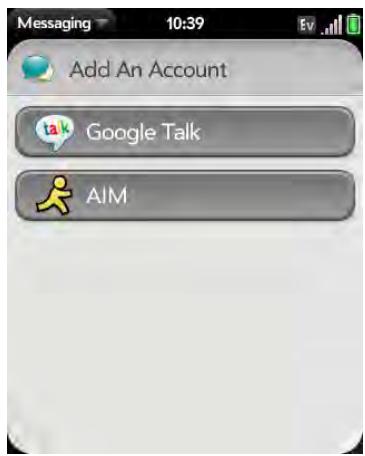
4 Tap Sign In.
Sign in to an IM account
1 Open Messaging
2 Tap Buddies.
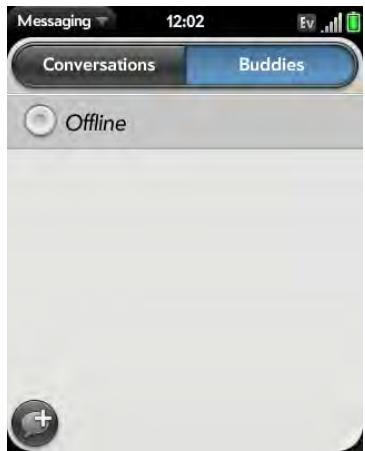
3 Tap to the left of the text Offline and tap Available.
Sign out of an IM account
1 Open Messaging
2 Tap Buddies.
3 Tap the status icon to the left of your online status (Available or Busy) and tap Sign off.
Send and receive IM messages
BEFORE YOU BEGIN Make sure that your phone is on and that you're inside a coverage area (see Turn wireless services on).
1 Open Messaging
2 Do one of the following to start or continue a conversation:
-
In Conversations or Buddies view: Tap to start a new conversation.
-
In Conversations view: Tap an existing conversation and enter a new message.
- In Buddies view: Tap a buddy name and enter a new message.
3 Tap Text or an IM account name in the upper-right corner of the screen, and tap the IM account you want to use.
4 Enter the message text and tap
TIP You can include emoticons in your message (see Use emoticons in a message).
5 When the message recipient replies, the reply appears below your message in the conversation. Repeat step 4 to send another message.
Change your online status
1 Open Messaging
2 Tap Buddies.
3 Tap the status icon to the left of the status description, and tap your new status.
4 Tap to confirm your status.
Change your custom message
Your custom message is seen by your IM buddies. It appears next to your IM screen name and status. It can contain any text you want.
1 Open Messaging
2 Tap Buddies.
3 Do one of the following:
- If you already have a custom message: Tap the current message and enter the new message text.
- If you're creating a custom message for the first time: Tap the status text (Available, Busy, and so on) and enter the custom message text.
Change your IM account username and password
If you change the username or password for your IM account online, you need to enter the updated information for the account on your phone.
1 Open Messaging
2 Open the application menu and tap Preferences & Accounts.
3 Tap the account name.
4 Enter the new information and tap Sign In.
Delete an IM account
1 Open Messaging
2 Open the application menu and tap Preferences & Accounts.
3 Tap the account name.
4 Tap Remove Account, and tap Remove Account again to confirm.
Turn messaging notifications on or off
You can set your phone to show a notification and/or play a sound when a new message arrives. These settings apply to all your Messaging accounts.
1 Open Messaging
2 Open the application menu and tap Preferences & Accounts.
3 Turn either of the following new message notifications on or off:
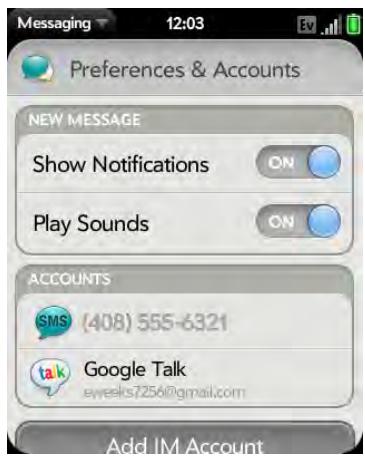
Show Notifications: Set whether a notification appears when you receive a new message.
Sound: If Show Notifications is on, set whether an alert sound plays when you receive a new message. Tap System Alert, Ringtone, or Mute. If you select Ringtone, tap the name of the ringtone to select it. See Sounds & Ringtones for information on selecting a ringtone.
The ringer switch must be set to On for you to hear the sound.
Personal information
Your Palm® Pixi™ Plus phone is all you need to organize your personal information and keep it with you wherever you go.
All your personal information is backed up and kept private either in your Palm profile or in one of your online accounts.
In this chapter
84 Contacts
93 Calendar
100 Tasks
104 Memos
105Clock
107 Calculator
107 Facebook
Contacts
How do I add names and other info into Contacts?
You have a few options for getting contact info into to show up in your Contacts.
Connect to an online address book. If you have an address book in an online account that works with the Palm® Synergy™ feature (for example, Google or Microsoft Exchange ActiveSync), you can set up Contacts on your phone to synchronize and display contacts that you store in the online address book. Set up synchronization the first time you open Contacts (see Use Contacts for the first time), or anytime after that (see Customize Contacts). After you set up the connection to the online address book, contacts you enter online show up automatically in Contacts, and contacts you enter on your phone sync to the online account, provided the account allows writing from the phone to the online account.
The Synergy feature makes it easy to synchronize other data from an online account. By setting up synchronization in one app, synchronization of the other apps is automatically set up for you. For example, if you set up your Gmail account in Email before you set up Contacts, when you first open Contacts, you find that your Google contacts are already downloaded. And when you first open Calendar, you find that your Google calendar events are already in your phone's Calendar.
NOTE See the online accounts table at the back of the user's guide for the current list of online accounts that you can set up on your phone, from which you can access contacts.
Transfer contacts using the Data Transfer Assistant: When you transfer contacts from desktop software, you select which account to assign those contacts to. Look for those contacts in the account you select (see How do I get data off my computer?).
Enter a contact directly in Contacts: See Create a contact for instructions. You can assign the contact to one of your online address books—if you do, it
synchronizes with the online address book. Or you can create the contact in your Palm profile account, which means it shows up on your phone only. Palm profile contacts are included in the daily backup of your Palm profile information, so you can restore them if they are accidentally erased.
Download vCard info to Contacts: A vCard is an electronic business card attached to an email or an MMS. If you receive an email or an MMS with a vCard attachment, download the attachment to Contacts. See Receive vCards.
Linked contacts
The Synergy feature automatically links contacts from different accounts if it finds data in common between them. For example, if you have a contact in Exchange and in Google for Thomas Flagg, your phone links the contacts so that all of Thomas's info shows up on a single contact screen. You need to open just one view to see all of Thomas's info. The actual data remains stored separately with your different providers; it's just assembled in one view on your phone for your convenience.
How can you tell if a contact is linked? Look in the upper-right corner of the contact screen. If you see a stack of photos and a number, that means that you're looking at a linked contact, with combined info from contacts you're storing with separate providers.
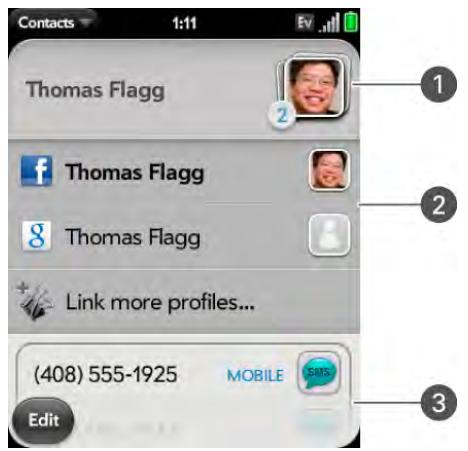
1 Tap the stack of photos to see the contacts that are linked.
2 Thomas is a contact in your Google online account and in your Palm profile account.
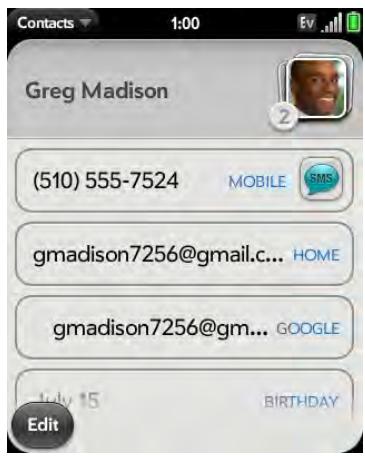
3 Scroll down to see Thomas's combined contact info.
- Tap the appropriate field to call or send an email or instant message to that contact. For example, tap a phone number to call the contact.
- Tap to send a text message.
- Tap an address field to view the address on a map.
You can unlink automatically linked contacts, and you can manually link contacts yourself (see Link a contact or Unlink a contact).
Use Contacts for the first time
1 Open Contacts
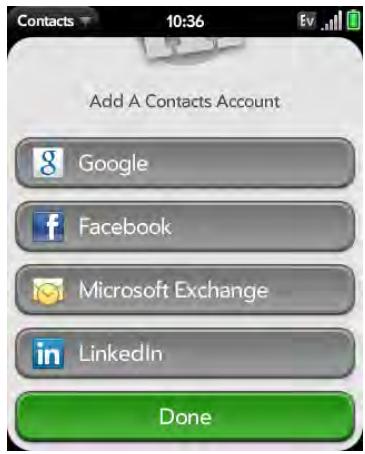
2 Do one of the following:
- To set up your first online account to sync: Tap the account type, enter the account information, and tap Sign in.
- To set up a second online account to sync: Tap Add An Account, tap the account type, enter the account information, and tap Sign In.
- To open Contacts without creating an online account: Tap Done. This opens your Palm profile account, and you can start creating contacts in this account.
NOTE If you add your Facebook or LinkedIn account to Contacts, your friends' Facebook and LinkedIn email addresses show up in Contacts. You cannot change Facebook or LinkedIn info from Contacts on your phone. You also cannot add friends to your Facebook or LinkedIn account from Contacts. To work directly with Facebook or LinkedIn, go to facebook.com or linkedin.com in the Web application (see Web). To update your status and see your Facebook news feed, use the Facebook application developed for your phone (see Facebook).
Create a contact
When you add a contact, if you don't specify the account, the new contact is added to your default account.
If you are using Contacts for the first time, you go through a few different steps to add or access the contacts on your phone (see Use Contacts for the first time). Follow this procedure to add contacts directly on your phone after the first time you use Contacts.
1 Open Contacts
2 Tap
NOTE If an account doesn't appear in the list, you can't add data to that account from your phone.
3 (Optional) Tap the account icon to the right of Name to change the account to which the new contact will be added.
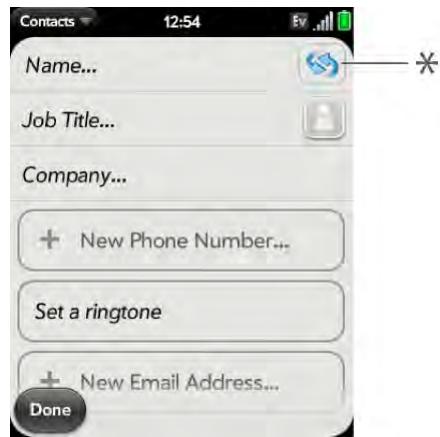
* Account icon, showing Palm profile account
4 Tap fields to enter contact details, select a ringtone for that contact, add notes, or add birthday details for the contact. Scroll to see all of the fields available for contact info.
5 To add detailed name information—such as a prefix, suffix, or middle name—open the application menu and tap Name Details.
6 In some fields, such as New Phone Number, when you enter the information a label button appears on the right. Tap the button to change the label for your entry—for example, to identify a number as a mobile or work phone.
TIP When you enter a phone number that requires pauses—for example, a number for which you need to enter a password or respond to prompts, you can insert a pause or a stop in the number. To insert a two-second pause, enter a T where you want the pause to appear. To insert a stop, enter a P where you want the stop to appear. To dial the next set of numbers after the stop, you will need to tap the screen.
TIP Use the Reminder field to enter that important message or question you have for this contact. The next time you send or receive a call or a message to or from the contact on your phone, you get a notification at the bottom of the screen. You can add a reminder to a contact at any time (see Assign a reminder message to a contact).
7 Tap Done.
Find a contact
You can find a contact from Card view or the Launcher view. To learn how, see Use universal search. To find a contact within the Contacts app, use these steps.
1 Open Contacts
2 Begin typing any of the following:
- First, middle, or last name
- First and last initial (no space between)
Company - Nickname
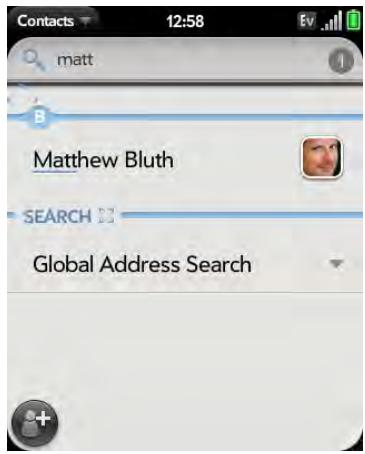
3 For more search options, tap Global Address Lookup. (This option is available if you are using Microsoft Exchange ActiveSync with a Global Address List.)
4 Tap the contact.
View, edit, copy, or delete contact information
1 Open Contacts
2 Search for a contact (see Find a contact), and tap the contact name.
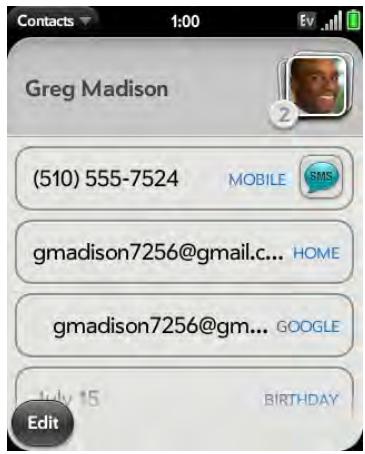
3 To edit a contact, tap Edit.
Info that's dimmed means it originates from an account that you can't edit on your phone (like Facebook).
4 In a linked contact, tap the account icon in the upper-right corner to edit fields specific to that account.
NOTE The fields that make up the contact header (name, photo, job title, company) are unique to each account. You must open a specific account to enter these fields.
5 Tap fields to add or change information (see Enter information in a field).
NOTE In a linked contact, when you enter info in a field for the first time, you can assign that info to any account by tapping the account button in the field.
6 To copy a contact, open the application menu and tap Copy All.
The contents of the contact entry is copied as plain text, with carriage returns between each element.
7 To delete a piece of contact information, such as a phone number, throw the item off the side of the screen, and tap Delete.
8 Tap Done.
Add a photo to a contact
The photo you add appears onscreen when this contact calls you.
1 While creating (see Create a contact) or editing (see View, edit, copy, or delete contact information) a contact, do one of the following:
-
To add or change the photo in the default account, tap
-
In a linked contact, to add or change the photo of another account, tap the account button in the upper-right corner and tap the other account (see Linked contacts).
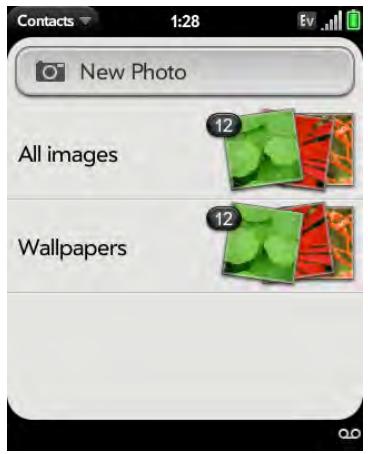
2 Do one of the following:
- To take a new photo, tap New Photo, take the picture, and tap Assign to Contact.
- To use an existing photo, tap the album containing the picture, tap the picture, and tap Assign to Contact.
DID YOU KNOW? If you see a stack of photos in a contact, with a number attached to the stack, that's because it's a linked contact (see Linked contacts).
3 (Optional) Do either or both of the following:
- To enlarge a face or other portion of the picture, zoom in by making the pinch-out gesture.
- To capture the portion of the picture you want, tap and hold the picture, and then drag the portion you want to the center of the onscreen box. This portion becomes the contact photo.
4 Tap Attach Photo.
Add a ringtone to a contact
Select the ringtone you want to hear when this contact calls you.
1 While creating (see Create a contact) or editing (see View, edit, copy, or delete contact information) a contact, tap Set a ringtone.
2 Tap the ringtone name.
3 Tap to preview the ringtone.
4 To use a music file as a ringtone, tap and tap the file name.
5 Tap Done.
TIP To change the ringtone for a contact, while creating or editing a contact, tap the ringtone and tap Change Ringtone. Delete Ringtone deletes the ringtone from the contact, not from the list of available ringtones.
Assign a speed dial to a contact
You can assign a speed dial to any contact phone number. You can assign up to 26 speed dials.
NOTE You cannot assign 1 (the E key) as a speed dial. The number 1 is reserved for dialing your voicemail system.
1 Open Contacts
2 Search for a contact (see Find a contact to learn how), and tap the contact name.
3 Open the application menu and tap Set Speed Dial.
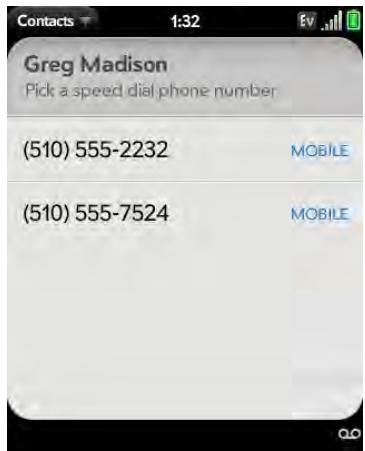
4 Tap the phone number you want to assign a speed dial to, and then tap the key to use as a speed dial. You may have to scroll to find the key you want.
TIP To assign a currently used speed dial key to a new number, follow the steps for setting a new speed dial for the new number. Tap the key to use in step 4, and tap Reassign To [Name].
TIP To remove a speed dial from a number, open the contact, open the application menu, and tap Set Speed Dial. Tap the number and tap Remove Speed Dial [key letter].
Assign a reminder message to a contact
If you have an important message or a question for a contact, you can enter a reminder right on your phone. The next time you and the contact are in touch—whether by phone call, email, or text message/IM—a notification appears showing the contact name and a message bubble. Tap the bubble to view the reminder.
1 Open Contacts
2 Search for a contact (see Find a contact), and tap the contact name.
3 Open the application menu and tap Add Contact Reminder.
4 Enter the reminder, and make the back gesture to save it.
TIP To remove a reminder message before it pops up as a notification, open the application menu, and tap Add Contact Reminder. Tap the trash icon.
Link a contact
When your phone recognizes matching information in two or more contacts—for example, the same name and phone number—it automatically gathers the info from the two records into a single view that displays all the contact information. You can also manually link contacts. The info for your linked contacts appears combined only on your phone—the actual info is kept separate and distinct in the accounts it came from.
IMPORTANT To maintain the integrity of your contact data, it's important that you link only one person's contact info in different accounts. For example, if you have contact info for Emily Weeks in Google, Facebook, Microsoft Exchange, and your Palm profile account, go ahead and link all four contacts into a linked contact. But don't link Emily's contact info with her sister Allison's.
1 Open Contacts
2 Search for a contact (see Find a contact), and tap the contact name.
3 In the open entry, tap the contact name in the header, and tap Link more profiles.
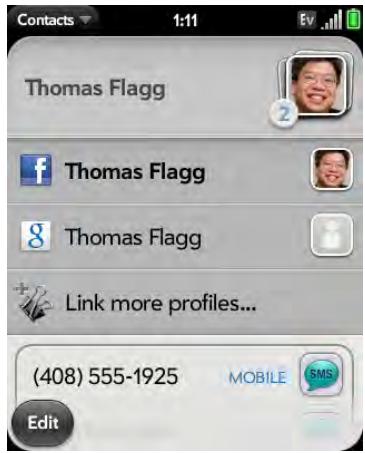
4 Search for the contact (see Find a contact) and tap it to link the two contacts.
5 After you create the link, be sure the linked contact appears in your Contacts list under the name you're most likely to search for and recognize (and not, say, under a person's IM screen name, which can be unrelated to their real name). To do this, tap the contact name you want to appear, and tap Set As Primary Profile. When you search for a contact using universal search (see Use universal search), the search feature looks through primary profile information only.
Unlink a contact
1 Open Contacts
2 Search for a contact (see Find a contact), and tap the contact name.
3 Tap the contact name in the header, and tap the contact you want to unlink.
4 Tap Unlink This Profile.
Add a contact entry to the Launcher
Assign your favorite contacts to the Launcher, so you can open them directly from that location.
1 Open Contacts
2 Search for a contact (see Find a contact), and tap the contact name.
3 Open the application menu and tap Add to Launcher.
4 (Optional) Edit the first and last name as you want them to appear in the Launcher.
5 Tap Add To Launcher. To see the contact in the Launcher, scroll down on page 1.
If the contact has a picture (see Add a photo to a contact), the picture appears as a Launcher icon. If the contact doesn't have a picture, the contact name appears in the Launcher with a placeholder icon. Tap the real or placeholder icon to open the contact.
Get in touch with a contact
1 Open Contacts
2 Tap the contact name.
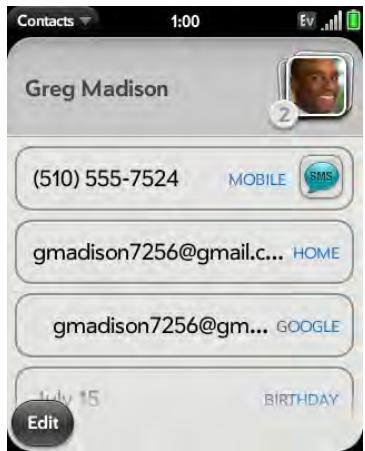
3 Do any of the following:
- Tap the appropriate field to call or send an email or instant message to that contact. For example, tap a phone number to call the contact.
- Tap to send a text message.
- Tap an address field to view the address on a map.
Delete a contact
1 Open Contacts
2 Tap the contact name.
NOTE Entries that you cannot change on your phone, like those from Facebook and LinkedIn, you also cannot delete from the phone. You must delete them from your account on the web to remove them from your phone.
3 Do one of the following:
- Delete an unlinked contact or an entire linked contact: Open the application menu and tap Delete Contact. Tap Delete All Profiles to confirm.
NOTE If you see Delete Other Profiles rather than Delete All Profiles, that's because you have linked contacts that come from accounts whose info you can't change on your phone (like Facebook and LinkedIn). Tap it. To delete any remaining contacts, on your computer, go to the account online and delete them there.
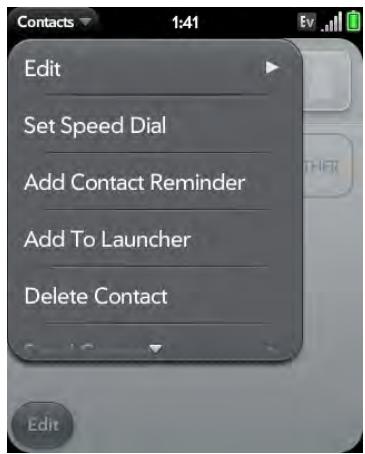
- Delete one entry only in a linked contact: Tap the displayed contact name to open the list of all entries in the linked contact. Tap the entry you want and tap Delete This Profile.
If you delete a contact that is assigned to an online account, the contact is deleted in the online account also.
Customize Contacts
1 Open Contacts
2 Open the application menu and tap Preferences & Accounts.
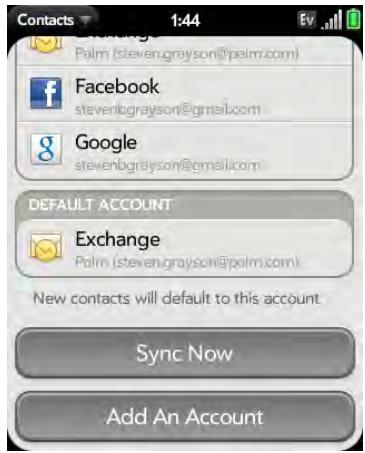
3 Set the following options:
List Order: Tap to select the criteria by which the contact list is sorted. If you select Last name as sort, the names are alphabetized by last name, but still they appear in the Contacts list as First name Last name. If you select First name as sort, names are alphabetized by first name.
You can also choose to sort by Company & first name or Company & last name. In these cases, the company name is alphabetized, and within the company, whichever you choose, the names are still listed First name Last Name.
Accounts: Tap an account to change login settings and sign in using the new settings.
Default account: Tap the current default account to change to another account. New contacts you create are assigned to this account unless you specify otherwise.
Sync Now: Tap to manually synchronize your online accounts.
Add An Account: Tap, and then tap an account type. Enter the account information. Before you can set up an account on your phone, you must already have an account online with the provider.
Manually synchronize Contacts with your online accounts
If you want to get contacts from an online account on your phone immediately—or upload contacts from your phone to the online account—you can do a manual sync. This synchronizes Contacts with all the accounts you have set up on your phone, and it synchronizes your calendar and email with those accounts also.
1 Open Contacts
2 Open the application menu and tap Preferences & Accounts.
3 Tap Sync Now.
Stop synchronization of Contacts with an online account
If you synchronize contacts with an online account, you can delete the account from Contacts. This stops synchronization of contacts only—if you also sync email or calendar events with that online account, those continue to synchronize. Deleting the account from Contacts also deletes any associated contact entries from your phone only. The entries are not deleted from the online account.
NOTE Microsoft Exchange is an exception to other online accounts. If you delete your Exchange account from Contacts, the account is also deleted from Calendar, Email, and Tasks.
1 Open Contacts
2 Open the application menu and tap Preferences & Accounts.
3 Tap the account name.
4 Tap Remove Account and tap Remove Contact Account.
Send Contacts
You can send all contacts to a hands-free car kit (with Bluetooth), or send a contact using multimedia messaging (MMS) or email.
To send all contacts to a car kit, first turn on your Bluetooth device.
1 Open Contacts
2 Open the application menu and tap Send All To Car Kit.
If a Bluetooth device is detected, all contacts are sent.
To send one contact:
1 Open Contacts , and tap a contact.
2 Open the application menu and tap Send Contact.
3 Tap one of the following:
- Send To Car Kit (your Bluetooth device needs to be on and detected).
- Send Via MMS (messaging opens)
- Send Via Email (email opens)
Receive vCards
To get an emailed vCard into Contacts:
1 From the open Email message, tap the attachment.
The vCard opens automatically within Contacts.
2 Tap Add to Contacts.
3 Tap one of the following:
Save As New: Save the vCard as a new contact.
Add To Existing: Add the vCard information to an existing contact.
Calendar
How do I get events into Calendar?
You have a few options for getting events to show up in Calendar:
Connect to an online calendar through the Palm® Synergy™ feature: If you have a calendar in an online account that works with the Synergy feature (for example, Google or Microsoft Exchange ActiveSync), you can set up Calendar on your phone to synchronize and display events in the online calendar. Set up synchronization the first time you open Calendar (see Use Calendar for the first time) or anytime after that (see Customize Calendar). After you set up the connection to the online calendar, events you enter online show up automatically in Calendar, and events you enter on your phone sync to the online account.
DID YOU KNOW? If you synchronize with your Google calendar, you can add Google Weather to the calendar on your desktop and have it appear in Calendar on your phone. On your desktop, log in to your Google Calendar account and open Calendar Settings. Click the General tab, enter your location, and click the temperature unit you want in Show weather based on my locations. The next time your phone synchronizes with your Google account, Google Weather appears in Calendar on your phone.
The Synergy feature makes it easy to synchronize other data from an online account. By setting up synchronization in one app, synchronization of the other apps is automatically set up for you. For example, if you set up your Gmail account in Email before you set up Calendar, when you first open
Calendar, you find that your Google calendar events are already downloaded. And when you first open Contacts, you find that your Google contacts are already in your phone's Contacts app.
Transfer calendar events using the Data Transfer Assistant: When you transfer calendar events from desktop software, you select which account to assign those events to. Look for those events in the account you select (see How do I get data off my computer?).
NOTE See the online accounts table at the back of the user's guide for the current list of online accounts that you can set up on your phone, from which you can access Calendar events.
Enter an event directly in Calendar: See Create an event for instructions. You can assign the event to one of your online calendars—if you do, it synchronizes with the online calendar. Or you can create the event in your Palm profile account, which means it shows up on your phone only. Palm profile events are included in the daily backup of your Palm profile information, so you can restore them if they are accidentally erased.
Layered calendars
Suppose you use the calendar in both Microsoft Exchange ActiveSync and in Google. If you set up both of those accounts to sync with your phone, your phone's Calendar app shows the events from both in a single view—a layered calendar with events that are color-coded to identify which provider they come from. Individual events remain stored separately with your different providers; the events are just assembled in one view on your phone for your convenience.
If you change an event, the change is made in the appropriate calendar.
You can also look at the events of just one calendar at a time.
Use Calendar for the first time
1 Open Calendar
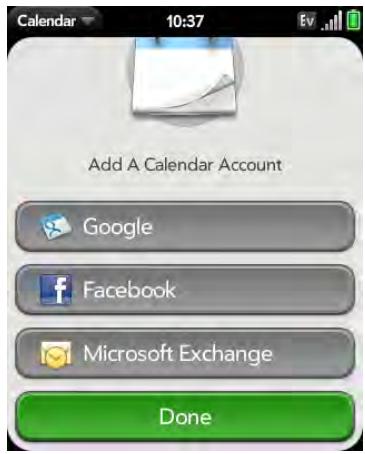
2 Do one of the following:
- To set up your first online account to sync: Tap the account type, enter the account information, and tap Sign In.
- To set up a second online account to sync: Tap Add An Account, tap the account type, enter the account information, and tap Sign In.
- To open Calendar without creating an online account: Tap Done. This opens your Palm profile account, and you can start creating events in this account.
NOTE If you choose to sync Calendar with an online Facebook account, your Facebook events show up in Calendar, but you cannot add calendar events to Facebook from the Calendar app. To work directly with Facebook, go to facebook.com in the Web application (see Web). To update your status and see your Facebook news feed, use the Facebook application developed for your phone (see Facebook).
Create an event
You can add an event to calendar accounts. If you don't specify an account, the new event is added to your default calendar. For information on managing your phone's time settings, see Date & Time.
NOTE If an account doesn't appear in the list, you can't add data to that account from your phone.
1 Open Calendar
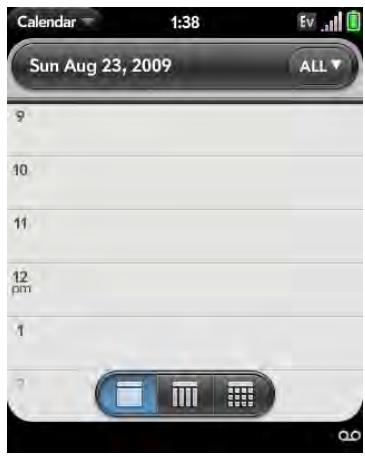
2 Tap All or an online account name in the upper-right corner, and tap the calendar you want to use for this event.
If you create an event in All Calendars view, the event is created in the calendar set as the default (see Customize Calendar).
3 Go to the day you want (see Move around in Calendar) and tap a blank time slot.
4 Enter the event name and press Enter
In Day view, available time slots between events are compressed and labeled X Hrs Free. To expand free time so you can enter an event, tap X Hrs Free.
Don't look for a save button—your info is automatically saved when you make the back gesture to close the event.
Enter the event location
1 While creating an event (see Create an event), tap i to the right of the event name. To enter the event location after creating an event, tap the event name in Day view.
2 Tap Event location and enter the location.
TIP Need to find the event location on a map? Open an event that has a location specified in the Event location field, open the application menu, and tap Event Location. Tap either Show on Map, which shows the location on Google Maps, or Get Directions, which gives directions from your current location.
Schedule a repeating event
1 While creating an event (see Create an event), tap to the right of the event name. To set an event as repeating after creating the event, tap the event name in Day view.
2 Tap No Repeat and tap the repeat interval.
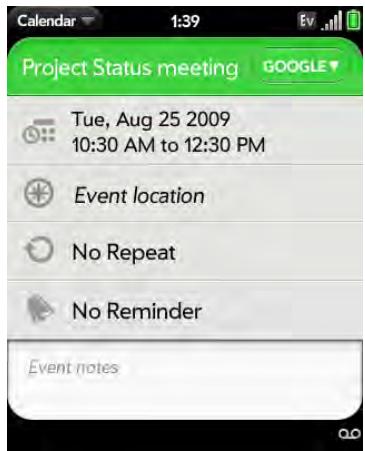
3 (Optional) Tap Custom to define your own repeat interval and set the end date.
DID YOU KNOW? To enter a birthday, anniversary, or holiday, create an untimed event. Then select Yearly on [date] as the repeat interval. See Create an all-day (untimed) event.
Add an alarm to an event
1 While creating an event (see Create an event), tap to the right of the event name. To add an alarm after creating an event, tap the event name in Day view.
2 Tap No Reminder and tap the interval for the alarm.
Add a note to an event
1 While creating an event (see Create an event), tap i to the right of the event name. To add a note after creating an event, tap the event name in Day view.
2 Tap Event notes and enter the note.
NOTE If a phone number is displayed in an event note as an underlined link, you can tap the number to make a call. This displays the phone dial pad with the number already entered.
Create an all-day (untimed) event
An all-day event such as a birthday appears in your calendar without a specific time slot.
1 Open Calendar
2 Go to the day you want, open the application menu and tap New > All Day Event.
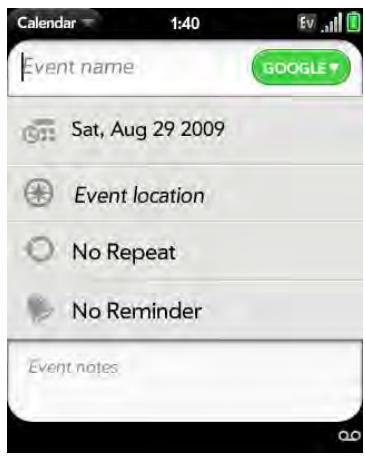
3 Enter the event details.
Change the Calendar display
You can change the display of Calendar to show events from all of your calendars or just the events recorded in one of your calendars. You can also change the color of each calendar, and whether the calendar view shows by day, week, or month.
1 Open Calendar
2 To change your Calendar view from day to week to month, do the following:
- From Calendar view, tap an icon at the lower part of the display to see different calendar views:
Table 1.
| Icon | Description |
| Day view | |
| Week view | |
| Month view |
3 Tap the account icon in the upper-right corner to do any of the following:
- To switch the Calendar account you're viewing: Tap All or one of your Calendar accounts.
- To remove a Calendar account from the layered calendar view (All): Scroll down and tap Calendar View Options. For the account you want to remove, tap On to switch the view option to Off.
- To change the color that identifies a Calendar account: Scroll down and tap Calendar View Options. Tap the current color, and then tap a new color in the list.
Move around in Calendar
- Next or previous day: In Day view, swipe left or right on the screen.
- Next or previous week: In Week view, swipe left or right on the screen.
- Next or previous month: In Month view, swipe up or down on the screen.
- Go to a specific month, date, or year: Open the application menu and tap Jump To. Tap the month, day, and year and tap Go To Date.
- Go to today: Open the application menu and tap Show today.
TIP Other ways to go to today: When you're in Day View, just tap the Day view. icon. Also, in the application menu, tap Jump To and tap Go To Today.
Quickly glimpse your schedule
- In Day or Week view, slightly drag left or right to peek at the next/ previous day or week without changing the current view.
- In Month view, slightly drag up or down to peek at the next/previous month.
Delete an event
If you delete an event that is assigned to an online account, the event is deleted in the online account also.
IMPORTANT When you delete a Microsoft Exchange event on your phone, notification is not sent to attendees.
1 Open Calendar
2 Delete an event in one of two ways:
- In Day view, press and hold Option , and tap the event. You have the option to delete this event or to cancel the delete.
- Tap the event name. Open the application menu and tap Delete event, and then tap Delete to confirm. If this event is one of a series of repeating events, tap the option to delete just this event or the entire series.
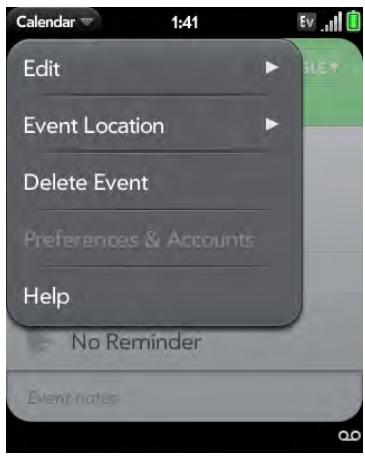
Respond to an event reminder
When an event reminder appears in the notification bar at the bottom of the screen, tap the event description to open the event, or tap one of the following:
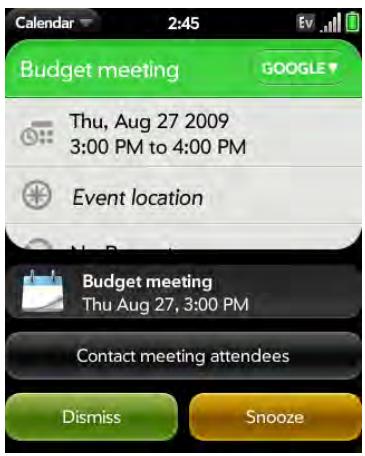
- Contact meeting attendees: This opens an email message with the participants' addresses added to the To field. The default message text is "Running late, on my way.... You can edit the text before sending the message.
- Dismiss: Close the notification.
- Snooze: The reminder reappears in five minutes.
View meeting participants
If you receive a meeting request, you can view the participants.
1 On your calendar, tap the meeting request. The Participants field shows the organizer name plus the number of participants.
2 Tap the number to see the participants' names.
3 (Optional) Tap a participant's name. If the participant is a contact, the contact entry is displayed. If the participant is not a contact, tap Add to Contacts to add the participant to your contacts list.
Customize Calendar
1 Open Calendar
2 Open the application menu and tap Preferences & Accounts.
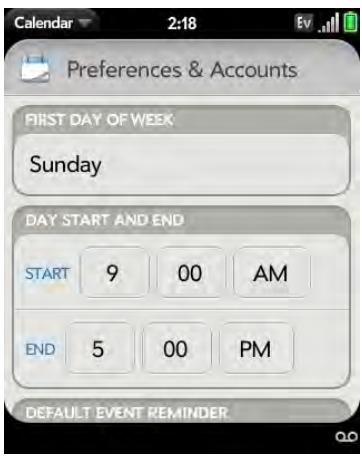
3 Set the following options:
First Day of Week: Select the day that appears as the start of the week in Week view and Month view.
Day Start and End: Tap to enter the default start and end times that appear in Day view and Week view.
Default Event Reminder: Tap the time interval for a notification to appear for timed and all-day events. Reminders you set for individual events override the default setting.
Event Reminders: Select to play a sound when a calendar notification appears.
Default Event Duration: The default event duration is set to one hour. Tap to change this to 30 minutes or 2 hours.
Accounts: For all calendar accounts, tap an account to change login settings or remove the account. You should change login settings only if you have changed this information for the calendar account online—the information you enter here must match the information in the online account.
Calendar View Options: Set the color for events created in that account and show or hide that account in All Calendars view.
Default Calendar: If you create an event in All Calendars view, the event is assigned to your default calendar.
Add An Account: Tap the account type and enter your username and password for the online calendar account. Before you can set up an account on your phone, you must already have an account online with the provider.
Manually synchronize Calendar with your online accounts
If you want to get calendar events from an online account on your phone immediately—or upload events from your phone to the online account (if the account allows it)—you can do a manual sync. This synchronizes Calendar with all the accounts you have set up on your phone, and it synchronizes your contacts and email with those accounts also.
1 Open Calendar
2 Open the application menu and tap Preferences & Accounts.
3 Tap Sync Now.
Stop synchronization of Calendar with an online account
If you synchronize calendar events with an online account, you can delete the account from Calendar. This stops synchronization of calendar events only—if you also sync contacts or email messages with that online account, those continue to synchronize. Deleting the account from Calendar also deletes any associated events from your phone only. The entries are not deleted from the online account.
NOTE Microsoft Exchange is an exception to other online accounts. If you delete your Exchange account from Calendar, the account is also deleted from Contacts, Email, and Tasks.
1 Open Calendar
2 Open the application menu and tap Preferences & Accounts.
3 Under Accounts, tap the account name.
4 Tap Remove Account and tap Remove Calendar Account.
Tasks
Create a task list
All individual tasks you create (see Create a task) must be placed in a task list. A task list is a group of related to-do items.
1 Open Tasks
2 Tap
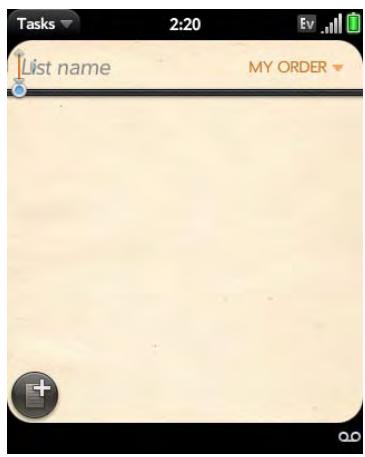
3 Enter the list name in the List Name field and press Enter
4 Create a task (see Create a task).
Create a task
1 Open Tasks
2 Tap the list you want to assign the task to.
3 Tap
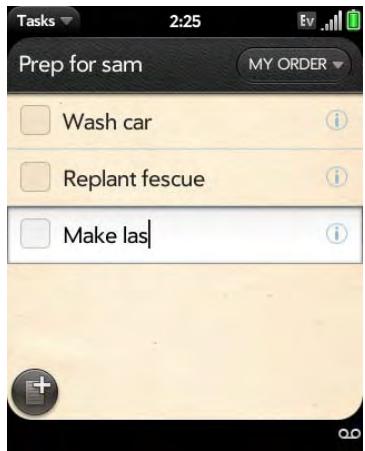
4 Enter the task name in the Task name field. To set the task priority, see the next procedure.
Set task priority, due date, and other details
1 Open Tasks
2 Tap the list containing the task.
3 Tap to the right of the task name.
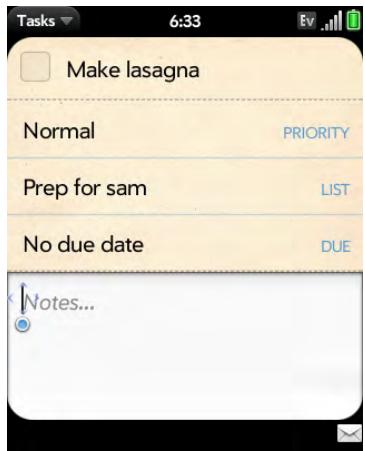
4 Set any of the following:
Priority: High priority tasks appear in red. Normal priority tasks appear in bold text, and low priority tasks appear in gray text.
List: Assign the task to a different list.
Due: Tap No due date, and tap a due date option. If you set a due date, a notification appears at bottom of the screen on the due date. Tap the notification to open the task.
5 To enter a note about the task, tap Notes and enter the note.
Check off a task
1 Tap the list containing the task.
2 Tap the box to the left of the task name.
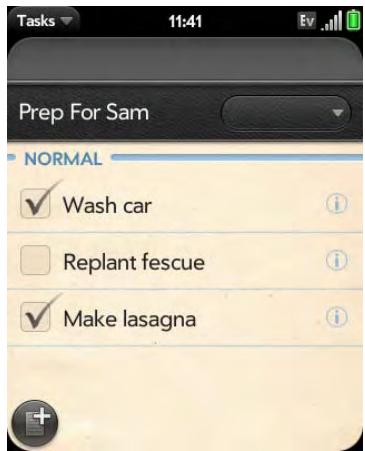
View tasks that are due today
1 Open Tasks. The number to the right of the List All Tasks field shows the total number of tasks that are due today or are overdue. The number to the right of each task list name shows the number of tasks in that list that are due today or overdue.
2 Tap a task list name to view tasks that are due today or overdue.
NOTE Tap Exchange to view tasksynced from your Exchange Tasks feature.
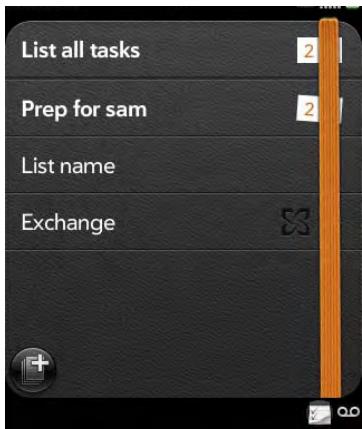
Rename a task
1 On the task list, tap the task name.
2 Enter the new name and press Enter
Sort a task list
You can sort a task list to show all tasks (the default setting), remaining tasks, or completed tasks.
1 Open Tasks
2 Tap the list you want to sort.
3 Tap My Order in the upper-right corner, and tap the sort option you want: My Order, Due Date, or Priority.
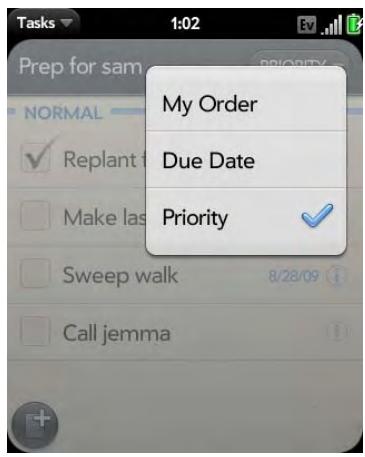
4 To manually sort tasks, tap and hold a task, wait for the visual cue, and then drag it to a new location in the list (see also Check off a task).
Reorder your tasks
You can change the order of a task list or an individual task.
- Tap and hold the list or task name, wait for the visual cue, and drag the item to another position.
Set due dates for all tasks in a list
1 Open Tasks
2 Tap the list containing the tasks.
3 Open the application menu and tap Set Due Date For All.
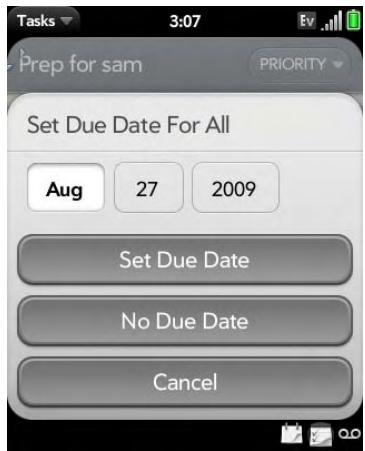
4 Tap the month, date, and year, and then tap Set Due Date.
5 To remove a previously assigned due date, tap No Due Date.
Mark all tasks in a list completed/incomplete
1 Open Tasks
2 Tap the list containing the tasks.
3 Open the application menu and tap Mark All and tap Mark All Completed/Mark All Incomplete.
Hide or delete all completed tasks in a list
1 Open Tasks
2 Tap the list containing the tasks.
3 Open the application menu.
4 Do one of the following:
- To hide tasks you've completed, tap Hide Completed.
- To delete tasks you've completed, tap Delete Completed Tasks.
Delete a task or a task list
- Throw the task or task list off the side of the screen and tap Delete to confirm.
Memos
If you used the Data Transfer Assistant and imported notes from Outlook on your desktop to your phone, those notes are in Memos. Your Exchange Active Sync notes, however, do not sync. All memos are backed up to your Palm profile.
Create a memo
1 Open Memos
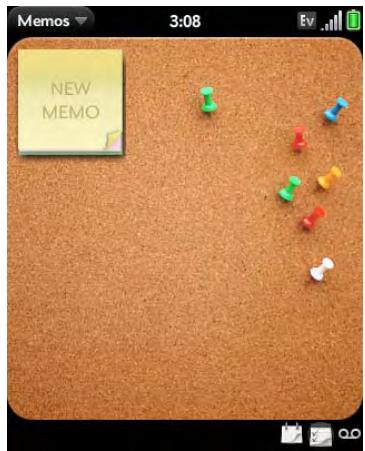
2 Do one of the following:
- Tap New Memo.
- Open the application menu and tap Add A Memo.
3 Enter the memo text. Memos are saved as you type.
Find a memo
- In Memos, start typing any letters or numbers in the memo, and then tap the memo when it appears.
NOTE The results of universal search that you access in Card view or the Launcher do not include memos.
Edit a memo
1 Open Memos
2 Tap the memo you want to edit.
3 Tap the screen to position the cursor (see Text selection gestures), and edit the memo text.
NOTE In the application menu, tap Edit > Copy All to select the whole memo.
Change the color of a memo
Color-code your memos to help you recognize memos of a certain type. For example, make all of your grocery lists blue.
1 Tap the memo.
2 Tap the lower-right corner of the screen, and tap the new color.
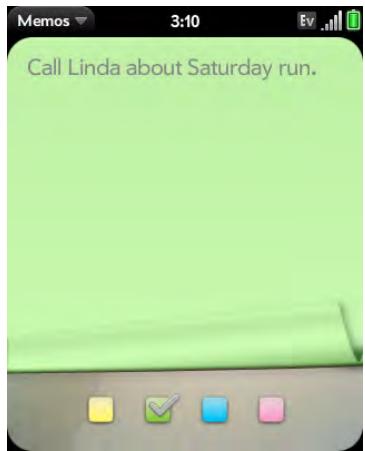
Delete a memo
1 In an open memo, open the application menu and tap Delete.
2 Tap Delete to confirm.
Email a memo
1 In an open memo, open the application menu and tap Email Memo.
2 Enter the email address.
The subject, Just a quick memo, is automatically filled in.
3 Tap
Clock
Use Clock to get up at the same time wherever you are, for example, the recurring 7AM alarm you set in San Francisco rings at 7AM in New York. Use Calendar to have your appointment times adjusted so that the notification for a 9AM meeting in San Francisco will sound at noon when you're in New York (see Create an event).
Manage Clock
1 OpenClock
2 Tap
To change the clock display: Open the application menu > Preferences > and tap Themes. Then tap a theme.
To change the time: See Date & Time.
Set an alarm
Make sure ringtone volume is on and you can hear it, so that the alarm will sound when you want it to (see Manage system sounds and notifications).
1 OpenClock
2 Tap , and then tap +.
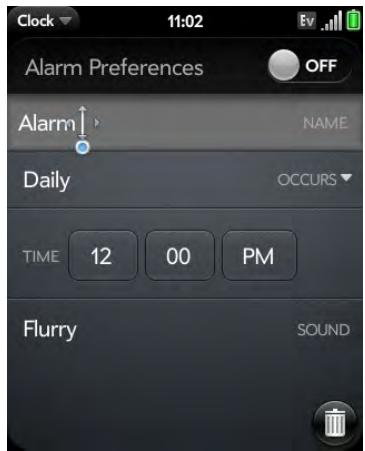
3 Set the following options:
Alarm Preferences: Tap the Off button in the upper right to turn the alarm on. When an alarm is turned on, the alarm icon appears in the lower-right corner of the phone screen. Tap the icon to see alarm details.
Name: Enter a name for the alarm.
Occurs: Tap to select the alarm frequency.
Time: Tap to set hour, minute, and AM/PM for the alarm.
Sound: Tap to open the list of ringtones, and then tap the name of a ringtone. Tap to preview it.
TIP When you set an alarm, you can adjust the alarm volume by pressing the volume up or volume down buttons on the side of the phone. This also sets the ringtone volume for incoming calls. Conversely, adjusting the Ringtone Volume slider in the Sounds & Ringtones app is the same as using the volume up and volume down buttons on the side of the phone.
When an alarm sounds on your phone, tap Dismiss to stop it or Snooze to have it sound again in five minutes.
TIP If you want the ringer switch off but still hear the alarm, go to Sounds & Ringtones > application menu > Preferences. Under Ringer Switch Off, be sure Play alarm anyway is switched to On.
NOTE When you shut down your phone by pressing and holding power G, alarms don't sound.
Cancel an alarm
- Open Clock, and then tap; tap On to turn an alarm off.
Change the alarm volume
1 Open Sounds & Ringtones
2 Tap, hold, and drag the Ringtone Volume slider.
Delete an alarm
1 OpenClock
2 Tap , then tap the alarm name.
3 Tap
Calculator
Use Calculator for addition, subtraction, multiplication, and division, and also for determining percent and square root. You can enter numbers in Calculator using either the onscreen keyboard or the keyboard.
Perform calculations
1 Open Calculator
2 Enter numbers and perform calculations.
NOTE Press the space bar to access additional operations.
Calculator buttons
Table 2.
| Button | Description |
| C | Clear the current calculation or displayed number. |
| M+ | Add the currently displayed number to memory. |
| M- | Subtract the currently displayed number from memory. |
| Mf | Display the memory. |
| MC | Clear the memory. |
The Palm Facebook app allows you to make a status comment, view and respond to friends' comments, and attach a photo to your status. Before you
begin, download the Facebook app from the App Catalog. It's free (see Download a free application).
1 Open Facebook f.
2 Do any of the following:
Show new posts: If you see this at the top of your Facebook page, tap it to show new comments.
Update your status: Type a comment, and then tap Share.
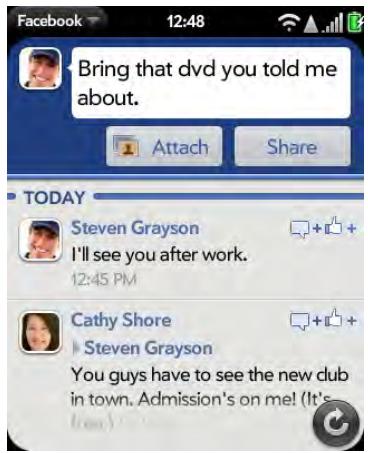
Add a photo to your status: Type a comment, tap Attach, choose a photo or take a new one, tap Attach Photo, and then tap Share.
Add a comment to a post: Tap ++ , tap (optional), type your comment, and then tap
Comment on a photo: Tap the photo, tap 📦, type your comment, and then tap 📦.
Photos, videos, and music
There's no need to carry a separate media player; you can play music and videos, and view photos, on your Palm® Pixi™ Plus phone. Listen to music through the built-in speaker or through a 3.5mm headset or headphones (both sold separately).
In this chapter
110 Camera
110 Photos
114 Videos
116 YouTube
117 Music
119 Amazon MP3
Camera
Take a picture
Your phone comes with an easy-to-use, 2-megapixel camera with an LED flash. You can use the camera to take pictures, and then use the Photos app to view them and send them to your friends and family (see Share a picture). To add a personal touch to your phone, use your pictures as your wallpaper (see Save a picture as wallpaper) and as caller ID images (see Add a picture to a contact).
1 Open Camera

2 The camera is set to automatically determine if the flash is needed. If you want to change the flash setting, tap AUTO to keep the flash on, and tap again to keep the flash off.
3 To take the picture in landscape view, turn your phone 90 degrees.
4 Press Space or tap
TIP Press and hold Space to take pictures in continuous burst mode. Release Space to stop taking pictures.
The picture you took is automatically saved in JPG format. Keep snapping pictures, and then go to Photos to look at them and delete the ones you don't want.
DID YOU KNOW? Your phone offers another way to "take a picture": You can save any currently displayed screen as a picture file (also known as a screenshot). When the screen you want is open, press and hold Option + Sym + P. The picture is saved to the Screen captures album in Photos, and you can work with it like any other picture.
Review pictures
1 After taking a picture, tap the thumbnail of the picture in the lower-left corner of the screen. This opens the picture in the Photo roll of the Photos application.
2 Swipe left or right on the screen to view other pictures you have taken.
Photos
Look at pictures
To get pictures on the phone, you can do any of the following:
- Take a picture with your phone's camera (see Take a picture).
- Copy pictures from your computer (see Copy files between your phone and your computer).
- Receive pictures as email attachments (see Open attachments).
- Receive pictures as part of a multimedia message (see Receive and view text and multimedia messages).
You can view a picture as an email attachment in JPG, GIF, BMP, or PNG format. You can view a picture as part of a multimedia message in JPG
format. In the Photos application, you can view pictures you take with the camera or copy from your computer in JPG, BMP, or PNG format.
You can also look at pictures on the web directly in the web browser (see Web).
1 Open Photos
2 Tap the album containing the picture, and tap the thumbnail of the picture. The Photo roll album contains pictures you took with your phone's camera.
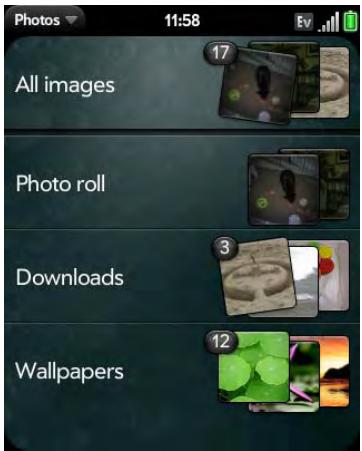
3 Swipe left or right on the screen to look at other pictures in the album.
Organize your pictures into albums
The Photos application contains the following default albums:
Photo roll: Contains all pictures you take with your phone's camera.
Wallpapers: Contains default pictures that you can use as your wallpaper.
DID YOU KNOW? If you use one of your own pictures as wallpaper (see Save a picture as wallpaper), that picture is not saved to the Wallpaps album.
The Photos application creates additional albums automatically as you add the following types of pictures to your phone:
Miscellaneous: Contains any pictures you copy from your computer that you do not assign to a different album, as described in the following procedure.
-
Messaging: Contains any pictures in JPG format that you save from a multimedia message.
-
Downloads: Contains any pictures in JPG, BMP, or PNG format that you save from an email attachment.
Screen captures: Contains any screenshots that you take.
You can assign any pictures on your phone to one of these albums or to an album you create. To create and assign pictures to albums, you must put your phone into USB Drive mode. You then create the albums and move pictures into them using your computer.
TIP Besides using USB Drive mode to copy your photos, videos, and DRM-free music from your computer to your phone, you can also use solutions available from third-party software developers (sold separately) that facilitate the transfer of media files to your phone. For more information, go to palm.com/sync-solutions.
1 Connect your phone and your computer using the USB cable.
2 On your phone, tap USB Drive. If prompted, tap OK. On your computer, your phone appears as a removable drive.
NOTE On a Windows computer, if the Found New Hardware wizard opens, click Cancel to close the wizard.
3 Open My Computer (Windows XP), Computer (Windows Vista/Windows 7), or the Finder (Mac), and double-click the drive representing your phone.
4 To create an album, use your computer's controls for creating a new folder. To be sure the Photos application can find the album, create it at the root level of the drive representing your phone, not as a subfolder of another folder.
NOTE The Photos application displays an album you create only if the album contains at least one picture in JPG, BMP, or PNG format.
5 Assign pictures to albums using your computer's controls to copy or move items. It is easiest to find the pictures you want by displaying them as thumbnails.
6 On a Windows computer, to end the connection safely, right-click the drive representing your phone and click Eject. On a Mac computer, from your desktop, drag the drive representing your phone to the Trash. Trash changes to Eject.
7 Disconnect the USB cable from the computer when the USB drive screen no longer appears on your phone.
TIP To delete an album, connect your phone to your computer and tap USB Drive. From your computer, open the drive representing your phone and delete the folder representing the album.
Add a picture to a contact
You can also add a picture to a contact in the Contacts application (see Add a photo to a contact).
1 Tap a picture thumbnail to view it full-screen.
2 If is not visible, tap the screen to display it.
3 Tap and tap Assign to contact.
4 Enter the contact name and tap the contact.
5 (Optional) Do either or both of the following:
-
To enlarge a face or other portion of the picture: Zoom in by making the pinch-out gesture.
-
To capture the portion of the picture you want for the contact photo: Tap and hold the picture, and then drag the portion you want to the center of the onscreen box. This portion becomes the contact photo.
6 Tap Assign To Contact.
Save a picture as wallpaper
Your wallpaper appears as the background in Card view.
1 Tap a picture thumbnail to view it full-screen.
2 If is not visible, tap the screen to display it.
3 Tap and tap Set wallpaper.
4 Do either or both of the following:
- To zoom out or in on a part of the picture, pinch in or out on the picture.
- To capture the portion of the picture you want to use as wallpaper, tap and hold the picture, and then drag the portion you want to the center of the onscreen box. This portion becomes the wallpaper.
5 Tap Set Wallpaper.
Share a picture
You can send a picture to other picture-enabled devices or to an email address as an attachment.
1 Tap a picture thumbnail to view it full-screen.
2 If is not visible, tap the screen to display it.
3 Tap and tap Share via email or Share via MMS.
4 Create the email or multimedia message.
TIP You can also copy pictures from your phone to your computer (see Copy files between your phone and your computer).
Upload a picture to the web
To upload a picture to a web service such as Facebook or Photobucket, you must already have an account with the service, and you must have the account set up on your phone. You can set up the account on your phone during the upload process, as described in this procedure, or you can set it up at any other time (see Set up an online pictures account on your phone).
1 Tap a picture thumbnail to view it full-screen.
2 If is not visible, tap the screen to display it.
3 Tap and tap Upload.
4 Do one of the following:
- If you have already set up your picture web service on your phone, tap the name of the service you want to use.
- If you have not set up your picture web service on your phone, tap Add An Account and tap the account type. Enter your username and password and tap Sign In. When you have signed in to your account, return to the picture in full-screen view and repeat steps 2 and 3.
Set up an online pictures account on your phone
To upload pictures to an account you have with a web service such as Facebook or Photobucket, you must set up the account on your phone.
DID YOU KNOW? If you set up a Facebook account in the Photos application, your Facebook contacts and calendar events appear in the Contacts and Calendar applications on your phone also. Likewise, if you set up a Facebook account in Contacts or Calendar, the account is already set up to allow you to upload pictures from Photos. See Online accounts available for webOS phones for information about the behavior of Facebook, Photobucket, and other online accounts on your phone.
1 Open Photos
2 Open the application menu and tap Preferences & Accounts.
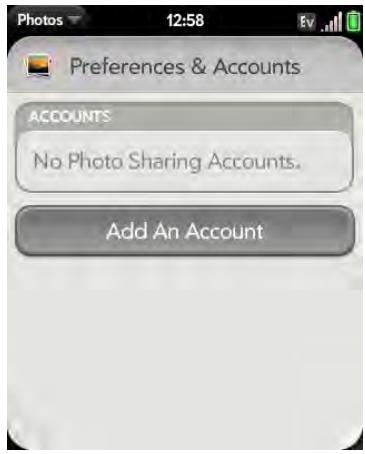
3 Tap Add An Account, and tap the type of account you want to add.
4 Enter your account username and password and tap Sign In.
Delete a picture
1 Tap a picture thumbnail to view it full-screen.
2 If is not visible, tap the screen to display it.
3 Tap
4 Tap Delete to confirm.
Videos
Watch a video
To get videos on your phone, you can do any of the following:
- Copy videos from your computer (see Copy files between your phone and your computer).
- Receive videos as email attachments (see Open attachments).
- Receive videos as part of a multimedia message (see Receive and view text and multimedia messages).
You can view DRM-free videos that you receive as email attachments or that you copy from your computer in the MPEG4, H.263, H.264, MP4, M4V, 3GP, 3GPP, 3G2, and 3GP2 formats. You can view videos you open in a multimedia message in MP4 format. Videos play on your phone in landscape orientation.
KEY TERM DRM-free: Describes a file that is not protected by Digital Rights Management. DRM-free music files can be copied as many times as you like and can be played on your Pixi Plus phone.
Use the YouTube application to view YouTube videos (see YouTube).
BEFORE YOU BEGIN Before you put videos on your phone, make sure you have enough storage space on your phone to fit the file. Open Device Info and look at the Available field under Phone.
1 Open Videos
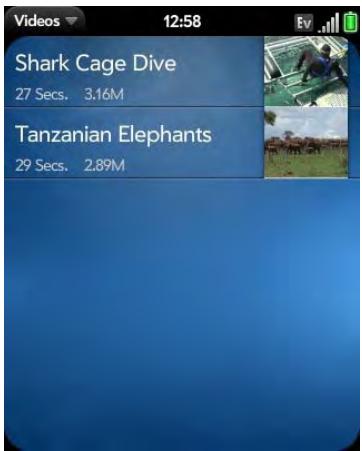
2 Tap the video.
Use video playback controls
Playback controls automatically appear when you start a video. They disappear after a few seconds. Tap the video to manually display or dismiss the controls.

Table 1. Video playback controls
| Control | Function |
| ▶ | Play. |
| || | Pause. |
| ● | Move forward or backward (tap and hold the slider, then drag forward or backward). |
| ∞ | Switch between full-screen view and original size. |
TIP To skip ahead 30 seconds in a video, flick left to right on the screen. To jump back 10 seconds, flick right to left.
Delete a video
To delete a video file from your phone, you must put your phone in USB Drive mode and delete the video using your computer.
1 Connect your phone and your computer using the USB cable.
2 On your phone, tap USB Drive. If prompted, tap OK. On your computer, your phone appears as a removable drive.
NOTE On a Windows computer, if the Found New Hardware wizard opens, click Cancel to close the wizard.
3 Open My Computer (Windows XP), Computer (Windows Vista/Windows 7), or the Finder (Mac), and double-click the drive representing your phone.
4 Delete the video using your computer's controls.
5 On a Windows computer, to end the connection safely, right-click the drive representing your phone and click Eject. On a Mac computer, from your desktop, drag the drive representing your phone to the Trash. Trash changes to Eject.
6 Disconnect the USB cable from the computer when the USB Drive screen no longer appears on your phone.
YouTube
Watch a video
YouTube on your phone lets you watch videos available online at the YouTube website. Videos are displayed on your phone in landscape orientation.
1 Open YouTube
2 Do one of the following:
- To search for a video: Tap Search All Videos, enter a search term, and press Enter or tap.
- To display the most highly rated videos: Tap Videos and tap Popular.
- To display the most frequently viewed videos: Tap Videos and tap Most Viewed.
- To display videos you have recently viewed: Tap Videos and tap History.
3 When the video you want appears, do one of the following:
- To view the video: Tap the video thumbnail.
- To view video details: Tap the text to the right of the video thumbnail.
DID YOU KNOW? Some videos can be viewed in YouTube on your computer only. For those videos, you can view video details on your phone, but if you try to play the video on your phone, an error message appears.
Use video playback controls
Playback controls automatically appear when you start a video. They disappear after a few seconds. Tap the video to manually display or dismiss the controls.
Table 2. Video playback controls
| Control | Function |
| ▶ | Play. |
| || | Pause. |
| ● | Move forward or backward (tap and hold the slider, then drag forward or backward). |
| ← | Switch between full-screen view and original size. |
Find related videos
Find videos from the same author or otherwise related to the one you selected.
On the video details screen (see Watch a video), do one of the following:
- View videos from the same author: Tap More > More From This Author.
View related videos: Tap More > Related Videos.
Share a video
Send a friend a link to a YouTube video.
1 On the video details screen (see Watch a video), tap Share.
2 Tap Email or Text Message.
3 Address and send the message.
Music
Listen to music
You can listen to music through the speaker on the back of your phone or through a 3.5mm headset or headphones, stereo headset equipped with Bluetooth® wireless technology, or speakers (all sold separately).
To get music onto your phone, you can do any of the following:
- Copy music files from your computer (see Copy files between your phone and your computer).
- Receive music files as email attachments (see Open attachments).
- Receive music files as part of a multimedia message (see Receive and view text and multimedia messages).
- Buy music using the Amazon MP3 app on your phone (see Amazon MP3).
You can also listen to streaming music from the web directly in the web browser (see Web).
You can play music that you copy from your computer or stream from the web in the following formats: MP3, AAC, or AAC+ format. You can play music that you receive as an email attachment if it is in the MP3, AAC, AAC+, WAV, or AMR format. You can play music that you receive in a multimedia message or that you buy from Amazon MP3 if it is in the MP3 format.
1 Open Music
2 If the Music application finds no music files on your phone, tap one of the following:
- Get My Music: Read information about how to get music on your phone.
- Amazon MP3: Open the Amazon MP3 application to buy songs (see Amazon MP3).
3 Do one of the following:
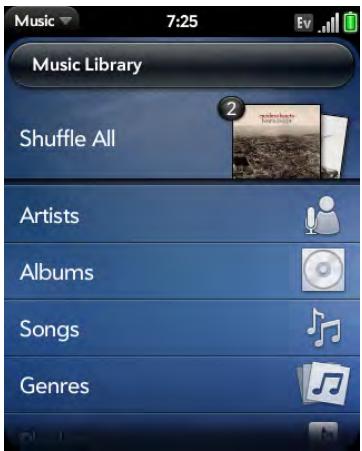
- Listen to all songs on your phone: Tap Shuffle All.
- Listen to a specific song: Tap Artists, Albums, Songs, Genres, or Playlists to search that category. Continue making selections until the song you want appears. Tap the song name.
- Listen to all songs from an artist: Tap Artists and tap the artist name. To listen to the artist's songs in the order they are displayed onscreen, tap the first song. The songs play one after the other in sequence. To listen to the songs in random order, tap Shuffle All.
- Listen to an album: Tap Albums and tap the album name. To listen to the album's songs in the order they are displayed onscreen, tap the first song. The songs play one after the other in sequence. To listen to songs in random order, tap Shuffle All.
- Listen to all songs in a genre: Tap Genres and tap the genre name. To listen to the songs in the order they are displayed onscreen, tap the first song. The songs play one after the other in sequence. To listen to the songs in random order, tap Shuffle All.
- Browse a music store to preview or purchase songs (if available): Tap the music store name. Continue making selections until the song you want appears. Tap the song name.
DID YOU KNOW? Music continues to play in the background if you switch to another application, turn off the screen, or slide the ringer switch off.
Use music playback controls

Table 3. Music playback controls
Control Function
Play.
Pause.
回 Rewind.
Fast forward.
Shuffle current playlist.
Repeat. Tap once to repeat the current song. Tap again to repeat the entire playlist.
Move forward or backward. Tap the song name, then tap and hold the slider, and drag forward or backward. To display the slider, tap the text below the album art in Album Art view.
DID YOU KNOW? If you stop playback of an audio file for which the Genre field is defined as podcast, speech, spoken word, netcast, or audiobook, when you play the item again, playback resumes at the point it was stopped.
TIP If you put the Music app in the background while you work in another app, a music notification icon appears at the bottom of the screen. Tap the icon to display the music playback controls. You can use the controls even if the screen is locked.
Switch the Now Playing display
You can switch the display to show the songs you are listening to by name or by album cover art.
- While you are listening to a song, tap the header to switch between Playlist view and Album Art view.
Search for related songs or content
When you are listening to a song, you can search the web for related items such as songs by the same artist or from the same album.
1 While listening to a song, open the application menu.
2 Tap one of the web search options (such as YouTube), and then tap the info you want.
Change the order of items in the Now Playing list
- In Playlist view, tap and hold a song name. Drag the song to move it to a new location in the list.
Remove a song from the Now Playing list
- In Playlist view, throw the song name off the side of the screen. This does not delete the song file from your phone.
Delete a song
To delete a song file from your phone, you must put your phone in USB Drive mode and delete the song using your computer.
1 Connect your phone and your computer using the USB cable.
2 On your phone, tap USB Drive. If prompted, tap OK. On your computer, your phone appears as a removable drive.
NOTE On a Windows computer, if the Found New Hardware wizard opens, click Cancel to close the wizard.
3 Open My Computer (Windows XP), Computer (Windows Vista/Windows 7), or the Finder (Mac), and double-click the drive representing your phone.
4 Delete the song using your computer's controls.
5 On a Windows computer, to end the connection safely, right-click the drive representing your phone and click Eject. On a Mac computer, drag the drive representing your phone to the Trash. Trash changes to Eject.
6 Disconnect the USB cable from the computer when the USB drive screen no longer appears on your phone.
Amazon MP3
Before you can download items using the Amazon MP3 application on your phone, you must have an Amazon account, and you must read and agree to the MP3 Music service terms and conditions.
After you purchase and download items from Amazon MP3, listen to them with your phone's Music application (see Listen to music).
NOTE Music you download from Amazon MP3 is not backed up to your Palm profile. To back up your music, you can copy downloaded files from the AmazonMP3 folder on your phone's USB drive to your computer (see Copy files between your phone and your computer).
Sign in to your Amazon account
You must be signed in to your Amazon account to download music.
1 Open Amazon MP3
2 Open the application menu and tap Sign In.
3 Enter your email address and password, and tap Sign In. To purchase songs without needing to enter your password each time, turn on Enable1-Click.
Search for a specific song, album, or artist
1 Open Amazon MP3
2 Tap Search and enter the song, album, or artist name.
3 Press Enter
4 Do one of the following:
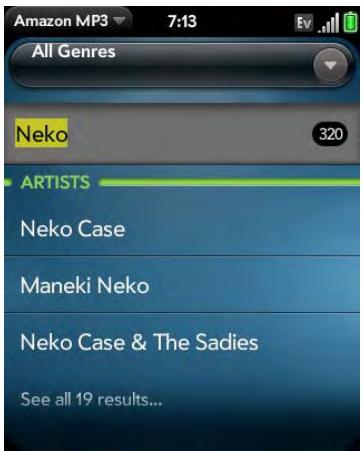
- If the item you want appears on the screen: Tap the song, album, or artist name. Tapping the name of a song plays the preview; tapping its price gives you the option to buy it (see Preview and buy a song).
- If the item you want doesn't appear: Tap See all [total number of] results at the bottom of the Artists, Albums, or Songs section.
Browse songs, albums, artists, or genres
1 Open Amazon MP3
2 Do any of the following:
View all songs in a certain genre: Tap and tap the genre.
- View the top 10 new and notable releases: Swipe left or right on the New & Notable album thumbnails.
View the top 100 new releases: Tap New releases.
View the top 100 albums: Tap Albums.
View the top 100 artists: Tap Artists.
View the top 100 songs: Tap Songs.
View artist information
1 Search for (see Search for a specific song, album, or artist) or browse to (see Browse songs, albums, artists, or genres) an artist, and tap the artist name.
2 Tap the word in the lower-right corner of the screen (Albums, Songs, or Bio).
3 Tap to view any of the following:
- Albums: To buy and download an album, tap the album price and tap **Buy. Tap anywhere else on the album entry to view detailed album information.
Songs: To buy and download a song, tap the song price and tap Buy. Tap anywhere else on the song entry to preview the song.
Bio: Tap to read biographical information about the artist.
IMPORTANT Your credit card is charged for the price of an item as soon as you tap Buy.
View album information and buy an album
1 Search for (see Search for a specific song, album, or artist) or browse to (see Browse songs, albums, artists, or genres) an album, and tap the album name.
2 To preview a song, tap anywhere on the song entry except the price.
3 Do either of the following:
- Tap the album price and tap Buy.
- Tap a song price and tap Buy.
IMPORTANT Your credit card is charged for the price of an item as soon as you tap Buy.
Preview and buy a song
BEFORE YOU BEGIN Before you download a song to your phone, make sure you have enough storage space on your phone to fit the file. Open Device Info and look at the Available field under Phone.
1 Search for (see Search for a specific song, album, or artist) or browse to (see Browse songs, albums, artists, or genres) an album or artist entry containing the song you want.
2 To preview a song, tap anywhere on the song entry except the price.
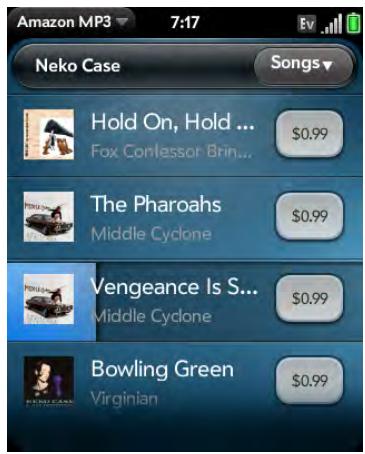
3 Tap the song price and tap Buy.
IMPORTANT Your credit card is charged for the price of an item as soon as you tap Buy.
View and work with downloaded items
1 Tap Download on any screen displaying this button. This displays items that your are currently downloading or that you already downloaded.
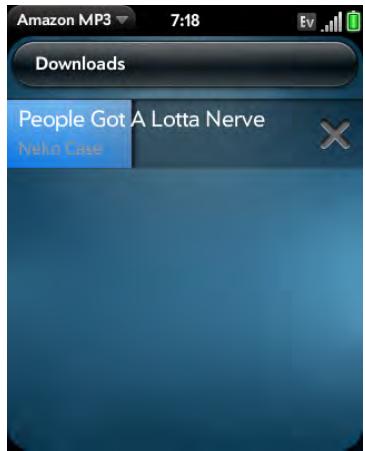
2 To cancel a current download, tap 心
After you download an item, listen to it in the Music application (see Listen to music).
Web and wireless connections
With your wireless service provider's network and your Palm® Pixi™ Plus phone's web browser, you can take the web with you almost anywhere you go.
The Bluetooth® wireless technology on your phone helps you easily set up wireless connections to a number of devices.
In this chapter
124 Wi-Fi
126 Location Services
127 Web
131 Google Maps
132 VZ Navigator
134 Bluetooth® wireless technology
Wi-Fi
What is a Wi-Fi connection?
Many environments, such as corporate offices, coffee shops, airports, and libraries, offer access to a Wi-Fi network. A Wi-Fi network is a wireless local area network (WLAN). Your phone supports W-Fi connectivity based on the 802.11 standard (802.11b and 802.11g), with WPA, WPA2, WEP, and 802.1x authentication. A Wi-Fi access point, also called a hotspot, is a network device with an antenna that provides wireless connections to a larger network. When you're within range of an accessible Wi-Fi network, you can use your phone's Wi-Fi feature to connect to that network and access the web.
Why use a Wi-Fi connection?
A Wi-Fi connection is especially helpful in the following situations:
- You're outside a coverage area and you want to access the web.
- You want to maintain a web connection while talking on the phone.
- You're inside a coverage area, but outside the Verizon Wireless EvDO coverage area. (A Wi-Fi connection may provide faster throughput than a 1x data connection.)
Are there different kinds of Wi-Fi networks?
There are two types of Wi-Fi networks:
- Open networks: These networks broadcast their name (SSID) and do not require you to enter a password or other settings. To learn how to connect to an open network for the first time, see Connect to a new open network.
- Secure networks: These networks may broadcast their name, but at the very least, they require you to enter a password that you get from an administrator (who may be, for example, the librarian or the person behind the counter at the coffee shop). You may also have to get other
network settings from the system administrator. To learn how to connect to a secure network for the first time, see Connect to a new secure network.
To connect to either type of network after the first time, see Connect to a previously used network.
Turn Wi-Fi on and off
Do one of the following:
- Open Wi-Fi, and tap On or Off.
- From any screen: Open the connection menu at the upper-right corner, tap Wi-Fi, and tap Turn on Wi-Fi or Turn off Wi-Fi.
If your phone finds the network you want, tap the network name to connect to it. Otherwise, see Connect to a new open network and Connect to a new secure network.
Connect to a new open network
For an explanation of open networks, see Are there different kinds of Wi-Fi networks?
Some locations, such as airports or coffee shops, provide an open network but charge a fee to use it. After you connect your phone to the network, you need to open the web browser and register with the Wi-Fi service provider before you can check email or browse the web.
1 Open Wi-Fi
2 Make sure Wi-Fi is on (see Turn Wi-Fi on and off).
3 Do one of the following:
-
If the network you want is displayed: Tap the network name.
-
If the network you want is not displayed: Tap Join network and enter the network name. Make sure Open is displayed in the Security field, then tap Connect.
TIP You can also open Wi-Fi by opening the connection menu, tapping Wi-Fi, and tapping Wi-Fi Preferences.
Connect to a new secure network
For an explanation of secure networks, see Are there different kinds of Wi-Fi networks?
1 Open Wi-Fi
2 Make sure Wi-Fi is on (see Turn Wi-Fi on and off).
3 Do one of the following:
- If the network you want is displayed: Tap the network name, enter yourUsername and/or Password, and tap Sign In. You're done.
- If the network you want is not displayed: Tap Join network and enter the network name. Follow steps 4 to 7.
4 Tap the Security field, and then tap the network type: Open, WPA-personal, WEP, or Enterprise.
5 Tap Connect.
6 A series of different screens appears depending on the network type. Enter or select the following if you are prompted to do so:
Username and/or Password.
Certificate
7 Tap Sign In.
Connect to a previously used network
- If Wi-Fi is turned off: Turn on Wi-Fi (see Turn Wi-Fi on and off). Your phone automatically attempts to connect to a previously used network, starting with the most recently used network.
- If Wi-Fi is turned on but you are not connected to a network: Your phone automatically attempts to connect to a previously used network, starting with the most recently used network.
- If you are connected to one network and want to use a different one: OpenWi-Fi ① . Tap another network name.
Disconnect from a network
When you disconnect from a network, you can keep it on your list of known networks so that your phone can automatically connect to it again. If you remove the network from your list of known networks, however, you must reconnect to the network. Follow the steps in Connect to a new open network or Connect to a new secure network to connect to the network again.
- To disconnect from a network but keep it on your list of known networks: Turn off Wi-Fi (see Turn Wi-Fi on and off). This disconnects from the network.
- To disconnect from a network and remove it from your list of known networks: Open Wi-Fi. Tap the network name, and then tap Forget Network.
Customize connection settings
Do not change Wi-Fi settings unless you are having trouble connecting to a network.
BEFORE YOU BEGIN You must be connected to the network you want to customize (see Connect to a new open network, Connect to a new secure network, or Connect to a previously used network).
1 Open Wi-Fi
2 Tap the network name.
3 In Automatic IP settings, tap On or Off.
When Automatic IP Settings are on: The IP address is automatically and dynamically configured.
When Automatic IP Settings are off: You can manually configure the IP address.
4 If you turned automatic IP settings off, enter any of the following:
IP Address
Subnet Address
Gateway
DNS Server: addresses (#1 and #2)
5 Tap Done.
Location Services
The Location Services application provides information about your location to applications that request it. For example, Google Maps may use your location information if you need driving directions.
NOTE Location Services is available only when Google Services are on.
1 Open Location Services
2 The first time you open Google Services you may be asked to review and accept the terms of use, and decide whether to allow anonymous data collection. Tap Next and do the following:
- Review the terms of use.
- If you decide not to allow anonymous data collection, tap the checkmark to remove it.
- Tap Agree or Don't Agree.
3 Decide whether to enable auto locate, or whether you want to be asked each time an application needs to know your location: Tap Auto Locate or Ask Each Time.
4 To change settings after you accept the terms of use, tap On or Off for any of the following:
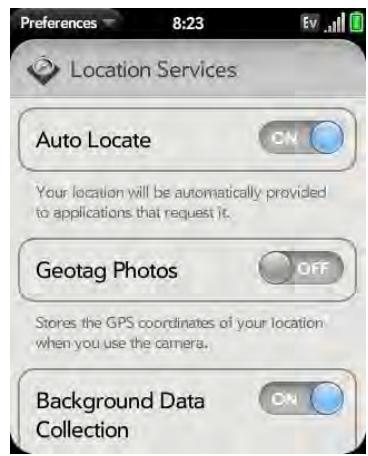
- Auto Locate: If you turn Auto Locate off and an application subsequently needs to know your location, a notification appears asking if the application can identify your location. Tap Allow to turn on Location Services for that session only.
- Geotag Photos: If Geotag Photos is turned on, photos are tagged with the latitude and longitude coordinates of the location in which they were taken.
DID YOU KNOW? The geotag is stored as an Exif tag in the photo file, not on the image itself. A common use of the geotag occurs in online photo services like Photobucket and desktop apps like Google Earth, which use the data to position the photo as a thumbnail on a map.
- Background Data Collection: Turn on Background Data Collection to allow the collection of anonymous aggregate location data to improve the quality of the location services provided to applications that require them.
5 To turn Google Services on or off, open application menu, tap Locate Me Using, and choose one or both of the following:
GPS
- Use Google Services
Web
Go to a website
The web browser on your phone is capable of displaying most web content. The browser features the latest web standard technologies such as HTML 4.01, CSS 2.1, Ajax, and JavaScript. It does not support plug-ins such as Flash or Java applets.
1

2 Enter the address of the page. You don't need to enter the prefix http://www.
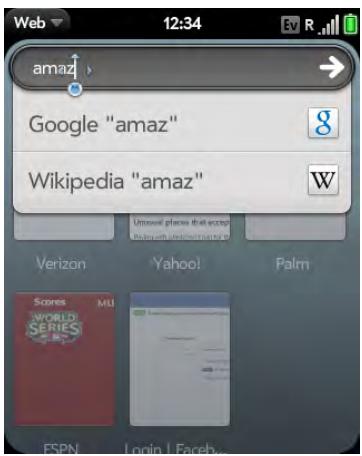
If the page appears in the list of viewed pages, tap it to go there again. If not, press Enter
DID YOU KNOW? If you browse to a secure web page, the lock icon in the address line appears closed.
3 To cancel a page while it is loading, tap
Go to a website using search
You can also search the web from the Launcher or Card view (see Search to find info and make calls).
1 Open Web
2 Enter the search term and tap a search option.
Open another browser
If you are looking at one web page and need to check something on a different one, simply open another browser.
1 Open Web , open the application menu and tap New Card.
2 Enter an address or search term for the second instance of the browser.
3 To move between the two pages, tap the center of the gesture area to display Card view. Tap one web page and then the other to go between the two.
Navigate a web page
- Move back through previously viewed pages: Tap or make the back gesture from right to left anywhere in the gesture area.
- Move forward through previously viewed pages: Tap or make the forward gesture from left to right anywhere in the gesture area.
- Refresh the current page: Tap
- Scroll a page: Swipe up or down on the screen.
- View a web page in landscape mode: Turn the phone on its side. When the display is in landscape mode, you can swipe up and down on the gesture area to scroll up and down a page.
- Zoom in or out on a page: Pinch out to enlarge items onscreen. Pinch in to decrease the size of items onscreen. Double-tap the screen to zoom in or out a specified amount.
- Zoom in on a column of a web page: Double-tap the page to center a column and enlarge it. To zoom out to see the whole page again, keep double-tapping.
- Pan a page: Tap, hold, and drag the page.
- Enter information in a form: Tap the form field. Enter or select information and press Enter
- Share a web address as a link: Open the application menu, tap Page, and tap Share. Create the email message.
- Display the address bar: Start typing a search term or web address, or scroll to the top of the page.
Add a web page to the Launcher
Add any web pages you visit frequently to the Launcher so you can access them in a few taps.
1 Open the page you want to add to the Launcher.
2 Open the application menu, tap Page, and tap Add To Launcher.
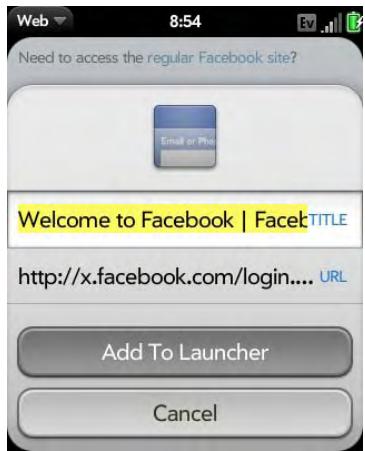
3 Enter any of the following:
Icon: Tap the currently displayed page icon thumbnail. Then tap, hold, and drag the web page to use a different portion of the page as the Launcher icon. You can zoom in or out of the page while selecting the portion you want to use. The portion that appears in the white square is used as the icon. Tap Done.
Title: See Text selection gestures for useful gestures if you want to edit the page title.
URL: Enter or edit the URL for the page. For example, change the URL to the home page of a site instead of a drill-down page within the site.
4 Tap Add To Launcher.
The page now appears as an icon on the Launcher. Tap the icon to open the page. To delete the page from the Launcher, see Delete an application.
Create a bookmark
1 Open the page you want to bookmark.
2 Open the application menu and tap AddBookmark.
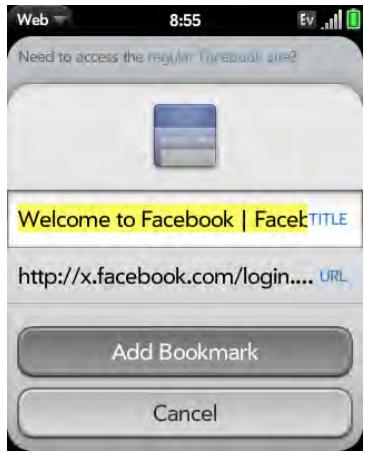
3 Enter any of the following:
Icon: Tap the currently displayed bookmark icon. Then tap, hold, and drag the web page to use a different portion of the page as the bookmark icon. You can zoom in or out of the page while selecting the portion you want to use. The portion that appears in the white square is used as the icon. If you add the bookmark to the Launcher, the icon is used as the Launcher icon. Tap Done.
Title: See Text selection gestures for useful gestures if you want to edit the bookmark title.
URL: Enter or edit the URL for the bookmark. For example, change the URL to the home page of a site instead of a drill-down page within the site.
4 Tap AddBookmark.
The first 12 bookmarks you create become thumbnails on the start page of the web app.
Open a bookmarked page
Do one of the following:
- From the start page when you open the browser, tap a thumbnail.
- To open a bookmark if it's not on the start page, or after you navigate away from the start page, open the application menu and tap Bookmarks. Then tap a bookmark.
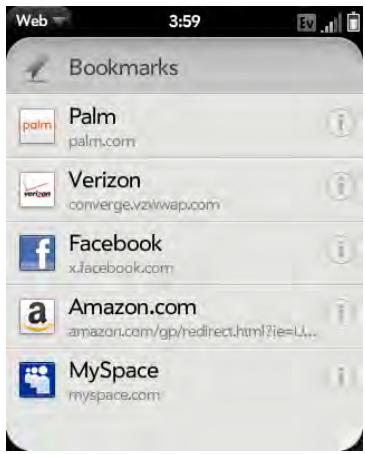
Edit, reorder, or delete a bookmark
1 Open the application menu and tap Bookmarks.
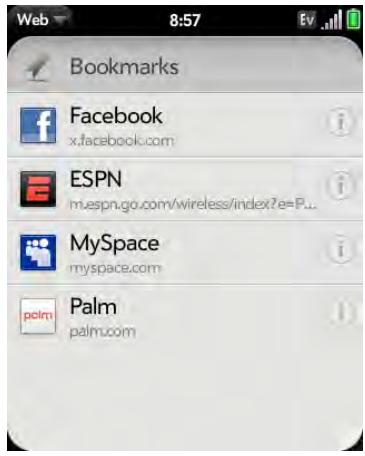
2 Do one of the following:
- Edit: Tap to the right of the bookmark name. Enter the new icon, title, or URL and tap SaveBookmark.
- Reorder: Tap, hold, wait for the visual cue, and then drag the bookmark.
- Delete: Throw the bookmark off the side of the screen and tap Delete.
Return to previously viewed web pages
1 Open the application menu and tap History.
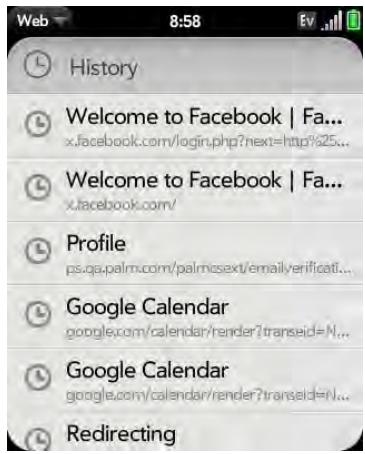
2 Scroll to the page name and tap the page.
You can also search for a recently viewed page by entering a term or address in the address bar in the standard Web view, that matches the page name or address.
Use links on a web page
- To follow a link to another page: Zoom in on the page (pinch out or double-tap the page), and tap the link.
- To dial a phone number that appears as a link: Tap the link to display the dial pad with number entered, and tap.
Customize web browser settings
1 Open Web
2 Open the application menu and tap Preferences.
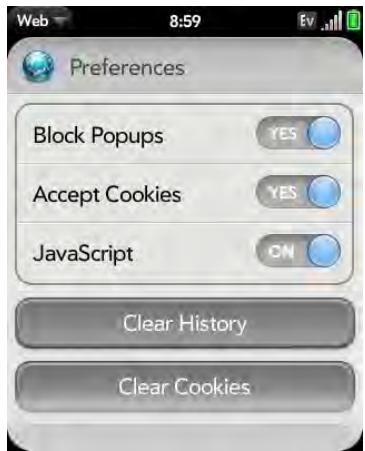
3 Set any of the following:
Block Popups: Prevents websites from opening up new browser windows. Tap Yes to turn Block Popups off.
Accept Cookies: Allows cookies from any website you view, even if you are redirected to a site from another site. Tap Yes to turn Accept Cookies off.
JavaScript: Tap On to turn off JavaScript. Turning off JavaScript may prevent some websites from functioning properly.
Clear History: Tap to delete your browsing history.
Clear Cookies: Tap to delete cookies used by some websites to remember visiting history and user settings.
Clear Cache: Tap to delete any web page content that has been stored in the local cache. This ensures that you are viewing the most current content when you visit a web page.
Google Maps
1 Open Google Maps
2 Tap Menu in the lower-right corner.
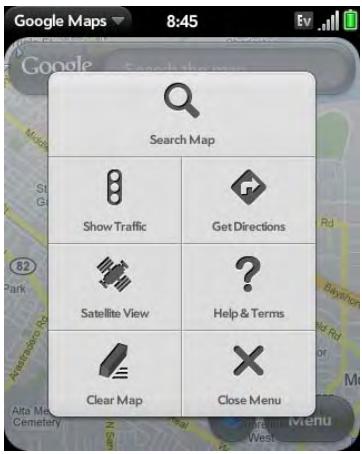
In Google Maps, use these icons to do the following:
Table 1. Google maps icons
| Icon | Description |
| Q | Search Map: Search for location. |
| B | Show Traffic: View local traffic conditions. |
| D | Directions: Get directions. |
| S | Satellite: View a satellite photo of the map area. |
| M | Map: Return to Map view from Satellite view. |
| ? | Help & Terms: Get help. |
| √ | Clear Map: Clear the current map. |
| × | Close Menu: Close the Google Maps menu. |
VZ Navigator
You can use VZ Navigator to check weather conditions, get driving directions, and search for services.
Sign up for VZ Navigator
The first time you open VZ Navigator, you are asked to pay a monthly subscription for the service. To continue, tap Buy and then tap Accept to confirm your purchase. Review the license agreement and tap Accept to continue.
NOTE When you agree to buy VZ Navigator, the charge is added to your monthly Verizon Wireless bill.
Check local weather conditions
1 Open VZ Navigator
2 If prompted, tap Allow to turn on Location Services.
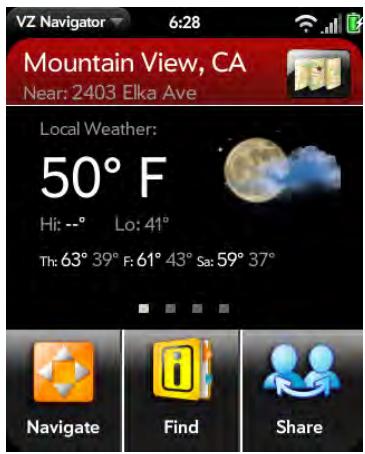
3 Tap the temperature to see the local seven-day forecast. In forecast view, tap a day to see wind, precipitation, humidity, sunrise, and sunset information for that day.
Get directions
1 Open VZ Navigator
2 If prompted, tap Allow to turn on Location Services.
3 Tap Navigate.
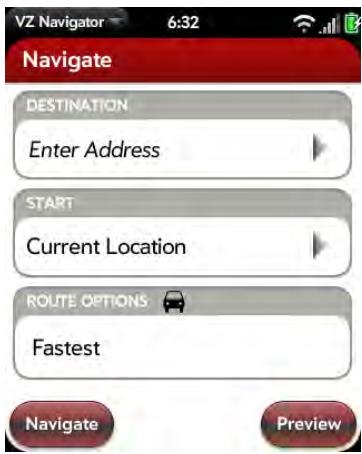
4 Enter the following information:
- Destination: Enter a destination, or tap and select a destination from Recents, Favorites, Contacts, or Airports.
Start: Your current location is entered as your default starting point. Tap Current Location and enter a new starting point, or tap and select a starting point from Recents, Favorites, Contacts, or Airports.
Route Options: Tap to select your preferred route options.
5 Do one of the following:
- To start turn-by-turn voice navigation: Tap Navigate.
- To see step-by-step text directions: Tap Preview.
Share location information
NOTE You can only share location information with other Verizon Wireless phones.
1 Open VZ Navigator
2 If prompted, tap Allow to turn on Location Services.
3 Tap Share.
4 Tap Share New Place.
5 In the To field, do one of the following to address the message:
- Enter a contact name, initials, or email address. Tap the email address when it appears.
- Tap to open the full contact list. Tap the contact you want.
- Enter the full email address for a recipient who is not a contact.
(Optional) To share a location other than your current location, tap in the Place field and browse to a new location.
7 (Optional) Type a message in the Message field.
8 Tap Send.
Find a location or a service
1 Open VZ Navigator
2 If prompted, tap Allow to turn on Location Services.
3 Tap Find.
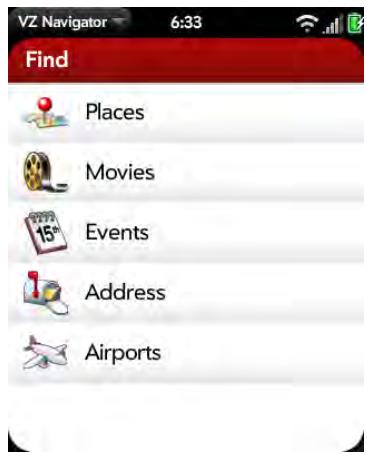
4 Tap any of the following:
Places: Search for a variety of services, including hospitals, gas stations, banks, restaurants, stores, and more.
Movies: Search for movies playing near you.
Events: Search for events happening near you.
Address: Search for an address.
Airports: Search for directions to an airport.
Customize VZ Navigator
1 Open VZ Navigator
2 If prompted, tap Allow to turn on Location Services.
3 Open the application menu and tap Preferences. Tap any of the following:
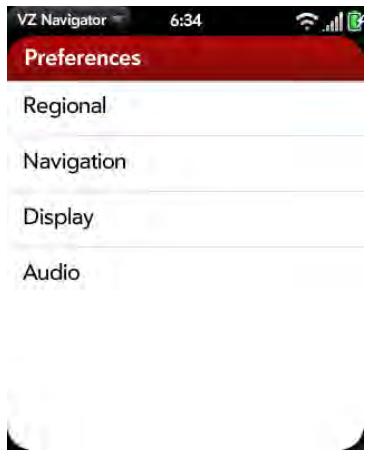
Regional: Select units of measurement for distance and temperature.
Navigation: Select a mode of transportation, and then set your preferences for the kind of route VZ Navigator should design for you.
Display: Select items for the icon tray displayed on maps and for the carousel displayed on the main screen of VZ Navigator.
Audio: Select the voice that gives you turn-by-turn directions, and set whether you want to hear street names or short voice prompts.
4 To clear all your VZ Navigator information, including messages, recents, and favorites: Open the application menu, tap Master Clear, and tap OK.
Bluetooth® wireless technology
What is Bluetooth® wireless technology?
With the Bluetooth® wireless technology on your phone, you can connect to a number of Bluetooth devices, including a hands-free device such as a headset or car kit; see Set up and use a Bluetooth® hands-free device.
Before you can connect to another Bluetooth device, you need to pair with that device. You can either make the pairing request from your phone (see Make a pairing request to another device), or accept a pairing request from the other device (see Accept a pairing request from another device).
Turn the Bluetooth feature on/off
Do one of the following:
- Open Bluetooth , and tap On or Off.
- From any screen: Open the connection menu, tap Bluetooth, and tap Turn on Bluetooth or Turn off Bluetooth.
Make a pairing request to another device
BEFORE YOU BEGIN The other device must be discoverable to appear on your phone's Devices list. Check the documentation that came with the other device for information on making it discoverable.
You can make a pairing request to a Bluetooth audio device such as a headset, car kit, or A2DP device.
1 Open Bluetooth
2 Make sure Bluetooth is on (see Turn the Bluetooth feature on/off).
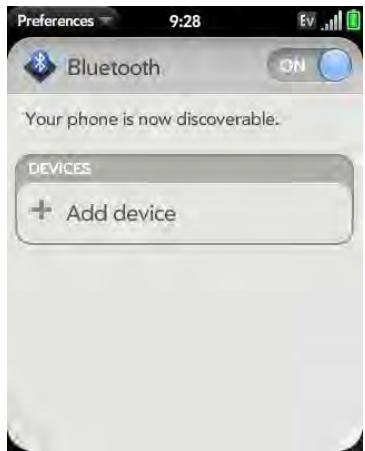
3 Tap Add device and tap the device name on the list of discoverable Bluetooth devices.
4 If a passkey is not required, pairing is complete when the Devices list appears. If a passkey is required, tap Yes, allow.
5 Do one of the following:
- An automatically generated passkey appears on the passkey screen: Check the other device screen to verify that the passkey is correct, and tap Yes, connect to connect.
- The screen displays a passkey generated by your phone: Enter the displayed passkey on the other device.
- The screen prompts you to enter a passkey: Check the documentation that came with the other device to see if there's a required passkey. If so, enter that passkey on your phone. If not, make up a passkey and enter it on both devices.
TIP You can also open the Bluetooth app by opening the connection menu, tapping Bluetooth, and tapping Bluetooth Preferences.
Accept a pairing request from another device
NOTE Your phone is discoverable only when the Bluetooth app is open, the app window is maximized, and Bluetooth is turned on. If you move away from the Bluetooth app, minimize the app to a card, or turn off the screen; your phone is no longer discoverable.
1 Open Bluetooth

2 Make sure Bluetooth is on (see Turn the Bluetooth feature on/off).
3 Initiate a pairing from the other device.
4 When the connection request appears, tap Yes, allow.
5 If a passkey is not required, pairing is complete when the Devices list appears. If a passkey screen appears, do one of the following:
- An automatically generated passkey appears on the passkey screen: Check the other device screen to verify that the passkey is correct, and tap Yes, connect to connect.
- The screen displays a passkey generated by your phone: Enter the displayed passkey on the other device.
- The screen prompts you to enter a passkey: Check the documentation that came with the other device to see if there's a required passkey. If so, enter that passkey on your phone. If not, make up a passkey and enter it on both devices.
Connect with a paired device
After you pair with a device, you can connect to that device without having to go through the pairing process again.
NOTE To connect with a paired computer, you must initiate the connection from the computer. See the computer documentation for instructions.
1 Open Bluetooth
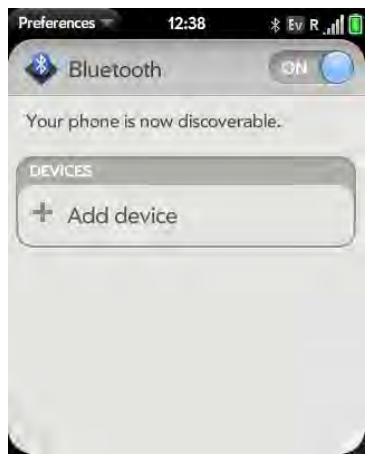
2 Make sure Bluetooth is on (see Turn the Bluetooth feature on/off) and tap the device name.
Disconnect from a device
Disconnecting from a device does not mean you delete the relationship you created between the device and your phone. See Connect with a paired device for instructions on how to reconnect with the device.
1 Open Bluetooth
2 Tap the connected device name to disconnect from it. Or tap another device name to disconnect from the current device and connect to the new device.
Delete a device
Deleting a device means you end the relationship you created between your phone and the device. This means that you must pair with the device again if you want to connect (see Make a pairing request to another device or
Accept a pairing request from another device). If all you want to do is temporarily disconnect from a device, see Disconnect from a device.
1 Open Bluetooth
2 Throw the name off the side of the screen and tap Delete.
Rename a device
1 Open Bluetooth
2 Tap and hold the device name.
3 Enter a new name.
Documents
- Your Palm® Pixi™ Plus phone enables you to take your office with you—including your Microsoft Office files. You can view and search Microsoft Word, Excel®, and PowerPoint® files on your phone.
You can also view PDF files on your phone.
In this chapter
138 Doc View
141 PDF View
Doc View
With Doc view, you can view Microsoft Word, Excel®, and PowerPoint® files on your phone.
Open a file
BEFORE YOU BEGIN Before you put files on your phone, make sure you have enough storage space on your phone to fit the file. Open Device Info and look at the Available field under Phone.
You can view a file that you copy from your computer (see Copy files between your phone and your computer) or receive as an email attachment (see Open attachments). You can view files in DOC, DOCX, TXT, XLS, XLSX, PPT, and PPTX formats.
1 Open Doc view. The list of the Microsoft Office files that are on your phone appears onscreen.
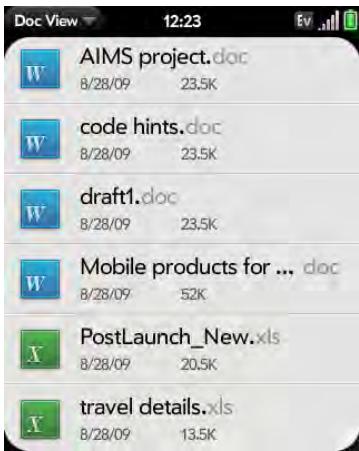
2 To search for a file, begin typing the name. Tap the file when it appears.
3 To open a second file: Open the application menu and tap Open. Tap the file.
Change the display size
For information on zooming in and out, see Zoom gestures.
- Pinch out to enlarge items onscreen.
- Pinch in to decrease the size of items onscreen.
- Double-tap the screen to zoom in or out a specified amount.
- Turn on horizontal scroll (Word documents only): Open the application menu and tap Wide View. In Wide view, text does not wrap on the right side of the screen. You can scroll horizontally to see more text.
Find text in a file
1 With a file open, open the application menu and tap Find.

Mobile products for extraordinary lives
At Palm, we' ve focused on creating instinctive yet powerful mobile products that enable people to better manage extraordinary lives on the go. Our goal is to deliver products that implement technology in a truly useful way. We innovate. We create and define categories. Expect not just more, but better. Not just faster, but more useful.
A culture of game-changing innovation
The original Palm Pilot defied conventional wisdom when it was introduced in 1996, but it became the world's most personal embodiment of technology, sparking the mobile-computing revolution.
- In 1999, the Palm V charmed the gadget geeks and won over the trendsetters with its iconic status-symbol style, making it the tipping point for mainstream market adoption.
The TreetTM phone effectively created the smartphone market by combining a compact mobile phone with email, an organizer, messenger and web access-alloying users to
2 Type the text you want to find and press Enter or tap . The first instance of the text appears highlighted.
3 Find the next instance: Tap .
Find the preceding instance: Tap A.
4 To exit search, open the application menu and tap Find.
Save a file with a new name
1 With the file open, open the application menu and tap Save As.
2 Enter the new file name and tap Save As.
Share a file
1 With the file open, open the application menu and tap Share.
2 Create the email message and tap
View file properties
You can view properties such as the file size, date created or modified, and more.
1 With the file open, tap the file name.
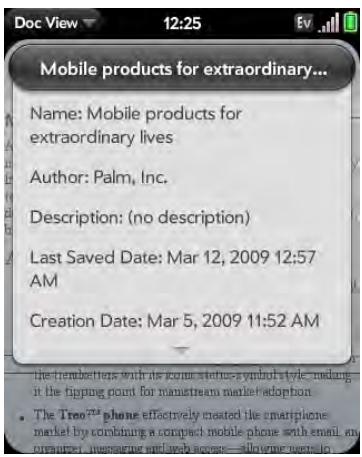
2 Tap outside the file properties to dismiss them.
Work with comments, endnotes, and footnotes in a Microsoft Word document
In an open Word document, comments, endnotes, and footnotes are indicated by highlighted text.
1 Tap the text or footnote indicator to open the comment, endnote, or footnote.
2 To close the comment, endnote, or footnote, tap outside it.
Select a row or column in an Excel® spreadsheet
- Tap the row header or column header.
Resize rows or columns in a spreadsheet
1 Open the application menu and tap Resize.
2 Tap, hold, and drag the row or column.
Show or hide rows or columns in a spreadsheet
- To hide a row or column: Tap the row or column header to select it, and tap Hide selected.
- To show a hidden row or column: Tap, hold, and drag one of the row or column headers to either side of the hidden row or column. Tap Show Hidden.
- To display all hidden rows or columns: Open the application menu and tap Show All Hidden.
Sort your data in a spreadsheet
- Tap the column header and tap Sort ascending or Sort descending.
Switch among sheets
Do one of the following:
- Tap → or ← to move to the next or previous sheet.
- Open the application menu and tap Worksheets. Tap the sheet.
- Tap the current sheet number in the lower-left corner of the screen. Enter the page number you want to jump to and press Enter
View comments in a spreadsheet
In an open Excel® spreadsheet, comments are indicated by a red triangle in the upper-right corner of the relevant cell.
1 Tap the red comment indicator to open the comment.
2 Tap the comment to close it.
Switch among views in a PowerPoint® presentation
In an open presentation, open the application menu and tap a view.
To return to normal presentation from Outline or Show Notes view:
From Outline view: Tap a slide.
- From Notes view: Open the application menu, and tap Show Notes.
Move around in a presentation
- Go to the next or preceding slide: Tap → or ←.
- Jump to a different slide: Tap the current slide number in the lower-left corner of the screen. Enter the slide number you want and press Enter
Upgrade to Documents To Go® from DataViz
With Documents To Go® from DataViz, you can create and edit Word, Excel, and PowerPoint files right on your phone, in addition to viewing them.
1 Open Doc View
2 Open a document, open the application menu, scroll down the menu if needed, and tap Document Editing.
For more information on Documents To Go, go to dataviz.com.
PDF View
With PDF View, you can view PDF (Adobe Acrobat) files on your phone.
Open a file
You can view a PDF file that you copy from your computer (see Copy files between your phone and your computer) or receive as an email attachment (see Open attachments).
BEFORE YOU BEGIN Before you put files on your phone, make sure you have enough storage space on your phone to fit the file. Open Device Info and look at the Available field under Phone.
1 Open PDF View . The list of your files appears onscreen.
2 To search for a file, begin typing the name. Tap the file when it appears.
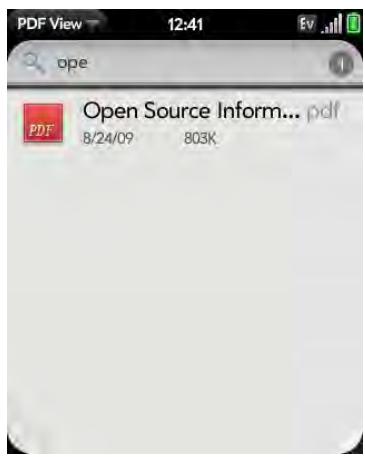
If the PDF file was created with a password, enter the password to open the file.
3 To open a second file: Open the application menu and tap Open. Tap the file.
TIP To move between open PDFs, tap the center of the gesture area to go to Card view. Tap the card of the PDF you want to read.
Move around in a file
- Go to the next or preceding page: Tap or
- Jump to a different page: Tap the current page number at the bottom of the screen. Enter the page number you want and press Enter
Change the display size
For information on zooming in and out, see Zoom gestures.
- Pinch out to enlarge items onscreen.
- Pinch in to decrease the size of items onscreen.
- Double-tap the screen to zoom in or out a specified amount.
Find text in a file
1 With a file open, open the application menu and tap Find.
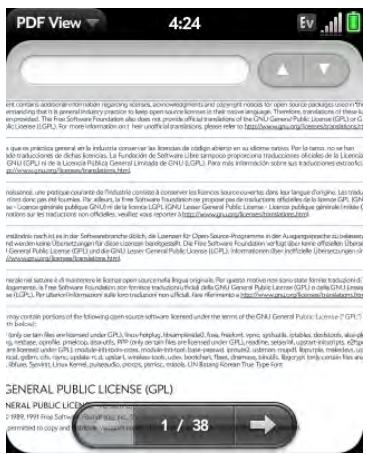
2 Type the text you want to find, and press Enter or tap . The first instance of the text appears highlighted.
3 Find the next instance: Tap
Find the preceding instance: Tap
4 To exit search, open the application menu and tap Find.
Save a file with a new name
1 With the file open, open the application menu and tap Save As.
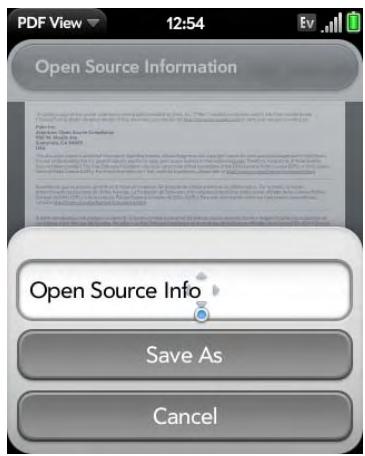
2 Enter the new file name and tap Save As.
Share a file
1 With the file open, open the application menu and tap Share.
2 Create the email message and tap
View bookmarks
If a PDF file was created with bookmarks, you can see the bookmarks on your phone.
1 With the file open, open the application menu and tap Bookmarks.
2 To search for a specific bookmark, type the bookmark name.
3 Tap a bookmark to jump to that section of the file.
Preferences
There are lots of ways to make your Palm® Pixi™ Plus phone work better for you. Personalize your phone to make it match your lifestyle.
You can easily customize many features of your phone like the wallpaper, screen brightness, ringtone for incoming calls, and more.
In this chapter
144 Backup
146 Date & Time
147 Device Info
150 Regional Settings
150 Screen & Lock
152 Sounds & Ringtones
Backup
Back up your information
A Palm profile connects your phone to Palm to get automatic updates, back up your data, and more. You create a Palm profile when you set up your phone.
Your phone backs up the contacts, calendar events, tasks, and memos that are in your Palm profile account, as well as system settings and applications you downloaded to your phone. An automatic backup to your Palm profile of all this information happens every day. So if you ever need to erase the info from your phone, you can restore all your backed-up info. You can turn off automatic backup, and you can also perform a manual backup.
Backup does not affect information stored in online accounts like Google. Information stored in online accounts is synchronized by the online provider at regular intervals. Information stored in Outlook Exchange is synchronized by your company's Exchange server.
1 Open Backup
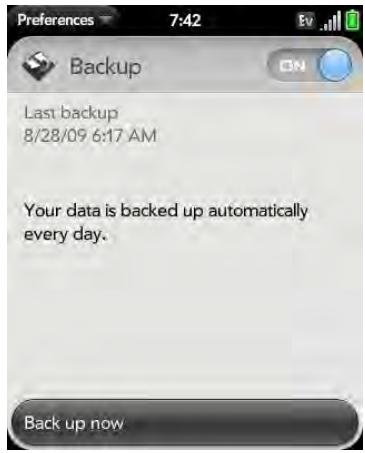
2 Do any of the following:
- Back up your information manually: Tap Back up now.
- Turn off automatic backup and delete backed-up information: Tap On to switch backup from On to Off. Tap Turn Off And Erase Data. This deletes all your information on the server. It does not affect the information on your phone.
TIP Open Device Info to delete the information on your phone (see Erase data and reset your phone).
- Turn on automatic backup if you had previously turned it off: Tap Off to switch Backup from Off to On.
What information is backed up?
All data backed up to your Palm profile is encrypted, and only you, the profile owner, can access your data. Backed up data cannot be accessed by Palm. Data in your Palm profile account can only be added to or edited on your phone.
IMPORTANT In the event that your phone is lost or stolen, you can go to your Palm profile on palm.com and from there erase the data on your phone.
The following table lists info that is and is not backed up to your Palm profile:
Table 1.
Application Backed up Not backed up
Backup Backup setting is on by default.
Bluetooth Nothing is backed up.
Table 1.
| Application | Backed up | Not backed up |
| Calendar | Events in your Palm profile account. | Events in online accounts. |
| Username for accounts like Google that sync calendar events online. | Password for online accounts. | |
| Preferences (see Customize Calendar). | ||
| Contacts | Contacts in your Palm profile account. | Contacts in online accounts. |
| Username for accounts like Google that sync contacts online. | Original contact photos added from a local image on the phone. | |
| Preferences (see Customize Contacts). | Password for online accounts. | |
| Linking relationships between contacts. | Speed dials. | |
| Date & Time | Nothing is backed up. | |
| Doc View | Nothing is backed up. Keep a copy of these files on your computer (see Copy files between your phone and your computer). | |
| Username of your email accounts. When you sign in to your Palm profile after your phone is erased, email accounts are restored automatically and synchronized. | Emails, their passwords, contents, and attachments, their sort order, and account preferences. |
Table 1.
| Application | Backed up | Not backed up |
| Launched | Nothing is backed up. | |
| Location Services | Nothing is backed up. | |
| Memos | All memos. | |
| Messaging | Username of accounts. | Message contents, passwords, attachments, and history. |
| Music | Nothing is backed up. Keep a copy of these files on your computer (see Copy files between your phone and your computer). | |
| PDF View | Nothing is backed up. Keep a copy of these files on your computer (see Copy files between your phone and your computer). | |
| Phone | Nothing is backed up. | |
| Photos | Username of online accounts like Facebook and Photobucket. | No photos are backed up. Keep a copy of your photos on your computer (see Copy files between your phone and your computer). Online passwords are not backed up. |
| Regional Settings | Nothing is backed up. | |
| Screen & Lock | Nothing is backed up. | |
| Sounds & Ringtones | Nothing is backed up. |
Table 1.
| Application | Backed up | Not backed up |
| Tasks | Tasks in your Palm profile account. | Tasks in online accounts. |
| Username for accounts like Microsoft Exchange ActiveSync that synchronize tasks online. | Passwords are not backed up. | |
| Third-party apps | Apps you downloaded are downloaded again from App Catalog. | |
| Videos | Nothing is backed up. Keep a copy of these files on your computer (see Copy files between your phone and your computer). | |
| Wallpaper | Nothing is backed up. | |
| Web | Browser cookies. |
Update your Palm Profile settings
In the event that your phone is lost or stolen, you can go to your Palm profile at http://www.palm.com/palmprofile and from there erase the data on your phone.
IMPORTANT To ensure that the data on your phone is consistent with that stored on your Palm profile, it is recommended that you perform a manual backup of your data after changing any of your Palm profile settings (see Back up your information).
1 Open Backup
2 Tap application menu and tap Palm Profile.
3 Enter your Palm profile password and tap Done.
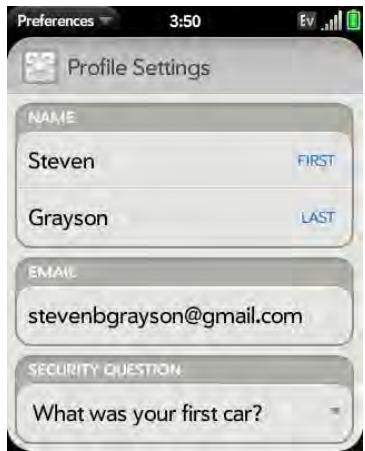
4 Edit any of the following:
First Name/Last Name Change the first name and/or last name associated with your Palm profile.
Email: Change the email address associated with your Palm profile. A verification email is sent to the new address. Click the link in the email to verify the new address. After you verify, the email address is changed.
Security Question/Answer: Tap the current question and tap a new one. Then tap Answer and enter an answer.
Change Password: Tap Change Password. Enter your new password and confirm it. Tap Done.
Date & Time
You can set your phone to adjust the date and time automatically to the local date and time wherever you are, or you can turn this feature off and enter this information manually.
1 Open Date & Time
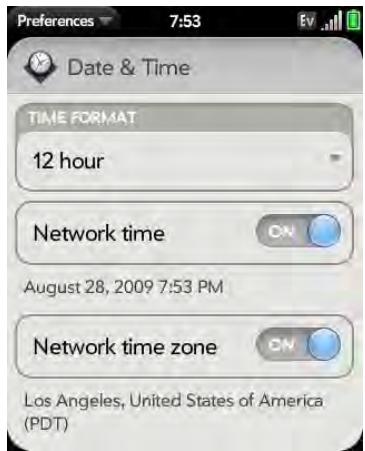
2 Set any of the following:
Time Format: Set whether to use a 12-hour or a 24-hour format.
Network time: Tap On or Off. If you turn this option off, select the date and time. If you switch from manual time to network time, there might be a delay before the network time updates on your phone.
Network time zone: Tap On or Off. If you turn this option off, tap the city that appears onscreen. Type the name of a country or city in the time zone you want, and then tap the location.
Device Info
View system information
1 Open Device Info. Basic system information is displayed, such as your phone number, battery usage, and available memory.
2 To view more detailed system information, tap More Info, and tap Software or Hardware.
Rename your phone
1 Open Device Info
2 Tap the Name field and enter the new name.
Restart your phone
If an application freezes, first try restarting your phone. No files or settings are changed when you restart. Do one of the following:
1 Do any of the following:
- Open Device Info , tap Reset Options and tap Restart.
- Press and hold the power button, tap Power, and then tap Restart.
NOTE If the screen does not respond to taps, press and hold power G and slide the ringer switch three times to restart your phone.
Erase data and reset your phone
If restarting your phone does not solve the problem of application freezes, you may need to reset the phone. A reset deletes some or all information from your phone (depending on the type of reset you select). After a reset, you must follow the prompts to sign in to your Palm profile again before you can use your phone.
IMPORTANT You should perform a manual backup of your data before resetting your phone (see Back up your information).
1 Open Device Info
2 Tap Reset Options.
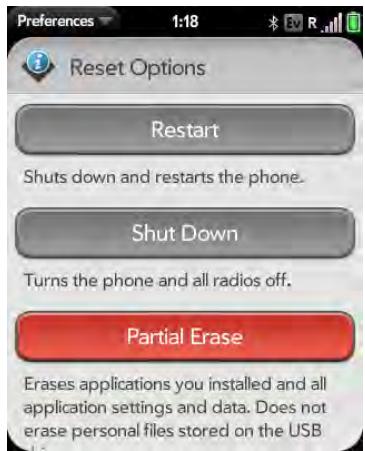
3 Do one of the following:
- Erase all data from the phone except items stored in USB Drive storage, such as pictures, videos, and music: Tap Partial Erase twice.
- Erase all data from the phone: Tap Full Erase twice (scroll down to see this option). All data from all accounts and in USB Drive storage is erased from your phone, including information about your Palm profile. But all your data on the Web—in your online accounts and in your Palm profile—is untouched. Perform a full erase when you give your phone to somebody else and you don’t want that person to be able to access your data. Also, before giving your phone to another person, you must manually delete all the apps you installed, because they reappear on your phone after a full erase (see Delete an application).
After a full erase, you can sign in to your Palm profile either on a new webOS phone or the same phone you just erased. Signing in restores your Palm profile data and information from online accounts, but not your stored files such as pictures, videos, and music (you must copy those again to the phone; see Copy files between your phone and your computer). You can also sign in to your Palm profile on a new phone and restore your data to the new phone.
TIP You can also perform a full erase by pressing and holding Option + Sym + power G.
IMPORTANT If you have a Palm profile from a phone that you no longer use, you can sign in to your existing profile. All info associated with your profile is downloaded to your new phone.
Run Quick Tests
If you are troubleshooting your device with a support agent, you can run Quick Tests to get diagnostic information. If you need more information after running Quick Tests, you can run one or more Interactive Tests (see Run Interactive Tests).
1 Open Device Info
2 Open the application menu and tap Quick Tests.
3 Work with the support agent to view and report the test results.
Run Interactive Tests
If you are troubleshooting your device with a support agent and need more information after running Quick Tests (see Run Quick Tests), you can run one or more Interactive Tests.
1 Open Device Info
2 Open the application menu and tap Interactive Tests.
3 Work with the support agent to run and view results from one or more tests.
Change default applications
If you have more then one application on your phone that can perform a particular function, you can change the default application to use for that function. For example, your phone comes with two applications that can be used to show the map location of an address: Google Maps and VZ Navigator. You can select which of these applications opens by default when you tap an address to see its location on a map. Google Maps is the default application.
1 Open Device Info
2 Open the application menu and tap Default Applications.
3 Tap a data type in Data Types and tap an application.
To override the default application setting when looking for the map location of an address: Press and hold Option , tap the address, and tap an application.
Use Certificate Manager
Certificates are digital documents that are used to authenticate and exchange information on networks. Certificates can be issued for a user, a device, or a service.
Add a certificate from USB Drive storage
You can install a certificate that is located in the USB Drive storage on your phone. To copy a certificate into USB Drive storage, see Copy files between your phone and your computer.
1 Open Device Info
2 Open the application menu and tap Certificate Manager.
3 Tap and tap the certificate name.
Add a certificate from an email attachment
Open the email attachment (see Open attachments), and then tap Trust Certificate.
View certificate details
Only user-installed certificates can be viewed.
1 Open Device Info
2 Open the application menu and tap Certificate Manager.
3 Tap the certificate name.
Delete a certificate
Only user-installed certificates can be deleted.
1 Open Device Info
2 Open the application menu and tap Certificate Manager.
3 Tap the certificate and tap Delete Certificate.
Regional Settings
Language
You can set your phone display to any language available for the device.
1 Open Regional Settings
2 Tap the language.
3 If a region list is displayed, tap the region.
4 Confirm you want to use the new language, or revert to the original language.
Your phone resets after you select a new language. You do not lose any data or applications from the reset.
Formats
You can set your phone to format numbers, currency, date, and time to reflect your country's style.
1 Open Regional Settings
2 Tap the country name.
3 Do one of the following:
- Type the name of the country, and when it appears, tap it.
- Scroll down to find a country, and then tap it.
4 Confirm you want to change the format, or tap Cancel.
Your phone restarts after you select a new country format. You do not lose any data.
Screen & Lock
Change screen brightness
1 Open Screen & Lock
2 Under Screen, tap, hold, and drag the Brightness slider to the preferred level.
Set the interval for turning the screen off automatically
By default, your screen turns off after one minute of inactivity to save battery power. You can change this interval.
1 Open Screen & Lock
2 In Turn Off After, tap the interval shown, then tap the number of seconds or minutes.
Change your wallpaper
Your wallpaper is the screen background in Card view. You can customize the wallpaper to show a favorite picture.
1 Open Screen & Lock
2 Tap Change Wallpaper.
3 Do one of the following:
- Use an existing picture as the background: Tap the album containing the picture, and tap the picture (see Save a picture as wallpaper.
- Use a new picture as the background: Tap New Photo and take the picture.
4 (Optional: applies to new pictures only) Do either or both of the following:
- To zoom out or in on a part of the picture, pinch in or out on the picture.
- To capture the portion of the picture you want for your wallpaper, tap and hold the picture, and then drag the portion you want to the center of the onscreen box.
5 Tap Set Wallpaper.
Turn advanced gestures on/off
Turning on advanced gestures gives you two new gestures, previous and next, and also changes the way you make the back gesture, and the forward gesture (in Web only).
- New gestures: The previous and next gestures let you move among your open applications without first going to Card view. The previous gesture is a full swipe from left to right across the entire length of the gesture area. The next gesture is a full swipe from right to left across the entire length of the gesture area. Use these gestures when you have more than one app open and an app is displayed full-screen. By making the previous and next gestures you go from full-screen view to full-screen view of each app. The order of applications is determined by the order that you opened them or arranged them in Card view.
-
Change to back gesture: The back gesture still goes from right to left in the gesture area, but you must make a shorter swipe, from the center outward.
-
Change to front gesture: The front gesture (available in Web only) still goes from left to right in the gesture area, but it's a shorter swipe, from the center outward.
1 Open Screen & Lock
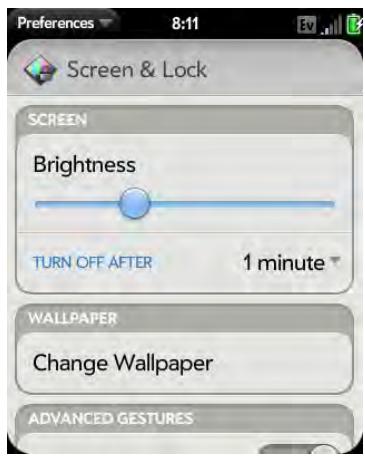
2 In Switch Applications, tap On or Off.
Set options for unlocking the screen
The screen locks five seconds after it turns off automatically, or immediately if you turn the screen off manually. Use Secure Unlock if you want to require a PIN or a password to unlock the screen.
TIP If your company issued your phone to you, check with your system administrator whether the company has its own settings for locking and unlocking the screen of your phone.
1 Open Screen & Lock
2 To turn on Secure Unlock, tap Off in Secure Unlock, and then tap Simple PIN or Password and do one of the following:
- Simple PIN: Enter a PIN of any length. This is a PIN that you make up. Enter the PIN again to confirm, and then tap Done.
- Password: Enter a password containing any combination of letters and numbers. Enter the password again to confirm, and then tap Done.
IMPORTANT Be sure to write down your PIN or password and keep it somewhere safe. If you forget your PIN or password, you need to remotely reset your phone and may lose data.
3 Tap Lock After to choose whether the screen locks after a designated time, or after the screen turns off.
4 (Optional) Under Notifications, tap On or Off to set whether notifications are displayed when the screen is locked.
5 To turn Secure Unlock off, in Secure Unlock, tap Off. Enter the PIN or password, and then tap Done.
TIP To change your PIN or password, in Secure Unlock, tap Change PIN or Change Password. Enter the old PIN/password and the new PIN/password, and then tap Done.
Sounds & Ringtones
Manage system sounds and notifications
You can turn system sounds, such as transition sounds, and notification alerts, on or off. You can also set the volume for system sounds.
NOTE Sliding the ringer switch off turns off system sounds. The ringer switch does not affect the Clock alarm or media sounds, such as Music and Video.
1 Open Sounds & Ringtones
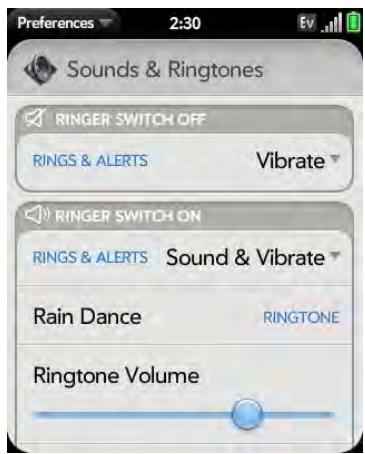
2 In Ringer Switch Off, tap Vibrate or Mute to set whether your phone vibrates when you slide the ringer switch off.
3 Under Ringer Switch On, set any of the following:
Rings & Alerts: Select Sound & Vibrate, or Sound. To change the ringtone for incoming calls, see Select the ringtone for incoming calls. Tap, hold, and drag the Ringtone Volume slider to set the ringtone volume.
TIP Adjusting the Ringtone Volume slider is the same as using the volume up and volume down buttons on the side of the phone.
System Sounds: Set whether to turn on systemwide sounds for general actions such as transitions and alarms set in Clock. Tap, hold, and drag the Volume slider to set the system sounds volume.
TIP By default, when the ringer switch is off, you can still hear the Clock alarm. If you want to change this setting, go to Clock > Preferences. Under Ringer Switch Off, change Play alarm anyway to Off or On.
Select the ringtone for incoming calls
The ringtone you select here applies globally to all incoming calls. You can also set a unique ringtone for a contact (see Add a ringtone to a contact).
1 Open Sounds & Ringtones
2 Tap the displayed ringtone to open the full list of tones.
3 Tap the name of the ringtone to select it.
4 Tap to listen to the ringtone.
5 Use the back gesture to get to the Ringtone Volume slider, and then tap, hold, and drag the slider to change volume.
Select a song as a ringtone
You can add the first few seconds of a song as the ringtone for your phone.
The ringtone you select here applies globally to all incoming calls. You can also set a unique ringtone for a contact (see Add a ringtone to a contact).
1 Open Sounds & Ringtones
2 Tap the displayed ringtone.
3 Tap
4 Tap to the right of a song title to preview it.
5 Tap the song title to add it as your ringtone.
6 Use the back gesture to get to the Ringtone Volume slider, and then tap, hold, and drag the slider to change volume.
Download a ringtone
You can copy or download music, a sound, or a ringtone to use as a ringtone on your phone. Supported file types are MP3, AAC, AAC+, AMR, QCELP, and WAV.
1 Identify a file on your computer to use as a ringtone on your phone.
2 Connect your phone to your computer using the USB cable.
3 On your phone, tap USB Drive. On your computer, your phone appears as a removable drive.
4 Open My Computer (Windows XP), Computer (Windows Vista/Windows 7), or the Finder (Mac), double-click the drive representing your phone, and drag and drop files to the ringtones folder on your phone.
5 On a Windows computer, to end the connection safely, right-click the drive representing your phone and click Eject. On a Mac computer, from your desktop, drag the drive representing your phone to the Trash. Trash changes to Eject.
6 Disconnect the USB cable from the computer when the USB Drive screen is no longer displayed on your phone.
The new file appears in the list of ringtones on your phone. You can select the new ringtone to apply to all incoming calls (see Select the ringtone for incoming calls) or set it as a unique ringtone for a contact (see Add a ringtone to a contact).
Troubleshooting
Although we can't anticipate all the questions you might have, this chapter provides answers to some of the most commonly asked questions. For additional information and answers to other common questions, visit palm.com/support.
In this chapter
156 For users of other Palm® devices
156 Battery
161 Screen and performance
162 Phone
163 Hands-free devices
164 Synchronization
166 Sending and receiving data in Email, Messaging, and Web
167 Email
167 Messaging
168 Web
169 Calendar and Contacts
169 Camera
170 Amazon MP3
170 Transferring information from your computer
170 Backing up and restoring data
171 Updates
172 Third-party applications
172 Making room on your phone
For users of other Palm® devices
I want to transfer my data from my computer
If you previously synchronized data from a Palm® smartphone—such as contacts or calendar events—with a desktop organizer such as Palm® Desktop by ACCESSOR Microsoft Outlook®, you can do a one-time, one-way export of that data from the desktop organizer to your Palm® Pixi™ Plus phone.
IMPORTANT If your desktop Outlook synchronizes with an Exchange server using Microsoft Exchange ActiveSync, you cannot do a one-way export of that Outlook data to your phone. Instead, set up your Exchange account to synchronize with your phone (see How do I send and receive email on my phone?).
Windows: You can transfer contacts, calendar events, tasks, and memos/ notes from Palm Desktop software by ACCESS version 6.2 and Microsoft Outlook 2003 or later. If you don't have Palm Desktop version 6.2, download it for free from palm.com/support.
Mac: You can transfer contacts, calendar events, and tasks from Address Book, iCal, or Palm Desktop software by ACCESS version 6.2. If you don't have Palm Desktop version 6.2, download it for free from palm.com/support.
NOTE You can transfer data from Palm Desktop, Outlook on your Windows computer, and Address Book and iCal on your Mac computer, even if you never synchronized with a Palm smartphone.
For instructions on doing a one-time, one-way transfer of your data, see Transferring data. For more detailed information, go to palm.com/migrate-pixel.
Battery
WARNING Use only batteries and chargers that are approved by Palm with your phone. Failure to use a battery or charger approved by Palm may increase the risk that your phone will overheat, catch fire, or explode, resulting in serious bodily injury, death, or property damage. Use of unapproved third-party power supply accessories may damage the device and void the Limited Warranty for the product.
I can't charge the battery
- If you're using a new battery or a new charger, make sure the battery and charger are approved by Palm for use with your phone. Failure to use an approved battery or charger may prevent your phone from turning on or being charged.
- If you're using an existing, approved battery, the battery may have reached the end of its useful life and may need to be replaced. See I need to replace the battery for details.
I need to replace the battery
Your Pixi Plus phone comes with a replaceable battery. Be sure to use a battery that is approved by Palm and that is compatible with your phone. Failure to use the proper battery may result in personal injury or product damage, and it voids your phone warranty.
NOTE Please dispose of the old battery properly.
1 If the USB cable is attached to the phone, disconnect the USB cable.
2 If a wired headset is attached to the phone, disconnect the headset.
3 Turn the phone completely off (see Turn everything (the screen and wireless services) on/off).
4 To begin separating the back cover from the body of the phone, use your thumbnail to release the clasp at the midpoint of the left side of the phone (see a in step 5).
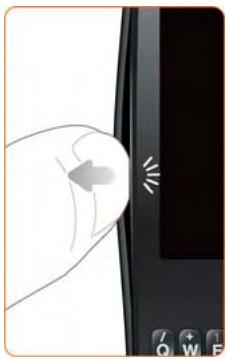
5 Run your thumbnail around the hairline opening to release the upper-left and top clasps. You may hear a sound when the clasp releases.
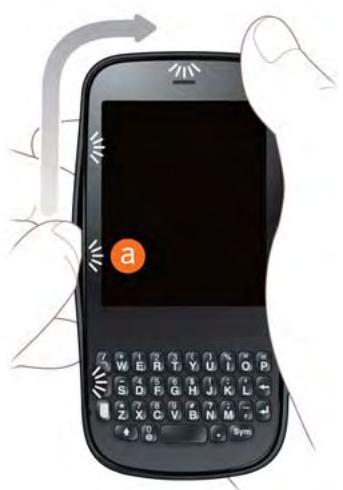
6 Run your thumbnail around the hairline opening to release the bottom-left and bottom clasps. End at (b).
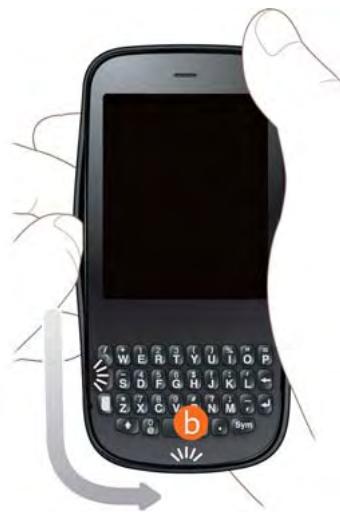
7 Swing the body of the phone out of the back cover as if the right side were a hinge.
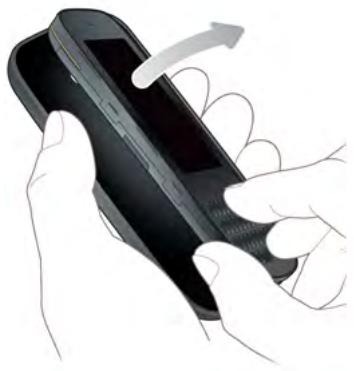
8 Remove the battery by sliding your finger under the groove at the side of the battery.
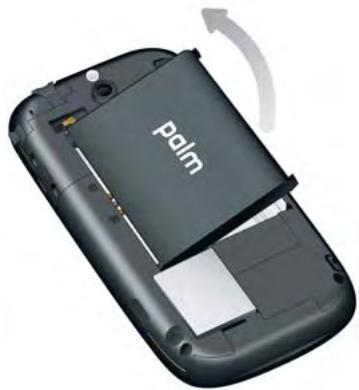
9 Insert the new battery.
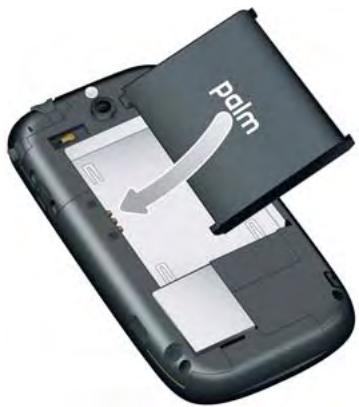
10 To replace the back cover: Insert the ringer switch into the hole provided for it on the right side of the back cover.
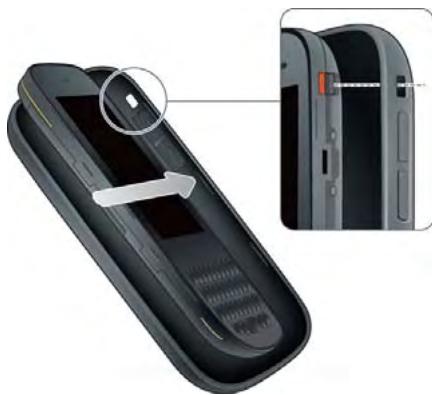
11 Press the back cover and the body of the phone together at each pair of clasps. You can feel the clasps engage.
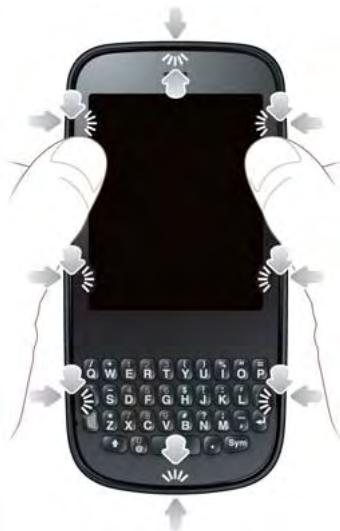
12 Press and hold power G on the upper-left corner of your phone until you see the Palm logo on the screen (approximately five seconds). Please be patient while your phone starts up.
TIP If your phone does not turn on after you insert the battery and press and hold power, you may need to charge the battery (see Charge the battery).
I can't get my screen to turn on after removing and replacing the battery
Removing the battery turns off your phone completely, so you can't just press power G to turn on the screen. Instead, press and hold power G until you see the Palm logo on the screen (approximately five seconds). Please be patient while your phone starts up.
TIP If your phone does not turn on after you press and hold power, you need to charge the battery (see Charge the battery).
I can't get the back cover off
1 If the USB cable is attached to the phone, disconnect the USB cable.
2 If a wired headset is attached to the phone, disconnect the headset.
3 If you are removing the cover to replace the battery, turn the phone completely off (see Turn everything (the screen and wireless services) on/off).
4 To begin separating the back cover from the body of the phone, use your thumbnail to release the clasp at the midpoint of the left side of the phone (see a in step 5).
5 Run your thumbnail around the hairline opening to release the upper-left and top clasps. You may hear a sound when the clasp releases.
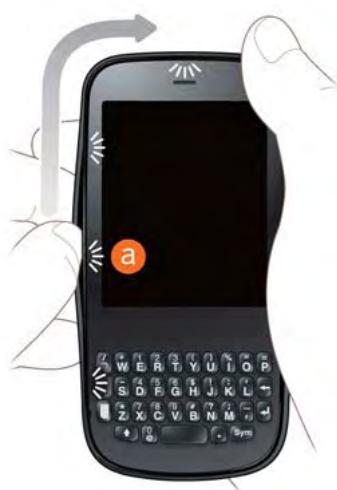
6 Run your thumbnail around the hairline opening to release the bottom-left and bottom clasps. End at (b).
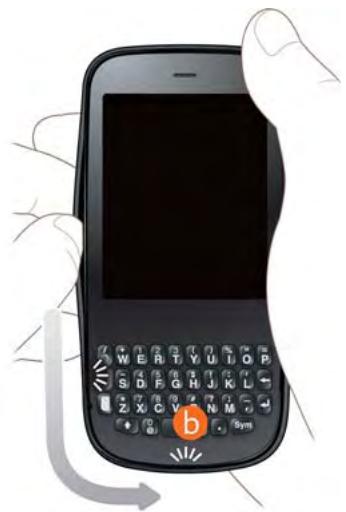
7 Swing the body of the phone out of the back cover as if the right side were a hinge.
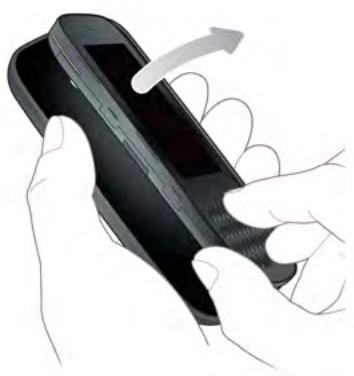
I can't get the back cover back on
1 Insert the ringer switch into the hole provided for it on the right side of the back cover.
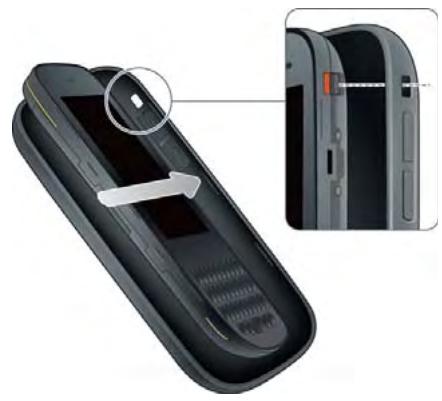
2 Press the back cover and the body of the phone together at each pair of clasps. You can feel the clasps engage.
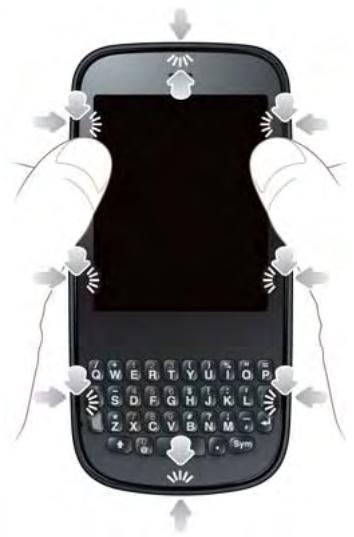
3 Press and hold power G on the upper-left corner of your phone until you see the Palm logo on the screen (approximately five seconds). Please be patient while your phone starts up.
TIP If your phone does not turn on after you insert the battery and press and hold power, you need to charge the battery (see Charge the battery).
Screen and performance
The screen appears blank
To save power, the screen dims automatically after a period of inactivity, and then turns off.
If you just inserted or replaced the battery, you need to press and hold power G until you see the Palm logo on the screen. Otherwise, follow these steps in sequence if you see a blank screen:
1 To brighten the screen if it has dimmed, tap the screen.
2 To turn on the screen, press power G. Drag up to unlock the screen.
3 Look closely at the screen. If you can see a dim image, try adjusting the screen brightness (see Change screen brightness).
4 If the problem persists, connect your phone to the AC charger (see Charge the battery). If you see a dim image, try to restart your phone (see Restart your phone).
5 If that doesn't work, press and hold power G and slide the ringer switch three times to restart your phone. Please be patient while your phone starts up.
An application is not responding to taps
Try the following steps in sequence:
1 Open Device Info and restart your phone (see Restart your phone).
2 If the screen does not respond to taps at all, press and hold power G and slide the ringer switch three times to restart your phone. Please be patient while your phone starts up.
Applications are running slower than usual
TIP Be sure that any third-party applications you install are compatible with the Palm® webOS™ platform. Applications written for Palm smartphones using the Palm OS operating system or Windows Mobile are not compatible with your Pixi Plus phone. If you can try a free version of the software before purchasing it, you can test it first to make sure it works properly. In App Catalog, you can purchase the Classic application from MotionApps to run Palm OS applications on your Pixi Plus phone.
1 Tap the center of the gesture area to display Card view.
2 Scroll through the cards and note how many applications you have running.
3 Close any application you are not using by throwing its card off the top of the screen.
If the problem persists, try restarting your phone (see Restart your phone).
My gestures in the gesture area aren't working
- Some gestures begin in the gesture area and end in the touchscreen, and vice versa. Crossing the border between the two areas with your finger is crucial to making the gesture successfully. Likewise, the drag gesture for
opening a menu begins at the top of the phone, above the screen, and crosses down onto the screen.
- If you cannot make the back gesture, check to see if you have the next/ previous app gestures turned on (see Turn advanced gestures on/off). If so, you need to make a short swipe left for the back gesture, and a full swipe right or left for the next or previous open app.
- Likewise, you can't use the next/previous app gestures unless you turn them on (see Turn advanced gestures on/off).
- You can see animations of many gestures: Open Help and tap Clips. Or go to palm.com/support to watch the animations on your desktop computer. Also, see Use gestures: tap, swipe, drag, flick, pinch.
There are small icons in the lower-right corner of the screen
Those icons represent notifications that you have not opened or dismissed. For most types of notifications, if you do not tap a notification after a few seconds, it becomes an icon in the lower-right portion of the screen. If you see one or more icons, tap anywhere on the bottom of the screen to display your notifications.
Phone
Signal strength is weak
Become familiar with low coverage areas where you live, commute, work, and play. Then you know when to expect signal-strength issues.
- If you're standing, move about 10 feet (3 meters) in any direction.
- In a building, move near a window. Open any metal blinds.
- In a building, move outdoors or to a more open area.
- Outdoors, move away from large buildings, trees, or electrical wires.
- In a vehicle, move your phone so that it's level with a window.
My phone won't connect to the mobile network
- Try the suggestions in the preceding section for weak signals.
- Turn off your phone and turn it on again (see Turn the phone on/off).
- Restart your phone (see Restart your phone).
I see five bars in the signal-strength icon, but I still can't connect to the network
The signal-strength icon always displays five bars. Your signal strength is indicated by the number of bars that are shaded white. If most or all of the bars are gray, you are in an area of weak or no coverage.
The other person hears an echo
- Try decreasing the volume on your phone—whether you are using the speakerphone or the earpiece—to avoid coupling or feedback on the other person's end.
- Position the earpiece closer to your ear to prevent sound leaking back into the microphone.
- If you're using the speakerphone feature with your phone lying on a flat surface, try turning the phone face down (screen facing the surface).
I hear my own voice echo
Ask the person on the other end of the call to turn down the volume on his or her phone or to hold the phone closer to his or her ear.
My voice is too quiet on the other end
-
Be sure to position the microphone, which is on the lower-left side of the keyboard next to the Option key, close to your mouth. Make sure you are not covering the microphone with your cheek or chin.
-
Check the signal-strength icon. If the signal is weak, try to find an area with better coverage (see Signal strength is weak).
I hear static or interference
Check the signal-strength icon. If the signal is weak, try to find an area with better coverage (see Signal strength is weak).
If you're using a hands-free device enabled with Bluetooth® wireless technology, try the following:
- Move your phone closer to the hands-free device. Audio quality degrades as the distance between your phone and the hands-free device increases. The effective range for a hands-free device varies among manufacturers.
- Confirm that no obstructions, including your body, are between the phone and your hands-free device. For example, move your phone to the same side of your body as your hands-free device.
My phone seems to turn off by itself
Your phone has a power-saving feature that's set to turn off the screen if it has been idle for one minute. You can change the auto-shut off interval (see Set the interval for turning the screen off automatically).
If you restart your phone, wireless services, such as Wi-Fi and Bluetooth, are automatically turned on if they were on before the restart. However, if the phone can't determine if a wireless service was on before the restart, that service does not automatically turn on (see Turn the phone on/off).
If the problem persists and you're using third-party applications, see Third-party applications for additional suggestions.
Hands-free devices
I can't make or receive calls using a Bluetooth® hands-free device
Verify all of the following:
- The Bluetooth feature is turned on (see Turn the Bluetooth feature on/off).
- Your Bluetooth hands-free device is charged and turned on.
- You have already formed a partnership between your phone and your hands-free device, and the hands-free device appears in the Devices list (see Connect with a paired device).
- Your phone is within range of the hands-free device. Bluetooth range is up to 30 feet (10 meters) in optimum environmental conditions, which include the absence of obstacles, radio interference from nearby electronic equipment, and other factors.
- You are away from other devices using the 2.4GHz radio frequency, such as cordless phones and microwaves. If this is impossible, move the phone closer to the hands-free device.
- The hands-free device is compatible with your phone. Go to palm.com/support to see a list of supported devices.
I lost the connection between my phone and my Bluetooth headset
If your headset isn't working, delete the existing partnership (see Delete a device) and create a new one (see Set up and use a Bluetooth® hands-free device).
I hear static or interference when using my hands-free device
-
Try moving your phone closer to the hands-free device. Audio quality degrades as the distance between your phone and the hands-free device increases. The effective range for a hands-free device varies among manufacturers.
-
Confirm that no obstructions, including your body, are between the phone and your hands-free device.
- Move to a quieter location to reduce environmental noise.
Some features of my hands-free device don't work with my phone
- Check the compatibility list at palm.com/support to ensure that your device is compatible with your Pixi Plus phone.
- Not all hands-free features work with every hands-free device. Check the documentation that came with your hands-free device or the manufacturer's website for feature-compatibility information specific to your device.
Synchronization
What is synchronization?
Anytime you are in Email, Calendar, or Contacts, you can set up a relationship to wirelessly sync data with selected service providers—for example, Google or Microsoft Exchange ActiveSync® (EAS—check to see if your company supports this). Sync means that if you enter, change, or delete information in one location, the change automatically shows up in the other location. So if you enter a Google contact in the Contacts application on your phone, the contact appears in your online Google contacts—no need to enter it twice.
You must already have an account with a service provider before you can set it up on your phone.
How do I set up synchronization with an online account?
The first time you open Email, Contacts, or Calendar, you are given the option to enter settings for one or more online accounts (see Set up email, Use Contacts for the first time, or Use Calendar for the first time). For any account, you need to enter the settings in only one of these applications to synchronize data for all three.
You can add additional accounts at any time using the preferences in any of these applications (see Set email preferences, Customize Contacts, or Customize Calendar).
You can also set up the Messaging application to work with an online instant messaging (IM) account (see Set up an instant messaging (IM) account), and the Photos application to work with an online pictures account such as Facebook or Photobucket (see Set up an online pictures account on your phone).
NOTE See Online accounts available for webOS phones for the current list of online accounts that synchronize your info and those that do a one-way transfer of info either from the web to your phone, or from your phone to the web.
I don’t want to sync calendar or contact information with my online account—just email
For most online account providers that sync with more than one app—for example, Google—if you do not want to sync an application with that provider's online account, you can remove that account from within the application. The online account continues to sync with any other related applications.
IMPORTANT You cannot remove individual Exchange account applications. If you remove your Exchange account from one application, sync stops with all your Exchange apps.
1 Open the application.
2 Open the application menu and tap Preferences & Accounts.
3 Tap the account name.
4 Tap Remove Account, and then tap Remove [app name] Account.
I want to sync with Outlook or Palm Desktop software on my computer
By default, your Pixi Plus phone does not support synchronization with Palm Desktop software or Outlook on your desktop computer. Your Pixi Plus phone, however, gives you options for synchronization without a cable. You can sync with online services that Palm has partnered with so that you can store and sync your info in online accounts. You can access your data even when you are not able to make a connection to the web because your data is stored on your phone.
If you have data from a Palm smartphone in Outlook or Palm Desktop software, you can do a one-time, one-way export of the data from the desktop application to your phone (see How do I get data off my computer?). You can assign this data to sync with an online account. You can also assign it to the Palm profile account. Data in this account is backed up to your Palm profile daily, so you can retrieve it if you need to reset your phone. But it is not a true sync because you cannot change your Palm profile data anywhere except on your phone.
If your desktop Outlook synchronizes with an Exchange server using Microsoft Exchange ActiveSync, you cannot do a one-way export of that Outlook data to your phone. However, you can synchronize the Outlook data wirelessly with your phone through your Exchange account.
TIP A number of third-party applications (sold separately) are available that let you synchronize data on your Pixi Plus phone with a desktop application. Visit palm.com/sync-solutions to learn more
I have an Exchange ActiveSync account at work, but my data is not being downloaded to my phone
Check with your system administrator to obtain or verify the name of the mail server that offers you wireless access to the corporate mail system. If you cannot obtain the name of this server (some companies do not give it out, because they do not want wireless access to their servers), you cannot synchronize with your Exchange ActiveSync account.
If your company requires you to change your password for accessing your Exchange ActiveSync account, you must change the password on your phone (see Change account login settings).
I entered the settings to sync with Exchange ActiveSync, but I can't synchronize with my company's Exchange server
Check with your system administrator to find out if a systemwide locking policy is in place.
A notification tells me that ActiveSync encountered a problem on the server
There is a temporary problem with the server, or the server may be temporarily overloaded. Try again later, and if the problem persists, contact your system administrator.
A notification tells me that there is not enough free memory to synchronize
1 Tap the center of the gesture area to display Card view.
2 Scroll through the cards and note how many applications you have running.
3 Close any application you are not using by throwing its card off the top of the screen.
If the previous steps don't fix the problem, see Making room on your phone for other suggestions.
A notification tells me that the server could not be reached
Make sure your phone is connected to the Verizon Wireless network or a Wi-Fi network (see Icons in the title bar).
If you have a network connection and receive this notification, it means your phone had to wait too long to connect to the Exchange server. The connection may have been lost, the server may be temporarily overloaded, or the server may have encountered an internal error. Check your Exchange server name and proxy server settings (see Set up email: Microsoft Exchange ActiveSync (EAS)), and try again later.
A notification tells me that ActiveSync encountered a problem with [item type] [item name]
There was an error while synchronizing a single item. This error can usually be corrected only by deleting the item that caused the error. If you sync again to see if the error persists, be aware that items causing this type of error are skipped and do not show up again.
Sending and receiving data in Email, Messaging, and Web
I can't tell if data services are available
The following icons appear in the title bar to indicate whether data services are available. If you don't see one of these icons, you cannot open a data connection:
KEY TERM 1xRTT (single-carrier [1x] radio transmission technology): A wireless technology that can provide fast data transfer and Internet access, with average speeds of 60-to-80Kbps and bursts of up to 144Kbps.
KEY TERM EvDO (Evolution Data Optimized): A wireless broadband technology that is designed for very high-speed data transfer, with average download speeds of 400-to-600Kbps, and capable of reaching speeds up to 3.2Mbps and upload speeds up to 1.8Mbps.
Table 1. Data connection icons
| Icon | Description |
| 1x | Your phone is connected to a 1x data network. Data is not currently being transmitted over the network. |
| 1x | Your phone is connected to a 1x data network and data is being transmitted over the network. |
| Ev | Your phone is connected to an EvDO data network. Data is not currently being transmitted over the network. |
| Ev | Your phone is connected to an EvDO data network and data is being transmitted over the network. |
| Your phone is connected to a Wi-Fi network. You can open a data connection. |
I have problems using my account
Occasionally you may experience problems using an email account after you set it up. If you followed the account setup procedure (see Set up email) and are experiencing problems using the account, verify that the account complies with your email provider's requirements:
- Verify both your password and your username for your email account.
- If you changed your password in an online email account, you must change the password on your phone (see Change account login settings).
- Some wireless service providers have requirements specific to their service. Check with Verizon Wireless to find out whether any provider-specific requirements exist.
- Make sure your ISP or email provider allows you to access email on a phone. (Some providers do not offer this option at all; other providers require an account upgrade for you to access email on a phone.)
- Email provider settings may change. If your email account was working but you are currently experiencing problems, check with your email provider to find out whether any of the account settings have changed.
I have problems sending and receiving email
- Make sure your phone is on and that your data connection to your mail server or email service provider has not been interrupted (see Turn the phone on/off).
- Short periods of time when email is unavailable are common, due to server problems or poor wireless coverage. If you have problems sending or receiving mail for an extended period of time, check with your ISP or email service provider to verify that the service is working properly, and check with Verizon Wireless for outage information in your area.
I have problems sending email (IMAP and POP accounts)
If you are able to receive email messages but cannot send them, try the following:
- Turn on authentication (see Set up email when automatic setup fails). Many service providers require authenticated access, or ESMTP, to use their SMTP servers for outgoing mail.
- Enter the name of a different outgoing mail server for sending mail (see Set up email when automatic setup fails). Many ISPs, such as cable companies, require that you have an Internet connection to their network to send email through their servers. In this case, you can almost always receive email from these accounts, but if you want to send email, you must send it through another server. Check with your email service provider for the correct outgoing mail server name.
After I receive messages, older messages disappear from my Inbox
When email sync takes place, by default, the last three days' worth of email messages is downloaded from your mail server to your Inbox. All messages older than three days are removed from your Inbox; they are not deleted on the server, however.
You can change the setting to download only one or two days' worth of messages. If you select one of these options, any messages older than one or two days are deleted from your Inbox. You can also change the setting to download all messages regardless of the date, in which case all messages continue to appear in your Inbox (see Enter advanced account settings).
Messaging
I can't send or receive text or multimedia messages
-
Make sure that your phone is on (see Turn the phone on/off).
-
For multimedia messages, do the following:
- Contact Verizon Wireless to verify that messaging services have been correctly activated on your phone, and that they are available at your location. (Verizon Wireless should be able to tell you if messaging services have been experiencing transmission delays.)
- Check to see if you have data services enabled. Open Phone, open the application menu, and tap Preferences. Under Network, make sure Data Usage is set to On.
-
If you are in roaming coverage, check to see if you have data roaming enabled. Open Phone , open the application menu, and tap Preferences. Under Network, tap Data Roaming and tap Enabled.
-
If possible, contact the recipient of the message, and make sure the receiving device can handle the type of message you're sending.
- If a message arrives but does not display a notification, restart your phone (see Restart your phone).
I want to send a video in a multimedia message, but do not see it on the list of items I can attach
You can attach only pictures in JPG format to outgoing multimedia messages. To send files of other types, attach them to an email message (see Add attachments to a message).
Web
My phone won't connect to the Internet
Your phone supports EVDO, 1xRTT, and Wi-Fi wireless data networks.
-
Check to see if you have data services enabled. Open Phone , open the application menu, and tap Preferences. Under Network, make sure Data Usage is set to On.
-
If you are in roaming coverage, check to see if you have data roaming enabled. Open Phone , open the application menu, and tap Preferences. Under Network, tap Data Roaming and tap Enabled.
- Turn off your phone and turn it on again (see Turn the phone on/off).
- Restart your phone (see Restart your phone).
- Contact Verizon Wireless to verify that your data plan has been correctly activated. Verizon Wireless should also be able to tell you if there are any outages in your location.
I can't access a page
1 Make sure you have Internet access:
- Open Web and try to view a web page you've loaded before.
- To ensure that you're viewing the page directly from the Internet, tap .
- After confirming your Internet connection, try to view the page again. If it comes up blank, tap .
- If you're still having trouble, the page may contain elements that are not supported by the browser, such as Flash, Shockwave, VBScript, WML script, and other plug-ins.
2 Some websites redirect simple web addresses given to the public to actual web addresses that are more complex (for example, if you enter the address www.palm.com/support, it may actually go to the web address http://www.palm.com/us/support). If your phone's browser can't follow the redirect, enter the web address in a desktop browser and read the actual web address in the address bar. Then enter the actual address in your phone's browser.
An image or map is too small on my screen
Do either of the following:
- To switch to landscape mode to see more of the image, turn the phone on its side.
- To zoom in on the image, pinch out or double-tap the screen.
A secure site refuses to permit a transaction
Some websites don't support certain browsers for transactions. Contact the site's webmaster to make sure the site allows transactions using your phone's web browser.
Calendar and Contacts
I haven't entered any contacts or calendar events on my phone, but when I open those apps, I see entries
The entries you see displayed in Calendar or Contacts have been downloaded to your phone from one of your online accounts such as Google or Microsoft Exchange ActiveSync. Anytime you are in Email, Calendar, or Contacts, you can set up a relationship to wirelessly sync data with one of these accounts. And after you enter the account settings in just one of these apps, any information you have online is automatically downloaded to all three—so if you set up a Gmail account in Email but also have a Google calendar, your phone's calendar automatically displays events entered in your Google calendar.
You can remove an online account from an application so that that app no longer syncs with that account (see Stop synchronization of Contacts with an online account, Stop synchronization of Calendar with an online account, or Delete an email account).
My personal and work contact and calendar information is getting merged into a single view—I'd rather keep them separate
The Palm® Synergy™ feature on your phone displays information from several sources in a single view, so you can access your info quickly, without having to remember where you stored it. Even though the information is visible in one view, the sources of that information are kept separate.
In Calendar, to see events from just one calendar, tap the word All in the upper-right corner of the screen and pick the account you want to see. See Change the Calendar display.
In Contacts, the list view shows all contacts from all accounts. You can, however, see what data comes from which account by opening the contact and tapping Edit. If you want to unlink contacts, see Unlink a contact.
In Email, you can turn off the smart folder for All Inboxes (see Set email preferences). Then make the inboxes of your individual accounts favorites so that they're always easy to see in Account List view (see Add a folder as a favorite).
I started entering a contact's name in universal search, but I'm not seeing the person in the results
- You need to enter at least two letters in universal search before contact matches are returned.
- If the contact is a linked contact, universal search searches on the primary profile only. Scroll through the contact match results to make sure that universal search did not return a different match for your contact from the one you were expecting.
For example, suppose you're searching for your friend Ed Smith's contact info. You have three contact entries for Ed that are linked, and the primary entry happens to be the one listed by Ed's screen name, ScubaEd. Typing es is not going to find Ed's contact; you have to type scu. To correct this, make the contact listing Ed's real name the primary contact (see Link a contact).
Camera
Here are some tips for taking good pictures with the camera:
- Clean the camera's lens with a soft, lint-free cloth.
-
Take pictures in bright lighting conditions. Low-light images may be grainy, due to the sensitivity of the camera.
-
Hold the phone as still as possible. Try supporting your picture-taking arm up against your body or a stationary object (such as a wall).
- Keep the subject of the pictures still. Exposure time is longer with lower light levels, so you may see a blur.
- For best results, verify that you have the brightest light source coming from behind you, lighting the subject's face. Avoid taking indoor pictures with the subject in front of a window or light. If the light is behind the subject, try moving closer to the subject and enabling the flash.
- Make sure the subject is at least 18 inches (0.5 meter) away from the camera to ensure good focus.
Amazon MP3
I bought a song from Amazon MP3, but it isn't showing up on my phone
Occasionally, the download process may be interrupted, so a song you purchased may not be successfully downloaded to your phone. To confirm the purchase and download of a song, log in to your Amazon account from your computer. If the song shows up there as purchased and downloaded, contact Amazon support and let them know you never received your song.
Transferring information from your computer
I bought a song through Amazon MP3 and want to transfer it to my computer
You can copy music files on your phone to your computer for use with a desktop music player. For instructions, see Copy files between your phone and your computer.
I copied files from my computer, but I can't see or play them on my phone
When you connect your phone to your computer in USB Drive mode, you can copy any file onto your phone. However, each media application on your phone—Photos, Music, and Videos—can display or play files in certain file formats only. If your media file is in an unsupported format, you can't use it on your phone.
For a list of supported photo types, see Photos. For a list of supported music file types, see Music. For a list of supported video file types, see Videos.
When I open the drive folder representing my phone from my computer, I see sub folders. Do I need to move my files into these folders?
The default folders are there to help you organize files you copy to and from your computer. But you can copy files from your computer into any folder you want—you can create your own folders, or just drag your files to the top level of the drive. As long as the file is in a supported format, your phone can detect and open it.
NOTE If you move a music file into the ringtones folder, the Music application cannot find it.
Backing up and restoring data
I need to reset my phone but don’t understand the difference between a partial erase and a full erase
Both a partial erase and a full erase delete all personal information, such as events, contacts, and tasks, as well as applications you have added, such as third-party software, on your phone. In addition, a full erase deletes all files
stored in the USB drive of your phone, which includes all pictures, videos, music files, documents, PDF files, and ringtones.
For more information, see Erase data and reset your phone.
How do I get my data back after a full or partial erase?
After a full or a partial erase, on your phone, enter your existing Palm profile email address, and password—don't create a new one! When you do this, all data that has been backed up to your profile—contacts, calendar events, and tasks, as well as apps you bought through App Catalog—is restored to your phone. To restore information about your online accounts to your phone, simply enter the password for each account when prompted after the erase—synchronization begins again.
A full erase deletes everything deleted by a partial erase, plus everything you stored in your phone's USB drive (pictures, videos, music, documents, PDF files, ringtones, and so on). You need to have copies of those files available elsewhere if you want to restore them to your phone. For example, you can save copies on your computer and then transfer them back to your phone (see Copy files between your phone and your computer).
I want to do a full erase, but the screen is cracked or doesn't respond to taps
If you can't do a full erase using the screen, you can use a keyboard shortcut. Press and hold Option + Sym + power G.
My bookmarks were restored, but the thumbnail icon is not displaying
Web bookmarks are part of the data backed up to your Palm profile. After a partial or full erase, a bookmark is restored with a generic thumbnail icon. After you revisit the page for which you created the bookmark, a thumbnail icon is restored.
Updates
I dismissed a system update notification, and now I don't know how to get the update on my phone
If you have a phone network connection or a Wi-Fi connection and the battery has at least a 30% charge, you can start the update yourself: Open Updates. Your phone checks for the availability of the update, and if one is available, tap Download Now. The download happens in the background, so you can continue to use your phone until the actual installation takes over.
After the update has finished being downloaded, tap Install Now to install the update on your phone.
My phone froze while I was downloading or installing a system update
If this happens, you can use webOS Doctor™ to restore your phone and install the system update from your computer using the USB cable. On your computer, go to palm.com/support to download webOS Doctor.
Transferring information from another Palm® webOS™ platform phone
I want to get files off my old webOS phone, but the screen is cracked or doesn't respond to taps, so I can't access USB Drive mode
If you can't put your phone in USB Drive mode using the screen, you can use a keyboard shortcut. Press and hold Option + Sym + U.
Third-party applications
Some third-party applications may cause conflicts with your phone. Third-party applications that modify the wireless features of your phone may require extra troubleshooting. Use caution when installing the following:
- Ringtone managers
- Caller ID applications
- Instant messaging
- Applications that modify when your phone or data connections turn on or off and how your phone behaves
If you recently installed an application and your phone seems to be stuck, try the following in sequence until the problem is resolved:
1 Restart your phone (see Restart your phone).
2 Make sure your third-party applications are up-to-date (see Manually check for system updates).
3 See if a system update is available (see Manually check for system updates).
4 Delete the most recently installed application, or the application you think could be causing the problem, from your phone (see Delete an application). Perform a backup (see Back up your information).
5 Perform a partial erase (see Erase data and reset your phone).
6 Enter your Palm profile email address and password to restore your backed-up information.
7 If the problem is resolved, begin reinstalling your third-party applications one at a time.
8 If the problem recurs, delete the last application you installed and report the problem to its developer.
Getting more help
Contact the author or vendor of any third-party software if you require further assistance. Neither Palm nor Verizon Wireless provides technical support for applications that are not built into your phone.
Making room on your phone
If you store a large number of files, or install many third-party applications, the USB drive on your phone may fill up. Here are some ways to clear space on your phone:
- Photos, Videos, Music, Amazon MP3, Doc View, PDF View: Large files take up a lot of memory. Move files to your computer (see Copy files between your phone and your computer), or delete them from your phone.
- Email: Email attachments can be large and consume lots of memory. Copy attachments to your computer (see Copy files between your phone and your computer), or delete large files from your phone (see Delete a message). You may also want to empty the deleted items folder.
- Web: Delete stored web browsing information by clearing your history, cookies, and cache (see Customize web browser settings).
- Third-party applications: You can delete infrequently used applications (see Delete an application).
Terms
airplane mode
A mode in which all the wireless services on your phone are turned off. Wireless services include the phone used for making and receiving calls, and Bluetooth® wireless technology. See Turn wireless services off (airplane mode).
application menu
A menu that contains application commands such as cut, copy, and paste (where available); preferences; and application help. To open the application menu, tap the application name in the upper-left corner of the screen. See also connection menu.
application search
The feature that lets you search for entries within an application by typing a search term when the list view is displayed—for example, a contact name or phone number, the subject text of an email message, or a few words from a memo. See also universal search.
application update
An update from the developer of an application you bought through App Catalog on your phone. When an application update is available, a notification appears on your phone. You can also check for application updates manually. Additional fees may apply. See Update the software on your phone.
back
The gesture you use to move up one level from a detailed view to a more general view of the application you're working in. For example, when you finish reading an email message, make the back gesture to close the message and return to your list of messages. Or when you finish writing a memo, make the back gesture to close and save the memo and return to the
display of all your memos. See Go up one level in an app (back gesture).
Making the back gesture is also the way you save your work in many apps. If you don't see a Done button, make the back gesture to save your work.
card
A minimized view of an open application. You can easily move among and reorder cards in Card view. Tap a card to restore the full-screen view of the application and continue working in it. See also Card view.
Card view
The view on your phone that displays applications as minimized cards, allowing you to easily move among and reorder them. Don't confuse Card view with the Launcher, which along with Quick Launch, shows you all the apps you have on your phone, not just the open ones. To display Card view Card view from any open application window, flick up from the gesture area to the screen, or tap the center of the gesture area. Card view displays your wallpaper.
connection menu
A menu that lets you turn on or off connection features including Bluetooth® wireless technology, and all wireless services (airplane mode). To open the connection menu, tap the upper-right corner of the screen. See also application menu.
dashboard
A list of all your notifications. When one or more notification icons appear at the bottom of the screen, tap the icons to open the dashboard. Tap a dashboard item to act on it. See also notification.
Data Transfer Assistant
A tool that allows you to do a one-way transfer of information such as contacts and calendar events from a desktop organizer to your phone. See Transferring data.
drag
A slow movement of the finger up or down on the touchscreen.
flick
A very fast skimming of the finger horizontally or vertically on the touchscreen.
gesture area
The strip beneath the touchscreen that you use to perform the back gesture, among others. Some gestures you begin in the gesture area and complete on the touchscreen, for example, the slow drag that displays Quick Launch when you have an application filling the screen.
Launcher
A group of screens displaying all your applications. To open the Launcher, tap in Quick Launch, or flick up twice from the gesture area to the screen. If you are in Card view, flick up once from the gesture area to the screen to open the Launcher. In the Launcher, swipe up, down, left, and right to see all your apps. Tap an app icon to open it.
linked contact
A contact containing information from more than one source. For example, if you have you have a work contact in Exchange ActiveSync and a personal contact for the same person in Google, the Contacts application automatically recognizes the connection and links the two contacts so that you can see all the information in one place—but the information is kept separate in the different accounts where it originated. You can also manually link and unlink contacts.
merged view
A feature on your phone that displays data from several sources in a single view, but keeps the sources of your data separate.
Let's say you use Google calendar for your personal events and your company's Outlook calendar for business events. Your phone's Calendar application displays events from both calendars in a single view, called All.
Likewise, if you set up multiple email accounts, the Email application displays the messages from all your account inboxes in a single view, called All inboxes. And in Messaging, all your messages with a person show up in a single conversation view, whether they are text, multimedia, or instant messages. See also linked contact.
notification
A message that appears at the bottom of the screen alerting you of an incoming or missed call; voicemail, email, or text messages; an upcoming event; and more. In most cases, you can tap a notification to act on it. See also dashboard.
online account
An account that you have with an online service such as Google or Microsoft Exchange ActiveSync. You can synchronize contacts, calendar events, and email between your phone and many of your online accounts.
Option key
The key you use to enter characters that appear above the letters on the keyboard keys. Press once to enter a single character. Press twice to lock the alternate character feature, so you can enter a series of characters. Also, press and hold Option and then drag your finger onscreen to move the cursor in text.
Palm profile
A Palm profile gives you access to services like automatic updates, backup of your data, and more. You create a Palm profile by entering a working email address during initial setup of your Palm® Pixi™ Plus phone. See Set up your phone. Your Palm profile also identifies the location on the web where the data you store in your Palm Profile account is backed up. (You cannot see or change this data on the web, however.) See also Palm profile account.
Palm profile account
An account that is automatically set up for you when you create your Palm profile. You can assign contacts and calendar events to it. Palm profile items are included in the daily backup of information to your Palm profile but do not synchronize with any of your online accounts. See also Palm profile.
pinch
A gesture used to go in for a magnified view (zoom in) or move out to see a larger area (zoom out). To zoom in, you pinch out: Place the thumb and
index fingertips close together on the touchscreen; then slowly spread them apart. To zoom out, you pinch in: Place the thumb and index fingertips apart on the touchscreen, and slowly bring them together.
Quick Launch
A bar of up to five icons that give you quick access to applications. Quick Launch always appears at the bottom of Card view and the Launcher. By default, Quick Launch displays icons for the following apps: Phone, Email, Contacts, and Calendar. The fifth icon is the Launcher. Tap a Quick Launch icon to open the app.
You can also open Quick Launch from any maximized application window by dragging up from the gesture area to the screen. Move your finger to the app you want, and then lift your finger. The application opens.
smart folder
One of two folders—All Inboxes and All Flagged—that can be set to appear at the top of the Account List view in the Email application See Set email preferences.
swifte
A light, fast horizontal movement with the finger from right to left or left to right on the touchscreen or the gesture area.
Sym key
The key you use to enter symbols and accented characters. Press Sym to open the full table of symbols. Press Sym + a letter key to narrow the table to symbols associated with that letter—for example, press + e to enter é.
SynergyTM feature
The feature from Palm that lets you take advantage of merged views and linked contacts on your phone. See Your Palm® Pixi™ Plus phone.
system update
Updates provided by Palm to the Palm® webOS™ platform and core applications such as Contacts and Calendar. When a system update is available, a notification appears on your phone. You can also check for system updates manually. See Update the software on your phone.
tap
A light quick touch on the touchscreen. Use the fleshy part of your fingertip to tap. Don't tap with a fingernail, and don't use a pen or pencil—the screen does not respond to touches like that. Also, don't bear down. Make the tap firmly, but lightly.
universal search
The feature that lets you make calls, search for applications and contacts on your phone, and search the web simply by typing the number or search term in either Card view or the Launcher. See Search to find info and make calls.
webOSTM platform
The operating system of your Palm® Pixi™ Plus phone. Key features of the webOS platform include gestures, cards, merged views, and linked contacts.
Regulatory and Safety Information
FCC Statements
This equipment has been tested and found to comply with the limits for a Class B digital device, pursuant to part 15 of the FCC Rules. These limits are designed to provide reasonable protection against harmful interference in a residential installation. This equipment generates, uses, and can radiate radio frequency energy and, if not installed and used in accordance with the instructions, may cause harmful interference to radio communications. However, there is no guarantee that interference will not occur in a particular installation. If this equipment does cause harmful interference to radio or television reception, which can be determined by turning the equipment off and on, the user is encouraged to try to correct the interference by one or more of the following measures:
Reorient or relocate the receiving antenna.
- Increase the separation between the equipment and receiver.
- Connect the equipment into an outlet on a circuit different from that to which the receiver is connected.
- Consult the dealer or an experienced radio/TV technician for help.
This device complies with Part 15 of the FCC Rules. Operation is subject to the following two conditions: (1) this device may not cause harmful interference, and (2) this device must accept any interference received, including interference that may cause undesired operation.
This phone meets the FCC Radiofrequency Emission Guidelines and is certified with the FCC as:
FCC ID: O8F-PIXEW
The FCC ID on your Palm phone is located on a label inside the battery compartment. The battery must be removed as shown below to view the label.
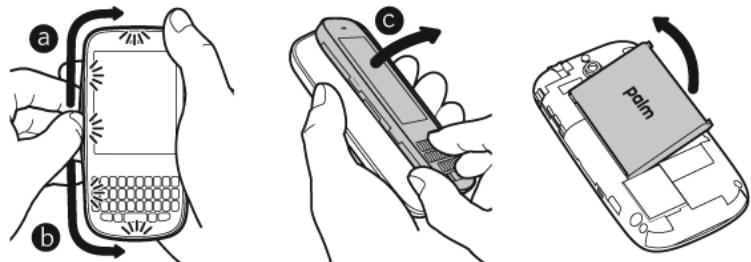
Changes or modifications not expressly approved by the party responsible for compliance could void the user's authority to operate the equipment.
Antenna Care/Unauthorized Modifications
Use only the supplied integral antenna. Unauthorized antenna modifications or attachments could damage the unit and may violate FCC regulations.
Industry Canada
Operation is subject to the following two conditions: (1) This device may not cause harmful interference, and (2) this device must accept any interference received, including interference that may cause undesired operation.
The term "IC" before the equipment certification number only signifies that the Industry Canada technical specifications were met.
IC:3905A-PIXEW
This Class B digital apparatus complies with Canadian ICES-003.
Radio Frequency (RF) Safety Exposure
General statement on Radio Frequency (RF) energy: Your phone contains a transmitter and a receiver. When it is ON, it receives and transmits RF energy. When you communicate with your phone, the system handling your call controls the power level at which your phone transmits.
Specific Absorption Rate (SAR): Your mobile device is a radio transmitter and receiver. It is designed not to exceed the limits for exposure to radio waves recommended by international guidelines. These guidelines were developed by the independent scientific organization ICNIRP and include safety margins designed to assure the protection of all persons, regardless of age and health.
In order to certify this unit for sale to the public, this unit has been tested for RF exposure compliance at a qualified test laboratory and found to comply with the regulations regarding exposure to RF Energy under the recommendations of the International Commission on Non-Ionizing Radiation Protection (ICNIRP). The tests are preformed in positions and locations as required by the FCC and IC for each model.
As SAR is measured utilizing the device's highest transmitting power, the actual SAR of this device while operating is typically below that indicated below. This is due to automatic changes to the power level of the device to ensure it only uses the minimum power required to communicate with the network.
The SAR limit for mobile devices set by FCC/IC is 1.6 W/kg averaged over 1 gram of tissue for the body or head (4.0 W/kg averaged over 10 grams of tissue for the extremities—hands, wrists, ankles, and feet).
The highest reported SAR values of the Palm® Pixi™ Plus phone are:
Table 1.
| Maximum scaled SAR values (W/kg) FCC | |
| Head | 1.47 |
| Body | 0.730 |
In order to comply with FCC and IC RF exposure safety guidelines, users MUST use one of the following types of body-worn accessories:
1 A Palm® brand body-worn accessory that has been tested for (specific absorption rate) SAR compliance and is intended for use with this product.
2 An accessory that contains NO metal (snaps, clips, etc.) and provides AT LEAST 1.5 cm (0.6 in.) of separation between the user's body and the unit.
Do NOT use the device in a manner such that it is in direct contact with the body (i.e., on the lap or in a breast pocket). Such use will likely exceed the FCC RF safety exposure limits. See fcc.gov/oet/rfsafety for more information on RF exposure safety.
To view the most recent SAR values of the Palm® Pixi™ Plus phone, visit palm.com/ sarverizon-pixiplus.
Body worn operation: Important safety information regarding radio frequency (RF) radiation exposure: To ensure compliance with RF exposure guidelines the phone must be used with a minimum of 1.5cm (0.6 in.) separation from the body. Failure to observe these instructions could result in your RF exposure exceeding the relevant guideline limits.
Limiting exposure to radio frequency (RF) fields: For individuals concerned about limiting their exposure to RF fields, the World Health Organization (WHO) provides the following advice:
Precautionary measures: Present scientific information does not indicate the need for any special precautions for the use of mobile phones. If individuals are concerned, they might choose to limit their own or their children's RF exposure by limiting the length of calls, or using "hands-free" devices to keep mobile phones away from the head and body.
Further information on this subject can be obtained from the WHO home page who.int/mediacentre/factsheets/fs193/en/index.html WHO Fact sheet 193: June 2000.
Hearing Aid Compatibility (HAC)
Using Your Phone With a Hearing Device
Your device has been tested for hearing aid compatibility. Your Palm® Pixi™ Plus phone has an M4/T4 rating. For additional HAC information, including the HAC rating of this product, please refer to palm.com/hacverizon-pixiplus.
When some wireless phones are used near some hearing devices (hearing aids and cochlear implants), users may detect a buzzing, humming, or whining noise. Some hearing devices are more immune than others to this interference noise, and phones also vary in the amount of interference they generate. The wireless telephone industry has developed ratings for some of their mobiles, to assist hearing-device users in finding phones that may be compatible with their hearing devices. Not all phones have been rated. Phones that have been rated have a label on the box.
These ratings are not guarantees. Results will vary, depending on the level of immunity of your hearing device and the degree of your hearing loss. If your hearing device happens to be vulnerable to interference, you may not be able to use a rated phone successfully. Trying out the phone with your hearing device is the best way to evaluate it for your personal needs.
M-Ratings: Phones rated M3 or M4 meet FCC requirements and are likely to generate less interference with hearing devices than phones that are not labeled. M4 is the better/higher of the two ratings.
T-Ratings: Phones rated T3 or T4 meet FCC requirements and are likely to be more usable with a hearing device's telecoil ("T switch" or "Telephone Switch") than unrated phones. T4 is the better/higher of the two ratings.
The more immune your hearing aid device is, the less likely you are to experience interference noise from your wireless phone. Hearing aid devices should have ratings similar to those of
phones. Ask your hearing health care professional for the rating of your hearing aid. Add the rating of your hearing aid and your phone to determine probable usability:
- Any combined rating equal to or greater than six offers the best use.
- Any combined rating equal to five is considered normal use.
- Any combined rating equal to four is considered usable.
Thus, if you pair an M3 hearing aid with an M3 phone, you will have a combined rating of six for "best use." This is synonymous for T ratings.
Palm further suggest that you experiment with multiple phones (even those not labeled M3/T3 or M4/T4) while in the store to find the one that works best with your hearing aid device. If you experience interference or find the quality of service unsatisfactory after purchasing your device, promptly return it to the store within 30 days of purchase. With the Palm 30-day Risk-Free Guarantee, you may return the device within 30 days of purchase for a full refund, and you will only be responsible for charges based on your actual usage.
Getting the Best Hearing Device Experience With Your Device
To further minimize interference:
- Set the phone's screen and keyboard backlight settings to ensure the minimum time interval.
- Move the phone around to find the point with the least interference.
For more information, please go to the FCC's Consumer Alert on accessibility of digital wireless phones at fcc.gov/cgb/consumerfacts/hac_wireless.html.
Battery Handling
- Do not disassemble or open; crush, bend, or deform; puncture or shred the battery.
- Do not modify or remanufacture; attempt to insert foreign objects into the battery; immerse or expose to water or other liquids; expose to fire, explosion, or other hazard.
- Only use the battery for the system for which it is specified.
- Only use the battery with a charging system that has been qualified with the system per the IEEE/CTIA-1725 standard. Use of an unqualified battery or charger may present a risk of fire, explosion, leakage, or other hazard.
- Do not short-circuit a battery or allow metallic conductive objects to contact battery terminals.
- Replace the battery only with another battery that has been qualified with the system per IEEE/CTIA-1725. Use of an unqualified battery may present a risk of fire, explosion, leakage, or other hazard.
-
Promptly dispose of used batteries in accordance with local regulations.
-
Battery usage by children should be supervised.
- Avoid dropping the phone or battery. If the phone or battery is dropped, especially on a hard surface, and the user suspects damage, take it to a service center for inspection.
- Do not handle a damaged or leaking Lithium-Ion (LI-ion) battery as you can be burned.
- Improper battery use may result in a fire, explosion, or other hazard.
Based on DOT rules, spare batteries must not be transported in checked luggage on commercial flights. Spare batteries can only be transported in carry-on luggage. For more information: http://safetravel.dot.gov/whats_new_batteries.html.
Protecting Your Battery
The guidelines listed below help you get the most out of your battery's performance.
Recently there have been some public reports of wireless phone batteries overheating, catching fire, or exploding. It appears that many, if not all, of these reports involve counterfeit or inexpensive, aftermarket-brand batteries with unknown or questionable manufacturing standards. Use only manufacturer-approved batteries and accessories found at Carrier Stores or through your device's manufacturer. Buying the right batteries and accessories is the best way to ensure they are genuine and safe.
- In order to avoid damage, charge the battery only in temperatures that range from 32^ F to 113^ F (0°C to 45°C).
- Don't use the battery charger in direct sunlight or in high humidity areas, such as the bathroom.
- Never dispose of the battery by incineration.
- Keep the metal contacts on top of the battery clean.
- Don't attempt to disassemble or short-circuit the battery.
- The battery may need recharging if it has not been used for a long period of time.
- It's best to replace the battery when it no longer provides acceptable performance. It can be recharged hundreds of times before it needs replacing.
- Don't store the battery in high temperature areas for long periods of time. It's best to follow these storage rules:
Less than one month: -4^ F to 140^ F (-20^ C to 60^ C)
More than one month: -4^ F to 113^ F (-20^ to 45^)
Power Specifications
Use only Palm-approved power accessories such as AC-power adapters and batteries.
Unauthorized and non-approved batteries will NOT operate with the Pixi Plus phone.

ENERGY STAR

Powered by an ENERGY STAR® qualified adapter for a better environment
AC Power Adapter source: Palm
Part Number: 157-10130-00
Input Rating: 100-240Vac, 50/60Hz, 0.2A
Output Rating: 5Vdc, 1000mA
AC Power Adapter source: Palm
Part Number: 157-10124-00
Input Rating: 100-240 Vac, 50/60Hz, 0.2A
Output Rating: 5Vdc, 1000mA
Battery Source: Palm
Type: Rechargeable Li-ion Polymer
Model: 157-10119-00
Rating: 3.7Vdc, 1150mAh (minimum)
Recycling and Disposal
This symbol indicates that Palm products should be recycled and not be disposed of in unsorted municipal waste. Please return Palm products to the electrical and electronic equipment collection points in your municipality or county or to a facility that properly recycles electrical and electronic equipment. These collection points are available free of charge. For detailed information please contact your municipality or county. For information on Palm's environmental programs, visit palm.com/environment.
Hazardous substances that may be included in electronic products can potentially affect human health and the environment. Recycling benefits the environment by diverting waste from landfills and by recovering materials that may be recycled into other products. Responsible recycling ensures materials are properly collected and disposed.
Palm is committed to supporting the collection and recycling of its products. Palm is committed to participate and support the European Union WEEE Directive (2002/96/EC) and the protection of the environment for future generations. For more information on the WEEE Directive implementation in the various EU member states please see weeee-forum.org.
It is everyone's responsibility to ensure that electrical and electronic products are properly reused, recycled, or recovered.
As part of Palm's corporate commitment to be a good steward of the environment, we strive to use environmentally friendly materials, reduce waste, and collaborate with our channel partners to raise awareness and help keep Palm handheld devices, s, and mobile companions out of landfills through evaluation and disposition for reuse and recycling. Visit palm.com/recycle for additional details and information about how you can help reduce electronic waste.
User Safety
OperationalWarnings
IMPORTANT INFORMATION ON SAFE AND EFFICIENT OPERATION. Read this information before using your phone. For the safe and efficient operation of your phone, observe these guidelines:
Potentially Explosive Atmospheres: Turn off your phone when you are in any areas with a potentially explosive atmosphere, such as fueling areas (gas or petrol stations, below deck on boats), storage facilities for fuel or chemicals, blasting areas and areas near electrical blasting caps, and areas where there are chemicals or particles (such as metal powders, grains, and dust) in the air.
Interference to Medical and Personal Electronic Devices: Most but not all electronic equipment is shielded from RF signals and certain electronic equipment may not be shielded against the RF signals from your phone.
Pacemakers: The Health Industry Manufacturers Association recommends that a minimum separation of 15 centimeters (6 inches) be maintained between a phone and a pacemaker to avoid potential interference with the pacemaker. These recommendations are consistent with the independent research by the recommendations of Wireless Technology Research.
Persons with pacemakers should do the following:
- ALWAYS keep the phone more than six inches (15 centimeters) from their pacemaker when the phone is turned ON.
- Do not carry the phone in a breast pocket.
- Use the ear opposite the pacemaker to minimize the potential for interference.
- Turn the phone OFF immediately if you have any reason to suspect that interference is taking place.
Other Medical Devices, Hospitals: If you use any other personal medical device, consult the manufacturer of your device to determine if it is adequately shielded from external RF energy. Your physician may be able to assist you in obtaining this information. Turn your phone OFF in health care facilities when any regulations posted in these areas instruct you to do so. Hospitals or health care facilities may be using equipment that could be sensitive to external RF energy.
Repetitive Motion Injuries: When using the keyboard or playing games on your phone, you may experience discomfort in your neck, shoulders, hands, arms, or other parts of the body. To avoid any injury, such as tendonitis, carpal tunnel syndrome, or other musculoskeletal disorder, make sure to take necessary breaks from use, take longer rests (such as several hours) if
discomfort or tiring begins, and see a doctor if discomfort persists. To minimize the risk of Repetitive Motion Injuries, when texting or playing games with your phone:
- Do not grip the phone too tightly.
- Press the buttons lightly.
- Make use of the special features in the handset which minimize the number of buttons which have to be pressed, such as message templates and predictive text.
Take lots of breaks to stretch and relax.
Blackouts and Seizures: Blinking lights, such as those experienced with television or playing video games, may cause some people to experience blackout or seizure, even if never experienced before. In the event a phone user should experience any disorientation, loss of awareness, convulsion, eye or muscle twitching, or other involuntary movements, stop use immediately and consult a doctor. Individuals with personal or family history of such events should consult a doctor before using the device. To limit the possibility of such symptoms, wherever possible every hour take a minimum break of 15 minutes, use in a well lighted area, view the screen from the farthest distance, and avoid exposure to blinking lights if you are tired.
Operating Machinery: Do not use your phone while operating machinery. Full attention must be given to operating the machinery in order to reduce the risk of an accident.
Aircraft: While in aircraft, follow all instructions regarding the operation of your phone. Use of your phone while on board an aircraft must be done in accordance and in compliance with airline instructions and regulations.
Vehicles with Air Bags: Your phone should not be placed in a position that would affect the operation of air bag deployment or in a position that, should the air bag inflate, could propel the phone. Air bags will inflate with great force and care should be taken to protect within a vehicle that has air bags. Do not place a phone in the area over an air bag or in the air bag deployment area. Store the phone safely before driving the vehicle.
Hearing Aids: People with hearing aids or other cochlear implants may experience interfering noises when using wireless devices or when one is nearby. The level of interference will depend on the type of hearing device and the distance from the interference source. Increasing the separation between them may reduce the interference. You may also consult your hearing aid manufacturer to discuss alternatives.
Small Children: Do not leave your phone and its accessories within the reach of small children or allow them to play with it. They could hurt themselves or others, or could accidentally damage the phone. Your phone contains small parts with sharp edges that may cause an injury or which could become detached and create a choking hazard.
Keep the device away from the abdomens of pregnant women and adolescents, particularly when using the device hands-free.
To reduce exposure to radiation, use your device in good reception areas, as indicated by the bars on your phone, at least 3 to 4 bars.
Caution: Avoid Potential Hearing Loss
Prolonged exposure to loud sounds (including music) is the most common cause of preventable hearing loss. Some scientific research suggests that using portable audio devices, such as portable music players and cellular telephones, at high volume settings for long durations may lead to permanent noise-induced hearing loss. This includes the use of headphones (including headsets, ear buds, and Bluetooth® or other wireless devices). Exposure to very loud sound has also been associated in some studies with tinnitus (a ringing in the ear), hypersensitivity to sound, and distorted hearing. Individual susceptibility to noise-induced hearing loss and other potential hearing problems varies. The amount of sound produced by a portable audio device varies depending on the nature of the sound, the device, the device settings, and the headphones. You should follow some common sense recommendations when using any portable audio device:
- Set the volume in a quiet environment and select the lowest volume at which you can hear adequately.
- When using headphones, turn the volume down if you cannot hear the people speaking near you or if the person sitting next to you can hear what you are listening to.
- Do not turn the volume up to block out noisy surroundings. If you choose to listen to your portable device in a noisy environment, use noise-cancelling headphones to block out background environmental noise.
- Limit the amount of time you listen. As the volume increases, less time is required before your hearing could be affected.
- Avoid using headphones after exposure to extremely loud noises, such as rock concerts, that might cause temporary hearing loss. Temporary hearing loss might cause unsafe volumes to sound normal.
- Do not listen at any volume that causes you discomfort. If you experience ringing in your ears, hear muffled speech, or experience any temporary hearing difficulty after listening to your portable audio device, discontinue use and consult your doctor.
- You can obtain additional information on this subject from the following sources:
American Academy of Audiology
11730 Plaza America Drive, Suite 300
Reston, VA 20190
Voice: (800) 222-2336
Email: info@audiology.org
Internet: audiology.org
National Institute on Deafness and Other Communication Disorders
National Institutes of Health
31 Center Drive, MSC 2320
Bethesda, MD USA 20892-2320
Voice: (301) 496-7243
Email: niddcinfo@nih.gov
Internet: nidcd.nih.gov/health/hearing
National Institute for Occupational Safety and Health
395 E Street, S.W., Suite 9200
Patriots Plaza Building
Washington, DC 20201
Voice: 1-800-CDCINFO (1-800-232-4636)
Internet: http://www.cdc.gov/niosh/topics/noise/
Product Handling & Safety
General statement on handling and use: You alone are responsible for how you use your phone and any consequences of its use.
You must always switch off your phone wherever the use of a phone is prohibited. Use of your phone is subject to safety measures designed to protect users and their environment.
- Always treat your phone and its accessories with care and keep it in a clean and dust-free place.
- Do not expose your phone or its accessories to open flames or lit tobacco products.
- Do not expose your phone or its accessories to liquid, moisture, or high humidity.
- Do not drop, throw, or try to bend your phone or its accessories.
- Do not use harsh chemicals, cleaning solvents, or aerosols to clean the device or its accessories.
- Do not paint your phone or its accessories.
- Do not attempt to disassemble your phone or its accessories; only authorized personnel must do so.
- Do not expose your phone or its accessories to extreme temperatures, minimum 14^ F and maximum 140^ F (-10°C to 60°C).
- Please check local regulations for disposal of electronic products.
- Do not carry your phone in your back pocket as it could break when you sit down.
Battery: Your phone includes an internal lithium-ion or lithium-ion polymer battery. Please note that use of certain data applications can result in heavy battery use and may require frequent battery charging. Any disposal of the phone or battery must comply with laws and regulations pertaining to lithium-ion or lithium-ion polymer batteries.
Demagnetization: To avoid the risk of demagnetization, do not allow electronic devices or magnetic media close to your phone for a long time.
Normal use position: When making or receiving a phone call, hold your phone to your ear, with the bottom towards your mouth or as you would a fixed line phone.
Emergency calls: This phone, like any wireless phone, operates using radio signals, which cannot guarantee connection in all conditions. Therefore, you must never rely solely on any wireless phone for emergency communications.
Phone heating: Your phone may become warm during charging and during normal use.
Accessories: Use only approved accessories. Do not connect with incompatible products or accessories. Take care not to touch or allow metal objects, such as coins or key rings, to contact or short-circuit the battery terminals.
Connection to a car: Seek professional advice when connecting a phone interface to the vehicle electrical system.
Faulty and damaged products: Do not attempt to disassemble the phone or its accessory. Only qualified personnel must service or repair the phone or its accessory. If your phone or its accessory has been submerged in water, punctured, or subjected to a severe fall, do not use it until you have taken it to be checked at an authorized service center.
Interference in cars and to other Electronic Devices: Please note that because of possible interference to electronic equipment, some vehicle manufacturers forbid the use of mobile phones in their vehicles unless a hands-free kit with an external antenna is included in the installation. RF energy may affect improperly installed or inadequately shielded electronic operating and entertainment systems in motor vehicles. Check with the manufacturer or representative to determine if these systems are adequately shielded from external RF energy. Also check with the manufacturer of any equipment that has been added to the vehicle.
Driving Safety
Driving Safety Tips Overview
Always obey all laws and regulations on the use of the phone in your driving area.
Safety-Your most important call. The Wireless Industry reminds you to use your phone safely when driving.
1 Get to know your phone and its features, such as speed-dial and redial.
2 Use a hands-free device where it is allowed. In some areas, you may not use your phone while driving even with a hands-free accessory.
3 Position your phone within easy reach.
4 Let the person you are speaking to know you are driving; if necessary, suspend the call in heavy traffic or hazardous weather conditions.
5 Do not take notes, look up phone numbers, read/write e-mail, or surf the Internet while driving.
6 Dial sensibly and assess the traffic; if possible, place calls when you are not moving or before pulling into traffic.
7 Do not engage in stressful or emotional conversations that may divert your attention from the road.
8 Dial your national emergency number to report serious emergencies. This is a free call from your phone.
9 Use your phone to help others in emergencies.
10 Call roadside assistance or a special non-emergency wireless number when necessary.
Driving Safety Tip Details
1 Get to know your phone and its features such as speed-dial and radial. Carefully read your instruction manual and learn to take advantage of valuable features most phone models offer, including automatic radial and memory dial. Also, work to memorize the phone keyboard so you can use the speed-dial function without taking your attention off the road.
2 Use a hands-free device. A number of hands-free phone accessories are readily available today. Whether you choose an installed mounted device for your phone or a speaker accessory, take advantage of these devices. If driving while using a phone is permitted in your area, we recommend using a phone headset or a hands-free car kit (sold separately). However, be aware that use of a headset that covers both ears impairs your ability to hear other sounds. Use of such a headset while operating a motor vehicle or riding a bicycle may create a serious hazard to you and/or others, and may be illegal. If you must use a stereo headset while driving, place a speaker in only one ear. Leave the other ear free to hear outside noises, and do so only if it is legal and you can do so safely.
3 Make sure you place your phone within easy reach and where you can grab it without removing your eyes from the road. If you get an incoming call at an inconvenient time, let your voicemail answer it for you.
4 Suspend conversations during hazardous driving conditions or situations. Let the person you are speaking to know you are driving; if necessary, suspend the call in heavy traffic or hazardous weather conditions. Rain, sleet, snow, and ice can be hazardous, but so is heavy traffic. As a driver, your first responsibility is to pay attention to the road.
5 Do not take notes, look up phone numbers, read/write e-mail, or surf the internet while driving. If you are reading an address book or business card while driving a car, or writing a to-do list, then you are not watching where you are going. It's common sense. Do not get caught in a dangerous situation because you are reading or writing and not paying attention to the road or nearby vehicles.
6 Dial sensibly and assess the traffic; if possible, place calls when you are not moving or before pulling into traffic. Try to plan your calls before you begin your trip, or attempt to schedule your calls with times you may be temporarily stopped or otherwise stationary. But if you need to dial while driving, follow this simple tip: dial only a few numbers, check the road and your mirrors, then continue.
7 Do not engage in stressful or emotional conversations that may be distracting. Stressful or emotional conversations and driving do not mix—they are distracting and even dangerous when you are behind the wheel. Make people you are talking with aware you are driving and if necessary, suspend phone conversations which have the potential to divert your attention from the road.
8 Use your phone to call for help. Your phone is one of the greatest tools you can own to protect yourself and your family in dangerous situations—with your phone at your side, help is only three numbers away. Dial your national emergency number in the case of fire, traffic accident, road hazard, or medical emergencies. Remember, your national emergency number is a free call on your phone.
9 Use your phone to help others in emergencies. If you see an auto accident, crime in progress, or other serious emergency where lives are in danger, call your national emergency number, as you would want others to do for you.
10 Call roadside assistance or a special wireless non-emergency assistance number when necessary. Certain situations you encounter while driving may require attention, but are not urgent enough to merit a call to your national emergency number. But you can still use your phone to lend a hand. If you see a broken-down vehicle posing no serious hazard, a broken
traffic signal, a minor traffic accident where no one appears injured, or a vehicle you know to be stolen, call roadside assistance or other special non-emergency wireless number.
General Operation
Prolonged Views of Screen: If you are driving, do not access any function requiring a prolonged view of the screen. Pull over in a safe and legal manner before attempting to access a function of the system requiring prolonged attention. Even occasional short scans to the screen may be hazardous if your attention has been diverted away from your driving task at a critical time.
Volume Setting: Do not raise the volume excessively. Keep the volume at a level where you can still hear outside traffic and emergency signals while driving. Driving while unable to hear these sounds could cause an accident.
Let Your Judgment Prevail: The Device Software is only an aid. Make your driving decisions based on your observations of local conditions and existing traffic regulations. The Device Software is not a substitute for your personal judgment.
Hands-Free Capability
All CTIA Certified portable products provide the consumer with a toll-free number for the purchase of a compatible hands-free device, 1-800-881-7256.
ESD Safety
Electrostatic discharge (ESD) can cause damage to electronic devices if discharged into the device, so you should take steps to avoid such an occurrence.
Description of ESD
Static electricity is an electrical charge caused by the buildup of excess electrons on the surface of a material. To most people, static electricity and ESD are nothing more than annoyances. For example, after walking over a carpet while scuffing your feet, building up electrons on your body, you may get a shock—the discharge event—when you touch a metal doorknob. This little shock discharges the built-up static electricity.
ESD-susceptible equipment
Even a small amount of ESD can harm circuitry, so when working with electronic devices, take measures to help protect your electronic devices, including your Palm phone, from ESD harm. While Palm has built protections against ESD into its products, ESD unfortunately exists and, unless neutralized, could build up to levels that could harm your equipment. Any electronic device that contains an external entry point for plugging in anything from cables to docking stations is susceptible to entry of ESD. Devices that you carry with you, such as your phone, build up ESD in a unique way because the static electricity that may have built up on your body is automatically passed to the device. Then, when the device is connected to another device such as a docking station, a discharge event can occur.
Precautions against ESD
Make sure to discharge any built-up static electricity from yourself and your electronic devices before touching an electronic device or connecting one device to another. The recommendation from Palm is that you take this precaution before connecting your phone to your computer, placing the phone in a docking station, or connecting it to any other device. You can do this in many ways, including the following:
- Ground yourself when you're holding your mobile device by simultaneously touching a metal surface that is at earth ground. For example, if your computer has a metal case and is plugged into a standard three-prong grounded outlet, touching the case should discharge the ESD on your body.
- Increase the relative humidity of your environment.
- Install ESD-specific prevention items, such as grounding mats.
Conditions that enhance ESD occurrences
Conditions that can contribute to the buildup of static electricity in the environment include the following:
Low relative humidity.
- Material type. (The type of material gathering the charge. For example, synthetics are more prone to static buildup than natural fibers like cotton.)
- The rapidity with which you touch, connect, or disconnect electronic devices.
While you should always take appropriate precautions to discharge static electricity, if you are in an environment where you notice ESD events, you may want to take extra precautions to protect your electronic equipment against ESD.
Owner's Record
The model number, regulatory number, and serial number are located on a nameplate inside the battery compartment. Record the serial number in the space provided below. This will be helpful if you need to contact us about your phone in the future.
Product: Palm® Pixi™ Plus phone
Model:
Serial No.:
Specifications
Specifications
Table 1. Specifications
| Category | Description |
| Radio | • Dual-band CDMA2000 EvDO Rev A and 1xRTT |
| Features | • Speaker • Hands-free headset jack (3.5 mm stereo, 3-barrel connector) • HAC M4/T4 • Microphone mute option • TTY-compatible • Ringer switch |
| Processor technologies | • Qualcomm® MSM7627™ integrated application processor and modem chipset |
| Battery | • Rechargeable lithium-ion • 1150mA/hr power capacity • Removable |
| Operating system | • Palm® webOS™ platform |
| Camera | • 2 megapixel • LED flash • Auto-exposure • Auto-white balance • Geotagging |
| Size | • 4.37 in. x 2.17 in. x 0.43 in. (111.0 mm x 55. mm x 10.85 mm) |
| Weight | • 3.26 ounces (92.5 grams) |
Table 1. Specifications
| Category | Description |
| Connectivity | ·Wi-Fi 802.11 b/g with WPA, WPA2, WEP, 802.1x authentication |
| Display | ·2.63-inch touchscreen ·18-bit TFT color ·Resolution: 320 x 400 sub-HVGA ·User-adjustable brightness |
| Keyboard | ·Physical QWERTY keyboard |
| Sensors | ·Ambient light ·Accelerometer ·Proximity |
| Memory | ·8GB (~7GB user available) ·USB mass storage support |
| Connector | ·microUSB connector with USB 2.0 Hi-Speed |
| Included Palm webOS applications (at time of purchase) | ·Amazon MP3 ·App Catalog ·Calculator ·Calendar ·Camera ·Contacts ·Doc View ·Email ·Memos ·Messaging (integrated SMS, MMS, and IM) ·Music ·PDF View ·Phone ·Photos ·Tasks ·Videos ·Web |
Table 1. Specifications
| Category | Description |
| Included third-party applications (at time of purchase) | ·Google Maps ·YouTube ·VZ NavigatorSM |
| Operating temperature range | ·32°F to 113°F (0°C to 45°C) ·5% to 90% RH |
Online accounts available for webOS phones
Table 2. Online accounts available for webOS phones
| Account/Behavior | Applications that display data from this account | Relationship between phone and online account* | Can I edit and add info to this account on my phone? | Can I edit and add data to this account on the web? | What happens when I delete this account from one app** |
| Exchange Active Sync | Contacts, Calendar, Tasks, Email | Sync | Yes | Yes | All data from all affected apps is simultaneously deleted |
| Contacts, Calendar | Contacts, Calendar: Transfer (from web to phone) | Photos only | Contacts and Calendar only | Only info in that app is deleted; info remains in other apps | |
| Photos: Transfer/upload (from phone to web) | |||||
| My Contacts, Calendar, Messaging, Email | Sync | Yes | Yes | Only info in that app is deleted; info remains in other apps | |
| Contacts | Transfer (from web to phone) | No | Yes | Only one app is affected: Contacts | |
| Palm profile | Contacts, Calendar, Tasks, Memos; see “Backup” for full list of affected info | Transfer (from phone to web) | Yes | No | All data is deleted from all affected apps; see “Backup” for details |
| Photobucket | Photos | Transfer/upload (from phone to web) | Yes | No | Only info in that app is deleted |
| Yahoo! | Contacts, Calendar, Messaging, Email | Contacts: Transfer (from web to phone) | Contacts: No | Yes | Only info in that app is deleted; info remains in other apps |
| Calendar: Yes |
Sync - A two-way exchange and update of your data. What you add or change in one location is automatically added or changed in the other. Transfer - A one-way update of your data. You can add or change data only in one location; the data is then copied to the other location.
*Only the data on your phone is deleted. The data source is not affected.
Index
NUMERICS
112 phone numbers 52
1xRTT data networks 166
3G2 files 114
3GP files 114
3GP2 files 114
3GPP files 114
911 phone numbers 52
999 phone numbers 52
A
AAC files 117
AAC+ files 117
AC charger 7
accented characters 28
Accept Cookies option 131
accessories
See also battery; hands-free devices
handling of 182
hands-free 178, 183
power 14, 156, 179, 180
AccountListview64,73,175
accounts
See also specific types
contacts and 86
erasing data from 148
linked contacts from 84
music and 119, 170
online 164
Palm profile 47, 144
pictures and 114
setting up 13
Acrobat Reader files. See PDF files
active calls. See phone calls
ActiveSync accounts. See
Exchange ActiveSync accounts
Add An Account option
Calendar 94, 99
Contacts 85, 92
Email 65
AddBookmark option 129
Add Contact Reminder 89
Add device option 59, 135
Add Picture 76
Add To Launcher 90, 128
address
outgoing email 67
Address Book on Mac 45
address books 52, 84
addresses. See contacts; email
addresses
advanced account settings 67
advanced gestures 151
air bags 181
aircrafts 181
airplane mode 11, 15-16, 173
alarms 34, 96, 99, 105-106
See also Clock application
Album Art view 118
album headers 113
albums. See specific types
errors. See alarms; notifications
All Calendars view 95
All Flagged view 73, 175
All Inboxes view 64, 175
all-day events 96
See also calendars; events
alternate characters 28
Amazon accounts 119, 170
Amazon MP3 service 119-121, 170
AMR files 117
animations 6,8
answering phone 53, 56
antenna 177
AOL accounts 64
App Catalog 36-40
application menu 31, 173
application search 34, 173
applicationupdate39,173
applications
See also third-party
applications; specific types
adding 36-38
beta apps 37
buying 36
changing default applications 149
closing 26
deleting 27, 172
dialing from 52
displaying 25
emailing from 74
in Quick Launch 23, 26
included with phone 186
keywords for 33
losing 170, 171
moving between 25
music and 117
opening 23-24
Palm OS 36
reinstalling 39
running 6
searching in 34, 173
troubleshooting 147, 161, 165
updating 39, 173
using on calls 55
appointments. See events
artists 117, 120
attachments
files as 139, 142
internal memory and 172
messages and 69, 74
music as 117
opening 70, 78
pictures as 113
saving 70
audio files. See music
audio quality 163
authentication 125, 167
AutoLocateoption126
auto-correct feature 29
Auto-Download MMS option 79
automatic backup 144
Automatic IP settings options 126
auto-shut off interval 150, 163
B
back cover 157-158, 159-161
back gesture 18, 151, 173
Back View 12
Background data collection option 127
Backup application 144
See also Palm profile
basic gestures 18-19
battery
caring for 14, 179
charger for 7
charging 14, 156
icons 11, 13
life 14-15
purchasing 15
replacing 156
specifications 185
troubleshooting 156-159
billing accounts 39-40
blackouts 181
blank screens 161
Block Popup option 131
blocking caller IDs 58
Bluetooth devices 134-136
adding 59, 135
airplane mode and 15, 16
backup summary 144
connecting to 134, 135
deleting 136
disconnecting from 136
discovering 135
pairing 134-135
passkeys for 135
phone calls and 58
renaming 136
troubleshooting 163
turning on and off 134
Bluetooth wireless technology 59, 134, 134-136
See also wireless services
BMP files 70, 110, 111, 112
bookmarks 129-130, 142
Brightness slider 150
browser. See Web browser
Buddies view 75
built-in applications 186
buying
See also downloading
applications 36
music 120-121
VZ Navigator 132
C
cable service providers 167
cache (web pages) 131
Calculator application 107
calendar accounts 95, 97, 99
Calendar application 93-100
calendar events. See events
Calendar View Options 97, 99
calendars 93-100
See also events
alarms and 96, 99
backup summary 145
dates on 97
default 99
display of 97
events 93, 95, 96, 97
getting started with 94
Google 64,93,169
online 99
preferences for 99-100
saving 95
synchronizing 94, 100, 164
troubleshooting 169
call history 54, 57
See also phone calls
call waiting 56
caller IDs 58, 87, 112
calls. See phone calls
camera 110, 169, 185
capitalization 28
Caps Lock 28
car kits 58, 59
Cardview6,22,25,26,173
See also wallpaper
Certificate Manager 149
Change Login Settings option 67
Change Wallpaper option 150
character searches 51
characters 28-29
charger 7
charging dock 14
charging the battery 7, 14, 156
chat rooms. See conversations
children, safety of 181
Classic application 37, 161
Clear Cache option 131
Clear Call History command 57
Clear Cookies option 131
Clear flag command 71
Clear History option 131
Clips (annimations in Help) 8
Clock application 105-106
colors
for calendar entries 94
for email message text 68, 72
for memos 104
columns, resizing 139
Comcast accounts 64
comments
Facebook 107
in documents 139
in spreadsheets 140
compatibility information 58, 156, 161, 164
conference calls 56
connection menu 32, 173
connections
Bluetooth devices and 59, 134
corporate servers and 165
Internet 123
network settings for 124
online address books and 84
Palm profile and 144
phone calls and 55
roaming and 60
timing out 166
transferring files and 112, 115, 119
troubleshooting 162, 168
TTY/TDD devices and 61
Wi-Fi 124, 124-125
connectivity specifications 186
connectors 186
contact header 87
contact lists 70, 92
contact matches 51, 52, 59, 169
contacts 84-92
adding 84, 86
backup summary 145
car kits and 59
copying 87
default account 92
deleting 91
dialing by name 52
displaying 57, 87, 88, 89
editing 87, 88, 89
Facebook 85
getting in touch with 91
getting started with 85
Launcher icons for 90
linked 84
LinkedIn 85
linking 89
photos for 87, 112
preferences for 91-92
reminders for 33, 54, 86, 89
ringtones for 88, 153
saving information for 58, 70, 78, 79, 86
searching 59, 86
selecting 53
speed dials for 88
synchronizing 84, 85, 92, 164
troubleshooting 169
unlinking 89
vCards and 93
Contacts application 84-92
conversations 74-76, 79
See also instant messages
Conversations view 75
cookies 131, 146, 172
Copy All option 30
copying
contacts 44, 87
files from computer 40, 41
messages 71, 78
text 30
corporate accounts 65-66, 165
coupling 162
coverage areas 16, 124, 162
creating
bookmarks 129
contacts 86
emails 68
events 95
files 140
instant messages 80
memos 104
multimedia messages 76-77
Palm profile 13
task lists 100
tasks 100-101
credit cards 39, 120, 121
cursor 21
custom messages 80
customer support 8
customizing
Calendar application 99-100
Contacts application 91-92
email accounts 67
Email application 73
instant messaging accounts 79, 81
Location Services 126
phone settings 59, 61
roaming preferences 60
signatures 72
VZ Navigator 133
Web browser 130
Wi-Fi connections 125-126
cutting text 30
D
dashboard 173
data connection icons 166
data roaming 61, 168
data service icons 166
data service providers 167
data transfer 41, 44-47, 84, 94, 170, 171
Data Transfer Assistant 45, 84, 94, 174
Data Usage 61, 168
DataViz 140
Date & Time application 145
dates 101, 146
See also calendars
Day view 97
default accounts
calendar 99
contacts 92
email 73
Default Calendar option 99
Default Event Duration option 99
Default Event Reminder option 99
Default Folder option 67
default settings 171
delete gesture 23
deleting
See also erasing
alarms 106
albums 112
applications 27, 172
billing accounts 40
Bluetooth devices 136
bookmarks 130
browsing history 131
call history 57
certificates 149
contacts 91
conversations 79
cookies 131
email 67, 72
email accounts 68
events 97
information 147
instant messaging accounts 81
memos 105
messages 79
music 119
numbers on dial pad 51
online accounts 164
photo albums 112
pictures 114
ringtones 88
tasks 103
videos 115
web page content 131
demagnetization 182
desktop organizers 156
desktop software 45, 84, 94, 156, 165
device. See Palm Pixi Plus phone; Bluetooth devices
Device Info application 147-148
device names 147
Devices list 134
diagnostic information 148
dial pad 50
dialing 50-53, 88, 130
dialing prefixes 60
dialing shortcuts 60
dialing tones 60
Digital Rights Management (DRM) 114
directions 95, 126, 131, 132
display. See touchscreen
display size 138, 141
displaying
album headers 113
applications 25
calendar events 97
certificates 149
contacts 57, 84, 87, 88, 89
email folders 72
file properties 139
images 168
maps 85, 91
meeting participants 98
multimedia messages 78
notifications 152
phone calls 54, 57
pictures 110
tasks 102
text messages 78
videos 114, 116
web pages 128
DNS Server option 126
DOC files 138
Doc View 138-140, 145
Document Editing 140
documentation 8
documents 138-141
See also Word files; Excel files; PowerPoint files; PDF files
Documents To Go 140
DOCX files 138
downloading
See also App Catalog; buying
applications 36, 38
email 67, 69, 167
multimedia messages 79
music 120-121
pictures 110
downloads albums 111
drafts 69
drag and drop gesture 22
drag gesture 19, 174
driving directions 95, 126, 131, 132
driving safety tips 58, 182
DRM-free files 111, 114
DTA. See Data Transfer Assistant
DTMF tones 60
due dates (tasks) 101, 103
E
earpiece 162
EarthLink accounts 64
EAS. See Exchange ActiveSync
echoes 162
editing
bookmarks 129, 130
contacts 87, 88, 89
email accounts 67
files 140
instant messages accounts 81
memos 104
Palm profile 144
tasks 102
text 21,30
web page bookmarks 130
electrostatic discharge (ESD) 183
email 64-74
See also email addresses; Email
application
advanced settings 67
errors for 67
attachments 70, 74
backup summary 145
contacts and 70
creating 68
deleting 67, 72
dialing from 52
download options for 167
drafts 69
files and 69, 139, 142
flagging 71
folders 72, 73
forwarding 71
links in 116
managing 71
memos 105
merging 64
message headers 72
music and 117
pictures and 113
preferences for 73
receiving 64, 67, 69
replying to 71
retrieving 124
roaming and 61
sending 64, 68, 74
signatures 67, 72
synchronizing 64, 67, 69, 164
troubleshooting 167
email accounts 64-68
accessing 64
changing 67
default 73
deleting 68
login settings 67
multiple 65
preferences for 67
reordering 73
setting up 64-66
troubleshooting 165, 167
email addresses
changing 146
entering 67, 68
saving 70
Email application 64-74
email service providers 64, 167
emergency calls 52, 182
emergency phone numbers 52
emoticons 77-78
endnotes, in documents 139
erasing 13, 144, 146, 147, 148, 170-171
See also deleting
ESD safety 183
ESMTP authentication 167
EvDO data networks 11, 166
Event Location option 95
Event Notes option 96
Event Reminder option 99
events 93-96
alarms and 96, 99
calendar 93, 95
creating 95
deleting 97
displaying 97
locations for 95
reminders for 96, 98
repeating 95
saving 95
synchronizing 93, 94, 100
untimed 96
Excel files 138, 139-140
Exchange ActiveSync accounts
availability 188
phone synchronization 44, 46
setting up 65-66
Synergy feature and 6
troubleshooting 165
Exchange servers
searching over 52
synchronizing with 165, 166
troubleshooting 166
explosive atmospheres 180
exporting data 44-47
See also data transfer extensions (phone calls) 60
F
Facebook accounts
availability 188
backup 145
calendar synchronization 94
contacts synchronization 85
deleting from 91
phone synchronization 46
pictures and 113-114
Facebook application 107
factory-installed applications 186
favourites
email folders 73
web bookmarks 129
FCC statements 177
feedback 162
file types
document 138
music 117
picture 110
video 114
files
See also specific types
changing contents 140
copying to phone 40, 114, 138, 141
creating 140
display size 138
finding text in 138, 141, 142
freeing memory and 172
losing 170, 171
opening 138, 141
properties for 139
saving 139, 142
searching for 138
sending 69, 139, 142
storing 170
filtering tasks 102
Find command 138, 141, 142
finding. See searching
flagging emails 71
flick gesture 19, 174
folders
copying files to 170
email 72, 73
footnotes, in documents 139
Forget Network option 125
formatting
email message text 68, 72
phone 150
forward gesture 18, 151
forwarding
meeting invitations 74
messages 71, 78
free applications 38
front gesture 151
Front view 10
frozen phone 147, 161
full erase 148, 170
G
GALs. See Global Address Lists
genres 117, 118, 120
Geotag Photos option 126
gesture area 17, 174
gestures 6,17-23
advanced 151
basic 18-19
scroll 19-20
text selection 21-22
zoom 20
Get email option 67
Get My Music option 117
GIF files 110
Global Address Lists 52, 84
Global Address Lookup option 87
Gmail 64,84,93,164,169
Google accounts
availability 188
phone synchronization 44, 46
setting up account on phone
64,84,93
setting up account on website
44, 45, 46
Synergy feature and 6
Google calendar 64, 93, 169
Google Earth 127
Google Maps 131
Google Services 126, 127
Google Weather 93
GPS applications 127
H
H.263 files 114
H.264 files 114
HAC 12, 61, 178-179
hands-free devices
setting up 58
troubleshooting 163-164
hanging up 53, 58
hard resets. See full erase
hardware 7
headsets 58-59, 163
hearing aid compatibility. See HAC
hearing aids 61, 178-179, 181
hearing loss 181
help8,172
See also troubleshooting
Help application 8
history 54, 57, 74, 130, 131, 172
hospitals 180
1
iCal on Mac 45
icons
battery 11, 13
bookmarks 129
data services 166
Google maps 131
Launcher 27
notifications and 162
phone status 11
Quick Launch 26
signal-strength 162
title bar 11-12
web page 128, 129
Wi-Fi 11
ignored calls 53, 57
IM. See instant messages
images 168
See also pictures
IMAP email accounts 167
importing information 165
See also data transfer
inbox (email) 64, 73, 167
Industry Canada 177
information
See also text
accessing 6, 165
backing up 144
cutting, copying 30
deleting 147
entering 128
importing 165
linked contacts 89
losing 170
pasting 30
protecting 144
restoring 171
retrieving 6
saving 86
transferring 43, 156
inline images 69
See also pictures
installing
third-party applications 36, 172
updates 35-36
instant messages 80-81
accounts 79, 81
creating 80
notifications for 81
online status 80
sending 75, 80
Interactive Tests 148
interference 163
internal memory. See memory
international dialing 60
international language settings 150
Internet. See websites
Internet service providers 167
IP addresses 126
ISPs. See Internet service providers
J
JavaScript option 131
Join network option 125
JPG files 70, 76, 78, 110, 111, 112, 168
K
keyboard 51, 186
keyboard shortcuts 30
keywords 33
known networks 125
L
labels 86
landscape view 110, 114, 116, 128, 168
language 150
Launcher
backup summary 145
contacts in 90
defined 174
gesture 24
icons 27
pages 11, 24
web pages in 128
layered calendars 94
light in gesture area 17, 30
lighted dial pad 50
linked contacts 84, 174
LinkedIn accounts 188
contacts synchronization 85
deleting from 91
linking to contacts 89
List Order option 92
lists
scrolling in 19
selecting items in 29
sorting items in 102
location information 95, 126
See also maps
Location Services 126-127, 145
lock icon 127
login settings 67, 99
lost devices 144
lowercase letters 28
M
M4V files 114
Mac computers
copying files 112, 115, 119
data transfer from 45
Mac computers and devices
transferring files and 170
machinery, operating 181
maps 85, 91, 131, 132, 168
Mark All Completed/Incomplete
command 103
Mark as read/unread command 71
media files 170, 172
medical devices 180
meeting invitations. See meeting
requests
meeting participants 98
meeting requests 74, 98
memory 172, 186
Memos application 104-105, 145
menus 173
merged views 64, 72, 174
message headers 72
messages. See email; multimedia
messages; text messages;
voicemail; instant messages
messaging albums 111
Messaging application 74-81
backup summary 145
troubleshooting 167
microphone 162
Microsoft Excel files. See Excel files
Microsoft Exchange ActiveSync.
See Exchange ActiveSync
Microsoft PowerPoint files. See
PowerPoint files
Microsoft Word files. See Word files
miscellaneous albums 111
missed calls 11, 57
misspelled words 29
mobile network connections. See connections
Month view 97
Move to folder command 71
movie listings 133
MP3 files 117
MP3 music service 119-121, 170
MP4 files 114
MPEG4 files 114
multimedia messages 76-79
addressing 76
attachments 78
contact information and 79
copying 78
creating 76-77
deleting 79
dialing from 52
displaying 78
downloading 79
forwarding 78
notifications for 81
pictures and 113
roaming and 61
sending 55, 75, 77
troubleshooting 167
multitasking 6, 23
music 117-121
answering phone and 53
backing up 119
deleting 119
downloading 120-121
information about 120
listening to 59, 117
playback controls 118
as ringtones 153, 170
searching for 118, 119
troubleshooting 170
Music application 117-119
mate 54,81,152
N
names
See also user names
Bluetooth device 136
device 147
dialing by 52
sending or receiving messages
and 67
national emergency phone
numbers 52
navigation 133, 134
network connections. See
connections
network settings 124
network times 147
networks 124, 125
New card command 128
next gestures 151
normal use position 182
notes 96, 101
notifications
contacts and 53
defined 174
displaying 34, 152
icons 11, 162
messages and 67, 81
responding to 34, 162
sounds for 53
troubleshooting 168
voicemail and 61
Now Playing list 118, 119
numbers 28, 51, 107
0
online accounts
See also accounts; email
accounts
availability of 188
defined 174
synchronization of 64, 164
online address books 52, 84
online calendars 93, 94, 99
See also calendars
online status 80
online support 8
open Wi-Fi networks 124
opening
application menu 31
applications 23-24
attachments 70, 78
connection menu 32
files 138, 141
maps 85, 91
web pages 127, 130
operatingsystem175,185
Optionkey10,27,174
organizer features 83
outage information 167
outgoing email address 67
Outlook 45, 165
overdue tasks 102
P
pacemakers 180
page indicators 11, 24
pairing devices 134-135
PalmDesktop software 45,156 165
Palm online support 8
Palm OS 36
Palm Pixi Plus phone 6
See also phone
Palm profile
about 6, 13
Amazon MP3 music and 119
backups 144-146
creating 13
defined 174
events and 94
passwords 38
restoring data 171
reusing 13
settings 146
Palm profile account 47, 174
Palm Synergy feature. See Synergy feature
Palm webOS. See webOS
platform
partial erase 148, 170
partnerships. See pairing
passkeys 135
Password is Required 40
passwords
changing 146
entering 28
instant messages and 81
Palm profile 38
PDF files and 141
screens and 152
Wi-Fi 124
pasting text 30
pauses in phone numbers 86
PDF files 141, 142, 145
PDF View 141-142, 145
performance 161
Personal Identification Numbers.
See PINs
personal information 41, 44, 170
phone
See also phone calls
answering 53, 56
backup summary 145
caring for 182
compatible devices for 164
conference calls 56
data services and 166
data transfer to 156
dialing 50-53, 88, 130
disposing of 180
emergency calls and 52
getting started with 10
hanging up 53, 58
installing third-party
applications and 172
lost 144, 146
number for 57
pairing 134-135
preferences for 59-61
redialing 52
regional settings for 150
renaming 147
replying to conversations and 75
restarting 147, 161, 163
safety information 58
setting up 13
silencing ringer for 53
specifications 185
status 11
stolen 144, 146
system information about 147
troubleshooting 148, 162-163
TTY/TDD devices and 61
turning on and off 15, 17
volume 54
phone calls 50-56
contact information for 58
driving and 58, 182
ending 55
hands-free devices and 59
hold 54, 56
information about 54, 57
making 50-53, 54, 130
messages during 76
receiving 53
replying to 53
ringtones for 88, 153
searching and 6
searching for contacts and 59
second 55
sending to voicemail 53
shortcuts for 60
swapping 56
phoneheadsets58-59,163
phone icons 11
Phone Reset Options settings 148
phone settings 59-61
photo albums 111, 112
Photo roll albums 110, 111
Photobucket accounts 113-114,
145, 188
Photobucket application 127
photos. See pictures
Photos application 111-114
pictures 110-114
albums and 111
backup summary 145
caller IDs and 87, 112
contact 87, 112
deleting 114
displaying 110
downloading 110
Facebook 113-114
Launcher icons for 90
Photobucket 113-114
sending 76, 113, 168
taking 110, 169
uploading 113-114
as wallpaper 113, 150
pinch in gesture 20, 174
pinch out gesture 20, 174
PINs 152
Pixi Plus phone. See Palm Pixi Plus
phone; phone
play lists 118, 119
Play sound option 67
playback controls
for music 118
for video 115, 116
playing
music 118
videos 115, 116
voicemail messages 54
Playlist view 118
PNG files 70, 110, 111, 112
POP email accounts 167
popups 131
power accessories 14, 156, 179, 180
power button 12
PowerPoint files 138
power-saving feature 15, 163
PPT files 138
PPTX files 138
preferences. See customizing
prefixes 60
presentations. See PowerPoint files
previous gestures 151
priority settings 68, 101
processor specifications 185
profile 6, 144, 174
protecting information 144
punctuation 28
Purge completed command 104
Q
Quick Launch
applications in 26
defined 175
gesture 19
icons 26
Quick Tests 148
R
radio frequency 178
radio specifications 185
reading email 69
recharging the battery 14
recurring events. See repeating
events
recycling 180
redialing 52
redirectors (web pages) 168
regional settings 134
Regional Settings application 145, 150
reinstalling applications 39
reminders
See also alarms
contacts 33, 54, 86, 89
events 96, 98, 99
remote diagnostics 148
remote erase 13
Remove Contacts Account option 92
Remove Email Account option 68
Remove Flag 71
renaming device 147
reordering
bookmarks 130
cards 25
email accounts 73
icons 26, 27
notifications 35
tasks 103
repeating events 95
repetitive motion injuries 180
Reply-to address option 67
Reset Voicemail Count option 61
resetting phone 147, 170-171
restarting phone 147, 161
reviews 37, 39
ringer 53
ringer switch 10, 53, 152
ringtone volume 105, 106, 152, 153
ringtones 88, 153
download 153
roaming 36, 60, 168
rows, resizing 139
S
safety information 177
SAR 178
satellite photos 131
saving
attachments 70
calendar events 95
contacts 86
email addresses 70
files 139, 142
images 113
information 86
phone numbers 58
pictures 113
web page bookmarks 130
schedules. See calendars
screen
brightness 15, 150
caring for 10
troubleshooting 159, 161
turning on or off 15, 17, 150
unlocking 151
Screen & Lock application 145, 150-152
screen captures albums 110, 111
scroll fast gesture 20
scroll gesture 11
scroll gestures 19-20
scroll slow gesture 19
searching 6, 104
for applications 24
for contacts 59, 86
for files 138
for locations 133
for memos 104
for music 117, 118, 119
for text 138, 141
for videos 116
for websites 127
second phone calls 55
secure networks 125
Secure Unlock option 151
secure websites 127, 169
secure Wi-Fi networks 124
security 125
See also Certificate Manager;
erasing data
locking the screen 150, 151
Palm profile 146
seizures 181
Select All option 30
sending
conversation messages 75
document files 139
email 64, 68, 74
instant messages 80
multimedia messages 55, 77
music 117
PDF files 142
pictures 76, 113, 168
text messages 76, 77
videos 168
sensors 186
Set a ringtone option 88
Set due date for all command 103
Set flag command 71
Set speed dial command 89
setting up
alarms 105-106
billing accounts 39-40
email accounts 64-66
Exchange ActiveSync accounts 65-66
Google accounts 44, 45, 46, 64, 84, 93
hands-free devices 58
instant messaging accounts 79
online pictures accounts 114
phone 13
voicemail 54
web service 113
settings 171
share option 74
sharing
files 139, 142
images 69, 113
locations 133
videos 116
web pages 128, 130, 172
Shift 28
shortcuts 30, 60
Show Contact Matches option 59
Show email option 67
Show Icon option 67
signal 16, 162, 163
signatures 67, 72
Simple PIN option 152
size specifications 185
slides. See PowerPoint files
smart folders 73, 175
SMTP servers 167
snooze 98, 106
soft resets. See partial erase
software 165
software updates 35-36
songs. See music
sorting
contacts 92
data in spreadsheets 140
task lists 102
Sounds & Ringtones application 145, 152-153
sounds. See specific types
speakerphone 162
specific absorption rate. See SAR
specifications 185-187
speed dialing 51, 88
spelling errors 29
spreadsheets. See Excel files
static 163
stereoheadsets58,59
stop scrolling gesture 20
storage space 172
streaming
music 117
videos 116
supported file types. See file types;
specific file types
swapping phone calls 56
swipe gesture 18, 175
Sym key 10, 175
symbols 28
Sync deleted emails option 67
Sync Now option 92
synchronization
calendars 94
defined 164
desktop software and phone 46
email 64, 67, 69
Exchange accounts 46
Exchange servers 165, 166
Facebook accounts 46
Google accounts 46
online calendars 93, 94, 100, 164
online contacts 84, 85, 92
retrieving information and 6, 165
setting up online accounts for 164
third-party 165
troubleshooting 165-166
Synergy feature 44
about 6
Calendar 93
Contacts 84
defined 175
Email 64
Google accounts 6, 46
Messaging 74
system information 147
system updates 35-36, 175
See also updating phone
T
tap gesture 18, 161, 175
task lists
assigning tasks to 101
creating 100
deleting 104
filtering 102
reordering items in 103
tasks
backup summary 146
completing 101, 103
creating 100-101
deleting 103
displaying 102
due dates for 103
editing 102
priorities for 103
Tasks application 100-104
TDD devices 61
technical support 8
temperature ranges 187
tests. See Quick Tests; Interactive
Tests
text 142
See also information
copying, cutting 30
finding 138, 141
formatting 68, 72
pasting 30
selecting 21
text messages 76-79
addressing 76
contact information and 78, 79
copying 78
creating 76-77
deleting 79
displaying 78
forwarding 78
links in 116
notifications for 81
phone calls and 52, 55
roaming and 61
sending 75, 76, 77
troubleshooting 167
text selection gestures 21-22
text telephones. See TTY/TDD
devices
third-party applications
adding 36
backup summary 146
internal memory and 172
losing 170, 171
synchronizing using 165
troubleshooting 172
third-party software 41
throwing gesture 19
thumbnail images 110
times 146, 147
Tips (Help application) 8
title bar icons 11-12
Top view 12
touchscreen 17
See also screen
Touchstone charging dock 14
traffic information 131
transferring data 44-47
computer to phone 44
contacts 84
events 94
Exchange to phone 46
Facebook to phone 46
Google to phone 46
old phone to new 44
planning for 44
troubleshooting 156-172
battery 156-159
calendars 169
cameras 169
contacts 169
email 167
email accounts 167
hands-free devices 163-164
memory 172
messaging 167
music 170
notifications 168
performance 161
phones 148, 162-163
screens 159, 161
synchronization 165-166
third-party applications 172
transferring data 170, 171
updates 171
trusted partnerships. See pairing
TTY/TDD devices 61
Turn Off and Erase Data option 144
Turn On/Off Airplane Mode option 16
turning on and off
advanced gestures 151
airplane mode 16
Bluetooth 134
JavaScript 131
phone 15
screen 15, 150
Wi-Fi 124
wireless services 15, 16
TXT files 138
U
universal search 6,32-34,51,169, 175
See also searching
unlinking contacts 90
unlocking the screen 151
unread emails 64
untimed events 96
See also calendars; events
up gesture 19
updating
applications 39, 173
billing accounts 40
phone 35-36
troubleshooting 171
uploading pictures 113-114
uppercase letters 28
URLs 127, 128, 129
USB cable 7
USB Drive mode 40, 170
user names 81
user profile 6, 144, 174
user safety information 180
V
vCards 84,93
Verizon Wireless
bills 132
customer service 8, 44
location services and 133
Verizon Wireless network
connecting to 15
icons for 11
roaming and 61
usage of 55
vibrate 67, 152
video playback controls 116
videos 114-116
answering phone and 53
deleting 115
playback controls 115, 116
searching for 116
sending 168
sharing 116
watching 114, 116
Videos application 114-116
views 6
See also cards
Voice Network 61
voicemail
listening to 54
resetting 61
sending calls to 53
setting up 54
Voicemail Count Reset option 61
volume
alarms 105, 106
phone call 54
ringtone 105, 152, 153
system sounds 152
troubleshooting 162
VZ Navigator 132-134
W
waking up screen 12
wallpaper 113, 146, 150
See also Card view
WAV files 117
weak signals 162, 163
weather 93, 132
web addresses 127, 128, 129
Web application 127-131, 146, 168
Web browser 127-131
web pages
bookmarking 129-130
browsing history for 131
cache for 131
dialing from 52
display options for 128
images on 168
information on 6, 128, 169
navigating through 128
opening 127, 130
recently viewed 130
refreshing 128
sharing 128, 130, 172
troubleshooting access to 168
web search 33
web service
setting up 113
web-based email 64, 64-66
webOS platform 6, 175
websites
additional browsers 128
browsing 61, 124
connecting to 124, 127
customer support 8
internal memory and 172
JavaScript for 131
music from 117
pictures and 113-114
popups from 131
searching for 127
secure 127, 169
troubleshooting connections to 168
videos from 116
Week view 97
weight specifications 185
Wide View 138
Wi-Fi
See also wireless services
connecting to 124, 124-125
disconnecting from 125
icons 11
network lists 125
network types 124
preferences for 125-126
turning on and off 124
Windows 7 computers
copying files from 112, 115, 119
Outlook support 45
Windows Vista computers
copying files from 112, 115, 119
data transfer from 45
Outlook support 45
Windows XP computers
copying files from 112, 115, 119
data transfer from 45
wiredheadsets58
wireless networks 124
wireless services
restated phone and 163
turning on and off 15, 16, 17
WLANs. See wireless networks
Word files 138, 139
worksheets. See Excel files
X
XLS files 138
XLSX files 138
Y
Yahoo! accounts 45, 64, 188
YouTube application 114, 116
Z
zoom in gesture 20
zoom out gesture 20
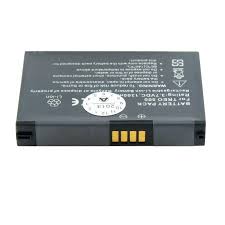
- Disclaimer and limitation of liability
- Open Source License information
- Recycling and disposal
- Contents
- Chapter 1 Welcome
- Chapter 2 Basics
- Chapter 3 Transferring data
- Chapter 4 Phone
- Chapter 5 Email and other messages
- Chapter 6 Personal information
- Chapter 7 Photos, videos, and music
- Chapter 8 Web and wireless connections
- Chapter 9 Documents
- Chapter 10 Preferences
- Chapter 11 Troubleshooting
- Terms
- Regulatory and Safety Information
- Specifications
- Index
- Welcome
- In this chapter
- Your Palm® Pixi™ Plus phone
- What's in the box?
- Print material
- Hardware
- Where can I learn more?
- Basics
- Get to know your phone
- Front view
- Keyboard
- Touchscreen
- Icons in the title bar
- Back view
- Top view
- Set up your phone
- Complete setup
- Verify your profile
- What is a Palm profile?
- Charge the battery
- Maximizing battery life
- Turn the phone on/off
- Turn the screen on/off
- Turn wireless services off (airplane mode)
- Turn wireless services on
- Turn everything (the screen and wireless services) on/off
- Use gestures: tap, swipe, drag, flick, pinch
- Basic gestures
- Scroll gestures
- Zoom gestures
- Text selection gestures
- Drag and drop
- Delete a list item
- Open applications
- Open an application in Quick Launch
- Open an application in the Launcher
- Open an application using search
- Work with applications
- Go up one level in an app (back gesture)
- Display all open applications (Card view)
- Move among open applications
- Reorder open cards
- Close an application
- Change the applications that appear in Quick Launch
- Reorder Quick Launch icons
- Reorder Launcher icons
- Delete an application
- Enter and save information
- Use the keyboard
- Enter uppercase letters
- Enter alternate keyboard characters
- Enter passwords
- Enter characters from the symbols table
- Symbols and accented characters
- Enter information in a field
- Select items in a list
- Cut, copy, and paste information
- Use the Copy All or Select All feature
- Save information
- Use the menus
- Open the application menu
- Open the connection menu
- Search to find info and make calls
- Use universal search
- Do one of the following:
- Universal search application keywords
- Search within an application
- View and respond to notifications
- Respond to a notification
- View all your notifications
- Reorder notifications and other dashboard items
- Update the software on your phone
- Respond to a system software notification
- Manually check for system updates
- Open Updates
- Use App Catalog to shop for new applications
- Browse applications in App Catalog
- Open App Catalog
- Download a free application
- Buy an application
- Manage applications
- Update downloaded applications
- Set up a billing account
- Update or delete a billing account
- Copy files between your phone and your computer
- Sync personal data using third-party software
- Transferring data
- Data transfer overview
- How do I get data from my old phone?
- How do I get data off my computer?
- About the Data Transfer Assistant
- I'm already using Google, Facebook, Yahoo!, and/or Microsoft Exchange
- I want to keep using my current desktop app and sync with an online account on my phone
- I don't need to sync, but I do want a copy of my data backed up somewhere besides my phone
- I'd rather sync directly with my computer
- Phone
- Make calls
- Dial using the onscreen dial pad
- Open Phone
- Dial by contact name using universal search
- Dial using the keyboard
- Dial using a speed dial
- Dial by contact name in the Phone application
- Redial the last number dialed
- Dial your national emergency number
- Dial from another application
- Receive calls
- Answer a call
- Silence the ringer on an incoming call
- Ignore a call
- Use voicemail
- Set up voicemail
- Listen to voicemail messages
- What can I do during a call?
- Manage a call
- End a call
- Use another application while on a call
- Make a second call
- Answer a second call (call waiting)
- Swap between two calls
- Make a conference call
- Look up or send a message to a contact
- What's my number?
- View your call history
- Save a phone number to Contacts
- Use a phone headset
- Use a wired headset
- Set up and use a Bluetooth® hands-free device
- Customize phone settings
- Show contact matches
- Enable international dialing
- Use dialing tones
- Use dialing shortcuts
- Set roaming and data usage preferences
- Enable TTY/TDD
- Enable HAC
- Reset the voicemail count
- Email and other messages
- How do I send and receive email on my phone?
- Merged inboxes in Email
- Set up email
- Set up email: Microsoft Exchange ActiveSync (EAS)
- Open Email
- Set up email when automatic setup fails
- Enter advanced account settings
- Change account login settings
- Delete an email account
- Create and send an email message
- Add attachments to a message
- Save a message as a draft
- Receive and read email messages
- Save or share an inline image
- Open attachments
- Save attachments
- Add a contact from an email message
- View a contact from an email message
- Search for an email message
- Reply to a message
- Forward a message
- Copy messages
- Move a message to another folder
- Mark a message as read or unread
- Flag or unflag a message
- Show or hide message header details
- Delete a message
- Add a signature to outgoing messages
- View mail folders
- Add a folder as a favorite
- Set email preferences
- Reorder accounts
- Reply to meeting invitations
- Send email messages from within another application
- Messaging
- What kinds of messages can I send and receive?
- Work with conversations
- Switch between messaging accounts in a conversation
- Switch between Conversations view and Buddies view
- Create and send a text or multimedia message
- Use emoticons in a message
- Receive and view text and multimedia messages
- Add a contact from a message
- View a contact's information from a message
- Dial a number from a message
- Delete a conversation
- Turn automatic download of multimedia messages on or off
- Set up an instant messaging (IM) account
- Sign in to an IM account
- Sign out of an IM account
- Send and receive IM messages
- Change your online status
- Change your custom message
- Change your IM account username and password
- Delete an IM account
- Turn messaging notifications on or off
- Personal information
- Contacts
- How do I add names and other info into Contacts?
- Linked contacts
- Use Contacts for the first time
- Create a contact
- Tap Done.
- Find a contact
- Open Contacts
- Add a photo to a contact
- Do one of the following:
- (Optional) Do either or both of the following:
- Tap Attach Photo.
- Add a ringtone to a contact
- Assign a speed dial to a contact
- Assign a reminder message to a contact
- Link a contact
- Unlink a contact
- Add a contact entry to the Launcher
- Get in touch with a contact
- Delete a contact
- Customize Contacts
- Set the following options:
- Manually synchronize Contacts with your online accounts
- Stop synchronization of Contacts with an online account
- Send Contacts
- Receive vCards
- Calendar
- How do I get events into Calendar?
- Layered calendars
- Use Calendar for the first time
- Open Calendar
- Create an event
- Enter the event name and press Enter
- Enter the event location
- Schedule a repeating event
- Add an alarm to an event
- Add a note to an event
- Create an all-day (untimed) event
- Change the Calendar display
- Move around in Calendar
- Quickly glimpse your schedule
- Delete an event
- Respond to an event reminder
- View meeting participants
- Customize Calendar
- Manually synchronize Calendar with your online accounts
- Stop synchronization of Calendar with an online account
- Tasks
- Create a task list
- Create a task
- Set task priority, due date, and other details
- Check off a task
- View tasks that are due today
- Rename a task
- Sort a task list
- Reorder your tasks
- Set due dates for all tasks in a list
- Mark all tasks in a list completed/incomplete
- Hide or delete all completed tasks in a list
- Delete a task or a task list
- Memos
- Create a memo
- Find a memo
- Edit a memo
- Change the color of a memo
- Delete a memo
- Email a memo
- Clock
- Manage Clock
- Set an alarm
- Cancel an alarm
- Change the alarm volume
- Delete an alarm
- Calculator
- Perform calculations
- Calculator buttons
- Photos, videos, and music
- Camera
- Take a picture
- Review pictures
- Photos
- Look at pictures
- Organize your pictures into albums
- Add a picture to a contact
- Save a picture as wallpaper
- Share a picture
- Upload a picture to the web
- Set up an online pictures account on your phone
- Delete a picture
- Videos
- Watch a video
- Use video playback controls
- Delete a video
- YouTube
- Find related videos
- Share a video
- Music
- Listen to music
- Open Music
- Use music playback controls
- Switch the Now Playing display
- Search for related songs or content
- Change the order of items in the Now Playing list
- Remove a song from the Now Playing list
- Delete a song
- Amazon MP3
- Sign in to your Amazon account
- Search for a specific song, album, or artist
- Browse songs, albums, artists, or genres
- View artist information
- View album information and buy an album
- Preview and buy a song
- View and work with downloaded items
- Web and wireless connections
- Wi-Fi
- What is a Wi-Fi connection?
- Why use a Wi-Fi connection?
- Are there different kinds of Wi-Fi networks?
- Turn Wi-Fi on and off
- Connect to a new open network
- Connect to a new secure network
- Connect to a previously used network
- Disconnect from a network
- Customize connection settings
- Location Services
- Web
- Go to a website
- Go to a website using search
- Open another browser
- Navigate a web page
- Add a web page to the Launcher
- Create a bookmark
- Open a bookmarked page
- Edit, reorder, or delete a bookmark
- Return to previously viewed web pages
- Use links on a web page
- Customize web browser settings
- Google Maps
- VZ Navigator
- Sign up for VZ Navigator
- Check local weather conditions
- Get directions
- Share location information
- Find a location or a service
- Customize VZ Navigator
- Bluetooth® wireless technology
- What is Bluetooth® wireless technology?
- Turn the Bluetooth feature on/off
- Make a pairing request to another device
- Accept a pairing request from another device
- Connect with a paired device
- Open Bluetooth
- Disconnect from a device
- Delete a device
- Rename a device
- Documents
- Doc View
- Open a file
- Change the display size
- Find text in a file
- Mobile products for extraordinary lives
- A culture of game-changing innovation
- Save a file with a new name
- Share a file
- View file properties
- Work with comments, endnotes, and footnotes in a Microsoft Word document
- Select a row or column in an Excel® spreadsheet
- Resize rows or columns in a spreadsheet
- Show or hide rows or columns in a spreadsheet
- Sort your data in a spreadsheet
- Switch among sheets
- View comments in a spreadsheet
- Switch among views in a PowerPoint® presentation
- Move around in a presentation
- Upgrade to Documents To Go® from DataViz
- PDF View
- Move around in a file
- View bookmarks
- Preferences
- Backup
- Back up your information
- Open Backup
- What information is backed up?
- Update your Palm Profile settings
- Date & Time
- Open Date & Time
- Set any of the following:
- Device Info
- View system information
- Rename your phone
- Restart your phone
- Erase data and reset your phone
- Open Device Info
- Tap Reset Options.
- Run Quick Tests
- Run Interactive Tests
- Change default applications
- Use Certificate Manager
- Add a certificate from USB Drive storage
- Add a certificate from an email attachment
- View certificate details
- Delete a certificate
- Regional Settings
- Language
- Formats
- Screen & Lock
- Change screen brightness
- Set the interval for turning the screen off automatically
- Change your wallpaper
- Turn advanced gestures on/off
- Set options for unlocking the screen
- Sounds & Ringtones
- Manage system sounds and notifications
- Open Sounds & Ringtones
- Select the ringtone for incoming calls
- Select a song as a ringtone
- Download a ringtone
- Troubleshooting
- For users of other Palm® devices
- I want to transfer my data from my computer
- Battery
- I can't charge the battery
- I need to replace the battery
- I can't get my screen to turn on after removing and replacing the battery
- I can't get the back cover off
- I can't get the back cover back on
- Screen and performance
- The screen appears blank
- An application is not responding to taps
- Applications are running slower than usual
- My gestures in the gesture area aren't working
- There are small icons in the lower-right corner of the screen
- Signal strength is weak
- My phone won't connect to the mobile network
- I see five bars in the signal-strength icon, but I still can't connect to the network
- The other person hears an echo
- I hear my own voice echo
- My voice is too quiet on the other end
- I hear static or interference
- My phone seems to turn off by itself
- Hands-free devices
- I can't make or receive calls using a Bluetooth® hands-free device
- I lost the connection between my phone and my Bluetooth headset
- I hear static or interference when using my hands-free device
- Some features of my hands-free device don't work with my phone
- Synchronization
- What is synchronization?
- How do I set up synchronization with an online account?
- I don’t want to sync calendar or contact information with my online account—just email
- I want to sync with Outlook or Palm Desktop software on my computer
- I entered the settings to sync with Exchange ActiveSync, but I can't synchronize with my company's Exchange server
- A notification tells me that ActiveSync encountered a problem on the server
- A notification tells me that there is not enough free memory to synchronize
- A notification tells me that the server could not be reached
- A notification tells me that ActiveSync encountered a problem with [item type] [item name]
- Sending and receiving data in Email, Messaging, and Web
- I can't tell if data services are available
- I have problems using my account
- I have problems sending and receiving email
- I have problems sending email (IMAP and POP accounts)
- After I receive messages, older messages disappear from my Inbox
- I want to send a video in a multimedia message, but do not see it on the list of items I can attach
- My phone won't connect to the Internet
- I can't access a page
- An image or map is too small on my screen
- A secure site refuses to permit a transaction
- Calendar and Contacts
- Transferring information from your computer
- Backing up and restoring data
- How do I get my data back after a full or partial erase?
- I want to do a full erase, but the screen is cracked or doesn't respond to taps
- My bookmarks were restored, but the thumbnail icon is not displaying
- Updates
- My phone froze while I was downloading or installing a system update
- Transferring information from another Palm® webOS™ platform phone
- Third-party applications
- Getting more help
- Making room on your phone
- airplane mode
- application menu
- application search
- application update
- back
- card
- Card view
- connection menu
- dashboard
- Data Transfer Assistant
- drag
- flick
- gesture area
- Launcher
- linked contact
- merged view
- notification
- online account
- Option key
- Palm profile
- Palm profile account
- pinch
- Quick Launch
- smart folder
- swifte
- Sym key
- SynergyTM feature
- system update
- tap
- universal search
- webOSTM platform
- FCC Statements
- Antenna Care/Unauthorized Modifications
- Industry Canada
- IC:3905A-PIXEW
- Radio Frequency (RF) Safety Exposure
- Hearing Aid Compatibility (HAC)
- Using Your Phone With a Hearing Device
- Getting the Best Hearing Device Experience With Your Device
- Battery Handling
- Protecting Your Battery
- Power Specifications
- User Safety
- OperationalWarnings
- Caution: Avoid Potential Hearing Loss
- American Academy of Audiology
- National Institute on Deafness and Other Communication Disorders
- National Institute for Occupational Safety and Health
- Product Handling & Safety
- Driving Safety
- Driving Safety Tips Overview
- Driving Safety Tip Details
- General Operation
- Hands-Free Capability
- ESD Safety
- Description of ESD
- ESD-susceptible equipment
- Precautions against ESD
- Conditions that enhance ESD occurrences
- Owner's Record
- Online accounts available for webOS phones
- NUMERICS
- A
- B
- C
- D
- E
- F
- G
- H
- 1
- J
- K
- L
- M
- N
- 0
- P
- Q
- R
- S
- T
- U
- V
- W
Brand : PALMONE
Model : PIXI PLUS
Category : Smartphone