
SCANSNAP S1300I DELUXE - Portable scanner FUJITSU - Free user manual and instructions
Find the device manual for free SCANSNAP S1300I DELUXE FUJITSU in PDF.

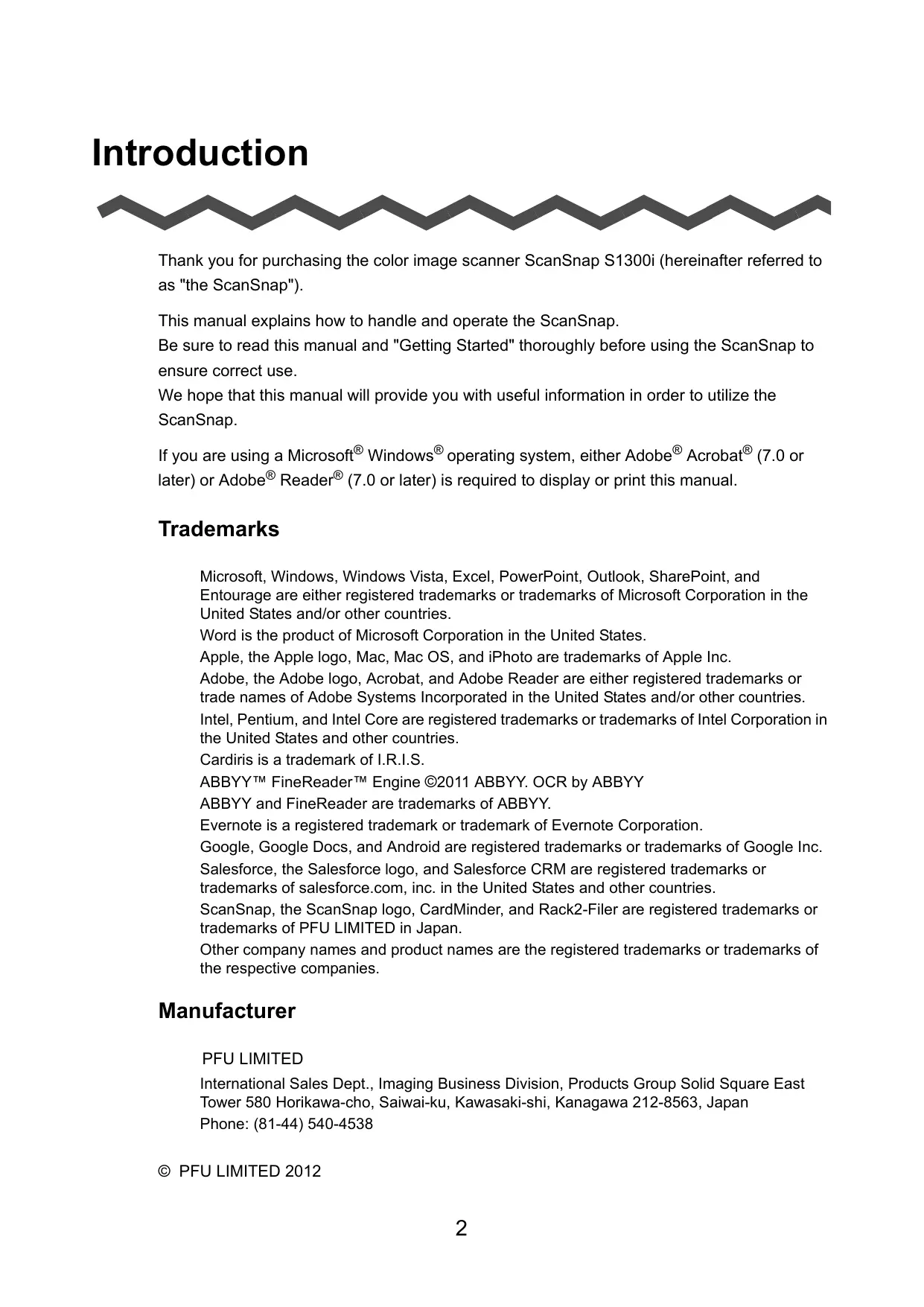

| Product Type | Portable scanner / Color image scanner |
| Brand | Fujitsu |
| Model | ScanSnap S1300i Deluxe |
| Dimensions (L×W×H) | 284 × 99 × 77 mm (minimum, closed); 284 × 231 × 240 mm (maximum, open with extension extended) |
| Weight | 1.4 kg |
| Power supply | AC power cable (100-240 V) or USB bus (5 V, requires two USB ports) |
| Power consumption | AC: 9.0 W operating, 3.2 W standby; USB bus: 5.0 W operating, 2.0 W standby |
| Scan speed | Approx. 12 pages/min (duplex, color A4, AC); approx. 4 pages/min (USB bus) |
| Optical resolution | Up to 600 dpi (color/grayscale) and 1200 dpi (black and white) |
| File formats | PDF, JPEG |
| Main functions | Duplex scanning, automatic color and size detection, blank page removal, skew correction, automatic rotation, searchable PDF, OCR to Word/Excel/PowerPoint, business card management, email sending, direct printing, save to cloud services (Dropbox, Evernote, Google Docs, Salesforce Chatter, SugarSync), save to mobile device |
| Included software | ScanSnap Manager, ScanSnap Organizer (Windows), CardMinder (Windows) / Cardiris (macOS), ABBYY FineReader for ScanSnap, Evernote, Dropbox, SugarSync, Scan to Microsoft SharePoint (Windows) |
| Compatible operating systems | Windows 7, Vista, XP; macOS X v10.5 to v10.7 |
| Automatic Document Feeder (ADF) capacity | Up to 10 sheets (80 g/m², A4) |
| Accepted paper sizes | Width: 50.8 to 216 mm, length: 50.8 to 360 mm (863 mm in long page mode); paper weight: 64 to 104.7 g/m² (standard paper), up to 326 g/m² for postcards |
| Interfaces | USB 2.0/1.1 |
| Maintenance and cleaning | Exterior cleaning with a soft cloth; interior cleaning using the F1 kit (Cleaner F1, Cleaning Wipe) for the roller and pad |
| Spare parts and consumables | Replaceable pad (Pad Assy) and pick roller; indicative lifespan: 100,000 passes for the pad, 200,000 for the roller |
| Safety | Automatic power off after 4 hours of inactivity (adjustable); standby mode after 1 minute; operation below 35°C |
| General information | Manufacturer: PFU LIMITED (Japan); warranty and repairs: contact your authorized Fujitsu dealer |
Frequently Asked Questions - SCANSNAP S1300I DELUXE FUJITSU
User questions about SCANSNAP S1300I DELUXE FUJITSU
0 question about this device. Answer the ones you know or ask your own.
Ask a new question about this device
Download the instructions for your Portable scanner in PDF format for free! Find your manual SCANSNAP S1300I DELUXE - FUJITSU and take your electronic device back in hand. On this page are published all the documents necessary for the use of your device. SCANSNAP S1300I DELUXE by FUJITSU.
USER MANUAL SCANSNAP S1300I DELUXE FUJITSU
ScanSnap Color Image Scanner
s1300i
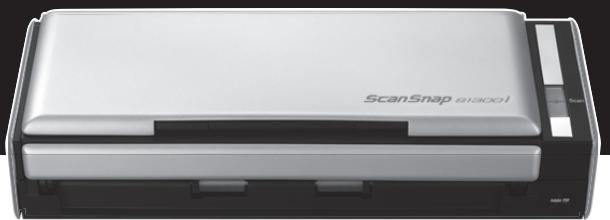
Operator's Guide
Introduction
Thank you for purchasing the color image scanner ScanSnap S1300i (hereinafter referred to as "the ScanSnap").
This manual explains how to handle and operate the ScanSnap.
Be sure to read this manual and "Getting Started" thoroughly before using the ScanSnap to ensure correct use.
We hope that this manual will provide you with useful information in order to utilize the ScanSnap.
If you are using a Microsoft® Windows® operating system, either Adobe® Acrobat® (7.0 or later) or Adobe® Reader® (7.0 or later) is required to display or print this manual.
Trademarks
Microsoft, Windows, Windows Vista, Excel, PowerPoint, Outlook, SharePoint, and Entourage are either registered trademarks or trademarks of Microsoft Corporation in the United States and/or other countries.
Word is the product of Microsoft Corporation in the United States.
Apple, the Apple logo, Mac, Mac OS, and iPhoto are trademarks of Apple Inc.
Adobe, the Adobe logo, Acrobat, and Adobe Reader are either registered trademarks or trade names of Adobe Systems Incorporated in the United States and/or other countries.
Intel, Pentium, and Intel Core are registered trademarks or trademarks of Intel Corporation in the United States and other countries.
Cardiris is a trademark of I.R.I.S.
ABBYY™ FineReader™ Engine ©2011 ABBYY. OCR by ABBYY
ABBYY and FineReader are trademarks of ABBYY.
Evernote is a registered trademark or trademark of Evernote Corporation.
Google, Google Docs, and Android are registered trademarks or trademarks of Google Inc.
Salesforce, the Salesforce logo, and Salesforce CRM are registered trademarks or trademarks of salesforce.com, inc. in the United States and other countries.
ScanSnap, the ScanSnap logo, CardMinder, and Rack2-Filer are registered trademarks or trademarks of PFU LIMITED in Japan.
Other company names and product names are the registered trademarks or trademarks of the respective companies.
Manufacturer
PFU LIMITED
International Sales Dept., Imaging Business Division, Products Group Solid Square East Tower 580 Horikawa-cho, Saiwai-ku, Kawasaki-shi, Kanagawa 212-8563, Japan
Phone: (81-44) 540-4538
Disclaimer
- Reproducibility of the image data
Confirm that the image data scanned with the ScanSnap meets your requirements (e.g. image reproducibility in size accuracy, information amount, fidelity, content and color).
- Disposing of the original document
Check the image data using the application where you transferred the image data to make sure that there are no missing parts before disposing of the original document scanned with the ScanSnap.
It is the responsibility of the customer to store and manage the scanned image, and dispose of the original document scanned with the ScanSnap.
Manuals
Read the following manuals as needed when using the ScanSnap.
| Manual | Description | Location |
| Safety Precautions | Read this manual before you start using the product because it contains important information about the safe use of the ScanSnap. | Included in the package. |
| ScanSnap S1300i Getting Started | This manual explains about the ScanSnap package contents, software installation, connecting the ScanSnap, and checking the operation. | |
| ScanSnap S1300i Operator's Guide (this manual) | Read this manual for information about the basic operations of the ScanSnap, software installation, scanning methods, various settings, and handling of the ScanSnap. | Windows Select [Start] menu → [All Programs] → [ScanSnap Manager] → [ScanSnap Operator's Guide]. Mac os Select [Applications] from the sidebar in Finder, and double-click [Application] → [ScanSnap] → [Manual] → [Operator's Guide]. |
| Troubleshooting (installation) | Read this manual when you failed to install the software or when the ScanSnap does not operate normally after software installation. It explains about the resolutions for such troubles. | Windows • Click [Manually] → [Troubleshooting (installation)] in the [ScanSnap Setup] dialog box that appears when you insert the Setup DVD-ROM into the DVD-ROM drive. • Select [Start] menu → [All Programs] → [ScanSnap Manager] → [Troubleshooting (installation)]. MacOS • Double-click the [Troubleshooting (installation)] icon in the [ScanSnap] window that appears when you insert the Setup DVD-ROM into the DVD-ROM drive. • Select [Applications] from the sidebar in Finder, and double-click [ScanSnap] → [Manual] → [Troubleshooting (installation)]. |
| ScanSnap Connect Application User's Guide (iOS) | Read this manual for information about connecting the mobile device and the computer, ScanSnap Connect Application operations on the mobile device, settings and receiving files. | Tap on the [File List] screen of ScanSnap Connect Application installed on your iOS device and tap [Help] on the [Information] screen that appears. |
| ScanSnap Connect Application User's Guide (Android) | Tap on the [File List] screen of ScanSnap Connect Application installed on your Android device and tap [Help] on the [Information] screen that appears. | |
| Windows ScanSnap Organizer User's Guide | Read these manuals when using this product for the first time, or when you need more information on product features, dialog boxes/windows, operating environment and functions. | Windows Select [Start] menu → [All Programs] → [ScanSnap Organizer] → [Manual]. |
| Windows CardMinder User's Guide | Windows Select [Start] menu → [All Programs] → [CardMinder] → [Manual]. | |
| MacOS CardirisTM 4 User Guide | MacOS From Finder, select [Applications] and double-click [Cardiris for ScanSnap] → [Manuals] → [User Guide]. | |
| Windows ABBYY FineReader for ScanSnap User's Guide | Windows Select [Start] menu → [All Programs] → [ABBYY FineReader for ScanSnap (TM)4.1] → [User's Guide]. | |
| Windows Scan to Microsoft SharePoint User Guide | Windows Select [Start] menu → [All Programs] → [KnowledgeLake] → [Scan to Microsoft SharePoint User Guide]. | |
| ScanSnap Manager Help | Read this Help file when questions or problems regarding operations (e.g. when setting items) arise. This Help file explains about scanner operations, operational troubles and their resolution, dialog boxes/windows and messages. | Refer to this Help by either of the following methods: Windows • The ScanSnap Manager icon or S or S displayed in the menu that appears when you click on the taskbar. Right-click the ScanSnap Manager icon or S, and then select [Help] → [Help] from the menu that appears. • Click the Help button (? ) for ScanSnap Manager. • Press the [F1] key on the keyboard when a dialog box is displayed. • Click the [Help] button in each dialog box. Mac OS • Click the ScanSnap Manager icon or S or S in the Dock while pressing the [control] key on the keyboard, and then select [Help] → [Help] from the menu that appears. • Click the Help button (?) for ScanSnap Manager. • From the menu bar, select [Help] → [ScanSnap Manager Help]. |
| Windows ScanSnap Organizer Help | Read these Help files when questions or problems regarding operations (e.g. when setting items) arise. These Help files explain about operations, dialog boxes/ windows and messages. | For details about how to start up the Help, refer to the User's Guide for each product. |
| Windows CardMinder Help | ||
| MacOS Cardiris Help | Mac OS From the menu bar, select [Help] → [Cardiris Help]. | |
| ABBYY FineReader for ScanSnap Help | Mac OS From the menu bar, select [Help] → [FineReader for ScanSnap Help]. |
About This Manual
Structure of This Manual
This manual consists of the following:
ScanSnap Overview
This chapter explains about the features, the names and functions of the parts, system requirements, and basic operations of the ScanSnap.
Installing the Software
This chapter explains about the software bundled with the ScanSnap and how to install them.
Using the ScanSnap (for Windows Users)/Using the ScanSnap (for Mac OS Users)
This chapter explains how to perform a scan, change or save scan settings, add, change or delete profiles, as well as other various scanner functions.
Troubleshooting
This chapter provides references for resolving troubles such as removing jammed documents.
Daily Care
This chapter explains about the cleaning materials and how to clean the ScanSnap.
Consumables
This chapter explains how to replace and purchase the pad assy and the pick roller.
Appendix
This appendix explains how to update ScanSnap Manager, how to uninstall the software, about settings that differ by the scanning method, and the ScanSnap installation specifications.
Read this manual in order starting from "ScanSnap Overview" through "Using the ScanSnap" for a better understanding of ScanSnap operations.
Symbols Used in This Manual
The following indications are used in this manual to obviate any chance of accident or damage to you and people near you, and your property. Warning labels indicate the warning level and statements. The symbols indicating warning levels and their meanings are as follows.
| Indication | Description |
| WARNING | This indication alerts operators to an operation that, if not strictly observed, may result in severe injury or death. |
| CAUTION | This indication alerts operators to an operation that, if not strictly observed, may result in safety hazards to personnel or damage to the product. |
Besides warning indicators, the following symbols are also used in this manual.
| Symbol | Description |
| Windows | This symbol indicates operations using Windows. |
| Mac OS | This symbol indicates operations using Mac OS. |
Arrow Symbols in This Manual
Right-arrow symbols [] are used to connect icons or menu options you should select in succession.
Example: Select [Start] menu [Computer].
Screen Examples in This Manual
- Windows screen
Screenshot in this manual are used according to the guidelines provided by Microsoft Corporation.
The screenshots used in this manual are of Windows 7.
The actual windows and operations may differ depending on the operating system.
- Taskbar icon
The ScanSnap Manager icon or is displayed in the menu that appears when you click on the taskbar.
To have the ScanSnap Manager icon or always displayed on the taskbar, drag the icon or , and drop it onto the taskbar.
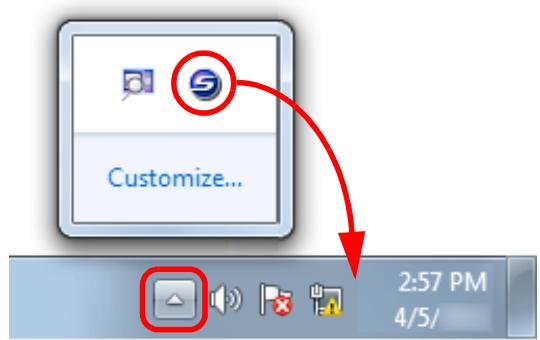
The explanations in the manual use the case in which the ScanSnap Manager icon or is always displayed on the taskbar.
Mac OS screen
The screenshots used in this manual are of Mac OS X v10.7.
The actual windows and operations may differ depending on the Mac OS.
The screen examples in this manual are subject to change without notice in the interest of product development.
If the actual screen differs from the screen examples in this manual, operate by following the actual displayed screen.
Abbreviations Used in This Manual
The following abbreviations are used in this manual:
| Windows 7 | : Windows® 7 Starter operating system, English Version Windows® 7 Home Premium operating system, English Version Windows® 7 Professional operating system, English Version Windows® 7 Enterprise operating system, English Version Windows® 7 Ultimate operating system, English Version |
| Windows Vista | : Windows Vista® Home Basic operating system, English Version Windows Vista® Home Premium operating system, English Version Windows Vista® Business operating system, English Version Windows Vista® Enterprise operating system, English Version Windows Vista® Ultimate operating system, English Version |
| Windows XP | : Windows® XP Home Edition operating system, English Version Windows® XP Professional operating system, English Version |
| Windows | : Windows 7, Windows Vista, or Windows XP operating system |
| Microsoft Office | : Microsoft® Office |
| Word | : Microsoft® Word 2010 Microsoft® Office Word 2007 Microsoft® Office Word 2003 Microsoft® Office Word 2002 Microsoft® Word for Mac 2011 Microsoft® Word 2008 for Mac Microsoft® Word 2004 for Mac |
| Excel | : Microsoft® Excel® 2010 Microsoft® Office Excel® 2007 Microsoft® Office Excel® 2003 Microsoft® Office Excel® 2002 Microsoft® Excel® for Mac 2011 Microsoft® Excel® 2008 for Mac Microsoft® Excel® 2004 for Mac |
| PowerPoint | : Microsoft® PowerPoint® 2010 Microsoft® Office PowerPoint® 2007 Microsoft® Office PowerPoint® 2003 Microsoft® Office PowerPoint® 2002 |
| SharePoint | : Microsoft® SharePoint® Server 2010, English Version Microsoft® Office SharePoint® Server 2007, English Version Microsoft® Office SharePoint® Portal Server 2003, English Version Microsoft® SharePoint® Foundation 2010, English Version Microsoft® Windows® SharePoint® Services 2.0/3.0, English Version |
| Office Live | : Microsoft® Office Live |
| Internet Explorer | : Windows® Internet Explorer® Microsoft® Internet Explorer® |
| Windows Live Mail | : Windows LiveTM Mail |
| Windows Mail | : Microsoft® Windows® Mail |
| Outlook | : Microsoft® Outlook® 2010 Microsoft® Office Outlook® 2007 Microsoft® Office Outlook® 2003 |
| Outlook Express | : Microsoft® Outlook® Express |
| Outlook for Mac | : Microsoft® Outlook® for Mac |
| .NET Framework | : Microsoft® .NET Framework |
| Entourage | : Microsoft® Entourage® |
| Mac OS | : Mac OS X v10.7, Mac OS X v10.6, or Mac OS X v10.5 |
| Adobe Acrobat | : Adobe® Acrobat® |
| Adobe Reader | : Adobe® Reader® |
| ABBYY FineReader for ScanSnap | : ABBYY FineReader for ScanSnap™ All the descriptions in this manual assume the usage of ABBYY FineReader for ScanSnap bundled with the ScanSnap. Unless otherwise specified, the term ABBYY FineReader for ScanSnap refers to the ABBYY FineReader for ScanSnap bundled with the ScanSnap. Note that ABBYY FineReader for ScanSnap may be upgraded without notice. If the descriptions differ from the actual displayed screens, refer to ABBYY FineReader for ScanSnap Help. |
| Cardiris | : Cardiris™ for ScanSnap |
| Google Docs | : Google Docs™ |
| Android | : Android™ |
| ScanSnap | : Color image scanner ScanSnap S1300i |
Contents

Introduction 2
■ About This Manual 6
ScanSnap Overview 16
Features of the ScanSnap 17
Parts and Functions 22
■ Front. 22
Back 23
System Requirements 24
Windows 24
Mac OS 27
Turning the ScanSnap ON/OFF 29
Documents for Scanning 31
■ Standard office paper, postcards, business cards 31
■ Picture postcards 32
How to Load Documents 33
Scanning Operation Flow 36
Installing the Software 38
Bundled Software Overview 39
Installing in Windows 41
■ How to Install the Software 41
■ ScanSnap Software 43
Dropbox for Windows 47
■Evernote for Windows 49
SugarSync Manager for Windows 51
■ Scan to Microsoft SharePoint 53
■ Trial Software 55
Installing in Mac OS 57
■ How to Install the Software 57
■ ScanSnap Software 58
■Dropbox for Mac 62
■Evernote for Mac. 64
SugarSync Manager for Mac 67
Using the ScanSnap (for Windows Users) 69
ScanSnap Manager Icon and Operations 70
■ Right-Click Menu 71
Left-Click Menu 73
How to Perform a Scan 74
Preparation 74
Using the Quick Menu 75
■ Without Using the Quick Menu 81
■ Stopping the Scan. 84
■ Finishing ScanSnap Operation 85
Configuring ScanSnap Manager 86
■ Quick Menu Settings 86
■ How to Configure Scan Settings 89
■ Profile Management 93
Automatic Linkage with Applications 102
■ ScanSnap's Communication Status 105
■ Showing the Scanning Progress 107
Actions 109
Saving Data in a Specified Folder 110
■ Attaching Files to E-Mail 117
Using the ScanSnap as a Copy Machine 128
Saving Files to Picture Folder 135
Converting into Word/Excel/PowerPoint Documents 142
Storing Business Cards in CardMinder 152
Saving Data in SharePoint 158
Saving to Rack2-Filer 169
Saving Data to a Mobile Device 175
Cloud Services 186
Saving Data to Your Dropbox Folder 187
Saving Documents to Evernote 194
Saving Handwritten Notes to Evernote 201
Saving Documents to Google Docs 206
■ Posting to Salesforce Chatter 215
Saving Data to Your SugarSync Folder 225
ScanSnap Folder Operations 232
■ How to Configure Scan Settings 233
■ How to Perform a Scan 235
Using the ScanSnap in Various Ways 240
■ Scanning Only One Side of a Document 240
■ Scanning Color Documents in Gray or Black & White 242
■ Scanning Color Documents in High Compression 243
■ Deleting Blank Pages from the Scanned Image 245
■ Correcting Skewed Character Strings 247
■ Correcting the Orientation of Scanned Images 249
Scanning Documents of Different Widths or Lengths in One Batch... 251
■ Long Page Scanning 255
Saving Scanned Images in Multiple PDF Files 257
Creating Searchable PDF Files 259
■ Automatically Setting Keywords for PDF Files 262
■ Setting Document Open Passwords for PDF Files 267
Using the ScanSnap (for Mac OS Users) 271
ScanSnap Manager Icon and Operations 272
■ ScanSnap Manager Menu 273
■ Profile Menu 275
How to Perform a Scan 276
■ Preparation 276
Using the Quick Menu 277
Without Using the Quick Menu 282
■ Stopping the Scan. 285
■ Finishing ScanSnap Operation 286
Configuring ScanSnap Manager 287
■ Quick Menu Settings 287
■ How to Configure Scan Settings 290
■ Profile Management 293
Automatic Linkage with Applications 303
■ ScanSnap's Communication Status 304
■ Showing the Scanning Progress 306
Actions 308
Saving Data in a Specified Folder 309
■ Attaching Files to E-Mail 316
Using the ScanSnap as a Copy Machine 325
Converting into Word/Excel Documents 331
Storing Business Cards in Cardiris 339
■ Storing Scanned Images in iPhoto 348
Saving Data to a Mobile Device 353
Cloud Services 368
Saving Data to Your Dropbox Folder 369
Saving Documents to Evernote 376
Saving Handwritten Notes to Evernote 382
Saving Documents to Google Docs 387
■ Posting to Salesforce Chatter 396
Saving Data to Your SugarSync Folder 406
Using the ScanSnap in Various Ways 413
■ Scanning Only One Side of a Document 413
■ Scanning Color Documents in Gray or Black & White 415
■ Deleting Blank Pages from the Scanned Image 417
■ Correcting Skewed Character Strings 419
■ Correcting the Orientation of Scanned Images 422
Scanning Documents of Different Widths or Lengths in One Batch... 425
■ Long Page Scanning 429
Saving Scanned Images in Multiple PDF Files 431
Creating Searchable PDF Files 433
Automatically Setting Keywords for PDF Files 436
Saving Two Files or Pages into One Double-Page Spread Image .... 441
Troubleshooting 442
Daily Care. 443
Cleaning Materials 444
Cleaning the Outside of the ScanSnap 445
Cleaning the Inside of the ScanSnap 446
Consumables 451
Part Numbers and Replacement Cycle of Consumables 452
Replacing the Pad Assy 454
Replacing the Pick Roller 458
Appendix 465
Updating ScanSnap Manager 466
■ Updating in Windows 466
■ Updating in Mac OS 469
Uninstalling the Software 471
Uninstalling in Windows 471
Uninstalling in Mac OS 473
Setting Items With/Without the Quick Menu 478
Installation Specifications 485
About Maintenance 486
Index 487
ScanSnap Overview
This chapter explains about the features, the names and functions of the parts, system requirements, and basic operations of the ScanSnap.
Features of the ScanSnap 17
Parts and Functions 22
System Requirements 24
Turning the ScanSnap ON/OFF 29
Documents for Scanning 31
How to Load Documents 33
Scanning Operation Flow. 36
Features of the ScanSnap
The main features of the ScanSnap are as follows:
- Turn documents into digital data by just pressing the [Scan] button
By converting paper documents cluttering up your desk into PDF or JPEG files, you can conveniently view, edit, manage and archive the documents in your computer.
- Speedy scanning
Double-sided color documents of A4 or Letter size can be scanned as follows:
- Power cable connection: approx. 12 sheets per minute
-
USB bus power cable connection: approx. 4 sheets per minute
-
System requirements

Intel® Core™2 Duo 2.2 GHz or higher
Windows 7, Windows Vista or Windows XP operating system

Intel® Core™2 Duo 2.4 GHz or higher
Mac OS X v10.7, Mac OS X v10.6 or Mac OS X v10.5
- Scan setting (*)
When [Image quality] is set to [Normal], [Color mode] to [Auto color detection], [Compression rate] to [3], and other settings are in default
-
: - Scanning speed may slow down in [B&W] (black & white) mode depending on the document. Example: Scanning color brochures in [B&W] mode (converting a color image to black & white)
-
Scanning speed may slow down when [Correct skewed character strings automatically] and/or [Allow automatic image rotation] is enabled.
- Small size saves desktop space
Smaller than an A4 or Letter size paper, the ScanSnap does not require much desktop space.
- Compact, lightweight and portable
The ScanSnap is compact and lightweight, allowing you to carry it around together with your laptop computer. Also, the ScanSnap can be powered through your laptop's USB port with USB bus power cable connection.
- The Quick Menu makes the operation easy even for beginners
The Quick Menu will allow you to start using the ScanSnap right away even if it is your first time. Simply press the [Scan] button on the scanner to scan your document, and then the Quick Menu will appear where you can select the action you want to perform.
Windows ( page 75)
Macos ( page 277)
- Automatically recognize color and black & white documents (Auto color detection)
The ScanSnap determines the color mode of each document, saves color documents in color, black & white documents in black & white, and black & white documents with photos or illustrations in grayscale. This function will optimize your PDF file size.
- Scan different size documents together (Automatic page size detection)
Paper size is automatically recognized so that you do not need to change the paper size setting.
Windows ( page 251)
Macos (→ page 425)
- Automatically set the resolution by the paper size (Automatic resolution function)
Documents are scanned at 300 dpi at first, then the image is saved at 300 dpi if the document length is 148 mm (5.83 in.) or less, and converted to 200 dpi for longer documents. When linked with a text recognition application (e.g. for scanning business cards), you can save high resolution image data without having to change the scan settings.
-Create searchable PDF files
You can create searchable PDF files by performing automatic text recognition for PDF files after scanning.
You can also perform text recognition on character strings marked by a highlight pen in black & white documents, and add them as keywords for the PDF file.
Windows ( page 259)
MacOS (→ page 433)
- E-mail or print a scanned image directly from scanning
You can attach the scanned image to an e-mail without needing any additional application or print it out instead of using a copy machine.
Windows
- Attach to e-mail ( page 117)
Print ( page 128)
MacOS
- Attach to e-mail ( page 316)
Print ( page 325)
- Compatible with both Windows and Mac OS
You can use the ScanSnap in a manner that best suits your office environment in either Windows or Mac OS (*).
- : The following functions are not available for Mac OS:
Color high compression - Loading the document face-up
- Setting passwords for PDF files
- Convert paper documents into Word/Excel/PowerPoint files
Use the bundled "ABBYY FineReader for ScanSnap" to directly convert the scanned image into a Word/Excel/PowerPoint file.
In Mac OS, only conversion to Word and Excel files is supported.

( page 142)

( page 331)
- Organize and manage scanned images by linking with ScanSnap
Organizer Windows
- Setting a keyword (Intelligent Indexing)
Keywords can be set by the following methods:
- Recognize a character string on a page (OCR) and set as a keyword (Zone OCR)
- Set any character string as a keyword
- Set a marked character string as a keyword (Marker Index)
-
Drag and drop a keyword from the keyword list (Keyword Addition by Drag&Drop) The keywords can be viewed in thumbnails. (Keyword Overlay)
-
Distributing files by keyword (Automatic Keyword Sort)
Files can also be sorted into folders according to the keyword set for files as a sorting condition.
- Search a variety of files (Search Engine Selection)
Files can be found quickly searched by file name, keyword, text or date.
- Cropping marked sections (Intelligent Cropping)
Selections on a page that are marked with a highlight pen can be cut and pasted elsewhere to create scrapbooks.

( ScanSnap Organizer Help)
- Easy filing of business cards
Text recognition can be performed on business cards which then can be easily converted into digital data with the bundled business card application. With CardMinder, you can create a database which facilitates data search of business cards converted into digital data.
The bundled business card application is as follows:
Windows CardMinder ( page 152)
MacOS Cardiris ( page 339)
Share documents converted into digital data with others Windows
You can conveniently share documents by saving the scanned image directly in SharePoint or Office Live.
Windows ( page 158)
- Access documents converted into digital data anytime, anywhere
The ScanSnap can be linked with the following cloud services (*). Through linkage with these services, you can access scanned images anytime from your computer or smartphone no matter where you are.
- Dropbox
- Evernote
Google Docs
Salesforce Chatter -
SugarSync
-
: "Cloud services" refer to services that allow the user to save documents or photos that have been converted into digital data to a network, and then access them when necessary from, for example, a computer or smartphone.
Windows ( page 186)
MacOS ( page 368)
- Save documents converted into digital data to a mobile device
Scanned image can be saved directly to a mobile device such as tablet devices and smartphones.
Windows ( page 175)
MacOS ( page 353)
- Two separate scanned images can be merged into a single image
Two scanned images can be merged into a single image either vertically or horizontally.
Windows ( ScanSnap Organizer Help)
MacOS ScanSnap Manager Help)
- Link with a wide variety of applications by using ScanSnap Folder
Windows
You can use ScanSnap Folder to link with a wide variety of applications, including Web applications (Webmail, cloud services, etc.).
By selecting ScanSnap Folder from the file selection window of the application, you can use the scanned image file directly.
Windows ( page 232)
Note: The ScanSnap does not conform to the TWAIN, ISIS and WIA standards.
Parts and Functions
This section explains names and functions of the ScanSnap parts.
■ Front
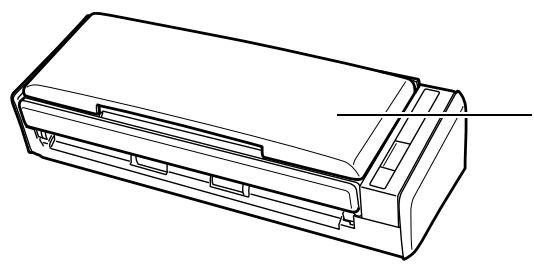
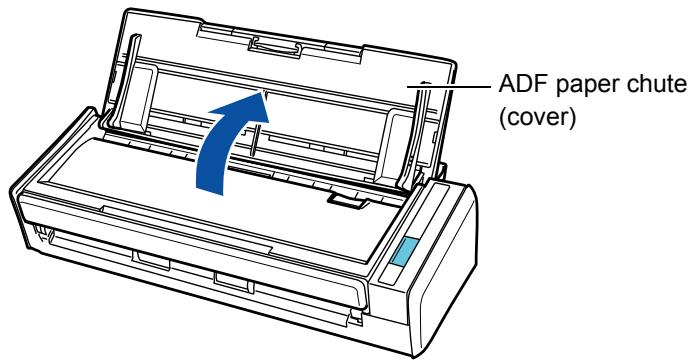
ADF paper chute (cover) (*)
Open to use the ScanSnap.
Opening the ADF paper chute (cover) turns on the ScanSnap.

ADF top section
Open to remove jammed documents, replace the pad assay and the pick roller, or clean the inside of the ScanSnap.
Extension
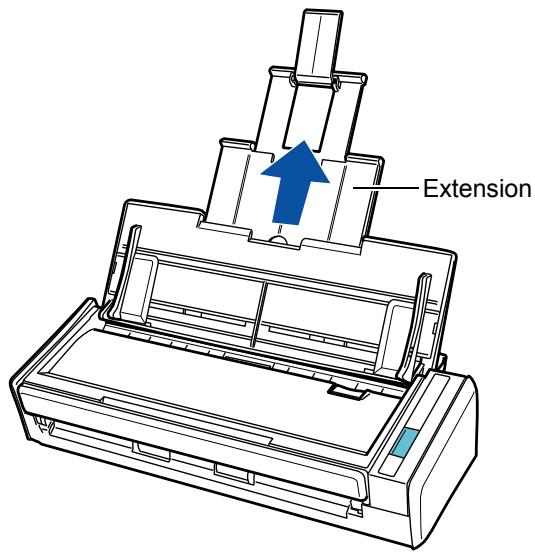
Pull out when scanning long documents.
ADF paper chute (cover)
You can load the document here after opening it.
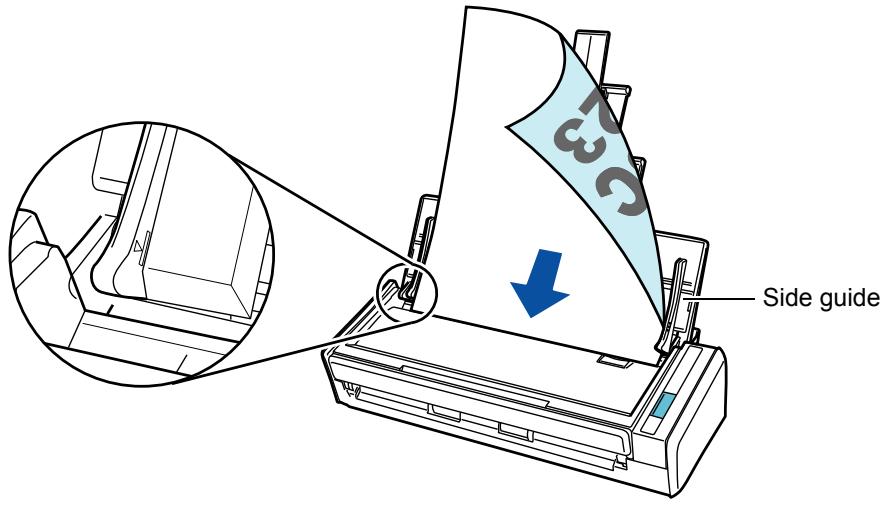
Side guide
Adjust to the width of documents to prevent them from getting skewed.
ADF release tab
Pull this tab to open the ADF top section.
[Scan] button (*)
Press this button to start scanning.
It indicates the status of the ScanSnap as follows:
Blue (lit) : Ready
Blue (flashing) : Scanning
Orange (flashing) : Error
Back
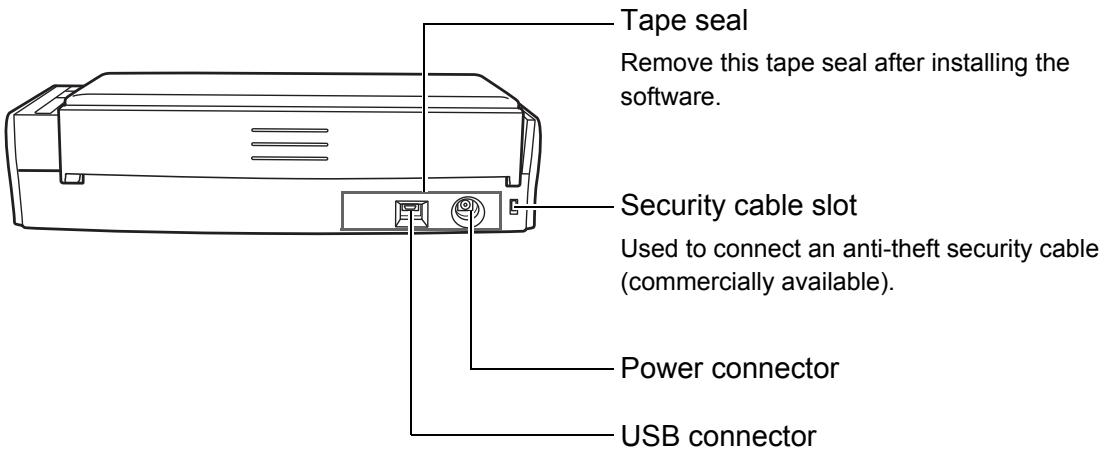
System Requirements
The system requirements for the ScanSnap are as follows:
Windows
| Operating system | Windows 7 (32 bit/64 bit) | Windows Vista (*1) (32 bit/64 bit) | Windows XP (*2) (32 bit) |
| CPU | Intel® Pentium® 4 1.8 GHz or higher (Recommended: Intel® Core™2 Duo 2.2 GHz or higher) | ||
| Memory | 32 bit: 1 GB or more64 bit: 2 GB or more | 512 MB or more (Recommended: 1 GB or more) | |
| Display resolution | 800 × 600 pixels or higher (*3) | ||
| Hard disk space | Disk space required to install the software bundled with the ScanSnap is as follows: ● ScanSnap Manager: 600 MB ● ScanSnap Organizer: 620 MB ● CardMinder: 280 MB ● ABBYY FineReader for ScanSnap: 600 MB ● Evernote for Windows: 150 MB ● Scan to Microsoft SharePoint: 40 MB | ||
| USB port (*4) | USB2.0 / USB1.1 | ||
1 : Service Pack 1 or later required
2 : Service Pack 3 or later required
3 : When the font size is large, some screens may not be displayed properly. In that case, use a smaller font size.
4 : When using a USB 3.0 port, data is transferred at the same speed as USB 2.0.
ATTENTION
- If the system requirements above are not satisfied, the ScanSnap may not operate.
- Do not use the USB port on the keyboard or the monitor to connect the ScanSnap (it may not function properly).
- Make sure to use a powered hub equipped with an AC adapter if you are using a commercially available USB hub.
-
Scanning speed will slow down in the following cases:
-
The CPU or the memory does not meet the required specifications
-
The version of the USB port or the USB hub is USB 1.1
-
The actual increase in used disk space after installation and the required disk space for installation may differ from each other depending on your Windows system disk management.
- A disk space approximately three times larger than the resulting scanned file size is required for scanning documents.
-
If the characters are not displayed correctly when you use CardMinder, Scan to Mobile or Scan to Salesforce Chatter, perform the following:
-
Windows XP
-
Select [Control Panel] [Regional and Language Options] [Language] tab [Install files for East Asian languages] check box.
-
Install the universal font (Arial Unicode MS) from the setup disc for Microsoft Office 2000 or later.
-
Windows Vista or Windows 7
- Install the universal font (Arial Unicode MS) from the setup disc for Microsoft Office 2003 or later.
HINT
- For Windows Vista or Windows XP, .NET Framework 3.5 SP1 may be installed (maximum of 500 MB free disk space required) at the same time as ScanSnap Manager, ScanSnap Organizer, or CardMinder.
- For Windows XP, .NET Framework 2.0 may be installed (maximum of 280 MB free disk space required) at the same time as Scan to Microsoft SharePoint.
The following shows the estimated file size when scanning one side of a color document.
| File format | Compression rate | Paper size |
| 3 | A4 (catalog) |
Estimated image data size (KB)
| Color mode | Automatic resolution | Normal | Better | Best | Excellent |
| Color | 415.4 | 268.7 | 410.6 | 838.4 | 3415.6 |
| Gray | 374.4 | 243.6 | 371.7 | 753.8 | 3015.0 |
| B&W | 172.3 | 115.8 | 173.0 | 347.3 | 2504.0 |
| Color high compression | 217.5 | 162.5 | 226.2 | 159.9 | - |
Mac OS
| Operating system (*1) | Mac OS X v10.7 | Mac OS X v10.6 | Mac OS X v10.5 |
| CPU | Intel® Core™ Duo 1.83 GHz or higher (Recommended: Intel® Core™2 Duo 2.4 GHz or higher) | ||
| Memory | 2 GB or more | 1 GB or more | 512 MB or more (Recommended: 1 GB or more) |
| Display resolution | 1024 × 768 pixels or higher | ||
| Hard disk space | Disk space required to install the software bundled with the ScanSnap is as follows: • ScanSnap Manager: 800 MB • ABBYY FineReader for ScanSnap: 570 MB • Cardiris: 130 MB • Evernote for Mac (*2): 55 MB | ||
| USB port (*3) | USB2.0 / USB1.1 | ||
1 : It is recommended to apply the latest updates to the Mac OS.
2 : When using Mac OS X v10.7, you need to update to the latest version (3.0 or later) after you installed Evernote for Mac.
*3 : When using a USB 3.0 port, data is transferred at the same speed as USB 2.0.
ATTENTION
- If the system requirements above are not satisfied, the ScanSnap may not operate.
- Do not use the USB port on the keyboard or the monitor to connect the ScanSnap (it may not function properly).
- Make sure to use a powered hub equipped with an AC adapter if you are using a commercially available USB hub.
-
Scanning speed will slow down in the following cases:
-
The CPU or the memory does not meet the required specifications
-
The version of the USB port or the USB hub is USB 1.1
-
A disk space approximately three times larger than the resulting scanned file size is required when scanning documents.
The following shows the estimated file size when scanning one side of a color document.
| File format | Compression rate | Paper size |
| 3 | A4 (catalog) |
Estimated image data size (KB)
| Color mode | Automatic resolution | Normal | Better | Best | Excellent |
| Color | 415.4 | 268.7 | 410.6 | 838.4 | 3415.6 |
| Gray | 374.4 | 243.6 | 371.7 | 753.8 | 3015.0 |
| B&W | 172.3 | 115.8 | 173.0 | 347.3 | 2504.0 |
Turning the ScanSnap ON/OFF
This section explains how to turn the ScanSnap ON/OFF.
The ScanSnap is turned ON/OFF in conjunction with the computer. Therefore, you do not have to worry about turning the power ON/OFF as long as the ScanSnap is connected to a computer.
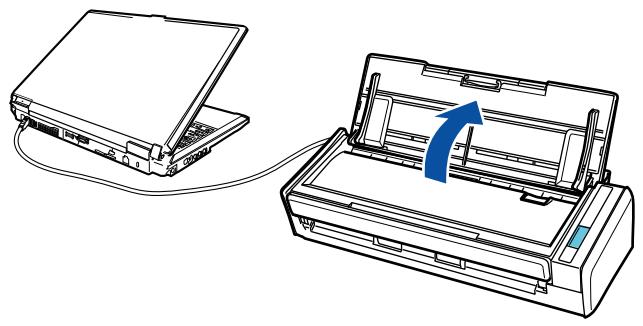
-Turning the ScanSnap on
Open the ADF paper chute (cover) when the computer is turned on.
The [Scan] button flashes blue to indicate that the ScanSnap is turned on, and lights in blue when the ScanSnap is ready to scan.
ATTENTION
With some computers, the initialization of the ScanSnap may be performed several times when the computer is started up.
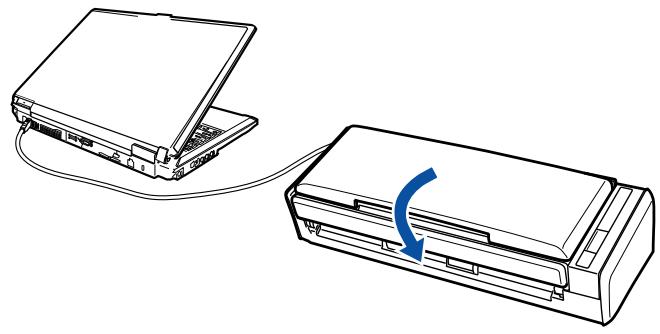
-Turning the ScanSnap off
Turn off the computer or close the ADF paper chute (cover).
The [Scan] button switches off when the ScanSnap is turned off.
ATTENTION
- Close the ADF paper chute (cover) after putting the extension back.
- With some computers, it may take two to three minutes until the light of the [Scan] button goes out after the computer is turned off.
- ScanSnap in sleep mode
When the ScanSnap has not been used for 1 minute while the power is on, it enters sleep (power saving) mode.
The ScanSnap's internal light switches off in sleep mode.
- ScanSnap's auto power off
When the ScanSnap is turned on and left unused for the specified time (default is "4 hours"), it will turn itself off automatically.
To turn the ScanSnap back on, perform one of the following operations:
- Press the [Scan] button on the ScanSnap
- Close the ADF paper chute (cover) and open it again
HINT
-
To continue using the ScanSnap, reset the time until auto power-off by performing one of the following:
-
Load a document in the ScanSnap
- Press the [Scan] button on the ScanSnap
-
Close the ADF paper chute (cover) and open it again
-
You can change the time until the ScanSnap automatically turns off, or set the ScanSnap to not automatically turn off by performing the following procedure:
Windows
- Right-click the ScanSnap Manager icon or on the taskbar, and then select [Help] → [Preferences] from the menu that appears.
The [ScanSnap Manager - Preferences] dialog box appears.
- In the [Power] tab, select one of the setting items for [Power off after].
MacOS
- Click the ScanSnap Manager icon or in the Dock while pressing the [control] key on the keyboard, and then select [Help] → [Preferences] from the menu that appears.
The [ScanSnap Manager - Preferences] window appears.
- In the [Power] tab, select one of the setting items for [Power off after].
Documents for Scanning
This section explains about the documents that can be scanned with the ScanSnap.
Standard office paper, postcards, business cards
| Paper type | Standard office paper, postcards, business cards |
| Paper weight | 64 to 104.7 g/m2(17 to 20 lb) |
| Paper size | Width: 50.8 to 216 mm (2 to 8.5 in.) Length: 50.8 to 360 mm (2 to 14.17 in.) Maximum size for long page scanning (*) 216 × 863 (mm) / 8.5 × 34 (in.) |
- : Scanning starts when you hold down the [Scan] button on the ScanSnap for 3 seconds or longer.
ATTENTION
-
When you scan documents written in pencil, there may be black traces left on them. Also, dirt accumulating on the rollers may cause feeding errors. Clean the rollers as often as possible when you scan such documents. For details about how to clean the inside of the ScanSnap, refer to "Cleaning the Inside of the ScanSnap" (page 446).
The following types of documents must not be scanned: -
Paper-clipped or stapled documents (remove the paper clips and staples for scanning)
- Documents on which the ink is still wet (wait until the ink dries completely to scan these documents)
- Documents larger than 216 × 863( mm) /8.5 × 34 (in.) (width × length)
- Documents other than paper such as fabric, metal foil, OHP film and plastic cards
-
Documents with memo photographs or sticky notes attached
-
Loading the following types of documents directly in the scanner can result in documents being damaged or scanned incorrectly.
-
Documents smaller than 50.8 × 50.8( mm) /2 × 2 (in.) (width × length)
- Documents whose paper weight is less than 64g / m^2 (17 lb)
- Documents of non-uniform thickness (e.g. envelopes and paper sheets with attached materials)
- Wrinkled or curled documents
- Folded or torn documents
- Tracing paper
- Coated paper
Photographs (photographic paper) - Perforated or punched documents
- Odd shaped documents (not square or rectangular)
- Carbon paper or thermal paper
-
Documents with memo papers or sticky notes attached
-
Since carbonless paper may contain chemicals that can harm the pad assay and the pick roller, take note of the following when scanning carbonless paper: Make sure to clean the ScanSnap regularly to maintain performance. Depending on the type of carbonless paper, the life span of the scanner may be shortened compared to scanning standard office paper.
Picture postcards
Picture postcards can be scanned when the ScanSnap and the computer are connected with a power cable.
| Paper type | Picture postcards |
| Paper weight | 64 to 326 g/m² (17 to 87 lb) |
| Paper size | Width: 50.8 to 100 mm (2 to 3.9 in.) Length: 50.8 to 148 mm (2 to 5.8 in.) |
ATTENTION
-
All conditions below must be satisfied when scanning picture postcards. Otherwise, paper jam may occur.
-
Power cable connection
- Room temperature: 5 to 35^ (41 to 95^ ) / Normal humidity: 45 to 85%
-
Load the picture postcard face-down in the ScanSnap
-
When you scan photographs or picture postcards, be aware that the picture side may get damaged.
How to Load Documents
Load documents in the ScanSnap in the following procedure.
For details about documents that can be loaded, refer to "Documents for Scanning" (page 31).
1. If you are loading multiple sheets, check the number of sheets.
The maximum number of sheets in the ScanSnap is as follows:
For A4 or smaller sizes: Up to 10 sheets can be loaded (with paper weight of 80g / m^2 [20 lb] and thickness of the document stack under 1 mm).
ATTENTION
If you try to scan more than the maximum amount that can be loaded, the following problems may occur:
- Files may not be properly created due to excessive file size.
- Paper jams may occur.
2. Fan the documents.
- Hold both ends of the documents and fan them a few times.

- Rotate the documents by 90 degrees and fan them in the same manner.
3. Straighten the edges of the documents and slightly displace the top edges at an angle.

ATTENTION
Paper jams or damage to documents may occur if you scan the documents without aligning the edges first.
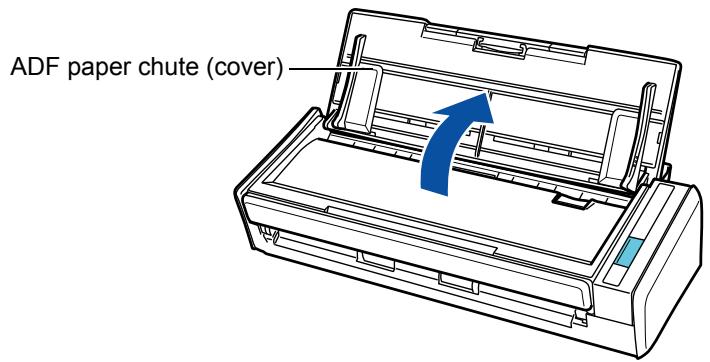
4. Open the ADF paper chute (cover) of the ScanSnap.
5. Pull out the extension.
6. Load the documents in the ADF paper chute (cover).
Load the documents face-down and top-first with their back facing you. Load the documents so that they are not beyond the reference marks within the side guides.
ATTENTION

Right-click the ScanSnap Manager icon or on the taskbar, and select [Scan Button Settings].
In the ScanSnap setup dialog box that appears, click the [Detail] button, then select the [Scanning] tab [Option] button.
If the [Set the document with its face up] check box is selected in the [Scanning mode option] dialog box, load documents face-up and bottom edge first.

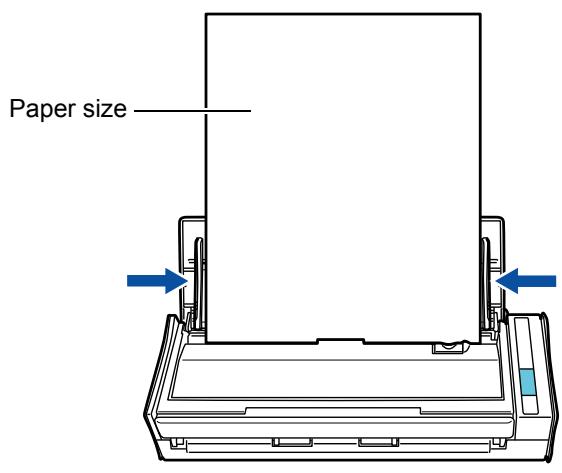
7. Adjust the side guides to the width of the documents.
Do not leave space between the side guides and the documents.
Otherwise, the documents may be fed skewed.
Scanning Operation Flow
This section explains the flow of operations for scanning documents.
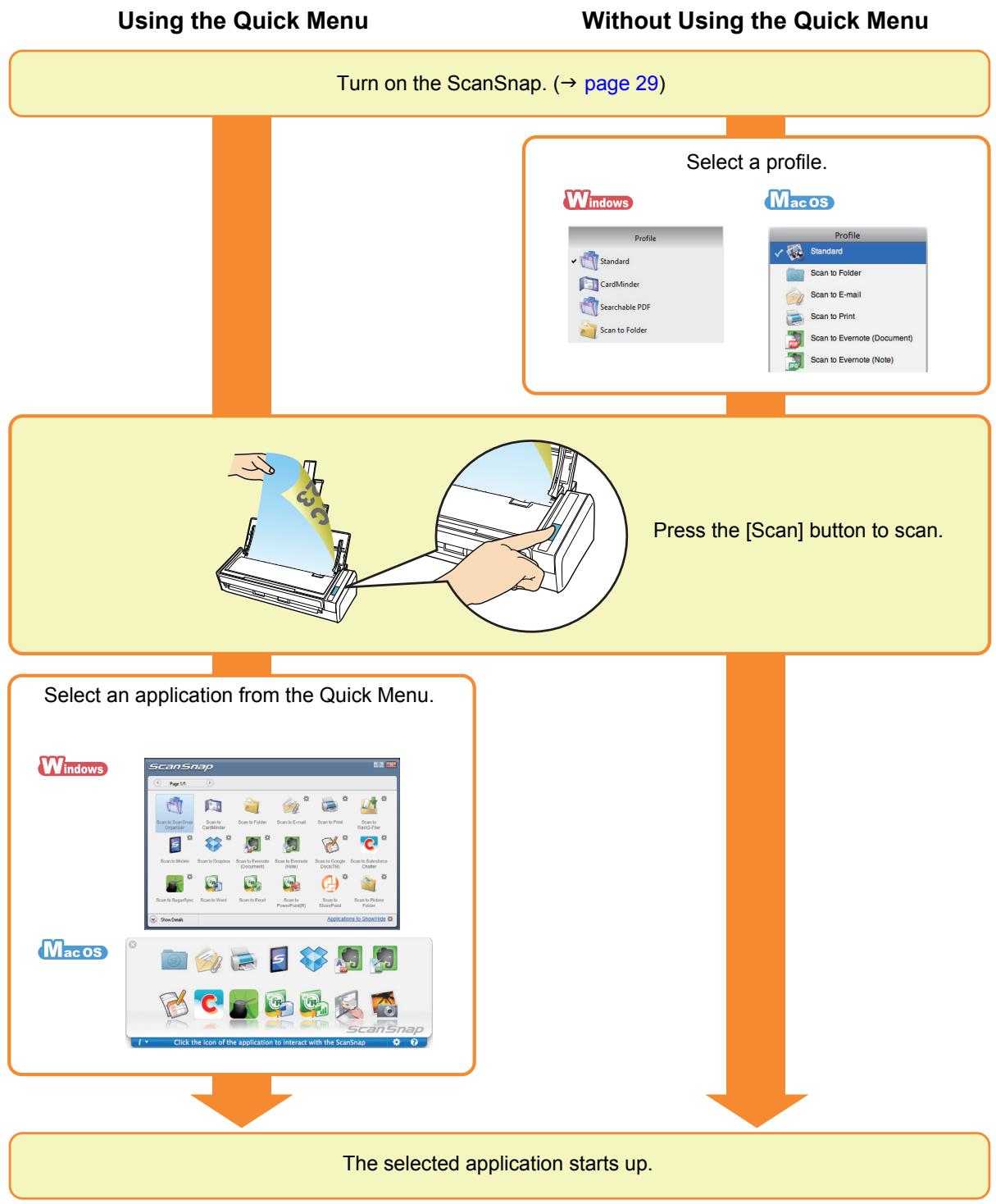
You can scan documents in two different ways. Choose either way depending on your intended use.
Using the Quick Menu
With the Quick Menu, even the first time users can easily use each ScanSnap function by following the instructions on the screen and perform scanning.
After scanning, select an application to link with ScanSnap Manager in the Quick Menu.
For details about how to perform scanning using the Quick Menu, refer to the following:
- For Windows (→ page 75)
- For Mac OS (→ page 277)
Without Using the Quick Menu
You can perform scanning by using predefined scan settings.
Before you perform scanning, select a profile which is already configured with an application to link with ScanSnap Manager. Documents are scanned according to the scan settings of the selected profile.
For details about how to perform scanning using the Quick Menu, refer to the following:
- For Windows (→ page 81)
- For Mac OS (→ page 282)
HINT
- The above scanning methods can be switched by selecting or clearing the [Use Quick Menu] check box in the ScanSnap setup dialog box/window.
Display the ScanSnap setup dialog box/window in the following procedure:

Right-click the ScanSnap Manager icon or on the taskbar, and select [Scan Button Settings].

Click the ScanSnap Manager icon or in the Dock while pressing the [control] key on the keyboard, and select [Settings].

- ScanSnap Folder can also be used to scan documents. For details, refer to "ScanSnap Folder Operations" (page 232).
Installing the Software
This chapter explains about the software bundled with the ScanSnap and how to install them.
Bundled Software Overview 39
41
Installing in Mac OS 57
Bundled Software Overview
This section gives an overview of each bundled software and their functions. You can edit, manage and arrange the scanned image by using the following software:
ScanSnap Manager
This scanner driver is required to scan documents with the ScanSnap. The scanned image can be saved as a PDF or JPEG file.
You need to have ScanSnap Connect Application installed on your mobile device to save PDF or JPEG files to your mobile device.
You can download ScanSnap Connect Application for mobile devices from an application store such as App Market.
- ScanSnap Organizer Windows
You can use this application to display image data (PDF or JPEG files) without opening them, create folders and arrange files as you like.
CardMinder Windows
You can use this application to efficiently digitalize a large number of business cards. Text recognition can be performed on business cards and you can create a database to facilitate card data management and searches.
Cardiris Macos
You can use this application to efficiently digitalize a large number of business cards by performing text recognition on them.
ABBYY FineReader for ScanSnap
This application can perform text recognition on the scanned images using OCR (Optical Character Recognition) and convert the image data to Word, Excel or PowerPoint files that can be edited.
In Mac OS, only conversion to Word and Excel files is supported.
- Evernote for Windows
Windows / Evernote for Mac Macos
You can easily save files in Evernote using the ScanSnap.
- Scan to Microsoft SharePoint
Windows
You can easily save files in SharePoint and Office Live using the ScanSnap.
Rack2-Filer V5.0 Trial Version Windows
This application provides integrated management of digitalized paper documents (electronic documents) and digital data created with computer, as if you are filing paper documents in actual binders.
For details about the languages supported in Rack2-Filer, refer to Rack2-Filer "Readme".
You can download the following software from the Setup DVD-ROM.
- SugarSync Manager for Windows Windows /SugarSync Manager for Mac Mac OS
You can easily save files to your SugarSync folder using the ScanSnap.
- Dropbox for Windows Windows /Dropbox for Mac Mac OS
You can easily save files to your Dropbox folder using the ScanSnap.
Installing in Windows
This section explains how to install the software in Windows.
How to Install the Software
When you insert the Setup DVD-ROM into the DVD-ROM drive on your computer, the [ScanSnap Setup] dialog box appears.
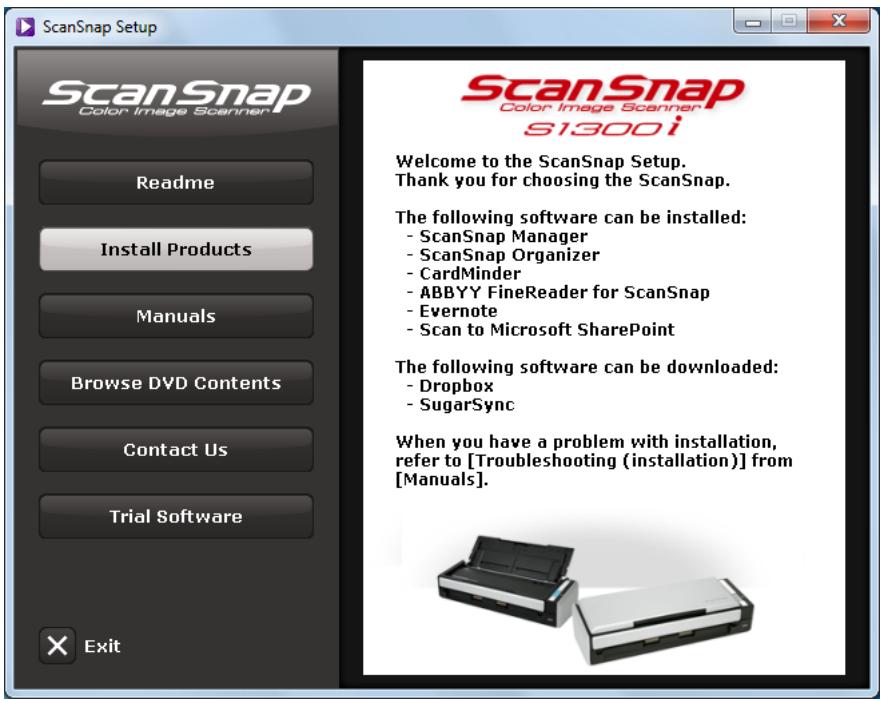
The functions of each button in the [ScanSnap Setup] dialog box are as follows.
| Button | Function |
| Readme | Displays the [Readme] dialog box where you can refer to the Readme file of each software. |
| Install Products | Displays the [Install Products] dialog box. • [ScanSnap] button Installs the following software: • ScanSnap Manager • ScanSnap Organizer • CardMinder • ABBYY FineReader for ScanSnap • [Dropbox] button Opens the Dropbox for Windows download web page. • [Evernote] button Installs Evernote for Windows. • [SugarSync] button Opens the SugarSync Manager for Windows download web page. • [Scan to Microsoft SharePoint] button Installs Scan to Microsoft SharePoint. |
| Manuals | Displays the [Manuals] dialog box where you can refer to the software manuals including "Troubleshooting (installation)". |
| Browse DVD Contents | Opens Windows Explorer to display the files from the DVD-ROM. |
| Contact Us | Displays contact information for customer support. |
| Trial Software | Displays the [Trial Software] dialog box. |
ScanSnap Software
Install the following software:
- ScanSnap Manager
- ScanSnap Organizer
CardMinder
ABBYY FineReader for ScanSnap
The procedure is as follows.
- Turn on the computer and log on as a user with Administrator privileges.
- Insert the Setup DVD-ROM into the DVD-ROM drive.
The [ScanSnap Setup] dialog box appears.
HINT
If the [ScanSnap Setup] dialog box does not appear, double-click "ScanSnap.exe" in the Setup DVD-ROM via Windows Explorer.
- Click the [Install Products] button.
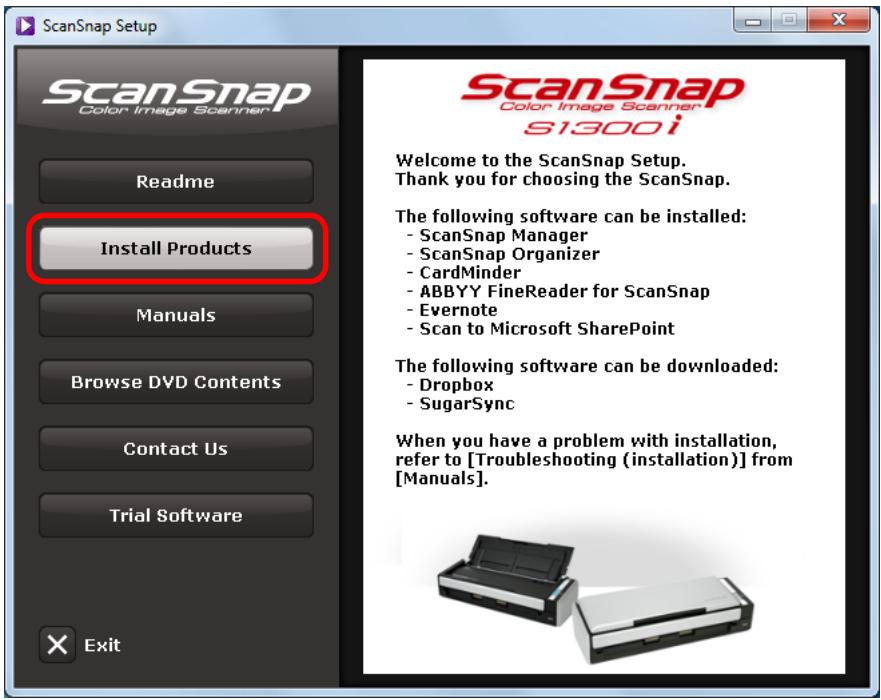
The [Install Products] dialog box appears.
4. Click the [ScanSnap] button.
![FUJITSU SCANSNAP S1300I DELUXE - Click the [ScanSnap] button. - 1](/content/2025/01/190766/images/0c0e1df8dc0424442d8d8e04711fc2ce121d00e6614c0b3240baf1c6d55c9e3a.jpg)
The [ScanSnap] dialog box appears, displaying the [Welcome to the InstallShield Wizard for ScanSnap] screen.
5. Click the [Next] button.
The [ScanSnap Setup] dialog box appears.
6. Read the message about anti-virus software, and click the [OK] button.
![FUJITSU SCANSNAP S1300I DELUXE - Read the message about anti-virus software, and click the [OK] button. - 1](/content/2025/01/190766/images/0dba4bb8a9b20a0ce707b5f7695690c650250cb6f827dc4fb6d67478adcac7ea.jpg)
The [Select Features] screen appears.
7. Confirm the check boxes of the software you want to install are selected, and click the [Next] button.
![FUJITSU SCANSNAP S1300I DELUXE - Confirm the check boxes of the software you want to install are selected, and click the [Next] button. - 1](/content/2025/01/190766/images/3f908d2b091473381c7ca4ce800d72e790e65f6f149330090923d1c231ec56e8.jpg)
ATTENTION
- The software will not be installed unless the check box is selected.
- Note that you must install ScanSnap Manager. Also, it is recommended to install all software in order to utilize the features of the ScanSnap.
The [Choose Destination Location] screen appears.
8. Confirm the destination folder, and then click the [Next] button.
A confirmation about accepting the license agreement appears.
9. Read the "END-USER LICENSE AGREEMENT", select [I accept the terms of the license agreement], and then click the [Next] button.
HINT
Depending on the number of the installed software, this step may be required more than once.
The [Start Copying Files] screen appears.
10. Confirm the settings, and then click the [Next] button.
Installation starts. When the installation is complete, the [About ScanSnap's Auto Power OFF function] screen appears.
11. Read the explanation, and then click the [Next] button.
![FUJITSU SCANSNAP S1300I DELUXE - Read the explanation, and then click the [Next] button. - 1](/content/2025/01/190766/images/8462953b9d69aefdb275c4446886cf366b78cc744937ac1905ee0fe564c6966b.jpg)
The "Install Complete" screen appears.
12.Click the [Finish] button.
13.Remove the Setup DVD-ROM from the DVD-ROM drive.
ATTENTION
If the installation is not successfully completed, select [Manuals] [Troubleshooting (installation)] in the [ScanSnap Setup] dialog box, and refer to Troubleshooting (installation).
Dropbox for Windows
HINT
An Internet connection is required to install Dropbox for Windows.
The procedure is as follows.
- Turn on the computer and log on as a user with Administrator privileges.
- Insert the Setup DVD-ROM into the DVD-ROM drive.
The [ScanSnap Setup] dialog box appears.
HINT
If the [ScanSnap Setup] dialog box does not appear, double-click "ScanSnap.exe" in the Setup DVD-ROM via Windows Explorer.
- Click the [Install Products] button.
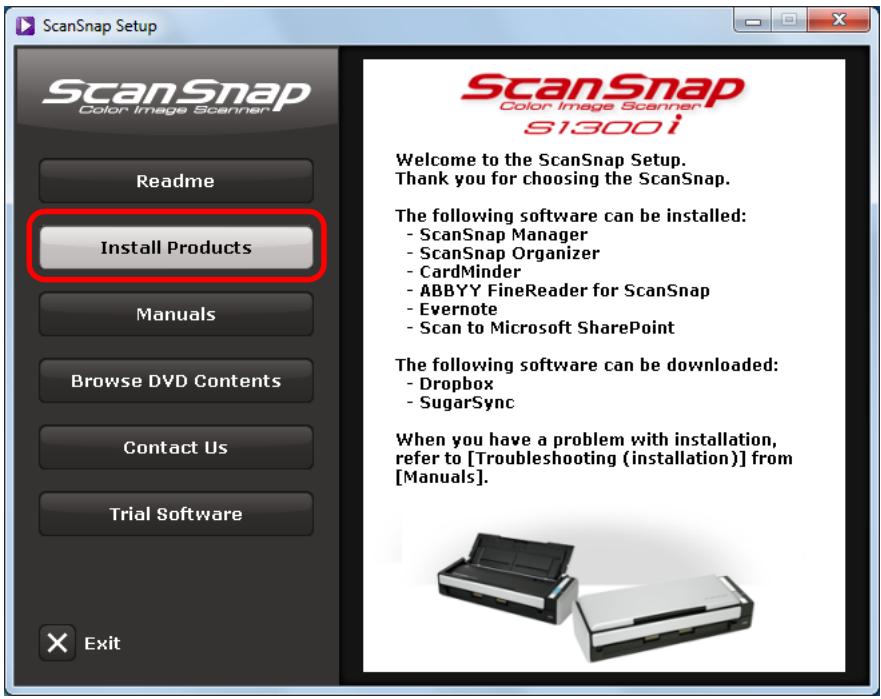
The [Install Products] dialog box appears.
4. Click the [Dropbox] button.
![FUJITSU SCANSNAP S1300I DELUXE - Click the [Dropbox] button. - 1](/content/2025/01/190766/images/f2672776609f0a53ef969c292d0660d2bddd6325bf89344201345e5163c4e477.jpg)
A web browser starts up and the Dropbox for Windows download web page opens. Download and install Dropbox for Windows.
5. When the installation is complete, remove the Setup DVD-ROM from the DVD-ROM drive.
Evernote for Windows
The procedure is as follows.
- Turn on the computer and log on as a user with Administrator privileges.
- Insert the Setup DVD-ROM into the DVD-ROM drive.
The [ScanSnap Setup] dialog box appears.
HINT
If the [ScanSnap Setup] dialog box does not appear, double-click "ScanSnap.exe" in the Setup DVD-ROM via Windows Explorer.
- Click the [Install Products] button.
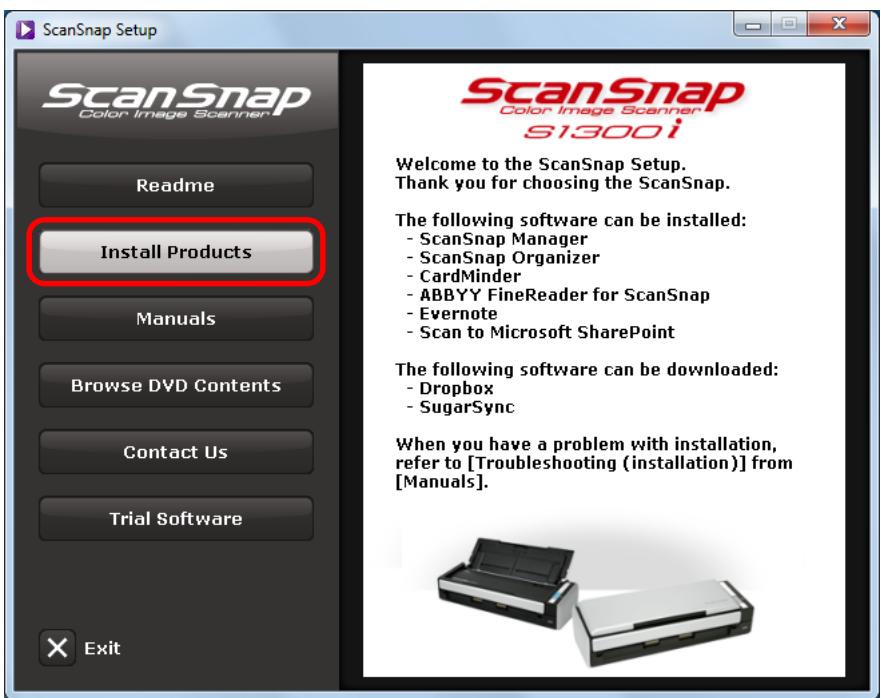
The [Install Products] dialog box appears.
4. Click the [Evernote] button.
![FUJITSU SCANSNAP S1300I DELUXE - Click the [Evernote] button. - 1](/content/2025/01/190766/images/82bc64c6191c319fb8734ef4bd79039397a67e879d30142a01f29dca9116b8cd.jpg)
Installation starts.
- Follow the instructions on the screen to continue with the installation.
- Click the [Finish] button when the installation complete notification is displayed.
- Remove the Setup DVD-ROM from the DVD-ROM drive.
SugarSync Manager for Windows
HINT
An Internet connection is required to install SugarSync Manager for Windows.
The procedure is as follows.
- Turn on the computer and log on as a user with Administrator privileges.
- Insert the Setup DVD-ROM into the DVD-ROM drive.
The [ScanSnap Setup] dialog box appears.
HINT
If the [ScanSnap Setup] dialog box does not appear, double-click "ScanSnap.exe" in the Setup DVD-ROM via Windows Explorer.
- Click the [Install Products] button.
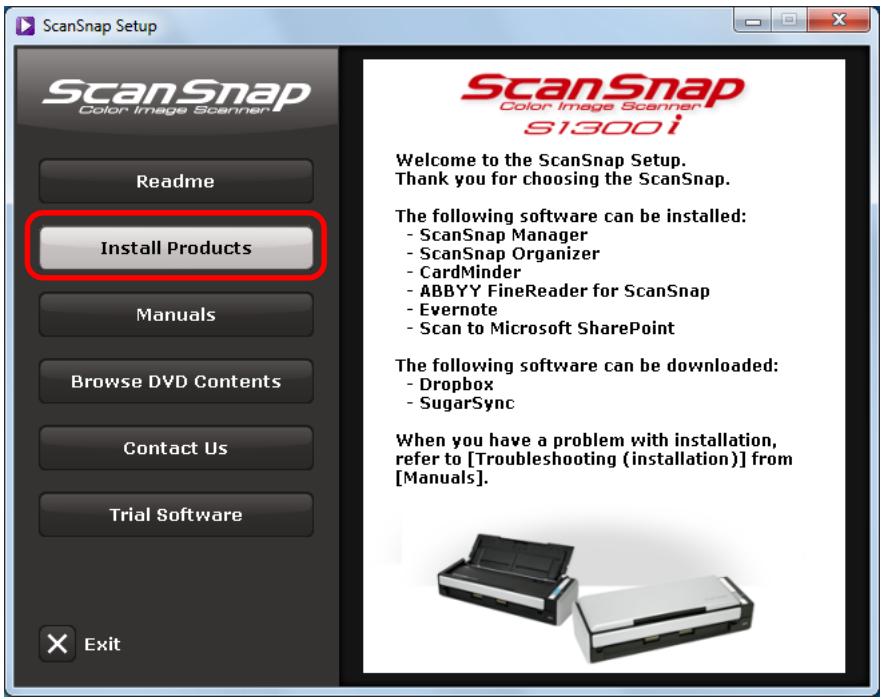
The [Install Products] dialog box appears.
4. Click the [SugarSync] button.
![FUJITSU SCANSNAP S1300I DELUXE - Click the [SugarSync] button. - 1](/content/2025/01/190766/images/70704bd9950fa6ceb5feb15b21831403d638feb89f95604fa164a9ba97847859.jpg)
A web browser starts up and the SugarSync Manager for Windows download web page opens.
Download and install SugarSync Manager for Windows.
5. When the installation is complete, remove the Setup DVD-ROM from the DVD-ROM drive.
■ Scan to Microsoft SharePoint
The procedure is as follows.
HINT
For details about system requirements and notes on installation, refer to "Readme" of Scan to Microsoft SharePoint. Click the [Scan to Microsoft SharePoint] button in the [Readme] dialog box to open the Readme file.
- Turn on the computer and log on as a user with Administrator privileges.
- Insert the Setup DVD-ROM into the DVD-ROM drive.
The [ScanSnap Setup] dialog box appears.
HINT
If the [ScanSnap Setup] dialog box does not appear, double-click "ScanSnap.exe" in the Setup DVD-ROM via Windows Explorer.
- Click the [Install Products] button.
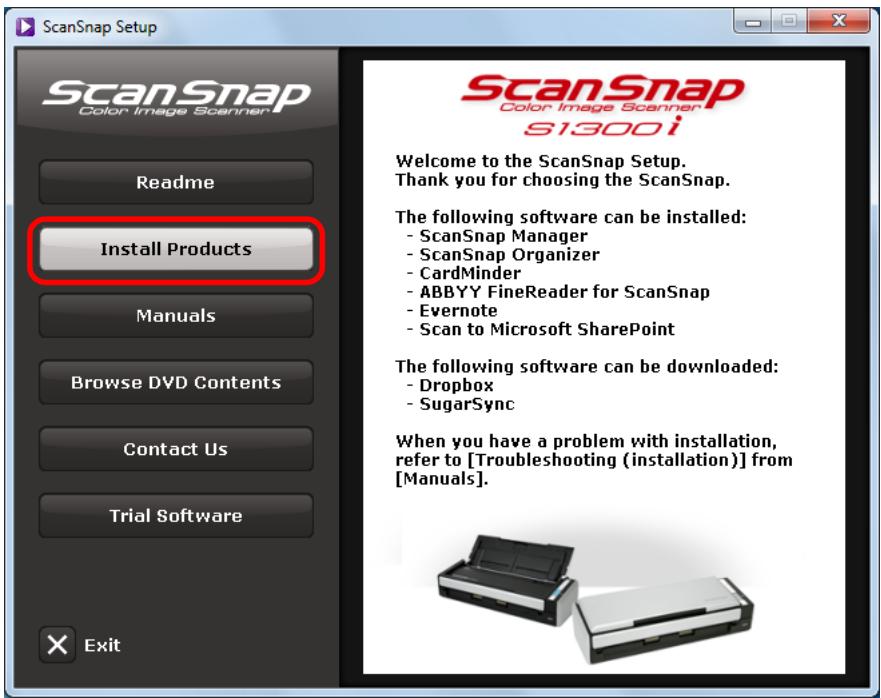
The [Install Products] dialog box appears.
4. Click the [Scan to Microsoft SharePoint] button.
![FUJITSU SCANSNAP S1300I DELUXE - Click the [Scan to Microsoft SharePoint] button. - 1](/content/2025/01/190766/images/0abc290af0e7a9a68fb76b2bc93663a162cee8cd6aa2384294791aa89d29beb2.jpg)
Installation starts.
- Follow the instructions on the screen to continue with the installation.
- Click the [Close] button when the installation complete notification is displayed.
- Remove the Setup DVD-ROM from the DVD-ROM drive.
HINT
For details about how to use Scan to Microsoft SharePoint, refer to the Scan to Microsoft SharePoint User Guide. Click the [Scan to Microsoft SharePoint] button in the [Manuals] dialog box to open the Scan to Microsoft SharePoint User Guide.
■ Trial Software
The procedure is as follows.
HINT
For details about system requirements and installation, refer to "Readme" of the trial version software. Click on the name of the software in the [Trial Software] dialog box, then click the [Readme] button to open the Readme file.
- Turn on the computer and log on as a user with Administrator privileges.
- Insert the Setup DVD-ROM into the DVD-ROM drive.
The [ScanSnap Setup] dialog box appears.
HINT
If the [ScanSnap Setup] dialog box does not appear, double-click "ScanSnap.exe" in the Setup DVD-ROM via Windows Explorer.
- Click the [Trial Software] button.
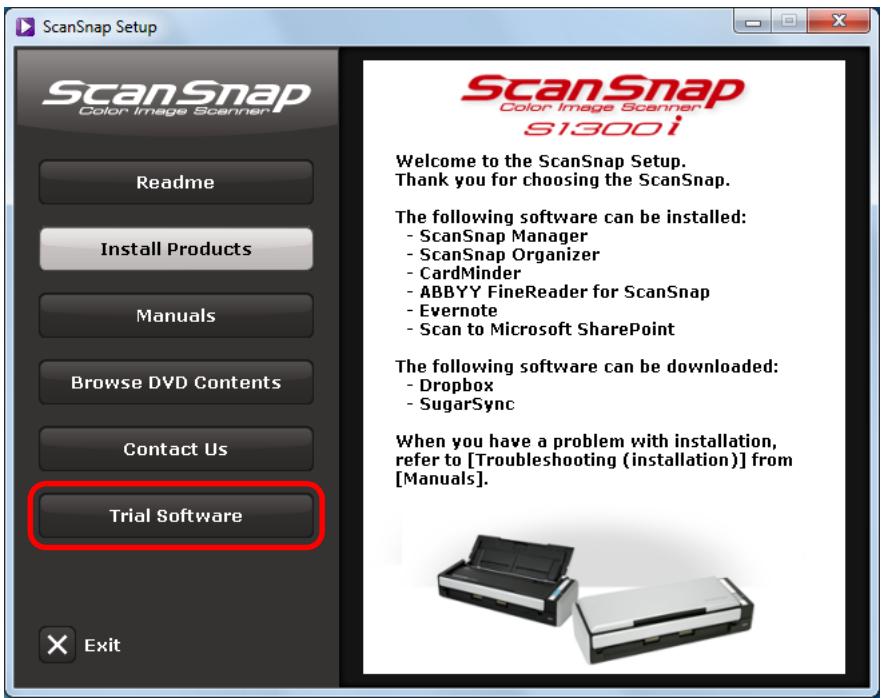
The [Trial Software] dialog box appears.
4. Click the button of the trial software you want to install.
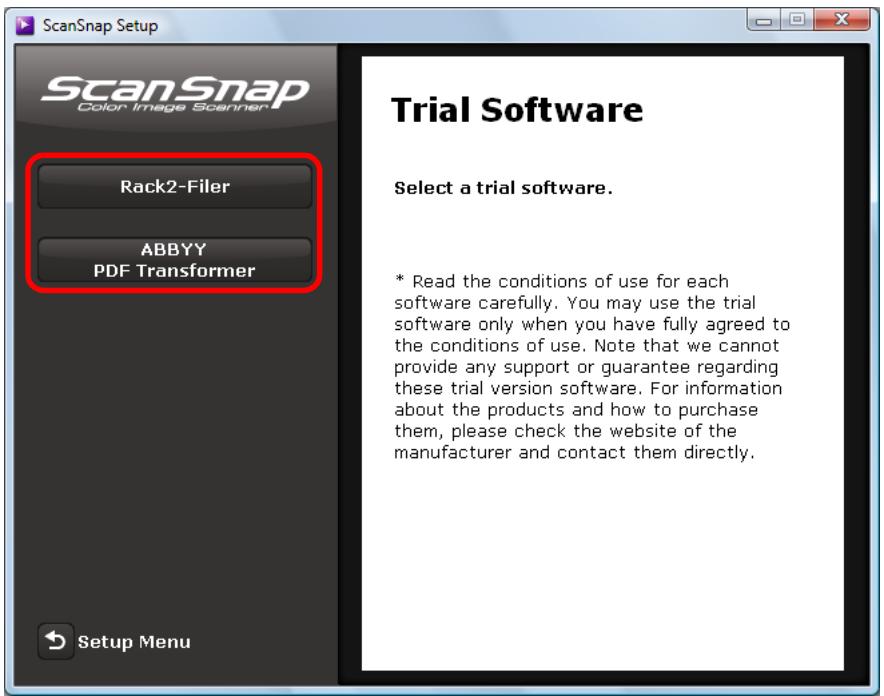
The setup dialog box of the trial software appears (e.g. [Rack2-Filer Setup]).
5. Click the [Install Product] button.
Installation starts.
6. Follow the instructions on the screen to complete the installation.
7. Click the [Finish] button when the installation complete notification is displayed.
8. Remove the Setup DVD-ROM from the DVD-ROM drive.
HINT
For details about how to use trial versions of the software, refer to the software manual. Click the [Manuals] button in the setup dialog box of the trial software to open the manual.
Installing in Mac OS
This section explains how to install the software in Mac OS.
■ How to Install the Software
When you insert the Setup DVD-ROM into the DVD-ROM drive on your computer, the [ScanSnap] window appears.
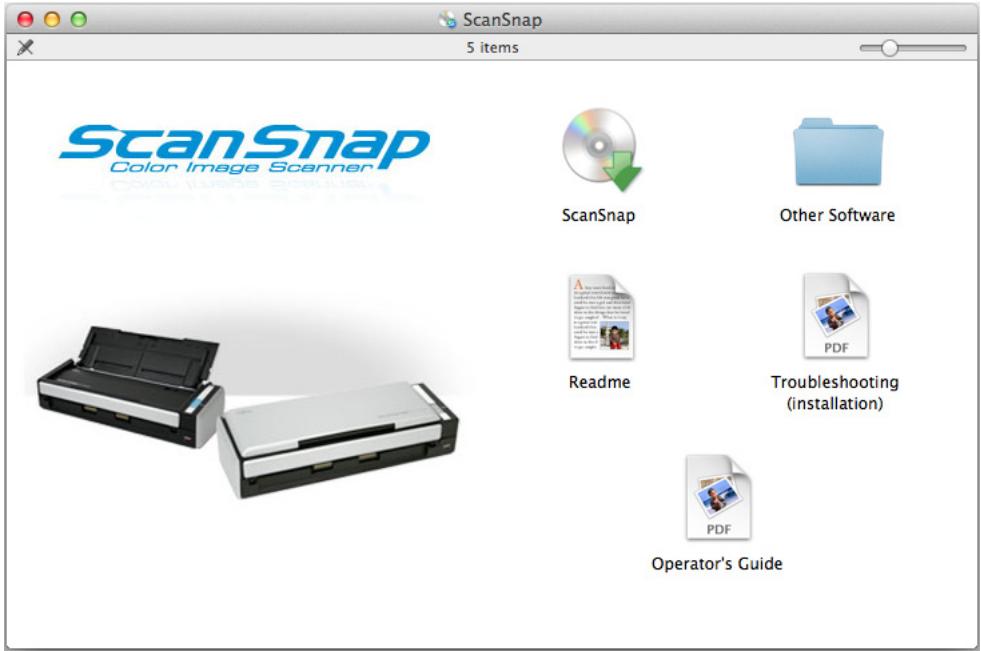
The functions of each icon in the [ScanSnap] window are as follows.
| Icon | Function |
| ScanSnap | Installs the following software: • ScanSnap Manager • ABBYY FineReader for ScanSnap • Cardiris |
| Other Software | Displays the [Other Software] window. • [Dropbox] icon Opens the Dropbox for Mac download web page. • [Evernote] icon Installs Evernote for Mac. • [SugarSync] icon Opens the SugarSync Manager for Mac download web page. |
| Readme | Displays the Readme file. |
| Troubleshooting (installation) | Displays "Troubleshooting (installation)". |
| Operator's Guide | Displays this manual. |
ScanSnap Software
Install the following software:
- ScanSnap Manager
ABBYY FineReader for ScanSnap
Cardiris
The procedure is as follows.
- Turn on the computer and log in as a user with Administrator privileges.
- Insert the Setup DVD-ROM into the DVD-ROM drive.
The [ScanSnap] window appears.
- Double-click the [ScanSnap] icon.
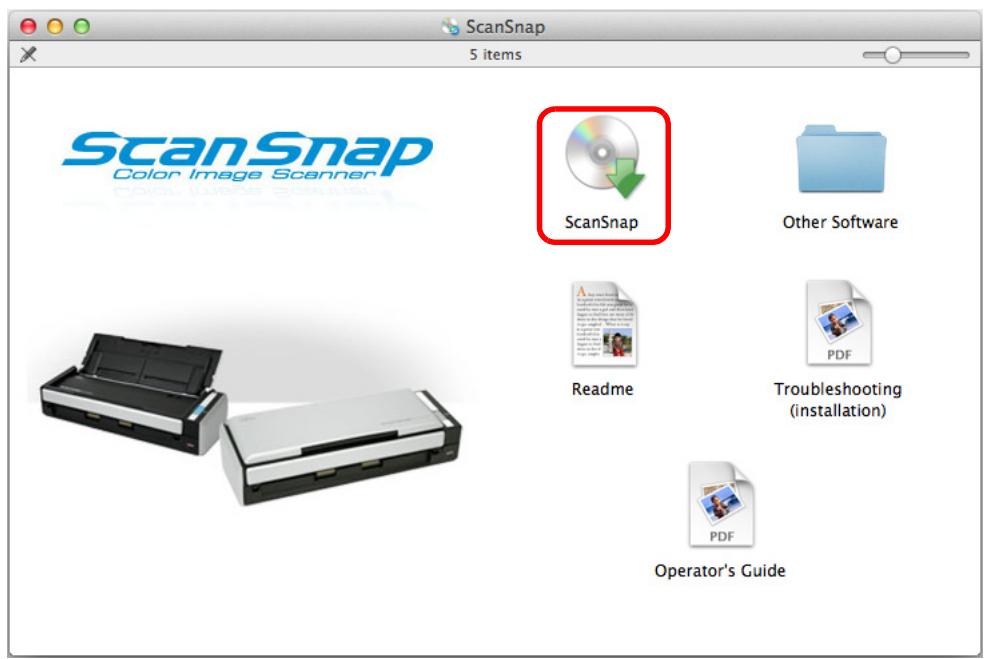
A confirmation message appears.
4. Click the [Continue] button.
![FUJITSU SCANSNAP S1300I DELUXE - Click the [Continue] button. - 1](/content/2025/01/190766/images/3907f8528e656fb3d4d61c4e891bc74274879b1121cb4e4c29d45ec27bf8372b.jpg)
The [Install ScanSnap] window appears, displaying the [Welcome to the ScanSnap Installer] screen.
5. Click the [Continue] button.
The [Important Information] screen appears.
6. Read [Important Information], and then click the [Continue] button.
The [Software License Agreement] screen appears.
7. Read the "END-USER LICENSE AGREEMENT", and click the [Continue] button.
A confirmation message appears.
8. To accept the license agreement, click the [Agree] button.
![FUJITSU SCANSNAP S1300I DELUXE - To accept the license agreement, click the [Agree] button. - 1](/content/2025/01/190766/images/88bc7bb61744c236bb62a9261b66255948c8a4e7b09bc00543ca31972da48408.jpg)
The [Cardiris License] screen appears.
9. Scroll down and read the "I.R.I.S. License Agreement" to the end, and then click the [Continue] button.
A confirmation message appears.
10.To accept the license agreement, click the [Agree] button.
![FUJITSU SCANSNAP S1300I DELUXE - 10.To accept the license agreement, click the [Agree] button. - 1](/content/2025/01/190766/images/8285ce5619343c72b9cc7c191e923a0522128a2a13cd0debc7020505316327cf.jpg)
The [Standard Install on "disk name"] screen appears.
11. Click the [Install] button.
![FUJITSU SCANSNAP S1300I DELUXE - Click the [Install] button. - 1](/content/2025/01/190766/images/a5bd02ffba42d223b6d3fc70c25a555f660bff7bb47e525dc00f17e38e23d105.jpg)
HINT
- To install only ScanSnap Manager, clear the [ABBYY FineReader for ScanSnap] and [Cardiris] checkboxes in the [Custom install on "disk name"] screen which is displayed by clicking the [Customize] button.
- ABBYY FineReader for ScanSnap or Cardiris cannot be installed on its own.
An authentication window appears.
12. Enter the user name and password for a user with Administrator privileges, and click the [Install Software] button ([OK] on Mac OS X v10.6 or earlier).
The [About ScanSnap's Auto Power OFF function] screen appears.
13. Read the explanation, and then click the [Continue] button.
![FUJITSU SCANSNAP S1300I DELUXE - Read the explanation, and then click the [Continue] button. - 1](/content/2025/01/190766/images/b2682117bea61e7908b6c3e5fbd77ae530a77a15b5692ef1b51344ee52a9de60.jpg)
The message "The installation was successful." appears on the screen.
14.Click the [Close] button.
15.Remove the Setup DVD-ROM from the DVD-ROM drive.
Dropbox for Mac
HINT
An Internet connection is required to install Dropbox for Mac.
The procedure is as follows.
- Turn on the computer and log in as a user with Administrator privileges.
- Insert the Setup DVD-ROM into the DVD-ROM drive.
The [ScanSnap] window appears.
- Double-click the [Other Software] icon.
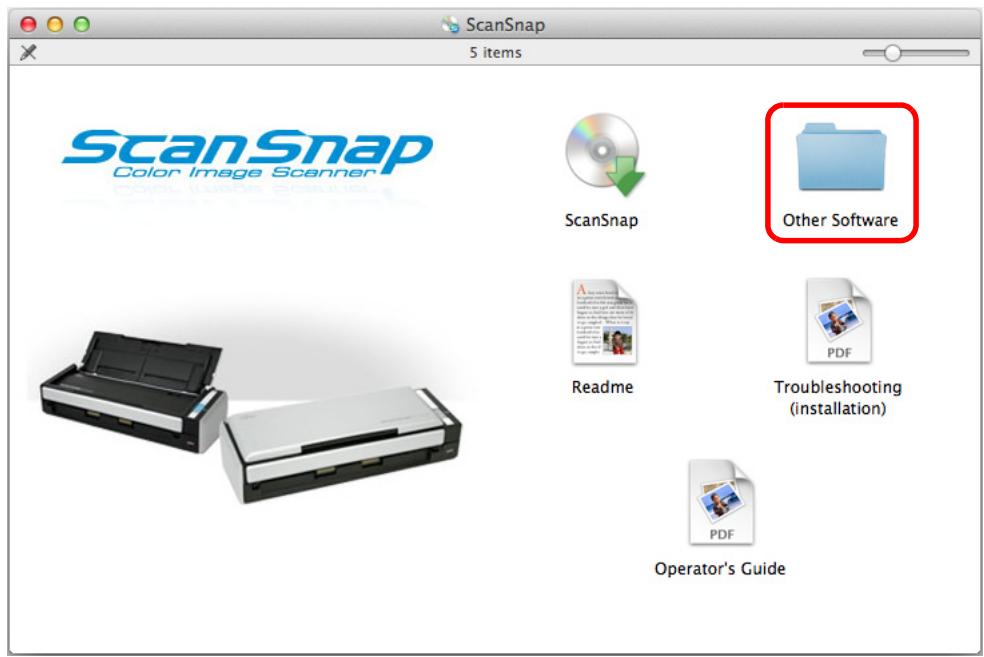
The [Other Software] window appears.
4. Double-click the [Dropbox] icon.
![FUJITSU SCANSNAP S1300I DELUXE - Double-click the [Dropbox] icon. - 1](/content/2025/01/190766/images/aef5992c7b4b86c3a660080f46e864f025c788f0efaa1e59064f53bd98cd01ab.jpg)
A web browser starts up and the Dropbox for Mac download web page opens.
Download and install Dropbox for Mac.
5. When the installation is complete, remove the Setup DVD-ROM from the DVD-ROM drive.
Evernote for Mac
The procedure is as follows.
- Turn on the computer and log in as a user with Administrator privileges.
- Insert the Setup DVD-ROM into the DVD-ROM drive.
The [ScanSnap] window appears.
- Double-click the [Other Software] icon.
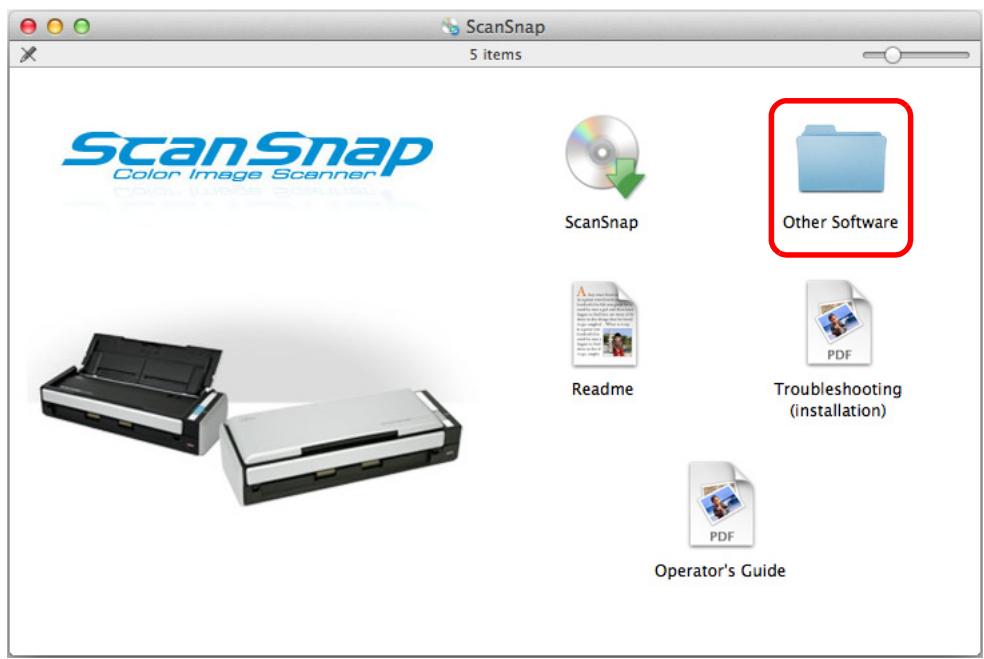
The [Other Software] window appears.
4. Double-click the [Evernote] icon.
![FUJITSU SCANSNAP S1300I DELUXE - Double-click the [Evernote] icon. - 1](/content/2025/01/190766/images/0df5a37194077596c37c3ade7687d87fc540b0be7d1c449c527b97b7b3df5e4f.jpg)
A confirmation message appears.
5. To accept the license agreement, click the [Agree] button.
![FUJITSU SCANSNAP S1300I DELUXE - To accept the license agreement, click the [Agree] button. - 1](/content/2025/01/190766/images/e98a029f3c4ce1f30a43dbb190e601fd7ad78a37f161af6994f48dcc62362cbb.jpg)
A window to start installing Evernote for Mac appears.
6. Drag the [Evernote] icon onto the [Applications] icon.
![FUJITSU SCANSNAP S1300I DELUXE - Drag the [Evernote] icon onto the [Applications] icon. - 1](/content/2025/01/190766/images/8b306a3529b1716ffe54adda4353797197a4d25485431be0d798914acd3ba52f.jpg)
Evernote for Mac is copied into the [Applications] folder.
7. When the copying is finished, drag the Evernote icon on the desktop into the Trash.
8. Remove the Setup DVD-ROM from the DVD-ROM drive.
ATTENTION
- If the installation is not successfully completed, select [Troubleshooting (installation)] in the [ScanSnap] window and refer to Troubleshooting (installation).
- When using Mac OS X v10.7, you need to update to the latest version (3.0 or later) after you installed Evernote for Mac.
9. Prepare for the linkage with Evernote.
Start up Evernote and create a new Notebook.
SugarSync Manager for Mac
HINT
An Internet connection is required to install SugarSync Manager for Mac.
The procedure is as follows.
- Turn on the computer and log in as a user with Administrator privileges.
- Insert the Setup DVD-ROM into the DVD-ROM drive.
The [ScanSnap] window appears.
- Double-click the [Other Software] icon.
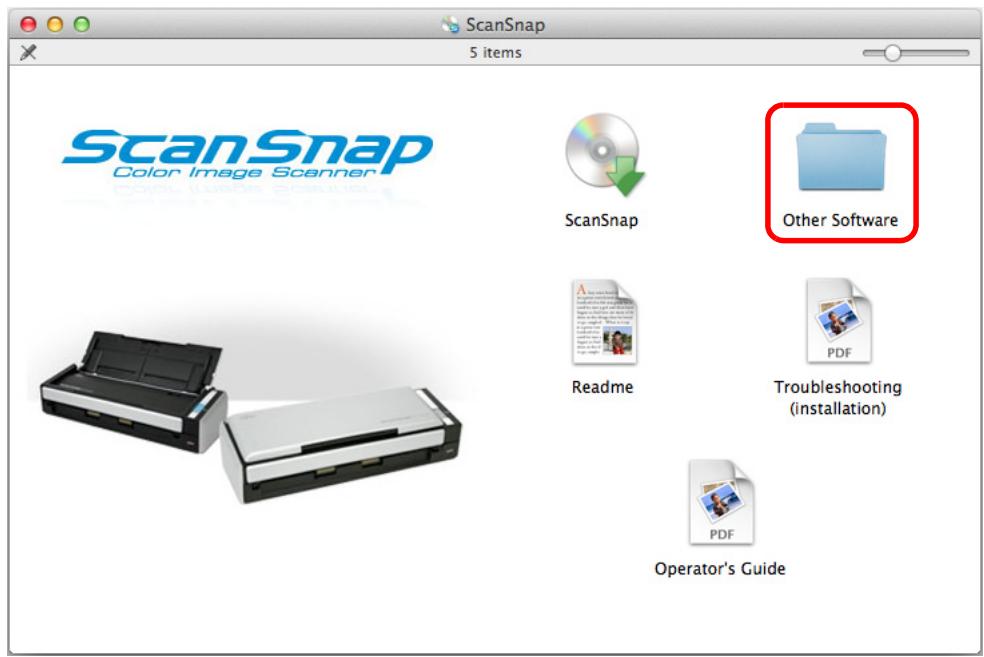
The [Other Software] window appears.
4. Double-click the [SugarSync] icon.
![FUJITSU SCANSNAP S1300I DELUXE - Double-click the [SugarSync] icon. - 1](/content/2025/01/190766/images/8e991d9b4a75526b4ce5b88d7829862d69ef84108a08bd331c06b207c7d6ee8e.jpg)
A web browser starts up and the SugarSync Manager for Mac download web page opens.
Download and install SugarSync Manager for Mac.
5. When the installation is complete, remove the Setup DVD-ROM from the DVD-ROM drive.
Using the ScanSnap (for Windows Users)
This chapter explains how to perform scanning, configure scan settings, add, change or delete profiles, as well as various scanner functions and uses.
ScanSnap Manager Icon and Operations 70
How to Perform a Scan 74
Configuring ScanSnap Manager 86
Actions 109
Cloud Services. 186
ScanSnap Folder Operations. 232
Using the ScanSnap in Various Ways 240
ScanSnap Manager Icon and Operations
All operations on the ScanSnap are managed in ScanSnap Manager.
The ScanSnap Manager icon automatically appears on the taskbar when Windows starts up. The ScanSnap Manager icon indicates whether or not ScanSnap Manager is successfully communicating with the ScanSnap. The appearance of the icon changes according to the communication status as shown below.
This guide uses examples of power cable connection.
| Status | ScanSnap Manager icon |
| Communicating | Power cable connection USB bus power cable connection |
| Not communicating |
A menu appears when you click the ScanSnap Manager icon.
■ Right-Click Menu
This menu appears when you right-click the ScanSnap Manager icon
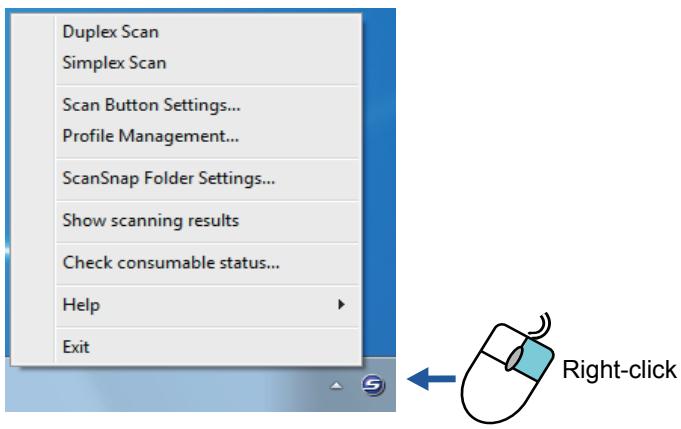
| Item | Function |
| Duplex Scan | Scans both sides of the document. Follows the settings configured in [Scan Button Settings]. |
| Simplex Scan | Scans only one side of the document. Follows the settings configured in [Scan Button Settings]. |
| Scan Button Settings | Displays the ScanSnap setup dialog box. You can configure the scan settings in this dialog box. ↔ "How to Configure Scan Settings" (page 89) |
| Profile Management | Displays the [ScanSnap Manager - Profile Management] dialog box. You cannot select [Profile Management] when the [Use Quick Menu] check box is selected in the ScanSnap setup dialog box. ↔ "Profile Management" (page 93) |
| ScanSnap Folder Settings | Displays the ScanSnap setup dialog box. You can configure the scan settings for using ScanSnap Folder in this dialog box. ↔ "How to Configure Scan Settings" (page 233) |
| Show scanning results | After scanning is completed, a message appears to inform you whether blank pages are removed or the image is rotated. |
| ScanSnap Manager Scan results are as follows: Blank page removal: No Image Rotation: No OK | |
| Check consumable status | Displays the [ScanSnap Manager - Check consumable status] dialog box. You can reset the consumable counters after replacing the consumables. ↔ "Consumables" (page 451) |
| Help | Displays the following menu: • Help Opens the ScanSnap Manager Help. • Troubleshooting Displays [Troubleshooting] in the ScanSnap Manager Help. • ScanSnap Portal Site Opens the ScanSnap global homepage (http://scansnap.fujitsu.com/). • About ScanSnap Manager Displays the [ScanSnap Manager - Version Information] dialog box. • Preferences Displays the [ScanSnap Manager - Preferences] dialog box. • Online Update Displays the [ScanSnap Manager - Online Update] dialog box (page 466). |
| To establish connection | Displayed when ScanSnap Manager is not communicating with the ScanSnap correctly. |
| Exit | Exits ScanSnap Manager. ↔ "Finishing ScanSnap Operation" (page 85) |
Left-Click Menu
This menu appears when you left-click the ScanSnap Manager icon
Available profiles are displayed in the Left-Click Menu.
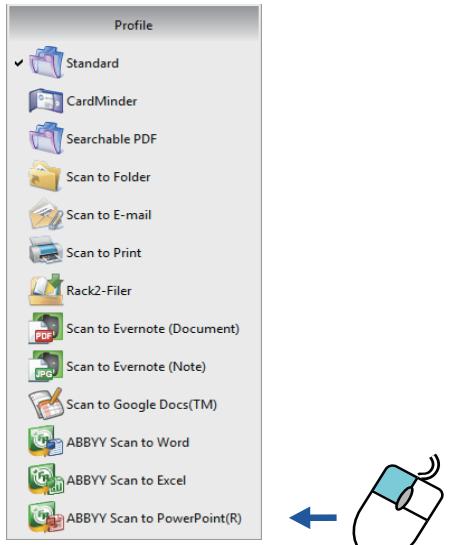
Left-Click Menu example
Left-click
Select a profile in the Left-Click Menu before you perform scanning. Documents are scanned according to the scan settings of the selected profile.
For details about how to add, change or delete profiles, refer to "Profile Management" (page 93).
HINT
- To enable the Left-Click Menu, clear the [Use Quick Menu] check box in the ScanSnap setup dialog box. The Left-Click Menu does not appear when this check box is selected.
-
Profiles configured for the following scanner models will be carried over to ScanSnap S1300i if the computer is the same:
-
ScanSnap S1500
- ScanSnap S1500M
- ScanSnap S1300
- ScanSnap S1100
- ScanSnap S510
- ScanSnap S300
How to Perform a Scan
This section explains how to perform scanning with the ScanSnap.
Preparation
1. Turn on the computer.
The ScanSnap Manager icon appears on the taskbar when Windows starts up.
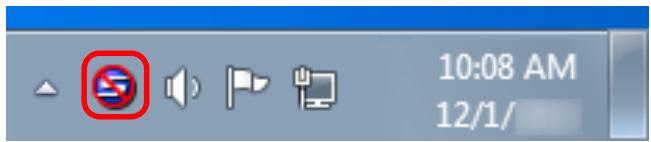
HINT
- If the ScanSnap Manager icon is not displayed, select [Start] menu [All Programs] [ScanSnap Manager] [ScanSnap Manager] to start up ScanSnap Manager. Normally, ScanSnap Manager is registered under [Startup] when installed so its icon is displayed on the taskbar when Windows starts.
-
When ScanSnap Manager is not registered under [Startup], register ScanSnap Manager in the following procedure:
-
Select [Help] [Preferences] in the Right-Click Menu.
The [ScanSnap Manager - Preferences] dialog box appears. -
In the [Auto Startup] tab, select the [Start up ScanSnap Manager when you log on] check box.
2. Open the ADF paper chute (cover) of the ScanSnap to turn the power on.
The ScanSnap Manager icon changes from to .
HINT
There may be a slight delay before the ScanSnap Manager icon changes to depending on your computer's performance, operating environment and load such as when multiple programs are running at the same time.
There are two ways to perform scanning, either with the Quick Menu or without using the Quick Menu. For details, refer to the following:
Using the Quick Menu ( page 75)
- Without Using the Quick Menu ( page 81)
HINT
ScanSnap Folder can also be used to scan documents. For details, refer to "ScanSnap Folder Operations" (page 232).
Using the Quick Menu
The following explains the procedure for scanning by using the Quick Menu.
1. Select [Scan Button Settings] from the Right-Click Menu.
For details about the Right-Click Menu, refer to "Right-Click Menu" (page 71). The ScanSnap setup dialog box appears.
2. Select the [Use Quick Menu] check box.
![FUJITSU SCANSNAP S1300I DELUXE - Select the [Use Quick Menu] check box. - 1](/content/2025/01/190766/images/ccde3939d94d4725a4379a382eabad9a245f4793dcf2bbd53ec3c914ec179615.jpg)
3. Click one of the profile buttons.
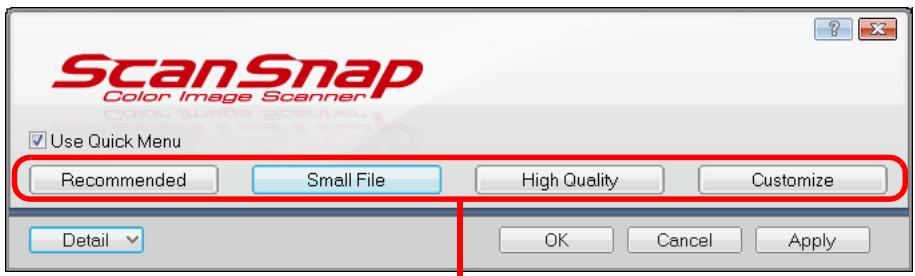
Profile Button
| Profile Button | Description |
| [Recommended] button | Settings are [Automatic resolution] for [Image quality] in the [Scanning] tab in the ScanSnap setup dialog box and default for other settings. It is recommended that you select this button when you want to scan documents in optimum quality suitable for the paper size of the document. |
| [Small File] button | Settings are [Normal] (Color/Gray: 150 dpi, B&W: 300 dpi) for [Image quality] in the [Scanning] tab in the ScanSnap setup dialog box and default for other settings. It is recommended that you select this button when you want to reduce the file size. |
| [High Quality] button | Settings are [Best] (Color/Gray: 300 dpi, B&W: 600 dpi) for [Image quality] in the [Scanning] tab in the ScanSnap setup dialog box and default for other settings. It is recommended that you select this button when you want to scan documents in high quality. |
| [Customize] button | Default settings are the same as the [Recommended] settings. Scan settings can be changed depending on your scanning purpose. |
HINT
- The [Small File] button is selected in default.
- For details about the default settings when using the Quick Menu, refer to the ScanSnap Manager Help.
- You cannot change the settings for the [Recommended], [Small File], and [High Quality] buttons. If you change any of these settings, the profile automatically switches to [Customize]. For details about how to change scan settings, refer to "How to Configure Scan Settings" (page 89).
4. Click the [OK] button to close the ScanSnap setup dialog box.
5. Load a document in the ScanSnap.
For details about how to load documents, refer to "How to Load Documents" (page 33).
6. Press the [Scan] button on the ScanSnap to start a scan.
HINT
- The [Scan] button setting is [Duplex Scan (Double-sided)] in default. Note that you can switch the [Scan] button setting to [Simplex Scan (Single-sided)] in ScanSnap Manager.
For more details, refer to "Scanning Only One Side of a Document" (page 240). - You can also start scanning from the Right-Click Menu.
For more details, refer to "Right-Click Menu" (page 71).
ATTENTION
- Do not connect or disconnect the ScanSnap and other USB devices during scanning.
- Do not close the ADF paper chute (cover) during scanning.
- Do not switch users during scanning. Doing so will cancel scanning.
The [Scan] button on the ScanSnap flashes in blue throughout the scan.
The [ScanSnap Manager - Image scanning and file saving] dialog box appears.
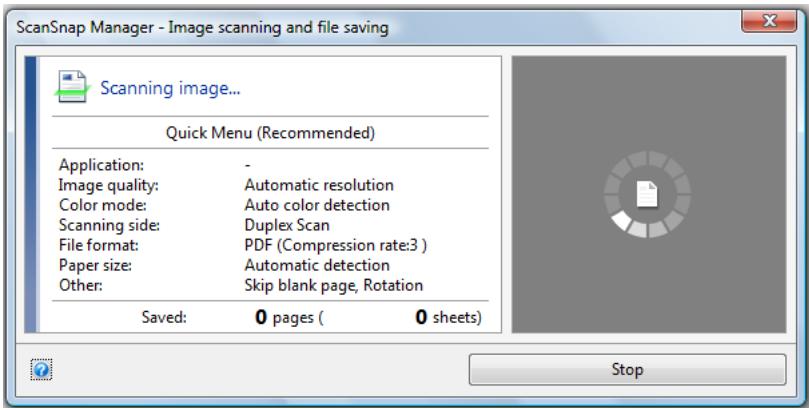
The Quick Menu appears when the scanning is completed.
7. In the Quick Menu, click the icon of the application to link with ScanSnap Manager.
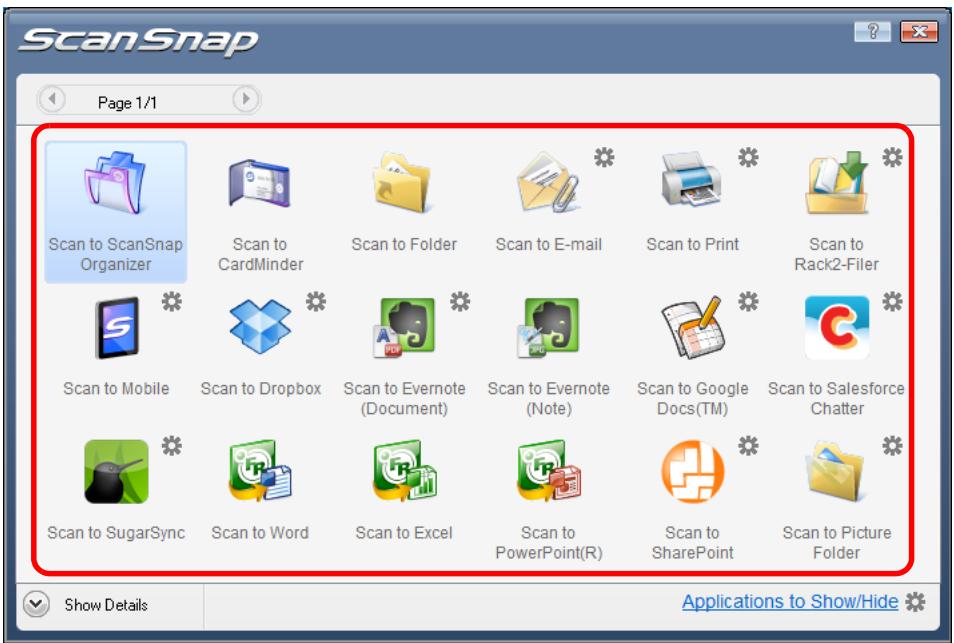
The selected application starts up.
HINT
- To specify which applications to display/hide in the Quick Menu, or change the display order of the applications, refer to "Quick Menu Settings" (page 86).
- To select an application to link with ScanSnap Manager before scanning, refer to "Without Using the Quick Menu" (page 81).
| Application | Description |
| Scan to ScanSnap Organizer (*1) | Displays the [ScanSnap Organizer] dialog box.Saves the scanned images in a folder specified in ScanSnap Organizer.For details about how to operate ScanSnap Organizer, refer to the ScanSnap Organizer User's Guide. |
| Scan to CardMinder (*2) | Displays the [CardMinder] dialog box.Saves the scanned images to CardMinder.For details about how to continue the process after you select this item, refer to "Storing Business Cards in CardMinder" (page 152). |
| Scan to Folder | Displays the [Scan to Folder] dialog box.You can specify the destination folder to save the scanned images.For details about how to continue the process after you select this item, refer to "Saving Data in a Specified Folder" (page 110). |
| Scan to E-mail | Displays the [Scan to E-mail] dialog box. Attaches the scanned images to an e-mail message.For details about how to continue the process after you select this item, refer to "Attaching Files to E-Mail" (page 117). |
| Scan to Print | Displays the [Scan to Print] dialog boxPRINTs out the scanned images with a specified printer.For details about how to continue the process after you select this item, refer to "Using the ScanSnap as a Copy Machine" (page 128). |
| Scan to Rack2-Filer (*3) | Creates a PDF file from the scanned image data and saves the file in a Rack2-Filer binder.For details about how to continue the process after you select this item, refer to "Saving to Rack2-Filer" (page 169). |
| Scan to Mobile (*4) | Displays the [Scan to Mobile] dialog box.You can save the scanned images to a mobile device.For details about how to continue the process after you select this item, refer to "Saving Data to a Mobile Device" (page 175). |
| Scan to Dropbox (*5) | You can save scanned images to your Dropbox folder.For details about how to continue the process after you select this item, refer to "Saving Data to Your Dropbox Folder" (page 187). |
| Scan to Evernote (Document) (*6) | You can save PDF files created from the scanned images to Evernote.For details about how to continue the process after you select this item, refer to "Saving Documents to Evernote" (page 194). |
| Scan to Evernote (Note) (*6) | You can save JPEG files created from the scanned images to Evernote.For details about how to continue the process after you select this item, refer to "Saving Handwritten Notes to Evernote" (page 201). |
| Scan to Google Docs(TM) (*4) | You can save PDF files created from the scanned images to Google Docs.For details about how to continue the process after you select this item, refer to "Saving Documents to Google Docs" (page 206). |
| Scan to Salesforce Chatter (*4) | You can post scanned images to Salesforce Chatter.For details about how to continue the process after you select this item, refer to "Posting to Salesforce Chatter" (page 215). |
| Scan to SugarSync (*7) | You can save scanned images to your SugarSync folder.For details about how to continue the process after you select this item, refer to "Saving Data to Your SugarSync Folder" (page 225). |
| Scan to Word (*8) | Creates a Word file by converting the scanned images into text data.For details about how to continue the process after you select this item, refer to "Converting into Word/Excel/PowerPoint Documents" (page 142). |
| Scan to Excel (*8) | Creates an Excel file by converting the scanned images into text data.For details about how to continue the process after you select this item, refer to "Converting into Word/Excel/PowerPoint Documents" (page 142). |
| Scan to PowerPoint(R) (*8) | Creates a PowerPoint file by converting the scanned images into text data.For details about how to continue the process after you select this item, refer to "Converting into Word/Excel/PowerPoint Documents" (page 142). |
| Scan to SharePoint (*9) | Saves the scanned images in SharePoint or Office Live.For details about how to continue the process after you select this item, refer to "Saving Data in SharePoint" (page 158). |
| Scan to Picture Folder | Displays the [Scan to Picture Folder] dialog box. Saves JPEG files created from the scanned images in your Pictures folder. For details about how to continue the process after you select this item, refer to "Saving Files to Picture Folder" (page 135). |
1 : Displayed when ScanSnap Organizer is installed.
2 : Displayed when CardMinder is installed.
3 : Displayed when Rack2-Filer trial version (bundled with the ScanSnap) or Rack2-Filer (V5.0 or later recommended/bundled model or sold separately) is installed.
4 : Displayed when .NET Framework 3.0 is installed. Note that .NET Framework 3.0 is also included in .NET Framework 3.5 (SP1 or later). It is recommended that you use .NET Framework 3.5 (SP1 or later) by updating Windows. If .NET Framework 4 or later is already installed, you need to install .NET Framework 3.0 separately because .NET Framework 3.0 is not included in .NET Framework 4 or later version.
5 : Displayed when Dropbox for Windows 1.1.45 or later is installed.
6 : Displayed when Evernote for Windows 3.5 or later is installed.
7 : Displayed when SugarSync Manager for Windows 1.9.28 or later is installed.
8 : Displayed when ABBYY FineReader for ScanSnap is installed.
*9 : Displayed when Scan to Microsoft SharePoint is installed.
HINT
- The output image may slightly differ from the original document in size.
-
Performing a scan by pressing the [Scan] button on the ScanSnap while one of the following applications is active (with its window brought to front and selected on taskbar) automatically starts the linkage between ScanSnap Manager and the application:
-
ScanSnap Organizer
- CardMinder (links with ScanSnap Manager only when the document is of business card size)
- Rack2-Filer trial version (bundled with the ScanSnap) or Rack2-Filer (V5.0 or later recommended/bundled model or sold separately)
- Scan to Mobile
For details about automatic linkage, refer to "Automatic Linkage with Applications" (page 102).
ATTENTION
- You cannot start scanning when the Quick Menu is displayed. Either select an icon from the Quick Menu and finish the process, or close the Quick Menu before you perform the next scan.
- Do not move, delete, or rename the scanned image in other applications when the Quick Menu is displayed.
Without Using the Quick Menu
The following explains the procedure for scanning without using the Quick Menu.
1. Select [Scan Button Settings] from the Right-Click Menu.
For details about the Right-Click Menu, refer to "Right-Click Menu" (page 71).
The ScanSnap setup dialog box appears.
2. Clear the [Use Quick Menu] check box.
![FUJITSU SCANSNAP S1300I DELUXE - Clear the [Use Quick Menu] check box. - 1](/content/2025/01/190766/images/d23499fc434bbb138ac7325f610e4ae5d71e5fbe360147ec22e547c8a970c4c0.jpg)
3. Select a profile.
Select a profile from either of the following:
- [Profile] drop-down list
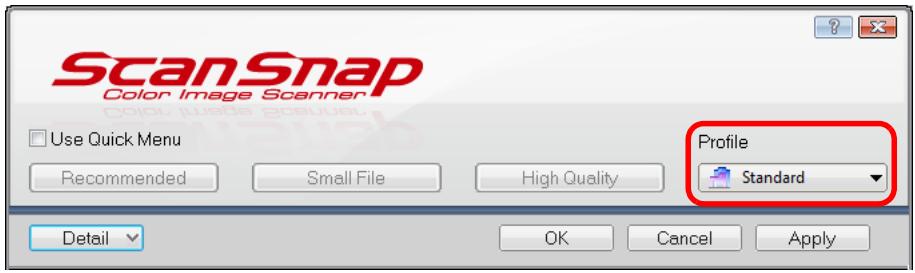
- Left-Click Menu
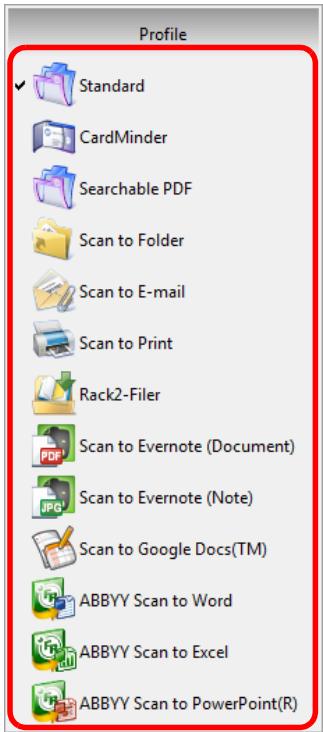
4. Load a document in the ScanSnap.
For details about how to load documents, refer to "How to Load Documents" (page 33).
5. Press the [Scan] button on the ScanSnap to start a scan.
HINT
- The [Scan] button setting is [Duplex Scan (Double-sided)] in default. Note that you can switch the [Scan] button setting to [Simplex Scan (Single-sided)] in ScanSnap Manager.
For more details, refer to "Scanning Only One Side of a Document" (page 240). - You can also start scanning from the Right-Click Menu.
For more details, refer to "Right-Click Menu" (page 71).
ATTENTION
- Do not connect or disconnect the ScanSnap and other USB devices during scanning.
- Do not close the ADF paper chute (cover) during scanning.
- Do not switch users during scanning. Doing so will cancel scanning.
The [Scan] button on the ScanSnap flashes in blue throughout the scan.
The [ScanSnap Manager - Image scanning and file saving] dialog box appears.
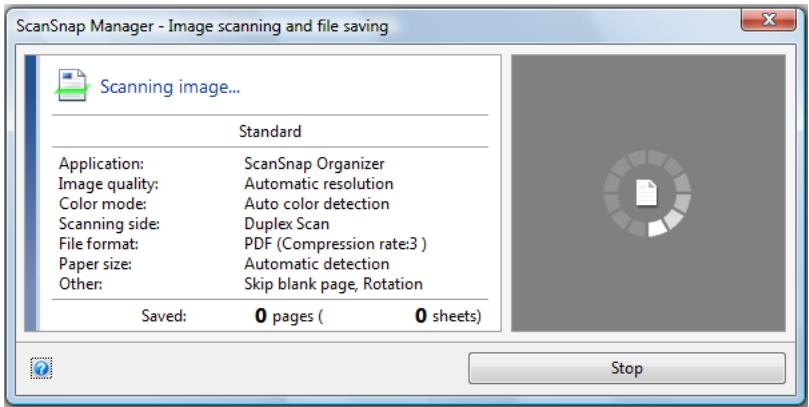
The application specified for the selected profile starts up.
HINT
- To select an application to link with ScanSnap Manager in the Quick Menu after scanning is completed, refer to "Using the Quick Menu" (page 75).
- When the [Set the marked text as a keyword for the PDF file] or the [Convert to Searchable PDF] check box is selected in the [File option] tab, the application starts after text recognition has been performed on the scanned image.
A dialog box showing the text recognition progress appears.
- By default, documents are scanned with the following settings: [Image quality: Normal] and [Color mode: Auto color detection].
For details about how to change scan settings, refer to "How to Configure Scan Settings" (page 89). - The application that starts after scanning varies depending on what is selected in the [Application] tab in the ScanSnap setup dialog box. For details, refer to ScanSnap Manager Help.
- The output image may slightly differ from the original document in size.
-
When ScanSnap Organizer, CardMinder or Rack2-Filer becomes active (with the application's dialog box brought to front and selected on taskbar), performing a scan by pressing the [Scan] button automatically starts the linkage between ScanSnap Manager and the active application.
-
ScanSnap Organizer
- CardMinder (links with ScanSnap Manager only when the document is of business card size)
- Displayed when Rack2-Filer trial version (bundled with the ScanSnap) or Rack2-Filer (V5.0 or later recommended/bundled model or sold separately) is installed.
- Scan to Mobile
For details about automatic linkage, refer to "Automatic Linkage with Applications" (page 102).
Stopping the Scan
You can stop a scan in progress in case you are scanning a wrong document or the wrong side of a document.
Stop the scan in the following procedure:
- Click the [Stop] button in the [ScanSnap Manager - Image scanning and file saving] dialog box which appears during scanning.
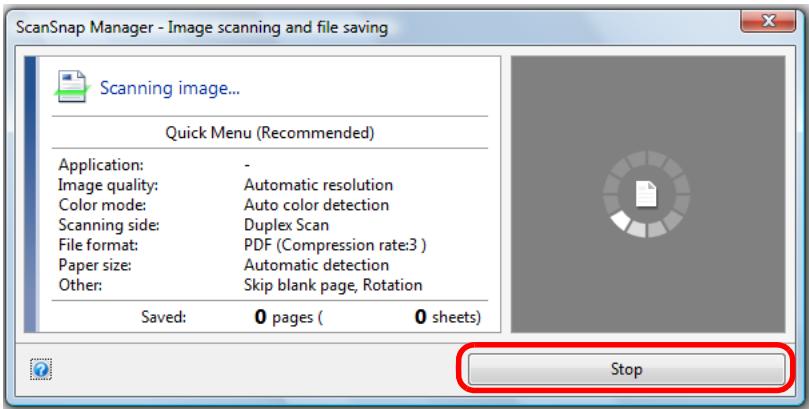
HINT
Remove all documents from the ScanSnap after stopping the scan.
For details about how to remove documents, refer to "Troubleshooting" in the ScanSnap Manager Help.
The following dialog box appears when the scanning stops.
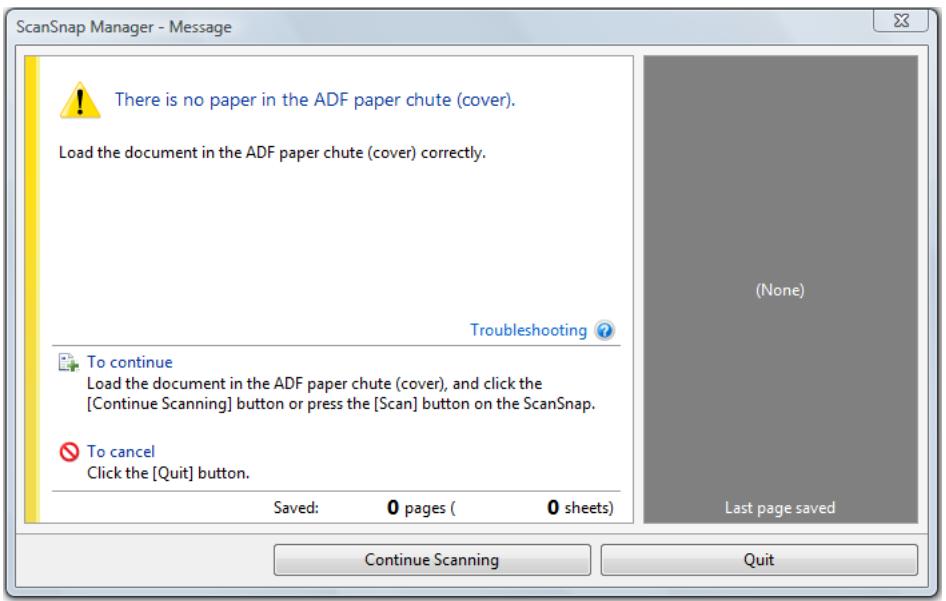
- Click the [Quit] button.
To continue scanning, click the [Continue Scanning] button or press the [Scan] button on the ScanSnap after loading another document in the ScanSnap.
■ Finishing ScanSnap Operation
Exiting ScanSnap Manager
Select [Exit] from the Right-Click Menu.
Normally, you do not have to exit ScanSnap Manager.
HINT
You cannot use the ScanSnap after exiting ScanSnap Manager.
Select [Start] menu [All Programs] [ScanSnap Manager] [ScanSnap Manager] to start up
ScanSnap Manager when you want to use the ScanSnap.
Disconnecting the ScanSnap
- Close the ADF paper chute (cover) to turn off the ScanSnap.
The ScanSnap Manager icon on the taskbar changes from to - Unplug the USB cable from the computer.
- Unplug the power cable or the USB bus power cable from the AC outlet or the computer.
HINT
The ScanSnap does not have a power switch and is turned ON/OFF in conjunction with the computer's power. The ScanSnap can also be automatically turned ON/OFF by opening or closing the ADF paper chute (cover).
Configuring ScanSnap Manager
This section explains how to specify which applications to display in the Quick Menu, set scan settings, how to add, change and delete profiles, automatic linkage with applications, scanning progress status, and dialog boxes displayed during scanning.
Quick Menu Settings
You can specify which applications to display or hide in the Quick Menu, as well as change the display order of the applications in the following procedure.
1. Click [Applications to Show/Hide] in the Quick Menu.
For details about how to display the Quick Menu, refer to "Using the Quick Menu" (page 75).
![FUJITSU SCANSNAP S1300I DELUXE - Click [Applications to Show/Hide] in the Quick Menu. - 1](/content/2025/01/190766/images/066e146811030f1cdb4ed86b8294eec87fc2de399bec75b498347ac5834ec682.jpg)
The [Applications to Show/Hide] dialog box appears.
2. Specify which applications to display in the Quick Menu.
- Showing or Hiding Application Icons
The icons of the applications listed under [Show] are displayed in the Quick Menu. When you select an application in [Show] and click the [Remove] button, the application is moved to [Hide]. Likewise, when you select an application in [Hide] and click the [Add] button, the application is moved to [Show].
To display all the applications in the Quick Menu, click the [Restore Default] button.
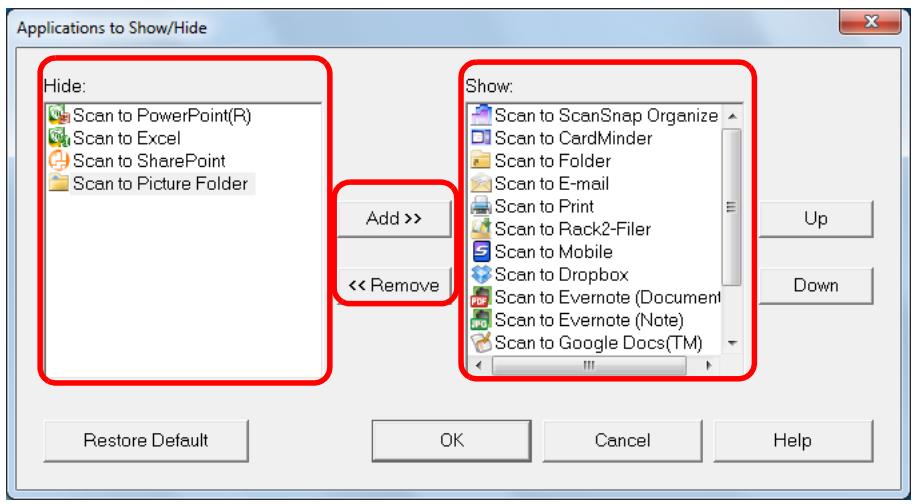
- Display Order of Applications
Application icons are displayed in the Quick Menu in the same order as they are listed in [Show].
You can change the display order of an application by selecting an application in [Show] and clicking either the [Up] or [Down] button.
To restore the default display order of the applications displayed in the Quick Menu, click the [Restore Default] button.
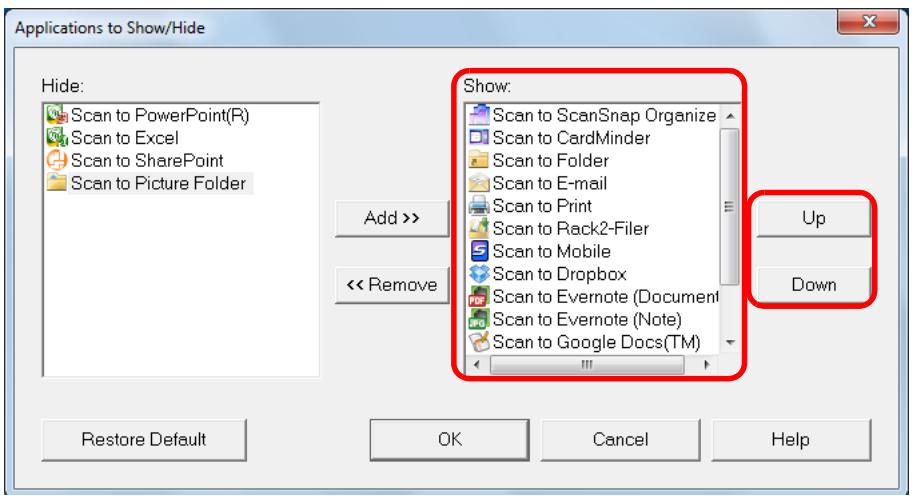
The applications are displayed in the order shown below in the Quick Menu and in [Show] of the [Applications to Show/Hide] dialog box.
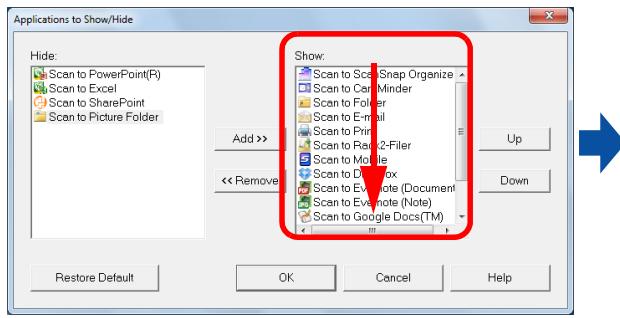
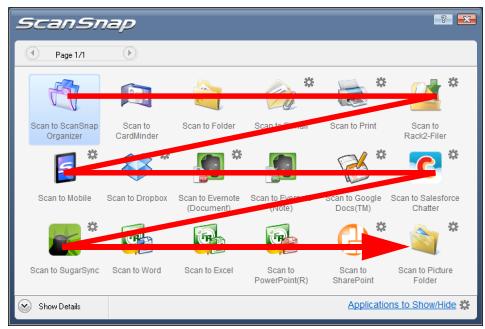
3. Click the [OK] button to close the [Applications to Show/Hide] dialog box.
The applications to be displayed in the Quick Menu and their display order are set.
How to Configure Scan Settings
You can configure scan settings in the ScanSnap setup dialog box depending on your intended use in the following procedure.
1. Select [Scan Button Settings] from the Right-Click Menu.
For details about the Right-Click Menu, refer to "Right-Click Menu" (page 71).
The ScanSnap setup dialog box appears.
HINT
You can also open the ScanSnap setup dialog box by the following ways. If the "ScanSnap Folder" folder is opened, the ScanSnap setup dialog box for ScanSnap Folder appears. For details about ScanSnap Folder, refer to "ScanSnap Folder Operations" (page 232).
- Double-click the ScanSnap Manager icon
- Press [Ctrl], [Shift], and [Space] keys simultaneously.
- Select [Start] menu [All Programs] [ScanSnap Manager] [ScanSnap Manager settings]
2. Click the [Detail] button to switch to the detail view mode.
Using the Quick Menu
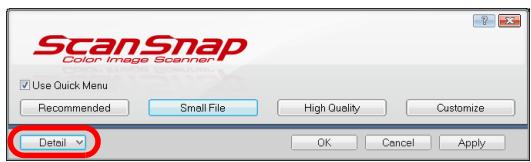
Outline view
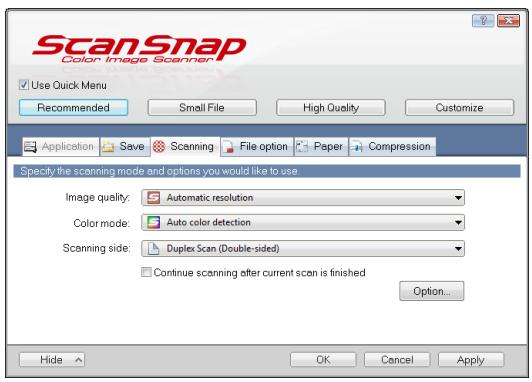
Detail view
Without Using the Quick Menu
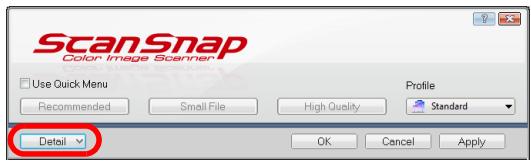
Outline view
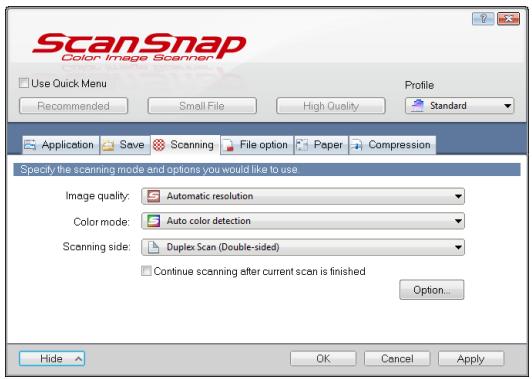
Detail view
HINT
The ScanSnap setup dialog box retains the display status from the last time the ScanSnap was used. For example, if it was closed in detail view mode, the dialog box is displayed in detail view mode next time you open it.
3. Change the scan settings in each tab.
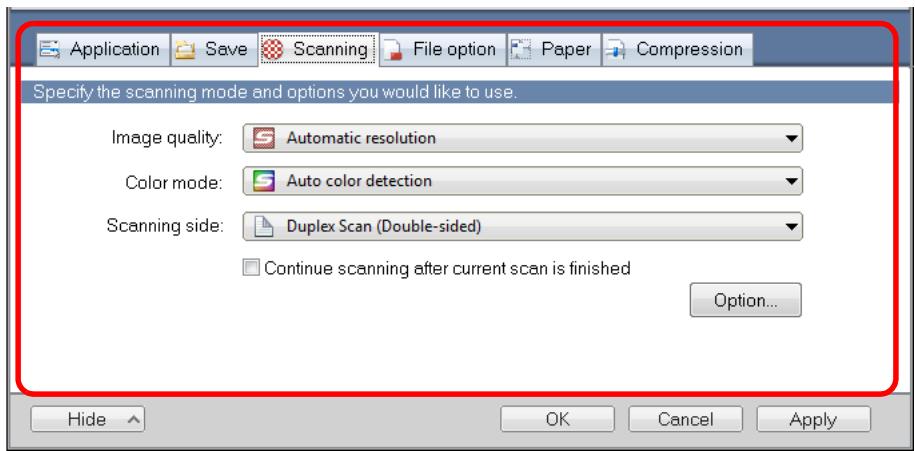
The following items can be configured in each tab:
For details, refer to the ScanSnap Manager Help.
-
[Application] tab
-
Application to be used with the ScanSnap
-
[Save] tab
-
Folder in which scanned image is saved
-
File name used for saving the scanned image
-
[Scanning] tab
-
Scanning
(Which image quality to scan with, use color, gray or black & white, scan in simplex or duplex mode, enable or disable [Setting for text only document], [Allow automatic blank page removal], [Correct skewed character strings automatically], [Allow automatic image rotation], [Set the document with its face up] and [Continue scanning after current scan is finished].)
-
[File option] tab
-
File format of the scanned image (.pdf, .jpg)
-
Whether to perform text recognition on a marked character string in the scanned image and add the character string as a keyword for the PDF file (Whether to perform text recognition only on the character strings in the first marked section or all marked sections to be added as keywords, and in which language to perform text recognition.)
-
Whether to perform text recognition on character strings in the scanned image to convert the file to a searchable PDF file (Whether to convert the first page only or all pages, and in which language to perform text recognition.)
-
Whether to create separate PDF files (Whether to include all scanned images in a single PDF file, or create PDF files, each of which including a preset number of pages)
-
Whether to password-protect the created PDF files (Whether to set the same password for all PDF files, or set a different password per scan.)
-
[Paper] tab
-
Paper size of documents (paper size selection)
-
Whether to detect multifeed
-
[Compression] tab
-
File size of the scanned image (compression rate)
ATTENTION
Scan settings vary depending on the scanning method.
For details about items that can be set, refer to "Setting Items With/Without the Quick Menu" (page 478).
4. Click the [OK] or [Apply] button.
When you use the Quick Menu, scan settings for the [Customize] button are changed.
When you do not use the Quick Menu, scan settings for the currently selected profile are changed.
HINT
If you press the [Scan] button on the ScanSnap while the ScanSnap setup dialog box is displayed, the ScanSnap setup dialog box closes and scanning starts. Scan setting changes made up to this point are saved and documents are scanned by these settings.
Note that when other dialog boxes are open, scanning does not start even if you press the [Scan] button on the ScanSnap unless open dialog boxes are closed.
Profile Management
You can manage up to 20 profiles.
You can select a profile in the [Profile] drop-down list in the ScanSnap setup dialog box or from the Left-Click Menu.
HINT
To use a profile, you need to clear the [Use Quick Menu] check box in the ScanSnap setup dialog box.
- [Profile] drop-down list
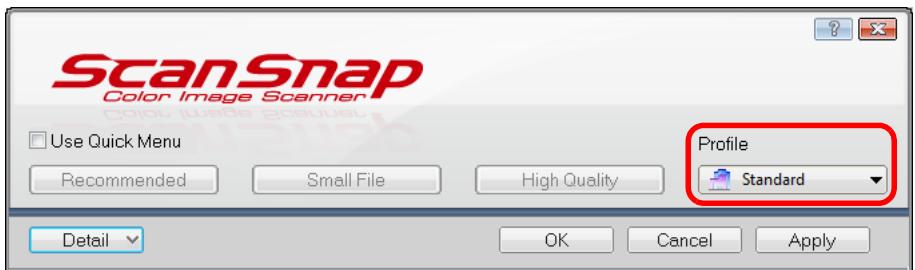
- Left-Click Menu
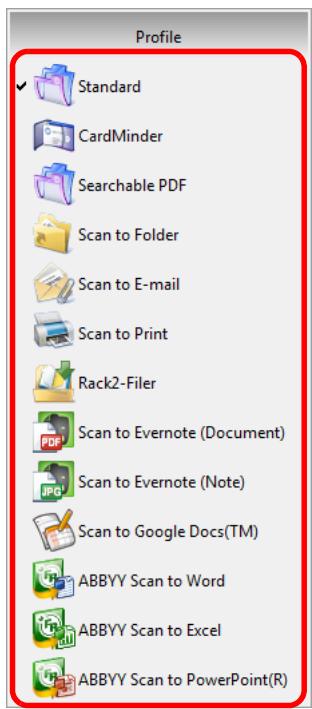
Once the frequently used scan settings are saved as profiles, you do not have to open the ScanSnap setup dialog box to change scan settings every time you perform scanning. You can easily switch to an appropriate profile you want by just selecting it.
For details about how to add, change or delete profiles, refer to the following:
To add a new profile ( page 94)
To change scan settings for profiles ( page 97)
To rename a profile ( page 99)
- To delete a profile ( page 101)
Adding Profiles
1. Select [Scan Button Settings] from the Right-Click Menu.
For details about the Right-Click Menu, refer to "Right-Click Menu" (page 71).
The ScanSnap setup dialog box appears.
HINT
Clear the [Use Quick Menu] check box if it is selected.
2. Configure the scan settings in each tab.
For details about each tab, refer to the ScanSnap Manager Help.
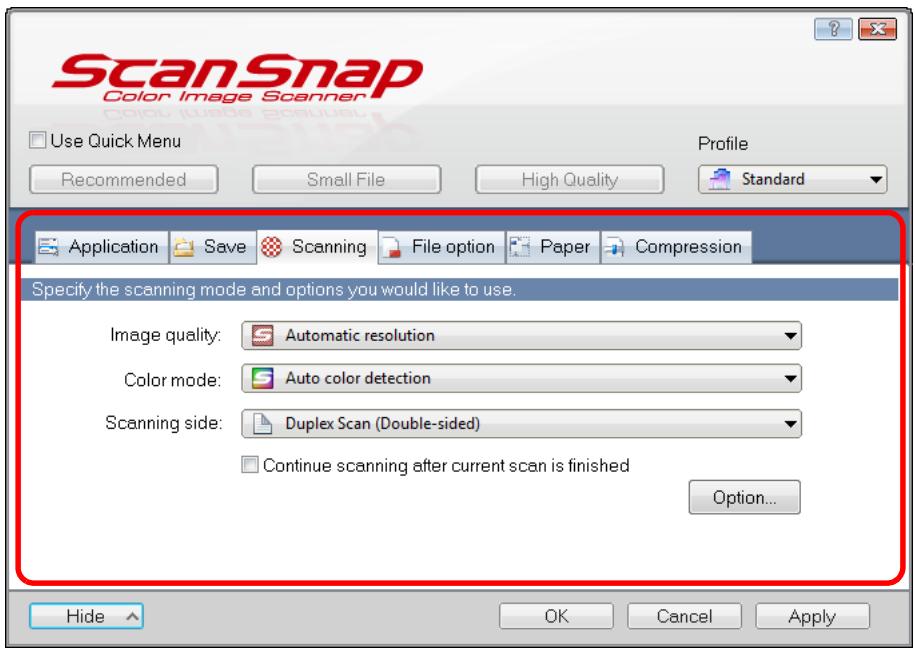
3. Select [Add Profile] from the [Profile] drop-down list.
![FUJITSU SCANSNAP S1300I DELUXE - Select [Add Profile] from the [Profile] drop-down list. - 1](/content/2025/01/190766/images/8d6abe9114b44b29f1f0ca0d5e27001a1633f983d14d1ec2d133201a6e5b5c1d.jpg)
The [Add new profile] dialog box appears.
4. Type in a new profile name and click the [OK] button.
![FUJITSU SCANSNAP S1300I DELUXE - Type in a new profile name and click the [OK] button. - 1](/content/2025/01/190766/images/901a750e8741a8341fca7932d8b693483b3f0edd29c9ec20f93884f6037c22ff.jpg)
The added profile appears in the [Profile] drop-down list in the ScanSnap setup dialog box.
![FUJITSU SCANSNAP S1300I DELUXE - Type in a new profile name and click the [OK] button. - 2](/content/2025/01/190766/images/09ca24e78a6b7900c2ab54aa350f5da0ab57bb6a55579c369678fb6c9f9a86e4.jpg)
5. Click the [OK] button to close the ScanSnap setup dialog box.
HINT
- Up to 20 profiles can be saved including the [Standard] profile.
-
You can change the display order of profiles except for the [Standard] profile.
-
Select [Profile Management] from the Right-Click Menu or the [Profile] drop-down list in the ScanSnap setup dialog box.
The [ScanSnap Manager - Profile Management] dialog box appears.
- Select a profile from the list to arrange profiles in a different order.
- Click the [Up] or [Down] button to move the profile to its desired position in the list.
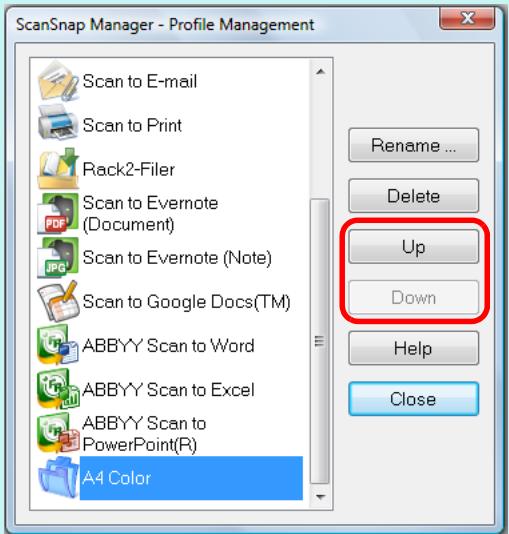
- Click the [Close] button to close the [ScanSnap Manager - Profile Management] dialog box.
Changing Profile Settings
1. Select [Scan Button Settings] from the Right-Click Menu.
For details about the Right-Click Menu, refer to "Right-Click Menu" (page 71).
The ScanSnap setup dialog box appears.
HINT
Clear the [Use Quick Menu] check box if it is selected.
2. Select a profile from the [Profile] drop-down list.
![FUJITSU SCANSNAP S1300I DELUXE - Select a profile from the [Profile] drop-down list. - 1](/content/2025/01/190766/images/1ce227ac3c694cc954272814d5f72ad0024a03c670e834d7aa42bbf68c6d08ec.jpg)
3. Change the scan settings in each tab.
For details about each tab, refer to the ScanSnap Manager Help.
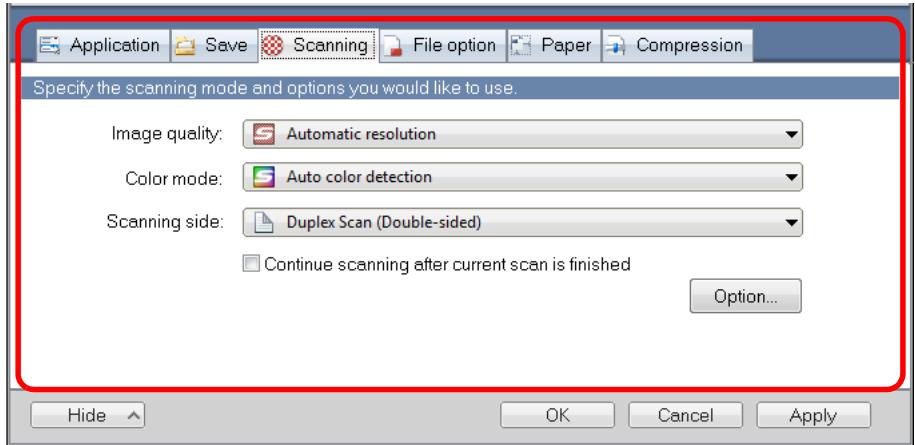
4. When you finish changing the settings for the selected profile, click the [OK] button.
A confirmation message appears.
HINT
If you select another profile from the [Profile] drop-down list before clicking the [OK] button, the following message appears.
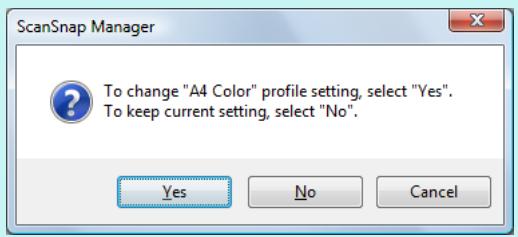
When you click the [Yes] button, the modified settings are overwritten and the profile switches to the one you selected from the [Profile] drop-down list. When you click the [No] button, the modified settings are canceled and the profile switches to the one you selected from the [Profile] drop-down list.
5. To overwrite the profile, click the [Yes] button. To save the settings as "Standard", click the [No] button.
![FUJITSU SCANSNAP S1300I DELUXE - To overwrite the profile, click the [Yes] button. To save the settings as "Standard", click the [No] button. - 1](/content/2025/01/190766/images/7c6e8d08ac93a6fc027efa879d412d3881368b47b53e3fee35a6e84cb634f3ab.jpg)
HINT
The confirmation message does not appear when the [Standard] profile is selected in step 2.
Renaming Profiles
1. Select [Profile Management] from the Right-Click Menu.
For details about the Right-Click Menu, refer to "Right-Click Menu" (page 71).
The [ScanSnap Manager - Profile Management] dialog box appears.
HINT
- If you cannot select [Profile Management] in the Right-Click Menu, clear the [Use Quick Menu] check box in the ScanSnap setup dialog box.
- You can also display the [ScanSnap Manager - Profile Management] dialog box by selecting [Profile Management] from the [Profile] drop-down list in the ScanSnap setup dialog box.
2. Select a profile and click the [Rename] button.
![FUJITSU SCANSNAP S1300I DELUXE - Select a profile and click the [Rename] button. - 1](/content/2025/01/190766/images/2d5e7a5ec3e8862b22a2b597e86aafe388e4966bf52be71d8c0a89e0dfce28c9.jpg)
The [Rename] dialog box appears.
ATTENTION
The [Standard] profile cannot be renamed.
3. Type in a new name, and click the [OK] button.
![FUJITSU SCANSNAP S1300I DELUXE - Type in a new name, and click the [OK] button. - 1](/content/2025/01/190766/images/9c7177687d1960f47fc863450a007404da1f0df7be8873d9717f68d3b70cd99a.jpg)
The profile is renamed.
![FUJITSU SCANSNAP S1300I DELUXE - Type in a new name, and click the [OK] button. - 2](/content/2025/01/190766/images/e8ed04e2b90d23b69fe4102ec74f82f6eafc8c2d67874113c0faee5b2b555b79.jpg)
4. Click the [Close] button to close the [ScanSnap Manager - Profile Management] dialog box.
Deleting Profiles
1. Select [Profile Management] from the Right-Click Menu.
For details about the Right-Click Menu, refer to "Right-Click Menu" (page 71).
The [ScanSnap Manager - Profile Management] dialog box appears.
HINT
- If you cannot select [Profile Management] in the Right-Click Menu, clear the [Use Quick Menu] check box in the ScanSnap setup dialog box.
- You can also display the [ScanSnap Manager - Profile Management] dialog box by selecting [Profile Management] from the [Profile] drop-down list in the ScanSnap setup dialog box.
2. Select a profile and click the [Delete] button.
![FUJITSU SCANSNAP S1300I DELUXE - Select a profile and click the [Delete] button. - 1](/content/2025/01/190766/images/e0d6a20f0a9f79f83278f3fa50c15ddaf35694894e0ae1b2558aa631f0262aac.jpg)
ATTENTION
The [Standard] profile cannot be deleted.
The [Delete Profile] dialog box appears.
3. Click the [Yes] button.
![FUJITSU SCANSNAP S1300I DELUXE - Click the [Yes] button. - 1](/content/2025/01/190766/images/34178ac44cd98155a0bf944f18196701703da65f6a6badf367d4efb3d8308f7c.jpg)
The selected profile is deleted.
4. Click the [Close] button to close the [ScanSnap Manager - Profile Management] dialog box.
Automatic Linkage with Applications
When one of the applications which can automatically link with ScanSnap Manager is running and you perform scanning, ScanSnap Manager will automatically link with the corresponding application regardless of the current scan settings or whether you are using the Quick Menu. Applications that can automatically link with ScanSnap Manager are as follows:
- ScanSnap Organizer
Scanned image is displayed in ScanSnap Organizer.
CardMinder
Scanned image is displayed in CardMinder.
- Rack2-Filer trial version (bundled with the ScanSnap) or Rack2-Filer (V5.0 or later recommended/bundled model or sold separately)
Scanned image is saved in a binder in Rack2-Filer.
- Scan to Mobile (*)
Scanned image is sent to a mobile device.
- : Automatic linkage is available only when the application is active.
There are two modes for automatic linkage.
- Link when one of the above applications is active (recommended)
When ScanSnap Organizer, CardMinder or Rack2-Filer becomes active (with the application's dialog box brought to front and selected on taskbar), performing a scan by pressing the [Scan] button automatically starts the linkage between ScanSnap Manager and the active application.
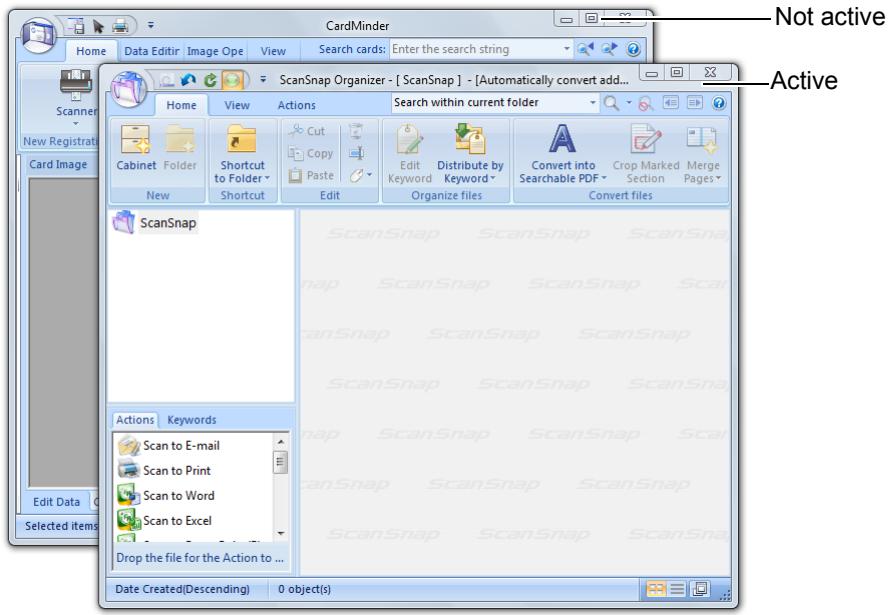
The example above shows ScanSnap Manager automatically linking with ScanSnap Organizer in when ScanSnap Organizer's main window is in front (active).
- Always link when one of the above applications is running
When ScanSnap Organizer, CardMinder, or Rack2-Filer is started, the application specified for [Application] in the [Application] tab in the ScanSnap dialog box automatically switches to the running application. The application will automatically link with ScanSnap Manager even when the application window is minimized or not displayed in the front. The linkage between the application and ScanSnap Manager automatically ends once you exit the application.
When more than one application is running at the same time, priority will be given in the following order:
- CardMinder
- ScanSnap Organizer
- Rack2-Filer trial version (bundled with the ScanSnap) or Rack2-Filer (V5.0 or later recommended/bundled model or sold separately)
When the Quick Menu is disabled, the name of the interacting application on the Left-Click Menu is followed by "is interacting".
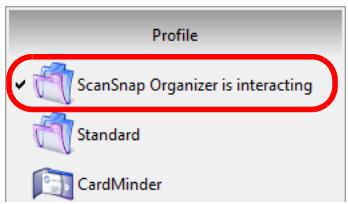
When ScanSnap Organizer is automatically interacting with ScanSnap Manager
ATTENTION
- When ScanSnap Manager automatically links with CardMinder, business cards are scanned with the current settings. If there are some settings that are not supported by CardMinder, defaults settings are used.
For details about CardMinder default settings, refer to the ScanSnap Manager Help.
- ScanSnap Manager links with CardMinder only when the document is of business card size. When documents in other sizes are scanned, the following error message appears.
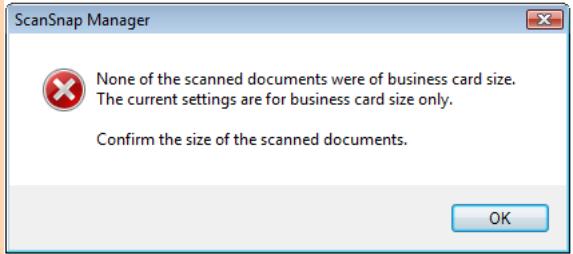
Changing Automatic Linkage Mode
Change automatic linkage mode options in the following procedure.
1. Select [Help] [Preferences] from the Right-Click Menu.
For details about the Right-Click Menu, refer to "Right-Click Menu" (page 71).
The [ScanSnap Manager - Preferences] dialog box appears.
2. Select the automatic linkage mode in the [Automatic Linkage] tab.
![FUJITSU SCANSNAP S1300I DELUXE - Select the automatic linkage mode in the [Automatic Linkage] tab. - 1](/content/2025/01/190766/images/62d5424c500cddd412e0c2979afdb9f633fc72c4480b274e487a8dfb70fe317c.jpg)
3. Click the [OK] button to close the [ScanSnap Manager - Preferences] dialog box.
Application will link with ScanSnap Manager using the linkage mode you selected.
■ ScanSnap's Communication Status
If you turn the ScanSnap ON/OFF when ScanSnap Manager is running, the pop-up balloon notifies you of the communication status of the ScanSnap.
- When the ScanSnap is on
Power cable connection
USB bus power cable connection
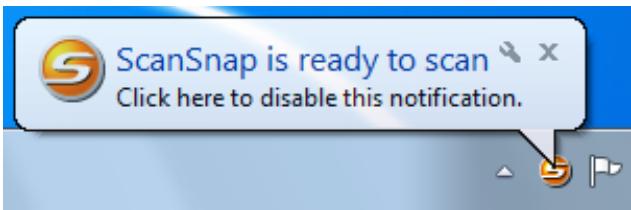
- When the ScanSnap is off
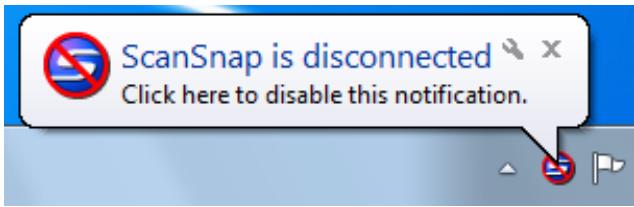
HINT
To disable notifications of the ScanSnap's communication status, click the pop-up balloon, and in the [Status Display] tab of the [ScanSnap Manager - Preferences] dialog box that appears, clear the [Notify of the communication status] check box.
When the time until auto power-off is specified, the pop-up balloon appears five minutes before the ScanSnap turns off.
- When the ScanSnap will be automatically turned off soon
Receiving or hiding the ScanSnap's communication status notifications
You can specify whether or not to receive notifications of the ScanSnap's communication status with a pop-up balloon.
Configure the setting in the following procedure.
1. Select [Help] [Preferences] from the Right-Click Menu.
For details about the Right-Click Menu, refer to "Right-Click Menu" (page 71).
The [ScanSnap Manager - Preferences] dialog box appears.
2. In the [Status Display] tab, either select or clear the [Notify of the communication status] check box.
![FUJITSU SCANSNAP S1300I DELUXE - In the [Status Display] tab, either select or clear the [Notify of the communication status] check box. - 1](/content/2025/01/190766/images/12df298e49a9016c6af455a26eb11c6a60dac9e2362fc3971f8d6eb0405378b9.jpg)
If you select the [Notify of the communication status] check box, you will be notified of the communication status in conjunction with the ScanSnap being turned ON/OFF.
If you clear the [Notify of the communication status] check box, you will not be notified of the communication status.
3. Click the [OK] button to close the [ScanSnap Manager - Preferences] dialog box.
■ Showing the Scanning Progress
When scanning starts, the [ScanSnap Manager - Image scanning and file saving] dialog box appears.
The [ScanSnap Manager - Image scanning and file saving] dialog box consists of the following:
- Scan status
- Scan settings
- Saved
Preview
Also, note that you can stop scanning by clicking the [Stop] button in the [ScanSnap Manager - Image scanning and file saving] dialog box.
For details about how to stop scanning, refer to "Stopping the Scan" (page 84).
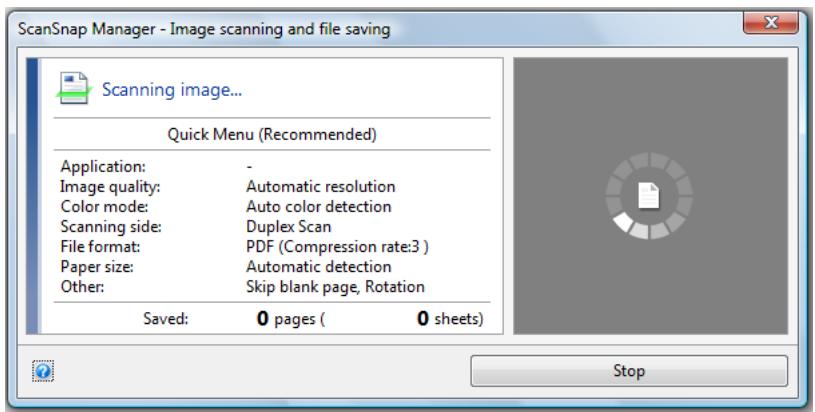
The [ScanSnap Manager - Image scanning and file saving] dialog box closes automatically after saving the scanned image of the last page scanned.
Hiding the Scanning Progress Status
You can hide the [ScanSnap Manager - Image scanning and file saving] dialog box in the following procedure.
1. Select [Help] [Preferences] from the Right-Click Menu.
For details about the Right-Click Menu, refer to "Right-Click Menu" (page 71).
The [ScanSnap Manager - Preferences] dialog box appears.
2. In the [Status Display] tab, clear the [Show the scan progress status (recommended)] check box.
![FUJITSU SCANSNAP S1300I DELUXE - In the [Status Display] tab, clear the [Show the scan progress status (recommended)] check box. - 1](/content/2025/01/190766/images/b344b5006e8a32a509401dbc36ca72881121f066f51cd9d24342f56d2ed19848.jpg)
3. Click the [OK] button to close the [ScanSnap Manager - Preferences] dialog box.
The [ScanSnap Manager - Image scanning and file saving] dialog box is hidden from next scanning on.
HINT
When the scanning progress status dialog box is hidden, the ScanSnap Manager icon alternates
between S and S.
Actions
The ScanSnap has functions useful in your office work available as Actions.
Actions allow you to:
- Share the scanned document files with others.
Save the scanned image directly in a shared folder on a network after scanning, share the scanned image with others and inform them of the destination folder path by an e-mail message automatically created with the path stated.
- Send document files to participants of a meeting via e-mail.
Send an e-mail message to others with the scanned image file attached.
- Use a printer rather than a copy machine to make copies of documents.
Print the scanned image with a printer.
- Convert catalogs and pamphlets into digital data and save them.
Save scanned images of catalogs and pamphlets directly into your Pictures folder.
- Quote text from your paper documents when you do not want to type it.
Have the scanned image text recognized and converted into a Word, Excel, or
PowerPoint document.
- File and organize a large number of business cards.
Store and manage business cards in CardMinder.
- Share the scanned document files through linkage with SharePoint.
Save the scanned image in SharePoint and Office Live.
- Convert your paper documents into digital data to conveniently organize them.
Save the scanned image directly in Rack2- Filer to manage and organize it.
- Save scanned documents to a mobile device.
Scanned image file is saved to a connected mobile device. You can access the saved files through linkage with an application that can view PDF or JPEG files.
The following are explanations on how to use Actions.
Saving Data in a Specified Folder
This section explains how to save the scanned image file in a specified folder.
You can save the scanned image file in a shared folder on the network and share it with others. In addition, you can inform others of the destination folder path by an e-mail message automatically created with the path stated.
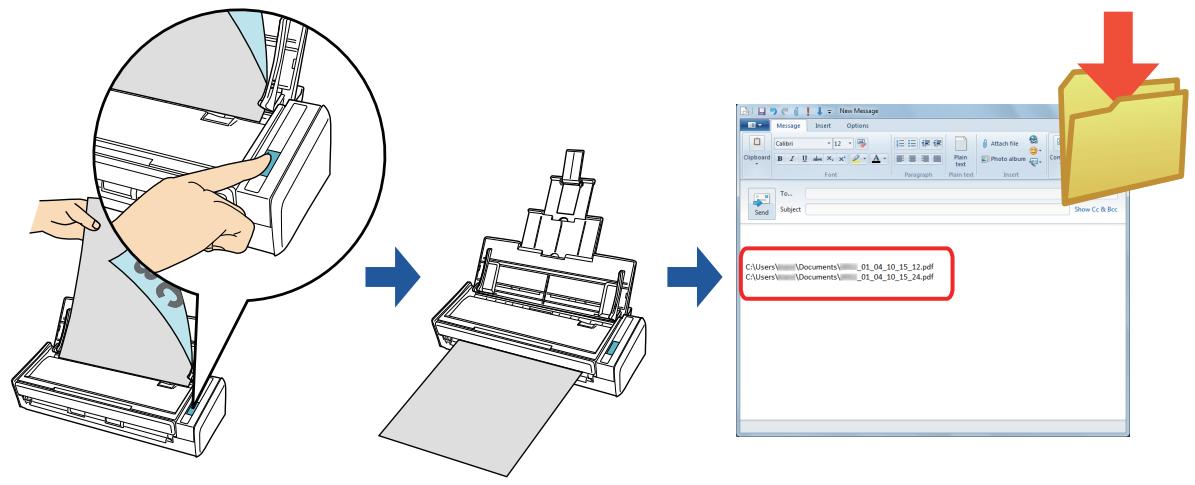
HINT
The default e-mail program is used as the e-mail program to link with.
The e-mail program may not properly link with ScanSnap Manager even if it is the default e-mail program. In this case, contact the manufacturer of the e-mail software.
Configure e-mail program settings in the following procedure.
Windows 7/Windows Vista
- Select [Start] menu [Default Programs] [Set your default programs].
The [Set your default programs] dialog box appears. - Select an e-mail program to link with ScanSnap Manager from [Programs].
- Select [Set this program as default] and click the [OK] button.
Windows XP
The e-mail program selected in Internet Explorer [Tools] menu [Internet Options] the [Programs] tab [E-mail] drop-down list is used to link with ScanSnap Manager.
If no e-mail program is selected, select an e-mail program to link with ScanSnap Manager in the [E-mail] drop-down list. E-mail programs that cannot be selected here cannot be set to link with ScanSnap Manager.
Tested e-mail programs
- Windows Live Mail
- Windows Mail (Windows Vista)
- Outlook 2010 / 2007 / 2003
- Outlook Express 6
Thunderbird version 9.0.1
For details about the procedure to scan and save the scanned image in a specified folder using or without using the Quick Menu, refer to the following:
Using the Quick Menu ( page 111)
- Without Using the Quick Menu ( page 114)
Using the Quick Menu
HINT
To use the Quick Menu, you need to select the [Use Quick Menu] check box in the ScanSnap setup dialog box.
For details about how to perform scanning by using the Quick Menu, refer to "Using the Quick Menu" (page 75).
1. Load a document in the ScanSnap.
For details about how to load documents, refer to "How to Load Documents" (page 33).
2. Press the [Scan] button on the ScanSnap to start a scan.
The Quick Menu appears when the scanning is completed.
![FUJITSU SCANSNAP S1300I DELUXE - Press the [Scan] button on the ScanSnap to start a scan. - 1](/content/2025/01/190766/images/84b7203bea76e91df2bf9d6a4e00df5f3d9fadb7b50d55723a414f234e5c2634.jpg)
3. Click the [Scan to Folder] icon
![FUJITSU SCANSNAP S1300I DELUXE - Click the [Scan to Folder] icon - 1](/content/2025/01/190766/images/071d3773e42961b23750900347e886d0c71bc1ec309224efdcce014b1eb750fe.jpg)
The [Scan to Folder] dialog box appears.
4. Check the scanned image in the preview area.
In the [Scan to Folder] dialog box, you can change files names, destination folders, and specify whether to state a path to a destination folder in an e-mail message to notify others.
For details about the [Scan to Folder] dialog box, refer to the ScanSnap Manager Help.
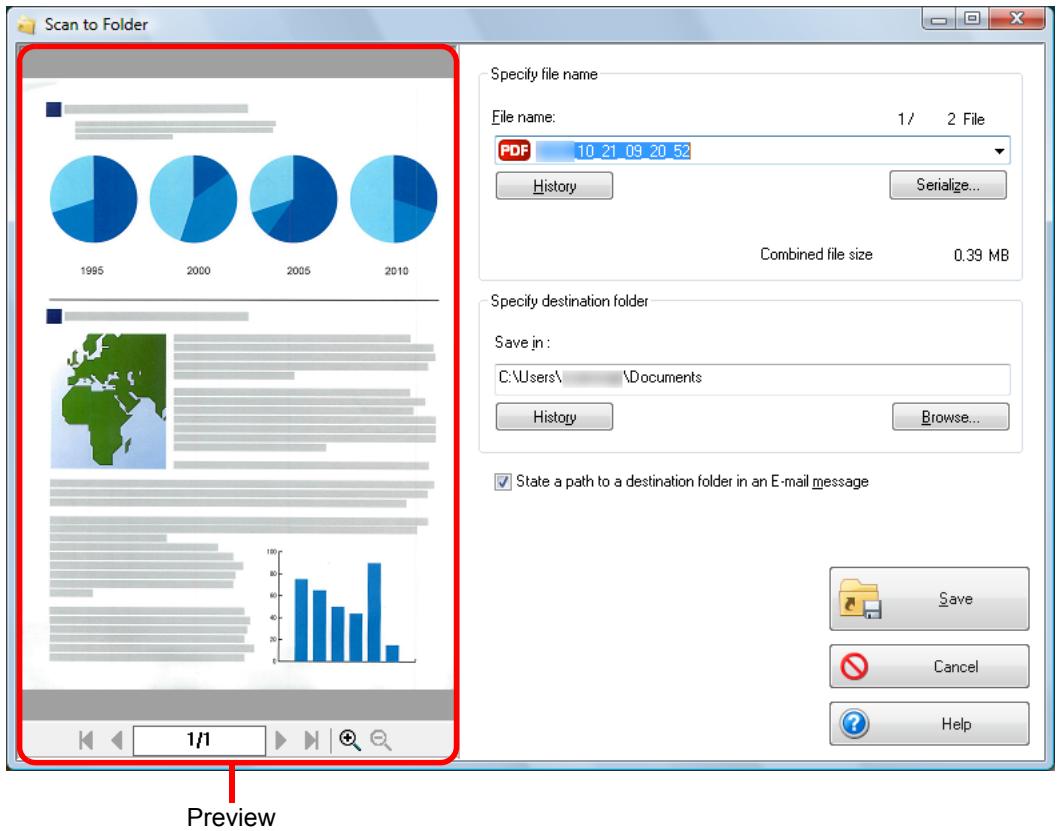
5. Click the [Save] button.
The scanned image file is saved in the specified folder.
When you select the [State a path to a destination folder in an E-mail message] check box in the [Scan to Folder] dialog box, a new message window appears listing the destination folder path where the file is saved.
![FUJITSU SCANSNAP S1300I DELUXE - Click the [Save] button. - 1](/content/2025/01/190766/images/4b6a4f52c69bf22e8bc1021dd46ffc776a2af8f96fc58edae4c67539edc8345a.jpg)
ATTENTION
- You cannot start scanning after the Quick Menu is displayed and before the [Scan to Folder] dialog box is closed. Close the [Scan to Folder] dialog box before scanning the next document.
- Do not move, delete, or rename scanned image in other applications after the Quick Menu is displayed and before the [Scan to Folder] dialog box is closed.
Without Using the Quick Menu
HINT
To disable the Quick Menu, you need to clear the [Use Quick Menu] check box in the ScanSnap setup dialog box.
For details about how to perform scanning without using the Quick Menu, refer to "Without Using the Quick Menu" (page 81).
1. Select [Scan Button Settings] from the Right-Click Menu.
For details about the Right-Click Menu, refer to "Right-Click Menu" (page 71).
The ScanSnap setup dialog box appears.
2. In the [Application] drop-down list in the [Application] tab, select [Scan to Folder].
![FUJITSU SCANSNAP S1300I DELUXE - In the [Application] drop-down list in the [Application] tab, select [Scan to Folder]. - 1](/content/2025/01/190766/images/c7f1e5eb0a0ea8224ea8bc99e260708dfb35d985e2fd3d5fc8d8f0dc5c230184.jpg)
HINT
ScanSnap Manager also links with [Scan to Folder] when you select:
- [Scan to Folder] from the [Profile] drop-down list of the ScanSnap setup dialog box
- [Scan to Folder] from the Left-Click Menu
3. Click the [OK] button to close the ScanSnap setup dialog box.
4. Load a document in the ScanSnap.
For details about how to load documents, refer to "How to Load Documents" (page 33).
5. Press the [Scan] button on the ScanSnap to start a scan.
The [Scan to Folder] dialog box appears when the scanning is completed.
6. Check the scanned image in the preview area.
In the [Scan to Folder] dialog box, you can change files names, destination folders, and specify whether to state a path to a destination folder in an e-mail message to notify others.
For details about the [Scan to Folder] dialog box, refer to the ScanSnap Manager Help.
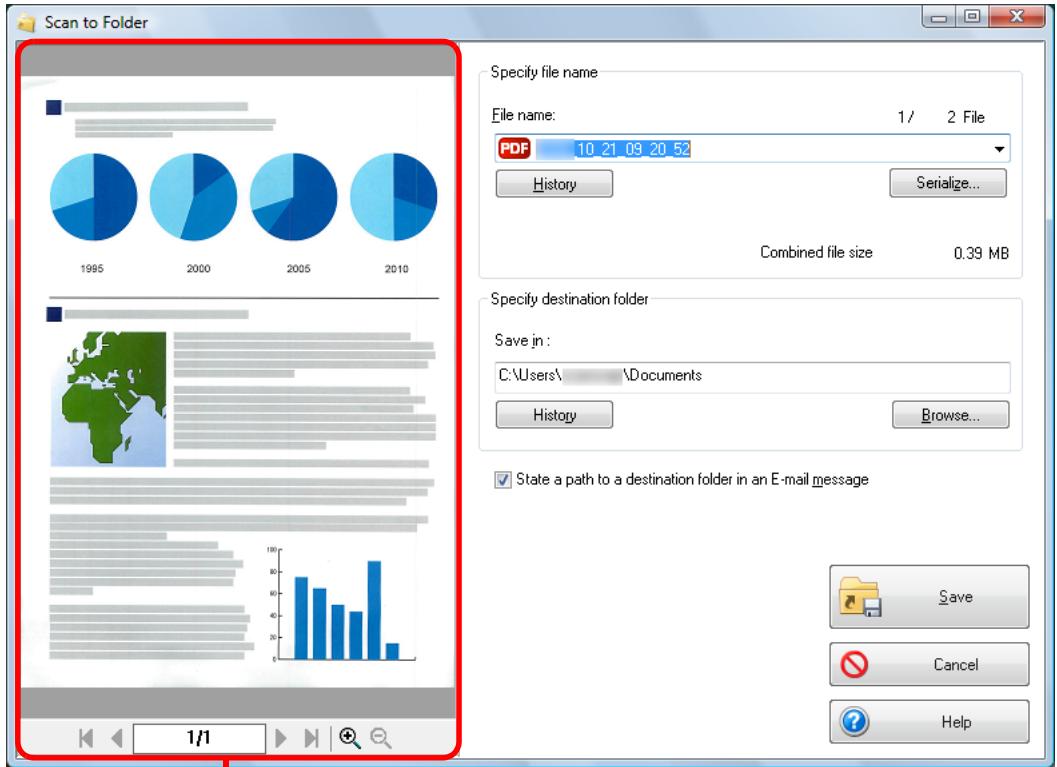
Preview
7. Click the [Save] button.
The scanned image file is saved in the specified folder.
When you select the [State a path to a destination folder in an E-mail message] check box in the [Scan to Folder] dialog box, a new message window appears listing the destination folder path where the file is saved.
![FUJITSU SCANSNAP S1300I DELUXE - Click the [Save] button. - 1](/content/2025/01/190766/images/a4d7208fc151452a90a9ef9eb6ecf574af9d001ab6eea7c4ed5bfe9a1eba7578.jpg)
ATTENTION
- You cannot start scanning when the [Scan to Folder] dialog box is displayed. Close the dialog box before scanning the next document.
- Do not move, delete or rename the scanned image in other applications when the [Scan to Folder] dialog box is displayed.
■ Attaching Files to E-Mail
This section explains how to attach the scanned image file to an e-mail message.
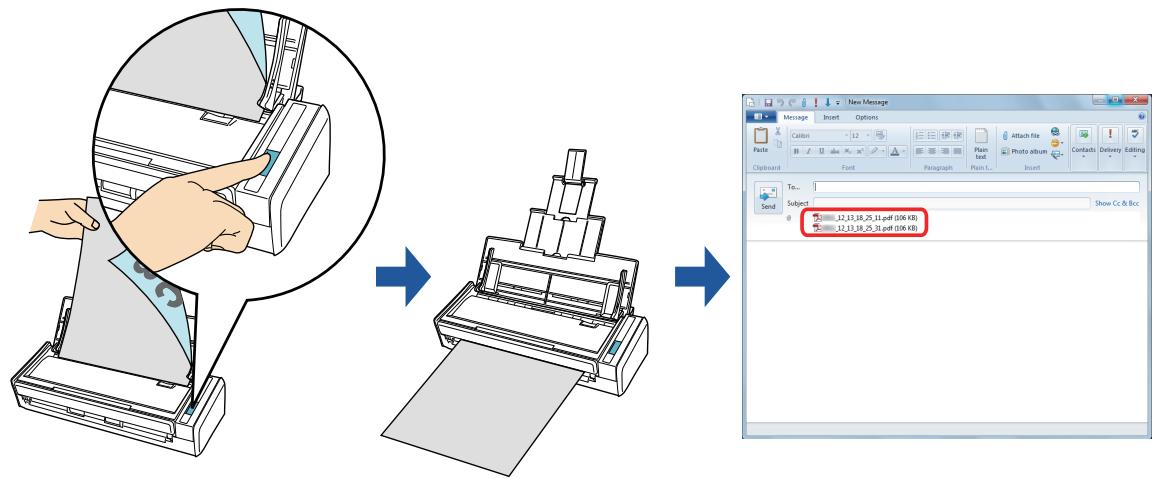
HINT
- The default e-mail program is used as the e-mail program to link with.
The e-mail program may not properly link with ScanSnap Manager even if it is the default e-mail program. In this case, contact the manufacturer of the e-mail software.
Configure e-mail program settings in the following procedure.
Windows 7/Windows Vista
- Select [Start] menu [Default Programs] [Set your default programs].
The [Set your default programs] dialog box appears. - Select an e-mail program to link with ScanSnap Manager from [Programs].
- Select [Set this program as default] and click the [OK] button.
Windows XP
The e-mail program selected in Internet Explorer [Tools] menu [Internet Options] the [Programs] tab [E-mail] drop-down list is used to link with ScanSnap Manager.
If no e-mail program is selected, select an e-mail program to link with ScanSnap Manager in the [E-mail] drop-down list. E-mail programs that cannot be selected here cannot be set to link with ScanSnap Manager.
Tested e-mail programs
- Windows Live Mail
- Windows Mail (Windows Vista)
- Outlook 2010 / 2007 / 2003
-
Outlook Express 6
Thunderbird version 9.0.1 -
ScanSnap Folder can also be used for this operation. For details, refer to "ScanSnap Folder Operations" (page 232).
For details about the procedure to scan and attach the scanned image file to an e-mail message using or without using the Quick Menu, refer to the following:
Using the Quick Menu ( page 118)
- Without Using the Quick Menu ( page 123)
Using the Quick Menu
HINT
To use the Quick Menu, you need to select the [Use Quick Menu] check box in the ScanSnap setup dialog box.
For details about how to perform scanning by using the Quick Menu, refer to "Using the Quick Menu" (page 75).
1. Load a document in the ScanSnap.
For details about how to load documents, refer to "How to Load Documents" (page 33).
ATTENTION
Up to ten files can be attached to an e-mail message.
When you scan more than one document with the scan settings shown below, multiple files are created. Pay attention to the number of documents to scan:
- File format: JPEG (*.jpg)
- [Generate one PDF file per (n) page(s)] check box is selected
2. Press the [Scan] button on the ScanSnap to start a scan.
The Quick Menu appears when the scanning is completed.
![FUJITSU SCANSNAP S1300I DELUXE - Press the [Scan] button on the ScanSnap to start a scan. - 1](/content/2025/01/190766/images/7ee1465c5385818237a08cd701a731e67649b3cbe18c96dea1c31519bdeb0cf7.jpg)
3. Change the settings for [Scan to E-mail] (If you do not want to change any settings, go to step 4.).
- Move the mouse cursor to the mark on the [Scan to E-mail] icon select the [Settings] menu.
![FUJITSU SCANSNAP S1300I DELUXE - Change the settings for [Scan to E-mail] (If you do not want to change any settings, go to step 4.). - 1](/content/2025/01/190766/images/710d0bf987d8e27d1850971b928a502b6d5a9b25155787f382152007f9218aeb.jpg)
The [Scan to E-mail - Options] dialog box appears.
- Change the settings.
For details about the [Scan to E-mail - Options] dialog box, refer to the ScanSnap Manager Help.
![FUJITSU SCANSNAP S1300I DELUXE - Change the settings for [Scan to E-mail] (If you do not want to change any settings, go to step 4.). - 2](/content/2025/01/190766/images/13d58c29da91e00a33c5759dde4386dd5d9c5069089cdde9f9a0f5d42be437c0.jpg)
- Click the [OK] button to close the [Scan to E-mail - Options] dialog box.
4. Click the [Scan to E-mail] icon
The [Scan to E-mail] dialog box appears.
If you clear the [Show preview] check box of the [Scan to E-mail - Options] dialog box in step 3., the [Scan to E-mail] dialog box is not displayed. Instead, a new e-mail message window appears with the file(s) attached.
5. Check the scanned image in the preview area.
In the [Scan to E-mail] dialog box, you can rename the file, specify whether to set a "Document Open Password", and save the scanned image in the folder specified for [Image saving folder] after sending it by e-mail.
For details about the [Scan to E-mail] dialog box, refer to the ScanSnap Manager Help.
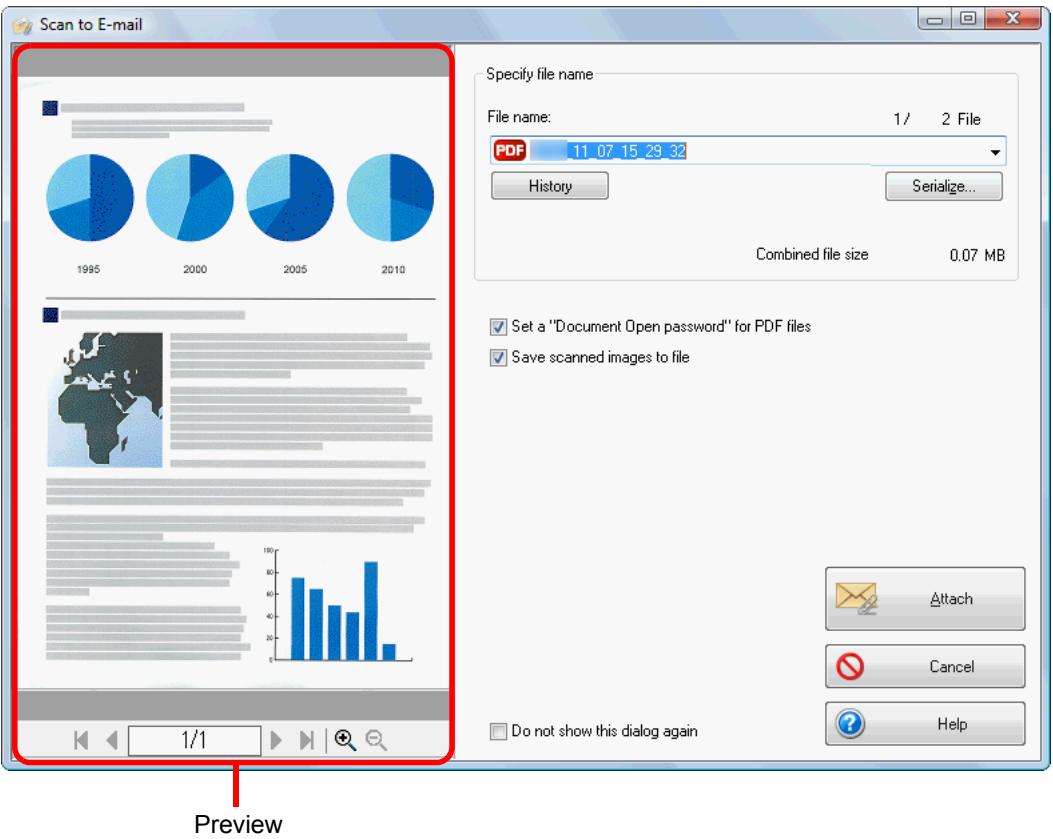
6. Click the [Attach] button.
When the [Set a "Document Open password" for PDF files] check box is selected in the [Scan to E-mail - Options] dialog box or the [Scan to E-mail] dialog box, the [Scan to E-mail - Set a password] dialog box appears.
![FUJITSU SCANSNAP S1300I DELUXE - Click the [Attach] button. - 1](/content/2025/01/190766/images/ff5d326ddd164e2cf5fa49c81029adf063eb908351b592f2f2091559586a2da1.jpg)
Enter a password, and then click the [OK] button.
HINT
The following message appears if you click the [Cancel] button in the [Scan to E-mail - Set a password] dialog box.
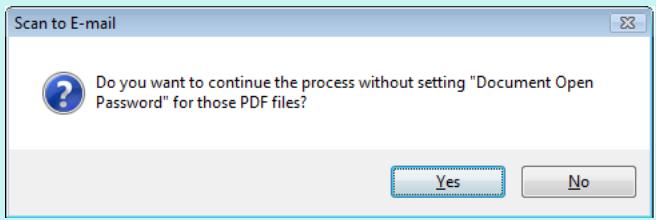
If you do not want to set a document open password, click the [Yes] button.
An e-mail message window appears with the file attached.
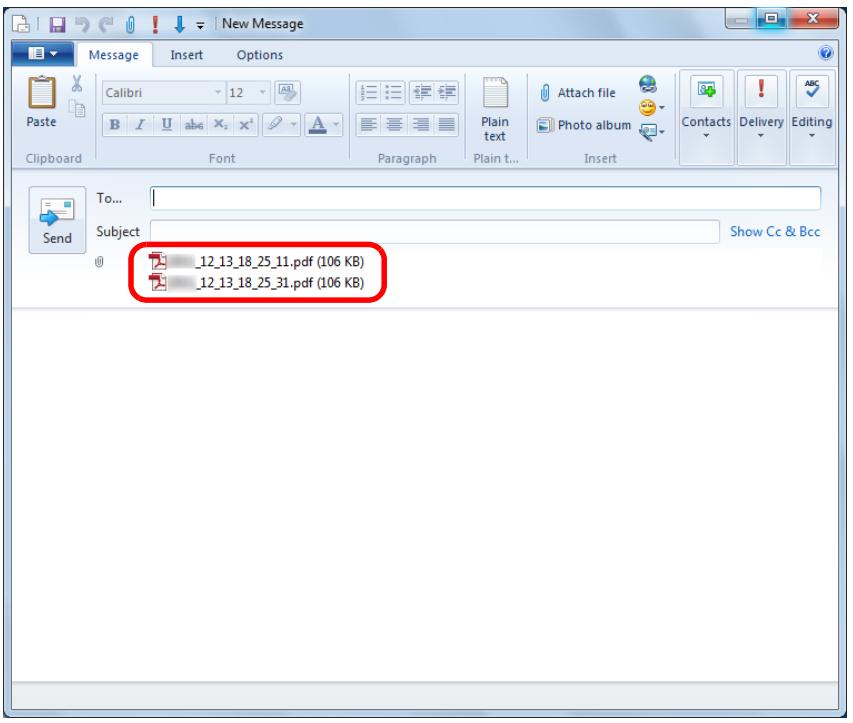
ATTENTION
- You cannot start scanning after the Quick Menu is displayed and before the [Scan to E-mail] dialog box is closed. Close the [Scan to E-mail] dialog box before scanning the next document.
- Do not move, delete, or rename scanned image in other applications after the Quick Menu is displayed and before the [Scan to E-mail] dialog box is closed.
Without Using the Quick Menu
HINT
To disable the Quick Menu, you need to clear the [Use Quick Menu] check box in the ScanSnap setup dialog box.
For details about how to perform scanning without using the Quick Menu, refer to "Without Using the Quick Menu" (page 81).
1. Select [Scan Button Settings] from the Right-Click Menu.
For details about the Right-Click Menu, refer to "Right-Click Menu" (page 71).
The ScanSnap setup dialog box appears.
2. In the [Application] drop-down list in the [Application] tab, select [Scan to E-mail].
![FUJITSU SCANSNAP S1300I DELUXE - In the [Application] drop-down list in the [Application] tab, select [Scan to E-mail]. - 1](/content/2025/01/190766/images/2d3683b0fd5870d9a5ca2cb8501c02f964a18f9e987813e11bfd64f64a034bf6.jpg)
HINT
ScanSnap Manager also links with [Scan to E-mail] when you select:
- [Scan to E-mail] from the [Profile] drop-down list of the ScanSnap setup dialog box
- [Scan to E-mail] from the Left-Click Menu
3. Change the settings for [Scan to E-mail] (If you do not want to change any settings, go to step 4.).
- Click the [Application Settings] button.
![FUJITSU SCANSNAP S1300I DELUXE - Change the settings for [Scan to E-mail] (If you do not want to change any settings, go to step 4.). - 1](/content/2025/01/190766/images/4e5b6d61d872ee928b08f536f73377edd57fa2b5b8058b67c3c8fbac12366b79.jpg)
The [Scan to E-mail - Options] dialog box appears.
- Change the settings.
For details about the [Scan to E-mail - Options] dialog box, refer to the ScanSnap Manager Help.
![FUJITSU SCANSNAP S1300I DELUXE - Change the settings for [Scan to E-mail] (If you do not want to change any settings, go to step 4.). - 2](/content/2025/01/190766/images/1078eaa4530bfae4bb93466f61d669bb6d80da28d327ac1549c2b39fda779702.jpg)
-
Click the [OK] button to close the [Scan to E-mail - Options] dialog box.
-
Click the [OK] button to close the ScanSnap setup dialog box.
- Load a document in the ScanSnap.
For details about how to load documents, refer to "How to Load Documents" (page 33).
ATTENTION
Up to ten files can be attached to an e-mail message.
When you scan more than one document with the scan settings shown below, multiple files are created. Pay attention to the number of documents to scan:
- File format: JPEG (.jpg)
- [Generate one PDF file per (n) page(s)] check box is selected
6. Press the [Scan] button on the ScanSnap to start a scan.
The [Scan to E-mail] dialog box appears when the scanning is completed. If you clear the [Show preview] check box of the [Scan to E-mail - Options] dialog box in step 3., the [Scan to E-mail] dialog box is not displayed. Instead, a new message window appears with the file attached.
7. Check the scanned image in the preview area.
In the [Scan to E-mail] dialog box, you can rename the file, specify whether to set a "Document Open Password", and save the scanned image in the folder specified for [Image saving folder] after sending it by e-mail.
For details about the [Scan to E-mail] dialog box, refer to the ScanSnap Manager Help.
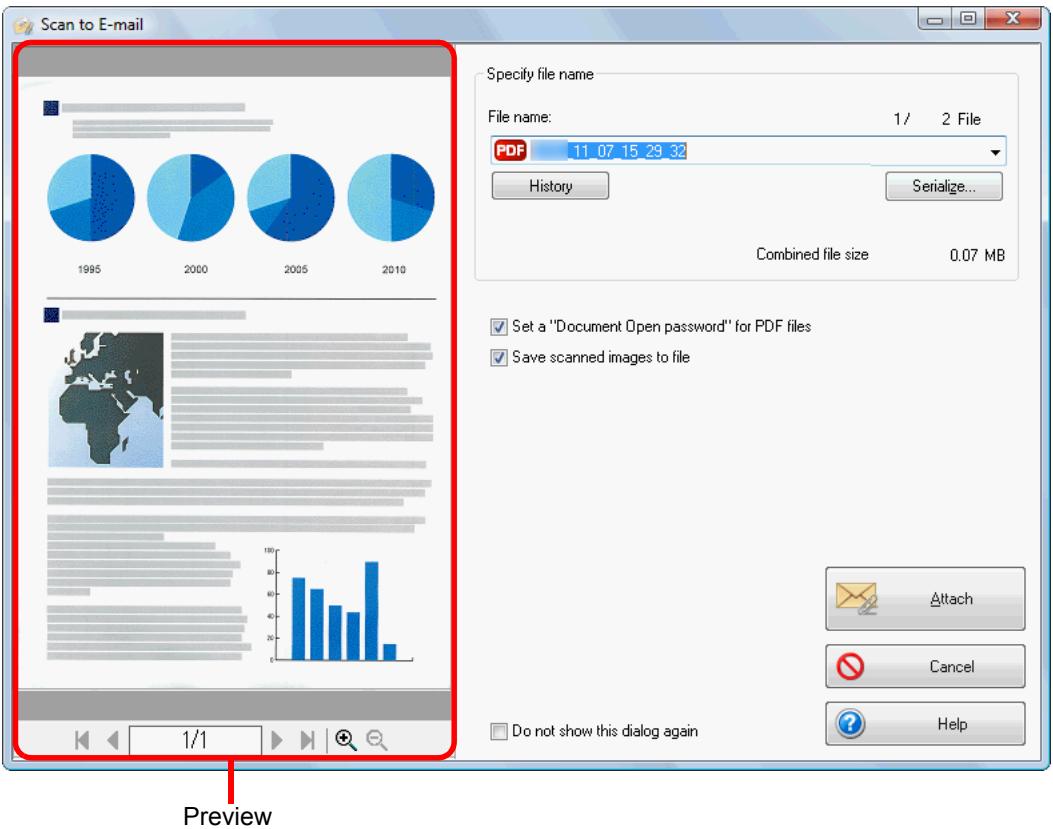
8. Click the [Attach] button.
When the [Set a "Document Open password" for PDF files] check box is selected in the [Scan to E-mail - Options] dialog box or the [Scan to E-mail] dialog box, the [Scan to E-mail - Set a password] dialog box appears.
![FUJITSU SCANSNAP S1300I DELUXE - Click the [Attach] button. - 1](/content/2025/01/190766/images/aadd02a49f970f3d50d3cddce34c175bbccf146be42ebc509c2c96e9242721a1.jpg)
Enter a password, and then click the [OK] button.
HINT
The following message appears if you click the [Cancel] button in the [Scan to E-mail - Set a password] dialog box.
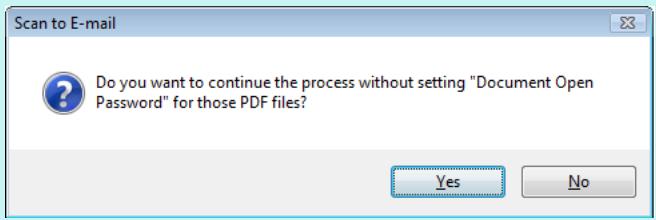
If you do not want to set a document open password, click the [Yes] button.
An e-mail message window appears with the file attached.
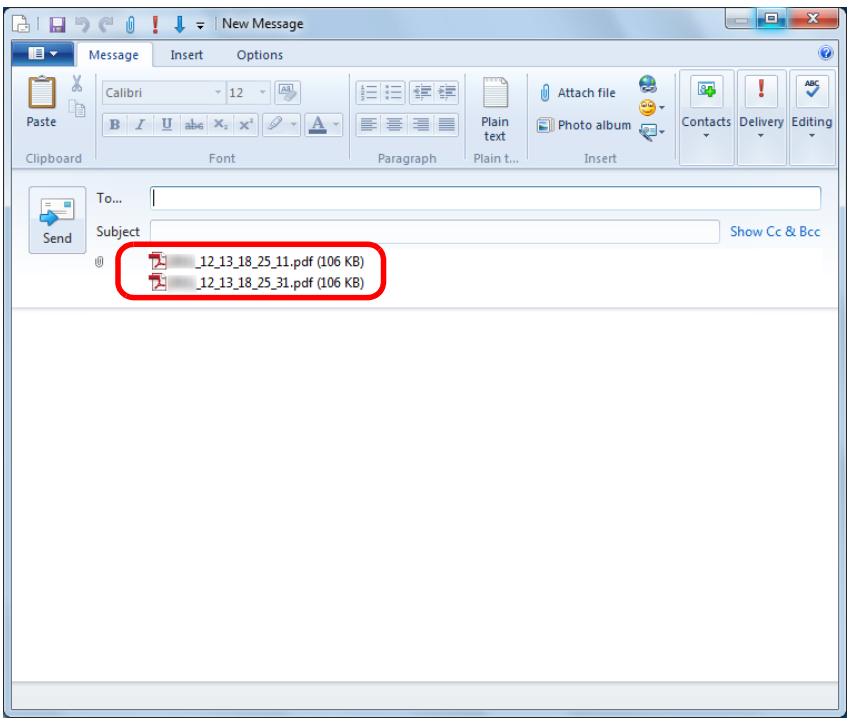
ATTENTION
- You cannot start scanning when the [Scan to E-mail] dialog box is displayed. Close the dialog box before scanning the next document.
- Do not move, delete or rename the scanned image in other applications when the [Scan to E-mail] dialog box is displayed.
Using the ScanSnap as a Copy Machine
This section explains how to print the scanned image with a printer.
When a printer links with ScanSnap Manager, the ScanSnap can be used as a copy machine.
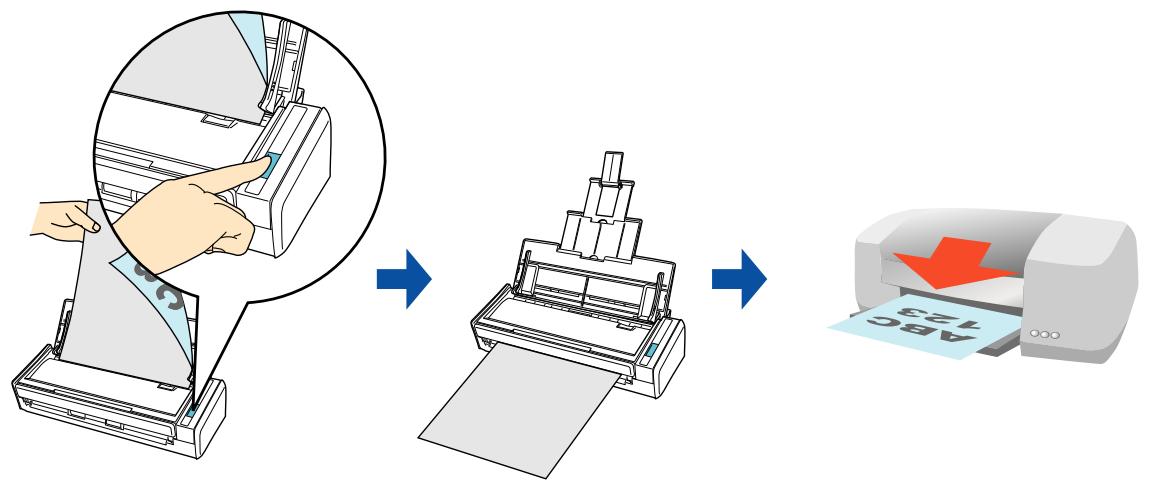
ATTENTION
- Note that shadows around the edges of the document may appear as lines on the generated scanned image, depending on the scanning method and paper conditions. If you print such an image, the printed image will also have lines appearing in it.
- The scanned image will be printed at a resolution of 150 dpi regardless of the settings specified for [Image quality] in the [Scanning] tab.
For details about the procedure to scan and print the scanned image using or without using the Quick Menu, refer to the following:
Using the Quick Menu ( page 129)
- Without Using the Quick Menu ( page 132)
Using the Quick Menu
HINT
To use the Quick Menu, you need to select the [Use Quick Menu] check box in the ScanSnap setup dialog box.
For details about how to perform scanning by using the Quick Menu, refer to "Using the Quick Menu" (page 75).
1. Load a document in the ScanSnap.
For details about how to load documents, refer to "How to Load Documents" (page 33).
2. Press the [Scan] button on the ScanSnap to start a scan.
The Quick Menu appears when the scanning is completed.
![FUJITSU SCANSNAP S1300I DELUXE - Press the [Scan] button on the ScanSnap to start a scan. - 1](/content/2025/01/190766/images/4af8b0093429c133120f68c68c0a136463c5eaa3f43ce72709444fa1eba99c30.jpg)
3. Change the settings for [Scan to Print] (If you do not want to change any settings, go to step 4.).
- Move the mouse cursor to the mark on the [Scan to Print] icon, and then select the [Settings] menu.
The [Scan to Print - Options] dialog box appears.
- Change the settings.
For details about the [Scan to Print- Options] dialog box, refer to the ScanSnap Manager Help.
![FUJITSU SCANSNAP S1300I DELUXE - Change the settings for [Scan to Print] (If you do not want to change any settings, go to step 4.). - 1](/content/2025/01/190766/images/7689c7655234e0a3c7a4c166cb3d392f09a99d1195a76469a3be17dc2c459f2e.jpg)
- Click the [OK] button to close the [Scan to Print- Options] dialog box.
4. Click the [Scan to Print] icon
The [Scan to Print] dialog box appears.
If the [Show "Print" dialog] check box is cleared in step 3., printing is immediately performed.
5. Check the scanned image in the preview area.
In the [Scan to Print] dialog box, you can specify the printer to be used, the number of copies and size of the scanned image to be printed, and whether to save the scanned image in the folder specified for [Image saving folder].
For details about the [Scan to Print] dialog box, refer to the ScanSnap Manager Help.
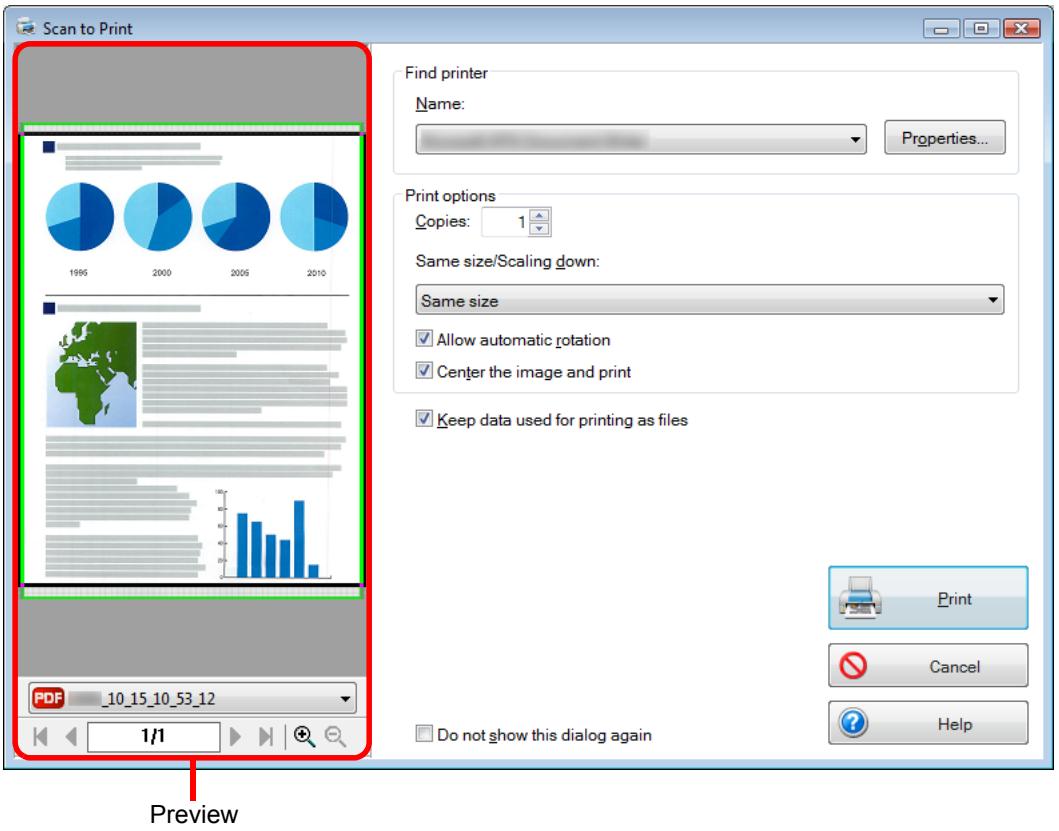
6. Click the [Print] button.
The scanned image is printed.
ATTENTION
- You cannot start scanning after the Quick Menu is displayed and before the [Scan to Print] dialog box is closed. Close the [Scan to Print] dialog box before scanning the next document.
- Do not move, delete, or rename the scanned image in other applications after the Quick Menu is displayed and before the [Scan to Print] dialog box is closed.
Without Using the Quick Menu
HINT
To disable the Quick Menu, you need to clear the [Use Quick Menu] check box in the ScanSnap setup dialog box.
For details about how to perform scanning without using the Quick Menu, refer to "Without Using the Quick Menu" (page 81).
1. Select [Scan Button Settings] from the Right-Click Menu.
For details about the Right-Click Menu, refer to "Right-Click Menu" (page 71).
The ScanSnap setup dialog box appears.
2. In the [Application] drop-down list in the [Application] tab, select [Scan to Print].
![FUJITSU SCANSNAP S1300I DELUXE - In the [Application] drop-down list in the [Application] tab, select [Scan to Print]. - 1](/content/2025/01/190766/images/d0136f6e7c42dcce474d0e0bc69f81466ebe296e885d16dde82f973a4fb1e1fe.jpg)
HINT
ScanSnap Manager also links with [Scan to Print] when you select:
- [Scan to Print] from the [Profile] drop-down list of the ScanSnap setup dialog box
- [Scan to Print] from the Left-Click Menu
3. Change the settings for [Scan to Print] (If you do not want to change any settings, go to step 4.).
- Click the [Application Settings] button.
![FUJITSU SCANSNAP S1300I DELUXE - Change the settings for [Scan to Print] (If you do not want to change any settings, go to step 4.). - 1](/content/2025/01/190766/images/bed343147f0903544a95f1bafb786eb30fdd81cd1dce8a48fb5417723485b62e.jpg)
The [Scan to Print - Options] dialog box appears.
- Change the settings.
For details about the [Scan to Print- Options] dialog box, refer to the ScanSnap Manager Help.
![FUJITSU SCANSNAP S1300I DELUXE - Change the settings for [Scan to Print] (If you do not want to change any settings, go to step 4.). - 2](/content/2025/01/190766/images/03fa0573bf6a9a8ad4dff54e0dd627514a519af9e93b1329686ff1c437a8c5f4.jpg)
- Click the [OK] button to close the [Scan to Print - Options] dialog box.
4. Click the [OK] button to close the ScanSnap setup dialog box.
5. Load a document in the ScanSnap.
For details about how to load documents, refer to "How to Load Documents" (page 33).
6. Press the [Scan] button on the ScanSnap to start a scan.
The [Scan to Print] dialog box appears when the scanning is completed.
If the [Show "Print" dialog] check box is cleared in step 3., printing is immediately performed.
7. Check the scanned image in the preview area.
In the [Scan to Print] dialog box, you can specify the printer to be used, the number of copies and size of the scanned image to be printed, and whether to save the scanned image in the folder specified for [Image saving folder].
For details about the [Scan to Print] dialog box, refer to the ScanSnap Manager Help.

8. Click the [Print] button.
The scanned image is printed.
ATTENTION
- You cannot start scanning when the [Scan to Print] dialog box is displayed. Close the dialog box before scanning the next document.
- Do not move, delete or rename the scanned image in other applications when the [Scan to Print] dialog box is displayed.
Saving Files to Picture Folder
This section explains how to save the scanned image as a JPEG file in the "Pictures folder".
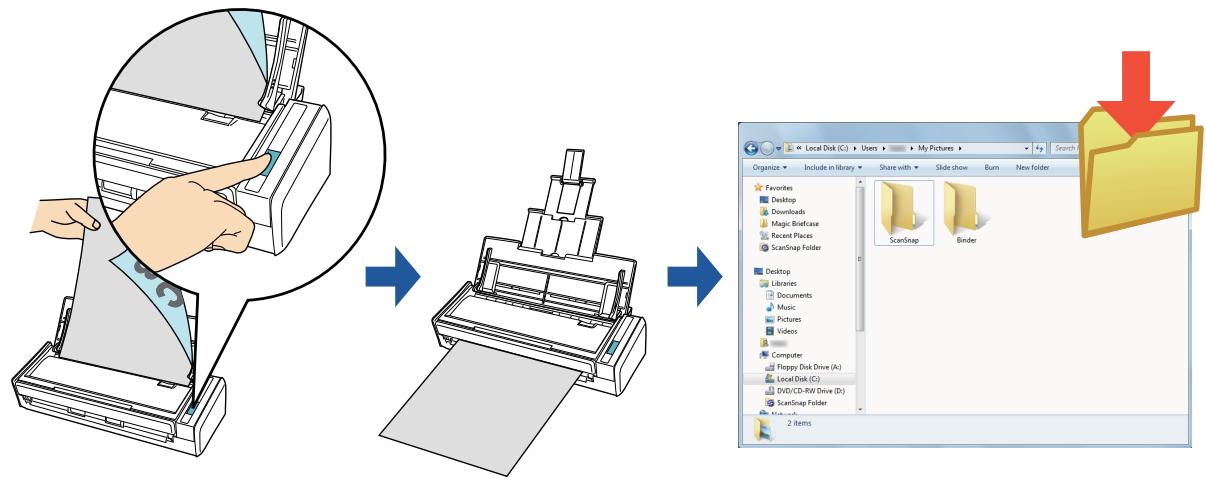
HINT
The following folder is set as the "Pictures folder" by default:
- Windows 7/Windows Vista
Drive name (such as C):\Users\user name\Pictures\ScanSnap
- Windows XP
Drive name (such as C):\Documents and Settings\user name\My Documents\My Pictures\ScanSnap
For details about the procedure to scan and save the scanned image in the "Pictures folder" using or without using the Quick Menu, refer to the following:
Using the Quick Menu ( page 136)
- Without Using the Quick Menu ( page 139)
Using the Quick Menu
HINT
To use the Quick Menu, you need to select the [Use Quick Menu] check box in the ScanSnap setup dialog box.
For details about how to perform scanning by using the Quick Menu, refer to "Using the Quick Menu" (page 75).
1. Load a document in the ScanSnap.
For details about how to load documents, refer to "How to Load Documents" (page 33).
2. Press the [Scan] button on the ScanSnap to start a scan.
The Quick Menu appears when the scanning is completed.
![FUJITSU SCANSNAP S1300I DELUXE - Press the [Scan] button on the ScanSnap to start a scan. - 1](/content/2025/01/190766/images/1b7f0413378801ac9909b84436c54eece4d803343a32c515850edeffa9cc7c57.jpg)
3. Change the settings for [Scan to Picture Folder] (If you do not want to change any settings, go to step 4.).
- Move the mouse cursor to the mark on the [Scan to Picture Folder] icon and then select the [Settings] menu.
The [Scan to Picture Folder - Options] dialog box appears.
- Change the settings.
For details about the [Scan to Picture Folder - Options] dialog box, refer to the ScanSnap Manager Help.
![FUJITSU SCANSNAP S1300I DELUXE - Change the settings for [Scan to Picture Folder] (If you do not want to change any settings, go to step 4.). - 1](/content/2025/01/190766/images/4471ed45d0d3dd630bb98b46956bfebbc50673189717436fad8d02b3eda5b9a7.jpg)
- Click the [OK] button to close the [Scan to Picture Folder - Options] dialog box.
4. Click the [Scan to Picture Folder] icon
The [Scan to Picture Folder] dialog box appears.
If you clear the [Show preview] check box in step 3., the image data is directly saved in the Pictures folder.
5. Check the scanned image in the preview area.
In the [Scan to Picture Folder] dialog box, you can rename the file, change the destination folder, and save the scanned image in the folder specified for [Image saving folder].
For details about the [Scan to Picture Folder] dialog box, refer to the ScanSnap Manager Help.
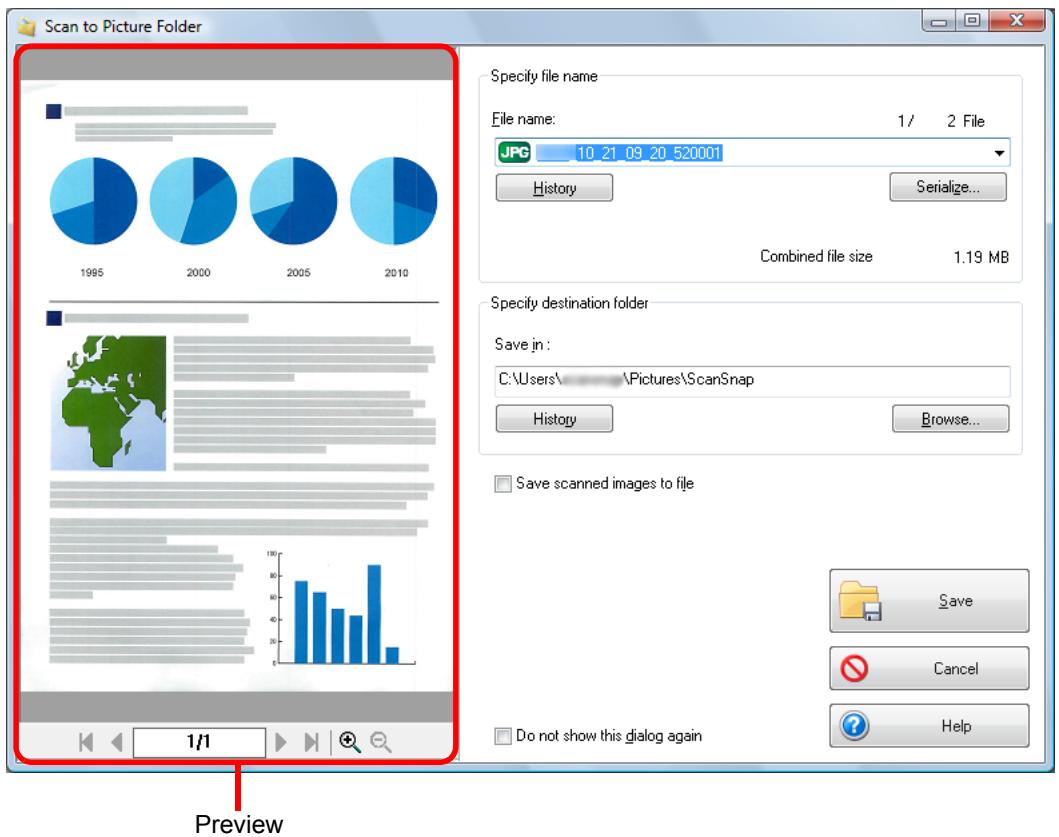
HINT
In [Specify destination folder], you can change the destination folder for the image data to a folder other than the Pictures folder.
6. Click the [Save] button.
The scanned image is saved in the Pictures folder.
ATTENTION
- You cannot start scanning after the Quick Menu is displayed and before the [Scan to Picture Folder] dialog box is closed. Close the [Scan to Picture Folder] dialog box before scanning the next document.
- Do not move, delete, or rename scanned image in other applications after the Quick Menu is displayed and before the [Scan to Picture Folder] dialog box is closed.
Without Using the Quick Menu
HINT
To disable the Quick Menu, you need to clear the [Use Quick Menu] check box in the ScanSnap setup dialog box.
For details about how to perform scanning without using the Quick Menu, refer to "Without Using the Quick Menu" (page 81).
1. Select [Scan Button Settings] from the Right-Click Menu.
For details about the Right-Click Menu, refer to "Right-Click Menu" (page 71).
The ScanSnap setup dialog box appears.
2. In the [Application] drop-down list in the [Application] tab, select [Scan to Picture Folder].
![FUJITSU SCANSNAP S1300I DELUXE - In the [Application] drop-down list in the [Application] tab, select [Scan to Picture Folder]. - 1](/content/2025/01/190766/images/36477a81c63a91e3553d35934a9c31bd2d799c7313013a56135f37173239a0c2.jpg)
HINT
When you add the customized settings as profiles, the application to link with ScanSnap Manager can be selected from the [Profile] drop-down list or Left-Click Menu next time you perform a scan. For details about how to add a profile, refer to "Profile Management" (page 93).
3. Change the settings for [Scan to Picture Folder] (If you do not want to change any settings, go to step 4.).
- Click the [Application Settings] button.
![FUJITSU SCANSNAP S1300I DELUXE - Change the settings for [Scan to Picture Folder] (If you do not want to change any settings, go to step 4.). - 1](/content/2025/01/190766/images/3a4776899a6afcbd3340acc51142ba2b1a7111135e6e3dc1f9d4a10384a542e6.jpg)
The [Scan to Picture Folder - Options] dialog box appears.
- Change the settings.
For details about the [Scan to Picture Folder - Options] dialog box, refer to the ScanSnap Manager Help.
![FUJITSU SCANSNAP S1300I DELUXE - Change the settings for [Scan to Picture Folder] (If you do not want to change any settings, go to step 4.). - 2](/content/2025/01/190766/images/6d7faef41d50a811aebe1458497cf9f3f3ed6fe78fa5b77c403785272287e8eb.jpg)
3. Click the [OK] button to close the [Scan to Picture Folder - Options] dialog box.
4. Click the [OK] button to close the ScanSnap setup dialog box.
5. Load a document in the ScanSnap.
For details about how to load documents, refer to "How to Load Documents" (page 33).
6. Press the [Scan] button on the ScanSnap to start a scan.
The [Scan to Picture Folder] dialog box appears when the scanning is completed. If you clear the [Show preview] check box in step 3., the image data is directly saved in the Pictures folder.
7. Check the scanned image in the preview area.
In the [Scan to Picture Folder] dialog box, you can rename the file, change the destination folder, and save the scanned image in the folder specified for [Image saving folder].
For details about the [Scan to Picture Folder] dialog box, refer to the ScanSnap Manager Help.
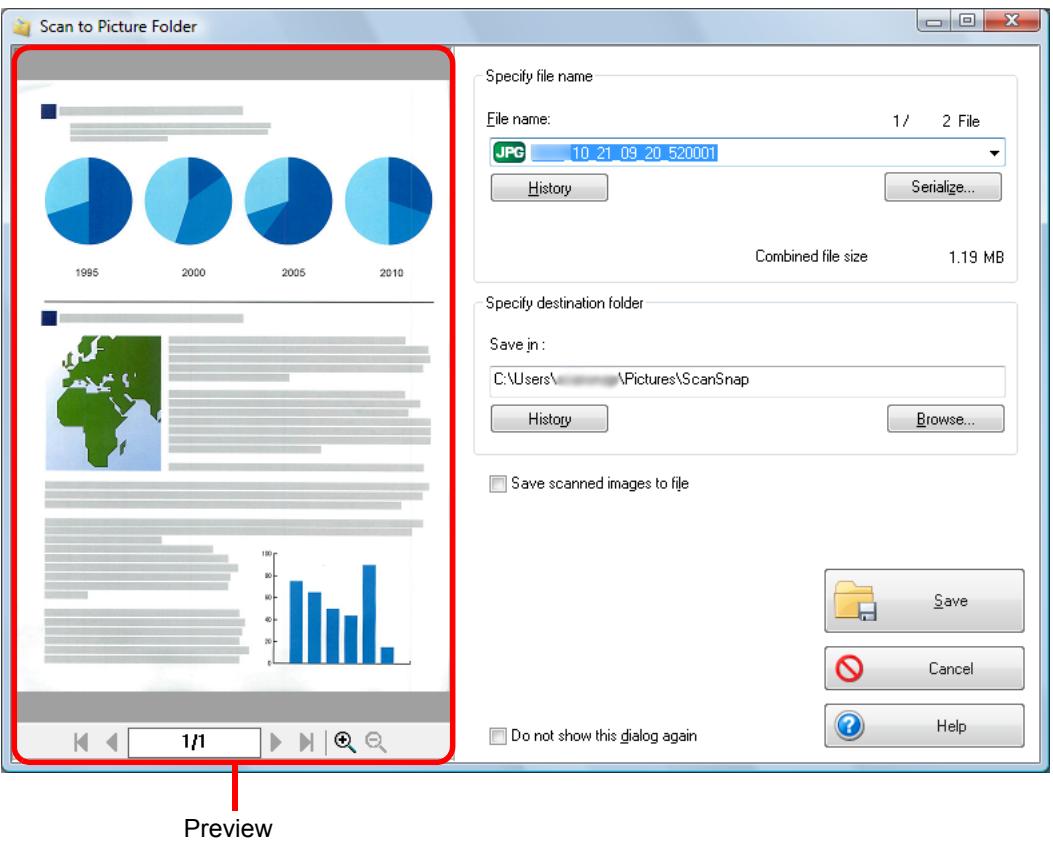
HINT
In [Specify destination folder], you can change the destination folder for the image data to a folder other than the Pictures folder.
8. Click the [Save] button.
The scanned image is saved in the Pictures folder.
ATTENTION
- You cannot start scanning when the [Scan to Picture Folder] dialog box is displayed. Close the dialog box before scanning the next document.
- Do not move, delete or rename the scanned image in other applications when the [Scan to Picture Folder] dialog box is displayed.
Converting into Word/Excel/PowerPoint Documents
This section explains how to convert the scanned image into Word/Excel/PowerPoint files using ABBYY FineReader for ScanSnap bundled with the ScanSnap.
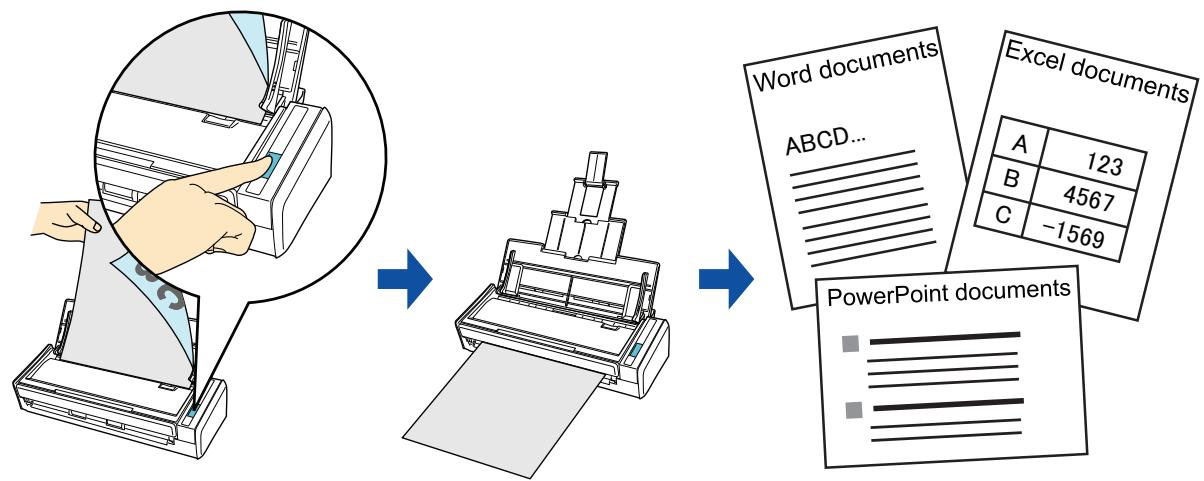
ATTENTION
-
The following applications must be installed in your computer in order to perform text-recognition:
-
ABBYY FineReader for ScanSnap (bundled with the ScanSnap)
-Word
-Excel - PowerPoint
-
Visual Basic for Applications of Office Shared Features (installed at the same time when you perform a standard installation of Microsoft Office)
-
You cannot view the documents converted into Word, Excel and PowerPoint files unless these applications are installed and you completed the user registration to use them. Install these applications and complete the user registration to view the converted documents on your computer.
- ABBYY FineReader for ScanSnap can be used with the following versions of Word, Excel and PowerPoint:
-Word:2010/2007/2003/2002
-Excel:2010/2007/2003/2002
- PowerPoint: 2010 / 2007 / 2003 / 2002
- Do not use this function while you are working in Word, Excel or PowerPoint. In addition, do not use Word, Excel or PowerPoint while this function is being executed. Otherwise, a message such as "Call is rejected by callee" may appear and the conversion result may not be displayed.
About the OCR function of ABBYY FineReader for ScanSnap
- ABBYY FineReader for ScanSnap is an application used exclusively with the ScanSnap. This application can perform text recognition only for PDF files created by using the ScanSnap. It cannot perform text recognition for PDF files created using Adobe Acrobat or other applications.
- The optical character recognition program has the following features. Before performing text recognition, check whether the documents you want to convert are suitable for conversion according to the following guidelines:
| Application | Suitable for conversion | Not suitable for conversion | |||||
| Scan to Word | Documents with simple layouts consisting of single or double columns | Documents with complex layouts containing a mixture of diagrams, tables and text (e.g. brochures, magazines and newspapers) | |||||
| Scan to Excel | Documents containing simple tables with no cells merged | Documents containing: - Tables with no solid border lines - Tables with complicated cell formats - Complex tables containing sub-tables - Diagrams - Graphs - Photos - Vertical text | |||||
| Excel Document | Title 1 | Title 2 | Title 3 | Title 4 | Title 5 | | ||||||
| A | b | c | d | e | f | g | h |
| B | 2 | 3 | 4 | 5 | 6 | 7 | |
| C | 1 | 2 | 3 | 4 | 5 | 6 | 7 |
| D | 245678 | ||||||
| E | 5 | 6 | 7 | 8 | 9 | 10 | 11 |
| F | 6 | 7 | 8 | 9 | 10 | 11 | 12 |
| G | 7 | 8 | 9 | 10 | 11 | 12 | 13 |
| H | 8 | 9 | 10 | 11 | 12 | 13 | 14 |
| I | 9 | 10 | 11 | 12 | 13 | 14 | 15 |
| J | 45 | 45 | 45 | 45 | 45 | 45 | 46 |
| Application | Suitable for conversion | Not suitable for conversion |
| Scan to PowerPoint(R) | Documents containing text and simple diagrams/tables on a white or light monicolor background | - Documents with complex layouts containing text mixed with diagrams or illustrations - Documents containing photographs or patterns set as the background - Documents with light colored text on a deep colored background |
| PowerPoint Document | ||
-
The following parameters may not be reproduced as they are in the original document. It is recommended that you check the conversion result in Word, Excel or PowerPoint and edit the data if necessary:
-
Character font and size
- Character and line spacing
- Underlined, bold and italic characters
- Superscript/subscript
The following types of documents (characters) may not be recognized correctly.
Better results in text recognition may be achieved by changing the color mode or increasing the resolution:
- Documents including handwritten characters
- Documents containing small characters (smaller than 10 points)
- Skewed documents
- Documents written in languages other than the specified language
- Documents with characters on an unevenly colored background e.g. Shaded characters
- Documents with many decorated characters e.g. Decorated characters (embossed/outlined)
- Documents with characters on a patterned background e.g. Characters overlapping illustrations and diagrams
- Documents with many characters contacting underlines or borders
-
Documents with a complex layout and documents with image noise (It may take extra time to process text recognition for these documents.)
-
The following message appears when you convert a long page document into a Word file, and the conversion result may be divided into more than one page.
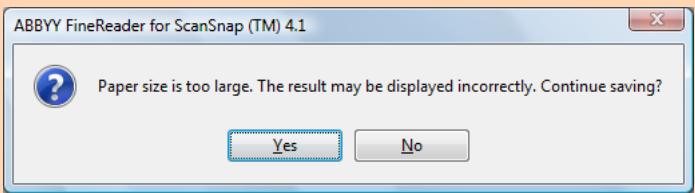
- When converting to Excel files, if the recognition result exceeds 65,536 lines, no more results are saved.
- When converting to Excel files, information about the layout of the entire document, diagrams, and length/width of graphs and tables is not duplicated. Only tables and character strings are reproduced.
- A converted PowerPoint document will not have the original background color and patterns.
- Documents placed upside down or in landscape orientation cannot be recognized properly. Select the [Allow automatic image rotation] check box (page 250), or load documents face down in portrait orientation.
- Even if [Generate one PDF file per (n) page(s)] is selected in the [PDF file format option] dialog box, which is displayed by clicking the [Option] button in the [File option] tab of the ScanSnap setup dialog box, the conversion result is saved as one file.
HINT
You can change the settings applied during conversion to Word, Excel or PowerPoint documents in the ABBYY FineReader for ScanSnap setup dialog box.
Select [Start] menu [All Programs] [ABBYY FineReader for ScanSnap (TM) 4.1] [ABBYY FineReader for ScanSnap (TM) 4.1] to display the following dialog box.

For details about how to configure settings, refer to ABBYY FineReader for ScanSnap User's Guide.
For details about the procedure to scan and convert the scanned image into Word/Excel/ PowerPoint files using or without using the Quick Menu, refer to the following:
Using the Quick Menu ( page 147)
- Without Using the Quick Menu ( page 150)
Using the Quick Menu
HINT
To use the Quick Menu, you need to select the [Use Quick Menu] check box in the ScanSnap setup dialog box.
For details about how to perform scanning by using the Quick Menu, refer to "Using the Quick Menu" (page 75).
1. Select [Scan Button Settings] from the Right-Click Menu.
For details about the Right-Click Menu, refer to "Right-Click Menu" (page 71).
The ScanSnap setup dialog box appears.
2. Select either [Recommended] or [High Quality] button.
![FUJITSU SCANSNAP S1300I DELUXE - Select either [Recommended] or [High Quality] button. - 1](/content/2025/01/190766/images/d71a68f804a1ab0ba4bc3e99daccecf9d873f73fb651240ce6970ed80616a172.jpg)
HINT
It is recommended that you select [Automatic resolution] or [Best] for [Image quality] in the [Scanning] tab of the ScanSnap setup dialog box.
3. Click the [OK] button to close the ScanSnap setup dialog box.
4. Load a document in the ScanSnap.
For details about how to load documents, refer to "How to Load Documents" (page 33).
5. Press the [Scan] button on the ScanSnap to start a scan.
The Quick Menu appears when the scanning is completed.
![FUJITSU SCANSNAP S1300I DELUXE - Press the [Scan] button on the ScanSnap to start a scan. - 1](/content/2025/01/190766/images/24211fdeebde1ba67bcfcee8e9faa323378fddbd97e177f10fc194000da7fc6d.jpg)
6. Click the [Scan to Word] icon
![FUJITSU SCANSNAP S1300I DELUXE - Click the [Scan to Word] icon - 1](/content/2025/01/190766/images/924f82410ee0157f17f37cfbed7e8c5722135b29f57ca0adbf763998c23e91fc.jpg)
, [Scan to Excel] icon
![FUJITSU SCANSNAP S1300I DELUXE - Click the [Scan to Word] icon - 2](/content/2025/01/190766/images/ddd91eb722f3a4b5b638b8414fc644bfd594a7c9ac421104e718366c8d9fb692.jpg)
PowerPoint(R)] icon
ATTENTION
- When you perform a scan with [JPEG(*.jpg)] selected for [File format] in the [File option] tab of the ScanSnap setup dialog box, scanned data cannot be converted into a Word, Excel or PowerPoint file.
- You cannot start scanning when the Quick Menu is displayed. Wait until the conversion is over to scan another document.
- Do not move, delete, or rename the scanned image in other applications when the Quick Menu is displayed.
The following window appears, and conversion starts.
When the conversion is completed, Word, Excel or PowerPoint starts up, and the conversion result is displayed.
HINT
In a computer environment where Word, Excel or PowerPoint is not installed, the scanned image is saved in one of the following formats when the conversion is completed:
- Scan to Word: RTF format (.rtf)
- Scan to Excel: XLS format (.xls)
- Scan to PowerPoint: PPT format (.ppt)
Without Using the Quick Menu
HINT
To disable the Quick Menu, you need to clear the [Use Quick Menu] check box in the ScanSnap setup dialog box.
For details about how to perform scanning without using the Quick Menu, refer to "Without Using the Quick Menu" (page 81).
1. Select [Scan Button Settings] from the Right-Click Menu.
For details about the Right-Click Menu, refer to "Right-Click Menu" (page 71).
The ScanSnap setup dialog box appears.
2. In the [Application] drop-down list in the [Application] tab, select [ABBYY Scan to Word], [ABBYY Scan to Excel] or [ABBYY Scan to PowerPoint(R)].
![FUJITSU SCANSNAP S1300I DELUXE - In the [Application] drop-down list in the [Application] tab, select [ABBYY Scan to Word], [ABBYY Scan to Excel] or [ABBYY Scan to PowerPoint(R)]. - 1](/content/2025/01/190766/images/ce511a5c841568699e70e9bb9cd88a5fe9d7c31da25c1f2198403f1a5f9b18ef.jpg)
HINT
- It is recommended that you select [Automatic resolution] or [Best] for [Image quality] in the [Scanning] tab of the ScanSnap setup dialog box.
-
ScanSnap Manager also links with [ABBYY Scan to Word], [ABBYY Scan to Excel] or [ABBYY Scan to PowerPoint(R)] when you select:
-
[ABBYY Scan to Word], [ABBYY Scan to Excel] or [ABBYY Scan to PowerPoint(R)] from the [Profile] drop-down list of the ScanSnap setup dialog box
- [ABBYY Scan to Word], [ABBYY Scan to Excel] or [ABBYY Scan to PowerPoint(R)] from the Left-Click Menu
3. Click the [OK] button to close the ScanSnap setup dialog box.
4. Load a document in the ScanSnap.
For details about how to load documents, refer to "How to Load Documents" (page 33).
5. Press the [Scan] button on the ScanSnap to start a scan.
When the scanning is completed, the following window appears, and conversion starts.
![FUJITSU SCANSNAP S1300I DELUXE - Press the [Scan] button on the ScanSnap to start a scan. - 1](/content/2025/01/190766/images/81305f8e62b2a0e8626757855bf7551f7416688d7b23b4621f77edca6081c822.jpg)
When the conversion is completed, Word, Excel or PowerPoint starts up and the conversion result is displayed.
HINT
In a computer environment where Word, Excel or PowerPoint is not installed, the scanned image is saved in one of the following formats when the conversion is completed:
- Scan to Word: RTF format (.rtf)
- Scan to Excel: XLS format (.xls)
- Scan to PowerPoint: PPT format (.ppt)
Storing Business Cards in CardMinder
This section explains how to store business card images and the related information in CardMinder.
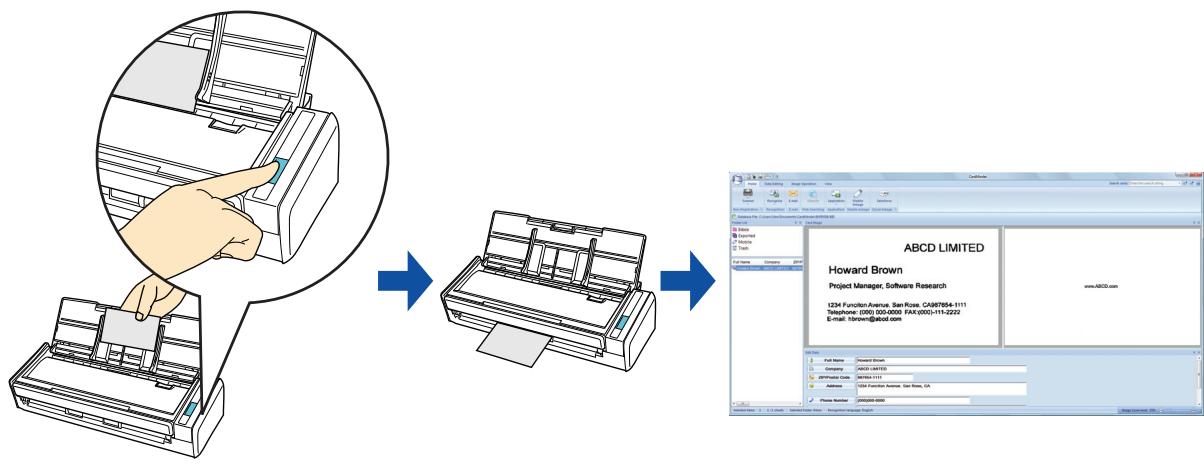
ATTENTION
- Blank pages are not removed even if the [Allow automatic blank page removal] is selected when you store scanned images of business cards in CardMinder.
- Data of up to 1,000 pages, including blank pages, can be stored in CardMinder at once.
HINT
ScanSnap Folder can also be used for this operation. For details, refer to "ScanSnap Folder Operations" (page 232).
For details about the procedure to scan and manage business cards in CardMinder using or without using the Quick Menu, refer to the following:
Using the Quick Menu ( page 153)
- Without Using the Quick Menu ( page 156)
Using the Quick Menu
HINT
To use the Quick Menu, you need to select the [Use Quick Menu] check box in the ScanSnap setup dialog box.
For details about how to perform scanning by using the Quick Menu, refer to "Using the Quick Menu" (page 75).
1. Select [Scan Button Settings] from the Right-Click Menu.
For details about the Right-Click Menu, refer to "Right-Click Menu" (page 71).
The ScanSnap setup dialog box appears.
2. Select either [Recommended] or [High Quality] button.
![FUJITSU SCANSNAP S1300I DELUXE - Select either [Recommended] or [High Quality] button. - 1](/content/2025/01/190766/images/09eb9ea2bbad76bd9b9f842fbb53626d0bb6516809cdbf596573feab99764df4.jpg)
ATTENTION
It is recommended that you select [Automatic resolution] or [Best] for [Image quality] in the [Scanning] tab of the ScanSnap setup dialog box.
3. Click the [OK] button to close the ScanSnap setup dialog box.
4. Load a business card in the ScanSnap.
- Load the business card so that the front side faces the ADF paper chute (cover).
- To scan multiple business cards, load them in a pile.
- Do not leave space between the side guides and business cards.
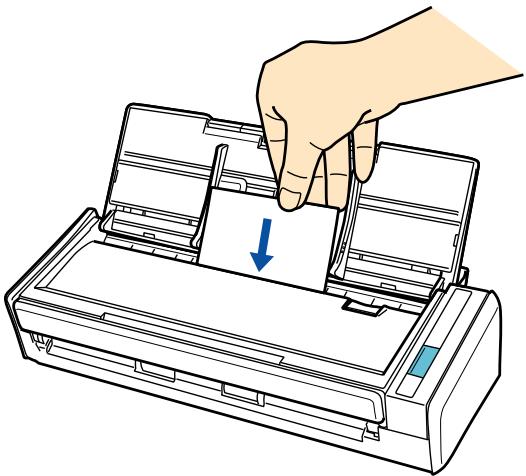
5. Press the [Scan] button on the ScanSnap to start a scan.
The Quick Menu appears when the scanning is completed.
![FUJITSU SCANSNAP S1300I DELUXE - Press the [Scan] button on the ScanSnap to start a scan. - 1](/content/2025/01/190766/images/bd9ef9ee34713796e76500850561e664bb0f2f852c8efe0a8b98bd729324d979.jpg)
6. Click the [Scan to CardMinder] icon
![FUJITSU SCANSNAP S1300I DELUXE - Click the [Scan to CardMinder] icon - 1](/content/2025/01/190766/images/813e8ca5f9ebe44f2cc6a07e1eb5c309430208acb3ef1ce7b7c72e5cbd3140ed.jpg)
ATTENTION
- You cannot start scanning when the Quick Menu is displayed. Wait until ScanSnap Manager links with CardMinder before scanning another document.
- Do not move, delete, or rename the scanned image in other applications when the Quick Menu is displayed.
The CardMinder window appears.
7. Check the scanned card image and the text recognition result.
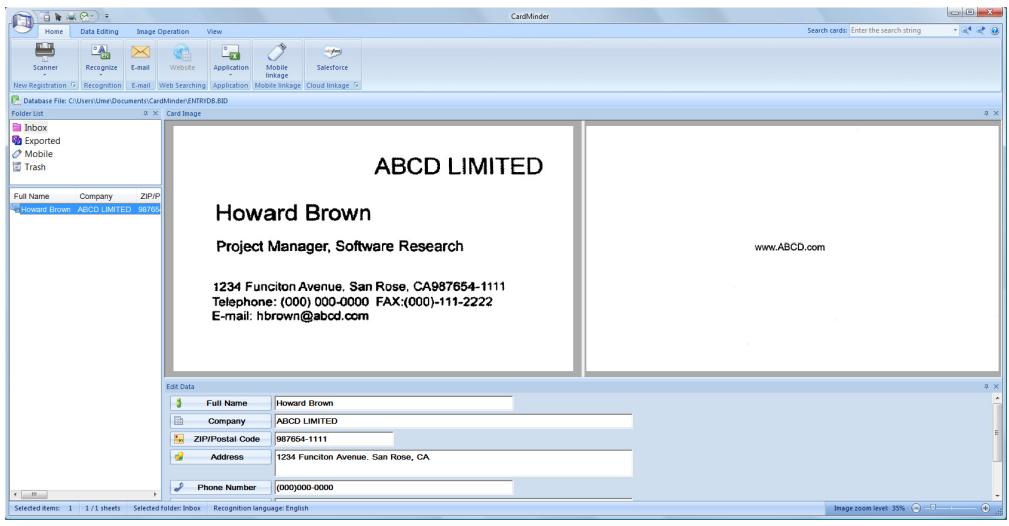
HINT
For details about the functions of CardMinder and how to use it, refer to CardMinder User's Guide and CardMinder Help.
Without Using the Quick Menu
HINT
To disable the Quick Menu, you need to clear the [Use Quick Menu] check box in the ScanSnap setup dialog box.
For details about how to perform scanning without using the Quick Menu, refer to "Without Using the Quick Menu" (page 81).
1. Select [Scan Button Settings] from the Right-Click Menu.
For details about the Right-Click Menu, refer to "Right-Click Menu" (page 71).
The ScanSnap setup dialog box appears.
2. In the [Application] drop-down list in the [Application] tab, select [CardMinder].
![FUJITSU SCANSNAP S1300I DELUXE - In the [Application] drop-down list in the [Application] tab, select [CardMinder]. - 1](/content/2025/01/190766/images/5dffc10901895f944525b859cdcc44b950cadd25aa9b52d7c6cff68c27daabaf.jpg)
ATTENTION
It is recommended that you select [Automatic resolution] or [Best] for [Image quality] in the [Scanning] tab of the ScanSnap setup dialog box. ScanSnap Manager cannot link with CardMinder when [Image quality] is set to [Excellent].
HINT
ScanSnap Manager also links with [CardMinder] when you select:
- [CardMinder] from the [Profile] drop-down list of the ScanSnap setup dialog box
- [CardMinder] from the Left-Click Menu
3. Click the [OK] button to close the ScanSnap setup dialog box.
4. Load a business card in the ScanSnap.
- Load the business card so that the front side faces the ADF paper chute (cover).
- To scan multiple business cards, load them in a pile.
- Do not leave space between the side guides and business cards.

5. Press the [Scan] button on the ScanSnap to start a scan.
The CardMinder window appears.
6. Check the scanned card image and the text recognition result.
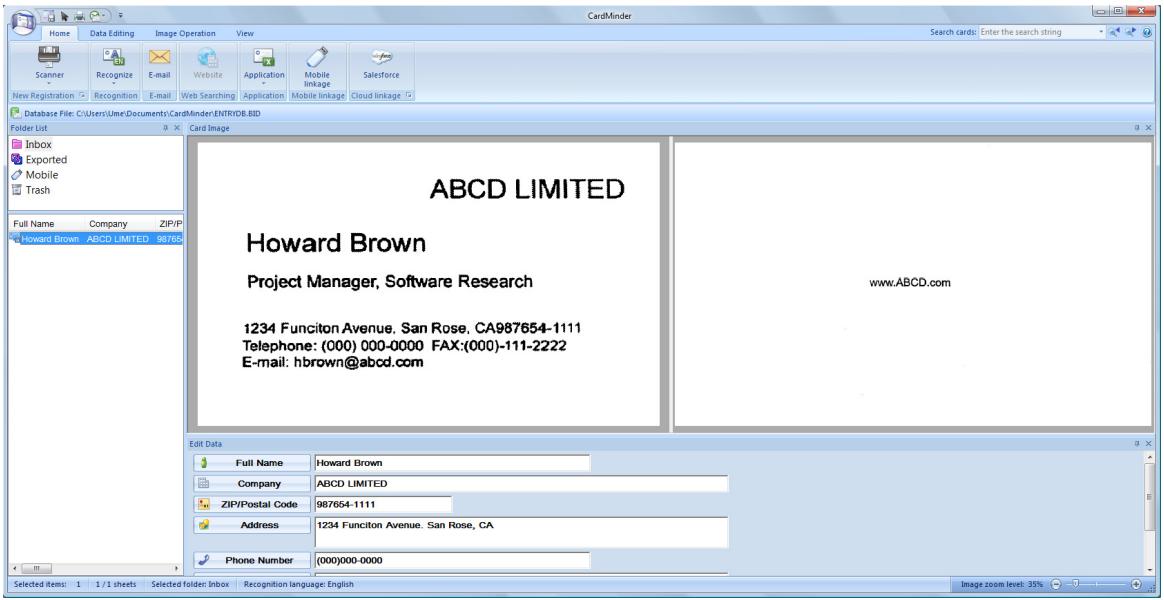
HINT
For details about the functions of CardMinder and how to use it, refer to CardMinder User's Guide and CardMinder Help.
Saving Data in SharePoint
This section explains how to save the scanned image in SharePoint or Office Live.
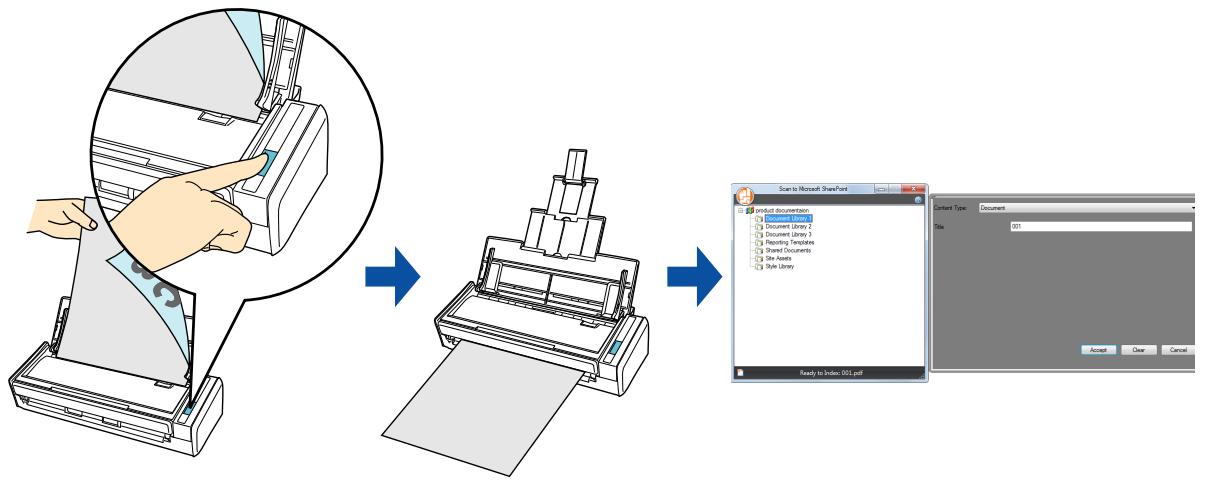
ATTENTION
- To save a large file to SharePoint or Office Live, you may need to have the system administrator change the SharePoint or Office Live setting.
- When you start up Scan to Microsoft SharePoint for the first time, you need to register a SharePoint site. Once you register the SharePoint site, ScanSnap Manager automatically connects to that site from the next startup.
For more details, refer to the Scan to Microsoft SharePoint User Guide.
For details about the procedure to scan and save the scanned image in SharePoint/Office Live using or without using the Quick Menu, refer to the following:
Using the Quick Menu ( page 159)
- Without Using the Quick Menu ( page 164)
Using the Quick Menu
HINT
To use the Quick Menu, you need to select the [Use Quick Menu] check box in the ScanSnap setup dialog box.
For details about how to perform scanning by using the Quick Menu, refer to "Using the Quick Menu" (page 75).
1. Load a document in the ScanSnap.
For details about how to load documents, refer to "How to Load Documents" (page 33).
2. Press the [Scan] button on the ScanSnap to start a scan.
The Quick Menu appears when the scanning is completed.
![FUJITSU SCANSNAP S1300I DELUXE - Press the [Scan] button on the ScanSnap to start a scan. - 1](/content/2025/01/190766/images/b1ebee943e89afd79f957dffc4adbbd55352b83bc1ea7bc7115edfa29854dde5.jpg)
3. Change the settings for [Scan to SharePoint] (If you do not want to change any settings, go to step 4.).
- Move the mouse cursor to the mark on the [Scan to SharePoint] icon then select the [Settings] menu.
![FUJITSU SCANSNAP S1300I DELUXE - Change the settings for [Scan to SharePoint] (If you do not want to change any settings, go to step 4.). - 1](/content/2025/01/190766/images/e79b7489610a6bd3339d36e25880638b12da8a5390a6d2364f3e2637f078140f.jpg)
The [Scan to SharePoint - Options] dialog box appears.
- Change the settings. For details about the [Scan to SharePoint - Options] dialog box, refer to the ScanSnap Manager Help.
![FUJITSU SCANSNAP S1300I DELUXE - Change the settings for [Scan to SharePoint] (If you do not want to change any settings, go to step 4.). - 2](/content/2025/01/190766/images/20ee855fbf727d6553a73bc36283aafaade73b6fe6c2ea0b31296cbe071a4308.jpg)
- Click the [OK] button to close the [Scan to SharePoint - Options] dialog box.
4. Click the [Scan to SharePoint] icon
![FUJITSU SCANSNAP S1300I DELUXE - Click the [Scan to SharePoint] icon - 1](/content/2025/01/190766/images/5e0e2aa41bc5dcb8bf099f54b3cbfd5023e6d6aec6ee8e8ad1e74c2ffaaaa0d6.jpg)
ATTENTION
- You cannot start scanning when the Quick Menu is displayed. Wait until ScanSnap Manager links with Microsoft SharePoint before scanning another document.
- Do not move, delete, or rename the scanned image in other applications when the Quick Menu is displayed.
Scan to Microsoft SharePoint starts up.
5. Save the scanned image.
- Saving to SharePoint
- From the Site Tree Pane, select the document library in which you want to save the scanned image.
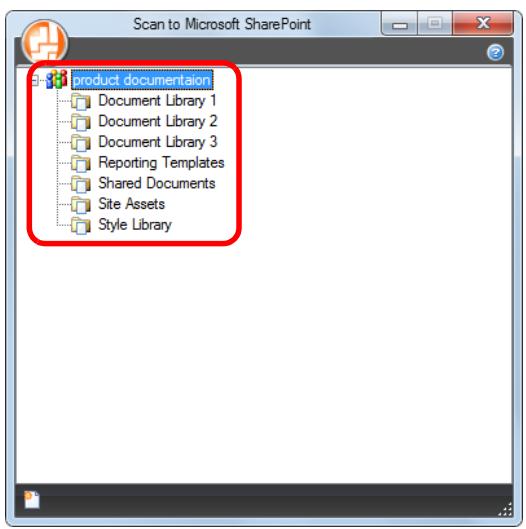
The Index Pane appears.
- Enter information, such as the title, and click the [Accept] button.
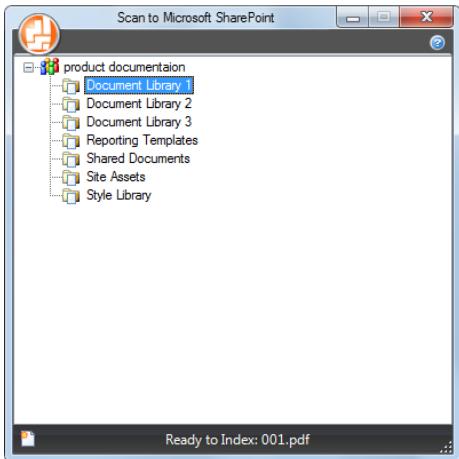
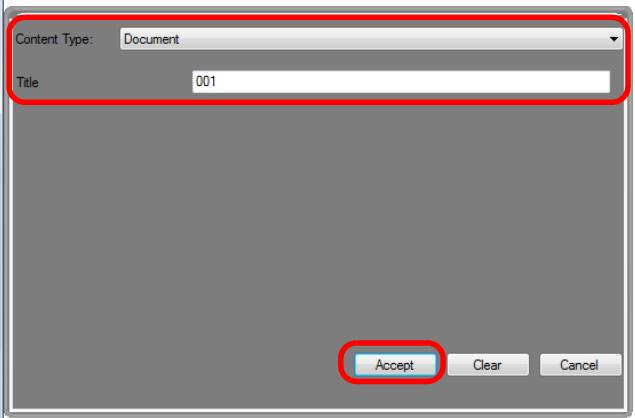
The scanned image is saved in the specified document library.
- Saving to Office Live
ATTENTION
Support for Office Live varies depending on the country. For more details, refer to the Office Live Web site.
- Click the Menu Button in the [Scan to Microsoft SharePoint] dialog box, and select [Connect to Office Live].
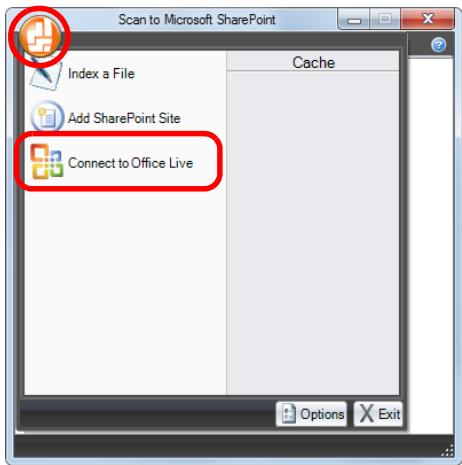
The Office Live logon dialog box appears.
- Enter the ID and the password in the Office Live logon dialog box, and then click the [Sign In] button.
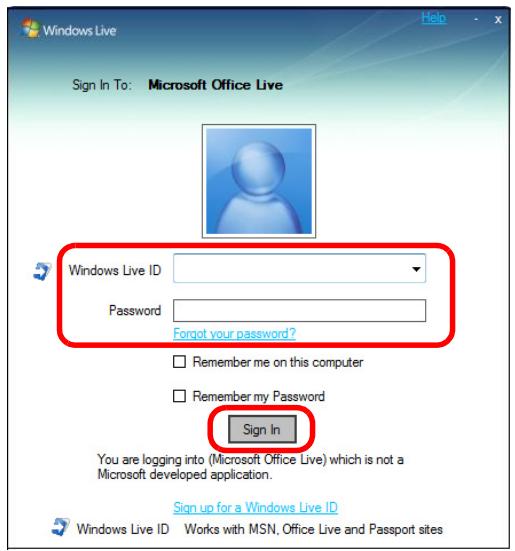
The [Scan to Microsoft SharePoint] dialog box appears after the ScanSnap is connected to Office Live.
- From the Site Tree Pane, select a document library in which you want to save the scanned image.
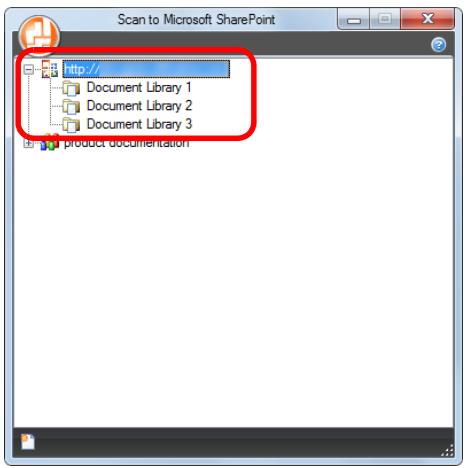
The Index Pane appears.
- Enter information, such as the title, and click the [Accept] button.
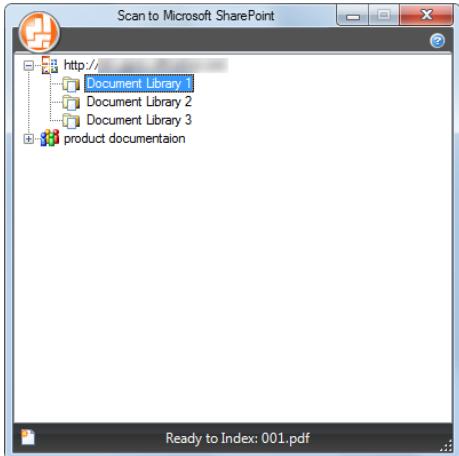
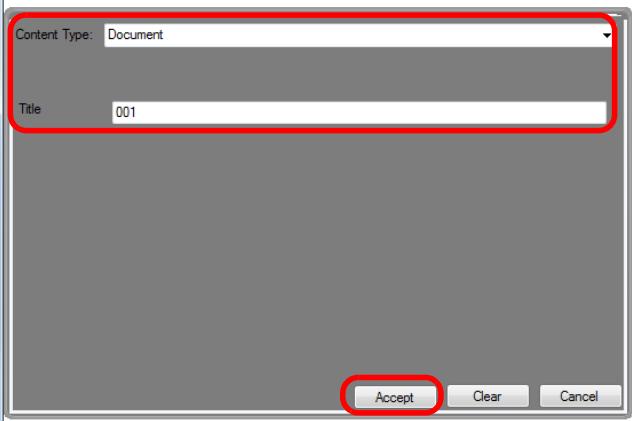
The scanned image is saved in the specified document library.
ATTENTION
For details, refer to the Scan to Microsoft SharePoint User Guide.
Without Using the Quick Menu
HINT
To disable the Quick Menu, you need to clear the [Use Quick Menu] check box in the ScanSnap setup dialog box.
For details about how to perform scanning without using the Quick Menu, refer to "Without Using the Quick Menu" (page 81).
1. Select [Scan Button Settings] from the Right-Click Menu.
For details about the Right-Click Menu, refer to "Right-Click Menu" (page 71).
The ScanSnap setup dialog box appears.
2. In the [Application] drop-down list in the [Application] tab, select [Scan to SharePoint].
![FUJITSU SCANSNAP S1300I DELUXE - In the [Application] drop-down list in the [Application] tab, select [Scan to SharePoint]. - 1](/content/2025/01/190766/images/24e88f9fddc65a8132ae63df99e050b628997e966a5a6adda64e86245a97cb97.jpg)
HINT
When you add the customized settings as profiles, the application to link with ScanSnap Manager can be selected from the [Profile] drop-down list or Left-Click Menu next time you perform a scan. For details about how to add a profile, refer to "Profile Management" (page 93).
3. Change the settings for [Scan to SharePoint] (If you do not want to change any settings, go to step 4.).
- Click the [Application Settings] button.
![FUJITSU SCANSNAP S1300I DELUXE - Change the settings for [Scan to SharePoint] (If you do not want to change any settings, go to step 4.). - 1](/content/2025/01/190766/images/0f155f7d076c36e6758b799613391c5e3552209074e9ef11c52f200750e2ffe1.jpg)
The [Scan to SharePoint - Options] dialog box appears.
- Change the settings.
For details about the [Scan to SharePoint - Options] dialog box, refer to the ScanSnap Manager Help.
![FUJITSU SCANSNAP S1300I DELUXE - Change the settings for [Scan to SharePoint] (If you do not want to change any settings, go to step 4.). - 2](/content/2025/01/190766/images/103fe4ce33cc1d57b0b9d7b84e5394a5c3d09161895e312c85e9031a8f9184ce.jpg)
3. Click the [OK] button to close the [Scan to SharePoint - Options] dialog box.
- Click the [OK] button to close the ScanSnap setup dialog box.
- Load a document in the ScanSnap.
For details about how to load documents, refer to "How to Load Documents" (page 33).
- Press the [Scan] button on the ScanSnap to start a scan.
Scan to Microsoft SharePoint starts up when the scanning is completed.
7. Save the scanned image.
- Saving to SharePoint
- From the Site Tree Pane, select a document library in which you want to save the scanned image.
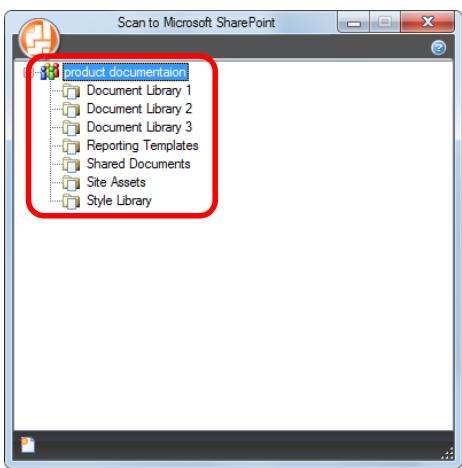
The Index Pane appears.
- Enter information, such as the title, and click the [Accept] button.
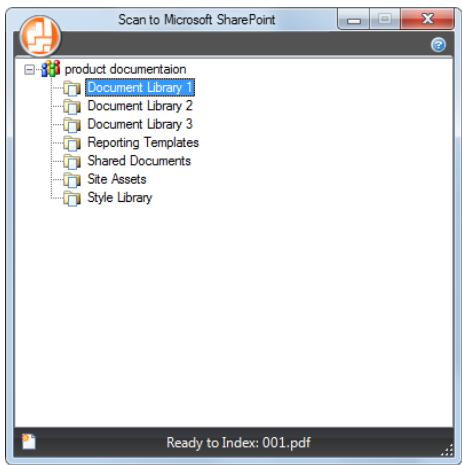
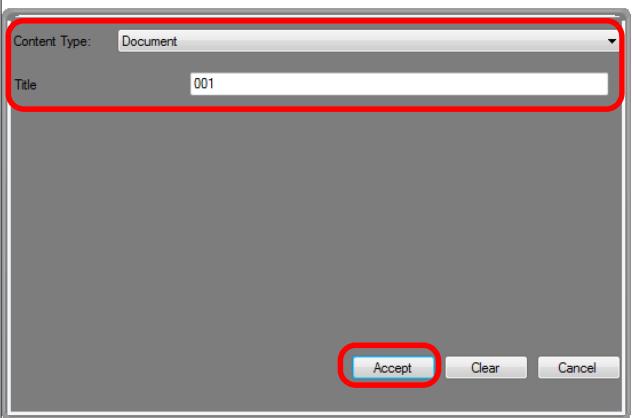
The scanned image is saved in the specified document library.
- Saving to Office Live
ATTENTION
Support for Office Live varies depending on the country. For more details, refer to the Office Live Web site.
- Click the Menu Button in the [Scan to Microsoft SharePoint] dialog box, and select [Connect to Office Live].
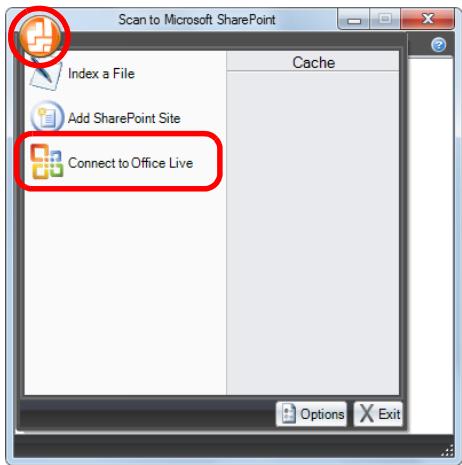
The Office Live logon dialog box appears.
- Enter the ID and the password in the Office Live logon dialog box, and then click the [Sign In] button.
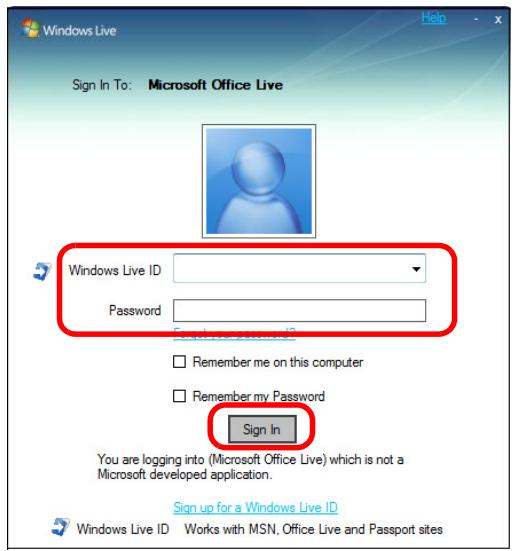
The [Scan to Microsoft SharePoint] dialog box appears after the ScanSnap is connected to Office Live.
- From the Site Tree Pane, select a document library in which you want to save the scanned image.
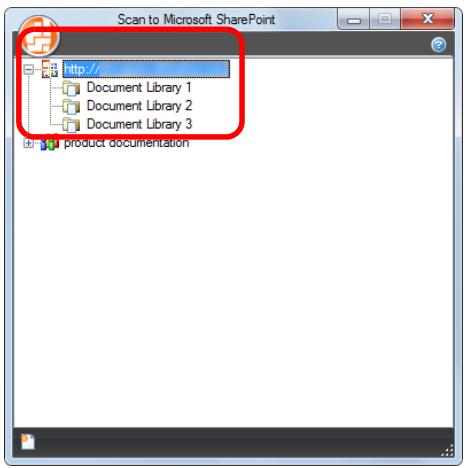
The Index Pane appears.
- Enter information, such as the title, and click the [Accept] button.
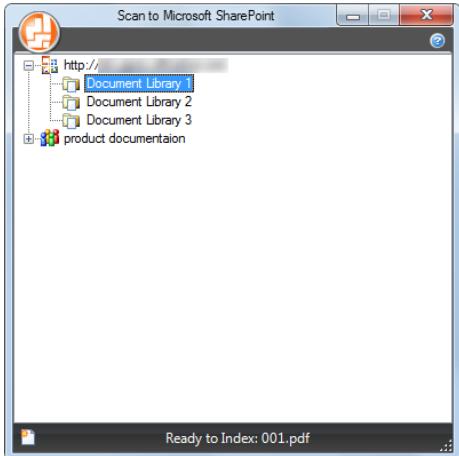
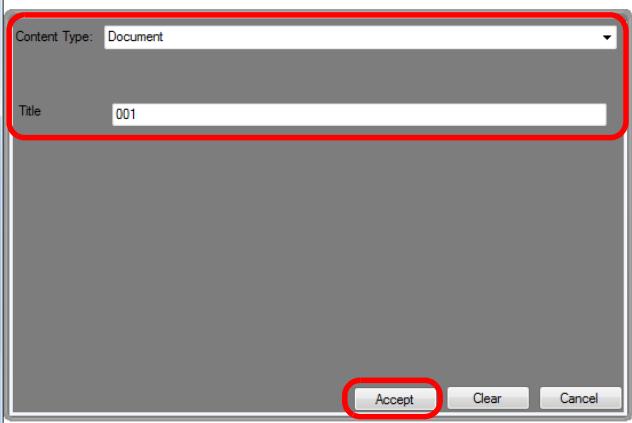
The scanned image is saved in the specified document library.
ATTENTION
For details, refer to the Scan to Microsoft SharePoint User Guide.
Saving to Rack2-Filer
This section explains how to save the scanned image as a PDF file in Rack2-Filer trial version (bundled with the ScanSnap) or Rack2-Filer (V5.0 or later recommended/bundled model or sold separately).
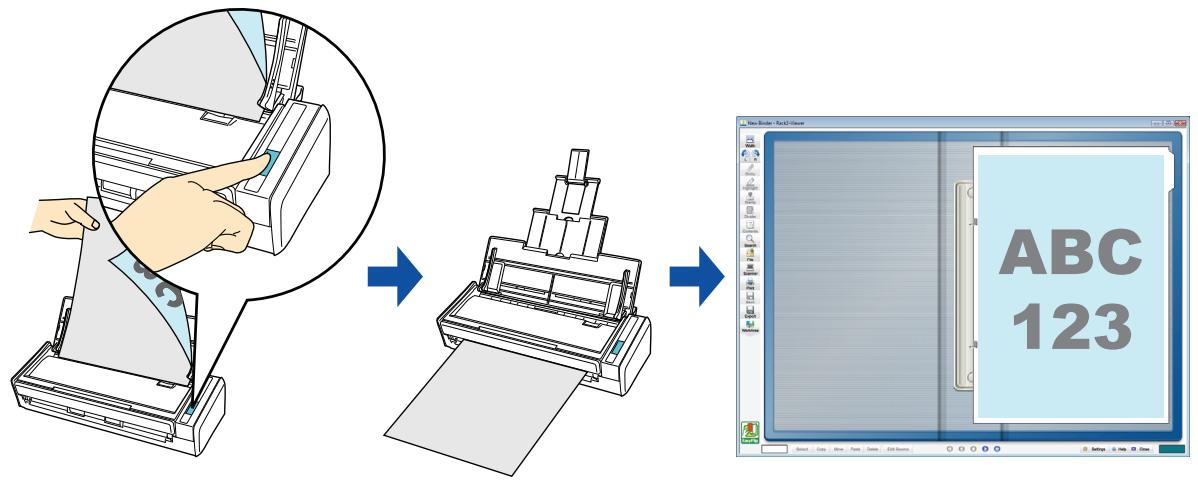
ATTENTION
- Rack2-Filer trial version (bundled with the ScanSnap) or Rack2-Filer (V5.0 or later recommended/ bundled model or sold separately) is required to use this function.
Rack2-Filer is an application that converts paper documents and electronic documents into PDF files and manages them in a computer. You can manage the documents as if you bind them, store them on a cabinet shelf, and browse them as if you flip through a book.
-
The following settings in ScanSnap Manager are disabled when the scanned image is saved to Rack2-Filer:
-
Rename file after scanning
-Color high compression
HINT
ScanSnap Folder can also be used for this operation. For details, refer to "ScanSnap Folder Operations" (page 232).
For details about the procedure to scan and save the scanned image in Rack2-Filer using or without using the Quick Menu, refer to the following:
Using the Quick Menu ( page 170)
- Without Using the Quick Menu ( page 172)
Using the Quick Menu
HINT
To use the Quick Menu, you need to select the [Use Quick Menu] check box in the ScanSnap setup dialog box.
For details about how to perform scanning by using the Quick Menu, refer to "Using the Quick Menu" (page 75).
1. Load a document in the ScanSnap.
For details about how to load documents, refer to "How to Load Documents" (page 33).
2. Press the [Scan] button on the ScanSnap to start a scan.
The Quick Menu appears when the scanning is completed.
![FUJITSU SCANSNAP S1300I DELUXE - Press the [Scan] button on the ScanSnap to start a scan. - 1](/content/2025/01/190766/images/d5177200d516904a3bd9adafcecd1e3d834d9b59a42d59aa8d0bbdbfb97076e5.jpg)
3. Change the settings for [Scan to Rack2-Filer] (If you do not want to change any settings, go to step 4.).
- Move the mouse cursor to the mark on the [Scan to Rack2-Filer] icon , and then select the [Settings] menu.
The [ScanSnap -> Rack2] dialog box appears.
- Change the settings.
In this dialog box, specify the destination to save the scanned image.
For details about the [ScanSnap -> Rack2] dialog box, refer to Rack2-Filer Help.
Click the [Help] button in the [ScanSnap -> Rack2] dialog box to display Rack2-Filer Help.
![FUJITSU SCANSNAP S1300I DELUXE - Change the settings for [Scan to Rack2-Filer] (If you do not want to change any settings, go to step 4.). - 1](/content/2025/01/190766/images/ccbd9921ed3e377c12545009b16f40b83da058da994db96ee35d6c7af2247de8.jpg)
- Click the [OK] button to close the [ScanSnap -> Rack2] dialog box.
4. Click the [Scan to Rack2-Filer] icon
![FUJITSU SCANSNAP S1300I DELUXE - Click the [Scan to Rack2-Filer] icon - 1](/content/2025/01/190766/images/da5a626f3fa4582374f8ddaf6db9557a4c9c807db1179937bbb280130c3cceb8.jpg)
ATTENTION
- When you perform a scan with [JPEG(*.jpg)] selected for [File format] in the [File option] tab of the ScanSnap setup dialog box, you cannot save the image in Rack2-Filer.
- You cannot start scanning when the Quick Menu is displayed. Save the scanned image to Rack2-Filer before scanning another document.
- Do not move, delete, or rename the scanned image in other applications when the Quick Menu is displayed.
Rack2-Filer starts up, and the PDF file created by the ScanSnap is saved in Rack2-Filer in accordance with the settings specified in step 3.
HINT
For details about how to use Rack2-Filer, refer to the Rack2-Filer User's Guide.
Without Using the Quick Menu
HINT
To disable the Quick Menu, you need to clear the [Use Quick Menu] check box in the ScanSnap setup dialog box.
For details about how to perform scanning without using the Quick Menu, refer to "Without Using the Quick Menu" (page 81).
1. Select [Scan Button Settings] from the Right-Click Menu.
For details about the Right-Click Menu, refer to "Right-Click Menu" (page 71).
The ScanSnap setup dialog box appears.
2. In the [Application] drop-down list in the [Application] tab, select [Rack2-Filer].
![FUJITSU SCANSNAP S1300I DELUXE - In the [Application] drop-down list in the [Application] tab, select [Rack2-Filer]. - 1](/content/2025/01/190766/images/0f6960f86122fc5b0e3ee6b3a5dcefca0df8dc0fc627bef769e4b38ca55032bd.jpg)
HINT
ScanSnap Manager also links with [Rack2-Filer] when you select:
- [Rack2-Filer] from the [Profile] drop-down list of the ScanSnap setup dialog box
- [Rack2-Filer] from the Left-Click Menu
3. Change the settings for [Scan to Rack2-Filer] (If you do not want to change any settings, go to step 4.).
- Click the [Application Settings] button.
![FUJITSU SCANSNAP S1300I DELUXE - Change the settings for [Scan to Rack2-Filer] (If you do not want to change any settings, go to step 4.). - 1](/content/2025/01/190766/images/c6aabbdb8cb6b0c2f3adb1f52d986335053ae3941cdef6f3fa239e4c070839e8.jpg)
The [ScanSnap -> Rack2] dialog box appears.
- Change the settings.
In this dialog box, specify the destination to save the scanned image.
For details about the [ScanSnap -> Rack2] dialog box, refer to Rack2-Filer Help.
Click the [Help] button in the [ScanSnap -> Rack2] dialog box to display Rack2-Filer Help.
![FUJITSU SCANSNAP S1300I DELUXE - Change the settings for [Scan to Rack2-Filer] (If you do not want to change any settings, go to step 4.). - 2](/content/2025/01/190766/images/d49fc3ab260b3bf1510375106878d14294b3b6f6cd8bf076a116369d328ebeec.jpg)
- Click the [OK] button to close the [ScanSnap -> Rack2] dialog box.
4. Click the [OK] button to close the ScanSnap setup dialog box.
5. Load a document in the ScanSnap.
For details about how to load documents, refer to "How to Load Documents" (page 33).
6. Press the [Scan] button on the ScanSnap to start a scan.
When the scanning is completed, Rack2-Filer starts up, and the PDF file created by the ScanSnap is saved in Rack2-Filer in accordance with the settings specified in step 3.
HINT
For details about how to use Rack2-Filer, refer to the Rack2-Filer User's Guide.
Saving Data to a Mobile Device
This section explains how to save the scanned image as a PDF or a JPEG file to a mobile device.
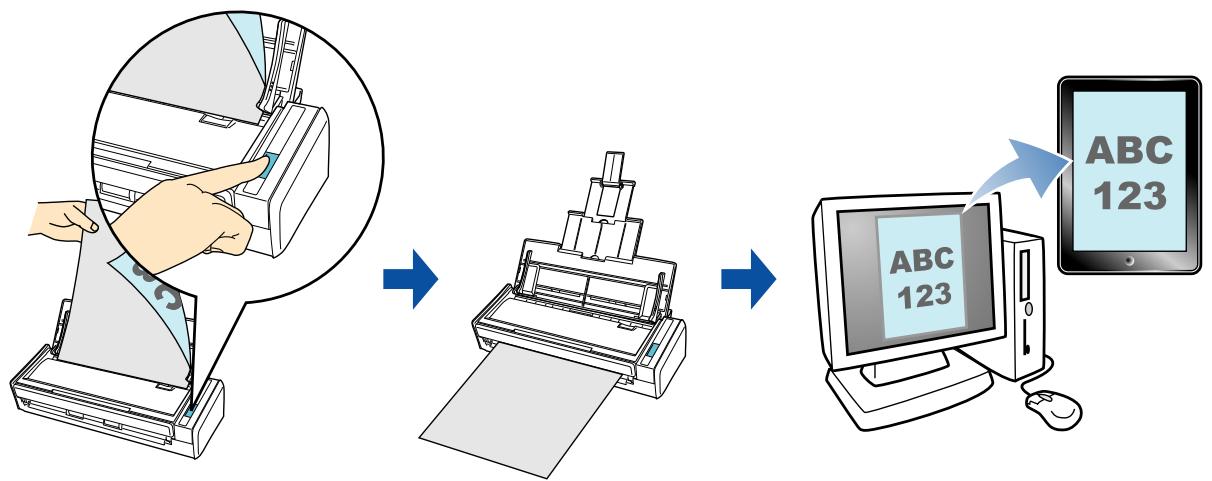
ATTENTION
- Only one mobile device can be connected to the computer.
- You need to have .NET Framework 3.0 installed in order to use this function. Note that .NET Framework 3.0 is also included in .NET Framework 3.5 (SP1 or later). It is recommended that you use .NET Framework 3.5 (SP1 or later) by updating Windows. If .NET Framework 4 or later is already installed, you need to install .NET Framework 3.0 separately because .NET Framework 3.0 is not included in .NET Framework 4 or later version.
- You need to have ScanSnap Connect Application installed in the mobile device in order to use this function. Download ScanSnap Connect Application for mobile devices from application stores such as App Store.
ScanSnap Connect Application for mobile devices operate on the following operating systems: - iOS 4.2.1 or later
- Android OS 2.2 or later
- The number of scanned image files and the maximum file size that can be saved on a mobile device at once are as follows:
- Number of files: Up to 100
- File size: 2048 MB
- A firewall alert may be displayed when you first launch [Scan to Mobile]. When the alert is displayed, select [Allow access] or [Unblock].
HINT
- The following message appears when you first launch [Scan to Mobile]. Click the [OK] button to open the [Scan to Mobile - Basic] dialog box.
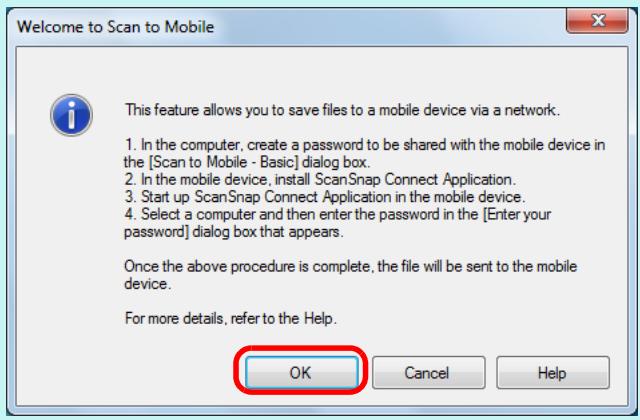
In the [Scan to Mobile - Basic] dialog box, enter a password to connect to the mobile device. For details about other setting items, refer to the Scan to Mobile Help.
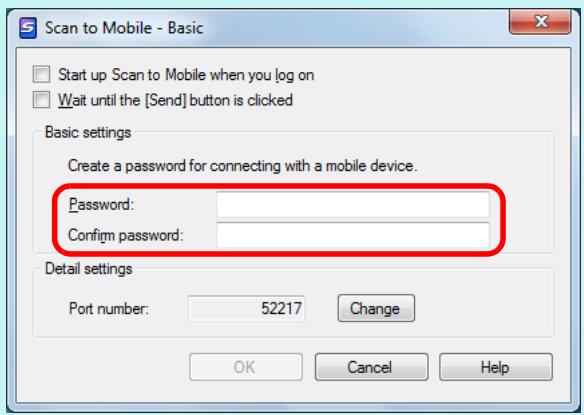
- The Scan to Mobile icon appears on the taskbar when the file is saved to the mobile device.
The Scan to Mobile icon is displayed in the menu that appears when you click on the taskbar. The Scan to Mobile icon shows the communication status between the computer and the mobile device. The appearance of the icon changes according to the communication status as shown below.
| Status | Scan to Mobile icon |
| Waiting | S |
| Standby | S |
| Sending | |
| Sending error | S |
| Rejected | S |
For details about the procedure to save scanned images to mobile devices through automatic linkage, and using or without using the Quick Menu, refer to the following:
Automatic Linkage ( page 177)
Using the Quick Menu ( page 179)
- Without Using the Quick Menu ( page 182)
Automatic Linkage
HINT
- For details about the features of ScanSnap Connect Application for mobile devices and how to use it, refer to the ScanSnap Connect Application User's Guide for your mobile device.
- For details about automatic linkage to active applications, refer to "Automatic Linkage with Applications" (page 102).
1. Select [Start] menu [All Programs] [ScanSnap Manager] [Scan to Mobile].
The Scan to Mobile icon appears on the taskbar.
![FUJITSU SCANSNAP S1300I DELUXE - Select [Start] menu [All Programs] [ScanSnap Manager] [Scan to Mobile]. - 1](/content/2025/01/190766/images/7d2ce6bdecf4bf53d1d5db48b36320fe8ab454bdf18288c24615dee11a5cf6b7.jpg)
2. Connect to the computer from your mobile device.
For details about how to connect to the computer from your mobile device, refer to the ScanSnap Connect Application User's Guide for your mobile device.
When the connection is established, the [Scan to Mobile] dialog box appears on the computer, showing the mobile device that is currently connected to the computer.
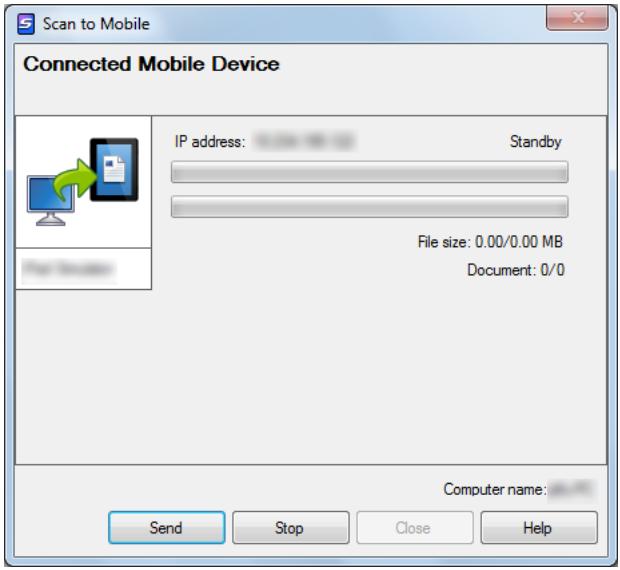
3. Load a document in the ScanSnap.
For details about how to load documents, refer to "How to Load Documents" (page 33).
4. Press the [Scan] button on the ScanSnap to start a scan.
ATTENTION
To enable automatic linkage with Scan to Mobile, press the [Scan] button on the ScanSnap and start a scan while [Scan to Mobile] is active (where this application is currently selected on the taskbar and the [Scan to Mobile] dialog box is brought to front).
Scanned images will be sent to the mobile device from the computer when the scanning is completed.
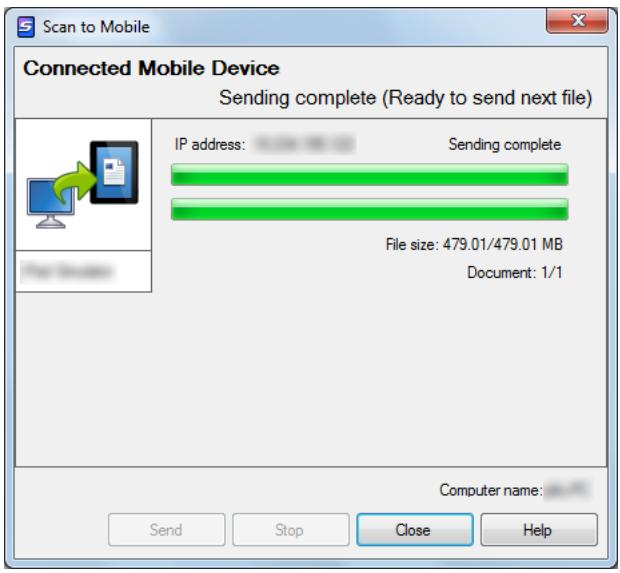
HINT
When you select the [Wait until the [Send] button is clicked] check box in the [Scan to Mobile - Basic] dialog box, the [Send] button appears in the [Scan to Mobile] dialog box. Click the [Send] button to send the image to the mobile device.
5. Click the [Close] button to close the [Scan to Mobile] dialog box when sending of the scanned image is completed.
HINT
The [Scan to Mobile] dialog box closes automatically when the mobile device is disconnected from the computer.
Using the Quick Menu
HINT
To use the Quick Menu, you need to select the [Use Quick Menu] check box in the ScanSnap setup dialog box.
For details about how to perform scanning by using the Quick Menu, refer to "Using the Quick Menu" (page 75).
1. Load a document in the ScanSnap.
For details about how to load documents, refer to "How to Load Documents" (page 33).
2. Press the [Scan] button on the ScanSnap to start a scan.
The Quick Menu appears when the scanning is completed.
![FUJITSU SCANSNAP S1300I DELUXE - Press the [Scan] button on the ScanSnap to start a scan. - 1](/content/2025/01/190766/images/0fae312137c88b1131db24b32129f935dba7181323a66fb2c343d91749172e29.jpg)
ATTENTION
When [Scan to Mobile] has already started and is active (with the application selected on the taskbar and the [Scan to Mobile] dialog box brought to front), ScanSnap Manager links with [Scan to Mobile] automatically and the Quick Menu does not appear.
To show the Quick Menu, minimize the [Scan to Mobile] dialog box first, and then try scanning again.
3. Change the settings for [Scan to Mobile] (If you do not want to change any settings, go to step 4.).
- Move the mouse cursor to the mark on the [Scan to Mobile] icon select the [Settings] menu.
![FUJITSU SCANSNAP S1300I DELUXE - Change the settings for [Scan to Mobile] (If you do not want to change any settings, go to step 4.). - 1](/content/2025/01/190766/images/da6dd53544b1011765af883d173c46e521ba82f72c2de9b22163de56b1931319.jpg)
The [Scan to Mobile - Options] dialog box appears.
- Change the settings.
For details about the [Scan to Mobile - Options] dialog box, refer to the ScanSnap Manager Help.
![FUJITSU SCANSNAP S1300I DELUXE - Change the settings for [Scan to Mobile] (If you do not want to change any settings, go to step 4.). - 2](/content/2025/01/190766/images/c3d33088f414fc7fde1fad29a8d02268aa0d9fab542683bf304f68f6d0b4b5a9.jpg)
- Click the [OK] button to close the [Scan to Mobile - Options] dialog box.
4. Click the [Scan to Mobile] icon
ATTENTION
- You cannot start scanning when the Quick Menu is displayed. Wait until ScanSnap Manager links with Scan to Mobile before scanning another document.
- Do not move, delete, or rename the scanned image in other applications when the Quick Menu is displayed.
The [Scan to Mobile] dialog box appears.
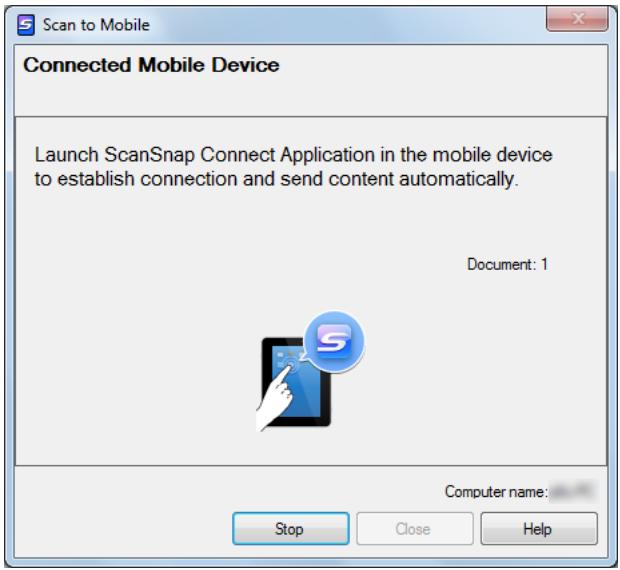
5. Connect to the computer from your mobile device.
For details about how to connect to the computer from your mobile device, refer to the ScanSnap Connect Application User's Guide for your mobile device.
When the connection is established, the [Scan to Mobile] dialog box appears showing the mobile device that is currently connected to the computer. Then, the scanned image is sent to the mobile device.
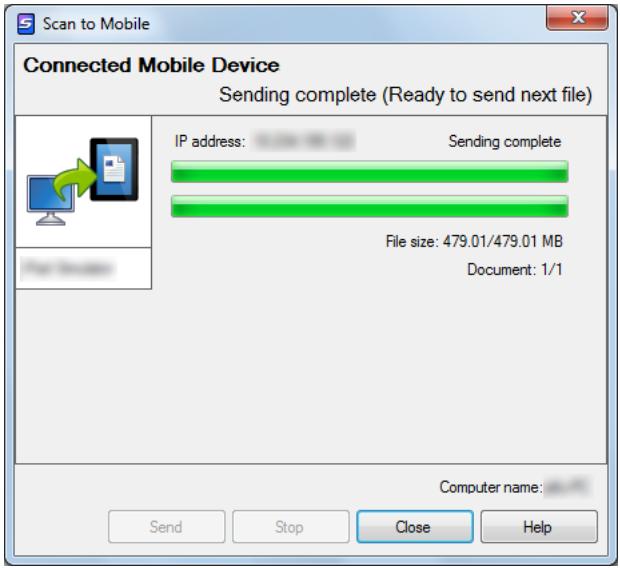
HINT
- When you select the [Wait until the [Send] button is clicked] check box in the [Scan to Mobile - Basic] dialog box, the [Send] button appears in the [Scan to Mobile] dialog box. Click the [Send] button to send the image to the mobile device.
- For details about the features of ScanSnap Connect Application for mobile devices and how to use it, refer to the ScanSnap Connect Application User's Guide for your mobile device.
6. Click the [Close] button to close the [Scan to Mobile] dialog box when sending of the scanned image is completed.
HINT
The [Scan to Mobile] dialog box closes automatically when the mobile device is disconnected from the computer.
Without Using the Quick Menu
HINT
To disable the Quick Menu, you need to clear the [Use Quick Menu] check box in the ScanSnap setup dialog box.
For details about how to perform scanning without using the Quick Menu, refer to "Without Using the Quick Menu" (page 81).
1. Select [Scan Button Settings] from the Right-Click Menu.
For details about the Right-Click Menu, refer to "Right-Click Menu" (page 71).
The ScanSnap setup dialog box appears.
2. In the [Application] drop-down list in the [Application] tab, select [Scan to Mobile].
![FUJITSU SCANSNAP S1300I DELUXE - In the [Application] drop-down list in the [Application] tab, select [Scan to Mobile]. - 1](/content/2025/01/190766/images/4e1c6b64466093b887e24280810d757379de8766104df4387d61c7aae0735aa4.jpg)
HINT
When you add the customized settings as profiles, the application to link with ScanSnap Manager can be selected from the [Profile] drop-down list or Left-Click Menu next time you perform a scan. For details about how to add a profile, refer to "Profile Management" (page 93).
3. Change the settings for [Scan to Mobile] (If you do not want to change any settings, go to step 4.).
- Click the [Application Settings] button.
![FUJITSU SCANSNAP S1300I DELUXE - Change the settings for [Scan to Mobile] (If you do not want to change any settings, go to step 4.). - 1](/content/2025/01/190766/images/eba5b069f88278c2b5385a18e13148bf8bc3215e979ba5826a50bed922ff718f.jpg)
The [Scan to Mobile - Options] dialog box appears.
- Change the settings.
For details about the [Scan to Mobile - Options] dialog box, refer to the ScanSnap Manager Help.
![FUJITSU SCANSNAP S1300I DELUXE - Change the settings for [Scan to Mobile] (If you do not want to change any settings, go to step 4.). - 2](/content/2025/01/190766/images/a8c97f48f5cd69c054534c9a09d9cbe56ca0a1e3cfa3315b4b531cb1ce7f5212.jpg)
- Click the [OK] button to close the [Scan to Mobile - Options] dialog box.
4. Click the [OK] button to close the ScanSnap setup dialog box.
5. Load a document in the ScanSnap.
For details about how to load documents, refer to "How to Load Documents" (page 33).
6. Press the [Scan] button on the ScanSnap to start a scan.
The [Scan to Mobile] dialog box appears on the computer when the scanning is completed.
![FUJITSU SCANSNAP S1300I DELUXE - Press the [Scan] button on the ScanSnap to start a scan. - 1](/content/2025/01/190766/images/1d9fb1cf1ec1a8e1987be61b223087f9f34619291a74ee610f0ee96f0b49d331.jpg)
7. Connect to the computer from your mobile device.
For details about how to connect to the computer from your mobile device, refer to the ScanSnap Connect Application User's Guide for your mobile device.
When the connection is established, the [Scan to Mobile] dialog box appears showing the mobile device that is currently connected to the computer. Then, the scanned image is sent to the mobile device.
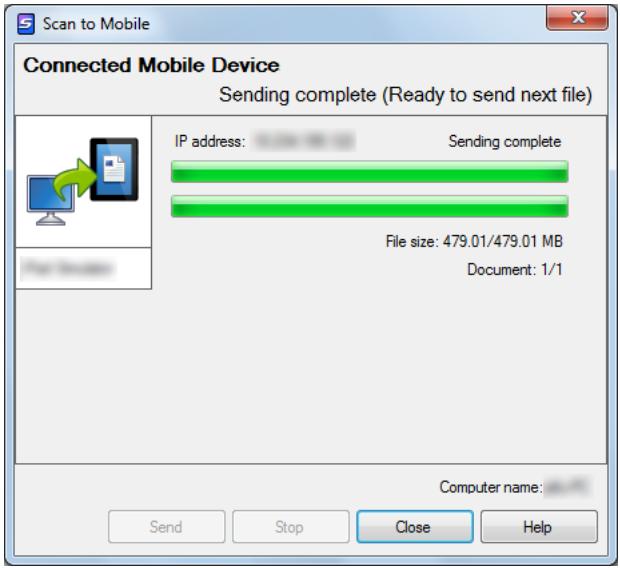
HINT
- When you select the [Wait until the [Send] button is clicked] check box in the [Scan to Mobile - Basic] dialog box, the [Send] button appears in the [Scan to Mobile] dialog box. Click the [Send] button to send the image to the mobile device.
- For details about the features of ScanSnap Connect Application for mobile devices and how to use it, refer to the ScanSnap Connect Application User's Guide for your mobile device.
8. Click the [Close] button to close the [Scan to Mobile] dialog box when sending of the scanned image is completed.
HINT
The [Scan to Mobile] dialog box closes automatically when the mobile device is disconnected from the computer.
Cloud Services
By pressing the [Scan] button on the ScanSnap, you can save documents converted into digital data to the following cloud services, and access them easily anytime, anywhere.
- Manage scanned documents through linkage with Dropbox.
Save scanned image files to your Dropbox folder.
- Manage scanned documents through linkage with Evernote.
Save PDF files in Evernote.
- Manage handwritten notes through linkage with Evernote.
Save JPEG files in Evernote.
- Manage scanned documents through linkage with Google Docs.
Save PDF files in Google Docs.
- Manage scanned documents through linkage with Salesforce Chatter.
Post scanned image files to Salesforce Chatter and manage them with Salesforce
CRM.
- Manage scanned documents through linkage with SugarSync.
Save scanned image files to your SugarSync folder.
The following are explanations on how to use Cloud Services.
Saving Data to Your Dropbox Folder
This section explains how to save the scanned image as a PDF or a JPEG file to your Dropbox folder.
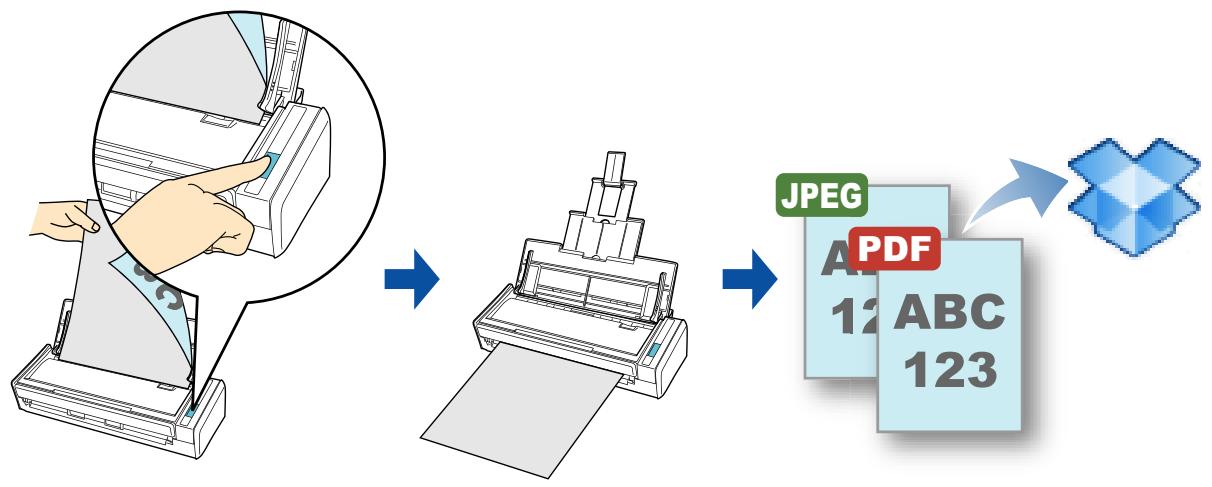
ATTENTION
- You need to have a Dropbox account.
- You need to have Dropbox for Windows 1.1.45 or later installed in order to use this function.
- You can save up to 100 files to your Dropbox folder at once.
HINT
- When you first log into Dropbox after installing Dropbox for Windows, the Dropbox folder, which is the sync folder used for Dropbox, is automatically created.
- ScanSnap Folder can also be used for this operation. For details, refer to "ScanSnap Folder Operations" (page 232).
For details about the procedure to scan and save the scanned image to your Dropbox folder using or without using the Quick Menu, refer to the following:
Using the Quick Menu ( page 188)
- Without Using the Quick Menu ( page 191)
Using the Quick Menu
HINT
To use the Quick Menu, you need to select the [Use Quick Menu] check box in the ScanSnap setup dialog box.
For details about how to perform scanning by using the Quick Menu, refer to "Using the Quick Menu" (page 75).
1. Load a document in the ScanSnap.
For details about how to load documents, refer to "How to Load Documents" (page 33).
2. Press the [Scan] button on the ScanSnap to start a scan.
The Quick Menu appears when the scanning is completed.
![FUJITSU SCANSNAP S1300I DELUXE - Press the [Scan] button on the ScanSnap to start a scan. - 1](/content/2025/01/190766/images/b6011a4a2d5b354ea3c0cf650cc225ee138779ddd324f59d2d19e466a7d7bb09.jpg)
3. Change the settings for [Scan to Dropbox] (If you do not want to change any settings, go to step 4.)
- Move the mouse cursor to the mark on the [Scan to Dropbox] icon then select the [Settings] menu.
![FUJITSU SCANSNAP S1300I DELUXE - Change the settings for [Scan to Dropbox] (If you do not want to change any settings, go to step 4.) - 1](/content/2025/01/190766/images/306f55427712535fdb24d61d2330597de09b953c09131a2138cdf96a6f3bc7be.jpg)
The [Scan to Dropbox - Options] dialog box appears.
- Change the setting.
For details about the [Scan to Dropbox - Options] dialog box, refer to ScanSnap Manager Help.
![FUJITSU SCANSNAP S1300I DELUXE - Change the settings for [Scan to Dropbox] (If you do not want to change any settings, go to step 4.) - 2](/content/2025/01/190766/images/a7a51f307ea35aff5563f7a5a000c1a880960a81958ebe6edf23197ef0e648ea.jpg)
- Click the [OK] button to close the [Scan to Dropbox - Options] dialog box.
4. Click the [Scan to Dropbox] icon
The [Scan to Dropbox] dialog box appears.
If you clear the [Show preview] check box in step 3., the scanned image is directly saved to your Dropbox folder.
5. Check the scanned image in the preview area.
In the [Scan to Dropbox] dialog box, you can rename the file and specify your Dropbox folder.
For details about the [Scan to Dropbox] dialog box, refer to the ScanSnap Manager Help.
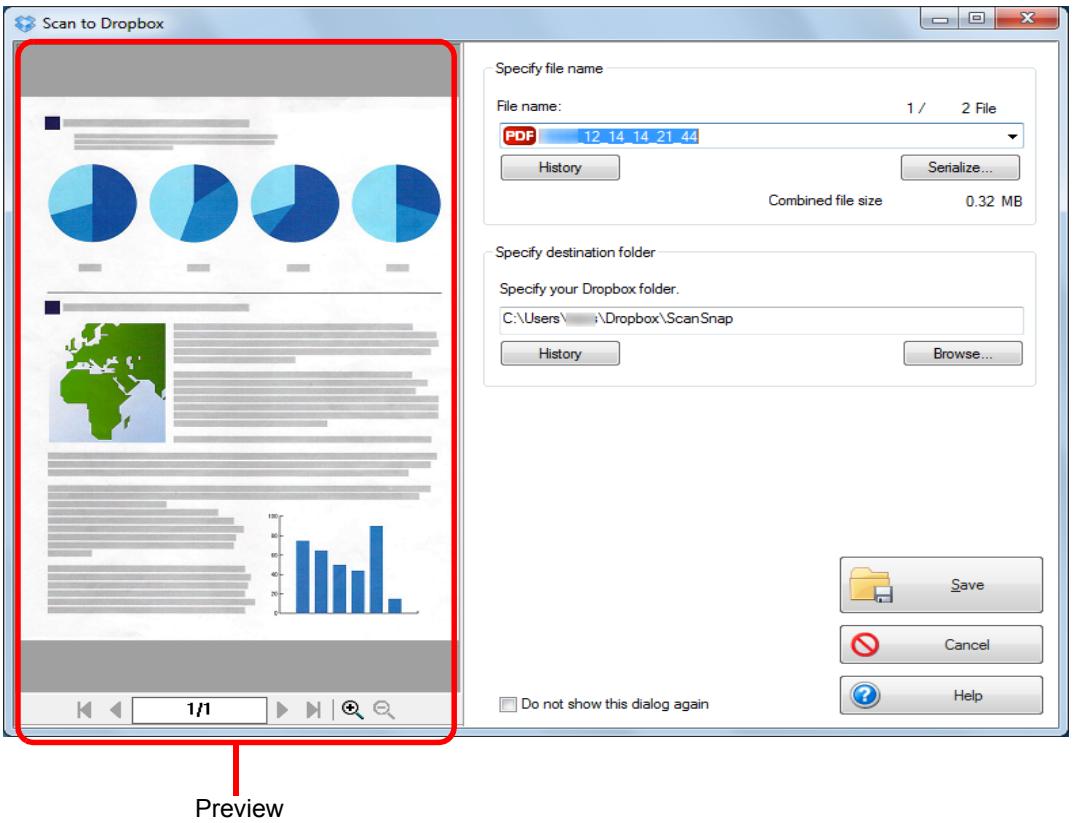
ATTENTION
The file will not be synced with Dropbox unless you select the Dropbox folder as the destination folder.
6. Click the [Save] button.
The scanned image is saved to your Dropbox folder.
ATTENTION
- You cannot start scanning after the Quick Menu is displayed and before the [Scan to Dropbox] dialog box is closed. Close the [Scan to Dropbox] dialog box before scanning the next document.
- Do not move, delete or rename the scanned image in other applications after the Quick Menu is displayed and before the [Scan to Dropbox] dialog box is closed.
Without Using the Quick Menu
HINT
To disable the Quick Menu, you need to clear the [Use Quick Menu] check box in the ScanSnap setup dialog box. For details about how to perform scanning without using the Quick Menu, refer to "Without Using the Quick Menu" (page 81).
1. Select [Scan Button Settings] from the Right-Click Menu.
For details about the Right-Click Menu, refer to "Right-Click Menu" (page 71).
The ScanSnap setup dialog box appears.
2. In the [Application] drop-down list in the [Application] tab, select [Scan to Dropbox].
![FUJITSU SCANSNAP S1300I DELUXE - In the [Application] drop-down list in the [Application] tab, select [Scan to Dropbox]. - 1](/content/2025/01/190766/images/dc3d834aa693cfd98527759b2371a95f2209428fcb45810fe74f6fbb32c1734d.jpg)
HINT
When you add the customized settings as profiles, the application to link with ScanSnap Manager can be selected from the [Profile] drop-down list or the Left-Click Menu next time you perform a scan.
For details about how to add a profile, refer to "Profile Management" (page 93).
3. Change the settings for [Scan to Dropbox] (If you do not want to change any settings, go to step 4.).
- Click the [Application Settings] button.
![FUJITSU SCANSNAP S1300I DELUXE - Change the settings for [Scan to Dropbox] (If you do not want to change any settings, go to step 4.). - 1](/content/2025/01/190766/images/f98d3093d022bd7aaff6ff940748acc9f386a70912e8c8cc27a36d8d94edda27.jpg)
The [Scan to Dropbox - Options] dialog box appears.
- Change the settings.
For details about the [Scan to Dropbox - Options] dialog box, refer to the ScanSnap Manager Help.
![FUJITSU SCANSNAP S1300I DELUXE - Change the settings for [Scan to Dropbox] (If you do not want to change any settings, go to step 4.). - 2](/content/2025/01/190766/images/a5be26b559066bcbd1f76470f8282528d863e949d05e240137dc87c68c673ca5.jpg)
-
Click the [OK] button to close the [Scan to Dropbox - Options] dialog box.
-
Click the [OK] button to close the ScanSnap setup dialog box.
- Load a document in the ScanSnap.
For details about how to load documents, refer to "How to Load Documents" (page 33).
- Press the [Scan] button on the ScanSnap to start a scan.
The [Scan to Dropbox] dialog box appears when the scanning is completed. If you clear the [Show preview] check box in step 3., the scanned image is directly saved to your Dropbox folder.
7. Check the scanned image in the preview area.
In the [Scan to Dropbox] dialog box, you can rename the file and specify your Dropbox folder.
For details about the [Scan to Dropbox] dialog box, refer to the ScanSnap Manager Help.
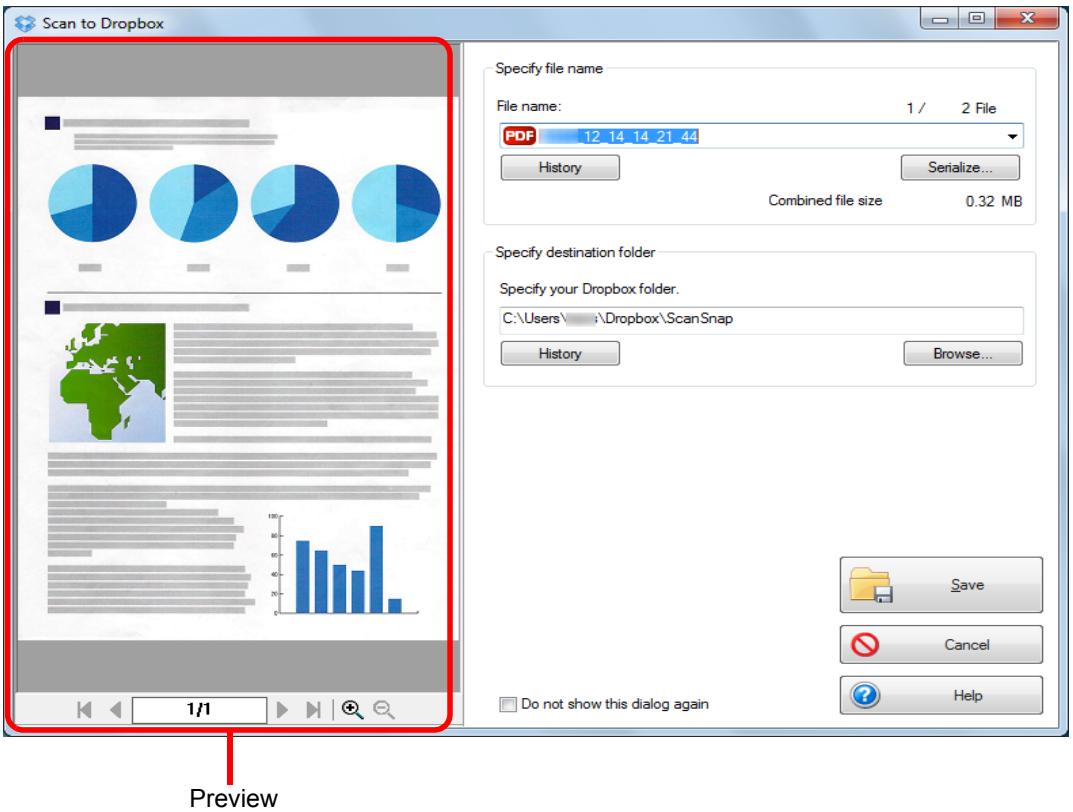
ATTENTION
The file will not be synced with Dropbox unless you select the Dropbox folder as the destination folder.
8. Click the [Save] button.
The scanned image is saved to your Dropbox folder.
ATTENTION
- You cannot start scanning when the [Scan to Dropbox] dialog box is displayed. Close the dialog box before scanning the next document.
- Do not move, delete or rename the scanned image in other applications when the [Scan to Dropbox] dialog box is displayed.
Saving Documents to Evernote
This section explains how to save the scanned image as a PDF file to Evernote.
When you save a scanned image to Evernote after converting it into a searchable PDF, the PDF file becomes searchable in Evernote.
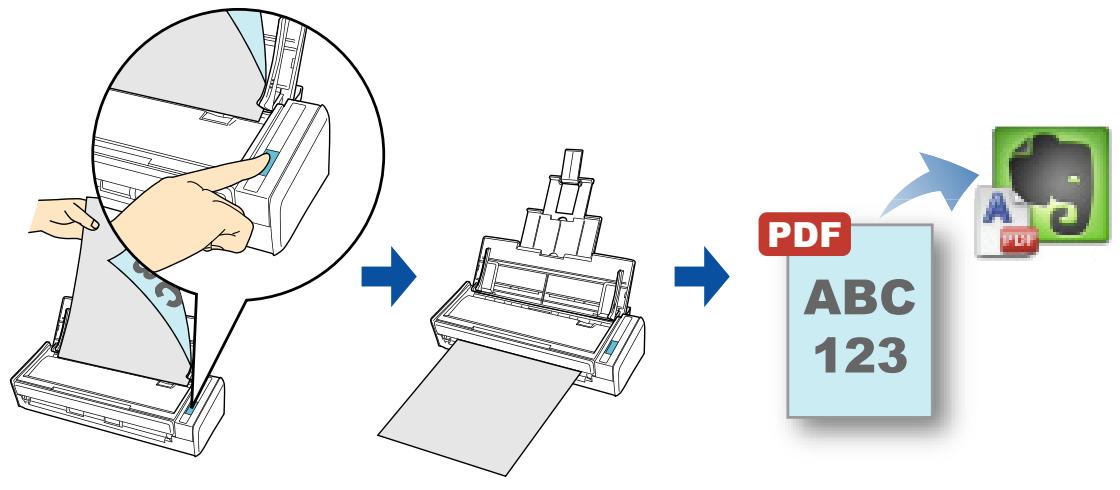
ATTENTION
- You need to create an Evernote account (free or premium).
- You first need to sign in to Evernote for Windows to save a file to Evernote.
HINT
ScanSnap Folder can also be used for this operation. For details, refer to "ScanSnap Folder Operations" (page 232).
For details about the procedure to scan and save the scanned image to Evernote using or without using the Quick Menu, refer to the following:
Using the Quick Menu ( page 195)
- Without Using the Quick Menu ( page 198)
Using the Quick Menu
HINT
To use the Quick Menu, you need to select the [Use Quick Menu] check box in the ScanSnap setup dialog box.
For details about how to perform scanning by using the Quick Menu, refer to "Using the Quick Menu" (page 75).
1. Load a document in the ScanSnap.
For details about how to load documents, refer to "How to Load Documents" (page 33).
2. Press the [Scan] button on the ScanSnap to start a scan.
The Quick Menu appears when the scanning is completed.
![FUJITSU SCANSNAP S1300I DELUXE - Press the [Scan] button on the ScanSnap to start a scan. - 1](/content/2025/01/190766/images/0afffeae19309f48df6313e8da42e3e774a9d2f8239a754c56d4798dd36ff0a0.jpg)
3. Change the settings for [Scan to Evernote (Document)] (If you do not want to change any settings, go to step 4.).
- Move the mouse cursor to the mark on the [Scan to Evernote (Document)] icon
![FUJITSU SCANSNAP S1300I DELUXE - Change the settings for [Scan to Evernote (Document)] (If you do not want to change any settings, go to step 4.). - 1](/content/2025/01/190766/images/be8af26ad8d617ac9c85a4c20c6c8ce6858244f654d1acbbbba3241f2818e262.jpg)
, and then select the [Settings] menu.
The [Scan to Evernote - Options] dialog box appears.
- Change the settings.
For details about the [Scan to Evernote - Options] dialog box, refer to the ScanSnap Manager Help.
![FUJITSU SCANSNAP S1300I DELUXE - Change the settings for [Scan to Evernote (Document)] (If you do not want to change any settings, go to step 4.). - 2](/content/2025/01/190766/images/1286465a12a6687822ea2758d1e8d66004dd3fdcf567dcad7f55b3b0113a051c.jpg)
- Click the [OK] button to close the [Scan to Evernote - Options] dialog box.
4. Click the [Scan to Evernote (Document)] icon
![FUJITSU SCANSNAP S1300I DELUXE - Click the [Scan to Evernote (Document)] icon - 1](/content/2025/01/190766/images/2aa07b2041a9d1ed9bf1f8245c21162f1af20b64ca1f0d9c093a23f42f4ee1ef.jpg)
ATTENTION
- You cannot start scanning when the Quick Menu is displayed. Save the PDF file to Evernote before scanning the next document.
- Do not move, delete, or rename the scanned image in other applications when the Quick Menu is displayed.
If [JPEG(*.jpg)] is selected for [File format] in the [File option] tab of the ScanSnap setup dialog box, a separate PDF file will be created from each JPEG file.
The following window appears during file creation.
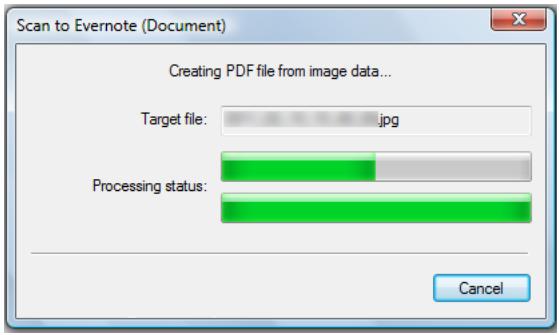
If the [Convert to Searchable PDF] check box is selected in step 3., text recognition is performed according to the [OCR options] settings in the [Scan to Evernote - Options] dialog box.
The following window appears during text recognition.
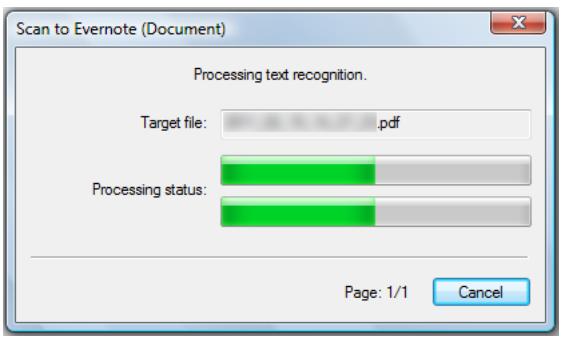
HINT
Note that text recognition will be performed only on pages containing text which is not yet recognized.
Evernote for Windows starts up, and the PDF file is saved to Evernote.
HINT
The file in which the scanned image is saved remains in the folder specified for [Image saving folder] in the [Save] tab of the ScanSnap setup dialog box even after the scanned image is saved to Evernote. Delete this file if unnecessary.
Without Using the Quick Menu
HINT
To disable the Quick Menu, you need to clear the [Use Quick Menu] check box in the ScanSnap setup dialog box.
For details about how to perform scanning without using the Quick Menu, refer to "Without Using the Quick Menu" (page 81).
1. Select [Scan Button Settings] from the Right-Click Menu.
For details about the Right-Click Menu, refer to "Right-Click Menu" (page 71).
Displays the ScanSnap setup dialog box.
2. In the [Application] drop-down list in the [Application] tab, select [Scan to Evernote (Document)].
![FUJITSU SCANSNAP S1300I DELUXE - In the [Application] drop-down list in the [Application] tab, select [Scan to Evernote (Document)]. - 1](/content/2025/01/190766/images/2651e6d247286bb0c46c5a5133314001104bab4d58f4a54e92164e4ef6e03760.jpg)
HINT
ScanSnap Manager also links with [Scan to Evernote (Document)] when you select:
- [Scan to Evernote (Document)] from the [Profile] drop-down list of the ScanSnap setup dialog box
- [Scan to Evemote (Document)] from the Left-Click Menu
3. Change the settings for [Scan to Evernote (Document)] (If you do not want to change any settings, go to step 4.).
- Click the [Application Settings] button.
![FUJITSU SCANSNAP S1300I DELUXE - Change the settings for [Scan to Evernote (Document)] (If you do not want to change any settings, go to step 4.). - 1](/content/2025/01/190766/images/46e195043f02e8e1dc20ee099d7164201b55258c4c35082f5db600589394bcaf.jpg)
The [Scan to Evernote - Options] dialog box appears.
- Change the settings.
For details about the [Scan to Evernote - Options] dialog box, refer to the ScanSnap Manager Help.
![FUJITSU SCANSNAP S1300I DELUXE - Change the settings for [Scan to Evernote (Document)] (If you do not want to change any settings, go to step 4.). - 2](/content/2025/01/190766/images/f588618284a9086db1976322a5d0448f921fa749b2bfbd8d85fef9dc0110b70c.jpg)
-
Click the [OK] button to close the [Scan to Evernote - Options] dialog box.
-
Click the [OK] button to close the ScanSnap setup dialog box.
- Load a document in the ScanSnap.
For details about how to load documents, refer to "How to Load Documents" (page 33).
6. Press the [Scan] button on the ScanSnap to start a scan.
When the scanning is completed, a separate PDF file will be created from each JPEG file if [JPEG(*.jpg)] is selected for [File format] in the [File option] tab of the ScanSnap setup dialog box.
The following window appears during file creation.
![FUJITSU SCANSNAP S1300I DELUXE - Press the [Scan] button on the ScanSnap to start a scan. - 1](/content/2025/01/190766/images/616c5eb2b69b88229a9626f387935d5452320729232c8e66c63d8a8ad7190db5.jpg)
If the [Convert to Searchable PDF] check box is selected in step 3., text recognition is performed according to the [OCR options] settings in the [Scan to Evernote - Options] dialog box.
The following window appears during text recognition.
![FUJITSU SCANSNAP S1300I DELUXE - Press the [Scan] button on the ScanSnap to start a scan. - 2](/content/2025/01/190766/images/43f94425246d23d536940954c81571ccb49de1fb0cb7d8f7b92d0f33c2c1c58b.jpg)
HINT
Note that text recognition will be performed only on pages containing text which is not yet recognized.
Evernote for Windows starts up, and the PDF file is saved to Evernote.
HINT
The file in which the scanned image is saved remains in the folder specified for [Image saving folder] in the [Save] tab of the ScanSnap setup dialog box even after the scanned image is saved to Evernote. Delete this file if unnecessary.
Saving Handwritten Notes to Evernote
This section explains how to save the scanned image as a JPEG file to Evernote.
When you save a JPEG file to Evernote, text recognition is performed on all text, including handwritten characters, and the file becomes searchable in Evernote.
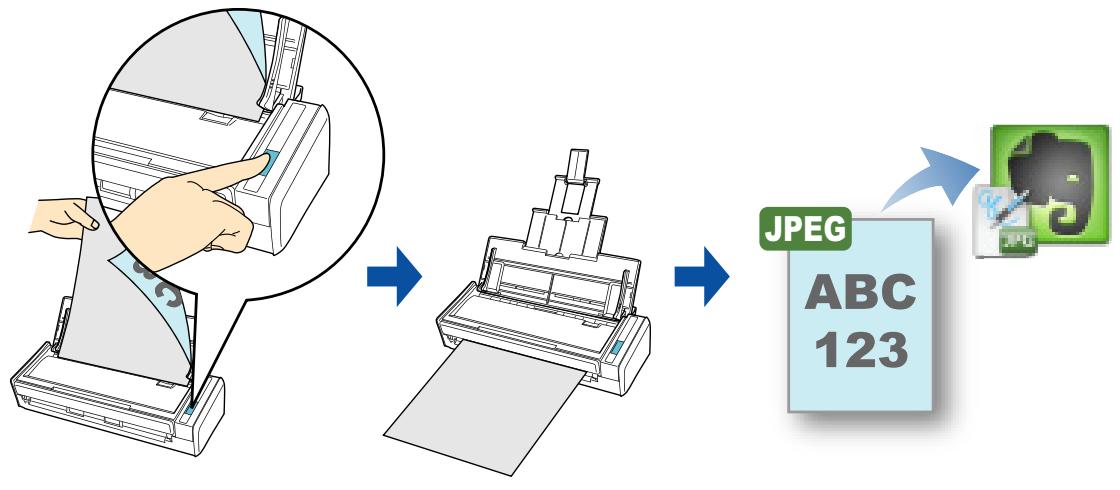
ATTENTION
- You need to create an Evernote account (free or premium).
- You first need to sign in to Evernote for Windows to save a file to Evernote.
HINT
ScanSnap Folder can also be used for this operation. For details, refer to "ScanSnap Folder Operations" (page 232).
For details about the procedure to scan and save the scanned image to Evernote using or without using the Quick Menu, refer to the following:
Using the Quick Menu ( page 202)
- Without Using the Quick Menu ( page 204)
Using the Quick Menu
HINT
To use the Quick Menu, you need to select the [Use Quick Menu] check box in the ScanSnap setup dialog box.
For details about how to perform scanning by using the Quick Menu, refer to "Using the Quick Menu" (page 75).
1. Load a document in the ScanSnap.
For details about how to load documents, refer to "How to Load Documents" (page 33).
2. Press the [Scan] button on the ScanSnap to start a scan.
The Quick Menu appears when the scanning is completed.
![FUJITSU SCANSNAP S1300I DELUXE - Press the [Scan] button on the ScanSnap to start a scan. - 1](/content/2025/01/190766/images/4b38cac80edb37b78f62985689f7e612f0f5f08c5fa3d5177c49cc83353e3039.jpg)
3. Click the [Scan to Evernote (Note)] icon
![FUJITSU SCANSNAP S1300I DELUXE - Click the [Scan to Evernote (Note)] icon - 1](/content/2025/01/190766/images/169ccf9dc16c77ff9f3bd444b0901fb4e682b81f9da0ae28d875b4d79b5375b4.jpg)
ATTENTION
- You cannot start scanning when the Quick Menu is displayed. Save the JPEG file to Evernote before scanning the next document.
- Do not move, delete, or rename the scanned image in other applications when the Quick Menu is displayed.
If [PDF(*.pdf)] is selected for [File format] in the [File option] tab of the ScanSnap setup dialog box, a separate JPEG file will be created from each page of the PDF file.
The following window appears during file creation.
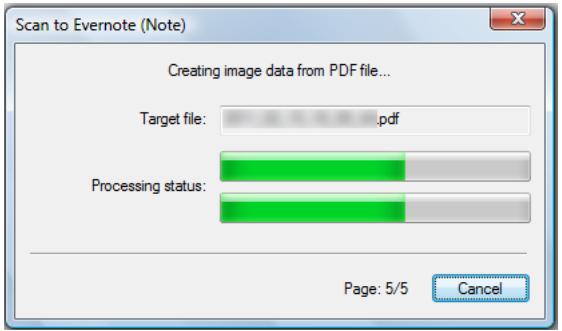
Evernote for Windows starts up, and the JPEG file is saved to Evernote.
HINT
- When you select [PDF(*.pdf)] for [File format] in the [File option] tab of the ScanSnap setup dialog box, a four-digit serial number is automatically added to the name of the file which is saved to Evernote.
e.g. When the file name is [ScanSnap], the file is saved as:
ScanSnap_0001, ScanSnap_0002, ScanSnap_0003...
- The file in which the scanned image is saved remains in the folder specified for [Image saving folder] in the [Save] tab of the ScanSnap setup dialog box even after the scanned image is saved to Evernote. Delete this file if unnecessary.
Without Using the Quick Menu
HINT
To disable the Quick Menu, you need to clear the [Use Quick Menu] check box in the ScanSnap setup dialog box.
For details about how to perform scanning without using the Quick Menu, refer to "Without Using the Quick Menu" (page 81).
1. Select [Scan Button Settings] from the Right-Click Menu.
For details about the Right-Click Menu, refer to "Right-Click Menu" (page 71).
Displays the ScanSnap setup dialog box.
2. In the [Application] drop-down list in the [Application] tab, select [Scan to Evernote (Note)].
![FUJITSU SCANSNAP S1300I DELUXE - In the [Application] drop-down list in the [Application] tab, select [Scan to Evernote (Note)]. - 1](/content/2025/01/190766/images/6236ce8500f6f3b7c2dab9092b0bc9753d869dddf6b99c72f6e64632c4812c3c.jpg)
HINT
ScanSnap Manager also links with [Scan to Evernote (Note)] when you select:
- [Scan to Evernote (Note)] from the [Profile] drop-down list of the ScanSnap setup dialog box
- [Scan to Evernote (Note)] from the Left-Click Menu
3. Click the [OK] button to close the ScanSnap setup dialog box.
4. Load a document in the ScanSnap.
For details about how to load documents, refer to "How to Load Documents" (page 33).
5. Press the [Scan] button on the ScanSnap to start a scan.
When the scanning is completed, a separate JPEG file will be created from each page of the PDF file if [PDF(*.pdf)] is selected for [File format] in the [File option] tab of the ScanSnap setup dialog box.
The following window appears during file creation.
![FUJITSU SCANSNAP S1300I DELUXE - Press the [Scan] button on the ScanSnap to start a scan. - 1](/content/2025/01/190766/images/7fde1f73c76023c061f6d49cd0f9e5f5e8837b97d437136208b834a3c96dc2fd.jpg)
Evernote for Windows starts up, and the JPEG file is saved to Evernote.
HINT
- When you select [PDF(*.pdf)] for [File format] in the [File option] tab of the ScanSnap setup dialog box, a four-digit serial number is automatically added to the name of the file which is saved to Evernote.
e.g. When the file name is [ScanSnap], the file is saved as:
ScanSnap_0001, ScanSnap_0002, ScanSnap_0003...
- The file in which the scanned image is saved remains in the folder specified for [Image saving folder] in the [Save] tab of the ScanSnap setup dialog box even after the scanned image is saved to Evernote. Delete this file if unnecessary.
Saving Documents to Google Docs
This section explains how to save the scanned image as a PDF file to Google Docs.
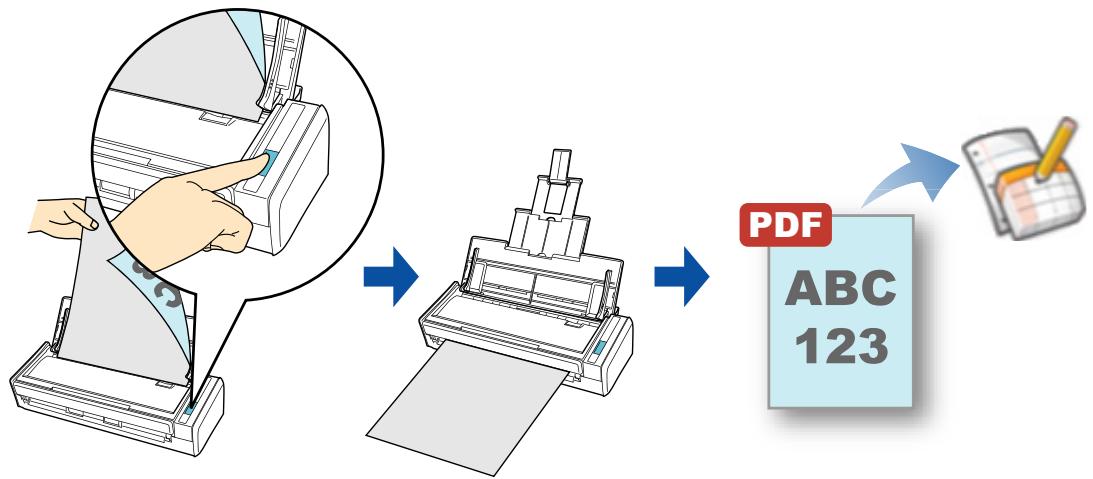
ATTENTION
- You need to create a Google account (free).
- You need to have .NET Framework 3.0 installed in order to use this function. Note that .NET Framework 3.0 is also included in .NET Framework 3.5 (SP1 or later). It is recommended that you use .NET Framework 3.5 (SP1 or later) by updating Windows. If .NET Framework 4 or later is already installed, you need to install .NET Framework 3.0 separately because .NET Framework 3.0 is not included in .NET Framework 4 or later version.
HINT
ScanSnap Folder can also be used for this operation. For details, refer to "ScanSnap Folder Operations" (page 232).
For details about the procedure to scan and save the scanned image to Google Docs using or without using the Quick Menu, refer to the following:
Using the Quick Menu ( page 207)
- Without Using the Quick Menu ( page 211)
Using the Quick Menu
HINT
To use the Quick Menu, you need to select the [Use Quick Menu] check box in the ScanSnap setup dialog box.
For details about how to perform scanning by using the Quick Menu, refer to "Using the Quick Menu" (page 75).
1. Load a document in the ScanSnap.
For details about how to load documents, refer to "How to Load Documents" (page 33).
2. Press the [Scan] button on the ScanSnap to start a scan.
The Quick Menu appears when the scanning is completed.
![FUJITSU SCANSNAP S1300I DELUXE - Press the [Scan] button on the ScanSnap to start a scan. - 1](/content/2025/01/190766/images/13f5aacf2f04d37ce57ce300fc59ed385d748ab59d7b85b8f47d0deb85e2eeaa.jpg)
3. Change the settings for [Scan to Google Docs(TM)] (If you do not want to change any settings, go to step 4.).
- Move the mouse cursor to the mark on the [Scan to Google Docs(TM)] icon
![FUJITSU SCANSNAP S1300I DELUXE - Change the settings for [Scan to Google Docs(TM)] (If you do not want to change any settings, go to step 4.). - 1](/content/2025/01/190766/images/0ce2439acb0b52cc41d6bf7b33d1be00ab386800aa43dc53aab6a2130d6a1832.jpg)
and then select the [Settings] menu.
The [Scan to Google Docs(TM) - Options] dialog box appears.
- Change the settings.
For details about the [Scan to Google Docs(TM) - Options] dialog box, refer to the ScanSnap Manager Help.
![FUJITSU SCANSNAP S1300I DELUXE - Change the settings for [Scan to Google Docs(TM)] (If you do not want to change any settings, go to step 4.). - 2](/content/2025/01/190766/images/fcb763da6c727f8f6a97fa0a4679642899705d63a4c60b15f1f1ae3db6f6aaa8.jpg)
ATTENTION
If the computer is shared with other users, do not set your information in [Email] and [Password]. Otherwise, other users will be able to log into Google Docs automatically. It is recommended to set only [Email] in this dialog box, and type in the password every time.
- Click the [OK] button to close the [Scan to Google Docs(TM) - Options] dialog box.
4. Click the [Scan to Google Docs(TM)] icon
![FUJITSU SCANSNAP S1300I DELUXE - Click the [Scan to Google Docs(TM)] icon - 1](/content/2025/01/190766/images/51ac7c499efe9c01ac04d9654bc6fa0072256d673447debfb9cb9f63b2f29624.jpg)
ATTENTION
- You cannot start scanning when the Quick Menu is displayed. Save the PDF file to Google Docs before scanning the next document.
- Do not move, delete, or rename the scanned image in other applications when the Quick Menu is displayed.
If you did not specify a Google account in the [Scan to Google Docs(TM) - Options] dialog box in step 3., the [Scan to Google Docs(TM)] dialog box appears. To continue, enter your e-mail address and password, and click the [OK] button.
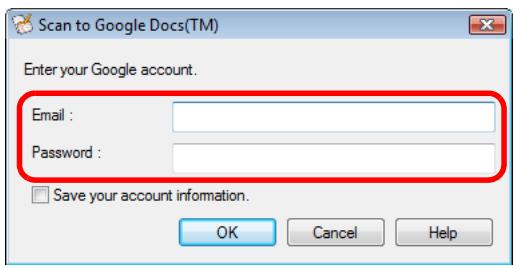
ATTENTION
- If the computer is shared with other users, do not select the [Save your account information.] check box in this dialog box. Otherwise, other users will be able to log into Google Docs automatically.
- Scan to Google Docs(TM) is not available in a proxy environment that requires authentication upon connecting to the Internet.
If [JPEG(*.jpg)] is selected for [File format] in the [File option] tab of the ScanSnap setup dialog box, a separate PDF file will be created from each JPEG file. The following window appears during file creation.
If the [Convert to Searchable PDF] check box is selected in the [Scan to Google Docs(TM) - Options] dialog box in step 3., text recognition is performed according to the [OCR options] settings in the [Scan to Google Docs(TM) - Options] dialog box. The following window appears during text recognition.
HINT
Note that text recognition will be performed only on pages containing text which is not yet recognized.
Saving to Google Docs starts. Click the [Close] button to close the [Scan to Google Docs(TM)] dialog box when the saving is completed.
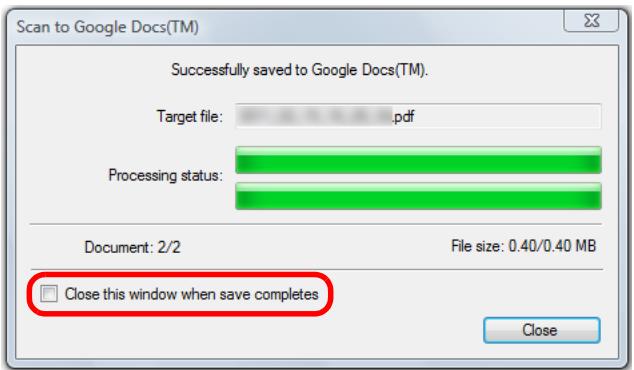
If you select the [Close this window when save completes] check box above, the [Scan to Google Docs(TM)] dialog box will automatically close from next scanning on when the saving is completed.
HINT
Google Docs does not start up after the saving has completed. To check the saved PDF file, start a web browser and log in to Google Docs.
Without Using the Quick Menu
HINT
To disable the Quick Menu, you need to clear the [Use Quick Menu] check box in the ScanSnap setup dialog box.
For details about how to perform scanning without using the Quick Menu, refer to "Without Using the Quick Menu" (page 81).
1. Select [Scan Button Settings] from the Right-Click Menu.
For details about the Right-Click Menu, refer to "Right-Click Menu" (page 71).
The ScanSnap setup dialog box appears.
2. In the [Application] drop-down list in the [Application] tab, select [Scan to Google Docs(TM)].
![FUJITSU SCANSNAP S1300I DELUXE - In the [Application] drop-down list in the [Application] tab, select [Scan to Google Docs(TM)]. - 1](/content/2025/01/190766/images/b53fd9fe4d3fdd0e94aecf043aea69eef78336c793104ec1cb17ef9780501fc3.jpg)
HINT
ScanSnap Manager also links with [Scan to Google Docs(TM)] when you select:
- [Scan to Google Docs(TM)] from the [Profile] drop-down list of the ScanSnap setup dialog box
- [Scan to Google Docs(TM)] from the Left-Click Menu
3. Change the settings for [Scan to Google Docs(TM)] (If you do not want to change any settings, go to step 4.).
- Click the [Application Settings] button.
![FUJITSU SCANSNAP S1300I DELUXE - Change the settings for [Scan to Google Docs(TM)] (If you do not want to change any settings, go to step 4.). - 1](/content/2025/01/190766/images/375e9674d61bdfd600b566e9d15a38955567d7f0fcaa110d716bbceaca93bf1a.jpg)
The [Scan to Google Docs(TM)] dialog box appears.
- Change the settings.
For details about the [Scan to Google Docs(TM) - Options] dialog box, refer to the ScanSnap Manager Help.
![FUJITSU SCANSNAP S1300I DELUXE - Change the settings for [Scan to Google Docs(TM)] (If you do not want to change any settings, go to step 4.). - 2](/content/2025/01/190766/images/c2ec347cf24f83c70d3d7c1e7d2eb74dafad9da4064aaa2743acbeb69074eaf1.jpg)
ATTENTION
If the computer is shared with other users, do not set your information in [Email] and [Password]. Otherwise, other users will be able to log into Google Docs automatically. It is recommended to set only [Email] in this dialog box, and type in the password every time.
-
Click the [OK] button to close the [Scan to Google Docs(TM) - Options] dialog box.
-
Click the [OK] button to close the ScanSnap setup dialog box.
- Load a document in the ScanSnap.
For details about how to load documents, refer to "How to Load Documents" (page 33).
6. Press the [Scan] button on the ScanSnap to start a scan.
If you did not specify a Google account in the [Scan to Google Docs(TM) - Options] dialog box in step 3., the [Scan to Google Docs(TM)] dialog box appears when the scanning is completed. To continue, enter your e-mail address and password, and click the [OK] button.
![FUJITSU SCANSNAP S1300I DELUXE - Press the [Scan] button on the ScanSnap to start a scan. - 1](/content/2025/01/190766/images/edc8fbe8c65dd03bf05ee60271354266f05e7de8e9b98268485e3278ebfeb68f.jpg)
ATTENTION
- If the computer is shared with other users, do not select the [Save your account information.] check box in this dialog box.
Otherwise, other users will be able to log into Google Docs automatically. - Scan to Google Docs(TM) is not available in a proxy environment that requires authentication upon connecting to the Internet.
If [JPEG(*.jpg)] is selected for [File format] in the [File option] tab of the ScanSnap setup dialog box, a separate PDF file will be created from each JPEG file. The following window appears during file creation.
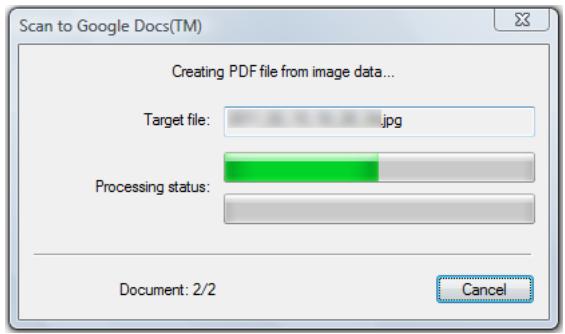
If the [Convert to Searchable PDF] check box is selected in the [Scan to Google Docs(TM) - Options] dialog box in step 3., text recognition is performed according to the [OCR options] settings in the [Scan to Google Docs(TM) - Options] dialog box. The following window appears during text recognition.
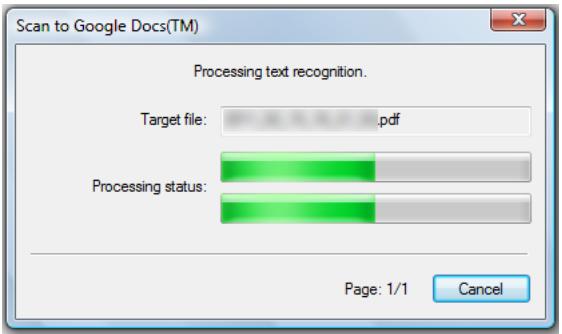
HINT
Note that text recognition will be performed only on pages containing text which is not yet recognized.
Saving to Google Docs starts. Click the [Close] button to close the [Scan to Google Docs(TM)] dialog box when the saving is completed.
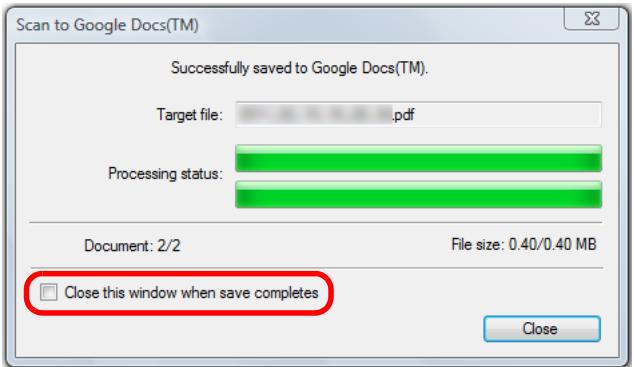
If you select the [Close this window when save completes] check box above, the [Scan to Google Docs(TM)] dialog box will automatically close from next scanning on when the saving is completed.
HINT
Google Docs does not start up after the saving has completed. To check the saved PDF file, start a web browser and log in to Google Docs.
■ Posting to Salesforce Chatter
This section explains how to post the scanned image as a PDF or a JPEG file to Salesforce Chatter.
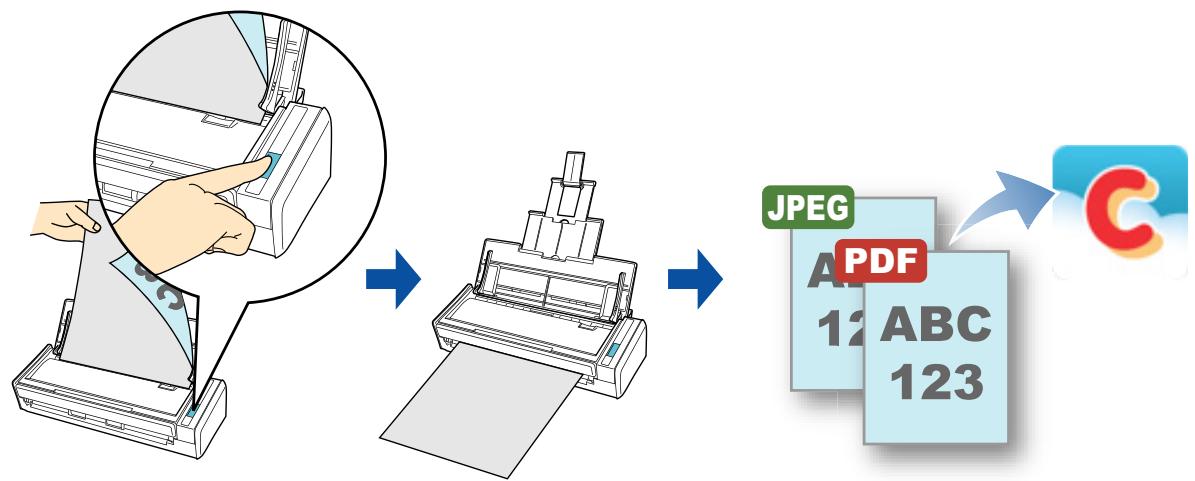
ATTENTION
- A Salesforce CRM license is required separately.
-
ScanSnap Manager can link with the following Salesforce editions:
-
Unlimited
-Enterprise -
You need to have.NET Framework 3.0 installed in order to use this function.
Note that .NET Framework 3.0 is also included in .NET Framework 3.5 (SP1 or later). It is recommended that you use .NET Framework 3.5 (SP1 or later) by updating Windows.
Even if .NET Framework 4 or later is already installed, you need to install .NET Framework 3.0 separately because .NET Framework 3.0 is not included in .NET Framework 4 or later version.
- A maximum of 100 scanned image files can be posted to Salesforce Chatter at once.
HINT
ScanSnap Folder can also be used for this operation. For details, refer to "ScanSnap Folder Operations" (page 232).
For details about the procedure to scan and post the scanned image to Salesforce Chatter using or without using the Quick Menu, refer to the following:
Using the Quick Menu ( page 216)
- Without Using the Quick Menu ( page 220)
Using the Quick Menu
HINT
To use the Quick Menu, you need to select the [Use Quick Menu] check box in the ScanSnap setup dialog box.
For details about how to perform scanning by using the Quick Menu, refer to "Using the Quick Menu" (page 75).
1. Load a document in the ScanSnap.
For details about how to load documents, refer to "How to Load Documents" (page 33).
2. Press the [Scan] button on the ScanSnap to start a scan.
The Quick Menu appears when the scanning is completed.
![FUJITSU SCANSNAP S1300I DELUXE - Press the [Scan] button on the ScanSnap to start a scan. - 1](/content/2025/01/190766/images/ae17e2c9aab3af6591a24a9b2ffd279971a6c2c264cfc64da5731907100a673a.jpg)
3. Change the settings for [Scan to Salesforce Chatter] (If you do not want to change any settings, go to step 4.).
- Move the mouse cursor to the mark on the [Scan to Salesforce Chatter] icon
![FUJITSU SCANSNAP S1300I DELUXE - Change the settings for [Scan to Salesforce Chatter] (If you do not want to change any settings, go to step 4.). - 1](/content/2025/01/190766/images/6781f50fc5f5c0daf22e2689f3b664ef91e3a0b59e7ccb98e1224ff3d5cd2562.jpg)
, and then select the [Settings] menu.
The [Scan to Salesforce Chatter - Options] dialog box appears.
2. Change the settings.
For details about the [Scan to Salesforce Chatter - Options] dialog box, refer to the ScanSnap Manager Help.
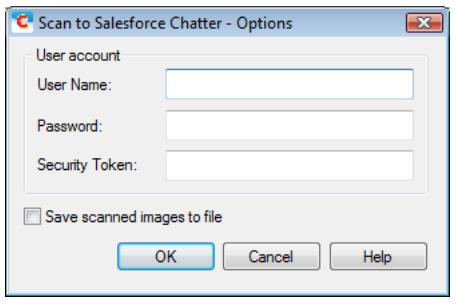
ATTENTION
If the computer is shared with other users, do not set your information in [UserID], [Password] and [Security Token]. Otherwise, other users will be able to log into Salesforce automatically. It is recommended to set only [UserID] and [Security Token] in this dialog box, and type in the password every time.
- Click the [OK] button to close the [Scan to Salesforce Chatter - Options] dialog box.
4. Click the [Scan to Salesforce Chatter] icon
If you did not specify a Salesforce account in the [Scan to Salesforce Chatter - Options] dialog box in step 3., the [Scan to Salesforce Chatter - Login] dialog box appears. To continue, enter your user name and password and click the [OK] button. Enter a security token if needed.
![FUJITSU SCANSNAP S1300I DELUXE - Click the [Scan to Salesforce Chatter] icon - 1](/content/2025/01/190766/images/b00659e21c7c0ffe7512dd34e284db372b17167b010e8fff94bc44c27d6baef8.jpg)
ATTENTION
- If the computer is shared with other users, do not select the [Save user account information.] check box in this dialog box. Otherwise, other users will be able to log into Salesforce automatically.
- Scan to Salesforce Chatter is not available in a proxy environment that requires authentication upon connecting to the Internet.
The [Scan to Salesforce Chatter] dialog box appears.
5. Check the scanned image in the preview area.
In the [Scan to Salesforce Chatter] dialog box, you can set the posting destination and method, the message to post, the name and description of the image file that will be posted to Salesforce Chatter, and save the scanned image in the folder specified for [Image saving folder].
For details about the [Scan to Salesforce Chatter] dialog box, refer to the ScanSnap Manager Help.
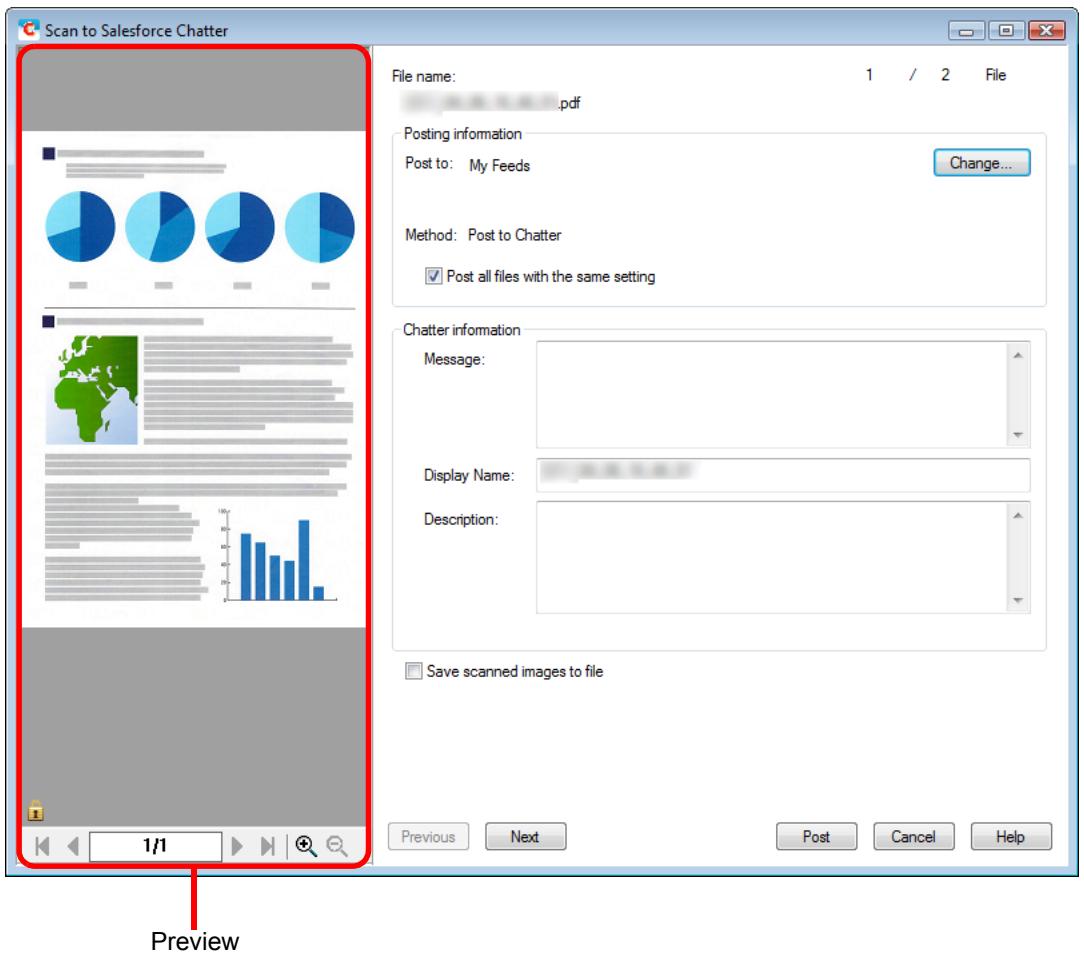
6. Click the [Post] button.
Posting to Salesforce Chatter starts. Click the [Close] button to close the [Scan to Salesforce Chatter] dialog box when the posting is completed.
![FUJITSU SCANSNAP S1300I DELUXE - Click the [Post] button. - 1](/content/2025/01/190766/images/ca641c522b5799482eae54f47d6cd13a171e2bddecb0b8e59a65347be77bea3f.jpg)
If you select the [Close this window when posting completes] check box above, the [Scan to Salesforce Chatter] dialog box will automatically close from next scanning on when the posting is completed.
ATTENTION
- You cannot start scanning after the Quick Menu is displayed and before the [Scan to Salesforce Chatter] dialog box is closed. Close the [Scan to Salesforce Chatter] dialog box before scanning the next document.
- Do not move, delete, or rename the scanned image in other applications when the Quick Menu is displayed.
HINT
Salesforce does not start up after the posting has completed. To check the saved scanned image file, start a web browser and log in to Salesforce.
Without Using the Quick Menu
HINT
To disable the Quick Menu, you need to clear the [Use Quick Menu] check box in the ScanSnap setup dialog box.
For details about how to perform scanning without using the Quick Menu, refer to "Without Using the Quick Menu" (page 81).
1. Select [Scan Button Settings] from the Right-Click Menu.
For details about the Right-Click Menu, refer to "Right-Click Menu" (page 71).
The ScanSnap setup dialog box appears.
2. In the [Application] drop-down list in the [Application] tab, select [Scan to Salesforce Chatter].
![FUJITSU SCANSNAP S1300I DELUXE - In the [Application] drop-down list in the [Application] tab, select [Scan to Salesforce Chatter]. - 1](/content/2025/01/190766/images/506e6c0c849eb2e74e2ed4564131815c121718d38dc05109f3e37518f86bc161.jpg)
HINT
When you add the customized settings as profiles, the application to link with ScanSnap Manager can be selected from the [Profile] drop-down list or Left-Click Menu next time you perform a scan. For details about how to add a profile, refer to "Profile Management" (page 93).
3. Change the settings for [Scan to Salesforce Chatter] (If you do not want to change any settings, go to step 4.).
- Click the [Application Settings] button.
![FUJITSU SCANSNAP S1300I DELUXE - Change the settings for [Scan to Salesforce Chatter] (If you do not want to change any settings, go to step 4.). - 1](/content/2025/01/190766/images/e91ae0accd5bccb2af3cca45a1a72453b170c98d1bd7b0ed37a053dc81107c74.jpg)
The [Scan to Salesforce Chatter - Options] dialog box appears.
- Change the settings.
For details about the [Scan to Salesforce Chatter - Options] dialog box, refer to the ScanSnap Manager Help.
![FUJITSU SCANSNAP S1300I DELUXE - Change the settings for [Scan to Salesforce Chatter] (If you do not want to change any settings, go to step 4.). - 2](/content/2025/01/190766/images/eeccf5b0344e6ef3eeadee46a801080375bedbdeea096cf4aa85732212df0a6a.jpg)
ATTENTION
If the computer is shared with other users, do not set your information in [UserID],
[Password] and [Security Token]. Otherwise, other users will be able to log into Salesforce automatically.
It is recommended to set only [User Name] and [Security Token] in this dialog box, and type in the password every time.
-
Click the [OK] button to close the [Scan to Salesforce Chatter - Options] dialog box.
-
Click the [OK] button to close the ScanSnap setup dialog box.
- Load a document in the ScanSnap.
For details about how to load documents, refer to "How to Load Documents" (page 33).
6. Press the [Scan] button on the ScanSnap to start a scan.
If you did not specify a Salesforce account in the [Scan to Salesforce Chatter - Options] dialog box in step 3., the [Scan to Salesforce Chatter - Login] dialog box appears when the scanning is completed. To continue, enter your user name and password and click the [OK] button. Enter a security token if needed.
![FUJITSU SCANSNAP S1300I DELUXE - Press the [Scan] button on the ScanSnap to start a scan. - 1](/content/2025/01/190766/images/f8ca3db82d649911a1ed5aec6380fc2959c5a82dcf5b74cd50e798820081b093.jpg)
ATTENTION
- If the computer is shared with other users, do not select the [Save user account information.] check box in this dialog box. Otherwise, other users will be able to log into Salesforce automatically.
- Scan to Salesforce Chatter is not available in a proxy environment that requires authentication upon connecting to the Internet.
The [Scan to Salesforce Chatter] dialog box appears.
7. Check the scanned image in the preview area.
In the [Scan to Salesforce Chatter] dialog box, you can set the posting destination and method, the message to post, the name and description of the image file that will be posted to Salesforce Chatter, and save the scanned image in the folder specified for [Image saving folder].
For details about the [Scan to Salesforce Chatter] dialog box, refer to the ScanSnap Manager Help.
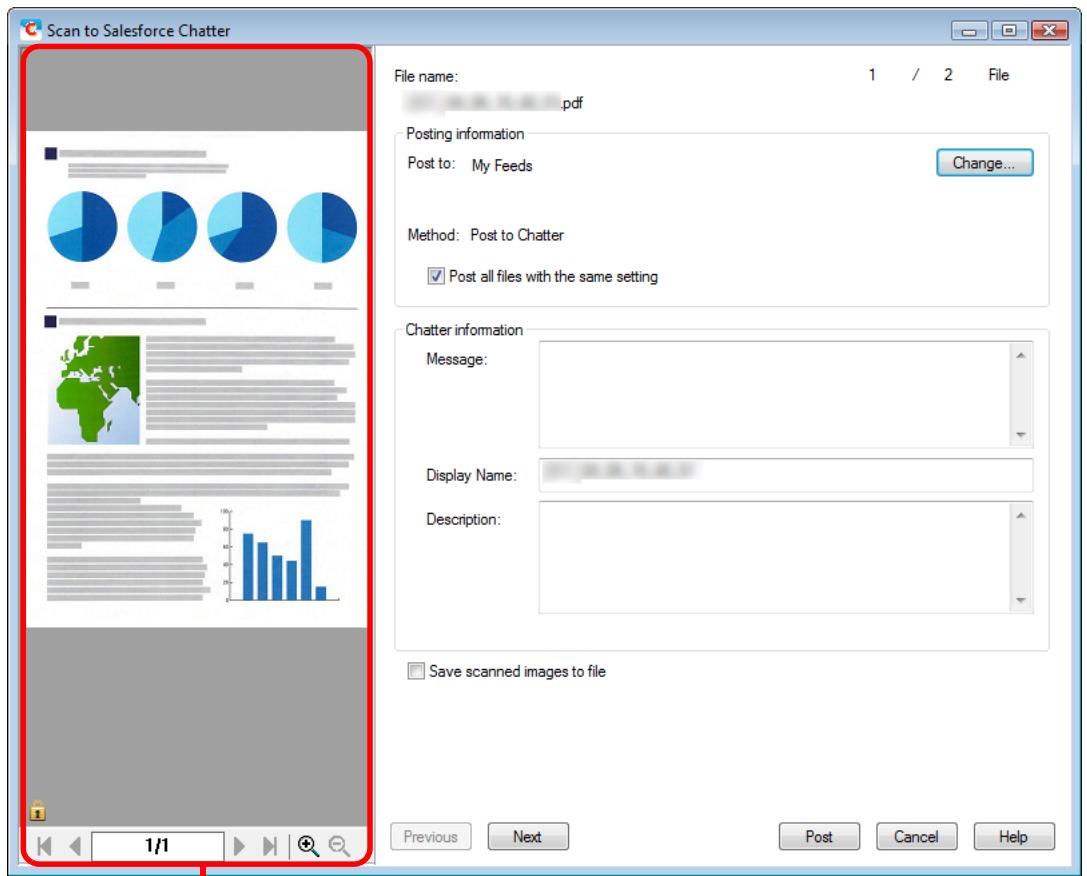
Preview
8. Click the [Post] button.
Posting to Salesforce Chatter starts. Click the [Close] button to close the [Scan to Salesforce Chatter] dialog box when the posting is completed.
![FUJITSU SCANSNAP S1300I DELUXE - Click the [Post] button. - 1](/content/2025/01/190766/images/b450647731142a16bf76893ccab86bffe6ed4f02a183f21adaa0f1d8db60dfdf.jpg)
If you select the [Close this window when posting completes] check box above, the [Scan to Salesforce Chatter] dialog box will automatically close from next scanning on when the posting is completed.
ATTENTION
- You cannot start scanning when the [Scan to Salesforce Chatter] dialog box is displayed. Close the dialog box before scanning the next document.
- Do not move, delete, or rename the scanned image in other applications when the [Scan to Salesforce Chatter] dialog box is displayed.
HINT
Salesforce does not start up after the posting has completed. To check the saved scanned image file, start a web browser and log in to Salesforce.
Saving Data to Your SugarSync Folder
This section explains how to save the scanned image as a PDF or a JPEG file to your SugarSync folder.
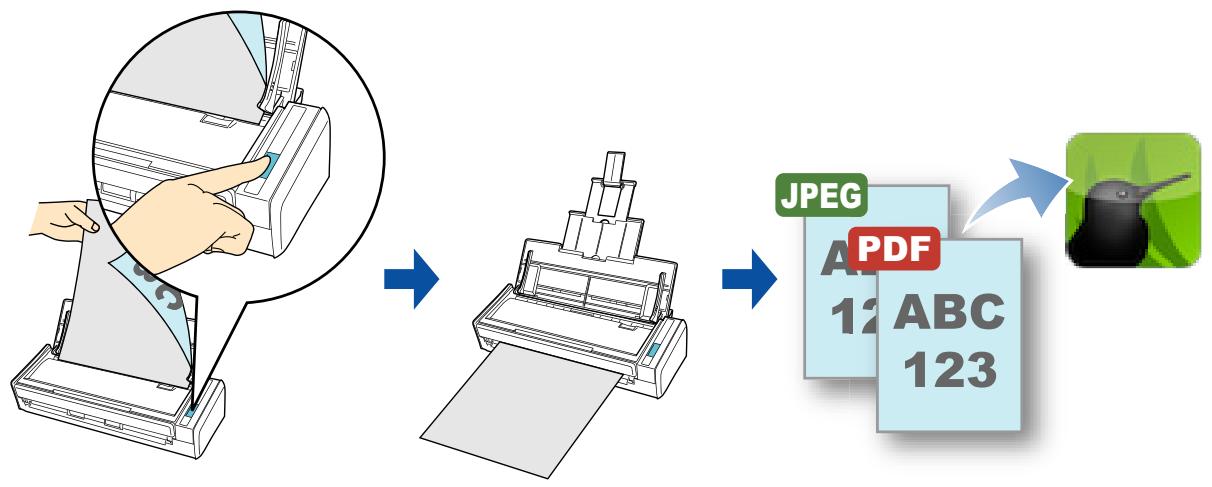
ATTENTION
- You need to have a SugarSync account.
- You need to have SugarSync Manager for Windows 1.9.28 or later installed in order to use this function.
- You can save up to 100 files to your SugarSync folder at once.
HINT
- When you first log into SugarSync after installing SugarSync Manager for Windows, the Magic Briefcase, which is a sync folder used for SugarSync, is automatically created.
- ScanSnap Folder can also be used for this operation. For details, refer to "ScanSnap Folder Operations" (page 232).
For details about the procedure to scan and save the scanned image to your SugarSync folder using or without using the Quick Menu, refer to the following:
Using the Quick Menu ( page 226)
- Without Using the Quick Menu ( page 229)
Using the Quick Menu
HINT
To use the Quick Menu, you need to select the [Use Quick Menu] check box in the ScanSnap setup dialog box.
For details about how to perform scanning by using the Quick Menu, refer to "Using the Quick Menu" (page 75).
1. Load a document in the ScanSnap.
For details about how to load documents, refer to "How to Load Documents" (page 33).
2. Press the [Scan] button on the ScanSnap to start a scan.
The Quick Menu appears when the scanning is completed.
![FUJITSU SCANSNAP S1300I DELUXE - Press the [Scan] button on the ScanSnap to start a scan. - 1](/content/2025/01/190766/images/d781689f1cefa59f97af740dd091f08c80e31d6707a69b0a7263006535dd92d6.jpg)
3. Change the settings for [Scan to SugarSync] (If you do not want to change any settings, go to step 4.).
-
Move the mouse cursor to the mark on the [Scan to SugarSync] icon , and then select the [Settings] menu.
The [Scan to SugarSync - Options] dialog box appears. -
Change the setting. For details about the [Scan to SugarSync - Options] dialog box, refer to ScanSnap Manager Help.
![FUJITSU SCANSNAP S1300I DELUXE - Change the settings for [Scan to SugarSync] (If you do not want to change any settings, go to step 4.). - 1](/content/2025/01/190766/images/106f8aecb902f27b51febef93db5119424768a968c5368e6516449eb98336905.jpg)
- Click the [OK] button to close the [Scan to SugarSync - Options] dialog box.
4. Click the [Scan to SugarSync] icon
![FUJITSU SCANSNAP S1300I DELUXE - Click the [Scan to SugarSync] icon - 1](/content/2025/01/190766/images/5189ddcd6cf16b5e98c59343e53a7ae2041820b7da6c472d7b39000bf25debbb.jpg)
The [Scan to SugarSync] dialog box appears. If you clear the [Show preview] check box in step 3., the scanned image is directly saved to your SugarSync folder.
5. Check the scanned image in the preview area.
In the [Scan to SugarSync] dialog box, you can rename the file and specify your SugarSync folder.
For details about the [Scan to SugarSync] dialog box, refer to the ScanSnap Manager Help.
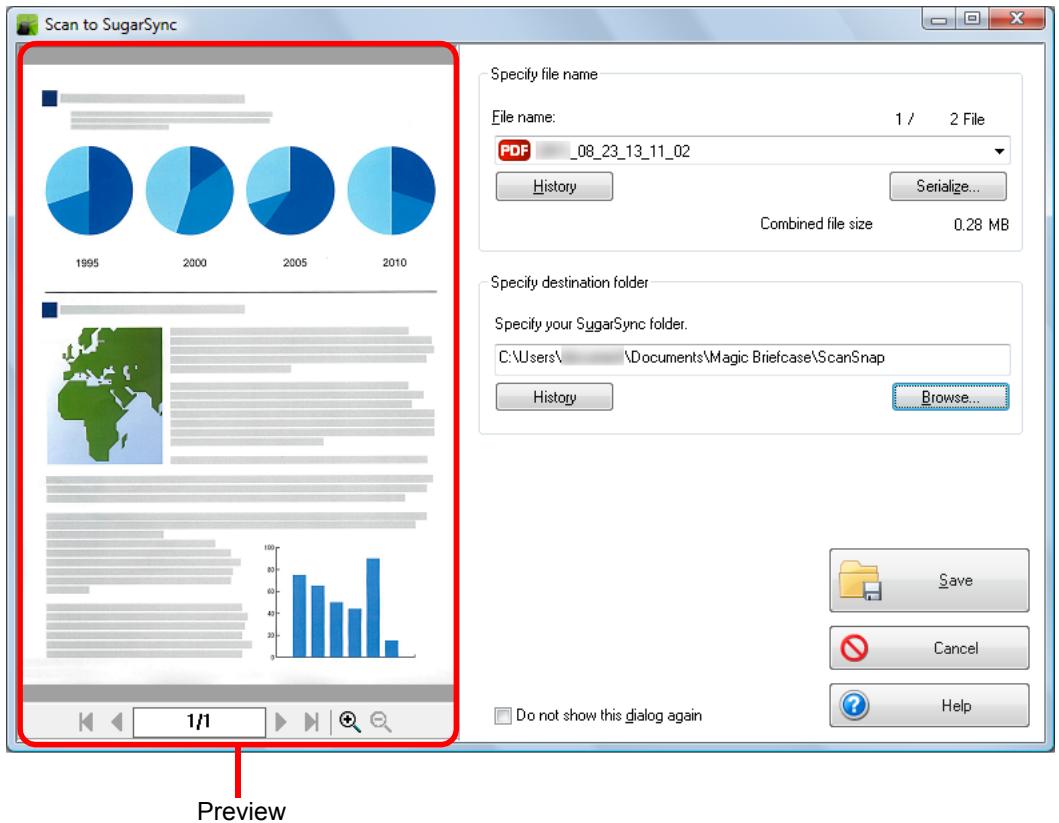
ATTENTION
The file will not be syncsed with SugarSync unless you select a SugarSync folder as the destination folder.
6. Click the [Save] button.
The scanned image is saved to your SugarSync folder.
ATTENTION
- You cannot start scanning after the Quick Menu is displayed and before the [Scan to SugarSync] dialog box is closed. Close the [Scan to SugarSync] dialog box before scanning the next document.
- Do not move, delete or rename the scanned image in other applications after the Quick Menu is displayed and before the [Scan to SugarSync] dialog box is closed.
Without Using the Quick Menu
HINT
To disable the Quick Menu, you need to clear the [Use Quick Menu] check box in the ScanSnap setup dialog box. For details about how to perform scanning without using the Quick Menu, refer to "Without Using the Quick Menu" (page 81).
1. Select [Scan Button Settings] from the Right-Click Menu.
For details about the Right-Click Menu, refer to "Right-Click Menu" (page 71).
The ScanSnap setup dialog box appears.
2. In the [Application] drop-down list in the [Application] tab, select [Scan to SugarSync].
![FUJITSU SCANSNAP S1300I DELUXE - In the [Application] drop-down list in the [Application] tab, select [Scan to SugarSync]. - 1](/content/2025/01/190766/images/2b80d69c23a6efdf7471d219566ad4383b73482b46fa176316b5f8dacd55ba7d.jpg)
HINT
When you add the customized settings as profiles, the application to link with ScanSnap Manager can be selected from the [Profile] drop-down list or the Left-Click Menu next time you perform a scan.
For details about how to add a profile, refer to "Profile Management" (page 93).
3. Change the settings for [Scan to SugarSync] (If you do not want to change any settings, go to step 4.).
- Click the [Application Settings] button.
![FUJITSU SCANSNAP S1300I DELUXE - Change the settings for [Scan to SugarSync] (If you do not want to change any settings, go to step 4.). - 1](/content/2025/01/190766/images/42b5978dd938b59e7251d1e445a7d7ab61e4db48fe4698df57963f5c7a8c2993.jpg)
The [Scan to SugarSync - Options] dialog box appears.
- Change the settings.
For details about the [Scan to SugarSync - Options] dialog box, refer to the ScanSnap Manager Help.
![FUJITSU SCANSNAP S1300I DELUXE - Change the settings for [Scan to SugarSync] (If you do not want to change any settings, go to step 4.). - 2](/content/2025/01/190766/images/c5b4b296395f7ed3db3685396425041a7a0113dfea7e3c5cd1dc151c832face9.jpg)
- Click the [OK] button to close the [Scan to SugarSync - Options] dialog box.
4. Click the [OK] button to close the ScanSnap setup dialog box.
5. Load a document in the ScanSnap.
For details about how to load documents, refer to "How to Load Documents" (page 33).
6. Press the [Scan] button on the ScanSnap to start a scan.
The [Scan to SugarSync] dialog box appears when the scanning is completed. If you clear the [Show preview] check box in step 3., the scanned image is directly saved to your SugarSync folder.
7. Check the scanned image in the preview area.
In the [Scan to SugarSync] dialog box, you can rename the file and specify your SugarSync folder.
For details about the [Scan to SugarSync] dialog box, refer to the ScanSnap Manager Help.
ATTENTION
The file will not be syncsed with SugarSync unless you select a SugarSync folder as the destination folder.
8. Click the [Save] button.
The scanned image is saved to your SugarSync folder.
ATTENTION
- You cannot start scanning when the [Scan to SugarSync] dialog box is displayed. Close the dialog box before scanning the next document.
- Do not move, delete or rename the scanned image in other applications when the [Scan to SugarSync] dialog box is displayed.
ScanSnap Folder Operations
"ScanSnap Folder" is a temporary folder where you can save images scanned with the ScanSnap to upload the file to a Web application or attach the file to an e-mail.
ScanSnap Folder supports a wide range of applications including Web applications. Files saved in this folder can be used by specifying ScanSnap Folder directly from the application when you scan.
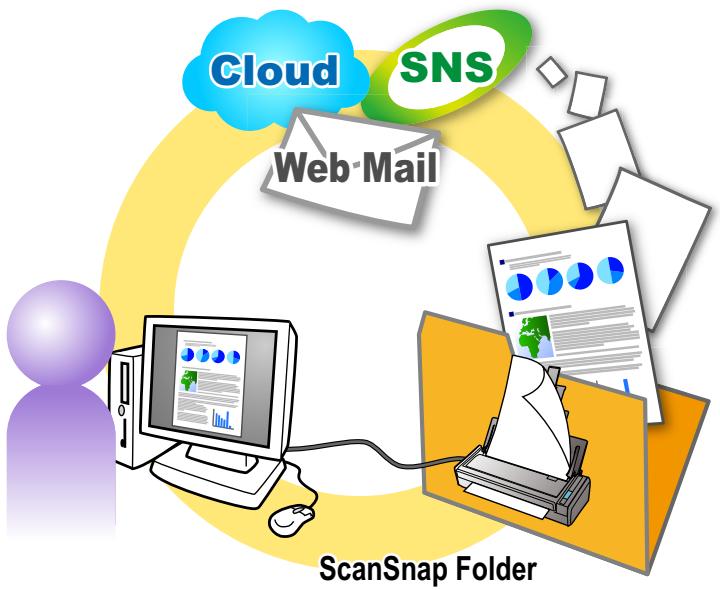
ATTENTION
ScanSnap Folder can be used with applications that support PDF or JPEG files.
HINT
The files in ScanSnap Folder will be deleted automatically after a set number of days because it is a temporary folder. The number of days to keep the files can be changed. For details, refer to the ScanSnap Manager Help.
■ How to Configure Scan Settings
You can configure scan settings for ScanSnap Folder in the ScanSnap setup dialog box depending on your intended use in the following procedure.
1. Select [ScanSnap Folder Settings] from the Right-Click Menu.
For details about the Right-Click Menu, refer to "Right-Click Menu" (page 71).
The ScanSnap setup dialog box appears.
![FUJITSU SCANSNAP S1300I DELUXE - Select [ScanSnap Folder Settings] from the Right-Click Menu. - 1](/content/2025/01/190766/images/d38ee50a1400beb08f9b8df9d66a2a78881383f50905011de39f8148cc1d025a.jpg)
2. Change the scan settings in each tab.
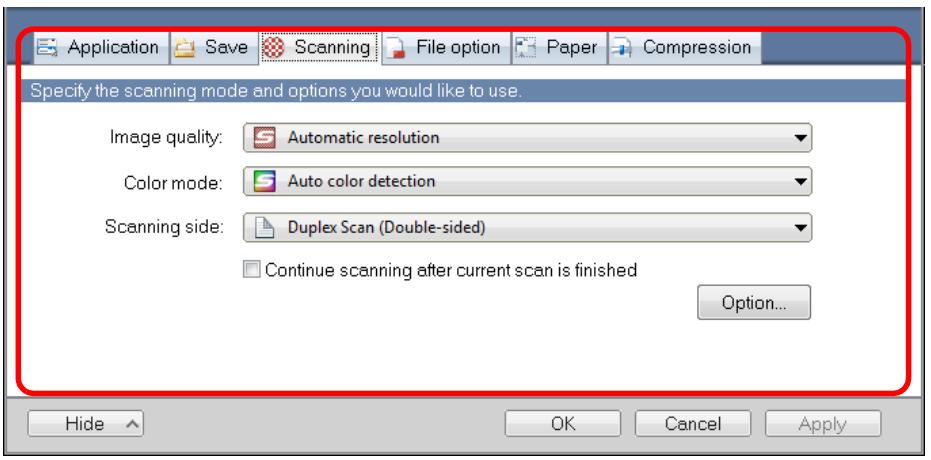
For details about setting items, refer to the ScanSnap Manager Help.
ATTENTION
The following items cannot be changed while the ScanSnap Folder is being used.
The profile button
- [Profile] drop-down list
- [Application] tab
-
Applications other than ScanSnap Folder in the [Application] drop-down list
-
The [Add or Remove] button
-
[Save] tab
- The [Rename file after scanning] check box
3. Click the [OK] or [Apply] button.
Scan settings for the profile are changed.
How to Perform a Scan
This section explains how to use ScanSnap Folder to perform scanning.
The following explains an example in which the scanned image file is attached to an e-mail in Windows Live Mail.
ATTENTION
ScanSnap Folder cannot be used if it is disabled. To enable ScanSnap Folder, refer to the ScanSnap Manager Help.
1. Click the [Attach file] button.
![FUJITSU SCANSNAP S1300I DELUXE - Click the [Attach file] button. - 1](/content/2025/01/190766/images/29ff7c34cc6baba5e37b81eca843fdbfdbb4e983fcbdc66c7791fffe8c7fda6c.jpg)
The [Open] dialog box appears.
2. Click [Computer] ([My Computer] for Windows XP).
![FUJITSU SCANSNAP S1300I DELUXE - Click [Computer] ([My Computer] for Windows XP). - 1](/content/2025/01/190766/images/db66b7033c191f848130e2d1daccd5ac34a7756896c28ae0777d82ab0233c8a9.jpg)
HINT
For Windows 7 or Windows Vista, when you select the ScanSnap Folder registered in [Favorites] ([Favorite Links] for Windows Vista), scanning becomes available in some applications.
3. Select ScanSnap Folder.
A pop-up balloon appears from the ScanSnap Manager icon on the task bar, and scanning becomes available.
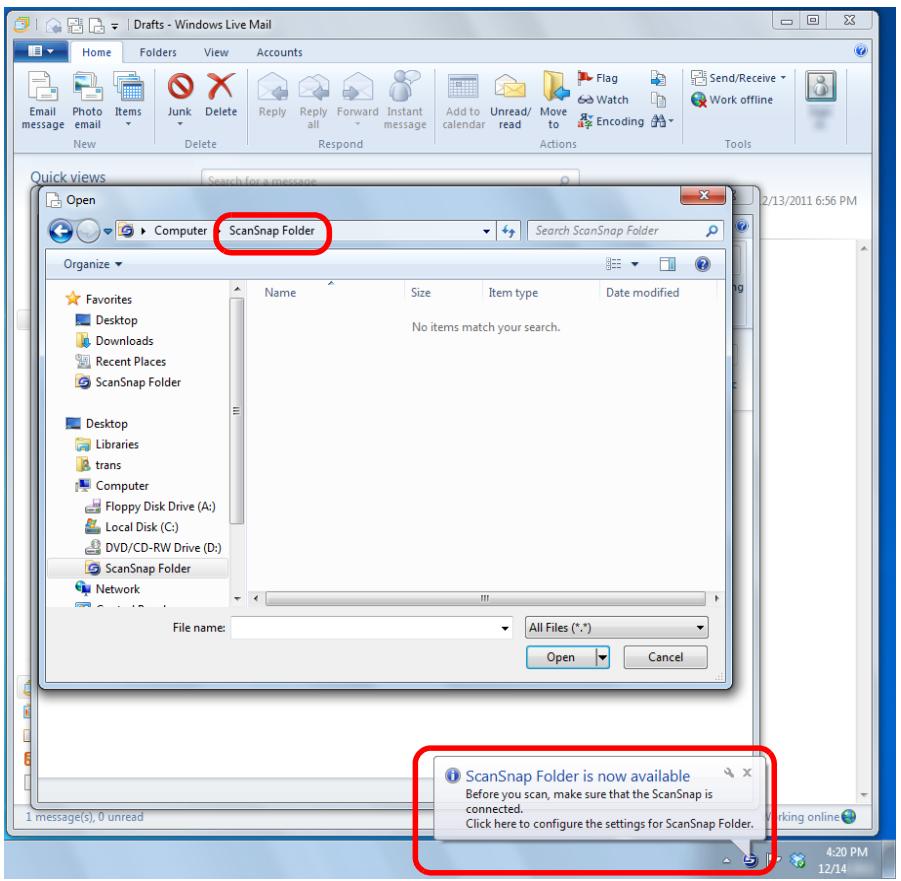
ATTENTION
Selecting "ScanSnap Folder" from some applications may terminate those applications. If your application ends, take an alternate measure. Use your application separately after starting an application in the Quick Menu to process and save the scanned image.
4. Load a document in the ScanSnap.
For details about how to load documents, refer to "How to Load Documents" (page 33).
5. Press the [Scan] button on the ScanSnap to start a scan.
The [ScanSnap Folder] dialog box appears when the scanning is completed.
6. Check the scanned image in the preview area.
In the [ScanSnap Folder] dialog box, you can rename the file and convert the file format. For details about the [ScanSnap Folder] dialog box, refer to the ScanSnap Manager Help.
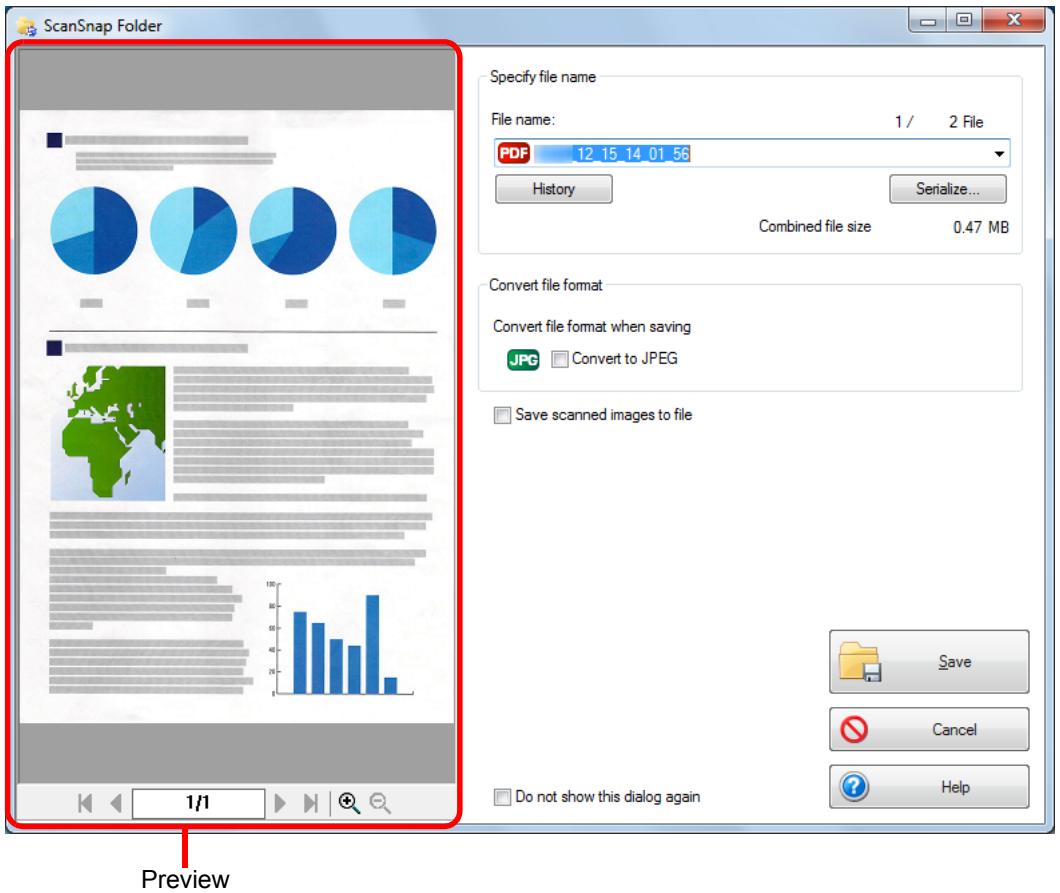
7. Click the [Save] button.
The file is saved to ScanSnap Folder.
![FUJITSU SCANSNAP S1300I DELUXE - Click the [Save] button. - 1](/content/2025/01/190766/images/e87efbc20255da7212ae8947c655fa71ccd8259c1abcc60b9afd108ab869065a.jpg)
8. Select the file to be attached, and click the [Open] button.
The file is attached.
![FUJITSU SCANSNAP S1300I DELUXE - Select the file to be attached, and click the [Open] button. - 1](/content/2025/01/190766/images/bd48e9a928fd2f17d7ac9ba90f3d5a1a9dd1b10fd11236c7e42b13f466beef56.jpg)
Using the ScanSnap in Various Ways
This section explains about various ways of using the ScanSnap.
Scanning Only One Side of a Document
By default, the ScanSnap scans in duplex mode.
To perform simplex scanning, perform the following steps to change the setting.
1. Select [Scan Button Settings] from the Right-Click Menu.
For details about the Right-Click Menu, refer to "Right-Click Menu" (page 71).
The ScanSnap setup dialog box appears.
2. In the [Scanning side] drop-down list in the [Scanning] tab, select [Simplex Scan (Single-sided)].
![FUJITSU SCANSNAP S1300I DELUXE - In the [Scanning side] drop-down list in the [Scanning] tab, select [Simplex Scan (Single-sided)]. - 1](/content/2025/01/190766/images/d1855b981ddc043aa8552d50935ba23d34e1c7c509634fb534a84c817e766d38.jpg)
- Click the [OK] button to close the ScanSnap setup dialog box.
- Load a document in the ScanSnap.
For details about how to load documents, refer to "How to Load Documents" (page 33).
5. Press the [Scan] button on the ScanSnap to start a scan.
HINT
When you select [Simplex scan] from the Right-Click Menu, scanning is performed in simplex mode even if [Duplex Scan (Double-sided)] is specified for [Scanning side] in the [Scanning] tab.
Scanned image is saved.
Scanning Color Documents in Gray or Black & White
When [Auto color detection] is specified for [Color mode] in the [Scanning] tab of the ScanSnap setup dialog box, the ScanSnap automatically recognizes whether the scanned document is color, gray or black & white, and saves documents in their respective color modes.
If you want to scan color documents and save them in gray or black & white, change the settings in the following procedure.
1. Select [Scan Button Settings] from the Right-Click Menu.
For details about the Right-Click Menu, refer to "Right-Click Menu" (page 71).
The ScanSnap setup dialog box appears.
2. In [Color mode] drop-down list in the [Scanning] tab, select [Gray] or [B&W].
![FUJITSU SCANSNAP S1300I DELUXE - In [Color mode] drop-down list in the [Scanning] tab, select [Gray] or [B&W]. - 1](/content/2025/01/190766/images/187730688f42b456beab6aa3c2b4cfe3aafb2f02a9591bbfe5eb205a6cb8a8b2.jpg)
- Click the [OK] button to close the ScanSnap setup dialog box.
- Load a document in the ScanSnap.
For details about how to load documents, refer to "How to Load Documents" (page 33).
5. Press the [Scan] button on the ScanSnap to start a scan.
Scanned image is saved in gray or black & white.
Scanning Color Documents in High Compression
The ScanSnap can save image data of color documents in high compression mode. You can scan large quantities of color documents in high compression mode and save them as a compact PDF file.
To scan color documents in high compression mode, perform the following steps to change the setting.
ATTENTION
In [Color high compression] mode, different compression rates are applied to characters and backgrounds. Therefore, the file size of a document with mostly text characters is reduced, while the quality of the characters is kept high.
However, high compression is applied to photographs and figures since they are regarded as backgrounds, resulting in deteriorated image data. For this reason, this mode is not appropriate for scanning photographs, images and such.
1. Select [Scan Button Settings] from the Right-Click Menu.
For details about the Right-Click Menu, refer to "Right-Click Menu" (page 71).
The ScanSnap setup dialog box appears.
2. In the [Color mode] drop-down list in the [Scanning] tab, select [Color high compression].
![FUJITSU SCANSNAP S1300I DELUXE - In the [Color mode] drop-down list in the [Scanning] tab, select [Color high compression]. - 1](/content/2025/01/190766/images/1980ca7882427234dbe0256712de3ebbfe5805ad0b560ca6a8e1c5b545ee0699.jpg)
3. Click the [OK] button to close the ScanSnap setup dialog box.
4. Load a document in the ScanSnap.
For details about how to load documents, refer to "How to Load Documents" (page 33).
5. Press the [Scan] button on the ScanSnap to start a scan.
The scanned document is saved as highly compressed color image data.
- Deleting Blank Pages from the Scanned Image
The ScanSnap can detect and automatically delete blank pages from a scanned image. For example, when you scan a mixed batch of double-sided and single-sided documents in duplex mode, the images are generated without the back sides of the single-sided documents (blank pages).
To delete blank pages, perform the following steps to change the setting.
ATTENTION
The following documents may be detected as blank.
- Almost blank documents with only a few characters
- Documents of only one color (including black) and without any patterns, lines or characters. When you scan such documents, clear the [Allow automatic blank page removal] check box.
Also make sure to check the image data for accidentally deleted pages when discarding the scanned document.
- Blank pages are not deleted when CardMinder is used.
1. Select [Scan Button Settings] from the Right-Click Menu.
For details about the Right-Click Menu, refer to "Right-Click Menu" (page 71).
The ScanSnap setup dialog box appears.
2. Click the [Option] button in the [Scanning] tab.
![FUJITSU SCANSNAP S1300I DELUXE - Click the [Option] button in the [Scanning] tab. - 1](/content/2025/01/190766/images/4516eb7be72f15120d88d76ba92ec35b392fb373b74ecba8d281c8cdcad4f15e.jpg)
The [Scanning mode option] dialog box appears.
3. Select the [Allow automatic blank page removal] check box.
![FUJITSU SCANSNAP S1300I DELUXE - Select the [Allow automatic blank page removal] check box. - 1](/content/2025/01/190766/images/e3938ebb3babfd9669530624ee5ddfb03b5db4ce43e3cbf2051a11d758f739b1.jpg)
- Click the [OK] button to close all open dialog boxes.
- Load a document in the ScanSnap.
For details about how to load documents, refer to "How to Load Documents" (page 33).
- Press the [Scan] button on the ScanSnap to start a scan.
Scanned image is saved without any blank pages.
Correcting Skewed Character Strings
When documents with skewed character strings are scanned, the ScanSnap is able to detect the skewed character strings and correct them.
To correct skewed character strings, change the settings in the following procedure.
ATTENTION
- Up to +/-5 degrees of skew can be corrected.
- Since this option is performed assuming that the document contains a certain amount of text, character strings may be adjusted at a wrong angle when scanning the following types of documents.
In that case, clear the [Correct skewed character strings automatically] check box:
- Documents on which pitches between lines or characters are extremely narrow, or characters are overlapped
- Documents with many outlined or decorated characters
- Documents with many photographs or figures and few characters
- Documents with characters on a patterned background e.g. Characters overlapping illustrations and diagrams
- Documents with characters printed in various directions such as drawings
- Documents with long diagonal lines
- Documents including handwritten characters.
HINT
You do not have to enable [Correct skewed character strings automatically] when [Automatic detection] is specified for [Paper size] in the [Paper] tab of the ScanSnap setup dialog box because the skewed image is always corrected when documents are scanned by this setting.
1. Select [Scan Button Settings] from the Right-Click Menu.
For details about the Right-Click Menu, refer to "Right-Click Menu" (page 71).
The ScanSnap setup dialog box appears.
2. Click the [Option] button in the [Scanning] tab.
![FUJITSU SCANSNAP S1300I DELUXE - Click the [Option] button in the [Scanning] tab. - 1](/content/2025/01/190766/images/78760922a66b1cbbad12cf8b800cd87ff4f4d1c7bc210c5ebc030d035ef43ef2.jpg)
The [Scanning mode option] dialog box appears.
3. Select the [Correct skewed character strings automatically] check box.
![FUJITSU SCANSNAP S1300I DELUXE - Select the [Correct skewed character strings automatically] check box. - 1](/content/2025/01/190766/images/d57abe0b026145f3a169ff763b5aa2e4a5c900f2d08da33e2d5a4803de7ee626.jpg)
- Click the [OK] button to close all open dialog boxes.
- Load a document in the ScanSnap.
For details about how to load documents, refer to "How to Load Documents" (page 33).
- Press the [Scan] button on the ScanSnap to start a scan.
Scanned image is saved with skewed character strings corrected.
Correcting the Orientation of Scanned Images
In an office environment, it is often the case that a single batch contains same size documents of different page orientations.
The ScanSnap is able to automatically rotate each scanned image to its correct orientation for such document batches.
To rotate scanned images to their correct orientations, change the settings in the following procedure.
ATTENTION
Since this option determines the document's page orientation based on the character strings printed on the document, the following types of documents may be rotated to the wrong orientation.
In that case, clear the [Allow automatic image rotation] check box:
- Documents with many extremely large or small characters
- Documents on which pitches between lines or characters are extremely narrow, or characters are overlapped
- Documents with many characters contacting underlines or borders
- Documents with many photographs or figures and few characters
- Documents with characters on an unevenly colored background e.g. Shaded characters
- Documents with many decorated characters e.g. Decorated characters (embossed/outlined)
- Documents with characters on a patterned background e.g. Characters overlapping illustrations and diagrams
- Documents with characters printed in various directions such as drawings
- Documents written using only capital letters
- Documents including handwritten characters.
- Skewed documents
- Documents written in an unsupported language (language other than Japanese/English/ French/ German/Italian/Spanish/Chinese (simplified)/Chinese (traditional)/Korean-Russian/ Portuguese)
- Documents with complex layouts
- Documents with a large amount of image noise
- Documents with faint characters
- Documents with faded characters
1. Select [Scan Button Settings] from the Right-Click Menu.
For details about the Right-Click Menu, refer to "Right-Click Menu" (page 71).
The ScanSnap setup dialog box appears.
2. Click the [Option] button in the [Scanning] tab.
![FUJITSU SCANSNAP S1300I DELUXE - Click the [Option] button in the [Scanning] tab. - 1](/content/2025/01/190766/images/1dc77ce780d6c917fa8d5dc1bb41149ccd94d8fbeb4f905c2c17984e8a69dc1c.jpg)
The [Scanning mode option] dialog box appears.
3. Select the [Allow automatic image rotation] check box.
![FUJITSU SCANSNAP S1300I DELUXE - Select the [Allow automatic image rotation] check box. - 1](/content/2025/01/190766/images/d9c6b2f0f7ea2d9cbaf0a0f82e76123d8e1e9f25e2e3963ddc28d1baf7436954.jpg)
- Click the [OK] button to close all open dialog boxes.
- Load a document in the ScanSnap.
For details about how to load documents, refer to "How to Load Documents" (page 33).
- Press the [Scan] button on the ScanSnap to start a scan.
The scanned image is saved in correct orientation.
Scanning Documents of Different Widths or Lengths in One Batch
You can scan documents of different widths or lengths in one batch.
To scan documents of different widths or lengths in one batch, change the settings in the following procedure.
1. Select [Scan Button Settings] from the Right-Click Menu.
For details about the Right-Click Menu, refer to "Right-Click Menu" (page 71).
The ScanSnap setup dialog box appears.
2. In the [Paper] tab, select [Automatic detection] in [Paper size].
![FUJITSU SCANSNAP S1300I DELUXE - In the [Paper] tab, select [Automatic detection] in [Paper size]. - 1](/content/2025/01/190766/images/2a5c768c864c109e66133dc6a6e7cee30aac975634883489ef844987a7168daf.jpg)
3. Select [None] in [Multifeed Detection] drop-down list.
![FUJITSU SCANSNAP S1300I DELUXE - Select [None] in [Multifeed Detection] drop-down list. - 1](/content/2025/01/190766/images/2c4222f31bb8192f9f177e0de8b2cc268d12398ccbe131adcc91f0d5a7945146.jpg)
ATTENTION
If you scan documents of different widths or lengths in one batch with [Check Length] selected, documents will be detected as multifeeds and scanning cannot be performed. Note that scanning Letter and A4 size documents in the same batch does not result in multifeed detection.
4. Click the [OK] button to close the ScanSnap setup dialog box.
5. Load documents in the ScanSnap.
- Align the edges of the documents.
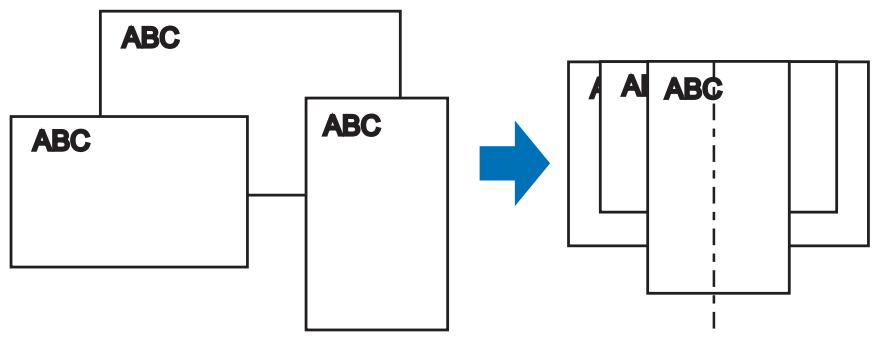
- Place the documents at the center of the ADF paper chute.
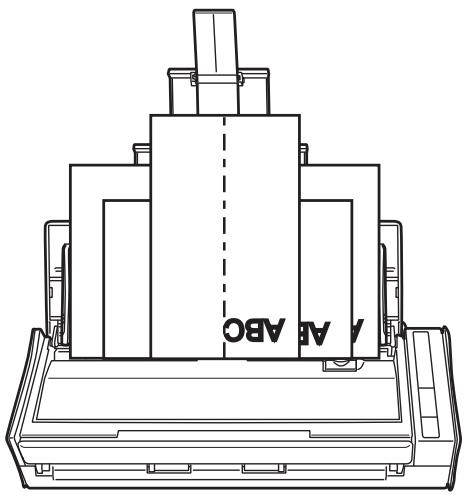
ATTENTION
- Make sure that all documents are placed above the pick roller. Otherwise, some documents will not be picked.
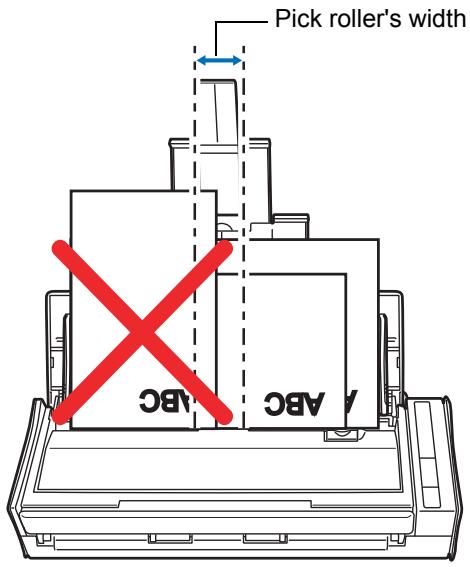
- Adjust the side guides to the widest document in the batch.
- Carefully load small documents that cannot reach the side guide straight into the ADF paper chute (cover). If the documents are skewed during scanning, the quality of scanned image data may be degraded (partly lost image data/slant lines produced) or scanned image data may be output in a different size than the original. If you have difficulties in scanning the documents straight, it is recommended to scan documents in several batches, documents of the same width being in the same batch, and enable continuous scanning.
- Note that documents that cannot be guided by the side guide may cause paper jams.
6. Press the [Scan] button on the ScanSnap to start a scan.
Scanned images are output in the original document sizes.
![FUJITSU SCANSNAP S1300I DELUXE - Press the [Scan] button on the ScanSnap to start a scan. - 1](/content/2025/01/190766/images/6547bcb5cfe6ddfc3bff5e48120153081e280248cf5ce4a1b71374a889393830.jpg)
ATTENTION
If the documents are scanned skewed, the images may not be output in their original sizes.
Long Page Scanning
Documents up to 863 mm (34 in.) in length can be scanned.
The following explains how to scan long pages.
1. Load a document in the ScanSnap.
For details about documents that can be loaded, refer to "Documents for Scanning" (page 31).
ATTENTION
- Long page documents should be loaded one sheet at a time in the ADF paper chute (cover).
- When you scan long pages, take note of the following.
Loading
Hold the document with your hands so that it does not fall out of the ADF paper chute (cover).
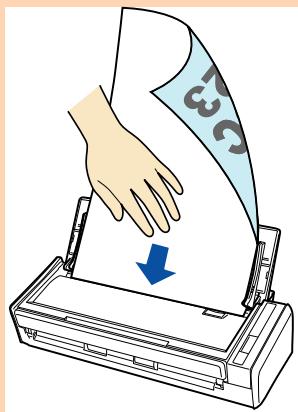
Ejecting
Secure enough space where the documents are ejected from the ScanSnap, and pick up the documents with your hands to prevent them from falling off the unit where the ScanSnap is placed on.
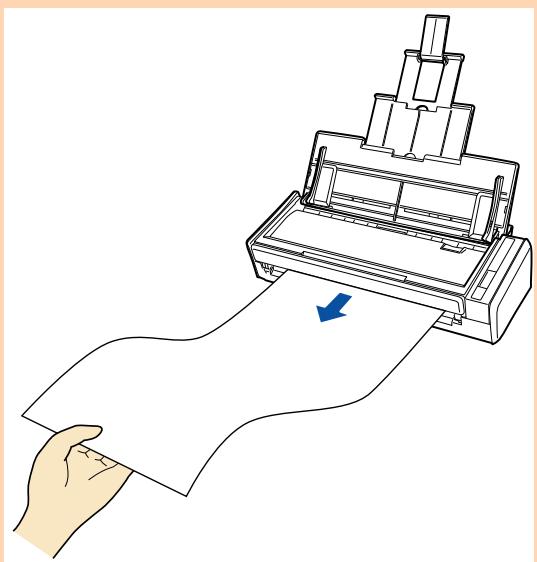
2. Press the [Scan] button on the ScanSnap for 3 seconds or longer until it flashes in blue.
Scanning starts.
HINT
When you scan the first page as a long page and continue scanning, the next document is also scanned as long page.
ATTENTION
- The error message below appears and long page scanning is disabled when [Excellent] is selected in the [Image quality] drop-down list of the [Scanning] tab in the ScanSnap setup dialog box.
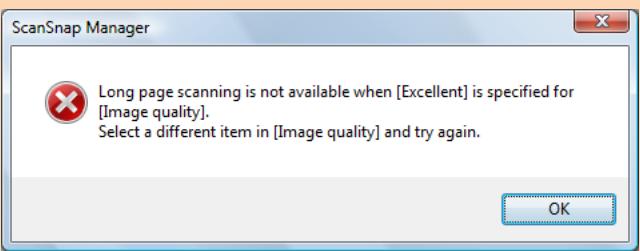
-
When you perform a long page scan, the current settings are ignored and the following settings are used:
-
Multifeed Detection: None
- Paper size: Automatic detection
Saving Scanned Images in Multiple PDF Files
The ScanSnap is able to save scanned image in separate PDF files based on the specified number of pages. For example, you can scan a batch of slips, and save each slip as a PDF file.
To save image data in multiple PDF files, change the settings in the following procedure.
1. Select [Scan Button Settings] from the Right-Click Menu.
For details about the Right-Click Menu, refer to "Right-Click Menu" (page 71).
The ScanSnap setup dialog box appears.
2. In the [File format] drop-down list in the [File option] tab, select [PDF (.pdf)], and then click the [Option] button.
![FUJITSU SCANSNAP S1300I DELUXE - In the [File format] drop-down list in the [File option] tab, select [PDF (.pdf)], and then click the [Option] button. - 1](/content/2025/01/190766/images/578c8477cff748b9d7b59eff795fa35317ebf742f6759c3ff9638dffe0da7f7d.jpg)
The [PDF file format option] dialog box appears.
3. Select [Generate one PDF file per (n) page(s)] and enter the number of pages to split.
One PDF is created every time the number of pages specified here has been saved.
![FUJITSU SCANSNAP S1300I DELUXE - Select [Generate one PDF file per (n) page(s)] and enter the number of pages to split. - 1](/content/2025/01/190766/images/d060447b010a42ce0c48ed30c43f64d4f7c3048c0223e86b8dddf740cc574dc6.jpg)
HINT
In duplex mode, two pages (front/back) are created per document.
When you select the [Allow automatic blank page removal] check box in the [Scanning mode option] dialog box ([Scanning] tab [Option] button), the number of pages of the original document and the scanned image does not match when blank pages are deleted. Clear this check box when you want to keep the original page number order.
4. Click the [OK] button to close all open dialog boxes.
5. Load a document in the ScanSnap.
For details about how to load documents, refer to "How to Load Documents" (page 33).
6. Press the [Scan] button on the ScanSnap to start a scan.
One PDF file is created every time the number of pages specified in step 3. has been scanned.
Creating Searchable PDF Files
The ScanSnap is able to perform text recognition on a scanned image automatically and create a searchable PDF file.
To create searchable PDF files, change the settings in the following procedure.
1. Select [Scan Button Settings] from the Right-Click Menu.
For details about the Right-Click Menu, refer to "Right-Click Menu" (page 71).
The ScanSnap setup dialog box appears.
2. In the [File format] drop-down list in the [File option] tab, select [PDF (.pdf)].
![FUJITSU SCANSNAP S1300I DELUXE - In the [File format] drop-down list in the [File option] tab, select [PDF (.pdf)]. - 1](/content/2025/01/190766/images/2448f3427e63ac8697fe4f25a1b17edc9baf62476dec25ce5b7cd446b464da9f.jpg)
HINT
It is recommended that you select [Better] or [Best] for [Image quality] in the [Scanning] tab of the ScanSnap setup dialog box.
3. Select the [Convert to Searchable PDF] check box.
The following message appears.
![FUJITSU SCANSNAP S1300I DELUXE - Select the [Convert to Searchable PDF] check box. - 1](/content/2025/01/190766/images/fa57d595f9962807b9f21428b042c03fc4c6a88c1f118b25e0786d0ca3dfdb68.jpg)
Click the [OK] button to close the dialog box.
![FUJITSU SCANSNAP S1300I DELUXE - Select the [Convert to Searchable PDF] check box. - 2](/content/2025/01/190766/images/6ae192c9491633deb3605203c7e65525b1c30d8ba6c83db17bd9627fa53b4b61.jpg)
Language
Select the language. Japanese, English, French, German, Italian, Spanish, Chinese (simplified), Chinese (traditional), Korean, Russian, and Portuguese can be selected.
Target pages
Select [All pages] to perform text recognition for all pages and [First page] for just the first page.
4. Click the [OK] button to close the ScanSnap setup dialog box.
5. Load a document in the ScanSnap.
For details about how to load documents, refer to "How to Load Documents" (page 33).
6. Press the [Scan] button on the ScanSnap to start a scan.
Text recognition is performed on the scanned image and a searchable PDF file is created.
ATTENTION
- It may take extra time to process text recognition depending on your computer system environment when you enable this setting in step 3.
- Scanned images of the following types of documents (characters) may not be recognized correctly.
In that case, better results in text recognition may be achieved by changing the setting for [Color mode] or specifying a higher resolution in [Image quality].
- Documents including handwritten characters.
- Documents with small characters scanned at a low resolution
- Skewed documents
- Documents written in languages other than the specified language
- Documents including texts written in italic characters
- Documents containing characters with superscripts/subscripts and complicated mathematical expressions
- Documents with characters on an unevenly colored background e.g. Shaded characters
- Documents with many decorated characters e.g. Decorated characters (embossed/outlined)
- Documents with characters on a patterned background e.g. Characters overlapping illustrations and diagrams
- Documents with many characters contacting underlines or borders
It may take extra time to perform text recognition on the following documents:
- Documents with complex layouts
- Documents with information other than text e.g. Text on a shaded background
Automatically Setting Keywords for PDF Files
If the document is black & white, character strings (e.g. page heading, title) can be set as keywords and used for a PDF file search.
Mark a character string to be set as a keyword with a water-based highlight pen so that the character string is completely covered.
When you perform a scan, the marked character strings are recognized and set as keywords for the PDF file.
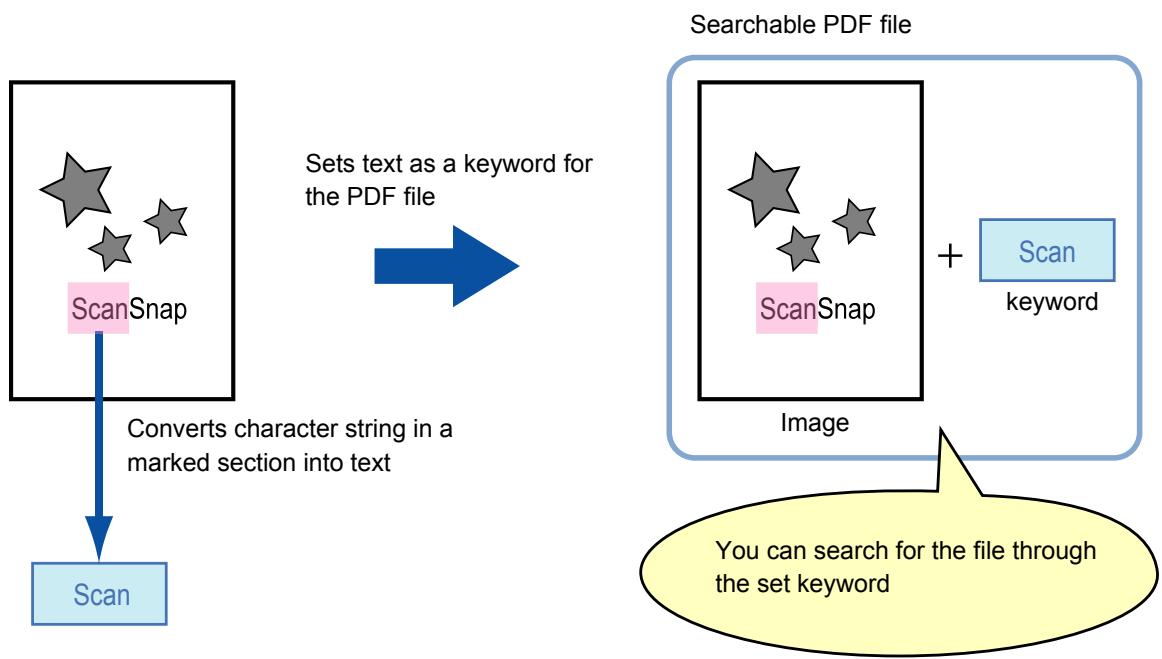
Mark black & white documents in the following way:
- Any regular highlight pen can be used.
The following shows the colors and thickness recommended for highlight pens:
| Pink | Yellow | Blue | Green |
| ScanSnap | ScanSnap | ScanSnap | ScanSnap |
- Mark a straight line over a single character string.
- The supported range of a marked section is as follows:
Minimum: 3mm (short side) × 10mm (long side)
Maximum: 20mm (short side) × 150mm (long side)
-
Use only one color per page for marking.
-
Make sure to cover the entire character string when marking it. Mark sections so that the entire section is evenly colored.
| Good example: | Bad example 1: (does not cover the entire section) | Bad example 2: (unevenly colored) |
| ScanSnap | ScanSnap | ScanSnap |
- Do not mark more than ten sections per page.
ATTENTION
- It is recommended that you use a blue or a green highlight pen for marking. When you use colors such as pink or yellow for marking, the marked sections may not be recognized as keywords.
- Use a blue highlight pen for documents with dark background colors such as newspapers. Marked sections may not be detected when a color other than blue is used.
- For the following documents, marked sections cannot be recognized and set as keywords:
Color documents such as catalogues or pamphlets
- Documents in which two or more colors are used for marking
- Documents containing colors other than for marking (pens other than highlight pens are used or the document is stained)
- Documents with too many marked sections on a single page
The following types of marked character strings cannot be set as keywords:
- The size of the marked section is outside the supported range
- The marking is irregular (e.g. skewed)
- Multiple marked sections are too close to each other
- The color of the highlight pen is too pale or the color has faded
ScanSnap
- When you mark more than one character string, make sure to leave a gap of at least 5mm between the marked sections. Marked sections that are too close to each other may be detected as one marked section.
-
In the following case, character strings surrounding marked sections may be set as keywords:
-
Marked section overlaps the line above and below
-
In the following case, unmarked character strings may be set as keywords:
-
Color documents such as catalogues or pamphlets
- Documents with color text, diagrams, pictures, tables and lines
- Documents containing sections framed by a highlight pen
Stained documents
HINT
- Increase the resolution when you have trouble setting the keywords correctly.
- Keywords set for a PDF file can be checked in the ScanSnap Organizer Main Window (thumbnail view), or in [Document Properties] of Adobe Acrobat/Adobe Reader.
Change the settings in the following procedure to automatically set keywords for PDF files.
1. Select [Scan Button Settings] from the Right-Click Menu.
For details about the Right-Click Menu, refer to "Right-Click Menu" (page 71).
The ScanSnap setup dialog box appears.
2. In the [File format] drop-down list in the [File option] tab, select [PDF (.pdf)].
![FUJITSU SCANSNAP S1300I DELUXE - In the [File format] drop-down list in the [File option] tab, select [PDF (.pdf)]. - 1](/content/2025/01/190766/images/4b60fdda6d11b80d71b0e6f96820c94150babeb8d0b779025d4a29f9fa850589.jpg)
HINT
It is recommended that you select [Better] or [Best] for [Image quality] in the [Scanning] tab of the ScanSnap setup dialog box.
3. Select the [Set the marked text as a keyword for the PDF file] check box.
![FUJITSU SCANSNAP S1300I DELUXE - Select the [Set the marked text as a keyword for the PDF file] check box. - 1](/content/2025/01/190766/images/c03a355e1da0e4c7e15a3e769761e256378bc030c0490f8e9e4e22b8e5050cb5.jpg)
- Target marked sections
Select [First marked section] to perform text recognition and set a keyword for the PDF file only for the character strings in the first marked section, and [All marked sections] for all marked sections.
ATTENTION
Do not select [First marked section] when the text orientation of your document is vertical.
HINT
The following explanation is for when you select [First marked section]:
- Select this button to set a character string such as a title of a document as a keyword for the PDF file.
Example: When only the title of a document is marked, the marked character string is set as a keyword for the PDF file, and the PDF file becomes searchable by the title character string.
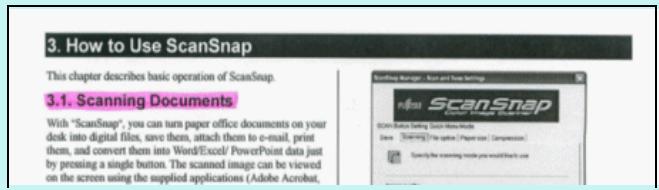
- When multiple marked sections exist in line, the marked character string closest to the top of the document is set as a keyword.
Example: In the following case, the character string in marked section B, which is higher than marked section A, is set as a keyword.
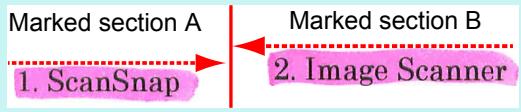
Language
Select the language. Japanese, English, French, German, Italian, Spanish, Chinese (simplified), Chinese (traditional), Korean, Russian, and Portuguese can be selected.
- Target pages
Select [First page] to perform text recognition and set a keyword for the PDF file only for the first page, and [All pages] for all pages.
- Click the [OK] button to close the ScanSnap setup dialog box.
- Load a document in the ScanSnap.
For details about how to load documents, refer to "How to Load Documents" (page 33).
- Press the [Scan] button on the ScanSnap to start a scan.
Text recognition is performed on the scanned image and a searchable PDF file is created.
ATTENTION
- It may take extra time to process text recognition depending on your computer system environment when you enable this setting in step 3.
- Scanned images of the following types of documents (characters) may not be recogni.
correctly.
In that case, better results in text recognition may be achieved by specifying a higher resolution in [Image quality].
- Documents including handwritten characters.
- Documents with small characters scanned at a low resolution
- Skewed documents
- Documents written in languages other than the specified language
- Documents including texts written in italic characters
- Documents containing characters with superscripts/subscripts and complicated mathematical expressions
- Documents with characters on an unevenly colored background e.g. Shaded characters
- Documents with many decorated characters e.g. Decorated characters (embossed/outlined)
- Documents with characters on a patterned background e.g. Characters overlapping illustrations and diagrams
- Documents with many characters contacting underlines or borders
It may take extra time to perform text recognition on the following documents:
- Documents with complex layouts
-
Documents with information other than text e.g. Text on a shaded background
-
If the same character string is marked several times in the document, the same keyword is added multiple times in the PDF file.
- Total length of all the keywords can be up to 255 characters, including punctuation marks in between keywords.
- When you check keywords in Adobe Acrobat or Adobe Reader, the added keywords may be displayed with a set of quotation marks (e.g. "ABC").
Setting Document Open Passwords for PDF Files
You can set Document Open passwords for PDF files when saving the image data as PDF files.
Once you set a password for a PDF file, the password-protected PDF files cannot be opened by anyone except the person who knows the password. You can protect important information by setting a password for private or confidential documents.
Change the settings to set passwords for PDF files in the following procedure.
ATTENTION
When you use the Quick Menu, you cannot set passwords to scanned documents.
1. Select [Scan Button Settings] from the Right-Click Menu.
For details about the Right-Click Menu, refer to "Right-Click Menu" (page 71).
The ScanSnap setup dialog box appears.
2. In the [File format] drop-down list in the [File option] tab, select [PDF (.pdf)], and then click the [Option] button.
![FUJITSU SCANSNAP S1300I DELUXE - In the [File format] drop-down list in the [File option] tab, select [PDF (.pdf)], and then click the [Option] button. - 1](/content/2025/01/190766/images/a4eaacbcf6ca65a340f811b90874965834d0886ec034d62f7e47c7a9c432c682.jpg)
The [PDF file format option] dialog box appears.
3. Select the [Set a password for PDF file] check box.
![FUJITSU SCANSNAP S1300I DELUXE - Select the [Set a password for PDF file] check box. - 1](/content/2025/01/190766/images/c4b9a96b0609f4065ba2239919019b999d2cd0efcb76224fc039d773eef60898.jpg)
- To set a different password per scan
Clear the [Use a fixed password] check box.
You can set a different password per scan.
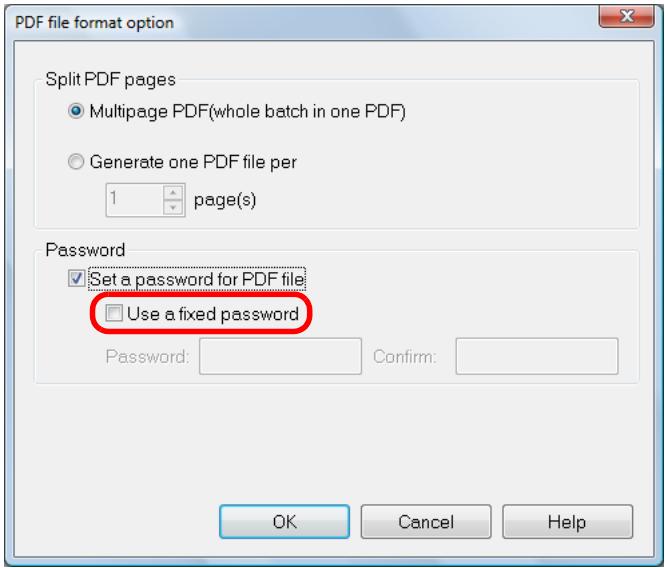
- To use a preset password
- Select the [Use a fixed password] check box.
The same password is set for all PDF files. You do not have to set a password every time a document is scanned.
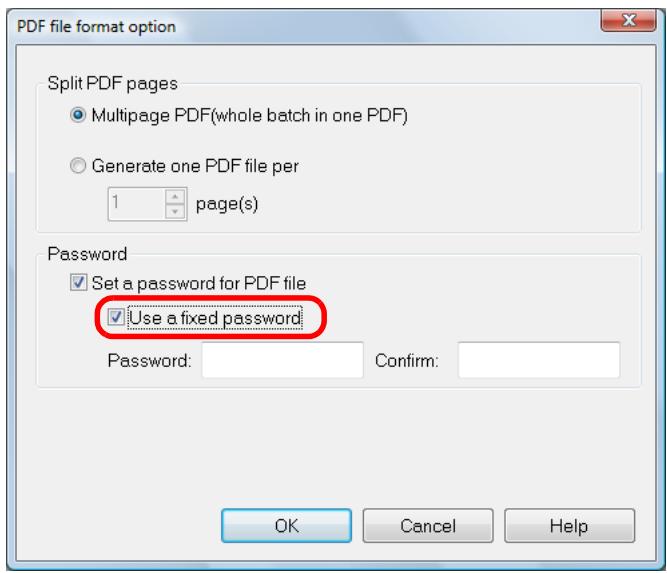
- Type in the same password in the [Password] and [Confirm] fields.
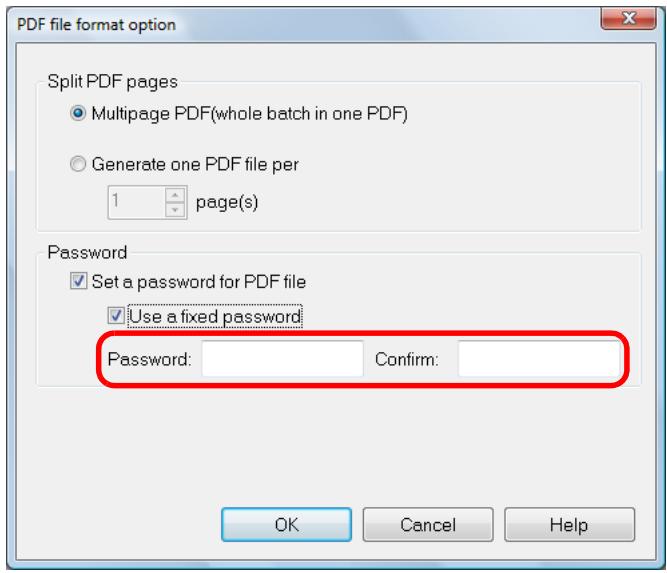
HINT
The following characters can be used to set passwords:
Up to 16 characters
Alphanumeric characters :A-Z, a-z, 0-9
Symbols: ! " # $ % & ' ( ) * + , - . / ; < = > ? @ [ \ ] ^ _ ` { | } ~
- Click the [OK] button to close all open dialog boxes.
- Load a document in the ScanSnap.
For details about how to load documents, refer to "How to Load Documents" (page 33).
6. Press the [Scan] button on the ScanSnap to start a scan.
When the [Use a fixed password] check box is cleared in step 3., the following dialog box appears after scanning is completed.
![FUJITSU SCANSNAP S1300I DELUXE - Press the [Scan] button on the ScanSnap to start a scan. - 1](/content/2025/01/190766/images/d22dfbc3500864bd04d53da3cf57733d02667d3b15a53f5ca360689813b03ebf.jpg)
Type in the same password in the [Password] and [Confirm] fields, and then click the [OK] button.
HINT
The following characters can be used to set passwords:
Up to 16 characters
Alphanumeric characters: A-Z, a-z, 0-9
Symbols: ! " # $ % & ' ( ) * +, -, /; ; < = > ? @ [ \ ] ^ _ ` { | } ~
- If you click the [Cancel] button, the PDF file is saved without a password.
The scanned image is saved as a password-protected PDF file.
ATTENTION
It is not possible to open a PDF file if you forget the password.
Using the ScanSnap (for Mac OS Users)
This chapter explains how to perform scanning, configure scan settings, add, change or delete profiles, as well as various scanner functions and uses.
ScanSnap Manager Icon and Operations 272
How to Perform a Scan 276
Configuring ScanSnap Manager 287
Actions 308
Cloud Services 368
Using the ScanSnap in Various Ways 413
ScanSnap Manager Icon and Operations
All operations on the ScanSnap are managed in ScanSnap Manager.
The ScanSnap Manager icon appears in the Dock to indicate that ScanSnap Manager is running. The icon automatically appears in the Dock when Mac OS starts up.
The ScanSnap Manager icon indicates whether or not ScanSnap Manager is successfully communicating with the ScanSnap. The appearance of the icon changes according to the communication status as shown below.
This guide uses examples of power cable connection.
| Status | ScanSnap Manager icon |
| Communicating | Power cable connection USB bus power cable connection |
| Not communicating |
A menu is displayed when you click the ScanSnap Manager icon while pressing the [control] key on the keyboard.
HINT
When you add the ScanSnap Manager icon to the Dock, normally appears. A blue light appears under the ScanSnap Manager icon when ScanSnap Manager is running.

ScanSnap Manager Menu
This menu appears when you click the ScanSnap Manager icon while pressing the [control] key on the keyboard.
Click while pressing the [control] key on the keyboard
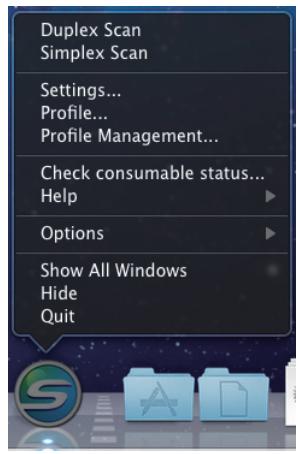
| Item | Function |
| Duplex scan | Scans both sides of the document. Follows the settings configured in [Settings]. |
| Simplex scan | Scans only one side of the document. Follows the settings configured in [Settings]. |
| Settings | Displays the ScanSnap setup window. You can configure the scan settings in this window. → "How to Configure Scan Settings" (page 290) |
| Profile | Displays the Profile menu. You cannot select [Profile] when the [Use Quick Menu] checkbox is selected in the ScanSnap setup window. → "Profile Menu" (page 275) |
| Profile Management | Displays the [ScanSnap Manager - Profile Management] window. You cannot select [Profile Management] when the [Use Quick Menu] checkbox is selected in the ScanSnap setup window. → "Profile Management" (page 293) |
| Check consumable status | Displays the [ScanSnap Manager - Check consumable status] window. You can reset the consumable counters after replacing the consumables. → "Consumables" (page 451) |
| Help | Displays the following menu: • Help Opens the ScanSnap Manager Help. • Troubleshooting Displays [Troubleshooting] in the ScanSnap Manager Help. • ScanSnap Portal Site Opens the ScanSnap global homepage (http://scansnap.fujitsu.com/). • About ScanSnap Manager Displays the [ScanSnap Manager - Version Information] window. • Preferences Displays the [ScanSnap Manager - Preferences] window. • Online Update Displays the [ScanSnap Manager - Online Update] window (page 469). |
| To establish connection | Displayed when ScanSnap Manager is not communicating with the ScanSnap correctly. |
| Keep in Dock (*1) | Adds the ScanSnap Manager icon to the Dock. |
| Open at Login (*1) | Automatically launches ScanSnap Manager when Mac OS is started up. |
| Show in Finder (*1) | Displays the contents of the [ScanSnap] folder by using the Finder. |
| Show All Windows (*2) | Displays all windows from ScanSnap Manager in thumbnails. |
| Hide/Show | Hides or redplays all windows of ScanSnap Manager that are being displayed. |
| Quit | Exits ScanSnap Manager. → "Finishing ScanSnap Operation" (page 286) |
1 : Select the [Options] sub-menu to display these items.
2 : Displayed for Mac OS X v10.7 or later.
Profile Menu
This menu appears when you click the ScanSnap Manager icon

Available profiles are displayed in the Profile menu.
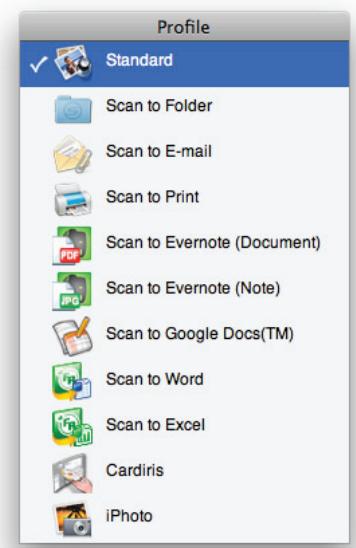
Profile menu example
Select a profile in the Profile menu before you perform scanning. Documents are scanned according to the scan settings of the selected profile.
For details about how to add, change or delete profiles, refer to "Profile Management" (page 293).
HINT
- To enable the Profile menu, clear the [Use Quick Menu] checkbox in the ScanSnap setup window. The Profile menu does not appear when this checkbox is selected.
- You can also display the Profile menu by selecting [Profile] from ScanSnap Manager menu.
-
Profiles configured for the following scanner models will be carried over to ScanSnap S1300i if the computer is the same:
-
ScanSnap S1500
- ScanSnap S1500M
- ScanSnap S1300
- ScanSnap S1100
- ScanSnap S510M
- ScanSnap S500M
- ScanSnap S300M
How to Perform a Scan
This section explains how to perform scanning with the ScanSnap.
Preparation
1. Turn on the computer.
The ScanSnap Manager icon appears in the Dock when Mac OS starts up.
HINT
- If the ScanSnap Manager icon is not displayed, select [Applications] and double-click [ScanSnap] [ScanSnap Manager] from Finder to start up ScanSnap Manager.
- If ScanSnap Manager does not automatically start when Mac OS starts up, select [Users & Groups] ([Accounts] on Mac OS X v10.6 or earlier) [Current User] ([My Account] on Mac OS X v10.6 or earlier) [Login Items] [+] [ScanSnap] [ScanSnap Manager] in the [System Preferences] window to start up ScanSnap Manager.
2. Open the ADF paper chute (cover) of the ScanSnap to turn the power on.
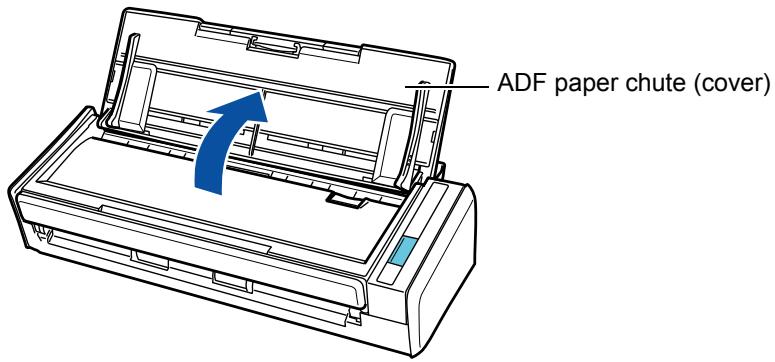
The ScanSnap Manager icon changes from to .
HINT
There may be a slight delay before the ScanSnap Manager icon changes to depending on your computer's performance, operating environment and load such as when multiple programs are running at the same time.
There are two ways to perform scanning, either with the Quick Menu or without using the Quick Menu. For details, refer to the following:
Using the Quick Menu ( page 277)
- Without Using the Quick Menu ( page 282)
Using the Quick Menu
The following explains the procedure for scanning by using the Quick Menu.
1. Select [Settings] from the ScanSnap Manager menu.
For details about the ScanSnap Manager menu, refer to "ScanSnap Manager Menu" (page 273).
The ScanSnap setup window appears.
2. Select the [Use Quick Menu] checkbox.
![FUJITSU SCANSNAP S1300I DELUXE - Select the [Use Quick Menu] checkbox. - 1](/content/2025/01/190766/images/7bc11c0210cc3e5daae1b965d45aa04681ce602bb331b8ce01629c1502b40159.jpg)
3. Click one of the profile buttons.
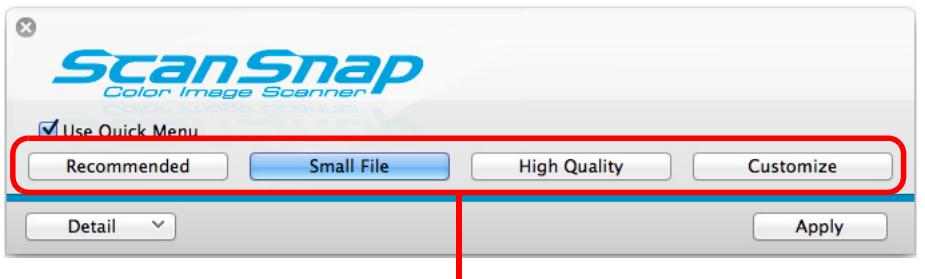
ProfileButton
| Profile Button | Description |
| [Recommended] button | Settings are [Automatic resolution] for [Image quality] in the [Scanning] tab in the ScanSnap setup window and default for other settings. It is recommended that you select this button when you want to scan documents in optimum quality suitable for the paper size of the document. |
| [Small File] button | Settings are [Normal] (Color/Gray: 150 dpi, B&W: 300 dpi) for [Image quality] in the [Scanning] tab in the ScanSnap setup window and default for other settings. It is recommended that you select this button when you want to reduce the file size. |
| [High Quality] button | Settings are [Best] (Color/Gray: 300 dpi, B&W: 600 dpi) for [Image quality] in the [Scanning] tab in the ScanSnap setup window and default for other settings. It is recommended that you select this button when you want to scan documents in high quality. |
| [Customize] button | Default settings are the same as the [Recommended] settings. Scan settings can be changed depending on your scanning purpose. |
HINT
- The [Small File] button is selected in default.
- For details about the default settings when using the Quick Menu, refer to the ScanSnap Manager Help.
- You cannot change the settings for the [Recommended], [Small File], and [High Quality] buttons. If you change any of these settings, the profile automatically switches to [Customize]. For details about how to change scan settings, refer to "How to Configure Scan Settings" (page 290).
4. Click the [Apply] button.
5. Click the [ ] button in the upper left corner to close the ScanSnap setup window.
6. Load a document in the ScanSnap.
For details about how to load documents, refer to "How to Load Documents" (page 33).
7. Press the [Scan] button on the ScanSnap to start a scan.
HINT
- The [Scan] button setting is [Duplex Scan (Double-sided)] in default. Note that you can switch the [Scan] button setting to [Simplex Scan (Single-sided)] in ScanSnap Manager.
For more details, refer to "Scanning Only One Side of a Document" (page 413). - You can also start scanning from the ScanSnap Manager menu.
For more details, refer to "ScanSnap Manager Menu" (page 273).
ATTENTION
- Do not connect or disconnect the ScanSnap and other USB devices during scanning.
- Do not close the ADF paper chute (cover) during scanning.
- Do not switch users during scanning.
The [Scan] button on the ScanSnap flashes in blue throughout the scan.
The [ScanSnap Manager - Image scanning and file saving] window appears.
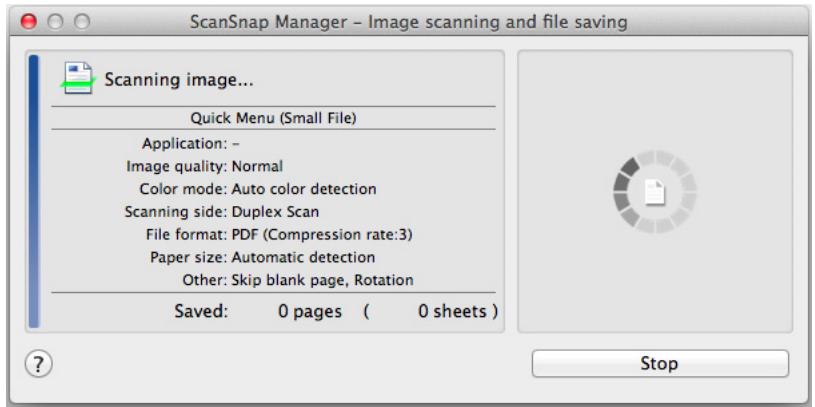
The Quick Menu appears when the scanning is completed.
8. In the Quick Menu, click the icon of the application to link with ScanSnap Manager.
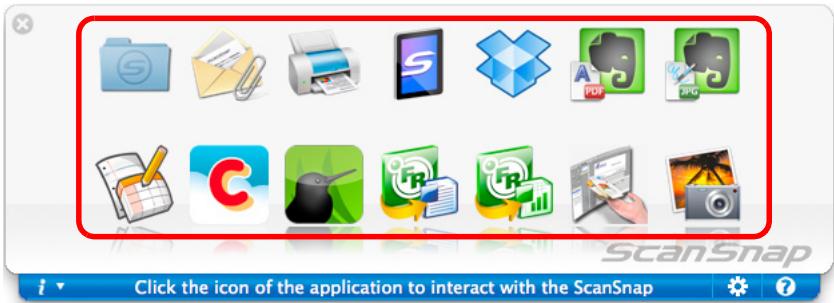
The selected application starts up.
HINT
- To specify which applications to display/hide in the Quick Menu, or change the display order of the applications, refer to "Quick Menu Settings" (page 287).
- To select an application to link with ScanSnap Manager before scanning, refer to "Without Using the Quick Menu" (page 282).
| Application | Description |
| Scan to Folder | Displays the [Scan to Folder] window. You can specify the destination folder to save the scanned images. For details about how to continue the process after you select this item, refer to "Saving Data in a Specified Folder" (page 309). |
| Scan to E-mail | Displays the [Scan to E-mail] window. Attaches the scanned images to an e-mail message. For details about how to continue the process after you select this item, refer to "Attaching Files to E-Mail" (page 316). |
| Scan to Print | Displays the [Print] window. Prints out the scanned images with a specified printer. For details about how to continue the process after you select this item, refer to "Using the ScanSnap as a Copy Machine" (page 325). |
| Scan to Mobile | Displays the [Scan to Mobile] window. You can save the scanned images to a mobile device. For details about how to continue the process after you select this item, refer to "Saving Data to a Mobile Device" (page 353). |
| Scan to Dropbox (*1) (*2) | You can save scanned images to your Dropbox folder. For details about how to continue the process after you select this item, refer to "Saving Data to Your Dropbox Folder" (page 369). |
| Scan to Evernote (Document) (*2) (*3) | You can save PDF files created from the scanned images to Evernote. For details about how to continue the process after you select this item, refer to "Saving Documents to Evernote" (page 376). |
| Scan to Evernote (Note) (*2) (*3) | You can save JPEG files created from the scanned images to Evernote. For details about how to continue the process after you select this item, refer to "Saving Handwritten Notes to Evernote" (page 382). |
| Scan to Google Docs(TM) (*2) | You can save PDF files created from the scanned images to Google Docs. For details about how to continue the process after you select this item, refer to "Saving Documents to Google Docs" (page 387). |
| Scan to Salesforce Chatter | You can post scanned images to Salesforce Chatter. For details about how to continue the process after you select this item, refer to "Posting to Salesforce Chatter" (page 396). |
| Scan to SugarSync (*2) (*4) | You can save scanned images to your SugarSync folder. For details about how to continue the process after you select this item, refer to "Saving Data to Your SugarSync Folder" (page 406) |
| Scan to Word (*5) | Creates a Word file by converting the scanned images into text data. For details about how to continue the process after you select this item, refer to refer to "Converting into Word/Excel Documents" (page 331). |
| Scan to Excel (*5) | Creates an Excel file by converting the scanned images into text data. For details about how to continue the process after you select this item, refer to "Converting into Word/Excel Documents" (page 331). |
| Cardiris (*6) | Displays the Cardiris window. Saves the scanned images in Cardiris. For details about how to continue the process after you select this item, refer to "Storing Business Cards in Cardiris" (page 339). |
| iPhoto (*7) | Displays the [iPhoto] window. Saves the scanned images in iPhoto. For details about how to continue the process after you select this item, refer to "Storing Scanned Images in iPhoto" (page 348). |
1 : Displayed when Dropbox for Mac 1.1.45 or later is installed.
2 : Displayed when Mac OS v10.5.8 or later is installed.
3 : Displayed when Evernote for Mac 1.10 or later is installed.
4 : Displayed when SugarSync Manager for Mac 1.9.29 or later is installed.
5 : Displayed when ABBYY FineReader for ScanSnap is installed.
6 : Displayed when Cardiris is installed.
*7 : Displayed when iPhoto 5 or later is installed.
HINT
- The output image may slightly differ from the original document in size.
-
When one of the below applications is active (application menu appears in the menu bar), scanning documents by pressing the [Scan] button on the ScanSnap automatically starts the linkage between ScanSnap Manager and the application.
-
Cardiris (links with ScanSnap Manager only when the document is of business card size)
- Scan to Mobile
For details about automatic linkage, refer to "Automatic Linkage with Applications" (page 303).
ATTENTION
- You cannot start scanning when the Quick Menu is displayed. Either select an icon from the Quick Menu and finish the process, or close the Quick Menu before you perform the next scan.
- Do not move, delete, or rename the scanned image in other applications when the Quick Menu is displayed.
Without Using the Quick Menu
The following explains the procedure for scanning without using the Quick Menu.
1. Select [Settings] from the ScanSnap Manager menu.
For details about the ScanSnap Manager menu, refer to "ScanSnap Manager Menu" (page 273).
The ScanSnap setup window appears.
2. Clear the [Use Quick Menu] checkbox.
![FUJITSU SCANSNAP S1300I DELUXE - Clear the [Use Quick Menu] checkbox. - 1](/content/2025/01/190766/images/391ff4e5ca5e2d90ea5db4a5bee1e31f16409a6ee413c3d693858256800ca0b2.jpg)
3. Select a profile.
Select a profile from either of the following:
- [Profile] pop-up menu in the ScanSnap setup window
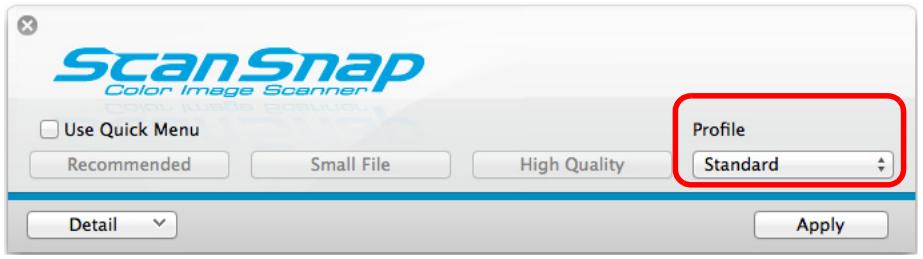
- Profile menu
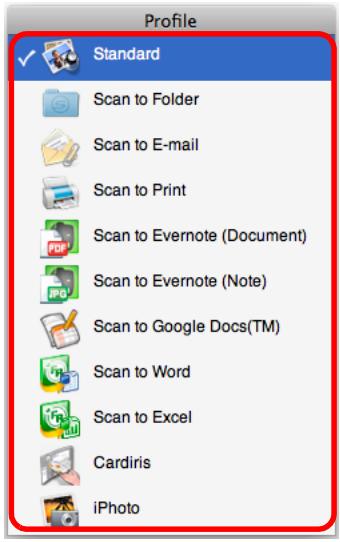
4. Load a document in the ScanSnap.
For details about how to load documents, refer to "How to Load Documents" (page 33).
5. Press the [Scan] button on the ScanSnap to start a scan.
HINT
- The [Scan] button setting is [Duplex Scan (Double-sided)] in default. Note that you can switch the [Scan] button setting to [Simplex Scan (Single-sided)] in ScanSnap Manager. For more details, refer to "Scanning Only One Side of a Document" (page 413).
- You can also start scanning from the ScanSnap Manager menu. For more details, refer to "ScanSnap Manager Menu" (page 273).
ATTENTION
- Do not connect or disconnect the ScanSnap and other USB devices during scanning.
- Do not close the ADF paper chute (cover) during scanning.
- Do not switch users during scanning.
The [Scan] button on the ScanSnap flashes in blue throughout the scan. The [ScanSnap Manager - Image scanning and file saving] window appears.
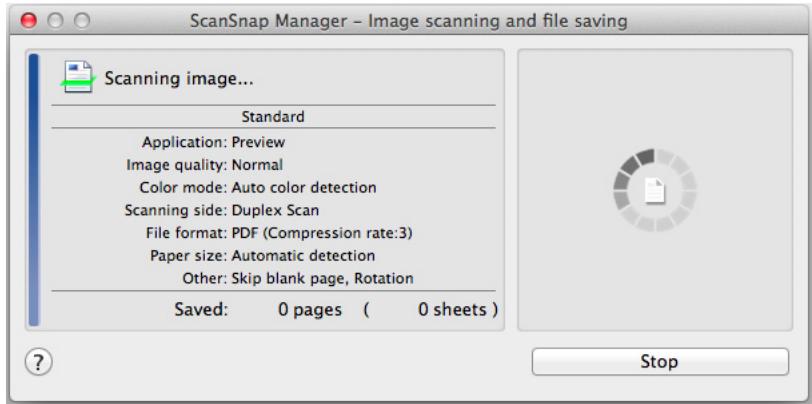
The application specified for the selected profile starts up when the scanning is completed.
HINT
-
To select an application to link with ScanSnap Manager in the Quick Menu after scanning is completed, refer to "Using the Quick Menu" (page 277).
-
When the [Set the marked text as a keyword for the PDF file] or the [Convert to Searchable PDF] checkbox is selected in the [File option] tab, the application starts after text recognition has been performed on the scanned image.
A window showing the text recognition progress appears.
- By default, documents are scanned with the following settings: [Image quality: Normal] and [Color mode: Auto color detection].
For details about how to change scan settings, refer to "How to Configure Scan Settings" (page 290).
- The application that starts after scanning varies depending on what is selected in the [Application] tab in the ScanSnap setup window.
For details, refer to the ScanSnap Manager Help.
-
The output image may slightly differ from the original document in size.
-
When one of the below applications is active (application menu appears in the menu bar), scanning documents by pressing the [Scan] button on the ScanSnap automatically starts the linkage between ScanSnap Manager and the application.
-
Cardiris
-
Scan to Mobile
For details about automatic linkage, refer to "Automatic Linkage with Applications" (page 303).
Stopping the Scan
You can stop a scan in progress in case you are scanning a wrong document or the wrong side of a document.
Stop the scan in the following procedure:
1. Click the [Stop] button in the [ScanSnap Manager - Image scanning and file saving] window which appears during scanning.
![FUJITSU SCANSNAP S1300I DELUXE - Click the [Stop] button in the [ScanSnap Manager - Image scanning and file saving] window which appears during scanning. - 1](/content/2025/01/190766/images/28cc2b94d59d64b14a2e8d52be62087f3458ce17158178fcb65a0c2a48bed9f6.jpg)
HINT
Remove the document from the ScanSnap after stopping the scan.
For details about how to remove documents, refer to "Troubleshooting" in the ScanSnap Manager Help.
The following window appears when the scanning stops.
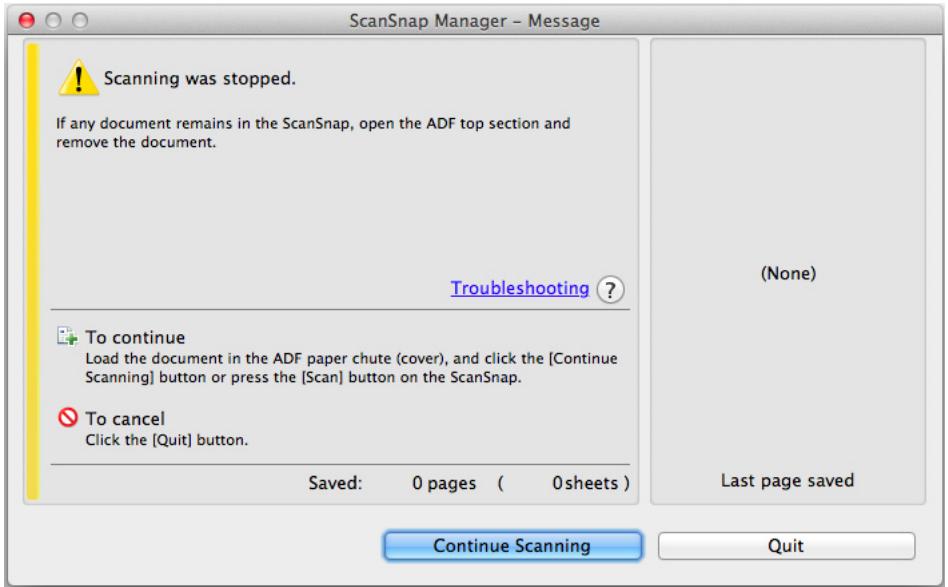
2. Click the [Quit] button.
To continue scanning, click the [Continue Scanning] button or press the [Scan] button on the ScanSnap after loading another document in the ScanSnap.
■ Finishing ScanSnap Operation
Exiting ScanSnap Manager
Select [Quit] from the ScanSnap Manager menu. Normally, you do not have to exit ScanSnap Manager.
HINT
You cannot use the ScanSnap after exiting ScanSnap Manager.
From Finder, select [Applications] and double-click [ScanSnap] [ScanSnap Manager] to start up ScanSnap Manager when you want to use the ScanSnap.
Disconnecting the ScanSnap
- Close the ADF paper chute (cover) to turn off the ScanSnap.
The ScanSnap Manager icon in the Dock changes from to .
- Disconnect the USB cable from the computer.
- Unplug the power cable (or the USB bus power cable) from the AC outlet (or the computer).
HINT
The ScanSnap does not have a power switch and is turned ON/OFF in conjunction with the computer's power. The ScanSnap can also be automatically turned ON/OFF by opening or closing the ADF paper chute (cover).
Configuring ScanSnap Manager
This section explains how to set scan settings, how to add, change and delete profiles, automatic linkage with applications and windows displayed during scanning.
Quick Menu Settings
You can specify which applications to display or hide in the Quick Menu, as well as change the display order of the applications in the following procedure.
1. Click [ ] in the Quick Menu.
For details about how to display the Quick Menu, refer to "Using the Quick Menu" (page 277).
![FUJITSU SCANSNAP S1300I DELUXE - Click [ ] in the Quick Menu. - 1](/content/2025/01/190766/images/26324bd0420b081047136a195d1d31e10e9b881fa3ad877660f3f61d1ca11227.jpg)
The [Applications to Show/Hide] window appears.
2. Specify which applications to display in the Quick Menu.
- Showing or Hiding Application Icons
Select the checkbox to display the application in the Quick Menu.
To display all the applications in the Quick Menu, click the [Restore Default] button.
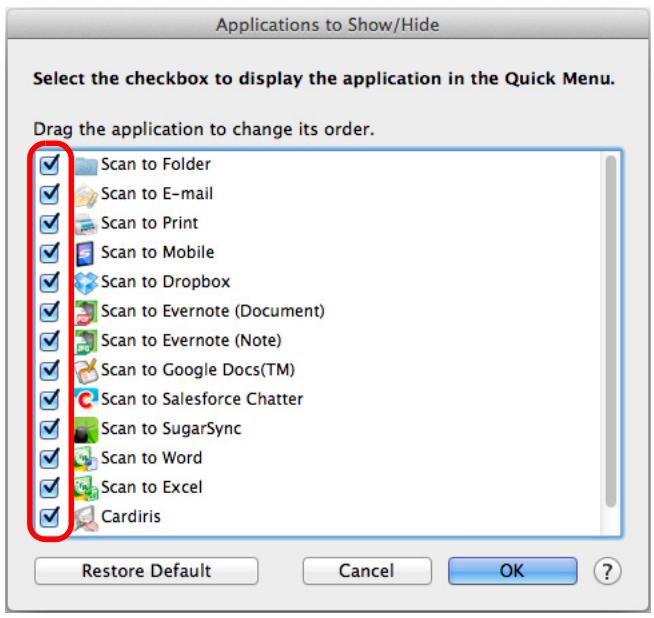
- Display Order of Applications
Application icons are displayed in the Quick Menu in the same order as they are listed in the [Applications to Show/Hide] window.
Drag an application to change its order.
To restore the default display order of the applications displayed in the Quick Menu, click the [Restore Default] button.
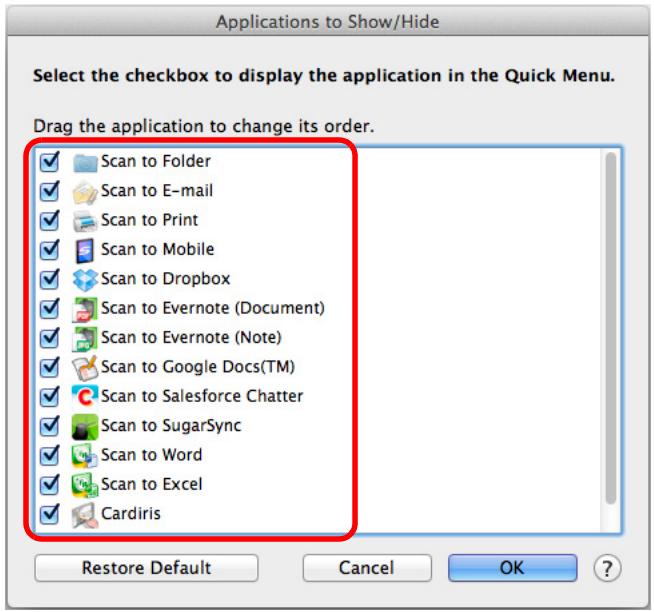
The applications are displayed in the order shown below in the Quick Menu and in the [Applications to Show/Hide] window.
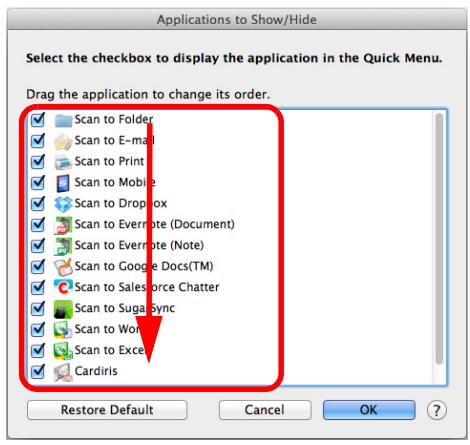

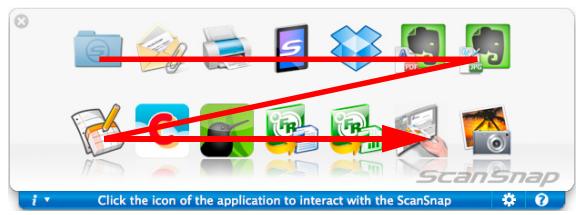
3. Click the [OK] button to close the [Applications to Show/Hide] window.
The applications to be displayed in the Quick Menu and their display order are set.
■ How to Configure Scan Settings
You can configure scan settings in the ScanSnap setup window depending on your intended use in the following procedure.
1. Select [Settings] from the ScanSnap Manager menu.
For details about the ScanSnap Manager menu, refer to "ScanSnap Manager Menu" (page 273).
The ScanSnap setup window appears.
HINT
You can also open the ScanSnap setup window by pressing simultaneously the [command (S)] and [S] keys on the keyboard. This operation is only enabled when ScanSnap Manager is active (when "ScanSnap Manager" is displayed in the menu bar).
2. Click the [Detail] button to switch to the detail view mode.
Using the Quick Menu

Outline view
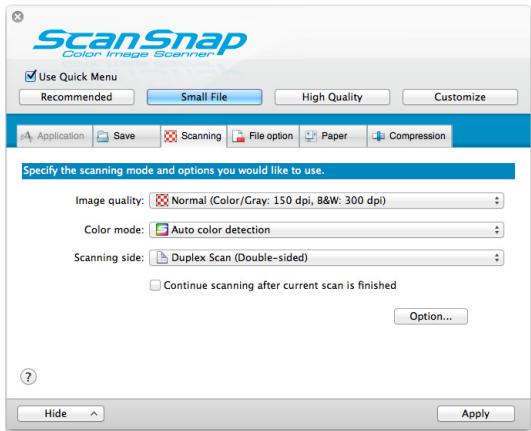
Detail view
Without Using the Quick Menu
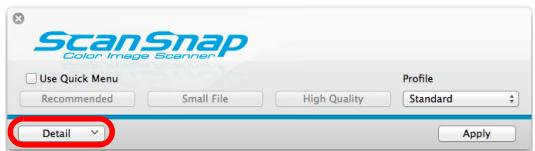
Outline view
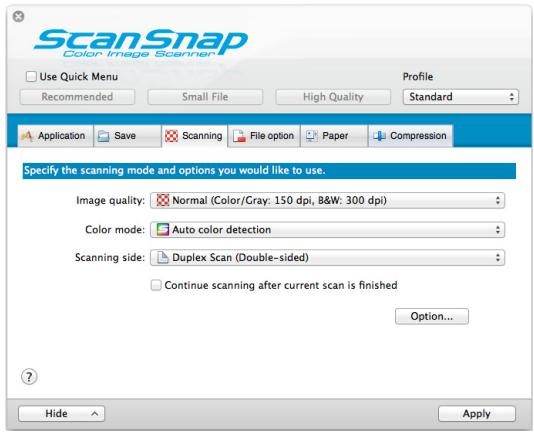
Detail view
HINT
The ScanSnap setup window retains the display status from the last time the ScanSnap was used. For example, if it was closed in detail view mode, the window is displayed in detail view mode next time you open it.
3. Set the scan settings in each tab.
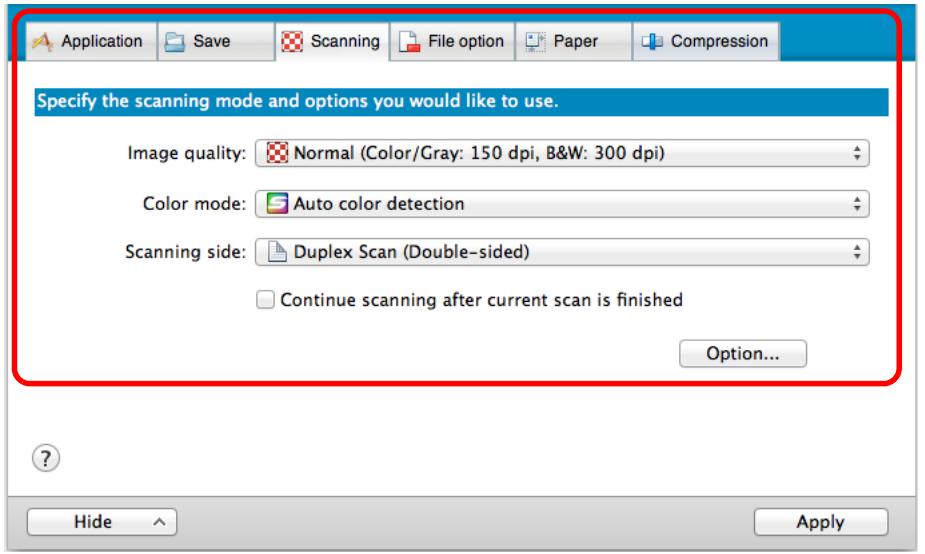
The following items can be configured in each tab:
For details, refer to the ScanSnap Manager Help.
-
[Application] tab
-
Application to be used with the ScanSnap
-
[Save] tab
-
Folder in which scanned image is saved
-
File name used for saving the scanned image
-
[Scanning] tab
-
Scanning
(Which image quality to scan with, use color, gray or black & white, scan in simplex or duplex mode, enable or disable [Setting for text only document], [Allow automatic blank page removal], [Correct skewed character strings automatically], [Allow automatic image rotation] and [Continue scanning after current scan is finished].)
-
[File option] tab
-
File format of the scanned image (.pdf, *.jpg)
- Whether to perform text recognition on a marked character string in the scanned image and add the character string as a keyword for the PDF file
(Whether to perform text recognition only on the character strings in the first marked section or all marked sections to be added as keywords, and in which language to perform text recognition.)
- Whether to perform text recognition on character strings in the scanned image to convert the file to a searchable PDF file
(Whether to convert the first page only or all pages, and in which language to perform text recognition.)
- Whether to create separate PDF files
(Whether to include all scanned images in a single PDF file, or create PDF files, each of which including a preset number of pages)
-
[Paper] tab
-
Paper size of documents (paper size selection)
-
Whether to detect multifeed
-
[Compression] tab
-
File size of the scanned image (compression rate)
ATTENTION
Scan settings vary depending on the scanning method.
For details about items that can be set, refer to "Setting Items With/Without the Quick Menu" (page 478).
4. Click the [Apply] button.
When you use the Quick Menu, scan settings for the [Customize] button are changed.
When you do not use the Quick Menu, scan settings for the currently selected profile are changed.
HINT
If you press the [Scan] button on the ScanSnap while the ScanSnap setup window is displayed, the ScanSnap setup window closes and scanning starts. Scan setting changes made up to this point are saved and documents are scanned by these settings.
Note that when other windows are open, scanning does not start even if you press the [Scan] button on the ScanSnap unless open windows are closed.
Profile Management
You can manage up to 20 profiles.
You can select a profile in the [Profile] pop-up menu in the ScanSnap setup window or from the Profile menu.
HINT
To use a profile, you need to clear the [Use Quick Menu] checkbox in the ScanSnap setup window.
- [Profile] pop-up menu
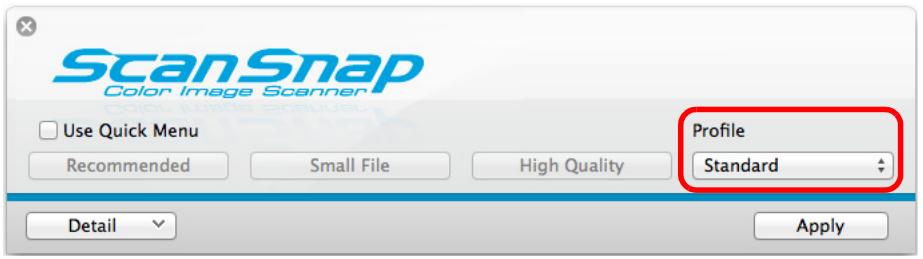
- Profile menu
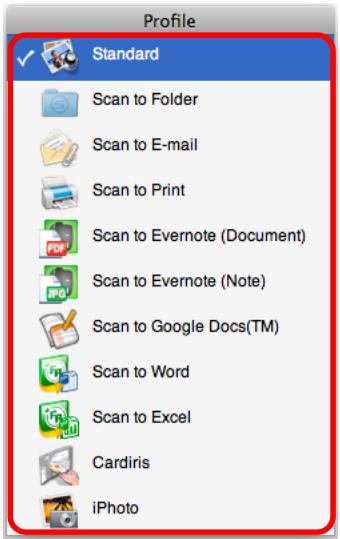
Once the frequently used scan settings are saved as profiles, you do not have to open the ScanSnap setup window to change scan settings every time you perform scanning. You can easily switch to an appropriate profile you want by just selecting it.
For details about how to add, change or delete profiles, refer to the following:
To add a new profile ( page 294)
To change scan settings for profiles ( page 297)
- To rename a profile ( page 299)
- To delete a profile ( page 301)
Adding Profiles
1. Select [Settings] from the ScanSnap Manager menu.
For details about the ScanSnap Manager menu, refer to "ScanSnap Manager Menu" (page 273).
The ScanSnap setup window appears.
HINT
Clear the [Use Quick Menu] checkbox if it is selected.
2. Configure the scan settings in each tab.
For details about each tab, refer to the ScanSnap Manager Help.
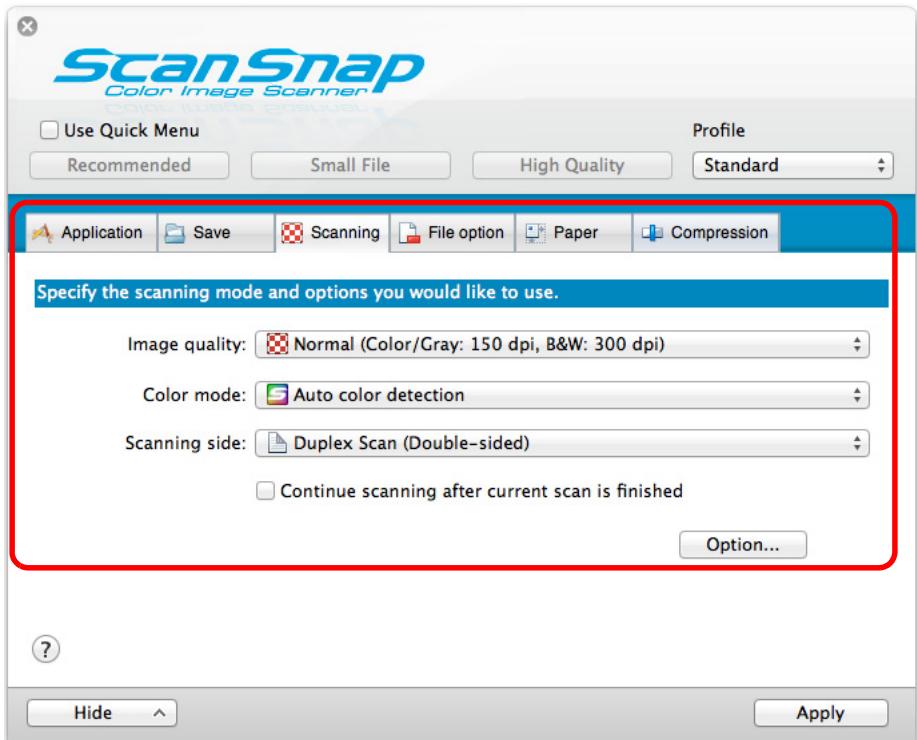
3. Select [Add Profile] from the [Profile] pop-up menu.
![FUJITSU SCANSNAP S1300I DELUXE - Select [Add Profile] from the [Profile] pop-up menu. - 1](/content/2025/01/190766/images/f184699eb3c28777e5319a2237c8832d91251a286aaeabc5e2706c4c0fc2f54b.jpg)
The [Add new profile] window appears.
4. Type in a new profile name and click the [OK] button.
![FUJITSU SCANSNAP S1300I DELUXE - Type in a new profile name and click the [OK] button. - 1](/content/2025/01/190766/images/1961e900f1802da56f639508c2ef18463611eab9e5875374159bfc2371a9b8e0.jpg)
The added profile appears in the [Profile] pop-up menu in the ScanSnap setup window.
![FUJITSU SCANSNAP S1300I DELUXE - Type in a new profile name and click the [OK] button. - 2](/content/2025/01/190766/images/33d2be5256472b7a5106f1192d46ebfdcbfb3a3b4a9b103f317fa205273a9214.jpg)
5. Click the [Apply] button.
6. Click the [ ] button in the upper left corner to close the ScanSnap setup window.
HINT
- Up to 20 profiles can be saved including the [Standard] profile.
-
You can change the display order of profiles except for the [Standard] profile.
-
Select [Profile Management] from the ScanSnap Manager menu or from the [Profile] pop-up menu in the ScanSnap setup window.
The [ScanSnap Manager - Profile Management] window appears. -
Drag the profile to move it to its desired position in the list.
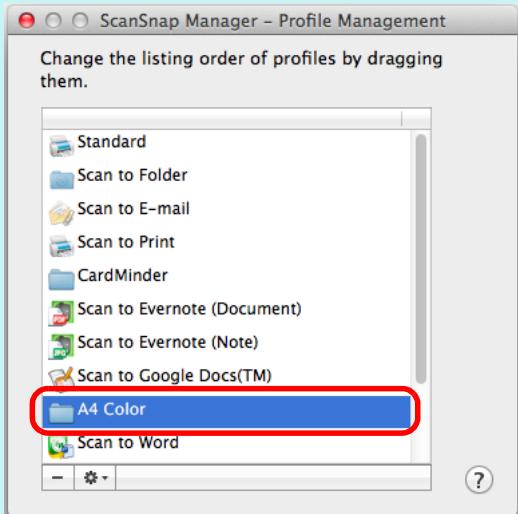
- Click the [ ] button to close the [ScanSnap Manager - Profile Management] window.
Changing Profile Settings
1. Select [Settings] from the ScanSnap Manager menu.
For details about the ScanSnap Manager menu, refer to "ScanSnap Manager Menu" (page 273).
The ScanSnap setup window appears.
HINT
Clear the [Use Quick Menu] checkbox if it is selected.
2. Select a profile from the [Profile] pop-up menu.
![FUJITSU SCANSNAP S1300I DELUXE - Select a profile from the [Profile] pop-up menu. - 1](/content/2025/01/190766/images/daabfdef4037becc8dbf4c582f2ab842c769877e90ae179ab3b9301b3d64c989.jpg)
3. Change the scan settings in each tab.
For details about each tab, refer to the ScanSnap Manager Help.
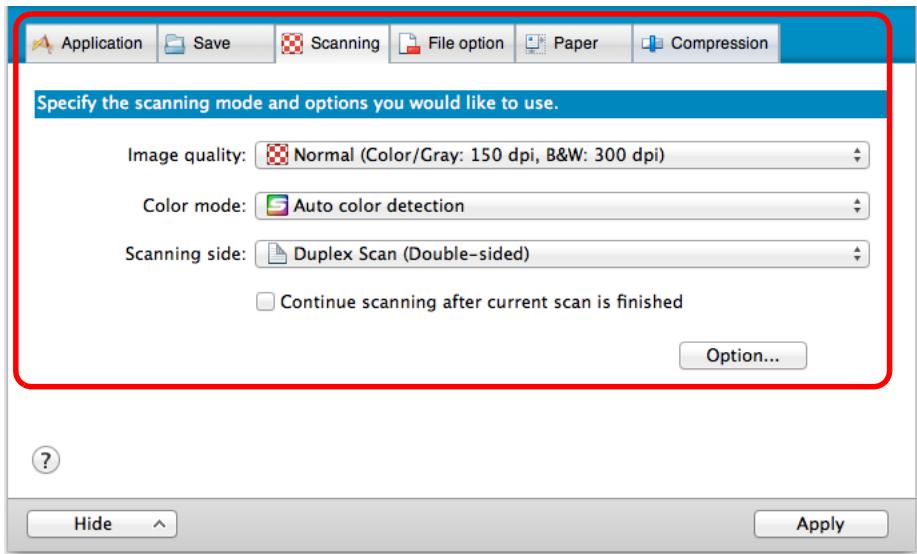
- When you finish changing the settings for the selected profile, click the [Apply] button.
- Click the [ ] button in the upper left corner to close the ScanSnap setup window.
Renaming Profiles
1. Select [Profile Management] from the ScanSnap Manager menu.
For details about the ScanSnap Manager menu, refer to "ScanSnap Manager Menu" (page 273).
The [ScanSnap Manager - Profile Management] window appears.
HINT
- If you cannot select [Profile Management] in the ScanSnap Manager menu, clear the [Use Quick Menu] checkbox in the ScanSnap setup window.
- You can also display the [ScanSnap Manager - Profile Management] window by selecting [Profile Management] from the [Profile] pop-up menu in the ScanSnap setup window.
2. Select a profile, click the [ ] button in the lower left corner, and select [Rename].
![FUJITSU SCANSNAP S1300I DELUXE - Select a profile, click the [ ] button in the lower left corner, and select [Rename]. - 1](/content/2025/01/190766/images/efbce1e6c662844ceff36944845eabea9cb81210c4a18a349596276fc12a3aae.jpg)
The name field of the profile becomes editable.
ATTENTION
The [Standard] profile cannot be renamed.
3. Type in a new name.
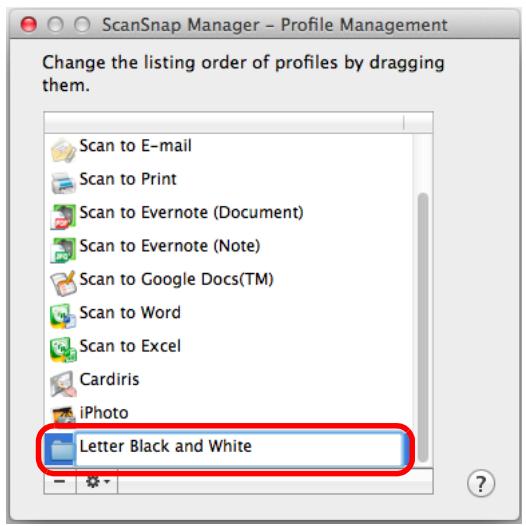
The profile is renamed.
4. Click the [ ] button to close the [ScanSnap Manager - Profile Management] window.
A message appears.
5. Click the [Apply] button.
![FUJITSU SCANSNAP S1300I DELUXE - Click the [Apply] button. - 1](/content/2025/01/190766/images/ae1224c0a8db7e75529e92028dbd4a956d305e5f04f331b42806622b7571a459.jpg)
Deleting Profiles
1. Select [Profile Management] from the ScanSnap Manager menu.
For details about the ScanSnap Manager menu, refer to "ScanSnap Manager Menu" (page 273).
The [ScanSnap Manager - Profile Management] window appears.
HINT
- If you cannot select [Profile Management] in the ScanSnap Manager menu, clear the [Use Quick Menu] checkbox in the ScanSnap setup window.
- You can also display the [ScanSnap Manager - Profile Management] window by selecting [Profile Management] from the [Profile] pop-up menu in the ScanSnap setup window.
2. Select a profile and click the [ ] button.
![FUJITSU SCANSNAP S1300I DELUXE - Select a profile and click the [ ] button. - 1](/content/2025/01/190766/images/a98ed6a24d1ebb815acb727483b56a259a15b6299918191639ac549b78659f5f.jpg)
ATTENTION
The [Standard] profile cannot be deleted.
The selected profile is deleted.
3. Click the [ ] button to close the [ScanSnap Manager - Profile Management] window.
A message appears.
4. Click the [Apply] button.
![FUJITSU SCANSNAP S1300I DELUXE - Click the [Apply] button. - 1](/content/2025/01/190766/images/bf73607c3d3f0944cc2c3ade65fce761ac69a959cbccfcf94dfb1ce9e9b53451.jpg)
Automatic Linkage with Applications
When one of the following applications is active (application menu appears in the menu bar), scanning documents by pressing the [Scan] button on the ScanSnap automatically starts the linkage between ScanSnap Manager and the application even when the Quick Menu is enabled.
Applications that can automatically link with ScanSnap Manager are as follows:
Cardiris
Scanned image is displayed in Cardiris.
- Scan to Mobile
Scanned image is sent to a mobile device.
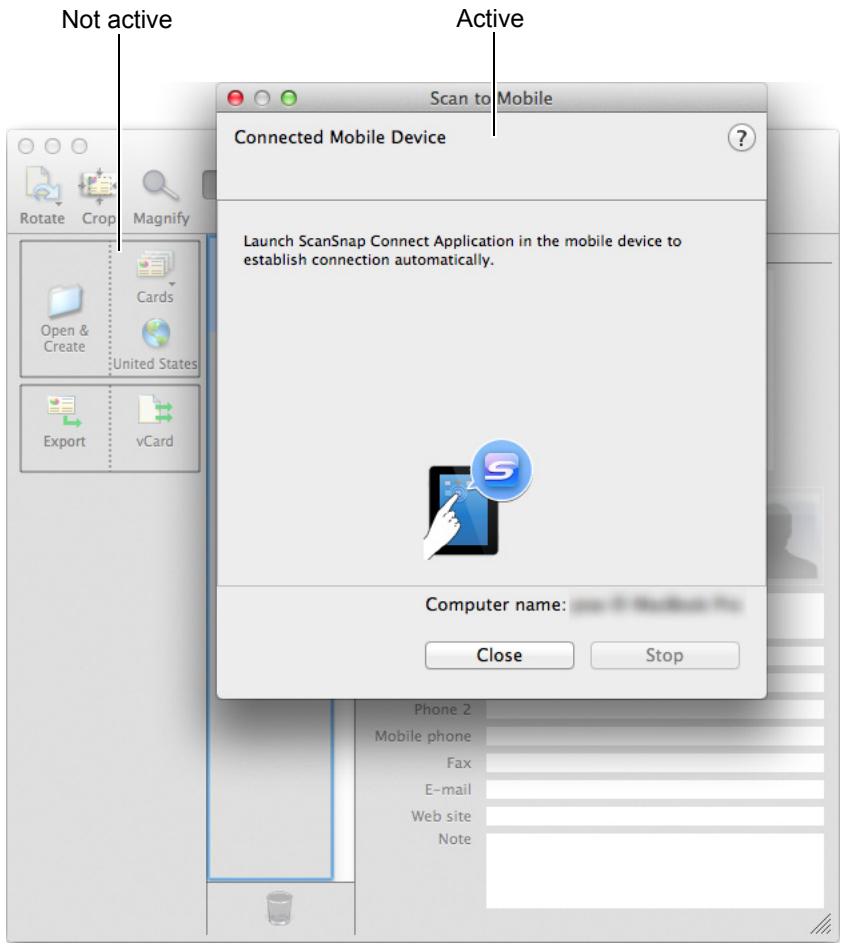
The example above shows ScanSnap Manager automatically linking with Scan to Mobile when Scan to Mobile window is in front (active).
■ ScanSnap's Communication Status
If you turn the ScanSnap ON/OFF when ScanSnap Manager is running, the notification appears and indicates the communication status of the ScanSnap.
- When the ScanSnap is on
Power cable connection

ScanSnap Manager
ScanSnap is ready to scan.
Click here to disable this notification.
USB bus power cable connection

ScanSnap Manager
ScanSnap is ready to scan.
Click here to disable this notification.
- When the ScanSnap is off

ScanSnap Manager
ScanSnap is disconnected.
Click here to disable this notification.
HINT
To disable notifications of the ScanSnap's communication status, click the notification, and in the [Status Display] tab of the [ScanSnap Manager - Preferences] window that appears, clear the [Notify of the communication status] checkbox.
When the time until auto power-off is specified, the notification appears five minutes before the ScanSnap turns off.
- When the ScanSnap will be automatically turned off soon
Power cable connection

ScanSnap Manager
The ScanSnap is about to turn off because it is not in use.
Click here for details about the ScanSnap's power setting.
USB bus power cable connection

ScanSnap Manager
The ScanSnap is about to turn off because it is not in use.
Click here for details about the ScanSnap's power setting.
Receiving or hiding the ScanSnap's communication status notifications
You can specify whether or not to receive notifications of the ScanSnap's communication status.
Configure the setting in the following procedure.
1. Select [Help] [Preferences] from the ScanSnap Manager menu.
For details about the ScanSnap Manager menu, refer to "ScanSnap Manager Menu" (page 273).
The [ScanSnap Manager - Preferences] window appears.
2. In the [Status Display] tab, either select or clear the [Notify of the communication status] checkbox.
![FUJITSU SCANSNAP S1300I DELUXE - In the [Status Display] tab, either select or clear the [Notify of the communication status] checkbox. - 1](/content/2025/01/190766/images/f2e00ba9f52ae570abbf547dc0cf9d4beb1e3e4864afd3342b1d4832856ad34e.jpg)
If you select the [Notify of the communication status] checkbox, you will be notified of the communication status in conjunction with the ScanSnap being turned ON/OFF. If you clear the [Notify of the communication status] checkbox, you will not be notified of the communication status.
3. Click the [ ] button in the upper left corner to close the [ScanSnap Manager - Preferences] window.
■ Showing the Scanning Progress
When scanning starts, the [ScanSnap Manager - Image scanning and file saving] window appears.
The [ScanSnap Manager - Image scanning and file saving] window consists of the following:
- Scan status
- Scan settings
- Save completed
Preview
Also, note that you can stop scanning by clicking the [Stop] button in the [ScanSnap Manager - Image scanning and file saving] window.
For details about how to stop scanning, refer to "Stopping the Scan" (page 285).
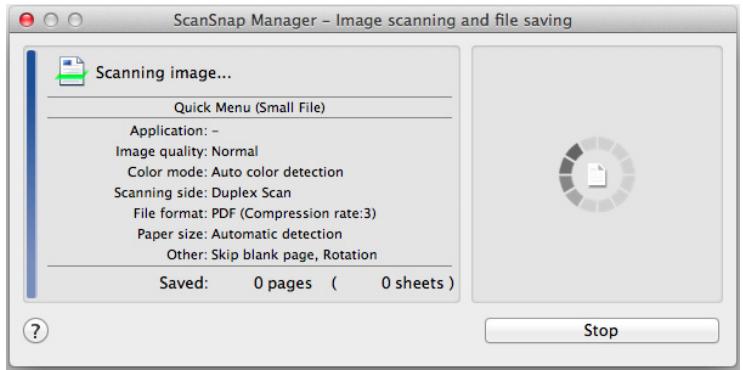
The [ScanSnap Manager - Image scanning and file saving] window closes automatically after saving the scanned image of the last page scanned.
Hiding the Scanning Progress Status
You can hide the [ScanSnap Manager - Image scanning and file saving] window in the following procedure.
1. Select [Help] [Preferences] from the ScanSnap Manager menu.
For details about the ScanSnap Manager menu, refer to "ScanSnap Manager Menu" (page 273).
The [ScanSnap Manager - Preferences] window appears.
2. In the [Status Display] tab, clear the [Show the scan progress status (recommended)] checkbox.
![FUJITSU SCANSNAP S1300I DELUXE - In the [Status Display] tab, clear the [Show the scan progress status (recommended)] checkbox. - 1](/content/2025/01/190766/images/bbb81dd44f8790fbcdacddaa7c855f30879f9e7758b40513cd19a87212bba305.jpg)
3. Click the [ ] button in the upper left corner to close the [ScanSnap Manager - Preferences] window.
The [ScanSnap Manager - Image scanning and file saving] window is hidden from next scanning on.
HINT
When the scanning progress status window is not displayed, the current number of pages saved is indicated on the ScanSnap Manager icon in the Dock.

Actions
The ScanSnap has functions useful in your office work available as Actions.
Actions allow you to:
- Share the scanned document files with others.
Save the scanned image directly in a shared folder on a network after scanning, share the scanned image with others and inform them of the destination folder path by an email message automatically created with the path stated.
- Send document files to participants of a meeting via e-mail.
Send an e-mail message to others with the scanned image file attached.
- Use a printer rather than a copy machine to make copies of documents.
Print the scanned image with a printer.
- Quote text from your paper documents when you do not want to type it.
Have the scanned image text recognized and converted into a Word or Excel document.
- File and organize a large number of business cards.
Store and manage business cards in Cardiris. The card data can be output in either text or vCard format.
- Convert catalogs and pamphlets into digital data and save them.
Store and manage scanned images of catalogs and pamphlets directly in iPhoto.
- Save scanned documents to a mobile device.
Scanned image file is saved to a connected mobile device. You can access the saved files through linkage with an application that can view PDF or JPEG files.
The following are explanations on how to use Actions.
Saving Data in a Specified Folder
This section explains how to save the scanned image file in a specified folder.
You can save the scanned image file in a shared folder on the network and share it with others. In addition, you can inform others of the destination folder path by an e-mail message automatically created with the path stated.
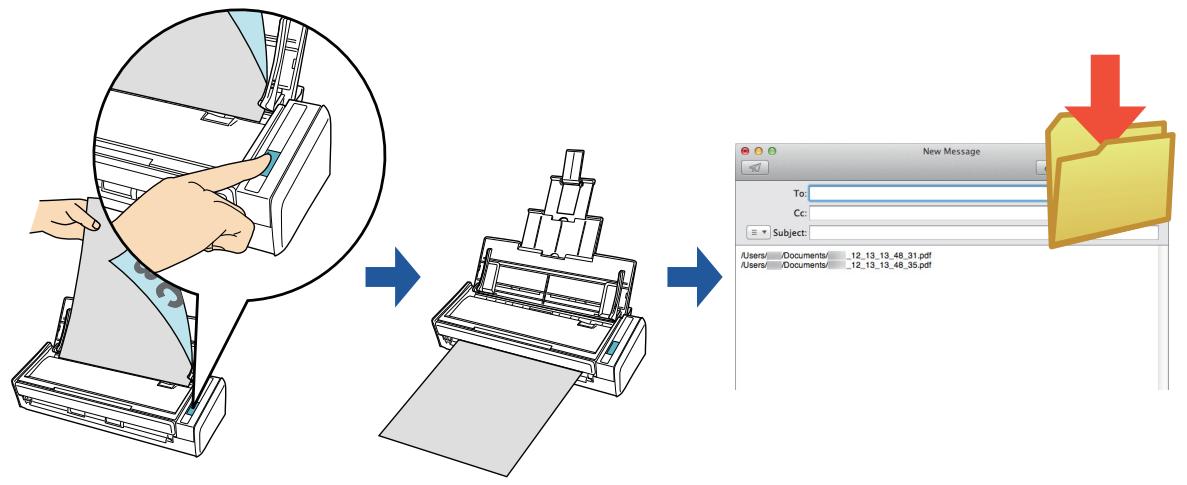
HINT
The e-mail program configured in Mail when you select [Mail] menu [Preferences] [General] button [Default email reader] is used as the e-mail program to link with ScanSnap Manager.
The following e-mail programs are supported:
- Outlook for Mac 2011
- Entourage 2008 for Mac
- Entourage 2004 for Mac
For details about the procedure to scan and save the scanned image in a specified folder using or without using the Quick Menu, refer to the following:
Using the Quick Menu ( page 310)
- Without Using the Quick Menu ( page 313)
Using the Quick Menu
HINT
To use the Quick Menu, you need to select the [Use Quick Menu] checkbox in the ScanSnap setup window.
For details about how to perform scanning by using the Quick Menu, refer to "Using the Quick Menu" (page 277).
1. Load a document in the ScanSnap.
For details about how to load documents, refer to "How to Load Documents" (page 33).
2. Press the [Scan] button on the ScanSnap to start a scan.
The Quick Menu appears when the scanning is completed.
![FUJITSU SCANSNAP S1300I DELUXE - Press the [Scan] button on the ScanSnap to start a scan. - 1](/content/2025/01/190766/images/ca727d9d44d886e22d3503e3bd7239294cd4baf337f8d6d102ed7d1a9ec167a0.jpg)
3. Click the [Scan to Folder] icon
![FUJITSU SCANSNAP S1300I DELUXE - Click the [Scan to Folder] icon - 1](/content/2025/01/190766/images/220088959eebb529b7a447f2320357a973b2bdce0b111e581e634b50bf437dfb.jpg)
The [Scan to Folder] window appears.
4. Check the scanned image in the preview area.
In the [Scan to Folder] window, you can change files names, destination folders, and specify whether to state a path to a destination folder in an e-mail message to notify others.
For details about the [Scan to Folder] window, refer to the ScanSnap Manager Help.
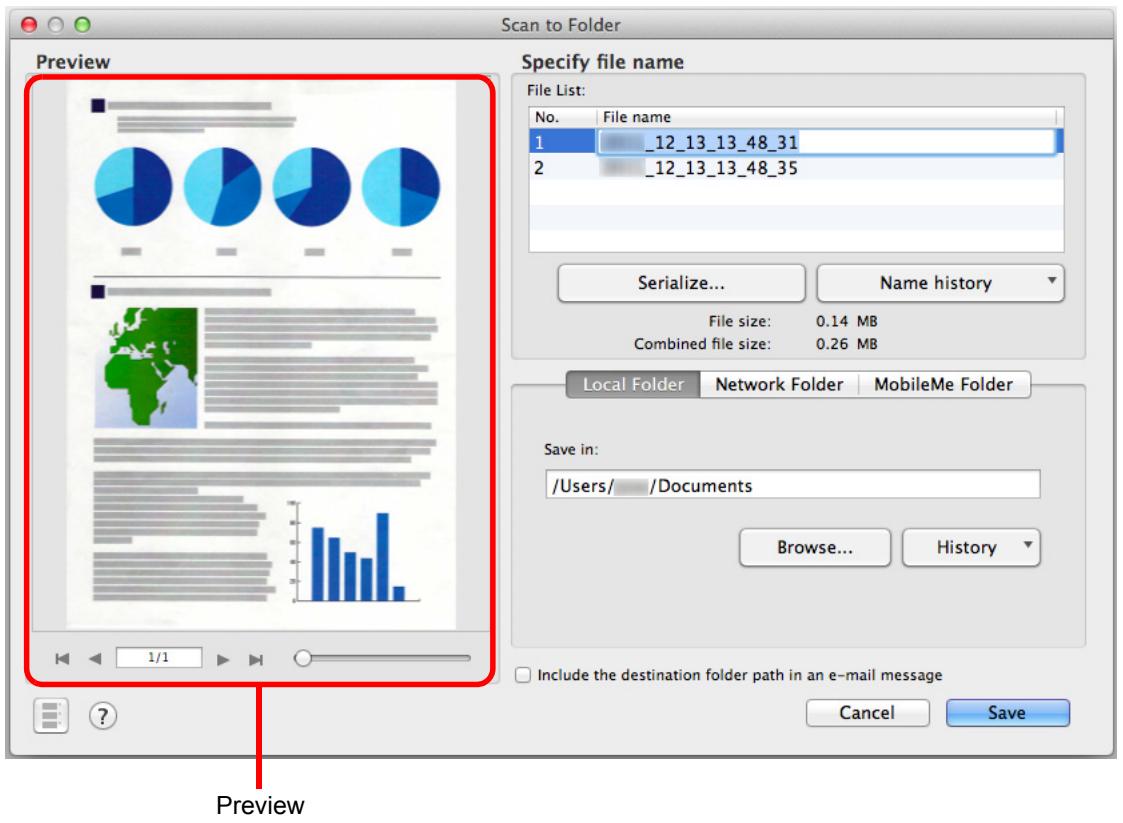
5. Click the [Save] button.
The scanned image file is saved in the specified folder.
When you select the [Include the destination folder path in an e-mail message] checkbox in the [Scan to Folder] window, a new message window appears listing the destination folder path where the file is saved.
![FUJITSU SCANSNAP S1300I DELUXE - Click the [Save] button. - 1](/content/2025/01/190766/images/c8e30557dad4a0fe1791d1170d206d8de220b632682194459a35d1d688c6d2c0.jpg)
ATTENTION
- You cannot start scanning after the Quick Menu is displayed and before the [Scan to Folder] window is closed. Close the [Scan to Folder] window before scanning the next document.
- Do not move, delete, or rename scanned image in other applications after the Quick Menu is displayed and before the [Scan to Folder] window is closed.
Without Using the Quick Menu
HINT
To disable the Quick Menu, you need to clear the [Use Quick Menu] checkbox in the ScanSnap setup window.
For details about how to perform scanning without using the Quick Menu, refer to "Without Using the Quick Menu" (page 282).
1. Select [Settings] from the ScanSnap Manager menu.
For details about the ScanSnap Manager menu, refer to "ScanSnap Manager Menu" (page 273).
The ScanSnap setup window appears.
2. In the [Application] pop-up menu in the [Application] tab, select [Scan to Folder].
![FUJITSU SCANSNAP S1300I DELUXE - In the [Application] pop-up menu in the [Application] tab, select [Scan to Folder]. - 1](/content/2025/01/190766/images/8e0997bfebee478180524732108dc00d9a6ab6b1bf338eb10f24dec3bb49818f.jpg)
HINT
ScanSnap Manager also links with [Scan to Folder] when you select:
- [Scan to Folder] from the [Profile] pop-up menu of the ScanSnap setup window
- [Scan to Folder] from the Profile menu
3. Click the [Apply] button.
- Click the [ ] button in the upper left corner to close the ScanSnap setup window.
- Load a document in the ScanSnap.
For details about how to load documents, refer to "How to Load Documents" (page 33).
- Press the [Scan] button on the ScanSnap to start a scan.
The [Scan to Folder] window appears when the scanning is completed.
- Check the scanned image in the preview area.
In the [Scan to Folder] window, you can change files names, destination folders, and specify whether to state a path to a destination folder in an e-mail message to notify others.
For details about the [Scan to Folder] window, refer to the ScanSnap Manager Help.
![FUJITSU SCANSNAP S1300I DELUXE - Click the [Apply] button. - 1](/content/2025/01/190766/images/a1ff1b26635b1c58261ef32b1f6865054b52e1574e6dd5d020456341c5971373.jpg)
8. Click the [Save] button.
The scanned image file is saved in the specified folder.
When you select the [Include the destination folder path in an e-mail message] checkbox in the [Scan to Folder] window, a new message window appears listing the destination folder path where the file is saved.
![FUJITSU SCANSNAP S1300I DELUXE - Click the [Save] button. - 1](/content/2025/01/190766/images/2029f67faec06ca4da943b61897d6f111f961974ca6d8decf97faa5939f62cc9.jpg)
ATTENTION
- You cannot start scanning when the [Scan to Folder] window is displayed. Close the window before scanning the next document.
- Do not move, delete or rename the scanned image in other applications when the [Scan to Folder] window is displayed.
■ Attaching Files to E-Mail
This section explains how to attach the scanned image file to an e-mail message.
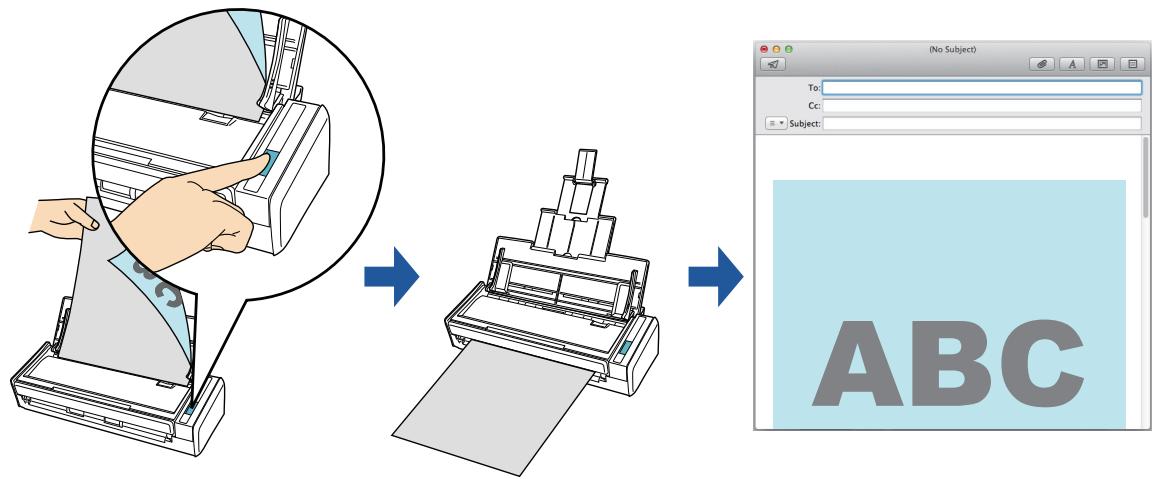
HINT
The e-mail program configured in Mail when you select [Mail] menu [Preferences] [General] button [Default email reader] is used as the e-mail program to link with ScanSnap Manager.
The following e-mail programs are supported:
- Outlook for Mac 2011
- Entourage 2008 for Mac
- Entourage 2004 for Mac
For details about the procedure to scan and attach the scanned image to an e-mail message using or without using the Quick Menu, refer to the following:
Using the Quick Menu ( page 317)
- Without Using the Quick Menu ( page 321)
Using the Quick Menu
HINT
To use the Quick Menu, you need to select the [Use Quick Menu] checkbox in the ScanSnap setup window.
For details about how to perform scanning by using the Quick Menu, refer to "Using the Quick Menu" (page 277).
1. Load a document in the ScanSnap.
For details about how to load documents, refer to "How to Load Documents" (page 33).
ATTENTION
Up to ten files can be attached to an e-mail message.
When you scan more than one document with the scan settings shown below, multiple files are created. Pay attention to the number of documents to scan:
- File format: JPEG (*.jpg)
- [Generate one PDF file per (n) page(s)] checkbox is selected
2. Press the [Scan] button on the ScanSnap to start a scan.
The Quick Menu appears when the scanning is completed.
![FUJITSU SCANSNAP S1300I DELUXE - Press the [Scan] button on the ScanSnap to start a scan. - 1](/content/2025/01/190766/images/f154ec9ff3db25df7f90c1ec35615a7f3c6cc3e3ff602bab47164f5f4d8f3b7d.jpg)
3. Change the settings for [Scan to E-mail] (If you do not want to change any settings, go to step 4.).
- Move the mouse cursor to the [Scan to E-mail] icon , and then click [Settings].
The [Scan to E-mail - Options] window appears.
2. Change the settings.
For details about the [Scan to E-mail - Options] window, refer to the ScanSnap Manager Help.
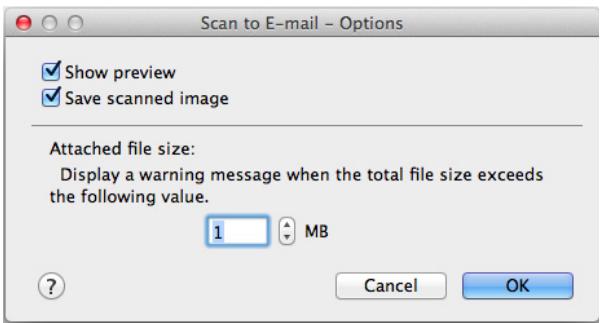
- Click the [OK] button to close the [Scan to E-mail - Options] window.
4. Click the [Scan to E-mail] icon
![FUJITSU SCANSNAP S1300I DELUXE - Click the [Scan to E-mail] icon - 1](/content/2025/01/190766/images/5c6a0eb330e3b490f265aee4ddbe90bdd4dda848cf3254b89d7fe25af1c0aaa0.jpg)
The [Scan to E-mail] window appears.
If you clear the [Show preview] checkbox of the [Scan to E-mail - Options] window in step 3., the [Scan to E-mail] window is not displayed. An e-mail message window appears with the file attached.
5. Check the scanned image in the preview area.
In the [Scan to E-mail] window, you can rename the file and decide whether to save the scanned image in the folder specified for [Image saving folder] after sending it by e-mail. For details about the [Scan to E-mail] window, refer to the ScanSnap Manager Help.
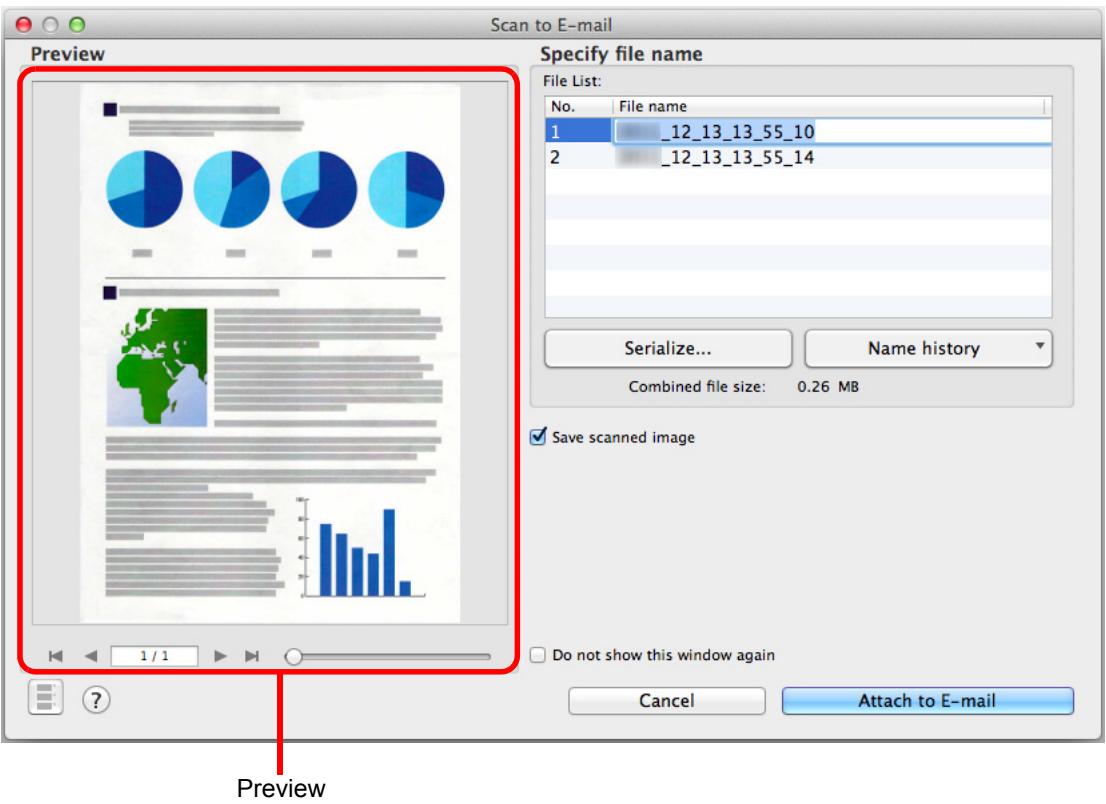
6. Click the [Attach to E-mail] button.
An e-mail message window appears with the file attached.
![FUJITSU SCANSNAP S1300I DELUXE - Click the [Attach to E-mail] button. - 1](/content/2025/01/190766/images/ccfcad5dd7ea10f19373c95afed6ba9727c4609a02034fe6da3b700733f8cc68.jpg)
ATTENTION
- You cannot start scanning after the Quick Menu is displayed and before the [Scan to E-mail] window is closed. Close the [Scan to E-mail] window before scanning the next document.
- Do not move, delete, or rename scanned image in other applications after the Quick Menu is displayed and before the [Scan to E-mail] window is closed.
Without Using the Quick Menu
HINT
To disable the Quick Menu, you need to clear the [Use Quick Menu] checkbox in the ScanSnap setup window.
For details about how to perform scanning without using the Quick Menu, refer to "Without Using the Quick Menu" (page 282).
1. Select [Settings] from the ScanSnap Manager menu.
For details about the ScanSnap Manager menu, refer to "ScanSnap Manager Menu" (page 273).
The ScanSnap setup window appears.
2. In the [Application] pop-up menu in the [Application] tab, select [Scan to E-mail].
![FUJITSU SCANSNAP S1300I DELUXE - In the [Application] pop-up menu in the [Application] tab, select [Scan to E-mail]. - 1](/content/2025/01/190766/images/4eb435b8e4e0f3ce78b6581e8d4bd9871bd951ab6b7965d7d63c563eed06f974.jpg)
HINT
ScanSnap Manager also links with [Scan to E-mail] when you select:
- [Scan to E-mail] from the [Profile] pop-up menu of the ScanSnap setup window
- [Scan to E-mail] from the Profile menu
3. Change the settings for [Scan to E-mail] (If you do not want to change any settings, go to step 4.).
- Click the [Application Settings] button.
![FUJITSU SCANSNAP S1300I DELUXE - Change the settings for [Scan to E-mail] (If you do not want to change any settings, go to step 4.). - 1](/content/2025/01/190766/images/31d77d62757102612176e074926ecee449c8a07c8aa83d4f0ac5ae6c6779bb44.jpg)
The [Scan to E-mail - Options] window appears.
- Change the settings.
For details about the [Scan to E-mail - Options] window, refer to the ScanSnap Manager Help.
![FUJITSU SCANSNAP S1300I DELUXE - Change the settings for [Scan to E-mail] (If you do not want to change any settings, go to step 4.). - 2](/content/2025/01/190766/images/5aad32bb059b26eaa13adf521cf7b19967cd4ee0633192ea859e327e69908571.jpg)
-
Click the [OK] button to close the [Scan to E-mail - Options] window.
-
Click the [Apply] button in the ScanSnap setup window.
- Click the [×] button in the upper left corner to close the ScanSnap setup window.
6. Load a document in the ScanSnap.
For details about how to load documents, refer to "How to Load Documents" (page 33).
ATTENTION
Up to ten files can be attached to an e-mail message.
When you scan more than one document with the scan settings shown below, multiple files are created. Pay attention to the number of documents to scan:
- File format: JPEG (*.jpg)
- [Generate one PDF file per (n) page(s)] checkbox is selected
7. Press the [Scan] button on the ScanSnap to start a scan.
The [Scan to E-mail] window appears when the scanning is completed.
If you clear the [Show preview] checkbox of the [Scan to E-mail - Options] window in step 3., the [Scan to E-mail] window is not displayed. An e-mail message window appears with the file attached.
8. Check the scanned image in the preview area.
In the [Scan to E-mail] window, you can rename the file and decide whether to save the scanned image in the folder specified for [Image saving folder] after sending it by e-mail. For details about the [Scan to E-mail] window, refer to the ScanSnap Manager Help.
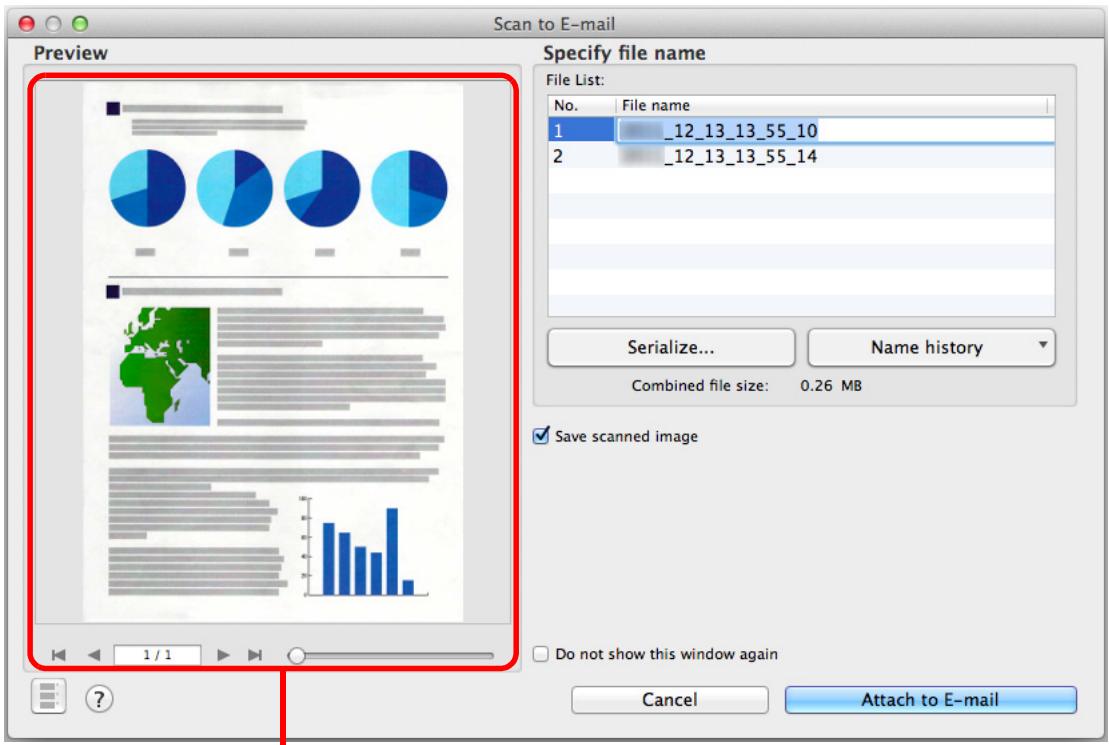
Preview
9. Click the [Attach to E-mail] button.
An e-mail message window appears with the file attached.
![FUJITSU SCANSNAP S1300I DELUXE - Click the [Attach to E-mail] button. - 1](/content/2025/01/190766/images/b346f73120ae7b5efa0fb61166d509a78002991ce4a4cf7e546c48809c9c1c63.jpg)
ATTENTION
- You cannot start scanning when the [Scan to E-mail] window is displayed. Close the window before scanning the next document.
- Do not move, delete or rename the scanned image in other applications when the [Scan to E-mail] window is displayed.
Using the ScanSnap as a Copy Machine
This section explains how to print the scanned image with a printer.
When a printer links with ScanSnap Manager, the ScanSnap can be used as a copy machine.
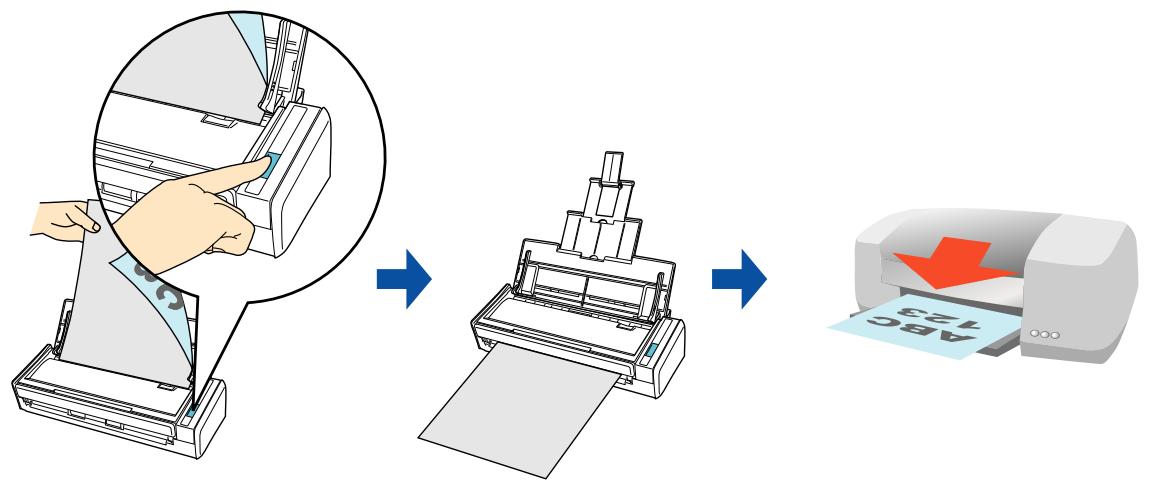
ATTENTION
- Note that shadows around the edges of the document may appear as lines on the generated scanned image, depending on the scanning method and paper conditions. If you print such an image, the printed image will also have lines appearing in it.
- When you perform a borderless printing, save the image data to file first, and then print it by using Preview, Adobe Acrobat or Adobe Reader.
For details about the procedure to scan and print the scanned image using or without using the Quick Menu, refer to the following:
Using the Quick Menu ( page 326)
- Without Using the Quick Menu ( page 328)
Using the Quick Menu
HINT
To use the Quick Menu, you need to select the [Use Quick Menu] checkbox in the ScanSnap setup window.
For details about how to perform scanning by using the Quick Menu, refer to "Using the Quick Menu" (page 277).
1. Load a document in the ScanSnap.
For details about how to load documents, refer to "How to Load Documents" (page 33).
2. Press the [Scan] button on the ScanSnap to start a scan.
The Quick Menu appears when the scanning is completed.
![FUJITSU SCANSNAP S1300I DELUXE - Press the [Scan] button on the ScanSnap to start a scan. - 1](/content/2025/01/190766/images/894a2734cbde883ce82bf48283b28e6402863ba4acdd4ff5f5ab82b71f1e0874.jpg)
3. Change the settings for [Scan to Print] (If you do not want to change any settings, go to step 4.).
- Move the mouse cursor to the [Scan to Print] icon The [Scan to Print - Options] window appears.
![FUJITSU SCANSNAP S1300I DELUXE - Change the settings for [Scan to Print] (If you do not want to change any settings, go to step 4.). - 1](/content/2025/01/190766/images/b280e4e77787971471ae9d6a8891fc60cce487b2714ee2a6608a033898fed82f.jpg)
, and then click [Settings].
- Change the settings. For details about the [Scan to Print - Options] window, refer to the ScanSnap Manager Help.
![FUJITSU SCANSNAP S1300I DELUXE - Change the settings for [Scan to Print] (If you do not want to change any settings, go to step 4.). - 2](/content/2025/01/190766/images/7fe61248c810bd12b9e1a15e96c7a3a04ed84f838af6c4e6873faeaa522f9fde.jpg)
- Click the [OK] button to close the [Scan to Print - Options] window.
4. Click the [Scan to Print] icon
![FUJITSU SCANSNAP S1300I DELUXE - Click the [Scan to Print] icon - 1](/content/2025/01/190766/images/f150041694dbcc5cab71a448972ea234135367a05d75b447b54e6e9b93a78a92.jpg)
The [Print] window appears.
5. Configure print setup options in the [Print] window.
In the [Print] window, you can specify the printer to be used, the number of copies, and size and position of the scanned image to be printed, and whether to save the scanned image in the folder specified for [Image saving folder].
For details about the [Print] window, refer to the ScanSnap Manager Help.
![FUJITSU SCANSNAP S1300I DELUXE - Configure print setup options in the [Print] window. - 1](/content/2025/01/190766/images/9f0ea2868a940d94cfbb646078834616bc490942a3e9c76fbf250675b1b4e49c.jpg)
6. Click the [Print] button.
The scanned image is printed.
ATTENTION
- You cannot start scanning after the Quick Menu is displayed and before the [Print] window is closed. Close the [Print] window before scanning the next document.
- Do not move, delete, or rename the scanned image in other applications after the Quick Menu is displayed and before the [Print] window is closed.
Without Using the Quick Menu
HINT
To disable the Quick Menu, you need to clear the [Use Quick Menu] checkbox in the ScanSnap setup window.
For details about how to perform scanning without using the Quick Menu, refer to "Without Using the Quick Menu" (page 282).
1. Select [Settings] from the ScanSnap Manager menu.
For details about the ScanSnap Manager menu, refer to "ScanSnap Manager Menu" (page 273).
The ScanSnap setup window appears.
2. From the [Application] pop-up menu in the [Application] tab, select [Scan to Print].
![FUJITSU SCANSNAP S1300I DELUXE - From the [Application] pop-up menu in the [Application] tab, select [Scan to Print]. - 1](/content/2025/01/190766/images/9fdc7c3395608b897386d437f52c12cf58b9520a356d0de7d44ea2b1c8bcfb6a.jpg)
HINT
ScanSnap Manager also links with [Scan to Print] when you select:
- [Scan to Print] from the [Profile] pop-up menu of the ScanSnap setup window
- [Scan to Print] from the Profile menu
3. Change the settings for [Scan to Print] (If you do not want to change any settings, go to step 4.).
- Click the [Application Settings] button.
![FUJITSU SCANSNAP S1300I DELUXE - Change the settings for [Scan to Print] (If you do not want to change any settings, go to step 4.). - 1](/content/2025/01/190766/images/b3c0480718619ad9d6a7e358286d8244ce7e11f4ee2aef0dabf9c4c127b6919d.jpg)
The [Scan to Print - Options] window appears.
- Change the settings.
For details about the [Scan to Print - Options] window, refer to the ScanSnap Manager Help.
![FUJITSU SCANSNAP S1300I DELUXE - Change the settings for [Scan to Print] (If you do not want to change any settings, go to step 4.). - 2](/content/2025/01/190766/images/4fb15223465f2eba95a0581ddd37ceb2c65cf83d58e45b1c0bbd9bd153476a50.jpg)
-
Click the [OK] button to close the [Scan to Print - Options] window.
-
Click the [Apply] button in the ScanSnap setup window.
- Click the [ ] button in the upper left corner to close the ScanSnap setup window.
- Load a document in the ScanSnap.
For details about how to load documents, refer to "How to Load Documents" (page 33).
- Press the [Scan] button on the ScanSnap to start a scan.
The [Print] window appears when the scanning is completed.
8. Configure print setup options in the [Print] window.
In the [Print] window, you can specify the printer to be used, the number of copies, and size and position of the scanned image to be printed, and whether to save the scanned image in the folder specified for [Image saving folder].
For details about the [Print] window, refer to the ScanSnap Manager Help.
![FUJITSU SCANSNAP S1300I DELUXE - Configure print setup options in the [Print] window. - 1](/content/2025/01/190766/images/65a12c4c2a5591607e5c4c621780a86b34035688618372c2cb4e50645357fe4e.jpg)
9. Click the [Print] button.
The scanned image is printed.
ATTENTION
- You cannot start scanning when the [Print] window is displayed. Close the window before scanning the next document.
- Do not move, delete, or rename the scanned image in other applications while the [Print] window is displayed.
Converting into Word/Excel Documents
This section explains how to convert the scanned image into Word/Excel files using ABBYY FineReader for ScanSnap bundled with the ScanSnap.
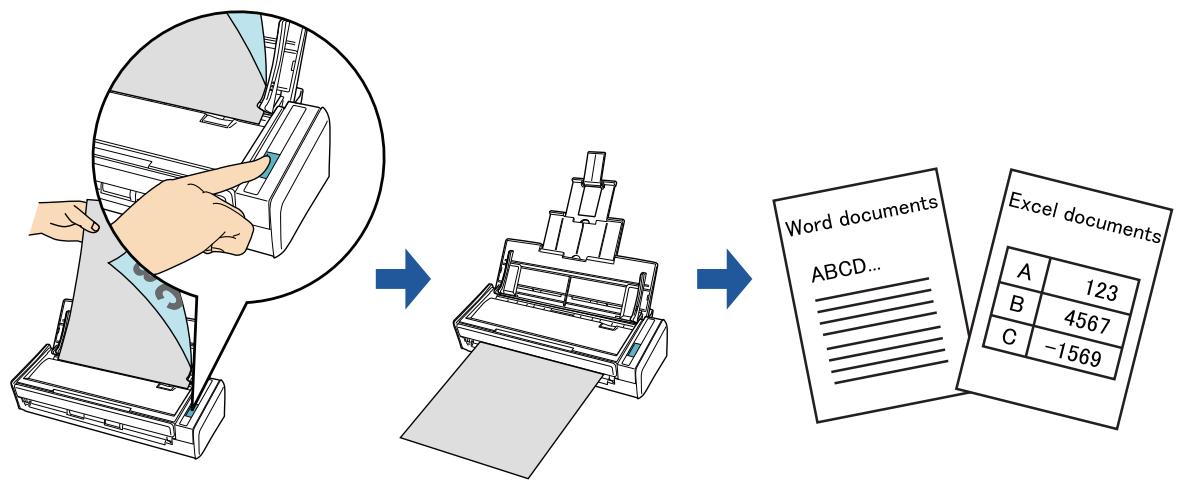
ATTENTION
-
The following applications must be installed in your computer in order to perform text-recognition:
-
ABBYY FineReader for ScanSnap (bundled with the ScanSnap)
-Word
-Excel -
You cannot view the documents converted into Word and Excel files unless these applications are installed and you completed the user registration to use them. Install these applications and complete the user registration to view the converted documents on your computer.
- If Word is not installed in your computer, text-only results of converted documents to Word will be displayed in TextEdit. If Excel is not installed in your computer, you cannot view documents converted to Excel.
- ABBYY FineReader for ScanSnap can be used with the following versions of Word and Excel:
-Word:2011/2008/2004
-Excel:2011/2008/2004
- Do not use this function while you are working in Word or Excel. In addition, do not use Word or Excel while this function is being executed. If you use either Word or Excel together with this function, the conversion result is saved to a file, but the conversion result may not be displayed even if the [Open file after recognition] checkbox is selected on the [FineReader for ScanSnap Preferences] window.
About the OCR function of ABBYY FineReader for ScanSnap
- ABBYY FineReader for ScanSnap is an application used exclusively with the ScanSnap. This program can perform text recognition only for PDF files created by using the ScanSnap. It cannot perform text recognition for files created using Adobe Acrobat or other applications.
- The optical character recognition program has the following features. Before performing text recognition, check whether the documents you want to convert are suitable for conversion according to the following guidelines:
| Application | Suitable for conversion | Not suitable for conversion |
| Scan to Word | Documents with simple lay-outs consisting of single or double columns | Documents with complex layouts containing a mixture of diagrams, tables, and text (e.g. brochures, magazines, and newspapers) |
| Scan to Excel | Documents containing simple tables with no cells merged | Documents containing: - Tables with no solid border lines - Tables with complicated cell formats - Complex tables containing sub-tables - Diagrams - Graphs - Photos - Vertical text |
-
The following parameters may not be reproduced as they are in the original document. It is recommended that the converted documents be opened with Word or Excel to correct or edit misrecognized characters:
-
Character font and size
- Character and line spacing
- Underlined, bold and italic characters
- Superscript/subscript
The following types of documents (characters) may not be recognized correctly.
Better results in text recognition may be achieved by changing the color mode or increasing the resolution:
- Documents including handwritten characters
- Documents containing small characters (smaller than 10 points)
- Skewed documents
- Documents written in languages other than the specified language
- Documents with characters on an unevenly colored background e.g. Shaded characters
- Documents with many decorated characters e.g. Decorated characters (embossed/outlined)
- Documents with characters on a patterned background e.g. Characters overlapping illustrations and diagrams
- Documents with many characters contacting underlines or borders
-
Documents of complex layouts as well as documents including unreadable characters (It may take extra time to process text recognition for these documents.)
-
When converting to Excel files, if the recognition result exceeds 65,536 lines, no more results are saved.
- When converting to Excel files, information about the layout of the entire document, diagrams, and length/width of graphs and tables is not duplicated. Only tables and character strings are reproduced.
HINT
You can change the settings applied during conversion to Word or Excel documents in the ABBYY FineReader for ScanSnap setup window.
Select [Applications] [ABBYY FineReader for ScanSnap] [FineReader for ScanSnap Preferences]. Then, select [FineReader for ScanSnap] menu [Preferences] to display the following window.
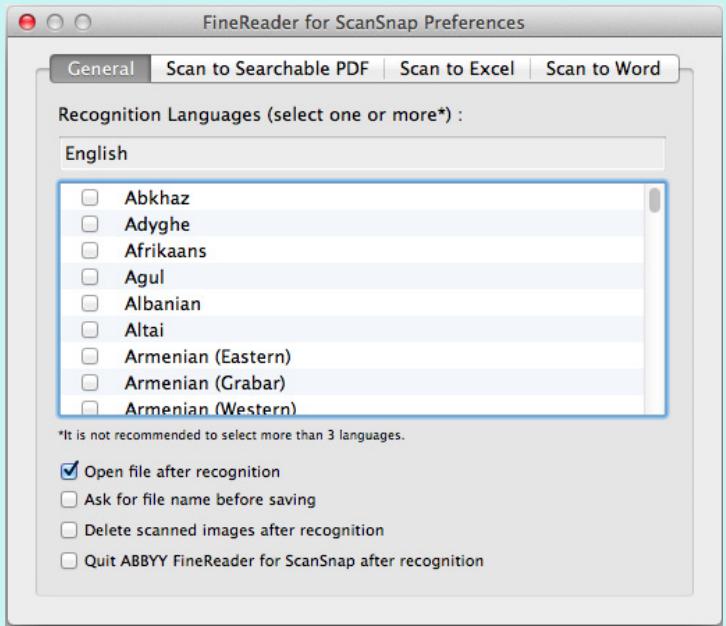
For details about how to configure settings, refer to the ABBYY FineReader for ScanSnap Help.
For details about the procedure to scan and convert the scanned image into Word/Excel files using or without using the Quick Menu, refer to the following:
Using the Quick Menu ( page 335)
- Without Using the Quick Menu ( page 337)
Using the Quick Menu
HINT
To use the Quick Menu, you need to select the [Use Quick Menu] checkbox in the ScanSnap set window.
For details about how to perform scanning by using the Quick Menu, refer to "Using the Quick Menu" (page 277).
1. Select [Settings] from the ScanSnap Manager menu.
For details about the ScanSnap Manager menu, refer to "ScanSnap Manager Menu" (page 273).
The ScanSnap setup window appears.
2. Select either [Recommended] or [High Quality] button.
![FUJITSU SCANSNAP S1300I DELUXE - Select either [Recommended] or [High Quality] button. - 1](/content/2025/01/190766/images/880868118054b377d1cc79041482d768b8db49be698a3c3b0a8d2bc62750ec1d.jpg)
HINT
It is recommended that you select [Automatic resolution] or [Best] for [Image quality] in the [Scanning] tab of the ScanSnap setup window.
3. Click the [Apply] button in the ScanSnap setup window.
4. Click the [ ] button in the upper left corner to close the ScanSnap setup window.
5. Load a document in the ScanSnap.
For details about how to load documents, refer to "How to Load Documents" (page 33).
6. Press the [Scan] button on the ScanSnap to start a scan.
The Quick Menu appears when the scanning is completed.
![FUJITSU SCANSNAP S1300I DELUXE - Press the [Scan] button on the ScanSnap to start a scan. - 1](/content/2025/01/190766/images/0299f5b57356595854c0d53b288f7095033ef96c1c54ca3d49f9e5b9a0975cf1.jpg)
7. Click the [Scan to Word] icon
![FUJITSU SCANSNAP S1300I DELUXE - Click the [Scan to Word] icon - 1](/content/2025/01/190766/images/b54996bd0cfd0d755e6118c695489d2dbd38a1e6c498c8bd7031da6940e82be7.jpg)
or [Scan to Excel] icon
![FUJITSU SCANSNAP S1300I DELUXE - or [Scan to Excel] icon - 1](/content/2025/01/190766/images/0b933f85ffefe8cfbc6fd67a110b72eff2ecd57886c5c1efaec0e85b5f315b2d.jpg)
ATTENTION
- When you perform a scan with [JPEG(*.jpg)] selected for [File format] in the [File option] tab in the ScanSnap setup window, scanned data cannot be converted into a Word or Excel file.
- You cannot start scanning when the Quick Menu is displayed. Wait until the conversion is over to scan another document.
- Do not move, delete or rename the scanned image in other applications when the Quick Menu is displayed.
The following message appears, and conversion starts.
When the conversion is completed, Word or Excel starts up, and the conversion result is displayed.
HINT
The Word or Excel file is saved in one of the following formats:
- Scan to Word: RTF format (.rtf)
- Scan to Excel: XLS format (.xls)
Without using the Quick Menu
HINT
To disable the Quick Menu, you need to clear the [Use Quick Menu] checkbox in the ScanSnap setup window.
For details about how to perform scanning without using the Quick Menu, refer to "Without Using the Quick Menu" (page 282).
1. Select [Settings] from the ScanSnap Manager menu.
For details about the ScanSnap Manager menu, refer to "ScanSnap Manager Menu" (page 273).
The ScanSnap setup window appears.
2. In the [Application] pop-up menu in the [Application] tab, select [Scan to Word] or [Scan to Excel].
![FUJITSU SCANSNAP S1300I DELUXE - In the [Application] pop-up menu in the [Application] tab, select [Scan to Word] or [Scan to Excel]. - 1](/content/2025/01/190766/images/015edda72fa01d9be2ef11c2a688ba14162f072bf5e551b82b0dd9cde340596b.jpg)
HINT
- It is recommended to select [Automatic resolution] or [Best] for [Image quality] in the [Scanning] tab in the ScanSnap setup window.
-
ScanSnap Manager can also link with [Scan to Word] or [Scan to Excel] when you select
-
[Scan to Word] or [Scan to Excel] from the [Profile] pop-up menu of the ScanSnap setup window
- [Scan to Word] or [Scan to Excel] from the Profile menu
3. Click the [Apply] button in the ScanSnap setup window.
- Click the [ ] button in the upper left corner to close the ScanSnap setup window.
- Load a document in the ScanSnap.
For details about how to load documents, refer to "How to Load Documents" (page 33).
- Press the [Scan] button on the ScanSnap to start a scan.
The following message appears and image data conversion to Word or Excel files starts.
![FUJITSU SCANSNAP S1300I DELUXE - Click the [Apply] button in the ScanSnap setup window. - 1](/content/2025/01/190766/images/98d988a7707ddc4a88f48933c0fd9f86effec828e4ab8158780f76c94f622441.jpg)
When the conversion is completed, Word or Excel starts up and the conversion result is displayed.
HINT
The Word or Excel file is saved in one of the following formats:
- Scan to Word: RTF format (.rtf)
- Scan to Excel: XLS format (.xls)
Storing Business Cards in Cardiris
This section explains how to store business card images and the related information in Cardiris.
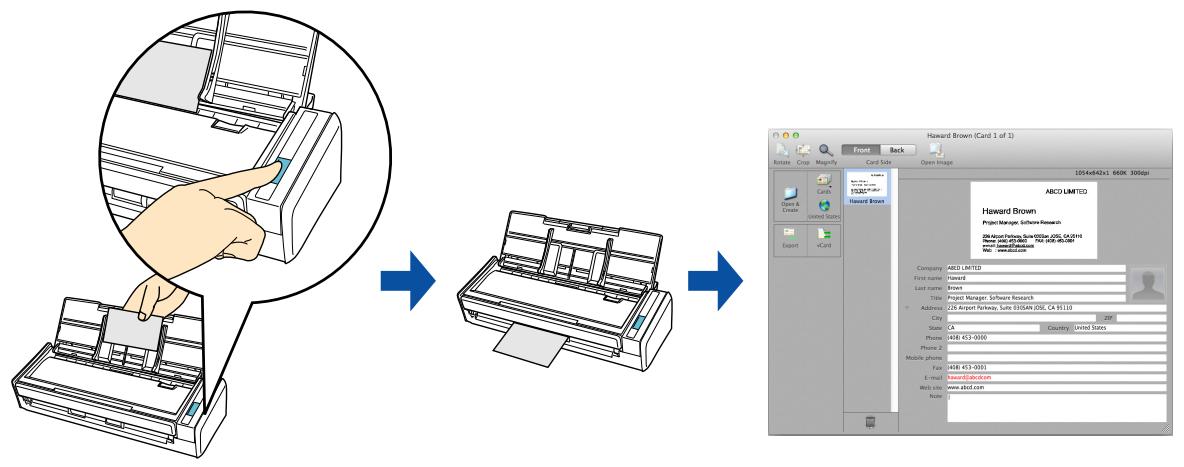
For details about the procedure to scan and manage business cards in Cardiris using or without using the Quick Menu, refer to the following:
Using the Quick Menu ( page 340)
- Without Using the Quick Menu ( page 343)
Using the Address Book in Cardiris ( page 346)
Using the Quick Menu
HINT
To use the Quick Menu, you need to select the [Use Quick Menu] checkbox in the ScanSnap setup window.
For details about how to perform scanning by using the Quick Menu, refer to "Using the Quick Menu" (page 277).
1. Select [Settings] from the ScanSnap Manager menu.
For details about the ScanSnap Manager menu, refer to "ScanSnap Manager Menu" (page 273).
The ScanSnap setup window appears.
2. Select either [Recommended] or [High Quality] button.
![FUJITSU SCANSNAP S1300I DELUXE - Select either [Recommended] or [High Quality] button. - 1](/content/2025/01/190766/images/d7b435dceaf808fbd2b08f765d25f16bee89af7f3cddc547388c4dc6d03ffcb9.jpg)
ATTENTION
It is recommended that you select [Automatic resolution] or [Best] for [Image quality] in the [Scanning] tab of the ScanSnap setup window.
3. Click the [Apply] button in the ScanSnap setup window.
4. Click the [ ] button in the upper left corner to close the ScanSnap setup window.
5. Load a business card in the ScanSnap.
- Load the business card so that the front side faces the ADF paper chute (cover).
- To scan multiple business cards, load them in a pile.
- Do not leave space between the side guides and business cards.
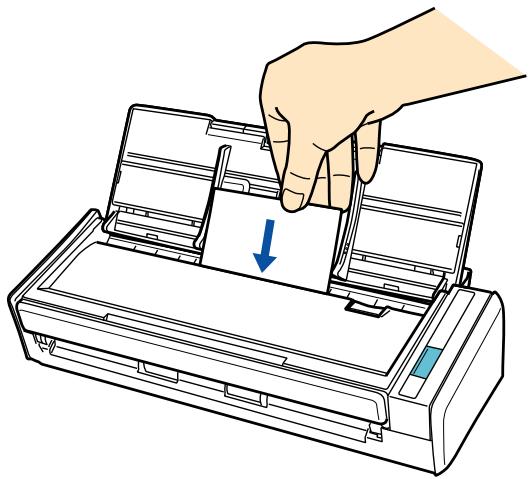
6. Press the [Scan] button on the ScanSnap to start a scan.
The Quick Menu appears when the scanning is completed.
![FUJITSU SCANSNAP S1300I DELUXE - Press the [Scan] button on the ScanSnap to start a scan. - 1](/content/2025/01/190766/images/9f5843293e3eace24fb7bcd33b1374d1fbe21b8dddbee55e542f757819fab71f.jpg)
7. Click the [Cardiris] icon
![FUJITSU SCANSNAP S1300I DELUXE - Click the [Cardiris] icon - 1](/content/2025/01/190766/images/000935b1c40aceac6848a14b44ece25730c8e96da5a8f56ad0a3a1a0560b8c01.jpg)
ATTENTION
-
You cannot start scanning when the Quick Menu is displayed. Wait until ScanSnap Manager links with Cardiris before scanning another document.
-
Do not move, delete, or rename the scanned image in other applications when the Quick Menu is displayed.
The Cardiris window appears.
8. Check the scanned card image and the text recognition result.
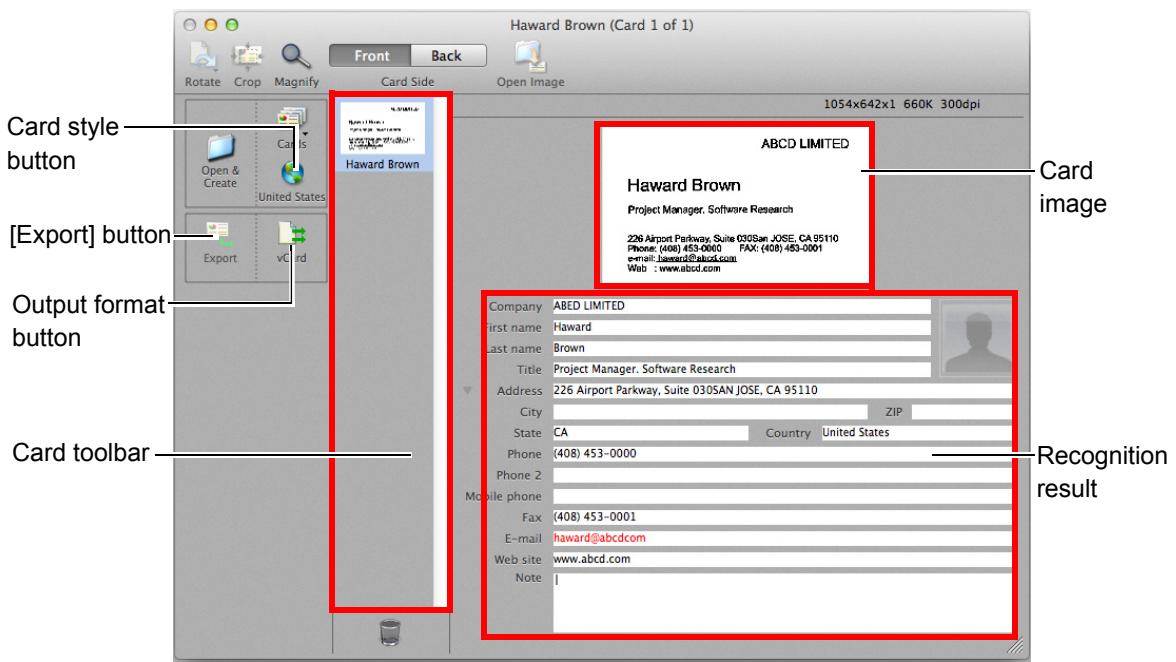
The current card image is displayed on the top-right.
A list of already scanned business cards is displayed in the card toolbar.
The recognition result is displayed under the card image.
ATTENTION
Do not exit Cardiris while setup or message window is open.
HINT
- To recognize a business card of a different language from the one currently set in Cardiris, click the card style button and change the country setting.
- For details about the functions of Cardiris and how to use it, refer to Cardiris™ 4 User Guide and Cardiris Help.
Without Using the Quick Menu
HINT
To disable the Quick Menu, you need to clear the [Use Quick Menu] checkbox in the ScanSnap setup window.
For details about how to perform scanning without using the Quick Menu, refer to "Without Using the Quick Menu" (page 282).
1. Select [Settings] from the ScanSnap Manager menu.
For details about the ScanSnap Manager menu, refer to "ScanSnap Manager Menu" (page 273).
The ScanSnap setup window appears.
2. In the [Application] pop-up menu in the [Application] tab, select [Cardiris].
![FUJITSU SCANSNAP S1300I DELUXE - In the [Application] pop-up menu in the [Application] tab, select [Cardiris]. - 1](/content/2025/01/190766/images/f76e096d4d34384ed49e406157cd03d2181ed81802456bc7222b81f704c0467f.jpg)
ATTENTION
It is recommended that you select [Automatic resolution] or [Best] for [Image quality] in the [Scanning] tab of the ScanSnap setup window.
HINT
ScanSnap Manager also links with [Cardiris] when you select:
-
[Cardiris] from the [Profile] pop-up menu of the ScanSnap setup window
Cardiris] from the Profile menu -
Click the [Apply] button.
- Click the [ ] button in the upper left corner to close the ScanSnap setup window.
-
Load a business card in the ScanSnap.
-
Load the business card so that the front side faces the ADF paper chute (cover).
- To scan multiple business cards, load them in a pile.
- Do not leave space between the side guides and business cards.
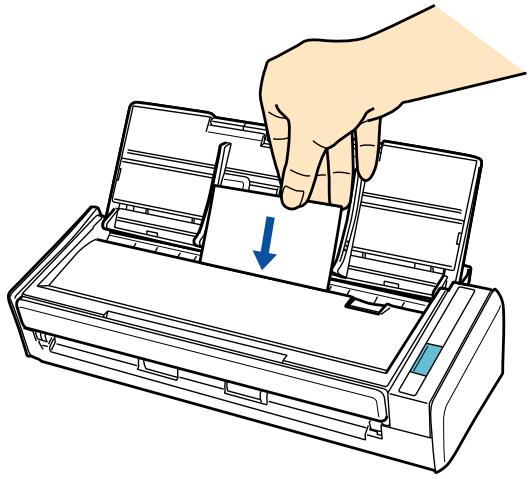
- Press the [Scan] button on the ScanSnap to start a scan.
The Cardiris window appears.
7. Check the scanned card image and the text recognition result.
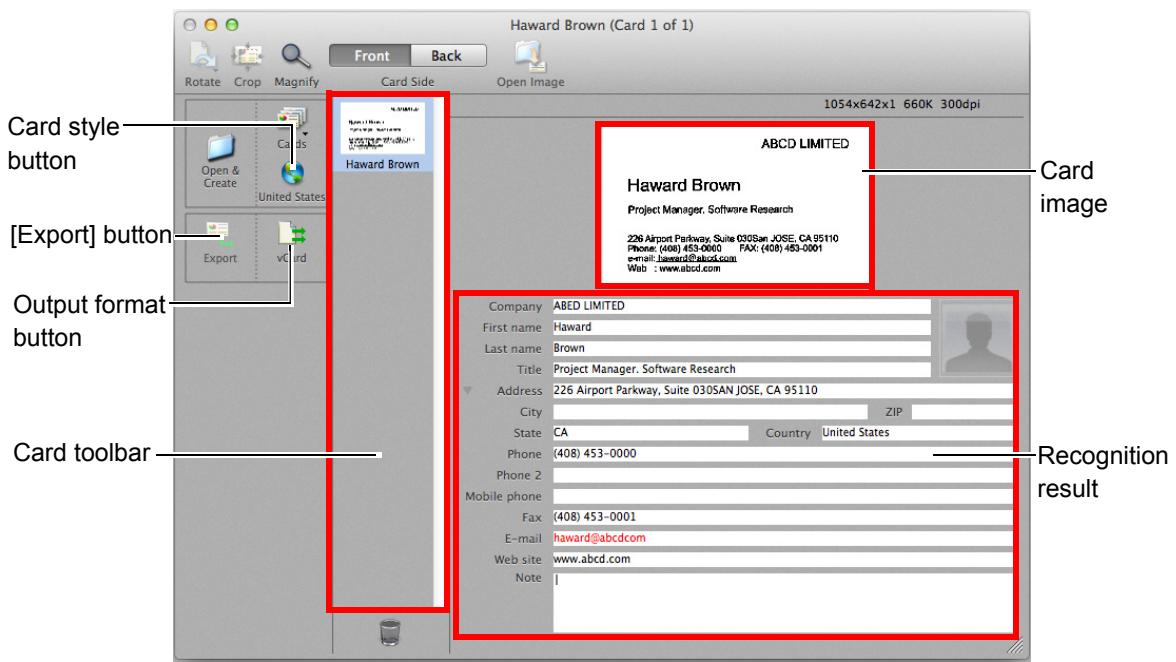
The current card image is displayed on the top-right.
A list of already scanned business cards is displayed in the card toolbar.
The recognition result is displayed under the card image.
ATTENTION
Do not exit Cardiris while setup or message window is open.
HINT
- To recognize a business card of a different language from the one currently set in Cardiris, click the card style button and change the country setting.
- For details about the functions of Cardiris and how to use it, refer to Cardiris™ 4 User Guide and Cardiris Help.
Using the Address Book in Cardiris
To register the recognized characters of a scanned business card in the Address Book, perform the following procedure.
ATTENTION
Do not exit Cardiris when setup or message window is open.
1. Click the output format button or select [Settings] [Output Format] on the menu bar.
The [Business Cards] window appears.
![FUJITSU SCANSNAP S1300I DELUXE - Click the output format button or select [Settings] [Output Format] on the menu bar. - 1](/content/2025/01/190766/images/df51e79ddb821ed3ab2117c1892d3313b09de0da32db48788f5eefa8ea6af3da.jpg)
2. Select [Address Book] in the [Format] pop-up menu.
![FUJITSU SCANSNAP S1300I DELUXE - Select [Address Book] in the [Format] pop-up menu. - 1](/content/2025/01/190766/images/e39e075ffb3d39942f8a7c39eaff6881dafd9786405ed7d3a32b9688c4fcaa04.jpg)
3. Click the [OK] button.
- Click the [Export] button or select [Process] → [Export All Cards] on the menu bar.
The text recognition result of all scanned business cards in the card toolbar is registered in the Address Book.
- Select [Cardiris for ScanSnap] [Quit Cardiris for ScanSnap] on the menu bar to quit Cardiris.
HINT
The recognition result of scanned business cards can be output in text or vCard format. For more details, refer to Cardiris™ 4 User Guide and Cardiris Help.
Storing Scanned Images in iPhoto
This section explains how to store the scanned image in iPhoto.
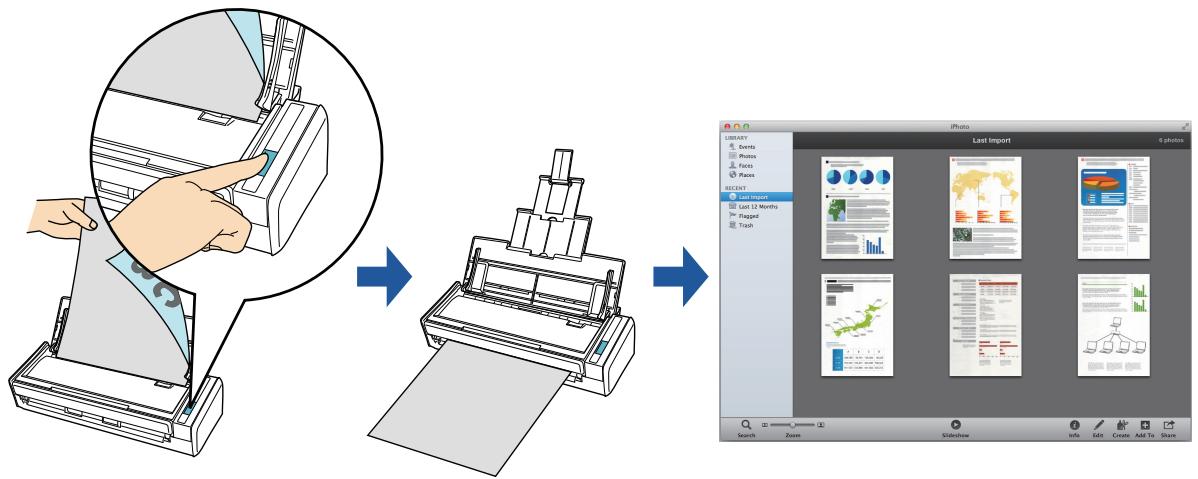
For details about the procedure to scan and store the scanned image in iPhoto using or without using the Quick Menu, refer to the following:
Using the Quick Menu ( page 349)
- Without Using the Quick Menu ( page 351)
Using the Quick Menu
HINT
To use the Quick Menu, you need to select the [Use Quick Menu] checkbox in the ScanSnap setup window.
For details about how to perform scanning by using the Quick Menu, refer to "Using the Quick Menu" (page 277).
1. Load a document in the ScanSnap.
For details about how to load documents, refer to "How to Load Documents" (page 33).
2. Press the [Scan] button on the ScanSnap to start a scan.
The Quick Menu appears when the scanning is completed.
![FUJITSU SCANSNAP S1300I DELUXE - Press the [Scan] button on the ScanSnap to start a scan. - 1](/content/2025/01/190766/images/fc7a59461cd578988fb5f2fa907edd2026531fa914633ed911ca85d1c3e31021.jpg)
3. Click the [iPhoto] icon
![FUJITSU SCANSNAP S1300I DELUXE - Click the [iPhoto] icon - 1](/content/2025/01/190766/images/a89eb72c2f448d085b0670651d0b79473dc7a2101c5d314a00f2f2cfec1fc7e3.jpg)
ATTENTION
- You cannot start scanning when the Quick Menu is displayed. Wait until ScanSnap Manager links with iPhoto before scanning another document.
- Do not move, delete, or rename the scanned image in other applications when the Quick Menu is displayed.
The [iPhoto] window appears.
4. Check the scanned image stored in iPhoto.
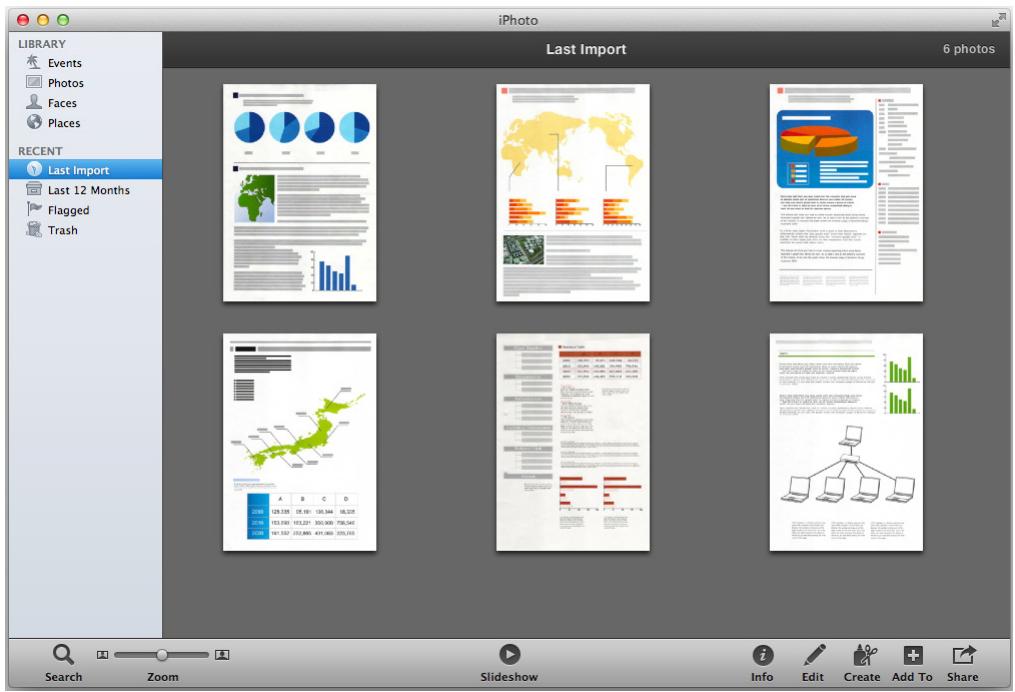
HINT
The scanned image is also saved in the folder specified for [Image saving folder] in the [Save] tab of the ScanSnap setup window at the same time when it is saved to iPhoto. Delete this file if unnecessary.
Without Using the Quick Menu
HINT
To disable the Quick Menu, you need to clear the [Use Quick Menu] checkbox in the ScanSnap setup window.
For details about how to perform scanning without using the Quick Menu, refer to "Without Using the Quick Menu" (page 282).
1. Select [Settings] from the ScanSnap Manager menu.
For details about the ScanSnap Manager menu, refer to "ScanSnap Manager Menu" (page 273).
The ScanSnap setup window appears.
2. From the [Application] pop-up menu in the [Application] tab, select [iPhoto].
![FUJITSU SCANSNAP S1300I DELUXE - From the [Application] pop-up menu in the [Application] tab, select [iPhoto]. - 1](/content/2025/01/190766/images/d8c48915e8f3876333a273d1f1d06a9e9ebcf6742b2ae68dca76e95a5f1c098f.jpg)
HINT
ScanSnap Manager also links with [iPhoto] when you select:
- [iPhoto] from the [Profile] pop-up menu of the ScanSnap setup window
- [iPhoto] from the Profile menu
3. Click the [Apply] button.
- Click the [ ] button in the upper left corner to close the ScanSnap setup window.
- Load a document in the ScanSnap.
For details about how to load documents, refer to "How to Load Documents" (page 33).
- Press the [Scan] button on the ScanSnap to start a scan.
The [iPhoto] window appears when the scanning is completed.
- Check the scanned image stored in iPhoto.
![FUJITSU SCANSNAP S1300I DELUXE - Click the [Apply] button. - 1](/content/2025/01/190766/images/32f7eefc68d0b66228962fc10ced654726bc992cbe621ba31dd80498ceffb552.jpg)
HINT
The scanned image is also saved in the folder specified for [Image saving folder] in the [Save] tab of the ScanSnap setup window at the same time when it is saved to iPhoto. Delete this file if unnecessary.
Saving Data to a Mobile Device
This section explains how to save the scanned image as a PDF or a JPEG file to a mobile device.
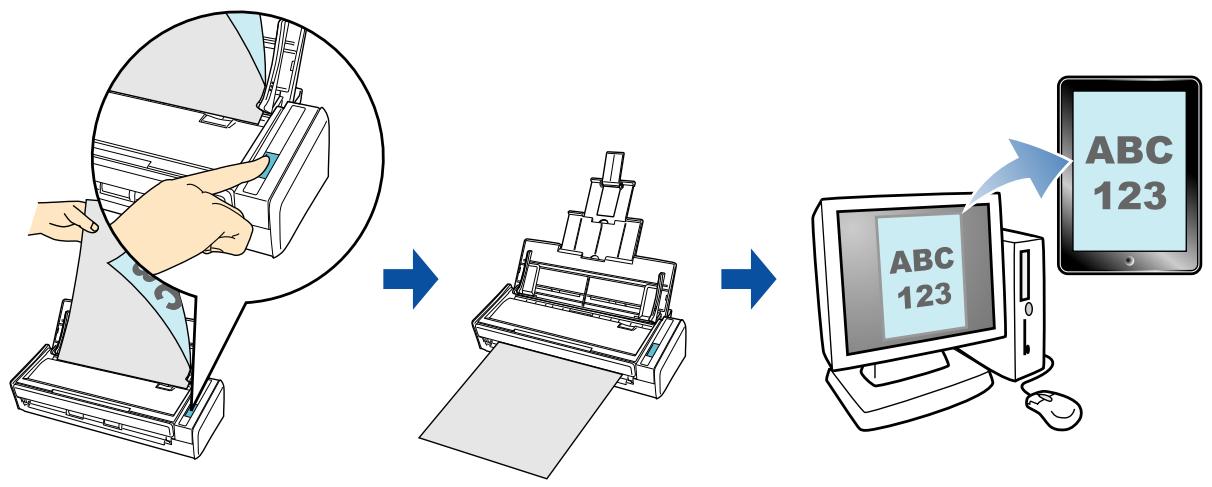
ATTENTION
- Only one mobile device can be connected to the computer.
- You need to have ScanSnap Connect Application installed in the mobile device in order to use this function. Download ScanSnap Connect Application for mobile devices from application stores such as App Store.
ScanSnap Connect Application for mobile devices operate on the following operating systems:
-
iOS 4.2.1 or later
Android OS 2.2 or later -
The number of scanned image files and the maximum file size that can be saved on a mobile device at once are as follows:
-
Number of files: Up to 100
-
File size: 1024 MB
-
A firewall alert may be displayed when you first launch [Scan to Mobile]. When the alert is displayed, select [Allow].
HINT
- The following message appears when you first launch [Scan to Mobile]. Click the [OK] button to open the [Scan to Mobile - Basic] window.
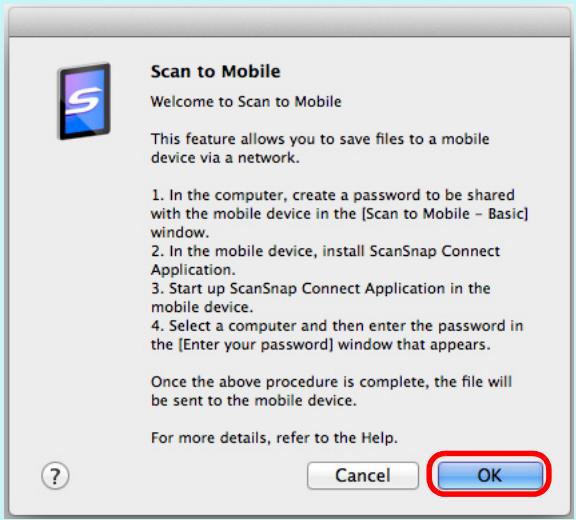
In the [Scan to Mobile - Basic] window, enter a password to connect to the mobile device. For details about other setting items, refer to the ScanSnap Manager Help.
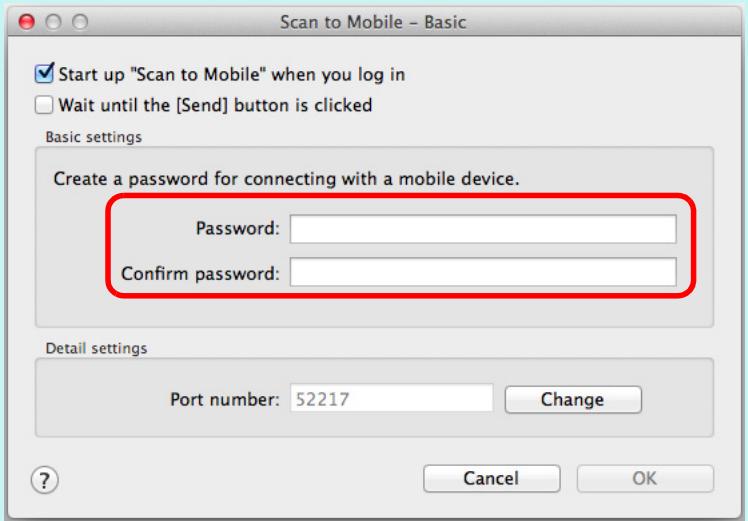
- When Scan to Mobile is running, the Scan to Mobile icon is displayed on the menu bar. The Scan to Mobile icon shows the communication status between the computer and the mobile device. The appearance of the icon changes according to the communication status as shown below.
| Status | Scan to Mobile icon |
| Waiting | 5 |
| Standby | 5 |
| Sending | |
| Sending error | 5 |
| Rejected | 5 |
For details about the procedure to perform scanning and saving scanned images to a mobile device through automatic linkage, using or without using the Quick Menu, and how to save existing files to a mobile device, refer to the following:
Automatic Linkage ( page 355)
Using the Quick Menu ( page 358)
- Without Using the Quick Menu ( page 361)
- Saving an Existing File to a Mobile Device ( page 365)
Automatic Linkage
HINT
- For details about the features of ScanSnap Connect Application for mobile devices and how to use it, refer to the ScanSnap Connect Application User's Guide for your mobile device.
- For details about automatic linkage to active applications, refer to "Automatic Linkage with Applications" (page 303).
1. From Finder, select [Applications] and double-click [ScanSnap] [Scan to Mobile].
The [Scan to Mobile] window appears.
![FUJITSU SCANSNAP S1300I DELUXE - From Finder, select [Applications] and double-click [ScanSnap] [Scan to Mobile]. - 1](/content/2025/01/190766/images/40fbd2e585d733ceacf4cfa356686e1d996de038e8d646fee7fd588d78a5e447.jpg)
2. Connect to the computer from your mobile device.
For details about how to connect to the computer from your mobile device, refer to the ScanSnap Connect Application User's Guide for your mobile device.
When the connection is established, the [Scan to Mobile] window appears on the computer, showing the mobile device that is currently connected to the computer.
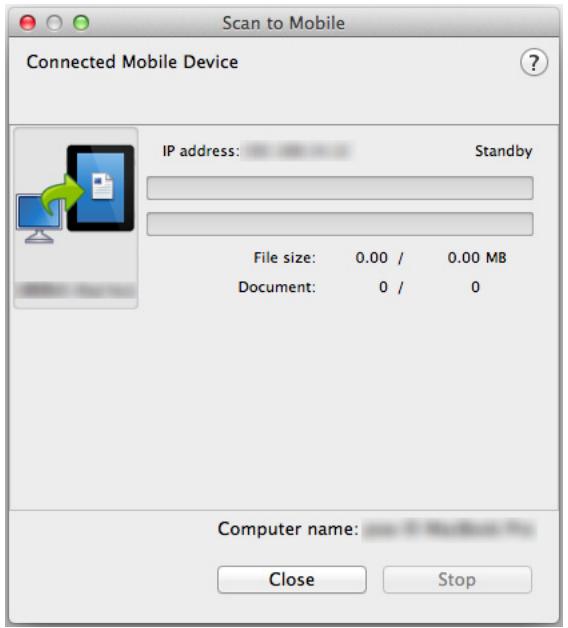
3. Load a document in the ScanSnap.
For details about how to load documents, refer to "How to Load Documents" (page 33).
4. Press the [Scan] button on the ScanSnap to start a scan.
ATTENTION
To enable automatic linkage with [Scan to Mobile], press the [Scan] button on the ScanSnap and start a scan while [Scan to Mobile] is active (the Scan to Mobile menu appears on the menu bar).
Scanned images will be sent to the mobile device from the computer when the scanning is completed.
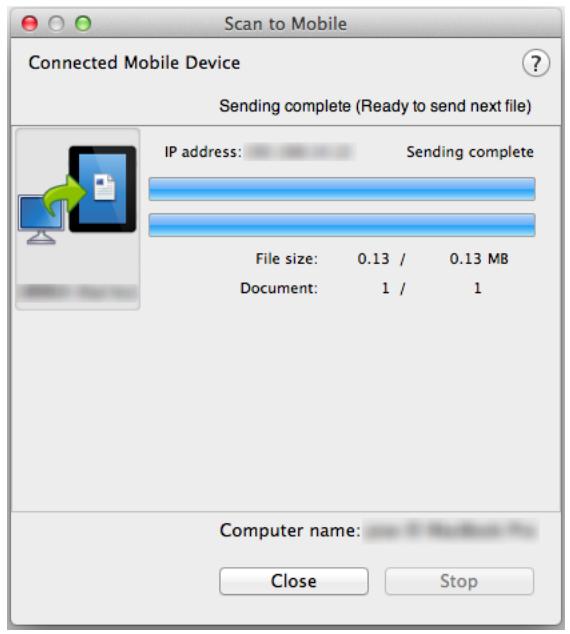
HINT
When you select the [Wait until the [Send] button is clicked] checkbox in the [Scan to Mobile - Basic] window, the [Send] button appears in the [Scan to Mobile] window. Click the [Send] button to send the image to the mobile device.
5. Click the [Close] button to close the [Scan to Mobile] window when sending of the scanned image is completed.
HINT
The [Scan to Mobile] window closes automatically when the mobile device is disconnected from the computer.
Using the Quick Menu
HINT
To use the Quick Menu, you need to select the [Use Quick Menu] checkbox in the ScanSnap setup window.
For details about how to perform scanning by using the Quick Menu, refer to "Using the Quick Menu" (page 277).
1. Load a document in the ScanSnap.
For details about how to load documents, refer to "How to Load Documents" (page 33).
2. Press the [Scan] button on the ScanSnap to start a scan.
The Quick Menu appears when the scanning is completed.
![FUJITSU SCANSNAP S1300I DELUXE - Press the [Scan] button on the ScanSnap to start a scan. - 1](/content/2025/01/190766/images/95b91d4d3c001525985db09121ee55303f33b614b261c0cd2583d79f47bfebb0.jpg)
ATTENTION
When [Scan to Mobile] has already started and is active (with the Scan to Mobile menu appearing in the menu bar), ScanSnap Manager links with [Scan to Mobile] automatically and the Quick Menu does not appear.
To display the Quick Menu, change the menu bar menu to an application other than Scan to Mobile, and then try scanning again.
3. Change the settings for [Scan to Mobile] (If you do not want to change any settings, go to step 4.).
- Move the mouse cursor to the [Scan to Mobile] icon The [Scan to Mobile - Options] window appears.
![FUJITSU SCANSNAP S1300I DELUXE - Change the settings for [Scan to Mobile] (If you do not want to change any settings, go to step 4.). - 1](/content/2025/01/190766/images/c659a1e2056750601a3977ba2db2ad629b96f807d42a99c2e6b389742012df44.jpg)
, and then click [Settings].
- Change the settings.
For details about the [Scan to Mobile - Options] window, refer to the ScanSnap Manager Help.
![FUJITSU SCANSNAP S1300I DELUXE - Change the settings for [Scan to Mobile] (If you do not want to change any settings, go to step 4.). - 2](/content/2025/01/190766/images/e3438327edca92d2c8fe99fb65e7cccc861c7030fdccb2dd5e2ce2cc7d7425cd.jpg)
- Click the [OK] button to close the [Scan to Mobile - Options] window.
4. Click the [Scan to Mobile] icon
![FUJITSU SCANSNAP S1300I DELUXE - Click the [Scan to Mobile] icon - 1](/content/2025/01/190766/images/99438bfb4279193298bb845285e645129963aaa18c31b960a058fa9601fa8186.jpg)
ATTENTION
- You cannot start scanning when the Quick Menu is displayed. Wait until ScanSnap Manager links with [Scan to Mobile] before scanning another document.
- Do not move, delete, or rename the scanned image in other applications when the Quick Menu is displayed.
The [Scan to Mobile] window appears.
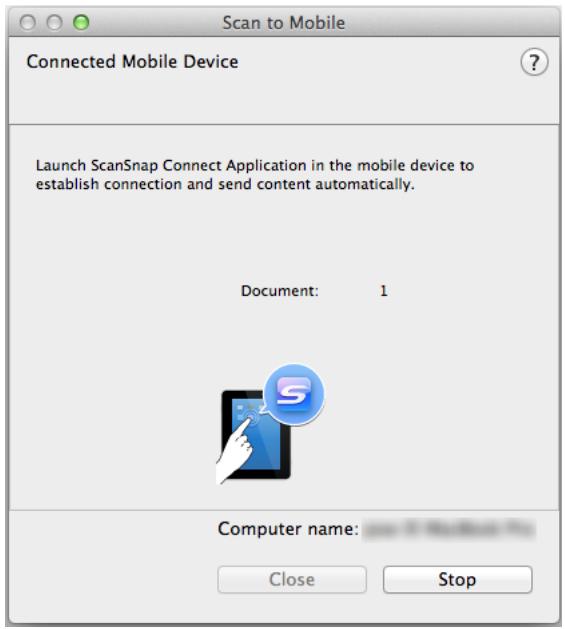
5. Connect to the computer from your mobile device.
For details about how to connect to the computer from your mobile device, refer to the ScanSnap Connect Application User's Guide for your mobile device.
When the connection is established, the [Scan to Mobile] window appears showing the mobile device that is currently connected to the computer. Then, the scanned image is sent to the mobile device.
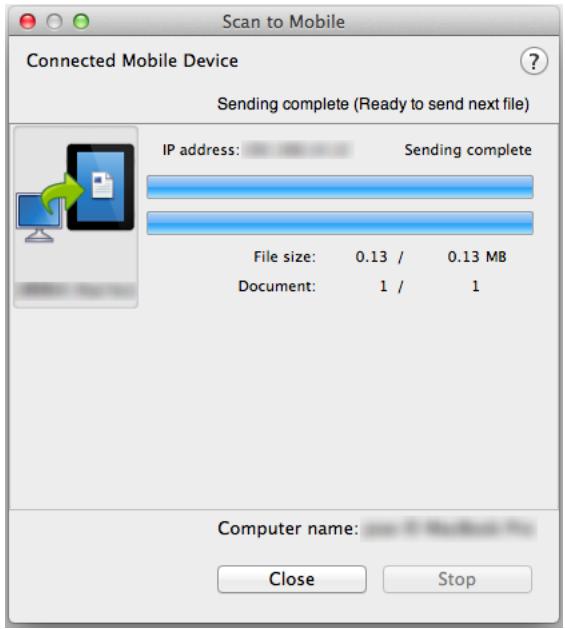
HINT
- When you select the [Wait until the [Send] button is clicked] checkbox in the [Scan to Mobile - Basic] window, the [Send] button appears in the [Scan to Mobile] window. Click the [Send] button to send the image to the mobile device.
- For details about the features of ScanSnap Connect Application for mobile devices and how to use it, refer to the ScanSnap Connect Application User's Guide for your mobile device.
6. Click the [Close] button to close the [Scan to Mobile] window when sending of the scanned image is completed.
HINT
The [Scan to Mobile] window closes automatically when the mobile device is disconnected from the computer.
Without Using the Quick Menu
HINT
To disable the Quick Menu, you need to clear the [Use Quick Menu] checkbox in the ScanSnap setup window.
For details about how to perform scanning without using the Quick Menu, refer to "Without Using the Quick Menu" (page 282).
1. Select [Settings] from the ScanSnap Manager menu.
For details about the ScanSnap Manager menu, refer to "ScanSnap Manager Menu" (page 273).
The ScanSnap setup window appears.
2. In the [Application] pop-up menu in the [Application] tab, select [Scan to Mobile].
![FUJITSU SCANSNAP S1300I DELUXE - In the [Application] pop-up menu in the [Application] tab, select [Scan to Mobile]. - 1](/content/2025/01/190766/images/ce02d24efa4e0ccf5baf1183d1a3fb5407aec3b1276a7104b4e2f36e7329dadb.jpg)
HINT
When you add the customized settings as profiles, the application to link with ScanSnap Manager can be selected in the [Profile] pop-up menu or from the Profile Menu next time you perform a scan. For details about how to add a profile, refer to "Profile Management" (page 293).
3. Change the settings for [Scan to Mobile] (If you do not want to change any settings, go to step 4.).
- Click the [Application Settings] button.
![FUJITSU SCANSNAP S1300I DELUXE - Change the settings for [Scan to Mobile] (If you do not want to change any settings, go to step 4.). - 1](/content/2025/01/190766/images/17d392c05d30a4213698ba7162fab5509446d60299a9e3c8d9db7cd7694c280a.jpg)
The [Scan to Mobile - Options] window appears.
- Change the settings.
For details about the [Scan to Mobile - Options] window, refer to the ScanSnap Manager Help.
![FUJITSU SCANSNAP S1300I DELUXE - Change the settings for [Scan to Mobile] (If you do not want to change any settings, go to step 4.). - 2](/content/2025/01/190766/images/a0ff88c7e2448a8187b8a430745fe155770ba25df616f523bb3a1e7f50e767a5.jpg)
-
Click the [OK] button to close the [Scan to Mobile - Options] window.
-
Click the [Apply] button.
- Click the [ ] button in the upper left corner to close the ScanSnap setup window.
- Load a document in the ScanSnap.
For details about how to load documents, refer to "How to Load Documents" (page 33).
7. Press the [Scan] button on the ScanSnap to start a scan.
The [Scan to Mobile] window appears on the computer when the scanning is completed.
![FUJITSU SCANSNAP S1300I DELUXE - Press the [Scan] button on the ScanSnap to start a scan. - 1](/content/2025/01/190766/images/82ea1c6df462ea89b347de0985962978972a9ff282c5cd591a8cb3de6408cd68.jpg)
8. Connect to the computer from your mobile device.
For details about how to connect to the computer from your mobile device, refer to the ScanSnap Connect Application User's Guide for your mobile device.
When the connection is established, the [Scan to Mobile] window appears showing the mobile device that is currently connected to the computer. Then, the scanned image is sent to the mobile device.
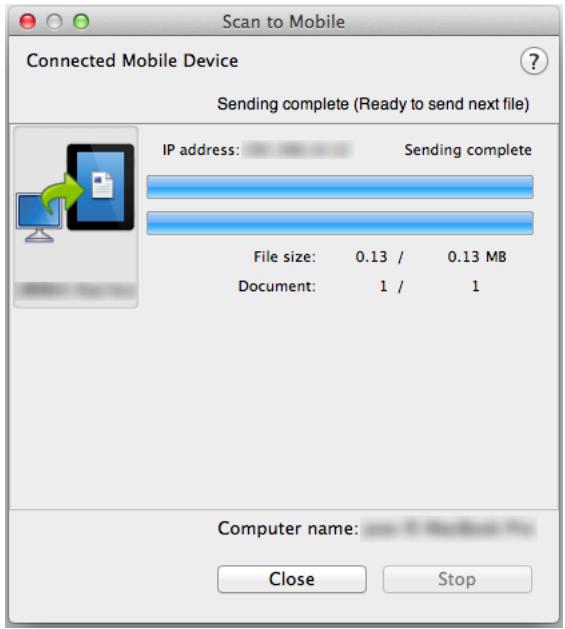
HINT
- When you select the [Wait until the [Send] button is clicked] checkbox in the [Scan to Mobile - Basic] window, the [Send] button appears in the [Scan to Mobile] window. Click the [Send] button to send the image to the mobile device.
- For details about the features of ScanSnap Connect Application for mobile devices and how to use it, refer to the ScanSnap Connect Application User's Guide for your mobile device.
9. Click the [Close] button to close the [Scan to Mobile] window when sending of the scanned image is completed.
HINT
The [Scan to Mobile] window closes automatically when the mobile device is disconnected from the computer.
Saving an Existing File to a Mobile Device
HINT
For details about the features of ScanSnap Connect Application for mobile devices and how to use it, refer to the ScanSnap Connect Application User's Guide for your mobile device.
1. From Finder, select [Applications] and double-click [ScanSnap] [Scan to Mobile].
The [Scan to Mobile] window appears.
![FUJITSU SCANSNAP S1300I DELUXE - From Finder, select [Applications] and double-click [ScanSnap] [Scan to Mobile]. - 1](/content/2025/01/190766/images/0fcd45e61a760c874a46b87c2f4d268caf22bd707a43054db4205968d661c700.jpg)
2. Connect to the computer from your mobile device.
For details about how to connect to the computer from your mobile device, refer to the ScanSnap Connect Application User's Guide for your mobile device.
When the connection is established, the [Scan to Mobile] window appears showing the mobile device that is currently connected to the computer.
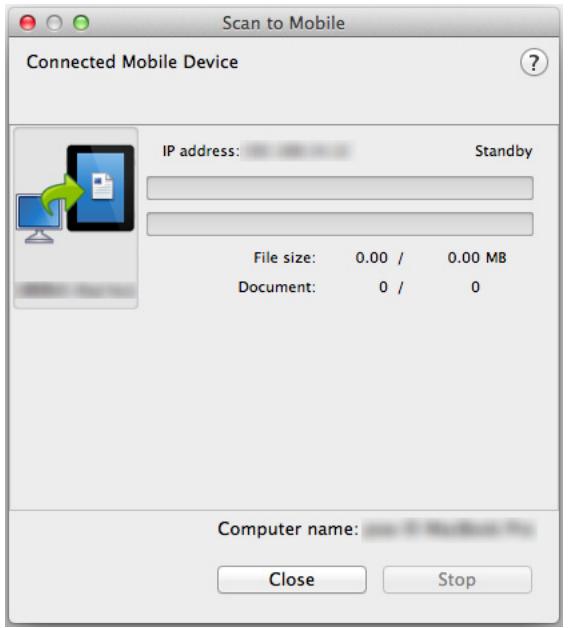
3. From the menu bar, select [File] [Open].
The [Open] window appears.
4. Select a PDF or JPEG file to save to the mobile device, and click the [Open] button.
The file is sent to the mobile device from the computer.
![FUJITSU SCANSNAP S1300I DELUXE - Select a PDF or JPEG file to save to the mobile device, and click the [Open] button. - 1](/content/2025/01/190766/images/5b4aee1184fd8a32596a90264b9e7b9b7530a84118a277cfd05a5630b29166fe.jpg)
HINT
When you select the [Wait until the [Send] button is clicked] checkbox in the [Scan to Mobile - Basic] window, the [Send] button appears in the [Scan to Mobile] window. Click the [Send] button to send the image to the mobile device.
5. Click the [Close] button to close the [Scan to Mobile] window when sending of the scanned image is completed.
HINT
The [Scan to Mobile] window closes automatically when the mobile device is disconnected from the computer.
Cloud Services
By pressing the [Scan] button on the ScanSnap, you can save documents converted into digital data to the following cloud services, and access them easily anytime, anywhere.
- Manage scanned documents through linkage with Dropbox.
Save scanned image files to your Dropbox folder.
- Manage scanned documents through linkage with Evernote.
Save PDF files in Evernote.
- Manage handwritten notes through linkage with Evernote.
Save JPEG files in Evernote.
- Manage scanned documents through linkage with Google Docs.
Save PDF files in Google Docs.
- Manage scanned documents through linkage with Salesforce Chatter.
Post scanned image files to Salesforce Chatter and manage them with Salesforce
CRM.
- Manage scanned documents through linkage with SugarSync.
Save scanned image files to your SugarSync folder.
The following are explanations on how to use Cloud Services.
Saving Data to Your Dropbox Folder
This section explains how to save the scanned image as a PDF or a JPEG file to your Dropbox folder.
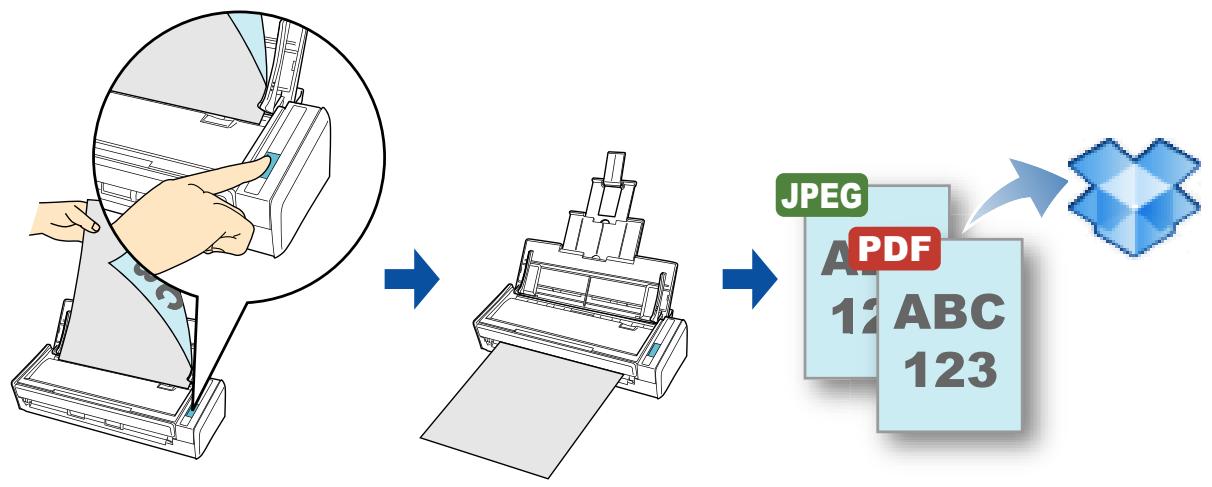
ATTENTION
- You need to have a Dropbox account.
- You need to have Dropbox for Mac 1.1.45 or later installed in order to use this function.
HINT
When you first log into Dropbox after installing Dropbox for Mac, the Dropbox folder, which is the sync folder used for Dropbox, is automatically created.
For details about the procedure to scan and save the scanned image to your Dropbox folder using or without using the Quick Menu, refer to the following:
Using the Quick Menu ( page 370)
- Without Using the Quick Menu ( page 373)
Using the Quick Menu
HINT
To use the Quick Menu, you need to select the [Use Quick Menu] checkbox in the ScanSnap setup window. For details about how to perform scanning by using the Quick Menu, refer to "Using the Quick Menu" (page 277).
1. Load a document in the ScanSnap.
For details about how to load documents, refer to "How to Load Documents" (page 33).
2. Press the [Scan] button on the ScanSnap to start a scan.
The Quick Menu appears when the scanning is completed.
![FUJITSU SCANSNAP S1300I DELUXE - Press the [Scan] button on the ScanSnap to start a scan. - 1](/content/2025/01/190766/images/744849587d358f44039062e223cd2c64229dd34264547a5cc92af6a18bffd871.jpg)
3. Change the settings for [Scan to Dropbox] (If you do not want to change any settings, go to step 4.).
- Move the mouse cursor to the [Scan to Dropbox] icon [Settings].
![FUJITSU SCANSNAP S1300I DELUXE - Change the settings for [Scan to Dropbox] (If you do not want to change any settings, go to step 4.). - 1](/content/2025/01/190766/images/8eec896fc08e940a674a7a218930b2774aebbda69d6ffe638e5616172147f05c.jpg)
The [Scan to Dropbox - Options] window appears.
, and then click
- Change the setting.
For details about the [Scan to Dropbox - Options] window, refer to ScanSnap Manager Help.
![FUJITSU SCANSNAP S1300I DELUXE - Change the settings for [Scan to Dropbox] (If you do not want to change any settings, go to step 4.). - 2](/content/2025/01/190766/images/60e0bbc8a0ee6f641b5f158977de4977eb8dd546d7bd4df498e49f12e8280a66.jpg)
- Click the [OK] button to close the [Scan to Dropbox - Options] window.
4. Click the [Scan to Dropbox] icon
![FUJITSU SCANSNAP S1300I DELUXE - Click the [Scan to Dropbox] icon - 1](/content/2025/01/190766/images/298e0b5d46a73652b12b5a3fa8b9d2bdc01d62563abcf3172e9e3476af8b6a99.jpg)
The [Scan to Dropbox] window appears.
If you clear the [Show preview] checkbox in step 3., the scanned image is directly saved to your Dropbox folder.
5. Check the scanned image in the preview area.
In the [Scan to Dropbox] window, you can rename the file and specify your Dropbox folder.
For details about the [Scan to Dropbox] window, refer to the ScanSnap Manager Help.
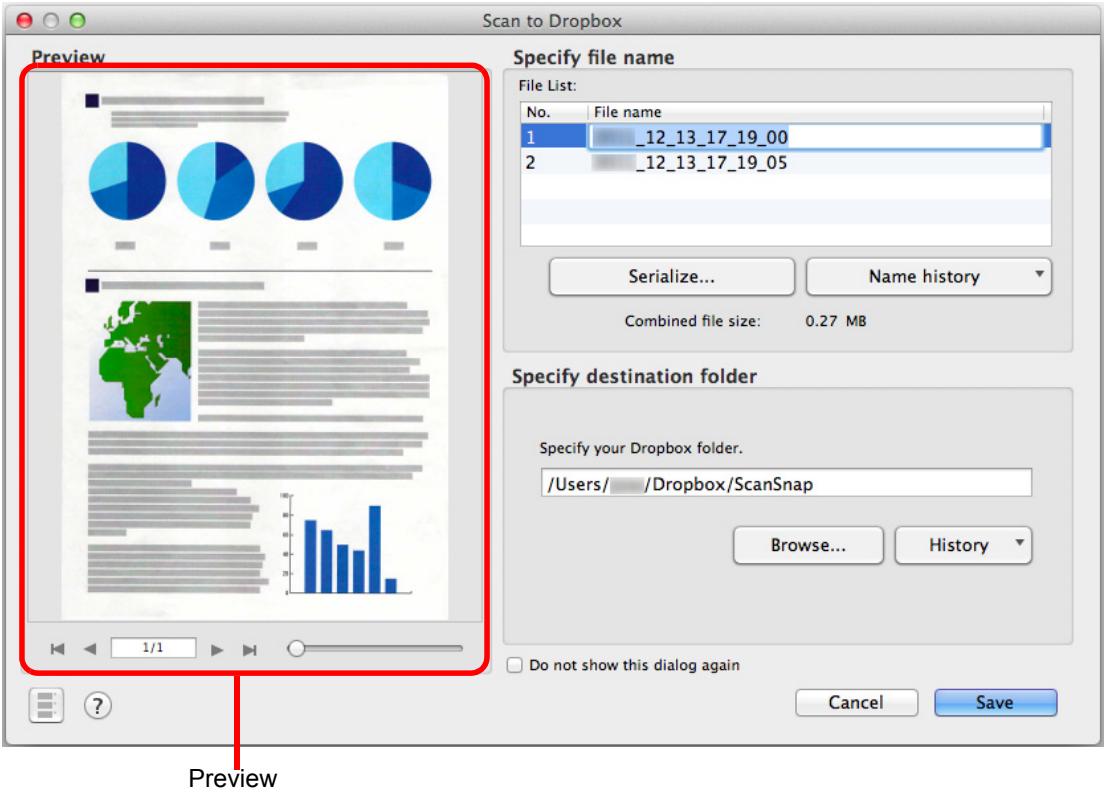
ATTENTION
The file will not be syncsed with Dropbox unless you select the Dropbox folder as the destination folder.
6. Click the [Save] button.
The scanned image is saved to your Dropbox folder.
ATTENTION
- You cannot start scanning after the Quick Menu is displayed and before the [Scan to Dropbox] window is closed. Close the [Scan to Dropbox] window before scanning the next document.
- Do not move, delete or rename the scanned image in other applications after the Quick Menu is displayed and before the [Scan to Dropbox] window is closed.
Without Using the Quick Menu
HINT
To disable the Quick Menu, you need to clear the [Use Quick Menu] checkbox in the ScanSnap setup window.
For details about how to perform scanning without using the Quick Menu, refer to "Without Using the Quick Menu" (page 282).
1. Select [Settings] from the ScanSnap Manager menu.
For details about the ScanSnap Manager menu, refer to "ScanSnap Manager Menu" (page 273).
The ScanSnap setup window appears.
2. In the [Application] pop-up menu in the [Application] tab, select [Scan to Dropbox].
![FUJITSU SCANSNAP S1300I DELUXE - In the [Application] pop-up menu in the [Application] tab, select [Scan to Dropbox]. - 1](/content/2025/01/190766/images/73dfdc14f225f13719d1ec871fd85cf63e725c7024d327b842f34b914e95ad30.jpg)
HINT
When you add the customized settings as profiles, the application to link with ScanSnap Manager can be selected from the [Profile] pop-up menu or from the Profile menu next time you perform a scan.
For details about how to add a profile, refer to "Profile Management" (page 293).
3. Change the settings for [Scan to Dropbox] (If you do not want to change any settings, go to step 4.).
- Click the [Application Settings] button.
![FUJITSU SCANSNAP S1300I DELUXE - Change the settings for [Scan to Dropbox] (If you do not want to change any settings, go to step 4.). - 1](/content/2025/01/190766/images/ad50b0466d5e25dbf03c022aa33f753bc3213fbdf5952baf1a698d4985181888.jpg)
The [Scan to Dropbox - Options] window appears.
- Change the settings.
For details about the [Scan to Dropbox - Options] window, refer to the ScanSnap Manager Help.
![FUJITSU SCANSNAP S1300I DELUXE - Change the settings for [Scan to Dropbox] (If you do not want to change any settings, go to step 4.). - 2](/content/2025/01/190766/images/658c3f7165ed9b063caf51cffd8e3a6ddb46d18905911556180c90f43cd63e24.jpg)
3. Click the [OK] button to close the [Scan to Dropbox - Options] window.
- Click the [Apply] button.
- Click the [×] button in the upper left corner to close the ScanSnap setup window.
- Load a document in the ScanSnap.
For details about how to load documents, refer to "How to Load Documents" (page 33).
- Press the [Scan] button on the ScanSnap to start a scan.
The [Scan to Dropbox] window appears when the scanning is completed.
If you clear the [Show preview] checkbox in step 3., the scanned image is directly saved to your Dropbox folder.
8. Check the scanned image in the preview area.
In the [Scan to Dropbox] window, you can rename the file and specify your Dropbox folder.
For details about the [Scan to Dropbox] window, refer to the ScanSnap Manager Help.
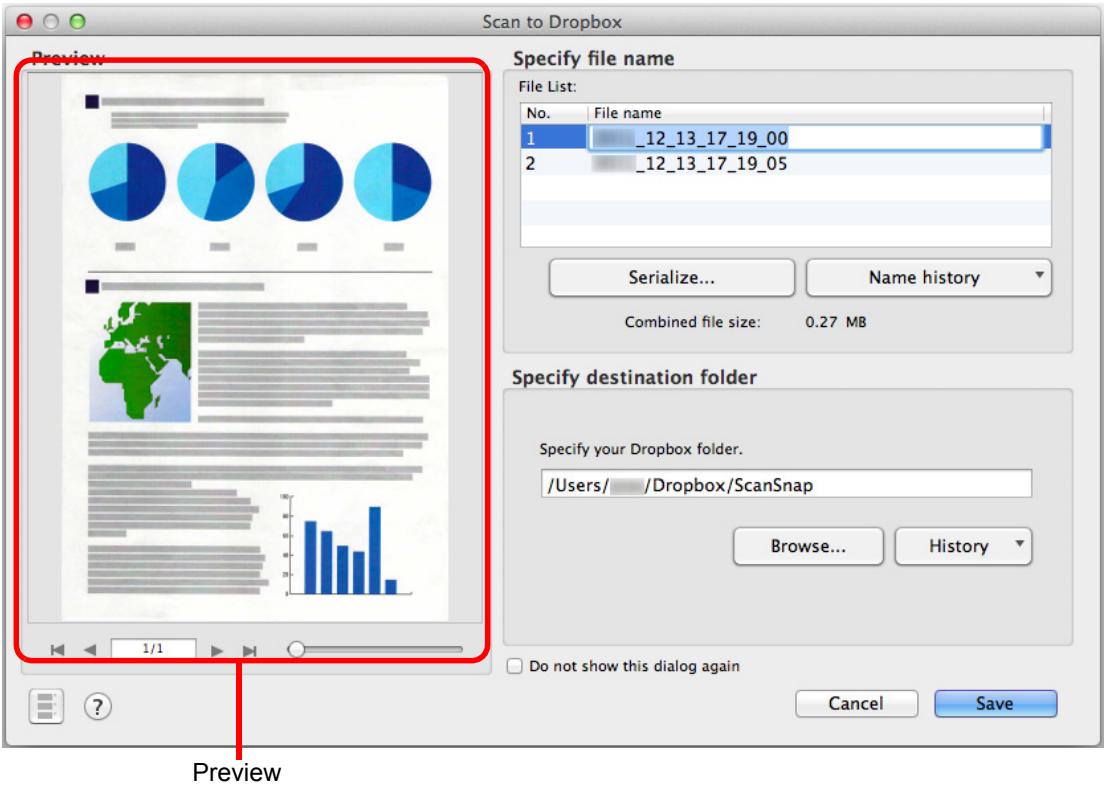
ATTENTION
The file will not be syncsed with Dropbox unless you select the Dropbox folder as the destination folder.
9. Click the [Save] button.
The scanned image is saved to your Dropbox folder.
ATTENTION
- You cannot start scanning when the [Scan to Dropbox] window is displayed. Close the window before scanning the next document.
- Do not move, delete or rename the scanned image in other applications when the [Scan to Dropbox] window is displayed.
Saving Documents to Evernote
This section explains how to save the scanned image as a PDF file to Evernote.
When you save a scanned image to Evernote after converting it into a searchable PDF, the PDF file becomes searchable in Evernote.
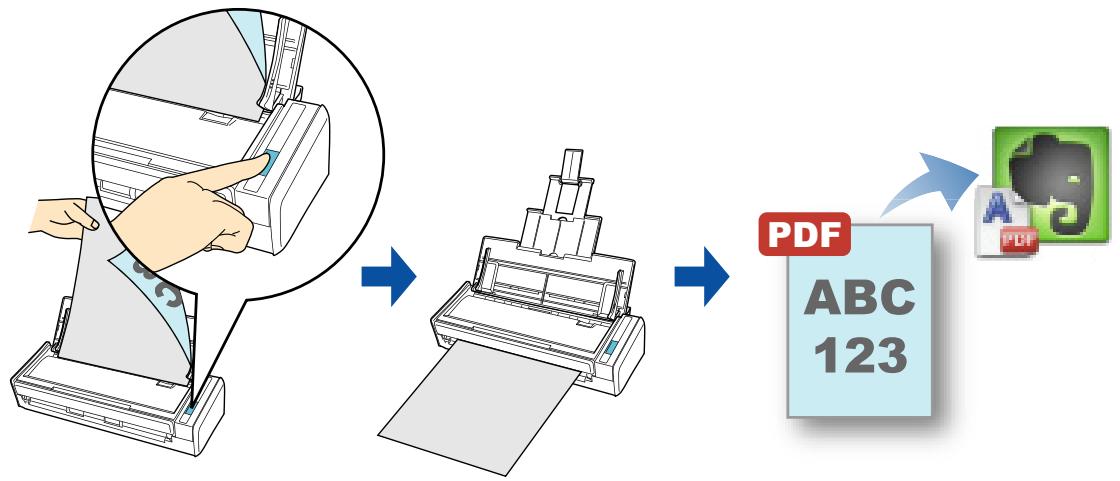
ATTENTION
- You need to create an Evernote account (free or premium).
- You first need to create a notebook in Evernote for Mac to save a file to Evernote.
- Disable [Bring the clip to the front] in Evernote [Preferences] window beforehand to prevent new notes appearing on the screen when you scan documents consecutively.
The screenshot on the right is from Evernote for Mac 3.0.5. Clear the [Bring the clip to the front] checkbox in this window.
The actual window and the contents may differ depending on the Evernote version you are using.
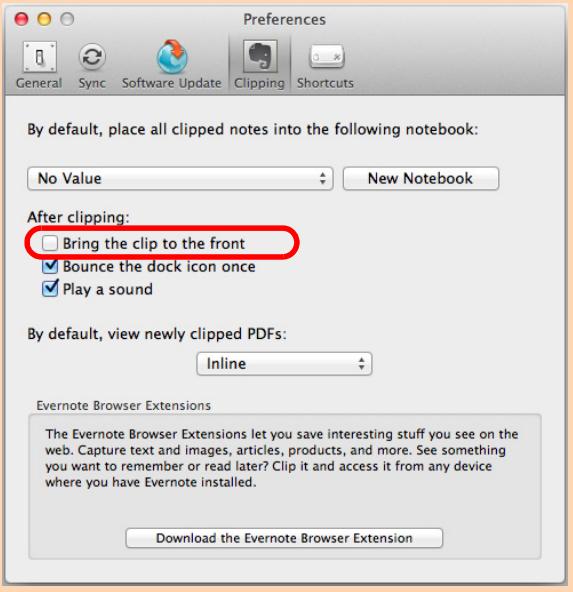
For details about the procedure to scan and save the scanned image to Evernote using or without using the Quick Menu, refer to the following:
Using the Quick Menu ( page 377)
- Without Using the Quick Menu ( page 379)
Using the Quick Menu
HINT
To use the Quick Menu, you need to select the [Use Quick Menu] checkbox in the ScanSnap setup window.
For details about how to perform scanning by using the Quick Menu, refer to "Using the Quick Menu" (page 277).
1. Load a document in the ScanSnap.
For details about how to load documents, refer to "How to Load Documents" (page 33).
2. Press the [Scan] button on the ScanSnap to start a scan.
The Quick Menu appears when the scanning is completed.
![FUJITSU SCANSNAP S1300I DELUXE - Press the [Scan] button on the ScanSnap to start a scan. - 1](/content/2025/01/190766/images/b4bbce93f21cc00db896e46a6c63d0127b1bd62c1a7fc4dd70b06b7a0d9f91cc.jpg)
3. Change the settings for [Scan to Evernote (Document)] (If you do not want to change any settings, go to step 4.).
- Move the mouse cursor to the [Scan to Evernote (Document)] icon , and then click [Settings].
The [Scan to Evernote (Document) - Options] window appears.
- Change the settings.
For details about the [Scan to Evernote (Document) - Options] window, refer to the ScanSnap Manager Help.
![FUJITSU SCANSNAP S1300I DELUXE - Change the settings for [Scan to Evernote (Document)] (If you do not want to change any settings, go to step 4.). - 1](/content/2025/01/190766/images/b225d373abdcea162649a66e583d1d366634c630d81cfc8f79958279b7ebbec0.jpg)
- Click the [OK] button to close the [Scan to Evernote (Document) - Options] window.
4. Click the [Scan to Evernote (Document)] icon
![FUJITSU SCANSNAP S1300I DELUXE - Click the [Scan to Evernote (Document)] icon - 1](/content/2025/01/190766/images/8655e2146ae6ea10d8e238fce3bbab22c8fc9d86c46a145ff0dc20b4670de6b9.jpg)
ATTENTION
- You cannot start scanning when the Quick Menu is displayed. Save the PDF file to Evernote before scanning the next document.
- Do not move, delete, or rename the scanned image in other applications when the Quick Menu is displayed.
If [JPEG(*.jpg)] is selected for [File format] in the [File option] tab of the ScanSnap setup window, a separate PDF file will be created from each JPEG file. The following window appears during file creation.
If the [Convert to Searchable PDF] checkbox is selected in step 3., text recognition is performed according to the [OCR options] settings in the [Scan to Evernote - Options] window.
The following window appears during text recognition.
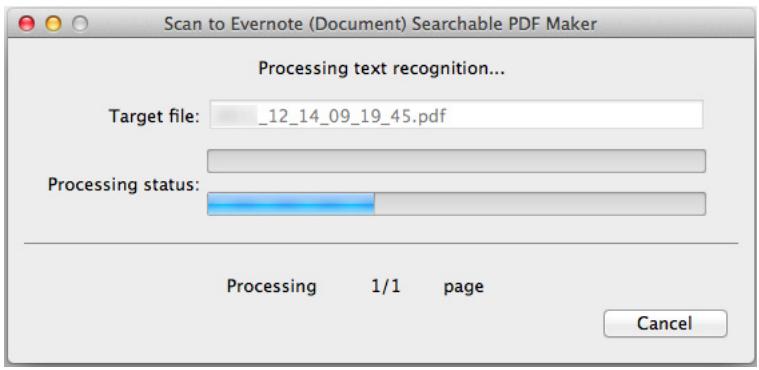
HINT
Text recognition will be performed if there are any pages containing text which is not yet recognized. Note that text recognition will be performed on all pages, including pages containing text on which text recognition has already been performed.
Evernote for Mac starts up, and the PDF file is saved to Evernote.
HINT
The file in which the scanned image is saved remains in the folder specified for [Image saving folder] in the [Save] tab of the ScanSnap setup window even after the scanned image is saved to Evernote. Delete this file if unnecessary.
Without Using the Quick Menu
HINT
To disable the Quick Menu, you need to clear the [Use Quick Menu] checkbox in the ScanSnap setup window.
For details about how to perform scanning without using the Quick Menu, refer to "Without Using the Quick Menu" (page 282).
1. Select [Settings] from the ScanSnap Manager menu.
For details about the ScanSnap Manager menu, refer to "ScanSnap Manager Menu" (page 273).
The ScanSnap setup window appears.
2. In the [Application] pop-up menu in the [Application] tab, select [Scan to Evernote (Document)].
![FUJITSU SCANSNAP S1300I DELUXE - In the [Application] pop-up menu in the [Application] tab, select [Scan to Evernote (Document)]. - 1](/content/2025/01/190766/images/332961a88fc21fd6055b1972e1bc35debc1e62bfd9eb9bdfd15a129bbe86939e.jpg)
HINT
ScanSnap Manager also links with [Scan to Evernote (Document)] when you select:
- [Scan to Evernote (Document)] from the [Profile] pop-up menu of the ScanSnap setup window
- [Scan to Evernote (Document)] from the Profile menu
3. Change the settings for [Scan to Evernote (Document)] (If you do not want to change any settings, go to step 4.).
- Click the [Application Settings] button.
![FUJITSU SCANSNAP S1300I DELUXE - Change the settings for [Scan to Evernote (Document)] (If you do not want to change any settings, go to step 4.). - 1](/content/2025/01/190766/images/1791e2c874906dadba6b8f3b258082e5238c51b15c7029dee3e69857c39d5a91.jpg)
The [Scan to Evernote (Document) - Options] window appears.
- Change the settings.
For details about the [Scan to Evernote (Document) - Options] window, refer to the ScanSnap Manager Help.
![FUJITSU SCANSNAP S1300I DELUXE - Change the settings for [Scan to Evernote (Document)] (If you do not want to change any settings, go to step 4.). - 2](/content/2025/01/190766/images/3f136e138276bb60086c9f87276b69955bae9dacdc4844905f04c742d31e7e1b.jpg)
-
Click the [OK] button to close the [Scan to Evernote (Document) - Options] window.
-
Click the [Apply] button.
- Click the [ ] button in the upper left corner to close the ScanSnap setup window.
- Load a document in the ScanSnap.
For details about how to load documents, refer to "How to Load Documents" (page 33).
7. Press the [Scan] button on the ScanSnap to start a scan.
If [JPEG(*.jpg)] is selected for [File format] in the [File option] tab of the ScanSnap setup window, a separate PDF file will be created from each JPEG file when the scanning is completed.
The following window appears during file creation.
![FUJITSU SCANSNAP S1300I DELUXE - Press the [Scan] button on the ScanSnap to start a scan. - 1](/content/2025/01/190766/images/67d006bf0b83f30d038684dcc6f5838e291fe2c2b86667d1f34a3def4181bd18.jpg)
If the [Convert to Searchable PDF] checkbox is selected in step 3., text recognition is performed according to the [OCR options] settings in the [Scan to Evernote (Document) - Options] window.
The following window appears during text recognition.
![FUJITSU SCANSNAP S1300I DELUXE - Press the [Scan] button on the ScanSnap to start a scan. - 2](/content/2025/01/190766/images/34b2879ff94babbe5dd638872d2bb38bebb655bc53fc5c7b5a6f68553fd55dfd.jpg)
HINT
Text recognition will be performed if there are any pages containing text which is not yet recognized. Note that text recognition will be performed on all pages, including pages containing text on which text recognition has already been performed.
Evernote for Mac starts up, and the PDF file is saved to Evernote.
HINT
The file in which the scanned image is saved remains in the folder specified for [Image saving folder] in the [Save] tab of the ScanSnap setup window even after the scanned image is saved to Evernote. Delete this file if unnecessary.
Saving Handwritten Notes to Evernote
This section explains how to save the scanned image as a JPEG file to Evernote.
When you save a JPEG file to Evernote, text recognition is performed on all text, including handwritten characters, and the file becomes searchable in Evernote.
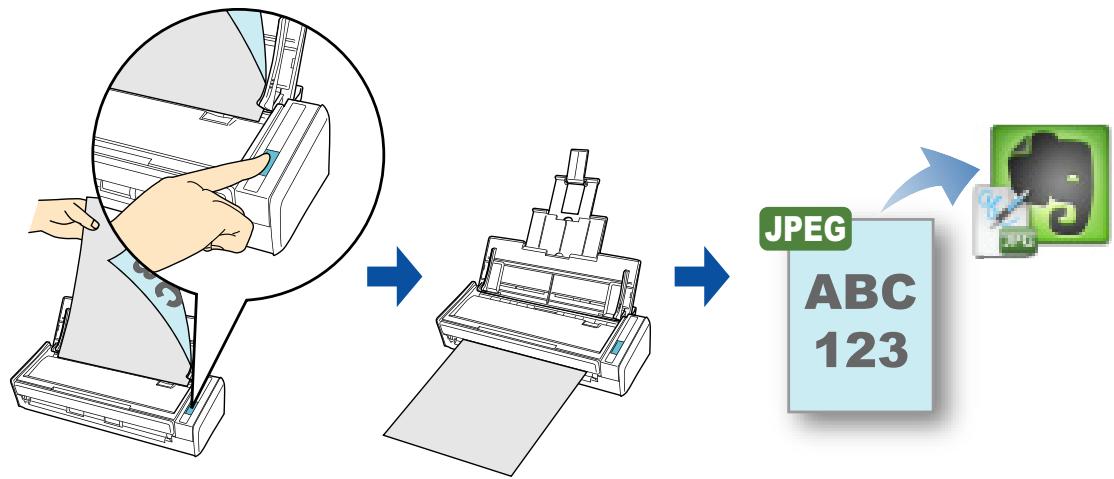
ATTENTION
- You need to create an Evernote account (free or premium).
- You first need to create a notebook in Evernote for Mac to save a file to Evernote.
- Disable [Bring the clip to the front] in Evernote [Preferences] window beforehand to prevent new notes appearing on the screen when you scan documents consecutively.
The screenshot on the right is from Evernote for Mac 3.0.5. Clear the [Bring the clip to the front] checkbox in this window.
The actual window and the contents may differ depending on the Evernote version you are using.
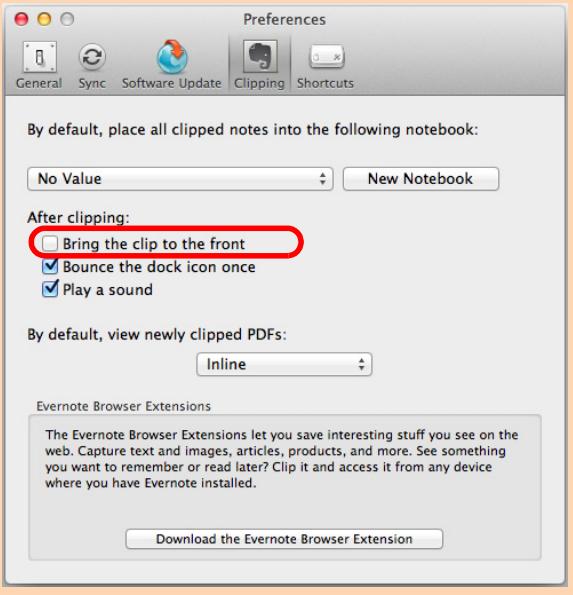
For details about the procedure to scan and send the scanned image to Evernote using or without using the Quick Menu, refer to the following:
Using the Quick Menu ( page 383)
- Without Using the Quick Menu ( page 385)
Using the Quick Menu
HINT
To use the Quick Menu, you need to select the [Use Quick Menu] checkbox in the ScanSnap setup window.
For details about how to perform scanning by using the Quick Menu, refer to "Using the Quick Menu" (page 277).
1. Load a document in the ScanSnap.
For details about how to load documents, refer to "How to Load Documents" (page 33).
2. Press the [Scan] button on the ScanSnap to start a scan.
The Quick Menu appears when the scanning is completed.
![FUJITSU SCANSNAP S1300I DELUXE - Press the [Scan] button on the ScanSnap to start a scan. - 1](/content/2025/01/190766/images/d734d53f7fa092bdf037c65f1339a8be099bfeb835d777ade8dd54df5b3b83f7.jpg)
3. Click the [Scan to Evernote (Note)] icon
![FUJITSU SCANSNAP S1300I DELUXE - Click the [Scan to Evernote (Note)] icon - 1](/content/2025/01/190766/images/803398f0aae184287626c05f5ce912a2f3c4baf8565799537b612a7007a617b6.jpg)
ATTENTION
- You cannot start scanning when the Quick Menu is displayed. Save the JPEG file to Evernote before scanning the next document.
- Do not move, delete, or rename the scanned image in other applications when the Quick Menu is displayed.
If [PDF(*.pdf)] is selected for [File format] in the [File option] tab of the ScanSnap setup window, a separate JPEG file will be created from each page of the PDF file. The following window appears during file creation.
Scan to Evernote (Note)
Creating JPEG file from image data...

Evernote for Mac starts up, and the JPEG file is saved to Evernote.
HINT
-
When you select [PDF(*.pdf)] for [File format] in the [File option] tab of the ScanSnap setup window, a four-digit serial number is automatically added to the name of the file which is saved to Evernote. e.g. When the file name is [ScanSnap], the file is saved as: ScanSnap_0001, ScanSnap_0002, ScanSnap_0003...
-
The file in which the scanned image is saved remains in the folder specified for [Image saving folder] in the [Save] tab of the ScanSnap setup window even after the scanned image is saved to Evernote. Delete this file if unnecessary.
Without Using the Quick Menu
HINT
To disable the Quick Menu, you need to clear the [Use Quick Menu] checkbox in the ScanSnap setup window.
For details about how to perform scanning without using the Quick Menu, refer to "Without Using the Quick Menu" (page 282).
1. Select [Settings] from the ScanSnap Manager menu.
For details about the ScanSnap Manager menu, refer to "ScanSnap Manager Menu" (page 273).
The ScanSnap setup window appears.
2. In the [Application] pop-up menu in the [Application] tab, select [Scan to Evernote (Note)].
![FUJITSU SCANSNAP S1300I DELUXE - In the [Application] pop-up menu in the [Application] tab, select [Scan to Evernote (Note)]. - 1](/content/2025/01/190766/images/713b245a2161ccdb7a6ad7c2d2854ae89e12ef45a9a6d6fb97e20766dcb98f74.jpg)
HINT
ScanSnap Manager also links with [Scan to Evernote (Note)] when you select:
- [Scan to Evernote (Note)] from the [Profile] pop-up menu of the ScanSnap setup window
- [Scan to Evernote (Note)] from the Profile menu
3. Click the [Apply] button.
4. Click the [ ] button in the upper left corner to close the ScanSnap setup window.
5. Load a document in the ScanSnap.
For details about how to load documents, refer to "How to Load Documents" (page 33).
6. Press the [Scan] button on the ScanSnap to start a scan.
When the scanning is completed, a separate JPEG file will be created from each page of the PDF file if [PDF(*.pdf)] is selected for [File format] in the [File option] tab of the ScanSnap setup window.
The following window appears during file creation.
Scan to Evernote (Note)
Creating JPEG file from image data...
![FUJITSU SCANSNAP S1300I DELUXE - Press the [Scan] button on the ScanSnap to start a scan. - 1](/content/2025/01/190766/images/408c47455c7acf4a5ac192105395d64b5fe11b6d76199c58f4efc34468caa4d6.jpg)
Evernote for Mac starts up, and the JPEG file is saved to Evernote.
HINT
-
When you select [PDF(*.pdf)] for [File format] in the [File option] tab of the ScanSnap setup window, a four-digit serial number is automatically added to the name of the file which is saved to Evernote. e.g. When the file name is [ScanSnap], the file is saved as: ScanSnap_0001, ScanSnap_0002, ScanSnap_0003...
-
The file in which the scanned image is saved remains in the folder specified for [Image saving folder] in the [Save] tab of the ScanSnap setup window even after the scanned image is saved to Evernote. Delete this file if unnecessary.
Saving Documents to Google Docs
This section explains how to save the scanned image as a PDF file to Google Docs.
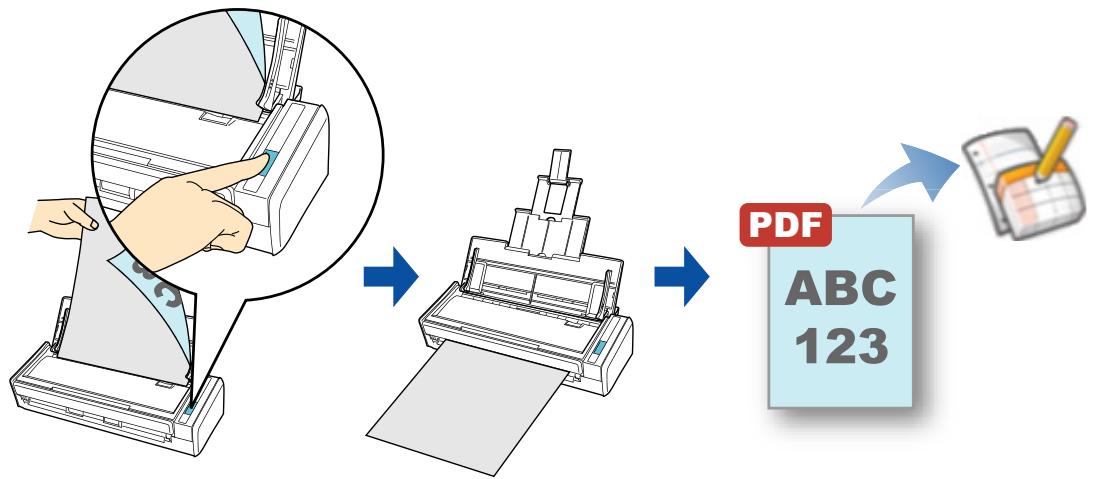
ATTENTION
You need to create a Google account(free).
For details about the procedure to scan and save the scanned image to Google Docs using or without using the Quick Menu, refer to the following:
Using the Quick Menu ( page 388)
- Without Using the Quick Menu ( page 392)
Using the Quick Menu
HINT
To use the Quick Menu, you need to select the [Use Quick Menu] checkbox in the ScanSnap setup window.
For details about how to perform scanning by using the Quick Menu, refer to "Using the Quick Menu" (page 277).
1. Load a document in the ScanSnap.
For details about how to load documents, refer to "How to Load Documents" (page 33).
2. Press the [Scan] button on the ScanSnap to start a scan.
The Quick Menu appears when the scanning is completed.
![FUJITSU SCANSNAP S1300I DELUXE - Press the [Scan] button on the ScanSnap to start a scan. - 1](/content/2025/01/190766/images/f837e98d85b560c3e4a4cfa5508bafc966eed966c0059d0aee58ddf922348a26.jpg)
3. Change the settings for [Scan to Google Docs(TM)] (If you do not want to change any settings, go to step 4.).
- Move the mouse cursor to the [Scan to Google Docs(TM)] icon click [Settings].
The [Scan to Google Docs(TM) - Options] window appears.
![FUJITSU SCANSNAP S1300I DELUXE - Change the settings for [Scan to Google Docs(TM)] (If you do not want to change any settings, go to step 4.). - 1](/content/2025/01/190766/images/97dbd21d0135375ae7a161e9904a044657c5cf63d91fa03daf3a164ce15734f7.jpg)
, and then
2. Change the settings.
For details about the [Scan to Google Docs(TM) - Options] window, refer to the ScanSnap Manager Help.
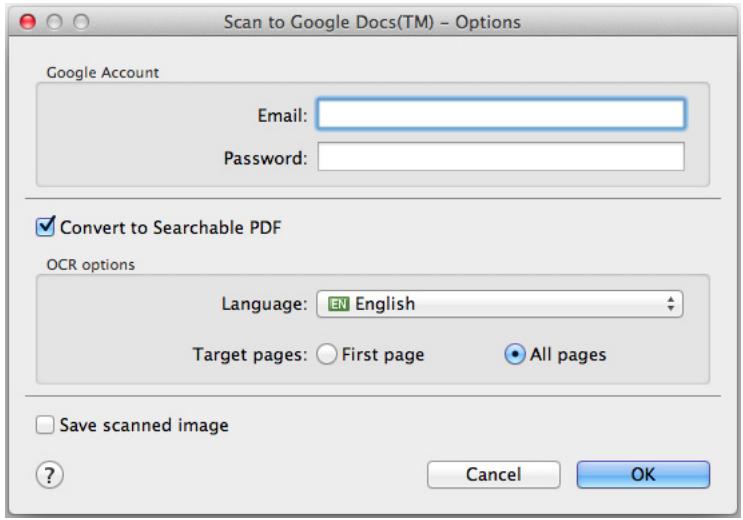
ATTENTION
If the computer is shared with other users, do not set your information in [Email] and [Password]. Otherwise, other users will be able to log into Google Docs automatically. It is recommended to set only [Email] in this window, and type in the password every time.
- Click the [OK] button to close the [Scan to Google Docs(TM) - Options] window.
4. Click the [Scan to Google Docs(TM)] icon
![FUJITSU SCANSNAP S1300I DELUXE - Click the [Scan to Google Docs(TM)] icon - 1](/content/2025/01/190766/images/79bad13605b816e3951a5373889b1a8997c2c10580757e8a1591462d446c7de4.jpg)
ATTENTION
- You cannot start scanning when the Quick Menu is displayed. Save the PDF file to Google Docs before scanning the next document.
- Do not move, delete, or rename the scanned image in other applications when the Quick Menu is displayed.
If you did not specify a Google account in the [Scan to Google Docs(TM) - Options] window in step 3., the [Scan to Google Docs(TM)] window appears. To continue, enter your e-mail address and password, and click the [OK] button.
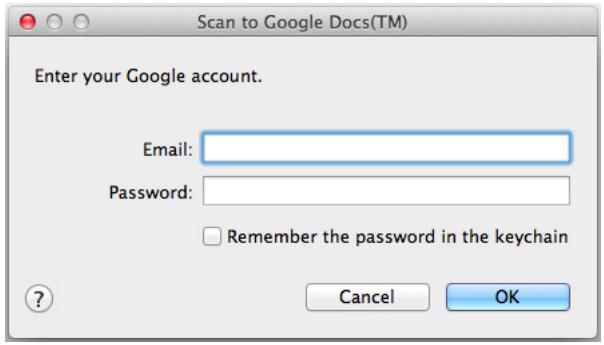
ATTENTION
- If the computer is shared with other users, do not select the [Remember the password in the keychain] checkbox in this window. Otherwise, other users will be able to log into Google Docs automatically.
- Scan to Google Docs(TM) is not available in a proxy environment that requires authentication upon connecting to the Internet.
If [JPEG(*.jpg)] is selected for [File format] in the [File option] tab of the ScanSnap setup window, a separate PDF file will be created from each JPEG file. The following window appears during file creation.
If you select the [Convert to Searchable PDF] checkbox in the [Scan to Google Docs(TM) - Options] window in step 3., text recognition is performed according to the [OCR options] settings in the [Scan to Google Docs(TM) - Options] window. The following window appears during text recognition.
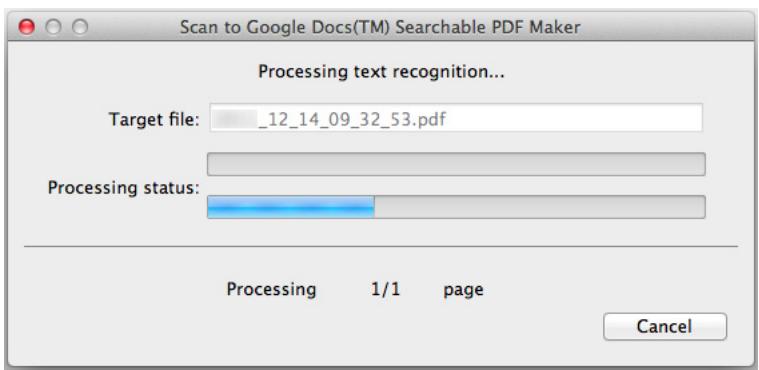
HINT
Text recognition will be performed if there are any pages containing text which is not yet recognized. Note that text recognition will be performed on all pages, including pages containing text on which text recognition has already been performed.
Saving to Google Docs starts. Click the [Close] button to close the [Scan to Google Docs(TM)] window when the saving is completed.
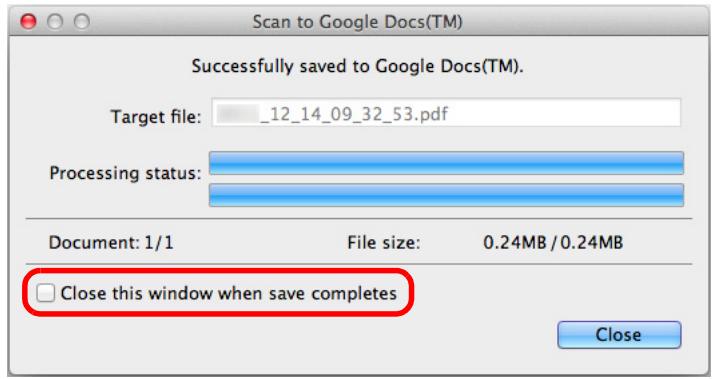
If you select the [Close this window when save completes] checkbox above, the [Scan to Google Docs(TM)] window will automatically close from next scanning on when the saving is completed.
HINT
Google Docs does not start up after the saving has completed. To check the saved PDF file, start a web browser and log in to Google Docs.
Without Using the Quick Menu
HINT
To disable the Quick Menu, you need to clear the [Use Quick Menu] checkbox in the ScanSnap setup window.
For details about how to perform scanning without using the Quick Menu, refer to "Without Using the Quick Menu" (page 282).
1. Select [Settings] from the ScanSnap Manager menu.
For details about the ScanSnap Manager menu, refer to "ScanSnap Manager Menu" (page 273).
The ScanSnap setup window appears.
2. In the [Application] pop-up menu in the [Application] tab, select [Scan to Google Docs(TM)].
![FUJITSU SCANSNAP S1300I DELUXE - In the [Application] pop-up menu in the [Application] tab, select [Scan to Google Docs(TM)]. - 1](/content/2025/01/190766/images/d91f9499787e40efef4a8ec658c3d22f3891e07ca70a7dc1a0a4810b4327f6b2.jpg)
HINT
ScanSnap Manager also links with [Scan to Google Docs(TM)] when you select:
- [Scan to Google Docs(TM)] from the [Profile] pop-up menu of the ScanSnap setup window
- [Scan to Google Docs(TM)] from the Profile menu
3. Change the settings for [Scan to Google Docs(TM)] (If you do not want to change any settings, go to step 4.).
- Click the [Application Settings] button.
![FUJITSU SCANSNAP S1300I DELUXE - Change the settings for [Scan to Google Docs(TM)] (If you do not want to change any settings, go to step 4.). - 1](/content/2025/01/190766/images/0f112d73e1d72c7630c78e19ec73f58b2cca6f498a67bf21342159bc1a93368b.jpg)
The [Scan to Google Docs(TM) - Options] window appears.
- Change the settings.
For details about the [Scan to Google Docs(TM) - Options] window, refer to the ScanSnap Manager Help.
![FUJITSU SCANSNAP S1300I DELUXE - Change the settings for [Scan to Google Docs(TM)] (If you do not want to change any settings, go to step 4.). - 2](/content/2025/01/190766/images/58a3327595f264973a961fe7dec56f89e281bca38ba2e3e2a31f7c1c261715f1.jpg)
ATTENTION
If the computer is shared with other users, do not set your information in [Email] and [Password]. Otherwise, other users will be able to log into Google Docs automatically. It is recommended to set only [Email] in this window, and type in the password every time.
-
Click the [OK] button to close the [Scan to Google Docs(TM) - Options] window.
-
Click the [Apply] button.
5. Click the [ ] button in the upper left corner to close the ScanSnap setup window.
6. Load a document in the ScanSnap.
For details about how to load documents, refer to "How to Load Documents" (page 33).
7. Press the [Scan] button on the ScanSnap to start a scan.
If you did not specify a Google account in the [Scan to Google Docs(TM) - Options] window in step 3., the [Scan to Google Docs(TM)] window appears when the scanning is completed. To continue, enter your e-mail address and password, and click the [OK] button.
![FUJITSU SCANSNAP S1300I DELUXE - Press the [Scan] button on the ScanSnap to start a scan. - 1](/content/2025/01/190766/images/9aadefe8277763c5ece93b562fbc66cf1308d18276caec37578bfba971720c76.jpg)
ATTENTION
- If the computer is shared with other users, do not select the [Remember the password in the keychain] checkbox in this window.
Otherwise, other users will be able to log into Google Docs automatically. - Scan to Google Docs(TM) is not available in a proxy environment that requires authentication upon connecting to the Internet.
If [JPEG(*.jpg)] is selected for [File format] in the [File option] tab of the ScanSnap setup window, a separate PDF file will be created from each JPEG file.
The following window appears during file creation.
If you select the [Convert to Searchable PDF] checkbox in the [Scan to Google Docs(TM) - Options] window in step 3., text recognition is performed according to the [OCR options] settings in the [Scan to Google Docs(TM) - Options] window. The following window appears during text recognition.
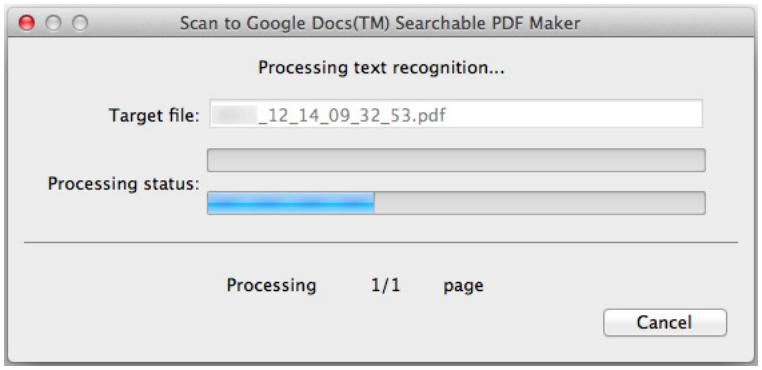
HINT
Text recognition will be performed if there are any pages containing text which is not yet recognized. Note that text recognition will be performed on all pages, including pages containing text on which text recognition has already been performed.
Saving to Google Docs starts. Click the [Close] button to close the [Scan to Google Docs(TM)] window when the saving is completed.
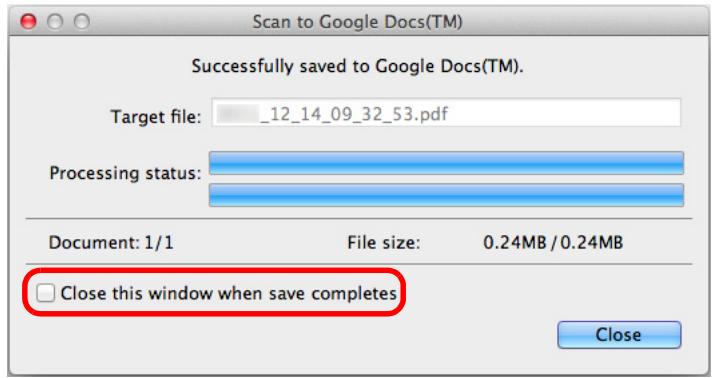
If you select the [Close this window when save completes] checkbox above, the [Scan to Google Docs(TM)] window will automatically close from next scanning on when the saving is completed.
HINT
Google Docs does not start up after the saving has completed. To check the saved PDF file, start a web browser and log in to Google Docs.
■ Posting to Salesforce Chatter
This section explains how to post the scanned image as a PDF or a JPEG file to Salesforce Chatter.
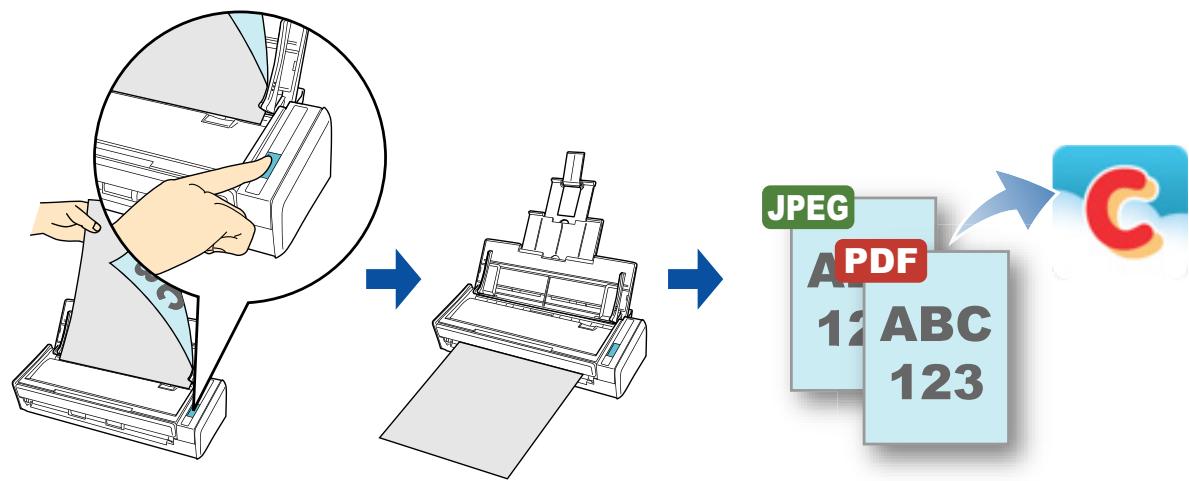
ATTENTION
- A Salesforce CRM license is required separately.
-
ScanSnap Manager can link with the following Salesforce editions:
-
Unlimited
-Enterprise
For details about the procedure to post to Salesforce Chatter using or without using the Quick Menu, refer to the following:
Using the Quick Menu ( page 397)
- Without Using the Quick Menu ( page 401)
Using the Quick Menu
HINT
To use the Quick Menu, you need to select the [Use Quick Menu] checkbox in the ScanSnap setup window.
For details about how to perform scanning by using the Quick Menu, refer to "Using the Quick Menu" (page 277).
1. Load a document in the ScanSnap.
For details about how to load documents, refer to "How to Load Documents" (page 33).
2. Press the [Scan] button on the ScanSnap to start a scan.
The Quick Menu appears when the scanning is completed.
![FUJITSU SCANSNAP S1300I DELUXE - Press the [Scan] button on the ScanSnap to start a scan. - 1](/content/2025/01/190766/images/251e78a245f872513aed0580f9a7d98a393824571b10617bacf8f455534574ac.jpg)
3. Change the settings for [Scan to Salesforce Chatter] (If you do not want to change any settings, go to step 4.).
- Move the mouse cursor to the [Scan to Salesforce Chatter] icon click [Settings].
The [Scan to Salesforce Chatter - Options] window appears.
![FUJITSU SCANSNAP S1300I DELUXE - Change the settings for [Scan to Salesforce Chatter] (If you do not want to change any settings, go to step 4.). - 1](/content/2025/01/190766/images/c738c0341e88708603562a40114f53e690865aefb573a8b069ae33be126ead94.jpg)
, and then
2. Change the settings.
For details about the [Scan to Salesforce Chatter - Options] window, refer to the ScanSnap Manager Help.
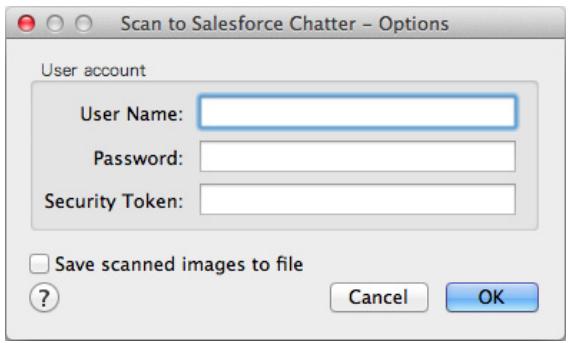
ATTENTION
If the computer is shared with other users, do not set your information in [UserID],
[Password] and [Security Token]. Otherwise, other users will be able to log into Salesforce automatically.
It is recommended to set only [User Name] and [Security Token] in this window, and type in the password every time.
- Click the [OK] button to close the [Scan to Salesforce Chatter - Options] window.
4. Click the [Scan to Salesforce Chatter] icon
![FUJITSU SCANSNAP S1300I DELUXE - Click the [Scan to Salesforce Chatter] icon - 1](/content/2025/01/190766/images/b001d546db86c099e75a26c6da58acdb36c582e85abcde4ac60c468c9a90f64b.jpg)
If you did not specify a Salesforce account in the [Scan to Salesforce Chatter - Options] window in step 3., the [Scan to Salesforce Chatter - Login] window appears. To continue, enter your user name and password and click the [OK] button. Enter a security token if needed.
![FUJITSU SCANSNAP S1300I DELUXE - Click the [Scan to Salesforce Chatter] icon - 2](/content/2025/01/190766/images/1372de08283ac26e6e3cd85cba50860c681ddb7450d0f733b61f8332dd34bbf9.jpg)
ATTENTION
- If the computer is shared with other users, do not select the [Remember the password in the keychain] checkbox in this window.
Otherwise, other users will be able to log into Salesforce automatically.
- Scan to Salesforce Chatter is not available in a proxy environment that requires authentication upon connecting to the Internet.
The [Scan to Salesforce Chatter] window appears.
5. Check the scanned image in the preview area.
In the [Scan to Salesforce Chatter] window, you can set the posting destination and method, the message to post, the name and description of the image file that will be posted to Salesforce Chatter, and save the scanned image in the folder specified for [Image saving folder].
For details about the [Scan to Salesforce Chatter] window, refer to the ScanSnap Manager Help.
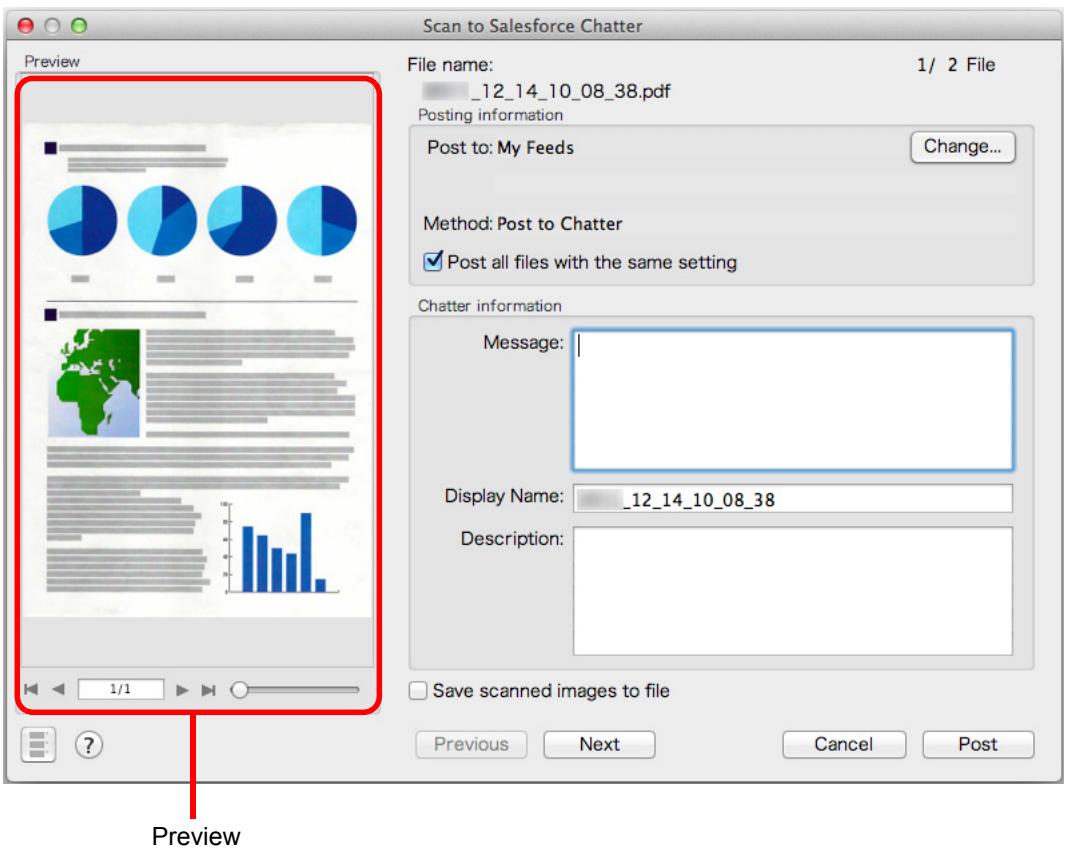
6. Click the [Post] button.
Posting to Salesforce Chatter starts. Click the [Close] button to close the [Scan to Salesforce Chatter] window when the posting is completed.
![FUJITSU SCANSNAP S1300I DELUXE - Click the [Post] button. - 1](/content/2025/01/190766/images/9a43cab5dd47e07f09bd5826d26d3cfe1d3893447b6b00dc10d79f29198b60fa.jpg)
If you select the [Close this window when posting completes] check box above, the [Scan to Salesforce Chatter] window will automatically close from next scanning on when the posting is completed.
ATTENTION
- You cannot start scanning after the Quick Menu is displayed and before the [Scan to Salesforce Chatter] window is closed. Close the [Scan to Salesforce Chatter] window before scanning the next document.
- Do not move, delete, or rename the scanned image in other applications when the Quick Menu is displayed.
HINT
Salesforce does not start up after the posting has completed. To check the saved scanned image file, start a web browser and log in to Salesforce.
Without Using the Quick Menu
HINT
To disable the Quick Menu, you need to clear the [Use Quick Menu] checkbox in the ScanSnap setup window.
For details about how to perform scanning without using the Quick Menu, refer to "Without Using the Quick Menu" (page 282).
1. Select [Settings] from the ScanSnap Manager menu.
For details about the ScanSnap Manager menu, refer to "ScanSnap Manager Menu" (page 273).
The ScanSnap setup window appears.
2. In the [Application] pop-up menu in the [Application] tab, select [Scan to Salesforce Chatter].
![FUJITSU SCANSNAP S1300I DELUXE - In the [Application] pop-up menu in the [Application] tab, select [Scan to Salesforce Chatter]. - 1](/content/2025/01/190766/images/8a0121a914a5c3292223eb60e8b36f959bc8f1d6607410184cc0ce4da161cf02.jpg)
HINT
When you add the customized settings as profiles, the application to link with ScanSnap Manager can be selected in the [Profile] pop-up menu or from the Profile Menu next time you perform a scan. For details about how to add a profile, refer to "Profile Management" (page 293).
3. Change the settings for [Scan to Salesforce Chatter] (If you do not want to change any settings, go to step 4.).
- Click the [Application Settings] button.
![FUJITSU SCANSNAP S1300I DELUXE - Change the settings for [Scan to Salesforce Chatter] (If you do not want to change any settings, go to step 4.). - 1](/content/2025/01/190766/images/97bd9a30f29c0da2f8d266b988ea8c70de676131b79caff033fcbbdd6fd99429.jpg)
The [Scan to Salesforce Chatter - Options] window appears.
- Change the settings.
For details about the [Scan to Salesforce Chatter - Options] window, refer to the ScanSnap Manager Help.
![FUJITSU SCANSNAP S1300I DELUXE - Change the settings for [Scan to Salesforce Chatter] (If you do not want to change any settings, go to step 4.). - 2](/content/2025/01/190766/images/50951d8f13f2a9408360c786603a59e6e5296fef78cb1cf9738e3b1de3c419c5.jpg)
ATTENTION
If the computer is shared with other users, do not set your information in [User Name], [Password] and [Security Token]. Otherwise, other users will be able to log into Salesforce automatically. It is recommended to set only [UserID] and [Security Token] in this window, and type in password every time.
-
Click the [OK] button to close the [Scan to Salesforce Chatter - Options] window.
-
Click the [Apply] button.
-
Click the [ ] button in the upper left corner to close the ScanSnap setup window.
6. Load a document in the ScanSnap.
For details about how to load documents, refer to "How to Load Documents" (page 33).
7. Press the [Scan] button on the ScanSnap to start a scan.
If you did not specify a Salesforce account in the [Scan to Salesforce Chatter - Options] window in step 3., the [Scan to Salesforce Chatter - Login] window appears when the scanning is completed. To continue, enter your user name and password and click the [OK] button. Enter a security token if needed.
![FUJITSU SCANSNAP S1300I DELUXE - Press the [Scan] button on the ScanSnap to start a scan. - 1](/content/2025/01/190766/images/b3599e1ea15123e76e25acbce8ba45f18351f2431308b5ce1e8201d2eb85e554.jpg)
ATTENTION
- If the computer is shared with other users, do not select the [Remember the password in the keychain] checkbox in this window. Otherwise, other users will be able to log into Salesforce automatically.
- Scan to Salesforce Chatter is not available in a proxy environment that requires authentication upon connecting to the Internet.
The [Scan to Salesforce Chatter] window appears.
8. Check the scanned image in the preview area.
In the [Scan to Salesforce Chatter] window, you can set the posting destination and method, the message to post, the name and description of the image file that will be posted to Salesforce Chatter, and save the scanned image in the folder specified for [Image saving folder].
For details about the [Scan to Salesforce Chatter] window, refer to the ScanSnap Manager Help.
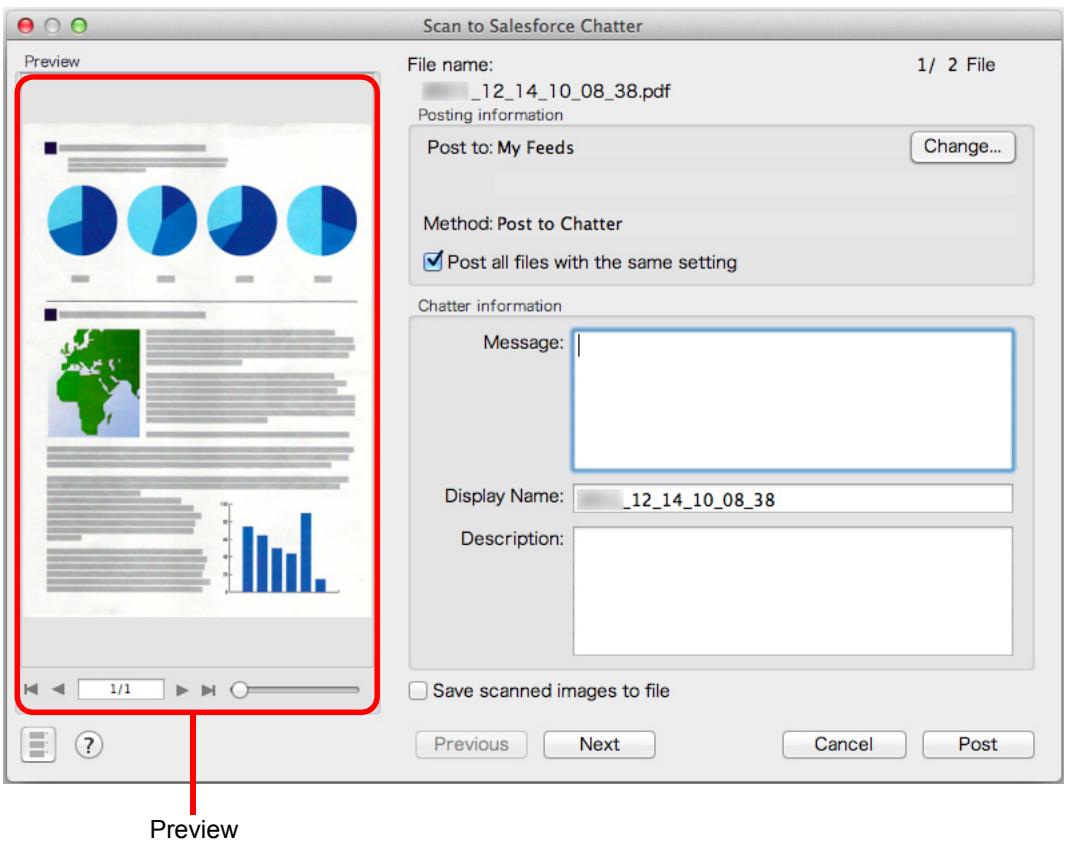
9. Click the [Post] button.
Posting to Salesforce Chatter starts. Click the [Close] button to close the [Scan to Salesforce Chatter] window when the posting is completed.
![FUJITSU SCANSNAP S1300I DELUXE - Click the [Post] button. - 1](/content/2025/01/190766/images/caf21f032a2d024905a79265acba651bfc52e5c4bf7c686b6d91d965249ac94c.jpg)
If you select the [Close this window when posting completes] checkbox above, the [Scan to Salesforce Chatter] window will automatically close from next scanning on when the posting is completed.
ATTENTION
- You cannot start scanning when the [Scan to Salesforce Chatter] window is displayed. Close the window before scanning the next document.
- Do not move, delete, or rename the scanned image in other applications when the [Scan to Salesforce Chatter] window is displayed.
HINT
Salesforce does not start up after the posting has completed. To check the saved scanned image file, start a web browser and log in to Salesforce.
Saving Data to Your SugarSync Folder
This section explains how to save the scanned image as a PDF or a JPEG file to your SugarSync folder.
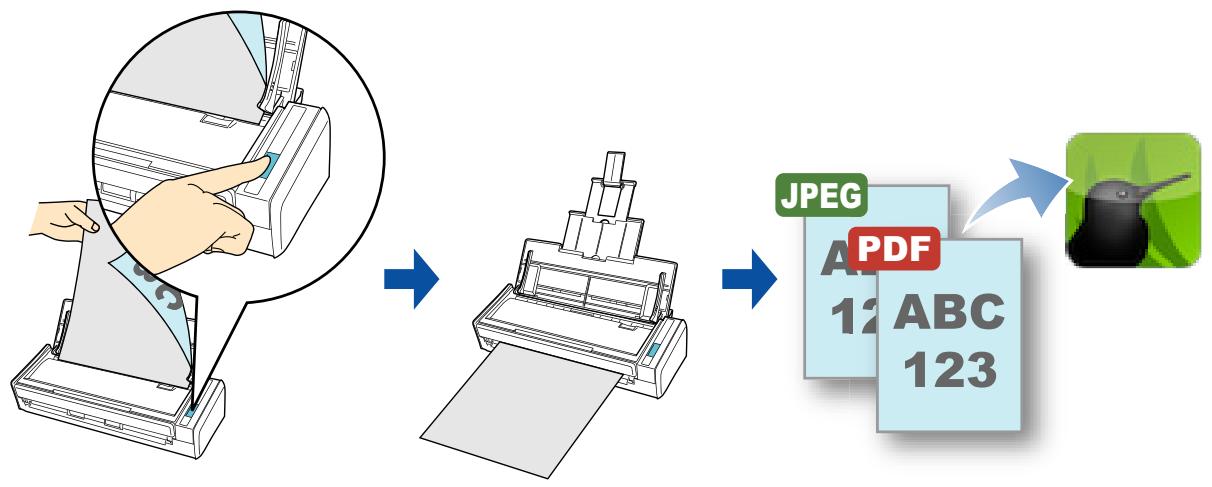
ATTENTION
- You need to have a SugarSync account.
- You need to have SugarSync Manager for Mac 1.9.29 or later installed in order to use this function.
HINT
When you first log into SugarSync after installing SugarSync Manager for Mac, the Magic Briefcase, which is a folder used for SugarSync, is automatically created.
For details about the procedure to scan and save the scanned image to your SugarSync folder using or without using the Quick Menu, refer to the following:
Using the Quick Menu ( page 407)
- Without Using the Quick Menu ( page 410)
Using the Quick Menu
HINT
To use the Quick Menu, you need to select the [Use Quick Menu] checkbox in the ScanSnap setup window. For details about how to perform scanning by using the Quick Menu, refer to "Using the Quick Menu" (page 277).
1. Load a document in the ScanSnap.
For details about how to load documents, refer to "How to Load Documents" (page 33).
2. Press the [Scan] button on the ScanSnap to start a scan.
The Quick Menu appears when the scanning is completed.
![FUJITSU SCANSNAP S1300I DELUXE - Press the [Scan] button on the ScanSnap to start a scan. - 1](/content/2025/01/190766/images/ded3ff48234c6833902473cbba8e0834c089d326bacc0cd83f7913f8956ca4df.jpg)
3. Change the settings for [Scan to SugarSync] (If you do not want to change any settings, go to step 4.).
- Move the mouse cursor to the [Scan to SugarSync] icon [Settings].
![FUJITSU SCANSNAP S1300I DELUXE - Change the settings for [Scan to SugarSync] (If you do not want to change any settings, go to step 4.). - 1](/content/2025/01/190766/images/c0010d0d92e243d8f36aad3fa880047f9be7aeaf0cf0f4f2213f848cf5eabd68.jpg)
The [Scan to SugarSync - Options] window appears.
- Change the setting. For details about the [Scan to SugarSync - Options] window, refer to the ScanSnap Manager Help.
![FUJITSU SCANSNAP S1300I DELUXE - Change the settings for [Scan to SugarSync] (If you do not want to change any settings, go to step 4.). - 2](/content/2025/01/190766/images/57d3839fa59bc919a1dc614a8373e8c693d050a87ac08cd262c9f491310cbeea.jpg)
- Click the [OK] button to close the [Scan to SugarSync - Options] window.
4. Click the [Scan to SugarSync] icon
![FUJITSU SCANSNAP S1300I DELUXE - Click the [Scan to SugarSync] icon - 1](/content/2025/01/190766/images/3828425fd632565a6760d1179dd62cf516080ae78c79533163fc0bc1c28feb7e.jpg)
The [Scan to SugarSync] window appears.
If you clear the [Show preview] checkbox in step 3., the scanned image is directly saved to your SugarSync folder.
5. Check the scanned image in the preview area.
In the [Scan to SugarSync] window, you can rename the file and specify your SugarSync folder.
For details about the [Scan to SugarSync] window, refer to the ScanSnap Manager Help.
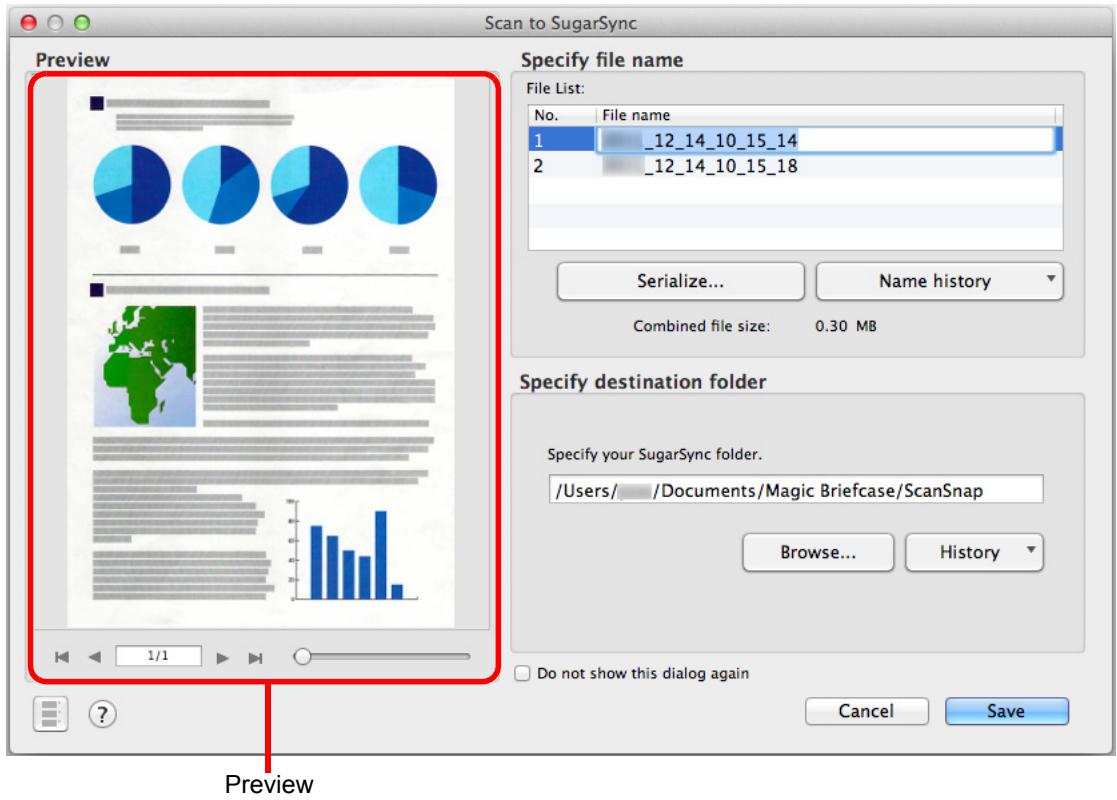
ATTENTION
The file will not be syncsed with SugarSync unless you select a SugarSync folder as the destination folder.
6. Click the [Save] button.
The scanned image is saved to your SugarSync folder.
ATTENTION
- You cannot start scanning after the Quick Menu is displayed and before the [Scan to SugarSync] window is closed. Close the [Scan to SugarSync] window before scanning the next document.
- Do not move, delete or rename the scanned image in other applications after the Quick Menu is displayed and before the [Scan to SugarSync] window is closed.
Without Using the Quick Menu
HINT
To disable the Quick Menu, you need to clear the [Use Quick Menu] checkbox in the ScanSnap setup window.
For details about how to perform scanning without using the Quick Menu, refer to "Without Using the Quick Menu" (page 282).
1. Select [Settings] from the ScanSnap Manager menu.
For details about the ScanSnap Manager menu, refer to "ScanSnap Manager Menu" (page 273).
The ScanSnap setup window appears.
2. In the [Application] pop-up menu in the [Application] tab, select [Scan to SugarSync].
![FUJITSU SCANSNAP S1300I DELUXE - In the [Application] pop-up menu in the [Application] tab, select [Scan to SugarSync]. - 1](/content/2025/01/190766/images/98a8c7fb0f3fbf53f510228f481c7ef5e81f132420af5034d5560c4994670f2b.jpg)
HINT
When you add the customized settings as profiles, the application to link with ScanSnap Manager can be selected in the [Profile] pop-up menu or from the Profile menu next time you perform a scan. For details about how to add a profile, refer to "Profile Management" (page 293).
3. Change the settings for [Scan to SugarSync] (If you do not want to change any settings, go to step 4.).
- Click the [Application Settings] button.
![FUJITSU SCANSNAP S1300I DELUXE - Change the settings for [Scan to SugarSync] (If you do not want to change any settings, go to step 4.). - 1](/content/2025/01/190766/images/4073856c79c35f6c23f81781e4d4a65675da8cb16340a24cfefc18a013f3b30d.jpg)
The [Scan to SugarSync - Options] window appears.
- Change the setting.
For details about the [Scan to SugarSync - Options] window, refer to the ScanSnap Manager Help.
![FUJITSU SCANSNAP S1300I DELUXE - Change the settings for [Scan to SugarSync] (If you do not want to change any settings, go to step 4.). - 2](/content/2025/01/190766/images/7516744a1114c788c8eb00e3d194d29a07791485e77a322d0fa52ed3a798c2af.jpg)
3. Click the [OK] button to close the [Scan to SugarSync - Options] window.
- Click the [Apply] button.
- Click the [×] button in the upper left corner to close the ScanSnap setup window.
- Load a document in the ScanSnap.
For details about how to load documents, refer to "How to Load Documents" (page 33).
- Press the [Scan] button on the ScanSnap to start a scan.
The [Scan to SugarSync] window appears when the scanning is completed. If you clear the [Show preview] checkbox in step3., the scanned image is directly saved to your SugarSync folder.
8. Check the scanned image in the preview area.
In the [Scan to SugarSync] window, you can rename the file and specify your SugarSync folder.
For details about the [Scan to SugarSync] window, refer to the ScanSnap Manager Help.
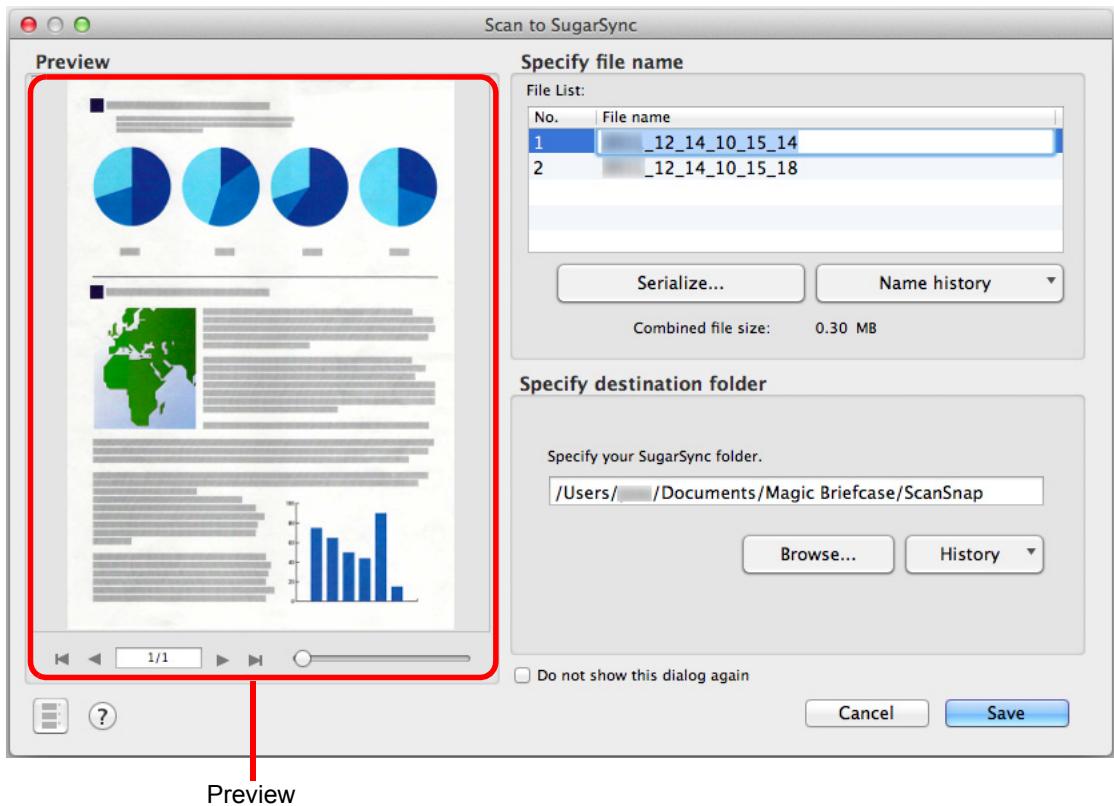
ATTENTION
The file will not be syncsed with SugarSync unless you select a SugarSync folder as the destination folder.
9. Click the [Save] button.
The scanned image is saved to your SugarSync folder.
ATTENTION
- You cannot start scanning when the [Scan to SugarSync] window is displayed. Close the window before scanning the next document.
- Do not move, delete or rename the scanned image in other applications when the [Scan to SugarSync] window is displayed.
Using the ScanSnap in Various Ways
This section explains about various ways of using the ScanSnap.
Scanning Only One Side of a Document
By default, the ScanSnap scans in duplex mode.
To perform simplex scanning, perform the following steps to change the setting.
1. Select [Settings] from the ScanSnap Manager menu.
For details about the ScanSnap Manager menu, refer to "ScanSnap Manager Menu" (page 273).
The ScanSnap setup window appears.
2. In the [Scanning side] pop-up menu in the [Scanning] tab, select [Simplex Scan (Single-sided)].
![FUJITSU SCANSNAP S1300I DELUXE - In the [Scanning side] pop-up menu in the [Scanning] tab, select [Simplex Scan (Single-sided)]. - 1](/content/2025/01/190766/images/aa79687abb225ff99763791254ea32756b682e7083e3a40003a3e4ddee786f48.jpg)
3. Click the [Apply] button in the ScanSnap setup window.
- Click the [ ] button in the upper left corner to close the ScanSnap setup window.
- Load a document in the ScanSnap.
For details about how to load documents, refer to "How to Load Documents" (page 33).
- Press the [Scan] button on the ScanSnap to start a scan.
HINT
When you select [Simplex scan] from the ScanSnap Manager menu, scanning is performed in simplex mode even if [Duplex Scan (Double-sided)] is specified for [Scanning side] in the [Scanning] tab.
Image data of the scanned side of the document is saved.
Scanning Color Documents in Gray or Black & White
When [Auto color detection] is specified for [Color mode] in the [Scanning] tab of the ScanSnap setup window, ScanSnap Manager automatically recognizes whether the scanned document is color, gray or black & white, and saves documents in their respective color modes.
If you want to scan color documents and save them in gray or black & white, change the settings in the following procedure.
1. Select [Settings] from the ScanSnap Manager menu.
For details about the ScanSnap Manager menu, refer to "ScanSnap Manager Menu" (page 273).
The ScanSnap setup window appears.
2. In the [Color mode] pop-up menu in the [Scanning] tab, select [Gray] or [B&W].
![FUJITSU SCANSNAP S1300I DELUXE - In the [Color mode] pop-up menu in the [Scanning] tab, select [Gray] or [B&W]. - 1](/content/2025/01/190766/images/5361143e15afd86ec73f2c87d0175247cc637611f2c585b123b765773707843c.jpg)
3. Click the [Apply] button.
4. Click the [ ] button in the upper left corner to close the ScanSnap setup window.
5. Load a document in the ScanSnap.
For details about how to load documents, refer to "How to Load Documents" (page 33).
6. Press the [Scan] button on the ScanSnap to start a scan.
Scanned image is saved in gray or black & white.
- Deleting Blank Pages from the Scanned Image
The ScanSnap can detect and automatically delete blank pages from a scanned image. For example, when you scan a mixed batch of double-sided and single-sided documents in duplex mode, the images are generated without the back sides of the single-sided documents (blank pages).
To delete blank pages, perform the following steps to change the setting.
ATTENTION
The following documents may be detected as blank.
- Almost blank documents with only a few characters
- Documents of only one color (including black) and without any patterns, lines or characters When you scan such documents, clear the [Allow automatic blank page removal] checkbox.
Also make sure to check the image data for accidentally deleted pages when discarding the scanned document.
1. Select [Settings] from the ScanSnap Manager menu.
For details about the ScanSnap Manager menu, refer to "ScanSnap Manager Menu" (page 273).
The ScanSnap setup window appears.
2. Click the [Option] button in the [Scanning] tab.
![FUJITSU SCANSNAP S1300I DELUXE - Click the [Option] button in the [Scanning] tab. - 1](/content/2025/01/190766/images/b6ad2b63e9d7230d1e72100309eed6c63db5d1a09d70000658ae697cf14050bf.jpg)
The [Scanning mode option] window appears.
3. Select the [Allow automatic blank page removal] checkbox.
![FUJITSU SCANSNAP S1300I DELUXE - Select the [Allow automatic blank page removal] checkbox. - 1](/content/2025/01/190766/images/f216b8ac1757478e7882476a1ba49cff59a90899dd0d9498dd3b218bd4f32c17.jpg)
- Click the [OK] button to close the [Scanning mode option] window.
- Click the [Apply] button in the ScanSnap setup window.
- Click the [ ] button in the upper left corner to close the ScanSnap setup window.
- Load a document in the ScanSnap.
For details about how to load documents, refer to "How to Load Documents" (page 33).
- Press the [Scan] button on the ScanSnap to start a scan.
Scanned image is saved without any blank pages.
Correcting Skewed Character Strings
When documents with skewed character strings are scanned, the ScanSnap is able to detect the skewed character strings and correct them.
To correct skewed character strings, change the settings in the following procedure.
ATTENTION
- Up to +/-5 degrees of skew can be corrected.
- Since this option is performed assuming that the document contains a certain amount of text, character strings may be adjusted at a wrong angle when scanning the following types of documents.
In that case, clear the [Correct skewed character strings automatically] checkbox:
- Documents on which pitches between lines or characters are extremely narrow, or characters are overlapped
- Documents with many outlined or decorated characters
- Documents with many photographs or figures and few characters
- Documents with characters on a patterned background e.g. Characters overlapping illustrations and diagrams
- Documents with characters printed in various directions such as drawings
- Documents with long diagonal lines
- Documents including handwritten characters.
HINT
You do not have to enable [Correct skewed character strings automatically] when [Automatic detection] is specified for [Paper size] in the [Paper] tab of the ScanSnap setup window because the skewed image is always corrected when documents are scanned by this setting.
1. Select [Settings] from the ScanSnap Manager menu.
For details about the ScanSnap Manager menu, refer to "ScanSnap Manager Menu" (page 273).
The ScanSnap setup window appears.
2. Click the [Option] button in the [Scanning] tab.
![FUJITSU SCANSNAP S1300I DELUXE - Click the [Option] button in the [Scanning] tab. - 1](/content/2025/01/190766/images/79a23e722bc5edc965a300bf491383fc3c153b6ea211d8d75c362ea5cff20bd7.jpg)
The [Scanning mode option] window appears.
3. Select the [Correct skewed character strings automatically] checkbox.
![FUJITSU SCANSNAP S1300I DELUXE - Select the [Correct skewed character strings automatically] checkbox. - 1](/content/2025/01/190766/images/0fe40440be30c198b52134a9b5109538baaa0bf860f54f237c22c86e0c2d383c.jpg)
- Click the [OK] button to close the [Scanning mode option] window.
- Click the [Apply] button in the ScanSnap setup window.
- Click the [ ] button in the upper left corner to close the ScanSnap setup window.
7. Load a document in the ScanSnap.
For details about how to load documents, refer to "How to Load Documents" (page 33).
8. Press the [Scan] button on the ScanSnap to start a scan.
Scanned image is saved with skewed character strings corrected.
Correcting the Orientation of Scanned Images
In an office environment, it is often the case that a single batch contains same size documents of different page orientations.
The ScanSnap is able to automatically rotate each scanned image to its correct orientation for such document batches.
To rotate scanned images to their correct orientations, change the settings in the following procedure.
ATTENTION
Since this option determines the document's page orientation based on the character strings printed on the document, the following types of documents may be rotated to the wrong orientation.
In that case, clear the [Allow automatic image rotation] checkbox:
- Documents with many extremely large or small characters
- Documents on which pitches between lines or characters are extremely narrow, or characters are overlapped
- Documents with many characters contacting underlines or borders
- Documents with many photographs or figures and few characters
- Documents with characters on an unevenly colored background e.g. Shaded characters
- Documents with many decorated characters e.g. Decorated characters (embossed/outlined)
- Documents with characters on a patterned background e.g. Characters overlapping illustrations and diagrams
- Documents with characters printed in various directions such as drawings
- Documents written using only capital letters
- Documents including handwritten characters.
- Skewed documents
- Documents written in an unsupported language (language other than Japanese/English/ French/ German/Italian/Spanish-Russian/Portuguese)
- Documents with complex layouts
- Documents with a large amount of image noise
- Documents with faint characters
- Documents with faded characters
1. Select [Settings] from the ScanSnap Manager menu.
For details about the ScanSnap Manager menu, refer to "ScanSnap Manager Menu" (page 273).
The ScanSnap setup window appears.
2. Click the [Option] button in the [Scanning] tab.
![FUJITSU SCANSNAP S1300I DELUXE - Click the [Option] button in the [Scanning] tab. - 1](/content/2025/01/190766/images/19db7a18494d8fa1b5a321b32351f5bc20cd18ca98ad9cd85ec18a6dd4b6b0d3.jpg)
The [Scanning mode option] window appears.
3. Select the [Allow automatic image rotation] checkbox.
![FUJITSU SCANSNAP S1300I DELUXE - Select the [Allow automatic image rotation] checkbox. - 1](/content/2025/01/190766/images/6cbc07b777fd5913291dba1afc79d65829c747a8c54f2edf930e6d6c247b5ae2.jpg)
- Click the [OK] button to close the [Scanning mode option] window.
- Click the [Apply] button in the ScanSnap setup window.
- Click the [ ] button in the upper left corner to close the ScanSnap setup window.
7. Load a document in the ScanSnap.
For details about how to load documents, refer to "How to Load Documents" (page 33).
8. Press the [Scan] button on the ScanSnap to start a scan.
The scanned image is saved in correct orientation.
Scanning Documents of Different Widths or Lengths in One Batch
You can scan documents of different widths or lengths in one batch.
To scan documents of different widths or lengths in one batch, change the settings in the following procedure.
1. Select [Settings] from the ScanSnap Manager menu.
For details about the ScanSnap Manager menu, refer to "ScanSnap Manager Menu" (page 273).
The ScanSnap setup window appears.
2. In the [Paper] tab, select [Automatic detection] in [Paper size].
![FUJITSU SCANSNAP S1300I DELUXE - In the [Paper] tab, select [Automatic detection] in [Paper size]. - 1](/content/2025/01/190766/images/2e76b464bfc783bb7a80f965b8007191bb5efa9fd4344f1989c9bf42ac293130.jpg)
3. Select [None] in [Multifeed Detection] pop-up menu.
![FUJITSU SCANSNAP S1300I DELUXE - Select [None] in [Multifeed Detection] pop-up menu. - 1](/content/2025/01/190766/images/e691e3d95f1cf4eba82c959e70647a2f245d7cf558125721c142b48da06d4b5c.jpg)
ATTENTION
If you scan documents of different widths or lengths in one batch with [Check Length] selected, documents will be detected as multifeeds and scanning cannot be performed. Note that scanning Letter and A4 size documents in the same batch does not result in multifeed detection.
- Click the [Apply] button in the ScanSnap setup window.
- Click the [ ] button in the upper left corner to close the ScanSnap setup window.
-
Load documents in the ScanSnap.
-
Align the edges of the documents.
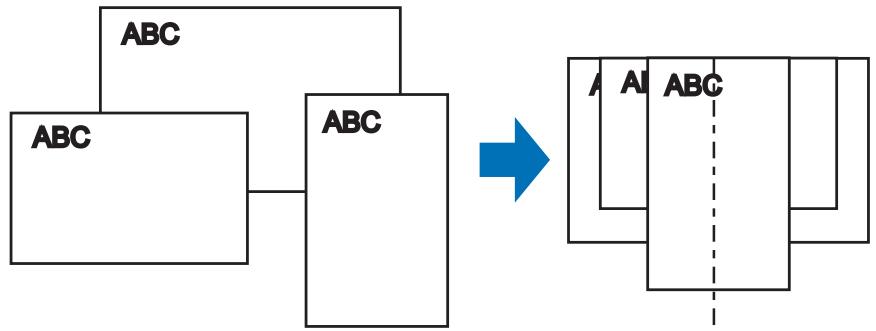
- Place the documents at the center of the ADF paper chute.
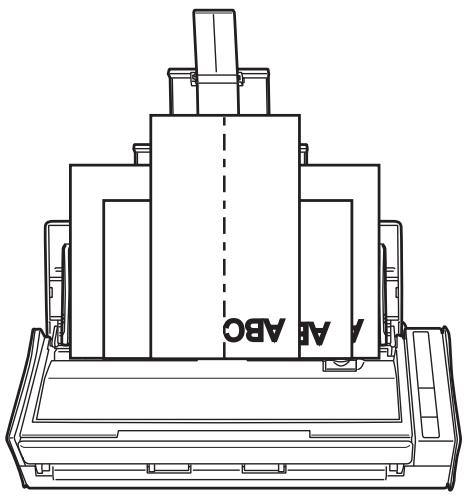
ATTENTION
- Make sure that all documents are placed above the pick roller. Otherwise, some documents will not be picked.
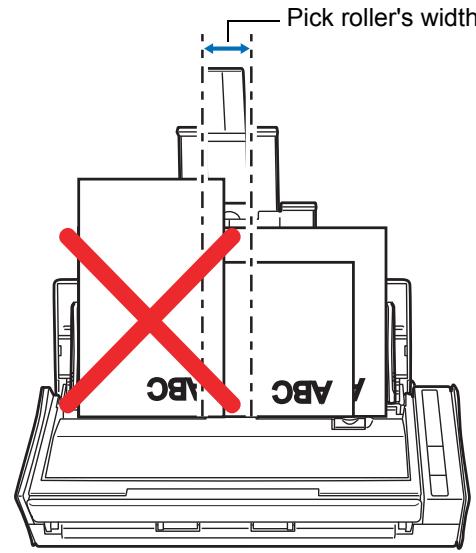
- Adjust the side guides to the widest document in the batch.
- Carefully load small documents that cannot reach the side guide straight into the ADF paper chute (cover). If the documents are skewed during scanning, the quality of scanned image data may be degraded (partly lost image data/slant lines produced) or scanned image data may be output in a different size than the original. If you have difficulties in scanning the documents straight, it is recommended to scan documents in several batches, documents of the same width being in the same batch, and enable continuous scanning.
- Note that documents that cannot be guided by the side guide may cause paper jams.
7. Press the [Scan] button on the ScanSnap to start a scan.
Scanned images are saved in the original document sizes.
![FUJITSU SCANSNAP S1300I DELUXE - Press the [Scan] button on the ScanSnap to start a scan. - 1](/content/2025/01/190766/images/8fb91bc5191da705fb23c62868871871339ca5e20f80db4ea347bd40d2b254b6.jpg)
ATTENTION
If the documents are scanned skewed, the images may not be output in their original sizes.
Long Page Scanning
Documents up to 863 mm (34 in.) in length can be scanned.
The following explains how to scan long pages.
1. Load a document in the ScanSnap.
For details about documents that can be loaded, refer to "Documents for Scanning" (page 31).
ATTENTION
- Long page documents should be loaded one sheet at a time in the ADF paper chute (cover).
- When you scan long pages, take note of the following.
Loading
Hold the document with your hands so that it does not fall out of the ADF paper chute (cover).
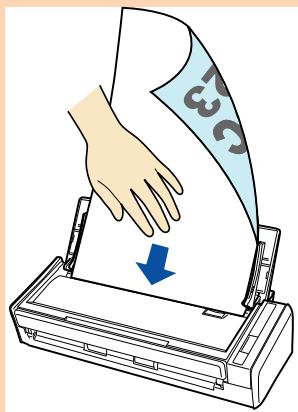
Ejecting
Secure enough space where the documents are ejected from the ScanSnap, and pick up the documents with your hands to prevent them from falling off the unit where the ScanSnap is placed on.
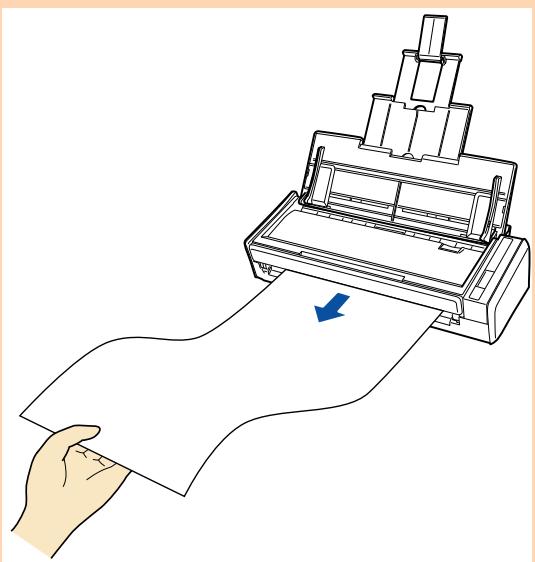
2. Press the [Scan] button on the ScanSnap for 3 seconds or longer until it flashes in blue.
Scanning starts.
HINT
When you scan the first page as a long page and continue scanning, the next document is also scanned as long page.
ATTENTION
- The error message below appears and long page scanning is disabled when [Excellent] is selected in the [Image quality] pop-up menu of the [Scanning] tab in the ScanSnap setup window.

ScanSnap Manager
Long page scanning is not available when [Excellent] is specified for [Image quality].
Select a different item in [Image quality] and try again.
OK
-
When you perform a long page scan, the current settings are ignored and the following settings are used:
-
Multifeed Detection: None
- Paper size: Automatic detection
Saving Scanned Images in Multiple PDF Files
The ScanSnap is able to save scanned image in separate PDF files based on the specified number of pages. For example, you can scan a batch of slips, and save each slip as a PDF file.
To save image data in multiple PDF files, change the settings in the following procedure.
1. Select [Settings] from the ScanSnap Manager menu.
For details about the ScanSnap Manager menu, refer to "ScanSnap Manager Menu" (page 273).
The ScanSnap setup window appears.
2. In the [File format] pop-up menu in the [File option] tab, select [PDF (.pdf)], and then click the [Option] button.
![FUJITSU SCANSNAP S1300I DELUXE - In the [File format] pop-up menu in the [File option] tab, select [PDF (.pdf)], and then click the [Option] button. - 1](/content/2025/01/190766/images/079e05d254e5b842d8300a3c9dd18062a783a476ac5e35ecc38f67f51acf1042.jpg)
The [PDF file format option] window appears.
3. Select [Generate one PDF file per (n) page(s)] and enter the number of pages to split.
One PDF is created every time the number of pages specified here has been saved.
![FUJITSU SCANSNAP S1300I DELUXE - Select [Generate one PDF file per (n) page(s)] and enter the number of pages to split. - 1](/content/2025/01/190766/images/fb5581b614b4d3a9aff69baba1b493a4c533d4fa5cd1244e64fc66389d355191.jpg)
HINT
In duplex mode, two pages (front/back) are created per document. When you select the [Allow automatic blank page removal] checkbox in the [Scanning mode option] window ([Scanning] tab [Option] button), the number of pages of the original document and the scanned image does not match when blank pages are deleted. Clear this checkbox when you want to keep the original page number order.
- Click the [OK] button to close the [PDF file format option] window.
- Click the [Apply] button in the ScanSnap setup window.
- Click the [ ] button in the upper left corner to close the ScanSnap setup window.
- Load a document in the ScanSnap.
For details about how to load documents, refer to "How to Load Documents" (page 33).
- Press the [Scan] button on the ScanSnap to start a scan.
One PDF file is created every time the number of pages specified in step 3. has been scanned.
Creating Searchable PDF Files
The ScanSnap is able to perform text recognition on a scanned image automatically and create a searchable PDF file.
To create searchable PDF files, change the settings in the following procedure.
1. Select [Settings] from the ScanSnap Manager menu.
For details about the ScanSnap Manager menu, refer to "ScanSnap Manager Menu" (page 273).
The ScanSnap setup window appears.
2. In the [File format] pop-up menu in the [File option] tab, select [PDF (.pdf)].
![FUJITSU SCANSNAP S1300I DELUXE - In the [File format] pop-up menu in the [File option] tab, select [PDF (.pdf)]. - 1](/content/2025/01/190766/images/086b98d8ea886a17bc5e71d4666deb0972cf7fb31ff123929a639485f882af53.jpg)
HINT
It is recommended that you select [Better] or [Best] for [Image quality] in the [Scanning] tab of the ScanSnap setup window.
3. Select the [Convert to Searchable PDF] checkbox.
The following message appears.
![FUJITSU SCANSNAP S1300I DELUXE - Select the [Convert to Searchable PDF] checkbox. - 1](/content/2025/01/190766/images/aff4e03b52c18a8cb07ea02ec3d020a0a3329a55990d5af6cf6b154b78600dd5.jpg)
Click the [OK] button to close the window.
![FUJITSU SCANSNAP S1300I DELUXE - Select the [Convert to Searchable PDF] checkbox. - 2](/content/2025/01/190766/images/1b65313ab1b8e58e267a7b076af153a7cfe4137ff1dba81e03f0af47ad7ed6e0.jpg)
Language
Select the language. Japanese, English, French, German, Italian, Spanish, Russian, and Portuguese can be selected.
- Target pages
Select [All pages] to perform text recognition for all pages and [First page] for just the first page.
4. Click the [Apply] button.
5. Click the [ ] button in the upper left corner to close the ScanSnap setup window.
6. Load a document in the ScanSnap.
For details about how to load documents, refer to "How to Load Documents" (page 33).
7. Press the [Scan] button on the ScanSnap to start a scan.
Text recognition is performed on the scanned image and a searchable PDF file is created.
ATTENTION
- It may take extra time to process text recognition depending on your computer system environment when you enable this setting in step 3.
- Scanned images of the following types of documents (characters) may not be recognized correctly.
In that case, better results in text recognition may be achieved by changing the setting for [Color mode] or specifying a higher resolution in [Image quality].
- Documents including handwritten characters.
- Documents with small characters scanned at a low resolution
- Skewed documents
- Documents written in languages other than the specified language
- Documents including texts written in italic characters
- Documents containing characters with superscripts/subscripts and complicated mathematical expressions
- Documents with characters on an unevenly colored background e.g. Shaded characters
- Documents with many decorated characters e.g. Decorated characters (embossed/outlined)
- Documents with characters on a patterned background e.g. Characters overlapping illustrations and diagrams
- Documents with many characters contacting underlines or borders
It may take extra time to perform text recognition on the following documents:
- Documents with complex layouts
- Documents with information other than text e.g. Text on a shaded background
Vertical text can be searched with Adobe Acrobat, but not with Spotlight or Preview.
Automatically Setting Keywords for PDF Files
If the document is black & white, character strings (e.g. page heading, title) can be set as keywords and used for a PDF file search.
Mark a character string to be set as a keyword with a water-based highlight pen so that the character string is completely covered.
When you perform a scan, the marked character strings are recognized and set as keywords for the PDF file.
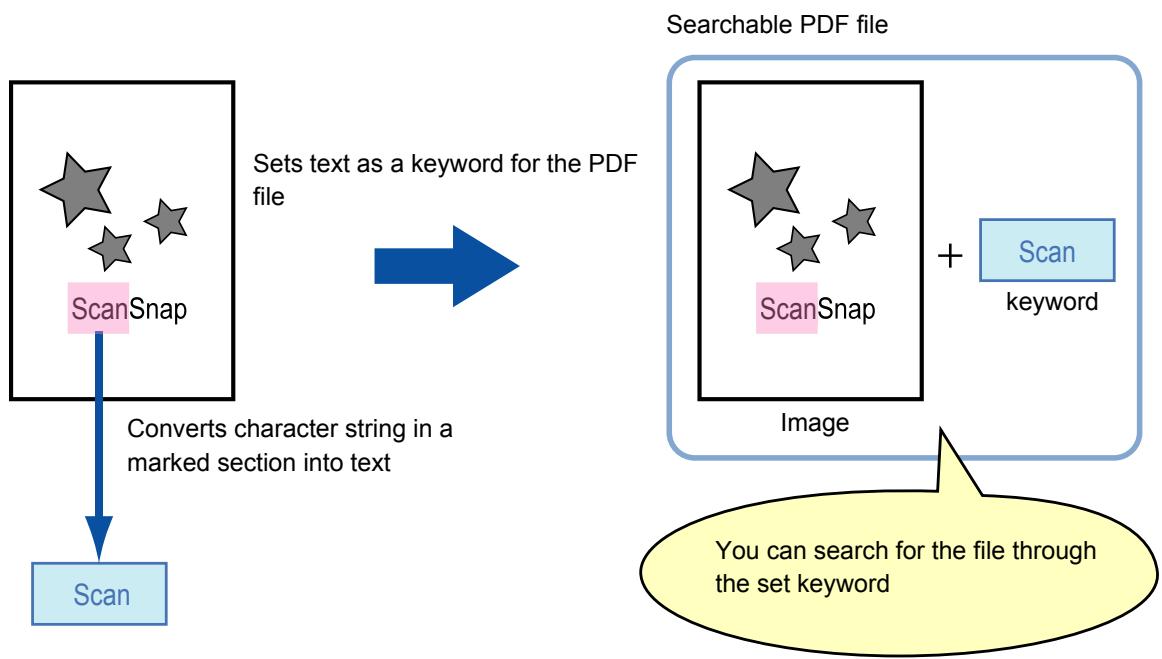
Mark black & white documents in the following way:
- Any regular highlight pen can be used.
The following shows the colors and thickness recommended for highlight pens:
| Pink | Yellow | Blue | Green |
| ScanSnap | ScanSnap | ScanSnap | ScanSnap |
- Mark a straight line over a single character string.
- The supported range of a marked section is as follows:
Minimum: 3mm (short side) × 10mm (long side)
Maximum: 20mm (short side) × 150mm (long side)
-
Use only one color per page for marking.
-
Make sure to cover the entire character string when marking it. Mark sections so that the entire section is evenly colored.
| Good example: | Bad example 1: does not cover the entire section) | Bad example 2: (unevenly colored) |
| ScanSnap | ScanSnap | ScanSnap |
- Do not mark more than ten sections per page.
ATTENTION
- It is recommended that you use a blue or a green highlight pen for marking. When you use colors such as pink or yellow for marking, the marked sections may not be recognized as keywords.
- Use a blue highlight pen for documents with dark background colors such as newspapers. Marked sections may not be detected when a color other than blue is used.
-
For the following documents, marked sections cannot be recognized and set as keywords:
-
Color documents such as catalogues or pamphlets
- Documents in which two or more colors are used for marking
- Documents containing colors other than for marking (pens other than highlight pens are used or the document is stained)
- Documents with too many marked sections on a single page
The following types of marked character strings cannot be set as keywords:
- The size of the marked section is outside the supported range
- The marking is irregular (e.g. skewed)
- Multiple marked sections are too close to each other
- The color of the highlight pen is too pale or the color has faded
ScanSnap
- When you mark more than one character string, make sure to leave a gap of at least 5mm between the marked sections. Marked sections that are too close to each other may be detected as one marked section.
- In the following case, character strings surrounding marked sections may be set as keywords: - Marked section overlaps the line above and below
-
In the following cases, unmarked character strings may be set as keywords:
-
Color documents such as catalogues or pamphlets
- Documents with color text, diagrams, pictures, tables and lines
- Documents containing sections framed by a highlight pen
Stained documents
HINT
- Increase the resolution when you have trouble setting the keywords correctly.
- Keywords set for a PDF file can be checked [Document Properties] of Adobe Acrobat / Adobe Reader or Preview [Inspector].
Change the settings in the following procedure to automatically set keywords for PDF files.
1. Select [Settings] from the ScanSnap Manager menu.
For details about the ScanSnap Manager menu, refer to "ScanSnap Manager Menu" (page 273).
The ScanSnap setup window appears.
2. In the [File format] pop-up menu in the [File option] tab, select [PDF (.pdf)].
![FUJITSU SCANSNAP S1300I DELUXE - In the [File format] pop-up menu in the [File option] tab, select [PDF (.pdf)]. - 1](/content/2025/01/190766/images/ece149ebc046c749a8beec151bbcdf7da8f752db66657cacf3f3e2b047847e01.jpg)
HINT
It is recommended that you select [Better] or [Best] for [Image quality] in the [Scanning] tab of the ScanSnap setup window.
3. Select the [Set the marked text as a keyword for the PDF file] checkbox.
![FUJITSU SCANSNAP S1300I DELUXE - Select the [Set the marked text as a keyword for the PDF file] checkbox. - 1](/content/2025/01/190766/images/f596b70824d87a4b591eb6e87830e494a827af2e2a203b52da94fe0199ba91a3.jpg)
- Target marked sections
Select [First marked section] to perform text recognition and set a keyword for the PDF file only for the character strings in the first marked section, and [All marked sections] for all marked sections.
ATTENTION
Do not select [First marked section] when the text orientation of your document is vertical.
HINT
The following explanation is for when you select [First marked section]:
- Select this button to set a character string such as a title of a document as a keyword for the PDF file.
Example: When only the title of a document is marked, the marked character string is set as a keyword for the PDF file, and the PDF file becomes searchable by the title character string.
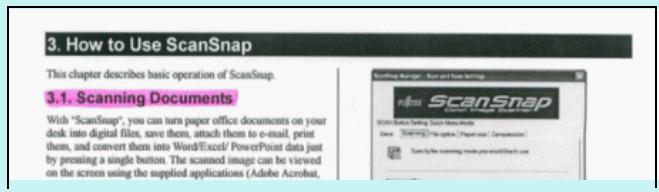
- When multiple marked sections exist in line, the marked character string closest to the top of the document is set as a keyword.
Example: In the following case, the character string in marked section B, which is higher than marked section A, is set as a keyword.
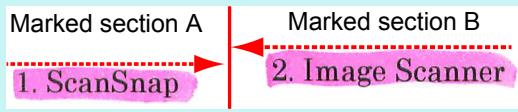
Language
Select the language. Japanese, English, French, German, Italian, Spanish, Russian, and Portuguese can be selected.
- Target pages
Select [First page] to perform text recognition and set a keyword for the PDF file only for the first page, and [All pages] for all pages.
4. Click the [Apply] button.
5. Click the [ ] button in the upper left corner to close the ScanSnap setup window.
6. Load a document in the ScanSnap.
For details about how to load documents, refer to "How to Load Documents" (page 33).
7. Press the [Scan] button on the ScanSnap to start a scan.
Text recognition is performed on marked character strings and a PDF file is created with the keywords added.
ATTENTION
- It may take extra time to process text recognition depending on your computer system environment when you enable this setting in step 3.
- Scanned images of the following types of documents (characters) may not be recognized correctly.
In that case, better results in text recognition may be achieved by specifying a higher resolution in [Image quality].
- Documents including handwritten characters.
- Documents with small characters scanned at a low resolution
- Skewed documents
- Documents written in languages other than the specified language
- Documents including texts written in italic characters
- Documents containing characters with superscripts/subscripts and complicated mathematical expressions
- Documents with characters on an unevenly colored background e.g. Shaded characters
- Documents with many decorated characters e.g. Decorated characters (embossed/outlined)
- Documents with characters on a patterned background e.g. Characters overlapping illustrations and diagrams
- Documents with many characters contacting underlines or borders
It may take extra time to perform text recognition on the following documents:
- Documents with complex layouts
-
Documents with information other than text e.g. Text on a shaded background
-
If the same character string is marked several times in the document, the same keyword is added multiple times in the PDF file.
- Total length of all the keywords can be up to 255 characters.
- When you check keywords in Adobe Acrobat or Adobe Reader, the added keywords may be displayed with a set of quotation marks (e.g. "ABC").
Saving Two Files or Pages into One Double-Page Spread Image
With Page Merger, you can merge two JPEG files, two single-page PDF files, or two pages of a multipage PDF file vertically or horizontally. The merged file or page is saved as a single double-page spread image.
For details about how to merge pages, refer to the ScanSnap Manager Help.
Troubleshooting
For details about how to resolve problems such as removing jammed documents, refer to "Troubleshooting" in the ScanSnap Manager Help.

Select [Help] [Troubleshooting] in the Right-Click Menu.

Select [Help] [Troubleshooting] in the ScanSnap Manager menu.
Daily Care
This chapter explains about the cleaning materials and how to clean the ScanSnap.
ATTENTION
The bottom part of the ScanSnap may become hot when the ScanSnap is being used but this does not affect ScanSnap operation or cause any physical harm. Be careful not to drop the ScanSnap when carrying it.
Cleaning Materials 444
Cleaning the Outside of the ScanSnap 445
Cleaning the Inside of the ScanSnap 446
Cleaning Materials
Cleaning materials and their part numbers are as below.
| Product Name | Part No. | Unit | Note |
| Cleaner F1 | PA03950-0352 | 1 bottle | Size: 100 ml |
| Cleaning Wipe (*1) | PA03950-0419 | 1 pack | 24 packets |
| Lint-free dry cloth (*2) | Commercially available | - | - |
1 : Cleaning Wipes are wet sheets pre-moistened with Cleaner F1 which can be used instead of cloths moistened with Cleaner F1.
2 : Any lint-free cloth can be used.
To obtain these products, contact your FUJITSU dealer or an authorized FUJITSU scanner service provider.
Cleaning the Outside of the ScanSnap
Clean the outside of the ScanSnap in the following procedure.
How to perform cleaning
- Unplug the cables from the ScanSnap.
- Clean the outside of the ScanSnap with a dry cloth, or a cloth moistened with Cleaner F1/mild detergent.
ATTENTION
- Never use paint thinner or any other organic solvents.
- Be careful not to get any moisture or water inside the scanner during cleaning.
- It may take a long time for Cleaner F1 to dry if an excessive amount is used. Moisten the cloth with moderate quantity. Wipe off the cleaner completely to leave no residue on the cleaned parts.
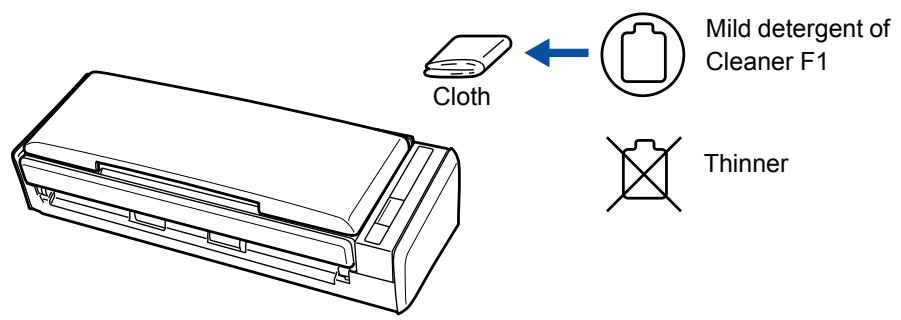
Cleaning the Inside of the ScanSnap
Scanning continuously may cause dust and paper dust to accumulate inside the ScanSnap and result in scanning error.
As a guideline, the inside of the ScanSnap should be cleaned every 200 sheets scanned. Note that this guideline varies depending on the types of documents you scan. For instance, it may be necessary to clean the scanner more frequently when you scan documents on which the toner is not sufficiently fused.
HINT
Check the number of sheets scanned in the following procedure.

Select [Help] [About ScanSnap Manager] [Detail] button in the Right-Click Menu to display the [ScanSnap Manager - Scanner and driver information] dialog box, and then see [Total page count].

Select [Help] [About ScanSnap Manager] [Detail] button in the ScanSnap Manager menu to display the [ScanSnap Manager - Scanner and driver information] window, and then see [Total page count].

- Before you perform cleaning, you must turn off the ScanSnap and unplug the cables to avoid the risk of fire or electric shock.
- Do not place internal parts of the scanner (e.g. pad Assy, pick roller) anywhere within reach of small children.
- Do not use aerosol spray or spray that contains alcohol to clean the scanner. Dust blown up by strong air from the spray may enter inside of the scanner which may cause scanner failure or malfunction.
Also note that sparks generated by static electricity may cause a fire.
- The glasses inside the scanner become very hot when the ScanSnap is being used. Unplug the cables from the ScanSnap and wait for at least 15 minutes before cleaning.

- When you perform cleaning, be careful not to get your hand or the cloth caught on the pick spring (metal part) as a deformed pick spring may cause injury.
How to perform cleaning
- Unplug the cables from the ScanSnap.
- Pull the ADF release tab to open the ADF top section.
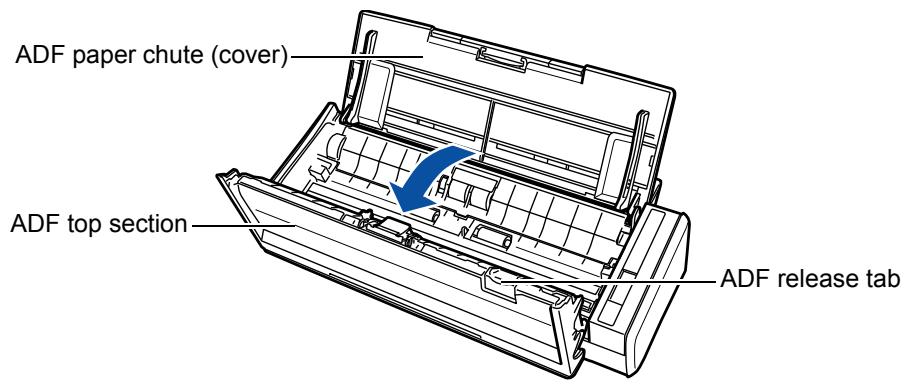
- Clean the following locations with a cloth moistened with Cleaner F1.
ATTENTION
- Do not use water or mild detergent to clean the inside of the ScanSnap.
- It may take a long time for Cleaner F1 to dry if an excessive amount is used. Moisten the cloth with moderate quantity.
Wipe off the cleaner completely to leave no residue on the cleaned parts.
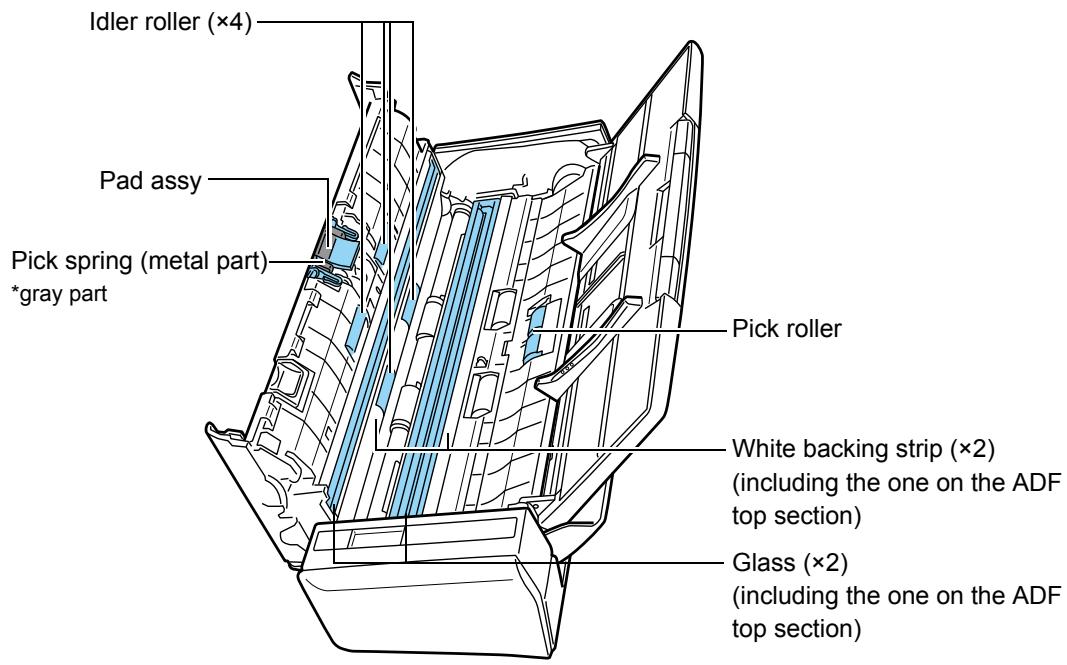
- Pad assay ( × 1 , located on the ADF top section)
Gently wipe the rubber pads downwards. Be careful not to get your hand or the cloth caught on the pick spring (metal part).
- Glass ( × 2 , one on the ADF top section and one on its opposite side)
Gently wipe the dirt and dust off the surface of the glass sections.
- White backing strip ( × 2 , one on the ADF top section and one on its opposite side)
White strips along the edge of the glass. Clean the surface lightly with a soft cloth.
Pick roller (× 1)
Gently wipe the dirt and dust off the roller as you rotate it manually. Be careful not to damage the surface of the rollers. Make sure that it is cleaned properly because residue on the roller will affect the feeding performance.
- Idler roller ( × 4 , located on the ADF top section)
Gently wipe the dirt and dust off the rollers as you rotate them manually. Be careful not to damage the surface of the rollers. Make sure that it is cleaned properly because residue on the roller will affect the feeding performance.
4. Connect the power cable (or the USB bus power cable) to the ScanSnap and the computer, then press the [Scan] button for 3 seconds with the ADF top section open.
ATTENTION
Connect the power cable or the USB bus power cable only when cleaning the feed rollers and eject rollers.
5. Clean the feed roller and the eject roller with a cloth moistened with Cleaner F1.
ATTENTION
- Do not use water or mild detergent to clean the inside of the ScanSnap.
- It may take a long time for Cleaner F1 to dry if an excessive amount is used. Moisten the cloth with moderate quantity.
Wipe off the cleaner completely to leave no residue on the cleaned parts.
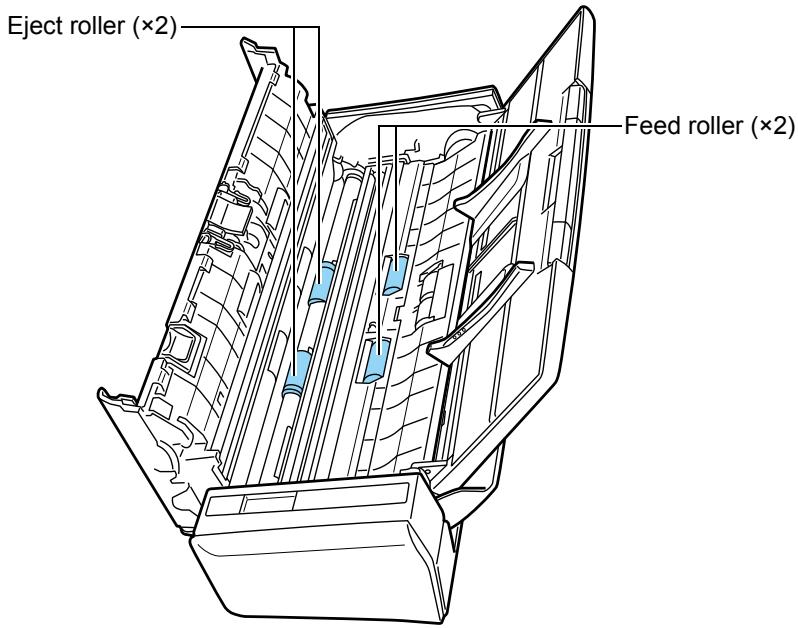
- Feed roller (× 2)
Press the [Scan] button to rotate the roller. Gently wipe the dirt and dust off while taking care not to damage the surface of the rollers. Make sure that it is cleaned properly because residue on the roller will affect the feeding performance.
- Eject roller (× 2)
Press the [Scan] button to rotate the roller. Gently wipe the dirt and dust off while taking care not to damage the surface of the rollers. Make sure that it is cleaned properly because residue on the roller will affect the feeding performance.
HINT
Pressing the [Scan] button seven times will rotate the feed rollers and the eject rollers one revolution.
6. Close the ADF top section.
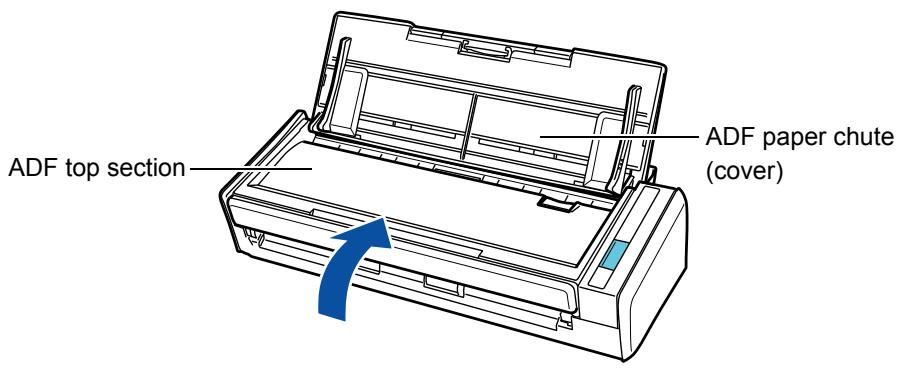
It clicks when it returns to its original position.
ATTENTION
Confirm that the ADF top section is completely closed. Otherwise, paper jams or other feeding errors may occur.
Consumables
This chapter explains about the consumable part numbers, replacement cycles and how to replace the consumables.

- Before you replace the consumables, you must turn off the ScanSnap and unplug the cables to avoid the risk of fire or electric shock.
- To avoid injuries, do not place internal parts of the scanner (e.g. pad assy, pick roller) anywhere within reach of small children.
ATTENTION
The bottom part of the ScanSnap may become hot when the ScanSnap is being used but this does not affect ScanSnap operation or cause any physical harm. Be careful not to drop the ScanSnap when carrying it.
Part Numbers and Replacement Cycle of Consumables 452
Replacing the Pad Assy. 454
Replacing the Pick Roller 458
Part Numbers and Replacement Cycle of Consumables
The following table shows the part numbers of the consumables and the suggested replacement cycles.
| No. | Name | Part No. | Suggested replacement cycle |
| 1 | PAD ASSY | PA03541-0002 | 10,000 sheets or one year |
| 2 | PICK ROLLER | PA03541-0001 | 100,000 sheets or one year |
Note that the suggested replacement cycles are guidelines for using A4 (80 g/m² [20 lb]) wood-free paper, as these cycles vary depending on the type of documents scanned. Only use the specified consumables.
To purchase the consumables, contact your FUJITSU dealer or an authorized FUJITSU scanner service provider.
You can check the status on each consumable part in the following procedure.
Windows
1. Select [Check consumable status] from the Right-Click Menu.
For details about the Right-Click Menu, refer to "Right-Click Menu" (page 71). The [ScanSnap Manager - Check consumable status] dialog box appears.
2. Check the status of each consumable.
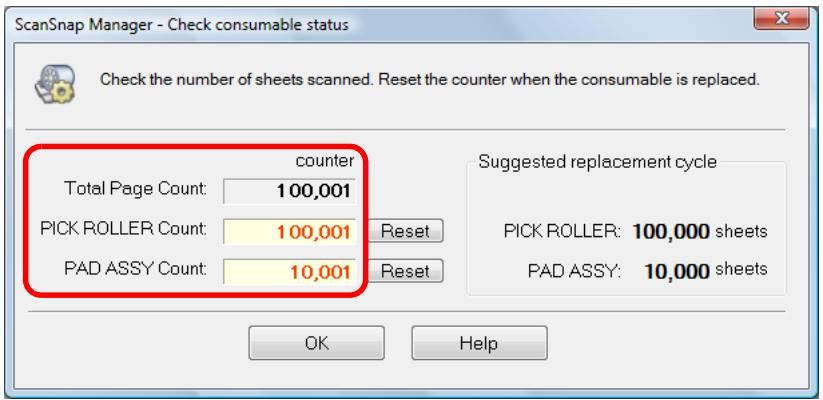
Refer to [Suggested replacement cycle] as a guideline and replace the consumables.
Macos
1. Select [Check consumable status] from the ScanSnap Manager menu.
For details about the ScanSnap Manager menu, refer to "ScanSnap Manager Menu" (page 273).
The [ScanSnap Manager - Check consumable status] window appears.
2. Check the status of each consumable.
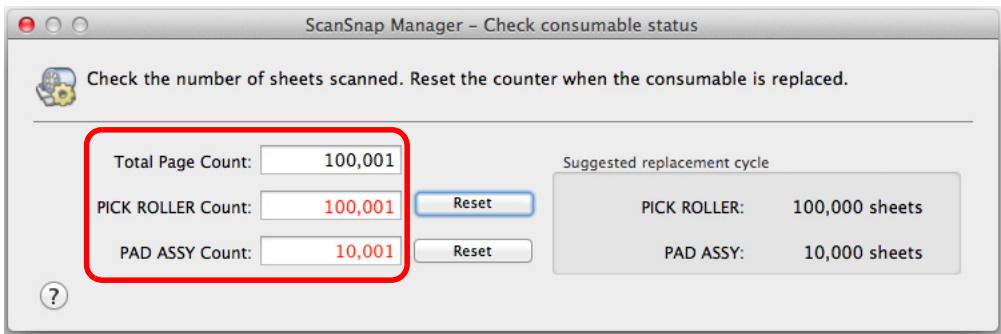
Refer to [Suggested replacement cycle] as a guideline and replace the consumables.
Replacing the Pad Assy
Replace the pad assy in the following procedure.
- Unplug the cables from the ScanSnap.
- Remove all documents from the ADF paper chute (cover).
- Pull the ADF release tab to open the ADF top section.
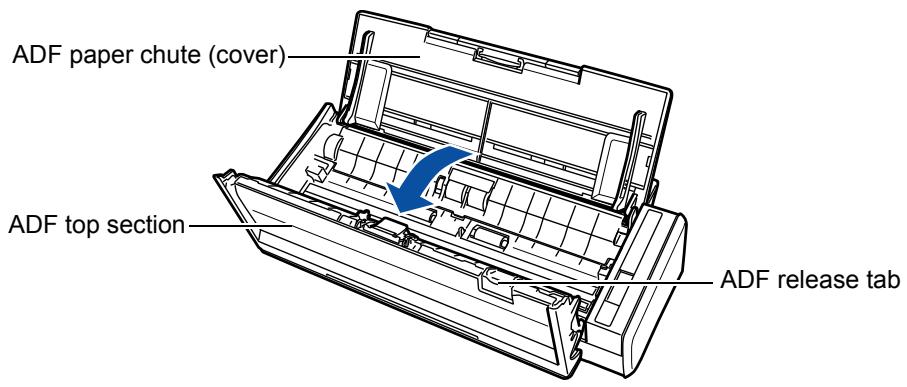
- Remove the pad assy.
Squeeze both ends of the pad assy and pull it out in the direction of the arrow.
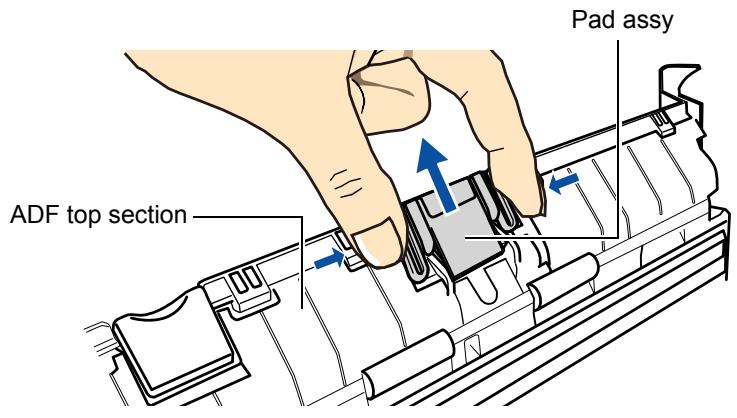
5. Attach the new pad assay while pushing the pad plate down.
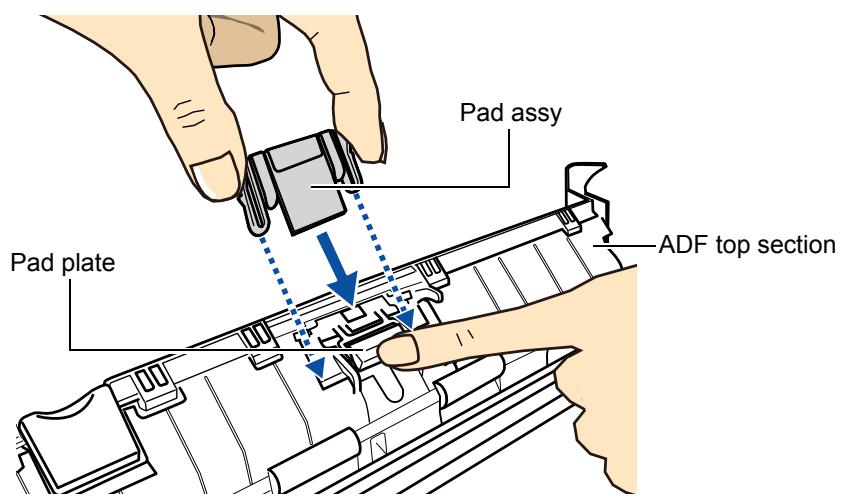
ATTENTION
Make sure to install the pad assy with its front side facing up. Otherwise, paper jams or other feeding errors may occur.
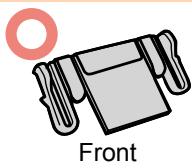
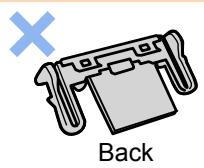
6. Confirm that the pad Assy is completely locked into the retaining hooks.
ATTENTION
Confirm that the pad assay is attached properly. Otherwise, paper jams or other feeding errors may occur.
7. Close the ADF top section.
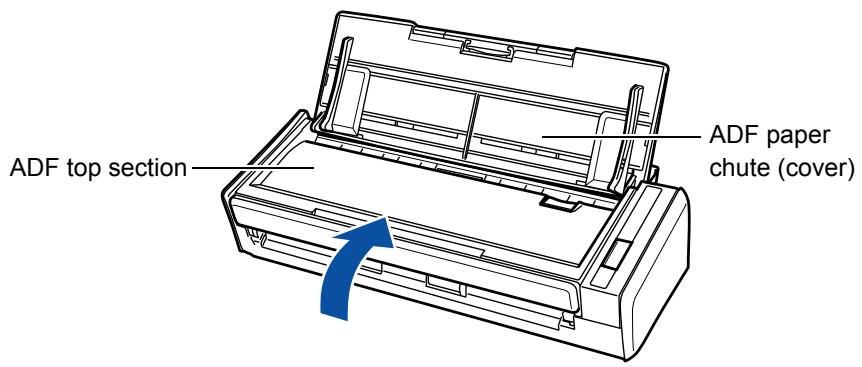
It clicks when it returns to its original position.
8. Connect the power cable or the USB bus power cable, and turn on the ScanSnap.
9. Reset the consumable counter.
Windows
- Select [Check consumable status] from the Right-Click Menu.
For details about the Right-Click Menu, refer to "Right-Click Menu" (page 71).
The [ScanSnap Manager - Check consumable status] dialog box appears.
- Click the [Reset] button for [PAD ASSY Count].
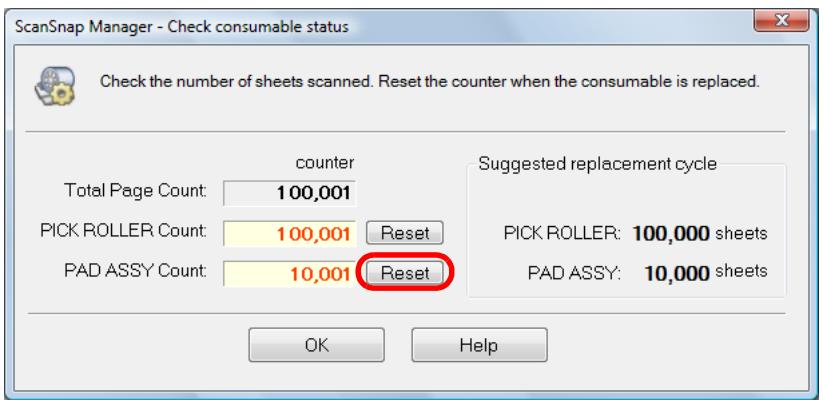
A confirmation message appears.
- Click the [Yes] button.
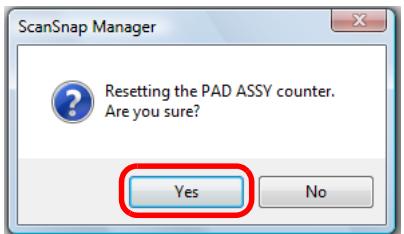
The [PAD ASSY Count] is reset to 0.
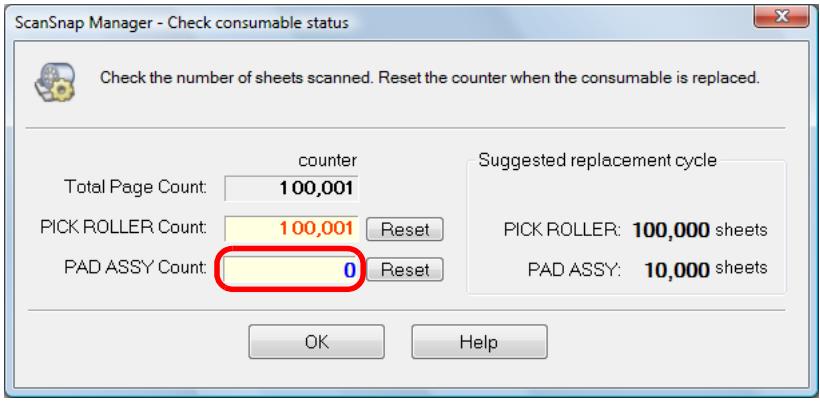
Macos
- Select [Check consumable status] from the ScanSnap Manager menu.
For details about the ScanSnap Manager menu, refer to "ScanSnap Manager Menu" (page 273).
The [ScanSnap Manager - Check consumable status] window appears.
- Click the [Reset] button for [PAD ASSY Count].
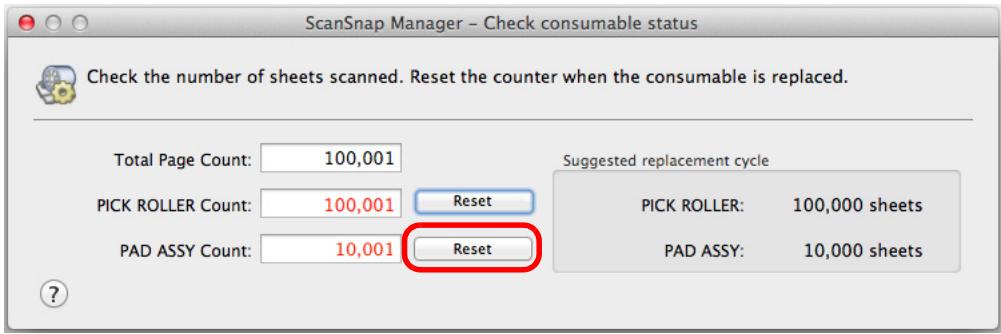
A confirmation message appears.
- Click the [Yes] button.
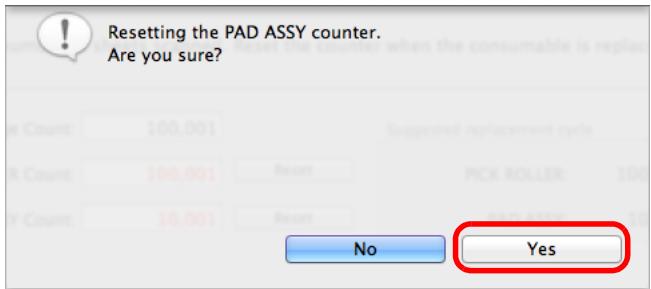
The [PAD ASSY Count] is reset to 0.
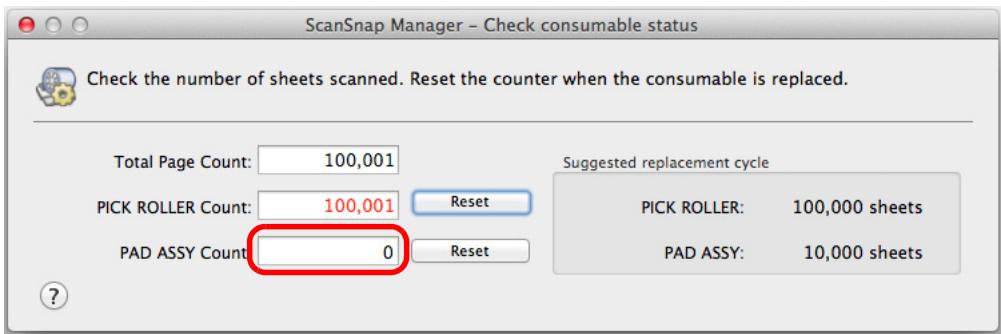
Replacing the Pick Roller
Replace the pick roller in the following procedure.
- Unplug the cables from the ScanSnap.
- Remove all documents from the ADF paper chute (cover).
- Pull the ADF release tab to open the ADF top section.
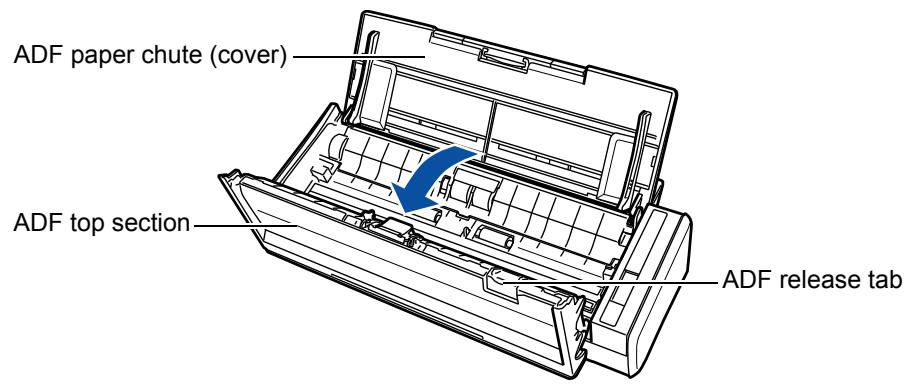
- Remove the sheet guide.
Hold the squeeze clips on both ends, and lift it up and away.
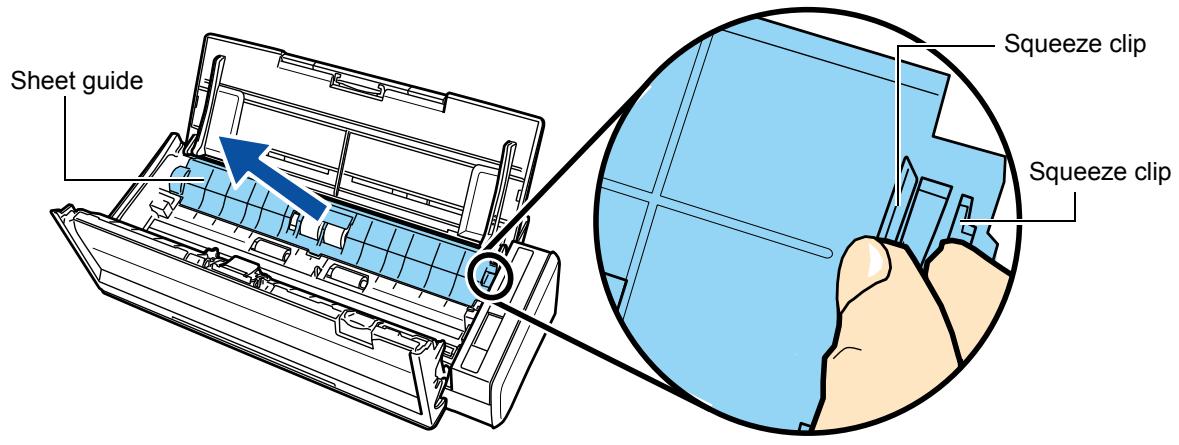
5. Rotate the bushing (left).
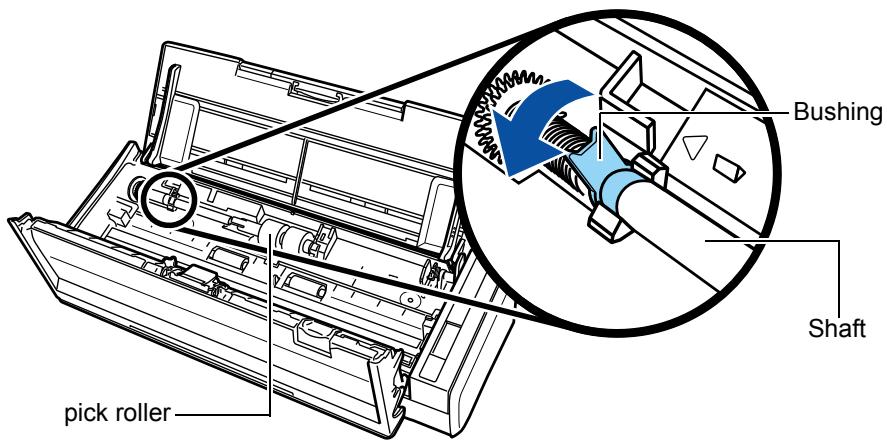
6. Remove the pick roller with its shaft.
Gently lift the left part of the pick roller shaft (about 5mm ), move it towards the left, and then pull it out.
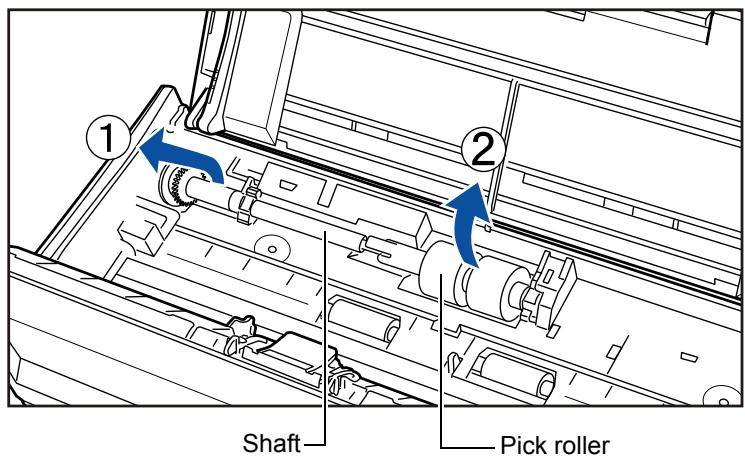
ATTENTION
The area around the pick roller may get dirty due to paper dust, and cause scan errors. Wipe the dirt off with a dry cloth moistened with Cleaner F1 to prevent such errors. Do not use water, mild detergent or aerosol spray.
7. Remove the pick roller from its shaft.
Pull out the shaft as you lift the retaining clip.
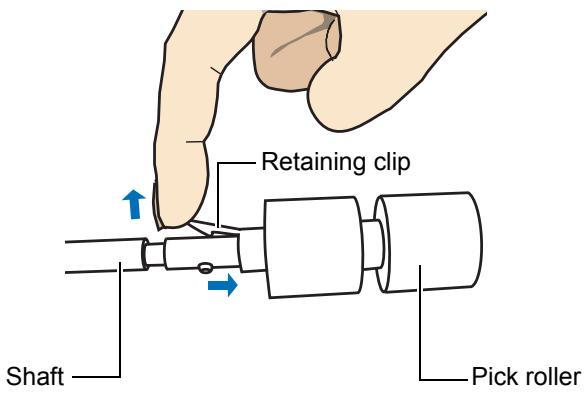
ATTENTION
Lifting the retaining clip with your fingernail may hurt or damage your fingernail. Use a paper clip or something alike if you have trouble lifting it up.
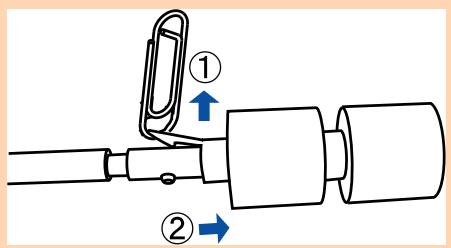
8. Attach a new pick roller on the shaft.
Insert the drive pin on the shaft into the slot.
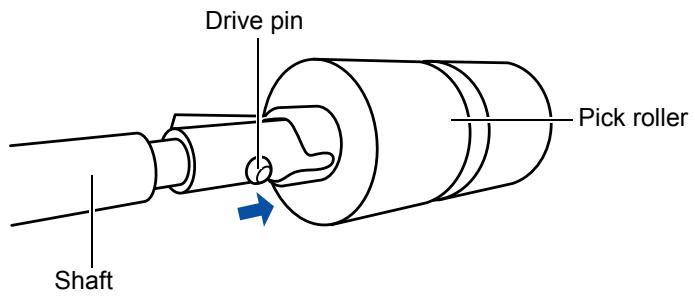
9. Attach the shaft.
Insert the right end of the shaft into the slot, and lower the other end gradually.
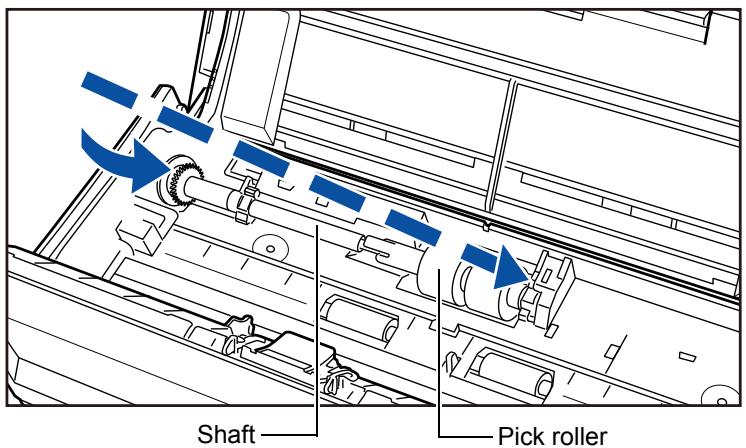
10. Rotate the bushing (left) to lock the shaft.
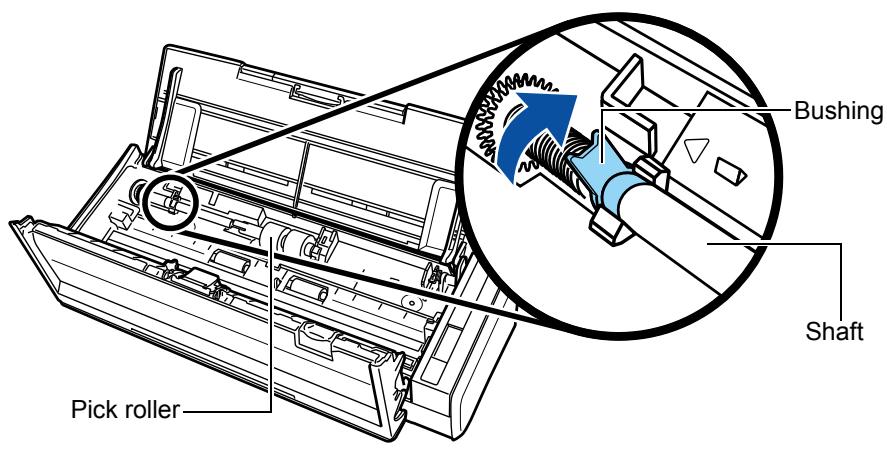
ATTENTION
Confirm that the pick roller is installed properly. Otherwise, paper jams or other feeding errors may occur.
11. Attach the sheet guide.
Hold the squeeze clips on both sides, and attach the sheet guide.
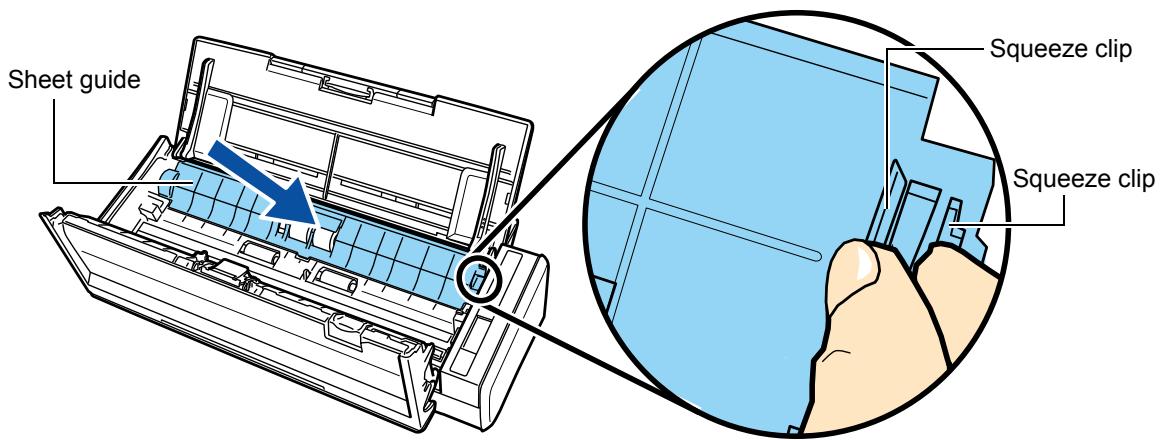
It clicks when the squeeze clips are released.
ATTENTION
Confirm that the sheet guide is attached properly. Otherwise, paper jams or other feeding errors may occur.
12.Close the ADF top section.
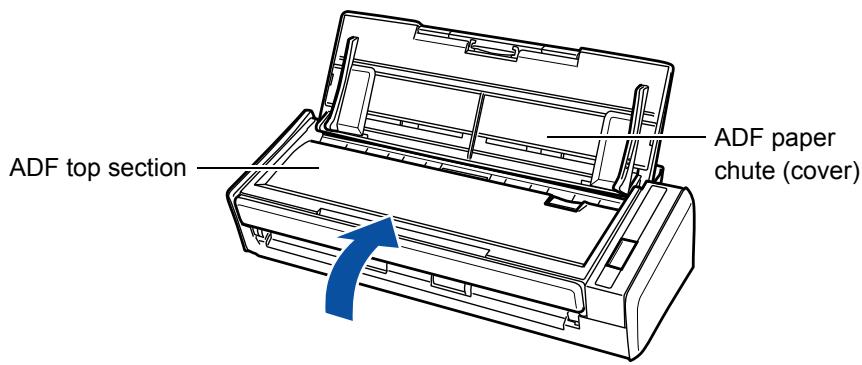
It clicks when it returns to its original position.
13. Connect the power cable to the AC outlet or the USB bus power cable, and turn on the ScanSnap.
14. Reset the consumable counter.
Windows
- Select [Check consumable status] from the Right-Click Menu.
For details about the Right-Click Menu, refer to "Right-Click Menu" (page 71).
The [ScanSnap Manager - Check consumable status] window appears.
- Click the [Reset] button for [PICK ROLLER Count].
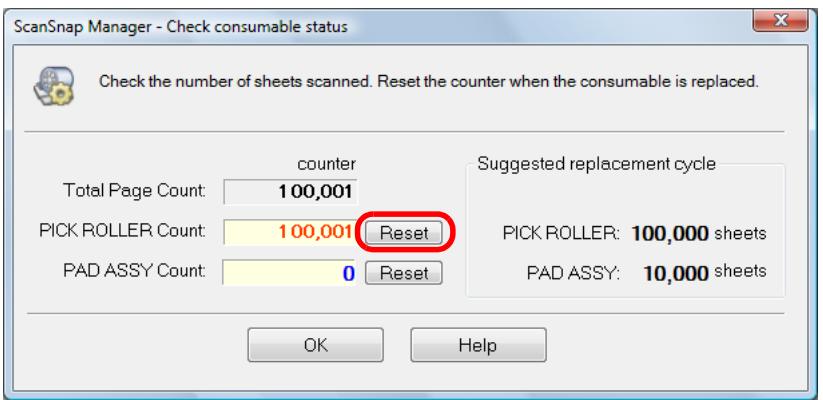
A confirmation message appears.
- Click the [Yes] button.
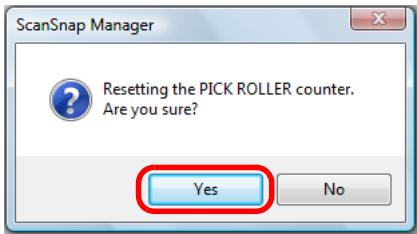
The [PICK ROLLER Count] is reset to 0.
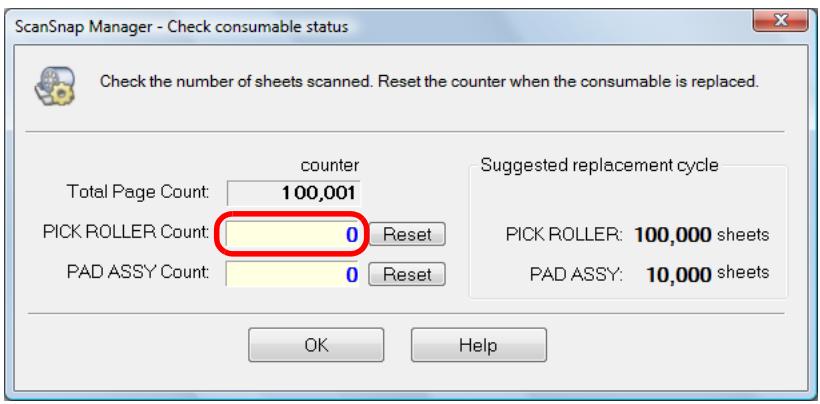
Macos
- Select [Check consumable status] from the ScanSnap Manager menu.
For details about the ScanSnap Manager menu, refer to "ScanSnap Manager Menu" (page 273).
The [ScanSnap Manager - Check consumable status] window appears.
- Click the [Reset] button for [PICK ROLLER Count].
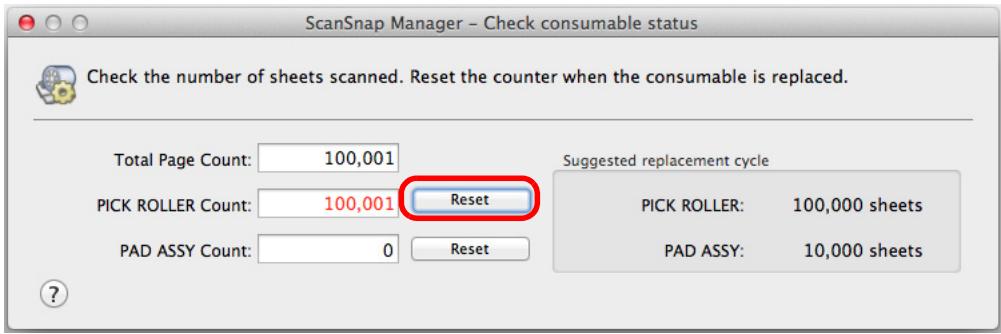
A confirmation message appears.
- Click the [Yes] button.
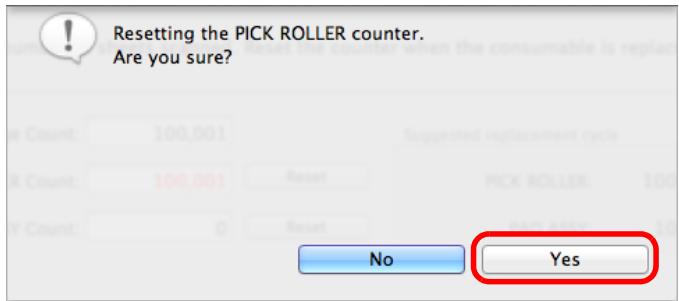
The [PICK ROLLER Count] is reset to 0.
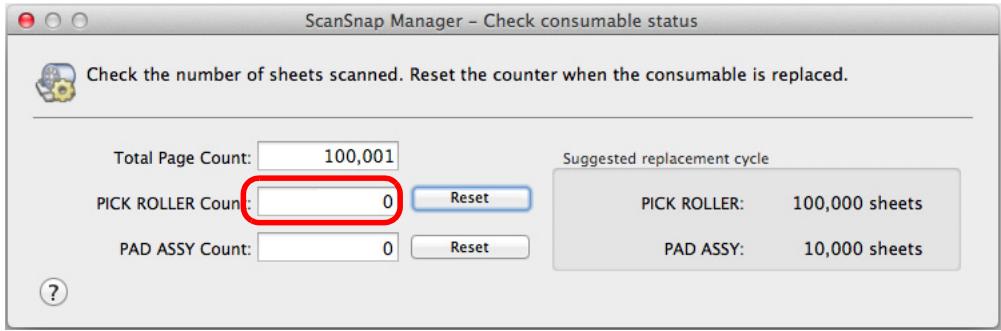
Appendix
This appendix explains how to update ScanSnap Manager, how to uninstall the software, about settings that differ by the scanning method and the ScanSnap installation specifications.
Updating ScanSnap Manager 466
Uninstalling the Software 471
Setting Items With/Without the Quick Menu 478
Installation Specifications 485
Updating ScanSnap Manager
Updates are released regularly in an effort to improve the usability and functionality of ScanSnap Manager.
This section explains how to update ScanSnap Manager.
For details about updates of the software bundled with the ScanSnap, visit the following web page:
http://scansnap.fujitsu.com/g-support/en/
Updating in Windows
Update ScanSnap Manager in the following procedure.
We recommend that you run the update regularly.
ATTENTION
It is necessary to have a browser with Internet access to perform the update.
Always log on as a user with Administrator privileges.
1. Select [Help] [Online Update] from the Right-Click Menu.
For details about the Right-Click Menu, refer to "Right-Click Menu" (page 71).
A confirmation message appears.
HINT
You can also update ScanSnap Manager by selecting [Start] menu [All Programs] [ScanSnap Manager] [Online Update].
2. Click the [Yes] button.
![FUJITSU SCANSNAP S1300I DELUXE - Click the [Yes] button. - 1](/content/2025/01/190766/images/e32e2ebd179c97b005007d1eb24a97be2edab6aeb6d761938ceb140cbc73f7c7.jpg)
If a later version of ScanSnap Manager (update) is available, a confirmation message appears.
HINT
If the latest version of ScanSnap Manager is already installed, the message below appears.
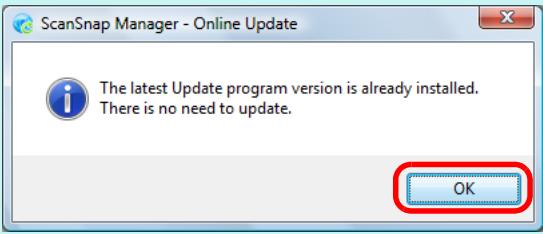
Click the [OK] button to close the message.
3. Click the [Yes] button.
![FUJITSU SCANSNAP S1300I DELUXE - Click the [Yes] button. - 1](/content/2025/01/190766/images/937b5b971c238e38108e98037dd2945e409f35ad9048f4a7e6a3f06a1c41d4b0.jpg)
The program is downloaded, and a confirmation message appears.
4. Click the [Install] button.
![FUJITSU SCANSNAP S1300I DELUXE - Click the [Install] button. - 1](/content/2025/01/190766/images/8c024defee2e2e1a3d95948f83db590cf27a23bd0e875565ed008a38fe3abb53.jpg)
HINT
When you click the [Information] button, Internet Explorer which displays information about the latest update for ScanSnap Manager opens.
Installation starts, and the ScanSnap Manager installer starts up. Follow the instructions on the screen to continue with the installation.
Updating in Mac OS
Update ScanSnap Manager in the following procedure.
We recommend that you run the update regularly.
ATTENTION
It is necessary to have a browser with Internet access to perform the update.
1. Select [Help] [Online Update] from the ScanSnap Manager menu.
For details about the ScanSnap Manager menu, refer to "ScanSnap Manager Menu" (page 273).
A confirmation message appears.
HINT
You can also update ScanSnap Manager by selecting:
- [Help] [Online Update] from the menu bar
- From Finder, [Applications] [ScanSnap] and double-clicking [Online Update].
2. Click the [Yes] button.
![FUJITSU SCANSNAP S1300I DELUXE - Click the [Yes] button. - 1](/content/2025/01/190766/images/d4cc5d7f45fc7d7a0c53cd963af22667a80fd2f71210edf8822eea49b2fb6f89.jpg)
If a later version of ScanSnap Manager (update) is available, a confirmation message appears.
HINT
If the latest version of ScanSnap Manager is already installed, the message below appears.
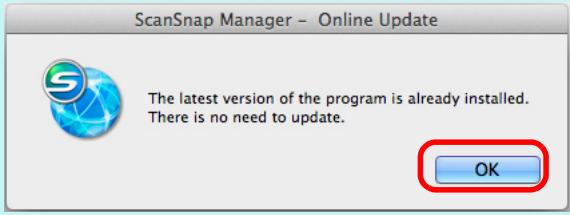
Click the [OK] button to close the message.
3. Click the [Yes] button.
![FUJITSU SCANSNAP S1300I DELUXE - Click the [Yes] button. - 1](/content/2025/01/190766/images/82aba4987e5ad7fbc1ed6e668f07fd65176c8e131666f8c102fa624845c47316.jpg)
The program is downloaded, and a confirmation message appears.
4. Select [Quit] from the ScanSnap Manager menu to exit ScanSnap Manager.
5. Click the [Install] button.
![FUJITSU SCANSNAP S1300I DELUXE - Click the [Install] button. - 1](/content/2025/01/190766/images/6a2ba44565119b9e2414dd70f8a93e478716657542a707a8d6c2a9349a53ea3a.jpg)
HINT
When you click the [Information] button, a web browser which displays information about the latest update for ScanSnap Manager opens.
Installation starts, and the ScanSnap Manager installer starts up.
Follow the instructions on the screen to continue with the installation.
Uninstalling the Software
This section explains how to uninstall the software bundled with the ScanSnap.
For details about installation, refer to "Installing the Software" (page 38).
Uninstalling in Windows
This section explains how to uninstall the following software:
- ScanSnap Manager
- ScanSnap Organizer
CardMinder
ABBYY FineReader for ScanSnap - Evernote for Windows
- Scan to Microsoft SharePoint
The procedure is as follows.
- Turn on the computer and log on as a user with Administrator privileges.
- Exit all running software.
- Select [Start] menu [Control Panel] [Programs] [Programs and Features].
The [Uninstall or change a program] dialog box appears with a list of currently installed software.
4. Select the software to uninstall.
- To uninstall ScanSnap Manager Select [ScanSnap Manager].
- To uninstall ScanSnap Organizer Select [ScanSnap Organizer].
- To uninstall CardMinder Select [CardMinder].
- To uninstall ABBYY FineReader for ScanSnap Select [ABBYY FineReader for ScanSnap (TM) 4.1].
- To uninstall Evernote for Windows Select [Evernote].
- To uninstall Scan to Microsoft SharePoint Select [Scan to Microsoft SharePoint].
HINT
To uninstall more than one software, repeat steps 4. to 6. for each software.
5. Click the [Uninstall] button.
A confirmation message appears.
6. Click the [Yes] button.
The software is uninstalled.
ATTENTION
-
Screen displays may vary slightly depending on the operating system that you are using. In that case, follow the instructions by the operating system. Example:
-
[Programs and Features]
In Windows XP: [Add or Remove Programs] -
[Uninstall] button
In Windows XP: [Remove] button -
If you cannot successfully uninstall the following software, select [Manuals] [Troubleshooting (installation)] in the [ScanSnap Setup] dialog box and refer to Troubleshooting (installation).
-
ScanSnap Manager
- ScanSnap Organizer
- CardMinder
■ Uninstalling in Mac OS
This section explains how to uninstall the following software:
- ScanSnap Manager ( page 473)
ABBYY FineReader for ScanSnap ( page 475)
Cardiris ( page 476) - Evernote for Mac ( page 477)
ScanSnap Manager
- Turn on the computer and log in as a user with Administrator privileges.
- From Finder, select [Applications] and double-click [ScanSnap] [Sub] [ScanSnap Uninstaller].
The [ScanSnap Uninstaller] window appears, displaying the [Welcome to ScanSnap Uninstaller] screen.
3. Click the [Continue] button.
The [Read Me] screen appears.
4. Read [Read Me], and then click the [Uninstall] button.
An authentication window appears.
5. Enter the user name and password for a user with Administrator privileges, and click the [OK] button.
Uninstallation starts. When the uninstallation is complete, the [Uninstall Succeeded] screen appears.
6. Click the [Close] button.
HINT
If ScanSnap Manager has been configured as a login item with a user account other than the current one, remove it in the following procedure:
- Log in under the user account where ScanSnap Manager is set as a login item.
- From the Apple ( ) menu, select [System Preferences].
The [System Preferences] window appears.
-
Select [Users & Groups] ([Accounts] on Mac OS X v10.6 or earlier).
The [Users & Groups] window ([Accounts] window on Mac OS X v10.6 or earlier) appears. -
From [Current User] ([My Account] on Mac OS X v10.6 or earlier), select the currently logged-in user.
-
Select the [Login Items].
A list of login items appears. - From this list, select [ScanSnap Manager].
- Click the [ ] button under the list.
ScanSnap Manager is removed from the list. - Close the [Users & Groups] window ([Accounts] window on Mac OS X v10.6 or earlier).
ABBYY FineReader for ScanSnap
- Turn on the computer and log in as a user with Administrator privileges.
- Exit ABBYY FineReader for ScanSnap if it is running.
One of the following application names is displayed on the menu bar:
- FineReader for ScanSnap
- Scan to Excel
- Scan to Searchable PDF
-
Scan to Word
-
From Finder, select [Applications] [ABBYY FineReader for ScanSnap], and drag the [ABBYY FineReader for ScanSnap] folder into the Trash.
HINT
For Mac OS X v10.5, also perform the following.
From the sidebar in Finder, select the [volume name] [Library] [Receipts], and drag [ABBYY FineReader.png] into the Trash.
- Empty the Trash.
The [ABBYY FineReader for ScanSnap] folder is deleted.
Cardiris
- Turn on the computer and log in as a user with Administrator privileges.
- Exit Cardiris if it is running.
- From Finder, select [Applications] [Cardiris for ScanSnap], and drag the [Cardiris for ScanSnap] folder into the Trash.
HINT
For Mac OS X v10.5, also perform the following. From the sidebar in Finder, select [volume name] [Library] [Receipts], and drag [Cardiris pkg] into the Trash.
- Empty the Trash.
The [Cardiris for ScanSnap] folder is deleted.
Evernote for Mac
- Turn on the computer and log in as a user with Administrator privileges.
- Exit Evernote if it is running.
If the Evernote icon ( ) is displayed on the right side of the menu bar, click the icon and select [Quit] from the menu that appears.
- From Finder, select [Applications] [Evernote], and drag the [Evernote] into the Trash.
- Empty the Trash.
The [Evernote] is deleted.
Setting Items With/Without the Quick Menu
Setting items that you can configure in the ScanSnap setup dialog box/window differ depending on whether you are using the Quick Menu. You can select whether or not to use the Quick Menu according to your preferences.
For details about setting items and default settings, refer to the ScanSnap Manager Help.
Profile
- Profile button
(OK: Available, NA: Not available)
| Setting Item | Quick Menu | |
| Used | Not used | |
| Recommended | OK | NA |
| Small File | OK | NA |
| High Quality | OK | NA |
| Customize | OK | NA |
- Profile
(OK: Available, NA: Not available)
| Setting Item | Quick Menu | |
| Used | Not used | |
| Profile Management | NA | OK |
Application
- Application (*)
(OK: Available, NA: Not available)
| Setting Item | Quick Menu | |
| Used | Not used | |
| None (Scan to File) | NA | OK |
| Windows Adobe® Acrobat® Mac os Adobe Acrobat Pro, Adobe Acrobat Professional or Adobe Acrobat Standard | NA | OK |
| Windows Adobe® Reader® Mac os Adobe Reader | NA | OK |
| Windows CardMinder Mac OS Cardiris | NA | OK |
| Windows ScanSnap Organizer | NA | OK |
| Windows ABBYY Scan to Excel Mac OS Scan to Excel | NA | OK |
| Windows ABBYY Scan to Word Mac OS Scan to Word | NA | OK |
| Windows ABBYY Scan to PowerPoint(R) | NA | OK |
| Windows ABBYY Scan to Searchable PDF Mac OS Scan to Searchable PDF | NA | OK |
| Scan to Folder | NA | OK |
| Scan to E-mail | NA | OK |
| Windows Scan to Picture Folder | NA | OK |
| Scan to Print | NA | OK |
| Windows Rack2-Filer | NA | OK |
| Windows Scan to SharePoint | NA | OK |
| Mac OS Preview | NA | OK |
| Mac OS iPhoto | NA | OK |
| Scan to Dropbox | NA | OK |
| Scan to Evernote (Note) | NA | OK |
| Scan to Evernote (Document) | NA | OK |
| Scan to Google Docs(TM) | NA | OK |
| Scan to Salesforce Chatter | NA | OK |
| Scan to SugarSync | NA | OK |
| Scan to Mobile | NA | OK |
- : When using the Quick Menu, you can start an application to link with ScanSnap Manager from the Quick Menu after scanning. Therefore, the [Application] tab is not displayed.
Save
(OK: Available, NA: Not available)
| Setting Item | Quick Menu | |
| Used | Not used | |
| Image saving folder | OK | OK |
| File Name Format | OK | OK |
| Rename file after scanning | NA | OK |
Scanning
- Image quality
(OK: Available)
| Setting Item | Quick Menu | |
| Used | Not used | |
| Automatic resolution | OK | OK |
| Normal (Color/Gray: 150 dpi, B&W: 300 dpi) | OK | OK |
| Better (Color/Gray: 200 dpi, B&W: 400 dpi) | OK | OK |
| Best (Color/Gray: 300 dpi, B&W: 600 dpi) | OK | OK |
| Excellent (Color/Gray: 600 dpi, B&W: 1200 dpi) | OK | OK |
Color mode
(OK: Available, NA: Not available)
| Setting Item | Quick Menu | |
| Used | Not used | |
| Auto color detection | OK | OK |
| Color | OK | OK |
| Gray | OK | OK |
| B&W | OK | OK |
| Windows Color high compression | NA | OK |
- Scanning side
(OK: Available)
| Setting Item | Quick Menu | |
| Used | Not used | |
| Duplex scan | OK | OK |
| Simplex scan | OK | OK |
- Continue scanning after current scan is finished
(OK: Available)
| Setting Item | Quick Menu | |
| Used | Not used | |
| Continue scanning after current scan is finished | OK | OK |
- Option
(OK: Available)
| Setting Item | Quick Menu | |
| Used | Not used | |
| Brightness (Black and White scanning only) | OK | OK |
| Setting for text only document | OK | OK |
| Allow automatic blank page removal | OK | OK |
| Correct skewed character strings automatically | OK | OK |
| Allow automatic image rotation | OK | OK |
| Windows Set the document with its face up | OK | OK |
File option
- File format
(OK: Available)
| Setting Item | Quick Menu | |
| Used | Not used | |
| PDF(*.pdf) | OK | OK |
| JPEG (*.jpg) | OK | OK |
- Set the marked text as a keyword for the PDF file
(OK: Available)
| Setting Item | Quick Menu | |
| Used | Not used | |
| First marked section | OK | OK |
| All marked sections | OK | OK |
- Convert to Searchable PDF
(OK: Available)
| Setting Item | Quick Menu | |
| Used | Not used | |
| Convert to Searchable PDF | OK | OK |
Language
(OK: Available)
| Setting Item | Quick Menu | |
| Used | Not used | |
| Language | OK | OK |
Target pages
(OK: Available)
| Setting Item | Quick Menu | |
| Used | Not used | |
| First page | OK | OK |
| All pages | OK | OK |
- Option
(OK: Available, NA: Not available)
| Setting Item | Quick Menu | |
| Used | Not used | |
| Multipage PDF (whole batch in one PDF) | OK | OK |
| Generate one PDF file per (n) page(s) | OK | OK |
| Windows Set a password for PDF file | NA | OK |
Paper
- Paper size
(OK: Available)
| Setting Item | Quick Menu | |
| Used | Not used | |
| Automatic detection | OK | OK |
| A4 (210 × 297 mm) | OK | OK |
| A5 (148 × 210 mm) | OK | OK |
| A6 (105 × 148 mm) | OK | OK |
| B5 (JIS) (182 × 257 mm) | OK | OK |
| B6 (JIS) (128 × 182 mm) | OK | OK |
| Post card (100 × 148 mm) | OK | OK |
| Business card (90 × 55 mm, 55 × 90 mm) | OK | OK |
| Letter (8.5 × 11 in. (216 × 279.4 mm)) | OK | OK |
| Legal (8.5 × 14 in. (216 × 355.6 mm)) | OK | OK |
- Customize
(OK: Available)
| Setting Item | Quick Menu | |
| Used | Not used | |
| Customize | OK | OK |
- Multifeed
(OK: Available)
| Setting Item | Quick Menu | |
| Used | Not used | |
| None | OK | OK |
| Check Length | OK | OK |
Compression
- Compression rate
(OK: Available)
| Setting Item | Quick Menu | |
| Used | Not used | |
| 1 | OK | OK |
| 2 | OK | OK |
| 3 | OK | OK |
| 4 | OK | OK |
| 5 | OK | OK |
Installation Specifications
The following table summarizes the installation specifications of the ScanSnap.
| Item | Specification | ||
| Outer dimensions (Width × Depth × Height) | Minimum: 284 × 99 × 77 (mm) / 11.2 × 3.9 × 3.1 (in.) (when the ADF paper chute cover is closed) Maximum: 284 × 231 × 240 (mm) / 11.2 × 9.1 × 9.4 (in.) (when the ADF paper chute cover is open and the extension is extended) | ||
| Weight | 1.4 kg (approx. 3.09 lb) | ||
| Input power | Voltage | Power cable connection | 100 to 240 V |
| USB bus power cable connection | 5 V (the computer must have two USB ports: one for power connection and one for USB cable connection) | ||
| Phase | Single phase | ||
| Frequency range | 50/60 Hz | ||
| Power consumption | Power cable connection | During operation: 9.0 W or less During standby: 3.2 W or less | |
| USB bus power cable connection | During operation: 5.0 W or less During standby: 2.0 W or less | ||
| Temperature/humidity allowable ranges | Temperature | During operation: 5 to 35°C / 41 to 95°F During standby: -20 to 60°C / -4 to 140°F During storage/transportation: -20 to 60°C / -4 to 140°F | |
| Humidity | During operation: 20 to 80% During standby: 8 to 95% During storage/transportation: 8 to 95% | ||
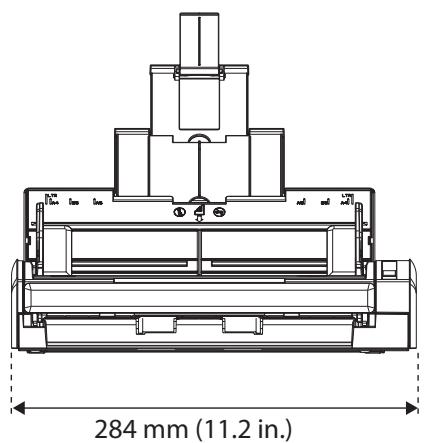
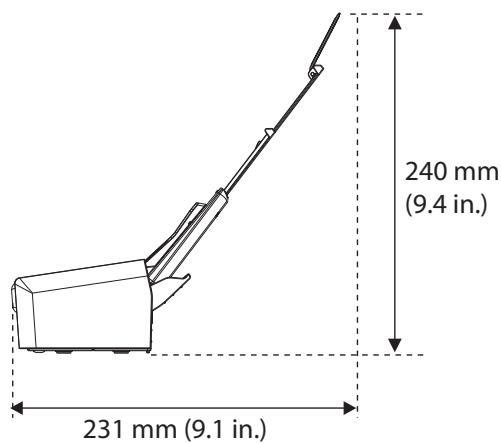
About Maintenance
Contact your FUJITSU scanner dealer or an authorized FUJITSU scanner service provider for repairs on this product.
ATTENTION
Do not perform repairs on this scanner.
Index

A
ABBYY FineReader for
ScanSnap 39,43,58
actions
Windows 109
Mac OS 308
adding profiles
Windows 94
Mac OS 294
ADF paper chute (cover) 22
ADF release tab 22
ADF top section 22
automatic image rotation
Windows 250
Mac OS 423
automatic linkage
Windows 102
Mac OS 303
C
Cardiris 39,58,341,343
Address Book 346
CardMinder 39,43,154,156
Cleaner F1 444
cleaning
cleaning materials 444
inside of the ScanSnap 446
outside of the ScanSnap 445
Cleaning Wipe 444
color high compression 243
configuring ScanSnap Manager
Windows 86
Mac OS 287
consumables 452
copy
Windows 128
Mac OS 325
correct skewed character strings
Windows 248
Mac OS 420
D
deleting blank pages
Windows 245
Mac OS 417
deleting profiles
Windows 101
Mac OS 301
documents for scanning
Dropbox for Mac 40, 62
Dropbox for Windows 40, 47
E
Evernote for Mac 39,64
Evernote for Windows 39, 49
Exiting ScanSnap Manager
Windows 85
Mac OS 286
extension 22
G
generate one PDF file per (n) page(s)
Windows 257
Mac OS 431
H
how to load documents 33
how to perform a scan
Windows 74, 75, 81
Mac OS 276, 277, 282
1
installation 38
iPhoto 349, 351
K
keyword
Windows 262, 264
Mac OS 436, 438
L
Left-Click Menu 73
M
marker
Windows 262
Mac OS 436
0
online update
Windows 466
Mac OS 469
operating system
Windows 24
Mac OS 27
operation flow 36
P
pad assay 452
pick roller 452
power connector 23
Profile menu 275
Q
Quick Menu
Windows 78
Mac OS 279
R
Rack2-Filer 169
Rack2-Filer V5.0 trial version 40
renaming profiles
Windows 99
Mac OS 299
replacing the pad assay 454
replacing the pick roller 458
Right-Click Menu 71
s
[Scan] button 22
Scan to Dropbox
Windows 189, 191
Mac OS 371, 373
Scan to E-mail
Windows 119, 123
Mac OS 318, 321
Scan to Evernote (Document)
Windows 196, 198
Mac OS 378, 379
Scan to Evernote (Note)
Windows 203, 204
Mac OS 383, 385
Scan to Excel
Windows 148, 150
Mac OS 336, 337
Scan to Folder
Windows 111
Mac OS 310
Scan to Google Docs
Windows 209, 211
Mac OS 389, 392
Scan to Microsoft SharePoint 39, 53
Scan to Mobile
Windows 177, 180, 182
Mac OS 355, 359, 361, 365
Scan to Picture Folder 137, 139
Scan to PowerPoint(R) 148, 150
Scan to Print
Windows 130, 132
Mac OS 327, 328
Scan to Rack2-Filer 171, 172
Scan to Salesforce Chatter
Windows 217, 220
Mac OS 398, 401
Scan to SharePoint 160
Scan to SugarSync
Windows 227, 229
Mac OS 408, 410
Scan to Word
Windows 148, 150
Mac OS 336, 337
scanning color documents in black &
white or gray mode
Windows 242
Mac OS 415
ScanSnap features
ScanSnap Folder
ScanSnap Manager
Windows 43, 70
Mac OS 58,272
ScanSnap Manager Menu
ScanSnap Organizer
[ScanSnap Setup] dial
ScanSnap setup dialog box
ScanSnap setup window
[ScanSnap] window
ScanSnap's communication status
Windows 105
Mac OS 304
security cable slot
shared folder
Windows 110
Mac OS 309
showing the scanning progress status
Windows 107
Mac OS 306
side guide
simplex scan
Windows 240
Mac OS 413
sleep mode
SugarSync Manager for Mac
SugarSync Manager for Windows
system requirements
Windows 24
Mac OS 27
T
trial software 55
turning ON/OFF
ScanSnap 29,30
U
uninstalling
Windows 471
Mac OS 473
updating
Windows 466
Mac OS 469
USB connector
ScanSnap S1300i
Operator's Guide
P3PC-3662-01ENZO
Issue date: March 2012
Issued by: PFU LIMITED
- The contents of this manual are subject to change without notice.
- PFU LIMITED assumes no liability for incidental or consequential damages arising from the use of this product, and any claims by a third party.
- Copying of the contents of this manual, in whole or in part, as well as the scanner applications is prohibited under the copyright law.