 ManualGo.com
VSX 531 - AV Receiver PIONEER - Free user manual and instructions
Find the device manual for free VSX 531 PIONEER in PDF.



Download the instructions for your AV Receiver in PDF format for free! Find your manual VSX 531 - PIONEER and take your electronic device back in hand. On this page are published all the documents necessary for the use of your device. VSX 531 by PIONEER.
USER MANUAL VSX 531 PIONEER
AV Receiver / Amplificateur AV VSX-531 Front Speakers, Center Speaker Front speakers output front stereo sound and a center speaker outputs center sound such as dialogs and vocals. The optimal positioning is for front speakers to be at ear height. Center speaker should be set up facing the listening position.
Surround Speakers Surround speakers create back sound field. The optimal positioning is just above ear height.
Subwoofer Subwoofer reproduces bass sounds and creates rich sound field. Place it anywhere in the front of the listening position. Placing it between the center speaker and either of the front speakers enables more natural playback of music sources.
Make sure the exposed wires of the speakers do not stick out of the speaker terminals when connecting. If the exposed wires of the speakers touch the rear panel or the + and - wires touch each other, the protection circuit will be activated.
TV–1 (ARC TV) / TV–1 (TV ARC) / TV–1 (TV ARC)
This describes the connections for a TV that supports the ARC (Audio Return Channel) feature. With this connection, set ARC to ON in “HDMI Setup (> 12)”. To hear audio from the TV, press TV on the remote control. 0 This unit does not support linked operations with other devices. 0 Please refer to the TV's operation manual for directions on connections and setup for the TV. TV–2 (Non-ARC TV) / TV–2 (TV Non-ARC) / TV–2 (TV no ARC)
This describes the connections for a TV that does not support the ARC (Audio Return Channel) feature. Connect using an optical cable along with a HDMI cable. To hear audio from the TV, press TV on the remote control. 0 Please refer to the TV's operation manual for directions on connections and setup for the TV.
To play the player, press INPUT SELECTOR on the remote control with the same name as the jack to which you connected the player so that the input on the unit is selected. 0 This unit does not support linked operations with other devices.
Connect using a coaxial cable or analog audio cable. To play the player, press CD on the remote control.
1-2 Coaxial cable/Câble coaxial/Cable coaxial
Move the antenna around while playing the radio to find the position with the best reception. Use a thumb tack or similar to attach the FM wire antenna to a wall.
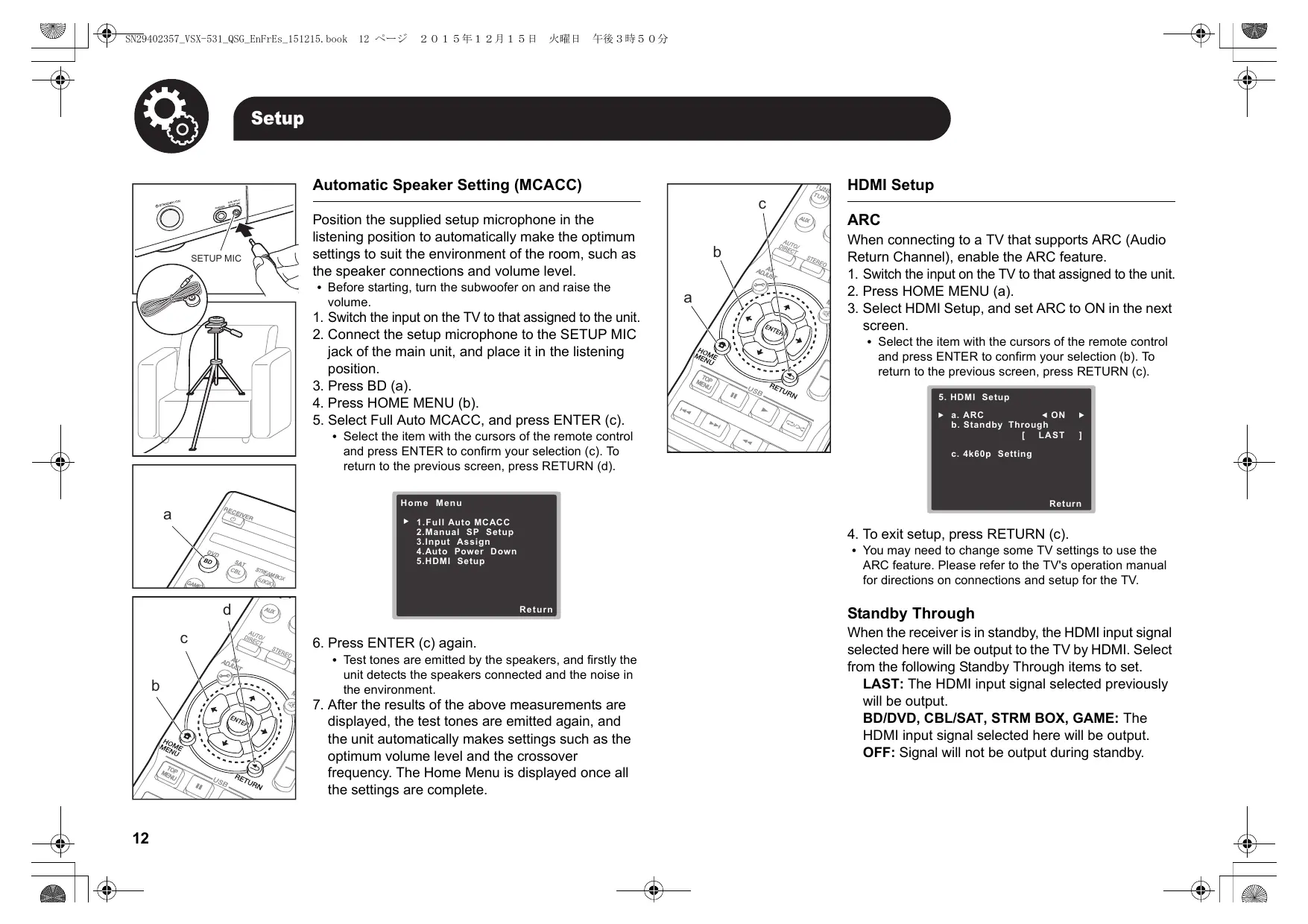
Connect the power cord to the power outlet after completing all other connections. Switch between on and standby using Í RECEIVER on the remote control or Í STANDBY/ON on the main unit. Setup Automatic Speaker Setting (MCACC) SETUP MIC HDMI Setup
Position the supplied setup microphone in the listening position to automatically make the optimum settings to suit the environment of the room, such as the speaker connections and volume level. 0 Before starting, turn the subwoofer on and raise the volume.
1. Switch the input on the TV to that assigned to the unit.
2. Connect the setup microphone to the SETUP MIC
jack of the main unit, and place it in the listening position.
3. Press BD (a).
4. Press HOME MENU (b).
5. Select Full Auto MCACC, and press ENTER (c).
0 Select the item with the cursors of the remote control and press ENTER to confirm your selection (c). To return to the previous screen, press RETURN (d).
ARC When connecting to a TV that supports ARC (Audio Return Channel), enable the ARC feature.
1. Switch the input on the TV to that assigned to the unit.
2. Press HOME MENU (a).
3. Select HDMI Setup, and set ARC to ON in the next
screen. 0 Select the item with the cursors of the remote control and press ENTER to confirm your selection (b). To return to the previous screen, press RETURN (c).
5. HDMI Setup
a. ARC b. Standby Through LAST Home Menu
4. To exit setup, press RETURN (c).
0 You may need to change some TV settings to use the ARC feature. Please refer to the TV's operation manual for directions on connections and setup for the TV. R etu r n
6. Press ENTER (c) again.
0 Test tones are emitted by the speakers, and firstly the unit detects the speakers connected and the noise in the environment.
7. After the results of the above measurements are
displayed, the test tones are emitted again, and the unit automatically makes settings such as the optimum volume level and the crossover frequency. The Home Menu is displayed once all the settings are complete.
c. 4k60p Setting Standby Through When the receiver is in standby, the HDMI input signal selected here will be output to the TV by HDMI. Select from the following Standby Through items to set. LAST: The HDMI input signal selected previously will be output. BD/DVD, CBL/SAT, STRM BOX, GAME: The HDMI input signal selected here will be output. OFF: Signal will not be output during standby. Listening To the Radio
1. Switch the input on the TV to that assigned to the
2. Press INPUT SELECTOR (a) on the remote
control with the same name as the jack to which you connected the player to switch the input.
3. Start play on the player.
4. Use VOLUME i/j (b) to adjust the volume.
1. Press TUN (a).
2. Press BAND (b) several times to select either AM
3. Press and hold TUNEi or TUNEj (c) for about a
second to start automatic tuning to a radio station. Tuning stops when one is found.
0 You can switch the audio to suit the connected cable. Press AUDIO SEL (c) to select H (HDMI cable), C1 (coaxial cable), O1 (optical cable), or A (analog audio cable). You can preset up to 30 stations.
1. Tune into the AM/FM radio station you want to
2. Press EDIT (d) so that the preset number on the
3. Press PRESETi or PRESETj (e) to select a
number between 1 and 30 while the preset number is flashing.
4. Press ENTER (f) to confirm.
About Listening Modes You can wirelessly enjoy music files stored in a smartphone or other BLUETOOTH-enabled device. The coverage area is about 33 feet (10 meters).
0 Note that connection is not always guaranteed with all BLUETOOTH-enabled devices.
1. Press BT (a).
2. Enable (turn on) the BLUETOOTH function of the
BLUETOOTH-enabled device.
3. On the screen, etc., of the BLUETOOTH-enabled
device, select “Pioneer AV Receiver”. After a short time “CONNECT” is displayed and pairing is completed. The default setting is for the EXT.STEREO mode to be selected which plays a stereo image from the front and rear, irrespective of the input audio format. ALC/STANDARD button (a) You can select the Dolby Digital and DTS listening modes. When the input signal is multi-channel, the listening mode switches to Dolby Digital or DTS-HD MasterAudio, for example, to suit the input audio format. When the input signal is 2-channel, you can select the DOLBY PRO LOGIC, DOLBY PLII MOVIE/ MUSIC/GAME and NEO:6 CINEMA/MUSIC listening modes which expand playback to 5.1 channels. Select STEREO ALC to play at a balanced level even when there are differences in sound level between tracks, for example.
0 If a password is requested, enter “0000”.
4. Play some music on the BLUETOOTH-enabled
device. Increase the volume of the BLUETOOTHenabled device to an appropriate level. Playing a USB Device
Play music files on a USB storage device. This unit supports play of WMA/MP3/MPEG-4 AAC music files. 0 Note that operation is not guaranteed with all USB storage devices.
1. Switch the input on the TV to that assigned to the
2. Press USB (a).
3. Connect the USB storage device to the USB port
on the main unit. 0 Play of the first file starts automatically when the USB storage device is detected.
4. To play another file, press RETURN (b) to display
the list of files and folders on the TV, then use the cursors to select and ENTER to confirm (c). 0 If characters that cannot be read are recorded on the USB file, they are replaced with marks.
You can select listening modes such as AUTO SURROUND, DIRECT, and PURE DIRECT that play the sound field according to the number of channels in the input signal. The DIRECT mode bypasses circuits that can affect sound quality, such as the tone control circuits, so you can enjoy even better sound quality. The PURE DIRECT mode allows you to shut down additional circuits and processing that affect sound quality. STEREO button (c) You can select the STEREO mode to playback only from the front speakers and subwoofer. ADV SURR button (d) You can select original surround modes such as the EXT.STEREO and DRAMA modes. Press STATUS (e) several times to check various settings in the following order: listening mode # volume # input audio format # input source.
Important: The listening modes may not be available depending on the current source, settings and status of the receiver.
3. When you see RESET? appear in the display,
press AUTO SURROUND/STREAM DIRECT. OK? shows in the display.
4. Press ALC/STANDARD SURR to confirm.
Troubleshooting You can also see which audio format is being input by checking the indicators in the lower part of the display. This unit is compatible with the following digital audio formats. (with HDMI connection) 0 Dolby Digital 0 Dolby Digital Plus 0 Dolby TrueHD 0 DTS 0 DTS 96/24 0 DTS Express 0 DTS-HD MasterAudio 0 PCM (32 kHz to 192 kHz sampling frequencies) 0 SACD (DSD 2ch only) 0 DVD Audio (including 192 kHz) 0 When a sound can not be heard from center and rear speakers, press ALC/STANDARD or ADV SURR to change listening modes. E.g.) Press ADV SURR for several times to select EXT.STEREO. 0 In order to listen to the audio from the source component that is connected to this receiver, press AUDIO SEL to select H (HDMI cable), C1 (coaxial cable), O1 (optical cable), or A (analog audio cable). 0 If there is no sound from the subwoofer: When the front speaker is set to LARGE then, in some cases, no sound may come from the subwoofer. Change the front speaker setting to SMALL or change the subwoofer to PLUS and the sound should be restored. 0 If the power suddenly turns off:
- Check that there are no loose strands of speaker wire touching the rear panel or another set of wires. If so, re-attach the speaker wires, making sure there are no stray strands. - When Auto Power Down is set, the power automatically turns off at the set time. 0 We will not accept responsibility for any damage arising from the connection of equipment manufactured by other companies. Resetting the Main Unit Use this procedure to reset all the receiver's settings to the factory default. Use the front panel controls to do this.
1. Switch the receiver into standby.
2. While holding down BAND, press and hold
Í STANDBY/ON for about two seconds.
Touche ALC/STANDARD (a) Supplied Accessories/Accessoires fournis/Accesorios suministrados 2-3-12 Yaesu, Chuo-ku, Tokyo 104-0028 JAPAN <U.S.A.> 18 PARK WAY, UPPER SADDLE RIVER, NEW JERSEY 07458, U.S.A. Tel: 1-201-785-2600 <Germany> Hanns-Martin-Schleyer-Straße 35, 47877 Willich, Germany Tel: +49(0)2154 913222 <UK> Anteros Building, Odyssey Business Park, West End Road, South Ruislip, Middlesex, HA4 6QQ United Kingdom Tel: +44(0)208 836 3612 <France> 6, Avenue de Marais F - 95816 Argenteuil Cedex FRANCE Tel: +33(0)969 368 050 Discover the benefits of registering your product online at F1512-0 “Pioneer” is a trademark of Pioneer Corporation, and is used under license. Printed in Vietnam / Imprimé au Vietnam / Напечатано во Вьетнаме 5707-00001-074-0V SN 29402357