
ACULASER M2000DT - Laser printer EPSON - Free user manual and instructions
Find the device manual for free ACULASER M2000DT EPSON in PDF.


User questions about ACULASER M2000DT EPSON
0 question about this device. Answer the ones you know or ask your own.
Ask a new question about this device
Download the instructions for your Laser printer in PDF format for free! Find your manual ACULASER M2000DT - EPSON and take your electronic device back in hand. On this page are published all the documents necessary for the use of your device. ACULASER M2000DT by EPSON.
USER MANUAL ACULASER M2000DT EPSON
Copyright and Trademarks
Chapter 1 Working with Fonts
EPSON BarCode Fonts (Windows Only). 5
System requirements. 6
Installing EPSON BarCode Fonts. 6
Printing with EPSON BarCode Fonts. 7
BarCode Font specifications. 10
Available fonts. 19
PCL5 mode. 20
ESC/P 2 and FX modes. 21
I239X mode. 22
PS 3 mode. 23
PCL6 mode. 23
Printing font samples. 27
Adding more fonts. 27
Selecting fonts. 27
Downloading fonts. 28
Chapter 2 Symbol Sets
Introduction to symbol sets. 29
In the PCL5 mode. 29
In the ESC/P 2 or FX Modes. 32
International character sets. 34
Characters available with the ESC (^command. 35
In the I239X Emulation Mode. 35
In the PCL6 Mode. 35
Index
Copyright and Trademarks
No part of this publication may be reproduced, stored in a retrieval system, or transmitted in any form or by any means, mechanical, photocopying, recording, or otherwise, without the prior written permission of Seiko Epson Corporation. No patent liability is assumed with respect to the use of the information contained herein. Neither is any liability assumed for damages resulting from the use of the information contained herein.
Neither Seiko Epson Corporation nor its affiliates shall be liable to the purchaser of this product or third parties for damages, losses, costs, or expenses incurred by purchaser or third parties as a result of: accident, misuse, or abuse of this product or unauthorized modifications, repairs, or alterations to this product, or (excluding the U.S.) failure to strictly comply with Seiko Epson Corporation's operating and maintenance instructions.
Seiko Epson Corporation and its affiliates shall not be liable against any damages or problems arising from the use of any options or any consumable products other than those designated as Original Epson Products or Epsn Approved Products by Seiko Epson Corporation.
Features Zoran Corporation Integrated Print System (IPS) for print language emulation.
ZEBRAN
A part of the ICC Profile contained within this product was created by Gretag Macbeth ProfileMaker. Gretag Macbeth is the registered trademark of Gretag Macbeth Holding AG Logo. ProfileMaker is the trademark of LOGO GmbH.
IBM and PS/2 are registered trademarks of International Business Machines Corporation.
Microsoft® and Windows® are registered trademarks of Microsoft Corporation in the United States of America and other countries.
Apple® and Macintosh® are registered trademarks of Apple, Inc.
EPSON and EPSON ESC/P are registered trademarks and EPSON AcuLaser and EPSON ESC/P 2 are trademarks of Seiko Epson Corporation.
Coronet is a trademark of Ludlow Industries (UK) Ltd.
Marigold is a trademark of Arthur Baker and may be registered in some jurisdictions.
CG Times and CG Omega are trademarks of Agfa Monotype Corporation and may be registered in certain jurisdictions.
Ariel, Times New Roman and Albertus are trademarks of The Monotype Corporation and may be registered in certain jurisdictions.
ITC Avant Garde Gothic, ITC Bookman, ITC Zapf Chancery and ITC Zapf Dingbats are trademarks of International Typeface Corporation and may be registered in some jurisdictions.
Antique Olive is a trademark of Fonderie Olive.
Helvetica, Palatino, Times, Univers, Clarendon, New Century Schoolbook, Miriam and David are trademarks of Heidelberger Druckmaschinen AG which may be registered in certain jurisdictions.
Wingdings is a trademark of Microsoft Corporation and may be registered in some jurisdictions.
Bitstream is a registered trademark of Bitstream Inc. registered in the United States Patent and Trademark Office and may be registered in certain jurisdictions.
Swiss is a trademark of Bitstream Inc. registered in the United States Patent and Trademark Office and may be registered in certain jurisdictions.
Bookman is a trademarks of Kingsley-ATF Type Corporation. All other trademarks are the property of their respective owners.
HP and HP LaserJet are registered trademarks of the Hewlett-Packard Company.
PCL is the registered trademark of Hewlett-Packard Company.
Adobe, the Adobe logo and PostScript3 are trademarks of Adobe Systems Incorporated, which may be registered in certain jurisdictions.
Note:
This printer has one of the following sets of fonts built-in as HP compatible fonts.
-- Fonts manufactured by or licensed by Bitstream Inc.
-- Fonts manufactured by or licensed by Monotype Corporation.
These HP compatible fonts are referred to as Bitstream fonts in this manual.
General Notice: Other product names used herein are for identification purposes only and may be trademarks of their respective owners. Epson disclaims any and all rights in those marks.
Copyright © 2008 Seiko Epson Corporation. All rights reserved.
Chapter 1
Working with Fonts
EPSON BarCode Fonts (Windows Only)
EPSON BarCode Fonts let you easily create and print many types of bar codes.
Normally, bar code creation is a laborious process requiring you to specify various command codes, such as Start bar, Stop bar and OCR-B, in addition to the bar code characters themselves. However, EPSON BarCode Fonts are designed to add such codes automatically, allowing you to easily print bar codes that conform to a variety of bar code standards.
EPSON BarCode Fonts support the following types of bar codes.
| Bar code Standard | EPSON BarCode | OCR-B | Check Digit | Comments |
| EAN | EPSON EAN-8 | Yes | Yes | Creates EAN (abbreviated version) bar codes. |
| EPSON EAN-13 | Yes | Yes | Creates EAN (standard version) bar codes. | |
| UPC-A | EPSON UPC-A | Yes | Yes | Creates UPC-A bar codes. |
| UPC-E | EPSON UPC-E | Yes | Yes | Creates UPC-E bar codes. |
| Code39 | EPSON Code39 | No | No | Printing of OCR-B and check digits can be specified with the font name. |
| EPSON Code39 CD | No | Yes | ||
| EPSON Code39 CD Num | Yes | Yes | ||
| EPSON Code39 Num | Yes | No | ||
| Code128 | EPSON Code128 | No | Yes | Creates Code128 bar codes. |
| Interleaved 2 of 5 (ITF) | EPSON ITF | No | No | Printing of OCR-B and check digits can be specified with the font name. |
| EPSON ITF CD | No | Yes | ||
| EPSON ITF CD Num | Yes | Yes | ||
| EPSON ITF Num | Yes | No | ||
| Codabar | EPSON Codabar | No | No | Printing of OCR-B and check digits can be specified with the font name. |
| EPSON Codabar CD | No | Yes | ||
| EPSON Codabar CD Num | Yes | Yes | ||
| EPSON Codabar Num | Yes | No | ||
| EAN128 | EPSON EAN128 | Yes | Yes | Creates EAN128 barcodes. |
System requirements
To use EPSON BarCode Fonts, your computer system should meet the following requirements:
Computer: IBM PC series or IBM compatible with an i386SX or higher CPU
Operating system*: Microsoft Windows Vista, XP, 2000, Server 2008, or Server 2003
Hard disk: 15 to 30 KB free space, depending on the font.
- EPSON BarCode Fonts can only be used with Epson printer drivers.
Installing EPSON Barcode Codes
Follow the steps below to install EPSON BarCode Fonts. The procedure described here is for installation in Windows XP; the procedure for other Windows operating systems is nearly the same.
- Make sure that the printer is off and that Windows is running on your computer.
- Insert the printer software CD-ROM in the CD-ROM drive.
Note:
If the Epson Installation Program screen does not appear automatically, click Start, then click Computer (for Windows Vista or Server 2008) or click the My Computer icon on the desktop (for Windows XP, 2000 or Server 2003). Right-click the CD-ROM icon, click OPEN in the menu that appears, then double-click EPSetup.exe.
-
If the language section window appears, select your language.
-
If the option selection window appears, click User Installation.
- When the Epson Installation Program screen appears, click Custom Install.
- Click EPSON BarCode Font.
- When the software license agreement screen appears, read the statement and then click Accept. Then follow the on-screen instructions.
- When installation is complete, click Exit.
EPSON BarCode Fonts are now installed on your computer.
Printing with EPSON BarCode Fonts
Follow the steps below to create and print bar codes using EPSON BarCode Fonts. The application featured in these instructions is Microsoft WordPad. The actual procedure may differ slightly when printing from other applications.
- Open a document in your application and enter the characters you want to convert into a bar code.
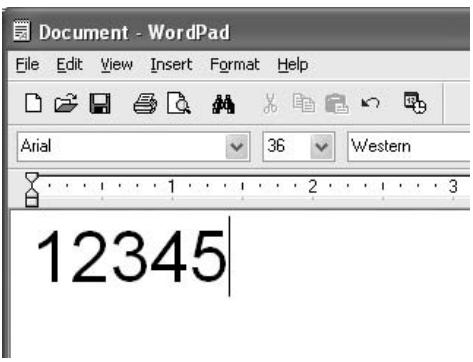
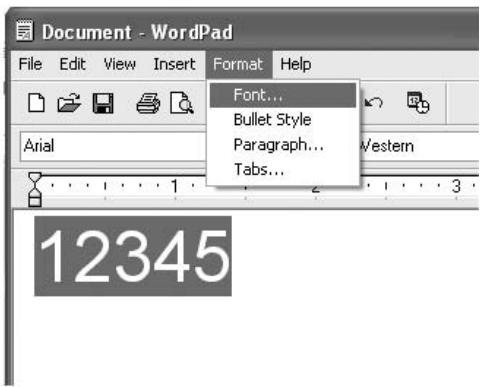
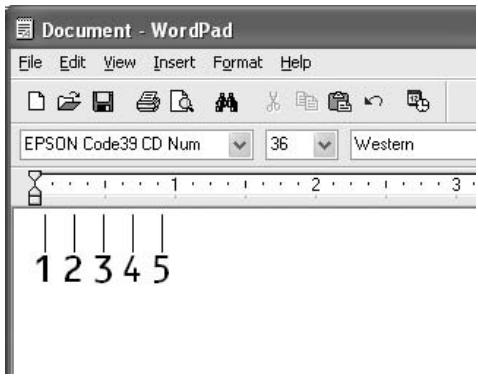
- Select the characters, then select Font from the Format menu.
- Select the EPSON BarCode Font you want to use, set the font size, then click OK.
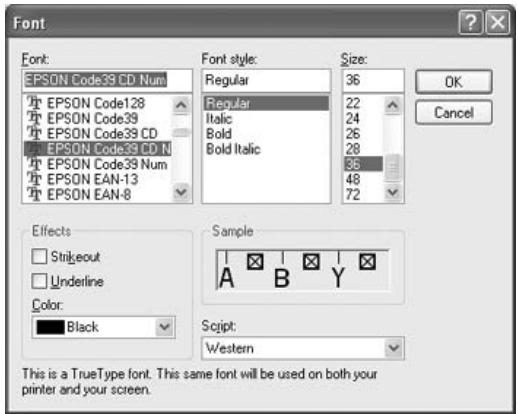
Note:
In Windows Vista, XP, 2000, Server 2008, or Server 2003, you cannot use font sizes larger than 96 points when printing bar codes.
- The characters you selected appear as bar code characters similar to those shown below.
- Select Print from the File menu, select your Epson printer, then click Properties. Make the following printer driver settings. Your printer is a Black-and-White printer. See the Black-and-White Printer Driver section in the table below.
| Black-and-white Printer Driver | Color Printer Driver | Host Based Black-and-white Printer Driver | Host Based Color Printer Driver | |
| Color | (not available) | Black | (not available) | Black |
| Print Quality | Text & Image* | Text & Image* | Text & Image* | Text & Image* |
| Toner Save | Not selected | Not selected | Not selected | Not selected |
| Zoom Options | Not selected | Not selected | Not selected | Not selected |
| Graphic mode (in the Extended Settings dialog box accessed through the Optional Settings tab) | High Quality (Printer) | (not available) | (not available) | (not available) |
| Printing Mode (in the Extended Settings dialog box accessed through the Optional Settings tab) | (not available) | High Quality (Printer) | (not available) | (not available) |
-
These settings are available when the Automatic check box is selected on the Basic Settings tab. When the Advanced check box is selected, click the More Settings button and set the Resolution or Print Quality to Fine.
-
Click OK to print the bar code.
Note:
If there is an error in the bar code character string, such as inappropriate data, the bar code will be printed as it appears on the screen, but it cannot be read by a bar code reader.
Notes on inputting and formatting bar codes
Please note the following when inputting and formatting bar code characters:
Do not apply shading or special character formatting, such as bold, italic, or underline.
Print bar codes in black and white only.
□ When rotating characters, only specify rotation angles of 90^ , 180^ , and 270^ .
Turn off all automatic character and word spacing settings in your application.
- Do not use features in your application that enlarge or reduce the size of characters in only the vertical or horizontal direction.
Turn off your application's auto-correct features for spelling, grammar, spacing, etc.
To more easily distinguish bar codes from other text in your document, set your application to show text symbols, such as paragraph marks, tabs, etc.
Because special characters such as Start bar and Stop bar are added when an EPSON BarCode Font is selected, the resulting bar code may have more characters than were originally input.
For best results, use only the font sizes recommended in "Barcode Font specifications" on page 10 for the EPSON Barcode Font you are using. Bar codes in other sizes may not be readable with all bar code readers.
Note:
Depending on the print density, or on the quality or color of the paper, bar codes may not be readable with all bar code readers. Print a sample and make sure the bar code can be read before printing large quantities.
Barcode Font specifications
This section contains details on the character input specifications for each EPSON BarCode Font.
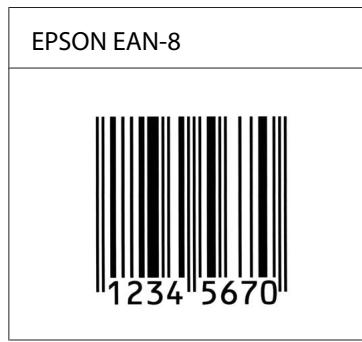
EPSON EAN-8
EAN-8 is an eight-digit abbreviated version of the EAN bar code standard.
Because the check digit is added automatically, only 7 characters can be input.
| Character type | Numbers (0 to 9) |
| Number of characters | 7 characters |
| Font size | 52 pt to 130 pt (up to 96 pt in Windows Vista/XP/2000/Server 2008/Server 2003). Recommended sizes are 52 pt, 65 pt (standard), 97.5 pt, and 130 pt. |
The following codes are inserted automatically and need not be input by hand:
Left/Right margin
Left/Right guard bar
Center bar
Check digit
OCR-B
Print sample
EPSON EAN-13
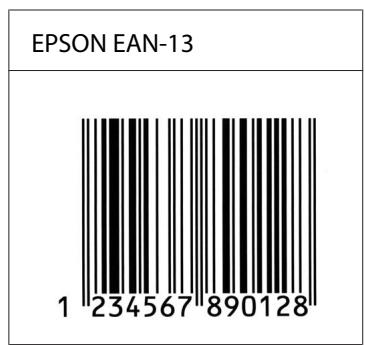
EAN-13 is the standard 13-digit EAN bar code.
Because the check digit is added automatically, only 12 characters can be input.
| Character type | Numbers (0 to 9) |
| Number of characters | 12 characters |
| Font size | 60 pt to 150 pt (up to 96 pt in Windows Vista/XP/2000/Server 2008/Server 2003). Recommended sizes are 60 pt, 75 pt (standard), 112.5 pt, and 150 pt. |
The following codes are inserted automatically and need not be input by hand:
Left/Right margin
Left/Right guard bar
Center bar
Check digit
OCR-B
Print sample
EPSON UPC-A
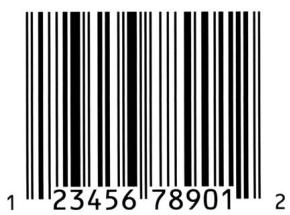
- UPC-A is the standard bar code specified by the American Universal Product Code (UPC Symbol Specification Manual).
Only regular UPC codes are supported. Supplementary codes are not supported.
| Character type | Numbers (0 to 9) |
| Number of characters | 11 characters |
| Font size | 60 pt to 150 pt (up to 96 pt in Windows Vista/XP/2000/Server 2008/Server 2003). Recommended sizes are 60 pt, 75 pt (standard), 112.5 pt and 150 pt. |
The following codes are inserted automatically and need not be input by hand:
Left/Right margin
Left/Right guard bar
Center bar
Check digit
OCR-B
Print sample
EPSON UPC-A
EPSON UPC-E
- UPC-E is the UPC-A zero-suppression ( deletes extra zeros) bar code specified by the American Universal Product Code ( UPC Symbol Specification Manual).
| Character type | Numbers (0 to 9) |
| Number of characters | 6 characters |
| Font size | 60 pt to 150 pt (up to 96 pt in Windows Vista/XP/2000/Server 2008/Server 2003). Recommended sizes are 60 pt, 75 pt (standard), 112.5 pt, and 150 pt. |
The following codes are inserted automatically and need not be input by hand:
Left/Right margin
Left/Right guard bar
Check digit
OCR-B
The numeral "0"
Print sample
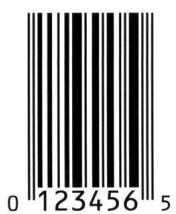
EPSON UPC-E
EPSON Code39
Four Code39 fonts are available, allowing you to enable and disable the automatic insertion of check digits and OCR-B.
The height of the bar code is automatically adjusted to 15% or more of its total length, in conformance to the Code39 standard. For this reason, it is important to keep at least one space between the bar code and the surrounding text to prevent overlapping.
Spaces in Code39 bar codes should be input as “_” underbars.
- When printing two or more bar codes on one line, separate the bar codes with a tab, or select a font other than a BarCode Font and input the space. If a space is input while a Code39 font is selected, the bar code will not be correct.
| Character type | Alphanumeric characters (A to Z, 0 to 9) Symbols (-.space $ / + %) |
| Number of characters | No limit |
| Font size | When OCR-B is not used: 26 pt or more (up to 96 pt in Windows Vista/XP/2000/Server 2008/Server 2003). Recommended sizes are 26 pt, 52 pt, 78 pt, and 104 pt. When OCR-B is used: 36 pt or more (up to 96 pt in Windows Vista/XP/2000/Server 2008/ Server 2003). Recommended sizes are 36 pt, 72 pt, 108 pt, and 144 pt. |
The following codes are inserted automatically and need not be input by hand:
Left/Right quiet zone
Check digit
Start/Stop character
Print sample
| EPSON Code39 | EPSON Code39 CD |
| EPSON Code39 Num | EPSON Code39 CD Num |
| 1 2 3 4 5 6 7 | 1 2 3 4 5 6 7 8 |
EPSON Code128
Code128 fonts support code sets A, B, and C. When the code set of a line of characters is changed in the middle of the line, a conversion code is automatically inserted.
The height of the bar code is automatically adjusted to 15% or more of its total length, in conformance to the Code128 standard. For this reason, it is important to keep at least one space between the bar code and the surrounding text to prevent overlapping.
Some applications automatically delete the spaces at the end of lines or change multiple spaces into tabs. Bar codes containing spaces may not be correctly printed from applications that automatically delete spaces from the ends of lines or change multiple spaces into tabs.
- When printing two or more bar codes on one line, separate the bar codes with a tab, or select a font other than a BarCode Font and input the space. If a space is input while Code128 is selected, the bar code will not be correct.
| Character type | All ASCII characters (95 in total) |
| Number of characters | No limit |
| Font size | 26 pt to 104 pt (up to 96 pt in Windows Vista/XP/2000/Server 2008/Server 2003). Recommended sizes are 26 pt, 52 pt, 78 pt, and 104 pt. |
The following codes are inserted automatically and need not be input by hand:
Left/Right quiet zone
Start/Stop character
Check digit
Change code set character
Print sample
EPSON Code128
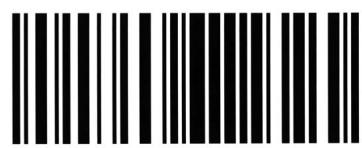
EPSON ITF
The EPSON ITF fonts conform to the USS Interleaved 2-of-5 standard (American).
Four EPSON ITF fonts are available, allowing you to enable and disable the automatic insertion of check digits and OCR-B.
The height of the bar code is automatically adjusted to 15% or more of its total length, in conformance to the Interleaved 2-of-5 standard. For this reason, it is important to keep at least one space between the bar code and the surrounding text to prevent overlapping.
Interleaved 2 of 5 treats every two characters as one set. When there are an odd number of characters, EPSON ITF fonts automatically add a zero to the beginning of the character string.
| Character type | Numbers (0 to 9) |
| Number of characters | No limit |
| Font size | When OCR-B is not used: 26 pt or more (up to 96 pt in Windows Vista/XP/2000/Server 2008/Server 2003). Recommended sizes are 26 pt, 52 pt, 78 pt, and 104 pt. When OCR-B is used: 36 pt or more (up to 96 pt in Windows Vista/XP/2000/Server 2008/ Server 2003). Recommended sizes are 36 pt, 72 pt, 108 pt, and 144 pt. |
The following codes are inserted automatically and need not be input by hand:
Left/Right quiet zone
Start/Stop character
Check digit
The numeral "0" (added to the beginning of character strings as needed)
Print sample
| EPSON ITF | EPSON ITF CD |
| EPSON ITF Num | EPSON ITF CD Num |
| 01234567 | 12345670 |
EPSON Codabar
Four Codabar fonts are available, allowing you to enable and disable the automatic insertion of check digits and OCR-B.
The height of the bar code is automatically adjusted to 15% or more of its total length, in conformance to the Codabar standard. For this reason, it is important to keep at least one space between the bar code and the surrounding text to prevent overlapping.
- When either a Start or a Stop character is input, Codabar fonts automatically insert the complementary character.
If neither a Start nor a Stop character is input, these characters are automatically input as the letter “A”.
| Character type | Numbers (0 to 9) Symbols (-$/:+.+) |
| Number of characters | No limit |
| Font size | When OCR-B is not used: 26 pt or more (up to 96 pt in Windows Vista/XP/2000/Server 2008/Server 2003). Recommended sizes are 26 pt, 52 pt, 78 pt, and 104 pt. When OCR-B is used: 36 pt or more (up to 96 pt in Windows Vista/XP/2000/Server 2008/Server 2003). Recommended sizes are 36 pt, 72 pt, 108 pt, and 144 pt. |
The following codes are inserted automatically and need not be input by hand:
Left/Right quiet zone
Start/Stop character (when not input)
Check digit
Print sample
| EPSON Codabar | EPSON Codabar CD |
| EPSON Codabar Num | EPSON Codabar CD Num |
| A 1 2 3 4 5 6 7 A | A 1 2 3 4 5 6 7 4 A |
EPSON EAN128
EAN128 fonts support code sets A, B, and C. When the code set of a line of characters is changed in the middle of the line, a conversion code is automatically inserted.
The following 4 kinds of the properties are supported as the Application Identifier (AI).
01: Global traded item number
10: Batch / Lot number
17: Expiry date
30: Quantity
The height of the bar code is automatically adjusted to 15% or more of its total length, in conformance to the Code128 standard. For this reason, it is important to keep at least one space between the bar code and the surrounding text to prevent overlapping.
Some applications automatically delete the spaces at the end of lines or change multiple spaces into tabs. Bar codes containing spaces may not be correctly printed from applications that automatically delete spaces from the ends of lines or change multiple spaces into tabs.
- When printing two or more bar codes on one line, separate the bar codes with a tab, or select a font other than a BarCode Font and input the space. If a space is input while EAN128 is selected, the bar code will not be correct.
| Character type | Alphanumeric characters (A to Z, 0 to 9) Parenthesis are only for identification of the Application Identifier (AI) Only the capital letters are supported by the small letter key input. |
| Number of characters | It changes with the Application Identifier (AI). 01: 4 characters " (01)" and 13 numbers 17: 4 characters " (17)" and 6 numbers 10: 4 characters " (10)" and maximum of 20 alphanumeric characters 30: 4 characters " (30)" and maximum of 8 numbers |
| Font size | 36 pt or more Recommended sizes are 36 pt, 72 pt |
The following codes are inserted automatically and need not be input by hand:
Left/Right quiet zone
Start/Stop character
FNC1 character
It inserts for discernment from Code128 and for a pause of the variable length application identifier.
Check digit
Change code set character
Print sample
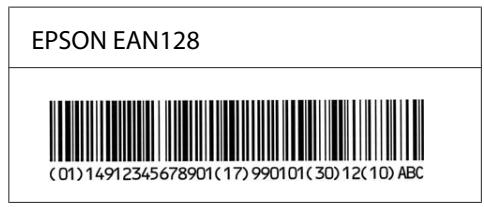
Available fonts
The fonts provided with the printer are shown below, according to the emulation mode.
PCL5 mode
| Font Name | Family | HP Equivalent |
| FixedPitch 810 | Medium, Bold, Italic, Bold Italic | Courier |
| Ding Dings SWA | - | ITC Zapf Dingbats |
| Dutch 801 | Medium, Bold, Italic, Bold Italic | CG Times |
| Zapf Humanist 601 | Medium, Bold, Italic, Bold Italic | CG Omega |
| Ribbon 131 | - | Coronet |
| Clarendon 701 | - | Clarendon Condensed |
| Swiss 742 | Medium, Bold, Italic, Bold Italic | Univers |
| Swiss 742 Condensed | Medium, Bold, Italic, Bold Italic | Univers Condensed |
| Incised 901 | Medium, Bold, Italic | Antique Olive |
| Aldine 430 | Medium, Bold, Italic, Bold Italic | Garamond |
| Calligraphic 401 | - | Marigold |
| Flareserif 821 | Medium, Extra Bold | Albertus |
| Ryadh BT | Medium, Bold | Ryadh |
| Miryam BT | Medium, Bold, Italic | Miryam |
| David BT | Medium, Bold | David |
| Narkis Tam BT | Medium, Bold | Narkis |
| Swiss 721 SWM | Medium, Bold, Italic, Bold Italic | Arial |
| Dutch 801 SWM | Medium, Bold, Italic, Bold Italic | Times New |
| Swiss 721 SWA | Medium, Bold, Oblique, Bold Oblique | Helvetica |
| Swiss 721 Narrow SWA | Medium, Bold, Oblique, Bold Oblique | Helvetica Narrow |
| Zapf Calligraphic 801 SWA | Medium, Bold, Italic, Bold Italic | Palatino |
| Geometric 711 SWA | Medium, Bold, Oblique, Bold Italic | ITC Avant Garde Gothic |
| Revival 711 SWA | Light, Demi Bold, Light Italic, Demi Bold Italic | ITC Bookman |
| Century 702 SWA | Medium, Bold, Italic, Bold Italic | New Century Schoolbook |
| Dutch 801 SWA | Medium, Bold, Italic, Bold Italic | Times |
| Chancery 801 Medium SWA Italic | - | ITC Zapf Chancery Medium Italic |
| Symbol SWM | - | Symbol |
| Symbol SWA | - | SymbolPS |
| More WingBats SWM | - | Wingdings |
| FixedPitch 850 | Regular, Bold, Italic | Letter Gothic |
| Naskh BT | Medium, Bold | Naskh |
| Koufi BT | Medium, Bold | Koufi |
| FixedPitch 810 Dark | Medium, Bold, Italic, Bold Italic | CourierPS |
| Line Printer | - | Line Printer |
| OCR A | - | - |
| OCR B | - | - |
| Code39 | 9.37cpi, 4.68cpi | - |
| EAN/UPC | Medium, Bold | - |
Note:
Depending on the print density, or on the quality or color of the paper, OCR A, OCR B, Code39, and EAN/UPC fonts may not be readable. Print a sample and make sure the fonts can be read before printing large quantities.
ESC/P 2 and FX modes
| Font Name | Family |
| FixedPitch 810 | Medium, Bold |
| EPSON Prestige | - |
| EPSON Roman | - |
| EPSON Sans serif | - |
| Swiss 721 SWM* | Medium, Bold |
| FixedPitch 850 | Regular, Bold |
| Dutch 801 SWM* | Medium, Bold |
| EPSON Script | - |
| OCR A | - |
| OCR B | - |
- Available only in ESC/P2 mode.
Note:
Depending on the print density, or on the quality or color of the paper, OCR A and OCR B fonts may not be readable. Print a sample and make sure the fonts can be read before printing large quantities.
I239X mode
| Font Name | Family |
| FixedPitch 810 | Medium, Bold |
| EPSON Prestige | - |
| EPSON Gothic | - |
| EPSON Orator | - |
| EPSON Script | - |
| EPSON Presenter | - |
| EPSON Sans serif | - |
| OCR B | - |
Note:
Depending on the print density, or on the quality or color of the paper, the OCR B font may not be readable. Print a sample and make sure the font can be read before printing large quantities.
PS 3 mode
Seventeen scalable fonts. The fonts include: Courier, Courier Oblique, Courier Bold, Courier Bold Oblique, Helvetica, Helvetica Oblique, Helvetica Bold, Helvetica Bold Oblique, Helvetica Narrow, Helvetica Narrow Oblique, Helvetica Narrow Bold, Helvetica Narrow Bold Oblique, Times Roman, Times Italic, Times Bold, Times Bold Italic, and Symbol.
PCL6 mode
For symbol set, see "In the PCL6 Mode" on page 35.
Scalable Font
| Font Name | Symbol Set |
| FixedPitch 810 | *1 |
| FixedPitch 810 Bold | *1 |
| FixedPitch 810 Italic | *1 |
| FixedPitch 810 Bold Italic | *1 |
| FixedPitch 850 Regular | *1 |
| FixedPitch 850 Bold | *1 |
| FixedPitch 850 Italic | *1 |
| FixedPitch 810 Dark | *3 |
| FixedPitch 810 Dark Bold | *3 |
| FixedPitch 810 Dark Italic | *3 |
| FixedPitch 810 Dark Bold Italic | *3 |
| Dutch 801 | *2 |
| Dutch 801 Bold | *2 |
| Dutch 801 Italic | *2 |
| Dutch 801 Bold Italic | *2 |
| Zapf Humanist 601 | *3 |
| Zapf Humanist 601 Bold | *3 |
| Zapf Humanist 601 Italic | *3 |
| Zapf Humanist 601 Bold Italic | *3 |
| Ribbon 131 | *3 |
| Clarendon 701 | *3 |
| Swiss 742 | *2 |
| Swiss 742 Bold | *2 |
| Swiss 742 Italic | *2 |
| Swiss 742 Bold Italic | *2 |
| Swiss 742 Condensed | *3 |
| Swiss 742 Condensed Bold | *3 |
| Swiss 742 Condensed Italic | *3 |
| Swiss 742 Condensed Bold Italic | *3 |
| Incised 901 | *3 |
| Incised 901 Bold | *3 |
| Incised 901 Italic | *3 |
| Aldine 430 | *3 |
| Aldine 430 Bold | *3 |
| Aldine 430 Italic | *3 |
| Aldine 430 Bold Italic | *3 |
| Calligraphic 401 | *3 |
| Flareserif 821 Medium | *3 |
| Flareserif 821ExtraBold | *3 |
| Swiss 721 SWM | *3 |
| Swiss 721 SWM Bold | *3 |
| Swiss 721 SWM Italic | *3 |
| Swiss 721 SWM Bold Italic | *3 |
| Dutch 801 SWM | *3 |
| Dutch 801 SWM Bold | *3 |
| Dutch 801 SWM Italic | *3 |
| Dutch 801 SWM Bold Italic | *3 |
| Swiss 721 SWA | *3 |
| Swiss 721 SWA Bold | *3 |
| Swiss 721 SWA Oblique | *3 |
| Swiss 721 SWA Bold Oblique | *3 |
| Swiss 721 Narrow SWA | *3 |
| Swiss 721 Narrow SWA Bold | *3 |
| Swiss 721 Narrow SWA Oblique | *3 |
| Swiss 721 Narrow SWA Bold Oblique | *3 |
| Zapf Calligraphic 801 SWA | *3 |
| Zapf Calligraphic 801 SWA Bold | *3 |
| Zapf Calligraphic 801 SWA Italic | *3 |
| Zapf Calligraphic 801 SWA Bold Italic | *3 |
| Geometric 711 SWA | *3 |
| Geometric 711 SWA Bold | *3 |
| Geometric 711 SWA Oblique | *3 |
| Geometric 711 SWA Bold Italic | *3 |
| Revival 711 Light SWA | *3 |
| Revival 711 Demi SWA Bold | *3 |
| Revival 711 Light SWA Italic | *3 |
| Revival 711 Demi SWA Bold Italic | *3 |
| Century 702 SWA | *3 |
| Century 702 SWA Bold | *3 |
| Century 702 SWA Italic | *3 |
| Century 702 SWA Bold Italic | *3 |
| Dutch 801 SWA | *3 |
| Dutch 801 SWA Bold | *3 |
| Dutch 801 SWA Italic | *3 |
| Dutch 801 SWA Bold Italic | *3 |
| Dutch 801 SWA Bold Italic | *3 |
| Chancery 801 Medium SWA Italic | *3 |
| Symbol SWM | *4 |
| More WingBats SWM | *5 |
| Ding Dings SWA | *6 |
| Symbol SWA | *4 |
| David BT | *7 |
| David BT Bold | *7 |
| Narkis Tam BT | *7 |
| Narkis Tam BT Bold | *7 |
| Miryam BT | *7 |
| Miryam BT Bold | *7 |
| Miryam BT Italic | *7 |
| Koufi BT | *8 |
| Koufi BT Bold | *8 |
| Naskh BT | *8 |
| Naskh BT Bold | *8 |
| Ryadh BT | *8 |
| Ryadh BT Bold | *8 |
Bitmap Font
| Font Name | Symbol Set |
| Line Printer | *9 |
Printing font samples
If your printer has a control panel, you can print samples of the fonts available in each mode by using the control panel's Information Menu. Follow these steps to print font samples.
- Make sure that paper is loaded.
- Make sure the LCD panel displays Ready or Standby, then press the Right button.
- Press the Down button to select the font sample for the appropriate mode.
- Press the Right button to print the selected font sample sheet.
Note:
You can print a font sample sheet from a Web browser if your printer supports EpsonNet Config with Web Browser.
Adding more fonts
You can add a wide variety of fonts to your computer. Most font packages include an installer for this purpose.
See your computer documentation for instructions on installing fonts.
Selecting fonts
Whenever possible select fonts in your application. See your software documentation for instructions.
If you are sending unformatted text to the printer directly from DOS or if you are using a simple software package that does not include font selection, you can select fonts using the printer's control panel menus or by using EpsonNet Config with Web Browser when in the PCL, ESC/P 2, FX, or I239X emulation mode.
Downloading fonts
Fonts that reside on your computer's hard disk can be downloaded, or transferred, to the printer so they can be printed. Downloaded fonts, also called soft fonts, remain in printer memory until you turn off the printer or otherwise reset it. If you plan on downloading many fonts, make sure your printer has sufficient memory.
Most font packages make it easy to manage fonts by providing their own installer. The installer gives you the option of having the fonts automatically downloaded whenever you start your computer or having fonts downloaded only when you need to print a particular font.
Chapter 2
Symbol Sets
Introduction to symbol sets
Your printer can access a variety of symbol sets. Many of these symbol sets differ only in the international characters specific to each language.
Note:
Since most software handles fonts and symbols automatically, you will probably never need to adjust the printer's settings. However, if you are writing your own printer control programs, or if you are using older software that cannot control fonts, refer to the following sections for symbol set details.
When you are considering which font to use, you should also consider which symbol set to combine with the font. Available symbol sets vary depending on which emulation mode you use and which font you choose.
In the PCL5 mode
The following symbol sets are available in PCL5 emulation mode.
| Available typefaces | Symbol set name: | |
| 19 Typefaces | IBM-US (10U) | Roman-8 (8U) |
| FixedPitch 810 | ||
| Dutch 801 | ECM94-1 (0N) | 8859-2 ISO (2N) |
| Swiss 742 | 8859-9 ISO (5N) | 8859-10ISO (6N) |
| FixedPitch 850 | ||
| Line Printer | IBM-DN (11U) | PcMultilingual (12U) |
| Legal (1U) | 8859-15ISO (9N) | |
| 19 Typefaces | PcBlt775 (26U) | Pc1004 (9J) |
| FixedPitch 810 | ||
| Dutch 801 | WiBALT (19L) | DeskTop (7J) |
| Swiss 742 | PsText (10J) | Windows (9U) |
| FixedPitch 850 | McText (12J) | MsPublishi (6J) |
| PiFont (15U) | VeMath (6M) | |
| VelInternational (13J) | VeUS (14J) | |
| PcE.Europe (17U) | PcTk437 (9T) | |
| WiAnsi (19U) | WiE.Europe (9E) | |
| WiTurkish (5T) | UK (1E) | |
| Swedis2 (0S) | Italian (0I) | |
| Spanish (2S) | German (1G) | |
| Norweg1 (0D) | French2 (1F) | |
| Roman-9 (4U) | PcEur858 (13U) | |
| ISO 8859/4 Latin 4 (4N) | Unicode 3.0 (18N) | |
| 19 Typefaces | PsMath (5M) | Math-8 (8M) |
| FixedPitch 810 | ||
| Dutch 801 | ANSI ASCII (0U) | |
| Swiss 742 | ||
| FixedPitch 850 | ||
| David BT | ||
| Miryam BT | ||
| Narkis Tam BT | ||
| Naskh BT | ||
| Koufi BT | ||
| Ryadh BT | ||
| FixedPitch 810 | Pc866Cyr (3R) | Pc866Ukr (14R) |
| Dutch 801 | WinCyr (9R) | Pc8Grk (12G) |
| Swiss 742 | Pc851Grk (10G) | WinGrk (9G) |
| FixedPitch 850 | ISOGrk (12N) | Greek8 (8G) |
| FixedPitch 810 | ISOCyr (10N) | |
| Dutch 801 | ||
| Swiss 742 | ||
| FixedPitch 850 | ||
| Line Printer | ||
| Line Printer | Roman Extension (0E) | |
| FixedPitch 810 | Hebrew7 (0H) | |
| FixedPitch 850 | Hebrew8 (8H) | ISO 8859/8 Hebrew (7H) |
| David BT | PC-862, Hebrew (15H) | |
| Narkis Tam BT | ||
| Miryam BT | ||
| Koufi BT | Arabic8 (8V) | |
| Naskh BT | PC-864, Arabic (10V) | |
| Ryadh BT | ||
| Symbol SWA | Symbol (19M) | |
| Symbol SWM | ||
| More WingBats SWM | Wingdings (579L) | |
| Ding Dings SWA | ZapfDingbats (14L) | |
| OCR A | OCR A (0O) | |
| OCR B | OCR B (1O) | OCR B Extension (3Q) |
| Code3-9 | Code3-9 (0Y) | |
| EAN/UPC | EAN/UPC (8Y) | |
The 19 typefaces refer to those listed below:
Zapf Humanist 601
Ribbon 131
Clarendon 701
Swiss 742 Condensed
Incised 901
Aldine 430
Calligraphic 401
Flareserif 821
Swiss 721 SWM
Dutch 801 SWM
Swiss 721 SWA
Swiss 721 Narrow SWA
Zapf Calligraphic 801 SWA
Geometric 711 SWA
Revival 711 SWA
Century 702 SWA
Dutch 801 SWA
Chancery 801 Medium SWA Italic
FixedPitch 810 Dark
In the ESC/P 2 or FX Modes
| Character Table | Available typefaces | |||
| OCR B | FixedPitch 810 | EPSON Roman EPSON Sans serif EPSON Prestige EPSON Script | FixedPitch 850 Swiss 721 SWM Dutch 801 SWM | |
| PcUSA | available | available | available | available |
| PcMultilingual | not available | available | available | available |
| PcPortuguese | not available | available | available | available |
| PcCanFrench | not available | available | available | available |
| PcNordic | not available | available | available | available |
| PcE.Europe | not available | available | not available | available |
| PcTurk2 | not available | available | not available | available |
| PcIcelandic | not available | available | not available | available |
| BpBRASCII | not available | available | not available | available |
| BpAbicomp | not available | available | not available | available |
| Roman-8 | not available | available | available | available |
| PcEur858 | available | available | available | available |
| ISO Latin1 | not available | available | not available | available |
| 8859-15ISO | not available | available | available | available |
| PcSI437* | not available | available | not available | not available |
| PcTurk1* | not available | available | not available | not available |
| 8859-9 ISO* | not available | available | not available | not available |
| Mazowia* | not available | available | not available | not available |
| CodeMJK* | not available | available | not available | not available |
| PcGk437* | not available | available | not available | not available |
| PcGk851* | not available | available | not available | not available |
| PcGk869* | not available | available | not available | not available |
| 8859-7 ISO* | not available | available | not available | not available |
| PcCy855* | not available | available | not available | not available |
| PcCy866* | not available | available | not available | not available |
| Bulgarian* | not available | available | not available | not available |
| PcUkr866* | not available | available | not available | not available |
| Hebrew7* | not available | available | not available | not available |
| Hebrew8* | not available | available | not available | not available |
| PcHe862* | not available | available | not available | not available |
| PcAr864* | not available | available | not available | not available |
| PcLit771* | not available | available | not available | not available |
| PcLit774* | not available | available | not available | not available |
| Estonia* | not available | available | not available | not available |
| ISO Latin 2* | not available | available | not available | not available |
| PcLat866* | not available | available | not available | not available |
| PcAr864Ara* | not available | available | not available | not available |
| PcAr720* | not available | available | not available | not available |
- Available only in ESC/P2 mode.
Dutch 801 SWM is a type face compatible with RomanT.
FixedPitch 850 is a type face compatible with OratorS.
Swiss 721 SWM is a type face compatible with SansH.
International character sets
You can select one of the following international character sets using the ESC R command:
Character sets:
USA, France, Germany, UK, Japan, Denmark1, Denmark2, Sweden, Italy, Spain1, Spain2, Norway, Latin America, Korea, Legal
- Available for ESC/P 2 emulation only
Characters available with the ESC (^ command
To print the characters in the table below, use the ESC (\^ command.
| CODE | 0 | 1 | 7 |
| 0 | |||
| 1 | ◎ | ▲ | |
| 2 | ◎ | ‡ | |
| 3 | ♥ | !! | |
| 4 | ♦ | ¶ | |
| 5 | ♣ | ||
| 6 | ♠ | - | |
| 7 | • | ‡ | |
| 8 | ■ | ↑ | |
| 9 | ○ | ↓ | |
| A | ◎ | → | |
| B | ○ | ← | |
| C | ♀ | √ | |
| D | ♦ | ‡ | |
| E | 月 | ▲ | |
| F | ♂ | ▼ | △ |
In the I239X Emulation Mode
The available symbol sets in the I239X mode are PcUSA, PcMultilingual, PcEur858, PcPortuguese, PcCanFrench, PcNordic. See "In the ESC/P 2 or FX Modes" on page 32.
The available fonts are EPSON Sans Serif, FixedPitch 810, EPSON Prestige, EPSON Gothic, EPSON Presenter, EPSON Orator, and EPSON Script.
In the PCL6 Mode
| Symbol Set Name | Attribute | Font Classification | ||||||||
| *1 | *2 | *3 | *4 | *5 | *6 | *7 | *8 | *9 | ||
| ISO Norwegian | 4 | ○ | ○ | ○ | - | - | - | - | - | - |
| ISO Italian | 9 | ○ | ○ | ○ | - | - | - | - | - | - |
| ISO 8859-1 Latin 1 | 14 | ○ | ○ | ○ | - | - | - | - | - | ○ |
| ISO Swedish | 19 | ○ | ○ | ○ | - | - | - | - | - | - |
| ASCII | 21 | ○ | ○ | ○ | - | - | - | ○ | ○ | - |
| ISO United Kingdom | 37 | ○ | ○ | ○ | - | - | - | - | - | - |
| ISO French | 38 | ○ | ○ | ○ | - | - | - | - | - | - |
| ISO German | 39 | ○ | ○ | ○ | - | - | - | - | - | - |
| Legal | 53 | ○ | ○ | ○ | - | - | - | - | - | ○ |
| ISO 8859-2 Latin 2 | 78 | ○ | ○ | ○ | - | - | - | - | - | ○ |
| ISO Spanish | 83 | ○ | ○ | ○ | - | - | - | - | - | - |
| Roman-9 | 149 | ○ | ○ | ○ | - | - | - | - | - | - |
| PS Math | 173 | ○ | ○ | ○ | - | - | - | ○ | ○ | - |
| ISO 8859-9 Latin 5 | 174 | ○ | ○ | ○ | - | - | - | - | - | ○ |
| Windows 3.1 Latin 5 | 180 | ○ | ○ | ○ | - | - | - | - | - | - |
| Microsoft Publishing | 202 | ○ | ○ | ○ | - | - | - | - | - | - |
| ISO 8859/10 Latin 6 | 206 | ○ | ○ | ○ | - | - | - | - | - | ○ |
| DeskTop | 234 | ○ | ○ | ○ | - | - | - | - | - | - |
| Math-8 | 269 | ○ | ○ | ○ | - | - | - | ○ | ○ | - |
| Roman-8 | 277 | ○ | ○ | ○ | - | - | - | - | - | ○ |
| Windows 3.1 Latin 2 | 293 | ○ | ○ | ○ | - | - | - | - | - | - |
| Pc1004 | 298 | ○ | ○ | ○ | - | - | - | - | - | - |
| ISO 8859-15 Latin 9 | 302 | ○ | ○ | ○ | - | - | - | - | - | - |
| PC-Turkish | 308 | ○ | ○ | ○ | - | - | - | - | - | - |
| Windows 3.0 | 309 | ○ | ○ | ○ | - | - | - | - | - | - |
| PS Text | 330 | ○ | ○ | ○ | - | - | - | - | - | - |
| PC-8 | 341 | ○ | ○ | ○ | - | - | - | - | - | ○ |
| PC-8 D/N | 373 | ○ | ○ | ○ | - | - | - | - | - | ○ |
| MC Text | 394 | ○ | ○ | ○ | - | - | - | - | - | - |
| PC-850 | 405 | ○ | ○ | ○ | - | - | - | - | - | ○ |
| PcEur858 | 437 | ○ | ○ | ○ | - | - | - | - | - | - |
| Pi Font | 501 | ○ | ○ | ○ | - | - | - | - | - | - |
| PC852 | 565 | ○ | ○ | ○ | - | - | - | - | - | - |
| Unicode 3.0 | 590 | ○ | ○ | ○ | - | - | - | - | - | - |
| WBALT | 620 | ○ | ○ | ○ | - | - | - | - | - | - |
| Windows 3.1 Latin 1 | 629 | ○ | ○ | ○ | - | - | - | - | - | - |
| PC-755 | 853 | ○ | ○ | ○ | - | - | - | - | - | - |
| Wingdings | 18540 | - | - | - | - | ○ | - | - | - | - |
| Symbol | 621 | - | - | - | ○ | - | - | - | - | - |
| ZapfDigbats | 460 | - | - | - | - | - | ○ | - | - | - |
| PC-866, Cyrillic | 114 | ○ | ○ | - | - | - | - | - | - | - |
| Greek8 | 263 | ○ | ○ | - | - | - | - | - | - | - |
| Windows Greek | 295 | ○ | ○ | - | - | - | - | - | - | - |
| Windows Cyrillic | 306 | ○ | ○ | - | - | - | - | - | - | - |
| PC-851, Greek | 327 | ○ | ○ | - | - | - | - | - | - | - |
| ISO 8859/5 Cyrillic | 334 | ○ | ○ | - | - | - | - | - | - | - |
| PC-8, Greek | 391 | ○ | ○ | - | - | - | - | - | - | - |
| ISO 8859/7 Greek | 398 | ○ | ○ | - | - | - | - | - | - | - |
| PC-866 UKR | 466 | ○ | ○ | - | - | - | - | - | - | - |
| Hebrew7 | 8 | ○ | - | - | - | - | - | - | - | - |
| ISO 8859/8 Hebrew | 232 | ○ | - | - | - | - | - | ○ | - | - |
| Hebrew8 | 264 | ○ | - | - | - | - | - | ○ | - | - |
| PC-862, Hebrew | 488 | ○ | - | - | - | - | - | ○ | - | - |
| Arabic8 | 278 | - | - | - | - | - | - | - | ○ | - |
| HPWARA | 310 | - | - | - | - | - | - | - | ○ | - |
| PC-864, Arabic | 342 | - | - | - | - | - | - | - | ○ | - |
Index
C
Characters available with the ESC (^ command.35
E
EPSON BarCode Fonts
about. 5
how to install. 6
how to print. 7
specifications. 10
system requirements. 6
ESC/P 2 and FX modes. 21
ESC/P 2 or FX modes. 32
F
Fonts
adding fonts. 27
available fonts. 19
downloading fonts. 28
EPSON BarCode Fonts (about) 5
EPSON BarCode Fonts (how to install) 6
EPSON BarCode Fonts (how to print). 7
EPSON BarCode Fonts (specifications) 10
EPSON BarCode Fonts (system requirements)............6
ESC/P 2 and FX modes. 21
how to print samples. 27
I239X mode. 22
LJ4 mode. 20
PCL6 mode. 23
PS 3 mode. 23
selecting fonts. 27
1
I239X emulation mode. 35
I239X mode. 22
International character sets. 34
L
LJ4 emulation mode. 29
LJ4 mode. 20
P
PCL6 mode. 23, 35
PS3mode. 23
s
Symbol sets
Characters available with the ESC (^command.....35
ESC/P 2 or FX modes. 32
I239X emulation mode. 35
International character sets. 34
introduction. 29
LJ4 emulation mode. 29
PCL6 mode. 35