
ACULASER C2900N - Laser printer EPSON - Free user manual and instructions
Find the device manual for free ACULASER C2900N EPSON in PDF.


| Product type | Color laser multifunction printer |
| Dimensions (W x D x H) | 400 x 406 x 457 mm |
| Weight | 18.4 kg (main unit) |
| Power supply | AC 110-127 V / 220-240 V, 50/60 Hz, max. 1100 W, standby 60 W, sleep 8 W |
| Print resolution | 600 x 600 dpi |
| Print speed (A4) | Up to 23 ppm color and black and white, duplex up to 16 pages/min |
| Memory | 256 MB integrated, expandable up to 768 MB (512 MB DIMM module) |
| Supported paper sizes | A4, B5, A5, Legal, Letter, Envelopes, Custom (76.2-215.9 mm x 127-355.6 mm) |
| Standard tray capacity | 250 sheets |
| Optional tray | 1 x 250 sheets (optional) |
| Manual feed | 1 sheet (multipurpose feed) |
| Duplex printing | Integrated (automatic) |
| Print functions | Multiple pages per sheet, duplex, delayed print, secure print, sample print |
| Connectivity | Ethernet 10/100/1000 Base-TX, USB 2.0 |
| Network protocols | TCP/IP (LPD, Port9100, WSD, HTTP, SMTP, DHCP, AutoIP, Bonjour, IPP, SMB) |
| Network management | EpsonNet Config (web interface), Status Monitor (Windows) |
| Printer languages | PCL 5e, PCL 5c, PCL 6, PostScript 3 |
| Supported operating systems | Windows (XP to 7 x64), Mac OS X 10.4-10.6, Linux (Red Hat, SUSE) |
| Security | Kensington lock, panel lock, administrator password |
| Maintenance | Internal cleaning, CTD sensor, toner cartridge replacement, drum, fuser unit, feed roller |
| Consumables | Color and black toner cartridges, drum, fuser unit, feed roller |
| Operating temperature | 10 - 32 °C |
| Operating humidity | 10 - 85% (without condensation) |
Frequently Asked Questions - ACULASER C2900N EPSON
User questions about ACULASER C2900N EPSON
0 question about this device. Answer the ones you know or ask your own.
Ask a new question about this device
Download the instructions for your Laser printer in PDF format for free! Find your manual ACULASER C2900N - EPSON and take your electronic device back in hand. On this page are published all the documents necessary for the use of your device. ACULASER C2900N by EPSON.
USER MANUAL ACULASER C2900N EPSON
Epson AcuLaser C2900 Series
User's Guide
NPD4436-00 EN
Contents
Preface
Copyright and Trademarks. 8
About License. 10
Using This Guide. 11
Conventions. 11
Product Features. 11
Features. 11
Chapter 1 Specifications
Specifications. 13
Chapter 2 Basic Operation
Main Components. 17
Front View. 17
Rear View. 18
Operator Panel. 18
Securing the Printer. 19
Preparing Printer Hardware. 20
Installing Optional Accessories. 21
Installing the Additional Memory Module. 21
Installing the Optional Duplex Unit. 25
Installing the Optional 250-Sheet Paper Cassette Unit. 29
Printing a Panel Settings Page. 33
Power Saver Mode. 34
Exiting the Power Saver Mode. 34
Chapter 3 Printer Management Software
Print Drivers. 35
EpsonNet Config. 35
Creating an Administrative Password. 35
Status Monitor (Windows Only). 36
Chapter 4 Network Basics
Overview of Network Setup and Configuration. 38
Connecting Your Printer. 38
Connecting Printer to Computer or Network. 39
Setting the IP Address. 41
TCP/IP and IP Addresses. 41
Automatically Setting the Printer's IP Address. 42
Dynamic Methods of Setting the Printer's IP Address. 42
Assigning an IP Address (for IPv4 Mode). 43
Verifying the IP Settings. 45
Printing and Checking the Printer Settings Page. 46
Installing Print Driver on Computers Running Windows. 46
Identifying Print Driver Pre-install Status (For Network Connection Setup). 46
Inserting the Software Disc. 48
USB Connection Setup. 48
Network Connection Setup. 49
Setting Up for Shared Printing. 50
Installing Print Driver on Computers Running Mac OS X. 56
Installing Print Driver on Computers Running Linux (CUPS). 56
Installing the Print Driver. 56
Setting Up the Queue. 57
Setting the Default Queue. 61
Specifying the Printing Options. 62
Setting the Password for Authority as the Printer Administrator. 64
Uninstalling the Print Driver. 64
Chapter 5 Printing Basics
About Print Media. 67
Print Media Usage Guidelines. 67
Print Media That Can Damage Your Printer. 68
Supported Print Media. 69
Print Media Dimensions. 69
Usable Print Media. 69
Loading Print Media. 72
Capacity. 73
Loading Print Media in the Standard 250-Sheet Tray and the Optional 250-Sheet Paper Cassette Unit. 73
Loading Print Media in the Single Sheet Feeder (SSF). 78
Setting Paper Sizes and Types. 81
Setting Paper Sizes. 82
Setting Paper Types. 82
Printing. 82
Sending a Job to Print. 83
Canceling a Print Job. 83
Using the Stored Print Function. 84
Duplex Printing. 87
Selecting Printing Options. 89
Printing Custom Size Paper. 94
Auditron. 97
Checking Status of Print Data. 99
Printing a Report Page. 99
Printer Settings. 100
Printing With Web Services on Devices (WSD). 101
Adding Roles of Print Services. 101
Printer Setup. 102
Chapter 6 Using the Operator Panel Menus
Understanding the Printer Menus. 104
Report/List. 104
BillingMeters. 105
Admin Menu. 106
Tray Settings. 134
Panel Lock Function. 139
Enabling the Panel Lock. 139
Disabling the Panel Lock. 139
Setting the Power Saver Time Option. 140
Resetting to Factory Defaults. 140
Chapter 7 Troubleshooting
Clearing Jams. 142
Avoiding Jams. 142
Identifying the Location of Paper Jams. 143
Clearing Paper Jams From the SSF. 144
Clearing Paper Jams From the Standard 250-Sheet Tray. 147
Clearing Paper Jams From the Fuser Unit. 151
Clearing Paper Jams From the Optional Duplex Unit. 153
Clearing Paper Jams From the Optional 250-Sheet Paper Cassette Unit. 154
Jam Problems. 158
Basic Printer Problems. 162
Display Problems. 163
Printing Problems. 163
Print Quality Problems. 165
The Output Is Too Light. 165
Toner Smears or Print Comes Off. 167
Random Spots/Blurred Images. 168
The Entire Output Is Blank. 168
Streaks Appear on the Output. 170
Part or the Entire Output Is Black. 170
Pitched Color Dots. 171
Vertical Blanks. 172
Mottle. 173
Ghosting. 173
Light-Induced Fatigue. 174
Fog. 175
Bead-Carry-Out (BCO). 175
Jagged Characters. 176
Banding. 177
Auger Mark. 178
Wrinkled/Stained Paper. 178
Damage on the Leading Edge of Paper. 180
The Top and Side Margins Are Incorrect. 180
Color Registration Is out of Alignment. 181
Protrudent/Bumpy Paper. 182
Adjusting Color Registration. 182
Performing Auto Adjust. 182
Printing the Color Registration Chart 183
Determining Values. 183
Entering Values. 185
Problems With Installed Optional Accessories. 187
Other Problems. 187
Understanding Printer Messages. 187
Contacting Service. 197
Getting Help. 197
LCD Panel Messages. 197
Status Monitor Alerts. 197
Non-Genuine Mode. 198
Chapter 8 Maintenance
Cleaning the Printer. 199
Cleaning Inside the Printer. 199
Cleaning the Color Toner Density (CTD) Sensor. 203
Replacing Toner Cartridges. 206
Overview. 206
Removing the Toner Cartridges. 207
Installing a Toner Cartridge. 208
Replacing the Drum Cartridge. 210
Removing the Drum Cartridge. 210
Installing the Drum Cartridge. 212
Replacing the Fuser Unit. 215
Removing the Fuser Unit. 215
Installing the Fuser Unit. 217
Resetting the Counter of the Fuser Unit. 219
Replacing the Feed Roll Unit. 219
Removing the Feed Roll Unit in the Standard 250-Sheet Tray. 220
Installing the Feed Roll Unit in the Standard 250-Sheet Tray. 221
Ordering Supplies. 222
Consumables. 222
When to Order Supplies. 222
Storing Print Media. 223
Storing Consumables. 223
Managing the Printer. 224
Checking or Managing the Printer with EpsonNet Config. 224
Checking Printer Status with Status Monitor (Windows Only). 224
Conserving Supplies. 225
Checking Page Counts. 225
Moving the Printer. 226
Removing Options. 228
Removing the Additional Memory Module. 228
Removing the Optional Duplex Unit. 230
Removing the Optional 250-Sheet Paper Cassette Unit. 232
Appendix A Where To Get Help
Contacting Epson Support. 235
Before Contacting Epson. 235
Help for Users in Europe. 235
Help for Users in Taiwan. 235
Help for Users in Singapore. 237
Help for Users in Thailand. 237
Help for Users in Vietnam. 238
Help for Users in Indonesia. 238
Help for Users in Hong Kong. 240
Help for Users in Malaysia. 240
Help for Users in India. 241
Help for Users in the Philippines. 242
Index
Preface
Copyright and Trademarks
No part of this publication may be reproduced, stored in a retrieval system, or transmitted in any form or by any means, mechanical, photocopying, recording, or otherwise, without the prior written permission of Seiko Epson Corporation. No patent liability is assumed with respect to the use of the information contained herein.
Neither is any liability assumed for damages resulting from the use of the information contained herein. Neither Seiko Epson Corporation nor its affiliates shall be liable to the purchaser of this product or third parties for damages, losses, costs, or expenses incurred by purchaser or third parties as a result of: accident, misuse, or abuse of this product or unauthorized modifications, repairs, or alterations to this product, or (excluding the U.S.) failure to strictly comply with Seiko Epson Corporation's operating and maintenance instructions.
Seiko Epson Corporation and its affiliates shall not be liable against any damages or problems arising from the use of any options or any consumable products other than those designated as Original Epson Products or Epson Approved Products by Seiko Epson Corporation.
Apple®, Bonjour®, ColorSync®, Macintosh®, and Mac OS® are trademarks of Apple Inc. in the United States and/or other countries.
Microsoft®, Windows Vista®, Windows®, and Windows Server® are trademarks of Microsoft Corporation in the United States and/or other countries.
PCL® is a trademark of Hewlett-Packard Corporation in the United States and/or other countries.
Linux is a registered trademark of Linus Torvalds.
Novell is a registered trademark and SUSE is a trademark of Novell, Inc. in the United States and other countries.
Red Hat and Red Hat Enterprise Linux are registered trademarks of Red Hat, Inc. in the U.S. and other countries.
EPSON is a registered trademark and EPSON AcuLaser is a trademark of Seiko Epson Corporation.
General Notice: Other product names used herein are for identification purposes only and may be trademarks of their respective owners. Epson disclaims any and all rights in those marks.
Copyright © 2011 Seiko Epson Corporation. All rights reserved.
About License
RSA BSAFE
RSA BSAFE software, produced by RSA Security Inc., has been installed on this printer.

DES
This product includes software developed by Eric Young.
(eay@mincom.oz.au)
AES
Copyright © 2003, Dr Brian Gladman, Worcester, UK. All rights reserved. This product uses published AES software provided by Dr Brian Gladman under BSD licensing terms.
TIFFLibtiff)
LibTIFFCopyright © 1988-1997 SamLeffler
Copyright © 1991-1997 Silicon Graphics, Inc.
ICC Profile (Little cms)
LittlecmsCopyright © 1998-2004 Marti Maria
JPEG
Our printer software uses some of the codes defined by the Independent JPEG Group.
Using This Guide
Conventions
- In this guide, personal computers and workstations are collectively called "computers".
- The following terms are used throughout this guide:
Important:
Important information that must be read and followed.
Note:
Additional information that merits emphasis.
See Also:
References within this guide.
Product Features
Features
This section describes the product features and indicates their links.
2 Sided Print (Duplex Print)
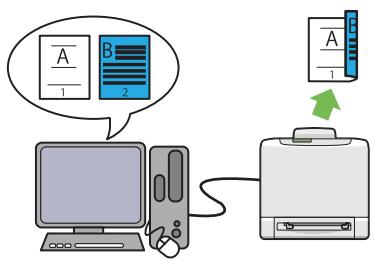
2 Sided Print is to print two or more pages on the front and back side of a single sheet of paper. This feature allows you to reduce the paper consumption.
For more information, see "Duplex Printing" on page 87.
Multiple-Up Print
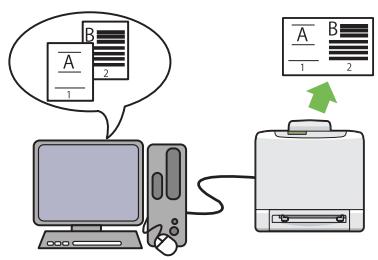
Multiple-Up enables you to print multiple pages on a single sheet of paper. This feature allows you to reduce the paper consumption.
For more information, see the print driver's help.
Using the Stored Print Function (Stored Print)
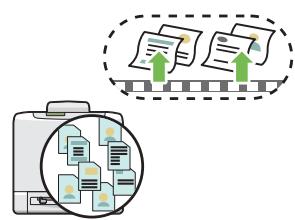
The Stored Print feature allows you to temporarily store your print data in the printer memory and output it later. You can effectively manage your time when you print confidential data or large-volume data at off-peak hours.
For more information, see "Using the Stored Print Function" on page 84.
Chapter 1
Specifications
Specifications
| Items | Description |
| Type | Console |
| Printing method | Laser Xerography Important: Laser + electrophotographic system |
| Fusing system | Thermal fusing system |
| Continuous print speed*1 | A4 plain paper Color 1 Sided*2: 23 sheets/min; 2 Sided*3: 16 pages/min Monochrome 1 Sided: 23 sheets/min; 2 Sided: 16 pages/min Important: *1 Print speed may decrease due to factors such as paper type, paper size, and printing conditions. *2 When continuously printing a single document of A4 □. *3 A4 □ continuous printing |
| Resolution | Output Resolution: 600 × 600 dpi |
| Tone/Color | 256 tones/color (16.7 million colors) |
| Paper Size | A4, B5, A5, Legal (8.5 × 14"), Folio (8.5 × 13"), Letter (8.5 × 11"), Executive, Com-10, Monarch, DL, C5, Custom Paper (Width: 76.2 – 215.9 mm, Length: 127 – 355.6 mm) Image loss: 4.1 mm from the top, bottom, left, and right edges |
| Paper Type | Plain Paper, Card Stock (Thin/Thick), Envelope, Labels (Normal/Thick), Letterhead, Glossy Paper (Normal/Thick), Pre-Punched, Colored Paper, Special Important:☐ Use only the recommended paper. Using paper other than that recommended for the printer can cause printing problems. Do not use special ink jet paper.☐ Note that poor printing quality due to paper-related printing problems can occur when using the printer in an environment that is dry, cold, or very humid.☐ Printing over the printed side or on the reverse side of paper that already has been printed on can result in poor print quality.☐ When printing on envelopes, use envelopes that do not have adhesive applied.☐ The type of paper being used and environmental conditions can affect printing quality. Because of this, it is recommended that you test print and confirm proper print quality before using the printer. |
| Paper capacity | Standard:Standard 250-sheet tray: 250 sheetsOptional 250-sheet paper cassette unit: 250 sheetsSSF: 1 sheet |
| Output tray capacity | Standard: approximately 150 sheets (face down) |
| 2-sided Printing Feature | Standard |
| Memory capacity | Standard: 256 MB (Onboard)Maximum: 768 MB (Onboard256 MB + DIMM512 MB)Important:The above memory capacity does not guarantee print quality depending on the type and content of print data. |
| Hard disk | — |
| Fonts | Build-in fontsPCL5 and PCL6 fonts: 81 fonts and 36 symbol setsPostScript 3: 136 fonts |
| Page Description Language | PCL 5e, PCL 5c, PCL 6, PostScript 3 |
| Supported OS | Standard: PCL6 and PostScript driversMicrosoft® Windows® XP,Microsoft® Windows Server® 2003,Microsoft® Windows Server® 2008,Microsoft® Windows Vista®,Microsoft® Windows® 7,Microsoft® Windows® XP x64,Microsoft® Windows Server® 2003 x64,Microsoft® Windows Server® 2008 x64,Microsoft® Windows Vista® x64,Microsoft® Windows Server® 2008 R2 x64,Microsoft® Windows® 7 x64,Mac OS® X 10.4 - 10.6,Red Hat Enterprise Linux 4 WS/5 Client (x86),SUSE Linux Enterprise Desktop 10/11 (x86)Important:For information about the latest supported OS, contact our Customer Support Center. |
| Interface | Standard: Ethernet (1000BASE-TX/100BASE-TX/10BASE-T), USB 2.0 |
| Supported protocol | TCP/IP (LPD,Port9100,WSD,HTTP,SMTP,RARP,AutoIP,WINS,DDNS,IPP,SMB),SNMP, DHCP, BOOTP, Bonjour (mDNS) |
| Power | AC 110 - 127 V ± 10%; 10 A or less; both 50/60 Hz ± 3%AC 220 - 240 V ± 10%; 5 A or less; both 50/60 Hz ± 3% |
| Power consumption | Maximum: 1100 W, During the Sleep mode: 8 W or lessAverage:During standby: 60 W,During continuous color printing: 365 W,During continuous monochrome printing: 365 WImportant:Sleep Mode: 8 W average(The printer does not use electricity when the power is switched off even with the power cord is plugged in.) |
| Dimensions (main unit only) | 400 (W) x 406 (D) x 457 (H) mm |
| Weight | Main Unit: 18.4 kg (main unit only, including consumables) |
| Usage Environment | During Use: Temperature: 10 - 32 °C; Humidity: 10 - 85% (except malfunctions due to dew condensation) Non-Use: Temperature: -20 - 40 °C; Humidity: 5 - 85% (except malfunctions due to dew condensation) Important: Until the conditions (temperature and humidity) inside the printer become acclimated to the installation environment, certain qualities of the paper can cause poor printing. |
Chapter 2
Basic Operation
Main Components
This section provides an overview of your Epson AcuLaser C2900 Series.
Front View
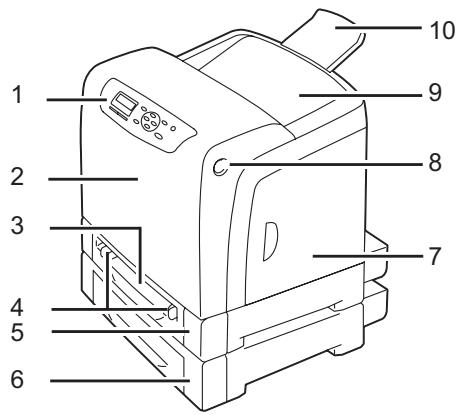
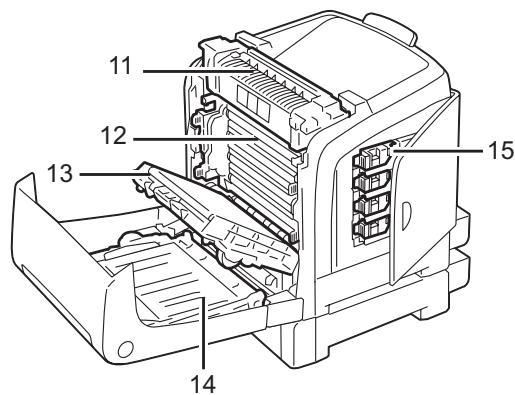
| 1 | Operator Panel | 2 | Front Cover |
| 3 | Single Sheet Feeder (SSF) | 4 | Width Guides |
| 5 | Standard 250-Sheet Tray | 6 | Optional 250-Sheet Paper Cassette Unit |
| 7 | Side Cover | 8 | Side Button |
| 9 | Output Tray | 10 | Output Tray Extension |
| 11 | Fuser Unit | 12 | Drum Cartridge |
| 13 | Belt Unit | 14 | Optional Duplex Unit |
| 15 | Toner Cartridge | ||
Rear View
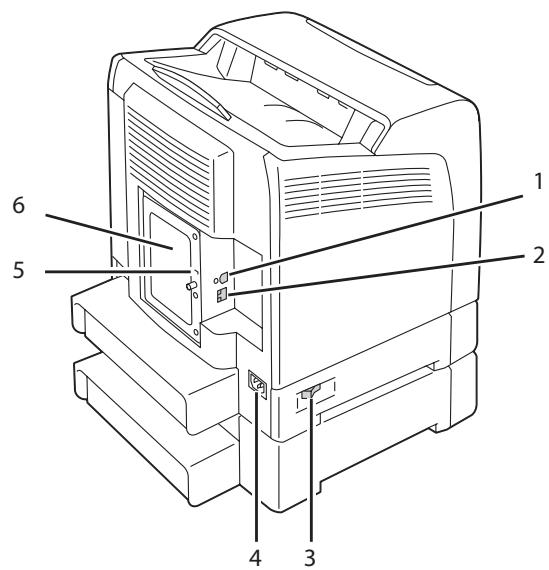
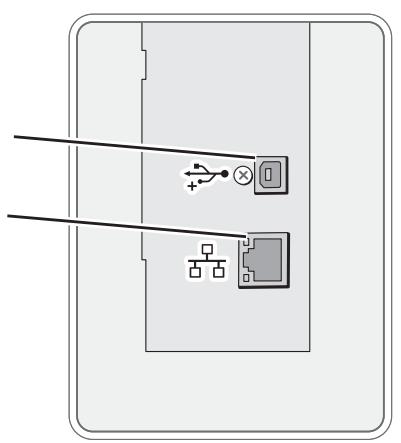
| 1 | USB Port | 2 | Ethernet Port |
| 3 | Power Switch | 4 | Power Connector |
| 5 | Security Slot | 6 | Control Board Cover |
Operator Panel
The operator panel has a liquid crystal display (LCD) and buttons.
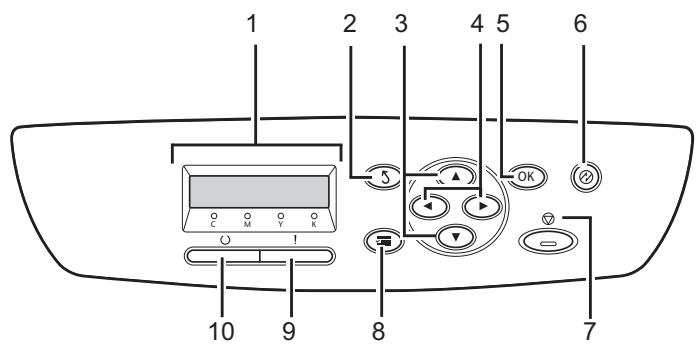
-
LCD Panel
-
Displays various settings, instructions, and error messages.
-
(Back) button
Switches to the Print mode from the top menu of the Menu mode.
- Returns to the upper hierarchy of the menu from the submenu of the Menu mode.
-
buttons
-
Scrolls through menus or items in the Menu mode. To enter numbers or passwords, press these buttons.
-
buttons
-
Selects submenus or setting values in the Menu mode.
-
OK button
-
Displays the selected menu or item and determines the selected value in the Menu mode.
-
(Energy Saver) button
Lights up in the Sleep mode. Press this button to exit the Sleep mode.
- (Cancel Job) button
Cancels the current print job.
-
(Menu) button
-
Moves to the top menu.
-
! (Error) LED
Lights up when the printer has an error.
- (Ready) LED
Lights up when the printer is ready.
Securing the Printer
To protect your printer from theft, you can use the optional Kensington lock.
Attach the Kensington lock to the security slot on your printer.
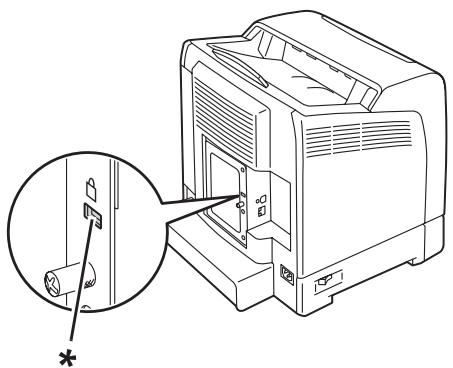
- Security slot
For details, see the operating instructions supplied with the Kensington lock.
Preparing Printer Hardware
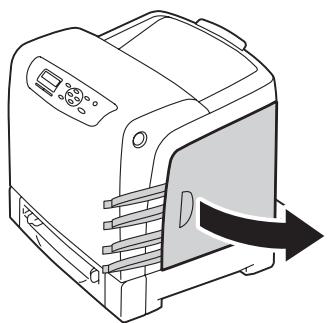
- Open the side cover.
- Completely pull out the eight yellow ribbons.
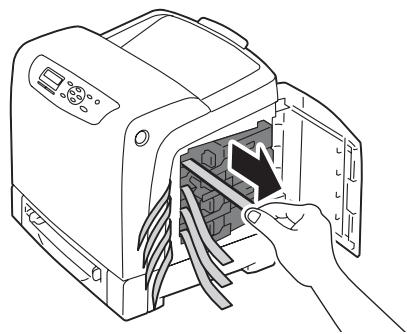
- Push and slide the latches of the four toner cartridges to the locked position.
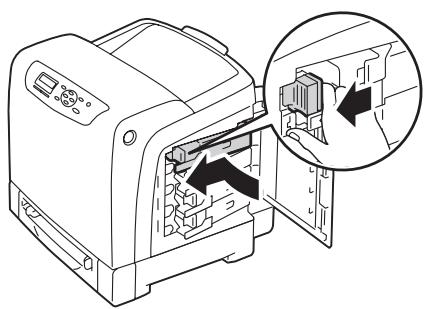
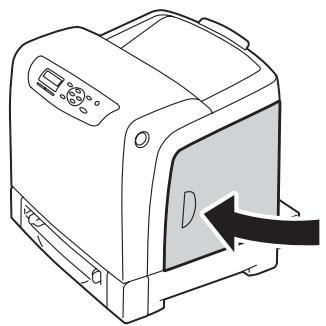
- Close the side cover.
Installing Optional Accessories
You can make the printer more functional by installing the optional accessories. This section describes how to install the printer's options such as the additional memory module, optional duplex unit and optional 250-sheet paper cassette unit.
Installing the Additional Memory Module
Note:
Your printer supports additional 512 MB memory module.
- Turn off the printer.
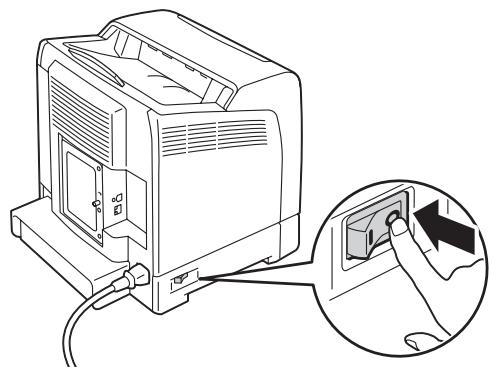
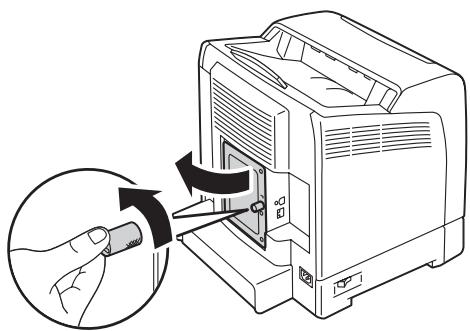
- Turn the screw on the control board cover counterclockwise, and open the cover.
Note:
Loosen the screw. You do not need to remove the screw.
- Align the connector of the memory module with the slot and insert the memory module into the slot.
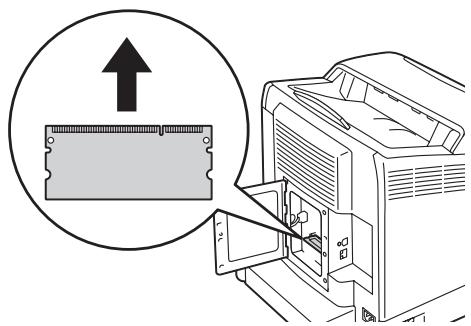
- Push the memory module firmly into the slot.
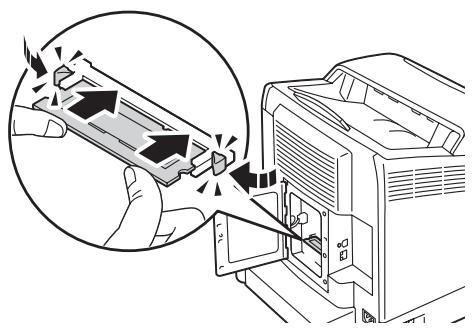
Note:
Ensure that the memory module is firmly fixed in the slot and does not move easily.
- Close the control board cover, and turn the screw clockwise.
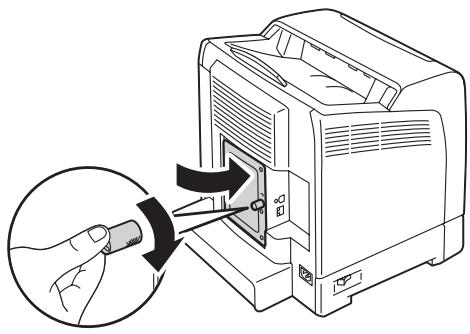
-
Turn on the printer.
-
Print the Printer Settings page to confirm that the newly installed memory module is detected by the printer.
a Press the (Menu) button.
b Select Report/List, and then press the OK button.
c SelectPrinter Settings, and then press the OK button.
The Printer Settings page is printed.
- Confirm the amount of Memory Capacity listed under General in the Printer Settings page.
If the memory capacity has not increased, turn off the printer, unplug the power cord, and re-install the memory module.
- If you installed the additional memory module after installing the print driver, update your driver by following the instructions for the operating system you are using. If the printer is on a network, update the driver for each client.
Updating Your Driver to Detect Additional Memory Module
The following procedure uses Microsoft® Windows® and the PCL 6 driver as an example.
| Microsoft® Windows® 7/Windows 7 x64/Windows Server® 2008 R2x64 | 1. Click Start — Devices and Printers. 2. Right-click the printer icon of the Epson AcuLaser C2900 Series and select Printer properties. 3. Click the Options tab, and then click Get Information from Printer. 4. Click Apply, and then click OK. 5. Close the Devices and Printers folder. |
| Windows Vista®/Windows Vista x64 | 1. Click Start — Control Panel — Hardware and Sound — Printers. 2. Right-click the printer icon of the Epson AcuLaser C2900 Series and select Properties. 3. Click the Options tab, and then click Get Information from Printer. 4. Click Apply, and then click OK. 5. Close the Printers folder. |
| Windows Server 2008/Windows Server 2008 x64 | 1. Click Start — Control Panel — Printers. 2. Right-click the printer icon of the Epson AcuLaser C2900 Series and select Properties. 3. Click the Options tab, and then click Get Information from Printer. 4. Click Apply, and then click OK. 5. Close the Printers folder. |
| Windows XP/Windows XP x64/Windows Server 2003/Windows Server 2003 x64 | 1. Click Start (start for Windows XP) — Printers and Faxes. 2. Right-click the printer icon of the Epson AcuLaser C2900 Series and select Properties. 3. Click the Options tab, and then click Get Information from Printer. 4. Click Apply, and then click OK. 5. Close the Printers and Faxes folder. |
If the printer information is not updated automatically after clicking Get Information from Printer, follow these steps:
- Click the Options tab, and then select Memory Capacity in Items.
- Select the total amount of the installed printer memory in Memory Capacity.
- Click Apply, and then click OK.
- Close the Printers and Faxes (. Printers, or Devices and Printers) folder.
Installing the Optional Duplex Unit
- Turn off the printer and disconnect the power cord.
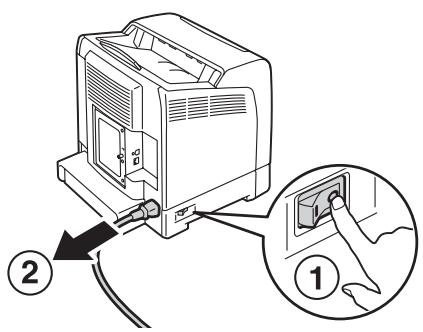
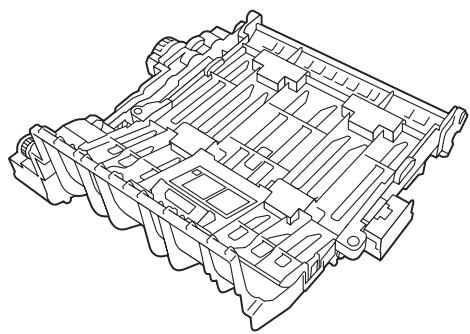
- Unpack the optional duplex unit.
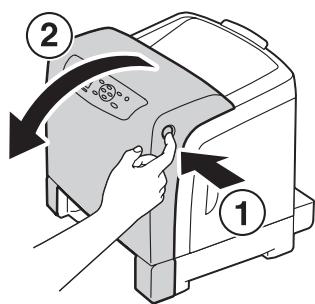
- Push the side button to open the front cover.
- Remove the connector cap.
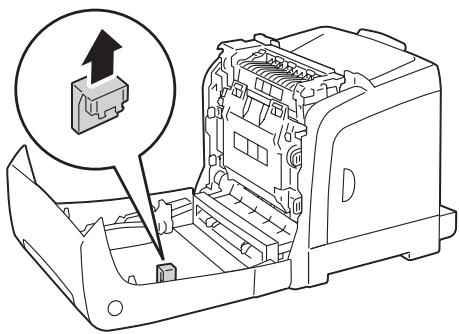
Important:
Make sure to remove the cap that is attached to the printer. Installing the optional duplex unit without removing the cap may result in damage or malfunction of the printer.
- Face the connectors of the optional duplex unit over the slots and push the optional duplex unit into them.

Note:
Make sure the optional duplex unit is securely installed in the printer and cannot be easily moved.
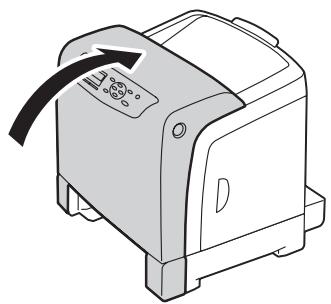
- Close the front cover.
- Reconnect the power cord to the power connector and turn on the printer.
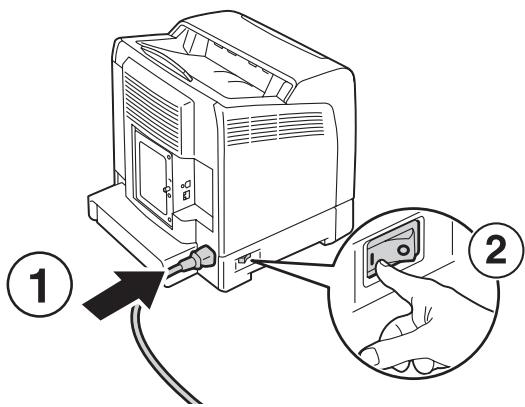
- If you installed the optional duplex unit after installing the print driver, update your driver by following the instructions for each operating system. If the printer is on a network, update the driver for each client.
Updating Your Driver to Detect Optional Duplex Unit
The following procedure uses Microsoft® Windows® and the PCL 6 driver as an example.
| Microsoft Windows 7/ Windows 7 x64/ Windows Server 2008 R2 x64 | 1. Click Start — Devices and Printers. 2. Right-click the printer icon of the Epson AcuLaser C2900 Series and select Printer properties. 3. Click the Options tab, and then click Get Information from Printer. 4. Click Apply, and then click OK. 5. Close the Devices and Printers folder. |
| Windows Vista/ Windows Vista x64 | 1. Click Start — Control Panel — Hardware and Sound — Printers. 2. Right-click the printer icon of the Epson AcuLaser C2900 Series and select Properties. 3. Click the Options tab, and then click Get Information from Printer. 4. Click Apply, and then click OK. 5. Close the Printers folder. |
| Windows Server 2008/ Windows Server 2008 x64 | 1. Click Start — Control Panel — Printers. 2. Right-click the printer icon of the Epson AcuLaser C2900 Series and select Properties. 3. Click the Options tab, and then click Get Information from Printer. 4. Click Apply, and then click OK. 5. Close the Printers folder. |
| Windows XP/ Windows XP x64/ Windows Server 2003/ Windows Server 2003 x64 | 1. Click Start (start for Windows XP) — Printers and Faxes. 2. Right-click the printer icon of the Epson AcuLaser C2900 Series and select Properties. 3. Click the Options tab, and then click Get Information from Printer. 4. Click Apply, and then click OK. 5. Close the Printers and Faxes folder. |
If the printer information is not updated automatically after clicking Get Information from Printer, follow these steps:
- Click the Options tab, and then select Duplexer in Items.
- Select Available for the optional duplex unit setting in Duplexer.
- Click Apply, and then click OK.
- Close the Printers and Faxes (, Printers, or Devices and Printers) folder.
Installing the Optional 250-Sheet Paper Cassette Unit
- Turn off the printer.
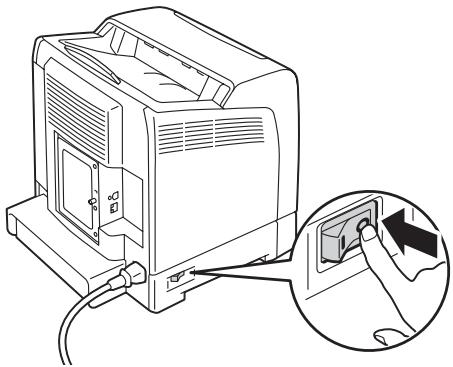
- Disconnect the power cord from the power connector on the rear of the printer.
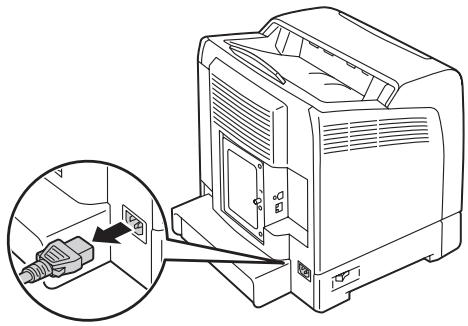
- Remove the tape and the bag holding the screws.
- Place the optional 250-sheet paper cassette unit in the location that the printer is located.
- Pull the standard 250-sheet tray out of the printer about 200mm . Hold the standard 250-sheet tray with both hands, and remove it from the printer.
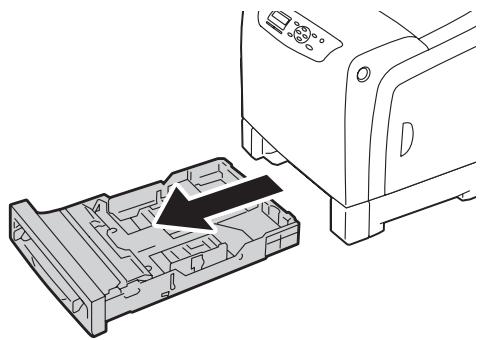
- Lift the printer and align the five guide pins of the optional 250-sheet paper cassette unit with the holes at the bottom of the printer. Gently lower the printer onto the optional 250-sheet paper cassette unit.

Caution:
Two people are required to lift the printer.
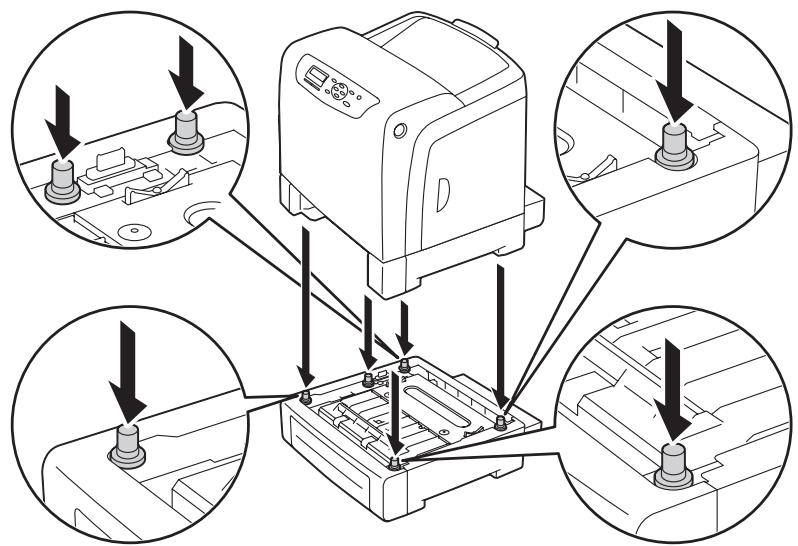

Caution:
Be careful not to pinch your fingers when lowering the printer onto the optional 250-sheet paper cassette unit.
- Secure the optional 250-sheet paper cassette unit to the printer by tightening the two screws provided with the cassette unit with a coin or similar object.
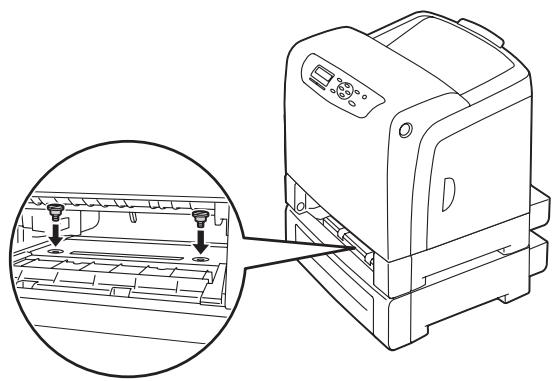
- Insert the standard 250-sheet tray into the printer, and push until it stops.
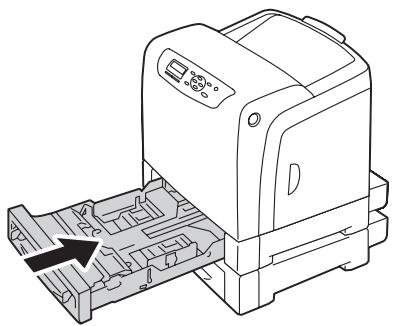
Important:
Do not use excessive force on the tray. Doing so could damage the tray or the inside of the printer.
- Reconnect all cables into the rear of the printer and turn on the printer.
Note:
The printer will automatically detect the attached tray but will not detect the paper type.
- Print the Printer Settings page to confirm the optional 250-sheet paper cassette unit is installed correctly.
a Press the (Menu) button.
b SelectReport/List, and then press the OK button.
c SelectPrinter Settings, and then press the OK button.
The Printer Settings page is printed.
- Confirm Tray 2 (250 Sheet Feeder) is listed under Printer Options in the Printer Settings page.
If the cassette unit is not listed, turn off the printer, unplug the power cord, and re-install the optional 250-sheet paper cassette unit.
- After loading paper in the optional 250-sheet paper cassette unit, specify the paper type from the printer operator panel.
a Press the (Menu) button.
b Select Tray Settings, and then press the OK button.
c Select Tra 2, and then press the OK button.
d Select Paper Type, and then press the OK button.
e Select the paper type for the optional 250-sheet paper cassette unit, and then press the OK button.
- If you installed the optional 250-sheet paper cassette unit after installing the print driver, update your driver by following the instructions for each operating system. If the printer is on a network, update the driver for each client.
Updating Your Driver to Detect Optional 250-Sheet Paper Cassette Unit
The following procedure uses Microsoft® Windows® and the PCL 6 driver as an example.
| Microsoft Windows 7/Windows 7 x64/Windows Server 2008 R2 x64 | 1. Click Start — Devices and Printers. 2. Right-click the printer icon of the Epson AcuLaser C2900 Series and select Printer properties. 3. Click the Options tab, and then click Get Information from Printer. 4. Click Apply, and then click OK. 5. Close the Devices and Printers folder. |
| Windows Vista/Windows Vista x64 | 1. Click Start — Control Panel — Hardware and Sound — Printers. 2. Right-click the printer icon of the Epson AcuLaser C2900 Series and select Properties. 3. Click the Options tab, and then click Get Information from Printer. 4. Click Apply, and then click OK. 5. Close the Printers folder. |
| Windows Server 2008/Windows Server 2008 x64 | 1. Click Start — Control Panel — Printers. 2. Right-click the printer icon of the Epson AcuLaser C2900 Series and select Properties. 3. Click the Options tab, and then click Get Information from Printer. 4. Click Apply, and then click OK. 5. Close the Printers folder. |
| Windows XP/ Windows XP x64/ Windows Server 2003/ Windows Server 2003 x64 | 1. Click Start (start for Windows XP) — Printers and Faxes. 2. Right-click the printer icon of the Epson AcuLaser C2900 Series and select Properties. 3. Click the Options tab, and then click Get Information from Printer. 4. Click Apply, and then click OK. 5. Close the Printers and Faxes folder. |
If the printer information is not updated automatically after clicking Get Information from Printer, follow these steps:
- Click the Options tab, and then select Paper Tray Configuration in Items.
- Select Two trays for the optional 250-sheet paper cassette unit setting in Paper Tray Configuration.
- Click Apply, and then click OK.
- Close the Printers and Faxes (. Printers, or Devices and Printers) folder.
Printing a Panel Settings Page
The Panel Settings page shows current settings for the operator panel menus.
- Press the (Menu) button.
- Select Report/List, and then press the OK button.
- Select Panel Settings, and then press the OK button.
The Panel Settings page is printed.
Power Saver Mode
The printer has a power saving feature that reduces power consumption during periods of inactivity. This feature operates in two modes: the Low Power mode and Sleep mode. As delivered, the printer switches to the Low Power mode three minutes after the last print job is printed. The printer then switches to the Sleep mode after another six minutes of inactivity. When the printer is in the Low Power mode, the LCD backlight turns off. In the Sleep mode, (Energy Saver) button lights up. The display also goes blank and displays nothing.
The factory default settings of three minutes (Low Power mode) and six minutes (Sleep mode) are changeable within the range of 3 to 60 minutes (Low Power mode) and 1 to 6 minutes (Sleep mode). The printer returns to the ready-to-print state in about 30 seconds when re-activated.
See Also:
"Setting the Power Saver Time Option" on page 140.
Exiting the Power Saver Mode
The printer automatically exits the Power Saver mode when it receives a print job from a computer. To manually exit the Low Power mode, press any button on the operator panel. To exit the Sleep mode, press the (Energy Saver) button.
Note:
- Opening and closing a cover will cause the printer to exit the Low Power mode and the Sleep mode.
When the printer is in the Sleep mode, all buttons on the operator panel except for the (Energy Saver) button do not function. To use the buttons on the operator panel, press the (Energy Saver) button to exit the Sleep mode.
See Also:
"Setting the Power Saver Time Option" on page 140.
Chapter 3
Printer Management Software
Print Drivers
To access all of your printer's features, install the print drivers from the Software Disc.
The print drivers enable your computer and printer to communicate and provide access to your printer features.
EpsonNet Config
This section provides information on EpsonNet Config, a hyper text transfer protocol (HTTP)-based web page service that is accessed through your web browser.
These pages give you instant access to printer status, and printer configuration options. Anyone on your network can access the printer using their web browser software. In administrative mode you can change the configuration of the printer, and manage your printer settings without leaving your computer.
Note:
Users who are not given passwords by the administrator can still view the configuration settings and options in user mode. They will not be able to save or apply any changes to the current configuration.
Creating an Administrative Password
- Launch your web browser.
- Enter the IP address in the browser's Address field, and then press the Enter key.
- Click the Properties tab.
- In the left navigation panel, scroll down to Security and select Administrator Settings.
- Select Enabled for Administrator Mode.
- In the Administrator Login ID field, enter a name for the administrator.
Note:
The default ID and password are both blank (NULL).
- In the Administrator Password and Re-enter Password fields, enter a password for the administrator.
- In the Maximum Login Attempts field, enter the number of login attempts allowed.
- Click Apply. Your new password has been set and anyone with the administrator name and password can log in and change the printer configuration and settings.
Status Monitor (Windows Only)
You can check the printer status with Status Monitor. Double-click the Status Monitor printer icon on the taskbar at the bottom right of the screen. The Select Printer window appears, which displays the printer name, printer connection ports, and printer status. Check the column Status to know the current status of your printer.
Status Settings button: Displays the Status Settings dialog box and allows you to modify the Status Monitor settings.
Click the name of the desired printer listed on the Select Printer window. The Printer Status window appears.
The Printer Status window alerts you when there is a warning or when an error occurs, for example, when a paper jam occurs or toner is running low.
By default, the Printer Status window launches when printing and an error occurs. When an error occurs, the error message appears on the Printer Status window. You can specify the conditions for starting the Printer Status window in Auto start setup.
To change the pop-up settings for the Printer Status window:
The following procedure uses Microsoft® Windows® XP as an example.
- Click start — All Programs — EPSON — Status Monitor — Activate Status Monitor.
The Select Printer window appears.
- Click Status Settings.
The Status Settings dialog box appears.
- Select the Pop up setting tab, and then select the type of the pop-up from Auto start setup.
You can also check the toner level of your printer.
The Status Monitor is installed with your Epson print driver.
Chapter 4
Network Basics
Overview of Network Setup and Configuration
To set up and configure the network:
- Connect the printer to the network using the recommended hardware and cables.
- Turn on the printer and the computer.
- Print the Printer Settings page and keep it for referencing network settings.
- Install the driver software on the computer from the Software Disc. For information on driver installation, see the section in this chapter for the specific operating system you are using.
- Configure the printer's TCP/IP address, which is required to identify the printer on the network.
Microsoft® Windows® operating systems: Run the Installer on the Software Disc to automatically set the printer's IP address if the printer is connected to an established TCP/IP network. You can also manually set the printer's IP address on the operator panel.
- Mac OS® X and Linux systems: Manually set the printer's TCP/IP address on the operator panel.
- Print a Printer Settings page to verify the new settings.
See Also:
"Printing a Printer Settings Page" on page 100
Connecting Your Printer
Your Epson AcuLaser C2900 Series interconnection cables must meet the following requirements:
| Connection Type | Connection Specifications |
| USB | USB 2.0 |
| Ethernet | 10 Base-T/100 Base-TX/1000 Base-TX |
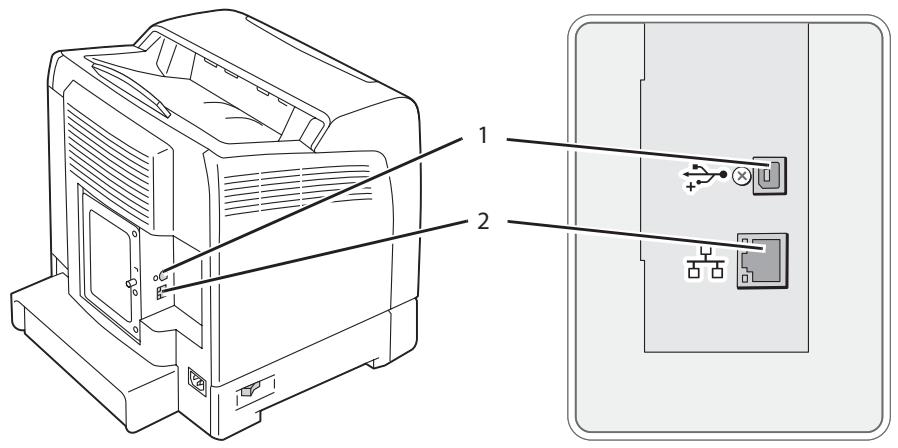
| 1 | USB port | + |
| 2 | Ethernet port |
Connecting Printer to Computer or Network
Connect the printer via Ethernet or USB. A USB connection is a direct connection and is not used for networking. An Ethernet connection is used for networking. Hardware and cabling requirements vary for the different connection methods. Ethernet cable and hardware are generally not included with your printer and must be purchased separately.
The available features for each connection type are shown in the following table.
| Connection Type | Available Features |
| USB | When connected via USB you can: ☐ Instruct print jobs from a computer. |
| Ethernet | When connected via Ethernet you can: ☐ Instruct print jobs from a computer on the network. |
USB Connection
A local printer is directly connected to your computer using the USB cable. If your printer is connected to a network instead of your computer, skip this section and go to "Network Connection" on page 41.
To connect the printer to a computer:
- Connect the smaller USB connector into the USB port on the rear of the printer.
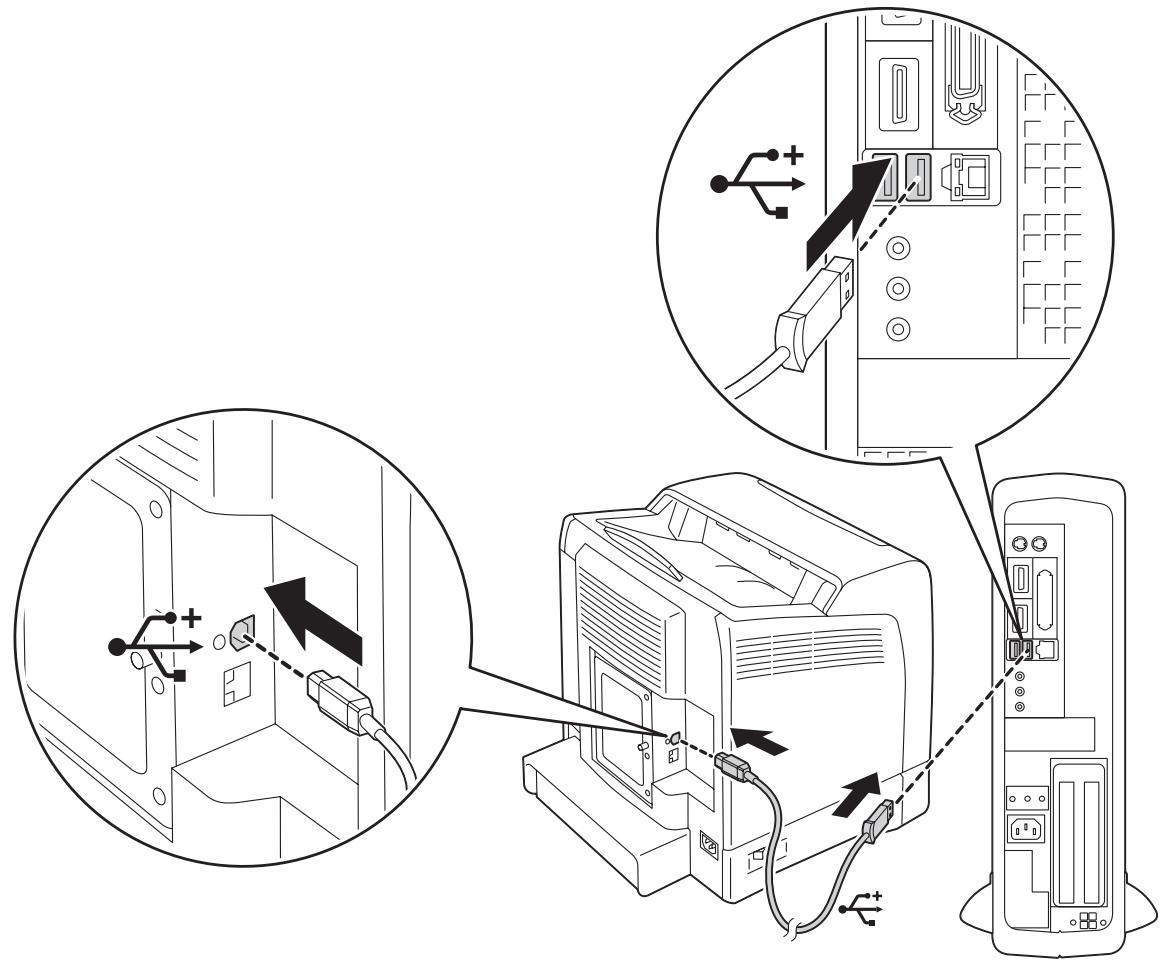
Note:
Ensure that you match the USB symbol on the cable to the USB symbol on the printer.
- Connect the other end of the cable into a USB port of the computer.
Note:
Do not connect the printer USB cable to the USB port available on the keyboard.
Network Connection
To connect the printer to a network:
- Connect an Ethernet cable.
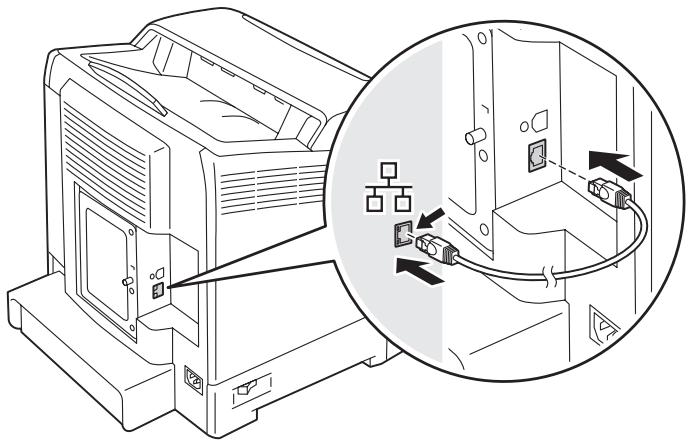
To connect the printer to the network, connect one end of the Ethernet cable into the Ethernet port on the rear of the printer, and the other end to a LAN drop or hub.
Setting the IP Address
TCP/IP and IP Addresses
If your computer is on a large network, contact your network administrator for the appropriate TCP/IP addresses and additional system settings information.
If you are creating your own small Local Area Network or connecting the printer directly to your computer using Ethernet, follow the procedure for automatically setting the printer's IP address.
Computers and printers primarily use TCP/IP protocols to communicate over an Ethernet network. With TCP/IP protocols, each printer and computer must have a unique IP address. It is important that the addresses are similar, but not the same; only the last digit needs to be different. For example, your printer can have the address 192.168.1.2 while your computer has the address 192.168.1.3. Another device can have the address 192.168.1.4.
Many networks have a Dynamic Host Configuration Protocol (DHCP) server. A DHCP server automatically programs an IP address into every computer and printer on the network that is configured to use DHCP. A DHCP server is built into most cable and Digital Subscriber Line (DSL) routers. If you use a cable or DSL router, see your router's documentation for information on IP addressing.
Automatically Setting the Printer's IP Address
If the printer is connected to a small established TCP/IP network without a DHCP server, use the installer on the Software Disc to detect or assign an IP address to your printer. For further instructions, insert the Software Disc into your computer's CD/DVD drive. After the Installer launches, follow the prompts for installation.
Note: For the automatic installer to function, the printer must be connected to an established TCP/IP network.
Dynamic Methods of Setting the Printer's IP Address
There are two protocols available for dynamically setting the printer's IP address:
DHCP (enabled by default)
AutoIP
You can turn on/off both protocols using the operator panel, or use EpsonNet Config to turn on/off DHCP.
Note:
You can print a report that includes the printer's IP address. On the operator panel, press the (Menu) button, select Report/List, press the OK button, select Printer Settings, and then press the OK button. The IP address is listed on the Printer Settings page.
Using the Operator Panel
To turn on/off either the DHCP or AutoIP protocol:
- On the operator panel, press the (Menu) button.
- Select Admin Menu, and then press the OK button.
-
Select Wired Network, and then press the OK button.
-
Select TCP/IP, and then press the OK button.
- Select IP04, and then press the OK button.
- Select Get IP Address, and then press the OK button.
- Select DHCP Autonet, and then press the OK button.
Using EpsonNet Config
To turn on/off the DHCP protocol:
- Launch your web browser.
- Enter the IP address in the browser's Address field, and then press the Enter key.
- Select Properties.
- Select the Protocol Settings folder on the left navigation panel.
- Select TCP/IP.
- In the Get IP Address field, select the DHCP / Autonet option.
- Click the Apply button.
Assigning an IP Address (for IPv4 Mode)
Note:
When you assign an IP address manually in IPv6 mode, use the EpsonNet Config. To display the EpsonNet Config, use the link local address. To check a link local address, see "Printing and Checking the Printer Settings Page" on page 46.
□ Assigning an IP address is considered as an advanced function and is normally done by a system administrator.
Depending on the address class, the range of the IP address assigned may be different. On Class A, for example, an IP address in the range from 0.0.0.0 to 127.255.255.255 will be assigned. For assignment of IP addresses, contact your system administrator.
You can assign the IP address by using the operator panel.
- Turn on the printer.
Ensure that Read message appears on the LCD panel.
-
On the operator panel, press the (Menu) button.
-
Select Admin Menu, and then press the OK button.
-
Select Wired Network, and then press the OK button.
-
Select TCP/IP, and then press the OK button.
-
Select IP04, and then press the OK button.
-
Select Get IP Address, and then press the OK button.
-
Select Panel, and then press the OK button.
-
Ensure that the message Restart Printer to apply settings appears, and then press any button.
-
Press the button to select IP Address, and then press the OK button.
The cursor is located at the first octet of the IP address.
-
Specify the value of the IP address using the or button.
-
Press the button.
The cursor moves to the next octet.
-
Repeat steps 11 to 12 to set all of the digits in the IP address, and then press the OK button.
-
Ensure that the message Restart Printer to apply setting appears, and then press any button.
-
Press the button to select Subnet Mask, and then press the OK button.
The cursor is located at the first octet of the subnet mask.
-
Specify the value of the subnet mask using the or button.
-
Press the button.
The cursor moves to the next octet.
- Repeat steps 16 to 17 to set subnet mask, and then press the OK button.
- Ensure that the message Restart Printer to apply settings appears, and then press any button.
- Press the button to select Gateway Address, and then press the OK button.
The cursor is located at the first octet of the gateway address.
- Specify the value of the gateway address using the or button.
- Press the button.
The cursor moves to the next octet.
- Repeat steps 21 to 22 to set gateway address, and then press the OK button.
- Ensure that the message Restart Printer to apply settings appears, and then press any button.
- Turn off and turn on the printer.
See Also:
"Operator Panel" on page 18
Verifying the IP Settings
You can confirm the settings by printing the system settings report or using the ping command.
The following procedure uses Windows XP as an example.
- Print the Printer Settings page.
- Look under the IPv4 heading on the Printer Settings page to ensure that the IP address, subnet mask, and gateway are appropriate.
To verify if the printer is active on the network, run the ping command in your computer:
-
Click start, and select Run.
-
Enter cmd, and then click OK.
A black window is displayed.
- Enter ping xx.xx.xx.xx (where xx.xx.xx.xx is the IP address of your printer), and then press the Enter key.
- Reply from the IP address denotes printer is active on the network.
See Also:
"Printing and Checking the Printer Settings Page" on page 46
Printing and Checking the Printer Settings Page
Print the Printer Settings page and check your printer's IP address by using the operator panel.
- On the operator panel, press the (Menu) button.
- Select Report/List, and then press the OK button.
- Select Printer Settings, and then press the OK button.
The Printer Settings page is printed.
- Confirm the IP address next to IP Address under Network (Wired) on the Printer Settings page. If the IP address is 0.0.0.0, wait for a few minutes to resolve the IP address automatically, and then print the Printer Settings page again.
If the IP address is not resolved automatically, see “Assigning an IP Address (for IPv4 Mode)” on page 43.
Installing Print Driver on Computers Running Windows
Identifying Print Driver Pre-install Status (For Network Connection Setup)
Before installing the print driver on your computer, print the Printer Settings page to check the IP address of your printer.
The Operator Panel
- Press the (Menu) button.
- Select Report/List, and then press the OK button.
- Select Printer Settings, and then press the OK button.
The Printer Settings page is printed.
- Find the IP address under Network (Wired) on the Printer Settings page.
If the IP address is 0.0.0.0, wait for a few minutes to resolve the IP address automatically, and then print the Printer Settings page again.
If the IP address is not resolved automatically, see "Assigning an IP Address (for IPv4 Mode)" on page 43.
Disabling the Firewall Before Installing Your Printer
Note:
For Windows XP, Service Pack 2 or 3 must be installed.
If you are running one of the following operating systems, you must disable the firewall before installing the Epson printer software:
Windows 7
Windows Vista
Windows Server 2008 R2
Windows Server 2008
Windows XP
The following procedure uses Windows XP as an example.
- Click start — Help and Support.
Note:
For Windows Vista, Windows Server 2008, Windows Server 2008 R2 and Windows 7 operating systems, if you use Online Help, switch to Offline Help on Windows Help and Support window.
- In the Search box, enter firewall and then press the Enter key.
In the list, click Turn Windows Firewall on or off and then follow the instructions on the screen.
Enable the firewall after the installation of the Epson printer software is complete.
Inserting the Software Disc
For Installing PCL Print Driver
- Insert the Software Disc into your computer to start Easy Install.
Note:
If the Software Disc does not automatically launch, click Start (start for Windows XP) — All Programs (for Windows Vista and Windows 7) — Accessories (for Windows Vista and Windows 7) — Run, and then enter D:\setup.exe (where D is the drive letter), and then click OK.
For Installing PostScript Print Driver
- Insert the Software Disc into your computer.
USB Connection Setup
For Installing PCL Print Driver
- Turn on the printer.
- Click Easy Install.
The SOFTWARE LICENSE AGREEMENT appears.
- If you agree to the terms of the SOFTWARE LICENSE AGREEMENT, select Agree and then click Next.
The Easy Install Navi launches. - Click Installing Driver and Software.
-
Click Print Driver.
-
Click Connect via USB.
- Follow the procedures described in the Help to install the print driver.
USB Printing
A personal printer is a printer attached to your computer or a print server using a USB. If your printer is attached to a network and not your computer, see "Network Connection Setup" on page 49.
For Installing PostScript Print Driver
Windows users should read the PostScript User's Guide for information on how to install the print driver.
Network Connection Setup
Note:
To use this printer in a Linux environment, you need to install a Linux driver. For more information on how to install and use these, see also "Installing Print Driver on Computers Running Linux (CUPS)" on page 56.
When using a CD drive in a Linux environment, you need to mount the CD according to your system environment. The command strings are mount/media/CD-ROM.
For installing PCL print driver
- Turn on the printer.
- Click Easy Install.
The SOFTWARE LICENSE AGREEMENT appears.
- If you agree to the terms of the SOFTWARE LICENSE AGREEMENT, select Agree and then click Next.
The Easy Install Navi launches.
- Click Installing Driver and Software.
-
Click Print Driver.
-
Select Standard or Custom setup.
- Follow the on-screen instructions to install the print driver.
For installing PostScript print driver
Windows users should read the PostScript User's Guide for information on how to install the print driver.
Setting Up for Shared Printing
You can share your new printer on the network using the Software Disc that comes with your printer, or using Microsoft peer-to-peer method. However, if you use the Microsoft method, some features, such as the Status Monitor and other printer utilities, installed with the Software Disc, may not be available.
If you want to use the printer on a network, share the printer and install its drivers on all the computers on the network.
Note:
You need to purchase an Ethernet cable for shared printing.
For Windows XP, Windows XP 64-bit Edition, Windows Server 2003, and Windows Server 2003 x64 Edition
- Click Start (start for Windows XP) — Printers and Faxes.
- Right-click the printer icon and select Properties.
- On the Sharing tab, select the Share this printer radio button, and then enter a name in Share name text box.
- Click Additional Drivers and select the operating systems of all network clients that print to the printer.
- Click OK.
If you are missing files, you are prompted to insert the server operating system CD.
- Click Apply, and then click OK.
For Windows Vista and Windows Vista 64-bit Edition
- Click Start — Control Panel — Hardware and Sound — Printers.
- Right-click the printer icon and select Sharing.
- Click Change sharing options.
The message Windows needs your permission to continue appears.
- Click Continue.
- Select the Share this printer check box, and then enter a name in Share name.
- Click Additional Drivers and select the operating systems of all network clients that print to the printer.
- Click OK.
- Click Apply, and then click OK.
For Windows Server 2008 and Windows Server 2008 64-bit Edition
- Click Start — Control Panel — Printers.
- Right-click the printer icon and select Sharing.
- Select the Share this printer check box, and then enter a name in Share name.
- Click Additional Drivers and select the operating systems of all network clients that print to the printer.
- Click OK.
- Click Apply, and then click OK.
For Windows 7, Windows 7 64-bit Edition, and Windows Server 2008 R2
- Click Start — Devices and Printers.
-
Right-click the printer icon and select Printer properties.
-
On the Sharing tab, select the Share this printer check box, and then enter a name in Share name text box.
- Click Additional Drivers and select the operating systems of all network clients that print to the printer.
- Click OK.
- Click Apply, and then click OK.
To confirm that the printer is properly shared:
- Ensure that the printer object in the Printers, Printers and Faxes or Devices and Printers folder is shared. The shared icon is shown under the printer icon.
- Browse Network or My Network Places. Find the host name of the server and the shared name you assigned to the printer.
Now that the printer is shared, you can install the printer on network clients using the peer-to-peer method.
Peer-to-Peer
If you use the peer-to-peer method, the print driver is fully installed on each client computer. Network clients retain control of driver modifications. The client computer handles the print job processing.
For Windows XP, Windows XP 64-bit Edition, Windows Server 2003, and Windows Server 2003 x64 Edition
- Click start (Start for Windows Server 2003 / Windows Server 2003 x64 Edition) — Printers and Faxes.
- Click Add a printer (Add Printer for Windows Server 2003 / Windows Server 2003 x64 Edition) to launch the Add Printer Wizard.
-
Click Next.
-
Select A network printer, or a printer attached to another computer, and then click Next. If the printer is not listed, enter the path to the printer in the text box.
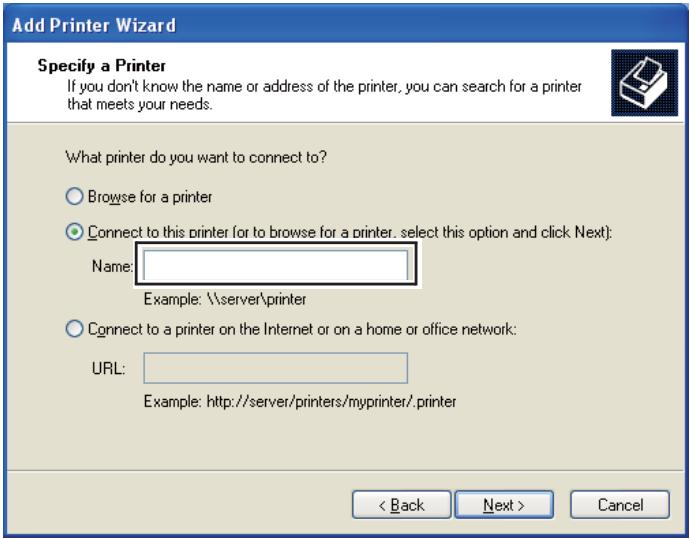
For example:[\text{server host name} ][\text{shared printer name}]
The server host name is the name of the server computer that identifies it on the network. The shared printer name is the name assigned during the server installation process.
-
Click Browse for a printer, and then click Next.
-
Select the printer, and then click Next.
If this is a new printer, you may be prompted to install a print driver. If no system driver is available, you need to specify the path to available drivers.
- Select Yes if you want this printer to be set as the default printer, and then click Next.
If you want to verify installation, click Yes to print a test page.
- Click Finish.
When a test page prints successfully, installation is complete.
For Windows Vista and Windows Vista 64-bit Edition
-
Click Start — Control Panel — Hardware and Sound — Printers.
-
Click Add a Printer to launch the Add Printer wizard.
- Select Add a network, wireless or Bluetooth printer, and then click Next. If the printer is listed, select the printer and click Next, or select The printer that I want isn't listed and enter the path of the printer in Select a shared printer by name and click Next.
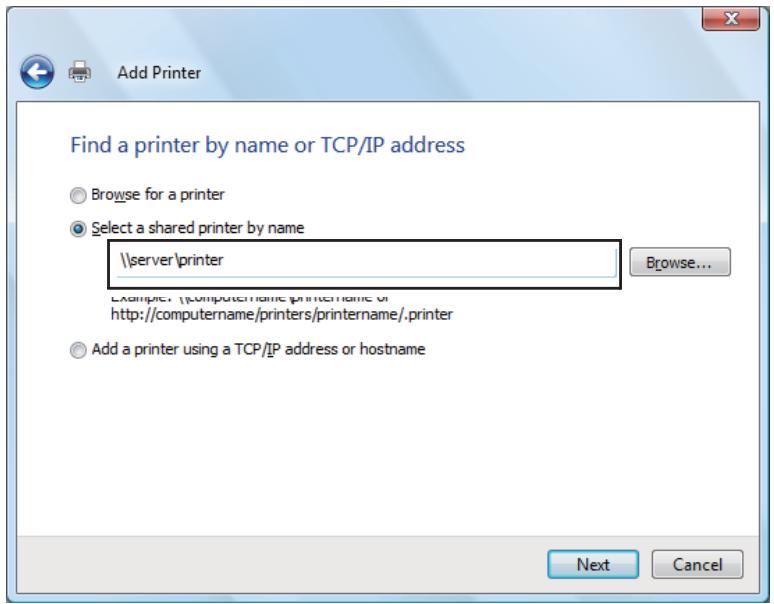
For example:[server host name][\shared printer name]]
The server host name is the name of the server computer that identifies it on the network. The shared printer name is the name assigned during the server installation process.
- If this is a new printer, you may be prompted to install a print driver. If no system driver is available, you need to specify the path to available drivers.
- Select Yes if you want this printer to be set as the default printer, and then click Next.
- If you want to verify installation, click Print a test page.
- Click Finish.
When a test page prints successfully, installation is complete.
For Windows Server 2008 and Windows Server 2008 64-bit Edition
-
Click Start — Control Panel — Printers.
-
Click Add a Printer to launch the Add Printer wizard.
-
Select Add a network, wireless or Bluetooth printer, and then click Next. If the printer is listed, select the printer and click Next, or select The printer that I want isn't listed and enter the path to the printer in Select a shared printer by name and click Next.
For example: [\text{server host name}]\backslash[\text{shared printer name}]]
The server host name is the name of the server computer that identifies it on the network. The shared printer name is the name assigned during the server installation process.
-
If this is a new printer, you may be prompted to install a print driver. If no system driver is available, you will need to provide a path to available drivers.
-
Select Yes if you want this printer to be set as the default printer, and then click Next.
-
Click Print a test page if you want to verify installation.
-
Click Finish.
When a test page prints successfully, installation is complete.
For Windows 7, Windows 7 64-bit Edition, and Windows Server 2008 R2
-
Click Start — Devices and Printers.
-
Click Add a Printer to launch the Add Printer wizard.
-
Select Add a network, wireless or Bluetooth printer. If the printer is listed, select the printer and click Next, or select The printer that I want isn't listed. Click Select a shared printer by name and enter the path of the printer in the text box, and then click Next.
For example: [\text{server host name}]\backslash [\text{shared printer name}]]
The server host name is the name of the server computer that identifies it to the network. The shared printer name is the name assigned during the server installation process.
-
If this is a new printer, you may be prompted to install a print driver. If no system driver is available, you will need to provide the path to the available driver.
-
Confirm the printer name, and then click Next.
-
Select Yes if you want this printer to be set as the default printer, and then click Next.
- Click Print a test page if you want to verify installation.
- Click Finish.
When a test page prints successfully, installation is complete.
Installing Print Driver on Computers Running Mac OS X
For information on how to install the print driver, refer to the PostScript User's Guide.
Installing Print Driver on Computers Running Linux (CUPS)
This section provides information for installing or setting up the print driver with CUPS (Common UNIX Printing System) on Red Hat® Enterprise Linux® 4 WS/5 Client or SUSE® Linux Enterprise Desktop 10/11.
Installing the Print Driver
Note:
The print driver Epson-AcuLaser_C2900-x.x-y.noarch.rpm is included in the Linux folder in the Common folder on the Software Disc.
In the file name, "x.x" represents the version number and "y" represents the release number.
For Red Hat Enterprise Linux 4 WS/5 Client
Important:
Before you install the print driver on Red Hat Enterprise Linux 4, confirm that Update 8 or higher is applied to your operating system. Consult your Linux distributor for the upgrade of your system.
- Double-click Epson-AcuLaser_C2900-x.x-y.noarch.rpm in the Software Disc.
- Enter the administrator's password.
- Click Continue in the Completed System Preparation window.
Installation starts. When the installation is complete, the window is automatically closed.
For SUSE Linux Enterprise Desktop 10
- Double-click Epson-AcuLaser_C2900-x.x-y.noarch.rpm in the Software Disc.
- Enter the administrator password, and click Install.
Installation starts. When the installation is complete, the window is automatically closed.
For SUSE Linux Enterprise Desktop 11
- Double-click Epson-AcuLaser_C2900-x.x-y.noarch.rpm in the Software Disc.
- Enter the administrator password, and click Continue.
Installation starts. When the installation is complete, the window is automatically closed.
Setting Up the Queue
To execute printing, you must set up the print queue on your workstation.
Note:
When you have finished setting up the queue, you can print jobs from the applications. Start the print job from the application, and specify the queue in the print dialog box.
However, you may be able to print only from the default queue depending on the application (for example Mozilla). In these cases, before you start printing, set queue you want to print to as the default queue. For information on specifying the default queue, see also "Setting the Default Queue" on page 61.
For Red Hat Enterprise Linux 4 WS/5 Client
- Open the URL “http://localhost:631” using a web browser.
- Click Administration.
- Enter root as the user name, and enter the administrator password.
- Click Add Printer.
Enter the name of the printer in Name in the Add New Printer window, and click Continue.
You can optionally specify the location and description of the printer for further information.
For network connections:
a Select LPD/LPR Host or Printer from the Device menu, and click Continue.
b Enter the IP address of the printer in Device URI.
c Format: lpd://xxxx.xxxx.xxxx (the IP address of the printer)
For USB connections with Red Hat Enterprise Linux 4 WS:
a Select USB Printer #1 from the Device menu.
For USB connections with Red Hat Enterprise Linux 5 Client:
a Select Epson AcuLaser C2900 USB #1 or Epson AcuLaser C2900 from the Device menu.
- Select Epson from the Make menu, and click Continue.
- Select Epson AcuLaser C2900 from the Model menu, and click Continue.
The message Printer Epson AcuLaser C2900 has been added successfully. appears.
The setup is complete.
For SUSE Linux Enterprise Desktop 10
- Select Computer - More Applications... and select YaST on the Application Browser.
- Enter the administrator password.
YaST Control Center is activated.
- Select Hardware on YaST Control Center, and select Printer.
- Printer setup: Autodetected printers is activated.
For network connections:
a Click Add.
b Select Network Printers as Printer Type, and click Next.
c Select the Print via LPD-Style Network Server as Printer Type, and click Next.
d Enter the IP address of the printer in Host name of the printer server.
e Enter the name of the printer queue in Name of the remote queue, and click Next.
f Enter the printer name in Name for printing.
Note: The Description of Printer and Location of Printer do not have to be specified.
g Select the Do Local Filtering check box, and click Next.
h Select Epson as Select manufacturer. Select Epson AcuLaser C2900 as Select Model, and click Next.
i Confirm the settings in Edit configuration, and click OK.
For USB connections:
a Select Epson AcuLaser C2900 on USB (/Epson/AcuLaser C2900 or /dev/usblp*) as Available are, and click Configure....
b Confirm the settings in Edit configuration, and click OK.
- Click Finish.
For SUSE Linux Enterprise Desktop 11
- Select Computer — More Applications..., and select YaST on the Application Browser.
- Enter the administrator password.
YaST Control Center is activated.
- Select Hardware on YaST Control Center, and select Printer.
The Printer Configurations dialog box opens.
For network connections:
a Click Add.
The Add New Printer Configuration dialog box opens.
b Click Connection Wizard.
The Connection Wizard dialog box opens.
c Select Line Printer Daemon (LPD) Protocol from Access Network Printer or Printserver Box via.
d Enter the IP address of the printer in IP Address or Host Name:
e Select Epson in Select the printer manufacturer:.
f Click OK.
The Add New Printer Configuration dialog box appear.
g Select Epson AcuLaser C2900 v3018.102 PS [Epson/AcuLaser_C2900.ppd.gz] from the Search for Drivers: list.
Note:
You can specify the printer name in Set Name:.
h Confirm the settings, and click OK.
For USB connections:
a Click Add.
The Add New Printer Configuration dialog box opens.
The printer name is displayed in the Determine Connection list.
b Select Epson AcuLaser C2900 v3018.102 PS [Epson/AcuLaser_C2900.ppd.gz] from the Search for Drivers: list.
Note:
You can specify the printer name in Set Name:
Setting the Default Queue
For Red Hat Enterprise Linux 4 WS/5 Client
- Select Applications — System Tools — Terminal.
- Enter the following command in the terminal window.
su
(Enter the administrator password)
Ipadmin -d (Enter the queue name)
For SUSE Linux Enterprise Desktop 10
- To activate the Printer setup: Autodetected printers, do the following.
a Select Computer — More Applications... and select YaST on the Application Browser.
b Enter the administrator password.
YaST Control Center is activated.
c Select Hardware on YaST Control Center, and select Printer.
- Select the printer you want to set to default on the Printer Configuration, and select Set default in the Other button menu.
- Click Finish.
For SUSE Linux Enterprise Desktop 11
-
Select Computer - More Applications... and select YaST on the Application Browser.
-
Enter the administrator password.
YaST Control Center is activated.
- Select Hardware on YaST Control Center, and select Printer.
The Printer Configurations dialog box opens.
- Click Edit.
A dialog box to modify the specified queue opens.
- Confirm that the printer you want to set is selected in the Connection list.
- Select the Default Printer check box.
- Confirm the settings, and click OK.
Specifying the Printing Options
You can specify the printing options such as the color mode or 2-sided printing.
For Red Hat Enterprise Linux 4 WS/5 Client
- Open the URL "http://localhost:631" using a web browser.
- Click Manage Printers.
- Click Configure Printer of the queue for which you want to specify the printing options.
- Enter root as the user name, and enter the administrator password.
- Specify the required settings, and click Continue.
The message Printer Epson AcuLaser C2900 has been configured successfully. appears. The setting is complete.
For SUSE Linux Enterprise Desktop 10
-
Open a web browser.
-
Enter http://localhost:631/admin in Location, and press the Enter key.
-
Enter root as the user name, and enter the administrator password.
The CUPS window appears.
Note:
Set the password for authority as the printer administrator before setting the printer queue. If you have not set it, go to "Setting the Password for Authority as the Printer Administrator" on page 64.
-
Click Manage Printers.
-
Specify the required settings, and click Continue.
The message Printer Epson AcuLaser C2900 has been configured successfully. appears.
The setting is complete. Execute printing from the application.
For SUSE Linux Enterprise Desktop 11
-
Open a web browser.
-
Enter http://localhost:631/admin in Location, and press the Enter key.
-
Enter root as the user name, and enter the administrator password.
The CUPS window appears.
Note:
Set the password for authority as the printer administrator before setting the printer queue. If you have not set it, go to "Setting the Password for Authority as the Printer Administrator" on page 64.
-
Click Manage Printers.
-
Specify the required settings, and click Continue.
The message Printer Epson AcuLaser C2900 has been configured successfully. appears.
The setting is complete. Execute printing from the application.
Setting the Password for Authority as the Printer Administrator
For SUSE Linux Enterprise Desktop 10 and 11, you must set the password for authority as the printer administrator to do operations as the printer administrator.
For SUSE Linux Enterprise Desktop 10
- Select Computer - More Applications... and select Konsole on the Application Browser.
- Enter the following command in the terminal window.
su
(Enter the administrator password)
Ippasswd -g sys -a root
(Enter the password for authority as the printer administrator after the Enter password prompt.)
(Reenter the password for authority as the printer administrator after the Enter password again prompt.)
For SUSE Linux Enterprise Desktop 11
- Select Computer — More Applications... and select GNOME Terminal on the Application Browser.
- Enter the following command in the terminal window.
su
(Enter the administrator password)
Ippasswd -g sys -a root
(Enter the password for authority as the printer administrator after the Enter password prompt.)
(Reenter the password for authority as the printer administrator after the Enter password again prompt.)
Uninstalling the Print Driver
For Red Hat Enterprise Linux 4 WS/5 Client
- Select Applications — System Tools — Terminal.
- Enter the following command in the terminal window to delete the print queue.
su
(Enter the administrator password)
/usr/sbin/lpadmin -x (Enter the print queue name)
- Repeat the command above for all queues for the same model.
- Enter the following command in the terminal window.
su
(Enter the administrator password)
rpm -e Epson-AcuLaser_C2900
The print driver is uninstalled.
For SUSE Linux Enterprise Desktop 10
- Select Computer — More Applications... and select Konsole on the Application Browser.
- Enter the following command in the terminal window to delete the print queue.
su
(Enter the administrator password)
/usr/sbin/lpadmin -x (Enter the print queue name)
- Repeat the command above for all queues for the same model.
- Enter the following command in the terminal window.
su
(Enter the administrator password)
rpm -e Epson-AcuLaser_C2900
The print driver is uninstalled.
For SUSE Linux Enterprise Desktop 11
-
Select Computer — More Applications... and select GNOME Terminal on the Application Browser.
-
Enter the following command in the terminal window to delete the print queue.
su
(Enter the administrator password)
/usr/sbin/lpadmin -x (Enter the print queue name)
-
Repeat the command above for all queues for the same model.
-
Enter the following command in the terminal window.
su
(Enter the administrator password)
rpm -e Epson-AcuLaser_C2900
The print driver is uninstalled.
Chapter 5
Printing Basics
About Print Media
Using paper that is not appropriate for the printer can cause paper jams, image quality problems, or printer failure. To achieve the best performance from your printer, we recommend you to use only the paper described in this section.
When using paper other than that recommended, contact the Epson local representative office or an authorised dealer.
Print Media Usage Guidelines
The printer tray accommodates most sizes and types of paper and other specialty media. Follow these guidelines when loading paper and media in the tray:
Envelopes can be printed from the single sheet feeder (SSF) and standard 250-sheet tray.
Fan paper or other specialty media before loading in the paper tray.
- Do not print on label stock once a label has been removed from a sheet.
Use only paper envelopes. Do not use envelopes with windows, metal clasps, or adhesives with release strips.
Print all envelopes single-sided only.
Some wrinkling and embossing may occur when printing envelopes.
- Do not overload the paper tray. Do not load print media above the fill line on the inside of the paper width guides.
Adjust the paper width guides to fit the paper size.
If excessive jams or wrinkles occur, use paper or other media from a new package.

Warning:
Do not use conductive paper such as origami paper, carbonic paper or conductively-coated paper. When paper jam occurs, it may cause short-circuit and eventually a fire accident.
See Also:
“Loading Print Media in the Standard 250-Sheet Tray and the Optional 250-Sheet Paper Cassette Unit” on page 73
“Loading Envelope in the Standard 250-Sheet Tray” on page 75
“Loading Print Media in the Single Sheet Feeder (SSF)” on page 78
“Loading Envelope in the Single Sheet Feeder (SSF)” on page 79
□ “Printing on Custom Size Paper” on page 96
Print Media That Can Damage Your Printer
The following paper types are not recommended for use with the printer:
Chemically treated paper used to make copies without carbon paper, also known as carbonless paper, carbonless copy paper (CCP), or no carbon required (NCR) paper.
Preprinted paper with chemicals that may contaminate the printer.
Preprinted paper that can be affected by the temperature in the fuser unit.
Preprinted paper that requires a registration (the precise print location on the page) greater than ± 0.09 inches, such as optical character recognition (OCR) forms. In some cases, you can adjust registration with your software program to successfully print on these forms.
Coated paper (erasable bond), synthetic paper, and thermal paper.
- Rough-edged, rough or heavily textured surface paper, or curled paper.
Recycled paper containing more than 25% post-consumer waste that does not meet DIN 19309.
Multiple-part forms or documents.
- Print quality may deteriorate (blank spaces or blotches may appear in the text) when you print on talc or acid paper.

Warning:
Do not use conductive paper such as origami paper, carbonic paper or conductively-coated paper. When paper jam occurs, it may cause short-circuit and eventually a fire accident.
Supported Print Media
Using unsuitable print media may lead to paper jams, poor print quality, breakdown and damage to your printer. To use the features of this printer effectively, use the suggested print media that is recommended here.
Important:
The toner may come off the print media, if it gets wet by water, rain, steam and so on. For details, contact the Epson local representative office or an authorised dealer.
Print Media Dimensions
The maximum dimensions of print media that the standard 250-sheet tray and SSF can handle are:
Width: 76.2mm (3.00 inches) to 215.9mm (8.5 inches)
Length: 127mm (5.00 inches) to 355.6mm (14.00 inches)
The maximum dimensions of print media that the optional 250-sheet paper cassette unit can handle are:
Width: 148mm (5.83 inches) to 215.9mm (8.5 inches)
Length: 210mm (8.27 inches) to 355.6mm (14.00 inches)
Usable Print Media
The types of print media that can be used on this printer are as follows:
Single Sheet Feeder (SSF)
| Paper Size | A4 SEF (210 × 297 mm) |
| A5 SEF (148 × 210 mm) | |
| B5 SEF (182 × 257 mm) | |
| Letter SEF (8.5 × 11 inches) | |
| Folio SEF (8.5 × 13 inches) | |
| Legal SEF (8.5 × 14 inches) | |
| Executive SEF (7.25 × 10.5 inches) | |
| Com-10 SEF (4.125 × 9.5 inches) | |
| Monarch Envelope SEF (3.875 × 7.5 inches) | |
| DL Envelope SEF (110 × 220 mm) | |
| C5 Envelope SEF (162 × 229 mm) | |
| Custom Size: | |
| Width: 76.2–215.9 mm (3–8.5 inches) | |
| Length: 127–355.6 mm (5–14 inches) | |
| Paper Type (Weight) | Plain |
| Lightweight Cardstock | |
| Heavyweight Cardstock | |
| Envelope | |
| Letterhead | |
| Lightweight Glossy Cardstock | |
| Heavyweight Glossy Cardstock | |
| Hole Punched | |
| Colored | |
| Special | |
| Loading Capacity | 1 sheet of standard paper |
Standard 250-Sheet Tray
| Paper Size | A4 SEF (210 × 297 mm) |
| A5 SEF (148 × 210 mm) | |
| B5 SEF (182 × 257 mm) | |
| Letter SEF (8.5 × 11 inches) | |
| Folio SEF (8.5 × 13 inches) | |
| Legal SEF (8.5 × 14 inches) | |
| Executive SEF (7.25 × 10.5 inches) | |
| Com-10 SEF (4.125 × 9.5 inches) | |
| Monarch Envelope SEF (3.875 × 7.5 inches) | |
| Monarch Envelope LEF (7.5 × 3.8 inches) | |
| DL Envelope SEF (110 × 220 mm) | |
| DL Envelope LEF (220 × 110 mm) | |
| C5 Envelope SEF (162 × 229 mm) | |
| Custom Size: | |
| Width: 76.2–215.9 mm (3–8.5 inches)*1 | |
| Length: 127–355.6 mm (5 –14 inches)*2 | |
| Paper Type (Weight) | Plain |
| Lightweight Cardstock | |
| Heavyweight Cardstock | |
| Envelope | |
| Labels | |
| Letterhead | |
| Hole Punched | |
| Colored | |
| Special | |
| Loading Capacity | 250 sheets of standard paper |
1 Maximum width 220 mm for envelope (DL LEF)
DL and Monarch can be supported by LEF with flap opened.
2 Minimum length 98.4 mm for envelope (Monarch LEF)
Optional 250-Sheet Paper Cassette Unit
| Paper Size | A4 SEF (210 × 297 mm) A5 SEF (148 × 210 mm) B5 SEF (182 × 257 mm) Letter SEF (8.5 × 11 inches) Folio SEF (8.5 × 13 inches) Legal SEF (8.5 × 14 inches) Executive SEF (7.25 × 10.5 inches) |
| Paper Type (Weight) | Plain Letterhead Hole Punched Colored |
| Loading Capacity | 250 sheets of standard paper |
Note:
SEF and LEF indicate the paper feed direction; SEF stands for short-edge feed. LEF stands for long-edge feed.
See Also:
“Loading Print Media in the Standard 250-Sheet Tray and the Optional 250-Sheet Paper Cassette Unit” on page 73
“Loading Envelope in the Standard 250-Sheet Tray” on page 75
“Loading Letterhead in the Standard 250-Sheet Tray and the Optional 250-Sheet Paper Cassette Unit” on page 78
“Loading Print Media in the Single Sheet Feeder (SSF)” on page 78
“Loading Envelope in the Single Sheet Feeder (SSF)” on page 79
Printing on print media that differs from the paper size or paper type selected on the print driver, or loading print media into an unsuitable paper tray for printing, may lead to paper jams. To ensure that printing is correctly done, select the correct paper size, paper type, and paper tray.
Loading Print Media
Loading print media properly helps prevent jams and ensures trouble-free printing.
Before loading any print media, identify the recommended print side of the print media. This information is usually indicated on the print media package.
Capacity
The standard 250-sheet tray and optional 250-sheet paper cassette unit can hold:
250 sheets of the standard paper.
The SSF can hold:
1 sheet of the standard paper.
Loading Print Media in the Standard 250-Sheet Tray and the Optional 250-Sheet Paper Cassette Unit
Note:
To avoid paper jams, do not remove the tray while printing is in progress.
Use only laser print media. Do not use ink jet paper in your printer.
- Pull the tray out of the printer about 200mm . Hold the tray with both hands, and remove it from the printer.
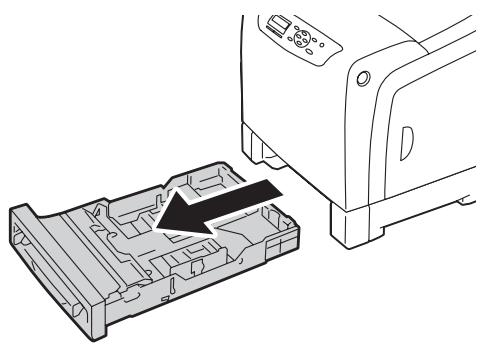
- Adjust the paper guides.
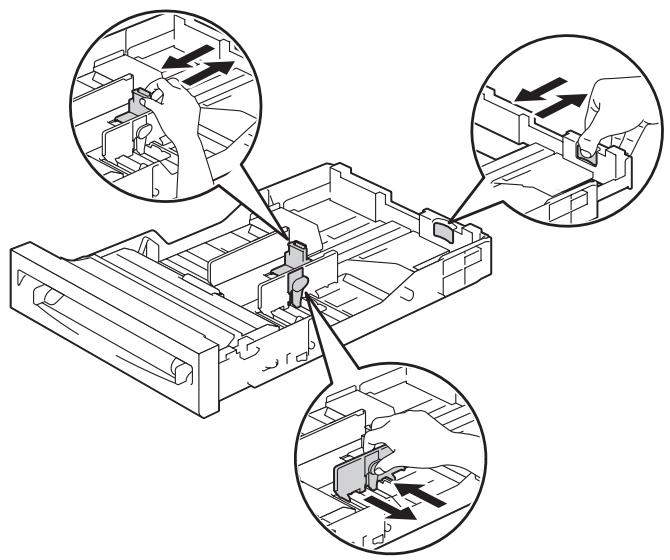
Note:
Extend the rear side of the tray when you load Legal size paper.
- Before loading the print media, flex the sheets and fan them. Straighten the edges of the stack on a level surface.
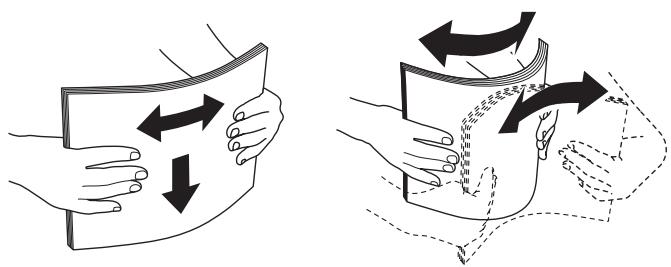
- Load the print media into the tray with the recommended print side facing up.
Note:
Do not exceed the maximum fill line in the tray. Overfilling the tray may cause paper jams.
When loading coated paper, load coated paper one sheet at a time.
- Align the width guides against the edges of the paper.
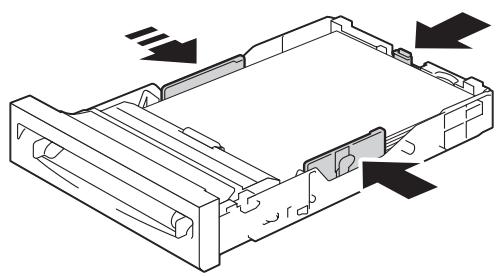
Note:
When loading user-specified print media, adjust the width guides and slide the extendable part of the tray by pinching the length guide and sliding it until it rests lightly against the edge of the paper.
- After confirming that the guides are securely adjusted, insert the tray into the printer.
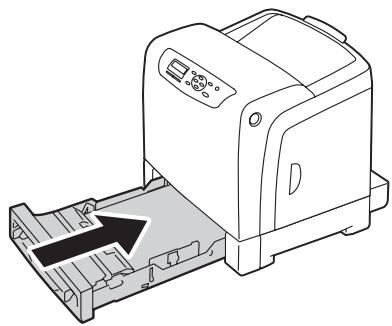
-
On the operator panel, select the desired paper size, and then press the OK button.
-
Select the desired paper type, and then press the OK button.
Loading Envelope in the Standard 250-Sheet Tray
Use the following guidelines when loading envelopes in the standard 250-sheet tray:
Note:
If you do not load envelopes in the standard 250-sheet tray right after they have been removed from the packaging, they may bulge. To avoid jams, flatten them as shown below before loading the envelopes in the tray.
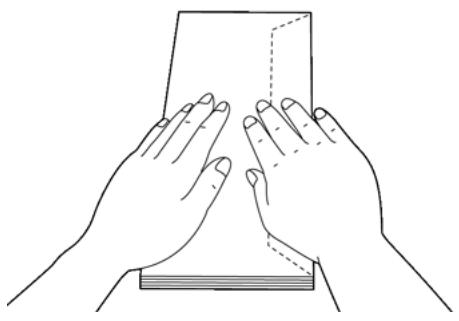
Com-10
Load the envelopes short edge feed with the flaps closed and the print side up. Ensure that the flaps come at the right when you face towards the printer.
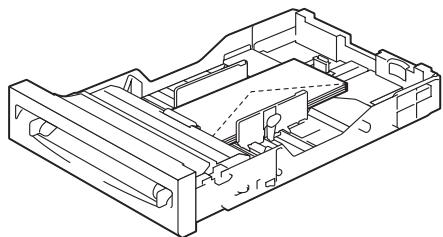
Monarch or DL
The Monarch or DL envelopes can be loaded in one of the following ways:
Load the envelopes short edge feed with the flaps closed and the print side up. Ensure that the flaps come at the right when you face towards the printer.
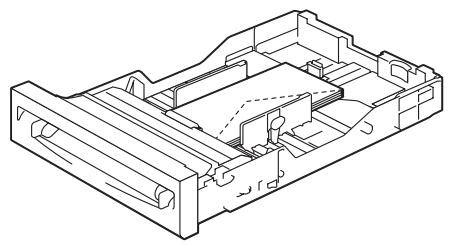
OR
Load the envelopes long edge feed with the flaps open and the print side up. Ensure that the flaps come at the top when you face towards the printer.
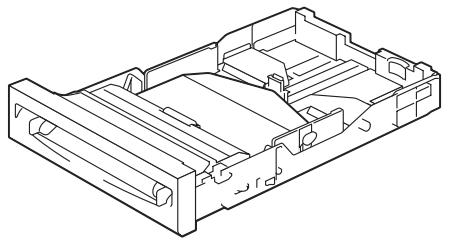
C5
Load the envelopes short edge feed with the flaps closed and the print side up. Ensure that the flaps come at the bottom when you face towards the printer.
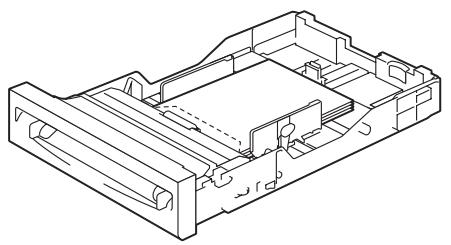
Loading Letterhead in the Standard 250-Sheet Tray and the Optional 250-Sheet Paper Cassette Unit
When you use the standard 250-sheet tray and optional 250-sheet paper cassette unit, letterhead and hole punched paper enter the printer with the print side facing up.
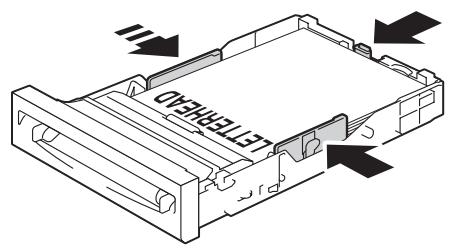
Loading Print Media in the Single Sheet Feeder (SSF)
- Adjust the width guides to the print media's width.
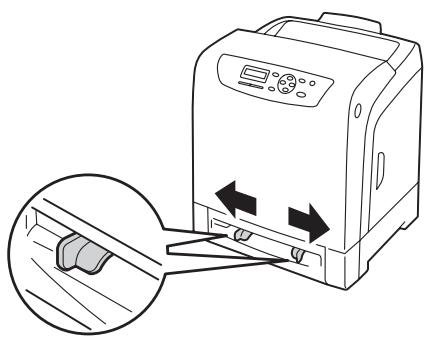
- Hold both sides of the print media face down close to the SSF, and push it 8cm to 9cm (4 inches) into the printer until it automatically feeds.
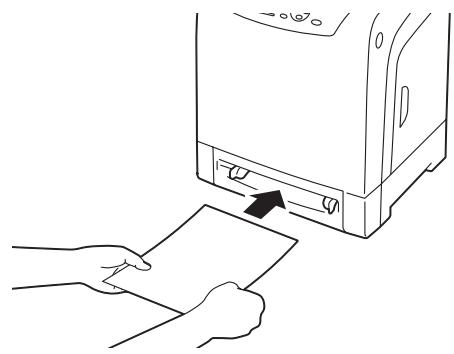
Note:
Do not force the print media into the SSF.
Load letterhead face down, with the top of the sheet entering the printer first.
□ If you experience problems with paper feed, turn the paper around.
Loading Envelope in the Single Sheet Feeder (SSF)
Com-10, Monarch, or DL
To load an envelope into the SSF, insert the envelope short edge feed with the flap closed and the print side down. Ensure that the flap comes at the right when you face towards the printer.
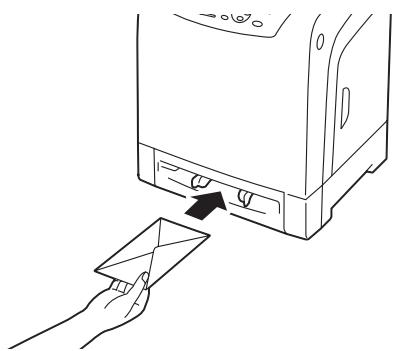
Important:
Never use envelopes with windows, coated linings, or self-stick adhesives. These lead to paper jams and can cause damage to the printer.
Note:
Ensure that you load an envelope with the flap completely closed.
Insert an envelope with the flap side face up and with the stamp area on the top right side.
C5
To load an envelope into the SSF, insert the envelope short edge feed with the flap open and the print side down. Ensure that the flap comes at the bottom when you face towards the printer.
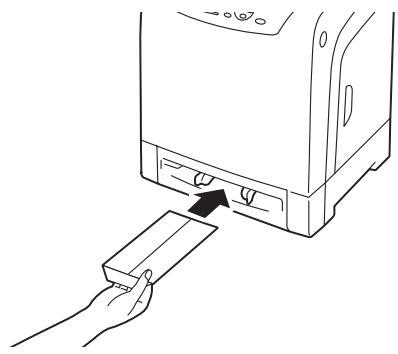
OR
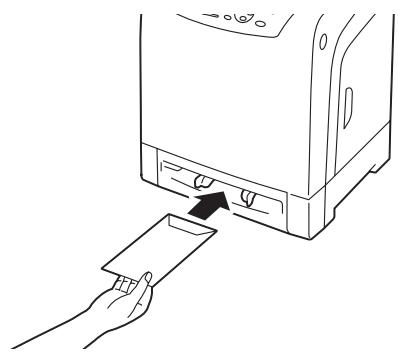
Important:
Never use envelopes with windows, coated linings, or self-stick adhesives. These lead to paper jams and can cause damage to the printer.
Note:
Ensure that you load an envelope with the flap completely opened.
Insert an envelope with the flap side face up and with the stamp area on the bottom right side.
Loading Letterhead in the Single Sheet Feeder (SSF)
When you use the SSF letterhead enters the printer first with the print side facing down.
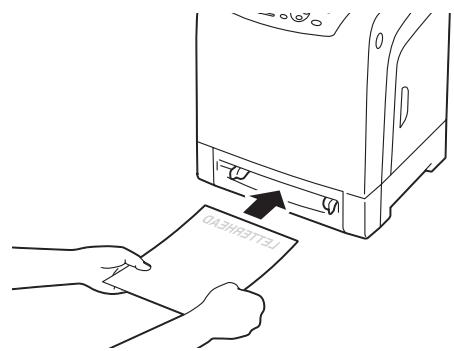
Using the Single Sheet Feeder (SSF)
- Load only one size and type of print media during a single print job.
To achieve the best possible print quality, use only high-quality print media that is designed for use in laser printer. For more guidelines on print media, see "Print Media Usage Guidelines" on page 67. - Do not add or remove print media when the printer is printing from the SSF. This may result in a paper jam.
- Print media should be loaded with the recommended print side down and the top of the print media going into the SSF first.
Do not place objects on the SSF. Also, avoid pressing down or applying excessive force on it.
The icons on the SSF show how to load the SSF with paper, and how to turn an envelope for printing.
Setting Paper Sizes and Types
When loading print media in the standard 250-sheet tray and optional 250-sheet paper cassette unit, set the paper size and type on the operator panel before printing.
Note:
When loading print media in the SSF, use the print driver to set the paper size and type. For more information, refer to the online help of the driver.
This section describes how to set the paper size and type on the operator panel.
See Also:
"Understanding the Printer Menus" on page 104
Setting Paper Sizes
- On the operator panel, press the (Menu) button.
- Select Tray Settings, and then press the OK button.
- Select Tra 1 or Tra 2, and then press the OK button.
- Select Paper Size, and then press the OK button.
- Select the correct paper size for the print media loaded, and then press the OK button.
Setting Paper Types
Important:
Paper type settings must match those of the actual print media loaded in the tray or the cassette unit. Otherwise, print-quality problems can occur.
-
Select the correct paper type for the print media loaded, and then press the OK button.
-
On the operator panel, press the (Menu) button.
- Select Tray Settings, and then press the OK button.
- Select Tray 1 or Tray 2, and then press the OK button.
- Select Paper Type, and then press the OK button.
Printing
This section covers how to print certain lists of information from your printer and how to cancel a job.
Sending a Job to Print
To support all of the printer features, use the print driver. When you choose Print from a software program, a window representing the print driver opens. Select the appropriate settings for the specific job that you are sending to print. Print settings selected from the driver override the default menu settings selected from the operator panel.
You may need to click Preferences from the initial Print box to see all of the available system settings you can change. If you are not familiar with a feature in the print driver window, open the online Help for more information.
To print a job from a typical Microsoft® Windows® application:
- Open the file you want to print.
- From the File menu, select Print.
- Verify that the correct printer is selected in the dialog box. Modify the system settings as appropriate (such as the pages you want to print or the number of copies).
- Click Preferences to adjust system settings that are not available from the first screen, and then click OK.
- Click OK or Print to send the job to the selected printer.
Canceling a Print Job
There are several methods for canceling a job.
Canceling a Job From the Operator Panel
To cancel a job after it has started printing:
- Press the Stop button.
- From Active Jobs, select Print, and then press the Stop button.
Printing is canceled only for the current job. All the following jobs will continue to print.
Canceling a Job From the Computer Running Windows
Canceling a Job From the Taskbar
When you send a job to print, a small printer icon appears in the bottom right corner of the taskbar.
- Double-click the printer icon.
A list of print jobs appears in the printer window. - Select the job you want to cancel.
- Press Delete key on the keyboard.
Canceling a Job From the Desktop
- Click start - Printers and Faxes (for Windows XP).
Click Start - Printers and Faxes (for Windows Server 2003).
Click Start — Devices and Printers (for Windows 7 and Windows Server 2008 R2).
Click Start — Control Panel — Hardware and Sound — Printers (for Windows Vista).
Click Start — Control Panel — Printers (for Windows Server 2008).
- Double-click the printer that you selected when you sent the job for print.
A list of print jobs appears in the printer window.
- Select the job you want to cancel.
- Press Delete key on the keyboard.
Using the Stored Print Function
When you send a job to the printer, you can specify in the driver that you want the printer to store the job in the memory. When you are ready to print the job, go to the printer and use the operator panel menus to identify which job in the memory you want to print.
The stored print function includes the following job types:
“Secure Print” on page 85
“Sample Print” on page 85
Note:
Stored Print function is available when:
The additional memory module is installed.
The RAM disk is enabled in the operator panel menu.
RAM Disk is set to Available in the print driver.
The data in memory is cleared when the printer is turned off.
Secure Print
You can store print jobs temporarily in printer memory and print them later from the operator panel. This feature can be used to print confidential documents. A stored print job will be deleted after you print it or at a designated time.
Note:
- Secure Print is available when you use the PCL driver.
Secure Print requires specifying a password for confidentiality.
Sample Print
When you specify multiple copies for a collated job, this feature allows you to print only the first set for checking, before proceeding to print the remaining copies at the printer. You can select whether the remaining data is printed or deleted.
Note:
If a print job is too large for the memory available, the print may display error messages.
If a document name is not assigned to your print job in the print driver, the job's name will be identified using the printer's time and date of submission to distinguish it from other jobs you have stored under your name.
Sample Print is available when you use the PCL driver.
Storing Print Jobs
In the print driver, you can specify a setting that enables you to store print jobs in temporary memory. For example, select a job type other than NormalPrint in the Paper/Output tab of the PCL 6 driver. The job will be stored in temporary memory until you request to print it from the operator panel or turn off the printer.
Printing the Stored Jobs
Once jobs are stored, you can use the operator panel to specify printing. Select the job type you are using from Secure Print and Sample Print. Then, select your user ID from a list. Secure Print requires the password you specified in the driver when you sent the job.
To print the stored documents, use the procedure below.
- Press the button.
- Select Secure Print or Sample Print, and then press the OK button.
- Select your user ID, and then press the OK button.
- Select the document you want to print, and then press the OK button.
- Select the desired job type, and then press the OK button.
- Select Use PC Settings or Input Number, and then press the OK button.
Note:
When you select Input Number, you can specify the number of copies to be printed before pressing the OK button.
The stored document will be printed.
Specifying Your Password on the Operator Panel (Secure Print)
When you select your user ID for Secure Print, the following prompt appears:
[ ]
Use the buttons on the operator panel to enter the numeric password you specified in the print driver. The password you entered will be displayed as asterisks (^^^^^^) to ensure confidentiality.
If you enter an invalid password, the message "Wrong password Re-enter" appears. Wait three seconds, or press the OK button to return to the screen for user selection.
When you enter a valid password, you have access to all print jobs matching the user name and password you entered. The print jobs matching the password you entered appear on the screen. You can then choose to print or to delete jobs matching the password you entered. (See "Printing the Stored Jobs" on page 86 for more information.)
Deleting Stored Jobs
With Secure Print, a job that has been stored will be deleted after printing if entered on the operator panel or at turning off the printer.
For Sample Print, these jobs remain stored until you delete them on the operator panel or turn off the printer.
Duplex Printing
Automatic Duplex Printing
Automatic duplex printing (or 2-sided printing) allows you to print on both sides of a sheet of paper. A4, Letter, Folio, and Legal paper sizes are acceptable.
The following procedure uses the PCL 6 driver as an example.
- Click start - Printers and Faxes (for Windows XP).
Click Start - Printers and Faxes (for Windows Server 2003).
Click Start — Devices and Printers (for Windows 7 and Windows Server 2008 R2).
Click Start — Control Panel — Hardware and Sound — Printers (for Windows Vista).
Click Start — Control Panel — Printers (for Windows Server 2008).
A list of available printers appears.
- Right-click the printer and select Printing Preferences.
The Paper / Output tab appears.
- From Paper Tray, select Tray1, Tray2, or Auto Paper Select.
- From 2 Sided Print, select 2 Sided Print or 2 Sided, Flip on Short Edge.
Note:
For details on the 2 Sided Print and 2 Sided, Flip on Short Edge options, see “Using Booklet Print” on page 88.
- Click OK.
Using Booklet Print
To use the Booklet Print feature, select Booklet Creation in the Booklet / Poster / Mixed Document / Rotation dialog box displayed by clicking the Booklet / Poster / Mixed Document / Rotation button in the Layout tab of the printer printing preferences dialog box. 2 Sided Print binding position is selected by default. If you want to change the position, select 2 Sided, Flip on Short Edge from the 2 Sided Print menu in the Paper / Output tab of the printer printing preferences dialog box.
Note:
To use the booklet printing, select Tray1, Tray2, or Auto Paper Select for Paper Tray in the Paper/Output tab. Do not select Manual Feeder.
| 2 Sided Print | Assumes binding along the long edge of the page (left edge for portrait orientation and top edge for landscape orientation). The following illustration shows long-edge binding for portrait and landscape pages: | |
| Portrait | Landscape | |
| 2 3 | 2 3 | |
| 2 Sided, Flip on Short Edge | Assumes binding along the short edge of the page (top edge for portrait orientation and left edge for landscape orientation). The following illustration shows short-edge binding for portrait and landscape pages: | |
| Portrait | Landscape | |
| 2 3 | 2 3 | |
Selecting Printing Options
Selecting Printing Preferences (Windows)
Printer preferences control all of your print jobs, unless you override them specifically for a job. For example, if you want to use duplex printing for most jobs, set this option in printer settings.
The following procedure uses the PCL 6 driver as an example.
To select printer preferences:
- Click start - Printers and Faxes (for Windows XP).
Click Start - Printers and Faxes (for Windows Server 2003).
Click Start — Devices and Printers (for Windows 7 and Windows Server 2008 R2).
Click Start — Control Panel — Hardware and Sound — Printers (for Windows Vista).
Click Start — Control Panel — Printers (for Windows Server 2008).
A list of available printers appears.
- Right-click the icon for your printer, and then select Printing Preferences.
- Select the Advanced Settings tab, and then click Defaults.
- Make selections on the driver tabs, and then click OK to save your selections.
Note:
For more information about Windows print driver options, click Help on the print driver tab to view the online help.
Selecting Options for an Individual Job (Windows)
If you want to use special printing options for a particular job, change the driver settings before sending the job to the printer. For example, if you want to use Photo print-quality mode for a particular graphic, select this setting in the driver before printing that job.
The following procedure uses the PCL 6 driver as an example.
- With the desired document or graphic open in your application, access the Print dialog box.
- Select the printer and click Preferences to open the print driver.
- Make selections on the driver tabs. See the following table for specific printing options.
Note:
In Windows XP, Windows Server 2003, Windows Server 2008, Windows Vista, Windows Server 2008 R2, and Windows 7, you can save current printing options with a distinctive name and apply them to other print jobs. Select either the Paper/Output, Image Options, Layout, Watermarks/Forms, or Advanced Settings tab, and then click Save on the Paper/Output tab. Click Help for more information.
- Click OK to save your selections.
- Print the job.
See the following table for specific printing options:
The table shown below uses the PCL 6 driver as an example.
Printing Options for Windows
| Operating System | Driver Tab | Printing Options |
| Windows XP, Windows XP x 64bit, Windows Server 2003, Windows Server 2003 x 64bit, Windows Vista, Windows Vista x 64bit, Windows Server 2008, Windows Server 2008 x 64bit, Windows Server 2008 R2, Windows 7, or Windows 7 x 64bit | Paper / Output tab | ☐ Job Type ☐ Saved Settings ☐ 2 Sided Print ☐ Output Color ☐ Quantity ☐ Paper Summary ☐ Paper Size ☐ Paper Tray ☐ Paper Type ☐ Manual Feeder Feed Orientation ☐ Covers / Separators ☐ Envelope/Paper Setup Wizard ☐ Printer Status ☐ Defaults |
| Image Options tab | ☐ Output Color ☐ Image Quality ☐ Output Recognition ☐ Image Adjustment Mode ☐ Image Types ☐ Image Auto Correction ☐ Image Settings ☐ Color Balance ☐ Profile Settings ☐ Defaults | |
| Layout tab | ☐ Image Orientation ☐ Multiple-Up ☐ Booklet / Poster / Mixed Document / Rotation ☐ Fit to New Paper Size ☐ Specify Zoom ☐ Image Shift / Print Position ☐ Defaults | |
| Windows XP, Windows Server 2003, Windows Vista, Windows Server 2008, or Windows 7 | Watermarks / Forms tab | □ Watermarks □ New Watermark □ New Watermark (Bitmap) □ Edit Watermark □ Delete Watermark □ Apply to First Page Only □ Forms □ No Forms □ Create / Register Forms □ Image Overlay □ Annotation □ Defaults |
| Windows XP, Windows XP x 64bit, Windows Server 2003, Windows Server 2003 x 64bit, Windows Vista, Windows Vista x 64bit, Windows Server 2008, Windows Server 2008 x 64bit, Windows Server 2008 R2, Windows 7, or Windows 7 x 64bit | Advanced Settings tab | □ Skip Blank Pages □ Draft Mode □ Banner Sheet □ Substitute Tray □ Other Settings (Graphics Settings) □ Items □ Settings for □ Paper Tray Selection Method □ Specify Font □ About □ Defaults |
Selecting Options for an Individual Job (Mac OS X)
To select print settings for a particular job, change the driver settings before sending the job to the printer.
- With the document open in your application, click File, and then click Print.
- Select the desired printing options from the menus and drop-down lists that are displayed.
Note:
In Mac OS®X, click Save as on the Presets menu screen to save the current printer settings. You can create multiple presets and save each with its own distinctive name and printer settings. To print jobs using specific printer settings, click the applicable saved preset in the Presets list.
- Click Print to print the job.
Mac OS X Print Driver Printing Options:
The table shown below uses Mac OS X 10.6 TextEdit as an example.
Printing options for Mac OS X
| Item | Printing Options |
| □ Copies □ Collated □ Pages □ Paper Size □ Orientation | |
| Layout | □ Pages per Sheet □ Layout Direction □ Border □ Two-Sided |
| Color Matching | □ ColorSync □ Profile |
| Paper Handling | □ Pages to Print □ Page Order □ Destination Paper Size |
| Paper Feed | □ All pages From □ First Pages From □ Remaining From |
| Cover Page | □ Print Cover Page □ Cover Page Type □ Billing Info |
| Scheduler | □ Print Document □ Priority |
| Job Accounting | □ Account Mode □ User Details Setup |
| Job Type | □ Job Type □ Setup □ Defaults |
| Image Options | □ Output Color □ Image Quality □ Brightness □ Basic Features/Advanced Features □ Image Type □ Image Adjustment □ Screen □ Color Balance □ Defaults |
| Printer Features | □ Feature Sets □ Gray Guaranteed □ Feed Orientation □ Paper Type □ Substitute Tray □ Custom Paper Auto Orientation □ Image Enhancement □ Draft Mode □ Skip Blank Pages □ Halftone Screen Lock □ High speed for monochrome documents □ Trapping □ Letterhead Duplex Mode |
| Summary | |
Printing Custom Size Paper
This section explains how to print on custom size paper using the print driver.
Custom size paper can be loaded in the SSF and standard 250-sheet tray. The way to load custom size paper in the SSF is the same as the one to load standard size paper. The way to load custom size paper in the standard 250-sheet tray is the same as the one to load standard size paper.
Note:
Custom size paper cannot be loaded in the optional 250-sheet paper cassette unit.
See Also:
“Loading Print Media in the Single Sheet Feeder (SSF)” on page 78
“Loading Print Media in the Standard 250-Sheet Tray and the Optional 250-Sheet Paper Cassette Unit” on page 73
“Setting Paper Sizes and Types” on page 81
Defining Custom Paper Sizes
Before printing, set the custom size on the print driver.
Note:
When setting the paper size on the print driver and the operator panel, be sure to specify the same size as the actual print media used. Setting the wrong size for printing can cause printer failure. This is especially true if you configure a bigger size when using a narrow width paper.
Using the Windows Print Driver
On the Windows print driver, set the custom size in the Custom Paper Size dialog box. This section explains the procedure using Windows XP and the PCL 6 driver as an example.
For Windows XP or later, an administrator's password only allows users with administrator rights to change the settings. Users without the rights of administrator can only view the contents.
- Click start - Printers and Faxes.
- Right-click the printer, and then select Properties.
- Select the Configuration tab.
- Click Custom Paper Size.
- Select the custom setup you want to define from Details.
- Specify the length of the short edge and long edge under Settings for. You can specify the values either by entering them directly or using the Up Arrow and Down Arrow buttons. The length of the short edge cannot be longer than the long edge, even if it is within the specified range. The length of the long edge cannot be shorter than the short edge, even if it is within the specified range.
- To assign a paper name, select the Name Paper Size check box, and then enter the name in Paper Name. Up to 14 characters can be used for the paper name.
-
If necessary, repeat steps 5 to 7 to define another custom size.
-
Click OK twice.
Printing on Custom Size Paper
Use the following procedures to print using either the Windows or Mac OS X print drivers.
Using the Windows Print Driver
To print on custom size paper using the PCL 6 driver as an example:
Note:
The way to display the printer Properties dialog box differs according to the application software. Refer to the manual of each application software.
- From the File menu, select Print.
- Select the printer as the printer to be used and click Preferences.
- Select the Paper/Output tab.
- Select the size of the original document from Paper Size.
- Select the appropriate paper type from Paper Type.
- Click the Layout tab.
- From Fit to New Paper Size, select Same as Paper Size.
- Click OK.
- Click Print in the Printer dialog box to start printing.
Using the Mac OS X Print Driver
This section explains the procedure using Mac OS X 10.6 TextEdit as an example.
- From the File menu, select Page Setup.
- Select the printer as the printer to be used from Format For.
-
From Paper Size, select Manage Custom Sizes.
-
In the Custom Page Sizes window, click +.
A newly created setting "Untitled" is displayed in the list.
- Double-click "Untitled" and enter the name for the setting.
- Enter the size of the original document in the Width and Height boxes of Paper Size.
- Specify Non-Printable Area if necessary.
- Click OK.
- From the File menu, select Print.
- Click Print in the Print dialog box to start printing.
Auditron
Auditron contains an authentication function that can set limits on what processes can be used, as well as an account management that can be used to control usage based on authentication.
The following table shows how the printer works with Auditron.
| Registered user A | Can print up to 10,000 pages in black and white |
| Registered user B | Can print up to 10,000 pages in color or black and white |
| System administrator C | Reference account report for each registered user |
| Normal user D | Print account report |
| Cannot print if not a registered user, or if the printed pages exceeds the limit |
Checking Status of Print Data
Checking Status (Windows Only)
Printer information and status are displayed on the Status Monitor window. Double-click the Status Monitor printer icon on the taskbar at the bottom right of the screen. From the displayed window, check the column Status.
You can change the display contents with the button on the left of the Status Monitor window.
Status Settings button: Displays the Status Settings dialog box and allows you to check the printer name, printer connection port, and printer status.
For more information about Status Monitor, see Help: The following procedure uses Windows XP as an example:
- Click start — All Programs.
- Select EPSON.
- Select Status Monitor.
- Select Status Monitor Help.
See Also:
"Status Monitor (Windows Only)" on page 36
Checking Status in EpsonNet Config (Windows & Mac OS X)
You can check the status of the print job sent to the printer at the Status tab of EpsonNet Config.
See Also:
"Printer Management Software" on page 35
Printing a Report Page
You can print a variety of settings for your printer including printer settings, panel settings, job history, error history, print meter, font list, macro list, and stored document list. This section describes how to print a report page.
Printing a Printer Settings Page
To verify detailed printer settings, print a printer settings page. A printed printer settings page also allows you to verify whether or not options have been installed properly.
See Also:
"Understanding the Printer Menus" on page 104
- Press the (Menu) button.
- Select Report/List, and then press the OK button.
- Select Printer Settings, and then press the OK button.
The printer settings page is printed.
If any message appears when you print this page, see the online Help for more information.
Printer Settings
You can select menu items and corresponding values from the operator panel.
When you first browse through the menus from the operator panel, you see some menu items marked with an asterisk (*)
These items are the factory default and original system settings.
Note:
Factory defaults may vary for different regions.
When you select a new setting from the operator panel, the item selected is marked with an asterisk () to identify it as the current user default menu setting.
These settings are active until new ones are selected or the factory defaults are restored.
To select a new value as a setting:
- Press the (Menu) button.
- Select the desired menu, and then press the OK button.
- Select the desired menu or menu item, and then press the OK button.
If the selection is a menu, the menu is opened and the first system setting in the menu appears.
If the selection is a menu item, the default menu setting for the menu item appears. (The current user default menu setting is marked with an asterisk (^*) .)
Each menu item has a list of values for the menu item. A value can be:
A phrase or word to describe a setting
A numerical value that can be changed
An On or Off setting
-
Select the desired value, and then press the OK button.
-
Press the (Back) or button to return to the previous menu.
To continue setting other items, select the desired menu. To quit setting new values, press the (Back) button.
Driver settings may override changes previously made and may require you to change the operator panel defaults.
Printing With Web Services on Devices (WSD)
This section provides information for network printing with WSD, the new Microsoft protocol for Microsoft Windows Vista, Windows Server 2008, Windows Server 2008 R2, and Windows 7.
Adding Roles of Print Services
When you use Windows Server 2008 or Windows Server 2008 R2, you need to add the roles of print services to the Windows Server 2008 or Windows Server 2008 R2 client.
For Windows Server 2008:
- Click Start - Administrative Tools - Server Manager.
- Select Add Roles from the Action menu.
-
Select the Print Services check box on the Server Roles window in the Add Roles Wizard, and then click Next.
-
Click Next.
- Select the Print Server check box, and then click Next.
- Click Install.
For Windows Server 2008 R2:
- Click Start — Administrative Tools — Server Manager.
- Select Add Roles from the Action menu.
- Select the Print and Document Services check box on the Server Roles window in the Add Roles Wizard, and then click Next.
- Click Next.
- Select the Print Server check box, and then click Next.
- Click Install.
Printer Setup
You can install your new printer on the network using the Software Disc that shipped with your printer, or using Microsoft Windows' Add Printer wizard. The following procedure uses the PCL 6 driver as an example.
Installing a Print Driver Using the Add Printer Wizard
- Click Start — Control Panel — Hardware and Sound — Printers (Start — Devices and Printers for Windows Server 2008 R2 and Windows 7).
- Click Add a printer to launch the Add Printer wizard.
- Select Add a network, wireless or Bluetooth printer.
- In the list of available printers, select the one you want to use, and then click Next.
Note:
In the list of available printers, the WSD printer is displayed in the form of http://IP address/ ws/.
□ If no WSD printer is displayed in the list, enter the printer's IP address manually to create a WSD printer. To enter the printer's IP address manually, follow the instructions below. For Windows Server 2008 R2, to create a WSD printer, you must be a member of Administrators group.
- Click The printer that I want isn't listed.
- Select Add a printer using a TCP/IP address or hostname and click Next.
- Select Web Services Device from Device type.
- Enter the printer's IP address in Hostname or IP address and click Next.
Before installing the driver using the Add Printer wizard on Windows Server 2008 R2 or Windows 7, perform one of the following:
- Establish the Internet connection so that Windows Update can scan your computer.
-
Add the print driver to your computer.
-
If prompted, install the print driver on your computer. If you are prompted for an administrator password or confirmation, enter the password or provide confirmation.
- Complete the additional steps in the wizard, and then click Finish.
- Print a test page to verify print installation.
a Click Start — Control Panel — Hardware and Sound — Printers (Start — Devices and Printers for Windows Server 2008 R2 and Windows 7).
b Right-click the printer you just created, and then click Properties (Printer properties for Windows Server 2008 R2 and Windows 7).
On the Options tab, set each setting item, and then click Apply.
c On the General tab, click Print Test Page. When a test page prints successfully, installation is complete.
Chapter 6
Using the Operator Panel Menus
Understanding the Printer Menus
When your printer is connected to a network and available to a number of users, the access to the Admin Menu can be limited. This prevents other users from using the operator panel to inadvertently change a user default that has been set by the administrator.
However, you can use your print driver to override user defaults and select settings for individual print jobs.
Report/List
Use the Report/List menu to print various types of reports and lists.
Printer Settings
Purpose:
To print a list of the current user default values, the installed options, the amount of installed print memory, and the status of printer supplies.
Panel Settings
Purpose:
To print a detailed list of all the settings on the operator panel menus.
PCL Fonts List
Purpose:
To print a sample of the available PCL fonts.
PCL Macro List
Purpose:
To print the information on the downloaded PCL macro.
PS Fonts List
Purpose:
To print a sample of the available PS fonts.
Job History
Purpose:
To print a detailed list of the print jobs that have been processed. This list contains the last 20 jobs.
Error History
Purpose:
To print a detailed list of paper jams and fatal errors.
Print Meter
Purpose:
To print the reports for the total number of pages printed.
Stored Documents
Note:
Stored Documents feature is available only when the 512 MB additional memory module is installed on the printer and RAM Disk under System Settings is enabled.
Purpose:
To print a list of all files stored for Secure Print and Sample Print in the RAM disk.
BillingMeters
Purpose:
To check the total number of printed pages.
Values:
| Total Impression | Displays the total number of color and monochrome prints (Color Impression + Black Impression). |
| Color Impression | Displays the total number of color prints. |
| Black Impression | Displays the total number of monochrome prints. |
Admin Menu
Use the Admin Menu menu to configure a variety of printer features.
PCL Settings
Use the PCL Settings menu to change printer settings that only affect jobs using the PCL emulation printer language.
Note:
Values marked by an asterisk (*) are the factory default menu settings.
Paper Tray
Purpose:
To specify the default paper tray.
Values:
| Auto* |
| Tray 1 |
| Tray 2*1 |
| Manual Feed |
*1 Traa 2 is available only when the optional 250-sheet paper cassette unit is installed.
Output Size
Purpose:
To specify the default paper size.
Values:
mm series
| A4 - 210x297*1 | |||
| A5 - 148x210 | |||
| B5 - 182x257 | |||
| Letter - 8.5x11 | |||
| US Folio-8.5x13 | |||
| Legal - 8.5x14 | |||
| Executive | |||
| Monarch Env. | |||
| DL Env - 110x220 | |||
| C5 Env - 162x229 | |||
| #10Env - 4.1x9.5 | |||
| New Custom Size | Portrait (Y) | 297 mm* | Specifies the length of the custom size paper. |
| 127 - 355 mm | |||
| Landscape (X) | 210 mm* | Specifies the width of the custom size paper. | |
| 77 - 215 mm | |||
*1 The default for Output Size varies depending on country-specific factory.
inch series
| Letter - 8.5x11*1 |
| US Folio-8.5x13 |
| Legal - 8.5x14 |
| A4 - 210x297 |
| A5 - 148x210 |
| B5 - 182x257 |
| Executive |
| Monarch Env. |
| DL Env- 110x220 |
| C5 Env- 162x229 |
| #10Env- 4.1x9.5 |
| New Custom Size | Portrait (Y) | 11.7 inch* | Specifies the length of the custom size paper. |
| 5.0-14.0 inches | |||
| Landscape (X) | 8.3 inch* | Specifies the width of the custom size paper. | |
| 3.0-8.5 inches |
*1 The default for Output Size varies depending on country-specific factory.
Note:
Selecting a custom size for the paper size prompts you to enter a custom length and width.
Orientation
Purpose:
To specify how text and graphics are oriented on the page.
Values:
| Portrait* | Prints text and graphics parallel to the short edge of the paper. |
| Landscape | Prints text and graphics parallel to the long edge of the paper. |
2-Sided
Purpose:
To specify whether to print on both sides of a sheet of paper.
Values:
| 2-Sided Print | Off* | Does not print on both sides of a sheet of paper. |
| On | Prints on both sides of a sheet of paper. | |
| Binding Edge | Long Edge Flip* | Prints on both sides of a sheet of paper to be bound by long edge. |
| Short Edge Flip | Prints on both sides of a sheet of paper to be bound by short edge. |
Font
Purpose:
To specify the default font from the fonts registered in the printer.
Values:
| Courier* | Helvetica | ITC A G Go Dm |
| Courier It | Helvetica Ob | ITC A G Go DmOb |
| Courier Bd | Helvetica Bd | ZapfC Mdlt |
| Courier Bdlt | Helvetica BdOb | ZapfDingbats |
| LetterGothic | CourierPS | CG Times |
| LetterGothic It | CourierPS Ob | CG Times It |
| LetterGothic Bd | CourierPS Bd | CG Times Bd |
| Albertus Md | CourierPS BdOb | CG Times Bdlt |
| Albertus XBd | SymbolPS | Univers Md |
| Clarendon Cd | Palatino Roman | Univers Mdlt |
| Coronet | Palatino It | Univers Bd |
| Marigold | Palatino Bd | Univers Bdlt |
| Arial | Palatino Bdlt | Univers MdCd |
| Arial It | ITCBookman Lt | Univers MdCdlt |
| Arial Bd | ITCBookman Ltlt | Univers BdCd |
| Arial Bdlt | ITCBookmanDm | Univers BdCdlt |
| Times New | ITCBookmanDm It | AntiqueOlv |
| Times New It | HelveticaNr | AntiqueOlv It |
| Times New Bd | HelveticaNr Ob | AntiqueOlv Bd |
| Times New Bdlt | HelveticaNr Bd | CG Omega |
| Symbol | HelveticaNrBdOb | CG Omega It |
| Wingdings | N C Schbk Roman | CG Omega Bd |
| Line Printer | N C Schbk It | CG Omega Bdlt |
| Times Roman | N C Schbk Bd | GaramondAntiqua |
| Times It | N C Schbk Bdlt | Garamond Krsv |
| Times Bd | ITC A G Go Bk | Garamond Hlb |
| Times Bdtl | ITC A G Go BkOb | GaramondKrsvHlb |
Symbol Set
Purpose:
To specify a symbol set for a specified font.
Values:
| ROMAN-8* | WIN L1 | ISO-6 |
| ISO L1 | WIN L2 | ISO-11 |
| ISO L2 | WIN L5 | ISO-15 |
| ISO L5 | DESKTOP | ISO-17 |
| ISO L6 | PS TEXT | ISO-21 |
| PC-8 | MC TEXT | ISO-60 |
| PC-8 DN | MS PUB | ISO-69 |
| PC-775 | MATH-8 | WIN 3.0 |
| PC-850 | PS MATH | WINBALT |
| PC-852 | PI FONT | SYMBOL |
| PC-1004 | LEGAL | WINGDINGS |
| PC-8 TK | ISO-4 | DNGBTSMS |
Font Size
Purpose:
To specify the font size for scalable typographic fonts, within the range of 4.00 to 50.00. The default is 12.00.
Font size refers to the height of the characters in the font. One point equals approximately 1/72 of an inch.
Note:
The Font Size menu is only displayed for typographic fonts.
Font Pitch
Purpose:
To specify the font pitch for scalable mono spaced fonts, within the range of 6.00 to 24.00. The default is 10.00.
Font pitch refers to the number of fixed-space characters in a horizontal inch of type. For nonscheduled mono spaced fonts, the pitch is displayed, but cannot be changed.
Note:
The Font Pitch menu is only displayed for fixed or mono spaced fonts.
Form Line
Purpose:
To set the number of lines in a page.
Values:
| 64*1 (mm series)/60*1 (inch series) | Sets the value in increments of 1. |
| 5-128 |
*1 Denotes country-specific factory default values.
The printer sets the amount of space between each line (vertical line spacing) based on the Form Line and Orientation menu items. Select the correct Form Line and Orientation before changing Form Line.
Quantity
Purpose:
To set the default print quantity, within the range of 1 to 999. The default is 1. (Set the number of copies required for a specific job from the print driver. Values selected from the print driver always override values selected from the operator panel.)
Image Enhance
Purpose:
To specify whether to enable the Image Enhance feature, which makes the boundary line between black and white smoother to decrease jagged edges and enhance the visual appearance.
Values:
| On* | Enables the Image Enhance feature. |
| Off | Disables the Image Enhance feature. |
HexDump
Purpose:
To help isolate the source of a print job problem. With Hex Dump selected, all data sent to the printer is printed in hexadecimal and character representation. Control codes are not executed.
Values:
| Disable* | Disables the Hex Dump feature. |
| Enable | Enables the Hex Dump feature. |
Draft Mode
Purpose:
To save toner by printing in the draft mode. The print quality is reduced when you print in the draft mode.
Values:
| Disable* | Does not print in the draft mode. |
| Enable | Prints in the draft mode. |
LineTermination
Purpose:
To add the line termination commands.
Values:
| Off* | The line termination command is not added. CR=CR, LF=LF, FF=FF |
| Add-LF | The LF command is added. CR=CR-LF, LF=LF, FF=FF |
| Add-CR | The CR command is added. CR=CR, LF=CR-LF, FF=CR-FF |
| CR-XX | The CR and LF commands are added. CR=CR-LF, LF=CR-LF, FF=CR-FF |
Output Color
Purpose:
To specify the color mode to Color or Black and White. This setting is used for a print job that does not specify a print mode.
Values:
| Black and White* | Prints in the black and white mode. |
| Color | Prints in the color mode. |
PS Settings
Use the PS Settings menu to change printer settings that only affect jobs using the PostScript emulation printer language.
Note:
Values marked by an asterisk (*) are the factory default menu settings.
PS Error Report
Purpose:
To specify whether to print the contents of PostScript errors.
Values:
| Off | Dose not print the PS error report. |
| On* | Prints the PS error report. |
PS Job Time-out
Purpose:
To specify the runtime of one PostScript job.
Values:
| Off* | Does not set the runtime of a PostScript job. | |
| On | 1 min. | Sets the runtime of a PostScript job. |
| 1-900 min. | ||
Paper Select Mode
Purpose:
To set the way to select the paper tray for PostScript mode.
Values:
| Auto* | Automatically selects the paper tray for PostScript mode. |
| Select FromTray | Manually selects the paper tray for PostScript mode. |
Output Color
Purpose:
To set the default color for PostScript.
Values:
| Color* | Prints in color mode. |
| Black and White | Prints in black and white mode. |
Wired Network
Use the Wired Network menu to change the printer settings affecting jobs sent to the printer through the wired network.
Note:
Values marked by an asterisk (*) are the factory default menu settings.
Ethernet
Purpose:
To specify the communication speed and the duplex settings of Ethernet. The change becomes effective after the printer is turned off and then on again.
Values:
| Auto* | Detects the Ethernet settings automatically. |
| 10BASE-T Half | Uses 10BASE-T Half-duplex. |
| 10BASE- T Full | Uses 10BASE-T Full-duplex. |
| 100BASE- TX Half | Uses 100BASE-TX Half-duplex. |
| 100BASE- TX Full | Uses 100BASE-TX Full-duplex. |
| 1000BASE- T Full | Uses 1000BASE-T Full-duplex. |
TCP/IP
Purpose:
To configure TCP/IP settings.
Values:
| IP Mode | Dual Stack* | Uses both IPv4 and IPv6 to set the IP address. |
| IPv4 | Uses IPv4 to set the IP address. | |
| IPv6 | Uses IPv6 to set the IP address. |
| IPv4 | Get IP Address | DHCP / Autonet* | Sets the IP address automatically. A random value in the range of 169.254.1.0 to 169.254.254.255 that is not currently in use on the network is set as the IP address. The subnet mask is set as 255.255.0.0. |
| BOOTP | Sets the IP address using BOOTP. | ||
| RARP | Sets the IP address using RARP. | ||
| DHCP | Sets the IP address using DHCP. | ||
| Panel | Use this option when you want to set the IP address manually on the operator panel. | ||
| IP Address | When an IP address is being set manually, the IP is allocated to the printer using the format nnn.nnn.nnn.nnn. Each octet that makes up nnn.nnn.nnn.nnn is a value in the range of 0 to 254.127 and any value in the range of 224 to 254 cannot be specified for the first octet of a gateway address. | ||
| Subnet Mask | When an IP address is being set manually, the subnet mask is specified using the format nnn.nnn.nnn.nnn. Each octet that makes up nnn.nnn.nnn.nnn is a value in the range of 0 to 255.255.255.255 cannot be specified as the subnet mask. | ||
| Gateway Address | When an IP address is being set manually, the gateway address is specified using the format nnn.nnn.nnn.nnn. Each octet that makes up nnn.nnn.nnn.nnn is a value in the range of 0 to 254.127 and any value in the range of 224 to 254 cannot be specified for the first octet of a gateway address. | ||
| IPsec | Disable* | Disables IPsec. | |
Note:
To enable IPsec, use "EpsonNet Config" on page 35. For details, refer to the Help on the Software Disc.
Protocol
Purpose:
To enable or disable each protocol. The change becomes effective after the printer is turned off and then on again.
Values:
| LPD | Disable | Disables the Line Printer Daemon (LPD) port. |
| Enable* | Enables the LPD port. | |
| Port9100 | Disable | Disables the Port9100 port. |
| Enable* | Enables the Port9100 port. | |
| IPP | Disable | Disables IPP port. |
| Enable* | Enables IPP port. | |
| SMB (TCP/IP) | Disable* | Disables SMB TCP/IP port. |
| Enable | Enables SMB TCP/IP port. | |
| WSD | Disable | Disables WSD port. |
| Enable* | Enables WSD port. | |
| SNMP (UDP/IP) | Disable | Disables the Simple Network Management Protocol (SNMP) UDP port. |
| Enable* | Enables the SNMP UDP port. | |
| StatusMessenger | Disable | Disables the E-Mail Alert feature. |
| Enable* | Enables the E-Mail Alert feature. | |
| InternetServices | Disable | Disables an access to EpsonNet Config embedded in the printer. |
| Enable* | Enables an access to EpsonNet Config embedded in the printer. | |
| Bonjour(mDNS) | Disable | Disables Bonjour (mDNS). |
| Enable* | Enables Bonjour (mDNS). | |
| HTTP-SSL/TLS | Disable | Disables HTTP-SSL/TLS. |
| Enable* | Enables HTTP-SSL/TLS. |
IP Filter
Note:
IP Filter feature is available only when Protocol is set to LPD or Port9100.
Purpose:
To block data received from certain IP addresses through the wired network. You can set up to five IP addresses. The change becomes effective after the printer is turned off and then on again.
Values:
| No. n / Address (n is 1–5.) | Sets the IP address for Filter n. | |
| No. n / Mask (n is 1–5.) | Sets the address mask for Filter n. | |
| No. n / Mode (n is 1–5.) | Off* | Disables the IP Filter feature for Filter n. |
| Accept | Accepts an access from the specified IP address. | |
| Reject | Rejects an access from the specified IP address. | |
IEEE 802.1x
Note:
□ IEEE 802.1x feature is available only when the printer is connected using LAN cable and it is available only when the IEEE 802.1 authentication is enabled.
To enable IEEE 802.1x, use "EpsonNet Config" on page 35. For details, refer to the Help on the Software Disc.
Purpose:
To disable IEEE 802.1x authentication. The change becomes effective after the printer is turned off and then on again.
Value:
| Disable | Disables IEEE 802.1x. |
Initialize NVM
Purpose:
To initialize wired network data stored in non-volatile memory (NVM). After executing this function and rebooting the printer, all wired network settings are reset to their default values.
Adobe Protocol
Purpose:
To set the PostScript communications protocol.
Values:
| Auto* | Sets the PostScript communications protocol automatically. |
| Standard | Sets the PostScript communications protocol to Standard. |
| BCP | Sets the PostScript communications protocol to BCP. |
| TBCP | Sets the PostScript communications protocol to TBCP. |
| Binary | Sets the PostScript communications protocol to Binary. |
USB Settings
Use the USB Settings menu to change printer settings affecting a USB port.
Note:
Values marked by an asterisk (*) are the factory default menu settings.
Port Status
Purpose:
To specify whether to enable the USB port. The change becomes effective after the printer is turned off and then on again.
Values:
| Disable | Disables the USB interface. |
| Enable* | Enables the USB interface. |
Adobe Protocol
Purpose:
To set the PostScript communications protocol.
Values:
| Auto | Sets the PostScript communications protocol automatically. |
| Standard | Sets the PostScript communications protocol to Standard. |
| BCP | Sets the PostScript communications protocol to BCP. |
| TBCP* | Sets the PostScript communications protocol to TBCP. |
| Binary | Sets the PostScript communications protocol to Binary. |
System Settings
Use System Settings to configure a variety of printer features.
Note:
Values marked by an asterisk (*) are the factory default menu settings.
Power Saver Time
Purpose:
To specify the time for transition to power saver mode.
Values:
| Low Power Timer | 3min* | Specifies the time taken by the printer to enter Low Power mode after it finishes a job. |
| 3-60 min. | ||
| Sleep Timer | 6min* | Specifies the time taken by the printer to enter Sleep mode after it has entered Low Power mode. |
| 1-6 min. |
Enter 5 to put the printer in power saver mode five minutes after it finishes a job. This uses much less energy, but requires more warm-up time for the printer. Enter 5 if your printer shares an electrical circuit with room lighting and you notice lights flickering.
Select a high value if your printer is in constant use. In most circumstances, this keeps the printer ready to operate with minimum warm-up time. Select a value between 5 and 30 minutes for power saver mode if you want a balance between energy consumption and a shorter warm-up period.
The printer automatically returns to the standby mode from the power saver mode when it receives data from the computer. You can also change the status of the printer to the standby mode by pressing the (Energy Saver) button on the operator panel.
Auto Reset
Purpose:
To automatically reset the settings to the default settings and return to the standby mode after you do not specify any settings for the specified time.
Values:
To specify the amount of time the printer waits before canceling a job that stops abnormally. The print job is cancelled if the time-out time is exceeded.
Values:
| Off | Disables the fault time-out. | |
| On* | 60sec* | Sets the amount of time the printer waits before canceling a job that stops abnormally. |
| 3-300 sec. | ||
Job Time-out
Purpose:
To specify the amount of time the printer waits for data to arrive from the computer. The print job is cancelled if the time-out time is exceeded.
Values:
| Off | Disables the job time-out. | |
| On* | 30sec* | Sets the time the printer waits for data to arrive from the computer. |
| 5-300 sec. | ||
Clock Settings
Purpose:
To specify the date and time formats.
Values:
| Set Date & Time | Time Zone | Sets the time zone. |
| Set Date | Sets the date depending on the Date Format settings. | |
| Set Time | Sets the time. | |
| Date Format | yy/mm/dd | Sets the date format. |
| mm/dd/yy | ||
| dd/mm/yy* | ||
| Time Format | 12H | Sets the time in 12-hour format. |
| 24H* | Sets the time in 24-hour format. |
*1 The default for Date Format varies depending on country-specific factory default.
Audio Tones
Purpose:
To configure settings for tones emitted by the printer during operation or when a warning message appears.
Values:
| Control Panel | Off* | Does not emit a tone when the operator panel input is correct. |
| On | Emits a tone when the operator panel input is correct. | |
| Invalid Key | Off* | Does not emit a tone when the operator panel input is incorrect. |
| On | Emits a tone when the operator panel input is incorrect. | |
| Machine Ready | Off | Does not emit a tone when the printer is ready to process a job. |
| On* | Emits a tone when the printer is ready to process a job. | |
| Job Completed | Off | Does not emit a tone when a job is complete. |
| On* | Emits a tone when a job is complete. | |
| Fault Tone | Off | Does not emit a tone when a job ends abnormally. |
| On* | Emits a tone when a job ends abnormally. | |
| Alert Tone | Off | Does not emit a tone when a problem occurs. |
| On* | Emits a tone when a problem occurs. | |
| Out of Paper | Off | Does not emit a tone when the printer runs out of paper. |
| On* | Emits a tone when the printer runs out of paper. | |
| Low Toner Alert | Off | Does not emit a tone when a toner is low. |
| On* | Emits a tone when a toner is low. | |
| AutoClear Alert | Off* | Does not emit a tone 5 seconds before the printer performs auto clear. |
| On | Emits a tone 5 seconds before the printer performs auto clear. | |
| All Tones | Off | Disables all the alert tones. |
| On* | Sets the volume of all the alert tones at once. |
mm/inch
Purpose:
To specify the default measurement unit displayed after the numeric value on the operator panel.
Values:
| Millimeters (mm)* | Selects millimeter as the default measurement unit. |
| Inches (") | Selects inch as the default measurement unit. |
Note:
The default for mm/inch varies depending on other settings, such as Country and Document Size.
DefaultPaperSize
Purpose:
To specify the default paper size.
Values:
| A4 - 210x297 |
| Letter - 8.5x11 |
Note:
The default for DefaultPaperSize varies depending on country-specific factory default.
Auto Job History
Purpose:
To automatically print a job history report after every 20 jobs.
Values:
| Off* | Does not automatically print a job history report. |
| On | Automatically prints a job history report. |
The Job History report can also be printed using the Report/List menu.
Print ID
Purpose:
To specify a location where the user ID is printed.
Values:
| Off* | Does not print the user ID. |
| Top Left | Prints the user ID on the top left of the page. |
| Top Right | Prints the user ID on the top right of the page. |
| Bottom Left | Prints the user ID on the bottom left of the page. |
| Bottom Right | Prints the user ID on the bottom right of the page. |
Note:
When you print on DL size paper, a part of the user ID may not be printed correctly.
Print Text
Purpose:
To specify whether the printer outputs PDL data, which is not supported by the printer, as text when the printer receives it. Text data is printed on A4 or Letter size paper.
Values:
| Off | Does not print the received data. |
| On* | Prints the received data as text data. |
Banner Sheet
Note:
Banner Sheet feature is available only when the optional 250-sheet paper cassette unit is installed on the printer.
Purpose:
To specify the position of banner sheet, and also specify the tray in which the banner sheet is loaded.
Values:
| Insert Position | Off* | Does not print the banner sheet. |
| Start Sheet | Inserted before the first page of every job. | |
| End Sheet | Inserted after the last page of every job. | |
| Start&End Sheet | Inserted before the first page of every job and after the last page of every job. | |
| Select Tray | Tray 1* | The banner sheet is loaded in the standard 250-sheet tray. |
| Tray 2 | The banner sheet is loaded in the optional 250-sheet paper cassette unit. |
RAM Disk
Note:
RAM Disk feature is available only when the 512 MB additional memory module is installed on the printer.
Purpose:
To allocate memory to the RAM disk file system for the Secure Print and Sample Print features. The change becomes effective after the printer is turned off and then on again.
Values:
| Disable | Does not allocate memory to the RAM disk file system. Secure Print and Sample Print jobs will abort and be recorded to the job log. | |
| Enable* | 300MB* | Sets the allocation of memory to the RAM disk file system in increments of 50 MB. |
| 50-500MB | ||
Note:
Restart your printer when you change the settings for the RAM Disk menu.
Substitute Tray
Purpose:
Specifies whether to use paper of a different size when the paper that is loaded in the specified tray does not match the paper size settings for the current job.
Values:
| Off* | No tray size substitute accepted. |
| Larger Size | Substitutes paper of next largest size. When there is no larger paper size, the printer substitutes paper of nearest size. |
| Closest Size | Substitutes paper of nearest size. |
Auditron Mode
Purpose:
To specify whether to limit the functions that can be used per user by Auditron authentication.
Values:
| Off* | Does not limit functions by Auditron authentication. |
| On | Limits functions by Auditron authentication. |
No Acct User Prt
Purpose:
To specify whether to permit the printing of data without authentication information.
Values:
| Off* | Does not permit non-account user to print the data. |
| On | Permits non-account user to print the data. |
LetterH Dup Mode
Purpose:
To specify whether to print on both sides when you use letterhead.
Values:
| Disable* | Does not print on both sides of letterhead. |
| Enable | Prints on both sides of letterhead. |
Low TonerMsg
Purpose:
To specify whether to show the alert message when the toner is low.
Values:
| Off | Does not show the alert message when the toner is low. |
| On* | Shows the alert message when the toner is low. |
Maintenance Mode
Use the Maintenance Mode menu to initialize the NV (non-volatile) memory, configure the plain paper quality adjustment settings, and configure the security settings.
Note:
Values marked by an asterisk (*) are the factory default menu settings.
F/W Version
Purpose:
To confirm the current F/W version.
Adjust PaperType
Purpose:
To specify paper density settings.
Values:
| Plain | Lightweight |
| Heavyweight* | |
| Labels | Lightweight |
| Heavyweight* |
Adjust BTR
Purpose:
To specify the transfer roller voltage adjustment for each paper type.
The default settings may not give the best output on all paper types. If you see mottles on the print output, try to increase the voltage. If you see white spots on the print output, try to decrease the voltage.
Note:
The print quality changes depending on the setting values you select for this item.
Values:
| Plain | 0* |
| -6 to +6 | |
| Light Card | 0* |
| -6 to +6 | |
| Heavy Card | 0* |
| -6 to +6 | |
| Envelope | 0* |
| -6 to +6 | |
| Labels | 0* |
| -6 to +6 | |
| LW Gloss Card | 0* |
| -6 to +6 | |
| HW Gloss Card | 0* |
| -6 to +6 |
Adjust Fuser
Purpose:
To adjust the fusing temperature setting for each paper type.
The default settings may not give the best output on all paper types. When the printed paper has curled, try to lower the temperature. When the toner does not fuse on the paper properly, try to increase the temperature.
Note:
The print quality changes depending on the setting values you select for this item.
Values:
| Plain | 0* |
| -6 to +6 | |
| Light Card | 0* |
| -6 to +6 | |
| Heavy Card | 0* |
| -6 to +6 | |
| Envelope | 0* |
| -6 to +6 | |
| Labels | 0* |
| -6 to +6 | |
| LW Gloss Card | 0* |
| -6 to +6 | |
| HW Gloss Card | 0* |
| -6 to +6 |
Auto Adjust Regi
Purpose:
To specify whether to automatically perform color registration adjustment.
Values:
| Off | Does not automatically perform color registration adjustment. |
| On* | Automatically performs color registration adjustment. |
Adjust ColorRegi
Purpose:
To manually perform color registration adjustment.
Manual Color Registration Adjustments are required when the printer is initially installed and after the printer is moved.
Note:
The Adjust ColorRei feature can be configured when Auto Adjust Rei is set to Off.
Values:
| Auto Adjust | Automatically performs color registration correction. | ||
| ColorRegi Chart | Prints a color registration chart. The color registration chart prints a lattice pattern of yellow, magenta, and cyan lines. On the chart, find the values on the right side that are next to the line that is perfectly straight for each of the three colors. If the value for this line is 0, color registration adjustment is not required. If the value for this line is any value other than 0, specify the adjustment values for lateral adjustment and process adjustment under Enter Number. | ||
| Enter Number | LY | -9 to +9 | Sets lateral (perpendicular to paper feed direction) and process (paper feed direction) color adjustment values individually for Yellow, Magenta, and Cyan. Enter a number in order of lateral adjustment (left), lateral adjustment (right), and process adjustment. Press the OK button to save all the settings. |
| LM | |||
| LC | |||
| RY | -9 to +9 | ||
| RM | |||
| RC | |||
| PY | -9 to +9 | ||
| PM | |||
| PC | |||
Note:
Ensure that you remove the paper from the single sheet feeder (SSF) before performing Auto Adjust.
Clean Developer
Purpose:
To stir the toner in a new toner cartridge.
Toner Refresh
Purpose:
To clean the toner in each toner cartridge.
Values:
| Yellow Crtrdg | Cleans the toner in the yellow toner cartridge. |
| Magenta Crtrdg | Cleans the toner in the magenta toner cartridge. |
| Cyan Crtrdg | Cleans the toner in the cyan toner cartridge. |
| Black Crtrdg | Cleans the toner in the black toner cartridge. |
Drum Refresh
Purpose:
To clean the surface of the drum cartridge.
Initialize NVM
Purpose:
To initialize the non-volatile (NV) memory. After executing this function and rebooting the printer, all the menu parameters are reset to their default values.
See Also:
"Resetting to Factory Defaults" on page 140.
Init Print Meter
Purpose:
To initialize the print meter of the printer. When the print meter is initialized, the meter count is reset to zero.
Reset Fuser
Purpose:
To initialize the Machine Control Unit life counter.
Clear Storage
Note:
Clear Storage feature is available only when the 512 MB additional memory module is installed.
Purpose:
To clear all files stored as Secure Print, Sample Print, and Stored Print in the RAM disk.
Values:
| All Clear | Deletes all files stored as Secure Print and Sample Print in the RAM disk. |
| Secure Document | Deletes all files stored as Secure Print in the RAM disk. |
| Stored Document | Deletes all files stored as Stored Print in the RAM disk. |
Non-Genuine
Purpose:
To use toner cartridge of another manufacturer.
Note:
Using a non-Epson toner cartridge may severely damage your printer. The warranty does not cover damages caused by using non-Epson toner cartridges.
Values:
| Toner | Off* | Does not use toner cartridge of another manufacturer. |
| On | Uses toner cartridge of another manufacturer. |
Adjust Altitude
Purpose:
To specify the altitude of the location where the printer is installed.
The discharge phenomenon for charging the photo conductor varies with barometric pressure. Adjustments are performed by specifying the altitude of the location where the printer is being used.
Note:
An incorrect altitude adjustment setting leads to problems such as poor printing quality and incorrect indication of remaining toner.
Values:
| 0m* | Sets the altitude of the location where the printer is installed. |
| 1000m | |
| 2000m | |
| 3000m |
Secure Settings
Use the Secure Settings menu to set a password to limit access to the menus. This prevents items from being changed accidentally.
Note:
Values marked by an asterisk (*) are the factory default menu settings.
Panel Lock
Purpose:
To set a limited access to Admin Menu with a password, and to set or change the password.
See Also:
"Panel Lock Function" on page 139
Values:
| Panel Lock Set | Disable* | Disables password protection for Admin Menu. |
| Enable | Enables password protection for Admin Menu. | |
| Change Password*1 | 0000–9999 | Sets or changes the password required to access Admin Menu. |
*1 This item is available only when Panel Lock Set is set to Enable.
Login Error
Note:
Login Error feature is available only when Panel Lock Set is set to Enable.
Purpose:
To specify the number of error entry attempts allowed when you log in as an administrator in the Admin Menu and Report/List menu.
Values:
| Off* | Does not allow an administrator to log in after one error entry attempt. | |
| On | 5 times* | Sets the number of error entry attempts allowed when an administrator logs in. |
| 1-10 | ||
Tray Settings
Use the Traa Settings menu to define the print media loaded in the standard 250-sheet tray and the optional 250-sheet paper cassette unit.
Note:
Values marked by an asterisk (*) are the factory default menu settings.
Tray 1
Purpose:
To specify the paper loaded in the standard 250-sheet tray.
Values:
| Paper Size mm series | A4 - 210x297* | |||
| A5 - 148x210 | ||||
| B5 - 182x257 | ||||
| Letter - 8.5x11 | ||||
| US Folio-8.5x13 | ||||
| Legal - 8.5x14 | ||||
| Executive | ||||
| Monarch Env. | ||||
| Monarch Env. L | ||||
| DL Env- 110x220 | ||||
| DL Env. L | ||||
| C5 Env- 162x229 | ||||
| #10Env- 4.1x9.5 | ||||
| New Custom Size | Portrait (Y) | 297 mm* | Specifies the length of the custom size paper. | |
| 127 - 355 mm | ||||
| Landscape (X) | 210 mm* | Specifies the width of the custom size paper. | ||
| 77 - 215 mm | ||||
| inch series | Letter - 8.5x11* | |||
| US Folio-8.5x13 | ||||
| Legal - 8.5x14 | ||||
| A4 - 210x297 | ||||
| A5 - 148x210 | ||||
| B5 - 182x257 | ||||
| Executive | ||||
| Monarch Env. | ||||
| Monarch Env. L | ||||
| DL Env- 110x220 | ||||
| DL Env. L | ||||
| C5 Env- 162x229 | ||||
| #10Env- 4.1x9.5 | ||||
| New Custom Size | Portrait (Y) | 11.7 inch* | Specifies the length of the custom size paper. | |
| 5.0-14.0 inches | ||||
| Landscape (X) | 8.3 inch* | Specifies the width of the custom size paper. | ||
| 3.0-8.5 inches | ||||
| Paper Type | Plain* | |
| Light Card | ||
| Heavy Card | ||
| Envelope | ||
| Labels | ||
| Letterhead | ||
| LW Gloss Card | ||
| HW Gloss Card | ||
| Hole Punched | ||
| Colored | ||
| Special | ||
| Display Screen | Off | Does not display a popup menu that prompts to set Paper Type and Paper Size when paper is loaded in the standard 250-sheet tray. |
| On* | Displays a popup menu that prompts to set Paper Type and Paper Size when paper is loaded in the standard 250-sheet tray. | |
*1 The default for Paper Size varies depending on country-specific factory default.
Note:
For more information on supported paper sizes, see also "Usable Print Media" on page 69.
Tray 2
Note:
Tray 2 feature is available only when the optional 250-sheet paper cassette unit is installed.
Purpose:
To specify the paper loaded in the optional 250-sheet paper cassette unit.
Values:
| Paper Size mm series | A4 - 210x297*1 | |
| A5 - 148x210 | ||
| B5 - 182x257 | ||
| Letter - 8.5x11 | ||
| US Folio - 8.5x13 | ||
| Legal - 8.5x14 | ||
| Executive | ||
| inch series | Letter - 8.5x11*1 | |
| US Folio - 8.5x13 | ||
| Legal - 8.5x14 | ||
| A4 - 210x297 | ||
| A5 - 148x210 | ||
| B5 - 182x257 | ||
| Executive | ||
| Paper Type | Plain* | |
| Letterhead | ||
| Hole Punched | ||
| Colored | ||
| Display Screen | Off | Does not display a popup menu that prompts to set Paper Type and Paper Size when paper is loaded in the optional 250-sheet paper cassette unit. |
| On* | Displays a popup menu that prompts to set Paper Type and Paper Size when paper is loaded in the optional 250-sheet paper cassette unit. | |
*1 The default for Paper Size varies depending on country-specific factory default.
Note:
For more information on supported paper sizes, see also "Usable Print Media" on page 69.
Panel Lock Function
This feature prevents unauthorized users from changing settings made by the administrator. However, you can select settings for individual print jobs using the print driver.
Enabling the Panel Lock
- Press the (Menu) button.
- Select Admin Menu, and then press the OK button.
- Select Secure Settings, and then press the OK button.
- Select Panel Lock, and then press the OK button.
- Select Panel Lock Set, and then press the OK button.
- Select Enable, and then press the OK button.
- Enter the new password, and then press the OK button.
- Re-enter the password to confirm the password that you entered, and then press the OK button.
Note:
The factory-default panel password is 0000.
□ If you forget your password, turn off the printer. Then, while holding the (Menu) button, turn on the printer. Continue to hold the (Menu) button until the display indicates to enter the new password. Enter the new password, and then press the OK button. Re-enter the password, and then press the OK button. The display will briefly indicate the password has been initialized.
If you change the password, perform steps 1 to 2. Enter the current password, and then press the OK button. Perform steps 3 to 4. Select Change Password, and then press the OK button. Enter the current password, and then press the OK button. Perform steps 7 and 8. This will change the password.
Disabling the Panel Lock
- Press the (Menu) button.
-
Select Admin Menu, and then press the OK button.
-
Enter the password, and then press the OK button.
- Select Secure Settings, and then press the OK button.
- Select Panel Lock, and then press the OK button.
- Select Panel Lock Set, and then press the OK button.
- Select Disable, and then press the OK button.
- Enter the current password, and then press the OK button.
Setting the Power Saver Time Option
You can set the power saver time for the printer. The printer switches to the Power Saver mode after the specified time.
- Press the (Menu) button.
- Select Admin Menu, and then press the OK button.
- Select System Settings, and then press the OK button.
- Select Power Saver Time, and then press the OK button.
- Select Low Power Timer or Sleep Timer, and then press the OK button.
- Press the or button or enter the desired value, and then press the OK button.
You can select from 3-60 minutes for Low Power Timer or 1-6 minutes for Sleep Timer.
- To return to the previous screen, press the (Back) button.
Resetting to Factory Defaults
After executing Initialize NVM and rebooting the printer, all the menu parameters or data are reset to their default values.
-
Press the (Menu) button.
-
Select Admin Menu, and then press the OK button.
- Select Maintenance Mode, and then press the OK button.
- Select Initialize Num, and then press the OK button.
- Ensure that Are You Sure? appears, and then press the OK button.
The printer restarts automatically to apply the settings.
Chapter 7
Troubleshooting
Clearing Jams
Careful selection of appropriate print media and proper loading allow you to avoid most jams.
See Also:
“About Print Media” on page 67
“Supported Print Media” on page 69
Note:
Before buying large quantities of any print media, it is recommended that you try a sample first.
Avoiding Jams
Use only recommended print media.
See "Loading Print Media in the Standard 250-Sheet Tray and the Optional 250-Sheet Paper Cassette Unit" on page 73 and "Loading Print Media in the Single Sheet Feeder (SSF)" on page 78 to load print media properly.
- Do not overload the print media sources. Ensure that the print media stack height does not exceed the maximum height indicated by the load-line labels in the tray.
Do not load wrinkled, creased, damp, or curled print media.
- Flex, fan, and straighten print media before you load it. If a jam occurs with print media, try feeding one sheet at a time through the single sheet feeder (SSF).
Do not use print media that you have cut or trimmed.
Do not mix print media sizes, weights, or types in the same print media source.
Ensure that the recommended print side is face up when you load the print media in the standard 250-sheet tray and the optional 250-sheet paper cassette unit. Also, the recommended print side should be face down when you use the SSF.
- Keep print media stored in an acceptable environment.
Do not remove the feeding tray during a print job.
Push the tray in firmly after loading.
Ensure that all cables that connect to the printer are correctly attached.
Overtightening the guides may cause jams.
Wipe the feed roll in the tray or SSF with a cloth that is slightly dampened with water if jams caused by misfeeding paper occur frequently.
See Also:
“About Print Media” on page 67
"Supported Print Media" on page 69
Identifying the Location of Paper Jams

Caution:
Do not attempt to remove a paper jammed deeply inside the product, particularly a paper wrapped around a Fuser Unit or a heat roller. Otherwise, it may cause injuries or burns. Switch off the product promptly and contact your local Epson representative.
Important:
Do not attempt to clear any jams using tools or instruments. This may permanently damage the printer.
The following illustration shows where paper jams may occur along the print media path.
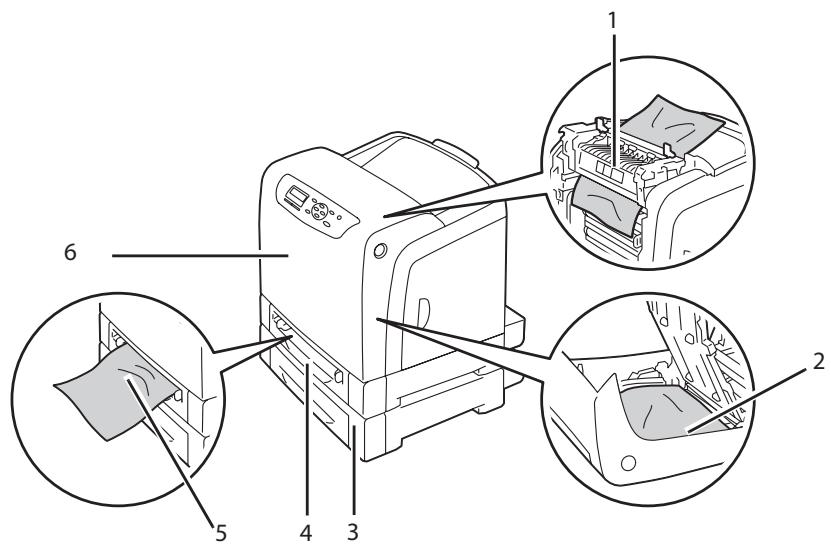
| 1 | Fuser Unit |
| 2 | Optional Duplex Unit |
| 3 | Optional 250-Sheet Paper Cassette Unit |
| 4 | Standard 250-Sheet Tray |
| 5 | Single Sheet Feeder (SSF) |
| 6 | Front Cover |
Clearing Paper Jams From the SSF
Important:
Protect the drums of the drum cartridge against bright light. If the front cover remains open for more than 5 minutes, print quality may deteriorate.
Note:
To resolve the error displayed on the LCD panel, you must clear all print media from the print media path.
- Pull the jammed paper out of the SSF. If you cannot remove the jammed paper or cannot find any jammed paper there, go to the next step to remove the jammed paper from the inside of the printer.
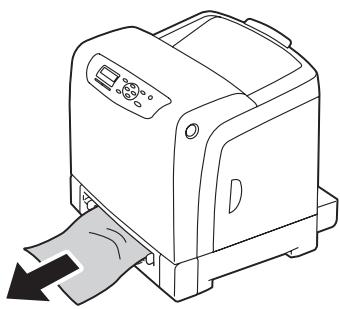
- Remove the standard 250-sheet tray from the printer, and then pull out the jammed paper remaining inside the printer. If you cannot remove the jammed paper or cannot find any jammed paper there, go to the next step to remove the jammed paper from the inside of the printer.
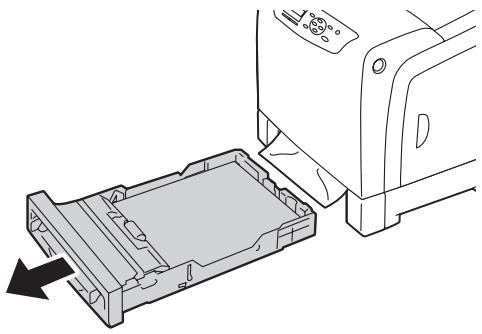
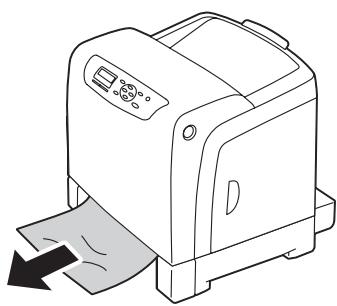
- Push the side button to open the front cover.
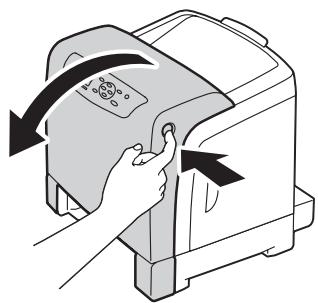
- Open the belt unit until it stops and remove the jammed paper. Confirm that there are no scraps of paper remaining inside the printer.
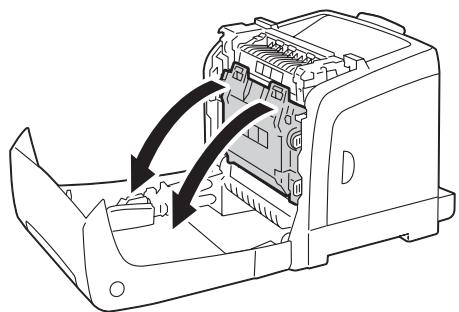
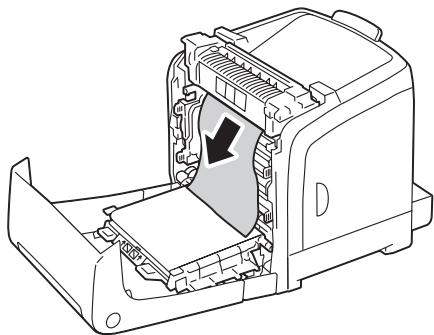
- Close the belt unit, and push at the top of the unit until it clicks.
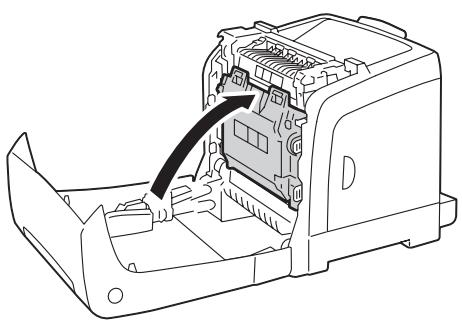
- Close the front cover.
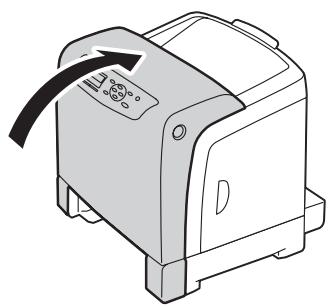
- Insert the standard 250-sheet tray into the printer, and push until it stops.
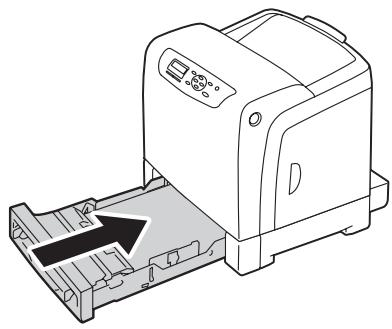
Important:
Do not use excessive force on the tray. Doing so could damage the tray or the inside of the printer.
Clearing Paper Jams From the Standard 250-Sheet Tray
Important:
Protect the drums of the drum cartridge against bright light. If the front cover remains open for more than 5 minutes, print quality may deteriorate.
Note:
To resolve the error displayed on the LCD panel, you must clear all print media from the print media path.
- Pull the standard 250-sheet tray out of the printer carefully. Hold the tray with both hands, lift the front slightly, and remove it from the printer.
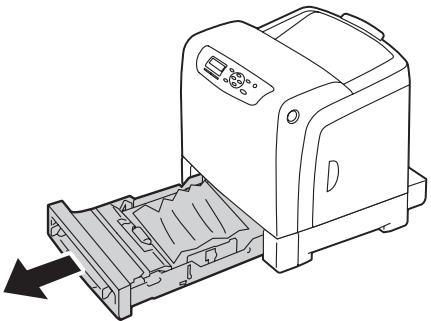
- Remove all the jammed and/or creased paper from the tray.
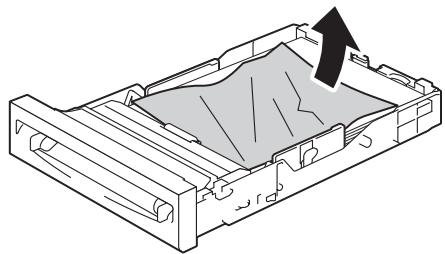
- Pull the jammed paper out carefully to avoid tearing it. If you cannot remove the paper, go to the next step to remove the jammed paper from the inside of the printer.
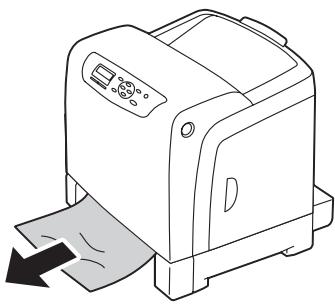
- Push the side button to open the front cover.
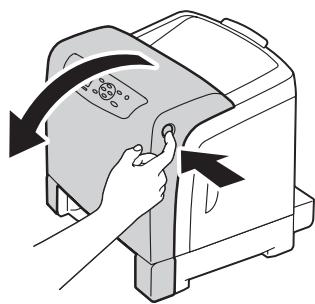
- Open the belt unit until it stops and remove the jammed paper. Confirm that there are no scraps of paper remaining inside the printer.
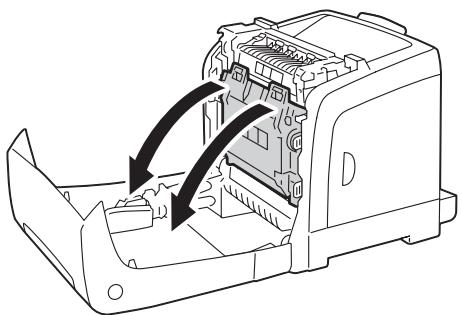
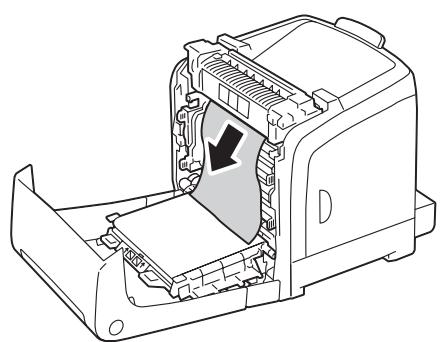
- Close the belt unit, and push at the top of the unit until it clicks.
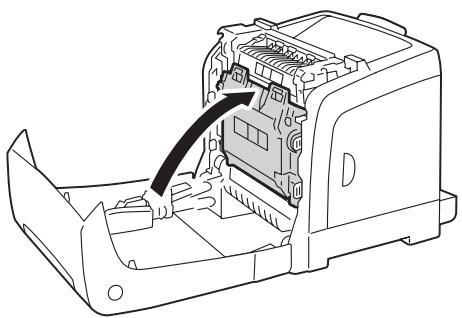
- Close the front cover.
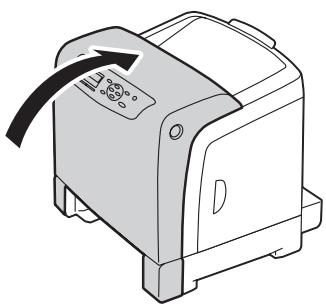
- Insert the standard 250-sheet tray into the printer, and push until it stops.
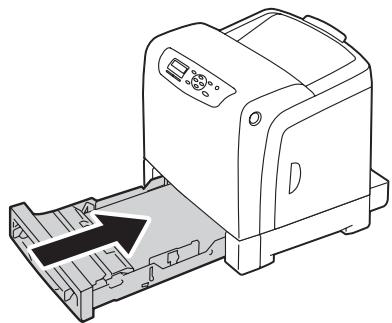
Important:
Do not use excessive force on the tray. Doing so could damage the tray or the inside of the printer.
Clearing Paper Jams From the Fuser Unit
Important:
□ Ensure nothing touches or scratches the surface (black-colored film) of the belt unit. Scratches, dirt, or oil from your hands on the film of the belt unit may reduce print quality.
- Protect the drums of the drum cartridge against bright light. If the front cover remains open for more than 5 minutes, print quality may deteriorate.
Note:
To resolve the error displayed on the LCD panel, you must clear all print media from the print media path.
- Turn off the printer and wait for 40 minutes.
- Push the side button to open the front cover.
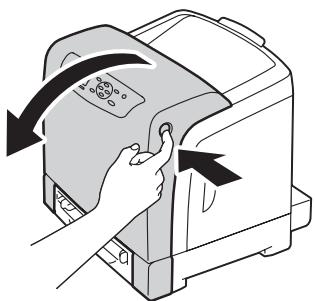
- Open the belt unit.
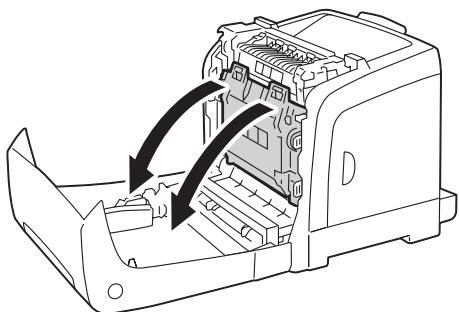
- Lift the levers at both ends of the fuser unit, and remove the jammed paper. If you are still unable to remove the paper, go to the next step.
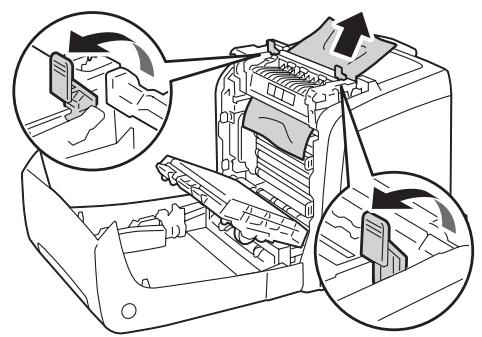

Caution:
The fuser unit is hot. Do not touch it, doing so may cause burns.
- Open the cover of the fuser unit and remove the jammed paper.
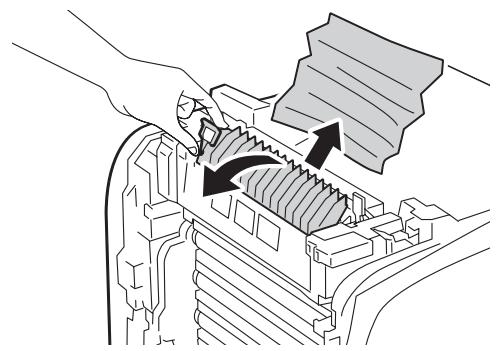
- Close the cover of the fuser unit and press down the levers at both ends of the fuser unit.
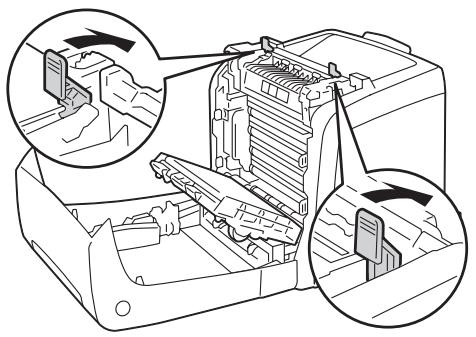
- Confirm that there are no scraps of paper remaining inside the printer, and then close the belt unit.
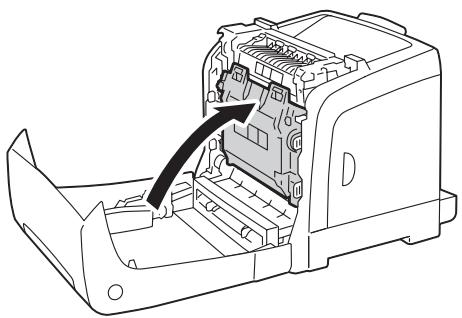
- Close the front cover.
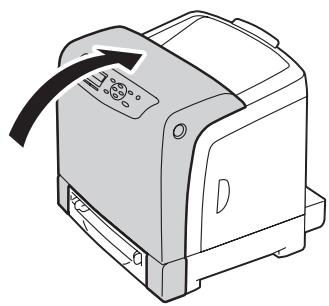
Clearing Paper Jams From the Optional Duplex Unit
Note:
To resolve the error displayed on the LCD panel, you must clear all print media from the print media path.
- Push the side button to open the front cover.
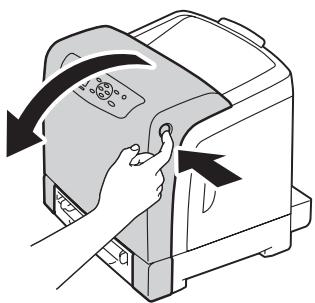
- Open the cover of the optional duplex unit.
- Remove the jammed paper from the optional duplex unit.
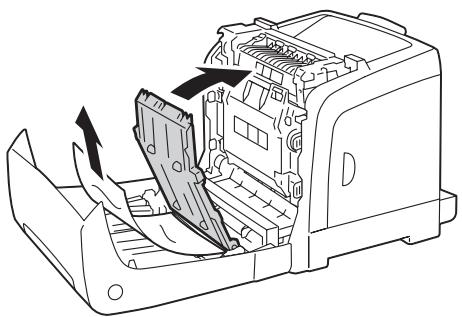
- Close the cover of the optional duplex unit.
- Close the front cover.
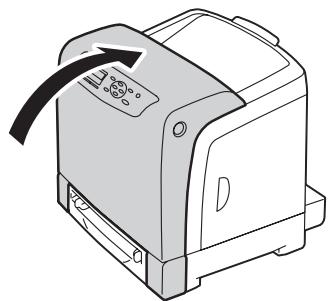
Clearing Paper Jams From the Optional 250-Sheet Paper Cassette Unit
Note:
To resolve the error displayed on the LCD panel, you must clear all print media from the print media path.
- Pull the optional 250-sheet paper cassette unit out of the printer carefully. Hold the cassette unit with both hands, and remove it from the printer.
Note:
Paper in the optional 250-sheet paper cassette unit feeds to the printer from the front of the standard 250-sheet tray, therefore paper jammed in the standard 250-sheet tray can block the optional 250-sheet paper cassette unit in the printer, preventing you from opening it. Look for the jammed paper sequentially, starting with the optional 250-sheet paper cassette unit.
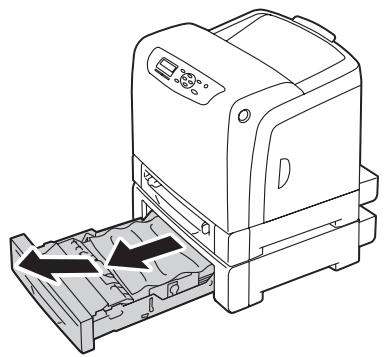
- Remove all jammed and/or creased paper from the cassette unit.
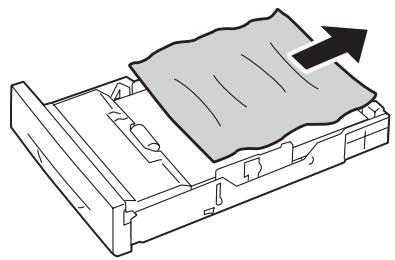
- Pull the jammed paper out carefully to avoid tearing it. If you cannot remove the paper, go to the next step to remove the jammed paper from the inside of the printer.
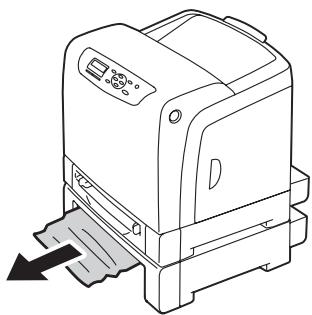
- Push the side button to open the front cover.
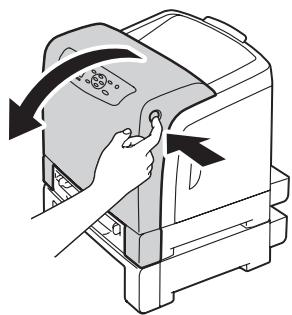
- Open the belt unit until it stops and remove the jammed paper. Confirm that there are no scraps of paper remaining inside the printer.
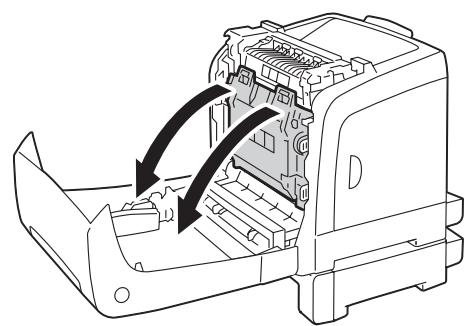
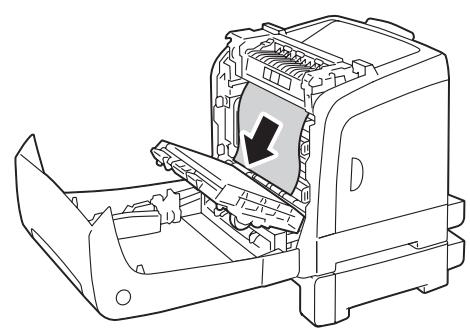
- Close the belt unit, and push at the top of the unit until it clicks.
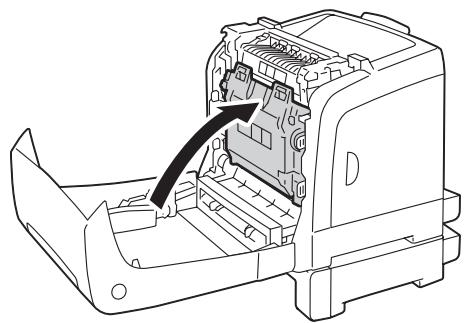
- Close the front cover.
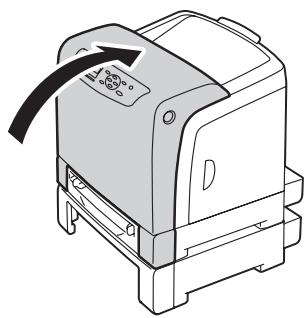
Note:
If the paper jam message is not cleared after you close the front cover, pull out the standard 250-sheet tray and check if there is a jammed paper in the opening of the tray.
- Insert the optional 250-sheet paper cassette unit into the printer, and push until it stops.
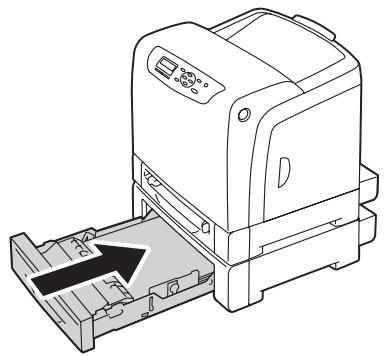
Important:
Do not use excessive force on the tray. Doing so could damage the tray or the inside of the printer.
Jam Problems
Standard 250-Sheet Tray Misfeed Jam
| Problem | Action |
| Print media misfeeds occur in the standard 250-sheet tray. | Ensure that the standard 250-sheet tray is properly inserted. If the problem persists, verify that the correct print media is being used. |
| Verify that the correct print media is being used. See Also: “Usable Print Media” on page 69 If not, use the print media recommended for the printer. If the problem persists, ensure that the print media is not damp. | |
| Ensure that the print media is not curled. If the problem persists, fan the print media. | |
| Ensure that the print media is not damp. If the print media is damp, turn over the print media. If the problem persists, use print media that is not damp. If the print media is not damp, fan the print media. | |
| Fan the print media. If the problem persists, wipe the feed roll in the standard 250-sheet tray with a cloth moistened with water. | |
| Wipe the feed roll in the standard 250-sheet tray with a cloth moistened with water. If the problem persists, replace the drum cartridge if you have a spare cartridge. | |
| Replace the drum cartridge if you have a spare cartridge. If the problem persists, contact the Epson local representative office or an authorised dealer. |
SSF Misfeed Jam
| Problem | Action |
| Print media misfeeds occur in the SSF. | Ensure that the SSF is properly inserted. If the problem persists, verify that the correct print media is being used. |
| Verify that the correct print media is being used. See Also: "Usable Print Media" on page 69 If not, use the print media recommended for the printer. If the problem persists, ensure that the print media is not damp. | |
| Ensure that the print media is not curled. If the problem persists, fan the print media. | |
| Ensure that the print media is not damp. If the print media is damp, turn over the print media. If the problem persists, use print media that is not damp. If the print media is not damp, fan the print media. | |
| Fan the print media. If the problem persists, wipe the feed roll in the SSF with a cloth moistened with water. | |
| Wipe the feed roll in the SSF with a cloth moistened with water. If the problem persists, replace the drum cartridge if you have a spare cartridge. | |
| Replace the drum cartridge if you have a spare cartridge. If the problem persists, contact the Epson local representative office or an authorised dealer. |
Optional 250-Sheet Paper Cassette Unit Misfeed Jam
| Problem | Action |
| Print media misfeeds occur in the optional 250-sheet paper cassette unit. | Ensure that the optional 250-sheet paper cassette unit is properly inserted. If the problem persists, ensure that the side cover is closed. |
| Ensure that the side cover is closed. If the problem persists, verify that the correct print media is being used. | |
| Verify that the correct print media is being used. See Also: "Usable Print Media" on page 69 If not, use the print media recommended for the printer. If the problem persists, ensure that the print media is not damp. | |
| Ensure that the print media is not curled. If the problem persists, fan the print media. | |
| Ensure that the print media is not damp. If the print media is damp, turn over the print media. If the problem persists, use print media that is not damp. If the print media is not damp, fan the print media. | |
| Fan the print media. If the problem persists, wipe the feed roll in the optional 250-sheet paper cassette unit with a cloth moistened with water. | |
| Wipe the feed roll in the optional 250-sheet paper cassette unit with a cloth moistened with water. If the problem persists, contact the Epson local representative office or an authorised dealer. |
Regi Jam (Exit Sensor On JAM)
| Problem | Action |
| Regi jam (Exit Sensor On JAM) occurs. | Ensure that the drum cartridge is installed correctly. If the problem persists, replace the drum cartridge if you have a spare cartridge as instructed in “Replacing the Drum Cartridge” on page 210. |
| Replace the drum cartridge if you have a spare cartridge as instructed in “Replacing the Drum Cartridge” on page 210. If the problem persists, contact the Epson local representative office or an authorised dealer. |
Exit Jam (Exit Sensor Off JAM)
| Problem | Action |
| Exit jam (Exit Sensor Off JAM) occurs. | Ensure that the fuser unit is installed correctly. Replace the fuser unit. If the problem persists, contact the Epson local representative office or an authorised dealer. |
Standard 250-Sheet Tray/Optional 250-Sheet Paper Cassette Unit Multi-feed Jam
| Problem | Action |
| Print media multiple feeds occur in the standard 250-sheet tray or optional 250-sheet paper cassette unit. | Ensure that the tray is properly inserted. If using coated paper, load coated paper one sheet at a time. If using other type of print media, use print media that is not dump. |
| Load coated paper one sheet at a time. If the problem persists, fan the print media. | |
| Use print media that is not dump. If the problem persists, fan the print media. | |
| Fan the print media. If the problem persists, wipe the feed roll in the tray where the multifeed occurred with a cloth moistened with water. | |
| Wipe the feed roll in the tray where the multifeed occurred with a cloth moistened with water. If the problem persists, contact the Epson local representative office or an authorised dealer. |
SSF Multi-feed Jam
| Problem | Action |
| Print media multiple feeds occur in the SSF. | Ensure that the media type you are using. If using coated paper, load coated paper one sheet at a time. If using other type of print media, use print media that is not dump. |
| Load coated paper one sheet at a time. If the problem persists, fan the print media. | |
| Use print media that is not dump. If the problem persists, fan the print media. | |
| Fan the print media. If the problem persists, wipe the feed roll in the tray where the multifeed occurred with a cloth moistened with water. | |
| Wipe the feed roll in the tray where the multifeed occurred with a cloth moistened with water. If the problem persists, contact the Epson local representative office or an authorised dealer. |
Basic Printer Problems
Some printer problems can be easily resolved. If a problem occurs with your printer, check each of the following:
The power cord is connected to the printer, and to a properly grounded electrical outlet.
The printer is turned on.
The electrical outlet is not turned off at any switch or breaker.
Other electrical equipment plugged into the outlet is working.
The additional memory module is properly installed.
If you have checked all of the above and still have a problem, turn off the printer, wait for 10 seconds, and then turn on the printer. This often fixes the problem.
Display Problems
| Problem | Action |
| After the printer is turned on, the display on the LCD panel is blank, keeps showing Please wait..., or the back light is not lit. | Turn off the printer, wait for 10 seconds, and turn on the printer. Self Test Message appears on the LCD panel. When the test is completed, Read is displayed. |
| Menu settings changed from the operator panel have no effect. | Settings in the software program, the print driver, or the printer utilities have precedence over the settings made on the operator panel. |
Printing Problems
| Problem | Action |
| Job did not print or incorrect characters printed. | Ensure that the top menu appears on the LCD panel before you send a job to print. Press the ≈ (Menu) button to return to the top menu. |
| Ensure that the print media is loaded in the printer. Press the ≈ (Menu) button to return to the top menu. | |
| Verify that you are using the correct print driver. | |
| Ensure that the correct USB or Ethernet cable is securely connected to the printer. | |
| Verify that the correct print media size is selected. | |
| If you are using a print spooler, verify that the spooler has not stalled. | |
| Check the printer's interface from the Admin Menu. Determine the host interface you are using. Print a panel settings page to verify that the current interface settings are correct. | |
| Print media misfeeds or multiple feeds occur in the standard 250-sheet tray or SSF. | Ensure that the print media you are using meets the specifications for your printer.See Also:"Usable Print Media" on page 69 |
| Fan the print media before loading it in the standard 250-sheet tray. | |
| Ensure that the print media is loaded correctly. | |
| Ensure that the width and length guides of the print media sources are adjusted correctly. | |
| Ensure that the standard 250-sheet tray is securely inserted. | |
| Do not overload the tray. | |
| Do not force print media into the SSF when you load it; otherwise, it may skew or buckle. | |
| Ensure that the print media is not curled. | |
| Face the recommended print side up or down appropriately for the type of print media you are using.See Also:"Loading Print Media" on page 72 | |
| Turn the print media over or around and try printing again to see if feeding improves. | |
| Do not mix print media types. | |
| Do not mix reams of print media. | |
| Remove the top and bottom curled sheets of a ream before loading the print media. | |
| Load print media only when the tray is empty. | |
| Wipe the feed roll in the standard 250-sheet tray or SSF with a cloth moistened with water.Replace the feed roll. | |
| The envelope is creased after printed. | Make sure that the envelope is loaded in the standard 250-sheet tray or SSF as instructed in "Loading Envelope in the Standard 250-Sheet Tray" on page 75 or "Loading Envelope in the Single Sheet Feeder (SSF)" on page 79. |
| Page breaks in unexpected places. | Increase the value for the time-out on the operator panel or EpsonNet Config. |
| Print media does not stack neatly in the output bin. | Turn the print media stack over in the tray. |
| Cannot print from the standard 250-sheet tray because the print media in the tray is curled. | Load the print media into the SSF. |
Print Quality Problems
Note:
In this section, some procedures use the operator panel or EpsonNet Config.
See Also:
“Understanding the Printer Menus” on page 104
“EpsonNet Config” on page 35
The Output Is Too Light
ABCDEF
| Problem | Action |
| The output is too light. | The toner cartridges may be low or need to be replaced. Confirm the amount of toner in each toner cartridge. 1. Check the toner level in the Printer Status window. 2. Replace the toner cartridges as necessary. If the problem persists, disable Draft Mode in the print driver. |
| Disable Draft Mode in the print driver. The following procedure uses the PCL 6 driver as an example. 1. On the Advanced Settings tab, ensure that the Draft Mode check box is not selected. If the problem persists, try changing the Paper Type setting in the print driver. | |
| The print media surface may be uneven. Try changing the Paper Type setting in the print driver. For example, change the plain paper to heavy using a PCL 6 driver. 1. On the Paper / Output tab, change the Paper Type setting. If the problem persists, verify that the correct print media is being used. | |
| Verify that the correct print media is being used. See Also: “Usable Print Media” on page 69 If not, use the print media recommended for the printer. If the problem persists, ensure that the eight yellow ribbons are correctly removed from the drum cartridge. | |
| Ensure that the eight yellow ribbons are correctly removed from the drum cartridge. | |
| See Also: □ “Installing a Toner Cartridge” on page 208 □ “Installing the Drum Cartridge” on page 212 If not, remove the ribbons. If the problem persists, replace the drum cartridge if you have a spare cartridge. | |
| Replace the drum cartridge if you have a spare cartridge. See Also: □ “Replacing the Drum Cartridge” on page 210 □ “Installing the Drum Cartridge” on page 212 If the problem persists, contact the Epson local representative office or an authorised dealer. |
Toner Smears or Print Comes Off
ABCDEF
| Problem | Action |
| Toner smears or print comes off. | The print media surface may be uneven. Try changing the Paper Type setting in the print driver. For example, change the plain paper to heavy using a PCL 6 driver. 1. On the Paper / Output tab, change the Paper Type setting. If the problem persists, verify that the correct print media is being used. |
| Verify that the correct print media is being used. See Also: “Usable Print Media” on page 69 If not, use the print media recommended for the printer. If the problem persists, replace the drum cartridge if you have a spare cartridge. | |
| Replace the drum cartridge if you have a spare cartridge. 1. Replace the drum cartridge. See Also: □ “Replacing the Drum Cartridge” on page 210 □ “Installing the Drum Cartridge” on page 212 2. After you replace the drum cartridge, test print your document again. If the problem persists, contact the Epson local representative office or an authorised dealer. |
Random Spots/Blurred Images
A B C
DEF

| Problem | Action |
| The printed result has random spots or is blurred. | Ensure that the toner cartridges are installed correctly. See Also: "Installing a Toner Cartridge" on page 208 If the problem persists, ensure that the drum cartridge is installed correctly. |
| Ensure that the drum cartridge is installed correctly. See Also: ☐ "Replacing the Drum Cartridge" on page 210 ☐ "Installing the Drum Cartridge" on page 212 If the problem persists, replace the drum cartridge if you have a spare cartridge. | |
| Replace the drum cartridge if you have a spare cartridge. See Also: ☐ "Replacing the Drum Cartridge" on page 210 ☐ "Installing the Drum Cartridge" on page 212 If the problem persists, contact the Epson local representative office or an authorised dealer. |
The Entire Output Is Blank

| Problem | Action |
| The entire output is blank. | The toner cartridges may be low or need to be replaced. Confirm the amount of toner in each toner cartridge. 1. Check the toner level in the Printer Status window. 2. Replace the toner cartridges as necessary. If the problem persists, disable Draft Mode in the print driver. |
| Disable Draft Mode in the print driver. The following procedure uses the PCL 6 driver as an example. 1. On the Advanced Settings tab, ensure that the Draft Mode check box is not selected. If the problem persists, try changing the Paper Type setting in the print driver. | |
| The print media surface may be uneven. Try changing the Paper Type setting in the print driver. For example, change the plain paper to heavy using the PCL 6 driver. 1. On the Paper / Output tab, change the Paper Type setting. If the problem persists, verify that the correct print media is being used. | |
| Verify that the correct print media is being used. See Also: “Usable Print Media” on page 69 If not, use the print media recommended for the printer. If the problem persists, ensure that the eight yellow ribbons are correctly removed from the drum cartridge. | |
| Ensure that the eight yellow ribbons are correctly removed from the drum cartridge. See Also: □ “Installing a Toner Cartridge” on page 208 □ “Installing the Drum Cartridge” on page 212 If not, remove the ribbons. If the problem persists, replace the drum cartridge if you have a spare cartridge. | |
| Replace the drum cartridge if you have a spare cartridge. See Also: □ “Replacing the Drum Cartridge” on page 210 □ “Installing the Drum Cartridge” on page 212 If the problem persists, contact the Epson local representative office or an authorised dealer. |
Streaks Appear on the Output

| Problem | Action |
| Streaks appear on the output. | The toner cartridges may be low or need to be replaced. Confirm the amount of toner in each toner cartridge. 1. Check the toner level in the Printer Status window. 2. Replace the toner cartridges as necessary. If the problem persists, replace the drum cartridge if you have a spare cartridge. |
| Replace the drum cartridge if you have a spare cartridge. See Also: □ “Replacing the Drum Cartridge” on page 210 □ “Installing the Drum Cartridge” on page 212 If the problem persists, contact the Epson local representative office or an authorised dealer. |
Part or the Entire Output Is Black

| Problem | Action |
| Part or the entire output is black. | Ensure Output Color is set to Color in the print driver. The following procedure uses the PCL 6 driver as an example. 1. On the Image Options tab, ensure that the Output Color is set to Color. If the problem persists, replace the drum cartridge if you have a spare cartridge. |
| Replace the drum cartridge if you have a spare cartridge. See Also: ☐ “Replacing the Drum Cartridge” on page 210 ☐ “Installing the Drum Cartridge” on page 212 If the problem persists, contact the Epson local representative office or an authorised dealer. |
Pitched Color Dots
ABCDEF
| Problem | Action |
| The printed result has pitched color dots. | Replace the drum cartridge if you have a spare cartridge. See Also: □ “Replacing the Drum Cartridge” on page 210 □ “Installing the Drum Cartridge” on page 212 If the problem persists, contact the Epson local representative office or an authorised dealer. |
Vertical Blanks
ABD
| Problem | Action |
| The printed result has vertical blanks. | Ensure the light path is not covered. 1. Remove the drum cartridge, and keep it in the dark place. See Also: “Replacing the Drum Cartridge” on page 210 2. Check the light path, and then remove the shielding. 3. Re-install the drum cartridge. See Also: “Installing the Drum Cartridge” on page 212 If the problem persists, replace the drum cartridge if you have a spare cartridge. |
| Replace the drum cartridge if you have a spare cartridge. See Also: □ “Replacing the Drum Cartridge” on page 210 □ “Installing the Drum Cartridge” on page 212 If the problem persists, contact the Epson local representative office or an authorised dealer. |
Mottle
| Problem | Action |
| The printed result has mottled appearance. | Verify that the print media recommended for the printer is being used. If you use non-recommended print media, use the print media recommended for the printer. If the problem persists, contact the Epson local representative office or an authorised dealer. |
| Adjust the transfer bias. 1. On the operator panel, press the (Menu) button and select Admin Menu — Maintenance Mode — Adjust BTR. 2. Adjust the setting for the type of print media being used. If the problem persists, contact the Epson local representative office or an authorised dealer. |
Ghosting

| Problem | Action |
| The printed result has ghosting. | If the type of the ghosting is positive ghost:Replace the drum cartridge if you have a spare cartridge.See Also:☐ “Replacing the Drum Cartridge” on page 210☐ “Installing the Drum Cartridge” on page 212If the problem persists, contact the Epson local representative office or an authorised dealer. |
| If the type of the ghosting is negative ghost:Verify that the print media recommended for the printer is being used.If you are using non-recommended print media, use the print media recommended for the printer.If the problem is solved, adjust the transfer bias.If the problem persists, replace the drum cartridge if you have a spare cartridge. | |
| Adjust the transfer bias.1. On the operator panel, press the (Menu) button and select Admin Menu — Maintenance Mode — Adjust BTR.2. Adjust the setting for the type of print media being used.If the problem persists, contact the Epson local representative office or an authorised dealer. |
Light-Induced Fatigue
ABCDEF
| Problem | Action |
| The printed result has light-induced fatigue pattern. | Replace the drum cartridge if you have a spare cartridge. See Also: □ “Replacing the Drum Cartridge” on page 210 □ “Installing the Drum Cartridge” on page 212 If the problem persists, contact the Epson local representative office or an authorised dealer. |
Fog
ABC
DEF
| Problem | Action |
| The printed result is foggy. | Replace the drum cartridge if you have a spare cartridge. See Also: □ “Replacing the Drum Cartridge” on page 210 □ “Installing the Drum Cartridge” on page 212 If the problem persists, contact the Epson local representative office or an authorised dealer. |
Bead-Carry-Out (BCO)
ABC
DEF
| Problem | Action |
| Bead-Carry-Out (BCO) is happening. | Replace the drum cartridge if you have a spare cartridge. See Also: □ “Replacing the Drum Cartridge” on page 210 □ “Installing the Drum Cartridge” on page 212 If the problem persists, contact the Epson local representative office or an authorised dealer. |
Jagged Characters
ABCDEF
| Problem | Action |
| The printed result has jagged characters. | Set Screen to Fineness in the print driver. The following procedure uses the PCL 6 driver as an example. 1. On the Advanced Settings tab, set Screen under Items: to Fineness. If the problem persists, set Image Quality to High Quality in the print driver. |
| Set Image Quality to High Quality in the print driver. The following procedure uses the PCL 6 driver as an example. 1. On the Image Options tab, select High Quality from Image Quality. If the problem persists, enable Bitmap Smoothing in the print driver. | |
| Enable Bitmap Smoothing in the print driver. The following procedure uses the PCL 6 driver as an example. 1. On the Advanced Settings tab, set Bitmap Smoothing under Items: to On. If the problem persists, enable Bitmap Text Smoothing in the print driver. | |
| Enable Bitmap Text Smoothing in the print driver. The following procedure uses the PCL 6 driver as an example. 1. On the Advanced Settings tab, set Bitmap Text Smoothing under Items: to On. If the problem persists, check whether or not the downloaded font you are using is recommended. | |
| If using a downloaded font, ensure that the font is recommended for the printer, operating system, and the application being used. If the problem persists, contact the Epson local representative office or an authorised dealer. |
Banding
ABCDEF
| Problem | Action |
| The printed result has banding. | Replace the drum cartridge if you have a spare cartridge. See Also: □ “Replacing the Drum Cartridge” on page 210 □ “Installing the Drum Cartridge” on page 212 If the problem persists, contact the Epson local representative office or an authorised dealer. |
Auger Mark
ABCDEF
| Problem | Action |
| The printed result has auger mark. | Replace the drum cartridge if you have a spare cartridge. See Also: □ “Replacing the Drum Cartridge” on page 210 □ “Installing the Drum Cartridge” on page 212 If the problem persists, contact the Epson local representative office or an authorised dealer. |
Wrinkled/Stained Paper

| Problem | Action |
| The output is wrinkled. The output is stained. | Verify that the correct print media is being used. If excessive wrinkles occur, use paper or other media from a new package. See Also: □ “Usable Print Media” on page 69 □ “About Print Media” on page 67 If not, use the print media recommended for the printer. If the problem with printing on an envelope persists, check the wrinkle of the envelope. If the problem with printing on a print media other than envelopes persists, contact the Epson local representative office or an authorised dealer. |
| Check whether the wrinkle of the four edges of the envelope is within 30 mm. If the wrinkle of the four edges of the envelope is within 30 mm, this type of wrinkle is considered normal. Your printer is not at fault. If not, take following actions: □ If the envelope is 220 mm or longer (C5 or Com-10), load the envelope in the standard 250-sheet tray in the short edge feed orientation with the flap closed and print side up. □ If the envelope is shorter than 220 mm (Monarch or DL), load the envelope in the standard 250-sheet tray in the short edge feed orientation with the flap closed and print side up, or in the long edge feed orientation with the flap open and print side up. | |
| Load the envelopes in the standard 250-sheet tray in the short edge feed orientation with the flap closed and print side up. See Also: “Loading Envelope in the Standard 250-Sheet Tray” on page 75 If the problem persists, contact the Epson local representative office or an authorised dealer. | |
| Load the envelopes in the standard 250-sheet tray in the long edge feed orientation with the flap open and print side up. See Also: “Monarch or DL” on page 76 If the problem persists, contact the Epson local representative office or an authorised dealer. |
Damage on the Leading Edge of Paper
ABCDEF
| Problem | Action |
| The output is damaged on its leading edge. | When using the SSF, reverse the paper and then try again. If the problem persists, change the paper with another one and then try again. When using the standard 250-sheet tray or optional 250-sheet paper cassette unit, change the paper and then try again. If the problem persists, contact the Epson local representative office or an authorised dealer. |
| Change the paper with another one and then try again. If the problem persists, use the standard 250-sheet tray or optional 250-sheet paper cassette unit in place of the SSF. | |
| Use the standard 250-sheet tray or optional 250-sheet paper cassette unit in place of the SSF. If the problem persists, contact the Epson local representative office or an authorised dealer. |
The Top and Side Margins Are Incorrect
ABCDEF
| Problem | Action |
| The top and side margins are incorrect. | Ensure that the margins are set correctly on the application being used. If the problem persists, contact the Epson local representative office or an authorised dealer. |
Color Registration Is out of Alignment
ABCDEF
| Problem | Action |
| Color registration is out of alignment. | Execute auto color registration adjustment. 1. On the operator panel, press the (Menu) button and select Admin Menu — Maintenance Mode — Adjust ColorResi — Auto Adjust, and then press the OK button. If the problem persists, check whether or not you have a spare drum cartridge. |
| Check whether or not you have a spare drum cartridge. If you have a spare drum cartridge, replace the drum cartridge. If you do not have a spare drum cartridge, contact the Epson local representative office or an authorised dealer. | |
| Replace the drum cartridge if you have a spare cartridge. See Also: □ “Replacing the Drum Cartridge” on page 210 □ “Installing the Drum Cartridge” on page 212 If the problem persists, contact the Epson local representative office or an authorised dealer. |
Protrudent/Bumpy Paper
ABCDEF
| Problem | Action |
| Printed surface got protrudent/bumpy. | Clean up the fuser unit. 1. Load one sheet of paper on the SSF, and then print a solid image all over paper. 2. Load the printed sheet with the side to be printed on facing down, and then print a blank sheet of paper. If the problem persists, contact the Epson local representative office or an authorised dealer. |
Adjusting Color Registration
This section describes how to adjust the color registration when you first install the printer or after moving it to a new location.
Performing Auto Adjust
Auto Adjust allows you to correct the color registration automatically.
The Operator Panel
- Press the (Menu) button.
- Select Admin Menu, and then press the OK button.
- Select Maintenance Mode, and then press the OK button.
-
Select Adjust ColorResi, and then press the OK button.
-
Select Auto Adjust, and then press the OK button.
- Ensure that Are You Sure? appears, and then press the OK button.
Auto adjust is performed.
Printing the Color Registration Chart
- Press the (Menu) button.
- Select Admin Menu, and then press the OK button.
- Select Maintenance Mode, and then press the OK button.
- Select Adjust ColorResi, and then press the OK button.
- Select ColorRei Chart, and then press the OK button.
- Ensure that Are You Sure? appears, and then press the OK button.
The color registration chart is printed.
Determining Values
On the color registration chart, there are two types of charts: Chart 1 (fast scan) and Chart 2 (slow scan).
The Chart 1 is used to adjust the color registration for the fast scan direction, which is vertical to paper feed direction. The Chart 2 is used to adjust the color registration for the slow scan direction, which is horizontal to paper feed direction.
The following sections explain how to determine the adjustment values for the fast scan and the slow scan using Chart 1 and Chart 2.
Fast Scan
On the Chart 1 of the color registration chart, find the straightest lines where the two black lines and the colored line are most closely aligned for each color (Y, M, and C). If you find the straightest line, make a note of the value (-9 to +9) indicated by the straightest line for each color.
When the value is 0 for each color, you do not need to adjust the color registration for the fast scan.
When the value is not 0, enter the value using the procedure in "Entering Values" on page 185.
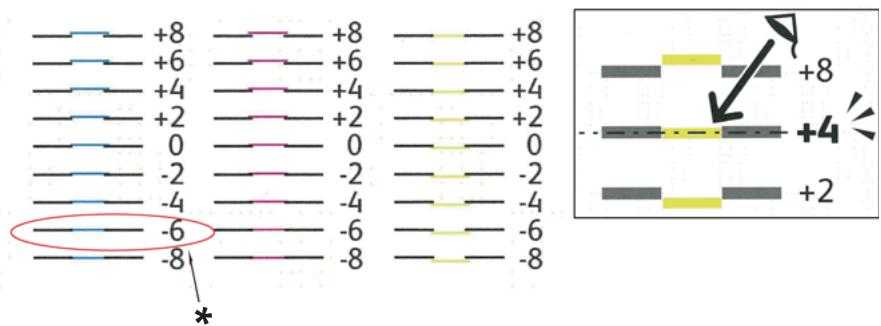
* Straightest line
Slow Scan
On the Chart 2 of the color registration chart, find the medium line within the range of white area for each color pattern (Y, M, and C). If you find the medium line, make a note of the value (-9 to +9) indicated by the medium line for each color.
When the value is 0 for each color, you do not need to adjust the color registration for the slow scan.
When the value is not 0, enter the value using the procedure in "Entering Values" on page 185.
Entering Values
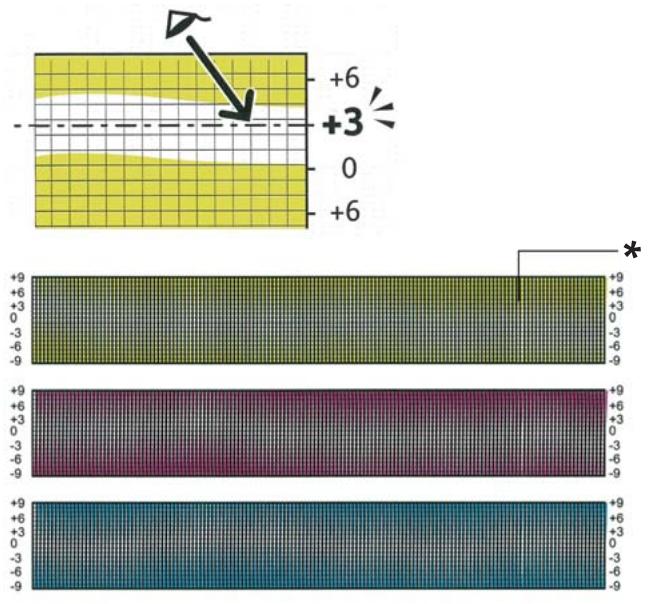
* Lattice pattern
Using the operator panel, enter the values found in the color registration chart to make adjustments.
- Press the (Menu) button.
- Select Admin Menu, and then press the OK button.
- Select Maintenance Mode, and then press the OK button.
- Select Adjust ColorResi, and then press the OK button.
- Select Enter Number, and then press the OK button.
- Ensure that Enter (LY, LM, LC) appears.
- Press the or button to specify the values for LY, LM, and LC.
Note:
To move the cursor to the next value, press the button.
-
Press the OK button.
-
Ensure that Enter (RY, RM, RC) appears.
- Press the or button to specify the values for RY, RM, and RC.
Note:
To move the cursor to the next value, press the button.
- Press the OK button.
- Ensure that Enter (PY, PM, PC) appears.
- Press the or button to specify the values for PY, PM, and PC.
Note:
To move the cursor to the next value, press the button.
- Press the OK button.
- Select ColorResi Chart, and then press the OK button.
- Ensure that Are You Sure? appears, and then press the OK button.
The color registration chart is printed with the new values.
If the straightest line is not at the value of 0, adjust the values again. Checking the charts before and after the adjustments will help you to determine the values to enter.
After printing the color registration chart, do not turn off the printer until the printer motor has stopped running.
Note:
If is not next to the straightest lines, determine the values and adjust the printer again.
Problems With Installed Optional Accessories
| Problem | Action |
| The optional 250-sheet paper cassette unit does not work correctly. | Ensure that the optional 250-sheet paper cassette unit is correctly installed on the printer. Re-install the optional 250-sheet paper cassette unit. See Also: □ “Removing the Optional 250-Sheet Paper Cassette Unit” on page 232 □ “Installing the Optional 250-Sheet Paper Cassette Unit” on page 29 If the problem persists, contact customer support. |
| Ensure that the print media is loaded correctly. See Also: “Loading Print Media in the Standard 250-Sheet Tray and the Optional 250-Sheet Paper Cassette Unit” on page 73 If the problem persists, contact customer support. | |
| The additional memory module does not work correctly. | Ensure that the additional memory module is securely connected to the memory connector. If the problem persists, contact customer support. |
Other Problems
| Problem | Action |
| Condensation has occurred inside the printer. | This usually occurs within several hours after you heat the room in winter. This also occurs when the printer is operating in a location where relative humidity reaches 85% or more. Adjust the humidity or relocate the printer to an appropriate environment. |
| "092-310", "092-910", or "092-410" is displayed. | Clean the CTD sensor. See Also: "Cleaning the Color Toner Density (CTD) Sensor" on page 203 |
Understanding Printer Messages
The printer LCD panel displays messages describing the current state of the printer and indicates possible printer problems you must resolve. This section describes messages, their meanings, and how to clear the messages.
Important:
When an error message is displayed, the print data remaining on the printer and the information accumulated in the memory of the printer are not secured.
| Message | What You Can Do |
| Insert Fuser010-317Insert FuserRestart Printer | Turn off the printer and wait for 40 minutes. Open the front cover and make sure that the fuser unit is fully installed. |
| Fuser ErrorRestart PrinterError 010-397Restart Printer | Turn off the printer. Confirm that the fuser unit is correctly installed, and turn on the printer. Contact customer support if this failure is repeated. |
| Certificate FailContact Admin.Error 016-404Restart Printer | Contact your system administrator. |
| Certificate FailContact Admin.Error 016-405Restart Printer | |
| Erase Flash Err | Turn off the printer, and turn it on again. Contact customer support if this failure is repeated. |
| Restart Printer | |
| Error 016-500 | |
| Restart Printer | |
| Write Flash Err | |
| Restart Printer | |
| Error 016-501 | |
| Restart Printer | |
| Verify Flash Err | |
| Restart Printer | |
| Error 016-502 | |
| Restart Printer | |
| Certificate FailContact Admin.Error 016-520Restart Printer | Contact your system administrator. |
| Certificate FailContact Admin.Error 016-521Restart Printer | |
| Certificate FailContact Admin.Error 016-522Restart Printer | |
| Certificate FailContact Admin.Error 016-523Restart Printer | |
| Certificate FailContact Admin.Error 016-524Restart Printer | |
| Certificate FailContact Admin.Error 016-527Restart Printer | Contact your system administrator. |
| Format ErrorPress Ok ButtonError 016-737Press Ok Button | Turn off the printer, and turn it on again. Contact customer support if this failure is repeated. |
| Protection ErrorPress Ok ButtonError 016-741Press Ok Button | |
| Check Sum ErrorPress Ok ButtonError 016-744Press Ok Button | |
| Job Ticket ErrorPress Ok ButtonError 016-750Press Ok Button | Press the ☒ button, or wait for 30 seconds for the printer to recover. |
| Wrong PasswordPress Ok ButtonError 016-753Press Ok Button | |
| Invalid UserPress Ok ButtonError 016-757Press Ok Button | The account is not registered. Contact your system administrator. |
| Disabled FuncPress Ok ButtonError 016-758Press Ok Button | The function cannot be used. Contact your system administrator. |
| Limit Exceeded | Printable page limit is exceeded. Contact your system administrator. |
| Press Ok Button | |
| Error 016-759 | |
| Press Ok Button | |
| Invalid Job | Press the ☒ button to clear the message and cancel the current print job. Confirm the configuration of the printer on the print driver. |
| Press Ok Button | |
| Error 016-799 | |
| Press Ok Button | |
| USB Host Error | The device is not supported. Remove it from the USB port. |
| Unsupported | |
| Error 016-930 | |
| Unsupported | |
| USB Host Error | The USB hub is not supported. Remove it from the USB port. |
| Unsupported | |
| Error 016-931 | |
| Unsupported | |
| Load NNN | Reload the specified paper on the standard 250-sheet tray or optional 250-sheet paper cassette unit. |
| XXX | |
| Load NNN | |
| YYY | |
| Tray Missina | Insert the standard 250-sheet tray or optional 250-sheet paper cassette unit. |
| Insert Tray N | |
| Error 024-xxx | |
| Insert Tray N | |
| IPv6 Duplicate | Change IP address to avoid duplication. Turn off the printer, and turn it on again. |
| Change IPaddress | |
| IPv4 Duplicate | |
| Change IPaddress | |
| Over Heat Please Wait... Error 042-700 Please Wait... | Wait for a while until the printer cools down. |
| Jam at Tray 1 Check Tray 1 Open Front Cover | Remove the standard 250-sheet tray and jammed paper. Open and close the front cover. |
| Press Ok Button to continue | Press the ⊙ button. |
| Jam at Tray 2 Check Tray 2 Open Front Cover | Remove the optional 250-sheet paper cassette unit and jammed paper. Open and close the front cover. |
| Jam at Tray 2 Open Tray 2 Open Front Cover | Remove the standard 250-sheet tray or the optional 250-sheet paper cassette unit, and remove the jammed paper. Open and close the front cover. |
| 250 Feeder Error Restart Printer Error 072-215 Restart Printer | Turn off the printer. Confirm that the optional 250-sheet paper cassette unit is correctly installed, and turn on the printer. Contact customer support if this failure is repeated. |
| Jam at Tray 1 or 2 Open Tray 1 or 2 Open Front Cover | Remove the standard 250-sheet tray or the optional 250-sheet paper cassette unit, and remove the jammed paper. Open and close the front cover. |
| Jam at Front Cover Open Front Cover and Remove Paper | Open the front cover and remove the jammed paper, and then open and close the front cover. |
| Chk Manual FeedRemove PaperOpen and closeFront Cover | Pull the jammed paper out of the SSF. Open and close the front cover. |
| Remove Paperfrom Manual Feed | Remove the paper from the SSF. |
| Reseat Paperof Manual Feed | Pull the paper out of the SSF. Reload the paper in the SSF. |
| Duplexer ErrorRestart PrinterError 077-215Restart Printer | Turn off the printer. Confirm that the optional duplex unit is correctly installed, and turn on the printer. Contact customer support if this failure is repeated. |
| Front Cover OpenClose FrontCover | Close the front cover. |
| Side Door OpenClose Side Door | Close the side cover. |
| Check UnitDrum Cartridge | Remove the ribbon from the drum cartridge. Contact customer support if this failure is repeated. |
| Drum CRUM ErrorRestart PrinterError 091-916Restart Printer | Open the front cover. Remove the unsupported drum cartridge, and install a supported cartridge. |
| Waste FullYellow Cartridge | Open the side cover. Remove the used yellow cartridge, and install a new car-tridge. |
| Waste FullMagentaCartridge | Open the side cover. Remove the used magenta cartridge, and install a new cartridge. |
| Waste FullCyan Cartridge | Open the side cover. Remove the used cyan cartridge, and install a new car-tridge. |
| Waste Full Black Cartridge | Open the side cover. Remove the used black cartridge, and install a new car-tridge. |
| Insert Drum Cartridge | Open the front cover, and make sure that the drum cartridge is fully installed. |
| XXXXXXXXXX CTD Sensor | Clean the CTD sensor. |
| Check Unit CTD Sensor | |
| Low Density Yellow Cartridge | Remove and shake the yellow cartridge. Contact customer support if this failure is repeated. |
| Low Density MagentaCartridge | Remove and shake the magenta cartridge. Contact customer support if this failure is repeated. |
| Low Density Cyan Cartridge | Remove and shake the cyan cartridge. Contact customer support if this failure is repeated. |
| Low Density Black Cartridge | Remove and shake the black cartridge. Contact customer support if this failure is repeated. |
| Blk - CRUM Error Restart Printer Error 093-925 Restart Printer | Turn off the printer. Confirm the black cartridge is correctly installed, and turn on the printer. Contact customer support if this failure is repeated. |
| Invalid Black | Open the side cover. Remove the unsupported black cartridge, and install a supported cartridge. |
| Y - CRUM Error Restart Printer Error 093-950 Restart Printer | Turn off the printer. Confirm the yellow cartridge is correctly installed, and turn on the printer. Contact customer support if this failure is repeated. |
| M - CRUM Error | Turn off the printer. Confirm the magenta cartridge is correctly installed, and turn on the printer. Contact customer support if this failure is repeated. |
| Restart Printer | |
| Error 093-951 | |
| Restart Printer | |
| C - CRUM Error | Turn off the printer. Confirm the cyan cartridge is correctly installed, and turn on the printer. Contact customer support if this failure is repeated. |
| Restart Printer | |
| Error 093-952 | |
| Restart Printer | |
| Invalid Yellow | Open the side cover. Remove the unsupported yellow cartridge, and install a supported cartridge. |
| Invalid Magenta | Open the side cover. Remove the unsupported magenta cartridge, and install a supported cartridge. |
| Invalid Cyan | Open the side cover. Remove the unsupported cyan cartridge, and install a supported cartridge. |
| Insert | Open the side cover, and make sure that the yellow cartridge is fully installed. |
| Yellow Cartridge | |
| Insert | Open the side cover, and make sure that the magenta cartridge is fully installed. |
| Magenta Cartridge | |
| Insert | Open the side cover, and make sure that the cyan cartridge is fully installed. |
| Cyan Cartridge | |
| Insert | Open the side cover, and make sure that the black cartridge is fully installed. |
| Black Cartridge | |
| RAM Error | Turn off the printer. Remove the 512 MB additional memory module from the slot, and then reattach it firmly. Turn on the printer. Contact customer support if this failure is repeated. |
| Restart Printer | |
| Error 116-316 | |
| Restart Printer | |
| Controller Error | Turn off the printer, and turn it on again. Contact customer support if this failure is repeated. |
| Restart Printer | |
| Error 116-317 | |
| Restart Printer | |
| RAM Error | Remove the unsupported additional memory module. Contact customer support if this failure is repeated. |
| Restart Printer | |
| Error 116-320 | |
| Restart Printer |
Contacting Service
When you call for printer service, be prepared to describe the problem you are experiencing or the error message on the LCD panel.
You need to know the model type and serial number of your printer. See the label located inside the side cover of your printer.
Getting Help
Epson provides several automatic diagnostic tools to help you produce and maintain print quality.
LCD Panel Messages
The LCD panel provides you with information and troubleshooting help. When an error or warning condition occurs, the LCD panel displays a message informing you of the problem.
See Also:
"Understanding Printer Messages" on page 187
Status Monitor Alerts
The Status Monitor is a tool that is included on the Software Disc. It automatically checks the printer status when you send a print job. If the printer is unable to print your job, the Status Monitor automatically displays an alert on your computer screen to let you know that the printer needs attention.
Non-Genuine Mode
When toner within a toner cartridge is end of its service life, the Replace XXXX Print Cartridge (XXXX: Yellow, Magenta, Cyan, or Black) message appears.
When you want to use the printer in Non-Genuine mode, program the mode and replace the toner cartridge.
Important:
If you use the printer in the Non-Genuine mode, the performance of the printer may not be at its optimum. And any problems that may arise from the use of the Non-Genuine mode are not covered by our quality guarantee. The continuous use of the Non-Genuine mode can also cause the printer to break down, and any repair charges for such break down will be incurred by users.
Note:
Before starting the operation described below, confirm that Read is displayed on the LCD panel.
- Press the (Menu) button.
- Select Admin Menu, and then press the OK button.
- Select Maintenance Mode, and then press the OK button.
- Select Non-Genuine, and then press the OK button.
- Select Toner, and then press the OK button.
- Select On, and then press the OK button.
- Press the button twice.
The printer switches to the Non-Genuine mode.
Chapter 8
Maintenance
Cleaning the Printer
This section describes how to clean the printer in order to maintain it in good condition and print clean printouts all the time.

Warning:
When cleaning this product, use the designated cleaning materials exclusive to it. Other cleaning materials may result in poor performance of the product. Never use aerosol cleaners, or it may catch fire and cause explosion.

Caution:
When cleaning this product, always switch off and unplug it. Access to a live machine interior may cause electric shock.
Cleaning Inside the Printer
Clean the feed roll inside the printer if print media does not feed correctly.
- Turn off the printer and disconnect the power cord.
- Pull the standard 250-sheet tray out of the printer about 200mm . Hold the standard 250-sheet tray with both hands, and remove it from the printer.
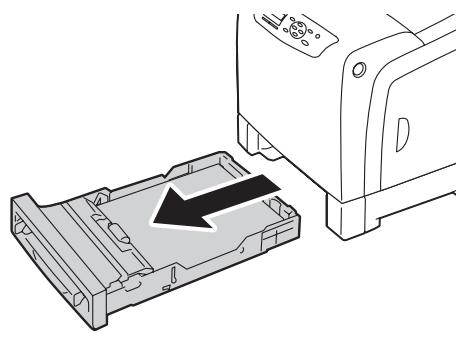
- Push the side button to open the front cover.
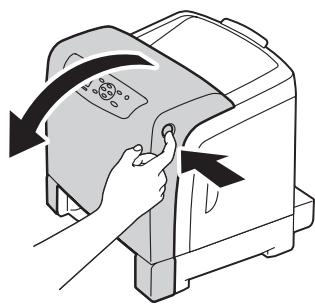
- Open the belt unit.
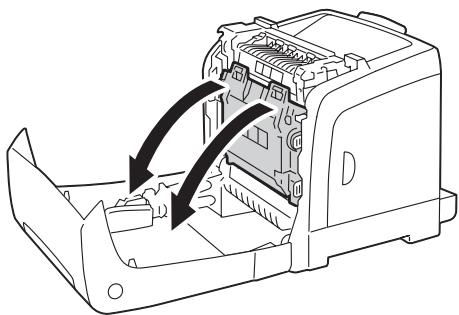
- Turn the four drum cartridge lock levers 90-degrees counterclockwise.
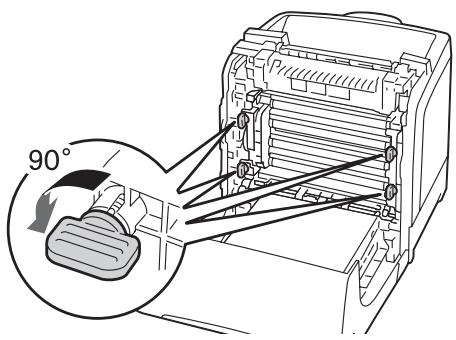
- Hold the drum cartridge levers, and then pull out the drum cartridge.
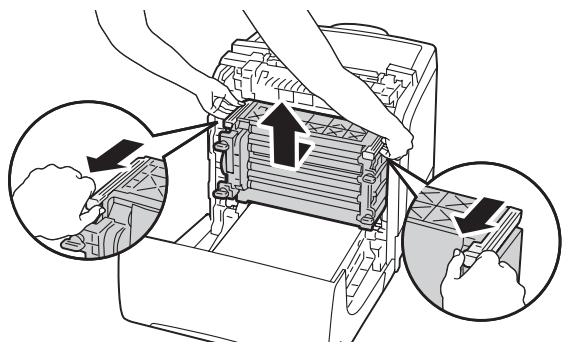
Note:
Keep the drum cartridge in a dark place. If the front cover remains open for more than 5 minutes, print quality may deteriorate.
- Clean the feed roll inside the printer with a dry cloth.
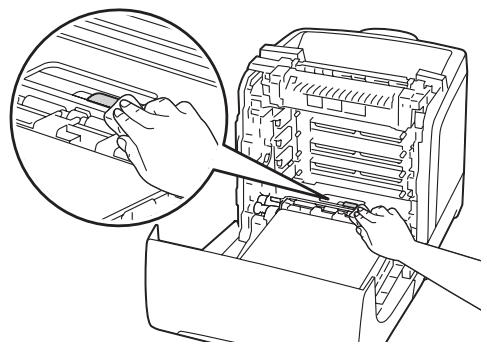
- Insert the drum cartridge until the line on the handle aligns with the white line on the printer.
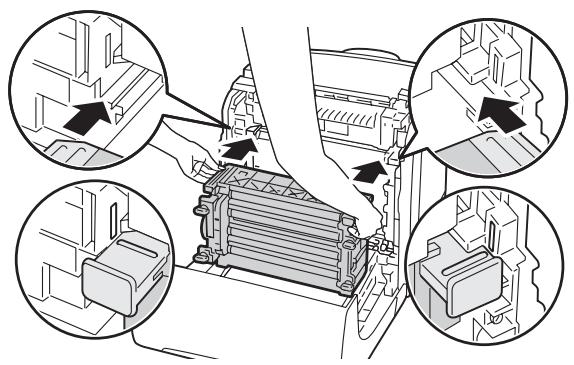
- Turn the four drum cartridge lock levers 90-degrees clockwise to lock the drum cartridge.
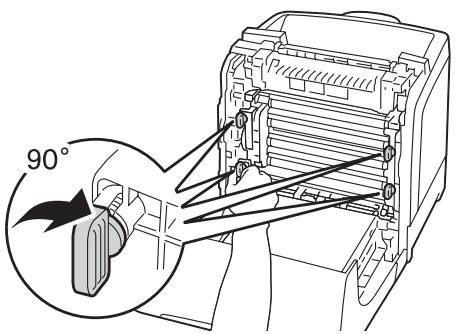
- Close the belt unit, and push at the top of the unit until it clicks.
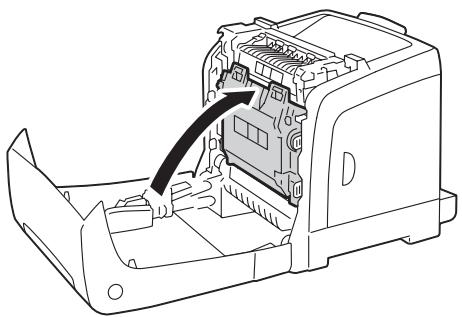
- Close the front cover.
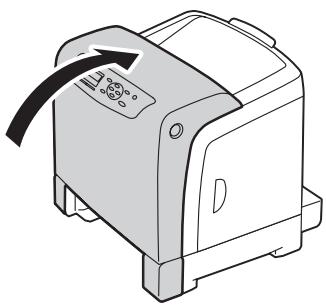
- Insert the standard 250-sheet tray into the printer, and push until it stops.
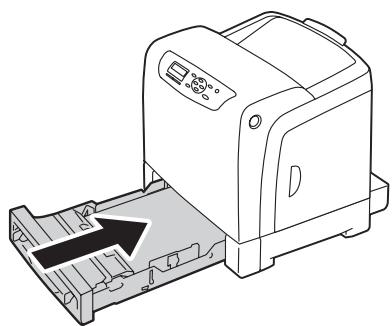
Important:
Do not use excessive force on the tray. Doing so could damage the tray or the inside of the printer.
Cleaning the Color Toner Density (CTD) Sensor
Clean the Color Toner Density (CTD) sensor only when an alert for the CTD sensor is shown on the Printer Status window or operator panel.
- Turn off the printer and disconnect the power cord.
- Pull the standard 250-sheet tray out of the printer about 200mm . Hold the standard 250-sheet tray with both hands, and remove it from the printer.
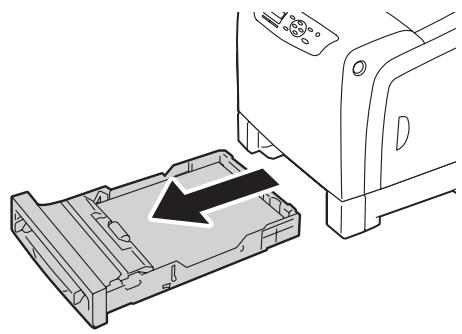
- Push the side button to open the front cover.
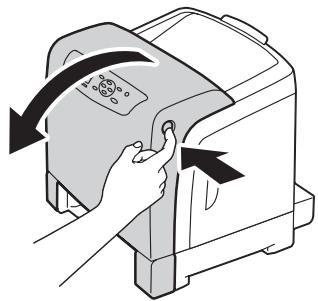
- Open the belt unit.
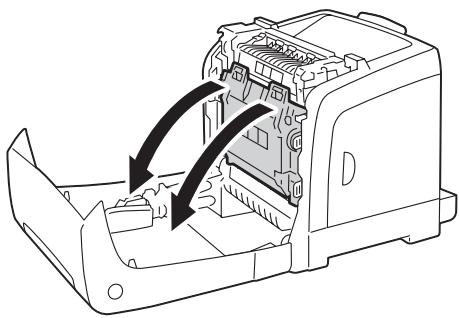
- Clean the CTD sensor inside the printer with a clean dry cotton swab.
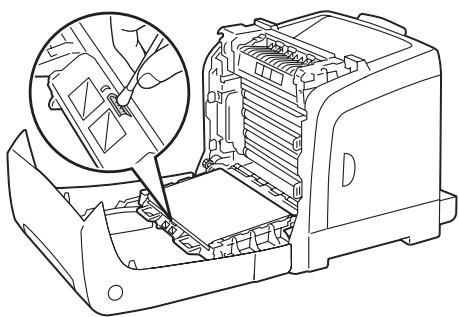
- Close the belt unit, and push at the top of the unit until it clicks.
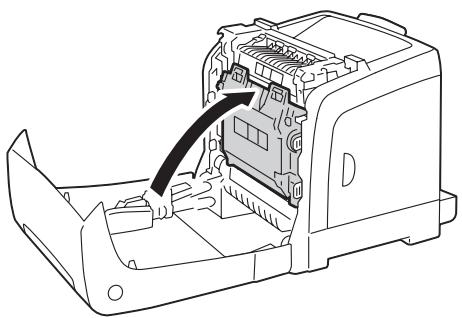
- Close the front cover.
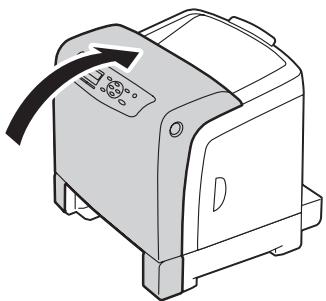
- Insert the standard 250-sheet tray into the printer, and push until it stops.
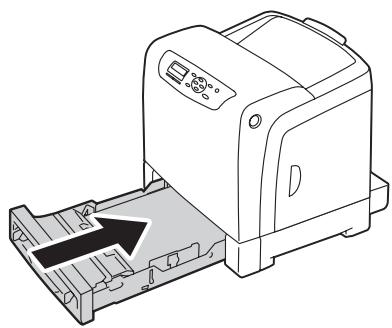
Important:
Do not use excessive force on the tray. Doing so could damage the tray or the inside of the printer.
Replacing Toner Cartridges
Epson toner cartridges are available only through Epson.
It is recommended that you use Epson toner cartridges for your printer. Epson does not provide warranty coverage for problems caused by using accessories, parts, or components not supplied by Epson.

Warning:
Use a broom or a wet cloth to wipe off spilled toner. Never use a vacuum cleaner for the spills. It may catch fire by electric sparks inside the vacuum cleaner and cause explosion. If you spill a large volume of toner, contact your local Epson representative.
- Never throw a toner cartridge into an open flame. Remaining toner in the cartridge may catch fire and cause burn injuries or explosion. If you have a used toner cartridge no longer needed, contact your local Epson representative for its disposal.

Caution:
- Keep toner cartridges out of the reach of children. If a child accidentally swallows toner, spit it out, rinse mouth with water, drink water and consult a physician immediately.
When replacing toner cartridges, be careful not to spill the toner. In case of any toner spills, avoid contact with clothes, skin, eyes and mouth as well as inhalation.
□ If toner spills onto your skin or clothing, wash it off with soap and water.
If you get toner particles in your eyes, wash it out with plenty of water for at least 15 minutes until irritation is gone. Consult a physician if necessary.
If you inhale toner particles, move to a fresh air location and rinse your mouth with water.
If you swallow toner, spit it out, rinse your mouth with water, drink plenty of water and consult a physician immediately.
Important:
Do not shake the used toner cartridge to avoid spilling of the toner.
Replace the toner cartridge with the printer turned on. If you turn off the printer, print data remaining in the printer, and information stored on the printer's memory are erased.
Overview
The printer has toner cartridges of four colors: black (K), yellow (Y), magenta (M), and cyan (C).
When a toner cartridge reaches its usable life-span, the following messages appear on the LCD panel.
| Message | Action |
| Replace XXXT Toner Cartridge Soon | The toner cartridge has become end of its service life. Replace the old toner cartridge with a new one. |
Important:
When placing a used toner cartridge on the floor or on a table, place a few sheets of paper under the toner cartridge to catch any toner that may spill.
□ Do not reuse old toner cartridges once you remove them from the printer. Doing so can impair print quality.
Do not shake or pound the used toner cartridges. The remaining toner may spill.
We recommend you to use up the toner cartridges within one year after removing them from the packaging.
Removing the Toner Cartridges
- Open the side cover.
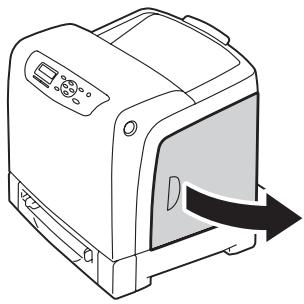
- Push the latch(es) backwards to pop open the toner cartridge(s) that you want to replace.
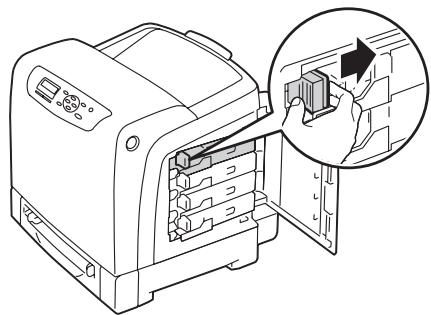
- Pull the cartridge holder until it clicks, and then pull out the toner cartridge.
Important:
Always pull the toner cartridge out slowly so you do not spill any toner.
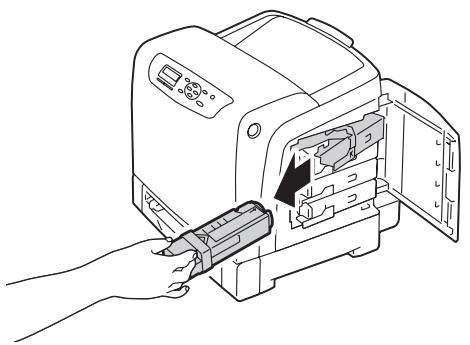
Installing a Toner Cartridge
- Unpack a new toner cartridge of the desired color and shake it five to six times to distribute the toner evenly.
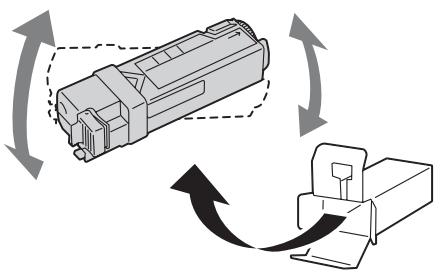
Note:
Ensure that the color of the new toner cartridge matches that on the handle before replacing it.
□ Handle the toner cartridge carefully to avoid spilling of the toner.
- Insert the toner cartridge into the associated cartridge holder, and then slide the latch of the toner cartridge.
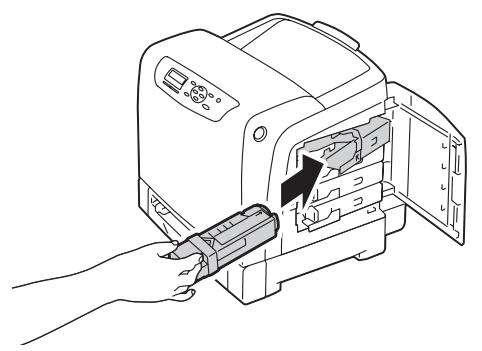
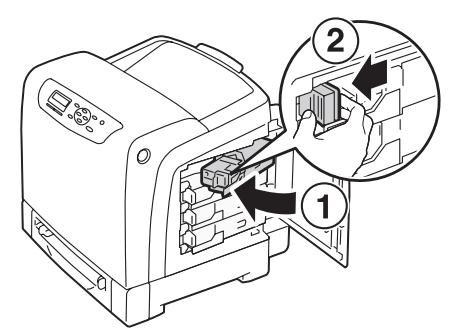
- Close the side cover.
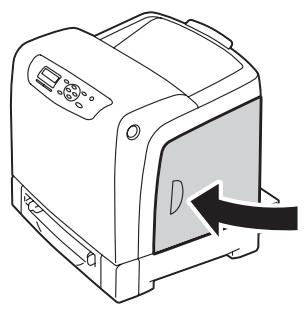
Replacing the Drum Cartridge
This section describes how to replace the drum cartridge.
Important:
- Protect the drums of the drum cartridge against bright light. If the front cover remains open for more than 5 minutes, print quality may deteriorate.
□ Ensure nothing touches or scratches the surface (black-colored film) of the belt unit. Scratches, dirt, or oil from your hands on the film of the belt unit may reduce print quality.
Replace the drum cartridge with the printer turned on. If you turn off the printer, print data remaining in the printer, and information stored on the printer's memory are erased.
Removing the Drum Cartridge
- Pull the standard 250-sheet tray out of the printer about 200mm . Hold the standard 250-sheet tray with both hands, and remove it from the printer.
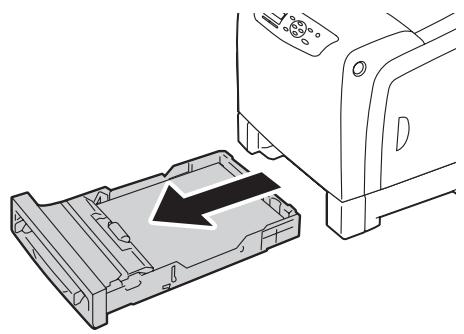
- Push the side button to open the front cover.
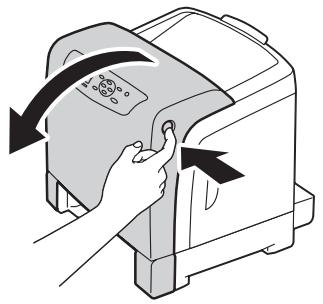
- Open the belt unit.
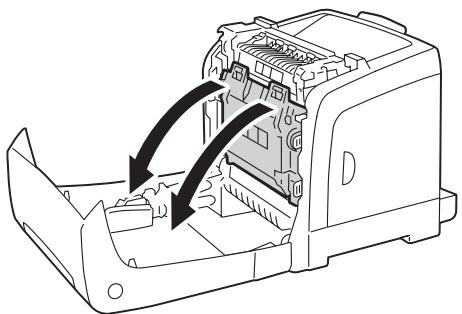
- Turn the four drum cartridge lock levers 90-degrees counterclockwise.
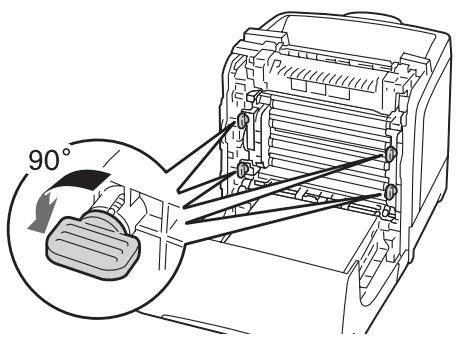
- Hold the drum cartridge levers, and then pull out the drum cartridge.
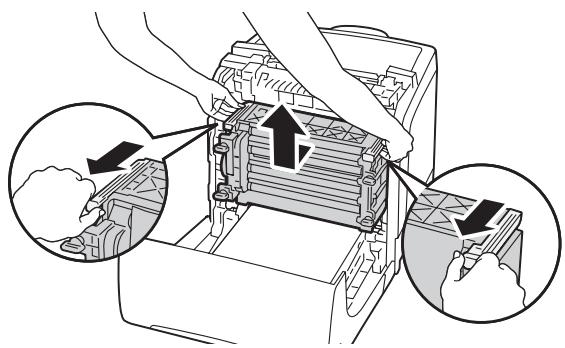
Installing the Drum Cartridge
- Open the drum cartridge packaging.
- Take out the drum cartridge from the packaging.
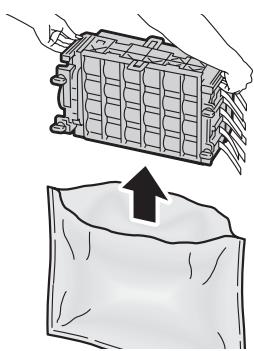
- Completely pull out the eight yellow ribbons from the drum cartridge.
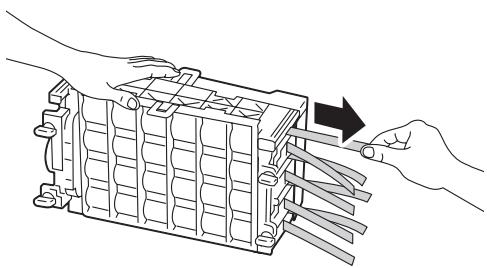
- Remove the rear protective cover from the drum cartridge.
Note:
Do not remove the front protective cover at this moment.
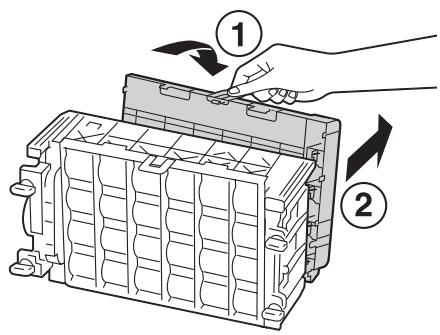
- Insert the drum cartridge until the line on the handle aligns with the white line on the printer.
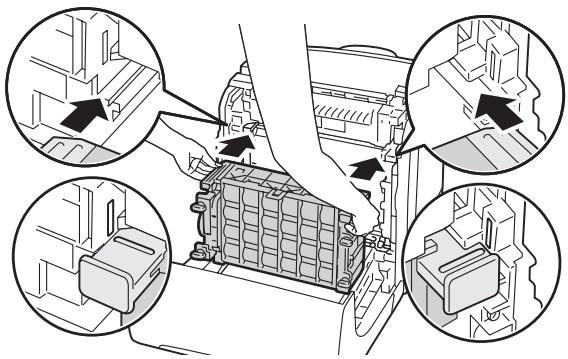
- Turn the four drum cartridge lock levers 90-degrees clockwise to lock the drum cartridge.
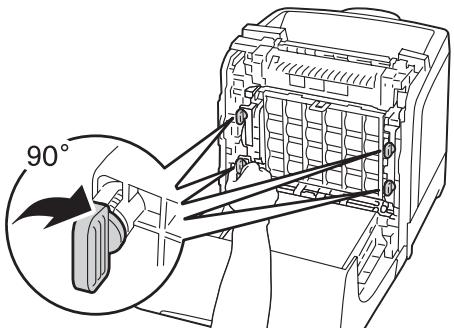
- Remove the front protective cover from the drum cartridge.
Important:
Ensure that you do not hit the belt unit when removing the front protective cover.
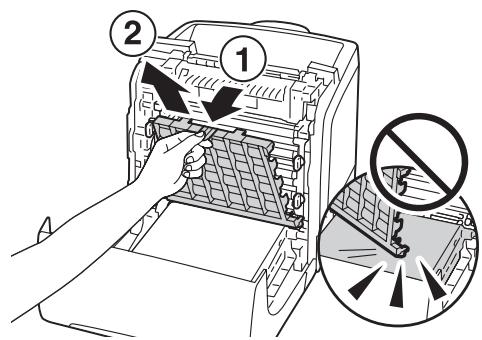
- Close the belt unit, and push at the top of the unit until it clicks.
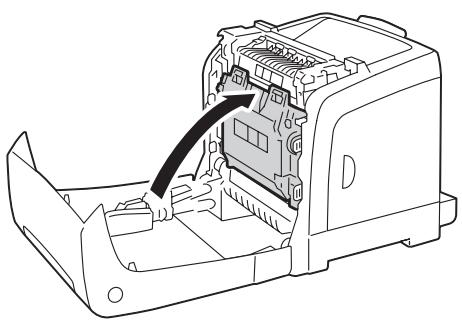
- Close the front cover.
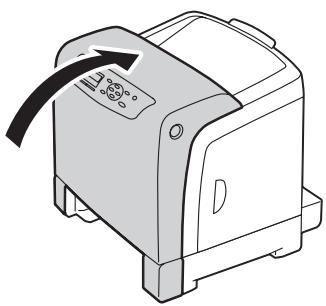
- Insert the standard 250-sheet tray into the printer, and push until it stops.
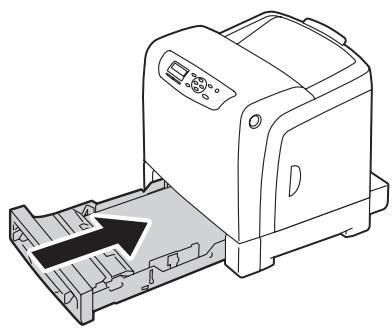
Important:
Do not use excessive force on the tray. Doing so could damage the tray or the inside of the printer.
Replacing the Fuser Unit
This section describes how to replace the fuser unit.
Caution: Before re
Before removing the fuser unit, turn off the printer and wait for 40 minutes until the fuser unit cools down.
Important:
To prevent electric shock, always turn off the printer and disconnect the power cord from the grounded outlet before performing maintenance.
Avoid bright light and try to finish the replacement within 5 minutes.
Removing the Fuser Unit
-
Turn off the printer and disconnect the power cord.
-
Remove any paper in the output tray.
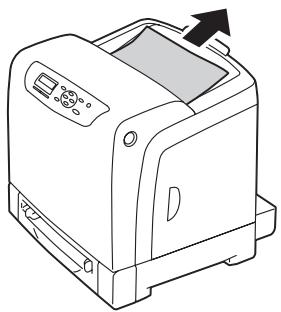
- Push the side button to open the front cover.
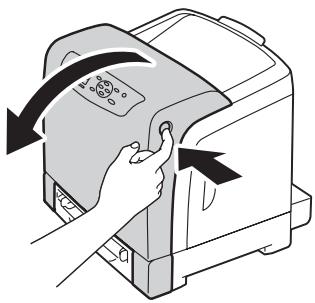
- Open the belt unit.
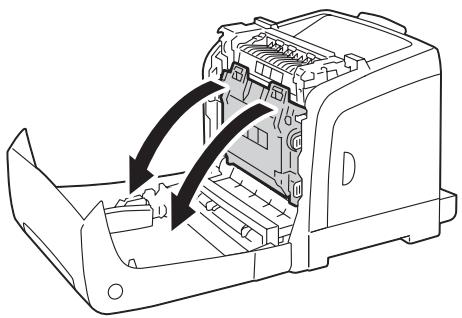
- Pinch the gray lever on the right side of the fuser unit and lower the lever toward you.
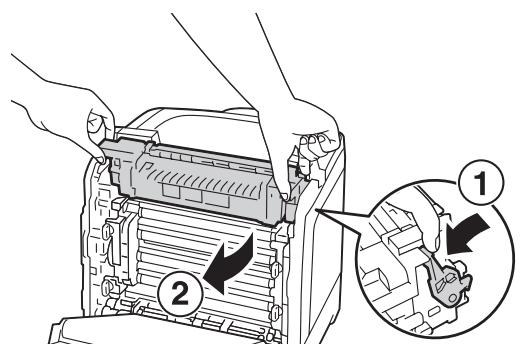
- Hold both sides of the fuser unit. Next, slightly raise the right side while holding down the left side, and slide out the fuser unit.
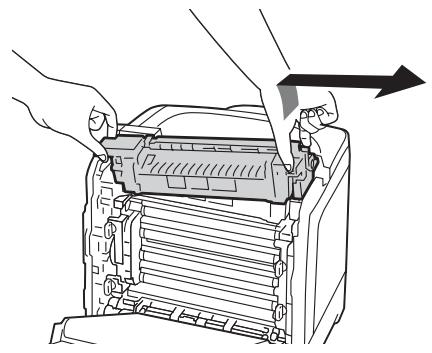
Installing the Fuser Unit
- Insert the protrusions of the new fuser unit into the two slots of the printer.
Note:
Hold both sides of the fuser unit with your hands.
Make sure that the fuser unit is firmly set in the slots and cannot be moved easily.
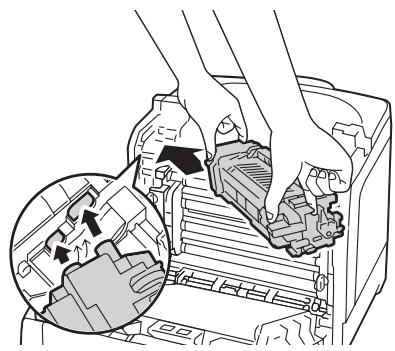
- Push the fuser unit forward until the right groove of the snaps into place.
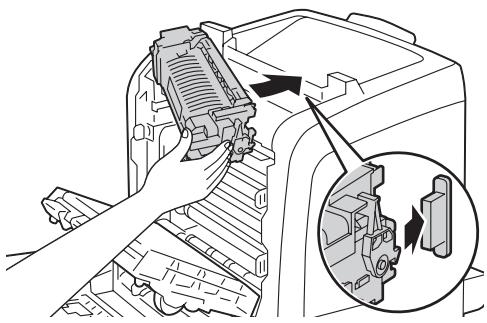
- Close the belt unit, and push at the top of the unit until it clicks.
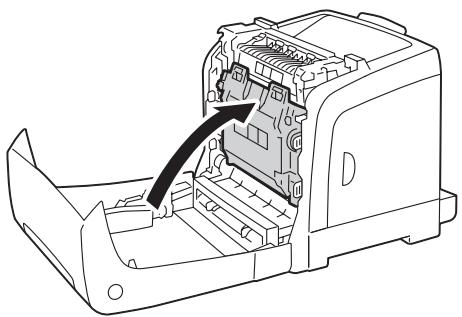
- Close the front cover.
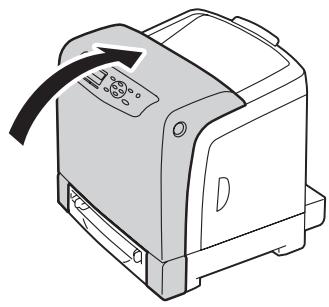
- Reconnect the power cord to the power connector and turn on the printer.
Resetting the Counter of the Fuser Unit
After replacing the fuser unit, use the operator panel to reset the counter of the fuser unit.
- Press the (Menu) button.
- Select Admin Menu, and then press the OK button.
- Select Maintenance Mode, and then press the OK button.
- Select Reset Fuser, and then press the OK button.
- Ensure that Are You Sure? appears, and then press the OK button.
Replacing the Feed Roll Unit
This section describes how to replace the feed roll unit in the standard 250-sheet tray. Regularly replacing the feed roll helps ensure the best quality output.
Epson feed rolls are available only through Epson.
It is recommended that you use Epson feed rolls for your printer. Epson does not provide warranty coverage for problems caused by using accessories, parts, or components not supplied by Epson.
Removing the Feed Roll Unit in the Standard 250-Sheet Tray
- Pull the standard 250-sheet tray out of the printer about 200mm . Hold the standard 250-sheet tray with both hands, and remove it from the printer.
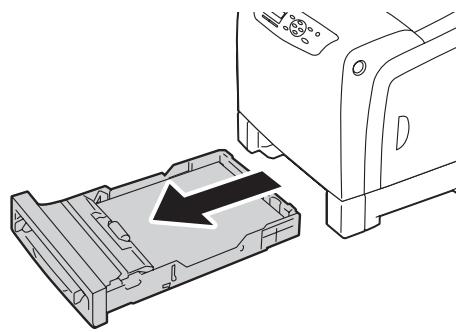
Note:
Ensure that you remove all the paper from the standard 250-sheet tray before removing the feed roll unit.
- Holding the feed roll tabs with your fingers, pull the feed roll unit out of the groove in the axle.
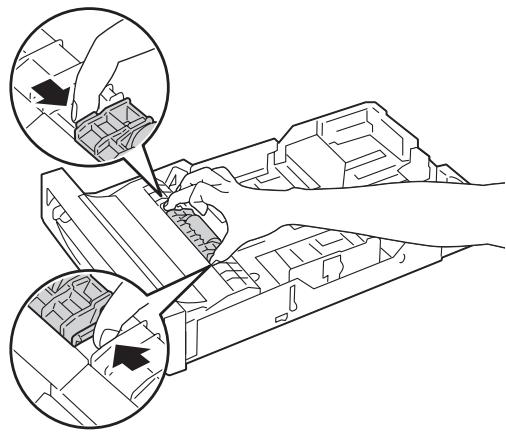
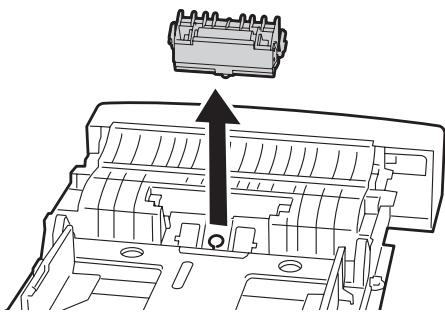
Installing the Feed Roll Unit in the Standard 250-Sheet Tray
- Align the new feed roll unit with the groove on the axle.
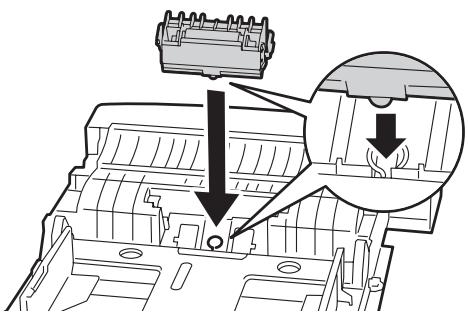
- Insert the feed roll unit into the axle until it snaps. The protrusions fit completely into the slots and the roller hook reseats into the groove on the axle.
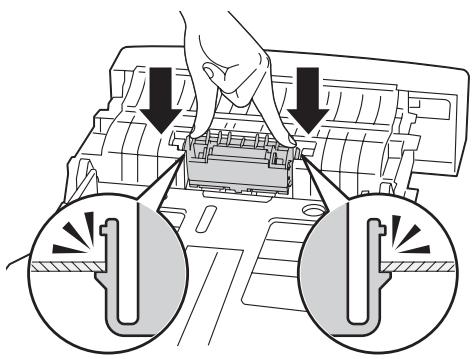
- Load paper in the standard 250-sheet tray, and then insert the standard 250-sheet tray into the printer and push until it stops.
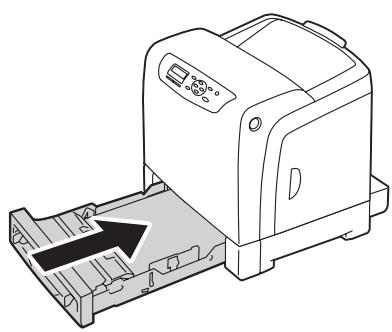
Important:
Do not use excessive force on the tray. Doing so could damage the tray or the inside of the printer.
Ordering Supplies
Certain consumables and routine maintenance items need to be ordered occasionally. Each supply includes installation instructions on the box.
Consumables
Important:
Use of consumables/periodical replacement parts not recommended by Epson can impair machine quality and performance. Use only consumables/periodical replacement parts recommended by Epson.
| Product Name | Product Code |
| TONER CARTRIDGE(YELLOW) | 0627 |
| TONER CARTRIDGE(MAGENTA) | 0628 |
| TONER CARTRIDGE(CYAN) | 0629 |
| TONER CARTRIDGE(BLACK) | 0630 |
| DOUBLE TONER CARTRIDGE PACK(BLACK) | 0631 |
| DRUM CARTRIDGE | 1211 |
| FUSER UNIT(220-240V) | 3043 |
| FUSER UNIT(110-120V) | 3044 |
Note:
Each toner cartridge includes installation instructions on the box.
A feed roll unit is included with the fuser unit.
When to Order Supplies
The LCD panel displays a warning when the supply nears its replacement time. Verify that you have replacements on hand. It is important to order these supplies when the messages first appear to avoid interruptions to your printing. The LCD panel displays an error message when the supply must be replaced.
Important:
This printer is designed to provide the most stable performance and print quality when used with the consumables recommended by Epson. Not using consumables recommended for this machine degrades the performance and printing quality of the printer. You could also incur charges if the machine breaks down. To receive customer support and achieve the optimum performance of the printer, be sure to use consumables recommended by Epson.
Storing Print Media
To avoid potential paper feeding problems and uneven print quality, there are several things you can do:
To achieve the best possible print quality, store print media in an environment where the temperature is approximately 70^ / 21^ and the relative humidity is 40% .
Store cartons of print media on a pallet or shelf, rather than directly on the floor.
If you store individual packages of print media out of the original carton, ensure that they rest on a flat surface so the edges do not buckle or curl.
Do not place anything on top of the print media packages.
Storing Consumables
Store consumables in their original packaging until you need to use them. Do not store consumables in:
Temperatures greater than 104^ / 40^
An environment with extreme changes in humidity or temperature.
□ Direct sunlight.
Dusty places.
A car for a long period of time.
An environment where corrosive gases are present.
A humid environment.
Managing the Printer
Checking or Managing the Printer with EpsonNet Config
When the printer is installed in a TCP/IP environment, you can use EpsonNet Config to check the printer status, the remaining volume of consumables, and the paper loaded in this printer. You can also use EpsonNet Config to configure printer settings.
Note:
When using the printer as a local printer, you cannot use EpsonNet Config. For details about checking the status of a local printer, refer to “Checking Printer Status with Status Monitor (Windows Only)” on page 224.
Starting EpsonNet Config
Use the following procedure to start EpsonNet Config.
- Launch your web browser.
- Enter the IP address in the browser's Address field, and then press the Enter key.
The EpsonNet Config screen appears.
Using Online Help
For details about each item, refer to the Help on the Software Disc.
Checking Printer Status with Status Monitor (Windows Only)
Status Monitor is a tool that is installed with your Epson print driver. It automatically checks the printer status when you send a print job. Status Monitor can check the paper size loaded into the tray, the status of the output tray, and the remaining amount of consumables, such as toner cartridges.
Starting Status Monitor
Double-click the Status Monitor icon on the taskbar or right-click the icon and select Select Printer.
If the Status Monitor icon is not displayed on the taskbar, open Status Monitor from the Start menu:
The following procedure uses Microsoft® Windows® XP as an example.
- Click start — All Programs — EPSON — Status Monitor — Activate Status Monitor.
The Select Printer window appears.
- Click the name of the desired printer from the list.
- The Printer Status window appears.
For details about the functions of Status Monitor, refer to the online Help.
Conserving Supplies
You can change several settings in your print driver to conserve toner cartridge and paper.
The following descriptions use the PCL 6 driver as an example.
| Supply | Setting | Function |
| Toner cartridge | Draft Mode in the Advanced Settings tab | This check box allows the users to select a print mode that uses less toner. The image quality will be lower when this feature is used. |
| Print media | Multiple-Up in the Layout tab | The printer prints two or more pages on one side of a sheet. Values for Multiple-Up are 2 Pages Up, 4 Pages Up, 8 Pages Up, 16 Pages Up, 32 Pages Up. Combined with the duplex setting, Multiple-Up allows you to print up to 64 pages on one sheet of paper (32 images on the front and 32 on the back). |
Checking Page Counts
The total number of printed pages can be checked at the operator panel. Three meters are available: Total Impression, Color Impression, and Black Impression.
TheBillingMeters counts the number of pages printed properly. Single side color print (including N-up) is counted as one job, and 2-sided print (including N-up) is counted as two. During 2-sided printing, if an error occurs after one side is printed properly, it is counted as one.
When printing color data, which has been converted by using ICC profile on an application, with the Color (Auto) setting, the data is printed by color even if it seems to be black and white data on the monitor. In that case, Total Impression is increased.
When doing 2-sided printing, a blank page may be inserted automatically depending on the settings of the application. In this case, the blank page is counted as one page.
For information about the individual meter, see "Billing Meters" on page 105.
Use the following procedure to check a meter:
- Press the (Menu) button.
- Select Billing Meters, and then press the OK button.
- Select the desired meter to check the number of pages.
Moving the Printer
This section describes how to move the printer.
Important:
Two people are required to move the printer.
To prevent you from dropping the printer and getting backache or injuries, lift the printer by firmly gripping the recessed areas on both sides of the printer. Never lift the printer by gripping any other areas.
Note:
If the optional 250-sheet paper cassette unit has been installed, uninstall the optional 250-sheet paper cassette unit before moving the printer. If the optional 250-sheet paper cassette unit is not fixed securely to the printer, it may fall to the ground and cause injuries. For details on how to uninstall the optional 250-sheet paper cassette unit, see “Removing the Optional 250-Sheet Paper Cassette Unit” on page 232.
-
Turn off the printer and disconnect the power cord, interface cable, and any other cables.
-
Remove any paper in the output tray and slide the output tray extension inside the printer.
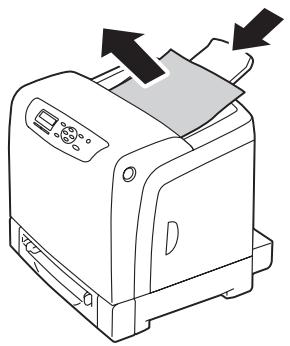
- Pull the standard 250-sheet tray out of the printer about 200mm . Hold the standard 250-sheet tray with both hands, and remove it from the printer.
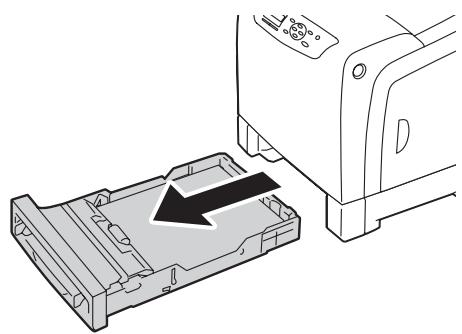
- Lift the printer and move it gently.
Note:
If you move the printer over a long distance, remove the toner cartridges from the printer to prevent toner from spilling, and pack the printer inside a box.
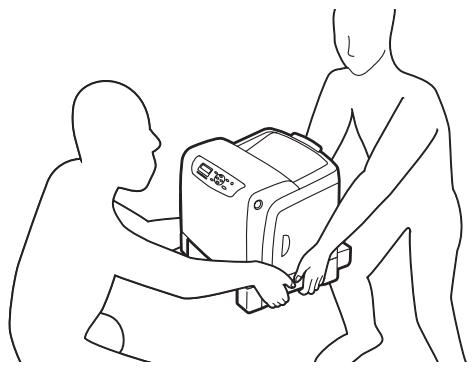
- Insert the standard 250-sheet tray into the printer, and push until it stops.
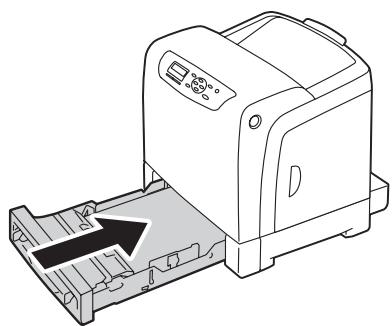
Important:
Do not use excessive force on the tray. Doing so could damage the tray or the inside of the printer.
- Adjust the color registration before using your printer.
See Also:
"Adjusting Color Registration" on page 182
Removing Options
If the printer location needs to be changed or the printer and print media handling options need to be shipped to a new location, all print media handling options must be removed from the printer. For shipping, pack the printer and print media handling options securely to avoid damage.
Removing the Additional Memory Module
- Turn off the printer.
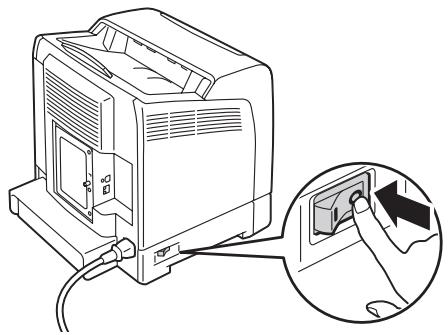
- Turn the screw on the control board cover counterclockwise, and open the cover.
Note:
Loosen the screw. You do not need to remove the screw.
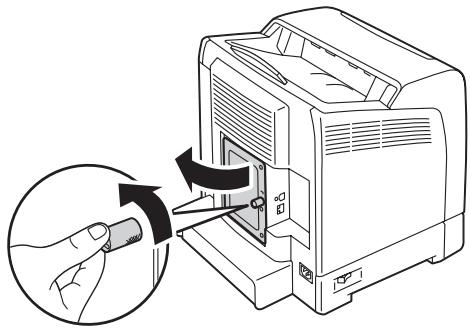
- Push the clips on both sides of the slot outward.
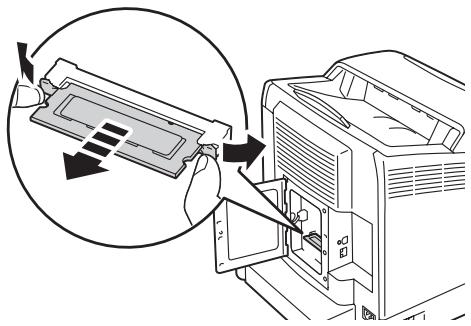
- Hold the memory module and pull it straight out.
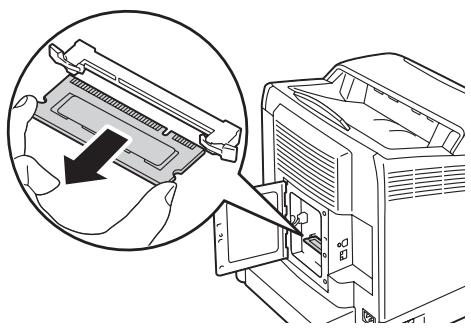
- Close the control board cover, and turn the screw clockwise.
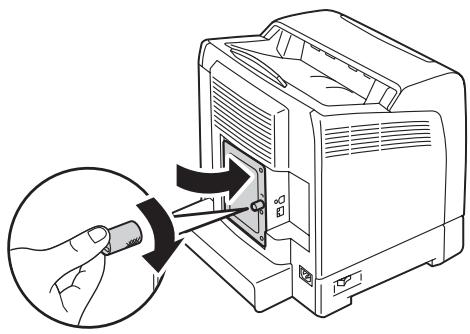
- Turn on the printer.
Removing the Optional Duplex Unit
- Turn off the printer and disconnect the power cord.
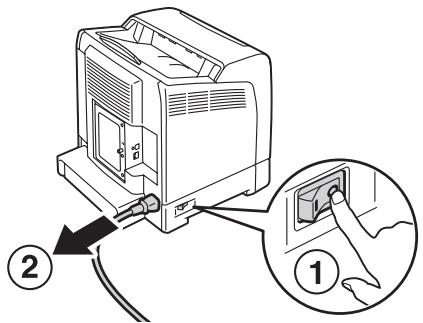
- Push the side button to open the front cover.
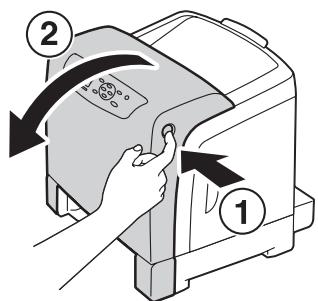
- Lift the lever of the optional duplex unit.
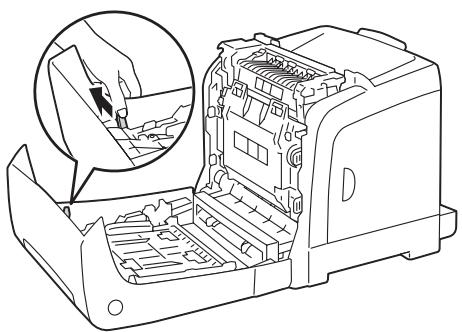
- Hold both sides of the optional duplex unit, and then pull out the optional duplex unit.
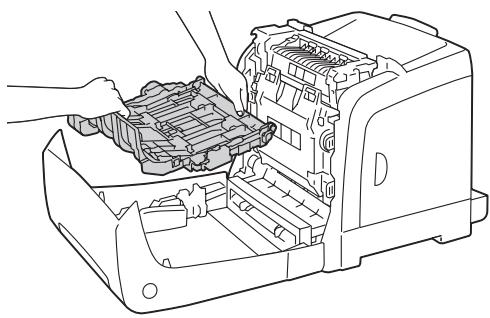
- Close the front cover.
- Reconnect the power cord to the power connector and turn on the printer.
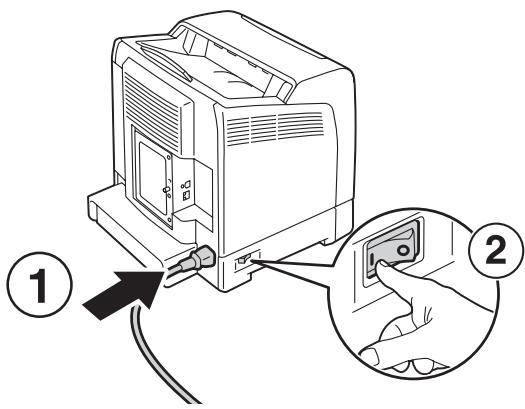
Removing the Optional 250-Sheet Paper Cassette Unit
- Turn off the printer.
- Disconnect the power cord from the power connector on the rear of the printer.
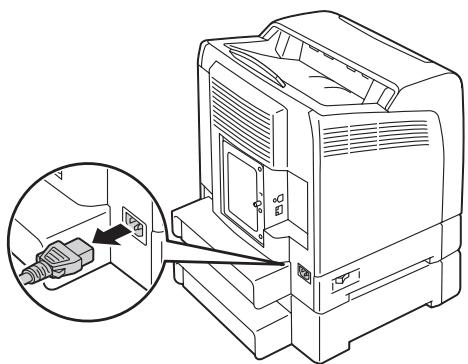
- Pull the standard 250-sheet tray out of the printer about 200mm . Hold the standard 250-sheet tray with both hands, and remove it from the printer.
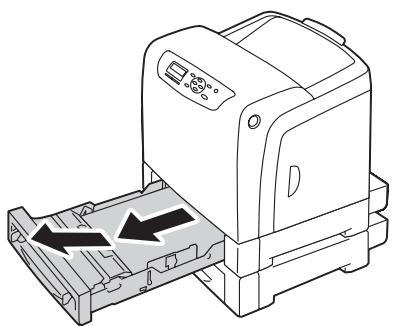
- Remove the two screws joining the printer and the optional 250-sheet paper cassette unit by unscrewing them with a coin or similar object.
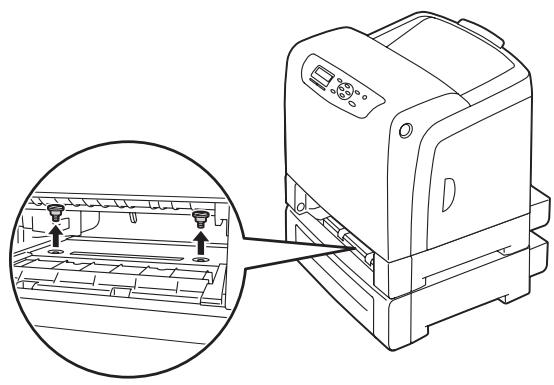
- Gently lift the printer off the optional 250-sheet paper cassette unit, and place it on a level surface.

Caution:
Two people are required to lift the printer.
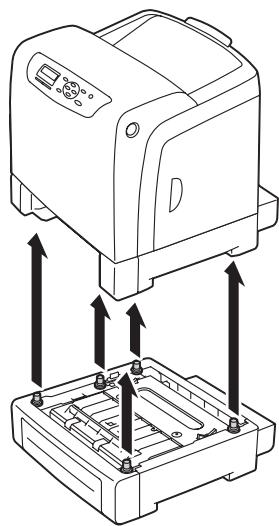
- Insert the standard 250-sheet tray into the printer, and push until it stops.
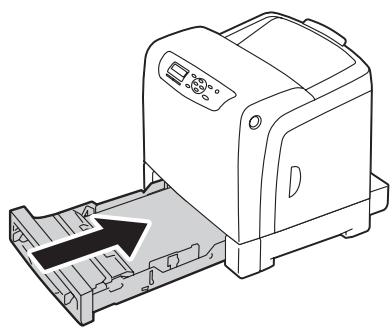
- Reconnect all cables into the rear of the printer and turn on the printer.
Appendix A
Where To Get Help
Contacting Epson Support
Before Contacting Epson
If your Epson product is not operating properly and you cannot solve the problem using the troubleshooting information in your product documentation, contact Epson support services for assistance. If Epson support for your area is not listed below, contact the dealer where you purchased your product.
Epson support will be able to help you much more quickly if you give them the following information:
Product serial number (The serial number label is usually on the back of the product.)
Product model
Product software version (Click About, Version Info, or similar button in the product software.)
Brand and model of your computer
Your computer operating system name and version
Names and versions of the software applications you normally use with your product
Help for Users in Europe
Check your Pan-European Warranty Document for information on how to contact Epson support.
Help for Users in Taiwan
Contacts for information, support, and services are:
World Wide Web (http://www.epson.com.tw)
Information on product specifications, drivers for download, and products enquiry are available.
Epson HelpDesk (Phone: +0800212873)
Our HelpDesk team can help you with the following over the phone:
Sales enquiries and product information
Product usage questions or problems
Enquiries on repair service and warranty
Repair service center:
| Telephone number | Fax number | Address |
| 02-23416969 | 02-23417070 | No.20, Beiping E. Rd., Zhongzheng Dist., Taipei City 100, Taiwan |
| 02-27491234 | 02-27495955 | 1F., No.16, Sec. 5, Nanjing E. Rd., Songshan Dist., Taipei City 105, Taiwan |
| 02-32340688 | 02-32345299 | No.1, Ln. 359, Sec. 2, Zhongshan Rd., Zhonghe City, Taipei County 235, Taiwan |
| 039-605007 | 039-600969 | No.342-1, Guangrong Rd., Luodong Township, Yilan County 265, Taiwan |
| 038-312966 | 038-312977 | No.87, Guolian 2nd Rd., Hualien City, Hualien County 970, Taiwan |
| 02-82273300 | 02-82278866 | 5F.-1, No.700, Zhongzheng Rd., Zhonghe City, Taipei County 235, Taiwan |
| 03-2810606 | 03-2810707 | No.413, Huannan Rd., Pingzhen City, Taoyuan County 324, Taiwan |
| 03-5325077 | 03-5320092 | 1F., No.9, Ln. 379, Sec. 1, Jingguo Rd., North Dist., Hsinchu City 300, Taiwan |
| 04-23291388 | 04-23291338 | 3F., No.510, Yingcai Rd., West Dist., Taichung City 403, Taiwan |
| 04-23805000 | 04-23806000 | No.530, Sec. 4, Henan Rd., Nantun Dist., Taichung City 408, Taiwan |
| 05-2784222 | 05-2784555 | No.463, Zhongxiao Rd., East Dist., Chiayi City 600, Taiwan |
| 06-2221666 | 06-2112555 | No.141, Gongyuan N. Rd., North Dist., Tainan City 704, Taiwan |
| 07-5520918 | 07-5540926 | 1F., No.337, Minghua Rd., Gushan Dist., Kaohsiung City 804, Taiwan |
| 07-3222445 | 07-3218085 | No.51, Shandong St., Sanmin Dist., Kaohsiung City 807, Taiwan |
| 08-7344771 | 08-7344802 | 1F., No.113, Shengli Rd., Pingtung City, Pingtung County 900, Taiwan |
Help for Users in Singapore
Sources of information, support, and services available from Epson Singapore are:
World Wide Web (http://www.epson.com.sg)
Information on product specifications, drivers for download, Frequently Asked Questions (FAQ), Sales Enquiries, and Technical Support via e-mail are available.
Epson HelpDesk (Phone: (65) 6586 3111)
Our HelpDesk team can help you with the following over the phone:
Sales enquiries and product information
Product usage questions or problems
Enquiries on repair service and warranty
Help for Users in Thailand
Contacts for information, support, and services are:
World Wide Web (http://www.epson.co.th)
Information on product specifications, drivers for download, Frequently Asked Questions (FAQ), and e-mail are available.
Epson Hotline (Phone: (66)2685-9899)
Our Hotline team can help you with the following over the phone:
Sales enquiries and product information
Product usage questions or problems
Enquiries on repair service and warranty
Help for Users in Vietnam
Contacts for information, support, and services are:
Epson Hotline (Phone): 84-8-823-9239
Service Center: 80 Truong Dinh Street, District 1, Hochiminh City Vietnam
Help for Users in Indonesia
Contacts for information, support, and services are:
World Wide Web (http://www.epson.co.id)
Information on product specifications, drivers for download
Frequently Asked Questions (FAQ), Sales Enquiries, questions through e-mail
Epson Hotline
Sales enquiries and product information
Technical support
Phone (62) 21-572 4350
Fax (62) 21-572 4357
Epson Service Center
| Jakarta | Mangga Dua Mall 3rd floor No 3A/B Jl. Arteri Mangga Dua, Jakarta |
| Phone/Fax: (62) 21-62301104 | |
| Bandung | Lippo Center 8th floor Jl. Gatot SubROTO No.2 Bandung |
| Phone/Fax: (62) 22-7303766 | |
| Surabaya | Hitech Mall lt IIB No. 12 Jl. Kusuma Bangsa 116 - 118 Surabaya |
| Phone: (62) 31-5355035 Fax: (62)31-5477837 | |
| Yogyakarta | Hotel Natour Garuda Jl. Malioboro No. 60 Yogyakarta |
| Phone: (62) 274-565478 | |
| Medan | Wisma HSBC 4th floor Jl. Diponegoro No. 11 Medan |
| Phone/Fax: (62) 61-4516173 | |
| Makassar | MTC Karebosi Lt. Ill Kav. P7-8 JI. Ahmad Yani No.49 Makassar |
| Phone: (62)411-350147/411-350148 |
Help for Users in Hong Kong
To obtain technical support as well as other after-sales services, users are welcome to contact Epson Hong Kong Limited.
Internet Home Page
Epson Hong Kong has established a local home page in both Chinese and English on the Internet to provide users with the following information:
Product information
□ Answers to Frequently Asked Questions (FAQs)
Latest versions of Epson product drivers
Users can access our World Wide Web home page at:
http://www.epson.com.hk
Technical Support Hotline
You can also contact our technical staff at the following telephone and fax numbers:
Phone: (852) 2827-8911
Fax: (852) 2827-4383
Help for Users in Malaysia
Contacts for information, support, and services are:
World Wide Web (http://www.epson.com.my)
Information on product specifications, drivers for download
Frequently Asked Questions (FAQ), Sales Enquiries, questions through e-mail
Epson Trading (M) Sdn. Bhd.
Head Office.
Phone: 603-56288288
Fax: 603-56288388/399
Epson Helpdesk
Sales enquiries and product information (Infoline)
Phone: 603-56288222
Enquiries on repair services & warranty, product usage and technical support (Techline)
Phone: 603-56288333
Help for Users in India
Contacts for information, support, and services are:
World Wide Web (http://www.epson.co.in)
Information on product specifications, drivers for download, and products enquiry are available.
Epson India Head Office - Bangalore
Phone: 080-30515000
Fax: 30515005
Epson India Regional Offices:
| Location | Telephone number | Fax number |
| Mumbai | 022-28261515 /16/17 | 022-28257287 |
| Delhi | 011-30615000 | 011-30615005 |
| Chennai | 044-30277500 | 044-30277575 |
| Kolkata | 033-22831589 / 90 | 033-22831591 |
| Hyderabad | 040-66331738/ 39 | 040-66328633 |
| Cochin | 0484-2357950 | 0484-2357950 |
| Coimbatore | 0422-2380002 | NA |
| Pune | 020-30286000 /30286001/30286002 | 020-30286000 |
| Ahmedabad | 079-26407176 / 77 | 079-26407347 |
Helpline
For Service, Product info or to order a cartridge - 18004250011 (9AM - 9PM) - This is a Toll-free number.
For Service (CDMA & Mobile Users) - 3900 1600 (9AM - 6PM) Prefix local STD code
Help for Users in the Philippines
To obtain technical support as well as other after sales services, users are welcome to contact the Epson Philippines Corporation at the telephone and fax numbers and e-mail address below:
Trunk Line: (63-2) 706 2609
Fax: (63-2) 706 2665
Helpdesk Direct Line: (63-2) 706 2625
E-mail: epchelpdesk@epc.epson.com.ph
World Wide Web (http://www.epson.com.ph)
Information on product specifications, drivers for download, Frequently Asked Questions (FAQ), and E-mail Enquiries are available.
Toll-Free No. 1800-1069-EPSON(37766)
Our Hotline team can help you with the following over the phone:
Sales enquiries and product information
Product usage questions or problems
Enquiries on repair service and warranty
Index
2
2 Sided Print. 88
2 Sided, Flip on Short Edge. 89
2-Sided. 108
A
Adjust Altitude. 132
Adjust BTR. 128
Adjust ColorRegi. 130
Adjust Fuser. 128
Adjust PaperType. 127
Adjusting Color Registration. 182
Admin Menu. 106
Adobe Protocol. 118, 119
Assigning an IP Address. 43
Audio Tones. 122
Auditron. 97
Auditron Mode. 126
Auto Adjust Regi. 129
Auto Job History. 123
Auto Reset. 120
Automatic Duplex Printing. 87
Automatically Setting the IP Address. 42
Avoiding jam. 142
B
Back button. 19
Banner Sheet. 125
Basic Printer Problems. 162
Belt Unit. 17
BillingMeters. 105
biling meters total printed pages 225
Bonjour (mDNS) 117
Booklet Print. 88
BOOTP 116
C
Cancel Job button. 19
Canceling a print job. 83
Canceling print job From Operator panel. 83
From your computer. 84
Checking Page Counts. 225
checking printed pages how to check the meter. 226
Checking Status of Print Data. 99
Clean Developer. 130
Cleaning Inside the Printer. 199
Cleaning the CTD Sensor. 203
Clear Storage. 131
Clearing jam. 142
Clearing Paper Jam From Fuser Unit. 151
From Optional 250-Sheet Paper Cassette Unit.....154
From Optional Duplex Unit. 153
From SSF. 144
From Standard 250-sheet Tray. 147
Clock Settings. 121
Color registration chart. 183
Connecting local printer. 40
Connecting printer. 38
Connection specification. 38
Connection type. 38
Conserving supplies. 225
consumables. 222
ContactingEpson. 235
Contacting service. 197
Control Board Cover. 18
Counter of the Fuser Unit. 219
CTD Sensor. 203
D
DefaultPaperSize. 123
Determining Values. 183
DHCP. 116
DHCP / AutoIP. 116
Disabling the Panel Lock. 139
Display Problems. 163
Draft Mode. 112
Drum Cartridge. 17
Drum Refresh. 131
Dual Stack. 115
Duplex Printing. 87
Dynamic Methods of Setting the IP Address. 42
E
Enabling the Panel Lock. 139
Energy Saver button. 19, 34, 120
Entering Values. 185
Envelope. 128, 129
EpsonNet Config. 35
managing printer. 224
online help for. 224
starting. 224
Error History. 105
Error LED. 19
Ethernet. 114
Ethernet Port. 18, 39
F
F/W Version. 127
Fast Scan. 183
Fault Time-out. 121
Font. 108
Font Pitch. 111
Font Size. 110
Form Line. 111
Front Cover. 17, 144
Fuser Unit. 17, 144
G
Gateway Address. 116
Get IP Address. 116
getting help. 197
Status Monitor Alerts. 197
H
Heavy Card. 128, 129
Help Epson. 235
HexDump. 112
how to check the meter. 226
How to install option. 21
How to remove option. 228
How to replace feed roll unit. 219
HW Gloss Card. 128, 129
1
IEEE 802.1x. 118
Image Enhance. 111
Init Print Meter. 131
Initialize NVM. 118, 131
Installing a Toner Cartridge. 208
Installing Optional Accessories. 21
Installing Print Driver
print driver (Linux) 56
print driver (Macintosh) 56
print driver (Windows). 46
Installing the Additional Memory Module. 21
Installing the Drum Cartridge. 212
Installing the Feed Roll Unit. 221
Installing the Fuser Unit. 217
Installing the Optional 250-Sheet Paper Cassette Unit 29
Installing the Optional Duplex Unit. 25
InternetServices. 117
IP Address. 116
IP Filter. 117
IP Mode. 115
IPP. 117
IPv4. 115, 116
IPv6. 115
J
Jam Problems. 158
Job History. 105
Job Time-out. 121
K
Kensington lock. 20
L
Labels. 128, 129
Landscape. 108
Lattice pattern. 185
LCD. 18
LCD Panel. 18
messages. 197
LetterH Dup Mode. 126
Light Card. 128, 129
Line Termination. 112
LineTermination. 112
Liquid crystal display. 18
Loading Envelope in the SSF. 79
Loading Envelope in the Standard 250-Sheet Tray.....75
Loading Letterhead in the Optional 250-Sheet Paper Cassette Unit. 78
Loading Letterhead in the SSF. 81
Loading Letterhead in the Standard 250-Sheet Tray.....78
Loading print media. 72
Optional 250-Sheet Paper Cassette Unit. 73
SSF. 78
Standard 250-Sheet Tray. 73
Login Error. 133
Low TonerMsg. 127
LPD. 116
LW Gloss Card. 128, 129
M
main components. 17
Maintenance. 127, 199
Maintenance Mode. 127
managing printer. 224
Memory Module. 21
Menu button ...19, 23, 31, 33, 42, 44, 46, 47, 82, 100, 139, 140, 163, 173, 174, 181, 182, 183, 185, 198 , 219 , 226
Message. 188
messages LCD panel. 197
Status Monitor. 197
meters
total page counts. 225
mm / inch.. 123
Mottle. 173
moving printer. 226
Multiple-Up. 225
N
network basics. 38
Network Connection. 41
Network connection setup. 49
No Acct User Prt. 126
Non-Genuine. 132
Non-Genuine Mode. 198
0
OK button. 19
Operator Panel. 17, 18
Optional 250-Sheet Paper Cassette Unit. 17, 144
Optional Duplex Unit. 17, 144
Ordering supplies. 222
Orientation. 108
Other Problems. 187
Output Color. 113, 114
Output Size. 106
Output Tray. 17
Output Tray Extension. 17
P
Panel. 116
Panel Lock. 133, 139
Panel Settings. 104
Panel Settings Page 33
Paper jam location. 143
Paper Select Mode. 114
Paper Tray. 106
Parts name. 17
PCL Fonts List. 104
PCL Macro List. 104
PCL Settings. 106
Peer-to-Peer. 52
Plain. 128, 129
Port Status. 119
Port9100. 117
Portrait. 108
Power Connector. 18
Power Saver Time. 120, 140
Power Switch. 18
Preparing Printer Hardware. 20
printderiverMacintosh)
Installing print driver. 56
print driver (Linux)
Installing print driver. 56
print driver (Windows)
Installing print driver. 46
print driver pre-install status. 46
Print ID. 124
Print Media
Optional 250-Sheet Paper Cassette Unit. 72
Single Sheet Feeder (SSF). 70
Standard 250-Sheet Tray. 71
Print media. 225
print media
dimentions. 69
Print Meter. 105
Print Quality Problems. 165
Print Text. 124
primer
managing. 224
moving. 226
Printer Settings. 100, 104
Printer software. 35
printer status
checking with Status Monitor. 224
Printing. 82
Printing a Report Page. 99
printing basics. 67
Printing Custom Size Paper. 94
Printing on Custom Size Paper
with Mac OS X driver. 96
with Windows print driver. 96
Printing Problems. 163
Problems
contacting Epson. 235
solving. 235
Problems With Installed Optional Accessories. 187
Product Features. 11
Protocol. 116
PS Error Report. 113
PS Fonts List. 105
PS Job Time-out. 113
PS Settings. 113
Q
Quantity. 111
R
RAM Disk. 125
RARP. 116
Ready LED. 19
Removing options. 228
Removing Paper Jam. 142
From Fuser Unit. 151
From Optional 250-Sheet Paper Cassette Unit.....154
From Optional Duplex Unit. 153
From SSF. 144
From Standard 250-sheet Tray. 147
Removing the additional memory module. 228
Removing the Drum Cartridge. 210
Removing the Feed Roll Unit. 220
Removing the Fuser Unit. 215
Removing the optional 250-Sheet Paper Cassette Unit 232
Removing the optional Duplex Unit. 230
Removing the Toner Cartridges. 207
Replacing the Feed Roll Unit. 219
Report/List. 104
Reset Fuser. 131
Resetting to Factory Defaults. 140
s
Sample Print. 85
Secure Print. 85
Secure Settings. 133
Securing the Printer. 19
Security Slot. 18, 20
Selecting Options (Macintosh). 92
Selecting Options (Windows) 90
Selecting Printing Options. 89
Selecting Printing Preferences (Windows) 89
Sending print job. 83
Service 235
Setting Paper Sizes. 82
Setting Paper Types. 82
Setting the IP Address. 41
Shared printing. 50
Side Button. 17
Side Cover. 17
Single Sheet Feeder (SSF). 17, 144
Slow Scan. 184
SMB (TCP/IP). 117
SNMP (UDP/IP). 117
Specification. 13
Standard 250-Sheet Tray. 17, 144
Status Monitor. 36
alerts. 197
StatusMessenger. 117
Stored Documents. 105
Stored Print. 84
Storing consumables. 223
Storing print media. 223
Straightest lines. 183
Subnet Mask. 116
Substitute Tray. 126
Supplies when to order. 222
Supported Print Media. 69
Symbol Set. 110
System Settings. 104, 119
T
TCP/IP. 115
TCP/IP and IP Addresses. 41
Toner Cartridge. 17
Toner Refresh. 131
Tray 1. 134
Tray 2. 137
Tray Settings. 134
Troubleshooting. 142
U
Usable Print Media. 69
USB Connection Setup. 48
USB port. 18, 39
USB Settings. 119
Using the Single Sheet Feeder. 81
V
Verifying IP settings. 45
W
Web Services on Devices. 101
When to Order Supplies. 222
Width Guides. 17
width guides. 75
Wired Network. 114
WSD. 101, 117
- Epson AcuLaser C2900 Series
- User's Guide
- Contents
- Preface
- Chapter 1 Specifications
- Chapter 2 Basic Operation
- Chapter 3 Printer Management Software
- Chapter 4 Network Basics
- Chapter 5 Printing Basics
- Chapter 6 Using the Operator Panel Menus
- Chapter 7 Troubleshooting
- Chapter 8 Maintenance
- Appendix A Where To Get Help
- Index
- Copyright and Trademarks
- About License
- Using This Guide
- Conventions
- Important:
- Note:
- See Also:
- Product Features
- Features
- Sided Print (Duplex Print)
- Multiple-Up Print
- Using the Stored Print Function (Stored Print)
- Chapter 1
- Specifications
- Chapter 2
- Basic Operation
- Main Components
- Front View
- Rear View
- Operator Panel
- Securing the Printer
- Preparing Printer Hardware
- Installing Optional Accessories
- Installing the Additional Memory Module
- Updating Your Driver to Detect Additional Memory Module
- Installing the Optional Duplex Unit
- Updating Your Driver to Detect Optional Duplex Unit
- Installing the Optional 250-Sheet Paper Cassette Unit
- Caution:
- Updating Your Driver to Detect Optional 250-Sheet Paper Cassette Unit
- Printing a Panel Settings Page
- Power Saver Mode
- Exiting the Power Saver Mode
- Chapter 3
- Printer Management Software
- Print Drivers
- EpsonNet Config
- Creating an Administrative Password
- Status Monitor (Windows Only)
- Chapter 4
- Network Basics
- Overview of Network Setup and Configuration
- Connecting Your Printer
- Connecting Printer to Computer or Network
- USB Connection
- Network Connection
- Setting the IP Address
- TCP/IP and IP Addresses
- Automatically Setting the Printer's IP Address
- Dynamic Methods of Setting the Printer's IP Address
- Using the Operator Panel
- Using EpsonNet Config
- Assigning an IP Address (for IPv4 Mode)
- Verifying the IP Settings
- Printing and Checking the Printer Settings Page
- Installing Print Driver on Computers Running Windows
- Identifying Print Driver Pre-install Status (For Network Connection Setup)
- The Operator Panel
- Disabling the Firewall Before Installing Your Printer
- Inserting the Software Disc
- For Installing PCL Print Driver
- For Installing PostScript Print Driver
- USB Connection Setup
- USB Printing
- Network Connection Setup
- Setting Up for Shared Printing
- For Windows XP, Windows XP 64-bit Edition, Windows Server 2003, and Windows Server 2003 x64 Edition
- For Windows Vista and Windows Vista 64-bit Edition
- For Windows Server 2008 and Windows Server 2008 64-bit Edition
- For Windows 7, Windows 7 64-bit Edition, and Windows Server 2008 R2
- Peer-to-Peer
- Installing Print Driver on Computers Running Mac OS X
- Installing Print Driver on Computers Running Linux (CUPS)
- Installing the Print Driver
- For Red Hat Enterprise Linux 4 WS/5 Client
- For SUSE Linux Enterprise Desktop 10
- For SUSE Linux Enterprise Desktop 11
- Setting Up the Queue
- Setting the Default Queue
- Specifying the Printing Options
- Setting the Password for Authority as the Printer Administrator
- Uninstalling the Print Driver
- Chapter 5
- Printing Basics
- About Print Media
- Print Media Usage Guidelines
- Warning:
- Print Media That Can Damage Your Printer
- Supported Print Media
- Print Media Dimensions
- Usable Print Media
- Loading Print Media
- Capacity
- Loading Print Media in the Standard 250-Sheet Tray and the Optional 250-Sheet Paper Cassette Unit
- Loading Envelope in the Standard 250-Sheet Tray
- Com-10
- Monarch or DL
- OR
- C5
- Loading Letterhead in the Standard 250-Sheet Tray and the Optional 250-Sheet Paper Cassette Unit
- Loading Print Media in the Single Sheet Feeder (SSF)
- Loading Envelope in the Single Sheet Feeder (SSF)
- Com-10, Monarch, or DL
- Loading Letterhead in the Single Sheet Feeder (SSF)
- Using the Single Sheet Feeder (SSF)
- Setting Paper Sizes and Types
- Setting Paper Sizes
- Setting Paper Types
- Printing
- Sending a Job to Print
- Canceling a Print Job
- Canceling a Job From the Operator Panel
- Canceling a Job From the Computer Running Windows
- Canceling a Job From the Taskbar
- Canceling a Job From the Desktop
- Using the Stored Print Function
- Secure Print
- Sample Print
- Storing Print Jobs
- Printing the Stored Jobs
- Specifying Your Password on the Operator Panel (Secure Print)
- Deleting Stored Jobs
- Duplex Printing
- Automatic Duplex Printing
- Using Booklet Print
- Selecting Printing Options
- Selecting Printing Preferences (Windows)
- Selecting Options for an Individual Job (Windows)
- Selecting Options for an Individual Job (Mac OS X)
- Printing Custom Size Paper
- Defining Custom Paper Sizes
- Using the Windows Print Driver
- Printing on Custom Size Paper
- Using the Mac OS X Print Driver
- Auditron
- Checking Status of Print Data
- Checking Status (Windows Only)
- Checking Status in EpsonNet Config (Windows & Mac OS X)
- Printing a Report Page
- Printing a Printer Settings Page
- Printer Settings
- Printing With Web Services on Devices (WSD)
- Adding Roles of Print Services
- For Windows Server 2008:
- For Windows Server 2008 R2:
- Printer Setup
- Installing a Print Driver Using the Add Printer Wizard
- Chapter 6
- Using the Operator Panel Menus
- Understanding the Printer Menus
- Report/List
- Panel Settings
- PCL Fonts List
- PCL Macro List
- PS Fonts List
- Purpose:
- Job History
- Error History
- Print Meter
- Stored Documents
- BillingMeters
- Admin Menu
- PCL Settings
- Paper Tray
- Output Size
- Orientation
- Values:
- 2-Sided
- Font
- Symbol Set
- Font Size
- Font Pitch
- Form Line
- Quantity
- Image Enhance
- HexDump
- Draft Mode
- LineTermination
- Output Color
- PS Settings
- PS Error Report
- PS Job Time-out
- Paper Select Mode
- Wired Network
- Ethernet
- TCP/IP
- Protocol
- IP Filter
- IEEE 802.1x
- Value:
- Initialize NVM
- Adobe Protocol
- USB Settings
- Port Status
- System Settings
- Power Saver Time
- Auto Reset
- Job Time-out
- Clock Settings
- Audio Tones
- DefaultPaperSize
- Auto Job History
- Print ID
- Print Text
- Banner Sheet
- RAM Disk
- Substitute Tray
- Auditron Mode
- No Acct User Prt
- LetterH Dup Mode
- Low TonerMsg
- Maintenance Mode
- F/W Version
- Adjust PaperType
- Adjust BTR
- Adjust Fuser
- Auto Adjust Regi
- Adjust ColorRegi
- Clean Developer
- Toner Refresh
- Drum Refresh
- Init Print Meter
- Reset Fuser
- Clear Storage
- Non-Genuine
- Adjust Altitude
- Secure Settings
- Panel Lock
- Login Error
- Tray Settings
- Tray 1
- Tray 2
- Panel Lock Function
- Enabling the Panel Lock
- Disabling the Panel Lock
- Setting the Power Saver Time Option
- Resetting to Factory Defaults
- Chapter 7
- Troubleshooting
- Clearing Jams
- Avoiding Jams
- Identifying the Location of Paper Jams
- Clearing Paper Jams From the SSF
- Clearing Paper Jams From the Standard 250-Sheet Tray
- Clearing Paper Jams From the Fuser Unit
- Clearing Paper Jams From the Optional Duplex Unit
- Clearing Paper Jams From the Optional 250-Sheet Paper Cassette Unit
- Jam Problems
- Basic Printer Problems
- Print Quality Problems
- The Output Is Too Light
- Toner Smears or Print Comes Off
- ABCDEF
- Random Spots/Blurred Images
- A B C
- DEF
- The Entire Output Is Blank
- Streaks Appear on the Output
- Part or the Entire Output Is Black
- Pitched Color Dots
- Vertical Blanks
- Mottle
- Ghosting
- Light-Induced Fatigue
- Fog
- Bead-Carry-Out (BCO)
- Jagged Characters
- Banding
- Auger Mark
- Wrinkled/Stained Paper
- Damage on the Leading Edge of Paper
- The Top and Side Margins Are Incorrect
- Color Registration Is out of Alignment
- Protrudent/Bumpy Paper
- Adjusting Color Registration
- Performing Auto Adjust
- Printing the Color Registration Chart
- Determining Values
- Fast Scan
- Slow Scan
- Entering Values
- Problems With Installed Optional Accessories
- Other Problems
- Understanding Printer Messages
- Contacting Service
- Getting Help
- LCD Panel Messages
- Status Monitor Alerts
- Non-Genuine Mode
- Chapter 8
- Maintenance
- Cleaning the Printer
- Cleaning Inside the Printer
- Cleaning the Color Toner Density (CTD) Sensor
- Replacing Toner Cartridges
- Overview
- Removing the Toner Cartridges
- Installing a Toner Cartridge
- Replacing the Drum Cartridge
- Removing the Drum Cartridge
- Installing the Drum Cartridge
- Replacing the Fuser Unit
- Caution: Before re
- Removing the Fuser Unit
- Installing the Fuser Unit
- Resetting the Counter of the Fuser Unit
- Replacing the Feed Roll Unit
- Removing the Feed Roll Unit in the Standard 250-Sheet Tray
- Installing the Feed Roll Unit in the Standard 250-Sheet Tray
- Ordering Supplies
- Consumables
- When to Order Supplies
- Storing Print Media
- Storing Consumables
- Managing the Printer
- Checking or Managing the Printer with EpsonNet Config
- Starting EpsonNet Config
- Checking Printer Status with Status Monitor (Windows Only)
- Starting Status Monitor
- Conserving Supplies
- Checking Page Counts
- Moving the Printer
- Removing Options
- Removing the Additional Memory Module
- Removing the Optional Duplex Unit
- Removing the Optional 250-Sheet Paper Cassette Unit
- Appendix A
- Where To Get Help
- Contacting Epson Support
- Before Contacting Epson
- Help for Users in Europe
- Help for Users in Taiwan
- World Wide Web (http://www.epson.com.tw)
- Epson HelpDesk (Phone: +0800212873)
- Repair service center:
- Help for Users in Singapore
- World Wide Web (http://www.epson.com.sg)
- Epson HelpDesk (Phone: (65) 6586 3111)
- Help for Users in Thailand
- World Wide Web (http://www.epson.co.th)
- Epson Hotline (Phone: (66)2685-9899)
- Help for Users in Vietnam
- Help for Users in Indonesia
- World Wide Web (http://www.epson.co.id)
- Epson Hotline
- Help for Users in Hong Kong
- Internet Home Page
- Technical Support Hotline
- Help for Users in Malaysia
- World Wide Web (http://www.epson.com.my)
- Epson Trading (M) Sdn. Bhd.
- Epson Helpdesk
- Help for Users in India
- World Wide Web (http://www.epson.co.in)
- Epson India Head Office - Bangalore
- Epson India Regional Offices:
- Helpline
- Help for Users in the Philippines
- 2
- A
- B
- C
- D
- E
- F
- G
- H
- 1
- J
- K
- L
- M
- N
- 0
- P
- Q
- R
- s
- T
- U
- V
- W
Brand : EPSON
Model : ACULASER C2900N
Category : Laser printer