
WN-300R - Wireless Router AIRLIVE - Free user manual and instructions
Find the device manual for free WN-300R AIRLIVE in PDF.


| Brand | AIRLIVE |
| Model | WN-300R |
| Category | Wireless router |
| Product type | Multi-function wireless router (access point, 4-port switch, Internet sharing) |
| Dimensions (L x W x H) | 125 mm x 122 mm x 30 mm |
| Weight | Approximately 200 g |
| Power supply | External 12 V DC power adapter |
| Network interfaces | 4 ports LAN 10/100BaseT (RJ45) + 1 port WAN 10/100BaseT (RJ45) |
| Wireless standards | IEEE 802.11b/g/n (up to 300 Mbit/s) |
| Frequency | 2.4 - 2.485 GHz |
| Wireless security | WEP 64/128 bits, WPA-PSK, WPA2-PSK, WPA-802.1x, MAC filtering, WPS |
| Antennas | 2 internal fixed antennas (gain 1.8 dBi) |
| Main functions | Wireless access point, 4-port switch, Internet connection sharing (NAT), DHCP server, firewall, DMZ, port forwarding, QoS, DDNS, VPN (PPTP/L2TP), parental control (URL filter), scheduling |
| Management and configuration | Web interface (HTTP), configuration backup/restore, firmware update, remote administration, UPnP |
| Maintenance and cleaning | Use a soft, dry cloth. For stubborn stains, use a slightly damp cloth with mild detergent, then wipe dry. Do not use volatile solvents (alcohol, benzene, thinners). |
| Security | Password protection, built-in firewall, DoS attack protection, wireless encryption, MAC filtering, SSID isolation |
| Operating conditions | Operating temperature: 0 °C to 40 °C; storage: -20 °C to 70 °C; avoid direct exposure to sunlight, heat sources, humidity, and vibrations |
| LEDs | 6 LED: Power, LAN, WAN, Internet, Wireless, Security/WPS |
| Package contents | WN-300R router, Ethernet cable (RJ45), power adapter, quick installation guide, CD-ROM with manual |
| Certifications | FCC Part 15 Class B, CE (EN300328, EN301489, EN60950) |
Frequently Asked Questions - WN-300R AIRLIVE
User questions about WN-300R AIRLIVE
0 question about this device. Answer the ones you know or ask your own.
Ask a new question about this device
Download the instructions for your Wireless Router in PDF format for free! Find your manual WN-300R - AIRLIVE and take your electronic device back in hand. On this page are published all the documents necessary for the use of your device. WN-300R by AIRLIVE.
USER MANUAL WN-300R AIRLIVE
This AirLive product has been designed with safety in mind. However, if not used properly electrical products can cause fires which may lead to serious body injury. To avoid such accidents, be sure to heed the following.
Legal Caution
Video and audio surveillance can be forbidden by laws that vary from country to country. Check the laws in your local region before using this product for surveillance purposes.
Heed the safety precautions
Be sure to follow the general safety precautions and the "Operation Notice."
In case of a breakdown
In case of system breakdown, discontinue use and contact your authorized AirLive dealer.
In case of abnormal operation
- If the unit emits smoke or an unusual smell,
- If water or other foreign objects enter the cabinet, or
- If you drop the unit or damage the cabinet:
1 Disconnect the cable and the connecting cables.
2 Contact your authorized AirLive dealer or the store where you purchased the product.
Operation Notice - Operating or storage location
Avoid operating or storing the camera in the following locations:
- Extremely hot or cold places (Operating temperature: 0°C to +50°C [32°F to 122°F])
- Exposed to direct sunlight for a long time, or close to heating equipment (e.g., near heaters)
- Close to sources of strong magnetism
- Close to sources of powerful electromagnetic radiation, such as radios or TV transmitters
- Locations subject to strong vibration or shock
Ventilation
To prevent heat buildup, do not block air circulation around the device.
Transportation
When transporting the camera, repack it as originally packed at the factory or in materials of equal quality.
Cleaning
-
Use a soft, dry cloth to clean the external surfaces of the device. Stubborn stains can be removed using a soft cloth dampened with a small quantity of detergent solution, then wipe dry.
-
Do not use volatile solvents such as alcohol, benzene or thinners as they may damage the surface.
TABLE OF CONTENTS
CHAPTER 1 : INTRODUCTION
1.1 Wireless RouterFeatures 1
1.2 Package Contents 4
1.3 Physical Details 4
CHAPTER 2 : INSTALLATION
2.1 Requirements 6
2.2 Procedure 6
CHAPTER 3: SETUP 8
3.1 Overview 8
3.2 Configuration Program 9
3.3 Setup Wizard 10
3.4 Home Screen 11
3.5 LAN Screen 12
3.6 Mode Screen 14
3.7 Wireless Options 15
3.8 Wireless Mode 18
3.9 Wireless Security 24
3.10 Trusted Wireless Stations 28
3.11 Password Screen 29
CHAPTER 4 : PC CONFIGURATION 31
4.1. Overview 31
4.2. Windows Clients 31
4.3. Macintosh Clients 42
4.4. Linux Clients 42
4.5. Other Unix Systems 43
4.6. Wireless Station Configuration 43
4.7. Wireless Configuration on Windows XP 43
CHAPTER 5 : OPERATION AND STATUS 53
5.1 Operation - Router Mode 53
5.2 Status Screen 53
5.3 Connection Status - PPPoE 55
5.4 Connection Status - PPTP 56
5.5 Connection Status - L2TP 57
5.6 Connection Details - Dynamic IP Address.. 58
5.7 Connection Details - Fixed IP Address 60
CHAPTER 6: ADVANCED FEATURES 61
6.1 Overview 61
6.2 Internet 61
6.3 Dynamic DNS (Domain Name Server) 64
6.4 Options 65
6.5 Schedule 66
6.6 Port Trigger 68
6.7 Single Port Forwarding 70
6.8 Port Range Forwarding 72
6.9 QoS 73
CHAPTER 7 : ADVANCED ADMINISTRATION 75
7.1 Overview 75
7.2 PC Database 75
7.3 Config File 79
7.4 Logs 80
7.5 E-Mail 81
7.6 Diagnostics 83
7.7 Remote Administration 84
7.8 Routing 86
7.9 Upgrade Firmware 89
CHAPTER 8: ACCESS POINT MODE 91
8.1 Overview 91
8.2 Management Connections 91
8.3 Home Screen 91
8.4 Mode Screen 92
8.5 Operation 93
8.6 Status Screen 93
CHAPTER 9: TROUBLESHOOTING 96
9.1 Overview 96
9.2 General Problems 96
9.3 Internet Access 96
9.4 Wireless Access 97
CHAPTER 10 : ABOUT WIRELESS LANS 99
10.1 Modes 99
10.2 BSS/ESS 99
10.3 Channels 100
10.4 WEP 100
10.5 WPA-PSK 100
10.6 WPA2-PSK 101
10.7 WPA-802.1x. 101
10.8 Wireless LAN Configuration 101
CHAPTER 11 : SPECIFICATIONS 103
11.1 Multi-Function Wireless Router 103
11.2 Wireless Interface 103
11.3 Regulatory Approvals 104
Chapter 1 : Introduction
This Chapter provides an overview of the Wireless Router's features and capabilities.
Congratulations on the purchase of your new Wireless Router. The Wireless Router is a multi-function device providing the following services:
- Shared Broadband Internet Access for all LAN users.
- Wireless Access Point for 802.11b, 802.11g and 802.11n Wireless Stations.
- 4-Port Switching Hub for 10BaseT or 100BaseT connections.
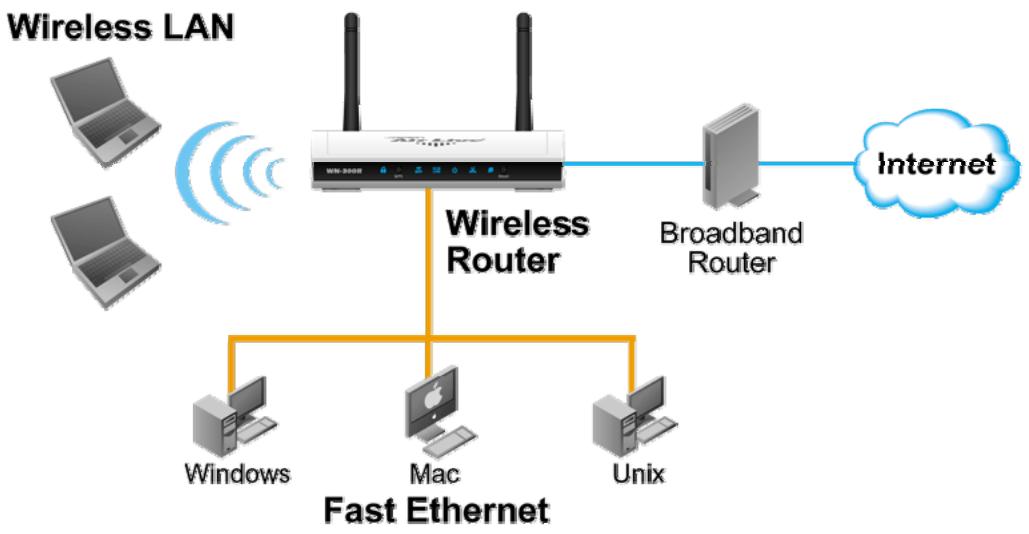
Figure 1: Wireless Router
1.1 Wireless RouterFeatures
The Wireless Router incorporates many advanced features, carefully designed to provide sophisticated functions while being easy to use.
Internet Access Features
- Shared Internet Access. All users on the LAN or WLAN can access the Internet through the Wireless Router, using only a single external IP Address. The local (invalid) IP Addresses are hidden from external sources. This process is called NAT (Network Address Translation).
- DSL & Cable Modem Support. The Wireless Router has a 10/100BaseT Ethernet port for connecting a DSL or Cable Modem. All popular DSL and Cable Modems are supported.
- PPPoE, PPTP and L2TP Support. The Internet (WAN port) connection supports PPPoE (PPP over Ethernet), PPTP (Peer-to-Peer Tunneling Protocol) and L2TP, as well as "Direct Connection" type services.
- Fixed or Dynamic IP Address. On the Internet (WAN port) connection, the Wireless Router supports both Dynamic IP Address (IP Address is allocated on connection) and Fixed IP Address.
Advanced Internet Functions
- Application Level Gateways (ALGs). Applications which use non-standard connections or port numbers are normally blocked by the Firewall. The ability to define and allow such applications is provided, to enable such applications to be used normally.
- Port Triggering. This feature, also called Special Applications, allows you to use Internet applications which normally do not function when used behind a firewall.
- Port Forwarding. This feature allows Internet users to access Internet servers on your LAN. The required setup is quick and easy.
- Virtual Servers. This feature allows Internet users to access Internet servers on your LAN. The required setup is quick and easy.
- Dynamic DNS Support. DDNS, when used with the Virtual Servers feature, allows users to connect to Servers on your LAN using a Domain Name, even if you have a dynamic IP address which changes every time you connect.
- URL Filter. Use the URL Filter to block access to undesirable Web sites by LAN users.
- Access Control. Using the Access Control feature, you can assign LAN users to different groups, and determine which Internet services are available to each group.
- Scheduling. Both the URL Filter and Firewall rules can be scheduled to operate only at certain times. This provides great flexibility in controlling Internet-bound traffic.
- Logs. Define what data is recorded in the Logs, and optionally send log data to a Syslog Server. Log data can also be E-mailed to you.
- QoS Support Quality of Service can be used to handle packets so that more important connections receive priority over less important one.
Wireless Features
- Standards Compliant. The Wireless Router complies with the IEEE802.11g (DSSS) specifications for Wireless LANs.
Supports Pre-N Wireless Stations. The 802.11n Draft standard provides for backward compatibility with the 802.11b standard, so 802.11n, 802.11b and 802.11g Wireless stations can be used simultaneously. - Multi SSDs Support. This feature can let you have 2 SSDs on one AP, which provides more easy way for Guest access and also secure your resource at the same time.
- Speeds to 300Mbps. All speeds up to the 802.11N maximum of 300Mbps are supported.
- WEP support. Support for WEP (Wired Equivalent Privacy) is included. Key sizes of 64 Bit and 128 Bit are supported. WEP encrypts any data before transmission, providing protection against snoopers.
- WPA-PSK support. Like WEP, WPA-PSK encrypts any data before transmission, providing protection against snoopers. The WPA-PSK is a later standard than WEP, and provides both easier configuration and greater security than WEP.
- WPA2-PSK support. Support for WPA2 is also included. WPA2 uses the extremely secure AES encryption method.
-
802.1x Support. Support for 802.1x mode is included, providing for the industrial-strength wireless security of 802.1x authentication and authorization.
-
Wireless MAC Access Control. The Wireless Access Control feature can check the MAC address (hardware address) of Wireless stations to ensure that only trusted Wireless Stations can access your LAN.
- Simple Configuration. If the default settings are unsuitable, they can be changed quickly and easily.
- WPS Support. WPS (Wi-Fi Protected Setup) can simplify the process of connecting any device to the wireless network by using the push button configuration (PBC) on the Wireless Access Point, or entering a PIN code if there's no button.
- WDS Support. Support for WDS (Wireless Distribution System) allows the Wireless Access Point to act as a Wireless Bridge. Both Point-to-Point and Multi-Point Bridge modes are supported.
LAN Features
- 4-Port Switching Hub. The Wireless Router incorporates a 4-port 10/100BaseT switching hub, making it easy to create or extend your LAN.
- DHCP Server Support. Dynamic Host Configuration Protocol provides a dynamic IP address to PCs and other devices upon request. The Wireless Router can act as a DHCP Server for devices on your local LAN and WLAN.
Configuration & Management
- Easy Setup. Use your WEB browser from anywhere on the LAN or WLAN for configuration.
- Configuration File Upload/Download. Save (download) the configuration data from the Wireless Router to your PC, and restore (upload) a previously-saved configuration file to the Wireless Router.
- Remote Management. The Wireless Router can be managed from any PC on your LAN or Wireless LAN. And, if the Internet connection exists, it can also (optionally) be configured via the Internet.
Network Diagnostics. You can use the Wireless Router to perform a Ping or DNS lookup. - UPnP Support. UPnP (Universal Plug and Play) allows automatic discovery and configuration of the Wireless Router. UPnP is supported by Windows ME, XP, or later.
Security Features
- Password - protected Configuration. Password protection is provided to prevent unauthorized users from modifying the configuration data and settings.
- Wireless LAN Security. WPA-PSK, WEP and Wireless access control by MAC address are all supported. The MAC-level access control feature can be used to prevent unknown wireless stations from accessing your LAN.
- NAT Protection. An intrinsic side effect of NAT (Network Address Translation) technology is that by allowing all LAN users to share a single IP address, the location and even the existence of each PC is hidden. From the external viewpoint, there is no network, only a single device - the Wireless Router.
- Firewall. All incoming data packets are monitored and all incoming server requests are filtered, thus protecting your network from malicious attacks from external sources.
- Protection against DoS attacks. DoS (Denial of Service) attacks can flood your Internet connection with invalid packets and connection requests, using so much band-
width and so many resources that Internet access becomes unavailable. The Wireless Router incorporates protection against DoS attacks.
1.2 Package Contents
The following items should be included. If any of these items are damaged or missing, please contact your dealer immediately.
The Wireless Router Unit
1 Cat-5 Ethernet (LAN) cable
Power Adapter
- Quick Installation Guide
- CD-ROM containing the on-line manual.
1.3 Physical Details
Front-mounted LEDs
WN-300R


Figure 2: Front Panel
Security
On - Wireless security is On.
Off - Wireless security is Off.
WPS Button
Flashing - When WPS button is pressed, this LED starts blinking.
Push the WPS button on the device and on your other wireless device to perform WPS function that easily creates an encryption-secured wireless connection automatically.
Wireless
On - Wireless enabled.
Off - No Wireless connections currently exist.
Flashing (Amber) - Problem occurred while trying to establish the Wireless connection.
LAN
On - The LAN port(s) is active.
Off - No active connection on the LAN port(s).
Flashing (Amber) - Problem occurred while trying to connect to the LAN.
Power
On - Power on.
Off - No power.
| WAN | On - Connection to the ADSL/Broadband Modem attached to the WAN (Internet) port is established. |
| Off - No connection to the ADSL/Broadband Modem. | |
| Flashing (Amber) - Problem occurred while trying to connect to the ADSL/Broadband Modem. | |
| Internet | On - Internet connection is available. |
| Off - No Internet connection available. | |
| Flashing (Amber) - Problem occurred while trying to establish the Internet connection. | |
| Reset Button | This button has two (2) functions: |
| • Reboot. When pressed and released, the Wireless Router will reboot (restart). | |
| • Clear All Data. This button can also be used to clear ALL data and restore ALL settings to the factory default values. | |
| To Clear All Data and restore the factory default values: | |
| 1. Power On. | |
| 2. Keep holding the Reset Button down for 8 seconds. | |
| 3. Release the Reset Button. The Wireless Router is now using the factory default values. |
Rear Panel
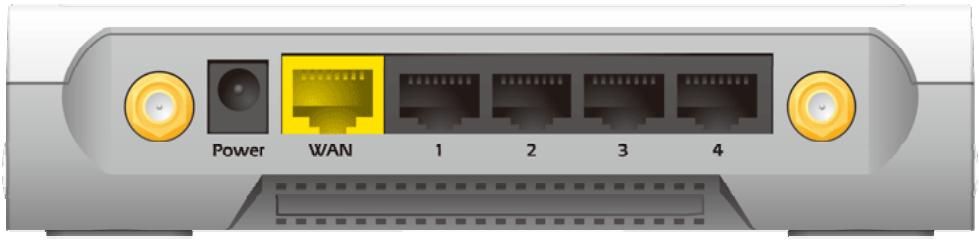
Figure 3: Rear Panel
Power port
Connect the supplied power adapter here.
WAN port (10/100BaseT)
Connect the DSL or Cable Modem here. If your modem came with a cable, use the supplied cable. Otherwise, use a standard LAN cable.
10/100BaseT LAN connections
Use standard LAN cables (RJ45 connectors) to connect your PCs to these ports.
Chapter 2 : Installation
This Chapter covers the physical installation of the Wireless Router.
2.1 Requirements
- Network cables. Use standard 10/100BaseT network (UTP) cables with RJ45 connectors.
- TCP/IP protocol must be installed on all PCs.
- For Internet Access, an Internet Access account with an ISP, and a DSL connection.
- To use the Wireless Access Point, all Wireless devices must be compliant with the IEEE 802.11g, IEEE 802.11b or IEEE 802.11n Draft specifications.
2.2 Procedure
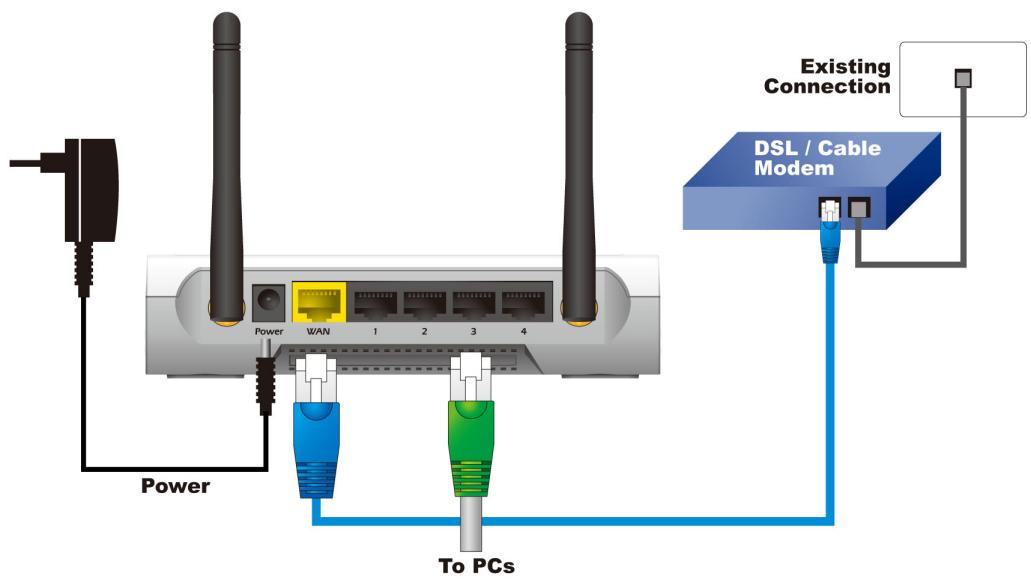
Figure 4: Installation Diagram
1. Choose an Installation Site
Select a suitable place on the network to install the Wireless Router.

For best Wireless reception and performance, the Wireless Router should be positioned in a central location with minimum obstructions between the Wireless Router and the PCs.
Also, if using multiple Access Points, adjacent Access Points should use different Channels.
2. Connect LAN Cables
Use standard LAN cables to connect PCs to the Switching Hub ports on the Wireless Router. Both 10BaseT and 100BaseT connections can be used simultaneously.
3. Connect ADSL Cable
Connect the DSL or Cable modem to the WAN port on the Wireless Router. Use the cable supplied with your DSL/Cable modem. If no cable was supplied, use a standard cable.
4. Power Up
Connect the supplied power adapter to the Wireless Router. Use only the power adapter provided. Using a different one may cause hardware damage.
5. Check the LEDs
The Power LED should be ON.
- The LAN LED should be ON (provided the PC is also ON.)
- The Wireless LED should be ON if Wireless PC is connected.
- The WAN LED should be ON if ADSL line is connected.
- The Internet LED may be OFF. After configuration, it should come ON.
For more information, refer to Front-mounted LEDs in Chapter 1.
Chapter 3 : Setup
This Chapter provides Setup details of the Wireless Router.
3.1 Overview
This chapter describes the setup procedure for:
- Internet Access
- LAN configuration
- Wireless setup
- Assigning a Password to protect the configuration data.
PCs on your local LAN may also require configuration. For details, see Chapter 4 - PC Configuration.
Other configuration may also be required, depending on which features and functions of the Wireless Router you wish to use. Use the table below to locate detailed instructions for the required functions.
| To Do this: | Refer to: |
| Configure PCs on your LAN. | Chapter 4:PC Configuration |
| Check Wireless Router operation and Status. | Chapter 5:Operation and Status |
| Use any of the following Advanced features:Internet (DMZ,URL Filter)Access ControlDynamic DNSOptionsSchedulePort TriggerSingle Port ForwardingPort Range ForwardingQoS | Chapter 6:Advanced Features |
| Use any of the following Administration Configuration settings or features:PC DatabaseConfig FileLogsE-MailDiagnosticsRemote AdministrationRoutingUpgrade Firmware | Chapter 7Advanced Administration |
3.2 Configuration Program
The Wireless Router contains an HTTP server. This enables you to connect to it, and configure it, using your Web Browser. Your Browser must support JavaScript.
The configuration program has been tested on the following browsers:
- Netscape 7.1 or later.
- Mozilla 1.6 or later
- Internet Explorer V5.5 or later
Preparation
Before attempting to configure the Wireless Router, please ensure that:
- Your PC can establish a physical connection to the Wireless Router. The PC and the Wireless Router must be directly connected (using the Hub ports on the Wireless Router) or on the same LAN segment.
- The Wireless Router must be installed and powered ON.
- If the Wireless Router's default IP Address (192.168.1.254) is already used by another device, the other device must be turned OFF until the WirelessRouter is allocated a new IP Address during configuration.
Using your Web Browser
To establish a connection from your PC to the Wireless Router:
- After installing the Wireless Router in your LAN, start your PC. If your PC is already running, restart it.
- Start your WEB browser.
- In the Address box, enter "HTTP://" and the IP Address of the Wireless Router, as in this example, which uses the WirelessRouter's default IP Address: HTTP://192.168.1.254
-
When prompted for the User name and Password, enter values as follows:
-
User name admin
- Password airlive
If you can't connect
If the Wireless Router does not respond, check the following:
-
The Wireless Router is properly installed, LAN connection is OK, and it is powered ON. You can test the connection by using the "Ping" command:
-
Open the MS-DOS window or command prompt window.
Enter the command: ping 192.168.1.254
If no response is received, either the connection is not working, or your PC's IP address is not compatible with the Wireless Router's IP Address. (See next item.)
- If your PC is using a fixed IP Address, its IP Address must be within the range 192.168.1.2 to 192.168.1.254 to be compatible with the Wireless Router's default IP Address of 192.168.1.254. Also, the Network Mask must be set to 255.255.255.0. See Chapter 4 - PC Configuration for details on checking your PC's TCP/IP settings.
- Ensure that your PC and the Wireless Router are on the same network segment. (If you don't have a router, this must be the case.)
- Ensure you are using the wired LAN interface. The Wireless interface can only be used if its configuration matches your PC's wireless settings.
3.3 Setup Wizard
The first time you connect to the Wireless Router, the Setup Wizard will run automatically. (The Setup Wizard will also run if the Wireless Router's default settings are restored.)
-
Step through the Wizard until finished.
-
You need to know the type of Internet connection service used by your ISP. Check the data supplied by your ISP.
-
The common connection types are explained in the tables below.
-
On the final screen of the Wizard, run the test and check that an Internet connection can be established.
-
If the connection test fails:
-
Check your data, the Cable/DSL modem, and all connections.
- Check that you have entered all data correctly.
- If using a Cable modem, your ISP may have recorded the MAC (physical) address of your PC. Run the Wizard, and use the "Copy from PC" button to copy the MAC address from your PC to the Wireless Router.
Common Connection Types
DSL Modems
| Type | Details | ISP Data required |
| Dynamic IP Address | Your IP Address is allo-cated automatically, when you connect to you ISP. | None. |
| Static (Fixed) IP Address | Your ISP allocates a per-manent IP Address to you. | IP Address allocated to you. |
| PPPoE | You connect to the ISP only when required. The IP address is usually allocated automatically. | User name and password. |
| PPTP, L2TP | PPTP is mainly used in Europe.You connect to the ISP only when required. The IP address is usually allocated automatically, but may be Static (Fixed). | Server IP Address.User name and pass- word.IP Address allocated to you, if Static (Fixed). |
3.4 Home Screen
After finishing the Setup Wizard, you will see the Home screen. When you connect in future, you will see this screen when you connect. An example screen is shown below.
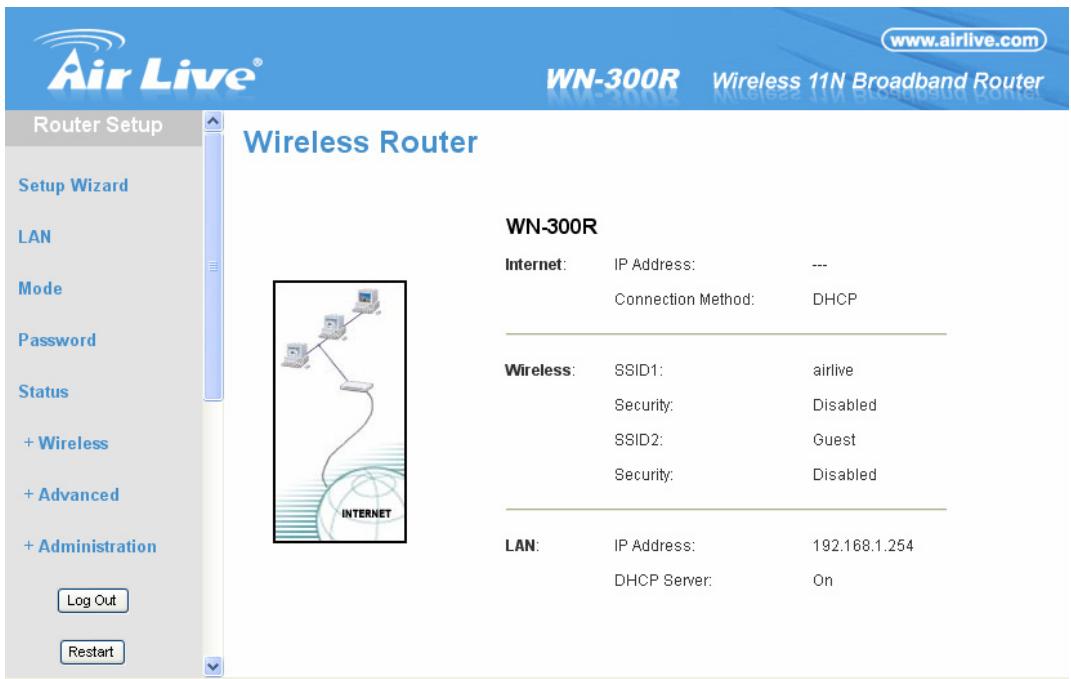
Figure 5: Home Screen
Main Menu
The main menu, on the left, contains links to the most-commonly used screen. To see the links to the other available screens, click "Advanced" or "Administration".
The main menu also contains two (2) buttons:
- Log Out - When finished, you should click this button to logout.
- Restart - Use this if you wish to restart the Wireless Router. Note that restarting the Router will break any existing connections to or through the Router.
Navigation & Data Input
- Use the menu bar on the left of the screen, and the "Back" button on your Browser, for navigation.
- Changing to another screen without clicking "Save" does NOT save any changes you may have made. You must "Save" before changing screens or your data will be ignored.

Note!
On each screen, clicking the "Help" button will display help for that screen.
3.5 LAN Screen
Use the LAN link on the main menu to reach the LAN screen. An example screen is shown below.
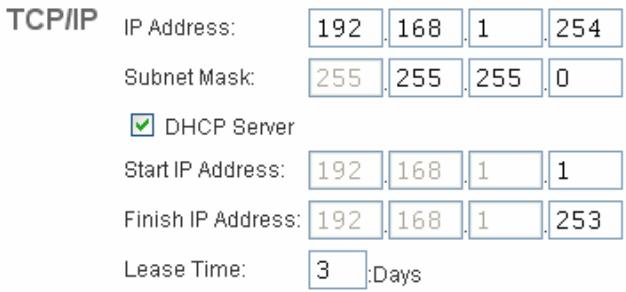
LAN

Figure 6: LAN Screen
Data - LAN Screen
| TCP/IP | |
| IP Address | IP address for the Wireless Router, as seen from the local LAN. Use the default value unless the address is already in use or your LAN is using a different IP address range. In the latter case, enter an unused IP Address from within the range used by your LAN. |
| Subnet Mask | The default value 255.255.255.0 is standard for small (class "C") networks. For other networks, use the Subnet Mask for the LAN segment to which the Wireless Router is attached (the same value as the PCs on that LAN segment). |
| DHCP Server | If Enabled, the Wireless Router will allocate IP Addresses to PCs (DHCP clients) on your LAN when they start up. The default (and recommended) value is Enabled.If you are already using a DHCP Server, this setting must be Disabled, and the existing DHCP server must be re-configured to treat the Wireless Router as the default Gateway. See the following section for further details.The Start IP Address, Finish IP Address and Lease Time fields set the values used by the DHCP server when allocating IP Addresses to DHCP clients. This range also determines the number of DHCP clients supported.See the following section for further details on using DHCP. |
DHCP
What DHCP Does
A DHCP (Dynamic Host Configuration Protocol) Server allocates a valid IP address to a DHCP Client (PC or device) upon request.
- The client request is made when the client device starts up (boots).
- The DHCP Server provides the Gateway and DNS addresses to the client, as well as allocating an IP Address.
- The Wireless Router can act as a DHCP server.
- Windows 95/98/ME and other non-Server versions of Windows will act as a DHCP client. This is the default Windows setting for the TCP/IP network protocol. However, Windows uses the term Obtain an IP Address automatically instead of "DHCP Client".
- You must NOT have two (2) or more DHCP Servers on the same LAN segment. (If your LAN does not have other Routers, this means there must only be one (1) DHCP Server on your LAN.)
Using the Wireless Router's DHCP Server
This is the default setting. The DHCP Server settings are on the LAN screen. On this screen, you can:
- Enable or Disable the Wireless Router's DHCP Server function.
- Set the range of IP Addresses allocated to PCs by the DHCP Server function.

You can assign Fixed IP Addresses to some devices while using DHCP, provided that the Fixed IP Addresses are NOT within the range used by the DHCP Server.
Using another DHCP Server
You can only use one (1) DHCP Server per LAN segment. If you wish to use another DHCP Server, rather than the Wireless Router's, the following procedure is required.
- Disable the DHCP Server feature in the Wireless Router. This setting is on the LAN screen.
- Configure the DHCP Server to provide the Wireless Router's IP Address as the Default Gateway.
To Configure your PCs to use DHCP
This is the default setting for TCP/IP for all non-Server versions of Windows.
See Chapter 4 - Client Configuration for the procedure to check these settings.
3.6 Mode Screen
Use this screen to change the mode between Router mode and Access Point mode.
Mode
Device Mode
Device Name: WN300R
Device Mode: Router

Figure 7: Mode Screen
Save
Help
Select the desired option, and click "Save".
| Router | In this mode, this device can provide shared Internet Access to all your LAN users. Also, by default, it acts a DHCP Server, providing an IP address and related information to all Wireless and LAN users. |
| Access Point | The device links your Wireless Stations to your wired LAN. The Wireless stations and devices on the wired LAN are then on the same network, and can communicate with each other without regard for whether they are connected to the network via a Wireless or wired connection. You need to have a DHCP Server on your LAN to provide IP addresses to the Wireless clients using this Access Point. |
Notes:
- Generally, you should NOT use access point mode. Only select this mode if you are sure this is what you want.
- After changing the mode, this device will restart, which will take a few seconds. The menu will also be changed, depending on the mode you are in.
- For details on using Access Point Mode, see Chapter 8.
3.7 Wireless Options
The Wireless Router's settings must match the other Wireless stations.
Note that the Wireless Router will automatically accept both 802.11b and 802.11g connections, and no configuration is required for this feature.
To change the Wireless Router's default settings for the Wireless Access Point feature, use the Wireless link on the main menu to reach the Wireless screen. An example screen is shown below.
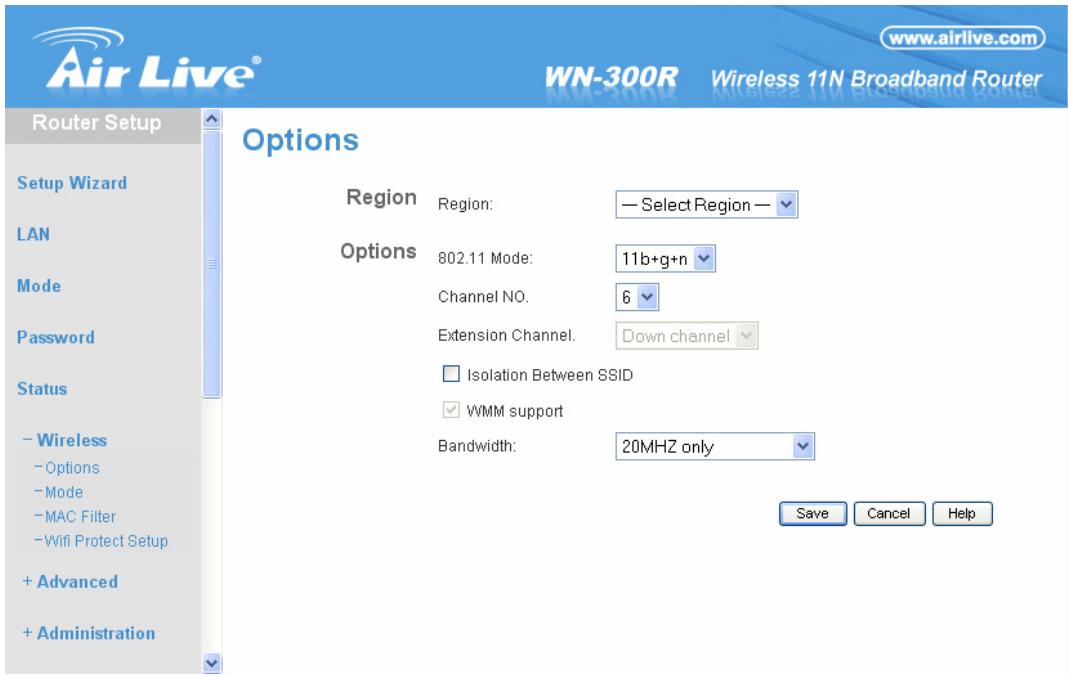
Figure 8: Wireless Screen
Data - Wireless Screen
| Region | |
| Region | Select the correct domain for your location. It is your responsibility to ensure: • That the Wireless ADSL Router is only used in domains for which is licensed. • That you select the correct domain, so that only the legal channels for that domain can be selected. |
| Multi SSID | |
| SSID | With Multiple SSIDs, you can have 2 SSIDs on one AP. For example, a Guest SSID without encryption for visitors to have Internet access only, and a Admin SSID with encryption for private use to secure your company resources. Select the desired SSID from the list to configure. |
| SSID 1/2 | This is also called the "Network Name". ·If using an ESS (Extended Service Set, with multiple access points) this ID is called an ESSID (Extended Service Set Identifier). ·To communicate, all Wireless stations should use the sameSSID/ESSID. |
| BroadcastSSID | If enabled, the Wireless ADSL Router will broadcast itsSSID. This allows PCs and other wireless stations to detect this Access Point and use the correctSSID. If disabled, PC users will have to manually enter theSSID and other details of the wireless interface before they can connect to this Access Point. |
| Isolation withinSSID | If Enabled, devices that have the sameSSID will not be able to see each other. |
| Security Setting | The current Wireless security is displayed. The default value is Disabled. |
| ConfigureSSID1/2Button | Click this button to access the Wireless security sub-screen, and view or change the settings. See the following section for details. |
| Options | |
| 802.11 Mode | Select the desired mode: ·Off - Wireless is disabled. ·B only - Only 802.11b connections are available. 802.11g Wireless Stations will only be able to use the Wireless Router if they are fully backward-compatible with the 802.11b standard. ·G only - Only 802.11g Wireless stations can use the Wireless Router. ·11b/g/n - 802.11.g, 802.11b and 802.11n Wireless stations can use the Wireless Broadband Router. |
| Channel NO. | Select the Channel you wish to use on your Wireless LAN. ·If you experience interference (shown by lost connections and/or slow data transfers) you may need to experiment with different channels to see which is the best. ·If using multiple Access Points, adjacent Access Points should use different Channels to reduce interference. |
| IsolationbetweenSSID | If Enabled, devices that have the different SSIDs will not be able to communicate with each other. |
| WMM Support | Enable or disable this feature as required. |
| Bandwidth | Select the desired bandwidth from the list. |
| MAC Address Filter | |
| Allow access by ... | Use this feature to determine which Wireless stations can use the Access Point. The options are: ·All Wireless Stations - All wireless stations can use the access point, provided they have the correct SSID and security settings. ·Trusted Wireless stations only - Only wireless stations you designate as "Trusted" can use the Access Point, even if they have the correct SSID and security settings. This feature uses the MAC address to identify Wireless stations. The MAC address is a low-level network identifier which is unique to each PC or network device. To define the trusted wireless stations, use the "Set Stations" button. |
| Set Stations Button | Click this button to manage the trusted PC database. |
| WiFi Protect Setup | |
| Enable WPS | Enable this if you want to use Wireless WPS function. |
| AP PIN Code | Use the default displayed value or click the Regenerate button to have the new pin code in the field. |
| Input Client PIN Code | Enter the client's PIN code in the field and click OK to add the client device. |
| WDS | |
| Enable WDS | This feature allows you to make a completely wireless network by using multiple access points without connecting them with a wire LAN. In order to make the WDS working successfully, the access point must use the same channel, SSID, as well as the wireless encryption method. |
| MAC Address List | Enter the MAC address(es) of the AP(s) into the fields to allow the following access points to be connected to the wireless router. |
3.8 Wireless Mode
Mode
Wireless Mode
Mode:
APmode

SSID:
airlive


SSID1
airlive

Broadcast SSID

Isolation Within SSID
Security Setting:
SSID1:Disabled
Configure SSID1
Save
Cancel
Help
AP Mode
| Multi SSID | |
| SSID | With Multiple SSIDs, you can have 2 SSIDs on one AP. For example, a Guest SSID without encryption for visitors to have Internet access only, and a Admin SSID with encryption for private use to secure your company resources. Select the desired SSID from the list to configure. |
| SSID 1/2 | This is also called the "Network Name". • If using an ESS (Extended Service Set, with multiple access points) this ID is called an ESSID (Extended Service Set Identifier). • To communicate, all Wireless stations should use the same SSID/ESSID. |
| Broadcast SSID | If enabled, the Wireless ADSL Router will broadcast its SSID. This allows PCs and other wireless stations to detect this Access Point and use the correct SSID. If disabled, PC users will have to manually enter the SSID and other details of the wireless interface before they can connect to this Access Point. |
| Isolation within SSID | If Enabled, devices that have the same SSID will not be able to see each other. |
| Configure SSID 1/2 Button | Click this button to access the Wireless security sub-screen, and view or change the settings. See the following section for details. |
Mode
Wireless Mode
Mode:
Station - Infrastructure

AP SSID:
Security Setting:
Disabled
Security Setting
Site Survey:
Site Survey
Save
Cancel
Help
Station- Infrastructure
| Wireless Mode | |
| AP SSID | With SSIDs, you can have SSIDs on one AP. For example, a Guest SSID without encryption for visitors to have Internet access only, and a Admin SSID with encryption for private use to secure your company resources. Select the desired SSID from the list to configure. |
| Site Survey | Click to Site Survey Wireless AP or Router around you. |
| Security Setting | • Disabled - no data encryption is used. • WEP - data is encrypted using the WEP standard. • WPA-PSK - data is encrypted using the WPA-PSK standard. This is a later standard than WEP, and provides much better security than WEP. If all your Wireless stations support WPA-PSK, you should use WPA-PSK rather than WEP. • WPA2-PSK - This is a further development of WPA-PSK, and offers even greater security, using the AES (Advanced Encryption Standard) method of encryption. • WPA-802.1x - This version of WPA requires a Radius Server on your LAN to provide the client authentication according to the 802.1x standard. Data transmissions are encrypted using the WPA standard. If this option is selected: |
Mode
Wireless Mode
Mode:
Security Setting:
Disabled
MAC Address List
AP1:
Bridge-Ponit To Point
Security Setting
Save
Cancel
Help
Bridge- Point to Point
| Wireless Mode | |
| AP1 | Please type your wireless AP or Router Mac address to connect wireless Bridge mode. |
| Security Setting | •Disabled - no data encryption is used. •WEP - data is encrypted using the WEP standard. •WPA-PSK - data is encrypted using the WPA-PSK standard. This is a later standard than WEP, and provides much better security than WEP. If all your Wireless stations support WPA-PSK, you should use WPA-PSK rather than WEP. •WPA2-PSK - This is a further development of WPA-PSK, and offers even greater security, using the AES (Advanced Encryption Standard) method of encryption. •WPA-802.1x - This version of WPA requires a Radius Server on your LAN to provide the client authentication according to the 802.1x standard. Data transmissions are encrypted using the WPA standard. If this option is selected: |
Mode
Wireless Mode
Mode:
Bridge-Ponit To Multi-Point
Security Setting:
Disabled
Security Setting
MAC Address List
AP1:
AP 2:
AP 3:
AP 4:
Save
Cancel
Help
Bridge - Point To Multi-point
| Wireless Mode | |
| AP1-AP4 | Please type your wireless AP or Router Mac address to connect wireless Bridge mode. |
| Security Setting | •Disabled - no data encryption is used. •WEP - data is encrypted using the WEP standard. •WPA-PSK - data is encrypted using the WPA-PSK standard. This is a later standard than WEP, and provides much better security than WEP. If all your Wireless stations support WPA-PSK, you should use WPA-PSK rather than WEP. •WPA2-PSK - This is a further development of WPA-PSK, and offers even greater security, using the AES (Advanced Encryption Standard) method of encryption. •WPA-802.1x - This version of WPA requires a Radius Server on your LAN to provide the client authentication according to the 802.1x standard. Data transmissions are encrypted using the WPA standard. If this option is selected: |
Mode
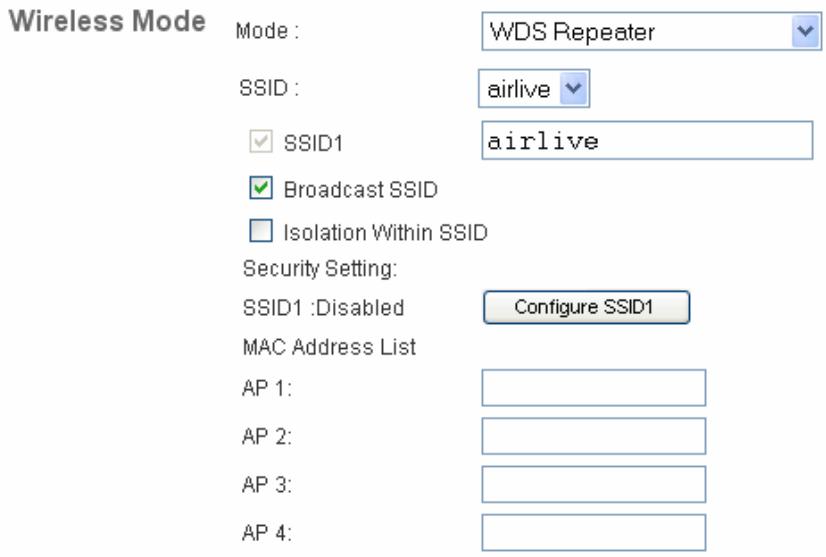

WDS Repeater Mode
| Multi SSID | |
| SSID | With Multiple SSIDs, you can have 2 SSIDs on one AP. For example, a Guest SSID without encryption for visitors to have Internet access only, and a Admin SSID with encryption for private use to secure your company resources. Select the desired SSID from the list to configure. |
| SSID1 | This is also called the "Network Name". • If using an ESS (Extended Service Set, with multiple access points) this ID is called an ESSID (Extended Service Set Identifier). • To communicate, all Wireless stations should use the same SSID/ESSID. |
| Broadcast SSID | If enabled, the Wireless ADSL Router will broadcast its SSID. This allows PCs and other wireless stations to detect this Access Point and use the correct SSID. If disabled, PC users will have to manually enter the SSID and other details of the wireless interface before they can connect to this Access Point. |
| Isolation within SSID | If Enabled, devices that have the same SSID will not be able to see each other. |
| Configure SSID | • Disabled - no data encryption is used. • WEP - data is encrypted using the WEP standard. • WPA-PSK - data is encrypted using the WPA-PSK standard. This is a later standard than WEP, and provides much better security than WEP. If all your Wireless stations support WPA-PSK, you should use WPA-PSK rather than WEP. • WPA2-PSK - This is a further development of WPA-PSK, and offers even greater security, using the AES (Advanced Encryption Standard) method of encryption. • WPA-802.1x - This version of WPA requires a Radius Server on your LAN to provide the client authentication according to the 802.1x standard. Data transmissions are encrypted using the WPA standard. If this option is selected: |
| AP1-AP 4 | Please type your wireless AP or Router Mac address to connect wireless Bridge mode. |
Mode
Wireless Mode
Mode:
Universal Repeater

SSID1(Service Set Identifier)
airlive

Broadcast SSID

Isolation Within SSID
Security Setting:
SSID1:Disabled
AP Client SSID:
Security Setting:
Disabled
Configure SSID1
Security Setting
Save
Cancel
Help
Universal Repeater
| Multi SSID | |
| SSID1 | This is also called the "Network Name". · If using an ESS (Extended Service Set, with multiple access points) this ID is called an ESSID (Extended Service Set Identifier). · To communicate, all Wireless stations should use the same SSID/ESSID. |
| Broadcast SSID | If enabled, the Wireless ADSL Router will broadcast its SSID. This allows PCs and other wireless stations to detect this Access Point and use the correct SSID. If disabled, PC users will have to manually enter the SSID and other details of the wireless interface before they can connect to this Access Point. |
| Isolation within SSID | If Enabled, devices that have the same SSID will not be able to see each other. |
| Configure SSID | • Disabled - no data encryption is used. • WEP - data is encrypted using the WEP standard. • WPA-PSK - data is encrypted using the WPA-PSK standard. This is a later standard than WEP, and provides much better security than WEP. If all your Wireless stations support WPA-PSK, you should use WPA-PSK rather than WEP. • WPA2-PSK - This is a further development of WPA-PSK, and offers even greater security, using the AES (Advanced Encryption Standard) method of encryption. • WPA-802.1x - This version of WPA requires a Radius Server on your LAN to provide the client authentication according to the 802.1x standard. Data transmissions are encrypted using the WPA standard. If this option is selected: |
| Security Setting | • Disabled - no data encryption is used. • WEP - data is encrypted using the WEP standard. • WPA-PSK - data is encrypted using the WPA-PSK standard. This is a later standard than WEP, and provides much better security than WEP. If all your Wireless stations support WPA-PSK, you should use WPA-PSK rather than WEP. • WPA2-PSK - This is a further development of wPA-PSK, and offers even greater security, using the AES (Advanced Encryption Standard) method of encryption. • WPA-802.1x - This version of WPA requires a Radius Server on your LAN to provide the client authentication according to the 802.1x standard. Data transmissions are encrypted using the WPA standard. If this option is selected: |
| AP Client SSID1 | Please type your wireless AP or Router Client SSID to connect wireless Repeater mode. |
3.9 Wireless Security
This screen is accessed by clicking the "Configure" button on the Wireless screen. There are 4 options for Wireless security:
- Disabled - no data encryption is used.
- WEP - data is encrypted using the WEP standard.
- WPA-PSK - data is encrypted using the WPA-PSK standard. This is a later standard than WEP, and provides much better security than WEP. If all your Wireless stations support WPA-PSK, you should use WPA-PSK rather than WEP.
-
WPA2-PSK - This is a further development of WPA-PSK, and offers even greater security, using the AES (Advanced Encryption Standard) method of encryption.
-
WPA-802.1x - This version of WPA requires a Radius Server on your LAN to provide the client authentication according to the 802.1x standard. Data transmissions are encrypted using the WPA standard.
If this option is selected:
- This Access Point must have a "client login" on the Radius Server.
Each user must have a "user login" on the Radius Server.
Each user's wireless client must support 802.1x and provide the login data when required. - All data transmission is encrypted using the WPA standard. Keys are automatically generated, so no key input is required.
WEP Wireless Security
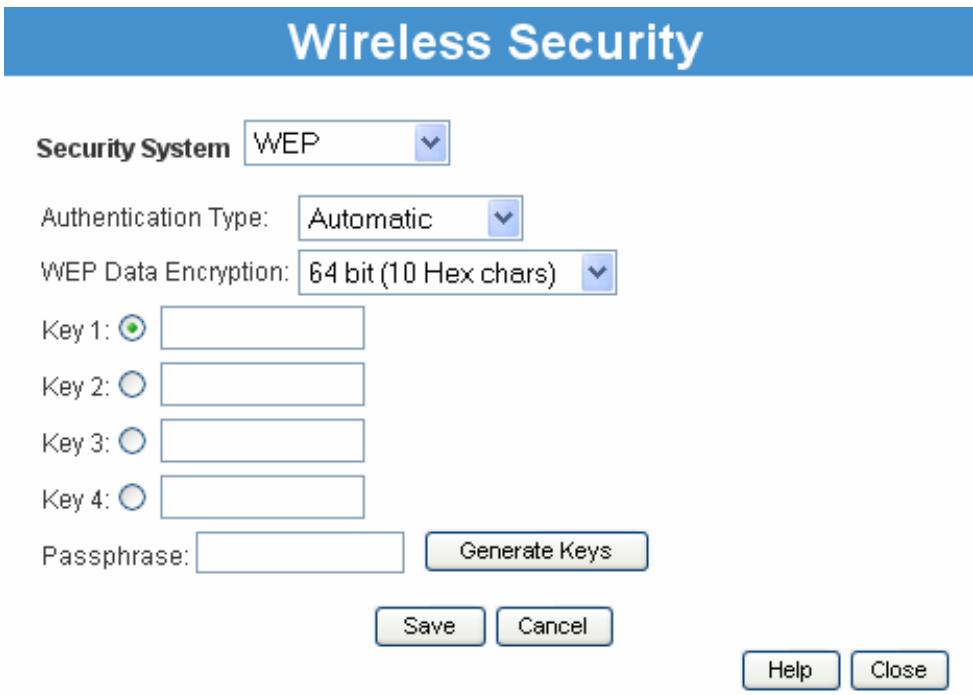
Figure 9: WEP
Data - WEP Screen
| WEP Data Encryption | |
| Authentication Type | Normally, this should be left at the default value of "Automatic". If changed to "Open System" or "Shared Key", ensure that your Wireless Stations use the same setting. |
| WEP Data Encryption | Select the desired option, and ensure the Wireless Stations use the same setting. • 64 Bit - data is encrypted, using the default key, before being transmitted. You must enter at least the default key. For 64 Bit Encryption, the key size is 10 chars in HEX (0~9 and A~F). • 128 Bit - data is encrypted, using the default key, before being transmitted. You must enter at least the default key. For 128 Bit Encryption, the key size is 26 chars in HEX (0~9 |
| and A~F). | |
| Key | Select the key you wish to be the default. Transmitted data is ALWAYS encrypted using the Default Key; the other Keys are for decryption only. You must enter a Key Value for the Default Key. |
| Key Value | Enter the key value or values you wish to use. The Key is required, the other keys are optional. Other stations must have the same key. |
| Passphrase | If desired, you can generate a key from a phrase, instead of entering the key value directly. Enter the desired phrase, and click the "Generate Keys" button. |
WPA-PSK Wireless Security
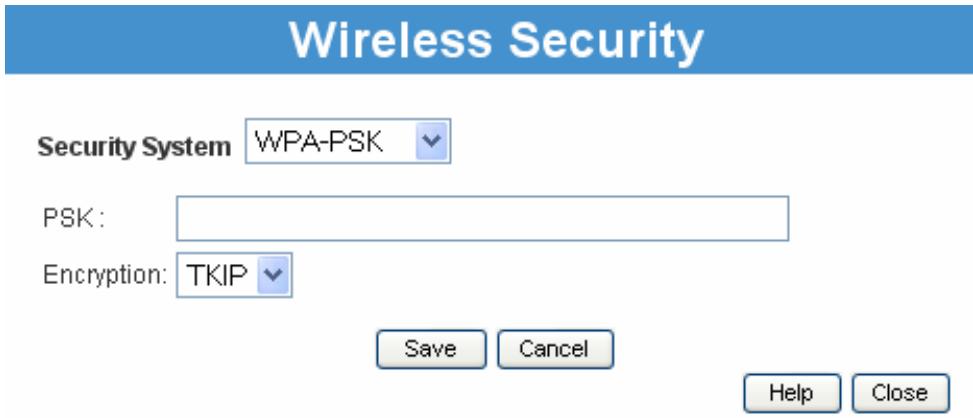
Figure 10: WPA-PSK
Data - WPA-PSK Screen
| Security System | WPA-PSK Like WEP, data is encrypted before transmission. WPA is more secure than WEP, and should be used if possible. WPA-PSK is the version of WPA, which does NOT require a Radius Server on your LAN. |
| PSK | Enter the PSK (network key). Data is encrypted using a key derived from the network key. Other Wireless Stations must use the same network key. The PSK must be from 8 to 63 characters in length. |
| Encryption | The WPA-PSK standard allows different encryption methods to be used. Select the desired option. Wireless Stations must use the same encryption method. |
WPA2-PSK Wireless Security
Wireless Security

PSK:
Encryption:

Figure 11: WPA2-PSK
Save
Cancel
Help
Close
Data - WPA2-PSK Screen
| Authentication | WPA2-PSK This is a further development of WPA-PSK, and offers even greater security. |
| PSK | Enter the PSK (network key). Data is encrypted using a key derived from the network key. Other Wireless Stations must use the same network key. The PSK must be from 8 to 63 characters in length. |
| Encryption | The WPA2-PSK standard allows different encryption methods to be used. Select the desired option. Wireless Stations must use the same encryption method. |
WPA-802.1x Wireless Security
Wireless Security

Server Address:
Radius Port:

Shared Key:

Encryption:

Figure 12: WPA-802.1x
Save
Cancel
Help
Close
Data - WPA-802.1x Screen
| Server Address | Enter the server address here. |
| Radius Port | Enter the port number used for connections to the Radius Server. |
| Shared Key | Enter the shared key. Data is encrypted using a key derived from the network key. Other Wireless Stations must use the same key. The key must be from 8 to 63 characters in length. |
| Encryption | The encryption method is TKIP. Wireless Stations must also use TKIP. |
3.10 Trusted Wireless Stations
This feature can be used to prevent unknown Wireless stations from using the Access Point. This list has no effect unless the setting Allow access by trusted stations only is enabled.
To change the list of trusted wireless stations, use the Modify List button on the Access Control screen. You will see a screen like the sample below.
Trusted Wireless Stations
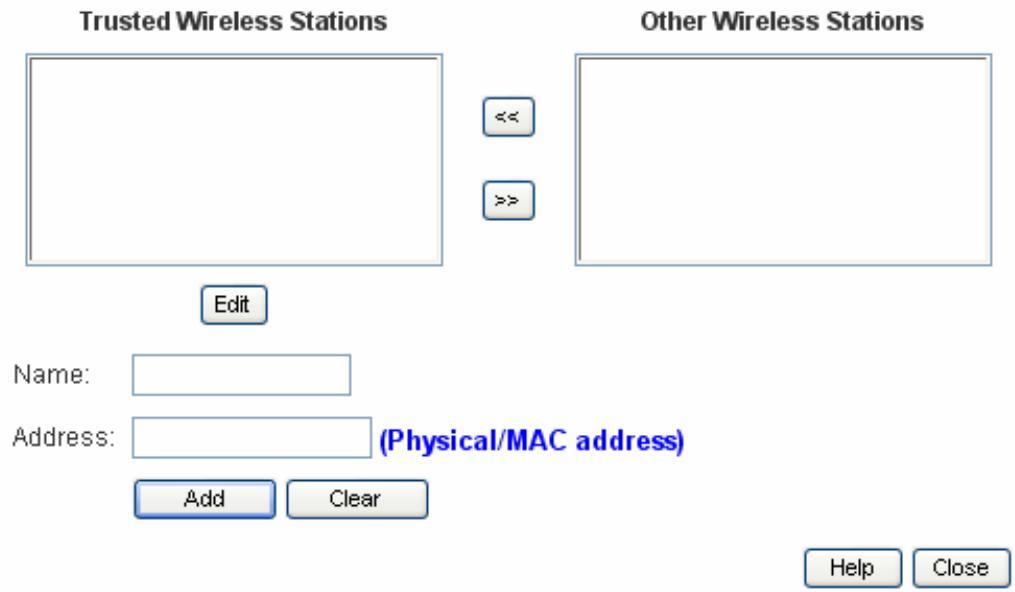
Figure 13: Trusted Wireless Stations
Data - Trusted Wireless Stations
| Trusted Wireless Stations | This lists any Wireless Stations which you have designated as "Trusted". |
| Other Wireless Stations | This list any Wireless Stations detected by the Access Point, which you have not designated as "Trusted". |
| Name | The name assigned to the Trusted Wireless Station. Use this when adding or editing a Trusted Station. |
| Address | The MAC (physical) address of the Trusted Wireless Station. Use this when adding or editing a Trusted Station. |
| Buttons | |
| << | Add a Trusted Wireless Station to the list (move from the "Other Stations" list).Select an entry (or entries) in the "Other Stations" list, and click the " << " button.Enter the Address (MAC or physical address) of the wireless station, and click the "Add " button. |
| >> | Delete a Trusted Wireless Station from the list (move to the "Other Stations" list).Select an entry (or entries) in the "Trusted Stations" list.Click the " >> " button. |
| Edit | Use this to change an existing entry in the "Trusted Stations" list:4. Select the Station in the Trusted Station list.5. Click the Edit button. The address will be copied to the "Address" field, and the Add button will change to Up-date.6. Edit the address (MAC or physical address) as required.7. Click Update to save your changes. |
| Add (Update) | To add a Trusted Station which is not in the "Other Wireless Stations" list, enter the required data and click this button.When editing an existing Wireless Station, this button will change from Add to Update. |
| Clear | Clear the Name and Address fields. |
3.11Password Screen
The password screen allows you to assign a password to the Wireless Router.
Password
Password
The password protects the configuration data.
Once set (recommended), you will be prompted for the password when you connect.
Old Password

New password:

Verify password:


Figure 14: Password Screen
| Old Password | Enter the existing password in this field. |
| New password | Enter the new password here. |
| Verify password | Re-enter the new password here. |
You will be prompted for the password when you connect, as shown below.
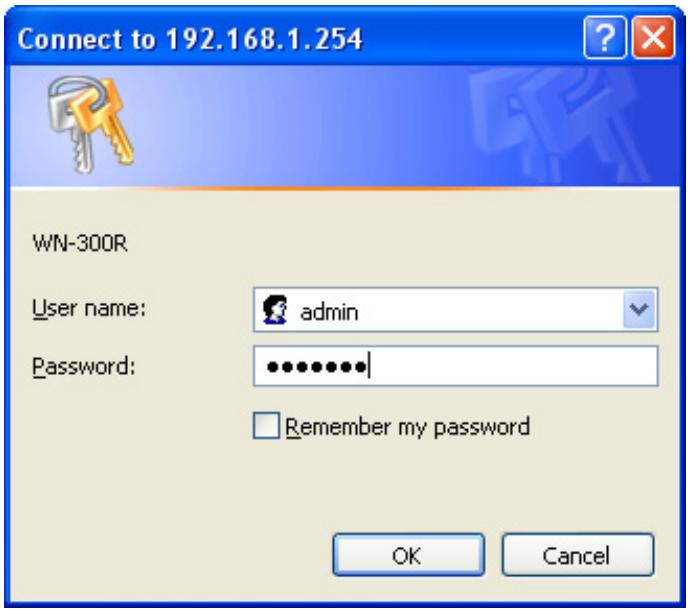
Figure 15: Password Dialog
- The "UserID" is always admin
- Enter the password for the Wireless Router, as set on the Password screen above.
Chapter 4 : PC Configuration
This Chapter details the PC Configuration required on the local ("Internal") LAN.
4.1. Overview
For each PC, the following may need to be configured:
TCP/IP network settings
- Internet Access configuration
- Wireless configuration
4.2. Windows Clients
This section describes how to configure Windows clients for Internet access via the Wireless Router.
The first step is to check the PC's TCP/IP settings.
The Wireless Router uses the TCP/IP network protocol for all functions, so it is essential that the TCP/IP protocol be installed and configured on each PC.
TCP/IP Settings - Overview
If using the default Wireless Router settings, and the default Windows TCP/IP settings, no changes need to be made.
- By default, the Wireless Router will act as a DHCP Server, automatically providing a suitable IP Address (and related information) to each PC when the PC boots.
- For all non-Server versions of Windows, the default TCP/IP setting is to act as a DHCP client.
If using a Fixed (specified) IP address, the following changes are required:
- The Gateway must be set to the IP address of the Wireless Router
- The DNS should be set to the address provided by your ISP.

If your LAN has a Router, the LAN Administrator must reconfigure the Router itself. Refer to Chapter 8 - Advanced Setup for details.
Checking TCP/IP Settings - Windows NT4.0
- Select Control Panel - Network, and, on the Protocols tab, select the TCP/IP protocol, as shown below.
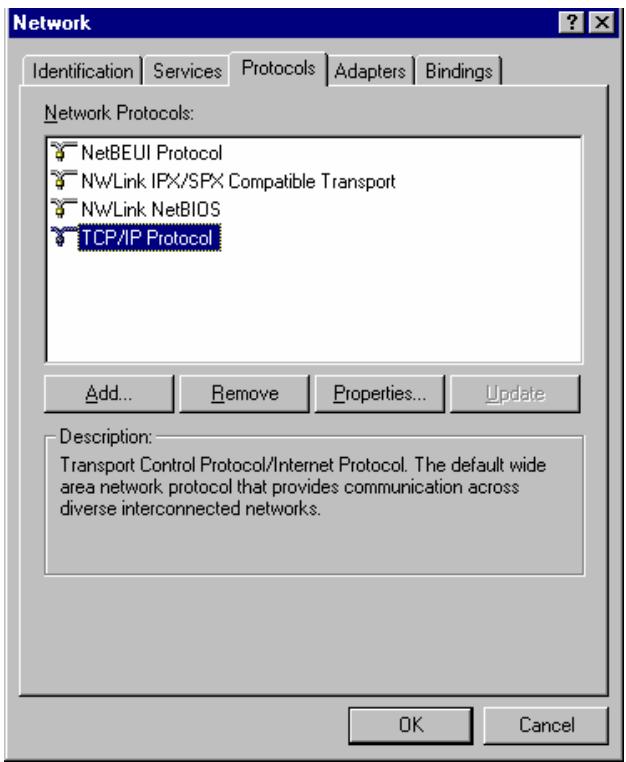
Figure 16: Windows NT4.0 - TCP/IP
- Click the Properties button to see a screen like the one below.
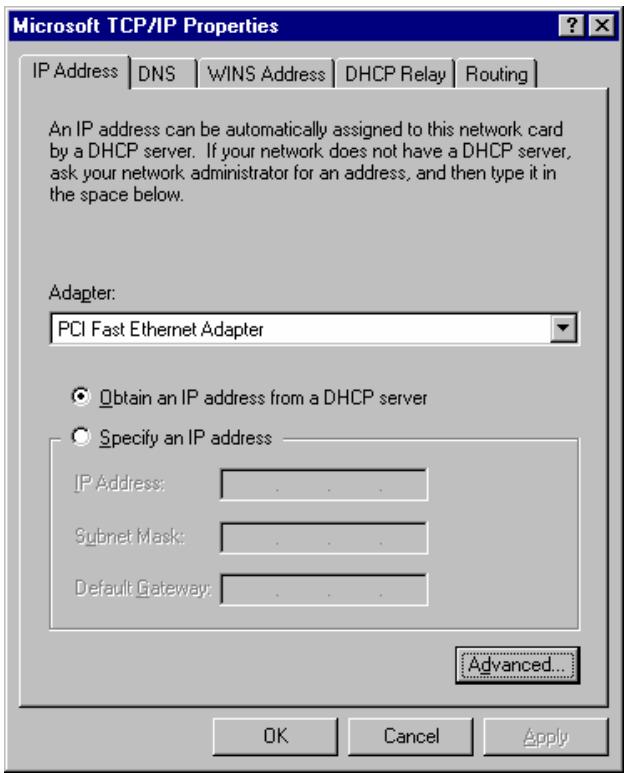
Figure 17: Windows NT4.0 - IP Address
- Select the network card for your LAN.
- Select the appropriate radio button - Obtain an IP address from a DHCP Server on Specify an IP Address, as explained below.
Obtain an IP address from a DHCP Server
This is the default Windows setting. Using this is recommended. By default, the Wireless Router will act as a DHCP Server.
Restart your PC to ensure it obtains an IP Address from the Wireless Router.
Specify an IP Address
If your PC is already configured, check with your network administrator before making the following changes.
-
The Default Gateway must be set to the IP address of the Wireless Router. To set this:
-
Click the Advanced button on the screen above.
- On the following screen, click the Add button in the Gateways panel, and enter the Wireless Router's IP address, as shown in Figure 18 below.
- If necessary, use the Up button to make the Wireless Router the first entry in the Gateways list.
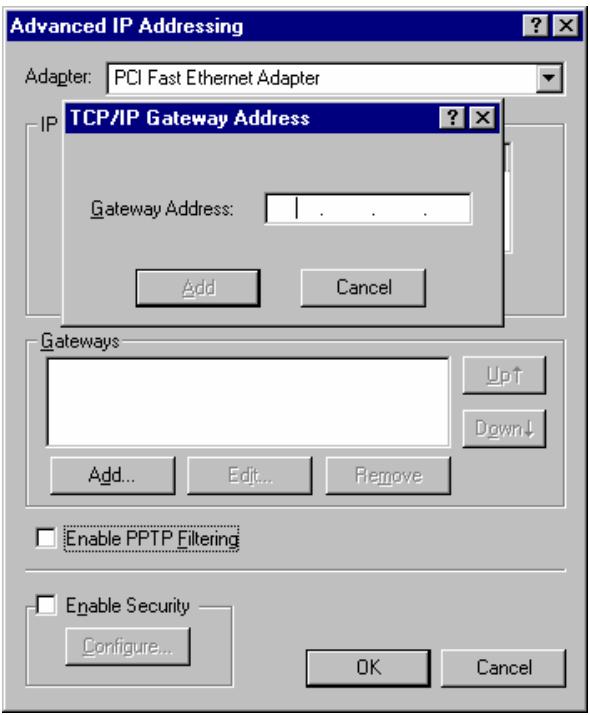
Figure 18 - Windows NT4.0 - Add Gateway
-
The DNS should be set to the address provided by your ISP, as follows:
-
Click the DNS tab.
- On the DNS screen, shown below, click the Add button (under DNS Service Search Order), and enter the DNS provided by your ISP.
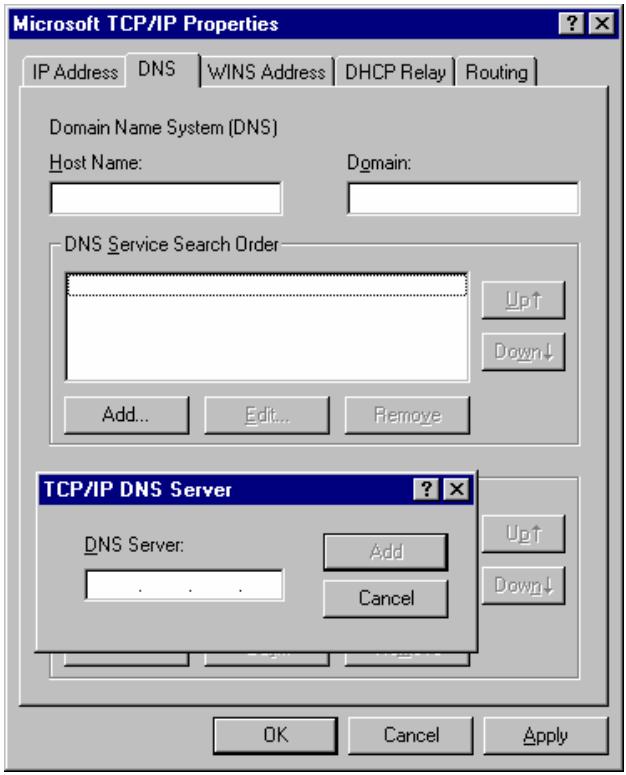
Figure 19: Windows NT4.0 - DNS
Checking TCP/IP Settings - Windows 2000:
- Select Control Panel - Network and Dial-up Connection.
- Right - click the Local Area Connection icon and select Properties. You should see a screen like the following:
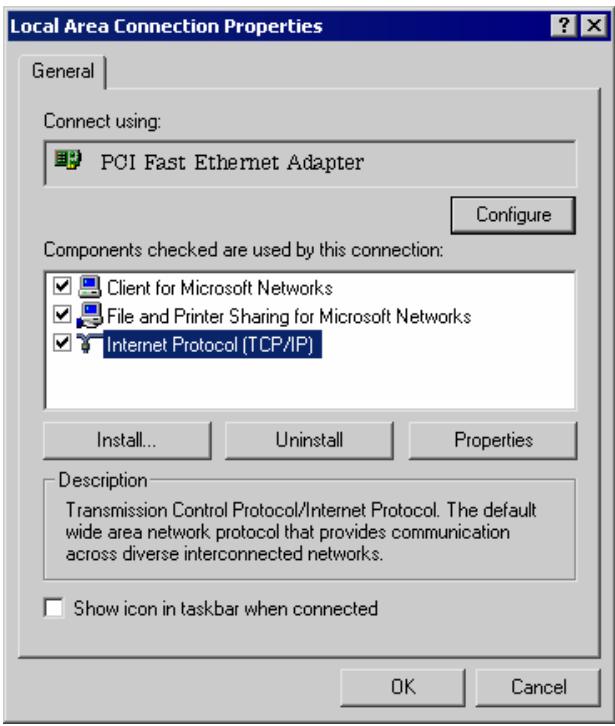
Figure 20: Network Configuration (Win 2000)
- Select the TCP/IP protocol for your network card.
- Click on the Properties button. You should then see a screen like the following.
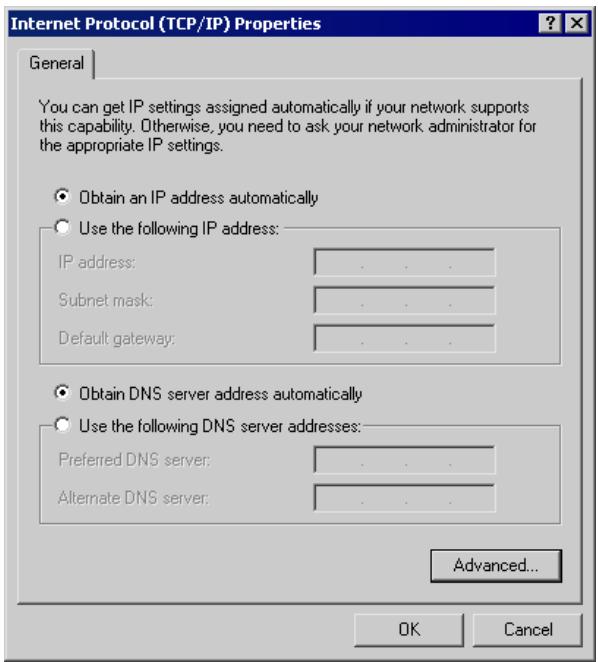
Figure 21: TCP/IP Properties (Win 2000)
- Ensure your TCP/IP settings are correct, as described below.
Using DHCP
To use DHCP, select the radio button Obtain an IP Address automatically. This is the default Windows setting. Using this is recommended. By default, the Wireless Router will act as a DHCP Server.
Restart your PC to ensure it obtains an IP Address from the Wireless Router.
Using a fixed IP Address ("Use the following IP Address")
If your PC is already configured, check with your network administrator before making the following changes.
- Enter the Wireless Router's IP address in the Default gateway field and click OK. (Your LAN administrator can advise you of the IP Address they assigned to the Wireless Router.)
- If the DNS Server fields are empty, select Use the following DNS server addresses, and enter the DNS address or addresses provided by your ISP, then click OK.
Checking TCP/IP Settings - Windows XP
- Select Control Panel - Network Connection.
- Right click the Local Area Connection and choose Properties. You should see a screen like the following:
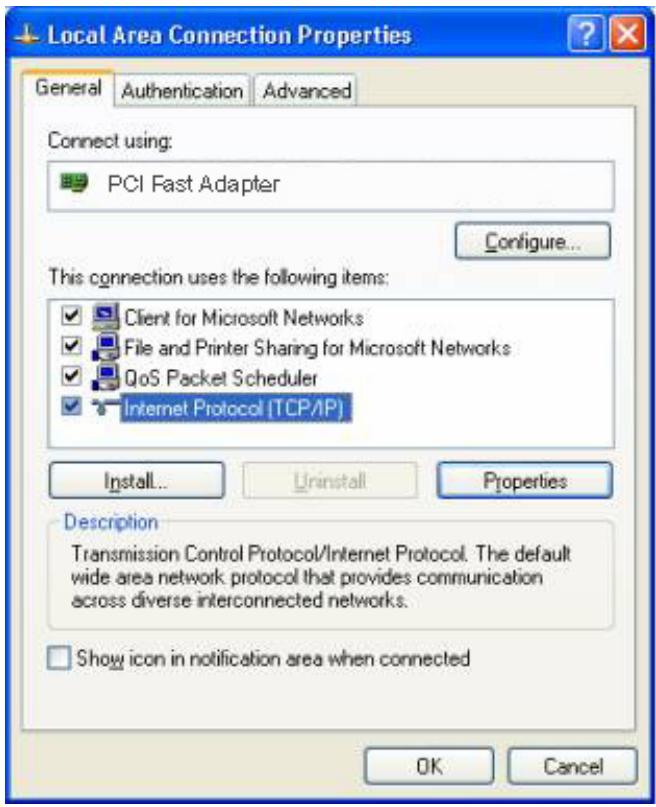
Figure 22: Network Configuration (Windows XP)
- Select the TCP/IP protocol for your network card.
- Click on the Properties button. You should then see a screen like the following.
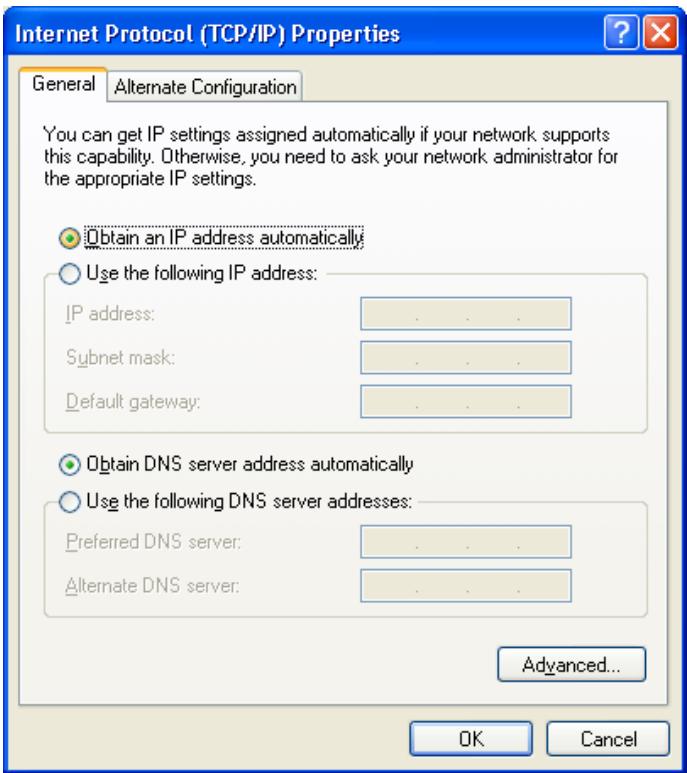
Figure 23: TCP/IP Properties (Windows XP)
- Ensure your TCP/IP settings are correct.
Using DHCP
To use DHCP, select the radio button Obtain an IP Address automatically. This is the default Windows setting. Using this is recommended. By default, the Wireless Router will act as a DHCP Server.
Restart your PC to ensure it obtains an IP Address from the Wireless Router.
Using a fixed IP Address ("Use the following IP Address")
If your PC is already configured, check with your network administrator before making the following changes.
- In the Default gateway field, enter the Wireless Router's IP address and click OK. Your LAN administrator can advise you of the IP Address they assigned to the Wireless Router.
- If the DNS Server fields are empty, select Use the following DNS server addresses, and enter the DNS address or addresses provided by your ISP, then click OK.
Checking TCP/IP Settings - Windows Vista
- Select Control Panel - Network Connections.
- Right click the Local Area Connection Status and choose Properties. Click Continue to the User Account Control dialog box, then you should see a screen like the following:
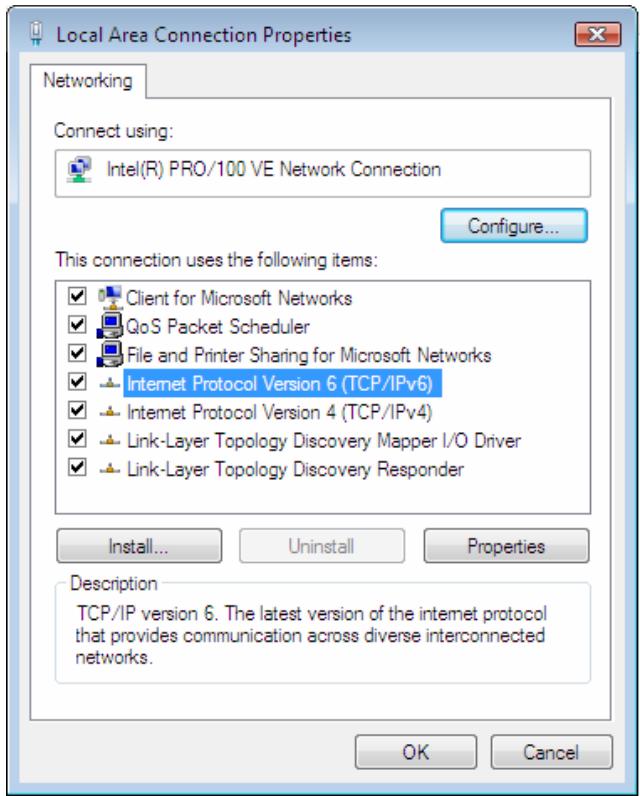
Figure 24: Network Configuration (Windows Vista)
- Select the TCP/IP protocol for your network card.
- Click on the Properties button. You should then see a screen like the following.
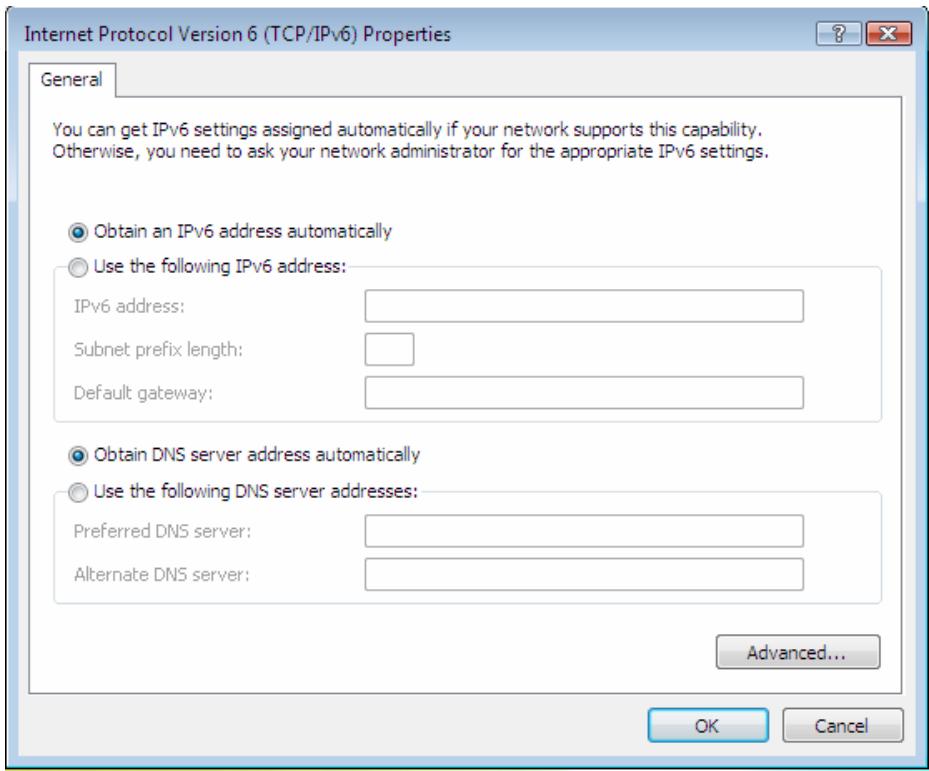
Figure 25: TCP/IP Properties (Windows Vista)
- Ensure your TCP/IP settings are correct.
Using DHCP
To use DHCP, select the radio button Obtain an IP Address automatically. This is the default Windows setting. To work correctly, you need a DHCP server on your LAN.
Using a fixed IP Address ("Use the following IP Address")
If your PC is already configured for a fixed (specified) IP address, no changes are required.
(The Administrator should configure the Wireless Access Point with a fixed IP address from the same address range used on the PCs.)
Internet Access
To configure your PCs to use the Wireless Router for Internet access:
- Ensure that the DSL modem, Cable modem, or other permanent connection is functional.
- Use the following procedure to configure your Browser to access the Internet via the LAN, rather than by a Dial-up connection.
For Windows 2000
- Select Start Menu - Settings - Control Panel - Internet Options.
- Select the Connection tab, and click the Setup button.
- Select "I want to set up my Internet connection manually, or I want to connect through a local area network (LAN)" and click Next.
- Select "I connect through a local area network (LAN)" and click Next.
- Ensure all of the boxes on the following Local area network Internet Configuration screen are unchecked.
- Check the "No" option when prompted "Do you want to set up an Internet mail account now?"
- Click Finish to close the Internet Connection Wizard. Setup is now completed.
For Windows XP
- Select Start Menu - Control Panel - Network and Internet Connections.
- Select Set up or change your Internet Connection.
- Select the Connection tab, and click the Setup button.
- Cancel the pop-up "Location Information" screen.
- Click Next on the "New Connection Wizard" screen.
- Select "Connect to the Internet" and click Next.
- Select "Set up my connection manually" and click Next.
- Check "Connect using a broadband connection that is always on" and click Next.
- Click Finish to close the New Connection Wizard. Setup is now completed.
For Windows Vista
You might already be connected to the Internet if your PC is connected to a local area network. Open your web browser and try accessing a website to find out.
- Select Start - Control Panel - Network and Internet.
- Select Network and Sharing Center.
- Select Set up a connection or network
- Select Connect to the Internet.
- Select the desired method to fit your environment.
Accessing AOL
To access AOL (America On Line) through the Wireless Router, the AOL for Windows software must be configured to use TCP/IP network access, rather than a dial-up connection. The configuration process is as follows:
- Start the AOL for Windows communication software. Ensure that it is Version 2.5, 3.0 or later. This procedure will not work with earlier versions.
-
Click the Setup button.
-
Select Create Location, and change the location name from "New Locality" to "Wireless Router".
- Click Edit Location. Select TCP/IP for the Network field. (Leave the Phone Number blank.)
- Click Save, then OK.
Configuration is now complete. - Before clicking "Sign On", always ensure that you are using the "Wireless Router" location.
4.3. Macintosh Clients
From your Macintosh, you can access the Internet via the Wireless Router. The procedure is as follows.
- Open the TCP/IP Control Panel.
- Select Ethernet from the Connect via pop-up menu.
- Select Using DHCP Server from the Configure pop-up menu. The DHCP Client ID field can be left blank.
- Close the TCP/IP panel, saving your settings.
Note:
If using manually assigned IP addresses instead of DHCP, the required changes are:
- Set the Router Address field to the Wireless Router's IP Address.
- Ensure your DNS settings are correct.
4.4. Linux Clients
To access the Internet via the Wireless Router, it is only necessary to set the Wireless Router as the "Gateway".
Ensure you are logged in as "root" before attempting any changes.
Fixed IP Address
By default, most Unix installations use a fixed IP Address. If you wish to continue using a fixed IP Address, make the following changes to your configuration.
- Set your "Default Gateway" to the IP Address of the Wireless Router.
- Ensure your DNS (Name server) settings are correct.
To act as a DHCP Client (recommended)
The procedure below may vary according to your version of Linux and X -windows shell.
- Start your X Windows client.
- Select Control Panel - Network
- Select the "Interface" entry for your Network card. Normally, this will be called "eth0".
- Click the Edit button, set the "protocol" to "DHCP", and save this data.
-
To apply your changes
-
Use the "Deactivate" and "Activate" buttons, if available.
- OR, restart your system.
4.5. Other Unix Systems
To access the Internet via the Wireless Router:
- Ensure the "Gateway" field for your network card is set to the IP Address of the Wireless Router.
- Ensure your DNS (Name Server) settings are correct.
4.6. Wireless Station Configuration
This section applies to all Wireless stations wishing to use the Wireless Router's Access Point, regardless of the operating system which is used on the client.
To use the Wireless Access Point in the Wireless Router, each Wireless Station must have compatible settings, as follows:
| Mode | The mode must be set to Infrastructure (rather than Ad-hoc) Access points only operate in Infrastructure mode. |
| SSID (ESSID) | This must match the value used on the Wireless Router. Note! The SSID is case sensitive. |
| Wireless Security | By default, Wireless security on the Wireless Router is disabled. • If Wireless security remains disabled on the Wireless Router, all stations must have wireless security disabled. • If Wireless security is enabled on the Wireless Router, each station must use the same settings as the Wireless Router. |
4.7. Wireless Configuration on Windows XP
If using Windows XP to configure the Wireless interface on your PC, the configuration procedure is as follows:
- Open the Network Connections folder. (Start - Settings - Network Connections).
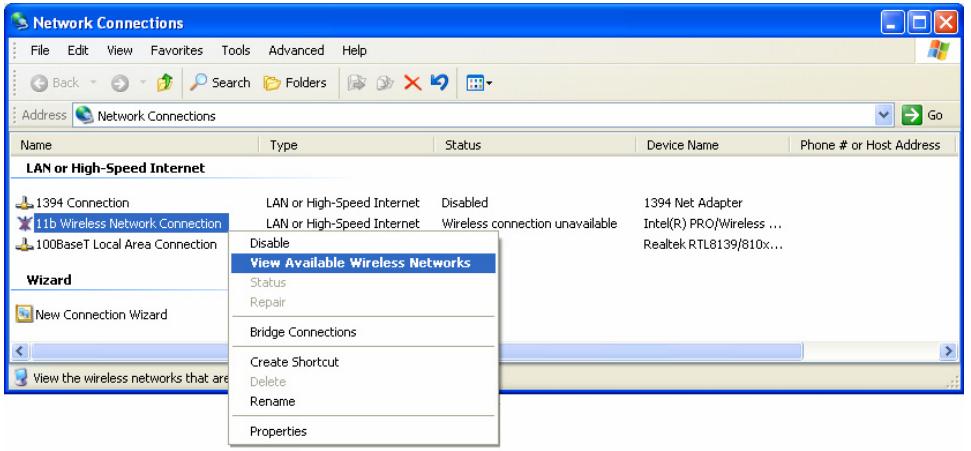
Figure 26: Network Connections (Windows XP)
- Right-click the Wireless Network Connection, check that it is enabled (menu option says Disable, rather than Enable) and then select View Available Wireless Networks.
- You will then see a list of wireless networks.
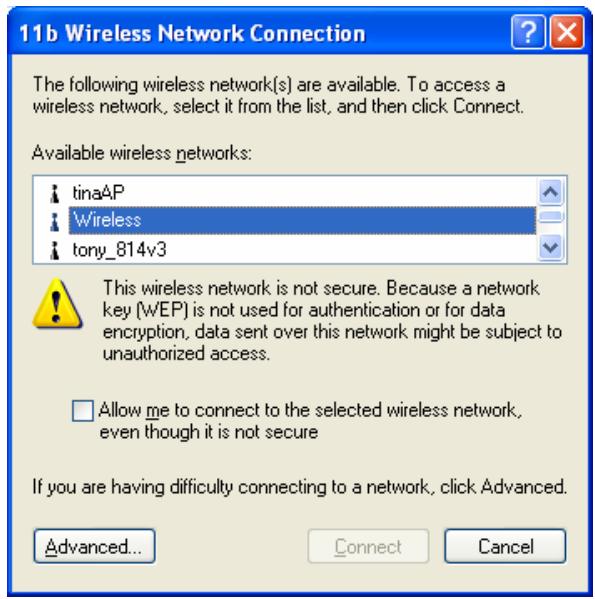
Figure 27 Wireless Networks (Windows XP)

If the "Broadcast SSID" setting on the Wireless Router has been disabled, its SSID will NOT be listed. See the following section "If the SSID is not listed" for details of dealing with this situation.
- The next step depends on whether or not Wireless security has been enabled on the Wireless Router.
If Wireless Security is Disabled
If Wireless security on the Wireless Router is disabled, Windows will warn you that the Wireless network is not secure.
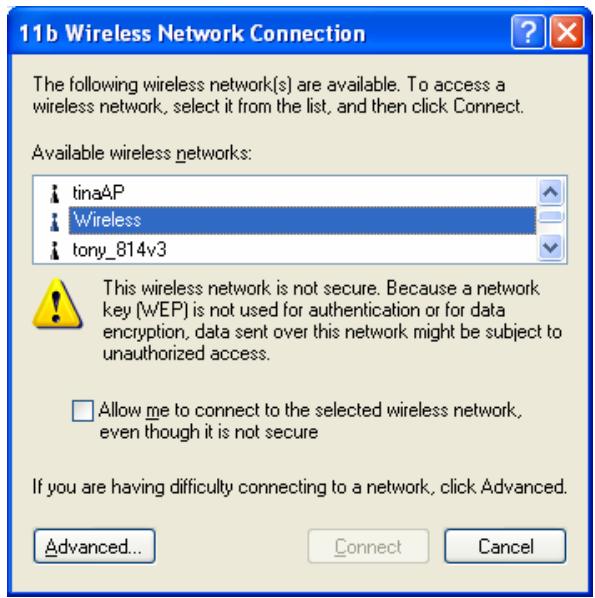
Figure 28 Insecure Wireless Network (Windows XP)
To connect:
- Check the checkbox Allow me to connect to the selected wireless network, even though it is not secure.
- The Connect button will then be available. Click the Connect button, and wait a few seconds for the connection to be established.
If using WEP Data Encryption
If WEP data encryption has been enabled on the Wireless Router, Windows will detect this, and show a screen like the following.
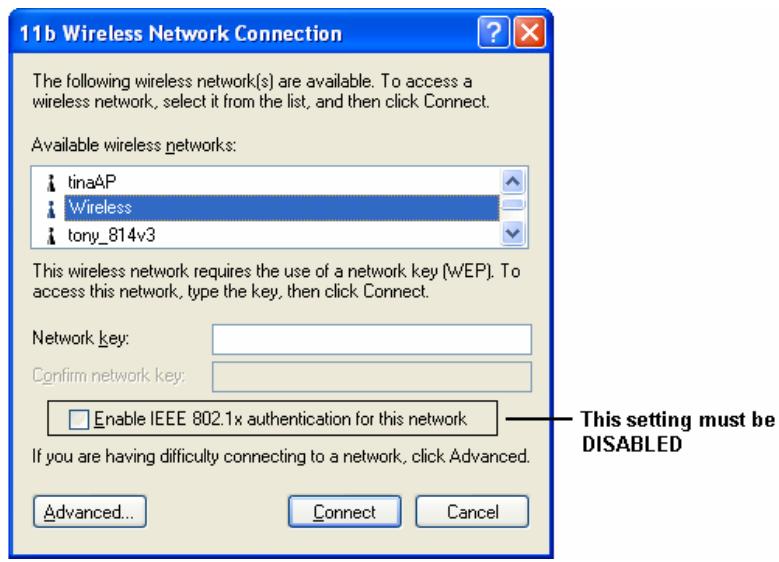
Figure 29: WEP (Windows XP)
To connect:
- Enter the WEP key, as set on the Wireless Router, in the Network Key field.
-
Re-enter the WEP key into the Confirm Network key field.
-
Disable the checkbox Enable IEEE 802.1x authentication for this network.
- Click the Connect button.
If this fails, click the Advanced button, to see a screen like the following:
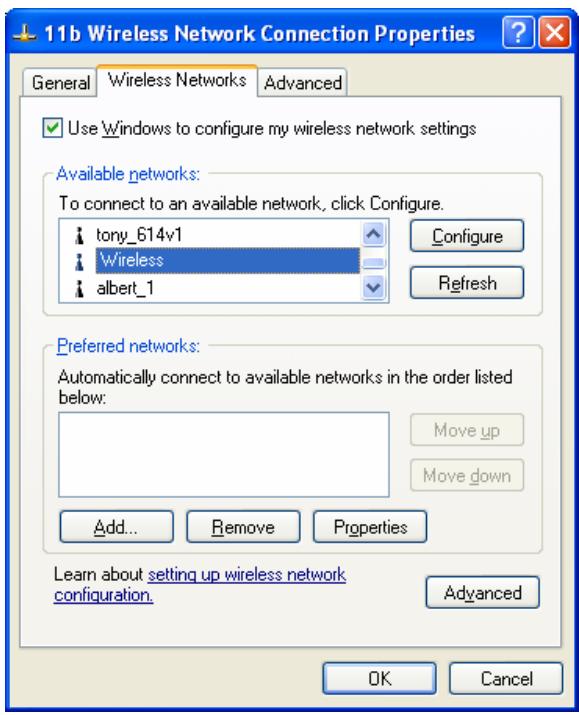
Figure 30: Advanced - Wireless Networks
Select the SSID for the Wireless Router, and click Configure, to see a screen like the following:
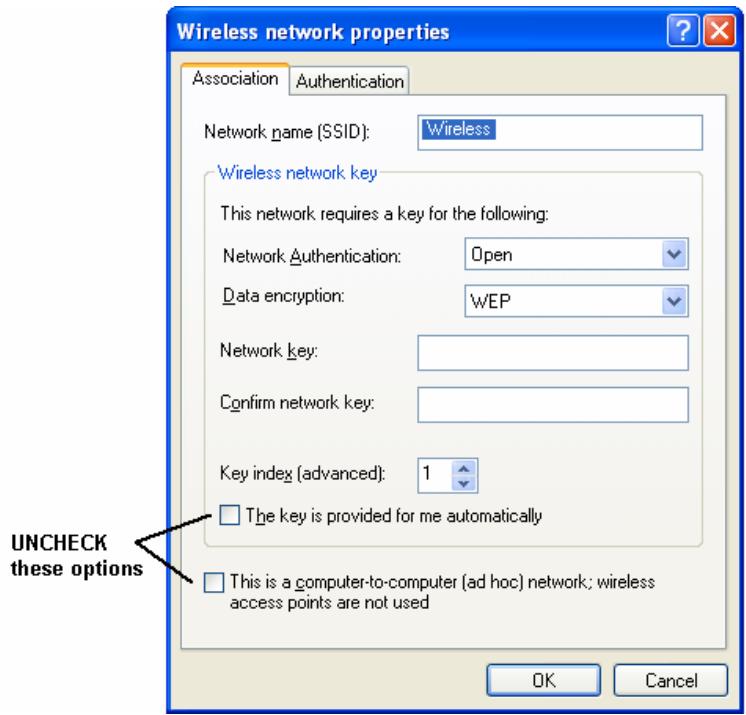
Figure 31: Wireless Network Properties - WEP
Configure this screen as follows:
- Set Network Authentication to match the Wireless Router. (If the setting on the Wireless Router is "Auto", then either Open or Shared can be used.)
- For Data Encryption, select WEP.
- For the Network key and Confirm network key, enter the default key value used on the Wireless Router. (Windows will determine if 64bit or 128bit encryption is used.)
- The Key index must match the default key index on the Wireless Router. The default value is 1.
- Ensure the options The key is provided for me automatically and This is a computer-to-computer (ad hoc) network are unchecked.
- Click OK to save and close this dialog.
- This wireless network will now be listed in Preferred Networks on the screen below.
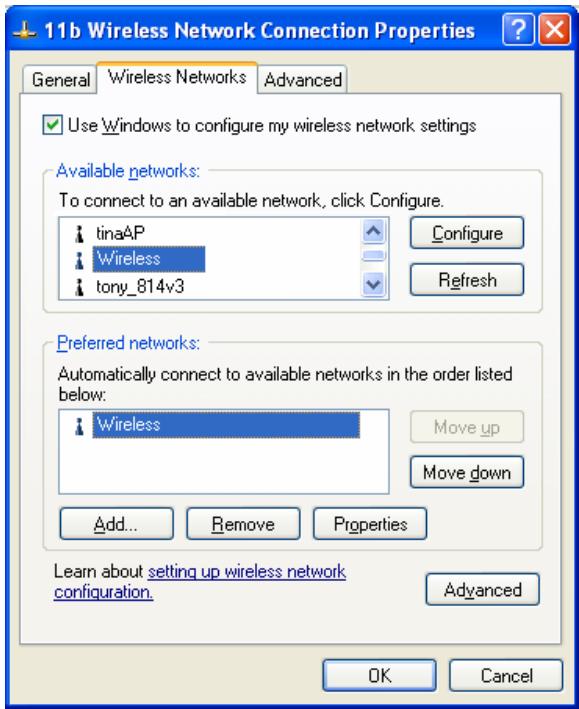
Figure 32: Preferred Networks
Click OK to establish a connection to the Wireless Router.
If using WPA-PSK Data Encryption
If WPA-PSK data encryption has been enabled on the Wireless Router, it does not matter which network is selected on the screen below. Just click the Advanced button.
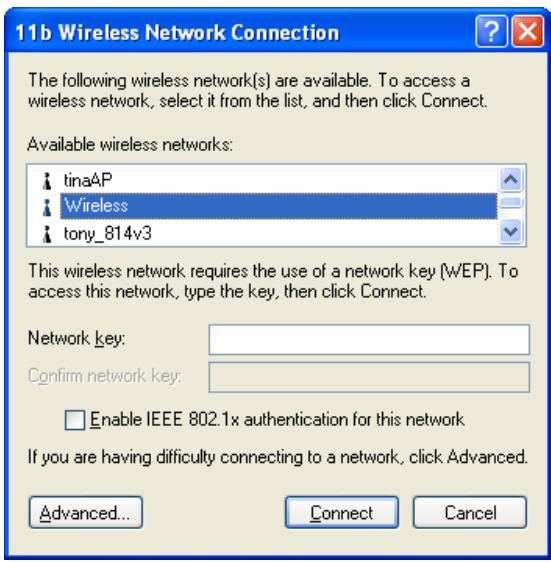
Figure 33: Wireless Networks (Windows XP)
You will then see a screen like the example below.
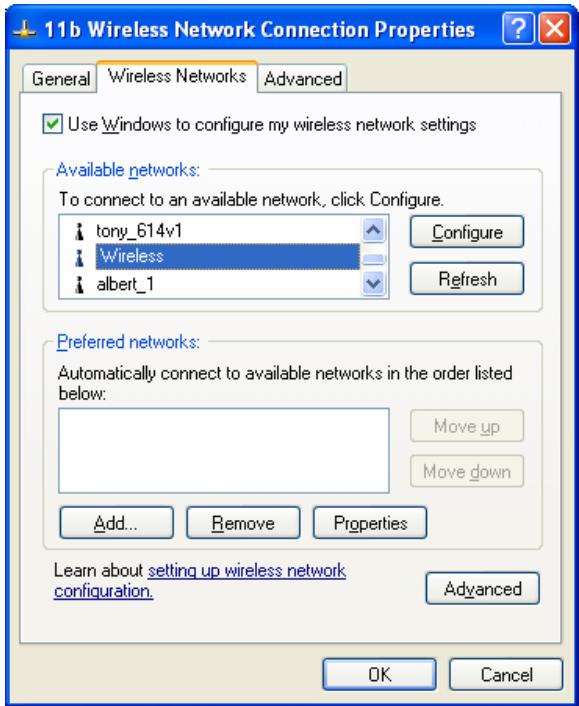
Figure 34: Advanced - Wireless Networks
Select the SSID for the Wireless Router, and click Configure, to see a screen like the following:
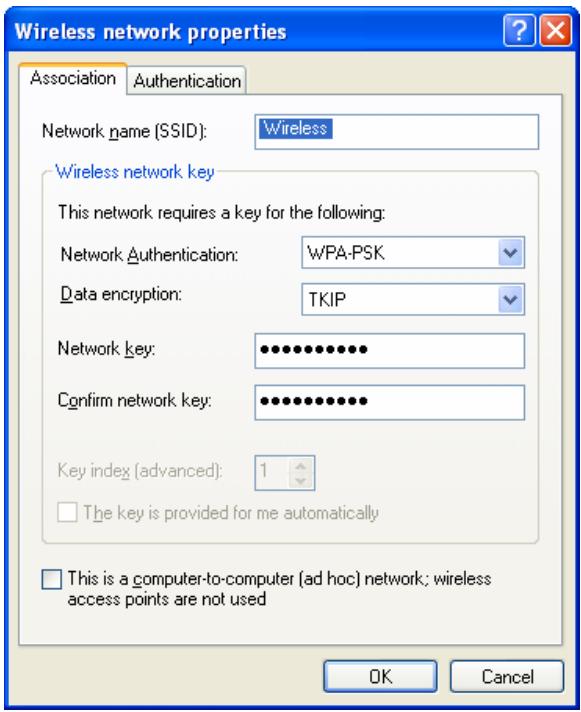
Figure 35: Wireless Network Properties- WPA-PSK
Configure this screen as follows:
- Set Network Authentication to WPA-PSK.
- For Data Encryption, select TKIP.
- For the Network key and Confirm network key, enter the network key (PSK) used on the Wireless Router.
- Ensure the option This is a computer-to-computer (ad hoc) network is unchecked.
- Click OK to save and close this dialog.
- This wireless network will now be listed in Preferred Networks on the screen below.
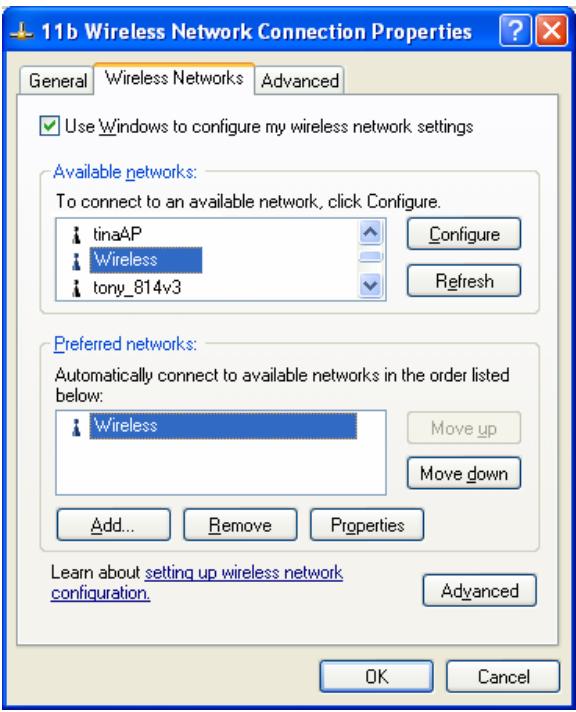
Figure 36: Preferred Networks
Click OK to establish a connection to the Wireless Router.
If the SSD is not listed
If the "Broadcast SSID" setting on the Wireless Router has been disabled, its SSID will NOT be listed on the screen below.
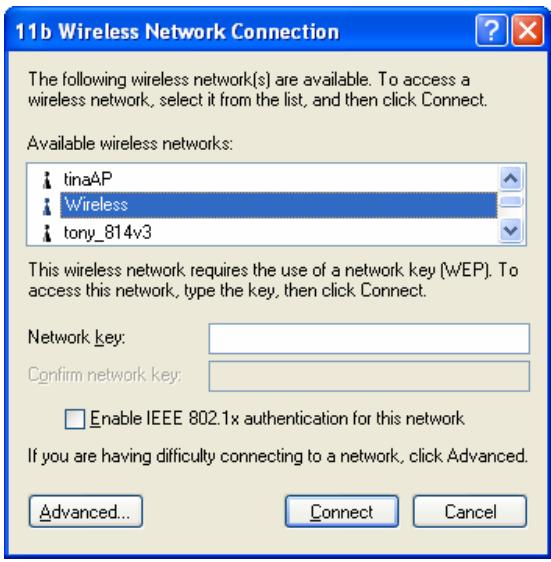
Figure 37: Wireless Networks (Windows XP)
In this situation, you need to obtain the SSID from your network administrator, then follow this procedure:
- Click the Advanced button to see a screen like the example below.
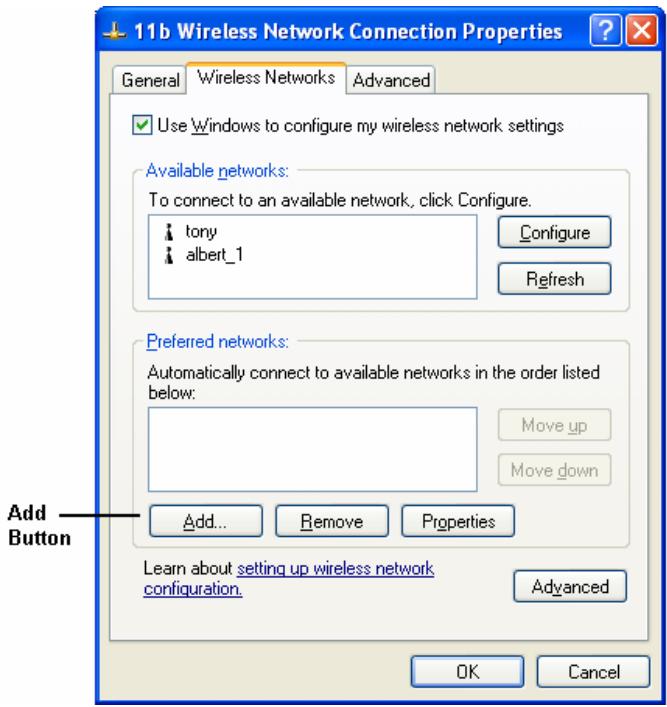
Figure 38: Unlisted Wireless Network
- Click the Add button. You will see a screen like the example below.
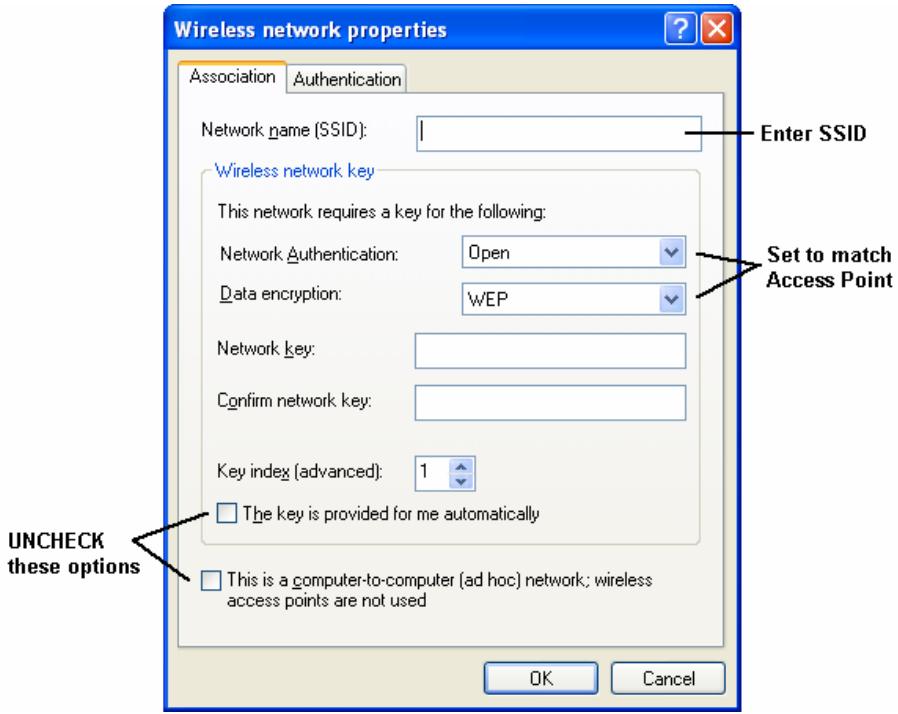
Figure 39: Add Wireless Network
-
Configure this screen as follows:
-
Enter the correct SSID, as used on the Wireless Router. Remember the SSID is case-sensitive, so be sure to match the case, not just the spelling.
-
Set Network Authentication and Data Encryption to match the Wireless Router.
-
If using data encryption (WEP or WPA-PSK), enter the key used on the Wireless Router. See the preceding sections for details of WEP and WPA-PSK.
- Uncheck the options The key is provided for me automatically and This is a computer-to-computer (ad hoc) network.
-
Click OK to save and exit.
-
This wireless network will then be listed in Preferred Networks on the screen below.
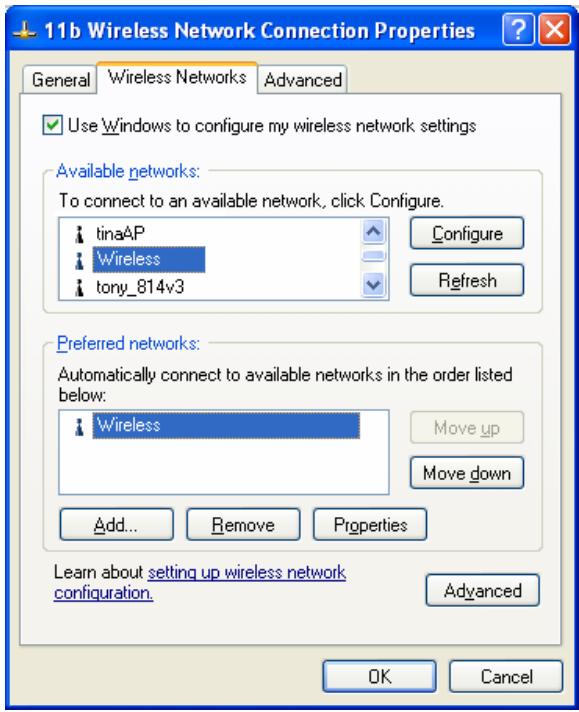
Figure 40: Preferred Networks
- Click OK to establish a connection to the Wireless Router.
Chapter 5 : Operation and Status
This Chapter details the operation of the Wireless Router and the status screens. For Details of operation in Bridge (Modem) mode, see Chapter 8 - Modem Mode.
5.1 Operation - Router Mode
Once both the Wireless Router and the PCs are configured, operation is automatic.
However, there are some situations where additional Internet configuration may be required. Refer to Chapter 6 - Advanced Features for further details.
5.2 Status Screen
Use the Status link on the main menu to view this screen.
Status
Internet
Connection Method: DHCP
Connection Status: Idle
Internet IP Address:
Wan MAC Address: 00:c0:02:25:84:11
Connection Details
LAN
IP Address: 192.168.1.254
Network Mask: 255.255.255.0
DHCP Server: On
MAC Address: 00:C0:02:25:84:10
Wireless
Region:
Channel: 6
Wireless AP: enable
SSID1
Name (SSID1): airlive
Broadcast Name: enable
MAC Address: 00:C0:02:25:84:10
SSID2
Name (SSID2): Guest
Broadcast Name: enable
MAC Address: 00:c0:02:25:84:11
System
Device Name: WN-300R
Firmware Version: 1.00.05
Current Time: 1999-12-31 16:22:44
Refresh Screen
Help
Figure 41: Status Screen
Data - Status Screen
| Internet | |
| Connection Method | Displays the current connection method, as set in the Setup Wizard. |
| Connection Status | This indicates the current status of the Internet Connection • Active - Connection exists • Idle - No current connection, but no error has been detected. This condition normally arises when an idle connection is automatically terminated. • Failed - The connection was terminated abnormally. This could be caused by Modem failure, or the loss of the connection to the ISP's server. If there is an error, you can click the "Connection Details" |
| button to find out more information. | |
| Internet IP Address | This IP Address is allocated by the ISP (Internet Service Provider). If using a dynamic IP address, and no connection currently exists, this information is unavailable. |
| WAN MAC Address | It displays the MAC address for the WAN. |
| Connection Details | Click this button to open a sub-window and view a detailed description of the current connection. Depending on the type of connection, a "log" may also be available. |
| LAN | |
| IP Address | The IP Address of the Wireless Router. |
| Network Mask | The Network Mask (Subnet Mask) for the IP Address above. |
| DHCP Server | This shows the status of the DHCP Server function. The value will be "Enabled" or "Disabled". |
| MAC Address | This shows the MAC Address for the Wireless Router, as seen on the LAN interface. |
| Wireless | |
| Region | The current region, as set on the Wireless screen. |
| Channel | This shows the Channel currently used, as set on the Wireless screen. |
| Wireless AP | This indicates whether or not the Wireless Access Point feature is enabled. |
| SSID 1/2 | It displays the name of theSSID 1/2. |
| Broadcast Name | This indicates whether or not theSSID is Broadcast. This setting is on the Wireless screen. |
| MAC Address | The MAC (physical) address of the Wireless Access Point. |
| System | |
| Device Name | The current name of the Router. This name is also the "hostname" for users with an "@Home" type connection. |
| Firmware Version | The version of the current firmware installed. |
| Current Time | It displays the current time of the system. |
| Buttons | |
| Connection Details | Click this button to open a sub-window and view a detailed description of the current connection. |
| Refresh Screen | Update the data displayed on screen. |
5.3 Connection Status - PPPoE
If using PPPoE (PPP over Ethernet), a screen like the following example will be displayed when the "Connection Details" button is clicked.
Connection Status
PPPoE
Connection Time 00:00:00
Connection to Server Disconnect
Negotiation
Authentication
IP Address
Network Mask


Figure 42: PPPoE Status Screen
Data - PPPoE Screen
| Connection Time | This indicates how long the current connection has been established. |
| Connection to Server | This indicates whether or not the connection is currently established. |
| Negotiation | This indicates the status of the Server login. |
| Authentication | This indicates the authentication currently used. |
| IP Address | The IP Address of this device, as seen by Internet users. This address is allocated by your ISP (Internet Service Provider). |
| Network Mask | The Network Mask associated with the IP Address above. |
| Buttons | |
| Connect | If not connected, establish a connection to your ISP. |
| Disconnect | If connected to your ISP, hang up the connection. |
| Close | Close this window. |
5.4 Connection Status - PPTP
If using PPTP (Peer-to-Peer Tunneling Protocol), a screen like the following example will be displayed when the "Connection Details" button is clicked.
Connection Details
PPTP Status
IP Address
PPTP Server IP
DNS Server

Figure 43: PPTP Status Screen
Help Close
Data - PPTP Status Screen
| Connection | |
| IP Address | The IP Address of this device, as seen by Internet users. This address is allocated by your ISP (Internet Service Provider). |
| PPTP Server IP | The IP Address of the PPTP server. |
| DNS Server | This indicates the DNS address provided by your ISP. |
| Buttons | |
| Connect | If not connected, establish a connection to your ISP. |
| Disconnect | If connected to your ISP, terminate the connection. |
5.5 Connection Status - L2TP
If using L2TP, a screen like the following example will be displayed when the "Connection Details" button is clicked.
Connection Details
L2TP Status
IP Address
L2TP Server IP
192.168.2.1
DNS Server
Disconnect
Connect
Help
Close
Figure 44: L2TP Status Screen
Data - L2TP Screen
| L2TP Status | |
| IP Address | The IP Address of this device, as seen by Internet users. This address is allocated by your ISP (Internet Service Provider). |
| L2TP Server IP | The IP Address of the L2TP server. |
| DNS Server | This indicates the DNS address provided by your ISP. |
| Buttons | |
| Connect | If not connected, establish a connection to your ISP. |
| Disconnect | If connected to your ISP, hang up the connection. |
5.6 Connection Details - Dynamic IP Addr
If your access method is "Direct" (no login), with a Dynamic IP address, a screen like the following example will be displayed when the "Connection Details" button is clicked.
Connection Details
Dynamic IP Address
IP Address
Subnet Mask
Default Gateway
DNS Server
DHCP Server
Lease Obtained: ---
LeaseExpires:---
Release
Renew
Help
Close
Figure 45: Connection Details - Fixed/Dynamic IP Address
Data - Dynamic IP address
| Internet | |
| IP Address | The current IP Address of this device, as seen by Internet users. This address is allocated by your ISP (Internet Service Provider). |
| Subnet Mask | The Subnet Mask associated with the IP Address above. |
| Default Gateway | The IP address of the remote Gateway or Router associated with the IP Address above. |
| DNS Server | The IP address of the Domain Name Server which is currently used. |
| DHCP Server | The IP address of your ISP's DHCP Server. |
| Lease Obtained Lease Expires | This indicates when the current IP address was obtained, and how long before this IP address allocation (the DCHP lease) expires. |
| Buttons | |
| Release | If an IP Address has been allocated to the Wireless Broadband Router (by the ISP's DHCP Server, clicking the "Release" button will break the connection and release the IP Address. |
| Renew | If the ISP's DHCP Server has NOT allocated an IP Address for the Wireless Broadband Router, clicking the "Renew" button will attempt to re-establish the connection and obtain an IP Address from the ISP's DHCP Server. |
| Close | Close this window. |
5.7 Connection Details - Fixed IP Address
If your access method is "Direct" (no login), with a fixed IP address, a screen like the following example will be displayed when the "Connection Details" button is clicked.
Connection Status
Fixed IP Address
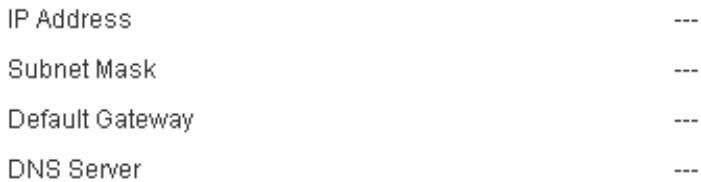

Figure 46: Connection Details - Fixed IP Address
Data - Fixed IP address Screen
| Fixed IP Address | |
| IP Address | The IP Address of this device, as seen by Internet users. This address is allocated by your ISP (Internet Service Provider). |
| Subnet Mask | The Subnet Mask associated with the IP Address above. |
| Default Gateway | The IP Address of the remote Gateway or Router associated with the IP Address above. |
| DNS Server | The IP Address of the Domain Name Server which is currently used. |
Chapter 6 : Advanced Features
This Chapter explains when and how to use the Wireless Router's "Advanced" Features.
6.1 Overview
The following advanced features are provided:
Internet:
DMZ
URL filter
- Access Control
Dynamic DNS
- Options
Schedule
- Port Trigger
- Single Port Forwarding
- Port Range Forwarding
QoS
6.2 Internet
This screen provides access to the DMZ, Special Applications and URL Filter features.
Internet
DMZ

Enable DMZ, using
URL Filter

Figure 47: Internet Screen
Disable
Block Always
Block By Schedule
Configure URL Filter
Save
Cancel
Help
DMZ
This feature, if enabled, allows the DMZ computer on your LAN to be exposed to all users on the Internet.
This allows almost any application to be used on the "DMZ PC".
- The "DMZ PC" will receive all "Unknown" connections and data.
- If the DMZ feature is enabled, you must enter IP address of the PC to be used as the "DMZ PC".
URL Filter
If you want to limit access to certain sites on the Internet, you can use this feature. The URL filter will check each Web site access. If the address, or part of the address, is included in the block site list, access will be denied.
On the Advanced Internet screen, select the desired setting:
- Disable - disable this feature.
- Block Always - allow blocking all of the time, independent of the Schedule page.
- Block By Schedule - block according to the settings on the Schedule page.
Click the Configure URL Filter button to open the URL Filter screen, allowing you to create or modify the filter strings which determine which sites will be blocked.
The URL Filter screen is displayed when the Configure URL Filter button on the Advanced Internet screen is clicked.
URL Filter
When enabled, a request is blocked if any of these entries occur in the requested URL.
Current Filter Strings
Delete
Delete All
Add Filter String:
Add
Filter Strings should be as specific as possible.
Trusted PC

Figure 48: URL Filter Screen
Allow this PC to Visit Restricted Sites
Trusted PC:
Save
Cancel
Help
Close
Data - URL Filter Screen
| Current Filter Strings | |
| Current Filter Strings | The list contains the current list of items to block. • To add to the list, use the "Add" option below. • To delete an entry, select it and click Delete button. • To delete all entries, click the Delete All button. |
| Add Filter String | To add to the current list, type the word or domain name you want to block into the field provided, then click the Add button. Filter strings should be as specific as possible. Otherwise, you may block access to many more sites than intended. |
| Trusted PC | |
| Allow this PC to Visit Restricted Sites | Enable this to allow one computer to have unrestricted access to the Internet. For this PC, the URL filter will be ignored. If enabled, you must select the PC to be the trusted PC. |
| Trusted PC | Select the PC to be the Trusted PC. |
6.3 Dynamic DNS (Domain Name Server)
This free service is very useful when combined with the Virtual Server feature. It allows Internet users to connect to your Virtual Servers using a URL, rather than an IP Address.
This also solves the problem of having a dynamic IP address. With a dynamic IP address, your IP address may change whenever you connect, which makes it difficult to connect to you.
DDNS Services work as follows:
- You must register for the service at one of the listed DDNS Service providers.
- After registration, use the Service provider's normal procedure to obtain your desired Domain name.
- Enter your DDNS data on the Wireless Router's DDNS screen, and enable the DDNS feature.
- The Wireless Router will then automatically ensure that your current IP Address is recorded at the DDNS service provider's Domain Name Server.
- From the Internet, users will be able to connect to your Virtual Servers (or DMZ PC) using your Domain name, as shown on this screen.
Dynamic DNS Screen
Select Advanced on the main menu, then Dynamic DNS, to see a screen like the following:
DDNS
DDNS Service
Use a Dynamic DNS Service
Service Provider
DynDNS.org (Dynamic)
Web Site
DDNS Data
Host Name
UserID
Password
DDNS Status:
Refresh
Save
Cancel
Help
Figure 49: DDNS Screen
Data - Dynamic DNS Screen
| DDNS Service | |
| Use a Dynamic DNS Service | Use this to enable or disable the DDNS feature as required. |
| Service Provider | Select the desired DDNS Service provider. |
| Web Site | Click this button to open a new window and connect to the Web site of the selected DDNS service provider. |
| DDNS Data | |
| Host Name | Enter the domain name allocated to you by the DDNS Service. If you have more than one name, enter the name you wish to use. |
| User Name | Enter yourUsername for the DDNS Service. (TZO.com uses your E-mail address.) |
| Password | Enter your current password for the DDNS Service. (TZO.com calls this a key.) |
| DDNS Status | This message is returned by the DDNS Server. Normally, this message should be "Update successful" If the message indicates some problem, you need to connect to the DDNS Service provider and correct this problem. |
6.4 Options
This screen allows advanced users to enter or change a number of settings. For normal operation, there is no need to use this screen or change any settings.
An example Options screen is shown below.
Options
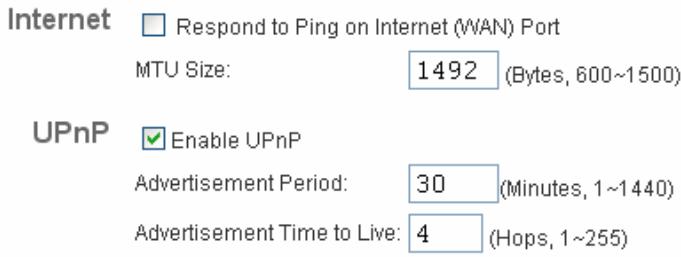

Figure 50: Options Screen
Data - Options Screen
| Internet | |
| Respond to Ping | ·If checked, the Wireless Router will respond to Ping (ICMP) packets received from the Internet. ·If not checked, Ping (ICMP) packets from the Internet will be ignored. Disabling this option provides a slight increase in security. |
| MTU Size | Enter a value between 600 and 1500. Note: MTU (Maximum Transmission Unit) size should only be changed if advised to do so by Technical Support. |
| UPnP | |
| Enable UPnP | · UPnP (Universal Plug and Play) allows automatic discovery and configuration of equipment attached to your LAN. UPnP is by supported Windows ME, XP, or later. · If Enabled, this device will be visible via UPnP. · If Disabled, this device will not be visible via UPnP. |
| Advertisement Period | Enter the desired value, in minutes. The valid range is from 1 to 1440. |
| Advertisement Time to Live | Enter the desired value, in hops. The valid range is from 1 to 255. |
6.5 Schedule
This Schedule can be used for the Firewall Rules and the URL filter.
Schedule
Schedule
Use 24 hour clock. On all day: 00:00 to 24:00
Off all day. All fields left 00
| Day | Session 1 | Session 2 | ||
| Start | Finish | Start | Finish | |
| Monday | 00:00 | 12:00 | 12:00 | 24:00 |
| Tuesday | 00:00 | 12:00 | 12:00 | 24:00 |
| Wednesday | 00:00 | 12:00 | 12:00 | 24:00 |
| Thursday | 00:00 | 12:00 | 12:00 | 24:00 |
| Friday | 00:00 | 12:00 | 12:00 | 24:00 |
| Saturday | 00:00 | 12:00 | 12:00 | 24:00 |
| Sunday | 00:00 | 12:00 | 12:00 | 24:00 |
Local Time
Time Zone: (GMT-08:00) Pacific Time(US, Canada); Tijuana

Figure 51: Schedule Screen
Adjust for Daylight Savings Time
Use this NTP Server
Current Time: 1999-12-31 16:03:54 Weekday : Friday
Save
Cancel
Help
Data - Schedule Screen
| Schedule | |
| Day | Each day of the week can be scheduled independently. |
| Session 1 Session 2 | Two (2) separate sessions or periods can be defined. Session 2 can be left blank if not required. |
| Start | Enter the start using a 24 hr clock. |
| Finish | Enter the finish time using a 24 hr clock. |
| Local Time | |
| Time Zone | In order to display your local time correctly, you must select your "Time Zone" from the list. |
| Adjust for Daylight Savings Time | If your region uses Daylight Savings Time, you must manually check "Adjust for Daylight Savings Time" at the beginning of the adjustment period, and uncheck it at the end of the Daylight Savings period. |
| Use this NTP Server | If you prefer to use a particular NTP server as the primary NTP server, check the checkbox "Use this NTP Server" and enter the Server's IP address in the fields provided. If this setting is not enabled, the default NTP Servers are used. |
| Current Time | This displays the current time on the Wireless Router, at the time the page is loaded. |
6.6 Port Trigger
If you use Internet applications which use non-standard connections or port numbers, you may find that they do not function correctly because they are blocked by the Wireless Router's firewall. In this case, you can define the application as a "Port Trigger".
The Port Trigger screen can be reached by clicking the Port Trigger on the screen.
You can then define your Port Trigger. You will need detailed information about the application; this is normally available from the supplier of the application.
Also, note that the terms "Incoming" and "Outgoing" on this screen refer to traffic from the client (PC) viewpoint
Port Trigger
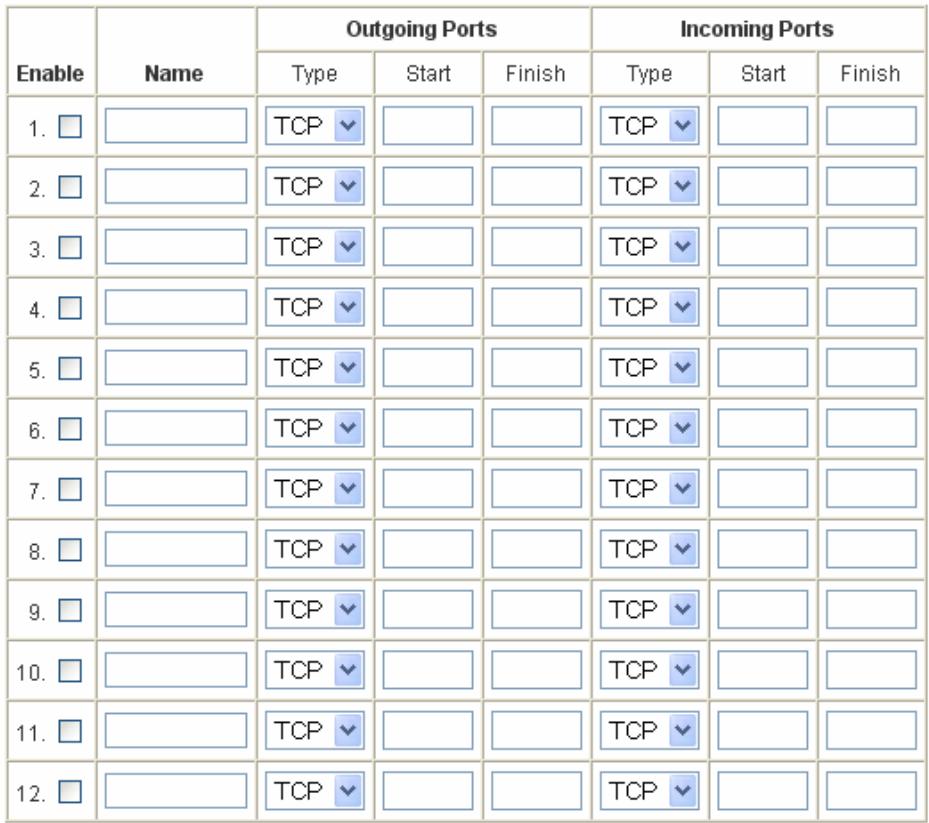

Figure 52: Port Trigger Screen
Data - Port Trigger Screen
| Port Trigger | |
| Enable | Use this to Enable or Disable this Special Application as required. |
| Name | Enter a descriptive name to identify this Special Application. |
| Outgoing Ports | • Type - Select the protocol (TCP or UDP) used when you send data to the remote system or service. • Start - Enter the beginning of the range of port numbers used by the application server, for data you send to it. If the application uses a single port number, enter it in both the "Start" and "Finish" fields. • Finish - Enter the end of the range of port numbers used by the application server, for data you send to it. If the application uses a single port number, enter it in both the "Start" and "Finish" fields. |
| Incoming Ports | • Type - Select the protocol (TCP or UDP) used when you receive data from the special application or service. (Note: Some applications use different protocols for out-going and incoming data). • Start - Enter the beginning of the range of port numbers used by the application server, for data you receive. If the application uses a single port number, enter it in both the "Start" and "Finish" fields. • Finish - Enter the end of the range of port numbers used by the application server, for data you receive. |
6.7 Single Port Forwarding
This feature allows you to make Servers on your LAN accessible to Internet users. Normally, Internet users would not be able to access a server on your LAN because:
- Your Server does not have a valid external IP Address.
- Attempts to connect to devices on your LAN are blocked by the firewall in this device.
Single Port Forwarding
Figure 53: Single Port Forwarding Screen
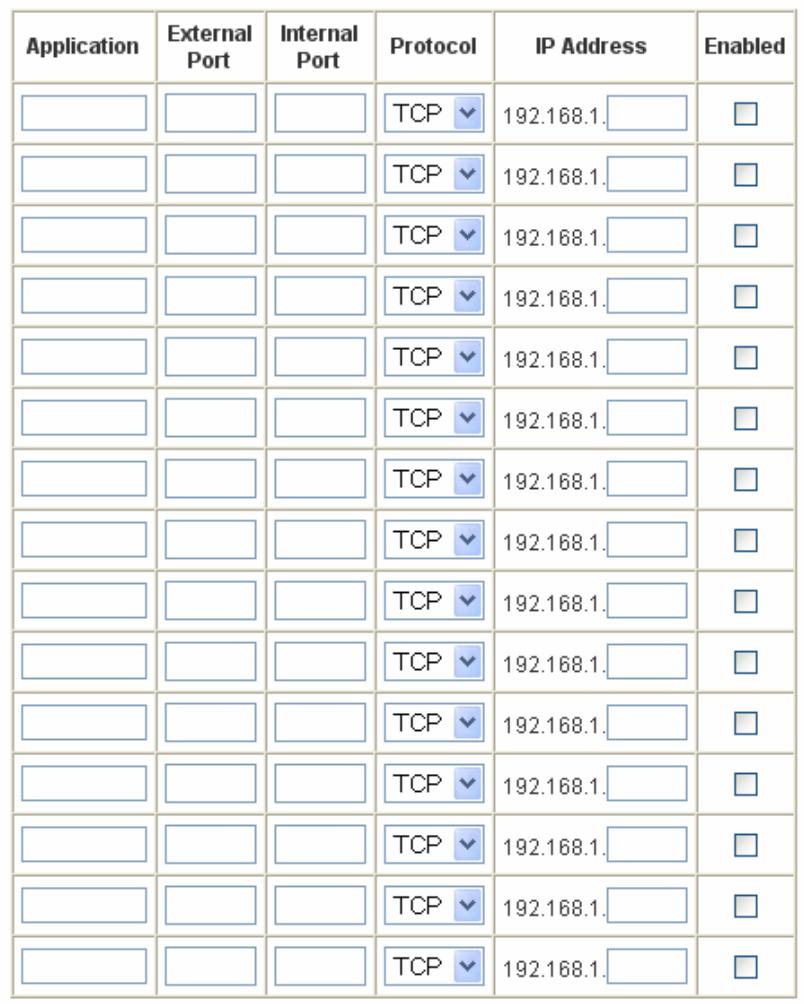
Save Cancel Help
Data - Single Port Forwarding Screen
| Single Port Forwarding | |
| Application | Enter the desired application type. |
| External Port | Traffic from the Internet using this port number will be sent to the Server. This is normally the same as the Internal Port Number. If it is different, this device will perform a "mapping" or "translation" function, allowing the server to use a different port to the clients. |
| Internal Port | Enter the port numbers which the Server software is configured to use. |
| Protocol | Select the protocol (TCP or UDP) used by the Server. |
| IP Address | Enter the desired IP address. |
| Enabled | Use this to Enable or Disable support for this Server, as required. |
6.8 Port Range Forwarding
This feature allows you to make Servers on your LAN accessible to Internet users. Normally, Internet users would not be able to access a server on your LAN because:
Port Range Forwarding
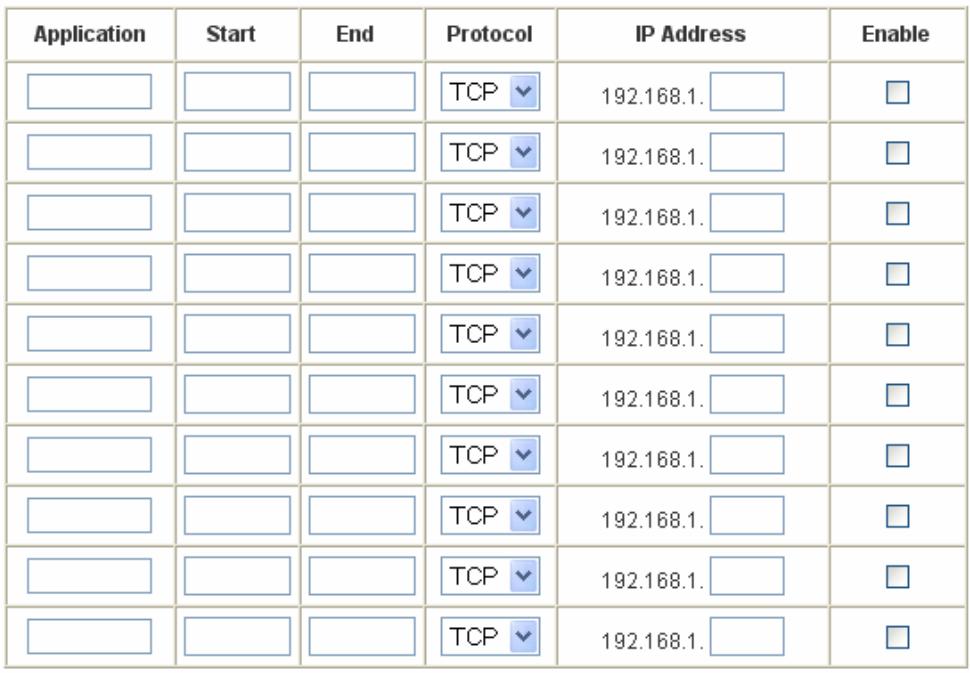

Figure 54: Port Range Forwarding Screen
Data - Port Range Forwarding Screen
| Port Range Forwarding | |
| Application | Enter the desired application type. |
| Start | Enter the beginning of the range of port numbers used by the application server. |
| End | Enter the end of the range of port numbers used by the application server. |
| Protocol | Select the protocol (TCP, UDP or Both) used by the Server. |
| IP Address | Enter the desired IP address. |
| Enable | Use this to Enable or Disable support for this Server, as required. |
6.9 QoS
The QoS (Quality of Service) feature allows you specify priorities for different traffic. Lower priority traffic will be slowed down to allow greater throughput or less delay for high priority traffic.
An example QoS screen is shown below.
QOS
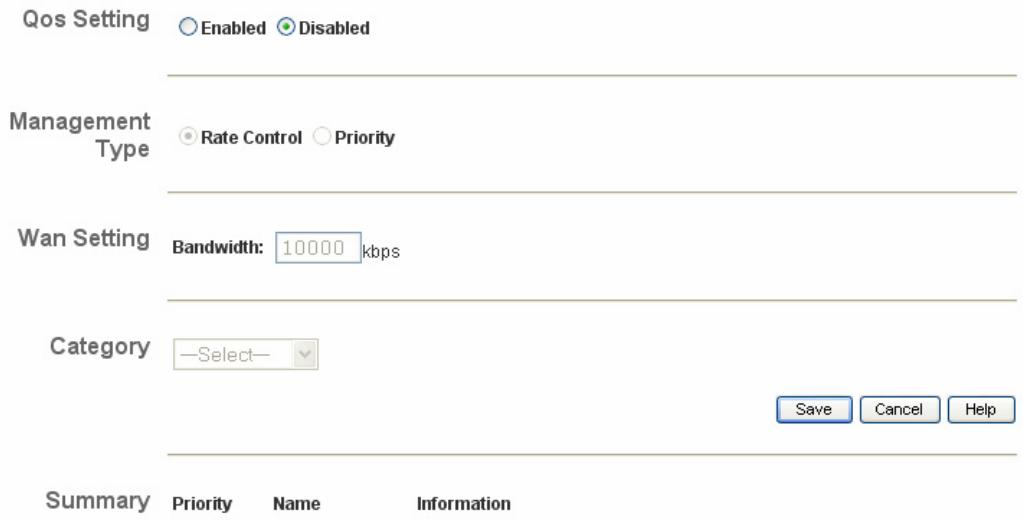
Figure 55: QoS Screen
Data - QoS Screen
| QoS Setting | |
| QoS Setting | To disable QoS (Quality of Service), keep the default setting, Disable. To enable QoS (Quality of Service), click Enable and follow these instructions. |
| Management Type | There are 2 options: • Rate Control - The QoS will be managed by the size of the bandwidth. • Priority - The QoS will be managed by the priority. |
| Bandwidth | Enter the desired value of the bandwidth. |
| Category | Applications: ·Add a New Application (Once selected, please complete the following setups.) ·Ip/Net: Enter the IP address. ·Rate: Enter the desired rate value. ·Priority: Select the desired option (High, Normal, Low) ·Direct: Select Upstream or Downstream as required. ·Self-Define ·Name. Enter a name for your device. ·Port Range: Enter the value for the desired port range. ·Protocol: Select the desired option. ·Ip/Net: Enter the IP address of your device. ·Rate: Enter the desired rate value. ·Priority: Select the option (High, Normal, Low) from the list. ·Direct: Select Upstream or Downstream as required. |
| Summary | |
| Priority | The general Information of this Application or IP Address. |
| Name | The Name of this Application or IP Address. |
| Information | The general Information of this Application or IP Address. |
Chapter 7 : Advanced Administration
This Chapter explains the settings available via the "Administration" section of the menu.
7.1 Overview
Normally, it is not necessary to use these screens, or change any settings. These screens and settings are provided to deal with non-standard situations, or to provide additional options for advanced users.
The available settings and features are:
| PC Database | This is the list of PCs shown when you select the "DMZ PC" or a "Virtual Server". This database is maintained automatically, but you can add and delete entries for PCs which use a Fixed (Static) IP Address. |
| Config File | Backup or restore the configuration file for the Wireless Router. This file contains all the configuration data. |
| Logs & E-mail | View or clear all logs, set E-Mailing of log files and alerts. |
| Diagnostics | Perform a Ping or DNS Lookup. |
| Remote Admin | Allow settings to be changed from the Internet. |
| Routing | Only required if your LAN has other Routers or Gateways. |
| Upgrade Firmware | Upgrade the Firmware (software) installed in your WirelessRouter. |
7.2 PC Database
The PC Database is used whenever you need to select a PC (e.g. for the "DMZ" PC).
It eliminates the need to enter IP addresses.
- Also, you do not need to use fixed IP addresses on your LAN.
However, if you do use a fixed IP address on some devices on your LAN, you should enter details of each such device into the PC database, using the PC Database screen.
PC Database Screen
An example PC Database screen is shown below.
PC Database
This Database only list the clients connected.
Known PCs
AIRLIVE-TEST 192.168.1.1 (LAN) 00:0D:61:27:37:50
Refresh
Advanced
Help
Figure 56: PC Database
- PCs which are "DHCP Clients" are automatically added to the database, and updated as required.
- By default, non-Server versions of Windows act as "DHCP Clients"; this setting is called "Obtain an IP Address automatically".
- The Wireless Router uses the "Hardware Address" to identify each PC, not the name or IP address. The "Hardware Address" can only change if you change the PC's network card or adapter.
- This system means you do NOT need to use Fixed (static) IP addresses on your LAN. However, you can add PCs using Fixed (static) IP Addresses to the PC database if required.
Data - PC Database Screen
| Known PCs | This lists all current entries. Data displayed is name (IP Address) type. The "type" indicates whether the PC is connected to the LAN. |
| Button | |
| Refresh | Update the data on screen. |
| Advanced | Click this to view the advanced "PC Database" screen. |
PC Database (Admin)
This screen is displayed if the "Advanced" button on the PC Database is clicked. It provides more control than the standard PC Database screen.
PC Database - Advanced
Any PC may be added, edited or deleted. If adding a PC which is not connected and On, you must provide the MAC (hardware) address
Known PCs
AIRLIVE-TEST 192.168.1.1 (LAN) 00:0D:61:27:37:50
Edit
Delete
PC Properties
Name:
IP Address:
Automatic (DHCP Client)
DHCP Client-reserved IP address:
Fixed IP address (set on PC):
Figure 57: PC Database (Admin)
MAC Address: Automatic discovery (PC must be available on LAN)
MAC address is
Add as New Entry
Update Selected PC
Refresh
Standard Screen
Help
Data - PC Database ( Admin) Screen
| Known PCs | This lists all current entries. Data displayed is name (IP Address) type. The "type" indicates whether the PC is connected to the LAN. |
| Edit | Use this to change the data for the selected PC in the list. The data for the selected PC will then be shown in the "Properties" area, where it may be edited. (Click "Update" to save any changes.) |
| Delete | Use this to Delete the selected PC from the list. This should be done in 2 situations: • The PC has been removed from your LAN. • The entry is incorrect. |
| PC Properties | |
| Name | If adding a new PC to the list, enter its name here. It is best if this matches the PC's "hostname". |
| IP Address | Select the appropriate option: ·Automatic - The PC is set to be a DHCP client (Windows: "Obtain an IP address automatically"). The Wireless Router will allocate an IP address to this PC when requested to do so. The IP address could change, but normally won't. ·DCHP Client - Reserved IP Address - Select this if the PC is set to be a DCHP client, and you wish to guarantee that the WirelessRouter will always allocate the same IP Address to this PC. Enter the required IP address. Only the last field is required; the other fields must match the WirelessRouter's IP address. ·Fixed IP Address - Select this if the PC is using a Fixed (Static) IP address. Enter the IP address allocated to the PC. (The PC must be configured to use this IP address.) |
| MAC Address | Select the appropriate option ·Automatic discovery - Select this to have the Wireless Router contact the PC and find its MAC address. This is only possible if the PC is connected to the LAN and powered On. ·MAC address is - Enter the MAC address on the PC. The MAC address is also called the "Hardware Address", "Physical Address", or "Network Adapter Address". The Broadband Router uses this to provide a unique identifier for each PC. Because of this, the MAC address can NOT be left blank. |
| Buttons | |
| Add as New Entry | Add a new PC to the list, using the data in the "Properties" box. If "Automatic discovery" (for MAC address) is selected, the PC will be sent a "ping" to determine its hardware address. This will fail unless the PC is connected to the LAN, and powered on. |
| Update Selected PC | Update (modify) the selected PC, using the data in the "Properties" box. |
| Clear Form | Clear the "Properties" box, ready for entering data for a new PC. |
| Refresh | Update the data on screen. |
| Standard Screen | Click this to view the standard PC Database screen. |
7.3 Config File
This feature allows you to download the current settings from the Wireless Router, and save them to a file on your PC.
You can restore a previously-downloadd configuration file to the Wireless Router, by uploading it to the WirelessRouter.
This screen also allows you to set the Wireless Router back to its factory default configuration. Any existing settings will be deleted.
An example Config File screen is shown below.
Config File
Backup Config Save a Copy of Current Settings
Backup
| Backup Config | Use this to download a copy of the current configuration, and store the file on your PC. Click Backup to start the download. |
| Restore Config | This allows you to restore a previously-saved configuration file back to the Wireless Router. Click Browse to select the configuration file, then click Restore to upload the configuration file. WARNING! Uploading a configuration file will destroy (overwrite) ALL of the existing settings. |
| Default Config | Clicking the Factory Defaults button will reset the Wireless Router to its factory default settings. WARNING! This will delete ALL of the existing settings. |
7.4 Logs
The Logs record various types of activity on the Wireless Router. This data is useful for troubleshooting, but enabling all logs will generate a large amount of data and adversely affect performance.
Since only a limited amount of log data can be stored in the Wireless Router, log data can also be E-mailed to your PC. Use the E-Mail screen to configure this feature.
Logs
Logs Current time: 1999-12-31 16:11:22
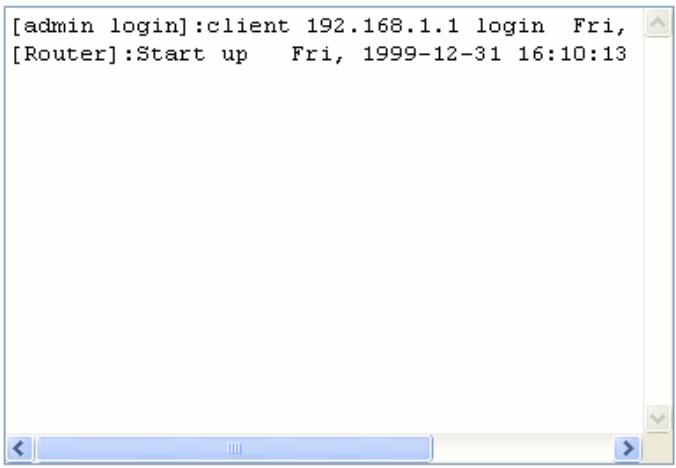
Figure 59: Logs Screen
Refresh
Clear Log
Send Log
Include in Log
Attempted access to blocked sites
Connections to the Web-based interface of this Router
Router operation (start up, get time etc)
Known DoS attacks and Port Scans
Outgoing (Internet) connections
□ Access control
Syslog
Disable
Broadcast on LAN
Send to this Syslog Server:
Save
Cancel
Help
Data - Logs Screen
| Logs | |
| Current Time | The current time on the Wireless Router is displayed. |
| Log Data | Current log data is displayed in this panel. |
| Buttons | There are three (3) buttons • Refresh - Update the log data. • Clear Log - Clear the log, and restart it. This makes new messages easier to read. • Send Log - E-mail the log immediately. This is only functional if the E-mail screen has been configured. |
| Include in Logs | |
| Include (Check-boxes) | Use these checkboxes to determine which events are included in the log. Checking all options will increase the size of the log, so it is good practice to disable any events which are not really required. • Attempted access to blocked sites - If checked, attempted Internet accesses which were blocked are logged. • Connections to the Web-based interface of this Router - If checked, this will log connections TO thisRouter, rather than through this Router to the Internet. • Router operation - If checked, other Router operations (not covered by the selections above) will be logged. • Known DoS attacks and Port Scans - If checked, Denial of Service attacks, as well as port scans, will be logged. • Outgoing (Internet) connections - If checked, the outgoing Internet connections are logged. • Access Control - If enabled, the log will include attempted outgoing connections which have been blocked by the "Access Control" feature. |
| Syslog | |
| Disable | Data is not sent to a Syslog Server. |
| Broadcast on LAN | The Syslog data is broadcast, rather than sent to a specific Syslog server. Use this if your Syslog Server does not have a fixed IP address. |
| Send to this Syslog Server | If your Syslog server has a fixed IP address, select this option, and enter the IP address of your Syslog server. |
7.5 E-Mail
This screen allows you to E-mail Logs and Alerts. A sample screen is shown below.
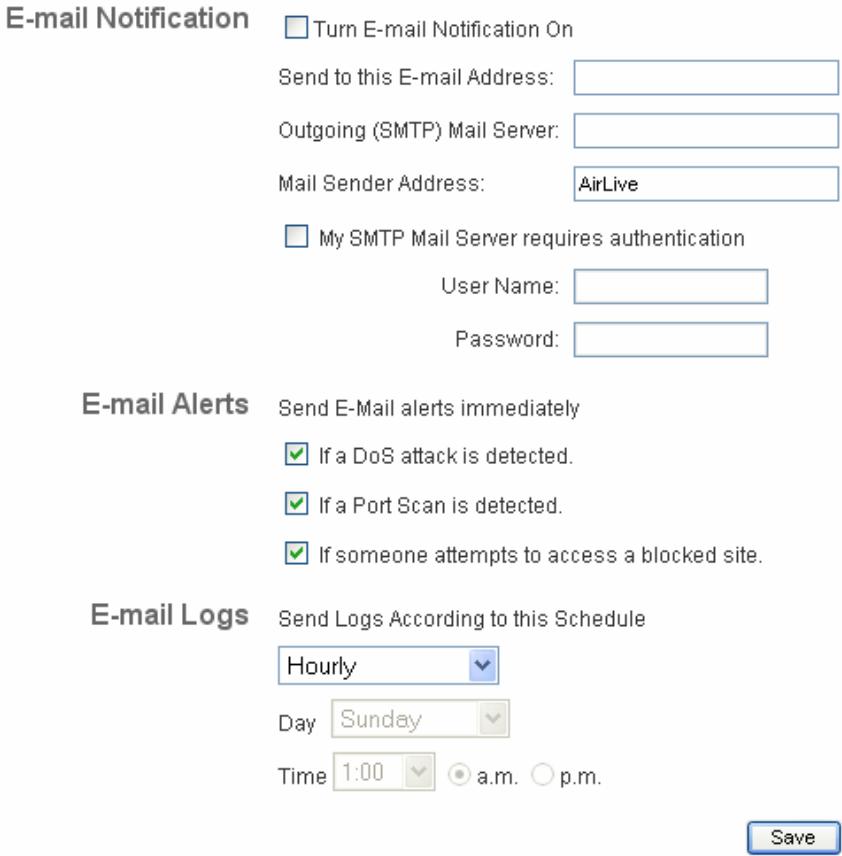
Figure 60: E-Mail Screen
Data - E-Mail Screen
| E-Mail Notification | |
| Turn E-mail Notification on | Check this box to enable this feature. If enabled, the E-mail address information (below) must be provided. |
| Send to this E- mail Address | Enter the E-mail address the Log is to be sent to. The E-mail will also show this address as the Sender's address. |
| Outgoing (SMTP) Mail Server | Enter the address or IP address of the SMTP (Simple Mail Transport Protocol) Server you use for outgoing E-mail. |
| Mail Sender Address | Enter the mail address of the sender. The E-mail will also show this address as the Sender's address. |
| My SMTP Mail Server requires authentication | To stop spanners, many SMTP mail servers require you to log in to send mail. In this case, enable this checkbox, and enter the login information (User name and Password) in the fields below. |
| User Name | If you have enabled "My SMTP Mail Server requires authenti- cation" above, enter the User Name required to login to your SMTP Server. |
| Password | If you have enabled "My SMTP Mail Server requires authenti-cation" above, enter the password required to login to your SMTP Server. |
| E-mail Alerts | |
| Send E-mail alerts immediately | You can choose to have alerts E-mailed to you, by checking the desired checkboxes. The Wireless Router can send an immediate alert when it detects a significant security incident such as · A known hacker attack is directed at your IP address · A computer on the Internet scans your IP address for open ports · Someone on your LAN (Local Area Network) tries to visit a blocked site. |
| E-mail Logs | |
| Send Logs | Select the desired option for sending the log by E-mail. · Never (default) - This feature is disabled; Logs are not sent. · When log is full - The time is not fixed. The log will be sent when the log is full, which will depend on the volume of traffic. · Hourly, Daily, Weekly... - The log is sent on the interval specified. · If Daily is selected, the log is sent at the time speci-fied. Select the time of day you wish the E-mail to be sent. · If Weekly is selected, the log is sent once per week, on the specified day, at the specified time. Select the day and the time of day you wish the E-mail to be sent. Note: If the log is full before the time specified to send it, it will be sent regardless of the day and time specified. |
7.6 Diagnostics
This screen allows you to perform a "Ping" or a "DNS lookup". These activities can be useful in solving network problems.
An example Network Diagnostics screen is shown below.
Network Diagnostics
Ping
IP Address:

Ping
DNS Lookup
Internet Name:

Figure 61: Network Diagnostics Screen
Lookup
IP address:
DNS Server:
Routing
Display the Routing Table
Display
Help
Data - Network Diagnostics Screen
| Ping | |
| IP Address | Enter the IP address you wish to ping. The IP address can be on your LAN, or on the Internet. Note that if the address is on the Internet, and no connection currently exists, you could get a "Timeout" error. In that case, wait a few seconds and try again. |
| Ping Button | After entering the IP address, click this button to start the "Ping" procedure. The results will be displayed in the Ping Results pane. |
| DNS Lookup | |
| Internet Name | Enter the Domain name or URL for which you want a DNS (Domain Name Server) lookup. Note that if the address in on the Internet, and no connection currently exists, you could get a "Timeout" error. In that case, wait a few seconds and try again. |
| Lookup Button | After entering the Domain name/URL, click this button to start the "DNS Lookup" procedure. |
| Routing | |
| Display | Click this button to display the internal routing table. This information can be used by Technical Support and other staff who understand Routing Tables. |
7.7 Remote Administration
If enabled, this feature allows you to manage the Wireless Router via the Internet.
Remote Administration
Remote Administration
Enable Remote Management
Current IP Address:
Port Number:
8080
Access Permission
Allow Remote Access By:
Everyone
Only This Computer:
IP Address Range:




Figure 62: Remote Administration Screen
Data - Remote Administration Screen
| Remote Administration | |
| Enable Remote Management | Check to allow administration/management via the Internet. (To connect, see below). If Disabled, this device will ignore Administration connection attempts from the Internet. |
| Current IP Address | This is the current address you will use when accessing this device from the Internet. To connect, see details and an example below. |
| Port Number | Enter a port number between 1 and 65535. The default for HTTP (Web) connections is port 80, but using port 80 will prevent the use of a Web "Virtual Server" on your LAN. So using a different port number is recommended. The default value is 8080. The port number must be specified in your Browser when you connect. See the following section for details. |
| Access Permission | |
| Allow Remote Access | Select the desired option. • Everyone - allow access by everyone on the Internet. • Only This Computer - allow access by only one IP address. Enter the desired IP address. • IP Address Range - allow access from a range of IP addresses on the Internet. Enter a beginning and ending IP address to define the allowed range. For security, you should restrict access to as few external IP addresses as practical. |
To connect from a remote PC via the Internet
- Ensure your Internet connection is established, and start your Web Browser.
- In the "Address" bar, enter "HTTP://" followed by the Internet IP Address of the Wireless Router. If the port number is not 80, the port number is also required. (After the IP Address, enter":" followed by the port number.)
e.g.
HTTP://123.123.123.123:8080
This example assumes the WAN IP Address is 123.123.123.123, and the port number is 8080.
- You will then be prompted for the login name and password for this device.
7.8 Routing
Overview
- If you don't have other Routers or Gateways on your LAN, you can ignore the "Routing" page completely.
- If the Wireless Router is only acting as a Gateway for the local LAN segment, ignore the "Routing" page even if your LAN has other Routers.
- If your LAN has a standard Router (e.g. Cisco) on your LAN, and the Wireless Router is to act as a Gateway for all LAN segments, enable RIP (Routing Information Protocol) and ignore the Static Routing table.
- If your LAN has other Gateways and Routers, and you wish to control which LAN segments use each Gateway, do NOT enable RIP (Routing Information Protocol). Configure the Static Routing table instead. (You also need to configure the other Routers.)
-
If using Windows 2000 Data center Server as a software Router, enable RIP on the Wireless Router, and ensure the following Windows 2000 settings are correct:
-
Open Routing and Remote Access
- In the console tree, select Routing and Remote Access, [server name], IP Routing, RIP
- In the "Details" pane, right-click the interface you want to configure for RIP version 2, and then click "Properties".
- On the "General" tab, set Outgoing packet protocol to "RIP version 2 broadcast", and Incoming packet protocol to "RIP version 1 and 2".
Routing Screen
The routing table is accessed by the Routing link on the Administration menu.
Using this Screen
Generally, you will use either RIP (Routing Information Protocol) OR the Static Routing Table, as explained above, although it is possible to use both methods simultaneously.
Static Routing Table
- If RIP is not used, an entry in the routing table is required for each LAN segment on your Network, other than the segment to which this device is attached.
- The other Routers must also be configured. See Configuring Other Routers on your LAN later in this chapter for further details and an example.
Routing
RIP
RIP Direction
None

RIP Version
RIP-1

Static Routing
Static Routing Table Entries
Figure 63: Routing Screen
Add
Edit
Delete
Save
Cancel
Help
Data - Routing Screen
| RIP | |
| RIP Direction | Select the desired RIP Direction. |
| RIP Version | Choose the RIP Version for the Server. |
| Static Routing | |
| Static Routing Table Entries | This list shows all entries in the Routing Table. ·This area shows details of the selected item in the list. ·Change any the properties as required, then click the "Edit" button to save the changes to the selected entry. |
| Buttons | |
| Add | Add a new entry to the Static Routing table, using the data shown in the "Properties" area on screen. The entry selected in the list is ignored, and has no effect. |
| Edit | Update the current Static Routing Table entry, using the data shown in the table area on screen. |
| Delete | Delete the current Static Routing Table entry. |
| Save | Save the RIP setting. This has no effect on the Static Routing Table. |
Configuring Other Routers on your LAN
It is essential that all IP packets for devices not on the local LAN be passed to the Wireless Router, so that they can be forwarded to the external LAN, WAN, or Internet. To achieve this, the local LAN must be configured to use the Wireless Router as the Default Route or Default Gateway.
Local Router
The local router is the Router installed on the same LAN segment as the Wireless Router. This router requires that the Default Route is the Wireless Router itself. Typically, routers have a special entry for the Default Route. It should be configured as follows.
| Destination IP Address | Normally 0.0.0.0, but check your router documenta- tion. |
| Network Mask | Normally 0.0.0.0, but check your router documenta- tion. |
| Gateway IP Address | The IP Address of the Wireless Router. |
| Metric | 1 |
Other Routers on the Local LAN
Other routers on the local LAN must use the Wireless Router's Local Router as the Default Route. The entries will be the same as the WirelessRouter's local router, with the exception of the Gateway IP Address.
- For a router with a direct connection to the Wireless Router's local Router, the Gateway IP Address is the address of the WirelessRouter's local router.
- For routers which must forward packets to another router before reaching the Wireless Router's local router, the Gateway IP Address is the address of the intermediate router.
Static Routing - Example
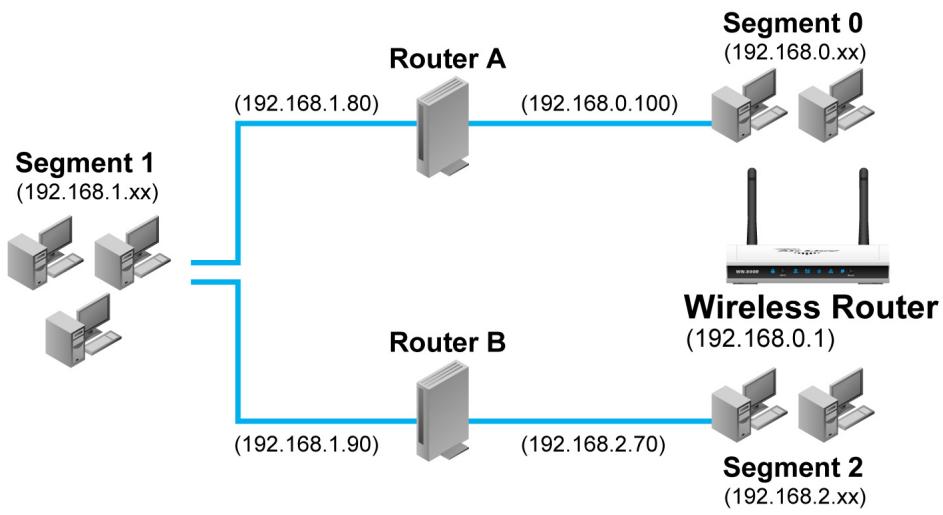
Figure 64: Routing Example
For the Wireless Router's Routing Table
For the LAN shown above, with 2 routers and 3 LAN segments, the Wireless Router requires 2 entries as follows.
| Entry 1 (Segment 1) | |
| Destination IP Address | 192.168.1.0 |
| Network Mask | 255.255.255.0 (Standard Class C) |
| Gateway IP Address | 192.168.1.25400 (Wireless Router's local Router) |
| Metric | 2 |
| Entry 2 (Segment 2) | |
| Destination IP Address | 192.168.2.0 |
| Network Mask | 255.255.255.0 (Standard Class C) |
| Gateway IP Address | 192.168.1.25400 |
| Metric | 3 |
For RouterA'sDefaultRoute
| Destination IP Address | 0.0.0.0 |
| Network Mask | 0.0.0.0 |
| Gateway IP Address | 192.168.1.254 (Wireless Router's IP Address) |
For Router B's Default Route
| Destination IP Address | 0.0.0.0 |
| Network Mask | 0.0.0.0 |
| Gateway IP Address | 192.168.1.80 (Wireless Router's local router) |
7.9 Upgrade Firmware
The firmware (software) in the Wireless Router can be upgraded using your Web Browser.
You must first download the upgrade file, then select Upgrade Firmware on the Administration menu. You will see a screen like the following.
Upgrade Firmware
Locate and Select the Upgrade File from your Hard Disk:

Figure 65: Router Upgrade Screen
To perform the Firmware Upgrade:
- Click the Browse button and navigate to the location of the upgrade file.
- Select the upgrade file. Its name will appear in the Upgrade File field.
- Click the Upload button to commence the firmware upgrade.

The Wireless Router is unavailable during the upgrade process, and must restart when the upgrade is completed. Any connections to or through the Wireless Router will be lost.
Chapter 8 : Access Point Mode
This Chapter explains configuration and operation when in "Access Point".
8.1 Overview
There are two modes available on the Access Point screen.
- Router-In this mode, this device can provide shared Internet Access to all your LAN users. Also, by default, it acts a DHCP Server, providing an IP address and related information to all Wireless and LAN users.
- Access Point - The device links your Wireless Stations to your wired LAN. The Wireless stations and devices on the wired LAN are then on the same network, and can communicate with each other without regard for whether they are connected to the network via a Wireless or wired connection.
This Chapter describes operation while in Access Point Mode.
8.2 Management Connections
- You need to have a DHCP Server on your LAN to provide IP addresses to the Wireless clients using this Access Point.
- This AP must be a valid device on your LAN, to allow management connections. You must assign a (fixed) IP address which is within the address range used on your LAN, but not within the address range used by your DHCP server.
When you connect in future, just connect normally, using the IP address you assigned.
- Start your WEB browser.
- In the Address box, enter "HTTP://" and the current IP Address of the Wireless ADSL Modem, as in this example, which uses the Wireless ADSL Modem's default IP Address:
HTTP://192.168.1.254
- When prompted for the User name and Password, enter admin for the user name, and the current password, as set on the password screen. (The password is the same regardless of the mode.)
8.3 Home Screen
If in Modem mode, the home screen will look like the example below.
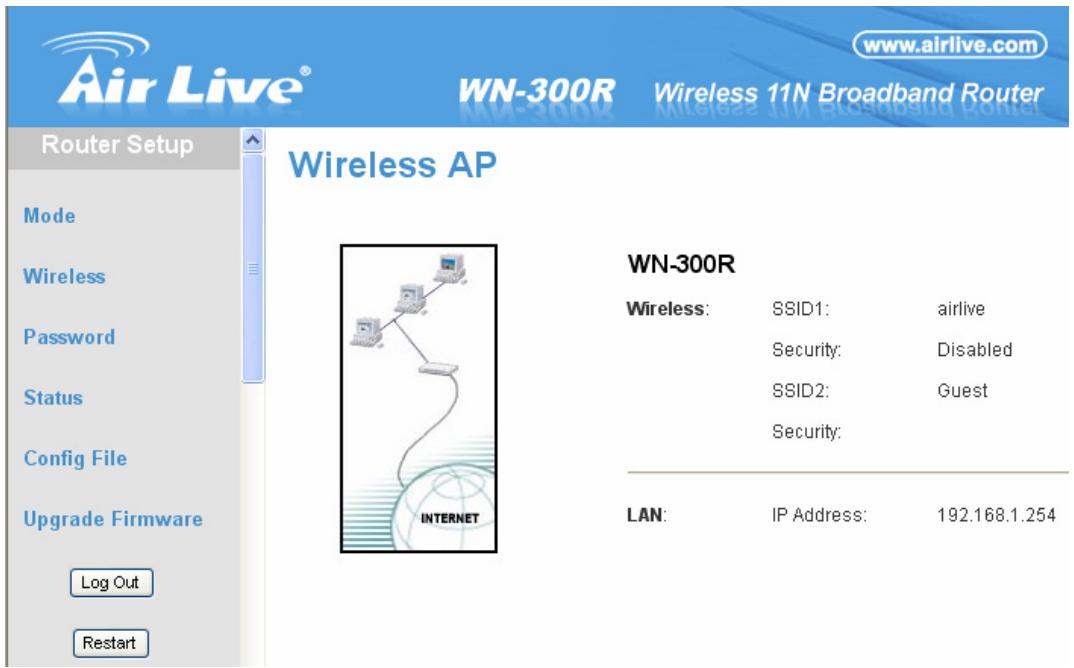
Figure 66: Home Screen - Modem Mode
Note that the menu has changed, many of the options in Router mode are not available. The screens available are:
Mode - change back to Routermode,ifdesired.
- Wireless - this screen, and related sub-screens, is the same as in Router mode.
- Password - this screen is the same as in Router mode.
- Status - displays current settings and status. See the following section for details.
- Config File - this screen is the same as in Router mode.
- Upgrade FW - this screen is the same as in Router mode.
8.4 Mode Screen
This screen is change back to Router mode, if desired.
Mode
Device Mode
Device Name:
WN-300R
Device Mode:

Figure 67: Mode Screen
IP Address:
192
168
1
254
Subnet Mask:
255
255
255
0
Save
Help
Data - Mode Screen
| Device Name | This field displays the current name of this device. |
| Device Mode | Select the desired device mode for the router: • Router - In this mode, this device can provide shared Internet Access to all your LAN users. Also, by default, it acts a DHCP Server, providing an IP address and related information to all Wireless and LAN users. •Access Point - The device links your Wireless Stations to your wired LAN. The Wireless stations and devices on the wired LAN are then on the same network, and can communicate with each other without regard for whether they are connected to the network via a Wireless or wired connection. After changing the mode, this device will restart, which will take a few seconds. The menu will also change, depending on the mode you are in. |
| IP Address | The IP Address of this device. Use the default value unless the address is already in use or your LAN is using a different IP address range. |
| Subnet Mask | The Network Mask associated with the IP Address above. |
8.5 Operation
Operation is automatic.
- Wireless clients can connect to the Access Point if they have the correct SSID and security, but they must obtain an IP address from the DHCP Server on your LAN.
8.6 Status Screen
In Modem mode, the Status screen looks like the example below.
Status
LAN
| IP Address: | 192.168.1.254 |
| Network Mask: | 255.255.255.0 |
| MAC Address: | 00:C0:02:25:84:10 |
Wireless
| Region: | -- |
| Channel: | 6 |
| Wireless AP: | enable |
| SSID1 | |
| Name (SSID1): | ailive |
| Broadcast Name: | enable |
| MAC Address: | 00:C0:02:25:84:10 |
| SSID2 | |
| Name (SSID2): | Guest |
| Broadcast Name: | enable |
| MAC Address: | 00:c0:02:25:84:11 |
System
| Device Name: | WN-300R |
| Firmware Version: | 1.00.05 |
| Current Time : | 1999-12-31 16:02:19 |
Refresh Screen
Help
Figure 68: Status Screen - Bridge Mode
Data - Status Screen (Bridge Mode)
| LAN | |
| IP Address | The IP Address of the Wireless ADSL Router. |
| Network Mask | The Network Mask (Subnet Mask) for the IP Address above. |
| MAC Address | This shows the MAC Address for the Wireless ADSL Router, as seen on the LAN interface. |
| Wireless | |
| Region | The current region, as set on the Wireless screen. |
| Channel | This shows the Channel currently used, as set on the Wireless screen. |
| Wireless AP | This indicates whether or not the Wireless Access Point feature is enabled. |
| Name (SSID 1/2) | It displays the name of theSSID 1/2. |
| Broadcast Name | This indicates whether or not theSSID is Broadcast. This setting is on the Wireless screen. |
| MAC Address | The MAC (physical) address of the Wireless Access Point. |
| System | |
| Device Name | The current name of the Router. This name is also the "hostname" for users with an "@Home" type connection. |
| Firmware Version | The version of the current firmware installed. |
| Current Time | It displays the current time of the system. |
| Buttons | |
| Refresh Screen | Update the data displayed on screen. |
Chapter 9 : Troubleshooting
This Appendix covers the most likely problems and their solutions.
9.1 Overview
This chapter covers some common problems that may be encountered while using the Wireless Router and some possible solutions to them. If you follow the suggested steps and the Wireless Router still does not function properly, contact your dealer for further advice.
9.2 General Problems
Problem 1: Can't connect to the Wireless Router to configure it.
Solution 1: Check the following:
-
The Wireless Router is properly installed, LAN connections are OK, and it is powered ON.
-
Ensure that your PC and the Wireless Router are on the same network segment. (If you don't have a router, this must be the case.)
-
If your PC is set to "Obtain an IP Address automatically" (DHCP client), restart it.
-
If your PC uses a Fixed (Static) IP address, ensure that it is using an IP Address within the range 192.168.0.2 to 192.168.0.254 and thus compatible with the Wireless Router's default IP Address of 192.168.1.254.
Also, the Network Mask should be set to 255.255.255.0 to match the Wireless Router.
In Windows, you can check these settings by using Control Panel-Network to check the Properties for the TCP/IP protocol.
9.3 Internet Access
Problem 1: When I enter a URL or IP address I get a time out error.
Solution 1: A number of things could be causing this. Try the following troubleshooting steps.
- Check if other PCs work. If they do, ensure that your PCs IP settings are correct. If using a Fixed (Static) IP Address, check the Network Mask, Default gateway and DNS as well as the IP Address.
- If the PCs are configured correctly, but still not working, check the Wireless Router. Ensure that it is connected and ON. Connect to it and check its settings. (If you can't connect to it, check the LAN and power connections.)
- Check the Wireless Router's status screen to see if it is working correctly.
Problem 2: Some applications do not run properly when using the Wireless Router.
Solution 2: The Wireless Router processes the data passing through it, so it is not transparent.
For incoming connections, you must use the Virtual Server or Firewall Rules to specify the PC which will receive the incoming traffic.
You can also use the DMZ function. This should work with almost every application, but:
It is a security risk, since the firewall is disabled.
Only one (1) PC can use this feature.
9.4 Wireless Access
Problem 1: My PC can't locate the Wireless Access Point.
Solution 1: Check the following.
- Your PC is set to Infrastructure Mode. (Access Points are always in Infrastructure Mode)
- The SSID on your PC and the Wireless Access Point are the same.
Remember that the SSID is case-sensitive. So, for example "Workgroup" does NOT match "workgroup".
- Both your PC and the Wireless Router must have the same setting for WEP. The default setting for the Wireless Router is disabled, so your wireless station should also have WEP disabled.
- If WEP is enabled on the Wireless Router, your PC must have WEP enabled, and the key must match.
- If the Wireless Router's Wireless screen is set to Allow Trusted PCs only, then each of your Wireless stations must have been designated as "Trusted", or the Wireless station will be blocked.
- To see if radio interference is causing a problem, see if connection is possible when close to the Wireless Router.
Remember that the connection range can be as little as 100 feet in poor environments.
Problem 2: Wireless connection speed is very slow.
Solution 2: The wireless system will connect at the highest possible speed, depending on the distance and the environment. To obtain the highest possible connection speed, you can experiment with the following:
- Wireless Router location.
Try adjusting the location and orientation of the Wireless Router.
Wireless Channel
If interference is the problem, changing to another channel may show a marked improvement.
Radio Interference
Other devices may be causing interference. You can experiment by switching other devices Off, and see if this helps. Any "noisy" devices should be shielded or relocated.
RF Shielding
Your environment may tend to block transmission between the wireless stations. This will mean high access speed is only pos-
sible when close to the Wireless Router.
Chapter 10 : About Wireless LANs
This Appendix provides some background information about using Wireless LANs (WLANs).
10.1 Modes
Wireless LANs can work in either of two (2) modes:
Ad-hoc
Infrastructure
Ad-hoc Mode
Ad-hoc mode does not require an Access Point or a wired (Ethernet) LAN. Wireless Stations (e.g. notebook PCs with wireless cards) communicate directly with each other.
Infrastructure Mode
In Infrastructure Mode, one or more Access Points are used to connect Wireless Stations (e.g. Notebook PCs with wireless cards) to a wired (Ethernet) LAN. The Wireless Stations can then access all LAN resources.

Access Points can only function in "Infrastructure" mode, and can communicate only with Wireless Stations which are set to "Infrastructure" mode.
10.2 BSS/ESS
BSS
A group of Wireless Stations and a single Access Point, all using the same ID (SSID), form a Basic Service Set (BSS).
Using the same SSID is essential. Devices with different SSIDs are unable to communicate with each other.
ESS
A group of Wireless Stations, and multiple Access Points, all using the same ID (ESSID), form an Extended Service Set (ESS).
Different Access Points within an ESS can use different Channels. In fact, to reduce interference, it is recommended that adjacent Access Points SHOULD use different channels.
As Wireless Stations are physically moved through the area covered by an ESS, they will automatically change to the Access Point which has the least interference or best performance. This capability is called Roaming. (Access Points do not have or require Roaming capabilities.)
10.3 Channels
The Wireless Channel sets the radio frequency used for communication.
- Access Points use a fixed Channel. You can select the Channel used. This allows you to choose a Channel which provides the least interference and best performance. In the USA and Canada, 11 channels are available. If using multiple Access Points, it is better if adjacent Access Points use different Channels to reduce interference.
- In "Infrastructure" mode, Wireless Stations normally scan all Channels, looking for an Access Point. If more than one Access Point can be used, the one with the strongest signal is used. (This can only happen within an ESS.)
- If using "Ad-hoc" mode (no Access Point), all Wireless stations should be set to use the same Channel. However, most Wireless stations will still scan all Channels to see if there is an existing "Ad-hoc" group they can join.
10.4 WEP
WEP (Wired Equivalent Privacy) is a standard for encrypting data before it is transmitted.
This is desirable because it is impossible to prevent snoppers from receiving any data which is transmitted by your Wireless Stations. But if the data is encrypted, then it is meaningless unless the receiver can decrypt it.
If WEP is used, the Wireless Stations and the Access Point must have the same settings for each of the following:
| WEP | Off, 64 Bit, 128 Bit |
| Key | For 64 Bit encryption, the Key value must match. For 128 Bit encryption, the Key value must match |
| WEP Authentication | Open System or Shared Key. |
10.5 WPA-PSK
WPA-PSK is another standard for encrypting data before it is transmitted. This is a later standard than WEP (Wired Equivalent Privacy), and provides greater security for your data. Data is encrypted using a 256Bit key which is automatically generated and changed often.
If all your Wireless stations support WPA-PSK, you should use this instead of WEP.
If WPA-PSK is used, the Wireless Stations and the Access Point must have the same settings for each of the following:
| WPA PSK (Pre-shared Key) | Enter the same value on every station and the AP. The PSK must be from 8 to 63 characters in length. The 256Bit key used for the actual encryption is derived from this key. |
| Encryption | The same encryption method must be used. The most common encryption method is TKIP. Another widely-supported method is AES. |
10.6 WPA2-PSK
This is a later version of WPA (WPA-PSK). The major change is the use of AES (Advanced Encryption System) for protecting data. AES is very secure, considered to be unbreakable. The PSK (Pre-shared Key) must be entered on each Wireless station. If WPA2-PSK is used, the Wireless Stations and the Access Point must have the same settings for each of the following:
| WPA2 PSK (Pre-shared Key) | Enter the same value on every station and the AP. The PSK must be from 8 to 63 characters in length. The 256Bit key used for the actual encryption is derived from this key. |
| Encryption | The same encryption method must be used. The most common encryption method is TKIP. Another widely-supported method is AES. |
10.7 WPA-802.1x
WPA-802.1x - This version of WPA requires a Radius Server on your LAN to provide the client authentication according to the 802.1x standard. Data transmissions are encrypted using the WPA standard.
If this option is used:
- The Access Point must have a "client login" on the Radius Server.
Each user must have a "user login" on the Radius Server.
Each user's wireless client must support 802.1x and provide the login data when required. - All data transmission is encrypted using the WPA standard. Keys are automatically generated, so no key input is required.
10.8 Wireless LAN Configuration
To allow Wireless Stations to use the Access Point, the Wireless Stations and the Access Point must use the same settings, as follows:
| Mode | On client Wireless Stations, the mode must be set to "Infrastructure". (The Access Point is always in "Infrastructure" mode.) |
| SSID (ESSID) | Wireless Stations should use the same SSID (ESSID) as the Access Point they wish to connect to. Alternatively, the SSID can be set to "any" or null (blank) to allow connection to any Access Point. |
| Wireless Security | The Wireless Stations and the Access Point must use the same settings for Wireless security. (None, WEP, WPA-PSK, WPA2-PSK, WPA-802.1x) · If Wireless security remains disabled on the Wireless |
| Router, all stations must have wireless security disabled. ·If Wireless security is enabled on the Wireless Router, each station must use the same settings as the Wireless ADLS Router. |
Chapter 11 : Specifications
11.1 Multi-Function Wireless Route
| Model | Wireless Router |
| Dimensions | 125mm(W) * 122mm(D) * 30mm(H) |
| Operating Tempera-ture | 0°C to 40°C |
| Storage Temperature | -20°C to 70°C |
| Network Protocol: | TCP/IP |
| Network Interface: | 4 * 10/100BaseT (RJ45) LAN connection 1 * RJ-45 for ADSL/Broadband Modem |
| LEDs | 6 |
| Power Adapter | 12 V DC External |
11.2 Wireless Interface
| Standards | IEEE802.11b, IEEE802.11g WLAN, 802.11n Draft |
| Frequency | 2.4 to 2.485GHz |
| Channels | Maximum 13 Channels, depending on regulatory authorities |
| Modulation | CCK, DQPSK, DBPSK, BPSK, QPSK, 16-QAM, 64-QAM, OFDM |
| Data Rate | Up to 300 Mbps (802.11n Draft) |
| Security | WEP 64/128Bit, WPA-PSK, WPA2-PSK, WPA-802.1x, MAC address filtering, WPS button support |
| Antenna power | 1.8dBi |
| Antenna type | Internal fixed x 2 |
11.3 Regulatory Approvals
FCC Statement
This equipment has been tested and found to comply with the limits for a Class B digital device, pursuant to Part 15 of the FCC Rules. These limits are designed to provide reasonable protection against harmful interference in a residential installation.
This equipment generates, uses and can radiate radio frequency energy and, if not installed and used in accordance with the instructions, may cause harmful interference to radio communications. However, there is no guarantee that interference will not occur in a particular installation. If this equipment does cause harmful interference to radio or television reception, which can be determined by turning the equipment off and on, the user is encouraged to try to correct the interference by one of the following measures:
Reorient or relocate the receiving antenna.
- Increase the separation between the equipment and receiver.
- Connect the equipment into an outlet on a circuit different from that to which the receiver is connected.
- Consult the dealer or an experienced radio/TV technician for help.
To assure continued compliance, any changes or modifications not expressly approved by the party responsible for compliance could void the user's authority to operate this equipment. (Example - use only shielded interface cables when connecting to computer or peripheral devices).
FCC Radiation Exposure Statement
This equipment complies with FCC RF radiation exposure limits set forth for an uncontrolled environment. This equipment should be installed and operated with a minimum distance of 20 centimeters between the radiator and your body.
This device complies with Part 15 of the FCC Rules. Operation is subject to the following two conditions:
(1) This device may not cause harmful interference, and
(2) This device must accept any interference received, including interference that may cause undesired operation.
This transmitter must not be co-located or operating in conjunction with any other antenna or transmitter.
CE Approval
CE Standards
This product complies with the 99/5/EEC directives, including the following safety and EMC standards:
EN300328-2
EN301489-1/-17
EN60950
CE Marking Warning
This is a Class B product. In a domestic environment this product may cause radio interference in which case the user may be required to take adequate measures.
- LEGAL CAUTION
- HEED THE SAFETY PRECAUTIONS
- IN CASE OF A BREAKDOWN
- IN CASE OF ABNORMAL OPERATION
- OPERATION NOTICE - OPERATING OR STORAGE LOCATION
- VENTILATION
- TRANSPORTATION
- CLEANING
- TABLE OF CONTENTS
- CHAPTER 1 : INTRODUCTION
- CHAPTER 2 : INSTALLATION
- CHAPTER 3: SETUP 8
- CHAPTER 4 : PC CONFIGURATION 31
- CHAPTER 5 : OPERATION AND STATUS 53
- CHAPTER 6: ADVANCED FEATURES 61
- CHAPTER 7 : ADVANCED ADMINISTRATION 75
- CHAPTER 8: ACCESS POINT MODE 91
- CHAPTER 9: TROUBLESHOOTING 96
- CHAPTER 10 : ABOUT WIRELESS LANS 99
- CHAPTER 11 : SPECIFICATIONS 103
- 1.1 WIRELESS ROUTERFEATURES
- INTERNET ACCESS FEATURES
- ADVANCED INTERNET FUNCTIONS
- WIRELESS FEATURES
- LAN FEATURES
- CONFIGURATION & MANAGEMENT
- SECURITY FEATURES
- 1.2 PACKAGE CONTENTS
- 1.3 PHYSICAL DETAILS
- FRONT-MOUNTED LEDS
- WN-300R
- FIGURE 2: FRONT PANEL
- SECURITY
- WPS BUTTON
- WIRELESS
- LAN
- POWER
- REAR PANEL
- POWER PORT
- WAN PORT (10/100BASET)
- 10/100BASET LAN CONNECTIONS
- 2.1 REQUIREMENTS
- 2.2 PROCEDURE
- CHOOSE AN INSTALLATION SITE
- CONNECT LAN CABLES
- CONNECT ADSL CABLE
- POWER UP
- CHECK THE LEDS
- CHAPTER 3 : SETUP
- 3.1 OVERVIEW
- 3.2 CONFIGURATION PROGRAM
- PREPARATION
- USING YOUR WEB BROWSER
- IF YOU CAN'T CONNECT
- 3.3 SETUP WIZARD
- COMMON CONNECTION TYPES
- 3.4 HOME SCREEN
- MAIN MENU
- NAVIGATION & DATA INPUT
- 3.5 LAN SCREEN
- DHCP
- WHAT DHCP DOES
- USING THE WIRELESS ROUTER'S DHCP SERVER
- USING ANOTHER DHCP SERVER
- TO CONFIGURE YOUR PCS TO USE DHCP
- 3.6 MODE SCREEN
- MODE
- NOTES
- 3.7 WIRELESS OPTIONS
- 3.8 WIRELESS MODE
- WIRELESS MODE
- AP MODE
- STATION- INFRASTRUCTURE
- BRIDGE- POINT TO POINT
- BRIDGE - POINT TO MULTI-POINT
- WDS REPEATER MODE
- UNIVERSAL REPEATER
- 3.9 WIRELESS SECURITY
- WEP WIRELESS SECURITY
- WPA-PSK WIRELESS SECURITY
- WPA2-PSK WIRELESS SECURITY
- WIRELESS SECURITY
- WPA-802.1X WIRELESS SECURITY
- 3.10 TRUSTED WIRELESS STATIONS
- TRUSTED WIRELESS STATIONS
- 3.11PASSWORD SCREEN
- PASSWORD
- CHAPTER 4 : PC CONFIGURATION
- OVERVIEW
- WINDOWS CLIENTS
- TCP/IP SETTINGS - OVERVIEW
- CHECKING TCP/IP SETTINGS - WINDOWS NT4.0
- OBTAIN AN IP ADDRESS FROM A DHCP SERVER
- SPECIFY AN IP ADDRESS
- CHECKING TCP/IP SETTINGS - WINDOWS 2000
- USING DHCP
- USING A FIXED IP ADDRESS ("USE THE FOLLOWING IP ADDRESS")
- CHECKING TCP/IP SETTINGS - WINDOWS XP
- CHECKING TCP/IP SETTINGS - WINDOWS VISTA
- INTERNET ACCESS
- FOR WINDOWS 2000
- FOR WINDOWS XP
- FOR WINDOWS VISTA
- ACCESSING AOL
- MACINTOSH CLIENTS
- NOTE
- LINUX CLIENTS
- FIXED IP ADDRESS
- TO ACT AS A DHCP CLIENT (RECOMMENDED)
- OTHER UNIX SYSTEMS
- WIRELESS STATION CONFIGURATION
- WIRELESS CONFIGURATION ON WINDOWS XP
- IF WIRELESS SECURITY IS DISABLED
- TO CONNECT
- IF USING WEP DATA ENCRYPTION
- CONFIGURE THIS SCREEN AS FOLLOWS
- IF USING WPA-PSK DATA ENCRYPTION
- IF THE SSD IS NOT LISTED
- CHAPTER 5 : OPERATION AND STATUS
- 5.1 OPERATION - ROUTER MODE
- 5.2 STATUS SCREEN
- STATUS
- INTERNET
- SSID1
- SSID2
- SYSTEM
- 5.3 CONNECTION STATUS - PPPOE
- CONNECTION STATUS
- PPPOE
- 5.4 CONNECTION STATUS - PPTP
- CONNECTION DETAILS
- PPTP STATUS
- 5.5 CONNECTION STATUS - L2TP
- L2TP STATUS
- 5.6 CONNECTION DETAILS - DYNAMIC IP ADDR
- DYNAMIC IP ADDRESS
- 5.7 CONNECTION DETAILS - FIXED IP ADDRESS
- CHAPTER 6 : ADVANCED FEATURES
- 6.1 OVERVIEW
- 6.2 INTERNET
- DMZ
- URL FILTER
- TRUSTED PC
- 6.3 DYNAMIC DNS (DOMAIN NAME SERVER)
- DDNS SERVICES WORK AS FOLLOWS
- DYNAMIC DNS SCREEN
- DDNS
- DDNS SERVICE
- DDNS DATA
- 6.4 OPTIONS
- OPTIONS
- 6.5 SCHEDULE
- SCHEDULE
- 6.6 PORT TRIGGER
- PORT TRIGGER
- 6.7 SINGLE PORT FORWARDING
- SINGLE PORT FORWARDING
- 6.8 PORT RANGE FORWARDING
- PORT RANGE FORWARDING
- 6.9 QOS
- QOS
- CHAPTER 7 : ADVANCED ADMINISTRATION
- 7.1 OVERVIEW
- 7.2 PC DATABASE
- PC DATABASE SCREEN
- PC DATABASE
- PC DATABASE (ADMIN)
- PC DATABASE - ADVANCED
- 7.3 CONFIG FILE
- CONFIG FILE
- 7.4 LOGS
- LOGS
- INCLUDE IN LOG
- SYSLOG
- 7.5 E-MAIL
- 7.6 DIAGNOSTICS
- NETWORK DIAGNOSTICS
- 7.7 REMOTE ADMINISTRATION
- REMOTE ADMINISTRATION
- TO CONNECT FROM A REMOTE PC VIA THE INTERNET
- 7.8 ROUTING
- ROUTING SCREEN
- USING THIS SCREEN
- STATIC ROUTING TABLE
- ROUTING
- CONFIGURING OTHER ROUTERS ON YOUR LAN
- LOCAL ROUTER
- OTHER ROUTERS ON THE LOCAL LAN
- STATIC ROUTING - EXAMPLE
- FOR THE WIRELESS ROUTER'S ROUTING TABLE
- FOR ROUTERA'SDEFAULTROUTE
- FOR ROUTER B'S DEFAULT ROUTE
- 7.9 UPGRADE FIRMWARE
- UPGRADE FIRMWARE
- TO PERFORM THE FIRMWARE UPGRADE
- CHAPTER 8 : ACCESS POINT MODE
- 8.1 OVERVIEW
- 8.2 MANAGEMENT CONNECTIONS
- 8.3 HOME SCREEN
- 8.4 MODE SCREEN
- 8.5 OPERATION
- 8.6 STATUS SCREEN
- CHAPTER 9 : TROUBLESHOOTING
- 9.1 OVERVIEW
- 9.2 GENERAL PROBLEMS
- PROBLEM 1: CAN'T CONNECT TO THE WIRELESS ROUTER TO CONFIGURE IT
- 9.3 INTERNET ACCESS
- PROBLEM 1: WHEN I ENTER A URL OR IP ADDRESS I GET A TIME OUT ERROR
- 9.4 WIRELESS ACCESS
- PROBLEM 1: MY PC CAN'T LOCATE THE WIRELESS ACCESS POINT
- PROBLEM 2: WIRELESS CONNECTION SPEED IS VERY SLOW
- CHAPTER 10 : ABOUT WIRELESS LANS
- 10.1 MODES
- AD-HOC MODE
- INFRASTRUCTURE MODE
- 10.2 BSS/ESS
- BSS
- ESS
- 10.3 CHANNELS
- 10.4 WEP
- 10.5 WPA-PSK
- 10.6 WPA2-PSK
- 10.7 WPA-802.1X
- 10.8 WIRELESS LAN CONFIGURATION
- CHAPTER 11 : SPECIFICATIONS
- 11.1 MULTI-FUNCTION WIRELESS ROUTE
- 11.2 WIRELESS INTERFACE
- 11.3 REGULATORY APPROVALS
- FCC STATEMENT
- FCC RADIATION EXPOSURE STATEMENT
- CE APPROVAL
- CE STANDARDS
- CE MARKING WARNING
Brand : AIRLIVE
Model : WN-300R
Category : Wireless Router