C450 - 3D Printer ASK PROXIMA - Free user manual and instructions
Find the device manual for free C450 ASK PROXIMA in PDF.


| Product Type | 3D Printer |
| Brand | ASK PROXIMA |
| Model | C450 |
| Printing Technology | FDM (Fused Deposition Modeling) |
| Print Volume | 220 x 220 x 250 mm |
| Layer Resolution | 50 to 300 microns |
| Filament Diameter | 1.75 mm |
| Compatible Materials | PLA, ABS, PETG, TPU |
| Max Printing Speed | 150 mm/s |
| Max Nozzle Temperature | 260°C |
| Heated Bed | Yes, up to 100°C |
| Connectivity | USB, SD card, Wi-Fi (optional) |
| Display | 3.5-inch color touch screen |
| Dimensions (L x W x H) | 450 x 400 x 500 mm |
| Weight | 12 kg |
| Power Supply | 220-240 V, 50/60 Hz |
| Power Consumption | 350 W max |
| Noise Level | 50 dB |
| Compatible Operating Systems | Windows, macOS, Linux |
| File Formats | STL, OBJ, G-Code |
| Included Slicing Software | Yes, Cura or proprietary |
| Maintenance and Cleaning | Clean the nozzle regularly, lubricate the linear rods |
| Safety | Overheat protection, auto shutdown |
| Spare Parts and Repairability | Nozzle, bed, belts, and fans available |
Frequently Asked Questions - C450 ASK PROXIMA
User questions about C450 ASK PROXIMA
0 question about this device. Answer the ones you know or ask your own.
Ask a new question about this device
Download the instructions for your 3D Printer in PDF format for free! Find your manual C450 - ASK PROXIMA and take your electronic device back in hand. On this page are published all the documents necessary for the use of your device. C450 by ASK PROXIMA.
USER MANUAL C450 ASK PROXIMA
WARNING: This product contains chemicals, including lead, known to the State of California to cause birth defects or other reproductive harm. Wash hands after handling.
WARNING: This product has a lamp which contains a very small amount of mercury. Dispose of it as required by local, state, or federal ordinances and regulations. For more information, see www.eiae.org
This entire user's guide is available on the enclosed CD as an Adobe Acrobat pdf file in the following languages: English, French, German, Italian, Norwegian, Portuguese, Spanish, Russian, Japanese, Korean, Traditional Chinese, Simplified Chinese. Before using this projector, please read these instructions.
Declaration of Conformity
Manufacturer: InFocus Corporation, 27700B SW Parkway Ave. Wilsonville, Oregon 97070 USA
European Office: Strawinskylaan 585, 1077 XX Amsterdam, The Netherlands We declare under our sole responsibility that this projector conform to the following directives and norms:
EMC Directive 89/336/EEC, Amended by 93/68/EEC
EMC: EN 55022
EN 55024
EN 61000-3-2
EN 61000-3-3
Low Voltage Directive 73/23/EEC, Amended by 93/68/EEC
Safety: EN 60950: 2000
February, 2004
Trademarks
Apple, Macintosh, and PowerBook are trademarks or registered trademarks of Apple Computer, Inc. IBM is a trademark or registered trademark of International Business Machines, Inc. Microsoft, PowerPoint, and Windows are trademarks or registered trademarks of Microsoft Corporation. Adobe and Acrobat are trademarks or registered trademarks of Adobe Systems Incorporated. InFocus, ProjectorManager, ProjectorNet, and LP are trademarks or registered trademarks of InFocus Corporation.
FCC Warning
This equipment has been tested and found to comply with the limits for a Class A digital device, pursuant to part 15 of the FCC Rules. These limits are designed to provide reasonable protection against harmful interference when the equipment is operated in a commercial environment. This equipment generates, uses, and can radiate radio frequency energy and, if not installed and used in accordance with the instruction manual, may cause harmful interference to radio communications. Operation of this equipment in a residential area is likely to cause harmful interference in which case the user will be required to correct the interference at his own expense.
EN 55022 Warning
This is a Class A product. In a domestic environment it may cause radio interference, in which case the user may be required to take adequate measures. The typical use is in a conference room, meeting room or auditorium.
Canada
This Class A digital apparatus complies with Canadian ICES-003.
Other specific Country Approvals may apply, see please product certification label.
Remote Control Warning
Laser radiation class II product; wavelength 650nm; maximum output 1mW. Remote control complies with applicable requirements of 21 CFR 1040.10 and 1040.11. Remote control complies with applicable requirements of EN 60 825-1: 1994 +A11.
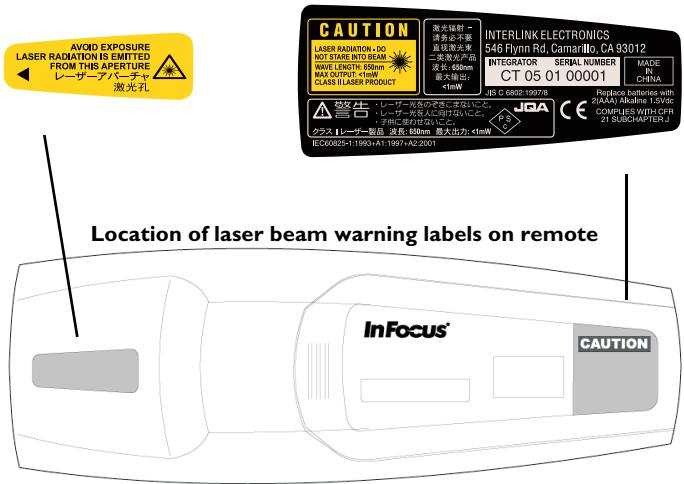
Do not look into laser beam emitted from the front of the remote control
This User's Guide applies to models LP840, LP850, DP8400x, C440, and C450.
Table of Contents
Introduction 5
Positioning the projector 7
Connecting a computer 8
Required computer connections 8
Displaying a computer image 10
First-time projector use with Windows 98 11
Adjusting the image 13
Connecting a video device 14
Displaying a video image 16
Shutting down the projector 18
Troubleshooting your setup 18
Using the keypad buttons 26
Using the remote control 27
Using the audio 28
Optimizing computer images 29
Presentation features 29
Optimizing video images 30
Customizing the projector 30
Using the menus 31
Picture menu 32
Settings menu 35
Maintenance 39
Cleaning the lens 39
Changing the lens 39
Replacing the projection lamp 40
Cleaning the dust filter 42
Using the security lock 42
Appendix 43
Projected image size 43
LED Behavior 46
RS-232 commands 47
If you are experienced in setting up presentation systems, use the included Quick Set Up card. For complete details on connecting and operating the projector, refer to this User's Guide. Electronic versions of this User's Guide in multiple languages are available on the included CD and on our website.
The website also has technical specifications (an interactive image size calculator, laptop activation commands, connector pin outs, a glossary, the product data sheet), a web store to buy accessories, and a page for online registration. See the inside of the back cover for a list of all contact numbers and relevant web addresses.
Important Operating Considerations
Do not place the projector on a tablecloth or other soft covering that may block the vents. Vents are placed along the back, left and front sides of the projector. Do not use a non-approved ceiling mount. In the unlikely event of the lamp rupturing, discard any edible items placed in the surrounding area and thoroughly clean the area along the sides and in the front of the projector.
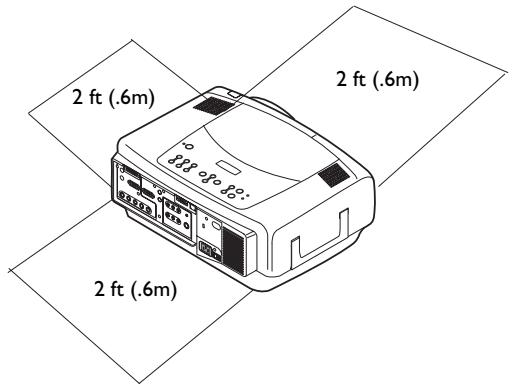
Do not place objects in the areas along the left, back and front sides of the projector
Introduction
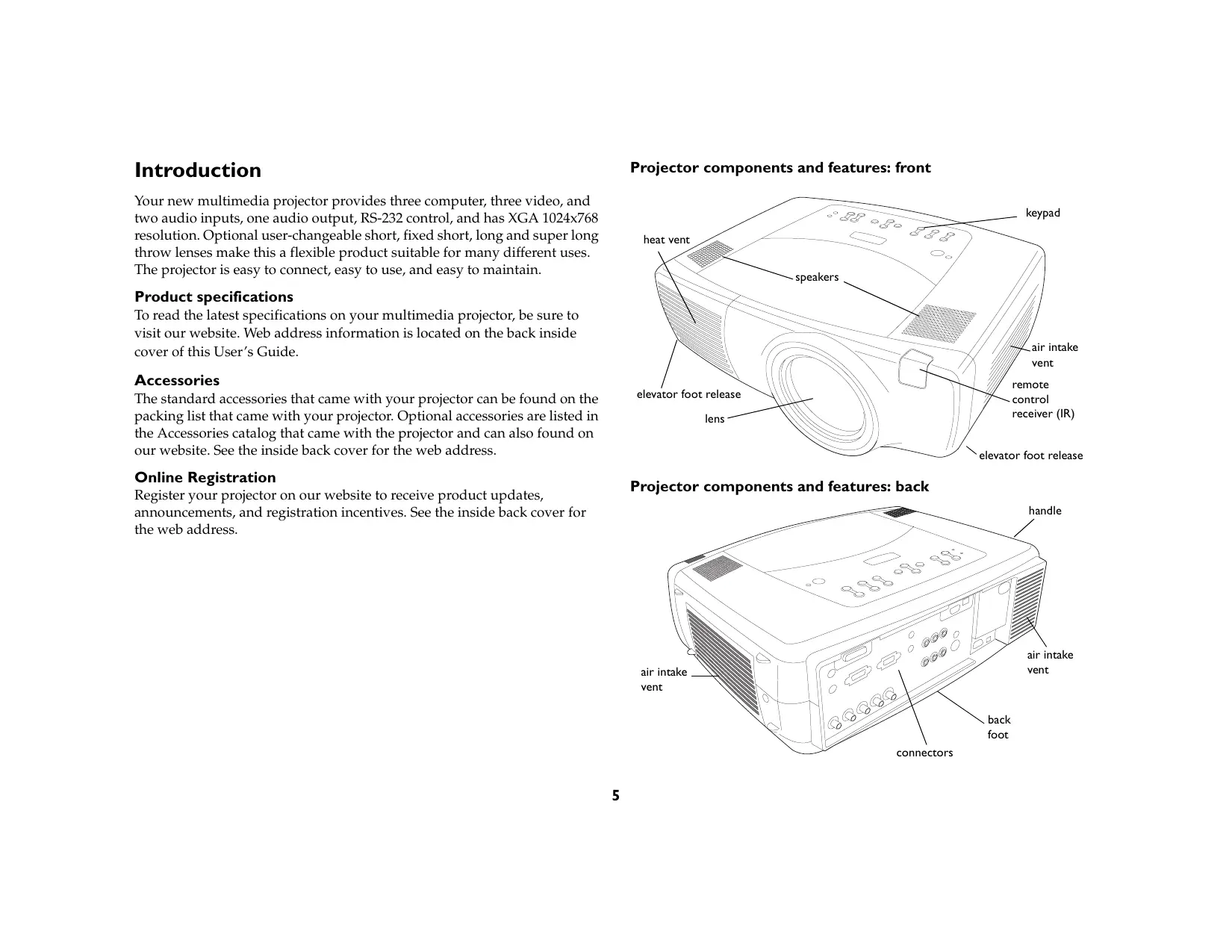
Your new multimedia projector provides three computer, three video, and two audio inputs, one audio output, RS-232 control, and has XGA 1024x768 resolution. Optional user-changeable short, fixed short, long and super long throw lenses make this a flexible product suitable for many different uses. The projector is easy to connect, easy to use, and easy to maintain.
Product specifications
To read the latest specifications on your multimedia projector, be sure to visit our website. Web address information is located on the back inside cover of this User's Guide.
Accessories
The standard accessories that came with your projector can be found on the packing list that came with your projector. Optional accessories are listed in the Accessories catalog that came with the projector and can also found on our website. See the inside back cover for the web address.
Online Registration
Register your projector on our website to receive product updates, announcements, and registration incentives. See the inside back cover for the web address.
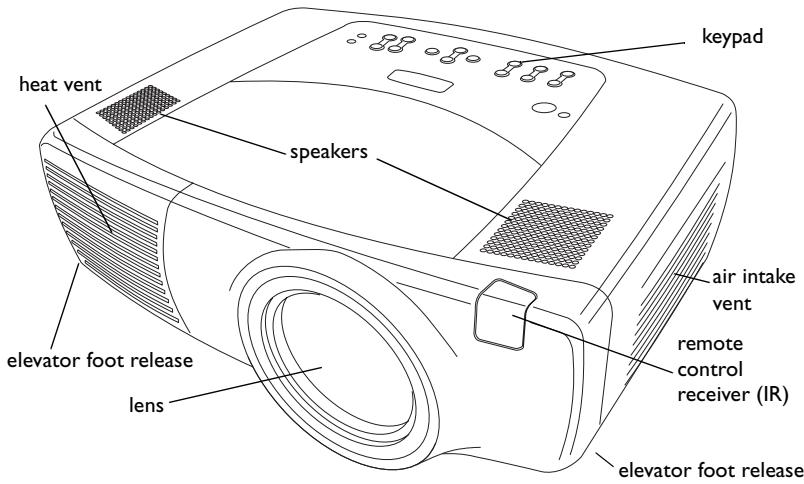
Projector components and features: front

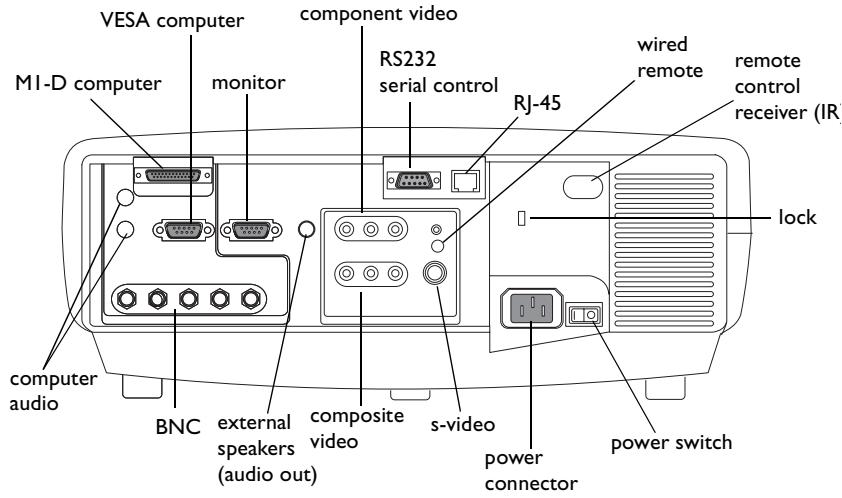
Projector components and features: back
Connector Panel
The projector provides three computer and three video connection options:
one M1-D (DVI with USB)
one VESA computer
one BNC (RGBHV and Pr, Pb, Y)
one component RCA video (Pr, Pb, Y)
one S-video
one composite RCA video
The projector provides computer and video connectors for audio support:
two composite RCA stereo audio (L, R)
one audio out
- two audio ins for computer
The projector also provides the following connectors:
- one wired remote
- one monitor out
- RS-232 serial connector (for serial control)
- RJ-45 connector (for networked control via ProjectorNet software)
The RS-232 Command Line Interface (CLI) specifications and commands are available on our website. See the back inside cover of this User's Guide for website information.
Positioning the projector
To determine where to position the projector, consider the size and shape of your screen, the location of your power outlets, and the distance between the projector and the rest of your equipment. Here are some general guidelines:
- Position the projector on a flat surface at a right angle to the screen. The projector (with the standard lens) must be at least 3 feet (0.9m) from the projection screen.
- Position the projector within 10 feet (3m) of your power source and within 6 feet (1.8m) of your video device (unless you purchase extension cables). To ensure adequate cable access, do not place the projector within 6 inches (.15m) of a wall or other object.
- If you are installing the projector on the ceiling, refer to the installation guide that comes with the Ceiling Mount Kit for more information. To turn the image upside down, see "Ceiling" on page 35. We recommend using an authorized ceiling mount. The Ceiling Mount Kit is sold separately; see the Accessories catalog that came with this projector or visit our website for more information.
- Position the projector the desired distance from the screen. The distance from the lens of the projector to the screen, the zoom setting, and the video format determine the size of the projected image. For information about image sizes at different distances, see "Projected image size" on page 43.
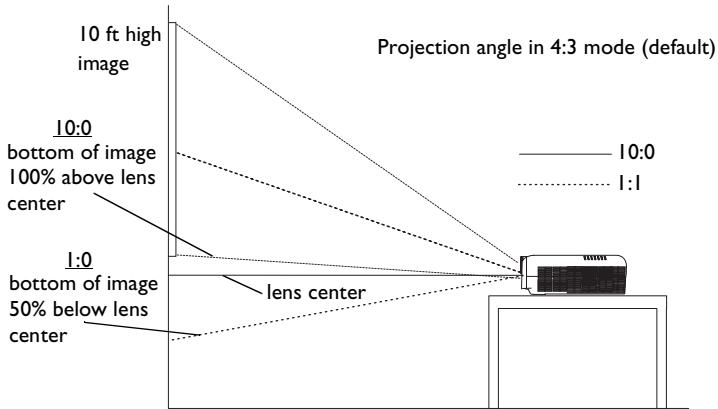
- For the standard lens that comes with the projector, the image exits at a given angle. However, the lens shift feature makes the image offset variable. The image offset is 100% at a 10:0 ratio when the projector is in 4:3 mode (default mode). This means that if you have an image 10' high, all 10' will appear above the center of the lens.
- This image offset is 50% when the lens shift is at a 1:1 ratio. This means that if you have an image 10' high, the bottom of the image will be 5' below the center of the lens.
- For information about the optional lenses image offsets, see "Projected image size" on page 43.
Connecting a computer
Required computer connections
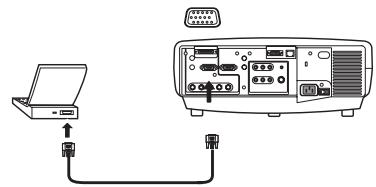
Connect one end of the VESA computer cable to the Computer 2 connector on the projector. Connect the other end to the video port on your computer. If you are using a desktop computer, you first need to disconnect the monitor cable from the computer's video port.
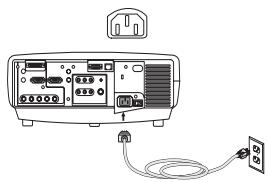
Connect the black power cable to the connector on the back of the projector and to your electrical outlet.
NOTE: Always use the power cable that shipped with the projector.
Optional computer connections
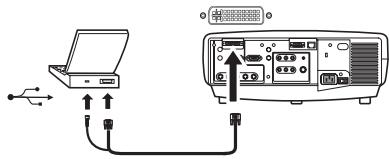
To control your computer's mouse using the projector's remote control, connect the USB and DVI cables to the USB and DVI ports on your computer, and connect the other end to the Computer 1 (M1-D) connector on the projector. USB drivers must be installed to use the USB feature. For more information, see page 12.
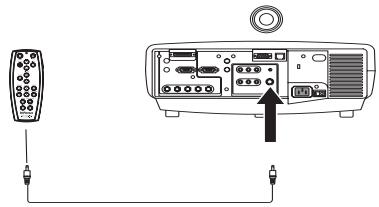
If your projector cannot receive the remote's signal due to IR interference, you can connect directly to the projector via a remote cable. To do so, plug the remote cable into the wired remote connector on the projector. Plug the other end into the connector on the remote,
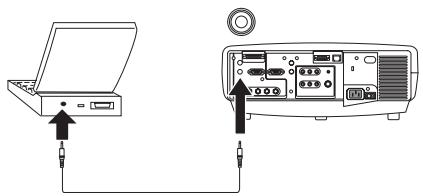
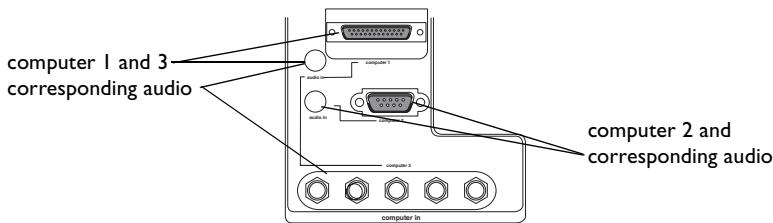
To have sound with your presentation, connect the audio cable to your computer and to the corresponding computer Audio In connector on the projector.
connect computer cable

connect power cable

connect MI-D cable

connect wired remote

connect audio cable

If you are using a desktop computer and want to see the image on your computer screen as well as on the projection screen, plug the monitor cable to the Monitor out connector on the projector.
connect monitor cable

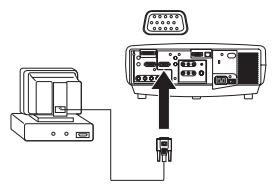
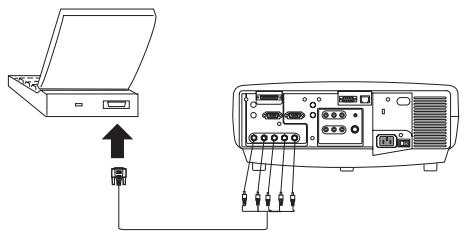
You can also connect to your computer using a BNC cable. Connect the BNC connectors on the BNC cable to the appropriate Computer 3 connectors on the projector. Connect the other end to the video port on your computer. If you are using a desktop computer, you first need to disconnect the monitor cable from the computer's video port. When all 5 BNCs are connected, the projector handles separate synchs on H and V.
connect BNC cables

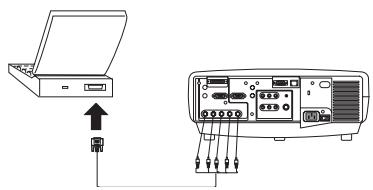
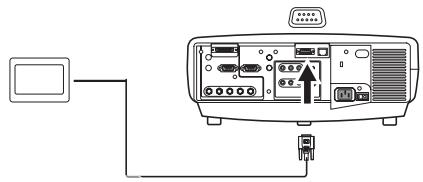
You can control the projector from an LCD control panel, touch screen, or other control device or computer by connecting an RS-232 cable to the projector's Serial connector. Specific RS-232 commands can be found in the Service and Support section of our website and in this User's Guide's Appendix.
connect RS-232 cable

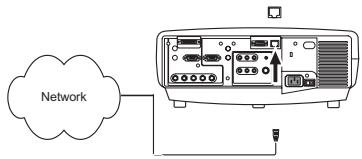
The projector can be managed by ProjectorNet networking software through its Network (RJ-45) connector. Contact an authorized dealer or visit our website for information on ProjectorNet.
connect CAT-5 cable

ProjectorNet

Displaying a computer image
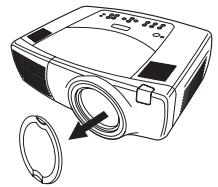
Remove the lens cap.
remove lens cap

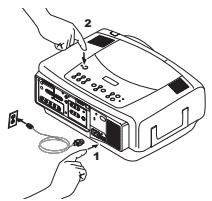
Press the power switch on the back of the projector to the on position, then press the Power button on the top of the projector or the remote.
The LED flashes green and the fans start to run. When the lamp comes on, the startup screen is displayed and the LED is steady green. It can take a minute for the image to achieve full brightness.
? No startup screen? Get help on page 19.
press Power switch

press Power button

Turn on your computer.
The computer's image should appear on the projection screen. If it doesn't, press the Computer button on the projector's keypad.
turn on computer

computer

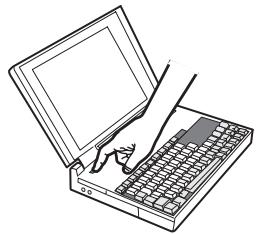
Make sure your laptop's external video port is active.
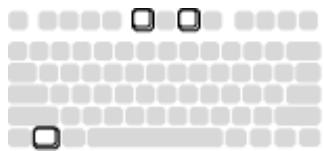
Many laptops do not automatically turn on their external video port when a projector is connected. Usually a key combination like FN + F5 is used to turn the external display on and off. Refer to your computer's documentation to learn your computer's key combination.
? No computer image? Try pressing the Auto Image
button on the keypad. Get help on page 19.
activate laptop's external port

First-time projector use with Windows 98
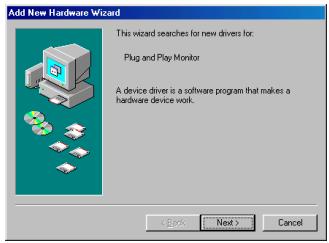
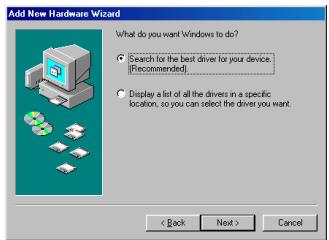
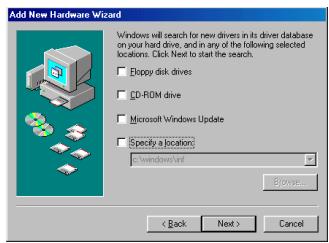
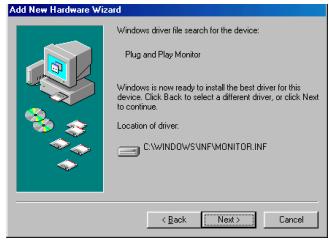
The first time you connect a computer running Windows 98 to the projector, the computer recognizes the projector as "new hardware" and the Add New Hardware Wizard appears. Follow these instructions to use the Wizard to load the correct driver (which was installed with your Windows operating system).
If you are running Windows 2000, Windows ME, or Window XP, skip these steps and go to "Adjusting the image" on page 13.
a Click Next to begin searching for the driver.
b Make sure "Search for the best driver" is selected, then click Next.
- Uncheck any checked boxes, then click Next. Windows automatically locates the driver. If this driver has been removed, reload the driver using your Windows operating system CD.
d When Windows finds the driver, you are ready to install it. Click Next.
a
b
c
d
Skip this page if you did not connect a USB mouse cable
For Windows 98:
- If you connected the USB cable, the Add New Hardware Wizard appears again. Drivers must be installed to use the USB functionality.
The Wizard launches two times.
The first time it detects a USB Human Interface Device (for the keyboard).
The second time it detects a USB Human Interface Device (for the mouse).
For Windows 2000, Windows ME, and Windows XP:
The USB drivers are automatically installed.
Adjusting the image
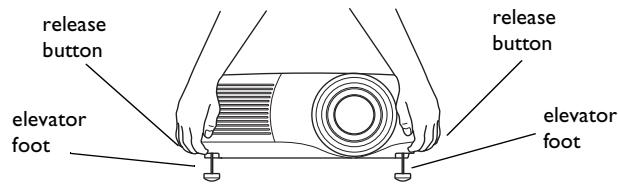
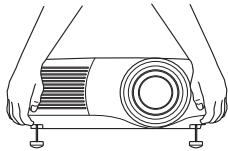
Adjust the height of the projector, if necessary, by pressing the release buttons on each side of the projector's front to extend the elevator feet.
adjust height
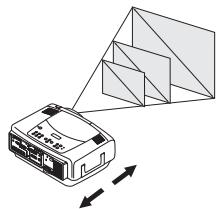
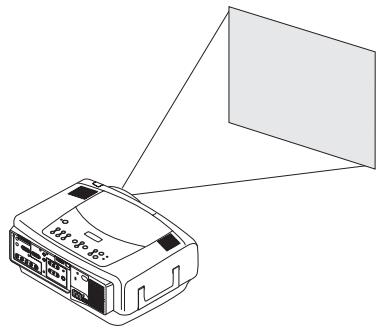
Position the projector the desired distance from the screen at a 90 degree angle (perpendicular) to the screen.
See page 43 for a table listing screen sizes and distances.
adjust distance
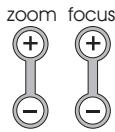
Adjust the zoom or focus by pressing the power Zoom or power Focus buttons on the keypad until the desired image size and focus are produced.
You can also adjust the zoom and focus via the menus. See page 32
adjust Zoom and Focus
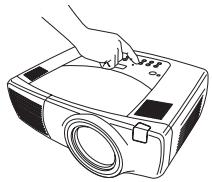
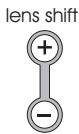
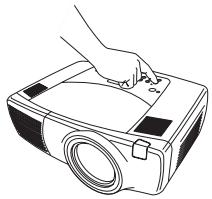
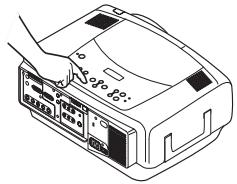
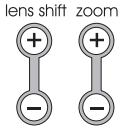
If the image is not on the screen or viewing area, adjust the it by pressing the lens shift button on the keypad.
Press the upper Lens Shift button to shift the lens upward. Press the lower Lens Shift button to shift the lens downward
You can also adjust the lens shift via the menus. See page 32.
adjust Lens Shift
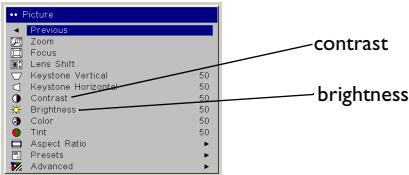
Adjust the Contrast or Brightness in the Picture menu.
See page 31 for help with the menus.
adjust Contrast or Brightness

Connecting a video device
Standard video connections
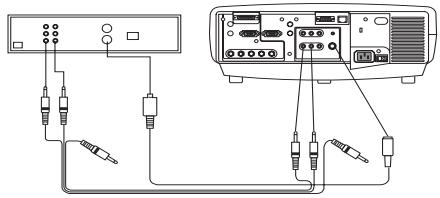
Plug the audio/video (A/V) cable's yellow connector into the video-out connector on the video device. Plug the other yellow connector into the yellow Video 3 connector on the projector. Plug a white connector into the left audio out connector on the video device and plug a red connector into the right audio out connector on the video device. Plug the remaining white connector into the left audio in connector on the projector (to the right of the yellow Video 3 connector), and plug the red connector into the right audio in connector on the projector.
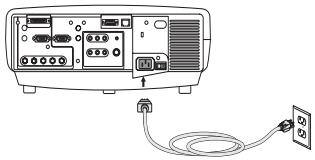
Connect the black power cable to the connector on the back of the projector and to your electrical outlet. NOTE: Always use the power cable that shipped with the projector.
connect A/V cable


connect power cable

Optional video connections
If the video device uses a round, four-prong S-video connector, plug an S-video cable (sold separately) into the S-video connector on the video device and into the Video 2 connector on the projector. Use the A/V cable's audio connectors as described directly above (the yellow connectors on the A/V cable are not used).
connect S-video and video cables


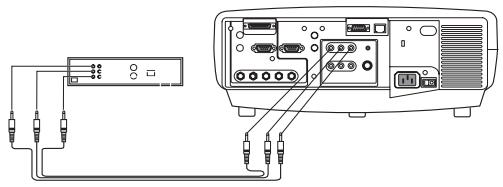
If the video device uses component cable connectors (sold separately), plug the cable's green connectors into the green component-out connector on the video device and into the Video I green component connector (labeled "Y") on the projector. Plug the component cable's blue connectors into the blue component-out connector on the video device and into the blue component connector (labeled "Pb") on the projector. Plug the component cable's red connectors into the red component-out connector on the video device and into the red component connector (labeled "Pr") on the projector. Use the A/V cable's audio connectors as described above (the yellow connectors on the A/V cable are not used). NOTE: The component connectors can be used for HDTV sources (480i, 480p, 720p and 1080i formats).
connect component cables and video cables


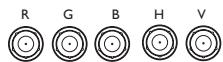
You can also connect to your video device using a BNC cable. Connect the BNC connectors of the BNC cable to the appropriate Computer 3 connectors on the projector. Connect the other end to the video port on your video device. Use the A/V cable's audio connectors as described on the previous page (the yellow connectors on the A/V cable are not used).
When 4 BNCs are connected, the projector handles a composite synch on H. When 3 BNCs are connected, the projector handles a composite synch on G.
NOTE: The BNC connectors can be used for HDTV sources (480i, 480p, 720p and 1080i formats).
connect BNC cables
Displaying a video image
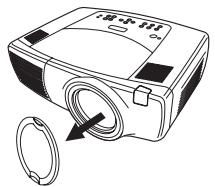
Remove the lens cap.
remove lens cap

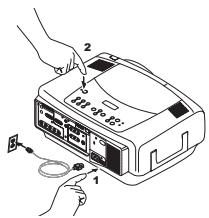
Press the power switch on the back of the projector to the on position, then press the Power button on the top of the projector.
The LED flashes green and the fans start to run. When the lamp comes on, the startup screen is displayed and the LED is steady green. It can take a minute for the image to achieve full brightness.
? No startup screen? Get help on page 19.
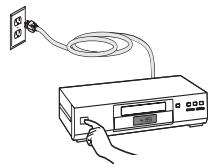
Plug in and turn on the video device.
The video device's image should appear on the projection screen. If it doesn't, press the Video button on the keypad.
press Power switch

press Power button

turn on video device
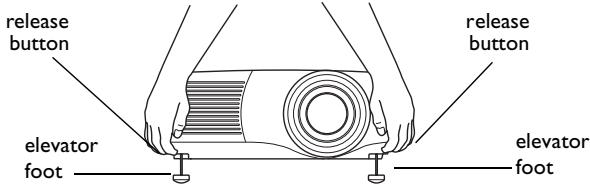
Adjust the height of the projector, if necessary, by pressing the release buttons on each side of the projector's front to extend the elevator feet.
adjust height
Position the projector the desired distance from the screen at a 90 degree angle to the screen. See page 43 for a table listing screen sizes and distances to the screen.
adjust distance
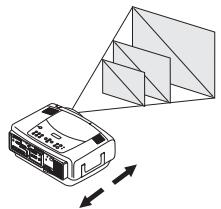
Adjust the zoom or focus by pressing the power Zoom or power Focus buttons on the keypad until the desired image size and focus are produced.
You can also adjust the zoom and focus via the menus. See page 32
adjust Zoom and Focus
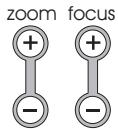
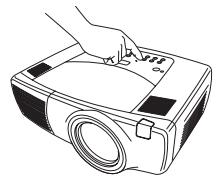
If the image is not on the screen or viewing area, adjust the it by pressing the lens shift button on the keypad.
Press the upper Lens Shift button to shift the lens upward. Press the lower Lens Shift button to shift the lens downward
You can also adjust the lens shift via the menus. See page 32.
adjust Lens Shift
lens shift

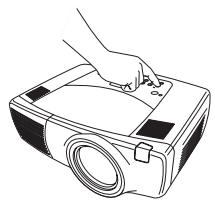
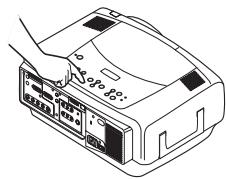
Adjust the volume on the keypad or remote.
adjust volume
volume

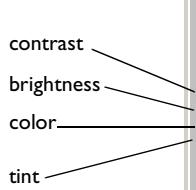
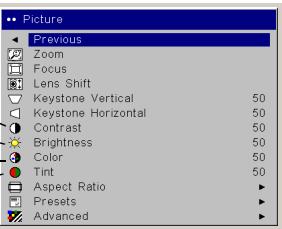
Adjust the Contrast, Brightness, Color, or Tint in the Picture menu. See page 31 for help with the menus.
adjust Picture menu

Shutting down the projector
The projector automatically blanks the screen after no active source is detected for 30 minutes. This blank screen helps preserve the life of the projector. The image returns when an active source is detected or a remote or keypad button is pressed.
Screen Save
You can make the blank screen appear after five minutes by turning on Screen Save in the Settings>System menu. See page 36.
Power Save
The projector also has a Power Save feature that automatically turns the lamp off after no signals are detected for 20 minutes. After 10 additional minutes with no signal, the projector powers down. If an active signal is received before the projector powers down, the image is displayed. You must press the Power button to display an image after 30 minutes have passed. When Power Save is enabled, Screen Save is disabled. See page 36.
Turning off the projector
To turn off the projector, press the power button and verify that you want to turn the projector off by pressing the power button again within 3 seconds. You can cancel the shutdown by not pressing the power button a second time. The lamp turns off and the LED blinks green for over 1 minute while the fans continue to run to cool the lamp. When the lamp has cooled, the LED lights green and the fans stop. Press the power switch on the back of the projector and unplug the power cable to completely power off the projector.
Troubleshooting your setup
If your image appears correctly on the screen, skip to the next section. If it does not, troubleshoot the setup. The LED on top of the projector indicates the state of the projector and can help you troubleshoot. See "LED Behavior" on page 46. for information on LED behavior and what it means.
The following tables show common problems. In some cases, more than one possible solution is provided. Try the solutions in the order they are presented. When the problem is solved, you can skip the additional solutions.
Source Troubleshooting
| Problem | Solution | Result |
| No startup screen | Plug power cable in, press power switch, press power button. Remove lens cap. | Correct image |
| Only startup screen appears | Press the Computer button Activate laptop's external port | Computer image projected |
| A startup screen | or restart laptop | What do you want the computer to do? Stand by Shut down Restart Restart in MS-DOS mode OK Cancel Help |
No computer image, just the words "Signal out of range"
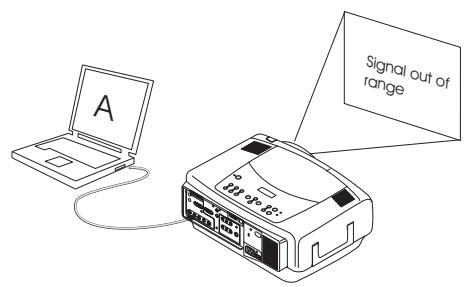
Adjust computer refresh rate in Control Panel>Display>Settings>Advanced>Adapter (location varies by operating system)
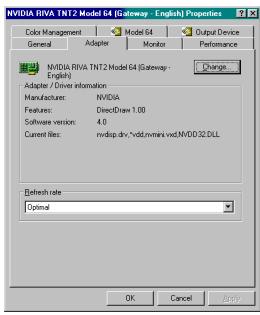
You may also need to set a different resolution on your computer, as shown in the following problem, "Image fuzzy or cropped"
Computer image projected
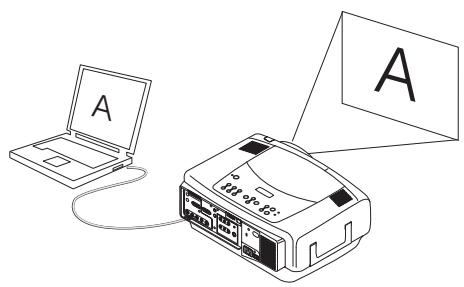
| Image fuzzy or cropped | Set your computer's display resolution to the native resolution of the projector (Start>Settings>Control Panel(Display>Settings tab, select1024x768) | Image clear and not cropped |
| For a laptop, disable laptop monitor or turn-on dual-display mode | Display Properties Background|Screen Sights|Appearance|Effects|Settings Display GATEWAY V8503 on NVIDIA RIVA TINT2 Model B4 (Gateway: English) Colors LED TEXT:ON 2.0 LED TEXT:OFF 2.0 LED TEXT:ON ON 2.0 LED TEXT:OFF ON 2.0 LED TEXT:ON ON 2.0 LED TEXT:OFF ON ON 2.0 LED TEXT:ON ON ON 2.0 LED TEXT:OFF ON ON ON 2.0 LED TEXT:ON ON ON ON 2.0 LED TEXT:OFF ON ON ON ON 2.0 LED TEXT:ON ON ON ON ON 2.0 LED TEXT:OFF ON ON ON ON ON 2.0 LED TEXT:ON ON ON ON ON ON 2.0 LED TEXT:OFF ON ON ON ON ON ON 2.0 LED TEXT:ON ON ON ON ON ON 2.0 LED TEXT:OFF ON ON ON ON ON ON 2.0 LED TEXT:ON ON ON ON ON ON 2.0 LED TEXT:OFF ON ON ON ON ON ON 2.0 LED TEXT:ON ON ON ON ON ON 2.0 LED TEXT:OFF ON ON ON ON ON ON 2.0 LED TEXT ON ON ON ON ON ON 2.0 LED TEXT ON ON ON ON ON ON 2.0 LED TEXT ON ON ON ON ON ON 2.0 LED TEXT ON ON ON ON ON ON 2.0 LED TEXT ON ON ON ON ON ON 2.0 LED TEXT ON ON ON ON ON ON 2.0 LED TEXT ON ON ON ON ON ON 2.0 LED TEXT ON ON ON ON ON ON 2. LED TEXT ON ON ON ON ON ON 2.0 LED TEXT ON ON ON ON ON ON 2.0 LED TEXT ON ON ON ON ON ON 2.0 LED TEXT ON ON ON ON ON ON 2.0 LED TEXT ON ON ON ON ON ON 2.0 LED TEXT ON ON ON ON ON ON 2.0 LED TEXT ON ON ON ON ON ON 2.0 LED TEXT ON ON ON ON ON ON LED TEXT ON ON ON ON ON ON LED TEXT ON ON ON ON ON ON LED TEXT ON ON ON ON ON ON LED TEXT ON ON ON ON ON ON LED TEXT ON ON ON ON ON ON LED TEXT ON ON ON ON ON ON LED TEXT ON ON ON ON ON ON LED TEXT ON ON ON ON ON ON LED TEXT ON ON ON ON ON ON LED TEXT ON ON ON ON ON ON LED TEXT ON ON ON ON ON ON | |
| Remote control navigation buttons not working with my computer | Connect USB cable (page 8) then load USB drivers, if needed (page 11). Or, connect wired remote cable and reboot your computer (page 8). | Remote controls navigation buttons. See page 27 for information on the remote |
Projector troubleshooting
| Problem | Solution | Result |
| Image not square | Adjust keystone the Picture menu | Square image |
| Image not sharp | Adjust the focus on the keypad or Sharpness in the Picture>Advanced menu | Correct image |
| Image does not fit 16:9 screen | Change aspect ratio to 16:9 in Picture>Aspect ratio menu | Correct image |
| Image upside down A B | Turn on/off Ceiling in Settings>System menu | Correct image A B |
| Image reversed left to right A A | Turn on/off Rear in Settings>System menu | Correct image A B |
| Projected colors don't match source COLOR | Adjust color, tint, color temperature, brightness, contrast in the menus | Correct image COLOR |
| Lamp won't turn on, Temp LED solid red (page 46) solid red ◎ temp ◎ lamp | Make sure vents aren't blocked; allow projector to cool for one minute | Unplug projector; wait one minute; plug in projector and turn it on: lamp lights |
| Lamp won't turn on, Lamp LED blinking red (page 46) blinking red ◎ temp ◎ lamp | Lamp must be replaced (page 40) | Lamp turns on startup screen |
Image not centered on screen
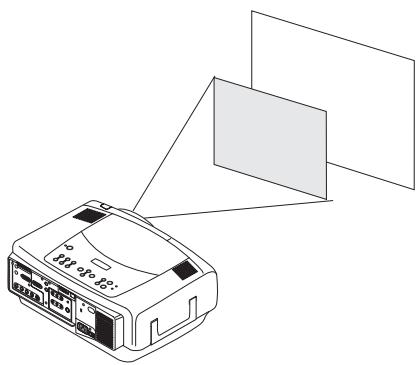
Move projector, adjust zoom or lens shift on keypad, adjust height
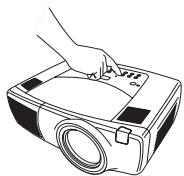
Adjust horizontal or vertical position in Picture>Advanced menu
Correct image
Still having problems?
If you need assistance, visit our website or call us. See the inside of the back cover for a list of all contact numbers and relevant web addresses.
This product is backed by a limited two-year warranty. An extended warranty plan may be purchased from your dealer. When sending the projector in for repair, we recommend shipping the unit in its original packing material, or having a professional packaging company pack the unit. An optional ATA shipping case is available for purchase that provides adequate protection for shipping. Please insure your shipment for its full value.
Using the keypad buttons
Most buttons are described in detail in other sections, but here is an overview of their functions:
power-turns the projector on (page 10) and off (page 16).
lens shift-shifts the projected image up or down
zoom-moves the projected image closer or further away.
focus-adjusts the clarity.
menu-opens the on-screen menus (page 31).
up/down arrows navigates to and adjusts settings in the menus (page 31).
select-confirms choices made in the menus (page 31).
volume-adjusts sound (page 28).
video and computer-changes the active source.
temp-alerts you to possible temperature-related problems (page 46).
lamp-alerts you to possible lamp-related problems (page 46).


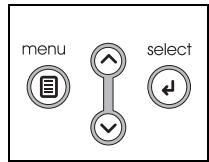
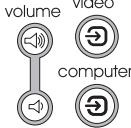

menu navigation buttons
Using the remote control
The remote uses two (2) provided AAA batteries. They are easily installed by sliding the cover off the remote's back, aligning the + and - ends of the batteries, sliding them into place, and then replacing the cover.
To operate, point the remote at the projection screen or at the projector (not at the computer). The range of optimum operation is about 30 feet (9.14m)
To use the laser pointer, press and hold the Laser button. The laser turns off when the button is released, or times out after two (2) minutes of continuous operation.
WARNING: Do not look into the laser beam emitted from the top of the remote control.
The remote contains four Source buttons that allow you to assign a particular input to a specific source. Simply press the numbered Source buttons to travel to whatever four sources you wish to have available.
Press the remote's Menu button to open the projector's menu system. Use the arrow buttons to navigate, and the Select button to select features and adjust values in the menus.
The remote also has a power button to turn the projector on and off, volume buttons and a mute button to control the sound, a backlight button to light the remote's buttons in the dark, and a video and computer button to switch between those two sources.
Two presentation-specific features are also provided. Use the blank button to display a blank screen instead of the current slide; use the effect button to invoke a user-definable action, such as freeze, PiP, or magnify.
The Auto Image button reacquires the computer image and the Presets button lets you customize the settings for each source. Up to three Preset settings can be customized and saved.
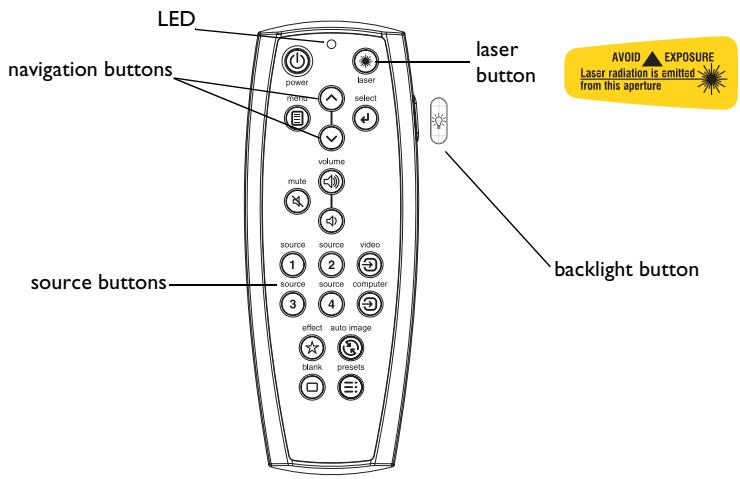
Troubleshooting the remote
- Make sure the batteries are installed in the proper orientation and are not dead. The LED at the top of the remote lights when any button is pressed when the battery power is adequate.
- Make sure you're pointing the remote at the projector, not the computer, and are within the remote range of 30 feet (9.14m).
- If you are trying to control your computer's mouse, make sure a mouse cable is connected. If using a the USB cable that is part of the M1 cable, make sure the correct drivers are installed.
Using the audio
To play sound from the projector, connect your source to the Audio In connector on the projector.
To adjust the volume, use the buttons on the keypad or remote.
To adjust the balance, or loudness, use the Audio menu (see page 35).
To mute the sound, press the Mute button.
Troubleshooting audio
If there is no sound, check the following:
Make sure the audio cable is connected.
Make sure mute isn't active.
- Make sure the volume is turned up enough. Press the volume button on the keypad or remote.
- Make sure you are connected to the corresponding audio in for your source. Computer 1 and 3 share a single audio input. Computer 2 has its own audio input. Video 1, 2 and 3 share a single stereo input.
- Adjust the audio source.
- If playing a video, make sure the playback has not been paused.
Connecting external speakers
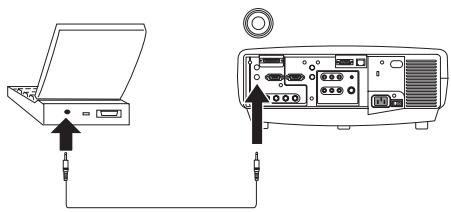
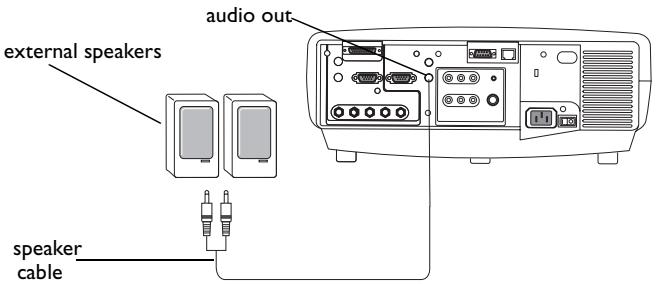
The projector can be attached to external speakers that have their own power source by plugging speaker cables into the projector's Audio Out connector.
connect audio cable

Optimizing computer images
After your computer is connected properly and the computer's image is on the screen, you can optimize the image using the onscreen menus. For general information on using the menus, see page 31.
- Adjust the Keystone, Contrast, or Brightness in the Picture menu.
- Change the Aspect Ratio. Aspect Ratio is the ratio of the image width to image height. TV screens are usually 1.33:1, also known as 4:3. HDTV and most DVDs are 1.78:1, or 16:9. Choose the option that best fits your input source. See page 32 for details.
- Adjust the Color Temperature in the Advanced menu.
- Adjust the Phase, Tracking, or Horizontal or Vertical position in the Advanced menu.
- Once you have optimized the image for a particular source, you can save the settings using Presets. This allows you to quickly recall these settings later. See page 33.
Presentation features
Several features are provided to make giving presentation easier. The following is an overview, details are found in the menu section on page 31.
- The remote's Effect button allows you to assign various features to the key. The default effect is Magnify. You can select from Blank, Mute, Aspect Ratio, Source, Auto Image, Freeze, Magnify, About, and PiP Source. See page 37 for details.
- The Freeze effect allows you to freeze the displayed image. This is useful if you want to make changes on your computer without your audience seeing them.
- The Blank button on the remote allows you to display a blank screen instead of the active source. See page 36.
- The PiP Source effect lets you change the video source in a smaller window on top of the computer image. See page 37.
- The Startup Logo menu option lets you change the default startup screen to a black, white, blue, or a custom logo screen via Logo Capture. See page 36.
- Two menu options, Power Save and Screen Save, are provided to automatically shut down the projector after several minutes of inactivity or display a blank screen. This helps preserve lamp life. See page 35 and page 36.
- A Low Power menu option is also available to help lower the projector's fan sound volume. See page 35.
Optimizing video images
After the video device is connected properly and the image is on the screen, you can optimize the image using the onscreen menus. For general information on using the menus, see page 31.
- Adjust the Keystone, Contrast, Brightness, Color, or Tint in the Picture menu. See page 32.
- Change the Aspect ratio. Aspect ratio is the ratio of the image width to image height. TV screens are usually 1.33:1, also known as 4:3. HDTV and most DVDs are 1.78:1, or 16:9. Choose the option that best fits your input source. See page 32.
- Select a Sharpness setting. See page 34.
- Adjust the Color Temperature. Select a listed value, or select User and individually adjust the intensity of the red, green, and blue color. See page 34.
Customizing the projector
You can customize the projector for your specific setup and needs. See page 35 to page 39 for details on these features.
- For rear projection, turn Rear mode on in the Settings>System menu.
- For ceiling mounted projection, turn Ceiling mode on in the Settings>System menu.
- Specify which source the projector checks first for an active signal during power-up.
- Specify the function of the Effect Key on the remote.
- Turn the projector's on-screen display messages on and off.
- Turn on power saving features.
- Specify blank screen colors and startup logos.
- Specify the menu language.
- Manage your projector via ProjectorNet software. See page 9 for more information.
Control your projector using RS232 commands. See page 9. - Customize the projector for your specific installation using optional long or short throw lenses. See the inside back cover of this User's Guide for ordering information.
- Gain control of your projector from your laptop with InFocus ProjectorManager™, a free application that turns any PC into an advanced projector remote control.
ProjectorManager can be downloaded from our website link found on the CD that came with your projector.
Using the menus
To open the menus, press the menu button on the keypad or remote. (The menus automatically close after 60 seconds if no buttons are pressed.) The Main menu appears. Use the arrow buttons to move up and down to highlight the desired submenu, then press the Select button.
To change a menu setting, highlight it, press Select, then use the up and down arrow buttons to adjust the value, select an option using radio buttons, or turn the feature on or off using check boxes. Press Select to confirm your changes. Use the arrows to navigate to another setting. When your adjustments are complete, navigate to Previous, then press Select to go to the previous menu; press the Menu button at any time to close the menus.
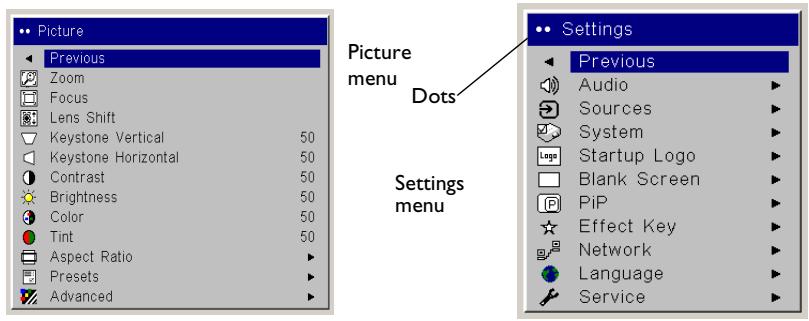
Dots appear before the menu name. The number of dots indicate the menu's level, ranging from one (the Main menu) to four (the most nested menus).
The menus are grouped by usage:
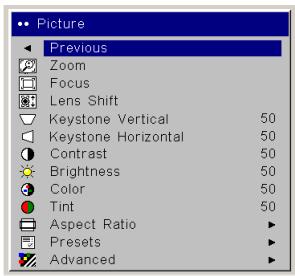
The Picture menu provides image adjustments.
- The Settings menu provides set-up type adjustments that are not changed often.
- The About menu provides a read-only display of information about the projector and source.
Certain menu items may be grayed out until a particular source is connected. For example, Sharpness is only available for video sources and will be hidden when a computer source is active. Other menu items may be grayed out when they are not available. For example, Brightness is grayed out until an image is active.
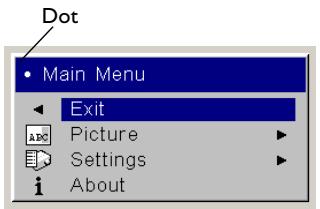
Main menu
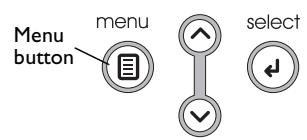
Keypad navigation buttons
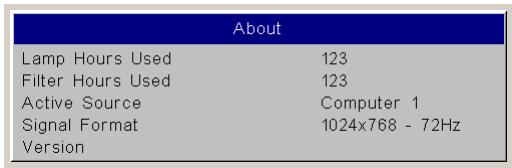
About menu
Picture menu
To adjust the following six settings, highlight the setting, press Select, use the up and down arrows to adjust the values, then press select to confirm the changes.
Zoom: allows you to adjust a lens to zoom in and out. Highlight Zoom, then press the up or down arrows on the keypad or remote.
Focus: allows you to adjust the lens focus for an image. Highlight Focus, then press the up or down arrows on the keypad or remote.
Lens Shift: allows you to mechanically shift the lens. Highlight Lens Shift, then press the up or down arrows on the keypad or remote.
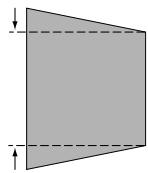
Keystone Vertical: adjusts the image vertically and makes a squarer image by using an adjustable scale band.
Keystone Horizontal: adjusts the image horizontally and makes a squarer image by using an adjustable scale band.
Contrast: controls the degree of difference between the lightest and darkest parts of the picture and changes the amount of black and white in the image.
Brightness: changes the intensity of the image.
Color: (video sources only) adjusts a video image from black and white to fully saturated color.
Tint: adjusts the red-green color balance in the image.
Aspect Ratio: Aspect ratio is the ratio of the image width to image height. TV screens are usually 1.33:1, also known as 4:3. HDTV and most DVDs are 1.78:1, or 16:9. The default is 4:3, which displays the input resized up or down to fill the display area.
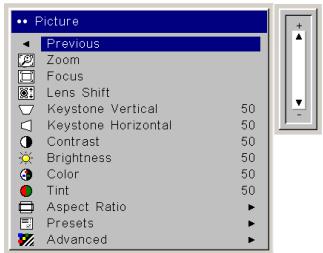
Keystone Vertical
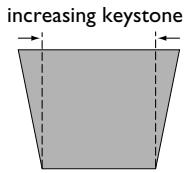
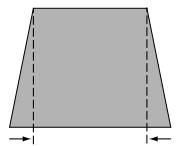
decreasing keystone
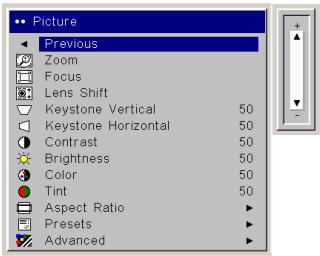
Keystone Horizontal
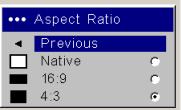
Aspect Ratio
Presets: The provided Presets optimize the projector for displaying computer presentations, photographs, film images, and video images. (Film input is material originally captured on a film camera, like a movie; video input is material originally captured on a video camera, like a TV show or sporting event.) You can use the preset as a starting point, then further customize the settings for each source. The settings you customize are saved in the preset for each source. To restore the factory default settings, choose Factory Reset in the Settings>Service menu.
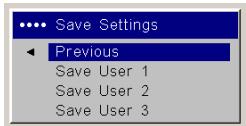
There are also three user-definable presets. To set a preset for the current source, adjust the image, then choose Save User 1, 2, or 3 in the Save Settings menu. You can recall these settings in the future by selecting the appropriate user presets.
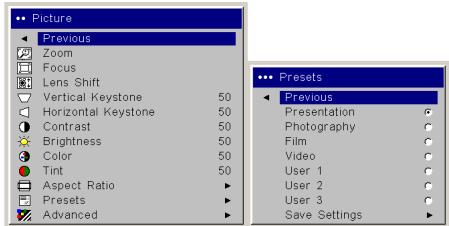
Presets
Save Settings
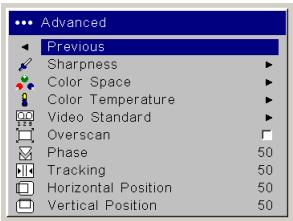
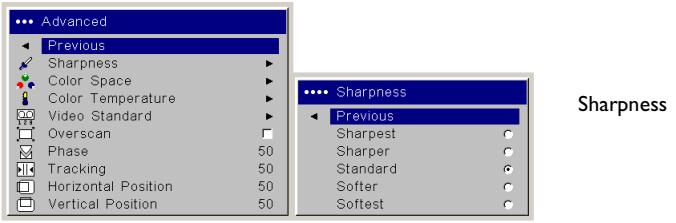
Advanced settings
Sharpness: (video sources only) changes the clarity of the edges of a video image. Select a sharpness setting.
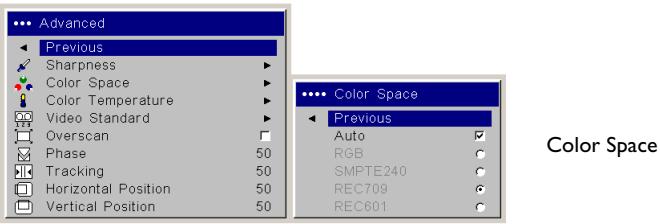
Color Space: This option applies to computer and component video sources. It allows you to select a color space that has been specifically tuned for the input signal. When Auto is selected, the projector automatically determines the standard. To choose a different setting, turn off Auto, then choose RGB for computer sources, choose either SMPTE240, REC709 or REC601 for component video sources.
Color Temperature: changes the intensity of the colors. Select a listed value, or select User and individually adjust the intensity of the red, green, and blue colors.
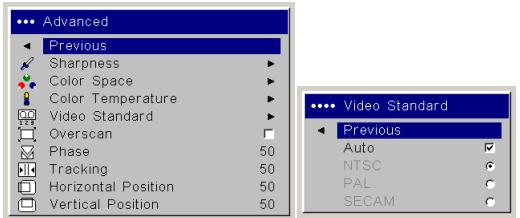
Video Standard: when set to Auto, the projector attempts to automatically pick the video standard based on the input signal it receives. (The video standard options may vary depending on your region of the world.) If the projector is unable to detect the correct standard, the colors may not look right or the image may appear "torn." If this happens, manually select a video standard by selecting NTSC, PAL, or SECAM from the Video Standard menu.
Overscan: (video sources only) removes noise around the video image.
The following 4 options are for computer sources only.
Phase: adjusts the horizontal phase of a computer source.
Tracking: adjusts the vertical scan of a computer source.
Horizontal / Vertical Position: adjusts the position of a computer source.

Color Temperature
Video Standard
Settings menu
Audio: allows adjustments to the Balance and Volume. Also allows you to turn on and off the Internal speakers, and projector startup Chime.
Sources: allows you to assign a particular input to a specific source key when using the Integrator remote. Also allows selection of a default Startup Source and enables or disables Autosource.
Sources>Power-up Source: this determines which source the projector checks first for active signal during power-up.
Sources>Autosource: When Autosource is not checked, the projector defaults to the source selected in Powerup Source. If no source is found, a blank screen displays. When Autosource is checked, Powerup Source determines which source the projector defaults to at power-up. If no signal is present, the projector checks the sources in order until a source is found or until power down.
System>Rear: reverses the image so you can project from behind a translucent screen.
Ceiling: turns the image upside down for ceiling-mounted projection.
IR Receivers: turns individual IR receivers off or on to avoid environmental interference.
Auto Power: When Auto Power is checked, the projector automatically goes into the startup state after the projector is powered on. This allows control of ceiling mounted projectors with a wall power switch.
Display Messages: displays status messages (such as "Searching" or "Mute") in the lower-left corner of the screen.
Low Power: toggles between on and off. Turn it on to lower the light output of the lamp. This also lowers the fan speed, making the projector quieter.
NND: prevents your notebook computer from going into Screen Save mode (functions only when the USB connector is plugged in).
Power Save: automatically turns the lamp off after no signals are detected for 20 minutes. After 10 additional minutes with no signal, the projector powers down. If an active signal is received before the projector powers down, the image will be displayed.
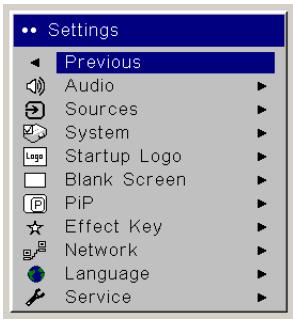
Settings menu
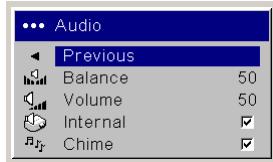
Audio
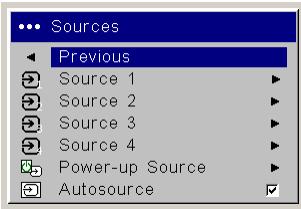
Sources
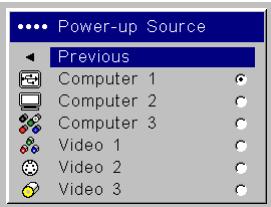
Powerup Source
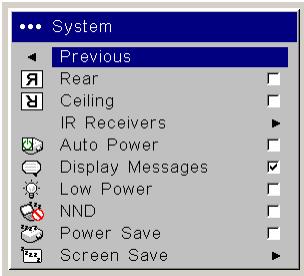
System
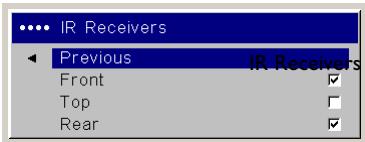
IR Receivers
Screen Save: automatically blanks the screen after no signals are detected for five minutes. The image returns when an active source is detected or a remote or keypad button is pressed. Screen Save is disabled when Power Save is enabled.
Startup Logo: allows you to display a blank Black, White, or Blue screen instead of the default screen at startup and when no source is detected. It also allows you to capture and display a custom startup screen.
To capture a custom logo, display the image you want to capture on your computer and select the Logo Capture option. From the Logo Capture menu, use the Capture Position X and Capture Position Y adjustments to frame the logo to be captured. Press Capture Start in the Logo Capture menu. The projector will let you know if the capture was a success or a failure.
The next time you start the projector, the custom logo you captured displays.
Blank Screen: determines what color is displayed when you press the Blank button on the remote.
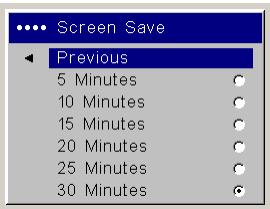
Save Screen
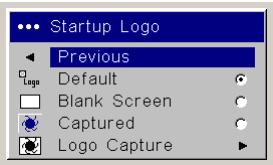
Startup Logo
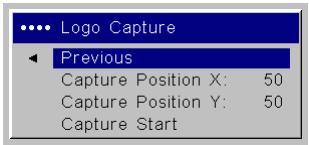
Logo Capture
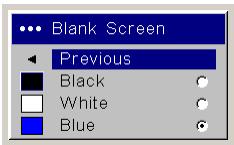
Blank Screen
PiP: (Picture in Picture) allows you to overlay a smaller window showing the video source on top of the larger computer source window. Only video sources 2 and 3 (composite and S-video) support PiP. You must have both a computer and video source connected to use PiP. You can't show a computer image in the smaller PiP window, only a video image. You can select a small, medium, or large window. You can also move the PiP window on the screen using the PiP Position X and Y options, or the Upper left, Upper Right, Lower Left, or Lower Right options in the menu. Press the up and down arrows to change the position.
Effect Key: allows you to assign a different function to the Effect button on the remote to quickly and easily use the effect. Only one effect can be enabled at a time. Highlight an effect and press Select to choose a different one.
Blank: shows an empty screen.
Mute: turns off all sound.
Aspect Ratio: sets the ratio of the image width to image height.
Source: cycles through the available sources.
Auto Image: causes computer sources to be reacquired.
Freeze: pauses the projected image.
Magnify: Is the default effect. It allows you to enlarge a section of the projected image.
About: displays the About menu.
PiP Source: changes the video source of Picture in Picture smaller window display on the projected screen.
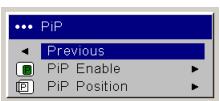
PiP menu
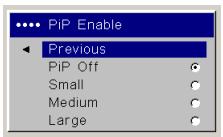
PiP Enable
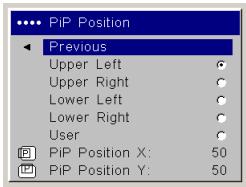
PiP Position
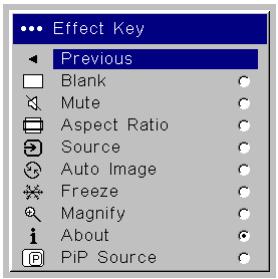
Effect Key
Network: The projector has an RJ45 Ethernet connector that supports network connections and TCP/IP protocols. This will allow for the control and management of the projector over a corporate network. The following fields are accessible when DHCP is not checked and available for manual entry of data.
IP Address: Identifies the projector on the network.
Subnet mask: Separates the network address part of the IP address.
Default gateway: The IP address of the local router.
DHCP: Select this to automatically obtain an IP address, Subnet mask, and Default gateway.
Network Info: Provides information on the network configuration.
The Network Info menu is informational and cannot be edited. It displays the current IP Address, Subnet Mask, Default Gateway, and the projector's MAC Address.
Language: allows you to select a language for the onscreen display of menus and messages.
Service: to use these features, highlight them and press Select.
Factory Reset: restores all settings (except Lamp Hours and Network settings) to their default after displaying a confirmation dialog box.
Lamp Reset: resets the lamp hours counter in the About menu to zero. Do this only after changing the lamp. It displays a confirmation dialog box.
Filter Reset: resets the filter counter in the About menu to zero. Do this only after cleaning the filter. It displays a confirmation dialog box.
Service Code: only used by authorized service personnel.
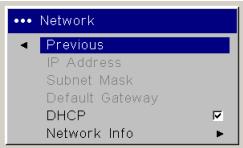
Network
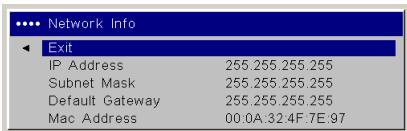
Network Info
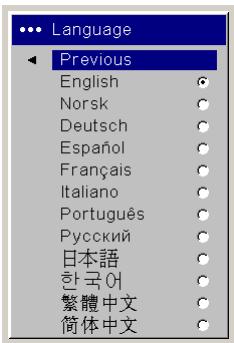
Language
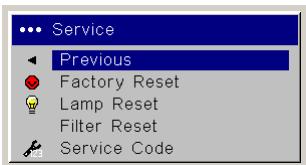
Service menu
Maintenance
NOTE: When you are performing maintenance activities on your projector, keep in mind that you should only remove screws that are single-slot, or flathead, screws. Any other type of screw, such as a phillips or star should not be removed. These types of screws should only be removed by technical support experts.
Cleaning the lens
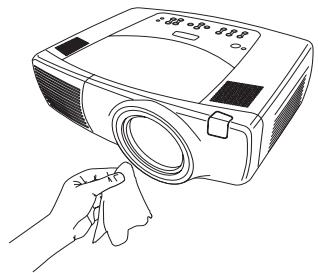
Apply a non-abrasive camera lens cleaner to a soft, dry cloth.
Avoid using an excessive amount of cleaner, and don't apply the cleaner directly to the lens. Abrasive cleaners, solvents or other harsh chemicals might scratch the lens.
2 Lightly wipe the cleaning cloth over the lens in a circular motion. If you don't intend to use the projector immediately, replace the lens cap.
Changing the lens
Long throw and short throw lenses are available with your projector.
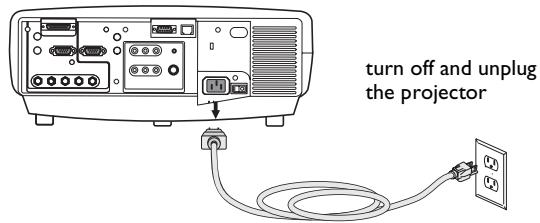
Turn off the projector and unplug the power cable.
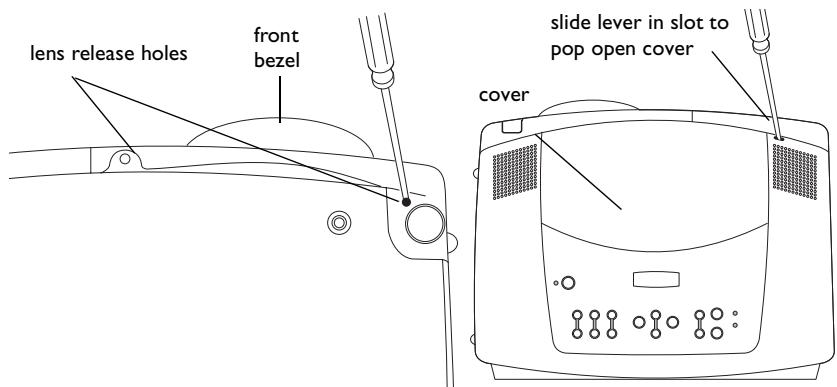
2 Turn the projector upright with the lens facing upward and use a screwdriver to remove the two screws from the front bezel release holes on the bottom of the projector.
3 Lift off the front bezel.
4 Gently place a flathead screwdriver into the slot on the top of the projector (it is by the right speaker) and slide the small lever toward the right speaker. The cover that protects the lens and the lamp housing pops up.
5 Loosen the captive screw to the door that covers the lens housing.
clean the lens with a soft dry cloth and non-abrasive cleaner
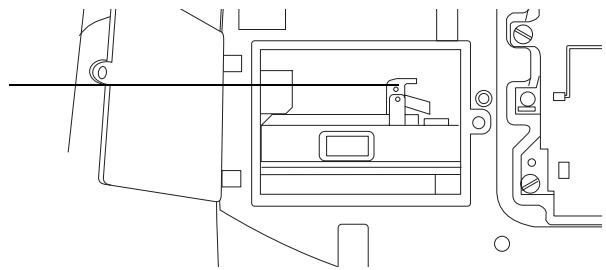
6 To remove a lens, push the lever inside the lens housing and turn the lens counterclockwise until it stops. Remove the lens.
7 To install a new lens, place it in the opening through the front of the projector, aligning the red dot (near the base of the lens) with the red dot on the projector. Turn clockwise until you feel the lens click into place.
8 Tighten the captive screw to the lens housing door. Place the front bezel back onto the projector and replace the two screws on the bottom of the projector. Replace the cover that protects the lens and the lamp housing on top of the projector.
Replacing the projection lamp
The lamp hour timer in the About menu counts the number of hours the lamp has been in use. Twenty hours before the specified end of the lamp's life, the message "Replace lamp" briefly appears on the projected screen. After twenty additional hours, the lamp will no longer light. You can order new lamp modules from your dealer. See the Accessories catalog that came with the projector or visit our website for information.
Turn off the projector and unplug the power cable.
2 Wait 60 minutes to allow the projector to cool thoroughly.
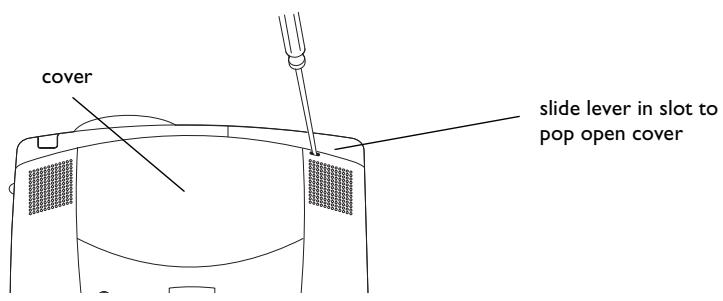
3 Gently place a flathead screwdriver into the slot on the top of the projector (it is by the right speaker) and slide the small lever toward the right speaker. The cover that protects the lamp housing and the lens pops up.
The lamp module is on the right.
lever inside lens housing
| About | |
| Lamp Hours Used | 123 |
| Filter Hours Used | 123 |
| Active Source | Computer 1 |
| Signal Format | 1024x768 - 72Hz |
| Version | |

About menu
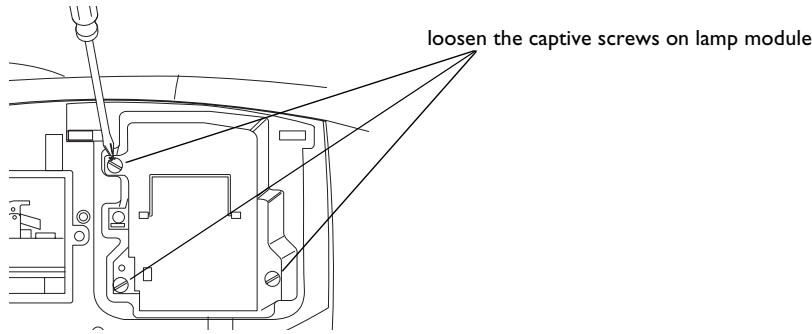
4 Loosen the three captive screws on the lamp module.
WARNING:
- To avoid burns, allow the projector to cool for at least 60 minutes before you replace the lamp.
- Do not drop the lamp module. The glass may shatter and cause injury.
- Do not touch the glass lamp screen. Fingerprints can obscure projection sharpness.
- Be extremely careful when removing the lamp housing. In the unlikely event that the lamp ruptures, small glass fragments may be generated. The lamp module is designed to contain most of these fragments, but use caution when removing it.
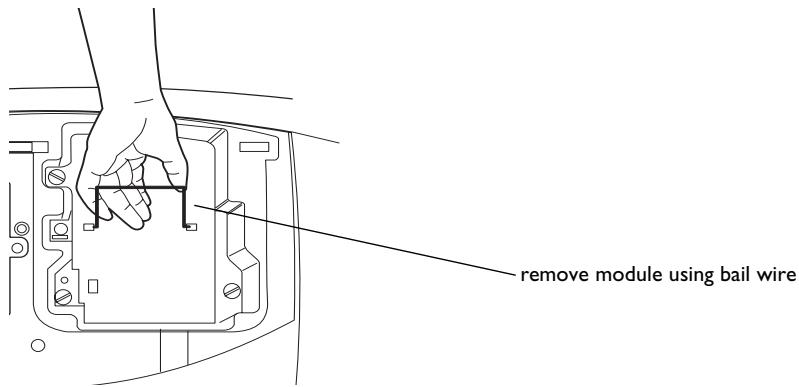
5 Carefully remove the lamp module by grasping and lifting the metal bail wire. Dispose of the lamp in an environmentally proper manner.
6 Install the new lamp module, making sure that it is properly seated.
7 Tighten the three captive screws.
8 Replace the cover over the lamp module by inserting the tabs into the tab bays and pushing the rest of the cover down into place.
Plug in the power cable, press the power switch then press the Power button to turn the projector back on.
10 Reset the lamp hour timer. See page 38 for more information.
Resetting the lamp timer
If the lamp timer has reached the maximum number of hours for the projector lamp, the LED on the projector's keypad will show a lamp error (see "LED Behavior" on page 46). To reset the lamp timer, simultaneously press the decrease volume button and increase volume button on the keypad for 10 seconds. At that point the LED will turn green and you can power on the projector. You can also navigate to the Settings>Service menu and select Lamp Reset to reset the lamp timer.
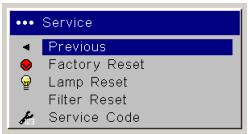
reset lamp time in Service menu
Cleaning the dust filter
Turn off the projector and unplug the power cable.
2 Wait 60 minutes to allow the projector to cool thoroughly.
WARNING: To avoid burns, allow the projector to cool for at least 60 minutes before you clean or replace the dust filter.
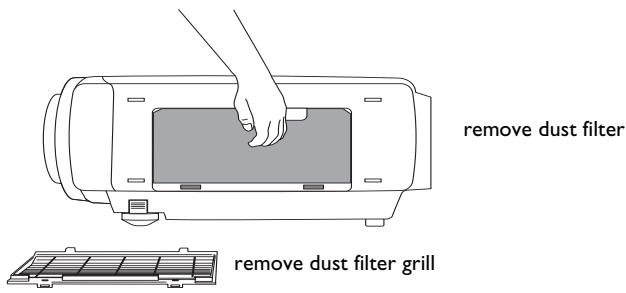
3 Remove the dust filter grill door on the side of the projector by pulling down on the two tabs at the grill's top.
4 Press the tab on the center of the dust filter and lift it off.
5 Clean the filter using a vacuum set on low power.
6 Replace the dust filter and the dust filter grill door.
7 Reset the filter hour timer.
Troubleshooting
If the Temp and Lamp LEDs indicate a problem with the filter, check the following:
- Use a soft cloth to wipe the mirrors on the dust filter grill.
- Remove the dust filter and use a soft cloth to wipe the window behind the dust filter.
- Replace the dust filter and the dust filter grill.
Using the security lock
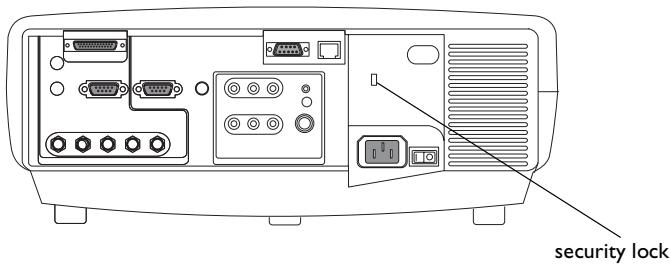
The projector has a security lock for use with a cable lock system. See the Accessories catalog that came with the projector, or visit our website, for ordering information. Refer to the information that came with the lock for instructions on how to use it.

Appendix
Projected image size
NOTE: Visit our website for an interactive image size calculator.
Table I: Projection sizes: Standard lens (1.5 - 2.2:1 throw ratio)
| Minimum Image | Maximum Image | |||
| Distance (feet/m) | Diagonal Image (feet/m) | Image Width (feet/m) | Diagonal Image (feet/m) | Image Width (feet/m) |
| Min Distance 3/0.9 | 1.7/0.52 | 1.46/.42 | 2.5/0.76 | 1.82/0.55 |
| 5/1.5 | 2.84/0.87 | 2.27/.69 | 4.17/1.27 | 4.55/1.39 |
| 10/3.0 | 5.68/1.73 | 4,55/1.39 | 8.33/2.54 | 9.09/2.77 |
| 20/6.1 | 11.36/3.46 | 9.09/2.77 | 16.67/5.08 | 13.33/4.06 |
| 30/9.1 | 17.05/5.2 | 13.64/4.16 | 25.0/7.62 | 20.0/6.10 |
| 40/12.2 | 22.73/6.93 | 18.18/5.54 | 33.33/10.16 | 26.67/8.13 |
| Max Distance 45.5/13.9 | 25.85/7.88 | 20.68/6.20 | 37.92/11.56 | 30.33/9.25 |
The image offset range for the standard lens is 10:1 (100%) to 1:1 (50%).
Table 2: Projection sizes: Short Fixed lens (0.8:I throw ratio)
| Image Size | ||
| Distance (feet/m) | Diagonal Image (feet/m) | Image Width (feet/m) |
| Min Distance 3/0.9 | 4.69/1.43 | 3.75/1.14 |
| 5/1.5 | 7.81/2.38 | 6.25/1.91 |
| 10/3.0 | 15.63/4.76 | 12.5/3.81 |
| Max Distance 12/3.7 | 18.75/5.72 | 15.0/4.57 |
The optimal offset setting for the fixed focus short throw lens is 50% (on axis).
Table 3: Projection sizes: Short Zoom lens (1.1 -1.51 throw ratio range)
| Minimum Image | Maximum Image | |||
| Distance (feet/m) | Diagonal Image (feet/m) | Image Width (feet/m) | Diagonal Image (feet/m) | Image Width (feet/m) |
| Min Distance 2/0.6 | 1.67/0.51 | 1.33/0.41 | 2.27/0.69 | 1.82/0.55 |
| 5/1.5 | 4.17/1.27 | 3.33/1.02 | 5.68/1.73 | 4.55/1.39 |
| 10/3.0 | 8.33/2.54 | 6.67/2.03 | 11.36/3.46 | 9.09/2.77 |
| 20/6.1 | 16.67/5.08 | 13.33/4.06 | 22.73/6.93 | 18.18/5.54 |
| 25/7.6 | 20.83/6.35 | 16.67/5.08 | 28.41/8.66 | 22.73/6.93 |
| Max Distance 30.5/9.3 | 25.42/7.75 | 20.33/6.2 | 34.66/10.56 | 27.73/8.45 |
The image offset range for the short throw lens is 10:1 (100%) to 1:1 (50%).
Table 4: Projection sizes: Long Throw lens (2.2 - 4.2:1 throw ratio range)
| Minimum Image | Maximum Image | |||
| Distance (feet/m) | Diagonal Image (feet/m) | Image Width (feet/m) | Diagonal Image (feet/m) | Image Width (feet/m) |
| Min Distance 4.2/1.3 | 1.28/0.39 | 1.02/.31 | 2.39/0.73 | 1.91/0.58 |
| 10/3.0 | 3.05/0.93 | 2.44/0.74 | 5.68/1.73 | 4.55/1.39 |
| 20/6.1 | 6.1/1.86 | 4.88/1.49 | 11.36/3.46 | 9.09/2.77 |
| 30/9.1 | 9.15/2.79 | 7.32/2.23 | 17.05/5.2 | 13.64/4.16 |
| 40/12.2 | 12.2/3.72 | 9.76/2.97 | 22.73/6.93 | 18.18/5.54 |
| 60/18.3 | 18.29/5.58 | 14.63/4.46 | 34.09/10.39 | 27.27/8.31 |
| Max Distance 60/18.3 | 25.37/7.73 | 20.29/6.19 | 47.27/14.41 | 37.82/11.53 |
The image offset range for the long throw lens is 10:1 (100%) to 1:1 (50%).
Table 5: Projection sizes: Super Long throw lens 3.9 - 7.3:1)
| Minimum Image | Maximum Image | |||
| Distance (feet/m) | Diagonal Image (feet/m) | Image Width (feet/m) | Diagonal Image (feet/m) | Image Width (feet/m) |
| Min Distance 7.5/2.3 | 1.28/0.39 | 1.03/0.31 | 2.4/0.73 | 1.92/0.59 |
| 25/7.6 | 4.28/1.3 | 3.42/1.04 | 8.01/2.44 | 6.41/1.95 |
| 50/15.2 | 8.56/2.61 | 6.85/2.09 | 16.03/4.88 | 12.82/3.91 |
| 75/22.9 | 12.84/3.91 | 10.27/3.13 | 24.04/7.33 | 19.23/5.86 |
| 100/30.5 | 17.12/5.22 | 13.70/4.18 | 32.05/9.07 | 25.64/7.82 |
| 125/38.1 | 21.4/6.52 | 17.12/5.22 | 40.06/12.21 | 32.05/9.77 |
| Max Distance 146.5/44.7 | 25.09/7,65 | 20.07/6.12 | 46.96/14.31 | 37.56/11.45 |
The image offset range for the super throw lens is 10:1 (100%) to 1:1 (50%).
LED Behavior
| LED color/behavior | Meaning |
| Power: blinking greenTemp: N/ALamp: N/A | The power switch has been toggled on and the software is initializing, or the projector is powering down and the fans are running to cool the lamp. |
| Power: blinking green (once)Temp: N/ALamp: N/A | Power Save or Screen Save. |
| Power: solid greenTemp: N/ALamp: N/A | The power switch has been toggled on and the software has initialized or the projector has been powered off via the remote. |
| Power: solid greenTemp: blinking redLamp: blinking red | If Temp and Lamp are flashing simultaneously, the filter hasn’t been cleaned in 100 hrs.If Temp and Lamp are flashing simultaneously (twice), the cooling air filter may be dusty. Please see “Cleaning the dust filter” on page 42.If Temp and Lamp are flashing alter-nately, the projector is below temper- ature specifications. Please use the projector in an environment between 0°C/32°F to 35°C/95°F. Contact Technical Support if the problem per-sists. |
| Power: solid red Temp: N/A Lamp: blinking red | Lamp won’t strike (blinks one time) Lamp has exceeded lamp hours limit (blinks two times) Lamp has failed (blinks three times) Lamp door is open (blinks four times) Turn off the projector and wait one minute, then turn the projector on again. If the projector has exceeded its lamp life limit, replace the lamp and reset the lamp timer. Please contact Technical Support if the problem persists. |
| Power: solid red Temp: blinking red Lamp: N/A | Fan failure. Make sure the vents aren’t blocked. Contact Technical Support if the problem persists. |
| Power: solid red Temp: solid red Lamp: N/A | The projector is overheating. Contact Technical Support if the problem persists. |
| Power: solid red Temp: N/A Lamp: N/A | Unidentified error. Please contact Technical Support. |
RS-232 commands
Communication Configuration
Visit our website for additional RS-232 settings and information.
To control this projector via RS-232, connect a null modem cable and set the control system serial port settings to match the following communication configuration:
| RS-232 Port Settings | |
| Setting | Value |
| Bits per second | 19,200 |
| Data bits | 8 |
| Parity | None |
| Stop bits | 1 |
| Flow control | None |
| Emulation | VT100 |
Command Format
All commands consist of 3 alpha characters followed by a request, all enclosed in parentheses. The request can be a read request (indicated by a "?" or a write request (indicated by 1 to 4 ASCII digits).
A read request example:
(AAA?) where
( starts the command
AAA denotes the command
? denotes the read request
) ends the command
A read command returns the range and the current setting, for example:
| Read Command Examples | ||
| Function | Command | Response |
| Brightness | (BRT?) | (96-160,128) |
| Volume | (VOL?) | (0-32, 0) |
| Lamp Hours | (LMP?) | (0-65534, 42) |
A write request example:
(AAA#####) where
starts the command
AAA denotes the command
denotes the value to be written
(leading zeros not necessary)
) ends the command
Some commands have ranges, while others are absolute. If a number greater than the maximum range is received, it is automatically set to the maximum number for that function. If a command is received that is not understood, a "?" is returned. With absolute settings, "0" is off, 1-9999 is on. The one exception is the Power command, where 0 is off and 1 is on.
To assure the projector can process a command, wait 3 seconds before entering the next command.
Write Command Examples
| Function | Command | Response |
| Brightness | (BRT140) | Sets the brightness to 140 |
| Power | (PWRO) | Turns power off |
| Power | (PWR1) | Turns power on |
Error Conditions
Not all commands are supported for all projectors. If an unsupported command is issued, the command will be ignored. If a command is received that is not understood, a '?' character will be returned indicating the command was not understood.
Limitations
The projector cannot respond to commands coming in at a high-rate. Therefore, a delay must occur between commands to ensure that the command gets properly executed. To assure the projector can process a command, wait 3 seconds before entering the next command.
The Step column refers to increasing or decreasing the menu bar position since the On-screen Display is not an exact match of values. For example, Step 2 changes the data by 2 through the CLI (Command Line Interface). The menu bar is up (or down) by 1.
| Function | Command | Min | Max | Default | Step |
| Auto Power0: disable1: enable | APO at RW | 0 | 1 | 0 | |
| Aspect Ratio0: Native1: 16:92:4:3 | ARZ at RW | 0 | 2 | 2 | |
| Auto Source0: disable1: enable | ASC at RW | 0 | 1 | 1 | |
| Balance | BAL at RW | 0 | 100 | 50 | 1 |
| Blue Gain | BCG at RW | 0 | 100 | 50 | 2 |
| Brightness | BRT at RW | 96 | 160 | 128 | 1 |
| Blank Screen0: black1: blue2: white | BSC at RW | 0 | 2 | 1 | |
| Blank0: off1: on | BLK at W | 0 | 1 | -1 | |
| Ceiling0: disable1: enable | CEL at RW | 0 | 1 | 0 | |
| Color | CLR at RW | 65 | 191 | 128 | 1 |
| Contrast | CON at RW | 96 | 160 | 128 | 1 |
| Color Space 0: RGB 1: SMPTE240 2: REC709 3: REC601 7: Auto | CSM at RW | 0 | 7 | 7 | |
| Green Gain | GCG at RW | 0 | 100 | 50 | 2 |
| Vertical Keystone | DKC at RW | 78 | 178 | 128 | 1 |
| Horizontal Keystone | DKH at RW | 78 | 178 | 128 | 1 |
| Display Messages 0: disable 1: enable | DMG at RW | 0 | 1 | 1 | 1 |
| Power-up Source 0: computer 1 1: computer 2 2: video 1 3: video 2 4: video 3 5: computer 3 | DSC at RW | 0 | 5 | 0 | |
| Startup Logo 0: blank screen 1: default 2: captured | DSU at RW | 0 | 2 | 1 |
| Function | Command | Min | Max | Default | Step |
| Effect0: blank1: mute2: aspect ratio3: source4: auto image5: freeze6: zoom7: PiP Source | EFK at RW | 0 | 8 | 7 | 1 |
| Horizontal Position | HPS at RW | def:-50 | def: +50 | auto | 1 |
| Language0 = English1 = French2 = German3 = Spanish4 = Traditional Chinese5 = Japanese6 = Korean7 = Portuguese8 = Russian9 = Norwegian10 = Simplified Chinese11 = Italian | LAN at RW | 0 | 11 | 0 | 1 |
| Time In Hours LastBulblasted | LBI at R | 0 | 32766 | 0 | |
| Time In Hours LastBulb2 Lasted | LB2 at R | 0 | 32766 | 0 | |
| Time In Hours Last Bulb3 Lasted | LB3 at R | 0 | 32766 | 0 | |
| Lamp Lit 0: not lit 1: lit | LML at R | 0 | 1 | ||
| Lamp Hours | LMP at R | 0 | 65534 | 0 | 1 |
| Lamp Reset 0: not reset 1: reset | LMR at RW | 0 | 32766 | 0 | |
| Lamp Total On Time (All Bulbs) | LMT at R | 0 | 2147483646 | ||
| Low Power 0: disable 1: enable | LPE at RW | 0 | 1 | 0 | |
| Menu 0: disable 1: enable | MNU at RW | 0 | 1 | 0 | |
| Phase | MSS at RW | 0 | 31 | 18 | 1 |
| Mute 0: disable 1: enable | MTE at RW | 0 | 1 | 0 | |
| Tracking | MTS at RW | def:-128 | def:+128 | auto | 1 |
| Function | Command | Min | Max | Default | Step |
| Menu Navigation0: up1: down4: select | NAV at W | 0 | 4 | -1 | |
| NND0: disable1: enable | NND at RW | 0 | 1 | 1 | |
| Unit Total Time On | ONL at R | 0 | 2147483646 | 0 | |
| Overscan0: disable1: enable | OVS at RW | 0 | 1 | 0 | |
| Presents0: presentation1: photography2: film3: video10: user 11: user 212: user 3 | PST at RW | 0 | 12 | c: 0v: 3 | |
| Power Save0: disable1: enable | PSV at RW | 0 | 1 | 0 | |
| Power0: disable1: enable | PWR at RW | 0 | 1 | 0 | |
| Red Gain at RW | RCG at RW | 0 | 100 | 50 | 2 |
| Rear0: disable1: enable | REA at RW | 0 | 1 | 0 | |
| Factory Reset0: not reset1: reset | RST at W | 0 | 1 | -1 | |
| Sharpness5 = Sharpest6 = Sharper7 = Standard8 = Softer9 = Softest | SHP at RW | 126 | 130 | 128 | 1 |
| Source0: computer11: computer22: video 13: video 24: video 35: computer 3 | SRC at RW | 0 | 5 | 0 | |
| Screen Save0: 5 minutes1: 10 minutes2: 15 minutes3: 20 minutes4: 25 minutes5: 30 minutes | SSV at RW | 0 | 5 | 0 | 1 |
| Function | Command | Min | Max | Default | Step |
| Color Temp 0: 9300K 1: 6500K 2: 7200K 3: User | TMP at RW | 0 | 3 | 2 | |
| Tint | TNT at RW | 114 | 142 | 128 | 1 |
| Volume | VOL at RW | 0 | 32 | 16 | 1 |
| Vertical Position | VPS at RW | 0 | def: auto x 2 | auto | 1 |
| Video Standard 0: Auto 1: NTSC 2: PAL 3: SECAM | VSU at RW | 0 | 3 | 0 | |
| IR Receiver front 0: disable 1: enable | IRF at RW | 0 | 1 | 1 | |
| IR Receiver rear 0: disable 1: enable | IRR at RW | 0 | 1 | 1 | |
| IR Receiver top 0: disable 1: enable | IRT at RW | 0 | 1 | 1 | |
| PiP Size Selection0: off1: small2: medium3: large | PSS at RW | 0 | 3 | 0 | |
| PiP Input3: video 21: video 3 | PIN at RW | 3 | 4 | 3 | |
| PiP Position0: lower right1: upper right2: lower left3: lower right10: user | PPO at RW | 0 | 4 | 2 |
Numerics
1024x768 resolution 6
A
About 38
Aspect Ratio 38
audio 29
Audio In connector 9, 15
Auto Image 38
Auto Power 36
Autosource 36
B
Blank 38
BNC 10, 16
BNC connectors 16
Brightness 14
C
Capture Position 37
Capture Start 37
changing the lens 40
cleaning the dust filter 43
cleaning the lens 40
Color 18
colors are incorrect 24
component cable connector 15
computer 10
computer connections
optional 9
required 9
computer image
optimize 30
troublesheooting 20
connector panel 7
contacting InFocus 26
Contrast 14, 18
custom logo
startup screen 37
customer service contact information 26
D
Default gateway 39
DHCP 39
Display Messages 36
displaying
computer image 11
PiP 38
video image 17
Drivers 12
USB 13
Windows 98 13
dust filter, cleaning 43
E
Effect Key 38
elevator foot 14, 17
F
Factory Reset 39
Filter Reset 39
first time use
driver installation 12
focus 14, 18
Freeze 38
fuzzy image 22
1
image
display computer 11
display video 17
size 8
image does not fit screen 23
image not centered 26
image not sharp 23
image not square 23
image reversed 24
image size matrix 44
image upside down 24
Info
network 39
IP Address 39
IR Receivers 36
L
lamp replacement 41
Lamp Reset 39
lamp won't turn on 25
Language 39
laptop
connecting 9
external video port 11
LED 19
blinking red 25
solid red 25
lens
changing 40
cleaning 40
Logo Capture 37
Low Power 36
M
Magnify 38
Main menu 32
menu system 32
Monitor connector 10
mouse, using your 9
Mute 38
N
Network 39
Network connector 10
Network Info 39
NND 36
no computer image 21
no startup screen 20
0
only startup screen appears 20
Overscan 35
P
Picture in Picture 38
Picture menu 33
PiP 38
Power button 17
power cable 9, 15
Power Save 36
Power-up Source 36
presentation features 30
projection distance 8
projector
connector panel 7
customizing 31
positioning 8
setting up 8
shutdown 19
troubleshooting problems 19
projector height 14, 17
projector positioning 14, 17
R
Rear 36
remote 9
remote control 28
not working 22
replacing the lamp 41
RS-232
cable 10
connecting 7
s
security lock 43
Serial connection 10
serial connection 7
Service 39
Service Code 39
Settings menu 36
shutdown
projector 19
solid red 47
Source 38
Source troubleshooting 20
Sources 36
Subnet mask 39
S-video connector 15
T
Tint 18
Troubleshooting 20
troubleshooting 19
U
USB, using your mouse 9
V
video 16
Video button 17
video connections
optional 15
standard 15
Video connector 15
video images
optimizing 31
Video Standard 35
volume adjustment 18
W
warranty 26, 57
Windows 2000 13
Windows 98 12
Windows ME, XP 13
wired 9
wired remote 9
X
XGA6
Z
zoom 14, 18
Limited Warranty
InFocus Corporation ("InFocus") warrants that the Projector ("Product") purchased from InFocus, an InFocus distributor, or an InFocus reseller will conform to the manufacturer's specifications and be free from defects in material or workmanship for the Warranty period provided below. InFocus does not warrant that the Product will meet the specific requirements of the end-user customer.
If the Product, which is the subject of this Limited Warranty, is defective in material or workmanship during the warranty period, InFocus, at its option, will REPAIR or REPLACE the Product.
All exchanged parts and products replaced under this Warranty will become property of InFocus. InFocus' sole obligation is to supply (or pay for) all labor necessary to repair the Product found to be defective within the Warranty period and to repair or replace defective parts with new parts or, at the option of InFocus, serviceable used parts that are equivalent or superior to new parts performance.
Limited Warranty Alternatives: Subject to the Limitations, Exclusions and Disclaimers, InFocus Warrants as follows:
2 Year Parts and Labor Product Warranty - From the date of purchase, InFocus warrants that the Product will conform to the manufacturers' specifications and be free from defects in material or workmanship for a period of two (2) years.
- I Year Parts Only Accessory Warranty - From the date of purchase, InFocus warrants that the customer replaceable and accessory products will conform to the manufacturers' specifications and be free from defects in material or workmanship for a period of one (1) year.
- 90 Day/500 Hour Replacement Lamp Warranty - Lamp Products purchased in projectors or separately as replacements after the original projector purchase is Ninety (90) days or 500 hours, whichever comes first. During the Warranty period for the Product, InFocus warrants that Replacement lamps, which are purchased at the time of projector purchase, will have a 90-day or 500 hour warranty, whichever comes first, from the date the spare lamp is put into use.
WARRANTY LIMITATION AND EXCLUSION
THIS WARRANTY SETS FORTH INFOCUS' MAXIMUM LIABILITY FOR ITS PRODUCT. THIS WARRANTY EXTENDS ONLY TO PRODUCTS PURCHASED FROM INFOCUS OR AN INFOCUS AUTHORIZED RESELLER. InFocus shall have no further obligation under the foregoing Limited Warranty if the Product has been damaged due to abuse, misuse, neglect, smoke exposure (cigarette or otherwise), accident, unusual physical or electrical stress, unauthorized modifications (including use of an unauthorized mount), tampering, alterations, or service other than by InFocus or its authorized agents, causes other than from ordinary use or failure to properly use the Product in the application for which said Product was intended.
This Warranty excludes Product or accessory cleaning, repair, or replacement of plastics due to cosmetic damage and damage as a result of normal wear. Product repair outside of the terms of the Limited Warranty will be on a time and materials basis. Prolonged Product "demonstration" causes unusual Product wear and is not considered normal use under the terms of this Limited Warranty.
The Accessory Warranty covers the accessory item only and excludes normal wear. The Lamp Product Warranty excludes expected lamp degradation.
Remanufactured Products and Software Products are exempt from the foregoing Limited Warranty. Please refer to the appropriate Remanufactured Product Limited Warranty or Software Product Limited Warranty for applicable Warranty information.
DISCLAIMER OF UNSTATED WARRANTYES
THE WARRANTY PRINTED ABOVE IS THE ONLY WARRANTY APPLICABLE TO THIS PRODUCT. ALL OTHER WARRANTYES, EXPRESS OR IMPLIED, INCLUDING, BUT NOT LIMITED TO, THE IMPLIED WARRANTYES OF MERCHANTABILITY AND FITNESS FOR PARTICULAR PURPOSE ARE DISCLAIMED. THERE ARE NO WARRANTYES THAT EXTEND BEYOND THE DESCRIPTION ON THE FACE HEREOF AND THE FOREIGNING WARRANTY SHALL NOT BE EXTENDED, ALTERED OR VARIRED EXCEPT BY WRITTEN INSTRUMENT SIGNED BY INFOCUS. SOME JURISDICTIONS DO NOT ALLOW LIMITATIONS ON HOW LONG AN IMPLIED WARRANTY MAY LAST, SO SUCH LIMITATIONS MAY NOT APPLY TO YOU.
Limited Warranty Period
The Limited Warranty period commences on the date of purchase by the end-user customer for both the 2 year Product Warranty and the 1 year Accessory Warranty. These Limited Warranty provisions shall apply only to the end-user purchaser (first person or entity that purchased a new Product for personal or business use and not for the purpose of distribution or resale).
To Be Eligible For Limited Warranty Coverage
Any person exercising a claim under this Limited Warranty must establish to the satisfaction of InFocus both the date of purchase and that the Product was purchased new. The sales receipt or invoice, showing the date of purchase of the Product or Accessory is the proof of the date of purchase.
To Obtain Warranty Service
During the Limited Warranty period, to exercise this Limited Warranty, the purchaser must first contact 1) InFocus, 2) a service facility authorized by InFocus or 3) the place of original purchase.
InFocus Customer Service - 1-800-799-9911 or techsupport@infocus.com
For Warranty service, the purchaser will be advised to return or deliver the defective Product freight and all fees prepaid, to an InFocus Service Center or to a service facility authorized by InFocus. When returning Product to InFocus, a Return Material Authorization Number (RMA #) is required and must be clearly displayed on the outside of the shipping carton or a similar package affording an equal degree of protection. InFocus or the service facility authorized by InFocus will return the repaired/ replaced Product freight prepaid to the purchaser.
Products returned for Warranty service must be accompanied by a written letter that: (i) explains the problem; (ii) provides proof of date of purchase; (iii) provides the dealer's name; and (iv) provides the model and serial number of the Product. Upon request of InFocus Corporation or an InFocus authorized repair center receiving the Product, proof of legal importation must accompany the warranty repair Product, otherwise the Product must be returned to the place of original purchase, to the manufacturer (Purchaser must bear all tax, duty and freight), or the Purchaser must bear charges for the warranty repair.
No repair or replacement of Product or part thereof shall extend the Limited Warranty period as to the entire Product. Warranty on the repair part and workmanship shall only be effective for a period of ninety (90) days following the repair or replacement of that part or the remaining period of the Product Limited Warranty whichever is greater.
LIMITATION OF LIABILITY
IT IS UNDERSTOOD AND AGREED THAT INFOCUS' LIABILITY WHEHER IN CONTRACT, IN TORT, UNDER ANY WARRANTY, IN NEGLIGENCE OR OTHERWISE SHALL NOT EXCEED THE RETURN OF THE AMOUNT OF THE PURCHASE PRICE PAID BY PURCHASER AND UNDER NO CIRCUMSTANCES SHALL INFOCUS BE LIABLE FOR SPECIAL, INDIRECT, INCIDENTAL OR CONSEQUENTIAL DAMAGES OR LOST PROFITS, LOST REVENUES OR LOST SAVINGS. THE PRICE STATED FOR THE PRODUCTS IS A CONSIDERATION IN LIMITING INFOCUS' LIABILITY.
Limitation on Bringing Action - No action, regardless of form, arising out of the agreement to purchase the product may be brought by purchaser more than one year after the cause of action has accrued.
Governing Law - Any action, regardless of form, arising out of the agreement to purchase the product is governed by Oregon law.
Mandatory Arbitration - Any action, regardless of form, arising out of the agreement to purchase the product is subject to mandatory arbitration.
SOME JURISDICTIONS DO NOT ALLOW THE EXCLUSION OR LIMITATION OF INCIDENTAL OR CONSEQUENTIAL DAMAGES SO THE ABOVE LIMITATION OR EXCLUSION MAY NOT APPLY TO YOU. THIS LIMITED WARRANTY GIVES YOU SPECIFIC LEGAL RIGHTS, AND YOU MAY ALSO HAVE OTHER RIGHTS, DEPENDING ON JURISDICTION.
IF YOU NEED ASSISTANCE....
For all types of Service and Support information on our products and services please go to our website at www.ask.no/support or www.proxima.com
Many resources are available on our website. Some examples are:
- Frequently Asked Questions about general projector usage and technical issues
E-mail support
Online product registration
Product data sheets - Optional accessories
- Technical specifications, interactive image size calculator, laptop activation commands and more!
C440/C450
InFocus Corporation
27700B SW Parkway Avenue
Wilsonville, Oregon 97070-9215
1-800-294-6400 • 503-685-8888
Fax: 503-685-8887
http://www.infocus.com
In Europe:
InFocus International B.V.
Strawinskylaan 585
1077 XX Amsterdam, The Netherlands
Phone: +31 20 579 2000
Fax: +31 20 579 2999
In Asia:
238A Thomson Road
18-01/04 Novena Square
Singapore 307684
Telephone: (65) 6334-9005
Fax: (65) 6333-4525

010-0536-00
InFocus®
C O R P O R A T I O N
- Declaration of Conformity
- Trademarks
- FCC Warning
- EN 55022 Warning
- Canada
- Remote Control Warning
- Table of Contents
- Important Operating Considerations
- Introduction
- Product specifications
- Accessories
- Online Registration
- Connector Panel
- Positioning the projector
- Connecting a computer
- Required computer connections
- Optional computer connections
- Displaying a computer image
- First-time projector use with Windows 98
- Skip this page if you did not connect a USB mouse cable
- For Windows 98:
- For Windows 2000, Windows ME, and Windows XP:
- Adjusting the image
- Connecting a video device
- Standard video connections
- Optional video connections
- Displaying a video image
- Shutting down the projector
- Screen Save
- Power Save
- Turning off the projector
- Troubleshooting your setup
- Source Troubleshooting
- Projector troubleshooting
- Image not centered on screen
- Move projector, adjust zoom or lens shift on keypad, adjust height
- Adjust horizontal or vertical position in Picture>Advanced menu
- Correct image
- Still having problems?
- Using the keypad buttons
- Using the remote control
- Troubleshooting the remote
- Using the audio
- Troubleshooting audio
- Connecting external speakers
- Optimizing computer images
- Presentation features
- Optimizing video images
- Customizing the projector
- Using the menus
- Picture menu
- Advanced settings
- Settings menu
- Maintenance
- Cleaning the lens
- Changing the lens
- Replacing the projection lamp
- WARNING:
- Resetting the lamp timer
- Cleaning the dust filter
- Troubleshooting
- Using the security lock
- Appendix
- Projected image size
- RS-232 commands
- Communication Configuration
- Command Format
- Error Conditions
- Limitations
- Numerics
- A
- B
- C
- D
- E
- F
- 1
- Limited Warranty
- WARRANTY LIMITATION AND EXCLUSION
- DISCLAIMER OF UNSTATED WARRANTYES
- Limited Warranty Period
- To Be Eligible For Limited Warranty Coverage
- To Obtain Warranty Service
- LIMITATION OF LIABILITY
- IF YOU NEED ASSISTANCE....
- C440/C450
Brand : ASK PROXIMA
Model : C450
Category : 3D Printer