
MOBILE SECURITY 3.1 FOR SYMBIAN - Mobile Security F-SECURE - Free user manual and instructions
Find the device manual for free MOBILE SECURITY 3.1 FOR SYMBIAN F-SECURE in PDF.


| Product Type | Mobile Security Software |
| Brand | F-SECURE |
| Model | MOBILE SECURITY 3.1 FOR SYMBIAN |
| Platform | Symbian OS |
| Version | 3.1 |
| Main Functions | Real-time antivirus, firewall, automatic updates |
| Real-time protection | Yes |
| Manual scan | Yes, full device scan |
| Infected file management | Quarantine, delete, or release |
| Firewall levels | Allow all, Normal, High, Deny all, Custom |
| Virus definition update | Automatic and manual |
| Activation | Via SMS or internet connection |
| Free trial period | 30 days (estimated) |
| Available languages | Multilingual (French, English, etc.) |
| Technical support | Website http://mobile.f-secure.com |
| Installation | Via download or synchronization with a computer |
| Restart required after installation | Yes |
| Subscription after trial | Required for ongoing protection |
| Maintenance and cleaning | Regular update of the application and virus database |
| Security | Antivirus and firewall protection against intrusions |
| General information | Software for Symbian phones, copyright 2008 F-SECURE Corporation |
Frequently Asked Questions - MOBILE SECURITY 3.1 FOR SYMBIAN F-SECURE
User questions about MOBILE SECURITY 3.1 FOR SYMBIAN F-SECURE
0 question about this device. Answer the ones you know or ask your own.
Ask a new question about this device
Download the instructions for your Mobile Security in PDF format for free! Find your manual MOBILE SECURITY 3.1 FOR SYMBIAN - F-SECURE and take your electronic device back in hand. On this page are published all the documents necessary for the use of your device. MOBILE SECURITY 3.1 FOR SYMBIAN by F-SECURE.
USER MANUAL MOBILE SECURITY 3.1 FOR SYMBIAN F-SECURE
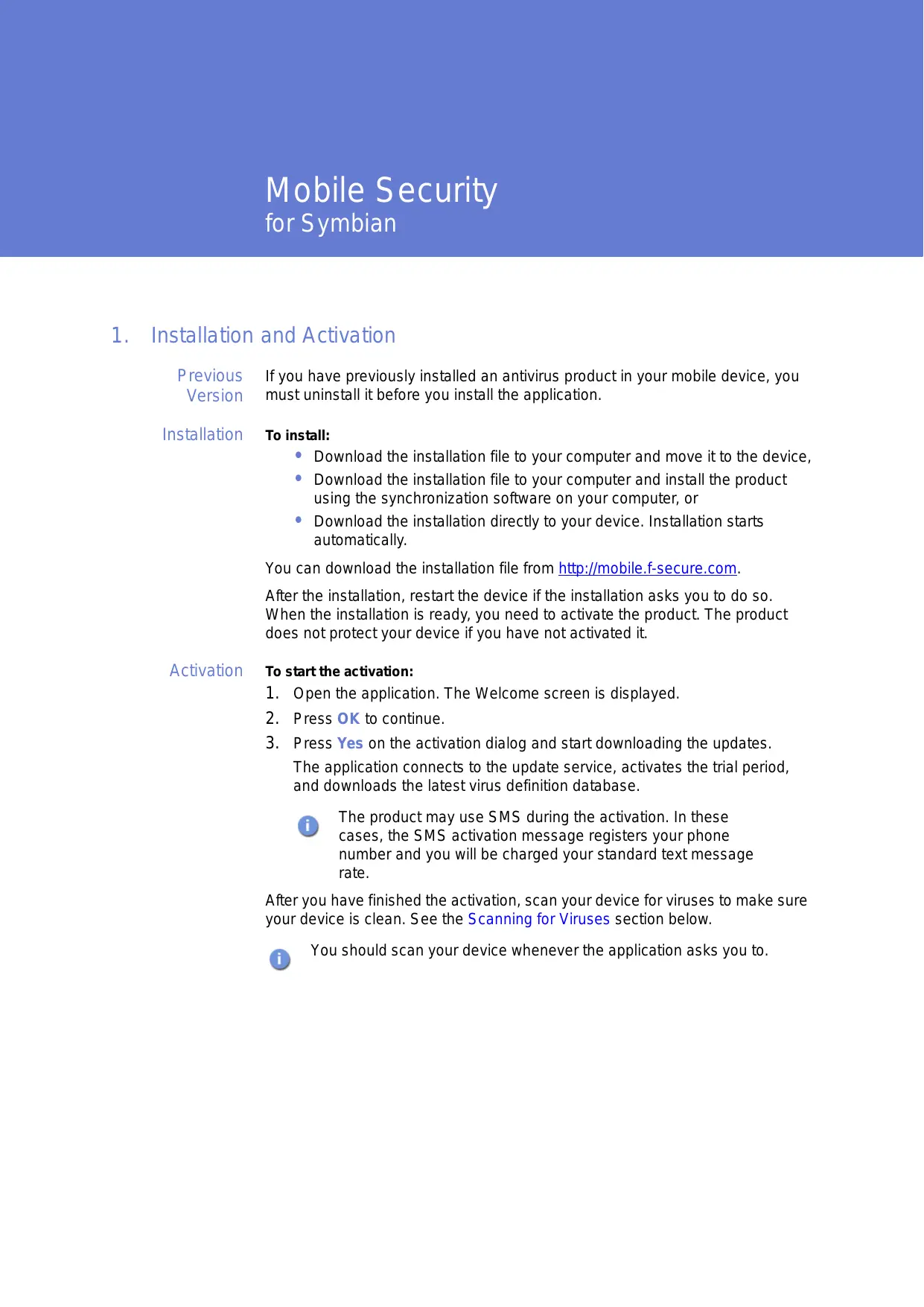
1. Installation and Activation
Previous
Version
If you have previously installed an antivirus product in your mobile device, you must uninstall it before you install the application.
Installation
To install:
- Download the installation file to your computer and move it to the device,
- Download the installation file to your computer and install the product using the synchronization software on your computer, or
- Download the installation directly to your device. Installation starts automatically.
You can download the installation file from http://mobile.f-secure.com.
After the installation, restart the device if the installation asks you to do so. When the installation is ready, you need to activate the product. The product does not protect your device if you have not activated it.
Activation
To start the activation:
- Open the application. The Welcome screen is displayed.
- Press OK to continue.
- Press Yes on the activation dialog and start downloading the updates.
The application connects to the update service, activates the trial period, and downloads the latest virus definition database.

The product may use SMS during the activation. In these cases, the SMS activation message registers your phone number and you will be charged your standard text message rate.
After you have finished the activation, scan your device for viruses to make sure your device is clean. See the Scanning for Viruses section below.

You should scan your device whenever the application asks you to.
2. Subscription
In order to stay fully protected after the trial period, you must subscribe to the product service. Therefore, it is recommended that you purchase additional service time before the expiration date. The expired application displays the scanning and firewall statistics but it does not scan any files or block any network traffic.
The application supports several purchase methods depending on the distribution channel. Press Buy to view all available purchase methods. Most common purchase methods are:
- The operator-specific service subscription
- F-Secure eStore
- Your local reseller
- SMS payment
3. Scanning for Viruses
The application works in the background and scans your files automatically.
- If a virus is found during the real-time scan, a message is displayed. Press Yes to view the infected file(s), or No to close the dialog.
- The Infections view contains a list of infected files on the device and the state of the file (either quarantined or released).
- To view more details about an infected file, select the file and press Options > Details.
You can also manually scan the whole device for viruses whenever you want. To start the manual scan, select Scan all from application menu.
Processing Infected Files
To process infected files:
- In the Infections view, select the infected file to be processed.
- Press Options > Process selected.
-
From the Select action menu, select the desired action, and press OK. You can process the infected files in one of the following ways:
-
Quarantine - quarantine the infected file. A quarantined file is locked and cannot harm your device when Mobile Security is on.
- Delete - delete the infected file. This is the recommended option. The file will be removed completely from your device.
- Release - release the quarantined file. If you release a file, it will not be locked any more. You access it at your own risk.
4. Preventing Unauthorized Network Traffic
The firewall in the application works quietly in the background. It monitors incoming and outgoing Internet and network information, and protects you from intrusion attempts. The predefined firewall levels allow you to instantly change the level of protection according to your needs.
The firewallcomponentmaybe missingfromyourapplication, depending on the device you are using.
Selecting Firewall Level
To select the firewall level:
- In any of the views, press Options > Settings.
- Select Firewall protection.
-
Press Options > Change to select the desired firewall level:
-
Allow All - allows all network traffic.
- Normal - allows all outgoing connections and blocks all incoming traffic.
- High - allows most commonly used applications and blocks all incoming traffic.
Deny All - stops all network traffic. -
Custom - allows network traffic based on your custom rules.
-
Press OK.
5. Keeping the Product Up-to-Date
Automatic Updates
The application includes an automatic update service, which means that the virus definition database in the application is updated regularly. Only an up-to-date virus definition database protects your device against the latest viruses. Automatic updates are in use after you have activated the product.
The application requires an active Internet connection for the updates. The application checks periodically when the virus definition database was last updated and downloads new updates if necessary.
Manual Updates
To update the application manually:
- In any of the main views, press Options > Update.
The application downloads the latest virus definition database and takes it into use immediately.
- When the update is finished, press Yes to scan your device for viruses if you are prompted to do so. See the Scanning for Viruses section above.
Version Updates
When a new version of the application is available, the update asks you to download the latest version. The application restarts automatically when the update is completed.
Technical Support
If you have questions about the application not covered in the guides or in the online services, you can contact your local F-Secure distributor or F-Secure Corporation directly.
If you have questions about the application not covered in the guide, see the frequently asked questions at http://mobile.f-secure.com.
DISCLAIMER
"F-Secure" and the triangle symbol are registered trademarks of F-Secure Corporation and F-Secure product names and symbols/logos are either trademarks or registered trademarks of F-Secure Corporation. All product names referenced herein are trademarks or registered trademarks of their respective companies. F-Secure Corporation disclaims proprietary interest in the marks and names of others. Although F-Secure Corporation makes every effort to ensure that this information is accurate, F-Secure Corporation will not be liable for any errors or omission of facts contained herein. F-Secure Corporation reserves the right to modify specifications cited in this document without prior notice.
Companies, names and data used in examples herein are fictitious unless otherwise noted. No part of this document may be reproduced or transmitted in any form or by any means, electronic or mechanical, for any purpose, without the express written permission of F-Secure Corporation.
This product may be covered by one or more F-Secure patents, including the following:
GB2353372, GB2366691, GB2366692, GB2366693, GB2367933, GB2368233, GB2374260
Copyright © 2008 F-Secure Corporation. All rights reserved