MOBILE ANTI-VIRUS FOR SERIES 60 - Mobile Security F-SECURE - Free user manual and instructions
Find the device manual for free MOBILE ANTI-VIRUS FOR SERIES 60 F-SECURE in PDF.


| Product Type | Antivirus software for mobile phone |
| Brand | F-SECURE |
| Model | MOBILE ANTI-VIRUS FOR SERIES 60 |
| Category | Mobile security |
| Compatible platforms | Nokia Series 60 (Nokia 3660, 6600, 7650, 7610, 3650, N-Gage, 6670) |
| Memory required | 650 KB (base version); additional 300 KB for SMS purchase function |
| Scanning modes | Real-time (recommended), scheduled (daily or weekly), manual |
| Real-time scanning | Yes, automatic in background when files are accessed or modified |
| Automatic update | Yes, up to once a day via active Internet connection (detects existing connection) |
| Manual update | Yes, from Options > Update antivirus |
| Virus database | Regularly updated via Internet; necessary to detect latest viruses |
| Infected file management | Quarantine, disinfect (if possible), delete, or release (at your own risk) |
| Event log | Chronological list of the last 20 events |
| Activation | By subscription number or free trial period |
| Subscription | Paid service; renewal via SMS or F-Secure website |
| Trial period | Yes, included with all features |
| Installation | Via message containing the package; cannot be installed on memory card |
| Uninstallation | From main interface (Options > Uninstall) |
| Subscription transfer | Up to 4 transfers allowed; requires entering subscription number |
| File exclusion | Ability to exclude files/folders from real-time scanning |
| Data usage | Approximately 2-4 KB per check, ~100 KB per month with daily automatic update |
| Status display | Icons for updates, subscription, infections in main view |
Frequently Asked Questions - MOBILE ANTI-VIRUS FOR SERIES 60 F-SECURE
User questions about MOBILE ANTI-VIRUS FOR SERIES 60 F-SECURE
0 question about this device. Answer the ones you know or ask your own.
Ask a new question about this device
Download the instructions for your Mobile Security in PDF format for free! Find your manual MOBILE ANTI-VIRUS FOR SERIES 60 - F-SECURE and take your electronic device back in hand. On this page are published all the documents necessary for the use of your device. MOBILE ANTI-VIRUS FOR SERIES 60 by F-SECURE.
USER MANUAL MOBILE ANTI-VIRUS FOR SERIES 60 F-SECURE
"F-Secure" and the triangle symbol are registered trademarks of F-Secure Corporation and F-Secure product names and symbols/logos are either trademarks or registered trademarks of F-Secure Corporation. All product names referenced herein are trademarks or registered trademarks of their respective companies. F-Secure Corporation disclaims proprietary interest in the marks and names of others. Although F-Secure Corporation makes every effort to ensure that this information is accurate, F-Secure Corporation will not be liable for any errors or omission of facts contained herein. F-Secure Corporation reserves the right to modify specifications cited in this document without prior notice.
Companies, names and data used in examples herein are fictitious unless otherwise noted. No part of this document may be reproduced or transmitted in any form or by any means, electronic or mechanical, for any purpose, without the express written permission of F-Secure Corporation.
This product may be covered by one or more F-Secure patents, including the following:
GB2353372
GB2366691
GB2366692
GB2366693
GB2367933
GB2368233
GB2374260
Contents
About This Guide 7
How This Guide Is Organized 8
Conventions Used in F-Secure Guides 9
Symbols 9
Chapter 1 Introduction 11
1.1 F-Secure Mobile Anti-Virus 12
1.2 Key features 12
Chapter 2 Installation 15
2.1 System requirements 16
2.2 Installing F-Secure Mobile Anti-Virus 16
2.3 Transferring Subscription to a New Device 17
2.4 Uninstalling F-Secure Mobile Anti-Virus 19
Chapter 3 User Interface 21
3.1 Overview 22
3.2 Main Views 22
3.2.1 Main View 22
3.2.2 Status View 24
3.2.3 Log View 25
3.2.4 Infections View 27
3.3 Setting Views 28
3.3.1 Scan Settings View 28
3.3.2 Update Settings View 29
3.3.3 Exclusion Settings View 30
3.4 About Anti-Virus 31
3.5 Subscription Info 31
Chapter 4 Startup and Shutdown 33
4.1 Starting F-Secure Mobile Anti-Virus 34
4.1.1 Activating F-Secure Mobile Anti-Virus (First-time Start-Up) 35
4.1.2 Starting F-Secure Mobile Anti-Virus (Normal Start-Up) 40
4.2 Shutting Down F-Secure Mobile Anti-Virus 43
4.3 Hiding User Interface 43
Chapter 5 Configuration 45
5.1 Overview 46
5.2 Scan Settings 46
5.3 Update Settings 48
5.4 Exclusion Settings 50
Chapter 6 Virus Scan 53
6.1 Overview 54
6.2 Scanning Modes 54
6.3 Running a Manual Scan 55
6.4 Viewing Scan Results 56
Chapter 7 Processing Infected Files 59
7.1 Overview 60
7.2 Viewing Details of Infected Files 60
7.3 Processing Infected File(s) 62
7.4 Viewing Disinfection Results 63
Chapter 8 Updating 65
8.1 Overview 66
8.2 Viewing Update Information 66
8.3 Updating F-Secure Mobile Anti-Virus 68
8.3.1 Updating Virus Definition Database 68
8.3.2 Upgrading the Application 69
Chapter 9 Troubleshooting 71
9.1 No Internet Access Points Configured 72
9.2 Invalid Subscription Number 72
9.3 Unable to Connect to Update Server/Update Failure 72
9.4 Update Service Could Not Authenticate Device 73
9.5 Service Has Expired or About to Expire 73
9.6 Virus Definition Database Corrupted or Missing and Virus Protection Not Updated74
9.7 Theme Files on Memory Card 75
9.8 Multiple Messages When Purchasing Subscription 75
9.9 Automatic Updates Generating Data Traffic 76
Chapter 10 Technical Support 77
10.1 Overview 78
10.2 Web Club 78
10.3 Virus Descriptions on the Web 78
10.4 Electronic Mail Support 78
Appendix A Purchasing Subscription Service Time 81
A.1 Overview 82
A.2 SMS-Based Purchase 82
A.3 Purchasing Through PC Browser 84
About F-Secure Corporation 85
F-Secure Corporation 86
The F-Secure Product Family 88
ABOUT THIS GUIDE
How This Guide Is Organized. 8
Conventions Used in F-Secure Guides 9
How This Guide Is Organized
F-Secure Mobile Anti-Virus for Series 60 User's Guide is divided into the following chapters:
Chapter 1. Introduction. Provides general information about F-Secure Mobile Anti-Virus.
Chapter 2. Installation. Gives instructions on installing and setting up F-Secure Mobile Anti-Virus.
Chapter 3. User Interface. Describes the F-Secure Mobile Anti-Virus user interface.
Chapter 4. Startup and Shutdown. Explains how to start and shut down F-Secure Mobile Anti-Virus.
Chapter 5. Configuration. Gives instructions on configuring the scan, update and excluded files settings.
Chapter 6. Virus Scan. Explains how to scan files for viruses.
Chapter 7. Processing Infected Files. Explains how to view details of infected files and how to process the infected files.
Chapter 8. Updating. Explains how to keep F-Secure Mobile Anti-Virus up to date.
Chapter 9. Troubleshooting. Provides solutions to common problems.
Chapter 10. Technical Support. Provides the contact information for assistance.
Appendix A. Purchasing Subscription Service Time. Provides information about purchasing F-Secure Mobile Anti-Virus.
About F-Secure Corporation. Describes the company background and products.
Conventions Used in F-Secure Guides
This section describes the symbols, fonts, terminology used in this manual.
Symbols
WARNING: The warning symbol indicates a situation with a risk of irreversible destruction to data.
IMPORTANT: An exclamation mark provides important information that you need to consider.
REFERENCE - A book refers you to related information on the topic available in another document.
NOTE - A note provides additional information that you should consider.
TIP - A tip provides information that can help you perform a task more quickly or easily.
⇒ An arrow indicates a one-step procedure.
Fonts
Arial bold (blue) is used to refer to menu names and commands, to buttons and other items in a dialog box.
Aerial Italics (blue) is used to refer to other chapters in the manual, book titles, and titles of other manuals.
Aerial Italics (black) is used for file and folder names, for figure and table captions, and for directory tree names.
Courier New is used for messages on your computer screen and for information that you must type.
SMALL CAPS (BLACK) is used for a key or key combination on your keyboard.
Aerial underlined (blue) is used for user interface links.
Times New Roman regular is used for window and dialog box names.
PDF Document
This manual is provided in PDF (Portable Document Format). The PDF document can be used for online viewing and printing using Adobe® Acrobat® Reader. When printing the manual, please print the entire manual, including the copyright and disclaimer statements.
For More Information
Visit F-Secure at http://www.f-secure.com for documentation, training courses, downloads, and service and support contacts.
In our constant attempts to improve our documentation, we would welcome your feedback. If you have any questions, comments, or suggestions about this or any other F-Secure document, please contact us at documentation@f-secure.com.
1 INTRODUCTION
F-Secure Mobile Anti-Virus 12
Key features 12
1.1 F-Secure Mobile Anti-Virus
F-Secure Mobile Anti-Virus consists of the F-Secure Mobile Services platform and the F-Secure Mobile Anti-Virus client. The F-Secure Mobile Services platform manages and secures user access and acts as a platform for different services. The F-Secure Mobile Anti-Virus client is a software product that protects data stored in your Series 60 device against malicious code attacks.
This guide is intended to introduce the main features of the F-Secure Mobile Anti-Virus client for Series 60, and explain its use. In this manual, the F-Secure Mobile Anti-Virus client for Series 60 is referred to as F-Secure Mobile Anti-Virus.
F-Secure Mobile Anti-Virus is designed to be as transparent as possible. It automatically scans all files when they are accessed. When F-Secure Mobile Anti-Virus detects an infected file, it immediately quarantines it to protect all other data on the device. The automatic scanning happens transparently on the background.
To work effectively, the anti-virus software requires an always up-to-date virus definition database. With F-Secure Mobile Anti-Virus, you can download the latest virus definition database automatically from your update server.
1.2 Key features
This section lists the F-Secure Mobile Anti-Virus key features.
Transparent Operation
The application runs in the background while you use your device.
Extensive scanning
The application automatically scans all files when they are accessed. You can also manually scan your device for viruses whenever you want or set a date and time for scheduled scanning.
Automatic updates
The application automatically downloads regular updates to keep the virus definition database up to date. This enables finding and removing even the most recently found viruses.
2
INSTALLATION
System requirements 16
Installing F-Secure Mobile Anti-Virus 16
Transferring Subscription to a New Device 17
Uninstalling F-Secure Mobile Anti-Virus 19
2.1 System requirements
To use F-Secure Mobile Anti-Virus, your device must meet the following requirements:
Platform:
Nokia Series 60 devices (Nokia 3660, Nokia 6600, Nokia 7650, Nokia 7610, Nokia 3650, N-Gage and Nokia 6670)
Available memory:
650KB.
If your F-Secure Mobile Anti-Virus version includes the SMS-Based Purchase functionality, an extra 300 KB of memory is needed.
2.2 Installing F-Secure Mobile Anti-Virus
Before you start the installation process, prepare your device as follows:
If you have a previous version of F-Secure Mobile Anti-Virus installed, you must close it. No uninstalling is needed as the new version automatically removes the earlier version.
To install F-Secure Mobile Anti-Virus on your device:

IMPORTANT: F-Secure Mobile Anti-Virus cannot be installed on a memory card.
- Open the inbox and scroll to the message that contains the installation package.

For more information, refer to the User's Guide that came with your device.
- Open the message, and press Yes to confirm installing F-Secure Mobile Anti-Virus. In the License agreement screen, read the agreement and press Ok to continue.
When the installation is complete, we recommend starting the application only after you have received the activation message (does not apply to evaluation versions).
If you have left your mobile phone number to your retailer, you receive the activation message as an SMS message. If you do not receive it, enter the subscription number when you start your F-Secure Mobile Anti-Virus for the first time.
If you do not know your subscription number, contact your service provider or retailer.
- After installing F-Secure Mobile Anti-Virus, you need to update the virus definition database. Press Yes to update it immediately. For more information, see "Updating", 65.
The automatic update feature is enabled by default. A connection to the update server is established twice a day, providing there is Internet activity over the preferred Internet access point.
IMPORTANT: F-Secure Mobile Anti-Virus cannot detect the latest viruses with an outdated database.
- After you have installed F-Secure Mobile Anti-Virus, we recommend scanning your device for viruses. For more information, see "Virus Scan", 53.
2.3 Transferring Subscription to a New Device
Before transferring your F-Secure Mobile Anti-Virus service subscription to another device, prepare your device as follows:
If you have a previous version of F-Secure Mobile Anti-Virus installed, you must close it. No uninstalling is needed as the new version automatically removes the earlier version.
To transfer your Anti-Virus service subscription to another device:

IMPORTANT: F-Secure Mobile Anti-Virus cannot be installed on a memory card.
- Open the inbox and scroll to the message that contains the installation package.

For more information, refer to the User's Guide that came with your device.
- Open the message, and press Yes to confirm that you want to install F-Secure Mobile Anti-Virus. In the License agreement screen, read the agreement and press Ok to continue.
- Wait until the installation is complete. During the start-up process, when prompted, enter the subscription number.
- Connect to the update server to update the virus definition database by pressing Yes in the message that is displayed.
- If you successfully transferred your subscription, at this stage, a message is displayed informing you that your subscription has been transferred to a new device. Press any key to dismiss the message. F-Secure Mobile Anti-Virus starts downloading the virus definition database update and, if available, a new software version.

If the update server is unable to authenticate your subscription, an error message is displayed. The server cannot authenticate the subscription in the following cases:
The files in the F-Secure Mobile Anti-Virus installation folder are corrupted or have been changed
You have tried to transfer the F-Secure Mobile Anti-Virus service subscription into another device more than four times
2.4 Uninstalling F-Secure Mobile Anti-Virus

IMPORTANT: If you need to uninstall F-Secure Mobile Anti-Virus from your device, make sure that you do not have any quarantined or infected files in your device.
To uninstall F-Secure Mobile Anti-Virus:
- Open F-Secure Mobile Anti-Virus.
- Scroll to the Main view and select Options → Uninstall.
- Press Yes to confirm uninstalling the program.
3
USER INTERFACE
Overview 22
Main Views 22
Setting Views 28
About Anti-Virus 31
Subscription Info 31
3.1 Overview
The F-Secure Mobile Anti-Virus main user interface has four main views and three setting views. Additionally, there are the About Anti-Virus and Subscription Info views. You can toggle between the main views by moving the joystick or pressing the scroll key left and right. The three setting views can be accessed through the four Main views and the two additional views can be accessed through the Main view. In the navigation bar, tabs (small arrows) show you if there are more views, folders or files you can move to.
3.2 Main Views
The F-Secure Mobile Anti-Virus four main views are:
Main view
Status view
Log view
Infections view (available only when an infection is found on your device)
3.2.1 Main View
The Main view displays:
Current scanning mode
Update status
Subscription status
Infection status
The Options menu in the Main view has the following commands:
Scan all - scan all files on your device and on the inserted memory card for viruses
Update Anti-Virus - download the latest update; available only if activation has been completed
Activate Anti-Virus - activate the application (first-time start-up); available only if activation has not been completed
Subscription - display the subscription number and update instructions
Settings - edit the Scan, Update and Excluded file settings
About Anti-Virus - display information about the application
Help - launch context sensitive (online) help (available only if your device supports context sensitive online help)
Uninstall - uninstall the application
Exit - shut down the application

IMPORTANT: If you shut down the application, the infected files are not quarantined and the system is not protected against viruses.
Pressing the Done soft key hides the user interface, but keeps the application running on the background, scanning your files for viruses automatically when they are accessed (only when the real-time scanning mode is enabled).
The following table shows the Main view status indicator icons and explains their meaning:
| Icons | Updates | Subscription | No infections/One or moreinfections |
| ○ | Up to date | Valid | None |
| ! | Last updated 3days ago | Expires in 10days | one or moreinfections detected,full scan notperformed at restartand possibleinfections in thesystem |
| ○ | Last updated 7days ago | Expires in 5 days | one or moreinfections detected,but not all processed |
| × | Activationsequencecancelled, ORvirus definitiondatabase missingor corrupted | Expired ORactivationsequencecancelled | - |
3.2.2 Status View
The Status view displays:
Subscription status
Date and time of the last update
Date and time of the last full scan
The Options menu in the Status view has the following commands:
Scan all - scan all files on your device and on the inserted memory card for viruses
Update Anti-Virus - download the latest update; available only if activation has been completed
Settings - edit the Scan, Update and Excluded file settings
Help - launch context sensitive (online) help (available only if your device supports context sensitive online help)
Exit - shut down the application

IMPORTANT: If you shut down the application, the infected files are not quarantined and the system is not protected against viruses.
Pressing the Done soft key hides the user interface, but keeps the application running on the background, scanning your files for viruses automatically when they are accessed (only when the real-time scanning mode is enabled).
3.2.3 Log View
The Log view displays a chronological list of the latest events. Each log entry consists of an icon, the date and time, and a brief description of the event. The event log can contain up to 20 events. The last event occurred appears at the top of the list. To see all the logs, you can scroll through the view with the joystick/scroll key.
An entry is added to the log file in the following cases:
Incremental update via SMS
Failed or successful automatic or manual update
Starting, stopping or finishing of a scheduled or manual scan
Receiving of update requests
Receiving of subscription period related messages (renewed/expiring/expired)
Starting or shutting down the application
Detecting of a new infection in real-time scanning mode
Detecting of a missing fingerprint while adding an incremental update into database
Detecting of a corrupted or missing database upon start-up
The Options menu in the Log view has the following commands:
Scan all - scan all files on your device and on the inserted memory card for viruses
Update Anti-Virus - download the latest update; available only if activation has been completed
Settings - edit the Scan, Update and Excluded file settings
Clear log- remove all entries from the event log
Help - launch context sensitive (online) help (available only if your device supports context sensitive online help)
Exit - shut down the application

IMPORTANT: If you shut down the application, the infected files are not quarantined and the system is not protected against viruses.
Pressing the Done soft key hides the user interface, but keeps the application running on the background, scanning your files for viruses automatically when they are accessed (only when the real-time scanning mode is enabled).
3.2.4 Infections View

The Infections view is available only when an infection is found on your device.
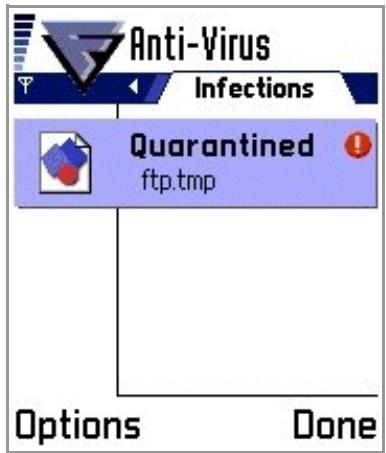
The Infections view displays a list of infected files detected on the device. Each entry consists of a file type dependent icon, a line indicating the state of the file, another line containing the name of the infected file. If an infected file has not been processed and its details have not been viewed, a red exclamation mark icon is displayed on the right hand side of the infection status text.
The Options menu in the Infections view has the following commands:
Scan all - scan all files on your device and on the inserted memory card for viruses
Update Anti-Virus - download the latest update; available only if activation has been completed
Details - display more information of the selected infected file
Process selected - process the selected infected file
Settings - edit the Scan, Update and Excluded file settings
Help - launch context sensitive (online) help (available only if your device supports context sensitive online help)
Exit - shut down the application

IMPORTANT: If you shut down the application, the infected files are not quarantined and the system is not protected against viruses.
Pressing the Done soft key hides the user interface, but keeps the application running on the background, scanning your files for viruses automatically when they are accessed (only when the real-time scanning mode is enabled).
3.3 Setting Views
The F-Secure Mobile Anti-Virus three setting views are:
Scan settings view
Update settings view
Exclusion settings view
3.3.1 Scan Settings View
The Scan settings view displays the following scanning-related information:
Mode
) Time
Day
The Options menu in the Scan settings view, has the following commands:
Change - open the selected setting (scan mode, day or time) for editing
Help - launch context sensitive (online) help (available only if your device supports context sensitive online help)
Exit - shut down the application

IMPORTANT: If you shut down the application, the infected files are not quarantined and the system is not protected against viruses.
For information on configuring scan settings, see "Scan Settings", 46.
3.3.2 Update Settings View
The Update settings view displays the following information related to the F-Secure Mobile Anti-Virus update process:
Internet access point - preferred Internet access point for connecting to update service
Automatic Update - show the Automatic Update feature status (enabled/disabled).

Updates are downloaded only when the connection to the Internet is active. F-Secure Mobile Anti-Virus does not open a connection, but it recognizes a connection being opened by, for example, a Web browser.
Automatic Update can be enabled only when the real-time scanning mode is enabled.
The Options menu in the Update settings view, has the following commands:
Change - open the selected setting (scan mode, day or time) for editing
Help - launch context sensitive (online) help (available only if your device supports context sensitive online help)
Exit - shut down the application

IMPORTANT: If you shut down the application, the infected files are not quarantined and the system is not protected against viruses.
For information on configuring update settings, see "Update Settings", 48.
3.3.3 Exclusion Settings View
The Exclusion settings view displays a list of files and folders that are excluded from real-time scanning for viruses. We recommend using the default exclusion settings.

IMPORTANT: Do not change these settings unless advised to do so by your administrator or F-Secure Technical Support.

When running a manual scan, these files and folders are included in the scan.
You can add to the exclusion list large files (such as .MP3) and folders that cannot contain or be infected by viruses. This accelerates the operation of applications that use such files and folders.

IMPORTANT: Do not exclude files from the scan unless you are absolutely certain that the excluded files cannot contain or cannot be infected by viruses.
The Options menu in the Exclusion settings view, has the following commands:
Add file - add file(s) to the exclusion list
Add folder - add folder(s) to the exclusion list
Remove - remove items from the exclusion list
Details - display details of the selected exclusion entry
Default - restore default exclusion settings
Help - launch context sensitive (online) help (available only if your device supports context sensitive online help)
Exit - shut down the application

IMPORTANT: If you shut down the application, the infected files are not quarantined and the system is not protected against viruses.
For information on configuring the exclusion settings, see "Exclusion Settings", 50.
3.4 About Anti-Virus
The About Anti-Virus view displays the following information:
Application version information
Scanner version
Copyright information
URL to F-Secure Corporation's international web page
3.5 Subscription Info
The Subscription info view provides information about how to buy more subscription service time. The provided subscription number is the unique code to identify a registered client.
If you wish to purchase the antivirus software after using the evaluation version, use the subscription number provided in this view. If you have previously purchased the software, you have received the subscription number also via e-mail.
For more information about purchasing more subscription service time, see Appendix A. Purchasing Subscription Service Time.
4
STARTUP AND
SHUTDOWN
Starting F-Secure Mobile Anti-Virus 34
Shutting Down F-Secure Mobile Anti-Virus 43
Hiding User Interface 43
4.1 Starting F-Secure Mobile Anti-Virus
There are two ways to start F-Secure Mobile Anti-Virus, depending on whether you start it for the first time:
First-time start-up (Activation)
Normal start-up
Activation is performed when you start F-Secure Mobile Anti-Virus for the first time. Activation is needed for proper virus protection, because by activating F-Secure Mobile Anti-Virus you update the virus definition database. For more information about the activation, see "Activating F-Secure Mobile Anti-Virus (First-time Start-Up)", 35.
After you have successfully activated the update service during the first-time start-up, you can start using the application. After the activation, you should run a full scan for all files to ensure your device is clean. We also recommend running a full scan whenever prompted by the application. For more information about the normal start-up, see “Starting F-Secure Mobile Anti-Virus (Normal Start-Up)”, 40
Next time when you turn on your device, the application starts up automatically in the following cases:
When the real-time scanning mode (default) is enabled (recommended)
If there are known infections in the system
If you have selected the manual or scheduled scanning mode, you need to manually start the application.
4.1.1 Activating F-Secure Mobile Anti-Virus (First-time Start-Up)
When you start F-Secure Mobile Anti-Virus for the first time, F-Secure Mobile Anti-Virus checks all the files and version information and validates the subscription.
If files are missing or corrupted, the check fails, an error message is displayed and F-Secure Mobile Anti-Virus shuts down.
During the first-time start-up, activate the update service in one of the following two ways:
Select the free evaluation period, OR
Enter the subscription number delivered with the application
The free evaluation version has all the same features as the full version.
If you have left your mobile phone number to your device vendor, after the installation you will receive an activation message (an SMS message). If you do not receive the activation message when you start F-Secure Mobile Anti-Virus for the first time, you can enter the subscription number.
If you do not know your subscription number, contact your service provider or retailer.
To activate the update service:
- Press the Menu key and scroll to the icon.
- Open the application. The Welcome screen is displayed.

- Press OK to start the activation process. The following screen is displayed:
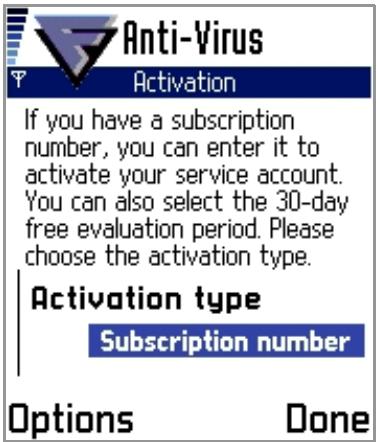
This screen is displayed in the following cases:
The application does not detect a service activation SMS
Current installation is not a device vendor case with a key file
Despite an OEM (Original Equipment Manufacturer) installation, you chose the full version
Trial period has expired
Device re-flash is required
- Do one of the following:
To begin the evaluation period purchased by the device vendor, press Options → Change, change the activation type to Free evaluation, and press Done, OR
To have the full version, select Subscription number as the activation type, and press Done. Then enter your subscription number and press OK.
- In the screen that is displayed, do the following:
a. Press Options → Change to select an Internet access point from the list of existing Internet access points.
b. Press Options → Select, and then press Done and continue from step 7.
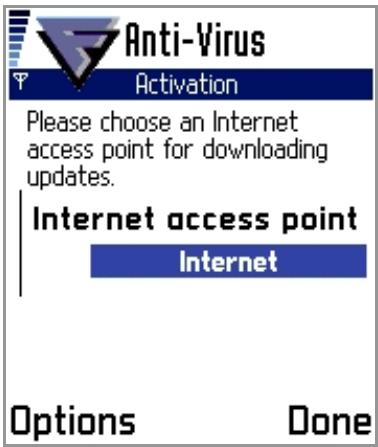
The Internet access point settings are operator specific.
- If no Internet access points are defined, a message is displayed prompting you to define a new one. To define a new Internet access point:
a. In the message screen, press Yes to define a new Internet access point.
b. Press Options → New Access Point.
c. Select either Use default settings or Use existing settings and follow the instructions on your device screen.
- After you have selected or defined an Internet access point, press Yes to connect to the update service and start downloading the updates, or press No to cancel the activation.

If you cancel the activation, a confirmation message is displayed that prompts you to confirm the cancellation.
F-Secure Mobile Anti-Virus connects to the update service and submits your subscription number. During the first update, the server registers your application and downloads a new virus definition database. If an application update is available, a confirmation message is displayed asking if you want to download it.

If the virus definition database version requires an application update, the application update is downloaded automatically.
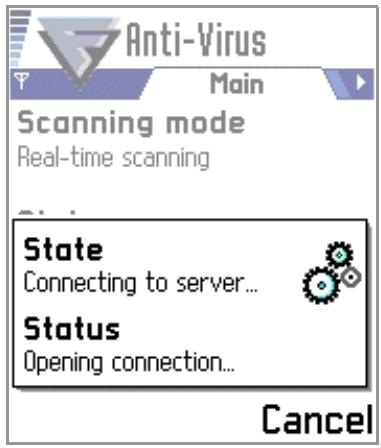
- When the download is complete, a message is displayed showing that you have successfully been registered at the update service and that the application is activated. Press OK to continue.
If the application could not connect to the update service, the updating failed or the subscription could not be authenticated, an error message is displayed. For more information on update errors, see "Troubleshooting", 77.
- In the next screen, press Ok to complete the activation.
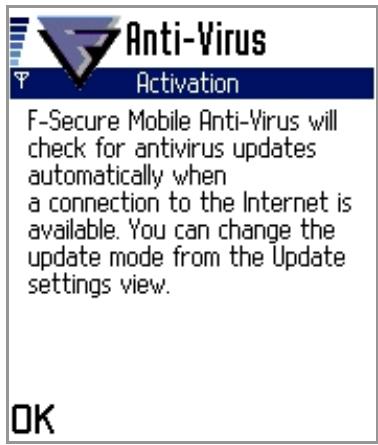
The application has a built-in automatic update feature. When it detects a data connection, an update is performed automatically. Automatic updates are performed once a day at most, providing there is an active connection to the Internet. F-Secure Mobile Anti-Virus does not, however, open a connection, but it recognizes a connection being opened by, for example, a Web browser. New virus definition database is downloaded automatically; if there is an application update on the update server, you will get a notification.
To change the default Automatic Update setting, go to the Update settings view and press Options → Change to select the desired mode.
4.1.2 Starting F-Secure Mobile Anti-Virus (Normal Start-Up)
Normal start-up is executed when you open application after successfully completing the activation. During the start-up process, the application checks the following:
Service subscription date
Existence of known infections
Whether a new virus definition database is in use
Whether the virus definition database has been updated during the past seven days.
If the check fails, an error message is displayed prompting you to reinstall the application.
Depending on the selected scanning mode and the number of known infections in the device, the application starts automatically when you switch on your device. After activation, you are prompted to scan the whole device.
You are prompted to run a full scan also if there were known infections when F-Secure Mobile Anti-Virus was last running and you chose not to disinfect or delete the infected files, next time you start F-Secure Mobile Anti-Virus, it prompts you to run a full scan.
To start F-Secure Mobile Anti-Virus:
- If, during the activation, a new application version was installed and restarted, the following message is displayed:
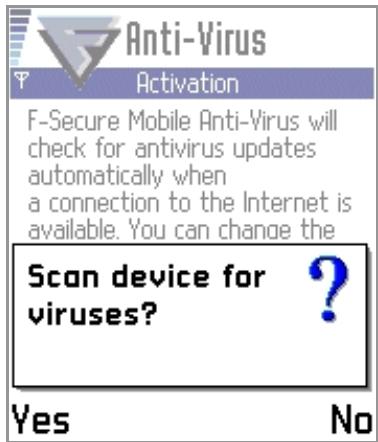
- Press Yes to run a full scan.
Pressing No cancels the query and takes you back to the Main view.
F-Secure Mobile Anti-Virus runs a full scan displaying a progress bar and the number of files that have been scanned.
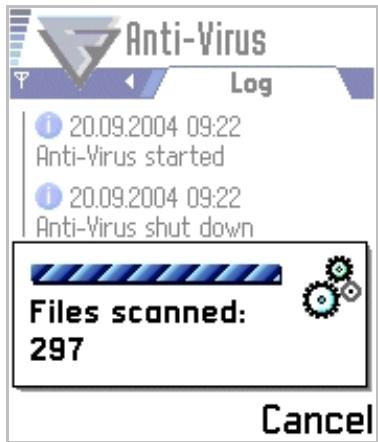
When the scan is finished or stopped, the scan results display the number of:
Infected files that were detected
Files that were not scanned
Scanned files
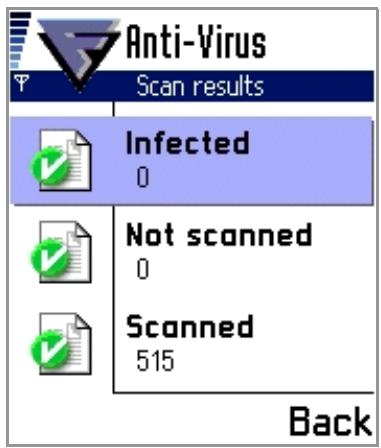
A number of icons appear in the Scan results screen. The following table lists the icons and their meaning in each category.
| Infected | Not scanned | Scanned | |
| √ | None | All files were scanned | The number of files scanned completed |
| 1 | - | The number of files that could not be opened for scanning | - |
| ! | - | - | Scan was stopped by the user |
| O | Infections were detected | - | - |
- To see details of the infected file(s) or the list of the files that were not scanned, in the Scan Results screen, select the desired category and press Show. For more information on viewing details of infected file(s), see "Viewing Details of Infected Files", 60.
4.2 Shutting Down F-Secure Mobile Anti-Virus

WARNING: If you shut down F-Secure Mobile Anti-Virus, the infected files are not quarantined and the system is not protected against viruses.
To shut down F-Secure Mobile Anti-Virus:
⇒ In any of the main views, press Options → Exit.
4.3 Hiding User Interface
To hide the F-Secure Mobile Anti-Virus user interface:
⇒ In any of the main views, press Done. The application user interface is hidden, and you return to the main menu, but the application keeps running in the background. Hiding the user interface without shutting down the application allows you to use real-time scanning and to keep the files in the quarantine.

IMPORTANT: To use real-time scanning and keep the files in the quarantine, do not shut down the application.
5
CONFIGURATION
Overview 46
Scan Settings 46
Update Settings 48
Exclusion Settings 50
5.1 Overview
Configuring F-Secure Mobile Anti-Virus involves setting up the configuration options that help you protect your device against viruses and harmful content in all file types. Correctly configured, F-Secure Mobile Anti-Virus detects and deletes all malware that enters the device through wireless IP connectivity, infrared connections and removable memory cards. The configuration options include settings for:
Scanning mode - enable real-time scanning, or use scheduled or manual scanning
Internet access point - select an existing or define a new Internet access point for activating the update service and downloading updates
The Internet access point settings are operator specific.
Automatic Updates - enable or disable the downloading of automatic updates
i Updates are downloaded only when the connection to the Internet is active. F-Secure Mobile Anti-Virus does not, however, open a connection, but it recognizes a connection being opened by, for example, a Web browser.
Exclusion list - specify files and folders that are excluded from real-time scanning for viruses.
5.2 Scan Settings
The Scan settings view allows you to set the scanning mode, time and day.
To set the scanning mode:
- In any of the main views, press Options → Settings.
- Go to the Scan view.
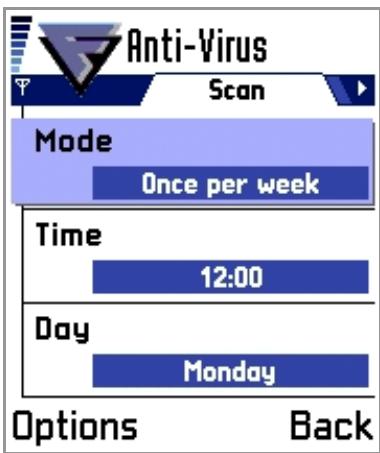
- Go to Mode and press Options → Change to edit the scanning mode.
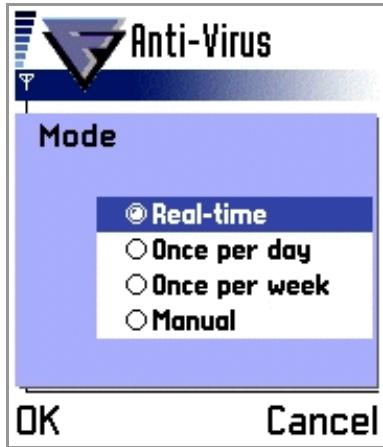
- Select the desired scanning mode and press OK. For an explanation of the available scanning modes, see "Scanning Modes", 54.
- If you set the scanning mode to 'Once per day' or 'Once per week', you need to set the scanning time as follows:
a. In the Scan view, select Time and press Options → Change.
b. Enter the desired time for scanning and press Ok.
- If you set the scanning mode to 'Once per week', you need to set the scanning day as follows:
a. In the Scan view, select Day and press Options → Change.
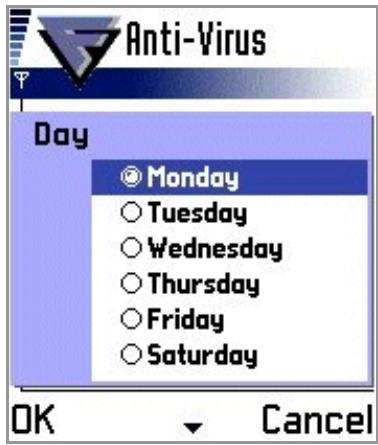
b. Select the desired scanning day, and press Ok.
5.3 Update Settings
The Update settings view allows you to configure the update mode and the connection for the F-Secure Mobile Anti-Virus to connect to the Anti-Virus update service.
To set the connection:
- In any of the main views, press Options → Settings.
- Go to the Update view.
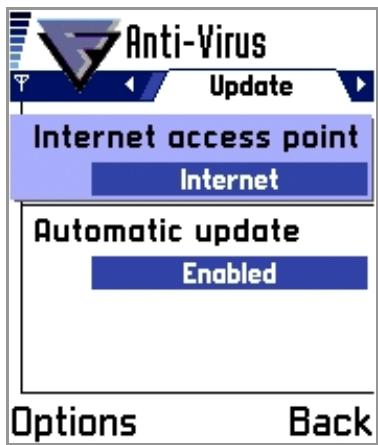
- Go to Internet Access point and press Options → Change.
- Select the connection you want to use as an access point to connect to the Anti-Virus update service and press Options → Select.

The Internet access point settings are operator specific.
To enable automatic updates:
- In any of the main views, press Options → Settings.
- Go to the Update view.
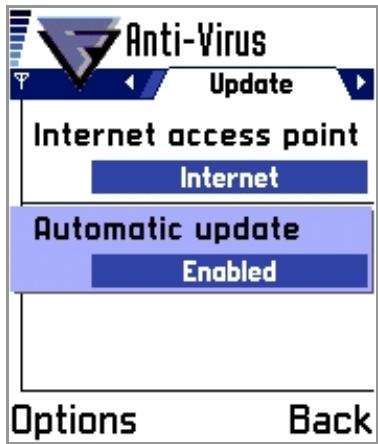
- Go to Automatic update and press Options → Change to edit the Select Enabled and press Ok.

When Automatic Update is enabled and when the connection to the Internet is active, F-Secure Mobile Anti-Virus checks for updates once a day at most. F-Secure Mobile Anti-Virus does not, however, open a connection, but it recognizes a connection being opened by, for example, a Web browser. If you want to check for updates more often, you can run a manual check.
5.4 Exclusion Settings
The Exclusion settings view allows you to set up a list of files and folders that are excluded from real-time scanning for viruses.

IMPORTANT: Do not change these settings unless advised to do so by your administrator or F-Secure Technical Support.
To add files or folders to the exclusion list:
- In any of the main views, press Options → Settings.
- Go to the Exclusion view.
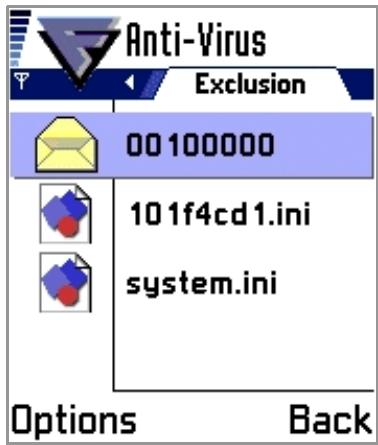
- Press Options → Add file or Add folder to open the Add file or Add folder view.
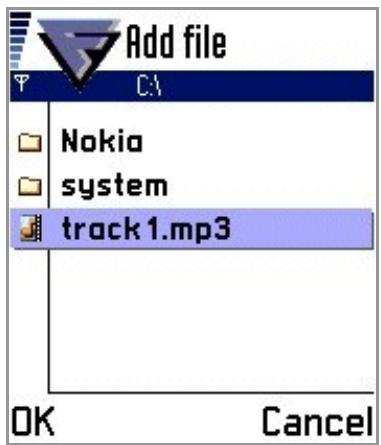
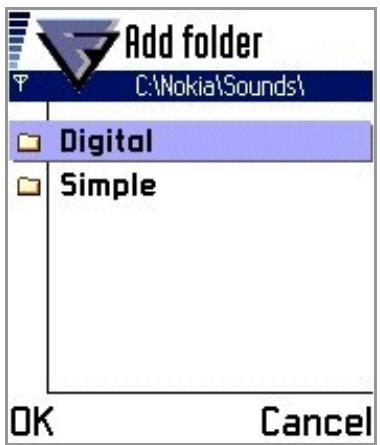
- Select the desired file or folder and press OK to add it to the exclusion list.
To remove items from the exclusion list:
- In any of the main views, press Options → Settings.
- Go to the Exclusion view.
- Select the file or folder you wish to remove from the exclusion list.
- Press Options → Remove to remove the selected file or folder.
To view details of the excluded items:
- In any of the main views, press Options → Settings.
- Go to the Exclusion view.
- Select the file or folder the details of which you wish to view.
- Press Options → Details to open the Exclusion details view for the selected file or folder.
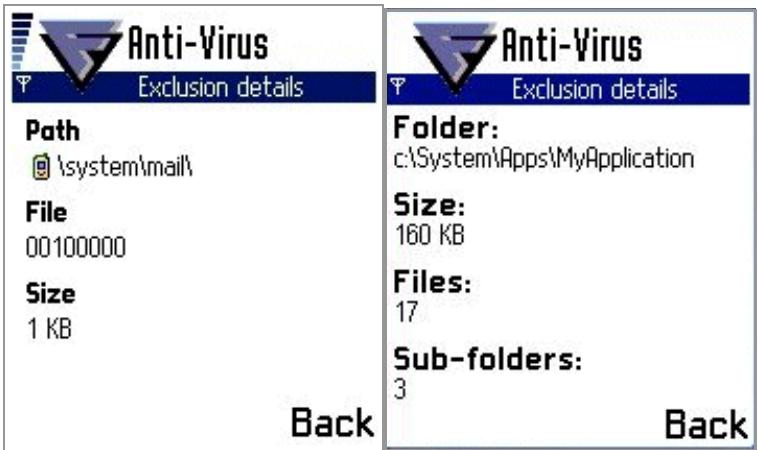
- Press Back to return to the Exclusion view.
To restore the default exclusion settings:
- In any of the main views, select Options → Settings.
- Go to the Exclusion view.
- Press Options → Default and press Yes to confirm restoring the default exclusion settings.
6
VIRUS SCAN
Overview 54
Scanning Modes 54
Running a Manual Scan 55
Viewing Scan Results 56
6.1 Overview
F-Secure Mobile Anti-Virus is configured to provide you with complete protection against malicious code attacks. If real-time scanning is enabled, when the data on your device is accessed or modified, the F-Secure Mobile Anti-Virus automatically scans it for malicious content. Alternatively, you can schedule a custom scan to automatically run on a specific date and time, or at periodic intervals. If you temporarily disable the real-time scanning, we recommend scheduling a custom scan or periodically run a manual scan. In addition, if you want to make sure there are no infected files in your device, or if you do not want to use the real-time scanning, you can manually scan all the data for viruses whenever you want.
6.2 Scanning Modes
The following scanning modes are available in F-Secure Mobile Anti-Virus:
Real-time scanning (recommended) - set the application to automatically scan files for malicious content when they are accessed or modified. In this mode, the application is running in the background, and when a virus is found in a file, it is immediately quarantined and added to the file list for further processing.

IMPORTANT: If you disable the real-time scanning, you should manually scan your device each time you transfer any new data to your device.
Once per day/Once per week (Scheduled scanning) - set the time for the scheduled scan to scan all your files daily or weekly, at a pre-designated time. If no viruses are found, the application shuts down automatically; if infected files are found, they are displayed in the scan results.
Manual scanning - manually run a full scan on your device and inserted memory card.
For more information on setting the scanning mode, see "Scan Settings", 46; for more information on viewing scan results, see "Viewing Scan Results", 56.
6.3 Running a Manual Scan
A full scan can be started in one of the following ways:
When you select Scan all in any of the four main views
A scheduled scan starts at a pre-defined time
During the start-up, F-Secure Mobile Anti-Virus prompts you to press Yes to scan your device for viruses.
You press Yes when prompted to start a full scan after successfully upgrading the F-Secure Mobile Anti-Virus application and/or updating the virus definition database.

During manual and scheduled scans, the F-Secure Mobile Anti-Virus scans all the data on your device, including installed memory card(s).
The F-Secure Mobile Anti-Virus prompts you to scan your device for viruses in the following cases:
After completing the activation
If known infections are detected at the start-up (and real-time scanning is disabled)
When a scheduled scan starts
When you receive an incremental update message (and real-time scanning is disabled)
To run a manual scan:
⇒ In any of the main views, press Options → Scan all.
The F-Secure Mobile Anti-Virus scans all the data on your device, including installed memory card(s). When the scan is complete, the scan results are displayed.
6.4 Viewing Scan Results
Scan results are always displayed after a manual and scheduled scan, if viruses were detected during scanning.
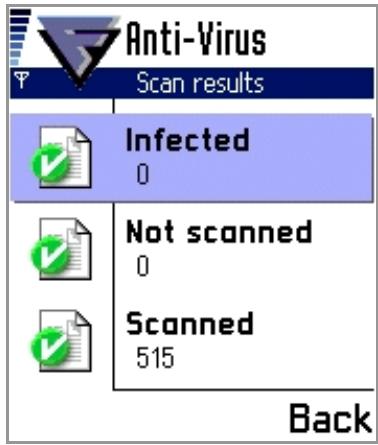
The Scan results view displays the following statistics:
Infected:
The number of infections found. For more information about removing infected files, see "Processing Infected Files", 59.
Not scanned:
The number of the files that were not scanned during the scan. A file cannot be scanned if another program is using it during the scan.
Scanned:
The number of the files that were scanned.
A number of icons appear in the Scan results view. The following table lists the icons and their meaning in each category.
| Infected | Not scanned | Scanned | |
| None | All files were scanned | The number of files scanned | |
| - | The number of files that could not be opened for scanning | - | |
| - | - | Scan was stopped by the user | |
| Infections were detected | - | - |
To view the list of not scanned files:
⇒ In the Scan results view, select the desired category and press Show.
The Show button is visible only if infections were detected.
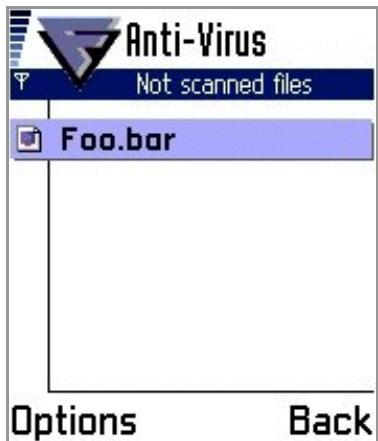
To view the details of not scanned files:
- In the Not scanned files view, go to the file the details of which you wish to view.
- Press Options → Details.
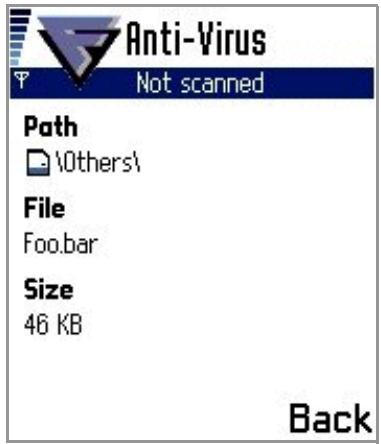
The following information is displayed on the not scanned file:
Full path
Name
Size
7
PROCESSING INFECTED FILES
Overview 60
Viewing Details of Infected Files 60
Processing Infected File(s) 62
Viewing Disinfection Results 63
7.1 Overview
F-Secure Mobile Anti-Virus is designed to be automatic and transparent. You do not need to take any action to protect your files against viruses, but F-Secure Mobile Anti-Virus works in the background and scans your files automatically.
When F-Secure Mobile Anti-Virus finds a virus in a file, you can delete or quarantine the infected file. If you decide to delete the file, it is removed completely; if you decide to quarantine the file, it is locked up and cannot be accessed.
7.2 Viewing Details of Infected Files
To view details of the infected file(s):
- If F-Secure Mobile Anti-Virus detects viruses during the real time scan, the following message is displayed:
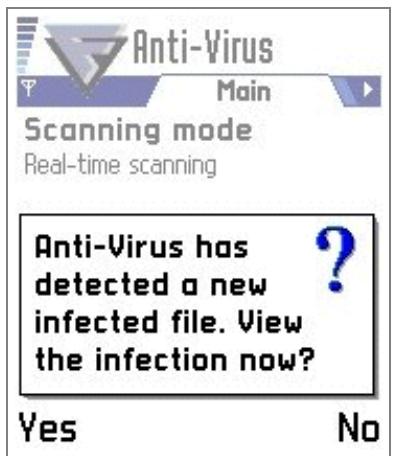
- Press Yes to view the infected file(s), or No to close the view.
The Infections view contains a list of infected files on the device. For each item on the list, a file type dependent icon, two lines of text and optionally a new infection icon are shown. The first line of text indicates the state of the file (quarantined, released) and the second
line of text shows the name of the infected file. If an infected file has not been processed and its details have not been viewed, a red exclamation mark icon is displayed on the right-hand side of the infection status text.

You can find in-depth virus descriptions in the F-Secure web site: http://www.F-Secure.com/v-descs/.
- To view more details about an infected file, select the desired file, press Options → Details.
The Infection details view displays the path and file name of the infected file, and the name of the virus that has infected the file.
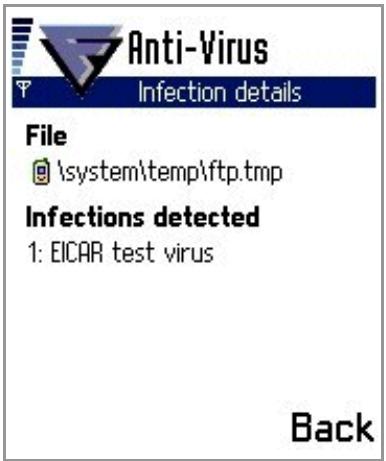
- To return to the Infections view, press Back.
7.3 Processing Infected File(s)
You can process the infected file(s) in one of the following ways:
Disinfect - launch the Disinfection wizard. This option is available only if the file can be disinfected.
Quarantine - quarantine the infected file, after which the file cannot be accessed when F-Secure Mobile Anti-Virus is running in the background.
Delete - delete the infected file, after which you can reinstall it or restore it from the backup copy.
Release - release the quarantined file. If you release the file, you can access it and use it, but at your own risk.
To process infected files:
- In the Infections view, select the infected file to be processed.
-
Press Options → Process selected.
-
From the Select action menu, select the desired action, and press OK.
If you select to delete the infected file, a confirmation message prompts you to confirm the deletion.
If you select to release the infected file, a warning message warns you that after releasing the file, it is not quarantined any more and can be accessed.
If you select to disinfect the infected file, the Disinfection wizard is launched and the selected file is being disinfected. During the disinfection process, you can see on the screen the progress bar, the number of disinfected files and the number of the files to be disinfected.
7.4 Viewing Disinfection Results
When the disinfection process is complete, the disinfection results are displayed.
The Disinfection results view displays a list of the processed files and their status. Each list item contains an icon, which indicates the status of the file, and the name of the file. The files are grouped according to their status so that first on the list are the files with a green icon, next the files with a yellow icon and the last the files with a red icon. In each status group, the files are sorted alphabetically.
The following explains the meaning of the icons on the Disinfection results screen:
Icon Explanation
File successfully disinfected. If the file contained multiple infections, all infections were successfully removed.
File was not processed. The user stopped the disinfection process before the disinfection was completed.
File was not disinfected. If the file contained multiple infections, not all the infections could be removed. We recommend deleting or quarantining the infected file(s).
⇒ To view disinfection result details of a processed file, select the desired file and then press Options → Details. The Disinfection details view is displayed.
The Disinfection details view displays the name and the path of the processed file and the infections. Infections are displayed as a list, in which each item contains an icon indicating the infection status and the name of the virus. The list displays first the infections with green icon and then infections with red icon. In each group, the infections are sorted alphabetically.
The following explains the meaning of the icons on the Disinfection details screen:
Icon Explanation

Infection was successfully removed.

Infection could not be removed.
⇒ To return to the Disinfection results view, press Back.
8
UPDATING
Overview 66
Viewing Update Information 66
Updating F-Secure Mobile Anti-Virus 68
8.1 Overview
F-Secure Mobile Anti-Virus includes an update service, which means that F-Secure Mobile Anti-Virus can be updated regularly to keep the virus definition database up to date. An up-to-date virus definition database is needed for proper functioning of F-Secure Mobile Anti-Virus: only an up-to-date virus definition database enables finding and removing even the most recently found viruses.
The virus definition database contains information of all the viruses that F-Secure Mobile Anti-Virus can find during the scan. F-Secure Mobile Anti-Virus requires an active Internet connection to connect to the update service for receiving virus definition database updates and keeping virus protection up to date.
When a new virus or other malicious software emerges, a new virus definition database update can be retrieved from the update service. It is important that you keep your virus definition database up to date. Only with up-to-date virus definition database, F-Secure Mobile Anti-Virus can find all the latest viruses and thus ensure you the best possible protection.
8.2 Viewing Update Information
⇒ To see the date of the last virus definition database update, start F-Secure Mobile Anti-Virus and scroll to the Status view.
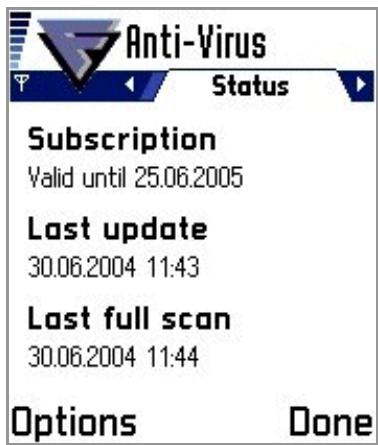
The following information is displayed:
Last update
Subscription valid until/ Not valid/Expired
The date of the last update.
The expiry date of the update service. You should renew your license prior to the expiration. For more information, see Appendix A. Purchasing Subscription Service Time, or contact your retailer.
Last full scan
The date of a last full scan.
i Your copy of F-Secure Mobile Anti-Virus includes a license. During this time, you can freely update your F-Secure Mobile Anti-Virus. When your license expires, you can update your copy only after renewing your license.
8.3 Updating F-Secure Mobile Anti-Virus
You can manually update F-Secure Mobile Anti-Virus whenever you want, or you can configure it automatically to download updates every time there is an active connection to the Internet.

F-Secure Mobile Anti-Virus does not open a connection, but it recognizes a connection being opened by, for example, a Web browser.
For information about enabling automatic updates, see "Update Settings", 48.
8.3.1 Updating Virus Definition Database
When both the Automatic Update feature and the real-time scanning are enabled, F-Secure Mobile Anti-Virus monitors the Internet activity. When it detects an open connection, it checks the time elapsed since the last successful update of the virus definition database. If more than 24 hours have elapsed, F-Secure Mobile Anti-Virus automatically downloads the virus definition database update.

IMPORTANT: Automatic Update can be enabled only in the real-time scanning mode.
To manually update F-Secure Mobile Anti-Virus:
-
In any of the main views, press Options → Update Anti-Virus.
-
Select the Internet access point to connect to the update server. F-Secure Mobile Anti-Virus connects to the update server and downloads the latest virus definition database. The application takes the virus definition database update into use immediately.

For more information, see the User Guide of your device.
- When the update is complete, press OK to scan your device for viruses. For more information on scanning, see "Running a Manual Scan", 55.
8.3.2 Upgrading the Application
When a new F-Secure Mobile Anti-Virus version is available, a message is displayed prompting you to download the application upgrade. The upgrade is downloaded automatically only if the virus definition database version requires it to work properly.

IMPORTANT: Automatic Update can be enabled only in the real-time scanning mode. The connection to the Internet must be active for F-Secure Mobile Anti-Virus to check for updates. F-Secure Mobile Anti-Virus does not, however, open a connection, but it recognizes a connection being opened by, for example, a Web browser.
After downloading the application upgrade, F-Secure Mobile Anti-Virus runs a check for necessary storage space and shuts itself down. The components of the old version are removed and the upgrade is installed. When upgrading is complete, F-Secure Mobile Anti-Virus restarts.

You cannot cancel the upgrade process. However, if you interrupt it by, for example, removing the battery while new files are being installed, an 'Update AV' message is displayed next time you restart F-Secure Mobile Anti-Virus. Pressing the Update Anti-Virus button resumes the upgrade process.
If there is not enough storage space to complete the application upgrade, a message is displayed prompting you either to delete some files before continuing the upgrade process or cancel the upgrade process and continue at a later time.
9
TROUBLESHOOTING
No Internet Access Points Configured 72
Invalid Subscription Number 72
Unable to Connect to Update Server/Update Failure 72
Update Service Could Not authenticate Device 73
Service Has Expired or About to Expire 73
Virus Definition Database Corrupted or Missing and Virus Protection Not Updated 74
Theme Files on Memory Card 75
Multiple Messages When Purchasing Subscription 75
Automatic Updates Generating Data Traffic 76
9.1 No Internet Access Points Configured
Q. When trying to connect to the update server, I get a notification that no Internet access points are configured. What causes this?
A. You may have deleted the Internet access point that you selected during the activation. With no defined Internet access point, the application cannot check for updates. Go to the Update settings view and select one of the Internet access points or create a new one.
9.2 Invalid Subscription Number
Q. I receive an 'Invalid subscription number' error message when I enter my subscription number. What should I do?
A. You have entered an invalid subscription number. You should check your subscription number and re-enter it.
9.3 Unable to Connect to Update Server/Update Failure
Q. I have defined an Internet access point, but I am unable to get the updates. What can I do?
A. Check the Internet access point settings with your operator. You should also check that the date and time settings in your device are correct. If you have problems connecting through WAP access points, you should connect through the Internet.

The Internet access point settings are operator specific.
9.4 Update Service Could Not Authenticate Device
Q. I get a notification that the update service cannot authenticate my device. Why?
A. This error message is displayed when the update server cannot authenticate the subscription. Reasons for the authentication failure can be as follows:
The F-Secure Mobile Anti-Virus installation folder files have been tampered
There have been more than four attempts to move the F-Secure Mobile Anti-Virus installation and service subscription to another device
9.5 Service Has Expired or About to Expire
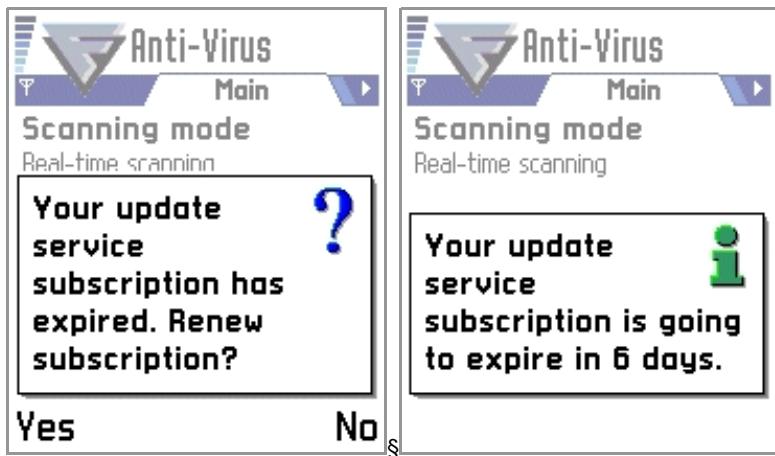
Q. What should I do when one of the following messages appear on my device screen?
A. If your subscription has expired or is about to expire, F-Secure Anti-Virus notifies you by showing one of the above messages.
If your subscription has expired and you want to renew it, press Yes to purchase more subscription service time. For more information, see Appendix A. Purchasing Subscription Service Time. The other message simply reminds you that your subscription is going to expire in a number of days. The message will disappear in few seconds.
9.6 Virus Definition Database Corrupted or Missing and Virus Protection Not Updated
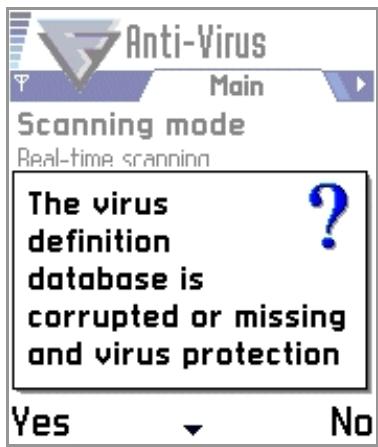
Q. My virus definition database seems to be corrupted. What should I do?
A. You should immediately update your virus definition database. After that, in the Scan settings view, first go to the Scan view and change the scanning mode to Real-time. Then, go to the Update view and change automatic updates to Enabled.
9.7 Theme Files on Memory Card
Q. Since I started using themes, my phone performs quite slowly. What can I do to improve its performance?
A. To improve the performance, we recommend transferring the theme in use from the memory card and storing it on the device memory.
9.8 Multiple Messages When Purchasing Subscription
Q. When I purchased a subscription, my phone sent multiple subscription messages. After the purchase, I received multiple messages to my phone. Why? Are you billing the subscription more than once?
A. Purchasing the application or more subscription service time by using the Phone bill payment method is based on your GSM operator's service costs.
When purchasing, you may be required to send multiple messages, because the price of one subscription message may not cover the subscription price. For example, if the cost of the subscription period is six euros and your GSM operator charges the nominal value of two euros per a subscription message, three messages will be automatically sent to cover the subscription price. In some cases, you may also receive multiple response messages.
9.9 Automatic Updates Generating Data Traffic
Q. How much data traffic automatic updates generate?
A. When the Automatic Update feature is enabled and when the connection to the Internet is active, F-Secure Mobile Anti-Virus checks for updates once a day at most. Depending on the amount of available updates, every checking generates 2-4 KB. For example, if you are connected to the Internet at least once a day, automatic updates generate approximately an extra 100 KB a month. If your GSM operator bills you one euro per 1MB, the automatic updates add approximately 10 cents to your phone bill.
If an updated application is also available, because of the large amount of data, F-Secure Mobile Anti-Virus displays the amount of data to be downloaded and prompts you for confirmation before starting to download the updated application.
10
TECHNICAL SUPPORT
Overview 78
Web Club 78
Virus Descriptions on the Web 78
Electronic Mail Support 78
10.1 Overview
F-Secure Technical Support is available by e-mail and from our Web site. You can access our Web site from within F-Secure Mobile Anti-Virus or from your Web browser.
For Technical Support of all F-Secure products, go to F-Secure Support Center at: http://support.f-secure.com/enu/home/.
10.2 Web Club
The F-Secure Web Club provides assistance to the users of F-Secure products. To connect to the Web Club on our Web site, open the Web Club page, and click Web Club on the Web Club tab of the General property page.
To connect to the Web Club directly from within your Web browser, go to http://www.f-secure.com/webclub/.
10.3 Virus Descriptions on the Web
F-Secure Corporation maintains a comprehensive collection of virus-related information on its Web site. To view the Virus Information Database, connect to: http://www.F-Secure.com/virus-info/.
10.4 Electronic Mail Support
If you have questions about F-Secure Mobile Anti-Virus not covered in the manual or online services at http://www.F-Secure.com/, you can contact your local F-Secure distributor or F-Secure Corporation directly.
For technical assistance, please contact your local F-Secure Business Partner. Send your e-mail to: Anti-Virus-
Example: Anti-Virus-Norway@F-Secure.com
If there is no authorized F-Secure Anti-Virus Business Partner in your country, you can request basic technical assistance from:
Anti-Virus-Support@F-Secure.com
When contacting support, prepare and include the following information in your support request:
Name and version number of your F-Secure software program (including the build number, if available).
Name and version number of your operating system (including the build number).
A detailed description of the problem, including any error messages displayed by the program, and any other details, which could help us duplicate the problem.
When contacting F-Secure support by telephone, please do the following so that we may help you more effectively and save time:
have your device at hand, so you can follow instructions given by the support technician, or be prepared to write down instructions.
Have your device turned on and (if possible) in the state it was in when the problem occurred.
A
APPENDIX: Purchasing Subscription Service Time
Overview 82
SMS-Based Purchase 82
Purchasing Through PC Browser 84
A.1 Overview
You can purchase more subscription service time in one of the following ways (depending on your software version):
SMS-based purchase
Purchasing through PC browser
The additional service time purchased is either added to the time remaining in your previous order or to your free evaluation period. To keep your device continuously protected, we recommend purchasing additional service time well before the expiration date.

When your subscription service time has expired or is going to expire, the application notifies and prompts you to renew your subscription. Press Yes in the message screen if you wish to purchase more subscription service time.
A.2 SMS-Based Purchase
To purchase more subscription service time by sending an SMS (only if enabled by your operator):
- Go to the Subscription Info screen.
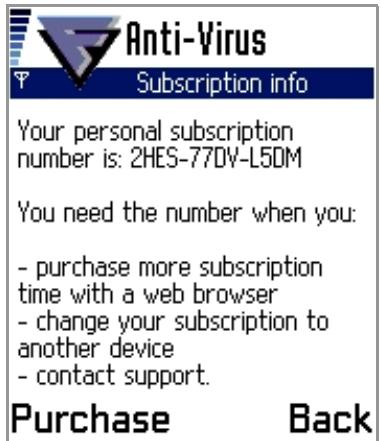
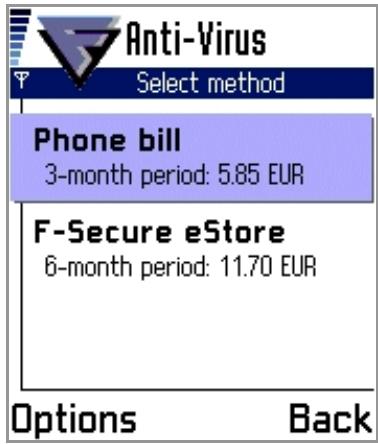
- Press Purchase. The Select Method screen is displayed.
- Press Options → Select to select the Phone bill payment method.
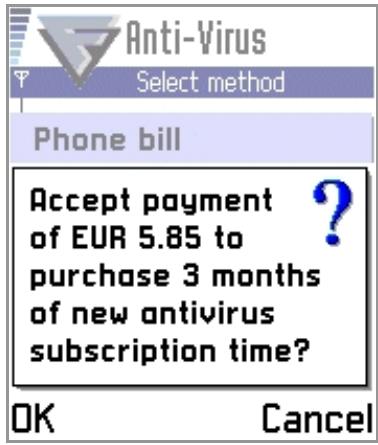
- When prompted to accept payment, press OK to complete your subscription service time purchase.
- In the response SMS, you receive a confirmation of your purchase and a code for activating the service.
A.3 Purchasing Through PC Browser
To purchase more service subscription time through your PC browser:
- Open http://www.f-secure.com/estore/ in your web browser and enter your subscription number in the Subscription Number field to identify your subscription.

F-Secure eStore accepts the most commonly used credit cards and wire/bank transfers.
- Follow the instructions on the screen.
About F-Secure Corporation
F-Secure Corporation 93
The F-Secure Product Family 95
F-Secure Corporation
F-Secure Corporation is the leading provider of centrally managed security solutions for the mobile enterprise. The company's award-winning products include anti-virus, file encryption and network security solutions for all major platforms from desktops to servers and from laptops to handhelds. Customers in nearly every industry - Government, Manufacturing, Retail, Telecommunications, Finance, Energy, Transportation, High Tech and more - rely on F-Secure products to make information secure, reliable and accessible. Mobility challenges many of the fundamental assumptions upon which traditional IT systems have been based on. F-Secure supports businesses with a broad range of centrally managed and up to date security solutions to enable a truly mobile enterprise.
For the administrator, F-Secure enables a dispersed user base with:
Policy-based management
Automatic enforcement
Instant alerts
Reports
For the end-user, with F-Secure, security is:
Invisible
Automatic
Reliable
Always operating
Up-to-date
Founded in 1988, F-Secure has been listed on the Helsinki Stock Exchange since November 1999. The company is headquartered in Helsinki, Finland with North American main office in San Jose, California, as well as offices in Germany, Sweden, Japan and the United Kingdom and regional offices in the USA. F-Secure is supported by a network of value added resellers and distributors in over 90 countries around the
globe. Through licensing and distribution agreements the company's security applications are available for the products of the leading handheld equipment manufacturers, such as Nokia and Compaq.
F-Secure's customers include many of the world's largest industrial corporations and best-known telecommunications companies; major international airlines; European governments, post offices and defense forces; and some of the world's largest banks. Well-known customers include Cap Gemini, Barclays Bank, Tesco, Glanbia, Deutsche Telekom, Aachener-Munchener, J&W, Honda, Tokyo-Mitsubishi Bank, Partek, ICL Invia, Sonera, and Verizon.
F-Secure software products have received numerous international awards, prizes and citations. The company was named one of Europe's 50 Hottest Tech Firms in Time Magazine in its June 2000 edition and one of the Top 100 Technology companies in the world by Red Herring magazine in its September 1998 issue. F-Secure products have consistently won awards including the Editor's Choice by Tietokone (Finnish IT Magazine) in February 2002, the Pick of the 2001 from SC Magazine (West Coast Publishing) in 2001, Full Score of 100% from AV-Test.org and PC Welt (IDG) in November 2001, Highest Detection and Disinfection Rates from CHIP Magazine (Vogel Burda Communications) in May 2000, and the Virus Bulletin 100% award in June 2002.
The F-Secure Product Family
F-Secure Anti-Virus automatically and transparently delivers the most powerful and up-to-date protection against various threats, such as computer viruses, worms and other malicious code, as well as hackers and intrusion attempts. F-Secure Anti-Virus protects your workstations, servers, firewalls, gateways, mobile devices, and e-mail/groupware servers and can be centrally managed from one single location.
F-Secure Policy Manager provides a flexible and scalable way to manage the security of multiple applications on multiple operating systems, from one central location. With a unique distributed architecture, the F-Secure Policy Manager keeps security software up-to-date, manages configurations, oversees enterprise compliance, and scales to handle large and mobile enterprises.
F-Secure SSH enables remote systems administrators to access corporate network resources securely by protecting the transmission of sensitive data. F-Secure SSH provides numerous features to make secure administration and remote access connections easy to use, in a user-friendly, terminal-based application running on a wide variety of platforms.
If you want to give feedback about the document itself, send e-mail to documentation@f-secure.com.
F-SECURE

- CONTENTS
- ABOUT THIS GUIDE 7
- CHAPTER 1 INTRODUCTION 11
- CHAPTER 2 INSTALLATION 15
- CHAPTER 3 USER INTERFACE 21
- CHAPTER 4 STARTUP AND SHUTDOWN 33
- CHAPTER 5 CONFIGURATION 45
- CHAPTER 6 VIRUS SCAN 53
- CHAPTER 7 PROCESSING INFECTED FILES 59
- CHAPTER 8 UPDATING 65
- CHAPTER 9 TROUBLESHOOTING 71
- CHAPTER 10 TECHNICAL SUPPORT 77
- APPENDIX A PURCHASING SUBSCRIPTION SERVICE TIME 81
- ABOUT F-SECURE CORPORATION 85
- ABOUT THIS GUIDE
- HOW THIS GUIDE IS ORGANIZED
- CONVENTIONS USED IN F-SECURE GUIDES
- SYMBOLS
- FONTS
- PDF DOCUMENT
- FOR MORE INFORMATION
- 1 INTRODUCTION
- 1.1 F-SECURE MOBILE ANTI-VIRUS
- 1.2 KEY FEATURES
- TRANSPARENT OPERATION
- EXTENSIVE SCANNING
- AUTOMATIC UPDATES
- 2
- INSTALLATION
- 2.1 SYSTEM REQUIREMENTS
- 2.2 INSTALLING F-SECURE MOBILE ANTI-VIRUS
- 2.3 TRANSFERRING SUBSCRIPTION TO A NEW DEVICE
- TO TRANSFER YOUR ANTI-VIRUS SERVICE SUBSCRIPTION TO ANOTHER DEVICE
- 2.4 UNINSTALLING F-SECURE MOBILE ANTI-VIRUS
- TO UNINSTALL F-SECURE MOBILE ANTI-VIRUS
- 3
- USER INTERFACE
- 3.1 OVERVIEW
- 3.2 MAIN VIEWS
- 3.2.1 MAIN VIEW
- 3.2.2 STATUS VIEW
- 3.2.3 LOG VIEW
- 3.2.4 INFECTIONS VIEW
- 3.3 SETTING VIEWS
- 3.3.1 SCAN SETTINGS VIEW
- 3.3.2 UPDATE SETTINGS VIEW
- 3.3.3 EXCLUSION SETTINGS VIEW
- 3.4 ABOUT ANTI-VIRUS
- 3.5 SUBSCRIPTION INFO
- 4
- STARTUP AND
- SHUTDOWN
- 4.1 STARTING F-SECURE MOBILE ANTI-VIRUS
- 4.1.1 ACTIVATING F-SECURE MOBILE ANTI-VIRUS (FIRST-TIME START-UP)
- TO ACTIVATE THE UPDATE SERVICE
- 4.1.2 STARTING F-SECURE MOBILE ANTI-VIRUS (NORMAL START-UP)
- TO START F-SECURE MOBILE ANTI-VIRUS
- 4.2 SHUTTING DOWN F-SECURE MOBILE ANTI-VIRUS
- 4.3 HIDING USER INTERFACE
- 5
- CONFIGURATION
- 5.1 OVERVIEW
- 5.2 SCAN SETTINGS
- TO SET THE SCANNING MODE
- 5.3 UPDATE SETTINGS
- TO SET THE CONNECTION
- TO ENABLE AUTOMATIC UPDATES
- 5.4 EXCLUSION SETTINGS
- TO ADD FILES OR FOLDERS TO THE EXCLUSION LIST
- TO REMOVE ITEMS FROM THE EXCLUSION LIST
- TO VIEW DETAILS OF THE EXCLUDED ITEMS
- TO RESTORE THE DEFAULT EXCLUSION SETTINGS
- 6
- VIRUS SCAN
- 6.1 OVERVIEW
- 6.2 SCANNING MODES
- 6.3 RUNNING A MANUAL SCAN
- TO RUN A MANUAL SCAN
- 6.4 VIEWING SCAN RESULTS
- INFECTED
- NOT SCANNED
- SCANNED
- TO VIEW THE LIST OF NOT SCANNED FILES
- TO VIEW THE DETAILS OF NOT SCANNED FILES
- 7
- PROCESSING INFECTED FILES
- 7.1 OVERVIEW
- 7.2 VIEWING DETAILS OF INFECTED FILES
- TO VIEW DETAILS OF THE INFECTED FILE(S)
- 7.3 PROCESSING INFECTED FILE(S)
- TO PROCESS INFECTED FILES
- 7.4 VIEWING DISINFECTION RESULTS
- ICON EXPLANATION
- 8
- UPDATING
- 8.1 OVERVIEW
- 8.2 VIEWING UPDATE INFORMATION
- LAST UPDATE
- SUBSCRIPTION VALID UNTIL/ NOT VALID/EXPIRED
- LAST FULL SCAN
- 8.3 UPDATING F-SECURE MOBILE ANTI-VIRUS
- 8.3.1 UPDATING VIRUS DEFINITION DATABASE
- TO MANUALLY UPDATE F-SECURE MOBILE ANTI-VIRUS
- 8.3.2 UPGRADING THE APPLICATION
- 9
- TROUBLESHOOTING
- 9.1 NO INTERNET ACCESS POINTS CONFIGURED
- 9.2 INVALID SUBSCRIPTION NUMBER
- 9.3 UNABLE TO CONNECT TO UPDATE SERVER/UPDATE FAILURE
- 9.4 UPDATE SERVICE COULD NOT AUTHENTICATE DEVICE
- I GET A NOTIFICATION THAT THE UPDATE SERVICE CANNOT AUTHENTICATE MY DEVICE. WHY
- 9.5 SERVICE HAS EXPIRED OR ABOUT TO EXPIRE
- WHAT SHOULD I DO WHEN ONE OF THE FOLLOWING MESSAGES APPEAR ON MY DEVICE SCREEN
- 9.6 VIRUS DEFINITION DATABASE CORRUPTED OR MISSING AND VIRUS PROTECTION NOT UPDATED
- 9.7 THEME FILES ON MEMORY CARD
- 9.8 MULTIPLE MESSAGES WHEN PURCHASING SUBSCRIPTION
- 9.9 AUTOMATIC UPDATES GENERATING DATA TRAFFIC
- HOW MUCH DATA TRAFFIC AUTOMATIC UPDATES GENERATE
- 10
- TECHNICAL SUPPORT
- 10.1 OVERVIEW
- 10.2 WEB CLUB
- 10.3 VIRUS DESCRIPTIONS ON THE WEB
- 10.4 ELECTRONIC MAIL SUPPORT
- A
- APPENDIX: PURCHASING SUBSCRIPTION SERVICE TIME
- A.1 OVERVIEW
- A.2 SMS-BASED PURCHASE
- A.3 PURCHASING THROUGH PC BROWSER
- TO PURCHASE MORE SERVICE SUBSCRIPTION TIME THROUGH YOUR PC BROWSER
- ABOUT F-SECURE CORPORATION
- F-SECURE CORPORATION
- THE F-SECURE PRODUCT FAMILY
Brand : F-SECURE
Model : MOBILE ANTI-VIRUS FOR SERIES 60
Category : Mobile Security