CARBON - Portable audio player RIO - Free user manual and instructions
Find the device manual for free CARBON RIO in PDF.


| Product type | Portable audio player |
| Brand | RIO |
| Model | CARBON |
| Dimensions (approx.) | 120 mm x 60 mm x 15 mm |
| Weight (approx.) | 150 g |
| Power supply | Rechargeable lithium-ion battery (via USB cable) |
| Battery life (approx.) | Up to 20 hours |
| Supported audio formats | MP3, WMA, WAV |
| Internal storage capacity | 4 GB |
| Memory expansion | microSD card slot (max 32 GB) |
| Display | Backlit LCD screen |
| Interface | USB 2.0 |
| Main functions | Music playback, FM radio, voice recording, podcast player |
| Audio output | 3.5 mm headphone jack |
| Care and cleaning | Clean with a soft, dry cloth. Avoid moisture. |
| Safety | Use at room temperature. Do not expose to water. |
| Spare parts and repairability | Replaceable battery and accessible USB port for repair. |
| Compliance | This Class B digital apparatus complies with Canadian ICES-003. |
Frequently Asked Questions - CARBON RIO
User questions about CARBON RIO
0 question about this device. Answer the ones you know or ask your own.
Ask a new question about this device
Download the instructions for your Portable audio player in PDF format for free! Find your manual CARBON - RIO and take your electronic device back in hand. On this page are published all the documents necessary for the use of your device. CARBON by RIO.
USER MANUAL CARBON RIO
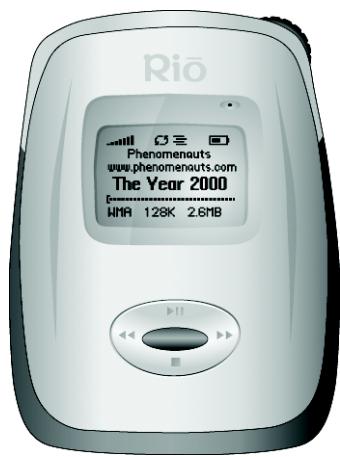
- Rio Carbon
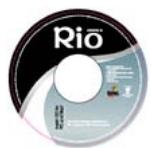
Installation CD - Carrying Case
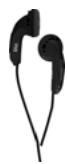
USB-AC Adapter - Earphones
- Quick Start Poster
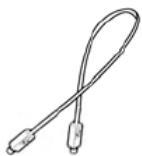
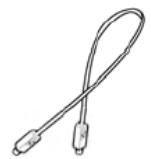
- Mini USB Cable

Copyright/Trademarks
© 2005 Digital Networks North America, Inc. All rights reserved.
Digital Networks North America, Inc. shall not be liable for any errors contained herein or for any damages arising out of or related to this document or the information contained herein, even if Digital Networks North America has been advised of the possibility of such damages. This document is intended for informational and instructional purposes only. Digital Networks North America, Inc. reserves the right to make changes in the specifications and other information contained in this document without prior notification. Digital Networks North America, Inc. disclaims any obligation to update the information contained herein. Rio® is a registered trademark of Digital Networks North America, Inc.
Microsoft, Windows Media and the Windows Logo are trademarks or registered trademarks of Microsoft Corporation in the United States and/or other countries.
AudibleReady is a registered trademark of Audible, Inc.
All other product names may be trademarks of the companies with which they are associated.
P/N 75550298-001

AudibleReady
Table of Contents
1 - Getting Started
Welcome 1
Learning More. 1
Tour of the Rio Carbon 2
Display Overview 4
- Player Mode 4
- Menu Mode 4
Time Code View 5 - Date View............5
- Track Format View 5
- Play Screens 5
2 - Connections
Basic Connections 6
- Earphones 6
USB-AC 6
Additional Accessories 7
3 - Software Setup
Software Installation 8
- Rio Music Manager 9
4 - PlaysForSure™
PlaysForSureTM Logo 10
Audio Download 11
Audio Subscription 11
5 - Basic Operations
Learning the Basics 12
Copy Tracks 13
- Copy Tracks using Rio Music Manager 13
Transfer Tracks 14
- Transfer Tracks using Rio Music Manager 15
- Transfer Tracks using Windows Explorer 16
MTP mode transfers 17 - MSC mode transfers 18
- Transfer Tracks using Online Music Stores 19
Control the Player 20
Play Music 21
- Play All 22
Album 22
Artist 22
Genre 23
Track 23
Year 23
New Music 24 - Playlist 24
- Spoken Word 24
- Recordings 25
- Folder 25
Delete Tracks 26
6 - Advanced Features
Learning to use the Advanced
Features 27
Bookmarks 28
Settings 29
-Playback 30
Equalizer 31
- Custom 31
- EQ Off 31
- Preset 31
Power 32
- Resume 33
- Display 34
Time 35
- Lock Setup 36
- Lock Mode 37
• Tags 38
- Transfer Mode 39
Voice Record 40
Recordings 41
Stopwatch 42
About 43
7 - Help
Troubleshooting 44
- Customer Service Information 44
Frequently Asked Questions. 45
Glossary of Digital Audio Terms...54
Bass. 54
- Bitrate 54
- Codec 54
DRM 54
Firmware 55
Gain 55
ID3 Tags 55
Mass Storage Class 55
Media Transfer Protocol 55
- MP3 56
- Playlist 56
- PlaysForSure™ 56
- Rip and Encode 56
- Synchronize 56
Treib 56
VBR. 57
WMA 57
ECC, FCC, and Industry Canada
Compliance 58
Statement of Compliance 58
Federal Communications Commission......58
Industry Canada. 58
Safety 59
- IMPORTANT SAFETY INSTRUCTIONS......59
CAUTION 59
: Welcome
Thank you for purchasing the Rio Carbon. Small and powerful, the Rio Carbon can store thousands of songs on its hard drive. The Rio Carbon includes a USB-AC adapter, earphones, an illuminated display, a long lasting built-in battery, and high speed USB 2.0 connectivity.
Learning More
Refer to the Quick Start poster for the basics on how to set up and start using the Rio Carbon.
- Visit the Rio website at www.rioaudio.com.
:: Tour of the Rio Carbon
POWER
Press to turn the Rio Carbon on.
Press and hold to turn the Rio
Carbon off.
MICROPHONE
Records sound when the Voice
Recorder is in use.
CENTER
In Menu mode, press to select
options.
In Player mode press to cycle
through Time Code View,
Track Format View, and Date
View.
STOP
Press to stop playback.
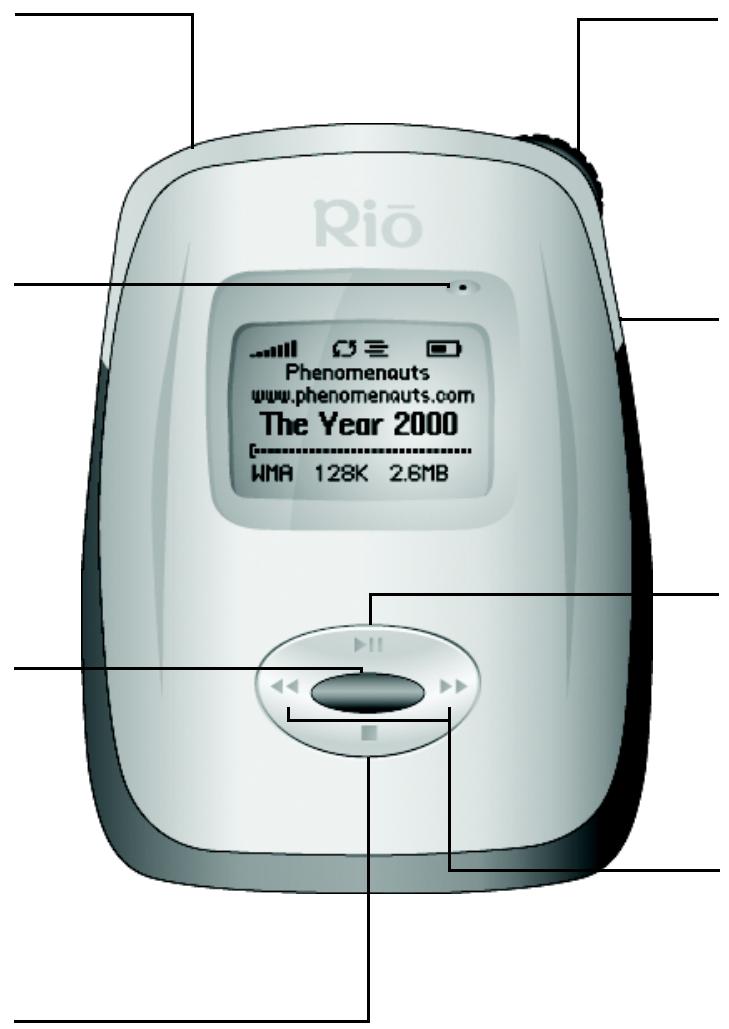
WHEEL
In Player mode, rotate to adjust volume level.
In Menu mode, press or rotate to control menu navigation.
MENU
In Player mode, press to enter Menu mode.
In Menu mode, press to return to Player mode.
PLAY/PAUSE
Press to play or pause playback.
FORWARD and REVERSE
Press to skip to the next or previous track.
Select and hold to scan forward or reverse.
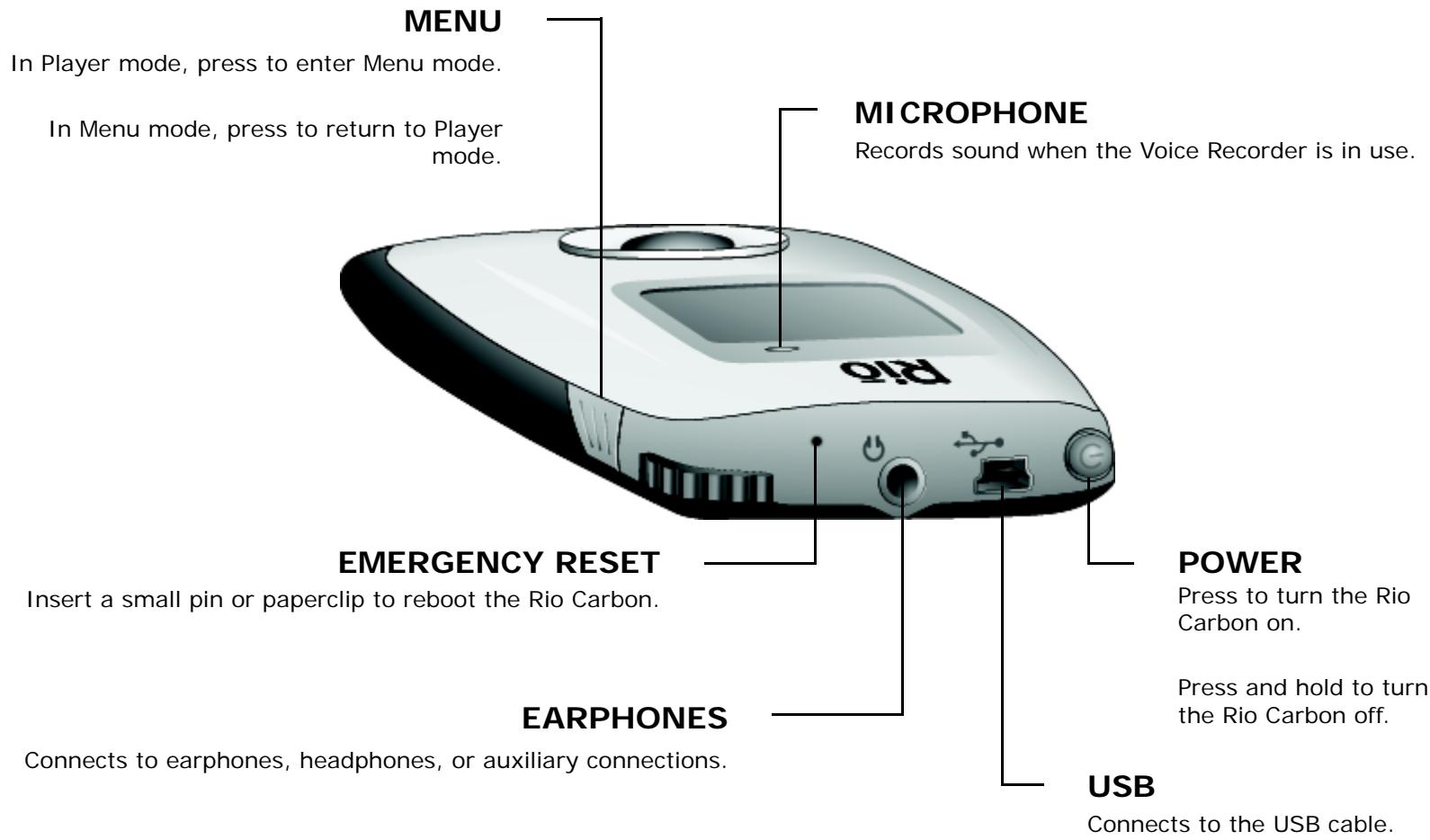
USB
Connects to the USB cable.
:: Display Overview
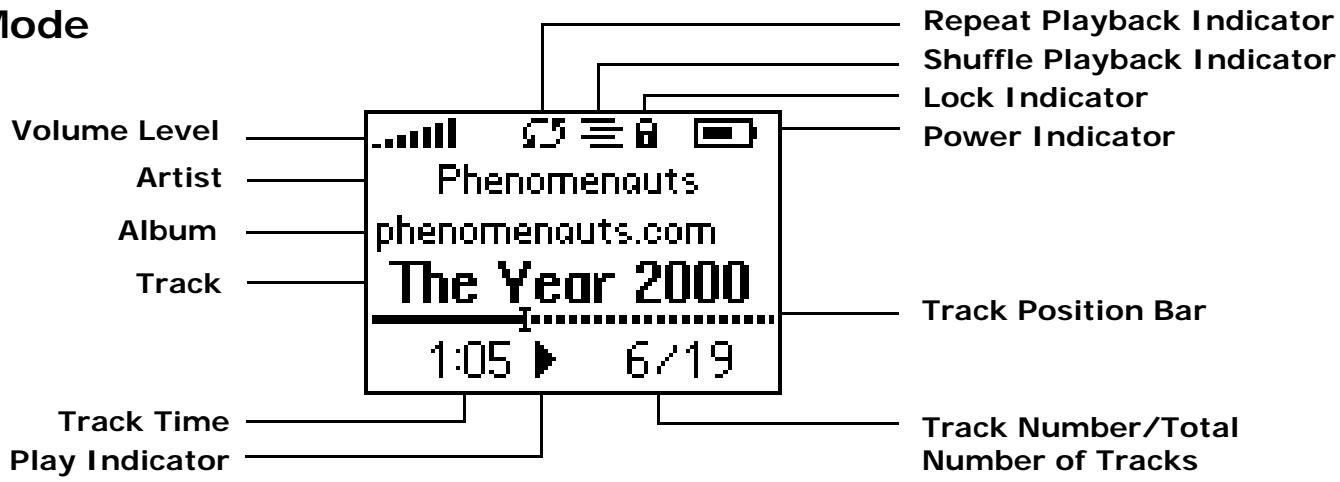
Player Mode
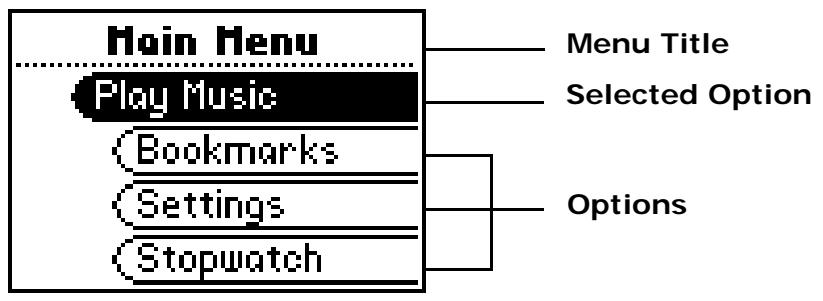
Menu Mode
Track Time

Time Code View


Astral
www.astralsf.com
Orchids
0:42
6/19
Play Screens
Press CENTER to cycle through Time Code, Date, Track Format, and EQ setting views.
Track Number/Total Number of Tracks
Time

Date View


Secret Synthi
www.secretsunth.com
Mitten Fight

Track Format View
Date
Codec
Bitrate



Eric Alexandrakis
www.myrainday.com
the Snow Here
UMA
128K
3.0MB
Track Size
:: Basic Connections
This chapter describes how to connect the Rio Carbon to Earphones, USB cables, and alternate devices. Basic connections include:
Earphones
Connect the supplied earphones to the EARPHONES port on the top of the Rio Carbon.
USB-AC
The Rio Carbon requires a USB connection to transfer files and/or recharge its battery. If using a USB hub, connect to a powered USB hub. Unpowered USB hubs may not work.
Use the USB cable to connect the Rio Carbon to the USB port on your computer, transfer music and files, and update the Rio Carbon's firmware. The Rio Carbon cannot play music when it is connected to the USB port on your computer.
Use the USB cable to connect the Rio Carbon to the USB port on the USB-AC adapter to quickly recharge the battery on the Rio Carbon. When connected to the USB port on the USB-AC adapter, the Rio Carbon can play music and recharge its battery at the same time.

Additional Accessories
Get the most out of your Rio with additional accessories available online at the Rio website. Some of the most popular accessories include the following:
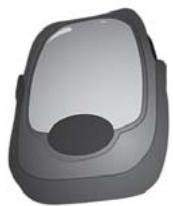
- Rio Carbon Carrying Case and Belt Clip
Replace carrying cases that have been worn down by intensely active lifestyles.
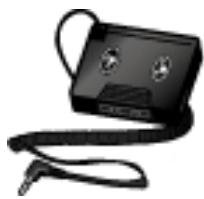
- Rio Car Stereo Adapter
Upgrade your car stereo for hundreds of dollars less than buying a new MP3 CD player. The Rio car stereo adapter lets you play your favorite music in any vehicle equipped with a standard cassette deck.
:: Software Installation
Software found on the Rio installation disc should be installed on a computer before using the Rio Carbon. Rio Music Manager should be installed on computers that use the Windows operating systems.
Follow these instructions to load Rio Music Manager onto your PC.
1 Place the installation CD label-side up into the computer's CD-ROM drive.
The Rio installation software launches automatically.
2 Click Rio Music Manager INSTALL NOW (required) and follow the on-screen instructions.
3 If prompted, reboot the computer when the installation is complete.

- If the Rio installation software does not display automatically, follow these steps to begin the installation manually:
4 Double-click the My Computer icon, My Computer , on the Windows desktop or Start Menu.

5 Double-click the CD-ROM icon, Compact Disc. (D:)
6 Double-click the Install icon, Install
7 Go to Step 2.

Rio Music Manager
Rio Music Manager is an all-in-one solution that can rip, encode, and manage entire collections of digital audio tracks. Rio Music Manager provides the following capabilities:
- Save (Rip and Encode) audio CDs into compressed digital audio formats. Rio Music Manager encodes WMA files by default and MP3 via an optional upgrade pack.
- Automatically Synchronize the music collection on your computer with the Rio Carbon.
- Edit ID3 Tags and WMA tags on digital audio tracks.
- Organize and manage digital audio tracks on your computer and the Rio Carbon.
- Search for tracks on your computer and the Rio Carbon.
- Create custom Playlists.
- Transfer tracks from your computer to the Rio Carbon.
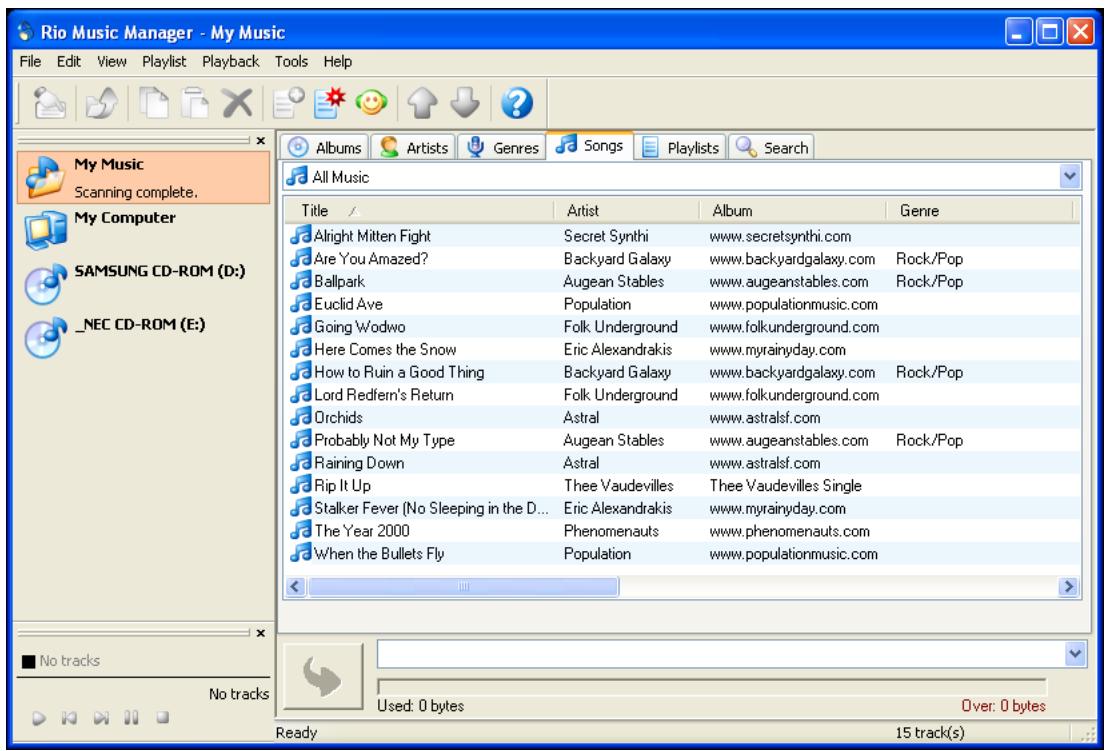
Complete Rio Music Manager instructions can be found using the Rio Music Manager Help menu.
:: PlaysForSure™ Logo
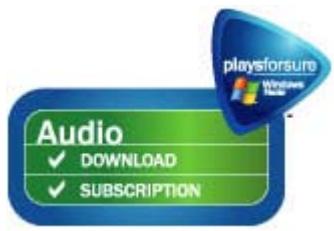
The PlaysForSure logo assures that digital audio devices and online music stores have been tested and verified by Microsoft to work properly together. When you see the PlaysForSure logo at your favorite online music store, you'll know that audio tracks you purchase from the store will play for sure on the Rio Carbon.
The Rio Carbon is a PlaysForSure device and is compatible with PlaysForSure Audio Downloads and PlaysForSure Audio Subscriptions.
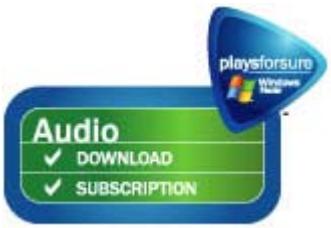
Audio Download
Audio Subscription

- The iTunes Music Service does not use the PlaysForSure logo. Tracks downloaded from the iTunes Music Service cannot be played on your Rio player.
Audio Download
Most online music stores sell digital music that can be downloaded onto the Rio Carbon. When you purchase an audio download you pay once to download a specific track. Tracks purchased in this way can be played for an unlimited amount of time, subject to the restrictions specified by the online music store.
When you see the PlaysForSure Audio Download logo at an online music store you will know that the online music store has been verified to provide audio downloads that will play for sure on the Rio Carbon.
Audio Subscription
A growing number of online music stores sell subscription services that let you download an unlimited number of tracks for a monthly fee. You can download as many tracks as you want, but if you stop paying your monthly subscription fee and the subscription expires, the tracks cannot be played.
Customers using PlaysForSure Audio Subscription services must connect their Rio Carbon to their computer via USB and visit their online music subscription store at least once each billing period so the Rio Carbon knows that the Audio Subscription has not expired.
When you see the PlaysForSure Audio Subscription logo at an online music store you will know that the online music store has been verified to provide audio subscriptions that will play for sure on the Rio Carbon.
Windows Media Player 10 and Windows XP Service Pack 1 (or greater) must be installed on your computer to use PlaysForSure Audio Subscription tracks.

- PlaysForSure Audio Subscription tracks cannot be transferred to the Rio Carbon when the Rio Carbon is in MSC mode.
: Learning the Basics
Copying tracks from your CDs and transferring digital music to the Rio Carbon is easy. Enjoying digital music on the Rio Carbon is even easier.
Copy Tracks
Transfer Tracks
Control the Player
Play Music
Delete Tracks
:: Copy Tracks
Copy Tracks using Rio Music Manager
Copying tracks from Audio CDs involves two steps commonly known as ripping and encoding. Ripping and encoding refers to the process of ripping (copying) audio from a CD and encoding (saving) the audio content into a compressed digital audio format like MP3 or WMA.
1 Launch Rio Music Manager.
2 Insert an Audio CD into your CD-ROM drive.
3 Click the CD-ROM icon on the Rio Music Manager Device List.
4 Use any of the following techniques to select tracks:
| Track Type | Technique |
| Single track. | • Click the track. |
| Multiple tracks. | • Press SHIFT+Click or CTRL+Click. |
| All tracks. | • Press CTRL+A. |
| No tracks. | • Press CTRL+N. |
| Every track except for the currently selected tracks. | • Select Edit, Invert Selection. |
5 Click

to begin copying tracks to your computer.

- Complete Rio Music Manager instructions can be found using the Rio Music Manager Help menu.
:: Transfer Tracks
There are many ways to transfer tracks onto the Rio Carbon. Choosing a method to transfer tracks is largely a matter of personal preference.
Transfer Tracks using Rio Music Manager Transfer Tracks using Windows Explorer Transfer Tracks using Online Music Stores

- The first time you use Rio Music Manager, the Welcome Wizard will help Rio Music Manager find music on your computer. You can change the locations that Rio Music Manager searches for music manually by using the Tools/Options.../Music Location/ menu in Rio Music Manager.
Transfer Tracks using Rio Music Manager
Transferring tracks from the PC to the Rio Carbon with Rio Music Manager involves selecting tracks, then transferring them onto the Rio Carbon.
1 Launch Rio Music Manager.
2 Click My Music in the left frame to access tracks. Rio Music Manager will scan your computer's music locations for digital audio files. Files are automatically categorized by album title and displayed in the Track List. Use the Music Location menu in Rio Music Manager (Tools/Options/Music Location) to add music locations for Rio Music Manager to scan.
3 Select tracks within a category of tracks. Categories include Albums, Artists, Genres, Songs, and Playlists.
For example, if you wish to copy all tracks from a favorite artist onto the Rio Carbon, click the Artists tab and then use any of the techniques in Step 4 to select the desired tracks.
4 Use any of the following techniques to select files:
| File type | Technique |
| Single track, album, or artist. | • Click the track, album, or artist. |
| Multiple tracks, albums, and/or artists. | • Press SHIFT+Click or CTRL+Click. |
| All tracks, albums, and artists. | • Press CTRL+A. |
| No tracks, albums, or artists. | • Press CTRL+N. |
| Every track except for the currently selected tracks. | • Select Edit, Invert Selection. |
5 After the tracks have been selected they can be copied to the Rio Carbon by clicking


- Complete Rio Music Manager instructions can be found using the Rio Music Manager Help menu.
Transfer Tracks using Windows Explorer
- Folders and files can be transferred to the Rio Carbon using copy-and-paste and/or drag-and-drop techniques. These methods are excellent ways to transfer files to and from computers when using the Rio Carbon as a portable storage device.
Any type of file can be transferred using these methods but to assure full functionality, Playlists and copy protected music using Digital Rights Management (DRM) should be transferred to the Rio Carbon using Rio Music Manager or the applicable online music store manager.
Transferring tracks using Windows Explorer is slightly different depending on what Transfer Mode the Rio Carbon is set to use.
MTP mode transfers
MSC mode transfers
MTP mode transfers
If Windows Media Player 10 and Windows XP Service Pack 1 (or greater) are installed on your computer, the Rio Carbon will default to MTP mode functionality.
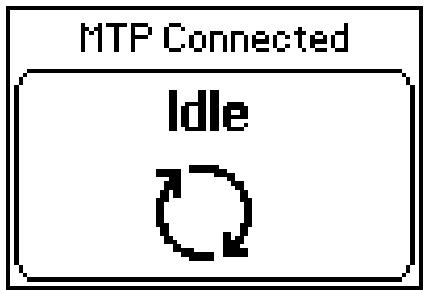
1 Connect the Rio Carbon to a computer using the supplied USB cable.
2 Double-click My Computer on the Windows Desktop or in the Start Menu.
3 Locate MP3 or WMA audio files on the computer.
4 Highlight files and/or folders to transfer to the Rio Carbon.
5 Click Edit.
6 Click Copy.
7 Double-click My Computer on the Windows Desktop or in the Start Menu to open another window.
8 In the new window, locate the icon that is associated with the Rio Carbon.
9 Double-click the Rio Carbon icon.
10 Select a folder to add tracks to. In MTP mode, audio files must be placed into the folder called Media and all non-audio files must be placed into the folder called Data. The Media and Data folders are created automatically by the Rio Carbon when in MTP mode.
11 Click Edit.
12 Click Paste.

- When the Rio Carbon is in MTP mode (or Auto mode on Windows XP systems with SP1 (or greater) and WMP10 installed), hidden files on the Rio Carbon cannot be viewed using Windows Explorer, transfers cannot be made to the root Rio Carbon directory using Windows Explorer, and new folders cannot be created using Windows Explorer. Folders can be transferred to the Rio Carbon using drag-and-drop and copy-and-paste methods.
MSC mode transfers
If your computer does not have Windows Media Player 10 and Service Pack 1 (or greater) installed, the Rio Carbon will default to MSC mode functionality.
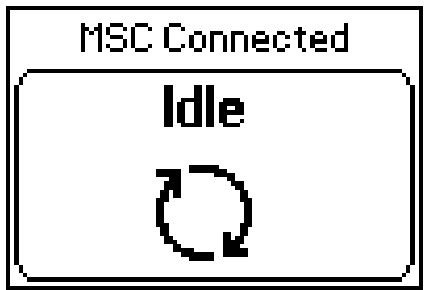
1 Connect the Rio Carbon to a computer using the supplied USB cable.
2 Double-click My Computer on the Windows Desktop or in the Start Menu.
3 Locate MP3 or WMA audio files on the computer.
4 Highlight files and/or folders to transfer to the Rio Carbon.
5 Click Edit.
6 Click Copy.
7 Double-click My Computer on the Windows Desktop or in the Start Menu to open another window.
8 In the new window, locate the icon that is associated with the Rio Carbon.
9 Double-click the Rio Carbon icon.
10 Select a folder to add tracks to.
11 Click Edit.
12 Click Paste.
Transfer Tracks using Online Music Stores
Most online music stores provide their own unique and proprietary download managers that you can use to transfer tracks to your computer and the Rio Carbon. Using the online music store's download manager to transfer their tracks to your computer—and then using Rio Music Manager to transfer the tracks from your computer to your Rio player—will provide the best user experience.
Some online music stores require that you use their download manager.
Please contact the applicable online music store for information on how to use their download manager to transfer tracks to the Rio Carbon.
:: Control the Player
The controls on the Rio Carbon work as follows:
- POWER
Press to turn the Rio Carbon on. Press and hold to turn the Rio Carbon off.
- MENU
In Player mode, press to enter Menu mode. In Menu mode, press to return to Player mode. Press and hold MENU and CENTER at the same time to enter Lock Mode.
CENTER
In Player mode, press to cycle through Play Screens. In Menu mode, press to select menu options.
- PLAY/PAUSE
In Player mode, press to play or pause playback. In Menu mode, press to control menu navigation.
FORWARD and REVERSE
In Player mode, press to skip to the next or previous track. Press and hold to scan forward or reverse through a track. In Menu mode, press to control menu navigation.
STOP
In Player mode, press to stop playback. In Menu mode, press to control menu navigation.
WHEEL
In Player mode, rotate to adjust the volume level. In Menu mode, press or rotate to control menu navigation.
Controls
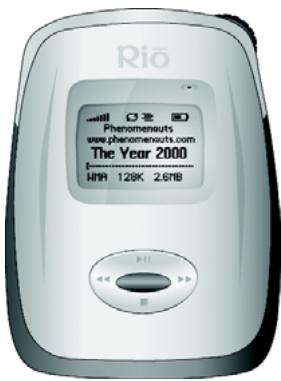
Locations of all controls can be found on pages 2 and 3.
:: Play Music
The Rio Carbon can play audio tracks using a variety of playback formats. Any format can be used within a matter of seconds so you can spend more time enjoying tracks and less time arranging them.
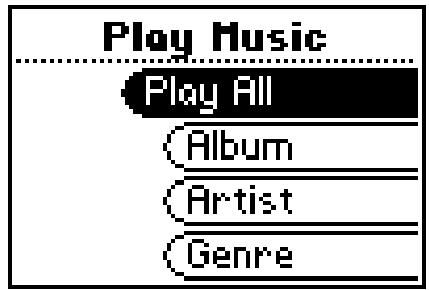
Play All
Album
Artist
Genre
Track
Year
New Music
Playlist
Spoken Word
Recordings
Folder
Play All
To play all tracks on the player please follow these steps:
1 Press MENU.
2 Select Play Music.
3 Select Play All.
Album
To play tracks from specific albums please follow these steps:
1 Press MENU.
2 Select Play Music.
3 Select Album.
4 Select an album.
5 Select Play All or a specific album.
6 If a specific album is selected, select Play All or a specific track.
Artist
To play tracks from a specific artist please follow these steps:
1 Press MENU.
2 Select Play Music.
3 Select Artist.
4 Select Play All or a specific album.
5 If a specific album is selected, select Play All or a specific track.
Genre
To play tracks from a specific genre please follow these steps:
1 Press MENU.
2 Select Play Music.
3 Select Genre.
4 Select Play All, a specific genre, or [none].
5 If a specific genre is selected, select Play All or a specific track.
Track
To play a specific track please follow these steps:
1 Press MENU.
2 Select Play Music.
3 Select Track.
4 Select Play All or a specific track.
Year
To play tracks from a specific year please follow these steps:
1 Press MENU.
2 Select Play Music.
3 Select Year.
4 Select Play All a specific year, or [none].
New Music
Select to compose a running order composed of the most recently transferred tracks during a set amount of time. The most recently transferred tracks are played first. To play tracks using New Music please follow these steps:
1 Press MENU.
2 Select Play Music.
3 Select New Music.
4 Select 1 day (the default setting), 2 days, 1 week, or 1 month.
Playlist
To play tracks from playlists created in Rio Music Manager please follow these steps:
1 Press MENU.
2 Select Play Music.
3 Select Playlist.
4 Select Play All or a specific playlist.
Spoken Word
Select to play tracks formatted using the Audible #2 and #3 formats. To play spoken word tracks please follow these steps:
1 Press MENU.
2 Select Play Music.
3 Select Spoken Word.
4 Select Play All or a specific Audible track.

- Audible tracks can only be transferred to the Rio Carbon using the Audible Manager application. The Windows Media Player Audible application does not currently work with the Rio Carbon.
- When in Spoken Word mode, the Rio Carbon's LCD displays the following icon: [ ]
- When in Spoken Word mode, press FORWARD or REVERSE to skip from one section of the track to another.
- The current track position in an audio book is automatically saved when switching from Spoken Word mode to another Play Music mode. Bookmarks are great for saving multiple positions in long-running digital audio books and other spoken word content.
Recordings
To play recordings created using the Rio Carbon's internal microphone:
1 Press MENU.
2 Select Play Music.
3 Select Recordings.
4 Select Play All or a specific recording.
Folder
To locate and play tracks using folders that have been created on the Rio Carbon please follow these steps:
1 Press MENU.
2 Select Play Music.
3 Select Folder
4 Select Play All or a specific folder.
5 If a specific folder is selected, select Play All or a specific track.
:: Delete Tracks
Dele t h Rio Cn ng R Music Mng n s t the Rio Carbon.
1 Launch Rio Music Manager.
2 Click Rio Carbon in the left frame to access tracks.
3 Select tracks within a category of tracks. Categories include Albums, Artists, Genres, Songs, and Playlists.
For example, if you wish to copy all tracks from a favorite artist onto the Rio Carbon, click the Artists tab and then use any of the techniques in Step 4 to select the desired tracks.
4 Use any of the following techniques to select files:
| File type | Technique |
| Single track, album, or artist. | • Click the track, album, or artist. |
| Multiple tracks, albums, and/or artists. | • Press SHIFT+Click or CTRL+Click. |
| All tracks, albums, and artists. | • Press CTRL+A. |
| No tracks, albums, or artists. | • Press CTRL+N. |
| Every track except for the currently selected tracks. | • Select Edit, Invert Selection. |
- Click the Delete icon,

Clicking the delete icon will remove the selected files from the Rio Carbon and cannot be undone.

- Tracks can also be deleted from the Rio Carbon using traditional drag-and-drop and copy-and-paste methods via My Computer (Windows Explorer).
: Learning to use the Advanced Features
Advanced features of the Rio Carbon include:
Bookmarks Settings Voice Record Recordings Stopwatch About
:: Bookmarks
Bookmarks store specific player settings, including the current running order, the current track, the current time position of the track, and the Playback settings. Users can save these settings in a bookmark and restore them whenever they use the Rio Carbon. Bookmarks are great for:
- Placing digital bookmarks in digital audio books or other extended length tracks.
- Maintaining positions in long term running orders.
- Sharing your player with others without losing personal settings.
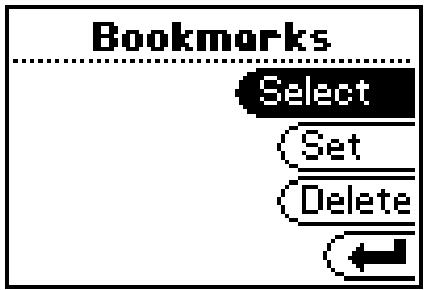
1 Press MENU.
2 Select Bookmarks.
3 Select aBookmark option.
Bookmark options include:
- Select
Select a bookmark. Press CENTER to restore the selected bookmark settings.
- Set
Select a bookmark. Press CENTER to save the current settings to a bookmark.
- Delete
Select a bookmark. Press CENTER to delete the selected bookmark.

- In Player mode, press and hold CENTER to quickly bookmark the current settings.
- The Rio Carbon automatically saves user settings when it is turned off. These settings are automatically restored when the Rio Carbon is turned on. Settings saved automatically are not saved as a bookmarks.
:: Settings
Rio Carbon settings include:
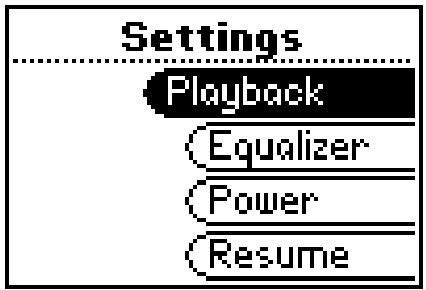
Playback
Equalizer
Power
Resume
Display
Time
Lock Setup
Lock Mode
Tags
Transfer Mode
Playback
Various playback settings can be set to modify the way the Rio Carbon plays tracks. Tracks can be shuffled at random and/or repeated continuously.
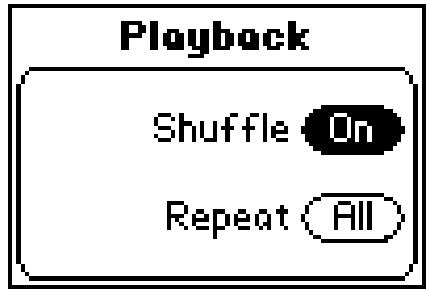
1 Press MENU.
2 Select Settings.
3 Select Playback.
4 Select Playback options.
5 Press CENTER to apply settings.
Blackback options include:
Shuffle
Set selected tracks to play in standard or random order. Settings include Off (the default setting) and On.
Repeat
Set selected tracks to repeat playback of all tracks or the current track. Settings include Off (the default setting), All, and One.
Equalizer
The sound of tracks played on the Rio Carbon can be adjusted using various preset and fully customizable equalizer options. Equalizer settings include:
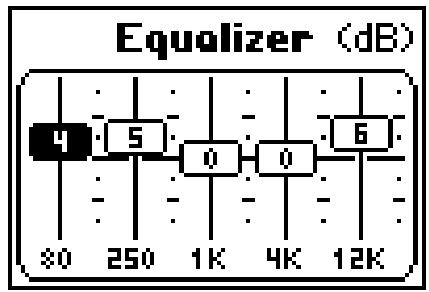
Custom
Custom mode allows the Rio Carbon's settings to be adjusted according to personal preferences.
1 Press MENU.
2 Select Settings.
3 Select Equalizer.
4 Select Custom.
5 Adjust 5-band equalizer. Press FORWARD or REVERSE to navigate between frequencies. Press PLAY/PAUSE or STOP to boost or cut the Gain of the frequency.
6 Press CENTER to save settings and return to Player mode.
EQ Off
Select the EQ Off equalizer option to apply no equalizer adjustments to audio content on the Rio Carbon.
1 Press MENU.
2 Select Settings.
3 Select Equalizer.
4 Select EQ Off.
5 Press CENTER to set the EQ Off equalizer option and return to Player mode.
Preset
Select a Rock, Jazz, Classical, Pop, or Trance equalizer option to change the sound of tracks according to the selected preset settings.
1 Press MENU.
2 Select Settings.
3 Select Equalizer.
4 Select Rock, Jazz, Classical, Pop, or Trance.
5 Press CENTER to set the selected equalizer option and return to Player mode.
Power
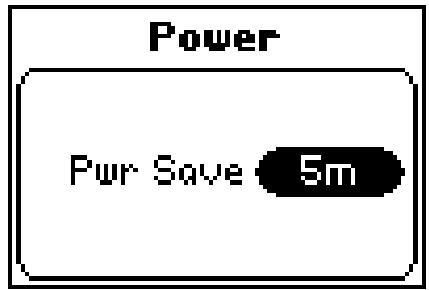
By adjusting the Power settings, the Rio Carbon can conserve energy and extend the amount of playback time during each battery charge.
1 Press MENU.
2 Select Settings.
3 Select Power.
4 Select a Pwr Save setting.
5 Press CENTER to apply settings and return to Player mode.
Power options include:
Pwr Save
Set the Rio Carbon to enter shutdown after being idle for a specific number of minutes. Settings include 1m, 5m (the default setting), 10m, 30m, and Never.
Resume
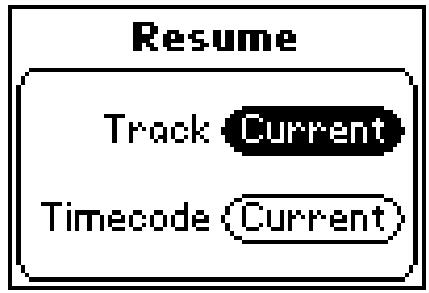
Use the options in the Resume menu to set the track that the Rio Carbon will play whenever it is powered on.
1 Press MENU.
2 Select Settings.
3 Select Resume.
4 Select Resume options.
5 Press CENTER to apply settings and return to Player mode.
Resume options include:
- Track
Set the Rio Carbon to begin playback of the last track played before shutdown or the first track in the running order when the Rio Carbon is powered on. Settings include Current (the default setting) and First.
Timecode
Set the Rio Carbon to begin playback of the last track played at the point the track was at during shutdown, or at the start of the track. Settings include Current (the default setting) and Start.
Display
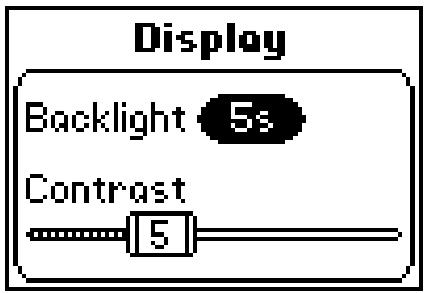
Use the Display menu to adjust backlight and contrast settings.
1 Press MENU
2 Select Settings.
3 Select Display.
4 Adjust Backlight options and Contrast settings.
5 Press CENTER to apply settings and return to Player mode.
Display settings include:
- Backlight
Set the backlight on the Rio Carbon to shut itself off after a specific number of seconds. Settings include Off, 2s, 5s (the default setting), 10s, 20s, and On. On sets the backlight to remain lit constantly.

- To conserve battery life, the On setting should rarely be used.
- Contrast
Press FORWARD and REVERSE to control the contrast slider. Use the contrast slider to set how light or dark the images on the LCD will appear. Setting the contrast too high will result in washed out images. Setting the contrast too dark will result in images that are too dark to read.
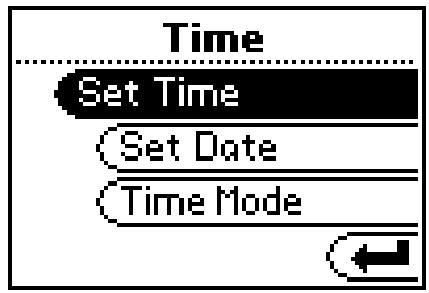
Time
Use the options in the Time menu to set the Rio Carbon's internal clock. Time is set automatically every time tracks are transferred to the Rio Carbon using Rio Music Manager.
1 Press MENU.
2 Select Settings.
3 Select Time.
4 Select Set Time, Set Date, or Time Mode options.
5 Press CENTER to apply settings and return to Player mode.
Time settings include:
- Set Time
Options include Hour, Minute, and AM / PM.
- Set Date
Options include Month, Day, and Year.
Time Mode
Options include 12 hour (the default setting) and 24-hour time formats and USA (the default setting), Europe, and Japan date formats.
Lock Setup
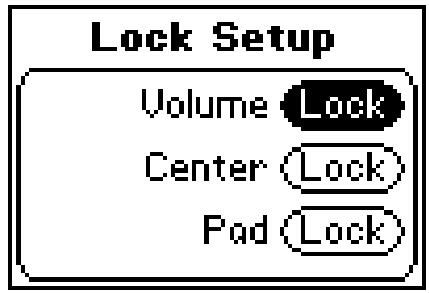
Use the options in the Lock Setup menu to enable various controls when the lock is enabled.
1 Press MENU.
2 Select Settings.
3 Select Lock Setup.
4 Select Lock Volume and Control Pad options.
5 Press CENTER to apply settings and return to Player mode.
Lock Setup settings include:
Volume
Options include Lock (the default setting) and Off. When set to Off, the volume level can be adjusted even when the Rio Carbon has been locked.
Center
Options include Lock (the default setting) and Off. When set to Off, pressing CENTER will scroll through Time Code View, Track Format View, and Date Views even when the Rio Carbon has been locked.
- Pad
Options include Lock and / (PLAY/PAUSE). When set to / , any CONTROL PAD movement will be interpreted as the / control.
Lock Mode
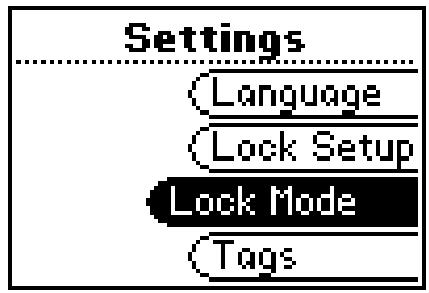
Select Lock Mode to disable the Rio Carbon's buttons (based on Lock Setup settings) and prevent accidental operation.
1 Press and hold MENU and CENTER at the same time, then release.
or
1 Press MENU
2 Select Settings.
3 Select Lock Mode.
To exit Lock Mode, press and hold MENU and CENTER at the same time, then release.
Tags
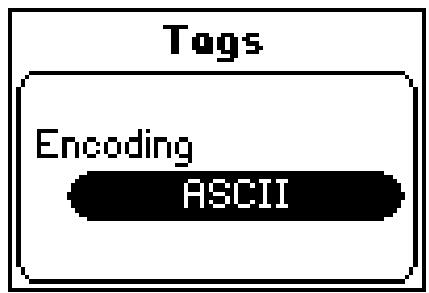
Adjust the Tags menu setting if the Rio Carbon displays random alphabet characters instead of the correct ID3 Tags. The Rio Carbon supports Latin- and Japanese-based languages. If ID3 tags are displayed properly then the Tags menu setting does not need to be changed.
Rio Music Manager encodes track tags using the Unicode method. Properly tagged (Unicode) tracks are unaffected by Tags setting changes. All WMA tracks are Unicode.
1 Press MENU.
2 Select Settings.
3 Select Tags.
4 Select ASCII (the default setting), UTF-8, or Shift-JIS.
5 Press CENTER to apply settings and return to Player mode.
Tags settings include:
ASCII
Select to read ID3 tags that are encoded using the ASCII Latin alphabet. ASCII is an acronym for American Standard Code for Information Interchange.
UTF-8
Select to read ID3 tags that are encoded using the UTF-8/Unicode format. UTF-8 is backwards compatible with ASCII. UTF is an acronym for Unicode Transformation Format.
Shift-JIS
Select to read ID3 tags that are encoded using the Shift-JIS format. Shift-JIS is a character encoding format created by Microsoft that is based on the Japanese Industrial Standard format.
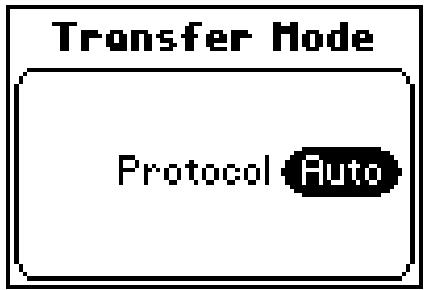
Transfer Mode
Adjust Transfer Mode settings to change the way the Rio Carbon communicates with your computer.
1 Press MENU.
2 Select Settings.
3 Select Transfer Mode.
4 Select Auto (the default setting), MTP, or MSC.
5 Press CENTER to apply settings and return to Player mode.
Transfer Mode protocols include:
- Auto (the default setting)
Select to let the Rio Carbon decide what mode is most appropriate for your computer. If Windows Media Player 10 (WMP10) and Windows XP Service Pack 1 (SP1) (or greater) are installed on your computer, the Rio Carbon will default to MTP mode functionality. If your computer does not have WMP10 and SP1 (or greater) installed, the Rio Carbon will default to MSC mode functionality.
MTP
Select to set the Rio Carbon to only use the MTP protocol. MTP is an acronym for Media Transfer Protocol.

- When in MTP mode, the Rio Carbon cannot communicate properly with your computer unless it has both WMP10 and Windows XP SP1 (or greater) installed.
-
When in MTP mode, the Rio Carbon cannot display hidden files in folders, cannot allow transfers to the root Rio Carbon directory, or allow the creation of new folders. Folders can be transferred to the Rio Carbon using drag-and-drop and copy-and-paste methods. When in MTP mode (or Auto mode on Windows XP systems with SP1 (or greater) and WMP10 installed), all audio files transferred to the Rio Carbon are automatically placed in a pre-created Media folder and all non-audio files are placed in a pre-created Data folder.
-
MSC
Select to set the Rio Carbon to only use the MSC protocol. MSC is an acronym for Mass Storage Class.

- When in MSC mode, PlaysForSure™ Audio Subscription tracks cannot be transferred to the Rio Carbon. PlaysForSure™ Audio Subscription tracks already on the Rio Carbon will play normally.
:: Voice Record
Select to record audio using the Rio Carbon's internal microphone. Recording ID3 Tags can be edited using Rio Music Manager.
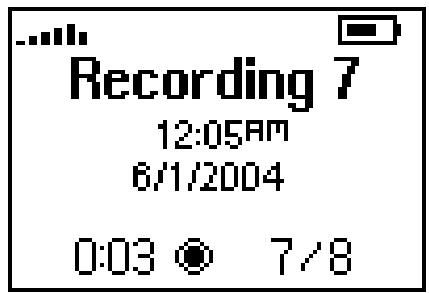
1 Press MENU.
2 Select Voice Record.
When in Voice Record mode, the following controls function differently:
CENTER
Press to cycle through Voice Record Play Screens.
- PLAY/PAUSE
Press to begin recording. After recording has started, press PLAY/PAUSE to pause recording.
FORWARD and REVERSE
Press to select a prerecorded recording. If a prerecorded recording is selected, the current recording will be appended to the prerecorded recording.
STOP
Press to stop a recording.
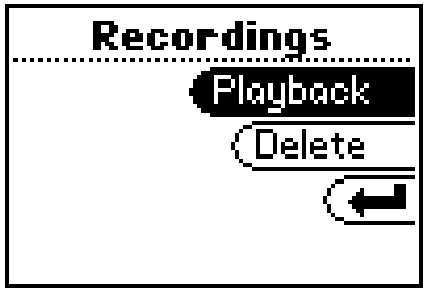
:: Recordings
Select to playback or delete recordings using the Rio Carbon's internal microphone.
1 Press MENU.
2 Select Recordings.
3 Select Start/Stop, Playback, or Delete.
Recording options include:
Start/Stop
Select to begin recording. After recording has started, return to the Recordings menu and select the Stop option to stop recording.
- Playback
Select a voice recording. Press CENTER to play the selected recording.
- Delete
Select a voice recording. Press CENTER to delete the selected recording.
:: Stopwatch
Use the stopwatch to keep track of time-sensitive events while listening to music.
1 Press MENU.
2 Select Stopwatch.
3 Press CENTER.
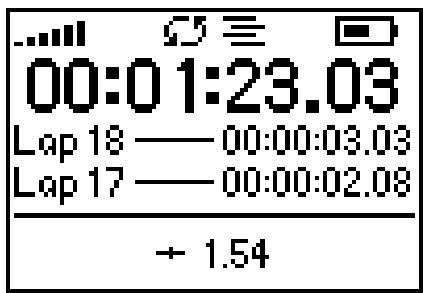
Lap statistics are displayed at the bottom of the Stopwatch screen. When a new lap is set, the difference, either faster (-) or slower (+) between new lap times and the average laptime is displayed for a few moments.
When in Stopwatch mode, the controls work in the following ways:
-MENU
Press to return to the Main Menu.
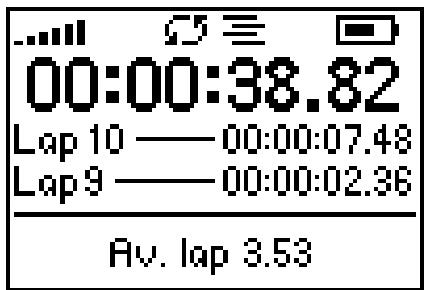
Average Lap Time

- Pressing MENU and using other player functions will not turn the timer off. The timer will continue to run until PLAY/PAUSE is pressed while in Stopwatch mode.
- PLAY/PAUSE
Press to start and stop the timer.
CENTER
Press to set a lap time. Press and hold to return to single lap display. Multiple laps and lap averages will be lost.
STOP
Press to reset timer.
Lap Difference
:: About
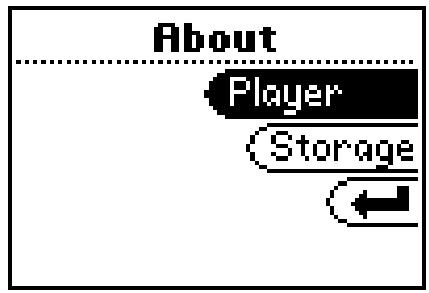
The About screen displays information about the Rio Carbon. Information includes the total amount of memory on the Rio Carbon, the amount of free memory, the number of tracks on the Rio Carbon, and the Firmware version.
1 Press MENU.
2 Select About.
3 Select Player or Storage.
4 Press CENTER.
About options include:
- Player
Displays firmware version, copyright, and Rio website information.
Storage
Press CENTER to cycle through displays of memory usage graphic bar and memory usage (MB used/MB capacity), the total number of tracks, the total duration of all tracks, the number of playlists, and the number of personal files on the Rio Carbon.
:: Troubleshooting
Customer Service Information
The FAQs below will help you solve common issues with your player. If you do not find the answers you need here, you can contact our Customer Service Department via any of the following methods:
Web: www.rioaudio.com/support
Technical Support Telephone (United States): (254) 299-2759
Technical Support Telephone (United Kingdom): 0207-744-0802
Technical Support Telephone (Canada): (905) 305-6565
Customer Sales/Presales (United States): (866) 286-3662
Customer Sales/Presales (United Kingdom): 0207-744-0802
Customer Sales/Presales (Canada): (905) 305-6565
With every Rio product you receive the following support services:
Unlimited access to the Rio web-based technical information resources, available 24 hours a day, every day, at http://www.rioaudio.com/support. Here you will find FAQ files, product updates, and other useful information.
- Unlimited e-mail support for the duration of your Rio product hardware warranty period.
Access to the latest software updates and enhancements for Rio products via our website.
Frequently Asked Questions
| Question | Answer |
| What type of files can I play with the Rio Carbon? | ·The Rio Carbon can play MP3, WMA, and Audible #2 and #3 format files. |
| Can I add MP3 and WMA files to the player at the same time? | ·Yes. You can play MP3 and WMA audio content. They can be mixed together. |
| What are the differences between MP3 and WMA files? | ·Because WMA's use a lower bitrate than equivalent MP3's they are generally half as large as MP3 files and you can store more music in less space on CDs, hard drives, or the Rio Carbon. |
| How much music can I store on the Rio Carbon? | ·The amount of music that can be stored on the Rio Carbon depends on the bitrate of the files stored. The About menu lists the total amount of space, the amount of free space, and the number of tracks on the Rio Carbon. Bitrate Approximate amount of space required per minute of audio content 64 kbps 0.5 MB 96 kbps 0.75 MB 128 kbps 1 MB 164 kbps 1.25 MB 192 kbps 1.75 MB |
| What kind of batteries can I use with the Rio Carbon? | ·The Rio Carbon uses a non-removable rechargeable lithium-ion battery. |
| Can I replace the battery in my Rio Carbon? | ·No. |
| Can I charge the Rio Carbon's battery using the USB cable? | • Yes. Both USB-USB (Rio player to computer) and USB-AC (Rio player to power socket) connections will power and charge the Rio Carbon. |
| Where is the battery indicator on my Rio Carbon? | • The battery indicator on the Rio Carbon is located in the top-right corner of the display. The segments in the battery icon show the remaining battery power. The illumination of all segments indicates a fully charged battery. Non-illuminated segments indicate a run down battery. The battery indicator blinks when less than 20% of the charge on the battery remains. |
| I'm not getting the full 20hrs of battery life. Is that a problem? | • Probably not. Your battery life depends on many factors including volume, type of music and bit rate, backlight, equalizer settings, and headphones. • MP3s use less power than WMAs. PlaysForSure Audio Subscription tracks use more power than regular WMAs. • Higher bit rates use more power than lower bit rates. • The higher the volume is set, the more power the Rio Carbon uses. • Higher contrast and longer backlight usage use additional power. |
| The drive stops spinning during playback. Is this normal? | • Yes. It is normal for the drive to stop spinning during playback. Stopping the drive is part of the player's battery life management system. When the drive is stopped, the Rio Carbon conserves power and plays tracks from a memory buffer. |
| Will the Rio Carbon play Variable Bitrate (VBR) files? | • Yes. Because there are many standards for VBR files, it cannot be guaranteed that every encoding software package will properly function with the Rio Carbon. VBR files that do not comply to standards may lack track time, fast forward, and/or rewind capabilities. |
| How do I check license information for a PlaysFor Sure Download or Subscription track? | • Use the software provided by your online music store to check the license information for your tracks. • Using Windows Media Player, right-click the select track, click Properties, then click the License tab. |
| Why won't the Rio Carbon play PlaysForSure Audio Download, PlaysForSure Audio Subscription, or other DRM (digital rights management) encoded files? | DRM files may not work properly if the Rio Carbon's internal clock is no longer accurate. This can happen if the rechargeable batteries lose all charge for any period of time. Make sure the batteries are fully charged, then follow these steps: 1 Connect the Rio Carbon to the computer using the USB cable. 2 Transfer any track to the player using Rio Music Manager. 3 Log into the secure service where the DRM encoded files came from. The Rio Carbon's clock should now be in sync with your computer's clock. DRM files should now play correctly. |
| Why can't I transfer PlaysForSure subscription service tracks to my Rio Carbon? | When in MSC mode, PlaysForSure subscription service tracks cannot be transferred to the Rio Carbon. Change the Transfer Mode settings to put the Rio Carbon in MTP mode. |
| I see errors in Transfer details for some of the tracks I try to transfer to the Rio Carbon. | This may be a one-time error with the track, or possibly a permanent problem. 1 Try transferring the track to the Rio Carbon again. 2 Try re-encoding the track again from your CD using Rio Music Manager. 3 Try downloading that track again from your online music service provider. |
| I see a license error listed in the transfer details for a track I tried to transfer to the Rio Carbon. | This could be a temporary error, the track may be corrupted, Rio Music Manager may have failed to acquire the license for the track, or you might not have rights to transfer the track to the Rio Carbon. 1 Log into your online music service, and try transferring the track to the Rio Carbon again. 2 Try using the application from your music service to transfer those tracks. 3 If the track says it cannot be transferred, try downloading another copy from your online music service. |
| I notice a delay in playback when I use FORWARD or REVERSE to skip from one PlaysForSure Audio Subscription track to another. What is wrong? | ·Nothing is wrong. Every time the Rio Carbon plays a PlaysForSure Audio Subscription track, it needs to verify that the track's subscription has not expired. A slight delay before playback begins is not uncommon while the Rio Carbon is acquiring the license. Skipping forward or reverse through multiple PlaysForSure Audio Subscription tracks may cause longer playback delays. |
| The Rio Carbon displays a License Failure message whenever it tries to play a PlaysForSure Audio Subscription track. How can I fix this? | ·Your subscription to play the tracks may have expired. You must connect the Rio Carbon to your computer via USB and log into the applicable online music subscription store at least once each billing period so the Rio Carbon knows that the Audio Subscription has not expired. ·If you are sure that your subscription to play the tracks has not expired, it is possible that the master license that the Rio player checks when acquiring licenses has become corrupt. We recommend you troubleshoot the problem in the following way: 1 Try transferring a new subscription track to the Rio Carbon. 2 Follow instructions on formatting the Carbon and then transfer the track again. 3 If the problem persists, please contact the applicable online music subscription service. |
| Why can't I use my computer to play tracks or open non-audio files located on my Rio Carbon? | ·You can use your computer to play tracks and open non-audio files located on the Rio Carbon only when it is in MSC mode. Change the Transfer Mode settings to put the Rio Carbon in MSC mode. ·When in MTP mode, files located on the Rio Carbon must be transferred to your computer before they can be opened. |
| When using Windows Explorer (i.e. My Computer) to navigate the files and folders on my Rio Carbon, many folder options are missing. Why? | ·The Rio Carbon communicates with your computer differently in MTP mode than it does in MSC mode. When in MTP mode, the Rio Carbon cannot display hidden files in folders, cannot allow transfers to the root Rio Carbon directory, and cannot allow the creation of new folders. (Folders can be transferred to the Rio Carbon using drag-and-drop and copy-and-paste methods.) To use traditional folder options, change the Transfer Mode settings to put the Rio Carbon in MSC mode. |
| I can't find some pictures and work files I copied to my Rio Carbon. Where are they? | ·If in MTP mode, all non-audio files are placed into a folder called Data. The Media and Data folders are created automatically by the player when in MTP mode. ·If in MSC mode, files remain in the folder structure they were originally transferred to. |
| What should I do if my Rio Carbon is not detected by my computer? | ·Verify that the USB cable is securely inserted into the USB port on both the Rio Carbon and your computer. ·Connect the USB cable to a USB port on the back of your computer rather than to a USB port on the front of your computer. ·If using a USB hub, connect to a powered USB hub. Unpowered USB hubs may not work. ·Remove USB extension cables from the connection path. ·Disconnect other USB devices. |
| My Rio Carbon is in MTP mode but it is not being detected by Windows Explorer (My Computer) on my Windows XP system. What should I do? | ·Both Windows XP Service Pack 1 (SP1) (or greater) and Windows Media Player 10 (WMP10) must be installed for your computer to detect a Rio Carbon set in MTP mode. ·If you do not want to install SP1 (or greater) and WMP10 on your computer you should disconnect the Rio Carbon and change the Transfer Mode setting to MSC mode. |
| What should I do if my Rio Carbon is not detected as a removable drive? | ·If in MTP mode, the Rio Carbon is detected as a portable device rather than a portable drive. The Rio Carbon cannot be detected as a portable drive unless it is in MSC mode. ·If in MSC mode, it is possible that a network drive is preventing the Rio Carbon from being mapped properly. This is a known Microsoft problem and has been documented in their knowledge base as KB297694. To resolve this issue and detect the Rio Carbon as a removable drive: 1 Click Start on the Taskbar. 2 Right-click My Computer on the Windows Desktop or in the Start Menu. 3 Click Manage. 4 Locate Computer Management (Local) and click Disk Management. 5 Right-click the new drive. 6 Click Change Drive Letter and Path(s). 7 Click Change. 8 Use the drop-down box to select a drive letter for the new drive that is not assigned to a mapped network drive. 9 Click OK. 10 Click OK. |
| What should I do if my Rio Carbon is not detected by Rio Music Manager? | ·The Rio Carbon was designed to work with the version of Rio Music Manager that was included on the Installation CD. Previous versions of Rio Music Manager may not be able to detect the Rio Carbon. ·You can transfer tracks using Windows Media Player or Windows Explorer. ·If the problem persists, please contact Customer Care for assistance. |
| What should I do if my Rio Carbon will not power on (or off)? | ·Follow these steps to power the Rio Carbon on if it will not power on normally: 1 Confirm that the Rio Carbon's battery have enough charge to power the player on. Connect the Rio Carbon to your computer or to USB-AC and charge the player for five minutes. 2 Unplug the Rio Carbon from the USB connection. 3 Reset the Rio Carbon by inserting a small pin or paperclip into the EMERGENCY RESET hole. 4 Press POWER. If the Rio Carbon still does not power on, try the following: 5 Reset the Rio Carbon by inserting a small pin or paperclip into the EMERGENCY RESET hole while it's plugged into USB-AC. 6 Press POWER. |
| What should I do if my Rio Carbon is stuck in to Recorder mode every time I turn it on? | ·You should download and install the latest firmware onto the Rio Carbon. If the Rio Carbon is using the latest firmware, please reinstall it onto the Rio Carbon. |
| What should I do if the display permanently locks up, does not display, or displays UPGRADE? | ·If you cannot read the display, the Rio Carbon's firmware may be corrupted. Corrupted firmware may be caused by a failed firmware update. If the player's firmware becomes corrupted for any reason, follow these steps to start the player in Recovery Mode and proceed with the firmware update. 1 Reset the player by inserting a small pin or paperclip into the EMERGENCY RESET hole. 2 Press POWER. The player should power on as normal. If the player continues to lock up or does not display properly: 1 Reset the player by inserting a small pin or paperclip into the EMERGENCY RESET hole. 2 Press and hold MENU + POWER until UPGRADE is displayed on the screen. 3 Connect the Rio Carbon player to the computer using the USB cable. Proceed with the Firmware upgrade. |
| Why does my Rio Carbon experience errors after I unplug the USB cable? | ·Removing the Rio Carbon from a USB connection before Idle is displayed on the screen may result in a corrupting the player's file system. e.g. All tracks, although different, are assigned the same name; the player will not power off; etc. |
| Why would I ever want to reformat my Rio Carbon? | ·If for any reason you suspect that your Rio player's file system has been corrupted, reformatting the player will restore the file system to its original state. 1 Double-click My Computer on the Windows Desktop or in the Start Menu. 2 Locate the icon that is associated with the Rio Carbon. 3 Right-click the Rio Carbon icon. 4 Click Format.... Reformatting your Rio player will result in the deletion of all tracks, settings, and hidden PlaysForSure Subscription Audio license files on the Rio Carbon. Reformatting your Rio player will immediately cancel any transfers currently in progress. 5 If you are sure you want to reformat your player, click Start. |
| Can I update the firmware on the Rio Carbon? | ·Yes. If available, firmware for the Rio Carbon can be downloaded online. Note: Quit all applications before running the firmware update. While running the firmware update, do not close the program, turn off the Rio Carbon, or unplug the USB cable. Downloading the update 1 Click on the following link: Firmware Upgrade. 2 Click on the link to the Rio Carbon. 3 Locate UPDATES and click Firmware. 4 Select and download the latest software. Installing the update 1 Connect the player to your computer with the USB cable. 2 Wait for Idle to be displayed on the player screen. 3 Double-click the file that you downloaded from the Rio website. The update should take approximately 30 seconds to load. |
:: Glossary of Digital Audio Terms
Bass
Bass is the particular low-range area of the sound spectrum where low musical notes and sounds are located. Increasing the bass value will make the low vocals and drums more prominent in your music. You can select the amount of bass in your music by selecting various Equalizer options.
Bitrate
Bitrate denotes the number of bits per second used by a digital music file. The size and quality of a compressed digital audio file is determined by the bitrate used when encoding the file. Generally, the higher the bitrate used, the higher the sound quality, and the larger the file size. For example, a bitrate of 96kbps (96,000 bits per second) is generally thought of as "CD quality" for WMA audio files, and takes up about 0.75 megabytes (MB) per minute of music. At a 64kbps bitrate, the sound quality of WMA is similar to that of an FM radio signal, but approximately two minutes of music will fit in 1MB of space.
Codec
Depending on the context and kind of technology involved, a codec can be defined as a compressed digital audio file format (like MP3, WMA, etc.), a "coding/decoding" chip used to translate between digital and analog transmissions (used in modems), or a compression/decompression algorithm. Codec compress audio data into a file, often for efficient transmission over a network, and then decode it for playback. While all the codecs perform similar compression of digital audio, there are differences in the technology.
The Rio Carbon supports the following digital audio codecs:
Audible
MP3
WMA
DRM
Digital rights management (DRM) is a type of encryption that is intended to protect copyrighted tracks and is added to many commercially purchased music files during the encoding process. DRM encryption frequently restricts the number of times a file can be downloaded, transferred to portable devices, or burned to CD. Copy protected music using DRM should be transferred to the Rio Carbon using Rio Music Manager.
Firmware
Firmware is the read-only software that is installed on the player. Like software it can be updated, but unlike software it can never be deleted from the player.
Gain
Gain is a measurement of the amplitude of frequency ranges. Gain adjustments boost or reduce frequencies to provide a more desirable audio output.
ID3 Tags
The ID3 tag is the part of the encoded MP3 or WMA file that contains information about the digital music file such as song title, artist, album title, encoding bitrate, track time duration, and so on. ID3 tag information is displayed on the Album/Artist/Track title line of the player's LCD.
Mass Storage Class
Mass Storage Class (MSC) is a transfer protocol that uses USB drivers that are common to many operating systems and devices. No additional software needs to be installed for the MSC transfer protocol to work because MSC uses drivers are already on a computer's operating system. Because MSC compatible Rio players are treated as removable drives, any type of file can be transferred to MSC compatible Rio players using Windows Explorer. Although any type of file can be transferred, to assure full functionality, playlists and copy protected music using Digital Rights Management (DRM) should be transferred to Rio players using Rio Music Manager. When in MSC mode, PlaysForSure™ Audio Subscription tracks cannot be transferred to Rio players. PlaysForSure™ Audio Subscription tracks already on Rio players will play normally.
Media Transfer Protocol
Media Transfer Protocol (MTP) is a more recent transfer protocol than MSC. PlaysForSure™ Audio Subscription tracks can only be transferred to players in MTP mode. Windows XP Service Pack 1 (SP1) (or greater) and Windows Media Player 10 (WMP10) must be installed for MTP to work. When in MTP mode, Rio players are treated as portable devices rather than removable drives. Because of this, when a Rio player is in MTP mode (or Auto mode on Windows XP systems with SP1 (or greater) and WMP10 installed), folders on the Rio player cannot display hidden files, cannot allow transfers to the root Rio player directory, and cannot allow the creation of new folders. (Folders can be transferred to Rio players using drag-and-drop and copy-and-paste methods.) When in MTP mode, all audio files transferred to Rio players are automatically placed in a pre-created Media folder and all non-audio files are placed in a pre-created Data folder. Although any type of file can be transferred, to assure full functionality, playlists and copy protected music using Digital Rights Management (DRM) should be transferred to Rio players using Rio Music Manager.
MP3
MP3 is short for Moving Pictures Experts Group Audio Layer 3. MP3 is the most well known compressed digital audio file format. This format allows for near "CD quality" sound, but at a fraction of the size of normal audio files. MP3 conversion of an audio track from CD-ROM can reduce the file size by approximately a 12:1 ratio with virtually no perceptible loss in quality. MP3 compression removes the redundant and irrelevant parts of a sound signal that the human ear doesn't hear. This digital sound encoding and compression process was developed by the Fraunhofer Institute for Integrated Circuits and Thomson Multimedia.
Playlist
A playlist is a custom grouping of tracks that has been saved for later use. Rather than playing every track on the player, playlists can be used to play specific tracks in specific orders. Rio Carbon supports .asx, .m3u, and .pls formatted playlists. Tracks that are referenced by a playlist must be present on the Rio Carbon. Playlists that are transferred to a Rio player by an application other than Rio Music Manager may not function properly on Rio players.
PlaysForSure™
The PlaysForSure logo assures that digital audio devices and online music stores have been tested and verified by Microsoft to work properly together. When you see the PlaysForSure logo at your favorite online music store you'll know that services you purchase from the store will play for sure on your Rio player.
Rip and Encode
Rip and encode refers to the process of extracting audio from a music CD (ripping) and encoding it into a compressed digital audio format like MP3 or WMA.
Synchronize
Rio Music Manager can automatically (or manually) delete old content, transfer new audio content, and keep the content on the Rio Carbon fresh and dynamic. Rio Music Manager must be open for synchronization to occur.
Treble
Treble notes occupy the higher portion of the sound spectrum. Increasing the treble value will raise the levels of the high sounds in your music files. You can select the amount of treble in your music by selecting various Equalizer options.
VBR
Variable Bitrate (VBR) encoding converts tracks at a variable rate, using higher bitrate encoding for complex portions and lower bitrate encoding for pauses in songs.
WMA
Windows Media Audio (WMA) is a compressed audio format created by Microsoft as an alternative to MP3. The WMA codec offers greater file compression than the MP3 codec, enabling storage of more digital audio tracks in the same amount of space when compared to MP3s at the same level of quality.
:: ECC, FCC, and Industry Canada Compliance
Statement of Compliance
This product complies with Council Directive 89/336/EEC and Council Directive 72/23/EEC.
Federal Communications Commission
This device complies with Part 15 of the Federal Communications Commission (FCC) Rules. Operation is subject to the following two conditions:
1 This device may not cause harmful interference, and
2 This device must accept any interference received, including interference that may cause undesired operation.
This equipment has been tested and found to comply with the limits for a Class B digital device, pursuant to Part 15 of the FCC Rules. These limits are designed to provide reasonable protection against harmful interference in a residential installation. This equipment generates, uses and can radiate radio frequency energy and, if not installed and used in accordance with the instructions, may cause harmful interference to radio communications. However, there is no guarantee that interference will not occur in a particular installation. If this equipment does cause harmful interference to radio or television reception, which can be determined by turning the equipment off and on, the user is encouraged to try to correct the interference by one or more of the following measures:
Reorient or relocate the receiving antenna.
- Increase the separation between the equipment and receiver.
- Connect the equipment into an outlet on a circuit different from that to which the receiver is connected.
- Consult the dealer or an experienced radio/TV technician for help.
Industry Canada
This Class B digital apparatus complies with Canadian ICES-003.
IMPORTANT SAFETY INSTRUCTIONS
Read these instructions. Keep these instructions. Heed all warnings. Follow all instructions.
Do not use this apparatus near water.
Clean only with a dry cloth.
Do not block any of the ventilation openings. Install in accordance with the manufacturer's instructions.
Do not install near any heat sources such as radiators, heat registers, stoves, or other apparatus (including amplifiers) that produce heat.
Do not defeat the safety purpose of the polarized-type plug: A polarized plug has two blades with one wider than the other. The wide blade is provided for your safety. When the provided plug does not fit into your outlet, consult an electrician for replacement of the obsolete outlet.
Protect the power cord from being walked on or pinched, particularly at the plug, convenience receptacle, and the point where they exit from the apparatus.
Only use attachments/accessories specified by the manufacturer.
Use only with a cart, stand, tripod, bracket, or table specified by the manufacturer, or sold with the apparatus. When a cart is used, use caution when moving the cart/apparatus combination to avoid injury from tip-over.
Unplug this apparatus during lightning storms or when unused for long periods of time.
Refer all servicing to qualified service personnel. Servicing is required when the apparatus has been damaged in any way, such as the when power supply plug or cord is damaged, liquid has been spilled or objects have fallen onto the apparatus, the apparatus has been exposed to rain or moisture, does not operate normally, or has been dropped.
S3125A
To reduce the risk of fire or electric shock, do not expose this apparatus to rain or moisture. Apparatus should not be exposed to dripping or splashing and no objects filled with liquids, such as vases, should be placed on the apparatus.
CAUTION
RISK OF EXPLOSION, DAMAGE OR BATTERY LEAKAGE IS POSSIBLE IF BATTERY IS REPLACED INCORRECTLY OR BY AN INCORRECT TYPE. NEVER ATTEMPT TO CHARGE A NON-RECHARGEABLE ALKALINE BATTERY. DISPOSE OF USED BATTERIES ACCORDING TO INSTRUCTIONS OR LOCAL LAWS.
Use of headphones while operating a vehicle is not recommended and is unlawful in some states and areas. Be careful and attentive while driving. Stop operation of the player if you find it disruptive or distracting while operating any type of equipment. Listening to music at full power over extended periods of time can be damaging to the hearing of the user.
A
About 43
Accessories 7
Advanced Features 27
Album 22
Artist 22
Audible 24
Auto Mode 39
B
Backlight 34
Basic Operations 12
Bass 54
Battery Indicator 46
Bitrate 54
Bookmarks 28
Buttons and Controls 20
C
Charging the Battery 6
Codec 54
MP3 56
WMA 57
Contrast 34
Controls 20
Copy Tracks 13
Customer Service 44
D
Date View 5
Delete Tracks 26
Display 34
DRM 54
E
Earphones 6
EMERGENCY RESET 3
Equalizer 31
F
Federal
Communications
Commission 58
Firmware 55
Frequently Asked
Questions 45
G
Genre 23
Getting Started 1
Glossary 54
H
Help 44
1
ID3 Tag 55
L
Lock Mode 37
Lock Setup 36
M
MP3 56
MSC 55
MSC Mode 39
MTP 55
MTP Mode 39
N
New Music 24
P
Play All 22
Play/Pause 2, 20
Playback 30
Playlist 24, 25
Playlists 56
PlaysForSure™ 10
Power Button 2, 3
Power Settings 32
R
Recordings 25
Reformat 52
Resume 33
RIO Music Manager 9
Ripping and Encoding 56
s
Settings 29
Spoken Word 24
Stopwatch 42
Subscription Services 11
T
Tags 38
Technical Support 44
Time 35
Time Code View 5
Track 23
Track Format View 5
Transfer Mode 39
Transfer Tracks using
RIO Music Manager 15
Treble 56
Troubleshooting 44
U
UPGRADEM Mode 52
Upgrading Firmware 53
USB-AC 6
V
Variable Bitrate (VBR)
57
Voice Record 40
W
WMA 45, 57
Y
Year 23
Riō
2600 San Tomas Expy.
Santa Clara, CA 95051-0953
USA