
V3.9.4 - Surveillance Camera CAMTRACE - Free user manual and instructions
Find the device manual for free V3.9.4 CAMTRACE in PDF.



User questions about V3.9.4 CAMTRACE
0 question about this device. Answer the ones you know or ask your own.
Ask a new question about this device
Download the instructions for your Surveillance Camera in PDF format for free! Find your manual V3.9.4 - CAMTRACE and take your electronic device back in hand. On this page are published all the documents necessary for the use of your device. V3.9.4 by CAMTRACE.
USER MANUAL V3.9.4 CAMTRACE
For additional information:
www.camtrace.com
Copyright 2000-2010, Camtrace SAS
Camtrace SAS, 92150 Suresnes, France
1 INSTALLATION - CONFIGURATION
6
1.1 Startup - connection - Shutdown 7
1.1.1 Standard start-up and shutdown.. 7
1.1.2 Startup and shutdown without screen 8
1.2 IP Configuration of CamTrace server 9
1.2.1 Data collection for connection to an existing network 10
1.2.2 Server TCP/IP installation (with menucam) 10
1.2.3 Adjusting system parameters 12
1.3 Camera configuration 12
1.3.1 Configuring the IP address of each camera 12
1.3.2 Camera configuration 13
1.3.2.1 Checklist of operations to be performed on each camera............ 13
1.3.2.2 Additional time parameters 14
1.3.2.3 Limiting camera bandwidth 14
1.4 CamTrace startup and configuration 14
1.4.1 Service startup 14
1.4.2 Installation of putty terminal emulation - network access to menucam............ 16
1.4.3 Declaring cameras in the CamTrace server 16
1.4.3.1 Manual declaration of cameras 16
1.4.3.2 Choosing a camera model 18
1.4.3.3 Automatic declaration of cameras 19
1.4.4 Client workstation configuration and operations check. 19
1.4.5 Interpretation of status messages in CamTrace 20
1.4.6 Save the server configuration on a client workstation 20
1.4.7 Check CPU load and system parameters 20
1.5 Configuring remote access 21
1.5.1Router/firewall configuration 21
1.5.2 CamTrace server configuration 22
1.5.3 Limiting the bandwidth to the outbound gateway 23
1.6 Supervisor configuration 23
1.6.1 Configuration of remote CamTraces 24
1.6.2 Configuration on the CamTrace Supervisor 25
1.7 Cluster - unified interface configuration 27
1.7.1.1 Configuration to be performed on all the servers of the cluster.. 28
1.7.1.2 Configuration to be performed on client workstations 28
1.7.1.3 Configuration to be performed on the connection servers 28
1.8 Display screens 29
1.8.1 Slave screen configuration 29
1.8.2 Pilot display on a slave screen 30
1.8.3 Case with a slave multiscreen workstation 30
1.9 Management of camera options 31
1.10 Simplified management of camera dry contacts 32
1.10.1 Syntax example for an impulse button 32
1.10.2 Syntax example for on/off state 32
1.11 Positions and patrols of motorized cameras 33
1.12 Install the camIO module inputs/outputs 33
1.13 Create a shortcut on the desktop 35
1.14 Multivolume management 36
1.15 Graphic mode on the console 38
1 INSTALLATION - CONFIGURATION
1.1 STARTUP - CONNECTION - SHUTDOWN
1.1.1 Standard start-up and shutdown
CamTrace is generally delivered without a screen.
Ensure that you have a VGA screen for the first installation procedure.
Remove the server from its packaging, connect it to the screen (not provided) and to the keyboard. You do not need to use the mouse for installation, but you can use the mouse in the event of use of graphical mode on the console.
To safeguard against power cuts, during operation, you should install a UPS to supply CamTrace. Once it is equipped with a power supply, you can start your server.
A series of text messages will appear on the screen.
The CamTrace logo (an eye) appears
The system beeps three times (useful if you are booting without a screen).
The login : prompt appears.
Enter the name of the system administrator and the default password.
Careful : when entering the password, it does not appear on the screen.
Login : root Enter
Password : camtrace Enter
The system administrator command prompt appears:
Machine_name #
Type 'menucam' to open the CamTrace service and configuration management menu.
The CamTrace server is designed to operate 24h/24; never shutdown the server by unplugging the power cable or by turning off the power switch (incorrect server shutdown could damage certain files).
To shutdown the system:
- Open your administrator session
(default login "root" / password "camtrace") - Enter the "menucam" command and press [Enter].
- Go to "System shutdown" and validate,
Note : To move up the menucam menu hierarchy, press: Esc Esc
Note: If you are in graphical mode, you can go to the main console by pressing the CTRL, ALT and F1 keys simultaneously. You can then start the menucam.
To return to graphical mode, press the CTRL, ALT and F1 keys.
To exit graphical mode, press the CTRL, ALT and BACKSPACE (←) keys.
There is also an alternative procedure for shutting down the system:
- Press the CTRL, ALT and DEL keys simultaneously to trigger a system restart (reboot).
- Or (if this function exists) press briefly on the reset button on the machine.
- If you wish to shutdown the machine, turn the power supply off when the word "rebooting" appears on the screen.
1.1.2 Startup and shutdown without screen
You can also configure CamTrace without a screen. One CamTrace network output has a default address of 192.168.1.100. You can connect to CamTrace and configure using terminal emulation via a portable PC for example.
To do this, start up CamTrace and wait for the three beeps that indicate reboot is complete. Place your PC on an address on the network 192.168.1.0 (for example 192.168.1.2). Link the PC using a crossed cable to a network interface (at random). Ping the server. If it does not respond, change the network connector and ping until you find the good interface. See "Access Menucam via the network" below.
Note: CamTrace has one or more network cards (usually two): You can mix cameras and display stations on all networks at will. But we recommend that you create 'specialist' networks, particularly for important setups. In this way, you can group cameras on one or more security networks, use another network interface to connect to the company's network and yet another to connect to a display network (guard houses and display PCs).
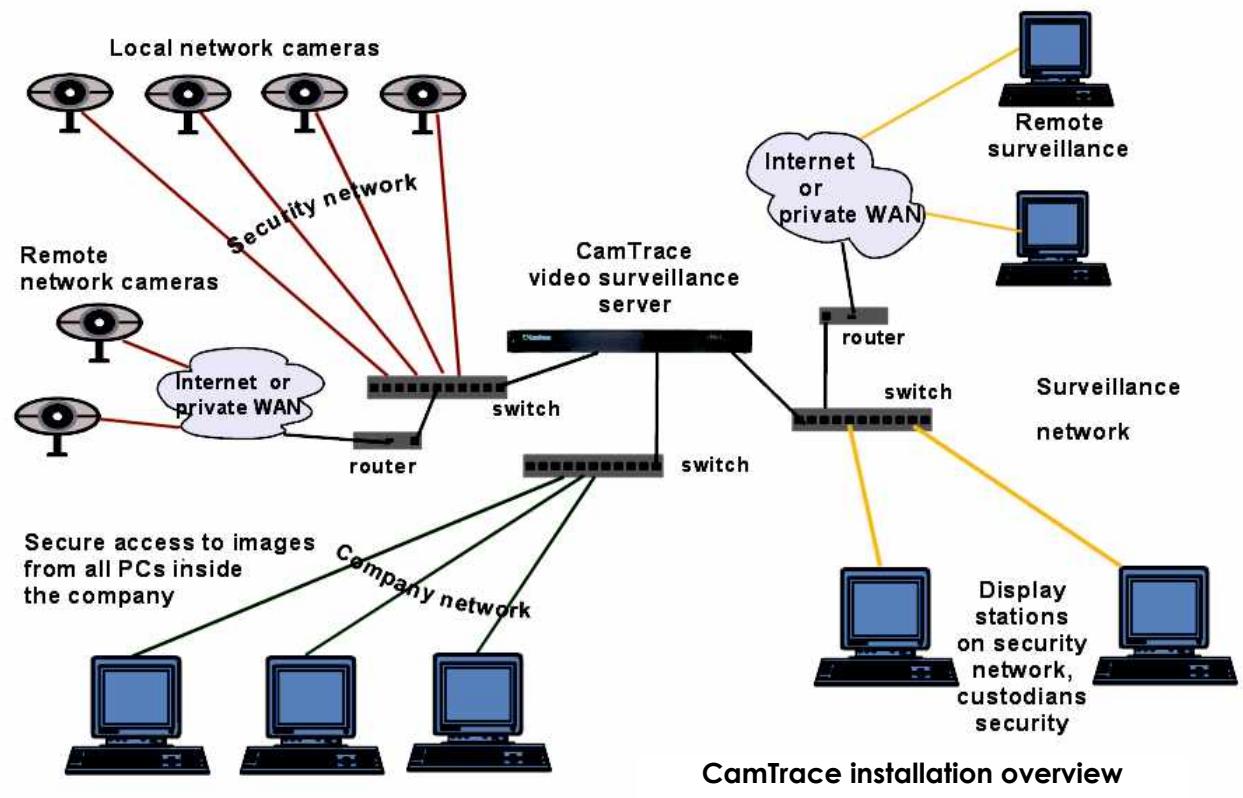
This separation of the network optimizes the performance and the security of your video installation. When several CamTraces are used we strongly advise you to isolate the cameras attached to each CamTrace on different networks. For small configurations it is possible to use a single network card.
We recommend a Gigabit link between CamTrace and the switches. If the network contains more than ten cameras, the Gigabit link is necessary to obtain fluid images in 640 × 480 or higher formats.
1.2 IP CONFIGURATION OF CAMTRACE SERVER
CamTrace has one or more (usually two) Ethernet network interfaces, RJ45 ports, labeled by the name they have in the operating system.
For example : em0, em1, bge0, bgel, reo0, reol, etc.
Two of these network interfaces have a default address. If there are more than two, additional interfaces do not have a default address.
First default address: 192.168.1.100
Second default address: 192.168.0.100
Careful: there is no default address when CamTrace is delivered as software.
The simplest configuration method consists of starting the menucam on the console (VGA screen) as explained above.
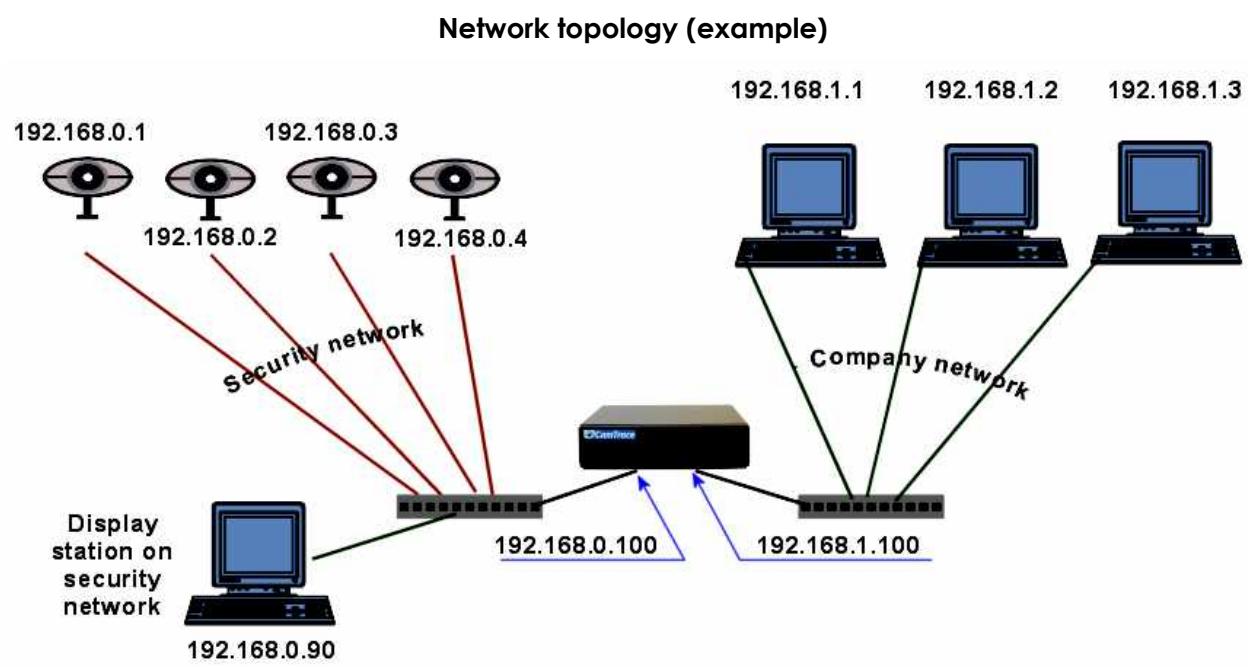
In the example below, the CamTrace server was configured with the IP address 192.168.0.100 on the camera network.
To change these parameters using menucam:
Go to the "Network configuration" menu and select "Network interface configuration". Enter values for the IP address and mask, and leave the maximum throughput empty.
You can use the values in this example unless the network address 192.168.0.0 is identical to that used by your company network.
Note: You must assign two addresses to CamTrace belonging to different networks. To avoid serious malfunction of your CamTrace network, you must never use the same address class on both interfaces.
Examples of CamTrace addresses:
Camera side Company side
192.168.0.111 192.168.0.112 incorrect
192.168.0.111 192.168.1.112 good
192.168.0.111 192.168.1.111 good
If you use CamTrace on a single network, be sure to leave blank the values defined for the other network. In "Network configuration / Network interface configuration" leave blank (or delete) the fields corresponding to the unused network interface
Delete the contents of the "Configure the camera network" or "Configure the enterprise network" field.
1.2.1 Data collection for connection to an existing network
If you must connect the CamTrace video server to an existing company network, you will need the following information:
- An IP address for your CamTrace server on the company network side.
The network mask. - A network name for the CamTrace server. The "network name" is the name that you give to the CamTrace server on the local network. If the company has a DNS, we recommend that its name be consistent with that given to the CamTrace in this DNS.
- The IP address of an internal or external DNS. This parameter is optional. It is used by the CamTrace server to reach external names with their names (FQDN) and not only their IP addresses (for example, mail server)
- The IP address of the default gateway: This parameter is optional. It is required to reach the CamTrace server from a client workstation located outside the segment on which the CamTrace server is located. For example, to access a CamTrace via the Internet, you must enter the IP address of your router on the local network side (LAN). It is also used by CamTrace to "exit" the address class of the local network (for example, connection to an NTP time server, or to an email server).
Note : We recommend you fill in the document provided in the appendix "CamTrace IP form".
Attention: If the address class of the name server (DNS) is different from those used on the CamTrace networks, the gateway must be filled in.
1.2.2 Server TCP/IP installation (with menucam)
You must now provide the following information to the CamTrace server: Open an administrator's session: login "root" password "camtrace".
Enter "menucam" then press Enter. The following screen appears:
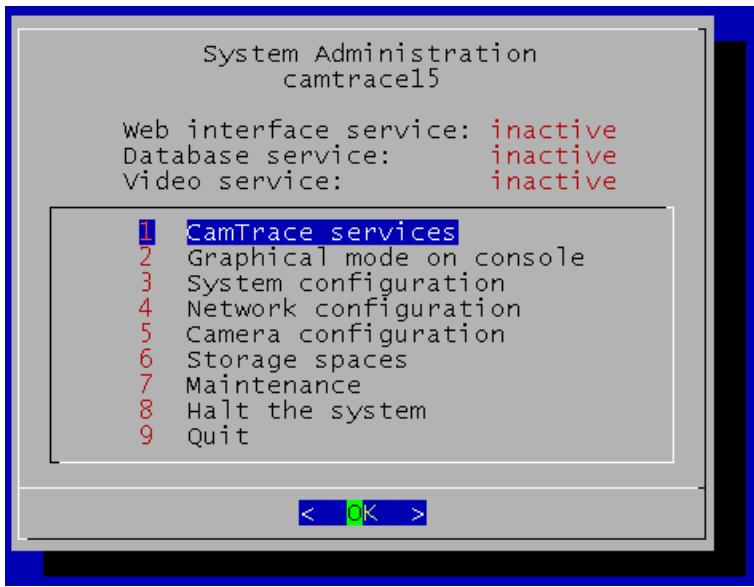
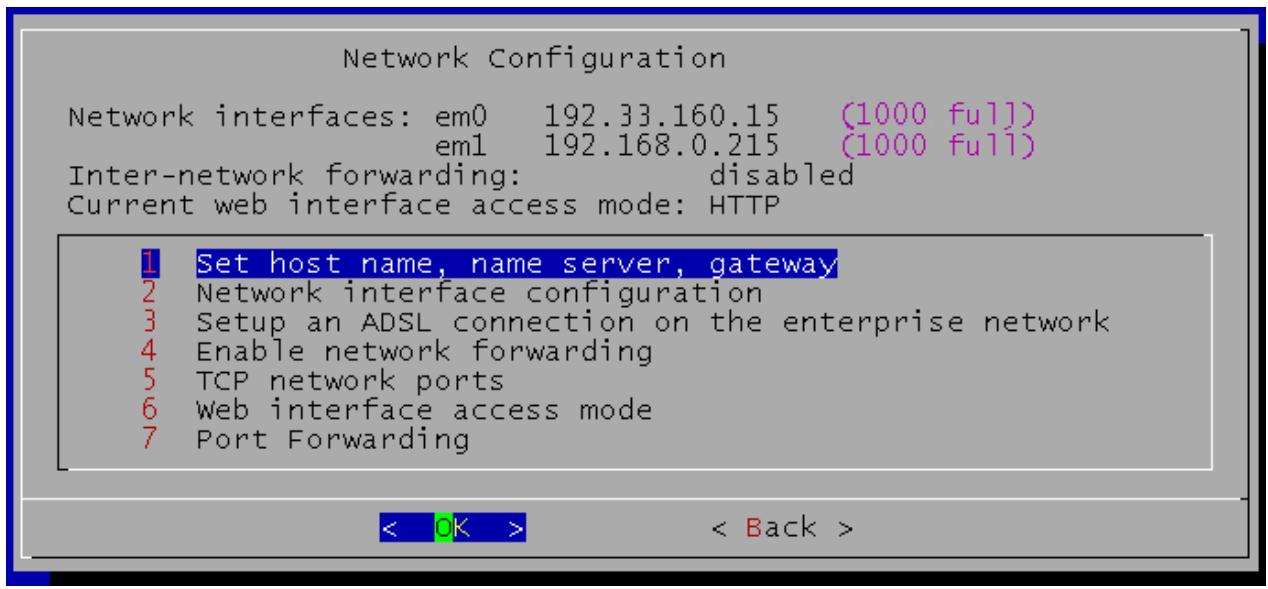
Go to the menu "Network configuration", then to the submenus "Set host name, name server, gateway" and "Network interface configuration", and enter the values obtained above.
In the "Set host name, name server, gateway:" menu, you can do one of the following:
- Leave the field empty.
- Type the IP address of the internal DNS if it exists.
- Type the IP address of the DNS of the Internet access service provider for the company
Attention: If you are not sure of the DNS address, leave this field empty. An incorrect value will slow CamTrace down considerably.
Once you have entered the required information, the IP addresses and the connection status (100 full or 1000 full) appear in the upper part of the "Network configuration" menu.
To test the configuration, go to the "Quit" menu and perform a ping on the IP address of a local network station:
ping station_IP_address enter
To stop the ping, enter CTRL C
Note : CamTrace cannot "ping" a host with its Netbios name (the one that appears in the Microsoft neighborhood network).
The CamTrace server does not appear in the network neighborhood of Microsoft client workstations.
1.2.3 Adjusting system parameters
With Menucam, you can adjust a number of parameters required for correct server operation. In particular, with the "System configuration" menu you can set the CamTrace time zone and time.
You must first be in the right time zone. Choose the continent and the country in which you are located.
CamTrace automatically manages daylight saving times. Simply enter the local time in the "Set the date and time" menu.
1.3 CAMERA CONFIGURATION
1.3.1 Configuring the IP address of each camera
Each camera must have a fixed IP address on the network. For historical stability reasons for addressing, CamTrace is not a DHCP server.
Attention You must always define the IP address of a camera and check its operations before placing it in an area difficult to access (pole, housing, etc.).
There are two methods for defining the IP address for each camera.
a) Configuration offered by the camera manufacturer.
This is the standard configuration valid for all camera brands.
Configuration software is always provided with the cameras: IP Utility - IP Finder, IP setup, etc, depending on the manufacturer.
Install the utility on a PC connected to the network on which the cameras are found.
Most utilities automatically detect the network cameras. You need only provide the IP address and occasionally other parameters depending on the manufacturer.
Certain utilities ask you to enter the MAC address noted on the camera. Do not forget to note down this address before placing the camera in a casing.
b) Configuration using the CamTrace server.
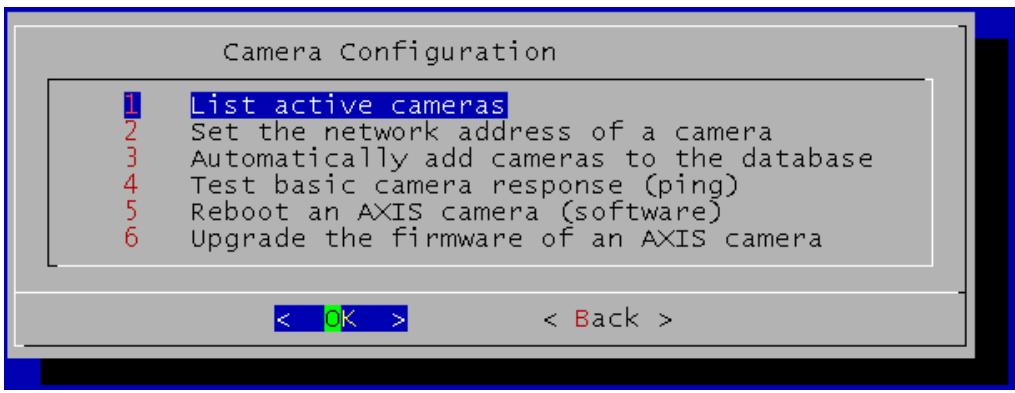
In menucam, choose "Camera configuration" and then "Set the network address of a camera".
The program asks you to enter the MAC address of the camera (this address is marked on the camera), then the IP address that you wish to assign to it. When you enter the MAC address, separate each group of two characters with ".".
Switch off the power supply to your camera and then turn it back on.
To check the network connection for the camera that you have installed, you can perform a "ping" on the allocated address, from the CamTrace server (on the console or from a remote terminal). To do so, exit the menucam and enter:
ping camera adress enter
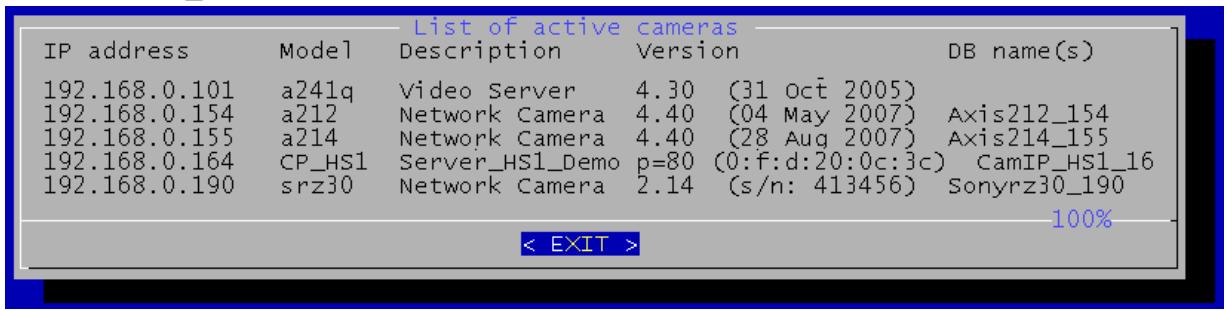
List of active cameras
Note : sub-menu 1 "list active cameras" indicates the list of cameras recognized as active (IP, model, description, version, name). This function may not work for certain camera models.
1.3.2 Camera configuration
Each camera model has its own configuration. Refer to the manufacturer's documentation.
To test the camera that you are installing, check that you have an animated image that appears in the browser using a PC connected to the same network as this camera.
You can fine-tune configuration and image quality at this point or after declaring the camera in CamTrace.
1.3.2.1 Checklist of operations to be performed on each camera
- Give a fixed IP address to the camera. Check that DHCP is not active.
- Fill in the network mask.
- Enter the administrative logins and passwords for the camera (certain cameras have default passwords, others must be entered).
- In the video settings, check that the camera is in mjpeg mode and not in mjpeg4 mode.
- Enter the gateway address that is the address of the CamTrace on the network where the camera is to be connected.
- Enter the address of the NTP server that is the same as the previous address.
- Display the time in the image (recommended).
- Set the time zone and adaptation to winter/summer times.
-
Limit the bandwidth of the camera to that which is necessary.
-
Settings concerning image quality, obduration speed, compression, image size, lighting type, backlighting, etc. can be provided at a later date.
1.3.2.2 Additional time parameters.
CamTrace is an NTP server (synchronization server for all peripherals that are NTP clients). To synchronize cameras on CamTrace, you must activate the "synchronize with NTP server" option in each camera. In the address field of the NTP server, you must enter the CamTrace address on the camera network (192.168.0.100 in our example). If the camera is located on the company network you must enter the CamTrace address on the company network side.
For image authentication reasons, we highly recommend you display the time in the image.
1.3.2.3 Limiting camera bandwidth
As recent cameras are more and more powerful, they can take up 10 to 12 Mb of bandwidth on the network (images of 100 KB at 30 i/s).
The bandwidth used between CamTrace and each camera is adjusted on the cameras themselves.
It is often useful to limit the bandwidth sent by cameras. This prevents saturation of the CamTrace network card(s) that receive the camera flows. In reality this often leads to increased fluidity. This method is indispensable if the cameras are located on a company network. Use values between 2 Mb and 5 Mb.
On certain cameras, adjustment takes place in the TCP/IP section, sometimes in the "advanced parameters" section. Enter the desired value in "maximum bandwidth". On other cameras, you can only limit the number of images per second.
Note that on certain camera models, this type of adjustment does not exist,
You can also limit the overall network bandwidth for cameras directly in CamTrace. Access this function via Menucam in "Network configuration" -> "Configure the camera network".
1.4 CAMTRACE STARTUP AND CONFIGURATION
1.4.1 Service startup
Activate the following services in menucam:
Go to "CamTrace Services", then to submenu "Start all inactive services". CamTrace starts the web server, the database and the video service.
You can now access, using a network station, the web interface of the CamTrace server by entering the following in the address bar of your browser:
- "http://CamTrace IP address on the company network" if you are on a company network station (usually the case).
-
"http://CamTrace IP address on the camera network" if you are on a station located on the camera network.
-
"http://CamTrace IP address on the surveillance network" if you are on a station located on the surveillance network.
When you validate the server address in the browser, a login window appears. Note that this window calls on the pop-up function, which must therefore be active in the browser.
Choose a language from the drop-down list. Enter 'admin' and 'camtrace' for the user name and password respectively.
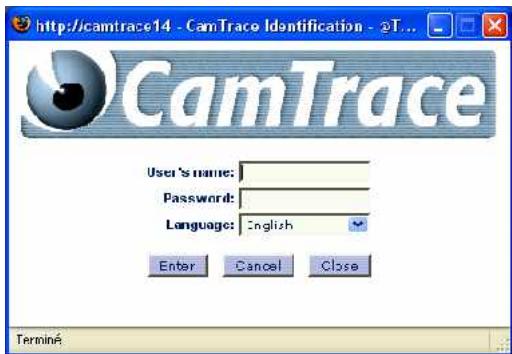
Note : Admin is the name of the administrator user of the video system (not to be confused with root which is the name of the computer administrator). Admin is a reserved user that cannot be deleted. Only the password can be changed using menucam.
The main CamTrace menu appears in a new window:
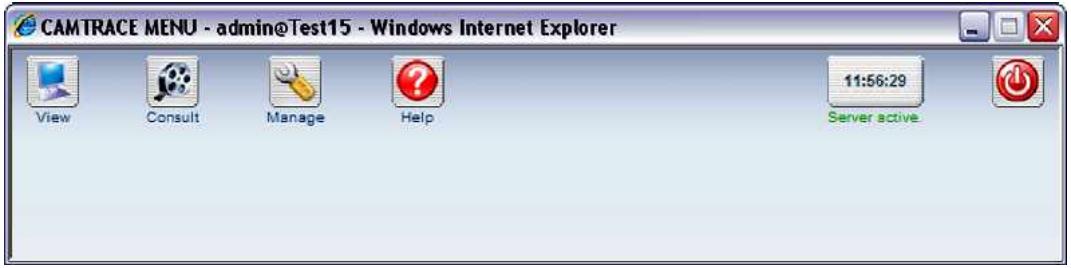
This window provides access to the View/Consult/Manage menus and enables you to disconnect and return to the login window (button on the right). One or more start-up windows appear temporarily. Depending on the browser version, you may need to close them manually. It is generally possible to configure the browser to authorize the automatic closing of these startup windows (see Workstation
Configuration).
Note : The "Server active" message should appear in the top right corner of the main CamTrace menu window. This zone is clickable and displays a status window.
The three status LEDs are used in cluster mode in particular.
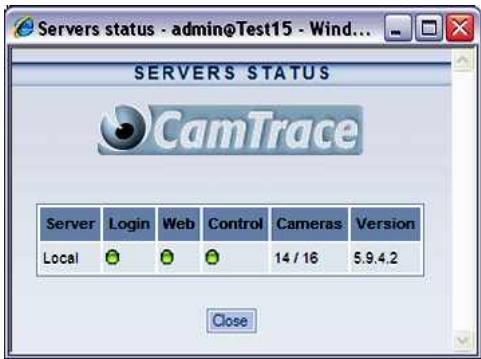
At this stage, you still cannot view the cameras through CamTrace. To do so, you must declare the cameras in CamTrace.
1.4.2 Installation of putty terminal emulation – network access to menucam
Note : You can skip this paragraph if you don't want to access menucam from your PC. If, however, you need to administer CamTrace from a distance, you must install the putty emulation software described below and configure the router to allow entry to port 22.
The putty emulation software (for PC / Ms Windows) is provided with CamTrace - you can easily install and configure it. Go to the main menu (banner) of the web interface. Click on "Help", then on "Utilities". Click on PUTTY to download it, then click on "recommended configuration" to configure it. When you call putty, a "putty configuration" window appears on the screen. Enter the name of the CamTrace server or its IP address in the Host Name fields. Port 22 is used and the protocol SSH (secured). Then enter Load and Open. The emulation window opens on the screen. The security procedure requires a two-step login : login as : camtrace camtrace@machine_name password : camera $ su Password: camtrace Machine_name #
Note : The passwords provided are default passwords. The "camtrace" user is an ordinary computer user (without root privileges) the password of this user is: camera the "su" command switches the user to a "super user" (root) whose password is: camtrace.
1.4.3 Declaring cameras in the CamTrace server
There are two ways to declare cameras: A manual procedure that works with all cameras supported by CamTrace and an automatic procedure using the menucam, that will work with certain cameras (Axis, Sony, Mobotix, CamIP). Certain models and/or firmware may not be recognized.
1.4.3.1 Manual declaration of cameras
This general procedure is accessed via the CamTrace web interface.
Go to the "Administration" menu and then "Cameras". In the top left of the menu, click on "Add a Camera"
add/modify a camera parameters are organized as tabs.

Note: With the admin/camera menu you can change the parameters on more than one camera at a time. If you have a number of identical cameras we recommend you use 'recognition/automatic addition by Menucam' then use the left column of the 'admin/camera' menu to select all those that will have the same parameters. Then click on "modify the selection" at the top of the menu. The "modify several cameras" window opens.
Attention: some of the parameters in the "acquisition" tab can only be modified globally if the cameras are of the same model.
The table below describes the parameters required to integrate a camera in CamTrace.
The add and modification menus for one or more cameras are organized by tabs.
For the remaining parameters, refer to the administration chapter.
| General tab | |
| Camera name | Name you wish to give the camera. |
| Network address | Enter the camera IP address. |
| Acquisition tab | |
| Camera type | Choose a camera model in the list. If it is not mentioned, choose the closest model. |
| PTZ | Select this case if the camera can be piloted (motorized or virtual PTZ). |
| Image size | Choose the image size from the values available (if the camera allows this). "Set up camera" corresponds to the size (resolution) defined in the camera. |
| Image compression | Choose the image compression from the values available (if the camera allows this). "Set up camera" corresponds to the compression defined in the camera. |
| Video channel | For a multichannel camera server, specify the channel number from the values available. |
| Login for HTTP camera authentication | Enter the access login for the camera administration interface. See the current logins below. |
| Password for HTTP camera authentication | Enter the password for the camera administration interface. See the default passwords below. |
| Records tab | |
| Record permanently Frequency of perm. recording | Choose a schedule that can be applied to permanent (continuous) recordings for this camera. Choose "always" to record permanently and "never" for no recording. Specify a recording frequency, eg : 6 images/sec. |
| Storage space | If you have more than one disk volume choose the one on which the camera will be registered. Please note that to modify this parameter you will need to erase all the images on this camera. |
| Other parameters | Leave the default values for the moment. |
Note: login and default passwords used by the main manufacturers
Axis Communications: root pass (Recent Axis cameras do not have a default password, you must enter one when you connect for the first time).
Sony: admin admin
Mobotix: admin meinsm
Panasonic: viewer password
CamIP: admin admin
IQeye: root system
1.4.3.2 Choosing a camera model
The different supported camera models are predefined in CamTrace. Choose from the list that appears. New camera models are regularly added.
Camera brands supported (non-exhaustive list): Alinking, Axis Communications,
CamIP, Cell, Grand, Hunt, Mobotix, Panasonic, Pixord, Sony,
Please note that not all the models in these brands are necessarily supported. An updated list appears on the Internet site.
When choosing the "camtrace" camera model, you can receive a video flow from another CamTrace in order to sequence and prioritize CamTrace servers in relation to each other.
Note : the models also describe the IP converters (or camera "servers") that CamTrace 'sees' as cameras.
1.4.3.3 Automatic declaration of cameras
Note: Cameras must be previously connected to the network with their IP address and their mask correctly defined. To do this, use the manufacturer's installation software.
This function is activated using the menucam on the console or via a network station equipped with terminal emulation (for ex. putty).
Start menucam. Go to "Camera configuration" then to "Automatically add cameras to the database". CamTrace will automatically detect the new cameras located on all networks to which it is directly connected, will enter them in the database with a default name (cammodel_lastdigit-of-IP-address) and choose the most adapted camera server type.
Note: This function may not operate with certain cameras or may be filtered by routers. In this case, you must declare these cameras manually with the procedure seen above.
1.4.4 Client workstation configuration and operations check
At this stage you can display a camera in CamTrace via your local network. In the CamTrace web interface, click on "View" and then on "Single camera". The list of cameras that you have installed appears. Choose one of these cameras. It must appear on the screen in a separate window.
The first time you connect to a camera from a given client station, an active X-plugin will be downloaded. You must accept installation. Your client station must therefore accept active X (for Internet Explorer) or plugins (for Firefox).
Moreover, whether you are working with IE or Firefox/Mozill, the client station must accept cookies and pop-ups from CamTrace.
In case of a problem refer to the section "problems and solutions".
If the window appears but if you do not have an image, check that you do not have a firewall active on the client workstation. If so, ports 8000, 8001 and 8002 must be open in output mode.
Irrespective of your browser you should add CamTrace to the trusted sites. For example, with I.E.: Tools/Internet options/Security tab/add the address or the
CamTrace name (if you have a DNS), being sure that https checkbox is not checked.
Note: When CamTrace is used from Internet Explorer, a status bar may appear masking the end of CamTrace menus. To remove it, simply place CamTrace in the Internet Explorer confidence sites. If the same problem arises under Firefox please refer to the "problem and solutions" chapter.
1.4.5 Interpretation of status messages in CamTrace
The CamTrace web interface provides a global view of all cameras declared. Go to "Administration/C Cameras". If necessary, click on "detailed information" for more details (IP addresses). Four status are possible in the "Status" column: active, inactive, camera error and ignored.
- active : a network peripheral is present at the address indicated and sendsjpeg images. It would be reasonable to think that this is a camera.
- inactive : The network peripheral does not reply or does not send an image and does not send an http error.
- Camera error : a network peripheral returns an http error ---> immediate reflex: view the system log (in consult/system log). The latter message is often triggered by a password on a camera unknown to CamTrace (to be entered in manage/camerais in the "acquisition" tag.
- ignored : The number of cameras allowed by the license is exceeded or the camera cannot write to disk (hard drive broken).
1.4.6 Save the server configuration on a client workstation
When you have finished configuring CamTrace, remember to save it on a client workstation. You can easily reload it in the event of a problem or hardware breakdown. To do this, use the web interface. Log on as a CamTrace administrator (by default: admin and password: camtrace) click on administration then on Configuration. In the Configuration menu, click on the second line: "Save configuration" and save the file.
If you are using the Firefox browser, right click on the link then "Save link as ..." To reload a configuration, select the file to be loaded with browse then click on load.
Note: a configuration backup is only reloadable on the same CamTrace version used to record it.
1.4.7 Check CPU load and system parameters
In the web Administration interface open the "system information" window.
This window provides different types of information on the configuration and peripherals existing on your system.
You must pay particular attention to one parameter in particular, and that is the system load.
In the first frame located on the top left note the three values appearing on the last line. For example: system load: 1,80 1,74 1,68.
These figures indicate the average number of processes that require handling by the processor at any given moment. With the appearance of multicore processors, the interpretation of this data is not evident. As an initial educated guess, we could estimate that the figure should not exceed the number of cores (two for a double core, four for a quad core).
The memory is always occupied at more than 90% , which is normal.
However, the swap (use of the hard disk by the system to overcome insufficient memory) must be equal to 0.
Another more complete utility is available with versions 5.x.x of CamTrace on the console or with ssh access with putty. Connect to the system (quit the Menucam if you are in it), and at the command prompt (# or $) enter the command: htop followed by Enter.
A utility in character mode appears that gives the load of each core. You can configure the information to be displayed. The commands are indicated on the
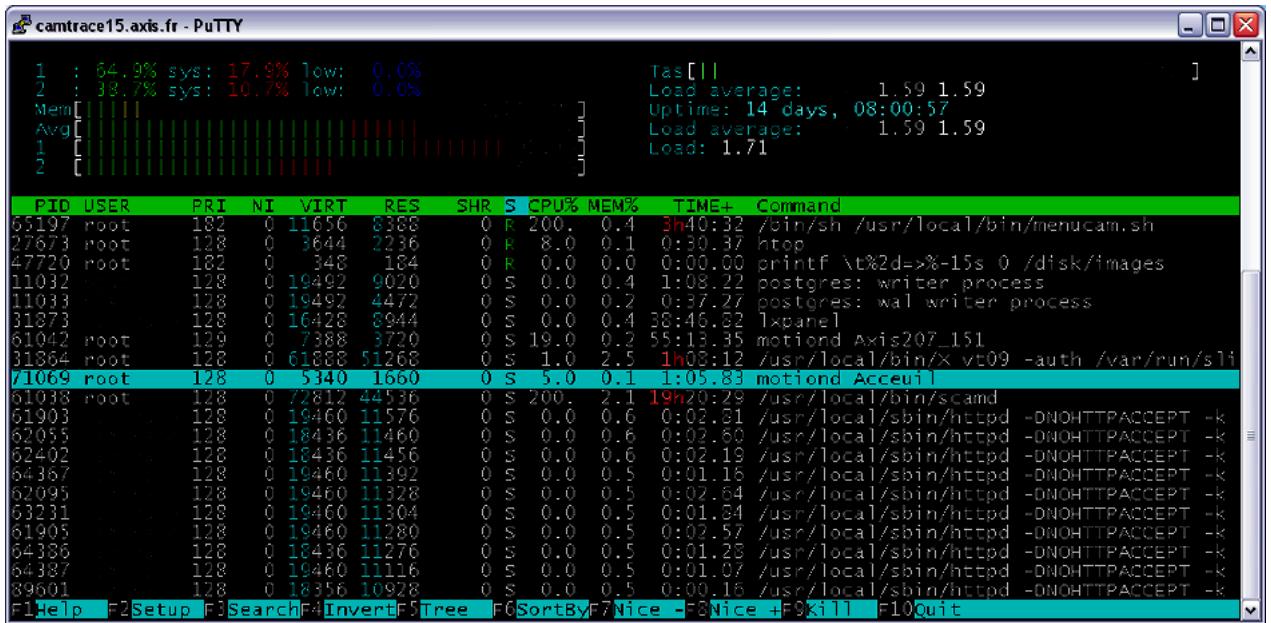
screen.
The tasks that take up the most resources are:
- Low bandwidth mode (groups with low bandwidth),
- Motion detection performed by CamTrace,
- The indexing of movements in the recordings,
- Camera display on the console
1.5 CONFIGURING REMOTE ACCESS
Purpose: To use your CamTrace server from a client station via the Internet or a private remote link.
We recommend that your local network be permanently connected to the Internet.
Your Internet access provider will give you with a fixed public IP address.
You can also use a dynamic DNS service (to be configured on the router).
1.5.1 Router/firewall configuration
The only IP address that Internet users can reach is the public IP address of your router provided by your access provider. All requests sent by Internet user browsers to your CamTrace server will reach the public IP address of your router, which has to redirect these requests to the CamTrace server.
The router located on the same local network as CamTrace must be configured to trigger the following incoming routing:
Translation of TCP ports 80, 8000, 8001 and 8002 from the router public IP address (e.g.: 62.4.20.103) to the CamTrace private IP address on the local network (e.g.: 192.168.1.100).
Refer to the documentation for the router used.
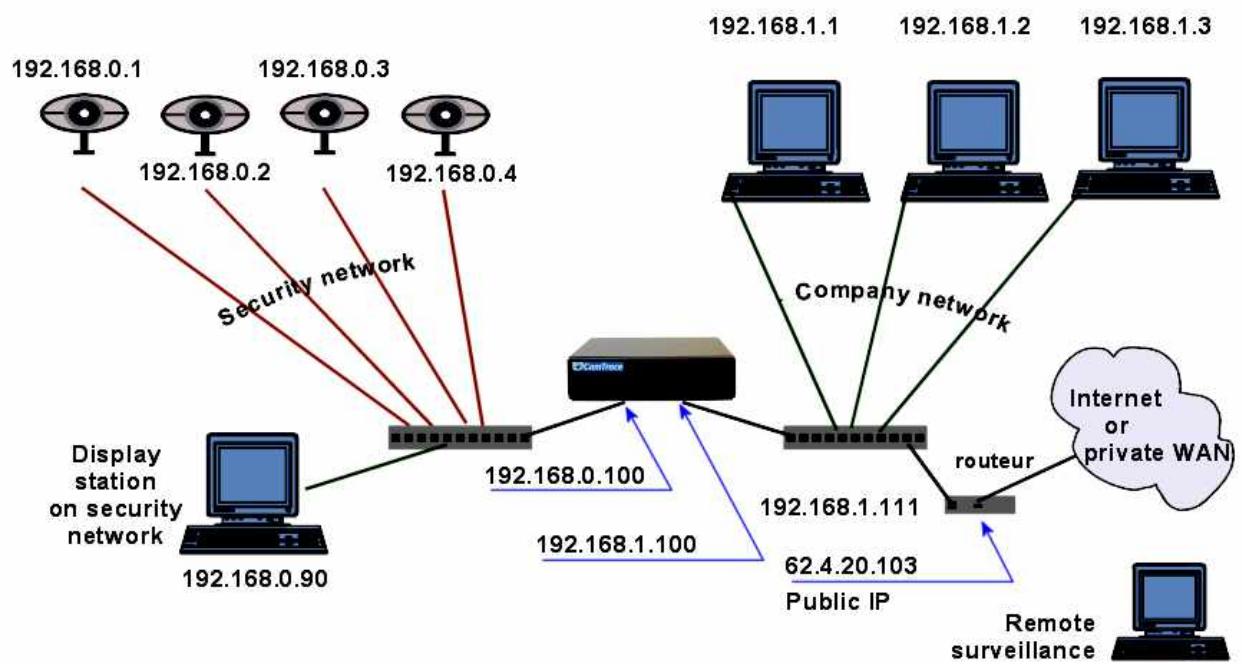
On the remote surveillance side, if your router (not represented in the schema) has an integrated firewall, it must be configured to enable the output of the TCP ports 8000, 8001 and 8002. Port 80 is generally open in output.
1.5.2 CamTrace server configuration
The CamTrace server can be reached via the Internet by entering its public IP address or its full name provided by your access provider.
The 'nslookup' command is used to find the name associated with an IP address or vice versa. It can be run from any UNIX, Linux, MacOSX, Windows NT, Windows 2000, or Windows XP host connected to the Internet and configured to query a DNS server. If you do not have one of these configurations, contact your provider's technical support and ask them to resolve the name associated with your public IP address.
With "Menu cam", go to the "Network configuration" menu, then to the "Set host name, name server, gateway," and validate.
The "network name" field is the name given to the CamTrace server on the local network, refer to §1.2.1.
The "Enter the IP Address of the name server:" field is either empty, or filled in with the IP address of the DNS, internal or external, of the company; refer to section 1.2.1.
In the "Enter the IP address of the gateway" field, enter the private IP address of your gateway which can be any of the CamTrace networks. In our example, this will be the private IP address of the router located on the company network, that is: 192.168.1.111
1.5.3 Limiting the bandwidth to the outbound gateway
You can limit the bandwidth to the outbound gateway.
In Menucam, go to Network Configuration, then to Network Name, Server Name, Gateway. Skip the first questions that appear. When you see: Enter the maximum rate on the gateway in Kbits/s, enter the value selected: for ex. 200 for a limit of 200 Kbits/s on a line with 256 Kbits/s in uplink mode.
This limit is indispensable if you want to use the Internet access for other functions than video.
1.6 SUPERVISOR CONFIGURATION
A CamTrace Supervisor is a CamTrace server on which you redeclare all cameras located on a number of remote sites.
The CamTrace Supervisor can group together several hundred cameras that are in fact physically linked to remote CamTraces.
Take the following configuration as an example:
CamTrace-1 manages 3 cameras: cam1, cam2, cam3
CamTrace-2 manages 5 cameras: cam1, cam2, cam3, cam4, cam5
CamTrace-3 manages 4 cameras: cam1, cam2, cam3, cam4
The three CamTrace cameras below are all connected to an extended (WAN) Internet or private network. A fourth CamTrace called the supervisor is also connected to the extended network.
We will declare 12 cameras on the supervisor corresponding to all the cameras managed by the three remote CamTraces. Video flows will be taken on the three remote CamTraces (and not on the cameras).
CamTrace-S will therefore manage 12 cameras:
cam1_CT1, cam2_CT1, cam3_CT1,
cam1_CT2, cam2_CT2, cam3_CT2, cam4_CT2, cam5_CT2,
cam1_CT3, cam2_CT3, cam3_CT3, cam4_CT3
With CamTrace Supervisor we can:
-
Display any camera via the same interface.
-
Make up groups by combining cameras located on a number of remote CamTraces.
-
Create shots/viewswith cameras located on a number of sites.
- Make centralized recordings, in addition to those made on each site.
- Quickly check the operations of all camera equipment.
- Trigger local alarms via alarms originating from remote CamTraces.
- Pilot remote mobile cameras.
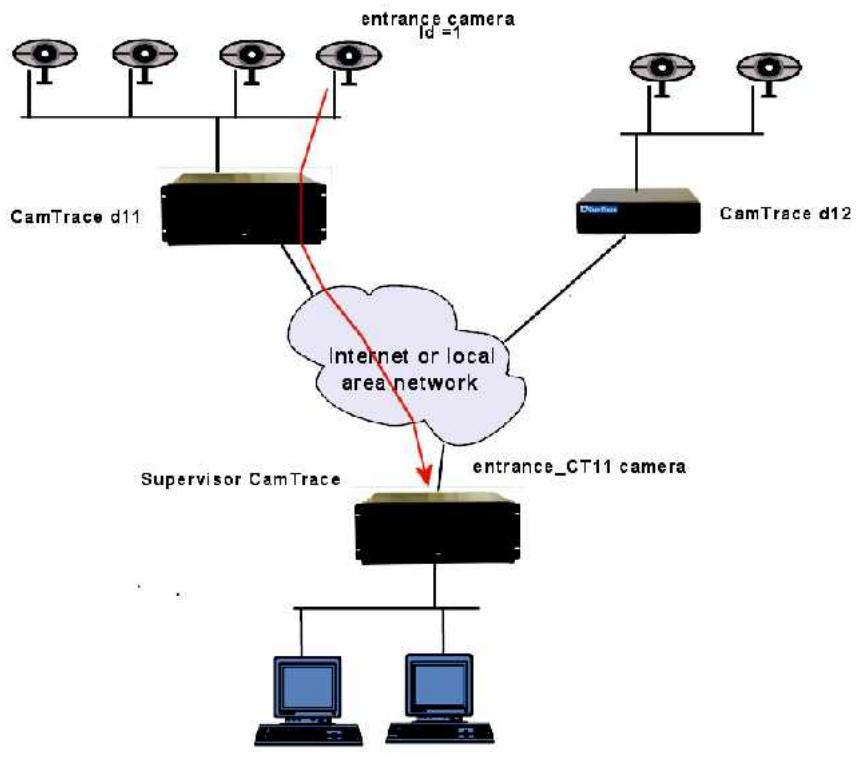
Linking CamTraces to a supervisor
1.6.1 Configuration of remote CamTraces
These configurations are useful if you wish an alarm triggered on a remote CamTrace to be relayed to the supervisor. For this, you must specify, in each remote CamTrace (in the example, CamTrace d11 and CamTrace d12), which is the CamTrace Supervisor and which port is used for alarms.
This configuration is performed in Manage -> Configuration, in the section "Event message parameters" as follows: In the "messages destination host name" field, enter the CamTrace Supervisor IP address.
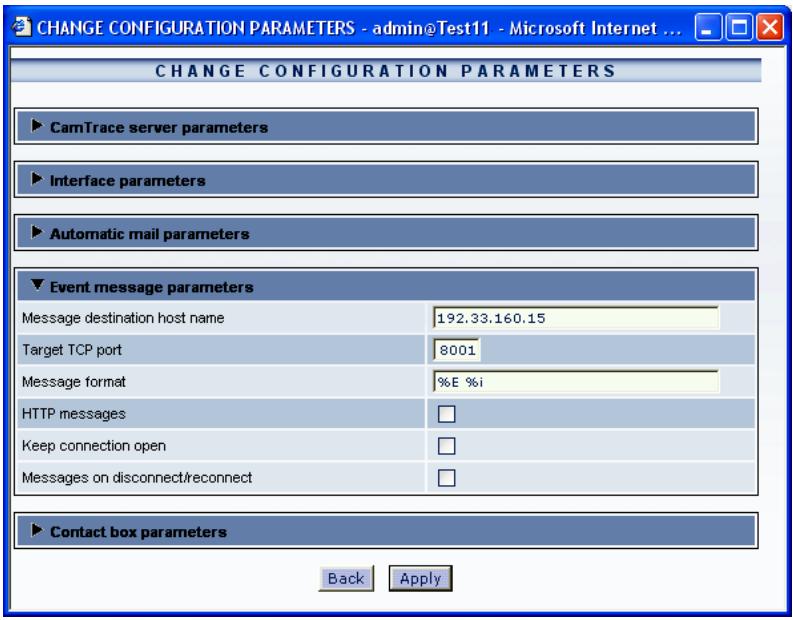
If the CamTrace Supervisor is located behind a router, you must enter the public IP address of the router on the WAN side and activate the address translation (NAT) in the router.
In "target TCP port" type the port used to transmit the alarm signal (by default 8001).
In "message format" enter the following character string: %E%i
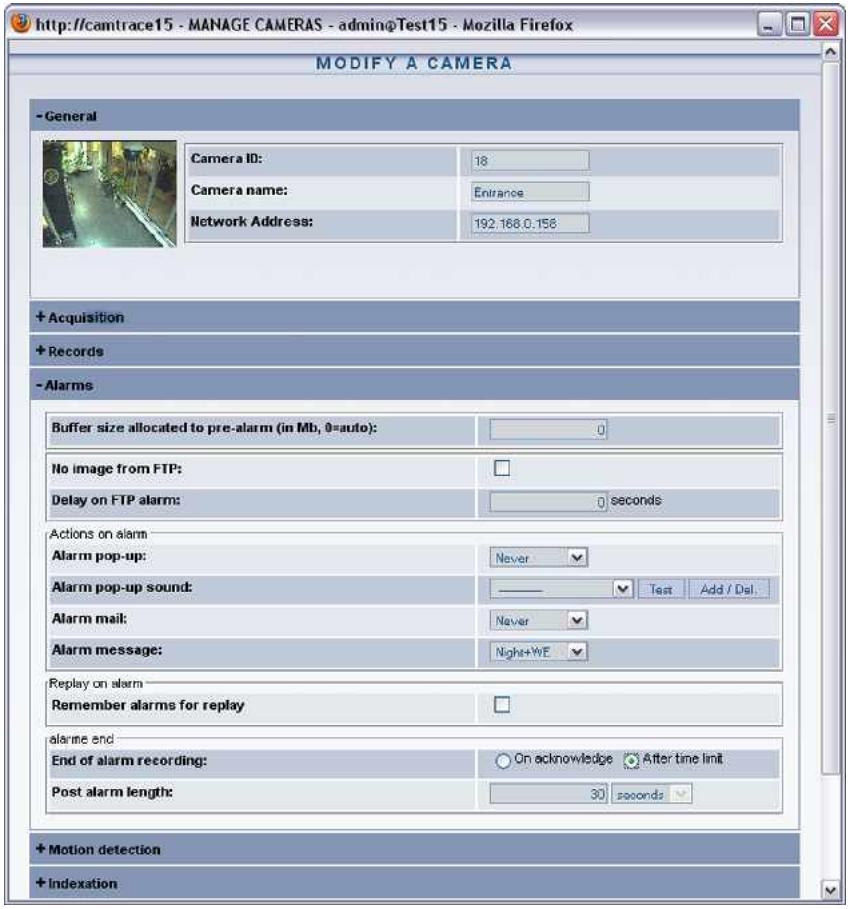
Then, if you want the alarm messages to be sent to the CamTrace Supervisor, you must declare an active calendar (other than "never") in the "Alarm Message" field for each camera concerned.
In our example, the "entrance" camera will send TCP alarm messages to the supervisor when it has an alarm (irrespective of the reason for this alarm - dry contacts - motion detection in the camera, motion detection by CamTrace).
1.6.2 Configuration on the CamTrace Supervisor
The Supervisor CamTrace collects the video flows coming from remote CamTraces. On the Supervisor CamTrace, you must declare all or part of the cameras connected to the remote CamTraces.
On the CamTrace Supervisor, these cameras are declared as locally connected in Manage -> Cameras. It is the camera model that is going to be different. In the list of camera models (also called camera servers), you must use the model "camtrace".
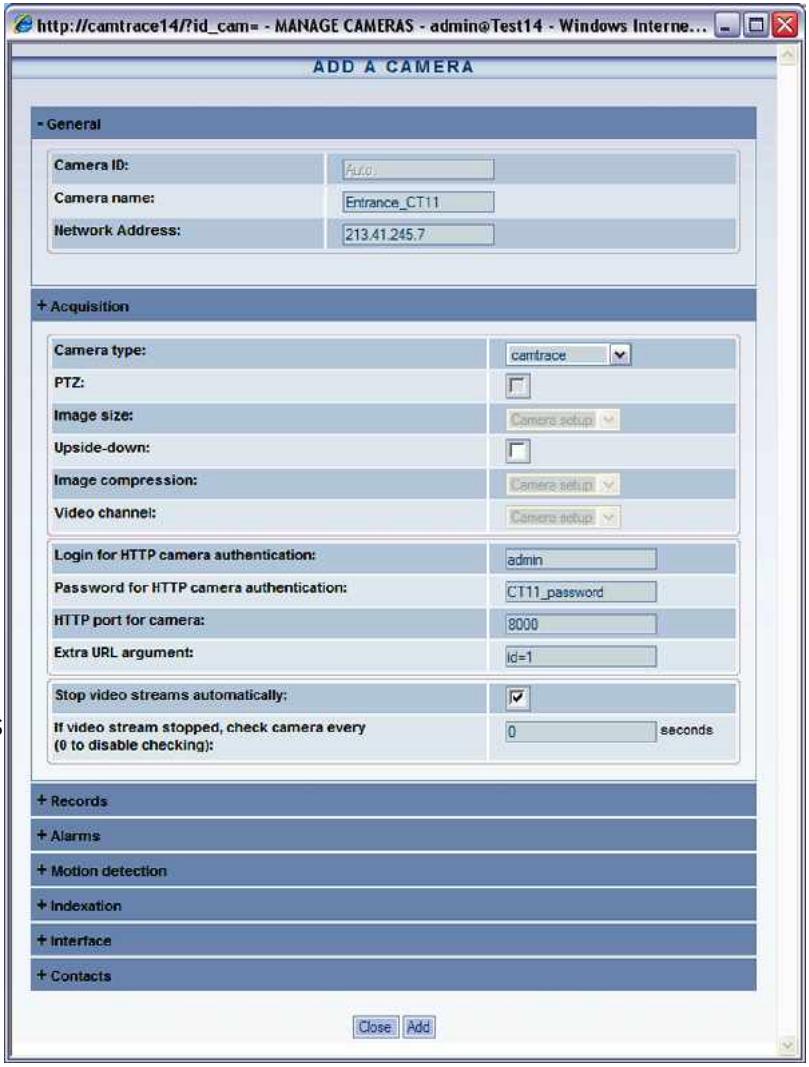
In the "General" tab
The camera name is user-defined. You should of course give it the same name as the remote camera ("Entrance" camera in our example) followed by a reference to the remote CamTrace (Camtrace d11 in our example). Which gives in our example: Entrance_CT11
In "IP Address", select the address of the remote CamTrace on which the camera is located. If the remote CamTrace is located behind the router, enter the public IP address of the router on the WAN side.
In the "Acquisition" tab
In "camera type" select: camtrace
Select the PTZ box if the remote camera is mobile.
The parameters: image size, compression and video channel cannot be modified on the Supervisor. If you wish to modify them you must do so at the level of the remote CamTrace to which the camera is effectively connected.
In the fields login and password for the camera's HTTP identification, enter the administration login and password of the remote CamTrace (CT11).
In "HTTP port for camera", enter the video channel used by CamTrace. By default this is port 8000.
In the "Extra URL argument" field, enter the ID of the camera on the remote CamTrace according to the following syntax: id =n (in our camera, the id of the "entrance" camera is 1 on the CamTrace d11 server).
Then enter all the recording and alarm parameters as you would for a normal camera.
Note : Camera numbers (or ids) represent information internal to CamTrace that appears in Manage -> Cameras -> Link : "Show details". Each camera has a unique ID number.
It is strongly recommended you check "stop video streams automatically" to safeguard against saturating the link between CamTraces. When "stop video streams automatically" is active, the flows from the remote camera are interrupted when no one is viewing from the Supervisor and when there is no recording.
Note: As "stop video streams automatically" is selected, there are no pre-alarm images on the Supervisor.
In the "if video stream stopped, check the camera every" field, specify the verification time frame for the camera, for example: 120 for 2 minutes.
Note : In a group or an individual view of the Supervisor CamTrace, the "force recording" key provokes recording on the Supervisor CamTrace (and not on the remote CamTrace).
1.7 CLUSTER - UNIFIED INTERFACE CONFIGURATION
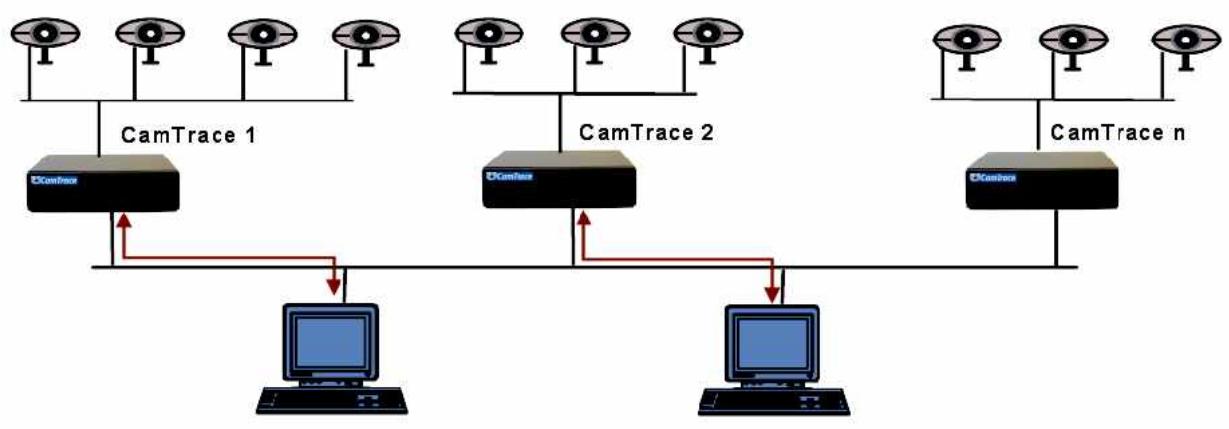
The cluster option must be activated on all CamTraces from which we want to use a unified interface. This option is not part of the standard CamTrace license. In the example above, the cluster option is installed on CamTrace 1 and on CamTrace 2. All cameras in the cluster can be operated from any client workstation, which will be connected to CamTrace 1 or to CamTrace 2.
Important: The CamTrace cameras in the cluster (1 to n) are not required to communicate with each other. They can be on separate networks. Each client workstation establishes the link with all the servers (1 to n). Servers that are part of the cluster (1 to n) are defined on the CamTrace equipped with the cluster option (1 and 2). You can install the cluster option on a single server only (for ex. no. 1); in this case, there will be no backup cluster server in the event of a connection server failure (no. 1).
The unified interface is used to create and operate single views, cycles, groups, maps and players (digital video players) whose cameras are attached to any one of the CamTraces in the cluster (1 to n).
Note : all the CamTrace in the cluster must have the same version.
However, the administrative functions of the cameras, the configuration parameters, the low bandwidth groups, system logs, viewing of recordings via the database and the display screens (slave workstations) remain attached to each server. Each server console keeps its own Menucam.
1.7.1.1 Configuration to be performed on all the servers of the cluster
All cluster servers (1 to n) must have the same user name and the same profile names as those to be used on the CamTraces to which you will connect (no 1 or no 2) to access the unified interface.
1.7.1.2 Configuration to be performed on client workstations
The client workstations must be able to access all CamTraces in the cluster (1 to n). On all client workstations, you must therefore add to the trusted sites, all the CamTraces in the cluster. The client PCs must accept the cookies sent by the cluster servers.
1.7.1.3 Configuration to be performed on the connection servers
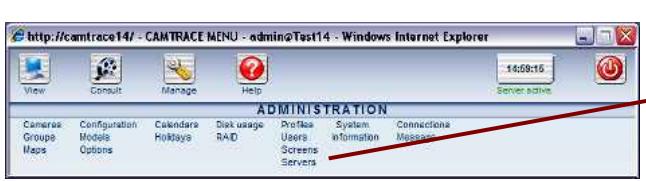
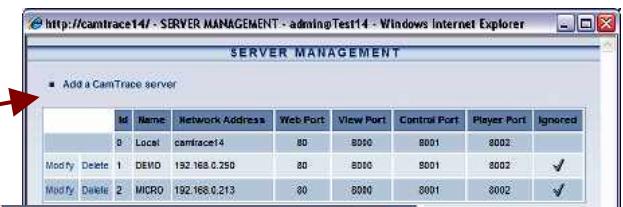
Connect to the administration web interface then click on servers. The server manager window appears with contains the list of cluster servers (two in our example). Click on 'add a CamTrace server' to declare a new server. Leave the server id empty. It will be allocated automatically. The ports specified are the default ports.
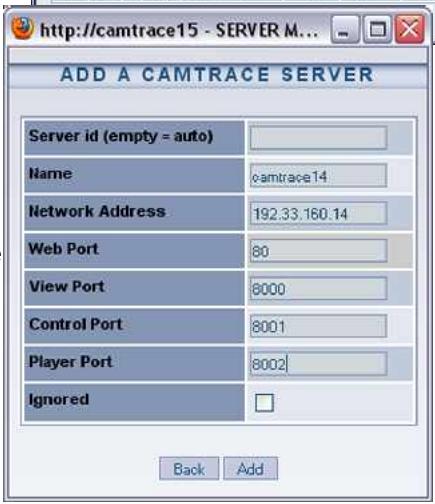
Note: To make a cluster architecture accessible from the outside, all the TCP ports of the cluster members must be different and each member of the cluster must be accessible, from the inside and the outside, with the same network name (use of a public DNS or modification of host files of client workstations).
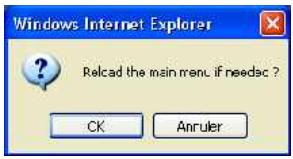
Click on Add, then, in the window that appears, reload the main menu to re-establish the connections with all servers.
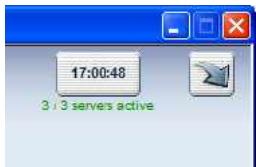
The main menu should show a new server (three in our example).
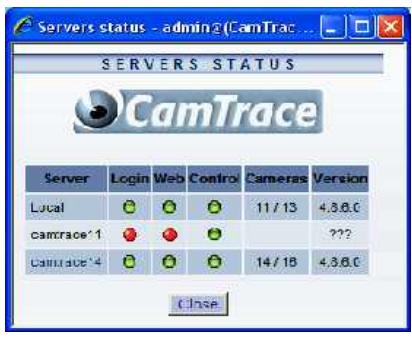
If one or more servers are not active, click on the status line appearing below the time to obtain a status.
Login in red: the user or the profile with which you are connected to the supervisor does not exist on the CamTrace server concerned.
Web in red: The Web service of the CamTrace server concerned is inactive or inaccessible.
Control in red: The video service of the CamTrace server concerned in inactive or inaccessible.
1.8 DISPLAY SCREENS
1.8.1 Slave screen configuration
To transform a client PC (generally a PC running under Windows) into a display screen you must launch a display daemon on the PC.
The PC will be "on listening standby" for a CamTrace server, ready to receive display orders.
Open a browser on the display PC, in the address bar, type:
http://camtrace_url/start.php
For example for the CamTrace server called camtrace14, you would enter
http://camtrace14/start.php if a DNS is active, or, using the example on page19:
192.168.0.100/start.php if the display PC is located on the camera network side or 192.168.1.100/start.php if the display PC is located on the company network side.
If a number of screens are found behind a router you can distinguish between them by typing: http://camtrace_url/start.php?id=number_of.Screen
for example: 192.168.0.11/start.php?id=2
A window appears on the bottom right of the screen. The last line includes the name of the user of the screen as it was defined on the server or ??? if it has not yet been defined.
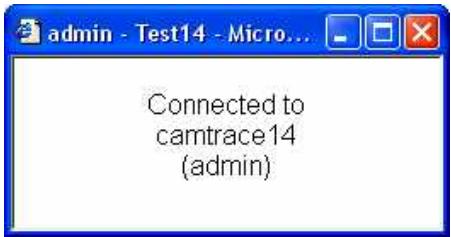
You can automatically launch the display daemon on startup of the PC by adding it to the Start menu. To do so, create an IE or Firefox shortcut (as explained in the "create a desktop shortcut" chapter below).
In the "target" field, type:
"C:\Program Files\Internet Explorer\iexplore.exe" "http://camtrace_url/start.php"
Then place the icon in: Start - programs - Start
To exit the display on the slave station you must kill the session by entering ALT F4.
Note: in a cluster architecture, the screens must be attached to each server. A screen cannot receive flows from CamTraces to which it is not attached.
1.8.2 Pilot display on a slave screen
To start the display, connect to CamTrace from another client workstation.
You must be a CamTrace administrator to define a new screen.
In the web interface, go to admin -> screens.
In Name, enter the name that you want to give to the screen.
In Network Address, enter the IP address of the workstation used as the screen.
In Screen N^ , enter 1 by default.
If the screen is a remote screen behind a public IP address, you can differentiate between screens with their numbers.
In User, choose the user with which you wish to associate this screen from a right point of view. You can only display cameras visible with the profile of the chosen user.
You can choose an individual camera or a group.
If the Keep Proportions box is not selected, display takes place in full screen mode, and the image may be deformed. If it is checked, display is in maximum size mode, which retains the image proportions.
To stop display from a client workstation as an administrator, you must remove the user name (blank choice) in User.
It is also possible for a CamTrace user who is not an administrator to manage the screens from a map (View - Maps). For this, the user profile must enable assignment of these screens. In 'Admin - Profiles' open the desired profile. Open the "screen assignation permissions" tab and select the boxes corresponding to the screens that the users associated with this profile can manage from a map.
1.8.3 Case with a slave multiscreen workstation
Certain video cards can be used to pilot a number of screens. In this case, you can launch more than one slave CamTrace on the same workstation, distinguishing between them with their ID number. To do this, type:
192.168.0.11/start.php?id=1 in the browser address bar, then open a new browser and type: 192.168.0.11/start.php?id=2 in its address bar.
To position each of the CamTrace windows in a group of screens you must provide, as an argument for each CamTrace slave program, the margin in pixels between the upper left position of the Window and the upper left position of the group of screens.
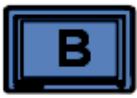
In the schematic example below, if each of the screens has a
resolution of 1280 x 1024, to display on screen B you must
type: 192.168.0.11/start.php?id=1&left=1280
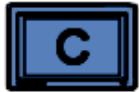
To display simultaneously on screen D you must enter:
192.168.0.11/start.php?id=2&left=1280&top=1024
left is the left margin between the left side of the CamTrace
window and the left side of the group of screens.
top is the top margin between the upper side of the CamTrace window and the upper side of the group of screens.

Attention: The multi-screen video controller must be configured in such a way that the full screen function is managed separately on each screen.
1.9 MANAGEMENT OF CAMERA OPTIONS
Certain cameras have additional functions such as output contacts, LEDs, sound alarms, etc. that can be piloted via the network using the options mechanism. CamTrace can be used to activate the functions of these cameras in their individual display window or in a group. When the option is defined it appears in a display in the camera's context-sensitive menu (right-click in the image) in the "options" submenu with a title defined by you.
To enter new options go to manage / options
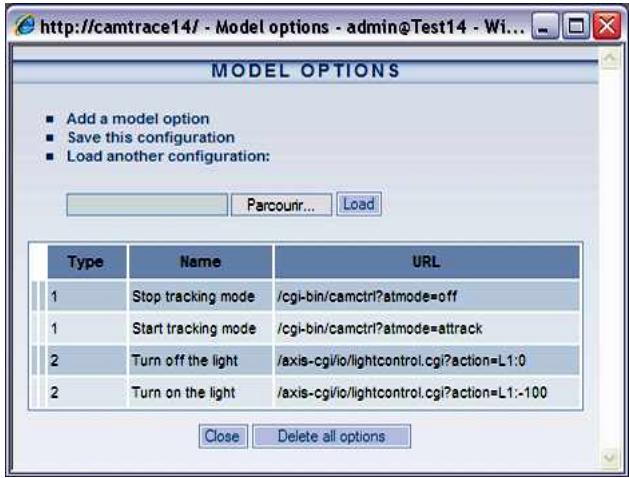
You can define as many options as you want. These options must be attached to a type (represented by a number). Group all the options that you want to activate in a given camera model together under the same type.
For example, put all type 2 options that you wish to use and that are available on an Axis M1031 camera in the same group.
In the example shown here, type 2 describes the URLs that turn the LEDs of an M1031 off and on.
We could add to the type 2 group a sound alarm that is available on the M1031s. To do this, click on "Add a model option"
In "Type": enter "2". In "Name": enter the label to appear in the context-sensitive menus from an individual or a group view. In our case: "fire alert". Finally, in the "URL" enter the command that will be used to execute the desired action. In our case: /axis-cgi/mediaclip.cgi?action=play& clip=1
Note : To find the commands used to perform an action in a camera, you can refer to the manufacturer's documentation or try to locate the URL that appears in the browser's status
bar when you launch the action directly in the camera (Firefox is generally more verbose than I.E.).
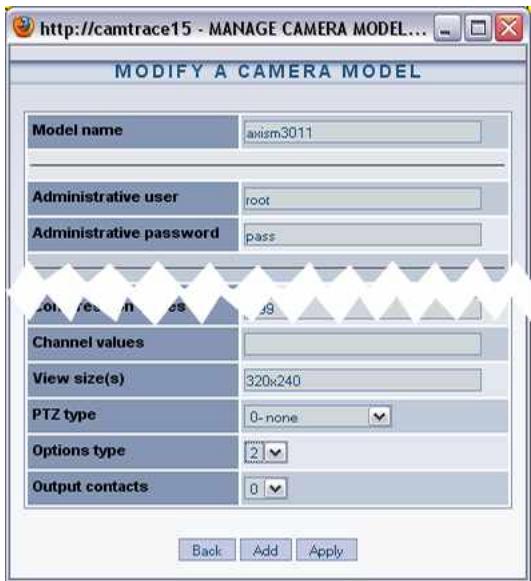
Then, in Manage / Models click on Modify opposite to the camera model: axism3011.
Declare the option type 2 for the M3011 camera model.
Note: If another camera model has exactly the same options URLs as the M3011 model you can use type 2 for this model.
1.10 SIMPLIFIED MANAGEMENT OF CAMERA DRY CONTACTS
This function is used to easily define a dry contact for a camera. It is redundant with the option functions that can also define dry contacts.
When the fields described below are correctly filled in, the additional entries appear in the camera's context-sensitive menu (right-click in the image) in the "Actions" submenu with a set title: "Contact".
To activate this function, go to Manage / Cameras, click on the camera name corresponding to the camera of your choice then go to "Advanced parameters". The next two fields describe the behavior of the output contacts.
Camera output contact parameter (on/impulsion)
Camera output contact parameter (off)
If the first field is filled in and the second is empty, the contact will be an impulse contact (a click on the button triggers an impulse).
If both fields are filled in, each field will describe a state and the button will be an on/off button. (A click on "contact" equals "on" and a check appears to the left of "contact". Another click on "contact" is equal to "off" and the check mark to the left of the contact disappears.)
1.10.1 Syntax example for an impulsion button
Camera output contact parameter (on/impulsion) 1:/1000\
Camera output contact parameter (off)
Syntax description:
1: = contact number (there may be several, for example on a 241Q camera server). In this case use the first contact.
/= ascending
1000 = threshold duration in ms, in this case, 1000ms therefore 1 second.
descending
1.10.2 Syntax example for on/off state
Camera output contact parameter (on/impulsion) (on/impulsion) 3:/
Camera output contact parameter (on/impulsion) (off) 3:\n\n
Syntax explanation:
3: = contact number (there may be several, for example on a 241Q camera server).
In this case use the third contact.
/ = ascending when you press the button (first click on the button)
3: = contact number (must be the same as the first line)
descending when you release the button (second button click)
1.11 POSITIONS AND PATROLS OF MOTORIZED CAMERAS
Mobile cameras have predefined positions (presets) and some have rounds (patrol) function internal to the camera.
You must first declare the presets in the camera itself and then define the sequencing of these positions. Refer to the documentation for each camera model to perform these declarations, and then check that the presets and the patrols function correctly with the native interface of the camera.
When declaring a PTZ camera in administration / cameras, a "synchronization" key enables CamTrace to acquire predefined positions and rounds for the camera.
During display, users with PTZ rights (Pan Tilt Zoom) can use the presets and the rounds with a right-click in the image or by clicking on PTZ at the top of the image.
1.12 INSTALL THE CAMIO MODULE INPUTS/OUTPUTS
This module is optional. It is not delivered with the standard CamTrace package. There are two models including either two or eight inputs and outputs.
The CamIO module enables you to pilot 2 inputs and 2 outputs or 8 inputs, and 8 outputs including a watchdog with your CamTrace server. The inputs are used to trigger CamTrace alarms per camera group. The outputs are used to notify the absence of a router, a default in one camera in a group or a fault in the CamTrace video service.
To function, the CamIO module must be connected to a power supply and to one of the serial ports on your CamTrace server.
The serial cable must be straight (end to end) with all wires cabled. It is a simple extension cord.
To declare and test the CamIO housing, start the Menucam on the system console or from a client workstation with putty.
Go to "System configuration" then to "CamlO Module". The following screen appears:
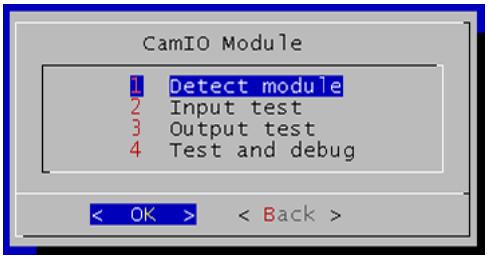
If you start the module detection you obtain the following type of message:
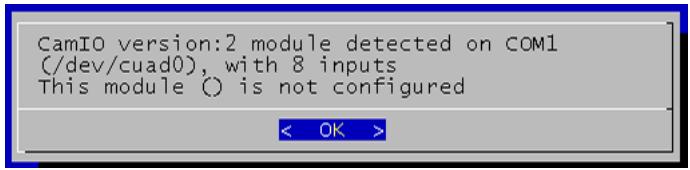
The inputs are numbered from E0 to E7 or E0 and E1 (on the box with two paths). They are triggered by dry contacts. To test the E0 input, you can short circuit the two E0 terminals, to test the E1 input, the two E1 terminals, etc. The two terminals for a contact are located side by side.
The outputs are numbered from S0 to S6 and WD or S0 and WD. They are piloted by micro-relays (Max 1 A) and can be used to open or close dry contacts or power relays. The two contact terminals are located side by side.
If the CamIO box is not powered on or if CamTrace is shut down, the contacts are all open.
The launching of CamTrace video services closes all the contacts. When CamTrace is operating with its video services active its contacts are normally closed. They open upon an alarm.
If the CamTrace video services are stopped, the contacts (except WD) remain in the state that they were in (if the CamIO box is still powered).
The WD (WatchDog) contact operates differently from the others. To remain closed, this contact must receive, in a timeframe less than a specified value (for eg: 15 sec.) a closing order sent by the CamTrace video program. If for any reason the video program does not send it this order within the required time limit, then the contact opens automatically. The opening of this contact therefore indicates a lack of video, whether software or hardware.
Note: Before testing the module, be sure that it is NOT activated in the CamTrace web interface. Go to the Administration / Configuration / Tab "Contact box parameters". Set to the serial port for the contact box to "None", without forgetting to restart the video service for this to be taken into account.
To test the inputs start "input test" in Menucam then, short circuit successively the inputs (for example with a paper clip). Their state should change on the screen. n^ input: state (0 or 1)
To test the outputs you need a device that reacts when the contact is closed. For example, a battery in series with a small low voltage bulb: Start "Output test" in Menucam. The test procedure opens and closes all the contacts successively.
Corresponding messages appear on the screen.
To activate the CamIO module in the CamTrace web interface, go to "manage" / "configuration". Click at the top on "modify".
Open the "contact box parameters" tab.
Choose the COM port to which the box is plugged (this is the COM port that is specified after a "module detection").
Choose the Watchdog timeout delay(in practice 15 seconds)
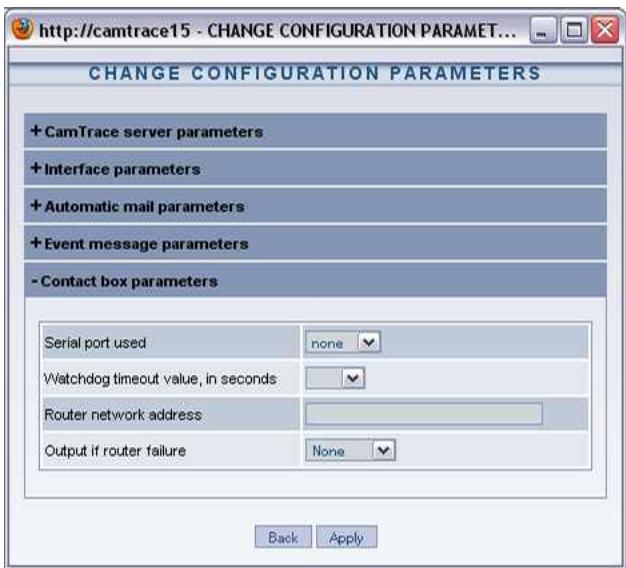
Note: To check if the WD stops at the end of the specified time, shut down the video service with Menucam.
In "router network address" enter the address of a device in your network that responds to ping. We recommend using the router if there is one. With this mechanism, you activate a contact in the event of a network failure. For increased security and if your video surveillance setup must be accessible from the outside, you can give the address or the name of the gateway of your access provider (which should also respond to a ping). In this case the contact will be activated for both an internal network failure as well as for a failed access to the site via the external network (WAN).
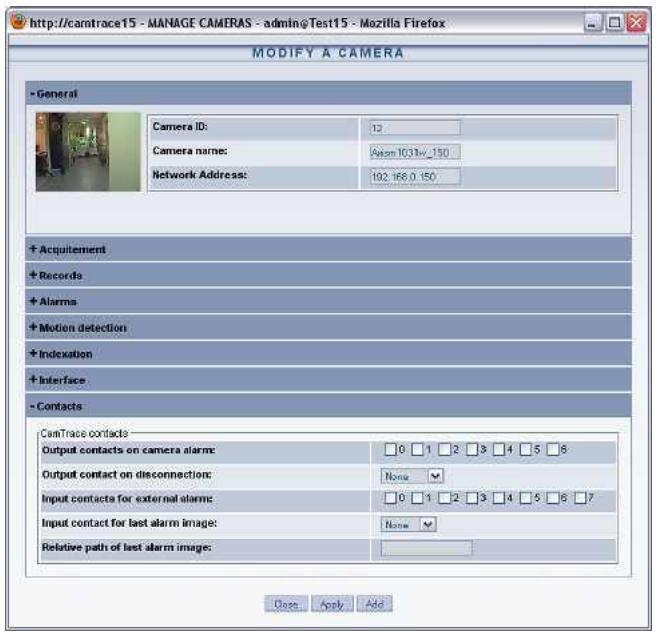
In manage/camera, click on the name of the camera to be configured, in the "Contacts" tab, you can:
- select the CamIO output contacts that will open upon when this camera is in alarm mode.
- select the CamIO output contact that will indicate the disconnection of this camera.
- select the CamIO input contacts that, will put this camera in alarm mode when any of them is opened.
1.13 CREATE A SHORTCUT ON THE Desktop
This function opens CamTrace directly with Internet Explorer for a given user by clicking on an icon on the desktop. It is used if necessary to directly access a group of cameras in display mode or any desk configuration via the "desk" function. You must create a shortcut for the 'IEXPLORE.EXE' program on your desktop. (Use the search function on your workstation to find this program.)
Note: You must not create your shortcut using the IE icon on your desktop.
With a right click on the icon, go to "Properties" then in the "shortcut" tab Following the "target" field that contains:
"C:\Program Files\Internet Explorer\iexplore.exe" add the following line, separated by a space:
"http://ipcamtrace/login/login.php?user=username&pass=password&desk=deskname&lang=codelang"
ipCAMtrace = IP address or CamTrace server name on your network
username = name of the user previously declared in CamTrace
password = the password corresponding to this user
deskname = name of the desk previously defined in CamTrace
codelang = code for language used (de for Germany, en for English, fr for French, it for Italian, nl for Deutch).
Browser language by default.
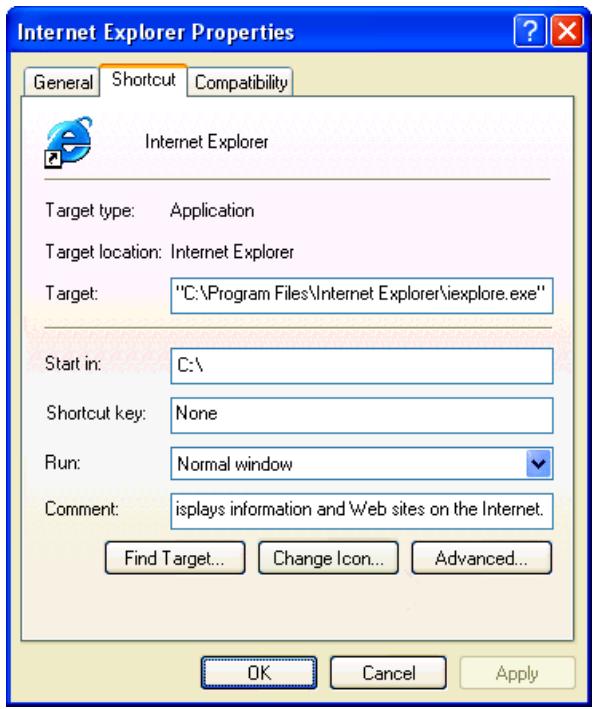
Example:
"C:\Program Files\Internet Explorer\IEXPlore.EXE" "http://carnac/login/login.php?user=john&pass=Ke27diz&desk=labs&lang=en"
Create a CamTrace icon (eye) on your desktop by downloading it from CamTrace. Via the main CamTrace menu (browser banner) go to the help then in "utilities" right click on the CamTrace logo. Then click on "save target as" and save the file containing the (camtrace.ico) icon in a location of your choice.
Right-click on the IE shortcut icon to CamTrace. In "Properties", go to "change icon" and provide the CamTrace icon path that you want to save.
Note : when you create a desktop (in display/icon located in the bottom right of the CamTrace banner), be sure to arrange windows so that they are wholly contained in the screen.
1.14 MULTIVOLUME MANAGEMENT
As of CamTrace versions 4.8.x and later, you can manage a number of logical disks. The interface is used to allocate each camera to a disk.
There are several items of information that you must have at hand to organize the hardware for a CamTrace system.
- The system disk (that which hosts the operating system) cannot exceed 2 TB.
- The other disks use the UFS file system and have a theoretical maximum capacity of 1 billion terabytes.
- A logical disk can be made up of a number of physical disks in RAID.
- A PC motherboard has a limited number of SATA connectors and BIOS limits the number of disks that can be declared.
- You can connect external RAID disk bays with SAS or fiber interfaces.
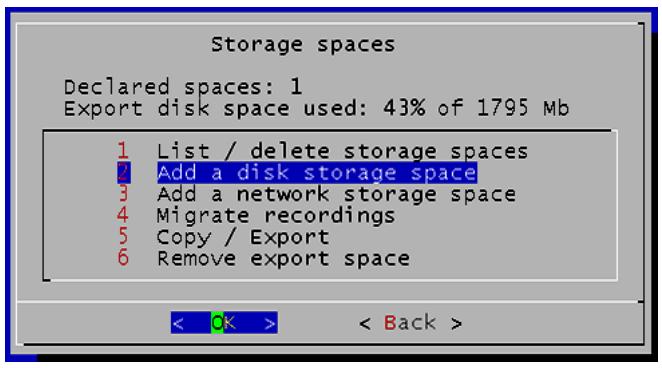
"Declared spaces", specifies the number of logical disks in addition to the system disk. In our example, there are therefore two disks.
Note : During installation of CamTrace software via a CD or a USB key, the installation procedure detects the present disks. You must designate the disks that will be used by CamTrace and from among these, the system disk.
To delete a disk, all camera recordings allocated to this disk must be erased.
The migration of recordings from one disk to another takes place with the video
system shut down. This function is available with versions x.9.5 and later.
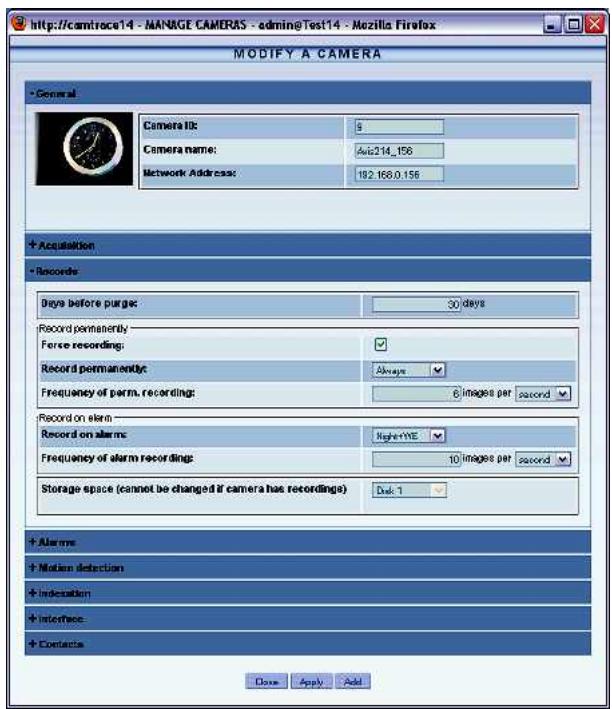
During declaration of a new camera, you should specify on which disk it will be registered. This assignment of a camera to a hard drive can be done either in the web interface, manage/camera in the "Records" tab, (as shown here).
Or in Menucam, in "camera configuration" then "detect and add new cameras". With Menucam, you can detect and add (or not) all the cameras present on the network.
Detection can take a few moments.
Certain camera models cannot be detected.
In the column to the left, Menucam suggests by default the disk with the most capacity.
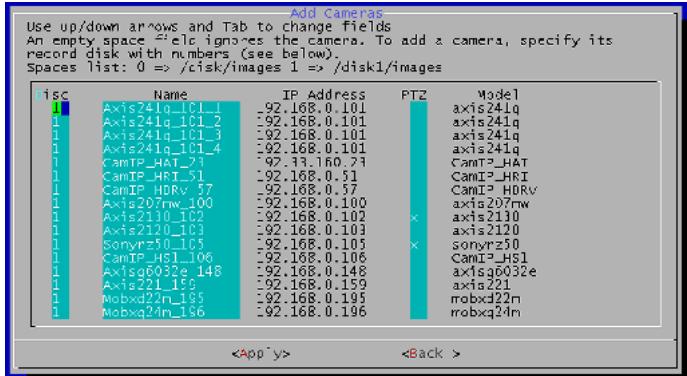
You can choose to allocate a camera to another disk by following the instructions in the menu.
If the column to the left contains an empty field, the camera will not be added.
Attention: When you declare a new
camera, allocate its disk before starting the recordings. Otherwise, you will need to erase the recordings before re-allocating the camera to another disk.
1.15 GRAPHIC MODE ON THE CONSOLE
Startup and shutdown
You can start up graphic mode on the CamTrace console. In Menucam, go to "graphical mode on console".
Before starting graphic mode with option 1, be sure to set up the screen type. The screen parameters are specified above the menu. When you are in the option "Change the screen type", "Accept" trigger a state change from TFT (flat screen) to CRT (cathode screen).
Set the resolution for your screen between VGA, SVGA and XGA.
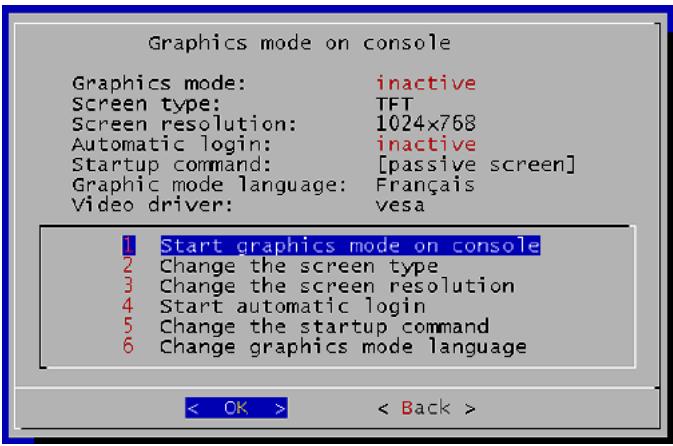

Start graphic mode in Menucam. Graphic mode starts up in a new console.
To log on in graphic mode the user is: "camtrace". The default password is: "camera". To return to the console in character mode type: CTRL ALT F1 To access the console in graphic mode when it is launched, type:
CTRL ALT F9
To quit graphic mode use Menucam or type: CTR ALT (backspace)
Graphic applications
The graphical interface offers a certain number of applications :
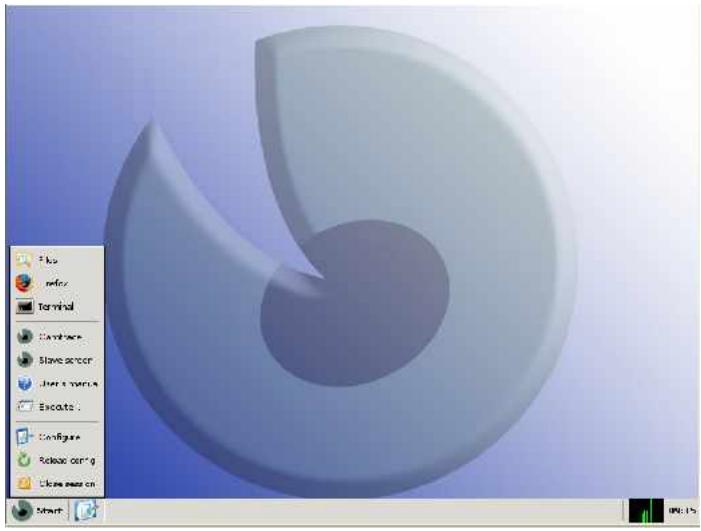
Files: file explorer
Firefox: browser
Terminal: terminal emulator. You can start Menucam in this emulator.
Camtrace: video application
Slave screen: Launches a passive screen to pilot display on the console from another client workstation.
User's manual : A pdf reader enables you to read online manuals.
Execute: to type and launch a shell command.
Other parameters in the graphic interface in Menucam
The "start automatic login" field is used to start a graphical session during startup or restartup of CamTrace. The session is started for the "camtrace" user.
"Change the startup command" give access to the "Graphic mode startup" submenu.
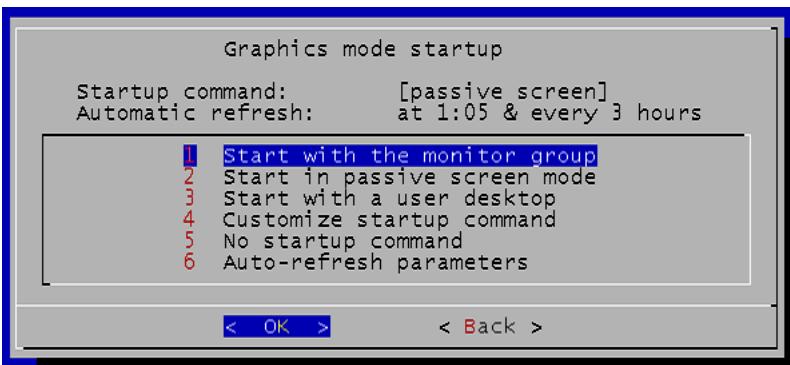
This menu is used to specify the mode in which the CamTrace client will be automatically launched on the console during a CamTrace restart. Automatic login must be activated.
"Start with the monitor group" launches the group called "monitor" (or "moniteur"). A group with the same name must have been previously created with the web interface. This mode is recommended when you wish to display a group permanently on the console.
"Start in passive screen mode" launches passive screen mode on the CamTrace startup console. Graphical mode and automatic login must be activated. This mode is used when you want to be able to change the display on the console from another client workstation.
"Start with a user desktop" specifies a desktop (recall of several windows : individual views, cycle, groups or plans) recorded beforehand.
Note: To save a desktop containing a full screen press ALT TAB to redisplay the main CamTrace banner.
"Customize startup command" launches a command that will be automatically executed after startup in graphical mode.
The command must end with an & (execution in background mode) and can start with: nice -n x (with x between 1 and 10) to lower its priority (10 is the lowest).
Attention: the permanent display of images on the console consumes considerable processing resources. For a group display, you should limit the number of images per second. We do not recommend permanent display of images on the console for large installations (CamTrace server).