
CRW2040 - CD/DVD Burner AOPEN - Free user manual and instructions
Find the device manual for free CRW2040 AOPEN in PDF.


| Product Type | Internal ATAPI/E-IDE CD-RW Rewritable Drive |
| Interface | E-IDE (ATAPI), compatible with PIO Mode 4 and UDMA |
| Read Speed | Up to 40x (6 MB/s) |
| CD-R Write Speed | Up to 20x (3 MB/s) |
| CD-RW Write Speed | Up to 10x (1.6 MB/s) |
| Buffer Memory | 2 MB |
| Writing Technologies | Just Link, Just Speed, Optical Power Control (OPC) |
| Supported Formats | CD-DA, CD-ROM, CD-Extra, CD-ROM/XA, Photo-CD, CD-I, Video-CD, CD-Text |
| Disc Capacity | 700 MB (80 min) / 650 MB (74 min) |
| Access Time | 120 ms |
| Read Error Rate | ≤ 10^-12 |
| Write Error Rate | ≤ 10^-10 |
| Noise Level | 45 dB (idle), 55 dB (operating) |
| Power Consumption | 10 W (operating), 1.2 W (standby) |
| Power Supply | DC 5V (±5%) and 12V (±10%) |
| Dimensions (approx.) | 148.5 x 42 x 170 mm |
| Weight (approx.) | 0.9 kg |
| Safety Standards | FCC Class B, CE, UL, TÜV, DHHS |
| Maintenance and Cleaning | Clean the exterior with a soft, dry cloth. For discs, use an air duster. Do not use chemical products. |
| Usage Precautions | Do not expose to moisture, do not open the casing, do not look at the laser beam. |
Frequently Asked Questions - CRW2040 AOPEN
User questions about CRW2040 AOPEN
0 question about this device. Answer the ones you know or ask your own.
Ask a new question about this device
Download the instructions for your CD/DVD Burner in PDF format for free! Find your manual CRW2040 - AOPEN and take your electronic device back in hand. On this page are published all the documents necessary for the use of your device. CRW2040 by AOPEN.
USER MANUAL CRW2040 AOPEN
Pantone 704 C
Pantone Black Process C
User's Guide
CD-RW
Drive
ATAPI/E-IDE Internal Model
AOpen
Copyright
Copyright 2001 by AOpen Inc. All rights reserved. No part of this publication may be reproduced, transmitted, transcribed, stored in a retrieval system, or translated into any language or computer language, in any form or by any means, electronic, mechanical, magnetic, optical, chemical, manual or otherwise, without the prior written permission of AOpen Inc. All brand and product names are trademarks and/or registered trademarks of their respective holders.
Disclaimer
AOpen Inc. makes no representations or warranties, either expressed or implied, with respect to the contents thereof and specifically disclaims any warranties, merchantability or fitness for any particular purpose. Any software described in this manual is sold or licensed "as is". Should the programs prove defective following their purchase, the buyer (and not AOopen Inc., its distributor, or its dealer) assumes the entire cost of all necessary servicing, repair, and any incidental or consequential damages resulting from any defect in the software. Further, AOopen Inc. reserves the right to revise this publication and to make changes from time to time in the contents thereof without obligation to notify any person of such revision or changes.
Federal Communications Commission (FCC) Statement
This equipment has been tested and found to comply with the limits for a class B device, pursuant to part 15 of the FCC rules. These limits are designed to provide reasonable protection against harmful interference in residential installation. This equipment generates, uses, and can radiate radio frequency energy and, if not installed and used in accordance with the instructions may cause harmful interference to radio communications. However, there is no guarantee that interference will not occur in a particular installation. If this equipment does cause harmful interference to radio or television reception, which can be determined by turning equipment off and on, the user is encouraged to try to correct the interference by one or more of the following measures:
Reorient or relocate the receiving antenna.
- Increase the separation between the equipment and receiver.
- Connect the equipment into an outlet on a circuit different from that to which the receiver is connected.
- Consult the dealer or an experienced radio / TV technician help.
FCC Warning
Changes or modification not expressly approved by the party responsible for compliance could void the user's authority to operate the equipment.
Table of Contents
1. Use Precautions 1
1.1. Warning for Safety 1
1.2. Warning as to Use 1
2. Introduction 2
2.1. Overview 2
2.2. Features 3
2.3. Format Compatibility 4
2.4.Type of Writing 4
Disc-At-Once 4
Track-At-Once 4
Session-At-Once 4
Multi-session. 5
Packet Write. 5
3. Hardware Installation 6
3.1. System Requirements 6
3.2.Hardware Instruction 6
Front Panel. 6
Rear Panel 8
3.3. Installing the CD-R/RW drive. 9
Required Tools 9
Installation Procedure 9
3.4. Supported CD-R and CD-RW Discs 14
Supported Discs. 14
The handling of CD-R and CD-RW Discs. 14
4. Software Installation 15
4.1.Before You Start 15
4.2. Installing Software 15
5. Technical Support 17
5.1. Firmware Upgrade 17
5.2. Troubleshooting 18
Appendix A. Glossary 23
Appendix B. Frequently Asked Question (FAQ) 27
Appendix C. Specification 29
1. Use Precautions
These precautions explain how to use the device correctly and safely, thereby preventing injury to yourself or to others. This section relates to your personal safety, and also helps you minimize the risk of damaging the device. Please read carefully before proceeding.
1.1. Warning for Safety
- Do not open the device or attempt to disassemble or to modify it.
- Do not look inside the device. If you expose your eyes to the laser inside the device, you risk damage or loss of your eyesight.
- Do not insert fingers or foreign objects into the device.
- Do not expose the device to rain, use it near water or in damp or wet conditions or place containers on it that contain liquids which might spill into any openings.
- Follow the Operation Manual carefully. Follow the correct procedure when setting up the device.
- If unusual smells, sounds or smoke emanate from the device or if liquids enter the device, switch the computer off immediately and unplug it from the power outlet.
Make sure the computer is electrically grounded. - When opening the computer, always unplug the computer from the electrical outlet. Do not touch the plug with wet hands.
- When used in a fan-cooled system, the device should not be exposed to temperatures outside the range of 5 40^
1.2. Warning as to Use
This CD-R/RW drive together with software is a product for utilizing CD-R/RW recording media with rewriting, erasing and readout capabilities, as an external computer memory device. Except in the case where copying of CD-ROMs or the like is especially recognized under the copyrights laws as being for the purpose of individual use by the customer or the like, or in the case where the customer has obtained permission to make copies from the right holder, reproduction of CD-ROMs and copyright laws. Take notice that unauthorized copying may be subject to claims for damages and to penalties.
2. Introduction
2.1. Overview
Thank you for purchasing AOpen CRW2040 CD-R/RW drive. In this manual, we will explain how to install your CRW2040 CD-R/RW drive correctly. Please read this manual carefully before using the drive.
High Speed
AOpen's CRW2040 CD-R/RW drive offers unprecedented performance to handle today's demands by reading CD's at up to 40x speed and writing CD-R or CD-RW discs at super 20x / 10x speed. CRW2040 writes a 650 MB disc in about 5 minutes.
Just Link
Just Link is a new technology developed independently by Ricoh that automatically prevents buffer under-run errors by predicting them before they happen. AOpen CRW2040 features Just Link technology to enable stable writing in the following situations where buffer under-run errors may otherwise occur in a conventional drive.
With high-speed writing,
- When some other operation is being performed on the computer during writing,
- When writing CD-R/CD-RW drive from a CD-ROM drive,
- When writing directly via network.
Just Speed
Just Speed is a new technology developed independently by Ricoh. AOpen CRW2040 features Just Speed technology to reduces disc errors such as insufficient power in writing and servo follow error. The mechanism controls the maximum writing speed by
(1) using the ATIP information (maker name, model number, etc. pre-recorded on disc),
(2) performing test writing to the OPC area at the inner circumference of the disc, and
(3) getting the status of the servo follow check of the outer circumference of the disc (checking of track shift due to lack of precision in cutting of the disc itself).
A combination of the above (1), (2), and (3) enables better certainty in high-speed writing, while offering support to discs where maximum writing speed cannot be obtained from the ATIP information
High Versatility
The CRW2040 is an ideal all-in-one solution for reading CD's, copying audio/software CD's, creating photo.audio/video CD's, or acting as a storage drive for archiving or backup. The drive (retail pack only) comes complete with everything you need to make CD's right away, including bundled software and blank CDs. With this software, you can create your own CDs.
High Reliability
An improved anti-heat design and the OPC design boost recording reliability. Optimum Power Control continually monitors signal levels during recording and adjusts laser power to compensate for a dirty disc. This feature ensures a flat signal, significantly enhancing reliability.
High Compatibility
The CRW2040 supports all major CD formats, offering full backward-compatibility through the huge installed base of CD/ROM drives and media. What's more, reordered CD/RW media can be played in a DVD player with multi-read feature, maintaining future compatibility.
2.2. Features
E-IDE interface meets requirements of ATAPI Version 2.6
Compliant with Orange Book Part II (CD-R) and Part III, Volume 2 V1.0 (CD-RW)
Read data at 40X speed (6.0 MB/sec)
Write data at 20X speed (CD-R, 3.0 MB/sec)
Write data at 10X speed1 (CD-RW, 1.6 MB/sec)
- JustLink has made auto-avoidance against buffer under run errors possible
- OPC² technology boosts recording reliability
Supports random UDF for easy writing to CD-R/RW discs
2 MB Buffer Memory
Power tray loading mechanism
Support PIO Mode4 and UDMA (Optional)
Support disc diameters of 12 cm and 8 cm
Emergency disk unload
- Front panel rotary volume control
Back panel analog audio output and digital audio output
2.3. Format Compatibility
This CD-R/RW drive is compatible with the following formats:
"Read" means Data Transfer; "Play" means Audio Play back
| Format | Write | Read | Play |
| CD-DA | Y | Y | Y |
| CD-ROM | Y | Y | |
| CD-Extra | Y | Y | Y |
| CD-ROM/XA | Y | Y | |
| Photo-CD* | Y | Y | |
| CD-I* | Y | Y | |
| CD-ROM+CD-DA | Y | Y | |
| Video-CD | Y | Y | |
| CD-Text | Y | Y |
- CD-I, Photo-CD requires special reader/player; Photo-CD writing requires Kodak license
2.4. Type of Writing
Disc-At-One
When only a single recording session (lead in/data/lead out) is to be recorded onto a disk, it is called "Disc-At-Once".
When using Disc-At-Once, no additional data can be recorded onto the disc, even if there is available capacity.
The advantage of this method recording is that it enables creation of discs that can be played back on almost any CD player or CD-ROM drive, because there are no links inserted between the data tracks.
Track-At-One
When many sessions are to be recorded onto a disc, it is called "Track-At-One". If there is space available on the disc, additional data can be recorded onto it.
The advantages of this method include being able to record additional sessions onto a disc, and using a CD-ROM of backup data. (Refer to "Multisession".)
Session-At-Once
A "Session-at-Once" recording almost corresponds to a "Disc-at-Once recording", i.e. all data ("Lead-in", data area and "Lead-out" are written in one go.
The only difference is that the CD is not "finished", i.e. after a "Session-at-Once" recording you still have the possibility to write a further "Session" on the CD at a later date.
Multi-session
The recording of lead-in/data/lead-out is referred to as one session. The Disc-At-Once method is also referred to as "Single Session", because the disc is only recorded once. A disc that has had multiple additional sessions recorded onto it using the Track-At-Once method is called "Multisession".
Packet Write
The Packet Write recording method was developed. It differs from Track-At-One or Disc-At-One in that data is recorded in small fixed sectors of 64k bytes, known as packets.
The advantages of this method are elimination in overhead per session and the elimination of buffer under run errors. This method, however, cannot be utilized for audio data. A number of formats, such as UDF and CD-R FS, can be used when recording using the Packet Write method.
3. Hardware Installation
The installation of CRW2040 is fast and easy. Please follow these instructions described below:
3.1. System Requirements
A PC system with the following features is highly recommended for ensuring a stable CD-R/RW performance.
CPU: Pentium II 350 MHz or higher
- Operating System: Windows 95/98/ME/2000/NT4.0
Memory: 32MB minimum, 64MB recommended
- CD-ROM Drive: Minimum 16X drive recommended
Writing Software:
The drive requires CD writing software to write onto a CD-R/RW disc. When you use the CD writing software, make sure that it supports this drive.
Hard Drive Space:
When writing to a CD-R/RW disc, you will need a working area (50 to 100 MB free space) on the hard drive. When creating an image file for all data to write to a CD-R/RW disc, in addition to the working area, you will need as much hard drive space as that data (up to 800 MB in total). However, such hard drive space for the image file is not needed when you are directly writing from a hard drive, CD-ROM drive or so on (on-the-fly writing).
3.2. Hardware Instruction
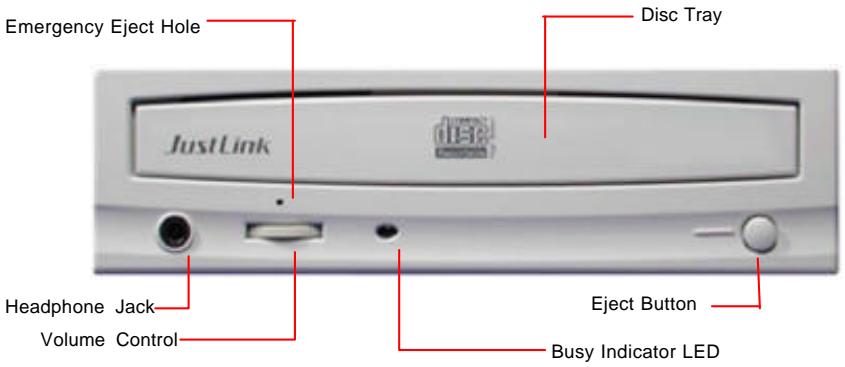
Front Panel

Don't use force to pull out or push in the disc tray. This might cause damage to the loading section of the drive.
Disc Tray
This is the tray for the disc. Place the disc on the ejected disc tray, and then slightly push the tray (or push the eject button), the CD will be loaded.
Eject Button
This is the button used to eject or bring in the disc tray.
- Busy Indicator
When the disc tray or disc is being accessed, the light shines or flashes orange. Even when a disc is loaded or a disc is not being accessed, the light goes out. When an illegal disc is loaded or some hardware trouble occurs, the indicators blinks.
- Headphone Jack
This jack is for connecting headphones or mini-speakers.
Volume Control
This is used to adjust the output volume of the headphone jack. It can't be used to adjust the output volume for the audio output connectors on the rear panel.
Emergency Eject Hole
When the drive cannot eject the disc tray because of power failure, pushing the emergency eject hole of the front panel by the thin pole make drive be able to eject the disc tray.
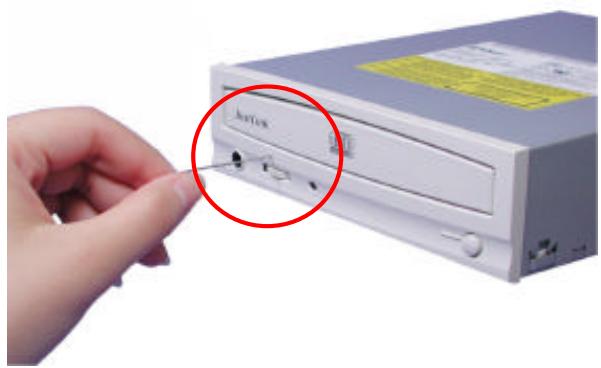

This function is only for emergency case. Do not use this function in usual case to prevent from mechanical damage.
Rear Panel
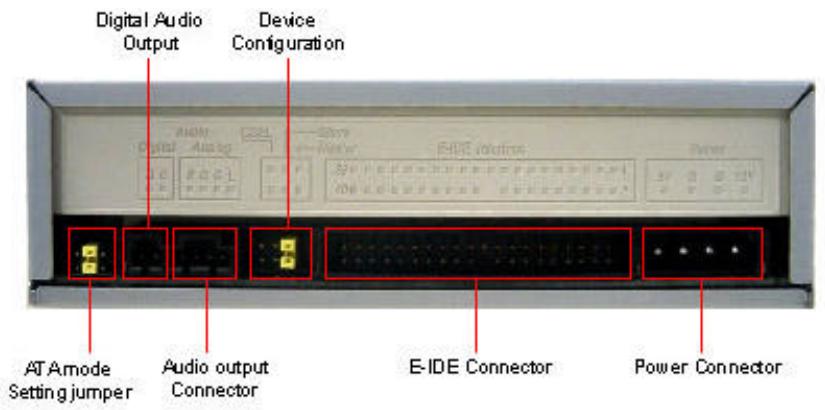
Power Connector
Used to connect to the host computer's power supply (DC 5V/12V).

Be careful not to reverse the power connector when attaching it. A reversed connection may cause damage to the equipment (not covered by the warranty)
E-IDE Connector
Use a 40-pin double-end flat E-IDE cable to connect to the E-IDE interface.

Connecting or disconnecting connectors while power is on may result in a short circuit, causing damage to the equipment. When connecting or disconnecting connectors, make sure to turn off the power beforehand.
Audio Output Connector
Used to connect the sound card (analog signal).
Digital Audio Output
Used to connect the sound card (digital signal).
- ATA mode setting Jumper (Optional)
The drive is set on "PIO mode 4" by default. You can set your drive on "UDMA" mode by remove the jumper.

Note: The compatibility of UDMA function is interrelated with the chipsets of motherboard. If error occurs when drive is writing after you set on UDMA mode, please plug jumper back to set drive on PIO mode.
Device Configuration Jumper
Used when selecting the device configuration of E-IDE. Don't use jumpers to change anything besides the device configuration. Configuration changes become valid after power is turned off, then on again. The device configuration jumper will be set to Master as factory default setting.
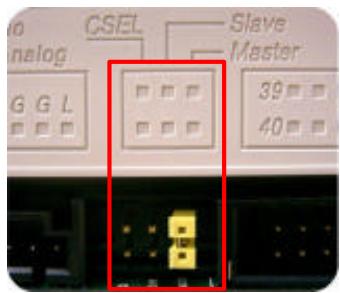
Note: Installing jumper pins besides the ones for device configuration settings may be the cause of damage or abnormal drive operation.
3.3. Installing the CD-R/RW drive
Power off your computer and all peripheral devices. Unplug the computer's power cord from wall outlet or from the power strip.
Required Tools
A medium-size screwdriver
A long-nosed pliers
- Your computer system or motherboard manual (to locate your computer system's IDE controller).
Installation Procedure

The discharge of static electricity can damage electronic circuitry. You can avoid static discharge by touching a grounded metal object, like your computer case, before and during installation of hardware inside your computer.
- Remove the housing or casing of your computer. Be careful of any sharp edges, which might be hidden inside your computer.
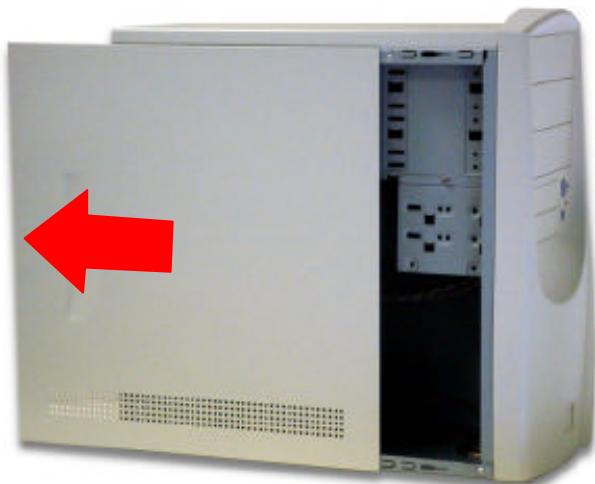
- If there is not any other CD-ROM drive installed in your system. We recommend installing the CD-R/RW in the Secondary IDE port. It is unnecessary to adjust any other jumpers on the CD-R/RW. Proceed to step 4 for further installation.
- If a CD-ROM drive is already installed in your system.

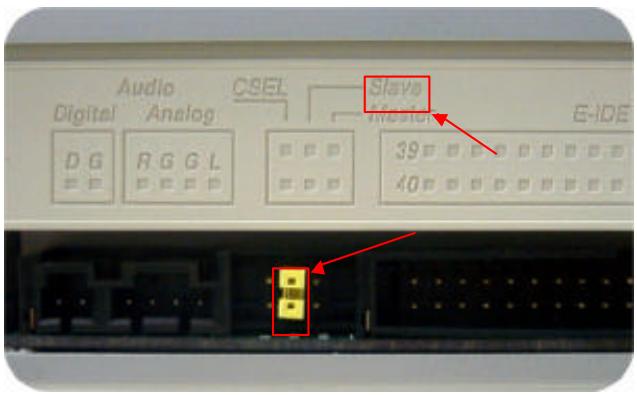
We recommend that you install the CD-ROM on the Secondary IDE channel as the master device (MA), and the CD-R/RW on the Secondary IDE channel as the slave device (SL). Please follow the steps below to fulfill this arrangement.
- First make sure that your Secondary IDE cable has two ports available for two
IDE devices. If not, ask your main board vendor or purchase one from computer hardware stores. - If the CD-ROM drive was installed in the Primary IDE channel, disconnect it from the Primary IDE cable.
- Adjust the Device Configuration Jumper of the CD-ROM drive to "Master" (MA) position.
- Adjust the Device Configuration Jumper of the CD-R/RW to "Slave" (SL) position.
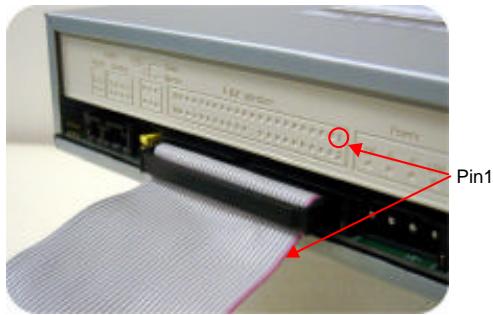
- From your main board, find out the 40-pin Secondary IDE interface cable. Then connect them to your CD-R/RW. Please do notice that the color edge of the IDE cable must be aligned with PIN 1 of the IDE controller.
- Place the CD-R/RW in a 5.25-inch bay.
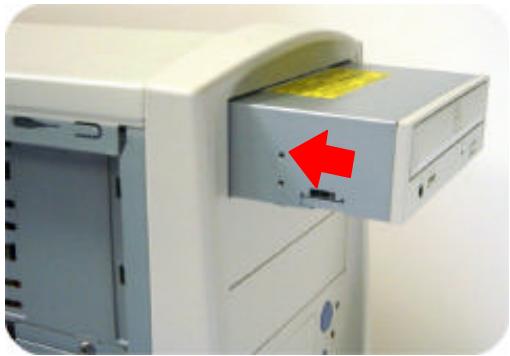
- Use four provided screws (size: M3x0.5x4mm) to secure the drive into the half-height bay. The screws electronically ground the drive.
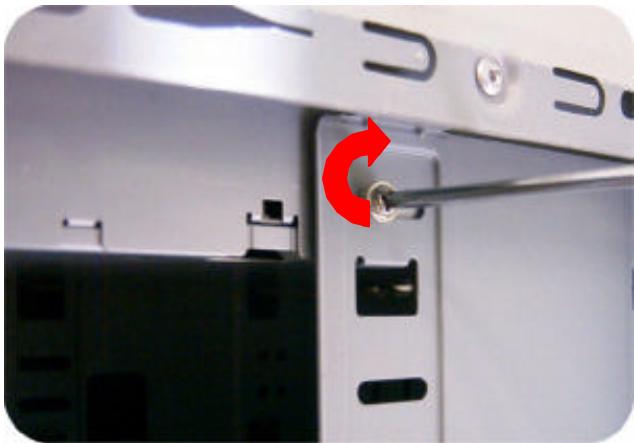

This CD-R/RW drive must be horizontally installed and operated.
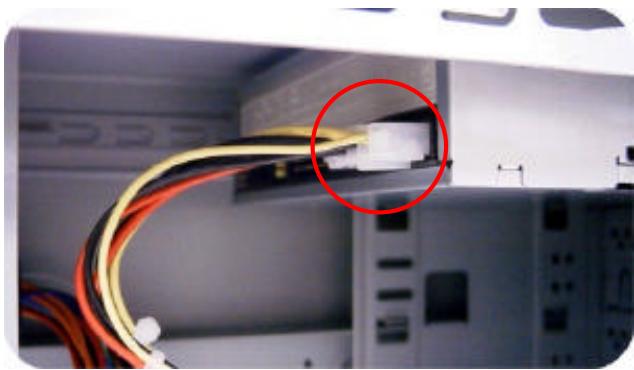
- Locate your computer's power supply and find an unused power cable connector. If you do not have an available power connector, you'll need to purchase a Y-power cable splitter that expands one power connector into two. You may purchase it from your local vendor.
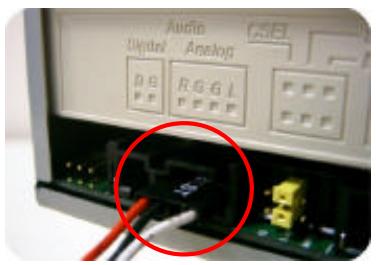
- Attach the audio cable if necessary. If you had another CD-ROM drive with audio cable attached, it is not necessary to attach audio cable for your CD-R/RW.
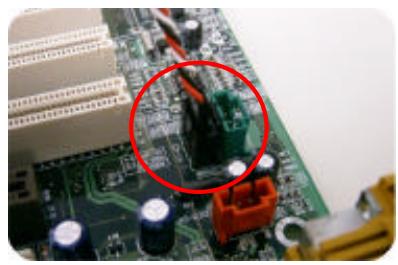
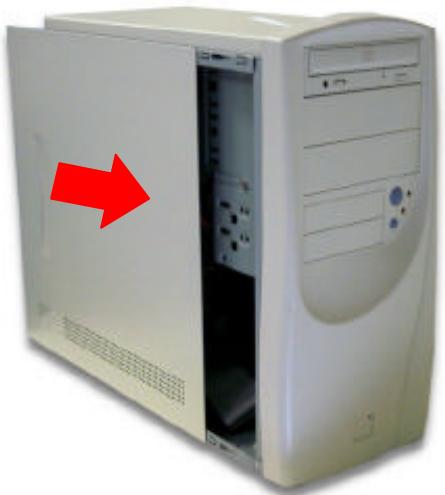
- Put your computer cover back on. Be careful of any sharp edges, which might be hidden inside your computer.
- Plug in your computer power cord, and turn on the computer.
3.4. Supported CD-R and CD-RW Discs
Supported Discs
This drive can write to discs that carry the following logos:
| CD-R discs This CD-RW drive can write to these discs at 4x, 8x, 12x, 16x, 20x speed. These discs can be played back in a CD-ROM drive or a CD player. | |
| CD-RW discs This CD-RW drive can write/re-write at 2x or 4x speed on those discs that support 4x speed. These discs can be read/played on a CD-ROM that supports "Multi-Read". | |
| High Speed CD-RW discs This disc allows writing/re-writing at 4x to 10x speeds. This CD-RW drive can write/re-write these discs at 4x, 8x, or 10x speed. These discs can be read/played by a CD-RW drive that bears the High Speed CD-RW logo. |
The handling of CD-R and CD-RW Discs
Please read the following regarding the handling of CD-R and CD-RW discs.
- Do not expose the discs to excessive heat such as in direct sunlight or near a heater. Also avoid keeping them in a humid place.
- Do not touch disc surfaces. When handling a disc, hold it by its edges.
- Remove dust and dirt from disc surfaces. Use air-based dust removers. The surfaces may be scratched if wiped with a dry cloth.
- Do not stick labels on disc surfaces.
- Do not write on disc surfaces except where indicated.
- Do not clean discs with chemicals or detergents.
- Do not bend or drop discs
4. Software Installation
4.1. Before You Start
Please understand that CD recording is a non-interruptible process. Therefore, a stable recording environment is a must. If you have a HDD set up only for CD recording purpose, the recording process shall be smooth.
However, if an extra HDD is not available, you might prefer carrying out the following steps to optimize your Windows 95 / 98 (or NT4.0) CD recording arrangement:
- Close all resident programs that include Anti-Virus, Screen Saver, System Agent, Power Management, etc. Turn off Auto Insert Notification. Further, maximizing and minimizing windows are not recommended either. If not, any operation of these applications will intrude the CD recording process and damage your disk.
- Defragment your HDD before any CD recording. This is particularly important
- When you write files to CD from HDD. Defragmentation of HDD reallocates all
- The files so that these relevant files are placed in the nearby clusters. This saves time and risks when Easy CD Creator is trying to search for the files you want to record on CD.
4.2. Installing Software
For information on installing procedures and how to use the authoring software, please refer to the manual that came with it. If you want to use another type of authoring software not bundled with CRW2040, please refer to each manual on how to install and operate. Please note that some authoring software or version of authoring software does not support CRW2040.
5. Technical Support
For additional information or help during installation or normal operation of this drive not available in this manual or from our Web site, please contact our dealer where you have purchased this product for support, or you may contact us directly:
AOpen Inc. http://www.aopen.com.tw
AOpen America Inc. http://www.aopen.com
AOpen Computer B.V. http://www.aopen.nl
Please provide product information, including the model name and serial number, computer system information, and/or a detail description of your problem or question by E-Mail. The AOpen technical support staff will respond as quickly as possible.
5.1. Firmware Upgrade
The CRW2040 uses Flash type firmware, a small piece of software that can be overwritten and updated. To ensure more reliable operations and enhanced performance of the drive, updates to the firmware will be made available. You can download and upgrade the latest version via our Web site regularly at http://www.aopen.com
Confirming the firmware version
The Windows 9x users can confirm the firmware version on CRW2040 property with Device Manager.
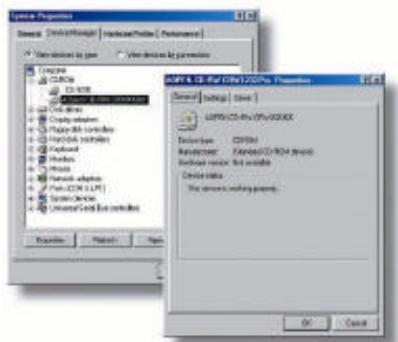
For Windows NT users, you can verify the version by opening the "Control Panel", double-clicking on "SCSI Adapter" and clicking the "Device" tab. Right click on the "CRW2040" and select "Properties".
For Windows 2000 users, the firmware version will not be displayed. Use your writing software to check it.
5.2. Troubleshooting
Write problems
| Symptom | Possible Causes | Solutions |
| No drive recognition | Bad connection between IDE cable and your CD-R/RW drive. | Ensure that cables or IDE connectors are not damaged, bent or dented. Check especially the pins. |
| Conflicts with other IDE devices. | Ensure the Master/Slave device setting of CD-R/RW is not conflict with the other IDE device connected to the same IDE port. | |
| Using other writing software which not supports your CD-R/RW drive. | Use the writing software provided with this CD-R/RW drive. When using other software, ensure your CD-R/RW drive is supported by contacting the software supplier. | |
| Cannot write | Using other writing software which not supports your CD-R/RW drive. | Use the writing software provided with this CD-R/RW drive. When using other software, ensure your CD-R/RW drive is supported by contacting the software supplier. |
| Disc inserted upside down. | Reinsert the disc with label side up. | |
| No power. | Check if the power cord is securely connected to the connector. | |
| IDE cable isn't connected properly | Ensure the cable of IDE connectors are not damaged, bent or dented. Check especially the pins. | |
| Install more than one CD writing software simultaneously. | Remove other writing software. Just keep one software on your hardisk. | |
| Cannot add writing on CD-RW | Wrote with another writing software | If different writing software is used comparing to the previous writing, errors may occur. Use always the same writing software. |
| Short of CD-R/RW capacity | Capacity of CD-R/RW media is limited to 650MB (74 min-type) including lead-in, lead-out and TOC data. Use a new CD-R/RW media if the capacity is insufficient for the additional data. | |
| Cannot write at highest speed | CD-R/RW media not compatible with the highest speed. | Use the highest speed compatible discs or writ with lower speed. |
| Defective CD-R/RW media. | CD-R/RW media may be dirty, scratched or damaged. Rewrite on another CD-R/RW media. | |
| Using other writing software not bundled with your CD-RRW. | Use the writing software provided with this CD-R/RW drive. When using other software, ensure your CD-R/RW drive is supported by contacting the software supplier. | |
| Source Drive not support highest speed on the fly. | Copy all files to harddisk, then write from hardisk to CD-R. Otherwise, pls slow down writing speed. | |
| Source Disc is bad-quality | Make image files then burn image file onto the CD-R/RW disc. | |
| DMA function disable | Ensure to enable DMA function on both source and target drives. |
Read problems
| Symptom | Possible Causes | Solutions |
| No drive recognition | IDE cable and the CD-R/RW drive not connected properly. | Ensure both connectors of IDE cable is properly connected to the IDE ports on the main board and CD-RRW. |
| Conflicts with other IDE devices. | Ensure the Master/Slave device setting of CD-R/RW is not conflict with the other IDE device connected to the same IDE port. | |
| Power is not switched on. | Check if the LED of your CDR/RW drive is lit. If not, there is no power. | |
| No operation | No power | Check if the power cord is connected securely to the connector. |
| IDE cable isn't connected properly. | Ensure the IDE cable and connectors are not damaged, bent or dented. Check especially the pins. | |
| Cannot read photo CD discs | Bad photo CD disc. | Try to play another photo CD disc and see if it reads fine. If it works, you should replace the defective disc. |
| Need special application software | Check if install "Kodak Photo CD Access Plus Software". | |
| Cannot read CD-I discs | Need special application software | Check if install application software such as "Cyberlink Powerplayer" |
| Read error occurs | Defective CD-ROM disc | Deep scratches, fingerprints or other contaminants on the discs surface can disable the drive from reading data. Always keep it clean. |
| Music CD inserted. | Because audio compact discs do not have computer data, typing computer commands while an audio CD is in your drive will result in an error message. | |
| Disc inserted upside down. | Remove the disc from tray and reinsert it with the label side up. | |
| Excessive noise when reading | Eccentric disc loaded. | Replace it by another one. |
| Seal attached on the surface. | Detach the seal very carefully. Don't make any scratches. | |
| Cannot eject tray | Eject locked by software. | When you are working under Windows 9/NT 4.0, check if locked on the CDR/RW properly. |
| CD set incorrectly into tray. | Insert emergency eject stick into the emergency eject hole and eject the tray. Use a pair of tweezers or pliers if it won't eject with emergency eject stick. | |
| Can read only the first session of a multisession disc | "Close session" was not selected at the previous writing | Additional session cannot be read because the previous session was not closed. Rewrite on other CD-R/RW media. |
| Cannot read the former session of the CD-R/RW disc which has been written at least twice | "Load Contents" or "Import Session" was NOT clicked on the software. | If recorded without checked "Load Contents" or "Import Session", it is impossible to read. But when using utility software such as "Session Selection" from Adaptec, the former session can be read. |
5.3. How to Contact Us
Dear Customer,
Thanks for choosing AOpen products. To provide the best and fastest service to our customer is our first priority. However, we receive numerous emails and phone-calls worldwide everyday, it is very hard for us to serve everyone on time. We recommend you follow the procedures below and seek help before contact us. With your help, we can then continue to provide the best quality service to more customers.
Thanks very much for your understanding!
AOpen Technical Supporting Team

Online Manual: Please check the manual carefully and make sure the jumper settings and installation procedure are correct. http://www.aopen.com.tw/tech/download/manual/default.htm

Test Report: We recommend to choose board/card/device from the compatibility test reports for assembling your PC.
http://www.aopen.com.tw/tech/report/default.htm

FAQ: The latest FAQ (Frequently Asked Questions) may contain a solution to your problem.
http://www.aopen.com.tw/tech/faq/default.htm

Download Software: Check out this table to get the latest updated BIOS/utility and drivers. http://www.aopen.com.tw/tech/download/default.htm

News Group: Your problem probably had been answered by our support engineer or professional users on the news group.
http://www.aopen.com.tw/tech/newsgrp/default.htm

Contact Distributors/Resellers: We sell our products through resellers and integrators. They should know your system configuration very well and should be able to solve your problem more efficiently than us. After all, their attitude of service is an important reference for you if next time you want to buy something else from them.

Contact Us: Please prepare detail system configuration and error symptom before contacting us. The part number, serial number and BIOS version are also very helpful.
| Pacific Rim AOpen Inc. Tel: 886-2-2696-1333 Fax: 886-2-8691-2233 | China ( ) Tel: 86-21-64952080 Fax: 86-21-64952152 |
| Europe AOpen Computer b.v. Tel: 31-73-645-9516 Fax: 31-73-645-9604 | Germany AOpen Computer GmbH. Tel: +49 (0) 2102 157 777 Fax: +49 (0) 2102 157 799 |
| America AOpen America Inc. Tel: 1-510-498-8928 Fax: 1-408-922-2935 | Japan AOpen Japan Inc. Tel: +048-290-1819 Fax: +048-290-1820 |
Web Site: www.aopen.com
E-mail: Send us email by going through the contact form below.
English http://www.aopen.com/tech/contact/techusa.htm
Japanese http://www.aopen.co.jp/tech/contact/techjp.htm
Chinese http://www.aopen.com.tw/tech/contact/techtw.htm
German http://www.aopencom.de/tech/contact/techde.htm
French http://france.aopen.com/tech/contact/techfr.htm
Simplified Chinese http://www.aopen.com.cn/tech/contact/techcn.htm
Appendix A. Glossary
CD-DA
Compact Disc - Digital Audio. The typical music CD is written with this CD format. At this time, up to 74 minutes of music can be written on a CD. The corresponding standard is the Red Book.
CD-I
Compact Disc - Interactive. This format allows the storage of different types of data such as images, music or video on a CD. The process is defined in the Green Book.
CD-R
Compact Disc - Recordable. A technology for CD-R (recordable) media. Also refer to CD-WO, Compact Disc - Write Once, limited to just one writing.
CD-ROM
Compact Disc - Read Only Memory. This is described in the Yellow Book. Differing types of data that can be read by a computer such as programs, text, image data or sound may be stored with this CD format.
CD-ROM - Mode 1 and Mode 2
A supplement to the CD-ROM format which provides an additional error recognition and correction function. Mode 1 is especially used for computer data and employs a code for error correction. Mode 2 is used with CD-ROM/ XA and CD-I with audio data and contains an error recognition code only.
CD-ROM/XA
CD-ROM/ Extended Architecture. This CD format makes it possible to store computer data and audio or video data on one track. The different types of data are linked to each other (Interleaving) so that synchronization problems can be reduced.
CD-RW
Compact Disc - ReWritable. A technology for CD-RW (rewritable) media. It is not limited to just one writing, but may be erased and re-written as often as desired.
CD-WO
CD - Write Once. As the name implies, it is a CD that may only be written on once. Also refer to CD-R.
Disc At Once
Disc At Once is a method for recording of data onto a CD. With this method, the entire CD is written in a single process. The CD-recorder first writes a Lead-In, then the data block, and finally a Lead-Out. In contrast to Track At Once, linking blocks are not used between the individual tracks with Disc At Once.
Enhanced Music CD, CD + and CD Extra
An expansion of Audio or Mixed-Mode CD consists of two sessions. The first session corresponds to CD-DA, while the second session consists of computer data. The process is specified in the Blue Book.
Finalization
Finalization is the permanent closing of the writing procedure on a CD. After that, it cannot be written to, regardless of whether it was produced as a single-session or a multi-session CD.
Green Book
A book of CD Interactive (CD-I) standards published by Philips and Sony in 1986
High Sierra
The forerunner of today's ISO Standard 9660. It was published in 1986. With the passage of time it has lost its significance.
Hybrid Type CD
A CD-ROM disc storing "two different platforms of softwares" for Windows and Macintosh etc.
Image
The term "image" describes all edited data that will later be located on a CD. The creation of an image file is known as premastering.
ISO 9660
ISO Standard 9660 describes the construction of a CD-ROM, so that it may be read and processed by different types of operating systems.
Joliet
This supplement to the standards comes from Microsoft and is supported by Windows 95 and Windows NT. The CDs that are created under this standard are in conformity with ISO 9660, which allows long file names based on Unicode in additional directory structures.
Mixed Mode-CD
Music and computer data are stored on one CD with this type of CD. The computer data are generally located on track 1 and audio data are located in the ensuing tracks.
Multi-Session-CD
A CD which is written in several sequential sessions is known as a multi-session CD.
On-The-Fly
A process for burning data onto a CD-R. There are two different methods of doing this. With the classical and older method, all of the data which are to be recorded onto the CD are first stored in a buffer in a large file known as an image file. From there, they are copied or burned onto the CD-R. In contrast to this, the method known as On-The-Fly transfers the data directly from their original memory locations on a hard drive onto the CD-R.
Orange Book
The Orange Book is a physical format of recordable CD announced in 1989 by Philips and Sony. The Orange Book describes CD-MO in part-I and CD-R in part-II. Later on part-II was updated. In 1994, version-II was announced for the CD-ROM and its double speed type. In 1996, the standards for phase change optical disc, rewrite CD (CD-RW) was added as part-III.
Photo-CD
A CD format and system devised by Eastman Kodak to record digitized photograph data.
Rainbow Books
The collection of standards which define the different types of CDs. Through these standards, it has been achieved that CDs can be read and processed by as many devices and operating systems of the different manufacturers as possible.
Red Book
A book setting the standards for the Compact Disc physical format and audio recording methods, published by Philips and Sony in 1981.
Session
An inter-related writing procedure is defined as a session. A session consists of the Lead In area, the data area, and the Lead Out area. A CD can be written with several sessions. This is then called a multi-session CD, in contrast to a single-session CD which only contains one session. A silver CD generally consists of one session.
TOC
Contents of the Lead-in, this contains the addresses of all the tracks on the CD.
Track
In an Audio-CD, one track corresponds to one piece of music. With a CD-ROM, one track contains computer data and it may have any number of files and folders.
UDF
UDF is short for Universal Disc Format, another file layout standard for CDROM. The UDF format can use in CD-R, CD-RW, and DVD by Packet writing method, which would not cause "Buffer Under-Run" and can be compatible with ISO9660. The advantage of UDF is provided similar function like hard disk.
Video CD
A CD-ROM storing MPEG-1-compressed moving pictures, still pictures, audio sounds etc.
Yellow Book
A book of CD-ROM standards published by Philips and Sony in 1985.
Appendix B. Frequently Asked Question (FAQ)
The following FAQ's are the most common problems you may find during installation or regular use. Please review these FAQ's to have your problem solved. In case you do not find any items that answer your problem, please contact your dealer or technical support.
Q: Computer won't boot up after installation.
Please proceed the following procedures to get your computer back to work:
- Turn off and unplug your computer first. Check each connector along both IDE cables. (Bent pins, orientations or bad contacts.)
- Check if the power cable attached correctly to each drive.
- If an IDE cable is connected with CD-R/RW and other device, check the jumper settings of both devices and make sure the "MA" (master) and "SL" (slave) settings are different from each other.
Q: The CD-R/RW doesn't show up in My Computer or Explorer.
The following steps will assist you to get your drive to work as a CD-ROM:
- If you cannot find CD-R/RW in Explorer, restart your computer, or shut it down and then turn it on again.
- Is the CD-R/RW receiving power properly? You can test it by pressing eject button to see if the tray opens and closes.
- Is the IDE cable connected properly? Be careful to turn off and unplug your computer system before checking this item. Check the connection by your opening computer system to see if the IDE connector well inserted and the colored stripe on the side of the IDE cable lines up with PIN-1 of each connector.
- Select "enable both IDE channels" to enable the IDE channels. Then reboot your PC.
Q: The CD-R/RW has problem in reading CD disc, or Error message when double-clicking on the CD-R/RW icon.
There are several ways to solve this problem as follows:
- The CD disc in the tray may be loaded upside-down, or a little off-center. Try re-loading the CD disc with its label side up.
After loading a CD disc, it will take a moment to let the CD-R/RW read the disc information. When the indicator on the front panel stops flashing and stays green, it is ready for access.
If the disc you just loaded is a blank CD disc, try it later after copying some information to the CD.
Q: Unable to see a second session reading from a CD-ROM drive.
Eject the CD and re-load it.
Refresh the screen. Select the My Computer icon in Windows Explorer and press F5.
- Make sure if your CD-ROM drive reads CD-RW discs. CD-RW discs can only be used in CD-R/RW or newer MultiRead CD-ROM.
- For Windows 3.x users: Windows 3.x cannot read multi-session CD disc that is created by Direct CD. If some other programs create the CD disc, please verify you are using version 2.23 of the MSCDEX.EXE file. First, restart your PC and when you see "Starting MS-DOS..." appear on your monitor, press F8. Each line in your CONFIG.SYS and AUTOEXEC.BAT files will load one at a time. Press "Y" until you see a line containing "MSCDEX.EXE", then press "Y" and you will see the version number displayed on monitor. The number shall be 2.23 or greater. In case you cannot find this file, you can download it from Microsoft's FTP site: ftp://ftp.microsoft.com/Softlib/MSFILES/MSCD223.EXE. This file is a self-extracted ZIP file, please run it to retrieve MSCDEX.EXE file.
- See if the CD-R/RW or other CD-ROM drives can read the CD disc properly. If so, then the problem is probably with the CD-ROM drive. Contact the manufacturer of the drive for updated drivers or patch files.
Q: Applications cannot locate the CD in CD-R/RW.
- Some programs only locate the first logical drive letter assigned to a CD-ROM or a CD-R/RW drive. For example, if your CD-ROM drive is assigned drive D: and CD-R/RW is assigned drive E:, the program locates drive D: only and will not locate drive E.: Thus you need to reassign drive letters to both your CD-ROM and CD-R/RW drives in case you need to run the program in CD-R/RW.
- Windows 95/98: right-click My Computer icon. Click Properties item, open Device Manager and double-click CD-ROM drive, then click Setting tab. Under Reserved drive letters, select the drive letter after the existing letter (for both start and end drive letter) and click OK. Then double-click CD-R/RW icon, then click Setting tab. Under Reserved drive letters, select the drive letter before current one and click OK.
- Windows NT: click on Start | Programs | Administrative Tolls (common). Choose Disk Administrator. Right-click on the drive letter you would like to change. Select Assign Drive Letter and change the drive letter accordingly.
The above are only GENERAL rules that do not necessarily apply to any combination of CD-ROM drives, HDD and motherboards. A few trials on different configurations before recording are recommended. Also, try out different CD-R media before you proceed to make volumes duplication as you may figure out which brand of CD-R media originates smoother recording and easier access. As long as you find the best CD recording way, stick to it.
Appendix C. Specification
| Rotation Speed: | Read 40X, 32x, 20x, 8x, 4x Write CD-R: 20x, 16x, 12x, 8x, 4x CD-RW: 10x, 4x, 2x | |
| Write/Read Norma Speed: | 150KB/sec. Mode 1, Mode 2 Form 1 170KB/sec. Mode 2 Form 2 | |
| Writing Mode: | Track at Once Disc at Once Session at Once Multi-session Packet Write | |
| Recording Capacity: | CD-R disc 700/650 MB (Type 80/74) CD-RW disc 700/650 MB (Type 80/74) | |
| Error Rate: | Read 10-12bits or less Write 10-10bits or less | |
| Access Time: | 120ms | |
| Buffer Memory | 2MB | |
| Host Data Transfer Speed: | PIO mode 4 Max. 16.7 MB/sec. | |
| DMA Max. 16.7 MB/sec | ||
| UDMA Max. 33.3 MB/sec | ||
| Audio Output Level: | Line output 0.70V ± 0.1Vrms Headphone output 0.80V ± 0.1Vrms | |
| Power Consumption: | Normal Operation 10 W or less Stand-by 1.2 W or less | |
| Acoustic Noise: | Idle 45 dB or less (Sound Power Level) Operating 55 dB or less (Sound Power Level) Non-operating 49 dB or less (Sound Power Level) | |
| 5V Power Supply: | Voltage DC 5V ± 5% Ripple 50mVpp or less Current 2.0A (Typ.), 3.0A or less (peak) | |
| 12V Power Supply: | Voltage DC 12V ± 10% Ripple 100mVpp or less Current 1.4A (Typ.), 3.0A or less (peak) | |
| EMI and Safety Requirement | FCC FCC Part 15 Subpart Class B | |
| BSMI CISPR22 | ||
| CE/C-Tick EN55022/CISPR22/AS/NZS 3548 Class B, EN50082-1/AS/NZS 4252.1, EN60555-2, and EN60555-3 | ||
| UL/CUL UL1950 | ||
| DHHS 21CFR1040.10,FDA Chapter 1,Subchapter J | ||
| TÜV EN60950. EN60825-1 | ||
| MEMKO EN60950. EN60825-1 | ||
- CD-RW
- Drive
- Copyright
- Disclaimer
- Federal Communications Commission (FCC) Statement
- FCC Warning
- Table of Contents
- Use Precautions 1
- Introduction 2
- Hardware Installation 6
- Software Installation 15
- Technical Support 17
- Appendix A. Glossary 23
- Appendix B. Frequently Asked Question (FAQ) 27
- Appendix C. Specification 29
- Use Precautions
- Warning for Safety
- Warning as to Use
- Introduction
- Overview
- High Speed
- Just Link
- Just Speed
- High Versatility
- High Reliability
- High Compatibility
- Features
- Format Compatibility
- Type of Writing
- Disc-At-One
- Track-At-One
- Session-At-Once
- Multi-session
- Packet Write
- Hardware Installation
- System Requirements
- Hardware Instruction
- Disc Tray
- Eject Button
- - Busy Indicator
- - Headphone Jack
- Volume Control
- Emergency Eject Hole
- Rear Panel
- Device Configuration Jumper
- Installing the CD-R/RW drive
- Required Tools
- Installation Procedure
- Supported CD-R and CD-RW Discs
- Supported Discs
- The handling of CD-R and CD-RW Discs
- Software Installation
- Before You Start
- Installing Software
- Technical Support
- Firmware Upgrade
- Confirming the firmware version
- Troubleshooting
- How to Contact Us
- Appendix A. Glossary
- CD-DA
- CD-I
- CD-R
- CD-ROM
- CD-ROM - Mode 1 and Mode 2
- CD-ROM/XA
- CD-WO
- Disc At Once
- Enhanced Music CD, CD + and CD Extra
- Finalization
- Green Book
- High Sierra
- Hybrid Type CD
- Image
- ISO 9660
- Joliet
- Mixed Mode-CD
- Multi-Session-CD
- On-The-Fly
- Orange Book
- Photo-CD
- Rainbow Books
- Red Book
- Session
- TOC
- Track
- UDF
- Video CD
- Yellow Book
- Appendix B. Frequently Asked Question (FAQ)
- Q: Computer won't boot up after installation.
- Q: The CD-R/RW doesn't show up in My Computer or Explorer.
- Q: The CD-R/RW has problem in reading CD disc, or Error message when double-clicking on the CD-R/RW icon.
- Q: Unable to see a second session reading from a CD-ROM drive.
- Q: Applications cannot locate the CD in CD-R/RW.
Brand : AOPEN
Model : CRW2040
Category : CD/DVD Burner