
EF81 - Mobile Phone BENQ-SIEMENS - Free user manual and instructions
Find the device manual for free EF81 BENQ-SIEMENS in PDF.


User questions about EF81 BENQ-SIEMENS
0 question about this device. Answer the ones you know or ask your own.
Ask a new question about this device
Download the instructions for your Mobile Phone in PDF format for free! Find your manual EF81 - BENQ-SIEMENS and take your electronic device back in hand. On this page are published all the documents necessary for the use of your device. EF81 by BENQ-SIEMENS.
USER MANUAL EF81 BENQ-SIEMENS
© BenQ Mobile GmbH & Co. OHG 2005
All rights reserved. Subject to availability.
Rights of modification reserved.
Manufactured by BenQ Mobile GmbH & Co. OHG
under trademark license of Siemens AG
www.BenQ-Siemens.com/ef81

Safety precautions 3
Phone overview 6
Clamshell closed 6
Clamshell open 7
Opening/closing the clamshell 9
Display symbols 11
Getting started 13
Inserting the SIMcard/ Micro SD card 13
Inserting the battery 14
Removing the battery 15
Charging the battery 15
Operating time and temperature 16
Switching phone on/off, entering PIN 17
Switching the phone on 17
Switching the phone off 17
Offline mode 18
Emergency number (SOS) 18
General instructions 19
Standby mode 19
Signal strength 19
Connectivity 20
Digital Rights Mgmt. (DRM) .... 20
User guide 20
Main menu 21
Tabs 21
Navigation key 21
Outer softkeys 22
Menu control 22
Standard functions 22
Security 25
PIN codes 25
Connecting to Windows® PCs 27
Text entry 28
Calling 32
Video calls 32
Setting the volume 33
Accepting a call 34
Rejecting a call 34
Conference 36
Tone sequences (DTMF) 39
Contacts 40
Voice-activated dialling 46
Call records 49
Call log lists 49
Duration/charges 50
Camera 52
Create message 57
SMS/MMS 57
E-mail 60
Inbox 62
Message lists 69
Drafts 69
Sent messages 69
Message settings 70
SMS settings 70
MMS settings 72
E-mail settings 74
CB settings 77
Inst. message settings 78
Instant messaging 79
Starting/viewing/ending conversations 81
Receiving conversations 84
Voice mail 88
Settings 88
Internet 89
Enter URL 89
Bookmarks list 89
History 89
Browser settings 89
Games 95
Organiser 96
Calendar 96
Dictat.machine 99
Time zones 99
Remote sync 99
Extras 101
My menu 101
SIM toolkit (optional) 101
Alarm clock 102
Calculator 103
Unit converter 103
Sound recorder 104
Stopwatch 105
Media player 106
My stuff 110
Settings 113
Profiles 113
Ringtones 114
Themes 115
Display 116
Vibration (silent alert) 117
Connectivity 118
Shortcuts 122
Call setup 123
Phone 126
Clock 129
Security 131
Network 133
Accessories 135
Mobile Phone Manager 136
Questions & Answers 138
Customer Care 142
Care and maintenance 144
Product data 145
SAR 146
Accessories 147
Guarantee certificate (UK) ....149
Guarantee certificate (IRL) ....149
License Agreement 151
Menu tree 154
Index 160
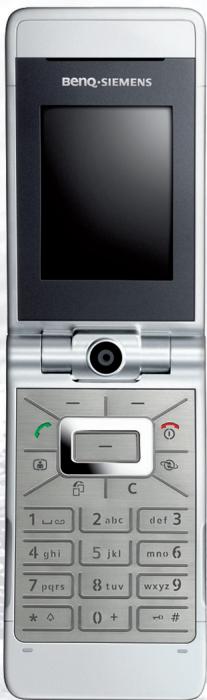
Safety precautions
Information for parents
Please read the operating instructions and safety precautions carefully before use. Explain the content to your children and the hazards associated with using the phone.

Remember to comply with legal requirements and local restrictions when using the phone. For example, in aeroplanes, petrol stations, hospitals or while driving.

Mobile phones can interfere with the functioning of medical devices such as hearing aids or pacemakers. Keep at least 20cm / 9 inches between phone and pacemaker. When using the mobile phone hold it to the ear which is further away from the pacemaker. For more information consult your doctor.

Tones, music and handsfree talking are reproduced through the loudspeaker. Do not hold the phone to your ear when it rings or when you have switched on the handsfree function. Otherwise you risk serious permanent damage to your hearing.

Only use original batteries (100% mercury-free) and -charging devices. Otherwise you risk serious damage to health and property. The battery could explode, for instance.

Small parts such as the SIM card, sealing stop, lens ring and lens cap as well as the Micro SD Card can be dismantled and swallowed by small children. The phone must therefore be stored out of the reach of small children.

Permanent hearing loss may occur if you use ear- or headphones at high volume. You can adapt over time to a higher volume, which may sound normal but can be damaging to your hearing. Set your volume to a safe level. If you experience ringing in your ears, reduce the volume or discontinue use of your system.

The mains voltage specified on the power supply unit (V) must not be exceeded. Otherwise the charging device may be destroyed.
The power supply must be plugged into an easily accessible AC mains power socket when charging the battery. The only way to turn off the charging device after charging the battery is to unplug it.

You may only open the phone to replace the battery (100% mercury-free), SIM and Micro SD Card. You must not open the battery under any circumstances. All other changes to this device are strictly prohibited and will invalidate the guarantee.

All electrical and electronic products should be disposed of separately from the municipal waste stream via designated collection facilities appointed by the government or the local authorities.
This crossed-out wheeled bin symbol on the product means the product is covered by the European Directive 2002/96/EC.
The correct disposal and separate collection of your old appliance will help prevent potential negative consequences for the environment and human health. It is a precondition for reuse and recycling of used electrical and electronic equipment.
For more detailed information about disposal of your old appliance, please contact your city office, waste disposal service or the shop where you purchased the product.

The phone may cause interference in the vicinity of TV sets, radios and PCs.

Do not place the phone near to electromagnetic data carriers such as credit cards and floppy disks. Information stored on them could be lost.

Use only original accessories. This will avoid potential risks to health or property and ensure compliance with all relevant regulations.
Improper use will invalidate the guarantee! These safety instructions also apply to original accessories.
As mobile devices offer a range of functions, they can be used in positions other than the head, such as on the body. In this case, separation distance of 1.0cm is required.
Bluetooth®
Your phone has a Bluetooth interface. This makes it possible to establish a wireless connection of your phone with a headset of a car kit, or with other Bluetooth-enabled devices.
In order to establish a secure link between the devices and to prevent a third party from having access to your phone, you should observe the following points:
- The initial connection between two devices, what is called "pairing", should take place in familiar surroundings.
- Both devices must be able to identify themselves one time by using a password/PIN. To ensure sufficient security, you should choose a 16-digit number combination for a password that would be difficult to guess (if a PIN has not been assigned).
- An automatic connection acceptance ("connection without confirmation") should only be used in exceptional cases.
- In general, only trustworthy devices should be linked in order to minimize security risks.
- You should restrict the "visibility" of your phone if possible. This will make it much more difficult for unknown devices to establish a connection with your phone. To do this, deactivate visibility in the Bluetooth menu (page 118).
- The name of your phone is transmitted in a Bluetooth connection. The factory default is the "Bluetooth ID". The first time Bluetooth is activated, or later in the Bluetooth menu, you can change this name (Bluetooth name, page 119).
- If Bluetooth is not needed, this function should be deactivated.
Before using Bluetooth accessories, or a mobile phone inside a vehicle, check the vehicle user guide for any limitations on the use of these products.
Phone overview
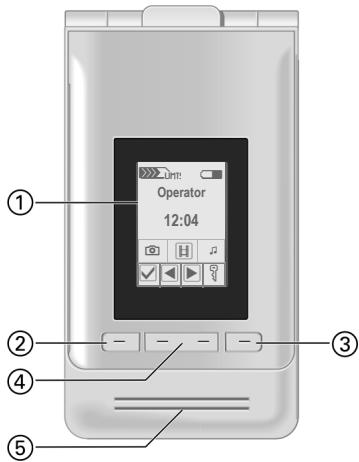
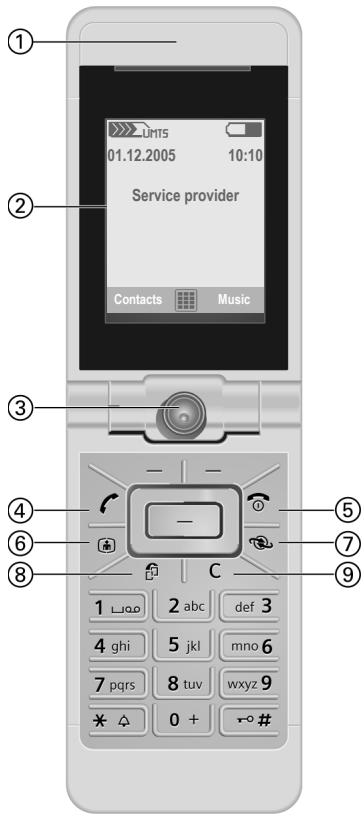
Clamshell closed
① Outer display
② - ④ Outersoftkeys
The current functions of these keys are shown in the bottom line of the outer display as symbols.
Use functions while clamshell is closed. The outer softkeys have no function if the clamshell is open.
In standby mode:
② Start the selected application.
③ Press and hold: Lock/unlock outer softkeys.
④ Scroll to select available application (page 9).
Incoming call:
Accept call in handsfree mode (not for video call).
③ X Reject call.
④ Switch off ringtone for this call.
During a call:
② 0 / 0 Switch on/off microphone (mute).
③ ✘ End call.
④ L / L Control volume.
⑤ Loudspeaker
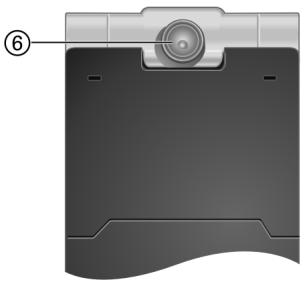
⑥ Camera lens
Clamshell open
① Earpiece
② Main display
③ Camera lens
④ Call key
Dial the number/name displayed/highlighted, take calls. Open the call log lists in standby mode.
⑤ On/Off/End key
- Switched off: Press and hold to switch on.
- In standby mode: Press and hold to switch off. Press briefly to open the switch off menu (page 17).
- During a conversation or in an application: Press briefly to finish.
- In menus: Press and hold to go back to standby mode.
⑥ Video call key
Press to open the video mode.
Internet key
Open the browser if not predefined.
Task key
Press briefly: Open task switcher. Press and hold: Open the main menu.
⑨ C Clear key
Text input: Clear characters one by one in text input mode. Press and hold to delete text quickly.
Lists/Input fields: Delete highlighted item(s).
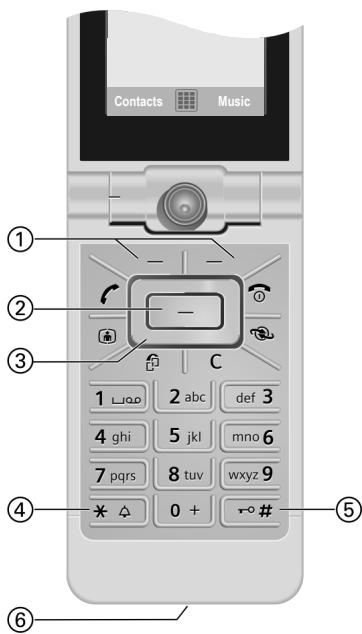
① Softkeys
The current functions of these keys are shown in the bottom line of the main display as Text symbol.
② Navi key
- Press the navi key to select an option/list item or to start an application/function.
- In standby mode, press to open the main menu.
③ Navi ring
In standby mode:

Press briefly: Open the user profiles.
Press and hold: Start voice dialling.

Open the Contacts.

Open the Inbox.

Start the Media player.
In lists, messages and menus:

Scroll up and down.
During audio playback:

Control volume.

Switch to previous/next track.
④ Ringtone
- Press and hold in standby mode: Switch all audible signals on/off (except alarm). Vibration is activated automatically.
- Press and hold while an incoming call is signalled: Switch off ringtone for this call only.
⑤ Key lock
In standby mode: Press and hold to switch key lock on/off. Only emergency numbers can be dialled.
While dialling: Enter wildcard?"".
⑥ Connection socket
For charger, headset etc.
Opening/closing the clamshell
Clamshell closed
- In standby mode you can start one of the following applications:

Start the camera in picture mode (page 52).

Start the camera in video mode.

Open the music tab of the Media Player (page 106) and start audio playback.
- Camera active: You can take pictures/ record videos.
- Media player active: You can select tracks and control playback.
- Task switching: You can control only one application at the same time.
- Incoming call: You can accept the call in handsfree mode using the outer softkeys (not for video calls).
- Voice dialling: If a headset is plugged into the phone you can activate voice dialling by pressing the activation key on the headset.
Opening the clamshell
If you open the clamshell a logo is displayed on the outer display. The outer softkeys are deactivated.
Opening the clamshell has different effects depending on the current situation:
-
In standby mode: The key lock is released automatically. The opening melody is played if activated. Press any key to end playback.
-
Incoming call: You accept the call.
You can change this setting to manually accept the call after the clamshell is opened (page 125). - Open applications remain open.
- Open requests and notifications, e.g. in dialogs, are accepted.
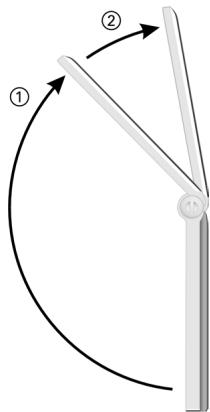
Clamshell positions
When opening the clamshell you can engage it in two different positions:
Position ①:
This is the ideal position for video calls or for self-timing in camera mode. Placed on a desk you can comfortably have a conversation with the person shown in the display or take a photo in self-timing mode.
Position ②:
This is the normal position when holding the phone to your ear.
Closing the clamshell
Closing the clamshell has different effects depending on the current situation:
- In standby mode: The closing melody is played if activated. Press any outer softkey to end playback.
- During calls: All active/held calls are ended.
If you talk in handsfree mode (page 35), a request is displayed on the outer display whether or not you want to continue the active call.
- Camera active: If the camera is in the foreground, the camera remains open in the selected mode.
- Media Player active: If the music tab is selected or during audio playback, the application remains open, even if used in the background.
- Data connections: Ongoing data transfer (e.g. sending/receiving SMS/MMS or retrieving e-mail, data download, synchronisation) and open Bluetooth or server connections (logged into server for Instant messaging) are not affected by closing the clamshell.
- All other active applications are closed.
Unsaved data is saved automatically. - Open requests and notifications, e.g. in dialogs, are rejected.
Display symbols
| Menu (only outer display) | |
| Camera in picture mode | |
| Camera in video mode | |
| Media player.audio playback) | |
| Main menu (only main display) | |
| Contacts | |
| Call records | |
| Internet | |
| Camera | |
| Messages | |
| Organiser | |
| Games | |
| Media player | |
| Video telephony | |
| Extras | |
| My stuff (file management) | |
| Settings |
| Display symbols (selection) | |
| UMTS | Signal strength |
| ←→ | Charging |
| Battery charge level, e.g. 50% | |
| All calls are diverted | |
| Ringtone off | |
| Alarm set | |
| Keypad locked | |
| Auto answer feature on | |
| Bluetooth activated | |
| Bluetooth visible for others | |
| Bluetooth during data transfer | |
| Call accepted at Bluetooth device | |
| Inst. Message login | |
| Events (selection) | |
| ! | SMS memory full |
| Missed calls | |
| Phone memory full | |
| Message symbols (selection) | |
| Unread | |
| Read | |
| Draft | |
| Sent | |
| MMS not sent | |
| MMS received | |
| MMS read | |
| MMS with DRM contents (page 20) | |
| E-mail forwarded | |
| E-mail with attachment | |
| Voice mail received | |
| Camera symbols (outer display) | |
| ☆ | Open brightness settings |
| Open zoom settings | |
Getting started
Your phone's displays are covered with a protective film. Remove this film slowly before using the phone.
In rare cases, static discharge may cause discolouration at the edges of the display. However, this will disappear within approx. 10 minutes.
Inserting the SIMcard/ Micro SD card
The service provider supplies you with a SIM card on which all the important data for your line is stored. If the SIM card has been delivered in credit-card size, snap the smaller segment out and remove any rough edges.
Attention
Insert the SIM card before inserting the Micro SD Card.When the Micro SD Card is wrongly inserted into the SIM card slot, it cannot be removed!
The Micro SD Card gives your phone a very large memory capacity. This allows you to save picture/video files and sound recordings, for example. However, you can also use this Micro SD Card like a floppy disk to save any other files.
You can access the list of folders and files in the My stuff menu (page 110). If you assign a file from the Micro SD Card to a function in the phone such as a ringtone, the file is copied to the phone memory.
New Micro SD Card
- Create a backup copy of the data on the old Micro SD Card on a PC.
- Format the new Micro SD Card.
- Copy the data from the PC onto the new Micro SD Card.
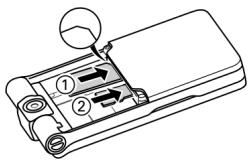
- Place the SIM card in front of the slot with the contact surface facing downwards ①. Ensure that the chamfered corner is in the correct position.
- Place the Micro SD Card in front of the slot ②.
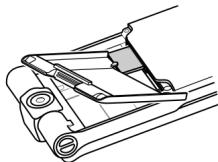
- Use the battery cover as illustrated to press the SIM card slightly into the slot.
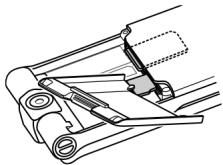
- Use the battery cover as illustrated to press the Micro SD Card slightly into the slot.
- To remove one of the cards use the corner of the battery cover to release or push in the SIM card and the Micro SD Card. Otherwise you risk damaging the SIM card release mechanism. The card is ejected.
Please observe the manufacturer's operating instructions that come with the Micro SD Card.
Inserting the battery
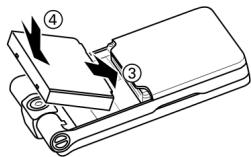
- Insert the battery into the phone ③ , then press it downwards ④ until it engages.
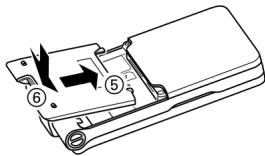
- To close the cover place the cover in position, so that the check marks get caught in the cut-outs ⑤ . Then press it downwards, until it clicks into place ⑥ .
Removing the battery
Attention
Please switch off your phone before removing the battery!
- To open the cover, push the cover open and lift it up.

- To remove the battery, press against the battery in the direction indicated ⑦ and lift the battery up ⑧ and out.
Charging the battery
The battery is not fully charged when delivered. Plug the charger cable into the bottom of the phone, plug the power supply unit into a mains power socket and charge for at least two hours.
Only use the plug-in power supply included in delivery!
As an alternative, the battery can be charged via the USB port (Accessories, page 135).
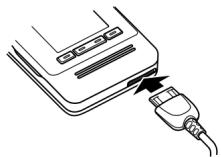

Display during charging.
Charging time
An empty battery is fully charged after about 2 hours. Charging is only possible within a temperature range of +5^ to +45^ . If the temperature rises/falls 5^ above/below this, the charge symbol flashes a warning. The mains voltage specified on the power supply unit must not be exceeded.
The charge level of the battery is only displayed correctly after an uninterrupted charging/discharging cycle. You should therefore not remove the battery unnecessarily and where possible not end the charging process prematurely.
The power supply unit heats up when used for long periods. This is normal and not dangerous.
If the battery is removed for longer than 30 seconds, the clock must be reset.
Operating time and temperature
The operating time depends on the operating conditions. Extreme temperatures considerably reduce the phone's standby time. Avoid placing the phone in the sun or on a heater.
The phone may heat up during data transfer or when using UMTS. This is normal and not dangerous.
Talktime:
UMTS: up to 210 minutes
- GSM: up to 270 minutes
Standby time:
UMTS: up to 250 hours
- GSM: up to 300 hours
The talktime and standby time depend on the network environment. For more examples of functions that reduce the standby time, e.g. animated screenshot, fast search, see page 138.
Charge icon not visible
If the battery has been discharged fully, the charge icon is not immediately visible when the power supply is plugged in. It will appear after up to two hours. In this case the battery is fully charged after 3 to 4 hours.
Display while in service
Charge level display during operation (empty-full):

Battery low warning
When the battery is almost empty you are warned twice. The first warning appears when the battery has 10 minutes of power remaining.
The second warning appears when the battery has 1 minute of power remaining.
OK Press to confirm warning.
Powering off
If the battery is completely empty, the phone switches off automatically.
If the phone powered down because of low battery, it will power on again automatically when charged.
Switching phone on/off, entering PIN
Switching the phone on
Open the clamshell.

Press and hold On/Off/End key to switch phone on.
Enter PIN or confirm request (page 27).
Your greeting message is displayed if activated (page 117).
The phone switches on automatically when:
- You charge the phone via USB or
- an alert or calendar event appears. If you do not respond, the phone switches off again. If you respond to the alert, the PIN is required.
Yes
Press to activate.
Or
Offline
Press to start in offline mode (page 18).
If you close the clamshell before entering the PIN, the phone is switched off again.
Entering the PIN
The SIM card can be protected with a 4 to 8-digit PIN.

Enter PIN using number keys. Asterisks appear to ensure nobody can read your PIN on the display. Correct with C.
OK
Confirm. Logging on to the network will take a few seconds.
You can change the PIN (page 26). To clear SIM card barrings, see page 26.
Switching the phone off

Press and hold On/Off/End key.
Or

Press briefly and select one of the following options.
Switch off
Switch phone off. Phone switches on automatically if alarm or calendar event occurs.
Offline mode
Phone is not switched off, but has no connectivity (see page 18).
The shutdown is interrupted, if:
- some files occur to be not saved or
- the phone is receiving an MMS.
A warning message is displayed. Press Yes to continue shutdown. Files are not saved. Message is received when phone is switched on again.
Offline mode
In offline mode you can operate many phone functions, but you are not connected to any network (you are not available for incoming calls and you cannot initiate a call).
This is the mode to be used in aircrafts.
Switching between offline and online mode:
Open the clamshell.

Press briefly and select Offline mode/Online mode.

Confirm request.
Emergency number (SOS)
Only to be used in real emergencies!
Open the clamshell to use the keypad.
By pressing the softkey SOS you can make an emergency call on any network without a SIM card and without entering a PIN (not available in all countries).
If the clamshell is open and key lock is active (page 8), only emergency numbers can be dialled.
Switching on your phone for the first time
When you switch on the phone for the first time or after the battery has been removed, you are prompted to set the time/date.

Select if you want to enter time/date.
Time zones

Select the desired setting and change time zone in world map.

Select a city in the selected time zone.

Open menu and select Set time zone to save.
Time/Date
Set the clock and date so that it displays the correct time. You will not have to make this setting again.

First enter date (day/month/year), then time (24 hours).

Press to update time and date.
Further options and settings on page 129.
You can activate Auto time mode (page 130) to display local time by network if the network supports this function.
General instructions
Standby mode
The phone is in standby mode and is ready for use when the name of the service provider appears on the display.
Clamshell closed

Press to end call/function.
Clamshell open

Press and hold the On/Off/End key to return to standby mode from any situation.
The following information might be displayed on either display:
Logo
If the logo or wallpaper is enabled (page 116) the logo is displayed.
Clock
The current time is displayed.
CB messages
If CB display is enabled (page 77) a CB ticker with the latest CB message is displayed, scrolling horizontally if needed. The CB ticker is only available if the alert region is not used, i.e. there are no current events.
Alert region
In the alert region the following message types can be displayed:
- New entries in missed calls list, voice mail or inbox.
- New content via Bluetooth.
- Missed calendar events.
The number of new entries is displayed (e.g. 1 Missed call).
Signal strength

LUMTS
Strong signal.

TS
A weak signal reduces the call quality and may lead to loss of the connection. Change your location.
If the phone cannot obtain network service after 15 minutes the power save mode is used. The phone only attempts to acquire service in intervals.
Connectivity
Your phone supports different methods for transmitting data in the mobile network:
- The fastest method is UMTS (Universal Mobile Telecommunications System). If you use UMTS, you can make video calls in high quality. You can be connected to the Internet permanently. Only the current transmission time is charged by the network operator. Some service providers do not yet support this service.
- GPRS (General Packet Radio Service) is another method for transmitting data in the mobile network. With GPRS you can be connected to the Internet permanently, as well, if the network has sufficient capacity. Only the current transmission time is charged by the network operator.
- GSM (Global System for Mobile Communications) is a fully digital standard for mobile networks mainly used for voice calls and text messages (SMS).
Depending on the surrounding network and your provider, the different methods are used automatically. Depending on your provider you may set which method to use (page 134).
Digital Rights Mgmt. (DRM)
Remember that your phone has digital rights management. The use of downloaded pictures, sounds or applications can be restricted by the suppliers, e.g. copy protection, use for a limited period of time only, number of times they can be used, etc.
User guide
Symbols
The following symbols are used to explain operation:


Options
Enter numbers or letters.
On/Off/End key
Call key
Displays a softkey function.

Press the navigation key down, to call up the menu for example.
Display navigation function. Press navigation key in the direction indicated.

Function dependent on service provider, may require special registration.
Main menu
The main menu is displayed graphically with symbols.

Call up from standby mode.

Select application symbols.

Start application.
Tabs
Tabs allow fast access to information and applications.
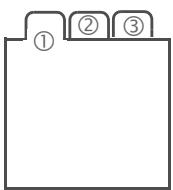
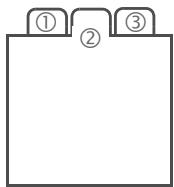

Switch between tabs.
While editing a tab, you navigate within the input field.

Leave input field, to switch to the next tab.
Navigation key
The symbol in the centre of the lower line of the main display shows the current function when the navigation key is pressed down vertically.
In this User Guide the symbol is used universally when the navigation key is pressed down vertically. The following functions are available (selection):
| Display main menu | |
| Confirm/select | |
| Change (open options list) | |
| Call, accept call | |
| Edit | |
| Camera | |
| Send | |
| View | |
| Save | |
| Play | |
| Pause | |
| Stop | |
| Record | |
| Zoom | |
| Insert calendar | |
| Insert picture | |
| Insert contact |
Outer softkeys
If the clamshell is closed, you can use the outer softkeys to control the phone. The symbols in the bottom line of the outer display show the current function.


Confirm/select

Accept call in handsfree mode


Take picture/record video

Play

Pause

Stop

Zoom
Menu control
The steps needed to reach a function are shown in a condensed form in the user guide, e. g. to set ringtones


Ringtones
This comprises the following steps:

Open main menu.


Select to open Settings menu.
Confirm selection.

Select Ringtones function.

Confirm selection.
Standard functions
Options menu
The list contains functions that are offered in several options menus.
Options
Open menu.
| <New entry> | Create new entry. |
| Save | Store entry. |
| Change | Open options list. Select option and confirm. |
| View | Display entry. |
| Details | Display properties of selected entry. |
| Details | Display additional information about message (e.g. date, sender, save location, attached files, size) |
| Delete/Delete all | Delete entry/delete all entries after confirmation. |
| Exit | Exit application Confirmation request with if you want to save changes. |
| Edit | Open entry to edit/open input field to edit. |
| Text input meth. | Open input method menu (page 28). |
| Text edit menu | Open text edit menu (page 29). |
| Sort by | Select sort criterion (e.g. alphabetical, type, status, sender, date/time). |
| Set as | e.g. set picture as wallpaper, logo, screensaver, melodies as ringtones, open/close melody. |
| Rename | Rename selected entry. |
| Send | Select transmission type (e.g. MMS, SMS, Instant Message, e-mail or Blue-tooth) and send entry. If you send via Bluetooth, select Search/Known devices/Last connected (page 119). If a DRM protected file is selected, the send option is not available. |
| Create message | Select transmission type (see above) and create message. If contact/call list entry is selected, it is used for receiver data. |
| Reply/ Reply to all | The sender becomes the recipient, "Re." is placed in front of the subject matter and the received text is transferred into the new message. |
| Capacity/ Memory status | Display memory status for respective application, phone, SIM card or the Micro SD Card. If memory is insufficient to save required data, a notification is displayed. Confirm with to open Memory assistant (see below). |
Fast list search
Pressing number keys while you are in alphabetically ordered lists (e.g. Contacts, My Stuff) opens a fast search window.

Enter text to jump quickly to the entry that corresponds most closely with the entered text.
Memory assistant
The memory assistant is launched automatically if memory is low.
A notification is displayed on either display depending on whether or not the clamshell is open.
If the clamshell is closed, you can start the memory assistant by opening the clamshell.
Start via main menu:
(Only if the clamshell is open)




All saved folders and files in phone memory and on Micro SD Card are listed (page 13). Display name and of folders and number of files.
If the Micro SD Card is inserted, folders/files are organised on a separate tab.

Select tab (phone memory/ Micro SD Card).

Select folder/file.

Open menu and select function (standard functions page 22).
To free up required memory open file before deleting or delete files directly.
Mark mode
Within some applications (e.g. Contacts/My Stuff) one or more entries in a list can be highlighted to carry out a function jointly.

Open menu and select Mark.

Select entry/entries.

Mark/unmark entry.
Mark options
Depending on the current situation, different functions will be offered.

Open menu.
Mark/
Mark/unmark selected entry.
Unmark
Mark all entries.
Mark all
Unmark all marked entries.
| Delete marked | Delete all marked entries. |
| Send marked | Send marked messages (e.g. e-mails from draft folder). |
| Retrieve marked | Retrieve marked e-mails (if only header is retrieved). |
| Remove marked | Remove selected contact(s) e.g. from a distribution list or group. |
Menu speed dialling
All menu functions are numbered internally. A function may be selected directly by entering these numbers in sequence.
E.g., write new SMS (from standby mode):

Press this key to display the main menu.

Press this key for Messages.

Press this key to create new message.

Press this key for SMS.
Task switching
The phone supports the use of multiple applications at the same time. The function you are currently using is in foreground, the other open applications are in the background.
You can switch from the current application to the main menu, standby mode or to any open application.
Open the clamshell.

Press and hold to open the main menu.

Press briefly. All currently open applications are listed.
You can directly switch to the Main Menu, Home or to any open application:
Menu/Home/
If you are holding a call, select Current call to return to the call.
Task switching options
If any applications are currently open, an options menu is offered.
Options Open menu.
Switch to Move highlighted application to foreground.
Close
Close highlighted application.
Close all
Close all open applications except main menu.
Security
The phone and SIM card are protected against misuse by several security codes.
Keep these confidential numbers in a safe place where you can access them again if required.
PIN codes
| PIN | Protects your SIM card (personal identification number). |
| PIN2 | This is needed to set the charge detail display and to access additional functions on special SIM cards. |
| PUK | Key code. Used to unlock SIM cards after the wrong PIN has been entered repeatedly. |
| PUK2 | |
| Phone | Protects your phone. Must be entered at the first security setting. |
| code |
Security PIN codes Select function.
PIN control
The PIN is usually requested each time the phone is switched on. You can deactivate this feature but you risk unauthorised use of the phone. Some service providers do not permit deactivating the control.
On/Off Activate/deactivate PIN control.

Enter PIN code.

Confirm.
Change PIN
You can change the PIN to any 4 to 8-digit number you find easier to remember.

Enter current PIN code and confirm with

Enter new PIN code and confirm with

Re-enter new PIN code and confirm with

Confirm.
Change PIN2
(Display only if PIN2 is available) Proceed as with Change PIN.
Change phonecode
You define the phone code (4-8 digits) when you call up a phone-code protected function for the first time. It is then valid for all phone-code protected functions.
To change phone code proceed as with Change PIN.
Following the third unsuccessful attempt, access to the phone code and the functions that use it is denied. Contact the Service Centre (page 142).
Clearing SIM card barring
If the PIN is entered incorrectly three times, the SIM card is barred.

Enter new PIN code and confirm with

Enter new PIN code again and confirm with

Enter PUK code (MASTER PIN) provided by your service provider with the SIM card in accordance with the instructions and confirm with

Confirm.
If the PUK (MASTER PIN) has been lost, please contact your service provider.
Preventing accidental activation
Even if PIN use is deactivated (page 17), confirmation is required to switch on the phone.
This prevents accidental activation of the phone, e.g. when you are carrying it in a bag or when you are travelling in an aircraft.

Press and hold.

Press. The phone switches on.

Press or take no action. The phone does not switch on.
Connecting to Windows® PCs
You can connect your phone to a Windows® PC using Bluetooth or a data cable. The Windows® PC program MPM (Mobile Phone Manager, page 136) enables you to backup data on your Windows® PC and to synchronise the contacts with Outlook®, Lotus Notes™ and other Siemens phones (as well as some Gigsets). You can download the Mobile Phone Manager from the Internet at:
www.BenQ-Siemens.com/ef81
The data cable is included in delivery. You find the MPM program on the CD ROM also included in delivery.
Text entry
Text entry without T9
Press number key repeatedly until the required letter appears. After a brief interval the cursor will advance. Example:
2abc
Press once briefly to write the letter a, twice to write b etc.
Press and hold to write the number.
A, a, 1-9
Unusual characters and numbers are displayed after the relevant letters.
C
Press briefly to delete the letter left of the cursor or marked text. Press and hold to delete text quickly.

Move the cursor (forwards/back).

Move the cursor (up/down a line).

Press briefly: Swap between: abc, Abc, ABC, T9 abc, T9 Abc, T9 ABC, 123.
Press and hold: Input method menu is displayed.
The sequence of the input methods is language-dependent.

Press briefly: Special characters are shown.
Press and hold: Open edit menu.

Press once/repeatedly:
$$ , \cdot ,! " 0 + - () @ / : _ {-} $$
Press and hold: inserts 0.

Press to insert space. Press twice to insert line feed.
Special characters

Press briefly. The symbols chart is displayed:
| 1) | i | - | ; | . | , | ? | ! | |
| + | - | " | , | : | * | / | ( | ) |
| \ | ¥ | £ | € | @ | \ | & | # | |
| [ ] | ] | % | ~ | < | = | > | ||
| | | ^ | ` | Γ | Δ | Θ | Λ | 三 | |
| Π | Σ | Φ | Ψ | Ω |
1) Line feed


Navigate to characters.

Confirm.
Text edit menu
For text entry:

Press and hold: The edit menu is displayed:
Insert symbol
Spell word
Mark text
Copy/Paste
Input language
Selecting the input language
Select the language in which you want to compose your message.
Options
Openeditmenu.
Input language
Select.

Select language. If you select Automatic, the Input language is based on the Display language (page 126).

Confirm, the new language is set.
Languages with T9 support are marked with the T9 symbol. The input language setting applies to all applications.
Marking text
You can highlight text in order to copy and paste it to a different place.

Press and hold. The edit menu is displayed.
Mark text
Activate highlighting mode.


Scroll to highlight text.
Copy
Copy highlighted text to the clipboard.
Paste
Paste the copied text into the desired location.
Text entry withT9
"T9" deduces the correct word from the individual key entries by making comparisons with an extensive dictionary.
Activating, deactivating T9

Press and hold: Input method menu is displayed.
Select desired input mode.
Select
Activate/deactivate T9.
Writing with T9
The display changes as you proceed.
It is best if you finish a word without looking at the display.
Simply press the keys once where the relevant letter is located. For "hotel", for example:

Press briefly for T9 Abc then

A blank or moving the cursor to the right ends a word.
Do not use special characters such as Å. Use standard characters instead, e.g. A; T9 will do the rest for you.
T9 Text Input is licensed under one or more of the following: U.S. Pat. Nos. 5, 187,480, 5,818,437, 5,945,928, 5,953,541, 6,011,554, 6,286,064, 6,307,548, 6,307,549, 6,636,162 and 6,646,573; Australian Pat. Nos. 727539, 746674 and 747901; Canadian Pat. Nos. 1,331,057, 2,302,595 and 2,227,904; Japan Pat. No. 3532780, 3492981; United Kingdom Pat. No. 2238414B; Hong Kong Standard Pat. No. HK1010924; Republic of Singapore Pat. No. 51383, 66959 and 71979; European Pat. Nos. 0 842 463 (96927260.8), 1 010 057 (98903671.0), 1 018 069 (98950708.2); Republic of Korea Pat. Nos. KR201211B1 and KR226206B1. People's Republic of China Pat. Application Nos. 98802801.8, 98809472.X and 96196739.0; Mexico Pat. No. 208141; Russian Federation Pat. No. 2206118; and additional patents are pending worldwide.
T9-word suggestions
If several options are found in the dictionary for a key sequence (a word), the most probable is displayed first. If the word you want has not been recognised, the next suggestion from T9 may be correct.
The word must be shown highlighted. Then press

The displayed word is replaced with a different word. If this word is also incorrect, press again

Repeat until the correct word is displayed.
If the word you want is not in the dictionary, it can also be written without T9.
To add a word to the dictionary:
Spell
Select.
The last suggestion is deleted and the word may now be entered without T9 support. Press OK to add it automatically to the dictionary.
Correcting a word

Move left or right, word by word, until the required word is highlighted.

Scroll through the T9 word suggestions again.

Deletes the character to the left of cursor and displays a new possible word!
Within a "T9-word", individual letters may not be edited without first removing the T9 status. In most cases it is better to rewrite the complete word.

Set a full stop. A Word is concluded if it is followed by space. Within a word, full stop represents an apostrophe or hyphen:
e.g. provider.s = provider's.

Moving the cursor to the right ends the word.
Input method

Press briefly: Switch between: abc, Abc, T9 abc, T9 Abc, 123. Status shown in top line of display.
Press and hold: All input variants are displayed.
Special characters

Press briefly: Select special characters (page 28).
Press and hold: Open edit menu (page 29).
Text templates
Text templates are short excerpts of texts that you can insert in your messages (SMS, MMS).
Creating text templates


The list of existing templates is displayed.
Options
Open menu and select New template.

Write text.
Options
Open menu and select Save.
If you want to create a new message from the template menu select Options New message.
Inserting text templates
SMS/MMS:

Write message.
Options
Open menu and select Insert text.
Template
Select.

Select a text template from the list and confirm with
The text template is inserted in the message to the right of the cursor.
Calling
With your phone you can make conventional (voice) calls as well as video calls. However, it is not possible to make a voice call and a video call at the same time. You can make only one video call at a time.
If the clamshell is closed:
- You can accept calls in handsfree mode.
- You can continue voice calls in handsfree mode.
- You cannot initiate calls.
- You cannot accept or continue video calls.
Video calls
(Only if the clamshell is open)
To initiate a video call (in standby mode):


Or

Press the video call key.
The phone switches to video call mode. A preview is displayed. You can enter a number (see Dialling with number keys).
You can also decide to make a video call after you have already entered a number or selected a number from a call list.
The called party as well as the network have to be capable of handling video calls. If you are calling a number that does not meet these requirements you will be offered the option of making a voice call instead.
Dialling with number keys
(Only if the clamshell is open)
The phone must be in standby mode.

Enter the number (always with prefix/international dialling code).

Press the Call key.
Or

Press.
Or

Press the video call key to make a video call.
The displayed number is dialled.
Ending a call
Clamshell closed

Press to end call.
Clamshell open

Press the End key briefly. Press this key even if the person on the other end of the line has hung up first.
You can also end a call by closing the clamshell.
In conjunction with a Car kit or headset or when you are talking in handsfree mode closing the clamshell will not end the call.
Setting the volume
(Only during a call)
Clamshell closed

Regulate the volume.
Clamshell open

Regulate the volume.
If a Car Kit is used, its volume setting will not affect the usual setting on the phone.
Redialling previous numbers
(Only if the clamshell is open)
To enter the Dialled calls list (in standby mode):

Press the Call key.
To redial the number last called:

Press the Call key again.
Or

Press the video call key to make a video call.
To radial other numbers that were dialled previously:

Pick out the number from the list.

Press the Call key.
Or

Press the video call key to make a video call.

Press and hold to switch microphone off.
Enter international dialling codes:

Press and hold until a "+" is displayed.
Use number memo:
You can enter a number during the call. The person to whom you are speaking can hear these entries. When the connection has ended you can save or dial the number.
Accepting a call
The phone must be switched on. An incoming call is indicated by a special screen on either display:
A number and the name of the caller transmitted by the network will be displayed if the number is saved in the contacts. A picture of the caller may also be displayed (page 41).
If the incoming call is a video call a video of the caller is displayed. However, the transmission of the video may be suppressed by the caller.
Clamshell closed

(Not for video calls)
Press to accept the call in handsfree mode.
Depending on your settings (page 125) you can accept a call by simply opening the clamshell.
Clamshell open

Press.


Press.


Press to accept a video call.
Video call
(Only if the clamshell is open)
If the incoming call is a video call and Show my image is deactivated (default, page 125) Do you want to show your video image? is displayed. You have the following options:

Your video is shown to the caller.

The video mute picture is shown to the caller (Select image, page 125).
Warning!
Please make sure you have accepted the call before holding the phone to your ear. This will avoid damage to your hearing from loud ringtones.
Additional information

Missed call display.
If the clamshell is closed:

Press to switch silent mode on/off.

Press and hold to switch key lock on/off.
If the clamshell is open:

Press and hold to switch silent mode on/off.

Press and hold to switch key lock on/off.
Rejecting a call
Clamshell closed

Press.
Clamshell open

Press.

Press briefly.
You can also reject the call by closing the clamshell.
Handsfree talking
You can put the phone aside during a call. You can then hear the caller via the loudspeaker.
Clamshell closed
If you accept a call with the clamshell closed, handsfree talking is activated automatically.
Handsfree talking is deactivated automatically, if you open the clam-shell during a call.
Clamshell open
Options Open menu.
Hands free
Activate/deactivate handsfree talking and confirm with
If you close the clamshell while in hands-free mode, a request is displayed on the outer display whether or not you want to continue the call. If you do not answer the request the call is ended automatically after a short time.
A video call is ended without request if you close the clamshell also when in handsfree mode.
Warning!
Always switch off "handsfree talking" before holding the phone to your ear! Otherwise you will damage your hearing!
Additional information
During a video call the speakerphone is activated by default.
Swapping between 2 calls

Not during video calls)
Establish a second connection
(Only if the clamshell is open)
You can call another number during a call.

Dial the new number and press . The current call is put on hold.
Swapping calls
When the new connection is established you can swap between calls.
Clamshell closed

Press.
Clamshell open
Options Open menu and select Swap.
Or

Press.
Incoming calls during a call
You may need to register for this service with your service provider and set your phone accordingly. During a call, you may be advised that there is another call waiting. You will hear a special tone during the call (page 123). You have the following options:
Accepting the waiting call in addition to the first
Accept the waiting call.
Depending on your settings (page 125) you can also accept the waiting call by simply opening the clamshell.
If the clamshell is closed, press to swap between the calls.
Or (if the clamshell is open)
Swap Accept the waiting call.
The current call is put on hold.
To swap between the two calls when two connections are established, always press
Rejecting the waiting call

Press.
Or (if the clamshell is open)

Press.
Accepting the waiting call, ending the current call
(Only if the clamshell is open)

End the current call.

Accept the new call.
Ending calls
Clamshell closed

Press. You return to the held call.
Clamshell open

Press the End key briefly.
Or
Options
Open menu and select Drop.
After the Return to held call? display, you have the following options:

You accept the held call.

You end the held call.
Conference
Not during video calls)
Call up to 5 parties one by one and link them together in a multiparty call. Some of the functions described may not be supported by your service provider or may have to be enabled specially.
You cannot establish a conference when the clamshell is closed.
When closing the clamshell you can continue an ongoing conference if you are in handsfree mode (page 31).
Once a call has already been established:
Options
Open menu and select Hold call. The current call is put on hold.

Dial a new number. When the new connection is established ...
Options
... open menu and select Conference. The held call is joined.
Repeat procedure until all participants are linked together.
Ending a conference
Ending all calls

Press.
Or (if the clamshell is open)

Press.
Or close the clamshell.
All calls in the multiparty conversation are ended.
Ending one call
(Only if the clamshell is open)
Options
Open menu and select Drop. Then select the call to be ended.
After the Return to conference call? display, you have the following options:
Yes
You return to the conference.
No
You end all calls.
Private call
(Only if the clamshell is open)
You can remove a party from a conference and make a private call to that party while the conference is put on hold.
Options
Open menu and select Private. Then select the entry for the private call.
You can swap between the private call and the conference:
Options
Open menu and select Swap.
When your private call is finished, you have the following options:

End the private call and return to the conference.
Or
Options
Open menu and select Conference.
The private call is joined to the conference again.
Call options
(Only if the clamshell is open)
The following functions are only available during a call:
Options Open menu.
| Mute call/ Mute sound | The person on the other end of the line cannot hear you (muting). Also: Press and hold * . Clamshell closed: Press ☑/O. In video calls your video is still shown on the other end of the line. |
| Hands free | Call via the loudspeaker. |
| Upgrade to vid/ Switch to voice | Change the current voice call to a video call or vice versa. The current call is ended and a new connec tion with the same partner is established. |
| Transf ac- cess'ry/ Transfer phone | Switch the sound of the current call to the headset and back to the phone. |
| Add to Contacts | Select To a new contact/ To exist. contact. Select number type to store the number in the contacts. Confirm save notification with ☐. |
| Not during video calls: | |
| Hold call | Hold current call. |
| Swap | Swap between calls. |
| Conference | (see page 36) |
| Drop | End a call in a conference. |
| Private | Make private call in a conference (see page 37). |
| Transfer | Connect two calls in a conference and disconnect oneself. |
| DTMF | Enter tone sequences (numbers) for remote inquiries to an answering machine. |
| Only during video calls: | |
| Mute video | The incoming video is mut-ed and the video mute pic-ture is sent (Select image, page 125). |
| Pause inc./Pause outg. | Pause the incoming video (of the other party) or out-going video (yours). The menu entry changes to Resume inc./Resume outg. |
| Full/split screen | Select the video presenta-tion on your display (see page 39). |
| Frame rate | Adjust how many frames per second the camera will capture. |
| White balance | Adjust the sensitivity to light. |
| Flicker adjustment | Adjust the sensitivity to in-door lightening flicker rate. |
| Send picture/ Send video | Select a picture/video from My stuff and show it to the person on the other end of the line. |
Full/split screen
Select the video presentation on your display. You have the following options:
Them fullscreen
The video of the other party is shown in full screen mode.
Splitscr. -- me sm.
The video of the other party is shown in full screen mode and your video is shown in an additional small frame.
Splitscr. -- me lg.
Your video is shown in full screen mode and the video of the other party is shown in an additional small frame.
Me fullscreen
Your video is shown in full screen mode.
Tone sequences (DTMF)
(Only if the clamshell is open)
You can enter control codes (numbers) for remote access to an automatic answering machine while another connection exists. These inputs are transmitted directly as DTMF codes (control codes).
Options Open menu.
DTMF Select.
Enter digits and confirm with
Using Contacts
Store numbers and control codes (DTMF codes) in Contacts in the same way as a normal entry.

Enter number.

Press until a "+" appears in the display (wait for the connection to be KTestablished).

Enter DTMF codes (numbers).

If necessary, wait again for three seconds at a time for the receiver to process the entries safely.

Enter a name.
Save Store entry.
You may also store just the DTMF codes (numbers) and then send them during the call.
Contacts
You can store contacts with a variety of phone and fax numbers as well as additional address details.
The contacts may contain the following types of entries:
- Contacts saved on the phone (page 41).
- SIM contacts saved on the SIM card (page 43).
- Distribution lists: short-cuts for communication with more than one person. Contacts may belong to several distribution lists (page 44).
- Groups: contact categories (e.g. shared ringtone). A contact can belong only to one group (page 42).

Or

Open Contacts.
For fast access, contacts are organised on 4 tabs.

Switch between tabs.
| All contacts | All contacts (including SIM contacts) and distribution lists. |
| Groups | All groups. |
| SIM contacts | Contacts saved on the SIM card. |
| Filter | Apply different filter criteria to all contacts. |
Dialling contact
(Only if the clamshell is open)

Call selected contact.
Or

Make (video) call.
Or

Press and hold to activate voice dialling.
Contact selected
Call the default/video enabled number. If no default number is stored, select which number to call.
SIM contact selected
Call the number. If several numbers are stored, select which number to call.
Several numbers selected
If several contacts or a distribution list is selected the call key and the video call key have no effect.
All contacts
All contacts (excluding SIM contacts) are displayed in alphabetical order. Distribution lists and groups are displayed additionally.
Contacts can include 4 numbers, 4 e-mail addresses, 2 URLs, 2 fax numbers and 2 postal addresses. You can set one value as default for each type (see below).
New entry
Select.

Select the number type.
The possible input fields are organised on 4 tabs:
| General info | First and last name, important numbers (private, business, mobile phone). |
| Private | E-mail address, fax number, address and notes. |
| Business | Office information and address. |
| Personal | Ringtone, picture, group, birthday and display name. |
Within the tabs:

Select input fields.
Fill in input fields.
At least one name must be entered. The name of each contact must be unique. Always enter the number with prefix.
Assign media files
In some input fields (ringtone, video, picture) you can assign ringtones and pictures.

Select media field (e.g. picture) and confirm with
Depending on the media type you can either record a new media file via camera or sound recorder or select a file from the corresponding My stuff folder (page 110).
Save contact
Options
Open menu and select Save. Confirm request with

Confirm save notification.
Contact options
Options
Open menu.
| Set as default | Set selected field as default for that type (e.g. default number or e-mail). Current default is marked with * . |
| Create e-mail | Send e-mail to selected contact(s). |
| Switch tab... | Select contact tab for more input fields. |
| Add birthday/Remove birthday | If no birthday is entered, open birthday field. If birth-day is entered, delete after confirmation. |
| Set date | If birthday field is selected: Open calendar to currently entered date. |
| Number field selected: | |
| Insert 2-s pause | Insert pause ("P"). |
| Insert wildcard | Insert wildcard ("?"), see below. |
| Record voice tag | Start recording voice tag (page 47). |
| Play voice tag | Start playback of current voice tag. |
| Delete voice tag | Confirm to delete voice tag. |
| Further options on page 44. | |
Number extensions in contacts (wildcards)
Digits may be replaced by a "?" (wildcard) when numbers are entered in contacts:
Options Open menu and select Insert wildcard.
Or

Press down to insert "?"
These wildcards must be replaced with numbers before dialling (e.g., with the extension numbers in a phone system).
To make a call, select the number from contacts.

Press.
Replace"?"withnumbers.
Press. Number is dialled.
Groups
Groups are collections of contacts that can be used to categorise contacts. A group can have the same incoming call alert. SIM contacts cannot belong to a group, you have to copy them to the phone contacts first.
The following groups have already been created and can be renamed but not deleted: Family, Friend, Office, VIP.
New group
You can add personal groups.
Select and enter the name of a new group.
Done Press to confirm.
Add member
You can add max. 50 contacts to a group.

Select a group. The number of entries is displayed in the second line when highlighted.
Options
Open menu and select Add new member. A list of all contacts that are not already in the group is displayed.

Select new members and confirm with

Confirm selection.
Edit Group
Options
Open menu and select Edit.
You can rename the group and attach an audio ringtone and a picture (page 41).
SIM contacts
Contacts saved on SIM card are managed on this tab. SIM contacts contain less information than contacts saved on the phone.
New entry
Select to create a new entry.

Navigate to input fields.

Fill in input fields: name and up to 3 numbers. Protected SIM contacts provide only one number field.
SIM/Protected SIM
Select storage location. Special SIM cards can save numbers in a protected area (protected SIM) (PIN2 required).

Select available number.
Options
Open menu and select Save and confirm request with

Confirm save notification.
- If you want to save/edit/delete contacts in the protected SIM area, the PIN2 is required.
- If the memory on the SIM card is low, a message is displayed.
Convert SIM contact
Options
Open menu and select Add more fields.
SIM contact is converted to regular contact. You cannot convert protected SIM contacts. Further options on page 44.
Filter
Depending on the selected filter, contacts and distribution lists can be listed on the filter tab.

Open menu and select Filter and confirm with
The following filter criteria are available:
- Voice dialling: All contacts are listed that have a voice tag associated with one or more of their numbers.
Video telephony: Contacts with a video allowed number (page 44) are listed.
E-mail
URL
Birthday - Stored on phone: all contacts (except SIM contacts)
Distribution lists

Select criterion and confirm with
A list is displayed with contacts that contain the chosen feature, e.g. all contacts including a birthday entry.
Remove contact/reset filter
Select contact(s)/list.

Open menu and select Remove from list/Reset list and confirm with
Options menu
Depending on the current situation, different functions will be offered. These functions can be applied to the entry currently selected as well as to multiple selected entries.
Options
Open menu.
| Distribution lists | |
| New distr. list | Enter name. You can re-name the distribution list and attach a ringtone and a picture. |
| Add to distr. list | Add contact of distribution list/group to a new or existing distribution list. If SIM contact is added, confirm request to convert into contact. |
| Add new member | Open contact list. Select contacts and add them to the selected distribution list. You can add max. 50 contacts to a distribution list. |
| Groups | |
| New group | Enter name. |
| Add to group | Add contact(s) to new or existing group. If contact(s) already belong to a group confirm to switch to new group. If SIM contact se- lected, confirm to move contact to phone memory. |
| SIM contacts | |
| Add more fields | Convert SIM contact to regular contact (not for protected SIM contacts). |
| Special numbers | Your provider may supply you with special numbers. Select classes you want to show/hide. |
| Business card | |
| Create bica card | Create a business card, which is a contact containing your own contact information. The business card is displayed outside the sort order at the top of the contact list. You cannot add the business card to a distribution list or group. |
| Set as bica card | Confirm request. Selected contact is set as business card. If a business card already exists, it is converted to a regular contact. SIM contacts cannot be set as business cards. |
| Undo bica card | Convert selected business card to a regular contact. |
| Media field selected | |
| e.g. Play ringtone | Start playback of current ringtone. Same for video and picture. |
| e.g. Replace ringtone | Select new ringtone. Same for video and picture. |
| e.g. Remove ringingtone | Confirm to delete current ringtone from contacts. Same for video and picture. |
| General options | |
| Synchronise | Initiate synchronisation (see page 46). |
| Open web site | If contact information contains URL, start the browser and load URL. |
| Send contact | Send contact as vCard (see page 46). |
| Set as vid. allow'd/ Undo vid. allow'd | Only one number of the contact can be set as video allowed. Option is set automatically if you get/initate a video call from/to that number. Note that this option is not available for SIM contacts. |
| Save options | Depending on save location, select • copy/move to SIM: Only SIM information is saved. Extended version of the contact is kept. • copy/move to phone. Protected SIM contacts, special numbers and the business card cannot be copied or moved to another save location. |
| Save location | Select SIM/Phone as default save location. |
| Duplicate | Open new contact with duplicate information. |
| Find | Open menu (see below). |
| For standard functions see page 22. | |
Synchronise
Initiate synchronisation of contacts (page 99).
With the MPM (Mobile Phone Manager, page 136) you can hold your addresses in a Windows® PC and synchronise with the contacts.
Send contact
If you want to send/receive complete contacts, the contact is transmitted as a vCard.
You can send your own/other contacts via Bluetooth, SMS, MMS or e-mail.
Receiving vCard
You can receive contacts included in a message or via Bluetooth. You can save vCards as contacts:
Options Open menu and select Save contact to save vCard as new contact.
Find
To find a contact more easily you can either search for the contact, change the sort order of the contact list or set filter criteria for the list.
Contacts search
Enter text/number and confirm with
A list is displayed with contacts which contain the text/number sequence.
Sort contacts
The contact list is resorted.
Select sort order and confirm with
Filter contacts
Select filter criterion (page 44) and confirm with
Voice-activated dialling
You can dial numbers from the contacts by speaking the name. SIM contacts, distribution lists and groups cannot have a voice tag.
You have to record a voice tag for every number so your phone "recognises" you. To record voice tags you speak the name loudly and clearly into the phone and store it.
You can store about 100 voice tags. You can assign one voice tag to each number of a contact.
Recording a voice tag
Record the voice tag in a quiet environment. You should speak into the phone from a distance of about 25 cm. The voice tag may be 3 sec. long.
If you use voice-activated dialling mainly with a handsfree set it is useful to record the voice tag with the handsfree set.

Open the Contacts tab.

Select a contact.

Select number input field.

Open menu and select Record voice tag.

Start recording.
A short signal is sounded. An appropriate prompt appears on the display. Speak the name (max. 3 seconds). Repeat the name after playback. A second signal tone is sounded and you are prompted on the display.

Confirm completed recording.
If your two recordings are too different or if they are too similar to an existing voice tag, you will be prompted to repeat recording.
Retry/Restart
Press to start recording again.
If three attempts fail you have to start a new voice tag.
If there is not enough memory for a new voice tag, a notification is displayed. Confirm notification, delete existing tags and try again.
Voice-activated dialling
Clamshell closed
If a headset is plugged into the phone: Press the activation key on the headset to activate voice dialling.
Clamshell open

Press and hold.
Speak the name after the signal tone. If the name matches the saved voice tag the number is dialled.
You can assign the voice dialling function to any shortcut key (page 122).
Call records

The different call information is listed on 5 tabs:
All calls, Dialled calls, Missed calls, Received calls and Duration/charges.

Navigate to tabs.
Each list displays the 100 most recent calls.
Call log lists
The number of a caller is displayed if
- the caller has switched off the Hide ID function and
- the network supports the Caller Id function.
Alternatively, a caller's name is displayed if it is stored as a contact.
If the number was not transmitted for the reasons above a message is displayed instead.
Your phone stores the numbers of calls for convenient redalling.
Audio and video calls are stored.
Redial number

Select call log list (e.g. Missed calls).

Select entry.


Dial number (if available), make video call.
All calls
Access all missed, dialled and received calls.
Dialled calls
Access last numbers dialled by you.


Fast access in standby mode.
Missed calls
The numbers of calls that you have received but not answered are stored for callback purposes.
Missed calls are displayed in standby mode (page 19). Select entry and confirm with to open missed calls list.
Received calls
Accepted calls are listed.
Call log list menu
Depending on the current situation, different functions will be offered.
Options Open menu.
| Call | Dial number (if number is available) |
| View contact/Add to Contacts | If number is saved as contact, view contact. If number is not yet saved, create new contact. |
| Details | Display call type (vid-eo/voice call), number, name, time/date and duration of the call. |
| For standard functions see page 22. | |
Duration/charges
You can display the call duration and the currency and rate of a call. You can set the currency and rate for charge display.
Last call/All incoming calls/All outgoing calls
Select list and confirm with
For the selected call type the following information is displayed: the date/time and the duration and charges. For all incoming and all outgoing calls the number of recorded calls is displayed, too.
- If the display of costs is disabled or the currency is not entered, cost information is not displayed.
- Cost information is not displayed during a call.
Reset all incoming/outgoing calls lists View list (see above).
Reset Press to reset the current list.
Yes Confirm reset notification.
Charge settings
Settings Select and confirm with
Currency
(PIN2 protected)

Enter currency (up to 3 characters).

Open menu and select Save.
Rate
(PIN2 protected)

Open menu and select Save.
To enter".press 一 _ 一
Display costs
On/Off
Activate/deactivate cost display and confirm with
Account limit info
(PIN2 protected)

The account limit is not supported by all SIM cards. If your SIM card does not support the account limit, an according notification is displayed.
- Switch on/off account limit
Account limit
Select and confirm with
On/Off
Activate/deactivate account limit and confirm with
When switched off, the max. limit is reset to 0 automatically.
- Enter account limit
Max. units
Select and confirm with

Enter maximum units for the account.

Open menu and select Save.
- Reset account limit
Reset remaining
Select and confirm with

Confirm notification to reset account limit.
Camera
You can start and control the camera also when the clamshell is closed.
You can view photos/videos recorded with the integrated camera immediately:
- Use a picture as background image, logo or screenshots.
- Send picture/video via MMS or e-mail.
- Save pictures/videos on the phone or on the Micro SD Card (page 13).
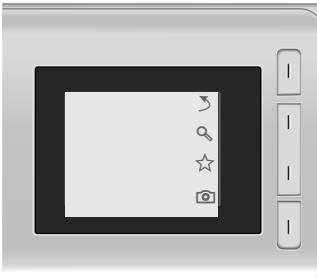
If you use the camera when the clamshell is closed, you should turn the phone about 90 degrees to the left as illustrated in order to view menus.
The pictures/videos are displayed and saved in landscape mode.
If you don't turn the phone, the pictures/videos are displayed in right angle when opened with the Media player or sent in a message.
Start the camera
Clamshell closed


Select to start the camera in picture/video mode.
Clamshell open


Picture mode/Video mode
Select mode and confirm with
You can also start the camera using the Media player or MMS editor.
The current (preview) image is displayed.
If you open/close the clamshell after having started the camera in picture/video mode, the application remains active in the selected mode.
Displayed information
Current picture/video setting
The selected resolution is displayed in the top line (only if the clamshell is open).
The following symbols are displayed:

Current brightness setting.

Current zoom level.
If the clamshell is closed, this information is only displayed if you open
the brightness setting or start the zoom mode (see below).
Only in picture mode and if active self timer is indicated.
Remaining memory
The following memory information is displayed:
- Memory location (only if the clam-shell is open): Pictures/videos can be saved either on the phone or on the Micro SD Card. To change save location see page 55.
- Remaining memory: Picture count/available record time on the current memory location. The remaining memory depends mainly on the selected resolution and the motif.
When video recording is started from the MMS application, the maximum length will be the time allocated for messaging (10 seconds).
Taking pictures/videos
Settings prior to taking pictures/recording videos
Clamshell closed

Press to open brightness setting. Press / to set brightness (see below).

Press to open zoom mode. Press / to select zoom level (see below).
If you open the brightness/zoom setting, the current setting is displayed.

Press briefly to close brightness/zoom setting.
Clamshell open

Decrease/increase brightness. Brightness can be set in 7 levels (-3 to +3).

Zoom in/out in 7 levels.
For further settings see options menu.
Taking pictures
Start the camera in picture mode.
Clamshell closed

Take picture.
Clamshell open

Take picture.
Recording videos
Start the camera in video mode. You can record up to 5 minutes.
Clamshell closed

Start recording.

Pause/resume recording.

End recording.
Clamshell open

Start recording.

Resume

Control recording.
End recording.
A video record/playback is paused if you open/close the clamshell.
Reviewing pictures/videos
Save pictures/videos

Confirm save notification.
Or (if the clamshell is open)

Confirm save notification.
The picture/video is displayed.
The picture/video is saved with a name, the date and the time in the Media player folder (page 106).
Start video playback

Start playback.


Playback/pause depending on current state.

Control volume durnig playback.

Stop playback.
You can view only the latest video if the clamshell is closed.
Or (if the clamshell is open)

Open menu and select Play. Control playback, see page 108.
Return to view finder

Open view finder.
Or (if the clamshell is open)

Open view finder to take another picture/record another video.
Delete pictures/videos

Delete picture/video and open view finder.
Or (if the clamshell is open)

Delete picture/video and open view finder.
- If the available memory is insufficient, confirm warning with / . The save location is changed automatically.
- If camera was launched from another application (contacts/messages): Press / to add picture/video and return to the original application. If you close the clamshell to record a picture/video, you have to open the clamshell again to resume the open application (contacts/messages).
Camera options
(Only if the clamshell is open)
The following functions are available, depending on the current situation.
Options Open menu.
| New picture/ New video | Open view finder to take another picture/record another video. |
| Add | Add picture/video to original application (contacts/messages). |
| Play | Play recorded video. |
| View pictures/ View videos | Open corresponding Media player tab (page 106). |
| Picture mode/ Video mode | Switch between picture and video mode. |
| Message mode | Switch to message mode after confirmation. Message mode is optimised for sending via MMS/Bluetooth: • record time 10 seconds • low resolution Message mode is activa- ed automatically if video mode is started from MMS application. |
Audio record Turn microphone on/off.
| Self timer | Picture is taken approx. 10 seconds after trigger-ing. For the last 3 sec-onds, you will hear a signal tone each second. |
| Picture settings/Video settings | Open settings (see below). |
| For standard functions see page 22. | |
Picture settings/Video settings
Resolution
| Change | Open settings. |
| Select resolution and confirm with . |
A setting can be made for the quality of the picture/video regardless of the preview image resolution.
The resolution may decrease depending on the selected digital zoom.
Default name
Change Open settings.
Enter default file name (up to 4 digits).
Options Open menu and select Save.
Save location
Change
Open settings.
Phone memory/Card
Select default save location and confirm with
Frame rate (only for video settings)
Set how many frames per second the video should capture.
Low (7 fps)/High (15 fps)
Select and confirm with
White balance
Change
Open settings.
Auto/Indoor/Outdoor
Select and confirm with
Flicker adjustment
Adjust the sensibility to indoor lightening flicker rates.
Off/50 Hz/60 Hz
Select and confirm with
Press to start video call with current settings.
Create message
You can create SMS and MMS messages and e-mails.



Select message type.
You will find information on writing texts with and without T9 in the chapter "Text entry" (page 28).
SMS/MMS
About SMS
You can transmit and receive long messages (up to 760 characters) on your phone. They are automatically divided into concatenated SMS messages (note higher charges).
About MMS
The Multimedia Message Service (MMS) enables you to send texts, pictures/videos and sounds in a combined message to another mobile phone or to an e-mail address. All elements of an MMS message are merged into a "slide show".
Depending on your phone's settings, you will receive either the complete message automatically or notification that an MMS has been saved in the network, giving sender and size details. You may then download it to your phone to read it.
Ask your service provider whether this service is available. You may need to register for this service separately.
Writing/sending an SMS


Create message


Options
Enter text/add items (see options menu).
Open menu and select Add recipient (page 60).

Send message.

Confirm.
If the SMS could not be sent successfully, press Retry.
- The following is displayed in the top display line: text entry mode, number of segments needed to send the current message and number of remaining characters.
- If text is too long for a single SMS, you can choose whether to convert SMS to an MMS or not.
SMS options
Depending on the current situation, different functions will be offered.
Options Open menu.
Add item
Select Picture/Video/ Sound. Select file from the corresponding My stuff folder (page 110).
Remember that files may be protected (DRM, page 20).
If you try to add items that cannot be sent via SMS, message is converted to MMS after confirmation.
Send options
Set Status report/ Validity period/ SMS type/Send with for current SMS. See also SMS settings (page 70).
Further functions, see page 59.
Writing/sending an MMS
An MMS is composed of slides, each containing text/pictures or a sound/video.

Navigate MMS slides.
Please note that media files may be protected (DRM, page 20).


Create message

Enter text (depending on your provider up to 1024 characters)/add items (see options menu).
Options
Open menu and select Add recipient (page 60).

Send message.

Confirm.
If the MMS could not be sent successfully, press Retry.
The following is displayed in the top display line: text entry mode, number of remaining characters and size of the message.
MMS options
Depending on the current situation, different functions will be offered.
Options
Open menu.
Add item
- Picture/Video/Sound (see SMS options).
Text: add text to current slide. - Contact: select a contact and add as vCard.
Note that you cannot attach more than one vCard per MMS.
Remove item
Remove selected attachment from MMS.
Add subject
Enter subject.
| Preview MMS | Start view mode (see below). |
| Playback sound | Start Media player and play back sound. |
| Send options | Set Read Report, Validity Period and Priority for current MMS. See also MMS settings (page 72). |
| Further functions, see below. | |
View mode
If you start the view mode you can change the presentation of the message.
Options Open menu.
| Play again | Start playback of all slides. |
| Page duration | Select time interval (in sec.), each slide is displayed when presented. |
| Order page | Swap current slide with previous/next. |
SMS/MMS options
Depending on the current situation, different functions will be offered.
Options Open menu.
| Add recipient | See page 60. |
| Edit recipient | Edit entered number/address. |
| Create item | • Take picture/Record video: start camera in message mode (page 55). If you close the clamshell to take a picture/record a video, the SMS/MMS remains opened. • Record sound: start dictating machine (page 99). |
| Insert text | • Template (page 31). • Contact details: open contact and select contact information. |
| Save as | Select Draft (page 69)/Template (page 31). |
| e.g. Remove picture | Remove picture/ sound/contact/ appointment or recipient from message. |
| For standard functions see page 22. | |
Add recipient
After at least one recipient is added, the To: field is displayed. You can add multiple recipients.
Enter number/address or select contact:
Add fr. Contacts
Select and confirm with to open contacts.

Select contact(s)/distribution list(s) and confirm with
If you select a contact with more than one respective entry (e.g. several numbers), the possible entries are displayed in a second line when contact is highlighted:

Select entry you want to use.
Your phone has an e-mail program (client). You can use it to create and receive e-mails.
To create new e-mails you have to configure at least one e-mail account (page 74).
If you enter the e-mail editor from another application, eg. the Inbox, all used input fields (To:, CC:, Bcc:, Subject:, Attachment) are displayed.
If the cursor is at the top of the text entry, you can navigate the input fields with 一 & & 一
Writing/sending e-mails
Open menu and select Add recipient (see options menu).

Send message. The sending progress is displayed.
If you send a new e-mail, e-mails from the draft folder will be sent as well. E-mails saved as drafts because of failed transmission are not sent automatically again. The progress is displayed in terms of either the number of bytes or the number of e-mails.
E-mail options
Depending on the current situation, different functions will be offered.
Options Open menu.
| Add recipient | · Add fr. Contacts: Open contacts (page 41). |
| · Enter e-mail addr.: Enter address manually. | |
| T9 is not available. |
| Edit recipient | Edit entered address. |
| Add subject | Enter subject. |
| Edit subject | Edit subject. |
| Attach item | ·From My stuff: Select any file (also unknown type). |
| ·From Contacts: Select contact and add as vCard. | |
| Name and size of the attachment are displayed. | |
| Note that you cannot attach more than one vCard per e-mail. |
| Add Cc | Add contact(s) of copy recipient(s). See also Add recipient. |
| Add Bcc | Add contact(s) of copy recipient(s) (See also Add recipient). Bcc recipients are not visible for other recipients. |
| e.g. Remove item | Remove highlighted attachment/recipient. |
| Save as draft | Confirm request to save e-mail in draft folder (page 69). |
| Add signature | Add signature at the current cursor position. |
| Send options | Set Req. deliv. receipt:, Request read receipt:, Priority: for current e-mail. See also e-mail settings (page 73). |
| For standard functions see page 22. | |
Inbox
The inbox contains all MMS, SMS, CB, e-mail and WAP push messages received on the phone.


Or

Press and hold.
Receiving messages
When new messages are received, a notification is displayed on either display depending on whether or not the clamshell is open.
You cannot open/read a message if the clamshell is closed.
If the clamshell is closed you can open a new message by opening the clamshell.
SMS
If a new SMS is received, a notification is displayed. New messages are saved in the Inbox automatically.
Clamshell closed
Open clamshell to read new SMS.

Press to dismiss notification.
Clamshell open

Press if you want to read new message immediately.
Or

Press if you want to open message via the Inbox later.
MMS
An MMS is received in two steps: First the MMS notification, then the MMS.
If a new MMS message is available for downloading, the MMS notification is displayed including number/contact and subject of the MMS. You can download the MMS immediately or later:
Clamshell closed

Press if you want to download MMS immediately.
Or

Press to dismiss notification and start download later.
Clamshell open

Press if you want to download MMS immediately. The download progress is displayed.
Or

Press if you want to download later. The notification is saved in the Inbox (page 62).
When download is completed, a notification is displayed (see SMS section). You can change MMS settings to download new MMS immediately without request (page 72).
CB
Some service providers offer information services (Cell Broadcast Service). If reception is activated (page 77), your provider will supply you with messages on the activated topics.
When the function is activated (page 77), CB messages are received automatically. Depending on the current setting, CB messages are displayed in standby mode (page 19).
Only one CB of the same type is saved. If another message is received, it overwrites the older one.
E-mails are not received automatically. Before an e-mail can be read, it must be retrieved from the server (page 65).
WAP push
WAP push messages are provided by special service centres. Depending on the current setting (page 91) WAP push messages are received/rejected automatically or you are prompted to accept/reject when WAP push is received (see receiving SMS page 62).
If you receive the message that a software update is available, you can start a DM session (page 127).
Inbox structure
For fast access, the inbox is organised on three tabs:
- MMS, SMS, CB
E-mail - WAP push messages
If the inbox contains a new message a symbol is displayed in standby mode (page 19). If you open the inbox in this case, you directly access the message folder containing the new message.
If the message is highlighted, two lines are displayed:
- The first line contains the number or the respective contact and the time or date the message was received. An icon indicates the message type.
- In the second line either the beginning of the message or the subject is displayed.
Make a call: Select SMS, MMS or e-mail and press /
SMS, MMS, CB
All new messages are shown in chronological order.

Select message and confirm with
Numbers, e-mail addresses, vCards and other saveable objects are highlighted automatically.
| Set volume. |
| Switch sound on/off. |
| Only MMS: |
| Navigate within a slide. |
| Switch to next/previous slide. On first/last page switch to last/first page. |
| Play media file. |
Options menu
Depending on the current situation, different functions will be offered.
Options Open menu.
| View | Read SMS, MMS, MMS Notification or CB. |
| Downld message | Download MMS if MMS notification is received. |
| Reply/ Reply to all | Select SMS/MMS and create message. |
| Forward | Forward Message to another recipient. • SMS: Select SMS/MMS. • CB: Create SMS. • MMS: Select MMS. If you forward as SMS, attached media files are removed automatically. |
| Mark as unread | Display message in bold type. |
| Add to Contacts | Save as contact (page 68). |
| For standard functions see page 22. | |
SMS messages may be stored on the phone memory or on the SIM card. The storage location is indicated with an icon.
- You can activate the option to have the oldest SMS message in the inbox automatically deleted when a new message arrives (page 71).
Read options menu
Depending on the current situation, different functions will be offered.
Options Open menu.
| View | Start view mode (page 59). |
| Send | CB: If e-mail address is highlighted select MMS/E-mail. |
| Send MMS | MMS: If e-mail address is highlighted create new MMS. |
| Open link | If URL is highlighted: Start browser (page 89). |
| Play again | MMS: Start playback video/audio slide. |
| e.g. Save sound | Select the save location (phone/memorycard). Downloaded file is saved in corresponding My stuff folder (page 110). Same for picture and attachment. |
| Call number | If number is highlighted: Dial number. |
| Save appoint. | If calendar object is se- lected: Save calendar event (page 98). |
| For standard functions see page 22. | |
Downloading ringtones and logos
You can receive links for downloading ringtones, logos, screenshots, animations and information about applications with an SMS. Highlight this link and, by pressing the Call key start the download. Please check that the dial-in access is configured.
Remember that ringtones/logos may be protected (DRM, page 20).
If more than one account is configured, the list of accounts is displayed (page 75).
Before an e-mail can be read, it must be retrieved from the server. The e-mail application is blocked until download is completed.
The listed files and the options menu vary depending on the receive server type (page 76) of the selected account.
POP3 account
The inbox on the phone contains all the e-mails that are in the inbox on the POP3 server.
You can configure whether or not an e-mail is deleted on the server when deleted on the phone (page 76).
IMAP4 account
The inbox lists e-mails as well as subscribed folders (e.g. mailboxes). You can subscribe to various folders on the IMAP4 server (page 66).
E-mails are retrieved only from the subscribed folders.
If you delete e-mails on the phone, they are deleted on the server automatically and vice versa.
E-mail options menu
Depending on the current situation, different functions will be offered.
Options Open menu.
| View | If only headers are retrieved, retrieve body and display e-mail. |
| Retrieve e-mail | Retrieve new e-mail for selected account (page 66). |
| Retrieve all accts | Retrieve new e-mail headers for all configured accounts. |
| Account settings | Open account settings for highlighted account (page 75).If no account is configured create new account. |
| Reply/ Reply to all | Create new e-mail. |
| Forward | Forward e-mail to another recipient. |
| Add to Contacts | Save as contact (page 68). |
| Only POP3 account: | |
| Delete on server | Delete e-mail on server only. The local copy is retained. |
| Only IMAP4 account: | |
| Subscr. to folders | (see page 67) |
| Move to folder | (see page 67) |
| Unsubscribe | E-mail within the folder is deleted on the phone on-ly. The synchronisation of e-mails to server is stopped. |
| Display order | Select Folders first/E-mail first. |
| For standard functions see page 22. | |
| You can set the max. size of downloaded e-mails (page 74). | |
Retrieve e-mail
Depending on the download mode (page 76), either entire e-mails or only the headers are retrieved, or you may be asked whether the entire e-mail or only the header should be downloaded. The number of retrieved e-mails is displayed.
IMAP4 accounts: only e-mails in the subscribed folders are retrieved.
Subscr. to folders
(only IMAP4 accounts)
You have to subscribe to folders on the receive server in order to retrieve e-mail from these folders.
All subscribed and unsubscribed folders on the receive server are listed. Only two levels of folders are supported.

Select folder(s) and confirm with to subscribe/unsubscribe to folders.
Options
Open menu and select Subscr. to marked.
If you select the function Subscr. to marked while no account is selected, you unsubscribe to all folders.
Move to folder
You can move e-mails from one subscribed folder to another. The move is synchronised with the server the next time you retrieve e-mails.

Select e-mail(s) you want to move.
Options
Open menu and select Move to folder. The subscribed folders are listed.

Select folder and confirm with Move.
Read options menu
Depending on the current situation, different functions will be offered.
Options Open menu.
| Voice call/Video call | Start voice/video call to sender (if number available). |
| Go to URL | If e-mail address is highlighted: create new e-mail. |
| View/Play/Download | View/play attachment. If not downloaded yet: download attachment. |
| Delete on phone | Delete downloaded attachment on phone. POP3 account: the attachment is deleted permanently on phone and cannot be down-loaded again. |
| Go to URL | If URL is highlighted: Start browser and load URL (page 89). |
| Save | Select the save location (phone/memory-card). Downloaded file is saved in corresponding My stuff folder (page 110). Selected vCard is saved as contact. Selected calendar object saved as calendar event. |
For standard functions see page 22.
Add to Contacts
You can add contacts received via SMS, MMS or e-mail.
You can add the following contact details:
- contact details of the sender
- contact details (e.g. number, e-mail address) included in the message as contact (page 40). Note that you cannot receive a postal address.
- vCard: contact included in a message.
Save sender/contact details
Contact details included in a message are displayed in the highlighted text. Numbers can be dialled immediately ( ).
Options Open menu and select Add to Contacts.
To exist. contact
Select and confirm with
Or
To a new contact
Select and confirm with . Select number/ address type (e.g. private number) and confirm with
Save vCard
Options
Open menu and select Save contact and confirm with
WAP push
The following messages are displayed:
Service Indication (SI)
Audio, video, image, text
Service loading
Reading WAP push message

Select desired message and confirm with
Read messages/information about received data/software. Where required start download.
Service loading message
You can connect to the browser and download the service.
Load
Press.
Message with audio/video/image content
The message can contain attached files. You can view/play and save the attached content.
Message lists
Messages are displayed the same as in the inbox (page 62). The most recently edited/sent message is displayed at the top of the list.
Drafts


Drafts
The list is organised on two tabs: SMS/MMS and e-mail.
You can save a message as a draft while creating it. Messages are saved as drafts automatically
- if transmission fails,
- you close the clamshell while creating a message, or
- you start another application while creating a message (e.g. you accept an incoming call).
Draft e-mails are not synchronised with the server.
Draft options
Depending on the current situation, different functions will be offered.

Select message.

Open menu.
| Edit | Edit Message. |
| Send | Send directly without editing (at least one recipient is added). |
| For standard functions see page 22. | |
Sent messages
→ Sent messages
The list contains all sent messages and is organised on two tabs: SMS/MMS and e-mail.
Send options
Depending on the current situation, different functions will be offered.
| Select message. | |
| Open menu. |
| View | Read message. |
| Voice call/Video call | Start voice/video call to sender (if number available). |
| Forward | • E-mail: Create e-mail and send it. • SMS/MMS: Select SMS/MMS (menu depends on selected message type). Create message and send it. |
| For standard functions see page 22. | |
Message settings
You can configure SMS, MMS, e-mails, cell broadcast (CB), voice mail and instant messages.
SMS settings


Message settings
→SMS→
Select function.
SMS profiles
The SMS parameters are configured in up to 5 different profiles. Profiles can be renamed, edited and set as default.
Setting default profile
If profile is already configured:

Select profile and press to set profile as default.
Edit profile

Select profile and press Edit to open editor.

Select option (see table).

Press to edit option, confirm setting with
The following options are displayed:
Message centre
Enter number of message centre.
| Recipient | You can set a default recipient for the profile. Select Add from Contacts and select contact/distribution list or enter number. |
| Validity period | Select Maximum/1 week/1 day/12 hours/1 hour. If SMS could not be delivered during this period, it is deleted from message centre automatically. |
| Status report | Select On/Off/Ask on send. A status report is sent when a message is delivered successfully. If Ask on send is activated, a prompt is displayed when SMS is sent. |
| Send confirmation | Select On/Off/Ask on send to set whether or not a confirmation for successfully sent messages is displayed. |
| SMS access | Select GSM/GPRS mode for sending/receiving SMS. |
| SMS memory | Select Phone/SIM as default save location for incoming SMS. |
| SMS type | Select delivery type. |
Reset profile

Select profile.

Open menu and select Restore to default.

Confirm request.
The SMS profile is reset to an unconfigured state. If your provider has locked a predefined profile, it cannot be reset.
Auto header
If the function is activated the Header template is automatically inserted at the start of any created SMS.
On/Off
Activate/deactivate and confirm with
Auto signature
If the function is activated, the Signature template is automatically inserted at the end of any created SMS.
On/Off
Activate/deactivate and confirm with
Save sent items
If the function is activated, all sent SMS messages are saved automatically in the Sent folder (page 69).
On/Off
Activate/deactivate and confirm with
Auto delete SMS
If the function is activated, the oldest SMS message in the Inbox will be deleted upon arrival of a new SMS message.
On/Off
Activate/deactivate and confirm with
Emoticons
Emoticons are little symbols (Smilies) expressing your feelings. If the function is activated, emoticons are automatically displayed as little pictures.
On/Off
Activate/deactivate and confirm with
Text size
You can set the displayed size of the text in the SMS Viewer.
Small/Standard/Large
Select size and confirm with
The message sent notification is displayed, when an SMS is transmitted successfully to the SMS centre. The centre forwards the SMS to the recipient.
If the message was not transmitted to the SMS centre, you can retry once. If transmission fails again, contact your service provider.
MMS settings
Message settings MMS Select function.
MMS profiles
The MMS parameters are configured in up to 5 different profiles. Profiles can be renamed, edited and set as default. You will receive the necessary data from your service provider or via the "Setting Configurator" (page 138).
Setting default profile
If profile is already configured:
Select profile and press to set profile as default.
Edit profile
Select profile and press Edit to open editor.
Select option and edit settings.
The following options are displayed:
| Name | Enter profile name. |
| Connect. profile: | Select profile (page 120). |
| Internet profile: | Select profile (page 121). |
| Relayserver URL: | Enter Internet address. |
| Secure rs URL: | Enter Internet address. |
Reset profile
Select profile.
Options Open menu and select Restore to default.
Yes Confirm request.
The MMS profile is reset to an unconfigured state. If your provider has locked a predefined profile, it cannot be reset.
Home retrieval/Roaming retrieval
You can configure when new MMS messages are to be downloaded from the message server for Home and Roaming retrieval.
The following settings are possible:
| Automatic | Messages are automatically downloaded as soon as an MMS notification is received. |
| Always ask | When an MMS notification is received, you are asked whether to download it or not. |
| Restricted | (only for Home state)When an MMS notification is received, only the notifi-cation is displayed. |
Select option and confirm with
Req. read report
If the function is activated, a report is sent back when the recipient reads the MMS message for the first time.
Yes/No
Activate/deactivate function and confirm with
Req. deliv report
If the function is activated, a report is sent back when the recipient has downloaded the MMS message.
Yes/No
Activate/deactivate function and confirm with
Delivery time
Select how long an MMS message should be held on the server before sending it to the recipient.
Immediate/7 days
Select and confirm with
Validity period
If an MMS message could not be delivered during this period, it is deleted from the server automatically.
Maximum/1 week/2 days/1 day
Select and confirm with
Hide number
If the function is activated, your number is withheld from the recipient.
Yes/No
Activate/deactivate function and confirm with
Anon. messages
If set to Reject, anonymous MMS messages are rejected automatically.
Accept/Reject
Select and confirm with
Allow read report

If the function is activated, requested read reports are enabled.
Yes/No
Activate/deactivate function and confirm with

Confirm the charge notification.
Allow deliv report
If the function is activated, requested delivery reports are enabled.
Yes/No
Activate/deactivate function and confirm with

Confirm the charge notification.
Creation mode
You can restrict the content that can be added to an MMS.
The following settings are possible:
| Free | You can add any content to the MMS. |
| Warning | You are warned when at-tempting to add content to an MMS that cannot be sent. |
| Restricted | If you attempt to add content that is not compliant (see above) an error message is displayed. |

Select option and confirm with
Auto signature
See SMS settings page 71.
Save sent items
See SMS settings page 71.
Allow adverts
If the function is deactivated, MMS-based advertisements are automatically rejected.
Yes/No Activate/deactivate function and confirm with
Emoticons
See SMS settings page 71.
Text size
See SMS settings page 71.
Max msg size
The size restriction affects downloaded and created MMS messages.
95 kb/195 kb/Network max
Select and confirm with
E-mail settings
Before using this service you must set the server access and your e-mail parameters. You will receive the necessary data from the service provider or via the "Setting Configurator" (page 138).
The e-mail parameters are configured in up to 5 different accounts. One account might be predefined by your provider. You cannot edit predefined accounts. You can activate, edit or rename accounts.
Forwarded and answered e-mails use the account that was used to receive the original e-mail.
Message settings E-mail Select function.
Activating an account
If account is already configured:
Select account and press to activate.
Deleting an account

Select account.

Open menu and select Delete.

Confirm warning request.
All e-mails in the Inbox, the Drafts and the Sent folders and all attachments belonging to the deleted account are deleted.
Editing an account
The account settings are grouped in the following areas: User Info, Connection Info and Message preference. Additionally you can add/create a signature.
Edit the account according to the information from your provider.

Select account.

Open menu and select Edit.
User info/Connection info/Msg preferences/Add signature/ Create signature Select and press Change (see below).

Navigate to input fields.

Open/close input fields.
User info
You can edit the following fields:
| Your name: | Your name. |
| E-mail address: | Your e-mail address (name@domain.abc) |
| Reply-to address: | Additional e-mail address to use for replies. |
| User ID: | Your login name for the e-mail server. |
| Password: | Your password for the e-mail server. |
| SMTP user ID: | Your login name for the the send server. Only if SMTP authenticate: is enabled in “Connection info” settings (see below). |
| SMTP password: | Your password for the SMTP server. |
Connection info
You can configure accounts with two different receive server types: POP3 and IMAP4. The configured accounts may have different server types.
You can edit the following fields:
| Data service provider: | Select connection profile (page 120). |
| Receive server type: | Select POP3/IMAP4. |
| POP3 server: | If you want to use a POP3 server, enter the Internet address of the receive server or leave the input field empty. |
| POP3 server port: | Enter the port number of the POP3 receive server (default: 110). |
| POP3 uses SSL/TLS: | Select Yes/No to activate/deactivate encryption in communication with the POP3 server. |
| IMAP4 server: | If you want to use an IMAP4 server, enter the Internet address of the receive server or leave the input field empty. |
| IMAP4 server port: | Enter the port number of the IMAP4 receive server (default: 143). |
| IMAP4 uses SSL/TLS: | Select Yes/No to activate/deactivate encryption for communication with the IMAP4 server. |
| SMTP server: | Enter the Internet address of the send server. |
| SMTP server port: | Enter port number of send server (default: 25). |
| SMTP uses SSL/TLS: | Select Yes/No to acti-vate/deactivate encryp-tion in communication with the send server. |
| SMTP authenticate: | Select Yes/No to acti-vate/deactivate authenti-cation on the send server. |
Msg preferences
You can edit the following fields:
| Download mode: | Select Only headers/ Full message/Ask user. |
| Max msg size (KB): | Enter maximum e-mail size that is retrieved on the phone (in KB). |
| Copy on serv.(POP3): | (Only POP3 accounts) Select Yes/No. If No is selected, the e-mail is deleted on the server when it has been down-loaded to the phone. |
| When del.ph. (POP3): | (Only POP3 accounts) Select Delete on serv./Leave on svr.If Delete on serv. is selected, the e-mail is deleted on the server when it is deleted on the phone.IMAP4 accounts always delete e-mail on server when deleted on phone. |
| Save sent message: | Select Yes/No to save a copy of the sent e-mails in the local Sent folder (page 69). To save sent e-mails on server you should set your own address as CC. |
| Include orig on reply: | Select Yes/No to include the original text in the reply message or not. |
| Req. deliv. receipt: | Select Yes/No. |
| Request read receipt: | Select Yes/No. |
Add signature

Select No e-mail/ New e-mail/All e-mails and confirm with
Create signature
The signature may span multiple lines.

Enter signature and confirm with
CB settings
Message settings Cell broadcast Select function.
Rec. broadcasts
You can activate and deactivate the CB service. If the CB service is activated, the standby time for the phone will be reduced.
On/Off Select and confirm with
Cell info display
You can select whether or not the local cell information should be displayed in standby mode.
On/Off Select and confirm with
Topic list
You can configure the types of broadcast messages you want to receive. The list of configured topics is displayed. You can add/remove topics.
Options Open menu.
Topic status
Select
- Receive: New messages are received and stored in the Inbox. No notification is displayed.
- Receive and notify: New messages are received and stored in the Inbox. A notification is displayed in standby mode (page 62).
- Do not receive: Messages on this topic are rejected.
Add topic by index
Enter topic index number.
Remove topic
Delete list entry.
Inst. message settings

图 Message settings
→Instant messaging
Open Inst. message settings (page 86).
Instant messaging


Instant messaging
This function allows text-based conversation with one or more users who are also registered for this service. This function is not offered by all service providers. Please refer to your service provider for further information.
Your dialogue partners are entered in the contact lists. When a connection has been established, these lists show who is available, whether they want to be disturbed and what mood they are in.
Logging in/out
You have to login to use the application. If you are logged in, you are online.

Symbol is displayed in top line of display if you are online.
Symbol is changed to if a new message or an invitation is received.
Manual login
When you start Instant messaging and the phone is not connected to a server, you are asked to login.
Your service provider supplies you with your account information.
User ID:
Enter your user name for Instant message service.

Switch to next line.
Password:
Enter password for In-stant message service.

Press to establish a connection to server. The account information is saved.
If the connection is established successfully and no Alias has been entered yet a notification is displayed.

Confirm to enter Alias.
Alias:
Enter name that should be displayed in the conversation window for the other user to see, and confirm with . Alias is saved automatically.
- The saved account information is displayed when you start Instant message again. You can edit information.
- If you are already online, login and alias are not requested when you start Instant message.
Auto login
If auto login is activated (page 87), the phone uses saved account information (see above) to establish a connection to the server when the phone is powered on.
Closing Instant messaging/logging out
Options
Open menu and select Exit.
Logout and exit/Exit
Select whether or not you want to log out when closing the application.
When closing the clamshell the application is closed. The connection to the server is not affected by closing the clamshell.
Instant message in offline state

If you are offline, a new instant message or a conversation invitation is sent either via SMS or via WAP push message (page 62).
The messages are stored on the server temporarily.
If you want to join the conversation you have to start the Instant message application and log in. The info message is displayed as soon as you are online (page 84).
Tabs overview
When you are online the following tabs are displayed:
Online contacts
- Conversations
- Contacts
- Info messages
Online contacts
This is a filtered list of all Instant message contacts that are currently online.
The icon indicates the availability:
- Green: Contact is available
Yellow: Contact is busy.
When a contact is highlighted, the text of the user is displayed in the second line.
Conversations
Active (group) conversations are listed. Up to 5 conversations can be active at the same time.
New conversations are listed as soon as you receive an invitation message (page 82). To start, end and view conversations see page 82.
Contacts
Instant message contacts are stored within the Instant message application and on the Instant message server. To create a new Instant message contact you may browse the contacts application.
Availability is indicated in the same way as in the online contacts list (see page 80).
Add new contact
You can enter either a mobile number or the Instant message ID.
Select and confirm with

Navigate to input fields.
Nickname: Enter name (optional).
Select: Select Phone number:/ Messenger ID:.
Entry: Enter number/ID.

Open menu and select Save.
To browse the contacts application press Options and select Contacts.
Find new users

Open menu and select Find new users.

Enter search criteria.

Open menu and select Search.
The results are listed by messenger ID.

Open menu and select New search to configure new search criteria.
Authorisation message
If the user you want to add to your contact list has restricted the access to the contact data, the presence is not available immediately. A request is sent to the user. If the user confirms the request an authorisation message is sent. Presence is displayed.
As long as presence cannot be displayed, the contact is not listed in the online contacts (page 80).
Info messages
Info messages can be authorisation messages or server messages (e.g. knock service messages if availability of a user changes, page 87).
Info messages are stored automatically if you ignore an info message or if you are offline. Info messages are purged if you logout or exit the application.
Starting/viewing/ending conversations
Instant messages are exchanged between users in ongoing conversations. You can join up to 5 conversations. Active conversations are listed on the Conversations tab (page 80).
Start conversation
You can initiate a new conversation from any tab within the Instant message application.
Options
Open menu and select Start conversation.

Enter text (up to 500 digits).
Options
Open menu and select Send.
- If a single contact is selected, message is sent directly.
- If several contacts are selected or if you invite additional users to an ongoing conversation (page 83), a conversation request is sent to each user. The invited users have to accept the request in order to join the conversation. If user accepts, message is sent. If user rejects invitation, you receive a reject notification.
- If no contact is selected, the Invite contact option is started automatically (page 83).
A notification message is sent if the user is currently offline. Depending on your provider, sent messages may be stored on the server until the user logs in.
Open text input field
During a conversation you can open the input field by pressing or any key 1w 7y 9
- If you do not enter text for about 15 seconds, the input field disappears. Already entered text is saved and displayed when you open the input field the next time.
- You cannot switch between conversations while the input field is open.
View convers.
Options
Open menu and select View convers..
Each ongoing conversation is displayed on its own tab. The name of the contact/group the conversation is with is displayed as the conversation title.
The date/time of the conversation is displayed once at the top. The dialogue is displayed including pictures/URLs. Numbers, vCard and other saveable objects are highlighted automatically. Sent messages are marked with < , incoming messages are marked with > .

Scroll conversation dialogue.
Press and hold: Acceleratescrolling.

Navigate to conversation tabs.
View conversation options menu
Depending on the current situation, different functions will be offered.
Options Open menu.
| Dial | If number is highlight- ed: Dial number or press to make a video call. |
| Send e-mail | If e-mail address is highlighted: Create e-mail. |
| Open link | If URL is highlighted: Start browser and load URL (page 89). |
| Enter text | Open text input field. |
| Insert emoticons | Select emoticon. |
| Invite contacts | Select contact (page 83). |
| Participants | List of users currently participating in the conversation is dis- played (see below). |
| Next call/ Previous convers. | Switch between conversation tabs. |
| Further options on page 85. | |
Invite contacts
During an ongoing conversation or at the start of a new conversation you may invite contacts to join in.
Options
Open menu and select Invite contacts. All contacts are displayed. The availability is indicated (page 80).

Select contact(s) and confirm with OK to start conversation with selected contacts (page 80).
End conversations
Options
Open menu and select End conversation. The conversation is closed.
Receiving conversations
Alerts
An alert notification is displayed when you receive a new message or a conversation request (page 82).
- If alerts are activated (page 84), the information is also displayed when Instant message is not open but you are online (whether or not the clamshell is closed).
- If you already join 5 ongoing conversations a notification for incoming messages or invitations is displayed. If you want to join a new conversation you have to end an ongoing conversation first.
- If the clamshell is closed, an alert is displayed on the outer display. Open the clamshell to view/accept the conversation. Press if you want to ignore/reject the message.
- Unlike info messages, alerts not stored.
Receive message
View
Press if you want to view the conversation immediately (page 82).
Or
Ignore
Press if you want to view conversation later.
Receive invitation message
Accept
Press if you want to join the conversation.
Or
Reject
Press if you want to reject the invitation.
Receive authorisation request
Depending on your setting (page 86) you may receive a notification if a user attempts to access your presence details.
View
Press to view the request.
Authorise
Options
Open menu and select Authorise & add if the user should be able to access your details.
If the user is not yet saved as a contact, the contact is saved automatically.
- Block
Options
Open menu and select Block contact if the user should not be able to access your details.
The user is added to the Block list (page 86) automatically.
- Delete notification
Options
Open menu and select Delete message.
The user is not able to access your details but is not added to the block list.
Unknown user
If you receive a message from a user who is not saved in your contacts, a notification is displayed. The contact is added to your contact list automatically when you accept the conversation or answer the message. You can also add unknown users to the block list (page 86).
Inst. message options menu
Depending on the current situation, different functions will be offered. These functions can be applied to the entry currently selected as well as to multiple selected entries.
Options Open menu.
| Start conversation | Start conversation with selected contact(s) (page 82). |
| End conversation | • Initial message: Reject request. • Ongoing conversation: End conversation. |
| View convers. | Display conversation tab (page 80). |
| Online stat. data | Display presence details (name, status, text and mood) of the highlighted contact. |
| Contact details | Display Instant message details of the highlighted contact (Name, Instant message ID, Mobile number and knock alert status). Press Edit to open editor (page 81). |
| Add to Contacts | Confirm safety prompt to add user to contacts (page 80).If the warning message should not be displayed again, select Options Don't show again. |
| Add to block list | Confirm notification. User is blocked (page 86). |
| My online status | Set presence attributes (see below). |
| Settings | Open Settings menu (page 86). |
| Standard functions see page 22. | |
My online status
You can configure your online status, text, mood.
Navigate to input fields.
Online status:
Select Available/Busy.
My text: Enter text.
My mood: Select mood.
Options Open menu and select Save.
Settings
Some settings are only available if you are logged into the server.
My details
Alias: Select and open editor with Edit. Enter/edit alias (page 79) and confirm with
Messenger ID
Depending on your provider you may not be able to change the In-stant message ID. If you want to edit the ID, you will have to log out and enter the new ID during manual login (page 79).
Watcher list
All remote users are listed who have you on their contact list. Note that the list also contains users you have already blocked.
Block list
All remote users are listed who are blocked from contacting you.
Remove user from block list:
Options
Open menu and select Unblock.
Add notifications
You can configure whether or not other users have open access to your presence information (e.g. your contact details).
If Receive notific'n is activated, a notification is displayed when other users try to access your details.
If Auth. required is activated, other users need your authorisation to access your details.
Receive notific'n/No notification/
Auth. required
Select and confirm
with
Alerts
You can configure whether a notification is displayed when you receive new messages while Instant message is not open and you are online.
When you are in the Instant message application, new message prompts are always displayed.
If Knock service is enabled, you will be notified when a contact's availability status changes from offline or busy to available. If the clamshell is closed, the notification is displayed on the outer display.

Navigate to input fields.
Convers. requests
Select On/Off to activate/deactivate alert.
Info messages
Select On/Off to activate/deactivate alert.
Knock service
Select On/Off to configure alert.
Options
Open menu and select Save.
Sounds
You can switch sounds on/off. The settings directly correlate to the ring-tone settings (page 114).

Navigate to input fields.
Receiving msgs
Select On/Off to activate/deactivate alert for new received messages.
Sending messages
Select On/Off to activate/deactivate alert for sent messages.
Alert messages
Select On/Off to activate/deactivate alert for all notifications including knock alerts.
Options
Open menu and select Save.
Server

You can configure the server you use for Instant Messages. Depending on your provider you may not be able to edit the server data.
Changes will take effect after logging out and logging in again.

Navigate to input fields.
Server: Enter IP address or domain.
Port: Enter number of the communication port, e.g. 80.
Connect.profile:/Internetprofile: Selectprofilepage120
Auto login: Select On startup/Off to activate/deactivate auto login.
Options
Open menu and select Save.
Display data services:
Options
Open menu and select Data services.
Voice mail

Most service providers supply you with a mailbox in which a caller can leave a voice mail for you if
- your phone is switched off or not ready to receive,
- you do not want to answer,
- you are making a phone call (and if Call waiting (page 123) is not activated).
If the voice mail service is not part of your service provider's standard package, you will need to register for it, and possibly set the voice mail manually. The following sequence may vary from service provider to service provider.
Settings


Voicemail
If the number is not yet entered:

Confirm request to open input field.
Or open editor via main menu:


Message settings

Voicemail
Voicemail no.:

Enter number and confirm with
Notification
You can activate and deactivate display of a message notifying of new voice mail entries.
On/Off
Select and confirm with
The service provider supplies you with two numbers:
Save mailbox number
You call this number to listen to the voice mails left for you.


Select number from contacts or enter/change it and confirm with
Save call divert number
Calls are diverted to this number.

Enter number.


Open menu and select Mailbox. Adopt number or enter if necessary.
Listening to messages
A new voice message may be announced as:
- Icon plus beep or
- Notification via SMS or
- You receive a call with an automatic announcement.
Call your mailbox and play the message(s) back.
Open the clamshell to use the keypad.

Press and hold (if necessary enter mailbox) and confirm.
Internet


Select function.
Or

Press the key to start the browser.
Get the latest information from the Internet that is specifically adapted to the display options of your phone. In addition, you can download games and applications to your phone. Internet access may require registration with the service provider.
The browser is activated with the preset option as soon as you call up the function. Browser settings (page 89) may be specified/preassigned by the service provider.
Enter URL

Enter URL.

Open menu and select Go.
Start the browser and display the entered Internet site.
Changing the prefix

Open menu and select Prefix.

Enter URL prefix (e.g. http://).
Bookmarks list
Display the list of bookmarks stored in the phone.

Select the bookmark and confirm with to call up URL.
History
Display the list of most recently visited Internet domains and pages. Up to 10 domains and 30 pages per domain can be stored.

Select the history entry.

Call up the URL.
Standard functions see page 22.
Browser settings
Change the settings of the browser.

Select one of following functions:
Multimedia
Choose whether or not to download images, sounds or objects embedded on the Internet pages.

Navigate to functions.
Images
Select Show images/ Don't show.
Sounds
Select Play sounds/ Don't play.
Objects
Select Dwnld objects/ Don't downld.
Options
Open menu and select Save.
Look and feel

Navigate to functions.
Font size
Select Small/Medium/Large.
Text wrap
Select Char. bounds./Word bounds..
Scroll step
Select Single line/Half page/ Whole page. Set the increment by which pages are scrolled when navigating within the Internet page.
Connection timeout
Set the maximum wait time for the web response. Select 60 seconds/90 seconds/No timeout.
Title region
Set whether or not to show title region of phone when browsing. Select Show/Don't show.
Options
Open menu and select Save.
Security

Navigate to functions.
Secure prompt
Select Yes/No. Display a security request when leaving a page with secure connection to enter a page that is non-secure.
ID cache
Select Enable service/Disable service. Set whether or not the browser should store your user ID and password.
Cookies
Select Enabled/Disabled to activate/deactivate cookies.
Link referral
Allow the current page to see previous URL. Select Allow/Do not allow.
Certificates
Display the list of stored certificates.
Current
Display the current certificate information.
Certificates list

Select certificate.

Display the selected certificate information, e.g. serial number, algorithm, validity period.

Open menu and select Enable/Disable for the highlighted certificate.
WAP push
You can accept or reject message requests from trusted and untrusted sources. If Ask first is set, you can decide for each message request whether or not the content should be loaded.

Navigate to functions.
Trusted content/Untrusted content Select Fetch content/ Ignore/Ask first.
Lockout time
Enter lockout time (in seconds) and confirm with

Open menu and select Save.
Browser profiles
You can choose one of 5 browser profiles. A browser profile is a super-set of an Internet profile, a connection profile, a startpage URL and the show/hide title region setting.
The current browser profile is marked.
Activate profile

Select profile and confirm with
Edit profile

Open menu and select Edit.

Navigate to input fields.
Name: Enter profile name.
Internet profile/Connection profile Select profile (page 121).
Start page Set current URL as startpage for the profile.
Options
Open menu and select Save.
Reset profile

Select profile.
Options
Open menu and select Reset profile.
Yes
Confirm request.
The browser profile is reset to an unconfigured state. If your provider has locked a predefined profile, it cannot be reset.
Browser options
Options
Open menu.
Go Load entered URL.
Prefix ChangeURLprefix.
Home Call up the pre-set homepage for the current profile.
Bookmarks list
Display the list of stored bookmarks.
Add bookmark
Edit bookmarks. Enter name and address and select whether to save the bookmark for offline browsing.
| Update bookmark | (only if offline bookmark) Reload bookmark. |
| Enter URL | Enter the URL for direct di-al to an Internet address. |
| Save items | Show the list of items (im-ages/sounds) of current page. Select Save from options menu. Select save location and save select-ed item in My stuff folder (page 110). |
| History | Display recently visited pages (page 89). |
| Forward | Load the following page in the current session, if there is one. |
| Reload page | Reload the current page. |
| Send link | Display the URL of the current page for sending via SMS/MMS/e-mail. |
| Privacy | Clear cache, Clear cookies or Clear history and confirm with . |
| Set as startpage | Set the current page as browser startpage and confirm with . |
| Settings | Open browser settings (page 89). |
| About | Display information on browser, e.g. version. |
| For standard functions see page 22. | |
Ending a connection

Press to end the connection and close the browser.
Navigation in the browser

- Select a link (if link is a phone numer, initiate call).
- Settings, status on/off.

Press to go back a page.

- One input field/link forward/back.
- Scroll one line.

Tab through active content (links on page).
Entering special characters
Select special characters.
The Internet browser is under licence of:

OPENWAVE

Download
Downloads are offered on the Internet. Once downloaded, the content is available to you on the phone.
You cannot download more than one content at the same time.
Closing the clamshell does not affect ongoing downloads.
There are 3 categories of downloads:
Web browsing.
- Open Mobile Alliance (OMA): Download of the media content that has associated digital rights. Normally you have to pay for the content. The Browser interacts with the DRM (page 20) while downloading.
- Java applications are decrypted and processed by the Java Application Manager (JAM). When you start the download, JAM is started automatically (see below).
To start the browser, see page 89.
- If the downloaded content type is not supported, a request is displayed. Confirm if you want to continue the download.
- If you download an application you have to confirm the signer of the application before the download is started.
- If you quit the browser while downloading: Confirm request if you would like to continue downloading in the background.
- When the download is completed, you can either continue browsing or open the downloaded content and use it (e.g. set picture as wallpaper, play sound/video).
- Downloaded content is listed in the corresponding folder in My stuff (page 110). You can select to save downloaded applications in the folder games or applications.
Java Application Manager (JAM)
Display the list of Java applications currently available on the phone and manage those applications.

Select application.
Options
Open menu.
Depending on the application selected, different options are available:
| Select | Open the selected link. |
| Launch | Launch the selected appli-cation, that has been fully installed. |
| Open suite | Select MIDlet application from the MIDlet suite. |
| Move | Move the MIDlet application to another folder. |
| Attributes | Display the MIDlet applica-tion information, e.g.name/ version. |
| Security | Edit the security settings of the MIDlet application (see page 94). |
| Reinstall | Download and reinstall the MIDlet application (update). |
| Java settings | Select connection profile (page 120). |
| For standard functions see page 22. | |
Security

Navigate to input fields.
Application is: Select Trusted/Untrusted.
Send/rec. message:/Internet access: Select the security permission for the application. Available settings are: Allow always/Ask at start/Ask each time/Never Allow.
You can use the browser to download applications (e.g. ringtones, games, pictures, animations) from the Internet. BenQ Mobile excludes all warranty and liability claims in respect of or in connection with any applications subsequently installed by the customer and any software not included in the original delivery package. This also applies to functions enabled subsequently at the customer's instigation. The purchaser bears sole risk for the loss of, damage to, and any defects arising in, this device or the applications and for any direct damage or consequential damage of whatever nature resulting from the use of this application. For technical reasons, such applications and subsequent enabling of certain functions are lost in the event of the device being replaced/re-supplied and may be lost if it is repaired. In such cases, the buyer is required to download or enable the application again. Please ensure that your phone has Digital Rights Management (DRM) so that downloaded applications are protected from unauthorised reproduction. These applications are then exclusively intended for your phone and cannot be transferred from this even to create a backup. BenQ Mobile offers no warranty or guarantee nor does it accept any liability for the customer's ability to download or enable applications again or to do so free of charge. We recommend that you carry out a backup from time to time of the applications on your Windows® PC using the "Mobile Phone Manager" (www.BenQ-Siemens.com/ef81).
Games

Games are offered on the Internet. You can download games to the phone (page 92). Once downloaded, these are available to you via the phone.
Some games are already pre-installed on your phone. You will find these listed here:
www.BenQ-Siemens.com/ef81
Organiser
Calendar



You can enter events in the calendar. The time and date must be set for the calendar to work correctly.
AM/PM or 24 h display depends on your settings (page 129).
The calendar offers you 3 views: daily, weekly and monthly. When you switch the view, the current hour/day/week is marked.
Daily view
Display events of the current day. You can scroll from 12 AM to 11 PM. A vertical line indicates the event duration.

One day forward/back.

One hour forward/back.

Edit/New event (page 98).
Birthdays are displayed with subject "Birthday" in a single hour slot at the day start time (page 97). If a birthday event is highlighted, press to open the contact.
Weekly view
Events are shown as vertical bars of different colours on the horizontal hour division. The first 2 upcoming events for the current day are displayed below the calendar.

One day forward/back or one week forward/back if Monday or Saturday is highlighted.

Forward/back one hour through the day.

Display daily view for highlighted day.
Monthly view
Events are shown as a horizontal line at the bottom of the day slot. Week numbers are displayed in the first column. The first 2 upcoming events for the current day are displayed below the calendar.

One day forward/back or one month forward/ back if first or last day is highlighted.

One row up/down or one month forward/ back if first or last row is highlighted.

Display daily view for highlighted day.
Calendar options
Depending on the current view different functions are offered.
Options Open menu.
| Delete event | Non-repeating event: Confirm with Yes. Repeating event: Select This occurrence/ All occurrences. |
| e.g. Daily view | Switch to the daily/weekly/monthly view. |
| Go to date | Enter the date and con-firm. |
| Synchronise | Initiate the synchronisa-tion of the calendar (page 99). |
| Settings | Open the calendar set-tings (see below). |
| Delete events | Delete all events of the day/week/month.Confirm with Yes. If there are re-peating events, only the current event is deleted. |
| For standard functions see page 22. | |
Settings
Options
Open menu and select Settings.

Navigate to functions.
Default repeat
Set the default repeat state for newly created events.

Select the required time frame and confirm with
Possible settings are: Never, Daily, Weekly, Monthly, Yearly.
Default alarm mode
Set the default alarm state for newly created events.

Select the required time span before the event and confirm with
To set the ringtone see page 114.
Day start time
Set the time displayed on the first line in the daily/weekly view.

Select time and confirm with
New event/Edit event
Events are displayed in all calendar views. Overlapping events are displayed in parallel as different vertical bars.
Options
Open menu and select New event/Edit event.
If you edit a repeating event, select whether you want to save changes to the highlighted event or to all occurrences and confirm with

Navigate to input fields.
Subject:
Enter description of event (max. one line).
Start date:/Start time:
Select the date/time when event starts.
End date:/End time:
Select the date/time when event ends.
Alarm:/Repeat:
Default setting is selected (page 97). You can change the alarm/repeat for the current event.
Done
Save the event.
Information on the alarm
When the set date and time of the event are reached an audio and a visual alarm occur.
Reset alarm

Select the snooze option.
Or (if the clamshell is open)
Snoopze
Select the snooze option. Reset the alarm for 10 minutes.
End alarm

Disable the alarm.
You can also end the alarm tone by opening/closing the clamshell.
Or (if the clamshell is open)

Disable the alarm.
Launch calendar
If an event is alerted you can launch the calendar by opening the clamshell.
Or (if the clamshell is open)

Launch the calendar and display the event.
An alarm sounds even when the phone is switched off. The phone does not go to standby mode. To deactivate it press any key.
Dictat. machine

Dictatmachine
Use the function to record short memos.
- Use your phone as a dictating machine when on the move.
- Record a memo as a reminder or as a note for others.
To start/play back recording see sound recorder (page 104).
Memos are saved in *.amr format in sound the folder (page 110).
Time zones

→Time zones
You can select the time zone in the world map or the city list (page 129).
Remote sync

Remote sync
Select function.
You can use this function remotely to access externally filed data (addresses, calendar) and synchronise these with the data on your phone. The data can, for example, be saved on a company computer.
If you receive a update request via WAP push (page 68), you have to confirm the update to initiate it.
Remote sync
You can configure up to 5 profiles for remote synchronisation. Before you start the synchronisation, check Active profile, Sync mode and Apps to synchronise (see below).
Initiate the synchronisation. The computer is selected and synchronisation started. When completed, the actions which have been performed are displayed.
- If an error message is displayed, correct respective settings.
- If you accept/establish a call during synchronisation, the synchronisation might be stopped depending on your network.
- Closing the clamshell does not affect an ongoing synchronisation.
Active profile

Select profile you want to use for synchronisation and confirm with
Edit profile

Select profile.
Options
Open menu and select Edit profile.

Navigate to input fields.
Provider:
Select a service provider.
URL:
Enter the URL that points to SyncML server, e.g.: //path.to/syncmlserver
Port: Enter the port number to connect with the SyncML server (1 to 65535).
Username: Enter your login name.
Password: Enter your password (shown as a series of asterisks).
Cont(database:
Enter the path to the contact database on the synchronisation server.
Cal. database:
Enter the path to the calendar database on the synchronisation server.
HTTP authent.:
Enable/disable HTTP authentication. Select No/Yes.
HTTP username:
Enter your user name when HTTP authent.: is active.
HTTPpasswd:
Enter your password when HTTP authent.: is active (shown as a series of asterisks).
Restore defaults
Options Open menu and select Restore defaults.
Sync mode
Navigate to input fields.
Data to sync:
Select whether All data or only Modified data is to be transferred during synchronisation.
Sync direction:
Select the direction in which synchronisation is to occur. Possible settings: Two-way, Mob.overwrite, Serv.overwrite
Apps to synchronise
Check/Uncheck highlighted item. Select the data type: Contacts, Calendar or both.
Done Press to confirm.
Sync log
Display a summary of the latest synchronisation. The log indicates whether the synchronisation attempt was successful, e.g. date, time and details about the synchronised application.
You can synchronise via Bluetooth or USB. For original Accessories, e.g. Data Cable, see page 147. During the synchronisation all applications are locked.
Extras
My menu
Create your own menu with frequently used functions, phone numbers from the contact list or applications. The list of 10 entries is preset. You can, however, change it as you wish.
Using

Select an entry.

Confirm.
Or

If the selected entry is a phone number, you can also call it with the call key.
Change menu
You can replace each entry with another entry from the selection list.

Select an entry.
Change
Press to open the function list.

Select the new entry from the list.

Confirm to save the entry.
If None is selected, the assignment is cleared from the list.
If Assign speed dial is selected, the contacts list is opened. Select a contact. If the contacts list is empty, select Initialising... to create a new contact.
SIM toolkit (optional)


SIM toolkit
Your service provider may offer special applications such as mobile banking, share prices, etc. via the SIM card.
If you have such a SIM card, the SIM services will appear in the main menu under "Extras" or directly above the softkey (on the left).

Symbol for SIM services.
Where there are several applications, these are displayed in a SIM services menu. With the SIM services menu, your phone can support future additions in your service provider's user package. For further information, please contact your service provider.
Alarm clock


Alarm clock
The alarm clock can be set for each day of the week separately.
Set alarm

Select day of the week.

Open menu and select Set alarm.

Set time (hh:mm).

Open menu and select Save. The saved alarm is activated automatically.
The alarm will ring with the set melody and volume, page 114.
Apply every day

Open menu and select Apply every day.
Options alarm clock

Open menu.
| Set alarm | Edit currently highlighted alarm and save it (see above). |
| Turn on/ Turn off | If alarm is off, turn is on and vice versa. |
| Apply every day | Use the time of the high-lighted alarm for every day of the week. |
| For standard functions see page 22. | |
End alarm
The alarm will ring at the set time, even when the ringtone or the phone is switched off. If the phone is switched on by the alarm, it won't switch off again if you end the alarm.
Reset alarm

Stop the alarm tone, and reset it for 10 minutes.
Or (if the clamshell is open)

Stop the alarm tone, and reset it for 10 minutes.
The original time of the alarm is not changed.
End alarm

End alarm.
You can also end the alarm tone by opening/closing the clamshell.
Or (if the clamshell is open)

End alarm.
The alarm remains active and will occur at the same time in one week.

Display in standby mode: alarm clock is turned on.
Calculator


Calculator
The calculator can be used in a basic version and with an advanced range of functions. The input line and two calculation lines (including the matrix with the calculation functions) are located in the top display half.

Enter digit(s).


Navigate to functions.
Select function.

Enter digit(s).

Use function. The result is calculated and displayed immediately.

Basic functions
+,-,*,/
Basic calculator types
=
Result
1/x
Reversion
%
Convert to percentage
.
Decimal point
Sign change "+"/""
Options
Expansion of the range of functions:
x
Square root
e
Square
MS
Exponent
MR
Save displayed number
M+
Call up saved number
Insert number from memory
Unit converter


Unit converter
You can convert various amounts into other units.
Converting the units/currency

Select the source unit/ currency.

Switch to the input field.

Enter the quantity to be converted.

Switch to the selection field.

Select the target amount/ currency. The result is displayed.
You can use both input fields alternately.

Opens the calculator with the current converted value.
Special key functions:

Set decimal point.

Change sign.
Currency
When you call up the function, you must enter a basic currency into which the conversions are to be made.

Enter currency (e.g. euro).

Store entry.
Enter the name and the exchange rate of the currency to be converted.
Sound recorder


Sound recorder
Use the sound recorder to record noises and tones for use as ring tones. Tone recording is normally started by other applications/functions such as the "Media Player".
New recording
Record new
Select.
If a Micro SD Card is inserted (page 13), select save location:
Phone memory/Card
Select default save location and confirm with
The remaining recording time as well as the available time are displayed.
Press to start recording. A brief tone sounds when the recording starts.
Pause/record alternately.

End recording.
The recording is saved in a file in .wav format with a time stamp in the sounds folder (page 110).
If the sound recorder was started from another application, e.g. Media Player, you return to that state automatically.
- A brief tone sounds when the remaining time available is less than 5 sec.
Closing the Clamshell exits the application. The record is saved automatically. - An incoming call ends recording. The record is saved automatically.
- If available memory is insufficient, recording is not started. If phone runs out of memory during recording, recording stops. An corresponding message is displayed.
Playback

Select recording.

Playback/pause, alternately.

Stop playback.
For volume settings and additional options see media player (page 107).
Stopwatch


Stopwatch
Use the stopwatch to measure time or to save intermediate times.

Start/Stop/Restart.

When stopwatch is running: Switch to lap mode.
After a stop:

Reset time to zero.
Lap mode
While the stopwatch is running, the lap mode is available (see above). In lap mode, a lap is counted as the time between subsequent key presses.
The stopwatch continues to run and is displayed above the laps.

Save lap time.

Start/Stop/Restart stopwatch.
After a stop:

Reset lap times to zero.
99 laps can be saved. The last 6 laps are displayed.

Stop and exit application.

Exit application, but stopwatch continues to run.
Closing the Clamshell exits the application, as well. The stopwatch does not continue when the clamshell is closed.
Media player
You can use the audio playback with the Media player also if the clamshell is closed.
Viewing pictures and video streaming/playback is only possible if the clamshell is open.
Start the Media player
Clamshell closed

Select to open the music tab of the Media player.
You access directly the Music tab.
Clamshell open


When you view a picture/video or listen to a melody, the application (e.g. Camera, Messages, My stuff) starts the media player automatically.
The media player functions are accessible via 4 tabs: Music, Pictures, Videos and Bookmarks.

Select tab.
The media player contains files stored on the phone memory as well as files stored on the Micro SD Card (those files are marked).
An incoming call puts playback in the background automatically (page 25).
- Closing the clamshell extis the Media player except if the music tab is selected or during audio playback. If audio playback was started from another application (e.g. My stuff), the Media player as well as the other application is closed if you close the clamshell.
Music
The music tab includes MP3 and AAC files. For fast access, the tracks are sorted by the following categories:
- Playlists: Display configured/new playlists (page 107).
- Recent: Display the 20 most recently played tracks (up to 25).
- All: Display all saved tracks sorted by track name.
If you close the clamshell the current list is displayed on the outer display.
Playback
Clamshell closed
(Only if the Media player is in the foreground)

Select track/playlist and confirm with ||
The playback is started. At the end of the track, the next track in the list/playlist is played automatically.

Playback/pause depending on current state.
During playback:

Control volume.
If playback is paused:

not within live stream)
Skip to previous/next
track or rewind/forward
within track.

End playback and return to music tab.
Clamshell open

Select track/playlist (page 107) and confirm with
The playback is started. At the end of the track, the next track in the list/playlist is played automatically.
If playback was started from another application, e.g. My Stuff, playback stops at the end of the track.
The media player offers the following functions during music playback:

Playback/Pause depending on current state.

Press briefly: Skip to previous/next track.
Press and hold: Rewind/ fast forward within the current track (not within live stream).

Set the volume.
To change the volume setting, the audio playback has to be in the foreground, see task switching (page 25).
Create new playlist
(Only if the clamshell is open)
You can order several tracks in playlists.
Playlists
Select category on the top level of the music tab and confirm with
Select and confirm with

Enter name and confirm with
Add files to playlist via the options menu (page 109).
Pictures
(Only if the clamshell is open)
All files are listed with thumbnail, file name and size.
Display picture

Select file and confirm with
The following functions can be applied to a displayed picture:

Switch to full screen mode.

Skip to previous/next picture in the directory.
If started from another application, e.g. MMS, skip to previous/next picture of that folder.
Videos
(Only if the clamshell is open)

Select file and confirm with
The media player offers the following functions for video playback:

Playback/Pause depending on current state.

not within live stream) Rewind/Fast forward if supported.

Press to enter full screen mode.
For volume settings, see music playback (page 107).
Bookmarks
The Bookmarks tab shows a listing of up to 30 streaming content links on the phone and Micro SD Card. Each URL must correspond to a single online audio/video file. These bookmarks are not listed as browser bookmarks.
The first line of each item is the name of the bookmark. When selected, a second line with the URL/path to the online content is displayed.

Select bookmark and confirm with . Start Playback music/video directly from bookmark (live stream).
Music/Video is downloaded. To ensure a continuous playback, the data is buffered on the phone. The playback starts about 5 seconds after the connection was established. The buffer progress is displayed before and during playback.
For volume settings, see music playback (page 107).
- If you close the clamshell after having started an audio streaming, the streaming continues. Video streaming is stopped if you close the clamshell.
- You cannot pause an audio/video live stream.
Media Player options
(Only if the clamshell is open)
Different functions are offered depending on the starting situation and the selected object.
Options Open menu.
Music file selected
| Add to playlist | Open list of all tracks. Select track(s) you want to add, press Options to open menu and select Done. Select new/ existing playlist. The highlighted tracks are added. |
| Remove Tracks | Delete track from playlist. |
| Change order | Select move option depending on current position of the track. |
Picture file selected
| Zoom in/ Zoom out | Zoom picture. navigate within the picture in zoom mode. |
| Fit to screen | If picture is zoomed, return to original sizing. |
| Slideshow | Start automatic flow through pictures of current folder. Jump to next/previous picture manually with navigation key. Slide show ends when all pictures in the folder are viewed. End manually with softkey. |
Bookmark selected
| Settings | Select connection profile (page 120). Press Options to open menu and select Save. |
| Further functions | |
| Play/Pause | Playback/Pause current file. |
| Full screen | Enter full screen mode. |
| History | Open history (see below). |
| Photo/Video | Start camera in picture/video mode (page 55). |
| Sound | Start Sound recorder (page 104). |
| Set as bookmark | (Only streaming content)Add to bookmarks list. |
| For standard functions see page 22. | |
History
You can access a history comprising the last 10 files opened regardless of their type and their storage location. Streaming data is also included. If you try to open a file which has been deleted already, an error message is displayed.
My stuff
To organise your files, you can use the file system like a PC file manager. There are some folders in My stuff for various data types for this purpose. If, for example, you want to download new pictures or sounds, the download function is contained in the relevant folder.
Remember that pictures and sounds may be protected (DRM, page 20).
You can open My stuff either from other applications, e.g. media player, messages, settings or via the main menu:

If a Micro SD Card is inserted (page 13), folders/files are organised on a separate tab. Files are managed the same way as files saved on the phone.

Select tab (phone memory/ Micro SD Card). List of folders/files is displayed.

Select folder/file or link and confirm with

Go back to previous folder level.
Depending on your selection, the file and respective application are opened, or the download is started.
Index structure
Files are organised in folders. Some folders have already been created for different data types. These folders cannot be changed: Sounds, Pictures, Videos, Misc..
The phone memory tab has, additionally, the folders Themes, Games and Appl.. When selected, the number of entries is displayed.
The content of the fixed folders is filtered. The folders contain special media types (see table page 111). Files that do not fit in another folder are listed in Misc..
You can add personal folders on the top level as well as sub folders. Personal folders are displayed behind the default folders.
Personal folders on the top level can contain mixed media types. You can delete personal folders.
Within fixed folders you can add personal sub folders, which are restricted to the media type of the fixed folder.
When you enter My stuff from other applications, e.g. messages, to open/send file with a specific media type, the respective fixed folder is opened. In that mode you can select files of the same type stored in personal folders via links from fixed folders.
| Folder | Content/Options | Formats (e.g.) |
| Sounds | Melodies, records New entry: Start sound recorder (page 104). | mp3,aac, aac+, aac++, m3u, mid, amr, wav, real au-dio 8/9 |
| Pictures | Pictures New entry: Start camera in picture mode | bmp, jpg, JPEG, png, gif |
| Videos | Videos New entry: Start camera in video mode | 3gp, H263, MPEG4 |
| Themes | Load theme (packed) Theme configura-tion (unpacked). Select theme to activate it. | * |
| Games | Launch Java Ap-lication Manager (page 92). | jar,jad |
| Appl. | Launch Java Ap-lication Manager (page 92) and dis-play list of saved applications. | * |
| Misc. | Files of media types that are not included in other folders, e.g. text modules, internet pages. If you try to open a file of unknown type an error message is displayed. | e.g. html, wml |
Depending on your provider the structure, content and functionality may differ.
Options
The following functions are available, depending on the current situation.
Options Open menu.
| View/Play | Start Media player and view/play selected file. |
| New folder | Create new folder on the current level and name it. |
| Search | Open file search dialogue (see below). |
| Move/Copy | Place highlighted file(s) in temporary memory. Move: delete selection in the originating folder. Copy: duplicate selection in the destination folder. If a DRM protected file is selected, the copy/move option is not available. |
| Paste | Transfer content of temporary memory into current folder. If you paste content to another top level folder, only folders are displayed which accept this media type. Note that protected items cannot be transferred to the Micro SD Card (DRM, page 20). |
| Assign to contact | Assign media file as ring-tone/picture to a contact. |
| For standard functions see page 22. | |
File search
For easy file search you can enter several criteria: name, file type and date of creation.
Options Open menu and select Search.
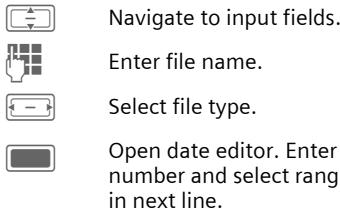
Search results are displayed in list. The symbol shows the save location.
Settings
Profiles


Profiles
Several settings can be stored in a phone profile, for example to adapt the phone to the surrounding level of noise.
- 6 standard profiles are provided with default settings: General, Silent, Meeting, Outdoor, Car kit, Headset. You can edit the default settings.
-
You can set and rename 2 personal profiles (User profile 1 and User profile 2).
-
Bluetooth Car Kits do not support profiles, e.g. General, Silent, Meeting, Outdoor, Car kit, Headset.
- If you change settings when not in the profile menu, changes are not saved in the current selected profile.
Activating a profile

Select a default profile or a personal profile.

Activate profile.
Profile settings
Edit a default profile or create a new personal profile:

Select profile.
Options
Open menu and select Change settings.
The list of available settings is displayed. For details see corresponding menu descriptions.
When you have finished setting one function, you return to the profile menu and can change further settings.
In standby mode: Press briefly to display Profile list.
Profile options
Options
Open menu.
Activate
Activate selected profile.
Change settings
Change profile settings.
Return to default
Enter phone code (page 25) and confirm with Yes to set profile settings to default.
Copy from
Copy settings from another profile. Select profile whose settings you want to copy and confirm with
Headset
The special profile Headset is automatically set when an original head-set is attached (see also accessories, page 147).
Ringtones


Ringtones
Volume
Set the tones on the phone to suit your requirements. The volume setting controls the volume of the ringtone as well as the general volume level of beeps and tones played by different applications. The volume setting does not affect the media player.
You can set the volume in 5 Levels or switch ringtones off.

Set volume and confirm with
While editing the volume level, the currently set level is played.
Voice calls/Video calls/ Calendar/Alarm clock
Select function and set melody and tone for each function separately.
Melody
Select a sound file to use as ringtone.

Select melody from My stuff folder (page 110) and confirm with Select.
Tone
Depending on the selected function, the following options will be offered:
| On/Off | Activate/deactivate melody specified above. You cannot turn off the alarm clock tone. |
| Beep | Set ringtone to beep. |
| Ascending | Set ringtone to melody with ascending volume. |
| Please make sure you have accepted the call before holding the phone to your ear. This will avoid damage to your hearing from loud ringtones. | |
Messages
Melody
Melody settings on page 114.
SMS & MMS tone/CBS alert tone/ E-mail tone
Set alert tone used for the different types of messages.
Tone settings on page 114.
Inst.msg sounds/Game sounds/ Startup sound/Shutdown sound
Set pre-defined sound effect for the selected function.
On/Off
Activate/deactivate tone and confirm with
Open cl. melody/Close cl. melody
Set melody to be played when the clamshell is opened/closed.
Melody
Melody settings on page 114.
Tone
Tone settings on page 114.
Themes

Load a completely new user interface in your phone. With the press of a key, various functions are re-organised based on a theme, e.g.
- switch on/off melody
- opening/closing melody
additional animations
Theme files are packed to save memory space. After a download (page 92) or a call from My stuff (page 110), themes are automatically unzipped when activated.
In addition to the automatic exchange of theme parameters (e.g. switch on/off melody), you will have to manually set parameteres such as Logo, Screensaver.
When you select a theme all the components of the theme apply to the phone, e.g. ringtones, wallpaper. The existing settings might be overwritten.
Activating a theme

Select theme and confirm with
If you delete an active theme, some used elements are reset to default.
Display


Display
Set Wallpaper/Logo
You can set pictures separately for following functions:
Wallpaper
Background image used on either display in standby mode. You can set a Wallpaper for each display separately.
Logo
Graphic to be displayed instead of the provider logo.
Set Wallpaper/Logo
Inside wallpaper/Outside wallpaper/Logo
Select and confirm with

Select file from corresponding folder in My stuff (page 110) and confirm with Select.
Change Wallpaper/Logo

Open menu and select Change.

Select file and confirm with Select.
Screensaver
Picture displayed on either display when a time period specified by you has elapsed. An incoming call pressing any key or opening/closing the clamshell will end the function unless the safety function is activated. The setting is valid for both displays.

Navigate to input fields.
Style: Select style.
Picture: If style Picture: is selected: Select file from corresponding folder in My stuff (page 110).
Timeout: Select standby time before screenshot is shown.
Auto key lock
Activate/deactivate function to automatically lock the keys whenscreensaver is active. Select On/Off.
Warning!
When the screensaver is manually set,
- the talk/standby time is reduced dramatically
- the sunscreen can cause irreversible display burn-in effects.
Additional information
The screenshot is not activated during a voice call or Bluetooth session, while the camera application is active or during video playback.
Greeting message
Set a message to be displayed when the phone is switched on.

Enter greeting (up to 2 lines).
Backlight time
Set the backlight duration for the display.

Select time and confirm with
Brightness
Set the brightness level for the display.

Decrease/increase brightness and confirm with
Power save
Set the time when the display goes into power save mode automatically. The setting is valid for both displays.
After 1 minute/After 5 minutes/
After 10 minutes/Never Select time and confirm with
Vibration (silent alert)

To avoid the disturbance caused by a ringing phone, you can activate the silent alert function as an alternative. The silent alert can also be activated in addition to the ringtone (e.g. in noisy environments).
Vibration is deactivated when the battery is being charged and accessories are connected (except the headset).
Vibration
Select the vibration pattern.
Off/Standard/Helicopter/UFO/Shock/
Mosquito/Train
Select vibration and
confirm with
Connectivity


Connectivity
Bluetooth® (BT)
Bluetooth is a short-range radio connection by means of which a headset or car kit or such can be connected without the need for wires.
Using the Send function in the options menu for the application concerned you can also use this route to send data.
Each Bluetooth device has its own specific address and can be given a self-explanatory name as an option. Password protection ensures the security of a Bluetooth connection, as does including the BT partner in a list of "confidential" devices.
To establish a Bluetooth connection between your phone and other Bluetooth devices you must activate the function.
The Bluetooth® word mark and logos are owned by the Bluetooth SIG, Inc. and any use of such marks by BenQ Corp. is under license. Other trademarks and trade names are those of their respective owners. Bluetooth QDID (Qualified Design ID): B02421.
If the clamshell is closed:
- The connection status is displayed on the outer display.
- A notification is displayed to announce ongoing data transfer via bluetooth. Press × to cancel the data transfer.
- If another user tries to establish a connection and the device is trusted (page 119), the connection is established automatically. If the other device is not trusted a request is displayed to open the clamshell.
Bluetooth active
On/Off
Activate/deactivate Bluetooth and confirm with
Bluetooth reduces the phone's standby time if it is activated.
Shown on either display:

Bluetooth activated.

Bluetooth visible to other users.

During transmission.

Call on Bluetooth device accepted.
File location
Select where the files are to be stored after being tranferred via Bluetooth.
Phone/MultiMediaCard
Select and confirm with
Search
Search for specific categories of devices or for all Bluetooth devices.
All devices/Audio/Phone/PC
Select and confirm
with to start search.
Found devices are displayed in a list (for list options see below).
If Audio is selected Headsets, Car kit and audio or video devices are listed.
Known devices
Display the list of known devices (max. 10 devices).
Last connected
Display the list of last 10 connected devices, including those that are currently connected.
Bluetooth name
Display device address. Enter the device name that is shown to other BT devices when they request this (see Bluetooth visibility).

Enter BT name for your phone (up to 16 characters) and confirm with
If no name is entered, the device address is shown to other BT users (the device address cannot be changed).
Bluetooth visibility
The device address/name is shown or not to other BT devices if they request this in order to receive or send data.

Select one of the following options and confirm with
On/Off
Activate/deactivate visibility.
Auto
Set visibility for 5 minutes, then visibility is disabled automatically.
List options
Depending on the current list (known or last connected), different functions will be offered.

Select device from list.
Options
Open menu.
Trust/
Do not trust
Enter the password to trust the device or remove trust option of device.
Trusted devices are added to the known list automatically and do not require the password to connect.
Connect/
Disconnect
Establish/end bluetooth connection to a known audio device. Only one audio device may be connected at a time.
| View details | Display the device de-tails: Name:, Device type: and Address:. |
| Add to known list | Add the device to the known list. |
| New search | Start a new search. |
GPRS

(General Packet Radio Service)
GPRS can be enabled or disabled depending on your service provider.
Data counter
Display the data transfer information.

Reset the data counter and confirm with
Connect.profiles

Depending on your provider up to 25 profiles may be preset containing a collection of settings utilised by applications. Depending on your provider you may rename/edit/delete the profiles via the options menu.

Select profile from list and confirm with
The following information is displayed and may be edited:
Profile name:
Default/changed name.
APN: Access point name (URL).
Login: Your login name.
Password: Your password.
Authentication:
Select authentication mode: Normal/Secure/ None.
DNS 1 (opt):, DNS 2 (opt):
The IP addresses of the used primary/secondary DNS server. DNS servers are used on the Internet to translate IP addresses into domain names and vice versa.
Your provider will supply you with your login and password.
Internet profiles

Depending on your provider up to 25 profiles are preset containing a collection of settings utilised by applications. Depending on your provider you may rename/edit/delete the profiles via the options menu.

Select profile from list and confirm with
The following information is displayed and may be edited:
Profile name:
Default/changed name.
Type: Select profile type: HTTP/WAP.
Security: Select security mode.
Proxy server:
IP address or domain of the server used for Internet access.
Proxy port: Communication port of the server (1 to 65535).
Login: Your login name.
Password: Your password.
Your provider will supply you with your login and password.
Linger time
Depending on your provider you may be able to specify the linger time which will apply to all applications.

Enter time
(1-999 seconds).
Shortcuts
You can assign one important number/function to each softkey, the navigation key (every direction) and the number keys 2 to 9 (speed-dial numbers).


Shortcuts
Select key
Left soft key/Right soft key
Select key and confirm with
Navigation keys
Select and confirm with . Select Up/Down/Left/Right and confirm with
Number keys
Select and confirm with . Select number key and confirm with
Set/change shortcut function

Select function and confirm with
To assign a number to a key select the contact application and then select the desired contact.
If no function is assigned, you can set a function if you
- press and hold the number key in stand-by mode and confirm request
- press the softmax briefly.
Start function/call number
The function is started or the number is dialled at the touch of a button.
Press and hold key to start application/dial number.
Pre-defined key functions
The following key functions are predefined. You cannot change their function.

Open Contacts (page 40).

Dial the mailbox number (page 88).
The service provider may have already assigned functions to a softkey (e.g. access to "SIM services" or direct call-up of the Internet portal). It may not be possible to modify this key assignment.
The left softkey may sometimes be replaced automatically by 10 to access a new message for example.
Call setup


Call setup

Select function.
Hide ID

When you make a call, your number can be shown on the display of the called party or suppressed. You may need to register separately with your service provider for these functions.

Select one of the following options and confirm with
Default
Set to default.
On/Off
Activate/deactivate display of the number for all subsequent calls.
Next call only
Activate/deactivate display of the number just for next call.
The setting applies to voice and video calls.
Call waiting

If you are registered for this service, set call waiting.
On/Off
Activate/deactivate call waiting and confirm with
Or
Check status

Select to display current setting.
Diverts
You can specify the conditions under which the call types should be diverted to your mailbox or other numbers.
The different call types are described below.

Confirm the warning message.
Divert video calls/voice calls
Voice calls/Video calls
Select call type and confirm with
All video calls/All voice calls/
Unanswered/Not reachable/No reply/Busy Select option and confirm with
Options
Open menu and select Set.

Enter the number you want to divert to. Or select Contacts from the options menu and select a contact.
Divert other call types
All calls/Data/Fax/Messages
Select a call type and confirm with

Open menu and select Set.

Enter the number you want to divert to. Or select Contacts from the options menu and select a contact.
Check status

Options
Open menu and select Check status.
You can check the current divert status for all conditions. After a short pause, the current situation is transmitted by the network and displayed.
Clear all

Options
Open menu and select Clear all.
All set diversions are cleared.
Confirm with
Note that the divert is stored in the network and not in the phone (e.g., when the SIM card is changed).
Reactivate divert: The last divert has been stored. Proceed as with "Set divert". The stored number is displayed. Confirm number.
All calls

All calls are diverted.

Symbol in the top line of the display in standby mode.
Unanswered

A call is diverted in the following situations: Not reachable, No reply, Busy (see below).
Not reachable

A call is diverted if the phone is switched off or is out of range.
No reply

A call is only diverted after a delay that is determined by the network. The period can be set to a maximum of 30 seconds in 5 second intervals.
Busy

A call is diverted if another call is in progress. If you activated Call waiting (page 123), you will hear the call waiting tone during a call (page 35).
Fax

Fax calls are diverted to a number with a fax connection.
Data/Messages

Data calls are diverted to a number with a PC connection.
Any key answer
Incoming calls can be accepted by pressing any key (except for ).
On/Off Activate/deactivate and confirm with
Open clamshell
If Auto accept is activated, incoming calls are accepted by opening the clamshell.
Auto accept/Manual accept
Select and confirm with
Video calls
Specify the additional settings for video calls.
Show my image
If the function is activated, your video image is always transmitted to the caller during a video call.
If the function is deactivated, you can choose whether or not to send the video image when you receive an incoming video call.
On/Off Activate/deactivate and confirm with
Select image
If you do not want to transmit your video image to the caller (Show my image is deactivated), you can select a video mute picture that is shown instead.

Select one of the following options and confirm with
Standard Display the default video mute file provided by the manufacturer or the service provider.
Custom Select a picture from My stuff (page 110) folder.
You cannot send protected files during a video call (DRM, page 20).
Phone
Phone Select function.
Language
Set the language of the display text.
Display language
Show the currently set display language. When Automatic is set, the language of your home service provider is used.
Input language
Select a language for text entry. Languages with T9 support are marked with the T9 symbol. When Automatic is set, the input language is based on the display language.
If a language that you do not understand happens to be set, the phone can be reset to the language of your home service provider with the following input (in standby mode):
*#0000#
T9 mode
Set T9 (intelligent text entry) or the multi-tap as default text entry method for most of the text entry items.
On/Off Activate/deactivate T9 and confirm with
Key tones
Set the tone that is played when pressing keys.
→ Shortcuts → Key tones
Tone/Silent
Select and confirm with
Info tones
Set the service and alarm tones.
On/Off Activate/deactivate T9 and confirm with
File system
Format card
Format the Micro SD Card and delete all saved data. Formatting can last longer than one minute.
Press to confirm request.
Memory assistant
Start the memory assistant (page 23).
Phone identity
The phone identity number (IMEI) is displayed. This information may be useful for customer service.
Switch between tabs to display additional information about the device.
Device check
After the last information page, a self-test as well as the individual test are offered. If you select Self test, all individual tests are carried out.
Software version
To display the software version for your phone in standby mode:
# 06# , and select the Configuration tab.
Device manager (DM)
Sessions can be initiated in different ways.
- Manual session: You start the DM session via this menu option.
- Software update: The phone checks the software status each time it is switched on. If an update is available a request is displayed. Confirm the requests to start the software update and to re-boot your phone.
If you want to start a session the battery must be charged at least 50% .
The phone default settings vary from service provider to service provider and can be as follows:
- The settings have already been implemented by the provider. You can start immediately.
-
Access profiles have already been created by your provider. Select and activate a profile.
-
The access profiles must be configured manually. If necessary, check with your service provider for details. You will find the current settings for the service provider on the Internet at www.BenQMobile.com/customercare under "FAQ".
Manual session
Display the currently active profile and summary results of the last session.
Options Open menu.
| Start | Start the DM session. |
| Select profile | Select a profile (profile options see below). |
| Last session | Show the details of the last session (e.g. date, time, additional info). |
| Resume session | If the last session can be re-sumed: resume last session. |
| For standard functions see page 22. | |
Profile options
Options Open menu.
| Activate | Activate the highlighted profile. |
| Edit profile | Edit the highlighted profile (see page 128). |
| Restore defaults | Restore the profile to the default values. |
| For standard functions see page 22. | |
Edit profile

Navigate to input fields.
Address: Enter the server address.
Port: Enter the port number to connect with the server, e.g. 80.
Provider: Select a service provider.
User name: Enter your login name.
Password: Enter your password (shown as a series of asterisks).
Server ID: Enter the server ID.
Server password:
Enter your password (shown as a series of asterisks).
HTTP authent.
Enable/disable HTTP authentication. Select No/Yes.
HTTP name:
Enter your user name when HTTP authent. is active.
HTTP password:
Enter your password when HTTP authent. is active (shown as a series of asterisks).
Master reset
Reset the phone to default values (factory setting). This does not affect the SIM card or the network settings.
Alternatively enter in standby mode:
*#9999#


Enter the phone code (page 25) and confirm with
Clock


Clock
The clock must be set correctly once at start-up (page 18).
Setting the time and date
Time/Date
Select and confirm with

Enter time (hours/ minutes) or date (day/ month/year) and confirm with
If Auto time is activated (page 130), the network time is displayed.
- If the battery is removed for longer than 30 seconds, the clock is reset automatically.
- If the time format 12-hour is activated (see below) press 2abs / 7pms to switch between am/pm.
Time zone
The world clock shows the current system time, the time zone (grey vertical bar on the map), the time zone name and the time in the selected city.
The time zone can be changed:

Select the desired setting and change the time zone in the world map.

Select a city in the selected time zone.

Display set time zone.
Options
Open menu and select option.
Set time zone
Set a new time zone for the selected city. Confirm with Yes.
Auto time
Enable/disable automatic update of the time and the time zone.
Search city
Open the city list and select a city.
For standard functions see page 22.
If you changed the time zone:
- Alarm clock is changed to the current time zone.
- Calendar events are not affected by time zone changes.
Time format
Set the display format for time used in various applications.
24-hour/12-hour
Select and confirm with
Date format
Set the display format for date.

Select date format and confirm with
Show clock
Set the time and date display in standby mode.
On/Off Activate/deactivate and confirm with
Auto time
If you activate auto time, the time zone is switched automatically to local time by the network.
On/Off Activate/deactivate and confirm with
Security


Security

Select function.
Auto key lock
If activated, the keypad is locked automatically if no key has been pressed for one minute in standby mode. This prevents the phone from being used accidentally. However, you can still be called and you can still make an emergency call. The setting is also valid for the outer softkeys.
On/Off
Activate/deactivate and confirm with
The keypad can also be directly locked and unlocked in standby mode. In each case:

Press and hold.
Or (if clamshell is closed)

Press and hold.
Only protect. SIM

(PIN2 or phone-code protected)
Dialling options are restricted to the SIM protected numbers in the contacts. If only area codes are entered, relevant numbers can be added to these manually before dialling.
If the SIM card does not support PIN2 input, all the contacts can be protected with the phone code.
On/Off
Activate/deactivate and confirm with
PIN codes
Description on page 25:
PIN control, Change PIN, Change PIN2,
Change phonecode
This SIM only

(PIN2 or phone-code protected)
The phone can be linked to a SIM card when the phone code is entered. Unless the phone code is known the phone will not operate with a different SIM card.
If the phone is to be used with a different SIM card, enter the phone code when requested.
On/Off
Activate/deactivate and confirm with
Barrings

Barring restricts the use of your SIM card (not supported by all service providers). You need a 4-digit network password for network barring. Your service provider will supply you with this password. You may need to register separately for each barring.
Activate/deactivate Barrings

Confirm warning message.

Select call type described below and confirm with
Activate/Deactivate
Select and confirm with

Enter the network password and confirm with to activate/ deactivate barring for selected call type.

Confirm barring message.
All outgoing
All outgoing calls except emergency numbers are barred.
Outg. internat.
(International outgoing)
Only national calls can be made.
Outg. int. x home
(International outgoing without home country)
International calls are not permitted. However you can make calls to your home country when abroad.
All incoming
The phone is barred for all incoming calls (forwarding of all calls to mailbox provides a similar effect).
When roaring
You do not receive calls when you are outside your home network. This means that no charges are incurred for incoming calls.
Status check
Check the status of selected or all call type(s).

Enter the network password.

Confirm barring message.
Clear all
All barrasses are deleted.

Enter the network password.

Confirm to clear all barrings.
Content downl'd?
Enable or disable a content download notification (page 20).
On/Off
Activate/deactivate and confirm with
Network


Network

Select function.
Network info
Retrieve information about the network operator currently set. Information is displayed.

Confirm network info.
Choose network
Start network search. This is useful if you are not in your home network or want to register in a different network.
If Auto network is activated (see below), confirm request to deactivate the auto network function.
The list of networks currently available is displayed.

Select network.

Open menu.
Info
Display network information.
Select
Set as current network operator.
Auto network
If you activate this function, the phone searches automatically and selects the next network on the preferred network list. Otherwise you can select a different network manually from the network list.
On/Off
Activate/deactivate function and confirm with

When function is deactivated, the Choose network function is started automatically (see above).
Preferred network
Display a list of preferred networks.
Customise the list by changing entries.

Select entry.

Open menu and select Change.

Select network and confirm with
If you are outside your home network, your phone automatically dials another network.
If the signal strength of the preferred network is inadequate when you switch on the phone, the phone may register in a different network.
Mode selection

Make sure that your service provider supports the selected mode.

Select Automatic/GSM only/UMTS only and confirm with

Open menu and select Save.
Combinations of several modes may be prohibited. Confirm the error message and change selection.
Fast search
If you activate this function, network reconnection is speeded up (standby time is reduced).
On/Off
Activate/deactivate function and confirm with
Accessories


Accessories

Select function.
Car kit
The Car kit profile is activated automatically as soon as the phone is connected to the car kit.
Edit profile
To edit the Car kit profile see page 113.
Auto answer
Voice and video calls are accepted automatically after a few seconds.
On/Off
Activate/deactivate and confirm with
- Closing the clamshell: In conjunction with a Car kit or headset closing the clamshell will not cancel dialing or incoming calls.
- Auto answer does not apply if you are already in a call.
- If you do not notice that your phone has accepted a call, there is the danger that the caller may eavesdrop.
- Screensaver and power save settings are disabled automatically when the phone is connected to a car kit.
Headset
Only in combination with an original handsfree headset (page 147). If an original headset is used, the Headset profile is automatically activated when the headset is plugged in.
Edit profile
To edit Headset profile see page 113.
Auto answer
Voice and video calls are accepted automatically after a few seconds.
On/Off
Activate/deactivate and confirm with
- Auto answer does not apply if you are already in a call.
- If you do not notice that your phone has accepted a call, there is the danger that the caller may eavesdrop.
Charge via USB
The phone is charged via USB when connected to a computer via USB cable.
On/Off
Activate/deactivate and confirm with
Mobile Phone Manager
MPM (Mobile Phone Manager) enables you to use extended phone functions from your PC. The phone and PC communicate via Bluetooth or a data cable (see Accessories, page 148).

You can download the newest version of MPM from the Internet: www.BenQ-Siemens.com/ef81
Please consult the help files and theREADME file for further information on the functions and use of MPM.
Organiser

With the Organiser you can administer the contacts of your phone, Outlook® and other Siemens phones (including Gigaset).
Backup and restore

With the backup function, you can regularly make a copy of your phone data on the PC. If you ever lose the data on your phone or replace the phone, you can quickly retrieve all data with the restore function. Please observe all applicable restrictions for DRM protected data.
Bookmark Management

Use your PC to browse the Internet and define your preferred Internet sites. Save the Internet addresses as bookmarks on your phone so that you can quickly call them up at a later time when you are on the move.
Phone Explorer

With Phone Explorer you can access your phone's data fast and comfortably. The phone is simply added to your PC's file structure as if it was just another folder on your PC.
Mobile Modem Assistant

Mobile Modem Assistant quickly and effortlessly sets up an Internet connection over your mobile phone so that you can at once surf the Internet at home or abroad without difficulty.
Media Pool

Media Pool offers you a convenient way of managing ringtones, music, playlists and videos. You can move music files to your phone and automatically convert them into a suitable format in the process.
Plug & Sync

Plug & Sync can relieve you of routine tasks. With "Music > Phone" you can always transfer your up-to-date music files and playlists to the phone automatically. With "Photos > PC" you can transfer your newly taken pictures to the PC.
SmartSync
With SmartSync you can synchronise your data with Outlook, OutlookExpress or Lotus Notes™ as soon as your phone is connected to the PC. New and edited contacts are synchronised automatically as are messages and appointments.
Questions & Answers
If you have any questions about using your phone, visit us at www.BenQMobile.com/customercare any time. For additional help, we have listed below some frequently asked questions and answers.
Configuration service
To help you set up your mobile phone for the data service WAP, MMS, e-mail and Internet, you can use a configuration service. This service is used to have the necessary settings for your mobile phone sent to you by SMS. We recommend that you contact your network provider who will send you the configuration messages.
As an alternative you can also use the "Setting Configurator" at www.BenQMobile.com/customercare. BenQ Mobile will then send you the configuration messages. Please follow the instructions contained in those messages.
| Problem | Possible causes | Possible solution |
| Phone cannot be switched on. | On/Off key not pressed long enough. | Press On/Off key for at least two seconds. |
| Flat battery. | Charge battery. Check charging indicator in the display. | |
| Battery contacts dirty. | Clean contacts. | |
| See also below under "Charging error". | ||
| Too little standby time. | The operating time depends on the respective operating conditions. Extreme temperatures significantly reduce the phone's standby time! | |
| Some settings/functions negatively affect the standby time. | It may be useful to restrict the use of the following functions in order to improve the standby time:Bluetooth function, Cell Broadcast, Silent Alert/Vibrator Alarm, Fast Search, display illumination (can be adjusted to a lower level or switched off), frequent use of organiser and games, continuous animated screenshotsaver. | |
| Data cable connected. | When a data cable is connected, the battery will be empty within a few hours even if there is no active data connection at all. Connect data cable only if necessary. | |
| Unintentional keystrokes (illumination!). | Activate auto key lock (page 131). | |
| Charging error (charge icon not displayed). | Battery totally discharged. | 1) Plug in charger cable, battery is on charge. 2) Charge icon appears after approx. 2 hours. 3) Charge battery. |
| Temperature out of range: +5 °C to +45 °C. | Make sure the ambient temperature is right, wait for a while, then recharge. | |
| Contact problem | Check power supply and connection to the phone. Check battery contacts and phone connection socket, clean them if necessary, then insert battery again. | |
| No mains voltage. | Use different mains power socket, check mains voltage. | |
| Wrong charger. | Only use original accessories. | |
| Battery faulty. | Replace battery. | |
| SIM error. | SIM card not inserted correctly. | Check that the SIM card is inserted correctly (page 13). |
| Dirty SIM card contacts. | Clean SIM card with a dry cloth. | |
| SIM card with wrong voltage. | Use 3.0/1.8V SIM cards only. | |
| SIM card damaged (e.g. broken). | Carry out a visual check. Change SIM card at service provider. | |
| No network connection. | Weak signal. | Move higher, to a window or an open space. |
| Outside GSM/UMTS range. | Check service provider's coverage area. | |
| Invalid SIM card. | Complain to the service provider. | |
| New network not authorised. | Try manual selection or select a different network (page 133). | |
| Network call barring is set. | Check network barrings (page 131). | |
| Network overloaded. | Try again later. | |
| Phone loses network. | Signal too weak. | Reconnection to another service provider is automatic (page 133). Switching phone off and on again can speed this up. |
| Calls not possible. | New SIM card inserted. | Check for new barrings. |
| Charge limit reached. | Reset limit with PIN2 (page 25). | |
| Credit used up. | Load credit. | |
| Certain uses of phone not possible. | Call restrictions are in place. | Barrings can be set by service provider. Check barrass (page 131). |
| Impossible to make entries in contacts. | Memory is full. | Delete entries in contacts (For standard functions see page 22) or call up memory assistant (page 23). |
| Voice mail not functioning. | Call divert to mailbox not set. | Set call divert to mailbox (page 88). |
| □□ flashes to indicate an SMS. | SMS memory is full. | Delete (For standard functions see page 22) or call up memory assistant (page 23). |
| □□ flashes to indicate an MMS. | MMS memory full. | Delete MMS (For standard functions see page 22). |
| □□ flashes to indicate an MMS. | Phone memory full. | Delete messages, pictures, videos, games or applications or call up memory assistant (page 23). |
| Function cannot be set. | Not supported by service provider or registration required. | Contact your service provider. |
| Capacity problems with, for example, Games & More, ring-tones, pictures, videos, messages. | Phone memory full. | Delete files in the relevant areas. You can use the memory assistant to delete specific files (page 23). |
| No WAP access, downloading not possible. | Wrong or incomplete WAP settings. | Check WAP settings (page 91). If necessary ask your service provider. |
| Text message cannot be sent. | Service provider does not support this service. | Contact your service provider. |
| Number for service centre not set or incorrectly set. | Set service centre (page 70). | |
| SIM card contract does not support this service. | Contact your service provider. | |
| Service centre too busy. | Repeat message. | |
| Recipient does not have a compatible phone. | Check. | |
| No Internet access possible. | Wrong or incomplete WAP settings. | Check WAP settings (page 91) and contact your service provider if necessary. |
| PIN error/ PIN2 error. | Three wrong entries. | Enter the PUK (MASTER PIN) supplied with the SIM card according to the instructions. If the PUK (MASTER PIN) has been lost, please contact your service provider. |
| Phone code error. | Three wrong entries. | Contact Service (page 142). |
| Service provider code error. | No authorisation for this service. | Contact your service provider. |
| Too few/too many menu entries. | Functions may have been add- ed or deleted by the service pro- vider via the SIM card. | Check with your service provider. |
| No fax possible. | Wrong settings in the PC. | Check settings. |
| No authorisation for this service. | Contact your service provider. | |
| Charge meter does not work. | Charge pulse is not transmitted. | Contact your service provider. |
| Damage | ||
| Severe shock. | Remove battery and SIM and re-insert them. Do not dismantle the phone! | |
| Phone became wet. | Remove battery and SIM. Dry immediately with a cloth, but do not apply heat. Dry connector contacts thoroughly. Stand mobile upright in an air current. Do not dismantle the phone! | |
Reset all settings to factory default, page 126: *# 9 9 9 9 #
Customer Care
We offer fast, individual advice! You have several options:
Our online support on the Internet:
www.BenQMobile.com/customercare
We can be reached any time, any place. You are given 24 hour support on all aspects of our products. Here you will find an interactive fault-finding system, a compilation of the most frequently asked questions and answers, plus user guides and current software updates to download.
When calling customer service, please have ready your receipt and the phone identity number (IMEI, to display press # 06# ), the software version (to display, press # 06# , then select according tab) and if available, your Service customer number.
You will also find the most frequently asked questions and answers in the section entitled "Questions & Answers" in this user guide on page 138.
You can also get personal advice about our range of products on our Premium Hotline: United Kingdom. 0906 9597500 (0.75 £ per minute)
Qualified employees are waiting to offer you expert information about our products and installation.
In some countries repair and replace services are impossible where the products are not sold through our authorised dealers.
If repair work is necessary, please contact one of our service centres:
Abu Dhabi. 026423800
Argentina 08102226624
Australia 1300665366
Austria. 0517075004
Bahrain 404234
Bangladesh. 017527447
Belgium. 078152221
Bolivia 021214114
Bosnia Herzegovina. 033276649
Brunei 02430801
Bulgaria 02739488
Cambodia 12800500
Canada 18887770211
Chile. 800530662
China 40 08 88 56 56
Colombia. 01 80 07 00 66 24
Croatia 016 105381
Czech Republic. 233032727
Denmark 35 25 65 29
Dubai 043966433
Ecuador 1800101000
Egypt. 02333411
Estonia 56 64 54 00
Finland .0922943700
France. 0156384200
Germany 01805333226
Greece 80 11 11 11 16
Hong Kong. 28611118
Hungary 06 14 71 24 44
Iceland 5203000
India 22 24 98 70 00 Extn: 70 40
Indonesia 02146826081
Ireland. 1850777277
Italy 0245279036
Ivory Coast. 05 02 02 59
Jordan. 064398642
Kenya 2723717
Kuwait 2454178
Latvia 7501118
Lebanon 01443043
Libya 02 13 50 28 82
Lithuania. 870070700
Luxembourg 4066615640
Macedonia 023131848
Malaysia. +60377124304
Malta. +353214940632
Mauritius 2116213
Mexico .018007110003
Morocco 22669209
Netherlands 0900333100
New Zealand. 08 00 27 43 63
Nigeria 014500500
Norway. 22577746
Oman. 791012
Pakistan. 02 15 66 22 00
Paraguay 800102004
Peru. 080052400
Philippines 027571118
Poland. 08 01 30 00 30
Portugal 808201521
Qatar. 04322010
Romania .02 12 09 99 66
Russia. 88002001010
Saudi Arabia. 022260043
Serbia 01 13 07 00 80
Singapore 62 27 11 18
Slovak Republic. 0259682266
Slovenia 014746336
South Africa 0860101157
Spain. 902115061
Sweden. 0857929049
Switzerland. 0848212000
Taiwan 02 23 96 10 06
Thailand. 027221118
Tunisia 71861902
Turkey. 02164599898
Ukraine .88005010000
United Arab Emirates. 043660386
United Kingdom 08705334411
Uruguay 00 04 05 46 62
USA 18887770211
Venezuela. 08001005666
Vietnam. 84 89 20 24 64
Zimbabwe 04369424
Care and maintenance
Your phone has been designed and manufactured to the highest of standards and should be treated with great care. The suggestions below will help you to enjoy your phone for many years.
- Protect your phone from moisture and humidity. Precipitation, humidity and liquids contain minerals that will corrode electronic circuits. Nevertheless, should your phone become wet, disconnect it immediately from the power supply to avoid electric shock. Do not place your phone (even to dry it) on/in a source of heat such as a microwave oven, oven or radiator. The phone may become overheated and possibly explode.
- Do not use or store the phone in dusty, dirty areas. Its moving parts may be damaged and the casing may become deformed and discoloured.
- Do not store your phone in hot environments (e.g. vehicle instrument panel in the summer). High temperatures can shorten the life of electronic devices, damage batteries and warp or melt certain plastics.
- Do not store your phone in cold environments. When the phone warms up again (to its normal ambient temperature), moisture can form inside the phone, which may damage electronic circuit boards.
- Do not drop, knock or shake your phone. Rough handling can damage internal circuit boards!
- Do not use harsh chemicals, cleaning solvents, or strong detergents to clean the phone!
The suggestions given above apply equally to your phone, battery, charger and all accessories. If any of these parts is not working properly, obtain fast and reliable help at our service centres.
Battery quality statement
The capacity of your mobile phone battery will reduce each time it is charged/emptied. Storage at too high or low temperatures will also result in a gradual capacity loss. As a result the operating time of your mobile phone may be considerably reduced, even after a full recharge of the battery.
Regardless of this, the battery has been designed and manufactured so that it can be recharged and used for six months after the purchase of you mobile phone. After six months, if the battery is clearly suffering from loss of performance, we recommend that you replace it. Please buy only original batteries.
Display quality declaration
For technological reasons, a few small dots with different colours may appear in the display in exceptional cases.
Just remember that the appearance of brighter or darker dots generally does not mean that a fault has occurred.
Product data
Declaration of conformity
BenQ. Mobile hereby declares that the phone described in this user guide is in compliance with the essential requirements and other relevant provisions of European Directive 1999/5/EC (R&TTE). The relevant declaration of conformity (DoC) has been signed. Please call the company hotline if you require a copy of the original:
www.BenQMobile.com/conformity
€ 0168
Technical data
UMTS class: 3 (0,25 watt)
Frequency range: 1920 - 2170 MHz (Band I)
GSM class: 4 (2 watt)
Frequency range: 880 - 930 MHz
GSM class: 1 (1 watt)
Frequency range: 1710 - 1880 MHz
GSM class: 1 (1 watt)
Frequency range: 1850 - 1990 MHz
Weight phone: 110 g
Weight charger: 55g
Weight headset: 20g
Weight USB cable: 70 g
Size: 94 × 51 × 15.9 ~mm (80 ccm)
Li-Ion battery: 950 mAh
SIM card: 3.0/1.8 V
Phone ID
You will need the following details if you lose your phone or SIM card:
the number of the SIM card (on the card):
15 digit serial number of the phone (under the battery):
the customer service number of the service provider:
Lost phone
If you lose your phone or SIM card contact your service provider immediately to prevent misuse.
Operating time
The operating time depends upon the respective conditions of use: Extreme temperatures considerably reduce the phone's standby time. Avoid placing the phone in the sun or on a heater.
Call time
UMTS: up to 210 minutes
- GSM: up to 270 minutes
Standby time
UMTS: up to 250 hours
- GSM: up to 300 hours
| Action taken | Time (min) | Reduction of standby time by |
| Calling | 1 | 30 - 90 minutes |
| Light * | 1 | 50 minutes |
| Network search | 1 | 15 minutes |
| * Key input, games, organisetetc. | ||
SAR
European Union (RTTE) and international (ICNIRP)
INFORMATION ON RF EXPOSURE / SPECIFIC ABSORPTION RATE (SAR)
THIS MODEL MEETS INTERNATIONAL GUIDELINES FOR EXPOSURE TO RADIO WAVES
Your mobile device is a radio transmitter and receiver. It is designed not to exceed the limits for exposure to radio waves recommended by international guidelines. These guidelines were developed by the independent scientific organization ICNIRP and include safety margins designed to assure the protection of all persons, regardless of age and health.
The guidelines use a unit of measurement known as the Specific Absorption Rate, or SAR. The SAR limit for mobile devices is 2W / kg and was adopted into the European Standard EN 50360 and into other national standards. The CE mark demonstrates that the EU requirements are met.
The highest SAR value for this device when tested at the ear was 0.37W / kg^1 .As mobile devices offer a range of functions, they can be used in positions other than the head, such as on the body. In this case, a separation distance of 1.0 cm is required.
As SAR is measured utilizing the device's highest transmitting power, the actual SAR of this device while operating is typically below that indicated above. This is due to automatic changes to the power level of the device to ensure it only uses the minimum level required to reach the network.
1 The tests are carried out in accordance with international guidelines for testing.
The World Health Organization has stated that present scientific information does not indicate the need for any special precautions for the use of mobile devices. They note that if you nevertheless want to reduce your exposure then you can do so by limiting the length of calls or using a 'hands-free' device to keep the mobile phone away from the head and body.
Additional Information can be found on the websites of the World Health Organization (www.who.int/emf) or BenQ Mobile (www.BenQMobile.com).
Accessories
Fashion & Carry
Carrying Cases
A range of carry cases is available at specialist shops or you can visit our online shop at:

Original Accessories www.BenQMobile.com/shop
Energy
Li-ion Battery EBA-160 (950 mAh)
Spare battery
Travel Charger
Travel Charger EU ETC-100
Travel Charger UK ETC-110
Travel charger with an extended input voltage range of 100 - 240 V.
Car Charger Plus ECC-100
Charger for the cigarette lighter socket in the car. It is possible to make phone calls during charging.
Desk Top Stand EDS-100
Table support for the telephone to facilitate telephone charging.
Handsfree Portable
Headset Basic HHS-100
Simple headset.
Headset HHS-110
Headset with key to accept and end calls.
Headset Purestyle HHS-120
High quality headset with removable earpiece and key to accept calls.
Headset Stereo HHS-150
Stereo headset with key for listening to music and making calls.
Headset Bluetooth®
HHB-700 with EU power supply unit
HHB-710 with UK power supply unit
Elegant and easy to wear Bluetooth headset.
Headset Bluetooth® HHB-100
Easy to wear Bluetooth headset.
Headset Bluetooth® Clip
HHB-130 with EU power supply unit
HHB-131 with UK power supply unit
Stylish Bluetooth headset to clip at your clothing.
Headset Bluetooth®
HHB-160 with EU power supply unit
HHB-161 with UK power supply unit
Elegant Bluetooth headset to wear behind the ear.
Office
Data Cable USB DCA-140
For connecting the phone to the USB port of the PC. With charging capacity.
Sync Station DSC-100
Table support for the telephone to facilitate simultaneous data exchange and telephone charging. Contains a Desktop Stand and a Data Cable USB.
Car Solutions
Mobile Holder HMH-100
Universal cradle without antenna port. Ideal for use with Headset or Car Kit Portable.
Car Kit Portable HKP-100
The portable handsfree car kit can easily be moved from one car to another. Simply plug into the cigarette lighter socket, connect and talk.
Car Kit Bluetooth® Easy HKW-100
Bluetooth high-tech handsfree kit without cable connection to the mobile phone. Plugs into cigarette lighter socket - no installation effort required.
Car Kit Bluetooth® Portable HKW-700
Bluetooth high-tech handsfree kit with integrated display and without cable connection to the mobile phone. Plugs into cigarette lighter socket - no installation effort required.
Car Kit Bluetooth® 75 HKW-710
Innovative fixed installed Bluetooth hands-free kit with external display for safe and comfortable calling in the car.
The products are available at specialist shops or you may visit our online shop at:

Original Accessories www.BenQMobile.com/shop
Guarantee certificate (UK)
Without prejudice to any claim the user (customer) may have in relation to the dealer or retailer, the customer shall be granted a manufacturer's Guarantee under the conditions set out below:
- In the case of new devices and their components exhibiting defects resulting from manufacturing and/or material faults within 24 months of purchase, BenQ Mobile shall, at its own option and free of charge, either replace the device with another device reflecting the current state of the art, or repair the said device. In respect of parts subject to wear and tear (including but not limited to, batteries, keypads, casings, small parts on casings, protective coverings where included in the scope of delivery), this warranty shall be valid for six months from the date of purchase.
- This Guarantee shall be invalid if the device defect is attributable to improper treatment and/or failure to comply with information contained in the user manuals.
- This Guarantee shall not apply to or extend to services performed by the authorised dealer or the customer themselves (e.g. installation, configuration, software downloads). User manuals and any software supplied on a separate data medium shall be excluded from the Guarantee.
- The purchase receipt, together with the date of purchase, shall be required as evidence for invoking the Guarantee. Claims under the Guarantee must be submitted within two months of the Guarantee default becoming evident.
- Ownership of devices or components replaced by and returned to BenQ Mobile shall vest in BenQ Mobile.
- This Guarantee shall apply to new devices purchased in the European Union. For
Products sold in the United Kingdom the Guarantee is issued by BenQ Mobile UK Ltd., Carmelite 50, Victoria, Embankment, London, EC4Y 0DX, U.K.
- Any other claims resulting out of or in connection with the device shall be excluded from this Guarantee. Nothing in this Guarantee shall attempt to limit or exclude a Customers Statutory Rights, nor the manufacturer's liability for death or personal injury resulting from its negligence.
- The duration of the Guarantee shall not be extended by services rendered under the terms of the Guarantee.
- Insofar as no Guarantee default exists, BenQ Mobile reserves the right to charge the customer for replacement or repair.
- The above provisions does not imply a change in the burden of proof to the detriment of the customer.
To invoke this Guarantee, please contact our online support on the Internet www.BenQMobile.com/customercare or the telephone service. The relevant number is to be found in the accompanying user guide.
Guarantee certificate (IRL)
Without prejudice to any claim the user (customer) may have in relation to the dealer or retailer, the customer shall be granted a manufacturer's Guarantee under the conditions set out below:
In the case of new devices and their components exhibiting defects resulting from manufacturing and/or material faults within 24 months of purchase, BenQ Mobile
shall, at its own option and free of charge, either replace the device with another device reflecting the current state of the art, or repair the said device. In respect of parts subject to wear and tear (including but not limited to, batteries, keypads, casings, small parts on casings, protective coverings where included in the scope of delivery), this warranty shall be valid for six months from the date of purchase.
- This Guarantee shall be invalid if the device defect is attributable to improper care or use and/or failure to comply with information contained in the user manuals.
-
In particular claims under the Guarantee cannot be made if:
-
The device is opened (this is classed as third party intervention)
- Repairs or other work done by persons not authorised by BenQ Mobile.
- Components on the printed circuit board are manipulated
- The software is manipulated
- Defects or damage caused by dropping, breaking, lightning or ingress of moisture. This also applies if defects or damage was caused by mechanical, chemical, radio interference or thermal factors (e.g.: microwave, sauna etc.)
Devices fitted with accessories not authorised by BenQ Mobile -
This Guarantee shall not apply to or extend to services performed by the authorised dealer or the customer themselves (e.g. installation, configuration, software downloads). User manuals and any software supplied on a separate data medium shall be excluded from the Guarantee.
-
The purchase receipt, together with the date of purchase, shall be required as evidence for invoking the Guarantee. Claims under the Guarantee must be submitted within two months of the Guarantee default becoming evident.
- Ownership of devices or components replaced by and returned to BenQ Mobile shall vest in BenQ Mobile.
- This Guarantee shall apply to new devices purchased in the European Union. For Products sold in the Republic of Ireland the Guarantee is issued by BenQ Mobile UK, Branch Ireland, 1st Floor, Riverview House, 21-23 City Quay, Dublin–The Republic of Ireland.
- Any other claims resulting out of or in connection with the device shall be excluded from this Guarantee. Nothing in this Guarantee shall attempt to limit or exclude a Customers Statutory Rights, nor the manufacturer's liability for death or personal injury resulting from its negligence.
- The duration of the Guarantee shall not be extended by services rendered under the terms of the Guarantee.
- Insofar as no Guarantee default exists, BenQ Mobile reserves the right to charge the customer for replacement or repair.
- The above provisions does not imply a change in the burden of proof to the detriment of the customer.
To invoke this Guarantee, please contact our online support on the Internet www.BenQMobile.com/customercare or the telephone service. The relevant number is to be found in the accompanying user guide.
License Agreement
This License Agreement ("Agreement") is between You and BenQ Mobile GmbH & Co. OHG, Germany ("BenQ"). The Agreement authorizes You to use the Licensed Software, specified in Clause 1 below, which may be included in your phone, stored on a CD-ROM, sent to You by electronic mail or over the air, downloaded from BenQ Web pages or servers or from other sources under the terms and conditions set forth below. Read this Agreement carefully before using your phone. By using your phone or installing, copying, and/or using the Licensed Software, You acknowledge that You have read and understood the Agreement and agree to be bound by all of the terms and conditions stated below. You further agree that if BenQ or any licensor of BenQ ("Licensor") is required to engage in any proceeding, legal or otherwise, to enforce their rights under this Agreement, BenQ and/or its Licensor shall be entitled to recover from You, in addition to any other sums due, reasonable attorney's fees, costs and disbursements. If You do not agree to all of the terms and conditions of this Agreement, do not install or use the Licensed Software. This Agreement governs any Updates, releases, revisions, or enhancements to the Licensed Software.
-
LICENSED SOFTWARE. As used in this Agreement, the term "Licensed Software" means collectively: all the software in Your phone, all of the contents of the disk(s), CD-ROM(s), electronic mail and its file attachments, or other media with which this Agreement is provided and includes any related BenQ or third party software and upgrades, modified versions, updates, additions and copies of the Licensed Software, if any, distributed over the air, downloaded from BenQ Web pages or servers or from other sources.
-
COPYRIGHT. The Licensed Software and all related rights, without limitation including proprietary rights therein, are owned by BenQ, its Licensors or affiliates and are protected by international treaty provisions and all applicable national laws. This Agreement does not convey to You nor allow You to acquire any title or ownership interest in the Licensed Software or rights therein. The structure, organization, data and code of the Licensed Software are the valuable trade secrets and confidential information of BenQ, its Licensors or affiliates. You must reproduce and include the copyright notices with any permitted copies You make of the Licensed Software.
- LICENSE AND USE. BenQ grants to You a non-exclusive, non-transferable end user right to install the Licensed Software or use the Licensed Software installed on the phone. The Licensed Software is licensed with the phone as a single integrated product and may be used with the phone only as set forth in these licensing terms.
- LIMITATIONS ON LICENSE. You may not copy, distribute, or make derivative works of the Licensed Software except as follows:
(a) You may make one copy of the Licensed Software, excluding the documentation, as an archival backup copy of the original. Any other copies You make of the Licensed Software are in violation of this Agreement.
(b) You may not use, modify, or transfer the right to use the Licensed Software other than together with the accompanying hardware or copy the Licensed Software except as expressly provided in this Agreement.
(c) You may not sublicense, rent or lease the Licensed Software.
(d) You may not reverse engineer, decompile, modify, or disassemble those Licensed Software programs except and only to the extent that such activity is expressly permitted by applicable law notwithstanding this limitation.
Parts of the Licensed Software may be supplied by third parties and may be subject to separate license terms. Such terms are set out within the documentation.
- MISUSE OF THE LICENSED SOFTWARE OR DATA GENERATED BY THE LICENSSED SOFTWARE IS STRICTLY PROHIBITED BY BENQ, MAY VIOLATE GERMAN, U.S. AND OTHER LAWS AND MAY SUBJECT YOU TO SUBSTANTIAL LIABILITY. You are solely responsible for any misuse of the Licensed Software under this Agreement and for any liability or damage related in any way to your use of the Licensed Software in violation of this Agreement. You are also responsible for using the Licensed Software in accordance with the limitations of this Agreement.
- TERMINATION. This Agreement is effective from the first date You install, copy or otherwise use the Licensed Software. You may terminate this license at any time by deleting or destroying the Licensed Software, all back up copies and all related materials provided to You by BenQ. Your license rights terminate automatically and immediately without notice if You fail to comply with any provision of this Agreement. The rights and obligations under sections 2, 5, 6, 7, 9, 12 and 13 of this Agreement shall survive the termination of this Agreement.
- YOU ACKNOWLEDGE THE LICENSED SOFTWARE IS PROVIDED "AS IS" AND NEITHER BENQ NOR ANY OF ITS LICENSORS MAKE ANY REPRESENTATIONS OR WARRANTYES, EXPRESS OR IMPLIED, INCLUDING BUT NOT LIMITED TO THE WARRANTYES OF
MERCHANTABILITY OR FITNESS FOR A PARTICULAR PURPOSE OR THAT THE LICENSED SOFTWARE WILL NOT INFRinge ANY THIRD PARTY PATENTS, COPYRIGHS,TRADEMARKS OR OTHER RIGHTS. THERE IS NO WARRANTY BY BENQ OR ITS LICENSORS OR BY ANY OTHER PARTY THAT THE FUNCTIONS CONTAINED IN THE LICENSED SOFTWARE WILL MEET YOUR REQUIREMENTS OR THAT THE OPERATION OF THE LICENSED SOFTWARE WILL BE UNINTERRUPTED OR ERROR-FREE AND BENQ AND ITS LICENSORS HEREBY DISCLAIM ANY AND ALL LIABILITY ON ACCOUNT THEREOF.NO ORAL OR WRITTEN INFORMATION OR ADVICE GIVEN BY A BENQ REPRESENTATIVE SHALL CREATE A WARRANTY OR IN ANY WAY AFFECT THIS DISCLAIMER. YOU ASSUME ALL RESPONSIBILITY TO ACHIEVE YOUR INTENDED RESULTS AND FOR THE INSTALLATION, USE, AND RESULTS OBTAINED FROM IT.
- NO OTHER OBLIGATIONS. This Agreement creates no obligations on the part of BenQ other than as specifically set forth herein.
- LIMITATION OF LIABILITY. IN NO EVENT SHALL BENQ, ITS EMPLOYEES, LICENSORS, AFFILIATES OR AGENTS BE LIABLE FOR ANY DIRECT DAMAGES, LOST PROFITS, DATA OR BUSINESS, OR COSTS OF PROCEDURE OF SUBSTITUTE GOODSOR SERVICES, PROPERTY DAMAGE,INTERRUPTION OF BUSINESS OR FOR ANY SPECIAL,INDIRECT,INCIDENTAL,EXEMPLARY,ECONOMIC,PUNITIVE OR CONSEQUENTIAL DAMAGES,HOWEVER CAUSED,AND WHEHERISINGUNDERCONTRACT, TORT,NEGLIGENCE,OROTHER THEORYOF LIABILITY,ORARISINGOUT OF THE USE OF ORINABILITYTOUSE THE
LICENSED SOFTWARE, EVEN IF BENQ IS ADVISED OF THE POSSIBILITY OF SUCH DAMAGES. THE LIMITATION OF LIABILITY SHALL NOT APPLY IF AND TO THE EXTENT BENQ's LIABILITY IS MANDATORY UNDER THE APPLICABLE LAW E.G. ACCORDING TO PRODUCT LIABILITY LAW OR IN THE EVENT OF INTENTIONAL MISCONDUCT, PERSONAL INJURY OR DEATH.
- TECHNICAL SUPPORT. BenQ and its Licensors have no obligation to furnish You with technical support unless separately agreed in writing between You and BenQ or the applicable Licensee.
BenQ and where applicable its Licensors in the Licensed Software shall be free to use any feedback received from You resulting from your access to and use of the Licensed Software for any purpose including (without limitation) the manufacture, marketing and maintenance or support of products and services.
-
EXPORT CONTROL. The Licensed Software may include technical data and cryptographic software and is subject to German, European Union and U.S. export controls and may be subject to import or export controls in other countries. You agree to strictly comply with all applicable import and export laws and regulations. Specifically, You agree, to the extent required by U.S. Export Administration Regulations, that You shall not disclose or otherwise export or re-export the Licensed Software or any part thereof delivered under this Agreement to (a) Cuba, Iran, Iraq, Libya, North Korea, Sudan, Syria or any other country (including a national or resident of such country) to which the U.S. has restricted or prohibited the export of goods or services.
-
APPLICABLE LAW AND FORUM. The laws of Germany govern this Agreement. No choice of law rules of any jurisdiction will apply. The courts in Munich shall settle any disputes arising out of or relating to this Agreement provided you are a merchant.
-
MISCELLANEOUS. This Agreement represents the entire agreement between You and BenQ relating to the Licensed Software and (i) supersedes all prior or contemporaneous oral or written communications, proposals, and representations with respect to its subject matter; and (ii) prevails over any conflicting or additional terms of any acknowledgement or similar communication between the parties during the term of this License. Notwithstanding the foregoing, some products of BenQ may require You to agree to additional terms through an on-line "click-wrap" license, and such terms shall supplement this Agreement. If any provision of this Agreement is held invalid, all other provisions shall remain valid unless such validity would frustrate the purpose of this Agreement, and this Agreement shall be enforced to the full extent allowable under applicable law. No modification to this
Agreement is binding, unless in writing and signed by a duly authorized representative of each party. This Agreement shall be binding on and shall inure to the benefit of the heirs, successors, and assigns of the parties hereto. The failure of either party to enforce any right resulting from the breach of any provision of this Agreement by the other party will not be deemed a waiver of any right related to a subsequent breach of such provision or any other right hereunder. Notwithstanding anything to the contrary in this Agreement, BenQ and/or its licensors may enforce its rights, including but not limited to copyright, trademark or trade names, in accordance with the rules of law in each country.
Menu tree
| Contacts Call records Internet | Enter URL Bookmarks list History Browser settings | Multimedia Look and feel Security Certificates WAP push Browser profiles |
| Camera | Picture mode Video mode | |
| Messages | Create message Inbox Drafts Sent messages Instant messaging Voicemail Templates Message settings | SMS MMS E-mail |
| Text templates MMS templates | ||
| SMS profiles Auto header Auto signature Save sent items Auto delete SMS Emoticons Text size |
| Messages | Message settings | MMS E-mail | MMS profiles Home retrieval Roaming retrieval Req. read report Req. deliv report Delivery time Validity period Hide number Anon. messages Allow read report Allow deliv report Creation mode Auto signature Save sent items Allow adverts Emoticons Text size Max msg size |
| Cell broadcast | Rec. broadcasts Cell info display Topic list | ||
| Voicemail | Voicemail no.: Vmail notific. | ||
| Organiser | Calendar | Instant messaging | My details Watcher list Block list Add notifications Alerts Sounds Server |
| Games | Dictat. machine | ||
| Media player | Time zones | ||
| Video telephony | Remote sync |
| Extras | SIM toolkit My menu Alarm clock Calculator Unit converter Sound recorder Stopwatch |
| My stuff | Profiles Ringtones |
| Settings | |
| Themes | |
| Volume Voice calls | |
| Video calls | |
| Messages | |
| Calendar | |
| Alarm clock Inst.msg sounds | |
| Game sounds | |
| Startup sound | |
| Shutdown sound | |
| Open Clamshell melody | |
| Close Clamshell melody |
| Settings | Display | Wallpaper Logo Screensaver Greeting message Backlight time Brightness Power save |
| Vibration | Off Standard Helicopter UFO Shock Mosquito Train | |
| Connectivity | Bluetooth Data counter Connectprofiles Internet profiles Linger time | |
| Shortcuts | Left soft key Right soft key Navigation keys Number keys | |
| Settings | Call setup | Hide ID Call waiting Diverts Any key answer Open clamshell Video calls | All calls Voice calls Video calls Fax Data Messages |
| Phone | Language T9 mode Key tones Info tones File system Phone identity Device manager Master reset | Show my image Select image Display language Input language Format card Memory assistant | |
| Clock | Time Date Time zone Time format Date format Show clock Auto time | ||
| Settings | Security | Auto key lock Only protect. SIM PIN codes This SIM only | PIN control Change PIN Change PIN2 Change phonenumber |
| Network | Barrings Content downl'd? | All outgoing Outg. internat. Outg. int. x home All incoming When roaming Status check Clear all | |
| Accessories | Network info Choose network Auto network Preferred network Mode selection Fast search | ||
| Car kit | Edit profile Auto answer | ||
| Headset Charge via USB | Edit profile Auto answer |
Index
A
Accessories 147
Car solutions 148
Energy. 147
Handsfree. 147
Office 148
Settings. 135
Alarm clock. 102
Answering service (external) 88
Any key answer. 125
Auto key lock. 131
Auto time 130
B
Backlight time. 117
Band selection 134
Barrings 131
Battery Charge 15
Insert. 14
Operating time 16, 145
quality declaration 144
Remove 15
Bluetooth 118
Bookmark
Media player. 108
WAP 89
Browser 89
Profiles 91
Settings 89
C
Calculator 103
Calendar 96
Alarm 98
Receive Appointment. 65, 67
Call
Accept/end 34
Charges/Duration 50
Conference 36
Divert 123
End 33
Hold 35
Menu 38
Mute 38
Reject 34
Call Swap (change) 35
Waiting 35, 123
Call log lists 49
Call setup 123
Call waiting on/off 123
Calling 32
Camera 52
Options 55
Settings 55
Take picture/video 53
Car kit settings 135
Car solutions 148
Care and maintenance. 144
Case sensitivity (T9) 28
Cell broadcast (CB)
Receive 63
Settings 77
Charge 15
via USB 135
Charges 51
Charging time 15
Choose network 133
Clamshell
Auto accept. 125
open/close 9
Open/close melody 115
Clock 129
Codes 25
Conference call 36
Connection profiles 120
Connectivity 118
Contacts. 40
Distribution list. 40
Filter 44
Groups 42
Inst. Message 80
New entry 41
Options 44
Receive/save 68
Send 46
SIM Contacts. 43
Synchronise 46
Content download prompt 132
Control code (DTMF) 39
Create messages 57
Customer Care. 142
D
Data counter. 120
Date format 129
Declaration of conformity 145
Device manager 127
Dialled calls (call log) 49
Dialling voice dialling 46
with number keys. 32
Dialling code 32
Dictating machine 99
Digital Rights Management 20
Display 116
Backlight time 117
Brightness 117
Duration/charges 51
Greeting message 117
Language 126
Logo 116
Power save 117
Screensaver 116
Symbols 11
Wallpaper 116
Distribution list 40
Divert calls. 123
Download 92
DTMF tones (tone sequences) 39
Duration/charges 50
E
Account. 75
Create 60
Retrieve/read 65
Settings. 74
Emergency number 18
Extras 101
Alarm clock. 102
Calculator 103
My menu 101
SIM toolkit. 101
Sound recorder 104
Stopwatch. 105
Unit converter 103
F
Fast access. 122
Fast list search 23
Fast network search 134
File system. 126
G
Games. 95
My Stuff 111
GPRS 120
Greeting message 117
Guarantee certificate 149
H
Handsfree talking 35
Headset Accessories 147
Settings 135
Hide ID on/off 123
Hold call. 35, 38
Hotline 142
1
IMEI number 126
Inbox 62
Info tones. 126
Input language. 29, 126
Inst. Message 79
Contacts 80
End conversation 83
Login/loginout 79
My presence 85
Options. 85
Receive conversation. 84
Settings 86
Start conversation 81
View conversation. 82
International dialling code 33
Internet 89
Games 95
Profiles. 121
J
Java Application Manager (JAM) 93
K
Key lock 8
Automatically. 131
Clamshell closed 6
Key tones 126
L
Language 126
License agreement 151
Linger time 121
Logo 116
Lost of phone, SIM card 145
M
Mailbox 88
Main menu 21
Maintenance of phone 144
Mark mode 24
Master reset. 128
Media player. 106
Bookmarks 108
Music 106
Options 109
Pictures 108
Videos 108
Memory assistant. 23
Memory card 13
Menu speed dialling 24
Menu tree. 154
Message
Cell broadcast. 63
Drafts 69
E-mail 60
Inbox. 62
Inst. Message 79
MMS 57
Sent 69
Settings 70
SMS. 57
WAP push 63
Micro SD Card 13
Insert. 13
Microphone on/off 38
Missed calls (log list) 49
MMS
Create 57
Receive. 62
Settings. 72
Mobile Phone Manager 136
Music 106
Muting (microphone) 38
My menu 101
My Stuff. 110
N
Navigation key. 21
Network 133
Choose 133
Fast search 134
Info 133
No connection 139
Preferred 133
Select band 134
0
Offline mode 18
Only protected SIM. 131
Operating time 16
Battery 145
Organiser 96
Calendar 96
Dictating machine 99
Remote sync 99
Time zones. 99
Overview phone 6
P
PC connection 27
Phone
Operating time 145
Overview 6
Security settings. 131
switch on/off. 17
Technical data. 145
Phone code 25
Phone identity number (IMEI) 126
Picture
My Stuff 111
Take picture 53
PIN
Change 26
Control 25
Enter. 17
Error 141
Phone code 25
PIN2 25
Power save 117
Preferred network 133
Preventing accidental activation 27
Product data. 145
Profiles 113
PUK, PUK2 25
Q
Questions & Answers 138
R
Received calls (call log) 50
Redial 33
Remote sync. 99
Ringtones 114
S
Safety precautions 3
Screensaver 116
Security
Codes 25
Settings 131
Settings 113
Accessories. 135
Call setup 123
Clock 129
Connectivity 118
Display 116
Network 133
Phone. 126
Profiles 113
Security 131
Shortcuts. 122
Vibration 117
Short message (SMS) 57
Shortcuts 122
Show clock on/off 130
Signal strength 19
Silent Alert. 117
SIM card Clear barring. 26
Insert. 13
Problems 139
Toolkit. 101
SMS
Create 57
Receive. 62
Settings 70
SOS 18
Sound recorder 104
Sounds
My Stuff 111
Playback 104
Record 104
Special characters 28
Standard functions. 22
Standby mode 19
Standby time 16, 145
Stopwatch 105
Swap calls 35
Switch on/off phone 17
Symbols 11
T
T9
On/off 126
Text entry 29
Tabs 21
Talk time (battery) 145
Task switching. 25
Key 7
Technical data 145
Templates 31
Text entry
Edit menu 29
Input language 29
T9 on/off 126
With T9 29
Without T9 28
Text module 31
Themes 115
This SIM only on/off 131
Time format 129
Time zones. 18, 99, 129
Time/Date 18, 129
U
Unit converter 103
User guide symbols 20
V
Vibration 117
Video
Media player 108
My Stuff 111
Take video 53
Video call
End 33
Key 7
Options 38
Settings 125
Voice dialling. 46
Activate 48
Record voice tag. 47
Voice message (郵箱) 88
Volume
Handset volume 33
W
Wallpaper 116
WAP 89
WAP push
Read/load 68
Receive. 63
Settings 91
Wildcard 42