
NX45 - Marine Sonar/GPS SIMRAD - Free user manual and instructions
Find the device manual for free NX45 SIMRAD in PDF.


| Product type | Marine fishfinder/GPS |
| Brand | SIMRAD |
| Model | NX45 |
| Screen size | 5 inches (12.7 cm) color |
| Screen resolution | 480 x 800 pixels |
| Sonar frequencies | 50/200 kHz |
| Sonar power | 600 W RMS (4800 W peak-to-peak) |
| GPS receiver | Internal 12-channel GPS |
| Cartography | C-MAP or Navionics charts (on SD card) |
| Navigation functions | Waypoints, routes, tracks, tides, currents |
| Transducer compatibility | Airmar P66 transducer included |
| Power supply | 10-40 V DC (max power consumption 15 W) |
| Dimensions (W x H x D) | 185 x 130 x 70 mm |
| Weight | 0.8 kg (with bracket) |
| Housing material | ABS plastic, IPX6 waterproof |
| Display type | Active matrix color LCD, LED backlight |
| External ports | 1 x NMEA 0183, 1 x sonar, 2 x SD card |
| Maintenance | Clean with a soft dry cloth; avoid solvents |
| Operating temperature | -15°C to +55°C |
| Manufacturer warranty | 2 years |
Frequently Asked Questions - NX45 SIMRAD
User questions about NX45 SIMRAD
0 question about this device. Answer the ones you know or ask your own.
Ask a new question about this device
Download the instructions for your Marine Sonar/GPS in PDF format for free! Find your manual NX45 - SIMRAD and take your electronic device back in hand. On this page are published all the documents necessary for the use of your device. NX45 by SIMRAD.
USER MANUAL NX45 SIMRAD
Installation & Operation Manual
Warning
It is your sole responsibility to install and use the instrument and transducer(s) in a manner that will not cause accidents, personal injury or property damage. Always observe safe boating practices.
The choice, location, and installation of transducers and other components of the system are critical to the performance of the system as intended. If in doubt, consult your Simrad dealer.
To reduce the risk of misusing or misinterpreting this instrument, you must read and understand all aspects of this Installation and Operation Manual. We also recommend that you practice all operations using the built-in simulator before using this instrument at sea.
Global Positioning System: The Global Positioning System (GPS) is operated by the US Government which is solely responsible for its operation, accuracy and maintenance. The GPS is subject to changes which could affect the accuracy and performance of all GPS equipment anywhere in the world, including this instrument.
Electronic Chart: The electronic chart used by this instrument is an aid to navigation designed to supplement, not replace, official government charts. Only official government charts supplemented by notices to mariners contain the information required for safe and prudent navigation. Always supplement the electronic information provided by this instrument with other plotting sources such as observations, depth soundings, radar and hand compass bearings. Should the information not agree, the discrepancy must be resolved before proceeding any further.
AIS: The AIS features on this chart-plotter are designed as a safety aid only and do not guarantee safety at sea. AIS transmission is mandatory on some, but not all, vessels. You should check your local laws and regulations for requirements in your area. As a result of different legal requirements, different vessel sizes and uses, you should not assume that your AIS equipped chart-plotter will show the location of ALL vessels in your area. Careful prudence, judgement, and safe navigation practices should always be exercised. AIS should be used to complement radar, but AIS is not a substitute for radar.
Sounder performance: The accuracy of the echosounder depth display can be affected by many factors, including the type and location of the transducer and water conditions. Never use this instrument to gauge depth or other conditions for swimming or diving.
Fuel data: Do not rely on this instrument as the sole source of information about fuel available onboard. You must supplement this instrument's fuel data with visual or other checks of the fuel available. This is necessary because possible operator errors, such as forgetting to reset the fuel used when filling the tank or running the engine with this instrument not switched on, can render this instrument inaccurate. Fuel economy can change drastically depending on boat loading and sea conditions. Always carry adequate fuel onboard for the intended trip, plus a reserve to allow for unforeseen circumstances.
Simulate mode: Never have simulate mode on when you are navigating on the water.
Failure to adhere to these warnings may lead to death, serious injury or property damage. Simrad disclaims all liability for installation or use of this product that causes or contributes to death, injury or property damage or that violates any law.
1 Contents
Overview 7
1-1 Overview 7
1-2 Cleaning and maintenance 7
1-3 Plug-in cards 8
1-4 Removing and replacing the display unit 9
Basic Operation 10
2-1 Using the keys. 11
2-2Turning on and off / auto power 12
2-3 Backlight and night mode 12
2-4 Man overboard (MOB) 13
2-5 Alarms 13
2-6 Simulate mode 14
2-7 The main windows 14
Navigation:Chart 19
3-1 Introduction to navigating 19
3-2Chart window 21
3-3 Distance & bearing calculator 24
3-4 Projected course 25
3-5 Tracks and tracking 25
Video window 26
Navigation: Highway window 27
Navigation: Waypoints 28
6-1 Waypoints window 28
6-2 Managing waypoints. 28
7-1 Routes window 31
7-2 Managing routes 31
Satellites 35
Echosounder fishfinding: Introduction 36
9-1 Using the unit 36
9-2 Interpreting the display 37
9-3 Single and Dual frequency fishfinding 39
9-4 Fish detection and display 42
9-5 Range 43
9-6 Gain and threshold 43
Echosounder 45
10-1 Echosounder history window - no split 45
10-2 Echosounder Zoom and Full Screen Zoom displays 46
10-3 Echosounder split window 47
10-4 Echosounder 50/200 window. 47
10-5 Echosounder A-Scope window 47
Gauges window 49
Data window. 50
Fuel functions and display 51
13-1 What the fuel computer does 51
13-2 Fuel display 51
13-3 When you add or remove fuel 52
13-4 Low fuel alarm. 54
13-5 Boat speed sensors 54
13-6 Fuel consumption curves 55
13-7 Calibration. 58
Tides window 59
User card window 60
AIS 62
16-1 Viewing AIS Vessels 62
16-2 Dangerous Vessels 63
16-3 AIS Windows 63
Radar 65
17-1 Radar window 65
17-2 Radar modes 66
17-3Enabling the radar functionality. 66
17-4 Selecting standby mode or transmit mode 66
17-5 Disabling the radar functionality 66
17-6 Adjusting the quality of the radar window 67
17-7 Changing the echo expansion setting 69
17-8Turning the target trails on or off. 70
17-9 Using the VRM/EBL. 70
17-10 Changing the PPI position 72
7-11 Using the radar guard zones 73
Setting up the NX40/45 75
18-1 Setup > System. 76
18-2 Setup > Chart 77
18-3 Setup > EchoSounder 81
18-4 Setup > Radar. 82
18-5 Setup > GPS 86
18-6 Setup > Fuel. 86
18-7 Setup > Track 87
18-8 Setup > AIS 89
18-9 Setup > Logs 90
18-10 Setup > Alarms 90
18-11 Setup > Units 90
18-12 Setup > Comms. 91
18-13 Setup > Calibrate. 91
18-14 Setup > Time. 93
18-15 Setup > Favorites. 93
18-16 Setup > Simulate 93
Installation 95
19-1 Installation: What else comes with my NX40/45? 95
19-2 Installation: Options and Accessories 95
19-3 Installation: The display unit 97
19-4 Installation: Power cable 99
19-5 GPS antenna 100
19-6 Installation: Echo transducer 100
19-7 Installation: petrol sensors 100
19-9 Installation: SmartCraft 101
19-10 Installation: Radar 101
19-11 Installation: Other NMEA 0183 instruments. 102
19-12 Installation: AIS Receiver 102
19-13 Installation: Setup and test 103
Specifications 104
Troubleshooting 108
B-1 General problems 108
B-2 GPS navigation problems 108
B-3 Fuel consumption problems 109
B-4 echosounder fishfinding problems 110
B-5 Radar problems. 111
Glossary and navigation data 112
Navigation data 113
Compliance statements 114
2 Overview
1-1 Overview
The Simrad NX40/45 is a rugged, highly integrated marine chartplotter and fishfinder. It is easy to use and has a high resolution color display. Complex functions can be performed with only a few key presses, taking the hard work out of boating.
The available functions depend on the optional sensors and instruments that are installed:
- The Video window requires the NX40/45 to receive video from a compatible source, such as a camera.
- Fuel functions require fuel sensors to be installed.
- SmartCraft engine functions require a SmartCraft system to be installed. For information on using SmartCraft, see the SmartCraft Gateway Installation and Operation Manual.
- The NX40/45 can send data to other instruments, such as an autopilot, and receive data from other instruments.
- Radar functions require an optional Simrad radar system to be installed.
- AIS functions require an optional AIS receiver to be installed.
For information on installation options.
This manual describes how to install and operate the NX40/45. Special terms are explained in Appendix C. For more information on this instrument and other Simrad products, go to our website, www.simrad-yachting.com.
1-2 Cleaning and maintenance
The screen is covered by a proprietary anti-reflection coating. To avoid damage, clean the screen only with a damp cloth and mild detergent when dirty or covered in sea salt. Avoid abrasive cleaners, petrol or other solvents. If a plug-in card gets dirty or wet, clean it with a damp cloth or mild detergent.
Avoid walking on or jamming cables and connectors. Place the cover over the display when the unit is turned off.
CAUTION
Handle plug-in cards carefully. Keep them in their protective cases when not plugged into the NX40/45.
Keep the NX40/45 card cover closed at all times to prevent moisture from entering the card compartment.
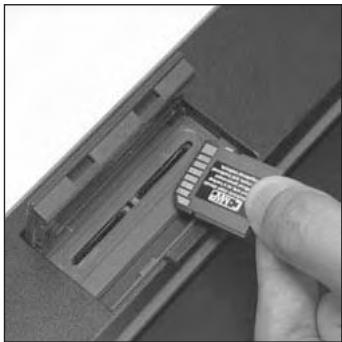
Hold the card with the gold contacts on the far side.
1-3 Plug-in cards
Inserting & Removing a plug-in card
The NX40/45 can use two kinds of C-MAP™ SD-Card plug-in cards:
Chart cards have chart details required for navigating in a particular region. When you insert a chart card, the extra details automatically appear on the Chart window. You can plug in up to two chart cards at once. If the chart shows a region not covered by a chart card, then it displays a simplified built-in world chart.
- User cards store navigation data. A user card allows navigation data to be transferred to another compatible instrument.
1-4 Removing and replacing the display unit
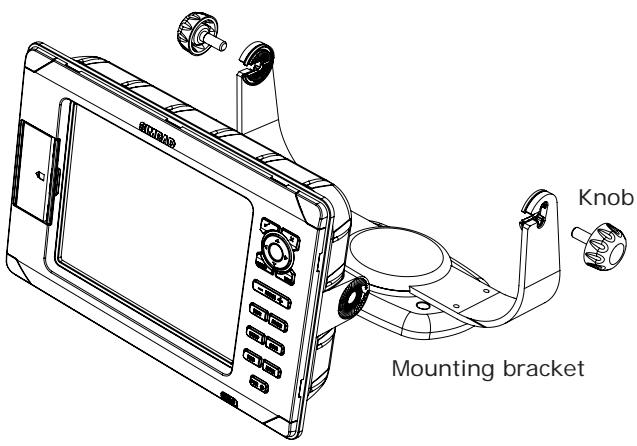
If the NX40/45 is bracket mounted then it can easily be removed for security.
Removing the display unit
- Turn the NX40/45 off and put the cover on.
- Loosen the knobs on the mounting bracket and lift the unit off the bracket.
- Unplug the connectors from the NX40/45; turn each locking collar anti-clockwise until you can pull the plug out.
- Store the NX40/45 in a dry clean place.
Replacing the display unit
- Plug the connectors into the back of the display unit:
- Match the connector's color to the socket color.
- Insert each connector and turn the locking collar clockwise until it is finger tight.
- Nothing will be damaged if a cable is plugged into the wrong socket by mistake.
- Hold the NX40/45 in place on the mounting bracket. Tilt it for best viewing, then hand tighten the knobs on the mounting bracket. Remove the cover.
3 Basic Operation
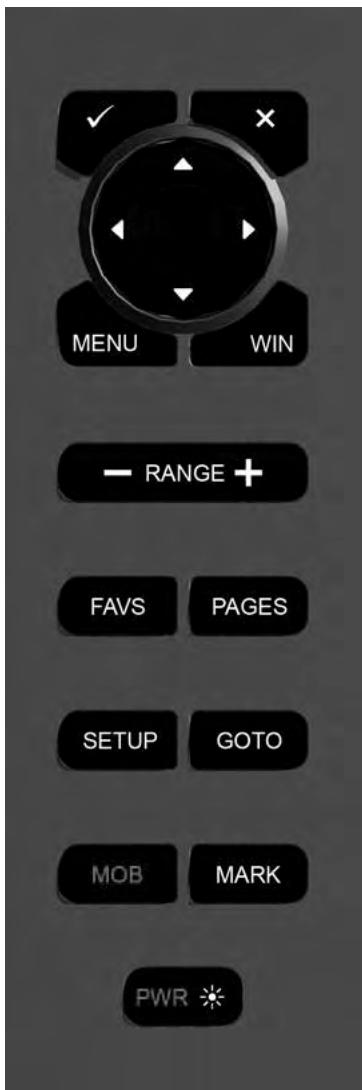
Overview of the NX40/45 keys
| Enter, or accept changes. | |
| Cancel, or go back to an earlier menu or window. In chart mode centers chart at boat's position. | |
| Cursor keys, to move the cursor or the highlighted selection. | |
| Show a menu of the options for the current active window. | |
| Switches interface control to the next window in your display page. | |
| Increases / Decreases chart or depth scale; increases / decreases miscellaneous values. | |
| Accesses your saved, favorite pages. | |
| Switches through your saved pages.. | |
| Takes you to the Setup menu directly. | |
| Start navigating to a point, waypoint or along a route. Also selects a echosounder operating mode. | |
| Man Overboard. | |
| Marks a waypoint on the active chart window. | |
| Activates / Deactivates the unit; Adjust backlight and night palette. |
2-1 Using the keys
Labels like MENU, refer to the hardware keys on the unit.
Labels like Units, refer to software menu items.
To navigate your way through a menu list, use the cursor keys ( ) to scroll up or down, or access submenus by stepping left or right. In this manual, stepping though a menu takes this form:
To access Submenu 2
MEN > MEN > SubMenu1 > Submenu2
This means: Press the MENU key twice, use the cursor key to step up or down to Submenu1, then step right to SubMenu2.
Some hardware keys have secondary functions if you hold a key down for a few moments.
Hold means to hold the key down. For example:
To power down the unit:
Hold PWR
The internal beeper beeps when a key is pressed.
Changing data
to highlight to the data to change, then:
To change a tick box
- means On or Yes
- means Off or No.
- to change the tick box.
To select an option
- to display the list of options.
up or down.
To change a name or number:
- to display the name or number:
to change each character, to step across to the next one. - Repeat this to change other letters or numbers.
- v to accept the new value. Or x to ignore the changes.
Beep Volume
12
To change a slider value
- left or right to chane the value.
2-2 Turning on and off / auto power
Turning on/off manually
WARNING
If the unit is not wired for auto power then the unit does not record engine hours and will not record fuel consumption if not powered.
PWR※ / Hold PWR※
2-2.1 Auto power
If the unit is wired for auto power, then:
- The unit automatically turns on when you turn the boat's ignition switch on.
- You can not turn the unit off while the ignition switch is on.
- If Auto power off is , the unit automatically turns off when you turn the boat's ignition switch off.
- If Auto power off is , the unit stays on when you turn the boat's ignition switch off. You can now turn the unit off manually.
2-3 Backlight and night mode
Accessing backlight control
PWR※ > Backlight > ⊙ > X
Tip: Press PWR twice to give the brightest screen, with maximum backlight.
Night mode
Night mode sets the color palette for all windows.
To change to Night Mode
PWR\* >Nightmode _ X
2-4 Man overboard (MOB)
The MOB feature saves the boat's position and then navigates back to this point.
Activating MOB
MOB
- The unit stores the boat's position as a waypoint.
- The unit changes to the chart window, with the MOB waypoint at the center of the chart.
- The chart zooms in for accurate navigation. If the chart can not show the required small scale, the unit changes to plotter mode (a white window with crosshatching and no chart details).
- The unit sets the MOB waypoint to be the destination.
- If the NMEA output (autopilot) is off use the unit to manually navigate to the destination MOB waypoint.
- If the NMEA output (autopilot) is on, select:
No: Use the unit to manually navigate to the destination MOB waypoint.
Yes: The unit asks if the boat is to go to the MOB waypoint.
- Select:
Yes: to immediately start navigating to the MOB waypoint.
No: disengage the autopilot; then use the unit to manually navigate to the destination MOB waypoint.
To cancel MOB or set another MOB
MOB > MOB
- Select an option from the menu.
Tip: The MOB waypoint remains on the chart after the MOB has been cancelled.
2-5 Alarms
When the unit detects an alarm condition, it displays a warning message on the display, the internal beeper sounds and any external beepers or lights operate.
To clear an alarm instance

WARNING
MOB will not work if the unit does not have a GPS fix.
WARNING
This might result in a sudden and dangerous turn.
WARNING
Never have Simulate mode on when using the unit to navigate on the water.
2-6 Simulate mode
In Simulate mode, the unit ignores data from the GPS antenna and other transducers and sensors and the unit generates this data itself. Otherwise, the unit functions normally.
- There are two simulate modes:
Normal: Allows a user to become familiar with the unit off the water. - Demo: Simulates a boat moving along a route and automatically displays different unit functions.
In simulate mode, Simulate or Demo flashes at the bottom of the window.
To activate/deactivate Simulate Mode
MENU > MENU > Simulate > Simulate >
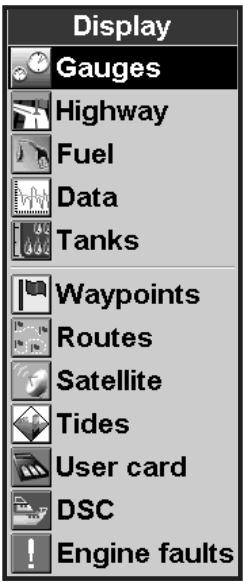
2-7 The main windows
To show one of the main windows full-size
PAGES
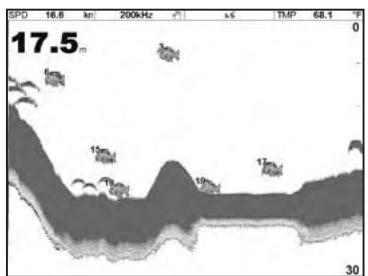
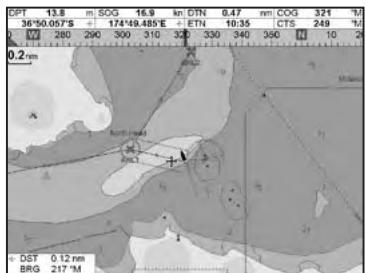
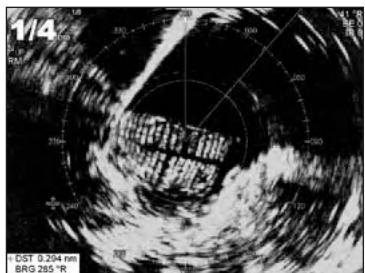
Note
- The windows available depend on the optional sensors and instruments that are installed.
- Set up commonly used windows as favorites and press FAVS to switch between windows.
PAGES > More...

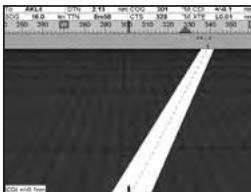
To return to the previous window

2-7-1 Multi window pages
The active window is indicated by a red border.
To change the active window
WIN
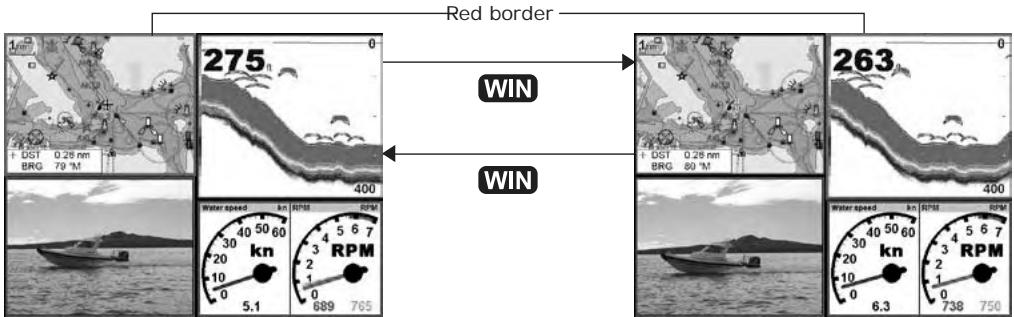
Chart is active
Echo is active
The NX40/45 can show up to four windows at once.
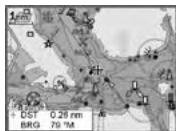
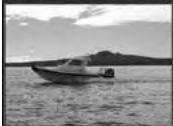
Adding a window to the page
PAGES > Add window
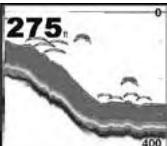
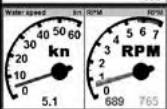
Changing window size
PAGES > Split ratio >
Note: Some windows are fixed in size.
Deleting a window from the page
WIN until the target window has a red border > PAGES >Delete window.
Exchanging two windows on the page
WIN until the target window has a red border > PAGES > Replace and select the second window.
Replacing a window on the page
WIN until the target window has a red border > PAGES > Replace and select a new window.
Notes
- When some windows are small then not all the data is shown.
- Set up commonly used pages as favorites and press FAVS to step through them.
2-7-2 Favorite Pages
The NX40/45 has a list of commonly used window combinations, called pages. There can be up to six favorite pages.
Each page can have one or more windows plus a data header and a compass.
Selecting a favorite page
FAVS > FAVS > FAVS ...
Adding a favorite page to the list
Set up the page with the window or windows you want in the new favorite.
PAGES > Save > select where in the list to add the new favorite.
Deleting a favorite page from the list
MENU > MENU > Favorites > highlight the page to delete > MENU Delete.
Changing the order of the favorites list
MENU > MENU > Favorites > highlight the page to move > MENU > Move up or Move down
FAVS FAVS FAVS FAVS
Favourites


Chart
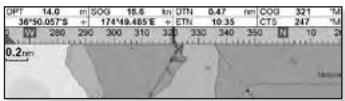
2-7-3 Data header
The pages can show data at the top, called the data header.
- When you select a window from the page menu the NX40/45 shows an appropriate data header for the window.
Each favorite page has its own data header. When you press FAVS to recall a favorite page, the NX40/45 recalls the favorite pages data header.
Setting the data header for a page
PAGES > Data header
- Data > select or .
- Size > select the size to show.
To change the data shown:
Data setup > to show a menu of data items > data item or None
Tip: The data header will change when you select another page. To set a data header that you can recall later, set the header as part of a favorites page (see below).
Favorite pages and data headers
To set a data header for a favorites page, follow the steps to add a favorite. Set the data header for each favorite as described above.
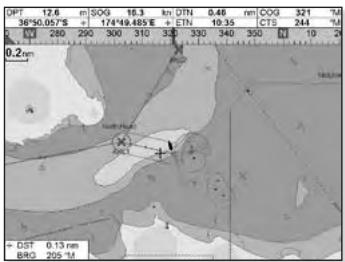
2-7-4 Compass
The compass always shows the boat's course over ground (COG), a black symbol in the middle. When the boat is navigating to a point, the compass also shows bearing to the destination (BRG), a red symbol.
In this example, BRG is 260^ and COG is 321^ .
To turn the compass off or on
MENU > Data Header > □ or
4 Navigation: Chart
3-1 Introduction to navigating
The unit has two ways of navigating, going straight to a point or following a route.
3-1-1 Navigating to a point
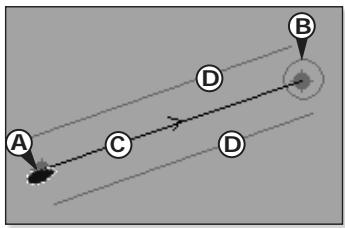
When the unit is navigating to a point, the chart and highway windows show navigation data:
A The boat position.
B The destination point marked with a circle.
C The boat's plotted course to the destination.
D Two CDI lines, parallel to the boat's plotted course, which indicate the maximum expected deviation from the plotted course.
For more information, see Appendix C.
If the unit is connected to an autopilot, the unit will send data to the autopilot to steer the boat to the destination. Start the autopilot before starting to navigate to the point.
If the unit has no autopilot, steer the boat manually.
- use the boat position and destination on the chart or highway windows;
- use navigation data shown on the data header or;
- use COG and BRG on the compass.
Note:
- If the XTE alarm is enabled, an alarm will sound if the boat deviates too much from its intended course.
- If the arrival radius alarm is enabled, then an alarm will sound to show that the boat has reached the destination.
- When the destination is reached an arrival warning appears with the option to cancel navigation.
3-1-2 Going to a waypoint or to a point on the chart
A waypoint is a position that you can set on the chart, for example a fishing spot or a point on a route.
Going to a waypoint from the chart window
to waypoint, or GOTO Waypoint
WARNING
Make sure the course does not pass over land or dangerous waters.
Going to a waypoint from the waypoints window
to highlight the waypoint > MENU > Goto
Going to a point on the chart
GOTO ( waypoint)
Cancelling navigating
MENU > Cancel goto
Tip: Before starting, create waypoints at points of interest. Create a waypoint at the start of the trip for you to navigate back to.
3-1-3 Following a route
A route is a list of waypoints that the boat can follow.
Starting a route from the chart window
MENU > Start Route > to highlight a route > Forward (the order the route was created) or Reverse
The unit displays the chart with the route marked and starts navigating from the start of the route. You can also start a route from the Routes window.
Navigating
The unit navigates to each waypoint on the route in turn. The unit stops navigating to the waypoint at the end of the current leg and starts the next leg of the route:
- when the boat comes within 0.025 nm of the waypoint;
- when the boat passes the waypoint, or;
- if you skip the waypoint.
Skipping a waypoint
MENU > Skip
Skipping a waypoint with the autopilot on might result in a sudden course change.
When the boat has reached the final waypoint, or to stop the boat following the route at any time, cancel the route. Go to a chart window.
Cancelling a route
MENU>Cancel route
3-2 Chart window
To go to the Chart window
PAGES >Chart
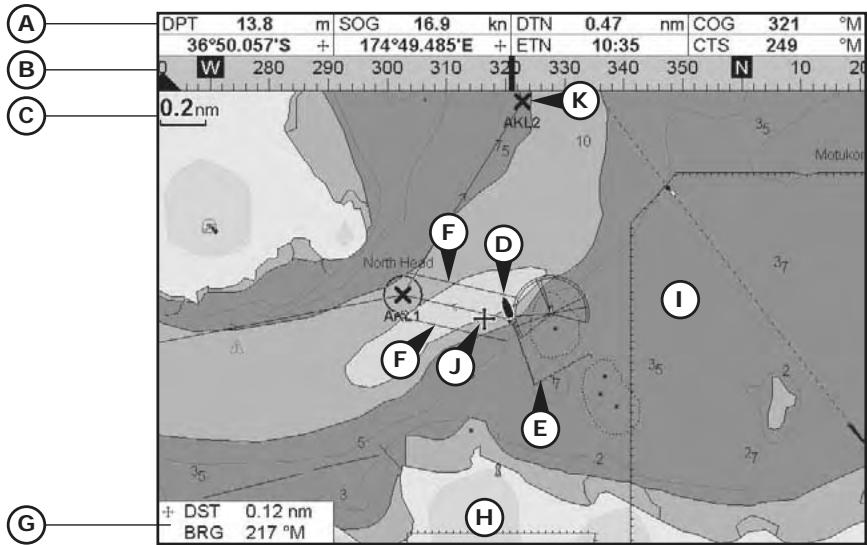
A typical chart window shows:
A Data header. To turn the data off or on or to change what data is shown
B Compass
C Chart scale
D Boat position
E Boat track
F Boat course and CDI lines
G Distance and bearing of cursor from boat
H Land
Sea
J The cursor
K A typical waypoint
WARNING
The built-in world chart does not show enough detail for navigation. When you use the NX40/45 to navigate, always use a chart card which covers the region.
To change to a perspective view of the chart
If the region on the chart is covered by a chart card then the card's information is automatically shown on the chart. If the region is not covered by a chart card then the chart displays a simplified built-in world chart which is suitable for planning and general interest.
3-2-1 Chart modes
The Chart has two modes:
Center on boat mode from the chart window
X
The boat is at the center of the chart. As the boat moves through the water, the chart automatically scrolls to keep the boat in the center of the chart. The cursor (see below) is turned off.
Cursor mode from the chart window
#
The cursor + appears and moves away from the boat:
- Press the key which points in the direction that the cursor will move.
- Press midway between two adjacent arrows to make the cursor move diagonally.
- Hold a cursor key down to make the cursor move continuously across the window.
In Cursor mode:
- The distance (+DST) and bearing (+BRG) of the cursor from the boat are shown at the bottom corner of the window.
- The chart does not scroll as the boat moves.
- If the cursor reaches the edge of the window, the chart will scroll.
Latitude and longitude can be shown in the data header. The window is degrees and minutes to three decimal places, about 2m (6 ft) resolution. Normally the position is the boat's position, and the latitude and longitude has a boat symbol to show this:
36° 29.637' N or S Latitude
175° 09.165' E or W Longitude
If the cursor has been moved in the last ten seconds, then the position is the cursor's position, and the latitude
and longitude has a cursor symbol to show this:
- 36^ 29.841' N or S Latitude
175° 09.012' E or W Longitude
3-2-2 Chart range
To zoom in and zoom out from chart window
+/-
The chart scale is shown at the top left of the chart.
3-2-3 Chart symbols and information
The chart shows many kinds of symbols, such as waypoints, ports, marinas, buoys and beacons. If necessary, press +/− to choose a chart scale where the symbol is shown.
To see stored information about a symbol:
- Either move the cursor to the symbol on the chart and wait two seconds or use Find to move the cursor to a symbol for a port or service.
- A window appears at the bottom of the display with some information about the symbol.
- To see more detail about a symbol or a list of associated items for the symbol, press :
- i Select an item to display. If there are more items than will fit on the window, press up or down to scroll up or down.
- Select a camera icon to display a photo of the item. to scroll the photo.
- Tide Station to display a tide chart for the position.
- ii X to return to the chart.
To see stored information about nearby symbols press MENU and select Chart info. Then follow step 3 above.
3-2-4 To find and display a chart symbol
MENU > Find > Waypoints or Routes or Ports by name or Ports & services or Tide stations
- For Ports & services: select the type of service to find.
- For Ports by name: use to enter a name or letters contained in the port name, then press.

WARNING
When reading the boat position, make sure the position is not the cursor position.
- to page up and down.
- For Ports by name: to search for a different port name, X > change the name > V .
- item >
- The chart window changes to show the item in the middle of the window.
- To see stored information about the item, press v .
3-2-5 Perspective view
To turn perspective view on or off
MENU >Perspective to l or
3-2-6 Turn the radar overlay on or off
If you have a radar installed, you can overlay the radar screen on your chart screen. This is extremely useful because it can help you to:
- interpret the radar image by matching the radar targets with charted objects
- quickly identify objects that are not on the chart, such as other boats
The range, rotation, mode, and center position of the radar are all adjusted automatically to match your chart.
To turn the radar overlay on or off:
From the chart window MENU > Radar Overlay or
An extra menu item will them be shown to control the radar and overlay.
3-3 Distance & bearing calculator
The distance and bearing calculator can plot a course of one or several legs and show the bearing and length of each leg, as well as the total distance along the course. The completed course can be converted into a route.
To use the distance and bearing calculator
MENU > Distance > to a position > repeated last two steps as necessary.)
You can remove the last entry using MENU > Remove.
Each leg's course and bearing is shown as entered, including total distance for the route.
3-4 Projected course
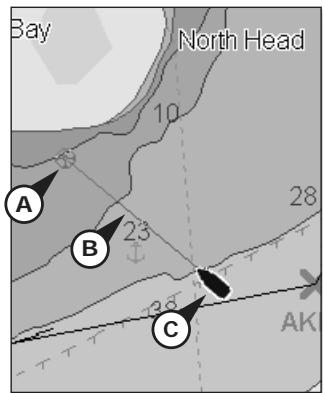
If Projected course is turned on, then the unit will show the projected position based on the course over ground (COG), speed and a specified time.
A Projected position
B Boat's projected course
C Boat position
3-5 Tracks and tracking
Tracking records the boat's position to memory at regular intervals, which can be time or distance intervals.
The track of where the boat has been can be shown on the chart. The unit can show one track while recording another.
The unit can store 10 tracks. Each can hold 2000 waypoints.
Tip: Record a reference track and then use the track to help navigate the same trip later. For example, record a reference track as you leave harbour. Then if you return to harbour and visibility is poor, select the chart and navigate manually along the reference track back into the harbour. Record reference tracks in good conditions.
When recording is on and the track becomes full then recording continues and the oldest points in the track are deleted. The maximum length of a track depends on the selected track interval: a small interval will give a shorter, more detailed track and a long interval will give a longer, less detailed track, as shown in these examples:
Time intervals
| Interval | Track 1-10 | |
| 1 sec | 33 minutes | |
| 10 sec | 5.5 hours | |
| 1 min | 33 hours | |
Distance intervals
| Interval | Track 1-10 |
| 0.01 | 20 |
| 1 | 2,000 |
| 10 | 20,000 |
5 Video window
The video window shows a picture from a video device, such as a camera. The video window requires a video device to be installed.
To select the video window
PAGES > Video
Adjusting the video picture color
MENU > up or down for a control > left or right to adjust
Return the colors to their default settings
Restore defaults >
Change the video picture (Split screen only)
+/-
- X > Fit the whole picture in the window
6 Navigation: Highway window
Boat's course to a destination from Highway window
More > Highway
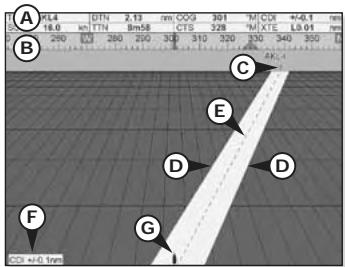
The highway window shows:
A Optional data header
B Optional compass
C Destination waypoint
DCDI lines
E Boat's plotted course
F CDI scale
G The boat position is at the bottom, center of the window
WARNING
The highway window does not show land, dangerous waters or chart symbols.
7 Navigation: Waypoints
A waypoint is a position that you can set on the electronic chart, for example a fishing spot or a point on a route. The unit can have up to 3000 waypoints. A waypoint can be created, changed or deleted.
A waypoint has:
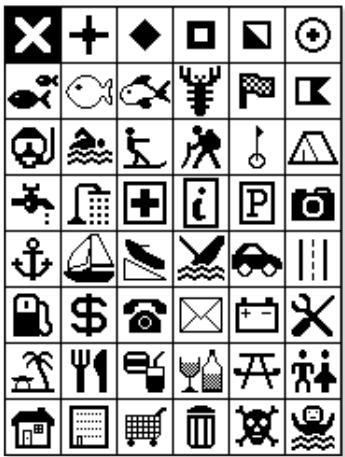
- A name (up to eight characters).
- An icon showing what kind of waypoint it is. The available icons are:
A position.
- A color for the waypoint symbol and name on the chart.
A type:
- Normal: A normal waypoint can be navigated to or included in a route.
- Danger: A danger waypoint is a point to avoid. If the boat comes within the danger radius of a danger waypoint the unit can sound an alarm.
- A display option:
- Controls how the waypoint is shown on the chart:
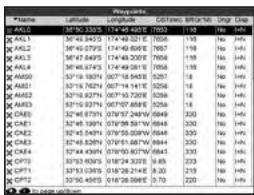
6-1 Waypoints window
PAGES > More > Waypoints
The waypoints window is a list of the waypoints that have been entered, each with waypoint symbol, name, latitude and longitude, distance and bearing from the boat, type and display option.
6-2 Managing waypoints
Creating and editing a new waypoint from the chart window
X to switch the chart to center on boat mode OR;
Move the cursor to new location >
WARNING
Do not create a navigation waypoint on land or in dangerous water.
Creating a new waypoint from the waypoints window
MENu > Create
A new waypoint, with a default name and data, is created at the boat position.
Note: Waypoints can also be created when a route is created.
6-2-2 Moving a waypoint
Moving a waypoint from the chart window
Move the cursor to the waypoint > MENU > Move > ③ to new location >
Moving a waypoint from the waypoints window
Edit the waypoint and change the latitude and longitude.
6-2-3 Editing a waypoint
Editing a waypoint from the chart window
Move the cursor to the waypoint to edit >
Editing a waypoint from the waypoints window
to highlight the waypoint > MENU > Edit
6-2-4 Displaying a waypoint on the chart
This goes to the chart window, and shows the selected waypoint at the center of the window.
In the waypoints window:
Move the cursor to the waypoint > MENU > Display
In the Chart window:
MENU > Find > Waypoints
Select a waypoint from the list. The unit switches to the chart window, with the selected waypoint at the center of the chart.
6-2-5 Deleting a waypoint
A waypoint can not be deleted if the boat is navigating to it or if the waypoint is used in more than one route. A waypoint that is used in one route can be deleted.
Deleting a waypoint from the chart window
Move the cursor to the waypoint > MENU > Delete > Yes
Deleting a waypoint from the waypoints window
Move the cursor to the waypoint > MENU > Delete > Yes
WARNING
When a waypoint is deleted from a route, check that the changed route does not cross land or dangerous waters.
6-2-6 Deleting all waypoints in the waypoints window
MENU >Delete all >Yes
6-2-7 Changing a waypoint's data in a window
Select the data to change > ±b > ±b > ±b > Save
6-2-8 Sort Waypoints
MENu > Sort by > Name OR Icon OR Distance
8 Navigation: Routes
A route is a list of waypoints that the boat can navigate along. Routes can be created, changed and deleted.
The unit can have up to 99 routes. Each route can have up to 50 waypoints.
A route can:
- Start and stop at the same waypoint.
- Include waypoints more than once.
The unit can navigate along a route in either direction. Waypoints on the route can be skipped.
Routes are a powerful feature when the unit is connected to an autopilot, allowing the vessel to be automatically guided along the route.
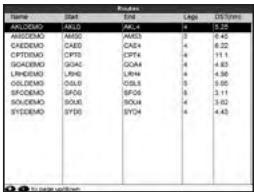
7-1 Routes window
The routes window is a list of the routes that have been entered, each with route name, start waypoint, end waypoint, number of legs and total distance.
Routes window
PAGES > More > Routes > +/− to scroll
7-2 Managing routes
7-2-1 Creating a new route
You may change the chart range at any time with the
+key.
A data box at the bottom left of the window shows the route name and total distance. If the cursor is near a leg, it shows the length and bearing of the leg as well.
The legs of a route must start and end at waypoints. If a leg does not start or end at an existing waypoint then a new waypoint will be created automatically. You can not use a Danger waypoint in a route.
Creating a new route from the chart pane
MENU > New route > Change the name if necessary
Note: To create a route, GPS or simulated GPS data must be active.
WARNING
Make sure that routes do not cross land or dangerous water.
WARNING
After creating or changing a route, display the route on the chart and check that it does not cross land or dangerous water.
To enter the legs of the route:
Repeat as necessary. To Save: > X
7-2-2 Menu options while creating a route:
To add a waypoint to the route
MENU>Add
To break one route leg into two:
Move the cursor to the leg you want to break > MENU > Insert > Move the cursor to the new waypoint >
To move a waypoint in the route
Move the cursor to the waypoint > MENU Move relocate the cursor
To remove a waypoint from the route
Move the cursor to the waypoint > MENU > Remove
The waypoint is removed from the route, but the waypoint is not deleted.
To start navigating the route
MENU > Start
To end creating the route
MENU>End
To delete the route
MENU >Delete >Yes
Tip: The distance and bearing calculator can also be used to enter a course and save it as a route.
MENu > Create
To change the route name
Select the route name >
To insert a waypoint in the route
- Select where the waypoint will be:
- To insert the first waypoint in a new route > Leg 1.
- To insert a waypoint at the end of the route, select the unused leg at the end of the list of waypoints, otherwise, select the waypoint to insert the new waypoint in front of.
A list of waypoints is shown. Select the waypoint to use. The distance and bearing of each leg is shown automatically. - to scroll through waypoints.
To remove a waypoint from the route
Move the cursor to the waypoint > MENU Remove >X
Display the route on the chart and check that the route does not cross land or dangerous water.
7-2-3 Editing a route
Editing a route from the chart
In the Routes window, select the route to edit > MENU > Edit on chart > Edit the route.
Editing a route from the routes window
Select the route to edit > MENU > Edit > Edit the route.
7-2-3 Displaying a route on the chart
To view the selected route at the center of the window
Select the route to edit > MENU > Display OR, in the Chart window, MENU > Find > Route > select a route
7-2-4 Deleting a route
To delete a route
Select the route to edit > MENU > Delete > Yes
7-2-5 Deleting all routes
To delete all routes
MENU >Delete all >Yes
9 Satellites
GPS worldwide navigation
The GPS system is 24 satellites orbiting the earth and broadcasting position and time signals. The GPS receiver analyses the signals from the closest satellites and calculates exactly where it is on earth. The accuracy is typically better than 10m (33 ft) for 95% of the time.
GPS receiver (Optional)
Simrad GPS units have a sensitive 12-channel receiver, which tracks signals from all GPS satellites visible above the horizon and uses measurements from all satellites more than 5^ above the horizon to calculate the position.
Each time a GPS receiver is turned on, it normally takes about 50 seconds before it outputs the first position. Under some circumstances it will take up to two minutes or longer.
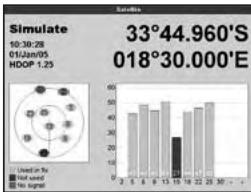
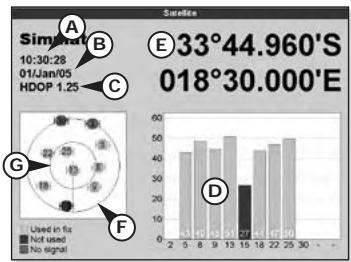
8-1 Satellite window
The satellite window has information about the GPS satellites and GPS position.
To go to the satellite window
PAGES >More>Satellite
The satellite window shows:
A Status of GPS antenna, for example Acquiring, GPS fix, No GPS. If the unit is in Simulate mode it displays Simulate.
B Time and date from GPS satellites. Time is local time (UTC [GMT] plus local offset
C HDOP: The error in the GPS position caused by satellite geometry. A low value indicates a more precise fix, a high value a less precise fix
D Signal strengths of up to twelve visible GPS satellites. The higher the bar the stronger the signal
E Boat position
F Positions of visible GPS satellites:
Outer circle is horizon
Inner circle is 45^ elevation
Center is directly above
North is at top of window
G If the boat is moving, COG is a line from center
10 Echosounder fishfinding: Introduction
WARNING
Use the automatic Cruising or Fishing modes when learning to use the unit or when travelling at speed.
9-1 Using the unit
The unit uses a echosounder transducer attached to the hull. The transducer generates an ultrasonic pulse (sound that is above the hearing range of the human ear), which travels down towards the bottom at a speed of about 1463m / s (4800 ft/s), spreading out into a cone shape.
When the pulse meets an object, such as a fish or the bottom, it is partly reflected back up towards the boat as an echo.
The depth of the object or bottom is calculated by the unit by measuring the time taken between sending a pulse and receiving the echo. When an echo has been returned, the next pulse is sent.
The unit converts each echo into an electronic signal, shown as a vertical line of pixels.
The most recent echo appears on the extreme right of the window, with the older echoes being scrolled towards the left, eventually disappearing off the window.
The scroll speed depends upon the water depth and scroll speed setting.
The appearance of echoes shown are affected by:
The unit settings.
- Echoes (different fish types, different bottom types, wrecks and seaweed.
- Noise (water clarity and bubbles.)
Cruise, Fishing and Manual Modes
The unit has three echosounder operating modes:
- Cruising mode: Use this when on the move. The unit automatically adjusts its settings to compensate for water clarity and to display the bottom.
- Fishing mode: Use this when fishing. The unit automatically adjusts its settings to compensate for water clarity and to best display fish, the bottom and other details.
- Manual mode: Use this to fine-tune the unit settings by hand. Best results are often achieved in manual mode, but practice and experience are required to obtain the optimum settings for different conditions.
9-2 Interpreting the display
The echosounder windows do not show a fixed distance travelled by the boat; rather, they display a history, showing what has passed below the boat during a certain period of time.
The history of the echosounder signal shown depends the depth of the water and the scroll speed setting.
In shallow water, the echoes have a short distance to travel between the bottom and the boat. In deep water, the history moves across the window more slowly because the echoes take longer to travel between the bottom and the boat. For example, when the scroll speed is set to Fast, at depths over 1000 ft (300 m) it takes about 2 minutes for the data to move across the window, whereas at 20 ft (6 m) it takes only about 25 seconds.
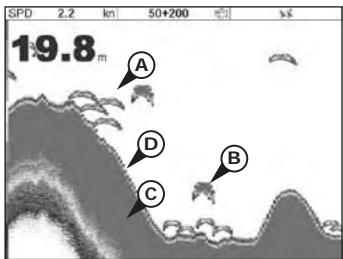
A School of fish
B Single fish
C Hard bottoms such as rock and coral show as wide bands
D Soft bottoms such as mud, weed and sand show as narrow bands
The scroll speed can be set by the user to display either a longer history with less fish information or a shorter history with more fish details.
If the boat is anchored, the echoes all come from the same area of bottom. This produces a flat bottom trace on the window.
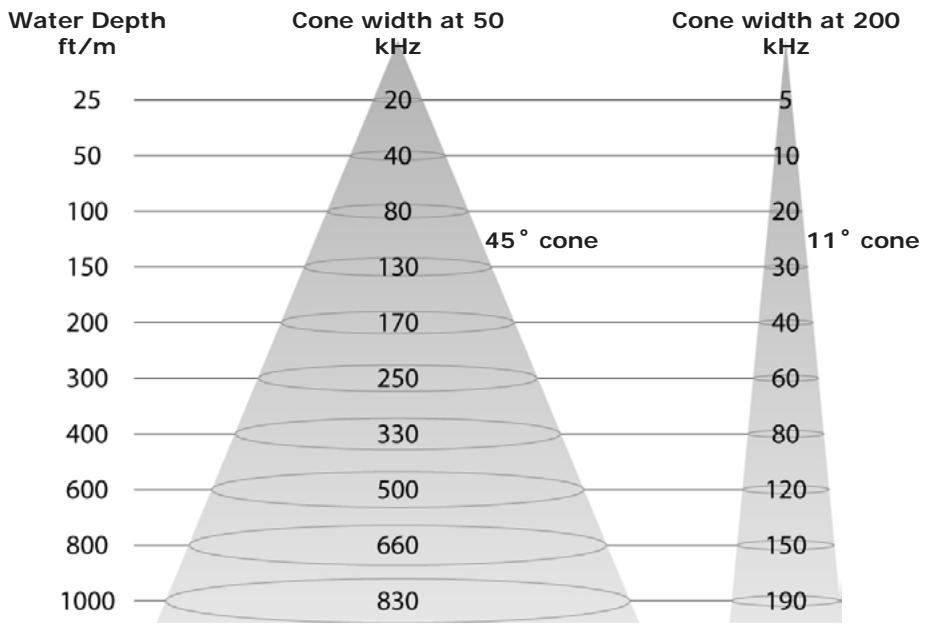
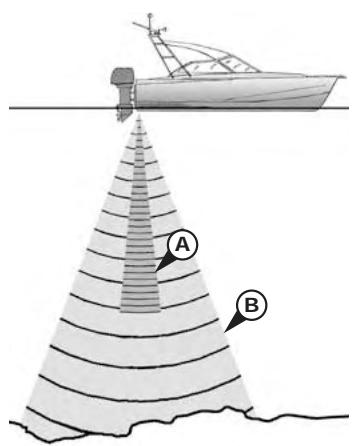
The screen shot shows a typical echosounder window with the Fish symbols turned Off. The echosounder pulse generated by the unit transducer travels down through the water, spreading outwards in a cone shape. The cone width is dependent upon the frequency of the pulse; at 50kHz it is approximately 45^ , and at 200kHz it is approximately 11^ .
The differences in the cone width affect what is shown.
Strength of echoes
The colors indicate differences in the strength of the echo. The strength varies with several factors, such as the:
- Size of the fish, school of fish or other object.
- Depth of the fish or object.
- Location of the fish or object. (The area covered by the ultrasonic pulse is a rough cone shape and the echoes are strongest in the middle.)
CAUTION
Planing hulls at speed
produce air bubbles and turbulent water that bombard the transducer.
The resulting ultrasonic noise may be picked up by the transducer and obscure the real echoes.
- Clarity of water. Particles or air in the water reduce the strength of the echo.
- Composition or density of the object or bottom.
Bottom types
Mud, weed and sandy bottoms tend to weaken and scatter the echosounder pulse, resulting in a weak echo. Hard, rocky or coral bottoms reflect the pulse, resulting in a strong echo.
Frequency and cone width
Shadows
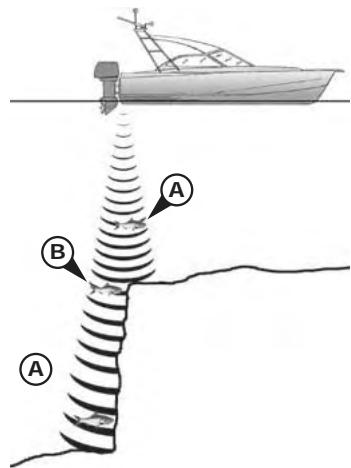
Shadows are created around areas where the ultrasonic beam cannot 'see'. These areas include hollows on the bottom or beside rocks and ledges, where the strong echoes returned off the rocks obscure the weak echoes of the fish and may also create a double bottom trace. See following for an example of the echosounder window in such an environment. A double bottom trace is shown on the window.
When looking for fish with the wide angled 50kHz frequency, be aware of increased shadows. Use the high frequency 200kHz in areas that have rocks and ledges because this frequency reduces the shadow effect considerably.
A Fish is visible on the window
B Fish is hidden by the strong echoes off the bottom and is not shown on the window
9-3 Single and Dual frequency fishfinding
Sounder frequencies
The unit has two echosounder frequencies, 200 kHz and 50 kHz..
To select the echosounder frequency
MENU > Frequency > 200 kHz or 50 kHz or Mixed
When to use 200 kHz
The 200kHz frequency is especially suitable for use in shallow and medium depth water, typically less than 500 ft (150 m) and while running at speed.
At 200kHz , the narrow cone reduces any noise caused by air bubbles.
The 200 kHz frequency generates a higher definition pulse which produces little shadow and returns excellent detail over a small area of bottom. Therefore, it gives excellent bottom discrimination capability and is particularly good at showing individual fish, including bottom dwellers.
When to use 50 kHz
The 50kHz frequency is particularly suitable for use in deep water, typically greater than 500 ft (150 m).
At 50kHz , the cone covers an area of water about four times wider than the 200kHz cone and penetrates to a greater depth with minimal loss of the return signal.
However, it produces a lower definition display with more shadow compared to the 200 kHz frequency. This means that a group of small fish, for example, could be shown as a single item, while any fish very close to the bottom
Example of shadows
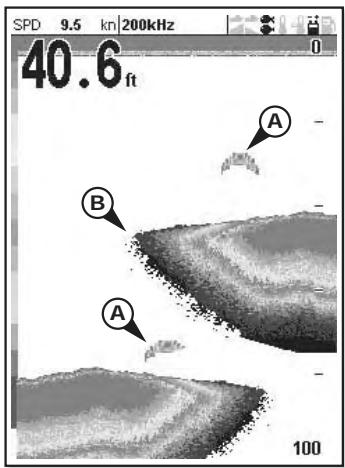
Sounder window of same area
may not be found at all.
This frequency is useful for getting a deep, wide overview of the area so that any areas of interest can be identified and then examined in detail with the 200 kHz frequency.
When to use Mixed
The Mixed frequency combines the 200 kHz and the 50 kHz echoes on one echosounder window, filling in detailed echoes in the center of the echosounder cone.
When to use 50/200 kHz
Operating the unit at both 50kHz and 200kHz simultaneously on a split window can be very useful when operating in shallow to medium water, typically less than 500 ft (150 m), because the 50kHz section of the window shows the general area, while the 200 kHz section can be viewed simultaneously for a more detailed look at any interesting feature.
To use 50/200 kHz, select the Split 50/200 window.
A Narrow angle, more detailed 200 kHz cone
B Wide angle, less detailed 50 kHz cone
Comparison of the same fish scenario shown at different frequencies:
50 kHz display
200/50 kHz display
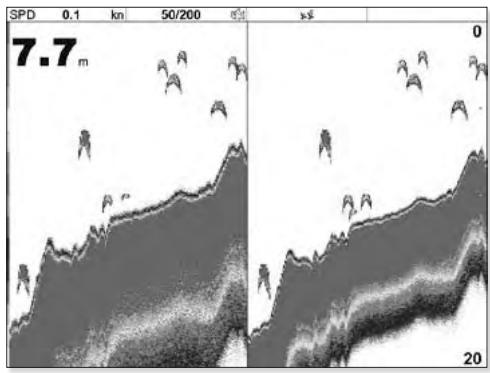
200 kHz display
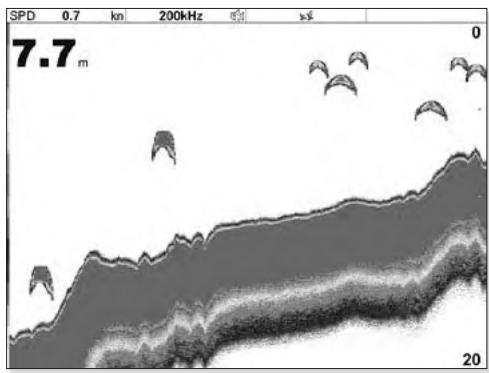
Mixed display
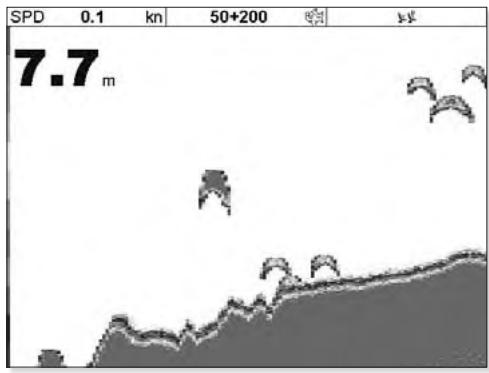
9-4 Fish detection and display
Where to find fish
Underwater features like reefs, wrecks and rocky outcrops attract fish. Use the 50 kHz or 50/200 kHz frequency window to find these features, then look for fish by passing over the feature slowly several times using the Zoom window. If there is a current, the fish will often be found downstream of the feature.
A weak fuzzy band may appear between the bottom trace and surface. This might indicate a thermocline - a rapid change in water temperature, such as the edge of a warm or cold current. The temperature difference can form a barrier which the fish may not swim through. In fresh water, fish often collect around a thermocline.
Fish arches
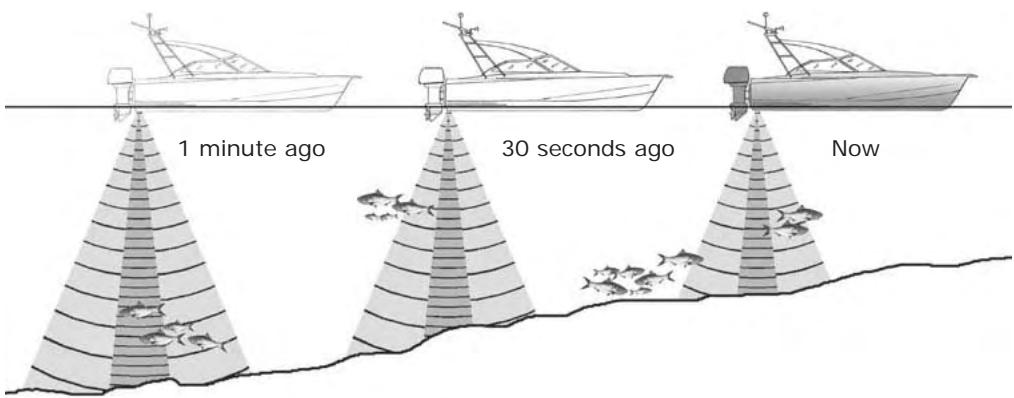
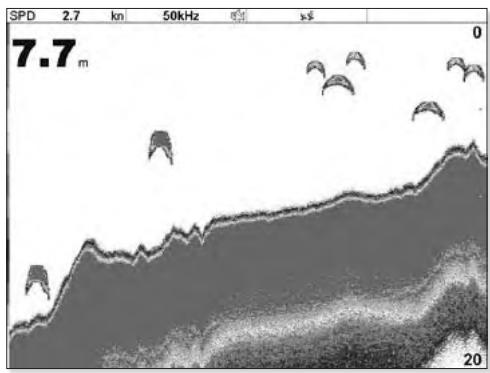
In good conditions, a fish passing through the cone-shaped ultrasonic pulse is shown as a fish arch. The 50kHz frequency uses a wider cone than the 200kHz frequency. This makes the fish arches easier to see.
A fish arch starts when a fish enters the weak edge of the echosounder cone, generating a weak echo that is shown as the start of the fish arch. As the fish moves closer to the middle of the cone, the distance between the transducer and the fish reduces and the echo is shown at progressively shallower depths, producing a rising shape. When the fish passes directly beneath the middle of the cone, the echo becomes strongest and thickest. As the fish passes out of the middle of the cone the reverse happens with a progressively weaker and deeper echo.
There are many reasons why fish arches may not be seen. For example:
- Poor transducer installation (see Transom Transducers Installation Guide).
- If the boat is anchored then fish will tend to show on the window as horizontal lines as they swim into and out of the transducer echosounder beam. Slow speeds in deeper water give the best fish arch returns.
- Range is important. It will be much easier to see fish arches when using zoom mode to concentrate on a particular section of water, rather than just showing everything from the surface to the bottom. Zooming increases screen resolution and is necessary for good fish arches.
- It is difficult to get fish arches in shallow water as the transducer echosounder beam is very narrow near the surface and fish do not stay within the beam long enough to show an arch. Several fish in shallow
water tend to show as randomly stacked areas of color.
- Wave motion may result in distorted fish arches.
9-5 Range
Range is the vertical depth shown on the unit echosounder window. For example, if the range is 100m , then the echosounder window shows depths between 0 and 100 m. The range is shown at the bottom, right corner of a echosounder window.
The unit has two range modes:
- Auto: The unit adjusts the range automatically so that the bottom of the water is always shown at the bottom of the window. Auto range is recommended for normal operation.
To set Auto mode
Go to a echosounder window > MENU > Range > Auto
- Manual: The unit does not adjust the range automatically. If the bottom depth is below the range, the bottom will not appear on the window. Manual range is useful if the bottom depth changes rapidly, because Auto range will cause the window to change range frequently.
To set Manual range or to change the range
Go to a echosounder window > +/
Zoom range and offset
The echosounder Zoom and Bottom windows can show a magnified part of the range.
9-6 Gain and threshold
Gain and threshold settings control the amount of detail shown on a echosounder window:
Gain: The gain of the echosounder receiver. The gain should be high to display good detail, but if the gain is too high then information from the strong bottom signal is lost and false echoes might be shown. There is a separate gain setting for each echosounder frequency, 50kHz and 200kHz .
Threshold: Return echoes less than the threshold are ignored. The threshold should be as low as possible, but if the threshold is too low, unwanted noise will be shown. Threshold is set as a percentage of gain. For example, if the threshold is 50% , then return echoes less than 50% of the maximum signal are ignored. There is a separate threshold setting for each echosounder frequency, 50 kHz and 200 kHz.
WARNING
Use the Auto range when learning to use the unit or when travelling at speed.
The gain window
To display or change the current settings for gain
Select a echosounder window > Threshold
Changing mode
The unit has three operating modes, In Cruising and Fishing modes, the unit automatically adjusts gain and threshold for good performance. In manual mode, you can hand adjust the settings.
To change the mode from the Gain window
Mode > Fishing or Cruising or Manual
When you select Manual, the unit reverts to your last manual settings.
Changing gain and threshold in the Gain window

to select and adjust settings.
The unit changes to Manual mode.
Tip: Use the A-scope window to help set gain or threshold manually.
11 Echosounder
To show the echosounder window
PAGES > echosounder
There are five kinds of echosounder window.
To use a window
MENU > echosounder splits
Then select the type of window to use:
- No split: echosounder history window at a single or mixed frequency.
- Split zoom: echosounder history plus a zoomed section.
Full screen zoom. - Split bottom: echosounder history plus a bottom trace in a zoomed section.
- Split 50/200: echosounder histories at 50 and 200 kHz.
- Split A-Scope: echosounder history plus echo strength.
To adjust the split ratio
MENU > echosounder window split >
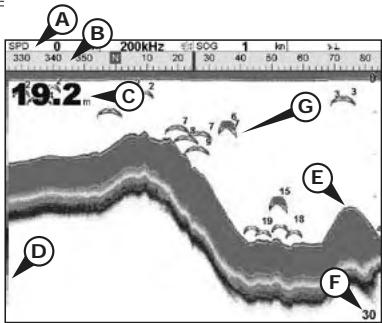
10- 1 Echosounder history window - no split
A Optional data header
B Optional compass
C Depth
D Color bar
E Bottom
F Range
G Fish archs with depth
The window scrolls from right (most recent echoes) to left (oldest echoes).
10-1-1 Extended history mode
To review an old echosounder echo

The time since the echoes shown on the screen were recorded is shown at the bottom of the screen.
To return to the most recent echo

The digital depth shown is always the current depth, even in extended history mode.
The History Position Bar indicates the age of the most resent echo on the screen, and the position of the current screen in the recorded history.
10-2 Echosounder Zoom and Full Screen Zoom displays
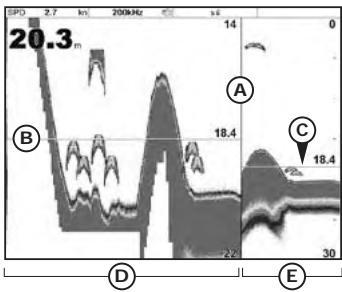
A Divider line
B Depth line marks the center of the zoomed area
C Zoom bar
D Zoom section
E Sounder history
These windows show a zoomed section of the echosounder history. The echosounder Zoom display shows the echosounder history on the right and the zoomed section on the left. The Full Screen Zoom display shows the zoomed section only.
The zoom bar on the far right shows the area of the history that is magnified in the zoom section:
To adjust the zoom range

If Bottom lock is on, the zoom depth (the depth of the zoom section) is adjusted automatically so that the bottom is always shown in the zoom section.
If Bottom lock is off, press up or down to manually adjust the zoom depth. If bottom lock is on it will turn off.
Bottom lock
To turn Bottom lock on or off
MENU > Bottom lock > On or Off
If Bottom lock is on, pressing will turn it off.
10-3 Echosounder split window
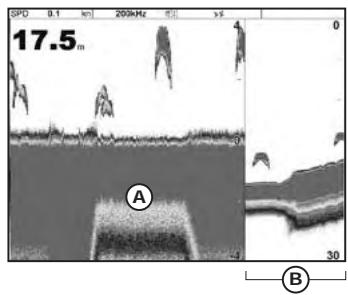
A Zoomed bottom signal
B Sounder history
The window shows the echosounder history on the right and the bottom signal as a flat trace in the center of the zoom section on the left. The flat trace makes it easy to compare the echo strengths shown in the bottom signals. This can help to identify the type of bottom and objects close to the bottom.
The zoom bar on the far right shows the area of the history that is magnified in the zoom section.
To adjust the zoom range

The unit calculates the zoom depth automatically. It is not necessary to turn Bottom lock on for this window.
10-4 Echosounder 50/200 window
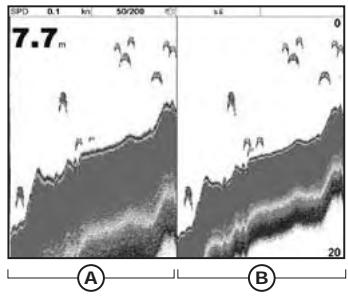
The window shows:
A The 50kHz echosounder history on the left
B The 200kHz echosounder history on the right.
Gain can be set independently for each frequency. Range applies to both frequencies.
10-5 Echosounder A-Scope window
The window shows the echosounder history on the left and the A-Scope window on the right. The A-Scope shows A, B, C: The strengths of echoes being received now from different depths - the longer the horizontal line the stronger the signal.
A Unwanted noise echoes.
B Echoes from fish and the bottom
C The strongest echo, usually from the bottom
D The threshold line, the weakest echo to display on the echosounder history
E The gain setting line; echoes above this strength will display as the maximum signal strength
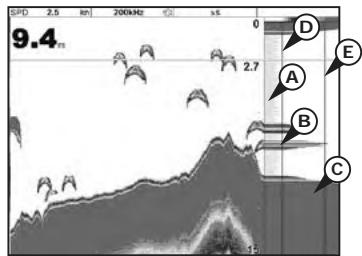
Use the A-Scope while adjusting the gain and threshold settings manually.
Setting gain and threshold
It is convenient to use the A-scope window when adjusting gain and threshold manually. Follow this procedure to adjust gain and threshold for normal circumstances:
- Switch to a echosounder window. If necessary, press +/− to adjust range so that the bottom is shown.
-
If necessary, select the echosounder frequency to adjust the settings for. Press MENU, select Frequency and select 200 kHz or 50 kHz.
-
MENU > Echosounder splits > Split A-scope.
-
Press to display the Gain window. To adjust gain or threshold for a frequency, press up or down to select the setting to adjust, then press left or right to change the setting.
- Set threshold to zero.
- Adjust Gain so the peak of the strong signal from the bottom just touches the gain line.
- Adjust threshold so that it is just to the right of the noise.
- Press x to close the gain window.
- If required, repeat these steps to adjust gain and threshold for the other frequency.
Note: Setting the gain higher will display more detail from weak echoes, like fish, but will loose detail from the strong echo from the bottom.
Fish recognition
The echo strengths shown on the A-scope can be useful in recognizing the type of fish. Different species of fish have different sizes and shapes of swim bladders. The air in the swim bladder reflects the ultrasonic pulse, so the strength of the echo varies between fish species according to the size and shape of the swim bladder.
When catching fish from a school, note the species and the strength of the echo that it returns on the A-scope. Then, when that particular echo is seen again, it is likely to be the same fish species.
Bottom type
The shape of the echo strengths in the A-Scope can help you to recognise the type of bottom.
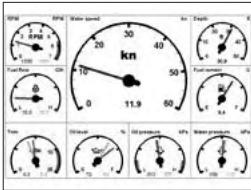
12 Gauges window
The Gauges window shows boat data, such as water speed, as analog gauges.
To select the Gauges window
PAGES > More > Gauges
Before using the Gauges window, set Speed range, Max RPM and Max fuel flow.
To select a layout from the Gauges window
MENU > Layout
The Gauges window can show one of four gauge layouts.
Changing data shown in the gauge layout
MENU > Gauge setup > > > >
You can change the data shown on each gauge in a layout.
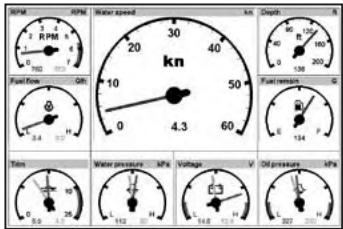
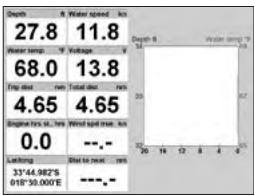
13 Data window
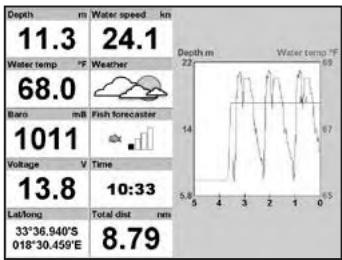
The data window has large numeric data fields and a graph of depth and water temperature if available.
To go to the data window
PAGES > More > Data
To select/change what data is shown
MENU > Data setup > 心 >心 >心 >心
14 Fuel functions and display
The Fuel functions require optional petrol/gasoline or SmartCraft fuel sensors to be installed and set up.
13-1 What the fuel computer does
Each engine has a flow sensor installed to measure the engine's fuel flow.
The NX40/45 use these flows, together with boat speed and engine RPM if available to estimate the fuel remaining in the tank(s), fuel used, range and fuel economy. This data is shown on the fuel display.
You can:
- display the fuel used during a trip.
- set low fuel alarms.
- make fuel consumption curves - graphs of fuel consumption and boat speed as a function of engine RPM - to monitor and optimize boat performance.
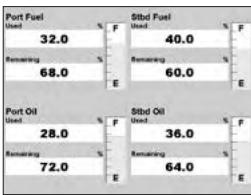
13-2 Fuel display
To go to the Fuel display
PAGES > More > Fuel
The display differs according to the number of engines and tanks.
To switch between a Summary or a Fuel curve display

If engine RPM is available and if you have made and selected a Fuel Consumption Curve.
The Fuel display shows:
Speed
RPM (if available)
If engine RPM is not available, the display shows depth.
Remaining
The fuel remaining in the tank(s) is shown as a vertical gauge on the right of the display. The height of the yellow bar(s) show how much fuel remains in the tank(s). If you have set a low fuel alarm, a red bar shows the level at which the alarm will trigger. If there are two tanks, the left bar shows the port tank, the right bar shows the starboard tank.

WARNING
To ensure the fuel data is accurate:
- When you add or remove fuel from a tank, tell the NX40/45.
- If the boat has petrol/gasoline sensors, calibrate them during installation or if the fuel readings seem inaccurate.
- Chooseanappropriate type of boat speed sensor to calculate economy, range and the fuel consumption curve.
- If the boat uses a paddlewheel sensor to measure speed, calibrate it during installation or if the speed readings seem inaccurate.
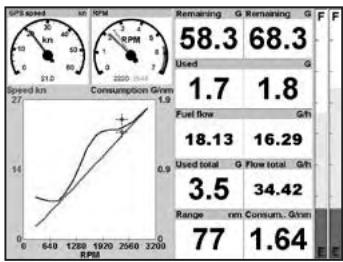
Used
The fuel used during a trip. On a multi-engine boat, the data for the port engine is on the left of the display.
When you want to start measuring how much fuel is used, go to the Fuel display.
To clear fuel used in a single-engine boat
MENU > Clear used
To clear fuel used in a multi-engine boat
MENu > Clear used > Port or Starboard or both
The fuel used by each engine and the total fuel used are shown.
Fuel flow
The fuel flow for the engine(s). On a multi engine boat, the data for the port engine is on the left of the display. Use the flows to check the load of each engine.
Range
The estimated boat range at the current fuel flow. The value can depend on the type of speed sensor.
Economy
The distance travelled per unit of fuel used. The value can depend on the type of speed sensor. The larger the value, the better the fuel economy. Adjust the throttle and trim to achieve the best economy.
Fuel consumption curve
A graph of fuel consumption and boat speed as a function of engine RPM. Use the curve to monitor and optimize boat performance.
13-3 When you add or remove fuel
When you add or remove fuel, you must tell the NX40/45, otherwise the fuel data will be meaningless.
A - Completely fill a tank
When you completely fill a tank on a single-tank boat
MENU>Fill tank
When you completely fill a tank on a multi-tank boat
MENU > Fill tank > then select the tank you have filled
Note: Underfloor fuel tanks are often difficult to refill to the same level twice, due to air pockets.
With underfloor fuel tanks:
- Trim the boat to the same angle in the water each time you follow procedure A.
- Mostly use procedure B below when adding fuel, but completely fill the tank and follow procedure A about every tenth time you add fuel.
B - Part fill a tank
When you part fill a tank
Write down how much fuel you add. Change the number.
MENU > Add fuel
On a multi-tank boat select the tank you have added fuel to.
Note: If you follow procedure B every time you add fuel, then a small error will accumulate, because it is hard to measure exactly how much fuel you add. To avoid this, completely fill the tank and follow procedure A about every tenth time you add fuel.
C - Removing fuel
Before removing fuel
MENU > Set remaining
- On a multi-tank boat, select the tank that you are removing fuel from.
- Write down the value of Remaining for the tank; this is the amount of fuel originally in the tank.
- Remove fuel from the tank and write down how much fuel you remove.
- Subtract the amount of fuel you removed from the amount of fuel originally in the tank to calculate the amount of fuel now in the tank.
- Change the number on the Set Remaining menu to the amount of fuel that you calculated was now in the tank >
Note: You can also use this procedure when you add fuel to a tank. In this case, add the fuel you have added to the amount of fuel originally in the tank to calculate the amount of fuel now in the tank.
13-4 Low fuel alarm
To set a low fuel alarm
MENU > MENU > Fuel > Setup tanks > Tank alarm
Select and enter a fuel level to trigger the low fuel alarm; or enter zero to disable the alarm.
On a multi-tank boat, select the tank to set the alarm for.
When a low fuel alarm is set, the alarm's fuel level is shown on the fuel display tank levels as a red bar. The alarm can also be set using the Alarms setup menu.
13-5 Boat speed sensors
13-5-1 Selecting a boat speed sensor
The fuel calculations can use boat speeds from the GPS, or from a paddlewheel sensor or pitot sensor if these optional sensors are installed:
- Paddlewheel and pitot sensors measure the speed through the water; GPS speed is speed over ground; these sensors can give different values for Range, Economy and the fuel consumption curves.
- A pitot sensor is more accurate than a paddlewheel sensor at high speeds but is not accurate at low speeds. A paddlewheel sensor is more accurate than a pitot sensor at low speeds.
To select an optional speed sensor
MENU > MENU > Fuel > Speed source
To use a paddlewheel or pitot sensor > Water speed. To use GPS speed > Ground speed
If you have both a paddlewheel sensor and a pitot sensor
Smart Craft >Speed type >Paddlewheel or Pitot
Tip: You can select a different speed sensor during a trip.
13-5-2 Water speed and ground speed
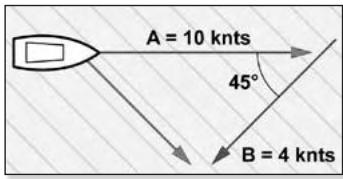
A paddlewheel sensor and a pitot sensor measure water speed, the boat speed through the water. A GPS measures ground speed, the boat speed over the bottom of the water. If there is a current, then these speeds will be different, and the log, trip log, economy and range will be different, as shown below.
Water speed is better for measuring the boat's potential performance, Ground speed is better for going to a destination because it takes currents into account.
When the current is from ahead, ground speed is less than water speed.
For Example 1
If the boat travels for one hour, uses 3 gallons of fuel per hour and has 50 gallons of fuel left:
When the current is from behind, ground speed is more than water speed.
| Speed | Log | Economy | Range | |
| Using water speed | 10 knts | 10 nm | 3.3 nm/gal | 165 nm |
| Using ground speed | 6 knts | 6 nm | 2.0 nm/gal | 100 nm |
For Example 3
| Speed | Log | Economy | Range | |
| Using water speed | 10 knts | 10 nm | 3.3 nm/gal | 165 nm |
| Using ground speed | 14 knts | 14 nm | 4.7 nm/gal | 235 nm |
If the boat travels for one hour, uses 3 gallons of fuel and has 50 gallons of fuel left:
13-6 Fuel consumption curves
A fuel consumption curve shows fuel consumption (fuel used per unit of distance travelled) and boat speed as a function of engine RPM. Fuel consumption curves require engine RPM, which requires SmartCraft to be installed. Fuel consumption curves are powerful tools for assessing boat performance in different conditions and for helping you to run at the most economical speed for the conditions.
13-6-1 Making a fuel consumption curve
To make a fuel consumption curve you will need to run the boat in a straight line for about 15 minutes using the engine's full RPM range. For your first curve, choose a calm day with light wind and little current; have a typical load and a freshly cleaned hull. Later, you can make fuel
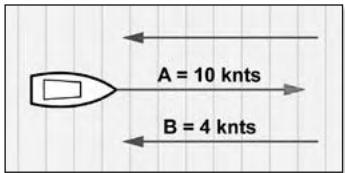
Example 1:
A (water speed) = 10 knts.
B (current) = 4 knts.
Gives a ground speed of 6 knots.
Example 2:
A (water speed) = 10 knts.
B (current) = 4 knts at 45^ .
Gives a ground speed of about 8 knts.
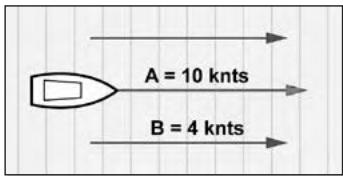
Example 3:
A (water speed) = 10 knts.
B(current) = 4 knts.
Gives a ground speed of 14 knots.
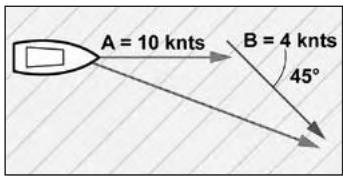
Example 4:
A (water speed) = 10 knts.
B (current) = 4 knts at 45^ .
Gives a ground speed of about 13 knts.
consumption curves for different boat, weather or sea conditions. Compare these with your first curve to see how your boat's performance changes with conditions.
Making a curve
- Start running the boat in a straight line.
- Choose a speed source for the curve. Normally choose Water speed to measure the boat's potential performance.
- Press MENU twice, then select Fuel.
- Select Fuel consumption curve, then select New.
- Enter the comfortable maximum RPM you know you can achieve for the engine rather than the maker's value.
- The NX40/45 then asks you to set the minimum RPM. Set the throttle to idle; on a multi engine boat set all engines to about the same idle RPM. Now, do not change the engine speed. Wait for about 60 seconds for the boat to stabilise, then press . Wait while the fuel computer records the data.
- The NX40/45 then asks you to set the throttle to achieve a target RPM. On a multi engine boat set all engines to about the target RPM. When the engine RPMs are correct, the Target RPM box will turn green. Now, do not change the engine speed. Wait for about 60 seconds for the boat to stabilise, ensuring the Target RPM box stays green. Then press . Wait while the fuel computer records the data.
- The NX40/45 repeats the above step to record data up to the maximum RPM. Then the NX40/45 asks if you want to save the curve. Select Yes. The fuel computer asks for a name for the curve. Change the default name if required. Then press V . The NX40/45 stores the new curve.
Note To interrupt making the curve at any time, press
13-6-2 Managing fuel consumption curves Renaming a curve
& MENUR >MENUR >Fuel >Fuel consumption curve > & Name >select the name of the curve >Rename > & change the name
13-6-3 Using fuel consumption curves
Deleting a curve
MENU > MENU > Fuel > Fuel consumption curve > Name > select the name of the curve to delete > Delete
Selecting a curve
You must make a fuel consumption curve before you can use it.
MENU > Fuel consumption curve >select the curve
On the fuel display, press right if necessary to select Fuel curve and display the fuel consumption curve.
Note
- On a multi engine boat, keep the RPM of all engines similar while using a curve.
- The shape of the curve depends on the type of speed sensor you selected when making the curve.
Using a curve
Compare your boat's performance now, at the current RPMs, with the boat's performance when you made the curve. You can compare your boat's performance now with a curve made under ideal conditions or with a curve made under similar conditions.
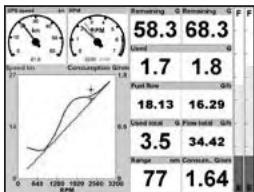
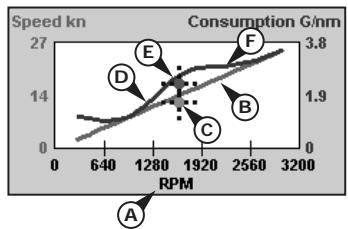
Information in a curve
A RPM of the boat now. For a twin engine boat, the RPM is the average of the two RPMs.
B Red curve: boat speeds at different RPMs recorded when you made this fuel consumption curve.
C Red marker: the boat speed now. This marker is below the red curve, showing that the boat speed now at this RPM is less than when you recorded the curve.
D Blue curve: fuel consumption at different RPMs recorded when you made this fuel consumption curve.
E Blue marker: the fuel consumption now. This marker is below the blue curve, showing that the fuel consumption now at this RPM is better than when you recorded the curve.
F If the blue curve has a dip, then running the boat at this RPM will give the best speed for the least fuel consumption.
13-7 Calibration
Calibrate petrol/gasoline fuel flow sensors during installation, or if the fuel readings seem inaccurate and the other troubleshooting suggestions do not help (see Appendix B troubleshooting).
Note
- SmartCraft fuel sensors are factory calibrated and should never need recalibrating.
- On a multi engine boat, calibrate each engine's sensor. This can be done at the same time with a portable tank for each engine or at different times using one portable tank.
- Calibrating a sensor requires accurate measurement of the fuel consumption. This is best done using a small portable tank. At least 4 gallons (15 litres) of fuel should be used to ensure an accurate calibration.
- It is often very difficult to fill underfloor tanks to the same level twice due to air pockets, so the more fuel used, the more accurate the calibration.
To calibrate the sensor(s)
- Record the level of the fuel in the tank(s).
- Connect the portable tank(s) to the engine through the fuel sensor(s).
- Run the engine at normal cruising speed until at least 4 gallons (15 litres) of fuel has been used per engine.
-
Check the actual amount of fuel used per engine by refilling the portable tank(s) to the original level and noting the reading(s) of the fuel dispenser's gauge.
-
MENU > MENU > Fuel > Setup engines
-
On a single engine boat, select Calibrate and change the shown value to be equal to the reading of the fuel dispenser's gauge, then press .
- On a multi-engine boat select the engine. Select Calibrate and change the shown value to be equal to the reading of the fuel dispenser's gauge, then press . Repeat for the other engines.
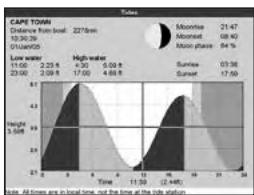
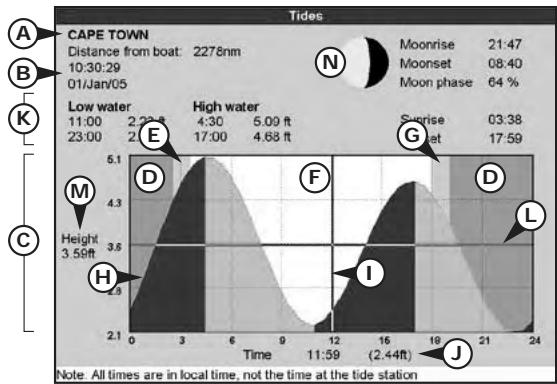
15 Tides window
The tides window is available on Chart cards. The tides window shows tide information at a tide station for the selected date.
To show the tides window for the nearest tide station
PAGES > More > Tides
CAUTION
The tides window requires the local time offset to be set to work correctly.
To go to the tides window for any tide station
MENU > Find > Tide stations > Select the tide station
to display > MENU > Chart info > Tide height
Choosing the date of the tide chart
MENU > Today > Next day > Prev day or Set date
- The tides window shows data for the chosen date
A Tide station name and distance from boat
B Current time and chosen date for display
C Tide chart
D Night
E Dawn
F Day
G Dusk
H Tide height
Time cursor, a vertical dotted line.
Press left or right to move cursor sideways
J Time of cursor and tide height at that time
K Data for the chosen date
L Tide height cursor, a horizontal dotted line. Press up or down to move cursor up and down.
MHeight of cursor on the tide chart
N Moon phase for moon at the current time on the chosen date
16 User card window
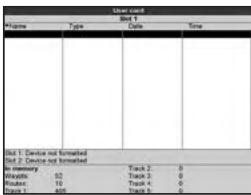
CAUTION
Before using a user card, remove any chart card and plug the user card in. When you have finished with the user card, remove the user card and replace the chart card.
A user card is an optional plug-in card that can store data files. There are three types of files: waypoints, routes or a track.
To go to the user card window
PAGES > More > User card
The user card window has:
File list
A list of the files on any user card in the unit.
To scroll up or down a page at a time
+/-
Waypoints, Routes
The number of waypoints and routes currently in the unit.
Track 1 to Track 10
The number of points in tracks 1 to 10 currently in the unit.
Note:
- To save data onto the user card, use the Save command (see below).
- Data stored on the user card and shown on the file list is not available to be used by the unit until loaded into the unit with the LOAD command (see below).
Saving data to the user card
MENU > Save > Waypts or Routes or Tracks
This saves all the unit's waypoints, all the unit's routes or one of the unit's tracks to one file on the user card. For Tracks, select the track number to save.
The new file is created. Change the name if required. The new file appears in the file list.
Loading data from the user card to the unit
This loads one file from the user card to the unit:
- A waypoints file: The new waypoints are added to any existing waypoints in the unit. If a new waypoint has the same name as an existing waypoint but has
different data, the unit displays both waypoints. Select:
- Skip: Do not load the new waypoint.
- Replace: Load the new waypoint and replace the existing one.
- Skip all: Do not load any new waypoints which have the same names as existing waypoints.
- Rplc all: Load all new waypoints which have the same names as existing waypoints; the new waypoints replace the existing waypoints.
- A routes file: The new routes are added to any existing routes in the unit. If a new route has the same name as an existing route but has different data then the unit asks which route to keep.
- A track file: The new track will replace the existing track in the unit.
To load a file to the unit
Select the file to load > MENU > Load
Deleting a file from the user card
Select the file to delete > MENU > Delete > Yes
Rereading the file information
MENU > Card > Read
This reads the file names from the user card and displays them. Reading does not load any file data into the unit. You should not need to do this.
Formatting the user card
MENu >Card >Format >Yes
Formatting prepares a user card for use. Format the card if there is an error message saying that the card is not formatted. Any data files on the card are deleted.
Sorting the file names
MENU > Sort > Sort by > Name or Type or Time

Do not format a chart card.
AIS is short for Automatic Identification System. The International Convention for Safety of Life At Sea (SOLAS) requires all vessels greater than 300 tons and all passenger vessels to be equipped with AIS Transponders. All vessels equipped with AIS permanently broadcast via one or more of the two dedicated VHF channels. This transmission may include information about the vessels MMSI-number, its call sign, name, position, course, heading, speed, rate of turn and type of vessel.
This unit can receive and display AIS information when connected to an AIS receiver. Available AIS vessels transmitting in the local area are shown on the chart when this feature is enabled.
We recommend the Simrad AI50 for the NX40/45. The following AIS receivers are also supported by this unit:
- Comar SLR200 (external GPS)
- Weatherdock Two Channel AIS Receiver
- NASA Marine AIS Engine 2 channel Receiver (external GPS).
To enable AIS from the system menu check the AIS box.
16-1 Viewing AIS Vessels
A AIS Vessel
B Dangerous Vessel
C Projected Course
D Data Box
E Range Rings
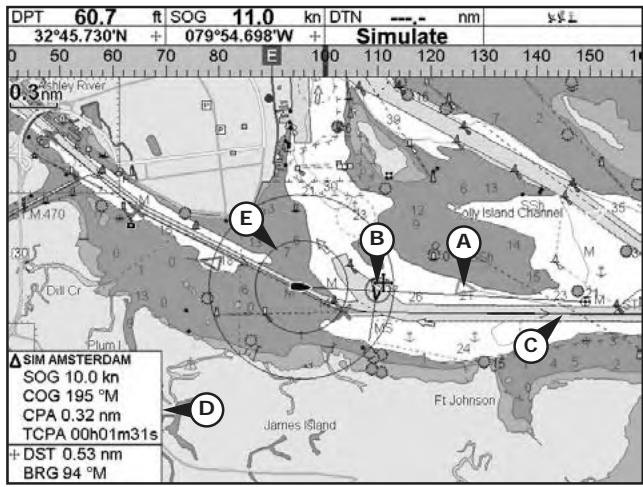
When the cursor is placed over an AIS vessel for at least two seconds, a data box appears at the bottom of the window with information about the AIS vessel.
For complete AIS information
over AIS vessel >
Press either v or x to clear the information.
16-2 Dangerous Vessels
The NX40/45 calculates the time of closest point of approach (TCPA) and closest point of approach (CPA) for each AIS vessel.
This is used to determine potential dangerous vessels. If the TCPA and the CPA is below the trigger values then it will be considered dangerous. (See section 18-8 for setting the dangerous vessel alarm)
A dangerous vessel is indicated on the chart by a red circle around the icon.
16-3 AIS Windows
To go to the AIS windows
PAGES >More >AIS > Vessels or Safety msg (rx)
Vessels
This is a sorted list of vessels currently being received by the AIS receiver. The maximum number of vessels that the system will support is 250. Once maximum is reached, vessels furthest away from the current location will be replaced. A vessel will be removed from the list if no information is received within 6 minutes from the last message.
Displaying an AIS vessel on the chart
select a vessel > MENU > Display
Displaying Full AIS Details
select a vessel > MENU > More Info or
This window displays all information for the selected AIS vessel provided by the AIS receiver.
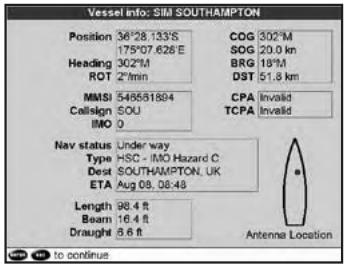
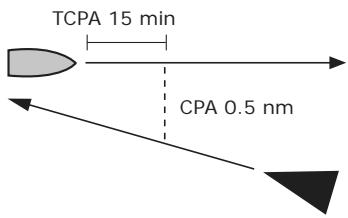
Safety msgs (rx)
Safety msgs (rx) are broadcasted messages received by the AIS receiver. This window displays the date and time of message received, MMSI of AIS vessel that broadcasted the message, and the message itself. Safety msgs (rx) list will store up to 10 messages. The oldest message is replaced when the list is full.
18 Radar
Radar is the Radio Detection And Ranging system. Radar functions require an optional Simrad radar system to be installed. Three radar systems are available; 2kW,4kW, or 6 kW.
When the radar is operating, the scanner transmits powerful microwave radio pulses which are reflected back from any solid objects such as land masses or other boats. These objects are called targets and are shown on the radar window.
The scanner rotates through 360^ so the radar window shows all of the area around your boat within the range of the scanner, producing a map-like display called the PPI (Plan Position Indicator).
Typically, your boat is in the center of the radar window with concentric range rings surrounding it. The range rings help you to quickly estimate the distance to various targets.
17-1 Radar window
The radar window shows:
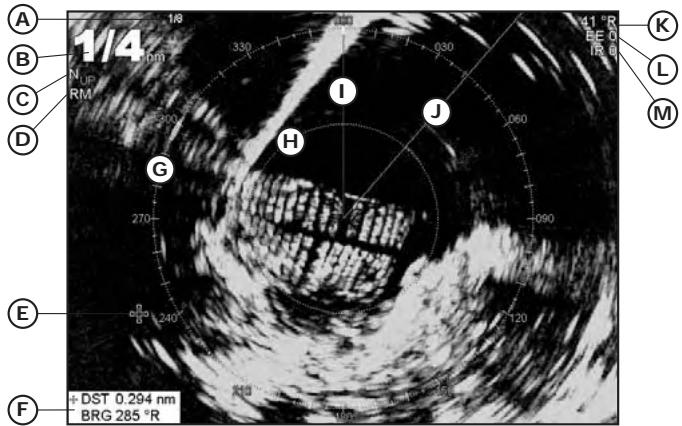
A Distance between each range ring (in this example, 1/8 nautical mile)
B Range of radar (in this example, shown in large digits)
C Radar rotation (in this example, North Up)
D Radar motion mode (in this example, Relative Mode)
E Cursor
F Distance and bearing to the cursor position
G Compass ring
H Range ring
North line (blue)
J Heading line (white)
K The bearing (in Relative, True, or Magnetic mode)
L Echo Expansion setting
MInterference Rejection setting
17-2 Radar modes
There are four radar modes:
- Disabled. This saves on power consumption and magnetron usage. If the radar is disabled, it has to warm up and enter standby mode before it can start transmitting.
- Warming. The radar on and is warming up. This can take up to 90 seconds, depending on your scanner type.
- Standby. The radar is on and is warmed up. It is ready to start transmitting immediately.
- Transmitting. The radar is actively sending and receiving microwave radio pulses. An open array will be rotating.
If you want to save on power but be able to start transmitting immediately, use standby mode.
17-3 Enabling the radar functionality
When the radar is enabled, it will turn on, warm up, and enter standby mode.
To enable the radar functionality
SETUP > System
- Set Radar to☑.
- The radar immediately turns on and enters warm-up mode. A message shows how long this will take.
- When the warm-up period is complete, the radar enters standby mode and is ready to transmit.
17-4 Selecting standby mode or transmit mode
MEN > Transmit or (standby mode)
17-5 Disabling the radar functionality
SETUP > System
- Set Radar to .
-
A warning message appears. If you are sure that you want to disable the radar functionality, select Yes.
-
The radar enters disabled mode immediately.
17-6 Adjusting the quality of the radar window
Common problems that can degrade the quality of the radar window include:
- sea clutter
- rain clutter
- false echoes (sometimes called ghost echoes) and background noise
- side lobe patterns (false echoes that appear as an arc or a broken arc)
- shadows (blind spots)
- multiple echoes off the same object
- incorrect threshold setting
If the radar is installed at a suitable height and in a suitable location on your boat, side lobe patterns and shadows (blind spots) caused by obstructions such as funnels or masts will be minimized. If you're having problems with these, you may need to relocate the radar. Consult the Installation Guide for your Simrad radar or talk to your dealer or installer.
Multiple echoes off the same object are most likely to occur when you are close to a large target and are usually only a temporary nuisance.
You can adjust the radar to reduce the effects of sea clutter, rain clutter, and interference from other radars. You can also change the gain mode setting and the gain level setting to help reduce false echoes.
To adjust the radar
MENU >Presentation >Adjust Radar >
17-6-1 Changing the gain mode
Use the radar gain mode to specify whether you want to adjust the radar gain yourself or have it adjusted automatically.
To change the radar gain mode
MENU > Adjust Radar > Gain Mode
| Adjust radar | |
| Gain Mode | Manual |
| Gain Level | 25% |
| Sea Clutter Mode | Range rider |
| Sea Clutter Level | 54% |
| Rain clutter | 8% |
| Threshold | 20% |
- Manual. Adjust the radar gain yourself to suit your local conditions and preferences.
- Auto. The radar gain is adjusted automatically.
17-6-2 Changing the gain level
Use the radar gain level to adjust the sensitivity of the radar receiver. Ideally, the radar gain level should be set so that background noise is just visible on the radar window.
If the radar gain level is too low, weak echoes won't be shown. If the radar gain level is too high, strong echoes will be difficult to see amongst the large amount of background noise.
(If the radar Gain Mode is set to Auto and you adjust the gain level manually, the Gain Mode is changed to Manual.)
To change the radar gain level
MENU > Adjust Radar > Gain Level >
17-6-3 Changing the sea clutter mode (Manual mode)
Sea clutter usually appears as confusing, random signals close to your boat on the radar window.
High waves that can reflect the radar signal will produce the maximum amount of sea clutter.
You can change the sea clutter mode yourself or have it changed automatically to compensate for the sea conditions.
To change the sea clutter mode
MENU > Adjust Radar > Sea Clutter
- Manual. Adjust the sea clutter setting yourself.
- Harbour. The sea clutter setting is adjusted automatically to suit a harbour environment.
- Offshore. The sea clutter setting is adjusted automatically to suit an offshore environment.
- Range Rider. Adjust the sea clutter setting yourself for a particular radar range, then have those settings stored and automatically re-used whenever you operate at that range again.
17-6-4 Changing the sea clutter level
If the sea clutter level is set too low, a lot of sea clutter will be shown. If the sea clutter level is set too high,
small targets may not be shown in the radar window.
If the sea clutter mode is set to Harbour or Offshore, and you adjust the sea clutter level manually, the sea clutter mode changes to Manual.
If you are in Range Rider mode when you adjust the sea clutter level, the sea clutter mode does not change to manual but the setting is stored and used automatically whenever you use the same range again.
To change the sea clutter level
MENU > Adjust Radar > Sea Clutter Level >
17-6-5 Changing the rain clutter
Rain clutter consists of random dots that can merge into badly-defined echoes on your radar screen.
The random signals are returned from rain, hail, sleet, or snow and can result in a confusing display.
If the rain clutter is set too low, there will be excessive rain clutter shown whenever it's raining. If the rain clutter is set too high, very large targets such as the coastline will appear to be hollow.
To change the rain clutter setting
MENU > Adjust Radar > Rain clutter >
17-6-6 Changing the threshold level
Use this to define the threshold level of the weakest echo that you want to show on the radar screen. The threshold level is shown as a percentage.
100% is the maximum threshold level, meaning that only the strongest echoes are shown. 0% is the minimum threshold level, meaning that all echoes are shown.
To change the threshold level
MENU >Presentation>Threshold>
17-7 Changing the echo expansion setting
If you have several small targets in view and want to make them easier to see, use the echo expansion option.
Note that the resolution decreases as the target size increases, so use this option only when target detection and visibility is more important than the quality of the display.
- Off. No echo expansion.
- Targets expanded x 2.
- Targets expanded x 3.
17-8 Turning the target trails on or off
If you turn the target trails on, each target leaves a 30 second trail on the radar screen. You cannot change the length of the target trail.
If you turn the target trails off, the targets do not leave trails.
Note that if the radar motion mode is set to true, stationary targets won't leave a trail. If the radar motion mode is relative, any target that is moving relative to your boat will leave a trail.
To change the target trails setting
MENU >Presentation
- Set the Target trails option to × (target trails are on) or (target trails are off).
17-9 Using the VRM/EBL
Use one, or both of the VRM/EBL (Variable Range Markers/Electronic Bearing Lines) to quickly find the precise range and bearing of a target.
A VRM can be fixed or floating. Use the VRM to find the range (distance) to the target.
- A fixed VRM is shown as a thin, dashed, circle centerd around your boat. Use this to find the distance of a target from your boat.
- You can move the center of the VRM away from your boat; for example, to measure the distance between two islands. This is called a floating VRM.
The EBL is shown as a thin, dashed line extending from the center of the VRM to the edge of the radar window. Use the EBL to find the bearing of the target.
To show EBL
MENU > VRM/EBL
17-9-1 Finding range and bearing with a fixed VRM/EBL
- From the radar window, press MENU then select VRM/EBL.
- Select VRM/EBL then 1 (VRM/EBL 1) or 2 (VRM/EBL 2).
- Set Enable to × to show the VRM and EBL on the radar window (or to hide them).
- Select EBL reference if you want to change the EBL bearing reference. There are two choices:
- i °R shows the EBL bearing relative to your boat's head.
ii ^ / ^ shows the EBL bearing relative to magnetic North or true North. - Select Adjust to change the positions of the VRM and the EBL so that you can align them with the target. Use:
- i left and right to decrease and increase the radius of the VRM until it touches the target to measure the range.
- ii up and down to move the EBL until it touches the target to measure the bearing.
- The range and bearing of the target is shown at the bottom of the screen.
- To clear the VRM/EBL display, press ESC and repeat steps 1 and 2. Then set Enable to .
- If you want to hide (or change the settings for) the range rings, North line, and/or heading line, press SETUP > Radar.
If you want to find the range and bearing of another target, repeat the sequence using the other VRM/EBL. This is shown in a different pattern.
17-9-2 Finding range and bearing with a floating VRM/EBL
If you move the center of a VRM away from your boat it is called a floating VRM. Use this to measure the range and bearing between two locations on the radar window, such as a headland and a buoy.
- From the radar window, press MENU then select VRM/EBL.
-
Select VRM/EBL then 1 (VRM/EBL 1) or 2 (VRM/EBL 1).
-
Set Enable to × to show the VRM and EBL on the radar window (or to hide them).
- Select EBL reference if you want to change the EBL bearing reference. There are two choices:
- i °R shows the EBL bearing relative to your boat's head.
ii ^ / ^ shows the EBL bearing relative to magnetic North or true North. - Select Set center to move the VRM and EBL center away from your boat. Use the arrow keys to move the center so that it is aligned over the first location.
- Press to save the new center position, then press MENU and reselect the VRM/EBL.
- Select Adjust to change the positions of the VRM and the EBL so that you can align them with the second location. Use:
- i left and right to decrease and increase the radius of the VRM until it touches the second location to measure the range.
- ii up and down to move the EBL until it touches the second location to measure the bearing.
- The range and bearing of the target is shown at the bottom of the screen.
- If you want to hide (or change the settings for) the range rings, North line, and/or heading line, press MENU then select Radar.
- To clear the VRM/EBL display, press ESC and repeat steps 1 and 2. Then set Enable to .
If you want to find the range and bearing between two other locations, repeat the sequence using the other VRM/EBL. This is shown in a different pattern.
17-10 Changing the PPI position
You can move the PPI (Plan Position Indicator) center to a different location if you are in Relative motion mode. (If you are in True motion mode, the radar automatically positions the PPI center.)
To change the PPI position:
- From the radar window, press MENU then select Position.
- There are three choices:
-
i Center. The PPI center is in the center of the radar window so that all other objects move relative to your boat.
-
ii Look Ahead. The PPI center is positioned so that the radar window is offset from the center to give you the maximum view ahead.
- Set. Offset the PPI center in the radar window. (This works only when you are using relative motion (RM) mode). Use the arrow keys to move the PPI center to the new position then press to confirm. The new position must allow most of the radar sweep to appear on the radar window; if it doesn't, the PPI center will be moved as close as possible to the desired position.
7-11 Using the radar guard zones
Use either or both of the two radar guard zones and alarms to notify you when a target enters or exits a specified area around your boat.
From the radar window > MENU > Guard zone
17-11-1 Turning a radar guard zone on or off
Two radar guard zones are available. From the Guard zone menu:
Zone >1 selects radar guard zone 1, 2 selects radar guard zone 2 > Set Enable to (show the radar guard zone) or (hide the radar guard zone)
17-11-3 Change the setting for a radar guard zone alarm
Guard Zone > Alarm when > Enter sounds the alarm only when a target enters / Exit sounds the alarm only when a target leaves / Both sounds the alarm when a target enters or leaves the radar guard zone.
When a radar guard zone is on, the guard zone alarm is set automatically but you can change the setting to suit your preferences.
17-11-4 Adjusting the boundaries of a radar guard zone
From the Zone menu > Adjust
- i Guard Zone The number shows the radar guard zone that is selected.
- ii Sector or Circular The shape of the radar guard zone.
- iii IN RANGE The distance between the inner boundary and your boat.
iv OUT RANGE The distance between the outer boundary and your boat.
- v WIDTH The angular width of the radar guard zone (in degrees).
- vi BEARING The bearing of a line drawn from your boat through the center of the radar guard zone (in degrees).
- Use left and right to select a parameter.
17-11-5 Adjusting the sensitivity of the alarm
You can set the sensitivity of the alarm for the radar guard zones, to define the size of the target that will trigger the alarm. The size of target is shown as a percentage.
100% is maximum sensitivity, meaning that very small targets will trigger the guard zone alarm. 0% is minimum sensitivity, meaning that only very large targets will trigger the alarm.
The same sensitivity setting is applied to both of the radar guard zones if both are turned on.
To set the alarm
Guard Zone > Alarm sensitivity >
19 Setting up the NX40/45
The NX40/45 has a number of advanced features which are set up through the Setup menu. We recommend that you become familiar with the operation of the unit using the default settings before making any changes in these menus.
To go to a setup option menu
SETUP or MENU > MENU > select an option
Note: The setup data available will depend on the optional sensors and instruments installed.
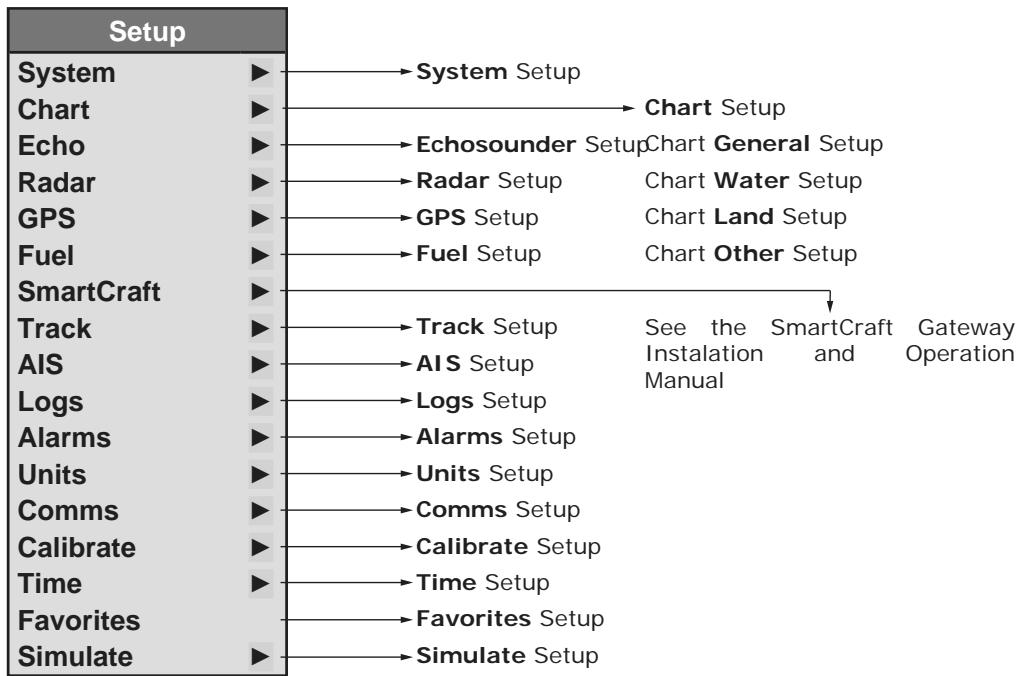
18-1 Setup > System
SETUP > System
| Language | Select the language for the windows. Tip: In case you can’t read the current language, the language setting is found at the top of the system menu. |
| Backlight | Select the backlight level for the keys and display. |
| Night mode | Night mode sets the palette for all windows □ Normal palette, for daytime □ All windows have a palette optimized for night time. |
| Beep volume | Select the beep volume for key presses. |
| Auto power off | |
| Factory reset | This option returns all of the unit settings (except the language, waypoints and routes) to the default factory settings shown on the setup menus. |
| About | The about window shows: The software version and date. The world chart version. Any card fitted. The number of waypoints, routes and tracks you have stored. Connector wiring information. In the unlikely event of having to contact a Simrad dealer for service, quote the software version number and date. |
| Echosounder | □ Disable any echosounder transducer and disable echosounder functions. □ A echosounder transducer is fitted. Enable echosounder operation. |
| Radar | □ No appropriate Radar system is fitted. Disable RADAR. □ An appropriate Radar receiver is fitted. Enable AIS. |
| SmartCraft | □ No SmartCraft gateway is fitted. Disable SmartCraft functions. □ SmartCraft gateway is fitted. |
Enable SmartCraft operation.
AIS
No appropriate AIS receiver is fitted.
Disable AIS.
An appropriate AIS receiver is fitted. Enable AIS.
18-2 Setup > Chart
SETUP >Chart
Rotation
The options for chart rotation are:
North up North is always at the top of the chart window.
Track up The chart is rotated so that the boat direction is to the top of the window. This option is useful for navigating narrow harbours or rivers. The unit asks for a course deviation resolution; this is how much the boat direction needs to change to make the chart redraw.
Tip: If the chart redraws too frequently, increase the course deviation setting.
Course up This option is only available if the boat is navigating to a destination. The chart is rotated so that the plotted course to the destination is vertical.
Palette
Select the color scheme for the LCD window.
The options are:
Normal
Sunlight Brighter colors, more visible in sunlight.
Night Reversed colors for night, to preserve night vision.
Map datum
GPS positions are based on a worldwide reference (datum) known as WGS 84. Most paper charts are based on WGS 84. However, some paper charts are based on other datum In these cases, the latitude and longitude coordinates of objects on the unit chart window are different to the latitude and longitude coordinates of these objects on the paper chart. This applies to all objects, such as the boat, waypoints, tracks, lines of latitude and longitude
WARNING
When you change to a chart with a different datum, change the unit map datum again.
and cartographic features such as land, rocks, buoys and depth contours.
Use Map datum to select the unit map datum to match the datum of the paper chart. Then, the latitude and longitude coordinates of objects shown on the unit will change to match the corresponding coordinates on the paper chart.
Setting map datum
In the Chart setup menu > Map datum > Select the map datum for the paper chart you are using.
WARNING
Map shift is for eliminating minor offsets. It should not be used if the correct datum is available. Use map shift with caution: incorrect application will cause incorrect boat positions.
If you select a datum other than WGS 84 the unit asks if you want to apply the NMEA datum offset (see below).
NMEA datum offset If you select a map datum other than WGS 84, the map datum offset can be applied to latitude and longitude coordinates sent on the unit's NMEA output:
Latitude and longitude coordinates shown on any NMEA repeater do not match the coordinates on the unit. Latitude and longitude coordinates broadcast on any NMEA VHF transmitter will be the same as the coordinates on a WGS 84 chart.
Latitude and longitude coordinates shown on any NMEA repeaters match the coordinates on the unit. However, latitude and longitude coordinates broadcast on any NMEA VHF transmitter will be slightly offset from coordinates on a WGS 84 chart.
Map shift
Some charts have consistent position errors. To correct this, apply a map shift.
After a map shift:
The positions of cartographic features (such as land, rocks, buoys and depth contours) move on the chart window to where they should be.
The positions of the boat, waypoints, tracks, and lines of latitude and longitude on the unit chart window remain unchanged.
Applying a map shift
Move the boat to a known point on the chart > In the Chart setup menu, Map shift. > Move the cursor to the position on the chart where the boat actually is > MENU > Set > X Y
To clear map shift
Chart setup > Map shift > MENU > Clear > X
General submenu
Plotter mode Only scales available on the chart card can be shown.
If you press +/− to select a chart scale which is not available, on the chart card, the chart window will change to this scale but will only display the boat position and track (if enabled). The rest of the window is white with black crosshatch lines and no chart information is shown. This is useful to zoom to a small scale to track small boat movements or if there is no detailed chart for an area.
Mixing levels Mixes lower detail charts with higher detail charts on chart boundaries.
:Lower detail chart is not shown.
:Lower detail chart shown; this is slower to redraw.
Anticlutter Names and icons shown. Note: this is independent of the change in detail shown at different zoom levels.
- Hides some less important names and icons when they overlap to make the chart clearer.
Value added data Non-marine chart data shown
Projected course The unit can estimate the course after a given time, based on the current speed and heading. The options are 2 minutes, 10 minutes, 30 minutes, 1 hour, 2 hours or Off.
CDI scale See Appendix C. The options are 0.05, 0.1, 0.2, 0.5, 1.0, 2.0, 4.0 and 10.0 distance units.
Lat/long grid displays a latitude and longitude grid.
Boundaries Displays boundaries around areas where more detailed chart coverage is available: Auto shows the next four detail levels; On shows all.
Text/Icon size Select the size of chart text and icons.
Water submenu
Water features displays nature of sea bed (for example, M shows areas of mud) and tide station icons.
Bathymetric[s] lines Displays underwater depth contours between Bath & dndgs min and max.
Spot soundings Displays underwater depth contours between Bath & dndgs min and max.
Bath & sndgs min The minimum depth for Bathymetrics and Spot soundings.
Bath & sndgs max The maximum depth for Bathymetrics and Spot soundings.
Tidal stream displays dynamic tide flows: arrows on a chart showing the present tide stream and orientation (requires a GPS fix and an NT MAX card)
Land submenu
Land features displays land features, for example regions, rivers, roads, railways, airports.
Land elevation displays land contours, shaded like depths (requires an NT Max card)
Other submenu
Waypoints Displays waypoints: Hide all only displays waypoints on any selected route; Selected displays waypoints with their display option set to Icon or I+N (Icon and Name); Show all displays all waypoints.
Names displays place names.
Lights Light House window options: Off hides all light indicators (the icon still shows); No sectors hides sectors; On shows sectors; Animated activates light animation. Note: with light animation enabled, animation only operates chart.
Nav-aids Displays signals (fog, radar, radio stations) and buoys. Int and US select the icon format; Simpl draws simpler icons.
Attention areas displays attention area boundaries and information icons; attention areas are important areas, such as restricted anchorages or shallow areas.
18-3 Setup > EchoSounder
SETUP > Echo
| Frequency | There is a choice of: 200 kHz, 50 kHz and Mixed. |
| Scroll speed | Use this to set the scroll speed on the display. There is a choice of: Very Fast, Fast, Medium, Slow and Pause. The depth of the water also affects the speed of the display. Faster scroll speeds combined with a slow boat speed (typically between 2 and 6 knots) shows the most fish detail. Medium or Slow scroll speeds result in echosounder information being shown over a longer period, but with less detail. |
Fish depth labels When this is turned on, the depth of a fish is printed next to the fish arch.
| Digit size | Use this to remove or change the size of the depth window on the echosounder windows. There is a choice of: Small, Medium and Large |
Palette Use this to select a color palette. Each color within the palette represents a different echo strength, as shown on the echosounder windows. There is a choice of five color palettes: Black, Blue, White, Vivid and 8 color. The first four palettes display more detail, and each color covers a 1.5 dB signal range. The 8 color palette displays less detail, and each color covers a 3 dB signal range.
Interference filter No filter, normal setting.
- Filters the echo signal to remove spiky interference such as engine noise or echosounders on nearby boats.
Noise filter Averages the echo signal to remove rapid changes. Select Medium or High to give a smoother bottom trace—this may help to detect a deeper bottom;
however these settings may also remove fish echoes. Select Off for best fishfinding.
Surface clutter filter Use this filter to hide the surface noise. Any significant echoes (such as fish) will still be shown.
Pulse length This can be used to specify the length of the transmitted ultrasonic pulse. A short pulse length improves the window detail but contains less energy, therefore it does not penetrate as deeply into the water as a longer pulse.
There is a choice of Auto, Short, Medium or Long. The Auto setting is recommended.
Pulse power This can be used to specify the power output of the transmitted ultrasonic pulse. Low power output conserves the battery and produces a clear display in shallow water.
There is a choice of Auto, Low, Medium or High. The Auto setting is recommended.
18-4 Setup > Radar
SETUP > Radar
Note: This option is shown only when the radar is enabled.
Rotation
The current radar rotation is shown in the top left corner of the radar screen. If COG data or heading data is not available from a compass, the radar rotation is automatically set to Head up. If heading data is available from a compass, the options are:
North up works only when COG data or heading data from a heading sensor is available. North is always at the top of the radar screen.
Head up means that the radar image rotates underneath your boat, so the direction in which you are heading is pointing to the top of the radar screen. You can easily compare the visual view in front of your boat with the radar screen.
Course up works only when COG data or heading data from a heading sensor is available and there is an active route. It means that your
desired heading is always pointing to the top of the radar screen so that you can compare the leg bearing of the active route with the radar screen. (If you're in Course up rotation but don't have an active route, the radar uses Head up rotation until a route is made active.)
Motion mode
True motion mode is not available if there is no position data, and no heading or COG data.
There are two choices:
Relative (RM). Your boat remains in a fixed location on the radar screen and all other objects move relative to your position. (You can choose the position of the fixed location). RM is the default.
True (TM). Your boat, and moving targets, move across the radar screen as you travel. All stationary objects remain in a fixed position. You must have position data, and heading or COG data for this option to be available.
Interference filter
ter If the radar on another boat is operating at the same frequency as your radar, it can cause interference patterns on the radar window.
Interference patterns always appear in a different place with each sweep. They can be randomly scattered bright dots or dotted lines that extend from the center to the edge of the radar window, often producing a spiral pattern. Generally, the stronger the interference, the wider the interference lines.
Use the interference rejection option to reduce both the interference patterns and the width of the interference lines.
There are four choices:
Off. Interference rejection is off.
Low operates the interference rejection at minimum strength.
Medium operates the interference rejection at medium strength.
High operates the interference rejection at maximum strength. This setting can make it more difficult to detect some targets and radar
beacons.
Palette
Select the color scheme for the radar window.
Digit size
The range of the radar is shown on the radar window; for example 1/16. You can show this information in small, medium or large digits.
Range ring
The range rings and compass ring help you to quickly estimate the range and bearing of a target from your boat.
The range ring and compass ring are shown. The number of range rings and the spacing interval between them is set automatically according to the range setting. The current spacing interval is shown in the top left corner of the radar window.
- Range ring and compass ring are hidden.
North line
Whatever the radar window rotation, you can always show the blue North line.
If the bearing mode is set to:
magnetic, the North line always points to magnetic North.
true, the North line always points to true North.
Show the North line.
Hide the North line.
Heading line
The heading line is a white line that extends from your boat to the edge of the radar window.
Show the heading line.
- Hide the heading line.
18-4-1 Setup > Radar > Installation

Radar
Installation
Note: This option is shown only when the radar is enabled.
Park position
If your radar has an open array and you take it out of enabled mode, the open array continues to rotate for a short distance before it finally stops. The stop position is known as the park position. You can adjust the angle of the parking position so that the open array will always stop at
your preferred position; for example, facing the bow.
Select Park position then enter the angle of the new park position.
Note: You may need to try a few different park positions to find the correct one. The strength of the wind will also affect the park position.
Zero bearing
Use the zero bearing alignment to rotate the radar image, one degree at a time, so that a known object dead ahead is directly under the boat's heading marker.
This means that the radar image is aligned with the shown chart and the compass. An accurate bearing alignment is particularly important when the radar image is overlaid onto the chart.
Adjust this on a chart window with the radar overlay on.
Select Zero bearing then use the cursor to enter the new bearing angle.
Zero range
The zero range is also known as the radar range offset and as the trigger delay.
If your radar window shows a blank, black circle around the center or a solid circle of color at the center, you need to adjust the zero range setting until this circle disappears or almost disappears. Ideally, the radar sweep should start at your boat (a radar range of zero).
To adjust the zero range setting:
- Position your boat about 45 to 90m (50 to 100 yards) away from and parallel to a straight-walled jetty or similar feature.
- Adjust the gain setting if necessary, so that a reasonably good image of the jetty echo is shown on the radar window. At this stage, the jetty echo may appear to be bent.
- Select Zero range then use the arrow keys to adjust the zero range setting until the jetty echo appears as a straight line on the radar window.
Antenna height The Installation Manual for your Simrad radar explains how to find the optimum height for your radar scanner (antenna).
WARNING
Fuel consumption can change drastically depending upon the boat loading and the sea conditions. Always carry adequate fuel for the journey, plus a reserve.
Select Antenna height then enter the height of the antenna above sea level.
18-5 Setup > GPS
SETUP > GPS
| GPS Source | SimNet: Use the GPS source via SimNet (GPS port) |
| NMEA: Use the external NMEA 0183 GPS antenna (Fuel/Nav port). | |
| Static | |
| Navigation | When the boat stops or moves very slowly, the calculated GPS speed and course become erratic. Static navigation allows the erratic values to be filtered: |
| 0.01 to 9.99: If the boat speed is slower than this, the speed is shown as zero and the course stays unchanged. | |
| 0 (Off): The calculated speed and course are always used. | |
| Speed and Course Filter | Waves and wind cause the boat speed and course to fluctuate slightly. To give stable readings, the unit calculates these values by taking several measurements and averaging them. |
| A lower value averages measurements over a shorter period of time. This gives the most accurate value but has the most fluctuations. | |
| 18-6 Setup > Fuel | |
| SETUP > Fuel | |
| Note: Fuel functions require fuel flow sensors to be installed. | |
| Source | Select the fuel flow sensors to use if the boat has more than one set of fuel sensors. Normally select Auto. |
| Num engines | Set the number of engines, or select 0 to disable the fuel functions. If there are two engines they are called port and starboard. |
| Num tanks | Set the number of fuel tanks. If there are two tanks they are called port and starboard. |
Setup engines If the boat has more than one engine, select Engine and select each engine in turn.
For the selected engine, enter:
From tank: The tank the engine is connected to.
Flow filter: Most engines do not draw fuel from the tank at a steady rate. To give a stable fuel flow reading, the NX40/45 calculates the flow by taking several measurements and averaging them. Use the Flow filter to set the period over which the fuel flow is averaged.
The Flow filter can be set from 0 to 30 seconds. Use the lowest value which gives a stable flow. Usually a value of 5 to 10 seconds will give a satisfactory result for two-stroke carburetor engines. Fuel injected or four-stroke engines may require a larger value.
This setting affects the Fuel flow and Fuel economy reading on the Fuel display but it does not affect the Fuel used reading.
Setup tanks If the boat has more than one tank, select Tank and select each tank in turn.
For the selected tank, you can enter:
Tank size: The tank capacity. Simrad recommends measuring tank size by draining the fuel tank, filling it to capacity and using the fuel dispenser's reading. Beware of air pockets, especially in underfloor tanks.
Fuel alarm
Fuel consumption curve
Speed source If both water speed and ground speed are available, select which to use for fuel calculations.
Max fuel flow The maximum fuel flow from a fuel tank to be shown on an analog fuel flow gauge.
18-7 Setup > Track
SETUP > Track
Tracking records and displays the boat's course on the chart). Ten different tracks can be recorded.
Record Off: The unit stops recording a track.
1 to 10 (select a track number): The unit starts recording the boat's course into the selected track.
Display
Off: No track is shown on the chart.
1 to 10 (select a track number): The selected track is shown on the chart.
Plotting Interval
- Select the plotting and setting interval.
Distance
Select the distance plotting interval: 0.01, 0.05, 0.1, 0.5, 1.0, 2.0, 5.0 or 10.0 distance units.
Time
Select the time plotting interval: 1, 5, 10 or 30 seconds or 1 minute.
Memory used
The percentage of memory used in the track being recorded.
Tip: Use the user card window to check the number of points recorded in
| Symbol | Alarm | Beeper | Alarm sounds when it is on and the: |
| 3 | Arrival radius | Boat is closer to the destination or to a waypoint than the alarm trigger value | |
| 4 | Anchor alarm | Boat moves by more than the alarm trigger value | |
| A | XTE | Boat moves off course by more than the CDI scale | |
| 1 | Danger | Boat comes closer to a danger waypoint than the alarm trigger value | |
| 2 | Too shallow | 1/5sec | Depth is less than the alarm trigger value |
| 3 | Too deep | 1/2sec | Depth is greater than the alarm trigger value |
| 6 | Fish | 1 short beep | Echo matches the profile of a fish |
| 7 | Temperature | 1/2sec | Temperature equals the alarm trigger value |
| 8 | Temperature rate | 1/2sec | Rate of change of temperature equals the alarm trigger value |
| 9 | Low battery | 1/2sec | Battery voltage is less than the alarm trigger value |
| 10 | Low fuel | 1/2sec | Low fuel remaining equals the alarm trigger value; on a multitank boat you can set separate alarms for each tank |
| 11 | Loss of DGPS fix | unit can not receive the DGPS signal (beacon, WAAS or EGNOS) | |
| 12 | Loss of GPS fix | unit can not receive the GPS signal (this alarm is always on) | |
| 13 | Loss of AIS receiver comms | NX40/45 is no longer receiving communication from the AIS receiver (Alarm is on when AIS is enabled) | |
| 14 | Dangerous vessel | The TCPA/CPA of another vessel is less than the trigger values |
each track.
Send track
This option is included for compatibility with older units. For information, see your Simrad dealer.
Delete track
The data in the track selected for Record (see above) is deleted.
18-8 Setup > AIS
SETUP > AIS
Note: This feature requires an AIS receiver.
Filter by Type
Vessel types that are not selected will be filtered off the chart. Default is set to all types enabled allowing all vessels to be shown on the chart.
Filter by distance
Vessels outside the radius selected from our current position are filtered off the chart. Default value is set to 300nm allowing all vessels to be shown on the chart within that distance.
Filter by speed
Vessels with speed below the value selected are filtered off the charts. Default is set to 0 nm allowing all vessels to be shown onto the chart.
Show Dangerous Only
This Only Show only vessels that have a TCPA/CPA below the trigger values. This filter will override any other filter option.
Dangerous Vessel Alarm
When enabled an
alarm will activate when both the TCPA and CPA are less than the trigger values.
Note: Even when this setting is disabled the dangerous vessels will still be indicated on the chart.
TCPA Limit
Set the Time of Closet Point of Approach limit.
CPA Limit
Set the Closet Point of Approach limit.
Projected Course
- Show the estimated courseless assets based on their current and COG.
Range Rings
Show a selectable number of range rings around the boat. The rings are drawn in multiples of the current chart scale.
Proximity Alarm
When enabled an alarm
will activate when any AIS vessel is within the proximity alarm radius.
18-9 Setup > Logs
SETUP > Logs
Reset trip dist This resets the trip distance to zero.
Reset total dist This option resets the total distance to zero.
Reset engine hours Use this option to reset the engine hours to zero. This can be useful after an engine service or to count the engine hours between service intervals.
18-10 Setup > Alarms
SETUP > Alarms
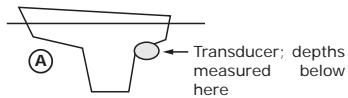
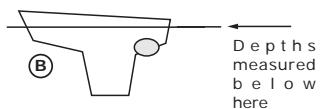
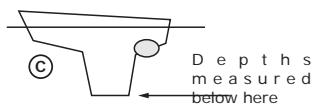
For all alarms select to turn the alarm on or select to turn the alarm off. For most alarms there is a trigger value. The alarm will sound each time the alarm value equals the trigger value.
For example, the Danger alarm will sound if the boat comes closer to a danger waypoint than the trigger value and the Anchor alarm will sound if the boat moves by more than the trigger value.
You can display the alarm status in the data header. The alarm status shows the symbol for each alarm that is on. The symbol is normally black and turns red if the alarm triggers.
18-11 Setup > Units
SETUP > Units
| Distance | nm (nautical miles), mi (miles) or km (kilometers) |
| Distance small | ft (feet) or m (metres) |
| Speed | kn (knots), mph (miles per hour) or kph (kilometers per hour) |
| Depth | ft (feet), m (metres) or fa (fathoms) |
| Height | ft (feet) or m (metres) |
| Fuel | Litres, USGal (US gallons) or ImpGal (Imperial Gallons) |
| Compass | °T (True north) or °M (Magnetic north) |
| Temperature | °F (Fahrenheit) or °C (Celsius) |
| Wind (optional) | Requires a wind instrument: True or Apparent |
Note: that the units for wind speed are the speed units.
Pressure Requires SmartCraft: kPa or psi
Baro Requires a VHF receiver with barometer connected by NavBus: InHg or mB.v
18-12 Setup > Comms
Use this feature when the unit is connected to other Simrad instruments through any compatible NMEA instrument.
SETUP > Comms
NMEA out NMEA is generally used with third party instruments. Select this to transmit NMEA sentences, for example to an autopilot.
NMEA data Use this to specify which NMEA sentences will be transmitted.
Lat/Ion d.p's Select the number of decimal points used for latitude and longitude transmitted in NMEA sentences.
18-13 Setup > Calibrate
SETUP > Calibrate
Speed This calibrates the speed from a paddlewheel sensor connected to the unit. Calibration may be required because different hull shapes have different flow characteristics.
Note: for accurate calibration, The speed from a GPS receiver should be greater than 5 knots, and the speed from another paddlewheel transducer should be between 5 and 20 knots.
Best results are achieved in calm conditions where there is minimal current (best at high or low tide).
Travel at a constant, known speed.
To calibrate speed
Speed > > change shown speed to the true value >
Speed filter Waves and wind cause the boat speed from the paddlewheel transducer to fluctuate slightly. To give stable readings,
the unit calculates these values by taking several measurements and averaging them. Set the Speed filter to the lowest value which gives stable readings. The range is 1 to 30 seconds or Off (0).
Temperature
The factory settings should be sufficiently accurate for normal usage. To calibrate the temperature readout, first measure the water temperature with a thermometer known to be accurate.
Use the cursor keys to display the temperature readout box, then increase or decrease the value to match the measured temperature. The temperature can be set from 32^ to 99.9^ (0^ to 37.7^) with a resolution of 0.1^ unit.
To change the units between ^ F (Fahrenheit) or ^ C (Celsius).
Temperature filter
Water turbulence and currents cause the water temperature to fluctuate slightly. To give stable readings, the unit calculates these values by taking several measurements and averaging them. Set the Temperature filter to the lowest value which gives stable readings. The range is 1 to 30 seconds or Off (0).
Keel Offset
A depth transducer measures depths below where the transducer is mounted on the boat, usually the bottom of the boat. The unit calculates the depths to display by adding the keel offset to all measured depths.
A Have a zero keel offset to display depths below the transducer.
B Enter a positive keel offset to increase the shown depth. For example to display the total depths below the surface, enter the depth of the transducer below the surface.
C Enter a negative keel offset to decrease the shown depth. For example, to display the depths of clear water below the boat, enter minus the depth of the deepest part
of the boat below the transducer. Speed range The maximum reading to display on an analog boat speed gauge. Choose a range suitable for your boat.
18-14 Setup > Time
SETUP > Time
Local offset The difference between local time and UTC (GMT). Change local offset when daylight saving time starts and ends. The range is 0 to ± 13 hours, in 30 minute steps.
To setup local offset
Select Local offset > >
Time format The options are 24 hour or 12 hour.
Date format The options are dd/MMM/yy, MMM/dd/yy, dd/MM/yy or MM/dd/yy.
18-15 Setup > Favorites
See section 2.
18-16 Setup > Simulate
SETUP > Simulate
Simulate
Mode There are two choices for Mode:
Normal - Simulates the boat moving from the selected start point at the given speed and heading. The options required for Normal are:
Speed: The simulated boat speed to use.
Course: The simulated course over ground.
Note: To select the start point, go to the chart window before starting the simulation. Then:
To start the simulation from the boat position, press x to switch to center on boat mode.
To start the simulation from a different point, move the cursor to that point on the chart.
Tip: To calculate a course, use the
WARNING
Never have simulate mode on when the unit is navigating on the water.
cursor.
Tip: As the boat moves, vary Course to simulate the boat moving off course.
Demo - Simulates a boat moving along a route and automatically displays different unit functions. The options required for Demo are:
Speed: The simulated boat speed to use.
Route: The route to follow.
19-1 Installation: What else comes with my NX40/45?
- NX40/45 display unit.
- cover for display unit (Place over display when not in use).
- Front Bezel (Fit this after installing the display unit).
Power cable. - Mounting bracket and locking knobs.
- Bracket mounting screws (5 x14 Gauge self tapping screws).
- Flush mounting screws (4 x 8 Gauge self tapping screws).
- SimNet power cable w/termination.
- AT40 SimNet converter.
- Simrad wallet - Contains the following items:
- Flush mounting template.
- LCD cleaning cloth.
Warranty card. - NX40/45 Installation and operation manual.
19-2 Installation: Options and Accessories
- Replacement paddle wheel.
- C-MAP™ NT MAX, NT+ or NT chart SD cards.
Optional sensors and instruments
External alarms: Lights or echosounders in the boat to sound alarms through the boat.
GPS or DGPS antenna
Echosounder transducer: For depth sounding and fish finding.
Speed, Depth and Temperature transducers
Fuel sensors: For fuel functions. The unit can use these optional fuel flow sensors, fitted to one or two engines:
Simrad petrol/gasoline sensors
- SmartCraft fuel sensors
SmartCraft: With one or two SmartCraft capable Mercury petrol/gasoline engines, the unit can display engine data and trim and can control troll speed.
WARNING
Ensure that any holes cut are in a safe position and will not weaken the boat's structure. If in doubt, consult a qualified boat builder.
CAUTION
Do not mount any part where it can be used as a hand hold, where it might be submerged or where it will interfere with the operation, launching or retrieving of the boat.
To help ensure proper operation, do not mount any part or cable within 0.5m (20^ ) of the plane of a radar antenna or within 1 m (3 ft) of a compass or source of electrical noise, such as engines, fluorescent lights, and power inverters.
When fitting a cable, do not crush or strain the cable. Secure the cable at regular intervals. Ensure no connectors or exposed terminals are in wet area.
If the cables supplied are too long, do not shorten the cable; instead coil the cable. Most cables can be extended with Simrad extension cables. Do not fit more than one extension cable.
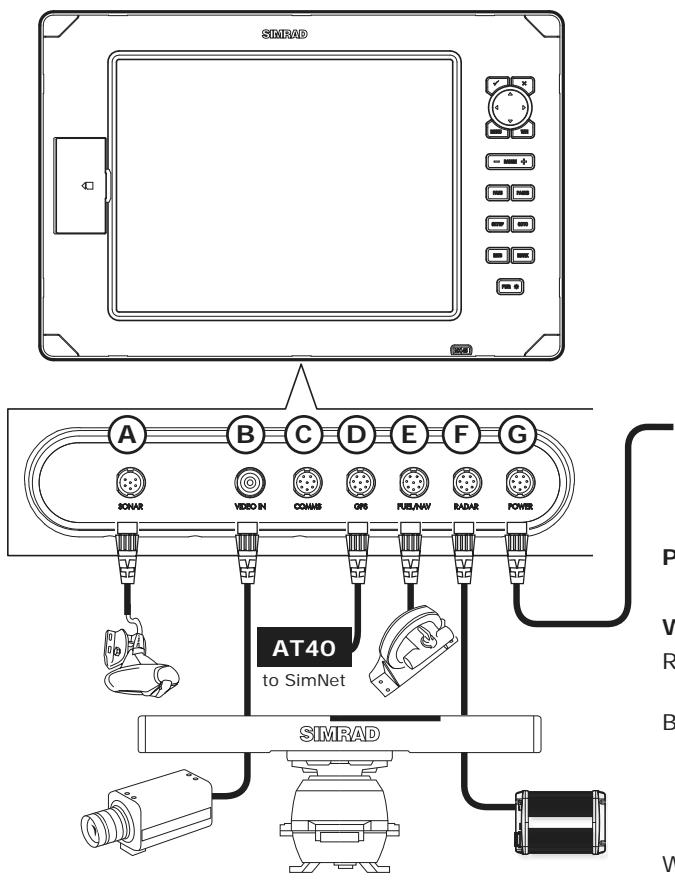
Radar: For radar functions. A Simrad 2 kW, 4 kW or 6 kW radar system must be installed.
Other instruments: The unit can receive data from other instruments and send data to other instruments.
Please consult your Simrad dealer for more information.
A SONAR: echosounder Transducer
B Video in: Video Input (Analogue composite [NTSC-PAL])
C Comms: Not Used
D GPS: SimNet AT40 port
E Fuel/Nav: - Fuel Transducer - SmartCraft Gateway
F Radar: Simrad Radar Processor
G Power cable
Power cable wiring
Wire Function
Red Positive power in, 10 to 35 V DC
Black Ground: power negative, NMEA ground (Connect both black wires to ground)
White NMEA out
Yellow Auto power - Connect to red wire (positive power in) to enable Auto power No Auto power - Leave disconnected or connected to Black wire (ground)
Green External Alarm output or light out, switches to ground during alarm condition, 200 mA maximum
Brown Not Used
19-3 Installation: The display unit
Start by selecting a suitable mounting position for the NX40/45 display unit:
- Consider the best possible position for viewing and operating the NX40/45. This will generally be a relatively shaded area free from obstructions.
- At least 100 ~mm ( 4'' ) away from the compass, at least 300 ~mm ( 12'' ) away from any radio transmitter and at least 1.2 ~m ( 4 ft ) away from any antenna.
- For optimum performance and reliability consider mounting the unit where it will not be unnecessarily exposed to direct sunlight, water and protected from other physical damage which could occur during rough sea passages.
- If bracket mounting chose a flat area where the display will not be subjected excessive vibration.
- Select an area with adequate clearance for cabling and access to the power source.
- Before drilling any holes ensure that the drill area is free from cables or other obstructions.
There are two mounting arrangements:
Flush Mounting the NX40/45
- Attach the flush mounting template to the selected mounting position using adhesive tape.
- Drill a pilot hole for each of the hole saw cuts shown on the template before cutting the larger hole with the hole saw.
- Next cut all the way around the inside of the cut-out line with a saw to remove the waste material shown on the template.
- Check that the unit fits correctly in the cut out area. Adjust the fit with a file if required.
- Select a 2-3.5 mm 1/8'' drill bit depending on hardness of material to drill. Smaller diameter holes will be needed for soft woods and larger diameter pilot holes will be required if mounting to hard materials such as fiberglass (we recommend 3.5 mm (1/8'') for fiberglass and Aluminum).
- With the selected drill bit drill the 4 pilot holes for the 8 gauge screws used to attach the unit. These are indicated on the corners of the mounting template.
- Connect all cables to the rear of the unit before placing the unit into the console.
- Firmly secure the unit in place with the 4 × 8 gauge self tapping screws.
Note: the 5 x 14G self tapping screws are for bracket mounting only.
- To finish off the installation firmly clip the front bezel in place.
Bracket Mounting the NX40/45
An alternative to flush mounting the NX40/45 is to bracket mount the unit. This method has the advantage that the display can be easily removed when it is not in use. The display may be tilted for best possible viewing angle when bracket mounted.
Note: The mounting bracket does not allow for rotation of the unit to the left and right.
- Use the mounting bracket as a template to mark the 5 positions of the screw holes.
- Select a suitable drill bit (note: larger diameter pilot holes may be required if mounting to fiberglass) and drill 5 pilot holes in the marked positions.
- Secure the mounting bracket using the 5 × 14G self tapping screws.
- Slide the NX40/45 into the mounting bracket and secure in place with the bracket knobs.
- To finish off the installation firmly clip the front bezel in place.
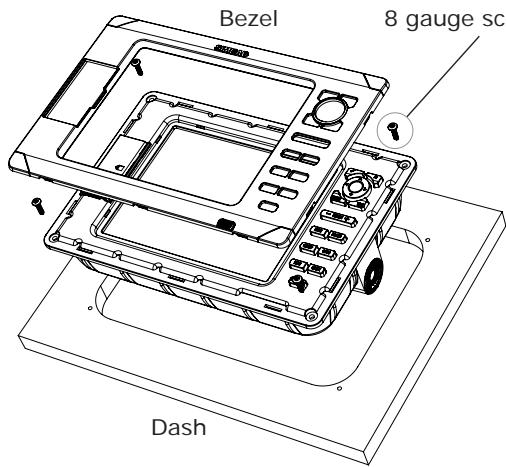
8 gauge screws
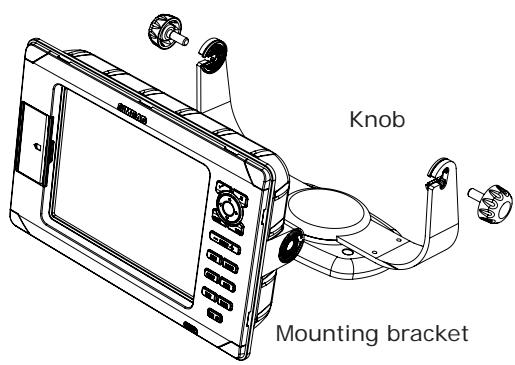
19-4 Installation: Power cable
The power cable has a black locking collar and flying leads.
- Wire the unit for auto power to have the unit turn on with the boat's ignition switch or to record engine hours or if the unit must add up the total fuel used (for example if Simrad petrol/gasoline fuel sensors are installed or if SmartCraft is installed without fuel tank level sensors). Otherwise wire for basic power.
Basic power
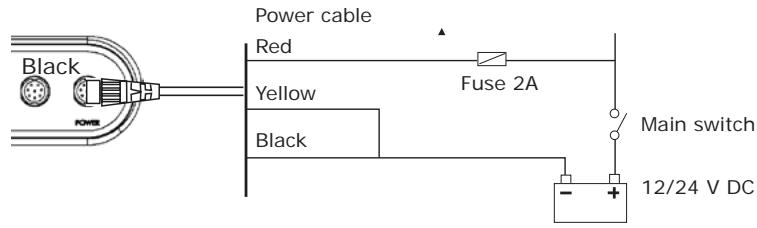
- Auto power
When wired for Auto Power On the unit will turn on when the ignition switch is on, if you would like the unit to turn off when the ignition switch is off then set the unit for Auto Power Off
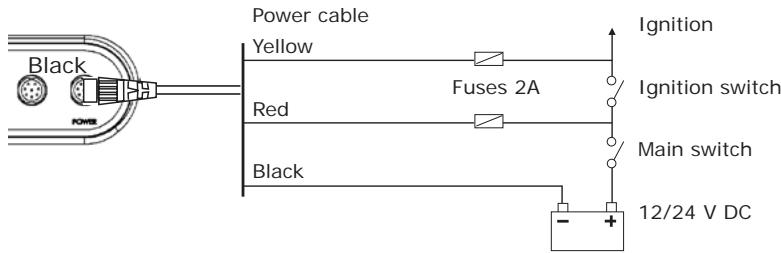
- Wire any external alarm beepers or lights. The alarm output switches to ground to sound the alarm. If the current is more than 200mA , fit a relay.
- Connect the power/data cable to the black display unit connector; turn the collar to lock the connector.
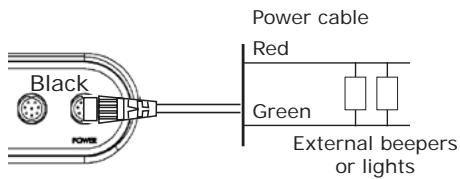

WARNING
MOB will not work if the unit does not have a GPS fix.

WARNING
Do not install plastic through hull transducers in solid wooden hulls. Leakage through the hull may result.
Do not install bronze transducers in metal hulls. This will cause electrolytic corrosion that may result in damage to the hull or transducer.
19-5 GPS antenna
Installing an antenna
Install the SimNet compatible antenna via the AT40 SimNet converter or SimNet junctions. Refer to the antenna installation manual
19-6 Installation: Echo transducer
Connect the transducer to the blue unit connector; tighten the locking collar.
During setup
a) set Echosounder to

b) set up the echosounder options
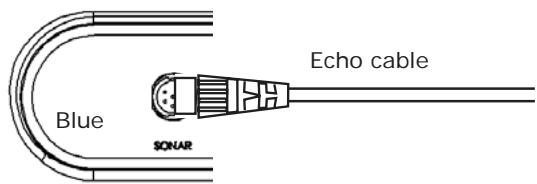
19-7 Installation: petrol sensors
Fit the optional petrol/gasoline fuel kit following the instructions supplied with the kit.
Note:
- SmartCraft engines have fuel flow sensors, therefore Simrad fuel sensors are not required as well.
- For dual engines, fit two kits.
- Wire the unit for auto power.
During setup:
a) set the fuel data
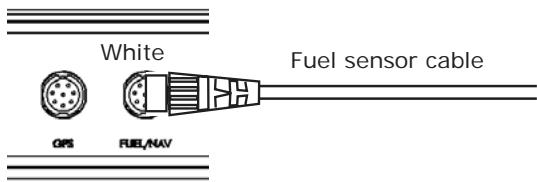
19-9 Installation: SmartCraft
If the boat has one or two SmartCraft capable Mercury petrol/gasoline engines, connect the unit to the SmartCraft engines with an optional SmartCraft gateway. The display unit can display engine data and trim and can control troll speed.
Note:
- Fit a single gateway for single engines and a dual gateway for dual engines.
- SmartCraft engines have fuel flow sensors, therefore Simrad fuel sensors are not required as well.
- If the fuel tank does not have SmartCraft level sensors, wire for auto power.
During setup enter the SmartCraft setup data. For information on installing, setting up and using SmartCraft, see the SmartCraft Gateways Installation and Operation Manual.
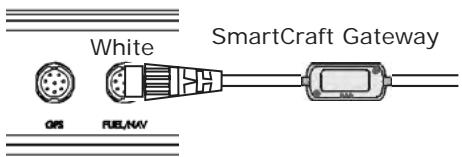
19-10 Installation: Radar
Install the Simrad radar as described in the Installation Manual supplied with the radar.
Carefully read the important safety and warning information and also the location and wiring guidelines BEFORE installing the radar.
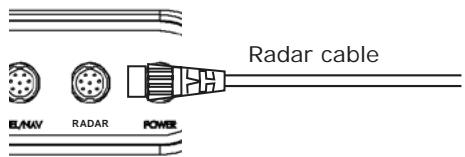
19-11 Installation: Other NMEA 0183 instruments
NMEA is an industry standard for interconnecting instruments. The unit can:
- Receive and display wind speed and direction from an optional compatible wind instrument.
- Receive and display depth, paddlewheel boat speed and water temperature from an optional compatible instrument.
- Receive data from an optional compatible GPS source.
- Send GPS position and other navigation data to an autopilot or other instrument. An autopilot requires APB, APA and VTG sentences.
During setup to send NMEA data to other instruments, set NMEA out to and specify the NMEA data to send.
19-12 Installation: AIS Receiver
An optional Simrad AIS receiver may be connected to the unit. The receiver must be connected to the Fuel/Nav port on the unit, Pin 3 (White) +NMEA in, Pin 1 (Black/Shield) to ground (not -NMEA).
Note:
- The power source used by the AIS receiver should have a common ground to the AT40 SimNet converter
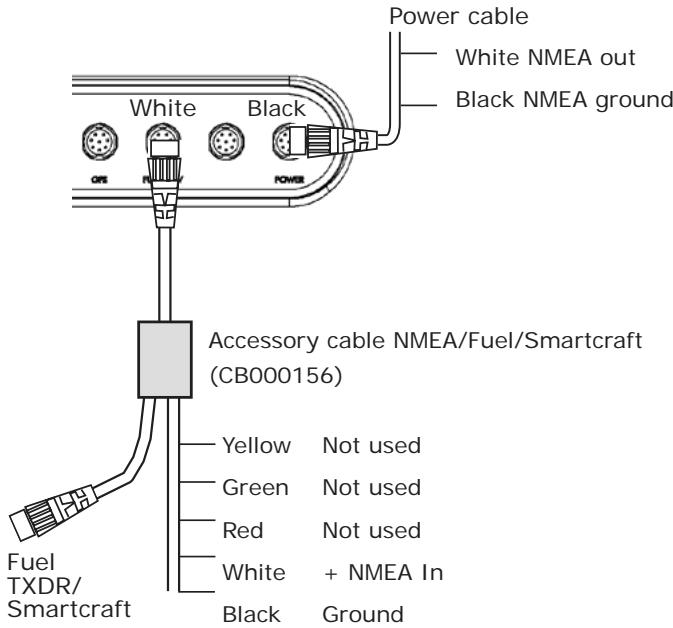
19-13 Installation: Setup and test
Setup and test
- Put a blanking cap on any unused connector on the back of the display unit. Ensure all connectors are plugged in and the display unit is in place.
- If the display unit is bracket mounted, adjust tilt and rotation for best viewing and hand tighten the knob.
- Insert any required C-MAP chart card.
- Turn the instrument on. When the unit is turned on for the first time, it displays an installation menu:
- i Select the language to use.
- ii Change the data if necessary.
- iii When the setup data is correct, press X.
- This data can be changed later.
- Enter setup data to set up the unit to your requirements and to set up any optional sensors or instruments.
- At the satellite window, check that it picks up GPS satellites. Wait for the GPS receiver to start up and the fix type to change from 'Acquiring' to 'GPS fix'. This should take less than two minutes.
- Go on a test run to check that the navigation equipment works correctly, particularly when a radio transmitter or radar is used.
21 Specifications
GENERAL
NX45 Size: 256 mm (10.08") H x 385 mm (15.16") W x 78.5 mm (3.09")
D. Allow 3 mm clearance on each side for the cover.
NX45 Display: 307 mm (12.1")
diagonal, TFT color, 800 × 600 pixels.
NX40 Size: 190 mm (7.48") H x 285
mm (11.22") W x 76.8 mm (3.02")
D. Allow 3mm clearance on each side for the cover.
NX40 Display: 213.4 mm (8.4")
diagonal, TFT color, 800 × 600 pixels.
Backlight: Display and keys
Supply voltage: 10.5 to 32V DC.
Supply current: at 13.8 V
- 350 mA -no backlighting.
1A max - full backlighting.
External beeper or light output:
Switched to ground to sound alarm, 30 V DC, 200 mA maximum.
Operating temperature: 0^ to 50^ (32° to 122°F)
ALARMS
- User set: Arrival radius, anchor, XTE, danger, too shallow, too deep, fish, temperature, temperature rate, low battery, low fuel (optional), loss of DGPS fix, radar guard zone, dangerous AIS vessels.
GPS NAVIGATION
Chart card: C-MAP™ SD Card (NT MAX, NT+ or NT)
User card: SD Card
Waypoints: Up to 3000, with default or user-defined alphanumeric names up to eight characters.
Routes: 99 Routes, with up to 500 points each
Tracks: By time or distance, 10 tracks of 2000 points.
Chart datum
121 Chart datums (see next page)
- One user-defined map shift.
Chart scale: 0.05 to 4096 nm for chart (chart dependent) down to 0.01 nm in plotter mode.
ECHOSOUNDER FISHFINDING
(Optional depth transducer required)
Depth range: 1 m (3 ft) to 1000 m (3300 ft)
Sounder output:
Power: Variable, up to 600/1000 W RMS
- Dual frequency: 50kHz and 200kHz
Depth acquisition time from startup:
Typically 2 seconds at 30m (100 ft)
Temperature:
- Range 0^ to 37.7^ C( 32^ to99.9^ F)
- Resolution of 0.1^ unit.
Speed (from paddlewheel transducer): - 1 to 96.6kph( 57.5mph,50 kn) .
FUEL COMPUTER
(Optional fuel sensor(s) required)
Engine types:
- Outboard carbureted two stroke and EFI petrol/gasoline engines: 50 to 300 hp.
- Outboard four stroke petrol/gasoline engines: 90 to 300 hp.
- Inboard petrol/gasoline engines: 70 to 400 hp.
Flow rate:
Minimum: 5 liters per hour (1.3 U.S. gallons per hr).
Maximum: 130 litres per hour (34 U.S. gallons per hr).
COMMUNICATIONS
Data converted by AT40 from SimNet/ NMEA2000 to NMEA0183 (TX) and vice versa (RX)
- Inputs from compatible instruments: APB, BWC, DPT, GLL, GSA, GSV, HDG, HDT, HSC, MTW, MWV, RMB, RMC, RSA, VHW, VTG, VLW and ZDA
- Outputs, for compatible instruments: APB, BWC, BWR, BBT, DPT, GGA, GLL, SDG, HDM, HDT, MTW, MWV, RMA, RMB, RMC, VHW, VTG, VLW, VWR, WPL, XTE, ZDA and ZTG
NMEA: NMEA 0183 ver 2 4800 baud
- Inputs from compatible instruments: BWR, DPT, GGA, GLL, GSA, GSV, HDG, HDM, HDT, MTW, MWV, RMC, VHW, VTG and DBT
- Outputs, for compatible instruments: APA, APB, BWR, DBT, DPT, GGA, GLL,
GSA, GSV, RMB, RMC, MTW, VHW, VLW, VTG, XTE
STANDARDS COMPLIANCE
EMC:
USA:FCC Part 15 Class B.
- Europe: (CE) EN301843-1
New Zealand and Australia: (C Tick) IEC60945
Environment: IPx6/IPx7/CFR46 (with card holder and connections in place)
Video
- 75Ω BNC Connector. Most PAL and NTSC formats supported. (PAL BGHI, PAL N, Combination PAL N, PAL M, NTSC M, NTSC N, NTSC 4.43, NTSC-Japan and SECAM)
Physical Dimensions (Dimensions in mm)
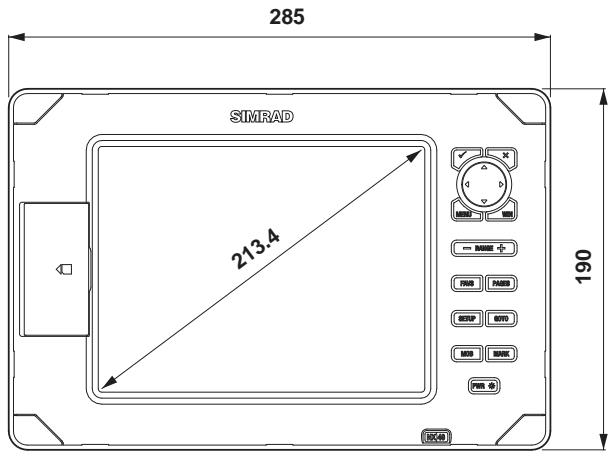
Simrad NX40
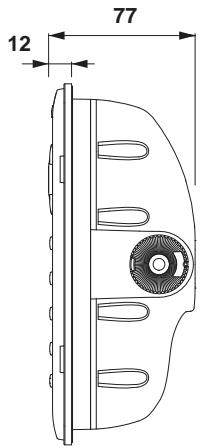
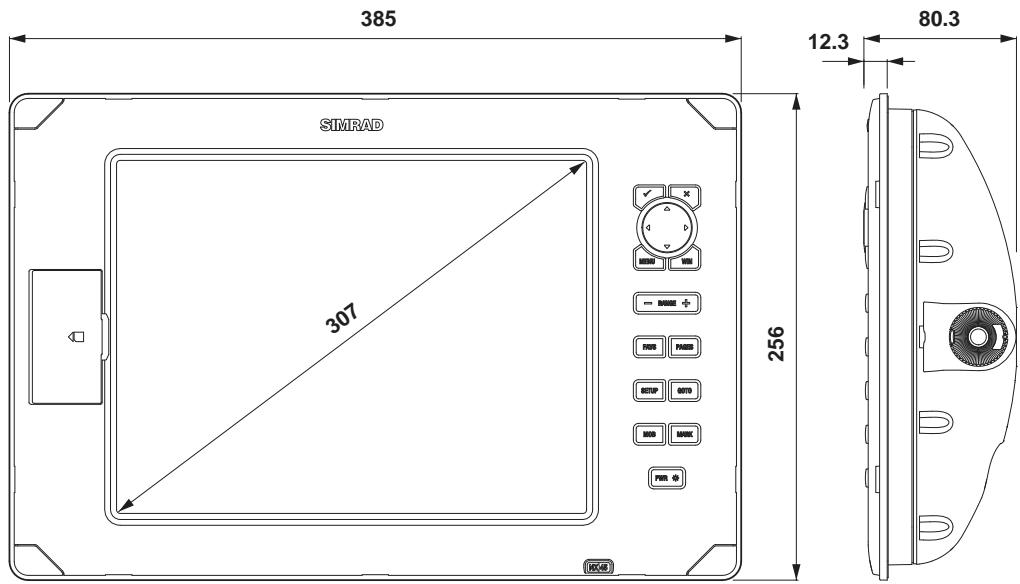
Simrad NX45
| Adindan | Afoooye | AIN EL ABD 1970 |
| American Samoa 1962 | Anna 1 Astro 1965 | Antigua Island Astro 1943 |
| ARC 1950 | ARC 1960 | Ascension Island 1958 |
| Astro Beacon 'E' 1945 | Astro DOS 71/4 | Astro Station 1952 |
| Astro Tern Island (Frig) 1961 | Australian Geodetic 1966 | |
| Australian Geodetic 1984 | ||
| Ayabelle Lighthouse | Bellevue (IGN) | Bermuda 1957 |
| Bissau | Bogota Observatory | Bukit Rimpah |
| Camp Area Astro | Campo Inchauspe 1969 | Canton Astro 1966 |
| Cape | Cape Canaveral | Carthage |
| Chatham Island Astro 1971 | Chua Astro | Co-ord. Sys.1937 Estonia |
| Corrego Alegre | Dabola | Deception Island |
| Djakarta (Batavia) | DOS 1968 | Easter Island 1967 |
| European 1950 | European 1979 | Fort Thomas 1955 |
| Gan 1970 | Geodetic Datum 1949 | Graciasa Base Sw 1948 |
| Guam 1963 | Gunung Segara | GUX 1 Astro |
| Herat North | Hermannskogel | Hjorsey 1955 |
| Hong Kong 1963 | Hu-Tzu-Shan | Indian |
| Indian 1954 | Indian 1960 | Indian 1975 |
| Indonesian 1974 | Ireland 1965 | ISTS 061 Astro 1968 |
| ISTS 073 Astro 1969 | Johnston Island 1961 | Kandawala |
| Kerguelen Island 1949 | Kertau 1948 | Kusaie Astro 1951 |
| L. C. 5 Astro 1961 | Leigon | Liberia 1964 |
| Luzon | M'Poraloko | Mahe 1971 |
| Massawa | Merchich | Midway Astro 1961 |
| Minna | Montserrat Island Astro 1958 | Nahrwan Masirah Is. |
| Oman | ||
| Nahrwan United Arab Emirates | Nahrwan Saudi Arabia | |
| Naparima, BWI | ||
| North American 1927 | North American 1983 | North Sahara 1959 |
| Observatorio Meteorolog. 1939 | Old Egyptian 1907 Old | |
| Hawaiian | ||
| Oman | Ord. Survey Great Britain 1936 | Pico de las Nieves |
| Pitcairn Astro 1967 | Point 58 | Pointe Noire 1948 |
| Porto Santo 1936 | Provis. South American 1956 | Provis. South Chilean |
| 1963 | ||
| Puerto Rico | Pulkovo 1942 | Qatar National |
| Qornoq | Reunion | Rome 1940 |
| S-42 (Pulkovo 1942) | Santo (DOS) 1965 | Sao Braz |
| Sapper Hill 1943 | Schwarzeck | Selvagem Grande 1938 |
| Sierra Leone 1960 | S-JTSK | South American 1969 |
| South Asia | Tananarive Observatory 1925 | Timbalai 1948 |
| Tokyo | Tristan Astro 1968 | Viti Levu 1916 |
| Voirol 1874 | Voirol 1960 | Wake Island Astro 1952 |
| Wake-Eniwetak 1960 | WGS 84 | Yacare |
| Zanderij |
22 Troubleshooting
This troubleshooting guide is written with the assumption that the user has read and understood the relevant sections in this manual.
It is possible in many cases to solve difficulties without having to send the display unit back to the manufacturer for repair. Please follow this troubleshooting section before contacting the nearest Simrad dealer.
There are no user serviceable parts. Specialized methods and testing equipment are required to ensure that the display unit is reassembled correctly and is waterproof. Users who service the product themselves will void the warranty.
Repairs to the product may only be carried out by a service center approved by Simrad. If the product must be sent into a service center for repair, it is essential to send in the transducer(s) at the same time.
More information can be found on our Website: www.simrad-yachting.com.
B-1 General problems
1-1 The unit won't turn on:
- The unit is designed to operate on a 12/24 volt battery system, where the voltage may vary from 10.5 to 32 volts. If an excessive voltage is supplied, a fuse will be tripped, turning the display unit off. Check the fuse.
- Check that the power cable connector at the back of the display unit is securely plugged in and the collar is locked in place. The collar must be secure for watertight connection.
- Measure the battery voltage while the battery is under load - turn on some lights, radio or other electrical equipment connected to the battery. If the voltage is less than 12 volts:
- the battery terminals or wiring on the terminals may be corroded.
-
the battery may not be charging correctly or may need replacing.
-
Inspect the power cable from end to end for damage such as cuts, breaks, squashed or trapped sections.
- Check power wiring.
- Check for corrosion on the power cable connector and clean or replace if required.
- Check fuses that are placed in line with the power cable. A fuse can be blown despite appearing to be good or the fuse may be corroded. Test the fuse or replace it with a fuse known to be good.
1-2 The unit won't turn off:
- The unit may have been wired for Auto power. In this case, the unit cannot be turned off while the ignition power is on.
1-3 If the unit beeps when turned on but nothing is shown:
- The unit may be operating, but the backlight settings may have been set too low.
B-2 GPS navigation problems
2-1 No GPS fix or long time to get fix at startup:
- May occur occasionally if the antenna does not have a clear view of the sky. The satellite positions are constantly changing.
- SimNet cable not connected to display unit.
2-2 GPS position different from true position by more than 10 m (33 ft):
- The unit is in simulate mode. Turn simulate mode off.
- The normal error in GPS position will exceed 10m (33 ft) for about 5% of the time.
- Under special circumstances the US Department of Defence may introduce a deliberate and changing error in the GPS positions of up to 300m (1000 ft).
2-3 Unit position different from same position on local charts:
- Unit in simulate mode. Turn simulate mode off.
- Incorrect chart datum. Select the correct chart datum.
- Map shift has been applied wrongly. Clear map shift, then reapply if necessary.
2-4 Can not see boat on chart:
- Press X to switch to center on boat mode.
2-5 The time or date on satellite display is wrong or off:
- No GPS fix.
- In simulate mode. Turn simulate mode off.
- Local time offset is wrong. The Local Time Offset must be changed when daylight saving time starts or ends.
2-6 Autopilot not responding to Unit; no NMEA output:
- NMEA output disabled or the required NMEA sentences are not turned on. Check NMEA settings.
- Check that the instrument is connected correctly.
B-3 Fuel consumption problems
3-1 Fuel used or remaining seem inaccurate:
- unit is not wired for auto power.
- In rough seas, fuel may surge back and forth through the fuel transducer, resulting in incorrect readings. Try installing a one-way valve between the fuel transducer and the fuel tank.
- The Set remaining fuel value must be reset after every refuelling.
-
The fuel tank may not refill to the same capacity each time due to air pockets. This is particularly noticeable with underfloor tanks.
-
Fuel transducers wear out over time and should be replaced after every 5000 litres of fuel.
3-2 Flow indicates no fuel or low fuel:
- Check that the number of engines is set to 1.
- Check that the fuel cable connectors are securely plugged in and the collar is locked in place. The collar must be locked in place to give a watertight connection.
- A fuel transducer may be clogged. If so, remove the transducer from the fuel line and gently blow through it in the opposite direction to the fuel flow.
- A fuel filter between the fuel transducer and the fuel tank must be installed as per the fuel installation guide. Failure to do so will void the warranty.
- Inspect the fuel cable from end to end for damage such as cuts, breaks, trapped or squashed sections.
- Check that the fuel filter is clean.
3-3 A twin engine installation shows only one flow rate:
- Check that the number of engines is set to 2.
3-4 Erratic Fuel Flow readings:
- The fuel flow transducer may have been mounted too close to the fuel pump or may be subject to excessive vibration. Refer to the installation instructions supplied with the fuel transducer.
- Check for leaks in the fuel line or in the fuel pickup in the tank.
- The Flow filter value is not suitable for the engine. Check that the value is not set to zero, then try increasing the value until a steady flow rate is shown.
3-5 There is no reading for fuel economy:
-
The boat must be travelling through the water to generate an Economy reading.
-
Check that the paddlewheel on the transducer is spinning freely and that the two magnets in the paddlewheel are still in place.
B-4 echosounder fishfinding problems
4-1 The unit operates erratically:
- Check that the transducer does not have debris (e.g. weed, plastic bag) caught around it.
- The transducer may have been damaged during launching, running aground or while underway with debris etc. If the transducer has been impacted, it may have been kicked up on the bracket. If it is not physically damaged, reset the transducer back to its original position.
- When the transducer is less than 2 ft (0.6m) from the bottom, the depth readings may become inconsistent and erratic.
- Manual Gain may be set too low, which may cause weak bottom echo or no fish signals. If in Manual Gain, try increasing the Gain.
- Ensure the back of the bottom surface of the transducer is slightly lower than the front and the front is as deep in the water as possible in order to minimize the generation of bubbles through cavitation. (See the Transom Transducers Installation Guide)
- Check the transducer and power cable connectors at the back of the display unit are securely plugged in and the collars are locked in place. The collars must be secure for watertight connection.
- Inspect the power cable from end to end for damage such as cuts, breaks, squashed or trapped sections.
- Ensure there is not another fishfinder or echosounder turned on, which may interfere with this unit.
- Electrical noise from the boat's engine or an accessory may be interfering with the transducer(s) and/or the unit. This may cause the unit to automatically
decrease the Gain unless using Manual Gain.
- The unit thus eliminates weaker signals such as fish or even the bottom from the display. This may be checked by switching off other instruments, accessories (e.g. bilge pump) and the motor until the offending device is located. To stop problems from electrical noise, try:
-
- re-routing the power and transducer cable(s) away from the boat's other electrical wiring.
-
- routing the display unit's power cable directly to the battery with an inline fuse.
4-2 Bottom is not shown:
- The unit may have Manual Range selected and the depth may be outside the range value selected. Either change the unit to Auto Range or select another depth range.
- The depth may be outside the unit's range. While in Auto Range, the display unit will display "---" to indicate that there is no bottom detected. A display of the bottom should reappear when in shallower water.
4-3 The bottom is shown too far up the screen:
- The unit may have Manual Range selected and the selected Range value is too high for the depth. Either change the unit to Auto Range or select another depth range.
4-4 Bottom echo disappears or erratic digital reading while the boat is moving:
- Ensure the back of the bottom surface of the transducer is slightly lower than the front and the front is as deep in the water as possible in order to minimise the generation of bubbles through cavitation. (See the Transom Transducers Installation Guide, for more information.)
- The transducer may be in turbulent water. Air bubbles in the water disrupt the echoes returned, interfering with
the unit's ability to find the bottom or other targets. This often happens when the boat is reversed. The transducer must be mounted in a smooth flow of water in order for the unit to work at all boat speeds.
- Electrical noise from the boat's motor can interfere with the unit. Try some suppression spark plugs.
4-5 There is a double bottom trace shown:
- The boat may be in an area that generates shadows.
- In shallow water, the echoes may bounce. Reduce the gain setting and/or reduce the echosounder pulse power.
Decrease the Range.
B-5 Radar problems
5-1 Radar overlay doesn't appear on the chart screen
- Ensure that your boat is shown on the radar window. If it is, but the radar overlay still isn't shown, try zooming in on the charted area. (The charted area may be outside the maximum range of the radar).
- The threshold or transparency settings for the radar overlay are not correct (see 18-6).
5-2 Radar shows arcs and/or shadows
- Side lobe patterns often appear as an arc or a broken arc. Shadows are blind spots.
- If the radar is installed at a suitable height and in a suitable location on your boat, side lobe patterns and shadows caused by obstructions such as funnels or masts will be minimized.
- If you are having problems with these, you may need to relocate your radar. Consult the Installation Guide for your radar model for advice.
5-3 Radar shows different patterns on each sweep
- Interference patterns always appear in a different place with each sweep.
They can be randomly scattered bright dots or dotted lines that extend from the center to the edge of the radar window, often producing a spiral effect. Generally, the stronger the interference, the wider the interference lines.
- Use the interference rejection feature to reduce interference patterns, and the width of the interference lines (see 18-4).
5-4 Radar shows false echoes and/or background noise
- False echoes and/or background noise can be produced if the radar sensitivity is too high.
- Try using the Auto setting for the radar gain mode (see 18-4). If this doesn't work, or if the radar gain mode is already set to Auto, use the radar gain setting to reduce the radar sensitivity
5-6 Radar shows multiple echoes off the same object
- Multiple echoes off the same object are most likely to occur when you are close to a large target, and are usually only a temporary nuisance.
5-7 Radar shows random or grouped dots
- Rain clutter often appears as random dots that can merge into badly-defined echoes on the radar window. The random signals are returned from rain, hail, sleet, or snow and can result in a confusing display
5-8 Radar shows random signals in center
- Sea clutter usually appears as confusing, random signals around your boat. High waves will produce the maximum amount of sea clutter.
- You can optimize your radar window to reduce the effects of sea clutter.
23 Glossary and navigation data
Air temp - Air temperature (requires Simrad 721 VHF radio).
Alarm status - Shows the symbol for each alarm that is on. The symbol is normally black and turns red if the alarm triggers.
Attention Area - An important area on a chart, such as a restricted anchorage or a shallow area.
AIS - Automatic Identification System. A System where vessel information (location, course, speed, etc.) is broadcast by VHF radio, for use by other vessels in navigation and collision avoidance.
Bathymetric line - A depth contour line on the chart.
Chart card - A plug-in card that stores chart data for a region.
C-MAP™ chart card / C-MAP™ user card - A plug-in card that stores waypoints, routes and tracks.
CPA - Closest Point of Approach. The closest distance two vessels will come to each other based on their current course and speed.
Cursor - A + symbol on the display.
DTN - Distance to the next position the NX40/45 is navigating to, either a waypoint or the cursor.
Fish forecaster - An estimate of the likelihood of catching fish based on barometric pressure. The more fishes that show the higher the likelihood (requires Simrad 721 VHF radio).
Gear - The gear the engine is in (requires SmartCraft).
Goto - A simple way of navigating straight to a waypoint or to the cursor position.
GPS - Global Positioning System. A satellite-based navigation tool.
Leg - The straight segments of a route between waypoints. A route with four waypoints has three legs.
MMSI - Maritime Mobile Service Identity. Unique identification number for a vessel, for use in Digital Selective Calling.
MOB - Man overboard.
MOB function - Starts navigating back to the place where someone fell overboard.
NMEA - National Marine Electronics Association.
Range (radar) - The distance between the center of the radar image and the outer range ring. The scale is shown in the top left corner of the radar window.
Range rings - Concentric circles extending from your boat (usually at the center of the radar window) and used to estimate distances to objects. The scale is shown in the top left corner of the radar window.
Route - Two or more waypoints linked in sequence to form a course for the boat.
Simnet Communications protocol accessing NMEA 2000 standards.
SmartCraft - A feature of Mercury Marine engines for monitoring engine performance.
TCPA - Time to Closest Point of Approach. Time until the closest point of approach for two vessels.
Sounder status - A summary of echosounder settings.
TTN - Time to the next position the NX40/45 is navigating to, either a waypoint or the cursor.
UTC - Universal Time Coordinated or Coordinated Universal Time, which is a standard world time, formerly called Greenwich Mean Time (GMT).
VHF - Very High Frequency. The frequency range used by marine radios and AIS.
Waypoint - A position that you can set on the Unit chart, for example a fishing spot or a point on a route.
Weather - An estimate of the weather based on barometric pressure.
- BRG Bearing to Destination: Bearing to the destination from the boat.
+BRG Bearing to cursor: Bearing to cursor from boat - CDI Course Deviation Indicator: When the boat is navigating to a point, the chart and highway windows show a parallel line on either side of the plotted course. These two lines are called the Course Deviation Indicator (CDI) lines. The distance from the plotted course to a CDI line is the CDI scale.
- Set the CDI scale to the maximum distance that the boat should deviate from the plotted course. The chart and highway windows show the CDI lines, which are like a highway over the water where the boat will move. The windows show how far the boat has deviated from the plotted course and if the boat is approaching a CDI line. If the XTE alarm is enabled an alarm will sound if the boat reaches a CDI line.
COG Course Over Ground: Direction in which the boat is moving over the ground.
CTS Course To Steer: Optimum course to steer to return to the plotted course. - DTG Distance To Go: Distance from the boat to the destination.
ETA Expected Time of Arrival: At the destination, assuming that SOG and COG remain constant.
+DST Distance from boat to cursor - SOG Speed Over Ground: Current boat speed over the ground. This is not necessarily the same as the boat speed through the water nor the speed at which it is approaching the destination.
STR Steering: The difference between COG and CTS.
TTG Time To Go: The estimated time to reach the destination.
XTE Cross Track Error: The distance from the boat to the nearest point of the plotted course. XTE may have a letter: R means steer to the right to return to the plotted course, L means steer to the left. - VMG Velocity Made Good: The speed at which the boat is approaching the destination.
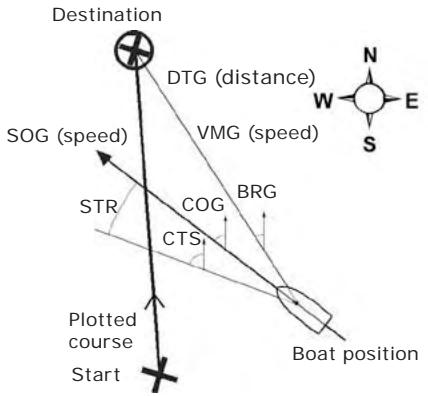
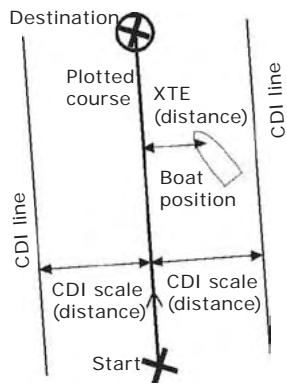
FCC Statement
Note: This equipment has been tested and found to comply with the limits for a Class B digital device, pursuant to Part 15 of the FCC Rules. These limits are designed to provide reasonable protection against harmful interference in a normal installation. This equipment generates, uses and can radiate radio frequency energy and, if not installed and used in accordance with the instructions, may cause harmful interference to radio communications. However, there is no guarantee that interference will not occur in a particular installation. If this equipment does cause harmful interference to radio or television reception, which can be determined by turning the equipment off and on, the user is encouraged to try to correct the interference by one or more of the following measures:
Reorient or relocate the receiving antenna.
- Increase the separation between the equipment and receiver.
- Connect the equipment into an output on a circuit different from that to which the receiver is connected.
- Consult the dealer or an experienced technician for help.
- A shielded cable must be used when connecting a peripheral to the serial ports.
Industry Canada
Operation is subject to the following two conditions (1) this device may not cause interference, and (2) this device must accept any interference, including interference that may cause undesired operation of the device.
Hereby, Navico Holding AS, declares that this NX40/45 is in compliance with the essential requirements and other relevant provisions of Directive 1999/5/ EC.
MN000790B-G
- Warning
- Contents
- Overview 7
- Basic Operation 10
- Navigation:Chart 19
- Video window 26
- Navigation: Highway window 27
- Navigation: Waypoints 28
- Satellites 35
- Echosounder fishfinding: Introduction 36
- Echosounder 45
- Gauges window 49
- Data window. 50
- Fuel functions and display 51
- Tides window 59
- User card window 60
- AIS 62
- Radar 65
- Setting up the NX40/45 75
- Installation 95
- Specifications 104
- Troubleshooting 108
- Glossary and navigation data 112
- Navigation data 113
- Compliance statements 114
- Overview
- 1-1 Overview
- 1-2 Cleaning and maintenance
- CAUTION
- 1-3 Plug-in cards
- Inserting & Removing a plug-in card
- 1-4 Removing and replacing the display unit
- Removing the display unit
- Replacing the display unit
- Basic Operation
- Overview of the NX40/45 keys
- 2-1 Using the keys
- To access Submenu 2
- To power down the unit:
- Changing data
- To change a tick box
- To select an option
- To change a name or number:
- To change a slider value
- 2-2 Turning on and off / auto power
- PWR※ / Hold PWR※
- 2-2.1 Auto power
- 2-3 Backlight and night mode
- PWR※ > Backlight > ⊙ > X
- Night mode
- PWR\* >Nightmode _ X
- 2-4 Man overboard (MOB)
- Activating MOB
- MOB
- To cancel MOB or set another MOB
- MOB > MOB
- 2-5 Alarms
- To clear an alarm instance
- 2-6 Simulate mode
- 2-7 The main windows
- Note
- 2-7-1 Multi window pages
- WIN
- PAGES > Add window
- PAGES > Split ratio >
- WIN until the target window has a red border > PAGES >Delete window.
- WIN until the target window has a red border > PAGES > Replace and select the second window.
- WIN until the target window has a red border > PAGES > Replace and select a new window.
- Notes
- 2-7-2 Favorite Pages
- Selecting a favorite page
- Adding a favorite page to the list
- Deleting a favorite page from the list
- Changing the order of the favorites list
- FAVS FAVS FAVS FAVS
- Favourites
- 2-7-3 Data header
- Setting the data header for a page
- PAGES > Data header
- To change the data shown:
- Favorite pages and data headers
- 2-7-4 Compass
- To turn the compass off or on
- MENU > Data Header > □ or
- Navigation: Chart
- 3-1 Introduction to navigating
- 3-1-1 Navigating to a point
- Note:
- 3-1-2 Going to a waypoint or to a point on the chart
- Going to a waypoint from the chart window
- to waypoint, or GOTO Waypoint
- Going to a waypoint from the waypoints window
- Going to a point on the chart
- Cancelling navigating
- 3-1-3 Following a route
- Starting a route from the chart window
- Navigating
- Skipping a waypoint
- Cancelling a route
- 3-2 Chart window
- To change to a perspective view of the chart
- 3-2-1 Chart modes
- Center on boat mode from the chart window
- X
- Cursor mode from the chart window
- #
- 3-2-2 Chart range
- +/-
- 3-2-3 Chart symbols and information
- 3-2-4 To find and display a chart symbol
- MENU > Find > Waypoints or Routes or Ports by name or Ports & services or Tide stations
- 3-2-5 Perspective view
- 3-2-6 Turn the radar overlay on or off
- To turn the radar overlay on or off:
- 3-3 Distance & bearing calculator
- To use the distance and bearing calculator
- 3-4 Projected course
- 3-5 Tracks and tracking
- Video window
- Navigation: Highway window
- The highway window shows:
- Navigation: Waypoints
- 6-1 Waypoints window
- PAGES > More > Waypoints
- 6-2 Managing waypoints
- 6-2-2 Moving a waypoint
- Moving a waypoint from the waypoints window
- 6-2-3 Editing a waypoint
- Editing a waypoint from the waypoints window
- 6-2-4 Displaying a waypoint on the chart
- 6-2-5 Deleting a waypoint
- Navigation: Routes
- 7-1 Routes window
- Routes window
- 7-2 Managing routes
- 7-2-1 Creating a new route
- Creating a new route from the chart pane
- 7-2-2 Menu options while creating a route:
- To change the route name
- To insert a waypoint in the route
- To remove a waypoint from the route
- 7-2-3 Editing a route
- Editing a route from the chart
- Editing a route from the routes window
- 7-2-3 Displaying a route on the chart
- 7-2-4 Deleting a route
- 7-2-5 Deleting all routes
- Satellites
- GPS worldwide navigation
- GPS receiver (Optional)
- 8-1 Satellite window
- To go to the satellite window
- PAGES >More>Satellite
- Echosounder fishfinding: Introduction
- 9-1 Using the unit
- Cruise, Fishing and Manual Modes
- 9-2 Interpreting the display
- Strength of echoes
- Bottom types
- Shadows
- 9-3 Single and Dual frequency fishfinding
- Sounder frequencies
- To select the echosounder frequency
- When to use 200 kHz
- When to use 50 kHz
- When to use Mixed
- When to use 50/200 kHz
- Comparison of the same fish scenario shown at different frequencies:
- kHz display
- 200/50 kHz display
- kHz display
- Mixed display
- 9-4 Fish detection and display
- Where to find fish
- Fish arches
- 9-5 Range
- To set Auto mode
- To set Manual range or to change the range
- Zoom range and offset
- 9-6 Gain and threshold
- The gain window
- To display or change the current settings for gain
- Changing mode
- To change the mode from the Gain window
- Changing gain and threshold in the Gain window
- Echosounder
- 10- 1 Echosounder history window - no split
- 10-1-1 Extended history mode
- To review an old echosounder echo
- To return to the most recent echo
- 10-2 Echosounder Zoom and Full Screen Zoom displays
- To adjust the zoom range
- Bottom lock
- 10-3 Echosounder split window
- 10-4 Echosounder 50/200 window
- 10-5 Echosounder A-Scope window
- Setting gain and threshold
- Fish recognition
- Bottom type
- Gauges window
- Data window
- Fuel functions and display
- 13-1 What the fuel computer does
- 13-2 Fuel display
- Speed
- RPM (if available)
- Remaining
- Used
- Fuel flow
- Range
- Economy
- Fuel consumption curve
- 13-3 When you add or remove fuel
- A - Completely fill a tank
- With underfloor fuel tanks:
- B - Part fill a tank
- When you part fill a tank
- MENU > Add fuel
- C - Removing fuel
- MENU > Set remaining
- 13-4 Low fuel alarm
- To set a low fuel alarm
- 13-5 Boat speed sensors
- 13-5-1 Selecting a boat speed sensor
- To select an optional speed sensor
- 13-5-2 Water speed and ground speed
- For Example 1
- 13-6 Fuel consumption curves
- 13-6-1 Making a fuel consumption curve
- Making a curve
- 13-6-2 Managing fuel consumption curves Renaming a curve
- 13-6-3 Using fuel consumption curves
- Deleting a curve
- Selecting a curve
- Using a curve
- Information in a curve
- 13-7 Calibration
- To calibrate the sensor(s)
- Tides window
- User card window
- Waypoints, Routes
- Track 1 to Track 10
- Saving data to the user card
- Loading data from the user card to the unit
- To load a file to the unit
- Deleting a file from the user card
- Rereading the file information
- Formatting the user card
- Sorting the file names
- 16-1 Viewing AIS Vessels
- For complete AIS information
- 16-2 Dangerous Vessels
- 16-3 AIS Windows
- Vessels
- Displaying an AIS vessel on the chart
- Displaying Full AIS Details
- Safety msgs (rx)
- Radar
- 17-1 Radar window
- 17-2 Radar modes
- 17-3 Enabling the radar functionality
- To enable the radar functionality
- SETUP > System
- 17-4 Selecting standby mode or transmit mode
- 17-5 Disabling the radar functionality
- 17-6 Adjusting the quality of the radar window
- To adjust the radar
- 17-6-1 Changing the gain mode
- To change the radar gain mode
- 17-6-2 Changing the gain level
- 17-6-3 Changing the sea clutter mode (Manual mode)
- 17-6-4 Changing the sea clutter level
- 17-6-5 Changing the rain clutter
- 17-6-6 Changing the threshold level
- 17-7 Changing the echo expansion setting
- 17-8 Turning the target trails on or off
- To change the target trails setting
- MENU >Presentation
- 17-9 Using the VRM/EBL
- To show EBL
- MENU > VRM/EBL
- 17-9-1 Finding range and bearing with a fixed VRM/EBL
- 17-9-2 Finding range and bearing with a floating VRM/EBL
- 17-10 Changing the PPI position
- 7-11 Using the radar guard zones
- 17-11-1 Turning a radar guard zone on or off
- 17-11-3 Change the setting for a radar guard zone alarm
- 17-11-4 Adjusting the boundaries of a radar guard zone
- 17-11-5 Adjusting the sensitivity of the alarm
- Setting up the NX40/45
- 18-1 Setup > System
- AIS
- 18-2 Setup > Chart
- SETUP >Chart
- Rotation
- Palette
- Normal
- Map datum
- Setting map datum
- Map shift
- Applying a map shift
- To clear map shift
- General submenu
- Water submenu
- Land submenu
- Other submenu
- 18-3 Setup > EchoSounder
- SETUP > Echo
- Motion mode
- Interference filter
- Digit size
- Range ring
- North line
- Heading line
- Note: This option is shown only when the radar is enabled.
- Park position
- Zero bearing
- Zero range
- To adjust the zero range setting:
- 18-5 Setup > GPS
- SETUP > GPS
- Fuel alarm
- 18-7 Setup > Track
- SETUP > Track
- Display
- Plotting Interval
- Distance
- Time
- Memory used
- Send track
- Delete track
- 18-8 Setup > AIS
- SETUP > AIS
- Note: This feature requires an AIS receiver.
- Filter by Type
- Filter by distance
- Filter by speed
- Show Dangerous Only
- Dangerous Vessel Alarm
- TCPA Limit
- CPA Limit
- Projected Course
- Range Rings
- Proximity Alarm
- 18-9 Setup > Logs
- SETUP > Logs
- 18-10 Setup > Alarms
- SETUP > Alarms
- 18-11 Setup > Units
- SETUP > Units
- 18-12 Setup > Comms
- SETUP > Comms
- 18-13 Setup > Calibrate
- SETUP > Calibrate
- To calibrate speed
- Temperature
- Temperature filter
- Keel Offset
- 19-1 Installation: What else comes with my NX40/45?
- 19-2 Installation: Options and Accessories
- Optional sensors and instruments
- GPS or DGPS antenna
- Speed, Depth and Temperature transducers
- Power cable wiring
- Wire Function
- 19-3 Installation: The display unit
- Flush Mounting the NX40/45
- Bracket Mounting the NX40/45
- 19-4 Installation: Power cable
- 19-5 GPS antenna
- Installing an antenna
- 19-6 Installation: Echo transducer
- 19-7 Installation: petrol sensors
- 19-9 Installation: SmartCraft
- 19-10 Installation: Radar
- 19-11 Installation: Other NMEA 0183 instruments
- 19-12 Installation: AIS Receiver
- 19-13 Installation: Setup and test
- Setup and test
- Specifications
- GENERAL
- ALARMS
- GPS NAVIGATION
- ECHOSOUNDER FISHFINDING
- FUEL COMPUTER
- COMMUNICATIONS
- STANDARDS COMPLIANCE
- EMC:
- Video
- Physical Dimensions (Dimensions in mm)
- Troubleshooting
- B-1 General problems
- 1-1 The unit won't turn on:
- 1-2 The unit won't turn off:
- 1-3 If the unit beeps when turned on but nothing is shown:
- B-2 GPS navigation problems
- 2-1 No GPS fix or long time to get fix at startup:
- 2-2 GPS position different from true position by more than 10 m (33 ft):
- 2-3 Unit position different from same position on local charts:
- 2-4 Can not see boat on chart:
- 2-5 The time or date on satellite display is wrong or off:
- 2-6 Autopilot not responding to Unit; no NMEA output:
- B-3 Fuel consumption problems
- 3-1 Fuel used or remaining seem inaccurate:
- 3-2 Flow indicates no fuel or low fuel:
- 3-3 A twin engine installation shows only one flow rate:
- 3-4 Erratic Fuel Flow readings:
- 3-5 There is no reading for fuel economy:
- B-4 echosounder fishfinding problems
- 4-1 The unit operates erratically:
- 4-2 Bottom is not shown:
- 4-3 The bottom is shown too far up the screen:
- 4-4 Bottom echo disappears or erratic digital reading while the boat is moving:
- 4-5 There is a double bottom trace shown:
- B-5 Radar problems
- 5-1 Radar overlay doesn't appear on the chart screen
- 5-2 Radar shows arcs and/or shadows
- 5-3 Radar shows different patterns on each sweep
- 5-4 Radar shows false echoes and/or background noise
- 5-6 Radar shows multiple echoes off the same object
- 5-7 Radar shows random or grouped dots
- 5-8 Radar shows random signals in center
- Glossary and navigation data
- FCC Statement
- Industry Canada
Brand : SIMRAD
Model : NX45
Category : Marine Sonar/GPS