
AT&T 265 - Phone AT&T - Free user manual and instructions
Find the device manual for free AT&T 265 AT&T in PDF.


| Product Type | Corded telephone with caller ID |
| Brand | AT&T |
| Model | 265 |
| Power | 4 AA batteries (not included) for CID, memory, and new call indicator; operates without batteries for basic calls |
| Display | Backlit LCD screen with adjustable contrast (5 levels) |
| Caller ID | Caller ID with call waiting support (up to 16 characters for name, phone number, date, and time) |
| Memory | 13 numbers: 3 speed dial keys (M1-M3) and 10 two-touch memory numbers (0-9) |
| Call Log | Stores up to 80 entries; chronological display |
| Dialing Functions | Tone or pulse dialing; last number redial; programmable pause |
| Call Management | Hold (FLASH), mute (MUTE), clear (CLEAR), line in use indicator, new call LED indicator |
| Ringer | Adjustable volume: OFF, LO, HI; ringer can be turned off |
| Handset Volume | Adjustable via ▲/▼ keys |
| Interface Languages | English, Spanish, French |
| Area Code Programming | Home area code and up to 4 programmable local area codes |
| Time and Date Setting | Manual or automatic via caller ID data |
| Compatibility | Hearing aid compatible; complies with FCC Part 68 and Part 15, and ACTA |
| Installation | Tabletop or wall-mountable (with mounting adapter included) |
| Accessories Included | Handset, base with wall adapter installed, handset cord, telephone line cord (2), directory card with plastic cover, user manual |
| Care and Cleaning | Unplug all cords before cleaning; use a dry cloth; do not use liquids or aerosols |
| Safety | Do not use near water, during a storm, or if there is a gas leak; do not open the device; replace batteries only with recommended type |
| Warranty | Limited 1-year warranty from purchase date; repair or replacement by manufacturer |
Frequently Asked Questions - AT&T 265 AT&T
User questions about AT&T 265 AT&T
0 question about this device. Answer the ones you know or ask your own.
Ask a new question about this device
Download the instructions for your Phone in PDF format for free! Find your manual AT&T 265 - AT&T and take your electronic device back in hand. On this page are published all the documents necessary for the use of your device. AT&T 265 by AT&T.
USER MANUAL AT&T 265 AT&T
For Customer Service or Product
Information, Visit Our Website at
www.telephones ATT.com


TABLE OF CONTENTS
IMPORTANT PRODUCT INFORMATION
Safety Information
SAVE THESE INSTRUCTIONS.....2
FCC and ACTA Information. 2
Interference Information: Part 15 of FCC Rules. 3
Limited Warranty 4
About Caller Identification (Caller ID) 8
About Home Area Code and Local Area Codes 8
INSTALLATION. 9
Battery Installation. 9
Telephone Installation 10
Wall-Mount Installation. 10
Desktop Installation
Handset Installation. 12
TELEPHONE OPERATION. 13
Handset Operation 13
Handset Volume 13
MUTE 13
Making and Answering Calls. 13
Pause/Redial 13
Low Battery. 14
Line Status Indicator 14
Call Indicator. 14
New Call Light 14
CLEAR. 14
FLASH 14
Telephone Base 15
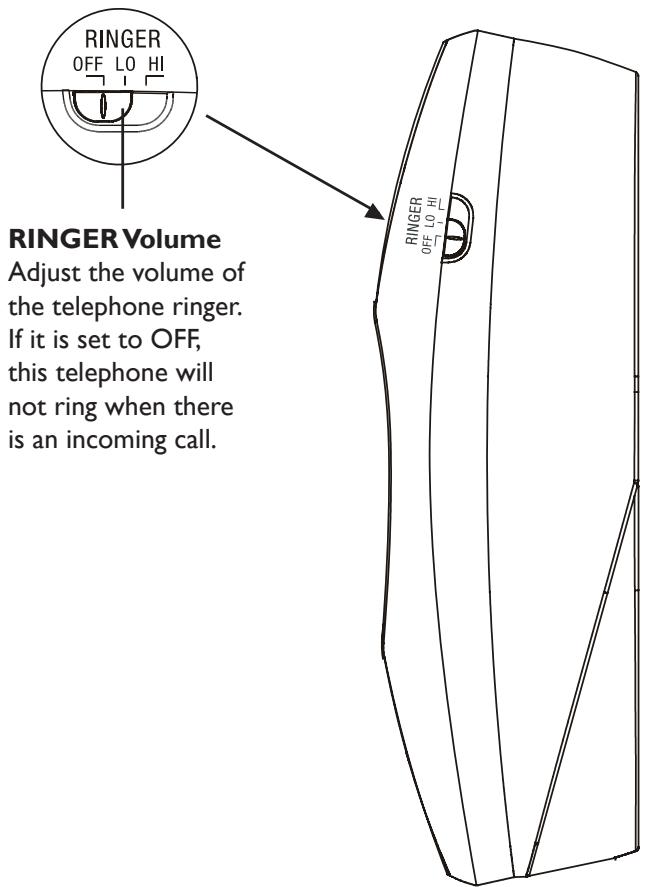
RINGER Volume 15
FEATURES SETTING. 16
Feature Settings Summary. 16
Language Selection 17
Set Contrast. 18
Set Home Area Code (HAC) 19
Set Local Area Codes (LACs) 20
Set Time/Date 21
Call Waiting 22
Set Tone/Pulse 23
TELEPHONE MEMORY 24
Storing Numbers in Memory 24
Storing a CID Call Record into Memory 24
Storing a Pause in a Memory Number 24
Two-Touch Dialing from Memory.....25
One-Touch Dialing from Memory.....25
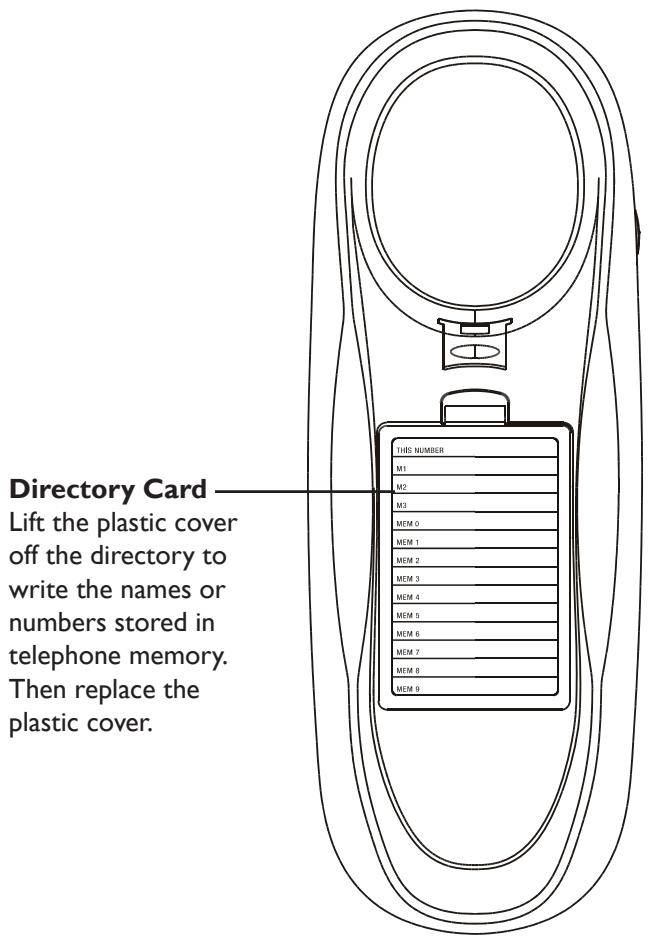
Directory Card. 26
Removing Call Records From Call Log 27
Removing a Specific Call Record.....27
Removing All Entries from Call Record 27
About Caller Identification. 28
Setting Options. 29
Call Log. 29
Review Call Log 29
Display Dial 29
Display Screen Messages 30
IN CASE OF DIFFICULTY. 31
IMPORTANT PRODUCT INFORMATION
Safety Information

This symbol is to alert you to important operating or servicing instructions that may appear in this user's manual. Always follow basic safety precautions when using this product to reduce the risk of injury, fire, or electric shock.
I. Read and understand all instructions in the user's manual. Observe all markings on the product.
2. Avoid using a telephone during a thunderstorm. There may be a slight chance of electric shock from lightning.
3. Do not use a telephone in the vicinity of a gas leak. If you suspect a gas leak, report it immediately, but use a telephone away from the area where gas is leaking. If this product is a cordless model, make sure the base is also away from the area.
4. Do not use this product near water, or when you are wet. For example, do not use it in a wet basement or shower, or next to a swimming pool, bathtub, kitchen sink, or laundry tub. Do not use liquids or aerosol sprays for cleaning. If the product comes in contact with any liquids, unplug any line or power cord immediately. Do not plug the product back in until it has dried thoroughly.
5. Install this product in a protected location where no one can trip over any line or power cords. Protect cords from damage or abrasion.
6. If this product does not operate normally, read In Case of Difficulty in the user's manual. If you cannot solve the problem, or if the product is damaged, refer to the Limited Warranty. Do not open this product except as may be directed in your user's manual. Opening the product or reassembling it incorrectly may expose you to hazardous voltages or other risks.
7. If this product has user-replaceable batteries, replace batteries only as described in your user's manual. Do not burn or puncture batteries — they contain caustic chemicals.
SAVE THESE INSTRUCTIONS
FCC and ACTA Information
If this equipment was approved for connection to the telephone network prior to July 23, 2001, it complies with Part 68 of the Federal Communications Commission (FCC) rules. If the equipment was approved after that date, it complies with the Part 68 rules and with Technical Requirements for Connection of Equipment to the Telephone Network adopted by the Administrative Council for Terminal Attachments (ACTA). We are required to provide you with the following information.
I. Product identifier and REN information
The label on the back or bottom of this equipment contains, among other things, an identifier indicating product approval and the Ringer Equivalence Number (REN). This information must be provided to your local telephone company upon request. For equipment approved prior to July 23, 2001, the product identifier is preceded by the phrase "FCC Reg No." and the REN is listed separately. For equipment approved after that date, the product identifier is preceded by "US" and a colon (:), and the REN is encoded in the product identifier without a decimal point as the sixth and seventh characters following the colon. For example, the product identifier US: AAAEQ03TI23XYZ would indicate a REN of 0.3.
The REN is used to determine how many devices you may connect to your telephone line and still have them ring when you are called. In most, but not all areas, the sum of all RENs should be five (5.0) or less. You may want to contact your local telephone company for more information.
2. Connection and use with the nationwide telephone network
The plug and jack used to connect this equipment to the premises wiring and the telephone network must comply with the applicable Part 68 rules and technical requirements adopted by ACTA. A compliant telephone cord and modular plug is provided with this product. It is designed to be connected to a compatible modular jack that is also compliant. An RJ11 jack should normally be used for connecting to a single line and an RJ14 jack for two lines. See Installation Instructions in the user's manual. This equipment may not be used with Coin Telephone Lines or with Party Lines. If you have specially wired alarm dialing equipment connected to your telephone line, ensure the connection of this equipment does not disable your alarm equipment. If you have questions about what will disable the alarm equipment, consult your telephone company or qualified installer.
3. Repair instructions
If this equipment is malfunctioning, it must be unplugged from the modular jack until the problem has been corrected. Repairs to this telephone equipment can only be made by the manufacturer or its authorized agents. For repair procedures, follow the instructions outlined under the Limited Warranty.
4. Rights of the telephone company
If this equipment is causing harm to the telephone network, the telephone company may temporarily discontinue your telephone service. The telephone company is required to notify you before interrupting service. If advance notice is not practical, you will be notified as soon as possible. You will be given the opportunity to correct the problem and the telephone company is required to inform you of your right to file a complaint with the FCC. Your telephone company may make changes in its facilities, equipment, operation, or procedures that could affect the proper functioning of this product. The telephone company is required to notify you if such changes are planned.
5. Hearing aid compatibility
If this product is equipped with a corded or cordless handset, it is hearing aid compatible.
6. Programming/testing of emergency numbers
If this product has memory dialing locations, you may choose to store police, fire department and emergency medical service telephone numbers in these locations. If you do, please keep three things in mind:
a. We recommend that you also write the telephone number on the directory card (if applicable), so that you can still dial the emergency number manually if the memory dialing feature doesn't work.
b. This feature is provided only as a convenience, and the manufacturer assumes no responsibility for customer reliance upon the memory feature.
c. Testing the emergency telephone numbers you have stored is not recommended. However, if you do make a call to an emergency number:
- You must remain on the line and briefly explain the reason for the call before hanging up.
- Programming/testing of emergency numbers should be performed during off-peak hours, such as in the early morning or late evening, when the emergency services tend to be less busy.
Interference Information:
Part 15 of FCC Rules
Some telephone equipment generates, uses, and can radiate radio-frequency energy and, if not installed and used properly, may cause interference to radio and television reception.
This product has been tested and found to meet the standards for a Class B digital device, as specified in Part 15 of the FCC Rules. These specifications are designed to provide reasonable protection against such interference in a residential installation. However, there is no guarantee that interference will not occur in a particular installation.
If this product causes interference to radio, VCR or television reception when it is in use, you might correct the interference with any one or all of these
measures:
- Where it can be done safely, re-orient the receiving radio, VCR or television antenna.
- To the extent possible, relocate the radio, VCR, television or other receiver with respect to the telephone equipment.
— If this telephone product runs on AC power, plug your product into an AC outlet that's not on the same circuit as one used by your radio, VCR or television.
Modifications to this product, not expressly approved by the manufacturer, could void the user's authority to operate the equipment.
Limited Warranty
The AT&T brands are used under license. Any repair, replacement or warranty service, and all questions about this product should be directed to: Advanced American Telephones, I (800) 222-3111 or www. telephones ATT.com. In Canada, call I (866)-288-4268.
I WHAT DOES THIS LIMITED WARRANTY COVER?
The manufacturer of this AT&T-branded product, Advanced American Telephones ("AAT"), warrants to the holder of a valid proof of purchase ("CONSUMER" or "YOU") that the product and all accessories provided by AAT in the sales package ("PRODUCT") are free from material defects in material and workmanship, pursuant to the following terms and conditions, when installed and used normally and in accordance with operation instructions. This limited warranty extends only to the CONSUMER for PRODUCTS purchased and used in the United States of America.
2 WHAT WILL AAT DO IF THE PRODUCT IS NOT FREE FROM MATERIAL DEFECTS IN MATERIALS AND WORKMANSHIP DURING THE LIMITED WARRANTY PERIOD ("MATERIALLY DEFECTIVE PRODUCT")?
During the limited warranty period, AAT's authorized service representative will repair or replace, at AAT's option, without charge, a materially Defective Product. If AAT repairs this product, AAT may use new or refurbished replacement parts. If AAT chooses to replace this product, AAT may replace it with a new or refurbished product of the same or similar design. AAT will return repaired or replacement products to you in working condition.
AAT will retain defective parts, modules, or equipment. Repair or replacement of Product, at AAT's option, is your exclusive remedy. You should expect the repair or replacement to take approximately
thirty (30) days.
3 HOW LONG IS THE LIMITED WARRANTY PERIOD?
The limited warranty period for the Product extends for ONE (I) YEAR from the date of purchase.
If AAT repairs or replaces a MATERIALLY DEFECTIVE PRODUCT under the terms of this limited warranty, this limited warranty also applies to repaired or replacement Products for a period of either (a) 90 days from the date the repaired or replacement Product is shipped to you or (b) the time remaining on the original year limited warranty, whichever is longer.
4 WHAT IS NOT COVERED BY THIS LIMITED WARRANTY?
This limited warranty does not cover:
a PRODUCT that has been subjected to misuse, accident, shipping or other physical damage, improper installation, abnormal operation or handling, neglect, inundation, fire, water, or other liquid intrusion; or
b PRODUCT that has been damaged due to repair, alteration, or modification by anyone other than an authorized service representative of AAT; or
c PRODUCT to the extent that the problem experienced is caused by signal conditions, network reliability or cable or antenna systems; or
d PRODUCT to the extent that the problem is caused by use with non-AAT accessories; or
e PRODUCT whose warranty/quality stickers, product serial number plates or electronic serial numbers have been removed, altered or rendered illegible; or
f PRODUCT purchased, used, serviced, or shipped for repair from outside the United States, or used for commercial or institutional purposes (including but not limited to PRODUCT used for rental purposes); or
g PRODUCT returned without valid proof of purchase (see 6 below); or h charges for installation or setup, adjustment of customer controls, and installation or repair of systems outside the unit.
5 HOW DO YOU GET WARRANTY SERVICE?
To obtain warranty service in the United States of America, call I (800) 222-3111 for instructions regarding where to return the PRODUCT. Before calling for service, please check the user's manual. A check of the PRODUCT controls and features may save YOU a service call. Except as provided by applicable law, you assume the risk of loss or damage during transit and transportation and are responsible for delivery or handling charges incurred in the transport of PRODUCT(S) to the service location. AAT will return repaired or replaced PRODUCT under this limited warranty
to you, transportation, delivery or handling charges prepaid. AAT assumes no risk for damage or loss of the PRODUCT in transit.
If the PRODUCT failure is not covered by this limited warranty, or proof of purchase does not meet the terms of this limited warranty, AAT will notify you and will request that you authorize the cost of repair prior to any further repair activity. You must pay for the cost of repair and return shipping costs for the repair of PRODUCT that are not covered by this limited warranty.
6 WHAT MUST YOU RETURN WITH THE PRODUCT TO GET WARRANTY SERVICE?
You must:
a return the entire original package and contents including the PRODUCT to the AAT service location along with a description of the malfunction or difficulty;
b include "valid proof of purchase" (sales receipt) identifying the PRODUCT purchased (PRODUCT model) and the date of purchase or receipt (keep a copy for your records); and
c provide your name, complete and correct mailing address, and telephone number.
7 OTHER LIMITATIONS
This warranty is the complete and exclusive agreement between YOU and AAT. It supersedes all other written or oral communications related to this PRODUCT. AAT provides no other warranties for this PRODUCT. The warranty exclusively describes all of AAT's responsibilities regarding the PRODUCT. There are no other express warranties. No one is authorized to make modifications to this limited warranty and YOU should not rely on any such modification. State Law Rights: This warranty gives YOU specific legal rights, and YOU may also have other rights which vary from state to state. Limitations: Implied warranties, including those of fitness for a particular purpose and merchantability (an unwritten warranty that the product is fit for ordinary use) are limited to one year from date of purchase. Some states do not allow limitations on how long an implied warranty lasts, so the above limitation may not apply to YOU.
In no event shall AAT be liable for any indirect, special, incidental, consequential, or similar damages (including, but not limited to lost profits or revenue, inability to use the PRODUCT, or other associated equipment, the cost of substitute equipment, and claims by third parties) resulting from the use of this PRODUCT. Some states do not allow the exclusion or limitation of incidental or consequential damages, so the above limitation or exclusion may not apply to YOU.
Please retain your receipt as your proof of purchase.
PARTS CHECKLIST
Remember to save your sales receipt and original packaging in case it is necessary to ship the telephone for warranty service. Check to ensure the telephone package includes the following:
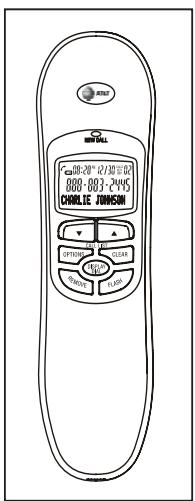
I. Handset
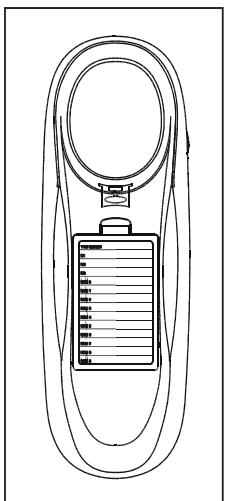
2. Telephone base (Mounting adapter installed)
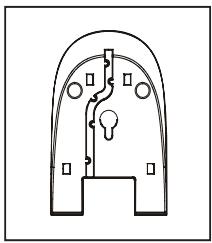
3. Mounting adapter (Installed)
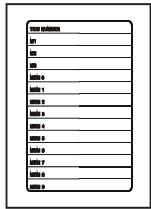
4. Directory card with plastic cover (Insttalled)
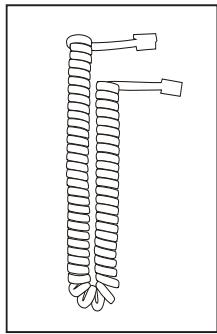
5. Telephone handset coil
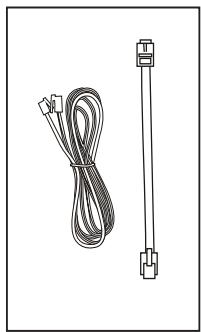
6. Telephone line cords
7. User's manual
BEFOREYOUBEGIN
This product meets the applicable Industry Canada technical specifications.
About Caller Identification (Caller ID)
This product has a caller ID with call waiting feature which works with service available from your local telephone service provider.
Caller ID with call waiting lets you see the name of the caller before answering the telephone, even when you are on another call.
You may need to change your telephone service plan to enjoy this feature. Contact your telephone service provider if:
- You have both caller ID and call waiting, but as separate services (you may need combined service)
- You have only caller ID service, or only call waiting service, but not both.
- You currently do not subscribe to any caller ID or call waiting service.
This product can be used with regular caller ID service, or with no caller ID service. Caller ID services are subscription services and may not be available in all areas. Depending on your service, you may see the caller's number, or the caller's name and number. This product can provide information only if both you and the caller are in areas offering caller ID service, and if both telephone companies use compatible equipment. The time and date are sent by the service provider along with the call information.
About Home Area Code and Local Area Codes
Always program your home area code, and if necessary, up to four local area codes can be programmed (see Set Home Area Code and Set Local Area Codes on pages 19-20). Programming these area codes changes how numbers are displayed in the call log and allows for correct operation of the display dial feature.
The chart below shows whether it is necessary to program the local area codes after installing your telephone.
| If you dial... | For... | Then, for steps 2-4 on page 20 |
| 11 digits (1 + area code + phone number) | All calls outside your own area code | Make no entry. |
| 10 digits (area code + phone number) | Some calls outside your own area code | Enter area codes that do not require a I . |
| 10 digits (area code + phone number) | All calls within your own area code | Enter your own area code. |
INSTALLATION
Battery Installation
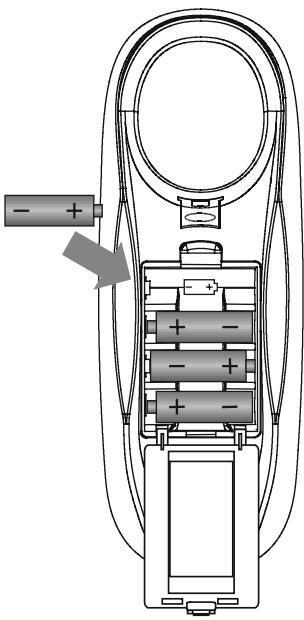
This telephone requires four AA batteries (not included) in order for the caller ID with call waiting, memory, and new call light to work. For best results, use alkaline or heavy duty batteries.
I. Press on the tab to open the cover of the battery compartment.
2. Install four new AA batteries (not included) in the battery compartment according to the diagrams engraved in the compartment.
3. Close the battery compartment cover and make sure it is secured.
NOTES:
- When the batteries are installed, the screen will show 12:00 and the clock will begin to run. It will reset to the correct time when the first caller ID data is received.
Always disconnect all telephone lines from the wall outlets before replacing batteries.
Install new batteries every six months to maintain the call log and telephone memory. - Do not mix old and new batteries and
- Do not mix alkaline, standard (carbon-zinc) batteries.
- Information, including caller ID, Speed dialing memories, radial, and settings will be maintained for about 10 minutes during battery replacement. Numbers stored in memory will be lost if the telephone is unplugged from the jack for over 10 minutes when there are no charged batteries installed. Please change the batteries soon after the Low Battery icon (0) appears.
INSTALLATION
Telephone Installation
Wall-Mount Installation
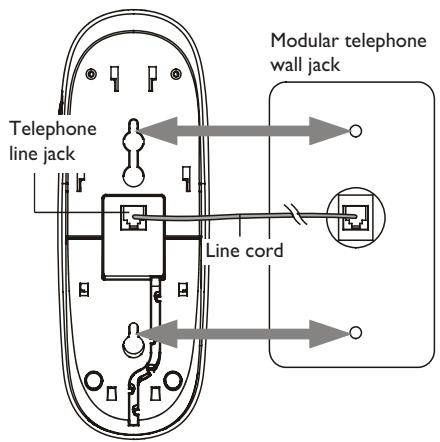
- Make sure mounting adapter is attached to the bottom portion of the set, so that the front of the telephone base will be about parallel to the wall, once it is mounted.
- Plug one end of the telephone line cord into the telephone line jack at the bottom of the telephone base.
- Thread the cord through the channel and out of the mounting area as shown.
- Connect the other end to a modular telephone wall jack.
- Mount the telephone on the wall as shown, then continue with the steps on page 12 for Handset Installation.
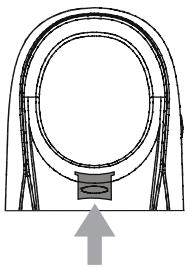
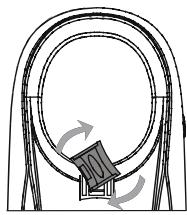
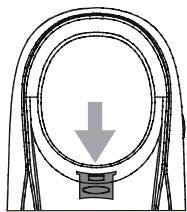
- Remove handset cradle tab, rotate and replace to hold handset securely in place for wall mounting (as shown in the diagrams below).
INSTALLATION
Desktop Installation
- Remove the mounting adapter from the telephone base by pressing down with your thumbs as indicated by the arrows in the diagram.
- Turn the mounting adapter upside down so that the telephone line cord channel leads the line out from the top of the telephone base.
- Replace the mounting adapter by aligning it as shown. Push it downward with your thumbs as indicated by the arrows in the diagram and ensure that it is securely locked into place.
- Plug one end of the telephone line cord into the telephone line jack at the bottom of the telephone base.
- Thread the cord through the channel and out of the mounting area as shown.
- Connect the other end to a modular telephone jack on the wall.
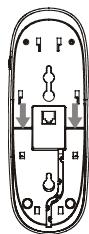
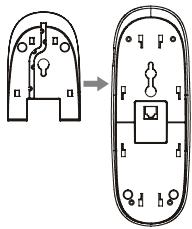
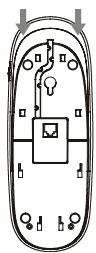
INSTALLATION
Handset Installation
I. Plug one end of the handset cord into the jack on the side of the telephone base.
2. Plug the other end of the handset cord into the handset and put the handset on the telephone base with the screen facing up.
3. Lift the handset and listen for a dial tone. If there is no dial tone, see In Case of Difficulty at the back of this manual.
4. Set the RINGER switch on the side of the telephone base to OFF, LO, or HI according to your preference. If it is set to OFF, this telephone will not ring when there is an incoming call, although the NEW CALL light will flash.
NOTES:
- The telephone works immediately after installation with the default feature settings (see Feature Settings Summary on page 16). You can make and answer calls as soon as the telephone is connected to a modular telephone wall jack. Batteries must be installed in order to activate the caller ID features and memory (see Battery Installation on page 9).
- If you subscribe to caller ID services from your local telephone service provider, follow the instructions in Set Home Area Code on page 19 for the telephone to properly recognize and dial calls. It may be necessary to follow the instructions in Set Local Area Codes on page 20.
TELEPHONE OPERATION
Handset Operation
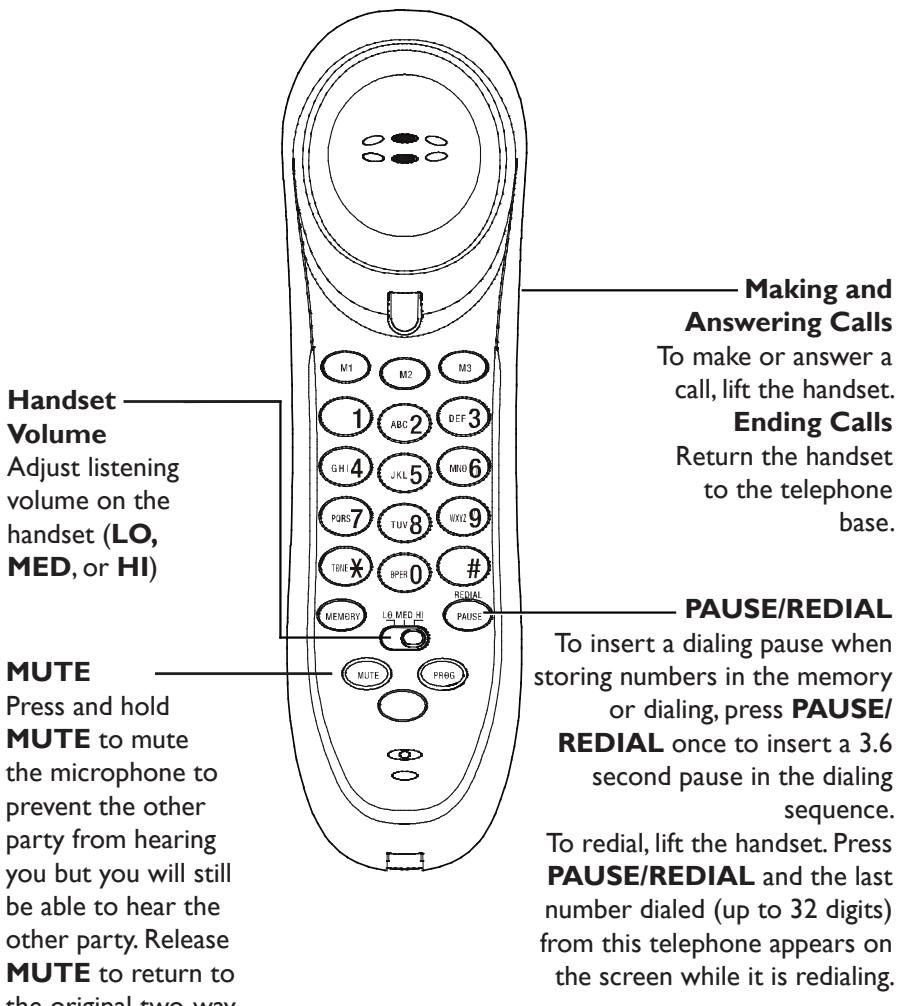
TELEPHONE OPERATION
Handset Operation
Low Battery
The batteries in the telephone base need to be replaced. See Battery Installation on on page 9.
Line Status Indicator
This line status icon will light when this phone or another phone on the same line is in use.
Call Indicator
Indicates the total number of calls received and the number of unreviewed records in the call history.
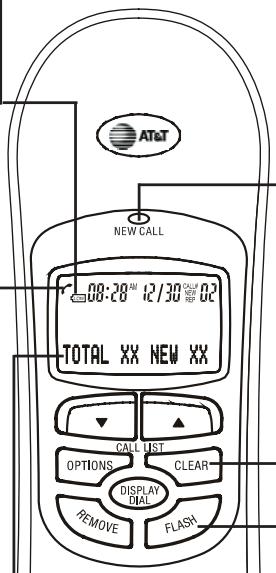
New Call Light
Flashes when there is an incoming call or there are unreviewed call entries in the call log.
CLEAR
Press to exit dialing, to exit storing a number in memory, to exit the call log, or to return to the idle screen anytime without saving the changes
FLASH
When there is a call waiting signal, press FLASH to put the current call on hold and connect to the new call. Press FLASH again to return to the original call. Also, press FLASH to activate other telephone company subscriber services such as 3-way calling
TELEPHONE OPERATION
Telephone Base
FEATURE SETTINGS
Feature Settings Summary
NOTE: The features are listed in the order they appear when the telephone is initially set up. The order changes after the initial setup, but the procedures for setting each feature remain the same.
Default settings are marked with an asterisk (^*)
| Screen display | Choice |
| SET LANGUAGE ENGLISH* ESSPANOL FRANÇAIS | Choose the desired language for the screen display. |
| SET CONTRAST 1 2 3* 4 5 | Adjust the screen contrast to a comfortable level, from 1 (lightest) to 5 (darkest). The contrast may be different for table setting and for wall mounting. |
| HOME AREA CODE | Set the unit to recognize calls from home area code. |
| LOCAL AREA CODE | Program up to four area codes which may not require dialing 1 before them. |
| SET TIME/DATE | Set the time and date on the handset. |
| CALL WAITING? ON* | Set the kind of service subscribed. Screen displays information about call waiting calls. |
| OFF | Screen does not display information about call waiting calls. |
| SET TONE*/PULSE | Set weather the telephone should be tone dial or pulse dial. |
NOTE: Press OPTIONS within ten (10) seconds after choosing a setting to save and advance to the next feature.
FEATURE SETTINGS
Language Selection
You can select English, Spanish, or French as the language in which all your options are displayed.
I. When the new batteries are installed, (or press OPTIONS nine times in idle screen), the screen will display:
SET LANGUAGE
- Press the and keys to scroll through the three languages on the menu: ENGLISH, ESPANOL, and FRANCAIS.
- When the desired language is displayed on the screen, press OPTIONS to save your selection and advance to the TONE/PULSE setting.
NOTES:
- If the telephone is powered on at first time, it will enter into setting up mode automatically.
- After the initial set up, the sequence of the set up has been changed as below (x = number of times to press OPTIONS button):
IX SET CONTRAST
2x HAC (HOME AREA CODE?)
3 x LACI (LOCAL AREA CODE?)
4× LAC2 (LOCAL AREA CODE?)
5× LAC3 (LOCAL AREA CODE?)
6 x LAC4 (LOCAL AREA CODE?)
7× SETTIME/DATE
8×CALLWAITING?
9× SET LANGUAGE
10 × SET TONE/PULSE
FEATURE SETTINGS
Set Contrast
The contrast of the screen can be adjusted to an appropriate level to suit the lighting of the environment for better viewing.
I. After the language setting (or press OPTIONS once in idle screen), the screen will display:
3
SET CONTRAST
- Press or to adjust the contrast from 1 (lightest) to 5 (darkest).
- Press OPTIONS to save the setting and advance to the Home Area Code (HAC) setting.
FEATURE SETTINGS
Set Home Area Code (HAC)
Home area code is the area code associated with your telephone number. It is necessary to program a home area code so the telephone can properly display incoming calls and dial the telephone numbers from the call log.
I. After setting the contrast (or press OPTIONS twice in idle screen), the screen will display:
HAC - - -
HOME AREA CODE?
- Press or until the screen displays the first digit of your home area code. Do not use the keypad to enter digits.
- Press DISPLAY DIAL to save the digit and advance to the next digit.
- Repeat steps 2 and 3 for the second and third digits of your home area code.
- Press OPTIONS to save the home area code and continue to set the local area code.
| If you dial... | For... | Then, in steps 2-4 |
| 7 digits PHONE number only, no area code) | Calls within your own area code | Enter your own area code. |
| 10 digits (Area code + phone number) OR 11 digits 1 + area code + phone number) | Enter 0 0 0, then follow the directions in Set Local Area Codes on page 20. |
NOTE: There is no visual or audible confirmation when setting a new home area code.
FEATURE SETTINGS
Set Local Area Codes (LACs)
Local area codes are area codes associated with other telephone numbers for which you must dial the area code, but do not need to dial I. This includes your own area code if you must dial the area code but not I to make calls in your own area code.
Up to four local area codes can be programmed.
Do not program area codes for which you must dial a I.
| If you dial... | For... | Then, in steps 2-4 |
| 11 digits (1 + area code + phone number) | All calls outside your own area code | Make no entry. |
| 10 digits (area code + phone number) | Some calls outside your own area code | Enter area codes that do not require a I . |
| 10 digits (area code + phone number) | All calls within your own area code | Enter your own area code. |
I. After setting the home area code (or press OPTIONS three times from the idle screen), the screen will display:
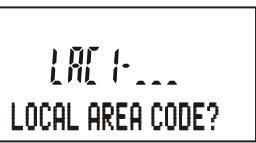
- Press or until the screen displays the first digit of the first local area code. Do not use the keypad to enter digits.
- Press DISPLAY DIAL to save the digit and advance to the next digit.
- Repeat steps 2 and 3 for the second and third digits of the local area code.
- Press OPTIONS to program another local area code when the screen displays
:

- Repeat steps 2-5 to enter the digits of the next local area code.
- Repeat steps 2-5 to program a third and fourth local area code.
- Press OPTIONS to save the local area codes and continue to set the time/ date.
FEATURE SETTINGS
Set Time/Date
This feature sets the time and the date displayed on the screen when the telephone is in idle mode.
I. After setting the local area codes (or from the idle screen, press OPTIONS seven times), the screen will show:
12-00AM 1/01
SET TIME/DATE
- When the hour is flashing, use the or keys to scroll through the list of numbers from 1 to 12 to select the right number for the hour and AM or PM. Press DISPLAY DIAL to save the entry and advance to the next setting.
- When the minutes start flashing, use the or keys to scroll through the list of numbers from 00 to 59 to select the right number for the minutes. Press DISPLAY DIAL to save the entry and advance to the next setting.
- When the month is flashing, use the or keys to scroll through the list of numbers from 1 to 12 to select the right number for the month. Press DISPLAY DIAL to save the entry and advance to the next setting.
- When the date is flashing, use the or keys to scroll through the list of numbers from 1 to 31 to select the right number for the date. Press DISPLAY DIAL to return to step 2 above to make any corrections, or press OPTIONS to save the entry and advance to the call waiting setting.
NOTE: When entering the hours, after I1AM is I2PM, and after I1PM is I2AM.
FEATURE SETTINGS
Call Waiting
Set the kind of subscribed call waiting service from your service provider:
NOTE: If you subscribe to combined caller ID with call waiting service from your local telephone service provider, you need to turn this feature on in order to see call information for call waiting calls.
| Display | Meaning |
| ON | Screen displays information about call waiting calls. |
| OFF | Screen does not display information about call waiting calls. |
I. After setting the time/date (or press OPTIONS eight times from the idle screen), the screen will show:
CALL WAITING?
- Press the or keys to toggle between ON and OFF.
- Press OPTIONS to save the entry and advance to the next feature.
FEATURE SETTINGS
Set Tone/Pulse
When your telephone left the factory, the dial mode was set to tone. If you do not have touch tone dialing service, you can change this setting to PULSE by following these steps:
I. After setting the call waiting feature, press OPTIONS once (or from the idle screen, press OPTIONS ten times), the screen will show:
SET TONE/PULSE
- Press the or keys to toggle between TONE and PULSE.
- When the desired dial mode is displayed on the screen, press OPTIONS to save your selection and exit the options menu.
NOTE: If you have pulse dial (rotary) service, you can switch to touch tone dialing during a call by pressing *. This can be useful if you need to send tone signals to access answering systems or long distance services.
After hanging up or pressing FLASH, the telephone automatically returns to its original dial mode.
TELEPHONE MEMORY
This telephone can store 13 telephone numbers, each up to 32 digits. Dial the numbers stored in memory by pressing one or two buttons.
Storing Numbers in Memory
I. Lift the handset.
2. Press and release PROG.
3. Dial the telephone number (up to 32 digits) or press PAUSE/REDIAL to store the last number dialed from this telephone.
4. For one-touch dialing, press and release the memory button where the number is to be stored (M1, M2, or M3). For two-touch dialing, press MEMORY, then press the number button (0-9) where the number is to be stored.
Storing a CID Call Record into Memory
I. Lift the handset.
2. Press or to display the call record to be stored in memory.
3. Press PROG.
4. Go to step 4 above under Storing Numbers in Memory.
NOTES:
If you pause for over 10 seconds when programming an entry, the procedure will timeout and you will have to begin again.
- If you have difficulty storing numbers in memory, please see Difficulty storing numbers in memory on page 31.
Each 3.6 second pause counts as one digit when storing numbers in telephone memory.
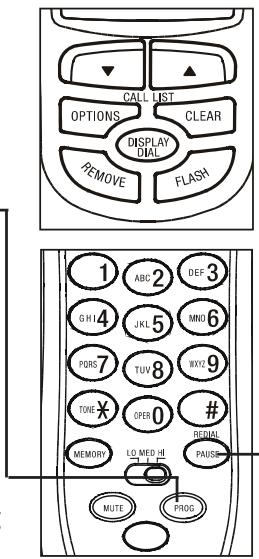
Storing a Pause in a Memory Number
Press and release PAUSE/REDIAL
once to store a 3.6 second pause in the dialing sequence, twice for a 7.2 second delay, three times for a 10.8 second delay.
Two-Touch Dialing from Memory
I. Lift the handset.
2. Press and release MEMORY.
3. Press the number button (0-9) where the destination number is stored. The number appears on the screen when it is dialed.
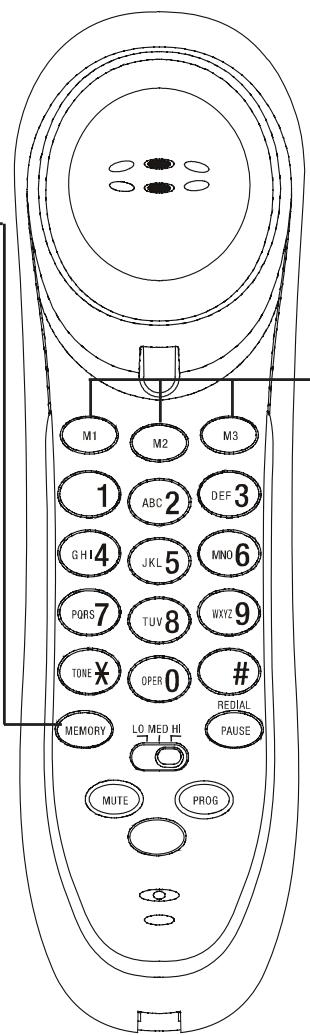
One-Touch Dialing from Memory
I. Lift the handset.
2. Press the appropriate memory button (MI, M2, or M3). The number appears on the screen when it is dialed.
TELEPHONE MEMORY
CALLER ID OPERATION
Removing Call Records From Call Log
Removing a Specific Call Record
I. Press or to display the call record to be removed.
2. Press and release REMOVE to remove the displayed number from call log.
Removing All Entries from Call Record
I.From the caller ID review screen, press REMOVE for at least two seconds until the screen displays
REMOVE ALL?
- Press REMOVE again to remove all calls.The screen returns to the idle screen.
NOTES:
- Numbers stored in memory will be lost if the telephone line cord is unplugged from the telephone jack at the bottom of the telephone base or the modular telephone wall jack, or if there is no battery power for more than 10 minutes.
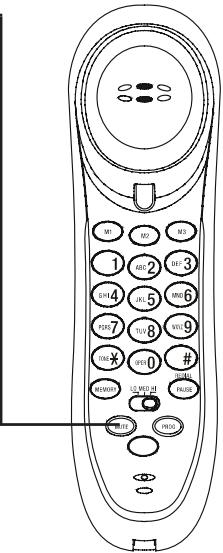
- Press CLEAR on the back of the handset when finished storing a number in memory to exit programming.
- When a caller ID entry is removed from the call log, it cannot be retrieved.
CALLER ID OPERATION
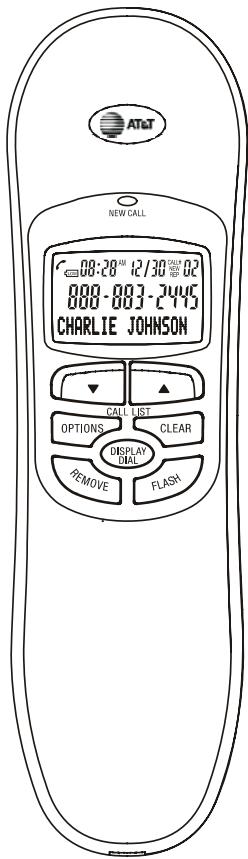
About Caller Identification
When the first call is received, the telephone sets the current time and date automatically, and updates them each time a new call comes in. The unit automatically adjusts for winter time.
When not in use, the unit displays the current time and date, the number of new calls, and the total number of calls (up to 80) in the call log.
For each incoming call, the screen displays the following information between the first and second rings:
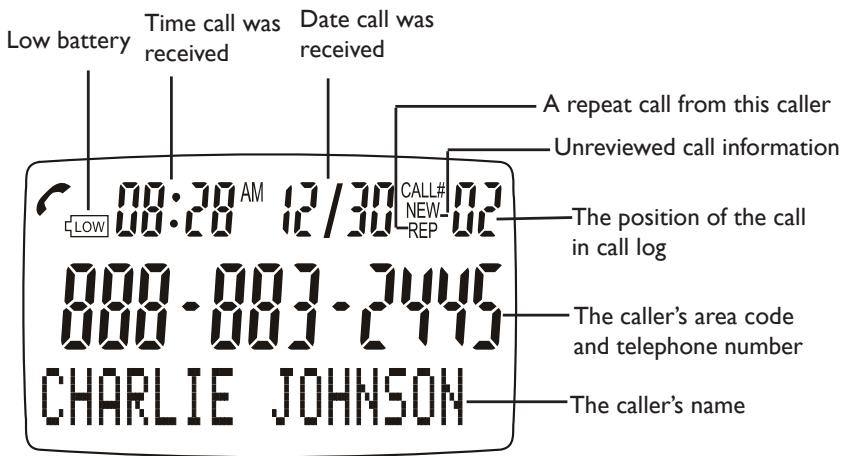
The caller's name (16 letters are sent by your telephone company),
- The caller's area code and telephone number (the area code is not displayed if it is programmed as the home area code),
The time and date of the call,
There were other calls from this number in the call log, and
The position of the call in the call log.
If an incoming call is answered before the information appears on the screen, no information will be stored or displayed.
CALLER ID OPERATION
Setting Options
Call Log
A number (from 01 to 80) is assigned numerically in ascending order for each incoming call. The most recent call will have the highest number. Only the newest entry from a telephone number will be saved. When the memory is full, the oldest call information is replaced by the new incoming call information.
Review Call Log
The screen displays call information for about 10 seconds after it has been received.
This function can be accessed regardless of whether the handset is lifted or not.
I. Press or to activate the call list and display the latest caller ID entry.
2. Press once to show the previous caller ID entry. Press repeatedly to scroll through the call list in reverse chronological order (from the latest entry to the earliest entry), or
3. Press twice when the screen is in idle mode and it will show -END OF LIST-. Then press repeatedly to scroll through the call list in chronological order (from the earliest entry to the latest entry).
4. At the end of the call list, the screen displays -END OF LIST- and begins again.
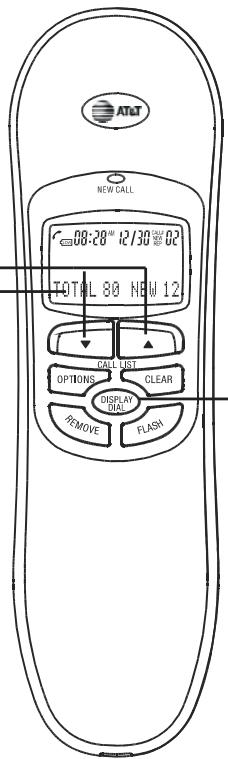
Display Dial
Dial a displayed telephone number when reviewing calls in call log.
I. Press ▲ or ▼ until the screen displays the destination number.
2. Press DISPLAY DIAL to make the call, LIFT RECEIVER will be displayed.
3. Lift the handset, the number shall be dialed out or press the CLEAR key to cancel this operation.
NOTE:
The display dial feature cannot be used to dial PRIVATE or UNKNOWN calls.
CALLER ID OPERATION
Setting Options
| Screen Displays: | When: |
| PRIVATE | The caller is blocking the name information. |
| PPP | The caller is blocking the number information. |
| PRIVATE CALLER | The caller is blocking the name and number information. |
| UNKNOWN | Your telephone company is unable to receive information about this caller's name. |
| UUU | Your telephone company is unable to receive information about this caller's number. |
| UNKNOWN CALLER | Your telephone company is unable to receive information about this caller's name and number. |
| LONG DISTANCE | This is a long distance call and there is no information about this caller's name. |
IN CASE OF DIFFICULTY
If there are problems operating this telephone, try the suggestions below. For Customer Service, visit our website at www.telephones ATT.com or call I (800) 222-3111; in Canada, call I (866) 288-4268. Please retain your receipt as your proof of purchase.
No dial tone
- Ensure all plugs are connected properly and securely.
- Inspect the telephone line cord connections at the modular jack and on the telephone.
Inspect the handset cord connections at both ends. - Unplug the telephone and connect it to another modular jack. If it still does not work, and the other telephones using the same jack are working, there is a problem with this telephone.
Telephone does not ring
- Ensure the RINGER switch on the side of the base unit is not set to OFF.
- If there are other telephones on the same line, try disconnecting some of them. Having too many telephones connected can create problems such as low ringer volume or impaired sound quality during calls.
Difficulty storing numbers in memory
- Ensure you are pressing the correct sequence of buttons for storing numbers.
- If you pause for over 10 seconds when programming an entry, the procedure will time-out and you will have to begin again.
- If you are interrupted by a recorded announcement telling you to hang up, or by a loud buzzing noise, hang up and try to enter the number more quickly.
- Try calling the number to be stored in memory. When the call ends, press PROG, PAUSE/REDIAL, then a one-touch button (M1, M2, or M3), or MEMORY and a memory location (0-9).
New call light flashes
- Ensure you have reviewed all new calls.
New call light does not go on
- Ensure four new AA batteries have been installed properly.
IN CASE OF DIFFICULTY
Screen is blank
- Ensure the telephone handset cord is properly and securely connected to the handset and the telephone base.
- Ensure four new AA batteries are installed properly.
- You must subscribe to service from your local telephone service provider to see call information on the screen (see About Caller Identification in BeforeYou Begin).
Screen displays extension used, and none are
- Check to ensure all line cords are properly and securely connected.
No caller ID information when on a call
- Ensure your service provides caller ID information when on a call. This is sometimes known as Caller ID with Call Waiting, or type II caller ID.
- Ensure you have the call waiting feature on this telephone set to ON (see Display screen options in Feature settings).
- The phone cannot display the information if another telephone on the same line is in use. Ensure all extensions are on hook.
- Ensure you have installed four new AA batteries properly (see Installation).

AT&T
Visit us at www.telephones ATT.com
© 2006 Advanced American Telephones.
All Rights Reserved.
AT&T and the Globe Design are
trademarks of AT&T Corp., licensed to
Advanced American Telephones.
Printed in China. Issue 5 AT&T 07/06