
101920 - Monitor BELINEA - Free user manual and instructions
Find the device manual for free 101920 BELINEA in PDF.


User questions about 101920 BELINEA
0 question about this device. Answer the ones you know or ask your own.
Ask a new question about this device
Download the instructions for your Monitor in PDF format for free! Find your manual 101920 - BELINEA and take your electronic device back in hand. On this page are published all the documents necessary for the use of your device. 101920 by BELINEA.
USER MANUAL 101920 BELINEA
The three-year return to base warranty for your Belinea monitor includes all parts and labour. In addition many countries offer a free of charge swap out warranty programme. This does not affect your Statutory Rights. Please visit http://www.belinea.com or call the numbers below for further warranty or service information.
Please have the serial and model number ready when calling.
Deutsch
This manual will familiarize you with the installation and use of your Belinea monitor. Please take the time to look through these instructions even if you are familiar with monitors.
We have taken all possible care to ensure that this manual contains correct, accurate information. However, the manufacturer cannot assume liability for any possible errors. In addition, the manufacturer cannot guarantee that the hardware will meet the purpose you require. We would appreciate reports of any errors, suggestions or criticism.
Copyright 2005
Editing, DTP and translation by thinkZ GmbH, www.thinkz.de.
All rights reserved. No part of this manual may be reproduced, processed or distributed in any form (print, photocopy, microfilm or any other process) or processed by an electronic system without prior written permission from the manufacturer.
We reserve the right to make changes according to technical progress. Belinea is an internationally registered trademark. Other brand names may be registered trademarks and must be treated as such.
Important Safety Instructions
Some Belinea monitor models come with 2 power cords. Please ensure you use the UK plug (3 pin) in the UK and not the European plug (2 pin).
Do not place the monitor in very hot or cold, nor damp or dusty surroundings. Do not put vases etc. on the monitor, water may cause short circuits. Do not block or cover the ventilating openings. All products that produce magnetic fields, i.e. laser printers, loud-speakers etc., must not be placed close to the monitor. Do not install this monitor in areas where too much light or sunshine might directly hit the screen, otherwise the brightness of the picture will be poor due to reflections. Refer all servicing and maintenance to authorised service personnel only!

CAUTION
Do not remove the cover!
Serious electrical shock hazards exist inside this monitor.

NOTE
Removal of cover invalidates your warranty.
TABLE OF CONTENTS
INTRODUCTION 2
IMPORTANT INFORMATION 3
CARING FOR YOUR LCD MONITOR 3
WALL MOUNTING 3
UNPACKING 4
CONNECTING 4
STARTUP 4
CONFIGURATION 5
BASIC SETUP 5
IMAGE SETTINGS USING THE OSD MENU 5
OSD MENU FUNCTIONS 6
TROUBLESHOOTING 7
TECHNICAL SPECIFICATIONS. 7
DEFINITION OF THE MAXDATA WARRANTY 8
Information about Environmentally Sound Waste Management
Belinea monitors are designed to be environmentally sound according to TCO guidelines. Please direct any questions you may have regarding the disposal of your monitor to our European waste management affiliate:
Hellmann Process Management GmbH & Co. KG
Adolf-Köhne-Str. 11
49090 Osnabrück
Tel: +49 (0) 541 605 1585
For more information on recycling your monitor please visit:
http://LQP2.de.hellmann.net/monitor-recycling
Guide to symbols
The symbols below are used in this manual to indicate where there is risk of injury or damaging devices or to indicate especially useful information:

DANGER! Indicates risk of injury. When not following instructions, severe injury or death may result.

ATTENTION! Indicates possible damage to devices. When not following instructions, devices may be heavily damaged.

IMPORTANT! Indicates hints on operation and other useful information.

100% Recyclable
We are all responsible for the environment: this manual was printed from front to back on paper that was produced without chlorine.
IMPORTANT INFORMATION
Note on monitor placement
- The setup location must not be extremely hot, cold, humid or dusty. Heat and cold can impair the functionality of the monitor. Humidity and dust can cause the monitor to fail.
- Don't place the monitor near heaters such as radiators or the like. Don't expose the monitor to mechanical vibrations or jarring.
- Position the monitor so that no direct light or sun strikes the screen, which could cause reflections that reduce the quality of the image.
Notes on power connection

Only use the power cord designated for use in your country.

The wall outlet should be within easy reach. Pulling the power plug is the only way to disconnect the monitor from the power source.
- This monitor is ENERGY STAR®-compatible. MAXDATA is an ENERGY STAR® partner and guarantees that this device complies with the ENERGY STAR® guidelines for optimizing power consumption.
Safety instructions for operation

The power cord must not be damaged. Do not place any objects on the power cord and make sure it does not have any knots. To unplug the cord, always pull on the plug and not on the cable itself.
- Avoid covering the ventilation slots. Air circulation is necessary to prevent the monitor from overheating. If the air circulation is restricted it could cause fire or damage the monitor.
- Do not use any solvents to clean the monitor, as the housing could be damaged. For more information about cleaning the monitor, please see "Caring for Your LCD Monitor".

Never open the monitor housing yourself. There is a danger of electric shock and other hazards. The monitor may only be opened and serviced by qualified professionals.
Note on resolution

All resolutions provided by the graphics card that deviate from the physical resolution of the panel are adjusted by interpolation. This can impair the image quality.
Notes on ergonomics

In order to relieve your eyes, neck and shoulder muscles when looking at the screen, we recommend that you maintain a distance of 50 to 75~cm between the monitor and your eyes. In addition, you can relax your eyes by regularly focusing on an object at a distance of about 6m . To achieve an ergonomic sitting position, your elbows, pelvis, knees and ankles should form a right angle.
CARING FOR YOUR LCD MONITOR
- First, unplug the power cord from the wall socket.
-
If the LCD screen is extremely dirty, clean it with a moist cloth. Use only warm water and then wipe the monitor dry. Solvents or harsh cleaners can damage the housing. Clean the display surface only with a soft cloth, otherwise you may damage the display's coating.
-
If the monitor is only slightly dirty, clean it using a soft, dry and antistatic cloth.
- The LCD monitor's screen surface is very sensitive. Please avoid any contact with the surface (finger, pencil etc.) and be especially cautious during transportation since jolts and shocks can cause the screen to become scratched (always use the original packaging).
WALL MOUNTING
The Belinea monitor is shipped with the standard desktop configuration. However, you can optionally mount the device on a wall or on a monitor swivel arm (optional accessory). Please follow the corresponding instructions (4-hole assembly with a spacing of 4 × 4 inches ( 100 × 100 ~mm ) according to the international VESA FDMI standard).
UNPACKING
Carefully lift the monitor out of the packaging and make sure that all components are included (see fig. 1).
Save the original box and packing material in case you have to ship or transport the monitor.
To set up the device, you must fit the monitor base together. You can adjust the height of the base. When the base of the monitor is extended, you can tilt the monitor 90^ (Pivot function).
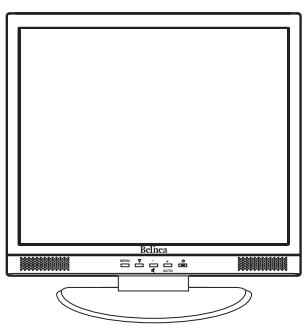
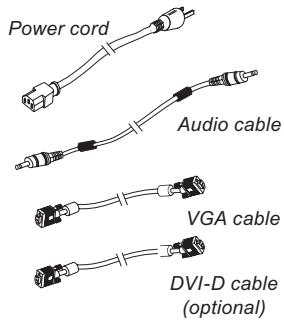
Figure 1. LCD Monitor
CONNECTING
To connect the monitor to your PC
1. Make sure that the PC and monitor are unplugged.
2. Connect the 15-pin signal cable to the monitor and the PC (see fig. 2a).
3. If you have a graphic card with a digital DVI-D connector (24-pin socket), then connect one end of the DVI-D cable (optional) to the DVI-D connector of your monitor (see fig. 2b), the other end to the computer.
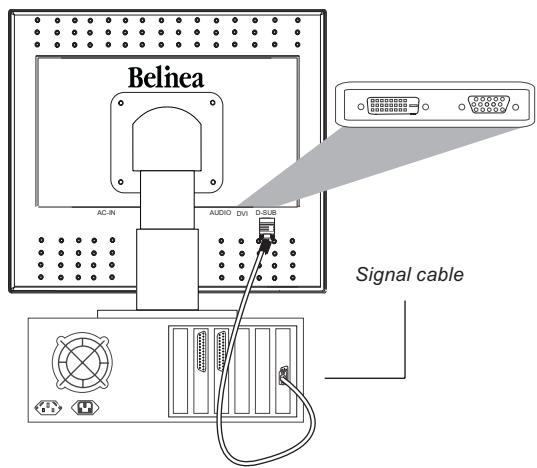
Figure 2a. Connecting the monitor to the PC
Connecting the audio cable
If your computer is equipped with an audio output port, then connect one end of the sound cable to the audio input connector of the monitor (① in fig. 3) and the other end to the Line-Out connector of the computer.
To connect the monitor to the power source.
Connect the separate power cable (② in fig. 3) to the monitor and a grounded outlet.
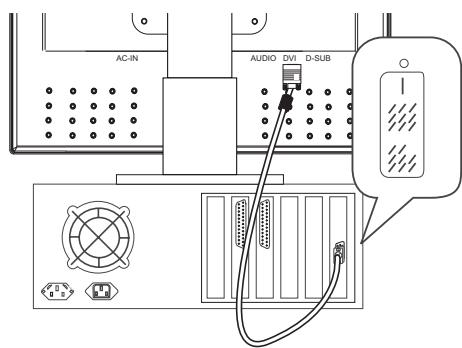
Figure 2b. Connection via the DVI-D interface
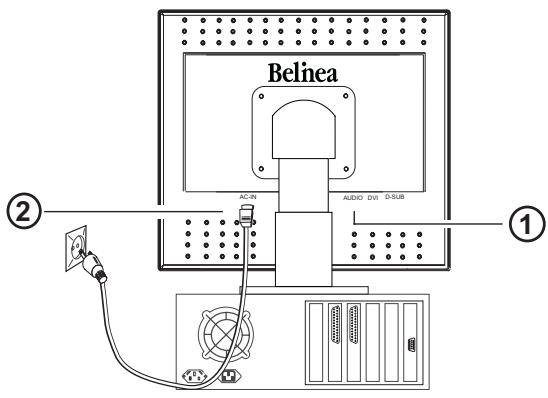
Figure 3. Connecting the monitor to the power source
STARTUP
-
First start your PC and then turn on your Belinea monitor using the power switch (⑤ in fig. 4). The status indicator (⑥ in fig. 4) should light up green.
-
Adjust the image to meet your requirements (see the following sections "Basic Setup" and "Image settings using the OSD menu").
- If there is no image displayed on the monitor, consult the section "Troubleshooting".
CONFIGURATION
Monitor setup under Windows® 9x/ME/2000 and XP:
If using the monitor under Windows 9x/ME/2000 or XP, we strongly recommend installing the Belinea configuration file. You can obtain this file from your Belinea dealer or download it from the MAXDATA FTP server at ftp.maxdata.com.
Here, click the "Belinea_Treiber_Driver" directory and download the Belinea.inf and README_Belinea.TXT files. Follow the installation instructions in the README_Belinea.TXT file.
Monitor setup under Windows NT 4.0:
Under Windows NT 4.0 no separate setup file is required. Select the vertical frequency and the number of colors directly from within the "Settings" "Control Panel" "Display" "Settings" menu.
BASIC SETUP
Automatic Image Adjustment
You can adjust the image settings (such as image position, phase, etc) manually or by using the LCD monitor's automatic image adjustment feature. This will adjust the image parameters to their optimal settings for the current graphics mode. Press AUTO (④ in fig. 4) to launch the automatic adjustment. The process will take a short while until completed.
Disabling the sound (MUTE)
You can mute or activate sound playback by pressing the - button (③ in fig. 4) while the OSD menu is not displayed.
Select the input signal (INPUT SELECT)
Use the key (2) in figure 4) to select the input signal. The monitor offers the following connection options: analogue graphics card via the 15-pin Mini-D-SUB port (see figure 2a); digital graphics card via the DVI-D port (see figure 2b).
IMAGE SETTINGS USING THE OSD MENU
The OSD menu is a window on your screen that allows you to view and change display settings. To change an OSD setting:
- Press the MENU button (① in fig. 4) to display the OSD menu on the screen.
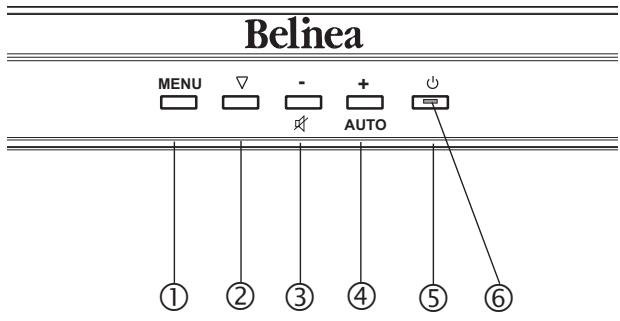
Figure 4. Monitor features
- There are a total of 6 OSD submenus divided by categories. Select the desired submenu by pressing the OSD button - or + (③ and ④ in fig. 4; see section "OSD Menu Functions").
- Press the button (② in fig. 4) to activate the selected function or associated submenu.
- If you selected a submenu, now select the subfunction you want using the - or + (③ and ④ in fig. 4) OSD buttons.
- Set the desired value using the OSD button - or + (③ and ④ in fig. 4). The new settings will take effect immediately.
- Repeat steps 2-5 to make further adjustments as needed.
- The OSD menu automatically disappears if no changes are made for more than 30 seconds (default setting). The current settings will be saved. You can close it manually by pressing the MENU button (① in fig. 4).
OSD MENU FUNCTIONS
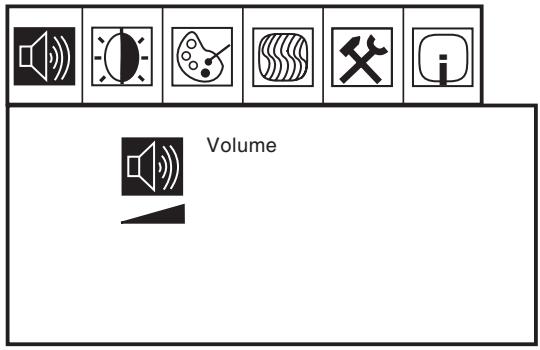

Audio Volume
Volume: Adjusts the monitor loudspeaker output volume.

Visual

Brightness: Controls the picture brightness.

Contrast: Controls the picture contrast.

Auto Contrast: Use the OSD keys - or + for the contrast to be configured automatically.

Color Temperature

Preset Mode: This menu lets you select a preset color temperature (6500 K, 9300 K or sRGB (D65)) by pressing the - or + OSD buttons. Changes to the color temperature take immediate effect on screen.

User Mode: If you wish to configure each colour value individually, select this option. Then use the key (2 in figure 4) to select the configuration options for red, green and blue, and use the OSD keys - or + to configure the value as desired. When you have configured all colour values as wished, use the OSD key MENU (1 in figure 4) to return to the OSD main menu.

Image

Horizontal Size: Controls the horizontal image size.

Fine: Controls image fine adjustment.

Left/Right: Controls the picture's horizontal position.

Down/Up: Controls the picture's vertical position.

Auto Adjust: Automatically selects the optimal settings for image parameters (image position, phase, etc).

Tools

Language Select: OSD menu language selection: English, Spanish, French, German, Italian, Dutch, Russian, Polish.

Factory Reset: Restores factory display settings.

OSD Time Out: Determines how long (in seconds) the OSD menu waits before closing automatically after no action has been performed.

OSD Left/Right: Controls the OSD menu's horizontal position.

OSD Down/Up: Controls the OSD menu's vertical position.

Information
Displays the current graphics resolution including the vertical frequency (no configuration possible).
TROUBLESHOOTING
Blank Screen
Power indicator is off
- Make sure the power cable is connected properly (see section "Connecting").
- Make sure that the monitor was turned on using the power switch (see section "Startup").
Power indicator lights orange
- Perhaps a power saving mode is active?
Power indicator lights green
- A screen saver may have activated automatically after a certain period of inactivity. Press any key on your keyboard or move the mouse.
"No Signal Input" message
- Is the signal cable connected to the monitor and the PC's graphics port (see section "Connecting"?
- Is the PC turned on (see your PC's documentation)?
Display Problems
Image is displaced to the left/right or to the top/bottom
If the image appears normal but off-center, you can adjust it using the OSD functions. For further information, see chapter "Basic Setup", section "Automatic Image Adjustment" or chapter "OSD Menu Functions", section "Image".
Image flickers or is shaky
- Perhaps setup file chosen for the monitor is incorrect. For information on monitor setup under Windows 95/98/ ME/2000/NT/XP consult the "Configuration" section.
Image is blurred
- Check brightness and contrast settings (see chapter "OSD Menu Functions", sections "Brightness" and "Contrast").
- Check the sharpness setting (see "Fine" function in the "OSD Menu Functions" section).
Color problems
- If the colors are off (e.g. white is not really displayed as white etc), you should adjust the color temperature (see "Color Temperature" function in section "OSD Menu Functions").
TECHNICAL SPECIFICATIONS
| LCD panel | 19 inch diagonal size (48.26 cm visible), low radiation according to TCO '03, certified to ISO 13406-2, pixel fault class II, Premium MVA panel technology |
| Contrast ratio | 1000:1 (typical) |
| Viewing angle | (Contrast ratio ≥ 10:1) horizontal 170°, vertical 170° (typical) (Contrast ratio ≥ 5:1) horizontal 170°, vertical 170° (typical) |
| Response time | Rise and Fall time: 8 ms g/g (typical) |
| Brightness | 250 cd/m2 (typical) |
| Input signal | Video: analog (15-pin mini D-Sub) and digital (DVI-D) |
| Display colors | 16.7 mill. colors |
| Synchronization | 30–81 kHz horizontal, 56–76 Hz vertical |
| Video band width | 135 MHz (pixel rate) |
| Ergonomic resolution | 1280 × 1024 (60 Hz) |
| Audio | Amplifier: 1 Watt at 8 Ohms Loudspeaker: 1 Watt continuous load, 1 Watt peak power |
| Power connection | 100–240 V AC, 50–60 Hz |
| Power consumption | ON status: max. 50 W (with Audio); color of the status LED: green SLEEP status: max. 2 W; color of the status LED: orange Power saving functions EPA certified |
| Dimensions / weight | Width: 416 mm, height: 417 mm, depth: 216 mm; 6.5 kg (net) |
| Operating environment | Operation: 0 to +40 °C, humidity: 30–80 % (without condensation) Storage: -5 to +45 °C, humidity: 5–90 % (without condensation) |
DEFINITION OF THE MAXDATA WARRANTY
The MAXDATA warranty covers all failures resulting from defective components and manufacturing defects that occur within the product specific warranty period. The warranty period begins on the date of purchase (date of original customer invoice).
Please be aware that in order to maintain your warranty claim the product concerned has to be received by MAXDATA together with the serial number and a copy of the original customer invoice within the warranty period.
MAXDATA's obligation under the warranty is restricted to repairing or exchanging defective components.
Defective components removed during repair process become the property of MAXDATA.
Components replaced within warranty coverage assume the remaining valid warranty period of the system.
Scope of the MAXDATA warranty:
MAXDATA's obligation under the warranty is limited to failures resulting from defective components and manufacturing defects, defects in the CRT, panel and background lighting for electrical errors (please also refer to the term definition and liability restriction).
Exclusions from the MAXDATA warranty:
The MAXDATA warranty does not cover damage of any kind that results from:
The use of peripheral devices
- Improper use/operating faults
Non-adherence to the user instructions
- Attempted repairs by the customer or third-parties without authorisation by MAXDATA
Defective maintenance by third parties
Device defects due to power failure, heat losses, missing EMC (electro-magnetic compatibility) cabling or similar reasons
- Accidents, storms, lightening, fire, water/other liquids, other natural catastrophes, theft, riots, plundering, the effects of war or other instances of acts of god
The use of third-party components
Non-authorised system changes
- BIOS versions/firmware updates/programmes to remove defects of all kinds (e.g. service packs, bug-fixes, hot-fixes)
- Resetting safety functions, deletion of passwords etc.
- Loss of customer-specific data or software from repair and installation processes
- Improper use of machine capacity or output
- Inappropriate customer operating environment
The MAXDATA warranty also does not cover the following:
- MAXDATA products from which the category plates, serial numbers, part numbers on the machine of machine parts have been removed or changed
- Decline in rechargeable battery capacity after the end of the 6 month warranty period
- The provision and installation of BIOS, driver or software updates/upgrades
- The new installation of software/operating systems that are no longer able to run (e.g. because of the deletion of system-relevant files, incorrect system settings or self-copying programs, e.g. computer viruses)
- Wear and tear on data storage media, LCD background lighting, CRTs on CRT monitors, picture tube burn-in or loss of brightness
MAXDATA products for which the warranty seal has been broken by entities other than MAXDATA or those authorised by MAXDATA - Breaks and scratches on TFT panels and CRT displays
- Damage through use of force and external impact respectively
- Spots on the panel caused by external impacts
Colour spots resulting from falls
- Error class 2 pixel errors (please note the information on ISO 13406-2 on the website of the MAXDATA subsidiary concerned)
If the device received by MAXDATA demonstrates two defects and only one of these is covered by the MAXDATA warranty claim, the customer only has the right to repair for the damage to his device covered by the warranty.
In this case MAXDATA reserves the right to offer the customer several options on resolution in the form of a quotation and to charge the relevant processing costs.
This also applies to those devices for which upon receipt, it is found that they are not covered by the warranty. In these cases, MAXDATA reserves ownership of the exchange device provided and is entitled to demand its return.
MAXDATA reserves the right to charge costs incurred for unsuccessful attempts to collect a device that has been registered as defective from the customer.
If an exchange device is not provided in spite of a period having been set, MAXDATA is entitled to charge the net sales price as per the current price list plus the processing costs incurred. The customer has the right to provide evidence for the existence of lower damages.
MAXDATA restriction to liability:
MAXDATA expressly excludes customer claims that go beyond the warranty conditions if there is no obligation of liability imposed on MAXDATA by the laws of the country where the device was bought. This also applies in particular with regard to claims for damages as a result of default, damages for claims arising as a result of defects, loss of profit, transport damage that was not registered within a period of 6 days after receipt of the goods, loss of data or information through repair processes or damage resulting from interruption to operations.
Governing law:
All rights and duties are subject to the law of the country in which the MAXDATA product was purchased. The Agreement on Contracts for the International Sale of Goods (CISG) is not applicable.
Data Backup:
The responsibility for complete data backups, including of applications and operating system software remains exclusively with the customer. The data must be backed up before the warranty claim is made. MAXDATA excludes liability for any data or information lost for this reason during a warranty claim.
For further details regarding the MAXDATA warranty conditions please refer to www.maxdata.co.uk.

Congratulations!
The display you have just purchased carries the TCO’03 Displays label. This means that your display is designed, manufactured and tested according to some of the strictest quality and environmental requirements in the world. This makes for a high performance product, designed with the user in focus that also minimizes the impact on our natural environment.
Some of the features of the TCO'03 Display requirements:
Ergonomics
- Good visual ergonomics and image quality in order to improve the working environment for the user and to reduce sight and strain problems. Important parameters are luminance, contrast, resolution, reflectance, colour rendition and image stability.
Energy
- Energy-saving mode after a certain time - beneficial both for the user and the environment
- Electrical safety
Emissions
- Electromagnetic fields
- Noise emissions
Ecology
- The product must be prepared for recycling and the manufacturer must have a certified environmental management system such as EMAS or ISO 14 000
- Restrictions on
O chlorinated and brominated flame retardants and polymers
heavy metals such as cadmium, mercury and lead.
The requirements included in this label have been developed by TCO Development in cooperation with scientists, experts, users as well as manufacturers all over the world. Since the end of the 1980s TCO has been involved in influencing the development of IT equipment in a more user-friendly direction. Our labelling system started with displays in 1992 and is now requested by users and IT-manufacturers all over the world.
Belüea
Austria
MAXDATA Computer GmbH
The MAXDATA Centre · Downmill Road
Bracknell, Berkshire RG12 1QS • UK