
ES5 - Digital piano KAWAI - Free user manual and instructions
Find the device manual for free ES5 KAWAI in PDF.


| Product Type | Digital Piano |
| Brand | KAWAI |
| Model | ES5 |
| Dimensions (approx.) | 1320 mm (W) x 295 mm (D) x 745 mm (H) |
| Weight | 12.5 kg |
| Power Supply | 12V DC power adapter (included) |
| Keyboard Type | Weighted keyboard with piano touch |
| Number of Keys | 88 keys (full size) |
| Maximum Polyphony | 64 notes |
| Built-in Sounds | 15 sounds (piano, organ, strings, etc.) |
| Speakers | 2 x 8 cm speakers, 20 W power |
| Main Functions | Metronome, transposition, split, duo, MIDI recording |
| Connectivity | Headphone jack, sustain pedal, MIDI In/Out, USB to Host |
| Maintenance and Cleaning | Clean with a soft, dry cloth; avoid solvents |
| Safety | Do not expose to humidity or extreme temperatures |
| Spare Parts and Repairability | Contact KAWAI after-sales service for parts |
| Warranty | 2 years (excluding intensive use) |
| Included Accessories | Power adapter, music stand, sustain pedal |
| General Information | User manual available in French |
Frequently Asked Questions - ES5 KAWAI
User questions about ES5 KAWAI
0 question about this device. Answer the ones you know or ask your own.
Ask a new question about this device
Download the instructions for your Digital piano in PDF format for free! Find your manual ES5 - KAWAI and take your electronic device back in hand. On this page are published all the documents necessary for the use of your device. ES5 by KAWAI.
USER MANUAL ES5 KAWAI
Important Safety Instructions
SAVE THESE INSTRUCTIONS
INSTRUCTIONS PERTAINING TO A RISK OF FIRE, ELECTRIC SHOCK, OR INJURY TO PERSONS
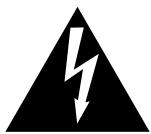
CAUTION
RISK OF ELECTRIC SHOCK DO NOT OPEN

WARNING
TO REDUCE THE RISK OF FIRE OR ELECTRIC SHOCK,DO NOT EXPOSE THIS PRODUCT TO RAIN OR MOISTURE.
AVIS: RISQUE DE CHOC ELECTRIQUE -NE PAS OUVRIR.
TO REDUCE THE RISK OF ELECTRIC SHOCK, DO NOT REMOVE COVER (OR BACK). NO USER-SERVICEABLE PARTS INSIDE. REFER SERVICING TO QUALIFIED SERVICE PERSONNEL.
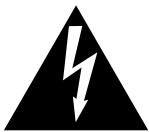
The lighting flash with arrowhead symbol, within an equilateral triangle, is intended to alert the user to the presence of uninsulated "dangerous voltage" within the product's enclosure that may be of sufficient magnitude to constitute a risk of electric shock to persons.

The exclamation point within an equilateral triangle is intended to alert the user to the presence of important operating and maintenance (servicing) instructions in the literature accompanying the product.
Examples of Picture Symbols

denotes that care should be taken.
The example instructs the user to take care not to allow fingers to be trapped.

denotes a prohibited operation.
The example instructs that disassembly of the product is prohibited.

denotes an operation that should be carried out.
The example instructs the user to remove the power cord plug from the AC outlet.
Read all the instructions before using the product.
WARNING - When using electric products, basic precautions should always be followed, including the following.

WARNING
Indicates a potential hazard that could result in death or serious injury if the product is handled incorrectly.
The product should be connected to an AC outlet of the specified voltage.


Use the AC adapter supplied with the product or one recommended by Kawai.
- If you are going to use an AC power cord, make sure that its has the correct plug shape and conforms to the specified power voltage.
- Failure to do so may result in fire.
Do not insert or disconnect the power cord plug with wet hands.
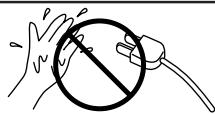
Doing so may cause electric shock.
When using the headphones, do not listen for long periods of time at high volume levels.
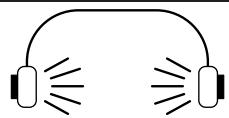
Doing so may result in hearing problems.
Do not disassemble, repair or modify the product.

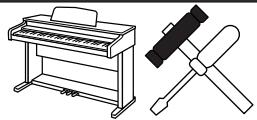
Doing so may result in product breakdown, electric shock or short-circuit.
When disconnecting the AC power cord's plug, always hold the plug and pull it to remove it.

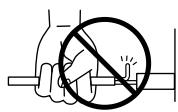
Pulling the AC power cord itself may damage the cord, causing a fire, electric shock or short-circuit.
If the product will not be used for a long time, unplug the AC power cord from the AC outlet.
-
Failure to do so may cause fire in case of lightning.
-
Failure to do so may over-heat the product, resulting in fire.
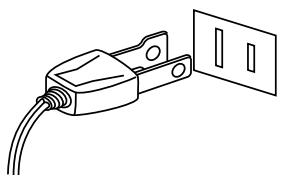
This product may be equipped with a polarized line plug (one blade wider than the other). This is a safety feature. If you are unable to insert the plug into the outlet, contact an electrician to replace your obsolete outlet. Do not defeat the safety purpose of the plug.

CAUTION
Indicates a potential hazard that could result in injury or damage to the product or other
Do not use the product in the following areas.
- Areas, such as those near windows, where the product is exposed to direct sunlight
- Extremely hot areas, such as near a heater
- Extremely cold areas, such as outside
- Extremely humid areas
- Areas where a large amount of sand or dust is present
- Areas where the product is exposed to excessive vibrations
Using the product in such areas may result in product breakdown.
Before connecting cords, make sure that the power to this product and other devices is turned OFF.

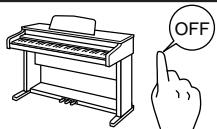
Failure to do so may cause breakdown of this product and other devices.
Take care not to allow any foreign matter to enter the product.

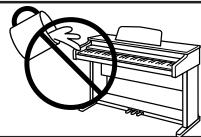
Entry of water, needles or hair pins may result in breakdown or short-circuit.
Do not drag the product on the floor.
Take care not to drop the product.
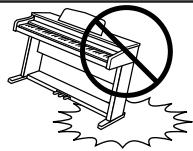
Please lift up the product when moving it.
Please note that the product is heavy and must be carried by more than two persons.
Dropping the product may result in breakdown.
Do not place the product near electrical appliances such as TVs and radios.
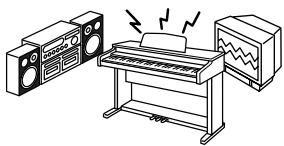
- Doing so may cause the product to generate noise.
- If the product generates noise, move the product sufficiently away from the electrical appliance or connect it to another AC outlet.
When connecting the AC power cord and other cords, take care not to get them tangled.

Failure to do so may damage them, resulting in fire, electric shock or short-circuit.
Do not wipe the product with benzene or thinner.

- Doing so may result in discoloration or deformation of the product.
- When cleaning the product, put a soft cloth in lukewarm water, squeeze it well, then wipe the product.
Do not stand on the product or exert excessive force.
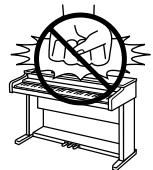
- Doing so may cause the product to become deformed or fall over, resulting in breakdown or injury.
The product should be located so that its location or position does not interfere with its proper ventilation.
The product should be serviced by qualified service personnel when:
- The power supply cord or the plug has been damaged.
- Objects have fallen, or liquid has been spilled into the product.
The product has been exposed to rain. - The product does not appear to operate normally or exhibits a marked change in performance.
- The product has been dropped, or the enclosure damaged.
Notes on Repair
Should an abnormality occur in the product, immediately turn the power OFF, disconnect the power cord plug, and then contact the shop from which the product was purchased.
- This digital piano is for household use and is not intended for commercial use.
CAUTION:
To prevent electric shock, match wide blade of plug to wide slot, fully insert.
ATTENTION:
Instruction for AC power cord (U.K.)
Do not plug either terminal of the power cord to the ground of the AC outlet on the wall.
FCC Information
This equipment has been tested and found to comply with the limits for a Class B digital device, pursuant to Part 15 of the FCC Rules. These limits are designed to provide reasonable protection against harmful interference in a residential installation. This equipment generates, uses and can radiate radio frequency energy and, if not installed and used in accordance with the instructions, may cause harmful interference to radio communications.
If this equipment does cause harmful interference to radio or television reception, which can be determined by turning the equipment off and on, the user is encouraged to try to correct the interference by one or more of the following measures:
- Reorient or relocate the receiving antenna.
- Increase the separation between the equipment and receiver.
- Connect the equipment into an outlet on a different electrical circuit from the receiver.
- Consult the dealer or an experienced radio/TV technician for help.
Canadian Radio Interference Regulations
This instrument complies with the limits for a class B digital apparatus, pursuant to the Radio Interference Regulations, C.R.C., c. 1374.
Thank you for choosing this Kawai ES3/5 Digital Piano.
Your new ES3/5 is a high-quality instrument offering the very latest in leading-edge music technology. This manual contains valuable information that will help you make full use of your ES3/5's many capabilities. Please read it carefully and keep it handy for further reference.
TABLE OF CONTENTS
Page
Assembling The Stand (ES5 only) 6
Part Names 8
Getting Started
- Basic Operations 12
- Transpose 14
- Touch Response 14
- Registration 15
Digital Recording Functions
- Easy Recording. 16
- Playing Back A Song 17
- Advanced Recording/Playback Functions 17
- Deleting A Song/Track 18
Function Mode
1.Brilliance 20
2.Tuning 20
3. Voicing 21
4. Sympathetic Resonance 21
5.Temperament 22
6. Memory Backup 24
7. Lower Octave Shift 24
8.MIDI Channel. 24
9. Transmitting Program Change Number 24
10.MIDI Local Control On/Off 25
11. Transmit Program Change On/Off 25
12. Turning Multi-Timbral mode On/Off 25
13. Channel Mute 26
14. Lower Pedal On/Off 26
MIDI 27
Program Change Number Mapping 29
Rhythm List (ES5 only) 30
Specifications 31
MIDI Implementation Chart 32
Before beginning the assembly of your ES5, read and become familiar with the assembly instructions that follow. Then, carefully unpack the piano and check your unit against the parts shown below.
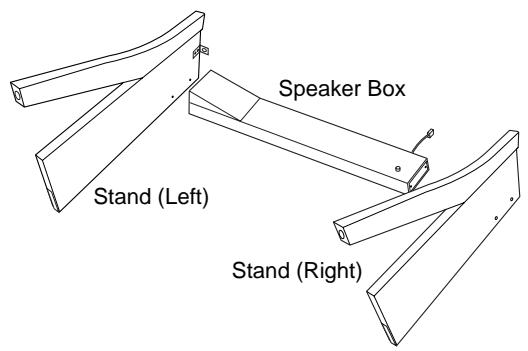
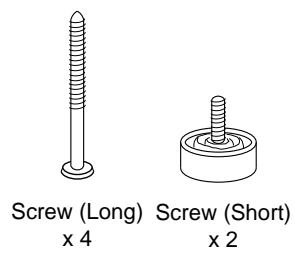
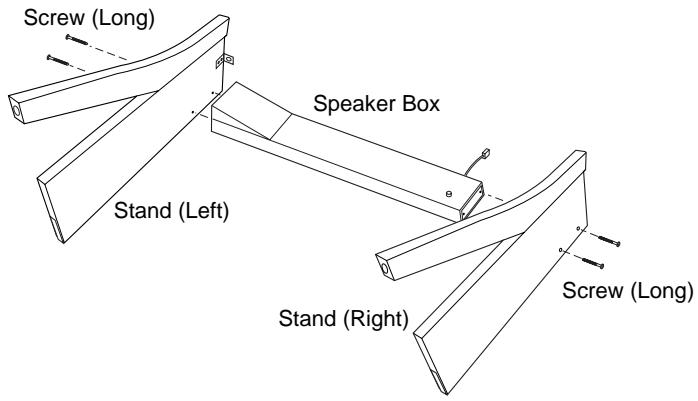
- Fasten the stands and the speaker box with four screws (long). The metal brackets on the top of the stand should face inside.
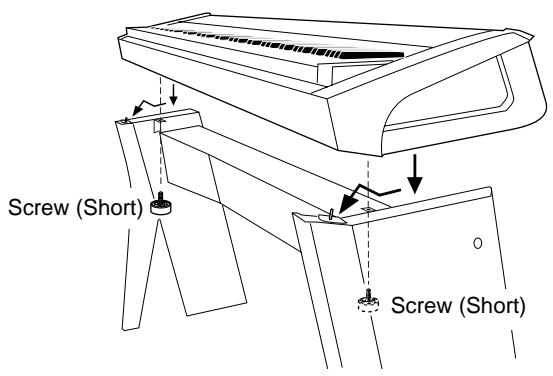
- Place the piano carefully on top of the stand so that about one-third of the front top edge of the stand is exposed. Then slightly lift the front of the piano and slide it forward. Fit the pins on top of the stand into the holes on the bottom of the piano. Fasten the piano and the stand with two screws (short).
CAUTION:
Be sure to secure the piano to the stand with the screws. If you fail to do so, the piano could fall from the stand causing damage or personal injury.
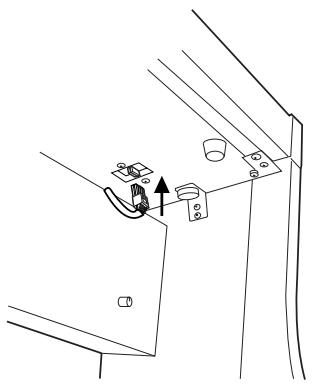
- Insert the speaker cord that comes from the speaker box into the piano's speaker jack.
CAUTION:
Make sure to turn off the power before connecting the speaker cord.
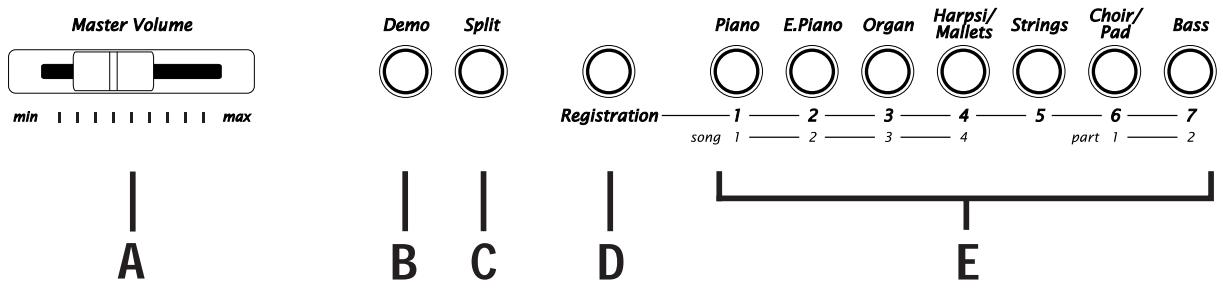
Master Volume Slider (A)
Move the volume slider to the right to increase the instrument's volume. Move the slider to the left to decrease the volume.
Demo Button (B)
Press this button to start the demo. To stop the demo, press this button again. See page 12 for details.
Split Button (C)
The split function divides the keyboard into two sections—upper and lower—and lets you play each part with a different sound. See page 13 for details.
Registration Button (D)
Use this button to memorize your favourite panel settings up to seven settings and to recall them. See page 15 for details.
Sound Buttons (E)
Select the desired instrument by pressing the appropriate button. The ES3 has three (four for ES5) sounds assigned for each Sound button. When a Sound button is pressed, the variation number is briefly shown in the display. Pressing the same Sound button again will select the next variation sound assigned to the Sound button.
FRONT PANEL
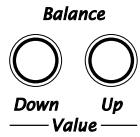
Balance/Value Buttons (F)
Normally pressing these buttons will change the current sound to the next sound or previous sound through all the preset sounds assigned to the seven Sound buttons. However, when in Dual or Split mode, these buttons work as balance adjuster for the two selected sounds. When changing settings of various functions, these buttons work as value up/down buttons. When the Metronome is running, use these buttons to change the tempo.
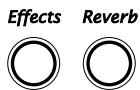
Effects Button (G)
Press this button to add effect. The LED indicator is lit when the effect is on. Press it again to turn the effect off. The effect type can be changed. See page 13 for details.
Reverb Button (H)
Press this button to add reverb. The LED indicator is lit when the reverb is on. Press it again to turn the reverb off. The reverb type can be changed. See page 13 for details.
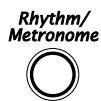
Metronome (Rhythm/Metronome) Button (I)
Press this button to start metronome. Pressing again will stop metronome. The beat (time signature) can be changed. In addition, various rhythm styles can be selected for ES5. See page 16 for details.
Recorder Buttons (J)
You can record and play back up to four songs.
-Play/Stop button: Used to play back and stop a recorded song.
-Rec button: Used to start recording a song.
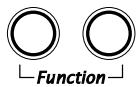
Function Buttons (K)
Use these buttons to select a touch type, transpose the keyboard, or control other features (including MIDI functions). See page 20 for details.
KAWAI
ES5 DIGITAL PIANO


Touch Transpose

[ES5]
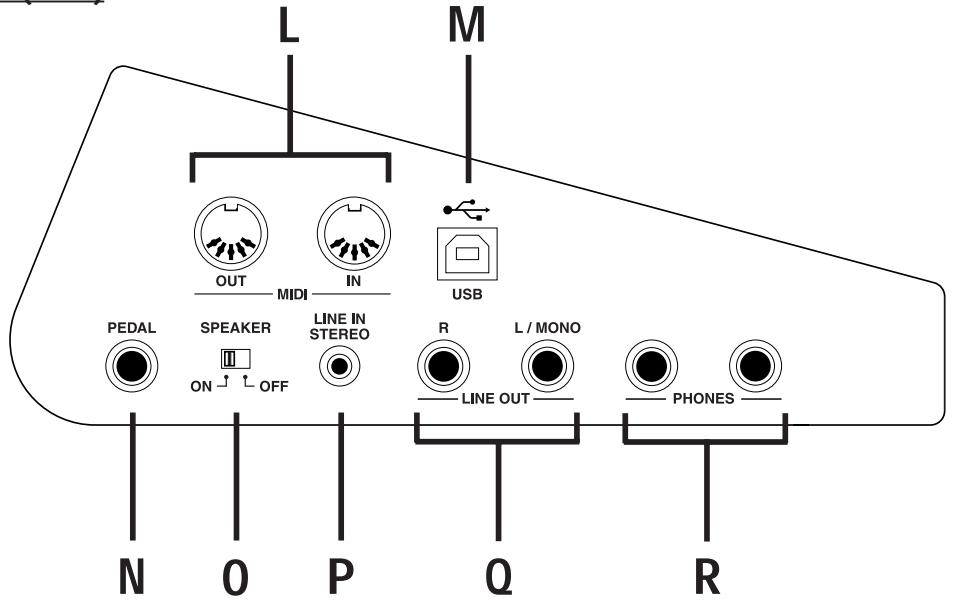
MIDI Jacks (L)
Use these jacks to connect the ES3/5 with external MIDI devices.
USB Jack (M)
This jack is used to connect with a personal computer and exchange MIDI data.
PEDAL Jack (N)
Connect the enclosed F-1r pedal to this jack. You can also connect the optional F-2r pedal (2 pedals, Damper & Soft).
SPEAKER Switch (0)
This switch turns the built-in speakers on and off.
LINE IN STEREO Jack (P)
Connect a CD player etc. with stereo mini plug.
LINE OUT Jacks (Q)
Connect an external amplifier and speakers, or a cassette recorder to these jacks.
PHONES Jacks (R)
Used to connect up to two headphones to the ES3/5.
SIDE PANEL (LEFT)
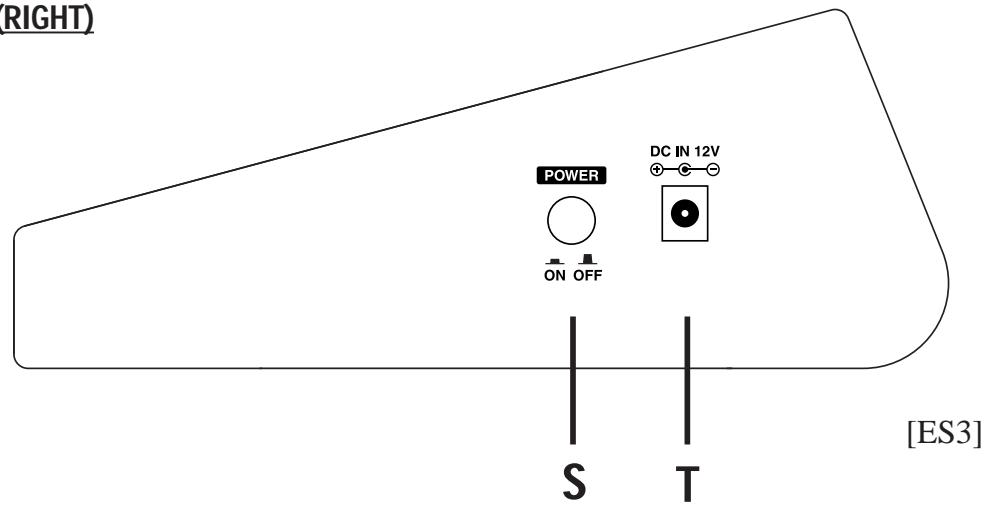
POWER Button (S)
This button turns the instrument on and off. Be sure to turn off the instrument when you are finished playing.
AC Adaptor Jack (ES3) / Power Cable Jack (ES5) (T)
Connect the enclosed AC adaptor (ES3) / Power Cable (ES5) to this jack.
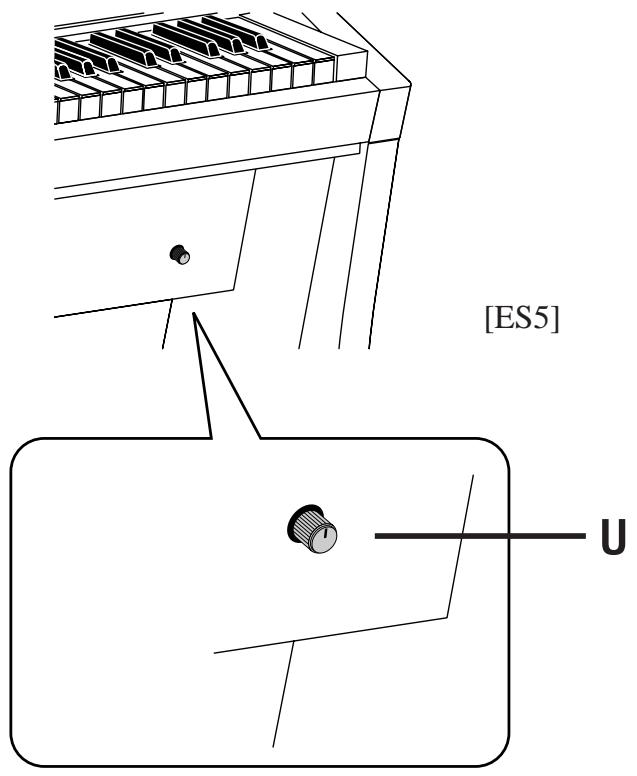
Woofer Volume Knob (ES5 only) (U)
Controls the volume of the woofer speaker.
SIDE PANEL (RIGHT)
WOOFER VOLUME
1. BASIC OPERATIONS
(1) Turn on the power.
(2) Adjust the volume.
Play a note on the keyboard and adjust the volume (Moving the slider to the right raises the volume while moving to the left lowers it.)
Adjust the volume of the woofer speaker with the Woofer Volume Knob at the right front of the stand (ES5 only)
(3) Choose a sound.
Pressing a Sound button automatically changes the sound made by the ES3/5. The LED indicator of the selected sound button will light to indicate which sound is currently in being used.
The ES3 has three (four for ES5) sounds assigned for each Sound button. When a Sound button is pressed, the variation number is briefly shown in the display. Pressing the same Sound button again will select the next variation sound assigned to the Sound button.
(4) Play.
Experiment by playing the different sounds.
(5) Demo
[ES3]
The ES3 has 19 built in sound demos for your listening enjoyment. Press this button and the demo for Concert Grand will start. When the Concert Grand demo is finished, the ES3 will play all the other demos one at a time in random order. To select a specific demo, press the desired Sound button while the demo is playing. To stop the demo, press this button again.
[ES5]
The ES5 has two main demos and 23 built in sound demos for your listening enjoyment. Press this button and the first main demo will start. When the first main demo is finished, the ES5 will play the second main demo. If you want to skip to the second demo before the first demo is finished, press the Value Up button while the first demo is playing. After the two main demos are played, the ES5 will play the demo for Concert Grand. When the Concert Grand demo is finished, the ES5 will play all the other sound demos one at a time in random order. To select a specific demo, press the desired Sound button while the demo is playing. To stop the demo, press this button again.
(4) Dual
With Dual mode you can layer two sounds together. To layer two sounds, select the first sound and then, while holding down that Sound button, select the second sound by pressing another sound button. If you want to layer two sounds on the same Sound button, select the first sound and then, while holding down that Sound button, use the Value up/down buttons to select the second sound. To adjust the volume balance of the two sounds, use the Balance buttons. The default balance is 5-5.
NOTE:
When in Dual mode, the maximum polyphony will be reduced to 32 notes.
(5) Split
The split function divides the keyboard into two sections—upper and lower—and lets you play each part with a different sound. First select the desired sound for upper section. Then, while holding down the Split button, select the desired sound for the lower section. The LED Indicator for a lower sound will start flashing. To adjust the volume balance of the two sounds, use the Balance buttons.
(6) Effects
Adding an effect to the sound enhances tonal quality and improves acoustical realism. The ES3/5 piano is provided with seven different kinds of effects.
To turn on the Effect, press the Effect button. The LED indicator of the Effect button will be lit to indicate the Effect is now on. Pressing the Effect button once again turns the Effect "OFF".
To change the Effect type, use the Value buttons while holding down the Effect button. The LED display shows an abbreviation.
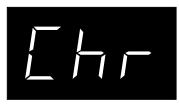
Chorus
CHORUS
Chorus is an effect that simulates the rich character of a vocal choir or string ensemble, by layering a slightly detuned version of the sound over the original to enrich it.
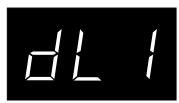
Delay 1
DELAY
Delay is an effect that adds echoes to the sound. There are three types of delay available (delay 1 - 3), each of which has a different length of delay between the echoes.
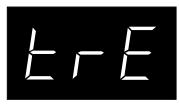
Tremolo
TREMODO
This is a vibrato type effect.
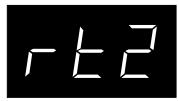
Rotary 2
ROTARY
This effect simulates the sound of the Rotary Speaker cabinet commonly used with electronic organs. Rotary 1 is normal rotary and Rotary 2 is with distortion effect. The speed of the rotor can be changed between SLOW and FAST by pressing both Value buttons at the same time. With optional F-2r foot pedal, the soft pedal is used to change the speed of the rotor as well.
(7)Reverb
Reverb adds reverberation to the sound, simulating the acoustic environment of a recital room, stage, or concert hall. There are Three types of reverb available. They are Room, Stage and Hall (listed in order of reverberation amount). To change the Reverb type, use the Value buttons while holding down the Reverb button. The LED display shows an abbreviation.
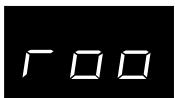
Room
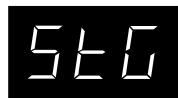
Stage

Hall
(8) EQ
EQ changes overall sound character of the ES3/5. There are three types of EQ setting. To change the EQ type, press the Reverb button while holding down the Touch and Transpose buttons. The LED display shows "Eq" and the EQ number alternatively. Use the Value buttons to select the desired EQ.
| ES3 | ES5 | |
| EQ 1 | Recommended for normal playing circumstances like in a living room or classroom. With headphones, expansion effect turns on. | Recommended for normal playing circumstances like in living room or classroom. Also recommended when you play the ES5 using external speakers or for recording. With headphones, expansion effect turns on. |
| EQ 2 | Recommended when you play with the ES3/5 facing a wall. With headphones, expansion effect turns on with high freecies enhanced. | |
| EQ 3 | Recommended when you play the ES3 using external speakers or for recording. With headphones, expansion effect doesn’t turn on. | Recommended when you play the ES5 without stand. With headphones, expansion effect doesn’t turn on. |
EQ settings are global for all the preset sounds. You can not have an individual setting for each sound.
2. TRANSPOSE
The transpose function lets you raise or lower the piano's key in half steps. This is especially useful when you have learned a song in one key and have to play it in another key. The transpose feature allows you to play the song in the original key, but hear it in another key.
(1) Press and hold the Transpose button. The LED display shows you the current value. The value is always set to "0" when the power is turned on.
(2) While still holding the Transpose button, use the Value buttons or the keyboard from C2 to C4 to specify the transposition amount. The LED display shows you a number telling you how many half steps up or down you have transposed the piano. -5, for example, represents a transposition that is 5 half steps lower. “0” indicates no transposition.
(3) The piano can be transposed up to 12 half steps higher or 12 half steps lower.
(4) Pressing Transpose button again turns the Transpose function off. The Transpose function remembers the current setting as long as the power is on.
3. TOUCH RESPONSE
The Touch button is used to select a different touch sensitivity of the keyboard from the standard
touch of an acoustic piano. You can change the sensitivity to one of five different settings: LIGHT1/2, HEAVY1/2 and OFF.
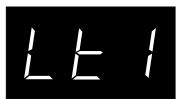
LIGHT 1
LIGHT
For those still developing finger strength. A louder volume is produced even when playing with a soft touch. LIGHT 2 is lighter than LIGHT 1.
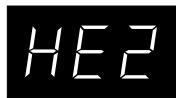
HEAVY 2
HEAVY
Perfect for those with strong fingers. Requires a heavier touch to produce a loud volume. HEAVY 2 is heavier than HEAVY 1.
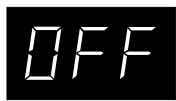
OFF
OFF
A constant volume is produced regardless of how hard the keys are struck. This setting is suitable for sounds that have a fixed dynamic range such as Organ and Harpsichord.
(1) To change from the standard touch press the Touch button. The LED indicator above the Touch button will be turned on to indicate that the piano is now using a different touch setting.
(2) Use the Value buttons to change the type of touch while the Touch button is held down.
(3) Press the Touch button again to get back to the standard touch setting.
NOTE:
Touch selection is global for all the preset tones. You cannot have an individual setting for each tone. Once the power is turned off, the setting will be reset to the standard setting.
LIGHT and HEAVY do not represent the physical weight of the keys. These are settings that affect the sensitivity of the keys, which determines the volume level in response to the key movement.
4. REGISTRATION
A Registration is a setup that remembers most of the panel setting, such as sound selections and effect settings, so that you can recall them at the touch of a button. Seven Registrations can be memorized and saved.
(1) To memorize the current panel settings, press and hold the Registration button. While holding the Registration button, press any one of the sound buttons marked 1 through 7 to select a location for your new Registration. Continue holding both the Registration button and the selected sound button until you hear a click. The click sound indicates that your Registration has now been saved to your selected location.
(2) To recall a registration, first press the Registration button and make sure its LED is lit. Then press one of the Sound buttons marked 1 through 7 to select the desired registration.
1. EASY RECORDING
(1) Press the Rec button. The ES3/5 will be ready for recording. To cancel the recording, press the Rec button again.
(2) Begin playing some music on the piano. The ES3/5 will automatically start recording with the first note you play. You can also start recording by pressing the Play/Stop button.
(3) Press the Play/Stop button when you have finished recording.
NOTE:
Starting another recording will delete the song you previously recorded. To learn how to save your recorded song and record another song please read the "ADVANCED RECORDING/PLAYBACK FUNCTIONS" section of this manual.
METRONOME/SELECT TIME AND TEMPO
The ES3/5's metronome function can help you record a song by providing a steady beat for you to play along with. The metronome beats however, are not recorded.
(1) To start the metronome, press the Metronome button. You can change the beat (time signature) of the metronome. The ES3/5 has five beats (time signatures) to choose from 1, 2/4, 3/4, 4/4, and 6/8. While holding down the Metronome button, select the desired beat (time signature) of the metronome using the Value.
(2) The ES5 has an additional 100 rhythm styles available. Keep pressing Value Up button while holding down the Rhythm Metronome button. The rhythm style number will be shown in the LED display.
(3) To adjust the tempo, use the Value buttons while the metronome is running. The tempo will be shown in the LED display.
(4) To turn off the metronome function, press the Metronome button and the metronome will stop.
METRONOME/ADJUST VOLUME
The metronome volume can be adjusted in the range from 1 to 10 as follows.
(1) Press the Metronome button while holding down the Touch and Transpose buttons. The LED indicator will start flashing and the LED display shows "VoL" and the volume level alternatively.
(2) Use the Value buttons to adjust the volume. To exit the volume settings mode, press either Touch or Transpose button.
2. PLAYING BACK A SONG
(1) Press the Play/Stop button. The song will be played back using the same sound with which it was recorded.
(2) Press the Play/Stop button once again to stop the playback. If you do not press the Play/Stop button, playback will automatically stop when the song is finished.
You can adjust the tempo of playback. Before pressing the Play/Stop button, use the same procedure of adjusting metronome tempo. (See (3) of the previous section.) Once you adjust the tempo, turn off the metronome and press Play/Stop button.
3. ADVANCED RECORDING/PLAYBACK FUNCTIONS
The ES3/5 can record and store a maximum of 4 songs. Please follow the steps below to save your songs:
(1) While holding down the Rec button, press the E.Piano (song 2) button. The LED will flash to show the current song number (while the Rec button is held down). The piano will be ready to record song 2. To cancel without recording, press the Rec button again.
(2) Play the piano. Playing the piano will automatically start the recording. You can also start recording by pressing the Play/Stop button.
(3) Press the Play/Stop button after you have finished recording.
(4) Press the Play/Stop button. The song No.2 will be played back.
(5) If you want to listen to song 1, hold down Play/Stop button and press the Piano (song 1) button. Releasing the Play/Stop button will start playback of song 1.
The ES3/5 can record the parts played by the left or right hand and play back these parts separately or simultaneously. This function can be enjoyed in different ways. For example, you can practice the right-hand part of the song while playing back the recorded left-hand part, or record the melody part of the song while playing back the previously recorded accompaniment.
(1) While holding down the Rec button, press the Organ (Song 3) button to select song No.3. Part 1 of song No.3 will be selected and the ES3/5 will be ready to record. To cancel without recording, press the Rec button again.
(2) Play the piano with your left hand. Playing the piano will automatically start the recording. You can also start recording by pressing the Play/Stop button.
(3) Press the Play/Stop button after you have finished recording.
(4) Now, to play back the left-hand part, press the Play/Stop button. The left-hand part you have recorded (part 1 of song No.3) will be played back. You can practice the right-hand part along with the recorded part.
(5) Let's record the right-hand part while listening to the left-hand part. While holding down the Rec button, press the Bass (Part 2) button. The part 1 LED will light and the part 2 LED will flash to indicate that the piano is ready to record. To cancel without recording, press the Rec button again.
(6) Now play the right-hand part. Pressing any key will start play back of the recorded left-hand part (part 1) while you play (and record) the right-hand part. You can also start recording by pressing the Play/Stop button. After pressing the Play/Stop button the left-hand part will begin playing back, you can then begin playing (recording) the right hand part from any point in the song you like.
(7) Press the Play/Stop button after you have finished recording.
PLAYING BACK THE LEFT- AND RIGHT-HAND PARTS SEPARATELY
After you have recorded the left- and right-hand parts (part 1 and part 2) separately, it is possible to play back the two parts by themselves or together. The following example shows how to play back only part 2.
(1) Select and press one of the song buttons (Piano/Song 1, E.Piano/Song 2, Organ/Song 3 and Harpsi/Mallets/Song 4) while pressing the Play/Stop button.
(2) While holding down the Play/Stop button, press the Choir/Pad/Part 1 button. The Choir/Pad/Part 1 button LED will be turned “off”. If you need to turn part 1 back “on”, press the Choir/Pad/Part 1 button once again. The Choir/Pad/Part 1 button LED will be turned “on”.
(3) Releasing Play/Stop button will play back only part 2. To turn On/Off part 2, follow the same procedure described above using the Bass/Part 2 button.
4. DELETING A SONG/PART
This function allows you to delete songs that were not recorded correctly or songs that you do not want to listen to any more.
(1) Simultaneously hold down the Play/Stop and Rec buttons.
(2) The LEDs will light to show you where songs have been recorded. While holding down both the Play/Stop and Rec buttons, press the song button that corresponds to the song you want to delete.
(3) While still holding down both the Play/Stop and Rec buttons, press the part button that you want to delete and turn the LED of that part button off.
To delete more than one song, repeat (1) to (3).
NOTE:
The total memory capacity of the recorder is approximately 10000 notes. When the recorder reaches its maximum capacity, the ES3/5 will stop recording at this point. Any data recorded before the interruption will be retained.
The recorder memory will be saved even after turning off the power.
To delete all recorded songs (reset), first turn the power off and then turn it back on again while holding down both the Play/Stop and Rec buttons.
The Function Mode gives you access to many other useful features on your ES3/5. To enter the Function Mode, press the Touch and Transpose buttons simultaneously. The LED indicators for both buttons will start flashing. While holding the Touch and Transpose buttons, press the appropriate Sound button to select the function you want to edit. Each button is assigned two functions as listed below. Press the same Sound button again to select the alternative function. To exit the Function Mode, press either Touch or Transpose button.
| Function | Display | See page | Function | Display | See page | |
| Piano | Brilliance | BV | 20 | MIDI ch | CHN | 24 |
| E.Piano | Tuning | EU | 20 | Program # | PGO | 24 |
| Organ | Voicing | Uc | 21 | Local Control | LCL | 25 |
| Harpsi/Mallets | Symp. Reso. | S- E | 21 | Trans. Prg On/Off | PUN | 25 |
| Strings | Temperament | ETP | 22 | Multi-Timbre | ΠL ⊥ | 25 |
| Choir/Pad | Memory Backup | ENI | 24 | Channel Mute | - | 26 |
| Bass | Lower Octave | L ⊥ | 24 | Lower PdI On/Off | LPD | 26 |
1. BRILLIANCE
Brilliance lets you adjust brightness of the preset sounds.
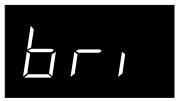
After selecting the "Brilliance" function by pressing the Piano button, use the Value buttons to change the value to the desired amount. The LED display shows the brilliance setting with a number. "0" indicates the standard setting. Brilliance can be set between -10 to +10. Plus settings produce a brighter tone, minus settings produce a mellower tone.
Brilliance settings are global for all the preset sounds. You can not have an individual setting for each sound.
2. TUNING
Tuning allows you to adjust the piano's pitch. You may need to adjust the tuning when you play with other instruments.

After selecting the "Tuning" function by pressing the E.Piano button, use the Value buttons to adjust the tuning. A tuning tone can be heard. The LED display shows the pitch for "A" in Hz (Hertz). For example, 40.0 stands for 440.0Hz . The range of adjustment is from 427.0 to 453.0Hz . The factory preset value is set to the modern standard A = 440.0Hz .
3. VOICING
Voicing is a technique used by piano technicians to mold the character of a piano's sound. The Voicing function lets you change the ES piano's tone quality by choosing one of four types of voicings.
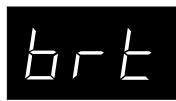
Bright Produces a brighter tone throughout the entire dynamic range.
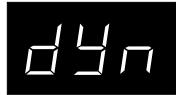
Dynamic The tone will change dramatically from mellow to bright with your playing.
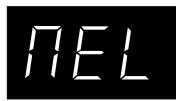
Mellow Produces a mellower tone throughout the entire dynamic range.
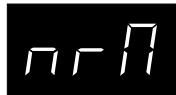
Normal Produces the normal timbre of an acoustic piano throughout the entire dynamic range. This is the preset value.

After selecting the "Voicing" function by pressing the Organ button, use the Value buttons to select a desired voicing type. The LED display shows the type of voicing currently selected.
The current voicing selection is global for all the preset tones. You can not have an individual setting for each tone.
NOTE:
While voicing is a technique used for optimizing the tone of an acoustic piano, this function can be used on all the sounds on the ES piano.
4. SYMPATHETIC RESONANCE
When the sustain pedal is depressed on an acoustic piano, all the dampers are lifted up allowing the strings to vibrate freely. When you play a note or chord on the piano with the sustain pedal depressed not only will the strings for the notes you played vibrate but other strings will vibrate in sympathetic resonance. The Sympathetic Resonance function simulates this phenomenon. You can select from three levels of resonance.
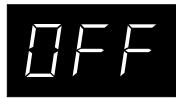
Off no resonance.
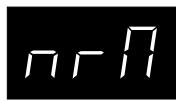
Normal simulates the natural resonance characteristics of an acoustic piano.
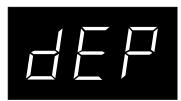
Deep Produces a more intense resonance.
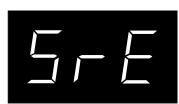
After selecting the "Sympathetic Resonance" function by pressing the Harpsi/Mallets button, use the Value buttons to select the desired setting.
5. TEMPERAMENT
The ES3/5 offers not only equal temperament (the modern standard) but also immediate access to temperaments popular during the Renaissance and Baroque periods. It should be interesting and educational to try some of the different temperaments, although the equal temperament is dominant today.
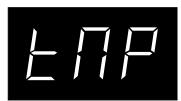
After selecting the "Temperament" function by pressing the Strings button, use the Value buttons to select your desired temperament. The LED display shows the type of temperament currently selected.
BRIEF EXPLANATION OF TEMPERAMENTS
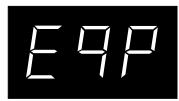
EQUAL TEMPERAMENT (PIANO ONLY)
This is the default temperament. If a piano sound is selected the tuning is stretched like an acoustic piano (EQUAL TEMPERATURE). If any other type of sound is selected the tuning will be EQUAL (FLAT). An explantion of EQUAL TEMPERATURE and EQUAL TEMPERATURE (FLAT) is provided later in this section.
NOTE:
If a piano sound is used in a layer with any other sound then both sounds will use the EQUAL TEMPERAMENT (Stretched) tuning.
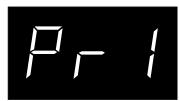
MERSENNE PURE TEMPERAMENT (major) MERSENNE PURE TEMPERAMENT (Minor)
This temperament, which eliminates dissonance's for thirds and fifths is still popular for choral music because of its perfect harmony. You need to be aware what key you are playing in with this temperament. Any key modulation will result in dissonance's. When you play music in a particular key, you need to match the key of the temperament as well. When playing in a major key select Pure (Major) and when playing in a minor key select Pure (minor).
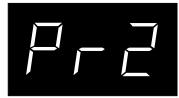
PYTHAGOREAN TEMPERAMENT
This temperament, which uses mathematical ratios to eliminate dissonance for fifths, is very limited for use with chords, but it produces very characteristic melodic lines.

MEANTONE TEMPERAMENT
This temperament, which uses a mean between a major and minor whole tone to eliminate dissonance for thirds, was devised to eliminate the lack of consonance's experienced with certain fifths for the Mersenne pure temperament. It produces chords that are more beautiful than those with the equal temperament.
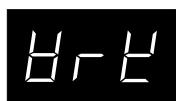
WERCKMEISTER III TEMPERAMENT KIRNBERGER III TEMPERAMENT
These two temperaments are placed in between Meantone and Pythagorean. For music with few accidents, this temperament produces the beautiful chords of the mean tone, but as accidents increase, the temperament produces the characteristic melodies of the Pythagorean temperament. It is used primarily for classical music written in the Baroque era to revive the original characteristics.
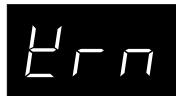
EQUAL TEMPERAMENT (FLAT)
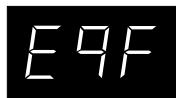
This is "unstretched" equal temperament that divides the scale into twelve equal semitones. This produces the same chordal intervals in all twelve keys, and has the advantage of limitless modulation of the key. However the tonality of each key becomes less characteristic and no chord is in pure consonance.
EQUAL TEMPERAMENT
This is the most popular piano temperament. The hearing ability of a human is uneven and is not as accurate with high frequency and low frequency as it is with the middle range. This temperament's tuning is stretched to compensate for this so the sound will be heard naturally to the ears. This "Stretched" equal temperament is a practical variation of the "unstretched" equal temperament which was invented on a mathematical basis.
Limitless modulation of the key became available only after the invention of Equal temperament. When we use a temperament other than Equal temperament, we must carefully choose the key signature to play in. For example, if the song you are going to play is written in D major, choose "D" as the temperament key by pressing any "D" key on the keyboard. The LED display shows the currently selected key signature. Press either Touch or Transpose button to exit the Function Mode before you start playing.
NOTE:
Changing the key of the temperament will only change the "balance" of the tuning, the pitch of the keyboard remains unchanged. Use the Tuning or Transpose functions to change the pitch of the whole keyboard.
6. MEMORY BACKUP
This function allows the ES3/5 to save the user-definable settings when the power is turned off. Once written to the memory, the saved settings will be recalled every time you turn the power on.
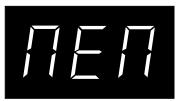
After selecting the "Memory Backup" function by pressing the Choir/Pad button, use the Value buttons to select "user" or "restore". Then press the Rec button to write the settings. The LED display briefly shows "Wrt" and the memory backup is executed.
7. LOWER OCTAVE SHIFT
This allows the octave of the lower part to be shifted up one, two, or three octaves higher when you use the split function.
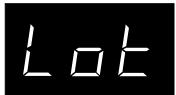
After selecting the "Lower Octave Shift" function by pressing the Bass button, use the Value buttons to select your desired shift range. The LED display shows how many octaves the lower part is shifted up. Lower Octave Shift can be set between 0 to 3.
8. MIDI CHANNEL
This determines on which MIDI channel the ES3/5 will exchange MIDI information with an external MIDI instrument or a personal computer.
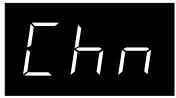
After selecting the "MIDI Channel" function by pressing the Piano button, use the Value buttons to select your MIDI channel. The LED display shows the currently selected channel number.
In order to exchange MIDI information with another MIDI instrument, you must first set the two connected instruments to the same channel.
When the power is first turned on, the ES3/5 always selects "on1" which means omni on, channel 1. If you change it to 1 through 16, omni automatically turns off.
9. TRANSMITTING PROGRAM CHANGE NUMBER
This function allows the ES3/5 to transmit program change numbers beyond the 21 (ES3) or 28 (ES5) pre-defined numbers transmitted by the Sound buttons. Using this function, you can send any number from 1 to 128.
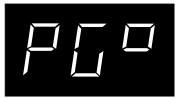
After selecting the "Transmitting Program Chnage Number" function by pressing the E.Piano button, use the Value buttons to select your desired number. The LED display shows the program change number. To send the program change number, press both Value buttons simultaneously.
This determines whether the ES piano's sound will be played from the piano's keyboard ("ON") or only from an external MIDI instrument ("OFF").
Even with local control "off" the piano's keyboard will still transmit to an external MIDI instrument or personal computer.

After selecting the "Local Control" function by pressing the Organ button, use the Value buttons to turn Local Control on and off. The LED display shows whether Local Control is on or off.
11. TRANSMIT PROGRAM CHANGE ON/OFF
This determines whether or not the ES3/5 will transmit program change information when pressing the Sound buttons. When this is turned on, pressing the Sound buttons will send the program change numbers as listed in page 29.
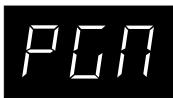
After selecting the "Transmit Program Change On/Off" function by pressing the Harpsi/Mallets button, use the Value buttons to turn Transmit Program Change on and off. The LED display shows whether or not program change numbers will be transmitted.
When the power is first turned on, the Transmit Program Change On/Off function is always "on".
12. TURNING MULTI-TIMBRAL MODE ON/OFF
Multi-timbral mode allows the ES3/5 to receive data on more than one MIDI channel simultaneously. In this mode, the ES3/5 can play different musical parts with different sounds for each part.
Multi-Timbral On
This is a flexible 16 part multi-timbral setup. You can turn individual MIDI channels on and off, and assign any program number to any channel in the way you like.
Multi-Timbral Off
This turns off the multi-timbral capability. Only one MIDI channel will be active and only the preset sound currently selected will be heard when a MIDI signal is received.
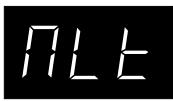
After selecting the "Multi-Timbre" function by pressing the Strings button, use the Value buttons to turn Multi-Timbre on and off. The LED display shows the selected Multi-timbral mode.
When the power is first turned on, the Multi-Timbral Mode setting is always off.
13. CHANNEL MUTE
This determines which MIDI channels are activated to receive when used with Multi-Timbral On. You can activate or deactivate each of the 16 channels individually.
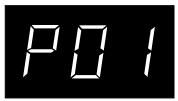
Channel 1
After selecting the "Channel Mute" function by pressing the Choir/ Pad button, press one of the 16 left most white keys to select the desired channel. Then use the Value buttons to turn them on and off.
NOTE:
When the Multi-Timbral mode is set to off, the "Channel Mute" function is not available.
14. LOWER PEDAL ON/OFF
This determines if the sustain pedal will be active for lower sound when in Split mode. The default setting is Off which means the sustain pedal is not active the lower sound.
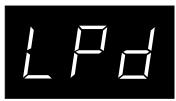
After selecting the "Lower Pedal" function by pressing the Bass button, use the Value buttons to turn it on and off. The LED display shows whether Lower Pedal is on or off.
FACTORY RESET
If you want to recall the original factory settings, turn the power off and then turn it back again while holding down both the Touch and Transpose buttons at the same time.
The term MIDI is an acronym for Musical Instrument Digital Interface, an international standard for connecting synthesizers, sequencers (digital recorders) and other electronic instruments so that they can exchange performance data.
The ES3/5 is equipped with two MIDI jacks for exchanging data: MIDI IN and MIDI OUT. Each uses a special cable with a DIN connector.
MIDI IN : For receiving note, program change and other data.
MIDI OUT: For sending note, program change and other data.
MIDI EXAMPLES
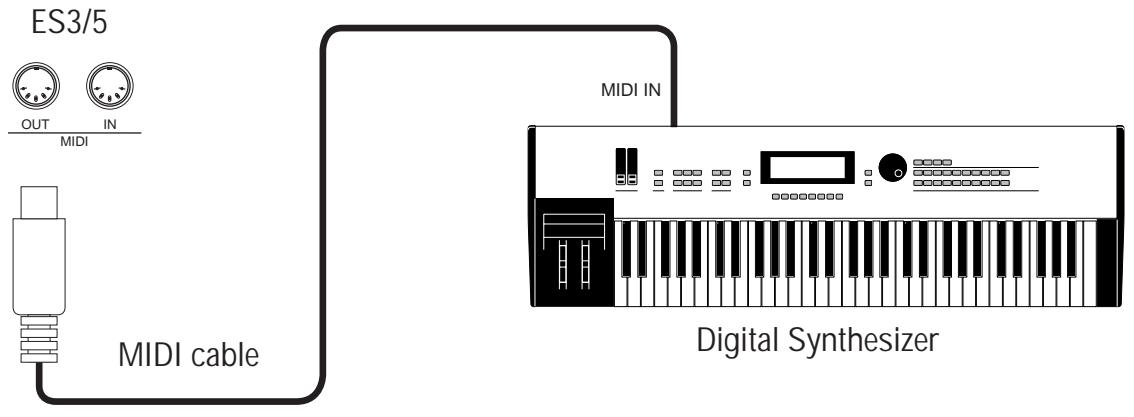
(1) Connection to another MIDI compatible keyboard or sound generator module
When connected as shown in the illustration, data on how the digital piano is played (which keys are struck) can be sent to another MIDI instrument. Plus, the sound from the ES3/5 can be layered over the sound of the other instrument.
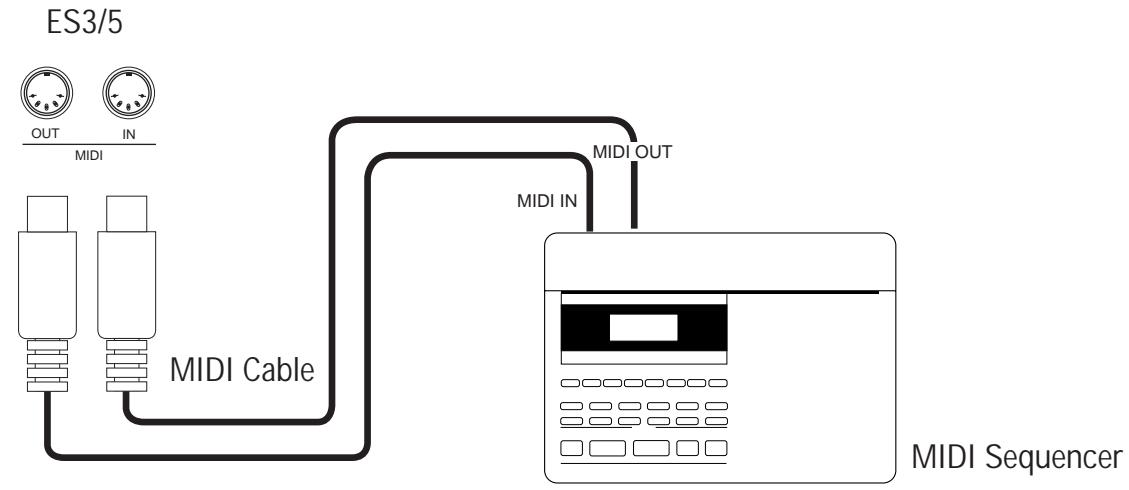
(2) Connection to an external sequencer
When connected as shown in the illustration, you can record songs played on the ES3/5 with a sequencer, and use the ES3/5's sounds (such as piano, harpsichord and vibraphone, etc.) controlled by the ES3/5's Multi-Timbral Mode function to create a multi-layer MIDI recording.
USB
The ES3/5 can be connected with a personal computer with a USB cable for exchanging MIDI data. You need a USB driver installed in your computer.
[For Windows XP/Me users]
A standard USB driver is already installed in your computer. You don't need to install a new driver.
[For Windows 2000/98SE users]
You need to install the designated driver in your computer. Visit the KAWAI web site at http://www.kawai.co.jp/english/Download1.html and download the program.
[For Macintosh users]
Currently we don't have a USB driver available for Macintosh computers. Please use an appropriate MIDI interface and MIDI cables when connecting the ES3/5 to a Macintosh computer.
NOTE:
When both MIDI jacks and USB jack are connected, USB has priority.
When connecting USB cable to the ES3/5, first connect the USB cable and then turn the power of the ES3/5 on.
It may take some time to start communication when the ES3/5 is connected to the computer via USB.
When USB communication is unstable with connection via hub, connect the USB cable directly to the USB port of the computer.
Turning the power of ES3/5 on/off or disconnecting the USB cable while the following actions may cause unstable communication.
while installing USB driver
while booting up the computer
while MIDI application is working
while communicating with the computer
while the computer is in energy saver mode
If you have any problem with USB communication, consult the instruction manual of your computer and check your computer set up.
The USB-MIDI conversion board TID10000934 used in the ES3/5 is approved to show the USB logo. The USB logo can be used only for the product which is approved by USB-IF (USB Implements Forum Inc.) test.
Windows is registerd trademark of Microsoft Corporation.
Macintosh is registered trademark of Apple Computer, Inc.
Program Change Number Mapping
| Sound | Multi-Timbral mode | ||||
| Off | On | ||||
| Prog # (ES3) | Prog # (ES5) | Bank MSB | Bank LSB | Prog # | |
| Concert Grand | 1 | 1 | 121 | 0 | 1 |
| Mellow Grand | 2 | 2 | 121 | 16 | 1 |
| Modern Piano | 3 | 3 | 121 | 0 | 2 |
| Rock Piano * | - | 4 | 121 | 8 | 2 |
| Classic E.Piano | 4 | 5 | 121 | 0 | 5 |
| 60’ s E.Piano | 5 | 6 | 121 | 24 | 5 |
| Modern E.P.1 | 6 | 7 | 121 | 0 | 6 |
| Legend E.P. * | - | 8 | 121 | 90 | 6 |
| Jazz Organ | 7 | 9 | 121 | 0 | 18 |
| Drawbar Organ 1 | 8 | 10 | 121 | 0 | 17 |
| Church Organ | 9 | 11 | 121 | 0 | 20 |
| Diapason * | - | 12 | 121 | 96 | 20 |
| Harpsichord | 10 | 13 | 121 | 0 | 7 |
| Clavi | 11 | 14 | 121 | 0 | 8 |
| Vibraphone | 12 | 15 | 121 | 0 | 12 |
| Marimba * | - | 16 | 121 | 8 | 13 |
| String Ensemble | 13 | 17 | 121 | 0 | 49 |
| Slow Strings | 14 | 18 | 121 | 90 | 45 |
| Warm Strings | 15 | 19 | 121 | 91 | 49 |
| String Pad * | - | 20 | 121 | 94 | 49 |
| Choir | 16 | 21 | 121 | 0 | 53 |
| Atmosphere | 17 | 22 | 121 | 0 | 100 |
| New Age Pad | 18 | 23 | 121 | 0 | 89 |
| Itopia * | - | 24 | 121 | 90 | 92 |
| Acoustic Bass | 19 | 25 | 121 | 0 | 33 |
| Electric Bass | 20 | 26 | 121 | 0 | 34 |
| A.Bass & Ride | 21 | 27 | 121 | 90 | 33 |
| E.Bass & Ride * | - | 28 | 121 | 90 | 34 |
| Standard Kit 1 * | - | - | 120 | 0 | 1 |
| Standrad Kit 2 * | - | - | 120 | 0 | 33 |
| Room Kit * | - | - | 120 | 0 | 9 |
| Analog Kit * | - | - | 120 | 0 | 26 |
- ES5 only
| Main Demo 1 (ES5 only) | Original | |
| Main Demo 2 (ES5 only) | Original | |
| Piano | Concert Grand | Rhapsodie No.2 / Brahms |
| Mellow Grand | La Fille aux Cheveux de Lin / Debussy | |
| Modern Piano | Original | |
| Rock Piano (ES5 only) | Original | |
| E. Piano | Classic E. Piano | Original |
| Modern E.P. 1 | Original | |
| Legend E.P. (ES5 only) | Original | |
| Organ | Jazz Organ | Original |
| Drawbar Organ 1 | Original | |
| Church Organ | Toccata / Eugene Giout | |
| Diapason (ES5 only) | Wohl mir, daß ich Jesum haben / Bach | |
| Harpsi/Mallets | Harpsichord | French Suite No.6 / Bach |
| Clavi | Original | |
| Vibraphone | Original | |
| Strings | String Ensemble | Le quattro stagioni La primavera / Vivaldi |
| Slow Strings | Original | |
| String Pad (ES5 only) | Original | |
| Choir/Pad | Choir | Original |
| Atmosphere | Original | |
| New Age Pad | Original | |
| Bass | Acoustic Bass | Original |
| Finger Bass | Original | |
| A. Bass & Ride | Original |
RHYTHM LIST (ES5 ONLY)
| 1 | 8 Beat 1 | 26 | Ride Beat 3 | 51 | Techno 1 | 76 | Fast Swing |
| 2 | 8 Beat 2 | 27 | Ride Beat 4 | 52 | Techno 2 | 77 | Tom Swing |
| 3 | 8 Beat 3 | 28 | Smooth Beat | 53 | Techno 3 | 78 | Jazz Waltz 1 |
| 4 | 16 Beat 1 | 29 | Heavy Beat | 54 | Heavy Techno | 79 | Jazz Waltz 2 |
| 5 | 16 Beat 2 | 30 | Rim Beat | 55 | Light Ride 1 | 80 | H.H. Bossa Nova |
| 6 | 16 Beat 3 | 31 | Slip Beat | 56 | Light Ride 2 | 81 | Ride Bossa Nova |
| 7 | 16 Beat 4 | 32 | Slow Jam | 57 | Shuffle 1 | 82 | Beguine |
| 8 | 16 Beat 5 | 33 | Jazz Rock | 58 | Shuffle 2 | 83 | Mambo |
| 9 | 16 Beta 6 | 34 | Funky Beat 1 | 59 | Shuffle 3 | 84 | Songo |
| 10 | Rock Beat 1 | 35 | Funky Beat 2 | 60 | Shuffle 4 | 85 | Cha Cha |
| 11 | Rock Beat 2 | 36 | Funky Beat 3 | 61 | Shuffle 5 | 86 | Samba |
| 12 | Rock Beat 3 | 37 | Funk 1 | 62 | Open Shuffle 1 | 87 | Light Samba |
| 13 | Hard Rock | 38 | Funk 2 | 63 | Open Shuffle 2 | 88 | Surdo Samba |
| 14 | Surf Rock | 39 | Funk 3 | 64 | LA Shuffle | 89 | Latin Groove |
| 15 | Ballad 1 | 40 | Funk Shuffle 1 | 65 | T Shuffle | 90 | Afro Cuban |
| 16 | Ballad 2 | 41 | Funk Shuffle 2 | 66 | Triplet 1 | 91 | Bembe |
| 17 | Ballad 3 | 42 | Buzz Beat | 67 | Triplet 2 | 92 | African Bembe |
| 18 | Ballad 4 | 43 | Disco 1 | 68 | Triplet 3 | 93 | Merenge |
| 19 | Ballad 5 | 44 | Disco 2 | 69 | Triplet Ballad 1 | 94 | Reggae |
| 20 | Pop 1 | 45 | 50 Ways | 70 | Triplet Ballad 2 | 95 | Tango |
| 21 | Pop 2 | 46 | 2nd Line | 71 | Motown 1 | 96 | Waltz |
| 22 | Electro Pop 1 | 47 | Hip Hop 1 | 72 | Motown 2 | 97 | Ragtime |
| 23 | Electro Pop 2 | 48 | Hip Hop 2 | 73 | Ride Swing | 98 | Boogie |
| 24 | Ride Beat 1 | 49 | Hip Hop 3 | 74 | H.H. Swing | 99 | Country & Western |
| 25 | Ride Beat 2 | 50 | Hip Hop 4 | 75 | 5/4 Swing | 100 | Habanera |
| Standard Kit 1 | Standard Kit 2 | Room Kit | Analog Kit | ||
| C# | Snare Roll | Snare Roll | Snare Roll | Snare Roll | |
| D | Finger Snap | Finger Snap | Finger Snap | Finger Snap | |
| D# | High Q | High Q | High Q | High Q | |
| E | Slap | Slap | Slap | Slap | |
| F | Scratch Push | Scratch Push | Scratch Push | Scratch Push2 | |
| F# | Scratch Pull | Scratch Pull | Scratch Pull | Scratch Pull2 | |
| G | Sticks | Sticks | Sticks | Sticks | |
| G# | Square Click | Square Click | Square Click | Square Click | |
| A | Metronome Click | Metronome Click | Metronome Click | Metronome Click | |
| A# | Metronome Bell | Metronome Bell | Metronome Bell | Metronome Bell | |
| B | Std1 BD2 | Std2 BD2 | Room BD2 | Analog BD2 | |
| C2 | C | Std1 BD1 | Std2 BD1 | Room BD1 | Analog BD1 |
| C# | Rim | Rim | Rim | Analog Rim | |
| D | Std1 SD1 | Std2 SD1 | Room SD1 | Analog SD1 | |
| D# | Hand Clap | Hand Clap | Hand Clap | Hand Clap | |
| E | Std1 SD2 | Std2 SD2 | Room SD2 | Analog SD2 | |
| F | Std1 Low Tom2 | Std2 Low Tom2 | Room Low Tom2 | Analog Low Tom2 | |
| F# | Std1 HHC | Std2 HHC | Room HHC | Analog HHC | |
| G | Std1 Low Tom1 | Std2 Low Tom1 | Room Low Tom1 | Analog Low Tom1 | |
| G# | Std1 HHP | Std2 HHP | Room HHP | Analog HHP | |
| A | Std1 Mid Tom2 | Std2 Mid Tom2 | Room Mid Tom2 | Analog Mid Tom2 | |
| A# | Std1 HHO | Std2 HHO | Room HHO | Analog HHO | |
| B | Std1 Mid Tom1 | Std2 Mid Tom1 | Room Mid Tom1 | Analog Mid Tom1 | |
| C3 | C | Std1 Hi Tom2 | Std2 Hi Tom2 | Room Hi Tom2 | Analog Hi Tom2 |
| C# | Std1 Crash1 | Std2 Crash1 | Room Crash1 | Analog Crash1 | |
| D | Std1 Hi Tom1 | Std2 Hi Tom1 | Room Hi Tom1 | Analog Hi Tom1 | |
| D# | Std1 Ride1 | Std2 Ride1 | Room Ride1 | Analog Ride1 | |
| E | China | China | China | China | |
| F | Cup | Cup | Cup | Cup | |
| F# | Tambourine | Tambourine | Tambourine | Tambourine | |
| G | Splash | Splash | Splash | Splash | |
| G# | Cowbell | Cowbell | Cowbell | Analog Cowbell | |
| A | Crash2 | Crash2 | Crash2 | Crash2 | |
| A# | Vibra Slap | Vibra Slap | Vibra Slap | Vibra Slap | |
| B | Ride2 | Ride2 | Ride2 | Ride2 | |
| C4 | C | Hi Bongo | Hi Bongo | Hi Bongo | Hi Bongo |
| C# | Low Bongo | Low Bongo | Low Bongo | Low Bongo | |
| D | Mute Hi Conga | Mute Hi Conga | Mute Hi Conga | Analog Hi Conga | |
| D# | Hi Conga | Hi Conga | Hi Conga | Analog Mid Conga | |
| E | Low Conga | Low Conga | Low Conga | Analog Low Conga | |
| F | Hi Timbale | Hi Timbale | Hi Timbale | Hi Timbale | |
| F# | Low Timbale | Low Timbale | Low Timbale | Low Timbale | |
| G | Hi Agogo | Hi Agogo | Hi Agogo | Hi Agogo | |
| G# | Low Agogo | Low Agogo | Low Agogo | Low Agogo | |
| A | Cabasa | Cabasa | Cabasa | Cabasa | |
| A# | Maracas | Maracas | Maracas | Analog Maracas | |
| B | Short Whistle | Short Whistle | Short Whistle | Short Whistle | |
| C5 | C | Long Whistle | Long Whistle | Long Whistle | Long Whistle |
| C# | Short Guiro | Short Guiro | Short Guiro | Short Guiro | |
| D | Long Guiro | Long Guiro | Long Guiro | Long Guiro | |
| D# | Claves | Claves | Claves | Analog Claves | |
| E | Hi Wood Blk | Hi Wood Blk | Hi Wood Blk | Hi Wood Blk | |
| F | Low Wood Blk | Low Wood Blk | Low Wood Blk | Low Wood Blk | |
| F# | Mute Cuica | Mute Cuica | Mute Cuica | Mute Cuica | |
| G | Open Cuica | Open Cuica | Open Cuica | Open Cuica | |
| G# | Mute Triangle | Mute Triangle | Mute Triangle | Mute Triangle | |
| A | Open Triangle | Open Triangle | Open Triangle | Open Triangle | |
| A# | Shaker | Shaker | Shaker | Shaker | |
| B | Jingle Bell | Jingle Bell | Jingle Bell | Jingle Bell | |
| C6 | C | Bell Tree | Bar Chimes | Bar Chimes | Bar Chimes |
| C# | Castanets | Castanets | Castanets | Castanets | |
| D | Mute Surdo | Mute Surdo | Mute Surdo | Mute Surdo | |
| D# | Open Surdo | Open Surdo | Open Surdo | Open Surdo |
SPECIFICATIONS
| ES3 | ES5 | |
| Keyboard | 88 Keys with Advanced Hammer Action III | |
| Polyphony | Maximum 64 | |
| Preset Tones | Piano (3), E.Piano (3), Organ (3), Harpsi/Mallets (3), Strings (3), Choir/Pad (3), Bass (3) | Piano (4), E.Piano (4), Organ (4), Harpsi/Mallets (4), Strings (4), Choir/Pad (4), Bass (4) |
| Effects | Chorus, Tremolo, Delay (3), Rotary (2) | |
| Reverb | Room, Stage, Hall | |
| Temperaments | Equal (Piano Only), Mersenne pure (Major), Mersenne pure (minor), Pythagorea, Meantone, Werckmeister III, Kirnberger III, Equal (flat), Equal | |
| Other Features | Master Volume, Dual, Split, Dual/Split Balance, Transpose, Tune, Sympathetic Resonance, EQ (3) Touch Curve (Normal, Light (2), Heavy (2), Off), MIDI (16 part multi-timbral capability) | |
| Recorder | 2 Tracks, 4 Songs The total memory capacity is approximately 10000 notes. | |
| Pedal | Sustain, Soft (with optional F-2r foot pedal) | |
| Jacks | Headphone (2), LINE IN (Stereo), LINE OUT (L/MONO, R), PEDAL, MIDI (IN, OUT), USB | |
| Output Power | 7W x 2 | 7W x 2 + 13W (10W x 2 without stand) |
| Speakers | (12 cm x 8 cm) x 2 | (12 cm x 8 cm) x 2 5 cm x 2 (tweeter), 13 cm (woofer) |
| Dimensions | 136.2 x 32.1 x 13.8 cm | 137.4 x 39.9x 76.4 cm |
| (W x D x H) | 54" x 13" x 5" | 54" x 16" x 30" |
| Weight | 19.5 kg, 43 LB's | 34.6 kg, 76 LB's |
Specifications are subject to change without notice.
KAWAI DIGITAL PIANO
MODEL: ES3/5
Date: December 2002
Version: 1.0
| FUNCTION | TRANSMITTED | RECEIVED | REMARKS |
| Basic Channel (Default) (Changed) | 1 1-16 | 1 1-16 | |
| Mode (Default) (Message) (Altered) | 3 x ********** | 1 1, 3* | Omni On, channel 1 *Omni Off by setting MIDI channel |
| Note Number (True Voice) | 15-113* ********** | 0-127 15-113 | *with Transpose |
| Velocity (Note ON) (Note OFF) | O: 9nH v=1-127 x: 8nH v=0 | O x | |
| After Touch Key's Channel's | x x | x x | |
| Pitch Bend | x | x | |
| Control Change 7 64 67 | x O O (with F-2r pedal) | O O O | Volume Damper pedal Soft pedal |
| Program Change True | O ********** | O | |
| System Exclusive | O | O | |
| Common (Song Position) (Song Select) (Tune) | x x x | x x x | |
| System: Real Time (Clock) (Commands) | x x | x x | |
| Others (Local ON/OFF) (All Notes OFF) (Avive Sense) (Reset) | x x O x | O O* O* x | *When Multi-Timbral mode is On |
| Mode 1: OMNI ON, POLY Mode 2: OMNI ON, MONO Mode 3: OMNI OFF, POLY Mode 4: OMNI OFF, MONO | |||
KAWAI
ES3/5 Owner's Manual
OW966E-L
Printed in Japan
- Important Safety Instructions
- SAVE THESE INSTRUCTIONS
- Examples of Picture Symbols
- WARNING
- CAUTION
- Notes on Repair
- CAUTION:
- ATTENTION:
- Instruction for AC power cord (U.K.)
- FCC Information
- Canadian Radio Interference Regulations
- TABLE OF CONTENTS
- Page
- Getting Started
- Digital Recording Functions
- Function Mode
- Master Volume Slider (A)
- Demo Button (B)
- Split Button (C)
- Registration Button (D)
- Sound Buttons (E)
- FRONT PANEL
- Balance/Value Buttons (F)
- Effects Button (G)
- Reverb Button (H)
- Metronome (Rhythm/Metronome) Button (I)
- Recorder Buttons (J)
- Function Buttons (K)
- MIDI Jacks (L)
- USB Jack (M)
- PEDAL Jack (N)
- SPEAKER Switch (0)
- LINE IN STEREO Jack (P)
- LINE OUT Jacks (Q)
- PHONES Jacks (R)
- POWER Button (S)
- AC Adaptor Jack (ES3) / Power Cable Jack (ES5) (T)
- Woofer Volume Knob (ES5 only) (U)
- BASIC OPERATIONS
- Split
- Effects
- CHORUS
- DELAY
- TREMODO
- ROTARY
- (7)Reverb
- EQ
- TRANSPOSE
- TOUCH RESPONSE
- LIGHT
- HEAVY
- OFF
- NOTE:
- REGISTRATION
- EASY RECORDING
- METRONOME/SELECT TIME AND TEMPO
- METRONOME/ADJUST VOLUME
- PLAYING BACK A SONG
- ADVANCED RECORDING/PLAYBACK FUNCTIONS
- PLAYING BACK THE LEFT- AND RIGHT-HAND PARTS SEPARATELY
- DELETING A SONG/PART
- BRILLIANCE
- TUNING
- VOICING
- SYMPATHETIC RESONANCE
- TEMPERAMENT
- BRIEF EXPLANATION OF TEMPERAMENTS
- EQUAL TEMPERAMENT (PIANO ONLY)
- MERSENNE PURE TEMPERAMENT (major) MERSENNE PURE TEMPERAMENT (Minor)
- PYTHAGOREAN TEMPERAMENT
- MEANTONE TEMPERAMENT
- WERCKMEISTER III TEMPERAMENT KIRNBERGER III TEMPERAMENT
- EQUAL TEMPERAMENT (FLAT)
- EQUAL TEMPERAMENT
- MEMORY BACKUP
- LOWER OCTAVE SHIFT
- MIDI CHANNEL
- TRANSMITTING PROGRAM CHANGE NUMBER
- TRANSMIT PROGRAM CHANGE ON/OFF
- TURNING MULTI-TIMBRAL MODE ON/OFF
- Multi-Timbral On
- Multi-Timbral Off
- CHANNEL MUTE
- LOWER PEDAL ON/OFF
- FACTORY RESET
- MIDI EXAMPLES
- Connection to another MIDI compatible keyboard or sound generator module
- Connection to an external sequencer
- USB
- Program Change Number Mapping
- RHYTHM LIST (ES5 ONLY)
- SPECIFICATIONS
- KAWAI
Brand : KAWAI
Model : ES5
Category : Digital piano