ALPHAX GPS - Gps YAKUMO - Free user manual and instructions
Find the device manual for free ALPHAX GPS YAKUMO in PDF.


| Product Type | PDA with built-in GPS |
| Brand | YAKUMO |
| Model | ALPHAX GPS |
| Operating System | Microsoft Windows Pocket PC |
| Screen | Color TFT touchscreen |
| GPS Functions | Retractable antenna, external GPS support |
| Connectivity | USB port (ActiveSync cable), infrared, SD/MMC slot, headphone jack |
| Power | Rechargeable lithium-ion battery; AC adapter and car charger included |
| Battery Life | Up to 8 hours |
| Box Contents | PDA, stylus, ActiveSync USB cable, AC adapter, car charger, Companion CD, quick start guide |
| Maintenance | Clean with a soft, slightly damp cloth; avoid chemicals |
| Safety | Use only supplied accessories; do not expose to moisture or extreme temperatures; do not disassemble |
| Spare Parts | Replaceable battery; contact customer service for repairs |
| Customer Service | Hotline: 00 800 / 92 58 66 00; email: info@yakumo.de |
| Warranty | Exclusion for pixels and damage due to temperature variations |
Frequently Asked Questions - ALPHAX GPS YAKUMO
User questions about ALPHAX GPS YAKUMO
0 question about this device. Answer the ones you know or ask your own.
Ask a new question about this device
Download the instructions for your Gps in PDF format for free! Find your manual ALPHAX GPS - YAKUMO and take your electronic device back in hand. On this page are published all the documents necessary for the use of your device. ALPHAX GPS by YAKUMO.
USER MANUAL ALPHAX GPS YAKUMO
PDA with GPS function
Trademarks
All brand and product names are trademarks or registered trademarks of their respective companies.
Note
The information in this manual is subject to change without notice.
Table of Contents
Preface V
Welcome. 4
About this Manual. 4
Where to Find Information 5
1 Getting Started. 6
1.1 Expanding Your Yakumo alphaX GPS 16
Using an SD/MMC Card. 16
2 Basic Skills. 17
2.1 Using the Stylus 17
2.2 Using the Navigation Stick 18
2.3 Today Screen 18
Status Icons. 19
2.4 Navigation Bar and Command Bar 20
2.5 Executing A Program 20
A.1 Pop-up Menus 21
A.2 Notifications 22
2.6 Entering Information 23
Entering Text Using the Input Panel. 23
Writing on the Screen 25
Drawing on the Screen 28
Recording a Message 30
Using My Text 32
3 Managing Your Yakumo alphaX GPS 33
3.1 Power Management 33
Low Battery Signals and Actions 33
Power-Saving Tips 35
3.2 Managing Memory 36
Storage and Program Memory 36
Additional Memory 36
3.3 Customizing Your Yakumo alphaX GPS 37
Setting a Password 38
3.4 Finding and Organizing Information 39
3.5 Backing Up Data 40
3.6 Adding or Removing Programs 40
Adding Programs 40
Removing Programs 42
4 Microsoft Pocket Outlook 43
4.1 Calendar: Scheduling Appointments and Meetings 43
Creating An Appointment 44
Using the Summary Screen 45
Creating Meeting Requests 45
4.2 Contacts: Tracking Friends and Colleagues 46
Creating a Contact 47
Finding a Contact 48
Using the Summary Screen 48
4.3 Tasks: Keeping a To Do List 49
Creating a Task 50
Using the Summary Screen 51
4.4 Notes: Capturing Thoughts and Ideas 52
Creating a Note 52
4.5 Inbox: Sending and Receiving E-mail Messages 54
Synchronizing E-mail Messages 54
Connecting Directly to an E-mail Server 54
Using the Message List 56
Composing and Sending Messages 58
Managing E-mail Messages andFolders 59
5 Additional Programs 61
5.1 Microsoft ActiveSync 61
Microsoft ActiveSync 61
Ways of Connecting to Your Desktop Computer 62
Synchronizing Data 62
5.2 Pocket Word 65
Creating a Document 65
Working with Pocket Word Documents 67
5.3 Pocket Excel 69
Working with Pocket Excel Workbooks 70
5.4 MSN Messenger 71
Setting Up to Use MSN Messenger 72
Working with Contacts 72
Chatting with Contacts 73
5.5 Windows Media Player for Pocket PC 74
5.6 Additional Programs 75
Backup Restore 75
6 Getting Connected 77
6.1 Connection Settings 77
Modem Connection 77
Network (Ethernet) Card Connection 78
Wireless Network Connection (WLAN) 79
Starting and Ending a Wireless Network Connection 81
6.2 Transferring Items Using Infrared 81
Sending Information 81
Receiving Information 82
6.3 Using Microsoft Pocket Internet Explorer 83
Viewing Mobile Favorites and Channels 83
Browsing the Internet 84
The Mobile Favorites Folder. 84
7 Troubleshooting and Maintenance 87
7.1 Resetting Your Yakumo alphaX GPS 87
7.2 Remove the SD/MMC card (if installed). 88
7.3 Power Problems 89
7.4 Memory Problems 89
7.5 Screen Problems 91
7.6 Connection Problems 92
Problems with the Docking Station Connection (optional) 92
Infrared Connection Problems. 93
Modem Connection Problems 93
7.7 Taking Care of Your Yakumo alphaX GPS 94
General Information 94
Travel Guidelines 95
Service 96
A.3 Safety Precautions 97
About Charging 97
About the AC Adapter 97
About the Battery. 97
About the Infrared LED. 98
About the Electrostatic Discharge 98
Preface
Welcome
- Congratulations on purchasing this Windows® powered Yakumo alphaX GPS Pocket PC. Thanks to the size and capabilities of the device, you can keep your most important business and personal information up-to-date and close at hand. Microsoft® ActiveSync® increases the power of your Yakumo alphaX GPS by allowing you to synchronize the information on your desktop or Microsoft Exchange Server with your Yakumo alphaX GPS.
About this Manual
This manual contains comprehensive information of your Yakumo to help you operate the device.
Throughout the manual, the following conventions are used to distinguish elements of text.
NOTE: provides additional hints or information that requires special attention.
Caution: identifies important information which, if not followed, may result in loss of data or damage to your device.
Any name of menu, command, icon or button that you can see on the screen is shown in a bold typeset. For example:
On the Start menu, tap Settings.
Where to Find Information
| For information on | See this source |
| First time startup | Quick Start Guide |
| GPS operation | The manual supplied with the GPS software (a third-party software) |
| Programs on your Yakumo alphaX GPS | This User's Manual or online Help on your Yakumo alphaX GPS |
| Connecting to and synchronizing with a desktop computer | Companion CD or other CD(s) supplied with your Yakumo alphaX GPS |
| Connecting to and synchronizing with a desktop computer | Manual or ActiveSync Help on your desktop computer |
| Troubleshooting | Manual |
| Last-minute updates and detailed technical information | The Read Me files in the “Microsoft ActiveSync” folder on your desktop computer or the Yakumo alphaX GPS Companion CD. |
| The latest on Windows Powered Yakumo alphaX GPS | The Microsoft Mobile Devices Web site: www.pocketpc.com |
1 Getting Started
This chapter introduces you to the external components of your Yakumo alphaX GPS and guides you through the process of setting up your Yakumo alphaX GPS for use.
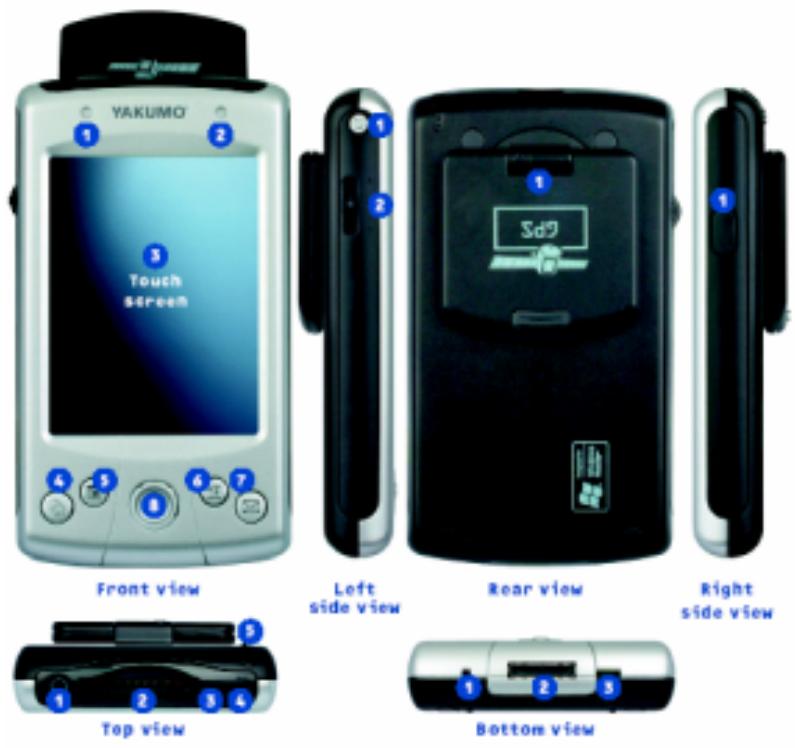
Overview of components
Front view
- GPS LED indicator Status description: Blinking blue = GPS active
- Power LED indicator
Status description:
Blinking green = Charging
Steady green = Charging completed
Steady red = Alarm indication
Blinking red = Battery power low - LC Touch Screen Display (Can be operated by using the stylus or finger)
- Quickstart button (Today screen)
- Quickstart button (Calendar)
- Quickstart button (Contacts)
- Quickstart button (行政审批)
8.4-way button
Left side view
- Power button
On/Off:
Press once = PDA is turned off
Press and hold (approx. 2 sec.) =
Display is dimmed (Re-activate by pressing any button or tapping on the display)
2.Scroll wheel
Rear view
- Retractile GPS antenna: active when not retracted
Top view
- Earphone jack
- SD/MMC slot
- IR port
- Microphone
- Stylus holder
Bottom view
- Soft Reset button: Warm start, if the PDA does not respond any more. (Any data will not be deleted)
- 26-pin I/O port: For power supply via the supplied USB Sync cable in order to charge the batteries or to supply electricity continuously. Also for data exchange with a PC.
- Hard Reset button: Setting this button to "OFF" and back to "ON" will reset the PDA to its factory defaults. (Any data you have saved on your PDA will be lost!)
Right side view
- Jack for connecting an optional external GPS antenna.
First steps
- The battery switch should be toggled to normal operation "ON" (to the right). Take the stylus out of the stylus holder and use it to move the battery switch to the right to "ON" position.
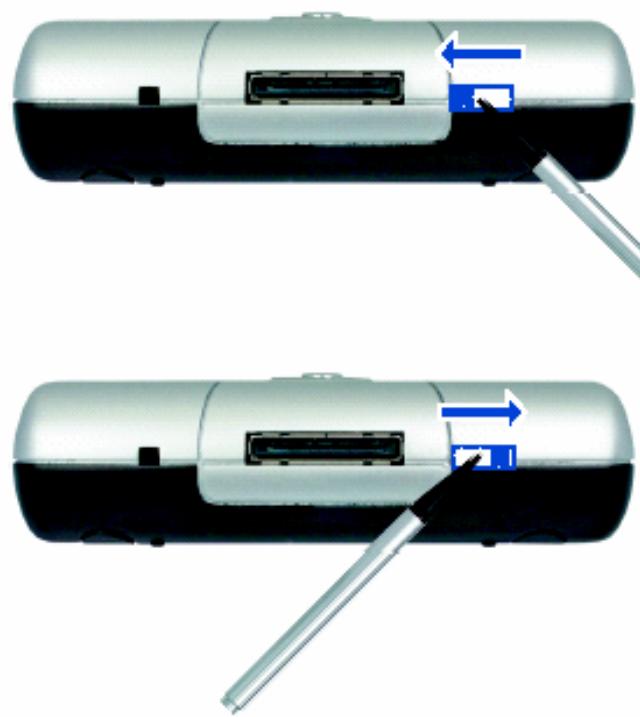
Moving the toggle switch to the left will cause a hardware reset.
After moving the toggle back to the right the alphaX GPS will start in its factory-default configuration.
Caution: When performing a hardware reset, all of your personal data saved on the device will be deleted.
Caution: Have this switch always toggled to the right position except when you have to reset the hardware. This procedure will delete the memory of your Yakumo alphaX GPS.
- The Yakumo alphaX GPS will automatically turn on and show its welcome screen.
- In order to continue, use the stylus to tap on the screen and read the onscreen instructions. The welcome screen represents a short help for Microsoft® Windows® installed on the Yakumo alphaX GPS. It helps you to position the touch screen and will prompt you to enter your region and time zone settings.
Charging the battery
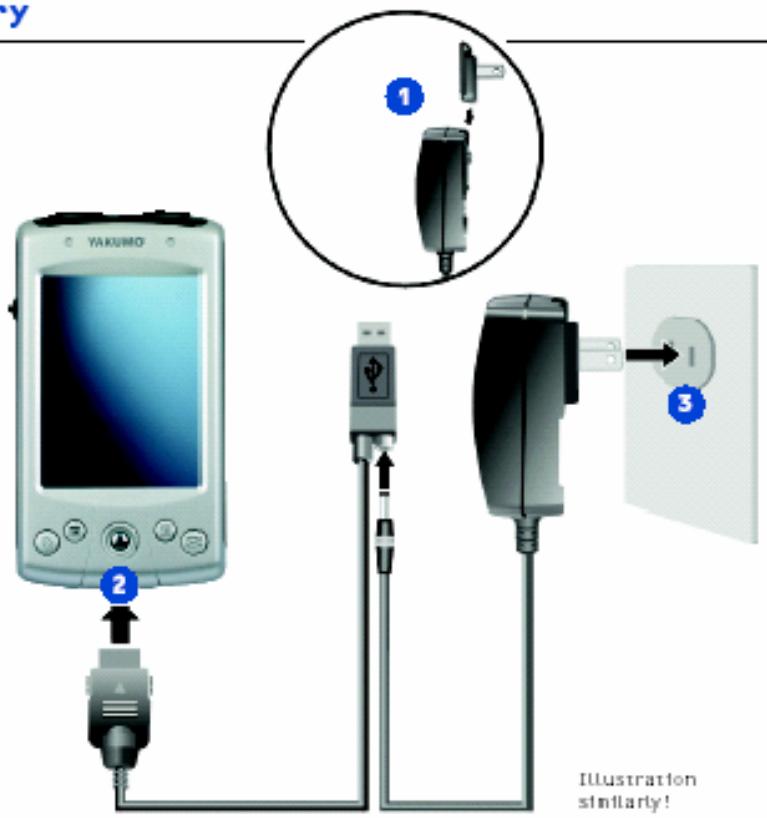
- Connect the adapter to the power adapter.
- Connect it to a wall outlet.
Connect the corresponding end of the ActiveSync cable to the bottom of your Yakumo alphaX GPS.
Connect the appropriate end of the power adapter to the power jack of the ActiveSync cable.
- Plug the other end of the power adapter to a wall outlet.
Note: It is recommended that you charge the battery for at least 24 hours when charging the Yakumo alphaX GPS for the first time. This makes sure that the battery can develop to its full performance.
We recommend that you have your Yakumo alphaX GPS connected to the power adapter and a wall outlet whenever possible. This will guarantee that the battery is always fully charged.
Installing Microsoft ActiveSync
Microsoft ActiveSync allows you to synchronise information stored on your desktop PC and/or a Microsoft Exchange server with that stored on your Yakumo alphaX GPS and update it with the desktop PC and/or server in any location.
ActiveSync® has already been installed on your Yakumo alphaX GPS. You will also have to install ActiveSync® on your desktop PC. To do so, please proceed as follows:
Caution: Make sure that you have installed Microsoft Outlook on your desktop PC prior to starting this installation procedure. If you have not or if the Outlook version is older than the one contained on CD #1, re-install Outlook from CD!
First install ActiveSync before you connect your Pocket PC to your desktop-PC.
During setup, select New Partnership [Synchronize with this desktop]. Do not select [Synchronize with Mobile Information Server and/or this desktop], unless your company is using Mobile Information Server 2002. Please ask your network administrator or your ISP for details.
1. Turn on your PC.
2. Insert the Companion CD into the PC's CD-ROM drive.
3. Click the arrow in the first screen to proceed to the main screen and click [Start here].
4. On the left side of the "Start Here" screen, click [Install ActiveSync 3.7].
5. In the "Install ActiveSync 3.7" screen, click [Install] to start the setup.
6. In the "Download File" screen select [Open], if you are using Windows XP, or click [Launch the program from another location] when using Windows 2000/ ME/98.
7. Follow the on-screen instructions to install ActiveSync.
8. Connect the corresponding end of the ActiveSync cable to the bottom of your Yakumo alphaX GPS. Next connect the USB cable to a free USB port on your desktop PC.
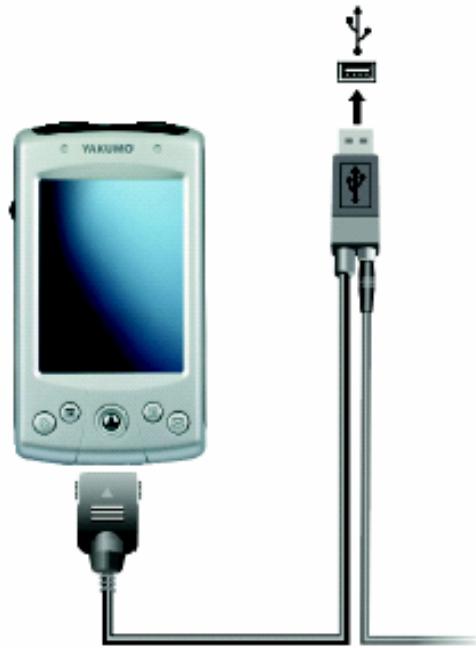
- If the Hardware Wizard prompts you for a driver, click [Browse] and specify the CD-ROM drive where you have inserted the CD.
- Follow the on-screen instructions to set up a partnership and to synchronise your Yakumo alphaX GPS with the desktop PC.
During the first synchronization, information such as the Calendar, Contacts or Tasks contained on your desktop PC will be copied to the Yakumo alphaX GPS. Now you can carry your Yakumo alphaX GPS around with you.
Getting started
Stylus
In a similar way to a mouse, the stylus is used to navigate in the user interface. To select objects and commands, tap on the screen with the stylus.
Today screen
After turning on the device for the first time (or after 4 hours of inactivity) the Today screen will be displayed. The Today screen contains the most important data for today.
Start menu
Tap on the top left corner of the screen to select a program from the Programs menu.
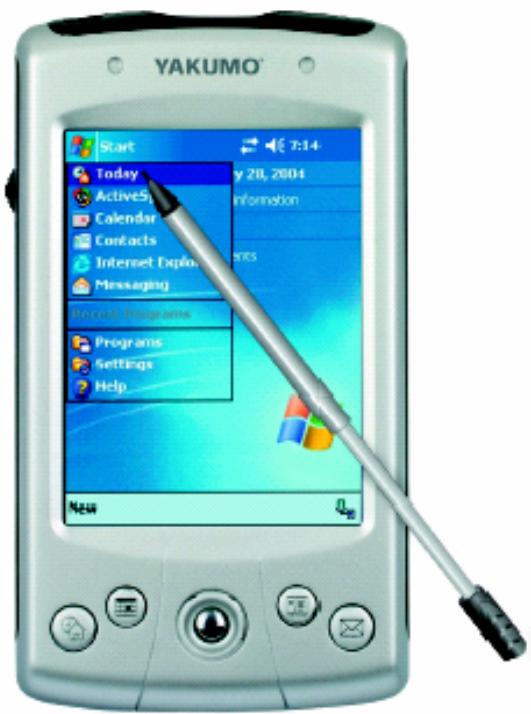
Command bar

The command bar located at the bottom of the screen lets you execute tasks in application programs. The command bar contains menu names, buttons and the edit area.
Where to obtain information
| For information about Consult | |
| Detailed operating instructions | User manual on CD |
| GPS | The manual for the GPS software (from a third-party provider) informs you about using the GPS functions |
| Programs | User manual or online help |
| Connection and synchronization with a desktop PC | The Companion CD or another CD supplied with the Yakumo alphaX GPS |
| Connection and synchronization with a desktop PC | User manual or ActiveSync help on the desktop PC |
| Troubleshooting | User manual |
| Latest updates and detailed technical information | The Read Me files in the folder "Microsoft ActiveSync" on the desktop PC or on the Companion CD of your Pocket PC |
| News about pocket PCs with Windows operating systems | The Microsoft web site "About mobile devices for Pocket PCs": www.microsoft.com/ms/mobile/pocket/ |
Car accessories
The Yakumo alphaX GPS includes a car charger.
Connect it to the lighter of your car in order to charge your Yakumo alphaX GPS.
Car charger cable: To protect your Yakumo alphaX GPS against voltage peaks, connect the car charger only after your car engine is already running.
As soon as you have made the connections, the LED on the PDA should light (orange during the charging process, and green after charging is complete). If this is not the case, please check, if the fuse contained in the plug of the car's charger is defective.
Car mount (optional): For more information about installing and choosing the right location, please read the documentation that comes with your mounting kit.
GPS antenna: If the windshield of your car is tinted or has a metallized sunlight protection, the GPS signal reception may be weak or impossible. In this case we recommend that you use an external antenna (optional) in order to provide free reception from the satellites.
GPS signals cannot pass through solid materials (except glass). The GPS reception will also not work in a tunnel or under a carport.
Care and maintenance of your Yakumo alphaX GPS
If you care for and maintain your Yakumo alphanumeric GPS properly, you will guarantee continuous operation and you will reduce the risk of any malfunctions.
Note: Display errors (e.g. pixel errors etc.) resulting from high temperature variations (e.g. when storing the device at very high or low temperatures in a car, etc.) are excluded from the warranty. In such a case, the PDA may only be repaired subject to charge.
Any damages being the result of inadequate handling, operation or storage, as well as acts of God or other external circumstances, are not covered by the guarantee. The same applies to any consumables such as rechargeable batteries (6 months).
General information
- Do not expose your Yakumo alphaX GPS to high humidity or very high or cold temperatures. (i.e. do not leave it in a car)
- Do not expose your Yakumo alphaX GPS to direct sun or strong UV light.
- Do not place any objects on the Yakumo alphaX GPS and avoid foreign objects dropping onto the Yakumo alphaX GPS.
- Do not drop the Yakumo alphaX GPS and do not expose it to vibrations or shock.
Always store the Yakuno alphaX GPS in a protective bag when not using it. - Do not expose the Yakumo alphaX GPS to wide temperature variations otherwise condensation can form in the device's interior causing damage to the Yakumo alphaX GPS. When condensation has formed, wait until the Yakumo alphaX GPS has become completely dry.
- Do not sit when carrying your Yakumo alphaX GPS in the back pocket of your trousers etc.
- The screen's surface is subject to scratching. Only use the supplied stylus to tap on the surface. Do not touch it with your fingers, pens, writing styli or other sharp devices.
- Do not clean your Yakumo alphaX GPS while it is turned on. Wipe the screen and the case of the Yakumo alphaX GPS with a soft and lint-free cloth that has been slightly dampened with water.
- Do not wipe the screen by using paper clothes.
- Do not disassemble, repair or modify the Yakumo alphaX GPS. Any disassembling, modifying or repairing may damage the Yakumo alphaX GPS and cause harmful injuries or material damage.
- Do not store any inflammable liquids, gases or explosive substances in the same compartment as the Yakumo alphaX GPS, its components or its accessories.
Service
If you have any technical problems with your Yakumo product, please contact our hotline on 0 18 05/ 92 58 66 (12 cents/minute when calling through the Deutsche Telekom fixed telephone network), or send us an e-mail to: info@yakumo.de.
1.1 Expanding Your Yakumo alphaX GPS Using an SD/MMC Card
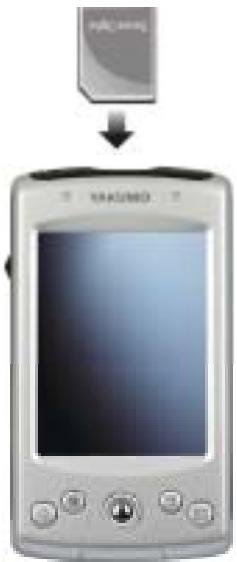
Your Yakumo alphaX GPS has an SD/MMC slot where you can insert an optional Secure Digital or Multimedia Card storage card. With the removable memory, you can store or backup your data and exchange data with other devices.
NOTE:
- Do not insert any foreign objects into the card slot.
- Keep the SD or MMC card in a well-protected box to avoid dust and humidity when you are not using it.
To use an SD/MMC card, insert it into the slot, with the connector pointing to the slot and its label facing the front of the Yakumo alphaX GPS. Follow the instructions supplied with the card for more information.
To remove a card, first make sure that no application is accessing the card, then slightly push the top edge of the card to release it and pull it out of the slot.
2 Basic Skills
This chapter familiarizes you with the basic operations of your Yakumo alphaX GPS such as using the stylus, navigation stick, Today screen, menus and programs. You will also get to know how to enter information.
2.1 Using the Stylus
The stylus serves as a mouse for computers. You use it to navigate and select objects on the screen.
Pull the stylus out of the slot and extend it for ease of use. Store it in the slot when not in use.
- Tap
Touch the screen once with the stylus to open items and select options.
Drag
Hold the stylus on the screen and drag across the screen to select text and images. Drag in a list to select multiple items.
- Tap and hold
Tap and hold the stylus on an item to see a list of actions available for that item. On the pop-up menu that appears, tap the action you want to perform.
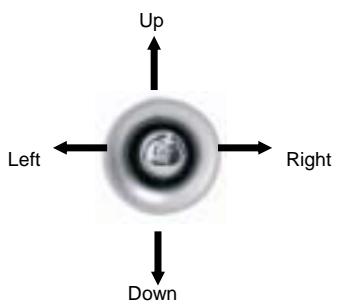
2.2 Using the Navigation Stick
With the navigation stick, you can move up, down, left and right within a menu. This is particularly useful for one-handed operation.
To move in a direction, simply push the button toward the corresponding direction.
2.3 Today Screen
When you turn on your Yakumo alphaX GPS for the first time each day (or after 4 hours of inactivity), you will see the Today screen. You can also display it by tapping and then Today. On the Today screen, you can see at a glance important information for the day.
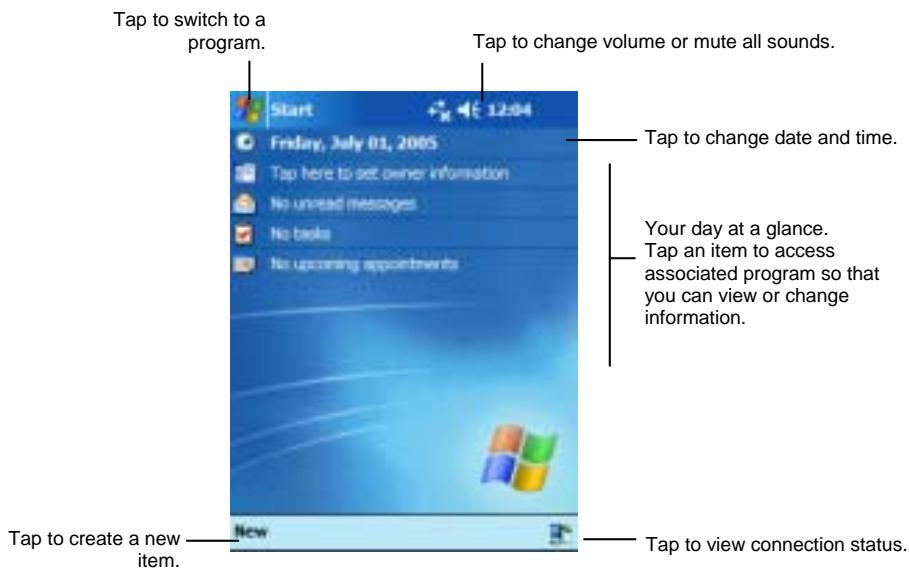
NOTE: You can customize what is displayed on the Today screen by tapping Settings Personal tab Today icon.
Status Icons
When the Today screen is displayed, you may see the following status icons on the Command bar or Navigation bar. In most cases, you can tap a status icon to display the associated control panel or more information related to the item. For example, tap a battery status icon to open the Power control panel.
| Icon | Meaning |
| Speaker is on. | |
| Speaker is off. | |
| Battery is charging. Battery is low. | |
| Battery is low. | |
| Battery is very low. | |
| Battery is fully charged. | |
| Connection is active. | |
| Synchronization | |
| Connection is not active. One or more e-mail messages were received. | |
| More icons to be displayed than there is room to display them. Tap the icon to view all status icons. | |
2.4 Navigation Bar and Command Bar
The Navigation bar is located at the top of the screen. It displays the active program and current time and allows you to switch programs and close screens.
The Navigation bar and Start menu:
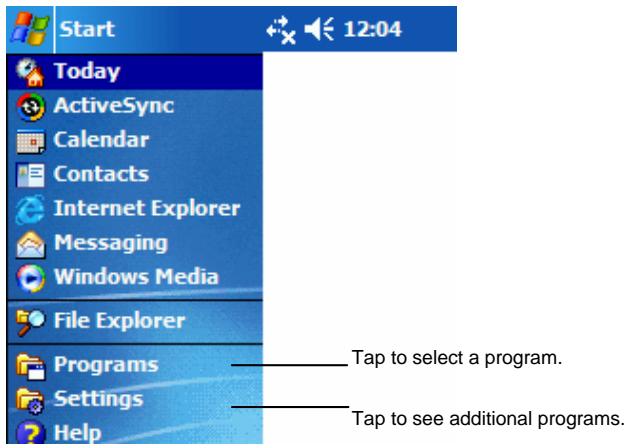
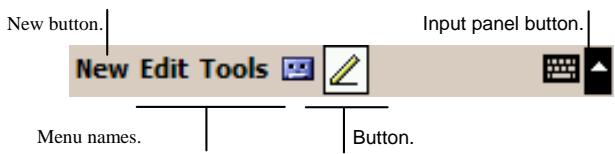
Use the Command bar at the bottom of the screen to perform tasks in programs. The Command bar includes menu names, buttons and the Input panel button. To create a new item in the current program, tap New. To see the name of a button, tap and hold the stylus on the button. Drag the stylus off the button so that the command is not carried out.
The Command bar:
2.5 Executing A Program
You can switch from one program to another without closing any program. To switch to a program, you can:
Tap in the top left corner of the screen and select from the Start menu. (To customize which programs you see on the Start menu, tap Settings Personal tab Menu icon.)
Tap and then tap Programs to access additional programs. Tap the program icon to run a program.
Press a program button on the front of your Yakumo alphaX GPS. The icons on the buttons identify the default programs they are associated with. (To customize which programs are associated with the buttons, tap Settings Personal tab Button icon.)
The table below contains a partial list of the programs and their icons.
| Icon | Program | Descriptions |
| +4 | ActiveSync | Synchronize information between your Yakumo alphaX GPS and desktop computer. |
| Calendar | Keep track of your appointments and create meeting requests. | |
| E | Contacts | Keep track of your friends and colleagues. |
| Inbox | Send and receive e-mail messages. | |
| Pocket Internet Explorer | Browse Web and WAP sites and download new programs and files from the Internet. | |
| Notes | Create handwritten or typed notes, drawings and recordings. | |
| Tasks | Keep track of your tasks. | |
| Windows Media | Play digital audio and video files. | |
| Pocket Excel | Create new workbooks or view and edit Excel workbooks created on your desktop computer. | |
| W | Pocket Word | Create new documents or view and edit Word documents created on your desktop computer. |
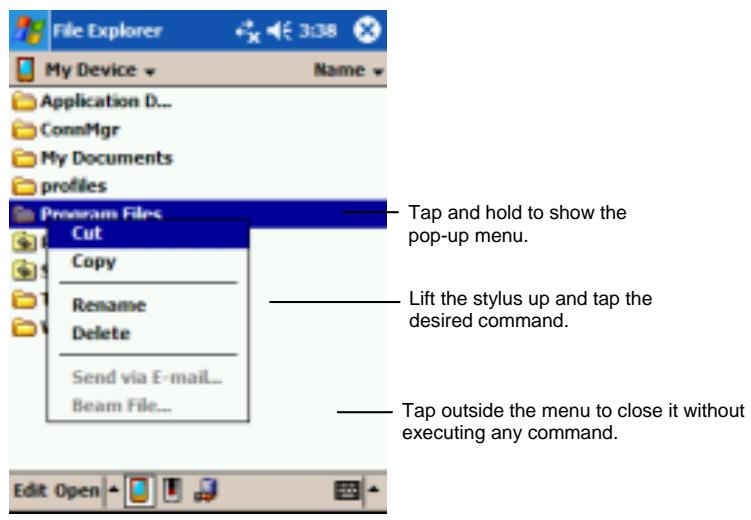
A.1 Pop-up Menus
With pop-up menus, you can quickly choose an action for an item. For example, you can use the pop-up menu in the contact list to quickly delete a contact, make a copy of a contact or send an e-mail message to a contact. The actions in the pop-up menus vary from program to program. To access a pop-up menu, tap and hold the stylus on the name of the item that you want to perform the action on. When the menu appears, lift the stylus and tap the action you want to perform. Or tap anywhere outside the menu to close the menu without performing an action.
A.2 Notificationsss
Your Yakumo alphaX GPS reminds you in a variety of ways when you have something to do. For example, if you have set up an appointment in Calendar, a task with a due date in Tasks or an alarm in Clock, you will be notified in any of the following ways:
- A message appears on the screen.
- A sound, which you can specify, is played.
- The notification indicator flashes in red.
To choose reminder types and sounds for your Yakumo alphaX GPS, tap Settings Personal tab Sounds & Notifications icon.
2.6 Entering Information
You have several options for entering new information:
- Use the Input panel to enter typed text, either by using the soft keyboard or other input methods.
- Write directly on the screen.
- Draw pictures on the screen.
- Speak into the microphone to record a message.
Entering Text Using the Input Panel
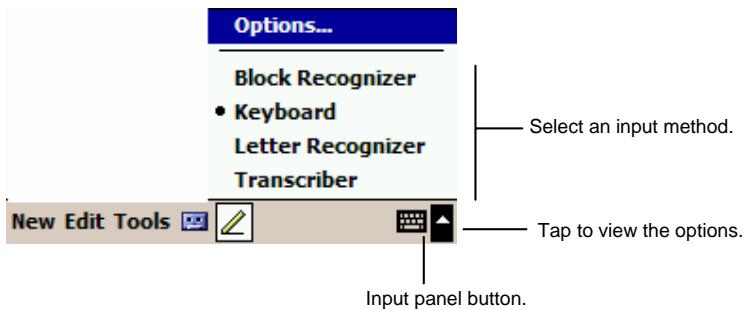
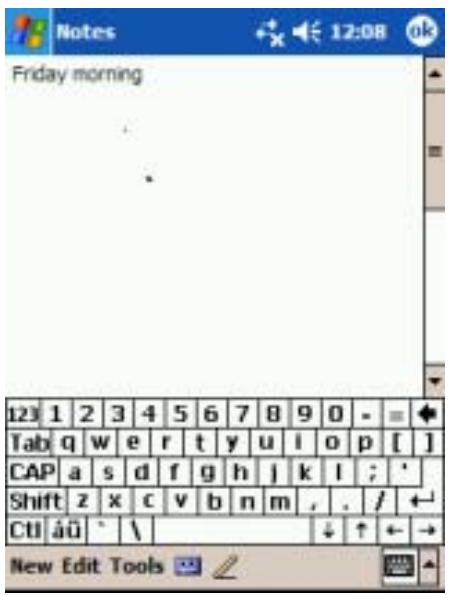
Use the Input panel to enter information in any program on your Yakumo alphaX GPS. You can either type using the soft keyboard or write using the soft keyboard, Block Recognizer, Letter Recognizer or Transcriber. In any case, the characters appear as typed text on the screen.
To show or hide the Input panel, tap the Input panel button. Tap the arrow next to the Input panel button to see your choices.
When you use the Input panel, your Yakumo alphaX GPS anticipates the word you are typing or writing and displays it above the Input panel. When you tap the displayed word, it is inserted into your text at the insertion point. The more you use your Yakumo alphaX GPS, the more words it learns to anticipate.
NOTE: To change word suggestion options, such as the number of words suggested at one time, tap Settings Personal tab Input icon Word Completion tab.
Block Recognizer
With Block Recognizer, you can use the stylus to input characters using strokes that are similar to the Palm™ Graffiti® method.
To type with Block Recognizer:
Tap the arrow next to the Input panel button and then tap Block Recognizer.
Write a letter in the box.
When you write a letter, it is converted to typed text that appears on the screen. For specific instructions on using Block Recognizer, open Block Recognizer and then tap the question mark next to the writing area.
Letter Recognizer
With Letter Recognizer, you can write letters using the stylus just as you would use a pen on paper.
To type with Letter Recognizer:
-
Tap the arrow next to the Input panel button and then tap Letter Recognizer.
-
Write a letter in the box.
When you write a letter, it is converted to typed text that appears on the screen. For specific instructions on using Letter Recognizer, open Letter Recognizer and then tap the question mark next to the writing area.
Transcriber
With Transcriber you can write anywhere on the screen using the stylus just as you would on paper. Unlike Letter Recognizer and Block Recognizer, you can write a sentence or more of information; then, you pause and let Transcriber change the written characters to typed characters.
To type with Transcriber:
- Tap the arrow next to the Input panel button then tap Transcriber.
- Write anywhere on the screen.
For specific instructions on using Transcriber, open Transcriber and then tap the question mark in the lower-right corner of the screen.
Writing on the Screen
In any program that accepts writing—such as the Notes program and the Notes tab in Calendar, Contacts and Tasks—you can use your stylus to write directly on the screen. Write the way you do on paper. You can edit and format what you have written and convert the information to text later.
Writing
To write on the screen, tap the Pen button to switch to writing mode. This action displays lines on the screen to help you write.
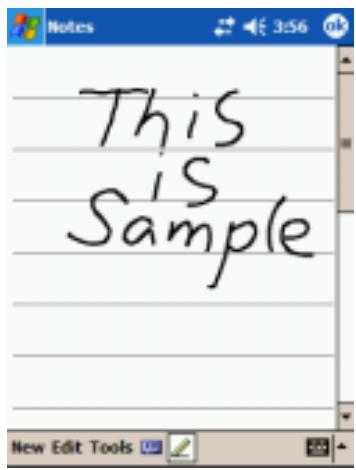
Tap the Pen button and use the stylus for writing.
NOTE: Some programs that accept writing may not have the Pen button. See the documentation for that program to find out how to switch to writing mode.
Editing Your Writing
If you want to edit or format writing, you must first select the writing and then edit it.
To Select Your Writing:
- Tap and hold the stylus next to the text you want to select until the insertion point appears. Without lifting, drag the stylus across the text you want to select. You can also select text by tapping the Pen button to deselect it and then dragging the stylus across the screen.
- Tap and hold the selected words and then tap an editing command (cut, copy or paste) on the pop-up menu or tap the command on the Edit menu.
If you accidentally write on the screen, tap Tools Undo and try again.
Converting Your Writing to Text
1 If you want to convert only certain words, select them before going to the next step.
2. To convert writing to text, tap Tools Recognize or tap and hold the selected words and then tap Recognize on the pop-up menu. Your writing is turned into text.
If a word is not recognized, it is left as writing.
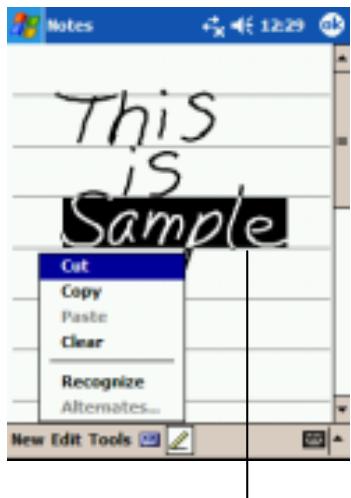
Select the text to convert and tap Recognize from the pop-up menu.
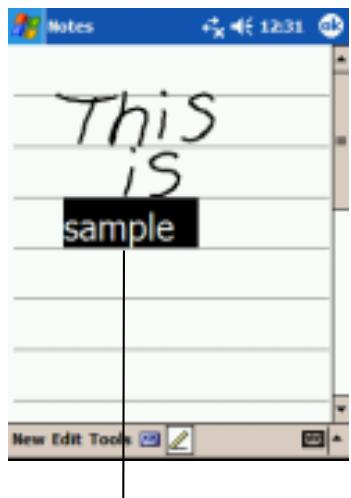
The writing becomes text.
If the conversion is incorrect, you can select different words from a list of alternates or return to the original writing.
- Tap and hold the incorrect word (tap one word at a time).
- On the pop-up menu, tap Alternates. A menu with a list of alternate words appears.
- Tap the word you want to use or tap the writing at the top of the menu to return to the original writing.
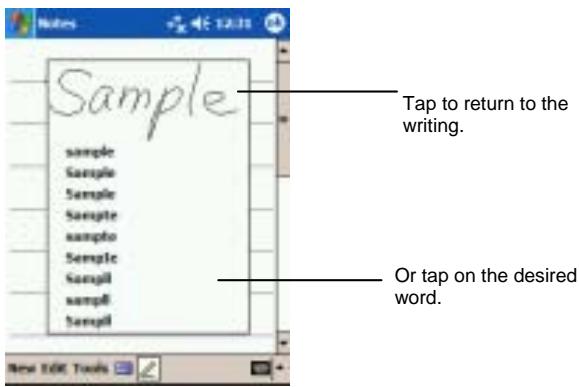
Some tips for getting good recognition are listed below:
Write neatly.
- Write on the lines and draw descendants below the line. Write the cross of the “t” and apostrophes below the top line so that they are not confused with the word above. Write periods and commas above the line.
- For better recognition, use the Tools menu to increase the zoom level to 300% .
- Write the letters of a word close together and leave big gaps between words.
- Hyphenated words, foreign words that use special characters such as accents and some punctuation cannot be converted.
- If you add writing to a word to change it (such as changing a "3" to an "8") after you attempt to recognize the word, the writing you add will not be included if you attempt to recognize the writing again.
Drawing on the Screen
You can draw on the screen in the same way that you write on the screen. The difference between writing and drawing on the screen is how you select items and how they can be edited. For example, selected drawings can be resized, while writing cannot.
Creating a Drawing
- To create a drawing, cross three ruled lines on your first stroke. A drawing box appears.
- Subsequent strokes in or touching the drawing box become part of the drawing. Drawings that do not cross three ruled lines will be treated as writing.
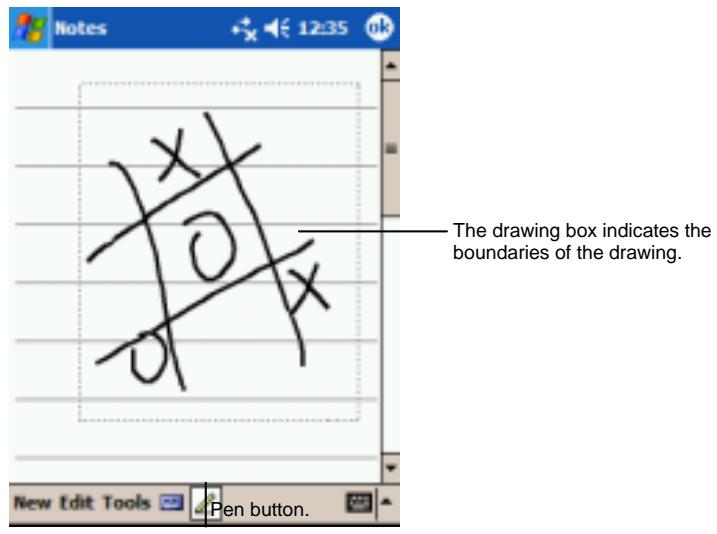
NOTE: You may want to change the zoom level so that you can more easily work on or view your drawing. Tap Tools and then choose a zoom level.
Editing Your Drawing
If you want to edit or format a drawing, you must select it first.
- Tap and hold the stylus on the drawing until the selection handle appears. To select multiple drawings, deselect the Pen button and then drag to select the drawings you want.
-
Tap and hold the selected drawing and then tap an editing command (cut, copy or paste) on the pop-up menu or tap the command on the Edit menu.
-
To resize a drawing, make sure the Pen button is not selected and then drag a selection handle.
Recording a Message
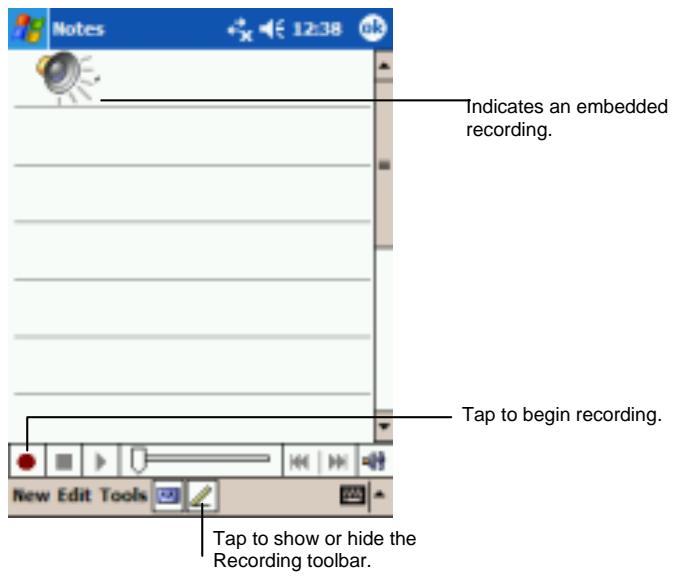
In any program where you can write or draw on the screen, you can also quickly capture thoughts, reminders and phone numbers by recording a message. In Calendar, Tasks Contacts, you can include a recording in the Notes tab. In the Notes program, you can either create a stand-alone recording or include a recording in a written note. If you want to include the recording in a note, open the note first. In the Inbox program, you can add a recording to an e-mail message.
NOTE: You can also make a recording by tapping the Record button on the Recording toolbar.
To play a recording, tap it in the list or tap its icon in the note.
Recording Formats
Your Yakumo alphaX GPS supports several formats for voice notes. The formats vary in both the quality of the recording and the size of the sound file. When selecting a recording format, you should consider the quality you need as well as how much storage memory the recording will use on your Yakumo alphaX GPS. Not all recording formats are compatible with other software or computers. If you intend to share your recordings with others or transfer a recording to your desktop computer, be sure to choose a recording format that is supported by the software used to play recordings on the other computer.
The PCM format offers the highest quality recording and is compatible with all Pocket PC models, other Windows-powered mobile devices and desktop computers that use Windows operating systems. The GSM 6.10 format is compatible with all Pocket PC models and other Windows-powered mobile devices, but may not work with desktop computers.
To select a recording format:
-
Tap Settings Input icon.
-
On the Options tab in the Input control panel, select a voice recording format from the drop-down list.
The list of recording formats on your Yakumo alphaX GPS indicates the sample rate, whether the format is stereo or mono and how much storage memory is required per second of recording. You may need to experiment with different sample rates and formats to determine which format best suits your voice.
Using My Text
When using Inbox or MSN Messenger, use My Text to quickly insert preset or frequently used messages into the text entry area. To insert a message, tap My Text and then tap a message.
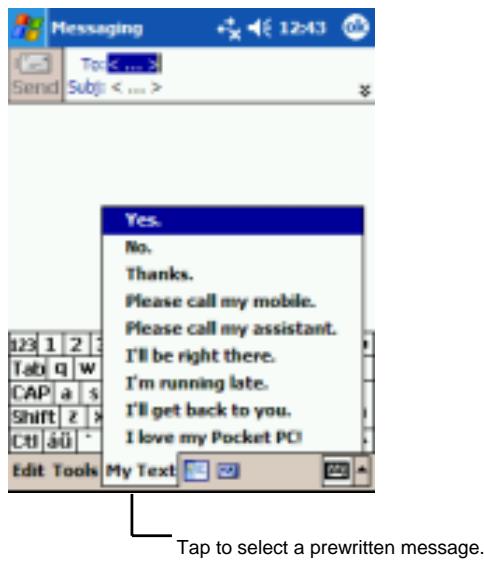
NOTE: After inserting a My Text message, you can add text to it before you send the message.
To edit a My Text message, tap Tools Edit My Text Messages. Select the message you wish to edit and make desired changes.

Managing the Yakumo alphaX GPS
This chapter tells you how to effectively manage power, memory, settings, data and programs of your Yakumo alphaX GPS.
3.1 Power Management
You must maintain a continuous power supply to your Yakumo alphaX GPS to retain your data, including any information, programs or settings that you have added to your Yakumo alphaX GPS.
A fully charged battery should provide power for up to 8 hours of use. The operating time of a fully charged battery depends on how you are using the Yakumo alphaX GPS. Some functions, such as using multimedia or operating an SD/MMC card, may consume a considerable amount of battery power.
Low Battery Signals and Actions
Caution:
- Though your Yakumo alphaX GPS can retain data for 72 hours after its battery runs completely out of power, you must constantly charge the battery of your Yakumo alphaX GPS. This can prevent data loss or damage to the battery caused by the battery's being kept in a discharged state for too long.
- When you recharge the battery upon a warning of low power, you should charge for at least 30 minutes. If you unplug the AC adapter too soon, you may not have sufficient battery power for operation.
You can monitor the battery power by tapping Settings System tab Power icon. The remaining power is displayed on a status bar in the Power control panel.
When the battery is low, your Yakumo alphaX GPS will pop up a warning message. You should save your data and recharge the battery immediately upon a warning of low power; otherwise your Yakumo alphaX GPS will turn off automatically. You will need to connect the Yakumo alphaX GPS to external AC power for charging
before you can use it again. If the battery completely runs out of power, you will lose all information, programs and/or settings that you have added.
Power-Saving Tips
Follow these suggestions to maximize the battery's operating time, particularly when you are relying solely on battery power for extended time periods.
- Suspend frequently.
By default, the screen backlight will automatically turn off and the Yakumo alphaX GPS will also turn off when it has been idle for a period of time. You can shorten the length of the idle time using Settings System tab Power Advanced tab to set up.
Press the power button to turn off your Yakumo alphaX GPS when it is not in use, even for a short time. You can also manually turn off the backlight by pressing and holding the power button.
- Turn off functions not needed or adjust settings.
Lower the volume.
√ Do not enable sounds or light flashing except for the most necessary notifications. (Tap → Settings → Personal tab → Sounds & Notifications icon to set up.)
Remove the SD/MMC card, if installed, from the slot if you are not using it.
- Avoid power-consuming situations such as:
When connecting your Yakumo alphaX GPS to your desktop computer (Your Yakumo alphaX GPS will not auto-suspend while it is connected.)
When using a modem or other peripheral
- When monitoring infrared transfers (Although you can set your Yakumo alphaX GPS to constantly monitor the IR port for files sent from other devices, doing so will quickly drain your battery.)
√ When playing sound or music
When recording.
3.2 Managing Memory
Storage and Program Memory
Caution: Files, settings and data that you add to your Yakumo alphaX GPS are stored in RAM (Random Access Memory).
The RAM on your Yakumo alphaX GPS is shared between storage memory and program memory. The RAM of your Yakumo alphaX GPS is divided into a storage memory and a program memory.
Storage memory
Storage memory is used to store the data you create and additional programs you install.
- Program memory
Program memory is used to run programs on your Yakumo alphaX GPS .
Your Yakumo alphaX GPS automatically manages the allocation between storage and program memory. However, in some situations, such as when the memory is running out, your Yakumo alphaX GPS may not be able to automatically adjust the allocation. (For information on solving memory problems, see section 7.4.)
Additional Memory
You can buy an SD/MMC storage card for backup, storage, archives or to transfer large files to other devices. Files stored on a storage card appear in a folder called SDMMC Disk, listed under My Device in the File Explorer application. Data stored on a storage card will be saved, even if your Yakumo alphaX GPS loses power. To protect your data, you can back up regularly to a storage card. (For back up details, see section 3.5.)
3.3 Customizing Your Yakumo alphaX GPS
NOTE: Incorrect settings may cause your system to malfunction. Make sure that you fully understand the function of a certain item before any adjustment.
You can customize the settings of the Yakumo alphaX GPS to your own preferences. Tap Settings. You can tap any of the icons on the Personal, System or Connections tabs for the options. The items you can customize are described as follows:
| Tab | Items | Descriptions |
| Personal | Buttons | To assign programs to the hardware buttons and set the repeat rate of the scroll dial. |
| Input | To set up items related to Block Recognizer, soft keyboard, Letter Recognize, Transcriber input methods and voice recording format. | |
| Menu | To customize what appear on the Start menu and to enable a pop-up menu from the New button on the Today screen. | |
| Owner Information | To enter your personal information. | |
| Password | To set a password for security. (See the proceeding subsection for more information.) | |
| Sounds & Notifications | To set the conditions and types of the sounds, system volume and ways of notifications. | |
| Today | To select the information you want displayed on the Today screen and to select a desired theme for the background. | |
| System | About | To show the hardware information of the Yakumo alphaX GPS and to define the device name that your Yakumo alphaX GPS uses for identifying itself to other computers. |
| Backlight | To adjust the brightness level of the display and to set the automatic turnoff for power saving purposes. | |
| Clock | To change the time and date and to set alarms. | |
| Memory | To temporarily adjust the allocation between storage and program memory, to view the memory on the storage card (if installed) and to manually stop a program if it becomes unstable or program memory is low. | |
| Power | To show the remaining battery power and to set the time for the Yakumo alphaX GPS to turn off automatically. | |
| Regional Settings | To specify the region of your location and the formats of the number, currency, time and date. | |
| Remove Programs | To remove programs you have added to the RAM of your Yakumo alphaX GPS. | |
| Screen | To adjust the touch screen for accurate screen taps and to enable ClearType feature for easier reading of text in programs that support ClearType. |
Setting a Password
A password can safeguard your Yakumo alphaX GPS against unauthorized use. Follow this procedure to set a password:
- Tap Settings Personal tab Password icon.
-
Select the type of password you would like to use. You can set a four-digit password or a long password containing a combination of at least seven characters, digits or punctuation Tap the digits or characters to set your password.
-
You can also set an idle time after which the Yakumo alphaX GPS will prompt you for the correct password.
- Tap OK.
NOTE: You will need to clear the memory of your Yakumo alphaX GPS if you forget the password. (See section 7.2.)
3.4 Finding and Organizing Information
The Find feature on your Yakumo alphaX GPS helps you quickly locate information.
To find a file, tap Find. Enter the text you want to find, select a data type and then tap Go to start the search.
NOTE: To quickly find information that is taking up storage space on your Yakumo alphaX GPS, select Larger than 64 KB under Type.
You can also use the File Explorer to find files on your Yakumo alphaX GPS and to organize these files into folders. Tap Programs File Explorer icon.
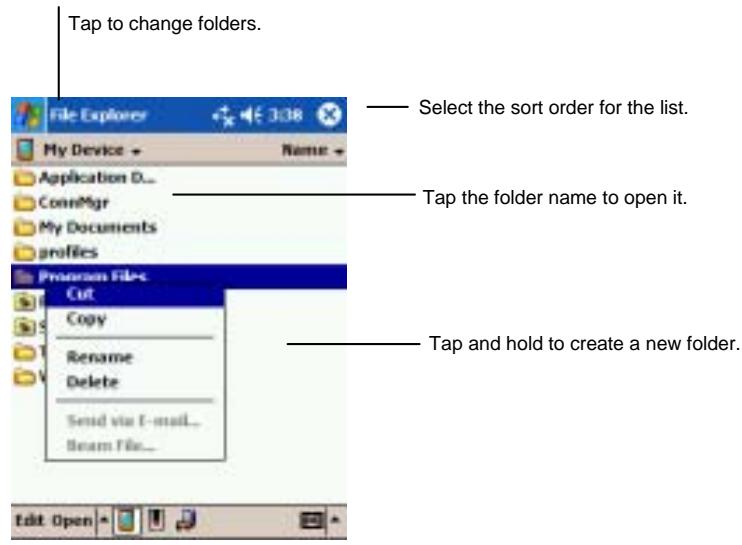
NOTE: You can move files in File Explorer by tapping and holding the item you want to move, tapping Cut or Copy on the pop-up menu, browsing to the new location and then tapping Paste.
3.5 Backing Up Data
To prevent loss of data, you should back up your Yakumo alphaX GPS frequently. Your Yakumo alphaX GPS comes with two programs for backing up data:
- Microsoft ActiveSync.
ActiveSync enables you to back up data to your desktop computer. You can back up all data on your Yakumo alphaX GPS or only your PIM databases (Calendar, Contacts and Tasks). You can set ActiveSync to back up automatically each time you connect or you can back up manually, whenever you choose. For more information, see ActiveSync Help on your desktop computer.
- Backup Restore
A utility called Backup Restore is supplied with your Yakumo alphaX GPS to let you easily back up data.
3.6 Adding or Removing Programs
Programs added to your Yakumo alphaX GPS at the factory are stored in ROM (Read-Only Memory). You cannot remove the programs and you will never accidentally lose ROM contents. All other programs and data files added to your Yakumo alphaX GPS after factory installations are stored in RAM.
You can install any program created for your Yakumo alphaX GPS as long as your Yakumo alphaX GPS has enough memory. The most popular place to find software for your Yakumo alphaX GPS is on the Pocket PC Web site (http://www.pocketpc.com).
Adding Programs
To Add Programs Using ActiveSync
You will need to install the appropriate software for your Yakumo alphaX GPS on your desktop computer before installing it on your Yakumo alphaX GPS.
- Determine your Yakumo alphaX GPS and processor type so that you know which version of the software to install. Tap Settings System tab About icon Version tab and make a note of the information in Processor.
- Download the program to your desktop computer or, if you have a CD or disk containing the program, insert the CD or disk into your desktop computer. You might see a single .zip, .exe *.zip file, a Setup.exe file or several versions of files
for different device types and processors. Be sure to select the program designed for the Pocket PC and your Yakumo alphaX GPS processor type.
-
Read any installation instructions, Read Me files or documentation that comes with the program. Many programs provide special installation instructions.
-
Connect your Yakumo alphaX GPS and desktop computer.
-
Double-click on the *.exe file.
-
If the file is an installer, the installation wizard begins. Follow the directions on the screen. Once the software has been installed on your computer, the installer automatically transfers the software to your Yakumo alphaX GPS.
- If the file is not an installer, you will see an error message stating that the program is valid but it is designed for a different type of computer. You will need to move this file to your Yakumo alphaX GPS. If you cannot find any installation instructions for the program in the Read Me file or documentation, use ActiveSync Explore to copy the program file to the Program Files folder on your Yakumo alphaX GPS. For more information on copying files using ActiveSync, see ActiveSync Help.
NOTE: You can also use Pocket Internet Explorer to download some programs from the Internet directly to your Yakumo alphaX GPS if your Yakumo alphaX GPS is connected to Internet.
Once installation is complete, tap Programs and tap the program icon to switch to it.
To Add a Program to the Start Menu
Use one of the following methods to add a program to the Start menu.
- Tap Settings Menu icon and tap the check box for the program. If you do not see the program listed, use any of the following two methods.
- If you are using File Explorer on the Yakumo alphaX GPS : Tap Program File Explorer icon and locate the program (tap the folder list, labeled My Documents by default and tap My Device to see a list of all folders on the Yakumo alphaX GPS). Tap and hold the program and tap Cut on the pop-up menu. Open the Start Menu folder located in the Windows folder, tap and hold a blank area of the window and tap Paste on the pop-up menu. The program appears on the Start menu.
- If you are using ActiveSync on the desktop computer: Use the Explorer in ActiveSync to explore your Yakumo alphaX GPS files and
locate the program. Right-click on the program and then click on Create Shortcut. Move the shortcut to the Start Menu folder in the Windows folder. The shortcut appears on the Start menu.
Removing Programs
To remove a program from your Yakumo alphaX GPS :
- Tap Settings System tab Remove Programs.
- Select the program in the list then tap Remove.
If the program does not appear in the list of installed programs, use File Explorer on your Yakumo alphaX GPS to locate the program, tap and hold the program and then tap Delete on the pop-up menu.
4 Microsoft Pocket Outlook
This chapter tells you how to use Microsoft Pocket Outlook that includes Calendar, Contacts, Tasks, Notes and Inbox. You can use these programs individually or together. For example, e-mail addresses stored in Contacts can be used to address e-mail messages in Inbox.
4.1 Calendar: Scheduling Appointments and Meetings
Use Calendar to schedule appointments, including meetings and other events. You can check your appointments in one of several views (Agenda, Day, Week, Month and Year) and set Calendar to remind you of appointments with a sound or other method. Appointments for the day can be displayed on the Today screen.
Tap Calendar or tap on your Yakumo alphaX GPS to switch to the program.
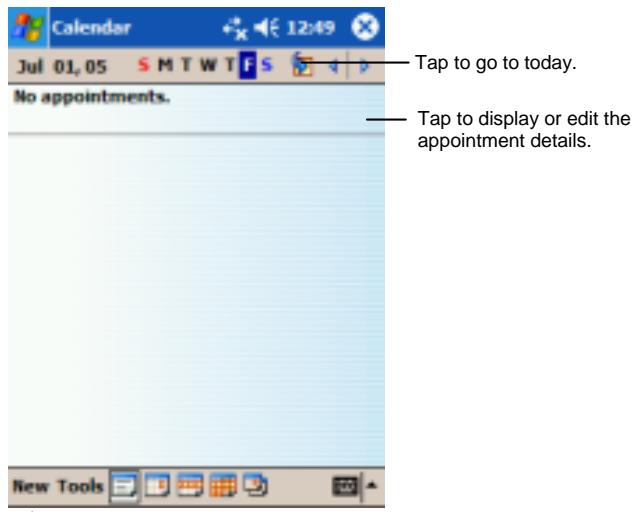
Tap to create a new appointment.
NOTE: You can customize the Calendar display (for example, change the first day of the week), by tapping Tools Options.
Creating An Appointment
- In Day or Week view, tap the desired date and time for the appointment.
- Tap New.
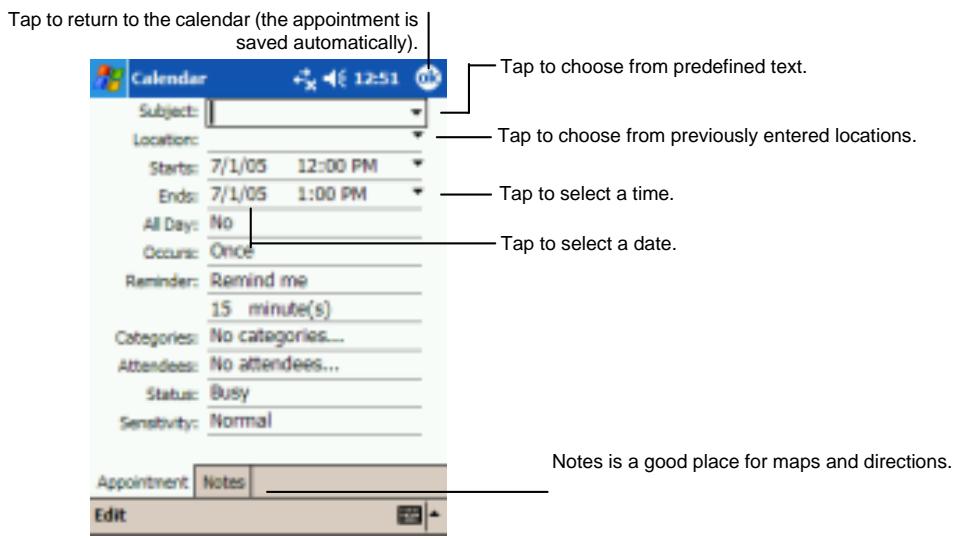
- Using the Input panel, tap first to select the field, and then enter a description and a location.
- If needed, tap the date and time to change them.
- Enter other desired information. Hide the Input panel to see all available fields.
-
You can also do the following with regard to this appointment:
-
Add a note.
- Create an all day event.
- Set a reminder.
- Make the appointment recurring.
- Assign the appointment to a category.
- Send a meeting request.
- Beam the appointment.
For more information, tap Help.
- Tap OK to return to Calendar.
Using the Summary Screen
When you tap an appointment in Calendar, a summary screen is displayed. To change the appointment, tap Edit.
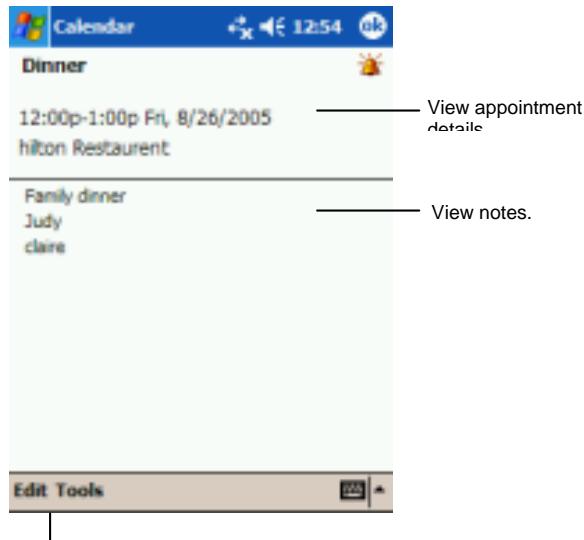
Tap to change appointment.
Creating Meeting Requests
You can use Calendar to set up meetings with users of Outlook or Pocket Outlook. The meeting notice will be created automatically and sent either when you synchronize Inbox or when you connect to your e-mail server. Indicate how you want meeting requests sent by tapping Tools Options. If you send and receive e-mail messages through ActiveSync, select ActiveSync.
To schedule a meeting:
- Create an appointment.
- In the appointment details, hide the Input panel and then tap Attendees.
- From the list of e-mail addresses in Contacts, select the meeting attendees.
The meeting notice is created automatically and placed in the Outbox folder.
For more information on sending and receiving meeting requests, see Calendar Help and Inbox Help on your Yakumo alphaX GPS.
4.2 Contacts: Tracking Friends and Colleagues
Contacts maintains a list of your friends and colleagues so that you can easily find the information you are looking for, whether you are at home or on the road. Using the IR port on the Yakumo alphaX GPS, you can quickly share Contacts information with users of Pocket PCs and other mobile devices.
Tap Contacts or tap on your Yakumo alphaX GPS to switch to the program.
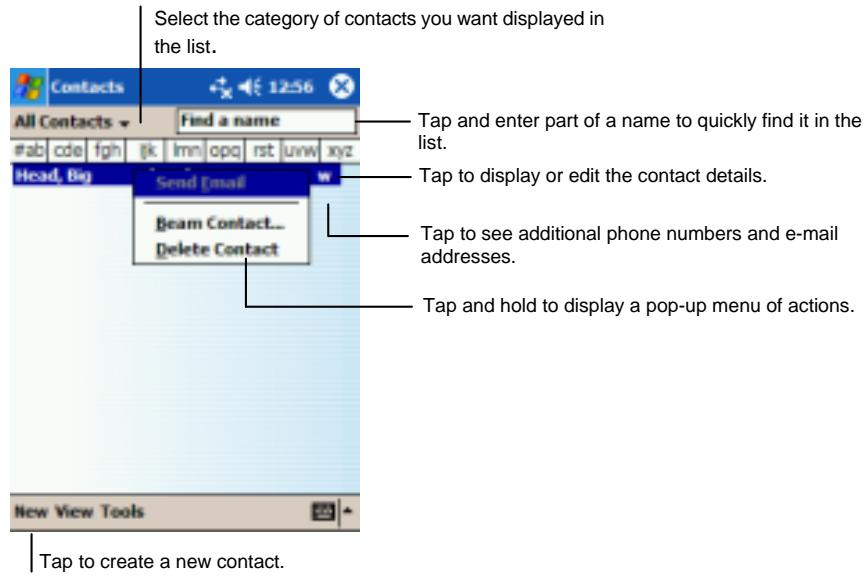
NOTE: To change the way information is displayed in the list, tap Tools Options.
Creating a Contact
1. In Contacts, tap New.
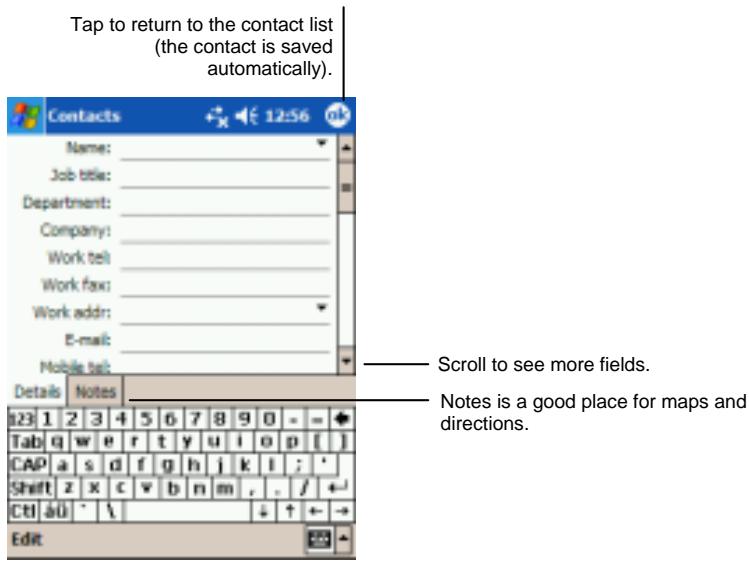
-
Using the Input panel, enter a name and other contact information. Scroll down to see all available fields.
-
You can also do the following with regard to this contact:
-
Add a note.
- Assign the contact to a category.
- Send an e-mail to the contact.
- Synchronize the contact.
- Beam the contact.
For more information, tap Help.
- Tap OK to return to the contact list.
Finding a Contact
There are four ways to find a contact:
- Tap Find, enter the contact name, select Contacts for the type then tap Go.
- In the contact list, enter a contact name in the box under the Navigation bar. To show all contacts again, clear text from the box or tap the button to the right of the box.
- In the contact list, tap the category list (labeled All Contacts by default) and select the type of contact that you want displayed. To show all contacts again, select All Contacts. To view a contact not assigned to a category, select None.
- To view the names of companies your contacts work for, in the contact list, tap View By Company. The number of contacts that work for that company will be displayed to the right of the company name.
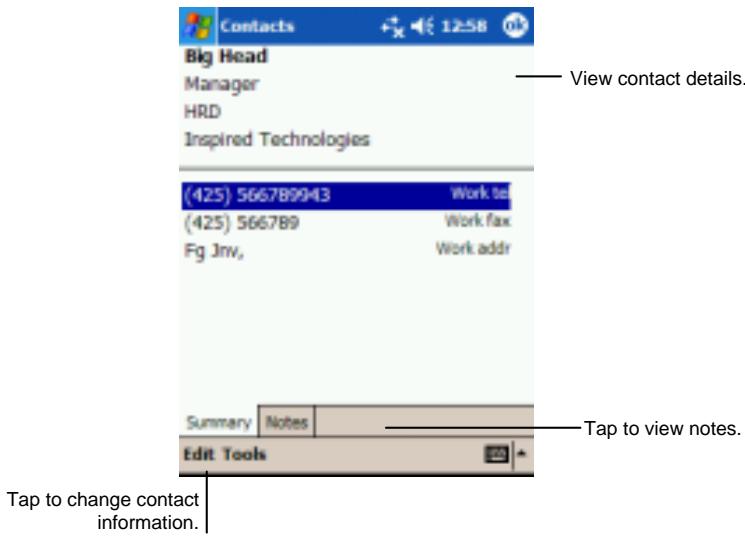
Using the Summary Screen
When you tap a contact in the contact list, a summary screen is displayed. To change the contact information, tap Edit.
4.3 Tasks: Keeping a To Do List
Use Tasks to keep track of what you have to do.
Tap Tasks or tap on your Yakumo alphaX GPS to switch to the program.
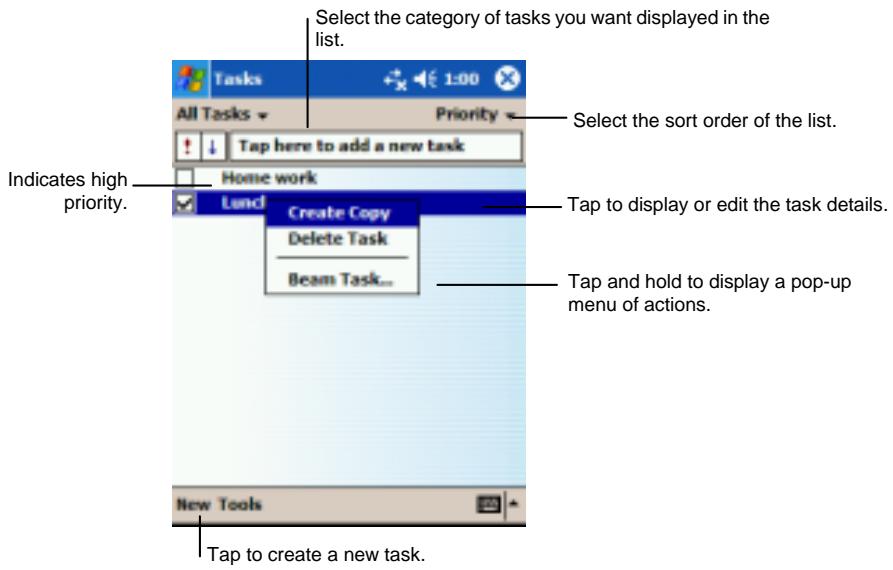
NOTE: To change the way information is displayed in the list, tap Tools Options.
Creating a Task
1. In Task, tap New.
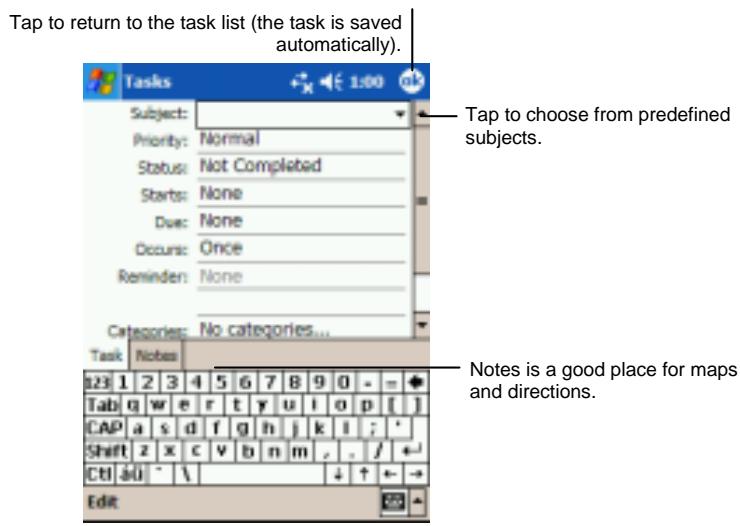
- Using the Input panel, enter a description.
-
You can enter a start date and due date or enter other information by first tapping the field. If the Input panel is open, you will need to hide it to see all available fields.
-
You can also do the following with regard to this task:
-
Add a note.
- Set a reminder.
- Make the task recurring.
- Assign the task to a category.
- Beam the task.
- Synchronize the task.
For more information, tap Help.
- Tap OK to return to the task list.
NOTE: To quickly create a task without a subject, tap Tools Entry Bar Tap here to add a new task. Enter your task information.
Using the Summary Screen
When you tap a task in the task list, a summary screen is displayed. To change the task, tap Edit.
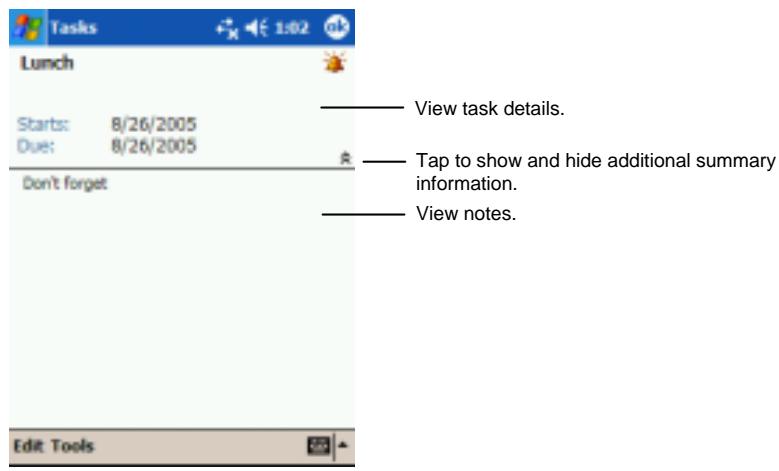
Tap to change task information.
4.4 Notes: Capturing Thoughts and Ideas
Quickly capture thoughts, reminders, ideas, drawings and phone numbers with Notes. You can create a written note or a recording. You can also include a recording in a note. If a note is open when you create the recording, it will be included in the note as an icon. If the note list is displayed, it will be created as a stand-alone recording.
Tap Notes or tap on your Yakumo alphaX GPS to switch to the program.
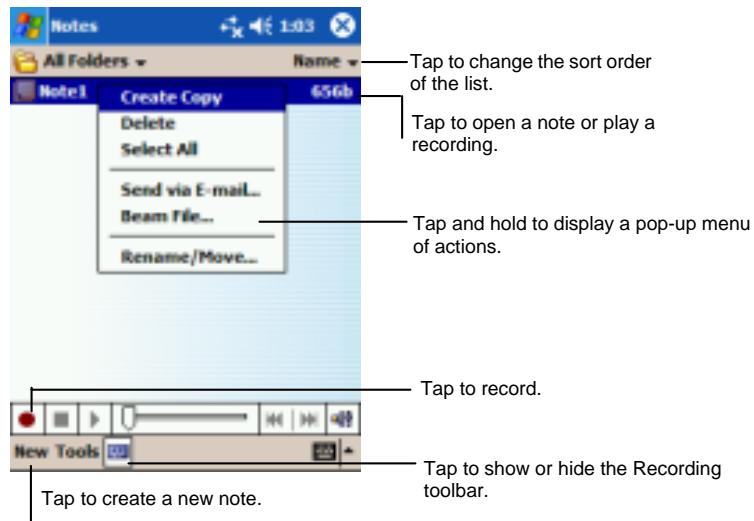
Creating a Note
1. Tap New.
NOTE: You can create a note by using a template. Tap the folder list (labeled All Folders by default) and then Template. Tap the template you want to use and make your changes.
- Create your note by writing, drawing, typing and recording. For more information about using the Input panel, writing and drawing on the screen and creating recordings, see section 2.8.
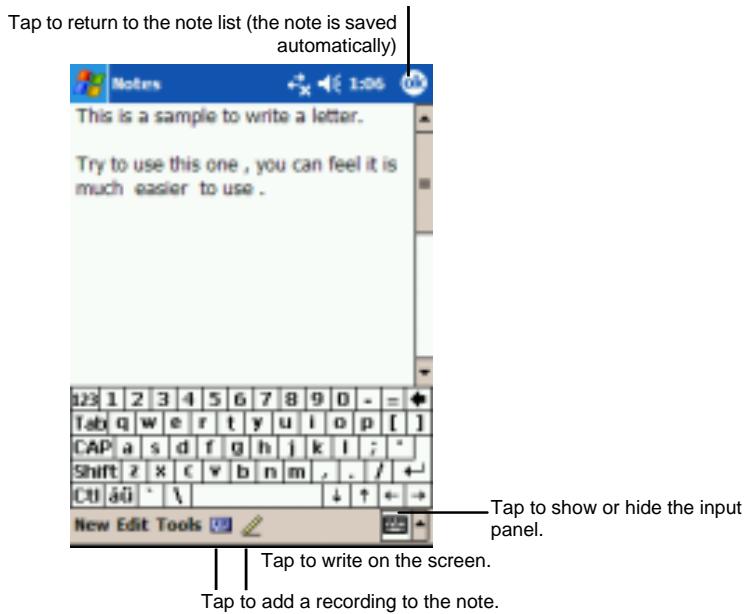
-
You can also do the following with regard to this note:
-
Beam the note.
- Send the note via e-mail.
- Create a template
For more information, tap Help.
- Tap OK to return to the note list.
4.5 Inbox: Sending and Receiving E-mail Messages
You can use Inbox to send and receive e-mail messages in two ways:
- By synchronizing e-mail messages with Microsoft Exchange or Microsoft Outlook on your desktop computer.
- By connecting directly to an e-mail server through an ISP (Internet Service Provider) or a network. This method requires an optional modem or network card.
Tap Inbox on your Yakumo alphaX GPS to switch to the program.
Synchronizing E-mail Messages
E-mail messages can be synchronized as part of the general synchronization process. To do this, you need to enable Inbox synchronization in ActiveSync. For information on enabling Inbox synchronization, see ActiveSync Help on the desktop computer.
During synchronization, the following occurs:
- Messages are copied from the mail folders of Exchange or Outlook on your desktop computer to the ActiveSync folder in Inbox on your Yakumo alphaX GPS. By default, you receive messages from the past three days only, the first 100 lines of each message file attachments of less than 100KB in size.
- E-mail messages in the Outbox folder on your Yakumo alphaX GPS are transferred to Exchange or Outlook and then sent from those programs.
- The messages on the two computers are linked. When you delete a message on your Yakumo alphaX GPS, it is deleted from your desktop computer the next time you synchronize.
- E-mail messages in sub folders in other e-mail folders in Outlook are synchronized only if they have been selected for synchronization in ActiveSync
NOTE: You can also synchronize e-mail messages with your desktop computer from a remote location. For more information, see section 6.1.
Connecting Directly to an E-mail Server
You can send and receive e-mail messages by connecting to a POP3 or IMAP4 e-mail server if you can connect to your ISP or local area network. (For information on connection, see Section 6.1.)
Setting up an E-mail Service
You can use multiple e-mail services to receive your messages. For each e-mail service you intend to use, first set up and name the e-mail service. If you use the same service to connect to different mailboxes, set up and name each mailbox connection.
In Inbox, tap Accounts New Account. Follow the directions in the New Service Wizard. For an explanation of a screen, tap Help. When you are done, connect to your e-mail server and tap Accounts Connect.
NOTE: You cannot add a new service while connected. Tap Accounts Disconnect to disconnect.
When you connect to the e-mail server, new messages are downloaded to the Inbox folder on your Yakumo alphaX GPS , messages in the Yakumo alphaX GPS Outbox folder are sent and messages that have been deleted on the e-mail server are removed from the Inbox folder on your Yakumo alphaX GPS .
Messages that you receive directly from an e-mail server are linked to your e-mail server rather than your desktop computer. When you delete a message on your Yakumo alphaX GPS, it is also deleted from the e-mail server the next time you connect based on the settings you selected in ActiveSync.
You can work online or offline. When working online, you read and respond to messages while connected to the e-mail server. Messages are sent as soon as you tap Send, which saves space on your Yakumo alphaX GPS.
When working offline, once you have downloaded new message headers or partial messages, you can disconnect from the e-mail server and then decide which messages to download completely. The next time you connect, Inbox downloads the complete messages you have marked for retrieval and sends the messages you have composed.
Using the Message List
Messages you receive are displayed in the message list. By default, the most recently received messages are displayed first in the list.
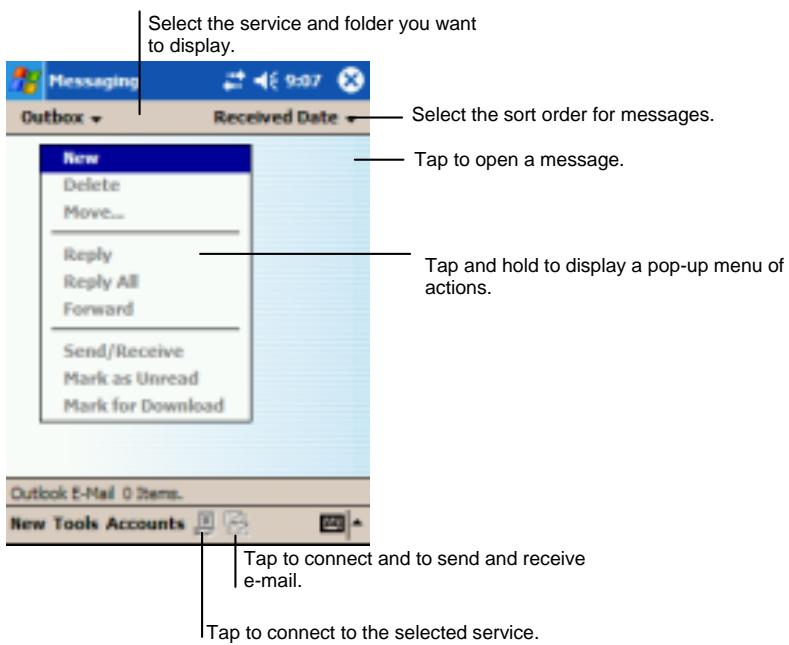
When you receive a message, tap it to open it. Unread messages are displayed in bold.
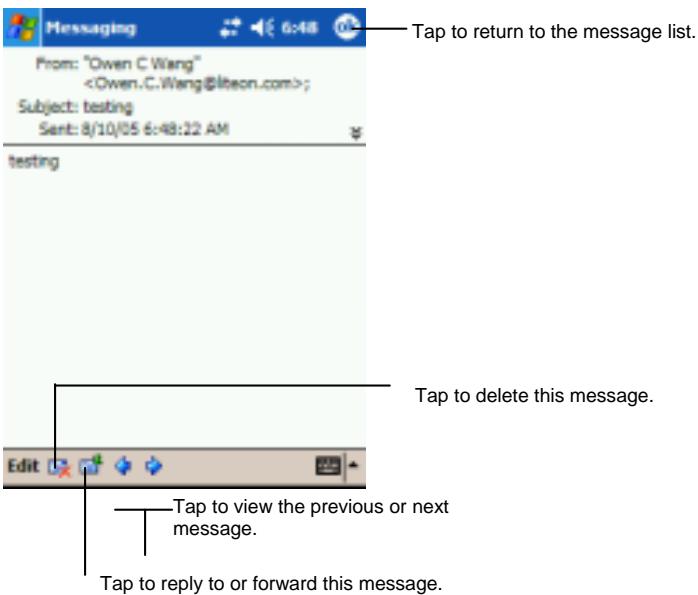
When you connect to your e-mail server or synchronize with your desktop computer or server, by default, you will receive messages from the last three days only, the first 100 lines of each new message file attachments of less than 100KB in size. The original messages remain on the server or your desktop computer.
You can mark the messages that you want to retrieve in full during your next synchronization or e-mail server connection. In the message list, tap and hold the message you want to retrieve. On the pop-up menu, tap Mark for Download. The icons in the Inbox message list give you visual indications of message status.
Specify your downloading preferences when you set up the service or select your synchronization options. You can change them at any time.
- Change options for Inbox synchronization using ActiveSync options. For more information, see ActiveSync Help.
- Change options for direct e-mail server connections in Inbox on your Yakumo alphaX GPS. Tap Accounts and tap the account you want to change. Tap and hold the account and tap Delete to remove an account.
Composing and Sending Messages
- In Inbox, tap New.
- In the To field, enter an e-mail address of one or more recipients, separating them with a semicolon. If the address is already in your contact list, you can tap To or the Contacts button in the Command bar to select the e-mail address.
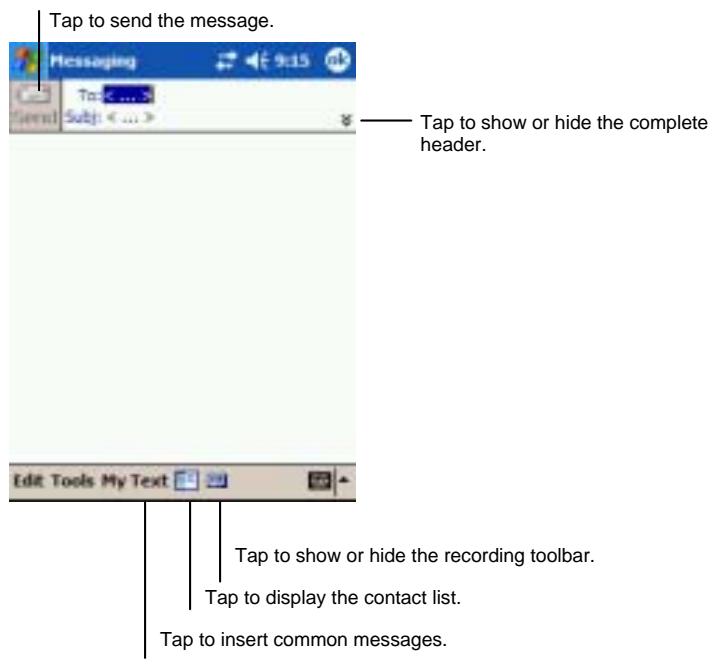
- To select a service, tap the DOWN arrow to display more header information. In the Account list, select ActiveSync or the desired e-mail account.
- Enter your message. To quickly enter common messages, tap My Text and select the desired message.
- If you want to attach a file to the message, tap Edit Add Attachment and select the desired file.
NOTE: OLE objects cannot be attached to Inbox messages.
- Tap Send when you have finished the message. If you are working offline, the message is moved to the Outbox folder and is sent the next time you connect.
The message is placed in the Outbox folder on your Yakumo alphaX GPS and will be delivered in one of two ways:
- The message is transferred to the Outbox folder in Exchange or Outlook on your desktop computer and sent the next time you synchronize.
- The message is transferred to your e-mail server the next time you connect. In Inbox, make sure the appropriate service is selected on the Accounts menu. Then tap the Connect button (or Connect on the Accounts menu).
Managing E-mail Messages and Folders
Each e-mail service and each SMS account has its own folder hierarchy with five default folders: Inbox, Outbox, Deleted Items, Drafts and Sent Items. The messages you receive and send through the mail service are stored in these folders. You can also create additional folders within each hierarchy.
The Deleted Items folder contains messages that have been deleted on your Yakumo alphaX GPS. The behavior of the Deleted and Sent Items folders depends on the options you have chosen.
Folder Behavior
The behavior of the folders you create depends on whether you are using ActiveSync, POP3 or IMAP4.
- If you use ActiveSync, e-mail messages in the Inbox folder in Outlook are automatically synchronized with your Yakumo alphaX GPS. You can select to synchronize additional folders by designating them for ActiveSync. The folders you create and the messages you move are mirrored on the server. For example, if you move two messages from the Inbox folder to a folder named Family and you have designated Family for synchronization, the server creates a copy of the Family folder and copies the messages into that folder. You can then read the messages while away from your desktop computer.
- If you use POP3 and you move e-mail messages to a folder you created, the link is broken between the messages on the Yakumo alphaX GPS and their copies on the mail server. The next time you connect, the mail server sees that the messages are missing from the Yakumo alphaX GPS Inbox and deletes them from the server. This prevents you from having duplicate copies of a message, but it also means that you no longer have access to messages that you move to folders created from anywhere except the Yakumo alphaX GPS.
- If you use IMAP4, the folders you create and the e-mail messages you move are mirrored on the server. Therefore, messages are available to you anytime you
connect to your mail server, whether it is from your Yakumo alphaX GPS or desktop computer. This synchronization of folders occurs whenever you connect to your mail server, create new folders or rename/delete folders when connected.
For all services except ActiveSync, you can access folder options by tapping Tools Manage Folders in the message list.
5 Additional Programs
In addition to Microsoft Pocket Outlook, several programs are built into your Yakumo alphaX GPS. They include Microsoft ActiveSync, Microsoft Pocket Word, Microsoft Pocket Excel, Windows Media Player, Microsoft Reader, Pictures and additional programs. This chapter tells you how to use these programs.
5.1 Microsoft ActiveSync
Microsoft ActiveSync
NOTE: ActiveSync is already installed on your Yakumo alphaX GPS. You need to install ActiveSync on your desktop computer. (For information on installing ActiveSync, see section 1.4.)
When you have established the connection between your Yakumo alphaX GPS and your desktop computer, you can synchronize the information between the two with ActiveSync. Synchronization compares the data on the two sides and updates both computers with the most recent information. For example, you can:
- Keep your Pocket Outlook Contacts, Calendar and Tasks databases up-to-date by synchronizing your Yakumo alphaX GPS with Microsoft Outlook data on your desktop computer.
- Synchronize e-mail messages in your Yakumo alphaX GPS Inbox with e-mail messages in Microsoft Outlook on your desktop computer.
- Synchronize Microsoft Word and Microsoft Excel files between your Yakumo alphaX GPS and desktop computer. Your files are automatically converted to the correct format.
With ActiveSync, you can also:
-
Back up and restore your Yakumo alphaX GPS data.
-
Copy (rather than synchronize) files between your Yakumo alphaX GPS and desktop computer.
- Add and remove programs on your Yakumo alphaX GPS.
- Pass through your desktop computer to a network or the Internet to perform tasks such as downloading IMAP4 e-mail messages or browsing the Internet on your Yakumo alphaX GPS.
Ways of Connecting to Your Desktop Computer
Caution: Do not shut down or restart your desktop computer while your Yakumo alphaX GPS is connected. Turn off your Yakumo alphaX GPS or disconnect the cable before you shut down your desktop computer.
You can connect your Yakumo alphaX GPS to a desktop computer in several ways:
- Use the USB Docking Station (optional) or the ActiveSync cable. (For details, see step 8 in Section 1.4.)
- Use the IR port in place of using a cable. IR ports can be found on many notebook computers; however, on a desktop computer, you may need to install and configure an IR port. To install the port, follow the manufacturer's instructions. (For complete instructions on connecting to your desktop computer by infrared, refer to ActiveSync Help on your desktop computer.)
- Use a network or dial-up connection. You can synchronize while connected to your desktop computer by a dial-up connection or over a LAN (Local Area Network).
Synchronizing Data
Once you have created a partnership and completed the first synchronization, you can initiate synchronization from your Yakumo alphaX GPS.
To Synchronize from Your Yakumo alphaX GPS
- Connect your Yakumo alphaX GPS to the desktop computer.
- On your Yakumo alphaX GPS, tap ActiveSync.
- Tap to begin synchronization.
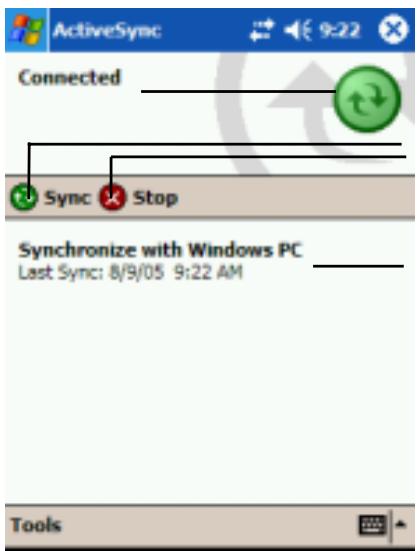
Tap to synchronize via IR or change synchronization settings.
View connection status.
Tap to connect and synchronize.
Tap to stop synchronization.
View synchronization status.
By default, ActiveSync does not automatically synchronize all types of information. Use ActiveSync options to turn synchronization on and off for specific information types. You can:
- Control when synchronization occurs by selecting a synchronization mode. For example, you can synchronize continually while the Yakumo alphaX GPS is connected or only when you choose the synchronize command.
- Select which information types are synchronized and control how much data is synchronized. For example, you can choose how many weeks of past appointments you want synchronized.
For information on setting ActiveSync options and using ActiveSync on your desktop computer, see ActiveSync Help on the desktop computer. For information on using ActiveSync on your Yakumo alphaX GPS , see ActiveSync Help on the Yakumo alphaX GPS .
To Synchronize from a Remote Location
You can also synchronize by dialing in to your desktop computer or connecting over a network. This can be useful if you need to synchronize files or PIM information while traveling. Before you leave, you must configure both your Yakumo alphaX GPS and your desktop computer.
On your Yakumo alphaX GPS, you need to create a partnership between your Yakumo alphaX GPS and the desktop computer using one of the direct connection methods (USB cable or infrared connection). You must also configure a connection on your Yakumo alphaX GPS as described in section 6.1.
On your desktop computer, you need to ensure the following:
- The desktop computer or network server is configured to allow your Yakumo alphaX GPS to connect. Depending on the version of Windows running on the desktop computer, you may need to install and configure Remote Access Services or Dial-Up Networking on the desktop computer.
- ActiveSync is configured to allow a network connection. For more information, see ActiveSync Help on your desktop computer.
- If you are using a modem on your desktop computer, turn the modem on before you leave.
- Leave your desktop computer on and be sure you logged on under the same user name that you used when you created the partnership.
- Your PIM program and e-mail program (Microsoft Outlook or Microsoft Exchange) should be running correctly.
5.2 Pocket Word
Microsoft Pocket Word works with Microsoft Word on your desktop computer to give you easy access to copies of your documents. You can create new documents on your Yakumo alphaX GPS or you can copy documents from your desktop computer. Synchronize documents between your desktop computer and your Yakumo alphaX GPS regularly so that you have the most up-to-date content in both locations.
Tap Programs and tap the Pocket Word icon to switch to the program.
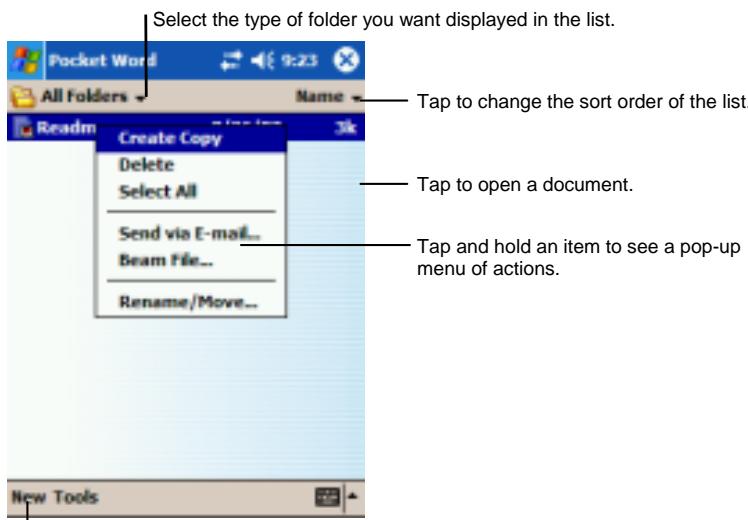
Tap to create a new document.
Creating a Document
- In Pocket Word, tap New.
NOTE: To open a template rather than a blank document, select a template for new documents. Tap Tools Options and select the desired template. When you tap New, the template appears with appropriate text and formatting already provided.
- You can enter information in Pocket Word in one of four modes: writing, drawing, typing or recording. Use the View menu to switch between modes. Each mode has its own toolbar, which you can show and hide by tapping the
Show/Hide Toolbar button on the Command bar. (For more information on entering information, see section 2.8 or Yakumo alphaX GPS Help.)
NOTE: Written words are converted to graphics (metafiles) when a Pocket Word document is converted to a Word document on your desktop computer.
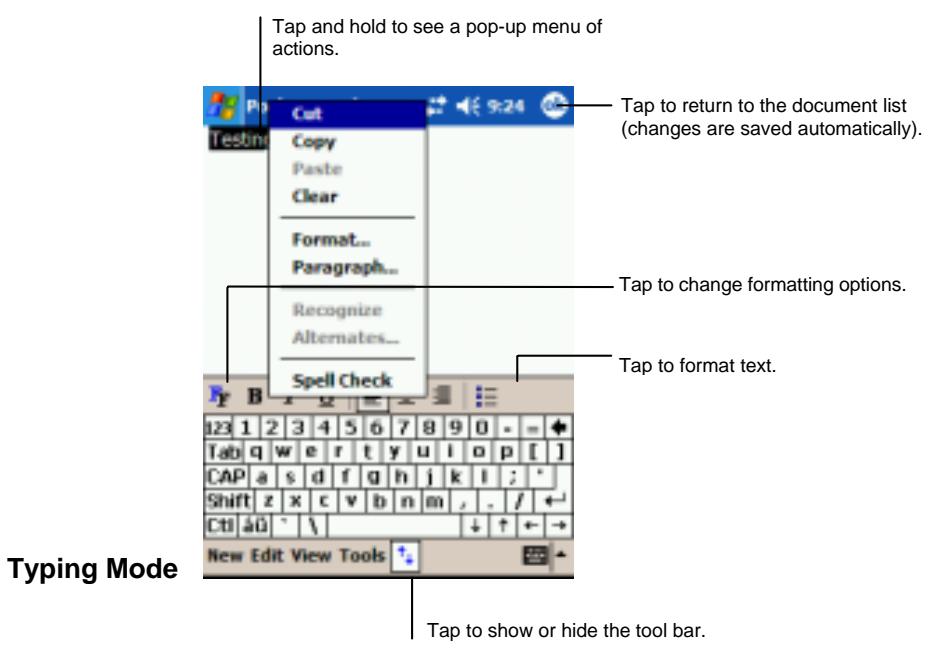
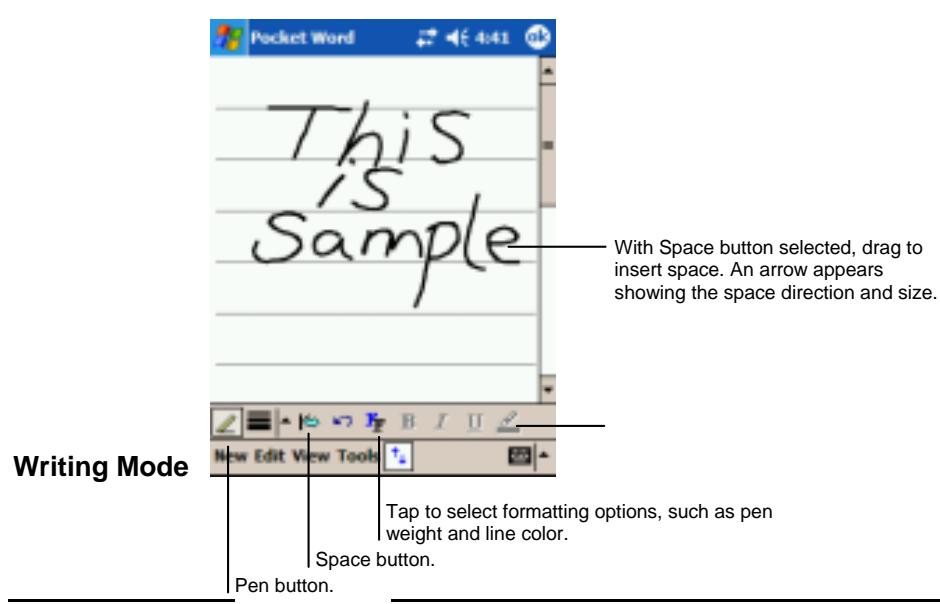
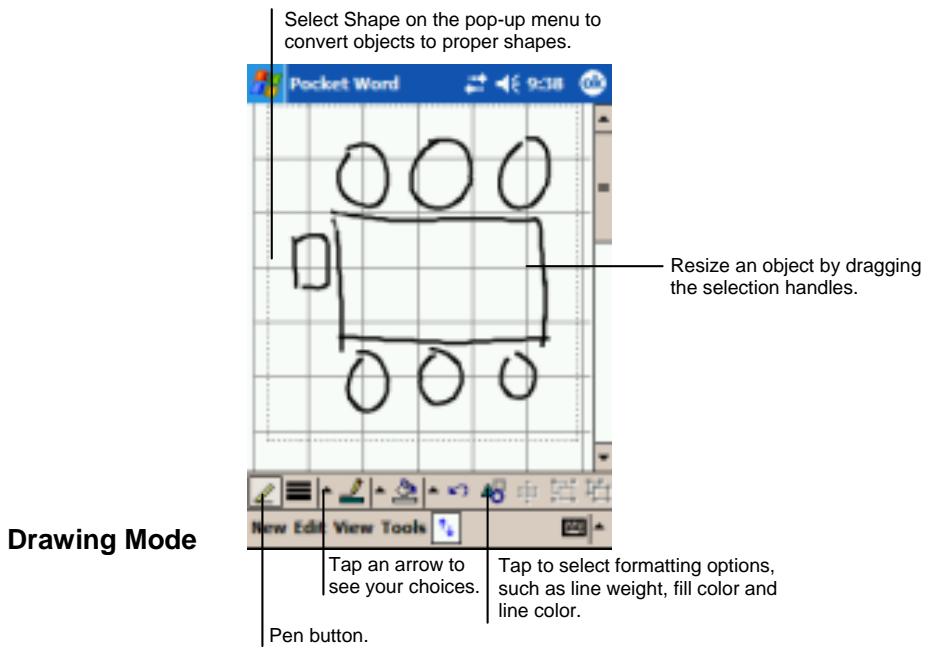
- When you have finished entering the information and tap OK, the document is automatically saved and named according to the first characters of text entered in the document.
Working with Pocket Word Documents
Opening a Document
Whenever you switch to Pocket Word, you will see the document list. Tap the desired document to open it. You can open only one document at a time; when you open a second document, you will be asked to save the first.
Changing Options of a Document
In an open document, you can:
- Create a copy of your document. By default, the document will be saved in Pocket Word format (.psw). However, you can also convert the format into Rich Text Format (.rtf), Plain Text (.txt) or Word (.doc).
NOTE: If your document is simple, save it as a Plain Text Document to save storage space.
- Rename the document.
- Move the document to a storage card or folder.
For more information, see Word Help on your Yakumo alphaX GPS.
Tips for Working in Pocket Word
- You can change the zoom magnification by tapping View Zoom and select the percentage you want. Select a higher percentage to enter text and a lower one to see more of your document.
- If you are opening a Word document created on a desktop computer, select View Wrap to Window so that you can see the entire document.
5.3 Pocket Excel
Microsoft Pocket Excel works with Microsoft Excel on your desktop computer to give you easy access to copies of your workbooks. You can create new workbooks on your Yakumo alphaX GPS or you can copy workbooks from your desktop computer to your Yakumo alphaX GPS. Synchronize workbooks between your desktop computer and your Yakumo alphaX GPS regularly so that you have the most up-to-date content in both locations. Pocket Excel provides fundamental spreadsheet tools, such as formulas, functions, sorting and filtering, which enable you to create simple workbooks, such as expense reports and mileage logs.
Tap Programs and tap the Pocket Excel icon to switch to the program.
- In Pocket Excel, tap New.
NOTE: To open a template rather than a blank workbook, select a template for new workbooks. Tap Tools Options and select the desired template. When you tap New, the template appears with appropriate text and formatting already provided.
- You can use Pocket Excel much the same way you use Excel on your desktop computer. You can enter formulas and functions and then filter data to see the subset of information you want. (For more information on entering information, see section 2.8 or Yakumo alphaX GPS Help.)
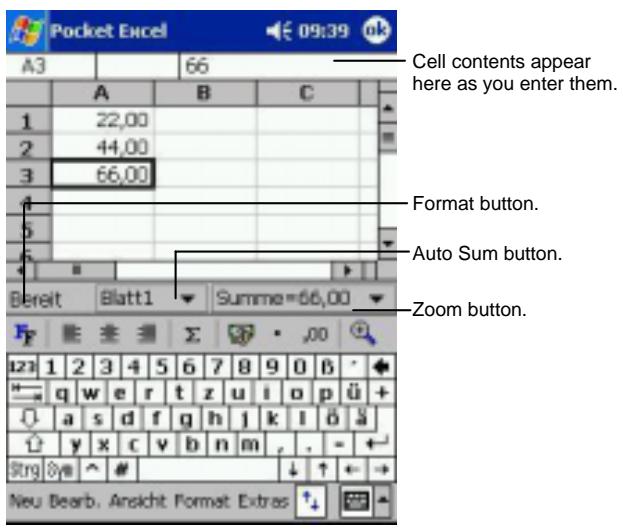
- When you have finished entering the information and tap OK, the workbook is automatically saved and named according to the first characters of text entered in the workbook.
Working with Pocket Excel Workbooks
Opening a Workbook
Whenever you switch to Pocket Excel, you will see the workbook list. Tap the desired workbook to open it. You can open only one workbook at a time; when you open a second workbook, you will be asked to save the first.
Changing Options of a Workbook
In an open workbook, you can:
-
Create a copy of your workbook. By default, the document will be saved in Pocket Excel format (.pxl). But you can also convert the file in Excel (.xls) format.
-
Rename the workbook.
-
Move the workbook to a storage card or folder.
For more information, see excel Help on your Yakumo alphaX GPS .
Tips for Working in Pocket Excel
- View in full-screen mode to see as much of your worksheet as possible. Tap View Full Screen. To exit full-screen mode, tap Restore.
- If your workbook contains sensitive information, you can protect it with a password. To do so, open the workbook and tap Edit Password.
- Show and hide window elements. Tap View and then tap the elements you want to show or hide.
-
Freeze panes on a worksheet. First, select the cell where you want to freeze panes. Tap View Freeze Panes. You might want to freeze the top and leftmost panes in a worksheet to keep row and column labels visible as you scroll through a sheet.
-
Split panes to view different areas of a large worksheet. Tap View Split and drag the split bar to where you want it. To remove the split, tap View Remove Split.
- Show and hide rows and columns. To hide a row or column, select a cell in the row or column you want to hide. Tap Format Row or Column Hide. To show a hidden row or column, tap Tools Go To and then type a reference that is in the hidden row or column. When done, tap Format Row or Column Unhide.
5.4 MSN Messenger
MSN^® Messenger on your Yakumo alphaX GPS provides the same chat environment as MSN Messenger on your desktop computer. These features include
See who is online.
- Send and receive instant messages.
- Have an instant message conversation with a group of contacts.
- Tell contacts that you are unavailable.
- Block contacts from seeing your status or sending you messages.
To use MSN Messenger, you must have an Internet connection. (For information on connections, see Sections 6.4 and 6.5.)
In addition, you must have a Microsoft Passport™ account or a Microsoft Exchange e-mail account. You must have a Passport to use MSN Messenger Service. If you have a Hotmail® or MSN account, you already have a Passport. Once you have one of these accounts, you are ready to set up your account.
NOTE: Sign up for a Microsoft Passport account at http://www/passport.com. Get a free Microsoft Hotmail e-mail address at http://www.hotmail.com.
Tap Programs and tap the MSN Messenger icon to switch to the program
Setting Up to Use MSN Messenger
Before you can connect, you must enter Passport or Exchange account information. Set up an account and sign in as follows:
- In MSN Messenger, tap Tools Options.
- On the Accounts tab, enter your Passport or Exchange account information.
- To sign in, tap the sign-in screen and enter your e-mail address and password.
NOTE: If you already use MSN Messenger on your desktop computer, your contacts show up on your Yakumo alphaX GPS without being added again.
Working with Contacts
The MSN Messenger window shows all of your messenger contacts at a glance and are divided into Online and Not Online categories. From this view, while connected, you can chat, send e-mail, block the contact from chatting with you or delete contacts from your list using the pop-up menu.
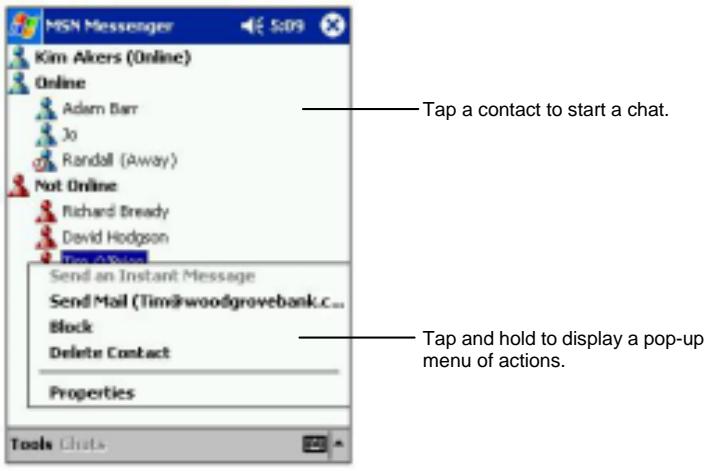
NOTE:
- To see others online without being seen, in the Tools menu, tap My Status and select Appear Offline.
- If you block a contact, it appears offline but remains on the blocked contact's list. To unblock a contact, tap and hold the contact, then tap Unblock on the pop-up menu.
Chatting with Contacts
Tap a contact name to open a chat window. Enter your message in the text entry area at the bottom of the screen or tap My Text to enter a preset message and tap Send. To invite another contact to a multi-user chat, in the Tools menu, tap Invite and tap the contact you want to invite.
NOTE: To switch back to the main window without closing a chat, tap Contacts. To revert back to your chat window, tap Chats and select the person whom you were chatting with.
To know if the contact you are chatting with is responding, look for the message under the text entry area.
For more information on using MSN Messenger, tap Help.
5.5 Windows Media Player for Pocket PC
Use Microsoft Windows Media Player for Pocket PC to play digital audio and video files that are stored on your Yakumo alphaX GPS or on a network, such as on a Web site.
Tap Windows Media to switch to the program.
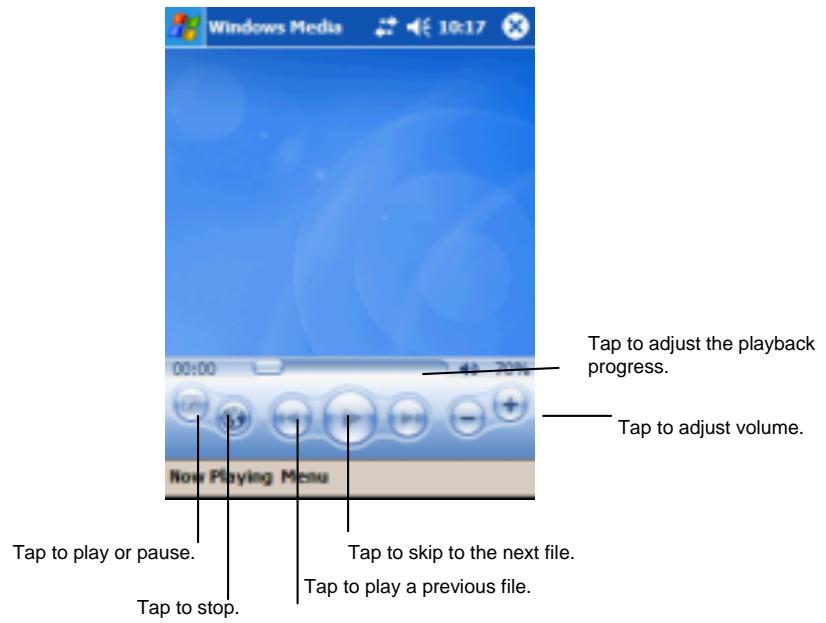
You can play files in either Windows Media or MP3 format (this include files with the extension .asf, .wma, .wmv and .mp3). To find content in Windows Media Format, see the WindowsMedia.com Web site (http://www.windowsmedia.com).
Use Microsoft Windows Media Player on your desktop computer to copy digital audio and video files to your Yakumo alphaX GPS. You can also use your Yakumo alphaX GPS to play Windows Media and MP3 files.
For more information about using Windows Media Player, tap Help.
5.6 Additional Programs
In addition to Microsoft software, your Yakumo also provides additional programs to enhance your Yakumo alphaX GPS or facilitate your operation. These programs will be explained in this section.
Backup Restore
The Backup Restore program allows you to back up all or selected data stored in the RAM of your Yakumo alphaX GPS to an additional storage media.
To Backup Data
Caution:
- Make sure that the capacity of your storage card is enough for your data.
- Never turn off your Yakumo alphaX GPS or remove the storage card during the backup process.
-
Do not back up your data when the battery is low. Otherwise, you might lose your data.
-
Disconnect your Yakumo alphaX GPS from your desktop computer, if connected.
- Stop all running programs by tapping Settings System tab Memory icon Running Programs tab Stop All.
- Insert a storage card if you are using the media for backing up. (For details on how to insert an SD/MMC card, see section 1.5.)
- Tap Programs Backup Restore icon to switch to the program.
- Tap Backup and then Next.
- Select a storage media to back up data and tap Next.
- Select the items you want to backup. You can select individual or multiple items from Contacts, Calendar, Tasks, Inbox, Channels, Notes, Voice Recorder and User Applications.
- Tap Next. The program will start backing up data and then display a message on the screen when backup is completed.
- Remove the storage card, if inserted. Never delete the contents in the storage card, or the backup data will be lost and you cannot restore data with this card.
To Restore Data
Caution:
- If you have created files on your Yakumo alphaX GPS since the last backup and do not want to delete these files during the restore process, move the files from your Yakumo alphaX GPS to your desktop computer or to a storage card before restoring data.
-
When you restore data, make sure that your Yakumo alphaX GPS has the same regional settings that it had when you completed the backup.
-
Disconnect your Yakumo alphaX GPS from your desktop computer, if connected.
- Stop all running programs by tapping Settings System tab Memory icon Running Programs tab Stop All.
- Insert the storage card if your data was backed up on the card.
- Tap Programs Backup Restore icon to switch to the program.
- Tap Restore and then Next.
- Select the storage media containing your backup data and tap Next.
- Select the items you want to restore.
- Tap Restore.
- Tap Yes. The program will start restoring data and then display a message on the screen when restoring is completed.
- Reset your Yakumo alphaX GPS as described in section 7.1.

Getting Connected
This chapter tells you how you can get your Yakumo alphaX GPS connected to the Internet or corporate network through a variety of ways including modem, network card, and Bluetooth. It also describes Internet Explorer for Web browsing.
6.1 Connection Settings
You can establish a connection to the Internet or to your company's corporate network in order to browse the Web or the company Intranet, to send and receive e-mail and instant messages and to synchronize information via ActiveSync.
Your Yakumo alphaX GPS has two groups of connection settings: "My ISP" and "My Work Network". My ISP settings are used to connect to the Internet, and My Work Network settings can be used to connect to any private network, such as a corporate network you use at work.
Modem Connection
With a modem, you can dial in to your ISP or corporate network.
Before creating the connection, you need to:
- Have a modem (IR or SD IO). (For installation information, see the documentation supplied with the product.)
- Obtain the following information from your ISP or network administrator: server phone number, user name, password, domain name and TCP/IP settings.
Creating a Modem Connection
- Tap Settings Connections tab Connections.
- Follow the instructions in the New Connection wizard.
- To view additional settings, tap
NOTE: To change modem connection settings, in either My ISP or My Work Network, tap Manage existing connections. Select the desired modem connection, tap Settings and follow the instructions on the screen.
Starting and Ending a Modem Connection
To start the connection, install the modem and connect the modem cable. Then, connect the required accessories to the Yakumo alphaX GPS and use the desired program. For example, switch to Pocket Internet Explorer and browse to a Web page. Your Yakumo alphaX GPS will automatically connect.
To end the connection, tap the icon in the Navigation Bar and tap Disconnect.
Network (Ethernet) Card Connection
Use a network (Ethernet) card to connect directly to a network. You do not need to create a new connection on your Yakumo alphaX GPS. Insert a network card and you can create a connection.
Before creating the connection, you need to:
- Have a network card (SD IO) (optional). (For installation information, see the documentation supplied with the product.)
- Obtain the following information from your network administrator: user name, password and domain name.
Creating a Network Card Connection
- Insert the network card into your Yakumo alphaX GPS.
- The first time you insert the card, Network Settings appears automatically so that you can configure the network card. If it does not appear or to change settings later, tap Settings Connections tab Connections Advanced tab Network Card.
- If you need to enter specific server information, tap the appropriate adapter and then Properties. Most networks use DHCP, so you should not have to change these settings unless your network administrator instructs you to do so.
- If necessary, connect the network card to the network by using a network cable.
NOTE: You may need proxy server and VPN connection settings. For more information, consult your network administrator.
Starting and Ending a Network Card Connection
To start the connection, install the network card and connect the network cable. Then connect the required accessories to the Yakumo alphaX GPS and use the desired program. For example, switch to Pocket Internet Explorer and browse to a Web page. Your Yakumo alphaX GPS will automatically connect.
To end the connection, remove the card from your Yakumo alphaX GPS.
Wireless Network Connection (WLAN)
Use a wireless network card to connect to a wireless network without physical cables.
Before creating the connection, you need to:
- Have a wireless network card (SD IO) (optional). (For installation information, see the documentation supplied with the product.)
- If necessary, obtain the authentication information from your network administrator.
Creating a Wireless Connection to a Network
Networks that you have already configured are preferred networks and are listed in Wireless networks. You can select to connect to only preferred networks or have your Yakumo alphaX GPS search for and connect to any available network whether it is preferred or not.
- Insert the wireless network card into your Yakumo alphaX GPS .
- To manually enter information, tap Settings Connections tab Connections Network Card Wireless tab Add new. If the network was detected, step 2 is not necessary.
- In the General tab, enter a network name. If the network was detected, the network name is automatically entered and cannot be changed.
-
To change the network settings, select a network from the list.
-
From Connects to, select what your network connects to, Work or the Internet.
-
To connect to an ad-hoc connection, select This is a device-to-computer (ad-hoc) connection.
-
From Networks to access, select All available, Only access points or Only computer-to-computer.
- To connect only to networks you have already configured, clear Automatically connect to non-preferred networks.
NOTE: If you select to automatically connect to non-preferred networks, your Yakumo alphaX GPS will detect any new networks and provide you the opportunity to configure them.
Configuring Authentication Settings
To determine if authentication information is needed, see your network administrator.
-
To manually enter the information, select a network as described earlier and tap Authentication tab.
-
To use data encryption, tap Data encryption (WEP enabled).
- To use Shared Key authentication, tap Network Authentication (shared mode). You will need a network key (as provided by your network administrator).
- To automatically use a network key, tap The key is provided for me automatically. Otherwise, enter the network key.
- For increased security, select Use IEEE 802.1x network access control. Then, select the appropriate EAP type.
Starting and Ending a Wireless Network Connection
After you install the wireless network card and set up the wireless network, use the desired program when you are within the range of wireless network. For example, switch to Pocket Internet Explorer and browse to a Web page. Your Yakumo alphaX GPS will automatically connect.
To end the connection, tap the icon in the Navigation Bar and tap Disconnect.
NOTE: When you have finished using the wireless network, complete the actions for ending the connection. Leaving the wireless network module active will consume more power.
6.2 Transferring Items Using Infrared
Using infrared (IR), you can send and receive information, such as contacts and appointments, between two devices.
Sending Information
- Switch to the program where you created the item you want to send and locate the item in the list.
- Align the IR ports so that they are unobstructed and within a close range.
Caution: If the devices are too far apart or if something blocks the path between the two ports, data might not be sent or received correctly.
- Tap and hold the item and tap Beam Item on the pop-up menu.
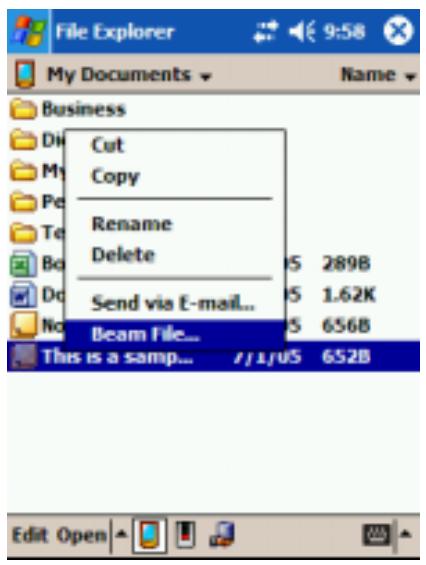
NOTE: You can also send items, but not folders, from File Explorer. Tap and hold the item you want to send and then tap Beam File on the pop-up menu.
Receiving Information
- Align the IR ports so that they are unobstructed and within a close range.
- Have the owner of the other device send the information to you.
- By default, your Yakumo alphaX GPS monitors all incoming beams. A message will pop up on the screen asking if you want to receive. Tap Yes.
6.3 Using Microsoft Pocket Internet Explorer
Use Microsoft Pocket Internet Explorer to view Web pages in either of these ways:
- Connect to an ISP or network and browse the Web. To do this, you will need to create the connection first, as described in section 6.1.
- During synchronization with your desktop computer, download your favorite links and mobile favorites that are stored in the Mobile Favorites subfolder in Internet Explorer on the desktop computer.
While you are connected to an ISP or network, you can also download files and programs from the Internet or an intranet.
Tap Start Internet Explorer to switch to the program. The Pocket Internet Explorer home page appears:
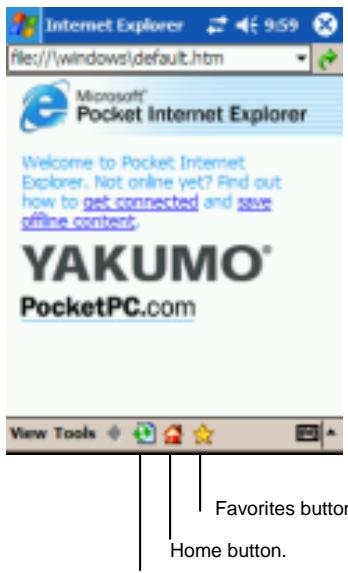
Refresh button.
Viewing Mobile Favorites and Channels
- In Internet Explorer, tap the Favorites button to display your list of favorites.
- In the list, tap the page you want to view.
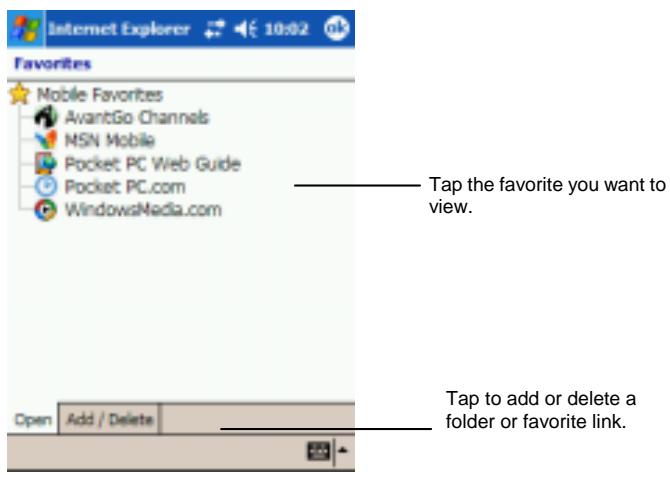
You will see the page that was downloaded the last time you synchronized with your desktop computer. If the page is not on your Yakumo alphaX GPS, it will be dimmed in the Favorites list. You will need to synchronize with your desktop computer again to download the page to your Yakumo alphaX GPS or connect to the Internet to view the page.
Browsing the Internet
- Set up a connection to your ISP or corporate network as described in section 6.1.
-
To connect and start browsing, do one of the following:
-
Tap the Favorites button and then tap the favorite you want to view.
- Tap View Address Bar. In the address bar that appears at the top of the screen, enter the Web address you want to visit and then tap Go. Tap the arrow to choose from previously entered addresses.
The Mobile Favorites Folder
Only items stored in the Mobile Favorites subfolder in the Favorites folder in Internet Explorer on your desktop computer will be synchronized with your Yakumo alphaX GPS. This folder is created automatically when you install ActiveSync
Favorite Links
During synchronization, the list of favorite links in the Mobile Favorites folder on your desktop computer is synchronized with Pocket Internet Explorer on your Yakumo alphaX GPS. Both computers are updated with changes made to either list each time you synchronize. Unless you mark the favorite link as a mobile favorite, only the link (and not the page) will be downloaded to your Yakumo alphaX GPS, and you must connect to your ISP or network to view the content. For more information on synchronization, see ActiveSync Help on your desktop computer.
Mobile Favorites
If you are using Microsoft Internet Explorer 5 or later on your desktop computer, you can download mobile favorites to your Yakumo alphaX GPS. When you synchronize your desktop computer and Yakumo alphaX GPS, the content of your mobile favorites is downloaded to your Yakumo alphaX GPS so that you can view pages while you are not connected to your ISP or your network.
Use the Internet Explorer plug-in installed with ActiveSync to create mobile favorites quickly.
To create a mobile favorite:
-
In Internet Explorer on your desktop computer, click Tools, and then click Create Mobile Favorite.
-
To change the link name, enter a new name in the Name box.
-
To change how often the mobile favorite is updated, select a desired update schedule under Update.
-
Click OK. Internet Explorer downloads the latest version of the page to your desktop computer.
- If you want to download the pages that are linked to the mobile favorite you just created, right-click the mobile favorite and then click Properties. On the Download tab, specify the number of links deep you want to download. To conserve memory on your Yakumo alphaX GPS, download only one level of links.
- Synchronize your Yakumo alphaX GPS and desktop computer. Mobile favorites that are stored in the Mobile Favorites folder in Internet Explorer are downloaded to your Yakumo alphaX GPS.
NOTE: If you do not specify an update schedule, you must manually download content to keep the information updated on your desktop computer and Yakumo alphaX GPS. Before synchronizing, in Internet Explorer on your desktop computer, click Synchronize on the Tools menu. You will see the last time content was downloaded to the desktop computer, and you can manually download content if needed.
Caution: You can add a button to the Internet Explorer toolbar for creating mobile favorites. In Internet Explorer on your desktop computer, on the View menu, click Toolbars, and then click Customize.
Conserving Memory
Mobile favorites take up storage memory on your Yakumo alphaX GPS. Follow these tips to minimize the amount of memory used:
- Use ActiveSync settings to turn off photos and sounds for the Mobile Favorites information type or to stop some mobile favorites from being downloaded to your Yakumo alphaX GPS. For more information, see ActiveSync Help.
- Limit the number of downloaded linked pages. In Internet Explorer on the desktop computer, right-click the mobile favorite you want to change, and then click Properties. On the Download tab, specify 0 or 1 for the number of linked pages you want to download.
- Follow the directions on the screen. You will need to synchronize your Yakumo alphaX GPS with your desktop computer, and then tap the My Channels button to complete the AvantGo setup.

Troubleshooting and Maintenance
This chapter gives solutions to common Yakumo alphaX GPS problems you may encounter. It also provides guidelines on taking care of your Yakumo alphaX GPS.
NOTE: If you encounter a problem you cannot solve, contact your dealer for assistance.
7.1 Resetting Your Yakumo alphaX GPS
Caution: Resetting will cause unsaved data to be lost.
Resetting your Yakumo alphaX GPS is similar to restarting your desktop computer. It restarts the operating system, but you will lose any unsaved data.
Occasionally, you may need to reset your Yakumo alphaX GPS ; for example, you should reset:
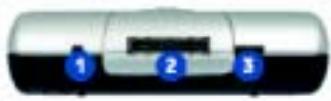
- After you restore data from your desktop computer.
- When your Yakumo alphaX GPS stops responding; in other words, it appears to be "frozen" or "locked up."
Follow this procedure to reset your Yakumo alphaX GPS :
- Remove the SD/MMC card (if installed).
- Use the stylus to press the soft reset switch (position 1, see figure on the right).
7.2 Remove the SD/MMC card (if installed).
In some cases, you may need to restore your Yakumo alphaX GPS to the factory default state by clearing the memory (RAM) from your Yakumo alphaX GPS. For example, you should clear the memory:
- When your Yakumo alphaX GPS does not respond after being reset.
- When you forget your password.
Clearing the memory means all data you have entered in RAM, including all files, system settings and additional programs you have installed, will be erased.
(Programs installed to ROM at the factory are not affected.)
Caution:
- To ensure the integrity of your data should it be necessary to clear the memory, you're advised to regularly synchronize your data (via ActiveSync) with your desktop computer or back up (with a backup utility) to a storage card. For more information on backing up data, see section 3.5.
- Do not slide the battery switch unless it is necessary.
Follow this procedure to clear the memory from your Yakumo alphaX GPS :
- Backup your information if necessary.
- Disconnect all cables, including the AC adapter, from your Yakumo alphaX GPS.
- Stop all running programs by tapping Settings System tab Memory icon Running Programs tab Stop All.
- Use the stylus to slide the battery switch to the left (OFF position).
- Wait for 1 minute and then slide the switch again to the right (ON position).
- Your Yakumo alphaX GPS will automatically turn on and prompt you to start the setup wizard.
- Follow the onscreen instructions to complete the setup wizard.
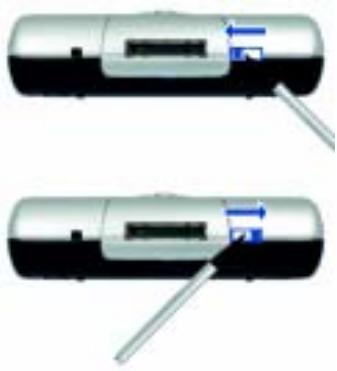
Wait for 1 minute.
- Reestablish a partnership with your desktop computer.
- You may also want to restore data to your Yakumo alphaX GPS from your most recent backup file.
NOTE: If the battery completely runs out of power and is not charged in time, you will get the same result as when you restore the factory default state.
7.3 Power Problems
Power does not turn on when using battery power
- The remaining battery power may be too low to run your Yakumo alphaX GPS. Connect the AC adapter to your Yakumo alphaX GPS and to external AC power. Then turn on your Yakumo alphaX GPS.
Battery runs out of power quickly
- You might be using your Yakumo alphaX GPS in ways that drain power quickly. (See "Power-Saving Tips" in section 3.1 for more information.)
7.4 Memory Problems
If a warning message of not enough memory appears due to the memory allocation problem, try the following to free memory on your Yakumo alphaX GPS.
Caution: Take care when you delete files. Deleting files of which the function is unknown can cause programs or features to malfunction. It is always advisable to make a backup before deleting files.
-
Delete files you no longer need. Tap Programs File Explorer. Tap and hold the file you wish to delete and then tap Delete on the pop-up menu. To find your largest files, tap Find. In the Type list, tap Larger than 64KB Go.
-
Remove programs you no longer need. Tap Settings System tab Remove Programs. Tap the program you want to remove and then tap Remove.
- In Internet Explorer options, delete all files and clear history. In Internet Explorer, tap Tools Options. Tap Delete Files and Clear History.
- If you are copying files from a computer or device to your Yakumo alphaX GPS, try adjusting the slider in the Memory setting. Tap Settings System tab Memory icon. Check if you can manually move the slider before copying files. The maximum storage memory that your Yakumo alphaX GPS can allocate is around 20MB. This means that you cannot save files larger than 20MB to the RAM of your Yakumo alphaX GPS.
- Stop programs you are not currently using. In most cases, programs automatically stop to free needed memory. However, in some situations, such as when confirmation dialog boxes are waiting for a user response, the program may not be able to automatically stop. To check the state of your active programs, tap Settings System tab Memory icon Running Programs tab. Tap the program you want to view and then tap Activate. Close any open windows or messages and return the program to list view. If this does not work, you can stop the program manually. First, make sure that your work is saved by closing open items and returning the program to list view. Then stop the program by tapping Stop or Stop All on the Running Programs tab.
- Reset your Yakumo alphaX GPS as described in section 7.1.
If you have a storage card, move data to the storage card as described below.
-
Tap Programs File Explorer. Tap and hold the file you want to move and tap Cut. Browse to My Documents folder in the storage card folder, tap Edit Paste. Files stored in folders other than My Documents or stored in sub folders within sub folders in My Documents may not show up in the list view of some programs. When using Notes, Pocket Word Pocket or Excel, you can also move files by opening the item and tapping Tools or Edit then Rename/Move.
-
Move e-mail attachments. In Inbox, tap Tools Options Storage tab and select Store attachments on storage card. All attachments are moved to the storage card and new attachments are automatically stored on the storage card.
- Set programs such as Notes, Pocket Word and Pocket Excel to automatically save new items on the storage card. In the program, tap Tools Options.
7.5 Screen Problems
Screen is off
If the screen does not respond even after you press the power button, try the following in order until the problem is solved:
- Connect the AC adapter to your Yakumo alphaX GPS and to external AC power.
- Reset your Yakumo alphaX GPS as described in section 7.1.
Screen responds slowly
- Make sure that your Yakumo alphaX GPS is not running out of battery power or running many active programs. If the problem still exists, reset your Yakumo alphaX GPS as described in section 7.1.
Screen freezes
- Reset your Yakumo alphaX GPS as described in section 7.1.
Screen is hard to read
Make sure that the backlight of the display is on.
- Move to a location with enough light.
- If you're having a hard time reading a document on the screen, try adjusting the zoom percentage or text size.
In Notes, tap Tools and select a zoom percentage.
In Pocket Word and Pocket Excel, tap View Zoom and select a zoom percentage.
In Pocket Internet Explorer, tap View Text Size and select a size.
In Calendar, Contacts and Tasks, tap Tools Options and select User large font.
Inaccurate response to stylus taps
- Realign the touch screen. Tap Settings System tab Align Screen icon. If you cannot correctly tap your selection, turn off the Yakumo alphaX GPS. Press in the scroll dial and, while keeping it pressed, press the power button to turn on the Yakumo alphaX GPS. You can then start to align the touch screen.
7.6 Connection Problems
Problems with the Docking Station Connection (optional)
- Make sure that you have installed the correct version of ActiveSync on your desktop computer. Install the version ActiveSync included with your Yakumo alphaX GPS.
- Make sure that your Yakumo alphaX GPS and your desktop computer are both turned on before establishing the connection.
- When using the Docking Station, check that the Yakumo alphaX GPS is properly seated into it.
- Make sure that the cable is securely plugged into the USB port on your desktop computer. Connect the USB cable directly to your desktop computer—do not run the cable through a USB hub.
- Make sure that the USB connection is enabled in ActiveSync on your desktop computer. If the USB connection is already enabled, disable the USB connection, close the Connection Settings window and then reopen and re-enable the USB connection.
- Reset your Yakumo alphaX GPS before connecting the cable. (See section 7.1.) Always disconnect your Yakumo alphaX GPS before you restart your desktop computer.
-
Connect only one Yakumo alphaX GPS or personal digital assistant to your desktop computer at a time.
-
Make sure that you do not have any other active connections. Tap and tap Today. Tap or at the bottom of the screen and then tap Disconnect.
Infrared Connection Problems
- Transfer only one file, or no more than 25 contact cards, at a time.
- Position the IR ports so that they line up in a distance less than 20cm (8 inches) but more than 5cm (2 inches) apart.
- Make sure that there are no obstacles between the two IR ports.
- Adjust the room lighting. Some types of light interfere with IR communications. Try moving to a different location or turning off some lights.
Modem Connection Problems
Unable to dial out
- Do not install your Yakumo alphaX GPS in the cradle. You cannot dial out if your Yakumo alphaX GPS has an active connection with your desktop computer.
- Make sure that the telephone line is connected correctly.
- Make sure that the telephone line is analog. Do not connect a modem to a digital telephone line unless it is specifically designed for use with a digital line.
Able to dial out but unable to make a proper connection
- Make sure that the network you are trying to connect supports the Point-to-Point Protocol (PPP). Your ISP or network administrator can verify this.
Make sure that your dialing location is correct. - Make sure that the phone number you are trying to reach is correct.
Modem connection is unreliable
Make sure that the modem is installed properly.
- Make sure that the telephone line is connected correctly.
7.7 Taking Care of Your Yakumo alphaX GPS
Taking good care of your Yakumo alphaX GPS will ensure trouble-free operation and reduce the risk of damage to your Yakumo alphaX GPS.
NOTE: Display errors (e.g. pixel errors etc.) resulting from high temperature variations (e.g. when storing the device at very high or low temperatures in a car, etc.) are excluded from the warranty. In such a case, the PDA may only be repaired subject to charge.
General Information
- Do not expose your Yakumo alphaX GPS to high humidity or very high or cold temperatures.
- Do not expose your Yakumo alphaX GPS to direct sun or strong UV light.
- Do not place any objects on the Yakumo alphaX GPS and avoid foreign objects dropping onto the Yakumo alphaX GPS.
- Do not drop the Yakumo alphaX GPS and do not expose it to vibrations or shock.
- Store your Yakumo alphaX GPS in a protective cover when not in use.
- Do not subject your Yakumo alphaX GPS to sudden and severe temperature changes. This could cause moisture condensation inside the unit that could damage your Yakumo alphaX GPS. In the event of moisture condensation, allow your Yakumo alphaX GPS to dry out completely.
- Take care not to sit on your Yakumo alphaX GPS when it is located in the back pocket of trousers, etc.
- Do not carry your Yakumo alphaX GPS with a card inserted. This can result in the damage or loss of the card.
-
The screen surface is easily scratched. Use only the stylus to tap on the screen. Avoid touching it with your fingers, pens, pencils or any other sharp objects.
-
Never clean your Yakumo alphaX GPS with its power on. Use a soft, lint-free cloth moistened with water to wipe the screen and the exterior of your Yakumo alphaX GPS.
- Do not use paper towels to clean the screen.
- Never attempt to disassemble, repair or make any modifications to your Yakumo alphaX GPS. Disassembly, modification or any attempt at repair could cause damage to your Yakumo alphaX GPS and even bodily injury or property damage.
- Do not store or carry flammable liquids, gases or explosive materials in the same compartment as your Yakumo alphaX GPS , its parts or accessories.
Travel Guidelines
- Before traveling with your Yakumo alphaX GPS, back up your data. As an added precaution, bring along a backup copy.
- Remove the SD/MMC card, if installed, from the slot.
- Turn off your Yakumo alphaX GPS and disconnect all external devices.
Make sure that the battery is fully charged. - Take the AC adapter with you. Use the AC adapter as the power source and as a battery-recharger.
- Keep your Yakumo alphaX GPS inside its protective cover when you are not using it on the road.
- Hand-carry your Yakumo alphaX GPS in a protective cover. Do not check it in as luggage.
- If you plan to travel abroad with your Yakumo alphaX GPS, consult your dealer for the appropriate AC adapter for use in your country of destination.
- If you plan to make modem connections abroad, make sure that you have the correct modem and cable for your country of destination.
Service
If you have any technical problems with your Yakumo product, please contact our hotline on 00 800 / 92 58 66 00, or send us an e-mail to: info@yakumo.de.
A.3 Safety Precautions
About Charging
- Use only the AC adapter supplied with your Yakumo alphaX GPS. Use of another type of AC adapter will result in malfunction and/or danger.
- Use only the car charger supplied with your Yakumo alphaX GPS. Use of another type of car charger will result in malfunction and/or danger.
- Use a specified USB cradle approved by the manufacturer.
About the AC Adapter
- Do not use the adapter in a high moisture environment. Never touch the adapter when your hands or feet are wet.
- Allow adequate ventilation around the adapter when using it to operate the device or charge the battery.
- Connect the adapter to a properly grounded power source. The voltage and grounding requirements are found on the product case and/or packaging.
- Do not use the adapter if the cord becomes damaged.
- Do not attempt to service the unit. There are no serviceable parts inside. Replace the unit if it is damaged or exposed to excess moisture.
About the Battery
- Use a specified charger approved by the manufacturer.
- Do not mutilate, puncture, or dispose of battery in fire. The battery can burst or explode, releasing hazardous chemicals.
- Important instructions (for service personnel only)
- ✓ Caution: Risk of explosion if battery is replaced by an incorrect type. Dispose of used batteries according to the instructions.
Replace only with the same or equivalent type recommended by the manufacturer.
The battery must be recycled or disposed of properly.
Use the battery only in the specified equipment.
About the Infrared LED
The IR port located on the Yakumo alphaX GPS is evaluated as a Class 1 LED (Light-Emitting Diode) device according to International Standard IEC 60 825-1 (EN60825-1) requirements.
CLASS 1 LED PRODUCT
About the Electrostatic Discharge
Electrostatic discharges can interfere with the normal functioning of the electronic devices. Your equipment can behave abnormally owing to such an event, resulting in the possible data corruption or loss of unsaved data. To recover from this, reset your equipment.
To avoid losing data due to electrostatic discharges or other types of events, it is recommended that you regularly save and backup data.